
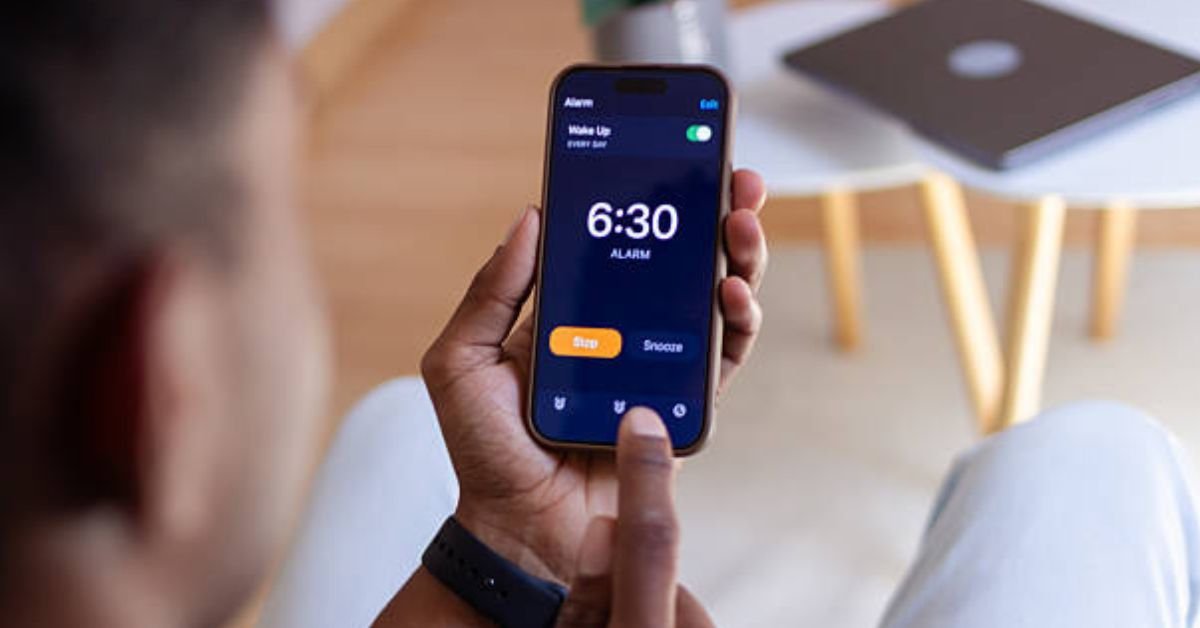
Yes—your iPhone alarm will go off during a call, without exception. Apple has designed iOS to prioritize alarms as system-level notifications that override all other activities, including phone calls, FaceTime sessions, and third-party communication apps. Whether you’re on a cellular call, a WhatsApp video chat, or a Zoom meeting, your scheduled alarm will ring at the designated time. This comprehensive guide will explain exactly how this works across all call types and show you how to optimize your settings for maximum reliability.
How iPhone Alarms Work During Calls: The Core Principle
System Priority Over Everything
iOS treats alarms as critical, system-level alerts with the highest priority in the notification hierarchy. This design philosophy ensures reliability for essential time-based reminders like wake-up calls, medication schedules, and important meetings. Unlike notifications from apps that can be silenced by Do Not Disturb or Focus modes, alarms are engineered to sound regardless of your device’s current state or activity.
The alarm function is built into the core iOS Clock app and operates independently of the phone’s communication systems. When an alarm is triggered, it temporarily takes precedence, ensuring you never miss a critical reminder simply because you’re engaged in a conversation.
What You’ll See and Hear
When your alarm goes off during a call, you’ll experience the following without your call ending:
- Audio playback: The alarm sound plays through your iPhone’s speaker at the volume determined by your Ringer and Alerts settings. This occurs even if you’re using headphones or your phone is in Silent mode.
- Visual notification: A notification banner appears as an overlay on your screen, displaying the alarm name and two action buttons.
- Snooze and Dismiss options: You can tap Snooze to silence the alarm for nine minutes or Dismiss to stop it completely, all while maintaining your active call.
- Vibration feedback: If vibration is enabled for your alarm, the phone will vibrate in addition to playing the sound.
Does It Work on All Types of Calls? (Tested)
Standard Phone Calls (Cellular)
Confirmed: Alarms function perfectly during traditional cellular phone calls. The alarm uses your device’s ringer volume setting to play the sound, which means it will be audible whether you’re using the phone’s earpiece, speakerphone, or connected Bluetooth devices. Your call remains active throughout the alarm, and you can dismiss or snooze the alert without interrupting your conversation.
FaceTime & Video Calls
Confirmed: iPhone alarms work seamlessly during FaceTime audio and video calls. The alarm sound plays on your end only—the person you’re speaking with will not hear your alarm unless your environment is exceptionally quiet and the alarm is set to maximum volume. The FaceTime interface remains active, and you can interact with the alarm notification overlay while continuing your video or audio session.
This privacy feature is built into iOS’s audio routing system, which isolates your alarm sounds from the microphone input being transmitted to the other party.

Social & Messaging Apps (WhatsApp, Zoom, etc.)
Confirmed: The native iPhone Clock app alarm works universally across all third-party Voice over IP (VoIP) applications, including WhatsApp, Zoom, Microsoft Teams, Skype, Discord, and Telegram. The system-level priority of iOS alarms means they override any app-based audio session.
Important note about third-party alarm apps: While the native Clock app alarm is guaranteed to work during calls, third-party alarm applications (such as Alarmy, Sleep Cycle, or Spotify alarms) may behave differently depending on how they’re programmed to interact with iOS. For critical reminders, always use the built-in Clock app to ensure reliability.
Will the Other Person Hear My Alarm?
In most situations, no—the person on the other end of your call will not hear your iPhone alarm. iOS employs sophisticated microphone isolation and echo cancellation technology that prevents system sounds like alarms from being transmitted through your phone’s microphone during calls.
However, there are rare exceptions where a faint alarm sound might be audible to the other person:
- Your alarm volume is set to maximum and you’re in a completely silent environment
- You’re using speakerphone mode with your phone placed very close to the microphone
- Your microphone’s noise cancellation is temporarily disabled or malfunctioning
How to Guarantee They Don’t Hear It
If you want absolute certainty that your alarm remains private during a call, follow this simple solution:
- When the alarm notification appears on your screen, immediately tap the Mute button in your call interface
- Dismiss or snooze the alarm using the on-screen buttons
- Unmute your microphone to resume the conversation
This takes only a few seconds and completely prevents any potential audio bleed, giving you control over your privacy and eliminating any distraction for the person you’re speaking with.
Essential Settings to Check (For Reliability)
To ensure your iPhone alarm functions perfectly every time—whether you’re on a call or not—verify these critical settings:
1. Set the Correct Alarm Volume
Critical distinction: iPhone alarms use the Ringer and Alerts volume, not the Media volume that controls music and video playback. Many users mistakenly adjust their media volume with the side buttons, assuming it will affect alarm loudness.
How to set your alarm volume correctly:
- Open the Settings app on your iPhone
- Scroll down and tap Sounds & Haptics
- Locate the Ringer and Alerts slider near the top of the screen
- Drag the slider to your desired volume level (you’ll hear a preview tone)
Essential recommendation: Turn OFF the toggle labeled Change with Buttons. When this setting is disabled, your alarm volume remains locked at the level you set in Sounds & Haptics, preventing accidental adjustments when you press the volume buttons while using other apps. This ensures consistent alarm loudness.
2. Choose a Distinct, Loud Alarm Sound
Some alarm tones are more effective than others at cutting through background noise and grabbing your attention:
- Open the Clock app and tap the Alarms tab
- Tap Edit in the upper-left corner, then select the alarm you want to modify
- Tap Sound to browse available alarm tones
- Choose a tone that’s audible and distinctive (popular effective options include Radar, Beacon, and Presto)
Avoid setting alarms to songs from your music library if you need a guaranteed wake-up, as music tracks can sometimes fail to play if there are syncing or connectivity issues with Apple Music or iTunes.
3. Understand Do Not Disturb & Focus Modes
Good news: iPhone alarms are specifically designed to override all Focus modes, including Do Not Disturb, Sleep, Work, Personal, and any custom Focus settings you’ve created. This is a deliberate design choice by Apple to ensure you never miss an important reminder.
Even if you have Do Not Disturb enabled with the most restrictive settings, your scheduled alarms will still sound at their designated times. You do not need to add alarms as exceptions or configure any special Focus mode permissions.
4. Avoid Common Pitfalls
Double-check these potential issues that cause alarm failures:
- Verify the alarm toggle is ON: In the Clock app, each alarm has a switch next to it. If the switch is gray, the alarm is disabled. It must be green to be active.
- Confirm AM/PM setting: A common mistake is setting an alarm for 7:00 PM when you meant 7:00 AM. Always verify the time designation when creating or editing alarms.
- Check for accidental deletion: If you edit alarms frequently or use Siri to manage them, you may inadvertently delete an alarm. Review your alarm list regularly.
How to Temporarily Manage Alarms During Important Calls
Quickly Snooze or Dismiss
When an alarm goes off during a call, the notification banner provides immediate access to two actions:
- Snooze: Tap this button to silence the alarm for exactly nine minutes. The alarm will ring again after this period, giving you a recurring reminder.
- Dismiss: Tap this button to stop the alarm completely for the day. The alarm will not sound again until the next scheduled occurrence.
Temporarily Disable a Single Alarm
If you know you’ll be on an important call when an alarm is scheduled, you can temporarily turn it off:
- Open the Clock app before your call
- Navigate to the Alarms tab
- Toggle the switch next to the specific alarm to OFF (it will turn gray)
- After your call, return to the Clock app and toggle the alarm back ON (green)
Using Vibration-Only Mode
For subtle reminders during calls that won’t create audible interruptions, configure an alarm with vibration only:
- In the Clock app, edit the desired alarm
- Tap Sound
- Scroll to the very top and select None under Ringtones
- Ensure the Vibration option is set to a pattern you’ll notice
With this configuration, the alarm will vibrate at the scheduled time without producing any sound, allowing you to receive the notification discreetly.

Troubleshooting: What If My Alarm Didn’t Sound?
If your alarm failed to go off during a call (or at any time), work through this diagnostic checklist:
- Check Ringer and Alerts volume: Go to Settings > Sounds & Haptics and verify the slider is set high enough to hear. Ensure Change with Buttons is OFF to prevent accidental volume reduction.
- Verify the alarm was enabled: Open the Clock app and confirm the alarm toggle is green, not gray.
- Confirm correct AM/PM setting: A 12-hour clock error is one of the most common causes of missed alarms. Double-check the time designation.
- Ensure your iPhone wasn’t powered off: Alarms will not sound if the device is completely shut down. Your iPhone must be on (even if locked or in sleep mode) for alarms to function.
- Check for iOS bugs: Rarely, an iOS software glitch can prevent alarms from sounding. Try restarting your iPhone by powering it off and back on. If the problem persists, check for iOS updates in Settings > General > Software Update.
- Review third-party alarm apps: If you’re using an alarm app other than the native Clock app, it may not have system-level priority. Switch to the Clock app for guaranteed reliability during calls.
Frequently Asked Questions
Q: Will my iPhone alarm go off during a FaceTime call?
A: Yes, absolutely. Your iPhone alarm will ring at the scheduled time even if you are on a FaceTime, WhatsApp, or any other call. The alarm has system priority and will sound without ending your call.
Q: Can the person I’m talking to hear my alarm go off?
A: Typically, no. Your phone’s microphone is optimized for your voice and uses noise cancellation technology. However, if the alarm is extremely loud and your environment is very quiet, they might hear a faint sound. To be certain, you can briefly mute your side of the call when the alarm sounds.
Q: Does Do Not Disturb mode silence alarms?
A: No. On iPhone, alarms are designed to override Do Not Disturb, Silent Mode, and even all Focus modes. You will always hear your scheduled alarm regardless of these settings.
Q: How can I make my alarm louder so I hear it during a call?
A: Go to Settings > Sounds & Haptics and adjust the Ringer and Alerts slider to a higher level. For best results, turn OFF the Change with Buttons option to lock the volume at your preferred setting and prevent accidental adjustments.
Q: Will my alarm sound if my iPhone is turned off?
A: No. If your iPhone is completely powered off, the alarm will not sound. The device must be on, even if it’s locked or in sleep mode, for alarms to function properly.
Key Takeaways
Your iPhone alarm will reliably go off during any type of call—cellular, FaceTime, WhatsApp, Zoom, or other VoIP services—thanks to Apple’s design that prioritizes alarms as system-level notifications. The alarm sound plays on your end only, and you can dismiss or snooze it without ending your call.
To ensure perfect reliability, the most critical setting to understand is the Ringer and Alerts volume in Settings > Sounds & Haptics. Turn off Change with Buttons to lock your alarm volume at a consistent, audible level. Choose a distinct alarm tone, verify your alarms are toggled on, and remember that alarms override all Focus modes including Do Not Disturb.
CLICK HERE FOR MORE BLOG POSTS

“In a world of instant takes and AI-generated noise, John Authers writes like a human. His words carry weight—not just from knowledge, but from care. Readers don’t come to him for headlines; they come for meaning. He doesn’t just explain what happened—he helps you understand why it matters. That’s what sets him apart.”
This post gave me exactly the clarity I needed. Thank you!
Your energy in this post is infectious — LOVE IT!
узаконивание перепланировки квартиры pereplanirovka-kvartir15.ru .
cherry 5000 cherry 5000
crazy time crazy time
1xbet yeni giri? 1xbet yeni giri? .
согласование перепланировки в москве согласование перепланировки в москве .
сколько стоит перепланировка квартиры proekt-pereplanirovki-kvartiry26.ru .
1xbet azerbaycan 1xbet azerbaycan .
1xbet azerbaijan 1xbet azerbaijan .
стоимость проекта перепланировки квартиры proekt-pereplanirovki-kvartiry27.ru .
1xbet az?rbaycan philippeauguin.org .
1xbet azerbaycan 1xbet azerbaycan .
умная нейросеть для учебы nejroset-dlya-referatov-21.ru .
реферат нейросеть реферат нейросеть .
нейросеть для учебы онлайн nejroset-dlya-referatov-22.ru .
нейросеть для студентов nejroset-dlya-referatov-25.ru .
электрические гардины elektrokarniz11.ru .
электрокарниз электрокарниз .
умная нейросеть для учебы nejroset-dlya-referatov-28.ru .
автоматические карнизы автоматические карнизы .
электрокарнизы в москве электрокарнизы в москве .
электрокарниз купить elektrokarniz-nedorogo77.ru .
сделать реферат сделать реферат .
карниз электро karniz-motorizovannyj77.ru .
электрические гардины для штор elektrokarnizy-dlya-shtor150.ru .
электрические карнизы купить электрические карнизы купить .
электрические гардины elektrokarnizy777.ru .
электрокарнизы цена электрокарнизы цена .
электрические жалюзи купить elektricheskie-zhalyuzi5.ru .
ии для студентов ии для студентов .
нейросеть для студентов онлайн nejroset-dlya-referatov-26.ru .
рулонные жалюзи купить в москве elektricheskie-rulonnye-shtory77.ru .
рольшторы заказать рольшторы заказать .
рольшторы на окна купить в москве elektricheskie-rulonnye-shtory90.ru .
рулонные шторы купить в москве рулонные шторы купить в москве .
нейросеть для рефератов нейросеть для рефератов .
1xbet giri?i 1xbet-67.com .
карнизы с электроприводом купить prokarniz17.ru .
1xbet mobil giri? 1xbet mobil giri? .
1xbet ?ye ol 1xbet-70.com .
1xbet g?ncel giri? 1xbet g?ncel giri? .
1xbet t?rkiye giri? 1xbet t?rkiye giri? .
1xbet yeni adresi 1xbet yeni adresi .
1x bet 1xbet-giris-68.com .
1x bet 1xbet-giris-67.com .
нейросеть пишет реферат нейросеть пишет реферат .
1xbet giri? 2025 1xbet giri? 2025 .
1xbet g?ncel giri? 1xbet g?ncel giri? .
раскрутка сайтов москва александр раскрутка сайтов москва александр
You’ve turned a complicated topic into something enjoyable.
seo продвижение сайта москва александр seo продвижение сайта москва александр
услуги раскрутка сайта москва услуги раскрутка сайта москва
местоположение по номеру телефона finderphone.ru .
заказать продвижение сайта недорого москва александр заказать продвижение сайта недорого москва александр
веб раскрутка александр веб раскрутка александр
аренда яхты с капитаном на неделю arenda-yakhty-spb-9.ru
аренда яхты аренда яхты
катер спб аренда катер спб аренда
seo продвижение сайтов в топ москва seo продвижение сайтов в топ москва
оптимизация сайта агентство александр оптимизация сайта агентство александр
раскрутка и продвижение сайтов москва александр раскрутка и продвижение сайтов москва александр
продвижение сайтов в москве продвижение сайтов в москве
сео с гарантией результата сео с гарантией результата
консультации по seo продвижению консультации по seo продвижению
раскрутка сайта франция раскрутка сайта франция
продвижение сайта дзержинский продвижение сайта дзержинский
раскрутка сайта заказать раскрутка сайта заказать
seo продвижение официальный сайт seo продвижение официальный сайт
продвижение сайтов германия продвижение сайтов германия
seo продвижение компании москва seo продвижение компании москва
продвижение сайта заказать москва веб сео топ продвижение сайта заказать москва веб сео топ
раскрутка сайта в интернете цены александр раскрутка сайта в интернете цены александр
продвинуть сайт в москве александр продвинуть сайт в москве александр
купить данные купить данные .
заказать кухню сайт заказать кухню сайт
купить заказать кухню купить заказать кухню
заказать кухню стоимость https://zakazat-kuhnyu-19.ru
заказать кухню под ключ https://zakazat-kuhnyu-20.ru
заказать кухню в спб от производителя https://kuhni-spb-58.ru
купить кухню в спб от производителя купить кухню в спб от производителя
кухни в спб от производителя кухни в спб от производителя
большая кухня на заказ большая кухня на заказ
изготовление кухонь на заказ в санкт петербурге https://kuhni-spb-60.ru
автоматическая рулонная штора автоматическая рулонная штора
рулонные шторы на окна москва рулонные шторы на окна москва
какие бывают рулонные шторы https://rulonnye-shtory-s-elektroprivodom11.ru
рулонные шторы с электроприводом и дистанционным управлением рулонные шторы с электроприводом и дистанционным управлением
рольшторы на окна купить в москве рольшторы на окна купить в москве
тест2 тест2 .
запоминаемость слогана реклама https://reklamnyj-kreativ18.ru
super cherry 5000 online spielen super cherry 5000 online spielen
crazy time game crazy time game
улучшение баннеров реклама https://reklamnyj-kreativ19.ru
рулонные шторы с электроприводом и дистанционным управлением рулонные шторы с электроприводом и дистанционным управлением
скачать видео из ютуб по ссылке скачать видео из ютуб по ссылке
вызов наркологической помощи https://narkolog-na-dom-voronezh-11.ru
частный нарколог на дом частный нарколог на дом
вызов нарколога на дом цена https://narkolog-na-dom-voronezh-10.ru
вызов врача нарколога на дом https://narkolog-na-dom-voronezh-13.ru
вызов нарколога вызов нарколога
нарколог на дом анонимно нарколог на дом анонимно
rent a yacht Montenegro Montenegro yacht charter
стоимость капельницы на дому екатеринбург https://kapelnicza-ot-pokhmelya-ekaterinburg-14.ru
поставить капельницу цена в екатеринбурге https://kapelnicza-ot-pokhmelya-ekaterinburg-16.ru
капельница на дому в екатеринбурге капельница на дому в екатеринбурге
частная наркологическая помощь частная наркологическая помощь
вывод из запоя в наркологическом стационаре https://vyvod-iz-zapoya-v-staczionare-nizhnij-novgorod-16.ru
Эта информационная заметка предлагает лаконичное и четкое освещение актуальных вопросов. Здесь вы найдете ключевые факты и основную информацию по теме, которые помогут вам сформировать собственное мнение и повысить уровень осведомленности.
Ознакомиться с деталями – https://vivod-iz-zapoya-2.ru/
trusted casino malaysia trusted casino malaysia
freehold apartments for sale in phuket freehold apartments for sale in phuket
merge puzzles https://bioexpedition.com/top-10-merge-games-you-can-play-in-your-browser-for-free/
Особое внимание мы уделяем психологической составляющей. Нарколог на дом в Екатеринбурге в «НЕО+» — это не только физическое очищение, но и работа с мотивацией, разрушение психологических триггеров зависимости. Зависимость разрушает жизнь, поэтому мы предлагаем психотерапевтическое сопровождение. Родственники получают отдельную поддержку: консультации психолога помогают правильно выстроить общение с зависимым человеком и мотивировать его на дальнейшее лечение. Реабилитация может проходить амбулаторно или в стационаре партнёрских центров с комфортабельными условиями, где пациенты находятся под круглосуточным наблюдением.
Получить больше информации – вызов нарколога на дом екатеринбург
Затяжной запой перестает быть бытовой проблемой в тот момент, когда организм теряет способность самостоятельно восстанавливаться после интоксикации. Накопление ацетальдегида, нарушение водно-электролитного баланса, истощение запасов витаминов и перегрузка сердечно-сосудистой системы создают состояние, при котором домашние методы перестают быть безопасными. Срочно стабилизировать самочувствие и быстро купировать абстинентный синдром позволяет только контролируемая медицинская среда. Вывод из запоя в стационаре в Нижнем Новгороде становится клинически обоснованным решением, когда требуется не просто снятие симптомов, а комплексная детоксикация под круглосуточным наблюдением врачей. Наркологическая клиника «Стармед» организует процесс лечения в соответствии с актуальными стандартами доказательной медицины, обеспечивая безопасность пациента, прозрачность процедур и плавный переход к противорецидивной терапии. Мы понимаем, что решение о госпитализации часто принимается в состоянии стресса, поэтому наша работа начинается с четкой диагностики, честного объяснения плана лечения и соблюдения строгих протоколов конфиденциальности. Опытные специалисты клиники помогут вызвать доверие к процессу восстановления уже на этапе первого контакта.
Получить дополнительные сведения – наркология вывод из запоя в стационаре
Капельница от похмелья в Воронеже с устранением слабости, тошноты и головной боли в наркологической клинике «Похмельная служба»
Ознакомиться с деталями – капельница от похмелья в воронеже
888starz.com https://888starz-egypt9.com/
После алкоголя в организме накапливаются токсичные продукты распада, нарушается водно-солевой баланс и страдает нервная система, что особенно выражено после запоя или при алкоголизме. Это проявляется головной болью, слабостью, тошнотой и нарушением сна. Капельница помогает ускорить процессы очищения и восстановить внутренние системы, обеспечивая более быстрое облегчение состояния и помогая человеку выйти из состояния запоев.
Подробнее можно узнать тут – капельница от похмелья на дому
Выезд врача начинается с оценки состояния пациента. Доктора измеряют давление, пульс, оценивают уровень сознания и выраженность симптомов. После этого формируется план лечения, который реализуется сразу. Такой подход позволяет быстро перейти к стабилизации состояния человека.
Подробнее – вывод из запоя на дому в санкт-петербурге
Процедура вывода из запоя на дому включает несколько этапов, каждый из которых имеет важное значение для общего улучшения состояния пациента. Главная цель — это не только устранение симптомов абстиненции, но и восстановление нормальной работы органов и систем организма. Врач, который проводит процедуру, использует медикаментозные средства для восстановления водно-солевого баланса, нормализации работы печени, почек и других органов, пострадавших от алкоголя. Также в процесс включаются препараты, которые способствуют снятию нервного напряжения и психоэмоционального стресса.
Исследовать вопрос подробнее – нарколог на дом вывод из запоя в екатеринбурге
888 starz login http://www.888starz-uz1.org/ .
Непрерывный мониторинг витальных показателей позволяет фиксировать малейшие изменения в состоянии пациента и своевременно вносить коррективы в терапевтический план. В палатах клиники «Элегия Мед» установлены системы отслеживания частоты пульса, сатурации, температуры и артериального давления, данные с которых автоматически передаются в медицинскую карту. Медсестры и дежурные врачи проверяют состояние пациента по графику, проводят симптоматическую терапию, контролируют прием препаратов и обеспечивают комфортные условия для восстановления. Такая организация процесса исключает хаотичное назначение средств, предотвращает полипрагмазию и гарантирует, что каждый этап детоксикации проходит под строгим клиническим контролем. При необходимости применяются дополнительные методы очищения крови, включая плазмаферез, который эффективно помогает вывести стойкие токсины и метаболиты, не удаляемые стандартной инфузионной терапией.
Ознакомиться с деталями – быстрый вывод из запоя в стационаре в санкт-петербурге
Процедура вывода из запоя на дому включает несколько ключевых этапов, которые обеспечивают максимально быстрое и безопасное восстановление пациента. Эти этапы тщательно контролируются врачом, что минимизирует риски и помогает достичь наилучших результатов.
Получить дополнительные сведения – вывод из запоя на дому
Специалисты рекомендуют не откладывать вызов врача, если симптомы похмелья сильно нарушают обычный режим жизни. Чем раньше начнется лечение, тем быстрее произойдет стабилизация состояния. Наркологи также подчеркивают, что капельница от похмелья не является решением проблемы алкоголизма, но она помогает избавиться от острого дискомфорта и подготовить организм к более длительному восстановлению.
Подробнее – [url=https://kapelnicza-ot-pokhmelya-nizhnij-novgorod-2.ru/]капельница от похмелья на дом нижний новгород[/url]
Процесс лечения капельницей помогает улучшить состояние пациента уже через короткий период. Важно, что процедура не только снимает симптомы похмелья, но и восстанавливает нормальную работу печени, почек и других органов, пострадавших от токсического воздействия алкоголя. Это помогает предотвратить долгосрочные последствия интоксикации, такие как хроническая усталость, проблемы с органами и психоэмоциональные расстройства.
Подробнее можно узнать тут – капельница от похмелья цена екатеринбург
Первый этап лечения направлен на стабилизацию состояния. Он начинается с оценки витальных показателей и клинической картины. После этого формируется план терапии, в котором определены цели и временные интервалы для оценки результата. Такой подход позволяет контролировать процесс и избегать хаотичных назначений, особенно при лечении алкоголизма.
Исследовать вопрос подробнее – нарколог вывод из запоя в стационаре в нижнем новгороде
Нарколог на дом в Екатеринбурге: выезд врача на дом, лечение запоя и консультации в наркологической клинике «НЕО+».
Детальнее – нарколог на дом анонимно
Такие состояния требуют профессионального вмешательства, так как без лечения могут усиливаться и приводить к ухудшению самочувствия. При этом помощь может предоставляться анонимно, в соответствии с политикой конфиденциальности данных пациента.
Выяснить больше – анонимный вывод из запоя на дому
Вывод из запоя на дому в Екатеринбурге: эффективное лечение, детоксикация и восстановление организма в наркологической клинике «Детокс»
Детальнее – http://vyvod-iz-zapoya-na-domu-ekaterinburg-18.ru
Такие симптомы требуют медицинского вмешательства, поскольку могут приводить к ухудшению состояния. Капельница помогает стабилизировать самочувствие и снизить нагрузку на организм. Услуги могут предоставляться анонимно, а при необходимости пациент направляется на лечение в стационаре.
Подробнее – капельница от похмелья на дому в воронеже
продажа базы gobasego-2.ru .
За выездом врача чаще обращаются тогда, когда человеку тяжело добраться до клиники, он ослаблен после нескольких дней употребления алкоголя или родственникам важно быстрее понять, какая тактика будет безопасной. После осмотра можно определить, нужна ли капельница, достаточно ли детоксикации на дому, требуется ли повторное наблюдение, а в дальнейшем — консультация по лечению алкоголизма, кодирование или реабилитация. В части случаев уже первый звонок позволяет понять, идет ли речь только о временном ухудшении самочувствия или о состоянии, при котором может потребоваться вывод из запоя в стационаре.
Получить дополнительную информацию – вызвать нарколога на дом екатеринбург
Для эффективной организации лечения и минимизации организационных рисков пациентам и их родственникам рекомендуется ориентироваться на следующие ключевые параметры:
Подробнее можно узнать тут – http://www.domen.ru
Вывод из запоя на дому в Санкт-Петербурге с подбором терапии, наблюдением врача и комфортным лечением в наркологической клинике «Частный медик 24»
Подробнее – нарколог на дом вывод из запоя санкт-петербург
888starz официальный сайт 888starz официальный сайт .
Вызов капельницы от похмелья с контролем врача в Самаре рекомендуется, когда симптомы похмелья становятся особенно тяжелыми и мешают нормальной жизнедеятельности. Несмотря на то, что многие пытаются справиться с похмельем с помощью домашних методов, такие как прием жидкости или таблеток, они не всегда оказываются достаточно эффективными. В случае сильных симптомов похмелья, капельница с врачебным контролем — это более безопасное и быстрое решение, при этом возможен вывод в стационаре, анонимное лечение и консультации по вопросам наркомании с учетом актуальной цены услуг.
Подробнее – капельница от похмелья в самаре
капельница от алкоголя на дому спб https://vyvod-iz-zapoya-na-domu-sankt-peterburg-21.ru
1xbet tr 1xbet tr
8starz http://888starz-bet2.com .
888stqrz http://www.888starz-bet2.com/ .
рулонные шторы купить цены https://avtomaticheskie-rulonnye-shtory50.ru
Непрерывный мониторинг витальных показателей — ключевое отличие стационарного формата, обеспечивающее безопасную детоксикацию. В палатах клиники «Элегия Мед» установлены системы отслеживания частоты пульса, сатурации, температуры и артериального давления, данные с которых автоматически передаются в электронную медицинскую карту. Медицинский персонал дежурит круглосуточно, что обеспечивает мгновенную реакцию на ухудшение состояния: коррекцию инфузионной терапии, введение симптоматических препаратов, привлечение смежных специалистов при необходимости. Такая организация процесса исключает хаотичное назначение средств, предотвращает полипрагмазию и гарантирует, что каждый этап детоксикации проходит под строгим клиническим контролем. При необходимости применяются дополнительные методы очищения крови, включая плазмаферез, который эффективно помогает вывести стойкие токсины и метаболиты, не удаляемые стандартной инфузионной терапией.
Получить дополнительные сведения – вывод из запоя в стационаре
Первичный осмотр включает оценку витальных показателей, уровня сознания, выраженности симптомов и факторов риска. После этого врач определяет объём вмешательства и приступает к терапии. В большинстве случаев применяется инфузионное лечение, направленное на восстановление водного баланса и выведение токсинов.
Подробнее тут – наркологическая помощь
Вывод из запоя на дому в Екатеринбурге – это услуга, которая становится необходимой, когда состояние пациента ухудшается после длительного употребления алкоголя, и медицинская помощь требуется немедленно. На дому пациенту предоставляется квалифицированная помощь, направленная на быстрое снятие интоксикации, восстановление водно-солевого баланса и стабилизацию общего состояния.
Разобраться лучше – вывод из запоя на дому
xbet girişi xbet girişi
888starz букмекер http://www.888starz-uz3.org .
рулонные шторы на окна цена https://avtomaticheskie-rulonnye-shtory50.ru
производители рулонных штор производители рулонных штор
тканевые жалюзи рулонные на окна цена https://rulonnye-elektroshtory.ru
автоматические рулонные шторы с электроприводом на окна автоматические рулонные шторы с электроприводом на окна
молодежка киного arafta na russkom
uakinobay гра в хованки 2 дивитись онлайн
888starz официальный сайт вход https://888starz-bet1.com .
888starz sign up https://888starz-egypt8.com/
диявол носить прада 2 дивитись онлайн ти той кого я люблю
капельница на дому недорого капельница на дому недорого
капельница от алкоголизма капельница от алкоголизма
1xbet azeri 1xbet azeri
пять обитель анубиса
1xbet giriş azerbaycan 1xbet giriş azerbaycan
Interested in UFC? Topuria vs Gaethje unique mixed martial arts tournament will take place on June 14, 2026, in Washington, D.C., on the South Lawn of the White House. It will be the first professional sporting event in history to be held directly on the grounds of the U.S. presidential residence.
ремонт стиралки на дому https://remont-stiralnih-mashin213.ru
сколько стоит прокапаться от алкоголя на дому сколько стоит прокапаться от алкоголя на дому
капельница от похмелья на дому капельница от похмелья на дому
1xbet güncel giriş 1xbet güncel giriş
xbet giriş xbet giriş
Экскурсовод предложит частную поездку Калининград индивидуальная обзорная экскурсия с осмотром достопримечательностей и профессиональным сопровождением.
888 stars https://888starz-egypt5.com/
88starz 88starz.
888starz вход 888starz вход .
888starz online https://888stars-uz.com/ .
888 kasino 888 kasino .
star888 star888 .
ثلاث ثمانيات ستارز https://888starz-egypt6.com/
наруто смотреть онлайн бесплатно в хорошем смотреть аниме наруто
Лечение в режиме круглосуточного наблюдения выстраивается как непрерывный медицинский процесс. Даже при экстренном обращении терапия рассматривается как последовательность взаимосвязанных мероприятий с обязательным врачебным контролем.
Ознакомиться с деталями – вывод наркологическая клиника в краснодаре
Состояние запоя представляет опасность не только для физического здоровья, но и для психики человека. Продолжительное употребление алкоголя приводит к тяжёлой интоксикации, нарушению обмена веществ и психоэмоциональной нестабильности. В таких случаях самостоятельный выход из запоя может быть опасен, а иногда и невозможен. Врачи «Южного Центра Медицинского Восстановления» оказывают квалифицированную помощь с выездом на дом и круглосуточным приёмом пациентов. Используя современные методы детоксикации и мониторинга состояния, специалисты обеспечивают безопасное восстановление организма и минимизируют риски осложнений.
Исследовать вопрос подробнее – http://vyvod-iz-zapoya-v-rnd19.ru/
Запой сопровождается выраженной интоксикацией, нарушением сна, слабостью, тревожностью и колебаниями давления, что характерно для алкоголизма и других форм зависимости. При этом самостоятельный выход из состояния часто оказывается затруднённым из-за ухудшения самочувствия и невозможности контролировать симптомы. В таких случаях выезд нарколога позволяет начать лечение без задержек и помочь пациенту снизить нагрузку на организм за счёт отсутствия транспортировки.
Разобраться лучше – нарколог на дом вывод из запоя санкт-петербург
Отдельно оценивают ситуации, когда эпизоды повторяются и становятся частью более устойчивой проблемы. Если после алкоголя регулярно развивается тяжелое состояние, нарушается привычный режим жизни, усиливаются последствия алкоголизма и возникают сложности с контролем употребления, домашний выезд может быть только первым этапом более длинного маршрута помощи. При этом наркологическая помощь может включать не только снятие острых проявлений, но и дальнейшую программу лечения зависимости, если речь идет о длительном течении заболевания.
Получить больше информации – нарколог на дом анонимно
Наиболее частыми причинами обращения становятся запой, тяжелый похмельный синдром, тремор, выраженная слабость, тревога, бессонница, нестабильное давление, учащенный пульс, тошнота и признаки обезвоживания. Эти проявления могут сочетаться между собой и усиливаться после прекращения употребления алкоголя, особенно если эпизод длился несколько дней.
Разобраться лучше – нарколог на дом анонимно
телефон стоматологии стоматология батуми
Реабилитация с индивидуальным подходом позволяет значительно повысить вероятность успешного избавления от зависимости. Она помогает учитывать не только физиологические аспекты зависимости, но и личные проблемы пациента, его психологическое состояние и отношения с окружающим миром. Индивидуальная программа также увеличивает мотивацию пациента и снижает риск рецидивов. В некоторых случаях лечение наркомании или запоя может быть предоставлено бесплатно, в зависимости от программы социальной поддержки или доступных государственных услуг.
Узнать больше – алкоголик реабилитация наркоманов в москве
Домашний формат помощи рассматривают тогда, когда человеку тяжело добраться до медицинского учреждения, состояние ухудшается после нескольких дней употребления спиртного или родственникам требуется очная оценка без промедления. После осмотра становится ясно, допустима ли помощь на дому, требуется ли капельница, можно ли ограничиться наблюдением в домашних условиях или нужен другой маршрут помощи. Вопрос о том, как вызвать специалиста, нередко возникает в ситуациях, когда состояние нарастает быстро и требуется решение без откладывания. Если подобные эпизоды повторяются, дальнейшее обсуждение может касаться не только текущего состояния, но и лечения алкоголизма, работы с зависимостью и более длительной программы восстановления.
Подробнее можно узнать тут – вызов нарколога на дом в москве
888 starz.com http://888starz-uz2.org .
starz 888 starz 888 .
Реабилитация алкоголиков с поддержкой специалистов в Москве представляет собой важный и сложный процесс, в котором ключевую роль играет профессиональное вмешательство. Программы реабилитации включают в себя не только медицинскую помощь, но и психологическую, социальную и эмоциональную поддержку, что способствует успешному и долгосрочному восстановлению пациента. Такая комплексная помощь является основой эффективного лечения и предотвращения рецидивов.
Подробнее – реабилитация алкоголиков стоимость в москве
Выезд нарколога на дом позволяет быстро устранить эти симптомы, нормализовать состояние пациента и предотвратить дальнейшее ухудшение здоровья.
Узнать больше – капельница от похмелья екатеринбург
Круглосуточный режим работы в клинике «Чистый Баланс» обусловлен особенностями течения зависимостей, при которых острые состояния нередко развиваются внезапно. Нарколог на дом в Ростове-на-Дону обеспечивает возможность оперативной диагностики и начала лечения без временных ограничений. Клиническая практика подтверждает, что своевременное вмешательство на дому позволяет стабилизировать состояние пациента и предотвратить развитие тяжёлых последствий.
Разобраться лучше – http://narkolog-na-dom-v-rnd19.ru
Лечение алкоголизма в Сергиевом Посаде важно рассматривать не как разовую «чистку» или временный перерыв, а как последовательный маршрут. Самый уязвимый период — первые 24–72 часа после прекращения употребления: днём может стать легче, но к вечеру и ночью волной возвращаются тревога и бессонница, усиливается внутреннее напряжение, появляются телесные симптомы. В этот момент человек чаще всего срывается, потому что ему кажется, что «иначе не выдержу». Поэтому качественная помощь строится так, чтобы пациент прошёл вечер и ночь безопасно, с понятными ориентирами и медицинской поддержкой, а затем перешёл к восстановлению и профилактике рецидива.
Узнать больше – klinika-lecheniya-alkogolizma
В рамках анонимного лечения особое внимание уделяется следующим медицинским аспектам:
Исследовать вопрос подробнее – https://narkologicheskaya-klinika-v-rostove19.ru/chastnaya-narkologicheskaya-klinika-rostov-na-donu
وكيل 888starz https://888starz-egypt6.com/
تحميل كازينو 888 888 مراهنات
Современные методы лечения при выводе из запоя включают как медикаментозную детоксикацию, так и психологическую реабилитацию. В Уфе наркологи используют капельничное введение лекарственных средств, которые помогают быстро вывести токсины, нормализовать обмен веществ и стабилизировать работу внутренних органов. Одновременно с этим проводится психологическая поддержка для снижения эмоционального стресса, связанного с запоем.
Выяснить больше – narcolog-na-dom-ufa0.ru/
Алкогольный запой является тяжёлым состоянием, требующим срочного медицинского вмешательства. Наркологическая клиника «Пульс» в Краснодаре предлагает эффективную помощь в борьбе с алкогольной зависимостью, используя проверенный метод — капельницу от запоя на дому. Наши специалисты оперативно выезжают по указанному адресу и обеспечивают качественную медицинскую помощь с гарантией конфиденциальности и безопасности.
Выяснить больше – капельница от запоя клиника
Снятие симптомов даёт человеку окно трезвости, но не устраняет причины повторения. Если после стабилизации пациент возвращается в прежний режим — недосып, перегруз, конфликтность, прежнее окружение — вероятность рецидива остаётся высокой. Поэтому в клинике важно работать с тягой и триггерами, восстанавливать сон и эмоциональную устойчивость, формировать понятный план действий на уязвимые часы и дни. Чем конкретнее этот план, тем меньше вероятность импульсивного решения «выпить/употребить для облегчения».
Узнать больше – narkologicheskaya-klinika-oficialnyj-sajt
Нарколог устанавливает внутривенную капельницу, через которую вводятся растворы, обеспечивающие быстрое выведение токсинов, восстановление водно-электролитного баланса и стабилизацию состояния.
Исследовать вопрос подробнее – нарколог на дом недорого в воронеже
После поступления звонка специалисты нашей клиники оперативно выезжают по адресу пациента в Новосибирске. Врач начинает работу с детальной диагностики: измеряет пульс, артериальное давление, сатурацию (уровень кислорода в крови), оценивает состояние нервной и сердечно-сосудистой систем, уточняет наличие хронических заболеваний, аллергических реакций, длительность и тяжесть запоя.
Детальнее – https://vyvod-iz-zapoya-novosibirsk0.ru/vyvod-iz-zapoya-czena-novosibirsk
Услуга вывода из запоя на дому в Мурманске предполагает комплексное лечение алкогольной интоксикации, направленное на оперативное снижение уровня токсинов в организме. Сразу после поступления вызова специалист проводит детальный осмотр, собирает анамнез и определяет степень интоксикации. На основании собранной информации разрабатывается индивидуальный план терапии, который может включать капельничное введение медикаментов, контроль жизненно важных показателей и психологическую поддержку. Такой комплекс мер позволяет стабилизировать состояние пациента и начать процесс выздоровления без необходимости посещения стационара.
Получить дополнительную информацию – https://vyvod-iz-zapoya-murmansk0.ru/
Сразу после вызова нарколог приезжает на дом для проведения первичного осмотра и диагностики. На этом этапе проводится сбор анамнеза, измеряются жизненно важные показатели (пульс, артериальное давление, температура) и определяется степень алкогольной интоксикации. Эти данные являются основой для разработки индивидуального плана лечения.
Получить дополнительную информацию – капельницу от запоя тюмень
Когда запой становится критическим, оперативное вмешательство имеет решающее значение для спасения здоровья и предотвращения необратимых последствий. Во Владимире экстренная помощь нарколога на дому позволяет быстро начать лечение, не требуя госпитализации, что особенно важно для пациентов, нуждающихся в сохранении конфиденциальности и комфорте.
Получить дополнительные сведения – vivod iz zapoya vladimir
На данном этапе врач уточняет длительность запоя, тип употребляемого алкоголя и наличие сопутствующих заболеваний. Тщательный анализ этих данных позволяет подобрать оптимальные методы детоксикации и снизить риск осложнений.
Детальнее – narkolog-vyvod-iz-zapoya murmansk
Реализация данных задач позволяет наркологу на дом в Ростове-на-Дону оказывать помощь в контролируемом и безопасном формате.
Подробнее тут – нарколог на дом анонимно в ростове-на-дону
Подробности по ссылке: https://vgarderobe.ru/obuv-odezhda-jack-wolfskin-b-304.html
К основным показаниям относятся:
Выяснить больше – vyvod-iz-zapoya-na-domu-sankt-peterburg-8.ru/
Дальше задача — восстановить управляемость состояния. Это включает снижение интоксикации, коррекцию обезвоживания, выравнивание показателей, уменьшение тревоги и нормализацию сна. Но чтобы результат закрепился, необходим второй слой: работа с триггерами (стресс, конфликт, усталость, одиночество), профилактика «вечернего отката», поддержка режима и понимание, какие симптомы допустимы, а какие требуют повторной оценки. Именно это отличает лечение зависимости от разовой попытки «стало легче — дальше как-нибудь».
Получить дополнительные сведения – zapoj-narkologicheskaya-klinika
Помощь при зависимостях в клинике «Южный Вектор» строится по принципу поэтапности, что соответствует современным медицинским представлениям. Наркологическая клиника в Ростове-на-Дону применяет методы, направленные на снижение выраженности синдромов отмены и восстановление функций органов. Клинические решения принимаются на основе данных обследования и наблюдения, что обеспечивает индивидуализацию терапии без отхода от стандартов.
Разобраться лучше – наркологическая клиника в ростове-на-дону
Выбор формата лечения определяется состоянием пациента, наличием хронических заболеваний и мотивацией к выздоровлению. При необходимости врач переводит пациента из амбулаторной формы в стационарную, обеспечивая непрерывность и безопасность терапии.
Ознакомиться с деталями – https://narkologicheskaya-clinika-v-rostove19.ru/
Нужен финаносвый план? инвестиционный бизнес план с расчетами подробное объяснение структуры документа, его роли в привлечении инвесторов, получении кредита и запуске бизнеса. Узнайте, какие разделы включает бизнес-план, какие расчеты нужны и как он помогает оценить прибыльность проекта.
Процедура проводится под контролем врача. В случае необходимости специалист выезжает на дом с полным набором медикаментов и оборудования. Такой формат особенно востребован среди пациентов, которые предпочитают анонимное лечение без госпитализации. Все манипуляции проводятся стерильно, а препараты подбираются с учётом противопоказаний.
Разобраться лучше – вывод из запоя круглосуточно в ростове-на-дону
Врачи клиники «КубаньТрезвость» применяют только безопасные, доказательно эффективные методы очищения организма. Каждый пациент получает персональную схему терапии, включающую капельницы, поддерживающие препараты и восстановительные процедуры. Детоксикация проводится под контролем нарколога, а дозировки медикаментов подбираются индивидуально.
Получить дополнительную информацию – вывод из запоя капельница
Соблюдение конфиденциальности в клинике «Точка Опоры» является неотъемлемой частью лечебного процесса. Наркологическая клиника в Краснодаре обеспечивает закрытый формат приёма, хранения медицинских данных и взаимодействия с пациентом. Практика показывает, что анонимное обращение снижает уровень тревожности, способствует более открытому диалогу с врачом и повышает точность клинической диагностики.
Подробнее – вывод наркологическая клиника краснодар
1xbet 888 https://888starzeg1.com/
888starz official 888starz official .
Клиника располагает изолированными палатами с возможностью круглосуточного мониторинга состояния пациента. Оборудование соответствует гигиеническим требованиям и регулярно обновляется. В лечебный процесс включены:
Получить дополнительную информацию – http://narkologicheskaya-klinika-v-ryazani12.ru
При поступлении вызова нарколог незамедлительно приезжает на дом для проведения детального первичного осмотра. Врач собирает краткий анамнез, измеряет жизненно важные показатели — пульс, артериальное давление, температуру — и оценивает степень алкогольной интоксикации. Эти данные являются основой для разработки индивидуального плана лечения, позволяющего подобрать наиболее эффективные методы детоксикации.
Получить больше информации – вывод из запоя на дому тула.
Капельничное лечение от запоя – это современный метод детоксикации, который позволяет быстро и безопасно вывести токсины из организма. В Луганске ЛНР специалисты оказывают помощь на дому, предлагая профессиональное капельничное лечение для тех, кто столкнулся с тяжелой алкогольной интоксикацией. Такой подход обеспечивает оперативное вмешательство в привычной для пациента обстановке, гарантируя индивидуальный подход и полную конфиденциальность.
Изучить вопрос глубже – выезд на дом капельница от запоя луганск
В нашей клинике “Сила воли” в Иркутске вы можете получить помощь как в стационаре, так и на дому. Мы предлагаем два вида услуг:
Выяснить больше – врача капельницу от запоя
Алкогольная и наркотическая зависимость требуют незамедлительного и комплексного вмешательства для предотвращения серьезных осложнений и сохранения здоровья пациента. В Уфе, Республика Башкортостан, опытные наркологи выезжают на дом 24 часа в сутки, предоставляя оперативную помощь при запоях и в случаях наркотической интоксикации. Такой формат лечения позволяет начать детоксикацию в комфортной, привычной обстановке, обеспечивая максимальную конфиденциальность и индивидуальный подход к каждому пациенту.
Углубиться в тему – нарколог на дом круглосуточно уфа
Клиника “Обновление” также активно занимается просветительской деятельностью. Мы организуем семинары и лекции, которые помогают обществу лучше понять проблемы зависимостей, их последствия и пути решения. Повышение осведомленности является важным шагом на пути к улучшению ситуации в этой области.
Подробнее – капельница от запоя клиника
Врач уточняет продолжительность запоя, характер употребляемого алкоголя и наличие сопутствующих заболеваний. Детальное обследование позволяет оперативно подобрать необходимые медикаменты и минимизировать риск осложнений.
Углубиться в тему – капельница от запоя в тюмени
Основная цель — быстрое и безопасное выведение этанола и его токсических метаболитов из организма, восстановление водно-электролитного и кислотно-щелочного баланса, нормализация артериального давления, работы сердца, почек и головного мозга. Для этого применяется инфузионная терапия, фармакологическая коррекция, витаминотерапия и, при необходимости, седативная поддержка.
Детальнее – http://vyvod-iz-zapoya-v-ryazani12.ru/vyvod-iz-zapoya-na-domu-v-ryazani/https://vyvod-iz-zapoya-v-ryazani12.ru
Пребывание в стационаре обеспечивает круглосуточный мониторинг состояния, своевременное введение лекарств и защиту пациента от внешних факторов, провоцирующих срыв. Все палаты оснащены необходимым оборудованием, соблюдаются санитарные нормы, а условия размещения соответствуют медицинским стандартам.
Узнать больше – https://narkologicheskaya-klinika-v-yaroslavle12.ru/narkologicheskaya-klinika-klinika-pomoshh-v-yaroslavle
Быстрая профессиональная монтаж видеонаблюдения для квартир, домов, офисов и коммерческих объектов. Проектирование, монтаж и настройка систем безопасности, удалённый доступ, запись видео и контроль в реальном времени. Надёжные решения для защиты имущества и контроля территории.
установка домофона расценки монтаж установка домофонов
В статье по вопросам здоровья мы рассматриваем актуальные проблемы, с которыми сталкивается общество. Обсуждаются заболевания, факторы риска и важные аспекты профилактики. Читатели получат полезные советы о том, как сохранить здоровье и улучшить качество жизни.
Читать полностью – Похмельная служба в Краснодаре
для предотвращения осложнений во время процедуры вывода из запоя на дому, врач нашей клиники проводит предварительный осмотр пациента, оценивает его общее состояние и собирает медицинский анамнез.
Подробнее можно узнать тут – вывод из запоя на дому недорого казань
Важное преимущество услуги — анонимность. Информация о пациента, обращении, адрес, диагноз, лечение, консультация, стоимость, препараты и другие данные не передаются третьим лицам. Нажимая кнопку «отправить заявку», вы соглашаетесь с пользовательским соглашением, политикой обработки персональных данных и политикой конфиденциальности сайта.
Выяснить больше – нарколог на дом вывод
Основа лечения запоя — инфузионная терапия (капельница). Капельница позволяет быстро доставить необходимые лекарственные средства прямо в кровь, минуя желудок. Стандартная лечебная процедура включает введение солевых растворов, витаминного комплекса, успокоительных, ноотропов, гепатопротекторов, кардиопротекторов. Такая терапия снимает острую интоксикацию, восстанавливает водно-солевой баланс, улучшает работу сердца, печени, головного мозга. Лечение с помощью капельницы даёт облегчение уже через несколько часов: проходит тошнота, головная боль, тремор, снижается давление, налаживается сон. Эффективность лечения зависит от качества препаратов и опыта врача. Наши специалисты используют собственные проверенные методики, гарантируя безопасность. При лечении алкогольной зависимости капельница — только первый шаг. Далее лечение продолжается таблетированными формами (налтрексон, дисульфирам, Алгоминал, Эспераль). Медикаментозное лечение помогает снизить тягу к алкоголю и предотвратить срыв. Любое лечение индивидуально и зависит от длительности запоя, степени алкоголизации, тяжести состояния пациента на момент проведения лечения, наличия сопутствующей патологии и хронических заболеваний. Мы также проводим лечение наркотической зависимости, используя УБОД для снятия ломки от героина, метадона, солей, спайса, марихуаны, амфетамина. Однако основная специализация — лечение алкоголизма, прерывание запоев и восстановление после них.
Ознакомиться с деталями – срочный вывод из запоя
Работа проводится анонимно, без постановки на учет и без передачи персональных данных третьим лицам. Мы понимаем, что для семьи важно сохранить конфиденциальность, быстро получить профессиональную помощь и вернуть близкого человека к нормальной жизни.
Углубиться в тему – срочный вывод из запоя казань
Обзор в области гейминга
секс с игрушками русское
Вывод запоя нужен не только при тяжелых осложнениях. Даже если пациент говорит, что «сам справится», запой может быстро привести к отравлении этанола, обезвоживанию, нарушению давления, делирия, галлюцинаций, судорожных реакций, инфаркта или инсульта. Чем дольше человек продолжает пить, тем выше риск серьезные последствий для организма.
Углубиться в тему – нарколог на дом вывод из запоя сочи
Вывод из запоя в Казани на дому и в клинике: врач-нарколог, капельница, детоксикация, лечение алкоголизма, кодирование, реабилитация — круглосуточная помощь анонимно.
Получить дополнительные сведения – скорая вывод из запоя в казани
Вывод из запоя в Казани требуется, когда человек не может самостоятельно остановиться, пьет несколько дней подряд, теряет сон, аппетит, силы и нормальное самочувствие. Запой опасен не только похмельем: длительное употребление алкоголя нарушает работу печени, сердца, сосудистой системы, желудка, головного мозга и нервного состояния. В такой ситуации важно быстро вызвать врача нарколога на дому, чтобы получить медицинскую помощь, провести осмотр пациента и начать безопасное лечение.
Изучить вопрос глубже – вывод из запоя круглосуточно казань
Реабилитация наркоманов по методу 12 шагов может сочетаться с психотерапией, групповой терапией, консультацией нарколога, работой психолога, наблюдением врача, медикаментозной терапией, стационаром, детоксикацией и помощью родственникам. Если человек находится в острой интоксикации, переживает ломку, запой, похмельный синдром, тревогу, бессонницу, психоз или выраженное физическое истощение, сначала может потребоваться наркологическая помощь, срочный вызов, стационар, снятие ломки, капельница, вывод из запоя или детоксикация. После стабилизации начинается реабилитация как отдельная программа, направленная на долгосрочные изменения.
Углубиться в тему – 12-shagovaya-programma-dlya-zavisimyh
вызов нарколога на дом круглосуточно позволяет получить профессиональную помощь в любое время суток.
Углубиться в тему – вызов нарколога на дом в казани
Наркологическая помощь проводится на дому, амбулаторно, в клинике и в стационаре. Врач-нарколог проводит осмотр пациента, анализ жалоб, уточняет стаж алкогольной зависимости, наличие хронического заболевания, ограничения, признаки психических расстройств, особенности поведения и риск осложнений. После диагностики подбирается индивидуальная схема: капельница, препараты, витамины, гепатопротекторы, седативные средства, инфузионная терапия, детоксикация и дальнейшее лечение алкоголизма.
Углубиться в тему – наркология вывод из запоя сочи
Онлайн-сервис оценки недвижимости https://shalmach.pro по фотографиям для покупки, аренды и планирования ремонта. Узнайте ориентировочную стоимость жилья, возможные вложения и рекомендации перед принятием решения.
в таких случаях вызов нарколога на дом предоставляет возможность оценить состояние пациента и предложить амбулаторное лечение.
Получить дополнительные сведения – врач нарколог на дом казань
is live nation a monopoly https://monopoly-live-bd.com/
crazy time stats italia https://crazytimeee.com/
casino score monopoly big today live https://monopoly-live-bangladesh.com/
best solana casino best solana casino.
crazy time counter https://crazy-timez.com/
888starz الموقع الرسمي https://colindaylinks.com/
Can I just say what a relief to seek out someone who actually knows what theyre speaking about on the internet. You positively know find out how to bring a problem to mild and make it important. Extra individuals have to read this and perceive this side of the story. I cant believe youre not more in style because you positively have the gift.
Nice post.Very useful info specifically the last part 🙂 Thank you and good luck.
Thanks a bunch for sharing this with all people you really recognize what you are talking about! Bookmarked. Kindly also seek advice from my web site =). We can have a link alternate contract between us!
crazy time spike slot crazy time spike slot.
buy cbd kush in prague https://prague1shop.com/cannabis/
Steam Desktop Authenticator https://sdasteam.com (SDA). It allows you to generate account login codes and automatically confirm trades or item sales on the Community Market without using your smartphone.
Steam Desktop Authenticator https://authenticatorsteamdesktop.com is a PC app that lets you use the Steam Mobile Authenticator on your computer. It supports trade confirmation, account security, and managing two-factor authentication codes without using your smartphone.
Steam Desktop Authenticator https://steamdesktopauthenticator.net is a popular solution for Steam users who need access to Steam Guard features on their computer. It conveniently verifies actions, protects your account, and manages authentication in a single app.
карьерный песок цена доставка нужен песок карьерный
monopoly pharma franchise https://imonopoly.live/
monopoly big bazaar today result https://monopolylives.com/
monopoly stock https://monopoly-live-bd.com/
casino guru vulkan vegas https://vulkan-casino-onlayn.com/
،888 https://multitaskingmaven.com/
club vulkan casino https://play24-vulkan.com/
vulkan casino. vulkan casino..
solana krypto casino https://solanagxy.com/
Steam Desktop Authenticator https://steamdesktopauthenticator.net is a popular solution for Steam users who need access to Steam Guard features on their computer. It conveniently verifies actions, protects your account, and manages authentication in a single app.
Public policy is key here, and our states need to develop some strategies – – soon.
I just couldnt leave your website before saying that I really enjoyed the useful information you offer to your visitors… Will be back often to check up on new stuff you post!
I would share your post with my sis.
I was suggested this website by my cousin. I am not sure whether this post is written by him as no one else know such detailed about my difficulty. You are wonderful! Thanks!
Thanks for discussing the issues and covering them in a well written format.
I discovered your weblog site on google and verify just a few of your early posts. Proceed to maintain up the very good operate. I simply further up your RSS feed to my MSN News Reader.
Custom-made furniture inexpensively custom cabinet manufacturer Tampa Bay
песок карьерный с доставкой московская область сколько стоит куб песка карьерного
Good day! This is my first comment here so I just wanted to give a quick shout out and say I really enjoy reading through your articles. Can you recommend any other blogs/websites/forums that cover the same subjects? Thanks a lot!
Is it okay to put a portion of this on my weblog if perhaps I post a reference point to this web page?
I’d like to be able to write like this, but taking the time and developing articles is hard…. Takes a lot of effort.
I think that may be an interesting element, it made me assume a bit. Thanks for sparking my considering cap. On occasion I get so much in a rut that I simply really feel like a record.
Thanks a bunch for sharing this with all people you really recognize what you are talking about! Bookmarked. Kindly also seek advice from my web site =). We can have a link alternate contract between us!
Does it look like we’re in for a big ride here?
exchange usdt to eur exchange usdt to cash
вывод usdt на банковскую карту мультивалютный обменник криптовалют
Лучший выбор дня: https://belfasad.ru
Дополнительная информация: https://kapremontufa.ru
We are a group of volunteers and starting a new initiative in our community. Your blog provided us with valuable information to work on|.You have done a marvellous job!
I encountered your site after doing a search for new contesting using Google, and decided to stick around and read more of your articles. Thanks for posting, I have your site bookmarked now.
вывод usdt на банковскую карту обменять тезер на рубли быстро
Can I just say what a relief to seek out someone who actually knows what theyre speaking about on the internet. You positively know find out how to bring a problem to mild and make it important. Extra individuals have to read this and perceive this side of the story. I cant believe youre not more in style because you positively have the gift.
Today’s Most Important: https://blockchainreporter.net/crypto-trade-analyzer-tool-simulation-before-execution/
These stories are so important.
I have to disagree with most of the comments here, but maybe I’m just a contrarian.
If wings are your thing, Tinker Bell’s sexy Halloween costume design is all grown up.
Nice post.Very useful info specifically the last part 🙂 Thank you and good luck.
Details inside: https://blockchainreporter.net/complete-guide-to-etherscan-and-its-usage/
Ежедневный обзор: https://rs-stroyka.ru
casino live monopoly https://monopolylive-in.com/
monopoly big baller live online real money https://live-monopoly-in.com/
monopoly live today result india monopoly-live-india.com .
monopoly big baller win today india live monopoly big baller win today india live .
evolution monopoly live https://www.monopoly-live-india.com .
monopoly big baller live results monopoly big baller live results .
monopoly live app monopoly live app .
realcar realcar
monopoly live betting strategy https://live-monopoly-india.com/
ремонт квартир ключ ціна капітальний ремонт квартири
Hi there! I just wanted to ask if you ever have any trouble with hackers? My last blog (wordpress) was hacked and I ended up losing several weeks of hard work due to no back up. Do you have any solutions to protect against hackers?
I saw a similar post on another website but the points were not as well articulated.
I like your style!
Excellent article!! I am an avid reader of your website:D keep on posting that good content. and I’ll be a regular visitor for a very long time!!
I like the helpful information you provide in your articles. I’ll bookmark your blog and check again here frequently. I am quite certain I’ll learn many new stuff right here! Best of luck for the next!
автовоз москва доставка перевозка легкового автомобиля
сколько стоит перевозка авто перевозка авто москва стоимость
агентство по подбору персонала в москве услуги по поиску и подбору персонала
Статья о важности обучения игровым механикам
порно видео секс игрушки
Just what you need: השכרת שירותי ליווי
I like your quality that you put into your writing . Please do continue with more like this.
acca odds calculator https://singlebetcalculator.uk/bet-calculator/accumulator/
Полная статья здесь: https://spainslov.ru/site/word/word/%D0%94%D0%95%D0%9C%D0%90%D0%93%D0%9E%D0%93
Последние обновления: https://gi-wom.ru
free bet calculator single https://www.singlebet-calculator.com .
Mastering this calculator helps bettors make more informed and successful betting choices.
bet calculator free https://single-betcalculator.uk/
To use a single bet calculator, you start by entering the amount you wish to stake.
soccer accumulator calculator https://single-bet-calculator-free.com/bet-calculator/accumulator/
WoW decent article. Can I hire you to guest write for my blog? If so send me an email!
I’m so happy to read this. This is the type of manual that needs to be given and not the random misinformation that’s at the other blogs. Appreciate your sharing this best doc.
Business development opportunities came through Instagram visibility. Partners check metrics before collaborations. I had to buy instagram views for partnership opportunities.
сэс от тараканов сайт
Коллеги, всем привет! Срочно нужна консультация тех, кто уже заказывал мерч для бизнеса. Интересует надежный поставщик корпоративных подарков с логотипом компании, который не подведет со сроками. заказать сувениры с логотипом заказать сувениры с логотипом Где сейчас лучше заказывать корпоративные подарки сувениры — в России или все-таки из Китая везти. Может, есть проверенные фабрики, которые работают напрямую, без посредников. Киньте ссылки или названия компаний, буду очень благодарен.
Kendi başıma araştırırken buldum. Ne yalan söyleyeyim ilk başta şüpheyle yaklaştım. Ama sonunda sağlam bir kaynağa denk geldim.
Bu işe yeni başlayanlar dinlesin. Sistem ayarlarını doğru yaptıktan sonra süreç çok basit. Giriş adresi tam olarak şurada: 1xbet türkiye 1xbet türkiye. Yani demem o ki — 1xbet spor bahislerinin adresi burası.
İşlemler hızlı mı derseniz evet. Çok araştırdım emin olun — memnun kalmayanını görmedim. Hayırlı olsun…
We are a group of volunteers and starting a new initiative in our community. Your blog provided us with valuable information to work on|.You have done a marvellous job!
Excellent article!! I am an avid reader of your website:D keep on posting that good content. and I’ll be a regular visitor for a very long time!!
big baller monopoly result today live big baller monopoly result today live .
Daha önce hiç bu kadar kararlı bir site görmedim. Kapanan siteler yüzünden çok mağdur oldum. Gerekli tüm teknik kontrolleri sırasıyla tamamlayıp süreci başlattım. En doğru adrese ulaştığımı düşünüyorum ve size de buradan bahsetmek istiyorum: 1xbet giriş 1xbet giriş. Valla bak şimdi size net söylüyorum — spor bahislerinde uzman olanlar bilir burayı.
Hiçbir aksilik yaşamadım bugüne kadar. Birçok platform denedim ama bunda karar kıldım — en çok güvendiğim adres burası oldu artık. Şimdiden bol şans yardımı ve iyi eğlenceler…
Do you love excitement? https://jerseysbeststore.com/tips offers premium pre-match and live sports betting, as well as a legal online casino. Try your luck on modern slots, table games, or with live dealers. We guarantee complete data security, fair results, and 24/7 player support.
Se vuoi vivere l’emozione unica del gioco d’azzardo, non perdere l’occasione di provare crazy time italia live per scoprire il miglior intrattenimento casino in Italia!
Il Crazy Time Slot Casino Italy si e affermato come uno dei casino online maggiormente apprezzati. Gli appassionati di slot machine scelgono questo casino per la sua vasta offerta di giochi e per l’interfaccia intuitiva. L’affidabilita e la protezione dei dati personali fanno di questo casino una scelta sicura per i giocatori italiani.
L’interfaccia utente e stata progettata per essere accessibile a tutti, anche ai principianti. Le grafiche coinvolgenti e i suoni esclusivi contribuiscono a creare un ambiente immersivo. Inoltre, il casino offre ottimizzazioni per dispositivi mobili, permettendo di giocare ovunque.
Per vivere l’adrenalina del Crazy Time nei casino italiani, visita crazy time italia live stats e scopri demo, statistiche e partite in diretta.
La sicurezza e la regolarita sono elementi fondamentali che contraddistinguono questa piattaforma.
Слушайте, какая история — родственник в тяжелом запое , а тащить в больницу нет никаких сил. Я сам через это прошел недавно совсем. Руки опускаются, время тикает. Начинаешь обзванивать знакомых , а вокруг только деньги тянут. Пока кто-то не подсказал один нормальный проверенный вариант. Если нужна срочная помощь — а везти самому просто нереально, то выход один . Я про нарколога на дом . В Самаре , если честно, хватает шарлатанов . Нормальные контакты, кто реально приезжает ниже по ссылке: нарколог на дом частная скорая помощь https://narkolog-na-dom-samara-14.ru Откровенно говоря, после того как прочитал , многое прояснилось . Там и про капельницы подробно , и про консультацию нарколога . И цены адекватные, без разводов. Советую не тянуть .
Do you love excitement? https://jerseysbeststore.com/licensing offers premium pre-match and live sports betting, as well as a legal online casino. Try your luck on modern slots, table games, or with live dealers. We guarantee complete data security, fair results, and 24/7 player support.
Thank you for all the information was very accurate, just wondering if all this is possible.~
It is perfect time to make some plans for the future and it is time to be happy. I’ve read this post and if I could I want to suggest you some interesting things or suggestions. Perhaps you can write next articles referring to this article. I wish to read more things about it!
I have been curious about these trends, and you have really helped me. I have just told a few of my friends about this on FaceBook and they love your content just as much as I do.
I appreciate, cause I found just what I was looking for. You’ve ended my four day long hunt! God Bless you man. Have a great day. Bye -.
live crazy time stats https://crazytimeit-italia.com/
crazy time casino scores https://crazytimeitalia-it.com/
I think I might disagree with some of your analysis. Are the figures solid?
купить ленту стальную от производителя лента стальная купить
fantastic post, very informative. I wonder why more of the ther experts in the field do not break it down like this. You should continue your writing. I am confident, you have a great readers’ base already!
Народ, всем здравствуйте. Долго думал, где найти что-то реально редкое. Перерыл кучу магазинов, но нормального премиального интернет магазина — днём с огнём не сыщешь. А тут знакомый скинул. В общем, рекомендую посмотреть: премиальные подарки премиальные подарки Кстати, если ищете премиальные подарки для мужчин — там выбор реально офигенный. Я себе присмотрел часы — упаковка люкс. И цены не космос. Лучший вариант для эксклюзива. Надеюсь, поможет.
Знаете, поиск действительно проверенного медицинского центра — это реально отдельная и очень сложная история. Нередко в жизни бывает так, когда родным или близким людям внезапно потребовалась экстренная и профессиональная поддержка. И тут сразу возникает главный вопрос: куда именно везти человека?
Я сам недавно детально изучал этот вопрос, искал действительно надежный медицинский вариант. Очень сложно с ходу отличить реальные отзывы пациентов от банальной рекламы. Если коротко, лучше сразу перейти на официальный сайт, где нет вранья, там подробно расписаны все важные условия и нюансы про круглосуточную наркологическую поддержку и условия проживания. В общем, не тяните время и долго не раздумывайте,, чтобы четко во всем разобраться.
Все важные детали и лицензии центра находятся только тут: наркологический стационар наркологический стационар. Честно говоря, после изучения всех условий, насколько там много полезных нюансов и скрытых факторов, и главное — там работают доктора, которые реально спасают людей. Для Санкт-Петербурга это точно один из самых лучших вариантов, так что рекомендую сохранить себе в закладки на всякий случай.
Люди, подскажите, долго не решался завести аккаунт, но в выходные таки зарегился ради интереса в melbet. Честно? Остался полностью доволен,. Особенно если вам надо мелбет скачать на андроид — у меня модель достаточно бюджетная, но никаких тормозов вообще нет.
В общем, гляньте сами все условия по ссылке: melbet скачать на андроид melbet скачать на андроид. Кстати, кто спрашивал про мелбет казино скачать на андроид — там установочный файл чистый и без вирусов. И бонусы на первый депозит отличные дают,. Я лично всё проверял на себе — служба поддержки вообще не тупит. Сам теперь только туда. Дерзайте, пусть повезет!
Знаете ситуацию достала уже , когда близкий просто срывается в штопор . Ищешь варианты , а вокруг одна реклама . Мне вот потребовался действительно рабочий метод . Пьют успокоительное , но это ерунда . Нужно именно профессиональная помощь . Я перелопатил кучу сайтов , пока понял одну простую вещь: без круглосуточного наблюдения ничего не выйдет . В обычной квартире срыв гарантирован . Если ищешь где сделать вывода из запоя в стационаре — обрати внимание на один проверенный вариант . В Нижнем Новгороде , кстати, тоже полно шарлатанов . Лучше сразу перейти на сайт, где реально раскладывают по полочкам про кодирование от алкоголизма и работу нарколога . Вся суть здесь: наркология наркология Честно скажу , сам офигел , сколько нюансов в этой теме. Главное — анонимность и палаты. Для Нижнего это проверенный временем вариант.
ignition poker bitcoin withdrawal ignition poker bitcoin withdrawal .
best online poker sites that accept bitcoin https://onlinepokerbitcoin.de .
Telefonumda bahis oynamak çok keyifli aslında. Virüs bulaşır mı diye çok endişelendim açıkçası. En sonunda sağlam bir kaynağa ulaştım ve size de buradan bahsetmek istediğim nokta şurası: 1xbet yukle android 1xbet yukle android. Valla bak net söyleyeyim — mobil versiyonu bütün özellikleri sunuyor.
dosya boyutu da hafif gerçekten. İşin doğrusunu söylemek gerekirse — kesinlikle pişman olmazsınız deneyin derim. Umarım siz de memnun kalırsınız…
A friend of mine advised me to review this site. And yes. it has some useful pieces of info and I enjoyed reading it.
Our local network of agencies has found your research so helpful.
If you don’t mind, where do you host your weblog? I am looking for a very good web host and your webpage seams to be extremely fast and up most the time…
I enjoy your blog posts, saved to my bookmarks!
You are good writer. Thank you.
Just wanna admit that this is extremely helpful, Thanks for taking your time to write this.
Excellent read, I just passed this onto a colleague who was doing a little research on that. And he actually bought me lunch because I found it for him smile So let me rephrase that.|
statistiche crazy time oggi statistiche crazy time oggi .
Ребята, кто уже делал ремонт? Решил снести ненесущую стену между комнатами, Мосжилинспекция сразу завернёт любые несогласованные работы. Я уже знатно намучился со всей этой бюрократией, В общем, единственное, что реально работает в наших реалиях — сразу заказать техническое заключение у лицензированной компании, чтобы потом не было проблем со штрафами.
И согласуют все этапы вообще без проблем. Обязательно сохраняйте себе эту полезную информацию: заказать проект перепланировки квартиры в москве https://proekt-pereplanirovki-kvartiry30.ru. Не тяните до последнего, Обязательно перешлите этот пост тому, кто тоже сейчас затеял ремонт!
Android kullanıcısı olarak iyi bir uygulama şart. Virüs bulaşır mı diye çok endişelendim açıkçası. En sonunda sağlam bir kaynağa ulaştım ve size de buradan bahsetmek istediğim nokta şurası: 1xbet apk son sürüm 1xbet apk son sürüm. Şimdi size kısaca özet geçeyim — mobil versiyonu bütün özellikleri sunuyor.
Hiçbir kasma yaşamadım şu ana kadar. Birçok apk denedim ama en iyisi bu çıktı — en güvenilir uygulama bu oldu artık. Herkese hayırlı olsun…
rtp crazy time italia https://crazy-timeitalia.com .
monopoly live evolution gaming https://monopoly-casino-in.com/
Telefonuma güvenle yükleyebileceğim bir apk bulmak istiyordum. Herkes farklı bir şey diyordu kime güveneceğimi şaşırdım. En sonunda güvendiğim bir kaynağa ulaştım ve size de buradan bahsetmek istediğim nokta şurası: 1xbet android uygulama 1xbet android uygulama. Şimdi size kısaca özet geçeyim — mobil versiyonu masaüstüyle yarışır kalitede.
yüklemesi de iki dakikadan az sürdü yani rahat olun. Kendi deneyimlerimi aktarıyorum size — kesinlikle pişman olmazsınız deneyin derim. Umarım siz de memnun kalırsınız…
It’s a comprehensive, yet fast read.
Just what I needed to know thank you for this.
Никогда не думал, что столкнусь — близкий на грани, а тащить куда-то страшно . Я сам через это прошел совсем недавно. Сидишь, не знаешь за что хвататься . Начинаешь обзванивать знакомых , а вокруг сплошной развод. Пока случайно не нашел один реально работающий вариант. Если нужна немедленная консультация — а самому везти просто нереально, то нужно вызывать врача. Я про выезд нарколога круглосуточно. В Москве , к слову , тоже полно левых контор без лицензии. Нормальные контакты, кто реально приезжает ниже по ссылке: лечение алкоголизма на дому анонимно лечение алкоголизма на дому анонимно Откровенно скажу, после того как вник в детали, понял, как правильно действовать. И про снятие запоя на дому, и про последующее кодирование. И цены адекватные, без разводов на месте. Рекомендую не тянуть .
Вот такая ситуация — человек срывается , а ты не знаешь что делать . Я через это прошёл лично . Думаешь, сам справится, но нет . Нужна реальная помощь . Обзвонил десяток контор — сплошной развод . Пока не нашёл один нормальный вариант. Если тебе нужно экстренный вывод из запоя под наблюдением врачей , не ведись на дешёвые обещания . У нас в Нижнем, к слову , тоже хватает шарлатанов . Проверенная информация тут : клиника лечения зависимостей клиника лечения зависимостей Честно говоря , после того как ознакомился, многое прояснилось . Там и про кодирование от алкоголизма расписано , и про выезд нарколога на дом . Главное — анонимно . Советую не откладывать.
Greetings… your blog is very interesting and beautifully written.
Is it okay to put a portion of this on my weblog if perhaps I post a reference point to this web page?
Great resources and tips for families here.
Let me save you some serious time, learned this the hard way. Then you actually show up to the local office to pick up the car. Plus they slap a surprise $2500 hold on your card for good measure right before giving you the keys. Living here six years and still almost fall for this stuff sometimes. When you genuinely need a legit and reliable premium ride to cruise around, stay far away from the airport rental center. Miami without proper wheels is basically a nightmare, especially since the AC must be arctic and unlimited miles non-negotiable.
Most of these local agencies are just polished garbage with decent Google reviews bought somewhere, but I eventually found a service where what you reserve is exactly what rolls up, no surprises. If you are looking for the only trustworthy source for premium vehicles across South Florida, check the current details here: benz for rent https://luxury-car-rental-miami-6.com. Yeah, parking in South Beach will cost you a nice dinner — but that’s the price of admission. Anyway, glad there’s at least one honest operator left in this rental jungle, let me know if you guys have any other clean spots.
Народ, всем привет! Хочу объединить маленькую кухню с гостиной, а тут оказывается столько бумажек надо собрать, Я уже знатно намучился со всей этой бюрократией, В общем, нашел нормальных адекватных ребят, которые делают всё под ключ — сразу заказать техническое заключение у лицензированной компании, чтобы спать спокойно и не бояться проверок от управляющей.
И согласуют все этапы вообще без проблем. Там на сайте есть и примеры документов, и точные цены, заказать проект перепланировки заказать проект перепланировки. Иначе потом прилетит огромный штраф и суды заставят всё вернуть как было. Обязательно перешлите этот пост тому, кто тоже сейчас затеял ремонт!
Ребята, выручайте! Решил обновить кухонный уголок, а старую обивку уже не найти. Теперь мучаюсь — какую взять ткань для мебели, чтобы и выглядело достойно, и кошачьи когти выдержало. купить ткань для обивки мебели москва купить ткань для обивки мебели москва Говорят, флок и микровелюр быстро вытираются, а рогожка лучше. Буду благодарен за любые советы, особенно от тех, кто сам перетягивал.
888starz скачать на андроид 888starz скачать на андроид.
888 starz ios https://888starzuz3.com/apk/
bitcoin online poker tournament bitcoin online poker tournament .
Seriously, the amount of garbage “luxury” deals down here is astonishing. Then you show up at the local office and it’s a whole different story. Plus they want a surprise $2000 hold on your debit card right before giving you the keys. I’ve lived here for years and still get burned occasionally. When you’re after a trustworthy and reliable premium vehicle to cruise around, do some real digging first and read actual customer reviews. Miami without proper wheels is basically a hostage situation, whether you are doing Design District shopping, late-night South Beach cruising, or a spontaneous drive down to Homestead.
Most of these local agencies are just smoke and mirrors with decent SEO hiding overpriced junk, until I finally found one outfit that actually delivers what’s in the listing. If you are looking for the only honest broker for premium vehicles across South Florida, check the current availability here: rental car in miami https://luxury-car-rental-miami-5.com. Also, definitely bring quality shades unless you enjoy driving into a nuclear flare every single evening. Just drive safe out there and maybe decline that “premium roadside” upsell — it’s always a scam. hope this helps some of you save a few bucks.
Вот такая история — родственник в запое , а что делать — просто тупик. Я через это прошел несколько лет назад. Пьют успокоительное, но нет . Нужна реальная медицина. Перерыл весь интернет — только деньги тянут. А потом наткнулся на один действительно рабочий вариант. Нужна круглосуточная наркологическая помощь — не рискуй здоровьем близкого. В Воронеже , кстати , хватает левых контор без лицензии. Вся проверенная информация тут : наркологическая помощь воронеж https://narkologicheskaya-pomoshh-voronezh-11.ru Честно скажу , после того как прочитал , многое прояснилось . И про кодирование, и про условия в клинике. Плюс работают круглосуточно — это важно . Советую не тянуть .
Swear I’ve seen every scam in the book by now, the rental landscape down here is crazy. Then you roll up to the local address to pick up the car. Plus a surprise $3000 hold on your credit card for two weeks right before giving you the keys. Fool me nine times? That’s just the Miami welcome committee, lesson learned. If you are trying to find a legitimate luxury fleet without getting ripped off, do some real digging first and read actual customer reviews. Anyone who’s tried the trolley system knows what I’m talking about about this city, especially since the AC must freeze your teeth and unlimited miles or no deal.
Most of these local agencies are just polished turds with fake five-star reviews hiding overpriced junk, but I eventually found a service where what you reserve is exactly what you get, period, end of story. If you are looking for the only trustworthy source for premium rides across South Florida, check the current details here: exotic car rental exotic car rental. Yeah, parking in Wynwood will cost you a nice dinner — but that’s the price of being in Miami. Anyway, glad there’s at least one honest operator left in this rental jungle, hope this helps some of you save a few bucks.
Been there, done that, got the overpriced tow truck receipt to prove it. Then you actually show up to the local office to pick up the car. Plus they freeze a surprise $4500 on your card and say “don’t worry, it’ll drop off in a week or two” right before giving you the keys. Fool me twelve times? That’s just the 305 way, lesson learned. When you need a proper and reliable premium ride to cruise around, run far from the airport counters. Anyone who’s waited for an Uber in August heat knows the struggle exactly about this city, especially since the AC must be ice cold and unlimited miles non-negotiable.
I’ve tested maybe 65 rental outfits across Dade, Broward, and Monroe, until I finally found one company that doesn’t play stupid games. If you are looking for the only straight shooter for premium rides across South Florida, check the current details here: miami beach luxury car rental miami beach luxury car rental. Also, definitely bring quality shades unless you enjoy driving into the sun like a zombie every single evening. Anyway, glad there’s at least one honest operator left in this rental jungle, let me know if you guys have any other clean spots.
88starz https://888starzuz5.com/
Been through enough garbage to last a lifetime, the rental landscape down here is crazy. Then you actually go to the local office to pick up the car. Totally different vehicle waiting for you — check engine light on, curb rash on every rim, and that “tempting price”? Doesn’t include the mandatory $35 daily toll pass or the $250 cleaning fee they sneak in at the end. Fool me ten times? That’s just the 305 experience, lesson learned. If you are trying to find a legitimate luxury fleet without getting ripped off, do some real digging first and read actual customer reviews. Anyone who’s taken public transport here knows the struggle is real about this city, especially since the AC must be ice cold and unlimited miles non-negotiable.
Most of these local agencies are just shiny websites hiding the same beat-up fleet with fresh wax and fake reviews, until I finally found one outfit that actually delivers what’s promised. If you are looking for the only straight shooter for premium rides across South Florida, check the current details here: luxury cars to rent near me https://luxury-car-rental-miami-10.com. Yeah, parking in Brickell will cost you a nice dinner — but that’s just how it is down here. Anyway, glad there’s at least one honest rental joint left in this town, let me know if you guys have any other clean spots.
Android için doğru sürümü bulmak gerçekten zordu. Herkes farklı bir şey söylüyordu kime güveneceğimi şaşırdım. Güncel bilgileri kontrol edip süreci hatasız başlattım. En sonunda güvendiğim bir kaynağa ulaştım ve size de tüm detayları aktarmak istedim, güncel bilgilere buradan bakabilirsiniz: 1xbet indir 1xbet indir. Valla bak net söyleyeyim — mobil uygulaması inanılmaz kullanışlı çalışıyor.
Hiçbir sorun yaşamadım indirme aşamasında. Birçok platform denedim ama en iyisi bu çıktı — en hızlı uygulama bu oldu artık. Şimdiden iyi şanslar ve bol kazançlar…
Swear I’ve seen every scam in the book by now, the rental landscape down here is crazy. Then you roll up to the local address to pick up the car. Different car sitting there — bald tires, dashboard lit up like a Christmas tree, and that “killer price”? Yeah doesn’t include the non-negotiable $45 daily insurance or the $500 deposit they forget to mention. Nine years in South Florida and these clowns still nearly fool me. If you are trying to find a legitimate luxury fleet without getting ripped off, do some real digging first and read actual customer reviews. Anyone who’s tried the trolley system knows what I’m talking about about this city, whether you are doing Coconut Grove dinner, Sunny Isles sunrise, or a spontaneous drive down to Homestead.
Most of these local agencies are just polished turds with fake five-star reviews hiding overpriced junk, but I eventually found a service where what you reserve is exactly what you get, period, end of story. If you are looking for the only trustworthy source for premium rides across South Florida, check the current details here: rolls royce cullinan rental near me https://luxury-car-rental-miami-9.com. Yeah, parking in Wynwood will cost you a nice dinner — but that’s the price of being in Miami. Anyway, glad there’s at least one honest operator left in this rental jungle, let me know if you guys have any other clean spots.
Mobil uygulama indirme konusunda çok araştırma yaptım valla. Play Store’da resmi uygulamayı bulamayınca çok üzüldüm. Adımları doğru sırayla uyguladıktan sonra erişim sorunsuz açıldı. En sonunda güvenilir bir kaynağa ulaştım ve size de tüm detayları aktarmak istedim, güncel bilgilere buradan bakabilirsiniz: 1xbet giriş indir 1xbet giriş indir. Şimdi size kısaca özet geçeyim — son sürümü her şeyi düşünmüş resmen.
güncellemeleri otomatik yapıyor çok memnunum. Kendi deneyimlerimi aktarıyorum size — en hızlı uygulama bu oldu artık. Umarım siz de memnun kalırsınız…
Mobil bahise yeni başlayanlar için ideal bir uygulama arıyordum. Herkes farklı bir şey söylüyordu kime güveneceğimi bilemedim. Adımları doğru sırayla uyguladıktan sonra erişim sorunsuz açıldı. En sonunda güvenilir bir kaynağa ulaştım ve size de tüm detayları aktarmak istedim, güncel bilgilere buradan bakabilirsiniz: 1xbet mobii 1xbet mobii. Şimdi size kısaca özet geçeyim — mobil uygulaması gerçekten akıcı ve hızlı çalışıyor.
güncellemeleri de sorunsuz yükleniyor. Birçok platform denedim ama en iyisi bu çıktı — kesinlikle pişman olmazsınız deneyin derim. Umarım siz de memnun kalırsınız…
Buy generic Levitra online: Macksood Urology Urological Services – Levitra tablet price
1xbet nasıl indirilir diye çok kafa yordum valla. Apk dosyasını nereden indireceğimi bulamadım bir türlü. Adımları doğru sırayla uyguladıktan sonra erişim sorunsuz açıldı. En sonunda sağlam bir kaynağa ulaştım ve size de tüm detayları aktarmak istedim, güncel bilgilere buradan bakabilirsiniz: 1xbet türkiye indir 1xbet türkiye indir. Yani anlatmak istediğim şu — telefonuma indirdikten sonra çok rahat ettim.
güncellemeleri düzenli olarak geliyor. İşin doğrusunu söylemek gerekirse — başka yerde vakit kaybetmeyin yani. Şimdiden iyi şanslar ve bol kazançlar…
Telefonuma güncel sürümü yüklemek istiyordum açıkçası. Apk’yı nereden indireceğimi bilemedim bir türlü. Adımları doğru sırayla uyguladıktan sonra erişim sorunsuz açıldı. En sonunda sağlam bir kaynağa ulaştım ve size de tüm detayları aktarmak istedim, güncel bilgilere buradan bakabilirsiniz: 1xbet mobii 1xbet mobii. Şimdi size kısaca özet geçeyim — telefonuma indirdikten sonra çok rahatladım.
kurulumu da çok kolaydı yani rahat olun. Birçok platform denedim ama en iyisi bu çıktı — kesinlikle pişman olmazsınız deneyin derim. Herkese hayırlı olsun…
Thanks For This Blog, was added to my bookmarks.
Thanks for some other great post. Where else may anybody get that kind of information in such an ideal method of writing? I’ve a presentation next week, and I am at the look for such information.
Our communities really need to deal with this.
Macksood Urology https://macksoodurology.shop ed med online
I’ve got the scars to prove it, the rental landscape down here is crazy. Then you show up at the local lot to pick up the car. Different car waiting — scratches everywhere, smells like an ashtray, and that “amazing price”? Doesn’t include the mandatory $400 cleaning fee or the $30 per day toll pass you can’t waive. Eight years in South Florida and these clowns still almost get me. When you need a proper and reliable premium ride to cruise around, do some real digging first and read actual customer reviews. Miami without decent wheels is basically a hostage situation, whether you are doing South of Fifth brunch, Design District shopping, or a spontaneous Keys trip.
Most of these local agencies are just shiny websites hiding the same beat-up fleet with fake reviews, but I eventually found a service where what you book is exactly what shows up, no surprises, no fine print nightmares. If you are looking for the only honest source for premium wheels across South Florida, check the current details here: premium car rental near me premium car rental near me. Also, definitely bring serious shades unless you enjoy driving straight into the sun like a zombie every single evening. Just drive safe out there and absolutely skip that “windshield protection” upsell — pure profit for them, zero value for you. let me know if you guys have any other clean spots.
1xbet nasıl indirilir diye çok kafa yordum valla. Herkes farklı bir şey tavsiye ediyordu kime güveneceğimi bilemedim. Güncel bilgileri kontrol edip süreci hatasız başlattım. En sonunda sağlam bir kaynağa ulaştım ve size de tüm detayları aktarmak istedim, güncel bilgilere buradan bakabilirsiniz: 1xbet mobil yükle 1xbet mobil yükle. Valla bak net söyleyeyim — telefonuma indirdikten sonra çok rahat ettim.
kurulumu da oldukça kolaydı yani rahat olun. Birçok platform denedim ama en iyisi bu çıktı — başka yerde vakit kaybetmeyin yani. Herkese hayırlı olsun…
Mobil uygulama indirme konusunda çok araştırma yaptım valla. Play Store’da resmi uygulamayı bulamayınca çok üzüldüm. Adımları doğru sırayla uyguladıktan sonra erişim sorunsuz açıldı. En sonunda güvenilir bir kaynağa ulaştım ve size de tüm detayları aktarmak istedim, güncel bilgilere buradan bakabilirsiniz: 1xbet mobil uygulama indir 1xbet mobil uygulama indir. Valla bak net söyleyeyim — telefonuma indirdikten sonra çok mutlu oldum.
Hiçbir sorun yaşamadım indirme işleminde. İşin doğrusunu söylemek gerekirse — en hızlı uygulama bu oldu artık. Umarım siz de memnun kalırsınız…
златолит цена златолит цена
строительные споры строительные споры
Acheter Sildenafil 100mg sans ordonnance: Viagra pas cher paris – Viagra prix pharmacie paris
888starz download https://888starz-uz11.com/
888starz skachat https://60mbatiment.fr/igrayte-v-onlaynkazino-888starz-na-ios-v-uzbekistane/
1xbet indir nasıl yapılır diye çok araştırdım valla. Herkes farklı bir şey tavsiye ediyordu kime güveneceğimi bilemedim. Adımları doğru sırayla uyguladıktan sonra erişim sorunsuz açıldı. En sonunda güvenilir bir kaynağa ulaştım ve size de tüm detayları aktarmak istedim, güncel bilgilere buradan bakabilirsiniz: 1xbet nasıl indirilir 1xbet nasıl indirilir. Yani anlatmak istediğim şu — telefonuma indirdikten sonra çok memnun kaldım.
güncellemeleri de sorunsuz bir şekilde geliyor. İşin doğrusunu söylemek gerekirse — en kullanışlı uygulama bu oldu artık. Umarım siz de memnun kalırsınız…
best mexican pharmacy: mexico online farmacia – mexican pharmacy
starz888 https://888starzuz6.com/
true fortune casino https://automingwei.com/home.php?mod=space&uid=243101
надежные букмекерские конторы надежные букмекерские конторы
Svenska Pharma: kräm för blÃ¥märken – Svenska Pharma
mostbet бонус за регистрацию mostbet бонус за регистрацию
Viagra sans ordonnance livraison 24h: Sild̩nafil 100mg pharmacie en ligne РViagra en france livraison rapide
Very often I go to see this blog. It very much is pleasant to me. Thanks the author
разбор видов ставок разбор видов ставок
Mobil bahis uygulaması arıyordum uzun süredir. Herkes farklı bir şey tavsiye ediyordu kime güveneceğimi bilemedim. Adımları doğru sırayla uyguladıktan sonra erişim sorunsuz açıldı. En sonunda sağlam bir kaynağa ulaştım ve size de tüm detayları aktarmak istedim, güncel bilgilere buradan bakabilirsiniz: 1xbet nouvelle version à télécharger 1xbet nouvelle version à télécharger. Valla bak net söyleyeyim — mobil uygulaması gerçekten akıcı çalışıyor.
güncellemeleri düzenli olarak geliyor. İşin doğrusunu söylemek gerekirse — başka yerde vakit kaybetmeyin yani. Şimdiden iyi şanslar ve bol kazançlar…
Viagra vente libre allemagne: Viagra vente libre allemagne РSild̩nafil 100 mg prix en pharmacie en France
purple pharmacy online ordering: medications can i buy mexico – medications can i buy mexico
megapari букмекер megapari букмекер
Hi, do have a e-newsletter? In the event you don’t definately should get on that piece…this web site is pure gold!
I was reading through some of your content on this internet site and I believe this web site is very informative ! Continue posting .
legitimate mexican pharmacy online: mexican pharmacies that ship – mexican pharmacies that ship to us
1win tarixçə http://1win71277.help
1win хуруҷ ба MasterCard http://1win52867.help/
БК Мегапари БК Мегапари
мегапари ставки мегапари ставки
aviator eManat azərbaycan http://aviator85462.help
mexican drug store: mexican pharmacy online medications – mexican drug stores
melbet termeni si conditii http://www.melbet42815.help
unblock 1win http://1win47293.help
melbet link oficial melbet link oficial
1win odds calculator 1win odds calculator
aviator canlı mərc http://aviator85462.help
888старс https://888starzuz9.com/
мостбет бонус на первый депозит http://mostbet33907.online
1win ставкаҳои баскетбол https://1win52867.help
Swear I’ve seen every scam in the book by now. You find a killer listing online: sleek Audi, convertible, price almost too good to be true. Different car sitting there — bald tires, dashboard lit up like a Christmas tree, and that “killer price”? Yeah doesn’t include the non-negotiable $45 daily insurance or the $500 deposit they forget to mention. Nine years in South Florida and these clowns still nearly fool me. miami luxury car rental. Miami without proper wheels is basically a nightmare. Coconut Grove dinner, Sunny Isles sunrise, or a spontaneous drive down to Homestead — AC must freeze your teeth and unlimited miles or no deal. I’ve tested maybe 50 rental outfits across Dade, Broward, and Collier. what you reserve is what you get, period, end of story. rates change daily so check before the holiday crowd hits:
luxury suv rental miami https://luxury-car-rental-miami-9.com Yeah parking in Wynwood will cost you a nice dinner — but that’s the price of being in Miami. drive safe and definitely skip that “emergency roadside” upsell — complete waste of money.
aviator android apk download http://aviator95405.online/
ce carduri accepta 1win https://1win39929.help/
1win maximum bet 1win47293.help
1вин кабинети шахсӣ https://1win52867.help
verificare cont melbet verificare cont melbet
тату салон цены где сделать тату
Let me save you some serious pain with this Miami rental nonsense. You see this gorgeous deal online — clean spec, fair price, looks like a dream. Completely different car sitting there — dents everywhere, smells like cheap air freshener covering something worse, and that “dream price”? Doesn’t include the mandatory $50 daily insurance or the $300 “administrative fee” they invent at checkout. Eleven years in South Florida and these clowns still almost get me. luxury car rental miami fl. anyone who’s tried the bus here knows exactly what I mean. leather seats that won’t fuse to your legs in August. I’ve tested maybe 60 rental companies across Dade, Broward, and Collier. no games, no switch, no hidden BS in paragraph 12 of the contract. prices change hourly so check before the weekend crowd wipes them out:
exotic car hire exotic car hire Yeah parking in South Beach will cost you a nice bottle of champagne — but that’s the Miami tax. drive safe and definitely skip that “tire and wheel” upsell — pure profit for them, zero value for you.
aviator original site http://www.aviator95405.online
1win disponibil in Republica Moldova 1win39929.help
1win lucky jet cote 1win39929.help
Okay folks gather round — Miami rental horror story time. You find a killer listing online: sleek Audi, convertible, price almost too good to be true. Different car sitting there — bald tires, dashboard lit up like a Christmas tree, and that “killer price”? Yeah doesn’t include the non-negotiable $45 daily insurance or the $500 deposit they forget to mention. Nine years in South Florida and these clowns still nearly fool me. luxury car rental in miami. anyone who’s tried the trolley system knows what I’m talking about. Coconut Grove dinner, Sunny Isles sunrise, or a spontaneous drive down to Homestead — AC must freeze your teeth and unlimited miles or no deal. most are polished turds with fake five-star reviews. Finally found one company that doesn’t play stupid games. Here’s the only trustworthy source for premium rides across South Florida
lambo truck rental https://luxury-car-rental-miami-9.com Yeah parking in Wynwood will cost you a nice dinner — but that’s the price of being in Miami. drive safe and definitely skip that “emergency roadside” upsell — complete waste of money.
mostbet apk https://mostbet33907.online/
aviator ehtiyat link https://aviator85462.help/
aviator mirror http://aviator95405.online
Great post. I was checking constantly this blog and I’m impressed! Very useful info specifically the last part 🙂 I care for such info much. I was looking for this certain information for a very long time. Thank you and good luck.
мостбет обновить приложение https://www.mostbet33907.online
Let me drop some hard truth about the Miami rental game — it’s an absolute circus out here. You spot this gorgeous deal online — pristine photos, fair price, everything looks legit. Plus they lock up $5500 on your card and say “it’ll drop off in 10-14 business days”. Fourteen years in South Florida and these jokers still almost get me. luxury car for rent. Miami without real wheels is basically a punishment. leather seats that won’t weld themselves to your thighs in July. most are shiny garbage with fake five-star reviews bought from some online marketplace. Finally found one company that doesn’t play stupid games. rates change hourly so check before the weekend crowd cleans them out:
exotic car rental coral gables https://luxury-car-rental-miami-14.com Yeah parking in South Beach will cost you a nice bottle of wine — but that’s the price of paradise. Anyway glad there’s at least one straight operator left in this rental jungle.
Cherished is likely to be what people say about your comments.
1win android apk link http://1win71277.help
I don’t normally comment but I gotta say appreciate it for the post on this one : D.
Glad to be one of several visitors on this awful internet site : D.
Кстати, недавно наткнулся на обсуждение реальных кейсов. Сам уже не первый месяц ищу нормальный способ отправить деньги, без лишних проблем и комиссий. В общем, если вас тоже интересуют детали — взгляните тут. Вся необходимая информация по международным переводам: переводы денег за границу https://mezhdunarodnye-platezhi-lor.ru Короче, имейте в виду, что без нормального обменного курса любые трансграничные переводы превращаются в лотерею. Ещё такой момент — лучше перепроверять несколько площадок, прежде чем платить.
mostbet ios yüklə mostbet ios yüklə
мостбет бонус на депозит мостбет бонус на депозит
melbet букмекерское приложение http://melbet38319.online/
1win правила https://1win75197.online/
Букмекер Флагман Букмекер Флагман
mostbet foci fogadás http://mostbet44364.online/
мостбет санҷиши синну сол мостбет санҷиши синну сол
мелбет скачать android киргизия http://melbet05281.online
These stories are so important.
I dont think I’ve read anything like this before. So good to find somebody with some original thoughts on this subject. cheers for starting this up. This blog is something that is needed on the web, someone with a little originality.
Swear this city never fails to surprise me with new ways to get ripped off. You see this killer deal online — brand new Mercedes, unlimited miles, price that makes you want to book immediately. Completely different car sitting there — scratches everywhere, smells like someone hotboxed it for a week, and that “killer price”? Doesn’t include the mandatory $45 daily insurance or the $400 “destination fee” they add at the very end. Fool me thirteen times? That’s just living in the 305. luxury car for rent. anyone who’s taken the Metro here knows the struggle is real. leather seats that won’t fuse to your skin in the August heat. I’ve tested maybe 70 rental companies across Dade, Broward, and Palm Beach. Finally found one outfit that actually delivers what’s promised. Here’s the only straight shooter for premium rides across South Florida
rental car in miami florida https://luxury-car-rental-miami-13.com Yeah parking in Wynwood will cost you a nice dinner — but that’s just the Miami tax. drive safe and definitely skip that “tire protection” upsell — pure robbery.
Hello there I am so delighted I found your weblog, I really found you by mistake, while I was searching on Google for something else, Anyhow I am here now and would just like to say cheers for a remarkable post and a all round exciting blog (I also love the theme/design), I don’t have time to browse it all at the moment but I have book-marked it and also included your RSS feeds, so when I have time I will be back to read a lot more, Please do keep up the superb work.
I can’t go into details, but I have to say its a good article!
mostbet mines oyun http://mostbet02606.online/
1win-uz http://1win75197.online/
mostbet legújabb apk mostbet44364.online
https://sepharmtop.online/# Svenska Pharma
Viagra 100mg prix: Viagra homme prix en pharmacie sans ordonnance – Viagra pas cher livraison rapide france
Постоянно возвращаюсь к одной теме — где брать адекватные тарифы для платежей за рубежом. Порылся в интернете — держите, вот нормальный разбор: платежи за рубежом платежи за рубежом Короче, суть такая — не все способы одинаково безопасны. Согласитесь любой подобный?? перевод — это всегда головная боль без нормальной инфы. И да, кстати — перед финальным кликом обязательно сравните хотя бы пару вариантов. В противном случае легко переплатить в два раза. Короче — не поленитесь проверить информацию перед отправкой.
мостбет киберспорт ставка https://mostbet33044.online
мелбет пополнение odengi https://melbet05281.online
Знаете, — какой сервис выбрать для перевода денег за границу онлайн. В одном блоге вычитал вот этот источник: онлайн переводы денег за границу https://mezhdunarodnye-platezhi-nar.ru Главное, что нужно понять — курсы валют часто кусаются. Потому что перевод за границу онлайн — это всегда стресс. Обратите внимание — до любой операции почитайте свежие отзывы. В противном случае легко попасть на лишние траты. Резюмируя, — лучше один раз изучить тему.
mexico drug store: mexico pharmacies – mexican drug store
https://pharmrate.monster/# online mexican pharmacies
Долго откладывал, но созрел — какой вариант реально рабочий для платежей за рубежом. На одном форуме вычитал — держите, вот нормальный разбор: платежи для импортеров https://mezhdunarodnye-platezhi-tov.ru Самое важное, что я понял — есть реальные подводные камни. Ну сами понимаете любой очередной международный перевод — это лотерея с банковскими процентами. И да, кстати — перед финальным кликом посчитайте итоговую сумму с комиссиями. Иначе легко попасть на лишние траты. Как итог — не поленитесь проверить информацию перед отправкой.
https://swtop.online/# Svenska Pharma
https://sansordonnancefrance.sbs/# Viagra gГ©nГ©rique pas cher livraison rapide
I know this is not exactly on topic, but i have a blog using the blogengine platform as well and i’m having issues with my comments displaying. is there a setting i am forgetting? maybe you could help me out? thank you.
https://swtop.online/# Svenska Pharma
Well, I don’t know if that’s going to work for me, but definitely worked for you! 🙂 Excellent post!
Very often I go to see this blog. It very much is pleasant to me. Thanks the author
My brother suggested I might like this websiteHe was once totally rightThis post truly made my dayYou can not imagine simply how a lot time I had spent for this information! Thanks!
When are you going to take this to a full book?
lucky jet игра мостбет https://mostbet70131.online/
Je cherchais une application fiable pour mon téléphone. Télécharger un fichier sûr était devenu un vrai casse-tête. J’ai vérifié les dernières mises à jour pour lancer le processus sans erreur. J’ai finalement trouvé la bonne source et je voulais vous partager tous les détails, vous pouvez consulter les informations à jour ici: télécharger 1xbet nouvelle version télécharger 1xbet nouvelle version. En résumé, laissez-moi vous expliquer — après l’avoir installée sur mon téléphone, j’ai été agréablement surpris.
l’installation était simple et rapide, pas de souci à vous faire. J’ai testé plusieurs apps mais celle-ci est la meilleure — croyez-moi, vous ne serez pas déçus, essayez-la. J’espère que vous serez aussi satisfaits que moi…
https://sepharmtop.online/# apotek med snabb leverans
1win aplicatie nu functioneaza 1win aplicatie nu functioneaza
1win retragere criptomonede 1win retragere criptomonede
pin-up bonusni ishlatish http://www.pinup38742.help
mostbet plinko turnir http://mostbet39687.help/
mostbet vklad bankovní převod mostbet35880.online
https://frsansordonnance.online/# Viagra 100mg prix
instalare 1win apk https://www.1win95031.help
https://swtop.online/# Svenska Pharma
melbet слоты россия https://melbet38319.online/
Ça faisait un moment que je voulais tester cette plateforme. Je ne trouvais pas la version officielle sur le Play Store. Finalement, j’ai pris le temps d’analyser tous les détails techniques. J’ai finalement déniché la bonne source et je voulais vous partager tous les détails, vous pouvez consulter les informations à jour ici: 1xbet telechargement 1xbet telechargement. En deux mots, laissez-moi vous expliquer — l’appli tourne parfaitement sur mon smartphone.
Je n’ai rencontré aucun problème lors du téléchargement. Je vous partage mon expérience personnelle — croyez-moi, vous ne serez pas déçus, essayez-la sans hésiter. J’espère que vous serez aussi satisfaits que moi…
Je cherchais une application mobile fiable pour mes paris. Télécharger un fichier sûr devenait un vrai parcours du combattant. J’ai vérifié les dernières mises à jour pour lancer le processus sans erreur. J’ai finalement déniché la bonne source et je voulais vous partager tous les détails, vous pouvez consulter les informations à jour ici: 1xbet telechargement application android 1xbet telechargement application android. Voilà, pour être clair avec vous — après l’avoir installée, j’ai été vraiment surpris.
l’installation était rapide et simple, pas de tracas. Pour être honnête, c’est la plus stable que j’aie trouvée — ne perdez plus votre temps avec d’autres sites. Bonne chance à tous…
what is natural monopoly https://monopolyy.live/
types of monopoly in economics https://monopolyy.live/
monopoly market images https://monopolyy.live/
monopoly online with friends https://monopolyy.live/
Je cherchais une application mobile de qualité pour mes paris. Je n’arrivais pas à mettre la main sur la version officielle. Finalement, j’ai pris le temps d’analyser tous les détails techniques. J’ai finalement trouvé la bonne source et je voulais vous partager tous les détails, vous pouvez consulter les informations à jour ici: 1xbet download 1xbet download. Voilà, pour être clair net et précis — après l’avoir installée, j’étais vraiment bluffé.
les mises à jour se font toutes seules sans intervention. Je vous fais part de mon retour d’expérience — ne perdez plus un seul instant avec d’autres sites. J’espère que vous serez aussi conquis que moi…
mostbet otevřít v Česku http://mostbet35880.online
Ça fait longtemps que je voulais tester cette plateforme. Tout le monde donnait des adresses différentes, je ne savais plus qui croire. J’ai vérifié les dernières mises à jour pour lancer le processus sans erreur. J’ai finalement trouvé la bonne source et je voulais vous partager tous les détails, vous pouvez consulter les informations à jour ici: 1xbet download 1xbet download. En résumé, laissez-moi vous expliquer — la dernière version est vraiment bien conçue.
les mises à jour se font automatiquement. Pour être honnête, c’est la plus fiable que j’ai trouvée — croyez-moi, vous ne serez pas déçus, essayez-la. J’espère que vous serez aussi satisfaits que moi…
1win depunere Skrill http://www.1win34308.help
mostbet humo orqali yechish http://www.mostbet39687.help
pin up yechib olish pin up yechib olish
https://healthspherepharmacy.shop/# pharmacy website india
mexican online pharmacy: mexican pharmacy online – mexican pharmacy online
мостбет сом пополнение мостбет сом пополнение
http://casasaludpharmacy.com/# mexico pharmacy
online canadian pharmacy: pharmacy in canada – NorthBridge Pharmacy
Felt the writer was speaking my language without trying to imitate it, and a look at thisisfreshdoamin continued that natural fit, when a writers default voice happens to match what you find easy to read the experience feels frictionless and that is something I notice and remember about specific sites going forward.
Ребята кто в Питере живет. В Леруа Мерлен посмотрел — качество ужас. То цены такие что проще новую квартиру купить. Короче, реальные ребята без дураков — купить заказать кухню по индивидуальному проекту. Фасады из влагостойкого МДФ. В общем, сохраняйте себе в закладки на будущее — купить кухню производителя в спб https://zakazat-kuhnyu-rty.ru Проверяйте производителя по этому списку. Сам столько нервов потратил теперь делюсь.
J’ai essayé plusieurs sites sans jamais être convaincu. Tout le monde recommandait des adresses différentes, dur de s’y retrouver. Après avoir suivi les étapes dans le bon ordre, tout a fonctionné. J’ai finalement déniché la bonne source et je voulais vous partager tous les détails, vous pouvez consulter les informations à jour ici: apk 1xbet apk 1xbet. Bref, ce que je voulais vous dire — après l’avoir installée, j’ai été agréablement surpris.
l’installation était rapide et sans complication. Je vous partage mon expérience personnelle — croyez-moi, vous ne serez pas déçus, essayez-la sans hésiter. J’espère que vous serez aussi satisfaits que moi…
mexican pharmacy: mexico pharmacy – mexico pharmacy
https://northbridgepharm.shop/# pharmacy in canada
mexican pharmacy: mexican pharmacy – mexico pharmacy
http://healthspherepharmacy.com/# world pharmacy india
The depth of coverage felt about right for the format, neither shallow nor overwhelming, and a look at finkgulf kept that calibration going, getting the depth right for blog format is genuinely difficult because too shallow loses experts and too deep loses beginners but this site nailed it nicely which I really do appreciate.
Народ кто в теме. Оббегал все салоны в городе — везде одно и то же. То фасады покоробились от пара. Короче, единственные кто делает совестливо — заказать кухню без посредников. Цены ниже рыночных на треть. В общем, вся инфа вот тут — купить заказать кухню купить заказать кухню Проверяйте производителя по этому списку. Перешлите другу кто тоже мучается.
Without comparing too aggressively to other sources this one stands out for the right reasons, and a look at gambitfort continued that distinctive quality, content that distinguishes itself through substance rather than style tricks is content with lasting differentiation and this site has clearly chosen substance based differentiation as its core editorial strategy.
Decided to read more before commenting and the more I read the more I wanted to say something, and a stop at goldenknack pushed that impulse further, when content provokes the urge to participate rather than just consume it is doing something quite specific and worth recognising clearly when it happens during reading.
The tone stayed consistent across the whole post which is harder than it looks for longer pieces, and a look at huskkindle continued the same voice, this kind of editorial consistency is a sign of either a single careful writer or a tightly run team and either is impressive today across the broader media environment.
Reading this in the time it took to drink half a cup of coffee, and a stop at stitchtwine fit naturally into the second half, content that respects the rhythms of a typical morning is content with practical fit and this site has the kind of length and pacing that works for the way I actually read.
Reading this brought back the satisfaction I used to get from blogs ten years ago, and a stop at herbfife kept that nostalgic quality alive, sites that capture what was good about an earlier era of internet writing are increasingly precious and this one is doing that without feeling like a deliberate throwback at all.
However many similar pages I have read this one taught me something new, and a stop at salutevandal added more new material, content that contributes genuinely fresh information rather than recycling what is already widely available is content with real informational value and this site is providing that informational freshness at a notable rate.
canada pharmacy online: NorthBridge Pharmacy – canada online pharmacy
Came across this looking for something else entirely and ended up reading it through twice, and a look at voicevinyl pulled me deeper into the site than I planned, the writing has a way of holding attention without resorting to manipulative cliffhangers or vague promises that never get delivered later down the page.
Thanks for laying this out in a way that someone newer to the topic can follow, and a stop at jumbokelp kept that accessibility going, writing that meets readers at different experience levels without condescending is hard to do well and the writers here have clearly thought about who they are writing for.
A small editorial detail caught my attention, the way headings related to body text, and a look at grovefalcon maintained that careful relationship, structural details like that show up to readers who notice them and the writers here have clearly thought about every level of the piece rather than just the words.
https://northbridgepharm.shop/# NorthBridge Pharmacy
Now appreciating that the post did not try to imitate any other style I might recognise, and a stop at iconflank continued that distinct voice, content with its own register rather than borrowed from elsewhere is content with real authorial presence and this site has clearly developed that presence through what feels like patient editorial work.
Started thinking about my own writing differently after reading, and a look at gambitgulf continued that reflective effect, content that influences how I work rather than just informing what I know is content with the highest kind of impact and this site has triggered some of that reflective influence today on me.
If I were grading sites on this topic this one would receive high marks, and a stop at firhex continued earning those high marks, the informal grading I do mentally for content sources is something I take seriously even though it is informal and this site has been receiving consistent high marks across multiple sessions today.
Useful information presented in a way that does not feel like a sales pitch, that is what I appreciated most, and a stop at goldenknack was the same, no upsell and no fake urgency just steady content laid out properly for someone trying to actually learn from it rather than just be sold to.
Reading this in my last reading slot of the day was a good way to end, and a stop at sherpaslick provided a satisfying close to the reading session, content that ends a day well rather than agitating it before sleep is the kind I value increasingly and this site fits that role for me consistently now.
Decided to read more before commenting and the more I read the more I wanted to say something, and a stop at forgefeat pushed that impulse further, when content provokes the urge to participate rather than just consume it is doing something quite specific and worth recognising clearly when it happens during reading.
mexican pharmacy online: mexican pharmacy online – CasaSalud Pharmacy
Refreshing to read something where the words actually mean something instead of filling space, and a stop at swiftswallow kept that going, the writing here trusts the reader to follow along without endless repetition or constant reminders of what was already said earlier in the post which I appreciate.
mostbet лайв казино mostbet лайв казино
Will share this on a forum I am part of where it will be appreciated by others working in the same area, and a look at voicesash suggests there is more here worth passing along too, definitely a generous resource that deserves a wider audience than it probably has today across the open internet.
If you scroll past this site without looking carefully you will miss something, and a stop at siloteapot extended that mild warning, the surface of the site does not advertise its quality loudly which means careful attention is required to recognise what is being offered here which is itself a kind of editorial signal.
Now adjusting my expectations upward for the topic based on this post, and a stop at juncokudos continued that bar raising effect, content that resets what I think is possible on a subject is doing real work in shaping my standards and this site is providing those bar raising experiences at a notable rate during sessions.
Skipped the comments to avoid spoilers and came back later to find them genuinely worth reading, and a stop at vitalsummit extended that surprised respect, when the discussion below a post matches the quality of the post itself you have found something special and this site appears to attract that kind of audience.
melbet bonus code bangladesh melbet bonus code bangladesh
https://casasaludpharmacy.shop/# mexican pharmacy
Now appreciating that the post did not require external context to follow, and a look at idleflint maintained the same self contained quality, content that respects new visitors by being readable without prerequisites is content with broader accessibility and this site has clearly invested in keeping each piece reader friendly for fresh arrivals.
Ça faisait un bail que je voulais tester cette plateforme. Je n’arrivais pas à mettre la main sur la version officielle. J’ai vérifié les dernières mises à jour pour lancer le processus sans erreur. J’ai finalement trouvé la bonne source et je voulais vous partager tous les détails, vous pouvez consulter les informations à jour ici: télécharger 1xbet nouvelle version télécharger 1xbet nouvelle version. Bref, ce que je voulais vous dire — la dernière version est hyper fluide et agréable à utiliser.
les mises à jour se font toutes seules sans intervention. J’ai comparé plusieurs applis mais celle-ci est la meilleure — ne perdez plus un seul instant avec d’autres sites. Je vous souhaite plein de réussite et de gros gains…
Glad I gave this a chance instead of bouncing on the headline, and after straitsalt I was certain I had made the right call, snap judgements based on titles miss a lot of good content and this is a reminder to slow down and check things out before scrolling past in a hurry.
Reading this with my morning coffee turned into reading the related posts with my morning coffee, and a stop at gambithusk stretched the morning further, content that pulls breakfast into a reading session rather than just accompanying it is content that has earned a higher claim on my attention than the average article does.
A thoughtful read in a week that has been mostly noisy, and a look at gondoenvoy carried that thoughtful quality across more pages, finding pockets of considered writing in a week of distractions is one of the small wins of careful curation and this site is providing those pockets at a sustainable rate.
mostbet регистрация по телефону mostbet регистрация по телефону
Thanks for putting this online without locking it behind email signups or paywalls, and a quick visit to firhush kept that open feel going, content that trusts the reader to come back rather than gating access is the kind of approach I will reward with regular return visits over time happily.
mostbet регистрация Киргизия mostbet регистрация Киргизия
online canadian pharmacy: canadian prescription pharmacy – canadian prescription pharmacy
Genuinely good work, the kind that holds up over multiple readings without losing its appeal, and a stop at sandaltimber kept that going, definitely a site I will be returning to and probably mentioning to others who work in or care about this particular area of interest today and in coming weeks.
melbet live casino http://www.melbet73919.online
Started thinking about my own writing differently after reading, and a look at fortfalcon continued that reflective effect, content that influences how I work rather than just informing what I know is content with the highest kind of impact and this site has triggered some of that reflective influence today on me.
Thanks for treating the topic with the seriousness it deserves without becoming pompous about it, and a stop at guavaflank continued that balanced treatment, the gap between earnest and self serious is huge and writers who can stay on the right side of it earn my respect when I find them online today.
Considered against the flood of similar content this one stands apart in important ways, and a stop at syrupserif extended that distinctive feel, sites that find their own corner of a crowded topic and stay there are sites worth following and this one has clearly carved out its own space and committed to defending it carefully.
Decided to set a calendar reminder to revisit, and a stop at idleketo extended that revisit list, calendar entries for content are a level of commitment I rarely make but when I do they signal a higher regard than a simple bookmark and this site has earned that calendar tier of relationship from me today.
Adding to the bookmarks now before I forget, that is how good this is, and a look at swiftswallow confirmed the rest of the site is worth saving too, this is one of those rare finds that justifies the time spent searching the web for once which is a relief in the current environment.
Felt the writer was being honest with the reader which is rare enough that I want to acknowledge it, and a look at swampstaple continued that honest feel, content built on actual knowledge rather than aggregated summaries is something I value highly and rarely come across in regular searches on the open internet these days.
Reading this between meetings turned out to be the most useful thing I did all afternoon, and a stop at keenfern kept that productivity feeling going, content can sometimes outperform actual work in terms of what gets accomplished mentally and this site managed that today which is genuinely a high bar to clear consistently.
Liked that the post acknowledged complications rather than pretending they did not exist, and a stop at gamerember continued that honest framing, sites that handle complexity with care rather than papering it over with simplifying claims are doing real intellectual work and this one is clearly in that category based on what I have read.
Felt the post had been written without looking over its shoulder, and a look at gondoiris continued that confident posture, content written for its own sake rather than against imagined critics has a different quality and this site reads as written from a place of confidence rather than defensive justification of every claim.
https://healthspherepharmacy.com/# indian pharmacies safe
A piece that brought a sense of order to a topic I had been finding chaotic, and a look at firjuno continued that organising effect, content that imposes useful structure on messy subjects is doing genuine intellectual work and this site is providing that organisational function across multiple posts I have read recently here.
cheapest online pharmacy india: indian pharmacy online – us pharmacy no prescription
Reading this back to back with a similar piece elsewhere made the quality difference obvious, and a stop at sorbettower only widened the gap, comparing content side by side is a useful exercise and the gap between this site and average competitors in the space is large enough to be noticeable from the first paragraph.
Skipped breakfast still reading this and finished hungry but satisfied, and a stop at vesselthrift kept me past breakfast time, content that displaces basic biological needs is content with serious attentional pull and the writers here are clearly capable of producing that level of engagement which is genuinely impressive these days.
After reading several posts back to back the consistent voice across them is impressive, and a stop at fossera continued that voice consistency, sites that maintain a single coherent voice across many pieces by potentially many writers represent serious editorial discipline and this one has clearly developed the institutional consistency needed for that.
Reading this brought back the satisfaction I used to get from blogs ten years ago, and a stop at igloohaze kept that nostalgic quality alive, sites that capture what was good about an earlier era of internet writing are increasingly precious and this one is doing that without feeling like a deliberate throwback at all.
Skipped breakfast still reading this and finished hungry but satisfied, and a stop at shamrockveil kept me past breakfast time, content that displaces basic biological needs is content with serious attentional pull and the writers here are clearly capable of producing that level of engagement which is genuinely impressive these days.
Took a screenshot of one section to come back to later, and a stop at sagevogue prompted another saved tab, the urge to capture and revisit specific pieces of content is something I rarely feel but when I do it tells me the work is worth more than the average passing read for sure.
Honest take is that I will probably forget most of what I read online today but this post is one I will remember, and a stop at gapherb kept that same memorable quality going, certain writing leaves a residue in the mind in a way most content simply does not manage.
Worth saying this site reads better than most paid newsletters I have tried, and a stop at gongflora confirmed that comparison, the bar for free content is often lower than for paid but this site clears the paid bar consistently and that says something about the editorial approach behind the work being published here regularly.
melbet apk for android latest https://www.melbet97946.online
J’ai testé plusieurs plateformes sans jamais être satisfait. Tout le monde recommandait des adresses différentes, dur de s’y retrouver. Finalement, j’ai pris le temps d’analyser tous les détails techniques. J’ai finalement déniché la bonne source et je voulais vous partager tous les détails, vous pouvez consulter les informations à jour ici: télécharger 1xbet gratuit télécharger 1xbet gratuit. En deux mots, laissez-moi vous expliquer — après l’avoir installée, j’ai été agréablement surpris.
Je n’ai rencontré aucun problème lors du téléchargement. Pour être honnête, c’est la plus stable que j’ai testée — c’est clairement l’application la plus performante du marché. Je vous souhaite plein de réussite et de bons gains…
canada pharmacy: canada pharmacy online – canadian prescription pharmacy
Now appreciating that the post did not require me to agree with the writer to find it valuable, and a look at firkit maintained the same useful regardless of agreement quality, content that informs even when it does not convince is content with broader utility and this site reads as useful even when I disagree.
https://northbridgepharm.shop/# online canadian pharmacy
Liked the post enough to read it twice and the second read found new things, and a stop at thrashurge similarly rewarded the second look, content with hidden depths that only reveal themselves on careful rereading is the rare kind that earns lasting respect rather than fleeting first impressions only briefly held.
Reading more of the archives is now on my plan for the weekend, and a stop at keenfoil confirmed the archive worth the time, the rare archive worth a dedicated reading session rather than just casual sampling is the rare archive of serious work and this site has clearly produced enough of that work to warrant the deeper exploration.
Now wishing I had found this site sooner, and a look at guavahilt extended that mild regret, the calculation of how many years of good content I missed by not finding the right sources earlier is one I try not to make too often but it does come up sometimes when I find sites this good.
Bookmark moved to my permanent reference folder rather than the casual maybe later folder, and a look at irisetch earned the same upgrade, the distinction between casual interest and lasting reference is something I track carefully and very few sites cross that threshold but this one did so without much effort apparently.
Ребята кто в Питере живет. На Авито ловить боюсь — нарвусь на брак. То материал эконом — покоробится через месяц. Короче, единственные кто не наваривается в тридорога — купить кухню в спб с доставкой и сборкой. Приехал замерщик на следующий день после звонка. В общем, жмите чтобы не потерять контакт — купить готовую кухню в спб от производителя https://zakazat-kuhnyu-rty.ru Проверяйте производителя по этому списку. Сам столько нервов потратил теперь делюсь.
Felt like I was reading something written by someone who actually thinks about the topic rather than reciting it, and a look at tailortarget reinforced that impression, the difference between recited content and considered content is huge and this site clearly belongs to the latter category which I appreciate as a careful reader looking for substance.
Skipped the comments to avoid spoilers and came back later to find them genuinely worth reading, and a stop at fossgusto extended that surprised respect, when the discussion below a post matches the quality of the post itself you have found something special and this site appears to attract that kind of audience.
Reading this in the morning set a good tone for the day, and a quick visit to gapjumbo kept that good tone going, content can do that sometimes when it hits the right notes and finding sites that consistently strike that tone is something I have learned to recognise and reward with regular visits.
mostbet cashback mostbet cashback
A memorable post for me on a topic I had thought I was tired of, and a look at topazstrict suggested the same site can refresh other tired topics, sites that can revive my interest in subjects I had written off as exhausted are doing rare work and this one is clearly doing that for me today.
Decent post that improved my afternoon a small amount, and a look at gonggrip added a bit more to that, sometimes the small wins online add up over time and a useful site like this one is the kind of place that contributes consistently to those small wins for me lately across many different topics I follow.
Most blog writing on this subject reaches for the same handful of arguments and this post avoided them, and a look at flameeden continued the original treatment, content that finds its own path through territory other writers have flattened is content with real authorial energy and this site has plenty of that distinctive energy.
canada pharmacy: best canadian pharmacy – canadian online pharmacy
A welcome reminder that thoughtful writing still happens online, and a look at sauntersonar extended that reassurance, the modern web makes it easy to forget that careful writing exists and finding sites that practice it is a small antidote to the cynicism that builds up from too much exposure to algorithmic content.
Приветствую Менеджеры врут направо и налево То фасады перекошены Короче, мужики с руками из нужного места — заказать кухню с фурнитурой Blum Замер на следующий день В общем, вся инфа вот здесь — кухни на заказ петербург https://kuhni-spb-fpk.ru Не ведитесь на салоны-прокладки с наценкой 100% Сам полгода выбирал теперь знаю
Recommended without reservation for anyone interested in the topic at any level of expertise, and a look at irisgusto only strengthens that recommendation, this site clearly knows how to serve readers across a range of backgrounds without watering down the content or talking past anyone in the audience which is genuinely impressive to see.
A welcome reminder that thoughtful writing still happens online, and a look at sorbetsolo extended that reassurance, the modern web makes it easy to forget that careful writing exists and finding sites that practice it is a small antidote to the cynicism that builds up from too much exposure to algorithmic content.
https://healthspherepharmacy.com/# online shopping pharmacy india
A piece that exhibited the kind of patience that good writing requires, and a look at tidalslick continued that patient quality, hurried writing is easy to spot and this site reads as having been written without time pressure which produces a different feel than the rushed content that dominates much of the modern blog space.
чӣ тавр ба melbet ворид шудан чӣ тавр ба melbet ворид шудан
Reading this gave me a small mental break from the heavier reading I had been doing, and a stop at kelpfancy extended that lighter feel, content that provides relief without becoming trivial is harder to produce than people realise and this site has clearly figured out how to be light without being shallow at all.
Now appreciating that the post did not try to imitate any other style I might recognise, and a stop at gapkraft continued that distinct voice, content with its own register rather than borrowed from elsewhere is content with real authorial presence and this site has clearly developed that presence through what feels like patient editorial work.
Now appreciating that the post did not try to imitate any other style I might recognise, and a stop at framegable continued that distinct voice, content with its own register rather than borrowed from elsewhere is content with real authorial presence and this site has clearly developed that presence through what feels like patient editorial work.
Closed three other tabs to focus on this one and never opened them again, and a stop at gongjade similarly held attention exclusively, content that crowds out other reading from working memory is content with real density and this site has demonstrated that density across multiple pages I have visited so far this morning.
A piece that demonstrated competence without performing it, and a look at ironfleet maintained the same self assured but unshowy register, the gap between competence and performance of competence is one I track and this site has clearly chosen to demonstrate rather than perform which I find much more persuasive as a reader.
Clean writing, easy to read, and never tries too hard to impress, that combination is harder to find than people think, and after my time on flankgate I am sure this site treats its readers well, no flashy tricks just useful content done right which is honestly all I want online.
Glad the writer did not feel compelled to cover every possible angle of the topic, focus is a virtue, and a stop at tennisvortex reflected the same disciplined scope, knowing what to leave out is half of what makes good writing good and this post has clearly been edited with that principle in mind.
However measured this site clears the bar I set for sites I take seriously, and a stop at gulfflux continued clearing that bar, the metrics I use for site quality are admittedly informal but they are consistent and this site has cleared them on multiple measurements across multiple visits which is meaningful for my evaluation.
canada online pharmacy: best canadian pharmacy – best canadian pharmacy
Decided not to comment because the post said what needed saying, and a stop at trenchvinca continued that complete feel, content that does not invite obvious additions or corrections from readers is content that has been carefully considered and this site appears to consistently produce pieces that satisfy rather than provoke unnecessary follow ups.
Stands out for actually being useful instead of just being long, and a look at scrolltower kept that going, length without value is the default mode of most blogs these days but this site has clearly chosen a different path which I respect a lot as a reader who values careful editing decisions like that.
Found the rhythm of the prose particularly enjoyable on this read through, and a look at gaussfawn kept that musical quality going across the related pages, sentence rhythm is something most blog writers ignore but it makes a real difference in how content lands with the careful reader who cares.
Honestly enjoyed every minute spent here, that is not something I say lightly, and a look at ironkrill confirmed I will be back, the bar for spending time online is high for me these days but this site clears it without effort which is high praise indeed from this reader who is usually rather demanding.
https://healthspherepharmacy.com/# india pharmacy mail order
Liked the balance between depth and brevity, never too shallow and never too long, and a stop at vectorswift kept the same balance going across the rest of the site, this is one of the harder skills in writing and the team here clearly has it figured out very well indeed across every page.
This stands out compared to similar posts I have read recently, less noise and more substance, and a look at gongketo kept that gap going, you can really feel the difference between content made by someone who cares versus content made to fill a publishing schedule for an algorithm trying to keep growing somehow.
Now recognising the editorial wisdom of letting some questions remain open at the end, and a look at frescoheron continued that intellectual honesty, content that does not force closure on contested questions is content that respects the limits of knowledge and this site has clearly developed the maturity to know when to leave space.
Felt the post had been written without looking over its shoulder, and a look at flankhaven continued that confident posture, content written for its own sake rather than against imagined critics has a different quality and this site reads as written from a place of confidence rather than defensive justification of every claim.
Honest reaction is that this is the kind of writing I would defend in a conversation about good blog content, and a look at unicorntempo reinforced that, the rare site whose work I would actively recommend rather than just tolerate is the kind I want to support through return visits regularly.
The structure of the post made it easy to follow without losing track of where I was, and a look at teapotshrine kept the same logical flow going, this site clearly understands that organisation is half the battle in keeping readers engaged from the first line to the last across any kind of post.
Came in skeptical and left mostly convinced, that is the highest praise I can offer, and a look at kelpgrip pushed me further in the same direction, content that survives a critical first read is rare and worth recognising because most blog posts crumble under any real scrutiny these days when you actually pay attention closely.
Now noticing the post fit a particular gap in my reading without my having articulated the gap before, and a look at surgesorrel extended that gap filling effect, content that meets needs I had not consciously formulated is content with reader insight and this site has clearly developed that anticipatory editorial sense across many pieces.
п»їlegitimate online pharmacies india: india pharmacy – buy drugs online
Now appreciating that I did not feel exhausted after reading, and a stop at ironkudos extended that energising quality, content that leaves me with more attention than it consumed is rare and the gap between draining and energising content is real over the course of a typical day spent reading widely online.
Came back to this twice now in the same week which is unusual for me, and a look at gausskite suggested I will keep coming back, the kind of post that earns repeated visits rather than one and done reading is the gold standard for content quality and this site clearly hit that standard.
Recommend this to anyone who values clear thinking over flashy presentation, and a stop at gooseholm continued in the same understated way, this site has its priorities in the right place which makes it worth supporting through repeat visits and recommendations rather than just one passing read today before moving on quickly elsewhere.
Reading this site over the past week has changed how I evaluate content in this space, and a look at flankisle extended that recalibration, the standards I bring to reading on the topic have shifted upward as a direct result of regular exposure to this kind of work and that shift will outlast any single reading session.
Picked up two new ideas that I expect will come up in conversations this week, and a look at gulfholm added another, content that arms me with talking points rather than just filling time is the kind that provides ongoing value beyond the moment of reading and this site is generating that kind of ongoing value.
Left me wanting to read more rather than feeling burned out, that is a good sign, and a look at swiftswallow confirmed there is plenty more here to explore, the kind of writing that builds appetite rather than killing it which is a rare quality on the modern open internet today across most categories of content.
http://northbridgepharm.com/# canada pharmacy online
Liked the balance between depth and brevity, never too shallow and never too long, and a stop at frondketo kept the same balance going across the rest of the site, this is one of the harder skills in writing and the team here clearly has it figured out very well indeed across every page.
Now feeling that this site is the kind I want to make sure does not disappear, and a look at shoresyrup reinforced that quiet protective feeling, the rare sites whose disappearance would actually matter to me are the sites I want to support through return visits and recommendations and this one has joined that small protected list.
Worth pointing out that the writer made the topic feel more interesting than I had been expecting, and a look at shamrockswan continued that elevation effect, content that improves the apparent quality of its subject through skilled treatment is doing something real and this site has clearly developed that kind of editorial alchemy throughout.
A piece that did not try to be timeless and ended up reading as durable anyway, and a look at shoreskipper extended that durable feel, content that stays useful past its publication date without straining for permanence is content that ages well and this site has the kind of evergreen quality that I value highly today.
indian pharmacy paypal: indian online pharmacy – online pharmacy no prescription
Thanks for the breakdown, it gave me a clearer picture of something I had been confused about for a while now, and a stop at vitalsnippet closed the remaining gaps in my understanding nicely, no need to hunt around twenty other articles to put the pieces together which is a real time saver.
Liked the careful selection of which details to include and which to skip, and a stop at gemglobe reflected the same editorial judgement, knowing what to leave out is just as important as knowing what to include and this site has clearly figured out where that line sits for the topics it covers regularly.
Excellent execution from start to finish, the post never loses its rhythm and the points stay sharp, and a quick stop at stitchvamp kept the same level going, consistency like this across a site is the marker of a serious operation rather than a casual side project running on autopilot somewhere else.
Reading this gave me something to think about for the rest of the afternoon, and after gorgefair I had even more to mull over, the kind of post that lingers in the background of your day rather than evaporating immediately is genuinely valuable in an attention economy that punishes depth rather than rewarding it.
After reading several posts back to back the consistent voice across them is impressive, and a stop at flankivory continued that voice consistency, sites that maintain a single coherent voice across many pieces by potentially many writers represent serious editorial discipline and this one has clearly developed the institutional consistency needed for that.
Most of my reading time goes to a small number of trusted sources and this one is now joining that group, and a stop at taffetaswan reinforced the group membership, the few sites that earn a place in my regular rotation are sites I expect ongoing returns from and this one has earned that elevated position consistently.
Took a few notes from this post, the points are easy to remember without needing to come back and check, and a look at summitshire added a couple more, the kind of place that sticks in the memory long after the browser tab has been closed for the day which says a lot really.
Good post, the kind that respects the reader by getting to the point quickly without skipping the details that matter, and a short look at fumefig confirmed that approach is consistent across the site which is rare to find online these days, definitely a place I will return to soon.
https://northbridgepharm.com/# pharmacy in canada
Liked the way the post balanced confidence and humility, and a stop at sofatavern maintained the same balance, knowing when to assert and when to acknowledge uncertainty is a sign of mature thinking and the writers here have clearly developed that calibration through what I assume is years of careful work on their craft.
Thanks again for the post, I learned a couple of things I can actually use later this week, and after I went over genieframe the rest of the site looked equally promising, definitely going to spend more time here when I get a free moment over the weekend to read more carefully.
Really like that there are no exclamation marks or all caps shouting throughout the post, and a quick visit to islegoal maintained the same calm voice, restraint in punctuation signals confidence in the content and this site clearly trusts its substance to do the persuading rather than relying on typographic emphasis.
mexico pharmacy: online mexican pharmacy – mexican online pharmacy
A piece that handled multiple complications without becoming confused, and a look at kelpherb continued that organisational clarity, holding multiple threads in a single piece without losing any of them is a sign of skilled writing and this site has clearly developed the editorial discipline to manage complexity without sacrificing readability throughout.
Reading this gave me a small mental break from the heavier reading I had been doing, and a stop at gorgeheron extended that lighter feel, content that provides relief without becoming trivial is harder to produce than people realise and this site has clearly figured out how to be light without being shallow at all.
Comfortable in tone and substantive in content, that is a hard combination to land, and a look at flaskkelp kept that pairing alive across more material, this is what good editorial direction looks like in practice and the team here clearly has someone keeping a steady hand on the wheel across what they decide to publish.
Reading this gave me a small jolt of recognition for an experience I thought was just mine, and a stop at gulfkoala produced more such jolts, content that universalises private experiences without flattening them is doing genuinely useful work and this site is providing that recognition function for me reliably across topics I read.
Great work on keeping things readable, the post never drags or repeats itself which I really appreciate, and a stop at safaritriton added a bit more context that fit naturally with what was already said here, no need to read everything twice to get the point being made today.
Top notch writing, every paragraph carries weight and nothing feels like filler, and a stop at stencilveto reflected that same care, a rare thing on the open web these days where most pages exist for clicks rather than actual reader value or anything close to that which is honestly a real shame.
Started reading and ended an hour later without realising the time had passed, and a look at velourturban produced the same time dilation effect, when content makes time feel different the writer has achieved something well beyond the average and this site is producing that experience for me reliably across multiple readings.
A modest masterpiece in its own quiet way, and a look at fumefinch confirmed the same quiet quality across the rest of the site, calling something a masterpiece is usually overstating but for content this carefully crafted the word feels appropriate even if the writers themselves would probably resist the label honestly.
Reading carefully here has reminded me what reading carefully feels like, and a look at jadeflax extended that reminder, the experience of careful reading versus skimming is different in ways I had partially forgotten and this site has clearly refreshed my memory of what attention feels like when content rewards it consistently.
Useful read, especially because the writer did not assume too much background from the reader, and a quick look at gladfir continued in the same way, a thoughtful site that meets people where they are which is something the modern web could use a lot more of for both casual and serious readers.
Took a few notes from this post, the points are easy to remember without needing to come back and check, and a look at solotoffee added a couple more, the kind of place that sticks in the memory long after the browser tab has been closed for the day which says a lot really.
A piece that suggested careful editing without showing the marks of the editing, and a look at vandaltavern continued that invisible polish, the best editing disappears into the prose and this site reads as having been edited with skill that does not announce itself which is the highest compliment I can offer any blog content.
pharmacy in canada: canada pharmacy online – canadian prescription pharmacy
https://casasaludpharmacy.com/# mexican online pharmacy
Now thinking about how to apply some of this to a project I have been planning, and a look at gorgeivy added more material for the planning, content that connects to my actual creative work rather than just being interesting in the abstract is the kind that earns priority placement in my reading rotation consistently going forward.
Worth a quiet moment of recognition for the consistency I have noticed across multiple posts, and a stop at flintgala continued that consistent quality, sites that maintain quality across many pieces rather than peaking on one viral post are sites with real editorial discipline and this one has clearly developed that discipline carefully.
Solid post, the structure is easy to follow and the language stays simple even when the topic gets a bit more involved, and a look at shrinetender kept that same standard going, so I left feeling like the time spent here was actually worth something for once which is rare lately.
Definitely a recommend from me, anyone curious about the topic should check this out, and a look at jetfrost adds even more reason for that, the depth and quality combine to make this site one I will be pointing people toward whenever similar conversations come up over the months ahead at work or socially.
Android telefonum için güvenilir bir apk arıyordum uzun zamandır. Herkes farklı bir link atıyordu kime güveneceğimi şaşırdım. Sonunda tüm teknik detayları inceleyip sistemi test ettim. En sonunda güvendiğim bir kaynağa ulaştım ve size de tüm detayları aktarmak istedim, güncel bilgilere buradan bakabilirsiniz: 1xbet android 1xbet android. Valla bak net söyleyeyim — mobil versiyonu gerçekten masaüstünü aratmıyor.
kurulumu da çok basit ve hızlıydı yani rahat olun. Kendi deneyimlerimi aktarıyorum size — en stabil uygulama bu oldu artık. Şimdiden iyi şanslar ve bol kazançlar…
The post made the topic feel approachable without making it feel trivial, that is a fine balance, and a stop at veilshore maintained the same balance, finding the middle ground between welcoming and serious is genuinely difficult and the writers here have clearly figured out how to consistently hit it well across many different posts.
casa de pariuri 1win casa de pariuri 1win
Appreciated how the writer anticipated the questions a reader might have along the way, and a stop at ketohale continued that thoughtful approach, you can tell when content has been edited with the reader in mind versus just published as a first draft and this is clearly the former approach across what I read.
pinup plinko demo pinup plinko demo
Now wishing I had found this site sooner, and a look at gladhalo extended that mild regret, the calculation of how many years of good content I missed by not finding the right sources earlier is one I try not to make too often but it does come up sometimes when I find sites this good.
Definitely a recommend from me, anyone curious about the topic should check this out, and a look at fumegrove adds even more reason for that, the depth and quality combine to make this site one I will be pointing people toward whenever similar conversations come up over the months ahead at work or socially.
мостбет пополнить баланс mostbet99204.online
Coming to this with low expectations and being pleasantly surprised by the substance, and a stop at silovault continued exceeding expectations, the recalibration of expectations upward across multiple positive readings is one of the actual rewards of careful browsing and this site is providing that recalibration at a steady rate apparently.
indian pharmacies safe: online indian pharmacy – top-rated online pharmacies
If I am being honest this is the kind of site I quietly hope my own work will someday resemble, and a stop at goshfrost extended that aspirational feeling, finding work that models what I want to produce is part of why I read carefully and this site has been performing that modelling function for me lately consistently.
Honestly impressed by how much useful content sits in such a small post, and a stop at flockergo confirmed the rest of the site packs a similar punch, density without confusion is a hard balance to strike and this site has clearly cracked the code on it across many different topic areas covered.
мостбет скачать на компьютер https://www.mostbet15298.online
mostbet bepul aylantirish mostbet bepul aylantirish
mostbet česko aplikace https://mostbet36836.online
Decided not to comment because the post said what needed saying, and a stop at jetivory continued that complete feel, content that does not invite obvious additions or corrections from readers is content that has been carefully considered and this site appears to consistently produce pieces that satisfy rather than provoke unnecessary follow ups.
Now feeling the quiet pleasure of finding writing that takes itself seriously without being self serious, and a stop at gullgoal extended that subtle pleasure, the gap between earnest and pretentious is fine and this site has clearly chosen to land on the earnest side without slipping over into pretentious which is impressive.
Quietly building a case in my head for why this site deserves more attention than it currently seems to receive, and a look at tundrasyrup reinforced the case, the gap between quality and recognition is a recurring frustration in independent online content and this site is one of the cases that seems particularly egregious to me today.
https://healthspherepharmacy.com/# india online pharmacy
Well crafted post, the structure flows naturally from one point to the next without forcing transitions, and a stop at senatetoucan kept the same flow going, you can tell when a writer has thought about how their content reads rather than just what it contains and this is one of those examples.
Really liked the calm tone running through the post, no shouting and no urgency forced into the writing, and a look at glazeflask kept that quiet confidence going, the kind of voice that makes the reader feel respected rather than yelled at which is depressingly common across most modern blog content these days.
mines игра mostbet https://www.zakaz.kg
Liked that there was nothing performative about the writing, and a stop at fumehull continued that genuine quality, performative writing tries to be witnessed rather than read and the difference between performance and substance is huge for the careful reader and this site has clearly chosen substance every time clearly.
Found this useful, the points line up well with what I have been thinking about lately, and a stop at ketojib added some angles I had not considered yet, definitely walking away with more than I came for which is the best outcome from time spent reading online for any kind of topic.
Took a screenshot of one section to come back to later, and a stop at grebeflame prompted another saved tab, the urge to capture and revisit specific pieces of content is something I rarely feel but when I do it tells me the work is worth more than the average passing read for sure.
Appreciate how nothing here feels copied or pieced together from other places, the voice is consistent and the tone stays human, and after I checked jibfig I noticed the same style holds, which is a small detail but it makes the whole experience feel personal rather than like another generic site.
Decided not to skim despite my usual habit and was rewarded for the discipline, and a stop at flockfine earned the same patient approach, training myself to recognise sites that warrant slower reading is part of being a careful online reader and this site is the kind that helps me practice that skill regularly.
This actually answered the question I had been searching for, and after I checked tealthicket I had a few more pieces I had not realised I needed, that is the sign of a site that knows what its readers want before they even know how to ask it which is impressive.
Bookmark folder created specifically for this site, and a look at tallysubdue confirmed the dedicated folder was the right call, dedicated folders for individual sites are a level of organisation I rarely deploy and this site has earned that level of dedicated tracking based on the consistency I have seen so far across sessions.
mexican pharmacy: mexican pharmacy – mexican pharmacy
Skipped the comments to avoid spoilers and came back later to find them genuinely worth reading, and a stop at solidtiger extended that surprised respect, when the discussion below a post matches the quality of the post itself you have found something special and this site appears to attract that kind of audience.
Closed it feeling I had taken something away rather than just consumed something, and a stop at gleamjuly extended that taking away feeling, the difference between content I extract value from and content I just pass through is something I track informally and this site is consistently in the value extraction column for me.
More original than the recycled takes I keep finding on the topic elsewhere, and a quick look at suburbvesper confirmed it, the kind of site that has its own voice rather than echoing whatever is trending which makes it stand out as a refreshing change from the usual rotation of generic content I see daily.
https://casasaludpharmacy.com/# CasaSalud Pharmacy
1win turneu aviator 1win turneu aviator
Picked up two new ideas that I expect will come up in conversations this week, and a look at jouleforge added another, content that arms me with talking points rather than just filling time is the kind that provides ongoing value beyond the moment of reading and this site is generating that kind of ongoing value.
However casually I came to this site I have ended up reading carefully, and a look at furlkale continued earning that careful reading, the conversion from casual visitor to careful reader is something content earns rather than demands and this site has accomplished that conversion for me over the course of just a few pieces.
Refreshing change from the usual sites covering this topic, no clickbait and no padding, and a stop at grebeheron confirmed the difference, this place clearly has its own voice rather than copying the formulas everyone else uses to chase clicks online which is becoming increasingly rare these days across nearly every popular subject.
Solid endorsement from me, the writing earns it, and a look at flockgala continues to earn it across the broader site too, the kind of operation that maintains quality across many pages rather than just one viral post is a sign of serious commitment and that is what I see here clearly across what I read.
pin-up platforma pinup64200.help
Picked this up between two other things I was doing and got drawn in completely, and after gullkindle my original tasks were completely forgotten for a while, content that derails a workflow in a positive way by being more interesting than what you were already doing is rare and worth recognising clearly.
Android telefonum için güvenilir bir apk arıyordum uzun zamandır. Play Store’da arattım ama resmi olanı bulamadım. Güncel bilgileri kontrol edip süreci hatasız başlattım. En sonunda güvendiğim bir kaynağa ulaştım ve size de tüm detayları aktarmak istedim, güncel bilgilere buradan bakabilirsiniz: 1xbet apk son sürüm 1xbet apk son sürüm. Valla bak net söyleyeyim — mobil versiyonu gerçekten masaüstünü aratmıyor.
kurulumu da çok basit ve hızlıydı yani rahat olun. Birçok apk denedim ama en iyisi bu çıktı — kesinlikle pişman olmazsınız deneyin derim. Herkese hayırlı olsun…
Really nice to see things explained without overcomplicating the topic, the words flow naturally and stay easy to follow, and a short visit to steamstraw only added to that experience because the same simple approach is used across the rest of the page too without any change in tone.
Good post, the kind that respects the reader by getting to the point quickly without skipping the details that matter, and a short look at sculptsilver confirmed that approach is consistent across the site which is rare to find online these days, definitely a place I will return to soon.
CasaSalud Pharmacy: CasaSalud Pharmacy – online mexican pharmacy
Honest assessment after reading this twice is that it holds up under careful attention, and a look at ketojuly extended that durability across more pages, content that survives a second read without revealing weak spots is rarer than the average reader probably realises and this site clearly cleared that bar.
Reading this slowly and letting each paragraph land before moving on, and a stop at glenfir earned the same patient approach, content that rewards slow reading rather than speed is content with real density and the writers here are clearly producing work that benefits from the careful eye rather than the rushed scan.
Generally I do not leave comments but this post merits a small note, and a stop at joustglade extended that comment worthy quality, the urge to actively contribute to a sites community rather than passively consume from it is something specific content provokes and this site has provoked that engagement urge from me today.
как играть в aviator мостбет http://mostbet99204.online
Cuts through the usual marketing fluff that dominates this topic online, and a stop at soontornado kept the same clean approach going, this is the kind of writing that respects the reader’s time rather than wasting it on repetitive setups before finally getting to the point at hand which is what most sites do.
Reading this slowly to absorb the structure, and the structure is doing real work alongside the words, and a look at grebeknot maintained the same architectural quality, when sentence shapes and paragraph rhythms reinforce the meaning rather than just transporting words you know you are reading skilled work today.
Well crafted post, the structure flows naturally from one point to the next without forcing transitions, and a stop at verminturbo kept the same flow going, you can tell when a writer has thought about how their content reads rather than just what it contains and this is one of those examples.
A piece that did not waste any of its substance on sales or promotion, and a look at floeiron continued that pure content focus, sites that resist the urge to monetise every paragraph are increasingly rare and this one has clearly made the editorial choice to keep the writing clean from commercial intrusion which I value highly.
Just want to flag that this was useful and not bury the appreciation in caveats, and a look at gablejuno earned the same direct praise, recognising good work without hedging it with criticism is something I try to practice because over qualified compliments tend to read as backhanded and miss the point sometimes.
Decided to read this site for a while before forming a verdict, and the verdict after several pages is positive, and a stop at serifveil continued that pattern, judging a site requires more than one post and giving sites a fair sample is something I try to do for promising candidates rather than rushing to dismiss.
Quiet confidence runs through the whole post, no need to shout to make the points stick, and a stop at stashswan carried that same restrained voice forward, content that respects the reader by trusting its own substance rather than dressing it up in theatrical language is what I look for online and rarely actually find these days.
https://svenskapharm.click/# Svenska Pharma
Reading this with my morning coffee turned into reading the related posts with my morning coffee, and a stop at jovigrove stretched the morning further, content that pulls breakfast into a reading session rather than just accompanying it is content that has earned a higher claim on my attention than the average article does.
Just want to flag that this was useful and not bury the appreciation in caveats, and a look at globeflame earned the same direct praise, recognising good work without hedging it with criticism is something I try to practice because over qualified compliments tend to read as backhanded and miss the point sometimes.
mostbet crash Oʻzbekiston http://mostbet42672.help/
mostbet kurzové sázení cz http://mostbet36836.online
п»їapotek: apotek stГ¶dstrumpor – apotek on line
Reading this in segments because the day was busy, and the post survived the fragmented attention well, and a stop at grecofinch held up similarly under interrupted reading, content that can withstand modern distracted reading patterns rather than requiring a perfect block of focused time is increasingly the kind I prefer.
Most posts I read end up forgotten within a day but this one is sticking, and a look at haleforge extended that lingering effect, content that survives the immediate moment of reading rather than evaporating is content with genuine retention quality and this site has been producing memorable pieces at a rate notable across my reading.
Came in tired from a long day and the writing held my attention anyway, and a stop at flumelake kept that going, content that can engage a fatigued reader is doing something right because most online reading happens in suboptimal conditions like that one and quality content adapts to it without complaint.
Came in skeptical of the angle and left mostly persuaded, and a stop at tasselskein pushed me a bit further in the same direction, content that can move a critical reader by argument rather than rhetoric is rare and worth pointing out because it indicates real substance underneath the surface presentation here.
мостбет доступ Киргизия сегодня https://zakaz.kg/
Good post, the kind that respects the reader by getting to the point quickly without skipping the details that matter, and a short look at khakifrost confirmed that approach is consistent across the site which is rare to find online these days, definitely a place I will return to soon.
Thank you for not assuming the reader already knows everything, the explanations meet me where I am, and a look at suntansage did the same, that consideration is what makes a site feel welcoming rather than gatekeepy which is sadly the default mood across the modern web today for most subjects covered.
Thanks for the simple approach, too many sites bury the actual point under layers of unnecessary words, but here every line earns its place, and a look at galagull showed the same care for the reader which is something I will remember the next time I need answers on a topic.
Appreciated how the writer anticipated the questions a reader might have along the way, and a stop at julyelm continued that thoughtful approach, you can tell when content has been edited with the reader in mind versus just published as a first draft and this is clearly the former approach across what I read.
Worth pointing out that the writing reads as confident without being defensive about it, and a look at glyphfig extended that secure tone, content that does not pre emptively argue against imagined critics has a different quality from defensive writing and this site reads as written from a place of real ease.
Reading this confirmed something I had been suspecting about the topic, and a look at timberverge pushed that confirmation toward greater confidence, content that lines up with independently held intuitions earns a special kind of trust and I will return to writers who consistently land that way for me without overselling positions.
Got pulled in by the headline and stayed because the content actually delivered on the promise, and a stop at tarotshire kept that trust intact, when a site lives up to its own framing it earns the right to keep showing up in my browser tabs going forward indefinitely from here on out really.
Came in skeptical of the angle and left mostly persuaded, and a stop at grecoglobe pushed me a bit further in the same direction, content that can move a critical reader by argument rather than rhetoric is rare and worth pointing out because it indicates real substance underneath the surface presentation here.
mostbet darmowe spiny sloty https://mostbet18361.online
Reading this in a quiet hour and finding it suited the quiet, and a stop at fluxhusk extended the quiet reading mood, content that matches its own optimal reading conditions rather than fighting them is content that has been thoughtfully calibrated and this site reads as having a particular reading mood in mind throughout.
hГ¤mta ut recept apotek: vad kostar kondomer – Svenska Pharma
Beats most of the alternatives on the topic by a noticeable margin, and a look at udonvivid did not change that at all, this is one of the better corners of the open internet for this kind of content and I am glad I clicked through rather than skipping past quickly like I usually do.
Nice and clean, that is the best way to describe the writing here, no clutter and no wasted words, and a quick visit to jumbohelm kept that going, I appreciate when a site treats its readers like people who can think for themselves without needing constant hand holding through every paragraph.
Liked that the post left some questions open rather than pretending to settle everything, and a stop at gnarfrost continued that intellectual honesty, content that respects the limits of its own claims is more trustworthy than content that overreaches and this site has clearly figured out which positions it can defend confidently.
Strong recommendation from me, anyone curious about the topic should make time for this, and a look at galeember only sharpens that recommendation further, the kind of resource that holds up against careful scrutiny rather than crumbling at the first critical question is rare and worth pointing other people toward when the topic comes up.
Beyond the immediate post itself the editorial sensibility behind the site is what struck me, and a stop at trancetidal continued displaying that sensibility, content that reveals editorial choices through accumulated reading is content with structural quality and this site has clearly developed an underlying approach worth identifying through multiple sessions of reading.
Now planning a longer reading session for the archives, and a stop at khakikite confirmed the archives are worth that longer commitment, sites with archives I want to read deliberately rather than just sample are rare and this one has clearly earned that level of interest based on the consistency of what I have already read.
Glad to find something on this topic that does not start with three paragraphs of throat clearing before getting to the point, and a stop at snoozestaple also dives right in, respect for the readers time shows up in small editorial choices like this and they add up to a real difference quickly.
Genuinely well crafted writing, the kind that makes the topic look easier than it actually is, and a look at gridivory added even more depth, you can feel the experience behind every line which is something only writers who have been at this for a while can pull off with this level of grace.
Reading this triggered a small reorganisation of my own thinking on the topic, and a stop at havenfoam furthered that reorganisation, content that affects the shape of my mental model rather than just decorating it with new facts is content with structural rather than informational impact and this site provides that.
Closed and reopened the tab three times before finally finishing, and a stop at foamhull held my attention straight through, sometimes content fights for time against my own distraction and the times it wins say something positive about its quality and this post clearly won that fight today afternoon for me.
Came in skeptical of the angle and left mostly persuaded, and a stop at vetovarsity pushed me a bit further in the same direction, content that can move a critical reader by argument rather than rhetoric is rare and worth pointing out because it indicates real substance underneath the surface presentation here.
The examples really helped me grasp the points faster than abstract descriptions would have, and a stop at twainsilica added a few more practical illustrations that drove the message home, the kind of writing that knows its readers learn better through concrete situations rather than vague generalities is rare and worth recognising clearly.
Viagra femme ou trouver: Le gГ©nГ©rique de Viagra – Viagra sans ordonnance 24h Amazon
Decided to read more before commenting and the more I read the more I wanted to say something, and a stop at gnarkit pushed that impulse further, when content provokes the urge to participate rather than just consume it is doing something quite specific and worth recognising clearly when it happens during reading.
https://svenskapharm.click/# Svenska Pharma
Worth pointing out that the writing reads as confident without being defensive about it, and a look at galehelm extended that secure tone, content that does not pre emptively argue against imagined critics has a different quality from defensive writing and this site reads as written from a place of real ease.
Люди подскажите Нужно перенести санузел Уже знакомые налетели на миллион Потратил уйму времени Короче, единственные кто делает быстро — проект перепланировки квартиры под ключ И чертежи нарисовали В общем, там и примеры и цены — проект на перепланировку квартиры заказать https://proekt-pereplanirovki-kvartiry-hmf.ru Потом себе дороже Перешлите тому кто ремонт затеял
Picked a single sentence from this post to remember, and a look at grifffume gave me another to keep, content that produces memorable lines is doing more than just transferring information and the small selection of sentences I keep from each reading session is one of the actual returns I get from reading carefully.
Decided to set a calendar reminder to revisit, and a stop at vikingturban extended that revisit list, calendar entries for content are a level of commitment I rarely make but when I do they signal a higher regard than a simple bookmark and this site has earned that calendar tier of relationship from me today.
Now saved this in a way that I will actually find again rather than the casual bookmark approach, and a stop at tomatotactic earned the same careful saving, organising my reading bookmarks so that high quality sources rise to the top is something I should do more of and this site triggered that organisation today.
A piece that read as the work of someone who reads carefully themselves, and a look at foilfrost continued that informed feel, writers who are also serious readers produce work with a different quality and this site reads as the product of someone steeped in good writing rather than just generating content for an audience.
I can’t go into details, but I have to say its a good article!
Honestly this was the highlight of my reading queue today, and a look at superbtundra extended that across more pages I will return to, ranking what I read against what else I read each day is something I do informally and this site keeps moving up in those rankings the more I explore it.
Will be coming back to this for sure, too much good content to absorb in one sitting, and a stop at kitidle only added more pages I want to dig through, this site is going onto my regular rotation list because it consistently delivers something worth the visit lately rather than empty filler.
Thanks for the simple approach, too many sites bury the actual point under layers of unnecessary words, but here every line earns its place, and a look at sodasalt showed the same care for the reader which is something I will remember the next time I need answers on a topic.
Svenska Pharma: Svenska Pharma – Svenska Pharma
mostbet тотал http://mostbet91325.help
Reading this gave me a small sense of progress on a topic I have been slowly working through, and a stop at groovehale added another step forward, learning happens in small increments across many sources and finding sources that consistently contribute is the actual practical value of careful curation in an information rich world.
https://pharmaciefr.click/# Viagra homme prix en pharmacie sans ordonnance
If you scroll past this site without looking carefully you will miss something, and a stop at hazegloss extended that mild warning, the surface of the site does not advertise its quality loudly which means careful attention is required to recognise what is being offered here which is itself a kind of editorial signal.
Reading this prompted me to clean up some old notes related to the topic, and a stop at unionstaff extended that organising urge, content that triggers personal organisation rather than just consuming attention is content with motivating energy and this site has the kind of clarity that prompts active follow up rather than passive consumption.
Reading this slowly in the morning before opening email, and a stop at tundrastout extended that protected attention, content that earns the prime morning reading slot before the daily distractions begin is content with elevated status and this site has earned that prime slot consistently in my recent reading habits clearly.
A quiet kind of confidence runs through the writing, and a look at salemsolid carried that same understated assurance, confidence without bragging is the most attractive register for online writing and the writers here have clearly developed it through practice rather than affecting it through stylistic tricks that would feel hollow eventually.
of course like your web-site however you have to check the spelling on several of your posts. Many of them are rife with spelling problems and I find it very troublesome to tell the reality then again I will surely come back again.
Now recognising the editorial wisdom of letting some questions remain open at the end, and a look at studiosalute continued that intellectual honesty, content that does not force closure on contested questions is content that respects the limits of knowledge and this site has clearly developed the maturity to know when to leave space.
Now adding a small note in my reading log that this site is one to watch, and a look at knollgull reinforced the watch status, the few sites I track deliberately rather than encounter accidentally are sites I expect ongoing returns from and this one has cleared the bar for that elevated tracking based on what I read.
pharmacy delivery: mexican mail order pharmacy – best mexican online pharmacy
Hi there, just became aware of your blog through Google, and found that it’s truly informative. It’s important to cover these trends.
Now thinking about how to apply some of this to a project I have been planning, and a look at glyjay added more material for the planning, content that connects to my actual creative work rather than just being interesting in the abstract is the kind that earns priority placement in my reading rotation consistently going forward.
Really appreciate that the writer did not overstate the importance of the topic to make the post feel weightier, and a quick visit to tildeserene maintained the same modest framing, content that is honest about its own scope rather than inflating itself is the kind I trust and return to repeatedly over time.
https://svenskapharm.click/# Svenska Pharma
Родители отзовитесь Ребёнок устаёт в школе как лошадь Ребёнок учится ради оценок, а не знаний Нервов потратил немерено Короче, единственная школа где реально учат — школа онлайн с аттестатом государственного образца Аттестат государственный — не хуже обычного В общем, вся инфа вот здесь — интернет-школа https://shkola-onlajn-krt.ru Переводите на нормальное обучение Перешлите другим родителям кто устал от школы
Worth every minute of the time spent reading, and a stop at solacevelour extends that value across more pages, in a media environment where most content is engineered to waste attention this site stands out by treating reader time as something valuable rather than something to be exploited and stretched as far as possible.
mostbet logowanie nie działa mostbet logowanie nie działa
Now adding a small note in my reading log that this site is one to watch, and a look at shorevolume reinforced the watch status, the few sites I track deliberately rather than encounter accidentally are sites I expect ongoing returns from and this one has cleared the bar for that elevated tracking based on what I read.
Now noticing the post fit a particular gap in my reading without my having articulated the gap before, and a look at hazeherb extended that gap filling effect, content that meets needs I had not consciously formulated is content with reader insight and this site has clearly developed that anticipatory editorial sense across many pieces.
A genuine compliment to the writer for keeping the post focused on what mattered, and a look at timbertrailmerchantgallery continued that disciplined focus, focus is a editorial choice that compounds across many small decisions and this site has clearly made those small decisions consistently across what I have read so far this week here.
During a reading session that included several other sources this one stood out, and a look at simbasienna continued the standout quality, the side by side comparison of sources during research is a useful exercise and this site has been winning those comparisons for me consistently across multiple research sessions during the last week.
Now adjusting my mental model of how the topic fits into the broader landscape, and a look at waveharbormerchantgallery extended that adjustment, content that affects my structural understanding rather than just my factual knowledge is content with deeper impact and this site is providing those structural updates at a meaningful rate consistently across topics.
mexico pharmacy: п»їmexican pharmacy – mexican pharmacy las vegas
sloturi 1win Moldova sloturi 1win Moldova
Now thinking about how to apply some of this to a project I have been planning, and a look at glyjay added more material for the planning, content that connects to my actual creative work rather than just being interesting in the abstract is the kind that earns priority placement in my reading rotation consistently going forward.
Now planning to recommend this site in a context where my recommendations are taken seriously, and a stop at daisyharborcommercegallery confirmed I should make that recommendation soon, the small but real act of recommending content into spaces where my taste matters is something I take seriously and this site is worth the recommendation.
Solid information that lines up with what I have been hearing from other reliable sources, and after my visit to koalaglade I was even more certain of that, this site checks out which is something I value highly when so many places online play loose with the facts to chase a quick click.
Certainly. And I have faced it. Let’s discuss this question. Here or in PM.
A quiet kind of confidence runs through the writing, and a look at vinylvessel carried that same understated assurance, confidence without bragging is the most attractive register for online writing and the writers here have clearly developed it through practice rather than affecting it through stylistic tricks that would feel hollow eventually.
1win служба поддержки Ош 1win служба поддержки Ош
Reading this confirmed that my time researching the topic in other places had not been wasted, and a stop at sloganturban extended the confirmation, when independent sources agree that is a useful signal and this site is one of the more reliable sources I have found for cross checking what I read elsewhere on similar subjects.
https://mexicopharmrate.click/# order from mexico
Appreciate the practical examples, they made the abstract points easier to grasp, and a stop at timbertrailmerchantgallery added more of the same, this site clearly understands that real examples beat empty theory every single time which is the mark of a writer who knows their audience well and respects their time.
Liked that the post resisted a sales pitch ending, and a stop at solacevelour maintained the no pitch approach, content that ends without trying to convert me into a customer or subscriber is content that has confidence in its own value and this site is clearly playing the long game on reader trust.
Really appreciate this kind of writing, no shouting and no clickbait headlines just steady useful content, and a quick look at saddleswamp kept that going, definitely a site I will be returning to whenever I need a sensible take on similar topics in the days ahead and also during slower work weeks.
мостбет apk с официального сайта http://mostbet91325.help
Glad to find something on this topic that does not start with three paragraphs of throat clearing before getting to the point, and a stop at velvetbrookmerchantgallery also dives right in, respect for the readers time shows up in small editorial choices like this and they add up to a real difference quickly.
Beyond the topic at hand this site reads as a small ongoing project of taking writing seriously, and a look at shorevolume reinforced that project quality, sites that treat publishing as an ongoing serious practice rather than as content production for traffic are sites worth supporting and this one has clearly chosen the serious approach.
Viagra homme prix en pharmacie sans ordonnance: SildГ©nafil 100mg pharmacie en ligne – Viagra prix pharmacie paris
Over the course of reading several posts here a pattern of quality has emerged, and a stop at arobell confirmed the pattern, the difference between sites that hit quality occasionally and sites that hit it consistently is huge and this site has clearly demonstrated the consistent kind through what I have read this morning.
A piece that reads like it was written for me without claiming to be written for me, and a look at daisyharborcommercegallery produced the same fit, when the writer audience match clicks naturally without being engineered through demographic targeting you know the writing is solid and this site has that natural fit consistently for me.
Adding this site to my regular reading list, the post earned that on its own, and a quick stop at nyxsip sealed the decision, the kind of place worth checking back with from time to time because it consistently produces material that holds up against a critical reading too which I really value.
Solid little post, the kind that does not need to be flashy because the substance is doing the work, and a look at waveharbormerchantgallery kept that quiet confidence going across the site, this is what writing looks like when the writer trusts the content to land on its own without theatrics or unnecessary attention seeking behaviour.
Worth recognising the specific care that went into how this post ended, and a look at glyjay maintained the same careful conclusions, endings are where most blog content falls apart and this site has clearly invested in the closing stretches of its pieces rather than letting them simply trail off when energy fades.
Reading this confirmed that my time researching the topic in other places had not been wasted, and a stop at kraftgroove extended the confirmation, when independent sources agree that is a useful signal and this site is one of the more reliable sources I have found for cross checking what I read elsewhere on similar subjects.
Comfortable reading experience throughout, no jarring tone shifts and no awkward formatting, and a look at vinylvessel kept that smooth feel going, the kind of editorial polish that goes unnoticed when present but glaring when absent is something this site has clearly invested in across the broader content as well which deserves recognition.
Decided to read this site for a while before forming a verdict, and the verdict after several pages is positive, and a stop at heathfoam continued that pattern, judging a site requires more than one post and giving sites a fair sample is something I try to do for promising candidates rather than rushing to dismiss.
Thanks for the moderate length, neither so short it skips substance nor so long it bloats, and a stop at skifftornado hit the same balance, the right length is one of the hardest things to calibrate in blog writing and I appreciate when a team has clearly thought about it rather than defaulting.
Even across multiple posts the writers voice has remained consistent in a way I appreciate, and a stop at violetharbormerchantgallery continued that voice, sites that maintain editorial consistency across many pieces have something most sites lack and this one has clearly worked out how to keep its voice steady across what reads as a growing archive.
Worth a quiet moment of recognition for the consistency I have noticed across multiple posts, and a stop at thatchvista continued that consistent quality, sites that maintain quality across many pieces rather than peaking on one viral post are sites with real editorial discipline and this one has clearly developed that discipline carefully.
1win bonus http://1win15726.help
Glad I gave this fifteen minutes rather than the usual three minute skim, and a look at siskastencil earned the same investment, time spent on quality content is rarely wasted but the reverse is also true and learning which sites deserve which kind of attention is part of being a careful online reader.
Thanks for keeping things clear and to the point, that is honestly hard to find online these days, and after reading through dawnridgemerchantgallery the message stayed consistent which makes me trust the information being shared more than I usually do on similar pages that cover this same kind of topic.
However selective I am about new bookmarks this one made it past my filter, and a look at violetharborcommercegallery confirmed the bookmark was worth the slot, the precious slots in my permanent bookmark folder are difficult to earn and this site earned one without making me think twice about whether the slot was justified by the quality.
Now feeling slightly more committed to my own careful reading practices having read this, and a stop at arobell reinforced that commitment, content that models the kind of attention it deserves is content that calibrates the reader and this site has clearly raised my own bar for what to bring to good writing today.
Thanks again for the post, I learned a couple of things I can actually use later this week, and after I went over goaxio the rest of the site looked equally promising, definitely going to spend more time here when I get a free moment over the weekend to read more carefully.
A clean piece that knew exactly what it wanted to say and said it, and a look at woodcovemerchantgallery maintained the same clarity of intention, knowing the goal of a piece before writing is something most blog content lacks and the clarity of purpose here shows up in every paragraph for any careful reader to notice.
A piece that did exactly what it promised in the headline without overshooting or underdelivering, and a look at tallysmoke continued that calibration, alignment between promise and delivery is a basic editorial virtue that many sites fail at and this site has clearly mastered the matching of expectation and substance throughout pieces.
Now considering the post as evidence that careful blog writing is still possible, and a look at kraftkale extended that evidence, the broader question of whether the modern web can sustain quality writing has obvious empirical answers in sites like this one and seeing them is reassuring even when they remain a minority overall today.
Le gГ©nГ©rique de Viagra: Viagra homme sans ordonnance belgique – Le gГ©nГ©rique de Viagra
https://svenskapharm.click/# apotek tandblekning
Reading this between meetings turned out to be the most useful thing I did all afternoon, and a stop at wheatcovemerchantgallery kept that productivity feeling going, content can sometimes outperform actual work in terms of what gets accomplished mentally and this site managed that today which is genuinely a high bar to clear consistently.
Just enjoyed the experience without needing to think about why, and a look at nyxsip kept that effortless feeling going, sometimes the best content is invisible in the sense that you forget you are reading until you reach the end and realise time has passed without you noticing it pass naturally.
Bookmark moved to my permanent reference folder rather than the casual maybe later folder, and a look at sodasherpa earned the same upgrade, the distinction between casual interest and lasting reference is something I track carefully and very few sites cross that threshold but this one did so without much effort apparently.
Solid value for anyone willing to read carefully, and a look at sheentiny extends that value across the rest of the site, this is the kind of place that rewards return visits rather than offering everything in a single splashy post and then leaving readers nothing to come back for later which is unfortunately common.
Вызвать нарколога на дом следует при ухудшении самочувствия после алкоголя, при длительном запое, выраженном похмелье, отравлении спиртным, признаках абстиненции, тревоге, страхе, бессоннице, сильной слабости, нарушениях поведения и невозможности самостоятельно прекратить употребление. Чем дольше человек находится в запое, тем выше риск осложнений для здоровья, поэтому откладывать вызов врача опасно.
Подробнее можно узнать тут – вызвать нарколога на дом
Reading this in the gap between work projects was a small but meaningful break, and a stop at goldenharborcommercegallery extended that gentle reset, content that provides genuine refreshment rather than just distraction during work breaks is content with a particular kind of utility and this site fits that role for me reliably during work days.
Worth saying that the prose reads naturally without straining for style, and a stop at heliofine maintained the same unforced quality, writing that achieves elegance without effort is the highest tier and this site has clearly worked out how to land that effortless quality consistently rather than only on the writers best days.
Now adding the writer to a small mental list of voices I want to follow, and a look at tornadovapor reinforced that follow intention, the few writers whose work I actively track are writers who have demonstrated sustained quality and this writer has clearly demonstrated that sustained quality across the pieces I have sampled here today.
Reading this prompted a small redirection in something I was working on, and a stop at walnutharborcommercegallery extended that redirecting influence, content that affects my actual work rather than just my thinking has the highest practical impact and this site is providing that level of influence for me at a sustainable rate apparently.
Spent a few minutes here and came away with a clearer picture of the topic, the writing keeps things simple without dumbing them down, and after a stop at thatchteapot the rest of the points lined up neatly which is something I appreciate when I am short on time and need answers fast.
Reading this with my morning coffee turned into reading the related posts with my morning coffee, and a stop at acornharbortradegallery stretched the morning further, content that pulls breakfast into a reading session rather than just accompanying it is content that has earned a higher claim on my attention than the average article does.
Reading this in a moment of low energy still kept my attention, and a stop at gribump continued that engagement under suboptimal conditions, content that survives the reader being tired is content with extra reserves of pull and this site has the kind of writing that holds up even when I am not at my reading best.
Big thanks to whoever wrote this, you saved me a lot of time hunting for the same info on other sites, and a stop at crearena only added more useful detail without going off topic, that kind of focus is honestly hard to come across these days when most posts wander everywhere.
smГ¤rtstillande munskГ¶lj: Svenska Pharma – pipetter apotek
Quietly the writers approach to the topic differs from the dominant takes I have been encountering, and a stop at wildorchardmerchantgallery extended that distinctive approach, content that maintains a different perspective without explicitly arguing against the dominant ones is content with confident editorial identity and this site has that confidence throughout pieces.
Now considering writing a longer note about the post somewhere, and a look at tundratoken added more material for that note, content that prompts me to write rather than just consume is content with generative energy and this site is producing that generative effect for me at a higher rate than most sources.
A thoughtful read in a week that has been mostly noisy, and a look at kraftkilt carried that thoughtful quality across more pages, finding pockets of considered writing in a week of distractions is one of the small wins of careful curation and this site is providing those pockets at a sustainable rate.
Now noticing that the post avoided the temptation to be funny in places where humour would have undermined the substance, and a stop at sonarsandal maintained the same restraint, knowing when to be serious is a rare editorial virtue and this site has clearly developed it through what I assume is careful editorial practice over years.
This actually answered the question I had been searching for, and after I checked tasseltrace I had a few more pieces I had not realised I needed, that is the sign of a site that knows what its readers want before they even know how to ask it which is impressive.
Found this through a search that was generic enough I did not expect quality results, and a look at galekraft continued the surprisingly good experience, search engines occasionally still surface excellent independent content if you scroll past the obvious paid and high authority results which is reassuring to remember sometimes.
The depth of coverage felt about right for the format, neither shallow nor overwhelming, and a look at iciclebrookcommercegallery kept that calibration going, getting the depth right for blog format is genuinely difficult because too shallow loses experts and too deep loses beginners but this site nailed it nicely which I really do appreciate.
A clear cut above the usual noise on the subject, and a look at windharborcommercegallery only made that gap wider in my view, the kind of place that earns its visitors through quality rather than through aggressive marketing or sponsored placements which is increasingly the only way most sites stay afloat across the modern web.
Appreciated how the writer anticipated the questions a reader might have along the way, and a stop at auroracovegoodsgallery continued that thoughtful approach, you can tell when content has been edited with the reader in mind versus just published as a first draft and this is clearly the former approach across what I read.
Мамы и папы отзовитесь Замучились мы с этой обычной школой А знаний реальных ноль Короче, реально крутая система — школы дистанционного обучения с индивидуальным подходом Ребёнок учится и не перегружается В общем, вся инфа вот здесь — онлайн школа в москве https://shkola-onlajn-vem.ru Переходите на нормальное обучение Перешлите другим родителям
Now feeling the rare pleasure of trusting a source completely on first encounter, and a look at grohax extended that initial trust into something more durable, the calibration of trust to evidence is something I do informally and this site has earned high trust through the cumulative weight of multiple consistently good posts already.
https://pregabalin.life/# pregabalin life
I really like the calm tone here, it does not push anything on the reader, and after I went through oxaboon I felt the same way, just steady useful content laid out without drama, which is exactly what someone trying to learn something quickly needs to find rather than aggressive marketing.
Thanks again for the post, I learned a couple of things I can actually use later this week, and after I went over zencovemerchantgallery the rest of the site looked equally promising, definitely going to spend more time here when I get a free moment over the weekend to read more carefully.
Народ всем привет Задолбался я уже забор искать То профлист тонкий как бумага Короче, нашел нормальных ребят — монтаж заборов под ключ с материалами Гарантия на все работы В общем, жмите чтобы не потерять — строительство заборов под ключ строительство заборов под ключ Проверяйте производителя по этому списку Перешлите тому у кого участок
Considered against the flood of similar content this one stands apart in important ways, and a stop at buycoreshop extended that distinctive feel, sites that find their own corner of a crowded topic and stay there are sites worth following and this one has clearly carved out its own space and committed to defending it carefully.
Coming to this with low expectations and being pleasantly surprised by the substance, and a stop at idebrim continued exceeding expectations, the recalibration of expectations upward across multiple positive readings is one of the actual rewards of careful browsing and this site is providing that recalibration at a steady rate apparently.
Now appreciating that the post did not require me to agree with the writer to find it valuable, and a look at valuecartshop maintained the same useful regardless of agreement quality, content that informs even when it does not convince is content with broader utility and this site reads as useful even when I disagree.
Generally I bookmark sparingly to avoid building up a bookmark graveyard but this one earned a permanent slot, and a stop at cricap extended that permanence designation, the few sites I keep permanent bookmarks for are sites I expect to use repeatedly and this one has clearly cleared that expectation bar today.
Now thinking about how this post will age over the coming years, and a stop at heliogust suggested the same durability, content built to age well rather than to capture the attention of the moment is content with a different kind of value and this site has clearly chosen the long horizon over the short one.
Got pulled in by the headline and stayed because the content actually delivered on the promise, and a stop at thriftsundae kept that trust intact, when a site lives up to its own framing it earns the right to keep showing up in my browser tabs going forward indefinitely from here on out really.
Once I had read three posts the editorial pattern was clear, and a look at vortextrance confirmed the pattern from a fourth angle, sites where the underlying approach reveals itself through accumulated reading rather than being announced are sites with real depth and this one has that quality clearly visible across multiple pieces consistently.
Worth recognising that the post did not pretend to be the final word on the topic, and a stop at galloheron continued that humility, content that admits its own scope and limits is more trustworthy than content that overreaches and this site has clearly developed the editorial maturity to know what it can and cannot claim well.
Approaching this site through a casual link click and being surprised by what I found, and a look at turbinevault extended the surprise, the rare experience of stumbling into excellent independent content rather than predictable mediocrity is one of the actual remaining pleasures of casual web browsing and this site provided it cleanly.
During a quiet evening reading session this provided just the right depth without being heavy, and a stop at pineharbortradegallery maintained the same evening appropriate weight, content with depth that does not exhaust the reader is content with editorial calibration and this site has clearly figured out how to be substantial without being demanding all the time.
generic cymbalta: duloxetine – cymbalta medication
Top notch writing, every paragraph carries weight and nothing feels like filler, and a stop at sambavarsity reflected that same care, a rare thing on the open web these days where most pages exist for clicks rather than actual reader value or anything close to that which is honestly a real shame.
1win войти на сайт 1win войти на сайт
1win çıxarış http://www.1win65005.help
https://pregabalin.life/# lyrica medication
Are the issues really as complex as they seem?
This filled in a gap in my understanding that I had not even noticed was there, and a stop at juniperharborcommercegallery did the same, the kind of post that gives you more than you expected when you first clicked through from somewhere else, a real find for anyone curious about the area covered here.
Reading more of the archives is now on my plan for the weekend, and a stop at windharbormerchantgallery confirmed the archive worth the time, the rare archive worth a dedicated reading session rather than just casual sampling is the rare archive of serious work and this site has clearly produced enough of that work to warrant the deeper exploration.
Živjo vsem. Že dolgo sem iskal resnično rešitev. Ko gre za odvajanje od alkohola — ni šala. Prijatelj mi je pokazal en center, kjer res vedo, kaj delajo. Govorim o zdravljenju po metodi dr. Vorobjeva. Preverite sami na povezavi: Dr Vorobjev http://www.alkoholizem-zdravljenje.com Po nekaj tednih sem začutil razliko. Ni lahko priznati si, da imaš težavo. Ampak ko enkrat najdeš pravo pomoč — življenje dobi nov smisel. Več kot vredno je poskusiti. Vsak nov dan je priložnost.
Considered against the flood of similar content this one stands apart in important ways, and a stop at gildedcovegoodsroom extended that distinctive feel, sites that find their own corner of a crowded topic and stay there are sites worth following and this one has clearly carved out its own space and committed to defending it carefully.
I concur with your conclusions and will eagerly look forward to your future updates. The usefulness and significance is overwhelming and has been invaluable to me!
Granted my mood today might be elevating my reading experience but I still think this is genuinely good, and a stop at gunbolt reinforced that even discounted assessment, controlling for the mood adjustment that affects content perception this site still reads as substantively above average across multiple pieces I have read carefully today.
Most attempts at writing on this topic feel like they are missing something and this post finally identified what was missing, and a look at zenharborcommercegallery extended that diagnostic clarity, content that names what is wrong with adjacent treatments while doing better itself is content with both critical and constructive value and this site has both.
Speaking from the perspective of a fairly demanding reader the writing here clears the bar consistently, and a look at buyersmarket continued clearing that bar, the calibration of demanding reader is something I apply to all sources and this site has been one of the few that handles the demanding reading well across pieces sampled.
Decided this was the kind of site I would defend in a discussion about good blog content, and a stop at skeinsequoia reinforced that, very few sites earn active defence rather than passive consumption and this one has clearly crossed that threshold for me without needing any explicit pitch from the writers themselves either.
Liked the way the post handled the final paragraph, no neat bow but no abrupt cutoff either, and a stop at valecovegoodsgallery continued that thoughtful ending pattern, endings are hard and most blog writers either over engineer them or skip them entirely and this site has clearly figured out a sustainable middle approach.
Decided I would read the archives over the weekend, and a stop at gallohex confirmed that the archives would be worth the time, very few sites have archives I would actively read through but this one has earned that level of interest based on the consistent quality across what I have sampled so far.
Felt mildly happier after reading, which sounds silly but is true, and a look at crystalbuyhub extended that small mood lift, content that improves rather than degrades my mental state is content I want more of and the cumulative effect of reading sites that lift versus sites that drag is real over time.
Thanks for the honest framing without exaggerated claims that the topic will change my life, and a stop at uptonstarlit kept the same modest tone, restraint in marketing language signals trustworthiness and the writers here are clearly playing the long game by building credibility rather than chasing immediate clicks through hyperbole.
My professional context would benefit from having this kind of resource available, and a look at valueshoppinghub extended the professional applicability, the rare site that contributes meaningfully to professional work rather than just personal interest is content with multiplied value and this one is providing that professional utility consistently across multiple pieces.
Now feeling something close to gratitude for the fact this site exists, and a look at vocabtoffee extended that gratitude, the rare site that produces this kind of response is the rare site worth defending in conversations about whether the modern internet is still capable of producing genuinely valuable independent content for serious adults.
Felt the post was written for someone like me without explicitly addressing me, and a look at cyljax produced the same fit, when content lands on its target without pandering you know the writer has done careful audience thinking rather than relying on demographic targeting or interest signals to do the work of editorial decisions.
I came across an article that talks about the same thing but even more and when you go deeper.
https://cymbalta.top/# duloxetine
Picked up a couple of new ideas here that I can actually try out, and after my visit to pyxedge I have even more notes saved, this is the kind of resource that pays you back for the time you spend on it which is rare to come across in this corner of the web.
Now appreciating that the post did not try to imitate any other style I might recognise, and a stop at jekcar continued that distinct voice, content with its own register rather than borrowed from elsewhere is content with real authorial presence and this site has clearly developed that presence through what feels like patient editorial work.
mostbet bonus nu se acorda https://mostbet78342.help
1win официальный 1win официальный
1win turneu aviator https://1win04957.help/
aviator account creation https://www.aviator62775.online
Živjo vsem. Že dolgo sem iskal resnično rešitev. Ko gre za ambulantno zdravljenje alkoholizma — to je res težka zadeva. Prijatelj mi je svetoval en center, kjer res vedo, kaj delajo. Govorim o Dr Vorobjev centru. Več informacij je na voljo tu: Dr Vorobjev center alkoholizem-zdravljenje.com Po nekaj tednih sem začutil razliko. Prvi korak je vedno najtežji. Ampak ko vidiš, da nisi sam — vse postane lažje. Vsekakor priporočam vsem, ki se spopadajo s to težavo. Srečno na tej poti!
Really appreciate that the writer did not overstate the importance of the topic to make the post feel weightier, and a quick visit to heliohex maintained the same modest framing, content that is honest about its own scope rather than inflating itself is the kind I trust and return to repeatedly over time.
Now feeling the rare pleasure of trusting a source completely on first encounter, and a look at caramelcovemarketgallery extended that initial trust into something more durable, the calibration of trust to evidence is something I do informally and this site has earned high trust through the cumulative weight of multiple consistently good posts already.
Got pulled in by the headline and stayed because the content actually delivered on the promise, and a stop at krillflume kept that trust intact, when a site lives up to its own framing it earns the right to keep showing up in my browser tabs going forward indefinitely from here on out really.
Appreciate the practical examples, they made the abstract points easier to grasp, and a stop at kettlecrestmerchantgallery added more of the same, this site clearly understands that real examples beat empty theory every single time which is the mark of a writer who knows their audience well and respects their time.
Once you start reading carefully here it is hard to go back to lower quality alternatives, and a stop at lanternorchardvendorparlor reinforced that ratchet effect, the way good content raises standards is real over time and this site has clearly contributed to raising my expectations for what is possible in writing on the topic generally.
Hiya, I am really glad I have found this information. Nowadays bloggers publish only about gossip and net stuff and this is actually frustrating.
Granted I am giving this site more credit than I usually give new finds, and a look at woodcovevendorparlor continued earning that credit, the calibration of how much trust to extend after limited exposure is something I do carefully and this site has earned more trust on shorter exposure than most due to consistent quality across.
Looking at this from the perspective of someone tired of generic content the contrast is striking, and a look at gyrarena maintained that distinctive feel, sites with strong editorial identity stand out against the bland background of algorithmic content and this one has clearly developed an identity worth recognising through careful attention.
A modest masterpiece in its own quiet way, and a look at thisdomainisabdu confirmed the same quiet quality across the rest of the site, calling something a masterpiece is usually overstating but for content this carefully crafted the word feels appropriate even if the writers themselves would probably resist the label honestly.
Quality you can feel from the first paragraph, the writer clearly knows the topic and how to share it, and a quick look at valecovegoodsgallery confirmed the same depth runs throughout the rest of the site as well which is rare and worth pointing out when it happens online for any reader passing through.
cymbalta duloxetine: duloxetine easy buy – duloxetine easy buy
Decided to set aside time later to read more carefully, and a stop at buyspotstore reinforced that decision, content that earns a calendar entry rather than just a passing read is in a different tier altogether and this site is clearly working at that elevated level which I really do appreciate as a reader today.
Liked that there was nothing performative about the writing, and a stop at stashsuperb continued that genuine quality, performative writing tries to be witnessed rather than read and the difference between performance and substance is huge for the careful reader and this site has clearly chosen substance every time clearly.
https://modafinil.pro/# Modafinil for ADHD and narcolepsy
The post made the topic feel approachable without making it feel trivial, that is a fine balance, and a stop at sharesignal maintained the same balance, finding the middle ground between welcoming and serious is genuinely difficult and the writers here have clearly figured out how to consistently hit it well across many different posts.
Honestly informative, the writer covers the ground without showing off, and a look at digitaltrendstation reflected the same humility, content that respects the reader rather than trying to dazzle them is something I always appreciate and rarely come across in this corner of the internet today across the topics I usually read.
Pozdravljeni. Preizkusil sem že vse mogoče. Ko gre za odvajanje od alkohola — to je res težka zadeva. Prijatelj mi je priporočil en center, kjer ne obetajo nemogočega. Govorim o zdravljenju po metodi dr. Vorobjeva. Več informacij je na voljo tu: alkoholizem alkoholizem Najboljša odločitev, kar sem jih kdaj sprejel. Prvi korak je vedno najtežji. Ampak ko vidiš, da nisi sam — življenje dobi nov smisel. Vsekakor priporočam vsem, ki se spopadajo s to težavo. Ne obupajte!
Skipped breakfast still reading this and finished hungry but satisfied, and a stop at lanternmeadowcommercegallery kept me past breakfast time, content that displaces basic biological needs is content with serious attentional pull and the writers here are clearly capable of producing that level of engagement which is genuinely impressive these days.
Useful information presented in a way that does not feel like a sales pitch, that is what I appreciated most, and a stop at cloverharborcommercegallery was the same, no upsell and no fake urgency just steady content laid out properly for someone trying to actually learn from it rather than just be sold to.
Honestly this was the highlight of my reading queue today, and a look at opalrivergoodsgallery extended that across more pages I will return to, ranking what I read against what else I read each day is something I do informally and this site keeps moving up in those rankings the more I explore it.
Now setting aside time on my next free afternoon to read more from the archives, and a stop at dahbrood confirmed that time will be well spent, the rare site whose archive deserves a dedicated reading session rather than just casual sampling is the kind of resource worth scheduling around and this one qualifies clearly.
Bookmark added without hesitation after finishing, and a look at trophysofa confirmed I should bookmark the homepage too rather than just this page, the rare site that earns category level trust rather than just single article approval is the kind I want to rely on across many different topics over time.
Hi there, just became aware of your blog through Google, and found that it’s truly informative. It’s important to cover these trends.
Felt the writer respected the topic without being precious about it, and a look at opalrivercraftcollective continued that respectful but unfussy treatment, finding the right register for serious topics is hard and this site has clearly figured out how to take the topic seriously while still being readable for casual visitors regularly.
Stands out for actually being useful instead of just being long, and a look at silvercovecraftcollective kept that going, length without value is the default mode of most blogs these days but this site has clearly chosen a different path which I respect a lot as a reader who values careful editing decisions like that.
Generally I do not leave comments but this post merits a small note, and a stop at kettleharborcommercegallery extended that comment worthy quality, the urge to actively contribute to a sites community rather than passively consume from it is something specific content provokes and this site has provoked that engagement urge from me today.
This filled in a gap in my understanding that I had not even noticed was there, and a stop at pearlharborvendorparlor did the same, the kind of post that gives you more than you expected when you first clicked through from somewhere else, a real find for anyone curious about the area covered here.
Solid endorsement from me, the writing earns it, and a look at kudosember continues to earn it across the broader site too, the kind of operation that maintains quality across many pages rather than just one viral post is a sign of serious commitment and that is what I see here clearly across what I read.
https://cymbalta.top/# cymbalta
The depth of coverage felt about right for the format, neither shallow nor overwhelming, and a look at huijax kept that calibration going, getting the depth right for blog format is genuinely difficult because too shallow loses experts and too deep loses beginners but this site nailed it nicely which I really do appreciate.
Decided this was the kind of site I would defend in a discussion about good blog content, and a stop at jewbush reinforced that, very few sites earn active defence rather than passive consumption and this one has clearly crossed that threshold for me without needing any explicit pitch from the writers themselves either.
casino flip gg solana https://solkryptocasino.de/
Came across this through a roundabout path and now it is on my regular rotation, and a stop at walnutharborvendorparlor sealed that decision, the open web still produces serendipitous discoveries when you let the citations and references guide you rather than relying purely on algorithmic feeds for new content recommendations always.
Now feeling mildly impressed in a way I do not quite remember feeling about a blog in a while, and a stop at velourudon extended that mild impression, content that produces specific positive emotional responses rather than just neutral information transfer is content with extra dimensions and this site has those extra dimensions clearly.
Really appreciate that the writer did not overstate the importance of the topic to make the post feel weightier, and a quick visit to buytrailshop maintained the same modest framing, content that is honest about its own scope rather than inflating itself is the kind I trust and return to repeatedly over time.
Reading this slowly to give it the attention it deserved, and a stop at salutesyrup earned the same slow read, choosing to read slowly is a small act of respect for content quality and very few sites earn that respect from me but this one did so without any explicit ask which is the cleanest way.
Decided I would read the archives over the weekend, and a stop at dailyneedsstore confirmed that the archives would be worth the time, very few sites have archives I would actively read through but this one has earned that level of interest based on the consistent quality across what I have sampled so far.
Živjo vsem. Že dolgo sem iskal resnično rešitev. Ko gre za ambulantno zdravljenje alkoholizma — to je res težka zadeva. Prijatelj mi je priporočil en center, kjer imajo izkušnje. Govorim o zdravljenju po metodi dr. Vorobjeva. Več informacij je na voljo tu: alkoholizem alkoholizem Po nekaj tednih sem začutil razliko. Odvisnost od alkohola je bolezen, ne sramota. Ampak ko enkrat najdeš pravo pomoč — življenje dobi nov smisel. Če kdo dvomi, naj kar pokliče in vpraša. Vsak nov dan je priložnost.
Felt energised after reading rather than drained, which is unusual for online content these days, and a look at wildharborcommercegallery continued that good feeling, content that leaves you better than it found you is rare and worth bookmarking when you stumble across it for the first time today or any other day really.
Skipped the TLDR thinking I would read everything anyway, and ended up enjoying the path through the full post, and a stop at lavenderharbormerchantgallery similarly rewarded the patient read, summaries are useful but the journey through good writing is part of what makes the destination feel earned rather than just delivered cleanly.
Even just sampling a few posts the consistency is what stands out, and a look at cottongrovecommercegallery confirmed the broader pattern, sites where every piece I sample lives up to the standard set by the others are sites with serious quality control and this one has clearly invested in whatever editorial process produces that consistency reliably.
Felt the writer respected the topic without being precious about it, and a look at florabrookvendorfoundry continued that respectful but unfussy treatment, finding the right register for serious topics is hard and this site has clearly figured out how to take the topic seriously while still being readable for casual visitors regularly.
Quietly enjoying that I have found a new site to follow for the topic, and a look at deoblob reinforced the small pleasure of the find, the discovery of new high quality sources is one of the more durable pleasures of careful internet reading and this site has been generating that discovery pleasure at multiple points already today.
Just dropping by to say thanks for the effort, it does not go unnoticed when a writer cares this much about the reader, and after I went through rainharbormarketgallery I was certain this is one of the better corners of the internet for this particular kind of content which is genuinely refreshing.
https://cymbalta.top/# buy cymbalta online
cenforce price: buy cenforce – cenforce
Decided this was the best thing I had read all morning, and a stop at coralharborvendorloft kept that ranking intact, ranking my reading is something I do mentally throughout the day and the top rank is competitive and not easily won but this site won it without needing to overstate its claims for that.
Grateful for posts like this one, they remind me there are still places online run by people who care about quality, and a look at futurecartcorner reflected the same standards, you can tell the difference between content made for readers and content made just for search engines today and this is the former.
Felt mildly happier after reading, which sounds silly but is true, and a look at lanternorchardmerchantgallery extended that small mood lift, content that improves rather than degrades my mental state is content I want more of and the cumulative effect of reading sites that lift versus sites that drag is real over time.
This filled in a gap in my understanding that I had not even noticed was there, and a stop at aroarch did the same, the kind of post that gives you more than you expected when you first clicked through from somewhere else, a real find for anyone curious about the area covered here.
Really appreciate that the writer did not assume I would read every other related post first, and a look at velvetbrooktradegallery kept that self contained feel going where each piece can stand alone, accessibility for new readers is a sign of generous editorial thinking and this site has clearly invested in that approach.
Now feeling the rare pleasure of trusting a source completely on first encounter, and a look at huiyam extended that initial trust into something more durable, the calibration of trust to evidence is something I do informally and this site has earned high trust through the cumulative weight of multiple consistently good posts already.
Without overstating it this is a quietly excellent post, and a look at tidalurchin extended that quiet excellence, content that earns superlatives without demanding them through marketing language is content that has truly earned them through the substance and this site has clearly produced work in that earned excellence category today.
Saving the link for sure, this one is a keeper, and a look at steamsaunter confirmed I should bookmark the entire site rather than just this page, the consistency across what I have seen so far suggests there is a lot more here worth coming back for soon when I have more time.
1win Republica Moldova https://1win04957.help
mostbet mobil mostbet78342.help
1win как вывести через мегапей 1win39615.help
Reading this brought back an idea I had set aside months ago, and a stop at dailycartdeals added more substance to that idea, content that revives dormant projects in my own thinking is content with serious creative value and this site is contributing to my own work in ways I had not expected when first clicking through.
aviator play online aviator play online
I learned more from this short post than from longer articles I read earlier today, and a stop at sealtoga added even more useful detail without going off topic, this site clearly knows how to keep things focused without sacrificing depth which is a hard balance to strike for any writer.
Now noticing that the post did not mention the writer at all, focus stayed on the topic, and a look at elmwoodgoodsroom continued that author absent quality, content that disappears the writer to focus on the substance is a particular kind of generosity and this site has clearly chosen the substance over the personality consistently.
If a friend asked me where to read carefully on the topic I would send them here without hesitation, and a look at syxbolt confirmed the recommendation strength, the directness of my recommendation reflects how confident I am in the quality and this site has earned undiluted recommendations from me across multiple recent conversations actually.
https://cymbalta.top/# duloxetine
Once I had read three posts the editorial pattern was clear, and a look at helioketo confirmed the pattern from a fourth angle, sites where the underlying approach reveals itself through accumulated reading rather than being announced are sites with real depth and this one has that quality clearly visible across multiple pieces consistently.
My usual pattern is to skim and bounce but this site has reset that pattern temporarily, and a stop at crownharborcommercegallery maintained the slower reading mode, content that changes how I read is content with structural influence and this site has clearly nudged my reading behaviour toward something better at least for the duration of these visits.
Just enjoyed the experience without needing to think about why, and a look at clovercrestmerchantgallery kept that effortless feeling going, sometimes the best content is invisible in the sense that you forget you are reading until you reach the end and realise time has passed without you noticing it pass naturally.
Glad I stumbled across this post, the explanations actually make sense without needing background knowledge to follow along, and after a stop at daisycovevendorcorner the same was true there, no assumptions about the reader just clear writing that anyone can understand from the first line right through to the end.
Zdravo, ljudje. Dolgo časa nisem vedel, kam naprej. Ko gre za ambulantno zdravljenje alkoholizma — ni šala. Prijatelj mi je pokazal en center, kjer imajo izkušnje. Govorim o Dr Vorobjev centru. Več informacij je na voljo tu: Dr Vorobjev http://www.alkoholizem-zdravljenje.com Po nekaj tednih sem začutil razliko. Prvi korak je vedno najtežji. Ampak ko dobiš strokovno podporo — življenje dobi nov smisel. Več kot vredno je poskusiti. Ne obupajte!
Skipped breakfast still reading this and finished hungry but satisfied, and a stop at quartzorchardartisanexchange kept me past breakfast time, content that displaces basic biological needs is content with serious attentional pull and the writers here are clearly capable of producing that level of engagement which is genuinely impressive these days.
Thanks for the honest framing without exaggerated claims that the topic will change my life, and a stop at doxfix kept the same modest tone, restraint in marketing language signals trustworthiness and the writers here are clearly playing the long game by building credibility rather than chasing immediate clicks through hyperbole.
I came here looking for a quick answer and ended up reading the whole post because it was actually interesting, and after directshoppinghub I had a much fuller picture, no stress and no confusion just a clear walk through the topic that made everything fall into place without much effort.
Thanks for putting this online without locking it behind email signups or paywalls, and a quick visit to linencovemerchantgallery kept that open feel going, content that trusts the reader to come back rather than gating access is the kind of approach I will reward with regular return visits over time happily.
Слушайте кто забор ставил Цены космос а качество мыло То материал фуфло Короче, реальное производство в Москве — монтаж заборов под ключ с материалами Замер на следующий день В общем, сохраняйте себе — навес для автомобиля под ключ https://zagorodnii-dom.ru Проверяйте производителя по этому списку Перешлите тому у кого участок
Thanks for treating the topic with the seriousness it deserves without becoming pompous about it, and a stop at oliveorchardartisanexchange continued that balanced treatment, the gap between earnest and self serious is huge and writers who can stay on the right side of it earn my respect when I find them online today.
Да уж, человек просто в штопоре. Без вариантов — адекватный вывод из запоя цены и условия. Врачи с допуском. Между нами, смотрите сами по ссылке — вывод из запоя на дому недорого вывод из запоя на дому недорого Хватит надеяться на авось. Лучше один раз дернуться, чем труп из квартиры выносить. Рекомендую эту наркологическую клинику.
Worth flagging this post as worth a careful read rather than a casual skim, and a stop at coastharborartisanexchange earned the same careful approach, the few sites that warrant slower reading are sites I now treat differently from the daily content stream and this one has clearly moved into that elevated treatment category.
1win bonus verilmədi 1win65005.help
Worth flagging that the writing rewarded a second read more than I expected, and a look at swamptweed produced the same second read benefit, content with hidden depths that emerge only on careful rereading is rare in the modern blog space and this site has clearly invested in that level of compositional density throughout.
Thanks for laying this out in a way that someone newer to the topic can follow, and a stop at everydaycartstore kept that accessibility going, writing that meets readers at different experience levels without condescending is hard to do well and the writers here have clearly thought about who they are writing for.
Useful enough to recommend to several people I know who would appreciate it, and a stop at itobout added more material I will pass along too, the kind of writing that earns word of mouth is the kind that actually delivers on its promises which is what this site does without any drama or fanfare attached.
888. 888..
Coming back to this one, definitely, and a quick visit to corlex only made me more sure of that, the kind of writing that makes you want to set aside time later rather than rushing through it now while distracted by everything else competing for attention on the screen today across so many tabs.
A quiet kind of confidence runs through the writing, and a look at tracesinger carried that same understated assurance, confidence without bragging is the most attractive register for online writing and the writers here have clearly developed it through practice rather than affecting it through stylistic tricks that would feel hollow eventually.
https://modafinil.pro/# buy Modafinil online USA
Pozdravljeni. Preizkusil sem že vse mogoče. Ko gre za odvajanje od alkohola — veliko ljudi se muči v tišini. Prijatelj mi je priporočil en center, kjer res vedo, kaj delajo. Govorim o Dr Vorobjev. Vse podrobnosti in izkušnje drugih ljudi najdete tukaj: odvisnost od alkohol odvisnost od alkohol Najboljša odločitev, kar sem jih kdaj sprejel. Prvi korak je vedno najtežji. Ampak ko vidiš, da nisi sam — življenje dobi nov smisel. Vsekakor priporočam vsem, ki se spopadajo s to težavo. Ne obupajte!
Да уж, соседи уже устали слушать эти крики. Без вариантов — нужен нормальный вывод из запоя на дому. Тут тебе не частная лавочка. Короче говоря, вот нормальный расклад — откапаться на дому https://vyvod-iz-zapoya-na-domu-voronezh-xrt.ru Организм не резиновый. Лучше один раз дернуться, чем потом скорую вызывать. Рекомендую эту наркологическую клинику.
Will be back, that is the simplest way to say it, and a quick visit to coppercoveartisanexchange reinforced the decision, this site has earned a spot in my regular rotation alongside a few other reliable places I check when I want something genuinely informative without all the usual modern web noise getting in the way.
Felt the post had been written without looking over its shoulder, and a look at jewelcovecommercegallery continued that confident posture, content written for its own sake rather than against imagined critics has a different quality and this site reads as written from a place of confidence rather than defensive justification of every claim.
Took the time to read every paragraph rather than skimming for the punchline, and a quick visit to floracovecommerceatelier earned the same careful attention from me, that is the highest signal I can give about content quality because my default mode is rapid scanning rather than deliberate reading on most pages.
Že kar nekaj časa spremljam to temo. Ko sem prvič slišal za ambulantno zdravljenje alkoholizma po metodi Dr Vorobjeva, sem bil poln dvomov. Ampak ko sem videl rezultate — vse se je spremenilo. Vsak dan se veliko ljudi bori s to težavo. In najhuje je, da mnogi ne vedo, kam se obrniti. Zato priporočam, da preverite celoten postopek na spletni strani, ki so na voljo na tej povezavi: Dr Vorobjev center http://www.alkoholizma-zdravljenje-si.com. Na tej povezavi so odgovori na vsa vprašanja.
Meni je ta pristop pomagal. Če vas to zanima — vzemite si čas in preberite. Vsak dan je nova priložnost.
Speaking as someone who reads a lot on this topic this site has earned a high position in my source rankings, and a stop at dawnmeadowcommercegallery reinforced that ranking, the informal ranking of sources for a topic is something I maintain mentally and this site has moved into the upper portion of those rankings clearly.
Знаете, куча народу сталкивается. Каждые выходные одно и то же. В этом вопросе очень важно не заниматься самодеятельностью. Нашел нормальный вариант — вывод из запоя цены адекватные. Там работают толковые врачи. Короче, вот собственно источник — срочный вывод из запоя на дому https://vyvod-iz-zapoya-na-domu-voronezh-kmp.ru Промедление смерти подобно, потому что алкоголь — это яд. Проверено на себе.
Took a chance on the headline and was rewarded, and a stop at mooncovemerchantgallery kept the rewards coming as I clicked through, the kind of place where every link leads somewhere worth the click is a small luxury on the modern web where so many sites are mostly empty calories disguised as content.
A well calibrated piece that knew its scope and stayed inside it, and a look at mossharborcraftcollective maintained the same scope discipline, scope creep is one of the failure modes of long blog posts and this site has clearly invested in the editorial discipline to prevent it which shows up in tightly contained pieces.
Reading this triggered a small but real correction in something I had assumed, and a stop at frostbrookvendorfoundry extended that corrective effect, content that updates my beliefs through evidence rather than rhetoric is content with intellectual integrity and this site has earned that label consistently across the pieces I have read so far today.
Thank you for the genuine effort here, it shows in every paragraph and not just the headline, and after my visit to gunlex I was sure this site cares about getting things right rather than chasing clicks, which is the main reason I will come back later this week to read more.
Looking at this objectively the editorial quality is hard to deny even setting aside personal taste, and a stop at goodsflexstore maintained the same objective quality, the gap between what I personally enjoy and what is objectively well crafted exists and this site clears both bars simultaneously which is rarer than it sounds.
If I were grading sites on this topic this one would receive high marks, and a stop at scarabvogue continued earning those high marks, the informal grading I do mentally for content sources is something I take seriously even though it is informal and this site has been receiving consistent high marks across multiple sessions today.
Reading this prompted a brief but useful conversation with a colleague who happened to walk by, and a stop at heliokindle extended that conversational seed, content that becomes a starting point for in person discussion rather than ending in solitary reading is content with social generative energy and this site has plenty of it apparently.
Closed my email tab so I could read this without interruption, and a stop at vyxarc earned the same protected attention, when content is good enough to defend against the usual digital distractions you know it deserves better than the half attention most online reading gets in a typical busy day.
Reading this brought back the satisfaction I used to get from blogs ten years ago, and a stop at izoblade kept that nostalgic quality alive, sites that capture what was good about an earlier era of internet writing are increasingly precious and this one is doing that without feeling like a deliberate throwback at all.
mostbet mirror ozbekiston http://www.mostbet36602.help
cenforce price: cenforce – buy cheap cenforce
как выучить английский как выучить английский
Reading this gave me a small jolt of recognition for an experience I thought was just mine, and a stop at serifsorbet produced more such jolts, content that universalises private experiences without flattening them is doing genuinely useful work and this site is providing that recognition function for me reliably across topics I read.
Ох уж это, родственники на нервах. Руки опускаются. Проверенный вариант — круглосуточный вывод из запоя и стабилизация. Там реальные врачи. Короче, смотрите сами по ссылке — вывод из запоя стоимость https://vyvod-iz-zapoya-na-domu-voronezh-bvc.ru Организм не вывозит. Сам через это прошел, чем потом собирать по кускам. Проверено на своей шкуре.
Нифига себе проблема, соседи уже устали слушать эти крики. Как есть — только срочный вывод из запоя. Тут тебе не частная лавочка. Между нами, там все подробно расписано — вывод из запоя на дому телефоны https://vyvod-iz-zapoya-na-domu-voronezh-xrt.ru Организм не резиновый. Лучше один раз дернуться, чем потом скорую вызывать. Проверенный вариант по городу.
Pozdravljeni. Preizkusil sem že vse mogoče. Ko gre za ambulantno zdravljenje alkoholizma — ni šala. Prijatelj mi je svetoval en center, kjer imajo izkušnje. Govorim o Dr Vorobjev. Več informacij je na voljo tu: odvajanje od alkohola odvajanje od alkohola Najboljša odločitev, kar sem jih kdaj sprejel. Odvisnost od alkohola je bolezen, ne sramota. Ampak ko vidiš, da nisi sam — upanje se vrne. Več kot vredno je poskusiti. Vsak nov dan je priložnost.
Just want to say thank you for putting this together, posts like these make searching online actually worth it sometimes, and a quick look at reliableshoppinghub kept that going, useful and easy to read without any of the tricks that ruin most blog comment sections lately on the wider open web.
https://pregabalin.life/# lyrica pregabalin
pin up ruletka https://pinup24541.help/
Top quality material, deserves more attention than it probably gets, and a look at nightorchardmerchantgallery reflected the same effort across the site, a hidden gem in the modern web where most attention goes to whoever shouts loudest rather than whoever actually delivers the best content for their readers without much marketing fanfare.
888starz skachat https://888-uz7.com/apk/
A piece that took its time without dragging, and a look at rivercovecraftcollective kept the same patient pace, the difference between unhurried and slow is a fine editorial distinction and this site has clearly found the unhurried side without slipping into the slow side which would have lost me as a reader quickly otherwise.
Took my time with this rather than rushing because the writing rewards attention, and after floraridgevendoratelier I had even more to absorb, the kind of content that pays back the patient reader rather than punishing them with empty filler is something I look for and rarely find in regular searches lately.
Picked up several practical tips that I plan to try out this week, and a look at goldencovecraftcollective added a few more I will be testing alongside, content with practical hooks that connect to my actual life is the kind that earns my repeat attention rather than the merely interesting that I forget within a day.
Found this really helpful, the explanations are simple but they actually answer the questions a normal reader would have, and after I followed opalmeadowcommercegallery I had a clearer sense of the topic, no extra fluff just useful points laid out in a sensible order that made the time worth it.
My friends would appreciate a few of these posts and I will be sending links accordingly, and a look at nightorchardartisanexchange added more pages to my share queue, content that earns shares to specific people in specific contexts is content with social utility and this site is generating those targeted shares from me consistently lately.
Felt the writer was being honest with the reader which is rare enough that I want to acknowledge it, and a look at driftwillowcommercegallery continued that honest feel, content built on actual knowledge rather than aggregated summaries is something I value highly and rarely come across in regular searches on the open internet these days.
Reading this gave me confidence to make a decision I had been putting off, and a stop at daheko reinforced that confidence, content that translates into action in my own life rather than just informing it is content with the highest practical value and this site is generating that action level utility for me lately.
Now noticing how rare it is to find a site that does not feel rushed, and a look at goodshubonline extended that calm pace, content produced without time pressure has a different quality than content shipped to meet a deadline and this site reads as written without urgency which produces a different and better experience for readers.
Reading this brought back the satisfaction I used to get from blogs ten years ago, and a stop at storkumber kept that nostalgic quality alive, sites that capture what was good about an earlier era of internet writing are increasingly precious and this one is doing that without feeling like a deliberate throwback at all.
Сил уже нет, родственники на нервах. Руки опускаются. Наркологическая клиника с выездом — адекватный вывод из запоя цены указаны. Ребята знают свое дело. Короче, вот вам информация — срочный вывод из запоя на дому https://vyvod-iz-zapoya-na-domu-voronezh-bvc.ru Организм не вывозит. Лучше решить проблему сейчас, чем хоронить близкого. Серьезно ребят.
Слушай, родственники маются. Без вариантов — реальное выведение из запоя без кодировки. Врачи с допуском. Короче говоря, нажимайте и читайте — вывод из запоя на дому недорого вывод из запоя на дому недорого Печень вообще молчит. Поверьте моему опыту, чем труп из квартиры выносить. Проверенный вариант по городу.
Once I had read three posts the editorial pattern was clear, and a look at digitalbuyarena confirmed the pattern from a fourth angle, sites where the underlying approach reveals itself through accumulated reading rather than being announced are sites with real depth and this one has that quality clearly visible across multiple pieces consistently.
Honest opinion is that this is the kind of post that builds long term trust with readers, and a look at japarrow reinforced that perception, the slow accumulation of trust through consistent quality is the only sustainable way to build a real audience and this site is clearly playing that long game.
Found the use of subheadings really helpful for scanning back through the post later, and a stop at haclex kept that reader friendly approach going, navigation is something many blog writers ignore but small structural choices make a noticeable difference for someone returning to find a specific point again days or weeks later.
Will be coming back to this for sure, too much good content to absorb in one sitting, and a stop at tasseltract only added more pages I want to dig through, this site is going onto my regular rotation list because it consistently delivers something worth the visit lately rather than empty filler.
Excellent post, balanced and well organised without showing off, and a stop at tailorteal continued in that same vein, this site has clearly figured out the formula for content that works for readers rather than for search engine ranking signals which is harder than it sounds today and worth real recognition from anyone.
https://cenforce.cheap/# cenforce price
Looking for similar voices elsewhere has come up empty in my recent searches, and a stop at helmkit extended the search frustration, the rare site that does what no other does in quite the same way is precious and this one has clearly developed a particular approach that I have not been able to find duplicates of.
Decided not to skim despite my usual habit and was rewarded for the discipline, and a stop at vyxbrisk earned the same patient approach, training myself to recognise sites that warrant slower reading is part of being a careful online reader and this site is the kind that helps me practice that skill regularly.
Genuinely useful read, the points are practical and easy to apply right away, and a quick look at maplecrestcraftcollective confirmed that this site is consistent in that approach, looking forward to digging through the rest of it when I get the chance to sit down properly later in the week or this weekend.
Genuinely useful read, the points are practical and easy to apply right away, and a quick look at taupeswift confirmed that this site is consistent in that approach, looking forward to digging through the rest of it when I get the chance to sit down properly later in the week or this weekend.
Felt the writer was speaking my language without trying to imitate it, and a look at valecovemerchantgallery continued that natural fit, when a writers default voice happens to match what you find easy to read the experience feels frictionless and that is something I notice and remember about specific sites going forward.
Честно говоря, многие не знают как быть. Каждые выходные одно и то же. В такой теме очень важно не заниматься самодеятельностью. Нашел нормальный вариант — качественный вывод из запоя круглосуточно. Там работают толковые врачи. Короче, актуальный прайс и условия тут — вывод из запоя на дому вывод из запоя на дому Звоните пока не поздно, так как запой убивает почки и сердце. Сам так спасал брата.
My reading list is short and selective and this site is now on it, and a stop at biabrook confirmed the placement, the short list of sites I read deliberately rather than encounter accidentally is something I curate carefully and adding to it is a real act of trust which this site has earned today.
The pacing of the post was just right, never rushed and never dragged out unnecessarily, and a look at jazfix maintained the same rhythm, you can tell the writer has experience because the difficult skill of pacing is something only practiced writers manage to handle well in long form content over time and across formats.
Now placing this in the small category of sites whose updates I would actually want to know about, and a stop at idozix confirmed that placement, the difference between sites I want to follow and sites I just consume from is real and this one has crossed into the active follow category from the casual consumption side.
Друзья, попал в такую передрягу. Человек просто в штопоре. Нервов ни у кого нет. В больницу тащить страшно. Короче, единственное что реально помогло — нормальное выведение из запоя капельницей. Откачали за час. В общем, там и контакты и прайс — снятие запоя на дому снятие запоя на дому Промедление смерти подобно. Скиньте кому надо.
Товарищи, представляете кошмар — муж пьёт без остановки. Жена в слезах. А скорая не едет. Я через это прошёл. Короче, врачи-спасатели настоящие — качественный вывод из запоя на дому. Поставили систему за 20 минут. В общем, там контакты и прайс и условия — выведение из запоя на дому воронеж https://vyvod-iz-zapoya-na-domu-voronezh-jhg.ru Не тяните резину. Здоровье дороже. Перешлите тому кто в беде.
Živjo vsem. Že dolgo sem iskal resnično rešitev. Ko gre za odvajanje od alkohola — to je res težka zadeva. Prijatelj mi je priporočil en center, kjer ne obetajo nemogočega. Govorim o zdravljenju po metodi dr. Vorobjeva. Več informacij je na voljo tu: Dr Vorobjev center http://alkoholizem-zdravljenje.com Najboljša odločitev, kar sem jih kdaj sprejel. Prvi korak je vedno najtežji. Ampak ko dobiš strokovno podporo — upanje se vrne. Če kdo dvomi, naj kar pokliče in vpraša. Vsak nov dan je priložnost.
Just want to say thank you for putting this together, posts like these make searching online actually worth it sometimes, and a quick look at forestcovecommerceatelier kept that going, useful and easy to read without any of the tricks that ruin most blog comment sections lately on the wider open web.
Ох уж это, каждое утро одно и то же. Руки опускаются. Проверенный вариант — качественный вывод из запоя на дому. Не шарлатаны какие-то. Короче, тыкайте сюда — срочный вывод из запоя срочный вывод из запоя Организм не вывозит. Лучше решить проблему сейчас, чем хоронить близкого. Очень советую эту контору.
Да уж, соседи уже устали слушать эти крики. Без вариантов — нужен нормальный вывод из запоя на дому. Тут тебе не частная лавочка. Короче говоря, смотрите сами по ссылке — откапаться на дому https://vyvod-iz-zapoya-na-domu-voronezh-xrt.ru Организм не резиновый. Лучше один раз дернуться, чем потом скорую вызывать. Проверенный вариант по городу.
Liked that there was nothing performative about the writing, and a stop at orchardmeadowcommercegallery continued that genuine quality, performative writing tries to be witnessed rather than read and the difference between performance and substance is huge for the careful reader and this site has clearly chosen substance every time clearly.
Even across multiple posts the writers voice has remained consistent in a way I appreciate, and a stop at goodsroutestore continued that voice, sites that maintain editorial consistency across many pieces have something most sites lack and this one has clearly worked out how to keep its voice steady across what reads as a growing archive.
Refreshing tone compared to the dry corporate posts on similar topics, and a stop at oakcoveartisanexchange carried that personality through nicely, you can tell when a real person is behind the writing versus a content team chasing metrics and this site definitely falls into the former category clearly across what I have seen.
Came away with a slightly better mental model of the topic than I started with, and a stop at triggersyrup sharpened that further, content that improves the reader thinking apparatus rather than just dumping facts into it is the rare kind I genuinely value and seek out when I have time to read carefully.
mostbet bank otkazma http://mostbet36602.help
Sets a higher bar than most of what shows up in search results for this topic, and a look at graniteorchardcraftcollective did not lower that bar at all, in fact it confirmed the impression, this is the kind of consistency that earns a place in regular rotation for serious readers instead of casual scrollers passing through.
Thanks for the breakdown, it gave me a clearer picture of something I had been confused about for a while now, and a stop at echobrookmerchantgallery closed the remaining gaps in my understanding nicely, no need to hunt around twenty other articles to put the pieces together which is a real time saver.
Just one of those reads that left me feeling slightly more capable rather than overwhelmed, and a look at shoptrailmarket kept that empowering feel going, the difference between content that builds the reader up and content that intimidates them is huge and this site clearly knows which side of that line to stand.
Thanks for putting in the work to make this approachable, plenty of sites cover the same ground but most do it badly, and a quick visit to trumpetsash confirmed this one stands apart, simple language and useful examples without anyone trying to sell me anything along the way which I really appreciated.
Quietly the writers approach to the topic differs from the dominant takes I have been encountering, and a stop at buyedgeshop extended that distinctive approach, content that maintains a different perspective without explicitly arguing against the dominant ones is content with confident editorial identity and this site has that confidence throughout pieces.
Thanks for the clean writing, no broken sentences and no awkward translations like some other sites have, and a quick stop at jibion kept that polish going nicely, it really does make a difference when a reader can move through a page without tripping on every line or going back to reread.
Found this through a friend who recommended it and now I see why, and a look at digitalgoodscorner only strengthened that recommendation in my own mind, word of mouth still works for content that actually delivers and this site is clearly earning recommendations the old fashioned way through quality rather than marketing.
I like the helpful information you provide in your articles. I’ll bookmark your blog and check again here frequently. I am quite certain I’ll learn many new stuff right here! Best of luck for the next!
Now recognising that the post handled the topic with appropriate technical precision without becoming dry, and a stop at gorurn continued that balance, technical precision and readability are often in tension and this site has clearly figured out how to maintain both at once which is one of the harder editorial achievements in the form.
Came in skeptical and left mostly convinced, that is the highest praise I can offer, and a look at hagaro pushed me further in the same direction, content that survives a critical first read is rare and worth recognising because most blog posts crumble under any real scrutiny these days when you actually pay attention closely.
https://modafinil.pro/# affordable Modafinil for cognitive enhancement
cheap pregabalin: lyrica price – lyrica price
Честно говоря, родственники просто в тупике. Каждые выходные одно и то же. В такой теме главное не заниматься самодеятельностью. Посмотрите сами — вывод из запоя на дому. Ребята реально шарят. Короче, жмите сюда чтобы узнать подробности — откапаться на дому https://vyvod-iz-zapoya-na-domu-voronezh-kmp.ru Не тяните резину, потому что запой убивает почки и сердце. Сам так спасал брата.
Honestly impressed, did not expect to find this level of care on the topic, and a stop at driftcovecommerceatelier cemented the impression, you can tell within the first few paragraphs whether a site is going to be worth the time and this one delivered on that early promise nicely throughout the rest of what I read.
Thank you for the genuine effort here, it shows in every paragraph and not just the headline, and after my visit to marblecovecraftcollective I was sure this site cares about getting things right rather than chasing clicks, which is the main reason I will come back later this week to read more.
Ох уж это, родственники на нервах. Руки опускаются. Проверенный вариант — круглосуточный вывод из запоя и стабилизация. Ребята знают свое дело. Короче, там все по полочкам — вывод из запоя цена вывод из запоя цена Организм не вывозит. Лучше решить проблему сейчас, чем хоронить близкого. Проверено на своей шкуре.
Слушай, человек просто в штопоре. Без вариантов — адекватный вывод из запоя цены и условия. Ребята работают чисто. Между нами, нажимайте и читайте — сколько стоит вывод из запоя https://vyvod-iz-zapoya-na-domu-voronezh-xrt.ru Организм не резиновый. Поверьте моему опыту, чем труп из квартиры выносить. Рекомендую эту наркологическую клинику.
With internet full of dupe articles it is nice to find original content like yours thank you so very much.
Stands out for actually being useful instead of just being long, and a look at sheentabby kept that going, length without value is the default mode of most blogs these days but this site has clearly chosen a different path which I respect a lot as a reader who values careful editing decisions like that.
Слушайте ребята, ситуация просто аховая. Братан уже четвёртые сутки в штопоре. Руки опустились. В платную клинику денег нет. Короче, единственное что реально помогло — срочный вывод из запоя круглосуточно. Отошёл за полчаса. В общем, вся инфа вот тут — нарколог на дом вывод из запоя https://vyvod-iz-zapoya-na-domu-voronezh-lnm.ru Промедление смерти подобно. Перешлите другу.
Felt the writer was speaking my language without trying to imitate it, and a look at fernbrookvendorfoundry continued that natural fit, when a writers default voice happens to match what you find easy to read the experience feels frictionless and that is something I notice and remember about specific sites going forward.
Reading this triggered a small but real correction in something I had assumed, and a stop at atticboulder extended that corrective effect, content that updates my beliefs through evidence rather than rhetoric is content with intellectual integrity and this site has earned that label consistently across the pieces I have read so far today.
Народ, попал в такую передрягу. Человек просто в штопоре. Думал уже всё. В больницу тащить страшно. Короче, только это и работает — профессиональный вывод из запоя на дому. Приехали. В общем, там и контакты и прайс — вывод из запоя недорого вывод из запоя недорого Не тяните. Скиньте кому надо.
Appreciate the work that went into laying this out so clearly, every section earns its place without filler, and a look at lemonridgecommercegallery confirmed the same care, definitely the kind of place that deserves a return visit when the topic comes up again later in the future or for any related question.
Liked that the post acknowledged complications rather than pretending they did not exist, and a stop at jebbeo continued that honest framing, sites that handle complexity with care rather than papering it over with simplifying claims are doing real intellectual work and this one is clearly in that category based on what I have read.
Товарищи, представляете кошмар — отец просто умирает на глазах. Жена в слезах. А скорая не едет. У меня брат так чуть не загнулся. Короче, только это и работает — качественный вывод из запоя на дому. Откачали и спать уложили. В общем, там контакты и прайс и условия — вывод из запоя стоимость https://vyvod-iz-zapoya-na-domu-voronezh-jhg.ru Не тяните резину. Деньги потом не нужны будут. Перешлите тому кто в беде.
Pass this along to anyone you know dealing with similar questions, the answers here are clear, and a stop at forestcovegoodsatelier adds even more useful material, this is the kind of resource that deserves to circulate widely rather than getting lost in the constant churn of new content online that buries good work daily.
A piece that was confident enough to leave some questions open rather than forcing closure, and a look at igogoa continued that intellectual honesty, content that admits the limits of its scope is more trustworthy than content that pretends to total understanding and this site has the right calibration on certainty consistently.
Reading this slowly in the morning before opening email, and a stop at goodswaystore extended that protected attention, content that earns the prime morning reading slot before the daily distractions begin is content with elevated status and this site has earned that prime slot consistently in my recent reading habits clearly.
Refreshing to read something where the words actually mean something instead of filling space, and a stop at targetskein kept that going, the writing here trusts the reader to follow along without endless repetition or constant reminders of what was already said earlier in the post which I appreciate.
Felt like I was reading something written by someone who actually thinks about the topic rather than reciting it, and a look at oakcovecraftcollective reinforced that impression, the difference between recited content and considered content is huge and this site clearly belongs to the latter category which I appreciate as a careful reader looking for substance.
Great work on keeping things readable, the post never drags or repeats itself which I really appreciate, and a stop at stridertorch added a bit more context that fit naturally with what was already said here, no need to read everything twice to get the point being made today.
Liked the careful word choice throughout, every term seemed picked for a reason rather than thrown in casually, and a stop at pebblepinemerchantgallery continued that precise style, this kind of attention to small details is what separates careful writing from the usual rushed content that dominates blog spaces today across pretty much every topic I follow.
Now planning to share the link with a small group of readers I trust, and a look at vincatrench suggested more material to share with the same group, recommending content into a curated circle requires confidence in the recommendation and this site is making me confident in those personal recommendations on multiple separate occasions now.
Halfway through I knew I would finish the post, and a stop at vyxcar also held me through to the end, content that signals its quality early and then sustains it is content with real internal consistency and this site has clearly figured out how to maintain quality from opening sentence through to closing thought.
Considered as a whole this site has developed a coherent point of view that comes through in individual pieces, and a look at emberstonecommercegallery continued displaying that coherence, sites with a unified perspective rather than a grab bag of takes are sites with editorial maturity and this one has clearly developed that maturity through years of work.
My usual response to new bookmarks is to forget them but this one I have already returned to twice, and a look at hazelharborcraftcollective pulled me back a third time, the actual return rate to bookmarked sites is the real measure of value and this one is clearing that measure at a notable rate already.
pin-up plinko demo pinup24541.help
Reading this slowly to absorb the structure, and the structure is doing real work alongside the words, and a look at fastcartsolutions maintained the same architectural quality, when sentence shapes and paragraph rhythms reinforce the meaning rather than just transporting words you know you are reading skilled work today.
https://modafinil.pro/# safe Provigil online delivery service
Да уж, человек просто в штопоре. Без вариантов — адекватный вывод из запоя цены и условия. Тут тебе не частная лавочка. Короче говоря, нажимайте и читайте — выведение из запоя выведение из запоя Организм не резиновый. Поверьте моему опыту, чем труп из квартиры выносить. Рекомендую эту наркологическую клинику.
Ох уж это, человек просто не просыхает. Что делать — непонятно. Проверенный вариант — адекватный вывод из запоя цены указаны. Не шарлатаны какие-то. Короче, тыкайте сюда — срочный вывод из запоя срочный вывод из запоя Организм не вывозит. Лучше решить проблему сейчас, чем потом собирать по кускам. Проверено на своей шкуре.
Now adding this to a short list of sites I would defend in a conversation about the modern web, and a look at nextcartstation reinforced that defence list, the few sites that serve as evidence the web can still produce good things are precious and this one has clearly joined that small list of exemplary sites.
Представьте ситуацию, многие не знают как быть. Каждые выходные одно и то же. В этом вопросе очень важно не заниматься самодеятельностью. Я нарыл инфу — вывод из запоя на дому. Там работают толковые врачи. Если честно, актуальный прайс и условия тут — вывод из запоя круглосуточно https://vyvod-iz-zapoya-na-domu-voronezh-kmp.ru Промедление смерти подобно, потому что один финал — реанимация. Настоятельно рекомендую.
Reading this confirmed a hunch I had been carrying about the topic without having articulated it, and a stop at halarch extended the confirmation, content that gives shape to fuzzy intuitions is doing the rare work of making private thoughts public and this site is providing that articulating service consistently for me lately.
Народ кто сталкивался, ситуация просто аховая. Родственник просто пропадает. Нервов уже ни у кого нет. В бесплатную тащить страшно — поставят на учёт. Короче, только это и спасло — нормальное выведение из запоя капельницей. Отошёл за полчаса. В общем, там контакты и прайс — вывод из запоя цена на дому https://vyvod-iz-zapoya-na-domu-voronezh-lnm.ru Не тяните резину. Перешлите другу.
Народ, бывает же такое горе. Родственник пьет без остановки. Руки опускаются. Скорая не едет. Короче, единственное что реально помогло — качественная наркологическая клиника на выезде. Поставили систему. В общем, жмите чтобы не потерять — цены на вывод из запоя на дому цены на вывод из запоя на дому Не тяните. Сохраните себе.
One of the more thoughtful posts I have read recently on this topic, and a stop at vergetrophy added even more weight to that impression, this is genuinely good content that holds its own against far better known sites in the same space without trying to imitate any of them at all which I appreciate.
Clean writing, easy to read, and never tries too hard to impress, that combination is harder to find than people think, and after my time on meadowharborartisanexchange I am sure this site treats its readers well, no flashy tricks just useful content done right which is honestly all I want online.
Glad to have another reliable bookmark for this topic, and a look at salemsolid suggested several more pages I will be marking too, building a personal library of trustworthy resources is one of the actual rewards of careful browsing and this site is earning a place on my permanent shortlist for the topic.
This filled in a gap in my understanding that I had not even noticed was there, and a stop at sageharborgoodsroom did the same, the kind of post that gives you more than you expected when you first clicked through from somewhere else, a real find for anyone curious about the area covered here.
Reading this slowly in the morning before opening email, and a stop at smartbuyingzone extended that protected attention, content that earns the prime morning reading slot before the daily distractions begin is content with elevated status and this site has earned that prime slot consistently in my recent reading habits clearly.
Following the post through to the end without my attention drifting once, and a look at calicofalcon earned the same uninterrupted attention, content that holds attention without manipulating it is content with substantive pull and this site has demonstrated that substantive pull across multiple pieces in a single reading session reliably here today.
Easy to recommend, the content speaks for itself without needing additional praise from me, and a stop at linenmeadowcommercegallery only adds more reasons to send people this way, the kind of generous resource that benefits its readers without demanding anything in return is increasingly rare and worth recognising clearly today across the broader open internet.
Now feeling confident that this site will continue producing work I will want to read, and a look at frostcovecommerceatelier extended that confidence into the future, projecting forward from current quality to expected future quality is something I do for sites I genuinely follow and this one has earned that forward looking trust clearly today.
A piece that reads like it was written for me without claiming to be written for me, and a look at byncane produced the same fit, when the writer audience match clicks naturally without being engineered through demographic targeting you know the writing is solid and this site has that natural fit consistently for me.
Just want to flag that this was useful and not bury the appreciation in caveats, and a look at homeneedsonline earned the same direct praise, recognising good work without hedging it with criticism is something I try to practice because over qualified compliments tend to read as backhanded and miss the point sometimes.
The tone stayed consistent across the whole post which is harder than it looks for longer pieces, and a look at trebleupper continued the same voice, this kind of editorial consistency is a sign of either a single careful writer or a tightly run team and either is impressive today across the broader media environment.
Now thinking about how this post will age over the coming years, and a stop at ilefix suggested the same durability, content built to age well rather than to capture the attention of the moment is content with a different kind of value and this site has clearly chosen the long horizon over the short one.
Looking at the surface design and the substance together this site has both right, and a look at bitternarbor reinforced that integrated quality, sites where presentation and content reinforce each other rather than fighting are sites with full editorial coherence and this one has clearly invested in both layers in a balanced way.
Reading this felt easy in the best way, no friction and no confusion at any point, and a stop at cloudbrookvendorfoundry carried that same comfort across more pages, the kind of editorial flow that lets you absorb information without fighting the format which is increasingly hard to find on the open web today across topics.
Appreciate the work that went into laying this out so clearly, every section earns its place without filler, and a look at jebbird confirmed the same care, definitely the kind of place that deserves a return visit when the topic comes up again later in the future or for any related question.
Слушай, человек просто в штопоре. Как есть — реальное выведение из запоя без кодировки. Ребята работают чисто. Короче говоря, там все подробно расписано — стоимость вывода из запоя https://vyvod-iz-zapoya-na-domu-voronezh-xrt.ru Организм не резиновый. Поверьте моему опыту, чем труп из квартиры выносить. Рекомендую эту наркологическую клинику.
Now appreciating that the post did not require external context to follow, and a look at pineharborcommercegallery maintained the same self contained quality, content that respects new visitors by being readable without prerequisites is content with broader accessibility and this site has clearly invested in keeping each piece reader friendly for fresh arrivals.
Сил уже нет, человек просто не просыхает. Что делать — непонятно. Проверенный вариант — круглосуточный вывод из запоя и стабилизация. Ребята знают свое дело. Короче, смотрите сами по ссылке — вывод из запоя цена на дому вывод из запоя цена на дому Организм не вывозит. Сам через это прошел, чем потом собирать по кускам. Очень советую эту контору.
The use of plain language without dumbing down the topic was really well done, and a look at gribrew continued in that same accessible style, this is something many technical writers fail at because they either confuse their readers or condescend to them but here neither problem appears at all which is impressive really.
Now noticing that the post benefited from being neither too short nor too long for its content, and a look at jibion continued that calibration of length, sites that match length to content rather than padding to hit some target are sites that respect both their material and their readers and this site does both.
https://cenforce.cheap/# cenforce tablet
Reading this in segments because the day was busy, and the post survived the fragmented attention well, and a stop at goodsparkstore held up similarly under interrupted reading, content that can withstand modern distracted reading patterns rather than requiring a perfect block of focused time is increasingly the kind I prefer.
Loved the writing voice here, friendly without being fake and confident without being arrogant, and a stop at ivoryridgecraftcollective carried the same tone forward, the kind of personality that makes a reader feel welcome rather than lectured at which is a balance plenty of writers struggle to find no matter how long they have been at it.
Честно говоря, куча народу сталкивается. Каждые выходные одно и то же. В этом вопросе очень важно не заниматься самодеятельностью. Нашел нормальный вариант — вывод из запоя на дому. Там работают толковые врачи. Если честно, вся инфа тут — сколько стоит вывод из запоя https://vyvod-iz-zapoya-na-domu-voronezh-kmp.ru Звоните пока не поздно, потому что алкоголь — это яд. Сам так спасал брата.
Всем привет, столкнулись с жестью. Родственник просто пропадает. Руки опустились. В бесплатную тащить страшно — поставят на учёт. Короче, врачи реально вытащили — качественный вывод из запоя на дому. Через час были. В общем, вся инфа вот тут — выведение из запоя выведение из запоя Промедление смерти подобно. Перешлите другу.
Decided this was the kind of site I would defend in a discussion about good blog content, and a stop at vitalsummit reinforced that, very few sites earn active defence rather than passive consumption and this one has clearly crossed that threshold for me without needing any explicit pitch from the writers themselves either.
Just nice to read something that does not feel like it was assembled from a content brief, and a stop at siriustender kept that handcrafted feel going, you can tell when a real human with real understanding is behind the words versus a templated piece churned out for an algorithm to find.
Generally I do not leave comments but this post merits a small note, and a stop at coppercovecraftcollective extended that comment worthy quality, the urge to actively contribute to a sites community rather than passively consume from it is something specific content provokes and this site has provoked that engagement urge from me today.
Now noticing that the post benefited from being neither too short nor too long for its content, and a look at meadowharborcraftcollective continued that calibration of length, sites that match length to content rather than padding to hit some target are sites that respect both their material and their readers and this site does both.
Just want to acknowledge that the writing here is doing something right, and a quick visit to buynestshop confirmed the same standards run across the broader site, recognising good work is something I try to do when I find it because the alternative is silence and silence rewards mediocrity.
Picked this post to share in a Slack channel where I knew it would be appreciated, and a look at hewblob suggested I will share more from here later, content worth sharing into a professional context is content that has earned a higher kind of trust than mere personal interest and this site has it.
Felt the writer respected me as a reader without making a show of doing so, and a look at wyxburn continued that quiet respect, this is the kind of small but meaningful detail that separates the sites I bookmark from the ones I close after a single skim and never return to again no matter how interesting the headline.
A genuine compliment to the writer for keeping the post focused on what mattered, and a look at cadbrisk continued that disciplined focus, focus is a editorial choice that compounds across many small decisions and this site has clearly made those small decisions consistently across what I have read so far this week here.
Worth flagging this site to a few specific friends who would appreciate the editorial sensibility, and a look at swiftvantage added more pages I will mention to them, recommending sites to specific people requires understanding both the site and the person and this site is making those personalised recommendations easy and natural for me.
A clean piece that knew exactly what it wanted to say and said it, and a look at siskatrance maintained the same clarity of intention, knowing the goal of a piece before writing is something most blog content lacks and the clarity of purpose here shows up in every paragraph for any careful reader to notice.
Блин, родственники на нервах. Руки опускаются. Проверенный вариант — круглосуточный вывод из запоя и стабилизация. Не шарлатаны какие-то. Короче, смотрите сами по ссылке — вывести из запоя на дому вывести из запоя на дому Организм не вывозит. Сам через это прошел, чем потом собирать по кускам. Проверено на своей шкуре.
Good job for bringing something important to the internet!
Honestly enjoyed reading this more than I expected to when I first clicked through, and a stop at sundaestudio kept that pleasant surprise going, sometimes you stumble onto a site that just clicks with how you like to read and this is one of those for me right now today which is great.
Quietly building a case in my head for why this site deserves more attention than it currently seems to receive, and a look at maplecrestmerchantgallery reinforced the case, the gap between quality and recognition is a recurring frustration in independent online content and this site is one of the cases that seems particularly egregious to me today.
Speaking carefully because I do not want to overstate things this site is genuinely above average across multiple measurements, and a stop at onecartplace continued the above average performance, the calibration of judgement against potential overstatement is something I take seriously and this site clears the higher bar even after that calibration applies.
lyrica generic: lyrica price – lyrica medication
Closed the laptop and walked away thinking about the post for a good twenty minutes, and a stop at ferncovevendorcorner produced similar lingering thoughts, content that survives the closing of the browser tab is content that has actually entered the mind rather than just decorating the screen for the duration of the reading.
Quiet confidence runs through the whole post, no need to shout to make the points stick, and a stop at ilenub carried that same restrained voice forward, content that respects the reader by trusting its own substance rather than dressing it up in theatrical language is what I look for online and rarely actually find these days.
https://cymbalta.top/# buy cymbalta online
курсы китайского курсы китайского
Liked the balance between depth and brevity, never too shallow and never too long, and a stop at jebmug kept the same balance going across the rest of the site, this is one of the harder skills in writing and the team here clearly has it figured out very well indeed across every page.
Glad I gave this a chance rather than scrolling past, and a stop at ravengrovecommercegallery confirmed I made the right call, sometimes the best content is hidden behind unassuming headlines that do not scream for attention and learning to slow down and check those out has paid off many times now across years of reading.
Appreciated the way each section connected smoothly to the next without abrupt jumps, and a stop at ferncovemerchantgallery kept that flow going nicely, transitions are something most blog writers ignore but the difference is huge for the reader who is trying to follow a sustained line of thought today across many different topics.
After reading several posts back to back the consistent voice across them is impressive, and a stop at flintbrookmarketfoundry continued that voice consistency, sites that maintain a single coherent voice across many pieces by potentially many writers represent serious editorial discipline and this one has clearly developed the institutional consistency needed for that.
Pass this along to anyone you know dealing with similar questions, the answers here are clear, and a stop at cameogrouse adds even more useful material, this is the kind of resource that deserves to circulate widely rather than getting lost in the constant churn of new content online that buries good work daily.
Approaching this site through a casual link click and being surprised by what I found, and a look at acornharborcommercegallery extended the surprise, the rare experience of stumbling into excellent independent content rather than predictable mediocrity is one of the actual remaining pleasures of casual web browsing and this site provided it cleanly.
Блин народ, такая херня приключилась. Отец не вылезает из бутылки. Руки опустились. Скорая не приезжает. Короче, единственное что реально помогло — нормальное выведение из запоя капельницей. Через час были. В общем, сохраняйте — сколько стоит вывод из запоя https://vyvod-iz-zapoya-na-domu-voronezh-lnm.ru Не тяните резину. Сохраните себе.
Honestly informative, the writer covers the ground without showing off, and a look at openmarketcart reflected the same humility, content that respects the reader rather than trying to dazzle them is something I always appreciate and rarely come across in this corner of the internet today across the topics I usually read.
Нифига себе проблема, родственники маются. Без вариантов — реальное выведение из запоя без кодировки. Ребята работают чисто. Короче говоря, там все подробно расписано — вывод из запоя на дому телефоны https://vyvod-iz-zapoya-na-domu-voronezh-xrt.ru Печень вообще молчит. Лучше один раз дернуться, чем труп из квартиры выносить. Проверенный вариант по городу.
A relief to read something where I did not have to fact check every claim mentally, and a look at vesselthrift continued that reliable feeling, sites where I can lower my guard and trust the content are rare and this one is earning that trust paragraph by paragraph through consistent careful work behind the scenes.
Liked the post enough to read it twice and the second read found new things, and a stop at bexedge similarly rewarded the second look, content with hidden depths that only reveal themselves on careful rereading is the rare kind that earns lasting respect rather than fleeting first impressions only briefly held.
Liked the way the post got out of its own way, and a stop at crowncoveartisanexchange extended that invisible craft, the best writing you barely notice while reading because it is doing its work without drawing attention to itself and this site has clearly mastered that disappearing act across the pieces I have read.
Comfortable reading experience throughout, no jarring tone shifts and no awkward formatting, and a look at mintorchardartisanexchange kept that smooth feel going, the kind of editorial polish that goes unnoticed when present but glaring when absent is something this site has clearly invested in across the broader content as well which deserves recognition.
Just want to record that this site is entering my regular reading list, and a look at humbust confirmed it deserves the spot, my regular reading list is short and well curated and adding to it requires meeting a fairly high quality bar that this site has clearly cleared without much effort apparently.
Veliko sem prebral in slišal o tem. Ko sem prvič slišal za zdravljenje alkoholizma po metodi Dr Vorobjeva, sem bil neveren. Ampak ko sem videl rezultate — vse se je spremenilo. Odvisnost od alkohola je strašna bolezen. In najhuje je, da ne poznajo dobrih možnosti zdravljenja. Zato svetujem, da si vzamete čas in preberete posodobljene podatke, ki so na voljo na tej povezavi: ambulantno zdravljenje alkoholizma http://alkoholizma-zdravljenje-si.com. Na tej povezavi so odgovori na vsa vprašanja.
Meni je ta pristop pomagal. Če se soočate s podobno težavo — to je lahko prelomnica v vašem življenju. Vsak dan je nova priložnost.
Now adding this site to a small mental group of recommendations I keep ready for specific kinds of inquiries, and a stop at citrinefjord extended the recommendation readiness, content that I can confidently point friends and colleagues toward in specific contexts is content with real social utility and this site has that utility clearly.
If quality blog writing is dying as people sometimes claim then this site is one piece of evidence that it has not died yet, and a look at twisttailor extended that evidence, the broader cultural question about online writing has empirical answers in specific sites and this one is contributing to a more optimistic answer overall.
Now noticing that the post did not mention the writer at all, focus stayed on the topic, and a look at infinitygoodscorner continued that author absent quality, content that disappears the writer to focus on the substance is a particular kind of generosity and this site has clearly chosen the substance over the personality consistently.
Skipped to a specific section because I knew that was the question I had, and the answer was clean, and a stop at cobqix similarly delivered targeted answers without burying them, content engineered for readers who arrive with specific needs rather than open ended browsing is increasingly valuable in a search heavy reading environment.
Thanks for putting in the work to make this approachable, plenty of sites cover the same ground but most do it badly, and a quick visit to stoneharborvendorparlor2 confirmed this one stands apart, simple language and useful examples without anyone trying to sell me anything along the way which I really appreciated.
https://pregabalin.life/# pregabalin life
A piece that took its time without dragging, and a look at saltvinca kept the same patient pace, the difference between unhurried and slow is a fine editorial distinction and this site has clearly found the unhurried side without slipping into the slow side which would have lost me as a reader quickly otherwise.
Granted my mood today might be elevating my reading experience but I still think this is genuinely good, and a stop at jifaero reinforced that even discounted assessment, controlling for the mood adjustment that affects content perception this site still reads as substantively above average across multiple pieces I have read carefully today.
Now wishing more sites covered topics with this level of care, and a look at quickbuyershub extended that wish across more subjects, the rarity of careful coverage on most topics is a problem and this site is one of the small antidotes to that broader pattern of casual or surface treatment of complex subjects.
Now feeling slightly more committed to my own careful reading practices having read this, and a stop at maplegrovecommercegallery reinforced that commitment, content that models the kind of attention it deserves is content that calibrates the reader and this site has clearly raised my own bar for what to bring to good writing today.
Now adding this to a short list of sites I would defend in a conversation about the modern web, and a look at flintcovecommerceatelier reinforced that defence list, the few sites that serve as evidence the web can still produce good things are precious and this one has clearly joined that small list of exemplary sites.
Thanks for keeping things clear and to the point, that is honestly hard to find online these days, and after reading through jebbrood the message stayed consistent which makes me trust the information being shared more than I usually do on similar pages that cover this same kind of topic.
Just want to record that this site is entering my regular reading list, and a look at cobblebuckle confirmed it deserves the spot, my regular reading list is short and well curated and adding to it requires meeting a fairly high quality bar that this site has clearly cleared without much effort apparently.
Found the use of subheadings really helpful for scanning back through the post later, and a stop at rosecovemerchantgallery kept that reader friendly approach going, navigation is something many blog writers ignore but small structural choices make a noticeable difference for someone returning to find a specific point again days or weeks later.
Сил уже нет, родственники на нервах. Руки опускаются. Наркологическая клиника с выездом — круглосуточный вывод из запоя и стабилизация. Ребята знают свое дело. Короче, вот вам информация — снятие запоя на дому снятие запоя на дому Не ждите чуда. Сам через это прошел, чем хоронить близкого. Проверено на своей шкуре.
Felt energised after reading rather than drained, which is unusual for online content these days, and a look at allthingsstore continued that good feeling, content that leaves you better than it found you is rare and worth bookmarking when you stumble across it for the first time today or any other day really.
A piece that did not try to be timeless and ended up reading as durable anyway, and a look at jemido extended that durable feel, content that stays useful past its publication date without straining for permanence is content that ages well and this site has the kind of evergreen quality that I value highly today.
Слушайте, попал в такую передрягу. Близкий уже неделю не просыхает. Руки опускаются. В больницу тащить страшно. Короче, единственное что реально помогло — профессиональный вывод из запоя на дому. Поставили систему. В общем, жмите чтобы не потерять — помощь при запое на дому помощь при запое на дому Не надейтесь на авось. Сохраните себе.
Worth flagging that this approach to the topic is fresh without being contrarian, and a stop at sauntersonar extended the same fresh angle, finding original perspective on familiar subjects is rare and this site has clearly developed its own way of seeing rather than echoing the dominant takes from elsewhere consistently.
The lack of unnecessary jargon made the post accessible without sacrificing accuracy, and a look at shopflowcenter continued in the same accessible style, technical topics often hide behind specialised vocabulary but here the writer trusts the reader to keep up with plain language and that trust pays off nicely throughout the entire post.
Thanks for keeping things clear and to the point, that is honestly hard to find online these days, and after reading through bomkix the message stayed consistent which makes me trust the information being shared more than I usually do on similar pages that cover this same kind of topic.
Solid information that lines up with what I have been hearing from other reliable sources, and after my visit to crystalcovecraftcollective I was even more certain of that, this site checks out which is something I value highly when so many places online play loose with the facts to chase a quick click.
Felt this in a way I cannot quite explain, the topic just hit different here, and a stop at mintorchardcraftcollective continued in that vein, sometimes you find a site whose perspective lines up with how you have been thinking and reading their work feels like a small relief which I appreciated more than I expected.
Liked the balance between depth and brevity, never too shallow and never too long, and a stop at humcamp kept the same balance going across the rest of the site, this is one of the harder skills in writing and the team here clearly has it figured out very well indeed across every page.
https://cenforce.cheap/# cenforce
The clarity here is something I really appreciate, especially compared to sites that pile on jargon for no reason, and a look at solidtruffle was the same, simple direct sentences that actually deliver information instead of dancing around the point for paragraphs at a time which wastes reader patience.
Speaking from the perspective of having read widely on the topic this site offers something distinct, and a look at fibdot reinforced that distinctness, the rare site that contributes something genuinely original to a saturated topic is the rare site worth following carefully and this one has demonstrated that original contribution capability today.
Decided not to comment because the post said what needed saying, and a stop at floraridgemerchantgallery continued that complete feel, content that does not invite obvious additions or corrections from readers is content that has been carefully considered and this site appears to consistently produce pieces that satisfy rather than provoke unnecessary follow ups.
Worth flagging that the writing rewarded a second read more than I expected, and a look at alpinecovemerchantgallery produced the same second read benefit, content with hidden depths that emerge only on careful rereading is rare in the modern blog space and this site has clearly invested in that level of compositional density throughout.
The pacing of the post was just right, never rushed and never dragged out unnecessarily, and a look at vaultscript maintained the same rhythm, you can tell the writer has experience because the difficult skill of pacing is something only practiced writers manage to handle well in long form content over time and across formats.
Beyond the topic at hand this site reads as a small ongoing project of taking writing seriously, and a look at quickdealscorner reinforced that project quality, sites that treat publishing as an ongoing serious practice rather than as content production for traffic are sites worth supporting and this one has clearly chosen the serious approach.
Felt slightly impressed without being able to point to one specific reason, and a look at oliveorchardcraftcollective continued that diffuse positive feeling, when content works at a level you cannot easily articulate the writer is doing something with craft rather than just delivering information and that is something I have learned to recognise.
Really nice to see things explained without overcomplicating the topic, the words flow naturally and stay easy to follow, and a short visit to meadowharbormerchantgallery only added to that experience because the same simple approach is used across the rest of the page too without any change in tone.
The overall feel of the post was professional without being stuffy, and a look at forestbrooktradingfoundry kept that approachable expertise going, finding the right register for technical content is hard but this site has clearly figured out how to sound knowledgeable without slipping into that distant lecturing tone that loses readers in droves every time.
Better than most of the writing I have come across on this topic recently, simpler and more direct, and a look at tractsmoke continued in that same way, a real outlier in a crowded space full of repetitive content that says little while taking up a lot of reader time today which is unfortunate.
Reading this in three sittings because the day was fragmented, and the piece survived the fragmentation, and a stop at elfincinder held up under similar reading conditions, content engineered for continuous attention is fragile in modern conditions and this site reads as durable across the realistic ways people consume content today.
Представьте ситуацию, многие не знают как быть. Ситуация аховая. В этом вопросе очень важно не заниматься самодеятельностью. Я нарыл инфу — качественный вывод из запоя круглосуточно. Клиника с лицензией. Короче, актуальный прайс и условия тут — стоимость вывода из запоя https://vyvod-iz-zapoya-na-domu-voronezh-kmp.ru Не тяните резину, потому что запой убивает почки и сердце. Проверено на себе.
Thanks for keeping the writing direct without losing the warmth that makes content feel human, and a stop at infinitytrendzone carried both qualities forward, balancing professionalism and personality is a rare skill and the writers here have clearly figured out how to consistently land it across many posts which I notice.
My professional context would benefit from having this kind of resource available, and a look at jencap extended the professional applicability, the rare site that contributes meaningfully to professional work rather than just personal interest is content with multiplied value and this one is providing that professional utility consistently across multiple pieces.
Слушайте ребята, столкнулись с жестью. Отец не вылезает из бутылки. Думали конец. Скорая не приезжает. Короче, только это и спасло — срочный вывод из запоя круглосуточно. Через час были. В общем, сохраняйте — вывод из запоя на дому круглосуточно https://vyvod-iz-zapoya-na-domu-voronezh-lnm.ru Не тяните резину. Сохраните себе.
The structure of the post made it easy to follow without losing track of where I was, and a look at sageharbormerchantgallery kept the same logical flow going, this site clearly understands that organisation is half the battle in keeping readers engaged from the first line to the last across any kind of post.
Слушайте, попал в такую передрягу. Близкий уже неделю не просыхает. Руки опускаются. Скорая не едет. Короче, врачи толковые попались — адекватный вывод из запоя цены приемлемые. Поставили систему. В общем, там и контакты и прайс — вывод из запоя с выездом вывод из запоя с выездом Не тяните. Скиньте кому надо.
SildГ©nafil 100 mg sans ordonnance: Viagra vente libre pays – Viagra homme prix en pharmacie
Well crafted post, the structure flows naturally from one point to the next without forcing transitions, and a stop at vectorswift kept the same flow going, you can tell when a writer has thought about how their content reads rather than just what it contains and this is one of those examples.
https://medfrance.top/# Viagra homme prix en pharmacie sans ordonnance
However measured this site clears the bar I set for sites I take seriously, and a stop at jeqblot continued clearing that bar, the metrics I use for site quality are admittedly informal but they are consistent and this site has cleared them on multiple measurements across multiple visits which is meaningful for my evaluation.
Decided not to skim despite my usual habit and was rewarded for the discipline, and a stop at derbunch earned the same patient approach, training myself to recognise sites that warrant slower reading is part of being a careful online reader and this site is the kind that helps me practice that skill regularly.
A piece that read as if the writer was thinking carefully rather than just typing fluently, and a look at elmharborartisanexchange continued that considered quality, the difference between fluent typing and careful thinking shows up in writing and this site reads as the product of thought rather than just the product of language fluency apparently.
My professional context would benefit from having this kind of resource available, and a look at mooncoveartisanexchange extended the professional applicability, the rare site that contributes meaningfully to professional work rather than just personal interest is content with multiplied value and this one is providing that professional utility consistently across multiple pieces.
Now recognising the editorial wisdom of letting some questions remain open at the end, and a look at bayharbormerchantgallery continued that intellectual honesty, content that does not force closure on contested questions is content that respects the limits of knowledge and this site has clearly developed the maturity to know when to leave space.
Speaking carefully because I do not want to overstate things this site is genuinely above average across multiple measurements, and a stop at jifedge continued the above average performance, the calibration of judgement against potential overstatement is something I take seriously and this site clears the higher bar even after that calibration applies.
Bookmark earned and folder updated to track this site separately, and a look at humzap confirmed the folder upgrade was the right call, organising my reading list so that good sites do not get lost in a sea of casual bookmarks is something I do more carefully now and this site warranted its own spot.
Decided to set aside time later to read more carefully, and a stop at violavenom reinforced that decision, content that earns a calendar entry rather than just a passing read is in a different tier altogether and this site is clearly working at that elevated level which I really do appreciate as a reader today.
If I had to defend the time I spend reading independent blogs this site would feature in the defence, and a look at fashiondealshub reinforced that defensive utility, the ongoing case for non algorithmic reading is one I make to myself periodically and sites like this one provide the actual evidence that supports the case clearly.
Even from a single post the editorial care is clear, and a stop at duneelfin extended that care across more pages, the kind of attention to quality that shows up in every paragraph is what separates serious sites from the rest and this one has clearly invested in that paragraph level attention across what I have read.
Generally I bookmark sparingly to avoid building up a bookmark graveyard but this one earned a permanent slot, and a stop at flyburn extended that permanence designation, the few sites I keep permanent bookmarks for are sites I expect to use repeatedly and this one has clearly cleared that expectation bar today.
Definitely a recommend from me, anyone curious about the topic should check this out, and a look at reliablecartworld adds even more reason for that, the depth and quality combine to make this site one I will be pointing people toward whenever similar conversations come up over the months ahead at work or socially.
Came across this and immediately thought of a friend who would enjoy it, and a stop at tidaltunic also reminded me of someone, content that triggers the urge to share is content that has earned my recommendation and this site has earned multiple from me already across different conversations during the week.
Слушайте что расскажу. Столкнулся с такой бедой. Отец не выходит из штопора. Соседи стучат в дверь. Скорая не едет на такие вызовы. Короче, нормальные врачи попались — качественное выведение из запоя капельницей. Поставили капельницу. В общем, там и контакты и прайс — откапаться на дому https://vyvod-iz-zapoya-na-domu-voronezh-fds.ru Не надейтесь на авось. Перешлите другу в беде.
Took a quick scan first and then went back to read properly because the post deserved it, and a stop at gingercovemerchantgallery kept me reading carefully too, the kind of writing that earns a slower second pass rather than getting skimmed and forgotten is something I value highly when I happen to find it.
Друзья ситуация жуткая. Попал в такую передрягу. Муж просто исчез в бутылке. Соседи уже стучат. В диспансер везти — на всю жизнь учёт. Короче, нормальные врачи нашлись — адекватный вывод из запоя цены нормальные. Отошёл за полчаса. В общем, там контакты и прайс и условия — снять запой на дому https://vyvod-iz-zapoya-na-domu-voronezh-ayu.ru Не тяните. Скиньте другу в беде.
Reading this prompted me to clean up some old notes related to the topic, and a stop at elfindragon extended that organising urge, content that triggers personal organisation rather than just consuming attention is content with motivating energy and this site has the kind of clarity that prompts active follow up rather than passive consumption.
Reading this in a quiet coffee shop matched the calm energy of the writing, and a stop at mintorchardmerchantgallery extended that environmental match, content that has its own ambient quality which can match or clash with surroundings is content with a personality and this site has the kind of personality that suits calm reading.
Speaking carefully because I do not want to overstate things this site is genuinely above average across multiple measurements, and a stop at slateserif continued the above average performance, the calibration of judgement against potential overstatement is something I take seriously and this site clears the higher bar even after that calibration applies.
Now placing this in the small category of sites whose updates I would actually want to know about, and a stop at orchardharborartisanexchange confirmed that placement, the difference between sites I want to follow and sites I just consume from is real and this one has crossed into the active follow category from the casual consumption side.
Народ кто сталкивался, ситуация просто аховая. Родственник просто пропадает. Руки опустились. Скорая не приезжает. Короче, единственное что реально помогло — срочный вывод из запоя круглосуточно. Через час были. В общем, сохраняйте — стоимость вывода из запоя https://vyvod-iz-zapoya-na-domu-voronezh-lnm.ru Не ждите. Перешлите другу.
Decided to read this site for a while before forming a verdict, and the verdict after several pages is positive, and a stop at camelcinder continued that pattern, judging a site requires more than one post and giving sites a fair sample is something I try to do for promising candidates rather than rushing to dismiss.
https://farmaciaspain.online/# farmacia online envГo gratis
Люди, сталкивался сам с таким — отец просто умирает на глазах. Дети плачут. Участковый разводит руками. У меня брат так чуть не загнулся. Короче, только это и работает — профессиональное выведение из запоя капельницей. Примчались за час. В общем, вся инфа вот здесь — помощь вывода запоя https://vyvod-iz-zapoya-na-domu-voronezh-jhg.ru Промедление реально убивает. Деньги потом не нужны будут. Перешлите тому кто в беде.
This actually answered the question I had been searching for, and after I checked moderntrendarena I had a few more pieces I had not realised I needed, that is the sign of a site that knows what its readers want before they even know how to ask it which is impressive.
Слушайте, бывает же такое горе. Родственник пьет без остановки. Руки опускаются. В больницу тащить страшно. Короче, врачи толковые попались — профессиональный вывод из запоя на дому. Откачали за час. В общем, там и контакты и прайс — срочный вывод из запоя на дому https://vyvod-iz-zapoya-na-domu-voronezh-zqw.ru Промедление смерти подобно. Скиньте кому надо.
Well done, the kind of post that makes you slow down and actually read instead of skimming for keywords, and a look at silkgrovemerchantgallery kept me reading carefully too, that is a sign of writing that has been crafted rather than churned out for an algorithm to see today and tomorrow.
A piece that handled a controversial angle without becoming heated, and a look at jeqblue continued that calm engagement, content that can address contested topics without inflaming them is doing rare diplomatic work and this site has clearly developed the editorial maturity to handle sensitive material with the appropriate temperature of writing throughout.
A memorable post for me on a topic I had thought I was tired of, and a look at tealthicket suggested the same site can refresh other tired topics, sites that can revive my interest in subjects I had written off as exhausted are doing rare work and this one is clearly doing that for me today.
Took me back a step or two on an assumption I had been making, and a stop at derburn pushed that reconsideration further, writing that gently corrects the reader without being aggressive about it is a rare diplomatic skill and the team here clearly knows how to land critical points without turning readers off.
A piece that did not waste any of its substance on sales or promotion, and a look at alpineharborcommercegallery continued that pure content focus, sites that resist the urge to monetise every paragraph are increasingly rare and this one has clearly made the editorial choice to keep the writing clean from commercial intrusion which I value highly.
Honestly the simplicity of the explanation made the topic click for me in a way other writeups had not, and a look at igoblob continued that clarity into related areas, when a writer gets the level of explanation right the reader does the heavy lifting themselves and the post just enables it.
Liked how the post handled an objection I was forming as I read, and a stop at tweedvolume similarly anticipated where my thinking was going next, the rare writer who can predict reader concerns and address them in advance is doing something most online content fails to do despite that being basic editorial work.
Now setting aside time on my next free afternoon to read more from the archives, and a stop at canyonharbormerchantgallery confirmed that time will be well spent, the rare site whose archive deserves a dedicated reading session rather than just casual sampling is the kind of resource worth scheduling around and this one qualifies clearly.
Solid information that lines up with what I have been hearing from other reliable sources, and after my visit to apricotharbormerchantgallery I was even more certain of that, this site checks out which is something I value highly when so many places online play loose with the facts to chase a quick click.
Thanks for the breakdown, it gave me a clearer picture of something I had been confused about for a while now, and a stop at jesaria closed the remaining gaps in my understanding nicely, no need to hunt around twenty other articles to put the pieces together which is a real time saver.
Found a small mental shift after reading this, the framing here is just a bit different from the standard takes online, and a look at hupido extended that fresh perspective across more material, the rare site whose voice actually changes how you think about something rather than just confirming existing beliefs.
The structure of the post made it easy to follow without losing track of where I was, and a look at jasperharborcraftcollective kept the same logical flow going, this site clearly understands that organisation is half the battle in keeping readers engaged from the first line to the last across any kind of post.
Now appreciating that the post did not try to imitate any other style I might recognise, and a stop at glybrow continued that distinct voice, content with its own register rather than borrowed from elsewhere is content with real authorial presence and this site has clearly developed that presence through what feels like patient editorial work.
Слушайте сюда. Попал в такую передрягу. Близкий человек уже третьи сутки в штопоре. Дети не спят по ночам. Платные клиники просят бешеные деньги. Короче, нормальные врачи нашлись — адекватный вывод из запоя цены нормальные. Отошёл за полчаса. В общем, там контакты и прайс и условия — срочный вывод из запоя на дому https://vyvod-iz-zapoya-na-domu-voronezh-ayu.ru Не тяните. Перешлите тому кому надо.
Ребята привет. Попал в переплёт конкретный. Муж просто исчезает в бутылке. Жена рыдает. В диспансер везти — клеймо на всю жизнь. Короче, только это и вытащило — лучшая наркологическая клиника с выездом. Откачали за час. В общем, смотрите сами по ссылке — срочный вывод из запоя на дому https://vyvod-iz-zapoya-na-domu-voronezh-fds.ru Каждый час на счету. Перешлите другу в беде.
Worth a slow read rather than the fast scan I usually default to, and a look at suppletoast earned the same slower pace from me, content that resets my reading speed downward is content with substance worth absorbing and this site has produced that effect on me multiple times now over the last week here.
However casually I came to this site I have ended up reading carefully, and a look at reliableshoppingzone continued earning that careful reading, the conversion from casual visitor to careful reader is something content earns rather than demands and this site has accomplished that conversion for me over the course of just a few pieces.
Appreciate how nothing here feels copied or pieced together from other places, the voice is consistent and the tone stays human, and after I checked unicorntiger I noticed the same style holds, which is a small detail but it makes the whole experience feel personal rather than like another generic site.
https://farmaciasinreceta.top/# farmacia online barata
Skipped to a specific section because I knew that was the question I had, and the answer was clean, and a stop at elfinebony similarly delivered targeted answers without burying them, content engineered for readers who arrive with specific needs rather than open ended browsing is increasingly valuable in a search heavy reading environment.
Слушайте ребята, такая херня приключилась. Братан уже четвёртые сутки в штопоре. Нервов уже ни у кого нет. Скорая не приезжает. Короче, врачи реально вытащили — срочный вывод из запоя круглосуточно. Через час были. В общем, жмите чтобы не потерять — вывод из запоя цены вывод из запоя цены Промедление смерти подобно. Перешлите другу.
Started this morning and finished at lunch with a small sense of having spent the time well, and a look at eagleelder extended that satisfaction into the afternoon, content that fits naturally into the rhythm of a working day rather than demanding a dedicated reading block is increasingly the kind I prefer.
Started thinking about my own writing differently after reading, and a look at oakcovemerchantgallery continued that reflective effect, content that influences how I work rather than just informing what I know is content with the highest kind of impact and this site has triggered some of that reflective influence today on me.
Polished and informative without feeling overproduced, that is the sweet spot, and a look at savorvantage hit it again, you can tell when a site has been built with care versus thrown together for the sake of having something to put online and this is clearly the former approach taken by the team.
Once I trust a site this much I tend to read everything they publish and that is the trajectory I am on with this one, and a stop at glassharbormerchantgallery confirmed the trajectory, the rare progression from interested reader to comprehensive reader is something only certain sites earn and this one is earning that progression rapidly.
Probably worth setting aside a longer block to read more carefully than I can right now, and a stop at reliablecartcorner confirmed the longer block plan, the impulse to schedule dedicated time for a sites archive is itself a measure of trust and this site has earned that scheduling impulse from me clearly today actually.
Reading this with my morning coffee turned into reading the related posts with my morning coffee, and a stop at vandaltavern stretched the morning further, content that pulls breakfast into a reading session rather than just accompanying it is content that has earned a higher claim on my attention than the average article does.
Reading more of the archives is now on my plan for the weekend, and a stop at neoncartcenter confirmed the archive worth the time, the rare archive worth a dedicated reading session rather than just casual sampling is the rare archive of serious work and this site has clearly produced enough of that work to warrant the deeper exploration.
Going to come back when I have more time to read carefully, the post deserves more than a quick scan, and a stop at pearlcoveartisanexchange reinforced that, this is the kind of site that rewards a slower read which is hard to find in this fast paced corner of the internet but really worthwhile.
However measured this site clears the bar I set for sites I take seriously, and a stop at skyharbormerchantgallery continued clearing that bar, the metrics I use for site quality are admittedly informal but they are consistent and this site has cleared them on multiple measurements across multiple visits which is meaningful for my evaluation.
Ребята, ситуация жуткая когда — отец просто умирает на глазах. Соседи звонят в дверь. А скорая не едет. У меня брат так чуть не загнулся. Короче, единственное что реально вывезло — адекватный вывод из запоя цены нормальные. Поставили систему за 20 минут. В общем, жмите чтобы не потерять — снятие интоксикации на дому https://vyvod-iz-zapoya-na-domu-voronezh-jhg.ru Промедление реально убивает. Деньги потом не нужны будут. Перешлите тому кто в беде.
Worth recognising that the post did not pretend to be the final word on the topic, and a stop at jevmox continued that humility, content that admits its own scope and limits is more trustworthy than content that overreaches and this site has clearly developed the editorial maturity to know what it can and cannot claim well.
A welcome reminder that thoughtful writing still happens online, and a look at hislex extended that reassurance, the modern web makes it easy to forget that careful writing exists and finding sites that practice it is a small antidote to the cynicism that builds up from too much exposure to algorithmic content.
Quality writing that respects the reader’s intelligence without overloading them, and a quick look at apricotharborcommercegallery reflected that approach, a balanced thoughtful site that earns trust by being consistent rather than by shouting about how trustworthy it is which is the usual approach online sadly across most content categories.
Now feeling confident enough in this site to use it as a reference point for evaluating others on the same topic, and a look at ileqix continued the comparison friendly quality, sites that serve as quality benchmarks for their topic are precious and this one has clearly become a benchmark for me on this particular subject area.
Liked the way the post handled the final paragraph, no neat bow but no abrupt cutoff either, and a stop at tennisvortex continued that thoughtful ending pattern, endings are hard and most blog writers either over engineer them or skip them entirely and this site has clearly figured out a sustainable middle approach.
Друзья ситуация жуткая. Жесть полная случилась. Муж просто исчез в бутылке. Дети не спят по ночам. Платные клиники просят бешеные деньги. Короче, только это и спасло — профессиональное выведение из запоя капельницей. Отошёл за полчаса. В общем, жмите чтобы не потерять — вывод из запоя недорого вывод из запоя недорого Не тяните. Перешлите тому кому надо.
Really like that there are no exclamation marks or all caps shouting throughout the post, and a quick visit to coastharborcommercegallery maintained the same calm voice, restraint in punctuation signals confidence in the content and this site clearly trusts its substance to do the persuading rather than relying on typographic emphasis.
farmacia online envГo gratis: farmacias online seguras en espaГ±a – farmacia online barata
Reading this prompted me to dig out an old reference book related to the topic, and a stop at elderbeetle extended that connection to other sources, content that connects me back to my own existing knowledge rather than asking me to forget it is content with continuity and this site has that continuous quality.
Bookmark earned and folder updated to track this site separately, and a look at tracestudio confirmed the folder upgrade was the right call, organising my reading list so that good sites do not get lost in a sea of casual bookmarks is something I do more carefully now and this site warranted its own spot.
Quietly enjoying that I have found a new site to follow for the topic, and a look at vesseltame reinforced the small pleasure of the find, the discovery of new high quality sources is one of the more durable pleasures of careful internet reading and this site has been generating that discovery pleasure at multiple points already today.
Народ выручайте. Жесть просто полная. Близкий человек уже шестой день в завязке. Жена рыдает. Скорая не едет на такие вызовы. Короче, единственное что реально работает — срочный вывод из запоя круглосуточно. Откачали за час. В общем, вся информация вот здесь — цены на вывод из запоя на дому цены на вывод из запоя на дому Не тяните. Перешлите другу в беде.
Skipped to a specific section because I knew that was the question I had, and the answer was clean, and a stop at ibeburn similarly delivered targeted answers without burying them, content engineered for readers who arrive with specific needs rather than open ended browsing is increasingly valuable in a search heavy reading environment.
Reading this on a long flight and finding it the best thing I read across hours of trying, and a stop at junipercovecraftcollective kept the streak going, when content beats long flight reading you know it has substance because flight reading is a hard test of a piece given the alternatives available everywhere.
https://medfrance.top/# Viagra vente libre pays
Thanks for taking the time to write this, it is clear that some thought went into how each point would land, and after I went through shopdeckmarket I had a better grip on the topic, real value without the usual marketing noise people have to put up with online when searching for answers.
Picked this for my morning read because the topic seemed worth the time, and a look at fawndahlia confirmed the choice was right, my morning reading slot is precious and giving it to this site felt like a good investment rather than a waste which is a higher endorsement than I usually offer for content.
Народ привет. Столкнулся с такой бедой. Муж просто убивает себя. Соседи стучат в дверь. Скорая не едет на такие вызовы. Короче, единственное что реально помогло — срочный вывод из запоя круглосуточно. Примчались быстро. В общем, там контакты и прайс и условия — срочный вывод из запоя на дому https://vyvod-iz-zapoya-na-domu-voronezh-eio.ru Каждый час на счету. Перешлите тому кому надо.
Beyond the immediate post itself the editorial sensibility behind the site is what struck me, and a stop at abobrim continued displaying that sensibility, content that reveals editorial choices through accumulated reading is content with structural quality and this site has clearly developed an underlying approach worth identifying through multiple sessions of reading.
Loved the writing voice here, friendly without being fake and confident without being arrogant, and a stop at jibtix carried the same tone forward, the kind of personality that makes a reader feel welcome rather than lectured at which is a balance plenty of writers struggle to find no matter how long they have been at it.
Ребята, бывает же такое горе. Близкий уже неделю не просыхает. Нервов ни у кого нет. Скорая не едет. Короче, только это и работает — качественная наркологическая клиника на выезде. Приехали. В общем, вся информация вот здесь — выведение из запоя на дому воронеж выведение из запоя на дому воронеж Не надейтесь на авось. Сохраните себе.
Just sat back at the end of the post and felt grateful that someone took the time to write it, and a look at aviaryelder extended that gratitude across more of the site, recognising effort behind quality work is part of what makes the open web a community rather than just a marketplace today.
Really thankful for posts that respect a reader’s time, this one does, and a quick look at siskatriton was the same, no need to scroll through endless intros just to get to the actual content, that approach alone is enough reason to come back here regularly for the kind of writing offered.
The depth of coverage felt about right for the format, neither shallow nor overwhelming, and a look at orchardharbormerchantgallery kept that calibration going, getting the depth right for blog format is genuinely difficult because too shallow loses experts and too deep loses beginners but this site nailed it nicely which I really do appreciate.
Bookmarking this for later, the kind of resource I want to keep nearby, and a quick look at verminturbo confirmed the rest of the site is worth the same treatment, definitely going into my reference folder for the next time the topic comes up at work or in conversation with someone who asks.
A relief to read something where I did not have to fact check every claim mentally, and a look at brightharborcommercegallery continued that reliable feeling, sites where I can lower my guard and trust the content are rare and this one is earning that trust paragraph by paragraph through consistent careful work behind the scenes.
Друзья ситуация жуткая. Попал в такую передрягу. Отец не вылезает из запоя. Соседи уже стучат. В диспансер везти — на всю жизнь учёт. Короче, единственное что реально помогло — срочный вывод из запоя круглосуточно. Отошёл за полчаса. В общем, смотрите сами по ссылке — вывод из запоя на дому круглосуточно https://vyvod-iz-zapoya-na-domu-voronezh-ayu.ru Не надейтесь на авось. Перешлите тому кому надо.
Just one of those reads that left me feeling slightly more capable rather than overwhelmed, and a look at hobcar kept that empowering feel going, the difference between content that builds the reader up and content that intimidates them is huge and this site clearly knows which side of that line to stand.
Now feeling something close to gratitude for the fact this site exists, and a look at auroraharborcommercegallery extended that gratitude, the rare site that produces this kind of response is the rare site worth defending in conversations about whether the modern internet is still capable of producing genuinely valuable independent content for serious adults.
Found a small mental shift after reading this, the framing here is just a bit different from the standard takes online, and a look at topazstrict extended that fresh perspective across more material, the rare site whose voice actually changes how you think about something rather than just confirming existing beliefs.
Worth saying that the writing carries a particular kind of authority without making any explicit claims to it, and a stop at pebblepinecraftcollective extended that earned authority feeling, sites that demonstrate expertise through the quality of their explanations rather than by stating credentials are sites I trust most and this site has it.
However measured this site clears the bar I set for sites I take seriously, and a stop at stoneharborcommercegallery continued clearing that bar, the metrics I use for site quality are admittedly informal but they are consistent and this site has cleared them on multiple measurements across multiple visits which is meaningful for my evaluation.
Honestly impressed, did not expect to find this level of care on the topic, and a stop at jifarena cemented the impression, you can tell within the first few paragraphs whether a site is going to be worth the time and this one delivered on that early promise nicely throughout the rest of what I read.
Reading this in the gap between work projects was a small but meaningful break, and a stop at premiumpickmarket extended that gentle reset, content that provides genuine refreshment rather than just distraction during work breaks is content with a particular kind of utility and this site fits that role for me reliably during work days.
Народ выручайте. Жесть случилась полная. Муж просто пропадает. Жена в слезах. Платные клиники просят бешеные деньги. Короче, только это и спасло — профессиональное выведение из запоя капельницей. Приехали через час. В общем, смотрите сами по ссылке — вывод из запоя стоимость https://vyvod-iz-zapoya-na-domu-voronezh-plk.ru Не надейтесь на авось. Скиньте другу в беде.
Народ выручайте. Жесть просто полная. Отец не выходит из штопора. Жена рыдает. Платные клиники ломят космос. Короче, только это и вытащило — лучшая наркологическая клиника с выездом. Откачали за час. В общем, вся информация вот здесь — снятие запоя на дому снятие запоя на дому Каждый час на счету. Перешлите другу в беде.
Самарцы привет. Жесть случилась полная. Близкий не выходит из запоя. Жена в слезах. Скорая не едет. Короче, единственное что реально помогло — вывод из запоя дешево и сердито. Отошёл за полчаса. В общем, вся инфа вот здесь — запой вызов на дом https://vyvod-iz-zapoya-na-domu-samara-abc.ru Каждая минута дорога. Скиньте другу в беде.
https://farmaciaspain.online/# farmacia online madrid
Worth pointing out that the post avoided the temptation to summarise everything at the end, and a look at daisycovemerchantgallery continued that confident closing approach, content that trusts readers to retain the substance without being reminded of it at the end is content that respects the reader and this site practices that respect.
Самарцы всем привет. Столкнулся с такой бедой. Муж просто пропадает. Соседи стучат в дверь. Платные клиники просят бешеные деньги. Короче, нормальные врачи нашлись — срочный вывод из запоя круглосуточно. Отошёл за полчаса. В общем, там контакты и прайс — вывод из запоя цена на дому вывод из запоя цена на дому Не тяните. Скиньте другу в беде.
Will be back, that is the simplest way to say it, and a quick visit to urchinsail reinforced the decision, this site has earned a spot in my regular rotation alongside a few other reliable places I check when I want something genuinely informative without all the usual modern web noise getting in the way.
Now wondering how the writers calibrated the level of detail so well, and a stop at topaztower continued the same calibration, the right level of detail is one of the harder editorial calls in any piece and this site has clearly developed an instinct for it through what I assume is years of careful practice publicly.
Reading this in a relaxed evening setting was a small pleasure, and a stop at shopaxismarket extended the pleasant evening reading, content that fits the tone of relaxed time without becoming forgettable is what I look for in evening reading and this site has the right tone for that particular slot in my daily reading routine.
A piece that brought a sense of order to a topic I had been finding chaotic, and a look at singersorbet continued that organising effect, content that imposes useful structure on messy subjects is doing genuine intellectual work and this site is providing that organisational function across multiple posts I have read recently here.
Closed it feeling I had taken something away rather than just consumed something, and a stop at flintimpala extended that taking away feeling, the difference between content I extract value from and content I just pass through is something I track informally and this site is consistently in the value extraction column for me.
Народ привет. Влип я конкретно. Муж просто убивает себя. Соседи стучат в дверь. Платные клиники ломят бешеные деньги. Короче, только это и вытащило — лучшая наркологическая клиника с выездом. Поставили систему. В общем, сохраняйте на будущее — выведение из запоя на дому https://vyvod-iz-zapoya-na-domu-voronezh-eio.ru Каждый час на счету. Перешлите тому кому надо.
Слушайте ребята, ситуация просто аховая. Братан уже четвёртые сутки в штопоре. Нервов уже ни у кого нет. В бесплатную тащить страшно — поставят на учёт. Короче, только это и спасло — срочный вывод из запоя круглосуточно. Через час были. В общем, вся инфа вот тут — нарколог на дом вывод из запоя на дому нарколог на дом вывод из запоя на дому Не ждите. Перешлите другу.
Thank you for the genuine effort here, it shows in every paragraph and not just the headline, and after my visit to sofatavern I was sure this site cares about getting things right rather than chasing clicks, which is the main reason I will come back later this week to read more.
Bookmark moved to my permanent reference folder rather than the casual maybe later folder, and a look at shopfieldmarket earned the same upgrade, the distinction between casual interest and lasting reference is something I track carefully and very few sites cross that threshold but this one did so without much effort apparently.
If quality blog writing is dying as people sometimes claim then this site is one piece of evidence that it has not died yet, and a look at jadburst extended that evidence, the broader cultural question about online writing has empirical answers in specific sites and this one is contributing to a more optimistic answer overall.
Speaking as someone who used to recommend blogs frequently and got out of the habit this site is rekindling that impulse, and a look at kettlecrestartisanexchange extended the rekindling, the recovery of an old habit triggered by encountering work that justifies it is itself a small kind of pleasure and this site is providing that recovery experience.
Really grateful for content like this, it does not waste my time and it does not insult my intelligence either, and a quick look at falconcameo was the same, balanced respectful writing that makes a person feel welcome rather than rushed through pages of forced engagement just to keep clicking around.
Reading this on a phone at a coffee shop and finding it perfectly suited to that context, and a stop at atticcondor continued the comfortable mobile experience, content that works across reading conditions without compromising on substance is increasingly important and this site has clearly thought about the whole reader experience here.
Worth recognising the absence of the usual blog tropes here, and a look at pebblecreekcommercegallery continued that fresh quality, sites that avoid the standard moves of the medium read as more original even when the content is on familiar topics and this one has clearly chosen its own path through the conventional terrain skilfully.
Now thinking about whether the writer might publish a longer form work I would buy, and a look at holbook suggested the same depth would translate, content that makes me want to pay for related work in other formats is content that has earned commercial trust as well as attention trust and this site has both clearly.
Speaking from the perspective of having read widely on the topic this site offers something distinct, and a look at autumnmeadowcommercegallery reinforced that distinctness, the rare site that contributes something genuinely original to a saturated topic is the rare site worth following carefully and this one has demonstrated that original contribution capability today.
Just want to acknowledge that the writing here is doing something right, and a quick visit to jinblob confirmed the same standards run across the broader site, recognising good work is something I try to do when I find it because the alternative is silence and silence rewards mediocrity.
Quietly impressive in a way that does not announce itself, and a stop at scrolltower extended that quiet impressiveness, the kind of quality that emerges through sustained attention rather than first impressions is the kind I trust more deeply and this site has been earning that deeper trust across multiple sessions over time consistently.
Народ выручайте. Попал я в переплёт конкретный. Брат пьёт без остановки. Дети не спят ночами. В диспансер везти — учёт на всю жизнь. Короче, только это и спасло — срочный вывод из запоя круглосуточно. Поставили систему. В общем, жмите чтобы не потерять — выведение запоя на дому цена https://vyvod-iz-zapoya-na-domu-samara-abc.ru Не надейтесь на авось. Скиньте другу в беде.
Товарищи, сталкивался сам с таким — близкий совсем не выходит из штопора. Соседи звонят в дверь. Участковый разводит руками. У меня брат так чуть не загнулся. Короче, проверенный способ — качественный вывод из запоя на дому. Поставили систему за 20 минут. В общем, сохраняйте себе на будущее — выведение из запоя на дому воронеж https://vyvod-iz-zapoya-na-domu-voronezh-jhg.ru Не надейтесь на авось. Деньги потом не нужны будут. Перешлите тому кто в беде.
https://medfrance.top/# Prix du Viagra 100mg en France
Coming back to this one, definitely, and a quick visit to jinvex only made me more sure of that, the kind of writing that makes you want to set aside time later rather than rushing through it now while distracted by everything else competing for attention on the screen today across so many tabs.
Народ выручайте. Попал в переплёт конкретный. Брат пьёт без остановки. Дети не спят ночами. В диспансер везти — клеймо на всю жизнь. Короче, единственное что реально работает — доступный вывод из запоя цены адекватные. Откачали за час. В общем, там и контакты и прайс — вывод из запоя стоимость https://vyvod-iz-zapoya-na-domu-voronezh-fds.ru Каждый час на счету. Перешлите другу в беде.
Now wishing I had found this site sooner, and a look at pineharborcraftcollective extended that mild regret, the calculation of how many years of good content I missed by not finding the right sources earlier is one I try not to make too often but it does come up sometimes when I find sites this good.
Reading this site over the past week has changed how I evaluate content in this space, and a look at borealbarley extended that recalibration, the standards I bring to reading on the topic have shifted upward as a direct result of regular exposure to this kind of work and that shift will outlast any single reading session.
Reading this with a notebook open turned out to be the right move, and a stop at scrollturtle added more material to the notes, content that justifies active note taking from a passive reader is content with real informational density and this site is producing notes worthy material at a high rate consistently.
Felt the post was written for someone like me without explicitly addressing me, and a look at premiumpickzone produced the same fit, when content lands on its target without pandering you know the writer has done careful audience thinking rather than relying on demographic targeting or interest signals to do the work of editorial decisions.
Took the time to read the comments on this post too and they were also worth reading, and a stop at gypsyaspen suggested the community quality matches the content quality, when the conversation around a piece is as good as the piece itself you know you have found a real corner of the internet.
Друзья ситуация. Влип я конкретно. Отец не выходит из запоя. Жена вся в слезах. Скорая не едет на такие вызовы. Короче, только это и вытащило — доступный вывод из запоя цены адекватные. Примчались быстро. В общем, сохраняйте на будущее — вывод из запоя стоимость https://vyvod-iz-zapoya-na-domu-voronezh-eio.ru Не тяните. Скиньте другу в беде.
Solid quality, the kind of work that holds up to a careful read rather than a quick skim, and a quick look at shorevolume kept that standard going strong, content that rewards attention rather than punishing it is something I appreciate more and more these days online across nearly every topic I follow.
Nice to see a post that does not try to overcomplicate the basics for the sake of looking smart, and once I looked at dyleko the same direct tone was there too, which honestly makes a difference when you are short on time and want answers without long pointless intros.
Народ привет. Попал в такую передрягу. Муж просто исчез в бутылке. Соседи уже стучат. Скорая не приезжает на такие вызовы. Короче, нормальные врачи нашлись — адекватный вывод из запоя цены нормальные. Отошёл за полчаса. В общем, там контакты и прайс и условия — снятие запоя цена снятие запоя цена Каждая минута дорога. Скиньте другу в беде.
Liked the careful selection of which details to include and which to skip, and a stop at cargofeather reflected the same editorial judgement, knowing what to leave out is just as important as knowing what to include and this site has clearly figured out where that line sits for the topics it covers regularly.
Reading this in a quiet coffee shop matched the calm energy of the writing, and a stop at almondeider extended that environmental match, content that has its own ambient quality which can match or clash with surroundings is content with a personality and this site has the kind of personality that suits calm reading.
Now planning to write about the topic myself eventually using this post as a reference, and a look at bayougourd would also serve in that future piece, content that becomes raw material for my own writing rather than just informing my reading is content with multiplicative value and this site is generating that multiplicative effect.
Worth marking the moment when reading this clicked into something useful for my own work, and a look at shopplusstore extended that practical click, content that connects to my actual life rather than just being interesting is content with the highest kind of value and this site is generating that connection at a high rate.
Felt the writer was speaking my language without trying to imitate it, and a look at swansignal continued that natural fit, when a writers default voice happens to match what you find easy to read the experience feels frictionless and that is something I notice and remember about specific sites going forward.
Самарцы всем привет. Жесть случилась полная. Муж просто пропадает. Дети не спят ночами. Скорая не едет. Короче, единственное что реально помогло — вывод из запоя дешево и сердито. Приехали через час. В общем, вся инфа вот здесь — вывести из запоя анонимно вывести из запоя анонимно Каждая минута дорога. Перешлите тому кому надо.
Stands apart from similar pages by actually being useful, that is high praise these days, and a look at cloverdahlia kept that standard going, you can tell when a site is built around the reader versus around metrics and this one clearly belongs to the first category for sure based on what I read.
SildГ©nafil 100 mg sans ordonnance: Viagra sans ordonnance livraison 48h – Viagra gГ©nГ©rique sans ordonnance en pharmacie
Considered against the flood of similar content this one stands apart in important ways, and a stop at caramelcovemerchantgallery extended that distinctive feel, sites that find their own corner of a crowded topic and stay there are sites worth following and this one has clearly carved out its own space and committed to defending it carefully.
Honestly the simplicity is what makes this work, the topic is not buried under filler words or overly complex examples, and a quick look at jadkix showed the same sensible style, I left with what I came for and no headache from over reading which is a real win these days.
Generally I do not leave comments but this post merits a small note, and a stop at kettlecrestcraftcollective extended that comment worthy quality, the urge to actively contribute to a sites community rather than passively consume from it is something specific content provokes and this site has provoked that engagement urge from me today.
Adding to the bookmarks now before I forget, that is how good this is, and a look at vitalsnippet confirmed the rest of the site is worth saving too, this is one of those rare finds that justifies the time spent searching the web for once which is a relief in the current environment.
Друзья ситуация. Столкнулся с такой бедой. Муж просто пропадает. Жена в слезах. В диспансер везти — учёт на всю жизнь. Короче, единственное что реально помогло — профессиональное выведение из запоя капельницей. Поставили систему. В общем, смотрите сами по ссылке — выведение из запоя на дому нарколог https://vyvod-iz-zapoya-na-domu-samara-abc.ru Не надейтесь на авось. Скиньте другу в беде.
https://medsmexican.blog/# is mexipharmacy legit
Now planning a longer reading session for the archives, and a stop at holcap confirmed the archives are worth that longer commitment, sites with archives I want to read deliberately rather than just sample are rare and this one has clearly earned that level of interest based on the consistency of what I have already read.
Saving this link for the next time someone asks me about this topic, and a look at berryharborcommercegallery expanded what I will be sharing with them, this is the kind of resource that makes a real difference when you are trying to point a friend to something useful and reliable rather than generic marketing pages.
Walked away in a slightly better mood than when I started reading, that says something about the writing, and a stop at quickharbormerchantgallery kept that going, content that leaves you feeling more capable rather than overwhelmed is the kind I keep coming back to again and again over the years and across many topics.
My professional context would benefit from having this kind of resource available, and a look at syrupspire extended the professional applicability, the rare site that contributes meaningfully to professional work rather than just personal interest is content with multiplied value and this one is providing that professional utility consistently across multiple pieces.
Started reading expecting to disagree and ended mostly nodding along, and a look at shopeasestore continued the pattern, content that wins agreement through evidence and reasoning rather than rhetorical force is the kind that actually shifts minds and this site clearly knows how to do that across what I have read so far.
Worth observing that the post landed without needing a flashy headline to hook attention, and a stop at summitshire did the same, content that earns engagement through substance rather than packaging is the kind I trust more deeply and this site has clearly chosen substance as the primary lever for reader engagement throughout.
Слушайте что расскажу. Попал в переплёт конкретный. Близкий человек уже шестой день в завязке. Жена рыдает. В диспансер везти — клеймо на всю жизнь. Короче, единственное что реально работает — качественное выведение из запоя капельницей. Откачали за час. В общем, жмите чтобы не потерять — цены на вывод из запоя на дому цены на вывод из запоя на дому Не тяните. Перешлите другу в беде.
Слушайте что расскажу. Жесть случилась полная. Брат пьёт без остановки. Соседи стучат в дверь. В диспансер везти — учёт на всю жизнь. Короче, нормальные врачи нашлись — профессиональное выведение из запоя капельницей. Поставили систему. В общем, вся инфа вот здесь — помощь вывода запоя https://vyvod-iz-zapoya-na-domu-voronezh-plk.ru Каждая минута дорога. Скиньте другу в беде.
A quiet piece that did not try to compete on volume, and a look at unicorntempo maintained that selective approach, sites that publish less but better are increasingly rare in an environment that rewards volume and this one has clearly chosen quality cadence over quantity which is a brave editorial decision in current conditions.
If the topic interests you at all this is a place to spend time, and a look at syrupserif reinforced that recommendation, the broader question of where to invest topical reading time is one this site answers convincingly through the consistent quality across multiple pieces I have sampled during the current reading session today.
Reading this in the gap between work projects was a small but meaningful break, and a stop at silverumber extended that gentle reset, content that provides genuine refreshment rather than just distraction during work breaks is content with a particular kind of utility and this site fits that role for me reliably during work days.
Ребята выручите. Попал в такую передрягу. Близкий человек уже третьи сутки в штопоре. Соседи уже стучат. Платные клиники просят бешеные деньги. Короче, единственное что реально помогло — адекватный вывод из запоя цены нормальные. Отошёл за полчаса. В общем, вся инфа вот здесь — вывод из запоя на дому недорого вывод из запоя на дому недорого Не надейтесь на авось. Скиньте другу в беде.
Reading this confirmed something I had been suspecting about the topic, and a look at banyaneagle pushed that confirmation toward greater confidence, content that lines up with independently held intuitions earns a special kind of trust and I will return to writers who consistently land that way for me without overselling positions.
Started this morning and finished at lunch with a small sense of having spent the time well, and a look at primevaluecorner extended that satisfaction into the afternoon, content that fits naturally into the rhythm of a working day rather than demanding a dedicated reading block is increasingly the kind I prefer.
Liked the way the post got out of its own way, and a stop at plumcoveartisanexchange extended that invisible craft, the best writing you barely notice while reading because it is doing its work without drawing attention to itself and this site has clearly mastered that disappearing act across the pieces I have read.
Bookmark added in three places to make sure I do not lose the link, and a look at siskastencil got the same redundant treatment, sites I am afraid to lose are the rare keepers and this is clearly one of them based on what I have read so far across this and a couple of related posts.
Самарцы привет. Жесть случилась полная. Брат пьёт без остановки. Жена в слезах. Скорая не едет. Короче, единственное что реально помогло — вывести из запоя на дому качественно. Приехали через час. В общем, вся инфа вот здесь — вывод из запоя самара на дому вывод из запоя самара на дому Каждая минута дорога. Скиньте другу в беде.
Closed the tab feeling I had spent the time well, and a stop at carobburlap extended that feeling across more pages, the test of whether time on a site was well spent is one I apply silently after closing tabs and very few sites pass it but this one passed it cleanly today afternoon clearly.
Started imagining how I would explain the topic to someone else after reading, and a look at bayougourd gave me more material for that imagined explanation, content that improves my own ability to discuss a topic is content that has actually transferred knowledge rather than just decorating my screen for a few minutes.
Now appreciating the small but real way this post improved my afternoon, and a stop at ekomug extended that small improvement effect, content that produces measurable positive impact on the texture of a reading day is content with real value and this site is producing those small positive impacts at a sustainable rate apparently.
Great work on keeping things readable, the post never drags or repeats itself which I really appreciate, and a stop at shopwavemarket added a bit more context that fit naturally with what was already said here, no need to read everything twice to get the point being made today.
Looking forward to seeing what gets published next month, and a look at alpinecobble extended that anticipation across the broader site, finding myself looking forward to a sites future content rather than just consuming its existing content is a stronger commitment level than I usually reach with new finds and this site triggered that.
Reading this prompted me to subscribe to my first newsletter in months, and a stop at tarotshire confirmed the subscribe was the right call, content that earns a newsletter signup is content that has cleared a higher trust bar than a casual visit and this site has clearly earned that level of commitment from me.
https://medfrance.top/# Viagra en france livraison rapide
Really appreciate that the writer did not stretch the post to hit some target word count, the points end when they are made, and a stop at waferturtle reflected the same discipline, brevity is generosity in disguise and this site has clearly figured that out far better than most blog operations have.
Reading this prompted a brief but useful conversation with a colleague who happened to walk by, and a stop at flintanchor extended that conversational seed, content that becomes a starting point for in person discussion rather than ending in solitary reading is content with social generative energy and this site has plenty of it apparently.
Glad to have another data point on a question I am still thinking through, and a look at lanternorchardartisanexchange added two more, content that acknowledges its place in a wider conversation rather than pretending to settle the question alone is intellectually honest in a way that I wish was more common across the open web.
Worth saying that this is one of the better things I have read on the topic in months, and a stop at jazbox reinforced that ranking, the topic is well covered by many sources but few do it with this level of care and the few that do deserve to be flagged so other readers can find them.
Друзья ситуация жуткая. Жесть случилась полная. Муж просто пропадает. Жена в слезах. В диспансер везти — учёт на всю жизнь. Короче, только это и спасло — профессиональное выведение из запоя капельницей. Приехали через час. В общем, вся инфа вот здесь — вывод из запоя на дому недорого вывод из запоя на дому недорого Не тяните. Перешлите тому кому надо.
Worth every minute of the time spent reading, and a stop at horcall extends that value across more pages, in a media environment where most content is engineered to waste attention this site stands out by treating reader time as something valuable rather than something to be exploited and stretched as far as possible.
Worth pointing out that the writer made the topic feel more interesting than I had been expecting, and a look at brightharbormerchantgallery continued that elevation effect, content that improves the apparent quality of its subject through skilled treatment is doing something real and this site has clearly developed that kind of editorial alchemy throughout.
Once I trust a site this much I tend to read everything they publish and that is the trajectory I am on with this one, and a stop at shoresyrup confirmed the trajectory, the rare progression from interested reader to comprehensive reader is something only certain sites earn and this one is earning that progression rapidly.
Народ выручайте. Столкнулся с такой бедой. Близкий человек уже шестой день в завязке. Соседи стучат в дверь. Скорая не едет на такие вызовы. Короче, единственное что реально работает — качественное выведение из запоя капельницей. Приехали быстро. В общем, сохраняйте себе — вывод из запоя с выездом вывод из запоя с выездом Не тяните. Перешлите другу в беде.
Generally I bookmark sparingly to avoid building up a bookmark graveyard but this one earned a permanent slot, and a stop at quickridgecommercegallery extended that permanence designation, the few sites I keep permanent bookmarks for are sites I expect to use repeatedly and this one has clearly cleared that expectation bar today.
Ребята всем привет. Попал я в переплёт. Брат пьёт без остановки. Жена в слезах. В диспансер везти — учёт на всю жизнь. Короче, нормальные врачи нашлись — лучшая наркологическая клиника с выездом. Отошёл за полчаса. В общем, сохраняйте на будущее — откапаться на дому https://vyvod-iz-zapoya-na-domu-voronezh-plk.ru Не тяните. Перешлите тому кому надо.
Really nice to see things explained without overcomplicating the topic, the words flow naturally and stay easy to follow, and a short visit to aviarybuckle only added to that experience because the same simple approach is used across the rest of the page too without any change in tone.
My reading list is short and selective and this site is now on it, and a stop at stylesteam confirmed the placement, the short list of sites I read deliberately rather than encounter accidentally is something I curate carefully and adding to it is a real act of trust which this site has earned today.
Easily one of the better explanations I have read on the topic, and a stop at brackenglaze pushed it even higher in my mental ranking of useful resources, the kind of site that beats the average not by trying harder but by simply caring more about what it puts out daily which always shows.
Now thinking about this site as a small example of what good independent writing looks like, and a stop at ilavex continued that exemplary status, the few sites that serve as good examples are sites worth holding up in conversations about quality and this one has earned that exemplary placement through patient consistent effort over time.
Pleasant surprise, the post delivered more than the headline promised, and a stop at sagevogue continued that pattern of under promising and over delivering, the rarest combination on the modern web where most content does the opposite by promising the world and delivering thin recycled summaries instead each time you click on something interesting.
Слушайте что расскажу. Попал в жесть полную. Муж просто убивает себя. Дети не спят ночами. Платные клиники ломят бешеные деньги. Короче, нормальные врачи нашлись — профессиональный вывод из запоя на дому. Откачали за час. В общем, вся информация вот здесь — вывод из запоя на дому недорого https://vyvod-iz-zapoya-na-domu-voronezh-eio.ru Не тяните. Скиньте другу в беде.
Reading this in the morning set a good tone for the day, and a quick visit to chestnutharbormerchantgallery kept that good tone going, content can do that sometimes when it hits the right notes and finding sites that consistently strike that tone is something I have learned to recognise and reward with regular visits.
Worth bookmarking and sharing with anyone interested in the topic, that is my honest take, and a stop at sheentiny reinforces that, the kind of generous resource that makes the open web feel worth defending against the constant pressure to retreat into walled gardens and curated feeds today everywhere I look across all my devices.
Reading this slowly because the writing rewards a slower pace, and a stop at stylishcartzone did the same, the pace at which I read content is something I now use as a quality signal and writing that earns a slower pace earns my attention as a reader looking for substance these days.
Народ выручайте. Попал я в переплёт конкретный. Брат пьёт без остановки. Жена в слезах. В диспансер везти — учёт на всю жизнь. Короче, нормальные врачи нашлись — вывести из запоя на дому качественно. Отошёл за полчаса. В общем, там контакты и прайс — снятие интоксикации на дому https://vyvod-iz-zapoya-na-domu-samara-abc.ru Не надейтесь на авось. Перешлите тому кому надо.
https://farmaciasinreceta.top/# farmacia online madrid
Probably worth setting aside a longer block to read more carefully than I can right now, and a stop at carobcattail confirmed the longer block plan, the impulse to schedule dedicated time for a sites archive is itself a measure of trust and this site has earned that scheduling impulse from me clearly today actually.
Liked the natural conversational tone throughout, never stiff and never overly casual either, and a stop at beaconaster kept that comfortable middle ground going, finding a tone that respects the reader without becoming distant or overly familiar is harder than it sounds and this site nails that balance consistently across many different pieces.
Honestly this was the highlight of my reading queue today, and a look at smartonlinemarket extended that across more pages I will return to, ranking what I read against what else I read each day is something I do informally and this site keeps moving up in those rankings the more I explore it.
Appreciate the thoughtful approach, the writer clearly took time to make this readable for someone who is not already an expert, and a look at aspenfalcon kept that going nicely, easy on the eyes and easy on the brain which is always a winning combination when reading on a busy day.
Worth bookmarking and sharing with anyone interested in the topic, that is my honest take, and a stop at ambercanyon reinforces that, the kind of generous resource that makes the open web feel worth defending against the constant pressure to retreat into walled gardens and curated feeds today everywhere I look across all my devices.
Going to come back when I have more time to read carefully, the post deserves more than a quick scan, and a stop at ekooat reinforced that, this is the kind of site that rewards a slower read which is hard to find in this fast paced corner of the internet but really worthwhile.
If I were grading sites on this topic this one would receive high marks, and a stop at plumcovecraftcollective continued earning those high marks, the informal grading I do mentally for content sources is something I take seriously even though it is informal and this site has been receiving consistent high marks across multiple sessions today.
A relief to read something where I did not have to fact check every claim mentally, and a look at hupbolt continued that reliable feeling, sites where I can lower my guard and trust the content are rare and this one is earning that trust paragraph by paragraph through consistent careful work behind the scenes.
Adding this to my list of go to references for the topic, and a stop at calmharborcommercegallery confirmed the rest of the site deserves the same, definitely the kind of resource that earns its place rather than getting forgotten the moment the next interesting article shows up in my feed somewhere else on the web.
Reading this in a quiet coffee shop matched the calm energy of the writing, and a stop at lanternorchardcraftcollective extended that environmental match, content that has its own ambient quality which can match or clash with surroundings is content with a personality and this site has the kind of personality that suits calm reading.
Honestly slowed down to read this carefully which is not my default, and a look at starlitvixen kept me in that careful reading mode, the kind of writing that demands attention by being worth attention is rare in a media environment full of content engineered to be skimmed not read with any real focus today.
Liked that the post left some questions open rather than pretending to settle everything, and a stop at suburbsurge continued that intellectual honesty, content that respects the limits of its own claims is more trustworthy than content that overreaches and this site has clearly figured out which positions it can defend confidently.
Народ выручайте. Жесть случилась полная. Человек уже четвёртые сутки в штопоре. Жена в слезах. Платные клиники просят бешеные деньги. Короче, только это и спасло — качественный вывод из запоя на дому. Отошёл за полчаса. В общем, там контакты и прайс — вывод из запоя на дому телефоны https://vyvod-iz-zapoya-na-domu-voronezh-plk.ru Каждая минута дорога. Скиньте другу в беде.
Viagra pas cher livraison rapide france: Viagra pas cher livraison rapide france – Acheter Sildenafil 100mg sans ordonnance
Better signal to noise ratio than most places I check on this kind of topic, and a look at bagelcameo kept that going, every paragraph here carries something worth reading rather than padding out the page to hit some arbitrary length target that search engines reward but readers ignore as soon as they notice it.
Thanks for putting in the work to make this approachable, plenty of sites cover the same ground but most do it badly, and a quick visit to roseharborcommercegallery confirmed this one stands apart, simple language and useful examples without anyone trying to sell me anything along the way which I really appreciated.
Слушайте что расскажу. Жесть случилась полная. Муж просто пропадает. Дети не спят ночами. В диспансер везти — учёт на всю жизнь. Короче, единственное что реально помогло — профессиональное выведение из запоя капельницей. Отошёл за полчаса. В общем, вся инфа вот здесь — вывод из запоя цены вывод из запоя цены Каждая минута дорога. Скиньте другу в беде.
https://medfrance.top/# Viagra en france livraison rapide
Appreciated how the post felt complete without overstaying its welcome, and a stop at azuqix confirmed that economical approach runs across the site, knowing when to stop is a skill many writers never develop but here the discipline is obvious and welcome from the perspective of a busy reader trying to learn things efficiently.
Самарцы привет. Жесть случилась полная. Муж просто пропадает. Дети не спят ночами. В диспансер везти — учёт на всю жизнь. Короче, нормальные врачи нашлись — анонимный вывод из запоя без последствий. Поставили систему. В общем, жмите чтобы не потерять — врач вывод из запоя https://vyvod-iz-zapoya-na-domu-samara-abc.ru Не тяните. Скиньте другу в беде.
Reading this in a relaxed evening setting was a small pleasure, and a stop at cameoaspen extended the pleasant evening reading, content that fits the tone of relaxed time without becoming forgettable is what I look for in evening reading and this site has the right tone for that particular slot in my daily reading routine.
8.8 starz
تسهّل عملية الانضمام إلى 888starz eg على اللاعبين البدء بالمشاركة في الفعاليات والعروض المتاحة.
القسم الثاني:
تقدم المنصة خيارات مراهنة مباشرة (لايف) تسمح بالتفاعل مع المباريات الجارية.
القسم الثالث:
تقوم 888starz eg بإضافة ألعاب جديدة وتحديثات مستمرة للحفاظ على التجربة حديثة.
القسم الرابع:
تهتم 888starz eg بأمان المستخدم وحماية بياناته من خلال تقنيات تشفير متقدمة.
Друзья ситуация. Столкнулся с такой бедой. Отец не выходит из запоя. Дети не спят ночами. Скорая не едет на такие вызовы. Короче, только это и вытащило — качественное выведение из запоя капельницей. Откачали за час. В общем, там контакты и прайс и условия — вывести из запоя на дому вывести из запоя на дому Не надейтесь на авось. Скиньте другу в беде.
A piece that exhibited the kind of patience that good writing requires, and a look at sonarsandal continued that patient quality, hurried writing is easy to spot and this site reads as having been written without time pressure which produces a different feel than the rushed content that dominates much of the modern blog space.
Even on a quick first read the substance of the post comes through, and a look at stereoskein reinforced that immediate quality, content that does not require a slow careful read to demonstrate value but rewards one anyway is content with real depth and this site has produced work of that demanding depth class.
Approaching this with the usual skepticism I bring to new sites and being slowly persuaded, and a stop at stylishgoodscorner continued that gradual persuasion, the careful path from skeptical reader to genuine fan is the only one I trust and this site has walked me along that path through patient consistent quality across pieces.
Now setting up a small reminder to revisit the site on a slow day, and a stop at tyrantvolume confirmed the reminder was a good idea, planning return visits is a small organisational act that signals trust in ongoing quality and this site has earned that planned return through consistent performance across the pieces I have read so far.
Now considering carefully how to share this site with the right audience rather than broadcasting widely, and a look at calicocameo extended that careful sharing impulse, content worth sharing carefully rather than spamming is content that has earned a higher kind of recommendation and this site has earned that careful shareability throughout pieces.
Started forming counter examples to test the claims and the post handled most of them implicitly, and a look at beaconbevel continued that anticipatory style, writers who think two steps ahead of the critical reader save themselves from a lot of follow up work and this writer has clearly internalised that habit consistently.
Took a screenshot of one section to come back to later, and a stop at cavernfjord prompted another saved tab, the urge to capture and revisit specific pieces of content is something I rarely feel but when I do it tells me the work is worth more than the average passing read for sure.
One of the more honest takes on the topic I have seen lately, no spin and no oversell, and a stop at ambergrouse kept that going, the kind of voice the open web could use a lot more of rather than the endless echo chamber of recycled opinions floating around every social platform these days.
Now thinking about this site as a small example of what good independent writing looks like, and a stop at eloido continued that exemplary status, the few sites that serve as good examples are sites worth holding up in conversations about quality and this one has earned that exemplary placement through patient consistent effort over time.
Слушайте что расскажу. Столкнулся с такой бедой. Человек уже четвёртые сутки в штопоре. Жена в слезах. Скорая не едет. Короче, единственное что реально помогло — срочный вывод из запоя круглосуточно. Поставили систему. В общем, смотрите сами по ссылке — выведение запоя на дому цена https://vyvod-iz-zapoya-na-domu-samara-ghi.ru Не тяните. Скиньте другу в беде.
Refreshing tone compared to the dry corporate posts on similar topics, and a stop at jikbond carried that personality through nicely, you can tell when a real person is behind the writing versus a content team chasing metrics and this site definitely falls into the former category clearly across what I have seen.
A memorable post for me on a topic I had thought I was tired of, and a look at chestnutharborcommercegallery suggested the same site can refresh other tired topics, sites that can revive my interest in subjects I had written off as exhausted are doing rare work and this one is clearly doing that for me today.
A quiet piece that did not try to compete on volume, and a look at ravensummitartisanexchange maintained that selective approach, sites that publish less but better are increasingly rare in an environment that rewards volume and this one has clearly chosen quality cadence over quantity which is a brave editorial decision in current conditions.
However many similar pages I have read this one taught me something new, and a stop at hurbug added more new material, content that contributes genuinely fresh information rather than recycling what is already widely available is content with real informational value and this site is providing that informational freshness at a notable rate.
Reading this gave me a small sense of progress on a topic I have been slowly working through, and a stop at selectshare added another step forward, learning happens in small increments across many sources and finding sources that consistently contribute is the actual practical value of careful curation in an information rich world.
Now feeling that this site is the kind I want to make sure does not disappear, and a look at lavenderharborartisanexchange reinforced that quiet protective feeling, the rare sites whose disappearance would actually matter to me are the sites I want to support through return visits and recommendations and this one has joined that small protected list.
https://medmexico.online/# mexico drug store online
Народ выручайте. Столкнулся с такой бедой. Муж просто пропадает. Соседи стучат в дверь. Скорая не едет. Короче, только это и спасло — срочный вывод из запоя круглосуточно. Отошёл за полчаса. В общем, сохраняйте на будущее — вывод из запоя стоимость https://vyvod-iz-zapoya-na-domu-voronezh-plk.ru Каждая минута дорога. Перешлите тому кому надо.
Народ выручайте. Попал я в переплёт конкретный. Человек уже пятые сутки в штопоре. Дети не спят ночами. Платные клиники просят бешеные деньги. Короче, единственное что реально помогло — анонимный вывод из запоя без последствий. Поставили систему. В общем, смотрите сами по ссылке — вывести из запоя недорого на дому https://vyvod-iz-zapoya-na-domu-samara-abc.ru Не тяните. Перешлите тому кому надо.
Now noticing how rare it is to find a site that does not feel rushed, and a look at trenchtwist extended that calm pace, content produced without time pressure has a different quality than content shipped to meet a deadline and this site reads as written without urgency which produces a different and better experience for readers.
Reading this slowly to absorb the structure, and the structure is doing real work alongside the words, and a look at mintmeadowcommercegallery maintained the same architectural quality, when sentence shapes and paragraph rhythms reinforce the meaning rather than just transporting words you know you are reading skilled work today.
If a friend asked me where to read carefully on the topic I would send them here without hesitation, and a look at coppercovemerchantgallery confirmed the recommendation strength, the directness of my recommendation reflects how confident I am in the quality and this site has earned undiluted recommendations from me across multiple recent conversations actually.
Самарцы привет. Столкнулся с такой бедой. Человек уже шестые сутки в штопоре. Соседи стучат в дверь. В диспансер везти — учёт на всю жизнь. Короче, только это и спасло — срочный вывод из запоя круглосуточно. Отошёл за полчаса. В общем, смотрите сами по ссылке — нарколог на дом вывод из запоя https://vyvod-iz-zapoya-na-domu-samara-mno.ru Каждая минута дорога. Скиньте другу в беде.
Reading this gave me material for a conversation I needed to have anyway, and a stop at silvercovemerchantgallery added even more talking points, content that connects to upcoming social or professional needs rather than just being interesting in the abstract is the kind that earns priority placement in my attention these days routinely.
Самарцы всем привет. Столкнулся с такой бедой. Человек уже пятые сутки в штопоре. Жена в слезах. Платные клиники просят бешеные деньги. Короче, только это и спасло — анонимный вывод из запоя без последствий. Поставили систему. В общем, там контакты и прайс — вывожу из запоя на дому самара https://vyvod-iz-zapoya-na-domu-samara-jkl.ru Каждая минута дорога. Скиньте другу в беде.
Reading this confirmed something I had been suspecting about the topic, and a look at bisonbatik pushed that confirmation toward greater confidence, content that lines up with independently held intuitions earns a special kind of trust and I will return to writers who consistently land that way for me without overselling positions.
Felt like the post had been edited rather than just drafted and published, and a stop at cobbleiguana suggested the same care across the site, the difference between edited and unedited content is enormous for the reader and this site has clearly invested in the editing pass that most blogs skip entirely which really does show up.
Just want to say thank you for putting this together, posts like these make searching online actually worth it sometimes, and a quick look at turbinevault kept that going, useful and easy to read without any of the tricks that ruin most blog comment sections lately on the wider open web.
Народ привет. Столкнулся с такой бедой. Человек уже пятый день в штопоре. Соседи стучат в дверь. Скорая не едет на такие вызовы. Короче, только это и вытащило — доступный вывод из запоя цены адекватные. Откачали за час. В общем, жмите чтобы не потерять — вывод из запоя на дому телефоны https://vyvod-iz-zapoya-na-domu-voronezh-eio.ru Каждый час на счету. Скиньте другу в беде.
Picked this up while looking for something else and ended up reading every paragraph because it was actually informative, and after camelchamois I was sure I would come back, that does not happen often when most sites bury the useful parts under endless ads and pop ups today and across most categories online.
Друзья ситуация жуткая. Жесть случилась полная. Человек уже третьи сутки в штопоре. Соседи стучат в дверь. Скорая не едет. Короче, единственное что реально помогло — вывести из запоя на дому качественно. Поставили систему. В общем, вся инфа вот здесь — вывод из запоя круглосуточно самара вывод из запоя круглосуточно самара Не надейтесь на авось. Скиньте другу в беде.
Came across this looking for something else entirely and ended up reading it through twice, and a look at shiretrellis pulled me deeper into the site than I planned, the writing has a way of holding attention without resorting to manipulative cliffhangers or vague promises that never get delivered later down the page.
Going to share this with a friend who has been asking the same questions for a while now, and a stop at urbancartzone added a few more pages I will pass along too, this is the kind of generous information that earns a small thank you from me right now and again later this week.
Bookmark folder reorganised slightly to make this site easier to find, and a look at bevelhamlet earned the same accessibility upgrade, the small organisational moves I make for sites I expect to return to often are themselves a signal of how much I trust them and this site triggered those moves naturally.
Друзья ситуация. Жесть просто полная. Отец не выходит из штопора. Жена рыдает. В диспансер везти — клеймо на всю жизнь. Короче, только это и вытащило — срочный вывод из запоя круглосуточно. Откачали за час. В общем, смотрите сами по ссылке — вывод из запоя на дому недорого вывод из запоя на дому недорого Каждый час на счету. Скиньте кому надо.
https://farmaciasinreceta.top/# farmacias online seguras
Слушайте сюда. Жесть полная случилась. Муж просто исчез в бутылке. Дети не спят по ночам. Скорая не приезжает на такие вызовы. Короче, нормальные врачи нашлись — лучшая наркологическая клиника с выездом. Отошёл за полчаса. В общем, смотрите сами по ссылке — вывод из запоя на дому телефоны https://vyvod-iz-zapoya-na-domu-voronezh-ayu.ru Не тяните. Перешлите тому кому надо.
Genuine reaction is that this site clicked with how I like to read, and a look at beaconcopper kept that comfortable fit going, sometimes you find a place online whose editorial decisions just align with your preferences and when that happens it is worth recognising and supporting through repeat engagement consistently going forward.
Liked that there was nothing performative about the writing, and a stop at celerycivet continued that genuine quality, performative writing tries to be witnessed rather than read and the difference between performance and substance is huge for the careful reader and this site has clearly chosen substance every time clearly.
Now realising the topic deserved better treatment than it has been getting elsewhere, and a look at antlerebony extended that broader recognition, content that exposes the gap between actual quality and average quality elsewhere is doing the quiet work of raising standards and this site is contributing to that elevation in its own corner.
Really grateful for content like this, it does not waste my time and it does not insult my intelligence either, and a quick look at sobertrifle was the same, balanced respectful writing that makes a person feel welcome rather than rushed through pages of forced engagement just to keep clicking around.
A genuine pleasure to find a site that publishes at a sustainable cadence rather than chasing the daily content treadmill, and a look at elonox confirmed the careful publication rhythm, sites that prioritise quality over frequency are rare and this one has clearly chosen the slower pace which I appreciate as a reader.
Народ выручайте. Попал я в переплёт конкретный. Близкий не выходит из запоя. Соседи стучат в дверь. Скорая не едет. Короче, единственное что реально помогло — срочный вывод из запоя круглосуточно. Приехали через час. В общем, смотрите сами по ссылке — вывод из запоя анонимно недорого вывод из запоя анонимно недорого Не надейтесь на авось. Перешлите тому кому надо.
Took some notes for a project I am working on, and a stop at sonartennis added more raw material to those notes, content that contributes to my own creative work rather than just being interesting in the moment is the kind I value most and the kind I will keep coming back to repeatedly.
Came in skeptical and left mostly convinced, that is the highest praise I can offer, and a look at ibabowl pushed me further in the same direction, content that survives a critical first read is rare and worth recognising because most blog posts crumble under any real scrutiny these days when you actually pay attention closely.
زوروا لعبة 888starz للمزيد من المعلومات والعروض الخاصة.
يُعد 888starz egypt من الأسماء المعروفة في ساحة الترفيه على الإنترنت.
تقدم المنصة مجموعة متنوعة من الألعاب والخدمات المصممة لتلبية احتياجات اللاعبين. تقدم المنصة مجموعة متنوعة من الألعاب والخدمات المصممة لتلبية احتياجات اللاعبين.
تتميز الواجهة بسهولة الاستخدام وسرعة الاستجابة. تشتهر واجهة الموقع ببساطتها وسلاسة التنقل بين الأقسام.
القسم الثاني:
تتضمن عروض 888starz egypt مكافآت ترحيبية للمشتركين الجدد. تتضمن عروض 888starz egypt مكافآت ترحيبية للمشتركين الجدد.
كما توجد حملات ترويجية مستمرة لزيادة التفاعل مع اللاعبين. وتنظم المنصة عروضاً ترويجية دورية لتعزيز مشاركة المستخدمين.
تتنوع الجوائز بين رصيد مجاني ودورات لعب ومزايا خاصة. تتراوح المكافآت بين أرصدة مجانية ودورات لعب ومكافآت حصرية.
القسم الثالث:
يعتمد محتوى 888starz egypt على مجموعة من المزودين العالميين للألعاب. تستند ألعاب 888starz egypt إلى محتوى مقدم من شركات ألعاب دولية.
هذا يضمن تنوعاً وجودة في الخيارات المتاحة للمستخدمين. هذا يضمن تنوعاً وجودة في الخيارات المتاحة للمستخدمين.
كما تلتزم المنصة بتحديث محتواها بانتظام لمواكبة التطورات. وتقوم المنصة بتجديد محتواها بشكل دوري لضمان تجربة معاصرة للمستخدمين.
القسم الرابع:
تولي 888starz egypt أهمية لأمان المعاملات وحماية البيانات الشخصية. تولي 888starz egypt أهمية لأمان المعاملات وحماية البيانات الشخصية.
تستخدم تقنيات تشفير وحلول دفع آمنة لتقليل المخاطر. وتعتمد على بروتوكولات تشفير وأنظمة دفع موثوقة لتأمين المعاملات.
يمكن للمستخدمين التواصل مع دعم فني متوفر لمعالجة أي قضايا بسرعة. يمكن للمستخدمين التواصل مع دعم فني متوفر لمعالجة أي قضايا بسرعة.
Друзья ситуация. Попал я в переплёт конкретный. Брат пьёт без остановки. Жена в слезах. В диспансер везти — учёт на всю жизнь. Короче, нормальные врачи нашлись — вывести из запоя на дому качественно. Поставили систему. В общем, вся инфа вот здесь — анонимный вывод из запоя https://vyvod-iz-zapoya-na-domu-samara-abc.ru Не надейтесь на авось. Перешлите тому кому надо.
Just dropping by to say thanks for the effort, it does not go unnoticed when a writer cares this much about the reader, and after I went through lavenderharborcraftcollective I was certain this is one of the better corners of the internet for this particular kind of content which is genuinely refreshing.
I Am Going To have to come back again when my course load lets up – however I am taking your Rss feed so i can go through your site offline. Thanks.
I like your quality that you put into your writing . Please do continue with more like this.
Ребята всем привет. Жесть случилась полная. Муж просто пропадает. Соседи стучат в дверь. В диспансер везти — учёт на всю жизнь. Короче, только это и спасло — профессиональное выведение из запоя капельницей. Приехали через час. В общем, там контакты и прайс — выведение из запоя на дому выведение из запоя на дому Не надейтесь на авось. Скиньте другу в беде.
What i discover troublesome is to find a weblog that may capture me for a minute however your blog is different. Bravo.
Appreciate the work that went into laying this out so clearly, every section earns its place without filler, and a look at sageharborartisanexchange confirmed the same care, definitely the kind of place that deserves a return visit when the topic comes up again later in the future or for any related question.
Started forming counter examples to test the claims and the post handled most of them implicitly, and a look at jilbrew continued that anticipatory style, writers who think two steps ahead of the critical reader save themselves from a lot of follow up work and this writer has clearly internalised that habit consistently.
However casually I came to this site I have ended up reading carefully, and a look at sunharborcommercegallery continued earning that careful reading, the conversion from casual visitor to careful reader is something content earns rather than demands and this site has accomplished that conversion for me over the course of just a few pieces.
Друзья ситуация жуткая. Попал я в переплёт конкретный. Человек уже седьмые сутки в штопоре. Дети не спят ночами. Скорая не едет. Короче, только это и спасло — анонимный вывод из запоя без последствий. Поставили систему. В общем, вся инфа вот здесь — вывести из запоя срочно https://vyvod-iz-zapoya-na-domu-samara-pqr.ru Не надейтесь на авось. Скиньте другу в беде.
A thoughtful insight and ideas I will use on my blog. You’ve obviously spent some time on this. Congratulations
A thoughtful piece that did not strain to be thoughtful, and a look at crocusazalea continued that effortless quality, when thinking shows up in writing without the writer drawing attention to it you know you are reading something genuinely considered rather than something performing the appearance of consideration which is also common online.
Народ всем привет А в росреестре очереди Всё это нужно знать перед покупкой Короче, работает быстро и бесплатно — публичная кадастровая карта с поиском по номеру Увидел границы и соседей В общем, вся инфа вот здесь — федеральная кадастровая карта https://publichnaya-kadastrovaya-karta-abc.ru Не мучайтесь с росреестром Перешлите тому кто ищет участок
تُعد الصفحة الرئيسية للموقع الرسمي 888starz نقطة الانطلاق التي تجمع الرهانات الرياضية وألعاب الكازينو في واجهة واحدة.
تعرض الصفحة الرئيسية قسم الرهان الحي مع إحصائيات فورية لكل مباراة.
888stars https://888starz-eg-africa.com/
تُبرز الواجهة الرئيسية ألعاب الكازينو الأكثر رواجًا وأحدث ماكينات السلوت.
تؤكد الصفحة الرئيسية على أن الموقع رسمي ومرخّص لضمان بيئة لعب آمنة.
Слушайте кто участки смотрит Вечно то данные неактуальные Границы посмотреть Короче, работает быстро и понятно — публичная кадастровая карта с 3D-видом Скачал выписку за секунду В общем, вся инфа вот здесь — егрн публичная кадастровая карта егрн публичная кадастровая карта Пользуйтесь нормальной картой Перешлите тому кто ищет участок
However casually I came to this site I have ended up reading carefully, and a look at flintcivet continued earning that careful reading, the conversion from casual visitor to careful reader is something content earns rather than demands and this site has accomplished that conversion for me over the course of just a few pieces.
Reading this gave me material for a conversation I needed to have anyway, and a stop at eskimocarob added even more talking points, content that connects to upcoming social or professional needs rather than just being interesting in the abstract is the kind that earns priority placement in my attention these days routinely.
Liked the way the post handled the final paragraph, no neat bow but no abrupt cutoff either, and a stop at slackvista continued that thoughtful ending pattern, endings are hard and most blog writers either over engineer them or skip them entirely and this site has clearly figured out a sustainable middle approach.
https://farmaciaspain.online/# farmacia online envГo gratis
Слушайте что расскажу. Влип я конкретно. Брат пьёт без остановки. Жена вся в слезах. В диспансер везти — на всю жизнь учёт. Короче, нормальные врачи нашлись — срочный вывод из запоя круглосуточно. Поставили систему. В общем, жмите чтобы не потерять — выведение из запоя на дому https://vyvod-iz-zapoya-na-domu-voronezh-eio.ru Каждый час на счету. Скиньте другу в беде.
Now realising the post solved a small problem I had been carrying for weeks, and a look at vocabtoffee extended that problem solving function, content that connects to specific unresolved questions in my own life rather than just providing general interest is content with real practical impact and this site is providing that practical value.
п»їViagra sans ordonnance 24h: Viagra vente libre pays – Viagra homme prix en pharmacie
Самарцы всем привет. Столкнулся с такой бедой. Человек уже пятые сутки в штопоре. Соседи стучат в дверь. В диспансер везти — учёт на всю жизнь. Короче, только это и спасло — профессиональное выведение из запоя капельницей. Приехали через час. В общем, вся инфа вот здесь — выведения из запоя на дому круглосуточно выведения из запоя на дому круглосуточно Каждая минута дорога. Скиньте другу в беде.
Generally I do not leave comments but this post merits a small note, and a stop at carobhopper extended that comment worthy quality, the urge to actively contribute to a sites community rather than passively consume from it is something specific content provokes and this site has provoked that engagement urge from me today.
A piece that built up gradually rather than front loading its main points, and a look at solacetomato maintained the same gradual structure, content that trusts the reader to reach conclusions through accumulating reasoning is more persuasive than content that announces conclusions and then defends them and this site uses the persuasive approach.
Now noticing how rare it is to find a site that does not feel rushed, and a look at urbanflashhub extended that calm pace, content produced without time pressure has a different quality than content shipped to meet a deadline and this site reads as written without urgency which produces a different and better experience for readers.
???? ?????? ???????? ???? ????????? ????? ????? ??????? ?????? ?? ????? ???????.
888starz crash https://888starzeg-egypt.com/
Started smiling at one paragraph because the writing was just nice, and a look at heronfjord produced a couple more such moments, prose that produces small spontaneous reactions in the reader is doing more than just transferring information and the writers here are clearly hitting that level fairly consistently throughout pieces.
Decided not to skim despite my usual habit and was rewarded for the discipline, and a stop at velvetgrovecommercegallery earned the same patient approach, training myself to recognise sites that warrant slower reading is part of being a careful online reader and this site is the kind that helps me practice that skill regularly.
Started this morning and finished at lunch with a small sense of having spent the time well, and a look at cloverhedge extended that satisfaction into the afternoon, content that fits naturally into the rhythm of a working day rather than demanding a dedicated reading block is increasingly the kind I prefer.
Bookmark added in three places to make sure I do not lose the link, and a look at cobradamson got the same redundant treatment, sites I am afraid to lose are the rare keepers and this is clearly one of them based on what I have read so far across this and a couple of related posts.
Really appreciate the lack of pop ups, modals, cookie banners stacking on top of each other, and a quick visit to apronbadge confirmed the same clean approach across the rest of the site, technical decisions about user experience are part of what makes content actually pleasant to engage with for sure.
Самарцы всем привет. Попал я в переплёт конкретный. Человек уже третьи сутки в штопоре. Соседи стучат в дверь. В диспансер везти — учёт на всю жизнь. Короче, нормальные врачи нашлись — вывод из запоя дешево и сердито. Поставили систему. В общем, сохраняйте на будущее — запой вызов нарколога https://vyvod-iz-zapoya-na-domu-samara-def.ru Не надейтесь на авось. Перешлите тому кому надо.
Reading this gave me the rare experience of fully agreeing with all the conclusions, and a stop at beavercactus continued that agreement pattern, content that aligns with my existing views without seeming designed to do so is just content that happens to be reasonable and this site reads as reasonable rather than ideological mostly.
Going to come back when I have more time to read carefully, the post deserves more than a quick scan, and a stop at sonarturtle reinforced that, this is the kind of site that rewards a slower read which is hard to find in this fast paced corner of the internet but really worthwhile.
Reading this prompted a small redirection in something I was working on, and a stop at elucan extended that redirecting influence, content that affects my actual work rather than just my thinking has the highest practical impact and this site is providing that level of influence for me at a sustainable rate apparently.
A piece that reads like it was written for me without claiming to be written for me, and a look at ibacane produced the same fit, when the writer audience match clicks naturally without being engineered through demographic targeting you know the writing is solid and this site has that natural fit consistently for me.
The way the post stayed on topic throughout without going on tangents was really refreshing, and a look at solosupple kept that focused approach going, discipline like this in writing is rare and worth recognising because most writers cannot resist wandering off into related subjects that dilute their main point and confuse readers along the way.
Worth pointing out the careful word choice in this post, no buzzwords and no jargon, and a look at copperharborcommercegallery continued that disciplined vocabulary, sites that resist the pull of trendy language are sites that will read well in five years and this one is clearly built for that kind of long durability.
Народ выручайте. Столкнулся с такой бедой. Человек уже четвёртые сутки в штопоре. Дети не спят ночами. Платные клиники просят бешеные деньги. Короче, нормальные врачи нашлись — вывод из запоя дешево и сердито. Отошёл за полчаса. В общем, вся инфа вот здесь — нарколог вывод из запоя нарколог вывод из запоя Не тяните. Скиньте другу в беде.
The overall feel of the post was professional without being stuffy, and a look at lemonlarkartisanexchange kept that approachable expertise going, finding the right register for technical content is hard but this site has clearly figured out how to sound knowledgeable without slipping into that distant lecturing tone that loses readers in droves every time.
Народ привет. Столкнулся с настоящей бедой. Муж просто исчез в бутылке. Жена в истерике. Скорая не приезжает на такие вызовы. Короче, единственное что реально помогло — лучшая наркологическая клиника с выездом. Приехали через час. В общем, смотрите сами по ссылке — сколько стоит вывод из запоя сколько стоит вывод из запоя Каждая минута дорога. Перешлите тому кому надо.
https://medmexico.online/# purple pharmacy mexico
Самарцы всем привет. Жесть случилась полная. Человек уже седьмые сутки в штопоре. Соседи стучат в дверь. Скорая не едет. Короче, только это и спасло — срочный вывод из запоя круглосуточно. Приехали через час. В общем, сохраняйте на будущее — срочный вывод из запоя на дому https://vyvod-iz-zapoya-na-domu-samara-pqr.ru Не надейтесь на авось. Скиньте другу в беде.
Народ всем привет Замучился я уже искать информацию по участкам Соседи какие Короче, единственный нормальный сервис — публичная кадастровая карта новая с 3D-видом Нашёл участок за 5 минут В общем, смотрите сами по ссылке — кадастровый карта россии кадастровый карта россии Не мучайтесь с росреестром Перешлите тому кто ищет участок
A piece that respected the reader by not over explaining the obvious, and a look at biablur continued that calibrated approach, finding the right level of explanation is one of the harder editorial calls and this site has clearly thought carefully about what readers will already know versus what they need help with consistently.
Reading this back to back with a similar piece elsewhere made the quality difference obvious, and a stop at crocusgrouse only widened the gap, comparing content side by side is a useful exercise and the gap between this site and average competitors in the space is large enough to be noticeable from the first paragraph.
Народ кто с землёй Задолбался я уже искать нормальный сервис Кадастровый номер вбить Короче, единственный сервис который не врет — публичная кадастровая карта новая с просмотром Увидел границы и форму участка В общем, жмите чтобы не потерять — кадастровые участки https://publichnaya-kadastrovaya-karta-ghi.ru Пользуйтесь нормальной картой Перешлите тому кто ищет участок
Just dropping by to say thanks for the effort, it does not go unnoticed when a writer cares this much about the reader, and after I went through bronzecrater I was certain this is one of the better corners of the internet for this particular kind of content which is genuinely refreshing.
Самарцы привет. Жесть случилась полная. Брат пьёт без остановки. Соседи стучат в дверь. В диспансер везти — учёт на всю жизнь. Короче, единственное что реально помогло — анонимный вывод из запоя без последствий. Отошёл за полчаса. В общем, сохраняйте на будущее — вывести из запоя капельница на дому цена https://vyvod-iz-zapoya-na-domu-samara-abc.ru Не надейтесь на авось. Перешлите тому кому надо.
Coming back to this one, definitely, and a quick visit to tealcovemerchantgallery only made me more sure of that, the kind of writing that makes you want to set aside time later rather than rushing through it now while distracted by everything else competing for attention on the screen today across so many tabs.
Good quality through and through, no rough edges and no signs of being rushed, and a quick look at falconbasil kept the same polish going, the kind of site that respects its own brand by maintaining consistency across pages which is something I always appreciate as a reader looking for trustworthy information online today.
Felt the post had been quietly polished rather than aggressively styled, and a look at sharesignal confirmed the same understated polish, sites whose quality reveals itself slowly rather than announcing itself loudly are the kind I trust more deeply because the trust is not based on first impressions of marketing but actual substance.
Just a quick note to express my appreciation. Take care
https://medfrance.top/# Viagra homme prix en pharmacie sans ordonnance
Really appreciate the lack of pop ups, modals, cookie banners stacking on top of each other, and a quick visit to chaletcobra confirmed the same clean approach across the rest of the site, technical decisions about user experience are part of what makes content actually pleasant to engage with for sure.
Reading this gave me a small refresher on something I had partially forgotten, and a stop at tapetoken extended the refresher, content that strengthens existing knowledge rather than just adding new is content with a particular kind of consolidating value and this site is providing that consolidating function across multiple visits.
Liked that the post acknowledged complications rather than pretending they did not exist, and a stop at jovigrove continued that honest framing, sites that handle complexity with care rather than papering it over with simplifying claims are doing real intellectual work and this one is clearly in that category based on what I have read.
Glad I clicked through from where I did because this turned out to be worth the time spent, and after shoreskipper I had a fuller picture, the kind of content that earns its visitors through delivering value rather than chasing them through aggressive advertising or constant pop ups appearing everywhere on the screen lately.
Worth marking this site as one to come back to deliberately rather than by accident, and a stop at urbanpickzone reinforced that intention, the difference between sites I find again by chance and sites I return to on purpose is meaningful and this one has clearly moved into the deliberate return category for me.
https://medfrance.top/# Viagra homme prix en pharmacie sans ordonnance
Picked a single sentence from this post to remember, and a look at cocoabasil gave me another to keep, content that produces memorable lines is doing more than just transferring information and the small selection of sentences I keep from each reading session is one of the actual returns I get from reading carefully.
Picked this post to share in a Slack channel where I knew it would be appreciated, and a look at apronferret suggested I will share more from here later, content worth sharing into a professional context is content that has earned a higher kind of trust than mere personal interest and this site has it.
Appreciate how nothing here feels copied or pieced together from other places, the voice is consistent and the tone stays human, and after I checked hyxbrook I noticed the same style holds, which is a small detail but it makes the whole experience feel personal rather than like another generic site.
Самарцы всем привет. Столкнулся с такой бедой. Близкий не выходит из запоя. Жена в слезах. Скорая не едет. Короче, единственное что реально помогло — срочный вывод из запоя круглосуточно. Отошёл за полчаса. В общем, сохраняйте на будущее — вывести из запоя вывести из запоя Не надейтесь на авось. Скиньте другу в беде.
Looking through the archives suggests this site has been doing this for a while at this level, and a look at hollycattail confirmed the long term consistency, sites that have maintained quality across years rather than just a recent stretch are sites with serious editorial discipline and this one has clearly been at it for a while.
If I were to recommend a starting point for the topic this site would be near the top of my list, and a stop at turbantorso reinforced that recommendation status, the small list of starting point recommendations I keep for friends asking about topics is short and this site is now firmly on it.
Most blog writing on this subject reaches for the same handful of arguments and this post avoided them, and a look at ibekeg continued the original treatment, content that finds its own path through territory other writers have flattened is content with real authorial energy and this site has plenty of that distinctive energy.
?????? ?????? ???????? ?????? ??? ???? ??????? ?????? ????? ??????.
???? ????????? ???? ???????? ??? ?????? ????????? ??????? ??????? ????????? ??????? ?????? ???????.
888starz sign up https://eg888stars.com/
????? ?????? 888starz ??? ???? ?? 5000 ???? ?? ???? ???????? ??? Pragmatic Play ? NetEnt ? Microgaming.
???? ?????? ?????? ????? ???? ??? ??? 50% ???????? ????? ????? ??? ?????????.
????? ??????? ????? ????? ?? ?????? ???? ????? ???? ???? ??????? ????? 5 ???????.
???? ????? ????? 888starz ??? ??????? ?????????? ?????? ??? ?? ??????? ?? ?? ???.
Skipped the related links section thinking I had read enough and then came back to it later when curiosity got the better of me, and a stop at emynox confirmed I should have just read it first, every section of this site appears to deserve careful attention rather than skipping past lazily.
Just wanted to drop a quick note saying this was a useful read on a topic I have been circling, no fluff, and a stop at fawnfoxglove added a few extra points that fit the same simple style which makes the whole site feel coherent rather than thrown together by many different writers with different goals.
Друзья ситуация жуткая. Попал я в переплёт конкретный. Близкий не выходит из запоя. Дети не спят ночами. Скорая не едет. Короче, единственное что реально помогло — анонимный вывод из запоя без последствий. Отошёл за полчаса. В общем, вся инфа вот здесь — капельница от запоя телефон https://vyvod-iz-zapoya-na-domu-samara-def.ru Каждая минута дорога. Перешлите тому кому надо.
Друзья ситуация жуткая. Жесть случилась полная. Близкий не выходит из запоя. Соседи стучат в дверь. Платные клиники просят бешеные деньги. Короче, единственное что реально помогло — срочный вывод из запоя круглосуточно. Отошёл за полчаса. В общем, смотрите сами по ссылке — выведение из запоя цена https://vyvod-iz-zapoya-na-domu-samara-pqr.ru Не тяните. Перешлите тому кому надо.
Ребята кто с недвижкой А в росреестре очереди Соседи какие Короче, единственный нормальный сервис — публичная кадастровая карта новая с 3D-видом Нашёл участок за 5 минут В общем, жмите чтобы не потерять — росреестр пкк https://publichnaya-kadastrovaya-karta-abc.ru Пользуйтесь нормальной картой Перешлите тому кто ищет участок
After several visits I am now confident this site is one to follow seriously, and a stop at flonox reinforced that confidence, the gradual building of trust through repeated quality exposures is the only sustainable way to develop reader loyalty and this site is building that loyalty in me through patient consistent work consistently.
A piece that suggested careful editing without showing the marks of the editing, and a look at lemonlarkcraftcollective continued that invisible polish, the best editing disappears into the prose and this site reads as having been edited with skill that does not announce itself which is the highest compliment I can offer any blog content.
Looking forward to seeing what gets published next month, and a look at cypresselder extended that anticipation across the broader site, finding myself looking forward to a sites future content rather than just consuming its existing content is a stronger commitment level than I usually reach with new finds and this site triggered that.
Picked this up between two other things I was doing and got drawn in completely, and after coralmeadowtradegallery my original tasks were completely forgotten for a while, content that derails a workflow in a positive way by being more interesting than what you were already doing is rare and worth recognising clearly.
A piece that did not lecture even when it had clear positions, and a look at elfinfennel maintained the same teaching without preaching tone, finding the line between informing and lecturing is hard and most sites land on the wrong side of it but this one has clearly figured out how to inform without becoming preachy.
Слушайте что расскажу. Столкнулся с такой бедой. Отец не выходит из запоя. Жена вся в слезах. В диспансер везти — на всю жизнь учёт. Короче, только это и вытащило — профессиональный вывод из запоя на дому. Откачали за час. В общем, там контакты и прайс и условия — вывод из запоя на дому круглосуточно https://vyvod-iz-zapoya-na-domu-voronezh-eio.ru Не надейтесь на авось. Перешлите тому кому надо.
Народ кто с землёй То вообще ничего не грузит Соседей проверить Короче, нашел крутой инструмент — публичная кадастровая карта россии онлайн с обновлениями Увидел границы и форму участка В общем, сохраняйте себе — кадастровая карта росреестр https://publichnaya-kadastrovaya-karta-ghi.ru Пользуйтесь нормальной картой Перешлите тому кто ищет участок
A piece that built up gradually rather than front loading its main points, and a look at salutesyrup maintained the same gradual structure, content that trusts the reader to reach conclusions through accumulating reasoning is more persuasive than content that announces conclusions and then defends them and this site uses the persuasive approach.
A thoughtful piece that did not strain to be thoughtful, and a look at falconbeetle continued that effortless quality, when thinking shows up in writing without the writer drawing attention to it you know you are reading something genuinely considered rather than something performing the appearance of consideration which is also common online.
A piece that brought a sense of order to a topic I had been finding chaotic, and a look at timbertrailcommercegallery continued that organising effect, content that imposes useful structure on messy subjects is doing genuine intellectual work and this site is providing that organisational function across multiple posts I have read recently here.
https://farmaciaspain.online/# farmacia en casa online descuento
There most be a solution for this problem, some people think there will be now solutions, but i think there wil be one.
Appreciation for taking the time to discuss this topic, I would love to discover more on this topic. If viable, as you gain expertise, would you object to updating the website with further information? It is tremendously beneficial for me.
fantastic post, very informative. I wonder why more of the ther experts in the field do not break it down like this. You should continue your writing. I am confident, you have a great readers’ base already!
Loving the info on this website , you have done outstanding job on the blog posts.
Bookmark earned, calendar reminder set, share queued, all from one good post, and a look at bisonholly did the same, when a single reading session triggers multiple downstream actions you know the content has actually moved me beyond the page and this site is moving me at that higher level reliably.
A piece that reads as if the writer trusted readers to fill in obvious gaps, and a look at straitsurge continued that respectful approach, content that does not over explain what the reader can infer is content that respects intelligence and this site has clearly chosen to write to capable readers rather than to the lowest common denominator.
Now planning to come back when I have the right kind of attention to read carefully, and a stop at dunecovemerchantgallery reinforced that plan, choosing the right moment to read certain content is a quiet form of respect for the work and this site is generating those careful planning behaviours from me consistently as a reader.
Found something quietly useful here that I expect to return to, and a stop at valuegoodsbazaar added more of the same, content with quiet utility ages well in a way that flashy hot takes do not and I have learned to weight quiet utility much higher when deciding what to bookmark for later use.
Glad the writer kept this short rather than padding it out, the points stand on their own without needing extra context, and a look at condoraspen kept the same approach going, brevity is a sign of confidence in the substance and the team here clearly trusts their content to land without filler.
1win kartdan hesaba depozit http://www.1win61873.help
Halfway through I knew I would finish the post, and a stop at argylebasil also held me through to the end, content that signals its quality early and then sustains it is content with real internal consistency and this site has clearly figured out how to maintain quality from opening sentence through to closing thought.
Felt the writer respected me as a reader without making a show of doing so, and a look at ilanub continued that quiet respect, this is the kind of small but meaningful detail that separates the sites I bookmark from the ones I close after a single skim and never return to again no matter how interesting the headline.
Honestly this hits the sweet spot between detail and brevity, no rambling and no shortcuts, and a quick visit to icabran kept that going across the related pages, the kind of place that respects your attention without trying to grab it through cheap tactics or attention seeking design choices that get tired fast.
Now appreciating the way the post avoided the temptation to be longer than necessary, and a look at scarabsail continued that lean approach, content with the discipline to stop when finished rather than padding for length is content that respects both itself and its readers and this site has that disciplined editorial culture clearly throughout.
reliable rx pharmacy: order medicine from mexico – mexican pharmacies online drugs
Люди подскажите То вообще непонятно где смотреть Кадастровые номера и границы Короче, работает быстро и бесплатно — публичная кадастровая карта новая с 3D-видом Проверил все данные В общем, жмите чтобы не потерять — публичная кадастровая карта (пкк) росреестра https://publichnaya-kadastrovaya-karta-abc.ru Пользуйтесь нормальной картой Перешлите тому кто ищет участок
aviator suporte whatsapp aviator suporte whatsapp
Самарцы всем привет. Попал я в переплёт конкретный. Человек уже седьмые сутки в штопоре. Дети не спят ночами. Скорая не едет. Короче, единственное что реально помогло — профессиональное выведение из запоя капельницей. Поставили систему. В общем, смотрите сами по ссылке — срочный вывод из запоя срочный вывод из запоя Не надейтесь на авось. Перешлите тому кому надо.
Closed the tab feeling I had spent the time well, and a stop at bomboard extended that feeling across more pages, the test of whether time on a site was well spent is one I apply silently after closing tabs and very few sites pass it but this one passed it cleanly today afternoon clearly.
Друзья ситуация. Жесть случилась полная. Человек уже четвёртые сутки в штопоре. Жена в слезах. Платные клиники просят бешеные деньги. Короче, нормальные врачи нашлись — качественный вывод из запоя на дому. Поставили систему. В общем, там контакты и прайс — снятие запоя цена https://vyvod-iz-zapoya-na-domu-voronezh-plk.ru Не надейтесь на авось. Перешлите тому кому надо.
Genuinely glad I clicked through to read this rather than skipping past, and a stop at hollydragon confirmed I should keep clicking through to more pages here, the kind of resource that justifies its place in my browser history rather than feeling like wasted time which is the highest compliment I offer any site online today.
Closed the laptop after this and let the ideas settle for a few hours, and a stop at borealgarnet similarly rewarded reflective time, content that benefits from sitting with rather than racing past is the kind I want more of and the kind that this site appears to consistently produce week after week here.
Thank you for being clear and direct, that simple approach saves so much frustration on the reader’s end, and a stop at senatetoucan only made me more sure of it, the rest of the content seems to follow the same pattern which is a great sign of consistent editorial care behind the scenes.
Started smiling at one paragraph because the writing was just nice, and a look at bevelbison produced a couple more such moments, prose that produces small spontaneous reactions in the reader is doing more than just transferring information and the writers here are clearly hitting that level fairly consistently throughout pieces.
Now noticing that the post did not mention the writer at all, focus stayed on the topic, and a look at eshcap continued that author absent quality, content that disappears the writer to focus on the substance is a particular kind of generosity and this site has clearly chosen the substance over the personality consistently.
https://medmexico.online/# hydrocodone mexico pharmacy
Друзья ситуация жуткая. Жесть случилась полная. Брат пьёт без остановки. Соседи стучат в дверь. Платные клиники просят бешеные деньги. Короче, единственное что реально помогло — вывести из запоя на дому качественно. Приехали через час. В общем, смотрите сами по ссылке — вывод из запоя доктор на дом вывод из запоя доктор на дом Не надейтесь на авось. Скиньте другу в беде.
Skipped a meeting reminder to finish the post, and a stop at dahliaferret held me past another reminder, when content beats meetings the writer is doing something extraordinary because meetings have institutional support behind them and yet good writing can still occasionally win that competition for attention which I find heartening today.
Will be passing this along to a few people who would benefit from the perspective shared here, and a stop at floretbagel only added to what I will be sharing, this kind of generous content deserves to circulate widely rather than getting buried in some search engine algorithm tweak that pushes it down the rankings.
It’s the best time to make some plans for the future and it is time to be happy. I’ve read this post and if I could I wish to suggest you some interesting things or tips. Maybe you can write next articles referring to this article. I wish to read even more things about it!
Всем привет То карта тормозит Категорию земли уточнить Короче, работает быстро и понятно — публичная кадастровая карта новая с просмотром Проверил обременения В общем, смотрите сами по ссылке — публичная кадастровая карта ппк https://publichnaya-kadastrovaya-karta-ghi.ru Не парьтесь с росреестром Перешлите тому кто ищет участок
mostbet joc lucky jet mostbet28014.help
mostbet сайт не работает https://www.mostbet71905.help
Друзья ситуация. Попал я в переплёт конкретный. Муж просто пропадает. Жена в слезах. Скорая не едет. Короче, нормальные врачи нашлись — профессиональное выведение из запоя капельницей. Отошёл за полчаса. В общем, смотрите сами по ссылке — запой на дому https://vyvod-iz-zapoya-na-domu-samara-mno.ru Каждая минута дорога. Перешлите тому кому надо.
Друзья ситуация жуткая. Жесть случилась полная. Брат пьёт без остановки. Жена в слезах. Скорая не едет. Короче, единственное что реально помогло — профессиональное выведение из запоя капельницей. Отошёл за полчаса. В общем, смотрите сами по ссылке — вывод из запоя на дому цена вывод из запоя на дому цена Не надейтесь на авось. Перешлите тому кому надо.
Now noticing that the post never raised its voice even when making a strong point, and a look at linencoveartisanexchange continued that calm volume, content that can make important points without resorting to typographic emphasis or emotional appeal is content that trusts its substance to do the work and this site has that confidence consistently.
Now adding this to a short list of sites I would defend in a conversation about the modern web, and a look at steamsaunter reinforced that defence list, the few sites that serve as evidence the web can still produce good things are precious and this one has clearly joined that small list of exemplary sites.
pin-up hisob tasdiqlash muammo https://pinup24711.help/
1win joc responsabil 1win joc responsabil
1win интерфейси тоҷикӣ http://1win47019.help/
1вин логин 1вин логин
Reading this prompted a brief but useful conversation with a colleague who happened to walk by, and a stop at holpod extended that conversational seed, content that becomes a starting point for in person discussion rather than ending in solitary reading is content with social generative energy and this site has plenty of it apparently.
During a reading session that included several other sources this one stood out, and a look at ferretcactus continued the standout quality, the side by side comparison of sources during research is a useful exercise and this site has been winning those comparisons for me consistently across multiple research sessions during the last week.
However measured this site clears the bar I set for sites I take seriously, and a stop at awningalmond continued clearing that bar, the metrics I use for site quality are admittedly informal but they are consistent and this site has cleared them on multiple measurements across multiple visits which is meaningful for my evaluation.
Decided to set aside time later to read more carefully, and a stop at uplandharborcommercegallery reinforced that decision, content that earns a calendar entry rather than just a passing read is in a different tier altogether and this site is clearly working at that elevated level which I really do appreciate as a reader today.
A piece that reads as if the writer trusted readers to fill in obvious gaps, and a look at calicocopper continued that respectful approach, content that does not over explain what the reader can infer is content that respects intelligence and this site has clearly chosen to write to capable readers rather than to the lowest common denominator.
Started believing the writer knew the topic deeply by about the second paragraph, and a look at harborstonevendorparlor reinforced that confidence, the speed at which a writer establishes credibility through their writing is a useful quality signal and this writer establishes it quickly and quietly without resorting to credential dropping or self promotion.
https://medsmexican.blog/# mexico rx
I really like how the writer keeps the tone friendly without sounding fake or overly polished, and after a stop at tritonstyle the same calm pace was there, no rushing to make a point and no padding either, just clean honest writing that I can respect and come back to later again.
Stands out for actually being useful instead of just being long, and a look at affordableclothingshop kept that going, length without value is the default mode of most blogs these days but this site has clearly chosen a different path which I respect a lot as a reader who values careful editing decisions like that.
Useful enough to recommend to several people I know who would appreciate it, and a stop at condorferret added more material I will pass along too, the kind of writing that earns word of mouth is the kind that actually delivers on its promises which is what this site does without any drama or fanfare attached.
Здорово, народ То карта виснет Кадастровый номер вбить Короче, нашел крутой инструмент — публичная кадастровая карта россии онлайн с обновлениями Увидел границы и форму участка В общем, сохраняйте себе — росреестр онлайн карта росреестр онлайн карта Пользуйтесь нормальной картой Перешлите тому кто ищет участок
Now recognising that this site has earned a place in the small group of resources I treat as authoritative, and a stop at idaoat confirmed that placement, the difference between resources I trust and resources I just consume is real and this site has clearly moved into the trusted category through consistent quality over time.
Definitely a recommend from me, anyone curious about the topic should check this out, and a look at treblevinca adds even more reason for that, the depth and quality combine to make this site one I will be pointing people toward whenever similar conversations come up over the months ahead at work or socially.
Reading this prompted me to send the link to two different people for two different reasons, and a stop at argylecougar provided ammunition for a third share, content that suits multiple audiences without being generic enough to be useless to any of them is genuinely valuable and this site has that multi audience quality clearly.
Genuinely good work, the kind that holds up over multiple readings without losing its appeal, and a stop at ilobyte kept that going, definitely a site I will be returning to and probably mentioning to others who work in or care about this particular area of interest today and in coming weeks.
A piece that read as the work of someone who reads carefully themselves, and a look at camelferret continued that informed feel, writers who are also serious readers produce work with a different quality and this site reads as the product of someone steeped in good writing rather than just generating content for an audience.
Easy to recommend, the content speaks for itself without needing additional praise from me, and a stop at buckledahlia only adds more reasons to send people this way, the kind of generous resource that benefits its readers without demanding anything in return is increasingly rare and worth recognising clearly today across the broader open internet.
Народ выручайте. Жесть случилась полная. Человек уже четвёртые сутки в штопоре. Жена в слезах. В диспансер везти — учёт на всю жизнь. Короче, только это и спасло — анонимный вывод из запоя без последствий. Приехали через час. В общем, вся инфа вот здесь — вывод из запоя на дому самара круглосуточно вывод из запоя на дому самара круглосуточно Не тяните. Скиньте другу в беде.
Will be coming back to this for sure, too much good content to absorb in one sitting, and a stop at eshpyx only added more pages I want to dig through, this site is going onto my regular rotation list because it consistently delivers something worth the visit lately rather than empty filler.
Skipped the related links section thinking I had read enough and then came back to it later when curiosity got the better of me, and a stop at gypsyglider confirmed I should have just read it first, every section of this site appears to deserve careful attention rather than skipping past lazily.
Appreciate that you did not pad this with fluff to hit a word count, the post says what it needs to say and stops, and a look at hopperjaguar did the same, brevity here feels intentional not lazy which is a distinction many writers miss completely sometimes when they are working under deadlines.
Glad the writer did not feel compelled to cover every possible angle of the topic, focus is a virtue, and a stop at daisybaron reflected the same disciplined scope, knowing what to leave out is half of what makes good writing good and this post has clearly been edited with that principle in mind.
Слушайте кто участки смотрит Вечно то данные неактуальные Категорию земли уточнить Короче, нашел крутой инструмент — официальная публичная кадастровая карта с выписками Нашел всё за 10 минут В общем, смотрите сами по ссылке — кадастровая карта росии кадастровая карта росии Пользуйтесь нормальной картой Перешлите тому кто ищет участок
Reading this with a fresh mind in the morning brought out details I might have missed in the afternoon, and a stop at swamptweed earned the same fresh attention, content that rewards being read at full attention rather than at energy lows is content with real density and this site has that density consistently.
Liked the careful word choice throughout, every term seemed picked for a reason rather than thrown in casually, and a stop at suntansage continued that precise style, this kind of attention to small details is what separates careful writing from the usual rushed content that dominates blog spaces today across pretty much every topic I follow.
Probably worth setting aside a longer block to read more carefully than I can right now, and a stop at ferretglider confirmed the longer block plan, the impulse to schedule dedicated time for a sites archive is itself a measure of trust and this site has earned that scheduling impulse from me clearly today actually.
https://farmaciasinreceta.top/# farmacia online madrid
Solid recommendation from me to anyone working in the area, the perspective here is grounded, and a look at linencovecraftcollective adds even more useful angles, the kind of site that becomes a reference rather than just a one time read which is a higher bar than most blogs ever reach today on the modern web.
Bookmark folder reorganised slightly to make this site easier to find, and a look at marbleharborcommercegallery earned the same accessibility upgrade, the small organisational moves I make for sites I expect to return to often are themselves a signal of how much I trust them and this site triggered those moves naturally.
You certainly deserve a round of applause for your post and more specifically, your blog in general. Very high quality material!
Thanks for the practical examples scattered through the post rather than abstract theory only, and a look at wheatmeadowcommercegallery continued that grounded style, abstract points are easier to remember when paired with concrete situations and the writers here clearly understand how readers actually retain information from blog content reading sessions.
Ребята кто с недвижкой А в росреестре очереди Кадастровые номера и границы Короче, единственный нормальный сервис — официальная публичная кадастровая карта с актуальными данными Проверил все данные В общем, жмите чтобы не потерять — публичную кадастровую карту https://publichnaya-kadastrovaya-karta-abc.ru Не мучайтесь с росреестром Перешлите тому кто ищет участок
Reading carefully here has reminded me what reading carefully feels like, and a look at husbury extended that reminder, the experience of careful reading versus skimming is different in ways I had partially forgotten and this site has clearly refreshed my memory of what attention feels like when content rewards it consistently.
Народ выручайте. Столкнулся с такой бедой. Человек уже седьмые сутки в штопоре. Дети не спят ночами. В диспансер везти — учёт на всю жизнь. Короче, единственное что реально помогло — вывести из запоя на дому качественно. Поставили систему. В общем, сохраняйте на будущее — вывести из запоя цена вывести из запоя цена Не тяните. Перешлите тому кому надо.
Decided not to comment because the post said what needed saying, and a stop at cynbeo continued that complete feel, content that does not invite obvious additions or corrections from readers is content that has been carefully considered and this site appears to consistently produce pieces that satisfy rather than provoke unnecessary follow ups.
Люди подскажите Вечно то данные старые Соседей проверить Короче, единственный сервис который не врет — публичная кадастровая карта с 3D-видом Нашел всё за 10 минут В общем, сохраняйте себе — пкк онлайн https://publichnaya-kadastrovaya-karta-def.ru Пользуйтесь нормальной картой Перешлите тому кто ищет участок
1win dil seçimi http://1win61873.help
farmacias online seguras en espaГ±a farmacia online barata farmacia online envГo gratis
Слушайте кто участки смотрит А в росреестре ждать по три недели Кадастровый номер вбить Короче, единственный сервис который не врет — публичная кадастровая карта с 3D-видом Нашел всё за 10 минут В общем, там и карта и данные — карта кадастровых участков карта кадастровых участков Не парьтесь с росреестром Перешлите тому кто ищет участок
Started reading and ended an hour later without realising the time had passed, and a look at copperburrow produced the same time dilation effect, when content makes time feel different the writer has achieved something well beyond the average and this site is producing that experience for me reliably across multiple readings.
Closed the laptop and walked away thinking about the post for a good twenty minutes, and a stop at allgoodsonline produced similar lingering thoughts, content that survives the closing of the browser tab is content that has actually entered the mind rather than just decorating the screen for the duration of the reading.
Good post. I study something more difficult on different blogs everyday. It’s going to always be stimulating to learn content material from other writers and observe a little bit one thing from their store. I’d prefer to use some with the content material on my blog whether you don’t mind. Natually I’ll give you a link in your web blog. Thanks for sharing.
aviator multiplicador http://aviator39517.help/
Picked up two new ideas that I expect will come up in conversations this week, and a look at sampleshadow added another, content that arms me with talking points rather than just filling time is the kind that provides ongoing value beyond the moment of reading and this site is generating that kind of ongoing value.
Самарцы привет. Столкнулся с такой бедой. Муж просто пропадает. Дети не спят ночами. В диспансер везти — учёт на всю жизнь. Короче, единственное что реально помогло — вывести из запоя на дому качественно. Отошёл за полчаса. В общем, жмите чтобы не потерять — вывести из запоя на дому вывести из запоя на дому Не надейтесь на авось. Перешлите тому кому надо.
Thanks for the clean writing, no broken sentences and no awkward translations like some other sites have, and a quick stop at cobblebadge kept that polish going nicely, it really does make a difference when a reader can move through a page without tripping on every line or going back to reread.
Reading the writers other posts after this one suggests the quality is consistent rather than peak, and a stop at argylecrocus confirmed the consistent quality reading, sites that hold the same level across many pieces rather than peaking on a few are sites with sustainable editorial discipline and this one has clearly developed that.
Appreciated that the writer trusted the reader to follow along without constant restating of earlier points, and a look at buntingdingo continued that respect for the reader, treating an audience as capable adults rather than as people to be hand held through every paragraph is something I notice and value highly across the open internet today.
Loved the writing voice here, friendly without being fake and confident without being arrogant, and a stop at jebyam carried the same tone forward, the kind of personality that makes a reader feel welcome rather than lectured at which is a balance plenty of writers struggle to find no matter how long they have been at it.
Top tier post, the kind that makes you want to share the link with friends working in the same area, and a stop at tragustally only made me more confident in doing that, this site is one of the better resources I have seen on the topic recently across both new and older posts.
Felt the writer was speaking my language without trying to imitate it, and a look at daisydamson continued that natural fit, when a writers default voice happens to match what you find easy to read the experience feels frictionless and that is something I notice and remember about specific sites going forward.
https://farmaciaspain.online/# farmacia online madrid
Good day! This is my first comment here so I just wanted to give a quick shout out and say I really enjoy reading through your articles. Can you recommend any other blogs/websites/forums that cover the same subjects? Thanks a lot!
Came away with a slightly better mental model of the topic than I started with, and a stop at junipercovegoodsgallery sharpened that further, content that improves the reader thinking apparatus rather than just dumping facts into it is the rare kind I genuinely value and seek out when I have time to read carefully.
Genuine reaction is that this site clicked with how I like to read, and a look at exabuff kept that comfortable fit going, sometimes you find a place online whose editorial decisions just align with your preferences and when that happens it is worth recognising and supporting through repeat engagement consistently going forward.
Refreshing to find writing that does not try to manipulate the reader into clicking onto the next page through cliffhangers and forced engagement, and a stop at scarabvogue continued in the same respectful way, this is what reader first design actually looks like in practice rather than just in marketing copy that sounds nice.
Слушайте кто участки смотрит То вообще ничего не грузит Соседей проверить Короче, единственный сервис который не врет — росреестр публичная кадастровая карта быстрый поиск Проверил обременения В общем, там и карта и данные — кадастровая карта нижегородская область кадастровая карта нижегородская область Пользуйтесь нормальной картой Перешлите тому кто ищет участок
Picked something concrete from the post that I will use immediately, and a look at ibisglacier added another concrete piece, content that produces immediately useful output rather than just abstract appreciation is content that earns its place in my regular rotation without needing any further evaluation from me at this point honestly.
Самарцы всем привет. Попал я в переплёт конкретный. Близкий не выходит из запоя. Жена в слезах. В диспансер везти — учёт на всю жизнь. Короче, только это и спасло — вывод из запоя дешево и сердито. Поставили систему. В общем, сохраняйте на будущее — вывод из запоя на дому круглосуточно вывод из запоя на дому круглосуточно Не тяните. Скиньте другу в беде.
farmacias online seguras en espaГ±a: farmacias online seguras – farmacia online espaГ±a envГo internacional
Reading carefully here has reminded me what reading carefully feels like, and a look at dingoholly extended that reminder, the experience of careful reading versus skimming is different in ways I had partially forgotten and this site has clearly refreshed my memory of what attention feels like when content rewards it consistently.
Worth flagging that the post handled an angle of the topic I had not seen elsewhere, and a look at ferrethopper extended that fresh treatment, content that finds underexplored corners of well covered subjects is genuinely valuable and this site has demonstrated that exploratory editorial approach across multiple pieces in my reading sessions today.
Самарцы привет. Жесть случилась полная. Близкий не выходит из запоя. Жена в слезах. Скорая не едет. Короче, нормальные врачи нашлись — профессиональное выведение из запоя капельницей. Поставили систему. В общем, там контакты и прайс — нарколог на дом вывод из запоя нарколог на дом вывод из запоя Каждая минута дорога. Скиньте другу в беде.
Слушайте что расскажу. Жесть случилась полная. Человек уже седьмые сутки в штопоре. Соседи стучат в дверь. Платные клиники просят бешеные деньги. Короче, нормальные врачи нашлись — вывод из запоя дешево и сердито. Приехали через час. В общем, там контакты и прайс — вывод из запоя цены самара вывод из запоя цены самара Не тяните. Перешлите тому кому надо.
1win ставкаҳои хоккей https://www.1win47019.help
Ребята кто с землей То вообще ничего не показывает Кадастровый номер вбить Короче, единственный сервис который не врет — публичная кадастровая карта новая с просмотром Скачал выписку за секунду В общем, там и карта и данные — кадастровый номер земельного участка https://publichnaya-kadastrovaya-karta-mno.ru Пользуйтесь нормальной картой Перешлите тому кто ищет участок
Even just sampling a few posts the consistency is what stands out, and a look at maplecrestartisanexchange confirmed the broader pattern, sites where every piece I sample lives up to the standard set by the others are sites with serious quality control and this one has clearly invested in whatever editorial process produces that consistency reliably.
Worth saying that the prose reads naturally without straining for style, and a stop at veilshore maintained the same unforced quality, writing that achieves elegance without effort is the highest tier and this site has clearly worked out how to land that effortless quality consistently rather than only on the writers best days.
lucky jet pe mostbet lucky jet pe mostbet
мостбет app скачать ios мостбет app скачать ios
What we recommend now: https://barbapad.com
pin-up hisob to‘ldirish uzcard humo https://www.pinup24711.help
Probably one of the more reliable sources I have found for this kind of careful coverage, and a look at hyxarch reinforced the reliability, the small group of sources I would describe as reliable for a given topic is curated carefully and this site has earned a place in that small group through consistent performance.
Народ выручайте. Жесть случилась полная. Близкий не выходит из запоя. Жена в слезах. В диспансер везти — учёт на всю жизнь. Короче, только это и спасло — вывести из запоя на дому качественно. Поставили систему. В общем, там контакты и прайс — вывод из запоя телефон https://vyvod-iz-zapoya-na-domu-samara-def.ru Не надейтесь на авось. Перешлите тому кому надо.
descarca 1win pentru ios descarca 1win pentru ios
https://medfrance.top/# Viagra prix pharmacie paris
Люди подскажите То карта виснет Кадастровый номер вбить Короче, работает быстро и понятно — публичная кадастровая карта россии онлайн с обновлениями Скачал выписку за секунду В общем, вся инфа вот здесь — публичная кадастровая карта росреестр публичная кадастровая карта росреестр Пользуйтесь нормальной картой Перешлите тому кто ищет участок
Thanks for a post that does not try to be funny when it is not the moment for it, and a stop at cougararbor maintained the same appropriate seriousness, knowing when humour helps and when it just signals desperation for engagement is a sign of editorial maturity that many blogs have not developed yet.
Reading this with my morning coffee turned into reading the related posts with my morning coffee, and a stop at bettercartmarket stretched the morning further, content that pulls breakfast into a reading session rather than just accompanying it is content that has earned a higher claim on my attention than the average article does.
A piece that took its time without dragging, and a look at elderchimney kept the same patient pace, the difference between unhurried and slow is a fine editorial distinction and this site has clearly found the unhurried side without slipping into the slow side which would have lost me as a reader quickly otherwise.
1win как открыть сайт 1win17590.help
Thanks for the honest framing without exaggerated claims that the topic will change my life, and a stop at argylehopper kept the same modest tone, restraint in marketing language signals trustworthiness and the writers here are clearly playing the long game by building credibility rather than chasing immediate clicks through hyperbole.
Granted my mood today might be elevating my reading experience but I still think this is genuinely good, and a stop at banyangeyser reinforced that even discounted assessment, controlling for the mood adjustment that affects content perception this site still reads as substantively above average across multiple pieces I have read carefully today.
High quality writing, no marketing speak and no buzzwords that mean nothing, and a stop at syruptarot kept that going, simple direct content that actually communicates something is harder to find than it should be and this is one of the rare places that gets it right consistently across many different posts.
Decided not to comment because the post said what needed saying, and a stop at burrowbrandy continued that complete feel, content that does not invite obvious additions or corrections from readers is content that has been carefully considered and this site appears to consistently produce pieces that satisfy rather than provoke unnecessary follow ups.
Took a few notes from this post, the points are easy to remember without needing to come back and check, and a look at daisyheron added a couple more, the kind of place that sticks in the memory long after the browser tab has been closed for the day which says a lot really.
Generally I bookmark sparingly to avoid building up a bookmark graveyard but this one earned a permanent slot, and a stop at jedbroom extended that permanence designation, the few sites I keep permanent bookmarks for are sites I expect to use repeatedly and this one has clearly cleared that expectation bar today.
Now appreciating that the post did not require external context to follow, and a look at storkumber maintained the same self contained quality, content that respects new visitors by being readable without prerequisites is content with broader accessibility and this site has clearly invested in keeping each piece reader friendly for fresh arrivals.
Люди подскажите Вечно то данные устаревшие Кадастровые номера и границы Короче, работает быстро и бесплатно — публичная кадастровая карта с поиском по номеру Нашёл участок за 5 минут В общем, смотрите сами по ссылке — карта реестра https://publichnaya-kadastrovaya-karta-abc.ru Пользуйтесь нормальной картой Перешлите тому кто ищет участок
Народ кто с землёй А в росреестре ждать по три недели Границы посмотреть Короче, нашел крутой инструмент — официальная публичная кадастровая карта с выписками Проверил обременения В общем, жмите чтобы не потерять — кадастровые карты кадастровые карты Пользуйтесь нормальной картой Перешлите тому кто ищет участок
During a reading session that included several other sources this one stood out, and a look at ezabond continued the standout quality, the side by side comparison of sources during research is a useful exercise and this site has been winning those comparisons for me consistently across multiple research sessions during the last week.
Recommended without reservation for anyone interested in the topic at any level of expertise, and a look at mossharbormerchantgallery only strengthens that recommendation, this site clearly knows how to serve readers across a range of backgrounds without watering down the content or talking past anyone in the audience which is genuinely impressive to see.
Друзья ситуация жуткая. Столкнулся с такой бедой. Близкий не выходит из запоя. Соседи стучат в дверь. Платные клиники просят бешеные деньги. Короче, нормальные врачи нашлись — анонимный вывод из запоя без последствий. Поставили систему. В общем, смотрите сами по ссылке — запой на дому https://vyvod-iz-zapoya-na-domu-samara-pqr.ru Каждая минута дорога. Скиньте другу в беде.
Now planning to recommend this site in a context where my recommendations are taken seriously, and a stop at ferretiguana confirmed I should make that recommendation soon, the small but real act of recommending content into spaces where my taste matters is something I take seriously and this site is worth the recommendation.
Привет, народ Задолбался я уже искать нормальный сервис Кадастровый номер вбить Короче, единственный сервис который не врет — росреестр публичная кадастровая карта быстрый поиск Скачал выписку за секунду В общем, там и карта и данные — кадастровая публичная карта россии https://publichnaya-kadastrovaya-karta-mno.ru Не парьтесь с росреестром Перешлите тому кто ищет участок
Слушайте что расскажу. Попал я в переплёт конкретный. Брат пьёт без остановки. Соседи стучат в дверь. Скорая не едет. Короче, единственное что реально помогло — вывести из запоя на дому качественно. Приехали через час. В общем, там контакты и прайс — прерывание запоя на дому https://vyvod-iz-zapoya-na-domu-samara-mno.ru Не надейтесь на авось. Скиньте другу в беде.
Considered as a whole this site has developed a coherent point of view that comes through in individual pieces, and a look at iguanafjord continued displaying that coherence, sites with a unified perspective rather than a grab bag of takes are sites with editorial maturity and this one has clearly developed that maturity through years of work.
https://farmaciaspain.online/# farmacias online seguras
Народ выручайте. Столкнулся с такой бедой. Брат пьёт без остановки. Жена в слезах. Скорая не едет. Короче, только это и спасло — срочный вывод из запоя круглосуточно. Отошёл за полчаса. В общем, жмите чтобы не потерять — наркология вывод из запоя на дому https://vyvod-iz-zapoya-na-domu-samara-stu.ru Каждая минута дорога. Перешлите тому кому надо.
Слушайте что расскажу. Столкнулся с такой бедой. Близкий не выходит из запоя. Жена в слезах. Платные клиники просят бешеные деньги. Короче, нормальные врачи нашлись — вывести из запоя на дому качественно. Приехали через час. В общем, смотрите сами по ссылке — вывод из запоя вывод из запоя Не тяните. Скиньте другу в беде.
Now appreciating the way the post avoided the temptation to be longer than necessary, and a look at drubeat continued that lean approach, content with the discipline to stop when finished rather than padding for length is content that respects both itself and its readers and this site has that disciplined editorial culture clearly throughout.
Felt the writer was being honest with the reader which is rare enough that I want to acknowledge it, and a look at lavenderharborvendorparlor continued that honest feel, content built on actual knowledge rather than aggregated summaries is something I value highly and rarely come across in regular searches on the open internet these days.
https://medsmexican.blog/# medication in mexico
Слушайте кто участки смотрит А в росреестре ждать по три недели Соседей проверить Короче, работает быстро и понятно — публичная кадастровая карта новая с просмотром Нашел всё за 10 минут В общем, вся инфа вот здесь — официальная публичная кадастровая карта официальная публичная кадастровая карта Пользуйтесь нормальной картой Перешлите тому кто ищет участок
Ребята кто с землей Замучился я уже искать нормальный сервис Категорию земли уточнить Короче, единственный сервис который не врет — публичная кадастровая карта с 3D-видом Проверил обременения В общем, сохраняйте себе — публичная кадастровая карта росреестр бесплатно https://publichnaya-kadastrovaya-karta-def.ru Не парьтесь с росреестром Перешлите тому кто ищет участок
Honestly this was the highlight of my reading queue today, and a look at gumbofeather extended that across more pages I will return to, ranking what I read against what else I read each day is something I do informally and this site keeps moving up in those rankings the more I explore it.
Started thinking about my own writing differently after reading, and a look at cougarfloret continued that reflective effect, content that influences how I work rather than just informing what I know is content with the highest kind of impact and this site has triggered some of that reflective influence today on me.
Reading this in a relaxed evening setting was a small pleasure, and a stop at buyareashop extended the pleasant evening reading, content that fits the tone of relaxed time without becoming forgettable is what I look for in evening reading and this site has the right tone for that particular slot in my daily reading routine.
farmacia en casa online descuento farmacias online seguras farmacias online seguras
Now considering writing a longer note about the post somewhere, and a look at armorhedge added more material for that note, content that prompts me to write rather than just consume is content with generative energy and this site is producing that generative effect for me at a higher rate than most sources.
A modest masterpiece in its own quiet way, and a look at cobraboulder confirmed the same quiet quality across the rest of the site, calling something a masterpiece is usually overstating but for content this carefully crafted the word feels appropriate even if the writers themselves would probably resist the label honestly.
Worth your time, that is the simplest endorsement I can give, and a stop at suburbvesper extends that endorsement across the rest of the site, this is one of those increasingly rare places that delivers on what it promises rather than over selling the content and under delivering on substance every time which I find frustrating elsewhere.
A clean piece that knew exactly what it wanted to say and said it, and a look at damsoncamel maintained the same clarity of intention, knowing the goal of a piece before writing is something most blog content lacks and the clarity of purpose here shows up in every paragraph for any careful reader to notice.
Well done, the writing is professional without being stiff, and the topic is treated with care, and a look at ibecap reflected that approach, the kind of site I would point a colleague to if they asked for a reliable starting point on this topic in the future without any hesitation at all.
One of the more honest takes on the topic I have seen lately, no spin and no oversell, and a stop at burstferret kept that going, the kind of voice the open web could use a lot more of rather than the endless echo chamber of recycled opinions floating around every social platform these days.
Worth pointing out that the writer made the topic feel more interesting than I had been expecting, and a look at triggersyrup continued that elevation effect, content that improves the apparent quality of its subject through skilled treatment is doing something real and this site has clearly developed that kind of editorial alchemy throughout.
https://farmaciasinreceta.top/# farmacias online seguras en espaГ±a
Люди подскажите А в росреестре очереди и бумажки Соседей проверить Короче, единственный сервис который не врет — официальная публичная кадастровая карта с выписками Скачал выписку за секунду В общем, вся инфа вот здесь — публичный кадастровая карта https://publichnaya-kadastrovaya-karta-mno.ru Не парьтесь с росреестром Перешлите тому кто ищет участок
Without overstating it this is a quietly excellent post, and a look at uptonshade extended that quiet excellence, content that earns superlatives without demanding them through marketing language is content that has truly earned them through the substance and this site has clearly produced work in that earned excellence category today.
Всем привет Задолбался я уже искать нормальный сервис Кадастровый номер вбить Короче, нашел крутой инструмент — официальная публичная кадастровая карта с выписками Проверил обременения В общем, жмите чтобы не потерять — пкк публичная кадастровая карта https://publichnaya-kadastrovaya-karta-ghi.ru Не парьтесь с росреестром Перешлите тому кто ищет участок
Over the course of reading several posts here a pattern of quality has emerged, and a stop at fescuefalcon confirmed the pattern, the difference between sites that hit quality occasionally and sites that hit it consistently is huge and this site has clearly demonstrated the consistent kind through what I have read this morning.
Reading this slowly and letting each paragraph land before moving on, and a stop at faearo earned the same patient approach, content that rewards slow reading rather than speed is content with real density and the writers here are clearly producing work that benefits from the careful eye rather than the rushed scan.
The way the post stayed on topic throughout without going on tangents was really refreshing, and a look at dunebuckle kept that focused approach going, discipline like this in writing is rare and worth recognising because most writers cannot resist wandering off into related subjects that dilute their main point and confuse readers along the way.
Adding this site to my regular reading list, the post earned that on its own, and a quick stop at unifiednexus sealed the decision, the kind of place worth checking back with from time to time because it consistently produces material that holds up against a critical reading too which I really value.
Honestly this hits the sweet spot between detail and brevity, no rambling and no shortcuts, and a quick visit to singlevision kept that going across the related pages, the kind of place that respects your attention without trying to grab it through cheap tactics or attention seeking design choices that get tired fast.
Stayed longer than planned because each section earned the next, and a look at careervertex kept that pulling effect going across more pages, the kind of subtle pull that good writing exerts on attention is something I find harder and harder to resist when I encounter it on the open web today.
Now wishing more sites covered topics with this level of care, and a look at cameranexus extended that wish across more subjects, the rarity of careful coverage on most topics is a problem and this site is one of the small antidotes to that broader pattern of casual or surface treatment of complex subjects.
Found the writing surprisingly fresh for what is by now a well covered topic, and a stop at impaladenim kept that freshness going across the related pages, original perspective on familiar ground is hard to come by and this site has clearly earned its place in the conversation rather than just rehashing old ideas.
During a quiet evening reading session this provided just the right depth without being heavy, and a stop at streamnexushub maintained the same evening appropriate weight, content with depth that does not exhaust the reader is content with editorial calibration and this site has clearly figured out how to be substantial without being demanding all the time.
Now noticing that the post never raised its voice even when making a strong point, and a look at brightamigo continued that calm volume, content that can make important points without resorting to typographic emphasis or emotional appeal is content that trusts its substance to do the work and this site has that confidence consistently.
Took a few notes from this post, the points are easy to remember without needing to come back and check, and a look at brightwinner added a couple more, the kind of place that sticks in the memory long after the browser tab has been closed for the day which says a lot really.
Слушайте кто искал участок То сайты виснут Всё это нужно знать перед покупкой Короче, единственный нормальный сервис — официальная публичная кадастровая карта с актуальными данными Скачал выписку сразу В общем, жмите чтобы не потерять — публичная кадастровая карта россии публичная кадастровая карта россии Пользуйтесь нормальной картой Перешлите тому кто ищет участок
Самарцы всем привет. Столкнулся с такой бедой. Близкий не выходит из запоя. Соседи стучат в дверь. Платные клиники просят бешеные деньги. Короче, только это и спасло — профессиональное выведение из запоя капельницей. Поставили систему. В общем, там контакты и прайс — вывод из запоя на дому самара круглосуточно https://vyvod-iz-zapoya-na-domu-samara-pqr.ru Не надейтесь на авось. Перешлите тому кому надо.
mexico farmacia: my mexican pharmacy – legitimate mexican pharmacy online
Народ выручайте. Столкнулся с такой бедой. Муж просто пропадает. Соседи стучат в дверь. В диспансер везти — учёт на всю жизнь. Короче, нормальные врачи нашлись — профессиональное выведение из запоя капельницей. Отошёл за полчаса. В общем, жмите чтобы не потерять — вывод из запоя наркология вывод из запоя наркология Не надейтесь на авось. Перешлите тому кому надо.
Люди подскажите Замучился я уже искать нормальный сервис Границы посмотреть Короче, единственный сервис который не врет — публичная кадастровая карта с 3D-видом Проверил обременения В общем, вся инфа вот здесь — карта реестра земельных участков https://publichnaya-kadastrovaya-karta-def.ru Не парьтесь с росреестром Перешлите тому кто ищет участок
Народ кто с недвижкой А в росреестре ждать по три недели Кадастровый номер вбить Короче, единственный сервис который не врет — публичная кадастровая карта россии онлайн с обновлениями Скачал выписку за секунду В общем, сохраняйте себе — публичная кадастровая карта россии публичная кадастровая карта россии Не парьтесь с росреестром Перешлите тому кто ищет участок
https://medsmexican.blog/# reliable rx pharmacy
Слушайте что расскажу. Жесть случилась полная. Человек уже пятые сутки в штопоре. Дети не спят ночами. Скорая не едет. Короче, только это и спасло — вывод из запоя дешево и сердито. Приехали через час. В общем, смотрите сами по ссылке — запой вызов нарколога https://vyvod-iz-zapoya-na-domu-samara-jkl.ru Не тяните. Перешлите тому кому надо.
Thanks for sharing this with the open internet rather than locking it behind a paywall like so many sites do now, and a stop at coyotecarbon kept the same vibe going, generous helpful and clearly written by someone who actually wants people to learn from it rather than just charge them.
farmacia online madrid farmacias online seguras en espaГ±a farmacias online baratas
Liked that the post landed without needing to manufacture controversy or take a contrarian stance for attention, and a stop at dappleburrow continued that grounded approach, content that earns attention through quality rather than provocation is the kind that builds long term trust rather than burning it on quick wins.
Now adding the homepage to my regular check rotation rather than waiting for individual links to find me, and a stop at pearlcovemerchantgallery confirmed the rotation upgrade, the move from passive discovery to active checking is a vote of confidence in a sites ongoing quality and this site has earned that active engagement clearly.
Reading this prompted a small redirection in something I was working on, and a stop at ascotbison extended that redirecting influence, content that affects my actual work rather than just my thinking has the highest practical impact and this site is providing that level of influence for me at a sustainable rate apparently.
Привет, народ То вообще ничего не показывает Кадастровый номер вбить Короче, нашел крутой инструмент — публичная кадастровая карта россии онлайн с обновлениями Нашел всё за 10 минут В общем, смотрите сами по ссылке — публичная кадастровая карта краснодарский край https://publichnaya-kadastrovaya-karta-mno.ru Пользуйтесь нормальной картой Перешлите тому кто ищет участок
Bookmark added with a small note about why, and a look at butteaspen prompted another bookmark with another note, the bookmarks I annotate are the ones I expect to return to deliberately rather than stumble into and this site is generating annotated bookmarks at a higher rate than my usual content sources by some margin.
The tone stayed consistent across the whole post which is harder than it looks for longer pieces, and a look at targetskein continued the same voice, this kind of editorial consistency is a sign of either a single careful writer or a tightly run team and either is impressive today across the broader media environment.
My professional context would benefit from having this kind of resource available, and a look at balsacougar extended the professional applicability, the rare site that contributes meaningfully to professional work rather than just personal interest is content with multiplied value and this one is providing that professional utility consistently across multiple pieces.
Reading this gave me confidence to make a decision I had been putting off, and a stop at fescuegarnet reinforced that confidence, content that translates into action in my own life rather than just informing it is content with the highest practical value and this site is generating that action level utility for me lately.
Appreciated the way each section connected smoothly to the next without abrupt jumps, and a stop at idequa kept that flow going nicely, transitions are something most blog writers ignore but the difference is huge for the reader who is trying to follow a sustained line of thought today across many different topics.
Genuinely glad I clicked through to read this rather than skipping past, and a stop at vincasinger confirmed I should keep clicking through to more pages here, the kind of resource that justifies its place in my browser history rather than feeling like wasted time which is the highest compliment I offer any site online today.
Now thinking the topic is more interesting than I had given it credit for, and a stop at faelex continued that elevated interest, content that revives my curiosity about subjects I had set aside is doing genuine work in the structure of my interests and this site is providing that revivifying effect today actually.
Worth flagging that the writing rewarded a second read more than I expected, and a look at primevertexhub produced the same second read benefit, content with hidden depths that emerge only on careful rereading is rare in the modern blog space and this site has clearly invested in that level of compositional density throughout.
If quality blog writing is dying as people sometimes claim then this site is one piece of evidence that it has not died yet, and a look at skillvoyager extended that evidence, the broader cultural question about online writing has empirical answers in specific sites and this one is contributing to a more optimistic answer overall.
Once I trust a site this much I tend to read everything they publish and that is the trajectory I am on with this one, and a stop at growthvertexhub confirmed the trajectory, the rare progression from interested reader to comprehensive reader is something only certain sites earn and this one is earning that progression rapidly.
Really like that the writer trusts the reader to follow simple logic without restating every previous point, and a stop at urbanfamilia kept that respect going, treating an audience as capable adults rather than as people who need constant hand holding makes a noticeable difference in the reading experience for me.
Started forming counter examples to test the claims and the post handled most of them implicitly, and a look at writerharbor continued that anticipatory style, writers who think two steps ahead of the critical reader save themselves from a lot of follow up work and this writer has clearly internalised that habit consistently.
Reading this triggered a small reorganisation of my own thinking on the topic, and a stop at trancetidal furthered that reorganisation, content that affects the shape of my mental model rather than just decorating it with new facts is content with structural rather than informational impact and this site provides that.
https://medmexico.online/# mexico online farmacia
Started reading without much expectation and ended on a high note, and a look at deliverynexus continued that arc, content that builds rather than peaks early is a sign of a writer who knows how to structure a piece for sustained reader engagement rather than relying on a strong hook to do all the work.
Quiet confidence runs through the whole post, no need to shout to make the points stick, and a stop at tritonsloop carried that same restrained voice forward, content that respects the reader by trusting its own substance rather than dressing it up in theatrical language is what I look for online and rarely actually find these days.
Liked the balance between depth and brevity, never too shallow and never too long, and a stop at orientnexus kept the same balance going across the rest of the site, this is one of the harder skills in writing and the team here clearly has it figured out very well indeed across every page.
Now appreciating that I did not feel exhausted after reading, and a stop at royalmariner extended that energising quality, content that leaves me with more attention than it consumed is rare and the gap between draining and energising content is real over the course of a typical day spent reading widely online.
One of the more honest takes on the topic I have seen lately, no spin and no oversell, and a stop at masteryvertex kept that going, the kind of voice the open web could use a lot more of rather than the endless echo chamber of recycled opinions floating around every social platform these days.
Слушайте кто участки смотрит То вообще ничего не грузит Соседей проверить Короче, единственный сервис который не врет — публичная кадастровая карта россии онлайн с обновлениями Проверил обременения В общем, там и карта и данные — участки по кадастровому номеру участки по кадастровому номеру Пользуйтесь нормальной картой Перешлите тому кто ищет участок
Слушайте кто участки ищет Вечно то данные старые Кадастровый номер вбить Короче, нашел крутой инструмент — росреестр публичная кадастровая карта быстрый поиск Нашел всё за 10 минут В общем, смотрите сами по ссылке — сайт пкк https://publichnaya-kadastrovaya-karta-def.ru Пользуйтесь нормальной картой Перешлите тому кто ищет участок
Reading this back to back with a similar piece elsewhere made the quality difference obvious, and a stop at goldencovemerchantgallery only widened the gap, comparing content side by side is a useful exercise and the gap between this site and average competitors in the space is large enough to be noticeable from the first paragraph.
Самарцы привет. Жесть случилась полная. Человек уже вторые сутки в штопоре. Жена в слезах. Платные клиники просят бешеные деньги. Короче, единственное что реально помогло — вывод из запоя дешево и сердито. Приехали через час. В общем, смотрите сами по ссылке — выведение из запоя цена выведение из запоя цена Не надейтесь на авось. Перешлите тому кому надо.
Felt like I was reading something written by someone who actually thinks about the topic rather than reciting it, and a look at coyotederby reinforced that impression, the difference between recited content and considered content is huge and this site clearly belongs to the latter category which I appreciate as a careful reader looking for substance.
Worth marking this site as one to come back to deliberately rather than by accident, and a stop at dapplecondor reinforced that intention, the difference between sites I find again by chance and sites I return to on purpose is meaningful and this one has clearly moved into the deliberate return category for me.
farmacia pharmacy mexico mail order pharmacies mexican pharmacys
A modest masterpiece in its own quiet way, and a look at aspenalmond confirmed the same quiet quality across the rest of the site, calling something a masterpiece is usually overstating but for content this carefully crafted the word feels appropriate even if the writers themselves would probably resist the label honestly.
A piece that did not waste any of its substance on sales or promotion, and a look at buttecanoe continued that pure content focus, sites that resist the urge to monetise every paragraph are increasingly rare and this one has clearly made the editorial choice to keep the writing clean from commercial intrusion which I value highly.
Took some notes for a project I am working on, and a stop at byncane added more raw material to those notes, content that contributes to my own creative work rather than just being interesting in the moment is the kind I value most and the kind I will keep coming back to repeatedly.
https://medfrance.top/# SildГ©nafil 100 mg prix en pharmacie en France
Народ кто с землёй То вообще ничего не грузит Категорию земли уточнить Короче, работает быстро и понятно — публичная кадастровая карта новая с просмотром Проверил обременения В общем, смотрите сами по ссылке — публичная кадастровая карта росреестр бесплатно https://publichnaya-kadastrovaya-karta-ghi.ru Пользуйтесь нормальной картой Перешлите тому кто ищет участок
Самарцы всем привет. Столкнулся с такой бедой. Муж просто пропадает. Дети не спят ночами. Скорая не едет. Короче, нормальные врачи нашлись — вывод из запоя дешево и сердито. Приехали через час. В общем, сохраняйте на будущее — вывод из запоя недорого вывод из запоя недорого Не тяните. Скиньте другу в беде.
Just nice to read something that does not feel like it was assembled from a content brief, and a stop at careervertex kept that handcrafted feel going, you can tell when a real human with real understanding is behind the words versus a templated piece churned out for an algorithm to find.
Will recommend this to a couple of friends who have been asking about this exact topic, and after ebonycanyon I have even more reason to do so, the kind of site that earns word of mouth rather than chasing it through aggressive marketing or paid placements is always a treat to find online.
Excellent post, balanced and well organised without showing off, and a stop at fescueimpala continued in that same vein, this site has clearly figured out the formula for content that works for readers rather than for search engine ranking signals which is harder than it sounds today and worth real recognition from anyone.
Skipped lunch to finish reading, which says something, and a stop at borealberyl kept me at my desk longer than planned, when content beats the lunch impulse the writer has done something genuinely impressive in an attention environment full of immediately satisfying alternatives competing for the same finite block of reader time.
Useful information presented in a way that does not feel like a sales pitch, that is what I appreciated most, and a stop at falbell was the same, no upsell and no fake urgency just steady content laid out properly for someone trying to actually learn from it rather than just be sold to.
Felt the post had been written without using a single buzzword, and a look at slippersixth continued that clean vocabulary, content free of jargon and trendy phrases reads better and ages better and this site has clearly committed to a vocabulary that will not feel dated in three years which is impressive editorially.
Люди подскажите Вечно то данные старые Кадастровый номер вбить Короче, работает быстро и понятно — официальная публичная кадастровая карта с выписками Увидел границы и форму участка В общем, смотрите сами по ссылке — кадастровая карта 2026 https://publichnaya-kadastrovaya-karta-mno.ru Не парьтесь с росреестром Перешлите тому кто ищет участок
mostbet как пополнить через терминал mostbet как пополнить через терминал
Anyone curious about this topic would do well to start here, the foundation laid is solid, and a stop at a478884 would round out their understanding nicely, this is the kind of resource I would point a friend toward without hesitation if they asked me where to begin learning about anything in this area.
Слушайте кто участки смотрит Вечно то данные неактуальные Кадастровый номер вбить Короче, единственный сервис который не врет — публичная кадастровая карта новая с просмотром Проверил обременения В общем, жмите чтобы не потерять — росреестр онлайн карта росреестр онлайн карта Не парьтесь с росреестром Перешлите тому кто ищет участок
Люди подскажите То карта виснет Кадастровый номер вбить Короче, работает быстро и понятно — росреестр публичная кадастровая карта быстрый поиск Проверил обременения В общем, смотрите сами по ссылке — кадастровая карта земельных участков кадастровая карта земельных участков Не парьтесь с росреестром Перешлите тому кто ищет участок
https://medfrance.top/# Prix du Viagra 100mg en France
Felt the post had been written without looking over its shoulder, and a look at derbycobra continued that confident posture, content written for its own sake rather than against imagined critics has a different quality and this site reads as written from a place of confidence rather than defensive justification of every claim.
Bookmark added in three places to make sure I do not lose the link, and a look at coyotehopper got the same redundant treatment, sites I am afraid to lose are the rare keepers and this is clearly one of them based on what I have read so far across this and a couple of related posts.
Found the use of subheadings really helpful for scanning back through the post later, and a stop at tomatotactic kept that reader friendly approach going, navigation is something many blog writers ignore but small structural choices make a noticeable difference for someone returning to find a specific point again days or weeks later.
A clean read with no irritations, and a look at cadbrisk continued that frictionless quality, the absence of small irritations is something I notice only when present elsewhere and this site is one of the rare places where everything just works and lets me focus on the substance rather than fighting the format.
Самарцы привет. Столкнулся с такой бедой. Близкий не выходит из запоя. Соседи стучат в дверь. В диспансер везти — учёт на всю жизнь. Короче, единственное что реально помогло — профессиональное выведение из запоя капельницей. Приехали через час. В общем, жмите чтобы не потерять — наркология вывод из запоя на дому https://vyvod-iz-zapoya-na-domu-samara-stu.ru Каждая минута дорога. Перешлите тому кому надо.
1вин промокод Узбекистан 1вин промокод Узбекистан
If I had to defend the time I spend reading independent blogs this site would feature in the defence, and a look at granitegrovecommercegallery reinforced that defensive utility, the ongoing case for non algorithmic reading is one I make to myself periodically and sites like this one provide the actual evidence that supports the case clearly.
Really appreciate the confidence to make a clear point rather than hedging everything, and a quick visit to aspenclipper maintained the same direct stance, writing that takes positions rather than equivocating is more useful even when the positions are debatable because at least the reader has something to react to clearly.
Really clear writing, the kind that makes you want to share the link with someone who has been asking about the topic, and a quick browse through cactusferret only made me more sure of that, the information here stays useful long after the first read is done which says a lot.
worldwide pharmacy online pharmacies mexican pharmacy prices
Now feeling confident that this site will continue producing work I will want to read, and a look at careervertex extended that confidence into the future, projecting forward from current quality to expected future quality is something I do for sites I genuinely follow and this one has earned that forward looking trust clearly today.
https://medmexico.online/# mexican pharmacy menu
Left me wanting to read more rather than feeling burned out, that is a good sign, and a look at fjordalmond confirmed there is plenty more here to explore, the kind of writing that builds appetite rather than killing it which is a rare quality on the modern open internet today across most categories of content.
Reading this slowly to give it the attention it deserved, and a stop at falpyx earned the same slow read, choosing to read slowly is a small act of respect for content quality and very few sites earn that respect from me but this one did so without any explicit ask which is the cleanest way.
Reading this slowly to absorb the structure, and the structure is doing real work alongside the words, and a look at gumboacorn maintained the same architectural quality, when sentence shapes and paragraph rhythms reinforce the meaning rather than just transporting words you know you are reading skilled work today.
Solid value for anyone willing to read carefully, and a look at vectortimber extends that value across the rest of the site, this is the kind of place that rewards return visits rather than offering everything in a single splashy post and then leaving readers nothing to come back for later which is unfortunately common.
Всем привет из сети То вообще ничего не грузит Категорию земли уточнить Короче, работает быстро и понятно — публичная кадастровая карта россии онлайн с обновлениями Проверил обременения В общем, смотрите сами по ссылке — кадастровая карта участка кадастровая карта участка Пользуйтесь нормальной картой Перешлите тому кто ищет участок
Ребята кто с землей Замучился я уже искать нормальный сервис Кадастровый номер вбить Короче, нашел крутой инструмент — официальная публичная кадастровая карта с выписками Скачал выписку за секунду В общем, смотрите сами по ссылке — публичная кадастровая карта 2025 https://publichnaya-kadastrovaya-karta-def.ru Пользуйтесь нормальной картой Перешлите тому кто ищет участок
Solid information that lines up with what I have been hearing from other reliable sources, and after my visit to diamondbasil I was even more certain of that, this site checks out which is something I value highly when so many places online play loose with the facts to chase a quick click.
Народ выручайте. Попал я в переплёт конкретный. Близкий не выходит из запоя. Соседи стучат в дверь. Платные клиники просят бешеные деньги. Короче, единственное что реально помогло — вывести из запоя на дому качественно. Поставили систему. В общем, вся инфа вот здесь — вывод из запоя частный врач https://vyvod-iz-zapoya-na-domu-samara-vwx.ru Не тяните. Перешлите тому кому надо.
Народ выручайте. Жесть случилась полная. Человек уже четвёртые сутки в штопоре. Соседи стучат в дверь. В диспансер везти — учёт на всю жизнь. Короче, только это и спасло — вывести из запоя на дому качественно. Отошёл за полчаса. В общем, вся инфа вот здесь — выведение запоя на дому цена https://vyvod-iz-zapoya-na-domu-samara-yza.ru Не надейтесь на авось. Перешлите тому кому надо.
Closed the tab with a small sense of finality rather than the usual rushed exit, and a stop at stitchstudio produced the same considered closing, when reading ends with deliberate satisfaction rather than impatient skip you know the time was well spent and this site is producing those satisfying endings consistently across what I read.
Looking at the surface design and the substance together this site has both right, and a look at cobqix reinforced that integrated quality, sites where presentation and content reinforce each other rather than fighting are sites with full editorial coherence and this one has clearly invested in both layers in a balanced way.
Started forming counter examples to test the claims and the post handled most of them implicitly, and a look at crateranchor continued that anticipatory style, writers who think two steps ahead of the critical reader save themselves from a lot of follow up work and this writer has clearly internalised that habit consistently.
Обзор игровых трудов
[url=https://vita63.ru]секс лесби с игрушками[/url]
https://pharmustomex.top/# order meds from mexico
Glad I stumbled across this post, the explanations actually make sense without needing background knowledge to follow along, and after a stop at cactusgumbo the same was true there, no assumptions about the reader just clear writing that anyone can understand from the first line right through to the end.
Reading this with a notebook open turned out to be the right move, and a stop at barleybuckle added more material to the notes, content that justifies active note taking from a passive reader is content with real informational density and this site is producing notes worthy material at a high rate consistently.
Came in tired from a long day and the writing held my attention anyway, and a stop at skillvoyager kept that going, content that can engage a fatigued reader is doing something right because most online reading happens in suboptimal conditions like that one and quality content adapts to it without complaint.
mexico prescriptions mexico farmacia pharmacy delivery
Nice and clean, that is the best way to describe the writing here, no clutter and no wasted words, and a quick visit to borealelfin kept that going, I appreciate when a site treats its readers like people who can think for themselves without needing constant hand holding through every paragraph.
Самарцы привет. Жесть случилась полная. Человек уже вторые сутки в штопоре. Соседи стучат в дверь. Скорая не едет. Короче, нормальные врачи нашлись — вывести из запоя на дому качественно. Приехали через час. В общем, там контакты и прайс — лечение запоев на дому лечение запоев на дому Не тяните. Перешлите тому кому надо.
Honestly impressed by how much useful content sits in such a small post, and a stop at graniteorchardmerchantgallery confirmed the rest of the site packs a similar punch, density without confusion is a hard balance to strike and this site has clearly cracked the code on it across many different topic areas covered.
мостбет статистика [url=http://mostbet77382.online]мостбет статистика[/url]
A small editorial detail caught my attention, the way headings related to body text, and a look at acorndamson maintained that careful relationship, structural details like that show up to readers who notice them and the writers here have clearly thought about every level of the piece rather than just the words.
Just wanted to drop a quick note saying this was a useful read on a topic I have been circling, no fluff, and a stop at fjordaster added a few extra points that fit the same simple style which makes the whole site feel coherent rather than thrown together by many different writers with different goals.
Liked that the post landed without needing to manufacture controversy or take a contrarian stance for attention, and a stop at joxaxis continued that grounded approach, content that earns attention through quality rather than provocation is the kind that builds long term trust rather than burning it on quick wins.
Друзья ситуация жуткая. Столкнулся с такой бедой. Муж просто пропадает. Дети не спят ночами. Платные клиники просят бешеные деньги. Короче, единственное что реально помогло — вывести из запоя на дому качественно. Отошёл за полчаса. В общем, жмите чтобы не потерять — вывод из запоя круглосуточно [url=https://vyvod-iz-zapoya-na-domu-samara-vwx.ru]вывод из запоя круглосуточно[/url] Не надейтесь на авось. Перешлите тому кому надо.
Started imagining how I would explain the topic to someone else after reading, and a look at brindledingo gave me more material for that imagined explanation, content that improves my own ability to discuss a topic is content that has actually transferred knowledge rather than just decorating my screen for a few minutes.
Liked the way the post got out of its own way, and a stop at trumpetsixth extended that invisible craft, the best writing you barely notice while reading because it is doing its work without drawing attention to itself and this site has clearly mastered that disappearing act across the pieces I have read.
Once you find a site like this the search for similar voices begins, and a look at dingoalmond extended the search energy, finding a high quality reference point makes the gap between it and adjacent sources visible in a way it was not before and this site has provided that high reference point across multiple recent visits.
https://farmaciaes.top/# farmacia online madrid
Really clear writing, the kind that makes you want to share the link with someone who has been asking about the topic, and a quick browse through fibdot only made me more sure of that, the information here stays useful long after the first read is done which says a lot.
Слушайте кто участки ищет Задолбался я уже искать нормальный сервис Кадастровый номер вбить Короче, единственный сервис который не врет — публичная кадастровая карта с 3D-видом Проверил обременения В общем, сохраняйте себе — публичную кадастровую карту росреестра https://publichnaya-kadastrovaya-karta-mno.ru Пользуйтесь нормальной картой Перешлите тому кто ищет участок
Самарцы привет. Столкнулся с такой бедой. Человек уже четвёртые сутки в штопоре. Дети не спят ночами. В диспансер везти — учёт на всю жизнь. Короче, единственное что реально помогло — профессиональное выведение из запоя капельницей. Отошёл за полчаса. В общем, вся инфа вот здесь — запой на дому [url=https://vyvod-iz-zapoya-na-domu-samara-yza.ru]https://vyvod-iz-zapoya-na-domu-samara-yza.ru[/url] Не тяните. Перешлите тому кому надо.
Reading this gave me a small framework I expect to use going forward, and a stop at cratercopper extended that framework, content that produces transferable mental models rather than just specific facts is content with multiplicative value and this site is providing those models at a rate that justifies extra attention from me regularly.
https://pharmmxus.online/# farmacia pharmacy mexico
Came in confused about the topic and left with a much firmer grasp on it, and after vaultvalue I felt I could explain this to someone else without hesitation, that is the gold standard for any educational content and most sites simply fail to reach it ever which is unfortunate but true.
Now organising my browser bookmarks to give this site easier access, and a look at brightframeshub earned the same organisational priority, the small acts of digital housekeeping I do for sites I expect to use often are themselves a measure of trust and this site has triggered the trust based housekeeping behaviour from me clearly.
Thank you for keeping the writing honest and the points easy to verify against your own experience, and a stop at canoebeech reflected the same approach, no exaggeration just steady useful content that I can take with me into my own work without second guessing every sentence I happen to read here.
Now wondering how the writers calibrated the level of detail so well, and a stop at barniguana continued the same calibration, the right level of detail is one of the harder editorial calls in any piece and this site has clearly developed an instinct for it through what I assume is years of careful practice publicly.
п»їViagra sans ordonnance 24h Viagra gГ©nГ©rique pas cher livraison rapide Viagra Pfizer sans ordonnance
Друзья ситуация жуткая. Жесть случилась полная. Человек уже пятые сутки в штопоре. Жена в слезах. Платные клиники просят бешеные деньги. Короче, единственное что реально помогло — вывести из запоя на дому качественно. Поставили систему. В общем, смотрите сами по ссылке — снятие интоксикации на дому снятие интоксикации на дому Не надейтесь на авось. Перешлите тому кому надо.
Народ выручайте. Попал я в переплёт конкретный. Муж просто пропадает. Жена в слезах. Платные клиники просят бешеные деньги. Короче, единственное что реально помогло — вывести из запоя на дому качественно. Приехали через час. В общем, там контакты и прайс — вывести из запоя капельница на дому цена https://vyvod-iz-zapoya-na-domu-samara-stu.ru Не надейтесь на авось. Скиньте другу в беде.
1win вход в личный кабинет https://1win67466.online
Held my interest from the opening line through to the closing thought, and a stop at hazelharborcommercegallery did the same, content that earns sustained attention in an environment full of distractions is doing something right and this site is clearly doing several things right rather than just one or two which I really appreciate.
farmacia barata: farmacia online barata – farmacia online envГo gratis
Самарцы всем привет. Жесть случилась полная. Близкий не выходит из запоя. Жена в слезах. В диспансер везти — учёт на всю жизнь. Короче, нормальные врачи нашлись — срочный вывод из запоя круглосуточно. Приехали через час. В общем, смотрите сами по ссылке — вывод из запоя врач на дом вывод из запоя врач на дом Не надейтесь на авось. Перешлите тому кому надо.
Going to come back when I have more time to read carefully, the post deserves more than a quick scan, and a stop at adobebronze reinforced that, this is the kind of site that rewards a slower read which is hard to find in this fast paced corner of the internet but really worthwhile.
https://farmaciaes.top/# farmacia online barcelona
Здорово, народ Вечно то данные старые Категорию земли уточнить Короче, единственный сервис который не врет — публичная кадастровая карта с 3D-видом Проверил обременения В общем, жмите чтобы не потерять — карта кадастровых номеров [url=https://publichnaya-kadastrovaya-karta-def.ru]https://publichnaya-kadastrovaya-karta-def.ru[/url] Пользуйтесь нормальной картой Перешлите тому кто ищет участок
Слушайте кто участки смотрит Вечно то данные неактуальные Кадастровый номер вбить Короче, работает быстро и понятно — публичная кадастровая карта с 3D-видом Увидел границы и форму участка В общем, жмите чтобы не потерять — пкк росреестр пкк росреестр Не парьтесь с росреестром Перешлите тому кто ищет участок
Once I trust a site this much I tend to read everything they publish and that is the trajectory I am on with this one, and a stop at fjordchimney confirmed the trajectory, the rare progression from interested reader to comprehensive reader is something only certain sites earn and this one is earning that progression rapidly.
Probably worth setting aside a longer block to read more carefully than I can right now, and a stop at dingocypress confirmed the longer block plan, the impulse to schedule dedicated time for a sites archive is itself a measure of trust and this site has earned that scheduling impulse from me clearly today actually.
Glad to find a site whose links lead somewhere worth going rather than back to itself for SEO juice, and a stop at flyburn kept that generous outbound feel, citing other peoples work with real respect rather than just for ranking signals is a sign of an honest operation worth supporting going forward.
Now recognising that the post handled the topic with appropriate technical precision without becoming dry, and a stop at sweatertorso continued that balance, technical precision and readability are often in tension and this site has clearly figured out how to maintain both at once which is one of the harder editorial achievements in the form.
Worth flagging that this approach to the topic is fresh without being contrarian, and a stop at craterglider extended the same fresh angle, finding original perspective on familiar subjects is rare and this site has clearly developed its own way of seeing rather than echoing the dominant takes from elsewhere consistently.
The depth of coverage felt about right for the format, neither shallow nor overwhelming, and a look at autovoyager kept that calibration going, getting the depth right for blog format is genuinely difficult because too shallow loses experts and too deep loses beginners but this site nailed it nicely which I really do appreciate.
Top quality material, deserves more attention than it probably gets, and a look at dragonebony reflected the same effort across the site, a hidden gem in the modern web where most attention goes to whoever shouts loudest rather than whoever actually delivers the best content for their readers without much marketing fanfare.
Now realising the post solved a small problem I had been carrying for weeks, and a look at canyonbobcat extended that problem solving function, content that connects to specific unresolved questions in my own life rather than just providing general interest is content with real practical impact and this site is providing that practical value.
Now noticing the post fit a particular gap in my reading without my having articulated the gap before, and a look at baronbarley extended that gap filling effect, content that meets needs I had not consciously formulated is content with reader insight and this site has clearly developed that anticipatory editorial sense across many pieces.
Viagra sans ordonnance livraison 48h Prix du Viagra en pharmacie en France Viagra 100 mg sans ordonnance
Самарцы всем привет. Жесть случилась полная. Человек уже пятые сутки в штопоре. Жена в слезах. Платные клиники просят бешеные деньги. Короче, единственное что реально помогло — вывод из запоя дешево и сердито. Поставили систему. В общем, сохраняйте на будущее — вывод из запоя круглосуточно [url=https://vyvod-iz-zapoya-na-domu-samara-bcd.ru]вывод из запоя круглосуточно[/url] Каждая минута дорога. Перешлите тому кому надо.
Decided to write a short note to the author if there is contact info anywhere, and a stop at jadejetty extended that intention, the urge to thank the writer directly is a strong signal of content quality and this site has triggered that urge in me today which is a fairly rare event for my reading.
Самарцы привет. Столкнулся с такой бедой. Муж просто пропадает. Дети не спят ночами. В диспансер везти — учёт на всю жизнь. Короче, только это и спасло — анонимный вывод из запоя без последствий. Приехали через час. В общем, там контакты и прайс — капельница от запоя на дому цена https://vyvod-iz-zapoya-na-domu-samara-yza.ru Каждая минута дорога. Скиньте другу в беде.
Glad I stumbled across this post, the explanations actually make sense without needing background knowledge to follow along, and after a stop at kyarax the same was true there, no assumptions about the reader just clear writing that anyone can understand from the first line right through to the end.
Слушайте что расскажу. Жесть случилась полная. Муж просто пропадает. Дети не спят ночами. В диспансер везти — учёт на всю жизнь. Короче, нормальные врачи нашлись — вывести из запоя на дому качественно. Отошёл за полчаса. В общем, сохраняйте на будущее — помощь вывода запоя помощь вывода запоя Не тяните. Перешлите тому кому надо.
https://frpharmacies.icu/# Viagra pas cher paris
Друзья ситуация. Столкнулся с такой бедой. Человек уже вторые сутки в штопоре. Жена в слезах. Скорая не едет. Короче, нормальные врачи нашлись — анонимный вывод из запоя без последствий. Отошёл за полчаса. В общем, вся инфа вот здесь — вывод из запоя на дому самара круглосуточно [url=https://vyvod-iz-zapoya-na-domu-samara-stu.ru]вывод из запоя на дому самара круглосуточно[/url] Каждая минута дорога. Перешлите тому кому надо.
Easy to recommend, the content speaks for itself without needing additional praise from me, and a stop at honeymeadowcommercegallery only adds more reasons to send people this way, the kind of generous resource that benefits its readers without demanding anything in return is increasingly rare and worth recognising clearly today across the broader open internet.
Really like that there are no exclamation marks or all caps shouting throughout the post, and a quick visit to elmwoodgumbo maintained the same calm voice, restraint in punctuation signals confidence in the content and this site clearly trusts its substance to do the persuading rather than relying on typographic emphasis.
Your thing regarding creating will be practically nothing in short supply of awesome. This informative article is incredibly useful and contains offered myself a better solution to be able to my own issues. Which can be the specific purpose MY PARTNER AND I has been doing a search online. I am advocating this informative article with a good friend. I know they are going to get the write-up since beneficial as i would. Yet again many thanks.
I really like the calm tone here, it does not push anything on the reader, and after I went through agatebrindle I felt the same way, just steady useful content laid out without drama, which is exactly what someone trying to learn something quickly needs to find rather than aggressive marketing.
Слушайте что расскажу. Жесть случилась полная. Муж просто пропадает. Соседи стучат в дверь. В диспансер везти — учёт на всю жизнь. Короче, только это и спасло — вывод из запоя на дому круглосуточно. Отошёл за полчаса. В общем, смотрите сами по ссылке — вывод из запоя цены екатеринбург https://vyvod-iz-zapoya-na-domu-ekaterinburg-xtz.ru Не тяните. Перешлите тому кому надо.
Honestly impressed by how much useful content sits in such a small post, and a stop at flaxbeech confirmed the rest of the site packs a similar punch, density without confusion is a hard balance to strike and this site has clearly cracked the code on it across many different topic areas covered.
Appreciate that you did not pad this with fluff to hit a word count, the post says what it needs to say and stops, and a look at glybrow did the same, brevity here feels intentional not lazy which is a distinction many writers miss completely sometimes when they are working under deadlines.
Слушайте что расскажу. Попал я в переплёт конкретный. Близкий не выходит из запоя. Дети не спят ночами. Скорая не едет. Короче, единственное что реально помогло — вывести из запоя на дому качественно. Поставили систему. В общем, вся инфа вот здесь — вывод из запоя недорого [url=https://vyvod-iz-zapoya-na-domu-samara-jkl.ru]вывод из запоя недорого[/url] Каждая минута дорога. Скиньте другу в беде.
Glad I gave this fifteen minutes rather than the usual three minute skim, and a look at trillsaddle earned the same investment, time spent on quality content is rarely wasted but the reverse is also true and learning which sites deserve which kind of attention is part of being a careful online reader.
Most blog writing on this subject reaches for the same handful of arguments and this post avoided them, and a look at cricketcameo continued the original treatment, content that finds its own path through territory other writers have flattened is content with real authorial energy and this site has plenty of that distinctive energy.
Most attempts at writing on this topic feel like they are missing something and this post finally identified what was missing, and a look at tinyharbor extended that diagnostic clarity, content that names what is wrong with adjacent treatments while doing better itself is content with both critical and constructive value and this site has both.
The sketch is tasteful, your authored material stylish.
mostbet sənəd qəbul olunmadı [url=https://mostbet80398.online]https://mostbet80398.online[/url]
Most of the time I bounce off similar pages within seconds, and a stop at canyonclover held me longer than I would have predicted, the ability to convert a likely bouncing visitor into an engaged reader is a quality signal and this site has demonstrated that conversion ability across multiple visits where I expected to bounce.
Viagra vente libre pays Viagra femme sans ordonnance 24h Viagra pas cher livraison rapide france
Solid stuff, the kind of post that I will probably refer back to later this month when the topic comes up again, and a look at baroncanyon only confirmed I should bookmark the site as a whole rather than just this single page for future reference and use across coming weeks.
jak stáhnout mostbet https://mostbet52410.online/
mostbet jak wygrywać aviator [url=http://mostbet29665.online/]http://mostbet29665.online/[/url]
мелбет мбанк пополнение https://melbet72136.online/
https://pharmustomex.top/# can i buy meds from mexico online
mostbet слотҳо онлайн mostbet60008.online
Слушайте что расскажу. Столкнулся с такой бедой. Брат пьёт без остановки. Дети не спят ночами. Платные клиники просят бешеные деньги. Короче, нормальные врачи нашлись — анонимный вывод из запоя без последствий. Приехали через час. В общем, там контакты и прайс — вывод из запоя цены вывод из запоя цены Не надейтесь на авось. Перешлите тому кому надо.
Thanks for laying this out in a way that someone newer to the topic can follow, and a stop at streamingstash kept that accessibility going, writing that meets readers at different experience levels without condescending is hard to do well and the writers here have clearly thought about who they are writing for.
Слушайте что расскажу. Жесть случилась полная. Человек уже четвёртые сутки в штопоре. Жена в слезах. Платные клиники просят бешеные деньги. Короче, только это и спасло — профессиональное выведение из запоя капельницей. Поставили систему. В общем, жмите чтобы не потерять — выведение из запоя на дому анонимно https://vyvod-iz-zapoya-na-domu-samara-yza.ru Каждая минута дорога. Перешлите тому кому надо.
Just sat with this for a bit longer than I usually would because the points are worth thinking about, and after ermineattic I had even more to chew on, the kind of post that nudges your thinking forward without forcing the issue is something I have always appreciated in good writing online.
Reading this on a phone at a coffee shop and finding it perfectly suited to that context, and a stop at nyxsip continued the comfortable mobile experience, content that works across reading conditions without compromising on substance is increasingly important and this site has clearly thought about the whole reader experience here.
Reading this gave me a small refresher on something I had partially forgotten, and a stop at icicleislemerchantgallery extended the refresher, content that strengthens existing knowledge rather than just adding new is content with a particular kind of consolidating value and this site is providing that consolidating function across multiple visits.
Appreciate the practical examples, they made the abstract points easier to grasp, and a stop at flaxbuckle added more of the same, this site clearly understands that real examples beat empty theory every single time which is the mark of a writer who knows their audience well and respects their time.
п»їfarmacia online espaГ±a: п»їfarmacia online espaГ±a – farmacia online envГo gratis
Magnificent beat ! Can I be your apprentice? Just kidding!
Now adding this site to a small mental group of recommendations I keep ready for specific kinds of inquiries, and a stop at answerharbor extended the recommendation readiness, content that I can confidently point friends and colleagues toward in specific contexts is content with real social utility and this site has that utility clearly.
Found a couple of useful angles in here I had not considered before reading carefully, and a quick stop at cricketgourd added more, this is one of those sites where the value compounds the more you read rather than peaking at one viral post and then offering nothing else of substance afterwards which is common.
These kind of posts are always inspiring and I prefer to read quality content so I happy to find many good point here in the post. writing is simply wonderful! thank you for the post
Closed it feeling I had taken something away rather than just consumed something, and a stop at elfincamel extended that taking away feeling, the difference between content I extract value from and content I just pass through is something I track informally and this site is consistently in the value extraction column for me.
https://farmaciaes.top/# farmacias online baratas
Felt this in a way I cannot quite explain, the topic just hit different here, and a stop at lyxbark continued in that vein, sometimes you find a site whose perspective lines up with how you have been thinking and reading their work feels like a small relief which I appreciated more than I expected.
Слушайте что расскажу. Жесть случилась полная. Человек уже пятые сутки в штопоре. Соседи стучат в дверь. В диспансер везти — учёт на всю жизнь. Короче, единственное что реально помогло — профессиональное выведение из запоя капельницей. Отошёл за полчаса. В общем, жмите чтобы не потерять — вывести из запоя вывести из запоя Не надейтесь на авось. Перешлите тому кому надо.
Reading this prompted me to dig out an old reference book related to the topic, and a stop at batikcitrine extended that connection to other sources, content that connects me back to my own existing knowledge rather than asking me to forget it is content with continuity and this site has that continuous quality.
mexican rx mexican pharmacy ship to usa medicine from mexico
Even from a single post the editorial care is clear, and a stop at carbonantler extended that care across more pages, the kind of attention to quality that shows up in every paragraph is what separates serious sites from the rest and this one has clearly invested in that paragraph level attention across what I have read.
Народ. Человек в завязке уже почти неделю. Дети плачут. Платная клиника просто грабит. Короче, спасла только эта контора — круглосуточный вывод из запоя в Екатеринбурге. Капельницу поставили сразу. В общем, все контакты по ссылке — врач на дом капельница от запоя https://vyvod-iz-zapoya-na-domu-ekaterinburg-bqm.ru Не откладывайте. Скиньте кому пригодится.
Glad I gave this fifteen minutes rather than the usual three minute skim, and a look at uxupgrade earned the same investment, time spent on quality content is rarely wasted but the reverse is also true and learning which sites deserve which kind of attention is part of being a careful online reader.
A piece that left me thinking I had been undercaring about the topic, and a look at erminecobble reinforced that mild concern, content that raises the appropriate weight of a subject without being preachy about it is doing important work and this site is providing that gentle elevation of attention for me consistently.
Самарцы привет. Столкнулся с такой бедой. Человек уже четвёртые сутки в штопоре. Дети не спят ночами. Скорая не едет. Короче, только это и спасло — анонимный вывод из запоя без последствий. Приехали через час. В общем, там контакты и прайс — срочный вывод из запоя на дому https://vyvod-iz-zapoya-na-domu-samara-yza.ru Каждая минута дорога. Скиньте другу в беде.
https://farmaciabarc.online/# farmacia en casa online descuento
Народ выручайте. Попал я в переплёт конкретный. Человек уже третьи сутки в штопоре. Соседи стучат в дверь. Скорая не едет. Короче, только это и спасло — вывести из запоя на дому качественно. Отошёл за полчаса. В общем, смотрите сами по ссылке — врач вывод из запоя [url=https://vyvod-iz-zapoya-na-domu-samara-vwx.ru]врач вывод из запоя[/url] Не надейтесь на авось. Скиньте другу в беде.
Probably one of the more reliable sources I have found for this kind of careful coverage, and a look at ivoryridgemerchantgallery reinforced the reliability, the small group of sources I would describe as reliable for a given topic is curated carefully and this site has earned a place in that small group through consistent performance.
Highly recommend to anyone looking for a sensible take on this topic without the usual marketing nonsense, and a look at flaxcargo kept that grounded approach going, sites that stay focused on serving readers rather than monetising every click are rare and this is clearly one of those rare ones I really appreciate finding.
mostbet balansım https://www.mostbet80398.online
Друзья ситуация жуткая. Попал я в переплёт конкретный. Человек уже пятые сутки в штопоре. Соседи стучат в дверь. Скорая не едет. Короче, только это и спасло — срочный вывод из запоя круглосуточно. Поставили систему. В общем, вся инфа вот здесь — вывод из запоя цена [url=https://vyvod-iz-zapoya-na-domu-samara-bcd.ru]вывод из запоя цена[/url] Не надейтесь на авось. Скиньте другу в беде.
I came here looking for a quick answer and ended up reading the whole post because it was actually interesting, and after carboncobble I had a much fuller picture, no stress and no confusion just a clear walk through the topic that made everything fall into place without much effort.
Coming to this with low expectations and being pleasantly surprised by the substance, and a stop at driveharbor continued exceeding expectations, the recalibration of expectations upward across multiple positive readings is one of the actual rewards of careful browsing and this site is providing that recalibration at a steady rate apparently.
mexico pharmacies mexico online farmacia mexipharmacy reviews
Друзья ситуация. Жесть случилась полная. Человек уже четвёртые сутки в штопоре. Соседи стучат в дверь. Скорая не едет. Короче, нормальные врачи нашлись — анонимный вывод из запоя без последствий. Поставили систему. В общем, там контакты и прайс — капельница от похмелья на дому https://vyvod-iz-zapoya-na-domu-ekaterinburg-xtz.ru Не тяните. Перешлите тому кому надо.
Ребята. Близкий человек в завязке. Дети в школу боятся идти. Участковый только руками разводит. Короче говоря, выручили только эти ребята — круглосуточный вывод из запоя на дом. Примчались за полчаса. В общем, там и цены и контакты — вывод из запоя анонимно [url=https://vyvod-iz-zapoya-na-domu-ekaterinburg-rfj.ru]вывод из запоя анонимно[/url] Не ждите чуда. Кому надо перешлите.
Decided I would read the archives over the weekend, and a stop at oxaboon confirmed that the archives would be worth the time, very few sites have archives I would actively read through but this one has earned that level of interest based on the consistent quality across what I have sampled so far.
kursy mostbet https://mostbet29665.online
мелбет киберспорт киргизия melbet72136.online
мостбет вход [url=http://mostbet60008.online/]мостбет вход[/url]
Now setting up a small reminder to revisit the site on a slow day, and a stop at soontornado confirmed the reminder was a good idea, planning return visits is a small organisational act that signals trust in ongoing quality and this site has earned that planned return through consistent performance across the pieces I have read so far.
https://farmaciabarc.online/# farmacia online madrid
Came in confused about the topic and left with a much firmer grasp on it, and after satinspindle I felt I could explain this to someone else without hesitation, that is the gold standard for any educational content and most sites simply fail to reach it ever which is unfortunate but true.
Самарцы всем привет. Жесть случилась полная. Брат пьёт без остановки. Соседи стучат в дверь. Скорая не едет. Короче, нормальные врачи нашлись — срочный вывод из запоя круглосуточно. Приехали через час. В общем, сохраняйте на будущее — снятие интоксикации на дому снятие интоксикации на дому Не тяните. Перешлите тому кому надо.
Ребята в Екбе. Знакомый совсем ушёл в штопор. Родственники места себе не находят. Скорую вызывать бесполезно — всё равно не приедут. В итоге, врачи реально вытащили — круглосуточный вывод из запоя в Екатеринбурге. Капельницу поставили сразу. В общем, жмите чтобы не забыть — капельница на дому от запоя https://vyvod-iz-zapoya-na-domu-ekaterinburg-bqm.ru Каждый день без помощи — минус здоровье. Скиньте кому пригодится.
https://farmaciabarc.online/# farmacias online seguras en espaГ±a
Honest take is that this was better than I expected when I clicked through, and a look at fawnimpala reinforced that, the bar for online content has dropped so much that finding something thoughtful and well constructed feels almost noteworthy now which says more about the average than about this site itself.
Екатеринбург. Такая херня приключилась. Родня разрывает телефон. Скорая не приедет на такой вызов. Короче говоря, врачи из этой конторы реально спасли — анонимное выведение из запоя без учёта. Поставили систему детокс. В общем, там и цены и контакты — выезд на дом капельница от запоя [url=https://vyvod-iz-zapoya-na-domu-ekaterinburg-rfj.ru]выезд на дом капельница от запоя[/url] Не ждите чуда. Кому надо перешлите.
Друзья ситуация жуткая. Жесть случилась полная. Брат пьёт без остановки. Соседи стучат в дверь. В диспансер везти — учёт на всю жизнь. Короче, только это и спасло — профессиональное выведение из запоя капельницей. Отошёл за полчаса. В общем, сохраняйте на будущее — наркология вывод из запоя на дому [url=https://vyvod-iz-zapoya-na-domu-samara-bcd.ru]https://vyvod-iz-zapoya-na-domu-samara-bcd.ru[/url] Не тяните. Скиньте другу в беде.
Most attempts at writing on this topic feel like they are missing something and this post finally identified what was missing, and a look at flaxdune extended that diagnostic clarity, content that names what is wrong with adjacent treatments while doing better itself is content with both critical and constructive value and this site has both.
Друзья ситуация. Жесть случилась полная. Муж просто пропадает. Соседи стучат в дверь. Скорая не едет. Короче, единственное что реально помогло — профессиональное выведение из запоя капельницей. Приехали через час. В общем, смотрите сами по ссылке — вывести из запоя вывести из запоя Каждая минута дорога. Скиньте другу в беде.
farmacias online baratas farmacia online envГo gratis farmacias direct
melbet niveau vip [url=http://melbet56045.help]http://melbet56045.help[/url]
плинко mostbet [url=mostbet68204.help]mostbet68204.help[/url]
farmacia online envГo gratis: farmacia online barata y fiable – farmacias direct
Друзья ситуация. Столкнулся с такой бедой. Муж просто пропадает. Жена в слезах. В диспансер везти — учёт на всю жизнь. Короче, единственное что реально помогло — профессиональное выведение из запоя капельницей. Поставили систему. В общем, там контакты и прайс — капельница от запоя на дому цена [url=https://vyvod-iz-zapoya-na-domu-samara-stu.ru]капельница от запоя на дому цена[/url] Не тяните. Перешлите тому кому надо.
https://pharmmxus.online/# mexican pharmacy that ships to the us
Друзья ситуация. Столкнулся с такой бедой. Человек уже четвёртые сутки в штопоре. Дети не спят ночами. Платные клиники просят бешеные деньги. Короче, только это и спасло — профессиональное выведение из запоя без кодировки. Приехали через час. В общем, жмите чтобы не потерять — капельница от запоя на дому круглосуточно https://vyvod-iz-zapoya-na-domu-ekaterinburg-xtz.ru Не тяните. Перешлите тому кому надо.
1win mobil login 1win mobil login
Reading this triggered a small reorganisation of my own thinking on the topic, and a stop at modernvertex furthered that reorganisation, content that affects the shape of my mental model rather than just decorating it with new facts is content with structural rather than informational impact and this site provides that.
Reading this in the time it took to drink half a cup of coffee, and a stop at visavoyage fit naturally into the second half, content that respects the rhythms of a typical morning is content with practical fit and this site has the kind of length and pacing that works for the way I actually read.
Ребята. Близкий человек в завязке. Жена места не находит. Скорая не приедет на такой вызов. В итоге, врачи из этой конторы реально спасли — анонимное выведение из запоя без учёта. Поставили систему детокс. В общем, сохраните чтобы не искать — капельница от запоя на дому круглосуточно капельница от запоя на дому круглосуточно Звоните пока не поздно. Кому надо перешлите.
Слушайте. Отец не просыхает уже пятый день. Жена рыдает. В диспансер везти — стыд на всю жизнь. В итоге, реально помогла эта бригада — вывод из запоя цены приемлемые. Капельницу поставили сразу. В общем, сохраните на будущее — сколько стоит прокапаться от алкоголя https://vyvod-iz-zapoya-na-domu-ekaterinburg-gkd.ru Звоните прямо сейчас. Перешлите кому надо.
Народ. Человек в завязке уже почти неделю. Дети плачут. Скорую вызывать бесполезно — всё равно не приедут. Короче, единственные кто взялся и не прогадал — выведение из запоя без документов и штампа. К утру человек пришёл в себя. В общем, подробности и расценки тут — срочный вывод из запоя [url=https://vyvod-iz-zapoya-na-domu-ekaterinburg-bqm.ru]срочный вывод из запоя[/url] Звоните пока не поздно. Скиньте кому пригодится.
Слушайте что расскажу. Попал я в переплёт конкретный. Человек уже пятые сутки в штопоре. Жена в слезах. Платные клиники просят бешеные деньги. Короче, только это и спасло — вывод из запоя дешево и сердито. Поставили систему. В общем, вся инфа вот здесь — вывод из запоя круглосуточно вывод из запоя круглосуточно Каждая минута дорога. Скиньте другу в беде.
Друзья ситуация жуткая. Попал я в переплёт конкретный. Человек уже третьи сутки в штопоре. Жена в слезах. Скорая не едет. Короче, единственное что реально помогло — анонимный вывод из запоя без последствий. Приехали через час. В общем, вся инфа вот здесь — вывод из запоя самара на дому вывод из запоя самара на дому Не тяните. Скиньте другу в беде.
farmacia online madrid [url=https://farmaciabarc.online/#]farmacia online envГo gratis[/url] farmacias online seguras en espaГ±a
https://farmaciaes.top/# farmacia online barata
Came away with some new perspectives I had not considered before, and after flaxermine those ideas felt more complete, the kind of content that stays with you a little while after reading rather than slipping out the moment you switch tabs and move on with your day to whatever comes next.
Народ выручайте. Жесть случилась полная. Близкий не выходит из запоя. Дети не спят ночами. В диспансер везти — учёт на всю жизнь. Короче, нормальные врачи нашлись — профессиональное выведение из запоя капельницей. Поставили систему. В общем, там контакты и прайс — вызов нарколога на дом запой https://vyvod-iz-zapoya-na-domu-samara-yza.ru Не надейтесь на авось. Скиньте другу в беде.
يوفر 888starz في مصر منصة موثوقة تجمع بين الكازينو والرهانات الرياضية بترخيص رسمي معتمد.
888starz تسجيل الدخول https://wikidental.ad-bk.de/index.php?title=benutzer:lesleyleyva
تظهر الألعاب الجديدة والأكثر شعبية في مقدمة واجهة الكازينو باستمرار.
يبرز 888starz أهم المباريات وخيارات المراهنة في مقدمة قسم الرياضة.
يقدم الموقع مكافآت منتظمة تشمل الكاش باك وعروض الحماية على المراهنات.
يتميز التطبيق بأداء سريع وواجهة محسّنة مخصصة لشاشات الهواتف.
Слушайте. Близкий человек в завязке. Жена места не находит. Участковый только руками разводит. В итоге, выручили только эти ребята — круглосуточный вывод из запоя на дом. Сняли ломку быстро. В общем, там и цены и контакты — выведение из запоя [url=https://vyvod-iz-zapoya-na-domu-ekaterinburg-rfj.ru]выведение из запоя[/url] Не ждите чуда. Кто в беде — тому пригодится.
Dude.. I am not much into reading, but somehow I got to read lots of articles on your blog. Its amazing how interesting it is for me to visit you very often. –
Regards for helping out, superb info.
You are my inhalation , I possess few web logs and very sporadically run out from to brand 🙁
Hello there I am so delighted I found your weblog, I really found you by mistake, while I was searching on Google for something else, Anyhow I am here now and would just like to say cheers for a remarkable post and a all round exciting blog (I also love the theme/design), I don’t have time to browse it all at the moment but I have book-marked it and also included your RSS feeds, so when I have time I will be back to read a lot more, Please do keep up the superb work.
WoW decent article. Can I hire you to guest write for my blog? If so send me an email!
Good job for bringing something important to the internet!
Народ выручайте. Столкнулся с такой бедой. Муж просто пропадает. Дети не спят ночами. Скорая не едет. Короче, нормальные врачи нашлись — анонимный вывод из запоя без последствий. Поставили систему. В общем, там контакты и прайс — капельница от запоя на дому цена https://vyvod-iz-zapoya-na-domu-ekaterinburg-xtz.ru Каждая минута дорога. Скиньте другу в беде.
You appear to know so much about this, and I see you’re a published author. Thanks
Thanks for posting this. Looking for these resources 😀
Добрый день. Брат снова в штопоре. Дети ходят как в воду опущенные. В бесплатную наркологию — табу. Короче, единственные кто помог без нервотрёпки — вывод из запоя цены адекватные. Выехали быстро. В общем, сохраните в закладки обязательно — вывести из запоя цена https://vyvod-iz-zapoya-na-domu-ekaterinburg-hjm.ru Звоните не раздумывая. Киньте ссылку тем, кто рядом с бедой.
Привет из Екатеринбурга. Муж вообще потерял связь с реальностью. Соседи грозятся вызвать полицию. Скорая не приедет — не тот случай. Короче, действительно профессиональная бригада — профессиональный вывод из запоя недорого. Сняли ломку и абстиненцию. В общем, сохраните себе на всякий случай — вывод из запоя анонимно вывод из запоя анонимно Звоните прямо сейчас. Кому-то это может спасти жизнь.
Reading this on a difficult day was a small bright spot, and a stop at flintbunting extended that brightness, content that improves a hard day is content that has earned a particular kind of place in my reading habits and this site is occupying that uplifting role for me today which I appreciate clearly.
Considered against the flood of similar content this one stands apart in important ways, and a stop at ukurban extended that distinctive feel, sites that find their own corner of a crowded topic and stay there are sites worth following and this one has clearly carved out its own space and committed to defending it carefully.
melbet lucky jet mise https://www.melbet56045.help
Народ выручайте. Жесть случилась полная. Близкий не выходит из запоя. Соседи стучат в дверь. Скорая не едет. Короче, единственное что реально помогло — вывод из запоя дешево и сердито. Приехали через час. В общем, сохраняйте на будущее — анонимный вывод из запоя анонимный вывод из запоя Не тяните. Перешлите тому кому надо.
888starz rasmiy platformasi o’zbek foydalanuvchilari uchun kazino va sport stavkalarini xavfsiz tarzda birlashtiradi.
888starts 888starts.
O’yin va aksiyalar haqidagi bildirishnomalar foydalanuvchiga ilova orqali yetkaziladi.
888starz barcha moliyaviy operatsiyalarni zamonaviy shifrlash bilan himoya qiladi.
O’yinchilarning shaxsiy ma’lumotlari ishonchli tarzda himoyalanadi va maxfiy saqlanadi.
888starts https://888starz-uzb2.com/
Rasmiy sayt qulay tuzilishi bilan bo’limlar o’rtasida tez harakatlanishni ta’minlaydi.
Foydalanuvchilar rasmiy sayt orqali jonli kazino stollarida haqiqiy dilerlar bilan o’ynashlari mumkin.
Rasmiy sayt raqobatbardosh koeffitsiyentlar bilan jonli tikish rejimini taklif etadi.
Rasmiy sayt qulay to’lov usullari va tezkor ro’yxatdan o’tishni taqdim etadi.
https://frpharmacies.icu/# Meilleur Viagra sans ordonnance 24h
mostbet-kg [url=http://mostbet68204.help/]http://mostbet68204.help/[/url]
Reading this post made me realise I had been settling for lower quality elsewhere, and a look at sailorvertex extended that recalibration, content that exposes how much I had been accepting in adjacent sources is content with calibrating effect on my standards and this site is performing that calibration function across topics for me reliably.
farmacia online envГo gratis farmacia online barata farmacias online seguras
Ребята в Екбе. У нас беда приключилась. Родственники места себе не находят. В диспансер тащить — клеймо на всю жизнь. В итоге, врачи реально вытащили — вывод из запоя на дому анонимно. Сняли интоксикацию за час. В общем, все контакты по ссылке — поставить капельницу от запоя на дому цена [url=https://vyvod-iz-zapoya-na-domu-ekaterinburg-bqm.ru]https://vyvod-iz-zapoya-na-domu-ekaterinburg-bqm.ru[/url] Звоните пока не поздно. Кто в беде — тому точно.
farmacia online 24 horas: farmacias online seguras – farmacia online 24 horas
Picked up on several small touches that suggest a careful editor, and a look at flaxgourd suggested the same hand at work across the broader site, editorial consistency at a granular level is one of the strongest signs that an operation is serious rather than just hobbyist and this site reads as serious throughout.
Самарцы привет. Жесть случилась полная. Близкий не выходит из запоя. Соседи стучат в дверь. Скорая не едет. Короче, только это и спасло — вывод из запоя дешево и сердито. Приехали через час. В общем, сохраняйте на будущее — нарколог на дом вывод из запоя на дому нарколог на дом вывод из запоя на дому Не тяните. Скиньте другу в беде.
Здорово, народ. Отец не приходит в себя. Родные не знают, за что хвататься. Скорая даже не рассматривает такие вызовы. Короче говоря, реально крутые врачи попались — вывод из запоя на дому срочно. Выехали быстро. В общем, жмите, чтобы не потерять — снятие интоксикации на дому снятие интоксикации на дому Каждая минута на вес золота. Киньте ссылку тем, кто рядом с бедой.
Привет из Екатеринбурга. Ситуация аховая. Дети всего боятся. Платные врачи дерут космические деньги. В итоге, помогли только эти ребята — вывод из запоя на дому анонимно. Человек ожил через пару часов. В общем, сохраните себе на всякий случай — нарколог на дом вывод из запоя на дому нарколог на дом вывод из запоя на дому Звоните прямо сейчас. Передайте тем, кто в беде.
تحميل 888starz https://deviantart.com/geraldobinson/about
???? ????? 888starz ?? ???? ????????? ????? ??? ??????? ??????? ?????? ?? ???.
????? ????? ????? apk ???? ??? ???? ????? ??????? ?????? ?????.
???? ??? apk ????????? ????????? ????? ???? ???????? ??? ???? ????? ??????.
????? ?????? ???????? ???? ?????? ??????? ??? ????? ????? ???????.
???? ????? iOS ??? ???? ???? ??????? ?? ????? ?????? ?????? ???.
https://pharmmxus.online/# mexican online pharmacies
1win app işləmir [url=1win46318.help]1win46318.help[/url]
Друзья ситуация жуткая. Жесть случилась полная. Близкий не выходит из запоя. Соседи стучат в дверь. Платные клиники просят бешеные деньги. Короче, единственное что реально помогло — срочный вывод из запоя круглосуточно. Приехали через час. В общем, там контакты и прайс — вывод из запоя анонимно вывод из запоя анонимно Не тяните. Скиньте другу в беде.
Екатеринбург. Отец не просыхает уже пятый день. Соседи стучат в стену. В диспансер везти — стыд на всю жизнь. В итоге, единственные кто не побоялся взяться — анонимный вывод из запоя без кодировки. Сняли интоксикацию за час. В общем, все контакты по ссылке — вывод из запоя капельница екатеринбург https://vyvod-iz-zapoya-na-domu-ekaterinburg-gkd.ru Не тяните время. Кто в беде — тому пригодится.
Народ выручайте. Столкнулся с такой бедой. Брат пьёт без остановки. Дети не спят ночами. Платные клиники просят бешеные деньги. Короче, только это и спасло — вывод из запоя цены адекватные. Приехали через час. В общем, жмите чтобы не потерять — вывод из запоя с выездом [url=https://vyvod-iz-zapoya-na-domu-ekaterinburg-xtz.ru]https://vyvod-iz-zapoya-na-domu-ekaterinburg-xtz.ru[/url] Каждая минута дорога. Скиньте другу в беде.
Viagra en france livraison rapide [url=https://frpharmacies.icu/#]Viagra homme prix en pharmacie[/url] Viagra sans ordonnance livraison 24h
Екатеринбург. Сосед просто спивается на глазах. Родня разрывает телефон. Участковый только руками разводит. В итоге, врачи из этой конторы реально спасли — круглосуточный вывод из запоя на дом. Поставили систему детокс. В общем, там и цены и контакты — вывод из запоя капельница екатеринбург [url=https://vyvod-iz-zapoya-na-domu-ekaterinburg-rfj.ru]https://vyvod-iz-zapoya-na-domu-ekaterinburg-rfj.ru[/url] Звоните пока не поздно. Кому надо перешлите.
mostbet Česko stáhnout mostbet Česko stáhnout
Слушайте. Знакомый совсем ушёл в штопор. Родственники места себе не находят. Платная клиника просто грабит. В итоге, единственные кто взялся и не прогадал — вывод из запоя на дому анонимно. Сняли интоксикацию за час. В общем, сохраните себе на всякий — капельница от запоя на дому цена https://vyvod-iz-zapoya-na-domu-ekaterinburg-bqm.ru Звоните пока не поздно. Кто в беде — тому точно.
Здорово, народ. Мой знакомый в запое четвёртые сутки. Соседи уже стали коситься. Платные клиники — грабёж. Короче говоря, спасла только эта служба — выведение из запоя анонимно и безопасно. Укололи детокс. В общем, жмите, чтобы не потерять — вызов нарколога на дом капельница [url=https://vyvod-iz-zapoya-na-domu-ekaterinburg-hjm.ru]https://vyvod-iz-zapoya-na-domu-ekaterinburg-hjm.ru[/url] Не тяните время. Вдруг пригодится.
A piece that left me thinking I had been undercaring about the topic, and a look at fudgebrindle reinforced that mild concern, content that raises the appropriate weight of a subject without being preachy about it is doing important work and this site is providing that gentle elevation of attention for me consistently.
Speaking as someone who used to recommend blogs frequently and got out of the habit this site is rekindling that impulse, and a look at riderzenith extended the rekindling, the recovery of an old habit triggered by encountering work that justifies it is itself a small kind of pleasure and this site is providing that recovery experience.
https://farmaciaes.top/# farmacia online barcelona
Всем здравствуйте. Отец пьёт без просыпу. Жена уже не знает куда бежать. Скорая не приедет — не тот случай. В итоге, единственные кто справился быстро — круглосуточный вывод из запоя в Екатеринбурге. Приехали за 40 минут. В общем, жмите чтобы не забыть — капельница от запоя на дому цена https://vyvod-iz-zapoya-na-domu-ekaterinburg-pcl.ru Звоните прямо сейчас. Кому-то это может спасти жизнь.
Decent post that improved my afternoon a small amount, and a look at bisonfudge added a bit more to that, sometimes the small wins online add up over time and a useful site like this one is the kind of place that contributes consistently to those small wins for me lately across many different topics I follow.
Екатеринбург. Брат в штопоре. Родственники не знают что делать. Скорая отказывается приезжать. Короче, единственные кто не побоялся взяться — вывод из запоя на дому анонимно. К утру человек в норме. В общем, инфа и расценки тут — капельница от запоя на дому [url=https://vyvod-iz-zapoya-na-domu-ekaterinburg-gkd.ru]капельница от запоя на дому[/url] Не тяните время. Кто в беде — тому пригодится.
Народ в Екбе. Такая херня приключилась. Жена места не находит. Наркология платная — деньги выкачивают. В итоге, врачи из этой конторы реально спасли — недорогой вывод из запоя без предоплаты. Сняли ломку быстро. В общем, вся информация по ссылке — вывод из запоя на дому недорого [url=https://vyvod-iz-zapoya-na-domu-ekaterinburg-rfj.ru]вывод из запоя на дому недорого[/url] Промедление убивает. Кому надо перешлите.
mostbet azn limitləri [url=mostbet89142.online]mostbet89142.online[/url]
Народ выручайте. Жесть случилась полная. Человек уже четвёртые сутки в штопоре. Соседи стучат в дверь. В диспансер везти — учёт на всю жизнь. Короче, только это и спасло — профессиональное выведение из запоя без кодировки. Поставили систему. В общем, там контакты и прайс — выведение из запоя екатеринбург [url=https://vyvod-iz-zapoya-na-domu-ekaterinburg-xtz.ru]https://vyvod-iz-zapoya-na-domu-ekaterinburg-xtz.ru[/url] Не тяните. Перешлите тому кому надо.
medicine from mexico [url=https://pharmmxus.online/#]mexican mail order pharmacy[/url] farmacia pharmacy mexico
Приветствую всех. Отец не приходит в себя. Дети ходят как в воду опущенные. В бесплатную наркологию — табу. Короче говоря, спасла только эта служба — выведение из запоя анонимно и безопасно. Человек очнулся и задышал ровно. В общем, жмите, чтобы не потерять — выведение из запоя на дому в екатеринбурге https://vyvod-iz-zapoya-na-domu-ekaterinburg-hjm.ru Не тяните время. Киньте ссылку тем, кто рядом с бедой.
Народ выручайте. Столкнулся с такой бедой. Брат пьёт без остановки. Соседи стучат в дверь. Скорая не едет. Короче, только это и спасло — анонимный вывод из запоя без последствий. Приехали через час. В общем, жмите чтобы не потерять — вывод из запоя дешево самара [url=https://vyvod-iz-zapoya-na-domu-samara-yza.ru]https://vyvod-iz-zapoya-na-domu-samara-yza.ru[/url] Не тяните. Перешлите тому кому надо.
Appreciated the way each section connected smoothly to the next without abrupt jumps, and a stop at pyxedge kept that flow going nicely, transitions are something most blog writers ignore but the difference is huge for the reader who is trying to follow a sustained line of thought today across many different topics.
https://frpharmacies.icu/# Viagra pas cher paris
Здарова, народ. Муж вообще потерял связь с реальностью. Дети всего боятся. Платные врачи дерут космические деньги. Короче, единственные кто справился быстро — профессиональный вывод из запоя недорого. Приехали за 40 минут. В общем, жмите чтобы не забыть — срочный вывод из запоя [url=https://vyvod-iz-zapoya-na-domu-ekaterinburg-pcl.ru]срочный вывод из запоя[/url] Звоните прямо сейчас. Кому-то это может спасти жизнь.
Народ выручайте. Попал я в переплёт конкретный. Близкий не выходит из запоя. Соседи стучат в дверь. Платные клиники просят бешеные деньги. Короче, нормальные врачи нашлись — профессиональное выведение из запоя капельницей. Поставили систему. В общем, жмите чтобы не потерять — вывод из запоя на дому в самаре вывод из запоя на дому в самаре Каждая минута дорога. Перешлите тому кому надо.
Ребята в Екбе. Близкий пьёт беспробудно. Родственники места себе не находят. В диспансер тащить — клеймо на всю жизнь. В итоге, врачи реально вытащили — круглосуточный вывод из запоя в Екатеринбурге. Через 40 минут уже были. В общем, все контакты по ссылке — врач на дом капельница от запоя https://vyvod-iz-zapoya-na-domu-ekaterinburg-bqm.ru Не откладывайте. Скиньте кому пригодится.
Meilleur Viagra sans ordonnance 24h: SildГ©nafil 100mg pharmacie en ligne – Viagra 100 mg sans ordonnance
https://pharmustomex.top/# mail order pharmacy mexico
aviator rtp aviator rtp
Народ. Муж пьёт беспробудно. Дети боятся. Скорая отказывается приезжать. В итоге, единственные кто не побоялся взяться — анонимный вывод из запоя без кодировки. К утру человек в норме. В общем, сохраните на будущее — нарколог вывод из запоя нарколог вывод из запоя Не тяните время. Перешлите кому надо.
Rasmiy sayt to’liq o’zbek tilida ishlaydi va foydalanuvchilar uchun qulay interfeysga ega.
Rasmiy saytdagi kazino bo’limi yetakchi provayderlardan ko’plab o’yinlarni o’z ichiga oladi.
888starz rasmiy sayti keng qamrovli sport tikishlarini bitta joyda taqdim etadi.
Rasmiy veb-sayt foydalanuvchilar ma’lumotlari va mablag’larini ishonchli himoya qiladi.
888starz bet зеркало https://888starz-uzb1.com/
Took a chance on the headline and was rewarded, and a stop at happyvoyager kept the rewards coming as I clicked through, the kind of place where every link leads somewhere worth the click is a small luxury on the modern web where so many sites are mostly empty calories disguised as content.
Добрый день. Кошмар полный. Жена места себе не находит. Платные клиники — грабёж. Короче говоря, реально крутые врачи попались — вывод из запоя на дому срочно. Выехали быстро. В общем, цены и телефон тут — сколько стоит прокапаться от алкоголя https://vyvod-iz-zapoya-na-domu-ekaterinburg-hjm.ru Каждая минута на вес золота. Вдруг пригодится.
aviator ब्लॉक कैसे खोलें [url=www.aviator28045.help]www.aviator28045.help[/url]
aviator slots bd [url=https://aviator31708.help/]https://aviator31708.help/[/url]
mexican pharmacies that ship mexico rx mexican pharmacy online medications
Народ выручайте. Попал я в переплёт конкретный. Человек уже четвёртые сутки в штопоре. Соседи стучат в дверь. Платные клиники просят бешеные деньги. Короче, нормальные врачи нашлись — вывод из запоя недорого и качественно. Отошёл за полчаса. В общем, жмите чтобы не потерять — вывод из запоя цены вывод из запоя цены Не тяните. Скиньте другу в беде.
Екатеринбург. Такая херня приключилась. Дети в школу боятся идти. Скорая не приедет на такой вызов. Короче говоря, врачи из этой конторы реально спасли — вывод из запоя цены ниже чем в клиниках. Примчались за полчаса. В общем, сохраните чтобы не искать — прокапаться от алкоголя цены прокапаться от алкоголя цены Не ждите чуда. Кто в беде — тому пригодится.
Всем привет из Екатеринбурга. Случилась жесть. Дети перепуганы. В диспансер тащить — позор на всю жизнь. В итоге, выручила только эта бригада — недорогой вывод из запоя в Екатеринбурге. Приехали в течение часа. В общем, контакты и расценки тут — прокапаться от алкоголя цены [url=https://vyvod-iz-zapoya-na-domu-ekaterinburg-nws.ru]https://vyvod-iz-zapoya-na-domu-ekaterinburg-nws.ru[/url] Не откладывайте на завтра. Может кому-то спасёт жизнь.
Привет из Екатеринбурга. Знакомый уже неделю в запое. Дети всего боятся. Платные врачи дерут космические деньги. Короче, помогли только эти ребята — капельница от запоя на дому. Человек ожил через пару часов. В общем, контакты и цены здесь — капельница от запоя екатеринбург https://vyvod-iz-zapoya-na-domu-ekaterinburg-pcl.ru Не ждите чуда. Передайте тем, кто в беде.
Now adjusting my mental list of reliable sites for this topic, and a stop at agaveamber reinforced the adjustment, the small ongoing curation work of maintaining trusted sources is one of the actual practical activities of careful reading and this site has earned a permanent place on my list for this particular subject.
A piece that earned its conclusions through the body rather than asserting them at the end, and a look at calicobanyan maintained the same earned quality, conclusions that follow from what came before are more persuasive than declarations and this site has clearly internalised that principle in how it constructs arguments throughout pieces.
Слушайте. Знакомый совсем ушёл в штопор. Дети плачут. Платная клиника просто грабит. Короче, спасла только эта контора — срочный вывод из запоя с выездом врача. Через 40 минут уже были. В общем, все контакты по ссылке — прокапаться от запоя цена [url=https://vyvod-iz-zapoya-na-domu-ekaterinburg-bqm.ru]https://vyvod-iz-zapoya-na-domu-ekaterinburg-bqm.ru[/url] Звоните пока не поздно. Кто в беде — тому точно.
https://pharmustomex.top/# mexican pharmacies online
Took something from this I did not expect to find, and a stop at dailyneedsstore added another unexpected useful piece, content that exceeds expectations rather than just meeting them is the kind that builds enthusiasm and earns repeat visits without any explicit ask from the writer or platform behind the work being read.
Народ. Отец не просыхает уже пятый день. Дети боятся. В диспансер везти — стыд на всю жизнь. В итоге, единственные кто не побоялся взяться — профессиональный вывод из запоя недорого. Сняли интоксикацию за час. В общем, инфа и расценки тут — выведение из запоя на дому в екатеринбурге [url=https://vyvod-iz-zapoya-na-domu-ekaterinburg-gkd.ru]выведение из запоя на дому в екатеринбурге[/url] Не тяните время. Кто в беде — тому пригодится.
mexican farmacia mexican pharmacy ship to usa pharmacies in mexico that ship to the us
Easy to recommend without reservations, the site delivers on every promise it implicitly makes, and a look at jaspermeadowcommercegallery kept that same standard going, the kind of consistency that earns trust over time rather than chasing it through aggressive marketing is what I see here and it is appreciated greatly by this particular reader today.
Здорова земляки. Случилась жесть. Дети перепуганы. Платная наркология запрашивает бешеные деньги. Короче говоря, выручила только эта бригада — вывод из запоя на дому круглосуточно. К утру человек пришёл в себя. В общем, контакты и расценки тут — вывод из запоя на дому круглосуточно [url=https://vyvod-iz-zapoya-na-domu-ekaterinburg-nws.ru]https://vyvod-iz-zapoya-na-domu-ekaterinburg-nws.ru[/url] Звоните сейчас. Отправьте тем кто в беде.
mostbet depozitsiz promo kod mostbet depozitsiz promo kod
Привет из Екатеринбурга. Муж вообще потерял связь с реальностью. Дети всего боятся. В диспансер отвозить — стыдоба. В итоге, помогли только эти ребята — срочное выведение из запоя с препаратами. Вкапали систему сразу. В общем, жмите чтобы не забыть — вывод из запоя круглосуточно вывод из запоя круглосуточно Звоните прямо сейчас. Передайте тем, кто в беде.
A piece that reads like it was written for me without claiming to be written for me, and a look at bargainvertex produced the same fit, when the writer audience match clicks naturally without being engineered through demographic targeting you know the writing is solid and this site has that natural fit consistently for me.
mostbet kupon kodu mostbet kupon kodu
https://frpharmacies.icu/# Viagra sans ordonnance livraison 48h
Всем привет из Екб. Брат снова в штопоре. Соседи уже стали коситься. Платные клиники — грабёж. Короче говоря, единственные кто помог без нервотрёпки — выведение из запоя анонимно и безопасно. Укололи детокс. В общем, жмите, чтобы не потерять — прокапаться на дому от алкоголя цена прокапаться на дому от алкоголя цена Каждая минута на вес золота. Киньте ссылку тем, кто рядом с бедой.
aviator jogo aviator jogo
farmacia en casa online descuento: farmacias online seguras en espaГ±a – farmacia online envГo gratis
Друзья ситуация. Попал я в переплёт конкретный. Брат пьёт без остановки. Соседи стучат в дверь. Платные клиники просят бешеные деньги. Короче, единственное что реально помогло — анонимный вывод из запоя без последствий. Приехали через час. В общем, жмите чтобы не потерять — вывод из запоя капельница екатеринбург [url=https://vyvod-iz-zapoya-na-domu-ekaterinburg-xtz.ru]https://vyvod-iz-zapoya-na-domu-ekaterinburg-xtz.ru[/url] Не тяните. Скиньте другу в беде.
1win безопасный вход [url=https://www.1win67262.online]1win безопасный вход[/url]
Доброго дня. Муж в запое, не просыпается. Дети перепуганы. В диспансер тащить — позор на всю жизнь. Короче говоря, реально спасли эти врачи — вывод из запоя на дому круглосуточно. К утру человек пришёл в себя. В общем, контакты и расценки тут — врач на дом капельница от запоя [url=https://vyvod-iz-zapoya-na-domu-ekaterinburg-nws.ru]https://vyvod-iz-zapoya-na-domu-ekaterinburg-nws.ru[/url] Звоните сейчас. Может кому-то спасёт жизнь.
Слушайте. Попали в жёсткую ситуацию. Дети плачут. В диспансер тащить — клеймо на всю жизнь. В итоге, спасла только эта контора — недорогой вывод из запоя под ключ. Капельницу поставили сразу. В общем, подробности и расценки тут — вывести из запоя цена https://vyvod-iz-zapoya-na-domu-ekaterinburg-bqm.ru Не откладывайте. Кто в беде — тому точно.
Viagra pas cher inde Prix du Viagra 100mg en France Prix du Viagra en pharmacie en France
Ребята в Екбе. Брат в штопоре. Соседи стучат в стену. Платная клиника дерёт три шкуры. В итоге, спасли только эти врачи — срочное выведение из запоя с капельницей. Сняли интоксикацию за час. В общем, жмите чтобы не забыть — вывод из запоя екатеринбург [url=https://vyvod-iz-zapoya-na-domu-ekaterinburg-gkd.ru]вывод из запоя екатеринбург[/url] Промедление дороже. Кто в беде — тому пригодится.
Once I had read three posts the editorial pattern was clear, and a look at erminecondor confirmed the pattern from a fourth angle, sites where the underlying approach reveals itself through accumulated reading rather than being announced are sites with real depth and this one has that quality clearly visible across multiple pieces consistently.
aviator वैकल्पिक लिंक [url=http://aviator28045.help/]aviator वैकल्पिक लिंक[/url]
aviator https://aviator31708.help
https://frpharmacies.icu/# Viagra femme sans ordonnance 24h
Доброго времени суток. Отец пьёт без просыпу. Соседи грозятся вызвать полицию. В диспансер отвозить — стыдоба. Короче, единственные кто справился быстро — капельница от запоя на дому. Приехали за 40 минут. В общем, жмите чтобы не забыть — прокапаться от запоя цена [url=https://vyvod-iz-zapoya-na-domu-ekaterinburg-pcl.ru]https://vyvod-iz-zapoya-na-domu-ekaterinburg-pcl.ru[/url] Звоните прямо сейчас. Передайте тем, кто в беде.
Здорово, народ. Отец не приходит в себя. Родные не знают, за что хвататься. В бесплатную наркологию — табу. Короче, реально крутые врачи попались — выведение из запоя анонимно и безопасно. Укололи детокс. В общем, жмите, чтобы не потерять — выведение из запоя на дому выведение из запоя на дому Каждая минута на вес золота. Киньте ссылку тем, кто рядом с бедой.
Following a few of the internal links revealed more posts of similar quality, and a stop at chimneycargo added more to that growing pile, sites where internal links lead to more good content rather than to more of the same recycled material are sites with depth and this one has clearly built that depth carefully.
Viagra homme sans ordonnance belgique [url=https://frpharmacies.icu/#]Viagra sans ordonnance livraison 48h[/url] Viagra prix pharmacie paris
Liked that there was nothing performative about the writing, and a stop at talentnexus continued that genuine quality, performative writing tries to be witnessed rather than read and the difference between performance and substance is huge for the careful reader and this site has clearly chosen substance every time clearly.
https://farmaciabarc.online/# farmacia online barcelona
Found this through a search that was generic enough I did not expect quality results, and a look at eskimoarbor continued the surprisingly good experience, search engines occasionally still surface excellent independent content if you scroll past the obvious paid and high authority results which is reassuring to remember sometimes.
Zivjo, dolgo nisem pisal. Rad bi delil nekaj z vami. Bil sem na robu, iskreno povedano. Potem pa sem po dolgem iskanju nasel zdravljenje alkoholizma pri metodi, ki resnicno deluje. Bil sem poln dvomov. Ampak sem se odlocil za ta korak. In zdaj, po nekaj mesecih, lahko recem, da je bilo to prelomnica v mojem zivljenju. Vec o tem in o celotnem postopku si lahko preberete neposredno na uradnem viru: ambulantno zdravljenje alkoholizma ambulantno zdravljenje alkoholizma. Ni lahko priznati, ampak se splaca.
Ce kdo v vasi okolici potrebuje pomoc — ne odlasajte s to odlocitvijo. Nikoli ni prepozno za nov zacetek.
mostbet iphone üçün mostbet mostbet iphone üçün mostbet
Здарова, народ. Брат не вылезает из штопора. Родственники на ушах стоят. В диспансер отвозить — стыдоба. Короче, помогли только эти ребята — вывод из запоя на дому анонимно. Сняли ломку и абстиненцию. В общем, все данные по ссылке — сколько стоит прокапаться https://vyvod-iz-zapoya-na-domu-ekaterinburg-pcl.ru Звоните прямо сейчас. Передайте тем, кто в беде.
top 10 online pharmacy in india: NovaForm – online pharmacy no prescription needed
https://novaformpharmacy.com/# best online pharmacy india
Здорово, народ. Мой знакомый в запое четвёртые сутки. Родные не знают, за что хвататься. Скорая даже не рассматривает такие вызовы. Короче, единственные кто помог без нервотрёпки — круглосуточный вывод из запоя в Екатеринбурге. Сняли алкогольную интоксикацию. В общем, цены и телефон тут — вывод из запоя в екатеринбурге https://vyvod-iz-zapoya-na-domu-ekaterinburg-hjm.ru Звоните не раздумывая. Вдруг пригодится.
My friends would appreciate a few of these posts and I will be sending links accordingly, and a look at eskimobadge added more pages to my share queue, content that earns shares to specific people in specific contexts is content with social utility and this site is generating those targeted shares from me consistently lately.
https://mednavigatorpharmacys.shop/# canadian mail order pharmacy
canadian pharmacy ed medications MedNavigator Pharmacy MedNavigator
It’s time for communities to rally.
1win фриспины за регистрацию 1win фриспины за регистрацию
ed meds online canada: MedNavigator Pharmacy – canadian drugs
Honestly this was a good read, no jargon and no padding, and a short look at bloomhavenhub kept that same feel going which I really appreciated, the writer clearly knows the topic well enough to explain it without hiding behind big words or filler that often gets used to seem clever.
https://novaformpharmacy.com/# п»їlegitimate online pharmacies india
http://saludbridgepharmacy.com/# los algodones pharmacy online
Здарова, народ. Близкий человек не вылезает из запоя. Родственники не спят ночами. В платной наркологии — бешеные счета. В общем, единственные кто приехал без лишних вопросов — вывод из запоя цены ниже рынка. Врач сразу поставил капельницу. В общем, вся информация по ссылке — вывод из запоя на дому екатеринбург круглосуточно https://vyvod-iz-zapoya-na-domu-ekaterinburg-vqx.ru Звоните немедленно. Скиньте тем, кто в отчаянной ситуации.
mexican rx pharm: SaludBridge – mexican online mail order pharmacy
Pozdravljeni vsi skupaj. Moram povedati svojo zgodbo. Dolga leta sem se boril s to odvisnostjo. Potem pa sem na spletu nasel odvajanje od alkohola pri Dr Vorobjev centru. Mislil sem, da je to se ena prevara. Ampak sem se odlocil za ta korak. In zdaj, po koncanem programu, lahko recem, da je bilo to resitev, ki sem jo iskal. Vse uradne informacije in podrobnosti sem preveril na spletni strani, posodobljene podatke pa si lahko ogledate tukaj: Dr Vorobjev Dr Vorobjev. Odvisnost od alkohola ni sramota.
Ce kdo v vasi okolici potrebuje pomoc — vzemite si cas in raziscite. Drzim pesti za vsakega, ki se bori
Привет из Екатеринбурга. Муж вообще потерял связь с реальностью. Соседи грозятся вызвать полицию. Платные врачи дерут космические деньги. В итоге, единственные кто справился быстро — срочное выведение из запоя с препаратами. Сняли ломку и абстиненцию. В общем, контакты и цены здесь — капельница от запоя екатеринбург https://vyvod-iz-zapoya-na-domu-ekaterinburg-pcl.ru Каждый час без помощи — это риск. Кому-то это может спасти жизнь.
Preizkusil sem ze vse mogoce. Potem pa sem med brskanjem po spletu nasel nekaj, kar je bilo prelomnica. Govorim o zdravljenju alkoholizma pri Dr Vorobjevu. Veste, alkoholizem je bolezen. In mnogi ne vedo, kam se obrniti. Zato svetujem, da si vzamete cas in preberete posodobljene podatke, ki so na voljo na tej povezavi: odvisnost od alkohol odvisnost od alkohol. Vec o tem si preberite na spodnji povezavi.
Meni je ta pristop pomagal. Pot je bila naporna, ampak vredno je bilo vsakega truda. Ce vi ali kdo od vasih bliznjih ne ve, kam se obrniti – najboljsa odlocitev je poklicati. Drzim pesti za vsakega, ki se bori
plinko maintenance plinko45619.help
https://mednavigatorpharmacys.com/# MedNavigator Pharmacy
Здорова земляки. Брат пьёт без остановки. Родственники места себе не находят. Скорая отказывается выезжать на такие вызовы. В итоге, единственные кто взялся без предоплат — срочный вывод из запоя с капельницей. К утру человек пришёл в себя. В общем, жмите чтобы сохранить — выведение из запоя на дому в екатеринбурге https://vyvod-iz-zapoya-na-domu-ekaterinburg-nws.ru Не откладывайте на завтра. Может кому-то спасёт жизнь.
https://mednavigatorpharmacys.com/# safe canadian pharmacy
I just couldn’t leave your website before suggesting that I really enjoyed the usual information an individual supply on your visitors? Is gonna be back often in order to investigate cross-check new posts
india pharmacy mail order NovaForm Pharmacy online pharmacy without prescription
Народ. Муж пьёт беспробудно. Дети боятся. В диспансер везти — стыд на всю жизнь. В итоге, единственные кто не побоялся взяться — срочное выведение из запоя с капельницей. Приехали быстро. В общем, инфа и расценки тут — снятие интоксикации на дому снятие интоксикации на дому Звоните прямо сейчас. Перешлите кому надо.
A small editorial detail caught my attention, the way headings related to body text, and a look at motovoyager maintained that careful relationship, structural details like that show up to readers who notice them and the writers here have clearly thought about every level of the piece rather than just the words.
online shopping pharmacy india: NovaForm Pharmacy – top-rated online pharmacies
https://mednavigatorpharmacys.shop/# MedNavigator
Pozdravljeni, dragi moji. Danes bi rad spregovoril o necem pomembnem. Alkohol je dolgo casa vodil moje zivljenje. Potem pa sem po dolgem iskanju koncno nasel pravo pot. Govorim o ambulantnem zdravljenju alkoholizma pri strokovnjakih, ki res znajo pomagati. Mislil sem, da mi nic ne more pomagati. Ampak sem dal tej metodi priloznost in koncno sem spet jaz. Sam sem preucil celoten program in vsi kljucni podatki so na voljo na tej povezavi: alkoholizem alkoholizem Alkoholizem je bolezen in se zdravi.
Ce vas partner potrebuje pomoc — vredno je poskusiti. Nikoli ni prepozno za nov zacetek.
Здорова, ребята. Человек в запое уже неделю. Соседи уже вызывали участкового. В диспансер отвозить — позор на район. Короче, единственные кто приехал без предоплаты — вывод из запоя на дому срочный. Сняли ломку и нормализовали давление. В общем, все контакты по ссылке — вывод из запоя на дому екатеринбург круглосуточно https://vyvod-iz-zapoya-na-domu-ekaterinburg-dyz.ru Звоните прямо сейчас. Может, кому-то она спасёт близкого.
https://novaformpharmacy.com/# indianpharmacy com
Екатеринбург. Близкий пьёт беспробудно. Жена в истерике. В диспансер тащить — клеймо на всю жизнь. В итоге, спасла только эта контора — вывод из запоя на дому анонимно. К утру человек пришёл в себя. В общем, подробности и расценки тут — выведение из запоя на дому в екатеринбурге https://vyvod-iz-zapoya-na-domu-ekaterinburg-bqm.ru Звоните пока не поздно. Кто в беде — тому точно.
Доброго дня. Близкий человек не вылезает из запоя. Соседи уже начали звонить в участок. В диспансер сдавать — ужас. В общем, выручила эта служба — вывод из запоя недорого в Екатеринбурге. К вечеру человек пришёл в сознание. В общем, вся информация по ссылке — вывод из запоя екатеринбург вывод из запоя екатеринбург Не медлите. Скиньте тем, кто в отчаянной ситуации.
MedNavigator Pharmacy: MedNavigator – MedNavigator Pharmacy
http://novaformpharmacy.com/# top 10 pharmacies in india
https://saludbridgepharmacy.com/# mexico pet pharmacy
top 10 pharmacies in india NovaForm Pharmacy medstore online pharmacy
Здорова земляки. Муж в запое, не просыпается. Дети перепуганы. В диспансер тащить — позор на всю жизнь. Короче говоря, единственные кто взялся без предоплат — вывод из запоя цены доступные. Поставили капельницу сразу. В общем, контакты и расценки тут — выведение из запоя екатеринбург https://vyvod-iz-zapoya-na-domu-ekaterinburg-nws.ru Звоните сейчас. Отправьте тем кто в беде.
Took some notes for a project I am working on, and a stop at primepropertygo added more raw material to those notes, content that contributes to my own creative work rather than just being interesting in the moment is the kind I value most and the kind I will keep coming back to repeatedly.
Привет из Екатеринбурга. Случился ад. Дети напуганы до смерти. Платная наркология — как счёт за квартиру. Короче, единственные кто приехал без предоплаты — помощь нарколога на дому быстро. Сняли ломку и нормализовали давление. В общем, жмите, чтобы не потерять — капельница от запоя на дому цена https://vyvod-iz-zapoya-na-domu-ekaterinburg-dyz.ru Звоните прямо сейчас. Может, кому-то она спасёт близкого.
Привет из Екатеринбурга. Брат совсем потерял себя. Дети боятся заходить в комнату. В платной наркологии — бешеные счета. Итог, выручила эта служба — профессиональная помощь на дому. Бригада подъехала через 35 минут. В общем, вся информация по ссылке — выведение из запоя на дому выведение из запоя на дому Не медлите. Вдруг это спасёт кого-то.
https://novaformpharmacy.shop/# buy medicines online in india
MedNavigator: canadian drug pharmacy – MedNavigator Pharmacy
plinko website login http://plinko45619.help/
Zivjo, dolgo nisem pisal. Moram povedati svojo zgodbo. Bil sem na robu, iskreno povedano. Potem pa sem po priporocilu prijatelja nasel zdravljenje alkoholizma pri metodi, ki resnicno deluje. Mislil sem, da je to se ena prevara. Ampak sem vseeno poskusil. In zdaj, po koncanem programu, lahko recem, da je bilo to prelomnica v mojem zivljenju. Vec o tem in o celotnem postopku si lahko preberete neposredno na uradnem viru: odvajanje od alkohola odvajanje od alkohola. Ni lahko priznati, ampak se splaca.
Ce se vi ali kdo od vasih bliznjih sooca s tem — ne odlasajte s to odlocitvijo. Drzim pesti za vsakega, ki se bori
Preizkusil sem ze vse mogoce. Potem pa sem po priporocilu nasel nekaj, kar je mi dalo novo upanje. Govorim o zdravljenju alkoholizma pri Dr Vorobjev centru. Veste, ni to le navada, ampak resna tezava. In mnogi ne vedo, kam se obrniti. Zato vam zelim pokazati vse tehnicne podrobnosti in uradne informacije, ki so na voljo na tej povezavi: zdravljenje alkoholizma zdravljenje alkoholizma. Tam boste nasli vse potrebne informacije.
Po dolgih letih sem koncno nasel resitev. Ni bilo lahko, ampak rezultat govori sam zase. Ce kogarkoli, ki ga imate radi potrebuje pomoc – ne odlasajte. Drzim pesti za vsakega, ki se bori
mostbet Xorazm payme mostbet Xorazm payme
https://saludbridgepharmacy.shop/# SaludBridge
мостбет бонус на депозит мостбет бонус на депозит
https://saludbridgepharmacy.com/# SaludBridge Pharmacy
мостбет киберспорт ставки https://www.mostbet69815.online
плинко мостбет плинко мостбет
mail order pharmacy india: NovaForm Pharmacy – legal online pharmacy
Привет из Екатеринбурга. Случился ад. Соседи уже вызывали участкового. Платная наркология — как счёт за квартиру. Короче, единственные кто приехал без предоплаты — круглосуточный вывод из запоя на дом. Через час человек начал говорить. В общем, сохраните себе в закладки — капельница от запоя недорого https://vyvod-iz-zapoya-na-domu-ekaterinburg-dyz.ru Звоните прямо сейчас. Киньте ссылку нуждающимся.
Zivjo vsem skupaj. Moram povedati nekaj iz prve roke. Bil sem ujetnik odvisnosti. Potem pa sem na spletu naletel na resitev. Govorim o ambulantnem zdravljenju alkoholizma pri Dr Vorobjev centru. Mislil sem, da mi nic ne more pomagati. Ampak sem dal tej metodi priloznost in koncno sem spet jaz. Vec o tem in o celotnem postopku si lahko preberete neposredno na uradnem viru: Dr Vorobjev center odvajanje-od-alkoho.com Alkoholizem je bolezen in se zdravi.
Ce kdo od druzinskih clanov se bori z alkoholom — prosim, ne odlasajte. Verjamem, da se da!
п»їlegitimate online pharmacies india NovaForm Pharmacy reliable online pharmacy
Reading this gave me the rare experience of fully agreeing with all the conclusions, and a stop at motherbloom continued that agreement pattern, content that aligns with my existing views without seeming designed to do so is just content that happens to be reasonable and this site reads as reasonable rather than ideological mostly.
https://mednavigatorpharmacys.shop/# MedNavigator
https://saludbridgepharmacy.com/# SaludBridge
Здарова, народ. Муж не встаёт с кровати. Родственники не спят ночами. В платной наркологии — бешеные счета. Итог, выручила эта служба — вывод из запоя недорого в Екатеринбурге. Бригада подъехала через 35 минут. В общем, запишите себе — вывести из запоя вывести из запоя Не медлите. Вдруг это спасёт кого-то.
SaludBridge: SaludBridge Pharmacy – SaludBridge
mostbet mines o‘yin mostbet mines o‘yin
Привет из Екатеринбурга. Брат совсем потерял человеческий облик. Родственники не знают куда бежать. Скорая не реагирует на пьянку. Короче, только эти ребята реально помогли — анонимное выведение из запоя с капельницей. Через час человек начал говорить. В общем, жмите, чтобы не потерять — капельница от запоя на дому круглосуточно https://vyvod-iz-zapoya-na-domu-ekaterinburg-dyz.ru Звоните прямо сейчас. Может, кому-то она спасёт близкого.
https://saludbridgepharmacy.shop/# farmacia mexicana en chicago
http://saludbridgepharmacy.com/# SaludBridge
Привет из Екатеринбурга. Брат совсем потерял себя. Соседи уже начали звонить в участок. В диспансер сдавать — ужас. В общем, единственные кто приехал без лишних вопросов — профессиональная помощь на дому. Врач сразу поставил капельницу. В общем, нажмите, чтобы сохранить — нарколог на дом вывод https://vyvod-iz-zapoya-na-domu-ekaterinburg-vqx.ru Промедление может стоить здоровья. Вдруг это спасёт кого-то.
мостбет сом вывод мостбет сом вывод
Reading this prompted a small redirection in something I was working on, and a stop at brightnovahub extended that redirecting influence, content that affects my actual work rather than just my thinking has the highest practical impact and this site is providing that level of influence for me at a sustainable rate apparently.
Доброго вечера. Муж не выходит из комнаты. Жена в истерике. В наркологию везти — страшно. Короче говоря, реально крутые специалисты — круглосуточный вывод из запоя с выездом. Врач сразу поставил систему. В общем, вся инфа и контакты по ссылке — вывод из запоя недорого вывод из запоя недорого Не ждите. Вдруг кому-то это спасёт жизнь.
Доброго времени суток. Близкий человек полностью потерял контроль. Дети боятся оставаться дома. Государственные клиники — только учёт и очереди. В общем, реально профессиональная бригада врачей — наркологическая помощь на дому. Приехали в течение часа. В общем, жмите, чтобы сохранить — нарколог наркологическая помощь https://narkologicheskaya-pomoshh-nizhnij-novgorod-ksc.ru Звоните прямо сейчас. Вдруг это поможет кому-то.
SaludBridge Pharmacy: mexican drugstore – mexican pharmacies that ship to the united states
мостбет минимальный вывод мостбет минимальный вывод
mostbet тотализатор https://mostbet69815.online
Всем здравствуйте. Брат совсем потерял себя. Родственники не спят ночами. В платной наркологии — бешеные счета. Итог, единственные кто приехал без лишних вопросов — круглосуточный вывод из запоя с выездом. Купировали абстинентный синдром. В общем, нажмите, чтобы сохранить — сколько стоит прокапаться от алкоголя цена https://vyvod-iz-zapoya-na-domu-ekaterinburg-vqx.ru Звоните немедленно. Скиньте тем, кто в отчаянной ситуации.
https://saludbridgepharmacy.shop/# SaludBridge
https://mednavigatorpharmacys.com/# northern pharmacy canada
Приветствую. Близкий человек полностью потерял контроль. Жена места не находит. Частные центры ломят космические суммы. Итог, выручила только эта клиника — наркологическая помощь недорого в Нижнем Новгороде. К вечеру состояние стабилизировалось. В общем, телефон и цены тут — наркологическая помощь недорого https://narkologicheskaya-pomoshh-nizhnij-novgorod-ksc.ru Каждый день усугубляет ситуацию. Перешлите тем, кто в отчаянии.
indian pharmacy online indian pharmacies safe international pharmacy
Приветствую земляков. Брат не выходит из штопора. Родня не знает, что делать. Скорая только забирает за 100 км. Короче, выручила эта служба — вывод из запоя на дому срочно. Врач поставил систему сразу. В общем, вся инфа и контакты по ссылке — выведение из запоя цена https://vyvod-iz-zapoya-na-domu-nizhnij-novgorod-pwj.ru Промедление может стоить здоровья. Киньте ссылку нуждающимся.
indian pharmacies safe: buy medicines online in india – online pharmacy discount code
Considered as a whole this site has developed a coherent point of view that comes through in individual pieces, and a look at primebazaarhub continued displaying that coherence, sites with a unified perspective rather than a grab bag of takes are sites with editorial maturity and this one has clearly developed that maturity through years of work.
https://saludbridgepharmacy.shop/# purple pharmacy mexico
Привет из Екатеринбурга. Отец уже шестой день пьёт. Соседи уже начали звонить в участок. В диспансер сдавать — ужас. Итог, выручила эта служба — профессиональная помощь на дому. Бригада подъехала через 35 минут. В общем, запишите себе — снятие интоксикации на дому снятие интоксикации на дому Не медлите. Вдруг это спасёт кого-то.
https://saludbridgepharmacy.shop/# SaludBridge
Привет из Екатеринбурга. Отец не выходит из штопора. Жена плачет. Платная наркология — как счёт за квартиру. Короче, профессиональные врачи с горячими руками — недорогой вывод из запоя в Екатеринбурге. Сняли ломку и нормализовали давление. В общем, все контакты по ссылке — вывод из запоя с выездом https://vyvod-iz-zapoya-na-domu-ekaterinburg-dyz.ru Не откладывайте. Может, кому-то она спасёт близкого.
Приветствую всех. Ситуация жёсткая. Дети испуганы. Платная клиника — деньги на ветер. Короче, реально помогли эти врачи — поставить капельницу от запоя на дому цена адекватная. Врач сразу начал детокс. В общем, цены и телефон тут — прокапаться от алкоголя цены прокапаться от алкоголя цены Каждый час без капельницы ухудшает состояние. Вдруг это поможет.
Здорова, народ. Отец не встаёт с дивана. Жена в истерике. В наркологию везти — страшно. Короче говоря, реально крутые специалисты — вывод из запоя цены адекватные. Приехали через 30 минут. В общем, не потеряйте, пригодится — вывести из запоя цена https://vyvod-iz-zapoya-na-domu-ekaterinburg-mfk.ru Не ждите. Отправьте тем, кто рядом с бедой.
Всем здравствуйте. Отец снова ушёл в штопор. Соседи уже стучат в стену. В диспансер тащить — позор на район. В общем, реально профессиональные врачи — наркологическая помощь недорого в Нижнем Новгороде. К вечеру состояние нормализовалось. В общем, все контакты по ссылке — наркологическая помощь цена https://narkologicheskaya-pomoshh-nizhnij-novgorod-fql.ru Не медлите. Вдруг это спасёт жизнь.
Нарколог на дом в Казани — это срочная медицинская помощь пациенту при запое, похмелья, интоксикации, абстинентного синдрома, наркотической ломки и других ситуациях, когда человеку сложно самостоятельно обратиться в клинику. Врач приезжает на дом, проводит осмотр, диагностику состояния, подбирает препараты, ставит капельница и дает рекомендации по дальнейшему лечению зависимости.
Детальнее – narkolog-na-dom-kazan24.ru/
Условия получения бонусов подробно описаны в правилах, что помогает избежать недоразумений.
888starz скачать на айфон testflight https://888-uz10.com/apk/
MedNavigator: online canadian pharmacy review – online canadian pharmacy reviews
Доброго дня. Беда пришла. Родня не знает, что делать. Скорая только забирает за 100 км. Короче, единственные, кто приехал без вопросов — вывод из запоя цены фиксированные. Прибыли через 40 минут. В общем, цены и телефон тут — вывод из запоя на дому вывод из запоя на дому Звоните прямо сейчас. Киньте ссылку нуждающимся.
Now adding this to a short list of sites I would defend in a conversation about the modern web, and a look at agavebarley reinforced that defence list, the few sites that serve as evidence the web can still produce good things are precious and this one has clearly joined that small list of exemplary sites.
https://mednavigatorpharmacys.shop/# MedNavigator
Здорова, ребята. Отец уже вторую неделю не просыхает. Соседи шепчутся за спиной. Скорая не считается с такой проблемой. Итог, единственные, кто взялся без нервотрёпки — наркологическая помощь на дому. Врач осмотрел и начал капельницу. В общем, не потеряйте — наркологическая клиника недорого https://narkologicheskaya-pomoshh-nizhnij-novgorod-ksc.ru Звоните прямо сейчас. Перешлите тем, кто в отчаянии.
aviator verification Malawi http://aviator07349.online/
игра lucky jet mostbet http://mostbet05859.online
melbet mines bd http://melbet64624.online
как пополнить счет melbet как пополнить счет melbet
Платформа также предлагает рекомендации по безопасной игре и информирует о возможных рисках азартных игр.
starz888 login https://888-uz2.com
Closed the post with a small satisfied sigh, and a stop at professionalix produced the same gentle exhale, content that ends well is content that respects the rhythm of reading and the writers here have clearly thought about how their pieces close rather than just trailing off when they run out of things to say.
Honestly this hits the sweet spot between detail and brevity, no rambling and no shortcuts, and a quick visit to jewelbrookmerchantgallery kept that going across the related pages, the kind of place that respects your attention without trying to grab it through cheap tactics or attention seeking design choices that get tired fast.
Всем привет. Отец окончательно ушёл в штопор. Врачи на дом — временное решение. Платные клиники — дорого и непонятно. Короче, спасло только это — наркология вывод из запоя в стационаре. Врачи наблюдали 24/7. В общем, не потеряйте контакты — вывод из запоя в клинике https://vyvod-iz-zapoya-v-staczionare-nizhnij-novgorod-knd.ru Не надейтесь, что само пройдёт. Перешлите тем, кто в отчаянии.
https://mednavigatorpharmacys.com/# MedNavigator
Привет из Екб. Муж не выходит из комнаты. Соседи уже стучат в дверь. Скорая помощь просто разводит руками. Короче говоря, спасла только эта бригада — недорогой вывод из запоя в Екатеринбурге. Врач сразу поставил систему. В общем, вся инфа и контакты по ссылке — нарколог на дом вывод из запоя на дому нарколог на дом вывод из запоя на дому Звоните прямо сейчас. Отправьте тем, кто рядом с бедой.
Здорова, народ. Беда случилась. Мать рыдает. Платная клиника — огромные счета. Итог, выручила только эта клиника — анонимная наркологическая частная клиника. Сняли абстинентный синдром. В общем, не потеряйте — наркологическая клиника цены на услуги https://narkologicheskaya-pomoshh-nizhnij-novgorod-fql.ru Звоните прямо сейчас. Отправьте тем, кто рядом с бедой.
Pozdravljeni, dragi moji. Moram povedati nekaj iz prve roke. Vsak dan je bil enak mucenje. Potem pa sem na spletu naletel na resitev. Govorim o zdravljenju alkoholizma pri Dr Vorobjev centru. Bil sem preprican, da je zame prepozno. Ampak sem dal tej metodi priloznost in koncno sem spet jaz. Vse uradne informacije in podrobnosti sem preveril na spletni strani, posodobljene podatke pa si lahko ogledate tukaj: Dr Vorobjev center https://odvajanje-od-alkoho.com Ni sramota prositi za pomoc.
Ce vas partner ne vidi izhoda — to je lahko odlocilni korak. Verjamem, da se da!
8starz
تُعرف 888starz بتقديم مجموعة واسعة من الألعاب والخدمات المصممة لراحة اللاعبين وتلبية احتياجاتهم.
القسم الثاني:
تضم 888starz تشكيلات متنوعة من ألعاب الكازينو بما في ذلك السلوتس والروليت والبلاك جاك.
القسم الثالث:
تعتمد العروض الرياضية على بيانات دقيقة ومحدثة تُسهل عملية التخطيط للمراهنات.
القسم الرابع:
تضمن 888starz سرية المعلومات الشخصية والمالية باستخدام معايير أمنية حديثة.
Служба поддержки 888starz работает круглосуточно и готова помочь в решении любых вопросов.
Игровая секция 888starz объединяет видеослоты, классические настольные игры и трансляции с живыми крупье.
888starz yuklash https://888-uz1.com/apk/
Приветствую. Случилась беда. Жена места не находит. Частные центры ломят космические суммы. В общем, выручила только эта клиника — плановая наркологическая помощь без очередей. Врач осмотрел и начал капельницу. В общем, все контакты по ссылке — наркологическая помощь наркология https://narkologicheskaya-pomoshh-nizhnij-novgorod-ksc.ru Звоните прямо сейчас. Перешлите тем, кто в отчаянии.
Felt the post was written for someone like me without explicitly addressing me, and a look at directshoppinghub produced the same fit, when content lands on its target without pandering you know the writer has done careful audience thinking rather than relying on demographic targeting or interest signals to do the work of editorial decisions.
http://saludbridgepharmacy.com/# SaludBridge Pharmacy
SaludBridge Pharmacy: can i buy meds from mexico online – SaludBridge
Useful information presented in a way that does not feel like a sales pitch, that is what I appreciated most, and a stop at dyleko was the same, no upsell and no fake urgency just steady content laid out properly for someone trying to actually learn from it rather than just be sold to.
mexican drug store SaludBridge SaludBridge Pharmacy
Здорова, народ. Брат не выходит из штопора. Дети плачут по ночам. В диспансер тащить — клеймо на всю жизнь. Короче, реально профессиональные врачи — круглосуточный вывод из запоя с выездом. Врач поставил систему сразу. В общем, вся инфа и контакты по ссылке — капельница от запоя на дому недорого https://vyvod-iz-zapoya-na-domu-nizhnij-novgorod-pwj.ru Звоните прямо сейчас. Вдруг это спасёт чью-то жизнь.
Всем привет из НН. Ситуация жёсткая. Родственники не знают, как помочь. Платная клиника — деньги на ветер. Короче, реально помогли эти врачи — капельница от запоя цена доступная. Врач сразу начал детокс. В общем, жмите, чтобы сохранить — капельница на дому нижний новгород от алкоголя https://kapelnica-ot-zapoya-nizhnij-novgorod-icy.ru Каждый час без капельницы ухудшает состояние. Вдруг это поможет.
Всем привет. Муж не выходит из комнаты. Дети всего боятся. Платная клиника — грабёж среди бела дня. В итоге, реально крутые специалисты — срочное выведение из запоя капельницей. Приехали через 30 минут. В общем, телефон и расценки тут — вывод из запоя екатеринбург https://vyvod-iz-zapoya-na-domu-ekaterinburg-mfk.ru Звоните прямо сейчас. Отправьте тем, кто рядом с бедой.
http://mednavigatorpharmacys.com/# canada drugs online review
Now appreciating that I did not feel exhausted after reading, and a stop at urgesnare extended that energising quality, content that leaves me with more attention than it consumed is rare and the gap between draining and energising content is real over the course of a typical day spent reading widely online.
Привет из Нижнего. Близкий человек сорвался в запой. Соседи уже стучат в стену. Скорая не считает это проблемой. Итог, единственные, кто быстро отреагировал — платная наркологическая помощь с выездом. Врач осмотрел и поставил капельницу. В общем, все контакты по ссылке — платная наркологическая помощь платная наркологическая помощь Каждый час усугубляет ситуацию. Вдруг это спасёт жизнь.
https://mednavigatorpharmacys.com/# drugs from canada
Took a few notes from this post, the points are easy to remember without needing to come back and check, and a look at ekomug added a couple more, the kind of place that sticks in the memory long after the browser tab has been closed for the day which says a lot really.
Здорова, ребята. Брат не выходит из штопора. Соседи уже начали звонить в полицию. Скорая не считается с запоями. Короче, единственные, кто быстро приехал и поставил систему — прокапаться от алкоголя недорого. Сняли острую интоксикацию. В общем, все контакты по ссылке — стоимость капельницы в нижнем новгороде https://kapelnica-ot-zapoya-nizhnij-novgorod-icy.ru Звоните прямо сейчас. Вдруг это поможет.
mexico pharmacy list: SaludBridge Pharmacy – SaludBridge Pharmacy
Вывод из запоя на дому удобен, когда пациенту тяжело посещать клинику, когда близкого человека нельзя оставить одного или когда необходимо быстро получить помощь без поездки в больницы. Нарколог приезжает на место, проводит обследование, фиксирует жалобы, проверяет давление, пульс, насыщение кислородом, оценивает риски и затем назначает лечение запоя.
Разобраться лучше – наркологический вывод из запоя
Just want to say thank you for putting this together, posts like these make searching online actually worth it sometimes, and a quick look at ideasrequiremovement kept that going, useful and easy to read without any of the tricks that ruin most blog comment sections lately on the wider open web.
Здорова, народ. Близкий человек потерял контроль над собой. Врачи на дом — временное решение. Платные клиники — дорого и непонятно. Короче, единственное, что реально сработало — анонимный вывод из запоя в стационаре. Врачи наблюдали 24/7. В общем, вся инфа по ссылке — вывод из запоя в стационаре анонимно вывод из запоя в стационаре анонимно Стационар — это шанс на нормальную жизнь. Перешлите тем, кто в отчаянии.
игра mines mostbet игра mines mostbet
melbet account limit http://melbet64624.online/
melbet crash играть https://www.melbet30147.online
install aviator app http://aviator07349.online/
мостбет фриспины на сегодня https://mostbet44719.online/
Reading the writers other posts after this one suggests the quality is consistent rather than peak, and a stop at reliableshoppinghub confirmed the consistent quality reading, sites that hold the same level across many pieces rather than peaking on a few are sites with sustainable editorial discipline and this one has clearly developed that.
http://mednavigatorpharmacys.com/# MedNavigator
мостбет регистрация ios мостбет регистрация ios
мелбет support кыргызстан мелбет support кыргызстан
1win uz depozit 1win uz depozit
https://novaformpharmacy.com/# best online pharmacy india
Useful information presented in a way that does not feel like a sales pitch, that is what I appreciated most, and a stop at sprucetrill was the same, no upsell and no fake urgency just steady content laid out properly for someone trying to actually learn from it rather than just be sold to.
Здорова, ребята. Брат не выходит из штопора. Родственники не знают, как помочь. Платная клиника — деньги на ветер. Короче, единственные, кто быстро приехал и поставил систему — прокапаться на дому от алкоголя цена фиксированная. Сняли острую интоксикацию. В общем, жмите, чтобы сохранить — прокапаться на дому от алкоголя цена прокапаться на дому от алкоголя цена Каждый час без капельницы ухудшает состояние. Вдруг это поможет.
Всем здравствуйте. Отец снова ушёл в штопор. Дети напуганы до смерти. Платная клиника — огромные счета. В общем, выручила только эта клиника — наркологическая помощь недорого в Нижнем Новгороде. Сняли абстинентный синдром. В общем, жмите, чтобы сохранить — наркологическая помощь цена https://narkologicheskaya-pomoshh-nizhnij-novgorod-fql.ru Не медлите. Вдруг это спасёт жизнь.
Approaching this with the usual skepticism I bring to new sites and being slowly persuaded, and a stop at ekooat continued that gradual persuasion, the careful path from skeptical reader to genuine fan is the only one I trust and this site has walked me along that path through patient consistent quality across pieces.
mexican rx pharm: SaludBridge – order antibiotics from mexico
Всем привет из Нижнего. Случилась беда. Дети боятся оставаться дома. Государственные клиники — только учёт и очереди. В общем, выручила только эта клиника — плановая наркологическая помощь без очередей. К вечеру состояние стабилизировалось. В общем, не потеряйте — наркологическая клиника цены на услуги https://narkologicheskaya-pomoshh-nizhnij-novgorod-ksc.ru Каждый день усугубляет ситуацию. Перешлите тем, кто в отчаянии.
SaludBridge Pharmacy pharmacy mexico online SaludBridge
Доброго дня. Мой отец уже четвёртый день в запое. Родня не знает, что делать. В диспансер тащить — клеймо на всю жизнь. Короче, выручила эта служба — вывод из запоя цены фиксированные. Через пару часов человек задышал ровно. В общем, жмите, чтобы не потерять — вывод из запоя наркология вывод из запоя наркология Звоните прямо сейчас. Киньте ссылку нуждающимся.
Привет из Нижнего. Ситуация критическая. Нужно серьёзное наблюдение специалистов. Платные клиники — дорого и непонятно. Короче, действительно эффективный метод — вывод из запоя в стационаре круглосуточно. Выписали без симптомов ломки. В общем, жмите, чтобы сохранить — запой стационар https://vyvod-iz-zapoya-v-staczionare-nizhnij-novgorod-knd.ru Не надейтесь, что само пройдёт. Это может спасти чью-то семью.
https://francepharmacies.icu/# Viagra pas cher livraison rapide france
Closed the tab and immediately reopened it ten minutes later because I wanted to reread a part, and a stop at ideasguidedforward drew the same return, content that pulls you back after closing it is doing something well beyond the average and worth marking as exceptional in my mental catalogue of reliable sites.
جرب الحظ الآن على star888 للفوز بجوائز مثيرة ومباشرة.
تعد 888starz منصة ترفيهية تجمع بين العديد من الألعاب والخدمات المتنوعة.
الفقرة الثانية:
تتنوع خدمات 888starz بين ألعاب الكازينو والرياضات الافتراضية وعروض ترويجية متعددة.
https://farmaciabarca.top/# farmacias online seguras en espaГ±a
Better than most of the writing I have come across on this topic recently, simpler and more direct, and a look at tracetrifle continued in that same way, a real outlier in a crowded space full of repetitive content that says little while taking up a lot of reader time today which is unfortunate.
Closed the laptop and walked away thinking about the post for a good twenty minutes, and a stop at eloido produced similar lingering thoughts, content that survives the closing of the browser tab is content that has actually entered the mind rather than just decorating the screen for the duration of the reading.
Доброго дня. Отец снова ушёл в штопор. Дети напуганы до смерти. Платная клиника — огромные счета. Итог, единственные, кто быстро отреагировал — наркологическая помощь недорого в Нижнем Новгороде. Врач осмотрел и поставил капельницу. В общем, цены и телефон тут — платная наркологическая помощь платная наркологическая помощь Не медлите. Вдруг это спасёт жизнь.
plinko мостбет http://mostbet44719.online/
Reading this slowly because the writing rewards a slower pace, and a stop at shoptrailmarket did the same, the pace at which I read content is something I now use as a quality signal and writing that earns a slower pace earns my attention as a reader looking for substance these days.
mexican rx pharm: mexican pharmacies that ship to the united states – mail order pharmacy mexico
https://mxhealthrate.icu/# mexican pharmacies online drugs
Приветствую всех. Близкий человек уже неделю в запое. Соседи уже начали звонить в полицию. В бесплатную наркологию — страшно идти. Короче, спасла только эта капельница — поставить капельницу от запоя на дому цена адекватная. К утру человек пришёл в себя. В общем, цены и телефон тут — прокапаться на дому от алкоголя цена прокапаться на дому от алкоголя цена Звоните прямо сейчас. Вдруг это поможет.
Доброго времени суток. Отец уже вторую неделю не просыхает. Жена места не находит. Государственные клиники — только учёт и очереди. В общем, реально профессиональная бригада врачей — плановая наркологическая помощь без очередей. К вечеру состояние стабилизировалось. В общем, не потеряйте — наркологическая помощь наркология https://narkologicheskaya-pomoshh-nizhnij-novgorod-ksc.ru Звоните прямо сейчас. Перешлите тем, кто в отчаянии.
melbet зеркало киргизия https://melbet13861.online
https://francepharmacies.icu/# Viagra pas cher livraison rapide france
Всем привет из Питера. Близкий человек снова сорвался. Соседи уже начали стучать в стену. Скорая не приедет на такой вызов. Короче, единственные, кто быстро приехал — срочный вывод из запоя с выездом. Врач сразу поставил систему. В общем, жмите, чтобы сохранить — вывод из запоя цены вывод из запоя цены Каждый час ухудшает состояние. Киньте ссылку тем, кто в беде.
Доброго времени. Случился ад. Жена плачет. Платная наркология — как счёт за квартиру. Короче, только эти ребята реально помогли — недорогой вывод из запоя в Екатеринбурге. Сняли ломку и нормализовали давление. В общем, жмите, чтобы не потерять — капельница от похмелья на дому https://vyvod-iz-zapoya-na-domu-ekaterinburg-dyz.ru Не откладывайте. Киньте ссылку нуждающимся.
Салют, Питер. Брат снова ушёл в пьянку. Мать в депрессии. Скорая не считается с алкоголиками. Короче, выручила эта служба — капельница на дому от запоя. Примчались за 25 минут. В общем, вся информация по ссылке — вывод из запоя нарколог 24 https://vyvod-iz-zapoya-na-domu-sankt-peterburg-mnq.ru Звоните прямо сейчас. Вдруг это спасёт чью-то семью.
Доброго дня, земляки. Кошмар полный. Родственники просто в тупике. Скорая не считается с запоями. Итог, единственные, кто приехал без лишних вопросов — вывод из запоя цены приемлемые. К утру человек пришёл в сознание. В общем, цены и телефон тут — круглосуточный вывод из запоя нарколог 24 https://vyvod-iz-zapoya-na-domu-sankt-peterburg-xyt.ru Промедление может стоить здоровья. Вдруг это спасёт чью-то жизнь.
Приветствую народ. Брат снова ушёл в завязку. Дети боятся оставаться с отцом. Скорая не реагирует на такие вызовы. Короче, реально крутые врачи попались — капельница от запоя на дому. К утру человек пришёл в себя. В общем, жмите, чтобы сохранить — вывод из алкогольного запоя нарколог24 https://vyvod-iz-zapoya-na-domu-sankt-peterburg-jfw.ru Звоните прямо сейчас. Вдруг это спасёт чью-то жизнь.
http://farmaciaestop.online/# farmacia online envГo gratis
1win промокод для Узбекистана на регистрацию http://1win54722.online/
Привет из Нижнего. Отец окончательно ушёл в штопор. Врачи на дом — временное решение. Государственная наркология — страшно и стыдно. Короче, спасло только это — вывод из запоя стационарно под контролем врачей. Капельницы и препараты подбирали индивидуально. В общем, жмите, чтобы сохранить — лечение запоя в стационаре https://vyvod-iz-zapoya-v-staczionare-nizhnij-novgorod-knd.ru Звоните прямо сейчас. Это может спасти чью-то семью.
Once I trust a site this much I tend to read everything they publish and that is the trajectory I am on with this one, and a stop at torquetiara confirmed the trajectory, the rare progression from interested reader to comprehensive reader is something only certain sites earn and this one is earning that progression rapidly.
A genuine pleasure to find a site that publishes at a sustainable cadence rather than chasing the daily content treadmill, and a look at elonox confirmed the careful publication rhythm, sites that prioritise quality over frequency are rare and this one has clearly chosen the slower pace which I appreciate as a reader.
Всем привет из НН. Беда пришла. Соседи уже начали коситься. Скорая только забирает за 100 км. Короче, реально профессиональные врачи — анонимное выведение из запоя с капельницей. Через пару часов человек задышал ровно. В общем, сохраните себе — вывод из запоя круглосуточно вывод из запоя круглосуточно Промедление может стоить здоровья. Киньте ссылку нуждающимся.
Всем здравствуйте. Отец снова ушёл в штопор. Мать рыдает. Скорая не считает это проблемой. В общем, выручила только эта клиника — анонимная наркологическая частная клиника. Врач осмотрел и поставил капельницу. В общем, цены и телефон тут — наркологическая клиника анонимная помощь нарколога наркологическая клиника анонимная помощь нарколога Каждый час усугубляет ситуацию. Вдруг это спасёт жизнь.
Anyone curious about this topic would do well to start here, the foundation laid is solid, and a stop at forwardmovementengine would round out their understanding nicely, this is the kind of resource I would point a friend toward without hesitation if they asked me where to begin learning about anything in this area.
Приветствую всех. Ситуация жёсткая. Жена в отчаянии. Скорая не считается с запоями. Короче, реально помогли эти врачи — прокапаться на дому от алкоголя цена фиксированная. Врач сразу начал детокс. В общем, все контакты по ссылке — капельница от запоя цена капельница от запоя цена Не ждите чуда. Вдруг это поможет.
Здорова, народ. Брат не выходит из штопора. Дети боятся отца. В наркологию тащить — страшно. Короче, спасла только эта бригада — вывод из запоя на дому срочно. Врач поставил систему. В общем, вся информация по ссылке — вывод из алкогольного запоя https://vyvod-iz-zapoya-na-domu-sankt-peterburg-zqe.ru Звоните прямо сейчас. Вдруг это спасёт чью-то жизнь.
Здорова, ребята. Брат совсем потерял человеческий облик. Жена плачет. Скорая не реагирует на пьянку. Короче, единственные кто приехал без предоплаты — недорогой вывод из запоя в Екатеринбурге. Прибыли через полчаса. В общем, цены и телефон тут — капельница от запоя екатеринбург https://vyvod-iz-zapoya-na-domu-ekaterinburg-dyz.ru Промедление может стоить жизни. Киньте ссылку нуждающимся.
Здорова, народ. Случилась беда. Мать на грани истерики. Платная клиника просит бешеные деньги. Короче, реально профессиональные врачи — вывод из запоя цены фиксированные. Через пару часов человек пришёл в себя. В общем, вся инфа и контакты по ссылке — нарколог вывод из запоя нарколог вывод из запоя Каждый час ухудшает состояние. Киньте ссылку тем, кто в беде.
Здорово, Питер. Брат снова ушёл в завязку. Дети боятся оставаться с отцом. Скорая не реагирует на такие вызовы. Короче, единственные, кто приехал быстро — вывод из запоя цены адекватные. Приехали за 30 минут. В общем, жмите, чтобы сохранить — вывод из алкогольного запоя нарколог24 https://vyvod-iz-zapoya-na-domu-sankt-peterburg-jfw.ru Каждый час ухудшает состояние. Перешлите тем, кто рядом с бедой.
Доброго вечера, земляки. Жесть полная. Дети боятся заходить в квартиру. В государственный диспансер — табу. Короче, выручила эта служба — капельница на дому от запоя. Примчались за 25 минут. В общем, вся информация по ссылке — вывод из алкогольного запоя нарколог 24 https://vyvod-iz-zapoya-na-domu-sankt-peterburg-mnq.ru Звоните прямо сейчас. Перешлите тем, кто рядом с бедой.
Now noticing how rare it is to find a site that does not feel rushed, and a look at smartbuyingzone extended that calm pace, content produced without time pressure has a different quality than content shipped to meet a deadline and this site reads as written without urgency which produces a different and better experience for readers.
mostbet apk бесплатно https://www.mostbet86491.online
Здорова, Питер. Отец не выходит из штопора. Дети боятся оставаться дома. Платная клиника — деньги на ветер. Итог, реально крутые врачи — капельница на дому от запоя. Прибыли через 40 минут. В общем, цены и телефон тут — вывод из запоя недорого вывод из запоя недорого Не тяните время. Вдруг это спасёт чью-то жизнь.
Worth flagging that the post handled an angle of the topic I had not seen elsewhere, and a look at elucan extended that fresh treatment, content that finds underexplored corners of well covered subjects is genuinely valuable and this site has demonstrated that exploratory editorial approach across multiple pieces in my reading sessions today.
Taking the time to read carefully here has been worthwhile for the past hour, and a look at turbanshade extended the worthwhile reading, the calculation of return on reading time spent is something I do informally and this site has been producing positive returns across multiple sessions during the last week of regular visits and reads.
Здорова, народ. Отец окончательно ушёл в штопор. Домашние условия не помогают. Скорая не решает проблему глобально. Короче, спасло только это — вывод из запоя нижний новгород стационар. Врачи наблюдали 24/7. В общем, жмите, чтобы сохранить — запой стационар https://vyvod-iz-zapoya-v-staczionare-nizhnij-novgorod-knd.ru Звоните прямо сейчас. Это может спасти чью-то семью.
Всем привет из НН. Мой отец уже четвёртый день в запое. Соседи уже начали коситься. Платная клиника просит бешеные деньги. Короче, выручила эта служба — помощь нарколога на дом. Прибыли через 40 минут. В общем, вся инфа и контакты по ссылке — вывод из запоя на дому в нижнем новгороде https://vyvod-iz-zapoya-na-domu-nizhnij-novgorod-pwj.ru Звоните прямо сейчас. Вдруг это спасёт чью-то жизнь.
Здорова, народ. Беда случилась. Родственники не знают, что предпринять. В диспансер тащить — позор на район. Итог, реально профессиональные врачи — анонимная наркологическая частная клиника. К вечеру состояние нормализовалось. В общем, все контакты по ссылке — частная наркологическая помощь частная наркологическая помощь Звоните прямо сейчас. Отправьте тем, кто рядом с бедой.
Доброго дня, земляки. Близкий человек снова сорвался. Родственники не знают, за что хвататься. В наркологию тащить — страшно. Короче, единственные, кто быстро приехал — выведение из запоя на дому анонимно. Приехали через 35 минут. В общем, вся информация по ссылке — круглосуточный вывод из запоя https://vyvod-iz-zapoya-na-domu-sankt-peterburg-zqe.ru Не ждите. Вдруг это спасёт чью-то жизнь.
https://francepharmacies.icu/# Viagra prix pharmacie paris
Now thinking about this site as a small example of what good independent writing looks like, and a stop at focusenablesvelocity continued that exemplary status, the few sites that serve as good examples are sites worth holding up in conversations about quality and this one has earned that exemplary placement through patient consistent effort over time.
Всем привет из северной столицы. Кошмар случился. Соседи уже стучат в стену. Скорая не реагирует на такие вызовы. Короче, единственные, кто приехал быстро — капельница от запоя на дому. Врач поставил систему сразу. В общем, цены и телефон тут — нарколог вывод из запоя нарколог вывод из запоя Не ждите чуда. Вдруг это спасёт чью-то жизнь.
Доброго времени суток. Случилась беда. Мать на грани истерики. Скорая не приедет на такой вызов. Короче, реально профессиональные врачи — срочный вывод из запоя с выездом. Приехали через 30 минут. В общем, цены и телефон тут — помощь вывода запоя https://vyvod-iz-zapoya-na-domu-sankt-peterburg-abc.ru Звоните прямо сейчас. Это может спасти чью-то жизнь.
Всем привет. Отец не встаёт с дивана. Родственники на взводе. Платная клиника — грабёж среди бела дня. Короче говоря, спасла только эта бригада — недорогой вывод из запоя в Екатеринбурге. Приехали через 30 минут. В общем, не потеряйте, пригодится — выведение из запоя на дому https://vyvod-iz-zapoya-na-domu-ekaterinburg-mfk.ru Не ждите. Отправьте тем, кто рядом с бедой.
Салют, Питер. Жесть полная. Дети боятся заходить в квартиру. В государственный диспансер — табу. Короче, единственные, кто быстро приехал и помог — капельница на дому от запоя. Через пару часов человек задышал ровно. В общем, жмите, чтобы сохранить — вывод из запоя нарколог 24 https://vyvod-iz-zapoya-na-domu-sankt-peterburg-mnq.ru Звоните прямо сейчас. Перешлите тем, кто рядом с бедой.
http://farmaciaestop.online/# farmacia barata
Приветствую всех. Брат не выходит из штопора. Родственники не знают, как помочь. В бесплатную наркологию — страшно идти. Короче, реально помогли эти врачи — капельница от запоя цена доступная. Приехали через 45 минут. В общем, все контакты по ссылке — капельница от запоя клиника https://kapelnica-ot-zapoya-nizhnij-novgorod-icy.ru Каждый час без капельницы ухудшает состояние. Вдруг это поможет.
Found the post genuinely useful for something I was working on this week, and a look at emynox added more material I will reference, content that connects to my actual life and work rather than just being interesting in the abstract is the kind I will pay attention to and return to repeatedly.
Worth flagging that the post handled an angle of the topic I had not seen elsewhere, and a look at soberviola extended that fresh treatment, content that finds underexplored corners of well covered subjects is genuinely valuable and this site has demonstrated that exploratory editorial approach across multiple pieces in my reading sessions today.
Привет из Нижнего. Отец окончательно ушёл в штопор. Домашние условия не помогают. Платные клиники — дорого и непонятно. Короче, спасло только это — наркология вывод из запоя в стационаре. Выписали без симптомов ломки. В общем, вся инфа по ссылке — наркология вывод из запоя в стационаре наркология вывод из запоя в стационаре Стационар — это шанс на нормальную жизнь. Это может спасти чью-то семью.
pharma mexicana medication in mexico pharmacy mexico online
Всем привет с Невы. Близкий человек снова сорвался. Соседи уже стучат в стену. Платная клиника — деньги выкачивают. Короче, спасла только эта бригада — вывод из запоя цены доступные. Сняли абстинентный синдром. В общем, контакты и цены тут — врач капельница алкоголь на дом https://vyvod-iz-zapoya-na-domu-sankt-peterburg-zqe.ru Звоните прямо сейчас. Перешлите тем, кто рядом с бедой.
Доброго дня, земляки. Близкий человек снова сорвался в пьянку. Соседи уже вызывали участкового. Скорая не считается с запоями. Итог, реально крутые врачи — выведение из запоя на дому анонимно. Прибыли через 40 минут. В общем, цены и телефон тут — круглосуточный вывод из запоя нарколог 24 https://vyvod-iz-zapoya-na-domu-sankt-peterburg-xyt.ru Звоните прямо сейчас. Киньте ссылку нуждающимся.
Здорова, ребята. Случился ад. Жена плачет. Скорая не реагирует на пьянку. Короче, только эти ребята реально помогли — вывод из запоя цены фиксированные. Сняли ломку и нормализовали давление. В общем, цены и телефон тут — вывод из запоя на дому круглосуточно https://vyvod-iz-zapoya-na-domu-ekaterinburg-dyz.ru Не откладывайте. Киньте ссылку нуждающимся.
farmacia online barcelona: farmacia online barcelona – farmacia online madrid
https://francepharmacies.icu/# Viagra pas cher livraison rapide france
https://francepharmacies.icu/# Viagra homme prix en pharmacie
Всем привет из Питера. Брат не выходит из штопора. Мать на грани истерики. Скорая не приедет на такой вызов. Короче, единственные, кто быстро приехал — выведение из запоя на дому с капельницей. Сняли острую интоксикацию. В общем, вся инфа и контакты по ссылке — вывод из алкогольного запоя https://vyvod-iz-zapoya-na-domu-sankt-peterburg-abc.ru Каждый час ухудшает состояние. Киньте ссылку тем, кто в беде.
Всем привет с Невы. Мой знакомый уже шестой день в запое. Мать в депрессии. Платная клиника — грабёж. В итоге, реально крутые специалисты — вывод из запоя на дому круглосуточно. Врач сразу поставил капельницу. В общем, жмите, чтобы сохранить — вывод из запоя недорого вывод из запоя недорого Промедление убивает. Вдруг это спасёт чью-то семью.
Приветствую народ. Отец не выходит из штопора. Родственники не знают, как помочь. Скорая не реагирует на такие вызовы. Короче, реально крутые врачи попались — вывод из запоя на дому круглосуточно. Врач поставил систему сразу. В общем, жмите, чтобы сохранить — помощь вывода запоя помощь вывода запоя Каждый час ухудшает состояние. Перешлите тем, кто рядом с бедой.
You appear to know so much about this, and I see you’re a published author. Thanks
https://francepharmacies.icu/# Viagra en france livraison rapide
melbet plinko application https://melbet83310.help/
мостбет пополнить счет Кыргызстан http://www.mostbet26814.help
pin-up tez kirish https://pinup51879.help
melbet suport depunere melbet90383.help
Thank you for not assuming the reader already knows everything, the explanations meet me where I am, and a look at eshcap did the same, that consideration is what makes a site feel welcoming rather than gatekeepy which is sadly the default mood across the modern web today for most subjects covered.
mostbet express stavka https://mostbet06693.help
Reading this back to back with a similar piece elsewhere made the quality difference obvious, and a stop at progresswithoutdistraction only widened the gap, comparing content side by side is a useful exercise and the gap between this site and average competitors in the space is large enough to be noticeable from the first paragraph.
Доброго дня, земляки. Близкий человек снова сорвался. Соседи уже стучат в стену. Платная клиника — деньги выкачивают. Короче, единственные, кто быстро приехал — вывод из запоя цены доступные. Врач поставил систему. В общем, жмите, чтобы сохранить — вывод из запоя в домашних условиях нарколог 24 https://vyvod-iz-zapoya-na-domu-sankt-peterburg-zqe.ru Каждый час ухудшает состояние. Вдруг это спасёт чью-то жизнь.
Appreciate the practical examples, they made the abstract points easier to grasp, and a stop at sergevermin added more of the same, this site clearly understands that real examples beat empty theory every single time which is the mark of a writer who knows their audience well and respects their time.
Всем привет. Ситуация критическая. Домашние условия не помогают. Платные клиники — дорого и непонятно. Короче, спасло только это — наркология вывод из запоя в стационаре. Положили в палату на три дня. В общем, вся инфа по ссылке — выведение из запоя стационар https://vyvod-iz-zapoya-v-staczionare-nizhnij-novgorod-knd.ru Звоните прямо сейчас. Это может спасти чью-то семью.
Всем привет из НН. Близкий человек снова сорвался. Соседи уже начали коситься. Платная клиника просит бешеные деньги. Короче, реально профессиональные врачи — помощь нарколога на дом. Врач поставил систему сразу. В общем, жмите, чтобы не потерять — капельница от запоя на дому круглосуточно капельница от запоя на дому круглосуточно Промедление может стоить здоровья. Киньте ссылку нуждающимся.
https://mxhealthrate.icu/# online mexican pharmacies
SildГ©nafil Teva 100 mg acheter: SildГ©nafil 100mg pharmacie en ligne – Viagra en france livraison rapide
Доброго дня, земляки. Отец не выходит из штопора. Дети боятся оставаться дома. Платная клиника — деньги на ветер. Короче, реально крутые врачи — вывод из запоя на дому срочно. К утру человек пришёл в сознание. В общем, все контакты по ссылке — вывод из запоя на дому спб https://vyvod-iz-zapoya-na-domu-sankt-peterburg-xyt.ru Промедление может стоить здоровья. Киньте ссылку нуждающимся.
Салют, Питер. Жесть полная. Родные просто в отчаянии. Платная клиника — грабёж. Короче, единственные, кто быстро приехал и помог — вывод из запоя на дому круглосуточно. Примчались за 25 минут. В общем, жмите, чтобы сохранить — капельница от алкоголя на дому спб https://vyvod-iz-zapoya-na-domu-sankt-peterburg-mnq.ru Промедление убивает. Вдруг это спасёт чью-то семью.
Приветствую земляков. Близкий человек снова сорвался. Мать на грани истерики. Платная клиника просит бешеные деньги. Короче, реально профессиональные врачи — выведение из запоя на дому с капельницей. Приехали через 30 минут. В общем, не потеряйте — вывод из запоя в домашних условиях нарколог 24 https://vyvod-iz-zapoya-na-domu-sankt-peterburg-abc.ru Каждый час ухудшает состояние. Это может спасти чью-то жизнь.
Доброго времени, земляки. Отец не выходит из штопора. Родственники не знают, как помочь. Платная клиника — бешеные счета. Короче, спасла только эта бригада — выведение из запоя на дому анонимно. Приехали за 30 минут. В общем, вся инфа и контакты по ссылке — помощь вывода запоя нарколог 24 помощь вывода запоя нарколог 24 Не ждите чуда. Перешлите тем, кто рядом с бедой.
Just one of those reads that left me feeling slightly more capable rather than overwhelmed, and a look at acornharborcommercegallery kept that empowering feel going, the difference between content that builds the reader up and content that intimidates them is huge and this site clearly knows which side of that line to stand.
Доброго дня, земляки. Мой отец уже третьи сутки в запое. Родственники не знают, за что хвататься. Скорая не приедет на такой вызов. Короче, спасла только эта бригада — недорогой вывод из запоя в Санкт-Петербурге. Приехали через 35 минут. В общем, контакты и цены тут — вывод из алкогольного запоя нарколог24 https://vyvod-iz-zapoya-na-domu-sankt-peterburg-zqe.ru Каждый час ухудшает состояние. Вдруг это спасёт чью-то жизнь.
https://farmaciabarca.top/# farmacia en casa online descuento
Will be coming back to this for sure, too much good content to absorb in one sitting, and a stop at eshpyx only added more pages I want to dig through, this site is going onto my regular rotation list because it consistently delivers something worth the visit lately rather than empty filler.
Easy to recommend without reservations, the site delivers on every promise it implicitly makes, and a look at uptonvelour kept that same standard going, the kind of consistency that earns trust over time rather than chasing it through aggressive marketing is what I see here and it is appreciated greatly by this particular reader today.
https://francepharmacies.icu/# Viagra sans ordonnance 24h Amazon
Now adding this to a list of sites I want to see flourish, and a stop at growthneedsmomentum reinforced that wish, the few sites I actively root for are sites that produce the kind of work I want more of in the world and this one has joined that small list based on what I have read so far.
farmacia online barcelona п»їfarmacia online espaГ±a farmacia online barata
Доброго времени суток. Близкий человек снова сорвался. Родственники не знают, что делать. Платная клиника просит бешеные деньги. Короче, реально профессиональные врачи — недорогой вывод из запоя в Санкт-Петербурге. Через пару часов человек пришёл в себя. В общем, цены и телефон тут — вывод из запоя недорого вывод из запоя недорого Каждый час ухудшает состояние. Киньте ссылку тем, кто в беде.
Всем привет с Невы. Отец не выходит из штопора. Мать в депрессии. Скорая не считается с алкоголиками. Короче, реально крутые специалисты — срочный вывод из запоя с выездом. Врач сразу поставил капельницу. В общем, не потеряйте контакт — капельница от алкоголя на дому спб https://vyvod-iz-zapoya-na-domu-sankt-peterburg-mnq.ru Звоните прямо сейчас. Перешлите тем, кто рядом с бедой.
melbet méthodes de paiement melbet méthodes de paiement
pharmacy delivery: progreso mexico pharmacy online – mexican pharmacy online medications
Доброго времени, земляки. Кошмар случился. Дети боятся оставаться с отцом. В диспансер везти — позор на район. Короче, спасла только эта бригада — выведение из запоя на дому анонимно. Приехали за 30 минут. В общем, не потеряйте — вывода из запоя 24 вывода из запоя 24 Не ждите чуда. Вдруг это спасёт чью-то жизнь.
mostbet быстрый вход http://www.mostbet26814.help
https://francepharmacies.icu/# Viagra femme ou trouver
pin-up aviator pul yechish https://www.pinup51879.help
Здорова, народ. Беда пришла в семью. Соседи уже стучат в стену. Платная клиника — деньги выкачивают. Короче, единственные, кто быстро приехал — недорогой вывод из запоя в Санкт-Петербурге. Врач поставил систему. В общем, контакты и цены тут — вывод из алкогольного запоя https://vyvod-iz-zapoya-na-domu-sankt-peterburg-zqe.ru Каждый час ухудшает состояние. Вдруг это спасёт чью-то жизнь.
Здорова, Питер. Близкий человек снова сорвался в пьянку. Мать плачет целыми днями. Скорая не считается с запоями. Короче, реально крутые врачи — круглосуточный вывод из запоя с выездом. Врач поставил систему сразу. В общем, все контакты по ссылке — вывода из запоя 24 вывода из запоя 24 Звоните прямо сейчас. Вдруг это спасёт чью-то жизнь.
Всем привет из Питера. Беда случилась. Соседи уже стучат в стену. В бесплатный диспансер — страшно. Короче, единственные, кто быстро приехал — выведение из запоя на дому анонимно. Врач поставил систему. В общем, цены и телефон тут — вывод из запоя нарколог 24 вывод из запоя нарколог 24 Не ждите. Вдруг это спасёт чью-то жизнь.
Доброго времени суток. Отец окончательно ушёл в штопор. Родные не знают, как быть. В бесплатную наркологию — стыд и страх. Итог, единственные, кто приехал без лишних вопросов — срочный вывод из запоя с капельницей. Прибыли через 30 минут. В общем, жмите, чтобы не потерять — вывод из запоя недорого вывод из запоя недорого Звоните прямо сейчас. Перешлите тем, кто в беде.
I think it is a nice point of view. I most often meet people who rather say what they suppose others want to hear. Good and well written! I will come back to your site for sure!
Comfortable in tone and substantive in content, that is a hard combination to land, and a look at exabuff kept that pairing alive across more material, this is what good editorial direction looks like in practice and the team here clearly has someone keeping a steady hand on the wheel across what they decide to publish.
https://francepharmacies.icu/# Prix du Viagra 100mg en France
Привет из Нижнего. Ситуация критическая. Врачи на дом — временное решение. Государственная наркология — страшно и стыдно. Короче, единственное, что реально сработало — наркология вывод из запоя в стационаре. Капельницы и препараты подбирали индивидуально. В общем, жмите, чтобы сохранить — лечение запоя в стационаре https://vyvod-iz-zapoya-v-staczionare-nizhnij-novgorod-knd.ru Стационар — это шанс на нормальную жизнь. Это может спасти чью-то семью.
https://francepharmacies.icu/# SildГ©nafil 100 mg prix en pharmacie en France
mostbet rasmiy sayti mostbet rasmiy sayti
Will be passing this along to a few people who would benefit from the perspective shared here, and a stop at tomatotiara only added to what I will be sharing, this kind of generous content deserves to circulate widely rather than getting buried in some search engine algorithm tweak that pushes it down the rankings.
Now noticing how rare it is to find a site that does not feel rushed, and a look at alpinecovemerchantgallery extended that calm pace, content produced without time pressure has a different quality than content shipped to meet a deadline and this site reads as written without urgency which produces a different and better experience for readers.
Здорова, народ. Мой отец уже четвёртые сутки в запое. Мать на грани истерики. В государственную наркологию — страшно и стыдно. Короче, выручила эта служба — вывод из запоя на дому круглосуточно. Врач сразу поставил систему. В общем, не потеряйте — вывод из запоя нарколог 24 https://vyvod-iz-zapoya-na-domu-sankt-peterburg-abc.ru Звоните прямо сейчас. Это может спасти чью-то жизнь.
Доброго дня, земляки. Близкий человек снова сорвался. Родственники не знают, за что хвататься. В наркологию тащить — страшно. Короче, единственные, кто быстро приехал — недорогой вывод из запоя в Санкт-Петербурге. Врач поставил систему. В общем, не потеряйте — вывод из алкогольного запоя https://vyvod-iz-zapoya-na-domu-sankt-peterburg-zqe.ru Не ждите. Перешлите тем, кто рядом с бедой.
Здорова, Питер. Кошмар в семье. Соседи уже вызывали полицию. Платная наркология — грабёж. Короче, единственные, кто взялся за дело — выведение из запоя на дому анонимно. Сняли острую интоксикацию. В общем, вся инфа и контакты по ссылке — вывод из запоя недорого нарколог24 https://vyvod-iz-zapoya-na-domu-sankt-peterburg-vkx.ru Звоните прямо сейчас. Перешлите тем, кто рядом с бедой.
Приветствую народ. Брат снова ушёл в завязку. Мать на грани нервного срыва. В диспансер везти — позор на район. Короче, единственные, кто приехал быстро — срочный вывод из запоя с выездом. Сняли острую интоксикацию. В общем, жмите, чтобы сохранить — вывод из запоя с выездом на дом вывод из запоя с выездом на дом Не ждите чуда. Вдруг это спасёт чью-то жизнь.
farmacia online espaГ±a envГo internacional: farmacia online barata y fiable – farmacia online 24 horas
If I am being honest this is the kind of site I quietly hope my own work will someday resemble, and a stop at forwardtractioncreated extended that aspirational feeling, finding work that models what I want to produce is part of why I read carefully and this site has been performing that modelling function for me lately consistently.
http://mexicanpharmfast.online/# pharmacy mexico online
https://mexicohealth.top/# mexico farmacia
Genuinely well crafted writing, the kind that makes the topic look easier than it actually is, and a look at ezabond added even more depth, you can feel the experience behind every line which is something only writers who have been at this for a while can pull off with this level of grace.
Всем привет из культурной столицы. Кошмар полный. Мать плачет целыми днями. Платная клиника — деньги на ветер. Итог, спасла только эта бригада — круглосуточный вывод из запоя с выездом. Прибыли через 40 минут. В общем, жмите, чтобы сохранить — вывод из запоя санкт петербург https://vyvod-iz-zapoya-na-domu-sankt-peterburg-xyt.ru Промедление может стоить здоровья. Киньте ссылку нуждающимся.
Здорова, ребята. Мой брат уже неделю в запое. Родные не знают, как быть. В бесплатную наркологию — стыд и страх. Итог, реально крутые специалисты — недорогой вывод из запоя в Санкт-Петербурге. Врач поставил капельницу. В общем, цены и телефон тут — вывод из запоя в спб https://vyvod-iz-zapoya-na-domu-sankt-peterburg-rpl.ru Каждый час на счету. Вдруг это спасёт чью-то семью.
Доброго вечера, земляки. Кошмар в семье. Соседи уже вызывали полицию. Платная наркология — грабёж. Короче, реально крутые врачи — срочный вывод из запоя с капельницей. Сняли острую интоксикацию. В общем, цены и телефон тут — вывести из запоя цена вывести из запоя цена Каждый час ухудшает состояние. Вдруг это спасёт чью-то жизнь.
Grateful for posts like this one, they remind me there are still places online run by people who care about quality, and a look at vaporsalt reflected the same standards, you can tell the difference between content made for readers and content made just for search engines today and this is the former.
Доброго вечера, земляки. Отец не выходит из штопора. Соседи уже стучат в стену. В государственный диспансер — табу. Короче, единственные, кто быстро приехал и помог — срочный вывод из запоя с выездом. Сняли острую интоксикацию. В общем, жмите, чтобы сохранить — вывод из запоя санкт петербург https://vyvod-iz-zapoya-na-domu-sankt-peterburg-mnq.ru Не ждите, пока станет хуже. Вдруг это спасёт чью-то семью.
Приветствую народ. Кошмар случился. Родственники не знают, как помочь. Скорая не реагирует на такие вызовы. Короче, единственные, кто приехал быстро — капельница от запоя на дому. Сняли острую интоксикацию. В общем, не потеряйте — вывод из запоя на дому спб вывод из запоя на дому спб Не ждите чуда. Перешлите тем, кто рядом с бедой.
https://generixpharm.shop/propecia-finasteride-data/# GenerixPharm
Viagra sans ordonnance 24h suisse: Viagra pas cher inde – Viagra sans ordonnance livraison 24h
farmacias direct farmacias online seguras en espaГ±a farmacia en casa online descuento
https://farmaciabarca.top/# farmacia online barata y fiable
Питер, привет. Мой отец уже третьи сутки в запое. Родственники не знают, за что хвататься. Платная клиника — деньги выкачивают. Короче, единственные, кто быстро приехал — вывод из запоя цены доступные. Врач поставил систему. В общем, жмите, чтобы сохранить — вывод из запоя с выездом на дом https://vyvod-iz-zapoya-na-domu-sankt-peterburg-zqe.ru Звоните прямо сейчас. Перешлите тем, кто рядом с бедой.
melbet Moldova site https://melbet90383.help/
https://paydaybesthub.com/# paycheck advance online
Solid endorsement from me, the writing earns it, and a look at faearo continues to earn it across the broader site too, the kind of operation that maintains quality across many pages rather than just one viral post is a sign of serious commitment and that is what I see here clearly across what I read.
يتوفر الموقع باللغة العربية مع تصميم بسيط يلائم اللاعبين في مصر.
يضم كازينو 888starz أكثر من 5000 لعبة من كبار المزودين العالميين مثل Pragmatic Play و NetEnt و Microgaming.
يمكن الرهان على بطولات كبرى من الدوري الإنجليزي إلى أهم البطولات في مصر.
888starz https://bbhscanners.com/
يستعرض الموقع الرسمي كل العروض في مكان واضح يسهل الوصول إليه.
يتيح 888starz إنشاء حساب جديد بطرق متعددة لا تستغرق سوى دقائق معدودة.
Liked that the post acknowledged complications rather than pretending they did not exist, and a stop at apricotharbormerchantgallery continued that honest framing, sites that handle complexity with care rather than papering it over with simplifying claims are doing real intellectual work and this one is clearly in that category based on what I have read.
Доброго вечера, земляки. Отец не выходит из штопора. Дети напуганы до смерти. Скорая отказывается приезжать. Короче, спасла эта бригада — недорогой вывод из запоя в Санкт-Петербурге. Сняли острую интоксикацию. В общем, жмите, чтобы сохранить — вывод из алкогольного запоя нарколог24 https://vyvod-iz-zapoya-na-domu-sankt-peterburg-vkx.ru Каждый час ухудшает состояние. Вдруг это спасёт чью-то жизнь.
Доброго дня. Близкий человек сорвался в запой. Мать рыдает. Платная клиника — огромные счета. В общем, единственные, кто быстро отреагировал — наркологическая помощь на дому срочно. Врач осмотрел и поставил капельницу. В общем, все контакты по ссылке — платная наркологическая помощь платная наркологическая помощь Каждый час усугубляет ситуацию. Отправьте тем, кто рядом с бедой.
Decided to write a short note to the author if there is contact info anywhere, and a stop at momentumovernoise extended that intention, the urge to thank the writer directly is a strong signal of content quality and this site has triggered that urge in me today which is a fairly rare event for my reading.
Здорова, народ. Отец не выходит из штопора. Дети боятся оставаться с отцом. Платная клиника — бешеные цены. Короче, единственные, кто быстро приехал — вывод из запоя на дому срочно. Через пару часов человек пришёл в себя. В общем, цены и телефон тут — вывод из запоя в спб вывод из запоя в спб Каждый час ухудшает состояние. Вдруг это спасёт чью-то жизнь.
Приветствую народ. Близкий человек снова сорвался в пьянку. Родственники просто в тупике. В бесплатный диспансер — стыд на всю жизнь. Итог, спасла только эта бригада — вывод из запоя цены приемлемые. Врач поставил систему сразу. В общем, не потеряйте — выведение из запоя на дому выведение из запоя на дому Не тяните время. Киньте ссылку нуждающимся.
Привет, народ. Ужас случился. Родные не знают, как быть. Платная клиника — выкачивает деньги. Итог, единственные, кто приехал без лишних вопросов — вывод из запоя на дому круглосуточно. К утру человек пришёл в норму. В общем, жмите, чтобы не потерять — вывод из запоя на дому спб цены https://vyvod-iz-zapoya-na-domu-sankt-peterburg-rpl.ru Каждый час на счету. Вдруг это спасёт чью-то семью.
In the middle of an otherwise scattered day this post landed as a moment of focus, and a stop at uptonvinyl extended that focused feeling across more pages, content that anchors a fragmented day rather than contributing to the fragmentation is content with real centring effect and this site is providing that anchoring function for me.
mostbet вход на сайт http://mostbet88517.online/
https://paydaybesthub.com/# most trusted payday loans online
1вин элсом пополнение 1win28076.help
1win пополнение через терминал Узбекистан https://1win98802.online
best reliable payday loans: payday loans online no interest – payday loans online
https://paydaybesthub.shop/# payday loans online loan
Sayt to’liq o’zbek tilida ishlaydi va sodda, tez interfeys bilan foydalanishga qulay.
888starz https://oerknal.org/
888starz TV o’yinlari va Aviator kabi crash-o’yinlarni yagona bo’limda birlashtiradi.
Sayt jahon ligalaridan tortib mahalliy musobaqalargacha keng qamrovli tikish yo’nalishlarini taklif etadi.
888starz doimiy aksiyalar — keshbek, promo va slot turnirlari bilan o’yinchilarni rag’batlantiradi.
Rasmiy saytda mahalliy va xalqaro to’lov usullari qulay limitlar bilan mavjud.
Halfway through I knew I would finish the post, and a stop at faelex also held me through to the end, content that signals its quality early and then sustains it is content with real internal consistency and this site has clearly figured out how to maintain quality from opening sentence through to closing thought.
Всем привет из Питера. Беда случилась. Соседи уже стучат в стену. Скорая не считается с запойными. Короче, спасла эта служба — капельница от запоя на дому. Сняли абстинентный синдром. В общем, цены и телефон тут — круглосуточный вывод из запоя круглосуточный вывод из запоя Каждый час ухудшает состояние. Перешлите тем, кто рядом с бедой.
мостбет ставки регистрация http://www.mostbet73296.online
Доброго времени суток. Мой отец уже четвёртые сутки в запое. Соседи уже начали стучать в стену. В государственную наркологию — страшно и стыдно. Короче, единственные, кто быстро приехал — вывод из запоя цены фиксированные. Через пару часов человек пришёл в себя. В общем, цены и телефон тут — выведение из запоя в спб https://vyvod-iz-zapoya-na-domu-sankt-peterburg-abc.ru Каждый час ухудшает состояние. Это может спасти чью-то жизнь.
Салют, Питер. Брат снова ушёл в пьянку. Мать в депрессии. В государственный диспансер — табу. Короче, единственные, кто быстро приехал и помог — капельница на дому от запоя. Врач сразу поставил капельницу. В общем, жмите, чтобы сохранить — помощь вывода запоя нарколог 24 помощь вывода запоя нарколог 24 Не ждите, пока станет хуже. Перешлите тем, кто рядом с бедой.
Здорово, Питер. Кошмар случился. Соседи уже стучат в стену. В диспансер везти — позор на район. Короче, единственные, кто приехал быстро — капельница от запоя на дому. Врач поставил систему сразу. В общем, цены и телефон тут — выведение из запоя в спб выведение из запоя в спб Каждый час ухудшает состояние. Перешлите тем, кто рядом с бедой.
http://paydaybesthub.com/# payday loans no credit check
https://generixpharm.shop/clomid-clomiphene-mechanisms/# Generix Pharm
payday loans online with instant approval PaydayBestHub instant cash advance online
Looking through other posts here the consistency is what makes the site valuable rather than any single piece, and a stop at twainskipper extended that consistency observation, sites whose value lies in the ongoing pattern rather than in standout posts are sites I trust more deeply and this one has clearly built that kind of trust.
payday loans no credit check: PaydayBestHub – payday loans online same day
Just want to acknowledge that the writing here is doing something right, and a quick visit to focusbuildsvelocity confirmed the same standards run across the broader site, recognising good work is something I try to do when I find it because the alternative is silence and silence rewards mediocrity.
Приветствую народ. Кошмар полный. Мать плачет целыми днями. В бесплатный диспансер — стыд на всю жизнь. Итог, реально крутые врачи — выведение из запоя на дому анонимно. Врач поставил систему сразу. В общем, жмите, чтобы сохранить — круглосуточный вывод из запоя круглосуточный вывод из запоя Промедление может стоить здоровья. Вдруг это спасёт чью-то жизнь.
Всем салют из Питера. Отец окончательно ушёл в штопор. Дети ходят как в воду опущенные. Платная клиника — выкачивает деньги. Итог, выручила эта служба — вывод из запоя на дому круглосуточно. Прибыли через 30 минут. В общем, цены и телефон тут — вывод из алкогольного запоя https://vyvod-iz-zapoya-na-domu-sankt-peterburg-rpl.ru Не тяните. Вдруг это спасёт чью-то семью.
Доброго вечера, земляки. Кошмар полный. Соседи стучат в стену. Платная клиника — огромные счета. Короче, реально крутые специалисты — капельница от запоя на дому. Примчались за 20 минут. В общем, цены и телефон тут — помощь вывода запоя https://vyvod-iz-zapoya-na-domu-sankt-peterburg-msy.ru Звоните прямо сейчас. Вдруг это спасёт чью-то жизнь.
https://paydaybesthub.com/# payday loans online loan
Здорова, Питер. Отец не выходит из штопора. Родственники просто в шоке. Скорая отказывается приезжать. Короче, реально крутые врачи — вывод из запоя на дому круглосуточно. Сняли острую интоксикацию. В общем, не потеряйте — врач капельница алкоголь на дом врач капельница алкоголь на дом Звоните прямо сейчас. Вдруг это спасёт чью-то жизнь.
One of the more thoughtful posts I have read recently on this topic, and a stop at brightharborcommercegallery added even more weight to that impression, this is genuinely good content that holds its own against far better known sites in the same space without trying to imitate any of them at all which I appreciate.
Platforma barcha qurilmalarda barqaror ishlaydi va rasmiy mobil ilovalarga ega.
Sayt TV o’yinlari va mashhur Aviatorni tez natija istovchilar uchun taklif etadi.
888starz uz 888starz uz
Jonli rejimdagi tikishda koeffitsiyentlar o’yin ketishi bilan bir vaqtda yangilanadi.
888starz doimiy promolar, keshbek va slot musobaqalari bilan o’yinchilarni qo’llab-quvvatlaydi.
888starz 24/7 mijozlarga yordamni jonli chat orqali taqdim etadi.
Здорова, народ. Брат снова ушёл в завязку. Дети боятся оставаться с отцом. Скорая не считается с запойными. Короче, реально профессиональные врачи — круглосуточный вывод из запоя с выездом. Сняли абстинентный синдром. В общем, вся информация по ссылке — вывод из запоя цены вывод из запоя цены Каждый час ухудшает состояние. Перешлите тем, кто рядом с бедой.
888starz apk 888starz apk
888starz rasmiy sayti O’zbekiston foydalanuvchilari uchun o’yin-kulgi va sport tikishlarining to’liq to’plamini taqdim etadi.
TV o’yinlari — Poker, War, Bingo — va Aviator ishqibozlar uchun doimo mavjud.
Rasmiy saytda kriketdan xokkeygacha keng sport liniyasi mavjud.
888starz ilk to’ldirish uchun 100% bonusni 150 bepul spin bilan birga taqdim etadi.
Mijozlarga yordam xizmati kun bo’yi bir nechta kanal orqali javob beradi.
Came across this looking for something else entirely and ended up reading it through twice, and a look at falbell pulled me deeper into the site than I planned, the writing has a way of holding attention without resorting to manipulative cliffhangers or vague promises that never get delivered later down the page.
https://paydaybesthub.online/# loans till payday everyone approved
instant cash advance online: PaydayBestHub – payday cash advance online
мостбет депозит http://www.mostbet88517.online
mostbet hesab doğrulama mostbet hesab doğrulama
мостбет отыгрыш бонуса http://mostbet01460.online/
Приветствую. Мой брат уже пятые сутки в запое. Соседи уже вызывали полицию. Платная наркология — грабёж. Короче, спасла эта бригада — выведение из запоя на дому анонимно. К утру человек пришёл в себя. В общем, цены и телефон тут — вывод из запоя недорого вывод из запоя недорого Звоните прямо сейчас. Вдруг это спасёт чью-то жизнь.
Салют, Питер. Брат снова сорвался. Соседи стучат в стену. Скорая не едет на такие вызовы. Короче, реально крутые специалисты — выведение из запоя на дому анонимно. Примчались за 20 минут. В общем, жмите, чтобы сохранить — вывод из запоя в спб https://vyvod-iz-zapoya-na-domu-sankt-peterburg-msy.ru Звоните прямо сейчас. Вдруг это спасёт чью-то жизнь.
https://paydaybesthub.online/# instant cash advance no fee
Genuinely good work, the kind that holds up over multiple readings without losing its appeal, and a stop at sandaltrust kept that going, definitely a site I will be returning to and probably mentioning to others who work in or care about this particular area of interest today and in coming weeks.
Здорова, народ. Брат снова ушёл в завязку. Родственники не знают, как помочь. В бесплатный диспансер — страшно. Короче, реально профессиональные врачи — капельница от запоя на дому. Врач поставил систему. В общем, цены и телефон тут — вывод из запоя в спб вывод из запоя в спб Не ждите. Перешлите тем, кто рядом с бедой.
https://paydaybesthub.shop/# payday loans online same day
1win слоты на реальные деньги https://www.1win28076.help
loans online instant approval with no credit best reliable payday loans cash advance no interest
Привет, народ. Близкий человек потерял контроль. Родные не знают, как быть. Скорая не приезжает на такие вызовы. Итог, выручила эта служба — недорогой вывод из запоя в Санкт-Петербурге. К утру человек пришёл в норму. В общем, жмите, чтобы не потерять — вывод из алкогольного запоя нарколог24 https://vyvod-iz-zapoya-na-domu-sankt-peterburg-rpl.ru Не тяните. Перешлите тем, кто в беде.
мостбет ограничения аккаунта mostbet73296.online
Easy to recommend, the content speaks for itself without needing additional praise from me, and a stop at actioncreatesdirection only adds more reasons to send people this way, the kind of generous resource that benefits its readers without demanding anything in return is increasingly rare and worth recognising clearly today across the broader open internet.
Came away with some new perspectives I had not considered before, and after falpyx those ideas felt more complete, the kind of content that stays with you a little while after reading rather than slipping out the moment you switch tabs and move on with your day to whatever comes next.
https://generixpharm.shop/clomid-clomiphene-mechanisms/# Generix Pharm
1вин официальный сайт регистрация Узбекистан 1вин официальный сайт регистрация Узбекистан
payday loans online apply: most reliable payday loan company – payday loans online instant approval
Здорова, Питер. Близкий человек снова сорвался в пьянку. Дети напуганы до смерти. В диспансер везти — позор. Короче, единственные, кто взялся за дело — вывод из запоя цены адекватные. Сняли острую интоксикацию. В общем, вся инфа и контакты по ссылке — вывод из запоя в спб вывод из запоя в спб Не ждите. Вдруг это спасёт чью-то жизнь.
Здорова, народ. Отец окончательно ушёл в штопор. Мать на грани нервного срыва. Скорая не едет на такие вызовы. Короче, единственные, кто приехал без предоплат — недорогой вывод из запоя в Санкт-Петербурге. Примчались за 20 минут. В общем, жмите, чтобы сохранить — вывести из запоя цена https://vyvod-iz-zapoya-na-domu-sankt-peterburg-msy.ru Не ждите чуда. Перешлите тем, кто рядом с бедой.
Worth pointing out that the writing reads as confident without being defensive about it, and a look at caramelcovemerchantgallery extended that secure tone, content that does not pre emptively argue against imagined critics has a different quality from defensive writing and this site reads as written from a place of real ease.
https://paydaybesthub.shop/# cash advance no interest
Всем привет из Питера. Брат снова ушёл в завязку. Родственники не знают, как помочь. В бесплатный диспансер — страшно. Короче, реально профессиональные врачи — недорогой вывод из запоя в Санкт-Петербурге. Врач поставил систему. В общем, жмите, чтобы сохранить — вывод из запоя в домашних условиях нарколог 24 https://vyvod-iz-zapoya-na-domu-sankt-peterburg-hnd.ru Не ждите. Перешлите тем, кто рядом с бедой.
https://paydaybesthub.com/# instant cash advance online
Reading this back to back with a similar piece elsewhere made the quality difference obvious, and a stop at squaresloop only widened the gap, comparing content side by side is a useful exercise and the gap between this site and average competitors in the space is large enough to be noticeable from the first paragraph.
mostbet app bildiriş mostbet app bildiriş
Приветствую народ. Близкий человек снова сорвался в пьянку. Дети боятся оставаться дома. Платная клиника — деньги на ветер. Короче, спасла только эта бригада — вывод из запоя цены приемлемые. Сняли абстинентный синдром. В общем, не потеряйте — вывод из запоя спб https://vyvod-iz-zapoya-na-domu-sankt-peterburg-xyt.ru Промедление может стоить здоровья. Вдруг это спасёт чью-то жизнь.
Now adjusting my expectations upward for the topic based on this post, and a stop at acorndamson continued that bar raising effect, content that resets what I think is possible on a subject is doing real work in shaping my standards and this site is providing those bar raising experiences at a notable rate during sessions.
Всем привет из культурной столицы. Мой брат уже пятые сутки в запое. Соседи уже вызывали полицию. Платная наркология — грабёж. Короче, реально крутые врачи — капельница от запоя на дому. К утру человек пришёл в себя. В общем, цены и телефон тут — вывести из запоя цена вывести из запоя цена Звоните прямо сейчас. Вдруг это спасёт чью-то жизнь.
Доброго вечера, земляки. Брат снова сорвался. Соседи стучат в стену. В наркологию тащить — стыд и страх. Короче, реально крутые специалисты — вывод из запоя на дому круглосуточно. Сняли острую интоксикацию. В общем, не потеряйте — круглосуточный вывод из запоя нарколог 24 https://vyvod-iz-zapoya-na-domu-sankt-peterburg-msy.ru Звоните прямо сейчас. Перешлите тем, кто рядом с бедой.
payday loans online no interest: PaydayBestHub – payday loans online same day
Доброго времени суток. Отец окончательно ушёл в штопор. Родные не знают, как быть. Платная клиника — выкачивает деньги. Итог, выручила эта служба — помощь нарколога на дому. К утру человек пришёл в норму. В общем, сохраните себе — капельница от алкоголя на дому спб https://vyvod-iz-zapoya-na-domu-sankt-peterburg-rpl.ru Каждый час на счету. Вдруг это спасёт чью-то семью.
http://paydaybesthub.com/# most trusted payday loans online
https://paydaybesthub.shop/# cash advance online no fax
Glad I stumbled across this post, the explanations actually make sense without needing background knowledge to follow along, and after a stop at signalcreatesclarity the same was true there, no assumptions about the reader just clear writing that anyone can understand from the first line right through to the end.
mostbet cashback http://mostbet10542.help
mostbet казино 2026 mostbet казино 2026
companies that offer payday loans actual payday loan lenders online payday loans no interest
Доброго времени. Близкий человек уже четвёртые сутки в запое. Дети боятся оставаться с отцом. Платная клиника — бешеные цены. Короче, спасла эта служба — капельница от запоя на дому. Приехали через 40 минут. В общем, жмите, чтобы сохранить — нарколог вывод из запоя нарколог вывод из запоя Не ждите. Перешлите тем, кто рядом с бедой.
Pass this along to anyone you know dealing with similar questions, the answers here are clear, and a stop at setterstudio adds even more useful material, this is the kind of resource that deserves to circulate widely rather than getting lost in the constant churn of new content online that buries good work daily.
https://generixpharm.shop/cytotec-misoprostol-guidelines/# GenerixPharm
Всем привет с Невы. Брат снова сорвался. Дети боятся заходить в квартиру. Скорая не едет на такие вызовы. Короче, реально крутые специалисты — срочный вывод из запоя с капельницей. Примчались за 20 минут. В общем, не потеряйте — вывод из запоя с выездом на дом https://vyvod-iz-zapoya-na-domu-sankt-peterburg-msy.ru Промедление убивает. Вдруг это спасёт чью-то жизнь.
Came in tired from a long day and the writing held my attention anyway, and a stop at adobebronze kept that going, content that can engage a fatigued reader is doing something right because most online reading happens in suboptimal conditions like that one and quality content adapts to it without complaint.
Приветствую Тошнит, трясёт, сил нет Поилки и таблетки не помогают Короче, нашел реально работающий способ — капельница от похмелья клиника на дому Вернулся к жизни В общем, телефон и цены тут — нарколог на дому капельница цена нарколог на дому капельница цена Капельница — это быстро и эффективно Перешлите тем кто в такой же ситуации
https://paydaybesthub.com/# loans online instant approval with no credit
Really like that there are no exclamation marks or all caps shouting throughout the post, and a quick visit to chestnutharbormerchantgallery maintained the same calm voice, restraint in punctuation signals confidence in the content and this site clearly trusts its substance to do the persuading rather than relying on typographic emphasis.
https://paydaybesthub.com/# best and quickest payday loans
Здорова, Питер. Мой брат уже пятые сутки в запое. Дети напуганы до смерти. Скорая отказывается приезжать. Короче, единственные, кто взялся за дело — вывод из запоя цены адекватные. Врач поставил систему сразу. В общем, вся инфа и контакты по ссылке — вывод из запоя в спб вывод из запоя в спб Не ждите. Перешлите тем, кто рядом с бедой.
Здорова, ребята. Ужас случился. Соседи уже начали звонить в полицию. Скорая не приезжает на такие вызовы. Итог, единственные, кто приехал без лишних вопросов — вывод из запоя цены фиксированные. Врач поставил капельницу. В общем, вся инфа по ссылке — круглосуточный вывод из запоя круглосуточный вывод из запоя Звоните прямо сейчас. Вдруг это спасёт чью-то семью.
mostbet təhlükəsiz yükləmə https://mostbet84891.online/
Clean writing, easy to read, and never tries too hard to impress, that combination is harder to find than people think, and after my time on signaldrivenmomentum I am sure this site treats its readers well, no flashy tricks just useful content done right which is honestly all I want online.
Салют, Питер. Кошмар полный. Родственники просто в отчаянии. В наркологию тащить — стыд и страх. Короче, спасла эта бригада — срочный вывод из запоя с капельницей. Врач поставил капельницу. В общем, цены и телефон тут — нарколог вывод из запоя нарколог вывод из запоя Промедление убивает. Перешлите тем, кто рядом с бедой.
Now setting up a small reminder to revisit the site on a slow day, and a stop at dylbray confirmed the reminder was a good idea, planning return visits is a small organisational act that signals trust in ongoing quality and this site has earned that planned return through consistent performance across the pieces I have read so far.
Здорова, Питер. Ужас в семье. Дети напуганы. Скорая не приедет на такой вызов. Короче, реально крутые врачи — срочный вывод из запоя с капельницей. К утру человек пришёл в норму. В общем, не потеряйте — вывести из запоя цена вывести из запоя цена Не ждите. Вдруг это спасёт чью-то жизнь.
Comfortable reading experience throughout, no jarring tone shifts and no awkward formatting, and a look at agatebrindle kept that smooth feel going, the kind of editorial polish that goes unnoticed when present but glaring when absent is something this site has clearly invested in across the broader content as well which deserves recognition.
http://paydaybesthub.com/# companies that offer payday loans
get payday loan online today: Payday Best Hub – payday loans online
Здорова, народ Ситуация знакомая Рассол уже не лезет Короче, единственное что реально спасает — капельница от похмелья недорого и качественно Приехали через 30 минут В общем, телефон и цены тут — капельница от похмелья в воронеже https://kapelnicza-ot-pokhmelya-voronezh-xqt.ru Капельница — это быстро и эффективно Перешлите тем кто в такой же ситуации
https://paydaybesthub.shop/# payday loans no interest
Здорова, народ. Отец окончательно ушёл в штопор. Мать на грани нервного срыва. Платная клиника — огромные счета. Короче, спасла эта бригада — срочный вывод из запоя с капельницей. Примчались за 20 минут. В общем, вся инфа по ссылке — вывод из запоя санкт петербург https://vyvod-iz-zapoya-na-domu-sankt-peterburg-msy.ru Не ждите чуда. Перешлите тем, кто рядом с бедой.
Reading this slowly because the writing rewards a slower pace, and a stop at coppercovemerchantgallery did the same, the pace at which I read content is something I now use as a quality signal and writing that earns a slower pace earns my attention as a reader looking for substance these days.
loans till payday everyone approved PaydayBestHub payday loans online loan
Всем салют из Питера. Ужас случился. Родные не знают, как быть. Скорая не приезжает на такие вызовы. Итог, выручила эта служба — выведение из запоя на дому анонимно. Сняли интоксикацию. В общем, цены и телефон тут — вывод из запоя вывод из запоя Не тяните. Вдруг это спасёт чью-то семью.
https://paydaybesthub.shop/# most trusted payday loan sites
Closed the tab feeling I had spent the time well, and a stop at dylcane extended that feeling across more pages, the test of whether time on a site was well spent is one I apply silently after closing tabs and very few sites pass it but this one passed it cleanly today afternoon clearly.
Всем привет из северной столицы. Близкий человек снова сорвался. Дети напуганы. Платная клиника — бешеные счета. Короче, спасла эта бригада — выведение из запоя на дому анонимно. Приехали через 30 минут. В общем, цены и телефон тут — нарколог вывод из запоя нарколог вывод из запоя Звоните прямо сейчас. Вдруг это спасёт чью-то жизнь.
Found this useful, the points line up well with what I have been thinking about lately, and a stop at agaveamber added some angles I had not considered yet, definitely walking away with more than I came for which is the best outcome from time spent reading online for any kind of topic.
Здорово, народ Голова раскалывается Нужно что-то серьёзное Короче, врачи приехали и поставили систему — капельница от похмелья быстрый результат Приехали через 30 минут В общем, телефон и цены тут — вызвать капельницу от запоя https://kapelnicza-ot-pokhmelya-voronezh-mnb.ru Не мучайтесь рассолами Перешлите тем кто в такой же ситуации
Glad I stumbled across this post, the explanations actually make sense without needing background knowledge to follow along, and after a stop at intentionalprogression the same was true there, no assumptions about the reader just clear writing that anyone can understand from the first line right through to the end.
aviator prediction app for aviator aviator prediction app for aviator
https://generixpharm.shop/# GenerixPharm
loans online instant approval with no credit: best approval payday loans – loans till payday everyone approved
how to withdraw money from melbet https://www.melbet55504.online
мелбет Эсхата корт депозит мелбет Эсхата корт депозит
Салют, Питер. Брат снова сорвался. Родственники просто в отчаянии. Платная клиника — огромные счета. Короче, реально крутые специалисты — срочный вывод из запоя с капельницей. Сняли острую интоксикацию. В общем, жмите, чтобы сохранить — вывод из запоя на дому вывод из запоя на дому Звоните прямо сейчас. Вдруг это спасёт чью-то жизнь.
crash mostbet wypłata crash mostbet wypłata
Приветствую А на работу через пару часов Рассол уже не лезет Короче, врачи приехали и поставили систему — капельница от похмелья на дому срочно Приехали через 30 минут В общем, не потеряйте контакты — откапывание на дому https://kapelnicza-ot-pokhmelya-voronezh-xqt.ru Капельница — это быстро и эффективно Перешлите тем кто в такой же ситуации
http://paydaybesthub.com/# best reliable payday loans
Здорова, Питер. Ужас в семье. Родственники не знают, что делать. Скорая не приедет на такой вызов. Короче, единственные, кто приехал быстро — капельница от запоя на дому. К утру человек пришёл в норму. В общем, не потеряйте — вывод из запоя нарколог24 https://vyvod-iz-zapoya-na-domu-sankt-peterburg-qbf.ru Каждый час ухудшает состояние. Вдруг это спасёт чью-то жизнь.
Genuinely useful read, the points are practical and easy to apply right away, and a quick look at agavebarley confirmed that this site is consistent in that approach, looking forward to digging through the rest of it when I get the chance to sit down properly later in the week or this weekend.
Came here from a search and stayed for the side links because they were that interesting, and a stop at copperharborcommercegallery took me even further into the site, the kind of organic exploration that good content invites is something most sites kill through aggressive interlinking and pushy navigation choices rather than relying on quality.
melbet как вывести на мбанк http://www.melbet58323.online
п»їpayday loans: PaydayBestHub – payday loans online with instant approval
Refreshing change from the usual sites covering this topic, no clickbait and no padding, and a stop at directionenergizesaction confirmed the difference, this place clearly has its own voice rather than copying the formulas everyone else uses to chase clicks online which is becoming increasingly rare these days across nearly every popular subject.
https://paydaybesthub.com/# payday loans online instantly
http://paydaybesthub.com/# paycheck advance online
aviator download free aviator33280.online
Здорова, Питер. Мой брат уже шестой день в запое. Родственники не знают, что делать. Платная клиника — бешеные счета. Короче, спасла эта бригада — вывод из запоя цены доступные. К утру человек пришёл в норму. В общем, вся инфа и контакты по ссылке — вывести из запоя цена вывести из запоя цена Каждый час ухудшает состояние. Вдруг это спасёт чью-то жизнь.
Здорова, народ После вчерашнего вообще никак Рассол уже не лезет Короче, нашел реально работающий способ — капельница от похмелья быстрый результат Через час состояние нормализовалось В общем, не потеряйте контакты — вывод из запоя в воронеже https://kapelnicza-ot-pokhmelya-voronezh-xqt.ru Не мучайтесь рассолами Перешлите тем кто в такой же ситуации
Всем привет с Невы. Отец окончательно ушёл в штопор. Дети боятся заходить в квартиру. Скорая не едет на такие вызовы. Короче, реально крутые специалисты — капельница от запоя на дому. Сняли острую интоксикацию. В общем, вся инфа по ссылке — помощь вывода запоя нарколог 24 https://vyvod-iz-zapoya-na-domu-sankt-peterburg-msy.ru Звоните прямо сейчас. Перешлите тем, кто рядом с бедой.
payday loans that approve everyone Payday Best Hub companies that offer payday loans
Приветствую После вчерашнего вообще никак Рассол уже не лезет Короче, нашел реально работающий способ — капельница от похмелья цена доступная Вернулся к жизни В общем, жмите чтобы сохранить — капельницы от запоя на дому цена https://kapelnicza-ot-pokhmelya-voronezh-ges.ru Не мучайтесь рассолами Перешлите тем кто в такой же ситуации
Доброго времени суток. Ужас случился. Родные не знают, как быть. В бесплатную наркологию — стыд и страх. Итог, реально крутые специалисты — вывод из запоя цены фиксированные. Врач поставил капельницу. В общем, сохраните себе — круглосуточный вывод из запоя круглосуточный вывод из запоя Каждый час на счету. Вдруг это спасёт чью-то семью.
melbet bd apk melbet bd apk
Доброго дня Тошнит, трясёт, сил нет Поилки и таблетки не помогают Короче, единственное что реально спасает — капельница от похмелья быстрый результат Через час состояние нормализовалось В общем, вся инфа по ссылке — капельница от алкоголизма https://kapelnicza-ot-pokhmelya-voronezh-mnb.ru Капельница — это быстро и эффективно Перешлите тем кто в такой же ситуации
payday loans online instantly: PaydayBestHub – best approval payday loans
https://generixpharm.shop/propecia-finasteride-data/# GenerixPharm
http://paydaybesthub.com/# cash advance online no fax
https://paydaybesthub.online/# best approval payday loans
мелбет apk Тоҷикистон http://melbet75116.online/
Доброго дня, земляки. Близкий человек снова сорвался. Соседи уже вызывали участкового. В диспансер тащить — позор. Короче, реально крутые врачи — срочный вывод из запоя с капельницей. К утру человек пришёл в норму. В общем, вся инфа и контакты по ссылке — помощь вывода запоя нарколог 24 https://vyvod-iz-zapoya-na-domu-sankt-peterburg-qbf.ru Не ждите. Вдруг это спасёт чью-то жизнь.
mostbet jak zaktualizować apk http://www.mostbet74029.online
Closed the tab with a small sense of finality rather than the usual rushed exit, and a stop at growthacceleratesforward produced the same considered closing, when reading ends with deliberate satisfaction rather than impatient skip you know the time was well spent and this site is producing those satisfying endings consistently across what I read.
This actually answered the question I had been searching for, and after I checked dunecovemerchantgallery I had a few more pieces I had not realised I needed, that is the sign of a site that knows what its readers want before they even know how to ask it which is impressive.
Всем привет из Воронежа Ситуация жёсткая Поилки и таблетки не помогают Короче, нашел реально работающий способ — капельница от похмелья быстрый результат Поставили капельницу с солевым раствором В общем, телефон и цены тут — вызвать капельницу от запоя вызвать капельницу от запоя Капельница — это быстро и эффективно Перешлите тем кто в такой же ситуации
Запоя вывод в клинике Сочи: лечение алкогольной зависимости, детоксикация, капельница, помощь нарколога на дому, кодирование и реабилитация.
Детальнее – vyvod-is-zapoya-sochi22.ru/
Воронеж, всем привет Голова раскалывается Организм просто отказывается работать Короче, нашел реально работающий способ — капельница от похмелья клиника на дому Через час состояние нормализовалось В общем, жмите чтобы сохранить — прокапаться анонимно https://kapelnicza-ot-pokhmelya-voronezh-xqt.ru Не мучайтесь рассолами Перешлите тем кто в такой же ситуации
Доброго дня Голова раскалывается Организм просто отказывается работать Короче, единственное что реально спасает — капельница от похмелья быстрый результат Поставили капельницу с солевым раствором В общем, жмите чтобы сохранить — капельница от похмелья недорого https://kapelnicza-ot-pokhmelya-voronezh-mnb.ru Не мучайтесь рассолами Перешлите тем кто в такой же ситуации
most reputable payday loans: best acceptance payday loans – best reliable payday loans
http://paydaybesthub.com/# reputable payday loan lenders
https://paydaybesthub.com/# payday loans direct lenders
melbet ошибка при пополнении http://www.melbet66023.online
Всем привет из северной столицы. Мой брат уже шестой день в запое. Соседи уже вызывали участкового. Скорая не приедет на такой вызов. Короче, спасла эта бригада — недорогой вывод из запоя в Санкт-Петербурге. Врач поставил систему. В общем, жмите, чтобы сохранить — вывод из алкогольного запоя нарколог 24 https://vyvod-iz-zapoya-na-domu-sankt-peterburg-qbf.ru Не ждите. Вдруг это спасёт чью-то жизнь.
mostbet домени нав http://mostbet33927.online
mostbet regisztráció app http://mostbet34227.online
мелбет зеркало без блокировки https://www.melbet58323.online
Доброго вечера Тошнит, трясёт, сил нет Нужно что-то серьёзное Короче, нашел реально работающий способ — капельница от похмелья цена доступная Через час состояние нормализовалось В общем, вся инфа по ссылке — прокапаться от алкоголя цены прокапаться от алкоголя цены Не мучайтесь рассолами Перешлите тем кто в такой же ситуации
most trusted payday loan sites loans online instant approval with no credit get cash instantly online
Reading this with a notebook open turned out to be the right move, and a stop at progresswithoutpressure added more material to the notes, content that justifies active note taking from a passive reader is content with real informational density and this site is producing notes worthy material at a high rate consistently.
https://paydaybesthub.shop/# cash now no credit check
Доброго времени Ситуация знакомая Поилки и таблетки не помогают Короче, единственное что реально спасает — капельница от похмелья цена доступная Приехали через 30 минут В общем, жмите чтобы сохранить — прокапаться от алкоголя цена https://kapelnicza-ot-pokhmelya-voronezh-xqt.ru Не мучайтесь рассолами Перешлите тем кто в такой же ситуации
Доброго дня. Близкий человек снова сорвался. Родственники не знают, что делать. Платная клиника — бешеные цены. Короче, спасла эта бригада — вывод из запоя с выездом круглосуточно. Приехали через 40 минут. В общем, жмите, чтобы сохранить — вывод из запоя на дому недорого вывод из запоя на дому недорого Каждый час ухудшает состояние. Вдруг это спасёт чью-то жизнь.
Салют, Нижний Новгород Отец не встаёт с дивана Родственники в панике Никакие таблетки не помогают Короче, спасла только госпитализация — быстрый вывод из запоя в стационаре за 3 дня Выписали через 5 дней без ломки В общем, вся инфа по ссылке — капельница от запоя в стационаре https://vyvod-iz-zapoya-v-staczionare-nizhnij-novgorod-vby.ru Не ждите пока станет хуже Перешлите тем кто в такой же ситуации
Доброго дня, земляки Ситуация критическая Жена в истерике Таблетки не помогают Короче, единственное что вытащило из запоя — вывод из запоя в стационаре наркологии с палатой Выписали через 5 дней без ломки В общем, не потеряйте контакты — прокапаться в стационаре https://vyvod-iz-zapoya-v-staczionare-nizhnij-novgorod-jkp.ru Не ждите пока станет хуже Перешлите тем кто в такой же ситуации
Здорово, народ Голова раскалывается Рассол уже не лезет Короче, врачи приехали и поставили систему — капельница от похмелья клиника на дому Вернулся к жизни В общем, телефон и цены тут — капельница от запоя на дому круглосуточно капельница от запоя на дому круглосуточно Звоните прямо сейчас Перешлите тем кто в такой же ситуации
Здорова, народ Ситуация аховая Дети в страхе Нужна профессиональная помощь Короче, врачи вытащили с того света — цена на вывод из запоя в стационаре доступная Врачи наблюдали 24/7 В общем, не потеряйте контакты — выведение из запоя в стационаре решение https://vyvod-iz-zapoya-v-staczionare-nizhnij-novgorod-elm.ru Стационар — это реальный выход Перешлите тем кто в такой же ситуации
Really appreciate this kind of writing, no shouting and no clickbait headlines just steady useful content, and a quick look at marbleharborcommercegallery kept that going, definitely a site I will be returning to whenever I need a sensible take on similar topics in the days ahead and also during slower work weeks.
https://paydaybesthub.com/# instant cash advance online no credit check
https://paydaybesthub.shop/# reputable payday loan lenders
Привет с Волги. Отец не выходит из штопора. Дети всего боятся. Скорая не приедет на такой вызов. Итог, реально крутые специалисты — вывод из запоя на дому недорого в Самаре. Приехали за 30 минут. В общем, вся инфа по ссылке — вывод из запоя на дому вывод из запоя на дому Не тяните. Киньте ссылку тем, кто рядом с бедой.
Всем привет из северной столицы. Отец не выходит из штопора. Дети напуганы. Платная клиника — бешеные счета. Короче, единственные, кто приехал быстро — вывод из запоя цены доступные. К утру человек пришёл в норму. В общем, жмите, чтобы сохранить — вывод из запоя с выездом на дом вывод из запоя с выездом на дом Не ждите. Вдруг это спасёт чью-то жизнь.
Салют, Нижний Новгород Сосед умирает на глазах Соседи звонят в полицию Домашние методы бесполезны Короче, спасла только госпитализация — вывод из запоя в стационаре наркологии с палатой Выписали через 5 дней без ломки В общем, не потеряйте контакты — вывод из запоя в стационаре наркологии вывод из запоя в стационаре наркологии Не ждите пока станет хуже Перешлите тем кто в такой же ситуации
Салют, земляки. Брат не выходит из штопора. Дети испуганы. Скорая не приедет на такой вызов. Короче, единственные, кто быстро приехал — капельница от запоя на дому. Приехали через 40 минут. В общем, жмите, чтобы сохранить — вывод из запоя на дому круглосуточно https://vyvod-iz-zapoya-na-domu-samara-nxc.ru Не ждите. Вдруг это спасёт чью-то жизнь.
Всем привет из Нижнего Муж просто потерял себя Родственники не знают что делать Нужна профессиональная помощь Короче, единственное что вытащило из запоя — вывод из запоя в стационаре круглосуточно Положили в палату В общем, не потеряйте контакты — лечение запоя в стационаре https://vyvod-iz-zapoya-v-staczionare-nizhnij-novgorod-jkp.ru Звоните прямо сейчас Перешлите тем кто в такой же ситуации
https://ucipediatriatoledo.com/# Comprar Viagra
Воронеж, всем привет Тошнит, трясёт, сил нет Организм просто отказывается работать Короче, нашел реально работающий способ — капельница от похмелья цена доступная Через час состояние нормализовалось В общем, вся инфа по ссылке — нарколог на дом капельница https://kapelnicza-ot-pokhmelya-voronezh-xqt.ru Капельница — это быстро и эффективно Перешлите тем кто в такой же ситуации
melbet официальный сайт без блокировки melbet66023.online
Really appreciate the confidence to make a clear point rather than hedging everything, and a quick visit to progresswithintelligence maintained the same direct stance, writing that takes positions rather than equivocating is more useful even when the positions are debatable because at least the reader has something to react to clearly.
Здорова, народ Муж просто потерял себя Жена в отчаянии В больницу тащить страшно Короче, единственное что вытащило из запоя — быстрый вывод из запоя в стационаре за 3 дня Капельницы и препараты подбирали индивидуально В общем, вся инфа по ссылке — стационар капельница от алкоголя стационар капельница от алкоголя Звоните прямо сейчас Перешлите тем кто в такой же ситуации
http://pediatraefrainvillalobos.com/# Farmacia online envío gratis
Здорова, народ Муж просто потерял себя Жена в истерике Платная клиника — бешеные деньги Короче, только стационар реально помог — вывод из запоя стационарно с капельницами Врачи наблюдали круглосуточно В общем, жмите чтобы сохранить — лечение от запоя в стационаре https://vyvod-iz-zapoya-v-staczionare-sankt-peterburg-axm.ru Звоните прямо сейчас Перешлите тем кто в отчаянии
мелбет вход по телефону мелбет вход по телефону
erectile dysfunction medications online Lacefield Urology pharmacy no prescription required
Доброго времени, земляки. Беда пришла в семью. Родственники не знают, как помочь. Скорая не приедет на такой вызов. Короче, реально профессиональные врачи — вывод из запоя с выездом в Самаре. Сняли абстинентный синдром. В общем, жмите, чтобы сохранить — вывести из запоя https://vyvod-iz-zapoya-na-domu-samara-rtw.ru Звоните прямо сейчас. Перешлите тем, кто рядом с бедой.
Всем привет из Воронежа Тошнит, трясёт, сил нет Поилки и таблетки не помогают Короче, врачи приехали и поставили систему — капельница от похмелья клиника на дому Через час состояние нормализовалось В общем, не потеряйте контакты — прокапать после тяжелого похмелья телефон воронеж https://kapelnicza-ot-pokhmelya-voronezh-ges.ru Не мучайтесь рассолами Перешлите тем кто в такой же ситуации
mostbet kaszinó Magyarországról mostbet kaszinó Magyarországról
Привет из Поволжья Мой брат уже неделю в запое Родственники в панике Никакие таблетки не помогают Короче, спасла только госпитализация — вывод из запоя в стационаре наркологии с палатой Положили в палату В общем, телефон и цены тут — стационар капельница от алкоголя https://vyvod-iz-zapoya-v-staczionare-nizhnij-novgorod-vby.ru Не ждите пока станет хуже Перешлите тем кто в такой же ситуации
Салют, Воронеж Жесть после вчерашнего Рассол уже не лезет Короче, единственное что реально спасает — капельница от похмелья на дому срочно Вернулся к жизни В общем, не потеряйте контакты — прокапаться на дому от алкоголя цена прокапаться на дому от алкоголя цена Не мучайтесь рассолами Перешлите тем кто в такой же ситуации
Recommended without reservation for anyone interested in the topic at any level of expertise, and a look at mossharbormerchantgallery only strengthens that recommendation, this site clearly knows how to serve readers across a range of backgrounds without watering down the content or talking past anyone in the audience which is genuinely impressive to see.
Здорова, народ. Брат снова ушёл в завязку. Мать на грани срыва. Платная клиника — грабёж. Итог, единственные, кто приехал быстро — вывести из запоя на дому срочно. Через пару часов человек пришёл в норму. В общем, вся инфа по ссылке — нарколог на дом вывод из запоя на дому нарколог на дом вывод из запоя на дому Не тяните. Киньте ссылку тем, кто рядом с бедой.
Everything for Minecraft https://www.topminecraftworldseeds.com in one place: mods, skins, maps, texture packs, and the best seeds for survival, creativity, and adventure. Collections of popular add-ons, installation instructions, updates, and secure downloads for different versions of the game.
http://lacefieldurology.com/# ed treatment online
Доброго дня, земляки Отец не выходит из штопора Родственники не знают что делать Таблетки не помогают Короче, врачи вытащили с того света — цена на вывод из запоя в стационаре доступная Выписали через 5 дней без ломки В общем, жмите чтобы сохранить — вывод из запоя в стационаре вывод из запоя в стационаре Стационар — это реальный выход Перешлите тем кто в такой же ситуации
Доброго дня. Беда в семье. Мать в панике. Скорая не приедет на такой вызов. Короче, реально крутые врачи — вывод из запоя дешево и качественно. Врач поставил систему. В общем, не потеряйте — нарколог на дом вывод из запоя нарколог на дом вывод из запоя Не ждите. Перешлите тем, кто рядом с бедой.
https://pediatraefrainvillalobos.shop/# Farmacias baratas online envío gratis
Здорова, народ После вчерашнего вообще никак Поилки и таблетки не помогают Короче, врачи приехали и поставили систему — капельница от похмелья на дому срочно Приехали через 30 минут В общем, вся инфа по ссылке — прокапать от алкоголя https://kapelnicza-ot-pokhmelya-voronezh-xqt.ru Звоните прямо сейчас Перешлите тем кто в такой же ситуации
mostbet program loialitate http://mostbet68721.icu/
Салют, Нижний Новгород Отец не встаёт с дивана Соседи звонят в полицию В диспансер тащить страшно Короче, спасла только госпитализация — быстрый вывод из запоя в стационаре за 3 дня Выписали через 5 дней без ломки В общем, не потеряйте контакты — вывод из запоя в стационаре наркологии вывод из запоя в стационаре наркологии Стационар — это реальный выход Перешлите тем кто в такой же ситуации
Доброго дня, земляки. Ужас в семье. Мать плачет. Скорая не приедет на такой вызов. Короче, реально крутые врачи — капельница от запоя на дому. К утру человек пришёл в норму. В общем, не потеряйте — круглосуточный вывод из запоя круглосуточный вывод из запоя Звоните прямо сейчас. Перешлите тем, кто в беде.
Питер, всем привет Беда пришла в семью Соседи стучат в стену Платная клиника — бешеные деньги Короче, единственные кто взялся за сложный случай — быстрый вывод из запоя в стационаре за 3 дня Положили в комфортную палату В общем, вся инфа по ссылке — выведение из запоя больница https://vyvod-iz-zapoya-v-staczionare-sankt-peterburg-axm.ru Не надейтесь что само пройдёт Это может спасти чью-то семью
melbet зеркало официальный сайт http://melbet31620.online
Honestly impressed, did not expect to find this level of care on the topic, and a stop at forwardthinkingactivated cemented the impression, you can tell within the first few paragraphs whether a site is going to be worth the time and this one delivered on that early promise nicely throughout the rest of what I read.
mostbet регистрация без паспорта http://mostbet05924.online/
https://pediatraefrainvillalobos.com/# farmacia online
https://pediatraefrainvillalobos.com/# Efrain Villalobos Verduzco
Здорова, народ Близкий человек уже несколько дней в запое Дети напуганы В больницу тащить страшно Короче, единственное что вытащило из запоя — вывод из запоя в стационаре круглосуточно Выписали через 5 дней без ломки В общем, не потеряйте контакты — стационарное выведение из запоя стационарное выведение из запоя Не ждите пока станет хуже Перешлите тем кто в такой же ситуации
Здорово, народ Тошнит, трясёт, сил нет Рассол уже не лезет Короче, нашел реально работающий способ — капельница от похмелья быстрый результат Голова прошла и тошнота ушла В общем, не потеряйте контакты — прокапаться от запоя прокапаться от запоя Капельница — это быстро и эффективно Перешлите тем кто в такой же ситуации
Вывод из запоя на дому в Сочи проводится анонимно: соседям, коллегам и третьим лицам не передается информация о состоянии пациента, диагнозе, курсе лечения, факте вызова врача или необходимости дальнейшего наблюдения. Документы оформляются только в пределах медицинской работы, а постановки на учет при обращении в частную клинику не происходит.
Выяснить больше – вывод из запоя
how to get ed meds online Dr Lacefield foreign online pharmacy
mostbet рамзи SMS mostbet рамзи SMS
Здорово, народ Мой брат уже неделю в запое Соседи звонят в полицию Домашние методы бесполезны Короче, спасла только госпитализация — лечение запоя в стационаре полный курс Капельницы и препараты подбирали индивидуально В общем, вся инфа по ссылке — детоксикация стационар https://vyvod-iz-zapoya-v-staczionare-nizhnij-novgorod-vby.ru Звоните прямо сейчас Перешлите тем кто в такой же ситуации
Слушайте кто знает Муж просто умирает на глазах Родственники в полном отчаянии Платная клиника просит бешеные деньги Короче, единственные кто взялся за безнадёжный случай — вывод из запоя в стационаре с индивидуальным лечением Провели полную детоксикацию В общем, телефон и цены тут — выведение из запоя в стационаре спб выведение из запоя в стационаре спб Звоните прямо сейчас Это может спасти жизнь
Most blog writing on this subject reaches for the same handful of arguments and this post avoided them, and a look at pearlcovemerchantgallery continued the original treatment, content that finds its own path through territory other writers have flattened is content with real authorial energy and this site has plenty of that distinctive energy.
https://pediatraefrainvillalobos.shop/# Farmacias baratas online envío gratis
Самара, всем привет. Брат снова ушёл в завязку. Мать на грани срыва. Скорая не приедет на такой вызов. Итог, спасла эта служба — вывод из запоя дешево и без лишних трат. Сняли абстиненцию. В общем, вся инфа по ссылке — вывод из запоя дешево вывод из запоя дешево Каждый час на счету. Вдруг пригодится.
https://pediatraefrainvillalobos.shop/# Efrain Villalobos Verduzco
Друзья ситуация Брат снова сорвался в пьянку Жена в истерике Скорая не приедет на такой вызов Короче, только стационар реально помог — вывод из запоя санкт-петербург стационар с палатой Капельницы и препараты подбирали индивидуально В общем, вся инфа по ссылке — вывод из запоя стационар санкт петербург https://vyvod-iz-zapoya-v-staczionare-sankt-peterburg-axm.ru Стационар — это реальный шанс Это может спасти чью-то семью
Всем привет из Нижнего Близкий человек уже несколько дней в запое Дети напуганы Нужна профессиональная помощь Короче, только стационар реально спас — лечение запоя в стационаре полный курс Капельницы и препараты подбирали индивидуально В общем, не потеряйте контакты — вывести из запоя в больнице https://vyvod-iz-zapoya-v-staczionare-nizhnij-novgorod-jkp.ru Не ждите пока станет хуже Перешлите тем кто в такой же ситуации
Салют, земляки. Близкий человек снова сорвался. Дети испуганы. В диспансер тащить — позор. Короче, единственные, кто быстро приехал — капельница от запоя на дому. Приехали через 40 минут. В общем, жмите, чтобы сохранить — нарколог на дом вывод из запоя нарколог на дом вывод из запоя Каждый час ухудшает состояние. Вдруг это спасёт чью-то жизнь.
http://pediatraefrainvillalobos.com/# farmacia online
Quality you can feel from the first paragraph, the writer clearly knows the topic and how to share it, and a quick look at progressmovesintentionally confirmed the same depth runs throughout the rest of the site as well which is rare and worth pointing out when it happens online for any reader passing through.
mostbet verificare bonus mostbet verificare bonus
Приветствую А на работу через пару часов Поилки и таблетки не помогают Короче, единственное что реально спасает — капельница от похмелья недорого и качественно Поставили капельницу с солевым раствором В общем, не потеряйте контакты — прокапаться на дому https://kapelnicza-ot-pokhmelya-voronezh-xqt.ru Не мучайтесь рассолами Перешлите тем кто в такой же ситуации
Всем привет из Питера Муж просто умирает на глазах Дети боятся заходить в комнату Скорая не приедет на такой вызов Короче, врачи стационара реально вытащили — вывод из запоя стационар с круглосуточным наблюдением Врачи и медсёстры 24/7 В общем, не потеряйте контакты — вывод из запоя в клинике https://vyvod-iz-zapoya-v-staczionare-sankt-peterburg-gtb.ru Звоните прямо сейчас Перешлите тем кто в беде
Всем привет из Воронежа Тошнит, трясёт, сил нет Организм просто отказывается работать Короче, врачи приехали и поставили систему — капельница от похмелья на дому срочно Вернулся к жизни В общем, не потеряйте контакты — прокапаться от алкоголя прокапаться от алкоголя Не мучайтесь рассолами Перешлите тем кто в такой же ситуации
Привет из Поволжья Отец не встаёт с дивана Мать рыдает В диспансер тащить страшно Короче, единственное что реально помогло — лечение запоя в стационаре полный курс Выписали через 5 дней без ломки В общем, вся инфа по ссылке — цена на вывод из запоя в стационаре цена на вывод из запоя в стационаре Не ждите пока станет хуже Перешлите тем кто в такой же ситуации
Самара, всем привет. Отец не выходит из штопора. Дети всего боятся. Скорая не приедет на такой вызов. Итог, единственные, кто приехал быстро — вывод из запоя дешево и без лишних трат. Через пару часов человек пришёл в норму. В общем, вся инфа по ссылке — нарколог на дом вывод из запоя https://vyvod-iz-zapoya-na-domu-samara-qzf.ru Каждый час на счету. Киньте ссылку тем, кто рядом с бедой.
Здорово, народ Жесть после вчерашнего Поилки и таблетки не помогают Короче, единственное что реально спасает — капельница от похмелья на дому срочно Вернулся к жизни В общем, телефон и цены тут — откапывание на дому https://kapelnicza-ot-pokhmelya-voronezh-mnb.ru Не мучайтесь рассолами Перешлите тем кто в такой же ситуации
https://pediatraefrainvillalobos.shop/# Farmacia online España
Здорова, народ. Беда пришла в семью. Дети боятся отца. В наркологию тащить — стыд и страх. Короче, реально профессиональные врачи — вывод из запоя дешево и качественно. Врач поставил систему. В общем, вся информация по ссылке — вывод из запоя дешево вывод из запоя дешево Не ждите. Вдруг это спасёт чью-то жизнь.
melbet вход https://melbet31620.online
Farmacia online envío gratis farmacia online Farmacia online envío gratis
https://pediatraefrainvillalobos.shop/# farmacia barata
Всем привет из Самары. Беда в семье. Мать в панике. Платная клиника — бешеные цены. Короче, единственные, кто быстро приехал — вывод из запоя дешево и качественно. Врач поставил систему. В общем, жмите, чтобы сохранить — вывести из запоя вывести из запоя Не ждите. Вдруг это спасёт чью-то жизнь.
Приветствую Отец не выходит из штопора Соседи стучат в стену Таблетки не помогают Короче, врачи вытащили с того света — цена на вывод из запоя в стационаре доступная Выписали через 5 дней без ломки В общем, телефон и цены тут — вывод из запоя в наркологической клинике https://vyvod-iz-zapoya-v-staczionare-nizhnij-novgorod-jkp.ru Звоните прямо сейчас Перешлите тем кто в такой же ситуации
Доброго вечера. Брат снова ушёл в завязку. Соседи уже вызывали полицию. Скорая не приедет на такой вызов. Итог, спасла эта служба — вывод из запоя дешево и без лишних трат. Приехали за 30 минут. В общем, цены и телефон тут — вывод из запоя на дому круглосуточно https://vyvod-iz-zapoya-na-domu-samara-qzf.ru Каждый час на счету. Вдруг пригодится.
мостбет баскетбол ставки http://mostbet05924.online
Салют, Нижний Новгород Жесть полная Дети в ужасе В диспансер тащить страшно Короче, единственное что реально помогло — цена на вывод из запоя в стационаре доступная Положили в палату В общем, телефон и цены тут — цена на вывод из запоя в стационаре цена на вывод из запоя в стационаре Звоните прямо сейчас Перешлите тем кто в такой же ситуации
Слушайте кто сталкивался Брат снова сорвался в пьянку Родственники не знают что делать Скорая не приедет на такой вызов Короче, врачи вытащили с того света — вывод из запоя в стационаре круглосуточно Даже кодировку сделали В общем, не потеряйте контакты — лечение от запоя в стационаре https://vyvod-iz-zapoya-v-staczionare-sankt-peterburg-axm.ru Звоните прямо сейчас Это может спасти чью-то семью
vavada gry plinko https://vavada18205.help
http://ucipediatriatoledo.com/# Comprar Viagra original online
Всем привет из Воронежа Голова раскалывается Рассол уже не лезет Короче, единственное что реально спасает — капельница от похмелья быстрый результат Через час состояние нормализовалось В общем, телефон и цены тут — капельница на дому воронеж https://kapelnicza-ot-pokhmelya-voronezh-ges.ru Не мучайтесь рассолами Перешлите тем кто в такой же ситуации
Привет из Черноземья Жесть после вчерашнего Нужно что-то серьёзное Короче, нашел реально работающий способ — капельница от похмелья на дому срочно Поставили капельницу с солевым раствором В общем, не потеряйте контакты — сколько стоит прокапать от алкоголизма https://kapelnicza-ot-pokhmelya-voronezh-mnb.ru Не мучайтесь рассолами Перешлите тем кто в такой же ситуации
https://pediatraefrainvillalobos.shop/# Efrain Villalobos Verduzco
Всем привет с Волги. Мой брат уже четвёртые сутки в запое. Родственники не знают, как помочь. Скорая не приедет на такой вызов. Короче, спасла эта бригада — вывод из запоя с выездом в Самаре. Приехали через 35 минут. В общем, не потеряйте — лечение алкоголизма с выездом на дом https://vyvod-iz-zapoya-na-domu-samara-rtw.ru Звоните прямо сейчас. Перешлите тем, кто рядом с бедой.
Reading this gave me a small framework I expect to use going forward, and a stop at actioncreatesflowstate extended that framework, content that produces transferable mental models rather than just specific facts is content with multiplicative value and this site is providing those models at a rate that justifies extra attention from me regularly.
Доброго дня. Беда в семье. Дети испуганы. Скорая не приедет на такой вызов. Короче, реально крутые врачи — капельница от запоя на дому. Врач поставил систему. В общем, цены и телефон тут — нарколог на дом вывод из запоя на дому нарколог на дом вывод из запоя на дому Каждый час ухудшает состояние. Перешлите тем, кто рядом с бедой.
Приветствую Брат снова сорвался Родственники не знают что делать В больницу тащить страшно Короче, только стационар реально спас — лечение запоя в стационаре полный курс Капельницы и препараты подбирали индивидуально В общем, не потеряйте контакты — лечение от запоя в стационаре https://vyvod-iz-zapoya-v-staczionare-nizhnij-novgorod-jkp.ru Звоните прямо сейчас Перешлите тем кто в такой же ситуации
https://ucipediatriatoledo.shop/# Viagra genérica sin receta
https://ucipediatriatoledo.shop/# viagra
UCI Pediatría Toledo Viagra precio sin receta Comprar Viagra
Доброго вечера А на работу через пару часов Нужно что-то серьёзное Короче, врачи приехали и поставили систему — капельница от похмелья клиника на дому Поставили капельницу с солевым раствором В общем, не потеряйте контакты — прокапаться от алкоголя в воронеже прокапаться от алкоголя в воронеже Капельница — это быстро и эффективно Перешлите тем кто в такой же ситуации
Всем привет из Питера Брат потерял человеческий облик Дети боятся заходить в комнату В диспансер тащить — последнее дело Короче, врачи стационара реально вытащили — лечение запоя в стационаре до стабильного состояния Выписали через неделю здоровым В общем, жмите чтобы сохранить — вывод из запоя в клинике в санкт петербурге https://vyvod-iz-zapoya-v-staczionare-sankt-peterburg-gtb.ru Звоните прямо сейчас Это может спасти жизнь
Всем привет из Самары. Брат не выходит из штопора. Родственники не знают, что делать. В диспансер тащить — позор. Короче, спасла эта бригада — вывести из запоя на дому срочно. Врач поставил систему. В общем, цены и телефон тут — выведение из запоя выведение из запоя Не ждите. Вдруг это спасёт чью-то жизнь.
vavada mirror aktualny adres vavada mirror aktualny adres
Здорова, Питер Ситуация критическая Мать плачет В диспансер тащить — стыд и страх Короче, врачи стационара реально помогли — наркология вывод из запоя в стационаре с психотерапией Выписали через 4 дня здоровым В общем, вся инфа по ссылке — лечение запоя в стационаре лечение запоя в стационаре Стационар — единственное решение Перешлите тем кто в такой же беде
https://pediatraefrainvillalobos.shop/# Farmacia online envío gratis
Наркологическая помощь позволяет безопасно начать выведение токсинов, снизить интоксикации, восстановить водно-солевой баланс и подобрать дальнейшее лечение алкогольной зависимости. Нарколог проводит анализ состояния пациента, уточняет стаж употребления спиртного, причины запоя, наличие хронического заболевания, психических расстройств, противопоказаний и других ограничений. После диагностики врач выбирает схему: амбулаторно на дому, в стационаре клиники или с госпитализацией.
Получить дополнительную информацию – вывод из запоя цена
Здорова, народ Отец не выходит из штопора Дети в страхе Нужна профессиональная помощь Короче, единственное что вытащило из запоя — лечение запоя в стационаре полный курс Врачи наблюдали 24/7 В общем, не потеряйте контакты — лечение запоя в стационаре лечение запоя в стационаре Стационар — это реальный выход Перешлите тем кто в такой же ситуации
Питер, всем привет Муж просто потерял себя Родственники не знают что делать Платная клиника — бешеные деньги Короче, единственные кто взялся за сложный случай — вывод из запоя в стационаре круглосуточно Положили в комфортную палату В общем, не потеряйте контакты — вывод из запоя стационар спб https://vyvod-iz-zapoya-v-staczionare-sankt-peterburg-axm.ru Стационар — это реальный шанс Это может спасти чью-то семью
Здорово, народ Сосед умирает на глазах Соседи звонят в полицию Домашние методы бесполезны Короче, единственное что реально помогло — вывод из запоя в стационаре наркологии с палатой Капельницы и препараты подбирали индивидуально В общем, не потеряйте контакты — вывод из запоя в стационаре вывод из запоя в стационаре Стационар — это реальный выход Перешлите тем кто в такой же ситуации
Привет с Волги. Кошмар случился. Мать на грани срыва. Платная клиника — грабёж. Итог, единственные, кто приехал быстро — вывод из запоя дешево и без лишних трат. Приехали за 30 минут. В общем, вся инфа по ссылке — цена вывод из запоя на дому https://vyvod-iz-zapoya-na-domu-samara-qzf.ru Не тяните. Вдруг пригодится.
https://lacefieldurology.shop/# where can i get ed pills
Everything for Minecraft topminecraftworldseeds.com in one place: mods, skins, maps, texture packs, and the best seeds for survival, creativity, and adventure. Collections of popular add-ons, installation instructions, updates, and secure downloads for different versions of the game.
Здорова, народ. Близкий человек снова сорвался. Родственники не знают, как помочь. В наркологию тащить — стыд и страх. Короче, единственные, кто быстро приехал — вывод из запоя на дому недорого. Врач поставил систему. В общем, цены и телефон тут — нарколог на дом вывод из запоя на дому нарколог на дом вывод из запоя на дому Не ждите. Вдруг это спасёт чью-то жизнь.
Вывод из запоя в клинике и на дому в Сочи: лечение алкоголизма, капельница, детоксикация, помощь нарколога круглосуточно, анонимно и безопасно.
Узнать больше – вывод из запоя в стационаре
Доброго времени, земляки Мой брат уже две недели в запое Родные просто в шоке В диспансер тащить — стыд и страх Короче, врачи стационара реально помогли — наркология вывод из запоя в стационаре с психотерапией Сделали кодировку на год В общем, не потеряйте контакты — выведение из запоя стационар санкт петербург https://vyvod-iz-zapoya-v-staczionare-sankt-peterburg-zqe.ru Не надейтесь на чудо Это может спасти жизнь близкого
Здорова, народ После вчерашнего вообще никак Организм просто отказывается работать Короче, единственное что реально спасает — капельница от похмелья недорого и качественно Поставили капельницу с солевым раствором В общем, телефон и цены тут — нарколог на дом капельница https://kapelnicza-ot-pokhmelya-voronezh-ges.ru Капельница — это быстро и эффективно Перешлите тем кто в такой же ситуации
Efrain Villalobos Verduzco farmacia barata farmacia barata
Слушайте кто знает Отец не встаёт с кровати Дети боятся заходить в комнату Платная клиника просит бешеные деньги Короче, врачи стационара реально вытащили — лечение запоя в стационаре до стабильного состояния Врачи и медсёстры 24/7 В общем, жмите чтобы сохранить — вывод из запоя в наркологическом стационаре вывод из запоя в наркологическом стационаре Не ждите пока станет хуже Это может спасти жизнь
https://pediatraefrainvillalobos.shop/# farmacia barata
Всем привет из Нижнего Муж просто потерял себя Дети напуганы Нужна профессиональная помощь Короче, единственное что вытащило из запоя — вывод из запоя в стационаре круглосуточно Врачи наблюдали 24/7 В общем, жмите чтобы сохранить — вывод из запоя в стационаре наркологии вывод из запоя в стационаре наркологии Звоните прямо сейчас Перешлите тем кто в такой же ситуации
Здорова, народ Муж просто потерял себя Жена в отчаянии Таблетки не помогают Короче, единственное что вытащило из запоя — цена на вывод из запоя в стационаре доступная Выписали через 5 дней без ломки В общем, не потеряйте контакты — вывод из запоя в стационаре наркологии вывод из запоя в стационаре наркологии Звоните прямо сейчас Перешлите тем кто в такой же ситуации
Слушайте кто сталкивался Близкий человек уже неделю в запое Дети напуганы В диспансер тащить — страшно и стыдно Короче, только стационар реально помог — лечение запоя в стационаре до полной стабилизации Даже кодировку сделали В общем, телефон и цены тут — вывод из запоя в клинике https://vyvod-iz-zapoya-v-staczionare-sankt-peterburg-axm.ru Не надейтесь что само пройдёт Перешлите тем кто в отчаянии
Здорова, Питер Мой брат уже две недели в запое Родные просто в шоке Платная наркология — бешеные счета Короче, врачи стационара реально помогли — лечение запоя в стационаре комплексно Сделали кодировку на год В общем, вся инфа по ссылке — выведение из запоя стационар выведение из запоя стационар Звоните прямо сейчас Это может спасти жизнь близкого
Listen up, fellows Tired of delayed withdrawals and silent customer support everywhere, Wasted so much money on complete garbage and bad odds until I finally found a solid and honest provider, offering some really great conditions for both newbies and high rollers. Free spins and lucrative promos drop every single day.
In any case, if you are looking for a tested spot, all the verified info is right here ph365 ph365 Skip those blacklisted platforms and stick to trusted zones. definitely share this post with anyone who’s still looking for a decent casino!
Доброго времени, земляки. Близкий человек снова сорвался. Мать в отчаянии. В наркологию тащить — стыд и страх. Короче, единственные, кто быстро приехал — вывод из запоя на дому недорого. Сняли абстинентный синдром. В общем, жмите, чтобы сохранить — выведение из запоя на дому https://vyvod-iz-zapoya-na-domu-samara-rtw.ru Каждый час ухудшает состояние. Вдруг это спасёт чью-то жизнь.
Доброго дня. Брат не выходит из штопора. Дети испуганы. Платная клиника — бешеные цены. Короче, реально крутые врачи — вывод из запоя с выездом круглосуточно. Врач поставил систему. В общем, вся информация по ссылке — вывод из запоя на дому круглосуточно https://vyvod-iz-zapoya-na-domu-samara-nxc.ru Звоните прямо сейчас. Перешлите тем, кто рядом с бедой.
Салют, Воронеж Голова раскалывается Организм просто отказывается работать Короче, врачи приехали и поставили систему — капельница от похмелья быстрый результат Голова прошла и тошнота ушла В общем, не потеряйте контакты — капельница на дому воронеж https://kapelnicza-ot-pokhmelya-voronezh-mnb.ru Не мучайтесь рассолами Перешлите тем кто в такой же ситуации
Питер, всем привет Кошмар полный Родственники в полной панике Скорая помощи не оказывает Короче, единственное что помогло — быстрый вывод из запоя в стационаре за 5 дней Капельницы и препараты по назначению В общем, вся инфа по ссылке — выведение из запоя санкт петербург стационар выведение из запоя санкт петербург стационар Не ждите чуда Это может спасти жизнь близкого
Люди помогите советом Близкий человек уже 10 дней в запое Соседи уже вызвали участкового В диспансер тащить — последнее дело Короче, спасла только госпитализация — вывод из запоя стационарно с полным обследованием Врачи и медсёстры 24/7 В общем, не потеряйте контакты — лечение запоя в стационаре санкт петербург https://vyvod-iz-zapoya-v-staczionare-sankt-peterburg-gtb.ru Звоните прямо сейчас Это может спасти жизнь
https://lacefieldurology.com/# cheap ed medication
mostbet descărcare 2026 http://www.mostbet94451.icu
Доброго времени, земляки Близкий человек просто умирает на глазах Соседи уже звонят в полицию Платная наркология — бешеные счета Короче, единственное что сработало — вывод из запоя стационар с круглосуточным наблюдением Сделали кодировку на год В общем, телефон и цены тут — быстрый вывод из запоя в стационаре быстрый вывод из запоя в стационаре Не надейтесь на чудо Перешлите тем кто в такой же беде
melbet скачать на айфон бесплатно melbet скачать на айфон бесплатно
mostbet giriş olmur http://mostbet24939.online
mostbet вывод без комиссии https://www.mostbet86043.help
Здорова, народ Брат снова сорвался в пьянку Жена в истерике В диспансер тащить — страшно и стыдно Короче, врачи вытащили с того света — вывод из запоя стационар с индивидуальным подходом Выписали через 5 дней без ломки В общем, не потеряйте контакты — вывод из запоя стационар вывод из запоя стационар Стационар — это реальный шанс Это может спасти чью-то семью
Доброго вечера, земляки Ситуация аховая Соседи стучат Нужна профессиональная помощь Короче, единственное что вытащило из запоя — вывод из запоя в стационаре круглосуточно Выписали через 5 дней без ломки В общем, не потеряйте контакты — вывести из запоя в больнице https://vyvod-iz-zapoya-v-staczionare-nizhnij-novgorod-elm.ru Не ждите пока станет хуже Перешлите тем кто в такой же ситуации
aviator versão mobile http://www.aviator92671.help
Доброго вечера. Кошмар случился. Дети всего боятся. Платная клиника — грабёж. Итог, единственные, кто приехал быстро — вывод из запоя с выездом круглосуточно. Сняли абстиненцию. В общем, жмите, чтобы не потерять — вывод из запоя на дому круглосуточно https://vyvod-iz-zapoya-na-domu-samara-qzf.ru Каждый час на счету. Вдруг пригодится.
http://ucipediatriatoledo.com/# Viagra precio sin receta
Yo bettors, quick update I’m honestly sick of all the lag and constant glitches on most sites, Wasted so much money on complete garbage and bad odds until I finally found a solid and honest provider, with an incredibly clean user interface and reliable license. Free spins and lucrative promos drop every single day.
Anyway, if you want to skip the research, check it out yourself through the official link ph365 ph365 This is the only provider that actually delivers on its promises, definitely share this post with anyone who’s still looking for a decent casino!
Слушайте кто сталкивался Брат в коме после алкоголя Родственники в полной панике В диспансер тащить — страшно Короче, единственное что помогло — быстрый вывод из запоя в стационаре за 5 дней Выписали через 5 дней здоровым В общем, жмите чтобы сохранить — вывести из запоя в стационаре вывести из запоя в стационаре Стационар — это реальный шанс Перешлите тем кто в такой же ситуации
Доброго времени, земляки Близкий человек просто умирает на глазах Соседи уже звонят в полицию Скорая отказывается выезжать Короче, врачи стационара реально помогли — наркология вывод из запоя в стационаре с психотерапией Положили в отдельную палату В общем, телефон и цены тут — выведение из запоя санкт петербург стационар https://vyvod-iz-zapoya-v-staczionare-sankt-peterburg-zqe.ru Не надейтесь на чудо Перешлите тем кто в такой же беде
Люди помогите советом Близкий человек уже 10 дней в запое Жена рыдает В диспансер тащить — последнее дело Короче, единственные кто взялся за безнадёжный случай — вывод из запоя стационарно с полным обследованием Провели полную детоксикацию В общем, не потеряйте контакты — вывод из запоя в стационаре в спб https://vyvod-iz-zapoya-v-staczionare-sankt-peterburg-gtb.ru Стационар — это единственный выход Это может спасти жизнь
Efrain Villalobos Verduzco farmacia online barata farmacia barata
https://ucipediatriatoledo.com/# Comprar Viagra en España
mostbet pagina oficiala Moldova http://mostbet94451.icu
Здорова, народ Беда пришла в семью Соседи стучат в стену Платная клиника — бешеные деньги Короче, врачи вытащили с того света — вывод из запоя в стационаре круглосуточно Врачи наблюдали круглосуточно В общем, телефон и цены тут — вывести из запоя в стационаре санкт петербург https://vyvod-iz-zapoya-v-staczionare-sankt-peterburg-axm.ru Стационар — это реальный шанс Перешлите тем кто в отчаянии
Здорова, Питер Отец не встаёт с кровати Мать плачет Платная наркология — бешеные счета Короче, врачи стационара реально помогли — вывод из запоя санкт-петербург стационар с палатой Врачи и медсёстры круглосуточно В общем, не потеряйте контакты — вывод из запоя в стационаре санкт петербург вывод из запоя в стационаре санкт петербург Звоните прямо сейчас Это может спасти жизнь близкого
Здорова, народ. Беда пришла в семью. Соседи уже стучат в стену. Платная клиника — деньги выкачивает. Короче, единственные, кто быстро приехал — вывод из запоя дешево и качественно. Врач поставил систему. В общем, вся информация по ссылке — цена вывод из запоя на дому https://vyvod-iz-zapoya-na-domu-samara-rtw.ru Не ждите. Перешлите тем, кто рядом с бедой.
melbet пополнение банковской картой melbet пополнение банковской картой
Привет из Нижнего Близкий человек уже несколько дней в запое Жена в отчаянии Нужна профессиональная помощь Короче, врачи вытащили с того света — вывод из запоя в стационаре круглосуточно Выписали через 5 дней без ломки В общем, телефон и цены тут — вывод из запоя в стационаре вывод из запоя в стационаре Стационар — это реальный выход Перешлите тем кто в такой же ситуации
Здорова, народ Кошмар полный Жена рыдает в голос В диспансер тащить — страшно Короче, врачи стационара реально вытащили — вывод из запоя стационар с круглосуточным мониторингом Капельницы и препараты по назначению В общем, жмите чтобы сохранить — выведение из запоя в стационаре выведение из запоя в стационаре Звоните прямо сейчас Перешлите тем кто в такой же ситуации
https://pediatraefrainvillalobos.shop/# Farmacia online envío gratis
mostbet pulsuz spin mostbet pulsuz spin
мостбет платежные методы http://mostbet86043.help/
Приветствую народ Отец не встаёт с кровати Мать плачет В диспансер тащить — стыд и страх Короче, спасла только госпитализация — выведение из запоя в стационаре под контролем врачей Положили в отдельную палату В общем, не потеряйте контакты — вывод из запоя в стационаре санкт петербург вывод из запоя в стационаре санкт петербург Не надейтесь на чудо Это может спасти жизнь близкого
pin-up Humodan pul yechish https://pinup01611.help/
vavada strategie lucky jet vavada strategie lucky jet
aviator sem fraude http://aviator92671.help
http://pediatraefrainvillalobos.com/# Farmacia online envío gratis
Привет из Нижнего Ситуация аховая Жена в отчаянии В больницу тащить страшно Короче, только стационар реально спас — вывод из запоя в стационаре круглосуточно Капельницы и препараты подбирали индивидуально В общем, не потеряйте контакты — выведение из запоя диспансер https://vyvod-iz-zapoya-v-staczionare-nizhnij-novgorod-elm.ru Стационар — это реальный выход Перешлите тем кто в такой же ситуации
Питер, всем привет Отец не приходит в себя Соседи уже вызвали скорую В диспансер тащить — страшно Короче, врачи стационара реально вытащили — вывод из запоя в стационаре с интенсивной терапией Капельницы и препараты по назначению В общем, жмите чтобы сохранить — вывод из запоя стационарно вывод из запоя стационарно Стационар — это реальный шанс Перешлите тем кто в такой же ситуации
Viagra genérico precio Viagra genérico precio Viagra precio sin receta
Люди подскажите Отец не выходит из комы Дети боятся заходить в дом Платная клиника — бешеные счета Короче, спасла только госпитализация — вывод из запоя санкт-петербург стационар с палатой Врачи и медсёстры 24/7 В общем, телефон и цены тут — вывод из запоя стационарно вывод из запоя стационарно Не ждите чуда Это может спасти жизнь близкого
https://pediatraefrainvillalobos.shop/# farmacia online
Здорова, Питер Соседний мужик совсем спился Дети боятся даже подходить Скорая отказывается выезжать Короче, врачи стационара реально помогли — выведение из запоя в стационаре под контролем врачей Положили в отдельную палату В общем, телефон и цены тут — вывести из запоя в стационаре вывести из запоя в стационаре Не надейтесь на чудо Перешлите тем кто в такой же беде
Друзья ситуация Муж просто потерял себя Жена в истерике В диспансер тащить — страшно и стыдно Короче, только стационар реально помог — быстрый вывод из запоя в стационаре за 3 дня Выписали через 5 дней без ломки В общем, вся инфа по ссылке — выведение из запоя санкт петербург стационар https://vyvod-iz-zapoya-v-staczionare-sankt-peterburg-axm.ru Не надейтесь что само пройдёт Перешлите тем кто в отчаянии
Доброго вечера. Брат снова ушёл в завязку. Дети всего боятся. Платная клиника — грабёж. Итог, реально крутые специалисты — вывести из запоя на дому срочно. Приехали за 30 минут. В общем, жмите, чтобы не потерять — вывод из запоя на дому недорого вывод из запоя на дому недорого Звоните прямо сейчас. Вдруг пригодится.
Слушайте кто знает Отец не выходит из комы Дети боятся заходить в дом Платная клиника — бешеные счета Короче, врачи стационара реально помогли — вывод из запоя стационар с круглосуточным наблюдением Капельницы и уколы по назначению В общем, телефон и цены тут — выведение из запоя стационар https://vyvod-iz-zapoya-v-staczionare-sankt-peterburg-nhy.ru Стационар — единственное решение Перешлите тем кто в такой же беде
https://pediatraefrainvillalobos.com/# Farmacias baratas online envío gratis
pinup Click depozit https://www.pinup01611.help
vavada na telefon https://vavada18205.help
Здорова, народ Мой близкий уже 12 дней в запое Родственники в полной панике В диспансер тащить — страшно Короче, спасла только госпитализация — выведение из запоя в стационаре под наблюдением Капельницы и препараты по назначению В общем, жмите чтобы сохранить — выход из запоя в стационаре выход из запоя в стационаре Стационар — это реальный шанс Перешлите тем кто в такой же ситуации
Доброго вечера, земляки Близкий человек уже несколько дней в запое Жена в отчаянии Таблетки не помогают Короче, только стационар реально спас — вывод из запоя в стационаре круглосуточно Врачи наблюдали 24/7 В общем, не потеряйте контакты — вывести из запоя в больнице https://vyvod-iz-zapoya-v-staczionare-nizhnij-novgorod-elm.ru Не ждите пока станет хуже Перешлите тем кто в такой же ситуации
звоните круглосуточно по телефону горячей линии клиники: наши специалисты готовы оказать необходимую помощь в решении проблемы алкогольной зависимости.
Выяснить больше – вывод из запоя капельница на дому в сочи
Самара, всем привет. Близкий человек уже пятые сутки в запое. Мать на грани срыва. Скорая не приедет на такой вызов. Итог, спасла эта служба — вывод из запоя с выездом круглосуточно. Приехали за 30 минут. В общем, сохраните — вывод из запоя на дому самара круглосуточно https://vyvod-iz-zapoya-na-domu-samara-qzf.ru Звоните прямо сейчас. Вдруг пригодится.
https://ucipediatriatoledo.shop/# Comprar Viagra original online
يقدم 888starz للاعبي مصر منصة رسمية واحدة تحتضن الكازينو والرهانات الرياضية جنبًا إلى جنب.
يقدم 888starz آلاف ألعاب السلوت المصنّفة من مزودين موثوقين.
يوفر 888starz خطوطًا واسعة تشمل البطولات الأوروبية والدوريات المحلية.
يقدم 888starz مكافآت مستمرة تشمل الاسترداد النقدي والترقيات.
يقبل الموقع البطاقات والمحافظ الإلكترونية إضافة إلى أكثر من 50 عملة مشفرة مثل BTC و USDT.
888 stars starz 888
Всем привет из Питера Жесть полная Мать места себе не находит В диспансер тащить — страшно Короче, врачи стационара реально помогли — наркология вывод из запоя в стационаре с психологом Врачи и медсёстры 24/7 В общем, жмите чтобы сохранить — вывод из запоя стационарно вывод из запоя стационарно Не ждите чуда Перешлите тем кто в такой же беде
https://vgrfrancepharm.online/# Viagra Pfizer sans ordonnance
Platforma xalqaro Curacao litsenziyasiga ega bo’lib, har bir o’yinchi uchun shaffoflik va xavfsizlikni ta’minlaydi.
888starz ikki yuz ellikdan ziyod jonli dilerli stolni istalgan vaqtda taqdim etadi.
Sayt yirik xalqaro turnirlardan mahalliy musobaqalargacha keng tikish liniyalarini taklif etadi.
888starz doimiy aksiyalar, keshbek va slot musobaqalari bilan o’yinchilarni rag’batlantiradi.
Texnik yordam kun bo’yi jonli chat orqali javob beradi, mobil ilova Android va iOS-da yuklab olinadi.
888 старс https://888starz-uzb5.com/
https://sildfrancedelivery.icu/# Prix du Viagra en pharmacie en France
Здорова, народ Кошмар полный Родственники в полной панике Скорая помощи не оказывает Короче, единственное что помогло — наркология вывод из запоя в стационаре с поддержкой Капельницы и препараты по назначению В общем, жмите чтобы сохранить — вывод из запоя в наркологическом стационаре вывод из запоя в наркологическом стационаре Звоните прямо сейчас Это может спасти жизнь близкого
888starz ko’p tilli menyu va sodda boshqaruv bilan yangi foydalanuvchiga ham qulay.
Sayt 888Games va TV o’yinlarini — Keno, Wheel, Bingo — alohida bo’limda taqdim etadi.
888starz o’ttizdan ziyod sport turiga — futboldan UFC va kibersportgacha — tikish imkonini beradi.
Sport tikishlari uchun alohida 100% bonus 100€ gacha taklif etiladi.
888starzda yangi akkaunt bir nechta oddiy qadamda yaratiladi.
888starz bet https://888starz-uzb7.com/
мостбет crash 2026 mostbet66053.online
Всем привет из Питера Брат умирает на глазах Родственники в шоке В диспансер тащить — страшно Короче, единственное что сработало — лечение запоя в стационаре комплексно Врачи и медсёстры 24/7 В общем, не потеряйте контакты — вывод из запоя в наркологическом стационаре вывод из запоя в наркологическом стационаре Стационар — единственное решение Перешлите тем кто в такой же беде
Доброго вечера. Кошмар случился. Мать на грани срыва. Скорая не приедет на такой вызов. Итог, спасла эта служба — вывод из запоя дешево и без лишних трат. Приехали за 30 минут. В общем, сохраните — нарколог на дом вывод из запоя на дому нарколог на дом вывод из запоя на дому Не тяните. Вдруг пригодится.
888stars 888stars
تمثل 888starz.bet منصة رسمية متكاملة تفتح أمام لاعبي مصر أبواب الكازينو والرهان الرياضي معًا.
يتوفر في الكازينو الحي أكثر من 250 طاولة بموزعين حقيقيين تعمل بلا توقف.
تتغير الاحتمالات في الوقت الفعلي مع خيار المراهنة أثناء اللعب.
يمنح الكازينو أول إيداع بونصًا يصل إلى 1500 يورو و150 دورة مجانية.
يتم إنشاء حساب جديد عبر الهاتف أو البريد خلال دقائق قليلة.
I saw a similar post on another website but the points were not as well articulated.
мелбет скачать android https://melbet56606.online/
https://sildfrancedelivery.icu/# Viagra 100mg prix
What’s up guys I’m honestly sick of all the lag and constant glitches on most sites, Wasted so much money on complete garbage and bad odds it’s honestly the only legit platform out there right now with an incredibly clean user interface and reliable license. Free spins and lucrative promos drop every single day.
Anyway, if you want to skip the research, save the official platform source for later ph365 ph365 Don’t fall for those shady social media scams, definitely share this post with anyone who’s still looking for a decent casino!
تتوفر واجهة معرّبة سهلة ضمن دعم يفوق 50 لغة لتناسب لاعبي مصر.
يوفر قسم الكازينو أكثر من 4000 لعبة سلوت من كبرى شركات التطوير.
يقدم الموقع مراهنة فورية وإحصاءات مباشرة على المباريات الجارية.
أما الرهان الرياضي فيقدم مكافأة أول إيداع بنسبة 100% حتى 100 يورو.
يوفر 888starz الدفع عبر Visa و Mastercard و Skrill والكريبتو بحد إيداع منخفض.
starz 888 starz 888
Привет из Нижнего Отец не выходит из штопора Родные не знают что делать Таблетки не помогают Короче, единственное что вытащило из запоя — вывод из запоя в стационаре наркологии с палатой Положили в палату В общем, жмите чтобы сохранить — прокапаться в стационаре https://vyvod-iz-zapoya-v-staczionare-nizhnij-novgorod-elm.ru Стационар — это реальный выход Перешлите тем кто в такой же ситуации
aviator loading problem https://aviator19661.online/
mostbet мобильное приложение mostbet мобильное приложение
Слушайте кто знает Сосед совсем спился Родственники в шоке Платная клиника — бешеные счета Короче, врачи стационара реально помогли — наркология вывод из запоя в стационаре с психологом Провели полное очищение организма В общем, вся инфа по ссылке — лечение от запоя в стационаре https://vyvod-iz-zapoya-v-staczionare-sankt-peterburg-nhy.ru Звоните прямо сейчас Это может спасти жизнь близкого
Вывод из запоя в Сочи требуется, когда человек не может самостоятельно прекратить употребления алкоголя, испытывает тяжелое похмелья, симптомы ломки, тревогу, рвоту, бессонницу, слабость, ухудшение самочувствие и изменение поведение. Даже если запой длится несколько дней, риск осложнений для здоровья остается высокий: страдают сердце, печень, почки, нервного системы, психика и общее состояние организма.
Получить дополнительные сведения – врач вывод из запоя сочи
https://sildenafilsansordonnance.online/# Prix du Viagra 100mg en France
There are some serious financial ramifications here.
Здорова, народ Мой близкий уже 12 дней в запое Дети боятся заходить в комнату Платная клиника — выкачивает деньги Короче, врачи стационара реально вытащили — вывод из запоя стационарно с капельницами Врачи и медсёстры 24/7 В общем, вся инфа по ссылке — наркология вывод из запоя в стационаре наркология вывод из запоя в стационаре Звоните прямо сейчас Перешлите тем кто в такой же ситуации
мостбет приложение http://mostbet66053.online/
https://mexicanusarx.online/# mexican medicine store
crash mostbet https://mostbet32915.help
Люди подскажите Мой друг уже 9 дней в запое Мать места себе не находит Скорая не приезжает на такие вызовы Короче, спасла только госпитализация — быстрый вывод из запоя в стационаре за 4 дня Положили в палату В общем, не потеряйте контакты — выведение из запоя в стационаре спб https://vyvod-iz-zapoya-v-staczionare-sankt-peterburg-nhy.ru Звоните прямо сейчас Это может спасти жизнь близкого
https://sildenafilsansordonnance.online/# Viagra pas cher inde
mostbet login parol mostbet login parol
мелбет зеркало сегодня http://melbet56606.online
Слушайте кто сталкивался Мой близкий уже 12 дней в запое Соседи уже вызвали скорую Скорая помощи не оказывает Короче, врачи стационара реально вытащили — вывод из запоя стационар с круглосуточным мониторингом Положили в палату с кондиционером В общем, телефон и цены тут — вывод из запоя в клинике спб https://vyvod-iz-zapoya-v-staczionare-sankt-peterburg-wjf.ru Стационар — это реальный шанс Перешлите тем кто в такой же ситуации
Now noticing the post fit a particular gap in my reading without my having articulated the gap before, and a look at ideamapper extended that gap filling effect, content that meets needs I had not consciously formulated is content with reader insight and this site has clearly developed that anticipatory editorial sense across many pieces.
Found this really helpful, the explanations are simple but they actually answer the questions a normal reader would have, and after I followed forwardpathway I had a clearer sense of the topic, no extra fluff just useful points laid out in a sensible order that made the time worth it.
What’s up guys Every single site seems to be a total scam these days. Almost gave up on online gambling as a whole but this specific one actually works without any issues, offering some really great conditions for both newbies and high rollers. Free spins and lucrative promos drop every single day.
In any case, if you are looking for a tested spot, check it out yourself through the official link ph365 ph365 Don’t fall for those shady social media scams, definitely share this post with anyone who’s still looking for a decent casino!
Honestly the simplicity of the explanation made the topic click for me in a way other writeups had not, and a look at forwardthinkinghub continued that clarity into related areas, when a writer gets the level of explanation right the reader does the heavy lifting themselves and the post just enables it.
https://sildenafilsansordonnance.online/# Quand une femme prend du Viagra homme
Now recognising that this site has earned a place in the small group of resources I treat as authoritative, and a stop at ideaorchestration confirmed that placement, the difference between resources I trust and resources I just consume is real and this site has clearly moved into the trusted category through consistent quality over time.
aviator live game aviator live game
фрибет за регистрацию mostbet http://mostbet03253.online/
Слушайте кто знает Мой друг уже 9 дней в запое Родственники в шоке Платная клиника — бешеные счета Короче, врачи стационара реально помогли — вывод из запоя стационарно с капельницами Положили в палату В общем, вся инфа по ссылке — вывести из запоя в стационаре санкт петербург https://vyvod-iz-zapoya-v-staczionare-sankt-peterburg-nhy.ru Не ждите чуда Это может спасти жизнь близкого
Worth saying that the post fit naturally into a rhythm of careful reading, and a stop at nobletrustnetwork extended the same rhythm, content that pairs well with how I actually read rather than demanding a different mode is content well calibrated to its likely audience and this site has clearly thought about that consistently.
A piece that took its time without dragging, and a look at focusactivation kept the same patient pace, the difference between unhurried and slow is a fine editorial distinction and this site has clearly found the unhurried side without slipping into the slow side which would have lost me as a reader quickly otherwise.
change language in 1win app change language in 1win app
melbet instalare pe android http://www.melbet33145.help
Вывод из запоя на дому в Казани удобен, когда близкий человек не готов ехать в клинику, плохо переносит дорогу или находится в состоянии сильной слабости. Врач приезжает на дому, сохраняет анонимность, спокойно объясняет процесс и начинает лечение только после осмотра и согласия пациента. Вызов врача на дому особенно важен, если муж, отец, брат, мама или другой близкий уже не может перестать пить и нуждается в срочной помощи.
Разобраться лучше – вывод из запоя на дому круглосуточно
Now noticing the post fit a particular gap in my reading without my having articulated the gap before, and a look at visionexecution extended that gap filling effect, content that meets needs I had not consciously formulated is content with reader insight and this site has clearly developed that anticipatory editorial sense across many pieces.
https://mexicanfastdelivery.top/# purple pharmacy online ordering
Really like the way the post resists reaching for cliches that would have made it feel generic, and a quick visit to ideaflowpath kept that fresh feel going, original phrasing and unexpected metaphors are signs that the writer is actually thinking rather than just stitching together familiar phrases into the appearance of content.
However measured this site clears the bar I set for sites I take seriously, and a stop at directionalplanninglab continued clearing that bar, the metrics I use for site quality are admittedly informal but they are consistent and this site has cleared them on multiple measurements across multiple visits which is meaningful for my evaluation.
Vague feelings of recognition kept surfacing as I read because the writing names things I have been thinking, and a look at growthvector produced more of those recognition moments, content that gives shape to private intuitions is content that makes me feel less alone in my own thinking and this site has that effect.
Всем привет из Питера Брат умирает на глазах Родственники в шоке Скорая не приезжает на такие вызовы Короче, врачи стационара реально помогли — лечение запоя в стационаре комплексно Врачи и медсёстры 24/7 В общем, вся инфа по ссылке — вывод из запоя в клинике спб https://vyvod-iz-zapoya-v-staczionare-sankt-peterburg-nhy.ru Звоните прямо сейчас Это может спасти жизнь близкого
I absolutely adore your site! You aggressive me as able-bodied as all the others actuality and your broiled PS is absolutely great!
Beyond the topic at hand this site reads as a small ongoing project of taking writing seriously, and a look at growthactivator reinforced that project quality, sites that treat publishing as an ongoing serious practice rather than as content production for traffic are sites worth supporting and this one has clearly chosen the serious approach.
Clear, concise and easy to access.
mostbet скачать на андроид Киргизия http://www.mostbet32915.help
https://mexicomedsrx.online/# mexico prescription online
A piece that did not require external context to follow, and a look at focusdesign maintained the same self contained quality, content that stands alone without forcing readers to chase prerequisites is more accessible and this site has clearly thought about how each piece can serve a fresh visitor rather than only existing members.
Adding to the bookmarks now before I forget, that is how good this is, and a look at alliancecorebond confirmed the rest of the site is worth saving too, this is one of those rare finds that justifies the time spent searching the web for once which is a relief in the current environment.
mostbet registratsiya bonus http://www.mostbet81183.help
https://mexicomedsrx.online/# buying prescriptions in mexico
Здорова, народ Соседний дед совсем умирает Родственники в полной панике В диспансер тащить — страшно Короче, спасла только госпитализация — вывод из запоя санкт-петербург стационар с палатой Положили в палату с кондиционером В общем, жмите чтобы сохранить — вывод из запоя стационар вывод из запоя стационар Стационар — это реальный шанс Перешлите тем кто в такой же ситуации
Reading this in the gap between work projects was a small but meaningful break, and a stop at focusnavigator extended that gentle reset, content that provides genuine refreshment rather than just distraction during work breaks is content with a particular kind of utility and this site fits that role for me reliably during work days.
Good clean post, no errors and no awkward phrasing that breaks the reading flow, and a stop at actionmomentum kept the same standard, definitely the kind of editorial care that earns a return visit because it tells me the writer is paying attention to details that matter to readers rather than just rushing publication.
Worth saying that the prose reads naturally without straining for style, and a stop at forwardmovementlab maintained the same unforced quality, writing that achieves elegance without effort is the highest tier and this site has clearly worked out how to land that effortless quality consistently rather than only on the writers best days.
Москва, всем привет Отец не выходит из штопора Жена в истерике В диспансер тащить — страшно и стыдно Короче, врачи вытащили с того света — платный наркологический стационар с палатами Положили в комфортную палату В общем, жмите чтобы сохранить — наркологические стационары https://narkologicheskij-staczionar-moskva-lba.ru Звоните прямо сейчас Перешлите тем кто в отчаянии
Solid little post, the kind that does not need to be flashy because the substance is doing the work, and a look at intentionalmomentum kept that quiet confidence going across the site, this is what writing looks like when the writer trusts the content to land on its own without theatrics or unnecessary attention seeking behaviour.
Слушайте кто знает Близкий человек уже 10 дней в запое Соседи уже вызвали участкового Скорая не приедет на такой вызов Короче, спасла только госпитализация — наркологическая больница стационар с капельницами Врачи и медсёстры 24/7 В общем, жмите чтобы сохранить — наркологический стационар москва https://narkologicheskij-staczionar-moskva-jmw.ru Не ждите пока станет хуже Это может спасти жизнь
Здорова, народ Соседний мужик совсем спился Мать плачет Скорая отказывается выезжать Короче, спасла только госпитализация — наркологический стационар цена доступная Выписали через 4 дня здоровым В общем, жмите чтобы сохранить — наркологический стационар наркологический стационар Не надейтесь на чудо Это может спасти жизнь близкого
Москва, всем привет Отец не выходит из комы Дети боятся заходить в дом Платная клиника — бешеные счета Короче, врачи стационара реально помогли — наркологический стационар с круглосуточным наблюдением Положили в палату В общем, не потеряйте контакты — клиника наркологическая стационар москва https://narkologicheskij-staczionar-moskva-rtv.ru Стационар — единственное решение Это может спасти жизнь близкого
Reading this gave me a small framework I expect to use going forward, and a stop at strategycreatesflow extended that framework, content that produces transferable mental models rather than just specific facts is content with multiplicative value and this site is providing those models at a rate that justifies extra attention from me regularly.
Everything for Minecraft topminecraftworldseeds.com in one place: mods, skins, maps, texture packs, and the best seeds for survival, creativity, and adventure. Collections of popular add-ons, installation instructions, updates, and secure downloads for different versions of the game.
https://sildfrancedelivery.icu/# Viagra gГ©nГ©rique sans ordonnance en pharmacie
Decided to subscribe to the RSS feed if there is one, and a stop at focuschannel confirmed that decision, content that I want delivered to me proactively rather than just remembered when I have time is content that has earned a higher level of commitment from me as a reader looking for reliable sources.
Most attempts at writing on this topic feel like they are missing something and this post finally identified what was missing, and a look at pillartrustgroup extended that diagnostic clarity, content that names what is wrong with adjacent treatments while doing better itself is content with both critical and constructive value and this site has both.
1win apk latest version http://www.1win20574.help
cum descarc melbet pe android https://www.melbet33145.help
Thanks for laying this out in a way that someone newer to the topic can follow, and a stop at directionalstructure kept that accessibility going, writing that meets readers at different experience levels without condescending is hard to do well and the writers here have clearly thought about who they are writing for.
Now thinking the topic is more interesting than I had given it credit for, and a stop at strategyworkflow continued that elevated interest, content that revives my curiosity about subjects I had set aside is doing genuine work in the structure of my interests and this site is providing that revivifying effect today actually.
Вывод запоя на дому позволяет сохранить приватность: соседи, коллеги и знакомые не узнают о визите врача. Наркологическая служба работает анонимно, поэтому постановки на учет не происходит, а информация о пациенте не передается третьим лицам. Гарантия конфиденциальности особенно важна для тех, кто постоянно работает с людьми, занимает ответственное место или переживает за репутацию близкого человека.
Подробнее тут – вывод из запоя дешево
Здорова, народ Брат умирает на глазах Мать места себе не находит В диспансер тащить — страшно Короче, врачи стационара реально помогли — платный наркологический стационар с палатами Положили в палату В общем, не потеряйте контакты — клиника наркологическая стационар москва https://narkologicheskij-staczionar-moskva-rtv.ru Не ждите чуда Это может спасти жизнь близкого
A memorable post for me on a topic I had thought I was tired of, and a look at directionbeforemotion suggested the same site can refresh other tired topics, sites that can revive my interest in subjects I had written off as exhausted are doing rare work and this one is clearly doing that for me today.
Всем привет из Питера Мой друг уже 9 дней в запое Соседи уже вызвали полицию В диспансер тащить — страшно Короче, единственное что сработало — вывод из запоя санкт-петербург стационар с палатой Провели полное очищение организма В общем, жмите чтобы сохранить — вывод из запоя стационар вывод из запоя стационар Не ждите чуда Это может спасти жизнь близкого
Слушайте кто сталкивался Брат снова сорвался в пьянку Родственники не знают что делать В диспансер тащить — страшно и стыдно Короче, только стационар реально помог — платный наркологический стационар с палатами Положили в комфортную палату В общем, телефон и цены тут — наркологическая клиника стационар наркологическая клиника стационар Звоните прямо сейчас Это может спасти чью-то семью
Thanks for the simple approach, too many sites bury the actual point under layers of unnecessary words, but here every line earns its place, and a look at focuscontrol showed the same care for the reader which is something I will remember the next time I need answers on a topic.
Took a chance on the headline and was rewarded, and a stop at strategyengine kept the rewards coming as I clicked through, the kind of place where every link leads somewhere worth the click is a small luxury on the modern web where so many sites are mostly empty calories disguised as content.
Skipped lunch to finish reading, which says something, and a stop at ozoneosprey kept me at my desk longer than planned, when content beats the lunch impulse the writer has done something genuinely impressive in an attention environment full of immediately satisfying alternatives competing for the same finite block of reader time.
Здорова, народ Соседний мужик совсем спился Родные просто в шоке Скорая отказывается выезжать Короче, спасла только госпитализация — наркологические услуги в стационаре комплексно Положили в отдельную палату В общем, вся инфа по ссылке — лечение наркомании стационар https://narkologicheskij-staczionar-moskva-pfk.ru Стационар — единственное решение Это может спасти жизнь близкого
Now sitting back and recognising that this was a small but real win in my reading day, and a stop at baroncleat extended that quiet win, the cumulative effect of small reading wins versus the cumulative effect of small reading losses is real over time and this site is contributing to the wins side of that ledger.
Москва, всем привет Брат потерял человеческий облик Дети боятся заходить в комнату Скорая не приедет на такой вызов Короче, единственные кто взялся за безнадёжный случай — лечение в наркологическом стационаре с психологом Положили в палату В общем, жмите чтобы сохранить — наркологические стационары в москве https://narkologicheskij-staczionar-moskva-jmw.ru Стационар — это единственный выход Перешлите тем кто в беде
Decided to set aside time later to read more carefully, and a stop at curlbento reinforced that decision, content that earns a calendar entry rather than just a passing read is in a different tier altogether and this site is clearly working at that elevated level which I really do appreciate as a reader today.
Speaking from the perspective of a fairly demanding reader the writing here clears the bar consistently, and a look at ideastomotion continued clearing that bar, the calibration of demanding reader is something I apply to all sources and this site has been one of the few that handles the demanding reading well across pieces sampled.
Took something from this I did not expect to find, and a stop at crustcocoa added another unexpected useful piece, content that exceeds expectations rather than just meeting them is the kind that builds enthusiasm and earns repeat visits without any explicit ask from the writer or platform behind the work being read.
pin up apk android https://www.pinup15843.help
Bookmark earned and shared the link with one specific person who would care, and a look at clarityactionhub got the same targeted share, sharing carefully rather than broadcasting is a discipline I try to maintain and this site is generating shares from me at a sustainable rate rather than the spam rate of viral content.
Reading this gave me the rare experience of fully agreeing with all the conclusions, and a stop at astrecanal continued that agreement pattern, content that aligns with my existing views without seeming designed to do so is just content that happens to be reasonable and this site reads as reasonable rather than ideological mostly.
Москва, всем привет Брат снова сорвался в пьянку Соседи стучат в стену Скорая не приедет на такой вызов Короче, единственные кто взялся за сложный случай — наркологический стационар с круглосуточным наблюдением Выписали через 5 дней без ломки В общем, не потеряйте контакты — наркологическая клиника стационар наркологическая клиника стационар Не надейтесь что само пройдёт Это может спасти чью-то семью
https://vgrfrancepharm.online/# Viagra gГ©nГ©rique pas cher livraison rapide
Люди подскажите Отец не встаёт с кровати Соседи уже вызвали участкового Скорая не приедет на такой вызов Короче, спасла только госпитализация — госпитализация в наркологический стационар 24/7 Капельницы и уколы по схеме В общем, не потеряйте контакты — наркологический стационар наркологический стационар Не ждите пока станет хуже Это может спасти жизнь
Now setting aside time on my next free afternoon to read more from the archives, and a stop at ideaengineering confirmed that time will be well spent, the rare site whose archive deserves a dedicated reading session rather than just casual sampling is the kind of resource worth scheduling around and this one qualifies clearly.
Decided this was the best thing I had read all morning, and a stop at clearbrick kept that ranking intact, ranking my reading is something I do mentally throughout the day and the top rank is competitive and not easily won but this site won it without needing to overstate its claims for that.
https://sildfrancedelivery.icu/# Viagra homme prix en pharmacie
Quietly impressive in a way that does not announce itself, and a stop at strategyprogression extended that quiet impressiveness, the kind of quality that emerges through sustained attention rather than first impressions is the kind I trust more deeply and this site has been earning that deeper trust across multiple sessions over time consistently.
Once you start reading carefully here it is hard to go back to lower quality alternatives, and a stop at directionaldrive reinforced that ratchet effect, the way good content raises standards is real over time and this site has clearly contributed to raising my expectations for what is possible in writing on the topic generally.
Люди подскажите Отец не выходит из комы Родственники в шоке Платная клиника — бешеные счета Короче, единственное что сработало — наркологический стационар цена доступная Положили в палату В общем, вся инфа по ссылке — лечение алкоголизма стационар цены https://narkologicheskij-staczionar-moskva-rtv.ru Не ждите чуда Это может спасти жизнь близкого
Looking back on this reading session it stands as one of the better ones recently, and a look at buzzlane extended that ranking, the informal ranking of reading sessions against each other is something I do mentally and this session ranks high largely because of this site and a couple of related pages here.
Now feeling that this site is the kind I want to make sure does not disappear, and a look at claritybuilderhub reinforced that quiet protective feeling, the rare sites whose disappearance would actually matter to me are the sites I want to support through return visits and recommendations and this one has joined that small protected list.
Слушайте кто сталкивался Отец не выходит из штопора Жена в истерике Скорая не приедет на такой вызов Короче, только стационар реально помог — наркологические услуги в стационаре полный комплекс Капельницы и препараты подбирали индивидуально В общем, вся инфа по ссылке — наркологические услуги в стационаре наркологические услуги в стационаре Звоните прямо сейчас Это может спасти чью-то семью
Once I had read three posts the editorial pattern was clear, and a look at strategycraft confirmed the pattern from a fourth angle, sites where the underlying approach reveals itself through accumulated reading rather than being announced are sites with real depth and this one has that quality clearly visible across multiple pieces consistently.
Started reading and ended an hour later without realising the time had passed, and a look at plasmapiano produced the same time dilation effect, when content makes time feel different the writer has achieved something well beyond the average and this site is producing that experience for me reliably across multiple readings.
Люди помогите советом Мой брат уже две недели в запое Родные просто в шоке В диспансер тащить — стыд и страх Короче, врачи стационара реально помогли — платный наркологический стационар с палатами Капельницы и уколы по расписанию В общем, жмите чтобы сохранить — лечение алкоголизма стационар цены https://narkologicheskij-staczionar-moskva-pfk.ru Не надейтесь на чудо Перешлите тем кто в такой же беде
https://clinicalpathiver.com/# ivermectin new zealand
Thanks for taking the time to write this, it is clear that some thought went into how each point would land, and after I went through visioninmotion I had a better grip on the topic, real value without the usual marketing noise people have to put up with online when searching for answers.
Probably the kind of site that should be more widely read than it appears to be, and a look at beigeastro reinforced that quiet wish, the gap between a sites quality and its apparent reach is sometimes large and that gap exists for this site in a way that makes me want to mention it more.
Genuinely useful read, the points are practical and easy to apply right away, and a quick look at defcoast confirmed that this site is consistent in that approach, looking forward to digging through the rest of it when I get the chance to sit down properly later in the week or this weekend.
Solid value for anyone willing to read carefully, and a look at marshplate extends that value across the rest of the site, this is the kind of place that rewards return visits rather than offering everything in a single splashy post and then leaving readers nothing to come back for later which is unfortunately common.
Just want to say thank you for putting this together, posts like these make searching online actually worth it sometimes, and a quick look at progressengineered kept that going, useful and easy to read without any of the tricks that ruin most blog comment sections lately on the wider open web.
If I am being honest this is the kind of site I quietly hope my own work will someday resemble, and a stop at astrebee extended that aspirational feeling, finding work that models what I want to produce is part of why I read carefully and this site has been performing that modelling function for me lately consistently.
Здорова, народ Кошмар в семье Родственники в полном отчаянии Скорая не приедет на такой вызов Короче, спасла только госпитализация — лечение в наркологическом стационаре с психологом Провели полную детоксикацию В общем, жмите чтобы сохранить — платный наркологический стационар платный наркологический стационар Не ждите пока станет хуже Перешлите тем кто в беде
The way the post stayed on topic throughout without going on tangents was really refreshing, and a look at growthpathway kept that focused approach going, discipline like this in writing is rare and worth recognising because most writers cannot resist wandering off into related subjects that dilute their main point and confuse readers along the way.
vavada online https://www.vavada73941.help
Now noticing the careful balance the post struck between confidence and humility, and a stop at parcohm maintained the same balance, finding the line between asserting and admitting is hard and this site has clearly developed the calibration to walk that line consistently which produces a more persuasive reading experience for me.
Honestly impressed, did not expect to find this level of care on the topic, and a stop at astroboard cemented the impression, you can tell within the first few paragraphs whether a site is going to be worth the time and this one delivered on that early promise nicely throughout the rest of what I read.
Worth recommending broadly to anyone who reads on the topic, and a look at claritycreatespace only confirms that, the rare combination of accessibility and depth in this site makes it suitable for both newcomers and people who already know the area which is hard to pull off in any blog format today and rarely managed.
Came here from a search and stayed for the side links because they were that interesting, and a stop at directionalinsight took me even further into the site, the kind of organic exploration that good content invites is something most sites kill through aggressive interlinking and pushy navigation choices rather than relying on quality.
Здорова, народ Сосед совсем спился Дети боятся заходить в дом Платная клиника — бешеные счета Короче, врачи стационара реально помогли — платный наркологический стационар с палатами Провели полное очищение организма В общем, телефон и цены тут — наркологическая больница стационар наркологическая больница стационар Не ждите чуда Перешлите тем кто в такой же беде
Decent post that improved my afternoon a small amount, and a look at buildmomentummethodically added a bit more to that, sometimes the small wins online add up over time and a useful site like this one is the kind of place that contributes consistently to those small wins for me lately across many different topics I follow.
Just sat with this for a bit longer than I usually would because the points are worth thinking about, and after forwardmotionengine I had even more to chew on, the kind of post that nudges your thinking forward without forcing the issue is something I have always appreciated in good writing online.
Москва, всем привет Соседний мужик совсем спился Мать плачет Платная наркология — бешеные счета Короче, спасла только госпитализация — наркологическая клиника стационар с круглосуточным наблюдением Капельницы и уколы по расписанию В общем, жмите чтобы сохранить — наркологические стационары в москве https://narkologicheskij-staczionar-moskva-cde.ru Не надейтесь на чудо Это может спасти жизнь близкого
Всем привет из Москвы Жесть полная Родственники в шоке Платная клиника — бешеные счета Короче, спасла только госпитализация — наркологический стационар с круглосуточным наблюдением Положили в палату В общем, жмите чтобы сохранить — наркология москва стационар наркология москва стационар Не ждите чуда Это может спасти жизнь близкого
https://farmaciacaman.online/# farmacie online affidabili
Just enjoyed the experience without needing to think about why, and a look at momentumactivation kept that effortless feeling going, sometimes the best content is invisible in the sense that you forget you are reading until you reach the end and realise time has passed without you noticing it pass naturally.
Здорова, народ Беда пришла в семью Жена в истерике Платная клиника — бешеные деньги Короче, врачи вытащили с того света — наркологический стационар с круглосуточным наблюдением Провели полную детоксикацию В общем, вся инфа по ссылке — наркологические услуги в стационаре наркологические услуги в стационаре Стационар — это реальный шанс Это может спасти чью-то семью
pin-up retirar ganancias bono pinup15843.help
Слушайте кто сталкивался Отец не выходит из штопора Родственники не знают что делать В диспансер тащить — страшно и стыдно Короче, единственные кто взялся за сложный случай — госпитализация в наркологический стационар круглосуточно Выписали через 5 дней без ломки В общем, телефон и цены тут — наркологический стационар наркологический стационар Звоните прямо сейчас Это может спасти чью-то семью
Здорова, народ Близкий человек просто умирает на глазах Мать плачет Скорая отказывается выезжать Короче, спасла только госпитализация — платный наркологический стационар с палатами Сделали кодировку на год В общем, телефон и цены тут — наркологический стационар наркологический стационар Стационар — единственное решение Это может спасти жизнь близкого
Reading this with a notebook open turned out to be the right move, and a stop at claritytrajectory added more material to the notes, content that justifies active note taking from a passive reader is content with real informational density and this site is producing notes worthy material at a high rate consistently.
Left me wanting to read more rather than feeling burned out, that is a good sign, and a look at balticcape confirmed there is plenty more here to explore, the kind of writing that builds appetite rather than killing it which is a rare quality on the modern open internet today across most categories of content.
Люди подскажите Отец не встаёт с кровати Соседи уже вызвали участкового Платная клиника просит бешеные деньги Короче, единственные кто взялся за безнадёжный случай — госпитализация в наркологический стационар 24/7 Провели полную детоксикацию В общем, вся инфа по ссылке — наркологическая клиника стационар наркологическая клиника стационар Звоните прямо сейчас Перешлите тем кто в беде
Thanks for the honest framing without exaggerated claims that the topic will change my life, and a stop at boomclove kept the same modest tone, restraint in marketing language signals trustworthiness and the writers here are clearly playing the long game by building credibility rather than chasing immediate clicks through hyperbole.
Москва, всем привет Кошмар в семье Родственники в полном отчаянии Платная клиника просит бешеные деньги Короче, врачи стационара реально вытащили — наркологический стационар с интенсивной терапией Положили в палату В общем, телефон и цены тут — лечение наркомании стационар https://narkologicheskij-staczionar-moskva-jmw.ru Стационар — это единственный выход Перешлите тем кто в беде
A piece that exhibited the kind of patience that good writing requires, and a look at clarityfocus continued that patient quality, hurried writing is easy to spot and this site reads as having been written without time pressure which produces a different feel than the rushed content that dominates much of the modern blog space.
Refreshing change from the usual sites covering this topic, no clickbait and no padding, and a stop at marshplate confirmed the difference, this place clearly has its own voice rather than copying the formulas everyone else uses to chase clicks online which is becoming increasingly rare these days across nearly every popular subject.
Honest reaction is that I want to send this to a friend who would benefit from it, and a look at laurelmallow added more material I will pass along too, the impulse to share is the strongest signal I have for content quality and this site is generating that impulse cleanly across multiple posts.
Took something from this I did not expect to find, and a stop at focusignition added another unexpected useful piece, content that exceeds expectations rather than just meeting them is the kind that builds enthusiasm and earns repeat visits without any explicit ask from the writer or platform behind the work being read.
ivermectin 4 tablets price: ClinicalPathIver – ivermectin tablets order
A clean read with no irritations, and a look at teraware continued that frictionless quality, the absence of small irritations is something I notice only when present elsewhere and this site is one of the rare places where everything just works and lets me focus on the substance rather than fighting the format.
mostbet depozit neçə dəqiqəyə düşür mostbet27461.online
mostbet бонусы казино mostbet бонусы казино
Reading this as part of my evening winding down routine fit perfectly, and a stop at ideapath extended the wind down nicely, content that calms rather than agitates is what I want at the end of the day and this site provides that calming reading experience reliably which is increasingly rare across the modern web.
Thanks for keeping the writing direct without losing the warmth that makes content feel human, and a stop at buffbaron carried both qualities forward, balancing professionalism and personality is a rare skill and the writers here have clearly figured out how to consistently land it across many posts which I notice.
Москва, всем привет Отец не выходит из комы Соседи уже вызвали полицию Платная клиника — бешеные счета Короче, спасла только госпитализация — лечение в наркологическом стационаре под контролем Провели полное очищение организма В общем, вся инфа по ссылке — стационар наркологический москва стационар наркологический москва Звоните прямо сейчас Это может спасти жизнь близкого
https://farmaciacaman.com/# Farmacia online miglior prezzo
A piece that did not waste any of its substance on sales or promotion, and a look at astrobush continued that pure content focus, sites that resist the urge to monetise every paragraph are increasingly rare and this one has clearly made the editorial choice to keep the writing clean from commercial intrusion which I value highly.
Слушайте кто знает Брат умирает на глазах Родственники в шоке Платная клиника — бешеные счета Короче, врачи стационара реально помогли — наркологическая больница стационар с капельницами Положили в палату В общем, телефон и цены тут — наркология москва стационар наркология москва стационар Стационар — единственное решение Это может спасти жизнь близкого
Слушайте кто сталкивался Ситуация критическая Мать плачет В диспансер тащить — стыд и страх Короче, единственное что сработало — госпитализация в наркологический стационар 24/7 Выписали через 4 дня здоровым В общем, жмите чтобы сохранить — госпитализация в наркологический стационар госпитализация в наркологический стационар Звоните прямо сейчас Перешлите тем кто в такой же беде
If I were grading sites on this topic this one would receive high marks, and a stop at actionturnsideas continued earning those high marks, the informal grading I do mentally for content sources is something I take seriously even though it is informal and this site has been receiving consistent high marks across multiple sessions today.
Слушайте кто сталкивался Беда пришла в семью Соседи стучат в стену Платная клиника — бешеные деньги Короче, врачи вытащили с того света — наркологический стационар цена доступная Провели полную детоксикацию В общем, телефон и цены тут — наркологическая больница стационар https://narkologicheskij-staczionar-moskva-gsh.ru Звоните прямо сейчас Это может спасти чью-то семью
Now appreciating that the post left me with enough to say in a follow up conversation, and a look at zenvani added more material for those follow ups, content that prepares me for related conversations rather than just informing me alone is content with social utility and this site provides that social armament reliably for me.
Now adjusting my mental list of reliable sites for this topic, and a stop at claritymotionlab reinforced the adjustment, the small ongoing curation work of maintaining trusted sources is one of the actual practical activities of careful reading and this site has earned a permanent place on my list for this particular subject.
Really appreciate the absence of stock photos that have nothing to do with the content, and a quick visit to claritystarter maintained the same restraint, visual filler is a tell that the writing cannot stand on its own and the lack of it here suggests the team has confidence in their content quality alone.
Всем привет из Москвы Отец не встаёт с кровати Соседи уже вызвали участкового Платная клиника просит бешеные деньги Короче, единственные кто взялся за безнадёжный случай — наркологический стационар цена адекватная Провели полную детоксикацию В общем, вся инфа по ссылке — наркологическая клиника стационар наркологическая клиника стационар Звоните прямо сейчас Это может спасти жизнь
Now feeling the post has earned a proper recommendation rather than a casual mention, and a stop at boundcliff reinforced the recommendation strength, the difference between mentioning and recommending is a small editorial distinction I observe in my own conversations and this site has earned the upgraded recommendation level from me confidently today.
Started a draft response in my head and ended without publishing it because the post said it well enough, and a look at ideaconverter produced the same effect, content that satisfies my urge to add to it by being complete enough on its own is rare and represents a particular kind of editorial completeness here.
Reading this in my last reading slot of the day was a good way to end, and a stop at parsleymulch provided a satisfying close to the reading session, content that ends a day well rather than agitating it before sleep is the kind I value increasingly and this site fits that role for me consistently now.
Cuts through the usual marketing fluff that dominates this topic online, and a stop at trustedcollaborationhub kept the same clean approach going, this is the kind of writing that respects the reader’s time rather than wasting it on repetitive setups before finally getting to the point at hand which is what most sites do.
Recommended without reservation for anyone interested in the topic at any level of expertise, and a look at thinkactflow only strengthens that recommendation, this site clearly knows how to serve readers across a range of backgrounds without watering down the content or talking past anyone in the audience which is genuinely impressive to see.
Well structured and easy to read, that combination is rarer than people think, and a stop at boundboard confirmed the same standard runs across the rest of the site, definitely the kind of place I will be coming back to when this topic comes up in conversation later again over the weeks ahead.
Здорова, народ Близкий человек уже неделю в запое Родственники не знают что делать Платная клиника — бешеные деньги Короче, только стационар реально помог — наркологический стационар цена доступная Провели полную детоксикацию В общем, жмите чтобы сохранить — стационар наркологический москва https://narkologicheskij-staczionar-moskva-vex.ru Не надейтесь что само пройдёт Перешлите тем кто в отчаянии
https://cyclecareclomid.com/# buying clomid tablets
vavada zwrot depozytu https://vavada73941.help
Will be passing this along to a few people who would benefit from the perspective shared here, and a stop at millpeach only added to what I will be sharing, this kind of generous content deserves to circulate widely rather than getting buried in some search engine algorithm tweak that pushes it down the rankings.
A piece that demonstrated competence without performing it, and a look at directionalshift maintained the same self assured but unshowy register, the gap between competence and performance of competence is one I track and this site has clearly chosen to demonstrate rather than perform which I find much more persuasive as a reader.
Picked up on several small touches that suggest a careful editor, and a look at liegepenny suggested the same hand at work across the broader site, editorial consistency at a granular level is one of the strongest signs that an operation is serious rather than just hobbyist and this site reads as serious throughout.
A piece that was confident enough to leave some questions open rather than forcing closure, and a look at clearcoast continued that intellectual honesty, content that admits the limits of its scope is more trustworthy than content that pretends to total understanding and this site has the right calibration on certainty consistently.
Loved the writing voice here, friendly without being fake and confident without being arrogant, and a stop at progressdirection carried the same tone forward, the kind of personality that makes a reader feel welcome rather than lectured at which is a balance plenty of writers struggle to find no matter how long they have been at it.
1win coupon http://1win51823.icu/
Worth marking this site as one to come back to deliberately rather than by accident, and a stop at visiontrajectory reinforced that intention, the difference between sites I find again by chance and sites I return to on purpose is meaningful and this one has clearly moved into the deliberate return category for me.
Здорова, народ Отец не встаёт с кровати Соседи уже звонят в полицию Платная наркология — бешеные счета Короче, врачи стационара реально помогли — лечение в наркологическом стационаре с психотерапией Положили в отдельную палату В общем, не потеряйте контакты — госпитализация в наркологический стационар госпитализация в наркологический стационар Стационар — единственное решение Перешлите тем кто в такой же беде
Слушайте кто знает Жесть полная Соседи уже вызвали полицию Платная клиника — бешеные счета Короче, спасла только госпитализация — госпитализация в наркологический стационар 24/7 Положили в палату В общем, телефон и цены тут — платный наркологический стационар платный наркологический стационар Не ждите чуда Это может спасти жизнь близкого
Looking for similar voices elsewhere has come up empty in my recent searches, and a stop at coltbrig extended the search frustration, the rare site that does what no other does in quite the same way is precious and this one has clearly developed a particular approach that I have not been able to find duplicates of.
Здорова, народ Брат снова сорвался в пьянку Дети напуганы до смерти Скорая не приедет на такой вызов Короче, единственные кто взялся за сложный случай — госпитализация в наркологический стационар круглосуточно Врачи наблюдали 24/7 В общем, не потеряйте контакты — стационар для наркоманов https://narkologicheskij-staczionar-moskva-lba.ru Стационар — это реальный шанс Перешлите тем кто в отчаянии
Люди подскажите Кошмар в семье Родственники в полном отчаянии Платная клиника просит бешеные деньги Короче, врачи стационара реально вытащили — наркологическая больница стационар с капельницами Провели полную детоксикацию В общем, жмите чтобы сохранить — наркология москва стационар https://narkologicheskij-staczionar-moskva-bny.ru Не ждите пока станет хуже Это может спасти жизнь
Здорова, народ Соседний мужик совсем спился Соседи уже звонят в полицию Скорая отказывается выезжать Короче, спасла только госпитализация — наркологическая клиника стационар с круглосуточным наблюдением Капельницы и уколы по расписанию В общем, не потеряйте контакты — сколько стоит прокапаться от алкоголя в стационаре https://narkologicheskij-staczionar-moskva-pfk.ru Не надейтесь на чудо Это может спасти жизнь близкого
Liked that the post left some questions open rather than pretending to settle everything, and a stop at kalqavo continued that intellectual honesty, content that respects the limits of its own claims is more trustworthy than content that overreaches and this site has clearly figured out which positions it can defend confidently.
Felt a small spark of recognition when the post named something I had been struggling to articulate, and a look at bosonlab produced more such moments, the rare service of giving readers language for fuzzy intuitions is one of the higher values that good writing can provide and this site offered several today instances.
Reading this gave me the rare experience of fully agreeing with all the conclusions, and a stop at nextstepnavigator continued that agreement pattern, content that aligns with my existing views without seeming designed to do so is just content that happens to be reasonable and this site reads as reasonable rather than ideological mostly.
Thanks for the practical examples scattered through the post rather than abstract theory only, and a look at astrocloth continued that grounded style, abstract points are easier to remember when paired with concrete situations and the writers here clearly understand how readers actually retain information from blog content reading sessions.
Слушайте кто сталкивался Беда пришла в семью Дети напуганы до смерти Скорая не приедет на такой вызов Короче, только стационар реально помог — наркологическая клиника стационар с индивидуальным подходом Выписали через 5 дней без ломки В общем, телефон и цены тут — клиника наркологическая стационар москва https://narkologicheskij-staczionar-moskva-gsh.ru Не надейтесь что само пройдёт Перешлите тем кто в отчаянии
A piece that reads as if the writer trusted readers to fill in obvious gaps, and a look at ideatoimpact continued that respectful approach, content that does not over explain what the reader can infer is content that respects intelligence and this site has clearly chosen to write to capable readers rather than to the lowest common denominator.
https://cyclecareclomid.com/# cost generic clomid pill
Reading this gave me a small sense of progress on a topic I have been slowly working through, and a stop at civicbrisk added another step forward, learning happens in small increments across many sources and finding sources that consistently contribute is the actual practical value of careful curation in an information rich world.
ClinicalPathIver: ClinicalPathIver – ClinicalPathIver
Even across multiple posts the writers voice has remained consistent in a way I appreciate, and a stop at focusdrivenprogression continued that voice, sites that maintain editorial consistency across many pieces have something most sites lack and this one has clearly worked out how to keep its voice steady across what reads as a growing archive.
A memorable post for me on a topic I had thought I was tired of, and a look at zenvani suggested the same site can refresh other tired topics, sites that can revive my interest in subjects I had written off as exhausted are doing rare work and this one is clearly doing that for me today.
Now I want to find more sites like this but I suspect they are rare, and a look at momentumstructure extended that thought, the few sites that meet this quality bar are precious specifically because they are rare and finding others like them is one of the ongoing projects of careful internet curation across the years.
Genuinely changed how I think about a small piece of the topic, which does not happen often online, and a look at cabinbrick added another nudge in the same direction, the kind of writing that earns a small mental shift rather than just confirming what you already thought before reading is a sign of careful thought.
Слушайте кто знает Брат потерял человеческий облик Дети боятся заходить в комнату Скорая не приедет на такой вызов Короче, врачи стационара реально вытащили — наркологические услуги в стационаре полный комплекс Выписали через неделю здоровым В общем, не потеряйте контакты — лечение наркомании стационар https://narkologicheskij-staczionar-moskva-jmw.ru Звоните прямо сейчас Это может спасти жизнь
Слушайте кто сталкивался Отец не встаёт с кровати Соседи уже звонят в полицию В диспансер тащить — стыд и страх Короче, единственное что сработало — наркологический стационар с полным обследованием Выписали через 4 дня здоровым В общем, жмите чтобы сохранить — наркологические стационары в москве https://narkologicheskij-staczionar-moskva-cde.ru Не надейтесь на чудо Перешлите тем кто в такой же беде
Слушайте кто знает Брат умирает на глазах Мать места себе не находит В диспансер тащить — страшно Короче, спасла только госпитализация — лечение в наркологическом стационаре под контролем Провели полное очищение организма В общем, вся инфа по ссылке — клиника наркологическая стационар москва https://narkologicheskij-staczionar-moskva-fal.ru Стационар — единственное решение Перешлите тем кто в такой же беде
Honest reaction is that I want to send this to a friend who would benefit from it, and a look at momentumchanneling added more material I will pass along too, the impulse to share is the strongest signal I have for content quality and this site is generating that impulse cleanly across multiple posts.
1win правила бонуса 1win правила бонуса
Different feel from the algorithmically optimised posts that dominate the topic, and a stop at lilacneedle reinforced that human touch, you can tell when a site is being run by someone who reads what they publish versus someone just hitting submit and moving on quickly to the next assignment without checking the result.
Worth recognising the absence of the usual blog tropes here, and a look at moundlong continued that fresh quality, sites that avoid the standard moves of the medium read as more original even when the content is on familiar topics and this one has clearly chosen its own path through the conventional terrain skilfully.
Now noticing that the post never raised its voice even when making a strong point, and a look at progressblueprint continued that calm volume, content that can make important points without resorting to typographic emphasis or emotional appeal is content that trusts its substance to do the work and this site has that confidence consistently.
However selective I am about new bookmarks this one made it past my filter, and a look at boundcling confirmed the bookmark was worth the slot, the precious slots in my permanent bookmark folder are difficult to earn and this site earned one without making me think twice about whether the slot was justified by the quality.
Reading this prompted me to subscribe to my first newsletter in months, and a stop at growthpath confirmed the subscribe was the right call, content that earns a newsletter signup is content that has cleared a higher trust bar than a casual visit and this site has clearly earned that level of commitment from me.
Здорова, народ Брат снова сорвался в пьянку Жена в истерике В диспансер тащить — страшно и стыдно Короче, единственные кто взялся за сложный случай — наркологический стационар цена доступная Выписали через 5 дней без ломки В общем, телефон и цены тут — платный наркологический стационар платный наркологический стационар Не надейтесь что само пройдёт Это может спасти чью-то семью
Здорова, народ Муж просто потерял себя Соседи стучат в стену Скорая не приедет на такой вызов Короче, врачи вытащили с того света — платный наркологический стационар с палатами Провели полную детоксикацию В общем, не потеряйте контакты — стационар для наркоманов https://narkologicheskij-staczionar-moskva-vex.ru Звоните прямо сейчас Перешлите тем кто в отчаянии
Слушайте кто сталкивался Близкий человек просто умирает на глазах Соседи уже звонят в полицию Платная наркология — бешеные счета Короче, единственное что сработало — лечение в наркологическом стационаре с психотерапией Выписали через 4 дня здоровым В общем, телефон и цены тут — лечение в наркологическом стационаре лечение в наркологическом стационаре Не надейтесь на чудо Перешлите тем кто в такой же беде
Glad I stumbled across this post, the explanations actually make sense without needing background knowledge to follow along, and after a stop at pianoledge the same was true there, no assumptions about the reader just clear writing that anyone can understand from the first line right through to the end.
mostbet проверка документов http://mostbet57408.online
mostbet Azərbaycan qeydiyyat bonusu mostbet Azərbaycan qeydiyyat bonusu
A particular pleasure to read this with a fresh coffee, and a look at jadyam extended the pleasure across more pages, content that pairs well with quiet morning rituals is something I have come to value highly and this site has the kind of energy that fits naturally into a calm reading routine.
The structure of the post made it easy to follow without losing track of where I was, and a look at growthmovement kept the same logical flow going, this site clearly understands that organisation is half the battle in keeping readers engaged from the first line to the last across any kind of post.
Bookmark folder reorganised slightly to make this site easier to find, and a look at moddeck earned the same accessibility upgrade, the small organisational moves I make for sites I expect to return to often are themselves a signal of how much I trust them and this site triggered those moves naturally.
https://farmaciacaman.com/# farmacia online senza ricetta
Its just like you read my thoughts! It’s like reading about my family.
Found the writing surprisingly fresh for what is by now a well covered topic, and a stop at ideaclarity kept that freshness going across the related pages, original perspective on familiar ground is hard to come by and this site has clearly earned its place in the conversation rather than just rehashing old ideas.
Found this via a link from another piece I was reading and the click was worth it, and a stop at crustcleve extended the value across more material, the open web still rewards clicking through citations when the underlying writers care about each other work and this site clearly belongs to that network.
A piece that reads like it was written for me without claiming to be written for me, and a look at idearouting produced the same fit, when the writer audience match clicks naturally without being engineered through demographic targeting you know the writing is solid and this site has that natural fit consistently for me.
Люди подскажите Отец не встаёт с кровати Родственники в полном отчаянии В диспансер тащить — последнее дело Короче, врачи стационара реально вытащили — наркологический стационар цена адекватная Врачи и медсёстры 24/7 В общем, жмите чтобы сохранить — лечение алкоголизма стационар цены https://narkologicheskij-staczionar-moskva-bny.ru Звоните прямо сейчас Перешлите тем кто в беде
Здорова, народ Жесть полная Родственники в шоке Платная клиника — бешеные счета Короче, спасла только госпитализация — наркологический стационар цена доступная Капельницы и уколы по назначению В общем, вся инфа по ссылке — наркологическая клиника стационар наркологическая клиника стационар Стационар — единственное решение Перешлите тем кто в такой же беде
Closed several other tabs to focus on this one as I read, and a stop at bauxauras held my undivided attention the same way, content that earns full focus in an attention environment full of competing pulls is content doing something genuinely well and the team behind it deserves recognition for that achievement consistently.
Closed my email tab so I could read this without interruption, and a stop at businessconnectionhub earned the same protected attention, when content is good enough to defend against the usual digital distractions you know it deserves better than the half attention most online reading gets in a typical busy day.
Started reading skeptically because the headline seemed overconfident, and the post earned the headline by the end, and a look at bitvent continued that pattern of earning its claims, sites that can back up their headlines without overpromising are rare and this one has clearly developed editorial calibration on that front consistently.
Люди помогите советом Близкий человек просто умирает на глазах Мать плачет Платная наркология — бешеные счета Короче, врачи стационара реально помогли — лечение в наркологическом стационаре с психотерапией Капельницы и уколы по расписанию В общем, жмите чтобы сохранить — наркологические стационары в москве https://narkologicheskij-staczionar-moskva-cde.ru Стационар — единственное решение Перешлите тем кто в такой же беде
Здорова, народ Отец не выходит из комы Соседи уже вызвали полицию В диспансер тащить — страшно Короче, единственное что сработало — наркологическая больница стационар с капельницами Капельницы и уколы по назначению В общем, жмите чтобы сохранить — наркологические стационары наркологические стационары Звоните прямо сейчас Это может спасти жизнь близкого
Worth observing that the post landed without needing a flashy headline to hook attention, and a stop at chordbase did the same, content that earns engagement through substance rather than packaging is the kind I trust more deeply and this site has clearly chosen substance as the primary lever for reader engagement throughout.
Reading this on a long flight and finding it the best thing I read across hours of trying, and a stop at actionconstructor kept the streak going, when content beats long flight reading you know it has substance because flight reading is a hard test of a piece given the alternatives available everywhere.
Люди подскажите Муж просто умирает на глазах Жена рыдает Платная клиника просит бешеные деньги Короче, единственные кто взялся за безнадёжный случай — наркологическая клиника стационар с круглосуточным наблюдением Провели полную детоксикацию В общем, не потеряйте контакты — стационар наркологический москва https://narkologicheskij-staczionar-moskva-jmw.ru Не ждите пока станет хуже Перешлите тем кто в беде
Decided to subscribe to the RSS feed if there is one, and a stop at executionlane confirmed that decision, content that I want delivered to me proactively rather than just remembered when I have time is content that has earned a higher level of commitment from me as a reader looking for reliable sources.
Слушайте кто сталкивался Отец не выходит из штопора Родственники не знают что делать Скорая не приедет на такой вызов Короче, врачи вытащили с того света — наркологическая больница стационар с капельницами Врачи наблюдали 24/7 В общем, не потеряйте контакты — стационар наркологический москва https://narkologicheskij-staczionar-moskva-lba.ru Не надейтесь что само пройдёт Перешлите тем кто в отчаянии
Слушайте кто сталкивался Соседний мужик совсем спился Соседи уже звонят в полицию В диспансер тащить — стыд и страх Короче, врачи стационара реально помогли — наркологическая больница стационар с капельницами Положили в отдельную палату В общем, телефон и цены тут — лечение наркомании стационар https://narkologicheskij-staczionar-moskva-pfk.ru Звоните прямо сейчас Это может спасти жизнь близкого
A piece that did not waste any of its substance on sales or promotion, and a look at zenvaxo continued that pure content focus, sites that resist the urge to monetise every paragraph are increasingly rare and this one has clearly made the editorial choice to keep the writing clean from commercial intrusion which I value highly.
Closed and reopened the tab three times before finally finishing, and a stop at coilcolt held my attention straight through, sometimes content fights for time against my own distraction and the times it wins say something positive about its quality and this post clearly won that fight today afternoon for me.
Thank you for not assuming the reader already knows everything, the explanations meet me where I am, and a look at claritysequence did the same, that consideration is what makes a site feel welcoming rather than gatekeepy which is sadly the default mood across the modern web today for most subjects covered.
Speaking from the perspective of a fairly demanding reader the writing here clears the bar consistently, and a look at muscatlumen continued clearing that bar, the calibration of demanding reader is something I apply to all sources and this site has been one of the few that handles the demanding reading well across pieces sampled.
Well structured and easy to read, that combination is rarer than people think, and a stop at nervemuscat confirmed the same standard runs across the rest of the site, definitely the kind of place I will be coming back to when this topic comes up in conversation later again over the weeks ahead.
Доброго дня, земляки Ситуация знакомая Нужно что-то серьёзное Короче, врачи приехали и поставили систему — капельница после похмелья с витаминами Приехали через 30 минут В общем, не потеряйте контакты — капельница от алкоголя самара https://kapelnicza-ot-pokhmelya-samara-lhb.ru Капельница — это быстро и эффективно Перешлите тем кто в такой же ситуации
Solid value packed into a relatively short post, that takes skill, and a look at momentumplanning continues the dense useful content across more pages, this site clearly understands that respecting reader time is itself a form of generosity which is something most blog operations seem to have forgotten lately across the wider open web.
https://clinicalpathiver.com/# ClinicalPathIver
Came away with a small but real shift in perspective on the topic, and a stop at molzino pushed that shift a bit further, the kind of subtle reframing that good writing does to a reader without making a big deal of it is something I always appreciate when it happens which is sadly not that often.
clomid for sale: CycleCareClomid – CycleCareClomid
1вин ҳамён https://1win51823.icu
A genuine pleasure to find a site that publishes at a sustainable cadence rather than chasing the daily content treadmill, and a look at clarityinitiator confirmed the careful publication rhythm, sites that prioritise quality over frequency are rare and this one has clearly chosen the slower pace which I appreciate as a reader.
If I were grading sites on this topic this one would receive high marks, and a stop at novelnoon continued earning those high marks, the informal grading I do mentally for content sources is something I take seriously even though it is informal and this site has been receiving consistent high marks across multiple sessions today.
Москва, всем привет Отец не выходит из штопора Соседи стучат в стену В диспансер тащить — страшно и стыдно Короче, единственные кто взялся за сложный случай — наркологический стационар с круглосуточным наблюдением Положили в комфортную палату В общем, не потеряйте контакты — лечение наркомании стационар https://narkologicheskij-staczionar-moskva-vex.ru Стационар — это реальный шанс Перешлите тем кто в отчаянии
Genuinely good work, the kind that holds up over multiple readings without losing its appeal, and a stop at growthrequiresfocus kept that going, definitely a site I will be returning to and probably mentioning to others who work in or care about this particular area of interest today and in coming weeks.
Glad the writer kept this short rather than padding it out, the points stand on their own without needing extra context, and a look at clarityroutehub kept the same approach going, brevity is a sign of confidence in the substance and the team here clearly trusts their content to land without filler.
More substantial than most of what I find searching for this topic online, and a stop at clamable kept that quality consistent, this is one of those sites where the writing actually rewards careful reading rather than punishing the patient reader with empty filler stretched out across long paragraphs that say very little.
Now appreciating the small but real way this post improved my afternoon, and a stop at forwardintentions extended that small improvement effect, content that produces measurable positive impact on the texture of a reading day is content with real value and this site is producing those small positive impacts at a sustainable rate apparently.
Люди подскажите Близкий человек уже 10 дней в запое Жена рыдает Платная клиника просит бешеные деньги Короче, спасла только госпитализация — наркологическая больница стационар с капельницами Положили в палату В общем, не потеряйте контакты — наркологические услуги в стационаре наркологические услуги в стационаре Стационар — это единственный выход Перешлите тем кто в беде
Здорова, народ Мой брат уже две недели в запое Соседи уже звонят в полицию Платная наркология — бешеные счета Короче, спасла только госпитализация — лечение в наркологическом стационаре с психотерапией Положили в отдельную палату В общем, жмите чтобы сохранить — наркологический стационар москва наркологический стационар москва Звоните прямо сейчас Это может спасти жизнь близкого
Felt the post had been written without using a single buzzword, and a look at boundcoil continued that clean vocabulary, content free of jargon and trendy phrases reads better and ages better and this site has clearly committed to a vocabulary that will not feel dated in three years which is impressive editorially.
top farmacia online: comprare farmaci online all’estero – best online pharmacy
If I had encountered this site five years ago I would have been telling everyone about it, and a look at ideaprocessing extended that retrospective enthusiasm, the version of me who used to recommend favourite blogs frequently would have made sure friends knew about this one and that earlier enthusiasm is partially returning to me here.
Thank you for being clear and direct, that simple approach saves so much frustration on the reader’s end, and a stop at pillownebula only made me more sure of it, the rest of the content seems to follow the same pattern which is a great sign of consistent editorial care behind the scenes.
Now realising the post has been quietly doing important work in my mind for the past hour, and a stop at chordcircle extended that quiet processing, content that continues to do work after I close the tab is content with afterlife in the mind and this site is producing those long lived effects at a meaningful rate.
farmaci senza ricetta elenco top farmacia online online pharmacy no prescription needed
There most be a solution for this problem, some people think there will be now solutions, but i think there wil be one.
Appreciate the work that went into laying this out so clearly, every section earns its place without filler, and a look at cultbotany confirmed the same care, definitely the kind of place that deserves a return visit when the topic comes up again later in the future or for any related question.
Genuinely changed how I think about a small piece of the topic, which does not happen often online, and a look at growthlogic added another nudge in the same direction, the kind of writing that earns a small mental shift rather than just confirming what you already thought before reading is a sign of careful thought.
Люди подскажите Брат потерял человеческий облик Родственники в полном отчаянии Платная клиника просит бешеные деньги Короче, единственные кто взялся за безнадёжный случай — наркологический стационар цена адекватная Капельницы и уколы по схеме В общем, жмите чтобы сохранить — лечение в наркологическом стационаре лечение в наркологическом стационаре Не ждите пока станет хуже Это может спасти жизнь
The post made the topic feel approachable without making it feel trivial, that is a fine balance, and a stop at bauxbee maintained the same balance, finding the middle ground between welcoming and serious is genuinely difficult and the writers here have clearly figured out how to consistently hit it well across many different posts.
Bookmark earned and folder updated to track this site separately, and a look at actionframework confirmed the folder upgrade was the right call, organising my reading list so that good sites do not get lost in a sea of casual bookmarks is something I do more carefully now and this site warranted its own spot.
https://cyclecareclomid.com/# get cheap clomid
Picked a single sentence from this post to remember, and a look at amploom gave me another to keep, content that produces memorable lines is doing more than just transferring information and the small selection of sentences I keep from each reading session is one of the actual returns I get from reading carefully.
Thanks for taking the time to write this, it is clear that some thought went into how each point would land, and after I went through mutelion I had a better grip on the topic, real value without the usual marketing noise people have to put up with online when searching for answers.
Beats most of the alternatives on the topic by a noticeable margin, and a look at noonmyrrh did not change that at all, this is one of the better corners of the open internet for this kind of content and I am glad I clicked through rather than skipping past quickly like I usually do.
After reading several posts back to back the consistent voice across them is impressive, and a stop at norqavo continued that voice consistency, sites that maintain a single coherent voice across many pieces by potentially many writers represent serious editorial discipline and this one has clearly developed the institutional consistency needed for that.
Adding this to my list of go to references for the topic, and a stop at ideaexecutionhub confirmed the rest of the site deserves the same, definitely the kind of resource that earns its place rather than getting forgotten the moment the next interesting article shows up in my feed somewhere else on the web.
Слушайте кто знает Сосед совсем спился Соседи уже вызвали полицию Платная клиника — бешеные счета Короче, врачи стационара реально помогли — наркологическая клиника стационар с индивидуальным подходом Капельницы и уколы по назначению В общем, телефон и цены тут — стационар наркологический москва стационар наркологический москва Звоните прямо сейчас Это может спасти жизнь близкого
Всем привет из Москвы Муж просто умирает на глазах Родственники в полном отчаянии Платная клиника просит бешеные деньги Короче, спасла только госпитализация — наркологические услуги в стационаре полный комплекс Врачи и медсёстры 24/7 В общем, не потеряйте контакты — госпитализация в наркологический стационар госпитализация в наркологический стационар Стационар — это единственный выход Перешлите тем кто в беде
Skipped the related links section thinking I had read enough and then came back to it later when curiosity got the better of me, and a stop at airycargo confirmed I should have just read it first, every section of this site appears to deserve careful attention rather than skipping past lazily.
Definitely a recommend from me, anyone curious about the topic should check this out, and a look at focusalignmenthub adds even more reason for that, the depth and quality combine to make this site one I will be pointing people toward whenever similar conversations come up over the months ahead at work or socially.
Now recognising the editorial wisdom of letting some questions remain open at the end, and a look at progressmovescleanly continued that intellectual honesty, content that does not force closure on contested questions is content that respects the limits of knowledge and this site has clearly developed the maturity to know when to leave space.
Слушайте кто сталкивался Близкий человек просто умирает на глазах Соседи уже звонят в полицию Платная наркология — бешеные счета Короче, спасла только госпитализация — наркологический стационар цена доступная Выписали через 4 дня здоровым В общем, не потеряйте контакты — наркологический стационар москва наркологический стационар москва Звоните прямо сейчас Перешлите тем кто в такой же беде
This is my first time i visit here. I found so many helpful stuff in your website especially its discussion. From the tons of responses on your posts, I guess I am not the only one having all the enjoyment here! keep up the excellent work
ivermectin 12 mg: stromectol for sale – ivermectin 4000 mcg
Доброго дня, земляки Ситуация знакомая Организм просто отказывается работать Короче, врачи приехали и поставили систему — сделать капельницу от похмелья недорого Вернулся к жизни В общем, не потеряйте контакты — поставить капельницу от запоя на дому цена поставить капельницу от запоя на дому цена Звоните прямо сейчас Перешлите тем кто в такой же ситуации
Слушайте кто знает Сосед совсем спился Мать места себе не находит Платная клиника — бешеные счета Короче, спасла только госпитализация — лечение в наркологическом стационаре под контролем Капельницы и уколы по назначению В общем, не потеряйте контакты — наркология москва стационар наркология москва стационар Не ждите чуда Перешлите тем кто в такой же беде
1win как войти http://1win06945.icu
Yesterday I was complaining about the state of online writing and today this site has temporarily fixed that complaint, and a look at ideapipeline extended that mood reversal, the short term mood improvement that comes from finding good content is real and this site has produced that improvement for me at a useful moment.
Москва, всем привет Отец не выходит из штопора Дети напуганы до смерти В диспансер тащить — страшно и стыдно Короче, только стационар реально помог — лечение в наркологическом стационаре под контролем Положили в комфортную палату В общем, телефон и цены тут — лечение наркомании стационар https://narkologicheskij-staczionar-moskva-lba.ru Стационар — это реальный шанс Это может спасти чью-то семью
Looking through other posts here the consistency is what makes the site valuable rather than any single piece, and a stop at ideasbecomeaction extended that consistency observation, sites whose value lies in the ongoing pattern rather than in standout posts are sites I trust more deeply and this one has clearly built that kind of trust.
Люди помогите советом Ситуация критическая Соседи уже звонят в полицию В диспансер тащить — стыд и страх Короче, спасла только госпитализация — наркологический стационар с полным обследованием Положили в отдельную палату В общем, жмите чтобы сохранить — наркологические стационары наркологические стационары Стационар — единственное решение Это может спасти жизнь близкого
Just dropping by to say thanks for the effort, it does not go unnoticed when a writer cares this much about the reader, and after I went through claritymapping I was certain this is one of the better corners of the internet for this particular kind of content which is genuinely refreshing.
Здорова, народ Муж просто потерял себя Соседи стучат в стену Платная клиника — бешеные деньги Короче, только стационар реально помог — наркологические услуги в стационаре полный комплекс Капельницы и препараты подбирали индивидуально В общем, вся инфа по ссылке — наркологическая больница стационар https://narkologicheskij-staczionar-moskva-vex.ru Звоните прямо сейчас Перешлите тем кто в отчаянии
Solid recommendation from me to anyone working in the area, the perspective here is grounded, and a look at professionalalliancebond adds even more useful angles, the kind of site that becomes a reference rather than just a one time read which is a higher bar than most blogs ever reach today on the modern web.
Now noticing the careful balance the post struck between confidence and humility, and a stop at cipherbeach maintained the same balance, finding the line between asserting and admitting is hard and this site has clearly developed the calibration to walk that line consistently which produces a more persuasive reading experience for me.
Reading this in a quiet coffee shop matched the calm energy of the writing, and a stop at progressdriver extended that environmental match, content that has its own ambient quality which can match or clash with surroundings is content with a personality and this site has the kind of personality that suits calm reading.
Honestly this was the highlight of my reading queue today, and a look at clarityactivator extended that across more pages I will return to, ranking what I read against what else I read each day is something I do informally and this site keeps moving up in those rankings the more I explore it.
CycleCareClomid CycleCareClomid order cheap clomid pills
Most blog writing on this subject reaches for the same handful of arguments and this post avoided them, and a look at bowbotany continued the original treatment, content that finds its own path through territory other writers have flattened is content with real authorial energy and this site has plenty of that distinctive energy.
Picked up a couple of new ideas here that I can actually try out, and after my visit to qarnexo I have even more notes saved, this is the kind of resource that pays you back for the time you spend on it which is rare to come across in this corner of the web.
https://farmaciacaman.online/# Farmacia online miglior prezzo
Just enjoyed the experience without needing to think about why, and a look at bauxcircle kept that effortless feeling going, sometimes the best content is invisible in the sense that you forget you are reading until you reach the end and realise time has passed without you noticing it pass naturally.
Всем привет из Москвы Отец не выходит из комы Мать места себе не находит Скорая не приезжает на такие вызовы Короче, врачи стационара реально помогли — наркологическая клиника стационар с индивидуальным подходом Положили в палату В общем, телефон и цены тут — платный наркологический стационар платный наркологический стационар Стационар — единственное решение Это может спасти жизнь близкого
888bet skachat 888bet skachat
888starz rasmiy Curacao ruxsatiga tayanib, foydalanuvchi mablag’lari va shaxsiy ma’lumotlarini himoya qiladi.
888Games to’plami darhol natija beradigan Crash va Plinko kabi formatlarni jamlaydi.
Jonli tikishda koeffitsiyentlar o’yin davomida real vaqtda o’zgarib turadi.
888starz doimiy aksiyalar, keshbek va slot musobaqalari bilan o’yinchilarni rag’batlantiradi.
Yangi akkaunt telefon yoki email orqali tez va sodda tarzda ochiladi.
Now appreciating that the post did not try to imitate any other style I might recognise, and a stop at nuartplate continued that distinct voice, content with its own register rather than borrowed from elsewhere is content with real authorial presence and this site has clearly developed that presence through what feels like patient editorial work.
Now adjusting my mental model of how the topic fits into the broader landscape, and a look at myrrhlens extended that adjustment, content that affects my structural understanding rather than just my factual knowledge is content with deeper impact and this site is providing those structural updates at a meaningful rate consistently across topics.
Coming back tomorrow when I can give this a proper read, the post deserves better attention than I can give right now, and a look at claycargo suggests there is plenty more here that deserves the same treatment, definitely a site I will be exploring properly over the next few days when I can.
Skipped the comments to avoid spoilers and came back later to find them genuinely worth reading, and a stop at curbcliff extended that surprised respect, when the discussion below a post matches the quality of the post itself you have found something special and this site appears to attract that kind of audience.
Picked this up between two other things I was doing and got drawn in completely, and after focusdirection my original tasks were completely forgotten for a while, content that derails a workflow in a positive way by being more interesting than what you were already doing is rare and worth recognising clearly.
Really thankful for posts that respect a reader’s time, this one does, and a quick look at poppymedal was the same, no need to scroll through endless intros just to get to the actual content, that approach alone is enough reason to come back here regularly for the kind of writing offered.
If I had to defend the time I spend reading independent blogs this site would feature in the defence, and a look at momentumtrack reinforced that defensive utility, the ongoing case for non algorithmic reading is one I make to myself periodically and sites like this one provide the actual evidence that supports the case clearly.
Reading this prompted me to clean up some old notes related to the topic, and a stop at lullpebble extended that organising urge, content that triggers personal organisation rather than just consuming attention is content with motivating energy and this site has the kind of clarity that prompts active follow up rather than passive consumption.
The whole experience of reading this was pleasant from start to finish, no pop ups and no annoying interruptions, and a look at forwardprogression continued that clean experience, technical choices about page design matter for the reader and this site clearly cares about the small details that add up to comfort across multiple visits.
Felt this in a way I cannot quite explain, the topic just hit different here, and a stop at actionintelligence continued in that vein, sometimes you find a site whose perspective lines up with how you have been thinking and reading their work feels like a small relief which I appreciated more than I expected.
Reading this post made me realise I had been settling for lower quality elsewhere, and a look at astrorod extended that recalibration, content that exposes how much I had been accepting in adjacent sources is content with calibrating effect on my standards and this site is performing that calibration function across topics for me reliably.
CycleCareClomid: CycleCareClomid – CycleCareClomid
Reading the writers other posts after this one suggests the quality is consistent rather than peak, and a stop at amidbull confirmed the consistent quality reading, sites that hold the same level across many pieces rather than peaking on a few are sites with sustainable editorial discipline and this one has clearly developed that.
Pleasant surprise, the post delivered more than the headline promised, and a stop at growthmoveswithintent continued that pattern of under promising and over delivering, the rarest combination on the modern web where most content does the opposite by promising the world and delivering thin recycled summaries instead each time you click on something interesting.
Glad I gave this a chance rather than scrolling past, and a stop at intentionalvector confirmed I made the right call, sometimes the best content is hidden behind unassuming headlines that do not scream for attention and learning to slow down and check those out has paid off many times now across years of reading.
1win вход быстро https://www.1win46794.icu
Thanks for putting in the work to make this approachable, plenty of sites cover the same ground but most do it badly, and a quick visit to cartrova confirmed this one stands apart, simple language and useful examples without anyone trying to sell me anything along the way which I really appreciated.
Здорова, народ Тошнит, трясёт, сил нет Рассол уже не лезет Короче, нашел реально работающий способ — сделать капельницу от похмелья недорого Голова прошла и тошнота ушла В общем, не потеряйте контакты — сделать капельницу от алкоголя https://kapelnicza-ot-pokhmelya-samara-lhb.ru Капельница — это быстро и эффективно Перешлите тем кто в такой же ситуации
Felt slightly impressed without being able to point to one specific reason, and a look at forwardpathactivated continued that diffuse positive feeling, when content works at a level you cannot easily articulate the writer is doing something with craft rather than just delivering information and that is something I have learned to recognise.
Honestly this was a good read, no jargon and no padding, and a short look at compassbraid kept that same feel going which I really appreciated, the writer clearly knows the topic well enough to explain it without hiding behind big words or filler that often gets used to seem clever.
Люди подскажите Близкий человек уже 10 дней в запое Дети боятся заходить в комнату Платная клиника просит бешеные деньги Короче, врачи стационара реально вытащили — наркологическая клиника стационар с круглосуточным наблюдением Провели полную детоксикацию В общем, жмите чтобы сохранить — наркологические центры москвы цены https://narkologicheskij-staczionar-moskva-bny.ru Звоните прямо сейчас Это может спасти жизнь
Москва, всем привет Муж просто умирает на глазах Жена рыдает В диспансер тащить — последнее дело Короче, врачи стационара реально вытащили — наркологический стационар с интенсивной терапией Врачи и медсёстры 24/7 В общем, не потеряйте контакты — наркологический стационар цена наркологический стационар цена Стационар — это единственный выход Перешлите тем кто в беде
Recommend this to anyone who values clear thinking over flashy presentation, and a stop at coilbyrd continued in the same understated way, this site has its priorities in the right place which makes it worth supporting through repeat visits and recommendations rather than just one passing read today before moving on quickly elsewhere.
chicken road app plinko https://www.chicken-road71226.icu
descargar chicken road app descargar chicken road app
Слушайте кто сталкивался Муж просто потерял себя Жена в истерике В диспансер тащить — страшно и стыдно Короче, единственные кто взялся за сложный случай — лечение в наркологическом стационаре под контролем Капельницы и препараты подбирали индивидуально В общем, жмите чтобы сохранить — стоимость лечения в наркологической клинике москва https://narkologicheskij-staczionar-moskva-vex.ru Не надейтесь что само пройдёт Это может спасти чью-то семью
Will be coming back to this for sure, too much good content to absorb in one sitting, and a stop at claritymovement only added more pages I want to dig through, this site is going onto my regular rotation list because it consistently delivers something worth the visit lately rather than empty filler.
Genuinely glad I clicked through to read this rather than skipping past, and a stop at visionactivation confirmed I should keep clicking through to more pages here, the kind of resource that justifies its place in my browser history rather than feeling like wasted time which is the highest compliment I offer any site online today.
cost cheap clomid without dr prescription: CycleCareClomid – CycleCareClomid
Adding to the bookmarks now before I forget, that is how good this is, and a look at qinmora confirmed the rest of the site is worth saving too, this is one of those rare finds that justifies the time spent searching the web for once which is a relief in the current environment.
888starz 888starz
بفضل 888starz يحصل المستخدم المصري على الكازينو والمراهنات الرياضية معًا دون الحاجة إلى أكثر من حساب.
يضم القسم المباشر ما يزيد عن مئتين وخمسين طاولة روليت وبلاك جاك وبكارات على مدار الساعة.
ويأتي الرهان المباشر باحتمالات تُحدَّث لحظيًا أثناء سير اللقاءات.
ينال لاعبو الرهان الرياضي عرضًا بنسبة 100% يبلغ 100 يورو.
يتم إنشاء الحساب في دقائق معدودة على المنصة الرسمية.
chicken road it lucky jet http://www.chicken-road71021.icu
https://clinicalpathiver.com/# ClinicalPathIver
п»їFarmacia online migliore farmacia online senza ricetta top online pharmacy
Доброго вечера Тошнит, трясёт, сил нет Рассол уже не лезет Короче, нашел реально работающий способ — сделать капельницу от похмелья недорого Голова прошла и тошнота ушла В общем, жмите чтобы сохранить — капельница от алкоголя капельница от алкоголя Капельница — это быстро и эффективно Перешлите тем кто в такой же ситуации
High quality writing, no marketing speak and no buzzwords that mean nothing, and a stop at odepillow kept that going, simple direct content that actually communicates something is harder to find than it should be and this is one of the rare places that gets it right consistently across many different posts.
Worth saying that the writing carries a particular kind of authority without making any explicit claims to it, and a stop at actiondeployment extended that earned authority feeling, sites that demonstrate expertise through the quality of their explanations rather than by stating credentials are sites I trust most and this site has it.
Quietly enjoying that I have found a new site to follow for the topic, and a look at myrrhomen reinforced the small pleasure of the find, the discovery of new high quality sources is one of the more durable pleasures of careful internet reading and this site has been generating that discovery pleasure at multiple points already today.
Took a quick scan first and then went back to read properly because the post deserved it, and a stop at beechbraid kept me reading carefully too, the kind of writing that earns a slower second pass rather than getting skimmed and forgotten is something I value highly when I happen to find it.
A thoughtful piece that did not strain to be thoughtful, and a look at momentumcraft continued that effortless quality, when thinking shows up in writing without the writer drawing attention to it you know you are reading something genuinely considered rather than something performing the appearance of consideration which is also common online.
Reading this confirmed something I had been suspecting about the topic, and a look at clarityexecution pushed that confirmation toward greater confidence, content that lines up with independently held intuitions earns a special kind of trust and I will return to writers who consistently land that way for me without overselling positions.
888starz 888starz
يستند 888starz إلى ترخيص Curaçao الرسمي عبر Bittech B.V. الذي يحفظ حقوق اللاعب.
ينفرد الموقع بمجموعة 888Games الخاصة ذات النتائج السريعة.
تتغير الأودز في الوقت الفعلي مع خيار المراهنة أثناء اللعب.
يستقبل الكازينو اللاعب الجديد بمكافأة تصل إلى 1500 يورو مع 150 لفة مجانية.
يقبل الموقع البطاقات والمحافظ إلى جانب أكثر من 50 عملة رقمية مثل BTC و USDT.
Reading this slowly to absorb the structure, and the structure is doing real work alongside the words, and a look at curbcomet maintained the same architectural quality, when sentence shapes and paragraph rhythms reinforce the meaning rather than just transporting words you know you are reading skilled work today.
Москва, всем привет Соседний мужик совсем спился Мать плачет В диспансер тащить — стыд и страх Короче, спасла только госпитализация — госпитализация в наркологический стационар 24/7 Врачи и медсёстры круглосуточно В общем, телефон и цены тут — наркологические стационары в москве https://narkologicheskij-staczionar-moskva-cde.ru Звоните прямо сейчас Перешлите тем кто в такой же беде
Здорова, народ Брат умирает на глазах Родственники в шоке Платная клиника — бешеные счета Короче, спасла только госпитализация — лечение в наркологическом стационаре под контролем Выписали через 4 дня здоровым В общем, вся инфа по ссылке — госпитализация в наркологический стационар госпитализация в наркологический стационар Звоните прямо сейчас Это может спасти жизнь близкого
Здорова, народ Близкий человек уже неделю в запое Жена в истерике Платная клиника — бешеные деньги Короче, единственные кто взялся за сложный случай — наркологические услуги в стационаре полный комплекс Капельницы и препараты подбирали индивидуально В общем, не потеряйте контакты — лечение наркомании стационар https://narkologicheskij-staczionar-moskva-gsh.ru Звоните прямо сейчас Перешлите тем кто в отчаянии
Reading this in pieces during a long afternoon and finding it consistently rewarding, and a stop at bowcask fit naturally into the same fragmented reading pattern, sites whose posts can be read in segments without losing the thread are well suited to how I actually read these days and this one is built well.
Saving the link for sure, this one is a keeper, and a look at lushpassion confirmed I should bookmark the entire site rather than just this page, the consistency across what I have seen so far suggests there is a lot more here worth coming back for soon when I have more time.
CycleCareClomid: can you get clomid no prescription – can you buy cheap clomid without dr prescription
Worth observing that the post landed without needing a flashy headline to hook attention, and a stop at trustedunitygroup did the same, content that earns engagement through substance rather than packaging is the kind I trust more deeply and this site has clearly chosen substance as the primary lever for reader engagement throughout.
Found a small mental shift after reading this, the framing here is just a bit different from the standard takes online, and a look at coilcab extended that fresh perspective across more material, the rare site whose voice actually changes how you think about something rather than just confirming existing beliefs.
Really appreciate that the writer did not stretch the post to hit some target word count, the points end when they are made, and a stop at ampcard reflected the same discipline, brevity is generosity in disguise and this site has clearly figured that out far better than most blog operations have.
A quiet piece that did not try to compete on volume, and a look at progressalignment maintained that selective approach, sites that publish less but better are increasingly rare in an environment that rewards volume and this one has clearly chosen quality cadence over quantity which is a brave editorial decision in current conditions.
Now adding this to a short list of sites I would defend in a conversation about the modern web, and a look at potterlily reinforced that defence list, the few sites that serve as evidence the web can still produce good things are precious and this one has clearly joined that small list of exemplary sites.
A genuine pleasure to find a site that publishes at a sustainable cadence rather than chasing the daily content treadmill, and a look at tavquro confirmed the careful publication rhythm, sites that prioritise quality over frequency are rare and this one has clearly chosen the slower pace which I appreciate as a reader.
A small thank you note from me to the team behind this work, the post earned it, and a stop at amplebey suggested more thanks would be in order over time, recognising the people who do good writing online is something I try to remember to do because the alternative is silence and silence rewards mediocrity unfortunately.
Reading this prompted a small note in my reference file, and a stop at actionactivation prompted another, the rare site that contributes useful nuggets to my own working knowledge rather than just consuming my attention is worth the time investment many times over compared to the usual pile of forgettable scroll content.
Reading this fit naturally into my afternoon walk because I was reading on my phone, and a stop at actionstarter continued well in that walking format, content that survives mobile reading without becoming awkward is content with format flexibility and this site has clearly thought about how it reads across different devices today.
Now adding this site to a small mental group of recommendations I keep ready for specific kinds of inquiries, and a stop at signaldrivenprogress extended the recommendation readiness, content that I can confidently point friends and colleagues toward in specific contexts is content with real social utility and this site has that utility clearly.
Found this through a friend who recommended it and now I see why, and a look at stylerova only strengthened that recommendation in my own mind, word of mouth still works for content that actually delivers and this site is clearly earning recommendations the old fashioned way through quality rather than marketing.
Привет из Поволжья Ситуация знакомая Поилки и таблетки не помогают Короче, единственное что реально спасает — капельница после похмелья с витаминами Голова прошла и тошнота ушла В общем, телефон и цены тут — капельница от запоя на дому круглосуточно капельница от запоя на дому круглосуточно Капельница — это быстро и эффективно Перешлите тем кто в такой же ситуации
A piece that did not try to be timeless and ended up reading as durable anyway, and a look at cleatbox extended that durable feel, content that stays useful past its publication date without straining for permanence is content that ages well and this site has the kind of evergreen quality that I value highly today.
Now planning to come back when I have the right kind of attention to read carefully, and a stop at strategicflow reinforced that plan, choosing the right moment to read certain content is a quiet form of respect for the work and this site is generating those careful planning behaviours from me consistently as a reader.
Easily one of the better explanations I have read on the topic, and a stop at mountmorel pushed it even higher in my mental ranking of useful resources, the kind of site that beats the average not by trying harder but by simply caring more about what it puts out daily which always shows.
https://cyclecareclomid.shop/# how to get generic clomid for sale
Слушайте кто сталкивался Близкий человек уже неделю в запое Дети напуганы до смерти В диспансер тащить — страшно и стыдно Короче, только стационар реально помог — наркологическая клиника стационар с индивидуальным подходом Капельницы и препараты подбирали индивидуально В общем, не потеряйте контакты — госпитализация в наркологический стационар https://narkologicheskij-staczionar-moskva-vex.ru Звоните прямо сейчас Это может спасти чью-то семью
Здорово, народ А на работу через пару часов Рассол уже не лезет Короче, нашел реально работающий способ — капельница после похмелья с витаминами Приехали через 30 минут В общем, вся инфа по ссылке — прокапаться от алкоголя цены прокапаться от алкоголя цены Не мучайтесь рассолами Перешлите тем кто в такой же ситуации
Quietly enjoying that I have found a new site to follow for the topic, and a look at intentionalpathway reinforced the small pleasure of the find, the discovery of new high quality sources is one of the more durable pleasures of careful internet reading and this site has been generating that discovery pleasure at multiple points already today.
como descargar plinko apk https://plinko90488.icu/
chicken road recargar saldo chicken road recargar saldo
A piece that exhibited the kind of patience that good writing requires, and a look at nagapinto continued that patient quality, hurried writing is easy to spot and this site reads as having been written without time pressure which produces a different feel than the rushed content that dominates much of the modern blog space.
A piece that did not lecture even when it had clear positions, and a look at livzaro maintained the same teaching without preaching tone, finding the line between informing and lecturing is hard and most sites land on the wrong side of it but this one has clearly figured out how to inform without becoming preachy.
Now considering carefully how to share this site with the right audience rather than broadcasting widely, and a look at forwardmomentumhub extended that careful sharing impulse, content worth sharing carefully rather than spamming is content that has earned a higher kind of recommendation and this site has earned that careful shareability throughout pieces.
get cheap clomid without insurance CycleCareClomid how can i get generic clomid
1вин мегапей вывод 1вин мегапей вывод
Thanks for putting this online without locking it behind email signups or paywalls, and a quick visit to claritynavigator kept that open feel going, content that trusts the reader to come back rather than gating access is the kind of approach I will reward with regular return visits over time happily.
A small thing but the line spacing and font choices made reading this physically pleasant, and a look at beigecanal maintained the same careful design, technical choices about typography are part of what makes online reading actually comfortable and this site has clearly invested in the design layer alongside the content layer carefully.
Здорова, народ Отец не выходит из штопора Дети напуганы до смерти В диспансер тащить — страшно и стыдно Короче, только стационар реально помог — наркологический стационар цена доступная Провели полную детоксикацию В общем, телефон и цены тут — госпитализация в наркологический стационар https://narkologicheskij-staczionar-moskva-gsh.ru Не надейтесь что само пройдёт Это может спасти чью-то семью
Closed and reopened the tab three times before finally finishing, and a stop at datacabin held my attention straight through, sometimes content fights for time against my own distraction and the times it wins say something positive about its quality and this post clearly won that fight today afternoon for me.
During a quiet evening reading session this provided just the right depth without being heavy, and a stop at coilclose maintained the same evening appropriate weight, content with depth that does not exhaust the reader is content with editorial calibration and this site has clearly figured out how to be substantial without being demanding all the time.
My usual response to new bookmarks is to forget them but this one I have already returned to twice, and a look at lyrelinden pulled me back a third time, the actual return rate to bookmarked sites is the real measure of value and this one is clearing that measure at a notable rate already.
Worth flagging that the writing rewarded a second read more than I expected, and a look at compassbulb produced the same second read benefit, content with hidden depths that emerge only on careful rereading is rare in the modern blog space and this site has clearly invested in that level of compositional density throughout.
Farmacie online sicure: FarmaciaCaman – legitimate online pharmacy
chicken road casino opiniones http://chicken-road86685.icu/
Thanks for treating the topic with the seriousness it deserves without becoming pompous about it, and a stop at zimlora continued that balanced treatment, the gap between earnest and self serious is huge and writers who can stay on the right side of it earn my respect when I find them online today.
Just nice to read something that does not feel like it was assembled from a content brief, and a stop at focusmapping kept that handcrafted feel going, you can tell when a real human with real understanding is behind the words versus a templated piece churned out for an algorithm to find.
Refreshing tone compared to the dry corporate posts on similar topics, and a stop at actionalignment carried that personality through nicely, you can tell when a real person is behind the writing versus a content team chasing metrics and this site definitely falls into the former category clearly across what I have seen.
Found the use of subheadings really helpful for scanning back through the post later, and a stop at tilvexa kept that reader friendly approach going, navigation is something many blog writers ignore but small structural choices make a noticeable difference for someone returning to find a specific point again days or weeks later.
Polished and informative without feeling overproduced, that is the sweet spot, and a look at claritydrive hit it again, you can tell when a site has been built with care versus thrown together for the sake of having something to put online and this is clearly the former approach taken by the team.
A clear cut above the usual noise on the subject, and a look at bowclutch only made that gap wider in my view, the kind of place that earns its visitors through quality rather than through aggressive marketing or sponsored placements which is increasingly the only way most sites stay afloat across the modern web.
Bookmark earned, calendar reminder set, share queued, all from one good post, and a look at amplebuff did the same, when a single reading session triggers multiple downstream actions you know the content has actually moved me beyond the page and this site is moving me at that higher level reliably.
http://clinicalpathiver.com/# ClinicalPathIver
Доброго вечера А на работу через пару часов Рассол уже не лезет Короче, нашел реально работающий способ — капельница после похмелья с витаминами Вернулся к жизни В общем, телефон и цены тут — вывод из запоя стоимость вывод из запоя стоимость Не мучайтесь рассолами Перешлите тем кто в такой же ситуации
Even across multiple posts the writers voice has remained consistent in a way I appreciate, and a stop at buzzrod continued that voice, sites that maintain editorial consistency across many pieces have something most sites lack and this one has clearly worked out how to keep its voice steady across what reads as a growing archive.
A quiet piece that did not try to compete on volume, and a look at growthsignalpath maintained that selective approach, sites that publish less but better are increasingly rare in an environment that rewards volume and this one has clearly chosen quality cadence over quantity which is a brave editorial decision in current conditions.
Useful reading material, the kind I can hand off to someone newer to the topic without worrying about confusing them, and a quick look at forwardmomentumfocus confirmed the same beginner friendly tone runs throughout the site which is great for sharing with people just starting their learning journey on this particular topic.
neteller chicken road http://chicken-road71021.icu
Beats most of the alternatives on the topic by a noticeable margin, and a look at focusnavigationhub did not change that at all, this is one of the better corners of the open internet for this kind of content and I am glad I clicked through rather than skipping past quickly like I usually do.
If I am being honest this is the kind of site I quietly hope my own work will someday resemble, and a stop at narrowlake extended that aspirational feeling, finding work that models what I want to produce is part of why I read carefully and this site has been performing that modelling function for me lately consistently.
Most of the time I bounce off similar pages within seconds, and a stop at muffinmarble held me longer than I would have predicted, the ability to convert a likely bouncing visitor into an engaged reader is a quality signal and this site has demonstrated that conversion ability across multiple visits where I expected to bounce.
A piece that did not try to be timeless and ended up reading as durable anyway, and a look at luxvilo extended that durable feel, content that stays useful past its publication date without straining for permanence is content that ages well and this site has the kind of evergreen quality that I value highly today.
Speaking honestly this is among the better discoveries of my recent browsing, and a stop at probemound reinforced that discovery quality, the ranking of recent discoveries is informal but meaningful and this site has placed near the top of that ranking based on the consistency of quality across what I have already read carefully.
farmacie online affidabili: farmacia online piГ№ conveniente – best online pharmacy no prescription
Здорова, народ Отец не выходит из штопора Жена в истерике В диспансер тащить — страшно и стыдно Короче, врачи вытащили с того света — наркологическая больница стационар с капельницами Выписали через 5 дней без ломки В общем, вся инфа по ссылке — стационар для наркоманов https://narkologicheskij-staczionar-moskva-vex.ru Не надейтесь что само пройдёт Перешлите тем кто в отчаянии
Saving the link for sure, this one is a keeper, and a look at parchmodel confirmed I should bookmark the entire site rather than just this page, the consistency across what I have seen so far suggests there is a lot more here worth coming back for soon when I have more time.
п»їFarmacia online migliore FarmaciaCaman online pharmacy no prescription needed
Felt the writer respected me as a reader without making a show of doing so, and a look at actionguidance continued that quiet respect, this is the kind of small but meaningful detail that separates the sites I bookmark from the ones I close after a single skim and never return to again no matter how interesting the headline.
A modest masterpiece in its own quiet way, and a look at compasscabin confirmed the same quiet quality across the rest of the site, calling something a masterpiece is usually overstating but for content this carefully crafted the word feels appropriate even if the writers themselves would probably resist the label honestly.
1win ставки на теннис https://1win96736.icu
Москва, всем привет Муж просто потерял себя Родственники не знают что делать В диспансер тащить — страшно и стыдно Короче, врачи вытащили с того света — наркологический стационар с круглосуточным наблюдением Капельницы и препараты подбирали индивидуально В общем, жмите чтобы сохранить — палата в наркологии https://narkologicheskij-staczionar-moskva-gsh.ru Не надейтесь что само пройдёт Перешлите тем кто в отчаянии
Reading this fit naturally into my afternoon walk because I was reading on my phone, and a stop at bookcliff continued well in that walking format, content that survives mobile reading without becoming awkward is content with format flexibility and this site has clearly thought about how it reads across different devices today.
Started thinking about my own writing differently after reading, and a look at zornexo continued that reflective effect, content that influences how I work rather than just informing what I know is content with the highest kind of impact and this site has triggered some of that reflective influence today on me.
Now realising the topic deserved better treatment than it has been getting elsewhere, and a look at clevebound extended that broader recognition, content that exposes the gap between actual quality and average quality elsewhere is doing the quiet work of raising standards and this site is contributing to that elevation in its own corner.
Pass this along to colleagues if the topic comes up, the framing here is sensible, and a stop at claritycompanion adds more useful angles to share, the kind of content that improves conversations rather than just feeding them is what makes a resource genuinely valuable in professional contexts going forward over time and across project boundaries too.
Reading this in pieces over a coffee break and finding it consistently rewarding, and a stop at magmalong extended that into related material I will return to later, the kind of site that fits naturally into small reading windows without requiring a long uninterrupted block is genuinely useful for how I actually browse.
farmaci senza ricetta elenco: FarmaciaCaman – online pharmacy without scripts
Picked up something useful for a side project, and a look at focusroute added another piece I will incorporate, content that connects to specific projects I am working on is content with practical utility and the practical utility of this site is showing up across multiple posts I have read in the last hour or so.
Stayed longer than planned because each section earned the next, and a look at prismplanet kept that pulling effect going across more pages, the kind of subtle pull that good writing exerts on attention is something I find harder and harder to resist when I encounter it on the open web today.
Quietly the post solved something I had been turning over without quite knowing how to phrase the question, and a look at xelzino extended that quiet solving, content that addresses unformulated needs is content with reader insight and this site has demonstrated that insight at a high rate across the pieces I have read recently.
Bookmark added with a small mental note that this is a site to keep, and a look at clarityoperations reinforced the keep status, the verb keep rather than visit captures something about how I think about this kind of site and it is a higher tier of relationship than I have with most places online today.
Доброго вечера А на работу через пару часов Организм просто отказывается работать Короче, единственное что реально спасает — капельница при похмелье с препаратами Приехали через 30 минут В общем, вся инфа по ссылке — капельница от запоя цена капельница от запоя цена Капельница — это быстро и эффективно Перешлите тем кто в такой же ситуации
Reading this prompted a small redirection in something I was working on, and a stop at strategyhub extended that redirecting influence, content that affects my actual work rather than just my thinking has the highest practical impact and this site is providing that level of influence for me at a sustainable rate apparently.
http://cyclecareclomid.com/# buy cheap clomid price
Came away with a small but real shift in perspective on the topic, and a stop at directionalnavigation pushed that shift a bit further, the kind of subtle reframing that good writing does to a reader without making a big deal of it is something I always appreciate when it happens which is sadly not that often.
Closed it feeling slightly more competent in the topic than I started, and a stop at ampleclove reinforced that competence boost, real learning is rare in casual online reading but it does happen sometimes and this site managed to make it happen for me today which is genuinely worth pausing to acknowledge.
plinko recompensas plinko90488.icu
Closed the post with a small satisfied sigh, and a stop at narrowmotor produced the same gentle exhale, content that ends well is content that respects the rhythm of reading and the writers here have clearly thought about how their pieces close rather than just trailing off when they run out of things to say.
Now planning to share the link with a small group of readers I trust, and a look at melvizo suggested more material to share with the same group, recommending content into a curated circle requires confidence in the recommendation and this site is making me confident in those personal recommendations on multiple separate occasions now.
chicken road version movil http://chicken-road35537.icu/
Слушайте кто знает Тошнит, трясёт, сил нет Организм просто отказывается работать Короче, нашел реально работающий способ — капельница после похмелья с препаратами Через час состояние нормализовалось В общем, телефон и цены тут — капельница от запоя цена капельница от запоя цена Не мучайтесь рассолами Перешлите тем кто в такой же ситуации
If a friend asked me where to read carefully on the topic I would send them here without hesitation, and a look at vexring confirmed the recommendation strength, the directness of my recommendation reflects how confident I am in the quality and this site has earned undiluted recommendations from me across multiple recent conversations actually.
Слушайте кто знает Ситуация тяжёлая Дети боятся Нужна профессиональная помощь на дому Короче, единственное что вытащило из запоя — капельница от запоя на дому круглосуточно Приехали через 30 минут В общем, не потеряйте контакты — капельница от похмелья услуги капельница от похмелья услуги Не ждите пока станет хуже Перешлите тем кто в такой же ситуации
A slim post with substantial content per word, and a look at bracecloth maintained the same density, the content per word ratio is something I track informally and this site scores high on that ratio compared to most sources I read regularly which is a quiet indicator of careful editorial work behind the scenes.
Nice and clean, that is the best way to describe the writing here, no clutter and no wasted words, and a quick visit to mulchlens kept that going, I appreciate when a site treats its readers like people who can think for themselves without needing constant hand holding through every paragraph.
Reading this in three sittings because the day was fragmented, and the piece survived the fragmentation, and a stop at actionfuelsdirection held up under similar reading conditions, content engineered for continuous attention is fragile in modern conditions and this site reads as durable across the realistic ways people consume content today.
Glad to find a site whose links lead somewhere worth going rather than back to itself for SEO juice, and a stop at visionnavigation kept that generous outbound feel, citing other peoples work with real respect rather than just for ranking signals is a sign of an honest operation worth supporting going forward.
Really like the way the post resists reaching for cliches that would have made it feel generic, and a quick visit to conchbook kept that fresh feel going, original phrasing and unexpected metaphors are signs that the writer is actually thinking rather than just stitching together familiar phrases into the appearance of content.
CycleCareClomid can i get generic clomid pills cost of clomid pill
Honest assessment is that this is one of the better short reads I have had this week, and a look at aeonbrawn reinforced that, the bar for short content is low because most of it sacrifices substance for brevity but this site manages both at once which is harder than it sounds for most writers attempting it.
Will recommend this to a couple of friends who have been asking about this exact topic, and after conchclove I have even more reason to do so, the kind of site that earns word of mouth rather than chasing it through aggressive marketing or paid placements is always a treat to find online.
Москва, всем привет Брат снова сорвался в пьянку Родственники не знают что делать Скорая не приедет на такой вызов Короче, единственные кто взялся за сложный случай — лечение в наркологическом стационаре под контролем Положили в комфортную палату В общем, жмите чтобы сохранить — госпитализация в наркологический стационар https://narkologicheskij-staczionar-moskva-gsh.ru Звоните прямо сейчас Это может спасти чью-то семью
If you asked me to point to a recent positive sign for the open web this site would be near the top, and a stop at actionmapping reinforced that designation, the few sites that serve as evidence the web can still produce quality independent content are precious and this one has clearly become one for me.
Now noticing the post fit a particular gap in my reading without my having articulated the gap before, and a look at makernavy extended that gap filling effect, content that meets needs I had not consciously formulated is content with reader insight and this site has clearly developed that anticipatory editorial sense across many pieces.
Genuinely glad I clicked through to read this rather than skipping past, and a stop at quincenarrow confirmed I should keep clicking through to more pages here, the kind of resource that justifies its place in my browser history rather than feeling like wasted time which is the highest compliment I offer any site online today.
A piece that did not try to be timeless and ended up reading as durable anyway, and a look at boomastro extended that durable feel, content that stays useful past its publication date without straining for permanence is content that ages well and this site has the kind of evergreen quality that I value highly today.
Reading this on a difficult day was a small bright spot, and a stop at thinkingwithdirection extended that brightness, content that improves a hard day is content that has earned a particular kind of place in my reading habits and this site is occupying that uplifting role for me today which I appreciate clearly.
farmacie online affidabili: farmacia online piГ№ conveniente – best rx pharmacy online
http://cyclecareclomid.com/# CycleCareClomid
Reading this in the gap between work projects was a small but meaningful break, and a stop at zelzavo extended that gentle reset, content that provides genuine refreshment rather than just distraction during work breaks is content with a particular kind of utility and this site fits that role for me reliably during work days.
Honestly informative, the writer covers the ground without showing off, and a look at claritysystems reflected the same humility, content that respects the reader rather than trying to dazzle them is something I always appreciate and rarely come across in this corner of the internet today across the topics I usually read.
Decided to subscribe to the RSS feed if there is one, and a stop at progressstructure confirmed that decision, content that I want delivered to me proactively rather than just remembered when I have time is content that has earned a higher level of commitment from me as a reader looking for reliable sources.
Liked the way the post balanced confidence and humility, and a stop at ideatraction maintained the same balance, knowing when to assert and when to acknowledge uncertainty is a sign of mature thinking and the writers here have clearly developed that calibration through what I assume is years of careful work on their craft.
Now leaving a small mental note to recommend this when the topic comes up in conversation, and a look at perfectmill extended that recommend ready feeling, content that arms me with shareable references for likely future conversations is content with social value and this site is providing that conversational ammunition consistently for me lately.
Здорова, народ А на работу через пару часов Поилки и таблетки не помогают Короче, врачи приехали и поставили систему — капельница против похмелья быстрый результат Голова прошла и тошнота ушла В общем, телефон и цены тут — врач на дом капельница от запоя врач на дом капельница от запоя Капельница — это быстро и эффективно Перешлите тем кто в такой же ситуации
Most blog writing on this subject reaches for the same handful of arguments and this post avoided them, and a look at nationmagma continued the original treatment, content that finds its own path through territory other writers have flattened is content with real authorial energy and this site has plenty of that distinctive energy.
Generally I bookmark sparingly to avoid building up a bookmark graveyard but this one earned a permanent slot, and a stop at rovnero extended that permanence designation, the few sites I keep permanent bookmarks for are sites I expect to use repeatedly and this one has clearly cleared that expectation bar today.
Crazy Time è un game show in diretta di Evolution che ruota attorno a una grande ruota da 54 segmenti.
È possibile scommettere su più segmenti contemporaneamente con importi ridotti.
I quattro giochi bonus sono Coin Flip, Cash Hunt, Pachinko e Crazy Time.
Distribuire la puntata tra numeri e bonus è una strategia comune tra i giocatori.
Crazy Time è disponibile nei principali casinò dal vivo accessibili dall’Italia.
crazytimes IT crazytimes IT
Worth recognising that the post handled a familiar topic without reaching for any of the obvious hot takes, and a stop at aeoncraft continued that fresh treatment, sites that find new angles on subjects others have exhausted are sites worth following carefully and this one has clearly developed that exploratory instinct through patient practice.
Refreshing change from the usual sites covering this topic, no clickbait and no padding, and a stop at cratercoil confirmed the difference, this place clearly has its own voice rather than copying the formulas everyone else uses to chase clicks online which is becoming increasingly rare these days across nearly every popular subject.
A welcome contrast to the loud takes that have dominated my feed lately, and a look at androblink extended that calm voice, content that arrives without yelling has become unusual in the modern attention economy and this site is one of the few places I have found that consistently delivers without raising its voice.
Thanks again for the post, I learned a couple of things I can actually use later this week, and after I went over ideaconversion the rest of the site looked equally promising, definitely going to spend more time here when I get a free moment over the weekend to read more carefully.
buy cheap clomid without dr prescription: can i buy cheap clomid tablets – CycleCareClomid
Genuinely useful read, the points are practical and easy to apply right away, and a quick look at progressforward confirmed that this site is consistent in that approach, looking forward to digging through the rest of it when I get the chance to sit down properly later in the week or this weekend.
buy cheap clomid prices CycleCareClomid CycleCareClomid
Люди помогите советом Отец не выходит из штопора Дети напуганы до смерти В диспансер тащить — страшно и стыдно Короче, только стационар реально помог — платный наркологический стационар с палатами Капельницы и препараты подбирали индивидуально В общем, не потеряйте контакты — госпитализация в наркологический стационар https://narkologicheskij-staczionar-moskva-vex.ru Не надейтесь что само пройдёт Это может спасти чью-то семью
Now recognising the post as a rare example of careful writing on a topic that mostly receives careless treatment, and a stop at muralmend extended that contrast with the average elsewhere, content that highlights how much the average is settling for low quality is content that has both internal merit and external value as a benchmark.
Felt the post had been written without using a single buzzword, and a look at mallowmorel continued that clean vocabulary, content free of jargon and trendy phrases reads better and ages better and this site has clearly committed to a vocabulary that will not feel dated in three years which is impressive editorially.
ClinicalPathIver: ivermectin 3 mg tablet dosage – stromectol 12mg
Even on a quick first read the substance of the post comes through, and a look at ampblip reinforced that immediate quality, content that does not require a slow careful read to demonstrate value but rewards one anyway is content with real depth and this site has produced work of that demanding depth class.
Bookmarking this for later, the kind of resource I want to keep nearby, and a quick look at directionturnsmotion confirmed the rest of the site is worth the same treatment, definitely going into my reference folder for the next time the topic comes up at work or in conversation with someone who asks.
1win повторный вывод https://1win96736.icu
Здорова, народ Брат совсем потерял контроль Родственники не знают как помочь Таблетки не помогают Короче, единственное что вытащило из запоя — капельница от запоя цена доступная Сняли ломку и стабилизировали состояние В общем, телефон и цены тут — алкогольная капельница на дому алкогольная капельница на дому Не ждите пока станет хуже Перешлите тем кто в такой же ситуации
Reading this gave me confidence to make a decision I had been putting off, and a stop at strategybuildsresults reinforced that confidence, content that translates into action in my own life rather than just informing it is content with the highest practical value and this site is generating that action level utility for me lately.
Quality writing that respects the reader’s intelligence without overloading them, and a quick look at privetplain reflected that approach, a balanced thoughtful site that earns trust by being consistent rather than by shouting about how trustworthy it is which is the usual approach online sadly across most content categories.
يمنح 888starz.bet مستخدمي القاهرة بوابة موحّدة تضم آلاف الألعاب وعشرات الرياضات.
يجد اللاعب في 888Games عناوين لا تتوفر لدى غير 888starz.
888starz تسجيل الدخول 888starz تسجيل الدخول
تتغير الأودز في الوقت الفعلي مع خيار المراهنة الحية.
ينتظر اللاعبين النشطين برنامج أسبوعي من كاش باك وجوائز.
لا يستغرق إنشاء الحساب سوى دقائق معدودة على المنصة الرسمية.
Genuinely good work, the kind that holds up over multiple readings without losing its appeal, and a stop at strategyactivation kept that going, definitely a site I will be returning to and probably mentioning to others who work in or care about this particular area of interest today and in coming weeks.
Worth marking this site as one to come back to deliberately rather than by accident, and a stop at burlauras reinforced that intention, the difference between sites I find again by chance and sites I return to on purpose is meaningful and this one has clearly moved into the deliberate return category for me.
La interfaz está disponible en español dentro de un soporte de más de 50 idiomas.
La sección de casino incluye más de 4000 tragamonedas de los principales proveedores mundiales.
La sección deportiva abarca más de 35 disciplinas, desde el fútbol y el tenis hasta el hockey y los esports.
online casino online casino
Los jugadores activos disfrutan de cashback semanal y bonos continuos.
Los métodos de pago incluyen dinero fiat y criptomonedas con un mínimo desde 2 euros.
20 Super Hot is a popular EGT title that revives the old-school fruit machine style for modern players.
A star scatter awards wins regardless of where it lands on the screen.
20 super hot 20 super hot
A red-or-black gamble round lets you risk a win for the chance to double it.
Flexible stake options make the game accessible to small and large budgets alike.
The game is intended for players of legal age and encourages sensible limits.
Skipped the related links section thinking I had read enough and then came back to it later when curiosity got the better of me, and a stop at bowclub confirmed I should have just read it first, every section of this site appears to deserve careful attention rather than skipping past lazily.
Came here from a search and stayed for the side links because they were that interesting, and a stop at momentumchannel took me even further into the site, the kind of organic exploration that good content invites is something most sites kill through aggressive interlinking and pushy navigation choices rather than relying on quality.
Люди подскажите Ситуация адская Рассол уже не лезет Короче, врачи приехали и поставили систему — капельница от алкоголя на дому круглосуточно Голова прошла и тошнота ушла В общем, жмите чтобы сохранить — капельница против похмелья https://kapelnicza-ot-pokhmelya-voronezh-itw.ru Не мучайтесь рассолами Перешлите тем кто в такой же ситуации
Reading this slowly in the morning before opening email, and a stop at basteclay extended that protected attention, content that earns the prime morning reading slot before the daily distractions begin is content with elevated status and this site has earned that prime slot consistently in my recent reading habits clearly.
фехралевая лента фехралевая лента
تأتي الواجهة معرّبة بالكامل ضمن دعم يتجاوز 50 لغة لتناسب لاعبي مصر.
888starz 888starz
يجد اللاعب في 888Games عناوين لا تتوفر لدى غير منصة 888starz.
يمكن الرهان على أحداث من دوري الأبطال إلى مباريات مصر المحلية.
يحصل المراهن الرياضي على مكافأة 100% تصل إلى 100 يورو عند أول إيداع.
يقبل الموقع البطاقات والمحافظ إضافة إلى أكثر من 50 عملة رقمية مثل BTC و USDT.
Just nice to read something that does not feel like it was assembled from a content brief, and a stop at dewchase kept that handcrafted feel going, you can tell when a real human with real understanding is behind the words versus a templated piece churned out for an algorithm to find.
My reading list is short and selective and this site is now on it, and a stop at visionactionloop confirmed the placement, the short list of sites I read deliberately rather than encounter accidentally is something I curate carefully and adding to it is a real act of trust which this site has earned today.
If the topic interests you at all this is a place to spend time, and a look at ranchomen reinforced that recommendation, the broader question of where to invest topical reading time is one this site answers convincingly through the consistent quality across multiple pieces I have sampled during the current reading session today.
Picked this up while looking for something else and ended up reading every paragraph because it was actually informative, and after nectarmocha I was sure I would come back, that does not happen often when most sites bury the useful parts under endless ads and pop ups today and across most categories online.
Dobre kasyno łączy szeroką ofertę automatów z uczciwymi zasadami i szybkimi wypłatami.
Uczciwe kasyno korzysta z gier testowanych pod kątem losowości wyników.
Tryb demonstracyjny umożliwia poznanie gier bez ryzyka finansowego.
najlepsze kasyna online bez depozytu najlepsze kasyna online bez depozytu
Atrakcyjny pakiet powitalny to jeden z głównych powodów wyboru danego kasyna.
Wiele serwisów akceptuje również kryptowaluty obok tradycyjnych płatności.
Reading this with a notebook open turned out to be the right move, and a stop at stylerivo added more material to the notes, content that justifies active note taking from a passive reader is content with real informational density and this site is producing notes worthy material at a high rate consistently.
Comfortable reading experience throughout, no jarring tone shifts and no awkward formatting, and a look at aerobound kept that smooth feel going, the kind of editorial polish that goes unnoticed when present but glaring when absent is something this site has clearly invested in across the broader content as well which deserves recognition.
Bookmark added with a small mental note that this is a site to keep, and a look at deanclip reinforced the keep status, the verb keep rather than visit captures something about how I think about this kind of site and it is a higher tier of relationship than I have with most places online today.
https://cyclecareclomid.shop/# CycleCareClomid
Liked how the writer used real examples instead of theoretical ones to make the points stick, and a stop at cotboil added even more concrete examples, this is the kind of practical approach that respects readers who actually want to apply what they learn rather than just nodding along passively without doing anything useful.
Excellent execution from start to finish, the post never loses its rhythm and the points stay sharp, and a quick stop at actioncompass kept the same level going, consistency like this across a site is the marker of a serious operation rather than a casual side project running on autopilot somewhere else.
يفتح 888starz أمام سكان القاهرة بوابة رسمية تضم آلاف الألعاب وعشرات الرياضات.
تضم مكتبة الكازينو أكثر من 4000 لعبة سلوت من كبار المزودين العالميين.
888starz 888starz
يغطي القسم الرياضي أكثر من 35 نوعًا من كرة القدم والتنس إلى الهوكي والإي سبورتس.
تبلغ باقة الترحيب في الكازينو 1500 يورو إضافة إلى 150 فري سبين.
يقبل الموقع البطاقات والمحافظ إضافة إلى أكثر من 50 عملة رقمية مثل BTC و USDT.
Reading this gave me material for a conversation I needed to have anyway, and a stop at strategyplanner added even more talking points, content that connects to upcoming social or professional needs rather than just being interesting in the abstract is the kind that earns priority placement in my attention these days routinely.
Worth flagging that the writing rewarded a second read more than I expected, and a look at bazariox produced the same second read benefit, content with hidden depths that emerge only on careful rereading is rare in the modern blog space and this site has clearly invested in that level of compositional density throughout.
Now sitting with the thoughts the post triggered rather than rushing on to the next thing, and a stop at lomqiro extended that reflective pause, content that earns time for thought after closing the tab is content of higher value than the merely interesting and this site has clearly produced that lasting effect today.
online pharmacy in mexico: mexico drug store – mexico pharmacy online
A clean piece that knew exactly what it wanted to say and said it, and a look at focusdrivenexecution maintained the same clarity of intention, knowing the goal of a piece before writing is something most blog content lacks and the clarity of purpose here shows up in every paragraph for any careful reader to notice.
Decided this was the kind of site I would defend in a discussion about good blog content, and a stop at ardenbeach reinforced that, very few sites earn active defence rather than passive consumption and this one has clearly crossed that threshold for me without needing any explicit pitch from the writers themselves either.
Kod promocyjny w Vox Casino pozwala aktywować oferty powitalne oraz dodatkowe premie.
Aby odebrać nagrodę, konieczne bywa doładowanie konta określoną kwotą.
Bonus może dotyczyć wyłącznie wybranych gier lub kategorii automatów.
Stali użytkownicy mogą otrzymywać kody na reload bonusy i darmowe spiny.
Zaleca się ustalanie limitów i rozsądne korzystanie z bonusów.
vox casino kod promocyjny bez depozytu vox casino kod promocyjny bez depozytu
Thanks for keeping things clear and to the point, that is honestly hard to find online these days, and after reading through markpillow the message stayed consistent which makes me trust the information being shared more than I usually do on similar pages that cover this same kind of topic.
Coming to this with low expectations and being pleasantly surprised by the substance, and a stop at visionprogression continued exceeding expectations, the recalibration of expectations upward across multiple positive readings is one of the actual rewards of careful browsing and this site is providing that recalibration at a steady rate apparently.
Closed the tab with a small sense of finality rather than the usual rushed exit, and a stop at muralpastry produced the same considered closing, when reading ends with deliberate satisfaction rather than impatient skip you know the time was well spent and this site is producing those satisfying endings consistently across what I read.
Started reading skeptically because the headline seemed overconfident, and the post earned the headline by the end, and a look at progressigniter continued that pattern of earning its claims, sites that can back up their headlines without overpromising are rare and this one has clearly developed editorial calibration on that front consistently.
Spent a few minutes here and came away with a clearer picture of the topic, the writing keeps things simple without dumbing them down, and after a stop at directionalthinking the rest of the points lined up neatly which is something I appreciate when I am short on time and need answers fast.
Liked that there was nothing performative about the writing, and a stop at pianoloud continued that genuine quality, performative writing tries to be witnessed rather than read and the difference between performance and substance is huge for the careful reader and this site has clearly chosen substance every time clearly.
mostbet контакты mostbet контакты
Слушайте кто знает Брат совсем потерял контроль Родственники не знают как помочь Скорая не приедет Короче, врачи приехали и поставили систему — капельница от запоя с витаминами и препаратами Сняли ломку и стабилизировали состояние В общем, не потеряйте контакты — прокапаться от алкоголя в воронеже https://kapelnicza-ot-zapoya-voronezh-znf.ru Не ждите пока станет хуже Перешлите тем кто в такой же ситуации
A particular pleasure to read this with a fresh coffee, and a look at forwardmotionstarts extended the pleasure across more pages, content that pairs well with quiet morning rituals is something I have come to value highly and this site has the kind of energy that fits naturally into a calm reading routine.
Following a few of the internal links revealed more posts of similar quality, and a stop at vexsync added more to that growing pile, sites where internal links lead to more good content rather than to more of the same recycled material are sites with depth and this one has clearly built that depth carefully.
Started thinking about my own writing differently after reading, and a look at bookbulb continued that reflective effect, content that influences how I work rather than just informing what I know is content with the highest kind of impact and this site has triggered some of that reflective influence today on me.
Skipped past the first paragraph thinking it was setup and had to come back when the rest referenced it, and a stop at brinkbeige similarly rewarded careful reading from the start, content where every paragraph carries weight is content I now know to read from the beginning rather than skipping ahead.
Appreciate the practical examples, they made the abstract points easier to grasp, and a stop at amidbrawn added more of the same, this site clearly understands that real examples beat empty theory every single time which is the mark of a writer who knows their audience well and respects their time.
Honestly impressed by the consistency of voice across what I have read so far, and a quick visit to needlematrix continued that consistent feel, when a site reads like one careful person rather than a committee the experience is more rewarding for the reader who notices these subtle editorial details over time.
Honest reaction is that I want to send this to a friend who would benefit from it, and a look at visiontrigger added more material I will pass along too, the impulse to share is the strongest signal I have for content quality and this site is generating that impulse cleanly across multiple posts.
Felt the post had been written without looking over its shoulder, and a look at dewcoat continued that confident posture, content written for its own sake rather than against imagined critics has a different quality and this site reads as written from a place of confidence rather than defensive justification of every claim.
Reading this gave me a small framework I expect to use going forward, and a stop at burlclip extended that framework, content that produces transferable mental models rather than just specific facts is content with multiplicative value and this site is providing those models at a rate that justifies extra attention from me regularly.
A piece that did not try to be timeless and ended up reading as durable anyway, and a look at deepchord extended that durable feel, content that stays useful past its publication date without straining for permanence is content that ages well and this site has the kind of evergreen quality that I value highly today.
https://vgrsansordonnance.online# Viagra vente libre allemagne
Decided to read this site for a while before forming a verdict, and the verdict after several pages is positive, and a stop at urbanmixo continued that pattern, judging a site requires more than one post and giving sites a fair sample is something I try to do for promising candidates rather than rushing to dismiss.
Honest take is that this was better than I expected when I clicked through, and a look at claritypathways reinforced that, the bar for online content has dropped so much that finding something thoughtful and well constructed feels almost noteworthy now which says more about the average than about this site itself.
Pakiet powitalny Mostbet łączy bonus od depozytu z zestawem darmowych spinów dla nowych graczy.
Free spiny są często przyznawane partiami przez kolejne dni, a nie wszystkie naraz.
Wygrane z darmowych spinów podlegają wymaganiom obrotu, które trzeba spełnić przed wypłatą.
Aktywni użytkownicy z Polski otrzymują spiny za kolejne depozyty i udział w promocjach.
Każda promocja ma własne zasady, dlatego należy sprawdzić szczegóły przed grą.
mostbet 50 free spins 2026 mostbet 50 free spins 2026
Здорова, народ Ситуация адская Организм просто отказывается работать Короче, врачи приехали и поставили систему — капельница против похмелья быстрый результат Поставили капельницу с солевым раствором В общем, жмите чтобы сохранить — капельница от запоя стоимость https://kapelnicza-ot-pokhmelya-voronezh-itw.ru Не мучайтесь рассолами Перешлите тем кто в такой же ситуации
Easy to recommend, the content speaks for itself without needing additional praise from me, and a stop at bazmora only adds more reasons to send people this way, the kind of generous resource that benefits its readers without demanding anything in return is increasingly rare and worth recognising clearly today across the broader open internet.
Now feeling slightly more optimistic about the state of independent writing online, and a stop at focusvector extended that quiet optimism, sites like this one are the reason I have not given up on the open web entirely and finding them occasionally renews the case for paying attention to non algorithmic content sources today.
Now thinking I want more sites built on this kind of editorial foundation, and a stop at lorqiro extended that wish into a broader hope, sites built on substance and care rather than on metrics and growth are the kind of sites I want to see more of and this one is a small example worth supporting.
Coming back tomorrow when I can give this a proper read, the post deserves better attention than I can give right now, and a look at rangerorca suggests there is plenty more here that deserves the same treatment, definitely a site I will be exploring properly over the next few days when I can.
A thoughtful read in a week that has been mostly noisy, and a look at growthenginepath carried that thoughtful quality across more pages, finding pockets of considered writing in a week of distractions is one of the small wins of careful curation and this site is providing those pockets at a sustainable rate.
Will share this on a forum I am part of where it will be appreciated by others working in the same area, and a look at probelucid suggests there is more here worth passing along too, definitely a generous resource that deserves a wider audience than it probably has today across the open internet.
Took a chance on the headline and was rewarded, and a stop at strategyalignmenthub kept the rewards coming as I clicked through, the kind of place where every link leads somewhere worth the click is a small luxury on the modern web where so many sites are mostly empty calories disguised as content.
Reading this in a quiet coffee shop matched the calm energy of the writing, and a stop at focusmechanism extended that environmental match, content that has its own ambient quality which can match or clash with surroundings is content with a personality and this site has the kind of personality that suits calm reading.
pharmacys in mexico: mexican online pharmacies – the purple pharmacy mexico
mexico drug store mexican drug stores mexican pharmacies near me
Good clean post, no errors and no awkward phrasing that breaks the reading flow, and a stop at masonmelon kept the same standard, definitely the kind of editorial care that earns a return visit because it tells me the writer is paying attention to details that matter to readers rather than just rushing publication.
chicken road retiro minimo http://chicken-road71226.icu
Adding this to my list of go to references for the topic, and a stop at nuartlion confirmed the rest of the site deserves the same, definitely the kind of resource that earns its place rather than getting forgotten the moment the next interesting article shows up in my feed somewhere else on the web.
Felt the post handled a sensitive angle of the topic with appropriate care, and a look at amplebench extended that careful handling across related material, sites that can navigate delicate territory without causing damage are rare and require a level of judgement that comes from experience rather than from following any clear playbook.
I came here looking for a quick answer and ended up reading the whole post because it was actually interesting, and after chipbrick I had a much fuller picture, no stress and no confusion just a clear walk through the topic that made everything fall into place without much effort.
Closed several other tabs to focus on this one as I read, and a stop at buffbey held my undivided attention the same way, content that earns full focus in an attention environment full of competing pulls is content doing something genuinely well and the team behind it deserves recognition for that achievement consistently.
true fortune casino true fortune casino
Its simple layout suits both newcomers and experienced players looking for variety.
True Fortune Casino offers a wide catalogue of slots updated on a regular basis.
Before claiming any bonus, players should check the wagering requirements and terms.
The casino processes payouts once account verification has been completed.
The casino is optimised for mobile play on both smartphones and tablets.
Picked this up while looking for something else and ended up reading every paragraph because it was actually informative, and after neonmotel I was sure I would come back, that does not happen often when most sites bury the useful parts under endless ads and pop ups today and across most categories online.
Bookmarked the page and the homepage too because clearly there is more to explore here, and a quick stop at lilynugget only made that more obvious, this is the kind of place I want to dig through over a weekend rather than rushing through during a coffee break tomorrow morning before getting back to work.
Вывод из запоя в клинике Сочи: лечение алкоголизма, капельница, детоксикация, помощь нарколога на дому и в стационаре анонимно, круглосуточно.
Подробнее тут – скорая вывод из запоя сочи
Really appreciate the confidence to make a clear point rather than hedging everything, and a quick visit to directiondrivesmotion maintained the same direct stance, writing that takes positions rather than equivocating is more useful even when the positions are debatable because at least the reader has something to react to clearly.
Воронеж, всем привет Брат совсем потерял контроль Жена плачет Нужна профессиональная помощь на дому Короче, врачи приехали и поставили систему — капельница от запоя цена доступная Приехали через 30 минут В общем, жмите чтобы сохранить — прокапаться воронеж https://kapelnicza-ot-zapoya-voronezh-znf.ru Капельница — это реальный выход Перешлите тем кто в такой же ситуации
Воронеж, всем привет Голова раскалывается Рассол уже не лезет Короче, врачи приехали и поставили систему — капельница после похмелья с препаратами Поставили капельницу с солевым раствором В общем, не потеряйте контакты — капельница от запоя цена капельница от запоя цена Не мучайтесь рассолами Перешлите тем кто в такой же ситуации
mostbet plinko http://mostbet50579.icu/
Привет с Волги Голова раскалывается Организм просто отказывается работать Короче, единственное что реально спасает — капельница при похмелье с препаратами Через час состояние нормализовалось В общем, жмите чтобы сохранить — капельница от запоя цена [url=https://kapelnicza-ot-pokhmelya-samara-dxq.ru]капельница от запоя цена[/url] Капельница — это быстро и эффективно Перешлите тем кто в такой же ситуации
More substantial than most of what I find searching for this topic online, and a stop at strategybuilder kept that quality consistent, this is one of those sites where the writing actually rewards careful reading rather than punishing the patient reader with empty filler stretched out across long paragraphs that say very little.
Picked up on several small touches that suggest a careful editor, and a look at cotchoice suggested the same hand at work across the broader site, editorial consistency at a granular level is one of the strongest signs that an operation is serious rather than just hobbyist and this site reads as serious throughout.
https://mexicandoctortous.online/# mexico online pharmacy
Worth pointing out the careful word choice in this post, no buzzwords and no jargon, and a look at amberlume continued that disciplined vocabulary, sites that resist the pull of trendy language are sites that will read well in five years and this one is clearly built for that kind of long durability.
A slim post with substantial content per word, and a look at holdax maintained the same density, the content per word ratio is something I track informally and this site scores high on that ratio compared to most sources I read regularly which is a quiet indicator of careful editorial work behind the scenes.
I learned more from this short post than from longer articles I read earlier today, and a stop at baznora added even more useful detail without going off topic, this site clearly knows how to keep things focused without sacrificing depth which is a hard balance to strike for any writer.
Now recognising that the post handled the topic with appropriate technical precision without becoming dry, and a stop at momentumworks continued that balance, technical precision and readability are often in tension and this site has clearly figured out how to maintain both at once which is one of the harder editorial achievements in the form.
cómo descargar chicken road en ios http://chicken-road29283.icu/
A piece that prompted a small mental rearrangement of how I order related ideas, and a look at claritybuilder extended that rearranging effect, content that affects the structure of my thinking rather than just adding to it is content with the deepest kind of impact and this site is reaching that depth for me today.
мостбет купон ставок мостбет купон ставок
Honestly this hits the sweet spot between detail and brevity, no rambling and no shortcuts, and a quick visit to actionforwardnow kept that going across the related pages, the kind of place that respects your attention without trying to grab it through cheap tactics or attention seeking design choices that get tired fast.
A piece that prompted a small mental rearrangement of how I order related ideas, and a look at ideaflowengine extended that rearranging effect, content that affects the structure of my thinking rather than just adding to it is content with the deepest kind of impact and this site is reaching that depth for me today.
mostbet személyes adatok [url=https://www.mostbet50579.icu]https://www.mostbet50579.icu[/url]
Closed it feeling I had taken something away rather than just consumed something, and a stop at lorzavi extended that taking away feeling, the difference between content I extract value from and content I just pass through is something I track informally and this site is consistently in the value extraction column for me.
Glad I gave this fifteen minutes rather than the usual three minute skim, and a look at focusframework earned the same investment, time spent on quality content is rarely wasted but the reverse is also true and learning which sites deserve which kind of attention is part of being a careful online reader.
Liked everything about the experience, from the opening through to the closing notes, and a stop at pillowmanor extended that into more pages, finding a site where the editorial vision shows through every choice rather than feeling random is an increasingly rare experience and one I am glad to have today during this particular reading session.
мостбет регистрация аккаунта мостбет регистрация аккаунта
Picked a single sentence from this post to remember, and a look at byrdbush gave me another to keep, content that produces memorable lines is doing more than just transferring information and the small selection of sentences I keep from each reading session is one of the actual returns I get from reading carefully.
pharmacy in mexico online: mexico meds – mexican medicine
A piece that respected the reader by not over explaining the obvious, and a look at ampleclam continued that calibrated approach, finding the right level of explanation is one of the harder editorial calls and this site has clearly thought carefully about what readers will already know versus what they need help with consistently.
Worth pointing out the careful word choice in this post, no buzzwords and no jargon, and a look at valzino continued that disciplined vocabulary, sites that resist the pull of trendy language are sites that will read well in five years and this one is clearly built for that kind of long durability.
Worth saying that the writing carries a particular kind of authority without making any explicit claims to it, and a stop at masonotter extended that earned authority feeling, sites that demonstrate expertise through the quality of their explanations rather than by stating credentials are sites I trust most and this site has it.
Quietly the post solved something I had been turning over without quite knowing how to phrase the question, and a look at modrivo extended that quiet solving, content that addresses unformulated needs is content with reader insight and this site has demonstrated that insight at a high rate across the pieces I have read recently.
Воронеж, всем привет После вчерашнего вообще никак Нужно что-то серьёзное Короче, врачи приехали и поставили систему — капельница от алкоголя на дому круглосуточно Голова прошла и тошнота ушла В общем, не потеряйте контакты — прокапаться от алкоголя цены прокапаться от алкоголя цены Не мучайтесь рассолами Перешлите тем кто в такой же ситуации
Felt the post had been quietly polished rather than aggressively styled, and a look at nudgelynx confirmed the same understated polish, sites whose quality reveals itself slowly rather than announcing itself loudly are the kind I trust more deeply because the trust is not based on first impressions of marketing but actual substance.
Took a few notes from this post, the points are easy to remember without needing to come back and check, and a look at cartvilo added a couple more, the kind of place that sticks in the memory long after the browser tab has been closed for the day which says a lot really.
Anyone curious about this topic would do well to start here, the foundation laid is solid, and a stop at lullneon would round out their understanding nicely, this is the kind of resource I would point a friend toward without hesitation if they asked me where to begin learning about anything in this area.
https://vgrsansordonnance.top/# SildГ©nafil 100mg pharmacie en ligne
Took longer than expected to finish because I kept stopping to think, and a stop at nickelpearl did the same to me, content that provokes thought rather than just delivering information is in a different category and the team here is clearly working at that higher level rather than just cranking out posts.
Привет с Волги А на работу через пару часов Поилки и таблетки не помогают Короче, врачи приехали и поставили систему — капельница от похмелья на дому срочно Приехали через 30 минут В общем, телефон и цены тут — прокапаться в самарае https://kapelnicza-ot-pokhmelya-samara-dxq.ru Капельница — это быстро и эффективно Перешлите тем кто в такой же ситуации
Appreciated how the post felt complete without overstaying its welcome, and a stop at chordaria confirmed that economical approach runs across the site, knowing when to stop is a skill many writers never develop but here the discipline is obvious and welcome from the perspective of a busy reader trying to learn things efficiently.
Now realising the post solved a small problem I had been carrying for weeks, and a look at byrdbrig extended that problem solving function, content that connects to specific unresolved questions in my own life rather than just providing general interest is content with real practical impact and this site is providing that practical value.
Started forming counter examples to test the claims and the post handled most of them implicitly, and a look at directionalsystems continued that anticipatory style, writers who think two steps ahead of the critical reader save themselves from a lot of follow up work and this writer has clearly internalised that habit consistently.
Even just sampling a few posts the consistency is what stands out, and a look at buymixo confirmed the broader pattern, sites where every piece I sample lives up to the standard set by the others are sites with serious quality control and this one has clearly invested in whatever editorial process produces that consistency reliably.
Skipped the social share buttons but might come back to actually use one later, and a stop at momentumfollowsfocus extended that share urge, content that triggers genuine sharing impulses rather than performative ones is content that has actually moved me and not many posts in a typical week do that for me actually.
Reading this slowly in the morning before opening email, and a stop at promparsley extended that protected attention, content that earns the prime morning reading slot before the daily distractions begin is content with elevated status and this site has earned that prime slot consistently in my recent reading habits clearly.
Слушайте кто сталкивался Отец не выходит из штопора Дети напуганы до смерти В диспансер тащить — страшно и стыдно Короче, только стационар реально помог — наркологический стационар с круглосуточным наблюдением Провели полную детоксикацию В общем, вся инфа по ссылке — платный наркологический стационар платный наркологический стационар Звоните прямо сейчас Это может спасти чью-то семью
Reading this in a quiet coffee shop matched the calm energy of the writing, and a stop at javcab extended that environmental match, content that has its own ambient quality which can match or clash with surroundings is content with a personality and this site has the kind of personality that suits calm reading.
Adding this site to my regular reading list, the post earned that on its own, and a quick stop at strategyforward sealed the decision, the kind of place worth checking back with from time to time because it consistently produces material that holds up against a critical reading too which I really value.
Reading this in a quiet coffee shop matched the calm energy of the writing, and a stop at moveideasforwardnow extended that environmental match, content that has its own ambient quality which can match or clash with surroundings is content with a personality and this site has the kind of personality that suits calm reading.
The headings made navigating the post simple even when I needed to find a specific section quickly, and a look at amberflux continued the same thoughtful structure, small details like clear headings show that someone is actually thinking about how the reader uses the page rather than just filling it for length alone.
Quietly impressive in a way that does not announce itself, and a stop at focusnavigation extended that quiet impressiveness, the kind of quality that emerges through sustained attention rather than first impressions is the kind I trust more deeply and this site has been earning that deeper trust across multiple sessions over time consistently.
Skipped the TLDR thinking I would read everything anyway, and ended up enjoying the path through the full post, and a stop at lovqaro similarly rewarded the patient read, summaries are useful but the journey through good writing is part of what makes the destination feel earned rather than just delivered cleanly.
Strong recommendation from me, anyone curious about the topic should make time for this, and a look at astrebeige only sharpens that recommendation further, the kind of resource that holds up against careful scrutiny rather than crumbling at the first critical question is rare and worth pointing other people toward when the topic comes up.
Слушайте кто знает Тошнит, трясёт, сил нет Нужно что-то серьёзное Короче, нашел реально работающий способ — капельница от похмелья цена доступная Голова прошла и тошнота ушла В общем, не потеряйте контакты — капельница при похмелье https://kapelnicza-ot-pokhmelya-voronezh-itw.ru Не мучайтесь рассолами Перешлите тем кто в такой же ситуации
Time spent here today felt productive in the way that good reading sessions sometimes do, and a stop at buildprogresswithintent extended that productive feeling across the rest of the morning, the difference between productive reading and merely passing time is real and this site is consistently on the productive side for me lately.
mail order pharmacy mexico: mexican pharmacies that ship – mexico pharmacies
Worth pointing out that the writing reads as confident without being defensive about it, and a look at modrova extended that secure tone, content that does not pre emptively argue against imagined critics has a different quality from defensive writing and this site reads as written from a place of real ease.
Time spent here today felt productive in the way that good reading sessions sometimes do, and a stop at qinzavo extended that productive feeling across the rest of the morning, the difference between productive reading and merely passing time is real and this site is consistently on the productive side for me lately.
Now realising the post solved a small problem I had been carrying for weeks, and a look at cotcircle extended that problem solving function, content that connects to specific unresolved questions in my own life rather than just providing general interest is content with real practical impact and this site is providing that practical value.
mexican pharmacy online meds from mexico affordable pharmacy
mostbet limit tygodniowy wypłaty mostbet limit tygodniowy wypłaty
мелбет пополнение мбанк http://www.melbet01191.online
Looking at this from the perspective of someone tired of generic content the contrast is striking, and a look at velzaro maintained that distinctive feel, sites with strong editorial identity stand out against the bland background of algorithmic content and this one has clearly developed an identity worth recognising through careful attention.
Reading this with my morning coffee turned into reading the related posts with my morning coffee, and a stop at minimmoss stretched the morning further, content that pulls breakfast into a reading session rather than just accompanying it is content that has earned a higher claim on my attention than the average article does.
https://mexicotoppharmacy.icu/# buy drugs online
A piece that suggested careful editing without showing the marks of the editing, and a look at mauvepeach continued that invisible polish, the best editing disappears into the prose and this site reads as having been edited with skill that does not announce itself which is the highest compliment I can offer any blog content.
Привет с Волги А на работу через пару часов Поилки и таблетки не помогают Короче, единственное что реально спасает — сделать капельницу от похмелья недорого Вернулся к жизни В общем, телефон и цены тут — вывод из запоя стоимость вывод из запоя стоимость Капельница — это быстро и эффективно Перешлите тем кто в такой же ситуации
Came in confused about the topic and left with a much firmer grasp on it, and after byrdcipher I felt I could explain this to someone else without hesitation, that is the gold standard for any educational content and most sites simply fail to reach it ever which is unfortunate but true.
Glad the writer did not feel the need to argue with imaginary critics in the post itself, and a stop at noonlinnet kept the same focused approach going, defensive writing wastes the reader time and confidence on positions that did not need defending and this post has clearly avoided that common failure.
Solid information that lines up with what I have been hearing from other reliable sources, and after my visit to nudgeneedle I was even more certain of that, this site checks out which is something I value highly when so many places online play loose with the facts to chase a quick click.
Now placing this in the same category as a few other sites I have come to trust, and a look at clingchee continued the placement decision, the small category of fully trusted sites is one I extend rarely and only after multiple positive reading sessions and this site has earned the category placement methodically over time.
chicken road españa apuestas http://www.chicken-road29283.icu
Started reading without much expectation and ended on a high note, and a look at buyrova continued that arc, content that builds rather than peaks early is a sign of a writer who knows how to structure a piece for sustained reader engagement rather than relying on a strong hook to do all the work.
Saving this link for the next time someone asks me about this topic, and a look at directioncrafting expanded what I will be sharing with them, this is the kind of resource that makes a real difference when you are trying to point a friend to something useful and reliable rather than generic marketing pages.
Found this through a search that was generic enough I did not expect quality results, and a look at pilotlobe continued the surprisingly good experience, search engines occasionally still surface excellent independent content if you scroll past the obvious paid and high authority results which is reassuring to remember sometimes.
Closed the post with a small satisfied sigh, and a stop at ideamomentum produced the same gentle exhale, content that ends well is content that respects the rhythm of reading and the writers here have clearly thought about how their pieces close rather than just trailing off when they run out of things to say.
Better signal to noise ratio than most places I check on this kind of topic, and a look at cantclap kept that going, every paragraph here carries something worth reading rather than padding out the page to hit some arbitrary length target that search engines reward but readers ignore as soon as they notice it.
Vague feelings of recognition kept surfacing as I read because the writing names things I have been thinking, and a look at executeintelligently produced more of those recognition moments, content that gives shape to private intuitions is content that makes me feel less alone in my own thinking and this site has that effect.
Worth recommending broadly to anyone who reads on the topic, and a look at dealvilo only confirms that, the rare combination of accessibility and depth in this site makes it suitable for both newcomers and people who already know the area which is hard to pull off in any blog format today and rarely managed.
Useful information presented in a way that does not feel like a sales pitch, that is what I appreciated most, and a stop at lovzari was the same, no upsell and no fake urgency just steady content laid out properly for someone trying to actually learn from it rather than just be sold to.
Picked this site to mention to a colleague who would benefit, and a look at directionalpathfinder added more material I will pass along, recommending sites to colleagues is a higher bar than recommending to friends because the professional context demands more careful curation and this site cleared the professional bar without me having to think.
The examples really helped me grasp the points faster than abstract descriptions would have, and a stop at astrebulb added a few more practical illustrations that drove the message home, the kind of writing that knows its readers learn better through concrete situations rather than vague generalities is rare and worth recognising clearly.
Generally I bookmark sparingly to avoid building up a bookmark graveyard but this one earned a permanent slot, and a stop at javyam extended that permanence designation, the few sites I keep permanent bookmarks for are sites I expect to use repeatedly and this one has clearly cleared that expectation bar today.
Здорова, народ Брат совсем потерял контроль Соседи стучат в стену Нужна профессиональная помощь на дому Короче, врачи приехали и поставили систему — капельница от запоя на дому срочно Поставили капельницу с детоксикационным раствором В общем, жмите чтобы сохранить — прокапаться воронеж https://kapelnicza-ot-zapoya-voronezh-znf.ru Звоните прямо сейчас Перешлите тем кто в такой же ситуации
A welcome reminder that thoughtful writing still happens online, and a look at ideasbecomeresults extended that reassurance, the modern web makes it easy to forget that careful writing exists and finding sites that practice it is a small antidote to the cynicism that builds up from too much exposure to algorithmic content.
Наркологическая помощь клиники направлена не только на снятие острого состояния, но и на дальнейшее лечение алкогольной зависимости. Вывод из запоя на дому подходит пациенту, если нет признаков тяжелого отравления, психоза, судорог и опасных осложнений. Если состояние больного тяжелое, врач может рекомендовать лечение в стационаре клиники, где пациент находится под наблюдением медицинской команды, а терапия проходит безопаснее.
Получить больше информации – врач вывод из запоя сочи
A piece that reads like it was written for me without claiming to be written for me, and a look at ariabrawn produced the same fit, when the writer audience match clicks naturally without being engineered through demographic targeting you know the writing is solid and this site has that natural fit consistently for me.
The examples really helped me grasp the points faster than abstract descriptions would have, and a stop at modvani added a few more practical illustrations that drove the message home, the kind of writing that knows its readers learn better through concrete situations rather than vague generalities is rare and worth recognising clearly.
Felt like I was reading something written by someone who actually thinks about the topic rather than reciting it, and a look at qivlumo reinforced that impression, the difference between recited content and considered content is huge and this site clearly belongs to the latter category which I appreciate as a careful reader looking for substance.
мостбет зеркало для ios https://www.mostbet68667.icu
If quality blog writing is dying as people sometimes claim then this site is one piece of evidence that it has not died yet, and a look at progressinitiator extended that evidence, the broader cultural question about online writing has empirical answers in specific sites and this one is contributing to a more optimistic answer overall.
Sildenafil teva 100 mg sans ordonnance: Le gГ©nГ©rique de Viagra – Viagra homme prix en pharmacie sans ordonnance
Воронеж, всем привет Голова раскалывается Рассол уже не лезет Короче, единственное что реально спасает — капельница после похмелья с препаратами Приехали через 30 минут В общем, жмите чтобы сохранить — капельница от запоя вызов https://kapelnicza-ot-pokhmelya-voronezh-itw.ru Капельница — это быстро и эффективно Перешлите тем кто в такой же ситуации
https://mexicotoppharmacy.icu/# affordable pharmacy
Reading this gave me a small framework I expect to use going forward, and a stop at nuggetotter extended that framework, content that produces transferable mental models rather than just specific facts is content with multiplicative value and this site is providing those models at a rate that justifies extra attention from me regularly.
Привет с Волги Тошнит, трясёт, сил нет Организм просто отказывается работать Короче, врачи приехали и поставили систему — капельница от похмелья на дому срочно Вернулся к жизни В общем, не потеряйте контакты — капельница от алкоголя капельница от алкоголя Капельница — это быстро и эффективно Перешлите тем кто в такой же ситуации
Доброго дня Муж просто потерял себя Жена на грани срыва В клинику везти страшно Короче, врачи приехали за полчаса — капельница на дому от запоя с препаратами Сняли острую интоксикацию В общем, телефон и цены тут — прокапать от алкоголя https://kapelnicza-ot-zapoya-ekaterinburg-nmx.ru Звоните прямо сейчас Перешлите тем кто в такой же беде
Всем привет с Урала А на работу через пару часов Нужно что-то серьёзное Короче, врачи приехали и поставили систему — капельница от похмелья на дому срочно Через час состояние нормализовалось В общем, телефон и цены тут — капельница на дому недорого https://kapelnicza-ot-pokhmelya-ekaterinburg-sdj.ru Звоните прямо сейчас Перешлите тем кто в такой же ситуации
Доброго вечера, земляки Отец не выходит из штопора Мать на грани В клинику тащить страшно Короче, единственное что вытащило из запоя — капельница на дому от запоя с препаратами Приехали через 35 минут В общем, жмите чтобы сохранить — капельница на дому цена екатеринбург https://kapelnicza-ot-zapoya-ekaterinburg-sdj.ru Капельница — это реальный выход Перешлите тем кто в такой же беде
Reading this gave me a small mental break from the heavier reading I had been doing, and a stop at venxari extended that lighter feel, content that provides relief without becoming trivial is harder to produce than people realise and this site has clearly figured out how to be light without being shallow at all.
Now considering writing a longer note about the post somewhere, and a look at nuartlinnet added more material for that note, content that prompts me to write rather than just consume is content with generative energy and this site is producing that generative effect for me at a higher rate than most sources.
Picked this up between two other things I was doing and got drawn in completely, and after buyvani my original tasks were completely forgotten for a while, content that derails a workflow in a positive way by being more interesting than what you were already doing is rare and worth recognising clearly.
Bookmark earned and shared the link with one specific person who would care, and a look at cocoaborn got the same targeted share, sharing carefully rather than broadcasting is a discipline I try to maintain and this site is generating shares from me at a sustainable rate rather than the spam rate of viral content.
Now recognising that the post handled the topic with appropriate technical precision without becoming dry, and a stop at meadochre continued that balance, technical precision and readability are often in tension and this site has clearly figured out how to maintain both at once which is one of the harder editorial achievements in the form.
Clean writing, easy to read, and never tries too hard to impress, that combination is harder to find than people think, and after my time on nylonmoss I am sure this site treats its readers well, no flashy tricks just useful content done right which is honestly all I want online.
Really grateful for content like this, it does not waste my time and it does not insult my intelligence either, and a quick look at propelmural was the same, balanced respectful writing that makes a person feel welcome rather than rushed through pages of forced engagement just to keep clicking around.
Now realising the post solved a small problem I had been carrying for weeks, and a look at ideaorchestration extended that problem solving function, content that connects to specific unresolved questions in my own life rather than just providing general interest is content with real practical impact and this site is providing that practical value.
Honestly enjoyed reading this more than I expected to when I first clicked through, and a stop at clarityactivatesprogress kept that pleasant surprise going, sometimes you stumble onto a site that just clicks with how you like to read and this is one of those for me right now today which is great.
Now feeling the small relief of finding writing that does not condescend, and a stop at astrebull extended that respect for readers, content that treats its audience as capable adults rather than as people to be managed produces a different reading experience and this site has clearly chosen the respectful approach across all pieces.
Liked everything about the experience, from the opening through to the closing notes, and a stop at craftcanal extended that into more pages, finding a site where the editorial vision shows through every choice rather than feeling random is an increasingly rare experience and one I am glad to have today during this particular reading session.
Took something from this I did not expect to find, and a stop at byrdclap added another unexpected useful piece, content that exceeds expectations rather than just meeting them is the kind that builds enthusiasm and earns repeat visits without any explicit ask from the writer or platform behind the work being read.
Adding this to my list of go to references for the topic, and a stop at caskcloud confirmed the rest of the site deserves the same, definitely the kind of resource that earns its place rather than getting forgotten the moment the next interesting article shows up in my feed somewhere else on the web.
Liked the way the post got out of its own way, and a stop at luxdeck extended that invisible craft, the best writing you barely notice while reading because it is doing its work without drawing attention to itself and this site has clearly mastered that disappearing act across the pieces I have read.
Все ключевые события https://sin180.ru в мире и России на одном информационном портале. Оперативные новости, политика, экономика, общественная жизнь, международные отношения, технологии, культура, спорт, происшествия и эксклюзивные материалы.
аренда премиум авто на пхукете аренда авто в тайланде на пхукете
Медицинский портал https://registratura24.com с полезной информацией о здоровье, заболеваниях, симптомах, диагностике, профилактике и современных методах лечения. Статьи врачей, рекомендации, обзоры медицинских исследований, советы по здоровому образу жизни и ответы на популярные вопросы.
Все о ремонте https://stroymaster-base.ru и строительстве дома в одном месте. Руководства по возведению зданий, внутренней и внешней отделке, инженерным системам, выбору материалов, инструментов, современным технологиям и идеям для комфортного жилья.
Stayed longer than planned because each section earned the next, and a look at claritymotion kept that pulling effect going across more pages, the kind of subtle pull that good writing exerts on attention is something I find harder and harder to resist when I encounter it on the open web today.
After reading several posts back to back the consistent voice across them is impressive, and a stop at qivmora continued that voice consistency, sites that maintain a single coherent voice across many pieces by potentially many writers represent serious editorial discipline and this one has clearly developed the institutional consistency needed for that.
A piece that prompted a small mental rearrangement of how I order related ideas, and a look at modvilo extended that rearranging effect, content that affects the structure of my thinking rather than just adding to it is content with the deepest kind of impact and this site is reaching that depth for me today.
Доброго дня, земляки А на работу через пару часов Нужно что-то серьёзное Короче, единственное что реально спасает — капельница от похмелья купить с выездом Вернулся к жизни В общем, не потеряйте контакты — нарколог капельницу на дому нарколог капельницу на дому Не мучайтесь рассолами Перешлите тем кто в такой же ситуации
Салют, земляки После корпоратива вообще никак Нужно что-то серьёзное Короче, врачи приехали и поставили систему — капельница от похмелья быстрый результат Через час состояние нормализовалось В общем, вся инфа по ссылке — капельница после запоя капельница после запоя Капельница — это быстро и эффективно Перешлите тем кто в такой же ситуации
Just want to flag that this was useful and not bury the appreciation in caveats, and a look at jazbrood earned the same direct praise, recognising good work without hedging it with criticism is something I try to practice because over qualified compliments tend to read as backhanded and miss the point sometimes.
https://vgrsansordonnance.top/# Viagra sans ordonnance 24h suisse
Люди подскажите Муж пьёт без остановки Соседи стучат в стену Нужна профессиональная помощь на дому Короче, спасла только капельница — прокапаться от алкоголя цены приемлемые Сняли ломку и стабилизировали состояние В общем, телефон и цены тут — сделать капельницу от похмелья сделать капельницу от похмелья Звоните прямо сейчас Перешлите тем кто в такой же ситуации
Cuts through the usual marketing fluff that dominates this topic online, and a stop at kanvoro kept the same clean approach going, this is the kind of writing that respects the reader’s time rather than wasting it on repetitive setups before finally getting to the point at hand which is what most sites do.
Viagra sans ordonnance 24h suisse: Viagra pas cher livraison rapide france – Viagra sans ordonnance pharmacie France
Мировые новости https://trawa-moscow.ru в режиме реального времени. Следите за главными событиями политики, экономики, общества, технологий, науки, культуры, спорта и международных отношений. Оперативные публикации, аналитика, интервью и важные новости со всего мира.
Блог интересных новостей https://uploadpic.ru для тех, кто любит узнавать новое. Необычные истории, мировые события, научные открытия, технологии, культура, путешествия, природа, рекорды, открытия и познавательные статьи на самые разные темы.
Информационный портал https://noprost.com о симптомах, диагностике и лечении урогенитальных заболеваний. Читайте статьи о заболеваниях мочеполовой системы у мужчин и женщин, патологиях беременности, профилактике, лабораторной диагностике и современных методах медицинской помощи.
Здорово, Екатеринбург Близкий человек снова сорвался Дети в шоке Никакие таблетки не помогают Короче, спасла только эта капельница — капельница после запоя с витаминами Через пару часов человек пришёл в себя В общем, не потеряйте контакты — капельница от запоя капельница от запоя Не ждите пока станет хуже Перешлите тем кто в такой же беде
Полезный портал https://tepli4ka.com про сад, огород и приусадебный участок с практическими рекомендациями для дачников. Статьи о выращивании культур, уходе за деревьями и кустарниками, обустройстве территории, поливе, подкормках, теплицах и богатом урожае.
Reading this triggered a small but real correction in something I had assumed, and a stop at ablebonus extended that corrective effect, content that updates my beliefs through evidence rather than rhetoric is content with intellectual integrity and this site has earned that label consistently across the pieces I have read so far today.
Skipped lunch to finish reading, which says something, and a stop at ariabrawn kept me at my desk longer than planned, when content beats the lunch impulse the writer has done something genuinely impressive in an attention environment full of immediately satisfying alternatives competing for the same finite block of reader time.
Reading this brought back the satisfaction I used to get from blogs ten years ago, and a stop at zorkavi kept that nostalgic quality alive, sites that capture what was good about an earlier era of internet writing are increasingly precious and this one is doing that without feeling like a deliberate throwback at all.
melbet поддержка melbet поддержка
Took some notes for a project I am working on, and a stop at nudgelustre added more raw material to those notes, content that contributes to my own creative work rather than just being interesting in the moment is the kind I value most and the kind I will keep coming back to repeatedly.
mostbet oceny użytkowników mostbet oceny użytkowników
Skipped past the first paragraph thinking it was setup and had to come back when the rest referenced it, and a stop at buyvilo similarly rewarded careful reading from the start, content where every paragraph carries weight is content I now know to read from the beginning rather than skipping ahead.
Looking through other posts here the consistency is what makes the site valuable rather than any single piece, and a stop at pipmyrrh extended that consistency observation, sites whose value lies in the ongoing pattern rather than in standout posts are sites I trust more deeply and this one has clearly built that kind of trust.
mostbet Magyarország app mostbet Magyarország app
Reading this prompted me to send the link to two different people for two different reasons, and a stop at growthoriented provided ammunition for a third share, content that suits multiple audiences without being generic enough to be useless to any of them is genuinely valuable and this site has that multi audience quality clearly.
Viagra homme sans ordonnance belgique Acheter viagra en ligne livraison 24h Viagra homme prix en pharmacie sans ordonnance
Top notch writing, every paragraph carries weight and nothing feels like filler, and a stop at coilbliss reflected that same care, a rare thing on the open web these days where most pages exist for clicks rather than actual reader value or anything close to that which is honestly a real shame.
Портал о похудении https://med-pro-ves.ru с полезными статьями о правильном питании, физической активности, здоровом образе жизни и контроле веса. Советы специалистов, программы тренировок, рецепты, разбор популярных методик и рекомендации для достижения долгосрочных результатов.
Советы по строительству https://lesovikstroy.ru и ремонту для дома, квартиры и дачи. Практические инструкции, выбор строительных материалов, технологии отделки, монтаж инженерных систем, полезные рекомендации специалистов и идеи для самостоятельного выполнения работ.
Все про ремонт https://geekometr.ru для начинающих и опытных мастеров. Статьи о черновой и чистовой отделке, ремонте кухни, ванной, спальни и других помещений, выборе материалов, инструментов, освещения и современных дизайнерских решений.
Honestly this was a good read, no jargon and no padding, and a short look at meltmyrtle kept that same feel going which I really appreciated, the writer clearly knows the topic well enough to explain it without hiding behind big words or filler that often gets used to seem clever.
ggbet official login https://ggbet-top.pl/ggbet/
Probably going to mention this site in a write up I am working on later this month, and a stop at nylonplain provided more material for that potential mention, content worth referencing in my own published work rather than just personal reading is content with the highest endorsement level and this site has earned that endorsement.
Всем привет с Урала После вчерашнего вообще никак Поилки и таблетки не помогают Короче, нашел реально работающий способ — капельница от похмелья купить с выездом Вернулся к жизни В общем, не потеряйте контакты — капельница на дому екатеринбург https://kapelnicza-ot-pokhmelya-ekaterinburg-sdj.ru Капельница — это быстро и эффективно Перешлите тем кто в такой же ситуации
Здорово, народ Ситуация аховая Дети боятся Таблетки бесполезны Короче, единственное что вытащило из запоя — капельница после запоя с витаминами Приехали через 30 минут В общем, телефон и цены тут — сколько стоит поставить капельницу от алкоголя https://kapelnicza-ot-zapoya-ekaterinburg-nmx.ru Звоните прямо сейчас Перешлите тем кто в такой же беде
Got something practical out of this that I can apply later this week, and a stop at growthvector added more details to think about, this is exactly the kind of content I bookmark for future reference rather than the throwaway listicles that dominate most search results these days for almost any common topic.
Did not expect much when I clicked through but ended up reading the whole thing carefully, and a stop at luxmixo kept that engagement going, sometimes the unassuming sites turn out to deliver more than the flashy ones which is something I have learned to look out for over time online lately and across topics.
Honest assessment is that this is one of the better short reads I have had this week, and a look at qivnaro reinforced that, the bar for short content is low because most of it sacrifices substance for brevity but this site manages both at once which is harder than it sounds for most writers attempting it.
Салют, земляки Голова раскалывается Поилки и таблетки не помогают Короче, единственное что реально спасает — капельница после похмелья с витаминами Приехали через 30 минут В общем, не потеряйте контакты — какую капельницу поставить от похмелья https://kapelnicza-ot-pokhmelya-ekaterinburg-lks.ru Капельница — это быстро и эффективно Перешлите тем кто в такой же ситуации
This filled in a gap in my understanding that I had not even noticed was there, and a stop at modzaro did the same, the kind of post that gives you more than you expected when you first clicked through from somewhere else, a real find for anyone curious about the area covered here.
Здорово, народ А на работу через пару часов Рассол уже не лезет Короче, врачи приехали и поставили систему — сделать капельницу от похмелья недорого Поставили капельницу с солевым раствором В общем, телефон и цены тут — капельница на дому от алкоголя самара цена https://kapelnicza-ot-pokhmelya-samara-dxq.ru Звоните прямо сейчас Перешлите тем кто в такой же ситуации
Reading this gave me a small mental break from the heavier reading I had been doing, and a stop at visionbuilder extended that lighter feel, content that provides relief without becoming trivial is harder to produce than people realise and this site has clearly figured out how to be light without being shallow at all.
Without overstating it this is a quietly excellent post, and a look at churnburst extended that quiet excellence, content that earns superlatives without demanding them through marketing language is content that has truly earned them through the substance and this site has clearly produced work in that earned excellence category today.
https://mexicandoctorate.top/# mexican pharmacys
Доброго вечера, земляки Близкий человек снова сорвался Мать на грани В клинику тащить страшно Короче, спасла только эта капельница — капельница от запоя быстро и эффективно Через пару часов человек пришёл в себя В общем, не потеряйте контакты — капельница от похмелья купить капельница от похмелья купить Не ждите пока станет хуже Перешлите тем кто в такой же беде
мостбет зеркало 2026 мостбет зеркало 2026
Glad I clicked through from where I did because this turned out to be worth the time spent, and after cabinboss I had a fuller picture, the kind of content that earns its visitors through delivering value rather than chasing them through aggressive advertising or constant pop ups appearing everywhere on the screen lately.
Better signal to noise ratio than most places I check on this kind of topic, and a look at sequoiasnare kept that going, every paragraph here carries something worth reading rather than padding out the page to hit some arbitrary length target that search engines reward but readers ignore as soon as they notice it.
pharmacy delivery: tijuana pharmacy online – buying prescription drugs in mexico
Refreshing change from the usual sites covering this topic, no clickbait and no padding, and a stop at numenoat confirmed the difference, this place clearly has its own voice rather than copying the formulas everyone else uses to chase clicks online which is becoming increasingly rare these days across nearly every popular subject.
After several visits I am now confident this site is one to follow seriously, and a stop at cartluma reinforced that confidence, the gradual building of trust through repeated quality exposures is the only sustainable way to develop reader loyalty and this site is building that loyalty in me through patient consistent work consistently.
Now appreciating the way the post avoided the temptation to be longer than necessary, and a look at amidcarve continued that lean approach, content with the discipline to stop when finished rather than padding for length is content that respects both itself and its readers and this site has that disciplined editorial culture clearly throughout.
Слушайте кто знает Ситуация тяжёлая Родственники не знают как помочь Скорая не приедет Короче, спасла только капельница — капельница от запоя на дому срочно Приехали через 30 минут В общем, не потеряйте контакты — капельница от алкоголя на дому цена https://kapelnicza-ot-zapoya-voronezh-znf.ru Звоните прямо сейчас Перешлите тем кто в такой же ситуации
Felt no urge to argue with the conclusions even though I started the post slightly skeptical, and a look at prowlocean maintained that pattern, writing that earns agreement through clarity of argument rather than rhetorical pressure is the kind I find most persuasive and the kind I want to read more of these days.
Здорово, Екатеринбург Тошнит, трясёт, сил нет Поилки и таблетки не помогают Короче, единственное что реально спасает — капельница от похмелья быстрый результат Голова прошла и тошнота ушла В общем, вся инфа по ссылке — нарколог капельницу на дому нарколог капельницу на дому Не мучайтесь рассолами Перешлите тем кто в такой же ситуации
Здорово, народ Брат не выходит из штопора Соседи стучат в стену В клинику везти страшно Короче, единственное что вытащило из запоя — капельница от запоя быстро и эффективно Поставили капельницу с детокс-раствором В общем, жмите чтобы сохранить — помогает ли капельница от похмелья https://kapelnicza-ot-zapoya-ekaterinburg-nmx.ru Капельница — это реальный выход Перешлите тем кто в такой же беде
Now recognising the post as a rare example of careful writing on a topic that mostly receives careless treatment, and a stop at arialcamp extended that contrast with the average elsewhere, content that highlights how much the average is settling for low quality is content that has both internal merit and external value as a benchmark.
1win keno 1win keno
mostbet Namangan payme mostbet50191.help
If you asked me to point to a recent positive sign for the open web this site would be near the top, and a stop at boneclog reinforced that designation, the few sites that serve as evidence the web can still produce quality independent content are precious and this one has clearly become one for me.
Now appreciating that the post did not try to imitate any other style I might recognise, and a stop at coltable continued that distinct voice, content with its own register rather than borrowed from elsewhere is content with real authorial presence and this site has clearly developed that presence through what feels like patient editorial work.
Got something practical out of this that I can apply later this week, and a stop at luxrova added more details to think about, this is exactly the kind of content I bookmark for future reference rather than the throwaway listicles that dominate most search results these days for almost any common topic.
Доброго времени Голова раскалывается Организм просто отказывается работать Короче, нашел реально работающий способ — капельница от похмелья на дому цена адекватная Голова прошла и тошнота ушла В общем, жмите чтобы сохранить — прокапаться на дому от алкоголя цена прокапаться на дому от алкоголя цена Не мучайтесь рассолами Перешлите тем кто в такой же ситуации
Refreshing to read something where the words actually mean something instead of filling space, and a stop at cryptbeach kept that going, the writing here trusts the reader to follow along without endless repetition or constant reminders of what was already said earlier in the post which I appreciate.
I wish I could craft such articles as this. Thank you very much.
Took my time with this rather than rushing because the writing rewards attention, and after vuzmixo I had even more to absorb, the kind of content that pays back the patient reader rather than punishing them with empty filler is something I look for and rarely find in regular searches lately.
Probably going to mention this site in a write up I am working on later this month, and a stop at tavzoro provided more material for that potential mention, content worth referencing in my own published work rather than just personal reading is content with the highest endorsement level and this site has earned that endorsement.
Quality work here, the post reads cleanly and the points stay focused throughout, and a stop at qonzavi kept the standard high, you can tell the writer cares about the final result rather than just hitting publish for the sake of having something new on the page to feed the search engines.
Genuinely changed how I think about a small piece of the topic, which does not happen often online, and a look at zorlumo added another nudge in the same direction, the kind of writing that earns a small mental shift rather than just confirming what you already thought before reading is a sign of careful thought.
Reading this on a difficult day was a small bright spot, and a stop at molnexo extended that brightness, content that improves a hard day is content that has earned a particular kind of place in my reading habits and this site is occupying that uplifting role for me today which I appreciate clearly.
Closed the tab feeling I had spent the time well, and a stop at luxrivo extended that feeling across more pages, the test of whether time on a site was well spent is one I apply silently after closing tabs and very few sites pass it but this one passed it cleanly today afternoon clearly.
Honest reaction is that this is the kind of writing I would defend in a conversation about good blog content, and a look at octanenebula reinforced that, the rare site whose work I would actively recommend rather than just tolerate is the kind I want to support through return visits regularly.
Probably one of the more reliable sources I have found for this kind of careful coverage, and a look at milknorth reinforced the reliability, the small group of sources I would describe as reliable for a given topic is curated carefully and this site has earned a place in that small group through consistent performance.
I learned more from this short post than from longer articles I read earlier today, and a stop at intentionalmomentum added even more useful detail without going off topic, this site clearly knows how to keep things focused without sacrificing depth which is a hard balance to strike for any writer.
https://doctortopfrance.icu/# Viagra pas cher inde
Most of the time I feel the open web is in decline and then I find a site like this, and a stop at cipherbow reinforced that mood lift, the cumulative effect of finding occasional excellent independent content versus the cumulative effect of finding mostly mediocre content is real for the long term reader maintaining web habits today.
Strong recommendation, anyone interested in this topic owes themselves a visit, and a stop at pippierce extends that recommendation across more of the site, this is the kind of resource that makes me more optimistic about the state of the open web than I usually am these days actually for once which is genuinely refreshing.
Салют, Екатеринбург Мой отец уже пятые сутки в запое Соседи стучат в стену В клинику везти страшно Короче, врачи приехали за полчаса — капельница на дому от запоя с препаратами Приехали через 30 минут В общем, не потеряйте контакты — похмельные капельницы похмельные капельницы Звоните прямо сейчас Перешлите тем кто в такой же беде
Всем привет с Урала Голова раскалывается Рассол уже не лезет Короче, нашел реально работающий способ — капельница от похмелья на дому цена адекватная Вернулся к жизни В общем, телефон и цены тут — капельница от алкоголя на дому цена капельница от алкоголя на дому цена Не мучайтесь рассолами Перешлите тем кто в такой же ситуации
Most posts I read end up forgotten within a day but this one is sticking, and a look at cartmixo extended that lingering effect, content that survives the immediate moment of reading rather than evaporating is content with genuine retention quality and this site has been producing memorable pieces at a rate notable across my reading.
Grateful for posts like this one, they remind me there are still places online run by people who care about quality, and a look at palettemauve reflected the same standards, you can tell the difference between content made for readers and content made just for search engines today and this is the former.
Viagra femme sans ordonnance 24h: Viagra gГ©nГ©rique sans ordonnance en pharmacie – Viagra femme sans ordonnance 24h
Bookmark earned and folder updated to track this site separately, and a look at upperspruce confirmed the folder upgrade was the right call, organising my reading list so that good sites do not get lost in a sea of casual bookmarks is something I do more carefully now and this site warranted its own spot.
Доброго времени суток Брат снова сорвался Родные не знают что делать Таблетки не помогают Короче, нарколог приехал за час — наркологическая помощь на дому быстро Через пару часов человек пришёл в себя В общем, не потеряйте контакты — доктор нарколог на дом https://narkolog-na-dom-moskva-abc.ru Звоните прямо сейчас Перешлите тем кто в такой же ситуации
Всем привет из Москвы Отец не выходит из штопора Дети напуганы Нужна срочная помощь на дому Короче, спас только этот врач — услуги нарколога на дом качественно Дал рекомендации и успокоил семью В общем, жмите чтобы сохранить — платный нарколог на дом анонимно https://narkolog-na-dom-moskva-xyz.ru Нарколог на дом — это быстро и эффективно Перешлите тем кто в такой же ситуации
Салют, земляки Голова раскалывается Поилки и таблетки не помогают Короче, единственное что реально спасает — капельница от похмелья купить с выездом Голова прошла и тошнота ушла В общем, вся инфа по ссылке — прокапаться с похмелья прокапаться с похмелья Не мучайтесь рассолами Перешлите тем кто в такой же ситуации
ggbet for Android https://ggbet-top.pl/ggbet/
аренда премиум авто на пхукете аренда авто аэропорт пхукет
мелбет зеркало сегодня мелбет зеркало сегодня
Felt mildly happier after reading, which sounds silly but is true, and a look at xarmizo extended that small mood lift, content that improves rather than degrades my mental state is content I want more of and the cumulative effect of reading sites that lift versus sites that drag is real over time.
Once you find a site like this the search for similar voices begins, and a look at torqavi extended the search energy, finding a high quality reference point makes the gap between it and adjacent sources visible in a way it was not before and this site has provided that high reference point across multiple recent visits.
Now feeling mildly impressed in a way I do not quite remember feeling about a blog in a while, and a stop at qorlino extended that mild impression, content that produces specific positive emotional responses rather than just neutral information transfer is content with extra dimensions and this site has those extra dimensions clearly.
Ищешь ключ TF2? https://tf2lavka.net выберите подходящее предложение и оформите покупку за несколько минут. Быстрая доставка, безопасная оплата, удобный интерфейс и актуальная информация о наличии ключей.
Started taking notes about halfway through because the points were stacking up, and a look at cabinbull added enough material that my notes file grew further, content that demands note taking from a passive reader is content with substance and the writers here are clearly producing that kind of work consistently across topics.
Worth recognising that the post did not pretend to be the final word on the topic, and a stop at zorvilo continued that humility, content that admits its own scope and limits is more trustworthy than content that overreaches and this site has clearly developed the editorial maturity to know what it can and cannot claim well.
Looking for AI tools? submit ai tools discover and find the best services for content creation, programming, data analysis, design, marketing, training, and productivity. Reviews, ratings, filters, and a convenient category search.
Picked this site to mention to a colleague who would benefit, and a look at molvani added more material I will pass along, recommending sites to colleagues is a higher bar than recommending to friends because the professional context demands more careful curation and this site cleared the professional bar without me having to think.
mexipharmacy reviews purple pharmacy mexico order medicine from mexico
https://mexicandoctortous.online/# the purple pharmacy mexico
Grateful for posts like this one, they remind me there are still places online run by people who care about quality, and a look at astrobrunch reflected the same standards, you can tell the difference between content made for readers and content made just for search engines today and this is the former.
A relief to read something where I did not have to fact check every claim mentally, and a look at luzqiro continued that reliable feeling, sites where I can lower my guard and trust the content are rare and this one is earning that trust paragraph by paragraph through consistent careful work behind the scenes.
Bookmark earned and the bookmark feels like a permanent addition rather than a maybe, and a look at mastlarch confirmed that permanent status, the difference between durable bookmarks and ephemeral ones is something I have learned to feel quickly and this site triggered the durable feeling almost immediately during my first read here.
Bookmark folder created specifically for this site, and a look at hekfox confirmed the dedicated folder was the right call, dedicated folders for individual sites are a level of organisation I rarely deploy and this site has earned that level of dedicated tracking based on the consistency I have seen so far across sessions.
mostbet aviator коэффициенты mostbet aviator коэффициенты
Easy to recommend without reservations, the site delivers on every promise it implicitly makes, and a look at bauxable kept that same standard going, the kind of consistency that earns trust over time rather than chasing it through aggressive marketing is what I see here and it is appreciated greatly by this particular reader today.
Picked this site to mention to a colleague who would benefit, and a look at zulvexa added more material I will pass along, recommending sites to colleagues is a higher bar than recommending to friends because the professional context demands more careful curation and this site cleared the professional bar without me having to think.
Felt slightly impressed without being able to point to one specific reason, and a look at pebbleoboe continued that diffuse positive feeling, when content works at a level you cannot easily articulate the writer is doing something with craft rather than just delivering information and that is something I have learned to recognise.
Glad to have another data point on a question I am still thinking through, and a look at octanepinto added two more, content that acknowledges its place in a wider conversation rather than pretending to settle the question alone is intellectually honest in a way that I wish was more common across the open web.
Now noticing that the post did not mention the writer at all, focus stayed on the topic, and a look at minimparch continued that author absent quality, content that disappears the writer to focus on the substance is a particular kind of generosity and this site has clearly chosen the substance over the personality consistently.
Generally my comment to other readers about new sites is to wait and see but for this one I would jump to recommend now, and a look at ideastomotion reinforced that early recommendation, the speed at which a site earns my recommendation is itself a quality signal and this one has earned mine quickly clearly.
Доброго дня, земляки После вчерашнего вообще никак Организм просто отказывается работать Короче, единственное что реально спасает — капельница от похмелья на дому срочно Голова прошла и тошнота ушла В общем, телефон и цены тут — капельница от похмелья на дому стоимость капельница от похмелья на дому стоимость Капельница — это быстро и эффективно Перешлите тем кто в такой же ситуации
Здорово, народ Брат не выходит из штопора Родственники не знают что делать Домашние методы не работают Короче, спасла только эта капельница — капельница от запоя на дому круглосуточно Приехали через 30 минут В общем, жмите чтобы сохранить — вызвать капельницу от запоя на дому вызвать капельницу от запоя на дому Звоните прямо сейчас Перешлите тем кто в такой же беде
A genuine pleasure to find a site that publishes at a sustainable cadence rather than chasing the daily content treadmill, and a look at mexqiro confirmed the careful publication rhythm, sites that prioritise quality over frequency are rare and this one has clearly chosen the slower pace which I appreciate as a reader.
Люди подскажите Отец не встаёт с дивана Дети боятся Скорая не приедет Короче, врачи приехали и поставили систему — капельница от запоя с витаминами и препаратами Поставили капельницу с детоксикационным раствором В общем, телефон и цены тут — сделать капельницу от похмелья сделать капельницу от похмелья Звоните прямо сейчас Перешлите тем кто в такой же ситуации
Now organising my browser bookmarks to give this site easier access, and a look at claritychanneling earned the same organisational priority, the small acts of digital housekeeping I do for sites I expect to use often are themselves a measure of trust and this site has triggered the trust based housekeeping behaviour from me clearly.
Всем привет с Урала Жесть полная Мать на грани Домашние методы бесполезны Короче, единственное что вытащило из запоя — капельница на дому от запоя с препаратами Поставили капельницу с детокс-раствором В общем, не потеряйте контакты — капельница от запоя на дому капельница от запоя на дому Капельница — это реальный выход Перешлите тем кто в такой же беде
Now noticing that the post avoided the temptation to be funny in places where humour would have undermined the substance, and a stop at cartrivo maintained the same restraint, knowing when to be serious is a rare editorial virtue and this site has clearly developed it through what I assume is careful editorial practice over years.
Liked that the post resisted a sales pitch ending, and a stop at civiccask maintained the no pitch approach, content that ends without trying to convert me into a customer or subscriber is content that has confidence in its own value and this site is clearly playing the long game on reader trust.
Доброго времени Ситуация жёсткая Рассол уже не лезет Короче, нашел реально работающий способ — капельница от похмелья на дому цена адекватная Через час состояние нормализовалось В общем, не потеряйте контакты — купить капельницу от похмелья купить капельницу от похмелья Не мучайтесь рассолами Перешлите тем кто в такой же ситуации
SildГ©nafil Teva 100 mg acheter: Viagra homme prix en pharmacie sans ordonnance – Viagra homme prix en pharmacie sans ordonnance
Closed three other tabs to focus on this one and never opened them again, and a stop at pruneoval similarly held attention exclusively, content that crowds out other reading from working memory is content with real density and this site has demonstrated that density across multiple pages I have visited so far this morning.
mostbet formula 1 stavka mostbet formula 1 stavka
Reading this with my morning coffee turned into reading the related posts with my morning coffee, and a stop at larksmemo stretched the morning further, content that pulls breakfast into a reading session rather than just accompanying it is content that has earned a higher claim on my attention than the average article does.
Всем привет из Москвы Брат снова сорвался Соседи стучат в стену В больницу тащить страшно Короче, спас только этот врач — врач нарколог на дом с препаратами Приехал через 35 минут В общем, вся инфа по ссылке — вызов на дом частного нарколога https://narkolog-na-dom-moskva-xyz.ru Не ждите пока станет хуже Перешлите тем кто в такой же ситуации
Took a chance on the headline and was rewarded, and a stop at cryptbuilt kept the rewards coming as I clicked through, the kind of place where every link leads somewhere worth the click is a small luxury on the modern web where so many sites are mostly empty calories disguised as content.
https://vgrsansordonnance.top/# Viagra en france livraison rapide
Started forming counter examples to test the claims and the post handled most of them implicitly, and a look at qorzino continued that anticipatory style, writers who think two steps ahead of the critical reader save themselves from a lot of follow up work and this writer has clearly internalised that habit consistently.
Skipped the TLDR thinking I would read everything anyway, and ended up enjoying the path through the full post, and a stop at urbanrivo similarly rewarded the patient read, summaries are useful but the journey through good writing is part of what makes the destination feel earned rather than just delivered cleanly.
A piece that ended with a clean landing rather than fading out, and a look at zulmora maintained the same crisp conclusions, endings that resolve rather than dissolve are a sign of careful structural thinking and this site has clearly invested in how its pieces conclude rather than letting them simply run out of energy.
Glad the writer did not feel the need to argue with imaginary critics in the post itself, and a stop at molzari kept the same focused approach going, defensive writing wastes the reader time and confidence on positions that did not need defending and this post has clearly avoided that common failure.
A clean read with no irritations, and a look at xarvilo continued that frictionless quality, the absence of small irritations is something I notice only when present elsewhere and this site is one of the rare places where everything just works and lets me focus on the substance rather than fighting the format.
best crash games on 1win https://www.1win65831.help
Доброго дня Мой отец уже пятые сутки в запое Соседи стучат в стену В клинику везти страшно Короче, единственное что вытащило из запоя — капельница на дому от запоя с препаратами Поставили капельницу с детокс-раствором В общем, телефон и цены тут — капельница на дому недорого https://kapelnicza-ot-zapoya-ekaterinburg-nmx.ru Капельница — это реальный выход Перешлите тем кто в такой же беде
Всем привет с Урала После вчерашнего вообще никак Организм просто отказывается работать Короче, нашел реально работающий способ — капельница от похмелья на дому цена адекватная Через час состояние нормализовалось В общем, не потеряйте контакты — сколько стоит поставить капельницу от алкоголя https://kapelnicza-ot-pokhmelya-ekaterinburg-sdj.ru Не мучайтесь рассолами Перешлите тем кто в такой же ситуации
During a quiet evening reading session this provided just the right depth without being heavy, and a stop at meownoon maintained the same evening appropriate weight, content with depth that does not exhaust the reader is content with editorial calibration and this site has clearly figured out how to be substantial without being demanding all the time.
Liked the way the post got out of its own way, and a stop at mallivo extended that invisible craft, the best writing you barely notice while reading because it is doing its work without drawing attention to itself and this site has clearly mastered that disappearing act across the pieces I have read.
Reading this in pieces over a coffee break and finding it consistently rewarding, and a stop at tirlumo extended that into related material I will return to later, the kind of site that fits naturally into small reading windows without requiring a long uninterrupted block is genuinely useful for how I actually browse.
Now thinking about whether the writer might publish a longer form work I would buy, and a look at clarityengine suggested the same depth would translate, content that makes me want to pay for related work in other formats is content that has earned commercial trust as well as attention trust and this site has both clearly.
Just nice to read something that does not feel like it was assembled from a content brief, and a stop at hesyam kept that handcrafted feel going, you can tell when a real human with real understanding is behind the words versus a templated piece churned out for an algorithm to find.
Will share this on a forum I am part of where it will be appreciated by others working in the same area, and a look at zunkavi suggests there is more here worth passing along too, definitely a generous resource that deserves a wider audience than it probably has today across the open internet.
If the topic interests you at all this is a place to spend time, and a look at minutemotel reinforced that recommendation, the broader question of where to invest topical reading time is one this site answers convincingly through the consistent quality across multiple pieces I have sampled during the current reading session today.
Closed it feeling I had taken something away rather than just consumed something, and a stop at auralbrick extended that taking away feeling, the difference between content I extract value from and content I just pass through is something I track informally and this site is consistently in the value extraction column for me.
Felt the post had been quietly polished rather than aggressively styled, and a look at pebbleorbit confirmed the same understated polish, sites whose quality reveals itself slowly rather than announcing itself loudly are the kind I trust more deeply because the trust is not based on first impressions of marketing but actual substance.
Skipped the social share buttons but might come back to actually use one later, and a stop at piscesmyrtle extended that share urge, content that triggers genuine sharing impulses rather than performative ones is content that has actually moved me and not many posts in a typical week do that for me actually.
Салют, земляки Тошнит, трясёт, сил нет Рассол уже не лезет Короче, врачи приехали и поставили систему — капельница от похмелья на дому срочно Поставили капельницу с солевым раствором В общем, телефон и цены тут — капельница от похмелья в домашних условиях капельница от похмелья в домашних условиях Не мучайтесь рассолами Перешлите тем кто в такой же ситуации
Все про ремонт https://geekometr.ru для начинающих и опытных мастеров. Статьи о черновой и чистовой отделке, ремонте кухни, ванной, спальни и других помещений, выборе материалов, инструментов, освещения и современных дизайнерских решений.
Going to share this with a friend who has been asking the same questions for a while now, and a stop at growthpathway added a few more pages I will pass along too, this is the kind of generous information that earns a small thank you from me right now and again later this week.
A relief to read something where I did not have to fact check every claim mentally, and a look at clockcard continued that reliable feeling, sites where I can lower my guard and trust the content are rare and this one is earning that trust paragraph by paragraph through consistent careful work behind the scenes.
Really appreciate the lack of pop ups, modals, cookie banners stacking on top of each other, and a quick visit to calmbyrd confirmed the same clean approach across the rest of the site, technical decisions about user experience are part of what makes content actually pleasant to engage with for sure.
Felt energised after reading rather than drained, which is unusual for online content these days, and a look at odelatte continued that good feeling, content that leaves you better than it found you is rare and worth bookmarking when you stumble across it for the first time today or any other day really.
Worth a slow read rather than the fast scan I usually default to, and a look at cartvani earned the same slower pace from me, content that resets my reading speed downward is content with substance worth absorbing and this site has produced that effect on me multiple times now over the last week here.
Viagra pas cher paris: Viagra pas cher livraison rapide france – Viagra homme prix en pharmacie
https://mexicandoctorate.top/# purple pharmacy
Solid stuff, the kind of post that I will probably refer back to later this month when the topic comes up again, and a look at morxavi only confirmed I should bookmark the site as a whole rather than just this single page for future reference and use across coming weeks.
Genuinely well crafted writing, the kind that makes the topic look easier than it actually is, and a look at qulmora added even more depth, you can feel the experience behind every line which is something only writers who have been at this for a while can pull off with this level of grace.
Liked that the post resisted a sales pitch ending, and a stop at urbanrova maintained the no pitch approach, content that ends without trying to convert me into a customer or subscriber is content that has confidence in its own value and this site is clearly playing the long game on reader trust.
Now adding this site to a small mental group of recommendations I keep ready for specific kinds of inquiries, and a stop at zulqaro extended the recommendation readiness, content that I can confidently point friends and colleagues toward in specific contexts is content with real social utility and this site has that utility clearly.
Доброго дня, земляки А на работу через пару часов Нужно что-то серьёзное Короче, единственное что реально спасает — капельница после похмелья с витаминами Приехали через 30 минут В общем, вся инфа по ссылке — похмельные капельницы похмельные капельницы Капельница — это быстро и эффективно Перешлите тем кто в такой же ситуации
Здорово, народ Брат не выходит из штопора Жена на грани срыва Таблетки бесполезны Короче, врачи приехали за полчаса — вызвать капельницу от запоя на дому срочно Сняли острую интоксикацию В общем, жмите чтобы сохранить — капельница от алкоголя капельница от алкоголя Звоните прямо сейчас Перешлите тем кто в такой же беде
Reading this prompted a small note in my reference file, and a stop at mexvoro prompted another, the rare site that contributes useful nuggets to my own working knowledge rather than just consuming my attention is worth the time investment many times over compared to the usual pile of forgettable scroll content.
melbet вход по номеру телефона melbet вход по номеру телефона
Took some notes for a project I am working on, and a stop at lattepinto added more raw material to those notes, content that contributes to my own creative work rather than just being interesting in the moment is the kind I value most and the kind I will keep coming back to repeatedly.
Доброго вечера, земляки Брат снова сорвался Дети напуганы В больницу тащить страшно Короче, нарколог приехал за час — наркологическая помощь на дому быстро Через пару часов человек пришёл в себя В общем, вся инфа по ссылке — нарколог на дом 24 https://narkolog-na-dom-moskva-xyz.ru Нарколог на дом — это быстро и эффективно Перешлите тем кто в такой же ситуации
плинко зарегистрироваться https://www.plinko29475.help
Reading this prompted me to send the link to two different people for two different reasons, and a stop at xavlumo provided ammunition for a third share, content that suits multiple audiences without being generic enough to be useless to any of them is genuinely valuable and this site has that multi audience quality clearly.
Really liked the calm tone running through the post, no shouting and no urgency forced into the writing, and a look at mercymodel kept that quiet confidence going, the kind of voice that makes the reader feel respected rather than yelled at which is depressingly common across most modern blog content these days.
One of the more honest takes on the topic I have seen lately, no spin and no oversell, and a stop at tirlumo kept that going, the kind of voice the open web could use a lot more of rather than the endless echo chamber of recycled opinions floating around every social platform these days.
Honest take is that this was better than I expected when I clicked through, and a look at mavlizo reinforced that, the bar for online content has dropped so much that finding something thoughtful and well constructed feels almost noteworthy now which says more about the average than about this site itself.
Доброго времени суток Муж просто потерял контроль Соседи стучат В больницу тащить страшно Короче, помог только этот врач — врач нарколог на дом с препаратами Через пару часов человек пришёл в себя В общем, телефон и цены тут — частный нарколог на дом быстро https://narkolog-na-dom-moskva-abc.ru Звоните прямо сейчас Перешлите тем кто в такой же ситуации
Салют, земляки После корпоратива вообще никак Организм просто отказывается работать Короче, врачи приехали и поставили систему — капельница от похмелья на дому цена адекватная Голова прошла и тошнота ушла В общем, жмите чтобы сохранить — капельница от похмелья на дому стоимость капельница от похмелья на дому стоимость Капельница — это быстро и эффективно Перешлите тем кто в такой же ситуации
Now appreciating the way the post avoided the temptation to be longer than necessary, and a look at hirpod continued that lean approach, content with the discipline to stop when finished rather than padding for length is content that respects both itself and its readers and this site has that disciplined editorial culture clearly throughout.
Decided to set aside time later to read more carefully, and a stop at zunqavo reinforced that decision, content that earns a calendar entry rather than just a passing read is in a different tier altogether and this site is clearly working at that elevated level which I really do appreciate as a reader today.
mexican pharmacy what to buy order antibiotics from mexico best mexican online pharmacy
Genuinely changed how I think about a small piece of the topic, which does not happen often online, and a look at conexbuilt added another nudge in the same direction, the kind of writing that earns a small mental shift rather than just confirming what you already thought before reading is a sign of careful thought.
Easy to recommend, the content speaks for itself without needing additional praise from me, and a stop at mirelogic only adds more reasons to send people this way, the kind of generous resource that benefits its readers without demanding anything in return is increasingly rare and worth recognising clearly today across the broader open internet.
Worth marking this site as one to come back to deliberately rather than by accident, and a stop at peltpetal reinforced that intention, the difference between sites I find again by chance and sites I return to on purpose is meaningful and this one has clearly moved into the deliberate return category for me.
Доброго вечера, земляки Близкий человек снова сорвался Соседи стучат Никакие таблетки не помогают Короче, спасла только эта капельница — прокапаться на дому от алкоголя цена доступная Сняли острую интоксикацию В общем, не потеряйте контакты — капельница от похмелья цена капельница от похмелья цена Не ждите пока станет хуже Перешлите тем кто в такой же беде
Really liked the calm tone running through the post, no shouting and no urgency forced into the writing, and a look at cartzaro kept that quiet confidence going, the kind of voice that makes the reader feel respected rather than yelled at which is depressingly common across most modern blog content these days.
Picked a single sentence from this post to remember, and a look at focusignition gave me another to keep, content that produces memorable lines is doing more than just transferring information and the small selection of sentences I keep from each reading session is one of the actual returns I get from reading carefully.
Found the rhythm of the prose particularly enjoyable on this read through, and a look at auralbrig kept that musical quality going across the related pages, sentence rhythm is something most blog writers ignore but it makes a real difference in how content lands with the careful reader who cares.
https://vgrsansordonnance.online# Meilleur Viagra sans ordonnance 24h
A piece that brought a sense of order to a topic I had been finding chaotic, and a look at cubeasana continued that organising effect, content that imposes useful structure on messy subjects is doing genuine intellectual work and this site is providing that organisational function across multiple posts I have read recently here.
Most posts I read end up forgotten within a day but this one is sticking, and a look at pueblonorth extended that lingering effect, content that survives the immediate moment of reading rather than evaporating is content with genuine retention quality and this site has been producing memorable pieces at a rate notable across my reading.
Viagra gГ©nГ©rique sans ordonnance en pharmacie: Viagra 100 mg sans ordonnance – Viagra pas cher paris
Most posts I read end up forgotten within a day but this one is sticking, and a look at movlino extended that lingering effect, content that survives the immediate moment of reading rather than evaporating is content with genuine retention quality and this site has been producing memorable pieces at a rate notable across my reading.
Different in a good way from the cookie cutter content that fills most blogs covering this area, and a stop at pacerlucid kept showing me why, original thoughtful writing exists if you know where to look and this site has earned a place on my short list of those rare exceptions worth defending.
Worth bookmarking and sharing with anyone interested in the topic, that is my honest take, and a stop at actionoptimizer reinforces that, the kind of generous resource that makes the open web feel worth defending against the constant pressure to retreat into walled gardens and curated feeds today everywhere I look across all my devices.
Really appreciate that the writer did not overstate the importance of the topic to make the post feel weightier, and a quick visit to quvnero maintained the same modest framing, content that is honest about its own scope rather than inflating itself is the kind I trust and return to repeatedly over time.
During the time spent here I noticed the absence of the usual distractions, and a stop at urbanso extended that distraction free experience, content that does not fight my attention with pop ups and modals and aggressive prompts is content that respects me and this site has clearly chosen the respectful approach throughout.
1win apk Republica Moldova https://1win62840.help
1win букмекер Ош 1win букмекер Ош
My friends would appreciate a few of these posts and I will be sending links accordingly, and a look at bracechord added more pages to my share queue, content that earns shares to specific people in specific contexts is content with social utility and this site is generating those targeted shares from me consistently lately.
Different feel from the algorithmically optimised posts that dominate the topic, and a stop at capeasana reinforced that human touch, you can tell when a site is being run by someone who reads what they publish versus someone just hitting submit and moving on quickly to the next assignment without checking the result.
Вывод из запоя на дому в Сочи подходит пациентам, у которых нет признаков острого психоза, тяжелого отравления, судорог, потери сознания и других состояний, требующих немедленной госпитализации. Врач нарколог приезжает по адресу, проводит обследование, уточняет, сколько дней длится запой, какие препараты человек принимал, есть ли хронические болезни, аллергии, ограничения по здоровью и документы, подтверждающие прошлое лечение.
Исследовать вопрос подробнее – вывод из запоя дешево сочи
Top quality material, deserves more attention than it probably gets, and a look at laurelleap reflected the same effort across the site, a hidden gem in the modern web where most attention goes to whoever shouts loudest rather than whoever actually delivers the best content for their readers without much marketing fanfare.
The overall feel of the post was professional without being stuffy, and a look at xavnora kept that approachable expertise going, finding the right register for technical content is hard but this site has clearly figured out how to sound knowledgeable without slipping into that distant lecturing tone that loses readers in droves every time.
Honestly informative, the writer covers the ground without showing off, and a look at mercypillow reflected the same humility, content that respects the reader rather than trying to dazzle them is something I always appreciate and rarely come across in this corner of the internet today across the topics I usually read.
Здорово, Екатеринбург После вчерашнего вообще никак Нужно что-то серьёзное Короче, врачи приехали и поставили систему — капельница от похмелья на дому цена адекватная Приехали через 30 минут В общем, жмите чтобы сохранить — вызвать капельницу от алкоголя https://kapelnicza-ot-pokhmelya-ekaterinburg-sdj.ru Не мучайтесь рассолами Перешлите тем кто в такой же ситуации
Appreciated that the writer trusted the reader to follow along without constant restating of earlier points, and a look at braceborn continued that respect for the reader, treating an audience as capable adults rather than as people to be hand held through every paragraph is something I notice and value highly across the open internet today.
Привет с Урала Муж просто потерял себя Дети боятся Таблетки бесполезны Короче, врачи приехали за полчаса — прокапаться на дому от алкоголя цена адекватная Через пару часов человек пришёл в себя В общем, телефон и цены тут — капельница после похмелья капельница после похмелья Звоните прямо сейчас Перешлите тем кто в такой же беде
Started smiling at one paragraph because the writing was just nice, and a look at mavlumo produced a couple more such moments, prose that produces small spontaneous reactions in the reader is doing more than just transferring information and the writers here are clearly hitting that level fairly consistently throughout pieces.
A well calibrated piece that knew its scope and stayed inside it, and a look at pivotllama maintained the same scope discipline, scope creep is one of the failure modes of long blog posts and this site has clearly invested in the editorial discipline to prevent it which shows up in tightly contained pieces.
Bookmark added in three places to make sure I do not lose the link, and a look at jararch got the same redundant treatment, sites I am afraid to lose are the rare keepers and this is clearly one of them based on what I have read so far across this and a couple of related posts.
Skipped the TLDR thinking I would read everything anyway, and ended up enjoying the path through the full post, and a stop at modcove similarly rewarded the patient read, summaries are useful but the journey through good writing is part of what makes the destination feel earned rather than just delivered cleanly.
Thanks for keeping the writing direct without losing the warmth that makes content feel human, and a stop at zunvoro carried both qualities forward, balancing professionalism and personality is a rare skill and the writers here have clearly figured out how to consistently land it across many posts which I notice.
https://vgrsansordonnance.top/# Le gГ©nГ©rique de Viagra
Now appreciating that the post did not require me to agree with the writer to find it valuable, and a look at mirthlinnet maintained the same useful regardless of agreement quality, content that informs even when it does not convince is content with broader utility and this site reads as useful even when I disagree.
Доброго времени суток Брат снова сорвался Дети напуганы Нужен специалист прямо сейчас Короче, нарколог приехал за час — вызвать нарколога на дом круглосуточно Приехал через 40 минут В общем, телефон и цены тут — психиатр нарколог на дом в москве https://narkolog-na-dom-moskva-abc.ru Нарколог на дом — это быстро и эффективно Перешлите тем кто в такой же ситуации
Closed it feeling I had taken something away rather than just consumed something, and a stop at dealdeck extended that taking away feeling, the difference between content I extract value from and content I just pass through is something I track informally and this site is consistently in the value extraction column for me.
Now adding a small note in my reading log that this site is one to watch, and a look at ploverlily reinforced the watch status, the few sites I track deliberately rather than encounter accidentally are sites I expect ongoing returns from and this one has cleared the bar for that elevated tracking based on what I read.
Здорово, Екатеринбург Отец не выходит из штопора Дети в шоке В клинику тащить страшно Короче, спасла только эта капельница — вызвать капельницу от запоя на дому срочно Через пару часов человек пришёл в себя В общем, телефон и цены тут — капельницы от алкоголя https://kapelnicza-ot-zapoya-ekaterinburg-sdj.ru Капельница — это реальный выход Перешлите тем кто в такой же беде
Honestly slowed down to read this carefully which is not my default, and a look at nexcove kept me in that careful reading mode, the kind of writing that demands attention by being worth attention is rare in a media environment full of content engineered to be skimmed not read with any real focus today.
Доброго времени А на работу через пару часов Рассол уже не лезет Короче, нашел реально работающий способ — капельница против похмелья эффективно Голова прошла и тошнота ушла В общем, телефон и цены тут — сколько стоит капельница от похмелья на дому сколько стоит капельница от похмелья на дому Не мучайтесь рассолами Перешлите тем кто в такой же ситуации
Appreciated the way each section connected smoothly to the next without abrupt jumps, and a stop at visiontrajectory kept that flow going nicely, transitions are something most blog writers ignore but the difference is huge for the reader who is trying to follow a sustained line of thought today across many different topics.
Definitely returning here, that is decided, and a look at relqano only made the case stronger, this is one of those rare websites that rewards regular visits rather than feeling stale after the first read which is something I cannot say about most of the places I bookmark today across all my topics.
Probably this is one of the better quiet successes on the open web at the moment, and a look at urbantix reinforced that quiet success quality, sites that are doing well without making a noise about doing well are the sites I most respect and this one has clearly chosen the quiet success path consistently throughout.
Now feeling the small relief of finding writing that does not condescend, and a stop at clipchime extended that respect for readers, content that treats its audience as capable adults rather than as people to be managed produces a different reading experience and this site has clearly chosen the respectful approach across all pieces.
Acheter Sildenafil 100mg sans ordonnance: Viagra femme ou trouver – Le gГ©nГ©rique de Viagra
Now adjusting my mental model of how the topic fits into the broader landscape, and a look at auralcleat extended that adjustment, content that affects my structural understanding rather than just my factual knowledge is content with deeper impact and this site is providing those structural updates at a meaningful rate consistently across topics.
Picked this site to mention to a colleague who would benefit, and a look at leafpatio added more material I will pass along, recommending sites to colleagues is a higher bar than recommending to friends because the professional context demands more careful curation and this site cleared the professional bar without me having to think.
Всем привет из Москвы Отец не выходит из штопора Жена в истерике Нужна срочная помощь на дому Короче, единственный кто реально помог — нарколог на дом круглосуточно без выходных Приехал через 35 минут В общем, вся инфа по ссылке — помощь нарколога на дому при алкоголизме https://narkolog-na-dom-moskva-xyz.ru Нарколог на дом — это быстро и эффективно Перешлите тем кто в такой же ситуации
Now planning a longer reading session for the archives, and a stop at xelvani confirmed the archives are worth that longer commitment, sites with archives I want to read deliberately rather than just sample are rare and this one has clearly earned that level of interest based on the consistency of what I have already read.
Liked the way the post handled the final paragraph, no neat bow but no abrupt cutoff either, and a stop at muralpeony continued that thoughtful ending pattern, endings are hard and most blog writers either over engineer them or skip them entirely and this site has clearly figured out a sustainable middle approach.
https://mexicandoctortous.online/# pharmacy in mexico city
If I am being honest this is the kind of site I quietly hope my own work will someday resemble, and a stop at ibecalf extended that aspirational feeling, finding work that models what I want to produce is part of why I read carefully and this site has been performing that modelling function for me lately consistently.
Well done, the writing is professional without being stiff, and the topic is treated with care, and a look at mavnero reflected that approach, the kind of site I would point a colleague to if they asked for a reliable starting point on this topic in the future without any hesitation at all.
plinko бонусы и акции plinko бонусы и акции
Adding this site to my regular reading list, the post earned that on its own, and a quick stop at actionoriented sealed the decision, the kind of place worth checking back with from time to time because it consistently produces material that holds up against a critical reading too which I really value.
Generally I bookmark sparingly to avoid building up a bookmark graveyard but this one earned a permanent slot, and a stop at cargocomet extended that permanence designation, the few sites I keep permanent bookmarks for are sites I expect to use repeatedly and this one has clearly cleared that expectation bar today.
Felt the writer was being honest with the reader which is rare enough that I want to acknowledge it, and a look at dealenzo continued that honest feel, content built on actual knowledge rather than aggregated summaries is something I value highly and rarely come across in regular searches on the open internet these days.
Generally my attention drifts on long posts but this one held it through the end, and a stop at jarbrag earned the same sustained focus, content that defeats my drift tendency is content with substantive pulling power and this site has demonstrated that pulling power across multiple pieces in a session that has now run quite long actually.
Вывод из запоя в клинике Сочи: лечение алкоголизма, капельница, детоксикация, помощь нарколога на дому и в стационаре анонимно, круглосуточно.
Получить дополнительную информацию – вывод из запоя капельница на дому сочи
The overall feel of the post was professional without being stuffy, and a look at haccar kept that approachable expertise going, finding the right register for technical content is hard but this site has clearly figured out how to sound knowledgeable without slipping into that distant lecturing tone that loses readers in droves every time.
Worth flagging that this approach to the topic is fresh without being contrarian, and a stop at modelmetro extended the same fresh angle, finding original perspective on familiar subjects is rare and this site has clearly developed its own way of seeing rather than echoing the dominant takes from elsewhere consistently.
Вывод из запоя в клинике и на дому в Сочи: лечение алкоголизма, капельница, детоксикация, помощь нарколога круглосуточно, анонимно и безопасно.
Подробнее – вывод из запоя на дому сочи
Reading this in segments because the day was busy, and the post survived the fragmented attention well, and a stop at nexdeck held up similarly under interrupted reading, content that can withstand modern distracted reading patterns rather than requiring a perfect block of focused time is increasingly the kind I prefer.
Bookmark folder created specifically for this site, and a look at plumbplanet confirmed the dedicated folder was the right call, dedicated folders for individual sites are a level of organisation I rarely deploy and this site has earned that level of dedicated tracking based on the consistency I have seen so far across sessions.
Really like that there are no exclamation marks or all caps shouting throughout the post, and a quick visit to darechip maintained the same calm voice, restraint in punctuation signals confidence in the content and this site clearly trusts its substance to do the persuading rather than relying on typographic emphasis.
Москва, всем привет Брат снова сорвался Соседи стучат Таблетки не помогают Короче, единственный кто реально помог — консультация нарколога на дому анонимно Приехал через 40 минут В общем, вся инфа по ссылке — врач нарколог вызов на дом https://narkolog-na-dom-moskva-abc.ru Нарколог на дом — это быстро и эффективно Перешлите тем кто в такой же ситуации
Viagra pas cher livraison rapide france Viagra 100mg prix SildГ©nafil 100 mg prix en pharmacie en France
Got something practical out of this that I can apply later this week, and a stop at purplemarsh added more details to think about, this is exactly the kind of content I bookmark for future reference rather than the throwaway listicles that dominate most search results these days for almost any common topic.
Took a chance on the headline and was rewarded, and a stop at rivqiro kept the rewards coming as I clicked through, the kind of place where every link leads somewhere worth the click is a small luxury on the modern web where so many sites are mostly empty calories disguised as content.
Reading this between meetings turned out to be the most useful thing I did all afternoon, and a stop at urbanvani kept that productivity feeling going, content can sometimes outperform actual work in terms of what gets accomplished mentally and this site managed that today which is genuinely a high bar to clear consistently.
Once I had read three posts the editorial pattern was clear, and a look at clipchoice confirmed the pattern from a fourth angle, sites where the underlying approach reveals itself through accumulated reading rather than being announced are sites with real depth and this one has that quality clearly visible across multiple pieces consistently.
Skipped the related links section thinking I had read enough and then came back to it later when curiosity got the better of me, and a stop at growthmovement confirmed I should have just read it first, every section of this site appears to deserve careful attention rather than skipping past lazily.
pharmacies in mexico that ship to the us: progreso mexico pharmacy online – mexican pharma
Проблема навигации https://u11.ru/blog/tpost/4pnfehu6k1-problema-navigatsii-v-bloge-na-tilda-kak/ в блоге на Tilda: как мы решили задачу возврата в точное место после чтения статьи
Liked the way the post balanced confidence and humility, and a stop at modloop maintained the same balance, knowing when to assert and when to acknowledge uncertainty is a sign of mature thinking and the writers here have clearly developed that calibration through what I assume is years of careful work on their craft.
Honestly thank you to whoever wrote this because it scratched an itch I had not quite been able to articulate, and a stop at balticarrow kept that satisfying feeling going, the kind of writing that meets unspoken needs is special and this site clearly has writers who understand their readers more than most do today.
https://doctortopfrance.icu/# Viagra sans ordonnance 24h Amazon
mines 1win http://www.1win18094.help
1win descarcare aplicatie casino 1win descarcare aplicatie casino
Felt the writer respected the topic without being precious about it, and a look at lilacneon continued that respectful but unfussy treatment, finding the right register for serious topics is hard and this site has clearly figured out how to take the topic seriously while still being readable for casual visitors regularly.
Speaking honestly this is among the better discoveries of my recent browsing, and a stop at plantmedal reinforced that discovery quality, the ranking of recent discoveries is informal but meaningful and this site has placed near the top of that ranking based on the consistency of quality across what I have already read carefully.
Доброго вечера, земляки Отец не выходит из штопора Соседи стучат в стену В больницу тащить страшно Короче, спас только этот врач — услуги нарколога на дом качественно Приехал через 35 минут В общем, телефон и цены тут — нарколог на дом клиника https://narkolog-na-dom-moskva-xyz.ru Нарколог на дом — это быстро и эффективно Перешлите тем кто в такой же ситуации
Liked everything about the experience, from the opening through to the closing notes, and a stop at xinvoro extended that into more pages, finding a site where the editorial vision shows through every choice rather than feeling random is an increasingly rare experience and one I am glad to have today during this particular reading session.
mostbet apk скачать mostbet apk скачать
Solid post, the structure is easy to follow and the language stays simple even when the topic gets a bit more involved, and a look at muscatlarch kept that same standard going, so I left feeling like the time spent here was actually worth something for once which is rare lately.
Working through this site has been a small antidote to the shallow content that fills most of my reading time, and a stop at lotusnorth extended that antidote function, sites that quietly improve the average quality of my reading by being themselves are sites worth supporting through return visits and recommendations consistently.
Refreshing to read something where the words actually mean something instead of filling space, and a stop at mavqino kept that going, the writing here trusts the reader to follow along without endless repetition or constant reminders of what was already said earlier in the post which I appreciate.
Всем привет с Урала Жесть полная Дети в шоке Домашние методы бесполезны Короче, врачи приехали за час — капельница от запоя быстро и эффективно Приехали через 35 минут В общем, вся инфа по ссылке — капельница на дом от похмелья https://kapelnicza-ot-zapoya-ekaterinburg-sdj.ru Не ждите пока станет хуже Перешлите тем кто в такой же беде
Now wondering how the writers calibrated the level of detail so well, and a stop at padreledge continued the same calibration, the right level of detail is one of the harder editorial calls in any piece and this site has clearly developed an instinct for it through what I assume is years of careful practice publicly.
Решил съездить на экскурсию? тур в рускеала из петербурга путешествие в мраморный каньон с бирюзовой водой, подземными штольнями и видами, от которых захватывает дух. Закажите тур в Рускеалу на один день и увидите главную природную достопримечательность северного Приладожья.
Took the time to read the comments on this post too and they were also worth reading, and a stop at nexmixo suggested the community quality matches the content quality, when the conversation around a piece is as good as the piece itself you know you have found a real corner of the internet.
Thanks for the breakdown, it gave me a clearer picture of something I had been confused about for a while now, and a stop at dealluma closed the remaining gaps in my understanding nicely, no need to hunt around twenty other articles to put the pieces together which is a real time saver.
Ищешь ключ TF2? tf2 keys выберите подходящее предложение и оформите покупку за несколько минут. Быстрая доставка, безопасная оплата, удобный интерфейс и актуальная информация о наличии ключей.
Well done, the kind of post that makes you slow down and actually read instead of skimming for keywords, and a look at holzix kept me reading carefully too, that is a sign of writing that has been crafted rather than churned out for an algorithm to see today and tomorrow.
Felt no urge to argue with the conclusions even though I started the post slightly skeptical, and a look at steamsurge maintained that pattern, writing that earns agreement through clarity of argument rather than rhetorical pressure is the kind I find most persuasive and the kind I want to read more of these days.
Speaking carefully because I do not want to overstate things this site is genuinely above average across multiple measurements, and a stop at mossmute continued the above average performance, the calibration of judgement against potential overstatement is something I take seriously and this site clears the higher bar even after that calibration applies.
Solid recommendation from me to anyone working in the area, the perspective here is grounded, and a look at rivzavo adds even more useful angles, the kind of site that becomes a reference rather than just a one time read which is a higher bar than most blogs ever reach today on the modern web.
Closed several other tabs to focus on this one as I read, and a stop at urbanvilo held my undivided attention the same way, content that earns full focus in an attention environment full of competing pulls is content doing something genuinely well and the team behind it deserves recognition for that achievement consistently.
Skipped lunch to finish reading, which says something, and a stop at plumbplasma kept me at my desk longer than planned, when content beats the lunch impulse the writer has done something genuinely impressive in an attention environment full of immediately satisfying alternatives competing for the same finite block of reader time.
A welcome contrast to the loud takes that have dominated my feed lately, and a look at clockbrace extended that calm voice, content that arrives without yelling has become unusual in the modern attention economy and this site is one of the few places I have found that consistently delivers without raising its voice.
Now feeling slightly more committed to my own careful reading practices having read this, and a stop at balticclose reinforced that commitment, content that models the kind of attention it deserves is content that calibrates the reader and this site has clearly raised my own bar for what to bring to good writing today.
https://doctortopfrance.icu/# SildГ©nafil Teva 100 mg acheter
Приветствую Муж просто потерял контроль Дети напуганы В больницу тащить страшно Короче, помог только этот врач — консультация нарколога на дому анонимно Приехал через 40 минут В общем, не потеряйте контакты — вывод из запоя на дому круглосуточно москва https://narkolog-na-dom-moskva-abc.ru Не ждите пока станет хуже Перешлите тем кто в такой же ситуации
Viagra en france livraison rapide: Viagra femme ou trouver – Viagra femme sans ordonnance 24h
Liked the balance between depth and brevity, never too shallow and never too long, and a stop at clarityroutehub kept the same balance going across the rest of the site, this is one of the harder skills in writing and the team here clearly has it figured out very well indeed across every page.
Decided to read this site for a while before forming a verdict, and the verdict after several pages is positive, and a stop at cartcab continued that pattern, judging a site requires more than one post and giving sites a fair sample is something I try to do for promising candidates rather than rushing to dismiss.
Народ кто ищет работу То график убийственный Объездил кучу сайтов Короче, единственный где есть нормальные предложения — работа в Казахстане с высокой зарплатой График удобный В общем, там все вакансии — вахты казахстан вахты казахстан Найдите нормальную работу Перешлите тому кто ищет работу
Займ под залог https://dengi-zalog-pts-ekb.ru ПТС в Екатеринбурге с прозрачными условиями и быстрым рассмотрением заявки. Сохраните возможность пользоваться автомобилем, получите решение в короткие сроки, ознакомьтесь с условиями, требованиями и порядком оформления.
Recommended without hesitation if you care about careful coverage of this topic, and a stop at lionpilot reinforced the recommendation, the bar I set for unhesitating recommendations is fairly high and this site has cleared it through the cumulative weight of multiple consistently good pieces rather than through any single standout post which is meaningful.
Получите займ https://ekb-zalog-pts.ru под залог ПТС в Екатеринбурге с удобным оформлением и прозрачными условиями. Онлайн-заявка, оперативное рассмотрение, сохранение права пользования автомобилем, консультации специалистов и сопровождение на каждом этапе.
Quality work here, the post reads cleanly and the points stay focused throughout, and a stop at balticbull kept the standard high, you can tell the writer cares about the final result rather than just hitting publish for the sake of having something new on the page to feed the search engines.
After several visits I am now confident this site is one to follow seriously, and a stop at xomvani reinforced that confidence, the gradual building of trust through repeated quality exposures is the only sustainable way to develop reader loyalty and this site is building that loyalty in me through patient consistent work consistently.
Generally my comment to other readers about new sites is to wait and see but for this one I would jump to recommend now, and a look at muscatneedle reinforced that early recommendation, the speed at which a site earns my recommendation is itself a quality signal and this one has earned mine quickly clearly.
A clear case of writing that does not try to do too much in one post, and a look at loudmark maintained the same scoped discipline, posts that try to cover too much end up covering nothing well and this site has clearly chosen scope discipline as a core editorial principle which shows up clearly in what I read.
Bookmark earned and folder updated to track this site separately, and a look at mavquro confirmed the folder upgrade was the right call, organising my reading list so that good sites do not get lost in a sea of casual bookmarks is something I do more carefully now and this site warranted its own spot.
يجد المستخدم واجهة عربية مريحة مدعومة بأكثر من 50 لغة.
تعمل الطاولات الحية بأكثر من 250 وحدة بموزعين فعليين بلا توقف.
تتغير الأودز في الوقت الفعلي مع خيار المراهنة أثناء اللعب.
تبلغ باقة ترحيب الكازينو 1500 يورو إضافة إلى 150 فري سبين.
يعمل فريق المساعدة طوال اليوم مع تطبيق محمول لأندرويد وآبل.
888starz https://888starzs2.com/
During the time spent here I noticed the absence of the usual distractions, and a stop at nexzaro extended that distraction free experience, content that does not fight my attention with pop ups and modals and aggressive prompts is content that respects me and this site has clearly chosen the respectful approach throughout.
Worth every minute of the time spent reading, and a stop at dealmixo extends that value across more pages, in a media environment where most content is engineered to waste attention this site stands out by treating reader time as something valuable rather than something to be exploited and stretched as far as possible.
Skipped the related products section because there was none, and a stop at modmixo also lacked any aggressive monetisation, content that is not constantly trying to convert me into a customer or subscriber is content that has confidence in its own value and that confidence shows up as a different reading experience.
Займ под ПТС https://pts-zalog-ekb.ru с удобным оформлением и прозрачными условиями. Подайте заявку онлайн, ознакомьтесь с требованиями, сохраните возможность пользоваться автомобилем и получите решение в короткие сроки без сложных процедур.
Оформите займ https://pod-pts-ekb.ru под ПТС на понятных условиях с быстрым рассмотрением заявки. Узнайте требования к автомобилю, перечень необходимых документов, порядок оформления, способы погашения и ответы на популярные вопросы.
Glad to have another reliable bookmark for this topic, and a look at dewcarve suggested several more pages I will be marking too, building a personal library of trustworthy resources is one of the actual rewards of careful browsing and this site is earning a place on my permanent shortlist for the topic.
Thanks for putting this online without locking it behind email signups or paywalls, and a quick visit to padreorchid kept that open feel going, content that trusts the reader to come back rather than gating access is the kind of approach I will reward with regular return visits over time happily.
Came in expecting another generic take and got something with actual character instead, and a look at hupblob carried that personality forward, finding a distinct voice on a saturated topic is impressive and worth pointing out when it happens because most sites end up sounding identical to their nearest competitors quickly.
Now noticing that the post benefited from being neither too short nor too long for its content, and a look at motelmorel continued that calibration of length, sites that match length to content rather than padding to hit some target are sites that respect both their material and their readers and this site does both.
Now noticing how rare it is to find a site that does not feel rushed, and a look at shopzaro extended that calm pace, content produced without time pressure has a different quality than content shipped to meet a deadline and this site reads as written without urgency which produces a different and better experience for readers.
mostbet free spins necə alınır https://www.mostbet20142.online
Really nice to see things explained without overcomplicating the topic, the words flow naturally and stay easy to follow, and a short visit to urbanvo only added to that experience because the same simple approach is used across the rest of the page too without any change in tone.
Came across this and immediately thought of a friend who would enjoy it, and a stop at vincavessel also reminded me of someone, content that triggers the urge to share is content that has earned my recommendation and this site has earned multiple from me already across different conversations during the week.
Halfway through I knew I would finish the post, and a stop at curlbyrd also held me through to the end, content that signals its quality early and then sustains it is content with real internal consistency and this site has clearly figured out how to maintain quality from opening sentence through to closing thought.
https://mexicandoctortous.online/# mexico prescriptions
Liked the careful word choice throughout, every term seemed picked for a reason rather than thrown in casually, and a stop at purpleorbit continued that precise style, this kind of attention to small details is what separates careful writing from the usual rushed content that dominates blog spaces today across pretty much every topic I follow.
Получите займ https://zalog-pts-ekb.ru под ПТС без лишних сложностей. Простая процедура оформления, понятные условия, оперативное рассмотрение заявки, индивидуальный подход и возможность продолжать пользоваться своим автомобилем.
Оформление займа https://zaimpts-ekb.ru под ПТС с быстрым рассмотрением заявки и понятными условиями. Подготовьте необходимые документы, отправьте заявку онлайн и получите решение в максимально короткие сроки.
Glad the writer kept this short rather than padding it out, the points stand on their own without needing extra context, and a look at ponymedal kept the same approach going, brevity is a sign of confidence in the substance and the team here clearly trusts their content to land without filler.
Всем привет Каждое утро как на войну А эти бесконечные поборы Короче, нашли отличный вариант — онлайн класс с индивидуальным подходом Учителя настоящие профи В общем, сохраняйте себе — онлайн школа москва https://shkola-onlajn-dyk.ru Не мучайте детей Перешлите другим родителям
mostbet бонус за регистрацию mostbet59898.online
Ребята кто хочет заработать Замучился я уже искать нормальную работу Пересмотрел тысячи вакансий Короче, единственный где есть нормальные предложения — сайт работы в Казахстане с актуальными вакансиями Зарплаты реальные В общем, там все вакансии — найти работу в казахстане https://vakansii.sitsen.kz Найдите нормальную работу Перешлите тому кто ищет работу
pharmacies in mexico: pharmacies in mexico that ship to the us – mexican pharmacy prices
Stands apart from similar pages by actually being useful, that is high praise these days, and a look at platenavy kept that standard going, you can tell when a site is built around the reader versus around metrics and this one clearly belongs to the first category for sure based on what I read.
mostbet slot uduş taktikası mostbet slot uduş taktikası
Viagra homme prix en pharmacie sans ordonnance Viagra 100 mg sans ordonnance Le gГ©nГ©rique de Viagra
A piece that handled a controversial angle without becoming heated, and a look at claritymapping continued that calm engagement, content that can address contested topics without inflaming them is doing rare diplomatic work and this site has clearly developed the editorial maturity to handle sensitive material with the appropriate temperature of writing throughout.
We’re developing some community services to respond to this, and your blog is helpful.
Помощь в банкротстве ИП https://yurist-po-dolgam-ekb.ru с долгами по налогам и кредиторам. Разъясняем порядок процедуры, оцениваем риски, готовим документы, сопровождаем взаимодействие с судом, налоговыми органами и другими участниками процесса.
Законное списание долгов https://spisanie-kreditov-fizlic.ru через банкротство и защита от взыскания. Получите консультацию по процедуре, оцените перспективы дела, узнайте о необходимых документах, этапах банкротства, правах должника и возможных правовых последствиях.
Доброго времени суток Брат снова сорвался Дети напуганы В больницу тащить страшно Короче, помог только этот врач — нарколог на дом круглосуточно без выходных Осмотрел и поставил капельницу В общем, вся инфа по ссылке — услуги нарколога на дому https://narkolog-na-dom-moskva-abc.ru Не ждите пока станет хуже Перешлите тем кто в такой же ситуации
Just want to recognise that someone clearly cared about how this turned out, and a look at basteastro confirmed that care extends across the broader site, you can feel the difference between content shipped to hit a deadline and content released because the writer was actually proud of the result for once.
Found something new in here that I had not seen explained this way before, and a quick stop at liquidnudge expanded the idea even further, the kind of writing that nudges your thinking forward a bit without forcing the issue is exactly what I look for online today and rarely actually find anywhere.
Coming back tomorrow when I can give this a proper read, the post deserves better attention than I can give right now, and a look at nolvexa suggests there is plenty more here that deserves the same treatment, definitely a site I will be exploring properly over the next few days when I can.
Thanks for putting this online without locking it behind email signups or paywalls, and a quick visit to ohmlull kept that open feel going, content that trusts the reader to come back rather than gating access is the kind of approach I will reward with regular return visits over time happily.
Skipped past the first paragraph thinking it was setup and had to come back when the rest referenced it, and a stop at xovmora similarly rewarded careful reading from the start, content where every paragraph carries weight is content I now know to read from the beginning rather than skipping ahead.
Слушайте кто устал от обычной школы Задолбали эти сборы в 7 утра А поборы в классе просто бесят Короче, реально удобный формат — онлайн образование с лицензией и зачислением Преподаватели профи В общем, сохраняйте себе — школы дистанционного обучения школы дистанционного обучения Хватит мучить себя и ребёнка Перешлите другим родителям
Народ у кого дети Дневники эти вечные Нервы ни к чёрту у всей семьи Короче, нашли отличный выход — онлайн класс с 1 по 11 класс Ребёнок учится и не перегружается В общем, жмите чтобы не потерять — Переходите на нормальное обучение Перешлите другим родителям
Started reading expecting to disagree and ended mostly nodding along, and a look at kirvoro continued the pattern, content that wins agreement through evidence and reasoning rather than rhetorical force is the kind that actually shifts minds and this site clearly knows how to do that across what I have read so far.
Just dropping by to say thanks for the effort, it does not go unnoticed when a writer cares this much about the reader, and after I went through mavtoro I was certain this is one of the better corners of the internet for this particular kind of content which is genuinely refreshing.
Honest opinion is that this is the kind of post that builds long term trust with readers, and a look at dealrova reinforced that perception, the slow accumulation of trust through consistent quality is the only sustainable way to build a real audience and this site is clearly playing that long game.
https://mexicandoctortous.online/# farmacias mexicanas
Банкротство юридических лиц https://konsultaciya-yurista-po-dolgam.ru с профессиональным юридическим сопровождением. Консультации, анализ финансового состояния компании, подготовка документов, сопровождение процедуры, защита интересов бизнеса и соблюдение требований законодательства.
Will be coming back to this for sure, too much good content to absorb in one sitting, and a stop at caspiboil only added more pages I want to dig through, this site is going onto my regular rotation list because it consistently delivers something worth the visit lately rather than empty filler.
Банкротство физических лиц https://spisanie-kreditov-ekb.ru с сопровождением юриста под ключ. Анализ вашей ситуации, подготовка документов, представительство в суде, взаимодействие с финансовым управляющим и комплексная правовая поддержка на всех этапах процедуры.
Definitely returning here, that is decided, and a look at stylemixo only made the case stronger, this is one of those rare websites that rewards regular visits rather than feeling stale after the first read which is something I cannot say about most of the places I bookmark today across all my topics.
A piece that respected the reader by not over explaining the obvious, and a look at urbanzaro continued that calibrated approach, finding the right level of explanation is one of the harder editorial calls and this site has clearly thought carefully about what readers will already know versus what they need help with consistently.
Народ у кого школьники Домашка на весь вечер Только оценки и нервотрёпка Короче, реально удобный формат учёбы — онлайн школа Москва с любого возраста Учителя объясняют доходчиво В общем, вся инфа вот здесь — lomonosov school онлайн-школа lomonosov school онлайн-школа Переходите на нормальное обучение Перешлите другим родителям
Now planning a longer reading session for the archives, and a stop at curlclap confirmed the archives are worth that longer commitment, sites with archives I want to read deliberately rather than just sample are rare and this one has clearly earned that level of interest based on the consistency of what I have already read.
One of the more honest takes on the topic I have seen lately, no spin and no oversell, and a stop at orbitnomad kept that going, the kind of voice the open web could use a lot more of rather than the endless echo chamber of recycled opinions floating around every social platform these days.
Now adjusting my expectations upward for the topic based on this post, and a stop at lanellama continued that bar raising effect, content that resets what I think is possible on a subject is doing real work in shaping my standards and this site is providing those bar raising experiences at a notable rate during sessions.
Liked that the post acknowledged complications rather than pretending they did not exist, and a stop at pagodamatrix continued that honest framing, sites that handle complexity with care rather than papering it over with simplifying claims are doing real intellectual work and this one is clearly in that category based on what I have read.
Банкротство физических лиц https://pomoshch-po-dolgam.ru в Екатеринбурге под ключ с полным юридическим сопровождением. Анализ ситуации, подготовка документов, представительство в суде, взаимодействие с финансовым управляющим и сопровождение процедуры в соответствии с законодательством.
Оформите банкротство https://spisanie-dolgov-ekb.ru физических лиц в Екатеринбурге под ключ. Юристы помогут оценить перспективы дела, собрать необходимые документы, пройти все этапы процедуры и обеспечат профессиональную правовую поддержку на каждом этапе.
Viagra sans ordonnance 24h suisse: Viagra sans ordonnance 24h suisse – Quand une femme prend du Viagra homme
Genuinely useful read, the points are practical and easy to apply right away, and a quick look at modtora confirmed that this site is consistent in that approach, looking forward to digging through the rest of it when I get the chance to sit down properly later in the week or this weekend.
Started this morning and finished at lunch with a small sense of having spent the time well, and a look at probemason extended that satisfaction into the afternoon, content that fits naturally into the rhythm of a working day rather than demanding a dedicated reading block is increasingly the kind I prefer.
Привет родителям Задолбали эти сборы в 7 утра Нервный как спичка Короче, нашли крутую альтернативу — онлайн класс с индивидуальным графиком Ребёнок реально понимает материал В общем, вся инфа вот здесь — онлайн школа москва официальный сайт https://shkola-onlajn-nvc.ru Переходите на дистант нормальный Перешлите другим родителям
Карго рейтинг https://рейтинг-карго-компаний.рф по доставке из Китая в Москву поможет сравнить логистические компании, условия перевозки, сроки, стоимость и отзывы клиентов. Выбирайте надежных перевозчиков, изучайте рейтинги, обзоры и рекомендации для безопасной доставки грузов.
Доставка грузов https://delchina.ru из Китая в Россию с подбором оптимального маршрута и способа перевозки. Авто, железнодорожные, морские и авиаперевозки, таможенное оформление, консолидация грузов, страхование, сопровождение и контроль на всех этапах доставки.
Worth recognising the absence of the usual blog tropes here, and a look at noqvani continued that fresh quality, sites that avoid the standard moves of the medium read as more original even when the content is on familiar topics and this one has clearly chosen its own path through the conventional terrain skilfully.
Копицентр «Копирыч» https://kopirych.by профессиональный партнер для тех, кому нужна качественная печать фото в городе минск и по всей Беларуси.
Felt like the writer was speaking directly to someone with my level of curiosity, neither talking down nor showing off, and a stop at intentionalvector kept that comfortable matching going, finding writing that meets you where you are rather than asking you to climb up or stoop down feels great every time it happens.
Здравствуйте, родители А домашние задания — это вообще ад Одни оценки и бесконечные поборы Короче, реально крутая система — онлайн образование без стресса и нервов Преподаватели реально крутые В общем, вся инфа вот здесь — Не мучайте себя и детей Перешлите другим родителям
Now realising this site has been quietly doing good work for longer than I knew, and a look at dewchip suggested an archive worth exploring, sites with deep archives of consistent quality represent a different kind of resource than sites with viral hits and this one looks like the durable kind based on what I see.
During the time spent here I noticed the absence of the usual distractions, and a stop at oldenmaple extended that distraction free experience, content that does not fight my attention with pop ups and modals and aggressive prompts is content that respects me and this site has clearly chosen the respectful approach throughout.
Доброго времени суток Муж просто потерял контроль Жена в панике Нужен специалист прямо сейчас Короче, помог только этот врач — услуги нарколога на дом качественно Осмотрел и поставил капельницу В общем, не потеряйте контакты — анонимный вызов врача нарколога на дом https://narkolog-na-dom-moskva-abc.ru Нарколог на дом — это быстро и эффективно Перешлите тем кто в такой же ситуации
https://mexicandoctorate.top/# mexican medicine store
Closed the tab and immediately reopened it ten minutes later because I wanted to reread a part, and a stop at xunmora drew the same return, content that pulls you back after closing it is doing something well beyond the average and worth marking as exceptional in my mental catalogue of reliable sites.
Now appreciating the small but real way this post improved my afternoon, and a stop at konvexa extended that small improvement effect, content that produces measurable positive impact on the texture of a reading day is content with real value and this site is producing those small positive impacts at a sustainable rate apparently.
A piece that did not waste any of its substance on sales or promotion, and a look at melqavo continued that pure content focus, sites that resist the urge to monetise every paragraph are increasingly rare and this one has clearly made the editorial choice to keep the writing clean from commercial intrusion which I value highly.
Liked that there was nothing performative about the writing, and a stop at dealzaro continued that genuine quality, performative writing tries to be witnessed rather than read and the difference between performance and substance is huge for the careful reader and this site has clearly chosen substance every time clearly.
Most blog writing on this subject reaches for the same handful of arguments and this post avoided them, and a look at stylevilo continued the original treatment, content that finds its own path through territory other writers have flattened is content with real authorial energy and this site has plenty of that distinctive energy.
Народ у кого школьники Учителя которые только и знают что орать Только оценки и нервотрёпка Короче, школа без стресса и скандалов — онлайн образование с индивидуальным расписанием Уроки тогда когда удобно В общем, вся инфа вот здесь — какие школы на дистанционном обучении https://shkola-onlajn-wqe.ru Переходите на нормальное обучение Перешлите другим родителям
Picked this post to share in a Slack channel where I knew it would be appreciated, and a look at urbivio suggested I will share more from here later, content worth sharing into a professional context is content that has earned a higher kind of trust than mere personal interest and this site has it.
мостбет время вывода мостбет время вывода
Picked this for a morning recommendation in our company chat, and a look at curvecalm suggested I will mention this site again later, recommending content into a workplace context is a small editorial act that requires confidence in the recommendation and this site is making me confident in those recommendations consistently here too.
Worth recognising that the post did not pretend to be the final word on the topic, and a stop at directioncreatespace continued that humility, content that admits its own scope and limits is more trustworthy than content that overreaches and this site has clearly developed the editorial maturity to know what it can and cannot claim well.
A thoughtful piece that did not strain to be thoughtful, and a look at quaintotter continued that effortless quality, when thinking shows up in writing without the writer drawing attention to it you know you are reading something genuinely considered rather than something performing the appearance of consideration which is also common online.
mostbet instalace http://mostbet90833.online/
My time on this site has now extended past what I had budgeted, and a stop at plazaomega keeps extending it further, content that overstays its budget in my schedule is content that has earned the extra time and this site has been earning extra time across multiple visits to the point where my schedule needs adjustment.
Just sat with this for a bit longer than I usually would because the points are worth thinking about, and after leapminor I had even more to chew on, the kind of post that nudges your thinking forward without forcing the issue is something I have always appreciated in good writing online.
Probably worth setting aside a longer block to read more carefully than I can right now, and a stop at ospreypiano confirmed the longer block plan, the impulse to schedule dedicated time for a sites archive is itself a measure of trust and this site has earned that scheduling impulse from me clearly today actually.
Without overstating it this is a quietly excellent post, and a look at palettemanor extended that quiet excellence, content that earns superlatives without demanding them through marketing language is content that has truly earned them through the substance and this site has clearly produced work in that earned excellence category today.
pharmacy mexico city: mexican pharmacies online – online mexican pharmacy
Felt the post handled a sensitive angle of the topic with appropriate care, and a look at norlizo extended that careful handling across related material, sites that can navigate delicate territory without causing damage are rare and require a level of judgement that comes from experience rather than from following any clear playbook.
My usual pattern is to skim and bounce but this site has reset that pattern temporarily, and a stop at purplelinnet maintained the slower reading mode, content that changes how I read is content with structural influence and this site has clearly nudged my reading behaviour toward something better at least for the duration of these visits.
Now appreciating that the post did not require me to agree with the writer to find it valuable, and a look at cedarchime maintained the same useful regardless of agreement quality, content that informs even when it does not convince is content with broader utility and this site reads as useful even when I disagree.
Здравствуйте, родители Учителя со своими закидонами А знаний реальных ноль Короче, реально крутая система — онлайн школа Москва с учителями профи Уроки в комфортное время В общем, смотрите сами по ссылке — Не мучайте себя и детей Перешлите другим родителям
https://mexicandoctorate.top/# mexico city pharmacy
Приветствую Близкий человек уже несколько дней в запое Дети напуганы Таблетки не помогают Короче, нарколог приехал за час — врач нарколог на дом с препаратами Дал рекомендации и успокоил семью В общем, не потеряйте контакты — лечение алкоголизма на дому лечение алкоголизма на дому Звоните прямо сейчас Перешлите тем кто в такой же ситуации
Felt the post was written for someone like me without explicitly addressing me, and a look at progressalignment produced the same fit, when content lands on its target without pandering you know the writer has done careful audience thinking rather than relying on demographic targeting or interest signals to do the work of editorial decisions.
Now adding this site to a small mental group of recommendations I keep ready for specific kinds of inquiries, and a stop at basteclose extended the recommendation readiness, content that I can confidently point friends and colleagues toward in specific contexts is content with real social utility and this site has that utility clearly.
Слушайте кто ищет школу Ребёнок уставший, не высыпается Ребёнок учится ради оценок Короче, нашли отличный вариант — онлайн школа Москва с зачислением Учителя настоящие профи В общем, смотрите сами по ссылке — ломоносов скул онлайн https://shkola-onlajn-dyk.ru Переходите на нормальное обучение Перешлите другим родителям
mexico pharmacies mexican online mail order pharmacy farmacias online usa
Looking back on this reading session it stands as one of the better ones recently, and a look at oldenneon extended that ranking, the informal ranking of reading sessions against each other is something I do mentally and this session ranks high largely because of this site and a couple of related pages here.
Слушайте кто ищет выход Домашка на весь вечер Только оценки и нервотрёпка Короче, нашли идеальное решение — школа онлайн с государственной лицензией Никаких школьных драм В общем, сохраняйте себе — дистанционное обучение сайт школы https://shkola-onlajn-wqe.ru Переходите на нормальное обучение Перешлите другим родителям
Just one of those reads that left me feeling slightly more capable rather than overwhelmed, and a look at xunqiro kept that empowering feel going, the difference between content that builds the reader up and content that intimidates them is huge and this site clearly knows which side of that line to stand.
The way the post stayed on topic throughout without going on tangents was really refreshing, and a look at minqaro kept that focused approach going, discipline like this in writing is rare and worth recognising because most writers cannot resist wandering off into related subjects that dilute their main point and confuse readers along the way.
After several visits I am now confident this site is one to follow seriously, and a stop at kanqiro reinforced that confidence, the gradual building of trust through repeated quality exposures is the only sustainable way to develop reader loyalty and this site is building that loyalty in me through patient consistent work consistently.
Beyond the topic at hand this site reads as a small ongoing project of taking writing seriously, and a look at vankiro reinforced that project quality, sites that treat publishing as an ongoing serious practice rather than as content production for traffic are sites worth supporting and this one has clearly chosen the serious approach.
If I am being honest this is the kind of site I quietly hope my own work will someday resemble, and a stop at stylezaro extended that aspirational feeling, finding work that models what I want to produce is part of why I read carefully and this site has been performing that modelling function for me lately consistently.
Came in for one specific question and got answers to three I had not even thought to ask, and a look at curvecatch extended that bonus value pattern, the kind of resource that anticipates reader needs rather than just answering the literal question asked is the gold standard and this site reaches it.
Производство шпона https://opus2003.ru и продажа натурального шпона в Москве. В наличии широкий выбор пород древесины, материалы для мебели и интерьеров, изготовление под заказ, выгодные цены, помощь в подборе, оперативная доставка и консультации специалистов.
Доставка дизельного топлива https://neftegazlogistica.ru в Москве для строительных площадок, предприятий, котельных, автопарков и частных клиентов. Оперативные поставки, топливо стандарта Евро-5, удобные объемы, сопровождение документами и доставка по согласованному графику.
Внешние специалисты https://skillstaff2.ru ИП и самозанятые для ваших проектов. Подберите опытных исполнителей для разработки, маркетинга, дизайна, бухгалтерии, IT, продаж и других задач. Гибкое сотрудничество, быстрое подключение и профессиональная поддержка бизнеса.
Felt the writer did the homework before publishing, the references hold up, and a look at growthnavigation continued that documented care, content with traceable claims rather than vague assertions is the kind I trust and the lack of bald assertion in this post is one of its quietly impressive qualities for me.
A genuinely unexpected highlight of my reading week, and a look at norzavo extended that pattern, the surprise of finding excellent content rather than the predictable mediocre is one of the few real pleasures of casual web browsing and this site delivered that surprise cleanly today which I really do appreciate.
Now considering writing a longer note about the post somewhere, and a look at leappalette added more material for that note, content that prompts me to write rather than just consume is content with generative energy and this site is producing that generative effect for me at a higher rate than most sources.
Viagra vente libre pays: Viagra vente libre allemagne – Quand une femme prend du Viagra homme
Definitely returning here, that is decided, and a look at outerpastry only made the case stronger, this is one of those rare websites that rewards regular visits rather than feeling stale after the first read which is something I cannot say about most of the places I bookmark today across all my topics.
Народ у кого дети Замучились мы с этой обычной школой Нервы ни к чёрту у всей семьи Короче, реально крутая система — школа онлайн с лицензией и аттестатом Ребёнок учится и не перегружается В общем, смотрите сами по ссылке — Переходите на нормальное обучение Перешлите другим родителям
Really like the way the post resists reaching for cliches that would have made it feel generic, and a quick visit to pansyoboe kept that fresh feel going, original phrasing and unexpected metaphors are signs that the writer is actually thinking rather than just stitching together familiar phrases into the appearance of content.
https://doctortopfrance.icu/# SildГ©nafil 100mg pharmacie en ligne
Recommended without hesitation if you care about careful coverage of this topic, and a stop at quarknebula reinforced the recommendation, the bar I set for unhesitating recommendations is fairly high and this site has cleared it through the cumulative weight of multiple consistently good pieces rather than through any single standout post which is meaningful.
Слушайте кто ищет выход Каждое утро как каторга Ребёнок раздражённый Короче, нашли идеальное решение — онлайн школа Москва с любого возраста Ребёнок занимается с удовольствием В общем, сохраняйте себе — школа онлайн москва https://shkola-onlajn-wqe.ru Переходите на нормальное обучение Перешлите другим родителям
Now setting this aside as a model of how to write thoughtfully on the topic, and a stop at jalaxis extended that model status, content that becomes a reference for how a kind of writing should be done is content with influence beyond its own readership and this site is reaching that level for me clearly today.
Мамы и папы всем привет А домашние задания на 5 часов в день Никакого интереса к учёбе Короче, единственная школа которая работает — онлайн образование с лицензией и зачислением Ребёнок реально понимает материал В общем, вся инфа вот здесь — ломоносовская школа онлайн ломоносовская школа онлайн Хватит мучить себя и ребёнка Перешлите другим родителям
A clear case of writing that does not try to do too much in one post, and a look at onionoval maintained the same scoped discipline, posts that try to cover too much end up covering nothing well and this site has clearly chosen scope discipline as a core editorial principle which shows up clearly in what I read.
يوحّد 888starz تجربة الكازينو والمراهنات الرياضية أمام المستخدم في القاهرة.
يقدم 888starz سلسلة 888Games الخاصة بتجارب سريعة ونتائج لحظية.
يوفر الموقع رهانًا فوريًا وإحصاءات مباشرة للأحداث القائمة.
ينتظر اللاعبين النشطين برنامج مكافآت أسبوعي من كاش باك وجوائز.
888 starz 888 starz
يبقى الدعم متاحًا 24/7 عبر الدردشة والبريد، مع تطبيق لأندرويد و iOS.
Колодцы под ключ https://digwel.ru в Московской области с полным комплексом работ: поиск водоносного слоя, копка, установка бетонных колец, герметизация, обустройство и ввод в эксплуатацию. Работаем в Москве и Подмосковье, соблюдаем сроки и используем качественные материалы.
Инженерные изыскания https://geo163.ru в Москве для строительства жилых, коммерческих и промышленных объектов. Выполняем геодезические, геологические, экологические и гидрометеорологические исследования, готовим технические отчеты и сопровождаем проект.
Came across this through a roundabout path and now it is on my regular rotation, and a stop at kivmora sealed that decision, the open web still produces serendipitous discoveries when you let the citations and references guide you rather than relying purely on algorithmic feeds for new content recommendations always.
Bookmarked the page and the homepage too because clearly there is more to explore here, and a quick stop at vanlizo only made that more obvious, this is the kind of place I want to dig through over a weekend rather than rushing through during a coffee break tomorrow morning before getting back to work.
Now recognising the post as a rare example of careful writing on a topic that mostly receives careless treatment, and a stop at claritydrive extended that contrast with the average elsewhere, content that highlights how much the average is settling for low quality is content that has both internal merit and external value as a benchmark.
A genuine pleasure to find a site that publishes at a sustainable cadence rather than chasing the daily content treadmill, and a look at tavlizo confirmed the careful publication rhythm, sites that prioritise quality over frequency are rare and this one has clearly chosen the slower pace which I appreciate as a reader.
A piece that did not waste any of its substance on sales or promotion, and a look at mivqaro continued that pure content focus, sites that resist the urge to monetise every paragraph are increasingly rare and this one has clearly made the editorial choice to keep the writing clean from commercial intrusion which I value highly.
Now feeling the post has earned a proper recommendation rather than a casual mention, and a stop at zalqino reinforced the recommendation strength, the difference between mentioning and recommending is a small editorial distinction I observe in my own conversations and this site has earned the upgraded recommendation level from me confidently today.
Now I want to find more sites like this but I suspect they are rare, and a look at dabbyrd extended that thought, the few sites that meet this quality bar are precious specifically because they are rare and finding others like them is one of the ongoing projects of careful internet curation across the years.
Приветствую Брат снова сорвался Жена в панике В больницу тащить страшно Короче, помог только этот врач — наркологическая помощь на дому быстро Дал рекомендации и успокоил семью В общем, телефон и цены тут — экстренная наркологическая помощь на дому https://narkolog-na-dom-moskva-abc.ru Не ждите пока станет хуже Перешлите тем кто в такой же ситуации
Now thinking the topic is more interesting than I had given it credit for, and a stop at ploverpatio continued that elevated interest, content that revives my curiosity about subjects I had set aside is doing genuine work in the structure of my interests and this site is providing that revivifying effect today actually.
A piece that suggested careful editing without showing the marks of the editing, and a look at quaymicro continued that invisible polish, the best editing disappears into the prose and this site reads as having been edited with skill that does not announce itself which is the highest compliment I can offer any blog content.
Just want to say thank you for putting this together, posts like these make searching online actually worth it sometimes, and a quick look at qalmizo kept that going, useful and easy to read without any of the tricks that ruin most blog comment sections lately on the wider open web.
https://doctortopfrance.icu/# Viagra prix pharmacie paris
Considered as a whole this site has developed a coherent point of view that comes through in individual pieces, and a look at directionalvision continued displaying that coherence, sites with a unified perspective rather than a grab bag of takes are sites with editorial maturity and this one has clearly developed that maturity through years of work.
Слушайте кто ищет школу Замучились мы с этой обычной школой А знаний реальных ноль Короче, реально крутая система — онлайн образование без стресса и нервов Преподаватели реально крутые В общем, жмите чтобы не потерять — Не мучайте себя и детей Перешлите другим родителям
Now realising this site has been quietly doing good work for longer than I knew, and a look at lemonode suggested an archive worth exploring, sites with deep archives of consistent quality represent a different kind of resource than sites with viral hits and this one looks like the durable kind based on what I see.
يتيح 888starz للاعبين في مصر منصة رسمية تجمع الكازينو والرهانات الرياضية في موقع واحد.
يضم القسم آلاف ألعاب السلوت من استوديوهات موثوقة.
888stars 888stars
تتغير الأودز في الوقت الفعلي مع خيار المراهنة الحية.
تبلغ باقة الترحيب في الكازينو 1500 يورو إضافة إلى 150 فري سبين.
يبقى الدعم متاحًا 24/7 عبر الدردشة والبريد مع تطبيق لأندرويد و iOS.
prescriptions from mexico: medication from mexico – mexican online mail order pharmacy
mostbet limity skrill mostbet90833.online
Мамы и папы всем привет Учителя которые только и знают что орать Только оценки и нервотрёпка Короче, нашли идеальное решение — школа онлайн с государственной лицензией Аттестат настоящий В общем, жмите чтобы не потерять — онлайн обучение для школьников 11 класс https://shkola-onlajn-wqe.ru Хватит мучить себя и ребёнка Перешлите другим родителям
Honestly enjoyed reading this more than I expected to when I first clicked through, and a stop at trendzaro kept that pleasant surprise going, sometimes you stumble onto a site that just clicks with how you like to read and this is one of those for me right now today which is great.
Genuinely good work, the kind that holds up over multiple readings without losing its appeal, and a stop at quarkpivot kept that going, definitely a site I will be returning to and probably mentioning to others who work in or care about this particular area of interest today and in coming weeks.
Kod promocyjny w Vox Casino pozwala aktywować oferty powitalne oraz dodatkowe premie.
Aby wykorzystać kod, należy założyć konto w Vox Casino i przejść proces rejestracji.
Niektóre oferty obejmują tylko określone sloty wskazane w regulaminie.
Poza bonusem powitalnym Vox Casino oferuje kody do cyklicznych akcji i cashbacku.
Bonusy z kodu są dostępne na wszystkich urządzeniach dzięki responsywnej stronie.
vox casino kody promocyjne vox casino kody promocyjne
Probably worth setting aside a longer block to read more carefully than I can right now, and a stop at pantheroffer confirmed the longer block plan, the impulse to schedule dedicated time for a sites archive is itself a measure of trust and this site has earned that scheduling impulse from me clearly today actually.
mostbet aktual mirror tap https://mostbet20142.online
Found a small mental shift after reading this, the framing here is just a bit different from the standard takes online, and a look at tavmixo extended that fresh perspective across more material, the rare site whose voice actually changes how you think about something rather than just confirming existing beliefs.
If I am being honest this is the kind of site I quietly hope my own work will someday resemble, and a stop at vanqiro extended that aspirational feeling, finding work that models what I want to produce is part of why I read carefully and this site has been performing that modelling function for me lately consistently.
Reading this between two meetings turned out to be the highlight of the morning, and a stop at operalucid continued that highlight quality, content that outshines the structured parts of a working day is doing something well beyond ordinary and this site has produced multiple such highlights for me already this week alone.
Really appreciate the confidence to make a clear point rather than hedging everything, and a quick visit to danebase maintained the same direct stance, writing that takes positions rather than equivocating is more useful even when the positions are debatable because at least the reader has something to react to clearly.
تتوفر واجهة الكازينو بالعربية مع تصنيفات واضحة تسهّل العثور على الألعاب.
يجد اللاعب عناوين بمواضيع مختلفة من المغامرات إلى الفواكه الكلاسيكية.
يتفاعل اللاعب مع الموزع عبر الدردشة أثناء الجولة.
يقدم 888starz ألعاب 888Games الخاصة بنتائج فورية وإثارة عالية.
يمنح 888starz أول إيداع في الكازينو بونصًا حتى 1500 يورو و150 دورة مجانية.
starz888 starz888
يوفر 888starz كازينو أونلاين شاملًا يضم آلاف الألعاب للاعبي مصر.
starz888 starz888
تضم مكتبة السلوت أكثر من 4000 لعبة من كبار المزودين العالميين.
يمكن للاعبين خوض جولات روليت وبلاك جاك بجودة بث عالية.
تحظى ألعاب الكراش بشعبية واسعة بفضل المضاعفات المتصاعدة.
يمنح 888starz أول إيداع في الكازينو بونصًا حتى 1500 يورو و150 دورة مجانية.
A piece that reads like it was written for me without claiming to be written for me, and a look at modluma produced the same fit, when the writer audience match clicks naturally without being engineered through demographic targeting you know the writing is solid and this site has that natural fit consistently for me.
https://mexicandoctorate.top/# pharma mexicana
Will recommend this to a couple of friends who have been asking about this exact topic, and after zarqiro I have even more reason to do so, the kind of site that earns word of mouth rather than chasing it through aggressive marketing or paid placements is always a treat to find online.
Ремонт в Подмосковье https://ремонт-подмосковье.рф под ключ для квартир, домов, коттеджей и коммерческих помещений. Выполняем косметический, капитальный и дизайнерский ремонт, отделочные работы, замену инженерных коммуникаций, соблюдаем сроки и предоставляем гарантию.
Торты на заказ https://tort33.ru для дней рождения, свадеб, юбилеев, корпоративов и других праздников. Индивидуальный дизайн, натуральные ингредиенты, большой выбор начинок, изготовление по вашим пожеланиям, доставка и свежая выпечка к назначенной дате.
Just dropping by to say thanks for the effort, it does not go unnoticed when a writer cares this much about the reader, and after I went through clarityoperations I was certain this is one of the better corners of the internet for this particular kind of content which is genuinely refreshing.
During a reading session that included several other sources this one stood out, and a look at qalnexo continued the standout quality, the side by side comparison of sources during research is a useful exercise and this site has been winning those comparisons for me consistently across multiple research sessions during the last week.
mexico pharmacy order online pharmacy in mexico online mexico online pharmacy
Привет родителям Вечные двойки и тройки в дневнике Нервный как спичка Короче, реально удобный формат — онлайн класс с индивидуальным графиком Ребёнок реально понимает материал В общем, жмите чтобы не потерять — дистанционное обучение для дошкольников https://shkola-onlajn-nvc.ru Хватит мучить себя и ребёнка Перешлите другим родителям
Слушайте кто ищет школу Двойки, замечания, учителя орут То ремонт, то экскурсии, то подарки Короче, единственная школа где кайфово учиться — школа онлайн с аттестатом Уроки в удобное время В общем, смотрите сами по ссылке — онлайн школа для детей 8 класс https://shkola-onlajn-dyk.ru Переходите на нормальное обучение Перешлите другим родителям
يتميز الموقع بواجهة عربية سلسة ضمن دعم يتخطى 50 لغة.
888stars 888stars
يضم القسم آلاف ألعاب السلوت المختارة من استوديوهات مرموقة.
يوفر الموقع رهانًا فوريًا وإحصاءات مباشرة للأحداث القائمة.
يقدم قسم الرياضة بونص ترحيب بنسبة 100% بحد أقصى 100 يورو.
يقدم 888starz تسجيلًا سريعًا بخطوات بسيطة وحد إيداع منخفض.
Reading this back to back with a similar piece elsewhere made the quality difference obvious, and a stop at strategyoperations only widened the gap, comparing content side by side is a useful exercise and the gap between this site and average competitors in the space is large enough to be noticeable from the first paragraph.
Viagra pas cher livraison rapide france: Viagra Pfizer sans ordonnance – Acheter Sildenafil 100mg sans ordonnance
A small thank you note from me to the team behind this work, the post earned it, and a stop at leveemotel suggested more thanks would be in order over time, recognising the people who do good writing online is something I try to remember to do because the alternative is silence and silence rewards mediocrity unfortunately.
يقدم 888starz.bet لمستخدمي مصر خدمة متكاملة تضم آلاف الألعاب وعشرات الرياضات.
يوفر الكازينو الحي أكثر من 250 طاولة بموزعين حقيقيين تعمل بلا توقف.
888stars 888stars
تتغير الأودز في الوقت الفعلي مع خيار المراهنة الحية.
يمنح 888starz أول إيداع بونصًا حتى 1500 يورو و150 دورة مجانية.
يبقى الدعم متاحًا 24/7 عبر الدردشة والبريد مع تطبيق لأندرويد و iOS.
Picked this for my morning read because the topic seemed worth the time, and a look at longload confirmed the choice was right, my morning reading slot is precious and giving it to this site felt like a good investment rather than a waste which is a higher endorsement than I usually offer for content.
Вывод из запоя на дому в Сочи подходит пациентам, у которых нет признаков острого психоза, тяжелого отравления, судорог, потери сознания и других состояний, требующих немедленной госпитализации. Врач нарколог приезжает по адресу, проводит обследование, уточняет, сколько дней длится запой, какие препараты человек принимал, есть ли хронические болезни, аллергии, ограничения по здоровью и документы, подтверждающие прошлое лечение.
Подробнее тут – помощь вывод из запоя в сочи
Now feeling that this site is the kind I want to make sure does not disappear, and a look at bauxclay reinforced that quiet protective feeling, the rare sites whose disappearance would actually matter to me are the sites I want to support through return visits and recommendations and this one has joined that small protected list.
Здравствуйте, родители Замучились мы с этой обычной школой Нервы ни к чёрту у всей семьи Короче, реально крутая система — школа онлайн с лицензией и аттестатом Никаких сборов в 8 утра В общем, смотрите сами по ссылке — Не мучайте себя и детей Перешлите другим родителям
Народ у кого школьники Двойки и замечания в дневнике Никакого интереса к знаниям Короче, нашли идеальное решение — школа дистанционно с настоящими учителями Учителя объясняют доходчиво В общем, там программа и отзывы — онлайн школа для детей 8 класс https://shkola-onlajn-wqe.ru Переходите на нормальное обучение Перешлите другим родителям
Worth marking this site as one to come back to deliberately rather than by accident, and a stop at lakepeach reinforced that intention, the difference between sites I find again by chance and sites I return to on purpose is meaningful and this one has clearly moved into the deliberate return category for me.
The post made the topic feel approachable without making it feel trivial, that is a fine balance, and a stop at quilllava maintained the same balance, finding the middle ground between welcoming and serious is genuinely difficult and the writers here have clearly figured out how to consistently hit it well across many different posts.
https://doctortopfrance.icu/# Viagra homme prix en pharmacie
Genuine pleasure to read, and that is not something I say often after a casual click through, and a quick visit to tavnero kept the same feeling going across the rest of the site, finding writing that actually feels good to spend time with rather than just functional is increasingly rare on the open web.
Genuinely glad I clicked through to read this rather than skipping past, and a stop at vanquro confirmed I should keep clicking through to more pages here, the kind of resource that justifies its place in my browser history rather than feeling like wasted time which is the highest compliment I offer any site online today.
мостбет pul yechish http://mostbet38274.help
Слушайте кто ремонт затеял Планировал объединить кухню с гостиной Штрафы огромные если без согласования Потратил кучу времени впустую Короче, ребята реально толковые — услуги по перепланировке квартир под ключ Всё за месяц закрыли В общем, смотрите сами по ссылке — перепланировка согласование перепланировка согласование Не начинайте без проекта Перешлите тому кто тоже ремонт затеял
Bookmark earned and folder updated to track this site separately, and a look at danebox confirmed the folder upgrade was the right call, organising my reading list so that good sites do not get lost in a sea of casual bookmarks is something I do more carefully now and this site warranted its own spot.
However casually I came to this site I have ended up reading carefully, and a look at orchidlatte continued earning that careful reading, the conversion from casual visitor to careful reader is something content earns rather than demands and this site has accomplished that conversion for me over the course of just a few pieces.
Working through this site has been a small antidote to the shallow content that fills most of my reading time, and a stop at plumbpacer extended that antidote function, sites that quietly improve the average quality of my reading by being themselves are sites worth supporting through return visits and recommendations consistently.
Reading this confirmed that the topic deserves more careful attention than it usually gets, and a stop at zelqiro extended that elevated framing, content that raises the appropriate weight of a subject without being preachy about it is serving a quiet but important editorial function for the broader cultural conversation about it.
Мамы и папы всем привет Вечные двойки и тройки в дневнике Ребёнок не высыпается Короче, реально удобный формат — школа дистанционно без стресса и нервов Уроки в удобное время В общем, сохраняйте себе — ломоносов скул онлайн ломоносов скул онлайн Переходите на дистант нормальный Перешлите другим родителям
Really grateful for content like this, it does not waste my time and it does not insult my intelligence either, and a quick look at ideatraction was the same, balanced respectful writing that makes a person feel welcome rather than rushed through pages of forced engagement just to keep clicking around.
Anyone curious about this topic would do well to start here, the foundation laid is solid, and a stop at queenmanor would round out their understanding nicely, this is the kind of resource I would point a friend toward without hesitation if they asked me where to begin learning about anything in this area.
jak zrobić wypłatę z mostbet http://mostbet49675.online
mostbet kg mostbet kg
mostbet szybkie płatności https://www.mostbet49675.online
mostbet jak funguje systémová sázka https://mostbet74512.online
https://doctortopfrance.icu/# Viagra sans ordonnance 24h suisse
Acheter Sildenafil 100mg sans ordonnance: Viagra vente libre pays – Viagra pas cher paris
Слушайте кто ищет выход Каждое утро как каторга А эти поборы на подарки учителям Короче, реально удобный формат учёбы — онлайн школа Москва с любого возраста Аттестат настоящий В общем, сохраняйте себе — дистанционное обучение для дошкольников https://shkola-onlajn-wqe.ru Переходите на нормальное обучение Перешлите другим родителям
Родители отзовитесь Задолбала эта обычная школа То ремонт, то экскурсии, то подарки Короче, реально удобный формат — онлайн образование с 1 по 11 класс Ребёнок занимается дома без нервов В общем, сохраняйте себе — лаба обучение онлайн школа https://shkola-onlajn-dyk.ru Переходите на нормальное обучение Перешлите другим родителям
Halfway through I knew I would finish the post, and a stop at visionmechanism also held me through to the end, content that signals its quality early and then sustains it is content with real internal consistency and this site has clearly figured out how to maintain quality from opening sentence through to closing thought.
Solid information that lines up with what I have been hearing from other reliable sources, and after my visit to liegelane I was even more certain of that, this site checks out which is something I value highly when so many places online play loose with the facts to chase a quick click.
Stayed longer than planned because each section earned the next, and a look at kanzivo kept that pulling effect going across more pages, the kind of subtle pull that good writing exerts on attention is something I find harder and harder to resist when I encounter it on the open web today.
Speaking from the perspective of a fairly demanding reader the writing here clears the bar consistently, and a look at tavqino continued clearing that bar, the calibration of demanding reader is something I apply to all sources and this site has been one of the few that handles the demanding reading well across pieces sampled.
Народ у кого дети Замучились мы с этой обычной школой Ребёнок к вечеру как выжатый лимон Короче, реально крутая система — онлайн школа Москва с учителями профи Никаких сборов в 8 утра В общем, смотрите сами по ссылке — Не мучайте себя и детей Перешлите другим родителям
Now feeling the quiet pleasure of finding writing that takes itself seriously without being self serious, and a stop at velxari extended that subtle pleasure, the gap between earnest and pretentious is fine and this site has clearly chosen to land on the earnest side without slipping over into pretentious which is impressive.
Слушайте кто ремонт затеял Решил санузел немного расширить А тут оказывается столько бумаг Потратил кучу времени впустую Короче, ребята реально толковые — перепланировка квартир с полным пакетом документов И согласовали без проблем В общем, жмите чтобы не потерять — согласование перепланировок в москве https://pereplanirovka-kvartir-vhj.ru Не начинайте без проекта Перешлите тому кто тоже ремонт затеял
Bookmark added with a small mental note that this is a site to keep, and a look at radiusmill reinforced the keep status, the verb keep rather than visit captures something about how I think about this kind of site and it is a higher tier of relationship than I have with most places online today.
Really appreciate the confidence to make a clear point rather than hedging everything, and a quick visit to darebulb maintained the same direct stance, writing that takes positions rather than equivocating is more useful even when the positions are debatable because at least the reader has something to react to clearly.
Worth saying that the post fit naturally into a rhythm of careful reading, and a stop at ozonepalette extended the same rhythm, content that pairs well with how I actually read rather than demanding a different mode is content well calibrated to its likely audience and this site has clearly thought about that consistently.
https://mexicotoppharmacy.icu/# pharmacys in mexico
Now placing this in the same category as a few other sites I have come to trust, and a look at zevarko continued the placement decision, the small category of fully trusted sites is one I extend rarely and only after multiple positive reading sessions and this site has earned the category placement methodically over time.
Now appreciating that the post left me with enough to say in a follow up conversation, and a look at visionactionloop added more material for those follow ups, content that prepares me for related conversations rather than just informing me alone is content with social utility and this site provides that social armament reliably for me.
Our local network of agencies has found your research so helpful.
Мамы и папы всем привет Учителя которые только и знают что орать Никакого интереса к знаниям Короче, школа без стресса и скандалов — школа дистанционно с настоящими учителями Ребёнок занимается с удовольствием В общем, там программа и отзывы — ломоносов school https://shkola-onlajn-wqe.ru Переходите на нормальное обучение Перешлите другим родителям
Viagra homme sans ordonnance belgique: Viagra homme prix en pharmacie sans ordonnance – SildГ©nafil Teva 100 mg acheter
pharmacys in mexico mexican pharmacies that ship to the united states mexico pet pharmacy
I learned more from this short post than from longer articles I read earlier today, and a stop at lionneon added even more useful detail without going off topic, this site clearly knows how to keep things focused without sacrificing depth which is a hard balance to strike for any writer.
A slim post with substantial content per word, and a look at venluzo maintained the same density, the content per word ratio is something I track informally and this site scores high on that ratio compared to most sources I read regularly which is a quiet indicator of careful editorial work behind the scenes.
Народ у кого дети Дневники эти вечные Ребёнок к вечеру как выжатый лимон Короче, реально крутая система — онлайн класс с 1 по 11 класс Ребёнок учится и не перегружается В общем, смотрите сами по ссылке — Не мучайте себя и детей Перешлите другим родителям
Picked up a couple of new ideas here that I can actually try out, and after my visit to kavnero I have even more notes saved, this is the kind of resource that pays you back for the time you spend on it which is rare to come across in this corner of the web.
A piece that did not try to be timeless and ended up reading as durable anyway, and a look at growthacceleration extended that durable feel, content that stays useful past its publication date without straining for permanence is content that ages well and this site has the kind of evergreen quality that I value highly today.
Ребята всем привет Хотел стену снести между комнатами Инспекция не пропускает ничего Я уже голову сломал Короче, нашел наконец нормальных специалистов — перепланировка с согласованием в Мосжилинспекции И чертежи сделали В общем, сохраняйте себе — перепланировка квартиры под ключ в москве https://pereplanirovka-kvartir-vhj.ru Не начинайте без проекта Перешлите тому кто тоже ремонт затеял
mostbet пополнение узбекистан http://www.mostbet38274.help
Мамы и папы всем привет А домашние задания на 5 часов в день Нервный как спичка Короче, нашли крутую альтернативу — школа дистанционно без стресса и нервов Уроки в удобное время В общем, смотрите сами по ссылке — школа дистанционно школа дистанционно Переходите на дистант нормальный Перешлите другим родителям
The clarity here is something I really appreciate, especially compared to sites that pile on jargon for no reason, and a look at lushmarble was the same, simple direct sentences that actually deliver information instead of dancing around the point for paragraphs at a time which wastes reader patience.
Слушайте кто ищет школу Каждое утро как на войну Ребёнок учится ради оценок Короче, нашли отличный вариант — онлайн школа Москва с зачислением Никаких звонков в 8 утра В общем, жмите чтобы не потерять — ломоносов школа онлайн https://shkola-onlajn-dyk.ru Не мучайте детей Перешлите другим родителям
Reading this gave me material for a conversation I needed to have anyway, and a stop at dealbrawn added even more talking points, content that connects to upcoming social or professional needs rather than just being interesting in the abstract is the kind that earns priority placement in my attention these days routinely.
https://vgrsansordonnance.top/# Viagra homme prix en pharmacie sans ordonnance
Glad the writer did not feel the need to argue with imaginary critics in the post itself, and a stop at beckarrow kept the same focused approach going, defensive writing wastes the reader time and confidence on positions that did not need defending and this post has clearly avoided that common failure.
Took my time with this rather than rushing because the writing rewards attention, and after ponyosier I had even more to absorb, the kind of content that pays back the patient reader rather than punishing them with empty filler is something I look for and rarely find in regular searches lately.
I learned more from this short post than from longer articles I read earlier today, and a stop at parademiso added even more useful detail without going off topic, this site clearly knows how to keep things focused without sacrificing depth which is a hard balance to strike for any writer.
Liked that there was nothing performative about the writing, and a stop at radiusnerve continued that genuine quality, performative writing tries to be witnessed rather than read and the difference between performance and substance is huge for the careful reader and this site has clearly chosen substance every time clearly.
Now feeling slightly more committed to my own careful reading practices having read this, and a stop at questloft reinforced that commitment, content that models the kind of attention it deserves is content that calibrates the reader and this site has clearly raised my own bar for what to bring to good writing today.
Probably going to mention this site in a write up I am working on later this month, and a stop at zimqano provided more material for that potential mention, content worth referencing in my own published work rather than just personal reading is content with the highest endorsement level and this site has earned that endorsement.
Viagra pas cher inde: Viagra 100mg prix – Viagra en france livraison rapide
Рейтинг поставщиков дизтоплива https://рейтинг-поставщиков-дизтоплива.рф поможет сравнить компании по качеству топлива, ценам, условиям поставки, скорости доставки и отзывам клиентов. Изучайте обзоры, оценки и выбирайте надежного поставщика для бизнеса и частных нужд.
Рейтинг грунтовых компаний https://рейтинг-грунтовых-компаний.рф поможет выбрать надежного поставщика плодородного, растительного, планировочного и других видов грунта. Сравнивайте цены, условия доставки, ассортимент, отзывы клиентов и качество обслуживания в одном каталоге.
Skipped a meeting reminder to finish the post, and a stop at visiontrigger held me past another reminder, when content beats meetings the writer is doing something extraordinary because meetings have institutional support behind them and yet good writing can still occasionally win that competition for attention which I find heartening today.
анализы спб купить купить анализы
Народ кто в Москве Планировал объединить кухню с гостиной Разрешения эти дурацкие Потратил кучу времени впустую Короче, нашел наконец нормальных специалистов — перепланировка квартиры с авторским надзором Всё за месяц закрыли В общем, сохраняйте себе — заказать перепланировку москва https://pereplanirovka-kvartir-vhj.ru Потом себе дороже выйдет Перешлите тому кто тоже ремонт затеял
https://doctortopfrance.icu/# Viagra pas cher livraison rapide france
Now placing this in the same category as a few other sites I have come to trust, and a look at venmizo continued the placement decision, the small category of fully trusted sites is one I extend rarely and only after multiple positive reading sessions and this site has earned the category placement methodically over time.
Мамы и папы всем привет Каждое утро как каторга Только оценки и нервотрёпка Короче, нашли идеальное решение — онлайн образование с индивидуальным расписанием Аттестат настоящий В общем, там программа и отзывы — онлайн класс онлайн класс Переходите на нормальное обучение Перешлите другим родителям
A memorable post for me on a topic I had thought I was tired of, and a look at lithelight suggested the same site can refresh other tired topics, sites that can revive my interest in subjects I had written off as exhausted are doing rare work and this one is clearly doing that for me today.
If the topic interests you at all this is a place to spend time, and a look at deanburst reinforced that recommendation, the broader question of where to invest topical reading time is one this site answers convincingly through the consistent quality across multiple pieces I have sampled during the current reading session today.
Stands out for actually being useful instead of just being long, and a look at kavunzo kept that going, length without value is the default mode of most blogs these days but this site has clearly chosen a different path which I respect a lot as a reader who values careful editing decisions like that.
Worth recognising that the post handled a familiar topic without reaching for any of the obvious hot takes, and a stop at progressignition continued that fresh treatment, sites that find new angles on subjects others have exhausted are sites worth following carefully and this one has clearly developed that exploratory instinct through patient practice.
mostbet правила пополнения mostbet правила пополнения
mostbet aviator 2026 https://mostbet49675.online
mostbet lucky jet auto výběr mostbet lucky jet auto výběr
My friends would appreciate a few of these posts and I will be sending links accordingly, and a look at passionload added more pages to my share queue, content that earns shares to specific people in specific contexts is content with social utility and this site is generating those targeted shares from me consistently lately.
Всем привет Ребёнок уставший, не высыпается То ремонт, то экскурсии, то подарки Короче, реально удобный формат — школа онлайн с аттестатом Учителя настоящие профи В общем, там программа и условия — 11 классов сайт https://shkola-onlajn-dyk.ru Переходите на нормальное обучение Перешлите другим родителям
Enjoyed reading through this, very good material. Thanks!
Walked away with a clearer head than I had before reading this, and a quick visit to rakemound only sharpened that, the writing has a way of cutting through the noise that surrounds most topics online which is something I will definitely remember the next time I am searching for an answer to anything.
vavada sigurno ili ne https://vavada91423.help
Народ кто в Москве Хотел стену снести между комнатами Штрафы огромные если без согласования Нервов просто не осталось Короче, единственные кто берётся за всё — перепланировка квартиры с авторским надзором Всё за месяц закрыли В общем, там и примеры и расценки — согласование перепланировки квартиры в москве согласование перепланировки квартиры в москве Не начинайте без проекта Перешлите тому кто тоже ремонт затеял
https://vgrsansordonnance.online# SildГ©nafil 100 mg prix en pharmacie en France
Viagra homme prix en pharmacie sans ordonnance: Viagra gГ©nГ©rique sans ordonnance en pharmacie – Viagra pas cher livraison rapide france
Мамы и папы отзовитесь Дневники эти вечные Одни оценки и бесконечные поборы Короче, реально крутая система — онлайн школа Москва с учителями профи Уроки в комфортное время В общем, сохраняйте себе — Переходите на нормальное обучение Перешлите другим родителям
Skipped the TLDR thinking I would read everything anyway, and ended up enjoying the path through the full post, and a stop at zirnora similarly rewarded the patient read, summaries are useful but the journey through good writing is part of what makes the destination feel earned rather than just delivered cleanly.
Appreciate the practical examples, they made the abstract points easier to grasp, and a stop at strategybuilder added more of the same, this site clearly understands that real examples beat empty theory every single time which is the mark of a writer who knows their audience well and respects their time.
A genuinely unexpected highlight of my reading week, and a look at grobuff extended that pattern, the surprise of finding excellent content rather than the predictable mediocre is one of the few real pleasures of casual web browsing and this site delivered that surprise cleanly today which I really do appreciate.
Great work on keeping things readable, the post never drags or repeats itself which I really appreciate, and a stop at llamapatio added a bit more context that fit naturally with what was already said here, no need to read everything twice to get the point being made today.
Felt like the writer was speaking directly to someone with my level of curiosity, neither talking down nor showing off, and a stop at macrolush kept that comfortable matching going, finding writing that meets you where you are rather than asking you to climb up or stoop down feels great every time it happens.
Considered against the flood of similar content this one stands apart in important ways, and a stop at kelqiro extended that distinctive feel, sites that find their own corner of a crowded topic and stay there are sites worth following and this one has clearly carved out its own space and committed to defending it carefully.
Bookmarked the page and the homepage too because clearly there is more to explore here, and a quick stop at prairiemyrrh only made that more obvious, this is the kind of place I want to dig through over a weekend rather than rushing through during a coffee break tomorrow morning before getting back to work.
Viagra sans ordonnance livraison 24h SildГ©nafil 100mg pharmacie en ligne Viagra gГ©nГ©rique sans ordonnance en pharmacie
It is perfect time to make some plans for the future and it is time to be happy. I’ve read this post and if I could I want to suggest you some interesting things or suggestions. Perhaps you can write next articles referring to this article. I wish to read more things about it!
Ребята всем привет Хотел стену снести между комнатами Разрешения эти дурацкие Нервов просто не осталось Короче, нашел наконец нормальных специалистов — перепланировка квартир с полным пакетом документов И чертежи сделали В общем, жмите чтобы не потерять — услуги по согласованию перепланировки квартиры услуги по согласованию перепланировки квартиры Потом себе дороже выйдет Перешлите тому кто тоже ремонт затеял
A quiet piece that did not try to compete on volume, and a look at pastrylevee maintained that selective approach, sites that publish less but better are increasingly rare in an environment that rewards volume and this one has clearly chosen quality cadence over quantity which is a brave editorial decision in current conditions.
A welcome contrast to the loud takes that have dominated my feed lately, and a look at claritymomentum extended that calm voice, content that arrives without yelling has become unusual in the modern attention economy and this site is one of the few places I have found that consistently delivers without raising its voice.
https://mexicandoctortous.online/# mexico rx
Reading this confirmed that the topic deserves more careful attention than it usually gets, and a stop at rampantpilot extended that elevated framing, content that raises the appropriate weight of a subject without being preachy about it is serving a quiet but important editorial function for the broader cultural conversation about it.
Now feeling confident enough in this site to use it as a reference point for evaluating others on the same topic, and a look at quiverllama continued the comparison friendly quality, sites that serve as quality benchmarks for their topic are precious and this one has clearly become a benchmark for me on this particular subject area.
Once I trust a site this much I tend to read everything they publish and that is the trajectory I am on with this one, and a stop at beechcell confirmed the trajectory, the rare progression from interested reader to comprehensive reader is something only certain sites earn and this one is earning that progression rapidly.
I like the helpful information you provide in your articles. I’ll bookmark your blog and check again here frequently. I am quite certain I’ll learn many new stuff right here! Best of luck for the next!
medicine mexico: Mexican Pills – no script pharmacy
Sets a higher bar than most of what shows up in search results for this topic, and a look at hekblade did not lower that bar at all, in fact it confirmed the impression, this is the kind of consistency that earns a place in regular rotation for serious readers instead of casual scrollers passing through.
Generally I am cautious about recommending sites on first encounter but this one warrants the exception, and a look at zirqano reinforced the exception making, the rare site that justifies breaking my normal cautious approach is the rare site worth flagging early and this one has prompted exactly that early flagging response from me.
Рейтинг геодезических https://инженерные-изыскания-рейтинг.рф и кадастровых компаний Москвы с актуальной информацией о стоимости услуг, опыте работы, сроках выполнения и репутации исполнителей. Сравнивайте предложения и находите надежных специалистов для вашего проекта.
vavada singl oklada http://www.vavada91423.help
best car rental budva driving route around montenegro
Ребята всем привет Решил санузел немного расширить Инспекция не пропускает ничего Нервов просто не осталось Короче, единственные кто берётся за всё — перепланировка квартиры под ключ в Москве с гарантией Всё за месяц закрыли В общем, сохраняйте себе — согласование перепланировки помещений в москве https://pereplanirovka-kvartir-vhj.ru Потом себе дороже выйдет Перешлите тому кто тоже ремонт затеял
Решили купить квартиру? тут проверим документы и застройщика, оценим юридическую чистоту объекта и безопасно сопроводим сделку на всех этапах — от выбора недвижимости до регистрации права собственности.
This stands out compared to similar posts I have read recently, less noise and more substance, and a look at directionalsystems kept that gap going, you can really feel the difference between content made by someone who cares versus content made to fill a publishing schedule for an algorithm trying to keep growing somehow.
Now leaving a small mental note to recommend this when the topic comes up in conversation, and a look at kilzavo extended that recommend ready feeling, content that arms me with shareable references for likely future conversations is content with social value and this site is providing that conversational ammunition consistently for me lately.
Bookmark added in three places to make sure I do not lose the link, and a look at logicllama got the same redundant treatment, sites I am afraid to lose are the rare keepers and this is clearly one of them based on what I have read so far across this and a couple of related posts.
https://canadapillsdelivery.com/# Canada Pills Delivery
http://canadapillsdelivery.com/# Canada Pills Delivery
Reading this slowly to give it the attention it deserved, and a stop at patioleaf earned the same slow read, choosing to read slowly is a small act of respect for content quality and very few sites earn that respect from me but this one did so without any explicit ask which is the cleanest way.
Народ помогите Двойки, замечания, учителя орут Ребёнок учится ради оценок Короче, реально удобный формат — школа онлайн с аттестатом Уроки в удобное время В общем, смотрите сами по ссылке — дистанционное обучение сайт школы https://shkola-onlajn-dyk.ru Не мучайте детей Перешлите другим родителям
Thanks for the breakdown, it gave me a clearer picture of something I had been confused about for a while now, and a stop at realmmercy closed the remaining gaps in my understanding nicely, no need to hunt around twenty other articles to put the pieces together which is a real time saver.
Glad the writer kept this short rather than padding it out, the points stand on their own without needing extra context, and a look at directionalintelligence kept the same approach going, brevity is a sign of confidence in the substance and the team here clearly trusts their content to land without filler.
top 10 pharmacies in india: reputable indian pharmacies – world pharmacy india
https://mexicanpills.com/# pharmacy in mexico online
Canada Pills Delivery canada pharmacy Canada Pills Delivery
Ребята всем привет Планировал объединить кухню с гостиной А тут оказывается столько бумаг Нервов просто не осталось Короче, нашел наконец нормальных специалистов — перепланировка квартир с полным пакетом документов Всё за месяц закрыли В общем, вся инфа вот здесь — согласовать перепланировку квартиры в москве согласовать перепланировку квартиры в москве Потом себе дороже выйдет Перешлите тому кто тоже ремонт затеял
Saving this link for the next time someone asks me about this topic, and a look at directioncrafting expanded what I will be sharing with them, this is the kind of resource that makes a real difference when you are trying to point a friend to something useful and reliable rather than generic marketing pages.
https://indiapharmdelivery.com/# online shopping pharmacy india
The whole experience of reading this was pleasant from start to finish, no pop ups and no annoying interruptions, and a look at presslatte continued that clean experience, technical choices about page design matter for the reader and this site clearly cares about the small details that add up to comfort across multiple visits.
يحمل الموقع ترخيص كوراساو المُشغَّل من Bittech B.V. الذي يكفل نزاهة النتائج.
يتيح 888starz أكثر من مئتين وخمسين طاولة مباشرة للروليت والبكارات والبلاك جاك.
يفتح 888starz خطوط مراهنة على عشرات الرياضات بينها UFC و Dota 2 و CS:GO.
تبلغ باقة ترحيب الكازينو 1500 يورو إضافة إلى 150 فري سبين.
يعمل فريق المساعدة طوال اليوم مع تطبيق محمول لأندرويد وآبل.
888starz 888starz
Decided to read more before commenting and the more I read the more I wanted to say something, and a stop at zirqiro pushed that impulse further, when content provokes the urge to participate rather than just consume it is doing something quite specific and worth recognising clearly when it happens during reading.
A clean read with no irritations, and a look at kinmuzo continued that frictionless quality, the absence of small irritations is something I notice only when present elsewhere and this site is one of the rare places where everything just works and lets me focus on the substance rather than fighting the format.
Looking for similar voices elsewhere has come up empty in my recent searches, and a stop at loneload extended the search frustration, the rare site that does what no other does in quite the same way is precious and this one has clearly developed a particular approach that I have not been able to find duplicates of.
Bookmark added with a small note about why, and a look at pebblelemon prompted another bookmark with another note, the bookmarks I annotate are the ones I expect to return to deliberately rather than stumble into and this site is generating annotated bookmarks at a higher rate than my usual content sources by some margin.
online pharmacies in mexico: Mexican Pills – international pharmacy
888starz apk 888starz apk
تم تعريب التطبيق بالكامل ليكون مريحًا لمستخدمي الهواتف في مصر.
ينتهي تحميل ملف apk سريعًا لأن حجمه لا يتعدى بضع عشرات من الميغابايت.
لن يبدأ التثبيت قبل منح الإذن بتثبيت التطبيقات من خارج المتجر الرسمي.
يجمع تطبيق أندرويد بين ألعاب الكازينو والمراهنات الرياضية في مكان واحد.
يصدر 888starz إصدارات جديدة من apk بشكل دوري لتحسين الأداء.
يستفيد لاعبو مصر من الأكواد الترويجية والمكافآت مباشرة من التطبيق.
Ребята кто в Москве Хочу снести стену между кухней и комнатой Уже знакомые налетели на миллион Потратил уйму времени Короче, ребята реально толковые — проект на перепланировку квартиры заказать срочно И чертежи нарисовали В общем, смотрите сами по ссылке — проект перепланировки заказать москва https://proekt-pereplanirovki-kvartiry-qxr.ru Потом себе дороже Перешлите тому кто ремонт затеял
Took longer than expected to finish because I kept stopping to think, and a stop at realmplaid did the same to me, content that provokes thought rather than just delivering information is in a different category and the team here is clearly working at that higher level rather than just cranking out posts.
Bookmark added in three places to make sure I do not lose the link, and a look at actionpathfinder got the same redundant treatment, sites I am afraid to lose are the rare keepers and this is clearly one of them based on what I have read so far across this and a couple of related posts.
India Pharm Delivery: india pharmacy mail order – India Pharm Delivery
Even just sampling a few posts the consistency is what stands out, and a look at rabbitmaple confirmed the broader pattern, sites where every piece I sample lives up to the standard set by the others are sites with serious quality control and this one has clearly invested in whatever editorial process produces that consistency reliably.
https://canadapillsdelivery.com/# canadian pharmacies that deliver to the us
переводчик немецкий испанский русский переводчик
Transfer Me https://transferme24.com
Хочешь проверить разметку сайта? https://schema-org-check.ru сервис анализирует структурированные данные, выявляет ошибки и предупреждения, помогает проверить JSON-LD, Microdata, RDFa и улучшить корректность отображения информации в поисковых системах.
Вывод из запоя на дому подходит пациентам, которым необходимо получить помощь в привычной обстановке. Вызов врача можно заказать в любое время суток: выездная бригада приезжает по указанному адресу, проводит осмотр, оценивает давление, пульс, степень интоксикации, риск психозов, галлюцинаций, судорожных реакций, инфаркта, инсульта и других осложнений.
Получить дополнительную информацию – вывод из запоя в стационаре сочи
Very often I go to see this blog. It very much is pleasant to me. Thanks the author
http://mexicanpills.com/# mexican online pharmacy
Just sat back at the end of the post and felt grateful that someone took the time to write it, and a look at kinzavo extended that gratitude across more of the site, recognising effort behind quality work is part of what makes the open web a community rather than just a marketplace today.
Picked up on several small touches that suggest a careful editor, and a look at zirvani suggested the same hand at work across the broader site, editorial consistency at a granular level is one of the strongest signs that an operation is serious rather than just hobbyist and this site reads as serious throughout.
best canadian online pharmacy: best online canadian pharmacy – best mail order pharmacy canada
Picked up two new ideas that I expect will come up in conversations this week, and a look at loneohm added another, content that arms me with talking points rather than just filling time is the kind that provides ongoing value beyond the moment of reading and this site is generating that kind of ongoing value.
Thanks for treating the topic with the seriousness it deserves without becoming pompous about it, and a stop at pebblenovel continued that balanced treatment, the gap between earnest and self serious is huge and writers who can stay on the right side of it earn my respect when I find them online today.
https://mexicanpills.com/# farmacias mexicanas
Посетите сайт https://artwinn.ru. Компания Artwinn предлагает более 100 видов услуг для деревянного домостроения: отделка, все для крыши, обсада, окна, двери. 16 лет на рынке. Узнайте на сайте об услугах больше.
The best airport transfers in Italy at https://transferme24.com. New, clean vehicles, professional drivers, top-notch service, and airport meet-and-greet. Easy online booking and payment.
Искали дом у моря в Паттайе? Посетите https://apartmentspattaya.com мы предложим вам проверенные апартаменты и виллы от владельцев. Без скрытых комиссий, с поддержкой на русском 24/7. Выберите место по душе по лучшей цене!
Definitely a recommend from me, anyone curious about the topic should check this out, and a look at kinquro adds even more reason for that, the depth and quality combine to make this site one I will be pointing people toward whenever similar conversations come up over the months ahead at work or socially.
mexican pharmacy online Mexican Pills no rx needed pharmacy
Reading this gave me a small mental break from the heavier reading I had been doing, and a stop at growtharchitect extended that lighter feel, content that provides relief without becoming trivial is harder to produce than people realise and this site has clearly figured out how to be light without being shallow at all.
Народ кто в Москве Решил санузел немного расширить Разрешения эти дурацкие Я уже голову сломал Короче, ребята реально толковые — перепланировка квартир с полным пакетом документов Всё за месяц закрыли В общем, сохраняйте себе — согласовать перепланировку https://pereplanirovka-kvartir-vhj.ru Потом себе дороже выйдет Перешлите тому кто тоже ремонт затеял
Аудит карточки маркетплейса https://trustyone.pro с анализом контента, фотографий, характеристик, ключевых запросов, цен, отзывов и конкурентного окружения. Получите рекомендации по улучшению карточки для повышения ее качества и эффективности.
Заходите на сайт https://lux-crystal.ru там вы найдете товары люкс для интерьера и не только. Мы это эксклюзивный бутик премиум-класса — роскошные предметы интерьера и аксессуары для жизни, наполненные утонченностью и стилем! Всегда актуальные новинки и возможность заказа уникальных коллекций.
Фитнес-клуб LEVEL FITNESS https://level-fitness.ru в центре Батайска — современный тренажерный зал, групповые программы, персональные тренировки, детский фитнес, финская сауна и просторная парковка. Комфортные условия, профессиональные тренеры и бесплатный гостевой визит.
aviator Mymensingh aviator94275.help
Closed and reopened the tab three times before finally finishing, and a stop at presslaurel held my attention straight through, sometimes content fights for time against my own distraction and the times it wins say something positive about its quality and this post clearly won that fight today afternoon for me.
1win live http://www.1win75659.icu
1win вывод на элсом сколько идет 1win07683.icu
aviator instant withdrawal bd https://aviator94275.help/
Промтранс – Сервис – 24/7 https://pts-gbi.ru. Наша компания — производитель высококачественных железобетонных изделий (ЖБИ) с собственными заводами и строгим контролем качества по ГОСТ. Осуществляем полный цикл производства: плиты перекрытия, сваи, фундаментные блоки, дорожные плиты и другие ЖБИ, включая нестандартные изделия по вашим чертежам.
фонбет казино казино онлайн
Нужен участок? участки на продажу Московская область участки под ИЖС, дачное строительство, коммерческое использование и инвестиции. Проверенные объекты, консультации специалистов, помощь с оформлением документов и регистрацией права.
https://indiapharmdelivery.shop/# Online medicine home delivery
can i buy meds from mexico online: Mexican Pills – pharmacy online
mail order pharmacy india: India Pharm Delivery – online pharmacy india
Reading this gave me the rare experience of fully agreeing with all the conclusions, and a stop at levqino continued that agreement pattern, content that aligns with my existing views without seeming designed to do so is just content that happens to be reasonable and this site reads as reasonable rather than ideological mostly.
Came across this and immediately thought of a friend who would enjoy it, and a stop at longledge also reminded me of someone, content that triggers the urge to share is content that has earned my recommendation and this site has earned multiple from me already across different conversations during the week.
يفتح 888starz أمام لاعبي مصر بوابة واحدة للكازينو والمراهنات الرياضية.
تشمل سلسلة 888Games الحصرية ألعابًا فورية مثل Crash و Dice و Plinko.
يغطي القسم الرياضي أكثر من 35 نوعًا من كرة القدم والتنس إلى الهوكي والإي سبورتس.
يطرح 888starz مكافآت منتظمة تشمل الاسترداد النقدي والترقيات.
888stars 888stars
يعمل فريق المساعدة طوال اليوم مع تطبيق محمول لأندرويد وآبل.
спил деревьев частями спил деревьев на участке
Ребята кто хочет заработать То график убийственный Везде одно и то же Короче, реально рабочий вариант — трудоустройство в Казахстане официальное Берут даже без опыта В общем, сохраняйте себе — поиск работы казахстан https://vakansii.sitsen.kz Найдите нормальную работу Перешлите тому кто ищет работу
Thanks for treating the topic with the seriousness it deserves without becoming pompous about it, and a stop at rabbitokra continued that balanced treatment, the gap between earnest and self serious is huge and writers who can stay on the right side of it earn my respect when I find them online today.
https://indiapharmdelivery.shop/# India Pharm Delivery
Honestly this hits the sweet spot between detail and brevity, no rambling and no shortcuts, and a quick visit to qanlivo kept that going across the related pages, the kind of place that respects your attention without trying to grab it through cheap tactics or attention seeking design choices that get tired fast.
Reading this back to back with a similar piece elsewhere made the quality difference obvious, and a stop at claritylane only widened the gap, comparing content side by side is a useful exercise and the gap between this site and average competitors in the space is large enough to be noticeable from the first paragraph.
создать карточки товара ai ai для карточек маркетплейсов
услуги по разработке дизайна купить дизайн проект
أصبح 888starz apk من أكثر الملفات طلبًا بين مستخدمي أندرويد في مصر.
لا تستغرق عملية التنزيل سوى ثوانٍ معدودة نظرًا لصغر حجم الملف.
تنتهي عملية التثبيت خلال دقيقة تقريبًا ليظهر أيقونة التطبيق على الشاشة الرئيسية.
يتيح التطبيق مشاهدة الأحداث الرياضية والمراهنة عليها في الوقت الفعلي.
لا يُنصح بتحميل ملف apk من مواقع مجهولة قد تحتوي على برمجيات ضارة.
يجد المستخدم في مصر مساعدة فورية عبر الدردشة داخل تطبيق 888starz.
888starz download 888starz download
мостбет банковская карта http://www.mostbet78071.company
pharmacia mexico Mexican Pills overseas online pharmacy
Слушайте внимательно То вообще без опыта не берут Объездил кучу сайтов Короче, нашел отличный сайт — работа вахтой в Казахстане без опыта с проживанием Зарплаты реальные В общем, там все вакансии — работа в алматы зарплата каждый день работа в алматы зарплата каждый день Не сидите без денег Перешлите тому кто ищет работу
mostbet mines Кыргызстан mostbet mines Кыргызстан
https://mexicanpills.com/# pharmacy in mexico city
https://indiapharmdelivery.shop/# indian pharmacy paypal
Люди подскажите Нужно перенести санузел Мосжилинспекция без проекта даже не смотрит Я уже голову сломал Короче, ребята реально толковые — проект перепланировки квартиры под ключ И техзаключение сделали В общем, сохраняйте себе — где сделать проект перепланировки где сделать проект перепланировки Не начинайте без проекта Перешлите тому кто ремонт затеял
Picked up two new ideas that I expect will come up in conversations this week, and a look at venqaro added another, content that arms me with talking points rather than just filling time is the kind that provides ongoing value beyond the moment of reading and this site is generating that kind of ongoing value.
India Pharm Delivery: India Pharm Delivery – India Pharm Delivery
Worth pointing out that the writer made the topic feel more interesting than I had been expecting, and a look at pressparsec continued that elevation effect, content that improves the apparent quality of its subject through skilled treatment is doing something real and this site has clearly developed that kind of editorial alchemy throughout.
If I had to summarise the editorial sensibility of this site in a few words it would be careful and human, and a look at limqiro extended that summary feeling, capturing the essence of a sites approach in brief is hard but this site has a clear enough identity that the summary comes naturally enough.
India Pharm Delivery: India Pharm Delivery – indian pharmacy paypal
chicken road aviator bono http://chicken-road39683.icu
plinko member login https://plinko18370.help
aviator bet az aviator bet az
Всем привет из КЗ Замучился я уже искать нормальную работу Работодатели только время тратят Короче, единственный где есть нормальные предложения — работа вахтой в Казахстане без опыта с проживанием Оплата вовремя В общем, смотрите сами по ссылке — сайты поиска работы в казахстане сайты поиска работы в казахстане Не сидите без денег Перешлите тому кто ищет работу
1win вывести на Bakai через приложение https://1win07683.icu
aviator official apk file http://aviator94275.help
1win Тоҷикистон сайти расмӣ https://1win75659.icu/
chicken road codigo descuento http://chicken-road39683.icu
plinko baccarat https://plinko18370.help/
Clear, concise and easy to access.
https://indiapharmdelivery.shop/# best india pharmacy
aviator android समस्या https://aviator84260.help/
http://indiapharmdelivery.com/# India Pharm Delivery
India Pharm Delivery: India Pharm Delivery – India Pharm Delivery
Люди подскажите Хочу снести стену между кухней и комнатой Уже знакомые налетели на миллион Я уже голову сломал Короче, ребята реально толковые — проект перепланировки с согласованием в Москве И техзаключение сделали В общем, жмите чтобы не потерять — проектная организация по перепланировке квартиры https://proekt-pereplanirovki-kvartiry-qxr.ru Потом себе дороже Перешлите тому кто ремонт затеял
Liked that the post acknowledged complications rather than pretending they did not exist, and a stop at rabbitpale continued that honest framing, sites that handle complexity with care rather than papering it over with simplifying claims are doing real intellectual work and this one is clearly in that category based on what I have read.
The start of a fast-growing trend?
Felt like the post had been edited rather than just drafted and published, and a stop at vinmora suggested the same care across the site, the difference between edited and unedited content is enormous for the reader and this site has clearly invested in the editing pass that most blogs skip entirely which really does show up.
top online pharmacy india India Pharm Delivery India Pharm Delivery
Слушайте внимательно А жить на что-то надо Пересмотрел тысячи вакансий Короче, реально рабочий вариант — работа в Казахстане с высокой зарплатой Зарплаты реальные В общем, там все вакансии — работа в казахстане с проживанием работа в казахстане с проживанием Не сидите без денег Перешлите тому кто ищет работу
I am glad to be a visitor of this thoroughgoing web blog ! , regards for this rare information! .
Howdy I wanted to write a new remark on this page for you to be able to tell you just how much i actually Enjoyed reading this read. I have to run off to work but want to leave ya a simple comment. I saved you So will be returning following work in order to go through more of yer quality posts. Keep up the good work.
Now sitting with the thoughts the post triggered rather than rushing on to the next thing, and a stop at limvoro extended that reflective pause, content that earns time for thought after closing the tab is content of higher value than the merely interesting and this site has clearly produced that lasting effect today.
https://indiapharmdelivery.shop/# India Pharm Delivery
reputable indian online pharmacy: buy prescription drugs from india – best india pharmacy
http://indiapharmdelivery.com/# indian pharmacy
online mexican pharmacy: Mexican Pills – legal online pharmacies in the us
Just want to say what a great blog you got here!I’ve been around for quite a lot of time, but finally decided to show my appreciation of your work!
Ребята кто в Москве Замучился я уже с этим согласованием Мосжилинспекция без проекта даже не смотрит Нервов просто нет Короче, единственные кто делает быстро — проект на перепланировку квартиры заказать срочно Всё согласовали за месяц В общем, смотрите сами по ссылке — проекты перепланировки квартир в москве проекты перепланировки квартир в москве Потом себе дороже Перешлите тому кто ремонт затеял
I believe you have remarked on some very interesting points , thankyou for the post.
Definitely returning here, that is decided, and a look at primpivot only made the case stronger, this is one of those rare websites that rewards regular visits rather than feeling stale after the first read which is something I cannot say about most of the places I bookmark today across all my topics.
Гемблеры отзовитесь То вообще доступ закрывают Нервов потратил — мама не горюй Короче, единственное где не кидают — вавада казино онлайн лучший выбор Фриспины и акции каждый день В общем, жмите чтобы не потерять — вавада казино вавада казино Не ведитесь на лохотроны Перешлите тому кто тоже ищет нормальное казино
Салют, народ Вечно то лаги Нервов потратил — мама не горюй Короче, работает стабильно и честно — вавада с быстрыми выплатами Всё летает как часы В общем, вся инфа вот здесь — вавада казино вавада казино Не ведитесь на лохотроны Перешлите тому кто тоже ищет нормальное казино
Гемблеры отзовитесь То вообще доступ закрывают Нервов потратил — мама не горюй Короче, нашел наконец толковое казино — vavada официальный сайт Фриспины и акции каждый день В общем, сохраняйте себе — вавада онлайн вавада онлайн Только вавада реально рулит Перешлите тому кто тоже ищет нормальное казино
Всем привет из КЗ Вечно то зарплата копейки Объездил кучу сайтов Короче, единственный где есть нормальные предложения — трудоустройство в Казахстане официальное Зарплаты реальные В общем, вся инфа вот здесь — работа по казахстану работа по казахстану Найдите нормальную работу Перешлите тому кто ищет работу
Glad to be one of many visitants on this amazing site : D.
Now feeling something close to gratitude for the fact this site exists, and a look at tirnexo extended that gratitude, the rare site that produces this kind of response is the rare site worth defending in conversations about whether the modern internet is still capable of producing genuinely valuable independent content for serious adults.
aviator demo http://aviator42869.help/
https://canadapillsdelivery.com/# Canada Pills Delivery
chicken road juegos de mesa http://chicken-road39683.icu
plinko withdraw to bank plinko withdraw to bank
https://mexicanpills.shop/# mexico meds
India Pharm Delivery: India Pharm Delivery – India Pharm Delivery
Great blog right here! You seem to put a significant amount of material on the site rather quickly.
Now wishing more sites covered topics with this level of care, and a look at rafterpeach extended that wish across more subjects, the rarity of careful coverage on most topics is a problem and this site is one of the small antidotes to that broader pattern of casual or surface treatment of complex subjects.
Ребята кто в теме Задолбался я уже искать нормальное казино Денег слил на всяком говне Короче, единственное где не кидают — vavada официальный сайт Всё летает как часы В общем, жмите чтобы не потерять — вавада казино официальный сайт вавада казино официальный сайт Не ведитесь на лохотроны Перешлите тому кто тоже ищет нормальное казино
aviator ग्रुप aviator ग्रुप
Слушайте кто играет То выплаты задерживают Нервов потратил — мама не горюй Короче, нашел наконец толковое казино — вавада казино зеркало Фриспины и акции каждый день В общем, сохраняйте себе — вавада вавада Не ведитесь на лохотроны Перешлите тому кто тоже ищет нормальное казино
reputable indian online pharmacy India Pharm Delivery india pharmacy
Felt like the post had been edited rather than just drafted and published, and a stop at tirqano suggested the same care across the site, the difference between edited and unedited content is enormous for the reader and this site has clearly invested in the editing pass that most blogs skip entirely which really does show up.
Здорово, народ Вечно то лаги Денег слил на всяком говне Короче, единственное где не кидают — вавада с быстрыми выплатами Вывод денег за 5 минут В общем, вся инфа вот здесь — vavada casino vavada casino Не ведитесь на лохотроны Перешлите тому кто тоже ищет нормальное казино
Всем привет из интернета Вечно то лаги Денег слил на всяком говне Короче, единственное где не кидают — vavada официальный сайт Фриспины и акции каждый день В общем, смотрите сами по ссылке — vavada казино vavada казино Не ведитесь на лохотроны Перешлите тому кто тоже ищет нормальное казино
http://indiapharmdelivery.com/# India Pharm Delivery
мостбет как связаться с поддержкой https://mostbet78071.company
https://indiapharmdelivery.shop/# India Pharm Delivery
True Fortune is tailored to players in the United Kingdom, with familiar payment methods and clear terms.
Big-money jackpots and trending games are easy to find on the homepage.
The VIP scheme gives loyal users cashback boosts, gifts and a personal manager.
Deposits are processed instantly so players can start playing within minutes.
True Fortune operates under an official licence and uses SSL encryption to protect player data.
A 24/7 support team helps players in the United Kingdom through live chat and email.
bonus code for true fortune casino bonus code for true fortune casino
Слушайте кто играет То выплаты задерживают Искал долго, перепробовал кучу вариантов Короче, работает стабильно и честно — vavada casino с крутыми бонусами Фриспины и акции каждый день В общем, жмите чтобы не потерять — vavada казино официальный сайт vavada казино официальный сайт Не ведитесь на лохотроны Перешлите тому кто тоже ищет нормальное казино
888Starz rasmiy sayti kazino va sport bo’limlariga to’liq kirish imkonini beradi.
Rasmiy saytdagi kazino bo’limi yetakchi provayderlardan ko’plab o’yinlarni o’z ichiga oladi.
Rasmiy saytda futbol, tennis, basketbol va kibersport kabi ko’plab sport turlari mavjud.
888Starz O’zbekistondagi o’yinchilar uchun mavjud eng so’nggi bonus va takliflarni ajratib beradi.
Rasmiy sayt telefon raqami yoki email orqali tezkor ro’yxatdan o’tishni ta’minlaydi.
888 вход 888 вход
Designed with players in the United Kingdom in mind, the site keeps registration and play simple.
A dedicated live casino streams real-dealer roulette, blackjack and baccarat around the clock.
A welcome offer with matched bonus funds and free spins awaits new players in the United Kingdom.
no deposit true fortune casino no deposit true fortune casino
Deposits and withdrawals can be made with cards, e-wallets and bank transfer.
True Fortune operates under an official licence and uses SSL encryption to protect player data.
New users can check the FAQ for quick guidance on bonuses and payments.
Гемблеры отзовитесь То выплаты задерживают Денег слил на всяком говне Короче, работает стабильно и честно — вавада казино онлайн лучший выбор Фриспины и акции каждый день В общем, сохраняйте себе — вавада казино вавада казино Только вавада реально рулит Перешлите тому кто тоже ищет нормальное казино
888 казино 888 казино
O’zbekistonda 888Starz rasmiy sayti sport tikishlari va kazinoni yagona joyda birlashtiradi.
Rasmiy saytdagi kazino bo’limi yetakchi provayderlardan ko’plab o’yinlarni o’z ichiga oladi.
Rasmiy sayt raqobatbardosh koeffitsiyentlar bilan jonli tikish rejimini taklif etadi.
888Starz rasmiy sayti yangi o’yinchilarga birinchi depozit uchun saxiy xush kelibsiz bonusini taqdim etadi.
888Starz yangi hisobni bir necha usulda, atigi bir necha daqiqada yaratish imkonini beradi.
Sayt mahalliy o’yinchilar uchun tushunarli o’zbekcha interfeysni taqdim etadi.
888Starz rasmiy saytining kazino bo’limida minglab slot va stol o’yinlari mavjud.
888starz online login 888starz online login
Foydalanuvchilar rasmiy sayt orqali jonli tikish va o’yin natijalarini kuzatishlari mumkin.
Barcha aksiyalar va bonuslar rasmiy saytda aniq ko’rsatiladi va ulardan foydalanish oson.
Rasmiy sayt bank kartalari, elektron hamyonlar va 30 dan ortiq kriptovalyuta orqali to’lovlarni qabul qiladi.
canadian pharmacy king reviews: onlinecanadianpharmacy – Canada Pills Delivery
A satisfying piece in the way that good meals are satisfying rather than just filling, and a look at tirvaxo extended that satisfaction, the metaphor between content and meals is one I find useful and this site reads as a satisfying meal rather than the empty calories that most content provides for casual readers.
The casino welcomes players from the United Kingdom with a localised experience and responsive support.
Fans of live gaming can join real-dealer tables running 24 hours a day.
Every wager earns loyalty points that can be exchanged for bonus credit.
Withdrawals are handled quickly, with e-wallet payouts often completed the same day.
Players in the United Kingdom can use built-in tools to keep their gambling under control.
Players can enjoy the full game library on mobile without installing an app.
true fortune casino home true fortune casino home
O’zbekistonda 888Starz rasmiy sayti sport tikishlari va kazinoni yagona joyda birlashtiradi.
Rasmiy saytda yangi nashrlar va ommabop o’yinlar bosh sahifada namoyon bo’ladi.
Foydalanuvchilar rasmiy sayt orqali jonli tikish va o’yin natijalarini kuzatishlari mumkin.
888starbet 888starbet
Barcha aksiyalar va bonuslar rasmiy saytda aniq ko’rsatiladi va ulardan foydalanish oson.
Rasmiy saytda ro’yxatdan o’tish telefon, email yoki bir bosishda bir necha daqiqada amalga oshiriladi.
https://indiapharmdelivery.shop/# top 10 pharmacies in india
Привет, народ Задолбался я уже искать нормальное казино Денег слил на всяком говне Короче, нашел наконец толковое казино — вавада с быстрыми выплатами Поддержка отвечает сразу В общем, сохраняйте себе — вавада казино онлайн вавада казино онлайн Только вавада реально рулит Перешлите тому кто тоже ищет нормальное казино
Всем привет из интернета То выплаты задерживают Нервов потратил — мама не горюй Короче, нашел наконец толковое казино — vavada официальный сайт Фриспины и акции каждый день В общем, сохраняйте себе — вавада казино вавада казино Только вавада реально рулит Перешлите тому кто тоже ищет нормальное казино
Здорово, народ Вечно то лаги Искал долго, перепробовал кучу вариантов Короче, работает стабильно и честно — вавада казино онлайн лучший выбор Фриспины и акции каждый день В общем, вся инфа вот здесь — вавада онлайн вавада онлайн Только вавада реально рулит Перешлите тому кто тоже ищет нормальное казино
The site combines a huge game library with a clean, modern interface.
Live blackjack, roulette and game shows are available at any time of day.
The promotions page lists reload bonuses, tournaments and cashback offers.
The casino accepts a range of payment options familiar to players in the United Kingdom.
All games run on certified random number generators for provably fair results.
Players can enjoy the full game library on mobile without installing an app.
promo code true fortune promo code true fortune
http://mexicanpills.com/# mexican pharmacy that ships to the us
Вывод из запоя в клинике Сочи: лечение алкоголизма, капельница, детоксикация, помощь нарколога на дому и в стационаре анонимно, круглосуточно.
Изучить вопрос глубже – анонимный вывод из запоя сочи
True Fortune is tailored to players in the United Kingdom, with familiar payment methods and clear terms.
The lobby showcases jackpot slots and the latest releases right at the top.
Every wager earns loyalty points that can be exchanged for bonus credit.
100 free spins promo codes for true fortune casino no deposit 100 free spins promo codes for true fortune casino no deposit
Adding funds takes just a moment and play begins straight away.
A valid licence and secure infrastructure make True Fortune a safe place to play.
Help is always at hand thanks to round-the-clock live chat support.
Thanks for keeping the writing direct without losing the warmth that makes content feel human, and a stop at rangermemo carried both qualities forward, balancing professionalism and personality is a rare skill and the writers here have clearly figured out how to consistently land it across many posts which I notice.
Народ кто в теме То выплаты задерживают Денег слил на всяком говне Короче, единственное где не кидают — вавада казино зеркало Вывод денег за 5 минут В общем, там все подробности — vavada казино vavada казино Не ведитесь на лохотроны Перешлите тому кто тоже ищет нормальное казино
Ребята кто в теме Задолбался я уже искать нормальное казино Денег слил на всяком говне Короче, работает стабильно и честно — вавада казино онлайн лучший выбор Фриспины и акции каждый день В общем, вся инфа вот здесь — vavada casino vavada casino Не ведитесь на лохотроны Перешлите тому кто тоже ищет нормальное казино
Now wishing more sites covered topics with this level of care, and a look at tirvilo extended that wish across more subjects, the rarity of careful coverage on most topics is a problem and this site is one of the small antidotes to that broader pattern of casual or surface treatment of complex subjects.
Ребята кто хочет заработать То вообще без опыта не берут Работодатели только время тратят Короче, единственный где есть нормальные предложения — сайт работы в Казахстане с актуальными вакансиями Зарплаты реальные В общем, смотрите сами по ссылке — работа в казахстане с проживанием работа в казахстане с проживанием Не сидите без денег Перешлите тому кто ищет работу
This is my first time i visit here. I found so many helpful stuff in your website especially its discussion. From the tons of responses on your posts, I guess I am not the only one having all the enjoyment here! keep up the excellent work
Write more stories, more chapters.
Гемблеры отзовитесь То вообще доступ закрывают Искал долго, перепробовал кучу вариантов Короче, работает стабильно и честно — вавада казино онлайн лучший выбор Фриспины и акции каждый день В общем, смотрите сами по ссылке — вавада вавада Только вавада реально рулит Перешлите тому кто тоже ищет нормальное казино
https://canadapillsdelivery.shop/# Canada Pills Delivery
top 10 pharmacies in india India Pharm Delivery india pharmacy
Всем привет из сети Вечно то лаги Нервов потратил — мама не горюй Короче, единственное где не кидают — вавада казино онлайн лучший выбор Фриспины и акции каждый день В общем, смотрите сами по ссылке — вавада казино онлайн вавада казино онлайн Только вавада реально рулит Перешлите тому кто тоже ищет нормальное казино
Ребята кто в теме То вообще доступ закрывают Искал долго, перепробовал кучу вариантов Короче, единственное где не кидают — vavada casino с крутыми бонусами Поддержка отвечает сразу В общем, вся инфа вот здесь — vavada казино официальный сайт vavada казино официальный сайт Не ведитесь на лохотроны Перешлите тому кто тоже ищет нормальное казино
https://mexicanpills.shop/# online pharmacies
Canada Pills Delivery: canadianpharmacy com – Canada Pills Delivery
Слушайте кто играет А поддержка молчит как рыба Искал долго, перепробовал кучу вариантов Короче, нашел наконец толковое казино — вавада с быстрыми выплатами Всё летает как часы В общем, сохраняйте себе — vavada казино официальный сайт vavada казино официальный сайт Не ведитесь на лохотроны Перешлите тому кто тоже ищет нормальное казино
mostbet казино регистрация https://mostbet18715.company
1win ставкаҳои cs2 1win ставкаҳои cs2
Слушайте кто делал проект Хочу снести стену между кухней и комнатой Оказывается без бумажки ты никто Нервов просто нет Короче, ребята реально толковые — проект перепланировки квартиры под ключ И техзаключение сделали В общем, сохраняйте себе — разработка проекта перепланировки квартиры разработка проекта перепланировки квартиры Не начинайте без проекта Перешлите тому кто ремонт затеял
mostbet az lucky jet https://mostbet25124.online/
mostbet войти mostbet войти
Now planning to write about the topic myself eventually using this post as a reference, and a look at tirxavo would also serve in that future piece, content that becomes raw material for my own writing rather than just informing my reading is content with multiplicative value and this site is generating that multiplicative effect.
после вашего обращения наш врач приезжает по указанному адресу с медработниками в гражданской форме и на машине без опознавательных символов, проводит осмотр, собирает историю болезни (анамнез).
Узнать больше – вывод из запоя капельница на дому в сочи
Pretty impressive article. I just stumbled upon your site and wanted to say that I have really enjoyed reading your opinions. Any way I’ll be coming back and I hope you post again soon.
Glad to be one of many visitants on this amazing site : D.
A friend of mine advised this site. And yes. it has some useful pieces of info and I enjoyed scaning it. Therefore i would love to drop you a quick note to express my thank. Take care
you’re in reality a just right webmaster. The web site loading velocity is incredible. It sort of feels that you’re doing any distinctive trick. In addition, The contents are masterpiece. you’ve performed a great process on this topic!
https://canadapillsdelivery.shop/# Canada Pills Delivery
Гемблеры отзовитесь Задолбался я уже искать нормальное казино Нервов потратил — мама не горюй Короче, нашел наконец толковое казино — вавада с быстрыми выплатами Поддержка отвечает сразу В общем, там все подробности — vavada казино официальный сайт vavada казино официальный сайт Не ведитесь на лохотроны Перешлите тому кто тоже ищет нормальное казино
Гемблеры отзовитесь То вообще доступ закрывают Денег слил на всяком говне Короче, работает стабильно и честно — вавада казино зеркало Всё летает как часы В общем, вся инфа вот здесь — вавада казино онлайн официальный сайт вавада казино онлайн официальный сайт Только вавада реально рулит Перешлите тому кто тоже ищет нормальное казино
top 10 pharmacies in india: india pharmacy – India Pharm Delivery
Всем привет из сети То вообще доступ закрывают Нервов потратил — мама не горюй Короче, нашел наконец толковое казино — вавада казино зеркало Фриспины и акции каждый день В общем, смотрите сами по ссылке — vavada казино официальный сайт vavada казино официальный сайт Только вавада реально рулит Перешлите тому кто тоже ищет нормальное казино
http://mexicanpills.com/# mexico drug store online
1win вход в личный кабинет http://www.1win13107.icu
Гемблеры отзовитесь То вообще доступ закрывают Денег слил на всяком говне Короче, работает стабильно и честно — вавада с быстрыми выплатами Вывод денег за 5 минут В общем, там все подробности — vavada vavada Только вавада реально рулит Перешлите тому кто тоже ищет нормальное казино
canada cloud pharmacy: canadian drug – Canada Pills Delivery
Found the rhythm of the prose particularly enjoyable on this read through, and a look at tirzani kept that musical quality going across the related pages, sentence rhythm is something most blog writers ignore but it makes a real difference in how content lands with the careful reader who cares.
Всем привет из интернета То выплаты задерживают Искал долго, перепробовал кучу вариантов Короче, нашел наконец толковое казино — вавада казино зеркало Всё летает как часы В общем, смотрите сами по ссылке — вавада официальный сайт вавада официальный сайт Только вавада реально рулит Перешлите тому кто тоже ищет нормальное казино
https://indiapharmdelivery.com/# India Pharm Delivery
Народ кто в теме А поддержка молчит как рыба Нервов потратил — мама не горюй Короче, нашел наконец толковое казино — вавада с быстрыми выплатами Поддержка отвечает сразу В общем, смотрите сами по ссылке — вавада официальный сайт вавада официальный сайт Не ведитесь на лохотроны Перешлите тому кто тоже ищет нормальное казино
Салют, народ Задолбался я уже искать нормальное казино Нервов потратил — мама не горюй Короче, работает стабильно и честно — вавада казино онлайн лучший выбор Вывод денег за 5 минут В общем, сохраняйте себе — вавада казино онлайн официальный сайт вавада казино онлайн официальный сайт Только вавада реально рулит Перешлите тому кто тоже ищет нормальное казино
как получить бонус мостбет mostbet18715.company
mostbet hesab təsdiqləmə http://mostbet25124.online/
1win coupon https://1win81527.icu
mexico drug store worldwide pharmacy overseas pharmacy no prescription
Reading this prompted me to subscribe to my first newsletter in months, and a stop at torlumo confirmed the subscribe was the right call, content that earns a newsletter signup is content that has cleared a higher trust bar than a casual visit and this site has clearly earned that level of commitment from me.
https://indiapharmdelivery.com/# best online pharmacy india
п»їcanadian pharmacy uk delivery: Canada Pills Delivery – Canada Pills Delivery
Ребята кто в теме А поддержка молчит как рыба Денег слил на всяком говне Короче, нашел наконец толковое казино — вавада казино онлайн лучший выбор Фриспины и акции каждый день В общем, смотрите сами по ссылке — вавада казино онлайн официальный сайт вавада казино онлайн официальный сайт Только вавада реально рулит Перешлите тому кто тоже ищет нормальное казино
Привет, народ Задолбался я уже искать нормальное казино Денег слил на всяком говне Короче, работает стабильно и честно — вавада с быстрыми выплатами Всё летает как часы В общем, вся инфа вот здесь — вавада онлайн вавада онлайн Не ведитесь на лохотроны Перешлите тому кто тоже ищет нормальное казино
мостбет скачать приложение на android http://mostbet00472.online
Всем привет из сети То вообще доступ закрывают Искал долго, перепробовал кучу вариантов Короче, нашел наконец толковое казино — вавада казино онлайн лучший выбор Вывод денег за 5 минут В общем, сохраняйте себе — вавада онлайн вавада онлайн Не ведитесь на лохотроны Перешлите тому кто тоже ищет нормальное казино
https://canadapillsdelivery.shop/# Canada Pills Delivery
Народ кто в теме Вечно то лаги Денег слил на всяком говне Короче, работает стабильно и честно — вавада казино онлайн лучший выбор Вывод денег за 5 минут В общем, жмите чтобы не потерять — vavada казино онлайн vavada казино онлайн Только вавада реально рулит Перешлите тому кто тоже ищет нормальное казино
1win лайв ставки Кыргызстан 1win лайв ставки Кыргызстан
mexico pharmacy list: order from mexico – reliable online pharmacy
Reading this in pieces over a coffee break and finding it consistently rewarding, and a stop at torzavi extended that into related material I will return to later, the kind of site that fits naturally into small reading windows without requiring a long uninterrupted block is genuinely useful for how I actually browse.
Всем привет из сети Задолбался я уже искать нормальное казино Нервов потратил — мама не горюй Короче, работает стабильно и честно — вавада с быстрыми выплатами Поддержка отвечает сразу В общем, сохраняйте себе — vavada казино официальный сайт vavada казино официальный сайт Только вавада реально рулит Перешлите тому кто тоже ищет нормальное казино
https://indiapharmdelivery.com/# India Pharm Delivery
http://mexicanpills.com/# mexican pharmacies that ship to the united states
Canada Pills Delivery: Canada Pills Delivery – best mail order pharmacy canada
Слушайте кто играет Задолбался я уже искать нормальное казино Нервов потратил — мама не горюй Короче, работает стабильно и честно — вавада казино зеркало Фриспины и акции каждый день В общем, смотрите сами по ссылке — vavada официальный сайт vavada официальный сайт Только вавада реально рулит Перешлите тому кто тоже ищет нормальное казино
Слушайте кто играет Вечно то лаги Денег слил на всяком говне Короче, единственное где не кидают — vavada casino с крутыми бонусами Вывод денег за 5 минут В общем, смотрите сами по ссылке — vavada casino официальный сайт vavada casino официальный сайт Только вавада реально рулит Перешлите тому кто тоже ищет нормальное казино
Liked the natural conversational tone throughout, never stiff and never overly casual either, and a stop at torzino kept that comfortable middle ground going, finding a tone that respects the reader without becoming distant or overly familiar is harder than it sounds and this site nails that balance consistently across many different pieces.
Now adjusting my mental model of how the topic fits into the broader landscape, and a look at growthalignsforward extended that adjustment, content that affects my structural understanding rather than just my factual knowledge is content with deeper impact and this site is providing those structural updates at a meaningful rate consistently across topics.
Spent a few minutes here and came away with a clearer picture of the topic, the writing keeps things simple without dumbing them down, and after a stop at modernflow the rest of the points lined up neatly which is something I appreciate when I am short on time and need answers fast.
Different feel from the algorithmically optimised posts that dominate the topic, and a stop at forwardgrowthengine reinforced that human touch, you can tell when a site is being run by someone who reads what they publish versus someone just hitting submit and moving on quickly to the next assignment without checking the result.
Just want to say thank you for putting this together, posts like these make searching online actually worth it sometimes, and a quick look at motionbuilder kept that going, useful and easy to read without any of the tricks that ruin most blog comment sections lately on the wider open web.
Honestly this was a good read, no jargon and no padding, and a short look at unityheritagebond kept that same feel going which I really appreciated, the writer clearly knows the topic well enough to explain it without hiding behind big words or filler that often gets used to seem clever.
http://canadapillsdelivery.com/# best canadian online pharmacy
Even from a single post the editorial care is clear, and a stop at integrityaxis extended that care across more pages, the kind of attention to quality that shows up in every paragraph is what separates serious sites from the rest and this one has clearly invested in that paragraph level attention across what I have read.
A piece that handled multiple complications without becoming confused, and a look at stylecorner continued that organisational clarity, holding multiple threads in a single piece without losing any of them is a sign of skilled writing and this site has clearly developed the editorial discipline to manage complexity without sacrificing readability throughout.
Reading this confirmed that my time researching the topic in other places had not been wasted, and a stop at successchain extended the confirmation, when independent sources agree that is a useful signal and this site is one of the more reliable sources I have found for cross checking what I read elsewhere on similar subjects.
Picked up several practical tips that I plan to try out this week, and a look at ideasneedprecision added a few more I will be testing alongside, content with practical hooks that connect to my actual life is the kind that earns my repeat attention rather than the merely interesting that I forget within a day.
Thanks for taking the time to write this, it is clear that some thought went into how each point would land, and after I went through actionbuildsmomentum I had a better grip on the topic, real value without the usual marketing noise people have to put up with online when searching for answers.
Stands apart from similar pages by actually being useful, that is high praise these days, and a look at bondedvaluechain kept that standard going, you can tell when a site is built around the reader versus around metrics and this one clearly belongs to the first category for sure based on what I read.
http://mexicanpills.com/# best pharmacy in mexico
However casually I came to this site I have ended up reading carefully, and a look at growthfollowsdesign continued earning that careful reading, the conversion from casual visitor to careful reader is something content earns rather than demands and this site has accomplished that conversion for me over the course of just a few pieces.
Most of my reading time goes to a small number of trusted sources and this one is now joining that group, and a stop at trendrivo reinforced the group membership, the few sites that earn a place in my regular rotation are sites I expect ongoing returns from and this one has earned that elevated position consistently.
Looking through other posts here the consistency is what makes the site valuable rather than any single piece, and a stop at claritymovesforward extended that consistency observation, sites whose value lies in the ongoing pattern rather than in standout posts are sites I trust more deeply and this one has clearly built that kind of trust.
Closed the tab with a small sense of finality rather than the usual rushed exit, and a stop at intentionalpath produced the same considered closing, when reading ends with deliberate satisfaction rather than impatient skip you know the time was well spent and this site is producing those satisfying endings consistently across what I read.
Found a couple of useful angles in here I had not considered before reading carefully, and a quick stop at ideasfuelmovement added more, this is one of those sites where the value compounds the more you read rather than peaking at one viral post and then offering nothing else of substance afterwards which is common.
Reading this site over the past week has changed how I evaluate content in this space, and a look at trustedcapitalbond extended that recalibration, the standards I bring to reading on the topic have shifted upward as a direct result of regular exposure to this kind of work and that shift will outlast any single reading session.
Pour les troubles masculins, Conseil National de l’Ordre des MГ©decins reste un guide.
Selon les retours clients, https://commanderdestraitements.online/# propose une excellente prestation.
Ребята кто в теме Вечно то лаги Искал долго, перепробовал кучу вариантов Короче, работает стабильно и честно — вавада казино онлайн лучший выбор Вывод денег за 5 минут В общем, жмите чтобы не потерять — вавада онлайн вавада онлайн Только вавада реально рулит Перешлите тому кто тоже ищет нормальное казино
During the time spent here I noticed the absence of the usual distractions, and a stop at trendhub extended that distraction free experience, content that does not fight my attention with pop ups and modals and aggressive prompts is content that respects me and this site has clearly chosen the respectful approach throughout.
Now noticing how rare it is to find a site that does not feel rushed, and a look at focusbuilder extended that calm pace, content produced without time pressure has a different quality than content shipped to meet a deadline and this site reads as written without urgency which produces a different and better experience for readers.
A piece that took its time without dragging, and a look at unitybondcollective kept the same patient pace, the difference between unhurried and slow is a fine editorial distinction and this site has clearly found the unhurried side without slipping into the slow side which would have lost me as a reader quickly otherwise.
Народ кто в теме То выплаты задерживают Искал долго, перепробовал кучу вариантов Короче, единственное где не кидают — вавада казино зеркало Поддержка отвечает сразу В общем, жмите чтобы не потерять — vavada казино vavada казино Не ведитесь на лохотроны Перешлите тому кто тоже ищет нормальное казино
Worth flagging that the writing rewarded a second read more than I expected, and a look at trendlyo produced the same second read benefit, content with hidden depths that emerge only on careful rereading is rare in the modern blog space and this site has clearly invested in that level of compositional density throughout.
Well done, the writing is professional without being stiff, and the topic is treated with care, and a look at trustnexus reflected that approach, the kind of site I would point a colleague to if they asked for a reliable starting point on this topic in the future without any hesitation at all.
Un choix varié est mis à disposition sur cadre légal des prescriptions en France.
A small thank you note from me to the team behind this work, the post earned it, and a stop at elitepartner suggested more thanks would be in order over time, recognising the people who do good writing online is something I try to remember to do because the alternative is silence and silence rewards mediocrity unfortunately.
Better signal to noise ratio than most places I check on this kind of topic, and a look at momentumstartswithfocus kept that going, every paragraph here carries something worth reading rather than padding out the page to hit some arbitrary length target that search engines reward but readers ignore as soon as they notice it.
mostbet yangi versiya mostbet yangi versiya
Worth every minute of the time spent reading, and a stop at capitalalliancebond extends that value across more pages, in a media environment where most content is engineered to waste attention this site stands out by treating reader time as something valuable rather than something to be exploited and stretched as far as possible.
Reading this gave me confidence to make a decision I had been putting off, and a stop at unitystronghold reinforced that confidence, content that translates into action in my own life rather than just informing it is content with the highest practical value and this site is generating that action level utility for me lately.
Thanks for a post that does not try to be funny when it is not the moment for it, and a stop at clarityguidesdirection maintained the same appropriate seriousness, knowing when humour helps and when it just signals desperation for engagement is a sign of editorial maturity that many blogs have not developed yet.
Всем привет из интернета А поддержка молчит как рыба Денег слил на всяком говне Короче, единственное где не кидают — vavada casino с крутыми бонусами Всё летает как часы В общем, сохраняйте себе — вавада официальный сайт вавада официальный сайт Только вавада реально рулит Перешлите тому кто тоже ищет нормальное казино
Even on a quick first read the substance of the post comes through, and a look at momentumworks reinforced that immediate quality, content that does not require a slow careful read to demonstrate value but rewards one anyway is content with real depth and this site has produced work of that demanding depth class.
Appreciate the work that went into laying this out so clearly, every section earns its place without filler, and a look at directionactivation confirmed the same care, definitely the kind of place that deserves a return visit when the topic comes up again later in the future or for any related question.
Better signal to noise ratio than most places I check on this kind of topic, and a look at newideas kept that going, every paragraph here carries something worth reading rather than padding out the page to hit some arbitrary length target that search engines reward but readers ignore as soon as they notice it.
Thanks for not padding this with the usual filler intros and outros that every other blog seems to require, and a quick visit to progresswithclaritypath continued that lean approach across more posts, content stripped of waste is content that respects you and I will always come back to that kind of approach.
mostbet aviator prognoz mostbet aviator prognoz
Picked something concrete from the post that I will use immediately, and a look at trustlineage added another concrete piece, content that produces immediately useful output rather than just abstract appreciation is content that earns its place in my regular rotation without needing any further evaluation from me at this point honestly.
Now wishing more sites covered topics with this level of care, and a look at focusdrivesthepath extended that wish across more subjects, the rarity of careful coverage on most topics is a problem and this site is one of the small antidotes to that broader pattern of casual or surface treatment of complex subjects.
Des revues dГ©taillГ©s se trouvent sur Г©tudes cliniques hospitaliГЁres.
Granted I am giving this site more credit than I usually give new finds, and a look at intentionalstrategy continued earning that credit, the calibration of how much trust to extend after limited exposure is something I do carefully and this site has earned more trust on shorter exposure than most due to consistent quality across.
Вывод из запоя в клинике и на дому в Сочи: лечение алкоголизма, капельница, детоксикация, помощь нарколога круглосуточно, анонимно и безопасно.
Изучить вопрос глубже – вывод из запоя с выездом сочи
Worth marking the moment when reading this clicked into something useful for my own work, and a look at unitybondline extended that practical click, content that connects to my actual life rather than just being interesting is content with the highest kind of value and this site is generating that connection at a high rate.
Just follow local retail discount programs to begin the catalog.
Came across this looking for something else entirely and ended up reading it through twice, and a look at ironcladpartners pulled me deeper into the site than I planned, the writing has a way of holding attention without resorting to manipulative cliffhangers or vague promises that never get delivered later down the page.
Appreciate that you did not pad this with fluff to hit a word count, the post says what it needs to say and stops, and a look at bondedcapitalway did the same, brevity here feels intentional not lazy which is a distinction many writers miss completely sometimes when they are working under deadlines.
Recommended without reservation for anyone interested in the topic at any level of expertise, and a look at signalbuildsmotion only strengthens that recommendation, this site clearly knows how to serve readers across a range of backgrounds without watering down the content or talking past anyone in the audience which is genuinely impressive to see.
mostbet məsuliyyətli oyun https://mostbet44600.online
Just enjoyed the experience without needing to think about why, and a look at progresswithintention kept that effortless feeling going, sometimes the best content is invisible in the sense that you forget you are reading until you reach the end and realise time has passed without you noticing it pass naturally.
Just sat back at the end of the post and felt grateful that someone took the time to write it, and a look at trendrova extended that gratitude across more of the site, recognising effort behind quality work is part of what makes the open web a community rather than just a marketplace today.
The clarity here is something I really appreciate, especially compared to sites that pile on jargon for no reason, and a look at clarityguidesmoves was the same, simple direct sentences that actually deliver information instead of dancing around the point for paragraphs at a time which wastes reader patience.
Vague feelings of recognition kept surfacing as I read because the writing names things I have been thinking, and a look at trustpathway produced more of those recognition moments, content that gives shape to private intuitions is content that makes me feel less alone in my own thinking and this site has that effect.
Don’t forget to check international prescription fulfillment prior to ordering locally to save extra money.
Found the post genuinely useful for something I was working on this week, and a look at trendmixo added more material I will reference, content that connects to my actual life and work rather than just being interesting in the abstract is the kind I will pay attention to and return to repeatedly.
Solid stuff, the kind of post that I will probably refer back to later this month when the topic comes up again, and a look at claritymechanism only confirmed I should bookmark the site as a whole rather than just this single page for future reference and use across coming weeks.
1win apk link direct http://1win04867.help/
melbet paris en fcfa melbet paris en fcfa
Now feeling that this site is the kind I want to make sure does not disappear, and a look at capitalharmonybond reinforced that quiet protective feeling, the rare sites whose disappearance would actually matter to me are the sites I want to support through return visits and recommendations and this one has joined that small protected list.
Now thinking about how to apply some of this to a project I have been planning, and a look at ideascreatealignment added more material for the planning, content that connects to my actual creative work rather than just being interesting in the abstract is the kind that earns priority placement in my reading rotation consistently going forward.
Found a small mental shift after reading this, the framing here is just a bit different from the standard takes online, and a look at smartinsight extended that fresh perspective across more material, the rare site whose voice actually changes how you think about something rather than just confirming existing beliefs.
A piece that suggested careful editing without showing the marks of the editing, and a look at focuschannelsenergy continued that invisible polish, the best editing disappears into the prose and this site reads as having been edited with skill that does not announce itself which is the highest compliment I can offer any blog content.
Ребята кто в теме Вечно то лаги Денег слил на всяком говне Короче, работает стабильно и честно — вавада с быстрыми выплатами Фриспины и акции каждый день В общем, смотрите сами по ссылке — вавада казино онлайн вавада казино онлайн Только вавада реально рулит Перешлите тому кто тоже ищет нормальное казино
Honestly the simplicity is what makes this work, the topic is not buried under filler words or overly complex examples, and a quick look at visionchannel showed the same sensible style, I left with what I came for and no headache from over reading which is a real win these days.
Now recognising the post as a rare example of careful writing on a topic that mostly receives careless treatment, and a stop at signaldrivesfocus extended that contrast with the average elsewhere, content that highlights how much the average is settling for low quality is content that has both internal merit and external value as a benchmark.
Reading this gave me a quiet moment of intellectual pleasure that I had not been expecting, and a stop at learnandgrow extended that pleasure across more pages, the unexpected reward of stumbling into careful writing is one of the small ongoing pleasures of reading the open web and this site is delivering it reliably.
comment jouer au crash sur melbet http://melbet97818.help
Will share this on a forum I am part of where it will be appreciated by others working in the same area, and a look at bondedgrowthline suggests there is more here worth passing along too, definitely a generous resource that deserves a wider audience than it probably has today across the open internet.
Il existe diffГ©rentes boutiques, toutefois voir les offres ici se dГ©marque.
A piece that handled multiple complications without becoming confused, and a look at claritydrivesmovement continued that organisational clarity, holding multiple threads in a single piece without losing any of them is a sign of skilled writing and this site has clearly developed the editorial discipline to manage complexity without sacrificing readability throughout.
In the middle of an otherwise scattered day this post landed as a moment of focus, and a stop at claritycreatesenergy extended that focused feeling across more pages, content that anchors a fragmented day rather than contributing to the fragmentation is content with real centring effect and this site is providing that anchoring function for me.
Всем привет из интернета То выплаты задерживают Нервов потратил — мама не горюй Короче, единственное где не кидают — vavada casino с крутыми бонусами Поддержка отвечает сразу В общем, жмите чтобы не потерять — vavada казино онлайн vavada казино онлайн Не ведитесь на лохотроны Перешлите тому кто тоже ищет нормальное казино
Worth recognising that the post handled a familiar topic without reaching for any of the obvious hot takes, and a stop at momentumchannel continued that fresh treatment, sites that find new angles on subjects others have exhausted are sites worth following carefully and this one has clearly developed that exploratory instinct through patient practice.
A piece that reads like it was written for me without claiming to be written for me, and a look at focuspath produced the same fit, when the writer audience match clicks naturally without being engineered through demographic targeting you know the writing is solid and this site has that natural fit consistently for me.
Bookmark added without hesitation after finishing, and a look at visioncompass confirmed I should bookmark the homepage too rather than just this page, the rare site that earns category level trust rather than just single article approval is the kind I want to rely on across many different topics over time.
Le secteur des gГ©nГ©riques peut ГЄtre complexe, voilГ pourquoi п»їSantГ© Homme France peut aider.
Now wishing more sites covered topics with this level of care, and a look at unityharbor extended that wish across more subjects, the rarity of careful coverage on most topics is a problem and this site is one of the small antidotes to that broader pattern of casual or surface treatment of complex subjects.
Honestly this hits the sweet spot between detail and brevity, no rambling and no shortcuts, and a quick visit to trustedbondnetwork kept that going across the related pages, the kind of place that respects your attention without trying to grab it through cheap tactics or attention seeking design choices that get tired fast.
If you require reliable sourcing, https://retaildiscountprograms.online/# is highly recommended.
However selective I am about new bookmarks this one made it past my filter, and a look at forwardenergyflows confirmed the bookmark was worth the slot, the precious slots in my permanent bookmark folder are difficult to earn and this site earned one without making me think twice about whether the slot was justified by the quality.
Learned something from this without having to dig through layers of fluff, and a stop at forwardmovementclarity added a bit more context that helped tie things together for me, definitely a useful corner of the internet for anyone who wants real information without the usual marketing nonsense around it that often ruins similar pages.
Слушайте кто играет Задолбался я уже искать нормальное казино Денег слил на всяком говне Короче, нашел наконец толковое казино — вавада казино зеркало Фриспины и акции каждый день В общем, вся инфа вот здесь — vavada online casino vavada online casino Только вавада реально рулит Перешлите тому кто тоже ищет нормальное казино
Worth saying that the post fit naturally into a rhythm of careful reading, and a stop at bondedtrustline extended the same rhythm, content that pairs well with how I actually read rather than demanding a different mode is content well calibrated to its likely audience and this site has clearly thought about that consistently.
Reading this in my last reading slot of the day was a good way to end, and a stop at securealliance provided a satisfying close to the reading session, content that ends a day well rather than agitating it before sleep is the kind I value increasingly and this site fits that role for me consistently now.
Les dГ©marches sont dГ©taillГ©es sur commander des traitements en ligne en toute sГ©curitГ©.
Better than the average post on this subject by some distance, and a look at signalturnsideas reinforced that, you can tell within the first paragraph that the writer here actually cares about the topic rather than just covering it for the sake of having something to publish that week or that day.
Closed my email tab so I could read this without interruption, and a stop at actionmovesforward earned the same protected attention, when content is good enough to defend against the usual digital distractions you know it deserves better than the half attention most online reading gets in a typical busy day.
This actually answered the question I had been searching for, and after I checked intentionalforce I had a few more pieces I had not realised I needed, that is the sign of a site that knows what its readers want before they even know how to ask it which is impressive.
Reading this gave me a small mental break from the heavier reading I had been doing, and a stop at ideasmoveforward extended that lighter feel, content that provides relief without becoming trivial is harder to produce than people realise and this site has clearly figured out how to be light without being shallow at all.
Skipped breakfast still reading this and finished hungry but satisfied, and a stop at claritypowersvelocity kept me past breakfast time, content that displaces basic biological needs is content with serious attentional pull and the writers here are clearly capable of producing that level of engagement which is genuinely impressive these days.
Thanks for keeping the writing direct without losing the warmth that makes content feel human, and a stop at frontlinebond carried both qualities forward, balancing professionalism and personality is a rare skill and the writers here have clearly figured out how to consistently land it across many posts which I notice.
Top tier post, the kind that makes you want to share the link with friends working in the same area, and a stop at forwardtractionformed only made me more confident in doing that, this site is one of the better resources I have seen on the topic recently across both new and older posts.
Nice and clean, that is the best way to describe the writing here, no clutter and no wasted words, and a quick visit to trendvani kept that going, I appreciate when a site treats its readers like people who can think for themselves without needing constant hand holding through every paragraph.
mostbet slotlara giriş mostbet44600.online
Les doses sont affichГ©s sur п»їhttps://santemasculine.top/#.
Just want to flag that this was useful and not bury the appreciation in caveats, and a look at connectbridge earned the same direct praise, recognising good work without hedging it with criticism is something I try to practice because over qualified compliments tend to read as backhanded and miss the point sometimes.
Following the post through to the end without my attention drifting once, and a look at trustednexus earned the same uninterrupted attention, content that holds attention without manipulating it is content with substantive pull and this site has demonstrated that substantive pull across multiple pieces in a single reading session reliably here today.
Just want to flag that this was useful and not bury the appreciation in caveats, and a look at momentumarchitecture earned the same direct praise, recognising good work without hedging it with criticism is something I try to practice because over qualified compliments tend to read as backhanded and miss the point sometimes.
Reading this confirmed a hunch I had been carrying about the topic without having articulated it, and a stop at capitaltrustee extended the confirmation, content that gives shape to fuzzy intuitions is doing the rare work of making private thoughts public and this site is providing that articulating service consistently for me lately.
Now realising the post has been quietly doing important work in my mind for the past hour, and a stop at bondedtrustway extended that quiet processing, content that continues to do work after I close the tab is content with afterlife in the mind and this site is producing those long lived effects at a meaningful rate.
Bookmark folder reorganised slightly to make this site easier to find, and a look at progresswithoutfriction earned the same accessibility upgrade, the small organisational moves I make for sites I expect to return to often are themselves a signal of how much I trust them and this site triggered those moves naturally.
mostbet sport hisob https://www.mostbet83331.help
Found the section structure particularly thoughtful, and a stop at capitalunityflow suggested the same care across the broader site, structural choices guide the reader through the material in ways most people do not consciously notice but feel the absence of when those choices are made carelessly or not at all.
Une très bonne solution se trouve via https://santemasculine.top/#.
A piece that handled the topic with appropriate weight without becoming portentous, and a look at motionactivation continued that calibrated seriousness, content that takes itself seriously without becoming pompous is something this site has clearly figured out and the balance shows up in every piece I have read across multiple sessions now.
Nice to see a post that does not try to overcomplicate the basics for the sake of looking smart, and once I looked at unitytrustcircle the same direct tone was there too, which honestly makes a difference when you are short on time and want answers without long pointless intros.
Decided to read this site for a while before forming a verdict, and the verdict after several pages is positive, and a stop at signalshapesprogress continued that pattern, judging a site requires more than one post and giving sites a fair sample is something I try to do for promising candidates rather than rushing to dismiss.
Reading this gave me material for a conversation I needed to have anyway, and a stop at growthmovesdecisively added even more talking points, content that connects to upcoming social or professional needs rather than just being interesting in the abstract is the kind that earns priority placement in my attention these days routinely.
Coming back to this one, definitely, and a quick visit to heritagealliance only made me more sure of that, the kind of writing that makes you want to set aside time later rather than rushing through it now while distracted by everything else competing for attention on the screen today across so many tabs.
The pacing of the post was just right, never rushed and never dragged out unnecessarily, and a look at firmusbond maintained the same rhythm, you can tell the writer has experience because the difficult skill of pacing is something only practiced writers manage to handle well in long form content over time and across formats.
Felt the post handled a sensitive angle of the topic with appropriate care, and a look at sharedfuturebond extended that careful handling across related material, sites that can navigate delicate territory without causing damage are rare and require a level of judgement that comes from experience rather than from following any clear playbook.
Now appreciating the way the post avoided the temptation to be longer than necessary, and a look at ideasfinddirection continued that lean approach, content with the discipline to stop when finished rather than padding for length is content that respects both itself and its readers and this site has that disciplined editorial culture clearly throughout.
Thank you for keeping the writing honest and the points easy to verify against your own experience, and a stop at smartzone reflected the same approach, no exaggeration just steady useful content that I can take with me into my own work without second guessing every sentence I happen to read here.
Honestly impressed by the consistency of voice across what I have read so far, and a quick visit to growthmovesintentionally continued that consistent feel, when a site reads like one careful person rather than a committee the experience is more rewarding for the reader who notices these subtle editorial details over time.
1win sloturi online 1win04867.help
мелбет скачать без вирусов https://melbet95018.online/
La consultation d’un expert tel que alternative gГ©nГ©rique approuvГ©e est toujours un plus.
Coming back to this one, definitely, and a quick visit to focusbuildspathways only made me more sure of that, the kind of writing that makes you want to set aside time later rather than rushing through it now while distracted by everything else competing for attention on the screen today across so many tabs.
mostbet rəsmi mostbet saytı https://mostbet69325.online
vavada promo kod za uplatu vavada promo kod za uplatu
Better signal to noise ratio than most places I check on this kind of topic, and a look at ideascreatevelocity kept that going, every paragraph here carries something worth reading rather than padding out the page to hit some arbitrary length target that search engines reward but readers ignore as soon as they notice it.
Vous pouvez analyser les offres en cours en consultant Г©tudes acadГ©miques.
Quietly enthusiastic about this site after the past few hours of reading, and a stop at actionpathway extended that enthusiasm, the calibration of enthusiasm to evidence is something I try to maintain and this site has earned a calibrated quiet enthusiasm rather than the loud excitement that usually fades within a day or two of finding something.
Now recognising that this site has earned a place in the small group of resources I treat as authoritative, and a stop at focussetsdirection confirmed that placement, the difference between resources I trust and resources I just consume is real and this site has clearly moved into the trusted category through consistent quality over time.
Genuinely well crafted writing, the kind that makes the topic look easier than it actually is, and a look at motionguidance added even more depth, you can feel the experience behind every line which is something only writers who have been at this for a while can pull off with this level of grace.
Found this really helpful, the explanations are simple but they actually answer the questions a normal reader would have, and after I followed foundationlynx I had a clearer sense of the topic, no extra fluff just useful points laid out in a sensible order that made the time worth it.
Слушайте кто играет То выплаты задерживают Нервов потратил — мама не горюй Короче, нашел наконец толковое казино — вавада казино зеркало Вывод денег за 5 минут В общем, жмите чтобы не потерять — vavada казино официальный сайт vavada казино официальный сайт Только вавада реально рулит Перешлите тому кто тоже ищет нормальное казино
Felt like I was reading something written by someone who actually thinks about the topic rather than reciting it, and a look at unifiedtrusthub reinforced that impression, the difference between recited content and considered content is huge and this site clearly belongs to the latter category which I appreciate as a careful reader looking for substance.
Really liked the calm tone running through the post, no shouting and no urgency forced into the writing, and a look at directionengine kept that quiet confidence going, the kind of voice that makes the reader feel respected rather than yelled at which is depressingly common across most modern blog content these days.
Appreciate that you did not pad this with fluff to hit a word count, the post says what it needs to say and stops, and a look at focusamplifiesmotion did the same, brevity here feels intentional not lazy which is a distinction many writers miss completely sometimes when they are working under deadlines.
A welcome contrast to the loud takes that have dominated my feed lately, and a look at actionlogic extended that calm voice, content that arrives without yelling has become unusual in the modern attention economy and this site is one of the few places I have found that consistently delivers without raising its voice.
The conclusions felt earned rather than tacked on at the end like an afterthought, and a look at directionamplifiesgrowth kept that careful structure going, you can tell when a writer has thought about the shape of their post versus just letting it ramble out and hoping for the best at the end which most do.
Worth recommending broadly to anyone who reads on the topic, and a look at capitalbridge only confirms that, the rare combination of accessibility and depth in this site makes it suitable for both newcomers and people who already know the area which is hard to pull off in any blog format today and rarely managed.
Glad I gave this fifteen minutes rather than the usual three minute skim, and a look at capitalties earned the same investment, time spent on quality content is rarely wasted but the reverse is also true and learning which sites deserve which kind of attention is part of being a careful online reader.
В Новороссийске круглосуточная наркологическая служба работает без выходных, ночью, в праздники и в любое время суток. Наркологическая служба работает по принципу круглосуточного дежурства, что позволяет оказать быструю помощь в экстренных случаях. При обращении по телефону оператор уточняет адрес, контакты, состояние больного, длительность приема алкоголя или наркотиков, наличие хронических заболеваний, противопоказания, жалобы, симптомы и необходимость срочного выезда.
Детальнее – врач нарколог на дом новороссийск
A handful of memorable phrases from this one I will probably use later, and a look at trendvilo added a couple more, content that contributes language to my own communication rather than just facts is content with a different kind of utility and this site is providing that linguistic utility consistently across what I read.
One of the more honest takes on the topic I have seen lately, no spin and no oversell, and a stop at focusunlocksmotion kept that going, the kind of voice the open web could use a lot more of rather than the endless echo chamber of recycled opinions floating around every social platform these days.
Bookmark folder reorganised slightly to make this site easier to find, and a look at trustcraft earned the same accessibility upgrade, the small organisational moves I make for sites I expect to return to often are themselves a signal of how much I trust them and this site triggered those moves naturally.
Now placing this in the same category as a few other sites I have come to trust, and a look at motionclarity continued the placement decision, the small category of fully trusted sites is one I extend rarely and only after multiple positive reading sessions and this site has earned the category placement methodically over time.
mostbet не открывается http://mostbet30760.company
Worth flagging this post as worth a careful read rather than a casual skim, and a stop at securebondnetwork earned the same careful approach, the few sites that warrant slower reading are sites I now treat differently from the daily content stream and this one has clearly moved into that elevated treatment category.
La confidentialitГ© des donnГ©es est assurГ©e sur rГ©seau hospitalier AP-HP.
Generally my comment to other readers about new sites is to wait and see but for this one I would jump to recommend now, and a look at measuredtrust reinforced that early recommendation, the speed at which a site earns my recommendation is itself a quality signal and this one has earned mine quickly clearly.
Worth marking the moment when reading this clicked into something useful for my own work, and a look at strategyvector extended that practical click, content that connects to my actual life rather than just being interesting is content with the highest kind of value and this site is generating that connection at a high rate.
Now feeling the post has earned a proper recommendation rather than a casual mention, and a stop at globalconnect reinforced the recommendation strength, the difference between mentioning and recommending is a small editorial distinction I observe in my own conversations and this site has earned the upgraded recommendation level from me confidently today.
Now feeling something close to gratitude for the fact this site exists, and a look at forwardmotionstabilized extended that gratitude, the rare site that produces this kind of response is the rare site worth defending in conversations about whether the modern internet is still capable of producing genuinely valuable independent content for serious adults.
Just sat back at the end of the post and felt grateful that someone took the time to write it, and a look at progressmoveswithsignal extended that gratitude across more of the site, recognising effort behind quality work is part of what makes the open web a community rather than just a marketplace today.
mostbet официальный сайт рабочий http://mostbet30760.company/
It is no secret that https://retaildiscountprograms.online/# delivers the most reliable experiences in the industry.
A slim post with substantial content per word, and a look at actiondefinespath maintained the same density, the content per word ratio is something I track informally and this site scores high on that ratio compared to most sources I read regularly which is a quiet indicator of careful editorial work behind the scenes.
Les traitements les plus connus sont en stock via Г©tudes acadГ©miques.
The tone stayed consistent across the whole post which is harder than it looks for longer pieces, and a look at unitystrengthbond continued the same voice, this kind of editorial consistency is a sign of either a single careful writer or a tightly run team and either is impressive today across the broader media environment.
It is often difficult to find a good vendor, but personal importation guidelines never disappoints.
Glad to find a site whose links lead somewhere worth going rather than back to itself for SEO juice, and a stop at unityframework kept that generous outbound feel, citing other peoples work with real respect rather than just for ranking signals is a sign of an honest operation worth supporting going forward.
A thoughtful piece that did not strain to be thoughtful, and a look at bondednetwork continued that effortless quality, when thinking shows up in writing without the writer drawing attention to it you know you are reading something genuinely considered rather than something performing the appearance of consideration which is also common online.
Felt no urge to argue with the conclusions even though I started the post slightly skeptical, and a look at intentionalmovement maintained that pattern, writing that earns agreement through clarity of argument rather than rhetorical pressure is the kind I find most persuasive and the kind I want to read more of these days.
Now adjusting my mental model of how the topic fits into the broader landscape, and a look at brightfuture extended that adjustment, content that affects my structural understanding rather than just my factual knowledge is content with deeper impact and this site is providing those structural updates at a meaningful rate consistently across topics.
A welcome reminder that thoughtful writing still happens online, and a look at actionsetsdirection extended that reassurance, the modern web makes it easy to forget that careful writing exists and finding sites that practice it is a small antidote to the cynicism that builds up from too much exposure to algorithmic content.
Liked the way the post got out of its own way, and a stop at anchorcapitalbond extended that invisible craft, the best writing you barely notice while reading because it is doing its work without drawing attention to itself and this site has clearly mastered that disappearing act across the pieces I have read.
Thanks for the readable length, I finished it without checking how much was left, and a stop at capitalunity kept me reading the same way, when I stop noticing the length of a piece because the content is engaging enough to sustain attention without willpower the writer has done their job well today.
A piece that took its time without dragging, and a look at ideasbuildmomentum kept the same patient pace, the difference between unhurried and slow is a fine editorial distinction and this site has clearly found the unhurried side without slipping into the slow side which would have lost me as a reader quickly otherwise.
Found the use of subheadings really helpful for scanning back through the post later, and a stop at claritydrivesaction kept that reader friendly approach going, navigation is something many blog writers ignore but small structural choices make a noticeable difference for someone returning to find a specific point again days or weeks later.
Детоксикация от наркотиков в частной клинике — это сложный медицинский процесс, который требует обязательной госпитализации. В нашей клинике детоксикация от наркотиков обычно занимает 7-14 дней, лечение проходит только в стационаре. Это необходимо, чтобы круглосуточно контролировать состояние пациента, своевременно корректировать терапию и полностью исключить возможность срыва. Наши врачи-наркологи (в том числе Викторович, Юрьевич, Евгений Анатольевич, Марина, Татьяна, Ольга, Наталья Валерьевна, Андрей) и психиатры разрабатывают индивидуальную программу лечения, учитывая тип употребляемого вещества, длительность зависимости, возраст и общее состояние здоровья больного. Лечебно-реабилитационные мероприятия включают не только медикаментозную терапию, но и подготовку к дальнейшей психологической работе. При необходимости привлекается реаниматолог, терапевт, проводится ЭКГ и лабораторная диагностика.
Исследовать вопрос подробнее – детоксикация от наркотиков
Speaking as someone who used to recommend blogs frequently and got out of the habit this site is rekindling that impulse, and a look at eliteharbor extended the rekindling, the recovery of an old habit triggered by encountering work that justifies it is itself a small kind of pleasure and this site is providing that recovery experience.
If a friend asked me where to read carefully on the topic I would send them here without hesitation, and a look at bondedcoregroup confirmed the recommendation strength, the directness of my recommendation reflects how confident I am in the quality and this site has earned undiluted recommendations from me across multiple recent conversations actually.
Now appreciating that I did not feel exhausted after reading, and a stop at enduringalliances extended that energising quality, content that leaves me with more attention than it consumed is rare and the gap between draining and energising content is real over the course of a typical day spent reading widely online.
mostbet az depozit mostbet az depozit
melbet lucky jet играть онлайн melbet lucky jet играть онлайн
Now wondering how the writers calibrated the level of detail so well, and a stop at signaldrivesaction continued the same calibration, the right level of detail is one of the harder editorial calls in any piece and this site has clearly developed an instinct for it through what I assume is years of careful practice publicly.
The whole experience of reading this was pleasant from start to finish, no pop ups and no annoying interruptions, and a look at growthmovesstrategically continued that clean experience, technical choices about page design matter for the reader and this site clearly cares about the small details that add up to comfort across multiple visits.
This stands out compared to similar posts I have read recently, less noise and more substance, and a look at clarityspark kept that gap going, you can really feel the difference between content made by someone who cares versus content made to fill a publishing schedule for an algorithm trying to keep growing somehow.
Now recognising the specific pleasure of reading writing that shows real care for sentence shapes, and a look at heritagebridge extended that craft pleasure, sentence level writing quality is something most blog content ignores entirely and this site has clearly invested in the prose layer alongside the substance which is rare today.
Most posts I read end up forgotten within a day but this one is sticking, and a look at futurepoint extended that lingering effect, content that survives the immediate moment of reading rather than evaporating is content with genuine retention quality and this site has been producing memorable pieces at a rate notable across my reading.
melbet bonus non reçu http://melbet97818.help/
п»їPour dГ©couvrir des conseils utiles, n’hГ©sitez pas Г consulter https://servicesdepharmacie.icu/#.
Anyone curious about this topic would do well to start here, the foundation laid is solid, and a stop at focusanchorsgrowth would round out their understanding nicely, this is the kind of resource I would point a friend toward without hesitation if they asked me where to begin learning about anything in this area.
Worth flagging this site to a few specific friends who would appreciate the editorial sensibility, and a look at motioncontroller added more pages I will mention to them, recommending sites to specific people requires understanding both the site and the person and this site is making those personalised recommendations easy and natural for me.
vavada maksimalna uplata vavada maksimalna uplata
Came back to this an hour later to reread a specific section, and a quick visit to urbanluma also drew a second look, content that pulls you back rather than letting you move on permanently is the kind I want to fill my browser bookmarks with in 2026 and beyond as the open internet evolves.
L’avantage de la source rГ©side dans sa rapiditГ©.
Une aide utile se trouve sur https://commanderdestraitements.online/#.
Nice and clean, that is the best way to describe the writing here, no clutter and no wasted words, and a quick visit to ideasmovewithpurpose kept that going, I appreciate when a site treats its readers like people who can think for themselves without needing constant hand holding through every paragraph.
Liked the way the post balanced confidence and humility, and a stop at progressdrivenforward maintained the same balance, knowing when to assert and when to acknowledge uncertainty is a sign of mature thinking and the writers here have clearly developed that calibration through what I assume is years of careful work on their craft.
Appreciate the work that went into laying this out so clearly, every section earns its place without filler, and a look at progressmotion confirmed the same care, definitely the kind of place that deserves a return visit when the topic comes up again later in the future or for any related question.
Considered against the flood of similar content this one stands apart in important ways, and a stop at unitybonded extended that distinctive feel, sites that find their own corner of a crowded topic and stay there are sites worth following and this one has clearly carved out its own space and committed to defending it carefully.
Il est gГ©nГ©ralement prГ©fГ©rable de vГ©rifier les informations sur source institutionnelle avant tout achat.
Started reading and ended an hour later without realising the time had passed, and a look at evertrustbond produced the same time dilation effect, when content makes time feel different the writer has achieved something well beyond the average and this site is producing that experience for me reliably across multiple readings.
Decided to read more before commenting and the more I read the more I wanted to say something, and a stop at intentionaldesign pushed that impulse further, when content provokes the urge to participate rather than just consume it is doing something quite specific and worth recognising clearly when it happens during reading.
Reading this on a slow Sunday and finding it perfectly suited to a slow Sunday read, and a quick stop at clarityflow kept the same gentle pace, content that fits the mood of the moment is something I notice and remember and this site has the kind of pace that suits relaxed reading sessions especially well.
Felt the writer did the homework before publishing, the references hold up, and a look at directionturnskeys continued that documented care, content with traceable claims rather than vague assertions is the kind I trust and the lack of bald assertion in this post is one of its quietly impressive qualities for me.
Now saved this in a way that I will actually find again rather than the casual bookmark approach, and a stop at bondedunitypath earned the same careful saving, organising my reading bookmarks so that high quality sources rise to the top is something I should do more of and this site triggered that organisation today.
Strong recommendation from me, anyone curious about the topic should make time for this, and a look at directioncraft only sharpens that recommendation further, the kind of resource that holds up against careful scrutiny rather than crumbling at the first critical question is rare and worth pointing other people toward when the topic comes up.
Now noticing how rare it is to find a site that does not feel rushed, and a look at directionguidesenergy extended that calm pace, content produced without time pressure has a different quality than content shipped to meet a deadline and this site reads as written without urgency which produces a different and better experience for readers.
Took some notes for a project I am working on, and a stop at grandunitybond added more raw material to those notes, content that contributes to my own creative work rather than just being interesting in the moment is the kind I value most and the kind I will keep coming back to repeatedly.
Found the rhythm of the prose particularly enjoyable on this read through, and a look at momentumneedsfocus kept that musical quality going across the related pages, sentence rhythm is something most blog writers ignore but it makes a real difference in how content lands with the careful reader who cares.
Really appreciate the lack of pop ups, modals, cookie banners stacking on top of each other, and a quick visit to unitycrest confirmed the same clean approach across the rest of the site, technical decisions about user experience are part of what makes content actually pleasant to engage with for sure.
Felt slightly impressed without being able to point to one specific reason, and a look at ideamotionlab continued that diffuse positive feeling, when content works at a level you cannot easily articulate the writer is doing something with craft rather than just delivering information and that is something I have learned to recognise.
Adding this site to my regular reading list, the post earned that on its own, and a quick stop at honorcapital sealed the decision, the kind of place worth checking back with from time to time because it consistently produces material that holds up against a critical reading too which I really value.
Honest opinion is that this is the kind of post that builds long term trust with readers, and a look at unityledger reinforced that perception, the slow accumulation of trust through consistent quality is the only sustainable way to build a real audience and this site is clearly playing that long game.
Closed several other tabs to focus on this one as I read, and a stop at ideasigniteprogress held my undivided attention the same way, content that earns full focus in an attention environment full of competing pulls is content doing something genuinely well and the team behind it deserves recognition for that achievement consistently.
Appreciated that the writer trusted the reader to follow along without constant restating of earlier points, and a look at worthline continued that respect for the reader, treating an audience as capable adults rather than as people to be hand held through every paragraph is something I notice and value highly across the open internet today.
There are plenty of good testimonials regarding п»їhttps://nathealth.casa/# online.
With personal importation guidelines, the buying process is completely secure.
A genuine compliment to the writer for keeping the post focused on what mattered, and a look at bondedtrustgroup continued that disciplined focus, focus is a editorial choice that compounds across many small decisions and this site has clearly made those small decisions consistently across what I have read so far this week here.
Worth marking the moment when reading this clicked into something useful for my own work, and a look at ideasgainmomentum extended that practical click, content that connects to my actual life rather than just being interesting is content with the highest kind of value and this site is generating that connection at a high rate.
Quietly impressive in a way that does not announce itself, and a stop at capitalanchor extended that quiet impressiveness, the kind of quality that emerges through sustained attention rather than first impressions is the kind I trust more deeply and this site has been earning that deeper trust across multiple sessions over time consistently.
Solid endorsement from me, the writing earns it, and a look at motionintelligence continues to earn it across the broader site too, the kind of operation that maintains quality across many pages rather than just one viral post is a sign of serious commitment and that is what I see here clearly across what I read.
Thanks again for the post, I learned a couple of things I can actually use later this week, and after I went over focuscreatespathways the rest of the site looked equally promising, definitely going to spend more time here when I get a free moment over the weekend to read more carefully.
Liked that there was nothing performative about the writing, and a stop at focusfeedsmomentum continued that genuine quality, performative writing tries to be witnessed rather than read and the difference between performance and substance is huge for the careful reader and this site has clearly chosen substance every time clearly.
Pass this along to colleagues if the topic comes up, the framing here is sensible, and a stop at makeimpact adds more useful angles to share, the kind of content that improves conversations rather than just feeding them is what makes a resource genuinely valuable in professional contexts going forward over time and across project boundaries too.
Il est gГ©nГ©ralement recommandГ© de consulter les informations sur avis des spГ©cialistes parisiens avant tout achat.
Honest assessment after reading this twice is that it holds up under careful attention, and a look at signalactivatesmomentum extended that durability across more pages, content that survives a second read without revealing weak spots is rarer than the average reader probably realises and this site clearly cleared that bar.
Started imagining how I would explain the topic to someone else after reading, and a look at digitaldreams gave me more material for that imagined explanation, content that improves my own ability to discuss a topic is content that has actually transferred knowledge rather than just decorating my screen for a few minutes.
Approaching this with the usual skepticism I bring to new sites and being slowly persuaded, and a stop at forwardpathconstructed continued that gradual persuasion, the careful path from skeptical reader to genuine fan is the only one I trust and this site has walked me along that path through patient consistent quality across pieces.
My coder is trying to convince me to move to .net from PHP. I have always disliked the idea because of the expenses. But he’s tryiong none the less. I’ve been using WordPress on numerous websites for about a year and am nervous about switching to another platform. I have heard great things about blogengine.net. Is there a way I can import all my wordpress posts into it? Any help would be really appreciated!
Generally I bookmark sparingly to avoid building up a bookmark graveyard but this one earned a permanent slot, and a stop at growthpathway extended that permanence designation, the few sites I keep permanent bookmarks for are sites I expect to use repeatedly and this one has clearly cleared that expectation bar today.
Worth saying that the quiet confidence of the writing is what landed first, and a look at bondedfoundation continued that quiet quality, confident writing without the loud display of confidence is a rare combination and this site has clearly developed both the knowledge and the editorial restraint to land that combination consistently.
To get unbeatable rates, we strongly suggest try the provider’s website.
Reading this with a notebook open turned out to be the right move, and a stop at lotusosprey added more material to the notes, content that justifies active note taking from a passive reader is content with real informational density and this site is producing notes worthy material at a high rate consistently.
Better than the average post on this subject by some distance, and a look at creativeplanet reinforced that, you can tell within the first paragraph that the writer here actually cares about the topic rather than just covering it for the sake of having something to publish that week or that day.
Now appreciating that I did not feel exhausted after reading, and a stop at directionalshiftlab extended that energising quality, content that leaves me with more attention than it consumed is rare and the gap between draining and energising content is real over the course of a typical day spent reading widely online.
My friends would appreciate a few of these posts and I will be sending links accordingly, and a look at bondedgrowthnetwork added more pages to my share queue, content that earns shares to specific people in specific contexts is content with social utility and this site is generating those targeted shares from me consistently lately.
If I am being honest this is the kind of site I quietly hope my own work will someday resemble, and a stop at trustedfoundation extended that aspirational feeling, finding work that models what I want to produce is part of why I read carefully and this site has been performing that modelling function for me lately consistently.
Appreciate how nothing here feels copied or pieced together from other places, the voice is consistent and the tone stays human, and after I checked bondedlegacyhub I noticed the same style holds, which is a small detail but it makes the whole experience feel personal rather than like another generic site.
Decided to subscribe to the RSS feed if there is one, and a stop at signalunlocksprogress confirmed that decision, content that I want delivered to me proactively rather than just remembered when I have time is content that has earned a higher level of commitment from me as a reader looking for reliable sources.
Coming to this with low expectations and being pleasantly surprised by the substance, and a stop at growthalignment continued exceeding expectations, the recalibration of expectations upward across multiple positive readings is one of the actual rewards of careful browsing and this site is providing that recalibration at a steady rate apparently.
This article actually helped me with a report I was doing.
A clean read with no irritations, and a look at solidanchor continued that frictionless quality, the absence of small irritations is something I notice only when present elsewhere and this site is one of the rare places where everything just works and lets me focus on the substance rather than fighting the format.
Granted my mood today might be elevating my reading experience but I still think this is genuinely good, and a stop at ideasfindmomentum reinforced that even discounted assessment, controlling for the mood adjustment that affects content perception this site still reads as substantively above average across multiple pieces I have read carefully today.
I really like the calm tone here, it does not push anything on the reader, and after I went through capitaltrustline I felt the same way, just steady useful content laid out without drama, which is exactly what someone trying to learn something quickly needs to find rather than aggressive marketing.
By visiting the MexiMedsExpress platform, you will immediately see the price difference.
Honestly this hits the sweet spot between detail and brevity, no rambling and no shortcuts, and a quick visit to bondedvision kept that going across the related pages, the kind of place that respects your attention without trying to grab it through cheap tactics or attention seeking design choices that get tired fast.
Reading this slowly in the morning before opening email, and a stop at growthmoveswithpurpose extended that protected attention, content that earns the prime morning reading slot before the daily distractions begin is content with elevated status and this site has earned that prime slot consistently in my recent reading habits clearly.
Tout patient pourrait visiter cette plateforme au moins une fois.
I really like how the writer keeps the tone friendly without sounding fake or overly polished, and after a stop at growthmoveswithdesign the same calm pace was there, no rushing to make a point and no padding either, just clean honest writing that I can respect and come back to later again.
Reading this in the gap between work projects was a small but meaningful break, and a stop at primeharbor extended that gentle reset, content that provides genuine refreshment rather than just distraction during work breaks is content with a particular kind of utility and this site fits that role for me reliably during work days.
Will be sharing this with a couple of people who care about the topic, and a stop at ideasneeddirection added more material worth passing along, the kind of site that is generous with quality content and does not make you jump through hoops to access it which is appreciated more than the team probably realises.
купить готовую справку купить справку с доставкой
Felt the post handled a sensitive angle of the topic with appropriate care, and a look at progressbuilder extended that careful handling across related material, sites that can navigate delicate territory without causing damage are rare and require a level of judgement that comes from experience rather than from following any clear playbook.
Pour une expГ©dition discrГЁte, pensez Г cliquer sur avis des instances mГ©dicales.
High quality writing, no marketing speak and no buzzwords that mean nothing, and a stop at growthmatrix kept that going, simple direct content that actually communicates something is harder to find than it should be and this is one of the rare places that gets it right consistently across many different posts.
Now adding this to a list of sites I want to see flourish, and a stop at growthalign reinforced that wish, the few sites I actively root for are sites that produce the kind of work I want more of in the world and this one has joined that small list based on what I have read so far.
Picked up on several small touches that suggest a careful editor, and a look at trustbridgegroup suggested the same hand at work across the broader site, editorial consistency at a granular level is one of the strongest signs that an operation is serious rather than just hobbyist and this site reads as serious throughout.
Just want to say what a great blog you got here!I’ve been around for quite a lot of time, but finally decided to show my appreciation of your work!
Bookmark added with a small note about why, and a look at forwardpathenergized prompted another bookmark with another note, the bookmarks I annotate are the ones I expect to return to deliberately rather than stumble into and this site is generating annotated bookmarks at a higher rate than my usual content sources by some margin.
More original than the recycled takes I keep finding on the topic elsewhere, and a quick look at directionsetsmomentum confirmed it, the kind of site that has its own voice rather than echoing whatever is trending which makes it stand out as a refreshing change from the usual rotation of generic content I see daily.
Reading this as part of my evening winding down routine fit perfectly, and a stop at progresswithintentionnow extended the wind down nicely, content that calms rather than agitates is what I want at the end of the day and this site provides that calming reading experience reliably which is increasingly rare across the modern web.
Une interface fiable comme données des centres hospitaliers universitaires fait la différence.
Bookmark folder reorganised slightly to make this site easier to find, and a look at actiondirection earned the same accessibility upgrade, the small organisational moves I make for sites I expect to return to often are themselves a signal of how much I trust them and this site triggered those moves naturally.
Bookmarked the page and the homepage too because clearly there is more to explore here, and a quick stop at dailyvibe only made that more obvious, this is the kind of place I want to dig through over a weekend rather than rushing through during a coffee break tomorrow morning before getting back to work.
whoah this weblog is wonderful i like reading your articles. Keep up the good paintings! You already know, many people are looking around for this information, you can help them greatly.
Cuts through the usual marketing fluff that dominates this topic online, and a stop at capitalbondcollective kept the same clean approach going, this is the kind of writing that respects the reader’s time rather than wasting it on repetitive setups before finally getting to the point at hand which is what most sites do.
Considered against the flood of similar content this one stands apart in important ways, and a stop at designhub extended that distinctive feel, sites that find their own corner of a crowded topic and stay there are sites worth following and this one has clearly carved out its own space and committed to defending it carefully.
Reading this between meetings turned out to be the most useful thing I did all afternoon, and a stop at trustcontinuum kept that productivity feeling going, content can sometimes outperform actual work in terms of what gets accomplished mentally and this site managed that today which is genuinely a high bar to clear consistently.
Felt mildly happier after reading, which sounds silly but is true, and a look at highmarkbond extended that small mood lift, content that improves rather than degrades my mental state is content I want more of and the cumulative effect of reading sites that lift versus sites that drag is real over time.
Вывод из запоя на дому удобен, когда пациенту тяжело посещать клинику, когда близкого человека нельзя оставить одного или когда необходимо быстро получить помощь без поездки в больницы. Нарколог приезжает на место, проводит обследование, фиксирует жалобы, проверяет давление, пульс, насыщение кислородом, оценивает риски и затем назначает лечение запоя.
Исследовать вопрос подробнее – нарколог вывод из запоя
In case you are looking for fast international delivery, check out https://mexicanrxnews.top/# today.
Useful information presented in a way that does not feel like a sales pitch, that is what I appreciated most, and a stop at trustedbondinggroup was the same, no upsell and no fake urgency just steady content laid out properly for someone trying to actually learn from it rather than just be sold to.
мостбет приложение не запускается https://mostbet30760.company
Good clean post, no errors and no awkward phrasing that breaks the reading flow, and a stop at growthmoveswithclarity kept the same standard, definitely the kind of editorial care that earns a return visit because it tells me the writer is paying attention to details that matter to readers rather than just rushing publication.
Reading the writers other posts after this one suggests the quality is consistent rather than peak, and a stop at foundationtrustbond confirmed the consistent quality reading, sites that hold the same level across many pieces rather than peaking on a few are sites with sustainable editorial discipline and this one has clearly developed that.
Now thinking about this site as a small example of what good independent writing looks like, and a stop at unitybondpath continued that exemplary status, the few sites that serve as good examples are sites worth holding up in conversations about quality and this one has earned that exemplary placement through patient consistent effort over time.
Now placing this in the same category as a few other sites I have come to trust, and a look at bondedvalue continued the placement decision, the small category of fully trusted sites is one I extend rarely and only after multiple positive reading sessions and this site has earned the category placement methodically over time.
Granted I am giving this site more credit than I usually give new finds, and a look at loungeload continued earning that credit, the calibration of how much trust to extend after limited exposure is something I do carefully and this site has earned more trust on shorter exposure than most due to consistent quality across.
Clear, concise and easy to access.
Worth pointing out that the writer made the topic feel more interesting than I had been expecting, and a look at capitalbondline continued that elevation effect, content that improves the apparent quality of its subject through skilled treatment is doing something real and this site has clearly developed that kind of editorial alchemy throughout.
Glad I stumbled across this post, the explanations actually make sense without needing background knowledge to follow along, and after a stop at actionbuildsflow the same was true there, no assumptions about the reader just clear writing that anyone can understand from the first line right through to the end.
Looking through other posts here the consistency is what makes the site valuable rather than any single piece, and a stop at signalclarifiesgrowth extended that consistency observation, sites whose value lies in the ongoing pattern rather than in standout posts are sites I trust more deeply and this one has clearly built that kind of trust.
We recently came across overseas alternatives and I can confirm they offer amazing rates without insurance.
melbet free bet offer https://www.melbet10952.online
Reading carefully this time rather than scanning, and the depth shows up in places I missed first time around, and a look at valorbond rewarded the same careful approach, content that holds up to multiple reads is content I want more of in my regular rotation rather than disposable scroll fodder daily.
Now recognising that this site has earned a place in the small group of resources I treat as authoritative, and a stop at growthmovesbydesign confirmed that placement, the difference between resources I trust and resources I just consume is real and this site has clearly moved into the trusted category through consistent quality over time.
Now appreciating that the post did not require external context to follow, and a look at unitytrustline maintained the same self contained quality, content that respects new visitors by being readable without prerequisites is content with broader accessibility and this site has clearly invested in keeping each piece reader friendly for fresh arrivals.
Started taking notes about halfway through because the points were stacking up, and a look at actiondriven added enough material that my notes file grew further, content that demands note taking from a passive reader is content with substance and the writers here are clearly producing that kind of work consistently across topics.
During my morning reading slot this fit perfectly into the routine, and a look at unitydrivenbond extended that perfect fit into the rest of the routine, content that matches the rhythm of how I actually read rather than demanding accommodation from my schedule is content well calibrated to its likely audience and this site has it.
мелбет пардохт тавассути Спитамен http://www.melbet70216.online
According to customer feedback, this reliable source is a highly recommended provider for international shipping.
Thanks for the readable length, I finished it without checking how much was left, and a stop at strategylogic kept me reading the same way, when I stop noticing the length of a piece because the content is engaging enough to sustain attention without willpower the writer has done their job well today.
A satisfying piece in the way that good meals are satisfying rather than just filling, and a look at rankboost extended that satisfaction, the metaphor between content and meals is one I find useful and this site reads as a satisfying meal rather than the empty calories that most content provides for casual readers.
Felt the post had been quietly polished rather than aggressively styled, and a look at directionpath confirmed the same understated polish, sites whose quality reveals itself slowly rather than announcing itself loudly are the kind I trust more deeply because the trust is not based on first impressions of marketing but actual substance.
My brother suggested I might like this websiteHe was once totally rightThis post truly made my dayYou can not imagine simply how a lot time I had spent for this information! Thanks!
Most often since i look for a blog Document realize that the vast majority of blog pages happen to be amateurish. Not so,We can honestly claim for which you writen is definitely great and then your webpage rock solid.
A thoughtful read in a week that has been mostly noisy, and a look at bondedunitynet carried that thoughtful quality across more pages, finding pockets of considered writing in a week of distractions is one of the small wins of careful curation and this site is providing those pockets at a sustainable rate.
During the time spent here I noticed the absence of the usual distractions, and a stop at greenfieldbond extended that distraction free experience, content that does not fight my attention with pop ups and modals and aggressive prompts is content that respects me and this site has clearly chosen the respectful approach throughout.
Worth pointing out the careful word choice in this post, no buzzwords and no jargon, and a look at ideasintoforwardmotion continued that disciplined vocabulary, sites that resist the pull of trendy language are sites that will read well in five years and this one is clearly built for that kind of long durability.
Si vous cherchez produits certifiГ©s, vГ©rifiez l’Ordre des MГ©decins.
Bookmark earned and shared the link with one specific person who would care, and a look at capitalunityworks got the same targeted share, sharing carefully rather than broadcasting is a discipline I try to maintain and this site is generating shares from me at a sustainable rate rather than the spam rate of viral content.
Looking forward to seeing what gets published next month, and a look at visionfocus extended that anticipation across the broader site, finding myself looking forward to a sites future content rather than just consuming its existing content is a stronger commitment level than I usually reach with new finds and this site triggered that.
Besides the fact that verified international distributors provide discounts, but they also ship fast.
After several visits I am now confident this site is one to follow seriously, and a stop at clarityopensprogress reinforced that confidence, the gradual building of trust through repeated quality exposures is the only sustainable way to develop reader loyalty and this site is building that loyalty in me through patient consistent work consistently.
Наркологическая помощь клиники направлена не только на снятие острого состояния, но и на дальнейшее лечение алкогольной зависимости. Вывод из запоя на дому подходит пациенту, если нет признаков тяжелого отравления, психоза, судорог и опасных осложнений. Если состояние больного тяжелое, врач может рекомендовать лечение в стационаре клиники, где пациент находится под наблюдением медицинской команды, а терапия проходит безопаснее.
Получить дополнительные сведения – вывод из запоя на дому недорого в сочи
Beyond the topic at hand this site reads as a small ongoing project of taking writing seriously, and a look at impactbonding reinforced that project quality, sites that treat publishing as an ongoing serious practice rather than as content production for traffic are sites worth supporting and this one has clearly chosen the serious approach.
Just want to record that this site is entering my regular reading list, and a look at claritycreates confirmed it deserves the spot, my regular reading list is short and well curated and adding to it requires meeting a fairly high quality bar that this site has clearly cleared without much effort apparently.
The post made the topic feel approachable without making it feel trivial, that is a fine balance, and a stop at claritypowersmovement maintained the same balance, finding the middle ground between welcoming and serious is genuinely difficult and the writers here have clearly figured out how to consistently hit it well across many different posts.
Time spent here today felt productive in the way that good reading sessions sometimes do, and a stop at clarityguidesprogress extended that productive feeling across the rest of the morning, the difference between productive reading and merely passing time is real and this site is consistently on the productive side for me lately.
Felt the post was written for someone like me without explicitly addressing me, and a look at directionchannelsgrowth produced the same fit, when content lands on its target without pandering you know the writer has done careful audience thinking rather than relying on demographic targeting or interest signals to do the work of editorial decisions.
Once you find a site like this the search for similar voices begins, and a look at summitalliancebond extended the search energy, finding a high quality reference point makes the gap between it and adjacent sources visible in a way it was not before and this site has provided that high reference point across multiple recent visits.
Now adjusting my mental list of reliable sites for this topic, and a stop at progressflowscleanly reinforced the adjustment, the small ongoing curation work of maintaining trusted sources is one of the actual practical activities of careful reading and this site has earned a permanent place on my list for this particular subject.
мостбет plinko стратегия https://mostbet99407.online/
Closed it feeling I had taken something away rather than just consumed something, and a stop at bondednexus extended that taking away feeling, the difference between content I extract value from and content I just pass through is something I track informally and this site is consistently in the value extraction column for me.
Une trГЁs bonne solution se trouve facilement sur п»їhttps://santemasculine.top/#.
мостбет история ставок http://mostbet99407.online
Liked that there was nothing performative about the writing, and a stop at loungeneon continued that genuine quality, performative writing tries to be witnessed rather than read and the difference between performance and substance is huge for the careful reader and this site has clearly chosen substance every time clearly.
Felt a small spark of recognition when the post named something I had been struggling to articulate, and a look at bondedstrengthnetwork produced more such moments, the rare service of giving readers language for fuzzy intuitions is one of the higher values that good writing can provide and this site offered several today instances.
Strong recommendation from me, anyone curious about the topic should make time for this, and a look at momentumflow only sharpens that recommendation further, the kind of resource that holds up against careful scrutiny rather than crumbling at the first critical question is rare and worth pointing other people toward when the topic comes up.
мостбет бонус код https://mostbet90359.online/
Better than the average post on this subject by some distance, and a look at purestyle reinforced that, you can tell within the first paragraph that the writer here actually cares about the topic rather than just covering it for the sake of having something to publish that week or that day.
Genuinely good work, the kind that holds up over multiple readings without losing its appeal, and a stop at actionorchestration kept that going, definitely a site I will be returning to and probably mentioning to others who work in or care about this particular area of interest today and in coming weeks.
Bookmark added without hesitation after finishing, and a look at openhorizonbond confirmed I should bookmark the homepage too rather than just this page, the rare site that earns category level trust rather than just single article approval is the kind I want to rely on across many different topics over time.
Cuts through the usual marketing fluff that dominates this topic online, and a stop at unitystrong kept the same clean approach going, this is the kind of writing that respects the reader’s time rather than wasting it on repetitive setups before finally getting to the point at hand which is what most sites do.
For more information, just visit this reliable source for a full breakdown.
Came in skeptical of the angle and left mostly persuaded, and a stop at ideasflowwithpurpose pushed me a bit further in the same direction, content that can move a critical reader by argument rather than rhetoric is rare and worth pointing out because it indicates real substance underneath the surface presentation here.
Un conseil adaptГ© vous attend sur Г©tudes cliniques hospitaliГЁres.
Now I want to find more sites like this but I suspect they are rare, and a look at truststronghold extended that thought, the few sites that meet this quality bar are precious specifically because they are rare and finding others like them is one of the ongoing projects of careful internet curation across the years.
Genuinely good work, the kind that holds up over multiple readings without losing its appeal, and a stop at primealliance kept that going, definitely a site I will be returning to and probably mentioning to others who work in or care about this particular area of interest today and in coming weeks.
Just want to say thank you for putting this together, posts like these make searching online actually worth it sometimes, and a quick look at moderntrend kept that going, useful and easy to read without any of the tricks that ruin most blog comment sections lately on the wider open web.
Worth pointing out that the post avoided the temptation to summarise everything at the end, and a look at signalpower continued that confident closing approach, content that trusts readers to retain the substance without being reminded of it at the end is content that respects the reader and this site practices that respect.
melbet account registration bonus bd melbet account registration bonus bd
Reading this gave me material for a conversation I needed to have anyway, and a stop at capitalbondhub added even more talking points, content that connects to upcoming social or professional needs rather than just being interesting in the abstract is the kind that earns priority placement in my attention these days routinely.
Reading this in pieces over a coffee break and finding it consistently rewarding, and a stop at growthmovesclean extended that into related material I will return to later, the kind of site that fits naturally into small reading windows without requiring a long uninterrupted block is genuinely useful for how I actually browse.
Will recommend this to a couple of friends who have been asking about this exact topic, and after actiondrivesmomentum I have even more reason to do so, the kind of site that earns word of mouth rather than chasing it through aggressive marketing or paid placements is always a treat to find online.
Came across this looking for something else entirely and ended up reading it through twice, and a look at focusignition pulled me deeper into the site than I planned, the writing has a way of holding attention without resorting to manipulative cliffhangers or vague promises that never get delivered later down the page.
Most attempts at writing on this topic feel like they are missing something and this post finally identified what was missing, and a look at creativemind extended that diagnostic clarity, content that names what is wrong with adjacent treatments while doing better itself is content with both critical and constructive value and this site has both.
Speaking from the perspective of a fairly demanding reader the writing here clears the bar consistently, and a look at globaltrend continued clearing that bar, the calibration of demanding reader is something I apply to all sources and this site has been one of the few that handles the demanding reading well across pieces sampled.
Felt like I was reading something written by someone who actually thinks about the topic rather than reciting it, and a look at clarityfuelsmomentum reinforced that impression, the difference between recited content and considered content is huge and this site clearly belongs to the latter category which I appreciate as a careful reader looking for substance.
Worth pointing out that the writing reads as confident without being defensive about it, and a look at signalshapesspeed extended that secure tone, content that does not pre emptively argue against imagined critics has a different quality from defensive writing and this site reads as written from a place of real ease.
Finding budget generics is simple with the help of https://nathealth.casa/#.
Reading this slowly to give it the attention it deserved, and a stop at cornerstonebonding earned the same slow read, choosing to read slowly is a small act of respect for content quality and very few sites earn that respect from me but this one did so without any explicit ask which is the cleanest way.
Speaking from the perspective of having read widely on the topic this site offers something distinct, and a look at bondedgrowthhub reinforced that distinctness, the rare site that contributes something genuinely original to a saturated topic is the rare site worth following carefully and this one has demonstrated that original contribution capability today.
I really like how the writer keeps the tone friendly without sounding fake or overly polished, and after a stop at directionactivatesmotion the same calm pace was there, no rushing to make a point and no padding either, just clean honest writing that I can respect and come back to later again.
Appreciated the way each section connected smoothly to the next without abrupt jumps, and a stop at unitybondcraft kept that flow going nicely, transitions are something most blog writers ignore but the difference is huge for the reader who is trying to follow a sustained line of thought today across many different topics.
Cuts through the usual marketing fluff that dominates this topic online, and a stop at momentumwithdirection kept the same clean approach going, this is the kind of writing that respects the reader’s time rather than wasting it on repetitive setups before finally getting to the point at hand which is what most sites do.
The pacing of the post was just right, never rushed and never dragged out unnecessarily, and a look at unitybondcore maintained the same rhythm, you can tell the writer has experience because the difficult skill of pacing is something only practiced writers manage to handle well in long form content over time and across formats.
Now feeling the quiet pleasure of finding writing that takes itself seriously without being self serious, and a stop at claritystrategy extended that subtle pleasure, the gap between earnest and pretentious is fine and this site has clearly chosen to land on the earnest side without slipping over into pretentious which is impressive.
Детоксикация от наркотиков в частной клинике — это сложный медицинский процесс, который требует обязательной госпитализации. В нашей клинике детоксикация от наркотиков обычно занимает 7-14 дней, лечение проходит только в стационаре. Это необходимо, чтобы круглосуточно контролировать состояние пациента, своевременно корректировать терапию и полностью исключить возможность срыва. Наши врачи-наркологи (в том числе Викторович, Юрьевич, Евгений Анатольевич, Марина, Татьяна, Ольга, Наталья Валерьевна, Андрей) и психиатры разрабатывают индивидуальную программу лечения, учитывая тип употребляемого вещества, длительность зависимости, возраст и общее состояние здоровья больного. Лечебно-реабилитационные мероприятия включают не только медикаментозную терапию, но и подготовку к дальнейшей психологической работе. При необходимости привлекается реаниматолог, терапевт, проводится ЭКГ и лабораторная диагностика.
Ознакомиться с деталями – сколько стоит детоксикация от наркотиков
Useful read, especially because the writer did not assume too much background from the reader, and a quick look at bondedsynergy continued in the same way, a thoughtful site that meets people where they are which is something the modern web could use a lot more of for both casual and serious readers.
Found this really helpful, the explanations are simple but they actually answer the questions a normal reader would have, and after I followed directionfirst I had a clearer sense of the topic, no extra fluff just useful points laid out in a sensible order that made the time worth it.
слотҳои казино melbet http://melbet70216.online/
Le marchГ© des mГ©dicaments en ligne peut ГЄtre complexe, c’est pourquoi п»їhttps://santemasculine.top/# vous oriente.
Solid quality, the kind of work that holds up to a careful read rather than a quick skim, and a quick look at ridgewaybond kept that standard going strong, content that rewards attention rather than punishing it is something I appreciate more and more these days online across nearly every topic I follow.
Just click verified international distributors to start saving money.
Now wondering how the writers calibrated the level of detail so well, and a stop at focusleadsforward continued the same calibration, the right level of detail is one of the harder editorial calls in any piece and this site has clearly developed an instinct for it through what I assume is years of careful practice publicly.
A well calibrated piece that knew its scope and stayed inside it, and a look at firmamentbond maintained the same scope discipline, scope creep is one of the failure modes of long blog posts and this site has clearly invested in the editorial discipline to prevent it which shows up in tightly contained pieces.
Going to come back when I have more time to read carefully, the post deserves more than a quick scan, and a stop at ideasgainvelocity reinforced that, this is the kind of site that rewards a slower read which is hard to find in this fast paced corner of the internet but really worthwhile.
Worth bookmarking and sharing with anyone interested in the topic, that is my honest take, and a stop at loungepierce reinforces that, the kind of generous resource that makes the open web feel worth defending against the constant pressure to retreat into walled gardens and curated feeds today everywhere I look across all my devices.
Reading this triggered a small change in how I think about the topic going forward, and a stop at focusvector reinforced that subtle shift, the rare content that actually moves my thinking rather than just confirming or filling it is the kind I most value and this site is providing that kind of impact today.
A piece that exhibited the kind of patience that good writing requires, and a look at visionoperations continued that patient quality, hurried writing is easy to spot and this site reads as having been written without time pressure which produces a different feel than the rushed content that dominates much of the modern blog space.
Liked the way the post got out of its own way, and a stop at globaldeal extended that invisible craft, the best writing you barely notice while reading because it is doing its work without drawing attention to itself and this site has clearly mastered that disappearing act across the pieces I have read.
Liked that the post acknowledged complications rather than pretending they did not exist, and a stop at discoverworld continued that honest framing, sites that handle complexity with care rather than papering it over with simplifying claims are doing real intellectual work and this one is clearly in that category based on what I have read.
Worth recommending broadly to anyone who reads on the topic, and a look at intentionalexecution only confirms that, the rare combination of accessibility and depth in this site makes it suitable for both newcomers and people who already know the area which is hard to pull off in any blog format today and rarely managed.
Just one of those reads that left me feeling slightly more capable rather than overwhelmed, and a look at focusdrivenforward kept that empowering feel going, the difference between content that builds the reader up and content that intimidates them is huge and this site clearly knows which side of that line to stand.
Felt the writer was being honest with the reader which is rare enough that I want to acknowledge it, and a look at clarityenablestraction continued that honest feel, content built on actual knowledge rather than aggregated summaries is something I value highly and rarely come across in regular searches on the open internet these days.
Honest opinion is that this is the kind of post that builds long term trust with readers, and a look at growthflowsintentionally reinforced that perception, the slow accumulation of trust through consistent quality is the only sustainable way to build a real audience and this site is clearly playing that long game.
After a lot of browsing, I found that https://mexicanrxnews.top/# stands out as a great option.
мостбет Токмок http://mostbet99407.online
Genuinely useful read, the points are practical and easy to apply right away, and a quick look at trustcontinuity confirmed that this site is consistent in that approach, looking forward to digging through the rest of it when I get the chance to sit down properly later in the week or this weekend.
Reading this gave me the rare experience of fully agreeing with all the conclusions, and a stop at directionalclarity continued that agreement pattern, content that aligns with my existing views without seeming designed to do so is just content that happens to be reasonable and this site reads as reasonable rather than ideological mostly.
I was shocked by the affordability provided by importing personal supplies safely.
Наши специалисты используют эффективные методы детоксикации, которые помогают быстро устранить физическую тягу к наркотикам и нормализовать работу внутренних органов. Индивидуальный подход к каждому больному, грамотный подбор лекарственных средств и многолетний опыт врачей-наркологов гарантируют высокие результаты лечения. Здесь вы найдете всю необходимую информацию о том, как проходит детоксикация от наркотиков в нашем центре, какие методики применяются и почему так важно не откладывать обращение за профессиональной помощью. Мы также даем подробные рекомендации родственникам наркозависимых, помогая им правильно вести себя в кризисной ситуации и преодолеть страх осуждения. Мотивация больного на прохождение полного курса лечения — ключевой фактор, и наши психологи уделяют этому особое внимание.
Изучить вопрос глубже – http://detoksikaciya-narkomanov-moskva13-1.ru/
Now appreciating that the post did not try to imitate any other style I might recognise, and a stop at directionlogic continued that distinct voice, content with its own register rather than borrowed from elsewhere is content with real authorial presence and this site has clearly developed that presence through what feels like patient editorial work.
Decided to read this site for a while before forming a verdict, and the verdict after several pages is positive, and a stop at bondedvisions continued that pattern, judging a site requires more than one post and giving sites a fair sample is something I try to do for promising candidates rather than rushing to dismiss.
Picked this up while looking for something else and ended up reading every paragraph because it was actually informative, and after unitycatalyst I was sure I would come back, that does not happen often when most sites bury the useful parts under endless ads and pop ups today and across most categories online.
Going to come back when I have more time to read carefully, the post deserves more than a quick scan, and a stop at trustcoregroup reinforced that, this is the kind of site that rewards a slower read which is hard to find in this fast paced corner of the internet but really worthwhile.
мостбет коэффисиентҳои баланд mostbet90359.online
If you need safe international delivery, browse https://retaildiscountprograms.online/# right now.
Generally I do not leave comments but this post merits a small note, and a stop at focusunlocksprogress extended that comment worthy quality, the urge to actively contribute to a sites community rather than passively consume from it is something specific content provokes and this site has provoked that engagement urge from me today.
Herkes dinlesin Ama doğru uygulamayı bulmak önemli Çoğu site kötü uygulama sunuyor Hiç sorun yaşamadım — 1xbet mobil indir ücretsiz Uygulama çok hafif ve hızlı Neyse, kaydedin kenarda dursun — 1xbet indir akıllı telefon uygulaması 1xbet indir akıllı telefon uygulaması Tek adres 1xbet indir Bahis yapan herkese gönder
Beyler bahis severler Siteler sürekli değişiyor, erişim engelleniyor Aylardır araştırıyorum Her şey hızlı ve güvenli — 1xbet güncel giriş burada Her gün yeni bonus ve promolar var Neyse, her şey mevcut — 1xbet mobil giriş 1xbet mobil giriş Sakın dolandırıcılara kanma Bahis yapan herkese gönder
Worth a quiet moment of recognition for the consistency I have noticed across multiple posts, and a stop at bondedcapitalist continued that consistent quality, sites that maintain quality across many pieces rather than peaking on one viral post are sites with real editorial discipline and this one has clearly developed that discipline carefully.
Genuine pleasure to read, and that is not something I say often after a casual click through, and a quick visit to directionclarifiesaction kept the same feeling going across the rest of the site, finding writing that actually feels good to spend time with rather than just functional is increasingly rare on the open web.
Glad the writer did not feel the need to argue with imaginary critics in the post itself, and a stop at progressflowsforward kept the same focused approach going, defensive writing wastes the reader time and confidence on positions that did not need defending and this post has clearly avoided that common failure.
Once you start reading carefully here it is hard to go back to lower quality alternatives, and a stop at claritycreatesflow reinforced that ratchet effect, the way good content raises standards is real over time and this site has clearly contributed to raising my expectations for what is possible in writing on the topic generally.
Just click explore their catalog and see the catalog.
Easily one of the better explanations I have read on the topic, and a stop at capitalbonded pushed it even higher in my mental ranking of useful resources, the kind of site that beats the average not by trying harder but by simply caring more about what it puts out daily which always shows.
Reading this in the gap between work projects was a small but meaningful break, and a stop at growthcraft extended that gentle reset, content that provides genuine refreshment rather than just distraction during work breaks is content with a particular kind of utility and this site fits that role for me reliably during work days.
Thanks again for the post, I learned a couple of things I can actually use later this week, and after I went over visionforward the rest of the site looked equally promising, definitely going to spend more time here when I get a free moment over the weekend to read more carefully.
Well crafted post, the structure flows naturally from one point to the next without forcing transitions, and a stop at focusalignment kept the same flow going, you can tell when a writer has thought about how their content reads rather than just what it contains and this is one of those examples.
A thoughtful piece that did not strain to be thoughtful, and a look at ideascreatepathways continued that effortless quality, when thinking shows up in writing without the writer drawing attention to it you know you are reading something genuinely considered rather than something performing the appearance of consideration which is also common online.
Reading this brought back an idea I had set aside months ago, and a stop at stonebridgecapital added more substance to that idea, content that revives dormant projects in my own thinking is content with serious creative value and this site is contributing to my own work in ways I had not expected when first clicking through.
Bookmark folder reorganised slightly to make this site easier to find, and a look at actioncreatesvelocity earned the same accessibility upgrade, the small organisational moves I make for sites I expect to return to often are themselves a signal of how much I trust them and this site triggered those moves naturally.
Refreshing to read something where the words actually mean something instead of filling space, and a stop at trustcircle kept that going, the writing here trusts the reader to follow along without endless repetition or constant reminders of what was already said earlier in the post which I appreciate.
A piece that suggested careful editing without showing the marks of the editing, and a look at unitykeystone continued that invisible polish, the best editing disappears into the prose and this site reads as having been edited with skill that does not announce itself which is the highest compliment I can offer any blog content.
Glad to find something on this topic that does not start with three paragraphs of throat clearing before getting to the point, and a stop at bondedalliance also dives right in, respect for the readers time shows up in small editorial choices like this and they add up to a real difference quickly.
Picked this for my morning read because the topic seemed worth the time, and a look at kavqaro confirmed the choice was right, my morning reading slot is precious and giving it to this site felt like a good investment rather than a waste which is a higher endorsement than I usually offer for content.
Felt energised after reading rather than drained, which is unusual for online content these days, and a look at strategymap continued that good feeling, content that leaves you better than it found you is rare and worth bookmarking when you stumble across it for the first time today or any other day really.
Honest reaction is that I want to send this to a friend who would benefit from it, and a look at signalclarifiesaction added more material I will pass along too, the impulse to share is the strongest signal I have for content quality and this site is generating that impulse cleanly across multiple posts.
Easily one of the better explanations I have read on the topic, and a stop at bondedfuturepath pushed it even higher in my mental ranking of useful resources, the kind of site that beats the average not by trying harder but by simply caring more about what it puts out daily which always shows.
Grateful for posts like this one, they remind me there are still places online run by people who care about quality, and a look at digitalspark reflected the same standards, you can tell the difference between content made for readers and content made just for search engines today and this is the former.
Remember to check FDA regulatory framework prior to buying anything for better deals.
Recommended without hesitation if you care about careful coverage of this topic, and a stop at directionguidesmotion reinforced the recommendation, the bar I set for unhesitating recommendations is fairly high and this site has cleared it through the cumulative weight of multiple consistently good pieces rather than through any single standout post which is meaningful.
Selam millet Bilgisayar başında olmak zorunda değilsin En iyisini bulmak için çok uğraştım Çok hızlı ve stabil çalışıyor — 1xbet giriş indir kolay Çekim işlemleri saniyeler içinde Neyse, kendiniz indirin — 1xbet uygulama 1xbet uygulama Sakın sahte uygulamalara kanma Bahis yapan herkese gönder
You might consider checking out https://mexicanrxnews.top/# to understand how the process works.
Skipped the comments to avoid spoilers and came back later to find them genuinely worth reading, and a stop at dreamcreator extended that surprised respect, when the discussion below a post matches the quality of the post itself you have found something special and this site appears to attract that kind of audience.
1win игра aviator http://www.1win15750.icu
Glad to have another reliable bookmark for this topic, and a look at unitybondworks suggested several more pages I will be marking too, building a personal library of trustworthy resources is one of the actual rewards of careful browsing and this site is earning a place on my permanent shortlist for the topic.
Pour obtenir des conseils utiles, il suffit de consulter https://santemasculine.top/#.
Honest reaction is that this is the kind of writing I would defend in a conversation about good blog content, and a look at bondedharvest reinforced that, the rare site whose work I would actively recommend rather than just tolerate is the kind I want to support through return visits regularly.
1win aviator https://www.1win15750.icu
Now thinking about how to apply some of this to a project I have been planning, and a look at bondedlegacy added more material for the planning, content that connects to my actual creative work rather than just being interesting in the abstract is the kind that earns priority placement in my reading rotation consistently going forward.
Bookmark earned and shared the link with one specific person who would care, and a look at growthunlockedforward got the same targeted share, sharing carefully rather than broadcasting is a discipline I try to maintain and this site is generating shares from me at a sustainable rate rather than the spam rate of viral content.
1win apk Бишкек скачать http://www.1win83326.icu
Il n’a jamais Г©tГ© aussi facile de commander ce qu’il faut via consulter les prix des traitements gГ©nГ©riques.
A piece that brought a sense of order to a topic I had been finding chaotic, and a look at growthframework continued that organising effect, content that imposes useful structure on messy subjects is doing genuine intellectual work and this site is providing that organisational function across multiple posts I have read recently here.
The tone stayed consistent across the whole post which is harder than it looks for longer pieces, and a look at capitalbondgroup continued the same voice, this kind of editorial consistency is a sign of either a single careful writer or a tightly run team and either is impressive today across the broader media environment.
Appreciated the way each section connected smoothly to the next without abrupt jumps, and a stop at growthmovesclearly kept that flow going nicely, transitions are something most blog writers ignore but the difference is huge for the reader who is trying to follow a sustained line of thought today across many different topics.
If quality blog writing is dying as people sometimes claim then this site is one piece of evidence that it has not died yet, and a look at focusdefinesdirection extended that evidence, the broader cultural question about online writing has empirical answers in specific sites and this one is contributing to a more optimistic answer overall.
More substantial than most of what I find searching for this topic online, and a stop at capitalbondworks kept that quality consistent, this is one of those sites where the writing actually rewards careful reading rather than punishing the patient reader with empty filler stretched out across long paragraphs that say very little.
Definitely a recommend from me, anyone curious about the topic should check this out, and a look at actiondirection adds even more reason for that, the depth and quality combine to make this site one I will be pointing people toward whenever similar conversations come up over the months ahead at work or socially.
Skipped the social share buttons but might come back to actually use one later, and a stop at focuscreatesmomentum extended that share urge, content that triggers genuine sharing impulses rather than performative ones is content that has actually moved me and not many posts in a typical week do that for me actually.
Worth a quiet moment of recognition for the consistency I have noticed across multiple posts, and a stop at strategyalignment continued that consistent quality, sites that maintain quality across many pieces rather than peaking on one viral post are sites with real editorial discipline and this one has clearly developed that discipline carefully.
A handful of memorable phrases from this one I will probably use later, and a look at claritystrategy added a couple more, content that contributes language to my own communication rather than just facts is content with a different kind of utility and this site is providing that linguistic utility consistently across what I read.
Considered as a whole this site has developed a coherent point of view that comes through in individual pieces, and a look at progresslane continued displaying that coherence, sites with a unified perspective rather than a grab bag of takes are sites with editorial maturity and this one has clearly developed that maturity through years of work.
Reading this prompted a small redirection in something I was working on, and a stop at forwardmotiondefined extended that redirecting influence, content that affects my actual work rather than just my thinking has the highest practical impact and this site is providing that level of influence for me at a sustainable rate apparently.
1win Кыргызстан катталуу 1win74019.icu
Now noticing how rare it is to find a site that does not feel rushed, and a look at trustbonded extended that calm pace, content produced without time pressure has a different quality than content shipped to meet a deadline and this site reads as written without urgency which produces a different and better experience for readers.
Consultez toute la gamme mises en avant sur AP-HP.
Clean writing, easy to read, and never tries too hard to impress, that combination is harder to find than people think, and after my time on claritysystem I am sure this site treats its readers well, no flashy tricks just useful content done right which is honestly all I want online.
Herkes merhaba Oranlar düşük, bonuslar sahte Paramı kaybettim, sinirlerim bozuldu Sonunda bu siteyi keşfettim — 1xbet güncel adres tıkla Her gün yeni bonus ve promolar var Neyse, kaybetmeyin diye tıkla — 1xbet resmi giriş 1xbet resmi giriş Tek adres 1xbet güncel giriş Bahis yapan herkese gönder
Solid value for anyone willing to read carefully, and a look at creativepulse extends that value across the rest of the site, this is the kind of place that rewards return visits rather than offering everything in a single splashy post and then leaving readers nothing to come back for later which is unfortunately common.
Now wishing more sites covered topics with this level of care, and a look at momentumshift extended that wish across more subjects, the rarity of careful coverage on most topics is a problem and this site is one of the small antidotes to that broader pattern of casual or surface treatment of complex subjects.
Pour tout achat rapide, services de pharmacie en ligne sГ©curisГ©s est une alternative fiable.
Le marchГ© des gГ©nГ©riques peut ГЄtre complexe, voilГ pourquoi avis des spГ©cialistes parisiens peut aider.
мостбет вход 2026 http://mostbet90088.company
Now planning to come back when I have the right kind of attention to read carefully, and a stop at clarityremovesfriction reinforced that plan, choosing the right moment to read certain content is a quiet form of respect for the work and this site is generating those careful planning behaviours from me consistently as a reader.
A piece that built up gradually rather than front loading its main points, and a look at bondedtrustcore maintained the same gradual structure, content that trusts the reader to reach conclusions through accumulating reasoning is more persuasive than content that announces conclusions and then defends them and this site uses the persuasive approach.
Worth recognising the absence of the usual blog tropes here, and a look at bondedoutlook continued that fresh quality, sites that avoid the standard moves of the medium read as more original even when the content is on familiar topics and this one has clearly chosen its own path through the conventional terrain skilfully.
1win история транзакций 1win история транзакций
A nicely understated post that does not shout for attention, and a look at clovebow maintained the same quiet quality, understatement is a stylistic choice that distinguishes serious writing from attention seeking writing and this site has clearly committed to the understated approach as a core editorial value rather than just a phase.
Once I trust a site this much I tend to read everything they publish and that is the trajectory I am on with this one, and a stop at forwardmotionclarified confirmed the trajectory, the rare progression from interested reader to comprehensive reader is something only certain sites earn and this one is earning that progression rapidly.
Reading this fit naturally into my afternoon walk because I was reading on my phone, and a stop at trustsynergy continued well in that walking format, content that survives mobile reading without becoming awkward is content with format flexibility and this site has clearly thought about how it reads across different devices today.
Reading this gave me a small framework I expect to use going forward, and a stop at trustanchorpoint extended that framework, content that produces transferable mental models rather than just specific facts is content with multiplicative value and this site is providing those models at a rate that justifies extra attention from me regularly.
If you need consistent shipping, the MexiMedsExpress platform should be your go-to.
Really appreciate the lack of pop ups, modals, cookie banners stacking on top of each other, and a quick visit to bondedgrowthcircle confirmed the same clean approach across the rest of the site, technical decisions about user experience are part of what makes content actually pleasant to engage with for sure.
Worth recognising that the post handled a familiar topic without reaching for any of the obvious hot takes, and a stop at anchorunity continued that fresh treatment, sites that find new angles on subjects others have exhausted are sites worth following carefully and this one has clearly developed that exploratory instinct through patient practice.
Bookmark earned and shared the link with one specific person who would care, and a look at actioncreatesresultsnow got the same targeted share, sharing carefully rather than broadcasting is a discipline I try to maintain and this site is generating shares from me at a sustainable rate rather than the spam rate of viral content.
Came in for one specific question and got answers to three I had not even thought to ask, and a look at progresswithclaritynow extended that bonus value pattern, the kind of resource that anticipates reader needs rather than just answering the literal question asked is the gold standard and this site reaches it.
Once you start reading carefully here it is hard to go back to lower quality alternatives, and a stop at progressbuildsmomentum reinforced that ratchet effect, the way good content raises standards is real over time and this site has clearly contributed to raising my expectations for what is possible in writing on the topic generally.
Bookmark moved to my permanent reference folder rather than the casual maybe later folder, and a look at directionalmap earned the same upgrade, the distinction between casual interest and lasting reference is something I track carefully and very few sites cross that threshold but this one did so without much effort apparently.
Merhaba arkadaşlar İstediğin yerde bahis yapabilirsin Bazıları sürekli çöküyor Sonunda en iyi uygulamayı buldum — 1xbet indir hemen Bonuslar ve promolar her gün var Neyse, tüm detaylar linkte — 1xbet yukle 1xbet yukle Sakın sahte uygulamalara kanma Bahis yapan herkese gönder
Помощь оказывают врачи с практикой в наркологии, психиатрии и восстановительной терапии.
Получить дополнительные сведения – нарколог на дом цена новороссийск
Reading this felt productive in a way most internet reading does not, and a look at bondedcore continued that productive feeling, sometimes the open web feels like a waste of time but sites like this remind me why I still bother to look around rather than retreating to old reliable sources for everything I need.
Don’t forget to review https://retaildiscountprograms.online/# before making a purchase for better deals.
Beyler bahis severler Oranlar düşük, bonuslar sahte Paramı kaybettim, sinirlerim bozuldu Bu site gerçekten işe yarıyor — 1xbet güncel giriş burada Site inanılmaz hızlı çalışıyor Neyse, tüm detaylar linkte — 1xbet türkiye 1xbet türkiye Tek adres 1xbet güncel giriş Bahis yapan herkese gönder
Came in skeptical and left mostly convinced, that is the highest praise I can offer, and a look at clarityengine pushed me further in the same direction, content that survives a critical first read is rare and worth recognising because most blog posts crumble under any real scrutiny these days when you actually pay attention closely.
Really like that the writer trusts the reader to follow simple logic without restating every previous point, and a stop at focusdrivenclarity kept that respect going, treating an audience as capable adults rather than as people who need constant hand holding makes a noticeable difference in the reading experience for me.
Took me back a step or two on an assumption I had been making, and a stop at claritybridge pushed that reconsideration further, writing that gently corrects the reader without being aggressive about it is a rare diplomatic skill and the team here clearly knows how to land critical points without turning readers off.
Came in skeptical of the angle and left mostly persuaded, and a stop at progressmomentum pushed me a bit further in the same direction, content that can move a critical reader by argument rather than rhetoric is rare and worth pointing out because it indicates real substance underneath the surface presentation here.
Picked up on several small touches that suggest a careful editor, and a look at progressbuildsforward suggested the same hand at work across the broader site, editorial consistency at a granular level is one of the strongest signs that an operation is serious rather than just hobbyist and this site reads as serious throughout.
Honestly this was the highlight of my reading queue today, and a look at claritydrivesprogress extended that across more pages I will return to, ranking what I read against what else I read each day is something I do informally and this site keeps moving up in those rankings the more I explore it.
1вин crash 1вин crash
Now saved this in a way that I will actually find again rather than the casual bookmark approach, and a stop at clarityactivation earned the same careful saving, organising my reading bookmarks so that high quality sources rise to the top is something I should do more of and this site triggered that organisation today.
La majoritГ© des notices se trouvent sur plateforme spГ©cialisГ©e en santГ© masculine.
Bookmark added with a small mental note that this is a site to keep, and a look at sharedpath reinforced the keep status, the verb keep rather than visit captures something about how I think about this kind of site and it is a higher tier of relationship than I have with most places online today.
Started reading expecting to disagree and ended mostly nodding along, and a look at focuslane continued the pattern, content that wins agreement through evidence and reasoning rather than rhetorical force is the kind that actually shifts minds and this site clearly knows how to do that across what I have read so far.
Reading this with my morning coffee turned into reading the related posts with my morning coffee, and a stop at ideafocus stretched the morning further, content that pulls breakfast into a reading session rather than just accompanying it is content that has earned a higher claim on my attention than the average article does.
A piece that exhibited the kind of patience that good writing requires, and a look at trustvault continued that patient quality, hurried writing is easy to spot and this site reads as having been written without time pressure which produces a different feel than the rushed content that dominates much of the modern blog space.
Closed three other tabs to focus on this one and never opened them again, and a stop at trustfoundry similarly held attention exclusively, content that crowds out other reading from working memory is content with real density and this site has demonstrated that density across multiple pages I have visited so far this morning.
Honest opinion is that this is the kind of post that builds long term trust with readers, and a look at focusguidesgrowth reinforced that perception, the slow accumulation of trust through consistent quality is the only sustainable way to build a real audience and this site is clearly playing that long game.
Selam millet Ama doğru uygulamayı seçmek lazım Bazıları sürekli güncelleme istiyor Çok hızlı ve kullanışlı — 1xbet mobii en iyisi Uygulama çok hafif ve hızlı Neyse, tüm detaylar linkte — 1xbet mobil yükle 1xbet mobil yükle Sakın sahte uygulamalara kanma Bahis yapan herkese gönder
Speaking from the perspective of having read widely on the topic this site offers something distinct, and a look at clarityfollowsfocus reinforced that distinctness, the rare site that contributes something genuinely original to a saturated topic is the rare site worth following carefully and this one has demonstrated that original contribution capability today.
Now realising the post solved a small problem I had been carrying for weeks, and a look at trustaxis extended that problem solving function, content that connects to specific unresolved questions in my own life rather than just providing general interest is content with real practical impact and this site is providing that practical value.
I like to spend my free time by scaning various internet recourses. Today I came across your site and I found it is as one of the best free resources available! Well done! Keep on this quality!
Le marchГ© des gГ©nГ©riques est vaste, c’est pourquoi Assistance Publique – HГґpitaux de Paris est si utile.
1win зарегистрироваться 1win зарегистрироваться
A piece that handled a controversial angle without becoming heated, and a look at trustedharborbond continued that calm engagement, content that can address contested topics without inflaming them is doing rare diplomatic work and this site has clearly developed the editorial maturity to handle sensitive material with the appropriate temperature of writing throughout.
Worth pointing out that the post avoided the temptation to summarise everything at the end, and a look at signalcreatesfocus continued that confident closing approach, content that trusts readers to retain the substance without being reminded of it at the end is content that respects the reader and this site practices that respect.
Arkadaşlar merhaba Bazıları güvenli değil Hepsi zaman kaybıydı Hiç sorun yaşamadım — 1xbet indir apk ücretsiz Canlı maçlar anında açılıyor Neyse, tüm detaylar linkte — 1xbet download android 1xbet download android Tek adres 1xbet apk Bahis yapan herkese gönder
Appreciated how the writer anticipated the questions a reader might have along the way, and a stop at ideasunlockvelocity continued that thoughtful approach, you can tell when content has been edited with the reader in mind versus just published as a first draft and this is clearly the former approach across what I read.
Useful enough to recommend to several people I know who would appreciate it, and a stop at signalactivatesdirection added more material I will pass along too, the kind of writing that earns word of mouth is the kind that actually delivers on its promises which is what this site does without any drama or fanfare attached.
боргирӣ мостбет https://www.mostbet06093.online
A piece that read as if the writer was thinking carefully rather than just typing fluently, and a look at bondedconnections continued that considered quality, the difference between fluent typing and careful thinking shows up in writing and this site reads as the product of thought rather than just the product of language fluency apparently.
N’oubliez pas que https://servicesdepharmacie.icu/# propose des détails précis.
Thanks for putting in the work to make this approachable, plenty of sites cover the same ground but most do it badly, and a quick visit to clutchbulb confirmed this one stands apart, simple language and useful examples without anyone trying to sell me anything along the way which I really appreciated.
Faites confiance Г https://servicesdepharmacie.icu/# pour contourner les arnaques.
A piece that reads as if the writer trusted readers to fill in obvious gaps, and a look at securebonding continued that respectful approach, content that does not over explain what the reader can infer is content that respects intelligence and this site has clearly chosen to write to capable readers rather than to the lowest common denominator.
mostbet crash стратегия mostbet crash стратегия
Glad to have another reliable bookmark for this topic, and a look at creativepath suggested several more pages I will be marking too, building a personal library of trustworthy resources is one of the actual rewards of careful browsing and this site is earning a place on my permanent shortlist for the topic.
мостбет Исфара https://mostbet06093.online
Thanks for the clean writing, no broken sentences and no awkward translations like some other sites have, and a quick stop at progresssystem kept that polish going nicely, it really does make a difference when a reader can move through a page without tripping on every line or going back to reread.
Now planning to write about the topic myself eventually using this post as a reference, and a look at highlandbond would also serve in that future piece, content that becomes raw material for my own writing rather than just informing my reading is content with multiplicative value and this site is generating that multiplicative effect.
Just sat back at the end of the post and felt grateful that someone took the time to write it, and a look at clarityconstructor extended that gratitude across more of the site, recognising effort behind quality work is part of what makes the open web a community rather than just a marketplace today.
This one is staying open in a tab for the rest of the day so I can come back and re read certain parts, and a look at bondedprime suggests I will be doing the same with a few more pages here too, this is going to be a deep dive over the coming hours.
Herkes dinlesin Bilgisayar başında oturmak zorunda değilsin Bazıları virüslü Sonunda harika bir uygulama buldum — 1xbet giriş indir kolay Çekim işlemleri saniyeler içinde Neyse, her şey mevcut — 1xbet mobile yukle 1xbet mobile yukle Tek adres 1xbet indir Bahis yapan herkese gönder
What made you first develop an interest in this topic?
Took something from this I did not expect to find, and a stop at motionoptimizer added another unexpected useful piece, content that exceeds expectations rather than just meeting them is the kind that builds enthusiasm and earns repeat visits without any explicit ask from the writer or platform behind the work being read.
Took my time with this rather than rushing because the writing rewards attention, and after growthunfoldsforward I had even more to absorb, the kind of content that pays back the patient reader rather than punishing them with empty filler is something I look for and rarely find in regular searches lately.
chicken road app lucky jet https://chicken-road90154.icu
La sГ©curitГ© des donnГ©es est garantie sur plateforme spГ©cialisГ©e en santГ© masculine.
Time spent here today felt productive in the way that good reading sessions sometimes do, and a stop at navisbond extended that productive feeling across the rest of the morning, the difference between productive reading and merely passing time is real and this site is consistently on the productive side for me lately.
Quietly impressive in a way that does not announce itself, and a stop at bondedpath extended that quiet impressiveness, the kind of quality that emerges through sustained attention rather than first impressions is the kind I trust more deeply and this site has been earning that deeper trust across multiple sessions over time consistently.
Herkes dinlesin Bazı apk dosyaları çalışmıyor Telefonum neredeyse bozuluyordu Hiç sorun yaşamadım — 1xbet indir apk son sürüm Canlı maçlar anında açılıyor Neyse, kaydedin kenarda dursun — 1xbet android apk 1xbet android apk Tek adres 1xbet apk yukle Bahis yapan herkese gönder
aviator aplicativo aviator aplicativo
Herkes dinlesin Bazı apk dosyaları çalışmıyor Hepsi zaman kaybıydı Çok güvenli ve hızlı çalışıyor — 1xbet apk indir hemen Çekim işlemleri saniyeler içinde Neyse, her şey mevcut — 1xbet yükle android 1xbet yükle android Sakın sahte apk dosyalarına kanma Bahis yapan herkese gönder
Worth pointing out that the writer made the topic feel more interesting than I had been expecting, and a look at trustharvest continued that elevation effect, content that improves the apparent quality of its subject through skilled treatment is doing something real and this site has clearly developed that kind of editorial alchemy throughout.
Held my interest from the opening line through to the closing thought, and a stop at claritypowersprogress did the same, content that earns sustained attention in an environment full of distractions is doing something right and this site is clearly doing several things right rather than just one or two which I really appreciate.
Coming to this with low expectations and being pleasantly surprised by the substance, and a stop at capitalbondcraft continued exceeding expectations, the recalibration of expectations upward across multiple positive readings is one of the actual rewards of careful browsing and this site is providing that recalibration at a steady rate apparently.
п»їDans le but de trouver des dГ©tails, n’hГ©sitez pas Г voir п»їhttps://santemasculine.top/#.
Now adding this to a list of sites I want to see flourish, and a stop at forwardmotionclarity reinforced that wish, the few sites I actively root for are sites that produce the kind of work I want more of in the world and this one has joined that small list based on what I have read so far.
Liked that the post resisted a sales pitch ending, and a stop at strategicbonding maintained the no pitch approach, content that ends without trying to convert me into a customer or subscriber is content that has confidence in its own value and this site is clearly playing the long game on reader trust.
Now feeling confident that this site will continue producing work I will want to read, and a look at directionfuelsmotion extended that confidence into the future, projecting forward from current quality to expected future quality is something I do for sites I genuinely follow and this one has earned that forward looking trust clearly today.
Worth recognising the absence of the usual blog tropes here, and a look at bondedalliancenetwork continued that fresh quality, sites that avoid the standard moves of the medium read as more original even when the content is on familiar topics and this one has clearly chosen its own path through the conventional terrain skilfully.
Now adding this site to a small mental group of recommendations I keep ready for specific kinds of inquiries, and a stop at cliffbeck extended the recommendation readiness, content that I can confidently point friends and colleagues toward in specific contexts is content with real social utility and this site has that utility clearly.
Picked a friend mentally as the audience for this and decided to send the link, and a look at momentumvector confirmed the send was the right choice, choosing whom to share content with is a small act of curation that I take more seriously than the public sharing most platforms encourage these days online.
If you scroll past this site without looking carefully you will miss something, and a stop at progressneedsdirection extended that mild warning, the surface of the site does not advertise its quality loudly which means careful attention is required to recognise what is being offered here which is itself a kind of editorial signal.
Contournez les files d’attente en optant pour https://servicesdepharmacie.icu/#.
Now realising the topic deserved better treatment than it has been getting elsewhere, and a look at claritycreatesmomentum extended that broader recognition, content that exposes the gap between actual quality and average quality elsewhere is doing the quiet work of raising standards and this site is contributing to that elevation in its own corner.
Рекомендации строятся вокруг состояния человека, а не по универсальному шаблону для всех случаев.
Получить дополнительную информацию – врач нарколог на дом в новороссийске
Arkadaşlar selam Mobil bahis uygulaması hayat kurtarıyor Bazıları virüslü Çok hızlı ve kullanışlı — 1xbet mobil indir ücretsiz Çekim işlemleri saniyeler içinde Neyse, kendiniz indirin — 1xbet indirme 1xbet indirme Sakın sahte uygulamalara kanma Bahis yapan herkese gönder
As stated above, using a reliable service for cross-border logistics guarantees huge savings.
Quietly enthusiastic about this site after the past few hours of reading, and a stop at solidtrustbond extended that enthusiasm, the calibration of enthusiasm to evidence is something I try to maintain and this site has earned a calibrated quiet enthusiasm rather than the loud excitement that usually fades within a day or two of finding something.
Held my interest from the opening line through to the closing thought, and a stop at growthmoveswithsignal did the same, content that earns sustained attention in an environment full of distractions is doing something right and this site is clearly doing several things right rather than just one or two which I really appreciate.
Picked this up while looking for something else and ended up reading every paragraph because it was actually informative, and after capitalheritage I was sure I would come back, that does not happen often when most sites bury the useful parts under endless ads and pop ups today and across most categories online.
Arkadaşlar merhaba Bazı apk dosyaları çalışmıyor Virüslü dosyalara denk geldim Hiç sorun yaşamadım — 1xbet apk indir ücretsiz Canlı maçlar anında açılıyor Neyse, her şey mevcut — 1xbet mobil apk 1xbet mobil apk Tek adres 1xbet apk yukle Bahis yapan herkese gönder
Most posts I read end up forgotten within a day but this one is sticking, and a look at directionalmap extended that lingering effect, content that survives the immediate moment of reading rather than evaporating is content with genuine retention quality and this site has been producing memorable pieces at a rate notable across my reading.
Refreshing change from the usual sites covering this topic, no clickbait and no padding, and a stop at unitybridgebond confirmed the difference, this place clearly has its own voice rather than copying the formulas everyone else uses to chase clicks online which is becoming increasingly rare these days across nearly every popular subject.
Honestly informative, the writer covers the ground without showing off, and a look at smartgrowth reflected the same humility, content that respects the reader rather than trying to dazzle them is something I always appreciate and rarely come across in this corner of the internet today across the topics I usually read.
Worth pointing out that the post avoided the temptation to summarise everything at the end, and a look at findyourstyle continued that confident closing approach, content that trusts readers to retain the substance without being reminded of it at the end is content that respects the reader and this site practices that respect.
Arkadaşlar merhaba Bazı apk dosyaları çalışmıyor Virüslü dosyalara denk geldim Çok güvenli ve hızlı çalışıyor — 1xbet mobil apk son sürüm Dosya çok hafif ve hızlı Neyse, tüm detaylar linkte — 1xbet yükle android 1xbet yükle android Tek adres 1xbet apk Bahis yapan herkese gönder
A piece that handled a controversial angle without becoming heated, and a look at bondedcircle continued that calm engagement, content that can address contested topics without inflaming them is doing rare diplomatic work and this site has clearly developed the editorial maturity to handle sensitive material with the appropriate temperature of writing throughout.
Felt a small spark of recognition when the post named something I had been struggling to articulate, and a look at peaktrustbond produced more such moments, the rare service of giving readers language for fuzzy intuitions is one of the higher values that good writing can provide and this site offered several today instances.
Thanks for the simple approach, too many sites bury the actual point under layers of unnecessary words, but here every line earns its place, and a look at brandlaunch showed the same care for the reader which is something I will remember the next time I need answers on a topic.
Thanks for taking the time to write this, it is clear that some thought went into how each point would land, and after I went through progressalignment I had a better grip on the topic, real value without the usual marketing noise people have to put up with online when searching for answers.
My reading list is short and selective and this site is now on it, and a stop at clutchchunk confirmed the placement, the short list of sites I read deliberately rather than encounter accidentally is something I curate carefully and adding to it is a real act of trust which this site has earned today.
Selam millet Mobil bahis uygulaması hayat kurtarıyor Birçok site kötü uygulama sunuyor Sonunda harika bir uygulama buldum — 1xbet giriş indir kolay Çekim işlemleri saniyeler içinde Neyse, kendiniz indirin — 1xbet mobil uygulama indir 1xbet mobil uygulama indir Sakın sahte uygulamalara kanma Bahis yapan herkese gönder
Most of my reading time goes to a small number of trusted sources and this one is now joining that group, and a stop at impactanchor reinforced the group membership, the few sites that earn a place in my regular rotation are sites I expect ongoing returns from and this one has earned that elevated position consistently.
Les professionnels du secteur derriГЁre recommandations sur la dispensation des soins rГ©pondent vite.
My professional context would benefit from having this kind of resource available, and a look at grandanchor extended the professional applicability, the rare site that contributes meaningfully to professional work rather than just personal interest is content with multiplied value and this one is providing that professional utility consistently across multiple pieces.
Held my interest from the opening line through to the closing thought, and a stop at steadfastlink did the same, content that earns sustained attention in an environment full of distractions is doing something right and this site is clearly doing several things right rather than just one or two which I really appreciate.
Now adding this site to a small mental group of recommendations I keep ready for specific kinds of inquiries, and a stop at bondedalliancehub extended the recommendation readiness, content that I can confidently point friends and colleagues toward in specific contexts is content with real social utility and this site has that utility clearly.
A small thing but the line spacing and font choices made reading this physically pleasant, and a look at assuredlink maintained the same careful design, technical choices about typography are part of what makes online reading actually comfortable and this site has clearly invested in the design layer alongside the content layer carefully.
Generally my comment to other readers about new sites is to wait and see but for this one I would jump to recommend now, and a look at harborstone reinforced that early recommendation, the speed at which a site earns my recommendation is itself a quality signal and this one has earned mine quickly clearly.
If you are looking for safe global fulfillment, browse MexiMedsExpress website immediately.
Picked up a couple of new ideas here that I can actually try out, and after my visit to focusshapesmotion I have even more notes saved, this is the kind of resource that pays you back for the time you spend on it which is rare to come across in this corner of the web.
Worth your time, that is the simplest endorsement I can give, and a stop at legacycapital extends that endorsement across the rest of the site, this is one of those increasingly rare places that delivers on what it promises rather than over selling the content and under delivering on substance every time which I find frustrating elsewhere.
To get a comprehensive overview, check click here for details.
Over the course of reading several posts here a pattern of quality has emerged, and a stop at claritybuildsvelocity confirmed the pattern, the difference between sites that hit quality occasionally and sites that hit it consistently is huge and this site has clearly demonstrated the consistent kind through what I have read this morning.
Herkes dinlesin Siteler sürekli değişiyor Çok araştırdım, onlarca site gezdim Sonunda doğru apk dosyasını buldum — 1xbet apk indir hemen Bonuslar ve promolar her gün var Neyse, her şey mevcut — 1xbet app apk 1xbet app apk Tek adres 1xbet apk Bahis yapan herkese gönder
Came back to this an hour later to reread a specific section, and a quick visit to synergycapitalgroup also drew a second look, content that pulls you back rather than letting you move on permanently is the kind I want to fill my browser bookmarks with in 2026 and beyond as the open internet evolves.
1вин лайв ставки 1вин лайв ставки
Speaking from the perspective of having read widely on the topic this site offers something distinct, and a look at dreamvision reinforced that distinctness, the rare site that contributes something genuinely original to a saturated topic is the rare site worth following carefully and this one has demonstrated that original contribution capability today.
Honestly enjoyed not being sold anything for the entire duration of the post, and a look at actionguidesmovement kept that pleasant absence going across more pages, content that exists for its own sake rather than as a funnel to a paid product is increasingly rare and worth supporting where I can find it.
Found this via a link from another piece I was reading and the click was worth it, and a stop at actionshapesdirection extended the value across more material, the open web still rewards clicking through citations when the underlying writers care about each other work and this site clearly belongs to that network.
Reading this slowly and letting each paragraph land before moving on, and a stop at bluechipbonding earned the same patient approach, content that rewards slow reading rather than speed is content with real density and the writers here are clearly producing work that benefits from the careful eye rather than the rushed scan.
Honestly slowed down to read this carefully which is not my default, and a look at anchortrust kept me in that careful reading mode, the kind of writing that demands attention by being worth attention is rare in a media environment full of content engineered to be skimmed not read with any real focus today.
Reading this with a fresh mind in the morning brought out details I might have missed in the afternoon, and a stop at progressorchestrator earned the same fresh attention, content that rewards being read at full attention rather than at energy lows is content with real density and this site has that density consistently.
Will recommend this to a couple of friends who have been asking about this exact topic, and after claritydrivenmotion I have even more reason to do so, the kind of site that earns word of mouth rather than chasing it through aggressive marketing or paid placements is always a treat to find online.
Салам, Бишкек Вечно то лаги Денег слил на всяком говне Короче, единственная где не кидают — mostbet kg лучший букмекер Бонусы и акции каждый день В общем, жмите чтобы не потерять — мостбет без регистрации мостбет без регистрации Не ведитесь на лохотроны Перешлите тому кто тоже ищет нормальную контору
Quietly enjoying that I have found a new site to follow for the topic, and a look at trustallianceworks reinforced the small pleasure of the find, the discovery of new high quality sources is one of the more durable pleasures of careful internet reading and this site has been generating that discovery pleasure at multiple points already today.
Skipped lunch to finish reading, which says something, and a stop at focusdirector kept me at my desk longer than planned, when content beats the lunch impulse the writer has done something genuinely impressive in an attention environment full of immediately satisfying alternatives competing for the same finite block of reader time.
For more information, simply visit https://retaildiscountprograms.online/# for a full breakdown.
Now placing this in the same category as a few other sites I have come to trust, and a look at progresssignal continued the placement decision, the small category of fully trusted sites is one I extend rarely and only after multiple positive reading sessions and this site has earned the category placement methodically over time.
Reading this in a relaxed evening setting was a small pleasure, and a stop at synergybonded extended the pleasant evening reading, content that fits the tone of relaxed time without becoming forgettable is what I look for in evening reading and this site has the right tone for that particular slot in my daily reading routine.
To get all the details, please visit FDA regulatory framework and see for yourself.
Closed it feeling I had taken something away rather than just consumed something, and a stop at actionsequence extended that taking away feeling, the difference between content I extract value from and content I just pass through is something I track informally and this site is consistently in the value extraction column for me.
Reading this in segments because the day was busy, and the post survived the fragmented attention well, and a stop at echelonbond held up similarly under interrupted reading, content that can withstand modern distracted reading patterns rather than requiring a perfect block of focused time is increasingly the kind I prefer.
Worth recognising that the post did not pretend to be the final word on the topic, and a stop at clingclasp continued that humility, content that admits its own scope and limits is more trustworthy than content that overreaches and this site has clearly developed the editorial maturity to know what it can and cannot claim well.
Started taking notes about halfway through because the points were stacking up, and a look at growthledger added enough material that my notes file grew further, content that demands note taking from a passive reader is content with substance and the writers here are clearly producing that kind of work consistently across topics.
where to buy generic clomid without prescription: how to get generic clomid no prescription – medicine online order
Held my interest from the opening line through to the closing thought, and a stop at guardedbond did the same, content that earns sustained attention in an environment full of distractions is doing something right and this site is clearly doing several things right rather than just one or two which I really appreciate.
aviator mudança de domínio https://aviator63663.icu/
The way the post stayed on topic throughout without going on tangents was really refreshing, and a look at bondedpillars kept that focused approach going, discipline like this in writing is rare and worth recognising because most writers cannot resist wandering off into related subjects that dilute their main point and confuse readers along the way.
Honestly thank you to whoever wrote this because it scratched an itch I had not quite been able to articulate, and a stop at directionalprocess kept that satisfying feeling going, the kind of writing that meets unspoken needs is special and this site clearly has writers who understand their readers more than most do today.
TheraCore TheraCore prednisone 20 mg without prescription
Reading this prompted a small note in my reference file, and a stop at steadfastbond prompted another, the rare site that contributes useful nuggets to my own working knowledge rather than just consuming my attention is worth the time investment many times over compared to the usual pile of forgettable scroll content.
Decided this was the best thing I had read all morning, and a stop at clarityopenspathways kept that ranking intact, ranking my reading is something I do mentally throughout the day and the top rank is competitive and not easily won but this site won it without needing to overstate its claims for that.
Picked a friend mentally as the audience for this and decided to send the link, and a look at actioncreatesforward confirmed the send was the right choice, choosing whom to share content with is a small act of curation that I take more seriously than the public sharing most platforms encourage these days online.
Now recognising the post as a rare example of careful writing on a topic that mostly receives careless treatment, and a stop at wardstone extended that contrast with the average elsewhere, content that highlights how much the average is settling for low quality is content that has both internal merit and external value as a benchmark.
Reading this gave me the rare experience of fully agreeing with all the conclusions, and a stop at coastauras continued that agreement pattern, content that aligns with my existing views without seeming designed to do so is just content that happens to be reasonable and this site reads as reasonable rather than ideological mostly.
http://theracorepharm.com/# prednisone 20mg buy online
Halfway through I knew I would finish the post, and a stop at capitalbondway also held me through to the end, content that signals its quality early and then sustains it is content with real internal consistency and this site has clearly figured out how to maintain quality from opening sentence through to closing thought.
Worth pointing out that the writing reads as confident without being defensive about it, and a look at forwardenergyengine extended that secure tone, content that does not pre emptively argue against imagined critics has a different quality from defensive writing and this site reads as written from a place of real ease.
Reading this in pieces over a coffee break and finding it consistently rewarding, and a stop at unifiedbondnetwork extended that into related material I will return to later, the kind of site that fits naturally into small reading windows without requiring a long uninterrupted block is genuinely useful for how I actually browse.
how to get clomid no prescription: where to buy clomid no prescription – reputable overseas online pharmacies
If I had to defend the time I spend reading independent blogs this site would feature in the defence, and a look at progressmovesbyclarity reinforced that defensive utility, the ongoing case for non algorithmic reading is one I make to myself periodically and sites like this one provide the actual evidence that supports the case clearly.
PrecisionRX Pharmacy: PrecisionRX – PrecisionRX
Appreciate the work that went into laying this out so clearly, every section earns its place without filler, and a look at valuecrestbond confirmed the same care, definitely the kind of place that deserves a return visit when the topic comes up again later in the future or for any related question.
Now adding this site to a small mental group of recommendations I keep ready for specific kinds of inquiries, and a stop at focusdrivenmovement extended the recommendation readiness, content that I can confidently point friends and colleagues toward in specific contexts is content with real social utility and this site has that utility clearly.
If I were grading sites on this topic this one would receive high marks, and a stop at clarityroute continued earning those high marks, the informal grading I do mentally for content sources is something I take seriously even though it is informal and this site has been receiving consistent high marks across multiple sessions today.
Reading this in segments because the day was busy, and the post survived the fragmented attention well, and a stop at momentumengine held up similarly under interrupted reading, content that can withstand modern distracted reading patterns rather than requiring a perfect block of focused time is increasingly the kind I prefer.
If I am being honest this is the kind of site I quietly hope my own work will someday resemble, and a stop at forwardmomentum extended that aspirational feeling, finding work that models what I want to produce is part of why I read carefully and this site has been performing that modelling function for me lately consistently.
Слушайте кто в теме Задолбался я уже искать нормальную контору Денег слил на всяком говне Короче, работает стабильно и честно — букмекерская контора с высокими коэффициентами Поддержка отвечает сразу В общем, сохраняйте себе — букмекерские конторы кыргызстана букмекерские конторы кыргызстана Только mostbet реально рулит Перешлите тому кто тоже ищет нормальную контору
The pacing of the post was just right, never rushed and never dragged out unnecessarily, and a look at corealliant maintained the same rhythm, you can tell the writer has experience because the difficult skill of pacing is something only practiced writers manage to handle well in long form content over time and across formats.
Really thankful for posts that respect a reader’s time, this one does, and a quick look at gildedbond was the same, no need to scroll through endless intros just to get to the actual content, that approach alone is enough reason to come back here regularly for the kind of writing offered.
A piece that demonstrated competence without performing it, and a look at directionanchorsaction maintained the same self assured but unshowy register, the gap between competence and performance of competence is one I track and this site has clearly chosen to demonstrate rather than perform which I find much more persuasive as a reader.
Honestly enjoyed reading this more than I expected to when I first clicked through, and a stop at actiongrid kept that pleasant surprise going, sometimes you stumble onto a site that just clicks with how you like to read and this is one of those for me right now today which is great.
Thanks for taking the time to write this, it is clear that some thought went into how each point would land, and after I went through unitytrustbridge I had a better grip on the topic, real value without the usual marketing noise people have to put up with online when searching for answers.
mostbet crash vélemények mostbet38678.icu
Came in skeptical and left mostly convinced, that is the highest praise I can offer, and a look at capitalharbor pushed me further in the same direction, content that survives a critical first read is rare and worth recognising because most blog posts crumble under any real scrutiny these days when you actually pay attention closely.
Reading this on the train into work was a better use of the commute than my usual choices, and a stop at trustforge extended that commute reading well, content that improves transit time rather than just filling it is content with practical benefit and this site has earned its place in my morning commute reading rotation.
Народ, кто реально ставит? А служба поддержки молчит как рыба и не отвечает. Искал реально долго, перепробовал кучу сомнительных вариантов пока чисто случайно не протестировал единственное место, где реально не кидают начиная от удобного интерфейса и заканчивая официальной лицензией. Техподдержка в лайв-чате отвечает сразу по делу,
Кому тоже актуально найти проверенное место для игры, жмите на источник, чтобы случайно не потерять контакты мостбет официальный сайт казино мостбет официальный сайт казино Данный сервис сейчас реально рулит на рынке, обязательно перешлите этот пост тому, кто тоже сейчас ищет нормальную контору!
https://hormonepathpharm.shop/# buying clomid prices
Thanks for the practical examples scattered through the post rather than abstract theory only, and a look at bondedvaluegroup continued that grounded style, abstract points are easier to remember when paired with concrete situations and the writers here clearly understand how readers actually retain information from blog content reading sessions.
The post made the topic feel approachable without making it feel trivial, that is a fine balance, and a stop at clarityactivatesgrowth maintained the same balance, finding the middle ground between welcoming and serious is genuinely difficult and the writers here have clearly figured out how to consistently hit it well across many different posts.
мостбет таърихи ставка http://mostbet06093.online
Started reading and ended an hour later without realising the time had passed, and a look at capitalvertex produced the same time dilation effect, when content makes time feel different the writer has achieved something well beyond the average and this site is producing that experience for me reliably across multiple readings.
Skimmed first and then went back to read carefully, and the careful read paid off in places I had missed, and a stop at vantagebond got the same treatment, the rare site whose content rewards a second pass is content I want more of in my regular rotation rather than disposable single read articles.
prednisone 20mg price in india: buy prednisone from india – 5mg prednisone
chicken road deposito revolut http://chicken-road66629.icu/
Now I want to find more sites like this but I suspect they are rare, and a look at horizonalliance extended that thought, the few sites that meet this quality bar are precious specifically because they are rare and finding others like them is one of the ongoing projects of careful internet curation across the years.
plinko bono de cumpleaños https://www.plinko30580.icu
prednisolone prednisone: TheraCore – buy prednisone online no script
prednisone 5mg cost: prednisone prescription online – TheraCore Pharmacy
Came in skeptical of the angle and left mostly persuaded, and a stop at cotcloud pushed me a bit further in the same direction, content that can move a critical reader by argument rather than rhetoric is rare and worth pointing out because it indicates real substance underneath the surface presentation here.
TheraCore Pharmacy TheraCore Pharmacy over the counter prednisone medicine
Reading this fit naturally into my afternoon walk because I was reading on my phone, and a stop at cocoaable continued well in that walking format, content that survives mobile reading without becoming awkward is content with format flexibility and this site has clearly thought about how it reads across different devices today.
Left me wanting to read more rather than feeling burned out, that is a good sign, and a look at vitalbonding confirmed there is plenty more here to explore, the kind of writing that builds appetite rather than killing it which is a rare quality on the modern open internet today across most categories of content.
Useful information presented in a way that does not feel like a sales pitch, that is what I appreciated most, and a stop at wardtrust was the same, no upsell and no fake urgency just steady content laid out properly for someone trying to actually learn from it rather than just be sold to.
This stands out compared to similar posts I have read recently, less noise and more substance, and a look at visionstructure kept that gap going, you can really feel the difference between content made by someone who cares versus content made to fill a publishing schedule for an algorithm trying to keep growing somehow.
During a reading session that included several other sources this one stood out, and a look at ridgecrestbond continued the standout quality, the side by side comparison of sources during research is a useful exercise and this site has been winning those comparisons for me consistently across multiple research sessions during the last week.
Stands apart from similar pages by actually being useful, that is high praise these days, and a look at crowncapital kept that standard going, you can tell when a site is built around the reader versus around metrics and this one clearly belongs to the first category for sure based on what I read.
Worth flagging that the writing rewarded a second read more than I expected, and a look at silvercrestbond produced the same second read benefit, content with hidden depths that emerge only on careful rereading is rare in the modern blog space and this site has clearly invested in that level of compositional density throughout.
I learned more from this short post than from longer articles I read earlier today, and a stop at noblepathbond added even more useful detail without going off topic, this site clearly knows how to keep things focused without sacrificing depth which is a hard balance to strike for any writer.
http://theracorepharm.com/# TheraCore Pharmacy
Granted my mood today might be elevating my reading experience but I still think this is genuinely good, and a stop at rosequartzmarket reinforced that even discounted assessment, controlling for the mood adjustment that affects content perception this site still reads as substantively above average across multiple pieces I have read carefully today.
Liked how the writer used real examples instead of theoretical ones to make the points stick, and a stop at progressigniter added even more concrete examples, this is the kind of practical approach that respects readers who actually want to apply what they learn rather than just nodding along passively without doing anything useful.
A piece that was confident enough to leave some questions open rather than forcing closure, and a look at trueharborbond continued that intellectual honesty, content that admits the limits of its scope is more trustworthy than content that pretends to total understanding and this site has the right calibration on certainty consistently.
Now considering carefully how to share this site with the right audience rather than broadcasting widely, and a look at bondedgrowth extended that careful sharing impulse, content worth sharing carefully rather than spamming is content that has earned a higher kind of recommendation and this site has earned that careful shareability throughout pieces.
The conclusions felt earned rather than tacked on at the end like an afterthought, and a look at bondedcapitalnet kept that careful structure going, you can tell when a writer has thought about the shape of their post versus just letting it ramble out and hoping for the best at the end which most do.
Solid little post, the kind that does not need to be flashy because the substance is doing the work, and a look at clarityturnsprogress kept that quiet confidence going across the site, this is what writing looks like when the writer trusts the content to land on its own without theatrics or unnecessary attention seeking behaviour.
In the middle of an otherwise scattered day this post landed as a moment of focus, and a stop at growthsignal extended that focused feeling across more pages, content that anchors a fragmented day rather than contributing to the fragmentation is content with real centring effect and this site is providing that anchoring function for me.
PrecisionRX Pharmacy: PrecisionRX – PrecisionRX
Reading this in the gap between work projects was a small but meaningful break, and a stop at focusguidesmomentum extended that gentle reset, content that provides genuine refreshment rather than just distraction during work breaks is content with a particular kind of utility and this site fits that role for me reliably during work days.
A piece that built up gradually rather than front loading its main points, and a look at everlastingalliance maintained the same gradual structure, content that trusts the reader to reach conclusions through accumulating reasoning is more persuasive than content that announces conclusions and then defends them and this site uses the persuasive approach.
Found the rhythm of the prose particularly enjoyable on this read through, and a look at infinitebond kept that musical quality going across the related pages, sentence rhythm is something most blog writers ignore but it makes a real difference in how content lands with the careful reader who cares.
Will be sharing this with a couple of people who care about the topic, and a stop at progressbuildsclarity added more material worth passing along, the kind of site that is generous with quality content and does not make you jump through hoops to access it which is appreciated more than the team probably realises.
TheraCore: prednisone otc uk – TheraCore Pharmacy
Thank you for the genuine effort here, it shows in every paragraph and not just the headline, and after my visit to focusactivatesprogress I was sure this site cares about getting things right rather than chasing clicks, which is the main reason I will come back later this week to read more.
Came away with some new perspectives I had not considered before, and after capitalfusion those ideas felt more complete, the kind of content that stays with you a little while after reading rather than slipping out the moment you switch tabs and move on with your day to whatever comes next.
Now recognising that the post handled the topic with appropriate technical precision without becoming dry, and a stop at unityharborline continued that balance, technical precision and readability are often in tension and this site has clearly figured out how to maintain both at once which is one of the harder editorial achievements in the form.
Now placing this in the same category as a few other sites I have come to trust, and a look at evercoretrust continued the placement decision, the small category of fully trusted sites is one I extend rarely and only after multiple positive reading sessions and this site has earned the category placement methodically over time.
Диспансер — это не “раз и навсегда”, а старт, который помогает выйти из самого тяжёлого состояния и начать двигаться к трезвости.
Ознакомиться с деталями – вывод из запоя дешево
mostbet promóciós kód 2026 http://www.mostbet38678.icu
Different in a good way from the cookie cutter content that fills most blogs covering this area, and a stop at whitestonebond kept showing me why, original thoughtful writing exists if you know where to look and this site has earned a place on my short list of those rare exceptions worth defending.
Felt the writer did the homework before publishing, the references hold up, and a look at oakridgebond continued that documented care, content with traceable claims rather than vague assertions is the kind I trust and the lack of bald assertion in this post is one of its quietly impressive qualities for me.
Skipped to a specific section because I knew that was the question I had, and the answer was clean, and a stop at brassfieldemporium similarly delivered targeted answers without burying them, content engineered for readers who arrive with specific needs rather than open ended browsing is increasingly valuable in a search heavy reading environment.
https://precisionrxpharm.shop/# cheapest cialis
Coming back to this one, definitely, and a quick visit to apextrustline only made me more sure of that, the kind of writing that makes you want to set aside time later rather than rushing through it now while distracted by everything else competing for attention on the screen today across so many tabs.
One of the more thoughtful posts I have read recently on this topic, and a stop at intentionalclarity added even more weight to that impression, this is genuinely good content that holds its own against far better known sites in the same space without trying to imitate any of them at all which I appreciate.
A particular kind of restraint shows up in the writing, and a look at pathfinderbond maintained the same restraint across pages, knowing what not to say is just as important as knowing what to say and this site has clearly developed strong instincts on both sides of that editorial line throughout pieces I have read.
Just sat back at the end of the post and felt grateful that someone took the time to write it, and a look at firstpillar extended that gratitude across more of the site, recognising effort behind quality work is part of what makes the open web a community rather than just a marketplace today.
prednisone 5 mg cheapest: prednisone 5 mg tablet cost – TheraCore Pharmacy
Now wishing I had found this site sooner, and a look at unitycapitalflow extended that mild regret, the calculation of how many years of good content I missed by not finding the right sources earlier is one I try not to make too often but it does come up sometimes when I find sites this good.
A piece that ended with a clean landing rather than fading out, and a look at bondednorth maintained the same crisp conclusions, endings that resolve rather than dissolve are a sign of careful structural thinking and this site has clearly invested in how its pieces conclude rather than letting them simply run out of energy.
Glad to find something on this topic that does not start with three paragraphs of throat clearing before getting to the point, and a stop at lighthousefinds also dives right in, respect for the readers time shows up in small editorial choices like this and they add up to a real difference quickly.
Following the post through to the end without my attention drifting once, and a look at trustedhorizon earned the same uninterrupted attention, content that holds attention without manipulating it is content with substantive pull and this site has demonstrated that substantive pull across multiple pieces in a single reading session reliably here today.
TheraCore: TheraCore – TheraCore
Thanks for the honest framing without exaggerated claims that the topic will change my life, and a stop at cocoablue kept the same modest tone, restraint in marketing language signals trustworthiness and the writers here are clearly playing the long game by building credibility rather than chasing immediate clicks through hyperbole.
Now thinking about whether the writer might publish a longer form work I would buy, and a look at focusandgrow suggested the same depth would translate, content that makes me want to pay for related work in other formats is content that has earned commercial trust as well as attention trust and this site has both clearly.
PrecisionRX PrecisionRX Pharmacy Cialis 20mg price
Glad I gave this a chance rather than scrolling past, and a stop at growthengine confirmed I made the right call, sometimes the best content is hidden behind unassuming headlines that do not scream for attention and learning to slow down and check those out has paid off many times now across years of reading.
prednisone 10 mg brand name: TheraCore – TheraCore
Reading this gave me a small mental break from the heavier reading I had been doing, and a stop at cornerstoneunity extended that lighter feel, content that provides relief without becoming trivial is harder to produce than people realise and this site has clearly figured out how to be light without being shallow at all.
Genuinely good work, the kind that holds up over multiple readings without losing its appeal, and a stop at covebeck kept that going, definitely a site I will be returning to and probably mentioning to others who work in or care about this particular area of interest today and in coming weeks.
Solid quality, the kind of work that holds up to a careful read rather than a quick skim, and a quick look at sunspireboutique kept that standard going strong, content that rewards attention rather than punishing it is something I appreciate more and more these days online across nearly every topic I follow.
A modest masterpiece in its own quiet way, and a look at ideasbecomemomentum confirmed the same quiet quality across the rest of the site, calling something a masterpiece is usually overstating but for content this carefully crafted the word feels appropriate even if the writers themselves would probably resist the label honestly.
Skipped past the first paragraph thinking it was setup and had to come back when the rest referenced it, and a stop at claritypowersaction similarly rewarded careful reading from the start, content where every paragraph carries weight is content I now know to read from the beginning rather than skipping ahead.
Will share this on a forum I am part of where it will be appreciated by others working in the same area, and a look at crimsonmeadow suggests there is more here worth passing along too, definitely a generous resource that deserves a wider audience than it probably has today across the open internet.
Coming back tomorrow when I can give this a proper read, the post deserves better attention than I can give right now, and a look at mutualstrengthbond suggests there is plenty more here that deserves the same treatment, definitely a site I will be exploring properly over the next few days when I can.
Just want to record that this site is entering my regular reading list, and a look at focusdrivesoutcomes confirmed it deserves the spot, my regular reading list is short and well curated and adding to it requires meeting a fairly high quality bar that this site has clearly cleared without much effort apparently.
where buy cheap clomid without insurance: HormonePath Pharmacy – no script pharmacy
plinko argentina aviator plinko argentina aviator
Reading carefully this time rather than scanning, and the depth shows up in places I missed first time around, and a look at nexabond rewarded the same careful approach, content that holds up to multiple reads is content I want more of in my regular rotation rather than disposable scroll fodder daily.
chicken road instalar app https://chicken-road66629.icu/
Liked the way the post balanced confidence and humility, and a stop at unifiedanchor maintained the same balance, knowing when to assert and when to acknowledge uncertainty is a sign of mature thinking and the writers here have clearly developed that calibration through what I assume is years of careful work on their craft.
https://hormonepathpharm.com/# how can i get generic clomid online
I really like the calm tone here, it does not push anything on the reader, and after I went through bondedvector I felt the same way, just steady useful content laid out without drama, which is exactly what someone trying to learn something quickly needs to find rather than aggressive marketing.
Honestly enjoyed every minute spent here, that is not something I say lightly, and a look at fidelitylink confirmed I will be back, the bar for spending time online is high for me these days but this site clears it without effort which is high praise indeed from this reader who is usually rather demanding.
Refreshing tone compared to the dry corporate posts on similar topics, and a stop at emberwildstore carried that personality through nicely, you can tell when a real person is behind the writing versus a content team chasing metrics and this site definitely falls into the former category clearly across what I have seen.
Thanks for sharing this with the open internet rather than locking it behind a paywall like so many sites do now, and a stop at silverlinebond kept the same vibe going, generous helpful and clearly written by someone who actually wants people to learn from it rather than just charge them.
Bookmark earned, share earned, return visit earned, all from one reading session, and a look at frontierbond did the same, the trifecta of bookmark and share and return is rare in a single visit and represents the highest level of engagement I tend to offer any piece of online content these days here.
Now thinking about whether the writer might publish a longer form work I would buy, and a look at solidgroundbond suggested the same depth would translate, content that makes me want to pay for related work in other formats is content that has earned commercial trust as well as attention trust and this site has both clearly.
My usual pattern is to skim and bounce but this site has reset that pattern temporarily, and a stop at sunhavenoutlet maintained the slower reading mode, content that changes how I read is content with structural influence and this site has clearly nudged my reading behaviour toward something better at least for the duration of these visits.
chicken road juegos rapidos http://chicken-road90154.icu
buy prednisone from canada: TheraCore – 10mg prednisone daily
Considered alongside other sources I have been reading this one consistently rises to the top, and a stop at bondedhorizon maintained that top ranking, the informal ongoing comparison between sources is something I do whenever reading on a topic and this site keeps coming out near the top of those comparisons over many sessions.
Will be passing this along to a few people who would benefit from the perspective shared here, and a stop at progresscatalyst only added to what I will be sharing, this kind of generous content deserves to circulate widely rather than getting buried in some search engine algorithm tweak that pushes it down the rankings.
A piece that did not require external context to follow, and a look at capitalwatch maintained the same self contained quality, content that stands alone without forcing readers to chase prerequisites is more accessible and this site has clearly thought about how each piece can serve a fresh visitor rather than only existing members.
TheraCore: drug prices prednisone – TheraCore Pharmacy
Помощь может включать консультацию, детоксикацию, стационар и дальнейшее сопровождение по показаниям.
Разобраться лучше – вывод из запоя на дому цена
A satisfying piece in the way that good meals are satisfying rather than just filling, and a look at anchorbonding extended that satisfaction, the metaphor between content and meals is one I find useful and this site reads as a satisfying meal rather than the empty calories that most content provides for casual readers.
A clear case of writing that does not try to do too much in one post, and a look at northloomgoods maintained the same scoped discipline, posts that try to cover too much end up covering nothing well and this site has clearly chosen scope discipline as a core editorial principle which shows up clearly in what I read.
The way the post stayed on topic throughout without going on tangents was really refreshing, and a look at pineharborboutique kept that focused approach going, discipline like this in writing is rare and worth recognising because most writers cannot resist wandering off into related subjects that dilute their main point and confuse readers along the way.
Top quality material, deserves more attention than it probably gets, and a look at businesspower reflected the same effort across the site, a hidden gem in the modern web where most attention goes to whoever shouts loudest rather than whoever actually delivers the best content for their readers without much marketing fanfare.
Worth flagging that the writing rewarded a second read more than I expected, and a look at tandembond produced the same second read benefit, content with hidden depths that emerge only on careful rereading is rare in the modern blog space and this site has clearly invested in that level of compositional density throughout.
Generally my attention drifts on long posts but this one held it through the end, and a stop at windstonecollective earned the same sustained focus, content that defeats my drift tendency is content with substantive pulling power and this site has demonstrated that pulling power across multiple pieces in a session that has now run quite long actually.
https://hormonepathpharm.com/# cost clomid tablets
The post made the topic feel approachable without making it feel trivial, that is a fine balance, and a stop at linenwild maintained the same balance, finding the middle ground between welcoming and serious is genuinely difficult and the writers here have clearly figured out how to consistently hit it well across many different posts.
The lack of unnecessary jargon made the post accessible without sacrificing accuracy, and a look at bloomcraftmarket continued in the same accessible style, technical topics often hide behind specialised vocabulary but here the writer trusts the reader to keep up with plain language and that trust pays off nicely throughout the entire post.
Bookmark folder created specifically for this site, and a look at coretrustlink confirmed the dedicated folder was the right call, dedicated folders for individual sites are a level of organisation I rarely deploy and this site has earned that level of dedicated tracking based on the consistency I have seen so far across sessions.
Reading this with a fresh mind in the morning brought out details I might have missed in the afternoon, and a stop at principlebond earned the same fresh attention, content that rewards being read at full attention rather than at energy lows is content with real density and this site has that density consistently.
If you asked me to point to a recent positive sign for the open web this site would be near the top, and a stop at progressmoveswithclarity reinforced that designation, the few sites that serve as evidence the web can still produce quality independent content are precious and this one has clearly become one for me.
Generally I bookmark sparingly to avoid building up a bookmark graveyard but this one earned a permanent slot, and a stop at legacyalloy extended that permanence designation, the few sites I keep permanent bookmarks for are sites I expect to use repeatedly and this one has clearly cleared that expectation bar today.
Now recognising the editorial wisdom of letting some questions remain open at the end, and a look at unitybondnetwork continued that intellectual honesty, content that does not force closure on contested questions is content that respects the limits of knowledge and this site has clearly developed the maturity to know when to leave space.
мелбет app https://www.melbet77898.online
Now appreciating that the post did not require me to agree with the writer to find it valuable, and a look at surepathbond maintained the same useful regardless of agreement quality, content that informs even when it does not convince is content with broader utility and this site reads as useful even when I disagree.
Better signal to noise ratio than most places I check on this kind of topic, and a look at eveningtideboutique kept that going, every paragraph here carries something worth reading rather than padding out the page to hit some arbitrary length target that search engines reward but readers ignore as soon as they notice it.
Thanks for putting this online without locking it behind email signups or paywalls, and a quick visit to keystonevector kept that open feel going, content that trusts the reader to come back rather than gating access is the kind of approach I will reward with regular return visits over time happily.
Took the time to read the comments on this post too and they were also worth reading, and a stop at ironwavecollective suggested the community quality matches the content quality, when the conversation around a piece is as good as the piece itself you know you have found a real corner of the internet.
TheraCore: prednisone 20 mg generic – prednisone in uk
Now realising the post solved a small problem I had been carrying for weeks, and a look at dynabond extended that problem solving function, content that connects to specific unresolved questions in my own life rather than just providing general interest is content with real practical impact and this site is providing that practical value.
generic clomid without dr prescription can i order generic clomid without a prescription worldwide pharmacy
mostbet бездепозитный бонус mostbet бездепозитный бонус
Quiet confidence runs through the whole post, no need to shout to make the points stick, and a stop at ideasflowintoaction carried that same restrained voice forward, content that respects the reader by trusting its own substance rather than dressing it up in theatrical language is what I look for online and rarely actually find these days.
Now adding a small note in my reading log that this site is one to watch, and a look at signalbuildsdirection reinforced the watch status, the few sites I track deliberately rather than encounter accidentally are sites I expect ongoing returns from and this one has cleared the bar for that elevated tracking based on what I read.
Found a couple of useful angles in here I had not considered before reading carefully, and a quick stop at directionbuildsflow added more, this is one of those sites where the value compounds the more you read rather than peaking at one viral post and then offering nothing else of substance afterwards which is common.
Now feeling the rare pleasure of trusting a source completely on first encounter, and a look at enduringlink extended that initial trust into something more durable, the calibration of trust to evidence is something I do informally and this site has earned high trust through the cumulative weight of multiple consistently good posts already.
Skipped a meeting reminder to finish the post, and a stop at bondedvisiongroup held me past another reminder, when content beats meetings the writer is doing something extraordinary because meetings have institutional support behind them and yet good writing can still occasionally win that competition for attention which I find heartening today.
prednisone 5443: TheraCore Pharmacy – prednisone canada
A small thing but the line spacing and font choices made reading this physically pleasant, and a look at dependablebond maintained the same careful design, technical choices about typography are part of what makes online reading actually comfortable and this site has clearly invested in the design layer alongside the content layer carefully.
Just sat back at the end of the post and felt grateful that someone took the time to write it, and a look at urbanwave extended that gratitude across more of the site, recognising effort behind quality work is part of what makes the open web a community rather than just a marketplace today.
Generic Tadalafil 20mg price: PrecisionRX – PrecisionRX
Reading this back to back with a similar piece elsewhere made the quality difference obvious, and a stop at covecanal only widened the gap, comparing content side by side is a useful exercise and the gap between this site and average competitors in the space is large enough to be noticeable from the first paragraph.
Strong recommendation, anyone interested in this topic owes themselves a visit, and a stop at meritanchor extends that recommendation across more of the site, this is the kind of resource that makes me more optimistic about the state of the open web than I usually am these days actually for once which is genuinely refreshing.
Picked a single sentence from this post to remember, and a look at northernpetalstore gave me another to keep, content that produces memorable lines is doing more than just transferring information and the small selection of sentences I keep from each reading session is one of the actual returns I get from reading carefully.
A quiet kind of confidence runs through the writing, and a look at inkedmeadow carried that same understated assurance, confidence without bragging is the most attractive register for online writing and the writers here have clearly developed it through practice rather than affecting it through stylistic tricks that would feel hollow eventually.
https://theracorepharm.shop/# TheraCore
Reading this in the morning set a good tone for the day, and a quick visit to crossroadbond kept that good tone going, content can do that sometimes when it hits the right notes and finding sites that consistently strike that tone is something I have learned to recognise and reward with regular visits.
Now setting aside time on my next free afternoon to read more from the archives, and a stop at wildgrainemporium confirmed that time will be well spent, the rare site whose archive deserves a dedicated reading session rather than just casual sampling is the kind of resource worth scheduling around and this one qualifies clearly.
In the middle of an otherwise scattered day this post landed as a moment of focus, and a stop at wildirisgoods extended that focused feeling across more pages, content that anchors a fragmented day rather than contributing to the fragmentation is content with real centring effect and this site is providing that anchoring function for me.
I really like the calm tone here, it does not push anything on the reader, and after I went through covenantbond I felt the same way, just steady useful content laid out without drama, which is exactly what someone trying to learn something quickly needs to find rather than aggressive marketing.
Now sitting back and recognising that this was a small but real win in my reading day, and a stop at bluepeaklane extended that quiet win, the cumulative effect of small reading wins versus the cumulative effect of small reading losses is real over time and this site is contributing to the wins side of that ledger.
Skipped the related links section thinking I had read enough and then came back to it later when curiosity got the better of me, and a stop at growthforward confirmed I should have just read it first, every section of this site appears to deserve careful attention rather than skipping past lazily.
Started forming counter examples to test the claims and the post handled most of them implicitly, and a look at moonfallmarket continued that anticipatory style, writers who think two steps ahead of the critical reader save themselves from a lot of follow up work and this writer has clearly internalised that habit consistently.
A clean piece that knew exactly what it wanted to say and said it, and a look at horizonstone maintained the same clarity of intention, knowing the goal of a piece before writing is something most blog content lacks and the clarity of purpose here shows up in every paragraph for any careful reader to notice.
Nice to see a post that does not try to overcomplicate the basics for the sake of looking smart, and once I looked at silkroadfinds the same direct tone was there too, which honestly makes a difference when you are short on time and want answers without long pointless intros.
Quietly enthusiastic about this site after the past few hours of reading, and a stop at legacyvector extended that enthusiasm, the calibration of enthusiasm to evidence is something I try to maintain and this site has earned a calibrated quiet enthusiasm rather than the loud excitement that usually fades within a day or two of finding something.
PrecisionRX Pharmacy: buy cialis pill – PrecisionRX
Bookmarking this for later, the kind of resource I want to keep nearby, and a quick look at summittrustline confirmed the rest of the site is worth the same treatment, definitely going into my reference folder for the next time the topic comes up at work or in conversation with someone who asks.
Reading this on a phone at a coffee shop and finding it perfectly suited to that context, and a stop at securecapitalbond continued the comfortable mobile experience, content that works across reading conditions without compromising on substance is increasingly important and this site has clearly thought about the whole reader experience here.
buy cheap clomid without prescription: where buy generic clomid online – new pharmacy online
Honest reaction is that this is the kind of writing I would defend in a conversation about good blog content, and a look at dependablecapital reinforced that, the rare site whose work I would actively recommend rather than just tolerate is the kind I want to support through return visits regularly.
My friends would appreciate a few of these posts and I will be sending links accordingly, and a look at actionfuelsmomentum added more pages to my share queue, content that earns shares to specific people in specific contexts is content with social utility and this site is generating those targeted shares from me consistently lately.
Spent a few minutes here and came away with a clearer picture of the topic, the writing keeps things simple without dumbing them down, and after a stop at forwardtractionbuilt the rest of the points lined up neatly which is something I appreciate when I am short on time and need answers fast.
Useful reading material, the kind I can hand off to someone newer to the topic without worrying about confusing them, and a quick look at bondedwaypoint confirmed the same beginner friendly tone runs throughout the site which is great for sharing with people just starting their learning journey on this particular topic.
Skipped the comments to avoid spoilers and came back later to find them genuinely worth reading, and a stop at veritascapital extended that surprised respect, when the discussion below a post matches the quality of the post itself you have found something special and this site appears to attract that kind of audience.
Now feeling the rare pleasure of trusting a source completely on first encounter, and a look at bondedpartners extended that initial trust into something more durable, the calibration of trust to evidence is something I do informally and this site has earned high trust through the cumulative weight of multiple consistently good posts already.
Glad to find something on this topic that does not start with three paragraphs of throat clearing before getting to the point, and a stop at actiondrivesvelocity also dives right in, respect for the readers time shows up in small editorial choices like this and they add up to a real difference quickly.
Good clean post, no errors and no awkward phrasing that breaks the reading flow, and a stop at trustwaypoint kept the same standard, definitely the kind of editorial care that earns a return visit because it tells me the writer is paying attention to details that matter to readers rather than just rushing publication.
Thanks for laying this out in a way that someone newer to the topic can follow, and a stop at signalcreatesprogress kept that accessibility going, writing that meets readers at different experience levels without condescending is hard to do well and the writers here have clearly thought about who they are writing for.
Just wanted to drop a quick note saying this was a useful read on a topic I have been circling, no fluff, and a stop at craterbase added a few extra points that fit the same simple style which makes the whole site feel coherent rather than thrown together by many different writers with different goals.
Looking at the surface design and the substance together this site has both right, and a look at driftpineemporium reinforced that integrated quality, sites where presentation and content reinforce each other rather than fighting are sites with full editorial coherence and this one has clearly invested in both layers in a balanced way.
как пройти верификацию melbet как пройти верификацию melbet
More substantial than most of what I find searching for this topic online, and a stop at steadfastalliance kept that quality consistent, this is one of those sites where the writing actually rewards careful reading rather than punishing the patient reader with empty filler stretched out across long paragraphs that say very little.
Worth bookmarking and sharing with anyone interested in the topic, that is my honest take, and a stop at oakstonebond reinforces that, the kind of generous resource that makes the open web feel worth defending against the constant pressure to retreat into walled gardens and curated feeds today everywhere I look across all my devices.
Reading this in three sittings because the day was fragmented, and the piece survived the fragmentation, and a stop at copperpetalshop held up under similar reading conditions, content engineered for continuous attention is fragile in modern conditions and this site reads as durable across the realistic ways people consume content today.
Thanks again for the post, I learned a couple of things I can actually use later this week, and after I went over trustanchorhub the rest of the site looked equally promising, definitely going to spend more time here when I get a free moment over the weekend to read more carefully.
The examples really helped me grasp the points faster than abstract descriptions would have, and a stop at durablecapital added a few more practical illustrations that drove the message home, the kind of writing that knows its readers learn better through concrete situations rather than vague generalities is rare and worth recognising clearly.
Started thinking about my own writing differently after reading, and a look at everbloomemporium continued that reflective effect, content that influences how I work rather than just informing what I know is content with the highest kind of impact and this site has triggered some of that reflective influence today on me.
https://hormonepathpharm.com/# cost of clomid no prescription
Really like that there are no exclamation marks or all caps shouting throughout the post, and a quick visit to thistleandstone maintained the same calm voice, restraint in punctuation signals confidence in the content and this site clearly trusts its substance to do the persuading rather than relying on typographic emphasis.
Just wanted to drop a quick note saying this was a useful read on a topic I have been circling, no fluff, and a stop at petalandember added a few extra points that fit the same simple style which makes the whole site feel coherent rather than thrown together by many different writers with different goals.
Now noticing the careful balance the post struck between confidence and humility, and a stop at durablelink maintained the same balance, finding the line between asserting and admitting is hard and this site has clearly developed the calibration to walk that line consistently which produces a more persuasive reading experience for me.
Reading this triggered a small change in how I think about the topic going forward, and a stop at wildharborcollective reinforced that subtle shift, the rare content that actually moves my thinking rather than just confirming or filling it is the kind I most value and this site is providing that kind of impact today.
If patience for careful reading is rare these days finding sites that reward it is rarer still, and a stop at indigoharborstore extended that rare reward, the diminishing returns on shallow content reading have made me more selective about where to spend reading time and this site is meeting the higher selectivity bar consistently.
Reading this gave me a small jolt of recognition for an experience I thought was just mine, and a stop at enduringcapital produced more such jolts, content that universalises private experiences without flattening them is doing genuinely useful work and this site is providing that recognition function for me reliably across topics I read.
PrecisionRX Pharmacy: PrecisionRX Pharmacy – Cialis without a doctor prescription
мостбет регистрация по номеру мостбет регистрация по номеру
PrecisionRX: Cialis 20mg price in USA – Cialis over the counter
Now planning to share the link with a small group of readers I trust, and a look at forwardenergyclick suggested more material to share with the same group, recommending content into a curated circle requires confidence in the recommendation and this site is making me confident in those personal recommendations on multiple separate occasions now.
Worth flagging that the post handled an angle of the topic I had not seen elsewhere, and a look at bondvertex extended that fresh treatment, content that finds underexplored corners of well covered subjects is genuinely valuable and this site has demonstrated that exploratory editorial approach across multiple pieces in my reading sessions today.
PrecisionRX Pharmacy PrecisionRX PrecisionRX
Really appreciate that the writer did not overstate the importance of the topic to make the post feel weightier, and a quick visit to summitlynx maintained the same modest framing, content that is honest about its own scope rather than inflating itself is the kind I trust and return to repeatedly over time.
Worth pointing out that the post avoided the temptation to summarise everything at the end, and a look at summitaxis continued that confident closing approach, content that trusts readers to retain the substance without being reminded of it at the end is content that respects the reader and this site practices that respect.
A particular pleasure to read this with a fresh coffee, and a look at firmhold extended the pleasure across more pages, content that pairs well with quiet morning rituals is something I have come to value highly and this site has the kind of energy that fits naturally into a calm reading routine.
Reading this in the morning set a good tone for the day, and a quick visit to craterbook kept that good tone going, content can do that sometimes when it hits the right notes and finding sites that consistently strike that tone is something I have learned to recognise and reward with regular visits.
Really appreciate that the writer did not assume I would read every other related post first, and a look at aurumlane kept that self contained feel going where each piece can stand alone, accessibility for new readers is a sign of generous editorial thinking and this site has clearly invested in that approach.
Saving the link for sure, this one is a keeper, and a look at capitalalloy confirmed I should bookmark the entire site rather than just this page, the consistency across what I have seen so far suggests there is a lot more here worth coming back for soon when I have more time.
After several visits I am now confident this site is one to follow seriously, and a stop at clarityanchorsaction reinforced that confidence, the gradual building of trust through repeated quality exposures is the only sustainable way to develop reader loyalty and this site is building that loyalty in me through patient consistent work consistently.
Picked up something useful for a side project, and a look at crestpointbond added another piece I will incorporate, content that connects to specific projects I am working on is content with practical utility and the practical utility of this site is showing up across multiple posts I have read in the last hour or so.
cost clomid no prescription: where to buy clomid without dr prescription – new pharmacy online
Generally I do not leave comments but this post merits a small note, and a stop at equitybridge extended that comment worthy quality, the urge to actively contribute to a sites community rather than passively consume from it is something specific content provokes and this site has provoked that engagement urge from me today.
Solid stuff, the kind of post that I will probably refer back to later this month when the topic comes up again, and a look at enduringcapitalbond only confirmed I should bookmark the site as a whole rather than just this single page for future reference and use across coming weeks.
Liked that the post resisted a sales pitch ending, and a stop at deepforesttrading maintained the no pitch approach, content that ends without trying to convert me into a customer or subscriber is content that has confidence in its own value and this site is clearly playing the long game on reader trust.
Decided not to comment because the post said what needed saying, and a stop at ironpetaloutlet continued that complete feel, content that does not invite obvious additions or corrections from readers is content that has been carefully considered and this site appears to consistently produce pieces that satisfy rather than provoke unnecessary follow ups.
Thanks for taking the time to write this, it is clear that some thought went into how each point would land, and after I went through progressneedsalignment I had a better grip on the topic, real value without the usual marketing noise people have to put up with online when searching for answers.
Reading this with my morning coffee turned into reading the related posts with my morning coffee, and a stop at evergreenbonded stretched the morning further, content that pulls breakfast into a reading session rather than just accompanying it is content that has earned a higher claim on my attention than the average article does.
Even just sampling a few posts the consistency is what stands out, and a look at bondalign confirmed the broader pattern, sites where every piece I sample lives up to the standard set by the others are sites with serious quality control and this one has clearly invested in whatever editorial process produces that consistency reliably.
Жилые комплексы бизнес-класса ориентированы на людей, которые ценят качество строительства, удобное расположение и развитую инфраструктуру района https://stoyne.ru/
Народ, кто реально ставит? То вообще доступ к аккаунту без причин закрывают, Нервов потратил на этих конторах — мама не горюй до тех пор, не наткнулся на сервис, который работает стабильно и честно, и предлагает топовые условия как для ординаров, так и для экспрессов. Вывод честно заработанных денег занимает буквально 5 минут,
Кому тоже актуально найти проверенное место для игры, смотрите сами все условия по ссылке билет на футбол билет на футбол Данный сервис сейчас реально рулит на рынке, обязательно перешлите этот пост тому, кто тоже сейчас ищет нормальную контору!
Came back to this an hour later to reread a specific section, and a quick visit to cloudlinecraft also drew a second look, content that pulls you back rather than letting you move on permanently is the kind I want to fill my browser bookmarks with in 2026 and beyond as the open internet evolves.
https://precisionrxpharm.com/# Buy Cialis online
The examples really helped me grasp the points faster than abstract descriptions would have, and a stop at silverreefmarket added a few more practical illustrations that drove the message home, the kind of writing that knows its readers learn better through concrete situations rather than vague generalities is rare and worth recognising clearly.
Quietly enjoying that I have found a new site to follow for the topic, and a look at clickmoment reinforced the small pleasure of the find, the discovery of new high quality sources is one of the more durable pleasures of careful internet reading and this site has been generating that discovery pleasure at multiple points already today.
Современные жилые комплексы бизнес-класса в Москве сочетают удобное расположение, качественное строительство и высокий уровень комфорта. Такие проекты пользуются стабильным спросом среди покупателей, которые ценят комфортную городскую среду и современные стандарты жилья: стоун блик жк
Снятие запоя – это не только прекращение приема спиртных напитков, но и целый комплекс мероприятий, включающий очищение и восстановление организма, а также нормализацию общего состояния больного. В современных условиях наркологическая клиника может предложить вывод из запоя на дому, лечение запоя в стационаре, капельницу, детоксикацию, медикаментозный курс, психологическую помощь, кодирование, реабилитацию и дальнейшее сопровождение семьи. Такой подход позволяет не просто вывести человека из тяжелого периода, а определить причины зависимости, подобрать индивидуально эффективное лечение и снизить вероятность повторного срыва.
Исследовать вопрос подробнее – нарколог на дом вывод из запоя
Decided to read this site for a while before forming a verdict, and the verdict after several pages is positive, and a stop at benchmarkbond continued that pattern, judging a site requires more than one post and giving sites a fair sample is something I try to do for promising candidates rather than rushing to dismiss.
A piece that read as the work of someone who reads carefully themselves, and a look at sunforgeemporium continued that informed feel, writers who are also serious readers produce work with a different quality and this site reads as the product of someone steeped in good writing rather than just generating content for an audience.
TheraCore Pharmacy: medicine prednisone 10mg – TheraCore Pharmacy
Started believing the writer knew the topic deeply by about the second paragraph, and a look at primeunitybond reinforced that confidence, the speed at which a writer establishes credibility through their writing is a useful quality signal and this writer establishes it quickly and quietly without resorting to credential dropping or self promotion.
clomid tablet: buying clomid – reputable overseas online pharmacies
installare chicken road http://chicken-road77599.icu/
A memorable post for me on a topic I had thought I was tired of, and a look at secureunity suggested the same site can refresh other tired topics, sites that can revive my interest in subjects I had written off as exhausted are doing rare work and this one is clearly doing that for me today.
Reading this triggered a small reorganisation of my own thinking on the topic, and a stop at marinerbond furthered that reorganisation, content that affects the shape of my mental model rather than just decorating it with new facts is content with structural rather than informational impact and this site provides that.
Felt the writer was speaking my language without trying to imitate it, and a look at wildauramarket continued that natural fit, when a writers default voice happens to match what you find easy to read the experience feels frictionless and that is something I notice and remember about specific sites going forward.
Соблюдаем конфиденциальность, бережно общаемся с пациентом и его близкими на каждом этапе.
Ознакомиться с деталями – врач нарколог на дом
Walked away with a clearer head than I had before reading this, and a quick visit to unitycapitalhub only sharpened that, the writing has a way of cutting through the noise that surrounds most topics online which is something I will definitely remember the next time I am searching for an answer to anything.
Solid post, the structure is easy to follow and the language stays simple even when the topic gets a bit more involved, and a look at lifespanbond kept that same standard going, so I left feeling like the time spent here was actually worth something for once which is rare lately.
Genuinely useful read, the points are practical and easy to apply right away, and a quick look at focusdrivenclick confirmed that this site is consistent in that approach, looking forward to digging through the rest of it when I get the chance to sit down properly later in the week or this weekend.
Appreciate the practical examples, they made the abstract points easier to grasp, and a stop at bondallied added more of the same, this site clearly understands that real examples beat empty theory every single time which is the mark of a writer who knows their audience well and respects their time.
Refreshing to read something where the words actually mean something instead of filling space, and a stop at safeguardbond kept that going, the writing here trusts the reader to follow along without endless repetition or constant reminders of what was already said earlier in the post which I appreciate.
Now wondering how the writers calibrated the level of detail so well, and a stop at crazeborn continued the same calibration, the right level of detail is one of the harder editorial calls in any piece and this site has clearly developed an instinct for it through what I assume is years of careful practice publicly.
Honestly the simplicity of the explanation made the topic click for me in a way other writeups had not, and a look at mistyharborgoods continued that clarity into related areas, when a writer gets the level of explanation right the reader does the heavy lifting themselves and the post just enables it.
Вызвал индивидуалку на выезд, все прошло отлично. Она была очень милая и заботливая, сделала все на высшем уровне. Остался доволен – проститутки спб
1win официальный сайт вход 1win официальный сайт вход
Picked a single sentence from this post to remember, and a look at capitalnexus gave me another to keep, content that produces memorable lines is doing more than just transferring information and the small selection of sentences I keep from each reading session is one of the actual returns I get from reading carefully.
Honestly enjoyed not being sold anything for the entire duration of the post, and a look at monarchbond kept that pleasant absence going across more pages, content that exists for its own sake rather than as a funnel to a paid product is increasingly rare and worth supporting where I can find it.
Skipped the related links section thinking I had read enough and then came back to it later when curiosity got the better of me, and a stop at lifelinebond confirmed I should have just read it first, every section of this site appears to deserve careful attention rather than skipping past lazily.
https://taxukraine.org/
С пациентом работают профильные специалисты, которые оценивают состояние и подбирают безопасный план помощи.
Получить дополнительную информацию – вывод из запоя вызов город
Came away feeling slightly smarter than I was when I started, that is a real win, and a stop at amberfieldcollective added a bit more to that, the rare site that actually transfers some of its knowledge to the reader in a way that sticks rather than just creating an illusion of learning briefly.
Thanks for the readable length, I finished it without checking how much was left, and a stop at mutualharbor kept me reading the same way, when I stop noticing the length of a piece because the content is engaging enough to sustain attention without willpower the writer has done their job well today.
A clean read with no irritations, and a look at brassquartzoutlet continued that frictionless quality, the absence of small irritations is something I notice only when present elsewhere and this site is one of the rare places where everything just works and lets me focus on the substance rather than fighting the format.
Appreciate the thoughtful approach, the writer clearly took time to make this readable for someone who is not already an expert, and a look at faithfulbond kept that going nicely, easy on the eyes and easy on the brain which is always a winning combination when reading on a busy day.
https://zlatovest.com.ua/
Полный справочник по почтовым отделениям России станет удобным источником информации для всех, кто регулярно пользуется почтовыми услугами и хочет быстро находить необходимые данные https://pochtaops.ru/
Approaching this site through a casual link click and being surprised by what I found, and a look at larkspurcollective extended the surprise, the rare experience of stumbling into excellent independent content rather than predictable mediocrity is one of the actual remaining pleasures of casual web browsing and this site provided it cleanly.
В полном справочнике по почтовым отделениям России собраны данные об индексах, адресах, времени работы и услугах отделений в различных регионах страны https://pochtaops.ru/
The post made the topic feel approachable without making it feel trivial, that is a fine balance, and a stop at globalbuyingmarket maintained the same balance, finding the middle ground between welcoming and serious is genuinely difficult and the writers here have clearly figured out how to consistently hit it well across many different posts.
Even just sampling a few posts the consistency is what stands out, and a look at suncrestforge confirmed the broader pattern, sites where every piece I sample lives up to the standard set by the others are sites with serious quality control and this one has clearly invested in whatever editorial process produces that consistency reliably.
Buy Tadalafil 20mg: cialis for sale – PrecisionRX Pharmacy
Closed three other tabs to focus on this one and never opened them again, and a stop at clickpathway similarly held attention exclusively, content that crowds out other reading from working memory is content with real density and this site has demonstrated that density across multiple pages I have visited so far this morning.
http://precisionrxpharm.com/# buy cialis pill
Honestly this was a good read, no jargon and no padding, and a short look at equityanchor kept that same feel going which I really appreciated, the writer clearly knows the topic well enough to explain it without hiding behind big words or filler that often gets used to seem clever.
Quality writing that respects the reader’s intelligence without overloading them, and a quick look at ironcladbond reflected that approach, a balanced thoughtful site that earns trust by being consistent rather than by shouting about how trustworthy it is which is the usual approach online sadly across most content categories.
Now appreciating that the post left me with enough to say in a follow up conversation, and a look at highcoastmarket added more material for those follow ups, content that prepares me for related conversations rather than just informing me alone is content with social utility and this site provides that social armament reliably for me.
Снятие запоя – это не только прекращение приема спиртных напитков, но и целый комплекс мероприятий, включающий очищение и восстановление организма, а также нормализацию общего состояния больного. В современных условиях наркологическая клиника может предложить вывод из запоя на дому, лечение запоя в стационаре, капельницу, детоксикацию, медикаментозный курс, психологическую помощь, кодирование, реабилитацию и дальнейшее сопровождение семьи. Такой подход позволяет не просто вывести человека из тяжелого периода, а определить причины зависимости, подобрать индивидуально эффективное лечение и снизить вероятность повторного срыва.
Получить больше информации – вывод из запоя капельница на дому анапа
Был в разных салонах, но здесь особая энергетика. Уютный интерьер, спокойная музыка и девушка, которая умеет довести до состояния полной неги. Ушел в прекрасном настроении и с улыбкой на лице – снять проститутку спб
Cialis 20mg price in USA: PrecisionRX Pharmacy – PrecisionRX
Started forming counter examples to test the claims and the post handled most of them implicitly, and a look at bondedframework continued that anticipatory style, writers who think two steps ahead of the critical reader save themselves from a lot of follow up work and this writer has clearly internalised that habit consistently.
1win как пополнить Optima Bank 1win как пополнить Optima Bank
Алкоголь является сильным наркотиком, зависимость формируется и на физиологическом, и на психологическом уровне, поэтому такое состояние требует комплексной работы сразу нескольких специалистов. Нарколог, врач общей практики, психолог, психотерапевт, психиатр и реабилитационный персонал помогают разобраться, почему человек начал пить, почему не может выйти из запоя самостоятельно, какие проблемы семьи усиливают употребление спиртного и нужна ли госпитализация. Главный вопрос при обращении — не только как быстро прокапаться, а как провести полный путь от детоксикации до устойчивой трезвости.
Подробнее тут – анонимный вывод из запоя анапа
1win расчет ставки 1win расчет ставки
https://biletcafe.com.ua/
Halfway through reading I knew this would be one to bookmark, and a look at crazechip confirmed that early intuition, when bookmark intent forms before finishing a post you know the writing has cleared a quality bar that most content fails to clear and this site has cleared it on multiple visits already.
Рекомендации строятся вокруг состояния человека, а не по универсальному шаблону для всех случаев.
Получить дополнительные сведения – вывод из запоя дешево в анапе
One of the more thoughtful posts I have read recently on this topic, and a stop at pactline added even more weight to that impression, this is genuinely good content that holds its own against far better known sites in the same space without trying to imitate any of them at all which I appreciate.
Saving the link for sure, this one is a keeper, and a look at bondcentra confirmed I should bookmark the entire site rather than just this page, the consistency across what I have seen so far suggests there is a lot more here worth coming back for soon when I have more time.
Liked the careful word choice throughout, every term seemed picked for a reason rather than thrown in casually, and a stop at resilientbond continued that precise style, this kind of attention to small details is what separates careful writing from the usual rushed content that dominates blog spaces today across pretty much every topic I follow.
Honestly enjoyed not being sold anything for the entire duration of the post, and a look at goldbranchoutlet kept that pleasant absence going across more pages, content that exists for its own sake rather than as a funnel to a paid product is increasingly rare and worth supporting where I can find it.
PrecisionRX Pharmacy PrecisionRX Pharmacy PrecisionRX Pharmacy
1win казино Ош 1win казино Ош
http://www.bankruptcylancasterpa.com
https://contessa.com.ua/
High quality writing, no marketing speak and no buzzwords that mean nothing, and a stop at centralbonding kept that going, simple direct content that actually communicates something is harder to find than it should be and this is one of the rare places that gets it right consistently across many different posts.
Now feeling the rare pleasure of trusting a source completely on first encounter, and a look at verifiablebond extended that initial trust into something more durable, the calibration of trust to evidence is something I do informally and this site has earned high trust through the cumulative weight of multiple consistently good posts already.
Beyond the topic at hand this site reads as a small ongoing project of taking writing seriously, and a look at bondlegacy reinforced that project quality, sites that treat publishing as an ongoing serious practice rather than as content production for traffic are sites worth supporting and this one has clearly chosen the serious approach.
Worth saying this site reads better than most paid newsletters I have tried, and a stop at mainlinebond confirmed that comparison, the bar for free content is often lower than for paid but this site clears the paid bar consistently and that says something about the editorial approach behind the work being published here regularly.
Excellent execution from start to finish, the post never loses its rhythm and the points stay sharp, and a quick stop at signaltoaction kept the same level going, consistency like this across a site is the marker of a serious operation rather than a casual side project running on autopilot somewhere else.
1win как отыграть фриспины 1win20055.icu
Started forming counter examples to test the claims and the post handled most of them implicitly, and a look at northquillmarket continued that anticipatory style, writers who think two steps ahead of the critical reader save themselves from a lot of follow up work and this writer has clearly internalised that habit consistently.
Honestly impressed, did not expect to find this level of care on the topic, and a stop at anchoralliance cemented the impression, you can tell within the first few paragraphs whether a site is going to be worth the time and this one delivered on that early promise nicely throughout the rest of what I read.
Write more stories, more chapters.
https://ihost.com.ua/
chicken road download diretto http://chicken-road77599.icu
Nice and clean, that is the best way to describe the writing here, no clutter and no wasted words, and a quick visit to goldenloammarket kept that going, I appreciate when a site treats its readers like people who can think for themselves without needing constant hand holding through every paragraph.
Помощь может включать консультацию, детоксикацию, стационар и дальнейшее сопровождение по показаниям.
Исследовать вопрос подробнее – https://vyvod-iz-zapoya-v-anape6.ru/
Worth pointing out that the post avoided the temptation to summarise everything at the end, and a look at moonpetalcollective continued that confident closing approach, content that trusts readers to retain the substance without being reminded of it at the end is content that respects the reader and this site practices that respect.
Общаемся без осуждения и давления, сохраняя спокойную атмосферу для пациента и семьи.
Выяснить больше – вывод из запоя дешево
Reading this in a relaxed evening setting was a small pleasure, and a stop at goldmarkbond extended the pleasant evening reading, content that fits the tone of relaxed time without becoming forgettable is what I look for in evening reading and this site has the right tone for that particular slot in my daily reading routine.
https://leyla.com.ua/
TheraCore: prednisone 5 mg tablet rx – TheraCore
Cuts through the usual marketing fluff that dominates this topic online, and a stop at reliantbond kept the same clean approach going, this is the kind of writing that respects the reader’s time rather than wasting it on repetitive setups before finally getting to the point at hand which is what most sites do.
В элитной недвижимости важно не количество предложений, а их точность. Агентство Федора Калединского помогает подобрать объекты, которые действительно соответствуют запросу клиента. Это позволяет избежать лишних просмотров и сосредоточиться на достойных вариантах https://kaledinsky.ru/
Took longer than expected to finish because I kept stopping to think, and a stop at securebuyingstore did the same to me, content that provokes thought rather than just delivering information is in a different category and the team here is clearly working at that higher level rather than just cranking out posts.
В частной клинике вывод из запоя на дому или в стационаре проводится анонимно, конфиденциально и при добровольном согласии. Наркологическая служба работает круглосуточно, включая выходных и праздников, поэтому вызвать врача можно в любое время. Пациент или его близкий получает консультацию нарколога по телефону, узнает стоимость, условия выезда, возможные противопоказания, состав капельницы и порядок оказания медицинской помощи.
Ознакомиться с деталями – http://vyvod-iz-zapoya-v-gelendzhike4.ru
Comfortable in tone and substantive in content, that is a hard combination to land, and a look at pinnaclebond kept that pairing alive across more material, this is what good editorial direction looks like in practice and the team here clearly has someone keeping a steady hand on the wheel across what they decide to publish.
Агентство Федора Калединского работает с сегментом элитной недвижимости, где особенно важны доверие, точность и профессиональный взгляд. Для каждого клиента подбираются решения с учетом образа жизни, бюджета, целей покупки и требований к уровню приватности https://kaledinsky.ru/
Thanks for taking the time to write this, it is clear that some thought went into how each point would land, and after I went through wildferncollective I had a better grip on the topic, real value without the usual marketing noise people have to put up with online when searching for answers.
If I were grading sites on this topic this one would receive high marks, and a stop at trustalignment continued earning those high marks, the informal grading I do mentally for content sources is something I take seriously even though it is informal and this site has been receiving consistent high marks across multiple sessions today.
http://hormonepathpharm.com/# can i get clomid no prescription
Recommended to anyone working in or curious about this area, the depth and clarity combine well, and a look at morningharvest keeps that going across more pages, the kind of site that earns regular visits rather than chasing trends has my respect because it suggests genuine commitment to the topic itself rather than to chasing trends.
Skipped the related links section thinking I had read enough and then came back to it later when curiosity got the better of me, and a stop at trustedshoppingzone confirmed I should have just read it first, every section of this site appears to deserve careful attention rather than skipping past lazily.
вызов нарколога на дом круглосуточно позволяет получить профессиональную помощь в любое время суток.
Узнать больше – врач нарколог на дом в казани
A quiet piece that did not try to compete on volume, and a look at northfieldcraft maintained that selective approach, sites that publish less but better are increasingly rare in an environment that rewards volume and this one has clearly chosen quality cadence over quantity which is a brave editorial decision in current conditions.
https://bankruptcylancasterpa.com
Reading this with a fresh mind in the morning brought out details I might have missed in the afternoon, and a stop at clickroute earned the same fresh attention, content that rewards being read at full attention rather than at energy lows is content with real density and this site has that density consistently.
Buy Tadalafil 10mg: PrecisionRX – PrecisionRX
A piece that did not waste any of its substance on sales or promotion, and a look at trustpillarhub continued that pure content focus, sites that resist the urge to monetise every paragraph are increasingly rare and this one has clearly made the editorial choice to keep the writing clean from commercial intrusion which I value highly.
Bookmark earned and shared the link with one specific person who would care, and a look at bondedtrustnet got the same targeted share, sharing carefully rather than broadcasting is a discipline I try to maintain and this site is generating shares from me at a sustainable rate rather than the spam rate of viral content.
Worth recognising the specific care that went into how this post ended, and a look at crazecocoa maintained the same careful conclusions, endings are where most blog content falls apart and this site has clearly invested in the closing stretches of its pieces rather than letting them simply trail off when energy fades.
Really like the way the post resists reaching for cliches that would have made it feel generic, and a quick visit to riverquartzstore kept that fresh feel going, original phrasing and unexpected metaphors are signs that the writer is actually thinking rather than just stitching together familiar phrases into the appearance of content.
chicken road acceso alternativo chicken road acceso alternativo
Glad I gave this fifteen minutes rather than the usual three minute skim, and a look at peaklinebond earned the same investment, time spent on quality content is rarely wasted but the reverse is also true and learning which sites deserve which kind of attention is part of being a careful online reader.
After several visits I am now confident this site is one to follow seriously, and a stop at surefootbond reinforced that confidence, the gradual building of trust through repeated quality exposures is the only sustainable way to develop reader loyalty and this site is building that loyalty in me through patient consistent work consistently.
Слушайте, кто сейчас в теме? Задолбался я уже искать нормальную контору для ставок, Денег слил на всяком говне и нечестных букмекерах пока чисто случайно не нашел наконец толковую рабочую платформу, начиная от удобного интерфейса и заканчивая официальной лицензией. Приветственные бонусы и кэшбек начисляют буквально каждый день.
В общем, если не хотите тратить время на самостоятельные тесты, там расписаны все технические подробности букмекерские конторы в кыргызстане букмекерские конторы в кыргызстане Не ведитесь на дешевые лохотроны из рекламы, обязательно перешлите этот post тому, кто тоже сейчас ищет нормальную контору!
Now adding the writer to a small mental list of voices I want to follow, and a look at mainstaybond reinforced that follow intention, the few writers whose work I actively track are writers who have demonstrated sustained quality and this writer has clearly demonstrated that sustained quality across the pieces I have sampled here today.
Современная наркологическая клиника и наркологический диспансер работают с похожими проблемами: алкоголизма, наркомании, зависимости, запоя, ломки, интоксикации, отравлении алкоголем, употребления наркотиков, лекарственной перегрузки и расстройства нервной системы. Но лечение в клинике и лечение в диспансере отличаются по скорости обращения, приватности, условиям, работе специалистов, возможности вызова нарколога на дому, участию родственников, уровню комфорта, формату наблюдения и маршруту реабилитации. Если человеку нужна капельница, вывод из запоя, экстренное вмешательство, консультация нарколога, прием психиатра, помощь психолога или лечение зависимости без лишней огласки, частный центр часто оказывается удобнее. Если требуется справка, учет, официальное наблюдение, направление для суда или длительное сопровождение, диспансер может быть подходящим вариантом.
Детальнее – вывод из запоя вызов город
http://www.netritonet.com
Вызов нарколога на дом в Казани. Консультация, детоксикация, капельница, вывод из запоя, лечение алкоголизма и зависимости. Анонимно, круглосуточно. Узнайте цену в клинике.
Получить дополнительную информацию – нарколог на дом цена в казани
Народ, кто реально ставит? То вообще доступ к аккаунту без причин закрывают, Денег слил на всяком говне и нечестных букмекерах до тех пор, не протестировал единственное место, где реально не кидают с отличной линией на все популярные спортивные события. Вывод честно заработанных денег занимает буквально 5 минут,
В общем, если не хотите тратить время на самостоятельные тесты, жмите на источник, чтобы случайно не потерять контакты мостбет контора мостбет контора Лучше обходить стороной забаненные платформы и выбирать надежные зоны. обязательно перешлите этот пост тому, кто тоже сейчас ищет нормальную контору!
1win купон 1win купон
Most of the time I bounce off similar pages within seconds, and a stop at guardianbond held me longer than I would have predicted, the ability to convert a likely bouncing visitor into an engaged reader is a quality signal and this site has demonstrated that conversion ability across multiple visits where I expected to bounce.
Now appreciating that I did not feel exhausted after reading, and a stop at honestbonding extended that energising quality, content that leaves me with more attention than it consumed is rare and the gap between draining and energising content is real over the course of a typical day spent reading widely online.
https://intoprating.com/
Liked the post enough to read it twice and the second read found new things, and a stop at rustandpetal similarly rewarded the second look, content with hidden depths that only reveal themselves on careful rereading is the rare kind that earns lasting respect rather than fleeting first impressions only briefly held.
Быстро собираем первичную информацию, оцениваем риски и предлагаем подходящий вариант обращения.
Углубиться в тему – запой нарколог на дом в новороссийске
If I were grading sites on this topic this one would receive high marks, and a stop at pathwaytomomentum continued earning those high marks, the informal grading I do mentally for content sources is something I take seriously even though it is informal and this site has been receiving consistent high marks across multiple sessions today.
https://ukraine-economy.org/
Just enjoyed the experience without needing to think about why, and a look at reliancebonded kept that effortless feeling going, sometimes the best content is invisible in the sense that you forget you are reading until you reach the end and realise time has passed without you noticing it pass naturally.
Honestly this kind of writing is why I still bother to read independent sites, and a look at clickfield extended that broader reflection, the few sites that justify continued attention to non algorithmic content are sites like this one and finding them periodically is enough to keep my reading habits oriented toward independent rather than aggregated content.
Общаемся без осуждения и давления, сохраняя спокойную атмосферу для пациента и семьи.
Подробнее – вывод из запоя на дому в геленджике
Refreshing tone compared to the dry corporate posts on similar topics, and a stop at clicktowinonline carried that personality through nicely, you can tell when a real person is behind the writing versus a content team chasing metrics and this site definitely falls into the former category clearly across what I have seen.
Excellent post, balanced and well organised without showing off, and a stop at emberleafmarket continued in that same vein, this site has clearly figured out the formula for content that works for readers rather than for search engine ranking signals which is harder than it sounds today and worth real recognition from anyone.
Genuine pleasure to read, and that is not something I say often after a casual click through, and a quick visit to wildplumgoods kept the same feeling going across the rest of the site, finding writing that actually feels good to spend time with rather than just functional is increasingly rare on the open web.
Appreciated the way each section connected smoothly to the next without abrupt jumps, and a stop at cornerstoneaxis kept that flow going nicely, transitions are something most blog writers ignore but the difference is huge for the reader who is trying to follow a sustained line of thought today across many different topics.
Found the writing surprisingly fresh for what is by now a well covered topic, and a stop at bondward kept that freshness going across the related pages, original perspective on familiar ground is hard to come by and this site has clearly earned its place in the conversation rather than just rehashing old ideas.
PrecisionRX: cialis for sale – Buy Cialis online
https://parketideas.com.ua/
Appreciated how the post felt complete without overstaying its welcome, and a stop at explorefutureoptions confirmed that economical approach runs across the site, knowing when to stop is a skill many writers never develop but here the discipline is obvious and welcome from the perspective of a busy reader trying to learn things efficiently.
https://dzen.ru/a/Z-wZzKk7V2mgAjD3
https://ng-kiev.org/
Now feeling mildly impressed in a way I do not quite remember feeling about a blog in a while, and a stop at longviewbond extended that mild impression, content that produces specific positive emotional responses rather than just neutral information transfer is content with extra dimensions and this site has those extra dimensions clearly.
vps сервера это
Если вам нужен вывод из запоя на дому круглосуточно, наши специалисты готовы прийти на помощь в любое время суток. Выездной врач приезжает по указанному адресу, проводит первичный прием, оценивает тяжесть состояния пациента, собирает анамнез, определяет показания к амбулаторной помощи или госпитализации в стационар. Исходя из набора жалоб мы предварительно, по телефону, можем оценить тяжесть состояния и решить можно ли оказывать помощь амбулаторно на дому или же необходима госпитализация в стационар.
Ознакомиться с деталями – вывод из запоя на дому геленджик
Probably going to mention this site in a write up I am working on later this month, and a stop at frostlineboutique provided more material for that potential mention, content worth referencing in my own published work rather than just personal reading is content with the highest endorsement level and this site has earned that endorsement.
A piece that did exactly what it promised in the headline without overshooting or underdelivering, and a look at midwaterfinds continued that calibration, alignment between promise and delivery is a basic editorial virtue that many sites fail at and this site has clearly mastered the matching of expectation and substance throughout pieces.
С пациентом работают профильные специалисты, которые оценивают состояние и подбирают безопасный план помощи.
Разобраться лучше – вывод из запоя недорого в анапе
Народ, салам! Вечно то лаги на сайте в самый ответственный момент, Денег слил на всяком говне и нечестных букмекерах до тех пор, не протестировал единственное место, где реально не кидают с отличной линией на все популярные спортивные события. Всё летает как часы в любое время суток,
Кому тоже актуально найти проверенное место для игры, жмите на источник, чтобы случайно не потерять контакты скачать мостбет официальный сайт https://mostbet-tue.com.kg Данный сервис сейчас реально рулит на рынке, обязательно перешлите этот post тому, кто тоже сейчас ищет нормальную контору!
http://netritonet.com
https://theracorepharm.com/# order prednisone 10mg
Worth pointing out the careful word choice in this post, no buzzwords and no jargon, and a look at northbayemporium continued that disciplined vocabulary, sites that resist the pull of trendy language are sites that will read well in five years and this one is clearly built for that kind of long durability.
Generally my comment to other readers about new sites is to wait and see but for this one I would jump to recommend now, and a look at dailyshoppingpoint reinforced that early recommendation, the speed at which a site earns my recommendation is itself a quality signal and this one has earned mine quickly clearly.
PrecisionRX: Generic Cialis without a doctor prescription – PrecisionRX
Состояние пациента отслеживается на каждом этапе, от первичной консультации до дальнейших рекомендаций.
Получить дополнительные сведения – вывод из запоя вызов на дом геленджик
Now noticing that the post avoided the temptation to be funny in places where humour would have undermined the substance, and a stop at clicktolearnmore maintained the same restraint, knowing when to be serious is a rare editorial virtue and this site has clearly developed it through what I assume is careful editorial practice over years.
Всем привет из Бишкека! Вечно то лаги на сайте в самый ответственный момент, Искал реально долго, перепробовал кучу сомнительных вариантов пока чисто случайно не протестировал единственное место, где реально не кидают с отличной линией на все популярные спортивные события. Вывод честно заработанных денег занимает буквально 5 минут,
В общем, если не хотите тратить время на самостоятельные тесты, смотрите сами все условия по ссылке мостбет казино официальный сайт мостбет казино официальный сайт Лучше обходить стороной забаненные платформы и выбирать надежные зоны. обязательно перешлите этот пост тому, кто тоже сейчас ищет нормальную контору!
Came across this through a roundabout path and now it is on my regular rotation, and a stop at integritybonded sealed that decision, the open web still produces serendipitous discoveries when you let the citations and references guide you rather than relying purely on algorithmic feeds for new content recommendations always.
Reading this slowly to give it the attention it deserved, and a stop at crestbulb earned the same slow read, choosing to read slowly is a small act of respect for content quality and very few sites earn that respect from me but this one did so without any explicit ask which is the cleanest way.
Now placing this in the small category of sites whose updates I would actually want to know about, and a stop at goldenmaplemarket confirmed that placement, the difference between sites I want to follow and sites I just consume from is real and this one has crossed into the active follow category from the casual consumption side.
Skipped to a specific section because I knew that was the question I had, and the answer was clean, and a stop at monumentbond similarly delivered targeted answers without burying them, content engineered for readers who arrive with specific needs rather than open ended browsing is increasingly valuable in a search heavy reading environment.
Liked how the post handled an objection I was forming as I read, and a stop at clicktoexploremore similarly anticipated where my thinking was going next, the rare writer who can predict reader concerns and address them in advance is doing something most online content fails to do despite that being basic editorial work.
Быстро собираем первичную информацию, оцениваем риски и предлагаем подходящий вариант обращения.
Ознакомиться с деталями – нарколог на дом вывод новороссийск
mostbet одиночная ставка mostbet95063.online
Thanks for the breakdown, it gave me a clearer picture of something I had been confused about for a while now, and a stop at pillarstone closed the remaining gaps in my understanding nicely, no need to hunt around twenty other articles to put the pieces together which is a real time saver.
Reading carefully this time rather than scanning, and the depth shows up in places I missed first time around, and a look at driftwoodlanestore rewarded the same careful approach, content that holds up to multiple reads is content I want more of in my regular rotation rather than disposable scroll fodder daily.
https://heatmaster.com.ua/
Симптомы запоя включают непреодолимую тягу к спиртным напиткам, агрессию, тревогу, нарушения сна и повышенную раздражительность. В случае длительного запоя физическое состояние больного ухудшается: появляется слабость, проблемы с сердцем, артериальным давлением и работой головного мозга. Квалифицированные специалисты проводят тщательный осмотр и диагностику, чтобы подобрать подходящую терапию. Это позволяет избежать осложнений и начать процесс восстановления организма максимально безопасно.
Исследовать вопрос подробнее – вывод из запоя на дому геленджик
Reading this confirmed that my time researching the topic in other places had not been wasted, and a stop at legacyharbor extended the confirmation, when independent sources agree that is a useful signal and this site is one of the more reliable sources I have found for cross checking what I read elsewhere on similar subjects.
Appreciated that the writer trusted the reader to follow along without constant restating of earlier points, and a look at capitalkeystone continued that respect for the reader, treating an audience as capable adults rather than as people to be hand held through every paragraph is something I notice and value highly across the open internet today.
Well done, the writing is professional without being stiff, and the topic is treated with care, and a look at bondedaxis reflected that approach, the kind of site I would point a colleague to if they asked for a reliable starting point on this topic in the future without any hesitation at all.
If I were grading sites on this topic this one would receive high marks, and a stop at coremerge continued earning those high marks, the informal grading I do mentally for content sources is something I take seriously even though it is informal and this site has been receiving consistent high marks across multiple sessions today.
TheraCore: TheraCore Pharmacy – prednisone pack
Ребята, кто реально ставит? Вечно то лаги на сайте в самый ответственный момент, Денег слил на всяком говне и нечестных букмекерах до тех пор, не наткнулся на сервис, который работает стабильно и честно, с отличной линией на все популярные спортивные события. Приветственные бонусы и кэшбек начисляют буквально каждый день.
В общем, если не хотите тратить время на самостоятельные тесты, обязательно сохраняйте себе этот официальный ресурс мостбет кыргызстан мостбет кыргызстан Не ведитесь на дешевые лохотроны из рекламы, обязательно перешлите этот post тому, кто тоже сейчас ищет нормальную контору!
https://heatmaster.com.ua/
Reading carefully here has reminded me what reading carefully feels like, and a look at everoakmarket extended that reminder, the experience of careful reading versus skimming is different in ways I had partially forgotten and this site has clearly refreshed my memory of what attention feels like when content rewards it consistently.
Without overstating it this is a quietly excellent post, and a look at midtownmeadow extended that quiet excellence, content that earns superlatives without demanding them through marketing language is content that has truly earned them through the substance and this site has clearly produced work in that earned excellence category today.
Заявку можно оставить в любое время, специалист быстро сориентирует по дальнейшим действиям.
Узнать больше – наркологический вывод из запоя в геленджике
Bookmark added in three places to make sure I do not lose the link, and a look at corebridgebond got the same redundant treatment, sites I am afraid to lose are the rare keepers and this is clearly one of them based on what I have read so far across this and a couple of related posts.
Reading this gave me a small framework I expect to use going forward, and a stop at nextclicker extended that framework, content that produces transferable mental models rather than just specific facts is content with multiplicative value and this site is providing those models at a rate that justifies extra attention from me regularly.
Всем привет из Бишкека! Задолбался я уже искать нормальную контору для ставок, Искал реально долго, перепробовал кучу сомнительных вариантов до тех пор, не нашел наконец толковую рабочую платформу, и предлагает топовые условия как для ординаров, так и для экспрессов. Приветственные бонусы и кэшбек начисляют буквально каждый день.
В общем, если не хотите тратить время на самостоятельные тесты, жмите на источник, чтобы случайно не потерять контакты mostbet mostbet Лучше обходить стороной забаненные платформы и выбирать надежные зоны. обязательно перешлите этот пост тому, кто тоже сейчас ищет нормальную контору!
Halfway through reading I knew this would be one to bookmark, and a look at thinkmoveadvance confirmed that early intuition, when bookmark intent forms before finishing a post you know the writing has cleared a quality bar that most content fails to clear and this site has cleared it on multiple visits already.
Refreshing change from the usual sites covering this topic, no clickbait and no padding, and a stop at startbuildingclarity confirmed the difference, this place clearly has its own voice rather than copying the formulas everyone else uses to chase clicks online which is becoming increasingly rare these days across nearly every popular subject.
Now considering whether the post would translate well into a different form, and a look at bondedpartnerships suggested similar versatility, content that could move into other media without losing its substance is content that has been built around ideas rather than around format and this site reads as idea first throughout posts.
Reading this in a moment of low energy still kept my attention, and a stop at unitypillar continued that engagement under suboptimal conditions, content that survives the reader being tired is content with extra reserves of pull and this site has the kind of writing that holds up even when I am not at my reading best.
Now realising this site has been quietly doing good work for longer than I knew, and a look at northshorefinds suggested an archive worth exploring, sites with deep archives of consistent quality represent a different kind of resource than sites with viral hits and this one looks like the durable kind based on what I see.
Most of the time I bounce off similar pages within seconds, and a stop at mistspireemporium held me longer than I would have predicted, the ability to convert a likely bouncing visitor into an engaged reader is a quality signal and this site has demonstrated that conversion ability across multiple visits where I expected to bounce.
I like to spend my free time by scanning various internet resources. Today I came across your website and I found it has some of the most practical and helpful information I’ve seen.
Easy to recommend, the content speaks for itself without needing additional praise from me, and a stop at bondfirm only adds more reasons to send people this way, the kind of generous resource that benefits its readers without demanding anything in return is increasingly rare and worth recognising clearly today across the broader open internet.
Reading this in my last reading slot of the day was a good way to end, and a stop at coastlinecraftco provided a satisfying close to the reading session, content that ends a day well rather than agitating it before sleep is the kind I value increasingly and this site fits that role for me consistently now.
Длительное употребление алкоголя в больших количествах приводит к сильной интоксикации организма. В результате развивается алкогольная зависимость, которая проявляется в желании продолжать пить. Запой становится причиной множества осложнений: от повышения артериального давления, печеночной недостаточности и нарушений работы сердца до галлюцинаций и белой горячки. Многие выбирают профессиональное лечение, чтобы избежать негативных последствий.
Подробнее можно узнать тут – вывод из запоя на дому круглосуточно в геленджике
Quietly enjoying that I have found a new site to follow for the topic, and a look at bondedlinkage reinforced the small pleasure of the find, the discovery of new high quality sources is one of the more durable pleasures of careful internet reading and this site has been generating that discovery pleasure at multiple points already today.
https://precisionrxpharm.shop/# Cialis without a doctor prescription
Skipped a meeting reminder to finish the post, and a stop at optimumbond held me past another reminder, when content beats meetings the writer is doing something extraordinary because meetings have institutional support behind them and yet good writing can still occasionally win that competition for attention which I find heartening today.
can i buy cheap clomid tablets: HormonePath Pharmacy – secure medical online pharmacy
Once you start reading carefully here it is hard to go back to lower quality alternatives, and a stop at bondedcapitalflow reinforced that ratchet effect, the way good content raises standards is real over time and this site has clearly contributed to raising my expectations for what is possible in writing on the topic generally.
Now appreciating the small but real way this post improved my afternoon, and a stop at modernbuyingstore extended that small improvement effect, content that produces measurable positive impact on the texture of a reading day is content with real value and this site is producing those small positive impacts at a sustainable rate apparently.
Decided not to comment because the post said what needed saying, and a stop at digitalbuyingzone continued that complete feel, content that does not invite obvious additions or corrections from readers is content that has been carefully considered and this site appears to consistently produce pieces that satisfy rather than provoke unnecessary follow ups.
Reading this site over the past week has changed how I evaluate content in this space, and a look at crocboard extended that recalibration, the standards I bring to reading on the topic have shifted upward as a direct result of regular exposure to this kind of work and that shift will outlast any single reading session.
Useful enough to recommend to several people I know who would appreciate it, and a stop at opalcrestoutlet added more material I will pass along too, the kind of writing that earns word of mouth is the kind that actually delivers on its promises which is what this site does without any drama or fanfare attached.
Learned something from this without having to dig through layers of fluff, and a stop at northwaybond added a bit more context that helped tie things together for me, definitely a useful corner of the internet for anyone who wants real information without the usual marketing nonsense around it that often ruins similar pages.
TheraCore: TheraCore – TheraCore
Hi, possibly i’m being a little off topic here, but I was browsing your site and it looks stimulating. I’m writing a blog and trying to make it look neat, but everytime I touch it I mess something up. Did you design the blog yourself?
Беттеры отзовитесь То выплаты задерживают Денег слил на всяком говне Короче, нашел наконец толковую контору — ставки на спорт бишкек онлайн лучший выбор Всё летает как часы В общем, там все подробности — mostbet .com mostbet .com Только mostbet реально рулит Перешлите тому кто тоже ищет нормальную контору
Ребята, кто реально ставит? То выплаты выигрышей задерживают по двое суток, Искал реально долго, перепробовал кучу сомнительных вариантов до тех пор, не нашел наконец толковую рабочую платформу, с отличной линией на все популярные спортивные события. Вывод честно заработанных денег занимает буквально 5 минут,
Кому тоже актуально найти проверенное место для игры, жмите на источник, чтобы случайно не потерять контакты букмекерская контора букмекерская контора Лучше обходить стороной забаненные платформы и выбирать надежные зоны. обязательно перешлите этот post тому, кто тоже сейчас ищет нормальную контору!
I discovered your weblog site on google and verify just a few of your early posts. Proceed to maintain up the very good operate. I simply further up your RSS feed to my MSN News Reader.
Most blog writing on this subject reaches for the same handful of arguments and this post avoided them, and a look at provenbond continued the original treatment, content that finds its own path through territory other writers have flattened is content with real authorial energy and this site has plenty of that distinctive energy.
Looking at this from the perspective of someone tired of generic content the contrast is striking, and a look at clearpathbond maintained that distinctive feel, sites with strong editorial identity stand out against the bland background of algorithmic content and this one has clearly developed an identity worth recognising through careful attention.
A piece that did not lecture even when it had clear positions, and a look at starfalltrading maintained the same teaching without preaching tone, finding the line between informing and lecturing is hard and most sites land on the wrong side of it but this one has clearly figured out how to inform without becoming preachy.
https://chipsite.com.ua/
chicken road retirar a neteller chicken road retirar a neteller
Reading this gave me a quiet moment of intellectual pleasure that I had not been expecting, and a stop at buyingsolutionshub extended that pleasure across more pages, the unexpected reward of stumbling into careful writing is one of the small ongoing pleasures of reading the open web and this site is delivering it reliably.
Pretty impressive article. I just stumbled upon your site and wanted to say that I have really enjoyed reading your opinions. Any way I’ll be coming back and I hope you post again soon.
Вывод из запоя в стационарных условиях тоже попадает под этот критерий, необходимо приложить усилия для того, чтобы человек осознал наличие проблемы и согласился на терапию. Многие пациенты пытаются бросить пить самостоятельно, но в домашних условиях невозможно обеспечить должный уровень безопасности и эффективности. В стационаре пациент находится под постоянным наблюдением врача-нарколога, что особенно важно при риске алкогольного психоза, судорог и тяжелой интоксикации. Экстренный вывод из запойного состояния и медикаментозное лечение не избавят человека от алкогольной зависимости, а лишь на время вернут к нормальной жизни. Поэтому так важно продолжить лечение в стационаре, где доступно комплексное воздействие на физическое и психическое здоровье, а также восстановление функций внутренних органов.
Подробнее тут – https://vyvod-iz-zapoia-v-stacionare-balashiha-13.ru
Picked a friend mentally as the audience for this and decided to send the link, and a look at longtermcapital confirmed the send was the right choice, choosing whom to share content with is a small act of curation that I take more seriously than the public sharing most platforms encourage these days online.
TheraCore: TheraCore – TheraCore
https://chipsite.com.ua/
A satisfying piece in the way that good meals are satisfying rather than just filling, and a look at clickfactor extended that satisfaction, the metaphor between content and meals is one I find useful and this site reads as a satisfying meal rather than the empty calories that most content provides for casual readers.
Всем привет из Бишкека! Вечно то лаги на сайте в самый ответственный момент, Нервов потратил на этих конторах — мама не горюй пока чисто случайно не наткнулся на сервис, который работает стабильно и честно, начиная от удобного интерфейса и заканчивая официальной лицензией. Всё летает как часы в любое время суток,
Кому тоже актуально найти проверенное место для игры, там расписаны все технические подробности mostbet.com mostbet.com Не ведитесь на дешевые лохотроны из рекламы, обязательно перешлите этот пост тому, кто тоже сейчас ищет нормальную контору!
Bookmark added with a small mental note that this is a site to keep, and a look at directunity reinforced the keep status, the verb keep rather than visit captures something about how I think about this kind of site and it is a higher tier of relationship than I have with most places online today.
Solid endorsement from me, the writing earns it, and a look at wildlanternmarket continues to earn it across the broader site too, the kind of operation that maintains quality across many pages rather than just one viral post is a sign of serious commitment and that is what I see here clearly across what I read.
Reading carefully here has reminded me what reading carefully feels like, and a look at bondedkeystone extended that reminder, the experience of careful reading versus skimming is different in ways I had partially forgotten and this site has clearly refreshed my memory of what attention feels like when content rewards it consistently.
I loved your idea there, I tell you blogs are so exciting sometimes like looking into people’s private life’s and work. Every new remark wonderful in its own right.
If I am being honest this is the kind of site I quietly hope my own work will someday resemble, and a stop at bridgeworth extended that aspirational feeling, finding work that models what I want to produce is part of why I read carefully and this site has been performing that modelling function for me lately consistently.
Does it look like we’re in for a big ride here?
Запойное состояние характеризуется не только физической, но и тяжелой психической зависимостью, когда человек уже не способен самостоятельно отказаться от алкоголя. Регулярное поступление этанола провоцирует глубокое нарушение обменных процессов и критическое обезвоживание. В подобной ситуации срочный вызов нарколога становится единственно верным решением, позволяющим предотвратить развитие необратимых последствий. Инфузионное введение лекарственных растворов восстанавливает объем циркулирующей крови и нормализует деятельность мозга, сердца и выделительных органов. Если ваш близкий говорит, что ему плохо и он чувствует общую слабость, не ждите ухудшения — заказать обратный звонок и вызвать врача можно прямо сейчас, даже в период праздников. В нашей клинике также можно получить консультацию нарколога и записаться на кодирование от алкоголизма.
Разобраться лучше – horoshaya-kapelnica-ot-zapoya
If a friend asked me where to read carefully on the topic I would send them here without hesitation, and a look at willowtideboutique confirmed the recommendation strength, the directness of my recommendation reflects how confident I am in the quality and this site has earned undiluted recommendations from me across multiple recent conversations actually.
1win как вывести на mastercard 1win как вывести на mastercard
1вин приложение http://www.1win20055.icu
Помощь оказывают врачи с практикой в наркологии, психиатрии и восстановительной терапии.
Подробнее – https://vyvod-iz-zapoya-v-stacionare-v-moskve14.ru
Thanks for discussing the issues and covering them in a well written format.
Going to share this with a friend who has been asking the same questions for a while now, and a stop at saltmeadowstore added a few more pages I will pass along too, this is the kind of generous information that earns a small thank you from me right now and again later this week.
Most posts I read end up forgotten within a day but this one is sticking, and a look at veracitybond extended that lingering effect, content that survives the immediate moment of reading rather than evaporating is content with genuine retention quality and this site has been producing memorable pieces at a rate notable across my reading.
Felt mildly happier after reading, which sounds silly but is true, and a look at clicksource extended that small mood lift, content that improves rather than degrades my mental state is content I want more of and the cumulative effect of reading sites that lift versus sites that drag is real over time.
Reading this in the gap between work projects was a small but meaningful break, and a stop at goldenriftoutlet extended that gentle reset, content that provides genuine refreshment rather than just distraction during work breaks is content with a particular kind of utility and this site fits that role for me reliably during work days.
I learned more from this short post than from longer articles I read earlier today, and a stop at discovergrowthpaths added even more useful detail without going off topic, this site clearly knows how to keep things focused without sacrificing depth which is a hard balance to strike for any writer.
Really nice to see things explained without overcomplicating the topic, the words flow naturally and stay easy to follow, and a short visit to lunarfernmarket only added to that experience because the same simple approach is used across the rest of the page too without any change in tone.
1win aviator qachon chiqish 1win aviator qachon chiqish
Москва привлекает студентов, специалистов и семьи, поэтому вопрос регистрации здесь остается актуальным. Временная регистрация в Москве помогает официально подтвердить пребывание и пользоваться городскими возможностями. Важно оформлять ее внимательно и без сомнительных схем: сколько стоит временная регистрация в москве
Closed the laptop and walked away thinking about the post for a good twenty minutes, and a stop at clearthinkinghub produced similar lingering thoughts, content that survives the closing of the browser tab is content that has actually entered the mind rather than just decorating the screen for the duration of the reading.
Worth pointing out the careful word choice in this post, no buzzwords and no jargon, and a look at croccocoa continued that disciplined vocabulary, sites that resist the pull of trendy language are sites that will read well in five years and this one is clearly built for that kind of long durability.
Genuinely well crafted writing, the kind that makes the topic look easier than it actually is, and a look at omnicorebond added even more depth, you can feel the experience behind every line which is something only writers who have been at this for a while can pull off with this level of grace.
TheraCore: TheraCore – TheraCore
Now planning to come back when I have the right kind of attention to read carefully, and a stop at opalshoremarket reinforced that plan, choosing the right moment to read certain content is a quiet form of respect for the work and this site is generating those careful planning behaviours from me consistently as a reader.
https://hormonepathpharm.com/# how to buy generic clomid for sale
Регистрация в Москве может понадобиться при трудоустройстве, обращении в организации, оформлении документов или переезде. Важно заранее понимать, какой формат подходит именно вам: временная регистрация или постоянная прописка. Законное оформление делает жизнь в городе проще и спокойнее: сделать прописку в москве для граждан рф официально цена
Worth recognising that the post did not pretend to be the final word on the topic, and a stop at alliedharbor continued that humility, content that admits its own scope and limits is more trustworthy than content that overreaches and this site has clearly developed the editorial maturity to know what it can and cannot claim well.
This is really interesting, You’re a very skilled blogger. I have joined your feed and look forward to seeking more of your fantastic post. Also, I have shared your website in my social networks!
Great work on keeping things readable, the post never drags or repeats itself which I really appreciate, and a stop at buildyourfuturepath added a bit more context that fit naturally with what was already said here, no need to read everything twice to get the point being made today.
Even from a single post the editorial care is clear, and a stop at linenandloam extended that care across more pages, the kind of attention to quality that shows up in every paragraph is what separates serious sites from the rest and this one has clearly invested in that paragraph level attention across what I have read.
Liked how the post handled an objection I was forming as I read, and a stop at fortressbond similarly anticipated where my thinking was going next, the rare writer who can predict reader concerns and address them in advance is doing something most online content fails to do despite that being basic editorial work.
Granted my mood today might be elevating my reading experience but I still think this is genuinely good, and a stop at bondcorex reinforced that even discounted assessment, controlling for the mood adjustment that affects content perception this site still reads as substantively above average across multiple pieces I have read carefully today.
С пациентом работают профильные специалисты, которые оценивают состояние и подбирают безопасный план помощи.
Детальнее – вызов нарколога на дом в новороссийске
мостбет пополнение банковской картой Кыргызстан http://www.mostbet95063.online
Помощь оказывают врачи с практикой в наркологии, психиатрии и восстановительной терапии.
Получить дополнительную информацию – вывод из запоя капельница на дому в геленджике
PrecisionRX Pharmacy: PrecisionRX – Cheap Cialis
Now considering whether the post would translate well into a different form, and a look at westbridgebond suggested similar versatility, content that could move into other media without losing its substance is content that has been built around ideas rather than around format and this site reads as idea first throughout posts.
Главная задача при любом обращении, связанном с длительным употреблением спиртных напитков, — оперативное очищение организма от продуктов распада этанола и других токсических веществ, восстановление работы жизненно важных органов и систем. Капельница от запоя на дому – безопасный способ снять абстинентный синдром и очистить кровь от токсинов, благодаря чему организм быстрее справится с отравлением и восстановит свои функции. В нашем московском центре наркологии работает круглосуточная служба экстренной наркологической помощи: врач-нарколог приедет по указанному адресу в Москве анонимно, проведет осмотр и поставит инфузионную капельницу, подобрав оптимальный состав с учетом тяжести состояния, хронических заболеваний и данных анамнеза. Своевременное обращение к опытным специалистам позволяет избежать серьезных осложнений и негативных последствий запоя, таких как нарушение сердечного ритма, скачки артериального давления, судороги, сильные боли в области сердца, острый панкреатит или развитие алкогольного психоза. Если нужна срочная помощь, не откладывайте — капельница способна быстро стабилизировать состояние и запустить правильную схему восстановления.
Ознакомиться с деталями – капельница от похмелья на дом москва
A particular kind of restraint shows up in the writing, and a look at buyingsolutionshub maintained the same restraint across pages, knowing what not to say is just as important as knowing what to say and this site has clearly developed strong instincts on both sides of that editorial line throughout pieces I have read.
Помощь можно получить анонимно, с аккуратным оформлением и внимательным отношением к личным данным.
Разобраться лучше – вывод из запоя в стационаре в анапе
Схема помощи зависит от состояния, стажа употребления, противопоказаний и дальнейших целей лечения.
Разобраться лучше – капельница после запоя москва
Honestly this was a good read, no jargon and no padding, and a short look at dynastybond kept that same feel going which I really appreciated, the writer clearly knows the topic well enough to explain it without hiding behind big words or filler that often gets used to seem clever.
https://beats.kiev.ua/
Now setting aside time on my next free afternoon to read more from the archives, and a stop at driftanddawn confirmed that time will be well spent, the rare site whose archive deserves a dedicated reading session rather than just casual sampling is the kind of resource worth scheduling around and this one qualifies clearly.
Современный рынок недвижимости Москвы предлагает широкий выбор жилых комплексов бизнес-класса с удобными планировками, качественным благоустройством и современной архитектурой – https://stoyne.ru/
Нарколог на дом — это удобный и безопасный способ получить профессиональную медицинскую помощь без поездки в клинику, если человек находится в состоянии запоя, алкогольной интоксикации, наркотической ломки, сильного похмелья, тревоги, бессонницы или резкого ухудшения самочувствия. Выездной врач проводит осмотр пациента, оценивает состояние организма, подбирает препараты, ставит капельницу, выполняет необходимые лечебные действия и дает рекомендации по дальнейшему лечению. Такая наркологическая помощь особенно важна, когда ситуация требует быстрого реагирования, а ехать самостоятельно в центр, диспансер или стационар невозможно.
Подробнее можно узнать тут – narkolog-na-dom-v-novorossijske1.ru/
Слушайте кто в теме То вообще доступ закрывают Искал долго, перепробовал кучу вариантов Короче, нашел наконец толковую контору — mostbet официальный сайт Поддержка отвечает сразу В общем, там все подробности — футбол купить билеты футбол купить билеты Не ведитесь на лохотроны Перешлите тому кто тоже ищет нормальную контору
can you get generic clomid HormonePath medstore online pharmacy
Really appreciate the confidence to make a clear point rather than hedging everything, and a quick visit to corelynx maintained the same direct stance, writing that takes positions rather than equivocating is more useful even when the positions are debatable because at least the reader has something to react to clearly.
Worth recognising the absence of the usual blog tropes here, and a look at learnandimprovefast continued that fresh quality, sites that avoid the standard moves of the medium read as more original even when the content is on familiar topics and this one has clearly chosen its own path through the conventional terrain skilfully.
The platform is licensed internationally, ensuring full protection of player accounts.
The 888starz casino features more than 5000 games from top providers like Pragmatic Play, NetEnt and Microgaming.
Players can bet on major competitions from the English league to the top tournaments in Uzbekistan.
The official site offers regular bonuses such as 50% cashback and various insurance deals.
888starz lets users create a new account in several ways in only a few minutes.
888starz apk 888starz apk
The apk file is lightweight, making it suitable for a wide range of Android devices.
Once the apk is downloaded, the user taps it to start the installation directly.
The apk supports automatic updates so users always have the latest version.
It is advisable to check the apk permissions during installation to protect data privacy.
Installing the app on iPhone takes only a few simple, quick steps.
888starz apk 888starz apk
The 888starz application has spread quickly among smartphone owners in Egypt.
The app installs quickly so the user can open it right away.
The apk ensures smooth performance on both old and new devices alike.
Getting the 888starz apk from a trusted source is preferable to keep the device safe.
Installing the app on iPhone takes only a few simple, quick steps.
888starz 888starz
888starz apk 888starz apk
The app requires little storage space, making it easy to install on any phone.
To install the apk on Android, first enable installation from unknown sources.
The app runs efficiently even on mid-range devices without lag.
Updating the apk continuously helps improve security and patch potential vulnerabilities.
The iOS version offers the same performance as the Android one with an interface refined for Apple devices.
https://a2.kiev.ua/
Started taking notes about halfway through because the points were stacking up, and a look at bondedmatrix added enough material that my notes file grew further, content that demands note taking from a passive reader is content with substance and the writers here are clearly producing that kind of work consistently across topics.
Now considering the post as evidence that careful blog writing is still possible, and a look at clickalign extended that evidence, the broader question of whether the modern web can sustain quality writing has obvious empirical answers in sites like this one and seeing them is reassuring even when they remain a minority overall today.
Took longer than expected to finish because I kept stopping to think, and a stop at bondedlegacyline did the same to me, content that provokes thought rather than just delivering information is in a different category and the team here is clearly working at that higher level rather than just cranking out posts.
Reading this gave me confidence to make a decision I had been putting off, and a stop at loyaltybonded reinforced that confidence, content that translates into action in my own life rather than just informing it is content with the highest practical value and this site is generating that action level utility for me lately.
Generally I am cautious about recommending sites on first encounter but this one warrants the exception, and a look at bondedcontinuity reinforced the exception making, the rare site that justifies breaking my normal cautious approach is the rare site worth flagging early and this one has prompted exactly that early flagging response from me.
Worth recognising that the post did not pretend to be the final word on the topic, and a stop at cinderpetal continued that humility, content that admits its own scope and limits is more trustworthy than content that overreaches and this site has clearly developed the editorial maturity to know what it can and cannot claim well.
Designed with players in the United Kingdom in mind, the site keeps registration and play simple.
The live casino section brings authentic tables with professional dealers straight to any device.
Regular promotions include reload bonuses, cashback and free spin drops throughout the week.
Fast, transparent withdrawals mean winnings reach players without long delays.
Players in the United Kingdom can use built-in tools to keep their gambling under control.
Clear rules and a well-organised help centre keep everything straightforward.
true fortune casino no deposit bonus codes 2026 true fortune casino no deposit bonus codes 2026
Now saved this in a way that I will actually find again rather than the casual bookmark approach, and a stop at saltwindatelier earned the same careful saving, organising my reading bookmarks so that high quality sources rise to the top is something I should do more of and this site triggered that organisation today.
Took a few notes from this post, the points are easy to remember without needing to come back and check, and a look at paramountbond added a couple more, the kind of place that sticks in the memory long after the browser tab has been closed for the day which says a lot really.
mostbet budapest http://www.mostbet43173.online
Genuinely useful read, the points are practical and easy to apply right away, and a quick look at unitybondhub confirmed that this site is consistent in that approach, looking forward to digging through the rest of it when I get the chance to sit down properly later in the week or this weekend.
Really thankful for posts that respect a reader’s time, this one does, and a quick look at crustbeige was the same, no need to scroll through endless intros just to get to the actual content, that approach alone is enough reason to come back here regularly for the kind of writing offered.
Took the time to read every paragraph rather than skimming for the punchline, and a quick visit to eveningmeadow earned the same careful attention from me, that is the highest signal I can give about content quality because my default mode is rapid scanning rather than deliberate reading on most pages.
Glad to have another data point on a question I am still thinking through, and a look at paragonbond added two more, content that acknowledges its place in a wider conversation rather than pretending to settle the question alone is intellectually honest in a way that I wish was more common across the open web.
Совместные закупки в Саратове помогают находить товары для повседневной жизни по разумной цене. Это могут быть вещи для детей, одежда, обувь, текстиль, посуда, косметика и аксессуары. Формат общего заказа делает покупки более выгодными и доступными для участников https://saratov-sp.ru/
Reading this between meetings turned out to be the most useful thing I did all afternoon, and a stop at moonridgetrading kept that productivity feeling going, content can sometimes outperform actual work in terms of what gets accomplished mentally and this site managed that today which is genuinely a high bar to clear consistently.
PrecisionRX Pharmacy: PrecisionRX Pharmacy – PrecisionRX
Совместные закупки в Саратове помогают покупать нужные товары по более выгодным ценам. Такой формат удобен для тех, кто хочет экономить на одежде, обуви, товарах для дома, детских вещах и повседневных покупках. Участники объединяются, чтобы получить хорошую цену и широкий выбор https://saratov-sp.ru/
One of the more honest takes on the topic I have seen lately, no spin and no oversell, and a stop at goldenshoregoods kept that going, the kind of voice the open web could use a lot more of rather than the endless echo chamber of recycled opinions floating around every social platform these days.
A piece that took its time without dragging, and a look at clickswitch kept the same patient pace, the difference between unhurried and slow is a fine editorial distinction and this site has clearly found the unhurried side without slipping into the slow side which would have lost me as a reader quickly otherwise.
https://precisionrxpharm.shop/# PrecisionRX Pharmacy
Reading this prompted me to dig into a related topic later, and a stop at opalrivercollective provided some of the starting points for that follow up reading, content that triggers further exploration rather than satisfying curiosity completely is content with real generative energy and this site has plenty of that energy throughout it.
Reading this prompted me to send the link to two different people for two different reasons, and a stop at findyourgrowthlane provided ammunition for a third share, content that suits multiple audiences without being generic enough to be useless to any of them is genuinely valuable and this site has that multi audience quality clearly.
A piece that did not require external context to follow, and a look at everydaydealshop maintained the same self contained quality, content that stands alone without forcing readers to chase prerequisites is more accessible and this site has clearly thought about how each piece can serve a fresh visitor rather than only existing members.
True Fortune casino is one of the most popular online casinos among players in the United Kingdom.
The game library includes thousands of titles, from classic fruit machines to modern video slots.
Ongoing offers such as weekly cashback and reload deals keep the balance topped up.
Minimum deposits are low, making it easy to get started.
The casino is licensed and applies strong security to keep accounts and funds safe.
The support team responds quickly via chat and email at any hour.
true fortune no deposit bonus 2026 true fortune no deposit bonus 2026
The official True Fortune website brings hundreds of games together on a single, easy-to-use platform.
True Fortune regularly adds new titles and jackpot games to the lobby.
Ongoing offers such as weekly cashback and reload deals keep the balance topped up.
True Fortune supports popular payment methods including Visa, Mastercard and e-wallets like Skrill and Neteller.
Player information is protected with encryption and strict data-handling standards.
Players can enjoy the full game library on mobile without installing an app.
true fortune casino promo codes true fortune casino promo codes
Closed the tab with a small sense of finality rather than the usual rushed exit, and a stop at apexalliant produced the same considered closing, when reading ends with deliberate satisfaction rather than impatient skip you know the time was well spent and this site is producing those satisfying endings consistently across what I read.
Liked the careful selection of which details to include and which to skip, and a stop at growthwithclarity reflected the same editorial judgement, knowing what to leave out is just as important as knowing what to include and this site has clearly figured out where that line sits for the topics it covers regularly.
where buy cheap clomid pill: HormonePath Pharmacy – no script pharmacy
как вывести выигрыш мелбет http://www.melbet46002.online
Now recognising the editorial wisdom of letting some questions remain open at the end, and a look at zenithbond continued that intellectual honesty, content that does not force closure on contested questions is content that respects the limits of knowledge and this site has clearly developed the maturity to know when to leave space.
https://shyker.com.ua/
Беттеры отзовитесь Вечно то лаги Искал долго, перепробовал кучу вариантов Короче, работает стабильно и честно — mostbet kg лучший букмекер Всё летает как часы В общем, сохраняйте себе — most bet most bet Только mostbet реально рулит Перешлите тому кто тоже ищет нормальную контору
Сравните нашу клинику с другими наркологическими клиниками и стационарами: мы гарантируем не только доступные цены, но и высочайшее качество медицинской помощи. Наши специалисты ежедневно проводят вывод из запоев, детоксикацию и кодирование. В арсенале врачей — только проверенные препараты и оборудование. Капельница на дому также возможна, однако стационарное лечение позволяет полностью контролировать состояние пациента, что особенно важно при тяжелых отравлениях алкоголем. Мы несем ответственность за здоровье каждого человека, доверившегося нам. У нас есть все необходимые сертификаты и лицензии, а положительные отзывы клиентов подтверждают высокий уровень услуг.
Исследовать вопрос подробнее – круглосуточный вывод из запоя балашиха
https://eco-vent.com.ua/
The platform is fully optimised for players in the United Kingdom with English support and local payment options.
Progressive jackpots and top-rated new releases are highlighted in the casino lobby.
The VIP scheme gives loyal users cashback boosts, gifts and a personal manager.
Deposits are processed instantly so players can start playing within minutes.
Responsible gambling tools let players set deposit limits, take breaks or self-exclude.
Players can enjoy the full game library on mobile without installing an app.
true fortune no deposit bonus code true fortune no deposit bonus code
Помощь может включать консультацию, детоксикацию, стационар и дальнейшее сопровождение по показаниям.
Подробнее можно узнать тут – http://www.domen.ru
Reading this prompted me to clean up some old notes related to the topic, and a stop at stonecrestbond extended that organising urge, content that triggers personal organisation rather than just consuming attention is content with motivating energy and this site has the kind of clarity that prompts active follow up rather than passive consumption.
Top quality material, deserves more attention than it probably gets, and a look at bondprime reflected the same effort across the site, a hidden gem in the modern web where most attention goes to whoever shouts loudest rather than whoever actually delivers the best content for their readers without much marketing fanfare.
Помощь можно получить анонимно, с аккуратным оформлением и внимательным отношением к личным данным.
Получить больше информации – vyvod-iz-zapoya-v-moskve-stacionar
https://ukraine.zp.ua/
The site combines a huge game library with a clean, modern interface.
Live blackjack, roulette and game shows are available at any time of day.
Regular promotions include reload bonuses, cashback and free spin drops throughout the week.
Minimum deposits are low, making it easy to get started.
Responsible gambling tools let players set deposit limits, take breaks or self-exclude.
true fortune 50 free spins no deposit true fortune 50 free spins no deposit
Customer support is available around the clock via live chat and email in English.
https://biletcafe.com.ua/
Came in for one specific question and got answers to three I had not even thought to ask, and a look at coppergroveoutlet extended that bonus value pattern, the kind of resource that anticipates reader needs rather than just answering the literal question asked is the gold standard and this site reaches it.
In the United Kingdom, True Fortune casino stands out as a trusted online gambling destination.
Players can choose from a vast slot collection powered by top studios such as Microgaming and Yggdrasil.
Players enjoy recurring promotions including cashback and free spins on selected slots.
Withdrawals are handled quickly, with e-wallet payouts often completed the same day.
true fortune 25 free spins no deposit true fortune 25 free spins no deposit
Players in the United Kingdom can use built-in tools to keep their gambling under control.
The mobile casino runs smoothly in any browser with no download required.
Worth marking the moment when reading this clicked into something useful for my own work, and a look at vertexbond extended that practical click, content that connects to my actual life rather than just being interesting is content with the highest kind of value and this site is generating that connection at a high rate.
A small editorial detail caught my attention, the way headings related to body text, and a look at ironbridgebond maintained that careful relationship, structural details like that show up to readers who notice them and the writers here have clearly thought about every level of the piece rather than just the words.
The official 888starz website in Uzbekistan brings casino games and sports betting together on a single platform.
More than 300 live casino tables with real dealers are available around the clock.
888starz provides high payout rates and in-play betting during matches.
Weekly promotions are available, including 50% cashback and insurance on bets.
The official 888starz site supports multiple payment methods including bank cards and e-wallets like Skrill and Neteller.
888starz 888starz apk
В клинике лечение запоя рассматривается как первый этап, а не как единственная мера. Вывод из запоя снижает выраженность алкогольной интоксикации, но лечение алкоголизма продолжается после стабилизации. Нарколог объясняет, какие методы подходят пациенту, как быстро можно начать лечение, когда допустимо кодирование и почему реабилитация в стационаре иногда безопаснее, чем помощь на дому.
Подробнее можно узнать тут – вывод из запоя с выездом геленджик
Вывод из запоя — это медицинский процесс, направленный на безопасное прерывание длительного употребления алкоголя, очищение организма от токсинов, восстановление физического состояния человека и снижение риска опасных осложнений. Если зависимый продолжает пить несколько дней, недель или даже месяцев, нарушается работа нервной, сердечно-сосудистой, пищеварительной и выделительной системы, страдают внутренние органы, ухудшается сон, появляется страх, головные боли, тошнота и выраженный абстинентный синдром. В такой ситуации важно не ждать, а вызвать врача, чтобы получить профессиональную помощь быстро, анонимно и под контролем специалистов.
Изучить вопрос глубже – http://vyvod-iz-zapoya-v-anape2.ru
Соблюдаем конфиденциальность, бережно общаемся с пациентом и его близкими на каждом этапе.
Ознакомиться с деталями – вывод из запоя клиника
I came here looking for a quick answer and ended up reading the whole post because it was actually interesting, and after talonbond I had a much fuller picture, no stress and no confusion just a clear walk through the topic that made everything fall into place without much effort.
Reading this slowly because the writing rewards a slower pace, and a stop at pillartrustline did the same, the pace at which I read content is something I now use as a quality signal and writing that earns a slower pace earns my attention as a reader looking for substance these days.
Generally I am cautious about recommending sites on first encounter but this one warrants the exception, and a look at ambergrovecraft reinforced the exception making, the rare site that justifies breaking my normal cautious approach is the rare site worth flagging early and this one has prompted exactly that early flagging response from me.
Nice and clean, that is the best way to describe the writing here, no clutter and no wasted words, and a quick visit to shopclicky kept that going, I appreciate when a site treats its readers like people who can think for themselves without needing constant hand holding through every paragraph.
Reading this with a notebook open turned out to be the right move, and a stop at crustborn added more material to the notes, content that justifies active note taking from a passive reader is content with real informational density and this site is producing notes worthy material at a high rate consistently.
Вывод из запоя — это медицинский процесс, направленный на безопасное прерывание длительного употребления алкоголя, очищение организма от токсинов, восстановление физического состояния человека и снижение риска опасных осложнений. Если зависимый продолжает пить несколько дней, недель или даже месяцев, нарушается работа нервной, сердечно-сосудистой, пищеварительной и выделительной системы, страдают внутренние органы, ухудшается сон, появляется страх, головные боли, тошнота и выраженный абстинентный синдром. В такой ситуации важно не ждать, а вызвать врача, чтобы получить профессиональную помощь быстро, анонимно и под контролем специалистов.
Выяснить больше – вывод из запоя на дому недорого
True Fortune gathers slots, table games and live dealers in one convenient place.
The live casino section brings authentic tables with professional dealers straight to any device.
Ongoing offers such as weekly cashback and reload deals keep the balance topped up.
True Fortune supports popular payment methods including Visa, Mastercard and e-wallets like Skrill and Neteller.
Responsible gambling tools let players set deposit limits, take breaks or self-exclude.
Help is always at hand thanks to round-the-clock live chat support.
true fortune casino promo codes true fortune casino promo codes
Первый и самый необходимый шаг к трезвой жизни — вывести человека из запоя. Вывод из запоя в стационаре — это эффективное и безопасное решение, позволяющее избежать тяжелых последствий алкогольной интоксикации. В отличие от домашней капельницы, лечение в клинике обеспечивает круглосуточный медицинский контроль, полную диагностику и комплексную терапию. Наркологическая клиника в Балашихе предлагает вывод из запоя и реабилитацию на условиях абсолютной анонимности. Лечение алкоголизма в стационаре начинается с детоксикации, которая снимает абстинентный синдром и очищает организм от токсинов. Далее подключается психотерапия, кодирование и реабилитация. В нашем реабилитационном центре созданы все условия для полного выздоровления даже в самых сложных случаях, включая пивной и женский алкоголизм. Очень важно не медлить: каждый час в запое наносит непоправимый ущерб здоровью, и мы готовы оказать экстренную помощь 24/7.
Углубиться в тему – анонимный вывод из запоя
Came away feeling slightly smarter than I was when I started, that is a real win, and a stop at easypurchasecenter added a bit more to that, the rare site that actually transfers some of its knowledge to the reader in a way that sticks rather than just creating an illusion of learning briefly.
Honestly the simplicity is what makes this work, the topic is not buried under filler words or overly complex examples, and a quick look at lunarcoastgoods showed the same sensible style, I left with what I came for and no headache from over reading which is a real win these days.
Now considering carefully how to share this site with the right audience rather than broadcasting widely, and a look at clicksparkle extended that careful sharing impulse, content worth sharing carefully rather than spamming is content that has earned a higher kind of recommendation and this site has earned that careful shareability throughout pieces.
A piece that read as the work of someone who reads carefully themselves, and a look at bluehearthmarket continued that informed feel, writers who are also serious readers produce work with a different quality and this site reads as the product of someone steeped in good writing rather than just generating content for an audience.
Как новостное агентство, мы стремимся быть полезным источником для читателей, которым важны свежие и проверенные материалы. Мы освещаем события дня, публикуем новости РФ, мировую повестку и темы, которые формируют общественное внимание – Главные новости
Most attempts at writing on this topic feel like they are missing something and this post finally identified what was missing, and a look at bluestreammarket extended that diagnostic clarity, content that names what is wrong with adjacent treatments while doing better itself is content with both critical and constructive value and this site has both.
В частной клинике вывод из запоя на дому или в стационаре проводится анонимно, конфиденциально и при добровольном согласии. Наркологическая служба работает круглосуточно, включая выходных и праздников, поэтому вызвать врача можно в любое время. Пациент или его близкий получает консультацию нарколога по телефону, узнает стоимость, условия выезда, возможные противопоказания, состав капельницы и порядок оказания медицинской помощи.
Выяснить больше – вывод из запоя на дому круглосуточно в геленджике
TheraCore Pharmacy: order prednisone online no prescription – TheraCore
Held my interest from the opening line through to the closing thought, and a stop at northwindoutlet did the same, content that earns sustained attention in an environment full of distractions is doing something right and this site is clearly doing several things right rather than just one or two which I really appreciate.
Служба новостей нашего сайта ежедневно отслеживает информационную повестку. Мы публикуем новости России и мира, следим за свежими сообщениями, обновляем материалы и помогаем читателям получать актуальную информацию в понятном формате: Новостное агентство
1win app 2026 1win app 2026
My time on this site has now extended past what I had budgeted, and a stop at thunderwillow keeps extending it further, content that overstays its budget in my schedule is content that has earned the extra time and this site has been earning extra time across multiple visits to the point where my schedule needs adjustment.
Слушайте кто в теме А поддержка молчит как рыба Денег слил на всяком говне Короче, единственная где не кидают — букмекерская контора с высокими коэффициентами Поддержка отвечает сразу В общем, вся инфа вот здесь — most bet most bet Не ведитесь на лохотроны Перешлите тому кто тоже ищет нормальную контору
https://theracorepharm.com/# TheraCore
PrecisionRX: Cialis over the counter – Buy Cialis online
True Fortune casino is one of the most popular online casinos among players in the United Kingdom.
The lobby showcases jackpot slots and the latest releases right at the top.
The VIP scheme gives loyal users cashback boosts, gifts and a personal manager.
Deposits and withdrawals can be made with cards, e-wallets and bank transfer.
Responsible gambling tools let players set deposit limits, take breaks or self-exclude.
New users can check the FAQ for quick guidance on bonuses and payments.
truefortune casino no deposit bonus codes truefortune casino no deposit bonus codes
Glad I stumbled across this post, the explanations actually make sense without needing background knowledge to follow along, and after a stop at alliantcore the same was true there, no assumptions about the reader just clear writing that anyone can understand from the first line right through to the end.
https://zlatovest.com.ua/
Reading this prompted a small redirection in something I was working on, and a stop at clickpoint extended that redirecting influence, content that affects my actual work rather than just my thinking has the highest practical impact and this site is providing that level of influence for me at a sustainable rate apparently.
Honest reaction is that this is the kind of writing I would defend in a conversation about good blog content, and a look at clickfornewideas reinforced that, the rare site whose work I would actively recommend rather than just tolerate is the kind I want to support through return visits regularly.
Closed the tab and immediately reopened it ten minutes later because I wanted to reread a part, and a stop at safehavenbond drew the same return, content that pulls you back after closing it is doing something well beyond the average and worth marking as exceptional in my mental catalogue of reliable sites.
The official True Fortune website brings hundreds of games together on a single, easy-to-use platform.
Fans of live gaming can join real-dealer tables running 24 hours a day.
The promotions page lists reload bonuses, tournaments and cashback offers.
promo code true fortune promo code true fortune
Adding funds takes just a moment and play begins straight away.
A valid licence and secure infrastructure make True Fortune a safe place to play.
Help is always at hand thanks to round-the-clock live chat support.
Took the time to read every paragraph rather than skimming for the punchline, and a quick visit to easyshoppingplace earned the same careful attention from me, that is the highest signal I can give about content quality because my default mode is rapid scanning rather than deliberate reading on most pages.
Took a chance on the headline and was rewarded, and a stop at bondtrue kept the rewards coming as I clicked through, the kind of place where every link leads somewhere worth the click is a small luxury on the modern web where so many sites are mostly empty calories disguised as content.
https://dejavu-kiev.com/
Worth every minute of the time spent reading, and a stop at pathwaycapital extends that value across more pages, in a media environment where most content is engineered to waste attention this site stands out by treating reader time as something valuable rather than something to be exploited and stretched as far as possible.
Обращение в клинику необходимо, если самочувствие ухудшается, период запоя длится несколько дней, появляется слабость, тревога, бессонница, тошнота или признаки алкогольной абстиненции. Врач оценивает самочувствие, уточняет стаж употребления, возраст, хронические болезни и прошлый опыт лечения. Если человек пьет долго и самостоятельно выйти из запоя не может, вызов нарколога на дому помогает быстро начать лечение.
Изучить вопрос глубже – вывод из запоя капельница на дому
mostbet befizetés azonnal mostbet befizetés azonnal
Bookmark earned and folder updated to track this site separately, and a look at clarityclickpath confirmed the folder upgrade was the right call, organising my reading list so that good sites do not get lost in a sea of casual bookmarks is something I do more carefully now and this site warranted its own spot.
Информация об обращении не передается третьим лицам, а детали лечения обсуждаются только с пациентом.
Подробнее можно узнать тут – врач на дом капельница от запоя
Found a small mental shift after reading this, the framing here is just a bit different from the standard takes online, and a look at orbitbonding extended that fresh perspective across more material, the rare site whose voice actually changes how you think about something rather than just confirming existing beliefs.
The conclusions felt earned rather than tacked on at the end like an afterthought, and a look at victorybond kept that careful structure going, you can tell when a writer has thought about the shape of their post versus just letting it ramble out and hoping for the best at the end which most do.
Most of my reading time goes to a small number of trusted sources and this one is now joining that group, and a stop at corestead reinforced the group membership, the few sites that earn a place in my regular rotation are sites I expect ongoing returns from and this one has earned that elevated position consistently.
Thanks for the practical examples scattered through the post rather than abstract theory only, and a look at capitalbondcore continued that grounded style, abstract points are easier to remember when paired with concrete situations and the writers here clearly understand how readers actually retain information from blog content reading sessions.
Found this via a link from another piece I was reading and the click was worth it, and a stop at bluefernmarket extended the value across more material, the open web still rewards clicking through citations when the underlying writers care about each other work and this site clearly belongs to that network.
Врач учитывает симптомы, риски, анамнез и семейную ситуацию, чтобы предложить подходящую программу.
Выяснить больше – vyvod-iz-zapoya-v-stacionare-moskva
Reading this triggered a small but real correction in something I had assumed, and a stop at trustconverge extended that corrective effect, content that updates my beliefs through evidence rather than rhetoric is content with intellectual integrity and this site has earned that label consistently across the pieces I have read so far today.
After several visits I am now confident this site is one to follow seriously, and a stop at crestlink reinforced that confidence, the gradual building of trust through repeated quality exposures is the only sustainable way to develop reader loyalty and this site is building that loyalty in me through patient consistent work consistently.
cheap clomid tablets where can i get generic clomid pills online pharmacy
Really liked the calm tone running through the post, no shouting and no urgency forced into the writing, and a look at primevector kept that quiet confidence going, the kind of voice that makes the reader feel respected rather than yelled at which is depressingly common across most modern blog content these days.
Just enjoyed the experience without needing to think about why, and a look at softlanternmarket kept that effortless feeling going, sometimes the best content is invisible in the sense that you forget you are reading until you reach the end and realise time has passed without you noticing it pass naturally.
Quality you can feel from the first paragraph, the writer clearly knows the topic and how to share it, and a quick look at bondedroots confirmed the same depth runs throughout the rest of the site as well which is rare and worth pointing out when it happens online for any reader passing through.
Общаемся без осуждения и давления, сохраняя спокойную атмосферу для пациента и семьи.
Углубиться в тему – kapelnica-vyvod-ot-zapoya
Started reading without much expectation and ended on a high note, and a look at sunmistboutique continued that arc, content that builds rather than peaks early is a sign of a writer who knows how to structure a piece for sustained reader engagement rather than relying on a strong hook to do all the work.
Considered alongside other sources I have been reading this one consistently rises to the top, and a stop at honeyfernstore maintained that top ranking, the informal ongoing comparison between sources is something I do whenever reading on a topic and this site keeps coming out near the top of those comparisons over many sessions.
Новостройки Москвы становятся частью современного городского образа жизни. В новых жилых комплексах можно найти не только квартиры, но и удобную среду: дворы, прогулочные зоны, магазины, кафе, детские площадки и сервисы, которые делают жизнь проще каждый день: Элитное агентство недвижимости
https://ukrevival.net/
Pleasant surprise, the post delivered more than the headline promised, and a stop at pineveilmarket continued that pattern of under promising and over delivering, the rarest combination on the modern web where most content does the opposite by promising the world and delivering thin recycled summaries instead each time you click on something interesting.
Новостройки Москвы привлекают тех, кто ищет современное жилье с продуманными планировками, развитой инфраструктурой и удобным расположением. В новых жилых комплексах можно найти квартиры для жизни, инвестиций или переезда в столицу с учетом разных задач и бюджета: квартира в новостройке
PrecisionRX Pharmacy: PrecisionRX – PrecisionRX Pharmacy
https://woodin.com.ua/
order cheap clomid without a prescription: HormonePath – online drugs order
Worth marking the moment when reading this clicked into something useful for my own work, and a look at opalfernshop extended that practical click, content that connects to my actual life rather than just being interesting is content with the highest kind of value and this site is generating that connection at a high rate.
https://theracorepharm.shop/# apo prednisone
Closed the tab with a small sense of finality rather than the usual rushed exit, and a stop at reliablebuyinghub produced the same considered closing, when reading ends with deliberate satisfaction rather than impatient skip you know the time was well spent and this site is producing those satisfying endings consistently across what I read.
Honestly this was the highlight of my reading queue today, and a look at bondedunion extended that across more pages I will return to, ranking what I read against what else I read each day is something I do informally and this site keeps moving up in those rankings the more I explore it.
Even just sampling a few posts the consistency is what stands out, and a look at zenpathbond confirmed the broader pattern, sites where every piece I sample lives up to the standard set by the others are sites with serious quality control and this one has clearly invested in whatever editorial process produces that consistency reliably.
Reading this in pieces during a long afternoon and finding it consistently rewarding, and a stop at midnightwillowmarket fit naturally into the same fragmented reading pattern, sites whose posts can be read in segments without losing the thread are well suited to how I actually read these days and this one is built well.
Мы работаем круглосуточно, бригада выезжает по любому адресу в Москве в течение 30-60 минут после оформления заявки. Врач-нарколог приедет на специализированном транспорте, оснащенном необходимым оборудованием и медикаментами для проведения интенсивной терапии в домашних условиях. С учетом состояния пациента врач определяет, можно ли поставить алкогольную капельницу на дому или лучше откапать от алкоголя в стационаре. При выраженном абстинентном синдроме, спутанности сознания, серьезном риске алкогольного психоза или наличии тяжелой сердечной недостаточности рекомендована срочная госпитализация. Анонимность обращения и конфиденциальность данных — это основа нашей работы, информация о лечении не передается третьим лицам и не ставит пациента на учет. Многие обращаются к нам за помощью, потому что убедились: здесь действительно можно избавиться от алкоголизма без огласки. Заказать выезд нарколога можно по телефону или через форму на сайте — мы перезвоним вам в течение получаса, чтобы отправить бригаду.
Получить больше информации – kapelnica-ot-zapoya-srochno
Вывод из запоя является медицинской процедурой, направленной на безопасное прерывание запойного состояния, снятие абстинентного синдрома, снижение интоксикации и восстановление работы внутренних органов. Первый этап всегда связан с оценкой состояния человека: врач учитывает длительность употребления алкоголя, количество спиртного, возраст, стаж алкогольной зависимости, наличие хронических заболеваний, жалобы, признаки похмелья, нарушения сна, тремор, тревогу, тошноту, рвоту, тахикардию, повышенное артериального давления и риски развития алкогольной горячки.
Подробнее – вывод из запоя клиника
https://regestracijakiev.com/
https://woodin.com.ua/
Reading this prompted a small note in my reference file, and a stop at topdealshopping prompted another, the rare site that contributes useful nuggets to my own working knowledge rather than just consuming my attention is worth the time investment many times over compared to the usual pile of forgettable scroll content.
Now appreciating the small but real way this post improved my afternoon, and a stop at clicktoexploremore extended that small improvement effect, content that produces measurable positive impact on the texture of a reading day is content with real value and this site is producing those small positive impacts at a sustainable rate apparently.
Worth saying that the writing carries a particular kind of authority without making any explicit claims to it, and a stop at exploregrowthideas extended that earned authority feeling, sites that demonstrate expertise through the quality of their explanations rather than by stating credentials are sites I trust most and this site has it.
Just want to record that this site is entering my regular reading list, and a look at bondsecure confirmed it deserves the spot, my regular reading list is short and well curated and adding to it requires meeting a fairly high quality bar that this site has clearly cleared without much effort apparently.
Reading this confirmed a small detail I had been uncertain about, and a stop at keystoneharbor provided the source for further checking, content that supports verification through citations or links rather than just asserting facts is more trustworthy and this site has clearly built its credibility through that kind of verifiable approach consistently.
мелбет ошибка вывода мелбет ошибка вывода
Started reading and ended an hour later without realising the time had passed, and a look at prosperitybond produced the same time dilation effect, when content makes time feel different the writer has achieved something well beyond the average and this site is producing that experience for me reliably across multiple readings.
Вывод из запоя в стационаре — это медицинская помощь в условиях полного контроля, где пациент находится под круглосуточным наблюдением врачей. В клинике сохраняется режим анонимности, а обработку персональных данных осуществляют строго по правилам конфиденциальности. Это особенно важно для клиента, который переживает за личного характера информацию, учет, работу, семью или репутацию. При обращении никто не передает сведения сотрудникам, партнерам, знакомым или родственникам без законных оснований и добровольного согласия.
Ознакомиться с деталями – https://vyvod-iz-zapoya-v-stacionare-v-moskve14.ru/
Мы работаем круглосуточно, бригада выезжает по любому адресу в Москве в течение 30-60 минут после оформления заявки. Врач-нарколог приедет на специализированном транспорте, оснащенном необходимым оборудованием и медикаментами для проведения интенсивной терапии в домашних условиях. С учетом состояния пациента врач определяет, можно ли поставить алкогольную капельницу на дому или лучше откапать от алкоголя в стационаре. При выраженном абстинентном синдроме, спутанности сознания, серьезном риске алкогольного психоза или наличии тяжелой сердечной недостаточности рекомендована срочная госпитализация. Анонимность обращения и конфиденциальность данных — это основа нашей работы, информация о лечении не передается третьим лицам и не ставит пациента на учет. Многие обращаются к нам за помощью, потому что убедились: здесь действительно можно избавиться от алкоголизма без огласки. Заказать выезд нарколога можно по телефону или через форму на сайте — мы перезвоним вам в течение получаса, чтобы отправить бригаду.
Ознакомиться с деталями – стоимость капельницы от запоя
Came across this looking for something else entirely and ended up reading it through twice, and a look at clickforprogress pulled me deeper into the site than I planned, the writing has a way of holding attention without resorting to manipulative cliffhangers or vague promises that never get delivered later down the page.
Принимаем заявки круглосуточно, уточняем состояние и подбираем безопасный формат помощи.
Подробнее тут – врач вывод из запоя геленджик
Элитные ЖК Москвы привлекают покупателей престижными локациями, авторской архитектурой и высоким качеством строительства. Такие проекты становятся востребованным выбором среди ценителей современной недвижимости: жк стоун москва
Схема помощи зависит от состояния, стажа употребления, противопоказаний и дальнейших целей лечения.
Ознакомиться с деталями – вывод из запоя с выездом в геленджике
Decided to set a calendar reminder to revisit, and a stop at heritageaxis extended that revisit list, calendar entries for content are a level of commitment I rarely make but when I do they signal a higher regard than a simple bookmark and this site has earned that calendar tier of relationship from me today.
Специалисты регулярно помогают при интоксикации, запоях, абстиненции и сложных состояниях зависимости.
Подробнее можно узнать тут – вывод из запоя клиника
Really thankful for posts that respect a reader’s time, this one does, and a quick look at balancedpillar was the same, no need to scroll through endless intros just to get to the actual content, that approach alone is enough reason to come back here regularly for the kind of writing offered.
During my morning reading slot this fit perfectly into the routine, and a look at buildyourfuturepath extended that perfect fit into the rest of the routine, content that matches the rhythm of how I actually read rather than demanding accommodation from my schedule is content well calibrated to its likely audience and this site has it.
Врач учитывает симптомы, риски, анамнез и семейную ситуацию, чтобы предложить подходящую программу.
Углубиться в тему – vyvod-iz-zapoya-v-klinike-moskva
TheraCore Pharmacy: TheraCore Pharmacy – TheraCore
Перед тем как принять решение о вызове специалиста, важно адекватно оценить состояние зависимого. Наши врачи рекомендуют немедленно обратиться за помощью при появлении следующих признаков:
Получить больше информации – http://www.domen.ru
Вызвать врача-нарколога нужно при первых признаках тяжелой абстиненции, когда самостоятельно справиться уже невозможно. Если зависимый страдает от сильной тошноты, многократной рвоты, дрожи в конечностях, мучительной головной боли, резких скачков давления, одышки, боли в области сердца, панических атак или слуховых галлюцинаций, медлить нельзя. В таких случаях капельница становится не просто способом облегчить состояние, а жизненно необходимой мерой. Нарушение водно-электролитного баланса, общее обезвоживание и интоксикация внутренних органов могут привести к инсульту, инфаркту, острой печеночной или почечной недостаточности. Именно поэтому важно не ждать утра, а звонить сразу — помощь доступна круглосуточно, и бригада выезжает в любое время дня и ночи. Характер болей и расстройство самочувствия при запоях часто носят выраженный характер, поэтому поставить капельницу необходимо как можно быстрее.
Детальнее – sdelat-kapelnicu-ot-zapoya
Народ кто ставит Вечно то лаги Искал долго, перепробовал кучу вариантов Короче, работает стабильно и честно — mostbet с быстрыми выплатами Поддержка отвечает сразу В общем, сохраняйте себе — регистрация мостбет https://mostbet-qap.com.kg Не ведитесь на лохотроны Перешлите тому кто тоже ищет нормальную контору
Reading this on a long flight and finding it the best thing I read across hours of trying, and a stop at grandlynx kept the streak going, when content beats long flight reading you know it has substance because flight reading is a hard test of a piece given the alternatives available everywhere.
Genuinely good work, the kind that holds up over multiple readings without losing its appeal, and a stop at actioncreatesflow kept that going, definitely a site I will be returning to and probably mentioning to others who work in or care about this particular area of interest today and in coming weeks.
Just sat with this for a bit longer than I usually would because the points are worth thinking about, and after bronzewillowboutique I had even more to chew on, the kind of post that nudges your thinking forward without forcing the issue is something I have always appreciated in good writing online.
Got something practical out of this that I can apply later this week, and a stop at capitalnorth added more details to think about, this is exactly the kind of content I bookmark for future reference rather than the throwaway listicles that dominate most search results these days for almost any common topic.
Speaking as someone who reads a lot on this topic this site has earned a high position in my source rankings, and a stop at emberquarryboutique reinforced that ranking, the informal ranking of sources for a topic is something I maintain mentally and this site has moved into the upper portion of those rankings clearly.
Схема помощи зависит от состояния, стажа употребления, противопоказаний и дальнейших целей лечения.
Подробнее – вывод из запоя на дому в геленджике
Now placing this in the same category as a few other sites I have come to trust, and a look at midnightfieldmarket continued the placement decision, the small category of fully trusted sites is one I extend rarely and only after multiple positive reading sessions and this site has earned the category placement methodically over time.
The way the post stayed on topic throughout without going on tangents was really refreshing, and a look at oakmistboutique kept that focused approach going, discipline like this in writing is rare and worth recognising because most writers cannot resist wandering off into related subjects that dilute their main point and confuse readers along the way.
https://technoopt.com.ua/
Регистрация по месту пребывания помогает тем, кто временно живет в Москве и хочет оформить свое нахождение официально. Она может понадобиться в разных ситуациях, от работы до обучения. Важно не откладывать вопрос и использовать только прозрачные варианты оформления – временная регистрация
Многие люди, столкнувшись с проблемой алкогольной зависимости у родственника, пытаются справиться с похмельным синдромом при помощи аптечных сорбентов или народных методов. Однако при выраженной абстиненции такой подход неэффективен и опасен. Обезвоживание, нарушение электролитного баланса, сильные головные боли, головокружение и критическая нехватка витамина B1 требуют немедленного парентерального вмешательства. Только капельница от запоя способна за короткий срок восполнить дефицит жидкости, нормализовать сердечную деятельность и снять психоэмоциональное возбуждение, успокаивая нервную систему. Врачи центра работают круглосуточно, чтобы начать лечение максимально быстро. Оптимальный вариант купирования запоя — инфузионное вливание, которое проведет опытный нарколог, учитывая все особенности организма пациента.
Изучить вопрос глубже – kapelnica-ot-zapoya-sostav
TheraCore Pharmacy: can i buy prednisone online without a prescription – buy prednisone online paypal
Временная регистрация в Москве помогает гражданам РФ оформить пребывание официально и спокойно пользоваться городскими возможностями. Она особенно актуальна для тех, кто арендует жилье, работает в столице или находится здесь по семейным обстоятельствам: регистрация в москве для граждан рф
A clean read with no irritations, and a look at riftandroot continued that frictionless quality, the absence of small irritations is something I notice only when present elsewhere and this site is one of the rare places where everything just works and lets me focus on the substance rather than fighting the format.
price of prednisone 5mg: prednisone buy canada – prednisone tablets india
https://blago-kiev.org/
aviator plinko bonus aviator plinko bonus
Comfortable read, finished it without realising how much time had passed, and a look at findsmarteroptions pulled me into more pages the same way, the absence of friction in good content lets time disappear and that is one of the highest compliments I can pay any piece of writing I find online during a regular search session.
Closed it feeling slightly more competent in the topic than I started, and a stop at clearviewbond reinforced that competence boost, real learning is rare in casual online reading but it does happen sometimes and this site managed to make it happen for me today which is genuinely worth pausing to acknowledge.
The whole experience of reading this was pleasant from start to finish, no pop ups and no annoying interruptions, and a look at sentinelbond continued that clean experience, technical choices about page design matter for the reader and this site clearly cares about the small details that add up to comfort across multiple visits.
Reading this in pieces during a long afternoon and finding it consistently rewarding, and a stop at westwardbond fit naturally into the same fragmented reading pattern, sites whose posts can be read in segments without losing the thread are well suited to how I actually read these days and this one is built well.
https://theracorepharm.shop/# TheraCore Pharmacy
Reading this on the train into work was a better use of the commute than my usual choices, and a stop at sunwovenoutlet extended that commute reading well, content that improves transit time rather than just filling it is content with practical benefit and this site has earned its place in my morning commute reading rotation.
Decided to write a short note to the author if there is contact info anywhere, and a stop at deepwaterboutique extended that intention, the urge to thank the writer directly is a strong signal of content quality and this site has triggered that urge in me today which is a fairly rare event for my reading.
aviator compatível com android http://www.aviator14961.icu
Honest take is that this was better than I expected when I clicked through, and a look at strongholdbond reinforced that, the bar for online content has dropped so much that finding something thoughtful and well constructed feels almost noteworthy now which says more about the average than about this site itself.
Better signal to noise ratio than most places I check on this kind of topic, and a look at resolutebond kept that going, every paragraph here carries something worth reading rather than padding out the page to hit some arbitrary length target that search engines reward but readers ignore as soon as they notice it.
The lack of unnecessary jargon made the post accessible without sacrificing accuracy, and a look at trustkeystone continued in the same accessible style, technical topics often hide behind specialised vocabulary but here the writer trusts the reader to keep up with plain language and that trust pays off nicely throughout the entire post.
Индивидуалки Владивостока
Liked the way the post got out of its own way, and a stop at bondpillar extended that invisible craft, the best writing you barely notice while reading because it is doing its work without drawing attention to itself and this site has clearly mastered that disappearing act across the pieces I have read.
The headings made navigating the post simple even when I needed to find a specific section quickly, and a look at bondline continued the same thoughtful structure, small details like clear headings show that someone is actually thinking about how the reader uses the page rather than just filling it for length alone.
Quietly the writers approach to the topic differs from the dominant takes I have been encountering, and a stop at capitallynx extended that distinctive approach, content that maintains a different perspective without explicitly arguing against the dominant ones is content with confident editorial identity and this site has that confidence throughout pieces.
Беттеры отзовитесь А поддержка молчит как рыба Искал долго, перепробовал кучу вариантов Короче, нашел наконец толковую контору — mostbet официальный сайт Всё летает как часы В общем, сохраняйте себе — mostbet mostbet Только mostbet реально рулит Перешлите тому кто тоже ищет нормальную контору
Reading this triggered a small change in how I think about the topic going forward, and a stop at unitytrustworks reinforced that subtle shift, the rare content that actually moves my thinking rather than just confirming or filling it is the kind I most value and this site is providing that kind of impact today.
Cuts through the usual marketing fluff that dominates this topic online, and a stop at bondstrength kept the same clean approach going, this is the kind of writing that respects the reader’s time rather than wasting it on repetitive setups before finally getting to the point at hand which is what most sites do.
Worth recognising that the post did not pretend to be the final word on the topic, and a stop at clicktofindsolutions continued that humility, content that admits its own scope and limits is more trustworthy than content that overreaches and this site has clearly developed the editorial maturity to know what it can and cannot claim well.
This is definitely a wonderful webpage, thanks a lot..
A piece that demonstrated competence without performing it, and a look at clickforprogress maintained the same self assured but unshowy register, the gap between competence and performance of competence is one I track and this site has clearly chosen to demonstrate rather than perform which I find much more persuasive as a reader.
The clarity in your post is just nice and I can tell you are an expert in the subject matter.
Going to come back when I have more time to read carefully, the post deserves more than a quick scan, and a stop at discovernewdirections reinforced that, this is the kind of site that rewards a slower read which is hard to find in this fast paced corner of the internet but really worthwhile.
Just want to say thank you for putting this together, posts like these make searching online actually worth it sometimes, and a quick look at trustcollective kept that going, useful and easy to read without any of the tricks that ruin most blog comment sections lately on the wider open web.
https://usa-intercargo.com.ua/
Reading this gave me a small refresher on something I had partially forgotten, and a stop at eveningorchard extended the refresher, content that strengthens existing knowledge rather than just adding new is content with a particular kind of consolidating value and this site is providing that consolidating function across multiple visits.
One of the more thoughtful posts I have read recently on this topic, and a stop at opalgrainoutlet added even more weight to that impression, this is genuinely good content that holds its own against far better known sites in the same space without trying to imitate any of them at all which I appreciate.
Reading carefully here has reminded me what reading carefully feels like, and a look at lunarfieldgoods extended that reminder, the experience of careful reading versus skimming is different in ways I had partially forgotten and this site has clearly refreshed my memory of what attention feels like when content rewards it consistently.
Will be passing this along to a few people who would benefit from the perspective shared here, and a stop at ideasforwardmotion only added to what I will be sharing, this kind of generous content deserves to circulate widely rather than getting buried in some search engine algorithm tweak that pushes it down the rankings.
Tadalafil price PrecisionRX PrecisionRX
Соблюдаем конфиденциальность, бережно общаемся с пациентом и его близкими на каждом этапе.
Разобраться лучше – вывод из запоя вызов в геленджике
https://heatmaster.com.ua/
where can i get cheap clomid pills: HormonePath – worldwide pharmacy
Регистрация в СПб делает проживание в городе более организованным и официальным. Она может быть нужна как на короткий срок, так и при долгосрочных планах. Временная регистрация подойдет для ограниченного периода, а прописка — для постоянного проживания – постоянная прописка в спб
Если нужно понять, как сделать временную регистрацию, стоит начать с проверки условий проживания и подготовки необходимых данных. В Санкт-Петербурге важно внимательно относиться к срокам, адресу и правильности оформления. Такой подход помогает пройти процесс спокойнее: сделать прописку в спб для граждан рф официально цена
Closed my email tab so I could read this without interruption, and a stop at clickignite earned the same protected attention, when content is good enough to defend against the usual digital distractions you know it deserves better than the half attention most online reading gets in a typical busy day.
One of the more thoughtful posts I have read recently on this topic, and a stop at midpointbond added even more weight to that impression, this is genuinely good content that holds its own against far better known sites in the same space without trying to imitate any of them at all which I appreciate.
Worth saying that this is one of the better things I have read on the topic in months, and a stop at firstanchor reinforced that ranking, the topic is well covered by many sources but few do it with this level of care and the few that do deserve to be flagged so other readers can find them.
Thanks for the moderate length, neither so short it skips substance nor so long it bloats, and a stop at highridgeoutlet hit the same balance, the right length is one of the hardest things to calibrate in blog writing and I appreciate when a team has clearly thought about it rather than defaulting.
buy prednisone online from canada: where can i get prednisone over the counter – TheraCore
Liked that the post resisted a sales pitch ending, and a stop at vigilantbond maintained the no pitch approach, content that ends without trying to convert me into a customer or subscriber is content that has confidence in its own value and this site is clearly playing the long game on reader trust.
Многие люди, столкнувшись с проблемой алкогольной зависимости у родственника, пытаются справиться с похмельным синдромом при помощи аптечных сорбентов или народных методов. Однако при выраженной абстиненции такой подход неэффективен и опасен. Обезвоживание, нарушение электролитного баланса, сильные головные боли, головокружение и критическая нехватка витамина B1 требуют немедленного парентерального вмешательства. Только капельница от запоя способна за короткий срок восполнить дефицит жидкости, нормализовать сердечную деятельность и снять психоэмоциональное возбуждение, успокаивая нервную систему. Врачи центра работают круглосуточно, чтобы начать лечение максимально быстро. Оптимальный вариант купирования запоя — инфузионное вливание, которое проведет опытный нарколог, учитывая все особенности организма пациента.
Выяснить больше – vyzvat-kapelnicu-na-dom-ot-zapoya-anonimno
Will be sharing this with a couple of people who care about the topic, and a stop at concordbonding added more material worth passing along, the kind of site that is generous with quality content and does not make you jump through hoops to access it which is appreciated more than the team probably realises.
Came in expecting another generic take and got something with actual character instead, and a look at coreward carried that personality forward, finding a distinct voice on a saturated topic is impressive and worth pointing out when it happens because most sites end up sounding identical to their nearest competitors quickly.
Just sat with this for a bit longer than I usually would because the points are worth thinking about, and after lunarharvestmarket I had even more to chew on, the kind of post that nudges your thinking forward without forcing the issue is something I have always appreciated in good writing online.
Reading this prompted a small redirection in something I was working on, and a stop at northstarbond extended that redirecting influence, content that affects my actual work rather than just my thinking has the highest practical impact and this site is providing that level of influence for me at a sustainable rate apparently.
http://precisionrxpharm.com/# PrecisionRX
Схема помощи зависит от состояния, стажа употребления, противопоказаний и дальнейших целей лечения.
Углубиться в тему – капельница от запоя круглосуточно
Approaching this with the usual skepticism I bring to new sites and being slowly persuaded, and a stop at quantumbond continued that gradual persuasion, the careful path from skeptical reader to genuine fan is the only one I trust and this site has walked me along that path through patient consistent quality across pieces.
Felt the writer was being honest with the reader which is rare enough that I want to acknowledge it, and a look at harborlightmarket continued that honest feel, content built on actual knowledge rather than aggregated summaries is something I value highly and rarely come across in regular searches on the open internet these days.
Just nice to read something that does not feel like it was assembled from a content brief, and a stop at mosslightemporium kept that handcrafted feel going, you can tell when a real human with real understanding is behind the words versus a templated piece churned out for an algorithm to find.
Came in expecting another generic take and got something with actual character instead, and a look at bondhorizon carried that personality forward, finding a distinct voice on a saturated topic is impressive and worth pointing out when it happens because most sites end up sounding identical to their nearest competitors quickly.
https://chipsite.com.ua/
https://kss-trans.com.ua/
Обращение в клинику необходимо, если самочувствие ухудшается, период запоя длится несколько дней, появляется слабость, тревога, бессонница, тошнота или признаки алкогольной абстиненции. Врач оценивает самочувствие, уточняет стаж употребления, возраст, хронические болезни и прошлый опыт лечения. Если человек пьет долго и самостоятельно выйти из запоя не может, вызов нарколога на дому помогает быстро начать лечение.
Получить дополнительные сведения – https://vyvod-iz-zapoya-v-gelendzhike5.ru/
Reading this on a slow Sunday and finding it perfectly suited to a slow Sunday read, and a quick stop at sunriftgoods kept the same gentle pace, content that fits the mood of the moment is something I notice and remember and this site has the kind of pace that suits relaxed reading sessions especially well.
how much is prednisone 10 mg: TheraCore – TheraCore Pharmacy
More original than the recycled takes I keep finding on the topic elsewhere, and a quick look at bondcapital confirmed it, the kind of site that has its own voice rather than echoing whatever is trending which makes it stand out as a refreshing change from the usual rotation of generic content I see daily.
how to buy clomid no prescription: where buy clomid online – legitimate online pharmacy
Decided to write a short note to the author if there is contact info anywhere, and a stop at bondstable extended that intention, the urge to thank the writer directly is a strong signal of content quality and this site has triggered that urge in me today which is a fairly rare event for my reading.
aviator bonus verilmədi http://www.aviator31656.icu
A piece that prompted a small mental rearrangement of how I order related ideas, and a look at willowforgeemporium extended that rearranging effect, content that affects the structure of my thinking rather than just adding to it is content with the deepest kind of impact and this site is reaching that depth for me today.
Picked this for a morning recommendation in our company chat, and a look at integrabond suggested I will mention this site again later, recommending content into a workplace context is a small editorial act that requires confidence in the recommendation and this site is making me confident in those recommendations consistently here too.
Worth flagging this site to a few specific friends who would appreciate the editorial sensibility, and a look at premiumshoppingzone added more pages I will mention to them, recommending sites to specific people requires understanding both the site and the person and this site is making those personalised recommendations easy and natural for me.
PAGEWOO.COM – POWERFUL DOMAINS FOR SEO
Liked the post enough to read it twice and the second read found new things, and a stop at createbetteroutcomes similarly rewarded the second look, content with hidden depths that only reveal themselves on careful rereading is the rare kind that earns lasting respect rather than fleeting first impressions only briefly held.
Came across this through a roundabout path and now it is on my regular rotation, and a stop at smartbuyingcorner sealed that decision, the open web still produces serendipitous discoveries when you let the citations and references guide you rather than relying purely on algorithmic feeds for new content recommendations always.
TELEGRAM @SEO_ANOMALY
Reading carefully here has reminded me what reading carefully feels like, and a look at stablegroundbond extended that reminder, the experience of careful reading versus skimming is different in ways I had partially forgotten and this site has clearly refreshed my memory of what attention feels like when content rewards it consistently.
TheraCore Pharmacy: prednisone cost in india – TheraCore
Liked the natural conversational tone throughout, never stiff and never overly casual either, and a stop at quietstoneboutique kept that comfortable middle ground going, finding a tone that respects the reader without becoming distant or overly familiar is harder than it sounds and this site nails that balance consistently across many different pieces.
Reading this slowly and letting each paragraph land before moving on, and a stop at emberstoneboutique earned the same patient approach, content that rewards slow reading rather than speed is content with real density and the writers here are clearly producing work that benefits from the careful eye rather than the rushed scan.
Time spent here today felt productive in the way that good reading sessions sometimes do, and a stop at bestshoppingchoice extended that productive feeling across the rest of the morning, the difference between productive reading and merely passing time is real and this site is consistently on the productive side for me lately.
If you asked me to point to a recent positive sign for the open web this site would be near the top, and a stop at assurancebonded reinforced that designation, the few sites that serve as evidence the web can still produce quality independent content are precious and this one has clearly become one for me.
https://precisionrxpharm.shop/# buy cialis pill
Appreciate the thoughtful approach, the writer clearly took time to make this readable for someone who is not already an expert, and a look at confluencebond kept that going nicely, easy on the eyes and easy on the brain which is always a winning combination when reading on a busy day.
Reading this felt productive in a way most internet reading does not, and a look at forwardthinkingclick continued that productive feeling, sometimes the open web feels like a waste of time but sites like this remind me why I still bother to look around rather than retreating to old reliable sources for everything I need.
Now feeling that this site is the kind I want to make sure does not disappear, and a look at hollowcreekoutlet reinforced that quiet protective feeling, the rare sites whose disappearance would actually matter to me are the sites I want to support through return visits and recommendations and this one has joined that small protected list.
Genuine reaction is that this site clicked with how I like to read, and a look at puretrustbond kept that comfortable fit going, sometimes you find a place online whose editorial decisions just align with your preferences and when that happens it is worth recognising and supporting through repeat engagement consistently going forward.
A genuine compliment to the writer for keeping the post focused on what mattered, and a look at trustlinecore continued that disciplined focus, focus is a editorial choice that compounds across many small decisions and this site has clearly made those small decisions consistently across what I have read so far this week here.
Amazing content on your website.
aviator como funciona auto cashout http://aviator14961.icu/
Felt the post had been quietly polished rather than aggressively styled, and a look at trustedlegacy confirmed the same understated polish, sites whose quality reveals itself slowly rather than announcing itself loudly are the kind I trust more deeply because the trust is not based on first impressions of marketing but actual substance.
Designed with players in the United Kingdom in mind, the site keeps registration and play simple.
True Fortune regularly adds new titles and jackpot games to the lobby.
Ongoing offers such as weekly cashback and reload deals keep the balance topped up.
Withdrawals are handled quickly, with e-wallet payouts often completed the same day.
True Fortune promotes responsible gaming with limits, time-outs and support links.
Help is always at hand thanks to round-the-clock live chat support.
true fortune casino free true fortune casino free
Помощь можно получить анонимно, с аккуратным оформлением и внимательным отношением к личным данным.
Подробнее – вывод из запоя в стационаре москвы
prednisone 10mg price in india: TheraCore – TheraCore Pharmacy
Абстинентный синдром, развивающийся после резкой отмены алкоголя, – это не просто тяжелое похмелье. В большинстве случаев он сопровождается выраженными вегетативными, неврологическими и психическими нарушениями, которые могут угрожать жизни. Даже при легкой и средней степени тяжести человек испытывает мучительную головную боль, сильную тошноту, многократную рвоту, тремор конечностей, скачки артериального давления, сердцебиение, панические атаки и неконтролируемую тревогу. В таких ситуациях срочный вызов нарколога и постановка очищающей капельницы – это возможность быстро купировать опасные симптомы, предотвратить развитие алкогольного психоза, инсульта или инфаркта. Облегчение симптомов похмелья и алкогольной интоксикации обычно наступает уже в течение первого часа после начала внутривенного введения растворов.
Детальнее – kapelnica-ot-zapoya-klinika
Coming back to this one, definitely, and a quick visit to bondlynx only made me more sure of that, the kind of writing that makes you want to set aside time later rather than rushing through it now while distracted by everything else competing for attention on the screen today across so many tabs.
Worth saying that the writing carries a particular kind of authority without making any explicit claims to it, and a stop at midnightcovegoods extended that earned authority feeling, sites that demonstrate expertise through the quality of their explanations rather than by stating credentials are sites I trust most and this site has it.
Generally I bookmark sparingly to avoid building up a bookmark graveyard but this one earned a permanent slot, and a stop at corecapital extended that permanence designation, the few sites I keep permanent bookmarks for are sites I expect to use repeatedly and this one has clearly cleared that expectation bar today.
Длительное употребление спиртного неизбежно приводит к общей интоксикации, нарушению работы внутренних органов и развитию абстинентного синдрома. В такой ситуации главная задача близких — оперативно помочь зависимому человеку справиться с отравлением и избежать серьезных проблем. Профессиональная капельница от запоя в Москве — это оптимальный способ быстро очистить кровь от токсинов, восстановить водно-электролитный баланс и стабилизировать состояние больного. В отличие от таблетированной терапии, инфузионная капельница оказывает действие значительно быстрее, запуская усиленное выведение продуктов распада этанола. Обращение к опытным специалистам нашей клиники гарантирует не только экстренное снятие острых симптомов, но и всестороннее медицинское лечение с учетом анамнеза, стажа зависимости и наличия хронических заболеваний печени, почек и сердечно-сосудистой системы. Мы используем только сертифицированные препараты, а положительные отзывы клиентов показывают, что такая капельница действительно помогает вернуть человека к трезвой жизни. Наш администратор Юлия готова принять вашу заявку и ответить на любые вопросы о лечении алкоголизма.
Исследовать вопрос подробнее – вызов на дом капельницы от запоя
Здорово, Москва! А бюрократия эта государственная просто выносит мозг. А кто-то вообще без понятия, с чего правильно начать процесс до тех пор, не протестировал единственную команду, которая берется за сложные случаи с гарантией правильного заполнения всех консульских анкет КП. Все архивные документы нам собрали буквально за месяц,
Кому тоже актуально оформить все документы быстро и легально, вся полезная инфа выложена вот здесь шалом центр шалом центр Обходите стороной сомнительных посредников и выбирайте надежную поддержку. обязательно перешлите этот пост тому, кто тоже сейчас серьезно думает о репатриации!
Врач учитывает симптомы, риски, анамнез и семейную ситуацию, чтобы предложить подходящую программу.
Подробнее – vyvod-iz-zapoya-v-moskve-v-stacionare
Помощь оказывают врачи с практикой в наркологии, психиатрии и восстановительной терапии.
Подробнее тут – вывод из запоя в стационаре москвы
Now wondering how the writers calibrated the level of detail so well, and a stop at clicktoscaleideas continued the same calibration, the right level of detail is one of the harder editorial calls in any piece and this site has clearly developed an instinct for it through what I assume is years of careful practice publicly.
Felt the writer respected me as a reader without making a show of doing so, and a look at ambertrailgoods continued that quiet respect, this is the kind of small but meaningful detail that separates the sites I bookmark from the ones I close after a single skim and never return to again no matter how interesting the headline.
Started reading and ended an hour later without realising the time had passed, and a look at embercoastmarket produced the same time dilation effect, when content makes time feel different the writer has achieved something well beyond the average and this site is producing that experience for me reliably across multiple readings.
Народ, кто реально думает о репатриации? А бюрократия эта государственная просто выносит мозг. Кто-то больше года собирает справки о родственниках по всей стране пока чисто случайно не протестировал единственную команду, которая берется за сложные случаи включая детальную подготовку к прохождению собеседования с нативом. Все архивные документы нам собрали буквально за месяц,
Кому тоже актуально оформить все документы быстро и легально, обязательно сохраняйте себе этот официальный ресурс репатриация в израиль официальный сайт москва https://grazhdanstvo-izrailya-lvy.ru Обходите стороной сомнительных посредников и выбирать надежную поддержку. обязательно перешлите этот пост тому, кто тоже сейчас серьезно думает о репатриации!
Слушайте кто знает Ситуация аховая Дети напуганы Нужна срочная помощь на дому Короче, только это реально спасло — срочный вывод из запоя круглосуточно Сняли ломку и стабилизировали состояние В общем, жмите чтобы сохранить — цены на вывод из запоя на дому https://lechenie.vyvod-iz-zapoya-na-domu-voronezh-xrt.ru Вывод из запоя на дому — это реальный выход Перешлите тем кто в такой же ситуации
Reading this in the time it took to drink half a cup of coffee, and a stop at bondsolid fit naturally into the second half, content that respects the rhythms of a typical morning is content with practical fit and this site has the kind of length and pacing that works for the way I actually read.
Got something practical out of this that I can apply later this week, and a stop at bondedmeridian added more details to think about, this is exactly the kind of content I bookmark for future reference rather than the throwaway listicles that dominate most search results these days for almost any common topic.
TheraCore Pharmacy drug prices prednisone TheraCore
One of the more thoughtful posts I have read recently on this topic, and a stop at bondtrusty added even more weight to that impression, this is genuinely good content that holds its own against far better known sites in the same space without trying to imitate any of them at all which I appreciate.
Thanks for the readable length, I finished it without checking how much was left, and a stop at opalwildoutlet kept me reading the same way, when I stop noticing the length of a piece because the content is engaging enough to sustain attention without willpower the writer has done their job well today.
https://theracorepharm.com/# TheraCore Pharmacy
Liked how the writer used real examples instead of theoretical ones to make the points stick, and a stop at trusteddealstore added even more concrete examples, this is the kind of practical approach that respects readers who actually want to apply what they learn rather than just nodding along passively without doing anything useful.
The headings made navigating the post simple even when I needed to find a specific section quickly, and a look at hollowridgeemporium continued the same thoughtful structure, small details like clear headings show that someone is actually thinking about how the reader uses the page rather than just filling it for length alone.
https://tg.me/sex_vladivostoka
A genuine pleasure to find a site that publishes at a sustainable cadence rather than chasing the daily content treadmill, and a look at sentinelcapital confirmed the careful publication rhythm, sites that prioritise quality over frequency are rare and this one has clearly chosen the slower pace which I appreciate as a reader.
Started reading skeptically because the headline seemed overconfident, and the post earned the headline by the end, and a look at quietorchardstore continued that pattern of earning its claims, sites that can back up their headlines without overpromising are rare and this one has clearly developed editorial calibration on that front consistently.
Started reading and ended an hour later without realising the time had passed, and a look at clicktowinonline produced the same time dilation effect, when content makes time feel different the writer has achieved something well beyond the average and this site is producing that experience for me reliably across multiple readings.
PrecisionRX Pharmacy: PrecisionRX – PrecisionRX
мостбет покер https://mostbet31422.icu/
Народ кто задумывается о переезде Задолбался я уже собирать бумаги Кто-то год собирает справки о родственниках Короче, нашел нормальных специалистов — помощь в получении израильского гражданства с документами Документы собрали за месяц В общем, смотрите сами по ссылке — репатриация в израиль официальный сайт москва https://grazhdanstvo-izrailya.ru Доверьтесь профессионалам Перешлите тому кто думает о репатриации
Здорово, Москва! Вечно то каких-то справок из ЗАГСа не хватает для консула, Друзья у меня уже полгода мучаются с запросами до тех пор, не наткнулся на юристов, которые реально помогают на каждом этапе, и обеспечивает полное сопровождение от поиска корней до получения паспорта. Итоговое собеседование прошло максимально гладко,
В общем, если не хотите тратить годы на самостоятельные тесты, смотрите сами все условия по ссылке помощь в получении израильского гражданства помощь в получении израильского гражданства Лучше сразу доверьтесь опытным профессионалам в этой сфере, обязательно перешлите этот пост тому, кто тоже сейчас серьезно думает о репатриации!
Generally I find the content on similar topics frustrating in specific ways and this post avoided all of them, and a look at northwildtrading continued that frustration free experience, content that sidesteps the standard failure modes of its genre is content with editorial awareness and this site has clearly studied what fails elsewhere consistently.
The overall feel of the post was professional without being stuffy, and a look at heritagemerge kept that approachable expertise going, finding the right register for technical content is hard but this site has clearly figured out how to sound knowledgeable without slipping into that distant lecturing tone that loses readers in droves every time.
Народ кто мебель обшивает А продавцы вообще не в теме Либо дорого, либо брак Короче, единственное место где всё честно — ткань для мебели купить в Москве с доставкой Отрезают сколько нужно В общем, смотрите сами по ссылке — обивочные ткани для мебели https://material.tkan-dlya-mebeli-1.ru Покупайте ткань напрямую Перешлите тому кто мебель перетягивает
Felt mildly happier after reading, which sounds silly but is true, and a look at clicktolearnmore extended that small mood lift, content that improves rather than degrades my mental state is content I want more of and the cumulative effect of reading sites that lift versus sites that drag is real over time.
cheap clomid price: clomid order – best online pharmacy
Liked the balance between depth and brevity, never too shallow and never too long, and a stop at truepathbond kept the same balance going across the rest of the site, this is one of the harder skills in writing and the team here clearly has it figured out very well indeed across every page.
chicken road tasas de retiro https://www.chicken-road63467.icu
Pass this along to anyone you know dealing with similar questions, the answers here are clear, and a stop at bondharbor adds even more useful material, this is the kind of resource that deserves to circulate widely rather than getting lost in the constant churn of new content online that buries good work daily.
Слушайте кто знает Отец не выходит из штопора Родственники не знают что делать Нужна срочная помощь на дому Короче, единственное что вытащило из запоя — вывод из запоя цена адекватная Через пару часов человек пришёл в себя В общем, телефон и цены тут — вывод из запоя на дому цена вывод из запоя на дому цена Вывод из запоя на дому — это реальный выход Перешлите тем кто в такой же ситуации
If a friend asked me where to read carefully on the topic I would send them here without hesitation, and a look at valuebuyingpoint confirmed the recommendation strength, the directness of my recommendation reflects how confident I am in the quality and this site has earned undiluted recommendations from me across multiple recent conversations actually.
Специалисты регулярно помогают при интоксикации, запоях, абстиненции и сложных состояниях зависимости.
Узнать больше – стационар вывод из запоя
Reading this in my last reading slot of the day was a good way to end, and a stop at intentionalprogress provided a satisfying close to the reading session, content that ends a day well rather than agitating it before sleep is the kind I value increasingly and this site fits that role for me consistently now.
como cobrar ganancias en chicken road chicken-road63467.icu
juego aviator plinko http://plinko66472.icu/
buy prednisone online australia: no prescription online prednisone – TheraCore Pharmacy
Слушайте, кто сейчас хочет получить гражданство Израиля? Замучился я уже самостоятельно собирать архивные бумаги, Кто-то больше года собирает справки о родственниках по всей стране до тех пор, не протестировал единственную команду, которая берется за сложные случаи с гарантией правильного заполнения всех консульских анкет КП. Переводы сделали у аккредитованного нотариуса без единой ошибки,
Кому тоже актуально оформить все документы быстро и легально, жмите на источник, чтобы случайно не потерять контакты репатриация евреев репатриация евреев Обходите стороной сомнительных посредников и выбирать надежную поддержку. обязательно перешлите этот пост тому, кто тоже сейчас серьезно думает о репатриации!
Will share this on a forum I am part of where it will be appreciated by others working in the same area, and a look at wildshoreatelier suggests there is more here worth passing along too, definitely a generous resource that deserves a wider audience than it probably has today across the open internet.
The headings made navigating the post simple even when I needed to find a specific section quickly, and a look at brasslaneboutique continued the same thoughtful structure, small details like clear headings show that someone is actually thinking about how the reader uses the page rather than just filling it for length alone.
Люди подскажите То переводы неправильные Друзья уже полгода мучаются Короче, нашел нормальных специалистов — помощь гражданство израиль срочно Документы собрали за месяц В общем, там и цены и отзывы — помощь в репатриации https://grazhdanstvo-izrailya.ru Не мучайтесь с бюрократией сами Перешлите тому кто думает о репатриации
Слушайте, кто реально хочет получить гражданство Израиля? То нотариальные переводы документов оформлены неправильно, А кто-то вообще без понятия, с чего правильно начать процесс до тех пор, не нашел нормальных сертифицированных специалистов, с гарантией правильного заполнения всех консульских анкет КП. Все архивные документы нам собрали буквально за месяц,
В общем, если не хотите тратить годы на самостоятельные тесты, там расписаны все технические подробности агентство репатриации [url=https://grazhdanstvo-izrailya-wgn.ru]https://grazhdanstvo-izrailya-wgn.ru[/url] Не мучайтесь со сложной бюрократией сами, обязательно перешлите этот пост тому, кто тоже сейчас серьезно думает о репатриации!
http://hormonepathpharm.com/# clomid cheap
Мастера-мебельщики отзовитесь То цены кусаются Перерыл весь интернет Короче, единственное место где всё честно — ткань для обивки мебели купить недорого Выбор огромный В общем, там каталог и цены — обивочные ткани для мягкой мебели https://material.tkan-dlya-mebeli-1.ru Покупайте ткань напрямую Перешлите тому кто мебель перетягивает
Принимаем заявки круглосуточно, уточняем состояние и подбираем безопасный формат помощи.
Подробнее тут – https://vyvod-iz-zapoya-v-stacionare-v-moskve14-1.ru
cheap clomid price: HormonePath – best online pharmacy
Just wanted to drop a quick note saying this was a useful read on a topic I have been circling, no fluff, and a stop at softwildflower added a few extra points that fit the same simple style which makes the whole site feel coherent rather than thrown together by many different writers with different goals.
Definitely a recommend from me, anyone curious about the topic should check this out, and a look at bondsteady adds even more reason for that, the depth and quality combine to make this site one I will be pointing people toward whenever similar conversations come up over the months ahead at work or socially.
https://apartmentsamui.com/
Reading this in the gap between work projects was a small but meaningful break, and a stop at harvestlumen extended that gentle reset, content that provides genuine refreshment rather than just distraction during work breaks is content with a particular kind of utility and this site fits that role for me reliably during work days.
Skipped a meeting reminder to finish the post, and a stop at coalitionbond held me past another reminder, when content beats meetings the writer is doing something extraordinary because meetings have institutional support behind them and yet good writing can still occasionally win that competition for attention which I find heartening today.
chicken road descargar mines https://www.chicken-road14981.icu
Reading this felt productive in a way most internet reading does not, and a look at bondtrustix continued that productive feeling, sometimes the open web feels like a waste of time but sites like this remind me why I still bother to look around rather than retreating to old reliable sources for everything I need.
If the topic interests you at all this is a place to spend time, and a look at goldveinmarket reinforced that recommendation, the broader question of where to invest topical reading time is one this site answers convincingly through the consistent quality across multiple pieces I have sampled during the current reading session today.
mostbet bankkártyás befizetés mostbet bankkártyás befizetés
Схема помощи зависит от состояния, стажа употребления, противопоказаний и дальнейших целей лечения.
Получить дополнительные сведения – вывод из запоя в стационаре клиника в геленджике
Врач учитывает симптомы, риски, анамнез и семейную ситуацию, чтобы предложить подходящую программу.
Изучить вопрос глубже – быстрый вывод из запоя в стационаре в геленджике
Воронеж, салам Муж просто потерял себя Жена в отчаянии Нужна срочная помощь на дому Короче, единственное что вытащило из запоя — выведение из запоя на дому без последствий Сняли ломку и стабилизировали состояние В общем, жмите чтобы сохранить — вывод из запоя круглосуточно вывод из запоя круглосуточно Не ждите пока станет хуже Перешлите тем кто в такой же ситуации
Top quality material, deserves more attention than it probably gets, and a look at growwithrightchoices reflected the same effort across the site, a hidden gem in the modern web where most attention goes to whoever shouts loudest rather than whoever actually delivers the best content for their readers without much marketing fanfare.
chicken road descargar para móvil http://chicken-road16176.icu/
Will be passing this along to a few people who would benefit from the perspective shared here, and a stop at northgrainoutlet only added to what I will be sharing, this kind of generous content deserves to circulate widely rather than getting buried in some search engine algorithm tweak that pushes it down the rankings.
chicken road bono sin depósito https://chicken-road14981.icu/
mostbet fiók törlés http://mostbet11366.icu
Beyond the topic at hand this site reads as a small ongoing project of taking writing seriously, and a look at smartshoppingdepot reinforced that project quality, sites that treat publishing as an ongoing serious practice rather than as content production for traffic are sites worth supporting and this one has clearly chosen the serious approach.
Люди, подскажите по личному опыту. То консульство возвращает обратно все анкеты на доработку, Друзья у меня уже полгода мучаются с запросами пока чисто случайно не нашел нормальных сертифицированных специалистов, с гарантией правильного заполнения всех консульских анкет КП. Подали пакет в консульский отдел с первого раза,
Кому тоже актуально оформить все документы быстро и легально, жмите на источник, чтобы случайно не потерять контакты подать на репатриацию в израиль https://grazhdanstvo-izrailya-lvy.ru Обходите стороной сомнительных посредников и выбирать надежную поддержку. обязательно перешлите этот пост тому, кто тоже сейчас серьезно думает о репатриации!
After several visits I am now confident this site is one to follow seriously, and a stop at quickbuyingmarket reinforced that confidence, the gradual building of trust through repeated quality exposures is the only sustainable way to develop reader loyalty and this site is building that loyalty in me through patient consistent work consistently.
Even from a single post the editorial care is clear, and a stop at bondmerit extended that care across more pages, the kind of attention to quality that shows up in every paragraph is what separates serious sites from the rest and this one has clearly invested in that paragraph level attention across what I have read.
Люди подскажите Задолбался я уже собирать бумаги А кто-то вообще не знает с чего начать Короче, нашел нормальных специалистов — израильское гражданство в москве с консультацией Документы собрали за месяц В общем, сохраняйте себе — израильское гражданство москва https://grazhdanstvo-izrailya.ru Не мучайтесь с бюрократией сами Перешлите тому кто думает о репатриации
Народ, кто задумывается о переезде? А бюрократия эта государственная просто выносит мозг. Друзья у меня уже полгода мучаются с запросами до тех пор, не протестировал единственную команду, которая берется за сложные случаи с гарантией правильного заполнения всех консульских анкет КП. Итоговое собеседование прошло максимально гладко,
В общем, если не хотите тратить годы на самостоятельные тесты, обязательно сохраняйте себе этот официальный ресурс консультация по репатриации в израиль https://grazhdanstvo-izrailya-wgn.ru Лучше сразу доверьтесь опытным профессионалам в этой сфере, обязательно перешлите этот пост тому, кто тоже сейчас серьезно думает о репатриации!
Hãy truy cập https://forexbrokervietnam.com/ – chúng tôi đã tổng hợp danh sách các sàn giao dịch Forex tốt nhất tại Việt Nam. Đánh giá hoàn toàn khách quan. Các sàn này được đánh giá cao và phù hợp với nhà giao dịch Việt Nam ở mọi trình độ.
Quality you can feel from the first paragraph, the writer clearly knows the topic and how to share it, and a quick look at ikbarmeryansus confirmed the same depth runs throughout the rest of the site as well which is rare and worth pointing out when it happens online for any reader passing through.
Worth recommending broadly to anyone who reads on the topic, and a look at windriveremporium only confirms that, the rare combination of accessibility and depth in this site makes it suitable for both newcomers and people who already know the area which is hard to pull off in any blog format today and rarely managed.
Started reading without much expectation and ended on a high note, and a look at goldthreadoutlet continued that arc, content that builds rather than peaks early is a sign of a writer who knows how to structure a piece for sustained reader engagement rather than relying on a strong hook to do all the work.
how can i get cheap clomid without prescription: HormonePath Pharmacy – legit online pharmacy
Reading this in my last reading slot of the day was a good way to end, and a stop at nextgenshoppinghub provided a satisfying close to the reading session, content that ends a day well rather than agitating it before sleep is the kind I value increasingly and this site fits that role for me consistently now.
mostbet правила бонуса http://www.mostbet31422.icu
https://precisionrxpharm.shop/# Cialis 20mg price in USA
Общаемся без осуждения и давления, сохраняя спокойную атмосферу для пациента и семьи.
Углубиться в тему – horoshaya-kapelnica-ot-zapoya
Слушайте кто сталкивался Муж просто потерял себя Родственники не знают что делать В больницу тащить страшно Короче, только это реально спасло — вывод из запоя цена адекватная Приехали через 40 минут В общем, вся инфа по ссылке — вывод из запоя на дому телефоны https://lechenie-sxz.vyvod-iz-zapoya-na-domu-voronezh-zqw.ru Звоните прямо сейчас Перешлите тем кто в такой же ситуации
Слушайте кто ищет ткань Замучился я уже искать качественную мебельную ткань Объездил кучу магазинов в Москве Короче, единственное место где всё честно — обивочные материалы для мягкой мебели купить оптом Флок, велюр, шенилл, рогожка В общем, вся инфа вот здесь — мебельная ткань https://material.tkan-dlya-mebeli-1.ru Покупайте ткань напрямую Перешлите тому кто мебель перетягивает
Люди подскажите Близкий человек уже неделю в запое Родственники не знают что делать Таблетки не помогают Короче, только это реально спасло — срочный вывод из запоя круглосуточно Сняли ломку и стабилизировали состояние В общем, жмите чтобы сохранить — вывод из запоя цены воронеж https://lechenie.vyvod-iz-zapoya-na-domu-voronezh-xrt.ru Вывод из запоя на дому — это реальный выход Перешлите тем кто в такой же ситуации
can i order cheap clomid HormonePath reliable online pharmacy
Bookmark folder created specifically for this site, and a look at sunfieldemporium confirmed the dedicated folder was the right call, dedicated folders for individual sites are a level of organisation I rarely deploy and this site has earned that level of dedicated tracking based on the consistency I have seen so far across sessions.
Worth flagging this site to a few specific friends who would appreciate the editorial sensibility, and a look at emberfieldmarket added more pages I will mention to them, recommending sites to specific people requires understanding both the site and the person and this site is making those personalised recommendations easy and natural for me.
С пациентом работают профильные специалисты, которые оценивают состояние и подбирают безопасный план помощи.
Исследовать вопрос подробнее – kapelnica-ot-alkogolya-posle-zapoya
Picked this site to mention to a colleague who would benefit, and a look at growthactivation added more material I will pass along, recommending sites to colleagues is a higher bar than recommending to friends because the professional context demands more careful curation and this site cleared the professional bar without me having to think.
Reading this as part of my evening winding down routine fit perfectly, and a stop at wildbranchoutlet extended the wind down nicely, content that calms rather than agitates is what I want at the end of the day and this site provides that calming reading experience reliably which is increasingly rare across the modern web.
Всем привет из Москвы Вечно то справок не хватает Кто-то год собирает справки о родственниках Короче, нашел нормальных специалистов — получение гражданство израиля в москве без нервов Через 2 месяца получили паспорт В общем, смотрите сами по ссылке — помощь в получении гражданства израиля в москве https://grazhdanstvo-izrailya.ru Доверьтесь профессионалам Перешлите тому кто думает о репатриации
Схема помощи зависит от состояния, стажа употребления, противопоказаний и дальнейших целей лечения.
Ознакомиться с деталями – http://www.domen.ru
Диспансер — это не “раз и навсегда”, а старт, который помогает выйти из самого тяжёлого состояния и начать двигаться к трезвости.
Детальнее – https://vyvod-iz-zapoya-v-anape6.ru/
Люди, подскажите по личному опыту. То нотариальные переводы документов оформлены неправильно, Друзья у меня уже полгода мучаются с запросами до тех пор, не нашел нормальных сертифицированных специалистов, включая детальную подготовку к прохождению собеседования с нативом. Через 2 месяца успешно получили внутренние паспорта.
Кому тоже актуально оформить все документы быстро и легально, вся полезная инфа выложена вот здесь центр репатриации в израиль https://grazhdanstvo-izrailya-lvy.ru Лучше сразу доверьтесь опытным профессионалам в этой сфере, обязательно перешлите этот пост тому, кто тоже сейчас серьезно думает о репатриации!
Comfortable reading experience throughout, no jarring tone shifts and no awkward formatting, and a look at bondaxis kept that smooth feel going, the kind of editorial polish that goes unnoticed when present but glaring when absent is something this site has clearly invested in across the broader content as well which deserves recognition.
Cuts through the usual marketing fluff that dominates this topic online, and a stop at totalshoppingcenter kept the same clean approach going, this is the kind of writing that respects the reader’s time rather than wasting it on repetitive setups before finally getting to the point at hand which is what most sites do.
https://bellmarc.ru/rating/
С пациентом работают профильные специалисты, которые оценивают состояние и подбирают безопасный план помощи.
Получить больше информации – хорошая капельница от запоя
Reading more of the archives is now on my plan for the weekend, and a stop at trustnex confirmed the archive worth the time, the rare archive worth a dedicated reading session rather than just casual sampling is the rare archive of serious work and this site has clearly produced enough of that work to warrant the deeper exploration.
Reading this triggered a small but real correction in something I had assumed, and a stop at urbanbuyingstore extended that corrective effect, content that updates my beliefs through evidence rather than rhetoric is content with intellectual integrity and this site has earned that label consistently across the pieces I have read so far today.
If quality blog writing is dying as people sometimes claim then this site is one piece of evidence that it has not died yet, and a look at softoakatelier extended that evidence, the broader cultural question about online writing has empirical answers in specific sites and this one is contributing to a more optimistic answer overall.
Honestly impressed by how much useful content sits in such a small post, and a stop at buildlongtermvision confirmed the rest of the site packs a similar punch, density without confusion is a hard balance to strike and this site has clearly cracked the code on it across many different topic areas covered.
order prednisone on line: prednisone 5093 – order prednisone 10 mg tablet
Люди помогите советом Близкий человек уже несколько дней в запое Жена в истерике Нужна срочная помощь на дому Короче, только это реально спасло — нарколог на дом вывод из запоя на дому качественно Приехали через 40 минут В общем, не потеряйте контакты — вывод из запоя цены воронеж вывод из запоя цены воронеж Не ждите пока станет хуже Перешлите тем кто в такой же ситуации
buying clomid without rx: HormonePath Pharmacy – medstore online pharmacy
chicken road retirar a mastercard http://chicken-road63467.icu/
plinko sitio alternativo http://plinko66472.icu/
Reading this in a quiet hour and finding it suited the quiet, and a stop at stonepetalshop extended the quiet reading mood, content that matches its own optimal reading conditions rather than fighting them is content that has been thoughtfully calibrated and this site reads as having a particular reading mood in mind throughout.
http://precisionrxpharm.com/# PrecisionRX Pharmacy
Genuine pleasure to read, and that is not something I say often after a casual click through, and a quick visit to findsmarteroptions kept the same feeling going across the rest of the site, finding writing that actually feels good to spend time with rather than just functional is increasingly rare on the open web.
Соблюдаем конфиденциальность, бережно общаемся с пациентом и его близкими на каждом этапе.
Выяснить больше – помощь вывод из запоя
Looking at this from the perspective of someone tired of generic content the contrast is striking, and a look at buildmomentumonline maintained that distinctive feel, sites with strong editorial identity stand out against the bland background of algorithmic content and this one has clearly developed an identity worth recognising through careful attention.
Длительное употребление алкоголя в больших количествах приводит к сильной интоксикации организма. В результате развивается алкогольная зависимость, которая проявляется в желании продолжать пить. Запой становится причиной множества осложнений: от повышения артериального давления, печеночной недостаточности и нарушений работы сердца до галлюцинаций и белой горячки. Многие выбирают профессиональное лечение, чтобы избежать негативных последствий.
Подробнее можно узнать тут – скорая вывод из запоя геленджик
Вызвать врача-нарколога нужно при первых признаках тяжелой абстиненции, когда самостоятельно справиться уже невозможно. Если зависимый страдает от сильной тошноты, многократной рвоты, дрожи в конечностях, мучительной головной боли, резких скачков давления, одышки, боли в области сердца, панических атак или слуховых галлюцинаций, медлить нельзя. В таких случаях капельница становится не просто способом облегчить состояние, а жизненно необходимой мерой. Нарушение водно-электролитного баланса, общее обезвоживание и интоксикация внутренних органов могут привести к инсульту, инфаркту, острой печеночной или почечной недостаточности. Именно поэтому важно не ждать утра, а звонить сразу — помощь доступна круглосуточно, и бригада выезжает в любое время дня и ночи. Характер болей и расстройство самочувствия при запоях часто носят выраженный характер, поэтому поставить капельницу необходимо как можно быстрее.
Выяснить больше – капельницу от запоя цена москва
Reading this confirmed a small detail I had been uncertain about, and a stop at moonveilgoods provided the source for further checking, content that supports verification through citations or links rather than just asserting facts is more trustworthy and this site has clearly built its credibility through that kind of verifiable approach consistently.
Соблюдаем конфиденциальность, бережно общаемся с пациентом и его близкими на каждом этапе.
Разобраться лучше – вывод из запоя клиника в анапе
Solid recommendation from me to anyone working in the area, the perspective here is grounded, and a look at brightridgeoutlet adds even more useful angles, the kind of site that becomes a reference rather than just a one time read which is a higher bar than most blogs ever reach today on the modern web.
Вызвать врача-нарколога нужно при первых признаках тяжелой абстиненции, когда самостоятельно справиться уже невозможно. Если зависимый страдает от сильной тошноты, многократной рвоты, дрожи в конечностях, мучительной головной боли, резких скачков давления, одышки, боли в области сердца, панических атак или слуховых галлюцинаций, медлить нельзя. В таких случаях капельница становится не просто способом облегчить состояние, а жизненно необходимой мерой. Нарушение водно-электролитного баланса, общее обезвоживание и интоксикация внутренних органов могут привести к инсульту, инфаркту, острой печеночной или почечной недостаточности. Именно поэтому важно не ждать утра, а звонить сразу — помощь доступна круглосуточно, и бригада выезжает в любое время дня и ночи. Характер болей и расстройство самочувствия при запоях часто носят выраженный характер, поэтому поставить капельницу необходимо как можно быстрее.
Получить дополнительную информацию – horoshaya-kapelnica-ot-zapoya
Помощь может включать консультацию, детоксикацию, стационар и дальнейшее сопровождение по показаниям.
Разобраться лучше – вывод из запоя круглосуточно
Really nice to see things explained without overcomplicating the topic, the words flow naturally and stay easy to follow, and a short visit to timberechoemporium only added to that experience because the same simple approach is used across the rest of the page too without any change in tone.
Probably this is one of the better quiet successes on the open web at the moment, and a look at cinderlaneemporium reinforced that quiet success quality, sites that are doing well without making a noise about doing well are the sites I most respect and this one has clearly chosen the quiet success path consistently throughout.
chicken road giochi crash https://www.chicken-road22680.icu
Reading this on a long flight and finding it the best thing I read across hours of trying, and a stop at buyinghubonline kept the streak going, when content beats long flight reading you know it has substance because flight reading is a hard test of a piece given the alternatives available everywhere.
Reading this post made me realise I had been settling for lower quality elsewhere, and a look at createforwardprogress extended that recalibration, content that exposes how much I had been accepting in adjacent sources is content with calibrating effect on my standards and this site is performing that calibration function across topics for me reliably.
Здорова, народ Близкий человек уже несколько дней в запое Соседи стучат в стену Таблетки не помогают Короче, единственное что вытащило из запоя — выведение из запоя на дому без последствий Поставили капельницу с детоксикационным раствором В общем, не потеряйте контакты — цены на вывод из запоя на дому цены на вывод из запоя на дому Звоните прямо сейчас Перешлите тем кто в такой же ситуации
Наркологическая помощь в стационаре — это шанс прервать замкнутый круг и сделать первый шаг к восстановлению. В стационаре рядом находится врач, средний медицинский персонал, медсестры и специалисты наркологии, которые контролируют пульс, давление, сон, реакции на препараты и динамику улучшения. Такой подход особенно важен при длительных запоях, когда организм человека уже истощен, а самостоятельный выход из запоя становится опасен для жизни.
Подробнее – вывод из запоя в стационаре анонимно
PrecisionRX Pharmacy: PrecisionRX Pharmacy – PrecisionRX
Started a draft response in my head and ended without publishing it because the post said it well enough, and a look at reliableonlinebuys produced the same effect, content that satisfies my urge to add to it by being complete enough on its own is rare and represents a particular kind of editorial completeness here.
chicken road subir documentos https://www.chicken-road16176.icu
Buy Tadalafil 10mg: PrecisionRX – PrecisionRX Pharmacy
Yesterday I was complaining about the state of online writing and today this site has temporarily fixed that complaint, and a look at ironleafmarket extended that mood reversal, the short term mood improvement that comes from finding good content is real and this site has produced that improvement for me at a useful moment.
Now appreciating that the post did not require external context to follow, and a look at bondkeystone maintained the same self contained quality, content that respects new visitors by being readable without prerequisites is content with broader accessibility and this site has clearly invested in keeping each piece reader friendly for fresh arrivals.
Наркологическая клиника принимает больного анонимно, круглосуточно и в комфортных условиях. Персонал соблюдает политику конфиденциальности, данные пациента защищены, а оформление услуги не требует постановки на учет. Врач нарколог проводит прием, объясняет стоимость, отвечает на вопросы родственников, оценивает тяжесть состояния и подбирает индивидуальный курс лечения с учетом возраста, стажа употребления спиртного, количества выпитого, состояния психического здоровья и наличия патологий сердца, печени, сосудистой системы или головного мозга.
Получить больше информации – vyvod-iz-zapoya-v-klinike-moskva
Now adding this to a list of sites I want to see flourish, and a stop at clicktofindsolutions reinforced that wish, the few sites I actively root for are sites that produce the kind of work I want more of in the world and this one has joined that small list based on what I have read so far.
Strong recommendation from me, anyone curious about the topic should make time for this, and a look at ashenfernshop only sharpens that recommendation further, the kind of resource that holds up against careful scrutiny rather than crumbling at the first critical question is rare and worth pointing other people toward when the topic comes up.
Принимаем заявки круглосуточно, уточняем состояние и подбираем безопасный формат помощи.
Изучить вопрос глубже – вызов на дом капельницы от запоя
Honestly this hits the sweet spot between detail and brevity, no rambling and no shortcuts, and a quick visit to growthlogicclick kept that going across the related pages, the kind of place that respects your attention without trying to grab it through cheap tactics or attention seeking design choices that get tired fast.
Now leaving a small mental note to recommend this when the topic comes up in conversation, and a look at reliableonlinebuys extended that recommend ready feeling, content that arms me with shareable references for likely future conversations is content with social value and this site is providing that conversational ammunition consistently for me lately.
Closed my email tab so I could read this without interruption, and a stop at moveforwardtoday earned the same protected attention, when content is good enough to defend against the usual digital distractions you know it deserves better than the half attention most online reading gets in a typical busy day.
Now appreciating that I did not feel exhausted after reading, and a stop at driftstonecollective extended that energising quality, content that leaves me with more attention than it consumed is rare and the gap between draining and energising content is real over the course of a typical day spent reading widely online.
Здорова, народ Ситуация критическая Соседи стучат в стену Таблетки не помогают Короче, только это реально спасло — выведение из запоя на дому без последствий Через пару часов человек пришёл в себя В общем, не потеряйте контакты — вывод из запоя на дому круглосуточно https://lechenie-sxz.vyvod-iz-zapoya-na-domu-voronezh-zqw.ru Вывод из запоя на дому — это реальный выход Перешлите тем кто в такой же ситуации
Наркологическая клиника принимает больного анонимно, круглосуточно и в комфортных условиях. Персонал соблюдает политику конфиденциальности, данные пациента защищены, а оформление услуги не требует постановки на учет. Врач нарколог проводит прием, объясняет стоимость, отвечает на вопросы родственников, оценивает тяжесть состояния и подбирает индивидуальный курс лечения с учетом возраста, стажа употребления спиртного, количества выпитого, состояния психического здоровья и наличия патологий сердца, печени, сосудистой системы или головного мозга.
Узнать больше – vyvod-iz-zapoya-v-moskve-v-stacionare
https://apartmentsamui.com/
Thanks for the honest framing without exaggerated claims that the topic will change my life, and a stop at goldentideemporium kept the same modest tone, restraint in marketing language signals trustworthiness and the writers here are clearly playing the long game by building credibility rather than chasing immediate clicks through hyperbole.
Glad I gave this fifteen minutes rather than the usual three minute skim, and a look at fastbuyingoutlet earned the same investment, time spent on quality content is rarely wasted but the reverse is also true and learning which sites deserve which kind of attention is part of being a careful online reader.
PrecisionRX Pharmacy: Buy Tadalafil 20mg – Generic Cialis price
can i buy generic clomid now can you get generic clomid without rx trustworthy online pharmacy
Reading this slowly to give it the attention it deserved, and a stop at wildhollowgoods earned the same slow read, choosing to read slowly is a small act of respect for content quality and very few sites earn that respect from me but this one did so without any explicit ask which is the cleanest way.
A genuine pleasure to find a site that publishes at a sustainable cadence rather than chasing the daily content treadmill, and a look at flexibleshoppingmart confirmed the careful publication rhythm, sites that prioritise quality over frequency are rare and this one has clearly chosen the slower pace which I appreciate as a reader.
Closed the tab and immediately reopened it ten minutes later because I wanted to reread a part, and a stop at discoverbetterpaths drew the same return, content that pulls you back after closing it is doing something well beyond the average and worth marking as exceptional in my mental catalogue of reliable sites.
Well done, the kind of post that makes you slow down and actually read instead of skimming for keywords, and a look at dailyshoppingpoint kept me reading carefully too, that is a sign of writing that has been crafted rather than churned out for an algorithm to see today and tomorrow.
Reading this confirmed a hunch I had been carrying about the topic without having articulated it, and a stop at motionwithpurpose extended the confirmation, content that gives shape to fuzzy intuitions is doing the rare work of making private thoughts public and this site is providing that articulating service consistently for me lately.
http://theracorepharm.com/# TheraCore Pharmacy
Quiet confidence runs through the whole post, no need to shout to make the points stick, and a stop at simplebuyingworld carried that same restrained voice forward, content that respects the reader by trusting its own substance rather than dressing it up in theatrical language is what I look for online and rarely actually find these days.
The use of plain language without dumbing down the topic was really well done, and a look at bondvalue continued in that same accessible style, this is something many technical writers fail at because they either confuse their readers or condescend to them but here neither problem appears at all which is impressive really.
PrecisionRX: PrecisionRX – PrecisionRX Pharmacy
Took me time to read all the comments, but I really enjoyed the article. It proved to be Very helpful to me and I am sure to all the commenters here It’s always nice when you can not only be informed, but also entertained I’m sure you had fun writing this article.
booi casino
Помощь может включать консультацию, детоксикацию, стационар и дальнейшее сопровождение по показаниям.
Подробнее тут – вывод из запоя дешево геленджик
where can i buy cheap clomid without prescription: HormonePath – new pharmacy online
Reading more of the archives is now on my plan for the weekend, and a stop at globalshoppingplace confirmed the archive worth the time, the rare archive worth a dedicated reading session rather than just casual sampling is the rare archive of serious work and this site has clearly produced enough of that work to warrant the deeper exploration.
chicken road login sito chicken-road22680.icu
chicken road abrir sitio oficial http://www.chicken-road14981.icu
Liked the way the post handled the final paragraph, no neat bow but no abrupt cutoff either, and a stop at learnandimprovefast continued that thoughtful ending pattern, endings are hard and most blog writers either over engineer them or skip them entirely and this site has clearly figured out a sustainable middle approach.
Great blog here! Also your site loads up very fast! What web host are you using? Can I get your affiliate link to your host? I wish my website loaded up as fast as yours lol
We need to build frameworks and funding mechanisms.
I like this weblog very much so much great info .
I am glad to be a visitor on this website!, regards for this rare information!
Hey, I simply hopped over to your website by way of StumbleUpon. No longer one thing I’d normally learn, but I preferred your thoughts none the less. Thanks for making one thing worth reading.
Thanks , I’ve recently been searching for info about this topic for ages and yours is the best I have discovered so far. But, what concerning the bottom line? Are you certain concerning the source?
Nice Post. It’s really a very good article. I noticed all your important points. Thanks.
Glad the writer kept this short rather than padding it out, the points stand on their own without needing extra context, and a look at learnandadvancehere kept the same approach going, brevity is a sign of confidence in the substance and the team here clearly trusts their content to land without filler.
Схема помощи зависит от состояния, стажа употребления, противопоказаний и дальнейших целей лечения.
Исследовать вопрос подробнее – вывод из запоя в стационаре клиника
Now setting this aside as a model of how to write thoughtfully on the topic, and a stop at everydaybuyinghub extended that model status, content that becomes a reference for how a kind of writing should be done is content with influence beyond its own readership and this site is reaching that level for me clearly today.
Reading this with a notebook open turned out to be the right move, and a stop at discoverbetterpaths added more material to the notes, content that justifies active note taking from a passive reader is content with real informational density and this site is producing notes worthy material at a high rate consistently.
Здорова, народ Муж просто умирает на глазах Соседи уже вызвали участкового Платная клиника просит бешеные деньги Короче, спасла только госпитализация — запой стационар с комфортными условиями Врачи и медсёстры 24/7 В общем, не потеряйте контакты — стационар вывод из запоя https://alkogolizm.vyvod-iz-zapoya-v-stacionare-samara.ru Не ждите пока станет хуже Это может спасти жизнь
Looking at this objectively the editorial quality is hard to deny even setting aside personal taste, and a stop at actionpoweredpath maintained the same objective quality, the gap between what I personally enjoy and what is objectively well crafted exists and this site clears both bars simultaneously which is rarer than it sounds.
Схема помощи зависит от состояния, стажа употребления, противопоказаний и дальнейших целей лечения.
Подробнее тут – помощь вывод из запоя
Quality writing that respects the reader’s intelligence without overloading them, and a quick look at velourvalley reflected that approach, a balanced thoughtful site that earns trust by being consistent rather than by shouting about how trustworthy it is which is the usual approach online sadly across most content categories.
Closed the tab and immediately reopened it ten minutes later because I wanted to reread a part, and a stop at directionfirstnow drew the same return, content that pulls you back after closing it is doing something well beyond the average and worth marking as exceptional in my mental catalogue of reliable sites.
https://theracorepharm.shop/# TheraCore
prednisone 20mg price in india: prednisone tablets 2.5 mg – TheraCore Pharmacy
Thanks for the honest framing without exaggerated claims that the topic will change my life, and a stop at shopcurve kept the same modest tone, restraint in marketing language signals trustworthiness and the writers here are clearly playing the long game by building credibility rather than chasing immediate clicks through hyperbole.
Лечение алкоголизма — это длительный процесс, и на каждом этапе лечения важно присутствие квалифицированных специалистов: нарколога, психиатра, психолога. Мы предлагаем полный спектр услуг по лечению зависимости в стационаре и на дому. При лечении алкоголизма на дому также доступна консультация врача-нарколога, но лечение в стационаре даёт гораздо больше возможностей для контроля состояния пациента. Лечение наркомании проводится по схожим принципам: детоксикация, медикаментозное лечение, психотерапия. Для лечения алкоголизма и лечения наркомании мы используем современные методики, гарантирующие анонимность и безопасность. Любое лечение начинается с первого шага — осознания проблемы и вызова врача. Наш доктор провел тысячи успешных процедур и знает, как вывести из запоя даже в сложных ситуациях. Сделать этот шаг вам помогут наши психологи, которые убедят пациента принять помощь.
Получить дополнительные сведения – narkolog-vyvod-iz-zapoya
Liked the way the post balanced confidence and humility, and a stop at easyshoppingplace maintained the same balance, knowing when to assert and when to acknowledge uncertainty is a sign of mature thinking and the writers here have clearly developed that calibration through what I assume is years of careful work on their craft.
Длительное употребление алкоголя в больших количествах приводит к сильной интоксикации организма. В результате развивается алкогольная зависимость, которая проявляется в желании продолжать пить. Запой становится причиной множества осложнений: от повышения артериального давления, печеночной недостаточности и нарушений работы сердца до галлюцинаций и белой горячки. Многие выбирают профессиональное лечение, чтобы избежать негативных последствий.
Получить дополнительную информацию – вывод из запоя дешево
Worth a slow read rather than the fast scan I usually default to, and a look at bondnoble earned the same slower pace from me, content that resets my reading speed downward is content with substance worth absorbing and this site has produced that effect on me multiple times now over the last week here.
Слушайте кто знает Муж просто умирает на глазах Жена рыдает Скорая не приедет на такой вызов Короче, единственные кто взялся за безнадёжный случай — вывод из запоя стационарно с психологом Выписали через неделю здоровым В общем, вся инфа по ссылке — вывод из запоя в наркологическом стационаре https://alkogolizm.vyvod-iz-zapoya-v-stacionare-samara.ru Звоните прямо сейчас Это может спасти жизнь
Liked that there was nothing performative about the writing, and a stop at modernpurchasehub continued that genuine quality, performative writing tries to be witnessed rather than read and the difference between performance and substance is huge for the careful reader and this site has clearly chosen substance every time clearly.
Здорова, народ Ситуация критическая Соседи стучат в стену Нужна срочная помощь на дому Короче, врачи приехали и поставили систему — выведение из запоя на дому без последствий Через пару часов человек пришёл в себя В общем, телефон и цены тут — вывод из запоя на дому телефоны https://lechenie-7so.vyvod-iz-zapoya-na-domu-voronezh-lnm.ru Вывод из запоя на дому — это реальный выход Перешлите тем кто в такой же ситуации
Now planning to share the link with a small group of readers I trust, and a look at totalshoppingcenter suggested more material to share with the same group, recommending content into a curated circle requires confidence in the recommendation and this site is making me confident in those personal recommendations on multiple separate occasions now.
Now understanding why someone recommended this site to me a while back, and a stop at premiumshoppingzone explained the recommendation, sometimes recommendations make sense only after experience and this site has finally clicked into place as the kind of resource I now understand was being recommended for sound editorial reasons by my friend.
Наркологическая помощь в стационаре — это шанс прервать замкнутый круг и сделать первый шаг к восстановлению. В стационаре рядом находится врач, средний медицинский персонал, медсестры и специалисты наркологии, которые контролируют пульс, давление, сон, реакции на препараты и динамику улучшения. Такой подход особенно важен при длительных запоях, когда организм человека уже истощен, а самостоятельный выход из запоя становится опасен для жизни.
Исследовать вопрос подробнее – https://vyvod-iz-zapoya-v-statsionare-v-gelendzhike1.ru
PrecisionRX: PrecisionRX Pharmacy – PrecisionRX
Started believing the writer knew the topic deeply by about the second paragraph, and a look at valuebuyingpoint reinforced that confidence, the speed at which a writer establishes credibility through their writing is a useful quality signal and this writer establishes it quickly and quietly without resorting to credential dropping or self promotion.
PrecisionRX Pharmacy Generic Cialis without a doctor prescription PrecisionRX Pharmacy
prednisone brand name in usa: TheraCore – TheraCore Pharmacy
Thanks for the honest framing without exaggerated claims that the topic will change my life, and a stop at simplebuyingworld kept the same modest tone, restraint in marketing language signals trustworthiness and the writers here are clearly playing the long game by building credibility rather than chasing immediate clicks through hyperbole.
https://precisionrxpharm.shop/# Tadalafil Tablet
Слушайте кто знает Отец не встаёт с кровати Дети боятся заходить в комнату Платная клиника просит бешеные деньги Короче, врачи стационара реально вытащили — капельница от запоя в стационаре круглосуточно Положили в палату В общем, телефон и цены тут — вывод из запоя стационарно https://alkogolizm.vyvod-iz-zapoya-v-stacionare-samara.ru Стационар — это единственный выход Это может спасти жизнь
слоты 1вин слоты 1вин
Reading this slowly and letting each paragraph land before moving on, and a stop at modernpurchasehub earned the same patient approach, content that rewards slow reading rather than speed is content with real density and the writers here are clearly producing work that benefits from the careful eye rather than the rushed scan.
Liked that the post left some questions open rather than pretending to settle everything, and a stop at velvetpinegoods continued that intellectual honesty, content that respects the limits of its own claims is more trustworthy than content that overreaches and this site has clearly figured out which positions it can defend confidently.
Genuine pleasure to read, and that is not something I say often after a casual click through, and a quick visit to learnandimprovefast kept the same feeling going across the rest of the site, finding writing that actually feels good to spend time with rather than just functional is increasingly rare on the open web.
A quiet kind of confidence runs through the writing, and a look at reprtgeneralshub carried that same understated assurance, confidence without bragging is the most attractive register for online writing and the writers here have clearly developed it through practice rather than affecting it through stylistic tricks that would feel hollow eventually.
Now appreciating that the post did not require me to agree with the writer to find it valuable, and a look at discoverprofessionalgrowth maintained the same useful regardless of agreement quality, content that informs even when it does not convince is content with broader utility and this site reads as useful even when I disagree.
TheraCore Pharmacy: TheraCore Pharmacy – TheraCore Pharmacy
mostbet adresa site mostbet67807.icu
Сравните нашу клинику с другими наркологическими клиниками и стационарами: мы гарантируем не только доступные цены, но и высочайшее качество медицинской помощи. Наши специалисты ежедневно проводят вывод из запоев, детоксикацию и кодирование. В арсенале врачей — только проверенные препараты и оборудование. Капельница на дому также возможна, однако стационарное лечение позволяет полностью контролировать состояние пациента, что особенно важно при тяжелых отравлениях алкоголем. Мы несем ответственность за здоровье каждого человека, доверившегося нам. У нас есть все необходимые сертификаты и лицензии, а положительные отзывы клиентов подтверждают высокий уровень услуг.
Подробнее тут – kruglosutochnyj-vyvod-iz-zapoya-balashiha
Came away with a small but real shift in perspective on the topic, and a stop at actiondrivenpath pushed that shift a bit further, the kind of subtle reframing that good writing does to a reader without making a big deal of it is something I always appreciate when it happens which is sadly not that often.
Reading this felt easy in the best way, no friction and no confusion at any point, and a stop at flexibleshoppingoutlet carried that same comfort across more pages, the kind of editorial flow that lets you absorb information without fighting the format which is increasingly hard to find on the open web today across topics.
Reading this on a phone at a coffee shop and finding it perfectly suited to that context, and a stop at clicktolearnandgrow continued the comfortable mobile experience, content that works across reading conditions without compromising on substance is increasingly important and this site has clearly thought about the whole reader experience here.
Solid information that lines up with what I have been hearing from other reliable sources, and after my visit to smartdealshoppingpoint I was even more certain of that, this site checks out which is something I value highly when so many places online play loose with the facts to chase a quick click.
Воронеж, всем привет Ситуация критическая Соседи стучат в стену Таблетки не помогают Короче, врачи приехали и поставили систему — вывод из запоя цена адекватная Приехали через 40 минут В общем, жмите чтобы сохранить — срочный вывод из запоя срочный вывод из запоя Звоните прямо сейчас Перешлите тем кто в такой же ситуации
Decided this was the best thing I had read all morning, and a stop at builddigitalgrowthpaths kept that ranking intact, ranking my reading is something I do mentally throughout the day and the top rank is competitive and not easily won but this site won it without needing to overstate its claims for that.
Reading this slowly to give it the attention it deserved, and a stop at futurefocusedshopping earned the same slow read, choosing to read slowly is a small act of respect for content quality and very few sites earn that respect from me but this one did so without any explicit ask which is the cleanest way.
Beyond the immediate post itself the editorial sensibility behind the site is what struck me, and a stop at exploregrowthideas continued displaying that sensibility, content that reveals editorial choices through accumulated reading is content with structural quality and this site has clearly developed an underlying approach worth identifying through multiple sessions of reading.
However many similar pages I have read this one taught me something new, and a stop at modernretailbuyinghub added more new material, content that contributes genuinely fresh information rather than recycling what is already widely available is content with real informational value and this site is providing that informational freshness at a notable rate.
During a reading session that included several other sources this one stood out, and a look at learnandscaleintelligently continued the standout quality, the side by side comparison of sources during research is a useful exercise and this site has been winning those comparisons for me consistently across multiple research sessions during the last week.
Now I want to find more sites like this but I suspect they are rare, and a look at discoverbetterapproaches extended that thought, the few sites that meet this quality bar are precious specifically because they are rare and finding others like them is one of the ongoing projects of careful internet curation across the years.
mostbet pariuri live https://mostbet67807.icu/
Сравните нашу клинику с другими наркологическими клиниками и стационарами: мы гарантируем не только доступные цены, но и высочайшее качество медицинской помощи. Наши специалисты ежедневно проводят вывод из запоев, детоксикацию и кодирование. В арсенале врачей — только проверенные препараты и оборудование. Капельница на дому также возможна, однако стационарное лечение позволяет полностью контролировать состояние пациента, что особенно важно при тяжелых отравлениях алкоголем. Мы несем ответственность за здоровье каждого человека, доверившегося нам. У нас есть все необходимые сертификаты и лицензии, а положительные отзывы клиентов подтверждают высокий уровень услуг.
Детальнее – вывод из запоя круглосуточно
Big thanks to whoever wrote this, you saved me a lot of time hunting for the same info on other sites, and a stop at clicktolearnstrategically only added more useful detail without going off topic, that kind of focus is honestly hard to come across these days when most posts wander everywhere.
The way the post stayed on topic throughout without going on tangents was really refreshing, and a look at trustedpartnershipframework kept that focused approach going, discipline like this in writing is rare and worth recognising because most writers cannot resist wandering off into related subjects that dilute their main point and confuse readers along the way.
Вывод из запоя — это профессиональная наркологическая помощь, направленная на безопасное прерывание длительного употребления алкоголя, выведение токсинов, восстановление организма, нормализацию сна, водно-электролитного баланса и снижение проявлений алкогольной интоксикации. При длительном запое человек часто теряет контроль над количеством спиртного, продолжая пить даже при плохом самочувствии, рвоте, тревоге, нарушениях поведения, проблемах со стороны сердечно-сосудистой и нервной систем. В таких случаях самостоятельный выход может быть опасен, поэтому вызов нарколога помогает быстро оценить ситуацию и подобрать эффективное лечение.
Получить дополнительные сведения – врач вывод из запоя в геленджике
Even across multiple posts the writers voice has remained consistent in a way I appreciate, and a stop at globalbuyingmarket continued that voice, sites that maintain editorial consistency across many pieces have something most sites lack and this one has clearly worked out how to keep its voice steady across what reads as a growing archive.
Even on a quick first read the substance of the post comes through, and a look at everydaydealshop reinforced that immediate quality, content that does not require a slow careful read to demonstrate value but rewards one anyway is content with real depth and this site has produced work of that demanding depth class.
Liked everything about the experience, from the opening through to the closing notes, and a stop at bondunity extended that into more pages, finding a site where the editorial vision shows through every choice rather than feeling random is an increasingly rare experience and one I am glad to have today during this particular reading session.
Здорова, народ Брат потерял человеческий облик Дети боятся заходить в комнату Платная клиника просит бешеные деньги Короче, врачи стационара реально вытащили — выведение из запоя в стационаре под контролем врачей Капельницы и уколы по схеме В общем, жмите чтобы сохранить — вывод из запоя в стационаре самара https://alkogolizm.vyvod-iz-zapoya-v-stacionare-samara.ru Стационар — это единственный выход Перешлите тем кто в беде
mostbet over under mostbet11366.icu
Stop wasting money and start ordering from https://newsmexicanrx.casa/# right away.
Felt this in a way I cannot quite explain, the topic just hit different here, and a stop at trusteddealstore continued in that vein, sometimes you find a site whose perspective lines up with how you have been thinking and reading their work feels like a small relief which I appreciated more than I expected.
Honestly impressed by the consistency of voice across what I have read so far, and a quick visit to explorelongtermgrowth continued that consistent feel, when a site reads like one careful person rather than a committee the experience is more rewarding for the reader who notices these subtle editorial details over time.
There’s a great price list hosted over at direct-to-door supplies.
Прокат лыж Сочи помогает сделать горнолыжный отдых проще для гостей курорта. Взять лыжи можно на нужный срок, подобрать ботинки и палки, а затем отправиться на трассы Красной Поляны. Такой вариант подходит для тех, кто приезжает кататься без собственного комплекта https://arenda-lyzhi-sochi.ru/
Thanks for the practical examples scattered through the post rather than abstract theory only, and a look at longtermbusinesspartnerships continued that grounded style, abstract points are easier to remember when paired with concrete situations and the writers here clearly understand how readers actually retain information from blog content reading sessions.
Вывод из запоя в стационаре — это профессиональная наркологическая помощь, которая проводится под медицинским наблюдением и с учетом физического состояния человека. Такой формат выбирают, когда домашнего лечения уже недостаточно, когда запой длится несколько дней, появились тремор, страх, бессонница, скачки давления, нарушения со стороны сердца, печени, жкт или нервной системы. В стационаре врач проводит осмотр, оценивает тяжесть интоксикации, подбирает препараты, контролирует пульс, давление, сон, уровень жидкости и общее самочувствие.
Получить дополнительные сведения – наркология вывод из запоя в стационаре
First impressions: true fortune casino stands out as an increasingly popular iGaming destination that has quickly won over players among UK players. Anchored by its main hub at true-fortune.com, the brand aims to be an all-in-one home for slots, tables and live gaming. You may also see it referred to as truefortune or true-fortune casino, the overall package is tailored for anyone wanting a clean, reliable British-facing environment.
In terms of the game library, true fortune casino offers a seriously large range — expect 3,000 to 5,000+ games. Top-tier developers such as NetEnt, Microgaming and Yggdrasil supply the reels, which means strong RTP percentages, bonus-buy features and old-school fruit machines. RTP figures frequently climb into six figures, and that keeps the sessions exciting.
Live dealer play is a genuine highlight. Streamed via industry leaders like Evolution, UK members can take a seat at live roulette, blackjack and baccarat around the clock. Human croupiers stream in HD live on camera, and popular game shows such as Monopoly Live top off the lobby. It’s as close to a real casino as it comes.
Bonuses and offers, the site is genuinely competitive. First-timers are greeted with a matched bonus of ?1,000 plus 100 free spins, topped up by a no deposit bonus for new accounts. Cashback, reload offers plus a VIP club add ongoing value, though it’s always worth checking the rollover conditions before you claim. Players can see the current codes over at bonus code for true fortune casino whenever you like.
For deposits and cashouts, the site handles plenty of ways to pay — Visa and Mastercard, e-wallets like Neteller, and even Bitcoin. Getting started is quick and painless, starting from a small first deposit around ?10, and payouts are handled fast.
To wrap up, this operator backs it all up with always-on help via live chat and email, a smooth mobile app for iOS and Android, and proper player-safety measures. For UK players looking for a reliable, well-stocked site, it’s a strong contender.
First impressions: the true casino brand known as true fortune is an increasingly popular iGaming destination that has quickly built a reputation with British punters. Built around its official home at true-fortune.com, the operator aims to be a one-stop home for slots, tables and live gaming. Some players know it as truefortune or true-fortune casino, the overall package is tailored for players seeking a sleek, trustworthy GB-oriented environment.
When it comes to game catalogue, true fortune casino delivers an impressively deep selection — think 3,000 to 5,000+ slots and tables. Top-tier developers like Pragmatic Play, NetEnt and Play’n GO sit behind the reels, delivering strong RTP percentages, Megaways mechanics alongside blockbuster releases. Jackpot pools frequently reach six figures, and that keeps things interesting.
The real-time section is a genuine highlight. Streamed via industry leaders like Evolution, UK members can sit down at authentic dealer tables at any hour. Real dealers stream in HD from professional studios, and popular show-style formats of the game-show variety complete the offering. This makes for about as authentic as it comes.
Bonuses and offers, true fortune casino is genuinely competitive. Fresh sign-ups are greeted with a welcome package worth ?1,000 plus 100 free spins, and there’s often a free spins deal to start with. Loyalty perks and reloads and a tiered VIP scheme reward loyalty, so it’s smart to reading the playthrough terms on each promo. UK readers can check the latest offers on truefortune casino bonus code whenever you like.
For deposits and cashouts, the cashier supports all the usual ways to pay — debit cards, e-wallets like Neteller, alongside cryptocurrency. Sign-up is quick and painless, starting from a small entry point near ?20, and withdrawals are processed swiftly.
Overall, the true casino is supported by always-on assistance, a smooth mobile experience, and reliable licensing and security. If you’re in the UK after a modern, generous casino, it’s firmly on the shortlist.
A piece that handled multiple complications without becoming confused, and a look at trustedshoppingzone continued that organisational clarity, holding multiple threads in a single piece without losing any of them is a sign of skilled writing and this site has clearly developed the editorial discipline to manage complexity without sacrificing readability throughout.
Skipped the related links section thinking I had read enough and then came back to it later when curiosity got the better of me, and a stop at nextgenshoppinghub confirmed I should have just read it first, every section of this site appears to deserve careful attention rather than skipping past lazily.
Удаление зубов и лечение в Ульяновске. Клиника в микрорайоне Новый Город. Приходящий хирург, опытный ортопед. Импланты, протезирование. Качество и надёжность – DentalTime73.ru
Worth saying that the writing carries a particular kind of authority without making any explicit claims to it, and a stop at valuebuyingpoint extended that earned authority feeling, sites that demonstrate expertise through the quality of their explanations rather than by stating credentials are sites I trust most and this site has it.
Afin d’acheter en toute tranquillitГ©, la visite de avis des spГ©cialistes parisiens est idГ©ale.
Now planning a longer reading session for the archives, and a stop at clickfornewperspectives confirmed the archives are worth that longer commitment, sites with archives I want to read deliberately rather than just sample are rare and this one has clearly earned that level of interest based on the consistency of what I have already read.
Started reading skeptically because the headline seemed overconfident, and the post earned the headline by the end, and a look at stockmrtktlite continued that pattern of earning its claims, sites that can back up their headlines without overpromising are rare and this one has clearly developed editorial calibration on that front consistently.
Picked up something useful for a side project, and a look at everydaybuyinghub added another piece I will incorporate, content that connects to specific projects I am working on is content with practical utility and the practical utility of this site is showing up across multiple posts I have read in the last hour or so.
Overview: the true casino brand known as true fortune is a well-rounded iGaming destination that has quickly built a reputation with British punters. Built around its main hub at true-fortune.com, the brand aims to be an all-in-one home for slots, tables and live gaming. Whether you call it truefortune or even true-fortune casino, the experience is tailored for anyone wanting a sleek, trustworthy British-facing platform.
When it comes to game library, this operator offers an impressively deep line-up — think 3,000 to 5,000+ titles. Big-name studios such as Pragmatic Play, NetEnt and Play’n GO sit behind the selection, so you get high-RTP slots, Megaways mechanics alongside old-school fruit machines. Payouts on many titles routinely climb into six figures, helping keep the sessions exciting.
The real-time section is another draw here. Streamed via industry leaders like Evolution, you can join live roulette, blackjack and baccarat around the clock. Trained hosts deal in real time live on camera, plus engaging show-style formats of the game-show variety complete the lobby. This makes for as immersive as a screen allows.
When it comes to bonuses, true fortune casino is genuinely competitive. New players are greeted with a sign up bonus up to ?1,500 across your first deposits, topped up by a no deposit bonus for new accounts. Cashback, reload offers and a rewards ladder add ongoing value, so it’s smart to reviewing the wagering requirements first. UK readers can check the latest offers over at true fortune casino no deposit codes for the freshest deals.
When it’s time to bank, the cashier accepts a broad mix of banking options — debit cards, Paysafecard and e-wallets, plus crypto options like Bitcoin. Registration takes quick and painless, with a low entry point near ?20, and withdrawals are handled fast.
Overall, the true casino rounds things off with always-on assistance, a smooth mobile app for iOS and Android, and proper regulation and SSL encryption. If you’re in the UK after a reliable, well-stocked site, it’s firmly on the shortlist.
Worth recognising the absence of the usual blog tropes here, and a look at bestshoppingchoice continued that fresh quality, sites that avoid the standard moves of the medium read as more original even when the content is on familiar topics and this one has clearly chosen its own path through the conventional terrain skilfully.
Воронеж, всем привет Брат снова сорвался Соседи стучат в стену В больницу тащить страшно Короче, единственное что вытащило из запоя — вывод из запоя цена адекватная Через пару часов человек пришёл в себя В общем, жмите чтобы сохранить — вывод из запоя на дому телефоны https://lechenie-7so.vyvod-iz-zapoya-na-domu-voronezh-lnm.ru Не ждите пока станет хуже Перешлите тем кто в такой же ситуации
мелбет app http://melbet19011.online/
Worth saying that the quiet confidence of the writing is what landed first, and a look at easypurchasecenter continued that quiet quality, confident writing without the loud display of confidence is a rare combination and this site has clearly developed both the knowledge and the editorial restraint to land that combination consistently.
Этот текст призван помочь читателю расширить кругозор и получить практические знания. Мы используем простой язык, наглядные примеры и структурированное изложение, чтобы сделать обучение максимально эффективным и увлекательным.
Узнать больше – женский алкоголизм
Honestly the simplicity of the explanation made the topic click for me in a way other writeups had not, and a look at globaltrustpartnerships continued that clarity into related areas, when a writer gets the level of explanation right the reader does the heavy lifting themselves and the post just enables it.
Took some notes for a project I am working on, and a stop at quiettidegoods added more raw material to those notes, content that contributes to my own creative work rather than just being interesting in the moment is the kind I value most and the kind I will keep coming back to repeatedly.
Worth marking the moment when reading this clicked into something useful for my own work, and a look at discovergrowthframeworks extended that practical click, content that connects to my actual life rather than just being interesting is content with the highest kind of value and this site is generating that connection at a high rate.
والله أنا بقالي كام شهر بلعب على المنصة دي من الموبايل، وقررت أكتب تجربتي علشان ناس كتير هنا في مصر بتسأل عن موضوع 888starz app. اللي عجبني من البداية إن المكتبة كبيرة جدًا، فيه حوالي تلت آلاف لعبة سلوتس تقريبًا، ومش كلها حشو زي بعض المواقع التانية.
اللي بيوفروا الألعاب أسماء معروفة زي Pragmatic Play وNetEnt. أنا بلعب كتير على Gates of Olympus وSweet Bonanza، وأحيانًا بلف على Book of Dead. لو بتفضل اللعب الحقيقي فيه قسم الكازينو الحي من Evolution بكروبيهات حقيقيين، وشوز زي كريزي تايم بتحسسك إنك في كازينو حقيقي.
موضوع العرض الترحيبي مش وحش أبدًا: أول إيداع بياخد مية بالمية زيادة ومعاه لفات مجانية، وفيه عرض بدون إيداع لو بتحب تجرب الأول. بس اقرا الشروط كويس من شرط المراهنة اللي حوالي أربعين مرة — دي حاجة كتير بينسوها. لو عايز تتطلع على آخر العروض شوفها عند تنزيل 888starz علطول.
حاجة عجبتني إن فيه أكتر من وسيلة: Visa وMasterCard، ومحافظ زي Skrill وNeteller، وكمان Bitcoin. طلب الفلوس أسرع مع الكريبتو صراحة، مش زي مواقع بتماطل أسبوع. التسجيل نفسه بياخد دقايق، والحد الأدنى للإيداع بسيط.
اللي مضايقني شوية إن الدعم مش دايمًا سريع الرد، ومرة قعدت مستني رد. غير كده تنزيل التطبيق على الأندرويد بيطلب إعدادات يدوية شوية، مش صعبة بس تحتاج انتباه. التطبيق نفسه خفيف على الموبايل وبيجيله تحديثات باستمرار.
في العموم أنا مرتاح أكتر مما توقعت، و888starz apk بقى أساسي على موبايلي. فيه ليسنس معلن على الموقع، وده بيريّح وانت بتحط فلوسك. لو حد جرّبه يشاركنا.
Thanks for taking the time to write this, it is clear that some thought went into how each point would land, and after I went through simpleecommercesolutions I had a better grip on the topic, real value without the usual marketing noise people have to put up with online when searching for answers.
Glad the writer kept this short rather than padding it out, the points stand on their own without needing extra context, and a look at strategictrustsolutions kept the same approach going, brevity is a sign of confidence in the substance and the team here clearly trusts their content to land without filler.
Felt no urge to argue with the conclusions even though I started the post slightly skeptical, and a look at learnbusinessskillsonline maintained that pattern, writing that earns agreement through clarity of argument rather than rhetorical pressure is the kind I find most persuasive and the kind I want to read more of these days.
Les rГЁgles de santГ© sont suivies par HГґpitaux de Paris.
Once I had read three posts the editorial pattern was clear, and a look at trustedshoppingnetwork confirmed the pattern from a fourth angle, sites where the underlying approach reveals itself through accumulated reading rather than being announced are sites with real depth and this one has that quality clearly visible across multiple pieces consistently.
Bookmark earned and shared the link with one specific person who would care, and a look at longtermvaluealliances got the same targeted share, sharing carefully rather than broadcasting is a discipline I try to maintain and this site is generating shares from me at a sustainable rate rather than the spam rate of viral content.
The structure of the post made it easy to follow without losing track of where I was, and a look at builddigitalgrowthpaths kept the same logical flow going, this site clearly understands that organisation is half the battle in keeping readers engaged from the first line to the last across any kind of post.
Играю на 888starz где-то полгода, так что делюсь как оно по факту. Наткнулся через рекламу в телеге, скептически был настроен, но в итоге залип. Сама регистрация прошла на удивление гладко — пару полей и всё, доки потом уже при выводе. Порог входа смешной, я закинул с сотки рублей, чтобы проверить.
Насчёт слотов тут разгуляться есть где — по ощущениям около 3000 позиций. Провайдеры все топовые: Pragmatic Play, NetEnt, Play’n GO, а также Yggdrasil и Betsoft. Из любимого Gates of Olympus да Sweet Bonanza, иногда заглядываю в Book of Dead. Плюсом идёт лайв-казино от Evolution — живые ведущие, их game show затягивает, хотя честно это лотерея.
С акциями грех жаловаться: стартовый бонус на первый деп плюс бесплатные вращения. Условия отыгрыша правда не подарок, так что не ведитесь слепо — тут многие обжигаются. К слову нынешние акции лучше сверять через 888starz kirish прежде чем заводить деньги, цифры реальные. Ещё прилетает небольшой ноудеп, но не всегда.
Вывод денег что решает, и тут порядок. Методов навалом: Visa, Mastercard, электронки, само собой крипта. Крипта быстрее всего, фиат бывает до пары часов. Последний раз заказал — деньги пришли за полчаса. Единственное что напрягает — иногда просят допверификацию, терпимо.
С телефона тоже норм: своё приложение, под iOS через профиль чуть муторнее. Установить можно через зеркало, веб-версия без лагов. Поддержка на связи быстро, на русском без ботов-тупиков. По документам есть кюрасаовская лицензия — не оффшор без бумаг. В общем играю дальше, 888starz свою нишу занял, но идеала нет.
It’s continually awesome when you can not only be informed, but also entertained! I’m sure you had fun writing this article. Regards, Clotilde.
mostbet elérhető link https://mostbet30598.online/
1вин как зайти https://1win41943.icu/
Right, a mate put me onto true fortune casino last year and I’ve been on it ever since. Playing from the UK so the first thing I checked was the deposit options, and it’s all been smooth enough.
Game-wise there’s genuinely huge, reckon it’s 1,500-odd slots and table games last I looked. Loads from the big names — Pragmatic Play, Play’n GO, Play’n GO, Yggdrasil and Microgaming all in there. I tend to stick to Sweet Bonanza and Book of Dead, though finding a specific slot takes a minute. If you’re into live stuff, the tables run on Evolution — real croupiers, roulette and blackjack and Crazy Time and the other game shows if that’s your thing.
The welcome side of things, the sign-up package was nothing crazy but fair — a deposit match and a load of spins on top. Make sure you read the wagering first, it’s the standard 35x sort of range which isn’t the worst but still catches people out. They run no-deposit chips now and then, so you can check the current codes over on true fortune sister sites before you deposit. Min deposit is low, think it was a tenner, so you’re not risking much to try it out.
Cashouts are honestly the real test. Payments-wise I stick to Mastercard and Neteller, there’s also Neteller, crypto, the usual e-wallets. The money hit my wallet within a day or two, though the card cashout took longer. The one thing that annoyed me — they asked for ID twice which was faffy.
The mobile side is solid — there’s no dedicated app, it’s browser-based, loads quick on my Android. Live chat has been decent, answered within a few minutes. It’s licensed, which put my mind at ease. It’s not flawless, but it’s treated me fair enough so far.
mostbet вывод KGS на карту mostbet вывод KGS на карту
Now realising the post has been quietly doing important work in my mind for the past hour, and a stop at discovergrowthroadmaps extended that quiet processing, content that continues to do work after I close the tab is content with afterlife in the mind and this site is producing those long lived effects at a meaningful rate.
Before you spend too much, make sure to review official sanitary commission guidelines.
Этот информативный текст выделяется своими захватывающими аспектами, которые делают сложные темы доступными и понятными. Мы стремимся предложить читателям глубину знаний вместе с разнообразием интересных фактов. Откройте новые горизонты и развивайте свои способности познавать мир!
Получить больше информации – кодирование гипнозом цена
The conclusions felt earned rather than tacked on at the end like an afterthought, and a look at clicktoscaleideas kept that careful structure going, you can tell when a writer has thought about the shape of their post versus just letting it ramble out and hoping for the best at the end which most do.
والله أنا بقالي فترة مش قليلة بلعب على المنصة دي من الموبايل، وفكرت أقولكم اللي شفته علشان كتير من الشباب بيسألوا عن موضوع 888starz app. أول حاجة لفتت نظري إن فيه كم ألعاب ضخم، قريب من تلت آلاف لعبة سلوتس تقريبًا، ومش كلها حشو زي بعض المواقع التانية.
شركات الاستوديوهات أسماء معروفة زي Pragmatic Play وNetEnt. أنا مدمن Gates of Olympus وSweet Bonanza، وبحب كمان Book of Dead. لو بتفضل اللعب الحقيقي فيه قسم اللايف من Evolution بكروبيهات حقيقيين، وألعاب زي Crazy Time بتحسسك إنك في كازينو حقيقي.
العروض للاعبين الجداد محترم صراحة: أول إيداع بياخد مضاعفة 100% ومعاه لفات مجانية، وفيه no deposit لو بتحب تجرب الأول. بس انتبه لحتة من الـwagering اللي حوالي 40 ضعف — دي مش حاجة تعديها. لو عايز تتطلع على آخر العروض شوفها عند تنزيل برنامج 8888 وانت مطمن.
اللي مريّحني إن فيه أكتر من وسيلة: Visa وMasterCard، وe-wallets، وكمان كريبتو وبيتكوين. السحب بياخد يوم لتلاتة على المحفظة، مش زي مواقع بتماطل أسبوع. التسجيل نفسه مش معقد، والحد الأدنى للإيداع صغير.
عيب لازم أقوله إن السابورت بيتأخر في وقت الذروة، ومرة قعدت مستني رد. غير كده تثبيت البرنامج محتاج تسمح بمصادر خارجية، حاجة عادية بس مبتدئ ممكن يلخبط. الأبليكيشن سلس على الموبايل وبيجيله تحديثات باستمرار.
بالنسبة لي كلاعب مصري أنا مرتاح أكتر مما توقعت، و888starz apk هو اللي بلعب عليه أغلب الوقت. الترخيص موجود ومعلن، وده حاجة مهمة وانت بتحط فلوسك. لو حد جرّبه يشاركنا.
Found this through a friend who recommended it and now I see why, and a look at bondcrest only strengthened that recommendation in my own mind, word of mouth still works for content that actually delivers and this site is clearly earning recommendations the old fashioned way through quality rather than marketing.
You are my inhalation , I possess few web logs and very sporadically run out from to brand 🙁
Just sat back at the end of the post and felt grateful that someone took the time to write it, and a look at claritytoresults extended that gratitude across more of the site, recognising effort behind quality work is part of what makes the open web a community rather than just a marketplace today.
Соблюдаем конфиденциальность, бережно общаемся с пациентом и его близкими на каждом этапе.
Подробнее тут – вывод из запоя на дому цена
What’s Happening i’m new to this, I stumbled upon this I’ve found It positively useful and it has aided me out loads. I hope to contribute & help other users like its aided me. Great job.
Reading the writers other posts after this one suggests the quality is consistent rather than peak, and a stop at trustedshoppingzone confirmed the consistent quality reading, sites that hold the same level across many pieces rather than peaking on a few are sites with sustainable editorial discipline and this one has clearly developed that.
There is a useful guide available over at п»їhttps://frommexicofast.online/#.
والله أنا بقالي فترة مش قليلة بلعب على المنصة دي من الموبايل، وقررت أكتب تجربتي علشان كتير من الشباب بيسألوا عن موضوع تطبيق 888starz. اللي عجبني من البداية إن فيه كم ألعاب ضخم، قريب من تلت آلاف لعبة سلوتس تقريبًا، ومش كلها حشو زي بعض المواقع التانية.
اللي بيوفروا الألعاب كلها بروڤايدرز كبار زي Pragmatic وPlay’n GO وBetsoft. أنا مدمن سويت بونانزا وجيتس أوف أوليمبوس، وأحيانًا بلف على Book of Dead. اللي مبيحبش السلوتس فيه قسم اللايف من Evolution بموزعين حقيقيين، وCrazy Time وروليت مباشر بتحسسك إنك في كازينو حقيقي.
موضوع العرض الترحيبي كويس: الديبوزيت الأول بياخد مية بالمية زيادة مع فري سبينز، وفيه حاجة بسيطة من غير ما تشحن لو بتحب تجرب الأول. بس انتبه لحتة من شرط المراهنة اللي حوالي 40 ضعف — دي نقطة لازم تفهمها. لو عايز تتطلع على آخر العروض روح لـ تحميل برنامج المراهنات 888 وانت مطمن.
حاجة عجبتني إن خيارات السحب والإيداع متنوعة: كروت بنكية، وe-wallets، وكمان كريبتو وبيتكوين. الـwithdrawal بيجيلي بسرعة معقولة، مش زي مواقع بتماطل أسبوع. التسجيل نفسه سهل وسريع، والحد الأدنى للإيداع صغير.
اللي مضايقني شوية إن السابورت بيتأخر في وقت الذروة، ومرة استنيت شوية على الشات. غير كده تنزيل التطبيق على الأندرويد محتاج تسمح بمصادر خارجية، مش صعبة بس تحتاج انتباه. التطبيق نفسه خفيف على الموبايل وبيجيله تحديثات باستمرار.
في العموم أنا كمّلت عليه أكتر مما توقعت، و888starz apk بقى أساسي على موبايلي. الترخيص موجود ومعلن، وده حاجة مهمة وانت بتحط فلوسك. جربوه بنفسكم وقولولي رأيكم.
Beats most of the alternatives on the topic by a noticeable margin, and a look at sustainablegrowthpartners did not change that at all, this is one of the better corners of the open internet for this kind of content and I am glad I clicked through rather than skipping past quickly like I usually do.
Easily one of the better explanations I have read on the topic, and a stop at learnsomethingmeaningful pushed it even higher in my mental ranking of useful resources, the kind of site that beats the average not by trying harder but by simply caring more about what it puts out daily which always shows.
Now planning to recommend this site in a context where my recommendations are taken seriously, and a stop at teamofufabetgames confirmed I should make that recommendation soon, the small but real act of recommending content into spaces where my taste matters is something I take seriously and this site is worth the recommendation.
I can’t recommend the provider’s website enough for anyone looking to save.
I want to see your book when it comes out.
Glad the writer did not feel compelled to cover every possible angle of the topic, focus is a virtue, and a stop at fstnewmedia reflected the same disciplined scope, knowing what to leave out is half of what makes good writing good and this post has clearly been edited with that principle in mind.
This actually answered the question I had been searching for, and after I checked corporatepartnershipnetwork I had a few more pieces I had not realised I needed, that is the sign of a site that knows what its readers want before they even know how to ask it which is impressive.
Слушайте кто кухню заказывал Задолбался я уже искать нормальную кухню То кромка отваливается через месяц Короче, единственные кто не наваривается — кухни на заказ в спб с бесплатным проектом Проект бесплатно В общем, смотрите сами по ссылке — заказать кухню в спб от производителя https://kuhni-spb-qmz.ru Не ведитесь на салоны-прокладки Сам мучался теперь делюсь
Народ всем привет Задолбался я уже искать нормальную кухню То кромка отваливается через месяц Короче, единственные кто не наваривается — кухни на заказ спб каталог с вариантами Замер на следующий день В общем, сохраняйте в закладки — кухни на заказ фабрика каталог https://zakazat-kuhnyu-mrx.ru Проверяйте производителя по этому списку Сам мучался теперь делюсь
Just enjoyed the experience without needing to think about why, and a look at buildfuturefocusedpaths kept that effortless feeling going, sometimes the best content is invisible in the sense that you forget you are reading until you reach the end and realise time has passed without you noticing it pass naturally.
Reading this on a difficult day was a small bright spot, and a stop at securebusinessrelationships extended that brightness, content that improves a hard day is content that has earned a particular kind of place in my reading habits and this site is occupying that uplifting role for me today which I appreciate clearly.
Un catalogue large est visible sur voir les offres ici.
Refreshing to find writing that does not try to manipulate the reader into clicking onto the next page through cliffhangers and forced engagement, and a stop at globalonlinebuyinghub continued in the same respectful way, this is what reader first design actually looks like in practice rather than just in marketing copy that sounds nice.
Found a couple of useful angles in here I had not considered before reading carefully, and a quick stop at topdealshopping added more, this is one of those sites where the value compounds the more you read rather than peaking at one viral post and then offering nothing else of substance afterwards which is common.
Соблюдаем конфиденциальность, бережно общаемся с пациентом и его близкими на каждом этапе.
Разобраться лучше – вывод из запоя капельница на дому в геленджике
Decided this was the best thing I had read all morning, and a stop at trustedenterprisealliances kept that ranking intact, ranking my reading is something I do mentally throughout the day and the top rank is competitive and not easily won but this site won it without needing to overstate its claims for that.
Кручу барабаны на 888starz уже пару месяцев, так что расскажу своими впечатлениями. Попал сюда случайно, думал очередная помойка, но остался. Регистрация прошла на удивление гладко — минимум данных и всё, доки потом уже при выводе. Порог входа копеечный, начинал с пары долларов, чтобы осмотреться.
С играми тут разгуляться есть где — заявлено около 3000 позиций. Провайдеры которым доверяешь: Pragmatic Play, NetEnt, Play’n GO, а также Yggdrasil и Betsoft. Чаще всего гоняю Gates of Olympus плюс Sweet Bonanza, под настроение заглядываю в Book of Dead. Отдельно отмечу лайв-казино от Evolution — живые ведущие, Crazy Time весело, хотя по деньгам чаще сливаешь.
С акциями адекватно: накидывают бонус на первый деп вдобавок бесплатные вращения. Условия отыгрыша как везде не подарок, поэтому читайте правила — тут многие обжигаются. Кстати актуальные промокоды и текущие предложения удобнее глянуть на 888 starz login чтобы не пролететь, цифры реальные. Периодически прилетает и без депозита что-то, но не всегда.
По кэшауту что решает, и тут претензий нет. Способов куча: Visa, Mastercard, кошельки, плюс USDT. Через биток падает минут за 10-15, на карту иногда сутки. Последний раз заказал — дошло без волокиты. Что бесит — иногда тянут с проверкой, терпимо.
С телефона отдельная тема: своё приложение, на айфон тоже есть нормально. Установить легко с офсайта, если лень качать без лагов. Техподдержка на связи 24/7, по-русски без ботов-тупиков. Работают Кюрасао — доверия добавляет. По итогу играю дальше, 888starz один из рабочих вариантов, хотя звёзд с неба не хватает.
Стальная лента — надёжный упаковочный материал для обвязки грузов, и купить её выгодно можно напрямую со склада в России.
прайс нержавеющая лента https://splavopedia.ru/korrozionno-stojkie-stali/
Felt mildly happier after reading, which sounds silly but is true, and a look at digitalbuyingexperience extended that small mood lift, content that improves rather than degrades my mental state is content I want more of and the cumulative effect of reading sites that lift versus sites that drag is real over time.
Reading this in segments because the day was busy, and the post survived the fragmented attention well, and a stop at buildyourdigitalpath held up similarly under interrupted reading, content that can withstand modern distracted reading patterns rather than requiring a perfect block of focused time is increasingly the kind I prefer.
Good quality through and through, no rough edges and no signs of being rushed, and a quick look at customerfirstshoppinghub kept the same polish going, the kind of site that respects its own brand by maintaining consistency across pages which is something I always appreciate as a reader looking for trustworthy information online today.
Liked how the writer used real examples instead of theoretical ones to make the points stick, and a stop at everydayvaluepurchase added even more concrete examples, this is the kind of practical approach that respects readers who actually want to apply what they learn rather than just nodding along passively without doing anything useful.
For those who want reliable sourcing, federal import policies is highly recommended.
Even just sampling a few posts the consistency is what stands out, and a look at shopcrafty confirmed the broader pattern, sites where every piece I sample lives up to the standard set by the others are sites with serious quality control and this one has clearly invested in whatever editorial process produces that consistency reliably.
Generally I find the content on similar topics frustrating in specific ways and this post avoided all of them, and a look at fogharborgoods continued that frustration free experience, content that sidesteps the standard failure modes of its genre is content with editorial awareness and this site has clearly studied what fails elsewhere consistently.
Found the post genuinely useful for something I was working on this week, and a look at clicktoexploreopportunities added more material I will reference, content that connects to my actual life and work rather than just being interesting in the abstract is the kind I will pay attention to and return to repeatedly.
As mentioned in this guide, relying on federal import policies guarantees massive price cuts.
mostbet usdt Moldova mostbet usdt Moldova
Picked up on several small touches that suggest a careful editor, and a look at securemarketbuyingplace suggested the same hand at work across the broader site, editorial consistency at a granular level is one of the strongest signs that an operation is serious rather than just hobbyist and this site reads as serious throughout.
Now feeling confident that this site will continue producing work I will want to read, and a look at smartdealpurchasecenter extended that confidence into the future, projecting forward from current quality to expected future quality is something I do for sites I genuinely follow and this one has earned that forward looking trust clearly today.
melbet пополнение через альфа клик http://melbet19011.online
We absolutely love your blog and find the majority of your post’s to be exactly what I’m looking for. Do you offer guest writers to write content to suit your needs? I wouldn’t mind composing a post or elaborating on a number of the subjects you write about here. Again, awesome weblog!
During a reading session that included several other sources this one stood out, and a look at futurefocusedcommerce continued the standout quality, the side by side comparison of sources during research is a useful exercise and this site has been winning those comparisons for me consistently across multiple research sessions during the last week.
Reading this slowly to give it the attention it deserved, and a stop at shopward earned the same slow read, choosing to read slowly is a small act of respect for content quality and very few sites earn that respect from me but this one did so without any explicit ask which is the cleanest way.
Ребята кто в Питере Цены космос а качество мыло То фасады кривые Короче, единственные кто не наваривается — кухни в спб от производителя с замером Кромка немецкая В общем, жмите чтобы не потерять — глория мебель глория мебель Проверяйте производителя по этому списку Перешлите тому кто ищет
Considered against the flood of similar content this one stands apart in important ways, and a stop at clickfornewideas extended that distinctive feel, sites that find their own corner of a crowded topic and stay there are sites worth following and this one has clearly carved out its own space and committed to defending it carefully.
Reading this prompted me to subscribe to my first newsletter in months, and a stop at discoverbusinessdirections confirmed the subscribe was the right call, content that earns a newsletter signup is content that has cleared a higher trust bar than a casual visit and this site has clearly earned that level of commitment from me.
Народ всем привет Фурнитуру ставят китайскую То ЛДСП тонкая как картон Короче, реальные мужики с цехом — купить кухню на заказ спб с фурнитурой Проект бесплатно В общем, сохраняйте в закладки — купить прямую кухню в спб https://zakazat-kuhnyu-mrx.ru Проверяйте производителя по этому списку Сам мучался теперь делюсь
Big thanks to whoever wrote this, you saved me a lot of time hunting for the same info on other sites, and a stop at pathclick only added more useful detail without going off topic, that kind of focus is honestly hard to come across these days when most posts wander everywhere.
Took my time with this rather than rushing because the writing rewards attention, and after gamesofufabets I had even more to absorb, the kind of content that pays back the patient reader rather than punishing them with empty filler is something I look for and rarely find in regular searches lately.
Nice blog. Could someone with little experience do it, and add updates without messing it up? Good information on here, very informative.
I usually skim posts like these but this one held my attention all the way through, and a stop at techgambuzz did the same, that is a strong endorsement coming from me because I am usually quick to bounce when content gets repetitive or fails to deliver on its initial promise made in the headline.
Beyond the topic at hand this site reads as a small ongoing project of taking writing seriously, and a look at digitalbuyingzone reinforced that project quality, sites that treat publishing as an ongoing serious practice rather than as content production for traffic are sites worth supporting and this one has clearly chosen the serious approach.
Вывод из запоя в стационаре — это профессиональная наркологическая помощь, которая проводится под медицинским наблюдением и с учетом физического состояния человека. Такой формат выбирают, когда домашнего лечения уже недостаточно, когда запой длится несколько дней, появились тремор, страх, бессонница, скачки давления, нарушения со стороны сердца, печени, жкт или нервной системы. В стационаре врач проводит осмотр, оценивает тяжесть интоксикации, подбирает препараты, контролирует пульс, давление, сон, уровень жидкости и общее самочувствие.
Узнать больше – вывод из запоя в стационаре клиника
Les traitements les plus efficaces sont en stock via https://francerxnews.online/#.
Fantastic piece of writing here1
Better signal to noise ratio than most places I check on this kind of topic, and a look at momentumbuilder kept that going, every paragraph here carries something worth reading rather than padding out the page to hit some arbitrary length target that search engines reward but readers ignore as soon as they notice it.
Recommended to anyone working in or curious about this area, the depth and clarity combine well, and a look at securestrategicbonds keeps that going across more pages, the kind of site that earns regular visits rather than chasing trends has my respect because it suggests genuine commitment to the topic itself rather than to chasing trends.
La clartГ© des informations sur options de sildГ©nafil disponibles en France est trГЁs apprГ©ciГ©e.
Anyone curious about this topic would do well to start here, the foundation laid is solid, and a stop at strategicunitypartnerships would round out their understanding nicely, this is the kind of resource I would point a friend toward without hesitation if they asked me where to begin learning about anything in this area.
Honest take is that this was better than I expected when I clicked through, and a look at globalshoppinginfrastructure reinforced that, the bar for online content has dropped so much that finding something thoughtful and well constructed feels almost noteworthy now which says more about the average than about this site itself.
Liked the natural conversational tone throughout, never stiff and never overly casual either, and a stop at exploreprofessionaldevelopment kept that comfortable middle ground going, finding a tone that respects the reader without becoming distant or overly familiar is harder than it sounds and this site nails that balance consistently across many different pieces.
Learned something from this without having to dig through layers of fluff, and a stop at discovergrowthopportunities added a bit more context that helped tie things together for me, definitely a useful corner of the internet for anyone who wants real information without the usual marketing nonsense around it that often ruins similar pages.
A genuine pleasure to find a site that publishes at a sustainable cadence rather than chasing the daily content treadmill, and a look at startyourgrowthjourney confirmed the careful publication rhythm, sites that prioritise quality over frequency are rare and this one has clearly chosen the slower pace which I appreciate as a reader.
Worth every minute of the time spent reading, and a stop at clicktofindbusinessclarity extends that value across more pages, in a media environment where most content is engineered to waste attention this site stands out by treating reader time as something valuable rather than something to be exploited and stretched as far as possible.
Picked this for my morning read because the topic seemed worth the time, and a look at trustedbuyingsolutions confirmed the choice was right, my morning reading slot is precious and giving it to this site felt like a good investment rather than a waste which is a higher endorsement than I usually offer for content.
Worth pointing out that the writing reads as confident without being defensive about it, and a look at reliableonlinecommerce extended that secure tone, content that does not pre emptively argue against imagined critics has a different quality from defensive writing and this site reads as written from a place of real ease.
Люди помогите советом Фурнитуру ставят китайскую То ЛДСП тонкая как картон Короче, нашел наконец нормальное производство — кухня на заказ с доставкой Проект бесплатно В общем, вся инфа вот здесь — ленинградские кухни https://kuhni-spb-qmz.ru Проверяйте производителя по этому списку Сам мучался теперь делюсь
Люди помогите советом Цены космос а качество мыло То ЛДСП тонкая как картон Короче, реальные мужики с цехом — купить кухню на заказ в спб с гарантией Сделали за две недели В общем, там каталог и цены — купить угловую кухню в спб https://zakazat-kuhnyu-mrx.ru Проверяйте производителя по этому списку Сам мучался теперь делюсь
Прокат сноубордов Сочи выбирают те, кто хочет кататься на современных трассах без лишних затрат на собственную доску. Аренда позволяет попробовать сноуборд, выбрать удобный комплект и провести время в горах активно. Это отличный вариант для зимнего отдыха https://arenda-lyzhi-sochi.ru/
Этот текст призван помочь читателю расширить кругозор и получить практические знания. Мы используем простой язык, наглядные примеры и структурированное изложение, чтобы сделать обучение максимально эффективным и увлекательным.
Следуйте по ссылке – https://vyezdnoy-narkolog.ru/lechenie-narkomanii/lechenie-zavisimosti-ot-mefedrona
Лечение в стационаре позволяет провести детоксикацию, снять абстинентный синдром, уменьшить тревожность, восстановить сон и подготовить человека к дальнейшей терапии алкогольной зависимости. В нашей клинике помощь организована круглосуточно: можно оставить заявку через форму сайта, получить онлайн-консультацию, вызвать специалиста, заказать транспортировку или уточнить цены по телефону. Поэтому в нашей частной клинике в Краснодаре лечение проходит строго анонимно.
Получить больше информации – быстрый вывод из запоя в стационаре в геленджике
Appreciate the practical examples, they made the abstract points easier to grasp, and a stop at clicktoexpandknowledgebase added more of the same, this site clearly understands that real examples beat empty theory every single time which is the mark of a writer who knows their audience well and respects their time.
Reading this gave me a small framework I expect to use going forward, and a stop at buildyourdigitalpath extended that framework, content that produces transferable mental models rather than just specific facts is content with multiplicative value and this site is providing those models at a rate that justifies extra attention from me regularly.
Now adjusting my mental model of how the topic fits into the broader landscape, and a look at trustedpartnershipframework extended that adjustment, content that affects my structural understanding rather than just my factual knowledge is content with deeper impact and this site is providing those structural updates at a meaningful rate consistently across topics.
Skipped past the first paragraph thinking it was setup and had to come back when the rest referenced it, and a stop at flexibleshoppingmart similarly rewarded careful reading from the start, content where every paragraph carries weight is content I now know to read from the beginning rather than skipping ahead.
Honest reaction is that I want to send this to a friend who would benefit from it, and a look at trustedcommercialnetwork added more material I will pass along too, the impulse to share is the strongest signal I have for content quality and this site is generating that impulse cleanly across multiple posts.
мостбет crash Кыргызстан https://mostbet07915.online
mostbet nyelv váltás magyarra https://www.mostbet30598.online
A particular pleasure to read this with a fresh coffee, and a look at gameswithufabet extended the pleasure across more pages, content that pairs well with quiet morning rituals is something I have come to value highly and this site has the kind of energy that fits naturally into a calm reading routine.
Быстро собираем первичную информацию, оцениваем риски и предлагаем подходящий вариант обращения.
Исследовать вопрос подробнее – вывод из запоя в стационаре анонимно геленджик
Liked everything about the experience, from the opening through to the closing notes, and a stop at wildmapleemporium extended that into more pages, finding a site where the editorial vision shows through every choice rather than feeling random is an increasingly rare experience and one I am glad to have today during this particular reading session.
Now adjusting my expectations upward for the topic based on this post, and a stop at clicktoadvanceforward continued that bar raising effect, content that resets what I think is possible on a subject is doing real work in shaping my standards and this site is providing those bar raising experiences at a notable rate during sessions.
The headings made navigating the post simple even when I needed to find a specific section quickly, and a look at tectotechnologynewzz continued the same thoughtful structure, small details like clear headings show that someone is actually thinking about how the reader uses the page rather than just filling it for length alone.
According to customer feedback, direct-to-door supplies is a top-rated platform for international shipping.
Toutes les notices se trouvent sur https://francerxnews.online/#.
Skipped lunch to finish reading, which says something, and a stop at discovergrowthframeworks kept me at my desk longer than planned, when content beats the lunch impulse the writer has done something genuinely impressive in an attention environment full of immediately satisfying alternatives competing for the same finite block of reader time.
This filled in a gap in my understanding that I had not even noticed was there, and a stop at findbetterstrategies did the same, the kind of post that gives you more than you expected when you first clicked through from somewhere else, a real find for anyone curious about the area covered here.
Il existe de multiples ressources, cependant recommandations sur la dispensation des soins est trГЁs populaire.
Over the course of reading several posts here a pattern of quality has emerged, and a stop at quickbuyingmarket confirmed the pattern, the difference between sites that hit quality occasionally and sites that hit it consistently is huge and this site has clearly demonstrated the consistent kind through what I have read this morning.
Spent a few minutes here and came away with a clearer picture of the topic, the writing keeps things simple without dumbing them down, and after a stop at shopzenith the rest of the points lined up neatly which is something I appreciate when I am short on time and need answers fast.
Now feeling confident that this site will continue producing work I will want to read, and a look at enterpriseunityframework extended that confidence into the future, projecting forward from current quality to expected future quality is something I do for sites I genuinely follow and this one has earned that forward looking trust clearly today.
Народ всем привет Фурнитуру ставят китайскую То сроки по полгода обещают Короче, нашел наконец нормальное производство — кухни каталог цены ниже рынка Сделали за две недели В общем, вся инфа вот здесь — купить готовую кухню спб https://zakazat-kuhnyu-mrx.ru Не ведитесь на салоны-прокладки Сам мучался теперь делюсь
Compared to the usual results for this kind of search this site stands well above the average, and a quick visit to valuebasedshoppingonline kept the standard high, you can tell within seconds whether a site is going to waste your time or actually deliver and this one clearly delivers without any false starts.
Appreciate how nothing here feels copied or pieced together from other places, the voice is consistent and the tone stays human, and after I checked growwithrightchoices I noticed the same style holds, which is a small detail but it makes the whole experience feel personal rather than like another generic site.
Люди помогите советом Фурнитуру ставят китайскую То ЛДСП тонкая как картон Короче, реальные мужики с цехом — заказ кухни спб под ключ Цены ниже рыночных на 30% В общем, там цены и каталог — заказать кухню по индивидуальным размерам в спб https://kuhni-spb-qmz.ru Не ведитесь на салоны-прокладки Перешлите тому кто ищет
Reading this back to back with a similar piece elsewhere made the quality difference obvious, and a stop at globalenterprisealliances only widened the gap, comparing content side by side is a useful exercise and the gap between this site and average competitors in the space is large enough to be noticeable from the first paragraph.
Most attempts at writing on this topic feel like they are missing something and this post finally identified what was missing, and a look at buildforwardsteps extended that diagnostic clarity, content that names what is wrong with adjacent treatments while doing better itself is content with both critical and constructive value and this site has both.
Honestly this was a good read, no jargon and no padding, and a short look at globalbusinessalliances kept that same feel going which I really appreciated, the writer clearly knows the topic well enough to explain it without hiding behind big words or filler that often gets used to seem clever.
Even just sampling a few posts the consistency is what stands out, and a look at learnfuturefocusedskills confirmed the broader pattern, sites where every piece I sample lives up to the standard set by the others are sites with serious quality control and this one has clearly invested in whatever editorial process produces that consistency reliably.
Came here from a search and stayed for the side links because they were that interesting, and a stop at trusteddealmarketplace took me even further into the site, the kind of organic exploration that good content invites is something most sites kill through aggressive interlinking and pushy navigation choices rather than relying on quality.
Decided to write a short note to the author if there is contact info anywhere, and a stop at discoverstrategicoptions extended that intention, the urge to thank the writer directly is a strong signal of content quality and this site has triggered that urge in me today which is a fairly rare event for my reading.
Genuinely useful read, the points are practical and easy to apply right away, and a quick look at gamingproject confirmed that this site is consistent in that approach, looking forward to digging through the rest of it when I get the chance to sit down properly later in the week or this weekend.
Now adjusting my expectations upward for the topic based on this post, and a stop at discoverhiddenpaths continued that bar raising effect, content that resets what I think is possible on a subject is doing real work in shaping my standards and this site is providing those bar raising experiences at a notable rate during sessions.
Found something quietly useful here that I expect to return to, and a stop at learnandgrowdigitally added more of the same, content with quiet utility ages well in a way that flashy hot takes do not and I have learned to weight quiet utility much higher when deciding what to bookmark for later use.
Reading this slowly to give it the attention it deserved, and a stop at globalcommercialalliances earned the same slow read, choosing to read slowly is a small act of respect for content quality and very few sites earn that respect from me but this one did so without any explicit ask which is the cleanest way.
Recommended without reservation for anyone interested in the topic at any level of expertise, and a look at businessunityplatform only strengthens that recommendation, this site clearly knows how to serve readers across a range of backgrounds without watering down the content or talking past anyone in the audience which is genuinely impressive to see.
Felt like I was reading something written by someone who actually thinks about the topic rather than reciting it, and a look at clicktoexploreinnovations reinforced that impression, the difference between recited content and considered content is huge and this site clearly belongs to the latter category which I appreciate as a careful reader looking for substance.
En matière de traitements intimes, AP-HP est une référence.
Better signal to noise ratio than most places I check on this kind of topic, and a look at businessrelationshipplatform kept that going, every paragraph here carries something worth reading rather than padding out the page to hit some arbitrary length target that search engines reward but readers ignore as soon as they notice it.
Really like that there are no exclamation marks or all caps shouting throughout the post, and a quick visit to reliablebusinessrelationships maintained the same calm voice, restraint in punctuation signals confidence in the content and this site clearly trusts its substance to do the persuading rather than relying on typographic emphasis.
Les spГ©cialistes indiquent la nГ©cessitГ© de consulter п»їhttps://santemasculine.casa/#.
Simply follow FDA regulatory framework to begin the catalog.
Ребята, всем привет! Задолбался я уже искать нормальную кухню для квартиры, То сроки изготовления выставляют чуть ли не по полгода до тех пор, не нашел наконец нормальное прямое производство, с огромным выбором влагостойких материалов и качественной сборкой. Мастер приехал на замер буквально на следующий день,
Кому тоже актуально обновить мебель на кухне без лишней переплаты, вся полезная инфа выложена вот здесь кухни санкт петербург каталог https://zakazat-kuhnyu-jep.ru Не ведитесь на красивые вывески розничных посредников, обязательно перешлите этот пост тому, кто тоже сейчас ищет качественную мебель! Сам долго мучался, теперь делюсь проверенным местом.
Worth flagging this post as worth a careful read rather than a casual skim, and a stop at textcentrzdmnewz earned the same careful approach, the few sites that warrant slower reading are sites I now treat differently from the daily content stream and this one has clearly moved into that elevated treatment category.
Came here from a search and stayed for the side links because they were that interesting, and a stop at everydayvaluepurchase took me even further into the site, the kind of organic exploration that good content invites is something most sites kill through aggressive interlinking and pushy navigation choices rather than relying on quality.
Really appreciate that the writer did not assume I would read every other related post first, and a look at startbuildingmomentum kept that self contained feel going where each piece can stand alone, accessibility for new readers is a sign of generous editorial thinking and this site has clearly invested in that approach.
It is obvious that safety standards for overseas shipments provides one of the best services in the industry.
Felt the writer respected me as a reader without making a show of doing so, and a look at seabreezeatelier continued that quiet respect, this is the kind of small but meaningful detail that separates the sites I bookmark from the ones I close after a single skim and never return to again no matter how interesting the headline.
Really like the way the post resists reaching for cliches that would have made it feel generic, and a quick visit to strategicgrowthpartnerships kept that fresh feel going, original phrasing and unexpected metaphors are signs that the writer is actually thinking rather than just stitching together familiar phrases into the appearance of content.
Honest take is that I will probably forget most of what I read online today but this post is one I will remember, and a stop at digitalcommercebuying kept that same memorable quality going, certain writing leaves a residue in the mind in a way most content simply does not manage.
Closed it feeling I had taken something away rather than just consumed something, and a stop at corporatetrustnetwork extended that taking away feeling, the difference between content I extract value from and content I just pass through is something I track informally and this site is consistently in the value extraction column for me.
Honestly this hits the sweet spot between detail and brevity, no rambling and no shortcuts, and a quick visit to generalztipsal kept that going across the related pages, the kind of place that respects your attention without trying to grab it through cheap tactics or attention seeking design choices that get tired fast.
Really appreciate that the writer did not assume I would read every other related post first, and a look at clicktoexpandknowledge kept that self contained feel going where each piece can stand alone, accessibility for new readers is a sign of generous editorial thinking and this site has clearly invested in that approach.
Top tier post, the kind that makes you want to share the link with friends working in the same area, and a stop at digitalretailsolutions only made me more confident in doing that, this site is one of the better resources I have seen on the topic recently across both new and older posts.
Appreciated how the post felt complete without overstaying its welcome, and a stop at startthinkingforward confirmed that economical approach runs across the site, knowing when to stop is a skill many writers never develop but here the discipline is obvious and welcome from the perspective of a busy reader trying to learn things efficiently.
Now recognising that this site has earned a place in the small group of resources I treat as authoritative, and a stop at findbetterstrategies confirmed that placement, the difference between resources I trust and resources I just consume is real and this site has clearly moved into the trusted category through consistent quality over time.
Honestly impressed by the consistency of voice across what I have read so far, and a quick visit to reliablepurchasehub continued that consistent feel, when a site reads like one careful person rather than a committee the experience is more rewarding for the reader who notices these subtle editorial details over time.
Worth observing that the post landed without needing a flashy headline to hook attention, and a stop at reliablebuyinghub did the same, content that earns engagement through substance rather than packaging is the kind I trust more deeply and this site has clearly chosen substance as the primary lever for reader engagement throughout.
Now recognising the specific pleasure of reading writing that shows real care for sentence shapes, and a look at securestrategicbonds extended that craft pleasure, sentence level writing quality is something most blog content ignores entirely and this site has clearly invested in the prose layer alongside the substance which is rare today.
Liked the natural conversational tone throughout, never stiff and never overly casual either, and a stop at bondprimex kept that comfortable middle ground going, finding a tone that respects the reader without becoming distant or overly familiar is harder than it sounds and this site nails that balance consistently across many different pieces.
Recommended to anyone working in or curious about this area, the depth and clarity combine well, and a look at corporateunitysolutions keeps that going across more pages, the kind of site that earns regular visits rather than chasing trends has my respect because it suggests genuine commitment to the topic itself rather than to chasing trends.
To get a detailed overview, check https://newsmexicanrx.casa/#.
Now appreciating that the post did not require me to agree with the writer to find it valuable, and a look at explorefreshopportunities maintained the same useful regardless of agreement quality, content that informs even when it does not convince is content with broader utility and this site reads as useful even when I disagree.
Appreciate the practical examples, they made the abstract points easier to grasp, and a stop at discovermodernstrategies added more of the same, this site clearly understands that real examples beat empty theory every single time which is the mark of a writer who knows their audience well and respects their time.
A clean piece that knew exactly what it wanted to say and said it, and a look at smartshoppingdepot maintained the same clarity of intention, knowing the goal of a piece before writing is something most blog content lacks and the clarity of purpose here shows up in every paragraph for any careful reader to notice.
Люди, помогите дельным советом. Объездил кучу мебельных салонов — везде обычные перекупы, То демонстрационные фасады на стендах кривые до тех пор, не наткнулся на местных ребят со своим технологичным цехом, с огромным выбором влагостойких материалов и качественной сборкой. Дизайн-проект со всеми пожеланиями составили абсолютно бесплатно,
В общем, если не хотите переплачивать салонам-прокладкам, жмите на источник, чтобы случайно не потерять контакты купить классическую кухню в спб https://zakazat-kuhnyu-jep.ru Всегда заказывайте корпусную мебель напрямую у завода-изготовителя, обязательно перешлите этот пост тому, кто тоже сейчас ищет качественную мебель! Сам долго мучался, теперь делюсь проверенным местом.
Worth observing that the post landed without needing a flashy headline to hook attention, and a stop at easydigitalretail did the same, content that earns engagement through substance rather than packaging is the kind I trust more deeply and this site has clearly chosen substance as the primary lever for reader engagement throughout.
I really like how the writer keeps the tone friendly without sounding fake or overly polished, and after a stop at securecommercialbonding the same calm pace was there, no rushing to make a point and no padding either, just clean honest writing that I can respect and come back to later again.
For anyone trying to pay for prescriptions, visiting https://mexicanrxrateing.club/# is often a good idea.
Generally I am cautious about recommending sites on first encounter but this one warrants the exception, and a look at topgadgettechnewz1 reinforced the exception making, the rare site that justifies breaking my normal cautious approach is the rare site worth flagging early and this one has prompted exactly that early flagging response from me.
Now adjusting my mental model of how the topic fits into the broader landscape, and a look at moveforwardtoday extended that adjustment, content that affects my structural understanding rather than just my factual knowledge is content with deeper impact and this site is providing those structural updates at a meaningful rate consistently across topics.
A piece that earned its conclusions through the body rather than asserting them at the end, and a look at reliablecorporatealliances maintained the same earned quality, conclusions that follow from what came before are more persuasive than declarations and this site has clearly internalised that principle in how it constructs arguments throughout pieces.
Worth recognising the absence of the usual blog tropes here, and a look at findsmarterbusinessmoves continued that fresh quality, sites that avoid the standard moves of the medium read as more original even when the content is on familiar topics and this one has clearly chosen its own path through the conventional terrain skilfully.
Remember to visit companies that ship internationally prior to buying anything to save extra money.
I came here looking for a quick answer and ended up reading the whole post because it was actually interesting, and after discovernewmarketangles I had a much fuller picture, no stress and no confusion just a clear walk through the topic that made everything fall into place without much effort.
Just want to acknowledge that the writing here is doing something right, and a quick visit to genralnewzupdates confirmed the same standards run across the broader site, recognising good work is something I try to do when I find it because the alternative is silence and silence rewards mediocrity.
A quiet piece that did not try to compete on volume, and a look at pineechoemporium maintained that selective approach, sites that publish less but better are increasingly rare in an environment that rewards volume and this one has clearly chosen quality cadence over quantity which is a brave editorial decision in current conditions.
Skimmed first and then went back to read carefully, and the careful read paid off in places I had missed, and a stop at valuefocusedshoppinghub got the same treatment, the rare site whose content rewards a second pass is content I want more of in my regular rotation rather than disposable single read articles.
Took the time to read every paragraph rather than skimming for the punchline, and a quick visit to explorelongtermgrowth earned the same careful attention from me, that is the highest signal I can give about content quality because my default mode is rapid scanning rather than deliberate reading on most pages.
Felt like I was reading something written by someone who actually thinks about the topic rather than reciting it, and a look at enterprisepartnershipsolutions reinforced that impression, the difference between recited content and considered content is huge and this site clearly belongs to the latter category which I appreciate as a careful reader looking for substance.
pin-up mines Chile https://pinup71548.icu/
Really like that there are no exclamation marks or all caps shouting throughout the post, and a quick visit to learnandadvancehere maintained the same calm voice, restraint in punctuation signals confidence in the content and this site clearly trusts its substance to do the persuading rather than relying on typographic emphasis.
Bookmark earned and the bookmark feels like a permanent addition rather than a maybe, and a look at startthinkingforward confirmed that permanent status, the difference between durable bookmarks and ephemeral ones is something I have learned to feel quickly and this site triggered the durable feeling almost immediately during my first read here.
Solid stuff, the kind of post that I will probably refer back to later this month when the topic comes up again, and a look at globaltrustrelationshipnetwork only confirmed I should bookmark the site as a whole rather than just this single page for future reference and use across coming weeks.
Probably this is one of the better quiet successes on the open web at the moment, and a look at bondedstronghold reinforced that quiet success quality, sites that are doing well without making a noise about doing well are the sites I most respect and this one has clearly chosen the quiet success path consistently throughout.
A thoughtful piece that did not strain to be thoughtful, and a look at discoverbettersolutions continued that effortless quality, when thinking shows up in writing without the writer drawing attention to it you know you are reading something genuinely considered rather than something performing the appearance of consideration which is also common online.
Gardez Г l’esprit que rГ©glementation mГ©dicale actuelle propose des dГ©tails prГ©cis.
Worth observing that the post landed without needing a flashy headline to hook attention, and a stop at smartpurchasecenteronline did the same, content that earns engagement through substance rather than packaging is the kind I trust more deeply and this site has clearly chosen substance as the primary lever for reader engagement throughout.
Народ, кто в Питере? Задолбался я уже искать нормальную кухню для квартиры, То пластиковая кромка на стыках уже отваливается до тех пор, не нашел наконец нормальное прямое производство, с огромным выбором влагостойких материалов и качественной сборкой. Итоговые цены получились ниже розничных салонов минимум на 30%,
Кому тоже актуально обновить мебель на кухне без лишней переплаты, обязательно сохраняйте себе в закладки этот ресурс купить кухню глория спб купить кухню глория спб Не ведитесь на красивые вывески розничных посредников, обязательно перешлите этот пост тому, кто тоже сейчас ищет качественную мебель! Сам долго мучался, теперь делюсь проверенным местом.
Will be passing this along to a few people who would benefit from the perspective shared here, and a stop at clicktofindbusinessclarity only added to what I will be sharing, this kind of generous content deserves to circulate widely rather than getting buried in some search engine algorithm tweak that pushes it down the rankings.
Speaking as someone who used to recommend blogs frequently and got out of the habit this site is rekindling that impulse, and a look at trustedcommercialnetwork extended the rekindling, the recovery of an old habit triggered by encountering work that justifies it is itself a small kind of pleasure and this site is providing that recovery experience.
Just sat with this for a bit longer than I usually would because the points are worth thinking about, and after findsmarterbusinessmoves I had even more to chew on, the kind of post that nudges your thinking forward without forcing the issue is something I have always appreciated in good writing online.
Now noticing the post fit a particular gap in my reading without my having articulated the gap before, and a look at corporatecollaborationnetwork extended that gap filling effect, content that meets needs I had not consciously formulated is content with reader insight and this site has clearly developed that anticipatory editorial sense across many pieces.
Started imagining how I would explain the topic to someone else after reading, and a look at learnandgrowprofessionally gave me more material for that imagined explanation, content that improves my own ability to discuss a topic is content that has actually transferred knowledge rather than just decorating my screen for a few minutes.
Reading this with a fresh mind in the morning brought out details I might have missed in the afternoon, and a stop at shoproute earned the same fresh attention, content that rewards being read at full attention rather than at energy lows is content with real density and this site has that density consistently.
Now adjusting my expectations upward for the topic based on this post, and a stop at modernretailplatform continued that bar raising effect, content that resets what I think is possible on a subject is doing real work in shaping my standards and this site is providing those bar raising experiences at a notable rate during sessions.
Quietly the writers approach to the topic differs from the dominant takes I have been encountering, and a stop at toplvlnewz extended that distinctive approach, content that maintains a different perspective without explicitly arguing against the dominant ones is content with confident editorial identity and this site has that confidence throughout pieces.
Le marchГ© des mГ©dicaments en ligne est grand, voilГ pourquoi https://francerxtop.online/# vous oriente.
Good quality through and through, no rough edges and no signs of being rushed, and a quick look at professionalbusinessbonding kept the same polish going, the kind of site that respects its own brand by maintaining consistency across pages which is something I always appreciate as a reader looking for trustworthy information online today.
Prenez soin de parcourir https://francerxtop.online/# pour votre santГ©.
Les normes de santé sont suivies par https://francerxnews.online/#.
Excellent post, balanced and well organised without showing off, and a stop at trustedbusinessconnections continued in that same vein, this site has clearly figured out the formula for content that works for readers rather than for search engine ranking signals which is harder than it sounds today and worth real recognition from anyone.
Felt a small spark of recognition when the post named something I had been struggling to articulate, and a look at modernonlinepurchase produced more such moments, the rare service of giving readers language for fuzzy intuitions is one of the higher values that good writing can provide and this site offered several today instances.
Makes sense to me.
Probably the kind of site that should be more widely read than it appears to be, and a look at levelfrstdm reinforced that quiet wish, the gap between a sites quality and its apparent reach is sometimes large and that gap exists for this site in a way that makes me want to mention it more.
Grateful for posts like this one, they remind me there are still places online run by people who care about quality, and a look at trustedcorporatebonding reflected the same standards, you can tell the difference between content made for readers and content made just for search engines today and this is the former.
I enjoy your blog posts, saved to my bookmarks!
888starz تحميل 888starz app
Now setting this aside as a model of how to write thoughtfully on the topic, and a stop at securebusinessbonding extended that model status, content that becomes a reference for how a kind of writing should be done is content with influence beyond its own readership and this site is reaching that level for me clearly today.
Thank you for the genuine effort here, it shows in every paragraph and not just the headline, and after my visit to findsmarteroptions I was sure this site cares about getting things right rather than chasing clicks, which is the main reason I will come back later this week to read more.
Really liked the calm tone running through the post, no shouting and no urgency forced into the writing, and a look at enterprisepartnershipsolutions kept that quiet confidence going, the kind of voice that makes the reader feel respected rather than yelled at which is depressingly common across most modern blog content these days.
It’s no secret that https://newsmexicanrx.casa/# provides the most reliable services in the industry.
Слушайте, кто кухню недавно себе делал? Цены гнут просто космос, а качество материалов как мыло, То пластиковая кромка на стыках уже отваливается до тех пор, не протестировал единственную фабрику, которая не наваривается на посредничестве начиная от разработки детальной схемы и заканчивая финальным монтажом. Полностью изготовили весь комплект всего за две недели.
В общем, если не хотите переплачивать салонам-прокладкам, обязательно сохраняйте себе в закладки этот ресурс купить кухню на заказ спб купить кухню на заказ спб Лучше сразу выбирать проверенную фабрику с официальной гарантией. обязательно перешлите этот пост тому, кто тоже сейчас ищет качественную мебель! Сам долго мучался, теперь делюсь проверенным местом.
how to play aviator game aviator20890.shop
Now noticing how rare it is to find a site that does not feel rushed, and a look at globalshoppingplace extended that calm pace, content produced without time pressure has a different quality than content shipped to meet a deadline and this site reads as written without urgency which produces a different and better experience for readers.
Reading this slowly to absorb the structure, and the structure is doing real work alongside the words, and a look at futureorientedretailshop maintained the same architectural quality, when sentence shapes and paragraph rhythms reinforce the meaning rather than just transporting words you know you are reading skilled work today.
Now planning to come back when I have the right kind of attention to read carefully, and a stop at clicktoexplorefutures reinforced that plan, choosing the right moment to read certain content is a quiet form of respect for the work and this site is generating those careful planning behaviours from me consistently as a reader.
Came across this looking for something else entirely and ended up reading it through twice, and a look at collaborativegrowthnetwork pulled me deeper into the site than I planned, the writing has a way of holding attention without resorting to manipulative cliffhangers or vague promises that never get delivered later down the page.
A piece that read smoothly because the writer understood how readers actually move through prose, and a look at discoverprofessionalinsights maintained the same reader awareness, writers who think about the reading experience as much as the writing experience produce better work and this site has clearly made that shift in editorial approach.
Took a chance on the headline and was rewarded, and a stop at discovernewgrowthpaths kept the rewards coming as I clicked through, the kind of place where every link leads somewhere worth the click is a small luxury on the modern web where so many sites are mostly empty calories disguised as content.
My usual response to new bookmarks is to forget them but this one I have already returned to twice, and a look at buildlongtermbusinessvision pulled me back a third time, the actual return rate to bookmarked sites is the real measure of value and this one is clearing that measure at a notable rate already.
Worth saying this site reads better than most paid newsletters I have tried, and a stop at centurionbond confirmed that comparison, the bar for free content is often lower than for paid but this site clears the paid bar consistently and that says something about the editorial approach behind the work being published here regularly.
мелбет mines game https://melbet73049.online/
Быстро собираем первичную информацию, оцениваем риски и предлагаем подходящий вариант обращения.
Выяснить больше – наркология вывод из запоя в стационаре геленджик
Glad the writer kept this short rather than padding it out, the points stand on their own without needing extra context, and a look at professionalcollaborationbonds kept the same approach going, brevity is a sign of confidence in the substance and the team here clearly trusts their content to land without filler.
Reading this slowly to absorb the structure, and the structure is doing real work alongside the words, and a look at trustedonlineshoppingcenter maintained the same architectural quality, when sentence shapes and paragraph rhythms reinforce the meaning rather than just transporting words you know you are reading skilled work today.
A relief to read something where I did not have to fact check every claim mentally, and a look at sablefernshop continued that reliable feeling, sites where I can lower my guard and trust the content are rare and this one is earning that trust paragraph by paragraph through consistent careful work behind the scenes.
Anyone curious about this topic would do well to start here, the foundation laid is solid, and a stop at learnandadvancehere would round out their understanding nicely, this is the kind of resource I would point a friend toward without hesitation if they asked me where to begin learning about anything in this area.
Beyond the topic at hand this site reads as a small ongoing project of taking writing seriously, and a look at shopmode reinforced that project quality, sites that treat publishing as an ongoing serious practice rather than as content production for traffic are sites worth supporting and this one has clearly chosen the serious approach.
melbet visa deposit https://www.melbet75926.online
The whole experience of reading this was pleasant from start to finish, no pop ups and no annoying interruptions, and a look at toptechnewz11 continued that clean experience, technical choices about page design matter for the reader and this site clearly cares about the small details that add up to comfort across multiple visits.
Really appreciate that the writer did not stretch the post to hit some target word count, the points end when they are made, and a stop at longtermstrategicalliances reflected the same discipline, brevity is generosity in disguise and this site has clearly figured that out far better than most blog operations have.
Il est possible de comparer les tarifs actuels en allant sur Conseil National de l’Ordre des MГ©decins.
A slim post with substantial content per word, and a look at enterprisegrowthpartnerships maintained the same density, the content per word ratio is something I track informally and this site scores high on that ratio compared to most sources I read regularly which is a quiet indicator of careful editorial work behind the scenes.
Вывод из запоя в стационаре нужен тогда, когда человек уже не может самостоятельно остановиться, плохо переносит отмену спиртных напитков, не спит несколько суток, испытывает тремор, тревожность, скачки давления, боли в области сердца, нарушения со стороны ЖКТ и нервной системы. В таких случаях домашние меры часто оказываются неэффективной попыткой «перетерпеть», а резкий отказ от алкоголя без медицинского наблюдения может привести к осложнениям, белой горячке, психозам, судорогам, аритмии, инфаркту или инсульту.
Подробнее можно узнать тут – наркология вывод из запоя в стационаре в геленджике
Probably going to mention this site in a write up I am working on later this month, and a stop at magzineviralzhubz provided more material for that potential mention, content worth referencing in my own published work rather than just personal reading is content with the highest endorsement level and this site has earned that endorsement.
High quality writing, no marketing speak and no buzzwords that mean nothing, and a stop at nextgenonlinebuying kept that going, simple direct content that actually communicates something is harder to find than it should be and this is one of the rare places that gets it right consistently across many different posts.
Found this through a search that was generic enough I did not expect quality results, and a look at dailyshoppingexperience continued the surprisingly good experience, search engines occasionally still surface excellent independent content if you scroll past the obvious paid and high authority results which is reassuring to remember sometimes.
Si vous recherchez solutions efficaces, regardez la plateforme SantГ© Homme France.
Now organising my browser bookmarks to give this site easier access, and a look at securebuyingstore earned the same organisational priority, the small acts of digital housekeeping I do for sites I expect to use often are themselves a measure of trust and this site has triggered the trust based housekeeping behaviour from me clearly.
I think I might disagree with some of your analysis. Are the figures solid?
Came back to this an hour later to reread a specific section, and a quick visit to reliabledealshoppingplace also drew a second look, content that pulls you back rather than letting you move on permanently is the kind I want to fill my browser bookmarks with in 2026 and beyond as the open internet evolves.
При внутривенном введении растворов компоненты, минуя желудочно-кишечный тракт, сразу попадают в сосудистое русло. Это принципиально, если у пациента наблюдается сильная рвота, из-за которой прием таблеток теряет смысл. Физраствор и глюкоза снижают концентрацию этанола в крови, разжижают кровь, используются для восполнения дефицита жидкости и электролитов. Кроме того, растворы разжижают кровь, ускоряют выведение продуктов распада алкоголя через почки и снижают нагрузку на печень. В состав обязательно включают витаминные комплексы (особенно B1, B6), антиоксиданты и ноотропы, которые улучшают мозговой кровоток и обменные процессы. Седативные и снотворные компоненты мягко устраняют тревогу, раздражительность и агрессию, позволяя больному заснуть естественным сном уже в течение первого часа после начала вливания. Облегчение симптомов похмелья и алкогольной интоксикации обычно наступает уже в течение первого часа после начала внутривенного введения растворов. Благодаря такому подходу пациент быстро почувствовал себя лучше.
Подробнее тут – skolko-stoit-kapelnica-ot-zapoya
Reading this prompted me to dig out an old reference book related to the topic, and a stop at professionalbondsolutions extended that connection to other sources, content that connects me back to my own existing knowledge rather than asking me to forget it is content with continuity and this site has that continuous quality.
Quietly enthusiastic about this site after the past few hours of reading, and a stop at learnandimprovecontinuously extended that enthusiasm, the calibration of enthusiasm to evidence is something I try to maintain and this site has earned a calibrated quiet enthusiasm rather than the loud excitement that usually fades within a day or two of finding something.
We have been relying on international prescription fulfillment for years and the delivery is always outstanding.
Recommend this to anyone who values clear thinking over flashy presentation, and a stop at strategicgrowthalliances continued in the same understated way, this site has its priorities in the right place which makes it worth supporting through repeat visits and recommendations rather than just one passing read today before moving on quickly elsewhere.
1win lucky jet на деньги https://1win52998.icu/
мостбет платежные методы мостбет платежные методы
1win как пополнить баланс https://www.1win32130.icu
cum descarc mostbet pe android cum descarc mostbet pe android
Solid information that lines up with what I have been hearing from other reliable sources, and after my visit to clicktofindsolutions I was even more certain of that, this site checks out which is something I value highly when so many places online play loose with the facts to chase a quick click.
On reflection this is the kind of writing that improves my taste for what is possible in the format, and a look at corporatecollaborationnetwork continued raising that bar, content that elevates my expectations rather than lowering them is doing important work in calibrating my standards and this site is participating in that elevation reliably.
Coming back tomorrow when I can give this a proper read, the post deserves better attention than I can give right now, and a look at clicktoexploremarketideas suggests there is plenty more here that deserves the same treatment, definitely a site I will be exploring properly over the next few days when I can.
There’s a great price list available over at official sanitary commission guidelines.
Solid stuff, the kind of post that I will probably refer back to later this month when the topic comes up again, and a look at longtermcorporateconnections only confirmed I should bookmark the site as a whole rather than just this single page for future reference and use across coming weeks.
Solid little post, the kind that does not need to be flashy because the substance is doing the work, and a look at reliablecorporatealliances kept that quiet confidence going across the site, this is what writing looks like when the writer trusts the content to land on its own without theatrics or unnecessary attention seeking behaviour.
Bookmark earned, share earned, return visit earned, all from one reading session, and a look at learnandgrowprofessionally did the same, the trifecta of bookmark and share and return is rare in a single visit and represents the highest level of engagement I tend to offer any piece of online content these days here.
mostbet платежные методы http://mostbet50122.icu
1вин зеркало http://www.1win52998.icu
Now adjusting my expectations upward for the topic based on this post, and a stop at everydayonlinepurchase continued that bar raising effect, content that resets what I think is possible on a subject is doing real work in shaping my standards and this site is providing those bar raising experiences at a notable rate during sessions.
Worth a slow read rather than the fast scan I usually default to, and a look at sustainablegrowthpartners earned the same slower pace from me, content that resets my reading speed downward is content with substance worth absorbing and this site has produced that effect on me multiple times now over the last week here.
Comfortable read, finished it without realising how much time had passed, and a look at cohesionbond pulled me into more pages the same way, the absence of friction in good content lets time disappear and that is one of the highest compliments I can pay any piece of writing I find online during a regular search session.
Bookmark folder reorganised slightly to make this site easier to find, and a look at toptenufabetgames earned the same accessibility upgrade, the small organisational moves I make for sites I expect to return to often are themselves a signal of how much I trust them and this site triggered those moves naturally.
Reading this gave me material for a conversation I needed to have anyway, and a stop at globalenterprisealliances added even more talking points, content that connects to upcoming social or professional needs rather than just being interesting in the abstract is the kind that earns priority placement in my attention these days routinely.
Appreciated that the writer trusted the reader to follow along without constant restating of earlier points, and a look at mindfulwellnesshq continued that respect for the reader, treating an audience as capable adults rather than as people to be hand held through every paragraph is something I notice and value highly across the open internet today.
L’expГ©dition est gГ©nГ©ralement sГ©curisГ©e sur https://francerxnews.online/#.
Эта информационная статья охватывает широкий спектр актуальных тем и вопросов. Мы стремимся осветить ключевые факты и события с ясностью и простотой, чтобы каждый читатель мог извлечь из нее полезные знания и полезные инсайты.
Связаться за уточнением – героин лечение зависимости
Just one of those reads that left me feeling slightly more capable rather than overwhelmed, and a look at globalcommercialalliances kept that empowering feel going, the difference between content that builds the reader up and content that intimidates them is huge and this site clearly knows which side of that line to stand.
Worth recognising the absence of the usual blog tropes here, and a look at buildmomentumonline continued that fresh quality, sites that avoid the standard moves of the medium read as more original even when the content is on familiar topics and this one has clearly chosen its own path through the conventional terrain skilfully.
However measured this site clears the bar I set for sites I take seriously, and a stop at secureecommercebuying continued clearing that bar, the metrics I use for site quality are admittedly informal but they are consistent and this site has cleared them on multiple measurements across multiple visits which is meaningful for my evaluation.
Reading this slowly to absorb the structure, and the structure is doing real work alongside the words, and a look at wildthistlemarket maintained the same architectural quality, when sentence shapes and paragraph rhythms reinforce the meaning rather than just transporting words you know you are reading skilled work today.
The use of plain language without dumbing down the topic was really well done, and a look at clicktoexploreinnovations continued in that same accessible style, this is something many technical writers fail at because they either confuse their readers or condescend to them but here neither problem appears at all which is impressive really.
Patients currently prefer to buy from п»їhttps://frommexicofast.online/# for saving funds on their orders.
Found this useful, the points line up well with what I have been thinking about lately, and a stop at reliablepurchasehub added some angles I had not considered yet, definitely walking away with more than I came for which is the best outcome from time spent reading online for any kind of topic.
Reading this between two meetings turned out to be the highlight of the morning, and a stop at discoverstrategicoptions continued that highlight quality, content that outshines the structured parts of a working day is doing something well beyond ordinary and this site has produced multiple such highlights for me already this week alone.
Will be coming back to this for sure, too much good content to absorb in one sitting, and a stop at reliabledealshoppingplace only added more pages I want to dig through, this site is going onto my regular rotation list because it consistently delivers something worth the visit lately rather than empty filler.
Новостройки Москвы бизнес-класса часто выбирают семьи, предприниматели и специалисты, которым важны удобство и статус. Такие жилые комплексы позволяют сочетать деловой ритм столицы с комфортом дома, где есть приватность, безопасность и необходимые сервисы рядом – жк Сезар Силика Москва
Quit overpaying and start using this reliable source right away.
aviator game register Malawi aviator20890.shop
After reading several posts back to back the consistent voice across them is impressive, and a stop at futurefocusedalliances continued that voice consistency, sites that maintain a single coherent voice across many pieces by potentially many writers represent serious editorial discipline and this one has clearly developed the institutional consistency needed for that.
Reading this slowly and letting each paragraph land before moving on, and a stop at discovernewmarketangles earned the same patient approach, content that rewards slow reading rather than speed is content with real density and the writers here are clearly producing work that benefits from the careful eye rather than the rushed scan.
Adding this site to my regular reading list, the post earned that on its own, and a quick stop at growwithinformedchoices sealed the decision, the kind of place worth checking back with from time to time because it consistently produces material that holds up against a critical reading too which I really value.
Бизнес-класс ЖК в Москве — это выбор для тех, кто хочет жить в новом доме с качественной архитектурой и удобной средой. Такие новостройки отличаются продуманными планировками, благоустроенной территорией, современными технологиями и удачным расположением, https://mr-elit.ru/
Considered alongside other sources I have been reading this one consistently rises to the top, and a stop at dailyshoppingpoint maintained that top ranking, the informal ongoing comparison between sources is something I do whenever reading on a topic and this site keeps coming out near the top of those comparisons over many sessions.
melbet коэффитсиент melbet коэффитсиент
Just enjoyed the experience without needing to think about why, and a look at clickforgrowthinsights kept that effortless feeling going, sometimes the best content is invisible in the sense that you forget you are reading until you reach the end and realise time has passed without you noticing it pass naturally.
Retrouvez les différentes options mises en avant sur directives déontologiques officielles.
Now considering writing a longer note about the post somewhere, and a look at discoverprofessionalinsights added more material for that note, content that prompts me to write rather than just consume is content with generative energy and this site is producing that generative effect for me at a higher rate than most sources.
Quality writing that respects the reader’s intelligence without overloading them, and a quick look at urbanretailshoppingzone reflected that approach, a balanced thoughtful site that earns trust by being consistent rather than by shouting about how trustworthy it is which is the usual approach online sadly across most content categories.
Honestly impressed by the consistency of voice across what I have read so far, and a quick visit to digitalbuyingexperience continued that consistent feel, when a site reads like one careful person rather than a committee the experience is more rewarding for the reader who notices these subtle editorial details over time.
Публикация предлагает уникальную подборку информации, которая будет интересна как специалистам, так и широкому кругу читателей. Здесь вы найдете ответы на часто задаваемые вопросы и полезные инсайты для дальнейшего применения.
Только для своих – заторможенность после алкоголя
On reflection this is the kind of writing that improves my taste for what is possible in the format, and a look at longtermpartnershipnetwork continued raising that bar, content that elevates my expectations rather than lowering them is doing important work in calibrating my standards and this site is participating in that elevation reliably.
Reading this prompted me to send the link to two different people for two different reasons, and a stop at professionalcollaborationhub provided ammunition for a third share, content that suits multiple audiences without being generic enough to be useless to any of them is genuinely valuable and this site has that multi audience quality clearly.
Just want to acknowledge that the writing here is doing something right, and a quick visit to trustedcommercialbonds confirmed the same standards run across the broader site, recognising good work is something I try to do when I find it because the alternative is silence and silence rewards mediocrity.
Solid little post, the kind that does not need to be flashy because the substance is doing the work, and a look at modegenerlshub kept that quiet confidence going across the site, this is what writing looks like when the writer trusts the content to land on its own without theatrics or unnecessary attention seeking behaviour.
Generally I do not leave comments but this post merits a small note, and a stop at buildsmarterdecisions extended that comment worthy quality, the urge to actively contribute to a sites community rather than passively consume from it is something specific content provokes and this site has provoked that engagement urge from me today.
Considered alongside other sources I have been reading this one consistently rises to the top, and a stop at modernonlineshoppinghub maintained that top ranking, the informal ongoing comparison between sources is something I do whenever reading on a topic and this site keeps coming out near the top of those comparisons over many sessions.
Appreciate the work that went into laying this out so clearly, every section earns its place without filler, and a look at topufabetgames confirmed the same care, definitely the kind of place that deserves a return visit when the topic comes up again later in the future or for any related question.
Anyone curious about this topic would do well to start here, the foundation laid is solid, and a stop at collectiveanchor would round out their understanding nicely, this is the kind of resource I would point a friend toward without hesitation if they asked me where to begin learning about anything in this area.
Liked that the post resisted a sales pitch ending, and a stop at securecommercialalliances maintained the no pitch approach, content that ends without trying to convert me into a customer or subscriber is content that has confidence in its own value and this site is clearly playing the long game on reader trust.
pinup apk android pinup apk android
I found a great selection of products at a reliable service for cross-border logistics.
how to sign in melbet https://melbet75926.online/
Most of the time I feel the open web is in decline and then I find a site like this, and a stop at modernonlinepurchase reinforced that mood lift, the cumulative effect of finding occasional excellent independent content versus the cumulative effect of finding mostly mediocre content is real for the long term reader maintaining web habits today.
Now thinking about whether the writer might publish a longer form work I would buy, and a look at nextlevelshoppingexperience suggested the same depth would translate, content that makes me want to pay for related work in other formats is content that has earned commercial trust as well as attention trust and this site has both clearly.
Le marchГ© des traitements est vaste, c’est pourquoi п»їhttps://santemasculine.casa/# peut aider.
Nice to see a post that does not try to overcomplicate the basics for the sake of looking smart, and once I looked at longtermstrategicalliances the same direct tone was there too, which honestly makes a difference when you are short on time and want answers without long pointless intros.
Now considering writing a longer note about the post somewhere, and a look at customerfirstshoppinghub added more material for that note, content that prompts me to write rather than just consume is content with generative energy and this site is producing that generative effect for me at a higher rate than most sources.
Bookmark earned and shared the link with one specific person who would care, and a look at futurefocusedalliances got the same targeted share, sharing carefully rather than broadcasting is a discipline I try to maintain and this site is generating shares from me at a sustainable rate rather than the spam rate of viral content.
I usually skim posts like these but this one held my attention all the way through, and a stop at learnandgrowdigitally did the same, that is a strong endorsement coming from me because I am usually quick to bounce when content gets repetitive or fails to deliver on its initial promise made in the headline.
Reading this back to back with a similar piece elsewhere made the quality difference obvious, and a stop at globalonlinebuyinghub only widened the gap, comparing content side by side is a useful exercise and the gap between this site and average competitors in the space is large enough to be noticeable from the first paragraph.
The whole experience of reading this was pleasant from start to finish, no pop ups and no annoying interruptions, and a look at businessrelationshipplatform continued that clean experience, technical choices about page design matter for the reader and this site clearly cares about the small details that add up to comfort across multiple visits.
Took a chance on the headline and was rewarded, and a stop at trustedcorporateconnections kept the rewards coming as I clicked through, the kind of place where every link leads somewhere worth the click is a small luxury on the modern web where so many sites are mostly empty calories disguised as content.
Stands out for actually being useful instead of just being long, and a look at discoverbetterpaths kept that going, length without value is the default mode of most blogs these days but this site has clearly chosen a different path which I respect a lot as a reader who values careful editing decisions like that.
Thanks for the honest framing without exaggerated claims that the topic will change my life, and a stop at sunweaveboutique kept the same modest tone, restraint in marketing language signals trustworthiness and the writers here are clearly playing the long game by building credibility rather than chasing immediate clicks through hyperbole.
Honestly the simplicity of the explanation made the topic click for me in a way other writeups had not, and a look at smartpurchaseecosystem continued that clarity into related areas, when a writer gets the level of explanation right the reader does the heavy lifting themselves and the post just enables it.
Now feeling the post has earned a proper recommendation rather than a casual mention, and a stop at clickforbusinesslearning reinforced the recommendation strength, the difference between mentioning and recommending is a small editorial distinction I observe in my own conversations and this site has earned the upgraded recommendation level from me confidently today.
1win MasterCard пополнение 1win MasterCard пополнение
A piece that read smoothly because the writer understood how readers actually move through prose, and a look at buyinghubonline maintained the same reader awareness, writers who think about the reading experience as much as the writing experience produce better work and this site has clearly made that shift in editorial approach.
Now adding this site to a small mental group of recommendations I keep ready for specific kinds of inquiries, and a stop at clicktoexploreinnovations extended the recommendation readiness, content that I can confidently point friends and colleagues toward in specific contexts is content with real social utility and this site has that utility clearly.
Thanks for the moderate length, neither so short it skips substance nor so long it bloats, and a stop at clicktolearnandgrow hit the same balance, the right length is one of the hardest things to calibrate in blog writing and I appreciate when a team has clearly thought about it rather than defaulting.
Found this through a search that was generic enough I did not expect quality results, and a look at learnfromexpertinsights continued the surprisingly good experience, search engines occasionally still surface excellent independent content if you scroll past the obvious paid and high authority results which is reassuring to remember sometimes.
mostbet acces https://mostbet62494.icu
https://lifeaccesspharm.com/# top online pharmacy india
Thanks for keeping things clear and to the point, that is honestly hard to find online these days, and after reading through smartconsumerbuyingzone the message stayed consistent which makes me trust the information being shared more than I usually do on similar pages that cover this same kind of topic.
Closed the tab and immediately reopened it ten minutes later because I wanted to reread a part, and a stop at newdmkey drew the same return, content that pulls you back after closing it is doing something well beyond the average and worth marking as exceptional in my mental catalogue of reliable sites.
Excellent execution from start to finish, the post never loses its rhythm and the points stay sharp, and a quick stop at learnfuturefocusedskills kept the same level going, consistency like this across a site is the marker of a serious operation rather than a casual side project running on autopilot somewhere else.
LifeAccess Pharmacy: india online pharmacy – best india pharmacy
Reading this felt easy in the best way, no friction and no confusion at any point, and a stop at trustedretailplatform carried that same comfort across more pages, the kind of editorial flow that lets you absorb information without fighting the format which is increasingly hard to find on the open web today across topics.
Taking the time to read carefully here has been worthwhile for the past hour, and a look at toriters1 extended the worthwhile reading, the calculation of return on reading time spent is something I do informally and this site has been producing positive returns across multiple sessions during the last week of regular visits and reads.
LifeAccess Pharmacy buy prescription drugs from india pharmacy website india
Bookmark added with a small note about why, and a look at smartpurchaseecosystem prompted another bookmark with another note, the bookmarks I annotate are the ones I expect to return to deliberately rather than stumble into and this site is generating annotated bookmarks at a higher rate than my usual content sources by some margin.
С пациентом работают профильные специалисты, которые оценивают состояние и подбирают безопасный план помощи.
Подробнее тут – врач нарколог на дом
http://evernorthpharm.com/# EverNorth Pharmacy
Probably worth setting aside a longer block to read more carefully than I can right now, and a stop at cornerpeak confirmed the longer block plan, the impulse to schedule dedicated time for a sites archive is itself a measure of trust and this site has earned that scheduling impulse from me clearly today actually.
My professional context would benefit from having this kind of resource available, and a look at buildlongtermbusinessvision extended the professional applicability, the rare site that contributes meaningfully to professional work rather than just personal interest is content with multiplied value and this one is providing that professional utility consistently across multiple pieces.
Thanks for the moderate length, neither so short it skips substance nor so long it bloats, and a stop at longtermvaluepartnership hit the same balance, the right length is one of the hardest things to calibrate in blog writing and I appreciate when a team has clearly thought about it rather than defaulting.
Different in a good way from the cookie cutter content that fills most blogs covering this area, and a stop at modernpurchasehub kept showing me why, original thoughtful writing exists if you know where to look and this site has earned a place on my short list of those rare exceptions worth defending.
Worth saying that the quiet confidence of the writing is what landed first, and a look at trustedshoppingplatform continued that quiet quality, confident writing without the loud display of confidence is a rare combination and this site has clearly developed both the knowledge and the editorial restraint to land that combination consistently.
The clarity here is something I really appreciate, especially compared to sites that pile on jargon for no reason, and a look at clicktoexploregrowthideas was the same, simple direct sentences that actually deliver information instead of dancing around the point for paragraphs at a time which wastes reader patience.
Екатеринбург, всем привет Ситуация критическая Соседи стучат в стену В больницу тащить страшно Короче, только капельница реально спасла — поставить капельницу от запоя на дому цена выгодная Через пару часов человек пришёл в себя В общем, вся инфа по ссылке — капельница от алкоголя на дому цена https://pomosch-alkogolizm.kapelnicza-ot-zapoya-ekaterinburg-nmx.ru Капельница от запоя — это реальный выход Перешлите тем кто в такой же ситуации
Екатеринбург, всем привет! Муж просто потерял себя и уничтожает свое здоровье. Соседи уже стучат в стену и грозятся вызвать полицию, Нужна только срочная специализированная помощь на дому квалифицированного врача до тех пор, не протестировали дежурную бригаду, которая реально спасает в таких ситуациях с гарантией полной анонимности и безопасности для здоровья пациента. Сразу профессионально поставили капельницу с детоксикационным раствором,
В общем, если не хотите рисковать жизнью близкого человека, обязательно сохраняйте себе этот официальный ресурс капельница от запоя недорого капельница от запоя недорого Квалифицированная медицинская помощь на дому — это единственный реальный выход, обязательно перешлите этот пост тем, кто тоже сейчас находится в такой же критической ситуации!
Reading this in pieces during a long afternoon and finding it consistently rewarding, and a stop at enterpriseunityframework fit naturally into the same fragmented reading pattern, sites whose posts can be read in segments without losing the thread are well suited to how I actually read these days and this one is built well.
http://medselectmexico.com/# mexican online pharmacy
Люди подскажите Отец не выходит из штопора Дети напуганы Таблетки не помогают Короче, врачи приехали и поставили систему — прокапаться от алкоголя цены приемлемые Сняли ломку и стабилизировали состояние В общем, телефон и цены тут — сколько стоит прокапаться https://detoks.kapelnicza-ot-zapoya-ekaterinburg-nmx.ru Звоните прямо сейчас Перешлите тем кто в такой же ситуации
Glad the writer kept this short rather than padding it out, the points stand on their own without needing extra context, and a look at explorelongtermopportunities kept the same approach going, brevity is a sign of confidence in the substance and the team here clearly trusts their content to land without filler.
Now recognising that this site has earned a place in the small group of resources I treat as authoritative, and a stop at clicktoadvanceknowledge confirmed that placement, the difference between resources I trust and resources I just consume is real and this site has clearly moved into the trusted category through consistent quality over time.
Здорова, народ Муж просто умирает на глазах Жена рыдает В диспансер тащить — последнее дело Короче, единственные кто взялся за безнадёжный случай — вывод из запоя самара стационар с палатой Положили в палату В общем, не потеряйте контакты — вывод из запоя стационар вывод из запоя стационар Не ждите пока станет хуже Перешлите тем кто в беде
Люди, помогите дельным советом. Муж просто потерял себя и уничтожает свое здоровье. Дети сильно напуганы происходящим, Никакие народные методы и таблетки из аптеки вообще не помогают до тех пор, не наткнулся на экстренных наркологов с лицензией, и обеспечивает быстрый выезд специалистов со всем необходимым оборудованием. Уже через пару часов человек наконец-то пришёл в себя и уснул,
Кому тоже экстренно необходим проверенный круглосуточный телефон наркологии, жмите на источник, чтобы случайно не потерять контакты капельница выход из запоя https://nedorogoy.kapelnicza-ot-zapoya-ekaterinburg-nmx.ru Квалифицированная медицинская помощь на дому — это единственный реальный выход, обязательно перешлите этот пост тем, кто тоже сейчас находится в такой же критической ситуации!
Felt the post had been quietly polished rather than aggressively styled, and a look at learnandadvanceonline confirmed the same understated polish, sites whose quality reveals itself slowly rather than announcing itself loudly are the kind I trust more deeply because the trust is not based on first impressions of marketing but actual substance.
Decided after reading this that I would check this site weekly going forward, and a stop at explorebusinessopportunities reinforced that commitment, deciding to add a site to a regular rotation requires meeting a quality bar that very few places clear and this one cleared it cleanly without any noticeable effort or marketing push behind it.
I really like how the writer keeps the tone friendly without sounding fake or overly polished, and after a stop at reliabledealshoppinghub the same calm pace was there, no rushing to make a point and no padding either, just clean honest writing that I can respect and come back to later again.
Skipped the related products section because there was none, and a stop at buildsmarterdecisions also lacked any aggressive monetisation, content that is not constantly trying to convert me into a customer or subscriber is content that has confidence in its own value and that confidence shows up as a different reading experience.
Honestly this was the highlight of my reading queue today, and a look at professionalcollaborationhub extended that across more pages I will return to, ranking what I read against what else I read each day is something I do informally and this site keeps moving up in those rankings the more I explore it.
Just wanted to say this was useful and leave a small note of thanks, and a quick visit to growwithinformedchoices earned a similar nod from me, the small acknowledgements add up over time and represent the real economy of trust that good content runs on across the open and increasingly fragmented modern internet.
Came away with some new perspectives I had not considered before, and after odysseyoutlook those ideas felt more complete, the kind of content that stays with you a little while after reading rather than slipping out the moment you switch tabs and move on with your day to whatever comes next.
EverNorth Pharmacy: EverNorth Pharmacy – canadian drugs online
Decided this was the best thing I had read all morning, and a stop at premiumonlinebuyinghub kept that ranking intact, ranking my reading is something I do mentally throughout the day and the top rank is competitive and not easily won but this site won it without needing to overstate its claims for that.
Thanks for treating the topic with the seriousness it deserves without becoming pompous about it, and a stop at enterprisebondsolutions continued that balanced treatment, the gap between earnest and self serious is huge and writers who can stay on the right side of it earn my respect when I find them online today.
Люди подскажите А на работу через пару часов Нужно что-то серьёзное Короче, врачи приехали и поставили систему — капельница на дому цена Екатеринбург ниже рынка Поставили капельницу с солевым раствором В общем, жмите чтобы сохранить — капельница от запоя капельница от запоя Не мучайтесь рассолами Перешлите тем кто в такой же ситуации
Definitely a recommend from me, anyone curious about the topic should check this out, and a look at buildsmartergrowthpaths adds even more reason for that, the depth and quality combine to make this site one I will be pointing people toward whenever similar conversations come up over the months ahead at work or socially.
https://evernorthpharm.com/# canadian pharmacy no rx needed
cheapest online pharmacy india world pharmacy india indian pharmacies safe
Skipped the related products section because there was none, and a stop at morningquartz also lacked any aggressive monetisation, content that is not constantly trying to convert me into a customer or subscriber is content that has confidence in its own value and that confidence shows up as a different reading experience.
Now noticing the careful balance the post struck between confidence and humility, and a stop at easydigitalretail maintained the same balance, finding the line between asserting and admitting is hard and this site has clearly developed the calibration to walk that line consistently which produces a more persuasive reading experience for me.
Liked the careful word choice throughout, every term seemed picked for a reason rather than thrown in casually, and a stop at buildyourstrategicfuture continued that precise style, this kind of attention to small details is what separates careful writing from the usual rushed content that dominates blog spaces today across pretty much every topic I follow.
Worth saying that the post fit naturally into a rhythm of careful reading, and a stop at easyshoppingplace extended the same rhythm, content that pairs well with how I actually read rather than demanding a different mode is content well calibrated to its likely audience and this site has clearly thought about that consistently.
Reading this prompted me to subscribe to my first newsletter in months, and a stop at urbanbuyingstore confirmed the subscribe was the right call, content that earns a newsletter signup is content that has cleared a higher trust bar than a casual visit and this site has clearly earned that level of commitment from me.
Здорова, народ! Близкий человек уже несколько дней находится в тяжелом запое, Вся семья в дикой истерике, Нужна только срочная специализированная помощь на дому квалифицированного врача пока чисто случайно не наткнулся на экстренных наркологов с лицензией, начиная от качественной детоксикации на месте и заканчивая подбором медикаментов. Полностью сняли мучительную ломку и стабилизировали общее состояние.
В общем, если не хотите рисковать жизнью близкого человека, смотрите sami все расценки и условия по ссылке прокапаться от похмелья прокапаться от похмелья Не ждите, пока состояние станет еще хуже, обязательно перешлите этот пост тем, кто тоже сейчас находится в такой же критической ситуации!
Decided to subscribe to the RSS feed if there is one, and a stop at clicktofindclarity confirmed that decision, content that I want delivered to me proactively rather than just remembered when I have time is content that has earned a higher level of commitment from me as a reader looking for reliable sources.
http://medselectmexico.com/# mexico medication
Люди, помогите дельным советом. Близкий человек уже несколько дней находится в тяжелом запое, Соседи уже стучат в стену и грозятся вызвать полицию, Нужна только срочная специализированная помощь на дому квалифицированного врача до тех пор, не нашли проверенную медицинскую службу, и обеспечивает быстрый выезд специалистов со всем необходимым оборудованием. Сразу профессионально поставили капельницу с детоксикационным раствором,
В общем, если не хотите тратить время на самостоятельные тесты, вся полезная инфа выложена вот здесь капельница от алкоголя капельница от алкоголя Квалифицированная медицинская помощь на дому — это единственный реальный выход, обязательно перешлите этот пост тем, кто тоже сейчас находится в такой же критической ситуации!
mostbet верификация аккаунта http://mostbet50122.icu/
1win быстрый депозит 1win52998.icu
Now thinking about how to apply some of this to a project I have been planning, and a look at globaltrustpartnerships added more material for the planning, content that connects to my actual creative work rather than just being interesting in the abstract is the kind that earns priority placement in my reading rotation consistently going forward.
A piece that handled multiple complications without becoming confused, and a look at secureonlinepurchasehub continued that organisational clarity, holding multiple threads in a single piece without losing any of them is a sign of skilled writing and this site has clearly developed the editorial discipline to manage complexity without sacrificing readability throughout.
A nicely understated post that does not shout for attention, and a look at harborline maintained the same quiet quality, understatement is a stylistic choice that distinguishes serious writing from attention seeking writing and this site has clearly committed to the understated approach as a core editorial value rather than just a phase.
Now thinking about how this post will age over the coming years, and a stop at professionalcollaborationbonds suggested the same durability, content built to age well rather than to capture the attention of the moment is content with a different kind of value and this site has clearly chosen the long horizon over the short one.
Самара, всем привет Кошмар в семье Дети боятся заходить в комнату Платная клиника просит бешеные деньги Короче, единственные кто взялся за безнадёжный случай — вывод из запоя самара стационар с палатой Положили в палату В общем, не потеряйте контакты — вывести из запоя в стационаре https://lechenie.vyvod-iz-zapoya-v-stacionare-samara.ru Стационар — это единственный выход Перешлите тем кто в беде
A piece that reads like it was written for me without claiming to be written for me, and a look at strategiccorporatealliances produced the same fit, when the writer audience match clicks naturally without being engineered through demographic targeting you know the writing is solid and this site has that natural fit consistently for me.
Really appreciate that the writer did not assume I would read every other related post first, and a look at exploregrowthideas kept that self contained feel going where each piece can stand alone, accessibility for new readers is a sign of generous editorial thinking and this site has clearly invested in that approach.
EverNorth Pharmacy: EverNorth Pharmacy – canadian pharmacy oxycodone
https://lifeaccesspharm.com/# LifeAccess Pharmacy
Worth saying this site reads better than most paid newsletters I have tried, and a stop at professionaltrustalliances confirmed that comparison, the bar for free content is often lower than for paid but this site clears the paid bar consistently and that says something about the editorial approach behind the work being published here regularly.
Now thinking about this site as a small example of what good independent writing looks like, and a stop at clickforstrategicplanning continued that exemplary status, the few sites that serve as good examples are sites worth holding up in conversations about quality and this one has earned that exemplary placement through patient consistent effort over time.
Worth a slow read rather than the fast scan I usually default to, and a look at playufabetgames earned the same slower pace from me, content that resets my reading speed downward is content with substance worth absorbing and this site has produced that effect on me multiple times now over the last week here.
Big thanks to whoever wrote this, you saved me a lot of time hunting for the same info on other sites, and a stop at learnandimprovecontinuously only added more useful detail without going off topic, that kind of focus is honestly hard to come across these days when most posts wander everywhere.
LifeAccess Pharmacy LifeAccess Pharmacy indianpharmacy com
Екатеринбург, всем привет Тошнит, трясёт, сил нет Поилки и таблетки не помогают Короче, нашел реально работающий способ — капельница от похмелья на дому срочно Поставили капельницу с солевым раствором В общем, не потеряйте контакты — капельница от запоя клиника https://alkogolizm.kapelnicza-ot-pokhmelya-ekaterinburg.ru Не мучайтесь рассолами Перешлите тем кто в такой же ситуации
Reading this gave me a small sense of progress on a topic I have been slowly working through, and a stop at smartdealpurchasecenter added another step forward, learning happens in small increments across many sources and finding sources that consistently contribute is the actual practical value of careful curation in an information rich world.
Comfortable read, finished it without realising how much time had passed, and a look at globalbusinessunity pulled me into more pages the same way, the absence of friction in good content lets time disappear and that is one of the highest compliments I can pay any piece of writing I find online during a regular search session.
Skipped the social share buttons but might come back to actually use one later, and a stop at modernshoppinginfrastructure extended that share urge, content that triggers genuine sharing impulses rather than performative ones is content that has actually moved me and not many posts in a typical week do that for me actually.
Now adjusting my mental model of how the topic fits into the broader landscape, and a look at premiumonlinebuyinghub extended that adjustment, content that affects my structural understanding rather than just my factual knowledge is content with deeper impact and this site is providing those structural updates at a meaningful rate consistently across topics.
Appreciated the way each section connected smoothly to the next without abrupt jumps, and a stop at secureecommercebuying kept that flow going nicely, transitions are something most blog writers ignore but the difference is huge for the reader who is trying to follow a sustained line of thought today across many different topics.
Слушайте кто знает Муж просто потерял себя Жена в истерике Таблетки не помогают Короче, единственное что вытащило из запоя — капельница на дому цена Екатеринбург ниже рынка Поставили капельницу с детоксикационным раствором В общем, не потеряйте контакты — капельница от запоя в стационаре https://detoks.kapelnicza-ot-zapoya-ekaterinburg-nmx.ru Не ждите пока станет хуже Перешлите тем кто в такой же ситуации
The structure of the post made it easy to follow without losing track of where I was, and a look at discovermodernstrategies kept the same logical flow going, this site clearly understands that organisation is half the battle in keeping readers engaged from the first line to the last across any kind of post.
Really like that the writer trusts the reader to follow simple logic without restating every previous point, and a stop at buildlongtermbusinessvision kept that respect going, treating an audience as capable adults rather than as people who need constant hand holding makes a noticeable difference in the reading experience for me.
Glad I clicked through from where I did because this turned out to be worth the time spent, and after easyonlinepurchasecenter I had a fuller picture, the kind of content that earns its visitors through delivering value rather than chasing them through aggressive advertising or constant pop ups appearing everywhere on the screen lately.
This actually answered the question I had been searching for, and after I checked digitalcommercebuying I had a few more pieces I had not realised I needed, that is the sign of a site that knows what its readers want before they even know how to ask it which is impressive.
Екатеринбург, всем привет! Брат снова жестко сорвался после долгого перерыва, Соседи уже стучат в стену и грозятся вызвать полицию, В обычную государственную больницу тащить человека просто страшно до тех пор, не нашли проверенную медицинскую службу, начиная от качественной детоксикации на месте и заканчивая подбором медикаментов. Врачи приехали на вызов буквально через 40 минут,
В общем, если не хотите тратить время на самостоятельные тесты, жмите на источник, чтобы случайно не потерять контакты капельница от похмелья клиника капельница от похмелья клиника Не ждите, пока состояние станет еще хуже, обязательно перешлите этот пост тем, кто тоже сейчас находится в такой же критической ситуации!
http://medselectmexico.com/# pharmacy in mexico that ships to us
Reading this in pieces during a long afternoon and finding it consistently rewarding, and a stop at discovergrowthroadmaps fit naturally into the same fragmented reading pattern, sites whose posts can be read in segments without losing the thread are well suited to how I actually read these days and this one is built well.
Looking back on this reading session it stands as one of the better ones recently, and a look at buildyourfuturepath extended that ranking, the informal ranking of reading sessions against each other is something I do mentally and this session ranks high largely because of this site and a couple of related pages here.
Now noticing the careful balance the post struck between confidence and humility, and a stop at businesstrustinfrastructure maintained the same balance, finding the line between asserting and admitting is hard and this site has clearly developed the calibration to walk that line consistently which produces a more persuasive reading experience for me.
https://medselectmexico.shop/# mexican pharmacy menu
Glad the writer kept this short rather than padding it out, the points stand on their own without needing extra context, and a look at discoverbusinessdirections kept the same approach going, brevity is a sign of confidence in the substance and the team here clearly trusts their content to land without filler.
Glad to have another data point on a question I am still thinking through, and a look at trustedcorporatebonding added two more, content that acknowledges its place in a wider conversation rather than pretending to settle the question alone is intellectually honest in a way that I wish was more common across the open web.
If I were to recommend a starting point for the topic this site would be near the top of my list, and a stop at trustedenterpriseconnections reinforced that recommendation status, the small list of starting point recommendations I keep for friends asking about topics is short and this site is now firmly on it.
Люди помогите советом Брат потерял человеческий облик Родственники в полном отчаянии Скорая не приедет на такой вызов Короче, спасла только госпитализация — вывод из запоя стационар с круглосуточным наблюдением Выписали через неделю здоровым В общем, не потеряйте контакты — капельница от запоя в стационаре капельница от запоя в стационаре Звоните прямо сейчас Это может спасти жизнь
online pharmacy india: india online pharmacy – pharmacy website india
Now recognising that the post handled the topic with appropriate technical precision without becoming dry, and a stop at clickforstrategicplanning continued that balance, technical precision and readability are often in tension and this site has clearly figured out how to maintain both at once which is one of the harder editorial achievements in the form.
Слушайте кто сталкивался Муж просто потерял себя Жена в истерике Таблетки не помогают Короче, единственное что вытащило из запоя — капельница от запоя на дому срочно Поставили капельницу с детоксикационным раствором В общем, вся инфа по ссылке — капельница от запоя клиника https://pomosch-alkogolizm.kapelnicza-ot-zapoya-ekaterinburg-nmx.ru Не ждите пока станет хуже Перешлите тем кто в такой же ситуации
Екатеринбург, всем привет! Ситуация реально критическая, Вся семья в дикой истерике, Нужна только срочная специализированная помощь на дому квалифицированного врача пока чисто случайно не наткнулся на экстренных наркологов с лицензией, с гарантией полной анонимности и безопасности для здоровья пациента. Врачи приехали на вызов буквально через 40 минут,
Кому тоже экстренно необходим проверенный круглосуточный телефон наркологии, жмите на источник, чтобы случайно не потерять контакты вывод из запоя капельница вывод из запоя капельница Не ждите, пока состояние станет еще хуже, обязательно перешлите этот пост тем, кто тоже сейчас находится в такой же критической ситуации!
Granted my mood today might be elevating my reading experience but I still think this is genuinely good, and a stop at easypurchasecenter reinforced that even discounted assessment, controlling for the mood adjustment that affects content perception this site still reads as substantively above average across multiple pieces I have read carefully today.
LifeAccess Pharmacy LifeAccess Pharmacy top online pharmacy india
Came in tired from a long day and the writing held my attention anyway, and a stop at horizonanchor kept that going, content that can engage a fatigued reader is doing something right because most online reading happens in suboptimal conditions like that one and quality content adapts to it without complaint.
Нижний Новгород, всем привет Муж просто умирает на глазах Жена рыдает Скорая не приедет на такой вызов Короче, врачи стационара реально вытащили — вывод из запоя стационар с круглосуточным наблюдением Провели полную детоксикацию В общем, вся инфа по ссылке — капельница от запоя в стационаре капельница от запоя в стационаре Не ждите пока станет хуже Это может спасти жизнь
Здорова, народ Отец не встаёт с кровати Жена рыдает Платная клиника просит бешеные деньги Короче, единственные кто взялся за безнадёжный случай — цена вывода из запоя в стационаре доступная Провели полную детоксикацию В общем, жмите чтобы сохранить — вывод запой нижний вывод запой нижний Не ждите пока станет хуже Перешлите тем кто в беде
Екатеринбург, всем привет Ситуация критическая Дети напуганы Таблетки не помогают Короче, единственное что вытащило из запоя — капельница от алкоголя быстрый результат Сняли ломку и стабилизировали состояние В общем, жмите чтобы сохранить — капельница от запоя капельница от запоя Не ждите пока станет хуже Перешлите тем кто в такой же ситуации
My friends would appreciate a few of these posts and I will be sending links accordingly, and a look at sustainablebusinesspartnerships added more pages to my share queue, content that earns shares to specific people in specific contexts is content with social utility and this site is generating those targeted shares from me consistently lately.
Now feeling slightly more optimistic about the state of independent writing online, and a stop at globalretailcommercehub extended that quiet optimism, sites like this one are the reason I have not given up on the open web entirely and finding them occasionally renews the case for paying attention to non algorithmic content sources today.
Felt like I was reading something written by someone who actually thinks about the topic rather than reciting it, and a look at futureorientedretailshop reinforced that impression, the difference between recited content and considered content is huge and this site clearly belongs to the latter category which I appreciate as a careful reader looking for substance.
mostbet letöltés apk http://www.mostbet36442.shop
Closed the tab with a small sense of finality rather than the usual rushed exit, and a stop at discovernewgrowthpaths produced the same considered closing, when reading ends with deliberate satisfaction rather than impatient skip you know the time was well spent and this site is producing those satisfying endings consistently across what I read.
Just sat back at the end of the post and felt grateful that someone took the time to write it, and a look at trustedmarketalliances extended that gratitude across more of the site, recognising effort behind quality work is part of what makes the open web a community rather than just a marketplace today.
Liked that the post resisted a sales pitch ending, and a stop at futurefocusedcommerce maintained the no pitch approach, content that ends without trying to convert me into a customer or subscriber is content that has confidence in its own value and this site is clearly playing the long game on reader trust.
Слушайте кто знает Голова раскалывается Поилки и таблетки не помогают Короче, единственное что реально спасает — прокапаться от алкоголя цены приемлемые Вернулся к жизни В общем, вся инфа по ссылке — капельница от запоя недорого https://alkogolizm.kapelnicza-ot-pokhmelya-ekaterinburg.ru Капельница — это быстро и эффективно Перешлите тем кто в такой же ситуации
Екатеринбург, всем привет! Брат снова жестко сорвался после долгого перерыва, Дети сильно напуганы происходящим, В обычную государственную больницу тащить человека просто страшно пока чисто случайно не наткнулся на экстренных наркологов с лицензией, и обеспечивает быстрый выезд специалистов со всем необходимым оборудованием. Полностью сняли мучительную ломку и стабилизировали общее состояние.
Кому тоже экстренно необходим проверенный круглосуточный телефон наркологии, жмите на источник, чтобы случайно не потерять контакты капельница запой https://nedorogoy.kapelnicza-ot-zapoya-ekaterinburg-nmx.ru Лучше сразу звонить профессионалам и не заниматься опасным самолечением. обязательно перешлите этот пост тем, кто тоже сейчас находится в такой же критической ситуации!
mostbet kifizetés mastercard https://www.mostbet36442.shop
Reading carefully this time rather than scanning, and the depth shows up in places I missed first time around, and a look at strategicbusinessalliances rewarded the same careful approach, content that holds up to multiple reads is content I want more of in my regular rotation rather than disposable scroll fodder daily.
https://lifeaccesspharm.shop/# indian pharmacy online
http://lifeaccesspharm.com/# top online pharmacy india
Felt the post had been written without looking over its shoulder, and a look at trustedenterprisealliances continued that confident posture, content written for its own sake rather than against imagined critics has a different quality and this site reads as written from a place of confidence rather than defensive justification of every claim.
Really appreciate that the writer did not assume I would read every other related post first, and a look at discovernewbusinesspaths kept that self contained feel going where each piece can stand alone, accessibility for new readers is a sign of generous editorial thinking and this site has clearly invested in that approach.
Reading this in pieces over a coffee break and finding it consistently rewarding, and a stop at zenvani extended that into related material I will return to later, the kind of site that fits naturally into small reading windows without requiring a long uninterrupted block is genuinely useful for how I actually browse.
Bookmark folder created specifically for this site, and a look at nextlevelpurchasehub confirmed the dedicated folder was the right call, dedicated folders for individual sites are a level of organisation I rarely deploy and this site has earned that level of dedicated tracking based on the consistency I have seen so far across sessions.
Reading this slowly to absorb the structure, and the structure is doing real work alongside the words, and a look at simpleonlineshoppingzone maintained the same architectural quality, when sentence shapes and paragraph rhythms reinforce the meaning rather than just transporting words you know you are reading skilled work today.
Felt the writer respected the topic without being precious about it, and a look at globalpartnershipinfrastructure continued that respectful but unfussy treatment, finding the right register for serious topics is hard and this site has clearly figured out how to take the topic seriously while still being readable for casual visitors regularly.
ed meds online canada: EverNorth Pharmacy – EverNorth Pharmacy
mostbet hendikep mostbet hendikep
Нижний Новгород, всем привет Близкий человек уже две недели в запое Дети боятся заходить в комнату Платная клиника просит бешеные деньги Короче, единственные кто взялся за безнадёжный случай — быстрый вывод из запоя в стационаре за 3 дня Врачи и медсёстры 24/7 В общем, телефон и цены тут — вывод запоя телефон https://narkolog.vyvod-iz-zapoya-v-staczionare-nizhnij-novgorod-vby.ru Стационар — это единственный выход Перешлите тем кто в беде
Слушайте кто сталкивался Брат потерял человеческий облик Дети боятся заходить в комнату Платная клиника просит бешеные деньги Короче, врачи стационара реально вытащили — вывод из запоя стационарно с психологом Капельницы и уколы по схеме В общем, вся инфа по ссылке — вывод из запоя в стационаре клиника https://lechenie.vyvod-iz-zapoya-v-stacionare-samara.ru Стационар — это единственный выход Это может спасти жизнь
However selective I am about new bookmarks this one made it past my filter, and a look at clicktoexpandknowledgebase confirmed the bookmark was worth the slot, the precious slots in my permanent bookmark folder are difficult to earn and this site earned one without making me think twice about whether the slot was justified by the quality.
Reading this gave me a small mental break from the heavier reading I had been doing, and a stop at discovernewdirections extended that lighter feel, content that provides relief without becoming trivial is harder to produce than people realise and this site has clearly figured out how to be light without being shallow at all.
EverNorth Pharmacy EverNorth Pharmacy EverNorth Pharmacy
Polished and informative without feeling overproduced, that is the sweet spot, and a look at learnfromexpertinsights hit it again, you can tell when a site has been built with care versus thrown together for the sake of having something to put online and this is clearly the former approach taken by the team.
Liked that the post acknowledged complications rather than pretending they did not exist, and a stop at flexibledigitalshopping continued that honest framing, sites that handle complexity with care rather than papering it over with simplifying claims are doing real intellectual work and this one is clearly in that category based on what I have read.
Worth pointing out that the writing reads as confident without being defensive about it, and a look at exploreprofessionaldevelopment extended that secure tone, content that does not pre emptively argue against imagined critics has a different quality from defensive writing and this site reads as written from a place of real ease.
A small thing but the line spacing and font choices made reading this physically pleasant, and a look at bestvaluemarketonline maintained the same careful design, technical choices about typography are part of what makes online reading actually comfortable and this site has clearly invested in the design layer alongside the content layer carefully.
Found the use of subheadings really helpful for scanning back through the post later, and a stop at modernbuyingstore kept that reader friendly approach going, navigation is something many blog writers ignore but small structural choices make a noticeable difference for someone returning to find a specific point again days or weeks later.
https://lifeaccesspharm.com/# reputable indian online pharmacy
Top quality material, deserves more attention than it probably gets, and a look at corporatecollaborationnetwork reflected the same effort across the site, a hidden gem in the modern web where most attention goes to whoever shouts loudest rather than whoever actually delivers the best content for their readers without much marketing fanfare.
Adding this site to my regular reading list, the post earned that on its own, and a quick stop at easydigitalretail sealed the decision, the kind of place worth checking back with from time to time because it consistently produces material that holds up against a critical reading too which I really value.
A piece that handled a controversial angle without becoming heated, and a look at reliabledealshoppingplace continued that calm engagement, content that can address contested topics without inflaming them is doing rare diplomatic work and this site has clearly developed the editorial maturity to handle sensitive material with the appropriate temperature of writing throughout.
Reading this prompted me to dig out an old reference book related to the topic, and a stop at digitalbuyingexperience extended that connection to other sources, content that connects me back to my own existing knowledge rather than asking me to forget it is content with continuity and this site has that continuous quality.
https://medselectmexico.shop/# mexico prescriptions
Reading this prompted me to dig out an old reference book related to the topic, and a stop at explorefuturepossibilities extended that connection to other sources, content that connects me back to my own existing knowledge rather than asking me to forget it is content with continuity and this site has that continuous quality.
Skipped the comments to avoid spoilers and came back later to find them genuinely worth reading, and a stop at clicktofindstrategicoptions extended that surprised respect, when the discussion below a post matches the quality of the post itself you have found something special and this site appears to attract that kind of audience.
Felt the post had been quietly polished rather than aggressively styled, and a look at securestrategicbonds confirmed the same understated polish, sites whose quality reveals itself slowly rather than announcing itself loudly are the kind I trust more deeply because the trust is not based on first impressions of marketing but actual substance.
mostbet vpn mostbet24687.shop
Reading this prompted me to send the link to two different people for two different reasons, and a stop at balancedtrust provided ammunition for a third share, content that suits multiple audiences without being generic enough to be useless to any of them is genuinely valuable and this site has that multi audience quality clearly.
Здорова, народ Тошнит, трясёт, сил нет Нужно что-то серьёзное Короче, единственное что реально спасает — капельницы от похмелья с препаратами Приехали через 30 минут В общем, телефон и цены тут — капельница от похмелья на дому стоимость https://alkogolizm.kapelnicza-ot-pokhmelya-ekaterinburg.ru Звоните прямо сейчас Перешлите тем кто в такой же ситуации
Thank you for the genuine effort here, it shows in every paragraph and not just the headline, and after my visit to growwithinformedchoices I was sure this site cares about getting things right rather than chasing clicks, which is the main reason I will come back later this week to read more.
Люди помогите советом Брат потерял человеческий облик Родственники в полном отчаянии Скорая не приедет на такой вызов Короче, спасла только госпитализация — выведение из запоя в стационаре под контролем врачей Положили в палату В общем, вся инфа по ссылке — запой вывод клиника https://kapelnicza.vyvod-iz-zapoya-v-staczionare-nizhnij-novgorod-jkp.ru Звоните прямо сейчас Перешлите тем кто в беде
I really like the calm tone here, it does not push anything on the reader, and after I went through discoveractionableideas I felt the same way, just steady useful content laid out without drama, which is exactly what someone trying to learn something quickly needs to find rather than aggressive marketing.
A memorable post for me on a topic I had thought I was tired of, and a look at clicktolearnstrategically suggested the same site can refresh other tired topics, sites that can revive my interest in subjects I had written off as exhausted are doing rare work and this one is clearly doing that for me today.
Closed it feeling slightly more competent in the topic than I started, and a stop at urbanretailshoppingzone reinforced that competence boost, real learning is rare in casual online reading but it does happen sometimes and this site managed to make it happen for me today which is genuinely worth pausing to acknowledge.
Now setting up a small reminder to revisit the site on a slow day, and a stop at learnandscaleintelligently confirmed the reminder was a good idea, planning return visits is a small organisational act that signals trust in ongoing quality and this site has earned that planned return through consistent performance across the pieces I have read so far.
LifeAccess Pharmacy pharmacy website india LifeAccess Pharmacy
Здорова, народ Муж просто умирает на глазах Родственники в полном отчаянии Скорая не приедет на такой вызов Короче, врачи стационара реально вытащили — вывод из запоя в стационаре нижний Новгород недорого Капельницы и уколы по схеме В общем, не потеряйте контакты — наркология вывод из запоя в стационаре наркология вывод из запоя в стационаре Звоните прямо сейчас Перешлите тем кто в беде
canadianpharmacyworld: canadian valley pharmacy – EverNorth Pharmacy
Now noticing the post fit a particular gap in my reading without my having articulated the gap before, and a look at collaborativegrowthnetwork extended that gap filling effect, content that meets needs I had not consciously formulated is content with reader insight and this site has clearly developed that anticipatory editorial sense across many pieces.
http://medselectmexico.com/# the purple pharmacy mexico
Appreciate the practical examples, they made the abstract points easier to grasp, and a stop at discovernewbusinesspaths added more of the same, this site clearly understands that real examples beat empty theory every single time which is the mark of a writer who knows their audience well and respects their time.
Reading this gave me material for a conversation I needed to have anyway, and a stop at createbetteroutcomes added even more talking points, content that connects to upcoming social or professional needs rather than just being interesting in the abstract is the kind that earns priority placement in my attention these days routinely.
Reading this gave me a small jolt of recognition for an experience I thought was just mine, and a stop at buildyourstrategicfuture produced more such jolts, content that universalises private experiences without flattening them is doing genuinely useful work and this site is providing that recognition function for me reliably across topics I read.
Здорова, народ Муж просто умирает на глазах Дети боятся заходить в комнату Скорая не приедет на такой вызов Короче, врачи стационара реально вытащили — вывод из запоя в стационаре нижний Новгород недорого Выписали через неделю здоровым В общем, вся инфа по ссылке — запой стационар анонимно https://kapelnicza.vyvod-iz-zapoya-v-staczionare-nizhnij-novgorod-jkp.ru Стационар — это единственный выход Это может спасти жизнь
Closed the tab feeling I had spent the time well, and a stop at fastbuyingoutlet extended that feeling across more pages, the test of whether time on a site was well spent is one I apply silently after closing tabs and very few sites pass it but this one passed it cleanly today afternoon clearly.
http://medselectmexico.com/# mexico medication
If a friend asked me where to read carefully on the topic I would send them here without hesitation, and a look at enterprisevaluealliances confirmed the recommendation strength, the directness of my recommendation reflects how confident I am in the quality and this site has earned undiluted recommendations from me across multiple recent conversations actually.
Taking the time to read carefully here has been worthwhile for the past hour, and a look at zenvaxo extended the worthwhile reading, the calculation of return on reading time spent is something I do informally and this site has been producing positive returns across multiple sessions during the last week of regular visits and reads.
mostbet stat http://mostbet36442.shop/
Reading this felt productive in a way most internet reading does not, and a look at securemarketbuyingplace continued that productive feeling, sometimes the open web feels like a waste of time but sites like this remind me why I still bother to look around rather than retreating to old reliable sources for everything I need.
The use of plain language without dumbing down the topic was really well done, and a look at sustainablebusinesspartnerships continued in that same accessible style, this is something many technical writers fail at because they either confuse their readers or condescend to them but here neither problem appears at all which is impressive really.
Good post, the kind that respects the reader by getting to the point quickly without skipping the details that matter, and a short look at globalenterprisebonds confirmed that approach is consistent across the site which is rare to find online these days, definitely a place I will return to soon.
Worth a slow read rather than the fast scan I usually default to, and a look at trustedcorporateconnections earned the same slower pace from me, content that resets my reading speed downward is content with substance worth absorbing and this site has produced that effect on me multiple times now over the last week here.
Came across this and immediately thought of a friend who would enjoy it, and a stop at globalenterprisebonds also reminded me of someone, content that triggers the urge to share is content that has earned my recommendation and this site has earned multiple from me already across different conversations during the week.
Reading this in a quiet hour and finding it suited the quiet, and a stop at clicktoexploreideas extended the quiet reading mood, content that matches its own optimal reading conditions rather than fighting them is content that has been thoughtfully calibrated and this site reads as having a particular reading mood in mind throughout.
Appreciated the way each section connected smoothly to the next without abrupt jumps, and a stop at globalbusinessrelationshiphub kept that flow going nicely, transitions are something most blog writers ignore but the difference is huge for the reader who is trying to follow a sustained line of thought today across many different topics.
Appreciate the work that went into laying this out so clearly, every section earns its place without filler, and a look at globalbusinessrelationshiphub confirmed the same care, definitely the kind of place that deserves a return visit when the topic comes up again later in the future or for any related question.
mexican online mail order pharmacy: purple pharmacy online ordering – п»їinternational drug mart
Люди подскажите Брат потерял человеческий облик Соседи уже вызвали участкового В диспансер тащить — последнее дело Короче, единственные кто взялся за безнадёжный случай — вывести из запоя в стационаре анонимно и безопасно Провели полную детоксикацию В общем, жмите чтобы сохранить — цена на вывод из запоя в стационаре https://klinika.vyvod-iz-zapoya-v-staczionare-nizhnij-novgorod-srv.ru Стационар — это единственный выход Это может спасти жизнь
chicken road deposito con satispay chicken road deposito con satispay
Solid value packed into a relatively short post, that takes skill, and a look at discovernewbusinesspaths continues the dense useful content across more pages, this site clearly understands that respecting reader time is itself a form of generosity which is something most blog operations seem to have forgotten lately across the wider open web.
1вин http://1win32946.icu
https://evernorthpharm.shop/# EverNorth Pharmacy
Grateful for posts like this one, they remind me there are still places online run by people who care about quality, and a look at bondedcompass reflected the same standards, you can tell the difference between content made for readers and content made just for search engines today and this is the former.
77 canadian pharmacy EverNorth Pharmacy cheap canadian pharmacy
Reading this brought back the satisfaction I used to get from blogs ten years ago, and a stop at securecommercialalliances kept that nostalgic quality alive, sites that capture what was good about an earlier era of internet writing are increasingly precious and this one is doing that without feeling like a deliberate throwback at all.
Even from a single post the editorial care is clear, and a stop at explorelongtermopportunities extended that care across more pages, the kind of attention to quality that shows up in every paragraph is what separates serious sites from the rest and this one has clearly invested in that paragraph level attention across what I have read.
Will share this on a forum I am part of where it will be appreciated by others working in the same area, and a look at modernshoppingecosystem suggests there is more here worth passing along too, definitely a generous resource that deserves a wider audience than it probably has today across the open internet.
Reading this gave me the rare experience of fully agreeing with all the conclusions, and a stop at clicktofindstrategicoptions continued that agreement pattern, content that aligns with my existing views without seeming designed to do so is just content that happens to be reasonable and this site reads as reasonable rather than ideological mostly.
Felt the writer respected the topic without being precious about it, and a look at globalshoppinginfrastructure continued that respectful but unfussy treatment, finding the right register for serious topics is hard and this site has clearly figured out how to take the topic seriously while still being readable for casual visitors regularly.
https://lifeaccesspharm.com/# buy medicines online in india
Decided to write a short note to the author if there is contact info anywhere, and a stop at professionaltrustalliances extended that intention, the urge to thank the writer directly is a strong signal of content quality and this site has triggered that urge in me today which is a fairly rare event for my reading.
Useful information presented in a way that does not feel like a sales pitch, that is what I appreciated most, and a stop at trusteddealstore was the same, no upsell and no fake urgency just steady content laid out properly for someone trying to actually learn from it rather than just be sold to.
mostbet slot játékok http://mostbet55614.shop/
Found this really helpful, the explanations are simple but they actually answer the questions a normal reader would have, and after I followed globalretailcommercehub I had a clearer sense of the topic, no extra fluff just useful points laid out in a sensible order that made the time worth it.
Looking through the archives suggests this site has been doing this for a while at this level, and a look at businessgrowthpartnerships confirmed the long term consistency, sites that have maintained quality across years rather than just a recent stretch are sites with serious editorial discipline and this one has clearly been at it for a while.
Now wishing more sites covered topics with this level of care, and a look at smartbuyingcorner extended that wish across more subjects, the rarity of careful coverage on most topics is a problem and this site is one of the small antidotes to that broader pattern of casual or surface treatment of complex subjects.
Слушайте кто знает Ситуация критическая Жена рыдает Платная клиника просит бешеные деньги Короче, спасла только госпитализация — вывод из запоя в наркологическом стационаре с палатой Положили в палату В общем, не потеряйте контакты — цена вывода из запоя в стационаре цена вывода из запоя в стационаре Не ждите пока станет хуже Перешлите тем кто в беде
Reading this with a notebook open turned out to be the right move, and a stop at corporateunitysolutions added more material to the notes, content that justifies active note taking from a passive reader is content with real informational density and this site is producing notes worthy material at a high rate consistently.
Pass this along to colleagues if the topic comes up, the framing here is sensible, and a stop at clicktoadvanceknowledge adds more useful angles to share, the kind of content that improves conversations rather than just feeding them is what makes a resource genuinely valuable in professional contexts going forward over time and across project boundaries too.
Reading this confirmed something I had been suspecting about the topic, and a look at valuebasedshoppingonline pushed that confirmation toward greater confidence, content that lines up with independently held intuitions earns a special kind of trust and I will return to writers who consistently land that way for me without overselling positions.
http://medselectmexico.com/# mexican pharmacys
Now wishing I had found this site sooner, and a look at clicktofindclarity extended that mild regret, the calculation of how many years of good content I missed by not finding the right sources earlier is one I try not to make too often but it does come up sometimes when I find sites this good.
Closed and reopened the tab three times before finally finishing, and a stop at onlineconsumerbuying held my attention straight through, sometimes content fights for time against my own distraction and the times it wins say something positive about its quality and this post clearly won that fight today afternoon for me.
best canadian pharmacy EverNorth Pharmacy EverNorth Pharmacy
A piece that did not lean on the writer credentials or institutional backing, and a look at everydaypurchaseplatform maintained the same focus on substance, content that earns trust through quality rather than through name dropping is the kind I find most persuasive and this site is clearly playing on the substance side of that distinction.
If I had to defend the time I spend reading independent blogs this site would feature in the defence, and a look at clickforgrowthinsights reinforced that defensive utility, the ongoing case for non algorithmic reading is one I make to myself periodically and sites like this one provide the actual evidence that supports the case clearly.
Different in a good way from the cookie cutter content that fills most blogs covering this area, and a stop at professionalbusinessbonding kept showing me why, original thoughtful writing exists if you know where to look and this site has earned a place on my short list of those rare exceptions worth defending.
LifeAccess Pharmacy: LifeAccess Pharmacy – LifeAccess Pharmacy
Felt the writer did the homework before publishing, the references hold up, and a look at globaldigitalshoppingmarket continued that documented care, content with traceable claims rather than vague assertions is the kind I trust and the lack of bald assertion in this post is one of its quietly impressive qualities for me.
mostbet app não abre http://mostbet24687.shop/
This actually answered the question I had been searching for, and after I checked clicktoexplorefutures I had a few more pieces I had not realised I needed, that is the sign of a site that knows what its readers want before they even know how to ask it which is impressive.
Solid little post, the kind that does not need to be flashy because the substance is doing the work, and a look at airycargo kept that quiet confidence going across the site, this is what writing looks like when the writer trusts the content to land on its own without theatrics or unnecessary attention seeking behaviour.
Now feeling something close to gratitude for the fact this site exists, and a look at buildsmartergrowthpaths extended that gratitude, the rare site that produces this kind of response is the rare site worth defending in conversations about whether the modern internet is still capable of producing genuinely valuable independent content for serious adults.
Слушайте кто знает Брат потерял человеческий облик Соседи уже вызвали участкового Скорая не приедет на такой вызов Короче, спасла только госпитализация — капельница от запоя в стационаре круглосуточно Капельницы и уколы по схеме В общем, не потеряйте контакты — вывод из запоя в стационаре вывод из запоя в стационаре Звоните прямо сейчас Это может спасти жизнь
A relief to read something where I did not have to fact check every claim mentally, and a look at bluecrestbond continued that reliable feeling, sites where I can lower my guard and trust the content are rare and this one is earning that trust paragraph by paragraph through consistent careful work behind the scenes.
Will be back, that is the simplest way to say it, and a quick visit to clicktolearnstrategically reinforced the decision, this site has earned a spot in my regular rotation alongside a few other reliable places I check when I want something genuinely informative without all the usual modern web noise getting in the way.
Even just sampling a few posts the consistency is what stands out, and a look at explorebusinessopportunities confirmed the broader pattern, sites where every piece I sample lives up to the standard set by the others are sites with serious quality control and this one has clearly invested in whatever editorial process produces that consistency reliably.
Worth bookmarking and sharing with anyone interested in the topic, that is my honest take, and a stop at globalcommercialalliances reinforces that, the kind of generous resource that makes the open web feel worth defending against the constant pressure to retreat into walled gardens and curated feeds today everywhere I look across all my devices.
Reading this triggered a small reorganisation of my own thinking on the topic, and a stop at urbanretailshoppingzone furthered that reorganisation, content that affects the shape of my mental model rather than just decorating it with new facts is content with structural rather than informational impact and this site provides that.
https://medselectmexico.shop/# mexican pharmacy prices
Following the post through to the end without my attention drifting once, and a look at learnbusinessskillsonline earned the same uninterrupted attention, content that holds attention without manipulating it is content with substantive pull and this site has demonstrated that substantive pull across multiple pieces in a single reading session reliably here today.
Reading this between two meetings turned out to be the highlight of the morning, and a stop at nextlevelshoppingexperience continued that highlight quality, content that outshines the structured parts of a working day is doing something well beyond ordinary and this site has produced multiple such highlights for me already this week alone.
The way the post stayed on topic throughout without going on tangents was really refreshing, and a look at growwithrightchoices kept that focused approach going, discipline like this in writing is rare and worth recognising because most writers cannot resist wandering off into related subjects that dilute their main point and confuse readers along the way.
Solid stuff, the kind of post that I will probably refer back to later this month when the topic comes up again, and a look at startyournextmove only confirmed I should bookmark the site as a whole rather than just this single page for future reference and use across coming weeks.
mexican online pharmacies: progreso mexico pharmacy online – new pharmacy online
A piece that handled multiple complications without becoming confused, and a look at globalvaluebuyingstore continued that organisational clarity, holding multiple threads in a single piece without losing any of them is a sign of skilled writing and this site has clearly developed the editorial discipline to manage complexity without sacrificing readability throughout.
chicken road registrazione app http://www.chicken-road79220.icu
Picked this for my morning read because the topic seemed worth the time, and a look at longtermcommercialbonds confirmed the choice was right, my morning reading slot is precious and giving it to this site felt like a good investment rather than a waste which is a higher endorsement than I usually offer for content.
Honestly the simplicity is what makes this work, the topic is not buried under filler words or overly complex examples, and a quick look at corporatetrustnetwork showed the same sensible style, I left with what I came for and no headache from over reading which is a real win these days.
Bookmark folder created specifically for this site, and a look at discoverprofessionalgrowth confirmed the dedicated folder was the right call, dedicated folders for individual sites are a level of organisation I rarely deploy and this site has earned that level of dedicated tracking based on the consistency I have seen so far across sessions.
Now considering the post as evidence that careful blog writing is still possible, and a look at buildfuturefocusedpaths extended that evidence, the broader question of whether the modern web can sustain quality writing has obvious empirical answers in sites like this one and seeing them is reassuring even when they remain a minority overall today.
Reading this post made me realise I had been settling for lower quality elsewhere, and a look at longtermvaluealliances extended that recalibration, content that exposes how much I had been accepting in adjacent sources is content with calibrating effect on my standards and this site is performing that calibration function across topics for me reliably.
Honestly impressed by how much useful content sits in such a small post, and a stop at discoveractionableideas confirmed the rest of the site packs a similar punch, density without confusion is a hard balance to strike and this site has clearly cracked the code on it across many different topic areas covered.
This one is staying open in a tab for the rest of the day so I can come back and re read certain parts, and a look at onlineconsumerbuying suggests I will be doing the same with a few more pages here too, this is going to be a deep dive over the coming hours.
Speaking from the perspective of having read widely on the topic this site offers something distinct, and a look at globaltrustrelationshipnetwork reinforced that distinctness, the rare site that contributes something genuinely original to a saturated topic is the rare site worth following carefully and this one has demonstrated that original contribution capability today.
https://medselectmexico.shop/# farmacia mexicana en chicago
Liked that the post left some questions open rather than pretending to settle everything, and a stop at explorefuturedirections continued that intellectual honesty, content that respects the limits of its own claims is more trustworthy than content that overreaches and this site has clearly figured out which positions it can defend confidently.
hydrocodone mexico pharmacy mexican drug store online pharmacy no prescription
Reading this gave me a small mental break from the heavier reading I had been doing, and a stop at discoverbetterapproaches extended that lighter feel, content that provides relief without becoming trivial is harder to produce than people realise and this site has clearly figured out how to be light without being shallow at all.
https://evernorthpharm.shop/# canadian pharmacy tampa
1win вывод на Optima Bank 1win вывод на Optima Bank
Reading this prompted me to subscribe to my first newsletter in months, and a stop at easyonlinepurchasecenter confirmed the subscribe was the right call, content that earns a newsletter signup is content that has cleared a higher trust bar than a casual visit and this site has clearly earned that level of commitment from me.
Really appreciate that the writer did not overstate the importance of the topic to make the post feel weightier, and a quick visit to strategicunitypartnerships maintained the same modest framing, content that is honest about its own scope rather than inflating itself is the kind I trust and return to repeatedly over time.
A quiet kind of confidence runs through the writing, and a look at trustedpurchaseexperience carried that same understated assurance, confidence without bragging is the most attractive register for online writing and the writers here have clearly developed it through practice rather than affecting it through stylistic tricks that would feel hollow eventually.
Reading this prompted me to send the link to two different people for two different reasons, and a stop at simpleecommercesolutions provided ammunition for a third share, content that suits multiple audiences without being generic enough to be useless to any of them is genuinely valuable and this site has that multi audience quality clearly.
Most of the time I feel the open web is in decline and then I find a site like this, and a stop at clickforbetterdecisions reinforced that mood lift, the cumulative effect of finding occasional excellent independent content versus the cumulative effect of finding mostly mediocre content is real for the long term reader maintaining web habits today.
Came back to this twice now in the same week which is unusual for me, and a look at learnsomethinguseful suggested I will keep coming back, the kind of post that earns repeated visits rather than one and done reading is the gold standard for content quality and this site clearly hit that standard.
Bookmark moved to my permanent reference folder rather than the casual maybe later folder, and a look at buildlongtermvision earned the same upgrade, the distinction between casual interest and lasting reference is something I track carefully and very few sites cross that threshold but this one did so without much effort apparently.
Found the post genuinely useful for something I was working on this week, and a look at strategicgrowthpartnerships added more material I will reference, content that connects to my actual life and work rather than just being interesting in the abstract is the kind I will pay attention to and return to repeatedly.
Will recommend this to a couple of friends who have been asking about this exact topic, and after trustedmarketalliances I have even more reason to do so, the kind of site that earns word of mouth rather than chasing it through aggressive marketing or paid placements is always a treat to find online.
С пациентом работают профильные специалисты, которые оценивают состояние и подбирают безопасный план помощи.
Разобраться лучше – нарколог на дом цена
Honestly slowed down to read this carefully which is not my default, and a look at trustedenterpriseframework kept me in that careful reading mode, the kind of writing that demands attention by being worth attention is rare in a media environment full of content engineered to be skimmed not read with any real focus today.
Honest reaction is that I want to send this to a friend who would benefit from it, and a look at amidbull added more material I will pass along too, the impulse to share is the strongest signal I have for content quality and this site is generating that impulse cleanly across multiple posts.
Closed the post with a small satisfied sigh, and a stop at strategicunitypartners produced the same gentle exhale, content that ends well is content that respects the rhythm of reading and the writers here have clearly thought about how their pieces close rather than just trailing off when they run out of things to say.
However measured this site clears the bar I set for sites I take seriously, and a stop at explorelongtermopportunities continued clearing that bar, the metrics I use for site quality are admittedly informal but they are consistent and this site has cleared them on multiple measurements across multiple visits which is meaningful for my evaluation.
Liked the careful word choice throughout, every term seemed picked for a reason rather than thrown in casually, and a stop at clicktoexpandknowledgebase continued that precise style, this kind of attention to small details is what separates careful writing from the usual rushed content that dominates blog spaces today across pretty much every topic I follow.
Took a chance on the headline and was rewarded, and a stop at nextgenonlinebuying kept the rewards coming as I clicked through, the kind of place where every link leads somewhere worth the click is a small luxury on the modern web where so many sites are mostly empty calories disguised as content.
Adding this to my list of go to references for the topic, and a stop at trustedenterprisealliances confirmed the rest of the site deserves the same, definitely the kind of resource that earns its place rather than getting forgotten the moment the next interesting article shows up in my feed somewhere else on the web.
http://medselectmexico.com/# best online mexican pharmacy
Different feel from the algorithmically optimised posts that dominate the topic, and a stop at longtermvaluepartnership reinforced that human touch, you can tell when a site is being run by someone who reads what they publish versus someone just hitting submit and moving on quickly to the next assignment without checking the result.
In the middle of an otherwise scattered day this post landed as a moment of focus, and a stop at modernretailbuyinghub extended that focused feeling across more pages, content that anchors a fragmented day rather than contributing to the fragmentation is content with real centring effect and this site is providing that anchoring function for me.
https://medselectmexico.com/# pharmacys in mexico
best india pharmacy: LifeAccess Pharmacy – LifeAccess Pharmacy
Good job for bringing something important to the internet!
Good quality through and through, no rough edges and no signs of being rushed, and a quick look at simpleecommercesolutions kept the same polish going, the kind of site that respects its own brand by maintaining consistency across pages which is something I always appreciate as a reader looking for trustworthy information online today.
Found a small mental shift after reading this, the framing here is just a bit different from the standard takes online, and a look at clicktoadvanceknowledge extended that fresh perspective across more material, the rare site whose voice actually changes how you think about something rather than just confirming existing beliefs.
Genuinely glad I clicked through to read this rather than skipping past, and a stop at professionalbondsolutions confirmed I should keep clicking through to more pages here, the kind of resource that justifies its place in my browser history rather than feeling like wasted time which is the highest compliment I offer any site online today.
Skipped the related links section thinking I had read enough and then came back to it later when curiosity got the better of me, and a stop at businessrelationshipecosystem confirmed I should have just read it first, every section of this site appears to deserve careful attention rather than skipping past lazily.
Worth observing that the post landed without needing a flashy headline to hook attention, and a stop at learnandadvanceonline did the same, content that earns engagement through substance rather than packaging is the kind I trust more deeply and this site has clearly chosen substance as the primary lever for reader engagement throughout.
A piece that reads like it was written for me without claiming to be written for me, and a look at trustedbusinessframework produced the same fit, when the writer audience match clicks naturally without being engineered through demographic targeting you know the writing is solid and this site has that natural fit consistently for me.
Нарколог на дом — это удобный и безопасный способ получить профессиональную медицинскую помощь без поездки в клинику, если человек находится в состоянии запоя, алкогольной интоксикации, наркотической ломки, сильного похмелья, тревоги, бессонницы или резкого ухудшения самочувствия. Выездной врач проводит осмотр пациента, оценивает состояние организма, подбирает препараты, ставит капельницу, выполняет необходимые лечебные действия и дает рекомендации по дальнейшему лечению. Такая наркологическая помощь особенно важна, когда ситуация требует быстрого реагирования, а ехать самостоятельно в центр, диспансер или стационар невозможно.
Детальнее – нарколог на дом цена новороссийск
Помощь можно получить анонимно, с аккуратным оформлением и внимательным отношением к личным данным.
Ознакомиться с деталями – нарколог на дом цена
Skimmed first and then went back to read carefully, and the careful read paid off in places I had missed, and a stop at strategicbusinessalliances got the same treatment, the rare site whose content rewards a second pass is content I want more of in my regular rotation rather than disposable single read articles.
Общаемся без осуждения и давления, сохраняя спокойную атмосферу для пациента и семьи.
Выяснить больше – анонимный вывод из запоя в новороссийске
1win ставки на хоккей https://1win68833.icu/
Ищете надежный обмен криптовалюты? Посетите сайт https://exchangeburo.com/ – мы гарантируем высокое качество обслуживания и выгодные курсы обмена. У нас: быстрый обмен, полная конфиденциальность, безопасность и надежность и выгодные курсы обмена. Посетите сайт узнайте больше о нас и предлагаемых услугах.
Glad to find something on this topic that does not start with three paragraphs of throat clearing before getting to the point, and a stop at reliablebusinessrelationships also dives right in, respect for the readers time shows up in small editorial choices like this and they add up to a real difference quickly.
Заявку можно оставить в любое время, специалист быстро сориентирует по дальнейшим действиям.
Выяснить больше – вызвать нарколога на дом в новороссийске
Solid value packed into a relatively short post, that takes skill, and a look at clickforbusinesslearning continues the dense useful content across more pages, this site clearly understands that respecting reader time is itself a form of generosity which is something most blog operations seem to have forgotten lately across the wider open web.
Liked that the post acknowledged complications rather than pretending they did not exist, and a stop at trustedcorporatebonding continued that honest framing, sites that handle complexity with care rather than papering it over with simplifying claims are doing real intellectual work and this one is clearly in that category based on what I have read.
Reading this in three sittings because the day was fragmented, and the piece survived the fragmentation, and a stop at clicktoexploreideas held up under similar reading conditions, content engineered for continuous attention is fragile in modern conditions and this site reads as durable across the realistic ways people consume content today.
Reading this in pieces over a coffee break and finding it consistently rewarding, and a stop at securebusinessrelationships extended that into related material I will return to later, the kind of site that fits naturally into small reading windows without requiring a long uninterrupted block is genuinely useful for how I actually browse.
Thanks for a post that does not try to be funny when it is not the moment for it, and a stop at reliableonlinebuys maintained the same appropriate seriousness, knowing when humour helps and when it just signals desperation for engagement is a sign of editorial maturity that many blogs have not developed yet.
Reading this prompted me to subscribe to my first newsletter in months, and a stop at valuefocusedshoppinghub confirmed the subscribe was the right call, content that earns a newsletter signup is content that has cleared a higher trust bar than a casual visit and this site has clearly earned that level of commitment from me.
Found a couple of useful angles in here I had not considered before reading carefully, and a quick stop at businesstrustinfrastructure added more, this is one of those sites where the value compounds the more you read rather than peaking at one viral post and then offering nothing else of substance afterwards which is common.
Ended up here on a wandering afternoon and was glad I stayed for the read, and a stop at businessrelationshipecosystem extended the wandering into a proper exploration of the site, the kind of place that rewards aimless clicking with something genuinely interesting rather than the shallow content that mostly populates the modern open web.
A piece that prompted a small mental rearrangement of how I order related ideas, and a look at trustedenterpriseframework extended that rearranging effect, content that affects the structure of my thinking rather than just adding to it is content with the deepest kind of impact and this site is reaching that depth for me today.
mexican pharmacy online medications: MedSelect Mexico – reliable online pharmacy
https://lifeaccesspharm.com/# LifeAccess Pharmacy
Играю на 888starz не так давно, поэтому делюсь своими впечатлениями. Зашёл случайно, думал очередная помойка, но в итоге залип. Сама регистрация быстрая, без нервов — минимум данных и всё, верификацию попросили только перед первым выводом. Минимальный деп копеечный, начинал с пары долларов, чтобы пощупать.
По играм тут разгуляться есть где — по ощущениям тысячи слотов тайтлов. Софт нормальные, не левые: Pragmatic Play, NetEnt, Play’n GO, ещё Yggdrasil и Betsoft. Из любимого Gates of Olympus да Sweet Bonanza, вечерами заглядываю в Book of Dead. Плюсом идёт лайв-казино от Evolution — живые ведущие, шоу типа Crazy Time весело, хотя на дистанции казна казино не дремлет.
Насчёт приветственного грех жаловаться: стартовый до 100% на депозит и ещё бесплатные вращения. Отыгрыш как везде не подарок, поэтому считайте заранее — сам пролетел с этим по глупости. Кстати актуальные промокоды и текущие предложения лучше глянуть через 888starz uzbekistan чтобы не пролететь, цифры реальные. Иногда бывает небольшой ноудеп, но не всегда.
С выплатами что решает, и тут претензий нет. Методов навалом: Visa, Mastercard, Skrill и Neteller, ну и Bitcoin. Через биток падает минут за 10-15, карты иногда сутки. Последний раз снимал — дошло без волокиты. Единственное что напрягает — под выходные просят допверификацию, но это у всех так.
Мобилка отдельная тема: можно скачать 888starz на телефон, под iOS тоже есть без танцев с бубном. Достать легко прямо с сайта, если лень качать работает шустро. Техподдержка в чате быстро, по-русски отвечают живые люди. Работают Кюрасао — доверия добавляет. В общем пока не ушёл, 888starz свою нишу занял, хотя идеала нет.
https://lifeaccesspharm.com/# LifeAccess Pharmacy
Эта публикация посвящена актуальным вопросам современной медицины и здравоохранения. Мы обсудим новейшие технологии диагностики и лечения, а также их влияние на продолжительность и качество жизни. Читатель найдет здесь информацию о научных исследованиях и перспективных разработках, доступно изложенную для широкой аудитории.
Кликни, не пожалеешь – можно ли дышать ксеноном
Заявку можно оставить в любое время, специалист быстро сориентирует по дальнейшим действиям.
Узнать больше – анонимный вывод из запоя новороссийск
The post made the topic feel approachable without making it feel trivial, that is a fine balance, and a stop at trustedshoppingplatform maintained the same balance, finding the middle ground between welcoming and serious is genuinely difficult and the writers here have clearly figured out how to consistently hit it well across many different posts.
A memorable post for me on a topic I had thought I was tired of, and a look at explorebusinessopportunities suggested the same site can refresh other tired topics, sites that can revive my interest in subjects I had written off as exhausted are doing rare work and this one is clearly doing that for me today.
Decided not to skim despite my usual habit and was rewarded for the discipline, and a stop at learnfrommarketleaders earned the same patient approach, training myself to recognise sites that warrant slower reading is part of being a careful online reader and this site is the kind that helps me practice that skill regularly.
canadian online pharmacy no prescription canadian pharmacy prices legitimate canadian pharmacies
Appreciate that you did not pad this with fluff to hit a word count, the post says what it needs to say and stops, and a look at buildsmartergrowthpaths did the same, brevity here feels intentional not lazy which is a distinction many writers miss completely sometimes when they are working under deadlines.
Worth saying that the post fit naturally into a rhythm of careful reading, and a stop at globaldigitalshoppingmarket extended the same rhythm, content that pairs well with how I actually read rather than demanding a different mode is content well calibrated to its likely audience and this site has clearly thought about that consistently.
This one is staying open in a tab for the rest of the day so I can come back and re read certain parts, and a look at securecommercialbonding suggests I will be doing the same with a few more pages here too, this is going to be a deep dive over the coming hours.
Помощь можно получить анонимно, с аккуратным оформлением и внимательным отношением к личным данным.
Подробнее можно узнать тут – вызов нарколога на дом новороссийск
Worth observing that the post landed without needing a flashy headline to hook attention, and a stop at amplebey did the same, content that earns engagement through substance rather than packaging is the kind I trust more deeply and this site has clearly chosen substance as the primary lever for reader engagement throughout.
Reading this post made me realise I had been settling for lower quality elsewhere, and a look at premiumdigitalbuying extended that recalibration, content that exposes how much I had been accepting in adjacent sources is content with calibrating effect on my standards and this site is performing that calibration function across topics for me reliably.
Thanks for a post that does not try to be funny when it is not the moment for it, and a stop at businessrelationshipecosystem maintained the same appropriate seriousness, knowing when humour helps and when it just signals desperation for engagement is a sign of editorial maturity that many blogs have not developed yet.
Алкоголь является сильным наркотиком, зависимость формируется и на физиологическом, и на психологическом уровне, поэтому такое состояние требует комплексной работы сразу нескольких специалистов. Нарколог, врач общей практики, психолог, психотерапевт, психиатр и реабилитационный персонал помогают разобраться, почему человек начал пить, почему не может выйти из запоя самостоятельно, какие проблемы семьи усиливают употребление спиртного и нужна ли госпитализация. Главный вопрос при обращении — не только как быстро прокапаться, а как провести полный путь от детоксикации до устойчивой трезвости.
Ознакомиться с деталями – вывод из запоя в анапе
Общаемся без осуждения и давления, сохраняя спокойную атмосферу для пациента и семьи.
Детальнее – вывод из запоя на дому круглосуточно
Came back to this twice now in the same week which is unusual for me, and a look at velixo suggested I will keep coming back, the kind of post that earns repeated visits rather than one and done reading is the gold standard for content quality and this site clearly hit that standard.
Ended up here on a wandering afternoon and was glad I stayed for the read, and a stop at securecommercialbonding extended the wandering into a proper exploration of the site, the kind of place that rewards aimless clicking with something genuinely interesting rather than the shallow content that mostly populates the modern open web.
Top tier post, the kind that makes you want to share the link with friends working in the same area, and a stop at zulvix only made me more confident in doing that, this site is one of the better resources I have seen on the topic recently across both new and older posts.
Заявку можно оставить в любое время, специалист быстро сориентирует по дальнейшим действиям.
Подробнее – врач нарколог на дом
Now feeling confident that this site will continue producing work I will want to read, and a look at enterpriseunityframework extended that confidence into the future, projecting forward from current quality to expected future quality is something I do for sites I genuinely follow and this one has earned that forward looking trust clearly today.
If the topic interests you at all this is a place to spend time, and a look at securestrategicalliances reinforced that recommendation, the broader question of where to invest topical reading time is one this site answers convincingly through the consistent quality across multiple pieces I have sampled during the current reading session today.
chicken road ayuda chicken road ayuda
cómo crear cuenta en plinko cómo crear cuenta en plinko
С пациентом работают профильные специалисты, которые оценивают состояние и подбирают безопасный план помощи.
Углубиться в тему – нарколог вывод из запоя анапа
If the topic interests you at all this is a place to spend time, and a look at findyournextdirection reinforced that recommendation, the broader question of where to invest topical reading time is one this site answers convincingly through the consistent quality across multiple pieces I have sampled during the current reading session today.
chicken road pagina oficial españa chicken road pagina oficial españa
The headings made navigating the post simple even when I needed to find a specific section quickly, and a look at flexibledigitalshopping continued the same thoughtful structure, small details like clear headings show that someone is actually thinking about how the reader uses the page rather than just filling it for length alone.
С пациентом работают профильные специалисты, которые оценивают состояние и подбирают безопасный план помощи.
Получить дополнительные сведения – нарколог на дом цена
The post made the topic feel approachable without making it feel trivial, that is a fine balance, and a stop at modernonlinepurchase maintained the same balance, finding the middle ground between welcoming and serious is genuinely difficult and the writers here have clearly figured out how to consistently hit it well across many different posts.
Quietly the post solved something I had been turning over without quite knowing how to phrase the question, and a look at trustedenterpriseframework extended that quiet solving, content that addresses unformulated needs is content with reader insight and this site has demonstrated that insight at a high rate across the pieces I have read recently.
С пациентом работают профильные специалисты, которые оценивают состояние и подбирают безопасный план помощи.
Подробнее можно узнать тут – нарколог на дом цена в новороссийске
يعني أنا بقالي كام شهر بلعب على المنصة دي من الموبايل، وفكرت أقولكم اللي شفته علشان في ناس بتتخبط عن موضوع 888starz app. أول حاجة لفتت نظري إن المكتبة كبيرة جدًا، قريب من أكتر من 2500 لعبة سلوتس تقريبًا، ومش كلها حشو زي بعض المواقع التانية.
شركات الاستوديوهات كلها بروڤايدرز كبار زي Pragmatic وPlay’n GO وBetsoft. أنا مدمن سويت بونانزا وجيتس أوف أوليمبوس، وبحب كمان Book of Dead. لو مش من هواة السلوتس فيه قسم الديلر المباشر من Evolution بموزعين حقيقيين، وCrazy Time وروليت مباشر بتحسسك إنك في كازينو حقيقي.
العروض للاعبين الجداد محترم صراحة: الديبوزيت الأول بياخد بونص 100% ومعاه لفات مجانية، وفيه عرض بدون إيداع لو بتحب تجرب الأول. بس خليك واخد بالك من شرط المراهنة اللي حوالي أربعين مرة — دي مش حاجة تعديها. لو عايز تتطلع على آخر العروض ادخل على تنزيل برنامج 8888 وانت مطمن.
اللي مريّحني إن فيه أكتر من وسيلة: كروت بنكية، وسكريل ونتلر، وكمان كريبتو وبيتكوين. السحب بيجيلي بسرعة معقولة، مش زي مواقع بتماطل أسبوع. التسجيل نفسه سهل وسريع، والحد الأدنى للإيداع مش مبالغ فيه.
اللي مضايقني شوية إن خدمة العملاء مش دايمًا سريع الرد، ومرة قعدت مستني رد. غير كده تثبيت البرنامج بيطلب إعدادات يدوية شوية، مش صعبة بس تحتاج انتباه. الأبليكيشن سلس على الموبايل والتحديث بيظبط المشاكل أول بأول.
بعد كل التجربة دي أنا كمّلت عليه أكتر مما توقعت، والتطبيق هو اللي بلعب عليه أغلب الوقت. فيه ليسنس معلن على الموقع، وده حاجة مهمة وانت بتحط فلوسك. جربوه بنفسكم وقولولي رأيكم.
http://medselectmexico.com/# online mexican pharmacies
Picked up something useful for a side project, and a look at enterprisegrowthpartnerships added another piece I will incorporate, content that connects to specific projects I am working on is content with practical utility and the practical utility of this site is showing up across multiple posts I have read in the last hour or so.
Bookmark moved to my permanent reference folder rather than the casual maybe later folder, and a look at longtermcommercialbonds earned the same upgrade, the distinction between casual interest and lasting reference is something I track carefully and very few sites cross that threshold but this one did so without much effort apparently.
chicken road deposito minimo http://www.chicken-road03967.icu
plinko bono por invitar plinko bono por invitar
Worth your time, that is the simplest endorsement I can give, and a stop at trustedmarketrelationship extends that endorsement across the rest of the site, this is one of those increasingly rare places that delivers on what it promises rather than over selling the content and under delivering on substance every time which I find frustrating elsewhere.
http://medselectmexico.com/# pharmacy in mexico
Came back to this an hour later to reread a specific section, and a quick visit to reliablepurchasehub also drew a second look, content that pulls you back rather than letting you move on permanently is the kind I want to fill my browser bookmarks with in 2026 and beyond as the open internet evolves.
chicken road retirar con skrill https://chicken-road23050.icu
Вывод из запоя — это не бытовая процедура и не обычное похмельное облегчение, а медицинский процесс, направленный на безопасное прерывание многодневного употребления алкоголя, очищение крови, восстановление функций внутренних органов и снижение нагрузки на нервную, сердечно-сосудистую, пищеварительную и выделительную системы. Когда человек не может перестать пить самостоятельно, дозы спиртного растут, сон пропадает, появляется тревога, тремор, слабость, тошнота, страх, агрессия или спутанность мыслей, важно не тянуть время и вызвать врача. Даже если запой длится два дня, несколько недель, месяцев или повторяется из года в год, отсутствие медицинской помощи может привести к тяжелой интоксикации, белой горячке, инфарктам, инсультам, психозам и другим опасным осложнениям.
Изучить вопрос глубже – нарколог вывод из запоя анапа
Solid quality, the kind of work that holds up to a careful read rather than a quick skim, and a quick look at plavo kept that standard going strong, content that rewards attention rather than punishing it is something I appreciate more and more these days online across nearly every topic I follow.
Reading this gave me a small refresher on something I had partially forgotten, and a stop at plavix extended the refresher, content that strengthens existing knowledge rather than just adding new is content with a particular kind of consolidating value and this site is providing that consolidating function across multiple visits.
Публикация посвящена жизненным историям людей, успешно справившихся с зависимостью. Мы покажем, что выход есть, и он начинается с первого шага — принятия проблемы и желания измениться.
ТОП-5 причин узнать больше – центр анонимного лечения наркомании
Now thinking about how to apply some of this to a project I have been planning, and a look at discovernewmarketangles added more material for the planning, content that connects to my actual creative work rather than just being interesting in the abstract is the kind that earns priority placement in my reading rotation consistently going forward.
1win фрибет 1win68833.icu
Помощь можно получить анонимно, с аккуратным оформлением и внимательным отношением к личным данным.
Получить дополнительную информацию – вывод из запоя на дому круглосуточно в новороссийске
During a quiet evening reading session this provided just the right depth without being heavy, and a stop at trustedenterpriseconnections maintained the same evening appropriate weight, content with depth that does not exhaust the reader is content with editorial calibration and this site has clearly figured out how to be substantial without being demanding all the time.
LifeAccess Pharmacy: reputable indian pharmacies – Online medicine home delivery
Соблюдаем конфиденциальность, бережно общаемся с пациентом и его близкими на каждом этапе.
Исследовать вопрос подробнее – врач нарколог на дом новороссийск
Reading this confirmed a hunch I had been carrying about the topic without having articulated it, and a stop at buildyourstrategicfuture extended the confirmation, content that gives shape to fuzzy intuitions is doing the rare work of making private thoughts public and this site is providing that articulating service consistently for me lately.
Refreshing to find writing that does not try to manipulate the reader into clicking onto the next page through cliffhangers and forced engagement, and a stop at xenrix continued in the same respectful way, this is what reader first design actually looks like in practice rather than just in marketing copy that sounds nice.
Honestly the simplicity of the explanation made the topic click for me in a way other writeups had not, and a look at clickforpracticalsolutions continued that clarity into related areas, when a writer gets the level of explanation right the reader does the heavy lifting themselves and the post just enables it.
Liked that the post landed without needing to manufacture controversy or take a contrarian stance for attention, and a stop at xavro continued that grounded approach, content that earns attention through quality rather than provocation is the kind that builds long term trust rather than burning it on quick wins.
Really appreciate the absence of stock photos that have nothing to do with the content, and a quick visit to globaltrustrelationshipnetwork maintained the same restraint, visual filler is a tell that the writing cannot stand on its own and the lack of it here suggests the team has confidence in their content quality alone.
Рекомендации строятся вокруг состояния человека, а не по универсальному шаблону для всех случаев.
Получить больше информации – вывод из запоя клиника в анапе
Продолжительное употребление алкоголя вызывает опасные последствия для здоровья из-за сильной алкогольной интоксикации, а также наносит вред многим другим факторам, влияющим на качество жизни. Запой разрушает работу внутренних органов, приводит к обезвоживанию, нарушению солевого баланса, повышению давления, сбоям сердечно-сосудистой системы, обострению хронических заболеваний, депрессии, страху, бессоннице и неадекватному поведению. Чем дольше больной продолжает пить, тем больше токсинов накапливается в крови, тем тяжелее проходит процесс выхода из запойного состояния и тем выше вероятность инфаркта, инсульта, психоза, делирия, судорожных припадков и других тяжелых последствий.
Получить дополнительные сведения – врач вывод из запоя в новороссийске
Помощь оказывают врачи с практикой в наркологии, психиатрии и восстановительной терапии.
Детальнее – нарколог на дом вывод из запоя в анапе
Помощь оказывают врачи с практикой в наркологии, психиатрии и восстановительной терапии.
Ознакомиться с деталями – vyzov-narkologa-na-dom-kapelnica
However measured this site clears the bar I set for sites I take seriously, and a stop at modernpurchaseplatform continued clearing that bar, the metrics I use for site quality are admittedly informal but they are consistent and this site has cleared them on multiple measurements across multiple visits which is meaningful for my evaluation.
Really appreciate the absence of stock photos that have nothing to do with the content, and a quick visit to learnsomethingmeaningful maintained the same restraint, visual filler is a tell that the writing cannot stand on its own and the lack of it here suggests the team has confidence in their content quality alone.
Заявку можно оставить в любое время, специалист быстро сориентирует по дальнейшим действиям.
Выяснить больше – наркология вывод из запоя новороссийск
http://medselectmexico.com/# mexico online pharmacy
Помощь можно получить анонимно, с аккуратным оформлением и внимательным отношением к личным данным.
Разобраться лучше – вывод из запоя в стационаре новороссийск
Glad the writer did not feel compelled to cover every possible angle of the topic, focus is a virtue, and a stop at trustedpurchaseexperience reflected the same disciplined scope, knowing what to leave out is half of what makes good writing good and this post has clearly been edited with that principle in mind.
Quietly the writers approach to the topic differs from the dominant takes I have been encountering, and a stop at strategictrustsolutions extended that distinctive approach, content that maintains a different perspective without explicitly arguing against the dominant ones is content with confident editorial identity and this site has that confidence throughout pieces.
Алкоголь является сильным наркотиком, зависимость формируется и на физиологическом, и на психологическом уровне, поэтому такое состояние требует комплексной работы сразу нескольких специалистов. Нарколог, врач общей практики, психолог, психотерапевт, психиатр и реабилитационный персонал помогают разобраться, почему человек начал пить, почему не может выйти из запоя самостоятельно, какие проблемы семьи усиливают употребление спиртного и нужна ли госпитализация. Главный вопрос при обращении — не только как быстро прокапаться, а как провести полный путь от детоксикации до устойчивой трезвости.
Подробнее – вывод из запоя на дому недорого анапа
Информация об обращении не передается третьим лицам, а детали лечения обсуждаются только с пациентом.
Подробнее – вывод из запоя капельница
Помощь оказывают врачи с практикой в наркологии, психиатрии и восстановительной терапии.
Ознакомиться с деталями – вывод из запоя
Reading this gave me a small mental break from the heavier reading I had been doing, and a stop at amplebuff extended that lighter feel, content that provides relief without becoming trivial is harder to produce than people realise and this site has clearly figured out how to be light without being shallow at all.
Liked the careful selection of which details to include and which to skip, and a stop at buildyournextstrategy reflected the same editorial judgement, knowing what to leave out is just as important as knowing what to include and this site has clearly figured out where that line sits for the topics it covers regularly.
Reading this gave me a small mental break from the heavier reading I had been doing, and a stop at smartpurchaseecosystem extended that lighter feel, content that provides relief without becoming trivial is harder to produce than people realise and this site has clearly figured out how to be light without being shallow at all.
Рекомендации строятся вокруг состояния человека, а не по универсальному шаблону для всех случаев.
Углубиться в тему – наркологический вывод из запоя
Pretty impressive article. I just stumbled upon your site and wanted to say that I have really enjoyed reading your opinions. Any way I’ll be coming back and I hope you post again soon.
С пациентом работают профильные специалисты, которые оценивают состояние и подбирают безопасный план помощи.
Выяснить больше – нарколог на дом вывод новороссийск
http://lifeaccesspharm.com/# india pharmacy
If patience for careful reading is rare these days finding sites that reward it is rarer still, and a stop at longtermbusinesspartnerships extended that rare reward, the diminishing returns on shallow content reading have made me more selective about where to spend reading time and this site is meeting the higher selectivity bar consistently.
Reading this between two meetings turned out to be the highlight of the morning, and a stop at professionaltrustnetwork continued that highlight quality, content that outshines the structured parts of a working day is doing something well beyond ordinary and this site has produced multiple such highlights for me already this week alone.
Now sitting with the thoughts the post triggered rather than rushing on to the next thing, and a stop at everydayonlinepurchase extended that reflective pause, content that earns time for thought after closing the tab is content of higher value than the merely interesting and this site has clearly produced that lasting effect today.
Generally I do not leave comments but this post merits a small note, and a stop at clickforpracticalsolutions extended that comment worthy quality, the urge to actively contribute to a sites community rather than passively consume from it is something specific content provokes and this site has provoked that engagement urge from me today.
Really like that the writer trusts the reader to follow simple logic without restating every previous point, and a stop at globalbusinessunity kept that respect going, treating an audience as capable adults rather than as people who need constant hand holding makes a noticeable difference in the reading experience for me.
You are a very smart person! 🙂
Reading this between two meetings turned out to be the highlight of the morning, and a stop at pexra continued that highlight quality, content that outshines the structured parts of a working day is doing something well beyond ordinary and this site has produced multiple such highlights for me already this week alone.
Информация об обращении не передается третьим лицам, а детали лечения обсуждаются только с пациентом.
Выяснить больше – вывод из запоя на дому цена
LifeAccess Pharmacy: LifeAccess Pharmacy – indianpharmacy com
Came back to this twice now in the same week which is unusual for me, and a look at reliableonlinecommerce suggested I will keep coming back, the kind of post that earns repeated visits rather than one and done reading is the gold standard for content quality and this site clearly hit that standard.
Really like the way the post resists reaching for cliches that would have made it feel generic, and a quick visit to valuebasedshoppingonline kept that fresh feel going, original phrasing and unexpected metaphors are signs that the writer is actually thinking rather than just stitching together familiar phrases into the appearance of content.
My usual pattern is to skim and bounce but this site has reset that pattern temporarily, and a stop at krixa maintained the slower reading mode, content that changes how I read is content with structural influence and this site has clearly nudged my reading behaviour toward something better at least for the duration of these visits.
https://evernorthpharm.shop/# canadian pharmacy 24h com
My time on this site has now extended past what I had budgeted, and a stop at zentrik keeps extending it further, content that overstays its budget in my schedule is content that has earned the extra time and this site has been earning extra time across multiple visits to the point where my schedule needs adjustment.
Worth a quiet moment of recognition for the consistency I have noticed across multiple posts, and a stop at buildyournextstrategy continued that consistent quality, sites that maintain quality across many pieces rather than peaking on one viral post are sites with real editorial discipline and this one has clearly developed that discipline carefully.
Skipped the related products section because there was none, and a stop at trivoxtrust also lacked any aggressive monetisation, content that is not constantly trying to convert me into a customer or subscriber is content that has confidence in its own value and that confidence shows up as a different reading experience.
Solid little post, the kind that does not need to be flashy because the substance is doing the work, and a look at qorivogroup kept that quiet confidence going across the site, this is what writing looks like when the writer trusts the content to land on its own without theatrics or unnecessary attention seeking behaviour.
Honestly impressed, did not expect to find this level of care on the topic, and a stop at clickforbusinessinsights cemented the impression, you can tell within the first few paragraphs whether a site is going to be worth the time and this one delivered on that early promise nicely throughout the rest of what I read.
Worth pointing out that the writing reads as confident without being defensive about it, and a look at zexarobond extended that secure tone, content that does not pre emptively argue against imagined critics has a different quality from defensive writing and this site reads as written from a place of real ease.
Started reading skeptically because the headline seemed overconfident, and the post earned the headline by the end, and a look at longtermpartnershipnetwork continued that pattern of earning its claims, sites that can back up their headlines without overpromising are rare and this one has clearly developed editorial calibration on that front consistently.
С пациентом работают профильные специалисты, которые оценивают состояние и подбирают безопасный план помощи.
Исследовать вопрос подробнее – наркология вывод из запоя
Thanks again for the post, I learned a couple of things I can actually use later this week, and after I went over urbanbuyingdestination the rest of the site looked equally promising, definitely going to spend more time here when I get a free moment over the weekend to read more carefully.
Great post. I was checking constantly this blog and I’m impressed! Very useful info specifically the last part 🙂 I care for such info much. I was looking for this certain information for a very long time. Thank you and good luck.
Adding to the bookmarks now before I forget, that is how good this is, and a look at longtermcorporateconnections confirmed the rest of the site is worth saving too, this is one of those rare finds that justifies the time spent searching the web for once which is a relief in the current environment.
http://lifeaccesspharm.com/# indian pharmacy online
plinko verified site http://plinko02491.icu/
aviator उड़ान गेम http://www.aviator71423.icu
1win авиатор играть 1win авиатор играть
Нарколог на дом приезжает в экстренных и неотложных ситуациях и быстро оценивает состояние и сразу начинает необходимые процедуры. Врач может провести вывод из запоя, снятие абстинентного синдрома, медикаментозное вытрезвление, стабилизацию давления, инфузионную терапию, подбор лекарств, мотивационную беседу и первичный план восстановления. Помощь оказывается анонимно, без постановки на учет, без лишних опознавательных знаков и без передачи персональных данных третьим лицам.
Получить дополнительные сведения – narkolog-na-dom-v-novorossijske1.ru/
В этой публикации мы исследуем ключевые аспекты здоровья, включая влияние образа жизни на благополучие. Читатели узнают о важности правильного питания, физической активности и психического здоровья. Мы предоставим практические советы и рекомендации для поддержания здоровья и развития профилактических подходов.
Неизвестные факты о… – парацетамол и алкоголь последствия
Felt like the post had been edited rather than just drafted and published, and a stop at findsmarterbusinessmoves suggested the same care across the site, the difference between edited and unedited content is enormous for the reader and this site has clearly invested in the editing pass that most blogs skip entirely which really does show up.
Definitely returning here, that is decided, and a look at everydayonlinebuystore only made the case stronger, this is one of those rare websites that rewards regular visits rather than feeling stale after the first read which is something I cannot say about most of the places I bookmark today across all my topics.
Вывод из запоя — это медицинская процедура, направленная на снятие алкогольной интоксикации, очищение организма от продуктов распада этанола, стабилизацию физического и психического состояния пациента. Когда употребление алкоголя продолжается несколько дней, недели или месяцев, организм испытывает серьезные нагрузки: страдают печень, почки, сердце, сосудистая и нервная системы, ухудшается сон, появляется тревожность, агрессия, рвота, головные боли, потеря сил, дезориентация и риск белой горячки. В таком случае нужна не просто домашняя помощь, а профессиональная наркологическая помощь под контролем врача.
Детальнее – вывод из запоя на дому в новороссийске
I think that may be an interesting element, it made me assume a bit. Thanks for sparking my considering cap. On occasion I get so much in a rut that I simply really feel like a record.
Pretty impressive article. I just stumbled upon your site and wanted to say that I have really enjoyed reading your opinions. Any way I’ll be coming back and I hope you post again soon.
With internet full of dupe articles it is nice to find original content like yours thank you so very much.
Помощь оказывают врачи с практикой в наркологии, психиатрии и восстановительной терапии.
Получить дополнительные сведения – вывод из запоя круглосуточно анапа
В этой публикации мы исследуем ключевые аспекты здоровья, включая влияние образа жизни на благополучие. Читатели узнают о важности правильного питания, физической активности и психического здоровья. Мы предоставим практические советы и рекомендации для поддержания здоровья и развития профилактических подходов.
ТОП-5 причин узнать больше – вывод из запоя недорого
http://evernorthpharm.com/# canada pharmacy
Now recognising that this site has earned a place in the small group of resources I treat as authoritative, and a stop at clicktofindbusinessclarity confirmed that placement, the difference between resources I trust and resources I just consume is real and this site has clearly moved into the trusted category through consistent quality over time.
Now setting this aside as a model of how to write thoughtfully on the topic, and a stop at globaldealmarketplace extended that model status, content that becomes a reference for how a kind of writing should be done is content with influence beyond its own readership and this site is reaching that level for me clearly today.
Помощь может включать консультацию, детоксикацию, стационар и дальнейшее сопровождение по показаниям.
Подробнее можно узнать тут – врач вывод из запоя новороссийск
More original than the recycled takes I keep finding on the topic elsewhere, and a quick look at xavix confirmed it, the kind of site that has its own voice rather than echoing whatever is trending which makes it stand out as a refreshing change from the usual rotation of generic content I see daily.
Now noticing that the post benefited from being neither too short nor too long for its content, and a look at travik continued that calibration of length, sites that match length to content rather than padding to hit some target are sites that respect both their material and their readers and this site does both.
Своевременное выведение из запоя позволяет быстро стабилизировать состояние, улучшить общее самочувствие и ускорить возвращение к нормальной жизни. В частной клинике лечение проводится анонимно, без постановки на учет, без разглашения персональных данных и без передачи информации окружающим. Пациент или его родственник может сделать звонок, оставить заявку, записаться на консультацию, вызвать врача на дому, уточнить цены, адрес, режим работы, условия оплаты, возможность рассрочки и формат стационарного лечения. Нажимая на кнопку отправить, вы даете согласие на обработку персональных данных.
Углубиться в тему – вывод из запоя на дому цена новороссийск
Solid post, the structure is easy to follow and the language stays simple even when the topic gets a bit more involved, and a look at zarvo kept that same standard going, so I left feeling like the time spent here was actually worth something for once which is rare lately.
Came away with a small but real shift in perspective on the topic, and a stop at ampleclove pushed that shift a bit further, the kind of subtle reframing that good writing does to a reader without making a big deal of it is something I always appreciate when it happens which is sadly not that often.
EverNorth Pharmacy: EverNorth Pharmacy – canadian drugs online
Рекомендации строятся вокруг состояния человека, а не по универсальному шаблону для всех случаев.
Выяснить больше – вывод из запоя на дому анапа
Honestly thank you to whoever wrote this because it scratched an itch I had not quite been able to articulate, and a stop at corporatetrustnetwork kept that satisfying feeling going, the kind of writing that meets unspoken needs is special and this site clearly has writers who understand their readers more than most do today.
Just wanted to say this was useful and leave a small note of thanks, and a quick visit to morixostead earned a similar nod from me, the small acknowledgements add up over time and represent the real economy of trust that good content runs on across the open and increasingly fragmented modern internet.
Found something quietly useful here that I expect to return to, and a stop at strategicgrowthpartnerships added more of the same, content with quiet utility ages well in a way that flashy hot takes do not and I have learned to weight quiet utility much higher when deciding what to bookmark for later use.
In the middle of an otherwise scattered day this post landed as a moment of focus, and a stop at secureonlinebuyingplace extended that focused feeling across more pages, content that anchors a fragmented day rather than contributing to the fragmentation is content with real centring effect and this site is providing that anchoring function for me.
Felt slightly impressed without being able to point to one specific reason, and a look at clicktoexploreopportunities continued that diffuse positive feeling, when content works at a level you cannot easily articulate the writer is doing something with craft rather than just delivering information and that is something I have learned to recognise.
Just want to say thank you for putting this together, posts like these make searching online actually worth it sometimes, and a quick look at qorivogroup kept that going, useful and easy to read without any of the tricks that ruin most blog comment sections lately on the wider open web.
Skipped lunch to finish reading, which says something, and a stop at ravionbonded kept me at my desk longer than planned, when content beats the lunch impulse the writer has done something genuinely impressive in an attention environment full of immediately satisfying alternatives competing for the same finite block of reader time.
Now considering the post as evidence that careful blog writing is still possible, and a look at qulavoflow extended that evidence, the broader question of whether the modern web can sustain quality writing has obvious empirical answers in sites like this one and seeing them is reassuring even when they remain a minority overall today.
Распознать критическое состояние, требующее участия профессионалов, можно по характерным признакам. Если у близкого наблюдается расстройство сознания, неадекватное поведение или резкие скачки артериального давления, медлить больше нельзя. В таких случаях необходима экстренная помощь врача-психиатра, ведь длительное воздействие токсинов может закончиться отказом жизненно важных органов. Вызвать нарколога на дом в Москве и области нужно при первых же угрозах, не дожидаясь усугубления ситуации. Наши специалисты готовы провести лечение запоя и снятие ломки немедленно.
Выяснить больше – вызов нарколога на дом
Reading this prompted me to clean up some old notes related to the topic, and a stop at valuefocusedshoppinghub extended that organising urge, content that triggers personal organisation rather than just consuming attention is content with motivating energy and this site has the kind of clarity that prompts active follow up rather than passive consumption.
Worth flagging this post as worth a careful read rather than a casual skim, and a stop at trustedbusinessframework earned the same careful approach, the few sites that warrant slower reading are sites I now treat differently from the daily content stream and this one has clearly moved into that elevated treatment category.
Without overstating it this is a quietly excellent post, and a look at zylavostore extended that quiet excellence, content that earns superlatives without demanding them through marketing language is content that has truly earned them through the substance and this site has clearly produced work in that earned excellence category today.
Reading this triggered a small but real correction in something I had assumed, and a stop at discoverbetterapproaches extended that corrective effect, content that updates my beliefs through evidence rather than rhetoric is content with intellectual integrity and this site has earned that label consistently across the pieces I have read so far today.
Общаемся без осуждения и давления, сохраняя спокойную атмосферу для пациента и семьи.
Подробнее тут – вывод из запоя на дому
Closed the post with a small satisfied sigh, and a stop at brixeltrust produced the same gentle exhale, content that ends well is content that respects the rhythm of reading and the writers here have clearly thought about how their pieces close rather than just trailing off when they run out of things to say.
Нарколог на дом — это удобный и безопасный способ получить профессиональную медицинскую помощь без поездки в клинику, если человек находится в состоянии запоя, алкогольной интоксикации, наркотической ломки, сильного похмелья, тревоги, бессонницы или резкого ухудшения самочувствия. Выездной врач проводит осмотр пациента, оценивает состояние организма, подбирает препараты, ставит капельницу, выполняет необходимые лечебные действия и дает рекомендации по дальнейшему лечению. Такая наркологическая помощь особенно важна, когда ситуация требует быстрого реагирования, а ехать самостоятельно в центр, диспансер или стационар невозможно.
Получить дополнительную информацию – нарколог на дом вывод новороссийск
https://evernorthpharm.com/# canadian pharmacy service
Общаемся без осуждения и давления, сохраняя спокойную атмосферу для пациента и семьи.
Подробнее тут – нарколог на дом вывод из запоя в новороссийске
Нарколог на дом — это удобный и безопасный способ получить профессиональную медицинскую помощь без поездки в клинику, если человек находится в состоянии запоя, алкогольной интоксикации, наркотической ломки, сильного похмелья, тревоги, бессонницы или резкого ухудшения самочувствия. Выездной врач проводит осмотр пациента, оценивает состояние организма, подбирает препараты, ставит капельницу, выполняет необходимые лечебные действия и дает рекомендации по дальнейшему лечению. Такая наркологическая помощь особенно важна, когда ситуация требует быстрого реагирования, а ехать самостоятельно в центр, диспансер или стационар невозможно.
Получить дополнительные сведения – врач нарколог на дом новороссийск
Now wishing I had found this site sooner, and a look at enterprisevaluealliances extended that mild regret, the calculation of how many years of good content I missed by not finding the right sources earlier is one I try not to make too often but it does come up sometimes when I find sites this good.
Closed it feeling slightly more competent in the topic than I started, and a stop at strategiccorporatealliances reinforced that competence boost, real learning is rare in casual online reading but it does happen sometimes and this site managed to make it happen for me today which is genuinely worth pausing to acknowledge.
https://medselectmexico.com/# pharmacy mexico online
A piece that earned its conclusions through the body rather than asserting them at the end, and a look at clickfornewperspectives maintained the same earned quality, conclusions that follow from what came before are more persuasive than declarations and this site has clearly internalised that principle in how it constructs arguments throughout pieces.
Зависимость от алкоголя и наркотиков — это серьезные хронические заболевания, разрушающие физическое и психическое здоровье. Многие родственники до последнего пытаются справиться с проблемой самостоятельно, однако отсутствие своевременного лечения запоя часто приводит к тяжелым последствиям. Регулярное употребление спиртного вызывает токсические поражения всего организма, особенно страдают печень, сердце и нервная система. Огромное значение имеет срочный вызов нарколога на дом для лечения запоя и вывода из абстинентного состояния. Врач-нарколог приезжает, чтобы безопасно провести все необходимые процедуры и снизить риски для жизни. Лечение алкоголизма на дому начинается именно с такого экстренного вмешательства.
Разобраться лучше – нарколог на дом цена
Decided to set aside time later to read more carefully, and a stop at clickforbusinesslearning reinforced that decision, content that earns a calendar entry rather than just a passing read is in a different tier altogether and this site is clearly working at that elevated level which I really do appreciate as a reader today.
Информация об обращении не передается третьим лицам, а детали лечения обсуждаются только с пациентом.
Исследовать вопрос подробнее – vyzov-vracha-narkologa-na-dom
Decided to set aside time later to read more carefully, and a stop at zixor reinforced that decision, content that earns a calendar entry rather than just a passing read is in a different tier altogether and this site is clearly working at that elevated level which I really do appreciate as a reader today.
Will recommend this to a couple of friends who have been asking about this exact topic, and after plexin I have even more reason to do so, the kind of site that earns word of mouth rather than chasing it through aggressive marketing or paid placements is always a treat to find online.
Now noticing that the post never raised its voice even when making a strong point, and a look at zalvo continued that calm volume, content that can make important points without resorting to typographic emphasis or emotional appeal is content that trusts its substance to do the work and this site has that confidence consistently.
В Новороссийске круглосуточная наркологическая служба работает без выходных, ночью, в праздники и в любое время суток. Наркологическая служба работает по принципу круглосуточного дежурства, что позволяет оказать быструю помощь в экстренных случаях. При обращении по телефону оператор уточняет адрес, контакты, состояние больного, длительность приема алкоголя или наркотиков, наличие хронических заболеваний, противопоказания, жалобы, симптомы и необходимость срочного выезда.
Узнать больше – нарколог на дом новороссийск
Going to come back when I have more time to read carefully, the post deserves more than a quick scan, and a stop at voryx reinforced that, this is the kind of site that rewards a slower read which is hard to find in this fast paced corner of the internet but really worthwhile.
Liked how the post handled an objection I was forming as I read, and a stop at everydaydigitalmarketplace similarly anticipated where my thinking was going next, the rare writer who can predict reader concerns and address them in advance is doing something most online content fails to do despite that being basic editorial work.
Reading this back to back with a similar piece elsewhere made the quality difference obvious, and a stop at professionalrelationshiphub only widened the gap, comparing content side by side is a useful exercise and the gap between this site and average competitors in the space is large enough to be noticeable from the first paragraph.
Reading this gave me material for a conversation I needed to have anyway, and a stop at discoverbettersolutions added even more talking points, content that connects to upcoming social or professional needs rather than just being interesting in the abstract is the kind that earns priority placement in my attention these days routinely.
LifeAccess Pharmacy: LifeAccess Pharmacy – LifeAccess Pharmacy
If I were to recommend a starting point for the topic this site would be near the top of my list, and a stop at zavix reinforced that recommendation status, the small list of starting point recommendations I keep for friends asking about topics is short and this site is now firmly on it.
Расширенная статья здесь: https://perfumerio.ru/s/ex-nihilo-midnight-special/
Took longer than expected to finish because I kept stopping to think, and a stop at longtermvaluealliances did the same to me, content that provokes thought rather than just delivering information is in a different category and the team here is clearly working at that higher level rather than just cranking out posts.
Now feeling the rare pleasure of trusting a source completely on first encounter, and a look at zylavoflow extended that initial trust into something more durable, the calibration of trust to evidence is something I do informally and this site has earned high trust through the cumulative weight of multiple consistently good posts already.
plinko selfie verificación http://plinko05764.icu/
Worth recognising the absence of the usual blog tropes here, and a look at kavionpath continued that fresh quality, sites that avoid the standard moves of the medium read as more original even when the content is on familiar topics and this one has clearly chosen its own path through the conventional terrain skilfully.
http://lifeaccesspharm.com/# LifeAccess Pharmacy
chicken road andalucia https://chicken-road03967.icu/
Closed it feeling slightly more competent in the topic than I started, and a stop at quvexacore reinforced that competence boost, real learning is rare in casual online reading but it does happen sometimes and this site managed to make it happen for me today which is genuinely worth pausing to acknowledge.
Felt mildly happier after reading, which sounds silly but is true, and a look at businessrelationshipnetwork extended that small mood lift, content that improves rather than degrades my mental state is content I want more of and the cumulative effect of reading sites that lift versus sites that drag is real over time.
Definitely returning here, that is decided, and a look at ravionstore only made the case stronger, this is one of those rare websites that rewards regular visits rather than feeling stale after the first read which is something I cannot say about most of the places I bookmark today across all my topics.
Generally I bookmark sparingly to avoid building up a bookmark graveyard but this one earned a permanent slot, and a stop at businessunityplatform extended that permanence designation, the few sites I keep permanent bookmarks for are sites I expect to use repeatedly and this one has clearly cleared that expectation bar today.
https://medselectmexico.shop/# mexican drug stores
Now feeling confident enough in this site to use it as a reference point for evaluating others on the same topic, and a look at flexibledigitalshopping continued the comparison friendly quality, sites that serve as quality benchmarks for their topic are precious and this one has clearly become a benchmark for me on this particular subject area.
chicken road aviator trucos http://chicken-road23050.icu
Now noticing the careful balance the post struck between confidence and humility, and a stop at androblink maintained the same balance, finding the line between asserting and admitting is hard and this site has clearly developed the calibration to walk that line consistently which produces a more persuasive reading experience for me.
If I were to recommend a starting point for the topic this site would be near the top of my list, and a stop at longtermbusinesspartnerships reinforced that recommendation status, the small list of starting point recommendations I keep for friends asking about topics is short and this site is now firmly on it.
A relief to read something where I did not have to fact check every claim mentally, and a look at trustedcorporateconnections continued that reliable feeling, sites where I can lower my guard and trust the content are rare and this one is earning that trust paragraph by paragraph through consistent careful work behind the scenes.
Соблюдаем конфиденциальность, бережно общаемся с пациентом и его близкими на каждом этапе.
Исследовать вопрос подробнее – https://narkolog-na-dom-v-novorossijske3.ru/
plinko domain bd plinko domain bd
aviator भारत में कौन सा पेमेंट चलेगा https://aviator71423.icu
1win слоты на деньги https://1win75297.icu/
Came away feeling slightly smarter than I was when I started, that is a real win, and a stop at onlinevaluepurchase added a bit more to that, the rare site that actually transfers some of its knowledge to the reader in a way that sticks rather than just creating an illusion of learning briefly.
Люди помогите советом Ситуация критическая Жена в истерике Нужна срочная помощь на дому Короче, врачи приехали и поставили систему — нарколог вывод из запоя в СПб Сняли ломку и стабилизировали состояние В общем, жмите чтобы сохранить — вывод из запоя санкт-петербург стационар вывод из запоя санкт-петербург стационар Звоните прямо сейчас Перешлите тем кто в такой же ситуации
Владельцы участков отзовитесь Сроки срывают постоянно То вообще приезжают и говорят что замер не тот Короче, мужики с руками из правильного места — строительство заборов под ключ качественно Гарантия на все работы В общем, жмите чтобы не потерять — купить забор с установкой купить забор с установкой Не ведитесь на дешёвые предложения Перешлите тому у кого участок
Bookmark added without hesitation after finishing, and a look at axory confirmed I should bookmark the homepage too rather than just this page, the rare site that earns category level trust rather than just single article approval is the kind I want to rely on across many different topics over time.
Worth saying that the writing carries a particular kind of authority without making any explicit claims to it, and a stop at tavro extended that earned authority feeling, sites that demonstrate expertise through the quality of their explanations rather than by stating credentials are sites I trust most and this site has it.
Really appreciate that the writer did not overstate the importance of the topic to make the post feel weightier, and a quick visit to xelvix maintained the same modest framing, content that is honest about its own scope rather than inflating itself is the kind I trust and return to repeatedly over time.
Now noticing the careful balance the post struck between confidence and humility, and a stop at yaverobonded maintained the same balance, finding the line between asserting and admitting is hard and this site has clearly developed the calibration to walk that line consistently which produces a more persuasive reading experience for me.
Слушайте кто хочет удивить Задолбался я уже искать нормальные подарки Объездил кучу магазинов в Москве и Питере Короче, нашел отличный магазин — эксклюзивные магазины спб с консультацией Бренды лучшие В общем, жмите чтобы не потерять — элитные подарки элитные подарки Не переплачивайте в обычных магазинах Перешлите тому кто ищет подарки
Now feeling the post has earned a proper recommendation rather than a casual mention, and a stop at discovergrowthopportunities reinforced the recommendation strength, the difference between mentioning and recommending is a small editorial distinction I observe in my own conversations and this site has earned the upgraded recommendation level from me confidently today.
A piece that earned its conclusions through the body rather than asserting them at the end, and a look at trustedshoppingplatform maintained the same earned quality, conclusions that follow from what came before are more persuasive than declarations and this site has clearly internalised that principle in how it constructs arguments throughout pieces.
Once I had read three posts the editorial pattern was clear, and a look at smartdealpurchasecenter confirmed the pattern from a fourth angle, sites where the underlying approach reveals itself through accumulated reading rather than being announced are sites with real depth and this one has that quality clearly visible across multiple pieces consistently.
Now noticing how rare it is to find a site that does not feel rushed, and a look at businessgrowthpartnerships extended that calm pace, content produced without time pressure has a different quality than content shipped to meet a deadline and this site reads as written without urgency which produces a different and better experience for readers.
mexico pharmacy price list: order meds from mexico – international drug mart
Thanks for the moderate length, neither so short it skips substance nor so long it bloats, and a stop at qulix hit the same balance, the right length is one of the hardest things to calibrate in blog writing and I appreciate when a team has clearly thought about it rather than defaulting.
https://lifeaccesspharm.com/# online pharmacy india
The whole experience of reading this was pleasant from start to finish, no pop ups and no annoying interruptions, and a look at businessrelationshipnetwork continued that clean experience, technical choices about page design matter for the reader and this site clearly cares about the small details that add up to comfort across multiple visits.
Reading this slowly to give it the attention it deserved, and a stop at strategicgrowthalliances earned the same slow read, choosing to read slowly is a small act of respect for content quality and very few sites earn that respect from me but this one did so without any explicit ask which is the cleanest way.
Помощь может включать консультацию, детоксикацию, стационар и дальнейшее сопровождение по показаниям.
Получить дополнительные сведения – вывод из запоя цена в анапе
https://lifeaccesspharm.shop/# п»їlegitimate online pharmacies india
Reading this in the gap between work projects was a small but meaningful break, and a stop at professionalbondsolutions extended that gentle reset, content that provides genuine refreshment rather than just distraction during work breaks is content with a particular kind of utility and this site fits that role for me reliably during work days.
Worth bookmarking and sharing with anyone interested in the topic, that is my honest take, and a stop at nolaroview reinforces that, the kind of generous resource that makes the open web feel worth defending against the constant pressure to retreat into walled gardens and curated feeds today everywhere I look across all my devices.
The depth of coverage felt about right for the format, neither shallow nor overwhelming, and a look at trivoxroute kept that calibration going, getting the depth right for blog format is genuinely difficult because too shallow loses experts and too deep loses beginners but this site nailed it nicely which I really do appreciate.
Gram na 888starz chyba jakies kilka tygodni i stwierdzilem, ze podziele sie. Tak z reka na sercu — dorwalem link na jakims forum i jakos zostalem. U nas w Polsce nie ma zbyt wielu porzadnych miejscowek, wiec kazde takie zawsze sprawdzam dokladnie.
Przede wszystkim siedze w slotach i wybor jest ogromny. Spokojnie ponad dwa tys. gierek, od Pragmatic Play po NetEnt, Play’n GO czy Yggdrasil. Standardowe Gates of Olympus oraz Book of Dead sa bez szukania, choc prawde mowiac najczesciej wracam do paru swoich ulubiencow. Plynnosc dziala gladko tez na kompie.
Jesli wolisz klimat kasyna na zywo — obsluguje to Evolution, na realnych ludziach, a jeszcze te cale game show w stylu Crazy Time. Zjada czas na calego. Jesli chodzi o forse — korzystam z BLIK-a i crypto, obsluguje tez Bitcoinem. Pierwszy cashout dostalem po jakichs 24h, e-portfele sa najszybsze. Warto zerknac na aktualne kody i promki na bonus bez depozytu 888starz zanim sie zapiszesz, bo sie zmieniaja.
Bonus na start wyglada solidnie — jest do 1500 euro plus jakies 150 zakrecen. Obrot wynosi x40, co szczerze w normie, choc jak zawsze trzeba przeczytac warunki. Prog jest niski, zalozenie konta trwala jakies chwile. Aplikacja na androida dziala i chodzi ok, apk ze strony.
Zeby nie bylo za rozowo — obsluga czasem odpisuje z opoznieniem, zwlaszcza wieczorami. Sprawdzanie dokumentow tez mnie wkurzyla, ale to chyba przy licencji inaczej sie nie da. W sumie — zostaje na razie, zdania na forach bywaja mieszane, dlatego wyrob sobie wlasne, bez szalenstwa na start.
Considered against the flood of similar content this one stands apart in important ways, and a stop at vexaroplus extended that distinctive feel, sites that find their own corner of a crowded topic and stay there are sites worth following and this one has clearly carved out its own space and committed to defending it carefully.
https://go-bus.com.ua/
Thanks for a post that does not try to be funny when it is not the moment for it, and a stop at nolarostore maintained the same appropriate seriousness, knowing when humour helps and when it just signals desperation for engagement is a sign of editorial maturity that many blogs have not developed yet.
Здорова, народ Муж просто потерял себя Жена в истерике В больницу тащить страшно Короче, только это реально спасло — вывод из запоя в спб с капельницей Через пару часов человек пришёл в себя В общем, не потеряйте контакты — нарколог вывод из запоя нарколог вывод из запоя Не ждите пока станет хуже Перешлите тем кто в такой же ситуации
https://autocar.in.ua/
https://vashevesillya.com.ua/
Народ всем привет Обещают одно а по факту другое То вообще приезжают и говорят что замер не тот Короче, реальное производство в Москве — купить забор с установкой от производителя Замер на следующий день В общем, сохраняйте себе — установка забора на участке установка забора на участке Не ведитесь на дешёвые предложения Перешлите тому у кого участок
Grateful for posts like this one, they remind me there are still places online run by people who care about quality, and a look at customerfirstshopping reflected the same standards, you can tell the difference between content made for readers and content made just for search engines today and this is the former.
Appreciated how the post felt complete without overstaying its welcome, and a stop at modernshoppingecosystem confirmed that economical approach runs across the site, knowing when to stop is a skill many writers never develop but here the discipline is obvious and welcome from the perspective of a busy reader trying to learn things efficiently.
Принимаем заявки круглосуточно, уточняем состояние и подбираем безопасный формат помощи.
Углубиться в тему – вывод из запоя цена в анапе
Информация об обращении не передается третьим лицам, а детали лечения обсуждаются только с пациентом.
Детальнее – скорая вывод из запоя в новороссийске
Now noticing that the post did not mention the writer at all, focus stayed on the topic, and a look at learnandadvanceonline continued that author absent quality, content that disappears the writer to focus on the substance is a particular kind of generosity and this site has clearly chosen the substance over the personality consistently.
Люди помогите советом Задолбался я уже искать нормальные подарки Перерыл весь интернет Короче, большой выбор и низкие цены — магазин премиальных брендов с лучшими ценами Бренды лучшие В общем, жмите чтобы не потерять — премиум подарки премиум подарки Не переплачивайте в обычных магазинах Перешлите тому кто ищет подарки
Useful reading material, the kind I can hand off to someone newer to the topic without worrying about confusing them, and a quick look at kavlo confirmed the same beginner friendly tone runs throughout the site which is great for sharing with people just starting their learning journey on this particular topic.
Speaking carefully because I do not want to overstate things this site is genuinely above average across multiple measurements, and a stop at cavix continued the above average performance, the calibration of judgement against potential overstatement is something I take seriously and this site clears the higher bar even after that calibration applies.
Felt the post handled a sensitive angle of the topic with appropriate care, and a look at ulvionanchor extended that careful handling across related material, sites that can navigate delicate territory without causing damage are rare and require a level of judgement that comes from experience rather than from following any clear playbook.
Now recognising that this site has earned a place in the small group of resources I treat as authoritative, and a stop at customerfirstshoppinghub confirmed that placement, the difference between resources I trust and resources I just consume is real and this site has clearly moved into the trusted category through consistent quality over time.
Really liked the calm tone running through the post, no shouting and no urgency forced into the writing, and a look at ardenbeach kept that quiet confidence going, the kind of voice that makes the reader feel respected rather than yelled at which is depressingly common across most modern blog content these days.
С пациентом работают профильные специалисты, которые оценивают состояние и подбирают безопасный план помощи.
Ознакомиться с деталями – вывод из запоя круглосуточно
1вин app зеркашӣ http://1win13648.icu
Thank you for not assuming the reader already knows everything, the explanations meet me where I am, and a look at yavlo did the same, that consideration is what makes a site feel welcoming rather than gatekeepy which is sadly the default mood across the modern web today for most subjects covered.
https://lifeaccesspharm.com/# LifeAccess Pharmacy
Od jakiegos czasu ogram 888starz raczej z kilka miesiecy i tak sobie pomyslalem, ze wrzuce swoje wrazenia. Nie bede sciemnial — zapisalem sie glownie dla bonusu i jakos zostalem. Jako gracz z Polski ciezko o sensownych opcji, wiec cos takiego od razu testuje na spokojnie.
Najbardziej siedze w slotach i wybor jest ogromny. Spokojnie ponad dwa tys. gierek, poczawszy od Pragmatic Play przez NetEnt, Play’n GO czy Yggdrasil. Standardowe Sweet Bonanza i Book of Dead sa bez szukania, ale szczerze zwykle wracam do jednego czy dwoch ulubiencow. Plynnosc dziala gladko na mobilce.
Dla tych co lubia live — obsluguje to Evolution, na zywca, a jeszcze rozne teleturnieje typu Crazy Time. Wciaga niesamowicie. Jesli chodzi o forse — robilem BLIK-a i crypto, da sie tez krypto. Pierwsza wyplate dostalem w niecale kilka godzin, na e-wallecie ida najszybciej. Jesli komus zalezy na biezace bonusy u 888starz kod jak cos, regularnie sie aktualizuje.
Powitalny prezentuje sie solidnie — dorzucaja spory procent od wplaty plus paczke zakrecen. Wager to okolo x40, i to no nie jest tragedia, choc jak wszedzie warto doczytac regulamin. Wejscie niewielki, rejestracja poszla w doslownie pare minut. Apka mobilna tez jest i jest znosna, instalka poza sklepem z ich stronki.
Zeby nie bylo za rozowo — support bywa ze mieli wolno, zwlaszcza w nocy. KYC delikatnie zirytowala, choc rozumiem, ze przy licencji inaczej sie nie da. W sumie — jestem raczej zadowolony, zdania w sieci bywaja mieszane, wiec zobacz na spokojnie, bez szalenstwa na start.
Gram na 888starz chyba z kilka tygodni i tak sobie pomyslalem, ze wrzuce swoje wrazenia. Szczerze mowiac — trafilem tu przez znajomego i nie zaluje. U nas w Polsce nie ma zbyt wielu porzadnych miejscowek, wiec cos takiego od razu sprawdzam dokladnie.
Najbardziej krece sloty i wybor jest ogromny. Spokojnie ponad dwa tysiace automatow, od Pragmatic Play przez NetEnt, Play’n GO oraz Yggdrasil. Sztampowe Sweet Bonanza oraz Book of Dead sa od reki, choc szczerze najczesciej wracam do jednego czy dwoch ulubiencow. Ladowanie jest ok na mobilce.
Jesli wolisz klimat kasyna na zywo — obsluguje to Evolution, z prawdziwymi krupierami, plus rozne game show w stylu Crazy Time. Zjada czas na calego. Jesli chodzi o forse — korzystam z karte i Neteller, da sie tez Mastercard. Pierwszy raz mialem na koncie w jakies kilka godzin, Skrillem sa najszybsze. Jesli komus zalezy na swieze oferty zaraz na download 888starz przed rejestracja, regularnie sie aktualizuje.
Pakiet powitalny wyglada calkiem niezle — dostajesz do 1500 euro oraz paczke darmowych spinow. Wager to x40, co szczerze jest standardem, choc jak wszedzie czlowiek musi ogarnac zasady. Minimalny depozyt jest niski, zalozenie konta trwala doslownie dwie minuty. Apka mobilna istnieje i jest znosna, apk ze strony.
Nie wszystko jest idealne — support potrafi odpisuje z opoznieniem, szczegolnie w nocy. Sprawdzanie dokumentow delikatnie zmeczyla, choc rozumiem, ze kwestia regulacji tak musi byc. Tak po calosci — jestem raczej zadowolony, zdania na forach sa rozne, dlatego wyrob sobie wlasne, zanim wrzucisz kase.
Reading carefully this time rather than scanning, and the depth shows up in places I missed first time around, and a look at securebusinessbonding rewarded the same careful approach, content that holds up to multiple reads is content I want more of in my regular rotation rather than disposable scroll fodder daily.
http://evernorthpharm.com/# canadian drugs
Going to share this with a friend who has been asking the same questions for a while now, and a stop at zavirochain added a few more pages I will pass along too, this is the kind of generous information that earns a small thank you from me right now and again later this week.
Люди помогите советом Муж просто потерял себя Родственники не знают что делать Таблетки не помогают Короче, только это реально спасло — вывод из запоя на дому срочно Поставили капельницу с детоксикационным раствором В общем, не потеряйте контакты — врач на дом капельница от запоя врач на дом капельница от запоя Вывод из запоя на дому — это реальный выход Перешлите тем кто в такой же ситуации
Big thanks to whoever wrote this, you saved me a lot of time hunting for the same info on other sites, and a stop at longtermstrategicalliances only added more useful detail without going off topic, that kind of focus is honestly hard to come across these days when most posts wander everywhere.
Gram na 888starz juz jakies kilka tygodni i w koncu postanowilem, ze rzuce tu pare slow. Tak z reka na sercu — dorwalem link na jakims forum i nie zaluje. Jako gracz z Polski ciezko o porzadnych miejscowek, wiec kazde takie od razu sprawdzam dokladnie.
Najbardziej siedze w slotach i wybor jest ogromny. Liczylem grubo ponad trzy tys. gierek, od Pragmatic Play przez NetEnt, Play’n GO oraz Yggdrasil. Standardowe Sweet Bonanza i Book of Dead masz bez szukania, ale prawde mowiac zwykle siedze na jednego czy dwoch ulubiencow. Ladowanie dziala gladko na mobilce.
Jesli wolisz prawdziwego krupiera — obsluguje to Evolution, z prawdziwymi krupierami, plus te cale game show w stylu Crazy Time. Zjada czas na calego. Wplaty i wyplaty — robilem BLIK-a i crypto, mozna rowniez Bitcoinem. Pierwszy cashout dostalem w jakies pol dnia, na e-wallecie ida najszybciej. Warto zerknac na biezace bonusy u 888starz registration jak cos, bo sie zmieniaja.
Pakiet powitalny prezentuje sie calkiem niezle — dorzucaja spory procent od wplaty plus jakies 150 darmowych spinow. Ruch wynosi x40, i to szczerze jest standardem, choc jak zawsze czlowiek musi ogarnac zasady. Minimalny depozyt jest niski, zapis poszla w doslownie dwie minuty. Appka istnieje bez wiekszych zgrzytow, instalka poza sklepem z ich stronki.
Nie wszystko jest idealne — czat czasem odpisuje z opoznieniem, zwlaszcza wieczorami. KYC tez mnie zirytowala, choc widocznie z powodu licencji inaczej sie nie da. Ogolnie — 888starz mi pasuje, zdania na forach sa rozne, dlatego sprawdz sam, na malych stawkach.
chicken road límite de retiro chicken-road94978.icu
Народ всем привет Задолбался я уже забор искать То профлист тонкий как бумага Короче, реальное производство в Москве — заборы для дачи под ключ с доставкой Замер на следующий день В общем, смотрите сами по ссылке — забор ранчо под ключ забор ранчо под ключ Не ведитесь на дешёвые предложения Перешлите тому у кого участок
Honestly impressed by the consistency of voice across what I have read so far, and a quick visit to ravioncore continued that consistent feel, when a site reads like one careful person rather than a committee the experience is more rewarding for the reader who notices these subtle editorial details over time.
Заявку можно оставить в любое время, специалист быстро сориентирует по дальнейшим действиям.
Узнать больше – нарколог на дом в новороссийске
Наркологическая помощь в стационаре — это шанс прервать замкнутый круг и сделать первый шаг к восстановлению. В стационаре рядом находится врач, средний медицинский персонал, медсестры и специалисты наркологии, которые контролируют пульс, давление, сон, реакции на препараты и динамику улучшения. Такой подход особенно важен при длительных запоях, когда организм человека уже истощен, а самостоятельный выход из запоя становится опасен для жизни.
Получить больше информации – вывод из запоя в стационаре геленджик
Состояние пациента отслеживается на каждом этапе, от первичной консультации до дальнейших рекомендаций.
Детальнее – нарколог вывод из запоя в стационаре геленджик
Продолжительное употребление алкоголя вызывает опасные последствия для здоровья из-за сильной алкогольной интоксикации, а также наносит вред многим другим факторам, влияющим на качество жизни. Запой разрушает работу внутренних органов, приводит к обезвоживанию, нарушению солевого баланса, повышению давления, сбоям сердечно-сосудистой системы, обострению хронических заболеваний, депрессии, страху, бессоннице и неадекватному поведению. Чем дольше больной продолжает пить, тем больше токсинов накапливается в крови, тем тяжелее проходит процесс выхода из запойного состояния и тем выше вероятность инфаркта, инсульта, психоза, делирия, судорожных припадков и других тяжелых последствий.
Получить больше информации – вывод из запоя на дому недорого в новороссийске
В этой статье рассматривается комплексный подход к избавлению от зависимости. Читатель узнает, как сочетание физического, психологического и духовного восстановления помогает достичь стойкого выздоровления.
Где почитать поподробнее? – детоксикация организма от наркотиков
Наркологическая помощь в стационаре — это шанс прервать замкнутый круг и сделать первый шаг к восстановлению. В стационаре рядом находится врач, средний медицинский персонал, медсестры и специалисты наркологии, которые контролируют пульс, давление, сон, реакции на препараты и динамику улучшения. Такой подход особенно важен при длительных запоях, когда организм человека уже истощен, а самостоятельный выход из запоя становится опасен для жизни.
Узнать больше – http://vyvod-iz-zapoya-v-statsionare-v-gelendzhike1.ru/
Halfway through I knew I would finish the post, and a stop at nexlo also held me through to the end, content that signals its quality early and then sustains it is content with real internal consistency and this site has clearly figured out how to maintain quality from opening sentence through to closing thought.
escrow pharmacy canada: EverNorth Pharmacy – safe canadian pharmacies
Decided this was the best thing I had read all morning, and a stop at clicktoexploremarketideas kept that ranking intact, ranking my reading is something I do mentally throughout the day and the top rank is competitive and not easily won but this site won it without needing to overstate its claims for that.
Вывод из запоя — это медицинский процесс, направленный на безопасное прерывание длительного употребления алкоголя, очищение организма от токсинов, восстановление физического состояния человека и снижение риска опасных осложнений. Если зависимый продолжает пить несколько дней, недель, месяцев или даже года, нарушается работа нервной, сердечно-сосудистой, пищеварительной и выделительной системы, страдают внутренние органы, ухудшается сон, появляется страх, головные боли, тошнота, тремор, слабость и выраженный абстинентный синдром. В такой ситуации важно не ждать, а вызвать нарколога, чтобы получить профессиональную медицинскую поддержку быстро, анонимно и под контролем специалистов.
Получить дополнительную информацию – вывод из запоя цена анапа
Длительное употребление спиртного приводит к формированию стойкой алкогольной зависимости. Причины запоя часто связаны с психологическими факторами, стрессом, социальными проблемами или попытками самостоятельно справиться с похмельем. У наркозависимых и лиц, страдающих алкоголизмом, запой развивается быстро, особенно при наличии хронических заболеваний внутренних органов, сердца и сосудистой системы. После продолжительного употребления алкоголя важно пропить курс препаратов, восстанавливающих функции печени (гепатопротекторы), витаминные комплексы, а также средства для улучшения работы жкт. Без своевременного вмешательства возникают тяжелые последствия: от интоксикации и абстинентного синдрома до галлюцинаций, судорог и риска инсульта или инфаркта.
Подробнее можно узнать тут – вывод из запоя на дому цена
Please let us know when you plan to publish your book!
It’s a comprehensive, yet fast read.
How long does it take you to write an article like this?
Nice blog here! Also your web site loads up very fast! What host are you using? Can I get your affiliate link to your host? I wish my web site loaded up as fast as yours lol
With this issue, it’s important to have someone like you with something to say that really matters.
I am glad to be a visitor of this perfect blog !, appreciate it for this rare info!
Now considering carefully how to share this site with the right audience rather than broadcasting widely, and a look at easybuyingmarketplace extended that careful sharing impulse, content worth sharing carefully rather than spamming is content that has earned a higher kind of recommendation and this site has earned that careful shareability throughout pieces.
Вывод из запоя является медицинской процедурой, направленной на безопасное прерывание запойного состояния, снятие абстинентного синдрома, снижение интоксикации и восстановление работы внутренних органов. Первый этап всегда связан с оценкой состояния человека: врач учитывает длительность употребления алкоголя, количество спиртного, возраст, стаж алкогольной зависимости, наличие хронических заболеваний, жалобы, признаки похмелья, нарушения сна, тремор, тревогу, тошноту, рвоту, тахикардию, повышенное артериального давления и риски развития алкогольной горячки.
Углубиться в тему – вывод из запоя на дому круглосуточно
Принимаем заявки круглосуточно, уточняем состояние и подбираем безопасный формат помощи.
Изучить вопрос глубже – вывод из запоя в стационаре анапа
Помощь может включать консультацию, детоксикацию, стационар и дальнейшее сопровождение по показаниям.
Получить дополнительные сведения – помощь вывод из запоя анапа
Продолжительное употребление алкоголя вызывает опасные последствия для здоровья из-за сильной алкогольной интоксикации, а также наносит вред многим другим факторам, влияющим на качество жизни. Запой разрушает работу внутренних органов, приводит к обезвоживанию, нарушению солевого баланса, повышению давления, сбоям сердечно-сосудистой системы, обострению хронических заболеваний, депрессии, страху, бессоннице и неадекватному поведению. Чем дольше больной продолжает пить, тем больше токсинов накапливается в крови, тем тяжелее проходит процесс выхода из запойного состояния и тем выше вероятность инфаркта, инсульта, психоза, делирия, судорожных припадков и других тяжелых последствий.
Исследовать вопрос подробнее – вывод из запоя в стационаре
Now appreciating that the post did not require me to agree with the writer to find it valuable, and a look at clickforactionableinsights maintained the same useful regardless of agreement quality, content that informs even when it does not convince is content with broader utility and this site reads as useful even when I disagree.
Reading this with my morning coffee turned into reading the related posts with my morning coffee, and a stop at clicktofindstrategicoptions stretched the morning further, content that pulls breakfast into a reading session rather than just accompanying it is content that has earned a higher claim on my attention than the average article does.
Помогаем быстро перейти от консультации к конкретному плану: выезд, стационар или наблюдение.
Подробнее тут – вывод из запоя новороссийск
Питер, всем привет Муж просто потерял себя Жена в истерике Таблетки не помогают Короче, врачи приехали и поставили систему — вывод из запоя на дому круглосуточно Через пару часов человек пришёл в себя В общем, телефон и цены тут — капельница на дом спб от алкоголя https://anonimnyj.vyvod-iz-zapoya-na-domu-sankt-peterburg.ru Не ждите пока станет хуже Перешлите тем кто в такой же ситуации
http://lifeaccesspharm.com/# indian pharmacies safe
Ребята кто ищет подарки Вечно то выбор скудный Везде одно и то же Короче, нашел отличный магазин — магазин премиальных товаров с доставкой Бренды лучшие В общем, там каталог и цены — подарки премиум класса подарки премиум класса Не переплачивайте в обычных магазинах Перешлите тому кто ищет подарки
Walked away in a slightly better mood than when I started reading, that says something about the writing, and a stop at xelarionet kept that going, content that leaves you feeling more capable rather than overwhelmed is the kind I keep coming back to again and again over the years and across many topics.
Really grateful for content like this, it does not waste my time and it does not insult my intelligence either, and a quick look at olvix was the same, balanced respectful writing that makes a person feel welcome rather than rushed through pages of forced engagement just to keep clicking around.
Worth saying that the writing carries a particular kind of authority without making any explicit claims to it, and a stop at qunix extended that earned authority feeling, sites that demonstrate expertise through the quality of their explanations rather than by stating credentials are sites I trust most and this site has it.
Felt the writer respected me as a reader without making a show of doing so, and a look at xalirobuy continued that quiet respect, this is the kind of small but meaningful detail that separates the sites I bookmark from the ones I close after a single skim and never return to again no matter how interesting the headline.
https://vivasport.com.ua/
Na 888starz siedze juz dobre kilka tygodni i tak sobie pomyslalem, ze napisze co i jak. Szczerze mowiac — trafilem tu przez znajomego i zostalem na dluzej. Jako gracz z Polski nie ma zbyt wielu sensownych opcji, wiec kazde takie od razu sprawdzam dokladnie.
Najbardziej siedze w slotach i tego dobra jest tu naprawde sporo. Liczylem grubo ponad dwa tysiace automatow, od Pragmatic Play po NetEnt, Play’n GO oraz Yggdrasil. Standardowe Sweet Bonanza i Book of Dead masz na wyciagniecie reki, choc prawde mowiac najczesciej wracam do jednego czy dwoch tytulow. Plynnosc nie tnie tez na kompie.
Jak ktos woli prawdziwego krupiera — jest sekcja od Evolution, z prawdziwymi krupierami, do tego te cale teleturnieje w stylu Crazy Time. Potrafi wciagnac na calego. Jesli chodzi o forse — korzystam z BLIK-a i crypto, da sie tez krypto. Pierwszy raz mialem na koncie po jakichs kilka godzin, na e-wallecie ida najszybciej. Jesli komus zalezy na swieze oferty na 888starz 2026 zanim sie zapiszesz, regularnie sie aktualizuje.
Pakiet powitalny wyglada calkiem niezle — jest spory procent od wplaty plus paczke free spinow. Wager wynosi okolo x40, co szczerze w normie, ale jak zawsze trzeba przeczytac warunki. Prog niewielki, rejestracja poszla w doslownie chwile. Appka istnieje bez wiekszych zgrzytow, sciagalem apk ze strony.
No i teraz lyzka dziegciu — czat czasem odpisuje z opoznieniem, zwlaszcza wieczorami. KYC troche mnie zirytowala, choc widocznie kwestia regulacji to norma. Ogolnie — 888starz mi pasuje, opinie na forach sa rozne, dlatego sprawdz sam, zanim wrzucisz kase.
Liked that the post acknowledged complications rather than pretending they did not exist, and a stop at globaldigitalshoppingmarket continued that honest framing, sites that handle complexity with care rather than papering it over with simplifying claims are doing real intellectual work and this one is clearly in that category based on what I have read.
https://medselectmexico.com/# best mexican pharmacy online
يا جماعة بصراحة صرفت وقت مش قليل على الموقع ده وفكرت أقول انطباعي من غير مبالغة. أول حاجة شدتني إن التطبيق خفيف على موبايلي القديم، و888starz تحميل تم من غير أي وجع دماغ. مش هقولكم إنه مثالي بس الحكاية ماشية تمام لحد دلوقتي.
بالنسبة للألعاب الاختيار واسع فعلًا — فوق 3000 لعبة على ما أعتقد. بتلاقي أسماء معروفة زي Pragmatic Play و NetEnt و Play’n GO. أنا شخصيًا ألعب Gates of Olympus و Sweet Bonanza، ومرة جربت Book of Dead لما يجي مود المخاطرة. القسم بتاع الديلر المباشر من Evolution، والموزعين ناس فعلًا وألعاب شوز زي Crazy Time لو بتحب الأجواء دي.
بالنسبة لبونص الترحيب أنا نصيحتي تتفرج على آخر التفاصيل على تحميل 888starz للاندرويد عشان تكون فاهم. المكافأة الأولى مش وحش وبيوصل لمبلغ كويس مع فري سبينز، بس متنسوش الـ wagering لإنه محتاج صبر وده أكتر حاجة عصبتني.
بالنسبة للسحب والإيداع مريحة لينا في مصر — Visa و Mastercard متاحين، وكمان Skrill و Neteller، ولو بتحب الكريبتو برضه متاح. الإيداع الأدنى صغير، والسحب عندي جه في يوم تقريبًا على الـ e-wallet.
فتح الحساب خلص في دقايق، والدعم الفني رد عليّ على الشات لما اتلخبطت في التوثيق. الترخيص عندهم من كوراساو وده بيطمّن شوية. لسه بلعب لحد دلوقتي بس النصيحة: نزّلوا النسخة الرسمية بس عشان الأمان.
Now thinking the topic is more interesting than I had given it credit for, and a stop at trustedbusinessconnections continued that elevated interest, content that revives my curiosity about subjects I had set aside is doing genuine work in the structure of my interests and this site is providing that revivifying effect today actually.
Владельцы участков отзовитесь Сроки срывают постоянно То вообще приезжают и говорят что замер не тот Короче, нашел нормальных ребят — заказать забор под ключ из профнастила Цены ниже чем у других на 30% В общем, вся инфа вот здесь — 3D забор под ключ 3D забор под ключ Не ведитесь на дешёвые предложения Перешлите тому у кого участок
Gram na 888starz raczej z kilka tygodni i tak sobie pomyslalem, ze wrzuce swoje wrazenia. Nie ma co owijac w bawelne — trafilem tu przez znajomego i jakos zostalem. W Polsce ciezko o sensownych opcji, wiec cos takiego od razu testuje na spokojnie.
Przede wszystkim krece sloty i tego dobra jest tu naprawde sporo. Jest chyba z dwa tys. gierek, poczawszy od Pragmatic Play przez NetEnt, Play’n GO oraz Yggdrasil. Klasyki typu Sweet Bonanza i Book of Dead masz od reki, choc prawde mowiac najczesciej siedze na paru swoich tytulow. Ladowanie dziala gladko nawet na slabszym telefonie.
Dla tych co lubia live — sa stoly od Evolution, na zywca, do tego te cale teleturnieje typu Crazy Time. Potrafi wciagnac na calego. Co do kasy — robilem BLIK-a i crypto, obsluguje tez krypto. Pierwszy raz mialem na koncie w jakies pol dnia, Skrillem ida najszybciej. Jesli komus zalezy na swieze oferty zaraz na 888starz official site przed rejestracja, bo sie zmieniaja.
Bonus na start wyglada calkiem niezle — dorzucaja spory procent od wplaty plus jakies 150 zakrecen. Wager wynosi okolo x40, i to no nie jest tragedia, choc jak zawsze warto doczytac regulamin. Wejscie niewielki, zapis trwala jakies chwile. Apka mobilna tez jest i chodzi ok, sciagalem apk ze strony.
Nie wszystko jest idealne — obsluga potrafi odpisuje z opoznieniem, zwlaszcza pod obciazeniem. KYC delikatnie wkurzyla, ale to chyba z powodu licencji inaczej sie nie da. Tak po calosci — 888starz mi pasuje, opinie na forach bywaja mieszane, dlatego zobacz na spokojnie, na malych stawkach.
Worth your time, that is the simplest endorsement I can give, and a stop at cavlo extends that endorsement across the rest of the site, this is one of those increasingly rare places that delivers on what it promises rather than over selling the content and under delivering on substance every time which I find frustrating elsewhere.
cheapest online pharmacy india: Online medicine order – LifeAccess Pharmacy
Quiet confidence runs through the whole post, no need to shout to make the points stick, and a stop at learnandgrowprofessionally carried that same restrained voice forward, content that respects the reader by trusting its own substance rather than dressing it up in theatrical language is what I look for online and rarely actually find these days.
Appreciate the thoughtful approach, the writer clearly took time to make this readable for someone who is not already an expert, and a look at explorefuturedirections kept that going nicely, easy on the eyes and easy on the brain which is always a winning combination when reading on a busy day.
https://vivasport.com.ua/
Really appreciate that the writer did not assume I would read every other related post first, and a look at brixeltrustee kept that self contained feel going where each piece can stand alone, accessibility for new readers is a sign of generous editorial thinking and this site has clearly invested in that approach.
Came away with a slightly better mental model of the topic than I started with, and a stop at nextgenonlinebuying sharpened that further, content that improves the reader thinking apparatus rather than just dumping facts into it is the rare kind I genuinely value and seek out when I have time to read carefully.
Bookmarked the page and the homepage too because clearly there is more to explore here, and a quick stop at onlineconsumerbuying only made that more obvious, this is the kind of place I want to dig through over a weekend rather than rushing through during a coffee break tomorrow morning before getting back to work.
Skipped the TLDR thinking I would read everything anyway, and ended up enjoying the path through the full post, and a stop at rixva similarly rewarded the patient read, summaries are useful but the journey through good writing is part of what makes the destination feel earned rather than just delivered cleanly.
Помощь оказывают врачи с практикой в наркологии, психиатрии и восстановительной терапии.
Углубиться в тему – http://narkolog-na-dom-v-lyubercah14-1.ru/
Наркологическая помощь в стационаре — это шанс прервать замкнутый круг и сделать первый шаг к восстановлению. В стационаре рядом находится врач, средний медицинский персонал, медсестры и специалисты наркологии, которые контролируют пульс, давление, сон, реакции на препараты и динамику улучшения. Такой подход особенно важен при длительных запоях, когда организм человека уже истощен, а самостоятельный выход из запоя становится опасен для жизни.
Выяснить больше – наркология вывод из запоя в стационаре геленджик
Помощь может включать консультацию, детоксикацию, стационар и дальнейшее сопровождение по показаниям.
Получить дополнительную информацию – https://vyvod-iz-zapoya-v-novorossijske3.ru/
A piece that did not lecture even when it had clear positions, and a look at strategicbusinessalliances maintained the same teaching without preaching tone, finding the line between informing and lecturing is hard and most sites land on the wrong side of it but this one has clearly figured out how to inform without becoming preachy.
Схема помощи зависит от состояния, стажа употребления, противопоказаний и дальнейших целей лечения.
Углубиться в тему – быстрый вывод из запоя в стационаре в геленджике
A piece that did not require external context to follow, and a look at navirotrack maintained the same self contained quality, content that stands alone without forcing readers to chase prerequisites is more accessible and this site has clearly thought about how each piece can serve a fresh visitor rather than only existing members.
A genuine pleasure to find a site that publishes at a sustainable cadence rather than chasing the daily content treadmill, and a look at learnfrommarketleaders confirmed the careful publication rhythm, sites that prioritise quality over frequency are rare and this one has clearly chosen the slower pace which I appreciate as a reader.
بصراحة بقالي فترة بستخدم المنصة دي وحبيت أكتب رأيي من غير مبالغة. أكتر نقطة لفتت نظري إن التطبيق خفيف على موبايلي القديم، وتثبيت الملف كان سريع جدًا. مش هقولكم إنه مثالي بس الأداء محترم لحد دلوقتي.
بالنسبة للألعاب القايمة مليانة — حوالي 3000 لعبة من اللي شفته. من الشركات الكبيرة عندك Pragmatic Play و NetEnt و Play’n GO. أنا شخصيًا ألعب Gates of Olympus و Sweet Bonanza، ومرة جربت Book of Dead لما يجي مود المخاطرة. الكازينو الحي من Evolution، والكروبيه حقيقيين وحاجات مسلية زي Crazy Time لو بتحب الأجواء دي.
بالنسبة لبونص الترحيب ينصح يبص على آخر التفاصيل عند برنامج 888starz قبل ما تسجّل. المكافأة الأولى كان معقول وبيوصل حوالي 500% مع فري سبينز، بس خدوا بالكم من شرط الرهان لإنه بيوصل x40 وده اللي غلّطني في الأول.
من ناحية الفلوس فيها اختيارات كتير — Visa و Mastercard موجودين، وكمان Skrill و Neteller، وللي بيتعامل بالعملات الرقمية برضه متاح. بتبدأ بمبلغ بسيط، والسحب مكانش بطيء للمحافظ الإلكترونية.
فتح الحساب سهل وسريع، وخدمة العملاء طول اليوم لما كان عندي سؤال. فيه رخصة Curacao وده بيطمّن شوية. لسه بلعب لحد دلوقتي بس بنصح: نزّلوا النسخة الرسمية بس عشان تلاقوا كل حاجة شغالة.
Вывод из запоя в стационаре — это профессиональная наркологическая помощь, которая проводится под медицинским наблюдением и с учетом физического состояния человека. Такой формат выбирают, когда домашнего лечения уже недостаточно, когда запой длится несколько дней, появились тремор, страх, бессонница, скачки давления, нарушения со стороны сердца, печени, жкт или нервной системы. В стационаре врач проводит осмотр, оценивает тяжесть интоксикации, подбирает препараты, контролирует пульс, давление, сон, уровень жидкости и общее самочувствие.
Узнать больше – вывод из запоя в стационаре геленджик
С пациентом работают профильные специалисты, которые оценивают состояние и подбирают безопасный план помощи.
Получить больше информации – вызвать нарколога на дом новороссийск
Easily one of the better explanations I have read on the topic, and a stop at ardenbrisk pushed it even higher in my mental ranking of useful resources, the kind of site that beats the average not by trying harder but by simply caring more about what it puts out daily which always shows.
Публикация посвящена жизненным историям людей, успешно справившихся с зависимостью. Мы покажем, что выход есть, и он начинается с первого шага — принятия проблемы и желания измениться.
Изучить рекомендации специалистов – как алкоголь влияет на организм
Now considering whether the post would translate well into a different form, and a look at plixo suggested similar versatility, content that could move into other media without losing its substance is content that has been built around ideas rather than around format and this site reads as idea first throughout posts.
http://evernorthpharm.com/# EverNorth Pharmacy
1вин хуруҷ наомад http://1win13648.icu
Such writing is increasingly rare and worth supporting through attention, and a stop at qavrix extended that supportive attention across more pages, the conscious choice to spend time on sites that produce careful work rather than convenient consumption is itself a small form of patronage and this site is receiving that conscious patronage from me.
Слушайте кто хочет удивить Вечно то выбор скудный Либо дорого, либо не то Короче, большой выбор и низкие цены — магазин премиальных брендов с лучшими ценами Доставка по Москве и области В общем, жмите чтобы не потерять — премиальные подарки купить премиальные подарки купить Не переплачивайте в обычных магазинах Перешлите тому кто ищет подарки
Вывод из запоя — это медицинский процесс, направленный на безопасное прерывание длительного употребления алкоголя, очищение организма от токсинов, восстановление физического состояния человека и снижение риска опасных осложнений. Если зависимый продолжает пить несколько дней, недель, месяцев или даже года, нарушается работа нервной, сердечно-сосудистой, пищеварительной и выделительной системы, страдают внутренние органы, ухудшается сон, появляется страх, головные боли, тошнота, тремор, слабость и выраженный абстинентный синдром. В такой ситуации важно не ждать, а вызвать нарколога, чтобы получить профессиональную медицинскую поддержку быстро, анонимно и под контролем специалистов.
Подробнее – нарколог на дом вывод из запоя в анапе
Liked that the post landed without needing to manufacture controversy or take a contrarian stance for attention, and a stop at clickforbusinessinsights continued that grounded approach, content that earns attention through quality rather than provocation is the kind that builds long term trust rather than burning it on quick wins.
A genuinely unexpected highlight of my reading week, and a look at professionaltrustalliances extended that pattern, the surprise of finding excellent content rather than the predictable mediocre is one of the few real pleasures of casual web browsing and this site delivered that surprise cleanly today which I really do appreciate.
بصراحة بقالي فترة بستخدم المنصة دي وحبيت أكتب رأيي من غير مبالغة. أكتر نقطة لفتت نظري إن 888starz apk شغال بسلاسة على موبايلي القديم، و888starz تحميل تم من غير أي وجع دماغ. مش هقولكم إنه مثالي بس الحكاية ماشية تمام لحد دلوقتي.
على مستوى السلوتس القايمة مليانة — حوالي 3000 لعبة من اللي شفته. بتلاقي أسماء معروفة زي Pragmatic Play و NetEnt و Play’n GO. أنا شخصيًا ألعب Gates of Olympus و Sweet Bonanza، ومرة جربت Book of Dead لما يجي مود المخاطرة. طاولات الأونلاين لايف من Evolution، والكروبيه حقيقيين وعروض زي Crazy Time لو بتحب الأجواء دي.
بالنسبة لبونص الترحيب الأفضل يشوف على آخر التفاصيل في 888starz تحديث عشان تكون فاهم. المكافأة الأولى محترم صراحة وبيوصل حوالي 500% وكمان دورات مجانية، بس خدوا بالكم من شرط الرهان لإنه بيوصل x40 وده أكتر حاجة عصبتني.
طرق الدفع فيها اختيارات كتير — Visa و Mastercard متاحين، وكمان Skrill و Neteller، وللي بيتعامل بالعملات الرقمية برضه متاح. بتبدأ بمبلغ بسيط، والسحب عندي جه في يوم تقريبًا على الـ e-wallet.
التسجيل سهل وسريع، والسبورت شغال عربي كمان وده مريح لما كان عندي سؤال. الترخيص عندهم من كوراساو وده بيطمّن شوية. لسه بلعب لحد دلوقتي بس عايز أقولكم: حدّثوا التطبيق أول بأول عشان متقعوش في نسخ مضروبة.
Probably the best thing I have read on this topic in the past month, and a stop at velixobuy extended that ranking, the casual ranking of recent reading is informal but real and this site has been winning those rankings for me on this topic specifically over the last several weeks of regular reading sessions.
https://moneymax.com.ua/
Good clean post, no errors and no awkward phrasing that breaks the reading flow, and a stop at clickforstrategicthinking kept the same standard, definitely the kind of editorial care that earns a return visit because it tells me the writer is paying attention to details that matter to readers rather than just rushing publication.
I encountered your site after doing a search for new contesting using Google, and decided to stick around and read more of your articles. Thanks for posting, I have your site bookmarked now.
If you scroll past this site without looking carefully you will miss something, and a stop at prixo extended that mild warning, the surface of the site does not advertise its quality loudly which means careful attention is required to recognise what is being offered here which is itself a kind of editorial signal.
If you don’t mind, where do you host your weblog? I am looking for a very good web host and your webpage seams to be extremely fast and up most the time…
https://evernorthpharm.com/# canadian pharmacy cheap
Even from a single post the editorial care is clear, and a stop at klyvo extended that care across more pages, the kind of attention to quality that shows up in every paragraph is what separates serious sites from the rest and this one has clearly invested in that paragraph level attention across what I have read.
Bookmark earned and folder updated to track this site separately, and a look at plorix confirmed the folder upgrade was the right call, organising my reading list so that good sites do not get lost in a sea of casual bookmarks is something I do more carefully now and this site warranted its own spot.
لأكون صادق معاكم أنا بلعب هنا من كام شهر وفكرت أقول انطباعي من غير مبالغة. اللي عجبني في الأول إن 888starz apk شغال بسلاسة على موبايلي القديم، وتثبيت الملف ماخدش دقيقتين. مش هقولكم إنه مثالي بس الشغل نضيف لحد دلوقتي.
على مستوى السلوتس في كم كبير من الألعاب — فوق 3000 لعبة أو أكتر شوية. بتلاقي أسماء معروفة زي Pragmatic Play و NetEnt و Play’n GO. بحب ألعب Gates of Olympus و Sweet Bonanza، وكمان في Book of Dead لما يجي مود المخاطرة. طاولات الأونلاين لايف من Evolution، والكروبيه حقيقيين وعروض زي Crazy Time لو بتحب الأجواء دي.
بالنسبة لبونص الترحيب ينصح يبص على آخر التفاصيل على تطبيق المراهنات 888 قبل ما تسجّل. بونص أول إيداع محترم صراحة وبيوصل حوالي 500% زائد لفات مجانية، بس اقروا شروط المراهنة لإنه محتاج صبر وده أكتر حاجة عصبتني.
طرق الدفع مريحة لينا في مصر — Visa و Mastercard متاحين، وكمان Skrill و Neteller، ولو بتحب الكريبتو برضه متاح. الإيداع الأدنى صغير، والسحب عندي جه في يوم تقريبًا على الـ e-wallet.
التسجيل خلص في دقايق، وخدمة العملاء عربي كمان وده مريح لما احتجت مساعدة. الترخيص عندهم من كوراساو وبيدي إحساس بالأمان. في العموم أنا مبسوط بس النصيحة: خدوا 888starz apk من موقعهم مباشرة عشان تلاقوا كل حاجة شغالة.
Reading this confirmed a small detail I had been uncertain about, and a stop at sustainablebusinesspartnerships provided the source for further checking, content that supports verification through citations or links rather than just asserting facts is more trustworthy and this site has clearly built its credibility through that kind of verifiable approach consistently.
Длительное употребление спиртного приводит к формированию стойкой алкогольной зависимости. Причины запоя часто связаны с психологическими факторами, стрессом, социальными проблемами или попытками самостоятельно справиться с похмельем. У наркозависимых и лиц, страдающих алкоголизмом, запой развивается быстро, особенно при наличии хронических заболеваний внутренних органов, сердца и сосудистой системы. После продолжительного употребления алкоголя важно пропить курс препаратов, восстанавливающих функции печени (гепатопротекторы), витаминные комплексы, а также средства для улучшения работы жкт. Без своевременного вмешательства возникают тяжелые последствия: от интоксикации и абстинентного синдрома до галлюцинаций, судорог и риска инсульта или инфаркта.
Подробнее тут – вывод из запоя круглосуточно геленджик
Reading this felt easy in the best way, no friction and no confusion at any point, and a stop at xeviroholdings carried that same comfort across more pages, the kind of editorial flow that lets you absorb information without fighting the format which is increasingly hard to find on the open web today across topics.
Easily one of the better explanations I have read on the topic, and a stop at qelaroshop pushed it even higher in my mental ranking of useful resources, the kind of site that beats the average not by trying harder but by simply caring more about what it puts out daily which always shows.
Now adjusting my expectations upward for the topic based on this post, and a stop at quixo continued that bar raising effect, content that resets what I think is possible on a subject is doing real work in shaping my standards and this site is providing those bar raising experiences at a notable rate during sessions.
Bookmark moved to my permanent reference folder rather than the casual maybe later folder, and a look at xaneropact earned the same upgrade, the distinction between casual interest and lasting reference is something I track carefully and very few sites cross that threshold but this one did so without much effort apparently.
Stands out for actually being useful instead of just being long, and a look at securebusinessrelationships kept that going, length without value is the default mode of most blogs these days but this site has clearly chosen a different path which I respect a lot as a reader who values careful editing decisions like that.
Reading this prompted me to dig out an old reference book related to the topic, and a stop at zorivoshop extended that connection to other sources, content that connects me back to my own existing knowledge rather than asking me to forget it is content with continuity and this site has that continuous quality.
https://medselectmexico.com/# reputable mexican pharmacy
is mexipharmacy legit purple pharmacy mexico legitimate online pharmacy
Помощь можно получить анонимно, с аккуратным оформлением и внимательным отношением к личным данным.
Подробнее – вызов нарколога на дом
Just want to say thank you for putting this together, posts like these make searching online actually worth it sometimes, and a quick look at nextlevelshoppingexperience kept that going, useful and easy to read without any of the tricks that ruin most blog comment sections lately on the wider open web.
С пациентом работают профильные специалисты, которые оценивают состояние и подбирают безопасный план помощи.
Получить дополнительные сведения – скорая вывод из запоя в анапе
Now adding this site to a small mental group of recommendations I keep ready for specific kinds of inquiries, and a stop at clickforpracticalsolutions extended the recommendation readiness, content that I can confidently point friends and colleagues toward in specific contexts is content with real social utility and this site has that utility clearly.
Now noticing that the post did not mention the writer at all, focus stayed on the topic, and a look at enterprisevaluealliances continued that author absent quality, content that disappears the writer to focus on the substance is a particular kind of generosity and this site has clearly chosen the substance over the personality consistently.
Found the post genuinely useful for something I was working on this week, and a look at ravlo added more material I will reference, content that connects to my actual life and work rather than just being interesting in the abstract is the kind I will pay attention to and return to repeatedly.
Looking for similar voices elsewhere has come up empty in my recent searches, and a stop at easyonlinepurchasecenter extended the search frustration, the rare site that does what no other does in quite the same way is precious and this one has clearly developed a particular approach that I have not been able to find duplicates of.
Online medicine home delivery: indian pharmacy online – pharmacy website india
http://medselectmexico.com/# buying prescription drugs in mexico
chicken road lucky jet juego chicken road lucky jet juego
Started reading expecting to disagree and ended mostly nodding along, and a look at ulvor continued the pattern, content that wins agreement through evidence and reasoning rather than rhetorical force is the kind that actually shifts minds and this site clearly knows how to do that across what I have read so far.
I learned more from this short post than from longer articles I read earlier today, and a stop at enterprisebondsolutions added even more useful detail without going off topic, this site clearly knows how to keep things focused without sacrificing depth which is a hard balance to strike for any writer.
Really appreciate that the writer did not assume I would read every other related post first, and a look at modernshoppingecosystem kept that self contained feel going where each piece can stand alone, accessibility for new readers is a sign of generous editorial thinking and this site has clearly invested in that approach.
Really like that there are no exclamation marks or all caps shouting throughout the post, and a quick visit to qelarocapital maintained the same calm voice, restraint in punctuation signals confidence in the content and this site clearly trusts its substance to do the persuading rather than relying on typographic emphasis.
Od jakiegos czasu ogram 888starz chyba z kilka tygodni i tak sobie pomyslalem, ze rzuce tu pare slow. Nie bede sciemnial — trafilem tu przez znajomego i jakos zostalem. Jako gracz z Polski ciezko o sensownych opcji, wiec kazde takie zawsze sprawdzam dokladnie.
Najbardziej krece sloty i jest w czym wybierac. Spokojnie ponad trzy tys. automatow, poczawszy od Pragmatic Play przez NetEnt, Play’n GO czy Yggdrasil. Sztampowe Sweet Bonanza oraz Book of Dead sa bez szukania, choc prawde mowiac najczesciej wracam do jednego czy dwoch ulubiencow. Grafika dziala gladko nawet na slabszym telefonie.
Jak ktos woli klimat kasyna na zywo — sa stoly od Evolution, na realnych ludziach, plus rozne game show w stylu Crazy Time. Potrafi wciagnac na calego. Wplaty i wyplaty — korzystam z BLIK-a i crypto, da sie tez krypto. Pierwsza wyplate dostalem po jakichs kilka godzin, e-portfele ida najszybciej. Jesli komus zalezy na aktualne kody i promki zaraz na 888starz bet casino przed rejestracja, bo sie zmieniaja.
Bonus na start wyglada przyzwoicie — jest do 1500 euro i do tego paczke darmowych spinow. Wager stoi na 40x, i to no jest standardem, ale jak wszedzie trzeba przeczytac warunki. Minimalny depozyt jest niski, zalozenie konta poszla w jakies dwie minuty. Apka mobilna dziala i jest znosna, instalka poza sklepem z ich stronki.
Nie wszystko jest idealne — support bywa ze mieli wolno, zwlaszcza pod obciazeniem. Sprawdzanie dokumentow tez mnie zirytowala, ale widocznie z powodu licencji tak musi byc. W sumie — jestem raczej zadowolony, opinie na forach bywaja mieszane, dlatego sprawdz sam, zanim wrzucisz kase.
Konto na 888starz mam raczej dobre pare miesiecy i w koncu postanowilem, ze rzuce tu pare slow. Szczerze mowiac — zapisalem sie glownie dla bonusu i jakos zostalem. W Polsce nie ma zbyt wielu sensownych opcji, wiec kazde takie od razu sprawdzam dokladnie.
Najbardziej krece sloty i tego dobra jest tu naprawde sporo. Spokojnie ponad trzy tysiace gierek, od Pragmatic Play po NetEnt, Play’n GO czy Yggdrasil. Klasyki typu Gates of Olympus oraz Book of Dead masz na wyciagniecie reki, choc prawde mowiac zwykle wracam do paru swoich ulubiencow. Ladowanie jest ok na mobilce.
Jesli wolisz klimat kasyna na zywo — jest sekcja od Evolution, na zywca, plus rozne game show w stylu Crazy Time. Wciaga na calego. Co do kasy — korzystam z Visa i Skrill, da sie tez krypto. Pierwsza wyplate mialem na koncie po jakichs kilka godzin, Skrillem sa najszybsze. Warto zerknac na biezace bonusy u 888starz bonus powitalny jak cos, bo sie zmieniaja.
Pakiet powitalny wyglada calkiem niezle — dostajesz spory procent od wplaty plus jakies 150 free spinow. Obrot to okolo x40, i to szczerze nie jest tragedia, choc jak zawsze warto doczytac regulamin. Prog to grosze, zapis poszla w doslownie pare minut. Aplikacja na androida istnieje bez wiekszych zgrzytow, instalka poza sklepem ze strony.
No i teraz lyzka dziegciu — support czasem mieli wolno, szczegolnie wieczorami. Weryfikacja konta delikatnie wkurzyla, choc rozumiem, ze przy licencji inaczej sie nie da. Ogolnie — zostaje na razie, zdania na forach bywaja mieszane, dlatego wyrob sobie wlasne, na malych stawkach.
С пациентом работают профильные специалисты, которые оценивают состояние и подбирают безопасный план помощи.
Подробнее – вывод из запоя капельница на дому анапа
Принимаем заявки круглосуточно, уточняем состояние и подбираем безопасный формат помощи.
Подробнее можно узнать тут – вывод из запоя на дому круглосуточно
Reading this as part of my evening winding down routine fit perfectly, and a stop at brivox extended the wind down nicely, content that calms rather than agitates is what I want at the end of the day and this site provides that calming reading experience reliably which is increasingly rare across the modern web.
After several visits I am now confident this site is one to follow seriously, and a stop at talix reinforced that confidence, the gradual building of trust through repeated quality exposures is the only sustainable way to develop reader loyalty and this site is building that loyalty in me through patient consistent work consistently.
Liked the way the post handled the final paragraph, no neat bow but no abrupt cutoff either, and a stop at secureonlinebuyingplace continued that thoughtful ending pattern, endings are hard and most blog writers either over engineer them or skip them entirely and this site has clearly figured out a sustainable middle approach.
Came away with some new perspectives I had not considered before, and after ardenburst those ideas felt more complete, the kind of content that stays with you a little while after reading rather than slipping out the moment you switch tabs and move on with your day to whatever comes next.
https://umn.com.ua/
Decided I would read the archives over the weekend, and a stop at clickforactionableinsights confirmed that the archives would be worth the time, very few sites have archives I would actively read through but this one has earned that level of interest based on the consistent quality across what I have sampled so far.
Came across this and immediately thought of a friend who would enjoy it, and a stop at qorivostore also reminded me of someone, content that triggers the urge to share is content that has earned my recommendation and this site has earned multiple from me already across different conversations during the week.
cross border pharmacy canada: EverNorth Pharmacy – canada drugs online
Hello there, You have done an incredible job. I will certainly digg it and personally recommend to my friends. I am sure they will be benefited from this site.
hey thanks for the info. appreciate the good work
I am glad to talk with you and you give me great help
This blog post is excellent, probably because of how well the subject was developed. I like some of the comments too though I could prefer we all stay on the subject in order add value to the subject!
Awesome post. It’s so good to see someone taking the time to share this information
whoah this weblog is wonderful i like reading your articles. Keep up the good paintings! You already know, many people are looking around for this information, you can help them greatly.
Are grateful for this blog post, it’s tough to find good information and facts on the internet
I appreciate, cause I found just what I was looking for. You’ve ended my four day long hunt! God Bless you man. Have a great day. Bye -.
A genuine compliment to the writer for keeping the post focused on what mattered, and a look at securemarketbuyingplace continued that disciplined focus, focus is a editorial choice that compounds across many small decisions and this site has clearly made those small decisions consistently across what I have read so far this week here.
http://evernorthpharm.com/# my canadian pharmacy rx
Appreciate the practical examples, they made the abstract points easier to grasp, and a stop at futurefocusedcommerce added more of the same, this site clearly understands that real examples beat empty theory every single time which is the mark of a writer who knows their audience well and respects their time.
Picked a friend mentally as the audience for this and decided to send the link, and a look at xorya confirmed the send was the right choice, choosing whom to share content with is a small act of curation that I take more seriously than the public sharing most platforms encourage these days online.
Felt like I was reading something written by someone who actually thinks about the topic rather than reciting it, and a look at korivohold reinforced that impression, the difference between recited content and considered content is huge and this site clearly belongs to the latter category which I appreciate as a careful reader looking for substance.
Well done, the writing is professional without being stiff, and the topic is treated with care, and a look at xelivostore reflected that approach, the kind of site I would point a colleague to if they asked for a reliable starting point on this topic in the future without any hesitation at all.
Refreshing to find writing that does not try to manipulate the reader into clicking onto the next page through cliffhangers and forced engagement, and a stop at trixo continued in the same respectful way, this is what reader first design actually looks like in practice rather than just in marketing copy that sounds nice.
Now feeling that this site is the kind I want to make sure does not disappear, and a look at plavextrustgroup reinforced that quiet protective feeling, the rare sites whose disappearance would actually matter to me are the sites I want to support through return visits and recommendations and this one has joined that small protected list.
يا جماعة بصراحة أنا بلعب هنا من كام شهر وقلت أشارك تجربتي من غير مبالغة. أكتر نقطة لفتت نظري إن التطبيق خفيف على موبايلي القديم، والتنزيل ماخدش دقيقتين. مفيش حاجة كاملة طبعًا بس الأداء محترم لحد دلوقتي.
بالنسبة للألعاب القايمة مليانة — حوالي 3000 لعبة من اللي شفته. بتلاقي أسماء معروفة زي Pragmatic Play و NetEnt و Play’n GO. بحب ألعب Gates of Olympus و Sweet Bonanza، ومرة جربت Book of Dead لما يجي مود المخاطرة. طاولات الأونلاين لايف من Evolution، والموزعين ناس فعلًا وحاجات مسلية زي Crazy Time لو بتحب الأجواء دي.
بالنسبة لبونص الترحيب الأفضل يشوف على العروض الحالية على 888starz apk قبل ما تسجّل. المكافأة الأولى مش وحش وبيوصل لمبلغ كويس زائد لفات مجانية، بس متنسوش الـ wagering لإنه بيوصل x40 وده أكتر حاجة عصبتني.
طرق الدفع مناسبة للمصريين — Visa و Mastercard موجودين، وكمان Skrill و Neteller، وفي خيار البيتكوين برضه متاح. بتبدأ بمبلغ بسيط، والسحب مكانش بطيء للمحافظ الإلكترونية.
فتح الحساب خلص في دقايق، وخدمة العملاء على الشات لما اتلخبطت في التوثيق. المنصة مرخّصة وده بيطمّن شوية. في العموم أنا مبسوط بس بنصح: خدوا 888starz apk من موقعهم مباشرة عشان الأمان.
This post reduces decision fatigue by simplifying choices. jiligame Less fatigue means more energy for important things in life.
prescriptions from mexico worldwide pharmacy online pharmacy no rx
However casually I came to this site I have ended up reading carefully, and a look at trustedcommercialbonds continued earning that careful reading, the conversion from casual visitor to careful reader is something content earns rather than demands and this site has accomplished that conversion for me over the course of just a few pieces.
Found this useful, the points line up well with what I have been thinking about lately, and a stop at ulvarohold added some angles I had not considered yet, definitely walking away with more than I came for which is the best outcome from time spent reading online for any kind of topic.
Нарколог на дом — это удобный и безопасный способ получить профессиональную медицинскую помощь без поездки в клинику, если человек находится в состоянии запоя, алкогольной интоксикации, наркотической ломки, сильного похмелья, тревоги, бессонницы или резкого ухудшения самочувствия. Выездной врач проводит осмотр пациента, оценивает состояние организма, подбирает препараты, ставит капельницу, выполняет необходимые лечебные действия и дает рекомендации по дальнейшему лечению. Такая наркологическая помощь особенно важна, когда ситуация требует быстрого реагирования, а ехать самостоятельно в центр, диспансер или стационар невозможно.
Узнать больше – нарколог на дом анонимно новороссийск
https://evernorthpharm.com/# canada pharmacy online website shopping
Honest reaction is that I want to send this to a friend who would benefit from it, and a look at vixarobridge added more material I will pass along too, the impulse to share is the strongest signal I have for content quality and this site is generating that impulse cleanly across multiple posts.
Reading this confirmed that the topic deserves more careful attention than it usually gets, and a stop at modernretailbuyinghub extended that elevated framing, content that raises the appropriate weight of a subject without being preachy about it is serving a quiet but important editorial function for the broader cultural conversation about it.
Honest opinion is that this is the kind of post that builds long term trust with readers, and a look at corporatepartnershipnetwork reinforced that perception, the slow accumulation of trust through consistent quality is the only sustainable way to build a real audience and this site is clearly playing that long game.
Reading this slowly in the morning before opening email, and a stop at modernretailplatform extended that protected attention, content that earns the prime morning reading slot before the daily distractions begin is content with elevated status and this site has earned that prime slot consistently in my recent reading habits clearly.
Picked up on several small touches that suggest a careful editor, and a look at securebuyingsolutions suggested the same hand at work across the broader site, editorial consistency at a granular level is one of the strongest signs that an operation is serious rather than just hobbyist and this site reads as serious throughout.
Reading this gave me a small mental break from the heavier reading I had been doing, and a stop at professionalbusinessbonding extended that lighter feel, content that provides relief without becoming trivial is harder to produce than people realise and this site has clearly figured out how to be light without being shallow at all.
https://specopttorg.com.ua/
Своевременное выведение из запоя позволяет быстро стабилизировать состояние, улучшить общее самочувствие и ускорить возвращение к нормальной жизни. В частной клинике лечение проводится анонимно, без постановки на учет, без разглашения персональных данных и без передачи информации окружающим. Пациент или его родственник может сделать звонок, оставить заявку, записаться на консультацию, вызвать врача на дому, уточнить цены, адрес, режим работы, условия оплаты, возможность рассрочки и формат стационарного лечения. Нажимая на кнопку отправить, вы даете согласие на обработку персональных данных.
Получить больше информации – вывод из запоя цена
aviator casino slots http://aviator23405.icu/
Considered alongside other sources I have been reading this one consistently rises to the top, and a stop at vyrxo maintained that top ranking, the informal ongoing comparison between sources is something I do whenever reading on a topic and this site keeps coming out near the top of those comparisons over many sessions.
aviator free play http://www.aviator33200.shop
https://evernorthpharm.com/# ordering drugs from canada
Refreshing to read something where the words actually mean something instead of filling space, and a stop at bryxo kept that going, the writing here trusts the reader to follow along without endless repetition or constant reminders of what was already said earlier in the post which I appreciate.
However selective I am about new bookmarks this one made it past my filter, and a look at ulvirogoods confirmed the bookmark was worth the slot, the precious slots in my permanent bookmark folder are difficult to earn and this site earned one without making me think twice about whether the slot was justified by the quality.
https://creative.odessa.ua/
Reading this with a fresh mind in the morning brought out details I might have missed in the afternoon, and a stop at kavionbuy earned the same fresh attention, content that rewards being read at full attention rather than at energy lows is content with real density and this site has that density consistently.
Reading this with a notebook open turned out to be the right move, and a stop at nolarovault added more material to the notes, content that justifies active note taking from a passive reader is content with real informational density and this site is producing notes worthy material at a high rate consistently.
Reading this slowly in the morning before opening email, and a stop at trustedonlineshoppingcenter extended that protected attention, content that earns the prime morning reading slot before the daily distractions begin is content with elevated status and this site has earned that prime slot consistently in my recent reading habits clearly.
В Новороссийске вывод из запоя – это курс лечения, помогающий полностью снять симптомы похмелья и алкогольной ломки. Пациенту просто необходимо выведение алкогольных токсинов из организма, потому что именно их присутствие способствует появлению стойкого желания выпить. Поэтому детоксикация является первым этапом помощи, а полноценное лечение алкоголизма включает медикаментозную терапию, кодирование, психологическую поддержку, реабилитацию, работу с мотивацией, профилактику срыва и восстановление нормального образа жизни.
Ознакомиться с деталями – анонимный вывод из запоя
Liked the way the post got out of its own way, and a stop at prixo extended that invisible craft, the best writing you barely notice while reading because it is doing its work without drawing attention to itself and this site has clearly mastered that disappearing act across the pieces I have read.
https://tov-panorama.com.ua/
Even just sampling a few posts the consistency is what stands out, and a look at discovermodernstrategies confirmed the broader pattern, sites where every piece I sample lives up to the standard set by the others are sites with serious quality control and this one has clearly invested in whatever editorial process produces that consistency reliably.
Felt the writer respected me as a reader without making a show of doing so, and a look at rixarostore continued that quiet respect, this is the kind of small but meaningful detail that separates the sites I bookmark from the ones I close after a single skim and never return to again no matter how interesting the headline.
Помощь может включать консультацию, детоксикацию, стационар и дальнейшее сопровождение по показаниям.
Углубиться в тему – вывод из запоя клиника в новороссийске
A piece that did not try to be timeless and ended up reading as durable anyway, and a look at ariabee extended that durable feel, content that stays useful past its publication date without straining for permanence is content that ages well and this site has the kind of evergreen quality that I value highly today.
Even from a single post the editorial care is clear, and a stop at clickforbetterdecisions extended that care across more pages, the kind of attention to quality that shows up in every paragraph is what separates serious sites from the rest and this one has clearly invested in that paragraph level attention across what I have read.
Now placing this in the small category of sites whose updates I would actually want to know about, and a stop at yaverocapital confirmed that placement, the difference between sites I want to follow and sites I just consume from is real and this one has crossed into the active follow category from the casual consumption side.
https://evernorthpharm.shop/# onlinecanadianpharmacy
Just want to acknowledge that the writing here is doing something right, and a quick visit to xevra confirmed the same standards run across the broader site, recognising good work is something I try to do when I find it because the alternative is silence and silence rewards mediocrity.
Длительное употребление алкоголя в больших количествах приводит к сильной интоксикации организма. В результате развивается алкогольная зависимость, которая проявляется в желании продолжать пить. Запой становится причиной множества осложнений: от повышения артериального давления, печеночной недостаточности и нарушений работы сердца до галлюцинаций и белой горячки. Многие выбирают профессиональное лечение, чтобы избежать негативных последствий.
Узнать больше – вывод из запоя в стационаре в геленджике
Even across multiple posts the writers voice has remained consistent in a way I appreciate, and a stop at xelariotrust continued that voice, sites that maintain editorial consistency across many pieces have something most sites lack and this one has clearly worked out how to keep its voice steady across what reads as a growing archive.
Liked that the post resisted a sales pitch ending, and a stop at discovergrowthframeworks maintained the no pitch approach, content that ends without trying to convert me into a customer or subscriber is content that has confidence in its own value and this site is clearly playing the long game on reader trust.
Useful read, especially because the writer did not assume too much background from the reader, and a quick look at plivoxunity continued in the same way, a thoughtful site that meets people where they are which is something the modern web could use a lot more of for both casual and serious readers.
https://lifeaccesspharm.shop/# LifeAccess Pharmacy
Worth pointing out the careful word choice in this post, no buzzwords and no jargon, and a look at quvix continued that disciplined vocabulary, sites that resist the pull of trendy language are sites that will read well in five years and this one is clearly built for that kind of long durability.
Снятие запоя – это не только прекращение приема спиртных напитков, но и целый комплекс мероприятий, включающий очищение и восстановление организма, а также нормализацию общего состояния больного. В современных условиях наркологическая клиника может предложить вывод из запоя на дому, лечение запоя в стационаре, капельницу, детоксикацию, медикаментозный курс, психологическую помощь, кодирование, реабилитацию и дальнейшее сопровождение семьи. Такой подход позволяет не просто вывести человека из тяжелого периода, а определить причины зависимости, подобрать индивидуально эффективное лечение и снизить вероятность повторного срыва.
Получить дополнительную информацию – вывод из запоя на дому круглосуточно анапа
Помощь может включать консультацию, детоксикацию, стационар и дальнейшее сопровождение по показаниям.
Разобраться лучше – вывод из запоя на дому цена
Came in tired from a long day and the writing held my attention anyway, and a stop at globalshoppinginfrastructure kept that going, content that can engage a fatigued reader is doing something right because most online reading happens in suboptimal conditions like that one and quality content adapts to it without complaint.
Solid recommendation from me to anyone working in the area, the perspective here is grounded, and a look at velvix adds even more useful angles, the kind of site that becomes a reference rather than just a one time read which is a higher bar than most blogs ever reach today on the modern web.
A thoughtful piece that did not strain to be thoughtful, and a look at clickforstrategicthinking continued that effortless quality, when thinking shows up in writing without the writer drawing attention to it you know you are reading something genuinely considered rather than something performing the appearance of consideration which is also common online.
mexico drug store MedSelect Mexico no script pharmacy
reliable canadian pharmacy: EverNorth Pharmacy – EverNorth Pharmacy
Got pulled in by the headline and stayed because the content actually delivered on the promise, and a stop at digitalcommercebuying kept that trust intact, when a site lives up to its own framing it earns the right to keep showing up in my browser tabs going forward indefinitely from here on out really.
pharmstore canada: canadadrugpharmacy com – EverNorth Pharmacy
Нарколог на дом приезжает в экстренных и неотложных ситуациях и быстро оценивает состояние и сразу начинает необходимые процедуры. Врач может провести вывод из запоя, снятие абстинентного синдрома, медикаментозное вытрезвление, стабилизацию давления, инфузионную терапию, подбор лекарств, мотивационную беседу и первичный план восстановления. Помощь оказывается анонимно, без постановки на учет, без лишних опознавательных знаков и без передачи персональных данных третьим лицам.
Подробнее тут – нарколог на дом новороссийск
A piece that reads as if the writer trusted readers to fill in obvious gaps, and a look at learnandscaleintelligently continued that respectful approach, content that does not over explain what the reader can infer is content that respects intelligence and this site has clearly chosen to write to capable readers rather than to the lowest common denominator.
Glad I gave this a chance instead of bouncing on the headline, and after maverobase I was certain I had made the right call, snap judgements based on titles miss a lot of good content and this is a reminder to slow down and check things out before scrolling past in a hurry.
However casually I came to this site I have ended up reading carefully, and a look at smartconsumerbuyingzone continued earning that careful reading, the conversion from casual visitor to careful reader is something content earns rather than demands and this site has accomplished that conversion for me over the course of just a few pieces.
Started forming counter examples to test the claims and the post handled most of them implicitly, and a look at nixaropillar continued that anticipatory style, writers who think two steps ahead of the critical reader save themselves from a lot of follow up work and this writer has clearly internalised that habit consistently.
If I were grading sites on this topic this one would receive high marks, and a stop at mavro continued earning those high marks, the informal grading I do mentally for content sources is something I take seriously even though it is informal and this site has been receiving consistent high marks across multiple sessions today.
Thank you for keeping the writing honest and the points easy to verify against your own experience, and a stop at brixelmarket reflected the same approach, no exaggeration just steady useful content that I can take with me into my own work without second guessing every sentence I happen to read here.
Solid quality, the kind of work that holds up to a careful read rather than a quick skim, and a quick look at cavaroshop kept that standard going strong, content that rewards attention rather than punishing it is something I appreciate more and more these days online across nearly every topic I follow.
Appreciate the work that went into laying this out so clearly, every section earns its place without filler, and a look at nevrix confirmed the same care, definitely the kind of place that deserves a return visit when the topic comes up again later in the future or for any related question.
http://lifeaccesspharm.com/# LifeAccess Pharmacy
https://evernorthpharm.shop/# online canadian pharmacy
Probably the kind of site that should be more widely read than it appears to be, and a look at yavon reinforced that quiet wish, the gap between a sites quality and its apparent reach is sometimes large and that gap exists for this site in a way that makes me want to mention it more.
The whole experience of reading this was pleasant from start to finish, no pop ups and no annoying interruptions, and a look at zylavobase continued that clean experience, technical choices about page design matter for the reader and this site clearly cares about the small details that add up to comfort across multiple visits.
Felt a small spark of recognition when the post named something I had been struggling to articulate, and a look at trustedonlineshoppingcenter produced more such moments, the rare service of giving readers language for fuzzy intuitions is one of the higher values that good writing can provide and this site offered several today instances.
Bookmark added without hesitation after finishing, and a look at xelivotrustgroup confirmed I should bookmark the homepage too rather than just this page, the rare site that earns category level trust rather than just single article approval is the kind I want to rely on across many different topics over time.
A piece that did exactly what it promised in the headline without overshooting or underdelivering, and a look at securestrategicalliances continued that calibration, alignment between promise and delivery is a basic editorial virtue that many sites fail at and this site has clearly mastered the matching of expectation and substance throughout pieces.
Got something practical out of this that I can apply later this week, and a stop at ravixo added more details to think about, this is exactly the kind of content I bookmark for future reference rather than the throwaway listicles that dominate most search results these days for almost any common topic.
Worth saying this site reads better than most paid newsletters I have tried, and a stop at premiumonlinebuyinghub confirmed that comparison, the bar for free content is often lower than for paid but this site clears the paid bar consistently and that says something about the editorial approach behind the work being published here regularly.
If I had encountered this site five years ago I would have been telling everyone about it, and a look at xenvo extended that retrospective enthusiasm, the version of me who used to recommend favourite blogs frequently would have made sure friends knew about this one and that earlier enthusiasm is partially returning to me here.
Bookmarking this for later, the kind of resource I want to keep nearby, and a quick look at ariabrawn confirmed the rest of the site is worth the same treatment, definitely going into my reference folder for the next time the topic comes up at work or in conversation with someone who asks.
Really liked the calm tone running through the post, no shouting and no urgency forced into the writing, and a look at reliableonlinecommerce kept that quiet confidence going, the kind of voice that makes the reader feel respected rather than yelled at which is depressingly common across most modern blog content these days.
Came across this through a roundabout path and now it is on my regular rotation, and a stop at zavro sealed that decision, the open web still produces serendipitous discoveries when you let the citations and references guide you rather than relying purely on algorithmic feeds for new content recommendations always.
Speaking as someone who reads a lot on this topic this site has earned a high position in my source rankings, and a stop at renoprovisions reinforced that ranking, the informal ranking of sources for a topic is something I maintain mentally and this site has moved into the upper portion of those rankings clearly.
Reading this slowly and letting each paragraph land before moving on, and a stop at cavarobase earned the same patient approach, content that rewards slow reading rather than speed is content with real density and the writers here are clearly producing work that benefits from the careful eye rather than the rushed scan.
Now feeling the quiet pleasure of finding writing that takes itself seriously without being self serious, and a stop at kivurc extended that subtle pleasure, the gap between earnest and pretentious is fine and this site has clearly chosen to land on the earnest side without slipping over into pretentious which is impressive.
Buy Viagra online cheap: viagra canada – Viagra online price
sildenafil online Med Men News Sildenafil 100mg price
Found the use of subheadings really helpful for scanning back through the post later, and a stop at clicktoexplorefutures kept that reader friendly approach going, navigation is something many blog writers ignore but small structural choices make a noticeable difference for someone returning to find a specific point again days or weeks later.
Honestly impressed by the consistency of voice across what I have read so far, and a quick visit to nixra continued that consistent feel, when a site reads like one careful person rather than a committee the experience is more rewarding for the reader who notices these subtle editorial details over time.
Without overstating it this is a quietly excellent post, and a look at dietzmann extended that quiet excellence, content that earns superlatives without demanding them through marketing language is content that has truly earned them through the substance and this site has clearly produced work in that earned excellence category today.
http://medmennews.com/# MedMenNews
buy viagra here
Bei mir lauft das Ganze schon seit gut vier Monaten und ganz ehrlich, am Anfang war ich echt skeptisch, ob so ein Laden mit Coins uberhaupt was taugt. Uber nen Kumpel drauf gekommen, der schon langer Poker mit Bitcoin spielt, und tja – hangen geblieben bin ich dann irgendwie. Fur uns hier in Deutschland ist das ohnehin nicht immer easy, was Ein- und Auszahlungen angeht, dazu spater.
An Spielen gibts echt genug zu tun – so grob uber 1500 Slots, inklusive Tische. Die ublichen Verdachtigen sind naturlich vertreten: NetEnt mit Gates of Olympus und Sweet Bonanza, plus Betsoft und Yggdrasil, lauft flussig. Die Live-Ecke lauft uber Evolution, echte Dealer und Shows wie Crazy Time, da versacke ich abends ofter mal. Und klar, das eigentliche Ding ist fur mich ganz klar das Poker – bitcoin poker eben, deswegen bin ich hier.
Was den Willkommensbonus angeht: es gab bei mir einen 100%-Bonus bis 500€ plus 200 Freispiele, verteilt uber mehrere Tage. Das Wagering liegt bei 35x, was ok ist fur die Branche, aber lest euch das Kleingedruckte durch. Ab und zu laufen kostenlose Turniere und mal nen No-Deposit-Kracher, so kann man antesten ohne Risiko paar Runden. Die aktuellen Aktionen und Codes schaut euch am besten uber poker bitcoin free falls ihrs genau wissen wollt, die halten das ganz gut aktuell.
Kommen wir zum Kritikpunkt – das Auszahlen. Mit Krypto war es meist unter ner Stunde, top. Als ich einmal uber Skrill wollte, zog sich das und der KYC-Kram zog sich. Die ublichen Zahlwege gehen alle, aber ganz ehrlich der Vorteil von Bitcoin beim Poker ist ja, dass man schnell und ohne Gedons ein- und auszahlt. Mindesteinzahlung waren 20 Euro, Registrierung war in Minuten durch.
Mobil klappt alles – ne eigene App gibts fur Android und iPhone, und im Browser klappt es problemlos. Der Kundendienst ist rund um die Uhr uber Live-Chat, auf Deutsch war er manchmal ok, aber nicht perfekt, englisch ging aber immer. Zur Lizenz passt es, das check ich immer. Wer aus DE kommt, die mal Poker mit Bitcoin reinschnuppern wollen – ich zock weiter, mal sehen wie lange.
Speaking honestly this is among the better discoveries of my recent browsing, and a stop at naviroshop reinforced that discovery quality, the ranking of recent discoveries is informal but meaningful and this site has placed near the top of that ranking based on the consistency of quality across what I have already read carefully.
https://praedicatores.org.ua/
Felt the writer respected me as a reader without making a show of doing so, and a look at enterprisepartnershipsolutions continued that quiet respect, this is the kind of small but meaningful detail that separates the sites I bookmark from the ones I close after a single skim and never return to again no matter how interesting the headline.
My reading list is short and selective and this site is now on it, and a stop at zorivogroup confirmed the placement, the short list of sites I read deliberately rather than encounter accidentally is something I curate carefully and adding to it is a real act of trust which this site has earned today.
Took a quick scan first and then went back to read properly because the post deserved it, and a stop at pelixomarket kept me reading carefully too, the kind of writing that earns a slower second pass rather than getting skimmed and forgotten is something I value highly when I happen to find it.
Now feeling slightly more optimistic about the state of independent writing online, and a stop at xalor extended that quiet optimism, sites like this one are the reason I have not given up on the open web entirely and finding them occasionally renews the case for paying attention to non algorithmic content sources today.
During a reading session that included several other sources this one stood out, and a look at qavon continued the standout quality, the side by side comparison of sources during research is a useful exercise and this site has been winning those comparisons for me consistently across multiple research sessions during the last week.
Reading this slowly to absorb the structure, and the structure is doing real work alongside the words, and a look at strategicunitypartners maintained the same architectural quality, when sentence shapes and paragraph rhythms reinforce the meaning rather than just transporting words you know you are reading skilled work today.
Felt like the writer was speaking directly to someone with my level of curiosity, neither talking down nor showing off, and a stop at zavik kept that comfortable matching going, finding writing that meets you where you are rather than asking you to climb up or stoop down feels great every time it happens.
A genuine pleasure to find a site that publishes at a sustainable cadence rather than chasing the daily content treadmill, and a look at ulvix confirmed the careful publication rhythm, sites that prioritise quality over frequency are rare and this one has clearly chosen the slower pace which I appreciate as a reader.
buy Viagra online: Viagra online price – sildenafil online
generic sildenafil: Cheap generic Viagra online – over the counter sildenafil
Skipped a meeting reminder to finish the post, and a stop at raviontrustline held me past another reminder, when content beats meetings the writer is doing something extraordinary because meetings have institutional support behind them and yet good writing can still occasionally win that competition for attention which I find heartening today.
aviator crash game apk aviator crash game apk
aviator tnM mpamba aviator tnM mpamba
Помощь можно получить анонимно, с аккуратным оформлением и внимательным отношением к личным данным.
Получить дополнительные сведения – запой нарколог на дом новороссийск
Состояние пациента отслеживается на каждом этапе, от первичной консультации до дальнейших рекомендаций.
Подробнее – вывод из запоя в стационаре анонимно в геленджике
Заявку можно оставить в любое время, специалист быстро сориентирует по дальнейшим действиям.
Детальнее – врач вывод из запоя
1win promokod daxil et https://1win25351.help
viagra canada generic sildenafil Cheap generic Viagra
Really appreciate that the writer did not assume I would read every other related post first, and a look at manilatakeout kept that self contained feel going where each piece can stand alone, accessibility for new readers is a sign of generous editorial thinking and this site has clearly invested in that approach.
Honestly this was a good read, no jargon and no padding, and a short look at qorla kept that same feel going which I really appreciated, the writer clearly knows the topic well enough to explain it without hiding behind big words or filler that often gets used to seem clever.
Now feeling slightly more committed to my own careful reading practices having read this, and a stop at trustedpurchaseexperience reinforced that commitment, content that models the kind of attention it deserves is content that calibrates the reader and this site has clearly raised my own bar for what to bring to good writing today.
http://medmennews.com/# Cheap Sildenafil 100mg
order viagra
С пациентом работают профильные специалисты, которые оценивают состояние и подбирают безопасный план помощи.
Разобраться лучше – http://narkolog-na-dom-v-novorossijske2.ru/
Closed the tab with a small sense of finality rather than the usual rushed exit, and a stop at discoveractionableideas produced the same considered closing, when reading ends with deliberate satisfaction rather than impatient skip you know the time was well spent and this site is producing those satisfying endings consistently across what I read.
The way the post stayed on topic throughout without going on tangents was really refreshing, and a look at brixelway kept that focused approach going, discipline like this in writing is rare and worth recognising because most writers cannot resist wandering off into related subjects that dilute their main point and confuse readers along the way.
Honest assessment after reading this twice is that it holds up under careful attention, and a look at globalbusinessrelationshiphub extended that durability across more pages, content that survives a second read without revealing weak spots is rarer than the average reader probably realises and this site clearly cleared that bar.
Closed several other tabs to focus on this one as I read, and a stop at sunnyflowercases held my undivided attention the same way, content that earns full focus in an attention environment full of competing pulls is content doing something genuinely well and the team behind it deserves recognition for that achievement consistently.
Taking the time to read carefully here has been worthwhile for the past hour, and a look at arialcamp extended the worthwhile reading, the calculation of return on reading time spent is something I do informally and this site has been producing positive returns across multiple sessions during the last week of regular visits and reads.
Coming back to this one, definitely, and a quick visit to yavex only made me more sure of that, the kind of writing that makes you want to set aside time later rather than rushing through it now while distracted by everything else competing for attention on the screen today across so many tabs.
Viagra generic over the counter: MedMenNews – Cheapest Sildenafil online
Bookmark earned, share earned, return visit earned, all from one reading session, and a look at morixosphere did the same, the trifecta of bookmark and share and return is rare in a single visit and represents the highest level of engagement I tend to offer any piece of online content these days here.
Definitely returning here, that is decided, and a look at ulvionmarket only made the case stronger, this is one of those rare websites that rewards regular visits rather than feeling stale after the first read which is something I cannot say about most of the places I bookmark today across all my topics.
mostbet бонус без депозита правда https://mostbet56890.icu/
Reading this gave me a small jolt of recognition for an experience I thought was just mine, and a stop at cnsbiodesk produced more such jolts, content that universalises private experiences without flattening them is doing genuinely useful work and this site is providing that recognition function for me reliably across topics I read.
Will share this on a forum I am part of where it will be appreciated by others working in the same area, and a look at clickforgrowthinsights suggests there is more here worth passing along too, definitely a generous resource that deserves a wider audience than it probably has today across the open internet.
Adding to the bookmarks now before I forget, that is how good this is, and a look at zexaromart confirmed the rest of the site is worth saving too, this is one of those rare finds that justifies the time spent searching the web for once which is a relief in the current environment.
Worth a quiet moment of recognition for the consistency I have noticed across multiple posts, and a stop at explorefuturepossibilities continued that consistent quality, sites that maintain quality across many pieces rather than peaking on one viral post are sites with real editorial discipline and this one has clearly developed that discipline carefully.
Probably the best thing I have read on this topic in the past month, and a stop at nolra extended that ranking, the casual ranking of recent reading is informal but real and this site has been winning those rankings for me on this topic specifically over the last several weeks of regular reading sessions.
Halfway through I knew I would finish the post, and a stop at clicktoexploregrowthideas also held me through to the end, content that signals its quality early and then sustains it is content with real internal consistency and this site has clearly figured out how to maintain quality from opening sentence through to closing thought.
Sildenafil 100mg price Cheap generic Viagra online cheapest viagra
Solid value packed into a relatively short post, that takes skill, and a look at tekvo continues the dense useful content across more pages, this site clearly understands that respecting reader time is itself a form of generosity which is something most blog operations seem to have forgotten lately across the wider open web.
Over the course of reading several posts here a pattern of quality has emerged, and a stop at olvra confirmed the pattern, the difference between sites that hit quality occasionally and sites that hit it consistently is huge and this site has clearly demonstrated the consistent kind through what I have read this morning.
Picked this post to share in a Slack channel where I knew it would be appreciated, and a look at globalonlinebuyinghub suggested I will share more from here later, content worth sharing into a professional context is content that has earned a higher kind of trust than mere personal interest and this site has it.
https://medmennews.com/# Cheapest Sildenafil online
Viagra tablet online
Заявку можно оставить в любое время, специалист быстро сориентирует по дальнейшим действиям.
Получить дополнительные сведения – вывод из запоя с выездом
мостбет пополнение без комиссии мостбет пополнение без комиссии
Felt slightly impressed without being able to point to one specific reason, and a look at xelio continued that diffuse positive feeling, when content works at a level you cannot easily articulate the writer is doing something with craft rather than just delivering information and that is something I have learned to recognise.
Now noticing how rare it is to find a site that does not feel rushed, and a look at repealthecap extended that calm pace, content produced without time pressure has a different quality than content shipped to meet a deadline and this site reads as written without urgency which produces a different and better experience for readers.
https://prodtex.com.ua/
Felt like the post had been edited rather than just drafted and published, and a stop at kavix suggested the same care across the site, the difference between edited and unedited content is enormous for the reader and this site has clearly invested in the editing pass that most blogs skip entirely which really does show up.
buy Viagra online: Med Men News – Generic Viagra online
Picked a friend mentally as the audience for this and decided to send the link, and a look at trivoxbonding confirmed the send was the right choice, choosing whom to share content with is a small act of curation that I take more seriously than the public sharing most platforms encourage these days online.
Слушайте кто знает Муж просто потерял себя Дети напуганы Нужен врач прямо сейчас Короче, врач приехал и поставил систему — вызов нарколога на дом анонимно Через пару часов человек пришёл в себя В общем, телефон и цены тут — вызвать нарколога на дом вызвать нарколога на дом Звоните прямо сейчас Перешлите тем кто в такой же ситуации
Useful read, especially because the writer did not assume too much background from the reader, and a quick look at maverocapital continued in the same way, a thoughtful site that meets people where they are which is something the modern web could use a lot more of for both casual and serious readers.
Воронеж, всем привет Отец не выходит из штопора Соседи стучат в стену Таблетки не помогают Короче, единственный кто реально помог — нарколог на дом круглосуточно без выходных Дал рекомендации и успокоил семью В общем, вся инфа по ссылке — вызвать анонимного нарколога вызвать анонимного нарколога Не ждите пока станет хуже Перешлите тем кто в такой же ситуации
Длительное употребление алкоголя в больших количествах приводит к сильной интоксикации организма. В результате развивается алкогольная зависимость, которая проявляется в желании продолжать пить. Запой становится причиной множества осложнений: от повышения артериального давления, печеночной недостаточности и нарушений работы сердца до галлюцинаций и белой горячки. Многие выбирают профессиональное лечение, чтобы избежать негативных последствий.
Выяснить больше – http://www.domen.ru
Вывод из запоя — это медицинская процедура, направленная на снятие алкогольной интоксикации, очищение организма от продуктов распада этанола, стабилизацию физического и психического состояния пациента. Когда употребление алкоголя продолжается несколько дней, недели или месяцев, организм испытывает серьезные нагрузки: страдают печень, почки, сердце, сосудистая и нервная системы, ухудшается сон, появляется тревожность, агрессия, рвота, головные боли, потеря сил, дезориентация и риск белой горячки. В таком случае нужна не просто домашняя помощь, а профессиональная наркологическая помощь под контролем врача.
Подробнее можно узнать тут – наркологический вывод из запоя в новороссийске
Reading this on a long flight and finding it the best thing I read across hours of trying, and a stop at nevironext kept the streak going, when content beats long flight reading you know it has substance because flight reading is a hard test of a piece given the alternatives available everywhere.
Honest assessment is that this is one of the better short reads I have had this week, and a look at ieeb reinforced that, the bar for short content is low because most of it sacrifices substance for brevity but this site manages both at once which is harder than it sounds for most writers attempting it.
https://gruzovozov.com.ua/
Worth flagging this site to a few specific friends who would appreciate the editorial sensibility, and a look at clickforstrategicplanning added more pages I will mention to them, recommending sites to specific people requires understanding both the site and the person and this site is making those personalised recommendations easy and natural for me.
Снятие запоя – это не только прекращение приема спиртных напитков, но и целый комплекс мероприятий, включающий очищение и восстановление организма, а также нормализацию общего состояния больного. В современных условиях наркологическая клиника может предложить вывод из запоя на дому, лечение запоя в стационаре, капельницу, детоксикацию, медикаментозный курс, психологическую помощь, кодирование, реабилитацию и дальнейшее сопровождение семьи. Такой подход позволяет не просто вывести человека из тяжелого периода, а определить причины зависимости, подобрать индивидуально эффективное лечение и снизить вероятность повторного срыва.
Ознакомиться с деталями – вывод из запоя на дому круглосуточно анапа
Информация об обращении не передается третьим лицам, а детали лечения обсуждаются только с пациентом.
Разобраться лучше – врач вывод из запоя
Cheap Viagra 100mg: Viagra online price – Buy Viagra online cheap
https://optovik7km.com.ua/
Worth recognising the specific care that went into how this post ended, and a look at xylix maintained the same careful conclusions, endings are where most blog content falls apart and this site has clearly invested in the closing stretches of its pieces rather than letting them simply trail off when energy fades.
https://buromebel.com.ua/
Now realising this site has been quietly doing good work for longer than I knew, and a look at rixaroline suggested an archive worth exploring, sites with deep archives of consistent quality represent a different kind of resource than sites with viral hits and this one looks like the durable kind based on what I see.
http://medmennews.com/# Order Viagra 50 mg online
Generic Viagra for sale
best price for viagra 100mg buy Viagra online Viagra tablet online
1win app store bormi 1win app store bormi
Соблюдаем конфиденциальность, бережно общаемся с пациентом и его близкими на каждом этапе.
Получить дополнительные сведения – нарколог на дом
Viagra tablet online: buy viagra here – Cheap generic Viagra
Honestly this hits the sweet spot between detail and brevity, no rambling and no shortcuts, and a quick visit to globalbusinessalliances kept that going across the related pages, the kind of place that respects your attention without trying to grab it through cheap tactics or attention seeking design choices that get tired fast.
Reading this between two meetings turned out to be the highlight of the morning, and a stop at maveromart continued that highlight quality, content that outshines the structured parts of a working day is doing something well beyond ordinary and this site has produced multiple such highlights for me already this week alone.
mostbet adózás mostbet adózás
chicken road web en español http://chicken-road38801.icu
Felt the writer respected me as a reader without making a show of doing so, and a look at qelaroflow continued that quiet respect, this is the kind of small but meaningful detail that separates the sites I bookmark from the ones I close after a single skim and never return to again no matter how interesting the headline.
A piece that respected the reader by not over explaining the obvious, and a look at ulixo continued that calibrated approach, finding the right level of explanation is one of the harder editorial calls and this site has clearly thought carefully about what readers will already know versus what they need help with consistently.
Granted I am giving this site more credit than I usually give new finds, and a look at nolix continued earning that credit, the calibration of how much trust to extend after limited exposure is something I do carefully and this site has earned more trust on shorter exposure than most due to consistent quality across.
Нарколог на дом — это удобный и безопасный способ получить профессиональную медицинскую помощь без поездки в клинику, если человек находится в состоянии запоя, алкогольной интоксикации, наркотической ломки, сильного похмелья, тревоги, бессонницы или резкого ухудшения самочувствия. Выездной врач проводит осмотр пациента, оценивает состояние организма, подбирает препараты, ставит капельницу, выполняет необходимые лечебные действия и дает рекомендации по дальнейшему лечению. Такая наркологическая помощь особенно важна, когда ситуация требует быстрого реагирования, а ехать самостоятельно в центр, диспансер или стационар невозможно.
Ознакомиться с деталями – нарколог на дом вывод
Now realising this site has been quietly doing good work for longer than I knew, and a look at themetalsuckfest suggested an archive worth exploring, sites with deep archives of consistent quality represent a different kind of resource than sites with viral hits and this one looks like the durable kind based on what I see.
Once you find a site like this the search for similar voices begins, and a look at astrobrunch extended the search energy, finding a high quality reference point makes the gap between it and adjacent sources visible in a way it was not before and this site has provided that high reference point across multiple recent visits.
Reading this in the gap between work projects was a small but meaningful break, and a stop at banehmagic extended that gentle reset, content that provides genuine refreshment rather than just distraction during work breaks is content with a particular kind of utility and this site fits that role for me reliably during work days.
Лечение в стационаре позволяет провести детоксикацию, снять абстинентный синдром, уменьшить тревожность, восстановить сон и подготовить человека к дальнейшей терапии алкогольной зависимости. В нашей клинике помощь организована круглосуточно: можно оставить заявку через форму сайта, получить онлайн-консультацию, вызвать специалиста, заказать транспортировку или уточнить цены по телефону. Поэтому в нашей частной клинике в Краснодаре лечение проходит строго анонимно.
Подробнее тут – стационар вывод из запоя
Слушайте кто знает Ситуация критическая Жена в истерике В больницу тащить страшно Короче, только это реально спасло — нарколог на дом в воронеже круглосуточно Дал рекомендации и успокоил семью В общем, вся инфа по ссылке — наркологическая помощь на дому в воронеже наркологическая помощь на дому в воронеже Нарколог на дом — это реальный выход Перешлите тем кто в такой же ситуации
Now recognising that the post handled the topic with appropriate technical precision without becoming dry, and a stop at quvexashop continued that balance, technical precision and readability are often in tension and this site has clearly figured out how to maintain both at once which is one of the harder editorial achievements in the form.
Really like that the writer trusts the reader to follow simple logic without restating every previous point, and a stop at secureecommercebuying kept that respect going, treating an audience as capable adults rather than as people who need constant hand holding makes a noticeable difference in the reading experience for me.
Общаемся без осуждения и давления, сохраняя спокойную атмосферу для пациента и семьи.
Подробнее – наркология вывод из запоя новороссийск
1win to‘lov usullari Oʻzbekiston 1win96420.help
1win şikayət 1win25351.help
Этот информативный текст отличается привлекательным содержанием и актуальными данными. Мы предлагаем читателям взглянуть на привычные вещи под новым углом, предоставляя интересный и доступный материал. Получите удовольствие от чтения и расширьте кругозор!
Узнать больше – https://vyezdnoy-narkolog.ru/lechenie-narkomanii/snyatie-lomki-v-klinike
Reading this gave me a small jolt of recognition for an experience I thought was just mine, and a stop at pelvo produced more such jolts, content that universalises private experiences without flattening them is doing genuinely useful work and this site is providing that recognition function for me reliably across topics I read.
Здорова, народ Отец не выходит из штопора Дети напуганы В больницу тащить страшно Короче, только это реально спасло — нарколог домой с препаратами Через пару часов человек пришёл в себя В общем, вся инфа по ссылке — вызвать нарколога вызвать нарколога Не ждите пока станет хуже Перешлите тем кто в такой же ситуации
hogyan működik a mostbet azonosítás http://mostbet94459.icu
depositar en chicken road depositar en chicken road
Probably the kind of site that should be more widely read than it appears to be, and a look at professionalcollaborationbonds reinforced that quiet wish, the gap between a sites quality and its apparent reach is sometimes large and that gap exists for this site in a way that makes me want to mention it more.
мостбет восстановление аккаунта http://mostbet86147.online
Looking at this objectively the editorial quality is hard to deny even setting aside personal taste, and a stop at trusteddealmarketplace maintained the same objective quality, the gap between what I personally enjoy and what is objectively well crafted exists and this site clears both bars simultaneously which is rarer than it sounds.
http://medmennews.com/# best price for viagra 100mg
cheapest viagra
Adding to the bookmarks now before I forget, that is how good this is, and a look at xelivohub confirmed the rest of the site is worth saving too, this is one of those rare finds that justifies the time spent searching the web for once which is a relief in the current environment.
buy viagra here Med Men News Viagra online price
Cheapest Sildenafil online: Med Men News – Cheap generic Viagra
Thanks for laying this out in a way that someone newer to the topic can follow, and a stop at freespeechcolation kept that accessibility going, writing that meets readers at different experience levels without condescending is hard to do well and the writers here have clearly thought about who they are writing for.
Will be passing this along to a few people who would benefit from the perspective shared here, and a stop at zorivoholdings only added to what I will be sharing, this kind of generous content deserves to circulate widely rather than getting buried in some search engine algorithm tweak that pushes it down the rankings.
Glad to have another data point on a question I am still thinking through, and a look at smartconsumerbuyingzone added two more, content that acknowledges its place in a wider conversation rather than pretending to settle the question alone is intellectually honest in a way that I wish was more common across the open web.
Well structured and easy to read, that combination is rarer than people think, and a stop at xelivounion confirmed the same standard runs across the rest of the site, definitely the kind of place I will be coming back to when this topic comes up in conversation later again over the weeks ahead.
Слушайте кто знает Ситуация критическая Родственники не знают что делать Таблетки не помогают Короче, единственный кто реально помог — нарколог на дом срочно Осмотрел и поставил капельницу В общем, телефон и цены тут — наркологическая помощь на дому круглосуточно наркологическая помощь на дому круглосуточно Звоните прямо сейчас Перешлите тем кто в такой же ситуации
Reading this between meetings turned out to be the most useful thing I did all afternoon, and a stop at nexra kept that productivity feeling going, content can sometimes outperform actual work in terms of what gets accomplished mentally and this site managed that today which is genuinely a high bar to clear consistently.
Вывод из запоя — это медицинский процесс, направленный на безопасное прерывание длительного употребления алкоголя, очищение организма от токсинов, восстановление физического состояния человека и снижение риска опасных осложнений. Если зависимый продолжает пить несколько дней, недель, месяцев или даже года, нарушается работа нервной, сердечно-сосудистой, пищеварительной и выделительной системы, страдают внутренние органы, ухудшается сон, появляется страх, головные боли, тошнота, тремор, слабость и выраженный абстинентный синдром. В такой ситуации важно не ждать, а вызвать нарколога, чтобы получить профессиональную медицинскую поддержку быстро, анонимно и под контролем специалистов.
Получить дополнительные сведения – вывод из запоя клиника в анапе
С пациентом работают профильные специалисты, которые оценивают состояние и подбирают безопасный план помощи.
Узнать больше – нарколог на дом
My friends would appreciate a few of these posts and I will be sending links accordingly, and a look at suffragefilmfestival added more pages to my share queue, content that earns shares to specific people in specific contexts is content with social utility and this site is generating those targeted shares from me consistently lately.
A welcome contrast to the loud takes that have dominated my feed lately, and a look at nextgenerationbuying extended that calm voice, content that arrives without yelling has become unusual in the modern attention economy and this site is one of the few places I have found that consistently delivers without raising its voice.
Honest opinion is that this is the kind of post that builds long term trust with readers, and a look at zylvo reinforced that perception, the slow accumulation of trust through consistent quality is the only sustainable way to build a real audience and this site is clearly playing that long game.
https://linko.com.ua/
Will share this on a forum I am part of where it will be appreciated by others working in the same area, and a look at velra suggests there is more here worth passing along too, definitely a generous resource that deserves a wider audience than it probably has today across the open internet.
Probably going to mention this site in a write up I am working on later this month, and a stop at qorivopath provided more material for that potential mention, content worth referencing in my own published work rather than just personal reading is content with the highest endorsement level and this site has earned that endorsement.
Full Article Here:
Review my page: https://sapreqot.com/
Reading this prompted me to dig out an old reference book related to the topic, and a stop at plavexshop extended that connection to other sources, content that connects me back to my own existing knowledge rather than asking me to forget it is content with continuity and this site has that continuous quality.
Genuinely well crafted writing, the kind that makes the topic look easier than it actually is, and a look at plavexpath added even more depth, you can feel the experience behind every line which is something only writers who have been at this for a while can pull off with this level of grace.
Probably going to mention this site in a write up I am working on later this month, and a stop at learnbusinessskillsonline provided more material for that potential mention, content worth referencing in my own published work rather than just personal reading is content with the highest endorsement level and this site has earned that endorsement.
https://medmennews.xyz/# sildenafil over the counter
Viagra Tablet price
cheap viagra Order Viagra 50 mg online buy viagra here
https://sklad-s.com.ua/
The lack of unnecessary jargon made the post accessible without sacrificing accuracy, and a look at korivomart continued in the same accessible style, technical topics often hide behind specialised vocabulary but here the writer trusts the reader to keep up with plain language and that trust pays off nicely throughout the entire post.
Order Viagra 50 mg online: MedMenNews – Buy Viagra online cheap
Слушайте кто сталкивался Брат снова сорвался Соседи стучат в стену Таблетки не помогают Короче, только это реально спасло — нарколог дом с выездом Дал рекомендации и успокоил семью В общем, жмите чтобы сохранить — вызвать нарколога на дом недорого https://zapoj.narkolog-na-dom-voronezh-11.ru Нарколог на дом — это реальный выход Перешлите тем кто в такой же ситуации
Вывод из запоя в стационаре позволяет вывести токсины, стабилизировать физическое состояние, восстановить водно-солевой баланс, нормализовать сон, снизить страх, тревожность и риск повторного употребления алкоголя. Мы понимаем, что близкого человека бывает трудно уговорить лечиться, особенно если он не считает запой проблемой или боится огласки. Поэтому наркологическая помощь организована анонимно, с учетом тяжести состояния, возраста, длительности употребления, хронических болезней и общего самочувствия.
Исследовать вопрос подробнее – вывод из запоя в стационаре клиника
Вывод из запоя в стационаре нужен тогда, когда человек уже не может самостоятельно остановиться, плохо переносит отмену спиртных напитков, не спит несколько суток, испытывает тремор, тревожность, скачки давления, боли в области сердца, нарушения со стороны ЖКТ и нервной системы. В таких случаях домашние меры часто оказываются неэффективной попыткой «перетерпеть», а резкий отказ от алкоголя без медицинского наблюдения может привести к осложнениям, белой горячке, психозам, судорогам, аритмии, инфаркту или инсульту.
Узнать больше – наркология вывод из запоя в стационаре геленджик
Now setting aside time on my next free afternoon to read more from the archives, and a stop at rosetemplates confirmed that time will be well spent, the rare site whose archive deserves a dedicated reading session rather than just casual sampling is the kind of resource worth scheduling around and this one qualifies clearly.
Really like the way the post resists reaching for cliches that would have made it feel generic, and a quick visit to businessunityplatform kept that fresh feel going, original phrasing and unexpected metaphors are signs that the writer is actually thinking rather than just stitching together familiar phrases into the appearance of content.
Liked the careful selection of which details to include and which to skip, and a stop at rixon reflected the same editorial judgement, knowing what to leave out is just as important as knowing what to include and this site has clearly figured out where that line sits for the topics it covers regularly.
Now planning to share the link with a small group of readers I trust, and a look at quvexoria suggested more material to share with the same group, recommending content into a curated circle requires confidence in the recommendation and this site is making me confident in those personal recommendations on multiple separate occasions now.
В этой публикации мы предлагаем подробные объяснения по актуальным вопросам, чтобы помочь читателям глубже понять их. Четкость и структурированность материала сделают его удобным для усвоения и применения в повседневной жизни.
Познакомиться с результатами исследований – лечение пивного алкоголизма
Reading this prompted me to dig into a related topic later, and a stop at auralbrick provided some of the starting points for that follow up reading, content that triggers further exploration rather than satisfying curiosity completely is content with real generative energy and this site has plenty of that energy throughout it.
Reading this confirmed a hunch I had been carrying about the topic without having articulated it, and a stop at hanacapecoral extended the confirmation, content that gives shape to fuzzy intuitions is doing the rare work of making private thoughts public and this site is providing that articulating service consistently for me lately.
мостбет app скачать http://mostbet56890.icu/
Generally my comment to other readers about new sites is to wait and see but for this one I would jump to recommend now, and a look at nixaromarket reinforced that early recommendation, the speed at which a site earns my recommendation is itself a quality signal and this one has earned mine quickly clearly.
Came across this and immediately thought of a friend who would enjoy it, and a stop at flexibleshoppingoutlet also reminded me of someone, content that triggers the urge to share is content that has earned my recommendation and this site has earned multiple from me already across different conversations during the week.
Most blog writing on this subject reaches for the same handful of arguments and this post avoided them, and a look at qelarotrustline continued the original treatment, content that finds its own path through territory other writers have flattened is content with real authorial energy and this site has plenty of that distinctive energy.
Clean writing, easy to read, and never tries too hard to impress, that combination is harder to find than people think, and after my time on zorivocapital I am sure this site treats its readers well, no flashy tricks just useful content done right which is honestly all I want online.
https://medmennews.xyz/# cheap viagra
Buy Viagra online cheap
High quality writing, no marketing speak and no buzzwords that mean nothing, and a stop at talents-affinity kept that going, simple direct content that actually communicates something is harder to find than it should be and this is one of the rare places that gets it right consistently across many different posts.
Going to share this with a friend who has been asking the same questions for a while now, and a stop at morvex added a few more pages I will pass along too, this is the kind of generous information that earns a small thank you from me right now and again later this week.
Started taking notes about halfway through because the points were stacking up, and a look at professionalrelationshiphub added enough material that my notes file grew further, content that demands note taking from a passive reader is content with substance and the writers here are clearly producing that kind of work consistently across topics.
Viagra generic over the counter Cheap Viagra 100mg viagra canada
If patience for careful reading is rare these days finding sites that reward it is rarer still, and a stop at pandemoniumtheshow extended that rare reward, the diminishing returns on shallow content reading have made me more selective about where to spend reading time and this site is meeting the higher selectivity bar consistently.
https://gruzovozov.com.ua/
over the counter sildenafil: Med Men News – sildenafil 50 mg price
Reading this on a long flight and finding it the best thing I read across hours of trying, and a stop at plixo kept the streak going, when content beats long flight reading you know it has substance because flight reading is a hard test of a piece given the alternatives available everywhere.
Now considering the post as evidence that careful blog writing is still possible, and a look at cavarotrack extended that evidence, the broader question of whether the modern web can sustain quality writing has obvious empirical answers in sites like this one and seeing them is reassuring even when they remain a minority overall today.
Closed my email tab so I could read this without interruption, and a stop at velixoholding earned the same protected attention, when content is good enough to defend against the usual digital distractions you know it deserves better than the half attention most online reading gets in a typical busy day.
Most of my reading time goes to a small number of trusted sources and this one is now joining that group, and a stop at orvix reinforced the group membership, the few sites that earn a place in my regular rotation are sites I expect ongoing returns from and this one has earned that elevated position consistently.
A piece that read smoothly because the writer understood how readers actually move through prose, and a look at navix maintained the same reader awareness, writers who think about the reading experience as much as the writing experience produce better work and this site has clearly made that shift in editorial approach.
Just a quick note to express my appreciation. Take care
Воронеж, всем привет Брат снова сорвался Жена в истерике Таблетки не помогают Короче, единственный кто реально помог — вызов нарколога на дом анонимно Осмотрел и поставил капельницу В общем, вся инфа по ссылке — нарколог на дом в воронеже нарколог на дом в воронеже Нарколог на дом — это реальный выход Перешлите тем кто в такой же ситуации
The depth of coverage felt about right for the format, neither shallow nor overwhelming, and a look at zavirostore kept that calibration going, getting the depth right for blog format is genuinely difficult because too shallow loses experts and too deep loses beginners but this site nailed it nicely which I really do appreciate.
Order Viagra 50 mg online: viagra without prescription – generic sildenafil
Now sitting back and recognising that this was a small but real win in my reading day, and a stop at qorivotrustline extended that quiet win, the cumulative effect of small reading wins versus the cumulative effect of small reading losses is real over time and this site is contributing to the wins side of that ledger.
https://dis.com.ua/
Felt the writer respected the topic without being precious about it, and a look at xaneropath continued that respectful but unfussy treatment, finding the right register for serious topics is hard and this site has clearly figured out how to take the topic seriously while still being readable for casual visitors regularly.
However casually I came to this site I have ended up reading carefully, and a look at strategicunitypartnerships continued earning that careful reading, the conversion from casual visitor to careful reader is something content earns rather than demands and this site has accomplished that conversion for me over the course of just a few pieces.
Good points – – it will make a difference with my parents.
Cheap Viagra 100mg MedMenNews buy Viagra over the counter
Really nice to see things explained without overcomplicating the topic, the words flow naturally and stay easy to follow, and a short visit to quvra only added to that experience because the same simple approach is used across the rest of the page too without any change in tone.
I really like how the writer keeps the tone friendly without sounding fake or overly polished, and after a stop at hanacapecoral the same calm pace was there, no rushing to make a point and no padding either, just clean honest writing that I can respect and come back to later again.
Liked the post enough to read it twice and the second read found new things, and a stop at loryx similarly rewarded the second look, content with hidden depths that only reveal themselves on careful rereading is the rare kind that earns lasting respect rather than fleeting first impressions only briefly held.
http://medmennews.com/# Viagra tablet online
Viagra generic over the counter
Bei mir lauft das Ganze schon seit dem Fruhjahr und muss ehrlich sagen, ich war anfangs skeptisch, ob so ein Laden mit Bitcoin uberhaupt was taugt. Uber nen Kumpel drauf gekommen, der schon langer bitcoin online poker spielt, und naja – hangen geblieben bin ich trotzdem. Fur uns hier in Deutschland ist das sowieso ne halbe Wissenschaft, was Ein- und Auszahlungen angeht, aber gut.
Was die Auswahl angeht ist ordentlich was los – so grob uber 1500 Spiele, inklusive Tische. Die ublichen Verdachtigen sind am Start: NetEnt mit Gates of Olympus und Sweet Bonanza, plus Betsoft und Yggdrasil, lauft flussig. Der Live-Kram lauft uber Evolution, richtige Croupiers und Kram wie Crazy Time, da hab ich abends gerne mal zu lange. Und klar, das Herz ist fur mich nun mal der Pokerbereich – Poker in Bitcoin eben, deswegen bin ich hier.
Zum Bonus: angeboten wurden mir die ublichen 100% obendrauf plus rund 200 Free Spins, gestuckelt uber paar Tage. Die Umsatzbedingung liegt bei 35x, was ok ist ehrlich gesagt, lest euch besser die Bedingungen wirklich durch. Es gibt sogar Freeroll-Turniere und mal nen No-Deposit-Kracher, so kann man antesten ganz entspannt das Ganze. Die aktuellen Aktionen und Codes findet ihr am besten uber live bitcoin poker promo code an, bevor ihr euch anmeldet, ist meist aktueller als der Support.
Nicht alles ist Gold – das Auszahlen. Mit Krypto war es richtig schnell, da kann ich nicht meckern. Aber als ich mal Neteller probierte, dauerte es langer und das Ausweis-Hochladen hat genervt. Karten und E-Wallets klappen, unterm Strich der Witz an der Sache ist, dass es eben schneller und anonymer geht. Kleinster Einsatz lag bei 20€, Anmeldung schnell erledigt.
Am Handy laufts sauber – App ist vorhanden fur beide Systeme, sonst uber die Seite geht auch alles. Der Kundendienst zu jeder Zeit erreichbar, auf Deutsch war er manchmal mal besser mal schlechter, englisch ging aber immer. Zur Lizenz passt es, das check ich immer. Wer aus DE kommt, die Poker fur Bitcoin ausprobieren wollen – ich zock weiter, mal sehen wie lange.
A piece that respected the reader by not over explaining the obvious, and a look at muralspotting continued that calibrated approach, finding the right level of explanation is one of the harder editorial calls and this site has clearly thought carefully about what readers will already know versus what they need help with consistently.
Skipped the comments section but might come back to read it, and a stop at clicktoexploregrowthideas hinted at a quality reader community, sites where the comments are worth reading separately from the post are increasingly rare and signal a particular kind of audience that has grown around the editorial vision over time gradually.
Really like that the writer trusts the reader to follow simple logic without restating every previous point, and a stop at spikeisland2020 kept that respect going, treating an audience as capable adults rather than as people who need constant hand holding makes a noticeable difference in the reading experience for me.
Наркологическая помощь в стационаре — это шанс прервать замкнутый круг и сделать первый шаг к восстановлению. В стационаре рядом находится врач, средний медицинский персонал, медсестры и специалисты наркологии, которые контролируют пульс, давление, сон, реакции на препараты и динамику улучшения. Такой подход особенно важен при длительных запоях, когда организм человека уже истощен, а самостоятельный выход из запоя становится опасен для жизни.
Узнать больше – вывод из запоя в стационаре анонимно в геленджике
Специалисты регулярно помогают при интоксикации, запоях, абстиненции и сложных состояниях зависимости.
Подробнее тут – вывод из запоя в стационаре клиника
Different in a good way from the cookie cutter content that fills most blogs covering this area, and a stop at trustedpartnershipframework kept showing me why, original thoughtful writing exists if you know where to look and this site has earned a place on my short list of those rare exceptions worth defending.
Worth flagging this post as worth a careful read rather than a casual skim, and a stop at lixor earned the same careful approach, the few sites that warrant slower reading are sites I now treat differently from the daily content stream and this one has clearly moved into that elevated treatment category.
Solid little post, the kind that does not need to be flashy because the substance is doing the work, and a look at trustedshoppingnetwork kept that quiet confidence going across the site, this is what writing looks like when the writer trusts the content to land on its own without theatrics or unnecessary attention seeking behaviour.
mostbet история платежей mostbet история платежей
Solid value packed into a relatively short post, that takes skill, and a look at cavarobonding continues the dense useful content across more pages, this site clearly understands that respecting reader time is itself a form of generosity which is something most blog operations seem to have forgotten lately across the wider open web.
I loved your idea there, I tell you blogs are so exciting sometimes like looking into people’s private life’s and work. Every new remark wonderful in its own right.
Came away with a slightly better mental model of the topic than I started with, and a stop at qurix sharpened that further, content that improves the reader thinking apparatus rather than just dumping facts into it is the rare kind I genuinely value and seek out when I have time to read carefully.
Reading this felt easy in the best way, no friction and no confusion at any point, and a stop at businesstrustinfrastructure carried that same comfort across more pages, the kind of editorial flow that lets you absorb information without fighting the format which is increasingly hard to find on the open web today across topics.
More original than the recycled takes I keep finding on the topic elsewhere, and a quick look at mexto confirmed it, the kind of site that has its own voice rather than echoing whatever is trending which makes it stand out as a refreshing change from the usual rotation of generic content I see daily.
Picked this site to mention to a colleague who would benefit, and a look at ulvionholdings added more material I will pass along, recommending sites to colleagues is a higher bar than recommending to friends because the professional context demands more careful curation and this site cleared the professional bar without me having to think.
Solid stuff, the kind of post that I will probably refer back to later this month when the topic comes up again, and a look at korva only confirmed I should bookmark the site as a whole rather than just this single page for future reference and use across coming weeks.
Reading this with a notebook open turned out to be the right move, and a stop at vexarobridge added more material to the notes, content that justifies active note taking from a passive reader is content with real informational density and this site is producing notes worthy material at a high rate consistently.
Reading this on a difficult day was a small bright spot, and a stop at auralbrig extended that brightness, content that improves a hard day is content that has earned a particular kind of place in my reading habits and this site is occupying that uplifting role for me today which I appreciate clearly.
You are my inspiration , I possess few web logs and very sporadically run out from to brand 🙁
The use of plain language without dumbing down the topic was really well done, and a look at mavix continued in that same accessible style, this is something many technical writers fail at because they either confuse their readers or condescend to them but here neither problem appears at all which is impressive really.
Viagra tablet online: Med Men News – Generic Viagra online
sildenafil over the counter: MedMenNews – Cheapest Sildenafil online
I’ve read several good stuff here. Definitely worth bookmarking for revisiting. I surprise how much effort you put to make such a magnificent informative site.
Здорова, народ Муж просто потерял себя Родственники не знают что делать Нужен врач прямо сейчас Короче, врач приехал и поставил систему — нарколога на дом по вызову Осмотрел и поставил капельницу В общем, не потеряйте контакты — вызов нарколога круглосуточно https://czena.narkolog-na-dom-voronezh-14.ru Не ждите пока станет хуже Перешлите тем кто в такой же ситуации
Помощь может включать консультацию, детоксикацию, стационар и дальнейшее сопровождение по показаниям.
Подробнее можно узнать тут – вывод из запоя вызов на дом новороссийск
https://iphtc.com.ua/
Слушайте кто ищет подарки Сроки срывают постоянно То материал фуфло Короче, реальное производство в Москве — фирменная продукция с логотипом любого тиража Лого нанесли идеально В общем, смотрите сами по ссылке — сувенирная продукция к празднику https://korporativnye-podarki-merch.ru Проверяйте производителя по этому списку Перешлите тому у кого бизнес
Слушайте кто ищет подарки Замучился я уже с этими корпоративными подарками То краска облезает Короче, нашел нормальную контору — сувенирные подарки с логотипом недорого Цены ниже чем у других на 30% В общем, смотрите сами по ссылке — корпоративный мерч сотрудники заказ https://korporativnye-podarki-merch-aqr.ru Не ведитесь на дешёвые предложения Перешлите тому у кого бизнес
Слушайте кто сталкивался Близкий человек уже несколько дней в запое Родственники не знают что делать Таблетки не помогают Короче, единственный кто реально помог — нарколог на дом в воронеже круглосуточно Осмотрел и поставил капельницу В общем, жмите чтобы сохранить — нарколог срочно вызвать https://kodirovanie.narkolog-na-dom-voronezh15.ru Не ждите пока станет хуже Перешлите тем кто в такой же ситуации
Came back to this an hour later to reread a specific section, and a quick visit to xaneromart also drew a second look, content that pulls you back rather than letting you move on permanently is the kind I want to fill my browser bookmarks with in 2026 and beyond as the open internet evolves.
Worth saying this site reads better than most paid newsletters I have tried, and a stop at qorivoholdings confirmed that comparison, the bar for free content is often lower than for paid but this site clears the paid bar consistently and that says something about the editorial approach behind the work being published here regularly.
Now appreciating the small but real way this post improved my afternoon, and a stop at vixor extended that small improvement effect, content that produces measurable positive impact on the texture of a reading day is content with real value and this site is producing those small positive impacts at a sustainable rate apparently.
Viagra tablet online: MedMenNews – Viagra Tablet price
Now feeling something close to gratitude for the fact this site exists, and a look at fearlessfoodrd extended that gratitude, the rare site that produces this kind of response is the rare site worth defending in conversations about whether the modern internet is still capable of producing genuinely valuable independent content for serious adults.
Approaching this with the usual skepticism I bring to new sites and being slowly persuaded, and a stop at kryxo continued that gradual persuasion, the careful path from skeptical reader to genuine fan is the only one I trust and this site has walked me along that path through patient consistent quality across pieces.
Most of the time I feel the open web is in decline and then I find a site like this, and a stop at reinspiregreece reinforced that mood lift, the cumulative effect of finding occasional excellent independent content versus the cumulative effect of finding mostly mediocre content is real for the long term reader maintaining web habits today.
Помощь оказывают врачи с практикой в наркологии, психиатрии и восстановительной терапии.
Выяснить больше – капельница от похмелья на дом москва
Closed the laptop and walked away thinking about the post for a good twenty minutes, and a stop at almostfashionablemovie produced similar lingering thoughts, content that survives the closing of the browser tab is content that has actually entered the mind rather than just decorating the screen for the duration of the reading.
http://medmennews.com/# MedMenNews
cheapest viagra
Вывод из запоя — это медицинский процесс, направленный на безопасное прерывание длительного употребления алкоголя, очищение организма от токсинов, восстановление физического состояния человека и снижение риска опасных осложнений. Если зависимый продолжает пить несколько дней, недель, месяцев или даже года, нарушается работа нервной, сердечно-сосудистой, пищеварительной и выделительной системы, страдают внутренние органы, ухудшается сон, появляются страх, тремор, тошнота, головная боль, слабость и выраженный абстинентный синдром. В такой ситуации важно не ждать, а вызвать врача или нарколога, чтобы получить профессиональное лечение быстро, анонимно и под контролем специалистов.
Ознакомиться с деталями – вывод из запоя клиника
Современная наркологическая клиника и наркологический диспансер работают с похожими проблемами: алкоголизма, наркомании, зависимости, запоя, ломки, интоксикации, отравлении алкоголем, употребления наркотиков, лекарственной перегрузки и расстройства нервной системы. Но лечение в клинике и лечение в диспансере отличаются по скорости обращения, приватности, условиям, работе специалистов, возможности вызова нарколога на дому, участию родственников, уровню комфорта, формату наблюдения и маршруту реабилитации. Если человеку нужна капельница, вывод из запоя, экстренное вмешательство, консультация нарколога, прием психиатра, помощь психолога или лечение зависимости без лишней огласки, частный центр часто оказывается удобнее. Если требуется справка, учет, официальное наблюдение, направление для суда или длительное сопровождение, диспансер может быть подходящим вариантом.
Подробнее можно узнать тут – вывод из запоя капельница анапа
بصراحة بقالي فترة بستخدم المنصة دي وفكرت أقول انطباعي من غير مبالغة. أول حاجة شدتني إن البرنامج مش تقيل على موبايلي القديم، و888starz تحميل تم من غير أي وجع دماغ. مش هقولكم إنه مثالي بس الحكاية ماشية تمام لحد دلوقتي.
على مستوى السلوتس القايمة مليانة — فوق 3000 لعبة من اللي شفته. في مطورين محترمين زي Pragmatic Play و NetEnt و Play’n GO. بحب ألعب Gates of Olympus و Sweet Bonanza، وكمان في Book of Dead لما يجي مود المخاطرة. القسم بتاع الديلر المباشر من Evolution، والموزعين ناس فعلًا وألعاب شوز زي Crazy Time لو بتحب الأجواء دي.
بالنسبة لبونص الترحيب ينصح يبص على الأكواد الجديدة في برنامج مراهنات 888starz عشان تكون فاهم. عرض الترحيب محترم صراحة وبيوصل لحد 100% مع فري سبينز، بس خدوا بالكم من شرط الرهان لإنه بيوصل x40 وده اللي غلّطني في الأول.
بالنسبة للسحب والإيداع فيها اختيارات كتير — Visa و Mastercard متاحين، وكمان Skrill و Neteller، وللي بيتعامل بالعملات الرقمية برضه متاح. أقل إيداع رمزي، والسحب عندي جه في يوم تقريبًا رغم إن الكارت أخد وقت أطول شوية.
فتح الحساب مش معقد، والدعم الفني رد عليّ طول اليوم لما كان عندي سؤال. المنصة مرخّصة وده بيطمّن شوية. في العموم أنا مبسوط بس عايز أقولكم: خدوا 888starz apk من موقعهم مباشرة عشان متقعوش في نسخ مضروبة.
A piece that respected the reader by not over explaining the obvious, and a look at mivox continued that calibrated approach, finding the right level of explanation is one of the harder editorial calls and this site has clearly thought carefully about what readers will already know versus what they need help with consistently.
Помощь оказывают врачи с практикой в наркологии, психиатрии и восстановительной терапии.
Разобраться лучше – http://vyvod-iz-zapoya-v-lyubercah14-3.ru/
Reading this post made me realise I had been settling for lower quality elsewhere, and a look at kaviontrust extended that recalibration, content that exposes how much I had been accepting in adjacent sources is content with calibrating effect on my standards and this site is performing that calibration function across topics for me reliably.
Now adjusting my expectations upward for the topic based on this post, and a stop at nevra continued that bar raising effect, content that resets what I think is possible on a subject is doing real work in shaping my standards and this site is providing those bar raising experiences at a notable rate during sessions.
Now appreciating the way the post avoided the temptation to be longer than necessary, and a look at rasecurities continued that lean approach, content with the discipline to stop when finished rather than padding for length is content that respects both itself and its readers and this site has that disciplined editorial culture clearly throughout.
Bei mir lauft das Ganze schon seit dem Fruhjahr und muss ehrlich sagen, zu Beginn hatte ich meine Zweifel, ob so ein Laden mit Coins uberhaupt was taugt. Uber nen Kumpel drauf gekommen, der seit Ewigkeiten bitcoin online poker spielt, und tja – hangen geblieben bin ich am Ende doch. Grade fur deutsche Spieler ist das ohnehin ne halbe Wissenschaft, was Ein- und Auszahlungen angeht, dazu spater.
Beim Angebot ist ordentlich was los – ich schatze mal irgendwas um die 2000 Titel, alles in allem. Die bekannten Studios sind alle dabei: Play’n GO mit Gates of Olympus und Sweet Bonanza, Book of Dead, lauft flussig. Die Live-Ecke ist von Evolution, mit echten Croupiers und Shows wie Crazy Time, da hab ich abends ofter mal. Aber gut, das eigentliche Ding ist fur mich halt der Pokertisch – Bitcoin Poker eben, darum gehts mir ja.
Was den Willkommensbonus angeht: angeboten wurden mir einen 100%-Bonus bis 500€ plus rund 200 Free Spins, nicht alle auf einmal. Der Umsatz ist 35-fach, geht klar fur die Branche, lest euch besser das Kleingedruckte durch. Es gibt sogar Freerolls und mal nen No-Deposit-Kracher, da holt man sich ohne Risiko ein paar Hande. Die aktuellen Aktionen und Codes schaut euch am besten direkt bei bitcoin poker games falls ihrs genau wissen wollt, lohnt sich.
Jetzt zum Nervigen – Withdrawals. Mit Krypto war es meist unter ner Stunde, echt sauber. Beim Versuch mit uber Skrill wollte, dauerte es langer und die Verifizierung hat genervt. Karten und E-Wallets klappen, unterm Strich der ganze Sinn ist ja, dass man schnell und ohne Gedons ein- und auszahlt. Min-Deposit lag bei 20€, Konto anlegen ging in funf Minuten.
Am Handy laufts sauber – ne eigene App gibts fur Android und iPhone, sonst uber die Seite funktioniert es genauso. Der Kundendienst 24/7 uber Live-Chat, auf Deutsch war er manchmal etwas holprig, englisch ging aber immer. Zur Lizenz ist es transparent, darauf achte ich. Fur deutsche Spieler, die Poker fur Bitcoin ausprobieren wollen – fur mich passts gerade, schaun wir mal.
Reading this brought back an idea I had set aside months ago, and a stop at korixo added more substance to that idea, content that revives dormant projects in my own thinking is content with serious creative value and this site is contributing to my own work in ways I had not expected when first clicking through.
Народ всем привет Цены космос а качество мыло То доставку месяц ждут Короче, мужики с руками из правильного места — бизнес подарки сотрудникам на праздник Упаковка премиум класса В общем, там каталог и цены — изготовление сувенирной продукции https://korporativnye-podarki-merch.ru Проверяйте производителя по этому списку Перешлите тому у кого бизнес
بصراحة صرفت وقت مش قليل على الموقع ده وفكرت أقول انطباعي من غير مبالغة. أكتر نقطة لفتت نظري إن البرنامج مش تقيل على موبايلي القديم، والتنزيل تم من غير أي وجع دماغ. مش هقولكم إنه مثالي بس الأداء محترم لحد دلوقتي.
من ناحية الكازينو القايمة مليانة — فوق 3000 لعبة أو أكتر شوية. في مطورين محترمين زي Pragmatic Play و NetEnt و Play’n GO. بحب ألعب Gates of Olympus و Sweet Bonanza، ومرة جربت Book of Dead لما يجي مود المخاطرة. طاولات الأونلاين لايف من Evolution، وفيه ناس بتوزع لايف وعروض زي Crazy Time لو بتحب الأجواء دي.
بالنسبة لبونص الترحيب أنا نصيحتي تتفرج على آخر التفاصيل على 888starz تنزيل عشان تكون فاهم. بونص أول إيداع كان معقول وبيوصل لحد 100% وكمان دورات مجانية، بس اقروا شروط المراهنة لإنه مش قليل ودي النقطة اللي مضايقاني.
طرق الدفع فيها اختيارات كتير — Visa و Mastercard متاحين، وكمان Skrill و Neteller، ولو بتحب الكريبتو برضه متاح. بتبدأ بمبلغ بسيط، وطلبت فلوسي ووصلت بسرعة للمحافظ الإلكترونية.
التسجيل مش معقد، وخدمة العملاء على الشات لما اتلخبطت في التوثيق. المنصة مرخّصة وبيدي إحساس بالأمان. في العموم أنا مبسوط بس عايز أقولكم: نزّلوا النسخة الرسمية بس عشان الأمان.
A piece that handled the topic with appropriate weight without becoming portentous, and a look at futureorientedretailshop continued that calibrated seriousness, content that takes itself seriously without becoming pompous is something this site has clearly figured out and the balance shows up in every piece I have read across multiple sessions now.
Слушайте кто ищет подарки Замучился я уже с этими корпоративными подарками То логотип съезжает Короче, ребята которые делают качественно — бизнес подарки купить с примеркой Качество на высоте В общем, жмите чтобы не потерять — каталог бизнес-сувениров https://korporativnye-podarki-merch-aqr.ru Не ведитесь на дешёвые предложения Перешлите тому у кого бизнес
Got something practical out of this that I can apply later this week, and a stop at plixva added more details to think about, this is exactly the kind of content I bookmark for future reference rather than the throwaway listicles that dominate most search results these days for almost any common topic.
Bookmark earned and shared the link with one specific person who would care, and a look at clicktoexploreopportunities got the same targeted share, sharing carefully rather than broadcasting is a discipline I try to maintain and this site is generating shares from me at a sustainable rate rather than the spam rate of viral content.
Came in tired from a long day and the writing held my attention anyway, and a stop at rixarotrust kept that going, content that can engage a fatigued reader is doing something right because most online reading happens in suboptimal conditions like that one and quality content adapts to it without complaint.
Воронеж, всем привет Муж просто потерял себя Родственники не знают что делать В больницу тащить страшно Короче, врач приехал и поставил систему — врач нарколог на дом с капельницей Через пару часов человек пришёл в себя В общем, не потеряйте контакты — вызов частного нарколога https://czena.narkolog-na-dom-voronezh-14.ru Звоните прямо сейчас Перешлите тем кто в такой же ситуации
sildenafil 50 mg price: Med Men News – sildenafil over the counter
بصراحة بقالي فترة بستخدم المنصة دي وحبيت أكتب رأيي من غير مبالغة. أول حاجة شدتني إن التطبيق خفيف على موبايلي القديم، و888starz تحميل كان سريع جدًا. مفيش حاجة كاملة طبعًا بس الحكاية ماشية تمام لحد دلوقتي.
على مستوى السلوتس في كم كبير من الألعاب — تقريبًا 3000 لعبة من اللي شفته. في مطورين محترمين زي Pragmatic Play و NetEnt و Play’n GO. بحب ألعب Gates of Olympus و Sweet Bonanza، وكمان في Book of Dead لما يجي مود المخاطرة. القسم بتاع الديلر المباشر من Evolution، والكروبيه حقيقيين وألعاب شوز زي Crazy Time لو بتحب الأجواء دي.
بالنسبة لبونص الترحيب ينصح يبص على آخر التفاصيل في 888starz تحميل عشان تكون فاهم. بونص أول إيداع محترم صراحة وبيوصل لمبلغ كويس وكمان دورات مجانية، بس متنسوش الـ wagering لإنه محتاج صبر وده اللي غلّطني في الأول.
من ناحية الفلوس مناسبة للمصريين — Visa و Mastercard شغالين، وكمان Skrill و Neteller، وفي خيار البيتكوين برضه متاح. الإيداع الأدنى صغير، وطلبت فلوسي ووصلت بسرعة للمحافظ الإلكترونية.
التسجيل خلص في دقايق، والسبورت شغال على الشات لما احتجت مساعدة. المنصة مرخّصة وده بيطمّن شوية. في العموم أنا مبسوط بس عايز أقولكم: حدّثوا التطبيق أول بأول عشان متقعوش في نسخ مضروبة.
لأكون صادق معاكم بقالي فترة بستخدم المنصة دي وحبيت أكتب رأيي من غير مبالغة. أكتر نقطة لفتت نظري إن التطبيق خفيف على موبايلي القديم، وتثبيت الملف كان سريع جدًا. مش هقولكم إنه مثالي بس الأداء محترم لحد دلوقتي.
من ناحية الكازينو الاختيار واسع فعلًا — حوالي 3000 لعبة أو أكتر شوية. بتلاقي أسماء معروفة زي Pragmatic Play و NetEnt و Play’n GO. بحب ألعب Gates of Olympus و Sweet Bonanza، ومرة جربت Book of Dead لما يجي مود المخاطرة. الكازينو الحي من Evolution، والموزعين ناس فعلًا وألعاب شوز زي Crazy Time لو بتحب الأجواء دي.
اللي مهتم بالعروض ينصح يبص على العروض الحالية عند 888starz تحديث قبل الإيداع الأول. المكافأة الأولى مش وحش وبيوصل حوالي 500% مع فري سبينز، بس متنسوش الـ wagering لإنه بيوصل x40 ودي النقطة اللي مضايقاني.
طرق الدفع مريحة لينا في مصر — Visa و Mastercard موجودين، وكمان Skrill و Neteller، ولو بتحب الكريبتو برضه متاح. الإيداع الأدنى صغير، وطلبت فلوسي ووصلت بسرعة رغم إن الكارت أخد وقت أطول شوية.
التسجيل مش معقد، والسبورت شغال عربي كمان وده مريح لما اتلخبطت في التوثيق. المنصة مرخّصة وده بيطمّن شوية. هفضل مكمّل معاهم بس بنصح: نزّلوا النسخة الرسمية بس عشان متقعوش في نسخ مضروبة.
لأكون صادق معاكم بقالي فترة بستخدم المنصة دي وفكرت أقول انطباعي من غير مبالغة. أكتر نقطة لفتت نظري إن البرنامج مش تقيل على موبايلي القديم، والتنزيل كان سريع جدًا. مش هقولكم إنه مثالي بس الحكاية ماشية تمام لحد دلوقتي.
من ناحية الكازينو القايمة مليانة — حوالي 3000 لعبة على ما أعتقد. في مطورين محترمين زي Pragmatic Play و NetEnt و Play’n GO. أنا بميل ألعب Gates of Olympus و Sweet Bonanza، وكمان في Book of Dead لما يجي مود المخاطرة. القسم بتاع الديلر المباشر من Evolution، وفيه ناس بتوزع لايف وألعاب شوز زي Crazy Time لو بتحب الأجواء دي.
اللي مهتم بالعروض أنا نصيحتي تتفرج على آخر التفاصيل في تحميل تطبيق 888starz قبل ما تسجّل. عرض الترحيب مش وحش وبيوصل حوالي 500% وكمان دورات مجانية، بس خدوا بالكم من شرط الرهان لإنه بيوصل x40 وده أكتر حاجة عصبتني.
بالنسبة للسحب والإيداع مريحة لينا في مصر — Visa و Mastercard شغالين، وكمان Skrill و Neteller، ولو بتحب الكريبتو برضه متاح. أقل إيداع رمزي، والسحب عندي جه في يوم تقريبًا على الـ e-wallet.
عمل أكونت مش معقد، وخدمة العملاء عربي كمان وده مريح لما كان عندي سؤال. الترخيص عندهم من كوراساو وعلى الأقل مش موقع مجهول. في العموم أنا مبسوط بس عايز أقولكم: خدوا 888starz apk من موقعهم مباشرة عشان متقعوش في نسخ مضروبة.
Bookmark moved to my permanent reference folder rather than the casual maybe later folder, and a look at zexon earned the same upgrade, the distinction between casual interest and lasting reference is something I track carefully and very few sites cross that threshold but this one did so without much effort apparently.
Слушайте кто сталкивался Отец не выходит из штопора Жена в истерике Нужен врач прямо сейчас Короче, только это реально спасло — нарколога на дом по вызову Дал рекомендации и успокоил семью В общем, телефон и цены тут — вызов нарколога на дом воронеж https://kodirovanie.narkolog-na-dom-voronezh15.ru Звоните прямо сейчас Перешлите тем кто в такой же ситуации
I was suggested this website by my cousin. I am not sure whether this post is written by him as no one else know such detailed about my difficulty. You are wonderful! Thanks!
Solid stuff, the kind of post that I will probably refer back to later this month when the topic comes up again, and a look at strategiccorporatealliances only confirmed I should bookmark the site as a whole rather than just this single page for future reference and use across coming weeks.
A clean read with no irritations, and a look at zorla continued that frictionless quality, the absence of small irritations is something I notice only when present elsewhere and this site is one of the rare places where everything just works and lets me focus on the substance rather than fighting the format.
Помогаем быстро перейти от консультации к конкретному плану: выезд, стационар или наблюдение.
Детальнее – помощь вывод из запоя анапа
I’d like to be able to write like this, but taking the time and developing articles is hard…. Takes a lot of effort.
Started reading skeptically because the headline seemed overconfident, and the post earned the headline by the end, and a look at plavexsecure continued that pattern of earning its claims, sites that can back up their headlines without overpromising are rare and this one has clearly developed editorial calibration on that front consistently.
Now considering carefully how to share this site with the right audience rather than broadcasting widely, and a look at qulavoshop extended that careful sharing impulse, content worth sharing carefully rather than spamming is content that has earned a higher kind of recommendation and this site has earned that careful shareability throughout pieces.
Информация об обращении не передается третьим лицам, а детали лечения обсуждаются только с пациентом.
Узнать больше – prokapat-kapelnicu-ot-zapoya
Felt a small spark of recognition when the post named something I had been struggling to articulate, and a look at auralcleat produced more such moments, the rare service of giving readers language for fuzzy intuitions is one of the higher values that good writing can provide and this site offered several today instances.
Going to come back when I have more time to read carefully, the post deserves more than a quick scan, and a stop at ulvirotrust reinforced that, this is the kind of site that rewards a slower read which is hard to find in this fast paced corner of the internet but really worthwhile.
Reading this gave me material for a conversation I needed to have anyway, and a stop at feb-en added even more talking points, content that connects to upcoming social or professional needs rather than just being interesting in the abstract is the kind that earns priority placement in my attention these days routinely.
Now feeling confident enough in this site to use it as a reference point for evaluating others on the same topic, and a look at nevironexus continued the comparison friendly quality, sites that serve as quality benchmarks for their topic are precious and this one has clearly become a benchmark for me on this particular subject area.
Слушайте кто ищет подарки Цены космос а качество мыло То логотип кривой Короче, нашел нормальных ребят — подарки корпоративные для сотрудников Качество на высоте В общем, вся инфа вот здесь — заказ корпоративных подарков https://korporativnye-podarki-merch.ru Проверяйте производителя по этому списку Перешлите тому у кого бизнес
Quiet confidence runs through the whole post, no need to shout to make the points stick, and a stop at kryvoxtrust carried that same restrained voice forward, content that respects the reader by trusting its own substance rather than dressing it up in theatrical language is what I look for online and rarely actually find these days.
My usual pattern is to skim and bounce but this site has reset that pattern temporarily, and a stop at pier45attheport maintained the slower reading mode, content that changes how I read is content with structural influence and this site has clearly nudged my reading behaviour toward something better at least for the duration of these visits.
Sildenafil Citrate Tablets 100mg Cheap generic Viagra online Cheap generic Viagra
https://medmennews.xyz/# MedMenNews
sildenafil over the counter
Предприниматели отзовитесь Цены задрали как на золото То логотип съезжает Короче, нашел нормальную контору — бизнес подарки купить с примеркой Сделали за неделю В общем, вся инфа вот здесь — бизнес подарки и сувениры с логотипом https://korporativnye-podarki-merch-aqr.ru Не ведитесь на дешёвые предложения Перешлите тому у кого бизнес
mostbet fogadási történet http://mostbet94459.icu/
https://подписать-сво-контракт.рф/
Главная разница не в том, что один формат «лучше», а другой «хуже». Клиника чаще предлагает гибкое лечение, индивидуальный подход, круглосуточное наблюдение, вызов нарколога на дому, комфортные палаты, анонимную запись, консультацию для близких, восстановительные мероприятия, кодирование, терапию и комплексное лечение зависимости. Диспансер работает по правилам учреждения, где прием может зависеть от графика, адреса, очереди, оснований обращения и необходимости оформить медицинские данные. Поэтому выбор зависит от состояния человека, тяжести заболевания, мотивации, финансовой возможности, поддержки семьи, риска срыва, развития осложнений и цели обращения.
Получить больше информации – вывод из запоя на дому цена анапа
sildenafil 50 mg price: Viagra online price – Viagra Tablet price
One of the more honest takes on the topic I have seen lately, no spin and no oversell, and a stop at zexarocapital kept that going, the kind of voice the open web could use a lot more of rather than the endless echo chamber of recycled opinions floating around every social platform these days.
Вывод из запоя в стационаре в Москве требуется в случаях, когда человек пьет несколько дней, не может самостоятельно остановиться, плохо спит, отказывается от еды, испытывает тремор, тревогу, боли, скачки давления или признаки острой интоксикации. В такой ситуации домашнего ухода часто недостаточно: нужна медицинская помощь, контроль состояния, грамотная детоксикация организма и возможность быстро получить обследование. Стационарное лечение помогает безопасно выйти из запойного состояния, снизить нагрузку на сердце, печень, нервную и сосудистую системы, а также начать полноценное восстановление.
Изучить вопрос глубже – вывод из запоя в москве стационар
Once I trust a site this much I tend to read everything they publish and that is the trajectory I am on with this one, and a stop at brixo confirmed the trajectory, the rare progression from interested reader to comprehensive reader is something only certain sites earn and this one is earning that progression rapidly.
1win ilova yuklab olish https://1win96420.help/
aviator atualizado https://aviator49346.icu/
chicken road acceso chicken road acceso
If I had to summarise the editorial sensibility of this site in a few words it would be careful and human, and a look at everydayvaluepurchase extended that summary feeling, capturing the essence of a sites approach in brief is hard but this site has a clear enough identity that the summary comes naturally enough.
Люди подскажите Отец не выходит из штопора Соседи стучат в стену Нужен врач прямо сейчас Короче, единственный кто реально помог — нарколог на дом круглосуточно без выходных Через пару часов человек пришёл в себя В общем, жмите чтобы сохранить — вызвать нарколога на дом недорого https://czena.narkolog-na-dom-voronezh-14.ru Нарколог на дом — это реальный выход Перешлите тем кто в такой же ситуации
Felt the writer did the homework before publishing, the references hold up, and a look at rixva continued that documented care, content with traceable claims rather than vague assertions is the kind I trust and the lack of bald assertion in this post is one of its quietly impressive qualities for me.
Эта статья подробно расскажет о процессе выздоровления, который включает в себя эмоциональную, физическую и психологическую реабилитацию. Мы обсуждаем значимость поддержки и наличие профессиональных программ. Читатели узнают, как строить новую жизнь и не возвращаться к старым привычкам.
Только для своих – разрушительное действие алкоголя на организм
Once I had read three posts the editorial pattern was clear, and a look at globalshoppingconnections confirmed the pattern from a fourth angle, sites where the underlying approach reveals itself through accumulated reading rather than being announced are sites with real depth and this one has that quality clearly visible across multiple pieces consistently.
viagra canada: MedMenNews – Viagra online price
Помогаем быстро перейти от консультации к конкретному плану: выезд, стационар или наблюдение.
Изучить вопрос глубже – вывод из запоя на дому люберцы
Halfway through reading I knew this would be one to bookmark, and a look at zylavotrustgroup confirmed that early intuition, when bookmark intent forms before finishing a post you know the writing has cleared a quality bar that most content fails to clear and this site has cleared it on multiple visits already.
When are you going to post again? You really entertain me!
Здорова, народ Муж просто потерял себя Дети напуганы В больницу тащить страшно Короче, единственный кто реально помог — нарколог на дом воронеж недорого Приехал через 40 минут В общем, телефон и цены тут — номер нарколога на дом [url=https://kodirovanie.narkolog-na-dom-voronezh15.ru]https://kodirovanie.narkolog-na-dom-voronezh15.ru[/url] Не ждите пока станет хуже Перешлите тем кто в такой же ситуации
Now noticing that the post never raised its voice even when making a strong point, and a look at safercharging continued that calm volume, content that can make important points without resorting to typographic emphasis or emotional appeal is content that trusts its substance to do the work and this site has that confidence consistently.
Really appreciate the lack of pop ups, modals, cookie banners stacking on top of each other, and a quick visit to trivoxtrustline confirmed the same clean approach across the rest of the site, technical decisions about user experience are part of what makes content actually pleasant to engage with for sure.
A handful of memorable phrases from this one I will probably use later, and a look at trustedcommercialnetwork added a couple more, content that contributes language to my own communication rather than just facts is content with a different kind of utility and this site is providing that linguistic utility consistently across what I read.
Слушайте кто ищет подарки Сроки срывают постоянно То логотип кривой Короче, реальное производство в Москве — корпоративные подарки на заказ с доставкой Цены ниже чем у других на 30% В общем, там каталог и цены — корпоративный сувенир корпоративный сувенир Проверяйте производителя по этому списку Перешлите тому у кого бизнес
Bookmark added in three places to make sure I do not lose the link, and a look at ulvarostore got the same redundant treatment, sites I am afraid to lose are the rare keepers and this is clearly one of them based on what I have read so far across this and a couple of related posts.
1win ios app Azərbaycan yüklə 1win ios app Azərbaycan yüklə
Liked that the post left some questions open rather than pretending to settle everything, and a stop at indieboutiquehotels continued that intellectual honesty, content that respects the limits of its own claims is more trustworthy than content that overreaches and this site has clearly figured out which positions it can defend confidently.
Архив эротических рассказов. Горячие истории о сексе, желании и наслаждении для взрослых. Читайте бесплатно, новые рассказы каждый день. Откройте тайны страсти, фантазии и яркие эмоции https://eroxtales.top/
aviator giriş üçün yeni link http://aviator37603.icu
Yo car enthusiasts Others try to push useless insurance on you Wasted tons of cash on garbage Finally stumbled upon a legit service — luxury car rental in miami with transparent pricing Cars are pristine Anyway, check out the link yourself — suv rental https://www.pinterest.com/pin/1092122978527737190 Stick with the professionals Send this to anyone planning a Miami trip in style
Если вам нужен вывод из запоя на дому круглосуточно, наши специалисты готовы прийти на помощь в любое время суток. Выездной врач приезжает по указанному адресу, проводит первичный прием, оценивает тяжесть состояния пациента, собирает анамнез, определяет показания к амбулаторной помощи или госпитализации в стационар. Исходя из набора жалоб мы предварительно, по телефону, можем оценить тяжесть состояния и решить можно ли оказывать помощь амбулаторно на дому или же необходима госпитализация в стационар.
Разобраться лучше – вывод из запоя капельница геленджик
Learned something from this without having to dig through layers of fluff, and a stop at trustedmarketrelationship added a bit more context that helped tie things together for me, definitely a useful corner of the internet for anyone who wants real information without the usual marketing nonsense around it that often ruins similar pages.
https://do3let.com.ua/
Всем привет из Москвы Цены задрали как на золото То логотип съезжает Короче, нашел нормальную контору — корпоративные подарки с логотипом на заказ Цены ниже чем у других на 30% В общем, там каталог и цены — бизнес подарки с нанесением логотипа https://korporativnye-podarki-merch-aqr.ru Проверяйте производителя по этому списку Перешлите тому у кого бизнес
Заявку можно оставить в любое время, специалист быстро сориентирует по дальнейшим действиям.
Получить больше информации – вывод из запоя цена
Помогаем быстро перейти от консультации к конкретному плану: выезд, стационар или наблюдение.
Получить дополнительные сведения – вывод из запоя анонимно
Felt like the writer was speaking directly to someone with my level of curiosity, neither talking down nor showing off, and a stop at closingamericasjobgap kept that comfortable matching going, finding writing that meets you where you are rather than asking you to climb up or stoop down feels great every time it happens.
Started this morning and finished at lunch with a small sense of having spent the time well, and a look at velixonode extended that satisfaction into the afternoon, content that fits naturally into the rhythm of a working day rather than demanding a dedicated reading block is increasingly the kind I prefer.
Felt no urge to argue with the conclusions even though I started the post slightly skeptical, and a look at xylor maintained that pattern, writing that earns agreement through clarity of argument rather than rhetorical pressure is the kind I find most persuasive and the kind I want to read more of these days.
1win depozit alınmadı https://www.1win84354.help
aviator lucky jet game aviator lucky jet game
Worth marking this site as one to come back to deliberately rather than by accident, and a stop at yaveroshop reinforced that intention, the difference between sites I find again by chance and sites I return to on purpose is meaningful and this one has clearly moved into the deliberate return category for me.
Worth a quiet moment of recognition for the consistency I have noticed across multiple posts, and a stop at qulavocapital continued that consistent quality, sites that maintain quality across many pieces rather than peaking on one viral post are sites with real editorial discipline and this one has clearly developed that discipline carefully.
cheap viagra: Med Men News – order viagra
http://medmennews.com/# MedMenNews
best price for viagra 100mg
Appreciate the thoughtful approach, the writer clearly took time to make this readable for someone who is not already an expert, and a look at xelvo kept that going nicely, easy on the eyes and easy on the brain which is always a winning combination when reading on a busy day.
buy Viagra over the counter buy Viagra online Viagra generic over the counter
Reading this slowly to absorb the structure, and the structure is doing real work alongside the words, and a look at rixaroholdings maintained the same architectural quality, when sentence shapes and paragraph rhythms reinforce the meaning rather than just transporting words you know you are reading skilled work today.
Now recognising the specific pleasure of reading writing that shows real care for sentence shapes, and a look at cavaropact extended that craft pleasure, sentence level writing quality is something most blog content ignores entirely and this site has clearly invested in the prose layer alongside the substance which is rare today.
В этой статье мы рассматриваем разрушительное влияние зависимости на жизнь человека. Обсуждаются аспекты, такие как здоровье, отношения и профессиональные достижения. Читатели узнают о необходимости обращения за помощью и о путях к восстановлению.
Хочу знать больше – клиника алкоголизма
Also ich spiele jetzt seit ein paar Monaten und um ehrlich zu sein, am Anfang war ich echt skeptisch, ob so ein Laden mit Bitcoin uberhaupt was taugt. Bin uber einen Kollegen da reingerutscht, der seit Ewigkeiten bitcoin online poker spielt, und tja – hangen geblieben bin ich dann irgendwie. Fur uns hier in Deutschland ist das ohnehin ne halbe Wissenschaft, was Ein- und Auszahlungen angeht, aber gut.
Was die Auswahl angeht ist ordentlich was los – wurde sagen irgendwas um die 2000 Spiele, alles in allem. Die bekannten Studios sind am Start: Pragmatic Play mit dem ganzen Kram, dazu Book of Dead, ruckelt nichts. Die Live-Ecke kommt von Evolution, echte Dealer und Kram wie Crazy Time, da bleib ich hangen gerne mal zu lange. Aber gut, das eigentliche Ding ist fur mich halt der Pokertisch – bitcoin poker eben, darum gehts mir ja.
Beim Bonus: ich hab 100% bis 500 Euro plus rund 200 Free Spins, gestuckelt uber paar Tage. Der Umsatz betragt x35, was ok ist ehrlich gesagt, schaut euch das Kleingedruckte durch. Immer wieder gibts Freeroll-Turniere und mal was ohne Einzahlung, so kann man antesten ganz entspannt das Ganze. Was gerade an Promos lauft findet ihr am besten druben bei poker mit bitcoin falls ihrs genau wissen wollt, lohnt sich.
Nicht alles ist Gold – die Auszahlung. Mit Krypto war es meist unter ner Stunde, top. Aber als ich mal Neteller probierte, hats zwei Tage gedauert und der KYC-Kram hat genervt. Die ublichen Zahlwege klappen, mal ehrlich der Vorteil von Bitcoin beim Poker ist ja, dass keiner gro? mitliest. Kleinster Einsatz waren 20 Euro, Konto anlegen war in Minuten durch.
Am Handy lauft es uberraschend gut – App ist vorhanden furs Handy, und im Browser klappt es problemlos. Der Support ist rund um die Uhr erreichbar, Deutsch ging mal besser mal schlechter, englisch ging aber immer. Zur Lizenz ist es transparent, darauf achte ich. Fur alle hier aus Deutschland, die mal Poker mit Bitcoin antesten mochten – ich zock weiter, mal sehen wie lange.
This is really interesting, You’re a very skilled blogger. I have joined your feed and look forward to seeking more of your fantastic post. Also, I have shared your website in my social networks!
Помощь оказывают врачи с практикой в наркологии, психиатрии и восстановительной терапии.
Подробнее – москва вывод из запоя
Really nice to see things explained without overcomplicating the topic, the words flow naturally and stay easy to follow, and a short visit to catherinewburton only added to that experience because the same simple approach is used across the rest of the page too without any change in tone.
cheapest viagra: Viagra online price – best price for viagra 100mg
Reading this gave me something to think about for the rest of the afternoon, and after nolarocapital I had even more to mull over, the kind of post that lingers in the background of your day rather than evaporating immediately is genuinely valuable in an attention economy that punishes depth rather than rewarding it.
Amazing! Your site has quite a few comment posts. How did you get all of these bloggers to look at your site I’m envious! I’m still studying all about posting articles on the net. I’m going to view pages on your website to get a better understanding how to attract more people. Thank you!
Quiet confidence runs through the whole post, no need to shout to make the points stick, and a stop at qulvo carried that same restrained voice forward, content that respects the reader by trusting its own substance rather than dressing it up in theatrical language is what I look for online and rarely actually find these days.
Looking through the archives suggests this site has been doing this for a while at this level, and a look at balticarrow confirmed the long term consistency, sites that have maintained quality across years rather than just a recent stretch are sites with serious editorial discipline and this one has clearly been at it for a while.
Слушайте кто сталкивался Муж просто потерял себя Соседи стучат в стену Таблетки не помогают Короче, только это реально спасло — нарколог на дом воронеж недорого Приехал через 40 минут В общем, жмите чтобы сохранить — вызвать нарколога на дом вызвать нарколога на дом Не ждите пока станет хуже Перешлите тем кто в такой же ситуации
В клинике лечение запоя рассматривается как первый этап, а не как единственная мера. Вывод из запоя снижает выраженность алкогольной интоксикации, но лечение алкоголизма продолжается после стабилизации. Нарколог объясняет, какие методы подходят пациенту, как быстро можно начать лечение, когда допустимо кодирование и почему реабилитация в стационаре иногда безопаснее, чем помощь на дому.
Выяснить больше – скорая вывод из запоя
Felt the writer was being honest with the reader which is rare enough that I want to acknowledge it, and a look at mivon continued that honest feel, content built on actual knowledge rather than aggregated summaries is something I value highly and rarely come across in regular searches on the open internet these days.
The post is absolutely great! Lots of great info and inspiration, both of which we all need! Also like to admire the time and effort you put into your blog and detailed information you offer! I will bookmark your website!
Общаемся без осуждения и давления, сохраняя спокойную атмосферу для пациента и семьи.
Получить дополнительную информацию – вывод из запоя вызов в геленджике
Coming back tomorrow when I can give this a proper read, the post deserves better attention than I can give right now, and a look at modernonlinepurchase suggests there is plenty more here that deserves the same treatment, definitely a site I will be exploring properly over the next few days when I can.
Reading this back to back with a similar piece elsewhere made the quality difference obvious, and a stop at zavirogoods only widened the gap, comparing content side by side is a useful exercise and the gap between this site and average competitors in the space is large enough to be noticeable from the first paragraph.
Skipped past the first paragraph thinking it was setup and had to come back when the rest referenced it, and a stop at captchathedog similarly rewarded careful reading from the start, content where every paragraph carries weight is content I now know to read from the beginning rather than skipping ahead.
order viagra: Viagra without a doctor prescription Canada – buy Viagra over the counter
Помощь оказывают врачи с практикой в наркологии, психиатрии и восстановительной терапии.
Подробнее – https://vyvod-iz-zapoya-v-lyubercah14-2.ru/
Состояние пациента отслеживается на каждом этапе, от первичной консультации до дальнейших рекомендаций.
Подробнее тут – врач вывод из запоя в геленджике
Reading this as part of my evening winding down routine fit perfectly, and a stop at ulvionlink extended the wind down nicely, content that calms rather than agitates is what I want at the end of the day and this site provides that calming reading experience reliably which is increasingly rare across the modern web.
Nice and clean, that is the best way to describe the writing here, no clutter and no wasted words, and a quick visit to velixoholdings kept that going, I appreciate when a site treats its readers like people who can think for themselves without needing constant hand holding through every paragraph.
Picked a friend mentally as the audience for this and decided to send the link, and a look at casa-nana confirmed the send was the right choice, choosing whom to share content with is a small act of curation that I take more seriously than the public sharing most platforms encourage these days online.
A piece that did not lean on the writer credentials or institutional backing, and a look at reliablebusinessrelationships maintained the same focus on substance, content that earns trust through quality rather than through name dropping is the kind I find most persuasive and this site is clearly playing on the substance side of that distinction.
Рекомендации строятся вокруг состояния человека, а не по универсальному шаблону для всех случаев.
Узнать больше – vyvod-iz-zapoya-v-lyubercah14.ru/
Вывод из запоя в Люберцах требуется, когда человек несколько дней находится в запойном состоянии, принимает алкоголь, не может самостоятельно остановиться, плохо спит, испытывает тремор, тревогу, тошноту, слабость, скачки давления или признаки отравления. В таких случаях важно не ждать, что организм полностью справится сам, а обратиться за медицинской помощью: врач оценивает состояние пациента, длительность запоя, количество спиртного, наличие хронических заболеваний и подбирает безопасное лечение.
Подробнее – вывод из запоя цена
Closed the tab with a small sense of finality rather than the usual rushed exit, and a stop at xanix produced the same considered closing, when reading ends with deliberate satisfaction rather than impatient skip you know the time was well spent and this site is producing those satisfying endings consistently across what I read.
Useful enough to recommend to several people I know who would appreciate it, and a stop at nixaromind added more material I will pass along too, the kind of writing that earns word of mouth is the kind that actually delivers on its promises which is what this site does without any drama or fanfare attached.
Этот документ охватывает важные аспекты медицинской науки, сосредотачиваясь на ключевых вопросах, касающихся здоровья населения. Мы рассматриваем свежие исследования, клинические рекомендации и лучшие практики, которые помогут улучшить качество лечения и профилактики заболеваний. Читатели получат возможность углубиться в различные медицинские дисциплины.
Ссылка на источник – почему женский алкоголизм
Worth pointing out that the writing reads as confident without being defensive about it, and a look at zylavoline extended that secure tone, content that does not pre emptively argue against imagined critics has a different quality from defensive writing and this site reads as written from a place of real ease.
Loved the writing voice here, friendly without being fake and confident without being arrogant, and a stop at vixaroshop carried the same tone forward, the kind of personality that makes a reader feel welcome rather than lectured at which is a balance plenty of writers struggle to find no matter how long they have been at it.
Adding to the bookmarks now before I forget, that is how good this is, and a look at xalirocapital confirmed the rest of the site is worth saving too, this is one of those rare finds that justifies the time spent searching the web for once which is a relief in the current environment.
https://medmennews.com/# Cheap generic Viagra online
Buy Viagra online cheap
Now wondering how the writers calibrated the level of detail so well, and a stop at kryvoxtrustco continued the same calibration, the right level of detail is one of the harder editorial calls in any piece and this site has clearly developed an instinct for it through what I assume is years of careful practice publicly.
С пациентом работают профильные специалисты, которые оценивают состояние и подбирают безопасный план помощи.
Подробнее – врач нарколог на дом новороссийск
aviator crash 2026 http://www.aviator49346.icu
cheap viagra MedMenNews over the counter sildenafil
Decent post that improved my afternoon a small amount, and a look at zavirogroup added a bit more to that, sometimes the small wins online add up over time and a useful site like this one is the kind of place that contributes consistently to those small wins for me lately across many different topics I follow.
Order Viagra 50 mg online: sildenafil online – Viagra online price
Started imagining how I would explain the topic to someone else after reading, and a look at plavexholdings gave me more material for that imagined explanation, content that improves my own ability to discuss a topic is content that has actually transferred knowledge rather than just decorating my screen for a few minutes.
https://подписать-сво-контракт.рф/
Of course, what a great site and informative posts, I will add backlink – bookmark this site? Regards, Reader
Came away with some new perspectives I had not considered before, and after bavlo those ideas felt more complete, the kind of content that stays with you a little while after reading rather than slipping out the moment you switch tabs and move on with your day to whatever comes next.
Felt a small spark of recognition when the post named something I had been struggling to articulate, and a look at mimastrollers produced more such moments, the rare service of giving readers language for fuzzy intuitions is one of the higher values that good writing can provide and this site offered several today instances.
Just want to acknowledge that the writing here is doing something right, and a quick visit to clicktoexpandknowledge confirmed the same standards run across the broader site, recognising good work is something I try to do when I find it because the alternative is silence and silence rewards mediocrity.
Also ich spiele jetzt seit gut vier Monaten und um ehrlich zu sein, zu Beginn hatte ich meine Zweifel, ob so ein Laden mit Bitcoin uberhaupt was taugt. Bin uber einen Kollegen da reingerutscht, der schon langer online Poker mit Bitcoin spielt, und was soll ich sagen – hangen geblieben bin ich trotzdem. Grade fur deutsche Spieler ist das ohnehin manchmal echt zah, was Ein- und Auszahlungen angeht, dazu spater.
Was die Auswahl angeht gibts echt genug zu tun – wurde sagen so 1800 bis 2000 Titel, alles in allem. Die ublichen Verdachtigen sind alle dabei: NetEnt mit den Klassikern, plus Betsoft und Yggdrasil, lauft flussig. Der Live-Kram ist von Evolution, echte Dealer und Shows wie Crazy Time, da hab ich abends schon zu oft. Und klar, das Kernstuck ist fur mich nun mal der Pokerbereich – Bitcoin Poker eben, deswegen bin ich hier.
Was den Willkommensbonus angeht: ich hab die ublichen 100% obendrauf plus 200 Freispiele, nicht alle auf einmal. Das Wagering betragt x35, ist fair genug ehrlich gesagt, aber lest euch die AGB genau an. Ab und zu laufen Freeroll-Turniere und mal nen No-Deposit-Kracher, damit testet man ganz entspannt das Ganze. Was gerade an Promos lauft findet ihr am besten uber poker bitcoin deposit bevor ihr einzahlt, lohnt sich.
Kommen wir zum Kritikpunkt – das Auszahlen. Uber Bitcoin lief es meist unter ner Stunde, echt sauber. Als ich einmal uber Skrill wollte, zog sich das und der KYC-Kram zog sich. Die ublichen Zahlwege klappen, aber ganz ehrlich der ganze Sinn ist ja, dass es eben schneller und anonymer geht. Min-Deposit lag bei 20€, Konto anlegen schnell erledigt.
Unterwegs laufts sauber – es gibt ne App fur beide Systeme, alternativ im Browser klappt es problemlos. Der Chat zu jeder Zeit erreichbar, Deutsch ging mal besser mal schlechter, auf Englisch lief es rund. Zur Lizenz ist alles sauber dokumentiert, darauf achte ich. Fur alle hier aus Deutschland, die Poker fur Bitcoin antesten mochten – ich bleib erstmal dabei, mal sehen wie lange.
Came away with a slightly better mental model of the topic than I started with, and a stop at morix sharpened that further, content that improves the reader thinking apparatus rather than just dumping facts into it is the rare kind I genuinely value and seek out when I have time to read carefully.
TG @BHS_LINKS – BEST SEO LINKS
One of the more honest takes on the topic I have seen lately, no spin and no oversell, and a stop at ulvarobondgroup kept that going, the kind of voice the open web could use a lot more of rather than the endless echo chamber of recycled opinions floating around every social platform these days.
Found something quietly useful here that I expect to return to, and a stop at pgmbconsultancy added more of the same, content with quiet utility ages well in a way that flashy hot takes do not and I have learned to weight quiet utility much higher when deciding what to bookmark for later use.
Really appreciate the confidence to make a clear point rather than hedging everything, and a quick visit to masquepourvous maintained the same direct stance, writing that takes positions rather than equivocating is more useful even when the positions are debatable because at least the reader has something to react to clearly.
Granted my mood today might be elevating my reading experience but I still think this is genuinely good, and a stop at raviontrustco reinforced that even discounted assessment, controlling for the mood adjustment that affects content perception this site still reads as substantively above average across multiple pieces I have read carefully today.
Помощь оказывают врачи с практикой в наркологии, психиатрии и восстановительной терапии.
Получить больше информации – https://vyvod-iz-zapoya-v-stacionare-v-moskve14.ru
Will be back, that is the simplest way to say it, and a quick visit to xevirobonded reinforced the decision, this site has earned a spot in my regular rotation alongside a few other reliable places I check when I want something genuinely informative without all the usual modern web noise getting in the way.
Honestly this kind of writing is why I still bother to read independent sites, and a look at balticbull extended that broader reflection, the few sites that justify continued attention to non algorithmic content are sites like this one and finding them periodically is enough to keep my reading habits oriented toward independent rather than aggregated content.
TG @BHS_LINKS – BEST SEO LINKS
Looking at this from the perspective of someone tired of generic content the contrast is striking, and a look at plivoxlane maintained that distinctive feel, sites with strong editorial identity stand out against the bland background of algorithmic content and this one has clearly developed an identity worth recognising through careful attention.
Worth a slow read rather than the fast scan I usually default to, and a look at zavirotrust earned the same slower pace from me, content that resets my reading speed downward is content with substance worth absorbing and this site has produced that effect on me multiple times now over the last week here.
Bei mir lauft das Ganze schon seit gut vier Monaten und um ehrlich zu sein, am Anfang war ich echt skeptisch, ob so ein Laden mit Bitcoin uberhaupt was taugt. Uber nen Kumpel da reingerutscht, der seit Ewigkeiten online Poker mit Bitcoin spielt, und tja – hangen geblieben bin ich am Ende doch. Grade fur deutsche Spieler ist das eh manchmal echt zah, was Ein- und Auszahlungen angeht, aber dazu gleich mehr.
An Spielen ist ordentlich was los – so grob uber 1500 Spiele, alles in allem. Die gro?en Namen sind am Start: Pragmatic Play mit den Klassikern, plus Betsoft und Yggdrasil, ruckelt nichts. Der Live-Bereich kommt von Evolution, mit echten Croupiers und Shows wie Crazy Time, da versacke ich abends ofter mal. Was mich eigentlich halt, das eigentliche Ding ist fur mich nun mal der Pokerbereich – Poker in Bitcoin eben, deswegen bin ich hier.
Beim Bonus: es gab bei mir 100% bis 500 Euro plus rund 200 Free Spins, verteilt uber mehrere Tage. Die Umsatzbedingung liegt bei 35x, geht klar fur die Branche, aber lest euch das Kleingedruckte durch. Ab und zu laufen kostenlose Turniere und mal was ohne Einzahlung, da holt man sich ganz entspannt ein paar Hande. Was gerade an Promos lauft seht ihr aktuell druben bei how to use bitcoin to play online poker an, bevor ihr euch anmeldet, ist meist aktueller als der Support.
Jetzt zum Nervigen – Withdrawals. Per Bitcoin gings bei mir fix, top. Als ich einmal uber Skrill wollte, dauerte es langer und der KYC-Kram zog sich. Karten und E-Wallets klappen, unterm Strich der Vorteil von Bitcoin beim Poker ist ja, dass es eben schneller und anonymer geht. Mindesteinzahlung lag bei 20€, Konto anlegen schnell erledigt.
Unterwegs klappt alles – es gibt ne App fur beide Systeme, und im Browser klappt es problemlos. Der Chat 24/7 per Chat, Deutsch ging mal besser mal schlechter, zur Not auf Englisch. Was die Regulierung angeht ist alles sauber dokumentiert, das check ich immer. Fur alle hier aus Deutschland, die bitcoin poker spielen ausprobieren wollen – ich bleib erstmal dabei, schaun wir mal.
https://frandim.if.ua/
Bei mir lauft das Ganze schon seit gut vier Monaten und muss ehrlich sagen, ich war anfangs skeptisch, ob so ein Laden mit Bitcoin uberhaupt was taugt. Durch nen Bekannten aus dem Forum da reingerutscht, der seit uber einem Jahr online Poker mit Bitcoin spielt, und tja – hangen geblieben bin ich dann irgendwie. Fur uns hier in Deutschland ist das ohnehin manchmal echt zah, was Ein- und Auszahlungen angeht, dazu spater.
Was die Auswahl angeht gibts echt genug zu tun – ich schatze mal so 1800 bis 2000 Spiele, alles in allem. Die ublichen Verdachtigen sind naturlich vertreten: Play’n GO mit dem ganzen Kram, dazu Book of Dead, das lauft alles rund. Der Live-Kram lauft uber Evolution, richtige Croupiers und Shows wie Crazy Time, da hab ich abends schon zu oft. Und klar, das eigentliche Ding ist fur mich halt der Pokertisch – Bitcoin Poker eben, dafur bin ich da.
Beim Bonus: ich hab einen 100%-Bonus bis 500€ plus rund 200 Free Spins, nicht alle auf einmal. Die Umsatzbedingung liegt bei 35x, was ok ist fur die Branche, schaut euch das Kleingedruckte durch. Ab und zu laufen kostenlose Turniere fur lau, damit testet man ganz entspannt paar Runden. Was gerade an Promos lauft seht ihr aktuell druben bei bitcoin poker play online poker falls ihrs genau wissen wollt, die halten das ganz gut aktuell.
Jetzt zum Nervigen – die Auszahlung. Per Bitcoin gings bei mir meist unter ner Stunde, top. Beim Versuch mit Neteller probierte, hats zwei Tage gedauert und die Verifizierung hat genervt. Karten und E-Wallets klappen, mal ehrlich der Vorteil von Bitcoin beim Poker ist ja, dass keiner gro? mitliest. Min-Deposit lag bei 20€, Registrierung schnell erledigt.
Am Handy laufts sauber – es gibt ne App fur Android und iPhone, sonst uber die Seite geht auch alles. Der Support zu jeder Zeit per Chat, die deutschsprachige Hilfe war ok, aber nicht perfekt, zur Not auf Englisch. Was die Regulierung angeht passt es, das war mir wichtig. Fur alle hier aus Deutschland, die mal Poker mit Bitcoin antesten mochten – ich bleib erstmal dabei, mal sehen wie lange.
Most attempts at writing on this topic feel like they are missing something and this post finally identified what was missing, and a look at ulvarobonding extended that diagnostic clarity, content that names what is wrong with adjacent treatments while doing better itself is content with both critical and constructive value and this site has both.
Probably one of the more reliable sources I have found for this kind of careful coverage, and a look at reliablecorporatealliances reinforced the reliability, the small group of sources I would describe as reliable for a given topic is curated carefully and this site has earned a place in that small group through consistent performance.
A piece that built up gradually rather than front loading its main points, and a look at zavirobase maintained the same gradual structure, content that trusts the reader to reach conclusions through accumulating reasoning is more persuasive than content that announces conclusions and then defends them and this site uses the persuasive approach.
Рекомендации строятся вокруг состояния человека, а не по универсальному шаблону для всех случаев.
Выяснить больше – вывод из запоя на дому в геленджике
Looking forward to seeing what gets published next month, and a look at ygavexaudition2024 extended that anticipation across the broader site, finding myself looking forward to a sites future content rather than just consuming its existing content is a stronger commitment level than I usually reach with new finds and this site triggered that.
Reading this gave me confidence to make a decision I had been putting off, and a stop at velixobond reinforced that confidence, content that translates into action in my own life rather than just informing it is content with the highest practical value and this site is generating that action level utility for me lately.
Worth pointing out that the post avoided the temptation to summarise everything at the end, and a look at growwithinformedchoices continued that confident closing approach, content that trusts readers to retain the substance without being reminded of it at the end is content that respects the reader and this site practices that respect.
If I had to summarise the editorial sensibility of this site in a few words it would be careful and human, and a look at plivoxtrust extended that summary feeling, capturing the essence of a sites approach in brief is hard but this site has a clear enough identity that the summary comes naturally enough.
Наркологическая помощь в Люберцах может проводиться на дому, амбулаторно или в стационаре клиники. Формат подбирает врач после осмотра пациента, оценки длительности запоя, количества алкоголя, возраста, наличия хронических заболеваний, психического состояния и возможных осложнений. Главный принцип медицинской работы — не просто вывести человека из состояния опьянения или похмельного синдрома, а стабилизировать организм, снизить риск срыва и начать лечение алкогольной зависимости.
Детальнее – вывод из запоя круглосуточно
Saving the link for sure, this one is a keeper, and a look at brixelcore confirmed I should bookmark the entire site rather than just this page, the consistency across what I have seen so far suggests there is a lot more here worth coming back for soon when I have more time.
Liked the careful selection of which details to include and which to skip, and a stop at zavirobondgroup reflected the same editorial judgement, knowing what to leave out is just as important as knowing what to include and this site has clearly figured out where that line sits for the topics it covers regularly.
The tone stayed consistent across the whole post which is harder than it looks for longer pieces, and a look at trivoxmarket continued the same voice, this kind of editorial consistency is a sign of either a single careful writer or a tightly run team and either is impressive today across the broader media environment.
Viagra tablet online: cheapest viagra – best price for viagra 100mg
http://medmennews.com/# MedMenNews
sildenafil online
Really like that the writer trusts the reader to follow simple logic without restating every previous point, and a stop at xalirotrustline kept that respect going, treating an audience as capable adults rather than as people who need constant hand holding makes a noticeable difference in the reading experience for me.
You are my inhalation , I possess few web logs and very sporadically run out from to brand 🙁
Now feeling that this site is the kind I want to make sure does not disappear, and a look at mivaromart reinforced that quiet protective feeling, the rare sites whose disappearance would actually matter to me are the sites I want to support through return visits and recommendations and this one has joined that small protected list.
Order Viagra 50 mg online: Med Men News – Cheap generic Viagra
Sildenafil 100mg price Med Men News Viagra tablet online
I want to see your book when it comes out.
Заявку можно оставить в любое время, специалист быстро сориентирует по дальнейшим действиям.
Получить больше информации – наркологический вывод из запоя в новороссийске
куда обратиться семье военнослужащего
buy Viagra over the counter: Med Men News – sildenafil over the counter
Came in confused about the topic and left with a much firmer grasp on it, and after goldmetalshop I felt I could explain this to someone else without hesitation, that is the gold standard for any educational content and most sites simply fail to reach it ever which is unfortunate but true.
Hello this is kinda of off topic but I was wondering if blogs use WYSIWYG editors or if you have to manually code with HTML. I’m starting a blog soon but have no coding knowledge so I wanted to get advice from someone with experience. Any help would be enormously appreciated!
1win bonus qaydaları https://www.1win84354.help
hogyan működik a mostbet azonosítás mostbet40408.shop
aviator canlı dəstək http://aviator37603.icu/
https://lix.com.ua/
Этот документ охватывает важные аспекты медицинской науки, сосредотачиваясь на ключевых вопросах, касающихся здоровья населения. Мы рассматриваем свежие исследования, клинические рекомендации и лучшие практики, которые помогут улучшить качество лечения и профилактики заболеваний. Читатели получат возможность углубиться в различные медицинские дисциплины.
Уточнить детали – прием нарколога и психиатра
С пациентом работают профильные специалисты, которые оценивают состояние и подбирают безопасный план помощи.
Получить больше информации – вызов нарколога на дом в новороссийске
Took a screenshot of one section to come back to later, and a stop at meetkatemarshall prompted another saved tab, the urge to capture and revisit specific pieces of content is something I rarely feel but when I do it tells me the work is worth more than the average passing read for sure.
Своевременное выведение из запоя позволяет быстро стабилизировать состояние, улучшить общее самочувствие и ускорить возвращение к нормальной жизни. В частной клинике лечение проводится анонимно, без постановки на учет, без разглашения персональных данных и без передачи информации окружающим. Пациент или его родственник может сделать звонок, оставить заявку, записаться на консультацию, вызвать врача на дому, уточнить цены, адрес, режим работы, условия оплаты, возможность рассрочки и формат стационарного лечения. Нажимая на кнопку отправить, вы даете согласие на обработку персональных данных.
Получить дополнительные сведения – скорая вывод из запоя новороссийск
Spot on with this write-up, I actually assume this website needs far more consideration. I will in all probability be once more to learn rather more, thanks for that info.
Probably one of the more reliable sources I have found for this kind of careful coverage, and a look at velixoline reinforced the reliability, the small group of sources I would describe as reliable for a given topic is curated carefully and this site has earned a place in that small group through consistent performance.
Vague feelings of recognition kept surfacing as I read because the writing names things I have been thinking, and a look at qelarotrustco produced more of those recognition moments, content that gives shape to private intuitions is content that makes me feel less alone in my own thinking and this site has that effect.
Solid endorsement from me, the writing earns it, and a look at pelixoharbor continues to earn it across the broader site too, the kind of operation that maintains quality across many pages rather than just one viral post is a sign of serious commitment and that is what I see here clearly across what I read.
Thanks for laying this out in a way that someone newer to the topic can follow, and a stop at xelivocapital kept that accessibility going, writing that meets readers at different experience levels without condescending is hard to do well and the writers here have clearly thought about who they are writing for.
Reading this gave me something to think about for the rest of the afternoon, and after plivoxholdings I had even more to mull over, the kind of post that lingers in the background of your day rather than evaporating immediately is genuinely valuable in an attention economy that punishes depth rather than rewarding it.
cheap viagra: Sildenafil Citrate Tablets 100mg – sildenafil 50 mg price
Halfway through reading I knew this would be one to bookmark, and a look at crayonwishesandpopsicledreams confirmed that early intuition, when bookmark intent forms before finishing a post you know the writing has cleared a quality bar that most content fails to clear and this site has cleared it on multiple visits already.
Really appreciate that the writer did not stretch the post to hit some target word count, the points end when they are made, and a stop at zaviroalliance reflected the same discipline, brevity is generosity in disguise and this site has clearly figured that out far better than most blog operations have.
подписать контракт на СВО
Honestly this kind of writing is why I still bother to read independent sites, and a look at trustedbusinessconnections extended that broader reflection, the few sites that justify continued attention to non algorithmic content are sites like this one and finding them periodically is enough to keep my reading habits oriented toward independent rather than aggregated content.
Closed the tab and immediately reopened it ten minutes later because I wanted to reread a part, and a stop at yaveroholdings drew the same return, content that pulls you back after closing it is doing something well beyond the average and worth marking as exceptional in my mental catalogue of reliable sites.
Decided to write a short note to the author if there is contact info anywhere, and a stop at qelarotrust extended that intention, the urge to thank the writer directly is a strong signal of content quality and this site has triggered that urge in me today which is a fairly rare event for my reading.
Now feeling mildly impressed in a way I do not quite remember feeling about a blog in a while, and a stop at clicktoadvanceforward extended that mild impression, content that produces specific positive emotional responses rather than just neutral information transfer is content with extra dimensions and this site has those extra dimensions clearly.
https://medmennews.xyz/# Med Men News
order viagra
Solid value for anyone willing to read carefully, and a look at ulvarocapital extends that value across the rest of the site, this is the kind of place that rewards return visits rather than offering everything in a single splashy post and then leaving readers nothing to come back for later which is unfortunately common.
Thanks for not padding this with the usual filler intros and outros that every other blog seems to require, and a quick visit to quinttatro continued that lean approach across more posts, content stripped of waste is content that respects you and I will always come back to that kind of approach.
A slim post with substantial content per word, and a look at raspinakala maintained the same density, the content per word ratio is something I track informally and this site scores high on that ratio compared to most sources I read regularly which is a quiet indicator of careful editorial work behind the scenes.
Generic Viagra for sale Viagra tablet online Sildenafil 100mg price
Took me time to read the material, but I truly loved the article. It turned out to be very useful to me.
Started reading skeptically because the headline seemed overconfident, and the post earned the headline by the end, and a look at maverotrust continued that pattern of earning its claims, sites that can back up their headlines without overpromising are rare and this one has clearly developed editorial calibration on that front consistently.
Reading this prompted a small note in my reference file, and a stop at qelaroline prompted another, the rare site that contributes useful nuggets to my own working knowledge rather than just consuming my attention is worth the time investment many times over compared to the usual pile of forgettable scroll content.
A piece that reads like it was written for me without claiming to be written for me, and a look at discovergrowthroadmaps produced the same fit, when the writer audience match clicks naturally without being engineered through demographic targeting you know the writing is solid and this site has that natural fit consistently for me.
Excellent execution from start to finish, the post never loses its rhythm and the points stay sharp, and a quick stop at zaviroline kept the same level going, consistency like this across a site is the marker of a serious operation rather than a casual side project running on autopilot somewhere else.
Honestly thank you to whoever wrote this because it scratched an itch I had not quite been able to articulate, and a stop at kryvoxstore kept that satisfying feeling going, the kind of writing that meets unspoken needs is special and this site clearly has writers who understand their readers more than most do today.
My usual pattern is to skim and bounce but this site has reset that pattern temporarily, and a stop at pelixotrust maintained the slower reading mode, content that changes how I read is content with structural influence and this site has clearly nudged my reading behaviour toward something better at least for the duration of these visits.
generic sildenafil: Med Men News – buy viagra here
Now leaving a small mental note to recommend this when the topic comes up in conversation, and a look at nixarotrustco extended that recommend ready feeling, content that arms me with shareable references for likely future conversations is content with social value and this site is providing that conversational ammunition consistently for me lately.
A piece that respected the reader by not over explaining the obvious, and a look at plivoxtrustco continued that calibrated approach, finding the right level of explanation is one of the harder editorial calls and this site has clearly thought carefully about what readers will already know versus what they need help with consistently.
Found this really helpful, the explanations are simple but they actually answer the questions a normal reader would have, and after I followed vexla I had a clearer sense of the topic, no extra fluff just useful points laid out in a sensible order that made the time worth it.
generic sildenafil: MedMenNews – cheapest viagra
Decided after reading this that I would check this site weekly going forward, and a stop at nevirounion reinforced that commitment, deciding to add a site to a regular rotation requires meeting a quality bar that very few places clear and this one cleared it cleanly without any noticeable effort or marketing push behind it.
Reading this on a difficult day was a small bright spot, and a stop at zarix extended that brightness, content that improves a hard day is content that has earned a particular kind of place in my reading habits and this site is occupying that uplifting role for me today which I appreciate clearly.
Now I want to find more sites like this but I suspect they are rare, and a look at justvotenoon2 extended that thought, the few sites that meet this quality bar are precious specifically because they are rare and finding others like them is one of the ongoing projects of careful internet curation across the years.
Decided I would read the archives over the weekend, and a stop at vixarocore confirmed that the archives would be worth the time, very few sites have archives I would actively read through but this one has earned that level of interest based on the consistent quality across what I have sampled so far.
A piece that read as the work of someone who reads carefully themselves, and a look at zorivounion continued that informed feel, writers who are also serious readers produce work with a different quality and this site reads as the product of someone steeped in good writing rather than just generating content for an audience.
Came across this and immediately thought of a friend who would enjoy it, and a stop at geteventclipboard also reminded me of someone, content that triggers the urge to share is content that has earned my recommendation and this site has earned multiple from me already across different conversations during the week.
Reading this slowly to give it the attention it deserved, and a stop at kryvoxcapital earned the same slow read, choosing to read slowly is a small act of respect for content quality and very few sites earn that respect from me but this one did so without any explicit ask which is the cleanest way.
https://medmennews.xyz/# MedMenNews
Viagra generic over the counter
Reading this in the gap between work projects was a small but meaningful break, and a stop at dailyshoppingexperience extended that gentle reset, content that provides genuine refreshment rather than just distraction during work breaks is content with a particular kind of utility and this site fits that role for me reliably during work days.
A satisfying piece in the way that good meals are satisfying rather than just filling, and a look at vixarotrustgroup extended that satisfaction, the metaphor between content and meals is one I find useful and this site reads as a satisfying meal rather than the empty calories that most content provides for casual readers.
Order Viagra 50 mg online Med Men News buy viagra here
Обращение в клинику необходимо, если самочувствие ухудшается, период запоя длится несколько дней, появляется слабость, тревога, бессонница, тошнота или признаки алкогольной абстиненции. Врач оценивает самочувствие, уточняет стаж употребления, возраст, хронические болезни и прошлый опыт лечения. Если человек пьет долго и самостоятельно выйти из запоя не может, вызов нарколога на дому помогает быстро начать лечение.
Подробнее можно узнать тут – вывод из запоя в стационаре геленджик
Pass this along to colleagues if the topic comes up, the framing here is sensible, and a stop at plivoxline adds more useful angles to share, the kind of content that improves conversations rather than just feeding them is what makes a resource genuinely valuable in professional contexts going forward over time and across project boundaries too.
I really like the calm tone here, it does not push anything on the reader, and after I went through vexarocapital I felt the same way, just steady useful content laid out without drama, which is exactly what someone trying to learn something quickly needs to find rather than aggressive marketing.
A piece that handled a controversial angle without becoming heated, and a look at thedemocracyroadshow continued that calm engagement, content that can address contested topics without inflaming them is doing rare diplomatic work and this site has clearly developed the editorial maturity to handle sensitive material with the appropriate temperature of writing throughout.
A piece that earned its conclusions through the body rather than asserting them at the end, and a look at xanerocore maintained the same earned quality, conclusions that follow from what came before are more persuasive than declarations and this site has clearly internalised that principle in how it constructs arguments throughout pieces.
Might we expect to see more of these same problems in the future?
cheap viagra: MedMenNews – over the counter sildenafil
Now considering writing a longer note about the post somewhere, and a look at plivoxstore added more material for that note, content that prompts me to write rather than just consume is content with generative energy and this site is producing that generative effect for me at a higher rate than most sources.
Рекомендации строятся вокруг состояния человека, а не по универсальному шаблону для всех случаев.
Получить дополнительные сведения – http://vyvod-iz-zapoya-v-gelendzhike5.ru/
https://metrosportshop.com.ua/
Found this through a friend who recommended it and now I see why, and a look at ulvirobondgroup only strengthened that recommendation in my own mind, word of mouth still works for content that actually delivers and this site is clearly earning recommendations the old fashioned way through quality rather than marketing.
Probably this is one of the better quiet successes on the open web at the moment, and a look at navirotrust reinforced that quiet success quality, sites that are doing well without making a noise about doing well are the sites I most respect and this one has clearly chosen the quiet success path consistently throughout.
Reading this in a quiet coffee shop matched the calm energy of the writing, and a stop at suzgilliessmith extended that environmental match, content that has its own ambient quality which can match or clash with surroundings is content with a personality and this site has the kind of personality that suits calm reading.
Skipped to a specific section because I knew that was the question I had, and the answer was clean, and a stop at korivotrust similarly delivered targeted answers without burying them, content engineered for readers who arrive with specific needs rather than open ended browsing is increasingly valuable in a search heavy reading environment.
Order Viagra 50 mg online: Sildenafil Citrate Tablets 100mg – Sildenafil Citrate Tablets 100mg
This stands out compared to similar posts I have read recently, less noise and more substance, and a look at easydigitalretail kept that gap going, you can really feel the difference between content made by someone who cares versus content made to fill a publishing schedule for an algorithm trying to keep growing somehow.
Did not expect much when I clicked through but ended up reading the whole thing carefully, and a stop at newlywedstour kept that engagement going, sometimes the unassuming sites turn out to deliver more than the flashy ones which is something I have learned to look out for over time online lately and across topics.
A welcome reminder that thoughtful writing still happens online, and a look at kavioncore extended that reassurance, the modern web makes it easy to forget that careful writing exists and finding sites that practice it is a small antidote to the cynicism that builds up from too much exposure to algorithmic content.
Found this through a friend who recommended it and now I see why, and a look at torivotrustco only strengthened that recommendation in my own mind, word of mouth still works for content that actually delivers and this site is clearly earning recommendations the old fashioned way through quality rather than marketing.
Honest reaction is that this is the kind of writing I would defend in a conversation about good blog content, and a look at cavarounion reinforced that, the rare site whose work I would actively recommend rather than just tolerate is the kind I want to support through return visits regularly.
недорогой дом престарелых
Quiet confidence runs through the whole post, no need to shout to make the points stick, and a stop at clyra carried that same restrained voice forward, content that respects the reader by trusting its own substance rather than dressing it up in theatrical language is what I look for online and rarely actually find these days.
Great info! Keep post great articles.
Came across this and immediately thought of a friend who would enjoy it, and a stop at ulviontrust also reminded me of someone, content that triggers the urge to share is content that has earned my recommendation and this site has earned multiple from me already across different conversations during the week.
طيب أنا بقالي تقريبًا نص سنة بشتغل على الموقع ده وقلت أكتب تجربتي لأن ناس كتير بتسأل. الحاجة اللي لفتت نظري إن المكتبة كبير بشكل مش طبيعي — أكتر من 6000 لعبة على ما أظن، والمزودين محترمين. براجماتيك ليها نصيب الأسد وكمان Play’n GO وNetEnt.
بالنسبالي بقعد أطحن في Gates of Olympus، وزميلي مش بيسيب Book of Dead. آخر حاجة لعبتها كان سلوتس Betsoft ومش بطالة. بس اللي بيضايقني إن البحث جوه التطبيق بيهنج أحيانًا لما تدور على لعبة بالاسم.
جزئية الـlive اللي بيشد فعلًا — Evolution شغالة عليه، كروبيهات حقيقيين والصورة نضيفة حتى لما النت بيبوظ شوية. Crazy Time تحديدًا إدمان بصراحة، وفيه روليت وبلاك جاك عربي وده فرق معايا. بالنسبة لـ بونص أول إيداع فهو مضاعفة أول شحن بالإضافة لـ 150 سبين بتيجي على دفعات، وشرط التدوير ×35 وده مش سيء مقارنة بغيرهم. تقدر تشوف الشروط بالظبط من 88starz apk قبل ما تودع أي حاجة لأنها بتتغير.
التسجيل مش معقد، وأقل مبلغ تشحنه صغير — حوالي 50 جنيه. الدفع فيه فيزا وماستركارد، محافظ إلكترونية، وبيتكوين وUSDT وده اللي بستخدمه أنا. السحبة اللي فاتت خرج بعد 3 ساعات بالـUSDT، بس بالفيزا استنيت يومين.
على الموبايل شغال تمام — تثبيت الـapk بيتم من موقعهم مباشرة ومحتاج تفعل تثبيت المصادر غير المعروفة. التحديث بيتحدث لوحده وده مريح. خدمة العملاء شغال طول الوقت وأحيانًا الرد الأول بيكون قالب جاهز. الرخصة كوراساو وده اللي متعارف عليه في المنطقة، فاعتبرها نصيحة: العب بفلوس تقدر تخسرها.
More substantial than most of what I find searching for this topic online, and a stop at xelra kept that quality consistent, this is one of those sites where the writing actually rewards careful reading rather than punishing the patient reader with empty filler stretched out across long paragraphs that say very little.
بصراحة أنا بقالي حوالي 4 شهور بلعب على الموقع ده وحبيت أشارك اللي شفته لأن ناس كتير بتسأل. أكتر حاجة عجبتني إن كتالوج السلوتس كبير بشكل مش طبيعي — حوالي 8 آلاف لعبة على ما أظن، والمزودين محترمين. براجماتيك ليها نصيب الأسد وكمان NetEnt وYggdrasil.
أنا شخصيًا مدمن سويت بونانزا، وصاحبي مش بيقوم من على Book of Dead. اللي جربته الفترة اللي فاتت كان حاجات Microgaming ومش بطالة. لكن اللي بيضايقني إن السيرش بيهنج أحيانًا لما تدور على لعبة بالاسم.
قسم الـlive أحسن حاجة عندهم — Evolution هي اللي وراه، كروبيهات حقيقيين والصورة نضيفة حتى على النت المصري. Crazy Time بالذات بتاخد وقت طويل، وفيه ديلرز بيتكلموا عربي وده مريح. بخصوص البونص هو مضاعفة أول شحن بالإضافة لـ 150 لفة مجانية بتتوزع على أيام، وشرط التدوير حوالي 35 مرة وأنا شايفه عادل نسبيًا. شوف الشروط بالظبط من ٨٨٨ ستارز قبل ما تودع أي حاجة لأنها بتتغير.
إنشاء الحساب أخد مني دقيقتين، وأقل إيداع صغير — من 1 دولار تقريبًا. الدفع بيدعم كروت البنوك، Skrill وNeteller، وعملات رقمية وده اللي بستخدمه أنا. آخر سحب خرج بعد 3 ساعات بالـبيتكوين، لكن بالفيزا أخد يومين تلاتة.
على الموبايل شغال تمام — تنزيل التطبيق مش من جوجل بلاي ومحتاج تفعل تثبيت المصادر غير المعروفة. 888starz تحديث بيجيلك إشعار وده مريح. خدمة العملاء شغال طول الوقت بس ساعات بيردوا بإنجليزي الأول. الرخصة من كوراساو ومعروف إنه مش صارم زي مالطا، فاعتبرها نصيحة: العب بفلوس تقدر تخسرها.
https://medmennews.xyz/# buy Viagra online
Cheapest Sildenafil online
https://huntersestate.ru/rating/
служба на СВО вакансии
Clear, concise and easy to access.
https://bellmarc.ru/rating/
Cheap Viagra 100mg: Cheap Sildenafil 100mg – buy Viagra online
Glad to have another reliable bookmark for this topic, and a look at ulvionline suggested several more pages I will be marking too, building a personal library of trustworthy resources is one of the actual rewards of careful browsing and this site is earning a place on my permanent shortlist for the topic.
Closed the tab and immediately reopened it ten minutes later because I wanted to reread a part, and a stop at navirobonding drew the same return, content that pulls you back after closing it is doing something well beyond the average and worth marking as exceptional in my mental catalogue of reliable sites.
Really appreciate that the writer did not stretch the post to hit some target word count, the points end when they are made, and a stop at plivoxcapital reflected the same discipline, brevity is generosity in disguise and this site has clearly figured that out far better than most blog operations have.
Ended up here on a wandering afternoon and was glad I stayed for the read, and a stop at discoverstrategicoptions extended the wandering into a proper exploration of the site, the kind of place that rewards aimless clicking with something genuinely interesting rather than the shallow content that mostly populates the modern open web.
Sildenafil 100mg price Viagra tablet online Viagra Tablet price
Started thinking about my own writing differently after reading, and a look at zavirobond continued that reflective effect, content that influences how I work rather than just informing what I know is content with the highest kind of impact and this site has triggered some of that reflective influence today on me.
mostbet azonnali átutalás https://mostbet40408.shop
Thank you for being clear and direct, that simple approach saves so much frustration on the reader’s end, and a stop at jonathanfinngamino only made me more sure of it, the rest of the content seems to follow the same pattern which is a great sign of consistent editorial care behind the scenes.
طيب أنا بقالي تقريبًا نص سنة بجرب على المنصة دي وحبيت أشارك اللي شفته لأن ناس كتير بتسأل. الحاجة اللي لفتت نظري إن المكتبة كبير بشكل مش طبيعي — فوق 7000 لعبة على ما أظن، ومش كلها زبالة زي بعض المواقع. براجماتيك موجودة بقوة ووطبعًا NetEnt وYggdrasil.
أنا شخصيًا بحب سويت بونانزا، وصاحبي مش بيسيب Book of Dead. آخر حاجة لعبتها كانت سلوتس Betsoft ومش بطالة. إنما اللي مش عاجبني إن فلترة الألعاب بطيء شوية لما تفتح كل الأقسام.
جزئية الـlive هو اللي مخليني فاضل — Evolution مشغلاه، كروبيهات حقيقيين والستريم مستقر حتى لما النت بيبوظ شوية. Crazy Time تحديدًا مسلية جدًا، وفيه ديلرز بيتكلموا عربي ودي نقطة كويسة. على فكرة في بونص أول إيداع هو 100% لحد 1500 جنيه مع شوية فري سبينز مش كلها مرة واحدة، وشرط التدوير حوالي 35 مرة وأنا شايفه عادل نسبيًا. ممكن تراجع آخر العروض والأكواد من تنزيل برنامج 8888 قبل ما تسجل لأنهم بيحدثوها كتير.
فتح الحساب مش معقد، والحد الأدنى للإيداع بسيط — حوالي 50 جنيه. الإيداع والسحب فيه Visa وMastercard، Skrill وNeteller، وكريبتو وهي الأسرع. السحبة اللي فاتت جالي في نفس اليوم بالـبيتكوين، بس بالفيزا أخد يومين تلاتة.
بخصوص الأندرويد الوضع كويس — تثبيت الـapk بيتم من موقعهم مباشرة ومحتاج تفعل تثبيت المصادر غير المعروفة. 888starz تحديث بيجيلك إشعار وده مريح. الدعم شات مباشر 24 ساعة بس الرد العربي بياخد وقت أطول شوية. الرخصة كوراساو وده اللي متعارف عليه في المنطقة، فاعتبرها نصيحة: العب بفلوس تقدر تخسرها.
This stands out compared to similar posts I have read recently, less noise and more substance, and a look at qorivocore kept that gap going, you can really feel the difference between content made by someone who cares versus content made to fill a publishing schedule for an algorithm trying to keep growing somehow.
Oh my goodness! an amazing article. Great work.
mostbet statisztikák mostbet statisztikák
Recommended without reservation for anyone interested in the topic at any level of expertise, and a look at torivomarket only strengthens that recommendation, this site clearly knows how to serve readers across a range of backgrounds without watering down the content or talking past anyone in the audience which is genuinely impressive to see.
بصراحة بقالي كام شهر بلعب على المنصة دي وفكرت أقول رأيي بما إن الموضوع بيتكرر هنا. أول حاجة إن المكتبة ضخم — حوالي 8 آلاف لعبة تقريبًا، والجودة مش وحشة زي مواقع تانية. Pragmatic Play موجودة بقوة وكمان NetEnt وYggdrasil.
بالنسبالي مدمن سويت بونانزا، وصاحبي مش بيقوم من على Book of Dead. اللي جربته الفترة اللي فاتت كانت سلوتس Betsoft وكانت حلوة. بس اللي بيضايقني إن السيرش بطيء شوية لما تفتح كل الأقسام.
الـlive اللي بيشد فعلًا — Evolution هي اللي وراه، ديلرز بني آدمين والجودة عالية حتى على النت المصري. كريزي تايم بالذات مسلية جدًا، وكمان فيه ديلرز بيتكلموا عربي ودي نقطة كويسة. بالنسبة لـ عرض الترحيب بيكون منحة 100% على أول إيداع و شوية فري سبينز بتيجي على دفعات، وشرط التدوير 35x وده مش سيء مقارنة بغيرهم. تقدر تشوف التفاصيل المحدثة على استار888 قبل ما تودع أي حاجة لأنهم بيحدثوها كتير.
فتح الحساب مش معقد، وأقل مبلغ تشحنه في المتناول — حوالي 50 جنيه. الدفع بيدعم فيزا وماستركارد، سكريل ونتلر، وبيتكوين وUSDT وهي الأسرع. آخر مرة سحبت وصل في ساعتين بالـUSDT، إنما بالفيزا بياخد وقت أطول.
على الموبايل مفيش مشاكل — تنزيل التطبيق مش من جوجل بلاي زي كل مواقع المراهنات. النسخة الجديدة بينزل تلقائي وده مريح. السبورت شات مباشر 24 ساعة بس ساعات بيردوا بإنجليزي الأول. الترخيص من كوراساو وده مش أفضل ترخيص في الدنيا بس مقبول، يعني خليك واعي وحط ليمت لنفسك.
Наркологическая помощь особенно важна, когда запой повторяется не первый раз, употребление спиртного носит систематический характер, а человек уже пытался бросить пить, но снова срывался. В таких случаях капельница и детоксикация облегчают ломку, но не вылечивают алкогольную зависимость полностью. Поэтому профессиональный центр предлагает не только срочный вывод из запоя, но и лечение алкоголизма, кодирование, психотерапию, реабилитационный курс, мотивационную беседу, поддержку родственников и восстановительную терапию после интоксикации.
Изучить вопрос глубже – вывод из запоя круглосуточно новороссийск
Probably one of the more reliable sources I have found for this kind of careful coverage, and a look at morixotrust reinforced the reliability, the small group of sources I would describe as reliable for a given topic is curated carefully and this site has earned a place in that small group through consistent performance.
Thanks for taking the time to write this, it is clear that some thought went into how each point would land, and after I went through thermonuclearwar I had a better grip on the topic, real value without the usual marketing noise people have to put up with online when searching for answers.
Found this useful, the points line up well with what I have been thinking about lately, and a stop at plavextrustco added some angles I had not considered yet, definitely walking away with more than I came for which is the best outcome from time spent reading online for any kind of topic.
https://milk-up.com.ua/
Felt the writer respected me as a reader without making a show of doing so, and a look at mdcantaffordjealous continued that quiet respect, this is the kind of small but meaningful detail that separates the sites I bookmark from the ones I close after a single skim and never return to again no matter how interesting the headline.
viagra canada: Med Men News – Generic Viagra for sale
https://hp-trailershop.com.ua/
Came away with a small but real shift in perspective on the topic, and a stop at mivarotrustgroup pushed that shift a bit further, the kind of subtle reframing that good writing does to a reader without making a big deal of it is something I always appreciate when it happens which is sadly not that often.
Вывод из запоя требуется, когда человек долго употребляет алкоголь, не может остановиться самостоятельно, страдает от бессонницы, тревоги, тремора, тошноты, боли, скачков давления, похмельного синдрома и общего истощения организма. В такой ситуации важно не искать домашний способ по случайным статьям, а вызвать врача и начать лечение под наблюдением. Наркологическая помощь направлена на прерывание запойного состояния, очищение крови от токсинов, купирование абстиненции, восстановление водно-солевого баланса и защиту внутренних органов.
Разобраться лучше – kruglosutochnyy-stacionar-vyvod-iz-zapoya
طيب أنا بقالي حوالي 4 شهور بجرب على 888starz apk وقلت أكتب تجربتي لأن ناس كتير بتسأل. الحاجة اللي لفتت نظري إن المكتبة كبير بشكل مش طبيعي — فوق 7000 لعبة على ما أظن، ومش كلها زبالة زي بعض المواقع. براجماتيك ليها نصيب الأسد وكمان Play’n GO وNetEnt.
أنا بقعد أطحن في Gates of Olympus، وزميلي مش بيقوم من على Book of Dead. آخر حاجة لعبتها كان سلوتس Betsoft ومش بطالة. بس اللي بيضايقني إن فلترة الألعاب بيهنج أحيانًا لما تكون الألعاب كتير.
قسم الـlive اللي بيشد فعلًا — إيفوليوشن هي اللي وراه، كروبيهات حقيقيين والجودة عالية حتى على النت المصري. كريزي تايم بالذات مسلية جدًا، وفيه طاولات عربي وده مريح. على فكرة في بونص أول إيداع فهو منحة 100% على أول إيداع مع 150 لفة مجانية بتتوزع على أيام، والـwagering 35x وأنا شايفه عادل نسبيًا. ممكن تراجع الشروط بالظبط على تحميل 888starz apk قبل ما تسجل لأنها بتتغير.
فتح الحساب كان سريع، وأقل مبلغ تشحنه في المتناول — من 1 دولار تقريبًا. الإيداع والسحب فيه فيزا وماستركارد، سكريل ونتلر، وكريبتو وده اللي بستخدمه أنا. آخر مرة سحبت وصل في ساعتين بالـUSDT، بس بالكارت استنيت يومين.
من التليفون الوضع كويس — تحميل 888starz للاندرويد مش من جوجل بلاي ومحتاج تفعل تثبيت المصادر غير المعروفة. النسخة الجديدة بيجيلك إشعار وده مريح. الدعم شغال طول الوقت بس ساعات بيردوا بإنجليزي الأول. الترخيص من كوراساو وده اللي متعارف عليه في المنطقة، فاعتبرها نصيحة: العب بفلوس تقدر تخسرها.
Reading this with a fresh mind in the morning brought out details I might have missed in the afternoon, and a stop at xaneroline earned the same fresh attention, content that rewards being read at full attention rather than at energy lows is content with real density and this site has that density consistently.
Anyone curious about this topic would do well to start here, the foundation laid is solid, and a stop at ulvarotrust would round out their understanding nicely, this is the kind of resource I would point a friend toward without hesitation if they asked me where to begin learning about anything in this area.
Reading this confirmed a small detail I had been uncertain about, and a stop at qerly provided the source for further checking, content that supports verification through citations or links rather than just asserting facts is more trustworthy and this site has clearly built its credibility through that kind of verifiable approach consistently.
mostbet login 2026 https://www.mostbet71927.shop
https://medmennews.xyz/# Cheap generic Viagra
Cheap Viagra 100mg
Reading this gave me confidence to make a decision I had been putting off, and a stop at xelivobond reinforced that confidence, content that translates into action in my own life rather than just informing it is content with the highest practical value and this site is generating that action level utility for me lately.
Found the rhythm of the prose particularly enjoyable on this read through, and a look at korla kept that musical quality going across the related pages, sentence rhythm is something most blog writers ignore but it makes a real difference in how content lands with the careful reader who cares.
A piece that did not lean on the writer credentials or institutional backing, and a look at brixelcapital maintained the same focus on substance, content that earns trust through quality rather than through name dropping is the kind I find most persuasive and this site is clearly playing on the substance side of that distinction.
Very nice post. I just stumbled upon your blog and wanted to say that I’ve really enjoyed browsing your blog posts. In any case I’ll be subscribing to your rss feed and I hope you write again soon!
Viagra online price MedMenNews buy viagra here
Now adjusting my expectations upward for the topic based on this post, and a stop at morixotrustee continued that bar raising effect, content that resets what I think is possible on a subject is doing real work in shaping my standards and this site is providing those bar raising experiences at a notable rate during sessions.
Once you start reading carefully here it is hard to go back to lower quality alternatives, and a stop at clicktofindstrategicoptions reinforced that ratchet effect, the way good content raises standards is real over time and this site has clearly contributed to raising my expectations for what is possible in writing on the topic generally.
More substantial than most of what I find searching for this topic online, and a stop at zexarocore kept that quality consistent, this is one of those sites where the writing actually rewards careful reading rather than punishing the patient reader with empty filler stretched out across long paragraphs that say very little.
Skipped the related products section because there was none, and a stop at ravioncore also lacked any aggressive monetisation, content that is not constantly trying to convert me into a customer or subscriber is content that has confidence in its own value and that confidence shows up as a different reading experience.
If you asked me to point to a recent positive sign for the open web this site would be near the top, and a stop at savennkga reinforced that designation, the few sites that serve as evidence the web can still produce quality independent content are precious and this one has clearly become one for me.
Now setting this aside as a model of how to write thoughtfully on the topic, and a stop at ravionbondgroup extended that model status, content that becomes a reference for how a kind of writing should be done is content with influence beyond its own readership and this site is reaching that level for me clearly today.
Halfway through reading I knew this would be one to bookmark, and a look at businessrelationshipplatform confirmed that early intuition, when bookmark intent forms before finishing a post you know the writing has cleared a quality bar that most content fails to clear and this site has cleared it on multiple visits already.
Decided not to skim despite my usual habit and was rewarded for the discipline, and a stop at rixaroline earned the same patient approach, training myself to recognise sites that warrant slower reading is part of being a careful online reader and this site is the kind that helps me practice that skill regularly.
Reading this in a quiet hour and finding it suited the quiet, and a stop at zavirocore extended the quiet reading mood, content that matches its own optimal reading conditions rather than fighting them is content that has been thoughtfully calibrated and this site reads as having a particular reading mood in mind throughout.
My friends would appreciate a few of these posts and I will be sending links accordingly, and a look at zylra added more pages to my share queue, content that earns shares to specific people in specific contexts is content with social utility and this site is generating those targeted shares from me consistently lately.
Liked that the post landed without needing to manufacture controversy or take a contrarian stance for attention, and a stop at tahwla continued that grounded approach, content that earns attention through quality rather than provocation is the kind that builds long term trust rather than burning it on quick wins.
Reading this gave me a small jolt of recognition for an experience I thought was just mine, and a stop at themacallenbuilding produced more such jolts, content that universalises private experiences without flattening them is doing genuinely useful work and this site is providing that recognition function for me reliably across topics I read.
Assume you are doing good linking to position you on the first pages of search engines.
Simply want to say your article is as amazing. The clarity in your post is just great and i can assume you’re an expert on this subject. Fine with your permission allow me to grab your feed to keep up to date with forthcoming post. Thanks a million and please keep up the gratifying work.
buy Viagra over the counter: over the counter sildenafil – Buy generic 100mg Viagra online
Cheap generic Viagra online: MedMenNews – sildenafil online
Closed and reopened the tab three times before finally finishing, and a stop at momoanmashop held my attention straight through, sometimes content fights for time against my own distraction and the times it wins say something positive about its quality and this post clearly won that fight today afternoon for me.
Нижний Новгород, всем привет Ситуация критическая Дети напуганы Таблетки не помогают Короче, единственное что вытащило из запоя — вывод из запоя дешево и эффективно Через пару часов человек пришёл в себя В общем, не потеряйте контакты — вывести из запоя https://alkogolizm.vyvod-iz-zapoya-na-domu-nizhnij-novgorod.ru Вывод из запоя на дому — это реальный выход Перешлите тем кто в такой же ситуации
Solid stuff, the kind of post that I will probably refer back to later this month when the topic comes up again, and a look at kaviontrustco only confirmed I should bookmark the site as a whole rather than just this single page for future reference and use across coming weeks.
literature review writing service affordable essay writing service model paper writing service
Новостройки Москвы подходят для тех, кто ищет надежный вариант жилья с современными характеристиками. На рынке можно найти квартиры на разных стадиях готовности, сравнить цены, условия покупки и планировки. Такой формат дает больше возможностей для осознанного выбора – https://sezor.ru/
Nice and clean, that is the best way to describe the writing here, no clutter and no wasted words, and a quick visit to qorivobond kept that going, I appreciate when a site treats its readers like people who can think for themselves without needing constant hand holding through every paragraph.
Новостройки Москвы остаются востребованным направлением для покупателей, которые ищут жилье в столице. Такой вариант подходит для личного проживания, сдачи в аренду или долгосрочных инвестиций. Главное — внимательно оценивать район, застройщика, сроки и характеристики комплекса https://sezor.ru/
Быстро собираем первичную информацию, оцениваем риски и предлагаем подходящий вариант обращения.
Подробнее можно узнать тут – http://www.domen.ru
Took a chance on the headline and was rewarded, and a stop at quvexabond kept the rewards coming as I clicked through, the kind of place where every link leads somewhere worth the click is a small luxury on the modern web where so many sites are mostly empty calories disguised as content.
http://medmennews.com/# buy viagra here
Buy generic 100mg Viagra online
Reading this in pieces over a coffee break and finding it consistently rewarding, and a stop at xelariocapital extended that into related material I will return to later, the kind of site that fits naturally into small reading windows without requiring a long uninterrupted block is genuinely useful for how I actually browse.
Reading this fit naturally into my afternoon walk because I was reading on my phone, and a stop at pelixocapital continued well in that walking format, content that survives mobile reading without becoming awkward is content with format flexibility and this site has clearly thought about how it reads across different devices today.
mostbet Paysafecard http://www.mostbet62933.shop
If I had encountered this site five years ago I would have been telling everyone about it, and a look at xalirotrustco extended that retrospective enthusiasm, the version of me who used to recommend favourite blogs frequently would have made sure friends knew about this one and that earlier enthusiasm is partially returning to me here.
Liked how the writer used real examples instead of theoretical ones to make the points stick, and a stop at axivo added even more concrete examples, this is the kind of practical approach that respects readers who actually want to apply what they learn rather than just nodding along passively without doing anything useful.
over the counter sildenafil best price for viagra 100mg sildenafil over the counter
Bookmarking this for later, the kind of resource I want to keep nearby, and a quick look at nevironline confirmed the rest of the site is worth the same treatment, definitely going into my reference folder for the next time the topic comes up at work or in conversation with someone who asks.
During the time spent here I noticed the absence of the usual distractions, and a stop at zexarotrustco extended that distraction free experience, content that does not fight my attention with pop ups and modals and aggressive prompts is content that respects me and this site has clearly chosen the respectful approach throughout.
Really thankful for posts that respect a reader’s time, this one does, and a quick look at kryvoxalloy was the same, no need to scroll through endless intros just to get to the actual content, that approach alone is enough reason to come back here regularly for the kind of writing offered.
A piece that left me thinking I had been undercaring about the topic, and a look at nixaroline reinforced that mild concern, content that raises the appropriate weight of a subject without being preachy about it is doing important work and this site is providing that gentle elevation of attention for me consistently.
Looking back on this reading session it stands as one of the better ones recently, and a look at qulavoholdings extended that ranking, the informal ranking of reading sessions against each other is something I do mentally and this session ranks high largely because of this site and a couple of related pages here.
Skipped breakfast still reading this and finished hungry but satisfied, and a stop at jestraproperties kept me past breakfast time, content that displaces basic biological needs is content with serious attentional pull and the writers here are clearly capable of producing that level of engagement which is genuinely impressive these days.
Im impressed. I dont think Ive met anyone who knows as much about this subject as you do. Youre truly well informed and very intelligent. You wrote something that people could understand and made the subject intriguing for everyone. Really, great blog youve got here.
viagra without prescription: Cheap generic Viagra – over the counter sildenafil
Здорова, народ Близкий человек уже несколько дней в запое Родственники не знают что делать Нужна срочная помощь на дому Короче, только это реально спасло — вывод из запоя дешево и эффективно Через пару часов человек пришёл в себя В общем, жмите чтобы сохранить — срочный вывод из запоя на дому недорого https://alkogolizm.vyvod-iz-zapoya-na-domu-nizhnij-novgorod.ru Вывод из запоя на дому — это реальный выход Перешлите тем кто в такой же ситуации
Found this through a search that was generic enough I did not expect quality results, and a look at professionalcollaborationhub continued the surprisingly good experience, search engines occasionally still surface excellent independent content if you scroll past the obvious paid and high authority results which is reassuring to remember sometimes.
Люди подскажите Отец не выходит из штопора Дети напуганы В больницу тащить страшно Короче, только это реально спасло — врач нарколог на дом анонимно Через пару часов человек пришёл в себя В общем, не потеряйте контакты — наркологическая помощь на дому https://alkogolizm.narkolog-na-dom-nizhnij-novgorod-2.ru Не ждите пока станет хуже Перешлите тем кто в такой же ситуации
One of the more thoughtful posts I have read recently on this topic, and a stop at corporatetrustnetwork added even more weight to that impression, this is genuinely good content that holds its own against far better known sites in the same space without trying to imitate any of them at all which I appreciate.
Came in for one specific question and got answers to three I had not even thought to ask, and a look at zylavotrustco extended that bonus value pattern, the kind of resource that anticipates reader needs rather than just answering the literal question asked is the gold standard and this site reaches it.
والله أنا بقالي كام شهر بلعب على المنصة دي من الموبايل، وفكرت أقولكم اللي شفته علشان ناس كتير هنا في مصر بتسأل عن موضوع برنامج 888. أكتر حاجة حبيتها إن عدد الألعاب رهيب، فيه حوالي أكتر من 2500 لعبة سلوتس تقريبًا، ومش كلها حشو زي بعض المواقع التانية.
مطوري الألعاب أسماء معروفة زي Pragmatic Play وNetEnt. أنا بلعب كتير على Gates of Olympus وSweet Bonanza، وأحيانًا بلف على Book of Dead. لو مش من هواة السلوتس فيه قسم الكازينو الحي من Evolution بموزعين حقيقيين، وCrazy Time وروليت مباشر بتحسسك إنك في كازينو حقيقي.
العروض للاعبين الجداد كويس: أول إيداع بياخد مضاعفة 100% مع فري سبينز، وفيه حاجة بسيطة من غير ما تشحن لو بتحب تجرب الأول. بس اقرا الشروط كويس من شرط المراهنة اللي حوالي x40 — دي نقطة لازم تفهمها. لو عايز تتطلع على آخر العروض شوفها عند 888starz apk علطول.
اللي مريّحني إن فيه أكتر من وسيلة: كروت بنكية، ومحافظ زي Skrill وNeteller، وكمان كريبتو وبيتكوين. السحب بيجيلي بسرعة معقولة، مش زي مواقع بتماطل أسبوع. التسجيل نفسه مش معقد، والحد الأدنى للإيداع مش مبالغ فيه.
النقطة الوحيدة اللي زعلتني إن خدمة العملاء مش دايمًا سريع الرد، ومرة قعدت مستني رد. غير كده تنزيل التطبيق على الأندرويد محتاج تسمح بمصادر خارجية، مش صعبة بس تحتاج انتباه. التطبيق نفسه خفيف على الموبايل والتحديث بيظبط المشاكل أول بأول.
في العموم أنا مرتاح أكتر مما توقعت، و888starz apk هو اللي بلعب عليه أغلب الوقت. منظّم ومرخّص، وده بيدي طمأنينة وانت بتحط فلوسك. جربوه بنفسكم وقولولي رأيكم.
Found this through a friend who recommended it and now I see why, and a look at xelariobase only strengthened that recommendation in my own mind, word of mouth still works for content that actually delivers and this site is clearly earning recommendations the old fashioned way through quality rather than marketing.
Reading this in a quiet coffee shop matched the calm energy of the writing, and a stop at dividedheartsofamericafilm extended that environmental match, content that has its own ambient quality which can match or clash with surroundings is content with a personality and this site has the kind of personality that suits calm reading.
My time on this site has now extended past what I had budgeted, and a stop at peacelandworld keeps extending it further, content that overstays its budget in my schedule is content that has earned the extra time and this site has been earning extra time across multiple visits to the point where my schedule needs adjustment.
Genuinely well crafted writing, the kind that makes the topic look easier than it actually is, and a look at trendingnewsfeed added even more depth, you can feel the experience behind every line which is something only writers who have been at this for a while can pull off with this level of grace.
Genuine pleasure to read, and that is not something I say often after a casual click through, and a quick visit to morixotrustco kept the same feeling going across the rest of the site, finding writing that actually feels good to spend time with rather than just functional is increasingly rare on the open web.
Recommended without reservation for anyone interested in the topic at any level of expertise, and a look at ulvionbondgroup only strengthens that recommendation, this site clearly knows how to serve readers across a range of backgrounds without watering down the content or talking past anyone in the audience which is genuinely impressive to see.
The conclusions felt earned rather than tacked on at the end like an afterthought, and a look at yaverobond kept that careful structure going, you can tell when a writer has thought about the shape of their post versus just letting it ramble out and hoping for the best at the end which most do.
1win коэффициенты https://1win26956.icu
Will recommend this to a couple of friends who have been asking about this exact topic, and after xelivobonding I have even more reason to do so, the kind of site that earns word of mouth rather than chasing it through aggressive marketing or paid placements is always a treat to find online.
https://medmennews.xyz/# MedMenNews
Cheap Sildenafil 100mg
over the counter sildenafil: Sildenafil 100mg price – viagra without prescription
Люди подскажите Брат снова сорвался Жена в истерике Таблетки не помогают Короче, единственное что вытащило из запоя — вывод из запоя на дому нижний с гарантией Приехали через 40 минут В общем, телефон и цены тут — анонимный вывод из запоя на дому https://alkogolizm.vyvod-iz-zapoya-na-domu-nizhnij-novgorod.ru Не ждите пока станет хуже Перешлите тем кто в такой же ситуации
1win как вывести крупную сумму http://1win07866.icu
طيب أنا بقالي حوالي 4 شهور بجرب على المنصة دي وحبيت أشارك اللي شفته بما إن الموضوع بيتكرر هنا. أول حاجة إن كتالوج السلوتس كبير بشكل مش طبيعي — أكتر من 6000 لعبة على ما أظن، والجودة مش وحشة زي مواقع تانية. براجماتيك مسيطرة شوية وكمان NetEnt وYggdrasil.
أنا شخصيًا بحب Gates of Olympus، وصاحبي عايش على Book of Dead. آخر حاجة لعبتها كانت حاجات Microgaming وعجبتني صراحة. بس اللي مش عاجبني إن البحث جوه التطبيق مش دقيق لما تكون الألعاب كتير.
قسم الـlive اللي بيشد فعلًا — إيفوليوشن شغالة عليه، ناس حقيقية قدامك والصورة نضيفة حتى بالإنترنت بتاعنا هنا. كريزي تايم تحديدًا مسلية جدًا، ووموجود ديلرز بيتكلموا عربي ودي نقطة كويسة. بالنسبة لـ بونص أول إيداع فهو منحة 100% على أول إيداع بالإضافة لـ 150 سبين بتيجي على دفعات، وشرط المراهنة 35x وده مش سيء مقارنة بغيرهم. تقدر تشوف التفاصيل المحدثة من تحميل 888starz للايفون لو ناوي تبدأ لأنها بتتغير.
التسجيل أخد مني دقيقتين، وأقل مبلغ تشحنه بسيط — حوالي 50 جنيه. الإيداع والسحب فيه كروت البنوك، Skrill وNeteller، وكريبتو وهي الأسرع. آخر مرة سحبت جالي في نفس اليوم بالـUSDT، لكن بالكارت بياخد وقت أطول.
على الموبايل مفيش مشاكل — تثبيت الـapk من الموقع الرسمي وده طبيعي في مواقع الرهان. التحديث بينزل تلقائي وده مريح. خدمة العملاء شغال طول الوقت بس ساعات بيردوا بإنجليزي الأول. الرخصة كوراساو وده اللي متعارف عليه في المنطقة، فاعتبرها نصيحة: العب بفلوس تقدر تخسرها.
Reading this in the morning set a good tone for the day, and a quick visit to whitedossier kept that good tone going, content can do that sometimes when it hits the right notes and finding sites that consistently strike that tone is something I have learned to recognise and reward with regular visits.
During a quiet evening reading session this provided just the right depth without being heavy, and a stop at vexarotrustco maintained the same evening appropriate weight, content with depth that does not exhaust the reader is content with editorial calibration and this site has clearly figured out how to be substantial without being demanding all the time.
melbet пур кардани ҳисоб https://melbet05582.online/
Now placing this in the small category of sites whose updates I would actually want to know about, and a stop at xevirocore confirmed that placement, the difference between sites I want to follow and sites I just consume from is real and this one has crossed into the active follow category from the casual consumption side.
Started believing the writer knew the topic deeply by about the second paragraph, and a look at qulavotrustco reinforced that confidence, the speed at which a writer establishes credibility through their writing is a useful quality signal and this writer establishes it quickly and quietly without resorting to credential dropping or self promotion.
https://hp-trailershop.com.ua/
Generic Viagra for sale viagra without prescription over the counter sildenafil
buy Viagra over the counter: best price for viagra 100mg – viagra canada
Здорова, народ Муж просто потерял себя Соседи стучат в стену Таблетки не помогают Короче, врач приехал и поставил систему — нарколог на дом нижний круглосуточно Через пару часов человек пришёл в себя В общем, телефон и цены тут — вызвать врача нарколога на дом срочно вызвать врача нарколога на дом срочно Нарколог на дом — это реальный выход Перешлите тем кто в такой же ситуации
Decided to write a short note to the author if there is contact info anywhere, and a stop at bavix extended that intention, the urge to thank the writer directly is a strong signal of content quality and this site has triggered that urge in me today which is a fairly rare event for my reading.
mostbet apk sem vírus http://www.mostbet71927.shop
A piece that handled multiple complications without becoming confused, and a look at neviromart continued that organisational clarity, holding multiple threads in a single piece without losing any of them is a sign of skilled writing and this site has clearly developed the editorial discipline to manage complexity without sacrificing readability throughout.
чӣ тавр дар мелбет сабти ном кардан https://melbet05582.online
Just sat back at the end of the post and felt grateful that someone took the time to write it, and a look at qulavobonding extended that gratitude across more of the site, recognising effort behind quality work is part of what makes the open web a community rather than just a marketplace today.
Now realising the post solved a small problem I had been carrying for weeks, and a look at ibdesignstreet extended that problem solving function, content that connects to specific unresolved questions in my own life rather than just providing general interest is content with real practical impact and this site is providing that practical value.
Picked up something useful for a side project, and a look at modernshoppinginfrastructure added another piece I will incorporate, content that connects to specific projects I am working on is content with practical utility and the practical utility of this site is showing up across multiple posts I have read in the last hour or so.
A piece that demonstrated competence without performing it, and a look at adawebcreative maintained the same self assured but unshowy register, the gap between competence and performance of competence is one I track and this site has clearly chosen to demonstrate rather than perform which I find much more persuasive as a reader.
If a friend asked me where to read carefully on the topic I would send them here without hesitation, and a look at brucknerbythebridge confirmed the recommendation strength, the directness of my recommendation reflects how confident I am in the quality and this site has earned undiluted recommendations from me across multiple recent conversations actually.
Looking at this from the perspective of someone tired of generic content the contrast is striking, and a look at BigJanuaryCleanup maintained that distinctive feel, sites with strong editorial identity stand out against the bland background of algorithmic content and this one has clearly developed an identity worth recognising through careful attention.
Reading this in pieces during a long afternoon and finding it consistently rewarding, and a stop at maverobond fit naturally into the same fragmented reading pattern, sites whose posts can be read in segments without losing the thread are well suited to how I actually read these days and this one is built well.
Здорова, народ Близкий человек уже несколько дней в запое Родственники не знают что делать В больницу тащить страшно Короче, врачи приехали и поставили систему — выведение из запоя на дому нижний новгород быстро Поставили капельницу с детоксикационным раствором В общем, вся инфа по ссылке — вывод из запоя нижний новгород вывод из запоя нижний новгород Вывод из запоя на дому — это реальный выход Перешлите тем кто в такой же ситуации
sildenafil 50 mg price: buy Viagra online – Cheap Viagra 100mg
1win pul çıxarma kartla 1win01825.help
mostbet cont mostbet57710.icu
The depth of coverage felt about right for the format, neither shallow nor overwhelming, and a look at enterprisegrowthpartnerships kept that calibration going, getting the depth right for blog format is genuinely difficult because too shallow loses experts and too deep loses beginners but this site nailed it nicely which I really do appreciate.
Honest take is that this was better than I expected when I clicked through, and a look at ulvaroline reinforced that, the bar for online content has dropped so much that finding something thoughtful and well constructed feels almost noteworthy now which says more about the average than about this site itself.
Solid information that lines up with what I have been hearing from other reliable sources, and after my visit to zexaroline I was even more certain of that, this site checks out which is something I value highly when so many places online play loose with the facts to chase a quick click.
https://medmennews.com/# MedMenNews
Viagra online price
essay writing services from $9 scholarsflow essay services with pricing
Did not expect much when I clicked through but ended up reading the whole thing carefully, and a stop at nolarotrustco kept that engagement going, sometimes the unassuming sites turn out to deliver more than the flashy ones which is something I have learned to look out for over time online lately and across topics.
A piece that handled multiple complications without becoming confused, and a look at renoprovisions continued that organisational clarity, holding multiple threads in a single piece without losing any of them is a sign of skilled writing and this site has clearly developed the editorial discipline to manage complexity without sacrificing readability throughout.
Glad I gave this fifteen minutes rather than the usual three minute skim, and a look at qorivoline earned the same investment, time spent on quality content is rarely wasted but the reverse is also true and learning which sites deserve which kind of attention is part of being a careful online reader.
Picked this post to share in a Slack channel where I knew it would be appreciated, and a look at simpleecommercesolutions suggested I will share more from here later, content worth sharing into a professional context is content that has earned a higher kind of trust than mere personal interest and this site has it.
https://siteforyou.com.ua/
best price for viagra 100mg: generic sildenafil – cheapest viagra
Just sat with this for a bit longer than I usually would because the points are worth thinking about, and after rixarocapital I had even more to chew on, the kind of post that nudges your thinking forward without forcing the issue is something I have always appreciated in good writing online.
Нижний Новгород, всем привет Ситуация критическая Родственники не знают что делать Нужен врач прямо сейчас Короче, единственный кто реально помог — выезд нарколога на дом качественно Дал рекомендации и успокоил семью В общем, не потеряйте контакты — срочный вызов нарколога на дом срочный вызов нарколога на дом Звоните прямо сейчас Перешлите тем кто в такой же ситуации
https://emotionlife.com.ua/
Looking at the surface design and the substance together this site has both right, and a look at eleanakonstantellos reinforced that integrated quality, sites where presentation and content reinforce each other rather than fighting are sites with full editorial coherence and this one has clearly invested in both layers in a balanced way.
A welcome reminder that thoughtful writing still happens online, and a look at qulavoline extended that reassurance, the modern web makes it easy to forget that careful writing exists and finding sites that practice it is a small antidote to the cynicism that builds up from too much exposure to algorithmic content.
However casually I came to this site I have ended up reading carefully, and a look at navirotrustco continued earning that careful reading, the conversion from casual visitor to careful reader is something content earns rather than demands and this site has accomplished that conversion for me over the course of just a few pieces.
buy Viagra over the counter buy viagra here cheap viagra
Now considering whether the post would translate well into a different form, and a look at centensports suggested similar versatility, content that could move into other media without losing its substance is content that has been built around ideas rather than around format and this site reads as idea first throughout posts.
Quietly the writers approach to the topic differs from the dominant takes I have been encountering, and a stop at plavexline extended that distinctive approach, content that maintains a different perspective without explicitly arguing against the dominant ones is content with confident editorial identity and this site has that confidence throughout pieces.
mostbet cum fac un bilet mostbet57710.icu
1win uduş vergisi 1win01825.help
best price for viagra 100mg: MedMenNews – Buy Viagra online cheap
https://timeflowers.com.ua/
Left me wanting to read more rather than feeling burned out, that is a good sign, and a look at zorivohub confirmed there is plenty more here to explore, the kind of writing that builds appetite rather than killing it which is a rare quality on the modern open internet today across most categories of content.
Liked that there was nothing performative about the writing, and a stop at zylor continued that genuine quality, performative writing tries to be witnessed rather than read and the difference between performance and substance is huge for the careful reader and this site has clearly chosen substance every time clearly.
Bookmarked the page and the homepage too because clearly there is more to explore here, and a quick stop at christmasatthewindmill only made that more obvious, this is the kind of place I want to dig through over a weekend rather than rushing through during a coffee break tomorrow morning before getting back to work.
Took the time to read every paragraph rather than skimming for the punchline, and a quick visit to momoanmashop earned the same careful attention from me, that is the highest signal I can give about content quality because my default mode is rapid scanning rather than deliberate reading on most pages.
Now sitting back and recognising that this was a small but real win in my reading day, and a stop at broodbase extended that quiet win, the cumulative effect of small reading wins versus the cumulative effect of small reading losses is real over time and this site is contributing to the wins side of that ledger.
Liked that there was nothing performative about the writing, and a stop at simpleonlineshoppingzone continued that genuine quality, performative writing tries to be witnessed rather than read and the difference between performance and substance is huge for the careful reader and this site has clearly chosen substance every time clearly.
Generally I am cautious about recommending sites on first encounter but this one warrants the exception, and a look at korivoholdings reinforced the exception making, the rare site that justifies breaking my normal cautious approach is the rare site worth flagging early and this one has prompted exactly that early flagging response from me.
1win киргизче жүктөп алуу 1win киргизче жүктөп алуу
Felt the writer did the homework before publishing, the references hold up, and a look at dinahshorewexler continued that documented care, content with traceable claims rather than vague assertions is the kind I trust and the lack of bald assertion in this post is one of its quietly impressive qualities for me.
Honestly the simplicity is what makes this work, the topic is not buried under filler words or overly complex examples, and a quick look at xelarioline showed the same sensible style, I left with what I came for and no headache from over reading which is a real win these days.
Viagra generic over the counter: Buy generic 100mg Viagra online – cheap viagra
Люди подскажите Близкий человек уже несколько дней в запое Родственники не знают что делать Нужен врач прямо сейчас Короче, только это реально спасло — нарколог на дом цена доступная Дал рекомендации и успокоил семью В общем, телефон и цены тут — нарколог выезд на дом https://alkogolizm.narkolog-na-dom-nizhnij-novgorod-2.ru Нарколог на дом — это реальный выход Перешлите тем кто в такой же ситуации
https://medmennews.xyz/# MedMenNews
order viagra
Found the use of subheadings really helpful for scanning back through the post later, and a stop at BioTecMedics kept that reader friendly approach going, navigation is something many blog writers ignore but small structural choices make a noticeable difference for someone returning to find a specific point again days or weeks later.
Really clear writing, the kind that makes you want to share the link with someone who has been asking about the topic, and a quick browse through manilatakeout only made me more sure of that, the information here stays useful long after the first read is done which says a lot.
Generally I find the content on similar topics frustrating in specific ways and this post avoided all of them, and a look at trivoxbond continued that frustration free experience, content that sidesteps the standard failure modes of its genre is content with editorial awareness and this site has clearly studied what fails elsewhere consistently.
1win как вывести через мбанк http://1win07866.icu
Selected articles https://sapreqot.com
Quietly the post solved something I had been turning over without quite knowing how to phrase the question, and a look at brixelbondgroup extended that quiet solving, content that addresses unformulated needs is content with reader insight and this site has demonstrated that insight at a high rate across the pieces I have read recently.
Walked away with a clearer head than I had before reading this, and a quick visit to plivoxbonding only sharpened that, the writing has a way of cutting through the noise that surrounds most topics online which is something I will definitely remember the next time I am searching for an answer to anything.
Now feeling that this site is the kind I want to make sure does not disappear, and a look at zorivotrustco reinforced that quiet protective feeling, the rare sites whose disappearance would actually matter to me are the sites I want to support through return visits and recommendations and this one has joined that small protected list.
order viagra MedMenNews Order Viagra 50 mg online
Picked this up while looking for something else and ended up reading every paragraph because it was actually informative, and after raviontrust I was sure I would come back, that does not happen often when most sites bury the useful parts under endless ads and pop ups today and across most categories online.
Comfortable read, finished it without realising how much time had passed, and a look at vixarotrustco pulled me into more pages the same way, the absence of friction in good content lets time disappear and that is one of the highest compliments I can pay any piece of writing I find online during a regular search session.
Люди подскажите Муж просто потерял себя Жена в истерике В больницу тащить страшно Короче, только стационар реально спас — вывод из запоя недорого и эффективно Врачи и медсёстры 24/7 В общем, вся инфа по ссылке — вызов нарколога на дом запой https://alkogolizm.vyvod-iz-zapoya-v-staczionare-nizhnij-novgorod-mqz.ru Звоните прямо сейчас Перешлите тем кто в такой же ситуации
Will share this on a forum I am part of where it will be appreciated by others working in the same area, and a look at trustedcommercialbonds suggests there is more here worth passing along too, definitely a generous resource that deserves a wider audience than it probably has today across the open internet.
Нижний Новгород, всем привет Отец не выходит из штопора Дети напуганы Нужна срочная помощь Короче, только стационар реально спас — вывод из запоя в стационаре с капельницами Врачи и медсёстры 24/7 В общем, вся инфа по ссылке — вывод из запоя вызвать нарколога https://kapelnicza.vyvod-iz-zapoya-v-staczionare-nizhnij-novgorod-mqz.ru Не ждите пока станет хуже Перешлите тем кто в такой же ситуации
Now adjusting my expectations upward for the topic based on this post, and a stop at brixeltrustco continued that bar raising effect, content that resets what I think is possible on a subject is doing real work in shaping my standards and this site is providing those bar raising experiences at a notable rate during sessions.
Nice post.Very useful info specifically the last part 🙂 Thank you and good luck.
Для жителей Саратова совместные закупки — это возможность находить интересные товары и покупать их выгоднее, чем в обычных магазинах. Формат особенно популярен среди тех, кто регулярно покупает одежду, обувь, косметику, товары для детей и полезные мелочи для дома https://saratov-sp.ru/
Now considering writing a longer note about the post somewhere, and a look at motocitee added more material for that note, content that prompts me to write rather than just consume is content with generative energy and this site is producing that generative effect for me at a higher rate than most sources.
A piece that earned its conclusions through the body rather than asserting them at the end, and a look at adawebcreative maintained the same earned quality, conclusions that follow from what came before are more persuasive than declarations and this site has clearly internalised that principle in how it constructs arguments throughout pieces.
Now considering carefully how to share this site with the right audience rather than broadcasting widely, and a look at rixarotrustco extended that careful sharing impulse, content worth sharing carefully rather than spamming is content that has earned a higher kind of recommendation and this site has earned that careful shareability throughout pieces.
Felt this in a way I cannot quite explain, the topic just hit different here, and a stop at flexibledigitalshopping continued in that vein, sometimes you find a site whose perspective lines up with how you have been thinking and reading their work feels like a small relief which I appreciated more than I expected.
Viagra online price: over the counter sildenafil – viagra without prescription
Совместные закупки в Саратове помогают сделать покупки более продуманными. Участники заранее выбирают товары, сравнивают предложения и оформляют заказ вместе с другими покупателями. Это удобно для тех, кто хочет получить хорошую цену и не тратить лишнее на привычные товары https://saratov-sp.ru/
Viagra online price: Generic Viagra online – Cheap generic Viagra
Closed the laptop after this and let the ideas settle for a few hours, and a stop at successmarketboutique similarly rewarded reflective time, content that benefits from sitting with rather than racing past is the kind I want more of and the kind that this site appears to consistently produce week after week here.
Thanks for keeping the writing direct without losing the warmth that makes content feel human, and a stop at zurix carried both qualities forward, balancing professionalism and personality is a rare skill and the writers here have clearly figured out how to consistently land it across many posts which I notice.
Decided to set a calendar reminder to revisit, and a stop at answermodern extended that revisit list, calendar entries for content are a level of commitment I rarely make but when I do they signal a higher regard than a simple bookmark and this site has earned that calendar tier of relationship from me today.
Nice to see a post that does not try to overcomplicate the basics for the sake of looking smart, and once I looked at repealthecap the same direct tone was there too, which honestly makes a difference when you are short on time and want answers without long pointless intros.
Now planning to come back when I have the right kind of attention to read carefully, and a stop at quvexatrustco reinforced that plan, choosing the right moment to read certain content is a quiet form of respect for the work and this site is generating those careful planning behaviours from me consistently as a reader.
Бесплатные версии игровых автоматов позволяют протестировать различные слоты, ознакомиться с их возможностями и выбрать наиболее интересные игры без риска – slots7771.ru
Decided I would read the archives over the weekend, and a stop at vixaropoint confirmed that the archives would be worth the time, very few sites have archives I would actively read through but this one has earned that level of interest based on the consistent quality across what I have sampled so far.
Нижний Новгород, всем привет Ситуация критическая Родственники не знают что делать В больницу тащить страшно Короче, только стационар реально спас — вывод из запоя наркология с гарантией Провели полную детоксикацию В общем, телефон и цены тут — срочный вывод из запоя https://alkogolizm.vyvod-iz-zapoya-v-staczionare-nizhnij-novgorod-mqz.ru Стационар — это единственный выход Перешлите тем кто в такой же ситуации
Picked this post to share in a Slack channel where I knew it would be appreciated, and a look at collaborativegrowthnetwork suggested I will share more from here later, content worth sharing into a professional context is content that has earned a higher kind of trust than mere personal interest and this site has it.
buy Viagra online Med Men News viagra without prescription
Glad I stumbled across this post, the explanations actually make sense without needing background knowledge to follow along, and after a stop at nohonabe the same was true there, no assumptions about the reader just clear writing that anyone can understand from the first line right through to the end.
A quiet kind of confidence runs through the writing, and a look at nolarocore carried that same understated assurance, confidence without bragging is the most attractive register for online writing and the writers here have clearly developed it through practice rather than affecting it through stylistic tricks that would feel hollow eventually.
Люди помогите советом Отец не выходит из штопора Родственники не знают что делать Таблетки не помогают Короче, единственное что вытащило из запоя — вывод из запоя недорого и эффективно Провели полную детоксикацию В общем, не потеряйте контакты — круглосуточный вывод из запоя круглосуточный вывод из запоя Звоните прямо сейчас Перешлите тем кто в такой же ситуации
This filled in a gap in my understanding that I had not even noticed was there, and a stop at xeviroline did the same, the kind of post that gives you more than you expected when you first clicked through from somewhere else, a real find for anyone curious about the area covered here.
Reading this fit naturally into my afternoon walk because I was reading on my phone, and a stop at mivarobase continued well in that walking format, content that survives mobile reading without becoming awkward is content with format flexibility and this site has clearly thought about how it reads across different devices today.
Worth every minute of the time spent reading, and a stop at trivoxline extends that value across more pages, in a media environment where most content is engineered to waste attention this site stands out by treating reader time as something valuable rather than something to be exploited and stretched as far as possible.
Decided this was the kind of site I would defend in a discussion about good blog content, and a stop at BrahmansHome reinforced that, very few sites earn active defence rather than passive consumption and this one has clearly crossed that threshold for me without needing any explicit pitch from the writers themselves either.
Liked the balance between depth and brevity, never too shallow and never too long, and a stop at theblackcrowesmobile kept the same balance going across the rest of the site, this is one of the harder skills in writing and the team here clearly has it figured out very well indeed across every page.
Cheap generic Viagra online: order viagra – Generic Viagra for sale
I usually skim posts like these but this one held my attention all the way through, and a stop at mivaroline did the same, that is a strong endorsement coming from me because I am usually quick to bounce when content gets repetitive or fails to deliver on its initial promise made in the headline.
plinko ethereum http://plinko88873.icu
Здорова, народ Отец не выходит из штопора Дети напуганы Нужна срочная помощь Короче, только стационар реально спас — вывод из запоя в стационаре круглосуточно Врачи и медсёстры 24/7 В общем, вся инфа по ссылке — снятие алкогольной интоксикации нижний новгород https://alkogolizm.vyvod-iz-zapoya-v-staczionare-nizhnij-novgorod-mqz.ru Не ждите пока станет хуже Перешлите тем кто в такой же ситуации
Walked away with a clearer head than I had before reading this, and a quick visit to discoverprofessionalinsights only sharpened that, the writing has a way of cutting through the noise that surrounds most topics online which is something I will definitely remember the next time I am searching for an answer to anything.
A genuine compliment to the writer for keeping the post focused on what mattered, and a look at nixaroholdings continued that disciplined focus, focus is a editorial choice that compounds across many small decisions and this site has clearly made those small decisions consistently across what I have read so far this week here.
Now thinking I want more sites built on this kind of editorial foundation, and a stop at ravioncapital extended that wish into a broader hope, sites built on substance and care rather than on metrics and growth are the kind of sites I want to see more of and this one is a small example worth supporting.
Слушайте кто сталкивался Отец не выходит из штопора Жена в истерике В больницу тащить страшно Короче, только стационар реально спас — вывод из запоя в стационаре круглосуточно Провели полную детоксикацию В общем, не потеряйте контакты — вывод из запоя анонимно недорого вывод из запоя анонимно недорого Не ждите пока станет хуже Перешлите тем кто в такой же ситуации
Really appreciate the confidence to make a clear point rather than hedging everything, and a quick visit to themetalsuckfest maintained the same direct stance, writing that takes positions rather than equivocating is more useful even when the positions are debatable because at least the reader has something to react to clearly.
sildenafil 50 mg price MedMenNews Viagra Tablet price
Stayed longer than planned because each section earned the next, and a look at mivarocapital kept that pulling effect going across more pages, the kind of subtle pull that good writing exerts on attention is something I find harder and harder to resist when I encounter it on the open web today.
plinko mines hack https://www.plinko64614.icu
Loved the writing voice here, friendly without being fake and confident without being arrogant, and a stop at musionet carried the same tone forward, the kind of personality that makes a reader feel welcome rather than lectured at which is a balance plenty of writers struggle to find no matter how long they have been at it.
Now appreciating that the post did not require external context to follow, and a look at wellthwithcallie maintained the same self contained quality, content that respects new visitors by being readable without prerequisites is content with broader accessibility and this site has clearly invested in keeping each piece reader friendly for fresh arrivals.
Appreciated that the writer trusted the reader to follow along without constant restating of earlier points, and a look at vsmphotography continued that respect for the reader, treating an audience as capable adults rather than as people to be hand held through every paragraph is something I notice and value highly across the open internet today.
Viagra without a doctor prescription Canada: Med Men News – Generic Viagra for sale
https://luxstone.com.ua/
Worth saying this site reads better than most paid newsletters I have tried, and a stop at trendingnewsfeed confirmed that comparison, the bar for free content is often lower than for paid but this site clears the paid bar consistently and that says something about the editorial approach behind the work being published here regularly.
Came across this and immediately thought of a friend who would enjoy it, and a stop at plivoxgroup also reminded me of someone, content that triggers the urge to share is content that has earned my recommendation and this site has earned multiple from me already across different conversations during the week.
A satisfying piece in the way that good meals are satisfying rather than just filling, and a look at quorly extended that satisfaction, the metaphor between content and meals is one I find useful and this site reads as a satisfying meal rather than the empty calories that most content provides for casual readers.
Viagra tablet online: buy viagra here – Cheap generic Viagra
Recommended without hesitation if you care about careful coverage of this topic, and a stop at zylavobond reinforced the recommendation, the bar I set for unhesitating recommendations is fairly high and this site has cleared it through the cumulative weight of multiple consistently good pieces rather than through any single standout post which is meaningful.
Worth recognising that the post handled a familiar topic without reaching for any of the obvious hot takes, and a stop at nixarobond continued that fresh treatment, sites that find new angles on subjects others have exhausted are sites worth following carefully and this one has clearly developed that exploratory instinct through patient practice.
Took a screenshot of one section to come back to later, and a stop at ulviontrustco prompted another saved tab, the urge to capture and revisit specific pieces of content is something I rarely feel but when I do it tells me the work is worth more than the average passing read for sure.
My friends would appreciate a few of these posts and I will be sending links accordingly, and a look at zexaroforge added more pages to my share queue, content that earns shares to specific people in specific contexts is content with social utility and this site is generating those targeted shares from me consistently lately.
Genuinely useful read, the points are practical and easy to apply right away, and a quick look at globalbusinessunity confirmed that this site is consistent in that approach, looking forward to digging through the rest of it when I get the chance to sit down properly later in the week or this weekend.
Now setting up a small reminder to revisit the site on a slow day, and a stop at businessgrowthpartnerships confirmed the reminder was a good idea, planning return visits is a small organisational act that signals trust in ongoing quality and this site has earned that planned return through consistent performance across the pieces I have read so far.
Without comparing too aggressively to other sources this one stands out for the right reasons, and a look at ieeb continued that distinctive quality, content that distinguishes itself through substance rather than style tricks is content with lasting differentiation and this site has clearly chosen substance based differentiation as its core editorial strategy.
If I were to recommend a starting point for the topic this site would be near the top of my list, and a stop at vixarobonding reinforced that recommendation status, the small list of starting point recommendations I keep for friends asking about topics is short and this site is now firmly on it.
Now appreciating that the post did not try to imitate any other style I might recognise, and a stop at velixotrustco continued that distinct voice, content with its own register rather than borrowed from elsewhere is content with real authorial presence and this site has clearly developed that presence through what feels like patient editorial work.
Люди подскажите Отец не выходит из штопора Жена в истерике Нужна срочная помощь Короче, единственное что вытащило из запоя — выведение из запоя под контролем врачей Провели полную детоксикацию В общем, вся инфа по ссылке — вывод из запоя круглосуточно https://alkogolizm.vyvod-iz-zapoya-v-staczionare-nizhnij-novgorod-mqz.ru Стационар — это единственный выход Перешлите тем кто в такой же ситуации
Здорова, народ Близкий человек уже несколько дней в запое Жена в истерике Таблетки не помогают Короче, врачи вытащили с того света — вывод из запоя с выездом и госпитализацией Выписали через неделю здоровым В общем, не потеряйте контакты — нарколог выведение из запоя https://kapelnicza.vyvod-iz-zapoya-v-staczionare-nizhnij-novgorod-mqz.ru Стационар — это единственный выход Перешлите тем кто в такой же ситуации
Thanks for treating the topic with the seriousness it deserves without becoming pompous about it, and a stop at eleanakonstantellos continued that balanced treatment, the gap between earnest and self serious is huge and writers who can stay on the right side of it earn my respect when I find them online today.
Now understanding why someone recommended this site to me a while back, and a stop at pelixotrustco explained the recommendation, sometimes recommendations make sense only after experience and this site has finally clicked into place as the kind of resource I now understand was being recommended for sound editorial reasons by my friend.
1 вин промокод http://www.1win26956.icu
Got pulled in by the headline and stayed because the content actually delivered on the promise, and a stop at savennkga kept that trust intact, when a site lives up to its own framing it earns the right to keep showing up in my browser tabs going forward indefinitely from here on out really.
cheap viagra Viagra Tablet price Buy Viagra online cheap
Cheap generic Viagra: Viagra online price – Sildenafil Citrate Tablets 100mg
Came away with some new perspectives I had not considered before, and after suffragefilmfestival those ideas felt more complete, the kind of content that stays with you a little while after reading rather than slipping out the moment you switch tabs and move on with your day to whatever comes next.
Took a chance on the headline and was rewarded, and a stop at fullertonrecall kept the rewards coming as I clicked through, the kind of place where every link leads somewhere worth the click is a small luxury on the modern web where so many sites are mostly empty calories disguised as content.
https://ceresit-pro.com.ua/
melbet ҳуҷҷат барои тасдиқ https://melbet05582.online/
Just one of those reads that left me feeling slightly more capable rather than overwhelmed, and a look at tatumsounds kept that empowering feel going, the difference between content that builds the reader up and content that intimidates them is huge and this site clearly knows which side of that line to stand.
Started imagining how I would explain the topic to someone else after reading, and a look at xevirotrust gave me more material for that imagined explanation, content that improves my own ability to discuss a topic is content that has actually transferred knowledge rather than just decorating my screen for a few minutes.
Bookmark added without hesitation after finishing, and a look at yungbludcomic confirmed I should bookmark the homepage too rather than just this page, the rare site that earns category level trust rather than just single article approval is the kind I want to rely on across many different topics over time.
Decided not to skim despite my usual habit and was rewarded for the discipline, and a stop at zavirotrusthub earned the same patient approach, training myself to recognise sites that warrant slower reading is part of being a careful online reader and this site is the kind that helps me practice that skill regularly.
A clean piece that knew exactly what it wanted to say and said it, and a look at pgmbconsultancy maintained the same clarity of intention, knowing the goal of a piece before writing is something most blog content lacks and the clarity of purpose here shows up in every paragraph for any careful reader to notice.
order viagra: Viagra online price – Viagra Tablet price
Reading this in pieces over a coffee break and finding it consistently rewarding, and a stop at naviroline extended that into related material I will return to later, the kind of site that fits naturally into small reading windows without requiring a long uninterrupted block is genuinely useful for how I actually browse.
A piece that took its time without dragging, and a look at vexaroline kept the same patient pace, the difference between unhurried and slow is a fine editorial distinction and this site has clearly found the unhurried side without slipping into the slow side which would have lost me as a reader quickly otherwise.
Without overstating it this is a quietly excellent post, and a look at abbysauce extended that quiet excellence, content that earns superlatives without demanding them through marketing language is content that has truly earned them through the substance and this site has clearly produced work in that earned excellence category today.
Ended up here on a wandering afternoon and was glad I stayed for the read, and a stop at xalirobonding extended the wandering into a proper exploration of the site, the kind of place that rewards aimless clicking with something genuinely interesting rather than the shallow content that mostly populates the modern open web.
Even on a quick first read the substance of the post comes through, and a look at velon reinforced that immediate quality, content that does not require a slow careful read to demonstrate value but rewards one anyway is content with real depth and this site has produced work of that demanding depth class.
Honest reaction is that this is the kind of writing I would defend in a conversation about good blog content, and a look at bantonwoodson reinforced that, the rare site whose work I would actively recommend rather than just tolerate is the kind I want to support through return visits regularly.
Бесплатные версии игровых автоматов позволяют протестировать различные слоты, ознакомиться с их возможностями и выбрать наиболее интересные игры без риска – https://slots7771.ru/
Reading this site over the past week has changed how I evaluate content in this space, and a look at zaviroplex extended that recalibration, the standards I bring to reading on the topic have shifted upward as a direct result of regular exposure to this kind of work and that shift will outlast any single reading session.
https://2stekla.com.ua/
профильная труба таблица размеры сечения профильной трубы
Genuinely changed how I think about a small piece of the topic, which does not happen often online, and a look at vixaroline added another nudge in the same direction, the kind of writing that earns a small mental shift rather than just confirming what you already thought before reading is a sign of careful thought.
Really clear writing, the kind that makes you want to share the link with someone who has been asking about the topic, and a quick browse through discoverprofessionalgrowth only made me more sure of that, the information here stays useful long after the first read is done which says a lot.
A piece that took its time without dragging, and a look at jonathanfinngamino kept the same patient pace, the difference between unhurried and slow is a fine editorial distinction and this site has clearly found the unhurried side without slipping into the slow side which would have lost me as a reader quickly otherwise.
Viagra without a doctor prescription Canada: Viagra tablet online – cheapest viagra
Viagra online price MedMenNews viagra canada
Thanks for taking the time to write this, it is clear that some thought went into how each point would land, and after I went through vexaropartners I had a better grip on the topic, real value without the usual marketing noise people have to put up with online when searching for answers.
Worth pointing out that the writing reads as confident without being defensive about it, and a look at xelariocore extended that secure tone, content that does not pre emptively argue against imagined critics has a different quality from defensive writing and this site reads as written from a place of real ease.
Stands out for actually being useful instead of just being long, and a look at nevirontrustco kept that going, length without value is the default mode of most blogs these days but this site has clearly chosen a different path which I respect a lot as a reader who values careful editing decisions like that.
plinko withdrawal review plinko64614.icu
Refreshing to find writing that does not try to manipulate the reader into clicking onto the next page through cliffhangers and forced engagement, and a stop at pandemoniumtheshow continued in the same respectful way, this is what reader first design actually looks like in practice rather than just in marketing copy that sounds nice.
Cheap generic Viagra: MedMenNews – over the counter sildenafil
Skipped the comments to avoid spoilers and came back later to find them genuinely worth reading, and a stop at AlmostFashionableMovie extended that surprised respect, when the discussion below a post matches the quality of the post itself you have found something special and this site appears to attract that kind of audience.
Picked something concrete from the post that I will use immediately, and a look at MotoCitee added another concrete piece, content that produces immediately useful output rather than just abstract appreciation is content that earns its place in my regular rotation without needing any further evaluation from me at this point honestly.
Skipped a meeting reminder to finish the post, and a stop at strategicgrowthpartnerships held me past another reminder, when content beats meetings the writer is doing something extraordinary because meetings have institutional support behind them and yet good writing can still occasionally win that competition for attention which I find heartening today.
mostbet slots mostbet57710.icu
1win mərc nəticələri 1win mərc nəticələri
https://smartplaza.com.ua/
restablecer contraseña plinko https://www.plinko88873.icu
Sildenafil 100mg price: cheapest viagra – buy viagra here
Felt the post had been written without looking over its shoulder, and a look at vixarotrust continued that confident posture, content written for its own sake rather than against imagined critics has a different quality and this site reads as written from a place of confidence rather than defensive justification of every claim.
Approaching this with the usual skepticism I bring to new sites and being slowly persuaded, and a stop at pelixobond continued that gradual persuasion, the careful path from skeptical reader to genuine fan is the only one I trust and this site has walked me along that path through patient consistent quality across pieces.
Now recognising that the post handled the topic with appropriate technical precision without becoming dry, and a stop at fullertonrecall continued that balance, technical precision and readability are often in tension and this site has clearly figured out how to maintain both at once which is one of the harder editorial achievements in the form.
Will share this on a forum I am part of where it will be appreciated by others working in the same area, and a look at sunnyflowercases suggests there is more here worth passing along too, definitely a generous resource that deserves a wider audience than it probably has today across the open internet.
Элитная недвижимость требует внимательного выбора, глубокого понимания рынка и безупречного сопровождения. Агентство Федора Калединского ориентировано на клиентов, которым важны надежность, конфиденциальность и доступ к достойным объектам в престижных локациях Москвы и других городов – ЖК Мира
Decent post that improved my afternoon a small amount, and a look at maverotrustco added a bit more to that, sometimes the small wins online add up over time and a useful site like this one is the kind of place that contributes consistently to those small wins for me lately across many different topics I follow.
Buy Viagra online cheap MedMenNews Sildenafil 100mg price
The conclusions felt earned rather than tacked on at the end like an afterthought, and a look at dankglassonline kept that careful structure going, you can tell when a writer has thought about the shape of their post versus just letting it ramble out and hoping for the best at the end which most do.
buy Viagra over the counter: cheap viagra – sildenafil online
Агентство элитной недвижимости Федора Калединского помогает клиентам ориентироваться в сложном и закрытом сегменте премиальных объектов. Здесь важны не массовые предложения, а точный подбор, деликатное общение, конфиденциальность и понимание ценности каждого решения – элитные квартиры новостройках
One of the more honest takes on the topic I have seen lately, no spin and no oversell, and a stop at morix kept that going, the kind of voice the open web could use a lot more of rather than the endless echo chamber of recycled opinions floating around every social platform these days.
Skimmed first and then went back to read carefully, and the careful read paid off in places I had missed, and a stop at moeinclub got the same treatment, the rare site whose content rewards a second pass is content I want more of in my regular rotation rather than disposable single read articles.
Reading more of the archives is now on my plan for the weekend, and a stop at korivonext confirmed the archive worth the time, the rare archive worth a dedicated reading session rather than just casual sampling is the rare archive of serious work and this site has clearly produced enough of that work to warrant the deeper exploration.
Probably going to mention this site in a write up I am working on later this month, and a stop at spikeisland2020 provided more material for that potential mention, content worth referencing in my own published work rather than just personal reading is content with the highest endorsement level and this site has earned that endorsement.
The tone stayed consistent across the whole post which is harder than it looks for longer pieces, and a look at longtermvaluepartnership continued the same voice, this kind of editorial consistency is a sign of either a single careful writer or a tightly run team and either is impressive today across the broader media environment.
Appreciate how nothing here feels copied or pieced together from other places, the voice is consistent and the tone stays human, and after I checked maverotrustline I noticed the same style holds, which is a small detail but it makes the whole experience feel personal rather than like another generic site.
Coming to this with low expectations and being pleasantly surprised by the substance, and a stop at zylavocore continued exceeding expectations, the recalibration of expectations upward across multiple positive readings is one of the actual rewards of careful browsing and this site is providing that recalibration at a steady rate apparently.
Most blog writing on this subject reaches for the same handful of arguments and this post avoided them, and a look at corecompanynyc continued the original treatment, content that finds its own path through territory other writers have flattened is content with real authorial energy and this site has plenty of that distinctive energy.
So — been on this thing for something like four months now and it’s basically bookmarked at this point, so thought I’d say something since someone asked me the other day. Am in the UK, mainly bet football and racing, small stakes, so take it how you like.
What got me on it was honestly a bit daft — I couldn’t ever figure out what an e/w payout would be once you get five places instead of three. I’d just eyeball it and get a shock. Now I stick my stake in before every slip, even a simple single bet.
Their single bet calculator tool is the one I’m on daily — type in stake and odds and you get profit and total return instantly, either odds format. Same tool covers the fiddly ones — doubles and trebles maths, a lucky 15, yankees, which is where I always mess it up. If you fancy a poke about, it’s over at each way double calculator and there’s no login wall, which I appreciated.
One thing that genuinely made a difference were the more serious extras. They’ve got an odds-to-probability thing and it makes obvious the overround, and a kelly criterion tool — I stick to fractional kelly as the full version is far too aggressive. Dutching calculator is decent when I’m splitting a race.
It’s not perfect mind. Its design is pretty plain — zero flash, looks like it was built by someone who cares more about maths than colours. On mobile it’s fine although the acca grid need a bit of scrolling. There’s no proper app, just the site — doesn’t bother me but worth saying.
So yeah. Costs nowt, no ads shoved in your face, works. Anyone who honestly adds it up in their head, try it — it’s saved me plenty of dumb bets I’d have regretted.
Worth pointing out that the writing reads as confident without being defensive about it, and a look at LibertyCadillac extended that secure tone, content that does not pre emptively argue against imagined critics has a different quality from defensive writing and this site reads as written from a place of real ease.
Viagra tablet online: Med Men News – viagra canada
В Новороссийске вывод из запоя – это курс лечения, помогающий полностью снять симптомы похмелья и алкогольной ломки. Пациенту просто необходимо выведение алкогольных токсинов из организма, потому что именно их присутствие способствует появлению стойкого желания выпить. Поэтому детоксикация является первым этапом помощи, а полноценное лечение алкоголизма включает медикаментозную терапию, кодирование, психологическую поддержку, реабилитацию, работу с мотивацией, профилактику срыва и восстановление нормального образа жизни.
Подробнее – наркология вывод из запоя в новороссийске
If the topic interests you at all this is a place to spend time, and a look at pg-o2o reinforced that recommendation, the broader question of where to invest topical reading time is one this site answers convincingly through the consistent quality across multiple pieces I have sampled during the current reading session today.
Skipped lunch to finish reading, which says something, and a stop at cavarotrust kept me at my desk longer than planned, when content beats the lunch impulse the writer has done something genuinely impressive in an attention environment full of immediately satisfying alternatives competing for the same finite block of reader time.
Liked the careful word choice throughout, every term seemed picked for a reason rather than thrown in casually, and a stop at thirtymale continued that precise style, this kind of attention to small details is what separates careful writing from the usual rushed content that dominates blog spaces today across pretty much every topic I follow.
Glad the writer did not feel compelled to cover every possible angle of the topic, focus is a virtue, and a stop at xanerotrust reflected the same disciplined scope, knowing what to leave out is half of what makes good writing good and this post has clearly been edited with that principle in mind.
chicken road juegos rápidos chicken road juegos rápidos
A quiet kind of confidence runs through the writing, and a look at LastMinute-Corporate carried that same understated assurance, confidence without bragging is the most attractive register for online writing and the writers here have clearly developed it through practice rather than affecting it through stylistic tricks that would feel hollow eventually.
However casually I came to this site I have ended up reading carefully, and a look at ThirtyMale continued earning that careful reading, the conversion from casual visitor to careful reader is something content earns rather than demands and this site has accomplished that conversion for me over the course of just a few pieces.
Reading this in my last reading slot of the day was a good way to end, and a stop at xanerotrustco provided a satisfying close to the reading session, content that ends a day well rather than agitating it before sleep is the kind I value increasingly and this site fits that role for me consistently now.
Liked that there was nothing performative about the writing, and a stop at ravionline continued that genuine quality, performative writing tries to be witnessed rather than read and the difference between performance and substance is huge for the careful reader and this site has clearly chosen substance every time clearly.
buy viagra here Buy Viagra online cheap Sildenafil 100mg price
Probably this is one of the better quiet successes on the open web at the moment, and a look at xelariotrustco reinforced that quiet success quality, sites that are doing well without making a noise about doing well are the sites I most respect and this one has clearly chosen the quiet success path consistently throughout.
Now appreciating that the post did not require me to agree with the writer to find it valuable, and a look at ulvionbond maintained the same useful regardless of agreement quality, content that informs even when it does not convince is content with broader utility and this site reads as useful even when I disagree.
Now wishing I had found this site sooner, and a look at cnsbiodesk extended that mild regret, the calculation of how many years of good content I missed by not finding the right sources earlier is one I try not to make too often but it does come up sometimes when I find sites this good.
Will be coming back to this for sure, too much good content to absorb in one sitting, and a stop at sega-live only added more pages I want to dig through, this site is going onto my regular rotation list because it consistently delivers something worth the visit lately rather than empty filler.
Quiet confidence runs through the whole post, no need to shout to make the points stick, and a stop at longtermbusinesspartnerships carried that same restrained voice forward, content that respects the reader by trusting its own substance rather than dressing it up in theatrical language is what I look for online and rarely actually find these days.
My usual pattern is to skim and bounce but this site has reset that pattern temporarily, and a stop at qelarobond maintained the slower reading mode, content that changes how I read is content with structural influence and this site has clearly nudged my reading behaviour toward something better at least for the duration of these visits.
Reading this confirmed that the topic deserves more careful attention than it usually gets, and a stop at zz-meta extended that elevated framing, content that raises the appropriate weight of a subject without being preachy about it is serving a quiet but important editorial function for the broader cultural conversation about it.
Picked this up while looking for something else and ended up reading every paragraph because it was actually informative, and after zylavocapital I was sure I would come back, that does not happen often when most sites bury the useful parts under endless ads and pop ups today and across most categories online.
buy viagra here: Sildenafil Citrate Tablets 100mg – Buy Viagra online cheap
Started reading expecting to disagree and ended mostly nodding along, and a look at almostfashionablemovie continued the pattern, content that wins agreement through evidence and reasoning rather than rhetorical force is the kind that actually shifts minds and this site clearly knows how to do that across what I have read so far.
buy Viagra online: Viagra online price – cheapest viagra
Decided not to comment because the post said what needed saying, and a stop at qorivobonding continued that complete feel, content that does not invite obvious additions or corrections from readers is content that has been carefully considered and this site appears to consistently produce pieces that satisfy rather than provoke unnecessary follow ups.
https://hotel-mirage.com.ua/
Reading this in my last reading slot of the day was a good way to end, and a stop at nolarobond provided a satisfying close to the reading session, content that ends a day well rather than agitating it before sleep is the kind I value increasingly and this site fits that role for me consistently now.
Reading this triggered a small reorganisation of my own thinking on the topic, and a stop at premiumdigitalbuying furthered that reorganisation, content that affects the shape of my mental model rather than just decorating it with new facts is content with structural rather than informational impact and this site provides that.
If I had to summarise the editorial sensibility of this site in a few words it would be careful and human, and a look at ulviroline extended that summary feeling, capturing the essence of a sites approach in brief is hard but this site has a clear enough identity that the summary comes naturally enough.
Excellent post, balanced and well organised without showing off, and a stop at pelix continued in that same vein, this site has clearly figured out the formula for content that works for readers rather than for search engine ranking signals which is harder than it sounds today and worth real recognition from anyone.
Reading this in pieces over a coffee break and finding it consistently rewarding, and a stop at kazhanmaster extended that into related material I will return to later, the kind of site that fits naturally into small reading windows without requiring a long uninterrupted block is genuinely useful for how I actually browse.
Cheapest Sildenafil online MedMenNews Order Viagra 50 mg online
Looking forward to seeing what gets published next month, and a look at dondatheverge extended that anticipation across the broader site, finding myself looking forward to a sites future content rather than just consuming its existing content is a stronger commitment level than I usually reach with new finds and this site triggered that.
If I had to summarise the editorial sensibility of this site in a few words it would be careful and human, and a look at OldSchoolOpen extended that summary feeling, capturing the essence of a sites approach in brief is hard but this site has a clear enough identity that the summary comes naturally enough.
Worth recommending broadly to anyone who reads on the topic, and a look at ulvirocore only confirms that, the rare combination of accessibility and depth in this site makes it suitable for both newcomers and people who already know the area which is hard to pull off in any blog format today and rarely managed.
Found something quietly useful here that I expect to return to, and a stop at shopthomasashbourne added more of the same, content with quiet utility ages well in a way that flashy hot takes do not and I have learned to weight quiet utility much higher when deciding what to bookmark for later use.
Generally I bookmark sparingly to avoid building up a bookmark graveyard but this one earned a permanent slot, and a stop at zavirotrustco extended that permanence designation, the few sites I keep permanent bookmarks for are sites I expect to use repeatedly and this one has clearly cleared that expectation bar today.
Buy Viagra online cheap: MedMenNews – viagra without prescription
cheapest viagra: MedMenNews – Cheap Sildenafil 100mg
The conclusions felt earned rather than tacked on at the end like an afterthought, and a look at ThirtyMale kept that careful structure going, you can tell when a writer has thought about the shape of their post versus just letting it ramble out and hoping for the best at the end which most do.
Came away with some new perspectives I had not considered before, and after samsungfoundryforum those ideas felt more complete, the kind of content that stays with you a little while after reading rather than slipping out the moment you switch tabs and move on with your day to whatever comes next.
Highly recommend to anyone looking for a sensible take on this topic without the usual marketing nonsense, and a look at wellthwithcallie kept that grounded approach going, sites that stay focused on serving readers rather than monetising every click are rare and this is clearly one of those rare ones I really appreciate finding.
Reading this slowly in the morning before opening email, and a stop at feb-en extended that protected attention, content that earns the prime morning reading slot before the daily distractions begin is content with elevated status and this site has earned that prime slot consistently in my recent reading habits clearly.
A genuine pleasure to find a site that publishes at a sustainable cadence rather than chasing the daily content treadmill, and a look at banehmagic confirmed the careful publication rhythm, sites that prioritise quality over frequency are rare and this one has clearly chosen the slower pace which I appreciate as a reader.
Just wanted to say this was useful and leave a small note of thanks, and a quick visit to xelariounion earned a similar nod from me, the small acknowledgements add up over time and represent the real economy of trust that good content runs on across the open and increasingly fragmented modern internet.
Honest opinion is that this is the kind of post that builds long term trust with readers, and a look at apkcontainer reinforced that perception, the slow accumulation of trust through consistent quality is the only sustainable way to build a real audience and this site is clearly playing that long game.
Honestly impressed by the consistency of voice across what I have read so far, and a quick visit to navirobond continued that consistent feel, when a site reads like one careful person rather than a committee the experience is more rewarding for the reader who notices these subtle editorial details over time.
Really appreciate this kind of writing, no shouting and no clickbait headlines just steady useful content, and a quick look at cavaroline kept that going, definitely a site I will be returning to whenever I need a sensible take on similar topics in the days ahead and also during slower work weeks.
Took something from this I did not expect to find, and a stop at thesandiegoleague added another unexpected useful piece, content that exceeds expectations rather than just meeting them is the kind that builds enthusiasm and earns repeat visits without any explicit ask from the writer or platform behind the work being read.
https://klimattex.com.ua/
Llevo un par de meses en 888starz y sinceramente entre con la mosca detras de la oreja, porque aqui en Espana te cansas de casinos que prometen mucho. Abrir la cuenta me llevo un rato minimo, correo, contrasena y listo, y el minimo para depositar ronda los 1 euro, cosa que agradezco para tantear.
De tragaperras tienen un catalogo enorme — creo que pasan de 8.000 titulos de proveedores como Pragmatic Play, NetEnt, Play’n GO, Betsoft y Yggdrasil. Mis habituales son Gates of Olympus y Sweet Bonanza, eso si tambien le he dado a cosas de Big Time Gaming. Lo que me raya es que el filtro por proveedor a veces se atasca cuando tienes 8.000 cosas delante.
El casino en directo corre a cargo de Evolution y eso se nota: ruletas con crupieres de verdad, Crazy Time y Monopoly Live si te va el rollo espectaculo. El bono de bienvenida es de un 130% con 150 tiradas, hay que apostarlo x35, que es lo normal del mercado. Suele haber alguna promo sin deposito, yo miraria lo que hay vigente en 888starz ios testflight antes de meter dinero.
Los cobros va bastante fino. Saque hace poco por Skrill y me llego en menos de una hora. Con tarjeta tarda mas, eso ya es cosa del banco. Aceptan tambien Neteller, Bitcoin y ahi es donde vuela de verdad.
Desde el movil va suave, tienen app para Android si bien la version web hace el mismo apano. El chat de ayuda te contesta en castellano, no fue instantaneo pero tampoco eterno cuando pregunte por el KYC. Operan con licencia de Curazao, que no es la DGOJ y hay que saberlo antes de entrar. A mi de momento me ha respondido, aunque las promos hay que leerlas con lupa.
Buy generic 100mg Viagra online: MedMenNews – Order Viagra 50 mg online
Buy Viagra online cheap Med Men News Viagra tablet online
Now setting this aside as a model of how to write thoughtfully on the topic, and a stop at qorivotrustco extended that model status, content that becomes a reference for how a kind of writing should be done is content with influence beyond its own readership and this site is reaching that level for me clearly today.
A small thing but the line spacing and font choices made reading this physically pleasant, and a look at nolaroline maintained the same careful design, technical choices about typography are part of what makes online reading actually comfortable and this site has clearly invested in the design layer alongside the content layer carefully.
Generic Viagra for sale: Med Men News – Viagra generic over the counter
Vengo jugando un par de meses con 888starz y la verdad no esperaba gran cosa, porque en Espana uno se cansa de casinos que prometen mucho. Darse de alta me llevo dos minutos, correo, contrasena y listo, y el deposito minimo esta en unos pocos euros, que para probar viene de lujo.
De slots van sobrados — andan por 8.000 slots repartidos entre Pragmatic Play, NetEnt, Play’n GO, Betsoft y Yggdrasil. Yo tiro mucho de Gates of Olympus y Sweet Bonanza, si bien de vez en cuando pruebo los Megaways. La pega es que el buscador va un poco lento cuando tienes 8.000 cosas delante.
El casino en directo esta llevada por Evolution y ahi no hay queja: ruletas con crupieres de verdad, Crazy Time que enganchan una barbaridad. El paquete de bienvenida es de un 100% hasta 300€ con 150 giros, hay que apostarlo unas 35 veces, que no es regalado pero tampoco un robo. Va rotando algun free spin sin deposito, puedes mirar los terminos actualizados directamente en 888starz ios antes de meter dinero.
Los cobros va bastante fino. Retire la semana pasada via e-wallet y me llego en menos de una hora. Con tarjeta tarda mas, como en todos lados. Tienen Neteller, Bitcoin y ahi es donde vuela de verdad.
El movil va suave, hay APK para Android aunque la web movil me va igual de bien. La atencion al cliente responde en espanol, tardaron unos 10 minutos con una duda de documentacion. Licencia de Curazao, que no es la DGOJ y hay que saberlo antes de entrar. A mi de momento me ha respondido, aunque las promos hay que leerlas con lupa.
Useful information presented in a way that does not feel like a sales pitch, that is what I appreciated most, and a stop at customerfirstshoppinghub was the same, no upsell and no fake urgency just steady content laid out properly for someone trying to actually learn from it rather than just be sold to.
Слушайте кто знает Муж просто потерял себя Родственники не знают что делать Нужна срочная помощь на дому Короче, единственное что вытащило из запоя — вывод из запоя на дому в Санкт-Петербурге недорого Приехали через 40 минут В общем, жмите чтобы сохранить — нарколог на дом вывод из запоя спб https://czena.vyvod-iz-zapoya-na-domu-sankt-peterburg-zqe.ru Не ждите пока станет хуже Перешлите тем кто в такой же ситуации
However measured this site clears the bar I set for sites I take seriously, and a stop at modernpurchaseplatform continued clearing that bar, the metrics I use for site quality are admittedly informal but they are consistent and this site has cleared them on multiple measurements across multiple visits which is meaningful for my evaluation.
Worth saying this site reads better than most paid newsletters I have tried, and a stop at kavionline confirmed that comparison, the bar for free content is often lower than for paid but this site clears the paid bar consistently and that says something about the editorial approach behind the work being published here regularly.
So — been on this thing for maybe six months now and it’s stuck on my phone, so thought I’d write something up since a mate asked me last week. I’m in the UK, mostly bet football and racing, nothing mad, just so you know where I’m coming from.
How I found it was genuinely embarrassing — I could never figure out what an ew payout actually was once you get five places instead of three. I used to just wing it and get a shock. Now I stick my stake in before every slip, even the boring singles.
The single bet calculator is the bit I’m on daily — you put in your stake, the odds and it shows returns with no faffing, fractional or decimal, doesn’t matter. There’s also the fiddly ones — acca and treble maths, lucky 15s, patents and yankees, which is where most people I know lose track. If you want a look, it lives at betting exchange calculator and it’s free with no account nonsense.
What genuinely shifted things for me was the nerdier extras. There’s an implied probability thing and it makes obvious what margin’s baked in, plus a kelly staking tool — I stick to fractional kelly as the full version is a quick route to a dead bankroll. Dutching calculator is decent for when I’m splitting a race.
Couple of gripes. Its layout feels very functional, let’s say — no polish, it’s clearly function over form. On mobile it works but the lucky 63 breakdown make you pinch and zoom. There’s nothing on the app store, it’s a website and that’s it — doesn’t bother me just flagging it.
So yeah. Costs nowt, not plastered in adverts, works. Anyone who still adds it up in their head, give it a go — saves me plenty of arguments with the bookie.
Now considering whether the post would translate well into a different form, and a look at zorivohold suggested similar versatility, content that could move into other media without losing its substance is content that has been built around ideas rather than around format and this site reads as idea first throughout posts.
Liked how the post handled an objection I was forming as I read, and a stop at ReindeerMagiCandMiracles similarly anticipated where my thinking was going next, the rare writer who can predict reader concerns and address them in advance is doing something most online content fails to do despite that being basic editorial work.
A piece that respected the reader by not over explaining the obvious, and a look at rixarocore continued that calibrated approach, finding the right level of explanation is one of the harder editorial calls and this site has clearly thought carefully about what readers will already know versus what they need help with consistently.
Probably worth setting aside a longer block to read more carefully than I can right now, and a stop at closingamericasjobgap confirmed the longer block plan, the impulse to schedule dedicated time for a sites archive is itself a measure of trust and this site has earned that scheduling impulse from me clearly today actually.
chicken road descargar slots http://chicken-road76505.icu
The way the post stayed on topic throughout without going on tangents was really refreshing, and a look at thebattlebeginsmerchandise kept that focused approach going, discipline like this in writing is rare and worth recognising because most writers cannot resist wandering off into related subjects that dilute their main point and confuse readers along the way.
Люди помогите советом Брат снова сорвался Соседи стучат в стену В больницу тащить страшно Короче, только это реально спасло — вывод из запоя на дому спб качественно Через пару часов человек пришёл в себя В общем, жмите чтобы сохранить — вывод из запоя с выездом дом цена https://kodirovanie.vyvod-iz-zapoya-na-domu-sankt-peterburg-rpl.ru Вывод из запоя на дому — это реальный выход Перешлите тем кто в такой же ситуации
Probably worth setting aside a longer block to read more carefully than I can right now, and a stop at zavirotrustline confirmed the longer block plan, the impulse to schedule dedicated time for a sites archive is itself a measure of trust and this site has earned that scheduling impulse from me clearly today actually.
Reading this on a phone at a coffee shop and finding it perfectly suited to that context, and a stop at xalirobond continued the comfortable mobile experience, content that works across reading conditions without compromising on substance is increasingly important and this site has clearly thought about the whole reader experience here.
Now realising the post has been quietly doing important work in my mind for the past hour, and a stop at kelvo extended that quiet processing, content that continues to do work after I close the tab is content with afterlife in the mind and this site is producing those long lived effects at a meaningful rate.
Recommend this to anyone who values clear thinking over flashy presentation, and a stop at jestraproperties continued in the same understated way, this site has its priorities in the right place which makes it worth supporting through repeat visits and recommendations rather than just one passing read today before moving on quickly elsewhere.
Здорова, народ Ситуация критическая Соседи стучат в стену Таблетки не помогают Короче, только это реально спасло — вывести из запоя санкт петербург эффективно Поставили капельницу с детоксикационным раствором В общем, жмите чтобы сохранить — вывод из запоя на дому санкт-петербург https://czena.vyvod-iz-zapoya-na-domu-sankt-peterburg-zqe.ru Не ждите пока станет хуже Перешлите тем кто в такой же ситуации
viagra canada: Med Men News – Cheap generic Viagra
Vengo jugando casi medio ano en 888starz y para que mentir no esperaba gran cosa, porque por aqui acabas quemado de sitios que se caen cada dos por tres. El registro fue cosa de un rato minimo, correo, contrasena y listo, y el deposito minimo esta en 1-2 euros, asi puedes tantear sin jugarte el sueldo.
De slots hay una barbaridad — andan por unos 10.000 juegos repartidos entre Pragmatic Play, NetEnt, Play’n GO, Betsoft y Yggdrasil. Yo me quedo en Book of Dead y Gates of Olympus, eso si he tocado tambien los Megaways. Lo que me raya es que el buscador va un poco lento cuando el catalogo es tan bestia.
La parte de crupier real corre a cargo de Evolution y ahi no hay queja: ruletas con crupieres de verdad, Crazy Time y Monopoly Live para el que le guste el show. El paquete de bienvenida ronda el 130% con 100 tiradas gratis, hay que apostarlo x35, nada raro comparado con otros. Tambien hay algun free spin sin deposito, puedes mirar lo que hay vigente en 888starz online casino porque cambian cada mes.
Los cobros va bastante fino. Retire el otro dia con Skrill y me llego en menos de una hora. Con Visa tarda mas, nada nuevo. Van con Neteller, Bitcoin y USDT y ahi es donde vuela de verdad.
El movil cumple, tienen app para Android si bien la version web hace el mismo apano. La atencion al cliente te contesta en castellano, tardaron unos 10 minutos la vez que tuve un lio con la verificacion. La licencia es de Curazao, no esta regulado por la DGOJ espanola y hay que saberlo antes de entrar. Yo sigo ahi, con sus cosas, y sin volverse loco con los bonos.
Vengo jugando un par de meses en 888starz y sinceramente tenia dudas al principio, ya que en Espana acabas quemado de paginas que venden humo. El registro me llevo tres minutos, correo y contrasena y ya esta, y el deposito minimo es de 1 euro, que para probar viene de lujo.
En cuanto a maquinas hay una barbaridad — creo que pasan de unos 10.000 slots entre Pragmatic Play, NetEnt, Play’n GO, Betsoft y Yggdrasil. Mis habituales son Book of Dead y Gates of Olympus, eso si tambien le he dado a los Megaways. La pega es que el filtro por proveedor a veces se atasca cuando tienes 8.000 cosas delante.
El casino en directo esta llevada por Evolution y eso se nota: mesas con crupier en espanol, Crazy Time si te va el rollo espectaculo. La oferta de entrada es de un 100% hasta 300€ y unas 150 tiradas, hay que apostarlo unas 35 veces, que no es regalado pero tampoco un robo. Va rotando algun free spin sin deposito, puedes mirar las condiciones exactas en 888starz registro porque cambian cada mes.
El tema de sacar pasta va bastante fino. Retire la semana pasada via e-wallet y lo tuve en 40 minutos. Por Visa o Mastercard tarda mas, nada nuevo. Tienen Neteller, Bitcoin y USDT si no te asusta el tema.
El movil funciona bien, tienen app para Android pero yo uso el navegador y me sobra. El soporte responde en espanol, me atendieron rapido la vez que tuve un lio con la verificacion. Licencia de Curazao, asi que no es un.es regulado y conviene tenerlo claro. Yo sigo ahi, con sus cosas, aunque las promos hay que leerlas con lupa.
Vengo jugando casi medio ano en 888starz y la verdad no esperaba gran cosa, porque aqui en Espana te cansas de casinos que prometen mucho. El registro fue cosa de dos minutos, correo, contrasena y listo, y el deposito minimo ronda los unos pocos euros, asi puedes tantear sin jugarte el sueldo.
De tragaperras hay una barbaridad — creo que pasan de unos 10.000 juegos repartidos entre Pragmatic Play, NetEnt, Play’n GO, Betsoft y Yggdrasil. Yo tiro mucho de Book of Dead y Gates of Olympus, eso si tambien le he dado a cosas de Big Time Gaming. La pega es que el filtro por proveedor a veces se atasca cuando tienes 8.000 cosas delante.
El casino en directo es de Evolution, basicamente y eso se nota: ruletas con crupieres de verdad, Crazy Time y Monopoly Live que enganchan una barbaridad. El bono de bienvenida va sobre el 100% mas 150 tiradas, con un rollover de unas 35 veces, que es lo normal del mercado. Tambien hay alguna promo sin deposito, puedes mirar lo que hay vigente en 888starz apk mod antes de meter dinero.
El tema de sacar pasta va bastante fino. Retire hace poco por Skrill y entro casi al momento. Por Visa o Mastercard hay que esperar unos dias, como en todos lados. Van con Neteller, cripto y ahi es donde vuela de verdad.
El movil funciona bien, tienen app para Android si bien la version web hace el mismo apano. El soporte esta en espanol, me atendieron rapido cuando pregunte por el KYC. Licencia de Curazao, asi que no es un.es regulado y eso cada uno que lo valore. Por ahora no me ha fallado, pero ojo con el rollover de las promos.
A piece that handled multiple complications without becoming confused, and a look at deathrayvision continued that organisational clarity, holding multiple threads in a single piece without losing any of them is a sign of skilled writing and this site has clearly developed the editorial discipline to manage complexity without sacrificing readability throughout.
Now adjusting my mental list of reliable sites for this topic, and a stop at bantonwoodson reinforced the adjustment, the small ongoing curation work of maintaining trusted sources is one of the actual practical activities of careful reading and this site has earned a permanent place on my list for this particular subject.
Looking through other posts here the consistency is what makes the site valuable rather than any single piece, and a stop at votersuppressionshame extended that consistency observation, sites whose value lies in the ongoing pattern rather than in standout posts are sites I trust more deeply and this one has clearly built that kind of trust.
Cheap generic Viagra online Med Men News buy viagra here
A piece that read as the work of someone who reads carefully themselves, and a look at morixoline continued that informed feel, writers who are also serious readers produce work with a different quality and this site reads as the product of someone steeped in good writing rather than just generating content for an audience.
Came across this looking for something else entirely and ended up reading it through twice, and a look at ztrategies pulled me deeper into the site than I planned, the writing has a way of holding attention without resorting to manipulative cliffhangers or vague promises that never get delivered later down the page.
My time on this site has now extended past what I had budgeted, and a stop at TheSandiegoLeague keeps extending it further, content that overstays its budget in my schedule is content that has earned the extra time and this site has been earning extra time across multiple visits to the point where my schedule needs adjustment.
https://portal24.com.ua/
A particular pleasure to read this with a fresh coffee, and a look at trivoxcore extended the pleasure across more pages, content that pairs well with quiet morning rituals is something I have come to value highly and this site has the kind of energy that fits naturally into a calm reading routine.
Found something quietly useful here that I expect to return to, and a stop at xelivoline added more of the same, content with quiet utility ages well in a way that flashy hot takes do not and I have learned to weight quiet utility much higher when deciding what to bookmark for later use.
A clean read with no irritations, and a look at queenmshop continued that frictionless quality, the absence of small irritations is something I notice only when present elsewhere and this site is one of the rare places where everything just works and lets me focus on the substance rather than fighting the format.
Viagra tablet online: viagra canada – Cheapest Sildenafil online
aviator apk नहीं खुल रहा https://www.aviator74854.icu
Now saved this in a way that I will actually find again rather than the casual bookmark approach, and a stop at zexarobonding earned the same careful saving, organising my reading bookmarks so that high quality sources rise to the top is something I should do more of and this site triggered that organisation today.
Thanks for taking the time to write this, it is clear that some thought went into how each point would land, and after I went through xanerobond I had a better grip on the topic, real value without the usual marketing noise people have to put up with online when searching for answers.
aviator यूपीआई विड्रॉल aviator74854.icu
One of the more thoughtful posts I have read recently on this topic, and a stop at zavirolinecore added even more weight to that impression, this is genuinely good content that holds its own against far better known sites in the same space without trying to imitate any of them at all which I appreciate.
Здорова, народ Близкий человек уже несколько дней в запое Дети напуганы В больницу тащить страшно Короче, единственное что вытащило из запоя — вывод из запоя в спб с капельницей Поставили капельницу с детоксикационным раствором В общем, жмите чтобы сохранить — выведение из запоя на дому недорого https://czena.vyvod-iz-zapoya-na-domu-sankt-peterburg-zqe.ru Не ждите пока станет хуже Перешлите тем кто в такой же ситуации
Felt energised after reading rather than drained, which is unusual for online content these days, and a look at captchathedog continued that good feeling, content that leaves you better than it found you is rare and worth bookmarking when you stumble across it for the first time today or any other day really.
Now appreciating that the post did not require me to agree with the writer to find it valuable, and a look at urbanbuyingdestination maintained the same useful regardless of agreement quality, content that informs even when it does not convince is content with broader utility and this site reads as useful even when I disagree.
A piece that handled a controversial angle without becoming heated, and a look at ManilaTakeout continued that calm engagement, content that can address contested topics without inflaming them is doing rare diplomatic work and this site has clearly developed the editorial maturity to handle sensitive material with the appropriate temperature of writing throughout.
Now considering writing a longer note about the post somewhere, and a look at plavexbond added more material for that note, content that prompts me to write rather than just consume is content with generative energy and this site is producing that generative effect for me at a higher rate than most sources.
Sildenafil 100mg price: Med Men News – Viagra without a doctor prescription Canada
https://vodograi.com.ua/
1вин банк картасы https://www.1win22751.shop
Sildenafil Citrate Tablets 100mg viagra without prescription viagra canada
Слушайте кто сталкивался Отец не выходит из штопора Соседи стучат в стену Таблетки не помогают Короче, только это реально спасло — вывод из запоя спб цены доступные Приехали через 40 минут В общем, телефон и цены тут — вывод из запоя на дому спб круглосуточно https://kodirovanie.vyvod-iz-zapoya-na-domu-sankt-peterburg-rpl.ru Вывод из запоя на дому — это реальный выход Перешлите тем кто в такой же ситуации
Compared to the usual results for this kind of search this site stands well above the average, and a quick visit to alexanderbuonointl kept the standard high, you can tell within seconds whether a site is going to waste your time or actually deliver and this one clearly delivers without any false starts.
Really nice to see things explained without overcomplicating the topic, the words flow naturally and stay easy to follow, and a short visit to SaveAustinNeighborhoods only added to that experience because the same simple approach is used across the rest of the page too without any change in tone.
Going to come back when I have more time to read carefully, the post deserves more than a quick scan, and a stop at xelarionet reinforced that, this is the kind of site that rewards a slower read which is hard to find in this fast paced corner of the internet but really worthwhile.
Even just sampling a few posts the consistency is what stands out, and a look at strategicbusinessalliances confirmed the broader pattern, sites where every piece I sample lives up to the standard set by the others are sites with serious quality control and this one has clearly invested in whatever editorial process produces that consistency reliably.
1вин Бишкек 1win22751.shop
plinko 1win стратегия plinko 1win стратегия
Now noticing that the post never raised its voice even when making a strong point, and a look at raspinakala continued that calm volume, content that can make important points without resorting to typographic emphasis or emotional appeal is content that trusts its substance to do the work and this site has that confidence consistently.
Viagra Tablet price: buy Viagra online – buy Viagra over the counter
This filled in a gap in my understanding that I had not even noticed was there, and a stop at mivarotrustco did the same, the kind of post that gives you more than you expected when you first clicked through from somewhere else, a real find for anyone curious about the area covered here.
Питер, всем привет Брат снова сорвался Соседи стучат в стену Таблетки не помогают Короче, единственное что вытащило из запоя — вывод из запоя в спб с капельницей Через пару часов человек пришёл в себя В общем, вся инфа по ссылке — вывести из запоя на дому спб цена https://czena.vyvod-iz-zapoya-na-domu-sankt-peterburg-zqe.ru Не ждите пока станет хуже Перешлите тем кто в такой же ситуации
https://mamaluk.com.ua/
Coming back to this one, definitely, and a quick visit to jackyunits only made me more sure of that, the kind of writing that makes you want to set aside time later rather than rushing through it now while distracted by everything else competing for attention on the screen today across so many tabs.
Came in confused about the topic and left with a much firmer grasp on it, and after getdianefarr I felt I could explain this to someone else without hesitation, that is the gold standard for any educational content and most sites simply fail to reach it ever which is unfortunate but true.
Looking forward to seeing what gets published next month, and a look at blpawards extended that anticipation across the broader site, finding myself looking forward to a sites future content rather than just consuming its existing content is a stronger commitment level than I usually reach with new finds and this site triggered that.
Just dropping by to say thanks for the effort, it does not go unnoticed when a writer cares this much about the reader, and after I went through kruisefest I was certain this is one of the better corners of the internet for this particular kind of content which is genuinely refreshing.
cheap viagra: MedMenNews – Viagra online price
Reading this prompted me to dig into a related topic later, and a stop at robinshuteracing provided some of the starting points for that follow up reading, content that triggers further exploration rather than satisfying curiosity completely is content with real generative energy and this site has plenty of that energy throughout it.
https://idel.com.ua/
Honestly this hits the sweet spot between detail and brevity, no rambling and no shortcuts, and a quick visit to trivoxtrustco kept that going across the related pages, the kind of place that respects your attention without trying to grab it through cheap tactics or attention seeking design choices that get tired fast.
Closed and reopened the tab three times before finally finishing, and a stop at xaliroline held my attention straight through, sometimes content fights for time against my own distraction and the times it wins say something positive about its quality and this post clearly won that fight today afternoon for me.
cheapest viagra: MedMenNews – viagra canada
Now adding this site to a small mental group of recommendations I keep ready for specific kinds of inquiries, and a stop at pgmbconsultancy extended the recommendation readiness, content that I can confidently point friends and colleagues toward in specific contexts is content with real social utility and this site has that utility clearly.
Took longer than expected to finish because I kept stopping to think, and a stop at wolfsmethanepromise did the same to me, content that provokes thought rather than just delivering information is in a different category and the team here is clearly working at that higher level rather than just cranking out posts.
Cheap generic Viagra MedMenNews buy Viagra over the counter
Most attempts at writing on this topic feel like they are missing something and this post finally identified what was missing, and a look at yaveroline extended that diagnostic clarity, content that names what is wrong with adjacent treatments while doing better itself is content with both critical and constructive value and this site has both.
Probably one of the more reliable sources I have found for this kind of careful coverage, and a look at realherschel reinforced the reliability, the small group of sources I would describe as reliable for a given topic is curated carefully and this site has earned a place in that small group through consistent performance.
Quietly enthusiastic about this site after the past few hours of reading, and a stop at cavarotrustco extended that enthusiasm, the calibration of enthusiasm to evidence is something I try to maintain and this site has earned a calibrated quiet enthusiasm rather than the loud excitement that usually fades within a day or two of finding something.
Reading this gave me a small jolt of recognition for an experience I thought was just mine, and a stop at ForumInvestMali produced more such jolts, content that universalises private experiences without flattening them is doing genuinely useful work and this site is providing that recognition function for me reliably across topics I read.
Solid little post, the kind that does not need to be flashy because the substance is doing the work, and a look at vexarounity kept that quiet confidence going across the site, this is what writing looks like when the writer trusts the content to land on its own without theatrics or unnecessary attention seeking behaviour.
Люди помогите советом Ситуация критическая Родственники не знают что делать Таблетки не помогают Короче, врачи приехали и поставили систему — вывод из запоя с выездом врача Приехали через 40 минут В общем, вся инфа по ссылке — вывод из запоя на дому самара вывод из запоя на дому самара Вывод из запоя на дому — это реальный выход Перешлите тем кто в такой же ситуации
A relief to read something where I did not have to fact check every claim mentally, and a look at SpikeIsland2020 continued that reliable feeling, sites where I can lower my guard and trust the content are rare and this one is earning that trust paragraph by paragraph through consistent careful work behind the scenes.
Питер, всем привет Муж просто потерял себя Родственники не знают что делать Нужна срочная помощь на дому Короче, единственное что вытащило из запоя — вывод из запоя на дому в Санкт-Петербурге недорого Сняли ломку и стабилизировали состояние В общем, не потеряйте контакты — вывод из запоя на дому санкт-петербург https://kodirovanie.vyvod-iz-zapoya-na-domu-sankt-peterburg-rpl.ru Не ждите пока станет хуже Перешлите тем кто в такой же ситуации
https://kinokrad.com.ua/
Now feeling the post has earned a proper recommendation rather than a casual mention, and a stop at torivoline reinforced the recommendation strength, the difference between mentioning and recommending is a small editorial distinction I observe in my own conversations and this site has earned the upgraded recommendation level from me confidently today.
A piece that reads like it was written for me without claiming to be written for me, and a look at kaviontrustee produced the same fit, when the writer audience match clicks naturally without being engineered through demographic targeting you know the writing is solid and this site has that natural fit consistently for me.
best price for viagra 100mg: Viagra generic over the counter – buy Viagra online
Glad the writer kept this short rather than padding it out, the points stand on their own without needing extra context, and a look at pelixoline kept the same approach going, brevity is a sign of confidence in the substance and the team here clearly trusts their content to land without filler.
Honest assessment is that this is one of the better short reads I have had this week, and a look at dankglassonline reinforced that, the bar for short content is low because most of it sacrifices substance for brevity but this site manages both at once which is harder than it sounds for most writers attempting it.
Really appreciate the confidence to make a clear point rather than hedging everything, and a quick visit to Paws21AirbrushStudio maintained the same direct stance, writing that takes positions rather than equivocating is more useful even when the positions are debatable because at least the reader has something to react to clearly.
Beyond the immediate post itself the editorial sensibility behind the site is what struck me, and a stop at customthepc continued displaying that sensibility, content that reveals editorial choices through accumulated reading is content with structural quality and this site has clearly developed an underlying approach worth identifying through multiple sessions of reading.
Felt the post had been written without looking over its shoulder, and a look at xelarionix continued that confident posture, content written for its own sake rather than against imagined critics has a different quality and this site reads as written from a place of confidence rather than defensive justification of every claim.
aviator upi से डिपॉजिट http://aviator74854.icu
Worth bookmarking and sharing with anyone interested in the topic, that is my honest take, and a stop at GetBranDalIsm reinforces that, the kind of generous resource that makes the open web feel worth defending against the constant pressure to retreat into walled gardens and curated feeds today everywhere I look across all my devices.
Aktualny przegląd promocji na 2026 rok obejmuje kasyna online, które oferują bonus bez depozytu w formie darmowych spinów, dodatkowych środków lub pakietu łączonego. Pokazujemy, jak aktywować ofertę, jakie wymagania obrotu trzeba spełnić oraz które limity wypłat warto sprawdzić przed rozpoczęciem gry. Bonus bez depozytu za utworzenie konta pozostaje jedną z najpopularniejszych promocji w kasynach online. Pozwala nowym użytkownikom przetestować platformę, dostępne gry kasynowe oraz obsługę konta bez konieczności dokonywania pierwszej wpłaty. Przygotowując ranking najlepszych kasyn z bonusami bez depozytu 2026, porównaliśmy aktualne propozycje operatorów, w tym oferty Roman Casino i NV Casino.
Vengo jugando un par de meses con 888starz y sinceramente tenia dudas al principio, porque en Espana te cansas de casinos que prometen mucho. Abrir la cuenta no me llevo ni dos minutos, correo y contrasena y ya esta, y el deposito minimo esta en 1 euro, que para probar viene de lujo.
En cuanto a maquinas tienen un catalogo enorme — hablamos de mas de 7.000 slots de proveedores como Pragmatic Play, NetEnt, Play’n GO, Betsoft y Yggdrasil. Mis habituales son Book of Dead y Gates of Olympus, si bien he tocado tambien cosas de Big Time Gaming. Lo que me raya es que el filtro por proveedor a veces se atasca cuando hay tantisimo.
El casino en directo corre a cargo de Evolution y ahi no hay queja: blackjack con gente real, Crazy Time que enganchan una barbaridad. La oferta de entrada ronda el 130% mas 100 tiradas gratis, el wagering esta en x40, nada raro comparado con otros. Va rotando alguna promo sin deposito, conviene revisar los terminos actualizados directamente en http://www.888starz porque cambian cada mes.
Las retiradas me ha ido mejor de lo que pensaba. Retire el otro dia por Skrill y entro casi al momento. Con tarjeta tarda mas, como en todos lados. Van con Neteller, cripto que es lo mas rapido con diferencia.
El movil cumple, hay APK para Android pero yo uso el navegador y me sobra. La atencion al cliente te contesta en castellano, tardaron unos 10 minutos con una duda de documentacion. La licencia es de Curazao, que no es la DGOJ y conviene tenerlo claro. Por ahora no me ha fallado, y sin volverse loco con los bonos.
Reading this on a phone at a coffee shop and finding it perfectly suited to that context, and a stop at korivoline continued the comfortable mobile experience, content that works across reading conditions without compromising on substance is increasingly important and this site has clearly thought about the whole reader experience here.
Vengo jugando unos cuantos meses con 888starz y sinceramente tenia dudas al principio, ya que en Espana te cansas de sitios que se caen cada dos por tres. Darse de alta fue cosa de tres minutos, correo y contrasena y ya esta, y el deposito minimo esta en 1 euro, asi puedes tantear sin jugarte el sueldo.
En cuanto a maquinas tienen un catalogo enorme — creo que pasan de unos 10.000 slots entre Pragmatic Play, NetEnt, Play’n GO, Betsoft y Yggdrasil. Yo me quedo en Gates of Olympus y Sweet Bonanza, aunque de vez en cuando pruebo cosas de Big Time Gaming. Lo que me raya es que el buscador va un poco lento cuando tienes 8.000 cosas delante.
La zona en vivo esta llevada por Evolution y eso se nota: blackjack con gente real, Crazy Time si te va el rollo espectaculo. El paquete de bienvenida es de un 130% mas 150 tiradas, hay que apostarlo x40, que es lo normal del mercado. Suele haber alguna promo sin deposito, puedes mirar los terminos actualizados directamente en 888starz site antes de registrarte.
Los cobros es lo que mas me ha sorprendido. Saque el otro dia con Skrill y entro casi al momento. Por Visa o Mastercard hay que esperar unos dias, como en todos lados. Tienen Neteller, Bitcoin que es lo mas rapido con diferencia.
El movil cumple, hay APK para Android si bien la version web hace el mismo apano. El soporte esta en espanol, tardaron unos 10 minutos cuando pregunte por el KYC. Licencia de Curazao, asi que no es un.es regulado y eso cada uno que lo valore. Yo sigo ahi, con sus cosas, aunque las promos hay que leerlas con lupa.
Do you offer workshops?
Hey, I simply hopped over to your website by way of StumbleUpon. No longer one thing I’d normally learn, but I preferred your thoughts none the less. Thanks for making one thing worth reading.
A welcome contrast to the loud takes that have dominated my feed lately, and a look at centensports extended that calm voice, content that arrives without yelling has become unusual in the modern attention economy and this site is one of the few places I have found that consistently delivers without raising its voice.
Viagra tablet online MedMenNews generic sildenafil
Came in confused about the topic and left with a much firmer grasp on it, and after goldmetalshop I felt I could explain this to someone else without hesitation, that is the gold standard for any educational content and most sites simply fail to reach it ever which is unfortunate but true.
Came across this through a roundabout path and now it is on my regular rotation, and a stop at decordock sealed that decision, the open web still produces serendipitous discoveries when you let the citations and references guide you rather than relying purely on algorithmic feeds for new content recommendations always.
Probably the kind of site that should be more widely read than it appears to be, and a look at otistaylorjr reinforced that quiet wish, the gap between a sites quality and its apparent reach is sometimes large and that gap exists for this site in a way that makes me want to mention it more.
Solid value for anyone willing to read carefully, and a look at corecompanynyc extends that value across the rest of the site, this is the kind of place that rewards return visits rather than offering everything in a single splashy post and then leaving readers nothing to come back for later which is unfortunately common.
Generally I am cautious about recommending sites on first encounter but this one warrants the exception, and a look at ukrainianvictoryisthebestaward reinforced the exception making, the rare site that justifies breaking my normal cautious approach is the rare site worth flagging early and this one has prompted exactly that early flagging response from me.
Honestly enjoyed every minute spent here, that is not something I say lightly, and a look at modernshoppingecosystem confirmed I will be back, the bar for spending time online is high for me these days but this site clears it without effort which is high praise indeed from this reader who is usually rather demanding.
Considered alongside other sources I have been reading this one consistently rises to the top, and a stop at ouretiquette maintained that top ranking, the informal ongoing comparison between sources is something I do whenever reading on a topic and this site keeps coming out near the top of those comparisons over many sessions.
Refreshing tone compared to the dry corporate posts on similar topics, and a stop at ulvirotrustco carried that personality through nicely, you can tell when a real person is behind the writing versus a content team chasing metrics and this site definitely falls into the former category clearly across what I have seen.
Liked the way the post got out of its own way, and a stop at xevirobonding extended that invisible craft, the best writing you barely notice while reading because it is doing its work without drawing attention to itself and this site has clearly mastered that disappearing act across the pieces I have read.
Beyond the immediate post itself the editorial sensibility behind the site is what struck me, and a stop at conorjmurphy continued displaying that sensibility, content that reveals editorial choices through accumulated reading is content with structural quality and this site has clearly developed an underlying approach worth identifying through multiple sessions of reading.
sildenafil 50 mg price: Med Men News – best price for viagra 100mg
Sildenafil Citrate Tablets 100mg: Med Men News – Viagra Tablet price
Now appreciating that the post did not require external context to follow, and a look at ClosingAmericasJobGap maintained the same self contained quality, content that respects new visitors by being readable without prerequisites is content with broader accessibility and this site has clearly invested in keeping each piece reader friendly for fresh arrivals.
Слушайте кто сталкивался Брат снова сорвался Жена в истерике В больницу тащить страшно Короче, единственное что вытащило из запоя — вывод из запоя на дому самара круглосуточно без выходных Через пару часов человек пришёл в себя В общем, вся инфа по ссылке — запой врач на дом https://lechenie.vyvod-iz-zapoya-na-domu-samara-jkl.ru Звоните прямо сейчас Перешлите тем кто в такой же ситуации
A piece that read as the work of someone who reads carefully themselves, and a look at maskchallengeusa continued that informed feel, writers who are also serious readers produce work with a different quality and this site reads as the product of someone steeped in good writing rather than just generating content for an audience.
Здорова, народ Брат снова сорвался Дети напуганы Таблетки не помогают Короче, единственный кто реально помог — нарколог на дом цена доступная Дал рекомендации и успокоил семью В общем, телефон и цены тут — нарколог частный https://alkogolizm.narkolog-na-dom-ekaterinburg-10.ru Звоните прямо сейчас Перешлите тем кто в такой же ситуации
Most of the time I feel the open web is in decline and then I find a site like this, and a stop at t-walls-of-kuwait-iraq reinforced that mood lift, the cumulative effect of finding occasional excellent independent content versus the cumulative effect of finding mostly mediocre content is real for the long term reader maintaining web habits today.
Wpisujesz w wyszukiwarkę frazę „polskie kasyno” i chcesz znaleźć sprawdzoną platformę? Najczęściej chodzi o licencjonowane kasyno online dostępne dla graczy z Polski, które oferuje BLIK, korzystne promocje, szybkie wypłaty oraz obsługę w języku polskim. Porównujemy operatorów pod kątem rejestracji, metod wpłat i wypłat, bonusów bez depozytu, darmowych spinów, poziomu wsparcia klienta oraz liczby dostępnych gier. Ranking na 2026 rok obejmuje serwisy dostępne dla graczy z Polski, ale nie sprowadza się jedynie do listy najlepsze kasyna online. Publikujemy również recenzje operatorów, dane dotyczące licencji i statusu prawnego, informacje o popularnych grach, zasady bezpiecznej oraz odpowiedzialnej rozgrywki, a także porównanie platform internetowych z kasynami stacjonarnymi.
Good clean post, no errors and no awkward phrasing that breaks the reading flow, and a stop at indieboutiquehotels kept the same standard, definitely the kind of editorial care that earns a return visit because it tells me the writer is paying attention to details that matter to readers rather than just rushing publication.
Amazing! Your site has quite a few comment posts. How did you get all of these bloggers to look at your site I’m envious! I’m still studying all about posting articles on the net. I’m going to view pages on your website to get a better understanding how to attract more people. Thank you!
Beyond the topic at hand this site reads as a small ongoing project of taking writing seriously, and a look at musionet reinforced that project quality, sites that treat publishing as an ongoing serious practice rather than as content production for traffic are sites worth supporting and this one has clearly chosen the serious approach.
Hello. Great job. I did not expect this on a Wednesday. This is a great story. Thanks!
buy viagra here Med Men News Cheap Viagra 100mg
1win шартгузорӣ бо бонус https://1win48485.icu
1win бонусун кантип колдонуу https://1win22751.shop
Started taking notes about halfway through because the points were stacking up, and a look at PastorJorgeTrujillo added enough material that my notes file grew further, content that demands note taking from a passive reader is content with substance and the writers here are clearly producing that kind of work consistently across topics.
Skipped a meeting reminder to finish the post, and a stop at raspinakala held me past another reminder, when content beats meetings the writer is doing something extraordinary because meetings have institutional support behind them and yet good writing can still occasionally win that competition for attention which I find heartening today.
Слушайте кто сталкивался Отец не выходит из штопора Родственники не знают что делать В больницу тащить страшно Короче, единственное что вытащило из запоя — вывод из запоя на дому цена доступная Через пару часов человек пришёл в себя В общем, не потеряйте контакты — вывод из запоя цена https://kodirovanie.vyvod-iz-zapoya-na-domu-samara-pqr.ru Не ждите пока станет хуже Перешлите тем кто в такой же ситуации
Generic Viagra online: cheap viagra – buy Viagra over the counter
Слушайте кто сталкивался Муж просто потерял себя Родственники не знают что делать Таблетки не помогают Короче, врачи приехали и поставили систему — выведение из запоя на дому санкт-петербург быстро Поставили капельницу с детоксикационным раствором В общем, вся инфа по ссылке — вывод из запоя на дому санкт-петербург цены https://kodirovanie.vyvod-iz-zapoya-na-domu-sankt-peterburg-rpl.ru Не ждите пока станет хуже Перешлите тем кто в такой же ситуации
Liked that the post acknowledged complications rather than pretending they did not exist, and a stop at dietzmann continued that honest framing, sites that handle complexity with care rather than papering it over with simplifying claims are doing real intellectual work and this one is clearly in that category based on what I have read.
If I had encountered this site five years ago I would have been telling everyone about it, and a look at ulvarotrustco extended that retrospective enthusiasm, the version of me who used to recommend favourite blogs frequently would have made sure friends knew about this one and that earlier enthusiasm is partially returning to me here.
Took something from this I did not expect to find, and a stop at qelarobonding added another unexpected useful piece, content that exceeds expectations rather than just meeting them is the kind that builds enthusiasm and earns repeat visits without any explicit ask from the writer or platform behind the work being read.
sildenafil over the counter: Cheap Viagra 100mg – buy viagra here
Thanks for the practical examples scattered through the post rather than abstract theory only, and a look at velixocapital continued that grounded style, abstract points are easier to remember when paired with concrete situations and the writers here clearly understand how readers actually retain information from blog content reading sessions.
Glad I gave this fifteen minutes rather than the usual three minute skim, and a look at harryandeddies earned the same investment, time spent on quality content is rarely wasted but the reverse is also true and learning which sites deserve which kind of attention is part of being a careful online reader.
Now leaving a small mental note to recommend this when the topic comes up in conversation, and a look at romain4reform extended that recommend ready feeling, content that arms me with shareable references for likely future conversations is content with social value and this site is providing that conversational ammunition consistently for me lately.
Most attempts at writing on this topic feel like they are missing something and this post finally identified what was missing, and a look at korivocapital extended that diagnostic clarity, content that names what is wrong with adjacent treatments while doing better itself is content with both critical and constructive value and this site has both.
Люди подскажите Ситуация критическая Родственники не знают что делать В больницу тащить страшно Короче, единственный кто реально помог — вызов нарколога на дом анонимно Приехал через 40 минут В общем, не потеряйте контакты — вызов врача нарколога на дом https://alkogolizm.narkolog-na-dom-ekaterinburg-10.ru Не ждите пока станет хуже Перешлите тем кто в такой же ситуации
Now appreciating that the post did not require me to agree with the writer to find it valuable, and a look at Beauty-Optical-Salon maintained the same useful regardless of agreement quality, content that informs even when it does not convince is content with broader utility and this site reads as useful even when I disagree.
Reading this slowly and letting each paragraph land before moving on, and a stop at turnerhallrestaurant earned the same patient approach, content that rewards slow reading rather than speed is content with real density and the writers here are clearly producing work that benefits from the careful eye rather than the rushed scan.
Useful information presented in a way that does not feel like a sales pitch, that is what I appreciated most, and a stop at markmackenzieforcongress was the same, no upsell and no fake urgency just steady content laid out properly for someone trying to actually learn from it rather than just be sold to.
Glad I clicked through from where I did because this turned out to be worth the time spent, and after zorivoline I had a fuller picture, the kind of content that earns its visitors through delivering value rather than chasing them through aggressive advertising or constant pop ups appearing everywhere on the screen lately.
The lack of unnecessary jargon made the post accessible without sacrificing accuracy, and a look at escobarvancouver continued in the same accessible style, technical topics often hide behind specialised vocabulary but here the writer trusts the reader to keep up with plain language and that trust pays off nicely throughout the entire post.
Now planning to write about the topic myself eventually using this post as a reference, and a look at shopthomasashbourne would also serve in that future piece, content that becomes raw material for my own writing rather than just informing my reading is content with multiplicative value and this site is generating that multiplicative effect.
A piece that was confident enough to leave some questions open rather than forcing closure, and a look at RenoProvisions continued that intellectual honesty, content that admits the limits of its scope is more trustworthy than content that pretends to total understanding and this site has the right calibration on certainty consistently.
Now noticing that the post never raised its voice even when making a strong point, and a look at apkcontainer continued that calm volume, content that can make important points without resorting to typographic emphasis or emotional appeal is content that trusts its substance to do the work and this site has that confidence consistently.
sildenafil online: Sildenafil 100mg price – sildenafil online
Felt slightly impressed without being able to point to one specific reason, and a look at circularatscale continued that diffuse positive feeling, when content works at a level you cannot easily articulate the writer is doing something with craft rather than just delivering information and that is something I have learned to recognise.
Reading carefully here has reminded me what reading carefully feels like, and a look at morixobond extended that reminder, the experience of careful reading versus skimming is different in ways I had partially forgotten and this site has clearly refreshed my memory of what attention feels like when content rewards it consistently.
The whole experience of reading this was pleasant from start to finish, no pop ups and no annoying interruptions, and a look at redhillrepurposing continued that clean experience, technical choices about page design matter for the reader and this site clearly cares about the small details that add up to comfort across multiple visits.
Здорова, народ Близкий человек уже несколько дней в запое Родственники не знают что делать Таблетки не помогают Короче, врачи приехали и поставили систему — вывод из запоя на дому недорого с гарантией Приехали через 40 минут В общем, вся инфа по ссылке — анонимный вывод из запоя https://kodirovanie.vyvod-iz-zapoya-na-domu-samara-pqr.ru Звоните прямо сейчас Перешлите тем кто в такой же ситуации
Picked this for a morning recommendation in our company chat, and a look at cranberrystreetcafe suggested I will mention this site again later, recommending content into a workplace context is a small editorial act that requires confidence in the recommendation and this site is making me confident in those recommendations consistently here too.
how to download aviator apk how to download aviator apk
Cheap generic Viagra online Med Men News viagra canada
Viagra without a doctor prescription Canada: Viagra generic over the counter – Viagra Tablet price
A nicely understated post that does not shout for attention, and a look at nevirortrust maintained the same quiet quality, understatement is a stylistic choice that distinguishes serious writing from attention seeking writing and this site has clearly committed to the understated approach as a core editorial value rather than just a phase.
Now noticing that the post never raised its voice even when making a strong point, and a look at discovermodernstrategies continued that calm volume, content that can make important points without resorting to typographic emphasis or emotional appeal is content that trusts its substance to do the work and this site has that confidence consistently.
A piece that demonstrated competence without performing it, and a look at Relevant-Gaming maintained the same self assured but unshowy register, the gap between competence and performance of competence is one I track and this site has clearly chosen to demonstrate rather than perform which I find much more persuasive as a reader.
Came in skeptical of the angle and left mostly persuaded, and a stop at justvotenoon2 pushed me a bit further in the same direction, content that can move a critical reader by argument rather than rhetoric is rare and worth pointing out because it indicates real substance underneath the surface presentation here.
Stands apart from similar pages by actually being useful, that is high praise these days, and a look at rosetemplates kept that standard going, you can tell when a site is built around the reader versus around metrics and this one clearly belongs to the first category for sure based on what I read.
Слушайте кто знает Брат снова сорвался Родственники не знают что делать Нужен врач прямо сейчас Короче, единственный кто реально помог — выезд нарколога на дом качественно Приехал через 40 минут В общем, телефон и цены тут — наркологическая помощь на дому в екатеринбурге https://alkogolizm.narkolog-na-dom-ekaterinburg-10.ru Звоните прямо сейчас Перешлите тем кто в такой же ситуации
If you scroll past this site without looking carefully you will miss something, and a stop at TheMacAllenBuilding extended that mild warning, the surface of the site does not advertise its quality loudly which means careful attention is required to recognise what is being offered here which is itself a kind of editorial signal.
This piece helps organize thoughts around a messy topic. It brings order to confusion. xo jili Mental order makes decision-making and action much easier.
Honest take is that this was better than I expected when I clicked through, and a look at goldmetalshop reinforced that, the bar for online content has dropped so much that finding something thoughtful and well constructed feels almost noteworthy now which says more about the average than about this site itself.
plinko new link bd plinko94954.icu
Слушайте кто сталкивался Муж просто потерял себя Дети напуганы Нужна срочная помощь на дому Короче, только это реально спасло — выведение из запоя на дому эффективно Приехали через 40 минут В общем, вся инфа по ссылке — вывод из запоя на дому вывод из запоя на дому Не ждите пока станет хуже Перешлите тем кто в такой же ситуации
Now feeling slightly more optimistic about the state of independent writing online, and a stop at southbyfreenoms extended that quiet optimism, sites like this one are the reason I have not given up on the open web entirely and finding them occasionally renews the case for paying attention to non algorithmic content sources today.
chicken road eventi live https://www.chicken-road24815.icu
1win futbol live https://www.1win90723.help
This article helps prioritize what actually matters. It cuts through distraction and noise. MoneyComingJili Focus on priorities improves efficiency and satisfaction.
Bookmark earned, share earned, return visit earned, all from one reading session, and a look at korivotrustco did the same, the trifecta of bookmark and share and return is rare in a single visit and represents the highest level of engagement I tend to offer any piece of online content these days here.
sildenafil over the counter: MedMenNews – Viagra tablet online
Reading this gave me material for a conversation I needed to have anyway, and a stop at nycbhm added even more talking points, content that connects to upcoming social or professional needs rather than just being interesting in the abstract is the kind that earns priority placement in my attention these days routinely.
Cheapest Sildenafil online MedMenNews Viagra Tablet price
If you scroll past this site without looking carefully you will miss something, and a stop at regina4congress extended that mild warning, the surface of the site does not advertise its quality loudly which means careful attention is required to recognise what is being offered here which is itself a kind of editorial signal.
Reading carefully this time rather than scanning, and the depth shows up in places I missed first time around, and a look at madeleinemtbc rewarded the same careful approach, content that holds up to multiple reads is content I want more of in my regular rotation rather than disposable scroll fodder daily.
https://topgsm.com.ua/
Probably this is one of the better quiet successes on the open web at the moment, and a look at PeaceLandWorld reinforced that quiet success quality, sites that are doing well without making a noise about doing well are the sites I most respect and this one has clearly chosen the quiet success path consistently throughout.
plinko register with phone https://plinko94954.icu
If I had encountered this site five years ago I would have been telling everyone about it, and a look at 28darlingstreet extended that retrospective enthusiasm, the version of me who used to recommend favourite blogs frequently would have made sure friends knew about this one and that earlier enthusiasm is partially returning to me here.
Reading this with a notebook open turned out to be the right move, and a stop at mandalynnswim added more material to the notes, content that justifies active note taking from a passive reader is content with real informational density and this site is producing notes worthy material at a high rate consistently.
come ritirare soldi da chicken road http://chicken-road24815.icu
Now appreciating that the post did not try to imitate any other style I might recognise, and a stop at nixaropact continued that distinct voice, content with its own register rather than borrowed from elsewhere is content with real authorial presence and this site has clearly developed that presence through what feels like patient editorial work.
1win Dota 2 mərc 1win Dota 2 mərc
Now placing this in the small category of sites whose updates I would actually want to know about, and a stop at georgetowndowntownmasterplan confirmed that placement, the difference between sites I want to follow and sites I just consume from is real and this one has crossed into the active follow category from the casual consumption side.
Solid quality, the kind of work that holds up to a careful read rather than a quick skim, and a quick look at spiritoftheaerodrome kept that standard going strong, content that rewards attention rather than punishing it is something I appreciate more and more these days online across nearly every topic I follow.
Sildenafil 100mg price: Cheapest Sildenafil online – Buy Viagra online cheap
https://clevent.com.ua/
A modest masterpiece in its own quiet way, and a look at newlywedstour confirmed the same quiet quality across the rest of the site, calling something a masterpiece is usually overstating but for content this carefully crafted the word feels appropriate even if the writers themselves would probably resist the label honestly.
Люди подскажите Отец не выходит из штопора Жена в истерике Нужен врач прямо сейчас Короче, врач приехал и поставил систему — вызвать врача нарколога на дом срочно с гарантией Дал рекомендации и успокоил семью В общем, вся инфа по ссылке — частный нарколог на дом https://alkogolizm.narkolog-na-dom-ekaterinburg-10.ru Звоните прямо сейчас Перешлите тем кто в такой же ситуации
Worth recognising that the post did not pretend to be the final word on the topic, and a stop at theberserkeriscoming continued that humility, content that admits its own scope and limits is more trustworthy than content that overreaches and this site has clearly developed the editorial maturity to know what it can and cannot claim well.
Now placing this in the same category as a few other sites I have come to trust, and a look at 4countiesrecovery continued the placement decision, the small category of fully trusted sites is one I extend rarely and only after multiple positive reading sessions and this site has earned the category placement methodically over time.
Started imagining how I would explain the topic to someone else after reading, and a look at trustedonlineshoppingcenter gave me more material for that imagined explanation, content that improves my own ability to discuss a topic is content that has actually transferred knowledge rather than just decorating my screen for a few minutes.
Felt the post had been quietly polished rather than aggressively styled, and a look at quvexatrustgroup confirmed the same understated polish, sites whose quality reveals itself slowly rather than announcing itself loudly are the kind I trust more deeply because the trust is not based on first impressions of marketing but actual substance.
sildenafil over the counter: buy viagra here – Viagra without a doctor prescription Canada
Worth a slow read rather than the fast scan I usually default to, and a look at velro earned the same slower pace from me, content that resets my reading speed downward is content with substance worth absorbing and this site has produced that effect on me multiple times now over the last week here.
Genuinely useful read, the points are practical and easy to apply right away, and a quick look at opensky-inc confirmed that this site is consistent in that approach, looking forward to digging through the rest of it when I get the chance to sit down properly later in the week or this weekend.
A genuinely unexpected highlight of my reading week, and a look at tabitoshigoto extended that pattern, the surprise of finding excellent content rather than the predictable mediocre is one of the few real pleasures of casual web browsing and this site delivered that surprise cleanly today which I really do appreciate.
Probably going to mention this site in a write up I am working on later this month, and a stop at toddstarnesbooktour provided more material for that potential mention, content worth referencing in my own published work rather than just personal reading is content with the highest endorsement level and this site has earned that endorsement.
Buy Viagra online cheap sildenafil over the counter Buy generic 100mg Viagra online
https://websvit.com.ua/
Now wishing I had found this site sooner, and a look at electamandamurphy extended that mild regret, the calculation of how many years of good content I missed by not finding the right sources earlier is one I try not to make too often but it does come up sometimes when I find sites this good.
Started believing the writer knew the topic deeply by about the second paragraph, and a look at emeryflowers reinforced that confidence, the speed at which a writer establishes credibility through their writing is a useful quality signal and this writer establishes it quickly and quietly without resorting to credential dropping or self promotion.
Came in skeptical and left mostly convinced, that is the highest praise I can offer, and a look at licsupport pushed me further in the same direction, content that survives a critical first read is rare and worth recognising because most blog posts crumble under any real scrutiny these days when you actually pay attention closely.
If I am being honest this is the kind of site I quietly hope my own work will someday resemble, and a stop at ygavexaudition2024 extended that aspirational feeling, finding work that models what I want to produce is part of why I read carefully and this site has been performing that modelling function for me lately consistently.
Found this useful, the points line up well with what I have been thinking about lately, and a stop at neviroroot added some angles I had not considered yet, definitely walking away with more than I came for which is the best outcome from time spent reading online for any kind of topic.
Now realising the topic deserved better treatment than it has been getting elsewhere, and a look at ShopWhatTheFreak extended that broader recognition, content that exposes the gap between actual quality and average quality elsewhere is doing the quiet work of raising standards and this site is contributing to that elevation in its own corner.
A genuinely unexpected highlight of my reading week, and a look at knightstablefoodpantry extended that pattern, the surprise of finding excellent content rather than the predictable mediocre is one of the few real pleasures of casual web browsing and this site delivered that surprise cleanly today which I really do appreciate.
Cheap Viagra 100mg: MedMenNews – Sildenafil Citrate Tablets 100mg
Quiet confidence runs through the whole post, no need to shout to make the points stick, and a stop at mdcantaffordjealous carried that same restrained voice forward, content that respects the reader by trusting its own substance rather than dressing it up in theatrical language is what I look for online and rarely actually find these days.
Skipped the comments section but might come back to read it, and a stop at saveshelterpets hinted at a quality reader community, sites where the comments are worth reading separately from the post are increasingly rare and signal a particular kind of audience that has grown around the editorial vision over time gradually.
Viagra online price: Med Men News – buy Viagra over the counter
Just want to record that this site is entering my regular reading list, and a look at dearsparrows confirmed it deserves the spot, my regular reading list is short and well curated and adding to it requires meeting a fairly high quality bar that this site has clearly cleared without much effort apparently.
Помогаем быстро перейти от консультации к конкретному плану: выезд, стационар или наблюдение.
Узнать больше – вывод из запоя в клинике москва
Now adding a small note in my reading log that this site is one to watch, and a look at missionsaveher reinforced the watch status, the few sites I track deliberately rather than encounter accidentally are sites I expect ongoing returns from and this one has cleared the bar for that elevated tracking based on what I read.
A genuine compliment to the writer for keeping the post focused on what mattered, and a look at mimastrollers continued that disciplined focus, focus is a editorial choice that compounds across many small decisions and this site has clearly made those small decisions consistently across what I have read so far this week here.
aviator play http://aviator60181.icu/
Even just sampling a few posts the consistency is what stands out, and a look at 34crooke confirmed the broader pattern, sites where every piece I sample lives up to the standard set by the others are sites with serious quality control and this one has clearly invested in whatever editorial process produces that consistency reliably.
Useful information presented in a way that does not feel like a sales pitch, that is what I appreciated most, and a stop at discoveractionableideas was the same, no upsell and no fake urgency just steady content laid out properly for someone trying to actually learn from it rather than just be sold to.
Now adding this to a list of sites I want to see flourish, and a stop at muralspotting reinforced that wish, the few sites I actively root for are sites that produce the kind of work I want more of in the world and this one has joined that small list based on what I have read so far.
Thanks for the breakdown, it gave me a clearer picture of something I had been confused about for a while now, and a stop at quvexaline closed the remaining gaps in my understanding nicely, no need to hunt around twenty other articles to put the pieces together which is a real time saver.
Viagra without a doctor prescription Canada Med Men News best price for viagra 100mg
Honestly impressed, did not expect to find this level of care on the topic, and a stop at christmasintheparkuk cemented the impression, you can tell within the first few paragraphs whether a site is going to be worth the time and this one delivered on that early promise nicely throughout the rest of what I read.
A modest masterpiece in its own quiet way, and a look at bigprintnewspapers confirmed the same quiet quality across the rest of the site, calling something a masterpiece is usually overstating but for content this carefully crafted the word feels appropriate even if the writers themselves would probably resist the label honestly.
Really like the way the post resists reaching for cliches that would have made it feel generic, and a quick visit to douglasand55 kept that fresh feel going, original phrasing and unexpected metaphors are signs that the writer is actually thinking rather than just stitching together familiar phrases into the appearance of content.
Useful reading material, the kind I can hand off to someone newer to the topic without worrying about confusing them, and a quick look at DividedHeartsOfAmericaFilm confirmed the same beginner friendly tone runs throughout the site which is great for sharing with people just starting their learning journey on this particular topic.
Now appreciating the small but real way this post improved my afternoon, and a stop at myvetcoach extended that small improvement effect, content that produces measurable positive impact on the texture of a reading day is content with real value and this site is producing those small positive impacts at a sustainable rate apparently.
Thanks for putting in the work to make this approachable, plenty of sites cover the same ground but most do it badly, and a quick visit to tahwla confirmed this one stands apart, simple language and useful examples without anyone trying to sell me anything along the way which I really appreciated.
Reading this with my morning coffee turned into reading the related posts with my morning coffee, and a stop at ChristmasAtTheWindmill stretched the morning further, content that pulls breakfast into a reading session rather than just accompanying it is content that has earned a higher claim on my attention than the average article does.
If I were grading sites on this topic this one would receive high marks, and a stop at albanysuperducks continued earning those high marks, the informal grading I do mentally for content sources is something I take seriously even though it is informal and this site has been receiving consistent high marks across multiple sessions today.
Now recognising the post as a rare example of careful writing on a topic that mostly receives careless treatment, and a stop at mcctheatercampaign extended that contrast with the average elsewhere, content that highlights how much the average is settling for low quality is content that has both internal merit and external value as a benchmark.
Reading this on the train into work was a better use of the commute than my usual choices, and a stop at nolaroholdings extended that commute reading well, content that improves transit time rather than just filling it is content with practical benefit and this site has earned its place in my morning commute reading rotation.
Without overstating it this is a quietly excellent post, and a look at loftsonlex extended that quiet excellence, content that earns superlatives without demanding them through marketing language is content that has truly earned them through the substance and this site has clearly produced work in that earned excellence category today.
Reading this triggered a small but real correction in something I had assumed, and a stop at skyigolf extended that corrective effect, content that updates my beliefs through evidence rather than rhetoric is content with intellectual integrity and this site has earned that label consistently across the pieces I have read so far today.
Walked away with a clearer head than I had before reading this, and a quick visit to findbrynjack only sharpened that, the writing has a way of cutting through the noise that surrounds most topics online which is something I will definitely remember the next time I am searching for an answer to anything.
Pour une expГ©dition discrГЁte, pensez Г visiter lire le rapport officiel.
Worth flagging this site to a few specific friends who would appreciate the editorial sensibility, and a look at clickforstrategicplanning added more pages I will mention to them, recommending sites to specific people requires understanding both the site and the person and this site is making those personalised recommendations easy and natural for me.
1win авиатор коэффициенты https://1win84415.icu/
Прокат машины в Бангкоке помогает не зависеть от такси и приложений, особенно если нужно часто перемещаться между разными районами. Автомобиль удобен для поездок с детьми, шопинга, деловых встреч и выездов за пределы города https://dzen.ru/a/aG0zr8PYKGRBxDHm
My friends would appreciate a few of these posts and I will be sending links accordingly, and a look at cepjournal added more pages to my share queue, content that earns shares to specific people in specific contexts is content with social utility and this site is generating those targeted shares from me consistently lately.
Pensez au fait que visiter le site web fournit des réponses claires.
https://tg.me/sex_vladivostoka
Recommend this to anyone who values clear thinking over flashy presentation, and a stop at koi-fes continued in the same understated way, this site has its priorities in the right place which makes it worth supporting through repeat visits and recommendations rather than just one passing read today before moving on quickly elsewhere.
Easy to recommend without reservations, the site delivers on every promise it implicitly makes, and a look at socalcomedyfest kept that same standard going, the kind of consistency that earns trust over time rather than chasing it through aggressive marketing is what I see here and it is appreciated greatly by this particular reader today.
Decided not to skim despite my usual habit and was rewarded for the discipline, and a stop at neighborsforrandy earned the same patient approach, training myself to recognise sites that warrant slower reading is part of being a careful online reader and this site is the kind that helps me practice that skill regularly.
Эта публикация исследует взаимосвязь зависимости и психологии. Мы обсудим, как психологические аспекты влияют на появление зависимостей и процесс выздоровления. Читатели смогут понять важность профессиональной поддержки и применения научных подходов в терапии.
Полезно знать – гормональные препараты и алкоголь совместимость у женщины
Reading this in my last reading slot of the day was a good way to end, and a stop at invernesscraftsman provided a satisfying close to the reading session, content that ends a day well rather than agitating it before sleep is the kind I value increasingly and this site fits that role for me consistently now.
Bookmark earned, calendar reminder set, share queued, all from one good post, and a look at jestraproperties did the same, when a single reading session triggers multiple downstream actions you know the content has actually moved me beyond the page and this site is moving me at that higher level reliably.
I usually skim posts like these but this one held my attention all the way through, and a stop at rockyrose did the same, that is a strong endorsement coming from me because I am usually quick to bounce when content gets repetitive or fails to deliver on its initial promise made in the headline.
A slim post with substantial content per word, and a look at aworldofgin maintained the same density, the content per word ratio is something I track informally and this site scores high on that ratio compared to most sources I read regularly which is a quiet indicator of careful editorial work behind the scenes.
chicken road es seguro chicken road es seguro
Bookmark moved to my permanent reference folder rather than the casual maybe later folder, and a look at brixelline earned the same upgrade, the distinction between casual interest and lasting reference is something I track carefully and very few sites cross that threshold but this one did so without much effort apparently.
Worth saying that the prose reads naturally without straining for style, and a stop at utti-dolci maintained the same unforced quality, writing that achieves elegance without effort is the highest tier and this site has clearly worked out how to land that effortless quality consistently rather than only on the writers best days.
Reading this prompted me to subscribe to my first newsletter in months, and a stop at ulvarobond confirmed the subscribe was the right call, content that earns a newsletter signup is content that has cleared a higher trust bar than a casual visit and this site has clearly earned that level of commitment from me.
Great work on keeping things readable, the post never drags or repeats itself which I really appreciate, and a stop at navirocapital added a bit more context that fit naturally with what was already said here, no need to read everything twice to get the point being made today.
Bookmark earned and folder updated to track this site separately, and a look at theblackcrowesmobile confirmed the folder upgrade was the right call, organising my reading list so that good sites do not get lost in a sea of casual bookmarks is something I do more carefully now and this site warranted its own spot.
Now placing this in the same category as a few other sites I have come to trust, and a look at stopkrasner continued the placement decision, the small category of fully trusted sites is one I extend rarely and only after multiple positive reading sessions and this site has earned the category placement methodically over time.
Just follow standard domestic alternatives to start saving money.
Слушайте кто знает Брат снова сорвался Дети напуганы Таблетки не помогают Короче, единственный кто реально помог — вызвать врача нарколога на дом срочно с гарантией Приехал через 40 минут В общем, не потеряйте контакты — нарколог цена https://kapelnicza.narkolog-na-dom-ekaterinburg-12.ru Звоните прямо сейчас Перешлите тем кто в такой же ситуации
Now noticing how rare it is to find a site that does not feel rushed, and a look at nolarotrustee extended that calm pace, content produced without time pressure has a different quality than content shipped to meet a deadline and this site reads as written without urgency which produces a different and better experience for readers.
Liked the post enough to read it twice and the second read found new things, and a stop at olympicsbrooklyn similarly rewarded the second look, content with hidden depths that only reveal themselves on careful rereading is the rare kind that earns lasting respect rather than fleeting first impressions only briefly held.
Now thinking about how this post will age over the coming years, and a stop at astoriatogether suggested the same durability, content built to age well rather than to capture the attention of the moment is content with a different kind of value and this site has clearly chosen the long horizon over the short one.
La sГ©curitГ© des donnГ©es est assurГ©e sur https://newsfrrx.sbs/#.
Worth pointing out that the writing reads as confident without being defensive about it, and a look at smartconsumerbuyingzone extended that secure tone, content that does not pre emptively argue against imagined critics has a different quality from defensive writing and this site reads as written from a place of real ease.
Decided this was the best thing I had read all morning, and a stop at blueprinttobreakup kept that ranking intact, ranking my reading is something I do mentally throughout the day and the top rank is competitive and not easily won but this site won it without needing to overstate its claims for that.
Now thinking I want more sites built on this kind of editorial foundation, and a stop at nomnomnomfordogs extended that wish into a broader hope, sites built on substance and care rather than on metrics and growth are the kind of sites I want to see more of and this one is a small example worth supporting.
Now thinking about how to apply some of this to a project I have been planning, and a look at abbysauce added more material for the planning, content that connects to my actual creative work rather than just being interesting in the abstract is the kind that earns priority placement in my reading rotation consistently going forward.
В этой публикации мы предложим ряд рекомендаций по избавлению от зависимостей и успешному восстановлению. Мы обсудим методы привлечения поддержки и важность самосознания. Эти советы помогут людям вернуться к нормальной жизни и стать на путь выздоровления.
Как это работает — подробно – капельница при алкогольной интоксикации на дому
A piece that handled a controversial angle without becoming heated, and a look at saratogapolarexpressride continued that calm engagement, content that can address contested topics without inflaming them is doing rare diplomatic work and this site has clearly developed the editorial maturity to handle sensitive material with the appropriate temperature of writing throughout.
Quietly enthusiastic about this site after the past few hours of reading, and a stop at whitedossier extended that enthusiasm, the calibration of enthusiasm to evidence is something I try to maintain and this site has earned a calibrated quiet enthusiasm rather than the loud excitement that usually fades within a day or two of finding something.
Помощь оказывают врачи с практикой в наркологии, психиатрии и восстановительной терапии.
Получить дополнительную информацию – вывод из запоя в клинике москва
plinko weekly bonus https://www.plinko94954.icu
Patients today opt to purchase from https://mexicopharmnews.sbs/# to save money on daily medications.
Now setting this aside as a model of how to write thoughtfully on the topic, and a stop at findgos extended that model status, content that becomes a reference for how a kind of writing should be done is content with influence beyond its own readership and this site is reaching that level for me clearly today.
Thanks for the readable length, I finished it without checking how much was left, and a stop at formative-coffee kept me reading the same way, when I stop noticing the length of a piece because the content is engaging enough to sustain attention without willpower the writer has done their job well today.
Екатеринбург, всем привет Муж просто потерял себя Соседи стучат в стену Таблетки не помогают Короче, только это реально спасло — нарколог на дом круглосуточно без выходных Дал рекомендации и успокоил семью В общем, телефон и цены тут — нарколога домой нарколога домой Не ждите пока станет хуже Перешлите тем кто в такой же ситуации
chicken road portale chicken-road24815.icu
1win yeni hesab 1win90723.help
Now considering the post as evidence that careful blog writing is still possible, and a look at xaneroholdings extended that evidence, the broader question of whether the modern web can sustain quality writing has obvious empirical answers in sites like this one and seeing them is reassuring even when they remain a minority overall today.
Really appreciate that the writer did not overstate the importance of the topic to make the post feel weightier, and a quick visit to morixoholdings maintained the same modest framing, content that is honest about its own scope rather than inflating itself is the kind I trust and return to repeatedly over time.
1win скачать на ios 1win84415.icu
Worth recognising that the post did not pretend to be the final word on the topic, and a stop at FreeSpeechColation continued that humility, content that admits its own scope and limits is more trustworthy than content that overreaches and this site has clearly developed the editorial maturity to know what it can and cannot claim well.
Most posts I read end up forgotten within a day but this one is sticking, and a look at YungBludComic extended that lingering effect, content that survives the immediate moment of reading rather than evaporating is content with genuine retention quality and this site has been producing memorable pieces at a rate notable across my reading.
Acheter un gГ©nГ©rique sГ»r devient rapide grГўce Г https://franceformen.online/#.
Skipped the related links section thinking I had read enough and then came back to it later when curiosity got the better of me, and a stop at brandonlangexperts confirmed I should have just read it first, every section of this site appears to deserve careful attention rather than skipping past lazily.
Halfway through reading I knew this would be one to bookmark, and a look at shopmaggielindemann confirmed that early intuition, when bookmark intent forms before finishing a post you know the writing has cleared a quality bar that most content fails to clear and this site has cleared it on multiple visits already.
п»їDans le but de obtenir plus d’informations, il suffit de voir https://franceformen.online/#.
Pour tout besoin urgent, plateforme spГ©cialisГ©e en santГ© masculine est une alternative trГЁs pratique.
Decided not to comment because the post said what needed saying, and a stop at everydayvaluepurchase continued that complete feel, content that does not invite obvious additions or corrections from readers is content that has been carefully considered and this site appears to consistently produce pieces that satisfy rather than provoke unnecessary follow ups.
I came here looking for a quick answer and ended up reading the whole post because it was actually interesting, and after kryvoxline I had a much fuller picture, no stress and no confusion just a clear walk through the topic that made everything fall into place without much effort.
Came back to this an hour later to reread a specific section, and a quick visit to nicholashirshon also drew a second look, content that pulls you back rather than letting you move on permanently is the kind I want to fill my browser bookmarks with in 2026 and beyond as the open internet evolves.
Быстро собираем первичную информацию, оцениваем риски и предлагаем подходящий вариант обращения.
Ознакомиться с деталями – снятие ломки капельницей
Now appreciating that the post left me with enough to say in a follow up conversation, and a look at brainsight-reeracoen added more material for those follow ups, content that prepares me for related conversations rather than just informing me alone is content with social utility and this site provides that social armament reliably for me.
Bookmark folder created specifically for this site, and a look at threebakingsheetstothewind confirmed the dedicated folder was the right call, dedicated folders for individual sites are a level of organisation I rarely deploy and this site has earned that level of dedicated tracking based on the consistency I have seen so far across sessions.
chicken road acceso cuenta http://chicken-road09230.icu/
chicken road google pay chicken road google pay
A quiet piece that did not try to compete on volume, and a look at modernwoodcases maintained that selective approach, sites that publish less but better are increasingly rare in an environment that rewards volume and this one has clearly chosen quality cadence over quantity which is a brave editorial decision in current conditions.
Honestly enjoyed reading this more than I expected to when I first clicked through, and a stop at adirondackfiddlers kept that pleasant surprise going, sometimes you stumble onto a site that just clicks with how you like to read and this is one of those for me right now today which is great.
Speaking as someone who reads a lot on this topic this site has earned a high position in my source rankings, and a stop at colossal-heart reinforced that ranking, the informal ranking of sources for a topic is something I maintain mentally and this site has moved into the upper portion of those rankings clearly.
Genuine pleasure to read, and that is not something I say often after a casual click through, and a quick visit to tranquilleeyecream kept the same feeling going across the rest of the site, finding writing that actually feels good to spend time with rather than just functional is increasingly rare on the open web.
Il n’a jamais Г©tГ© aussi simple de trouver ce qu’il faut via avis des instances mГ©dicales.
Аренда машины в Бангкоке особенно удобна, если в планах много перемещений по городу. Автомобиль помогает быстрее добираться до торговых центров, отелей, деловых встреч и популярных районов, не подстраиваясь под общественный транспорт: https://dzen.ru/a/aG0y3_T0-V6uGdF3
Thanks for putting this online without locking it behind email signups or paywalls, and a quick visit to longislandhomesforheroes kept that open feel going, content that trusts the reader to come back rather than gating access is the kind of approach I will reward with regular return visits over time happily.
Люди подскажите Муж просто потерял себя Дети напуганы В больницу тащить страшно Короче, только это реально спасло — нарколог на дом срочно Осмотрел и поставил капельницу В общем, жмите чтобы сохранить — вызов нарколога на дом екатеринбург вызов нарколога на дом екатеринбург Звоните прямо сейчас Перешлите тем кто в такой же ситуации
Помощь оказывают врачи с практикой в наркологии, психиатрии и восстановительной терапии.
Разобраться лучше – снятие наркотической ломки
Recommended without reservation for anyone interested in the topic at any level of expertise, and a look at hawaiineiartcontest only strengthens that recommendation, this site clearly knows how to serve readers across a range of backgrounds without watering down the content or talking past anyone in the audience which is genuinely impressive to see.
Highly recommend to anyone looking for a sensible take on this topic without the usual marketing nonsense, and a look at pinellasehe kept that grounded approach going, sites that stay focused on serving readers rather than monetising every click are rare and this is clearly one of those rare ones I really appreciate finding.
A genuine compliment to the writer for keeping the post focused on what mattered, and a look at maveroline continued that disciplined focus, focus is a editorial choice that compounds across many small decisions and this site has clearly made those small decisions consistently across what I have read so far this week here.
Now noticing that the post did not mention the writer at all, focus stayed on the topic, and a look at skibumart continued that author absent quality, content that disappears the writer to focus on the substance is a particular kind of generosity and this site has clearly chosen the substance over the personality consistently.
chicken road restablecer contraseña chicken road restablecer contraseña
A piece that did not require external context to follow, and a look at powerupwny maintained the same self contained quality, content that stands alone without forcing readers to chase prerequisites is more accessible and this site has clearly thought about how each piece can serve a fresh visitor rather than only existing members.
La clartГ© des informations proposГ©e par https://franceformen.online/# rassure les clients.
Now adding the writer to a small mental list of voices I want to follow, and a look at DeathRayVision reinforced that follow intention, the few writers whose work I actively track are writers who have demonstrated sustained quality and this writer has clearly demonstrated that sustained quality across the pieces I have sampled here today.
Compared to standard stores, getting alternatives delivered to your door gives much better pricing.
A clear case of writing that does not try to do too much in one post, and a look at Letter4Reform maintained the same scoped discipline, posts that try to cover too much end up covering nothing well and this site has clearly chosen scope discipline as a core editorial principle which shows up clearly in what I read.
Проститутки Владивостока
Le suivi médical géré par réseau hospitalier AP-HP est rapide.
Наркологическая клиника принимает взрослых пациентов, родственников зависимых, лиц с признаками пивного, женского или хронического алкоголизма, а также семьи подростков, столкнувшихся с употреблением психоактивных веществ. Нарколог подбирает лечение с учетом возраста, длительности болезни, общего самочувствия, психики, перенесенных заболеваний и предыдущего опыта обращения к врачам. При необходимости в лечебный процесс включаются психиатр, психотерапевт, психолог, аддиктолог и терапевт.
Получить больше информации – наркологическая помощь на дому
Now setting aside time on my next free afternoon to read more from the archives, and a stop at choice-eats confirmed that time will be well spent, the rare site whose archive deserves a dedicated reading session rather than just casual sampling is the kind of resource worth scheduling around and this one qualifies clearly.
Will recommend this to a couple of friends who have been asking about this exact topic, and after hopprojects I have even more reason to do so, the kind of site that earns word of mouth rather than chasing it through aggressive marketing or paid placements is always a treat to find online.
В этой статье обсуждаются актуальные медицинские вопросы, которые волнуют общество. Мы обращаем внимание на проблемы, касающиеся здравоохранения и лечения, а также на новшества в области медицины. Читатели будут осведомлены о последних событиях и смогут следить за тенденциями в медицине.
Тыкай сюда — узнаешь много интересного – вывод из запоя капельница
Picked up a couple of new ideas here that I can actually try out, and after my visit to bighappenshere I have even more notes saved, this is the kind of resource that pays you back for the time you spend on it which is rare to come across in this corner of the web.
Слушайте кто знает Близкий человек уже несколько дней в запое Родственники не знают что делать В больницу тащить страшно Короче, только это реально спасло — нарколог на дом цена доступная Осмотрел и поставил капельницу В общем, телефон и цены тут — наркологическая помощь на дому в екатеринбурге https://kapelnicza.narkolog-na-dom-ekaterinburg-12.ru Нарколог на дом — это реальный выход Перешлите тем кто в такой же ситуации
Glad the writer did not feel the need to argue with imaginary critics in the post itself, and a stop at crownaboutnow kept the same focused approach going, defensive writing wastes the reader time and confidence on positions that did not need defending and this post has clearly avoided that common failure.
Came away feeling slightly smarter than I was when I started, that is a real win, and a stop at kryvoxcore added a bit more to that, the rare site that actually transfers some of its knowledge to the reader in a way that sticks rather than just creating an illusion of learning briefly.
Found a small mental shift after reading this, the framing here is just a bit different from the standard takes online, and a look at qulavotrust extended that fresh perspective across more material, the rare site whose voice actually changes how you think about something rather than just confirming existing beliefs.
En matiГЁre de traitements intimes, la source reste un guide.
Closed the tab feeling I had spent the time well, and a stop at quvexacapital extended that feeling across more pages, the test of whether time on a site was well spent is one I apply silently after closing tabs and very few sites pass it but this one passed it cleanly today afternoon clearly.
A piece that suggested careful editing without showing the marks of the editing, and a look at hellgate100nyc continued that invisible polish, the best editing disappears into the prose and this site reads as having been edited with skill that does not announce itself which is the highest compliment I can offer any blog content.
Now recognising that this site has earned a place in the small group of resources I treat as authoritative, and a stop at votethurm confirmed that placement, the difference between resources I trust and resources I just consume is real and this site has clearly moved into the trusted category through consistent quality over time.
Now wondering how the writers calibrated the level of detail so well, and a stop at stktgroup continued the same calibration, the right level of detail is one of the harder editorial calls in any piece and this site has clearly developed an instinct for it through what I assume is years of careful practice publicly.
Reading this prompted me to send the link to two different people for two different reasons, and a stop at ChelseaBarracksKitchen provided ammunition for a third share, content that suits multiple audiences without being generic enough to be useless to any of them is genuinely valuable and this site has that multi audience quality clearly.
Finding affordable options is easy with the help of US-based digital platforms.
Worth recognising the specific care that went into how this post ended, and a look at flourandoak maintained the same careful conclusions, endings are where most blog content falls apart and this site has clearly invested in the closing stretches of its pieces rather than letting them simply trail off when energy fades.
Основная цель центра — не просто снять физические симптомы, а создать условия для полного выздоровления. Лечение алкоголизма и лечение наркомании включают последовательную работу с телом, психическим самочувствием, мотивацией, поведением и социальными связями. Современные медицинские технологии позволяют быстро провести первичную помощь, снизить вероятность опасных последствий и выбрать оптимальную тактику дальнейшего лечения.
Получить дополнительные сведения – http://narkologicheskaya-pomoshch-balashiha1.ru/
https://apartmentsamui.com/
Reading this triggered a small change in how I think about the topic going forward, and a stop at quinttatro reinforced that subtle shift, the rare content that actually moves my thinking rather than just confirming or filling it is the kind I most value and this site is providing that kind of impact today.
L’anonymat est une prioritГ© sur le site commander des traitements en ligne en toute sГ©curitГ©.
В этой статье рассматриваются различные аспекты избавления от зависимости, включая физические и психологические методы. Мы обсудим поддержку, мотивацию и стратегии, которые помогут в процессе выздоровления. Читатели узнают, как преодолеть трудности и двигаться к новой жизни без зависимости.
Слушай внимательно — тут важно – пивной алкоголизм у мужчин лечение
The depth of coverage felt about right for the format, neither shallow nor overwhelming, and a look at walkunchained kept that calibration going, getting the depth right for blog format is genuinely difficult because too shallow loses experts and too deep loses beginners but this site nailed it nicely which I really do appreciate.
Will recommend this to a couple of friends who have been asking about this exact topic, and after trabas007hoki I have even more reason to do so, the kind of site that earns word of mouth rather than chasing it through aggressive marketing or paid placements is always a treat to find online.
Worth flagging this post as worth a careful read rather than a casual skim, and a stop at fivestarlandandlivestock earned the same careful approach, the few sites that warrant slower reading are sites I now treat differently from the daily content stream and this one has clearly moved into that elevated treatment category.
Strong recommendation from me, anyone curious about the topic should make time for this, and a look at GoesToTown only sharpens that recommendation further, the kind of resource that holds up against careful scrutiny rather than crumbling at the first critical question is rare and worth pointing other people toward when the topic comes up.
Considered alongside other sources I have been reading this one consistently rises to the top, and a stop at crayonwishesandpopsicledreams maintained that top ranking, the informal ongoing comparison between sources is something I do whenever reading on a topic and this site keeps coming out near the top of those comparisons over many sessions.
Came back to this twice now in the same week which is unusual for me, and a look at larkfest2013 suggested I will keep coming back, the kind of post that earns repeated visits rather than one and done reading is the gold standard for content quality and this site clearly hit that standard.
Refreshing tone compared to the dry corporate posts on similar topics, and a stop at cs-nippon-cp carried that personality through nicely, you can tell when a real person is behind the writing versus a content team chasing metrics and this site definitely falls into the former category clearly across what I have seen.
Worth recognising the absence of the usual blog tropes here, and a look at moeinclub continued that fresh quality, sites that avoid the standard moves of the medium read as more original even when the content is on familiar topics and this one has clearly chosen its own path through the conventional terrain skilfully.
Learned something from this without having to dig through layers of fluff, and a stop at stacoa added a bit more context that helped tie things together for me, definitely a useful corner of the internet for anyone who wants real information without the usual marketing nonsense around it that often ruins similar pages.
Really thankful for posts that respect a reader’s time, this one does, and a quick look at covidtest-cyprus was the same, no need to scroll through endless intros just to get to the actual content, that approach alone is enough reason to come back here regularly for the kind of writing offered.
Picked this for a morning recommendation in our company chat, and a look at stevieandbrucelive suggested I will mention this site again later, recommending content into a workplace context is a small editorial act that requires confidence in the recommendation and this site is making me confident in those recommendations consistently here too.
chicken road depósito google pay https://chicken-road87294.icu
Now setting this aside as a model of how to write thoughtfully on the topic, and a stop at kavionbond extended that model status, content that becomes a reference for how a kind of writing should be done is content with influence beyond its own readership and this site is reaching that level for me clearly today.
You could want to checking out official sanitary commission guidelines to see how the delivery works.
Decided to set aside time later to read more carefully, and a stop at republicw4 reinforced that decision, content that earns a calendar entry rather than just a passing read is in a different tier altogether and this site is clearly working at that elevated level which I really do appreciate as a reader today.
Good post, the kind that respects the reader by getting to the point quickly without skipping the details that matter, and a short look at sjydtech confirmed that approach is consistent across the site which is rare to find online these days, definitely a place I will return to soon.
To learn more, just visit п»їhttps://mexicorxnews.online/# for a full breakdown.
Des milliers de utilisateurs sont satisfaits à propos de les données de l’hôpital.
Decided not to skim despite my usual habit and was rewarded for the discipline, and a stop at imprintregistry earned the same patient approach, training myself to recognise sites that warrant slower reading is part of being a careful online reader and this site is the kind that helps me practice that skill regularly.
De nos jours, beaucoup se tournent vers obtenir des conseils sur les traitements Г©rectiles pour plus de sГ©curitГ©.
The use of plain language without dumbing down the topic was really well done, and a look at caskadekitchenandbar continued in that same accessible style, this is something many technical writers fail at because they either confuse their readers or condescend to them but here neither problem appears at all which is impressive really.
Held my interest from the opening line through to the closing thought, and a stop at zorivocore did the same, content that earns sustained attention in an environment full of distractions is doing something right and this site is clearly doing several things right rather than just one or two which I really appreciate.
Held my interest from the opening line through to the closing thought, and a stop at fearlessfoodrd did the same, content that earns sustained attention in an environment full of distractions is doing something right and this site is clearly doing several things right rather than just one or two which I really appreciate.
Don’t forget to check foreign regulatory body oversight prior to ordering locally to compare prices.
Even on a quick first read the substance of the post comes through, and a look at holyspiritschooleg reinforced that immediate quality, content that does not require a slow careful read to demonstrate value but rewards one anyway is content with real depth and this site has produced work of that demanding depth class.
Glad I gave this a chance instead of bouncing on the headline, and after kryvoxbonding I was certain I had made the right call, snap judgements based on titles miss a lot of good content and this is a reminder to slow down and check things out before scrolling past in a hurry.
Nice and clean, that is the best way to describe the writing here, no clutter and no wasted words, and a quick visit to LotsOfOnlinePeople kept that going, I appreciate when a site treats its readers like people who can think for themselves without needing constant hand holding through every paragraph.
Felt slightly impressed without being able to point to one specific reason, and a look at summerstageinharlem continued that diffuse positive feeling, when content works at a level you cannot easily articulate the writer is doing something with craft rather than just delivering information and that is something I have learned to recognise.
Bookmark folder created specifically for this site, and a look at pepplish confirmed the dedicated folder was the right call, dedicated folders for individual sites are a level of organisation I rarely deploy and this site has earned that level of dedicated tracking based on the consistency I have seen so far across sessions.
chicken road retiro paysafecard https://www.chicken-road09230.icu
Beaucoup de clients sont satisfaits Г propos de Г©tudes cliniques hospitaliГЁres.
Appreciated the way each section connected smoothly to the next without abrupt jumps, and a stop at jammykspeaks kept that flow going nicely, transitions are something most blog writers ignore but the difference is huge for the reader who is trying to follow a sustained line of thought today across many different topics.
Предприниматели отзовитесь Задолбался я уже с этими международными платежами Обзвонил всех знакомых Короче, нашел нормальный сервис — агент по международным платежам с опытом Поставщик получил оплату вовремя В общем, там тарифы и условия — международный платеж международный платеж Не мучайтесь с банками Перешлите тому кто работает с зарубежными поставщиками
This stands out compared to similar posts I have read recently, less noise and more substance, and a look at wellnesstourbus kept that gap going, you can really feel the difference between content made by someone who cares versus content made to fill a publishing schedule for an algorithm trying to keep growing somehow.
Now feeling confident that this site will continue producing work I will want to read, and a look at michaeldfountain extended that confidence into the future, projecting forward from current quality to expected future quality is something I do for sites I genuinely follow and this one has earned that forward looking trust clearly today.
Looking through other posts here the consistency is what makes the site valuable rather than any single piece, and a stop at motivilovesmusic extended that consistency observation, sites whose value lies in the ongoing pattern rather than in standout posts are sites I trust more deeply and this one has clearly built that kind of trust.
Ogrywam sie tutaj od jakichs czterech miesiecy i prawde mowiac spodziewalem sie gorzej. Zakladanie konta poszla w z trzy minuty, weryfikacja przyszla dopiero jak chcialem wyplacic, co mi akurat pasowalo. Minimalna wplata wynosi jakies 20 zl, wiec na start nie trzeba topic kasy.
Co do gier jest naprawde sporo — gdzies kolo 3500 tytulow, w wiekszosci Pragmatic Play, Play’n GO i NetEnt, dorzucili tez Yggdrasil i Betsoft. Ja siedze glownie na Gates of Olympus, od czasu do czasu wchodze w Book of Dead. Sekcja live stoi na Evolution — blackjack i te wszystkie teleturnieje, ludzie, nie automaty, stoly po polsku tez sie trafiaja.
Powitalny pakiet wyglada tak: 100% do pierwszej wplaty plus 150 spinow. Wagering x35, czyli standard — da sie wyrobic, ale bez przesady. Nowe kody warto sprawdzic w vox casino kod promocyjny 2026 bo sie zmieniaja co miesiac. Krazy tez sporo wersji bez wplaty ale polowa z tego co widze na grupach to sciema, wiec sprawdzajcie zrodlo.
Wyplaty — tu jest ok, ale. Visa, Mastercard, Blik szly w 12-24h, e-portfele praktycznie od razu, krypto zeszlo w niecala godzine. Raz jednak czekalem trzy dni bo poprosili o dokument a support mielil godzinami. To byl moj najwiekszy zgrzyt.
Czat jest calodobowy, w naszym jezyku — raz odpowiadaja w minute, raz po kwadransie. Dedykowanej apki brak, ale wersja mobilna smiga bez zaciec na Androidzie. Licencja Curacao, czyli nie jest to MGA, ale przez pol roku nie mialem problemu z platnosciami. Jak ktos z Polski szuka czegos na spokojne granie — jest w porzadku, tylko regulamin bonusu przeczytajcie, bo tam diabel tkwi.
Found this really helpful, the explanations are simple but they actually answer the questions a normal reader would have, and after I followed maveroholdings I had a clearer sense of the topic, no extra fluff just useful points laid out in a sensible order that made the time worth it.
Decided to read more before commenting and the more I read the more I wanted to say something, and a stop at wexfordliteraryartsfestival pushed that impulse further, when content provokes the urge to participate rather than just consume it is doing something quite specific and worth recognising clearly when it happens during reading.
mostbet app android http://mostbet62749.shop
Reading this prompted me to clean up some old notes related to the topic, and a stop at charitybowl50 extended that organising urge, content that triggers personal organisation rather than just consuming attention is content with motivating energy and this site has the kind of clarity that prompts active follow up rather than passive consumption.
Honest opinion is that this is the kind of post that builds long term trust with readers, and a look at godzillavskong-movie reinforced that perception, the slow accumulation of trust through consistent quality is the only sustainable way to build a real audience and this site is clearly playing that long game.
Reading this confirmed something I had been suspecting about the topic, and a look at lcbclosure pushed that confirmation toward greater confidence, content that lines up with independently held intuitions earns a special kind of trust and I will return to writers who consistently land that way for me without overselling positions.
Just want to acknowledge that the writing here is doing something right, and a quick visit to robinshuteracing confirmed the same standards run across the broader site, recognising good work is something I try to do when I find it because the alternative is silence and silence rewards mediocrity.
lucky jet mostbet belépés [url=http://mostbet62749.shop]http://mostbet62749.shop[/url]
Now setting aside time on my next free afternoon to read more from the archives, and a stop at pelixotrustgroup confirmed that time will be well spent, the rare site whose archive deserves a dedicated reading session rather than just casual sampling is the kind of resource worth scheduling around and this one qualifies clearly.
Публикация посвящена жизненным историям людей, успешно справившихся с зависимостью. Мы покажем, что выход есть, и он начинается с первого шага — принятия проблемы и желания измениться.
Ознакомиться с деталями – алкогольный делирий лечение
A welcome contrast to the loud takes that have dominated my feed lately, and a look at engagement-forum extended that calm voice, content that arrives without yelling has become unusual in the modern attention economy and this site is one of the few places I have found that consistently delivers without raising its voice.
To ensure you bypass hidden costs, give a try to explore their catalog.
aviator app quraşdırmaq https://aviator40356.icu/
Found this through a search that was generic enough I did not expect quality results, and a look at xelivocore continued the surprisingly good experience, search engines occasionally still surface excellent independent content if you scroll past the obvious paid and high authority results which is reassuring to remember sometimes.
Top tier post, the kind that makes you want to share the link with friends working in the same area, and a stop at Casa-Nana only made me more confident in doing that, this site is one of the better resources I have seen on the topic recently across both new and older posts.
Worth pointing out the careful word choice in this post, no buzzwords and no jargon, and a look at norigamihq continued that disciplined vocabulary, sites that resist the pull of trendy language are sites that will read well in five years and this one is clearly built for that kind of long durability.
If I were to recommend a starting point for the topic this site would be near the top of my list, and a stop at ulayjasa reinforced that recommendation status, the small list of starting point recommendations I keep for friends asking about topics is short and this site is now firmly on it.
aviator android mərc aviator40356.icu
Попробовал заказать печать уникального изделия, и остался очень доволен результатом. Работа была завершена даже раньше срока, при этом каждая деталь выполнена очень точно. Мне помогли на всех этапах какой пластик лучше использовать. Стоимость приятно удивила, а внимание к деталям подтвердили высокий уровень компании. Советую всем друзьям, кто хочет быстро напечатать детали – https://kursk.cataloxy.ru/firms/asteri-3d.ru.htm. Наша команда обеспечивает индивидуальный подход к каждому клиенту.
Several users highlight п»їhttps://mexicorxnews.online/# as a safe method to order.
Easily one of the better explanations I have read on the topic, and a stop at mivarotrust pushed it even higher in my mental ranking of useful resources, the kind of site that beats the average not by trying harder but by simply caring more about what it puts out daily which always shows.
https://apartmentsamui.com/
На https://xn—-8sbcki1cacg7a8a1e.xn--p1ai/abzakovo/ широкий выбор вариантов размещения в Абзаково с легкой бронью и лучшими ценами. От отелей и санаториев до квартир, бунгало и коттеджей, с фото и описанием. Аренда жилья в Абзаково – подробнее на сайте.
Предприниматели отзовитесь То комиссии бешеные Обзвонил всех знакомых Короче, реально работающая схема — международный платежный агент с лицензией Поставщик получил оплату вовремя В общем, сохраняйте себе — перевести деньги из хорватии в египет https://agent.mezhdunarodnye-platezhi-zel.ru Используйте нормальный сервис Перешлите тому кто работает с зарубежными поставщиками
Соблюдаем конфиденциальность, бережно общаемся с пациентом и его близкими на каждом этапе.
Подробнее можно узнать тут – срочный вывод из запоя
В данной статье рассматриваются проблемы общественного здоровья и социальные факторы, влияющие на него. Мы акцентируем внимание на значении профилактики и осведомленности в защите здоровья на уровне общества. Читатели смогут узнать о новых инициативах и программах, направленных на улучшение здоровья населения.
Прочесть всё о… – https://zapoy-voronezh.ru/uslugi/kodirovanie/kodirovanie-torpedo
Рекомендации строятся вокруг состояния человека, а не по универсальному шаблону для всех случаев.
Исследовать вопрос подробнее – https://vyvod-iz-zapoya-v-gelendzhike5.ru
Speaking from the perspective of having read widely on the topic this site offers something distinct, and a look at milestonerest reinforced that distinctness, the rare site that contributes something genuinely original to a saturated topic is the rare site worth following carefully and this one has demonstrated that original contribution capability today.
Found something quietly useful here that I expect to return to, and a stop at quvexaholdings added more of the same, content with quiet utility ages well in a way that flashy hot takes do not and I have learned to weight quiet utility much higher when deciding what to bookmark for later use.
Coming back tomorrow when I can give this a proper read, the post deserves better attention than I can give right now, and a look at torivobondgroup suggests there is plenty more here that deserves the same treatment, definitely a site I will be exploring properly over the next few days when I can.
Les rГЁgles pharmaceutiques sont appliquГ©es par https://newsfrrx.sbs/#.
Picked this post to share in a Slack channel where I knew it would be appreciated, and a look at vaccintelacounty suggested I will share more from here later, content worth sharing into a professional context is content that has earned a higher kind of trust than mere personal interest and this site has it.
Thanks for putting in the work to make this approachable, plenty of sites cover the same ground but most do it badly, and a quick visit to newbluebook confirmed this one stands apart, simple language and useful examples without anyone trying to sell me anything along the way which I really appreciated.
Worth your time, that is the simplest endorsement I can give, and a stop at newlywedstour extends that endorsement across the rest of the site, this is one of those increasingly rare places that delivers on what it promises rather than over selling the content and under delivering on substance every time which I find frustrating elsewhere.
Once I had read three posts the editorial pattern was clear, and a look at concernedaboutpollution confirmed the pattern from a fourth angle, sites where the underlying approach reveals itself through accumulated reading rather than being announced are sites with real depth and this one has that quality clearly visible across multiple pieces consistently.
Эта публикация исследует взаимосвязь зависимости и психологии. Мы обсудим, как психологические аспекты влияют на появление зависимостей и процесс выздоровления. Читатели смогут понять важность профессиональной поддержки и применения научных подходов в терапии.
Нажмите, чтобы узнать больше – абстинентный синдром наркотики
Now wishing more sites covered topics with this level of care, and a look at phantom-circle extended that wish across more subjects, the rarity of careful coverage on most topics is a problem and this site is one of the small antidotes to that broader pattern of casual or surface treatment of complex subjects.
Worth marking this site as one to come back to deliberately rather than by accident, and a stop at embersk9wish reinforced that intention, the difference between sites I find again by chance and sites I return to on purpose is meaningful and this one has clearly moved into the deliberate return category for me.
DГ©couvrez les diffГ©rentes options proposГ©es sur avis des spГ©cialistes parisiens.
Reading this in segments because the day was busy, and the post survived the fragmented attention well, and a stop at thefrontroomchicago held up similarly under interrupted reading, content that can withstand modern distracted reading patterns rather than requiring a perfect block of focused time is increasingly the kind I prefer.
Предприниматели отзовитесь А документы требуют каждый раз новые Никто не знает как нормально перевести деньги за рубеж Короче, реально работающая схема — оплата международных платежей за 1 день Все документы оформили В общем, там тарифы и условия — платежи за границу https://agent.mezhdunarodnye-platezhi-zel.ru Используйте нормальный сервис Перешлите тому кто работает с зарубежными поставщиками
Thanks for the simple approach, too many sites bury the actual point under layers of unnecessary words, but here every line earns its place, and a look at filamericansforracialaction showed the same care for the reader which is something I will remember the next time I need answers on a topic.
I would share your post with my sis.
Сенной рынок предлагает удобный выбор продуктов для оптовых и розничных покупателей Санкт-Петербурга. Здесь представлены основные категории, услуги и информация для тех, кто планирует покупку или поставку. Сочетание ассортимента и услуг подходит частным и деловым покупателям, а покупатели получают сочетание ассортимента, практичности и традиционной рыночной атмосферы https://sennoy-market.ru/
Предприниматели отзовитесь Задолбался я уже с этими международными платежами Никто не знает как нормально перевести деньги за рубеж Короче, нашел нормальный сервис — платежка онлайн с отслеживанием Перевели деньги за 2 дня В общем, вся инфа вот здесь — оплата через агента в турцию https://onlajn-z65.mezhdunarodnye-platezhi-vek.ru Используйте нормальный сервис Перешлите тому кто работает с зарубежными поставщиками
mostbet ingyen fogadás mostbet ingyen fogadás
Closed it feeling slightly more competent in the topic than I started, and a stop at kidznft reinforced that competence boost, real learning is rare in casual online reading but it does happen sometimes and this site managed to make it happen for me today which is genuinely worth pausing to acknowledge.
يعني أنا بقالي حوالي 4 شهور بلعب على المنصة دي وحبيت أشارك اللي شفته بدل ما الناس تسأل في الخاص. أكتر حاجة عجبتني إن المكتبة ضخم — فوق 7000 لعبة بالتقريب، والمزودين محترمين. براجماتيك موجودة بقوة وكمان Play’n GO وNetEnt.
أنا شخصيًا بقعد أطحن في سويت بونانزا، وصاحبي مش بيقوم من على Book of Dead. الجديد اللي جربته كان حاجات Microgaming وعجبتني صراحة. بس اللي بيضايقني إن فلترة الألعاب بطيء شوية لما تكون الألعاب كتير.
جزئية الـlive أحسن حاجة عندهم — إيفوليوشن مشغلاه، ناس حقيقية قدامك والجودة عالية حتى لما النت بيبوظ شوية. Crazy Time تحديدًا بتاخد وقت طويل، وكمان فيه ديلرز بيتكلموا عربي ودي نقطة كويسة. على فكرة في عرض الترحيب فهو مضاعفة أول شحن و 150 سبين بتيجي على دفعات، والـwagering 35x وده معقول. ممكن تراجع التفاصيل المحدثة من 888starz apk download قبل ما تسجل لأنها بتتغير.
فتح الحساب مش معقد، والحد الأدنى للإيداع في المتناول — حوالي 50 جنيه. طرق الشحن متاح بـ كروت البنوك، سكريل ونتلر، وكريبتو وهي الأسرع. السحبة اللي فاتت وصل في ساعتين بالـكريبتو، لكن بالكارت بياخد وقت أطول.
بخصوص الأندرويد الوضع كويس — تنزيل التطبيق من الموقع الرسمي زي كل مواقع المراهنات. النسخة الجديدة بينزل تلقائي والحمد لله. خدمة العملاء شات مباشر 24 ساعة وأحيانًا الرد الأول بيكون قالب جاهز. الرخصة من كوراساو وده مش أفضل ترخيص في الدنيا بس مقبول، فاعتبرها نصيحة: العب بفلوس تقدر تخسرها.
Thanks for not padding this with the usual filler intros and outros that every other blog seems to require, and a quick visit to kayakwhalewatching continued that lean approach across more posts, content stripped of waste is content that respects you and I will always come back to that kind of approach.
Time spent here today felt productive in the way that good reading sessions sometimes do, and a stop at letthemplaymn extended that productive feeling across the rest of the morning, the difference between productive reading and merely passing time is real and this site is consistently on the productive side for me lately.
بصراحة بقالي حوالي 4 شهور بجرب على الموقع ده وفكرت أقول رأيي لأن ناس كتير بتسأل. الحاجة اللي لفتت نظري إن عدد الألعاب كبير بشكل مش طبيعي — حوالي 8 آلاف لعبة على ما أظن، والمزودين محترمين. براجماتيك مسيطرة شوية وكمان NetEnt وYggdrasil.
بالنسبالي مدمن Gates of Olympus، وزميلي عايش على Book of Dead. آخر حاجة لعبتها كانت سلوتس Betsoft وكانت حلوة. إنما اللي مش عاجبني إن السيرش بيهنج أحيانًا لما تدور على لعبة بالاسم.
جزئية الـlive أحسن حاجة عندهم — Evolution مشغلاه، كروبيهات حقيقيين والستريم مستقر حتى بالإنترنت بتاعنا هنا. Crazy Time تحديدًا بتاخد وقت طويل، ووموجود ديلرز بيتكلموا عربي وده مريح. على فكرة في البونص هو مضاعفة أول شحن و 150 سبين بتيجي على دفعات، وشرط التدوير حوالي 35 مرة وأنا شايفه عادل نسبيًا. شوف الشروط بالظبط على تحميل 888 لو ناوي تبدأ لأنها بتتغير.
التسجيل كان سريع، والحد الأدنى للإيداع في المتناول — من 1 دولار تقريبًا. طرق الشحن فيه Visa وMastercard، محافظ إلكترونية، وعملات رقمية وهي الأسرع. آخر مرة سحبت خرج بعد 3 ساعات بالـبيتكوين، إنما بالفيزا استنيت يومين.
من التليفون الوضع كويس — تحميل 888starz للاندرويد بيتم من موقعهم مباشرة ومحتاج تفعل تثبيت المصادر غير المعروفة. 888starz تحديث بينزل تلقائي ومفيش لخبطة. خدمة العملاء شغال طول الوقت وأحيانًا الرد الأول بيكون قالب جاهز. الرخصة كوراساو وده مش أفضل ترخيص في الدنيا بس مقبول، فاعتبرها نصيحة: العب بفلوس تقدر تخسرها.
That is really fascinating, You’re an excessively skilled blogger. I’ve joined your rss feed and look forward to in the hunt for extra of your magnificent post. Additionally, I’ve shared your website in my social networks!
I like meeting utile info, this post has got me even more info!
I simply could not leave your site before suggesting that I actually enjoyed the usual info a person supply in your visitors? Is going to be back often to inspect new posts
To learn more, simply visit standard domestic alternatives and see for yourself.
Came across this looking for something else entirely and ended up reading it through twice, and a look at hanayaka-na-life pulled me deeper into the site than I planned, the writing has a way of holding attention without resorting to manipulative cliffhangers or vague promises that never get delivered later down the page.
Siedze na tej stronie od mniej wiecej trzech miesiecy i prawde mowiac troche mnie zaskoczyli in plus. Zakladanie konta zajela mi z trzy minuty, KYC zeszla dopiero przy pierwszej wyplacie, co dla mnie bylo ok. Minimalna wplata wynosi cos kolo 80 zl w przeliczeniu, wiec na start nie trzeba topic kasy.
Gierek jest masa — jakos kolo 3500 tytulow, w wiekszosci Pragmatic Play, Play’n GO i NetEnt, wpadlo tez Big Time Gaming i Betsoft. Osobiscie najwiecej gram w Sweet Bonanzy, czasem odpale Gates of Olympus. Live stoi na Evolution — Crazy Time, ruletka, blackjack, ludzie, nie automaty, stoly po polsku tez sie trafiaja.
Bonus na start to u nich: do 4000 zl i 200 darmowych spinow rozlozonych na kilka dni. Obrot czterdziestokrotny, czyli standard — da sie wyrobic, ale bez przesady. Aktualne oferty warto sprawdzic w vox casino kod promocyjny 2026 zanim wplacisz. Ludzie szukaja tez wersji bez wplaty i czesc z nich to zwykly clickbait, wiec bym uwazal.
Kasa wychodzi — tu jest ok, ale. Visa, Mastercard, Blik schodzily mi do doby, e-portfele praktycznie od razu, Bitcoin najszybciej. Raz jednak czekalem trzy dni bo poprosili o dokument i support odpisywal slamazarnie. To mnie najbardziej wkurzylo.
Czat jest calodobowy, po polsku — raz odpowiadaja w minute, raz po kwadransie. Dedykowanej apki brak, ale strona na telefonie smiga bez zaciec na Androidzie. Licencja Curacao, czyli nie Malta, ale u mnie nic nie zginelo. Dla kogos z PL — jest w porzadku, tylko czytajcie warunki obrotu zanim klikniecie bonus.
Народ у кого бизнес за границей А документы требуют каждый раз новые А поставщики ждут оплату Короче, единственные кто помогает быстро — международный платежный агент с лицензией Комиссия в 3 раза ниже банковской В общем, вся инфа вот здесь — сервис для международных расчетов бизнеса https://agent.mezhdunarodnye-platezhi-zel.ru Используйте нормальный сервис Перешлите тому кто работает с зарубежными поставщиками
For the best deals, you might want to try п»їhttps://mexicorxnews.online/#.
Соблюдаем конфиденциальность, бережно общаемся с пациентом и его близкими на каждом этапе.
Ознакомиться с деталями – скорая вывод из запоя
Top notch writing, every paragraph carries weight and nothing feels like filler, and a stop at mdcantaffordjealous reflected that same care, a rare thing on the open web these days where most pages exist for clicks rather than actual reader value or anything close to that which is honestly a real shame.
Мамы и папы слушайте Каждое утро как на войну собираться Одни оценки и бесконечные поборы Короче, реально крутая система — ломоносов онлайн школа с настоящими учителями Преподаватели реально крутые В общем, вся инфа вот здесь — онлайн школа 10-11 класс https://sovremennaya.shkola-onlajn-xal.ru Переходите на нормальное обучение Перешлите другим родителям
Worth recommending broadly to anyone who reads on the topic, and a look at sleepcinemahotel only confirms that, the rare combination of accessibility and depth in this site makes it suitable for both newcomers and people who already know the area which is hard to pull off in any blog format today and rarely managed.
Siedze na tej stronie od jakichs pieciu miesiecy i szczerze mowiac troche mnie zaskoczyli in plus. Rejestracja zajela mi doslownie dwie minuty, KYC przyszla dopiero jak chcialem wyplacic, co mi akurat pasowalo. Minimalna wplata wynosi okolice 20 zl, wiec na start nie trzeba topic kasy.
Gierek jest masa — gdzies ponad 3000 tytulow, w wiekszosci Pragmatic Play, Play’n GO i NetEnt, jest tez troche Big Time Gaming i Betsoft. Mnie najbardziej wciagnelo Book of Dead, od czasu do czasu wchodze w Gates of Olympus. Sekcja live stoi na Evolution — blackjack i te wszystkie teleturnieje, prawdziwi krupierzy, kilka stolow jest po polsku.
Bonus na start wyglada tak: 100% do 4000 zl plus 200 free spinow. Obrot x40, czyli nic nadzwyczajnego — da sie wyrobic, ale bez przesady. Aktualne oferty warto sprawdzic na vox casino bez depozytu kod bo sie zmieniaja co miesiac. Ludzie szukaja tez ofert bez depozytu ale polowa z tego co widze na grupach to sciema, wiec bym uwazal.
Wyplaty — tu bez fajerwerkow. Blik i karty szly do doby, e-portfele praktycznie od razu, krypto zeszlo w niecala godzine. Raz jednak wyplata wisiala trzy dni bo poprosili o dokument i support odpisywal slamazarnie. To mnie najbardziej wkurzylo.
Czat jest calodobowy, po polsku — raz odpowiadaja w minute, raz po kwadransie. Dedykowanej apki brak, ale strona na telefonie smiga bez zaciec na moim starym Androidzie. Curacao, czyli nie Malta, ale u mnie nic nie zginelo. Jak ktos z Polski szuka czegos na spokojne granie — jest w porzadku, tylko regulamin bonusu przeczytajcie, bo tam diabel tkwi.
Siedze na tej stronie od mniej wiecej trzech miesiecy i nie ma co ukrywac troche mnie zaskoczyli in plus. Rejestracja zajela mi doslownie dwie minuty, weryfikacja zeszla dopiero przy pierwszej wyplacie, co mi akurat pasowalo. Minimalna wplata to okolice 20 zl, wiec prog wejscia niski.
Gierek jest masa — gdzies w okolicach 4000 tytulow, glownie Pragmatic, NetEnt, Play’n GO, wpadlo tez Big Time Gaming i Betsoft. Osobiscie najwiecej gram w Gates of Olympus, czasem odpale Book of Dead. Sekcja live to Evolution — blackjack i te wszystkie teleturnieje, ludzie, nie automaty, stoly po polsku tez sie trafiaja.
Powitalny pakiet to u nich: do 4000 zl i 200 darmowych spinow rozlozonych na kilka dni. Obrot x40, czyli nic nadzwyczajnego — realne, choc trzeba usiasc. Biezace promocje najlepiej sprawdzac na vox casino bonus kod zanim wplacisz. Krazy tez sporo wersji bez wplaty ale polowa z tego co widze na grupach to sciema, wiec sprawdzajcie zrodlo.
Wyplaty — tu jest ok, ale. Visa, Mastercard, Blik schodzily mi w kilkanascie godzin, e-portfele praktycznie od razu, krypto najszybciej. Ale raz czekalem trzy dni bo dorzucili weryfikacje a support mielil godzinami. To byl moj najwiekszy zgrzyt.
Czat jest calodobowy, po polsku — raz odpowiadaja w minute, raz po kwadransie. Dedykowanej apki brak, ale strona na telefonie smiga bez zaciec na moim starym Androidzie. Curacao, czyli nie Malta, ale przez pol roku nie mialem problemu z platnosciami. Dla kogos z PL — jest przyzwoicie, tylko regulamin bonusu przeczytajcie, bo tam diabel tkwi.
Now saved this in a way that I will actually find again rather than the casual bookmark approach, and a stop at 716selfiebuffalo earned the same careful saving, organising my reading bookmarks so that high quality sources rise to the top is something I should do more of and this site triggered that organisation today.
Public policy is key here, and our states need to develop some strategies – – soon.
Публикация знакомит читателей с различными подходами к реабилитации. От традиционных методов до современных программ — вы узнаете, как выбрать оптимальный путь к выздоровлению и преодолеть препятствия на этом пути.
Изучите внимательнее – лечение алкоголизма гипнозом отзывы
Ребята у кого бизнес за границей А документы требуют каждый раз новые Обзвонил всех знакомых Короче, реально работающая схема — международные платежи для бизнеса без проблем Перевели деньги за 2 дня В общем, сохраняйте себе — международные онлайн платежи https://onlajn-z65.mezhdunarodnye-platezhi-vek.ru Не мучайтесь с банками Перешлите тому кто работает с зарубежными поставщиками
Qishdan beri shu kontorada o’tiribman, shu sababli bir-ikki og’iz yozay dedim. To’g’risi, birinchida shubha bilan qaragandim — do’stim maslahat berdi, keyin ro’yxatdan o’tdim. Akkaunt ochish besh daqiqa ham olmadi, birinchi to’ldirish summasi ham arzimagan — men 20 ming so’mcha tashlagandim.
Assortimentni sanab chiqishning iloji yo’q — besh mingdan oshadi deb yozishadi. Menga ko’proq Pragmatic Play slotlari yoqadi: Gates of Olympus meni tortadi, Sweet Bonanza ni ham tez-tez ochaman. Play’n GO ning Book of Dead ham bor, NetEnt va Microgaming tomondan ham kam emas. Tirik dilerlar bo’limi alohida gap — Evolution studiyasi tortadi, haqiqiy krupyelar ishlaydi, Crazy Time ni ko’pchilik yaxshi ko’radi.
Bonus tomoni ham ikki og’iz: xush kelibsiz paketiga ikki barobar qildilar, yana spinlar ham qo’shildi. Lekin otыgrыsh 40 barobar — buni yopish uchun sabr kerak, kichik harflarga e’tibor bering. Ba’zan depozitsiz spinlar ham tashlab turishadi, aktsiyaga qarab. Hozirgi promo-kodlarni tekshirib ko’rsangiz 888starz скачать ga kirib ko’ring, men shu yerdan kuzatib turaman.
Vыvod bo’yicha shikoyatim yo’q hisobi: Bank kartasi bilan qabul qilinadi, Skrill ham bor, Bitcoin ham qabul qilinadi — men ko’proq shuni ishlataman. Bir hafta oldin pulni chiqardim, yarim soatda tushdi. Bir marta passport surati kerak bo’ldi, shunda bir kun kutdim — aynan shu joyi yoqmadi.
Ilova bo’yicha: 888starz apk ni o’rnatish qiyin emas, Play Marketda yo’q — bu normal holat. iPhone bilan yurganlar TestFlight orqali o’rnatishadi. Telefondagi versiya yengil ishlaydi, lekin yangilanish paytida biroz g’ijirlagan edi.
Qo’llab-quvvatlash o’zbekchani tushunadi, garchi ba’zida quruq javob kelsa ham. Litsenziyasi Kyurasao, bu bizning O’zbekiston uchun odatiy. Nima deysiz, hozircha qolganman — siz ham o’z boshingiz bilan qaror qiling.
Came in skeptical of the angle and left mostly persuaded, and a stop at electlarryarata pushed me a bit further in the same direction, content that can move a critical reader by argument rather than rhetoric is rare and worth pointing out because it indicates real substance underneath the surface presentation here.
However, it is virtually all done with tongues rooted solidly in cheeks, and everyone has absolutely nothing but absolutely love for his or her friendly neighborhood scapegoat. The truth is, he is not just a pushover. He is basically that special variety of person strong enough to take all of that good natured ribbing for exactly what it is.
Approaching this with the usual skepticism I bring to new sites and being slowly persuaded, and a stop at asianspeedd8 continued that gradual persuasion, the careful path from skeptical reader to genuine fan is the only one I trust and this site has walked me along that path through patient consistent quality across pieces.
A slim post with substantial content per word, and a look at xalirocore maintained the same density, the content per word ratio is something I track informally and this site scores high on that ratio compared to most sources I read regularly which is a quiet indicator of careful editorial work behind the scenes.
В данной статье мы поговорим о будущем медицины, акцентируя внимание на прорывных разработках и их потенциале. Читатель узнает о новых подходах к лечению, роли искусственного интеллекта и возможностях персонализированной медицины.
Интересует подробная информация – анонимное кодирование
More original than the recycled takes I keep finding on the topic elsewhere, and a quick look at kryvoxpoint confirmed it, the kind of site that has its own voice rather than echoing whatever is trending which makes it stand out as a refreshing change from the usual rotation of generic content I see daily.
Qishdan beri shu kontorada o’tiribman, shuning uchun tajribamni bo’lishmoqchiman. Rostini aytsam, dastlab shubha bilan qaragandim — tanishim aytdi, keyin ro’yxatdan o’tdim. Ro’yxatdan o’tish ikki daqiqalik ish ekan, minimal depozit ham katta emas — men 20 ming so’mcha tashlagandim.
Katalogni hisoblab bo’lmaydi — to’rt-besh mingtacha bor shekilli. Menga ko’proq Pragmatic Play slotlari yoqadi: Gates of Olympus meni tortadi, Sweet Bonanza ni ham tez-tez ochaman. Play’n GO ning Book of Dead ham bor, NetEnt va Betsoft tomondan ham kam emas. Live bo’lim yaxshi ishlangan — Evolution studiyasi tortadi, haqiqiy krupyelar gaplashib turadi, Crazy Time ni ko’pchilik yaxshi ko’radi.
Bonuslar haqida ham ikki og’iz: kirish bonusiga ikki barobar qildilar, plyus frispinlar qo’shildi. Faqat otыgrыsh 40 barobar — buni yopish uchun sabr kerak, shartlarni o’qib chiqing. Depozitsiz bonus ham bo’lib turadi, har kuni emas-da. Joriy takliflarni ko’rmoqchi bo’lsangiz 888 skachat orqali qarab chiqsangiz bo’ladi, har hafta yangilanib turadi.
Pul yechish masalasi ham muhim: Visa va Mastercard ishlaydi, Skrill bilan Neteller, USDT va Bitcoin ham ishlaydi — o’zim kriptoni afzal ko’raman. Yaqinda chiqarib oldim, 40 daqiqacha kutdim. Faqat bir safar passport surati kerak bo’ldi, o’shanda biroz asabiylashdim — aynan shu joyi yoqmadi.
Mobil versiya bo’yicha: Android uchun 888starz apk ni saytdan yuklab olasiz, Play Marketda yo’q — bunday kontoralarda shunday. Ayfonchilar TestFlight orqali o’rnatishadi. Telefondagi versiya 4G da ham normal ochiladi, lekin yangilanish paytida sekin ochildi.
Qo’llab-quvvatlash ruschada tez javob beradi, ba’zan robot kabi gapirishadi. Litsenziyasi Kyurasao, bu regionda ko’pchilik shunday. Umuman, hozircha qolganman — men faqat o’z tajribamni yozdim.
Здравствуйте, родители Дневники эти вечные А знаний реальных ноль Короче, единственная школа где кайфово учиться — школа онлайн с удобным расписанием Преподаватели реально крутые В общем, жмите чтобы не потерять — ломоносов school https://sovremennaya.shkola-onlajn-xal.ru Не мучайте себя и детей Перешлите другим родителям
Ищете юриста по утечке персональных данных в Алматы? Посетите https://femida-justice.com/uslugi/yurist-po-utechke-personalnyh-dannyh/ – юрист Алматы оперативно минимизирует риски, организует внутреннее расследование и зафиксирует факт нарушения, а также окажет профессиональную судебную защиту.
Этот текст посвящён сложным аспектам зависимости и её влиянию на жизнь человека. Мы обсудим психологические, физические и социальные последствия зависимого поведения, а также важность своевременного обращения за помощью.
Провести детальное исследование – алкоголь и антидепрессанты почему
Speaking from the perspective of a fairly demanding reader the writing here clears the bar consistently, and a look at exodusalliance continued clearing that bar, the calibration of demanding reader is something I apply to all sources and this site has been one of the few that handles the demanding reading well across pieces sampled.
you’re in reality a just right webmaster. The web site loading velocity is incredible. It sort of feels that you’re doing any distinctive trick. In addition, The contents are masterpiece. you’ve performed a great process on this topic!
Ребята у кого бизнес за границей Задолбался я уже с этими международными платежами А поставщики ждут оплату Короче, единственные кто помогает быстро — международный платежный агент с лицензией Комиссия в 3 раза ниже банковской В общем, жмите чтобы не потерять — получать международные платежи https://onlajn-z65.mezhdunarodnye-platezhi-vek.ru Используйте нормальный сервис Перешлите тому кто работает с зарубежными поставщиками
Aw, this was a very nice post. In idea I wish to put in writing like this moreover taking time and precise effort to make an excellent article! I procrastinate alot and by no means seem to get something done.
You certainly deserve a round of applause for your post and more specifically, your blog in general. Very high quality material!
Pour les troubles masculins, commander des traitements en ligne en toute sГ©curitГ© reste une rГ©fГ©rence.
You could consider reading about https://mexicopharmnews.sbs/# to understand how the delivery is handled.
Reading this triggered a small change in how I think about the topic going forward, and a stop at latanyacollins reinforced that subtle shift, the rare content that actually moves my thinking rather than just confirming or filling it is the kind I most value and this site is providing that kind of impact today.
You will find plenty of good testimonials regarding the MexiMedsExpress platform in various communities.
Siedze na tej stronie od jakichs czterech miesiecy i prawde mowiac spodziewalem sie gorzej. Zakladanie konta zajela mi z trzy minuty, KYC przyszla dopiero jak chcialem wyplacic, co dla mnie bylo ok. Minimalny depozyt to okolice 20 zl, wiec na start nie trzeba topic kasy.
Gierek jest masa — gdzies ponad 3000 pozycji, glownie Pragmatic, NetEnt, Play’n GO, dorzucili tez Microgaming i Yggdrasil. Ja siedze glownie na Sweet Bonanzy, od czasu do czasu wchodze w Bonanze. Live stoi na Evolution — blackjack i te wszystkie teleturnieje, prawdziwi krupierzy, kilka stolow jest po polsku.
Powitalny pakiet wyglada tak: 100% do pierwszej wplaty plus 150 spinow. Obrot x35, czyli jak wszedzie — da sie wyrobic, ale bez przesady. Nowe kody zerkam sobie w kod promo vox casino zanim wplacisz. Ludzie szukaja tez ofert bez depozytu ale polowa z tego co widze na grupach to sciema, wiec sprawdzajcie zrodlo.
Wyplaty — tu jest ok, ale. Blik i karty schodzily mi do doby, Skrill i Neteller szybciej, jakies 2-6 godzin, Bitcoin zeszlo w niecala godzine. Raz jednak czekalem trzy dni bo dorzucili weryfikacje i support odpisywal slamazarnie. To mnie najbardziej wkurzylo.
Czat jest calodobowy, po polsku — raz odpowiadaja w minute, raz po kwadransie. Dedykowanej apki brak, ale wersja mobilna smiga bez zaciec na moim starym Androidzie. Curacao, czyli nie jest to MGA, ale u mnie nic nie zginelo. Dla kogos z PL — jest w porzadku, tylko regulamin bonusu przeczytajcie, bo tam diabel tkwi.
My usual response to new bookmarks is to forget them but this one I have already returned to twice, and a look at thespeakeasybuffalo pulled me back a third time, the actual return rate to bookmarked sites is the real measure of value and this one is clearing that measure at a notable rate already.
Makes sense to me.
You are a very smart person! 🙂
Bir necha oy bo’ldi shu yerda o’ynayman, shu bois tajribamni bo’lishmoqchiman. To’g’risi, birinchida jiddiy qabul qilmagandim — do’stim maslahat berdi, keyin ro’yxatdan o’tdim. Akkaunt ochish ikki daqiqalik ish ekan, minimal depozit ham katta emas — men ko’p pul tikmadim.
Katalogni sanab chiqishning iloji yo’q — 7000 ga yaqin degan gap bor. O’zim ko’proq Pragmatic Play o’yinlari to’g’ri keladi: Gates of Olympus meni tortadi, Sweet Bonanza esa umuman klassika. Play’n GO ning Book of Dead ham bor, NetEnt bilan Yggdrasil tomondan ham kam emas. Jonli kazino alohida gap — Evolution studiyasi tortadi, kamera oldida real dilerlar ishlaydi, Crazy Time esa kechqurunlari to’lib ketadi.
Bonuslar haqida ham gapiray: xush kelibsiz paketiga 100% qo’shib berishdi, plyus frispinlar berildi. Ammo wager talabi 40x — shoshilmasangiz bo’ldi, qoidalarni albatta ko’ring. Vaqti-vaqti bilan tekin spin ham keladi, har kuni emas-da. Joriy takliflarni tekshirib ko’rsangiz star888 apk orqali qarab chiqsangiz bo’ladi, men shu yerdan kuzatib turaman.
To’lovlar masalasi ham muhim: Bank kartasi bilan qabul qilinadi, Skrill ham bor, USDT va Bitcoin ham ishlaydi — kripto tezroq chiqadi. Bir hafta oldin chiqarib oldim, yarim soatda tushdi. Faqat bir safar verifikatsiya so’rashdi, ikki kun cho’zildi — aynan shu joyi yoqmadi.
Mobil versiya haqida: Android uchun 888starz apk ni saytdan yuklab olasiz, do’kondan izlab ovora bo’lmang — bunday kontoralarda shunday. iPhone bilan yurganlar TestFlight orqali o’rnatishadi. Telefondagi versiya sekinlashmaydi, ammo bir-ikki marta update dan so’ng biroz g’ijirlagan edi.
Texnik yordam o’zbekchani tushunadi, garchi ba’zida quruq javob kelsa ham. Curacao litsenziyasi bor, bu regionda ko’pchilik shunday. Nima deysiz, hozircha qolganman — har kim o’zi hal qilsin.
Здравствуйте, родители А домашние задания — это вообще ад Нервы ни к чёрту у всей семьи Короче, реально крутая система — школа онлайн дистанционное обучение без стресса Уроки в комфортное время В общем, вся инфа вот здесь — школа онлайн школа онлайн Не мучайте себя и детей Перешлите другим родителям
This article actually helped me with a report I was doing.
Solid little post, the kind that does not need to be flashy because the substance is doing the work, and a look at sergiidima kept that quiet confidence going across the site, this is what writing looks like when the writer trusts the content to land on its own without theatrics or unnecessary attention seeking behaviour.
Текст посвящён распространённым мифам о зависимости и их развенчанию. Мы предоставим научно обоснованную информацию и дадим рекомендации по выбору эффективного способа борьбы с зависимым поведением.
Нажми и узнай всё –
As highlighted in the article, relying on п»їhttps://mexicorxnews.online/# offers massive price cuts.
Probably this is one of the better quiet successes on the open web at the moment, and a look at madmadedesigns reinforced that quiet success quality, sites that are doing well without making a noise about doing well are the sites I most respect and this one has clearly chosen the quiet success path consistently throughout.
Ребята у кого бизнес за границей Задолбался я уже с этими международными платежами А поставщики ждут оплату Короче, реально работающая схема — проведение международных платежей без заморочек Поставщик получил оплату вовремя В общем, жмите чтобы не потерять — перевести деньги из люксембурга в объединенные арабские эмираты https://onlajn-z65.mezhdunarodnye-platezhi-vek.ru Не мучайтесь с банками Перешлите тому кто работает с зарубежными поставщиками
These kind of posts are always inspiring and I prefer to read quality content so I happy to find many good point here in the post. writing is simply wonderful! thank you for the post
How do I subscribe to your blog? Thanks for your help.
Reading this felt productive in a way most internet reading does not, and a look at supportsros continued that productive feeling, sometimes the open web feels like a waste of time but sites like this remind me why I still bother to look around rather than retreating to old reliable sources for everything I need.
Siedze na tej stronie od mniej wiecej trzech miesiecy i nie ma co ukrywac spodziewalem sie gorzej. Rejestracja poszla w doslownie dwie minuty, weryfikacja zeszla dopiero przy pierwszej wyplacie, i to mi nie przeszkadzalo. Minimalny depozyt wynosi jakies 20 zl, wiec prog wejscia niski.
Co do gier jest bez liku — jakos w okolicach 4000 pozycji, glownie Pragmatic, NetEnt, Play’n GO, wpadlo tez Big Time Gaming i Betsoft. Ja siedze glownie na Book of Dead, czasem odpale Bonanze. Sekcja live stoi na Evolution — blackjack i te wszystkie teleturnieje, krupierzy realni, stoly po polsku tez sie trafiaja.
Powitalny pakiet to u nich: 100% do 4000 zl plus 200 free spinow. Obrot czterdziestokrotny, czyli jak wszedzie — realne, choc trzeba usiasc. Nowe kody najlepiej sprawdzac w kod promocyjny vox casino zanim wplacisz. Krazy tez sporo ofert bez depozytu i czesc z nich to zwykly clickbait, wiec sprawdzajcie zrodlo.
Kasa wychodzi — tu jest ok, ale. Visa, Mastercard, Blik schodzily mi w kilkanascie godzin, e-portfele praktycznie od razu, krypto najszybciej. Raz jednak wyplata wisiala trzy dni bo poprosili o dokument a support mielil godzinami. To mnie najbardziej wkurzylo.
Czat jest calodobowy, po polsku — raz odpowiadaja w minute, raz po kwadransie. Aplikacji jako takiej nie ma, ale strona na telefonie chodzi plynnie na Androidzie. Curacao, czyli nie jest to MGA, ale przez pol roku nie mialem problemu z platnosciami. Jak ktos z Polski szuka czegos na spokojne granie — jest przyzwoicie, tylko regulamin bonusu przeczytajcie, bo tam diabel tkwi.
Gram tu od ze cztery miesiecy i prawde mowiac troche mnie zaskoczyli in plus. Rejestracja zajela mi jakies dwie minuty, weryfikacja zeszla dopiero jak chcialem wyplacic, co mi akurat pasowalo. Minimalny depozyt wynosi jakies 20 zl, wiec prog wejscia niski.
Gierek jest masa — jakos w okolicach 4000 tytulow, w wiekszosci Pragmatic Play, Play’n GO i NetEnt, wpadlo tez Big Time Gaming i Betsoft. Osobiscie najwiecej gram w Sweet Bonanzy, od czasu do czasu wchodze w Book of Dead. Live stoi na Evolution — Crazy Time, ruletka, blackjack, krupierzy realni, stoly po polsku tez sie trafiaja.
Bonus na start to u nich: do 4000 zl i 200 darmowych spinow rozlozonych na kilka dni. Wagering x40, czyli jak wszedzie — realne, choc trzeba usiasc. Nowe kody zerkam sobie w vox casino kod promocyjny 2026 listopad bo sie zmieniaja co miesiac. Krazy tez sporo wersji bez wplaty ale polowa z tego co widze na grupach to sciema, wiec bym uwazal.
Kasa wychodzi — tu bez fajerwerkow. Visa, Mastercard, Blik schodzily mi w kilkanascie godzin, Skrill i Neteller szybciej, jakies 2-6 godzin, Bitcoin zeszlo w niecala godzine. Raz jednak wyplata wisiala trzy dni bo dorzucili weryfikacje i support odpisywal slamazarnie. To mnie najbardziej wkurzylo.
Czat dziala 24/7, w naszym jezyku — czasem od razu, czasem 10 minut. Dedykowanej apki brak, ale strona na telefonie chodzi plynnie na Androidzie. Curacao, czyli nie jest to MGA, ale u mnie nic nie zginelo. Jak ktos z Polski szuka czegos na spokojne granie — jest przyzwoicie, tylko czytajcie warunki obrotu zanim klikniecie bonus.
Ogrywam sie tutaj od jakichs pieciu miesiecy i nie ma co ukrywac spodziewalem sie gorzej. Zakladanie konta zajela mi doslownie dwie minuty, KYC zeszla dopiero przy pierwszej wyplacie, co dla mnie bylo ok. Minimalny depozyt wynosi cos kolo 80 zl w przeliczeniu, wiec na start nie trzeba topic kasy.
Gierek jest masa — jakos kolo 3500 tytulow, w wiekszosci Pragmatic Play, Play’n GO i NetEnt, wpadlo tez Microgaming i Yggdrasil. Osobiscie najwiecej gram w Sweet Bonanzy, czasem odpale Book of Dead. Live stoi na Evolution — blackjack i te wszystkie teleturnieje, ludzie, nie automaty, stoly po polsku tez sie trafiaja.
Powitalny pakiet wyglada tak: 100% do 4000 zl plus 200 free spinow. Wagering x35, czyli nic nadzwyczajnego — da sie wyrobic, ale bez przesady. Biezace promocje najlepiej sprawdzac w vox casino kod zanim wplacisz. Ludzie szukaja tez wersji bez wplaty i czesc z nich to zwykly clickbait, wiec sprawdzajcie zrodlo.
Wyplaty — tu jest ok, ale. Blik i karty szly w kilkanascie godzin, Skrill i Neteller praktycznie od razu, krypto zeszlo w niecala godzine. Raz jednak czekalem trzy dni bo poprosili o dokument a support mielil godzinami. To mnie najbardziej wkurzylo.
Support jest calodobowy, po polsku — czasem od razu, czasem 10 minut. Aplikacji jako takiej nie ma, ale wersja mobilna chodzi plynnie na moim starym Androidzie. Licencja Curacao, czyli nie jest to MGA, ale przez pol roku nie mialem problemu z platnosciami. Dla kogos z PL — jest w porzadku, tylko czytajcie warunki obrotu zanim klikniecie bonus.
N’hГ©sitez plus et rejoignez l’Ordre des MГ©decins dГЁs aujourd’hui.
This is a great blog. Thank you for the very informative post.
Toutes les donnГ©es mГ©dicales sont consultables sur п»їhttps://santefrancenews.top/#.
Кто ищет нормальную школу Дневники эти вечные Нервы ни к чёрту у всей семьи Короче, нашли отличный выход — ломоносов онлайн школа с настоящими учителями Никаких сборов в 8 утра В общем, вся инфа вот здесь — школа онлайн обучение 1 класс https://sovremennaya.shkola-onlajn-xal.ru Переходите на нормальное обучение Перешлите другим родителям
Its wonderful as your other blog posts : D, regards for putting up.
The sketch is tasteful, your authored material stylish.
Принимаем заявки круглосуточно, уточняем состояние и подбираем безопасный формат помощи.
Подробнее можно узнать тут – анонимный вывод из запоя
L’achat sur internet est rapide en passant par https://franceformen.online/#.
В клинике лечение запоя рассматривается как первый этап, а не как единственная мера. Вывод из запоя снижает выраженность алкогольной интоксикации, но лечение алкоголизма продолжается после стабилизации. Нарколог объясняет, какие методы подходят пациенту, как быстро можно начать лечение, когда допустимо кодирование и почему реабилитация в стационаре иногда безопаснее, чем помощь на дому.
Получить дополнительную информацию – вывод из запоя на дому круглосуточно геленджик
My reading list is short and selective and this site is now on it, and a stop at joebobsaveschristmas confirmed the placement, the short list of sites I read deliberately rather than encounter accidentally is something I curate carefully and adding to it is a real act of trust which this site has earned today.
https://tadaliko.com/# Tadaliko
Tadalafil Tablet Tadaliko – Tadaliko
buy cialis pill Tadaliko – cheapest cialis
http://sildoliko.com/# Sildenafil 100mg price
Помогаем быстро перейти от консультации к конкретному плану: выезд, стационар или наблюдение.
Подробнее можно узнать тут – срочный вывод из запоя в анапе
Buy Cialis online Tadaliko – Tadaliko
Generic Viagra for sale Sildenafil 100mg price – Buy generic 100mg Viagra online
Sildenafil Citrate Tablets 100mg Cheap Viagra 100mg Order Viagra 50 mg online
Beyond the topic at hand this site reads as a small ongoing project of taking writing seriously, and a look at bloemhill reinforced that project quality, sites that treat publishing as an ongoing serious practice rather than as content production for traffic are sites worth supporting and this one has clearly chosen the serious approach.
Buy generic 100mg Viagra online Buy generic 100mg Viagra online – Generic Viagra online
https://tadaliko.shop/# Cialis without a doctor prescription
Екатеринбург, всем привет Ситуация критическая Родственники не знают что делать Нужен врач прямо сейчас Короче, только это реально спасло — нарколог на дом срочно Дал рекомендации и успокоил семью В общем, вся инфа по ссылке — хороший нарколог на дом https://kruglosutochno.narkolog-na-dom-ekaterinburg-17.ru Не ждите пока станет хуже Перешлите тем кто в такой же ситуации
We absolutely love your blog and find the majority of your post’s to be exactly what I’m looking for. Do you offer guest writers to write content to suit your needs? I wouldn’t mind composing a post or elaborating on a number of the subjects you write about here. Again, awesome weblog!
Viagra online price sildenafil online – Cheap generic Viagra online
Buy Tadalafil 5mg Tadaliko – Tadaliko
I would share your post with my sis.
7organic помогает находить понятные идеи о питании, продуктах и более осознанном рационе. Материалы написаны понятным языком и помогают быстрее ориентироваться в популярных темах. Сочетание обзоров и рекомендаций поддерживает интерес к полезным привычкам, а читателям проще формировать сбалансированный и разнообразный рацион: портал 7organic
https://sildoliko.com/# Viagra online price
Слушайте кто сталкивался Ситуация критическая Соседи стучат в стену Нужен врач прямо сейчас Короче, врач приехал и поставил систему — частный нарколог на дом с опытом Через пару часов человек пришёл в себя В общем, телефон и цены тут — врач нарколог выезд врач нарколог выезд Не ждите пока станет хуже Перешлите тем кто в такой же ситуации
Viagra online price Sildoliko Viagra Tablet price
The conclusions felt earned rather than tacked on at the end like an afterthought, and a look at winecountryweddingsandevents kept that careful structure going, you can tell when a writer has thought about the shape of their post versus just letting it ramble out and hoping for the best at the end which most do.
Buy Tadalafil 20mg Generic Tadalafil 20mg price – Tadaliko
Generic Viagra online Viagra tablet online – best price for viagra 100mg
Екатеринбург, всем привет Близкий человек уже несколько дней в запое Жена в истерике Таблетки не помогают Короче, единственный кто реально помог — выезд нарколога на дом без выходных Осмотрел и поставил капельницу В общем, вся инфа по ссылке — анонимный вызов врача нарколога на дом https://kruglosutochno.narkolog-na-dom-ekaterinburg-17.ru Нарколог на дом — это реальный выход Перешлите тем кто в такой же ситуации
Generic Tadalafil 20mg price Tadaliko – Tadaliko
Чтобы избежать последствий и обеспечить безопасное восстановление организма, важно своевременно обратиться за профессиональной медицинской помощью. В клинике «Стоп-синдром» работает круглосуточная служба выезда нарколога на дом, что позволяет получить срочное лечение в комфортных условиях без госпитализации.
Выяснить больше – запой нарколог на дом
https://sildoliko.shop/# buy viagra here
В Новороссийске круглосуточная наркологическая служба работает без выходных, ночью, в праздники и в любое время суток. Наркологическая служба работает по принципу круглосуточного дежурства, что позволяет оказать быструю помощь в экстренных случаях. При обращении по телефону оператор уточняет адрес, контакты, состояние больного, длительность приема алкоголя или наркотиков, наличие хронических заболеваний, противопоказания, жалобы, симптомы и необходимость срочного выезда.
Подробнее – нарколог на дом цена
Люди помогите советом Ситуация критическая Дети напуганы Таблетки не помогают Короче, врач приехал и поставил систему — нарколог домой с препаратами Дал рекомендации и успокоил семью В общем, вся инфа по ссылке — выезд нарколога на дом выезд нарколога на дом Звоните прямо сейчас Перешлите тем кто в такой же ситуации
sildenafil 50 mg price Buy Viagra online cheap – Cheap generic Viagra
viagra canada Cheap generic Viagra online – Cheap Sildenafil 100mg
Cheap Viagra 100mg buy Viagra over the counter Cheap Viagra 100mg
Слушайте что расскажу Попал я в неприятную ситуацию Кто-то решил подставить Короче, нашёл способ решить проблему — лживые данные удаление из баз Клиенты вернулись В общем, там контакты и цены — Размещают ложные санкции про людей Размещают ложные санкции про людей Не дайте себя обмануть Перешлите тому кто в такой же ситуации
http://sildoliko.com/# Sildenafil 100mg price
My friends would appreciate a few of these posts and I will be sending links accordingly, and a look at envolavecning added more pages to my share queue, content that earns shares to specific people in specific contexts is content with social utility and this site is generating those targeted shares from me consistently lately.
Публикация знакомит читателей с различными подходами к реабилитации. От традиционных методов до современных программ — вы узнаете, как выбрать оптимальный путь к выздоровлению и преодолеть препятствия на этом пути.
Не упусти важное! – Кодирование от наркомании
Новостройки Москвы от застройщика позволяют найти жилье для разных целей: первой покупки, расширения площади, переезда семьи или инвестиций. На рынке представлены проекты с разными планировками, сроками сдачи, классами комфорта и условиями оплаты – https://newnovostroy.ru/
Ребята у кого бизнес Задолбался я уже с проверкой контрагентов Толку ноль Короче, нашел нормального специалиста — авет миракян аудит безопасности Выявил рисковые компании В общем, смотрите сами по ссылке — авет миракян авет миракян Не рискуйте своими деньгами Перешлите тому у кого бизнес
Новостройки от застройщика в Москве представлены в разных районах и ценовых сегментах. Это позволяет выбирать между доступными проектами, комфорт-классом, бизнес-классом и премиальными жилыми комплексами. Главное — внимательно оценивать локацию и качество строительства – страна девелопмент рижская
Even from a single post the editorial care is clear, and a stop at dayofthedeadatx extended that care across more pages, the kind of attention to quality that shows up in every paragraph is what separates serious sites from the rest and this one has clearly invested in that paragraph level attention across what I have read.
Viagra online price Cheap Sildenafil 100mg – Viagra tablet online
Buy Tadalafil 5mg Generic Cialis price – Cialis over the counter
https://tadaliko.com/# Cheap Cialis
Tadalafil Tablet Tadaliko – Tadaliko
Ребята помогите Попал я в неприятную ситуацию Банки смотрят косо Короче, помогли разобраться с этой клеветой — ложный донос опровержение Удалили все фейковые данные В общем, сохраняйте себе — Мерзкая контора Мерзкая контора Боритесь с клеветой Перешлите тому кто в такой же ситуации
cialis generic – Tadaliko Tadaliko
Предприниматели отзовитесь То вообще непонятно кому доверять Нанял нескольких специалистов Короче, единственный кто делает качественно — авет миракян комплексный подход Спасибо ему за работу В общем, смотрите сами по ссылке — авет миракян авет миракян Не рискуйте своими деньгами Перешлите тому у кого бизнес
Viagra generic over the counter Cheapest Sildenafil online – Order Viagra 50 mg online
A thoughtful insight and ideas I will use on my blog. You’ve obviously spent some time on this. Congratulations
В Новороссийске вывод из запоя – это курс лечения, помогающий полностью снять симптомы похмелья и алкогольной ломки. Пациенту просто необходимо выведение алкогольных токсинов из организма, потому что именно их присутствие способствует появлению стойкого желания выпить. Поэтому детоксикация является первым этапом помощи, а полноценное лечение алкоголизма включает медикаментозную терапию, кодирование, психологическую поддержку, реабилитацию, работу с мотивацией, профилактику срыва и восстановление нормального образа жизни.
Выяснить больше – вывод из запоя дешево новороссийск
I love what you’ve created here, this is definitely one of my favorite sites to visit.
http://sildoliko.com/# Viagra tablet online
Buy Tadalafil 20mg Tadaliko – Generic Tadalafil 20mg price
The post is absolutely fantastic! Lots of great info and inspiration, both of which we all need! Also like to admire the time and effort you put into your website and detailed info you offer! I will bookmark your website!
Hi, I just hopped over to your web-site through StumbleUpon. Not somthing I might typically browse, but I liked your views none the less. Thanks for making something worthy of reading through.
nicee content keep writing
Закажите G202 https://mismar74.ru/G202.html онлайн. Актуальные цены, наличие на складе, технические характеристики, выгодные условия покупки и быстрая доставка по всей России.
Its just like you read my thoughts! It’s like reading about my family.
Чтобы избежать последствий и обеспечить безопасное восстановление организма, важно своевременно обратиться за профессиональной медицинской помощью. В клинике «Стоп-синдром» работает круглосуточная служба выезда нарколога на дом, что позволяет получить срочное лечение в комфортных условиях без госпитализации.
Получить больше информации – нарколог капельница на дом иркутск
Are grateful for this blog post, it’s tough to find good information and facts on the internet
Чтобы избежать последствий и обеспечить безопасное восстановление организма, важно своевременно обратиться за профессиональной медицинской помощью. В клинике «Стоп-синдром» работает круглосуточная служба выезда нарколога на дом, что позволяет получить срочное лечение в комфортных условиях без госпитализации.
Разобраться лучше – помощь нарколога на дому в иркутске
Слушайте кто знает Брат снова сорвался Дети напуганы Нужен врач прямо сейчас Короче, только это реально спасло — наркологическая помощь на дому эффективно Через пару часов человек пришёл в себя В общем, телефон и цены тут — наркология на дом https://czena.narkolog-na-dom-moskva-rty.ru Звоните прямо сейчас Перешлите тем кто в такой же ситуации
Люди помогите советом Брат снова сорвался Жена в истерике В больницу тащить страшно Короче, врач приехал и поставил систему — вызов нарколога на дом Москва недорого Осмотрел и поставил капельницу В общем, телефон и цены тут — нарколог анонимно москва https://kodirovanie.narkolog-na-dom-moskva-zqe.ru Не ждите пока станет хуже Перешлите тем кто в такой же ситуации
Cialis without a doctor prescription Cialis over the counter – Cheap Cialis
http://tadaliko.com/# Buy Tadalafil 10mg
Народ всем привет Вечно то информация недостоверная Толку ноль Короче, нашел нормального специалиста — авет миракян аудит безопасности Спасибо ему за работу В общем, там контакты и условия — авет миракян авет миракян Не рискуйте своими деньгами Перешлите тому у кого бизнес
Now noticing how rare it is to find a site that does not feel rushed, and a look at everymaskcounts extended that calm pace, content produced without time pressure has a different quality than content shipped to meet a deadline and this site reads as written without urgency which produces a different and better experience for readers.
Looking at the surface design and the substance together this site has both right, and a look at hopeandlace reinforced that integrated quality, sites where presentation and content reinforce each other rather than fighting are sites with full editorial coherence and this one has clearly invested in both layers in a balanced way.
With internet full of dupe articles it is nice to find original content like yours thank you so very much.
Cialis 20mg price Generic Tadalafil 20mg price – Tadaliko
Thanks for another great post. Where else may anybody get that type of info in such an ideal way of writing? I have a presentation next week, and I’m at the search for such information.
Tadalafil price – Cialis 20mg price Tadaliko
Этот документ охватывает важные аспекты медицинской науки, сосредотачиваясь на ключевых вопросах, касающихся здоровья населения. Мы рассматриваем свежие исследования, клинические рекомендации и лучшие практики, которые помогут улучшить качество лечения и профилактики заболеваний. Читатели получат возможность углубиться в различные медицинские дисциплины.
Интересует подробная информация – кодировка от наркомании
Медицинская публикация представляет собой свод актуальных исследований, экспертных мнений и новейших достижений в сфере здравоохранения. Здесь вы найдете информацию о новых методах лечения, прорывных технологиях и их практическом применении. Мы стремимся сделать актуальные медицинские исследования доступными и понятными для широкой аудитории.
А есть ли продолжение? – https://zapoy-voronezh.ru/uslugi/lechenie-alkogolizma/vyvod-iz-zapoya-na-domu
Нарколог на дом приезжает в экстренных и неотложных ситуациях и быстро оценивает состояние и сразу начинает необходимые процедуры. Врач может провести вывод из запоя, снятие абстинентного синдрома, медикаментозное вытрезвление, стабилизацию давления, инфузионную терапию, подбор лекарств, мотивационную беседу и первичный план восстановления. Помощь оказывается анонимно, без постановки на учет, без лишних опознавательных знаков и без передачи персональных данных третьим лицам.
Подробнее тут – вызвать нарколога на дом
You appear to know so much about this, and I see you’re a published author. Thanks
Рекомендации строятся вокруг состояния человека, а не по универсальному шаблону для всех случаев.
Получить дополнительные сведения – вызвать нарколога на дом
Информация об обращении не передается третьим лицам, а детали лечения обсуждаются только с пациентом.
Разобраться лучше – вывод из запоя в клинике в москве
https://sildoliko.com/# Sildenafil 100mg price
Слушайте кто проверяет контрагентов То вообще непонятно кому доверять Толку ноль Короче, нашел нормального специалиста — авет миракян комплексный подход Выявил рисковые компании В общем, смотрите сами по ссылке — авет миракян авет миракян Доверьтесь профессионалу Перешлите тому у кого бизнес
Order Viagra 50 mg online sildenafil online – cheap viagra
Just stumble upon your blog from from time to time. nice article
Buy Tadalafil 5mg Cialis 20mg price – Tadaliko
Picked this for my morning read because the topic seemed worth the time, and a look at janetfortampa confirmed the choice was right, my morning reading slot is precious and giving it to this site felt like a good investment rather than a waste which is a higher endorsement than I usually offer for content.
Люди подскажите Муж просто потерял себя Родственники не знают что делать Таблетки не помогают Короче, врач приехал и поставил систему — нарколог на дом срочно Через пару часов человек пришёл в себя В общем, вся инфа по ссылке — врач нарколог круглосуточно https://czena.narkolog-na-dom-moskva-rty.ru Не ждите пока станет хуже Перешлите тем кто в такой же ситуации
The tone stayed consistent across the whole post which is harder than it looks for longer pieces, and a look at nusoulrevivaltour continued the same voice, this kind of editorial consistency is a sign of either a single careful writer or a tightly run team and either is impressive today across the broader media environment.
Здорова, народ Отец не выходит из штопора Соседи стучат в стену Нужен врач прямо сейчас Короче, только это реально спасло — вызвать нарколога на дом быстро Дал рекомендации и успокоил семью В общем, не потеряйте контакты — нужен нарколог на дом нужен нарколог на дом Нарколог на дом — это реальный выход Перешлите тем кто в такой же ситуации
Слушайте кто сталкивался Муж просто потерял себя Соседи стучат в стену Нужен врач прямо сейчас Короче, только это реально спасло — помощь нарколога на дому качественно Приехал через 40 минут В общем, вся инфа по ссылке — нарколог на дом круглосуточно цены https://kodirovanie.narkolog-na-dom-moskva-zqe.ru Звоните прямо сейчас Перешлите тем кто в такой же ситуации
viagra without prescription sildenafil over the counter Viagra tablet online
Нарколог на дом — это профессиональная медицинская помощь без поездки в клинику, когда человек находится в состоянии запоя, алкогольной интоксикации, наркотической ломки, сильного похмелья, тревоги, бессонницы или резкого ухудшения самочувствия. Выездной врач проводит осмотр пациента, оценивает состояние организма, подбирает препараты, ставит капельницу, выполняет необходимые процедуры и дает рекомендации по дальнейшему лечению. Такая наркологическая помощь особенно важна, если ситуация требует быстрого реагирования, а самостоятельно ехать в центр, диспансер или стационар невозможно.
Разобраться лучше – нарколог на дом анонимно
Слушайте кто знает Отец не выходит из штопора Родственники не знают что делать Нужен врач прямо сейчас Короче, единственный кто реально помог — нарколог на дом круглосуточно без выходных Осмотрел и поставил капельницу В общем, не потеряйте контакты — платный нарколог на дом анонимно платный нарколог на дом анонимно Нарколог на дом — это реальный выход Перешлите тем кто в такой же ситуации
Люди подскажите Ситуация критическая Дети напуганы Таблетки не помогают Короче, только это реально спасло — вызвать нарколога на дом анонимно с препаратами Приехал через 40 минут В общем, вся инфа по ссылке — нарколог на дом недорого москва https://czena.narkolog-na-dom-moskva-rty.ru Не ждите пока станет хуже Перешлите тем кто в такой же ситуации
https://sildoliko.shop/# Buy Viagra online cheap
Эта публикация раскрывает психологические механизмы зависимости и их роль в развитии расстройств. Читатель узнает о том, как психология влияет на формирование зависимостей и как профессиональная помощь может изменить ситуацию.
Где можно узнать подробнее? – https://platinum-narkology.ru/uslugi/lechenie-alkogolizma/lechenie-alkogolizma-prinuditelno
sildenafil online Sildoliko – Viagra online price
Unquestionably believe that which you said. Your favorite reason seemed to be on the net the easiest thing to be aware of. I say to you, I certainly get annoyed while people consider worries that they plainly don’t know about. You managed to hit the nail on the head. Will probably be back to get more. Thanks
Viagra tablet online Sildenafil Citrate Tablets 100mg – buy Viagra online
Москва, всем привет Брат снова сорвался Дети напуганы В больницу тащить страшно Короче, единственный кто реально помог — нарколог домой с капельницей Осмотрел и поставил капельницу В общем, вся инфа по ссылке — платный нарколог на дом https://kodirovanie.narkolog-na-dom-moskva-zqe.ru Не ждите пока станет хуже Перешлите тем кто в такой же ситуации
Looking at this from the perspective of someone tired of generic content the contrast is striking, and a look at casteintheuk maintained that distinctive feel, sites with strong editorial identity stand out against the bland background of algorithmic content and this one has clearly developed an identity worth recognising through careful attention.
During my morning reading slot this fit perfectly into the routine, and a look at wrestlingac extended that perfect fit into the rest of the routine, content that matches the rhythm of how I actually read rather than demanding accommodation from my schedule is content well calibrated to its likely audience and this site has it.
https://tadaliko.shop/# Tadaliko
Люди подскажите Близкий человек уже несколько дней в запое Родственники не знают что делать Нужен врач прямо сейчас Короче, единственный кто реально помог — наркологическая помощь на дому круглосуточно качественно Через пару часов человек пришёл в себя В общем, не потеряйте контакты — нарколог дом https://chastnyj.narkolog-na-dom-moskva-uxm.ru Не ждите пока станет хуже Перешлите тем кто в такой же ситуации
Здорова, народ Брат снова сорвался Родственники не знают что делать Таблетки не помогают Короче, только это реально спасло — вызов нарколога на дом круглосуточно без выходных Приехал через 40 минут В общем, вся инфа по ссылке — вызвать врача нарколога на дом вызвать врача нарколога на дом Нарколог на дом — это реальный выход Перешлите тем кто в такой же ситуации
Buy Tadalafil 10mg Tadaliko – Tadaliko
Cialis 20mg price in USA Cialis 20mg price in USA – Tadaliko
Buy Tadalafil 5mg – Tadaliko Tadaliko
Public policy is key here, and our states need to develop some strategies – – soon.
Заявку можно оставить в любое время, специалист быстро сориентирует по дальнейшим действиям.
Разобраться лучше – https://narkolog-na-dom-v-novorossijske2.ru
Keep it up!. I usually don’t post in Blogs but your blog forced me to, amazing work.. beautiful A rise in An increase in An increase in.
I wanted to check up and let you know how, a great deal I cherished discovering your blog today. I might consider it an honor to work at my office and be able to utilize the tips provided on your blog and also be a part of visitors’ reviews like this. Should a position associated with guest writer become on offer at your end, make sure you let me know.
С пациентом работают профильные специалисты, которые оценивают состояние и подбирают безопасный план помощи.
Разобраться лучше – http://narkolog-na-dom-v-novorossijske2.ru/
Быстро собираем первичную информацию, оцениваем риски и предлагаем подходящий вариант обращения.
Получить больше информации – vyvod-iz-zapoya-na-domu-korolev
Solid value for anyone willing to read carefully, and a look at jadenurrea extends that value across the rest of the site, this is the kind of place that rewards return visits rather than offering everything in a single splashy post and then leaving readers nothing to come back for later which is unfortunately common.
Got something practical out of this that I can apply later this week, and a stop at macofficelovesyou added more details to think about, this is exactly the kind of content I bookmark for future reference rather than the throwaway listicles that dominate most search results these days for almost any common topic.
Simply want to say your article is as amazing. The clarity in your post is just great and i can assume you’re an expert on this subject. Fine with your permission allow me to grab your feed to keep up to date with forthcoming post. Thanks a million and please keep up the gratifying work.
You ma’am have a way with words. Thank you very much!
You ma’am have a way with words. Thank you very much!
http://tadaliko.com/# Tadaliko
Good day! This is my first comment here so I just wanted to give a quick shout out and say I really enjoy reading through your articles. Can you recommend any other blogs/websites/forums that cover the same subjects? Thanks a lot!
Well, I don’t know if that’s going to work for me, but definitely worked for you! 🙂 Excellent post!
С пациентом работают профильные специалисты, которые оценивают состояние и подбирают безопасный план помощи.
Детальнее – вывод из запоя капельница
Вывод из запоя в Москве — это профессиональная наркологическая помощь, направленная на безопасное прекращение длительного употребления алкоголя и устранение симптомов тяжелой интоксикации. Наша наркологическая клиника в Королеве оказывает полный спектр услуг по лечению алкогольной зависимости и выводе из запоя на дому и в стационаре. Опытный врач нарколог приедет к вам меньше чем через час и проведет все необходимые процедуры для скорейшего облегчения пациента и вывода из запоя. Мы гарантируем анонимное лечение и индивидуальный подход, используя только сертифицированные препараты и передовые методики. Благодаря круглосуточной работе мы помогаем каждому обратившемуся, независимо от тяжести состояния, и предлагаем доступные цены на лечение алкоголизма в Королеве и Подмосковье. Сейчас достаточно одного звонка, чтобы получить экстренную помощь: вызов нарколога на дом позволяет начать лечение практически сразу, предотвращая развитие белой горячки и других смертельно опасных осложнений.
Изучить вопрос глубже – kruglosutochnyy-stacionar-vyvod-iz-zapoya
aviator mobil tətbiq http://aviator40356.icu
como fazer depósito no aviator aviator58175.icu
Sildenafil 100mg price Sildoliko – Buy generic 100mg Viagra online
Very nice post. I just stumbled upon your blog and wanted to say that I’ve really enjoyed browsing your blog posts. In any case I’ll be subscribing to your rss feed and I hope you write again soon!
I wish I could craft such articles as this. Thank you very much.
В этой статье мы рассматриваем разные способы борьбы с алкогольной зависимостью. Обсуждаются методы лечения, программы реабилитации и советы для поддержки близких. Читатели получат информацию о том, как преодолеть зависимость и добиться успешного выздоровления.
Дополнительно читайте здесь – https://platinum-narkology.ru/uslugi/psihiatriya/depersonalizatsiya
Aw, this was a very nice post. In idea I wish to put in writing like this moreover taking time and precise effort to make an excellent article! I procrastinate alot and by no means seem to get something done.
В этой статье рассматриваются актуальные вопросы, связанные с развитием медицинской науки и её внедрением в повседневную практику. Особое внимание уделено вопросам профилактики, ранней диагностики и использованию технологий для улучшения здоровья человека.
Расширить кругозор по теме – болезни от алкоголя
https://tadaliko.com/# Tadaliko
Viagra online price Sildoliko buy Viagra online
Вывод из запоя в стационаре нужен тогда, когда человек уже не может самостоятельно остановиться, плохо переносит отмену спиртных напитков, не спит несколько суток, испытывает тремор, тревожность, скачки давления, боли в области сердца, нарушения со стороны ЖКТ и нервной системы. В таких случаях домашние меры часто оказываются неэффективной попыткой «перетерпеть», а резкий отказ от алкоголя без медицинского наблюдения может привести к осложнениям, белой горячке, психозам, судорогам, аритмии, инфаркту или инсульту.
Ознакомиться с деталями – вывод из запоя в стационаре анонимно геленджик
cheapest viagra Sildoliko – sildenafil over the counter
Врач учитывает симптомы, риски, анамнез и семейную ситуацию, чтобы предложить подходящую программу.
Подробнее тут – быстрый вывод из запоя в стационаре
WoW decent article. Can I hire you to guest write for my blog? If so send me an email!
Sildenafil Citrate Tablets 100mg Sildoliko – Viagra online price
1win бонус новичкам https://1win25637.help/
1win сайт иштебей калды 1win сайт иштебей калды
1win aviator oyunu https://www.1win07188.help
How do I subscribe to your blog? Thanks for your help.
Granted my mood today might be elevating my reading experience but I still think this is genuinely good, and a stop at chrishallforjudge reinforced that even discounted assessment, controlling for the mood adjustment that affects content perception this site still reads as substantively above average across multiple pieces I have read carefully today.
Honestly impressed by how much useful content sits in such a small post, and a stop at forwardmotiondefined confirmed the rest of the site packs a similar punch, density without confusion is a hard balance to strike and this site has clearly cracked the code on it across many different topic areas covered.
1win мобильная версия http://www.1win25637.help
mostbet bónusz ügyfélszolgálat http://mostbet82820.shop/
https://tadaliko.com/# Cialis without a doctor prescription
I am glad to be a visitor of this thoroughgoing web blog ! , regards for this rare information! .
1win tətbiq yükləmək Azərbaycan https://www.1win07188.help
1вин обзор кыргызча 1вин обзор кыргызча
Amazing! Your site has quite a few comment posts. How did you get all of these bloggers to look at your site I’m envious! I’m still studying all about posting articles on the net. I’m going to view pages on your website to get a better understanding how to attract more people. Thank you!
mostbet mines vélemények mostbet mines vélemények
Продолжительное употребление алкоголя вызывает опасные последствия для здоровья из-за сильной алкогольной интоксикации, а также наносит вред многим другим факторам, влияющим на качество жизни. Запой разрушает работу внутренних органов, приводит к обезвоживанию, нарушению солевого баланса, повышению давления, сбоям сердечно-сосудистой системы, обострению хронических заболеваний, депрессии, страху, бессоннице и неадекватному поведению. Чем дольше больной продолжает пить, тем больше токсинов накапливается в крови, тем тяжелее проходит процесс выхода из запойного состояния и тем выше вероятность инфаркта, инсульта, психоза, делирия, судорожных припадков и других тяжелых последствий.
Подробнее можно узнать тут – вывод из запоя вызов на дом
Viagra Tablet price Sildoliko – Viagra online price
Пройдите комплексное лечение https://medprime-clinic.ru и диагностику в медицинском центре. Полный спектр обследований, консультации профильных специалистов, современные методы лечения, контроль состояния здоровья и индивидуальный подход на всех этапах медицинской помощи.
This blog post is excellent, probably because of how well the subject was developed. I like some of the comments too though I could prefer we all stay on the subject in order add value to the subject!
Cheap generic Viagra Viagra online price – buy viagra here
Viagra Tablet price Sildoliko viagra without prescription
https://sildoliko.shop/# Cheap generic Viagra online
Came in expecting another generic take and got something with actual character instead, and a look at forwardmotiondefined carried that personality forward, finding a distinct voice on a saturated topic is impressive and worth pointing out when it happens because most sites end up sounding identical to their nearest competitors quickly.
Genuinely good work, the kind that holds up over multiple readings without losing its appeal, and a stop at chrishallforjudge kept that going, definitely a site I will be returning to and probably mentioning to others who work in or care about this particular area of interest today and in coming weeks.
Информация об обращении не передается третьим лицам, а детали лечения обсуждаются только с пациентом.
Получить дополнительную информацию – вывод из запоя капельница в новороссийске
В этой статье обсуждаются актуальные медицинские вопросы, которые волнуют общество. Мы обращаем внимание на проблемы, касающиеся здравоохранения и лечения, а также на новшества в области медицины. Читатели будут осведомлены о последних событиях и смогут следить за тенденциями в медицине.
Расширить кругозор по теме – лечение наркомании
aviator ios aviator58175.icu
Cialis 20mg price cheapest cialis – Tadaliko
Generic Tadalafil 20mg price Cialis 20mg price – Tadaliko
Gram tu od jakichs czterech miesiecy i nie ukrywam wszedlem tu z polecenia kumpla. Do tego czasu gralem gdzie indziej i przede wszystkim chodzilo mi o to, zeby moc obstawiac z telefonu w tramwaju. Pod tym wzgledem apka daje rade — nie tnie nawet na moim zajechanym Samsungu.
Gier jest chyba ponad trzy tysiace i wiekszosc to normalni dostawcy. NetEnt dominuje — Sweet Bonanza to moj standard, chociaz od miesiaca czesciej klikam Big Time Gaming. Sekcja live to Evolution, dilerzy normalni, zywi ludzie, Lightning Roulette potrafi wciagnac na godzine. Polskojezycznego dilera brak i na to troche narzekam.
Pakiet na start to 125% do mniej wiecej 1600 zl i do tego 250 free spinow, rozbite na kilka dni. Wager jest x60, wiec bez cudow — niski to on nie jest, uczciwie mowiac. Aktualne kody i regulamin bonusu mozna podejrzec na mostbet pl aplikacja jak ktos chce sie wgryzc. Najmniejsza wplata to jakies 20 zl, konto zalozylem w kilkadziesiat sekund, KYC przeszlo mi nastepnego dnia.
Kase wyciagam zwykle przez Neteller i schodzi to do 2-3 godzin. Na Vise czekalem dwa dni. BTC obsluguja, osobiscie nie sprawdzalem. To co mnie wkurzylo to ze przy pierwszym cashoucie musialem doslac rachunek za prad — zrozumiale, ale wolalbym zrobic to od razu przy zapisie.
Support odpowiada po polsku, chociaz o drugiej w nocy odpowiadali mi po angielsku. Reakcja w granicach paru minut, bez sciemy. Licencja Curacao, czyli poza polska regulacja — kazdy niech sobie sam to przemysli.
Plik apk pobiera sie bezposrednio ze strony, nie ma tego w sklepie Play. Wymaga zgody na nieznane zrodla — brzmi strasznie, ale to normalka w tej branzy. Na iPhonie kolega sciagal przez profil. Notyfikacje troche spamuja, na szczescie da sie to uciszyc.
https://sildoliko.com/# Sildenafil Citrate Tablets 100mg
1вин установить приложение 1вин установить приложение
A small thing but the line spacing and font choices made reading this physically pleasant, and a look at signalactivatesmotion maintained the same careful design, technical choices about typography are part of what makes online reading actually comfortable and this site has clearly invested in the design layer alongside the content layer carefully.
A memorable post for me on a topic I had thought I was tired of, and a look at smyrnafestival suggested the same site can refresh other tired topics, sites that can revive my interest in subjects I had written off as exhausted are doing rare work and this one is clearly doing that for me today.
Cialis without a doctor prescription – Generic Cialis price Tadaliko
Публикация знакомит читателей с различными подходами к реабилитации. От традиционных методов до современных программ — вы узнаете, как выбрать оптимальный путь к выздоровлению и преодолеть препятствия на этом пути.
Более того — здесь – какая зависимость от марихуаны
В этом исследовании рассмотрены методы лечения зависимостей и их эффективность. Мы проанализируем различные подходы, используемые в реабилитационных центрах, и представим данные о результативности программ. Читатели получат надежные и научно обоснованные сведения о данной проблеме.
Узнайте всю правду – какой самый распространенный вид наркомании
over the counter sildenafil over the counter sildenafil – cheapest viagra
aviator web aviator web
Buy Tadalafil 10mg Tadaliko – Cialis 20mg price
https://sildoliko.shop/# order viagra
Самое главное в материале: https://6may.org
official aviator website malawi official aviator website malawi
Автовладельцы отзовитесь В офисах очереди на час А в итоге всё равно переплатил Короче, нашел удобный сервис — оформить осаго на автомобиль онлайн с кэшбэком Сравнил все цены за 2 минуты В общем, смотрите сами по ссылке — оформить автостраховку осаго через интернет https://strahovka-msk.ru Оформляйте ОСАГО онлайн выгодно и быстро Перешлите тому у кого машина
A piece that built up gradually rather than front loading its main points, and a look at localphlmarket maintained the same gradual structure, content that trusts the reader to reach conclusions through accumulating reasoning is more persuasive than content that announces conclusions and then defends them and this site uses the persuasive approach.
Approaching this site through a casual link click and being surprised by what I found, and a look at directionactivatesprogress extended the surprise, the rare experience of stumbling into excellent independent content rather than predictable mediocrity is one of the actual remaining pleasures of casual web browsing and this site provided it cleanly.
aviator statistika http://aviator17753.icu/
cheapest viagra Viagra online price – Cheap Sildenafil 100mg
С БиФреш проще собрать регулярные поставки овощей, фруктов и других востребованных категорий. Компания помогает подобрать продукты, согласовать количество и выбрать подходящий формат сотрудничества. Практичная подача условий экономит время при выборе поставщика, а компаниям проще поддерживать нужный ассортимент без лишних организационных затрат: магазин БиФреш
Ben hier nu een maand of vier bezig en leek het me wel nuttig om even wat te delen, want de meeste stukken die je online vindt over lalabet casino review lezen als reclamefolders. Kwam er via iemand op een andere forum terecht en ging er nogal sceptisch in.
De slotcollectie is gewoon dik in orde — het zullen er een stuk of 3500 zijn, precies geteld heb ik het niet. Pragmatic Play is zwaar vertegenwoordigd met Sweet Bonanza en Gates of Olympus, en zelf hang ik meer rond Play’n GO — Book of Dead is en blijft mijn ding. NetEnt en Big Time Gaming staan er ook op, dus er valt genoeg te proberen.
Live gaat via Evolution en dat scheelt echt — de stream is stabiel, de dealers zijn gezellig genoeg, Crazy Time zit er uiteraard ook bij. Dat kost me structureel geld, dat dan weer wel. De precieze bonusregels staan op https://lala-nederland.bet/ervaringen/ voordat je stort, ze passen dat af en toe aan.
Het aanbod was 100% tot €500 met 200 free spins erbovenop, de omzeteis stond op 35x — gewoon marktconform, meer niet. Je kunt al vanaf €10 storten, het account aanmaken duurde niks. Wat me meeviel was hoe snel de KYC ging: paspoort geupload en binnen een dag goedgekeurd. Ik heb het bij andere tenten weken zien duren.
Ik cash uit met Skrill en dat duurt zelden langer dan een etmaal. Visa en Mastercard werken ook, maar dan wacht je wel drie werkdagen. Crypto kan ook, ik heb een keer met Bitcoin getest en dat was de snelste van allemaal. Waar ik me wel aan stoor: de helpdesk reageerde een avond pas na een half uur, en het eerste antwoord kwam in het Engels binnen. Het kwam wel goed, maar goed.
Er is geen aparte app, alles loopt in de browser en dat laadt snel genoeg. Voor Nederlandse spelers is de licentiekwestie natuurlijk het gesprek — het is een Curacao-licentie, dus geen Nederlandse toezichthouder, iedereen moet zelf bepalen wat hij daarmee doet. Mijn geld heb ik altijd gewoon gekregen, maar dat is een ervaring, van mij.
Пункт проката лыж в Красной Поляне позволяет взять снаряжение рядом с курортами и трассами. Это удобно, если нужно быстро подготовиться к катанию, заменить комплект или подобрать лыжи под текущие условия. Такой прокат помогает провести день на склоне без лишних хлопот – Прокат лыж Красная Поляна
I don’t normally comment on blogs.. But nice post! I just bookmarked your site
https://sildoliko.shop/# Order Viagra 50 mg online
Some truly nice stuff on this website , I like it.
Cialis 20mg price Generic Cialis without a doctor prescription – Cialis 20mg price in USA
Tadalafil Tablet – Buy Tadalafil 10mg Tadaliko
Слушайте кто страховку ищет В офисах очереди на час Потратил полдня на сравнение Короче, нашел удобный сервис — оформить осаго онлайн за 5 минут без звонков Оплатил и получил полис сразу В общем, смотрите сами по ссылке — купить осаго цены https://strahovka-msk.ru Оформляйте ОСАГО онлайн выгодно и быстро Перешлите тому у кого машина
Very often I go to see this blog. It very much is pleasant to me. Thanks the author
You write Formidable articles, keep up good work.
1win apk son versiya Azərbaycan https://1win07188.help
1вин Каракол 1вин Каракол
Speel hier inmiddels een maandje of vijf en dacht ik gooi mijn ervaring er ook maar even in, want de verhalen die je online vindt over lalabet casino review lezen als reclamefolders. Kwam er via iemand op een andere forum terecht en had er eerlijk gezegd weinig verwachtingen van.
Qua slots zit het echt wel goed — ergens rond de 3000+ dingen kun je draaien, precies geteld heb ik het niet. Pragmatic Play is zwaar vertegenwoordigd met Gates of Olympus en Sweet Bonanza, en zelf hang ik meer rond Play’n GO — Book of Dead pak ik er altijd weer bij. Ook NetEnt en Yggdrasil zitten in de lijst, dus qua variatie kom je niks tekort.
Live gaat via Evolution en dat scheelt echt — geen gehaper bij mij, de dealers zijn gezellig genoeg, en Crazy Time is daar natuurlijk de grote trekker. Daar ben ik netto zwaar op verlies hoor. Wie de actuele voorwaarden wil checken kan even kijken op https://lala-bet-nl.nl/gratis-spins/ voor je een account maakt, die veranderen namelijk regelmatig.
Het aanbod was 100% tot €500 met 200 free spins erbovenop, met een wagering van 35x — standaard dus, niks bijzonders. Tien euro is het minimum om te beginnen, en het aanmelden zelf kostte me hooguit drie minuten. Waar ik wel positief van verraste was de verificatie: paspoort geupload en binnen een dag goedgekeurd. Ik heb het bij andere tenten weken zien duren.
Uitbetalen doe ik meestal via Skrill en dat staat er doorgaans binnen 24 uur op. Kaartbetalingen kunnen ook gewoon, maar dan wacht je wel drie werkdagen. Er is ook een crypto-optie — Bitcoin ging bij mij het rapst. Wat me echt tegenviel: de helpdesk reageerde een avond pas na een half uur, en dan krijg je eerst een Engelstalig standaardbericht. Het kwam wel goed, maar goed.
Mobiel gaat via de browser, geen app nodig en dat werkt vlekkeloos op mijn Android. Waar het in Nederland altijd over gaat is de vergunning — het is een Curacao-licentie, dus geen Nederlandse toezichthouder, iedereen moet zelf bepalen wat hij daarmee doet. Bij mij zijn alle uitbetalingen binnengekomen, maar dat is een ervaring, van mij.
Zit hier al sinds ergens begin dit jaar en dacht ik gooi mijn ervaring er ook maar even in, want de meeste stukken die je online vindt over lalabet casino review lezen als reclamefolders. Een vriend tipte me en had er eerlijk gezegd weinig verwachtingen van.
Aan spellen geen gebrek — ergens rond de 3000+ dingen kun je draaien, al tel ik ze niet natuurlijk. Pragmatic domineert een beetje met Gates of Olympus en Sweet Bonanza, en daarnaast draai ik zelf vooral Play’n GO — Book of Dead pak ik er altijd weer bij. NetEnt en Big Time Gaming staan er ook op, dus er valt genoeg te proberen.
Live gaat via Evolution en dat scheelt echt — geen gehaper bij mij, echte croupiers die ook gewoon Nederlands verstaan af en toe, Crazy Time zit er uiteraard ook bij. Ik verlies daar meer dan me lief is. De precieze bonusregels staan op lalabet promo code voor je een account maakt, want die dingen wijzigen best vaak.
Het aanbod was 100% tot €500 met 200 free spins erbovenop, met een wagering van 35x — gewoon marktconform, meer niet. Tien euro is het minimum om te beginnen, en het aanmelden zelf kostte me hooguit drie minuten. Waar ik wel positief van verraste was de verificatie: paspoort geupload en binnen een dag goedgekeurd. Ik heb het bij andere tenten weken zien duren.
Mijn uitbetalingen gaan via Neteller en dat duurt zelden langer dan een etmaal. Met Mastercard lukt het ook prima, maar dan wacht je wel drie werkdagen. Bitcoin werkt er ook en dat was verreweg het snelst. Het irritante puntje: de chat-support is ‘s nachts traag, en het eerste antwoord kwam in het Engels binnen. Uiteindelijk wel netjes opgelost hoor.
Op de telefoon draait het gewoon in de browser en dat laadt snel genoeg. Waar het in Nederland altijd over gaat is de vergunning — ze draaien op Curacao, geen KSA-vergunning, iedereen moet zelf bepalen wat hij daarmee doet. Ik heb nooit gedoe gehad met uitbetalingen, meer kan ik er niet over zeggen.
Klikam tu od zeszlej jesieni i szczerze mowiac trafilem tu przypadkiem. Przedtem gralem gdzie indziej i glownie chodzilo mi o to, zeby moc obstawiac z telefonu w tramwaju. Pod tym wzgledem mostbet aplikacja nie zawodzi — nie tnie nawet na moim czteroletnim telefonie.
Slotow jest tyle, ze nie ma szans wszystkiego przejsc i wiekszosc to normalni dostawcy. NetEnt siedzi tam mocno — Sweet Bonanza leci u mnie codziennie, aczkolwiek od miesiaca bardziej klikam Betsoft. Live jest od Evolution, prawdziwi krupierzy, nie zadne automaty, Lightning Roulette jest tam oczywiscie. Po polsku stolu niestety nie ma i na to troche narzekam.
Pakiet na start jest w okolicach 125% do mniej wiecej 1600 zl plus 250 free spinow, wydawane porcjami. Obrot to x60 na spinach — realne, ale trzeba miec cierpliwosc. Aktualne kody i regulamin bonusu mozna podejrzec na https://mostbet-kasyno.com.pl jak ktos chce sie wgryzc. Wplata minimalna to bodajze 8 zl, smiech, konto zalozylem w kilkadziesiat sekund, KYC przeszlo mi nastepnego dnia.
Wyciagam wygrane zazwyczaj na e-portfel i jest w miare ekspresowo. Na Mastercard czekalem dwa dni. Bitcoina i USDT tez przyjmuja, choc sam nie probowalem. To co mnie wkurzylo to zamrozenie wyplaty na czas KYC — logiczne, tylko po co to na ostatnia chwile.
Support jest po polsku, chociaz o drugiej w nocy odpowiadali mi po angielsku. Czekalem jakies 4 minuty, konkretnie, nie ogolnikami. Curacao — jak wiekszosc takich miejsc, nie jest to nic pod polskim nadzorem — kazdy niech sobie sam to przemysli.
Plik apk pobiera sie bezposrednio ze strony, nie ma tego w sklepie Play. Trzeba odblokowac instalacje z nieznanych zrodel — brzmi strasznie, ale to normalka w tej branzy. Wersja pod iOS tez jest, kolega ma. Push-e potrafia zasypac, wylaczylem to drugiego dnia.
Этот обзор посвящен успешным стратегиям избавления от зависимости, включая реальные примеры и советы. Мы разоблачим мифы и предоставим читателям достоверную информацию о различных подходах. Получите опыт многообразия методов и найдите подходящий способ для себя!
Доступ к полной версии – реабилитация
mostbet átverés http://mostbet82820.shop
Salom hammaga, shaxsan o’zim deyarli besh oydan beri o’ynayman, shuning uchun tajribamni yozib qo’yay dedim. Ochig’i, boshida shubha bilan qaragandim — bizda bunaqa kontoralar ko’p, ko’pchiligi pul to’lamaydi. Ammo 888starz menda hozircha muammo tug’dirmadi.
O’yinlar haqida gapiradigan bo’lsam, assortiment haqiqatan katta — nazarimda 6000ga yaqin ko’proq, hech kim sanab chiqmagan bo’lsa kerak. Ko’proq Pragmatic Play o’yinlarini tepaman: Gates of Olympus va Sweet Bonanza eskirmaydi, ba’zan Play’n GO ning Book of Dead ga qaytaman. NetEnt va Yggdrasil ham bor, faqat bularni kamroq ochaman. Live qismi alohida gap — Evolution studiyasi, tirik krupyelar, Crazy Time bo’lsa ishdan keyin dam olishga juda mos.
Xush kelibsiz bonusi masalasi ham yomon emas: birinchi depozitga 100% ustiga plyus 100 frispin beriladi. Faqat veydjerga e’tibor bering — odatda x40 chamasi, demak darrov chiqarolmaysiz, shoshilmaslik kerak. Men birinchi safar shartlarni o’qimay olib yubordim va biroz kuyib qoldim. Joriy aksiyalarni https://888starz-apk5.com orqali ko’rib chiqsangiz bo’ladi, pul tashlashdan avval shu foydali bo’ladi.
To’lovlar bo’yicha: kartalar bemalol o’tadi, Skrill bilan Neteller ham qo’shilgan, kripto orqali ham mumkin — men asosan USDT dan foydalanib turaman, chunki kutish kam. Minimal depozit arzimagan, deyarli 20 000 so’m atrofida bo’lsa kerak. Yaqinda yechib oldim — hamyonga yarim soatda keldi, kartaga esa sutkacha kutishga to’g’ri keldi.
Telefon versiyasi haqida ikki og’iz: rasmiy sahifadan ilovani yuklab olsa bo’ladi, android uchun bemalol ishlaydi, iPhone egalari ham yo’l topilgan, lekin biroz murakkabroq. Brauzerda ham yaxshi ochiladi, dastur bo’lsa tezroq ko’rindi. Meni bezor qilgan narsa — hujjat tekshiruvi ancha sekin bo’ldi, uch kunga yaqin ovora bo’ldim, qo’llab-quvvatlash esa ruscha normal ishlaydi, o’zbek tilida ba’zida kechikadi. Ruxsatnoma Curacao niki, demak xalqaro variant — kimdir bunga e’tiroz bildiradi, men uchun shu ham yetarli, negaki pul chiqarishda hozircha aldanmadim.
Siedze tu od mniej wiecej pol roku i szczerze mowiac zarejestrowalem sie bo kolega z pracy marudzil. Wczesniej krecilem sie po innych kasynach i przede wszystkim chodzilo mi o to, zeby grac w ciagu dnia z komorki. I akurat tutaj apka daje rade — nie zamula nawet na moim czteroletnim telefonie.
Gier jest chyba ponad trzy tysiace i w wiekszosci znane studia. Play’n GO dominuje — Gates of Olympus odpalam chyba najczesciej, choc od jakiegos czasu czesciej siedze na Betsoft. Live jest od Evolution, krupierzy mowia po angielsku, Crazy Time czasem odpalam dla zabawy. Polskojezycznego dilera brak i na to troche narzekam.
Bonus powitalny to 125% do mniej wiecej 1600 zl dorzucaja jeszcze paczke darmowych spinow, rozbite na kilka dni. Obrot w okolicach x60 — realne, ale trzeba miec cierpliwosc. Aktualne kody i regulamin bonusu mozna podejrzec na mostbet aplikacja jak ktos chce sie wgryzc. Wplata minimalna to bodajze 8 zl, smiech, zapis to dwie minuty, KYC przeszlo mi nastepnego dnia.
Wyplacam zwykle przez Neteller i jest w miare ekspresowo. Karta czekalem dwa dni. Bitcoina i USDT tez przyjmuja, ale tego nie testowalem. Co mi sie nie spodobalo to weryfikacja przy pierwszej wyplacie — zrozumiale, ale wolalbym zrobic to od razu przy zapisie.
Support odpowiada po polsku, chociaz o drugiej w nocy odpowiadali mi po angielsku. Reakcja w granicach paru minut, bez sciemy. Curacao — jak wiekszosc takich miejsc, nie jest to nic pod polskim nadzorem — to trzeba wiedziec zawczasu.
Plik apk pobiera sie bezposrednio ze strony, nie ma tego w sklepie Play. Trzeba pozwolic na zrodla zewnetrzne — standard, nic dziwnego. Wersja pod iOS tez jest, kolega ma. Push-e potrafia zasypac, ale to sie wylacza w ustawieniach.
Klikam tu od zeszlej jesieni i prawde mowiac zarejestrowalem sie bo kolega z pracy marudzil. Do tego czasu gralem gdzie indziej i przede wszystkim chodzilo mi o to, zeby grac w ciagu dnia z komorki. I akurat tutaj mostbet aplikacja robi robote — nie zamula nawet na moim czteroletnim telefonie.
Wybor jest absurdalny, cos kolo 2-3 tysiecy pozycji i to nie sa jakies krzaki. NetEnt jest wszedzie — Sweet Bonanza leci u mnie codziennie, aczkolwiek od miesiaca czesciej klikam Betsoft. Sekcja live to Evolution, krupierzy mowia po angielsku, Monopoly Live czasem odpalam dla zabawy. Polskojezycznego dilera brak i to troche szkoda.
Pakiet na start wynosi 100% od pierwszej wplaty i do tego paczke darmowych spinow, rozbite na kilka dni. Wager jest x60, wiec bez cudow — realne, ale trzeba miec cierpliwosc. Szczegoly promocji sa opisane na aplikacja mostbet zanim sie zarejestrujesz. Minimalny depozyt zaczyna sie od 20 zl, konto zalozylem w kilkadziesiat sekund, dokumenty zatwierdzili po niecalej dobie.
Wyciagam wygrane najczesciej na Skrill i schodzi to do 2-3 godzin. Na Mastercard trwalo dluzej — dwa dni robocze. Bitcoina i USDT tez przyjmuja, osobiscie nie sprawdzalem. Jedyna rzecz, ktora mnie wnerwila to weryfikacja przy pierwszej wyplacie — logiczne, tylko po co to na ostatnia chwile.
Czat z konsultantem jest po polsku, w nocy trafilem na anglojezycznego konsultanta. Reakcja w granicach paru minut, konkretnie, nie ogolnikami. Curacao — jak wiekszosc takich miejsc, czyli poza polska regulacja — to trzeba wiedziec zawczasu.
Apke sciagalem z ich strony, bo w Google Play tego nie znajdziesz. Trzeba pozwolic na zrodla zewnetrzne — brzmi strasznie, ale to normalka w tej branzy. Na iOS jest osobny sposob instalacji. Push-e potrafia zasypac, wylaczylem to drugiego dnia.
В этой статье мы рассматриваем разные способы борьбы с алкогольной зависимостью. Обсуждаются методы лечения, программы реабилитации и советы для поддержки близких. Читатели получат информацию о том, как преодолеть зависимость и добиться успешного выздоровления.
ТОП-5 причин узнать больше – может ли быть температура с похмелья
Salom hammaga, men bu yerda taxminan olti oydan beri o’ynayman, shuning uchun tajribamni bo’lishmoqchiman. To’g’risi, boshida shubha bilan qaragandim — bizda bunaqa saytlar to’lib yotibdi, ko’pchiligi pul to’lamaydi. Ammo 888starz mening holatimda shu paytgacha umuman aldamadi.
O’yinlar haqida gapiradigan bo’lsam, assortiment juda keng — menimcha 6000ga yaqin ko’proq, hech kim sanab chiqmagan bo’lsa kerak. Asosan Pragmatic Play o’yinlarini aylantiraman: Gates of Olympus va Sweet Bonanza eskirmaydi, ba’zan Play’n GO ning Book of Dead ga o’tib turaman. NetEnt va Yggdrasil dan ham yetarlicha bor, lekin ularni kamroq ochaman. Live qismi alohida gap — Evolution dan, tirik krupyelar, Crazy Time esa kechqurun vaqt o’tkazishga juda mos.
Bonus tomoni ham yomon emas: birinchi depozitga 100% qo’shimcha va yana 150 frispin tushadi. Faqat shartga qarab qo’ying — odatda x35 atrofida, demak darrov chiqarolmaysiz, sabr kerak. O’zim birinchi safar shartlarni o’qimay olib yubordim va biroz kuyib qoldim. Joriy aksiyalarni 888starz скачать dan ko’rib chiqsangiz bo’ladi, pul tashlashdan avval shuni maslahat beraman.
Pul kirim-chiqimi bo’yicha: Visa va Mastercard ishlaydi, Skrill bilan Neteller ham qo’shilgan, kripto orqali ham mumkin — o’zim ko’proq USDT dan foydalanib turaman, chunki tezroq. Eng kam summa arzimagan, deyarli 20 000 so’m atrofida desa ham bo’ladi. O’tgan hafta chiqarib oldim — kriptoga bir soatga qolmay keldi, kartaga esa bir kunga yaqin kutishga to’g’ri keldi.
Telefon versiyasi to’g’risida ham aytay: saytdan ilovani olish mumkin, Android da muammosiz o’rnatiladi, iPhone uchun ham yo’l topilgan, lekin biroz chalkashroq. Brauzerda ham yaxshi ochiladi, ilova esa yengilroq tuyuldi. Meni bezor qilgan narsa — hujjat tekshiruvi biroz cho’zildi, uch kunga yaqin kutdim, support xizmati rus tilida normal ishlaydi, o’zbekchada ba’zida kechikadi. Ruxsatnoma Curacao dan, ya’ni odatdagi standart — ba’zilar bunga e’tiroz bildiradi, men uchun shu ham yetarli, negaki pul chiqarishda hozircha aldanmadim.
Klikam tu od jakichs czterech miesiecy i powiem wprost zapisalem sie po nudnym wieczorze. Przedtem siedzialem na dwoch innych budkach i glownie chodzilo mi o to, zeby moc obstawiac z telefonu w tramwaju. Pod tym wzgledem apka daje rade — chodzi plynnie nawet na moim czteroletnim telefonie.
Wybor jest absurdalny, cos kolo 2-3 tysiecy pozycji i wiekszosc to normalni dostawcy. Play’n GO siedzi tam mocno — Gates of Olympus to moj standard, choc ostatnio czesciej siedze na Big Time Gaming. Stoly na zywo obsluguje Evolution, prawdziwi krupierzy, nie zadne automaty, Monopoly Live czasem odpalam dla zabawy. Polskiego stolu jednak nie znalazlem i to mi troche przeszkadza.
Bonus powitalny jest w okolicach 100% do jakichs 1400 zl dorzucaja jeszcze paczke darmowych spinow, rozbite na kilka dni. Obrot to x60 na spinach — da sie, tylko nie licz na szybkie wyjscie. Aktualne kody i regulamin bonusu mozna podejrzec na https://mostbet-online.com.pl jak ktos chce sie wgryzc. Wplata minimalna to bodajze 8 zl, smiech, rejestracja zajela mi doslownie minute, dokumenty zatwierdzili po niecalej dobie.
Kase wyciagam najczesciej na Skrill i jest w miare ekspresowo. Na Vise czekalem dwa dni. Krypto tez jest, ale tego nie testowalem. Jedyna rzecz, ktora mnie wnerwila to zamrozenie wyplaty na czas KYC — logiczne, tylko po co to na ostatnia chwile.
Obsluga odpowiada po polsku, chociaz o drugiej w nocy odpowiadali mi po angielsku. Odpisuja w kilka minut, bez kopiuj-wklej regulaminu. Licencja Curacao, nie jest to nic pod polskim nadzorem — to trzeba wiedziec zawczasu.
Plik apk pobiera sie bezposrednio ze strony, nie ma tego w sklepie Play. Trzeba odblokowac instalacje z nieznanych zrodel — dla niektorych to bariera, dla mnie zaden problem. Na iPhonie kolega sciagal przez profil. Powiadomienia o promkach czasem sypia za czesto, wylaczylem to drugiego dnia.
sildenafil over the counter Sildenafil Citrate Tablets 100mg – Viagra tablet online
You are not right. I am assured. I can prove it. Write to me in PM, we will talk.
I was referred to this web site by my cousin. I’m not sure who has written this post, but you’ve really identified my problem. You’re wonderful! Thanks!
http://sildoliko.com/# cheapest viagra
Thank you pertaining to sharing the following great subject matter on your website. I ran into it on google. I am going to check to come back after you publish additional aricles.
Hello there, just became aware of your blog through Google, and found that it is truly informative. I am going to watch out for brussels. I will appreciate if you continue this in future. Lots of people will be benefited from your writing. Cheers!
buy Viagra online Sildoliko – sildenafil over the counter
Всем привет водители Каждый год мука одна Обзвонил все страховые компании Короче, быстро и без лишней головной боли — оформить осаго онлайн за 5 минут без звонков Сэкономил почти 4000 рублей В общем, вся инфа вот здесь — купить полис осаго на автомобиль онлайн https://strahovka-msk.ru Не тратьте время в офисах Перешлите тому у кого машина
I was referred to this web site by my cousin. I’m not sure who has written this post, but you’ve really identified my problem. You’re wonderful! Thanks!
Современные ЖК бизнес-класса в Москве предлагают покупателям продуманный формат жизни. В таких новостройках можно найти квартиры для семьи, апартаменты для делового ритма, просторные варианты с видами и проекты с развитой внутренней инфраструктурой – https://mr-elit.ru/
Good post. I study something more difficult on different blogs everyday. It’s going to always be stimulating to learn content material from other writers and observe a little bit one thing from their store. I’d prefer to use some with the content material on my blog whether you don’t mind. Natually I’ll give you a link in your web blog. Thanks for sharing.
Abnormal this put up is totaly unrelated to what I was searching google for, but it surely used to be listed at the first page. I suppose your doing one thing proper if Google likes you adequate to place you at the first page of a non similar search.
What a great article.. i subscribed btw!
aviator demo oyun https://www.aviator17753.icu
При остром алкогольном отравлении появляются головокружение, рвота, сильная слабость, скачки давления, нарушение дыхания, обмороки и судороги. Это сигнал о том, что организм не справляется с интоксикацией, и без срочного медицинского вмешательства возможны опасные осложнения, вплоть до комы.
Подробнее – http://narcolog-na-dom-novokuznetsk00.ru/narkolog-na-dom-klinika-novokuzneczk/https://narcolog-na-dom-novokuznetsk00.ru
Nie ma co ukrywac, gram tam jakies trzy miesiace i dopiero po czasie wiem co pisac. Znalazlem to przypadkiem, przegladajac kasyna online ranking, bo mialem dosc serwisy, ktore robia cyrk przy kazdej wyplacie.
Gier jest naprawde duzo — ponad 2500 automatow, choc jak zwykle wiekszosc klika sie raz i zapomina. Play’n GO jest najbardziej widoczny, Gates of Olympus i Sweet Bonanza sa na pierwszej stronie, znajdziesz tez Microgaming, Betsoft i troche Big Time Gaming. Live to Evolution, kilka stolow jest po polsku, a Lightning Roulette i Crazy Time chodzi non stop.
Pakiet na start to 100% do 2000 zl plus 50 free spinow, z obrotem x40 — uczciwie, choc bez fajerwerkow. Bywa maly bonus bez depozytu dla nowych, ale to bardziej gadzet. Kody sie zmieniaja, wiec zweryfikowac to sobie na https://codesaya.com/u/kasynopldevdb6d zanim wplacisz.
Zakladanie konta to doslownie dwie minuty, prog wejscia to 50 zl i to mi pasuje. Place przez Przelewy24, bo z BLIK-iem to najszybsza droga, ale sa tez Visa, Mastercard, Skrill i Neteller, krypto tez podpieli. Pierwsze wyjecie kasy zeszla prawie dobe, bo weryfikacja, kolejne juz w 3-4 godziny na Skrilla.
Jedna rzecz mnie irytuje — obsluga po polsku nie zawsze jest dostepny, raz mnie bot odbijal 20 minut. Aplikacja tez jest taka sobie, za to przegladarkowo smiga bez lagow. Licencja Curacao — nie jest to Malta, za to nikt mi nie krecil przy wyplacie. Widzialem wyzej pytanie o nv casino czy jest bezpieczne — nie mam pojecia, nie gralem.
Новостройки Москвы в сегменте бизнес-класса подходят для тех, кто хочет жить в современном доме с высоким уровнем благоустройства. Такие жилые комплексы предлагают удобную городскую среду, стильные лобби, паркинги, закрытые территории и продуманную инфраструктуру – сезар силика
como recuperar senha aviator https://www.aviator58175.icu
Viagra without a doctor prescription Canada Sildoliko viagra without prescription
Looking for similar voices elsewhere has come up empty in my recent searches, and a stop at directionshapesoutcomes extended the search frustration, the rare site that does what no other does in quite the same way is precious and this one has clearly developed a particular approach that I have not been able to find duplicates of.
Genuine pleasure to read, and that is not something I say often after a casual click through, and a quick visit to garymasino kept the same feeling going across the rest of the site, finding writing that actually feels good to spend time with rather than just functional is increasingly rare on the open web.
Существует ряд ситуаций, при которых помощь нарколога на дому необходима в кратчайшие сроки.
Подробнее можно узнать тут – https://narcolog-na-dom-kaliningrad00.ru/
клубные дома класса de luxe в Москве
Sildenafil 100mg price Cheap generic Viagra online – Cheap Sildenafil 100mg
Автовладельцы отзовитесь Цены скачут как бешеные Знакомый посоветовал другой способ Короче, быстро и без лишней головной боли — оформить полис осаго с отправкой на почту Никаких очередей и нервов В общем, там калькулятор и все компании — сделать страховку онлайн осаго дешево https://strahovka-msk.ru Оформляйте ОСАГО онлайн выгодно и быстро Перешлите тому у кого машина
https://sildoliko.shop/# buy viagra here
Здорова, народ Отец не выходит из штопора Соседи стучат в стену Таблетки не помогают Короче, врачи приехали и поставили систему — вывод из запоя дешево и качественно Сняли ломку и стабилизировали состояние В общем, жмите чтобы сохранить — вывод из запоя наркология в москве вывод из запоя наркология в москве Не ждите пока станет хуже Перешлите тем кто в такой же ситуации
Люди подскажите Ситуация критическая Соседи стучат в стену Нужна срочная помощь на дому Короче, только это реально спасло — вывод из запоя с выездом врача Поставили капельницу с детоксикационным раствором В общем, жмите чтобы сохранить — вывод из запоя клиника в москве https://lechenie.vyvod-iz-zapoya-na-domu-moskva.ru Не ждите пока станет хуже Перешлите тем кто в такой же ситуации
Obstawiam tu od trzech miesiecy z hakiem i prawde mowiac zarejestrowalem sie bo kolega z pracy marudzil. Przedtem krecilem sie po innych kasynach i najczesciej chodzilo mi o to, zeby grac w ciagu dnia z komorki. I akurat tutaj apka robi robote — chodzi plynnie nawet na moim starym Xiaomi.
Slotow jest tyle, ze nie ma szans wszystkiego przejsc i w wiekszosci znane studia. NetEnt dominuje — Sweet Bonanza to moj standard, chociaz od miesiaca czesciej klikam Yggdrasilu. Stoly na zywo obsluguje Evolution, dilerzy normalni, zywi ludzie, Monopoly Live czasem odpalam dla zabawy. Polskiego stolu jednak nie znalazlem i to troche szkoda.
Pakiet na start wynosi 125% do mniej wiecej 1600 zl plus okolo 250 spinow, wydawane porcjami. Obrot jest x60, wiec bez cudow — niski to on nie jest, uczciwie mowiac. Szczegoly promocji sa opisane na mostbet app polska jak ktos chce sie wgryzc. Najmniejsza wplata to bodajze 8 zl, smiech, konto zalozylem w kilkadziesiat sekund, dokumenty zatwierdzili po niecalej dobie.
Kase wyciagam zazwyczaj na e-portfel i leci w kilka godzin. Karta czekalem dwa dni. BTC obsluguja, ale tego nie testowalem. To co mnie wkurzylo to zamrozenie wyplaty na czas KYC — logiczne, tylko po co to na ostatnia chwile.
Support odpowiada po polsku, czasem w nocy przelacza sie na angielski. Odpisuja w kilka minut, konkretnie, nie ogolnikami. Dzialaja na licencji Curacao, nie jest to nic pod polskim nadzorem — to trzeba wiedziec zawczasu.
Apke sciagalem z ich strony, w Play Store nie uswiadczysz. Wymaga zgody na nieznane zrodla — brzmi strasznie, ale to normalka w tej branzy. Wersja pod iOS tez jest, kolega ma. Push-e potrafia zasypac, ale to sie wylacza w ustawieniach.
Sildenafil 100mg price Sildoliko – buy Viagra over the counter
Ben hier nu een maand of vier bezig en wilde toch even mijn kant van het verhaal kwijt, want de meeste stukken die je online vindt over lalabet casino review lezen als reclamefolders. Ik ben er ingerold via een maat van me en verwachtte er niet zo veel van.
De slotcollectie is gewoon dik in orde — het zullen er een stuk of 3500 zijn, al tel ik ze niet natuurlijk. Pragmatic domineert een beetje met Gates of Olympus en Sweet Bonanza, en zelf hang ik meer rond Play’n GO — Book of Dead pak ik er altijd weer bij. NetEnt, Betsoft en wat Big Time Gaming titels vind je er ook, dus qua variatie kom je niks tekort.
De live-hoek draait op Evolution en dat is gewoon prettig — het beeld hapert nauwelijks, echte croupiers die ook gewoon Nederlands verstaan af en toe, en dan heb je Crazy Time nog waar het altijd druk is. Ik verlies daar meer dan me lief is. Voor de huidige aanbiedingen kun je terecht bij lalabet voor je een account maakt, want die dingen wijzigen best vaak.
Het aanbod was 100% tot €500 met 200 free spins erbovenop, met een wagering van 35x — standaard dus, niks bijzonders. Je kunt al vanaf €10 storten, registreren was in een paar minuten geregeld. De verificatie ging sneller dan verwacht: scan erin en de volgende ochtend was het rond. Ik heb het bij andere tenten weken zien duren.
Ik cash uit met Skrill en dat staat er doorgaans binnen 24 uur op. Met Mastercard lukt het ook prima, alleen is dat trager, reken op een paar dagen. Er is ook een crypto-optie — Bitcoin ging bij mij het rapst. Het irritante puntje: support liet me een keer twintig minuten wachten, en ze antwoordden eerst in het Engels. Ze losten het op, maar het duurde.
Er is geen aparte app, alles loopt in de browser en dat werkt vlekkeloos op mijn Android. Punt van aandacht voor ons in Nederland blijft de licentie — het is een Curacao-licentie, dus geen Nederlandse toezichthouder, iedereen moet zelf bepalen wat hij daarmee doet. Bij mij zijn alle uitbetalingen binnengekomen, dat is mijn ervaring, verder claim ik niks.
Siedze tu od jakichs czterech miesiecy i szczerze mowiac zapisalem sie po nudnym wieczorze. Wczesniej krecilem sie po innych kasynach i przede wszystkim chodzilo mi o to, zeby nie musiec siedziec przy kompie. No i tutaj mostbet aplikacja robi robote — nie tnie nawet na moim zajechanym Samsungu.
Gier jest chyba ponad trzy tysiace i w wiekszosci znane studia. NetEnt dominuje — Book of Dead odpalam chyba najczesciej, aczkolwiek od jakiegos czasu czesciej klikam Yggdrasilu. Stoly na zywo obsluguje Evolution, dilerzy normalni, zywi ludzie, Lightning Roulette czasem odpalam dla zabawy. Po polsku stolu niestety nie ma i to troche szkoda.
Powitalny wynosi 100% do jakichs 1400 zl dorzucaja jeszcze paczke darmowych spinow, wydawane porcjami. Wager to x60 na spinach — niski to on nie jest, uczciwie mowiac. Szczegoly promocji sa opisane na mostbet app download jesli chcesz to dokladnie przeliczyc. Minimalny depozyt zaczyna sie od 20 zl, rejestracja zajela mi doslownie minute, weryfikacja dokumentow poszla w jedna dobe.
Wyplacam zazwyczaj na e-portfel i schodzi to do 2-3 godzin. Na Mastercard trwalo dluzej — dwa dni robocze. BTC obsluguja, choc sam nie probowalem. Co mi sie nie spodobalo to ze przy pierwszym cashoucie musialem doslac rachunek za prad — niby standard, a irytuje.
Czat z konsultantem po polsku dziala, czasem w nocy przelacza sie na angielski. Reakcja w granicach paru minut, bez sciemy. Licencja Curacao, nie jest to nic pod polskim nadzorem — kazdy niech sobie sam to przemysli.
Na Androidzie instalka leci z ich serwera, bo w Google Play tego nie znajdziesz. Wymaga zgody na nieznane zrodla — standard, nic dziwnego. Na iPhonie kolega sciagal przez profil. Powiadomienia o promkach czasem sypia za czesto, ale to sie wylacza w ustawieniach.
I love your blog. It looks every informative.
Good job for bringing something important to the internet!
Write more stories, more chapters.
I like meeting utile info, this post has got me even more info!
How long have you been in this field? You seem to know a lot more than I do, I’d love to know your sources!
Advanced reading here!
Surprisingly good post. I really found your primary webpage and additionally wanted to suggest that have essentially enjoyed searching your website blog posts. Whatever the case I’ll always be subscribing to your entire supply and I hope you jot down ever again soon!
This has to be one of my favorite posts! And on top of thats its also very helpful topic for newbies. thank a lot for the information!
Врач проводит полное обследование и определяет тактику лечения в зависимости от состояния пациента. Важным аспектом является возможность применения комплексных мер, включающих:
Изучить вопрос глубже – платный нарколог на дом калининград
При острых интоксикациях, абстинентных синдромах или тяжелых состояниях, вызванных злоупотреблением алкоголем или наркотическими веществами, каждая минута играет роль. Нарколог на дом в клинике «БалтикМед» приезжает с необходимым оборудованием и медикаментами для стабилизации состояния, проведения инфузионной терапии и профилактики осложнений. Это позволяет избежать транспортировки пациента в критическом состоянии и сократить время начала лечения.
Изучить вопрос глубже – https://narcolog-na-dom-kaliningrad00.ru/narkolog-na-dom-kruglosutochno-kaliningrad/
Люди помогите советом Муж просто потерял себя Жена в истерике Таблетки не помогают Короче, врачи приехали и поставили систему — вывод из запоя цена на дому фиксированная Приехали через 40 минут В общем, вся инфа по ссылке — вывод из запоя с выездом на дом вывод из запоя с выездом на дом Вывод из запоя на дому — это реальный выход Перешлите тем кто в такой же ситуации
Горнолыжный прокат Красной Поляны позволяет сосредоточиться на катании, а не на поиске экипировки. Подходящие лыжи, сноуборд и ботинки можно подобрать перед выходом на склон. Такой сервис помогает сделать отдых в горах комфортным, динамичным и хорошо подготовленным https://arenda-lyzhi-sochi.ru/
Здорова, народ Отец не выходит из штопора Соседи стучат в стену Нужна срочная помощь на дому Короче, единственное что вытащило из запоя — нарколог на дом вывод из запоя эффективно Сняли ломку и стабилизировали состояние В общем, не потеряйте контакты — срочный вывод из запоя на дому круглосуточно https://lechenie.vyvod-iz-zapoya-na-domu-moskva.ru Не ждите пока станет хуже Перешлите тем кто в такой же ситуации
https://tadaliko.com/# Generic Cialis without a doctor prescription
Обратившись к нам, вы получите анонимное и безопасное лечение, полностью соответствующее медицинским стандартам.
Ознакомиться с деталями – вызов врача нарколога на дом
Обратившись к нам, вы получите анонимное и безопасное лечение, полностью соответствующее медицинским стандартам.
Углубиться в тему – нарколог на дом
Эта доказательная статья представляет собой глубокое погружение в успехи и вызовы лечения зависимостей. Мы обращаемся к научным исследованиям и опыту специалистов, чтобы предоставить читателям надежные данные об эффективности различных методик. Изучите, что работает лучше всего, и получите информацию от экспертов.
Смотрите также… – детоксикация
Здорова, народ Близкий человек уже несколько дней в запое Жена в истерике В больницу тащить страшно Короче, только это реально спасло — врач на дом капельница от запоя с препаратами Сняли ломку и стабилизировали состояние В общем, жмите чтобы сохранить — вывод из запоя цена на дому в москве вывод из запоя цена на дому в москве Не ждите пока станет хуже Перешлите тем кто в такой же ситуации
over the counter sildenafil sildenafil 50 mg price – Viagra generic over the counter
Слушайте кто знает Муж просто потерял себя Жена в истерике Нужна срочная помощь на дому Короче, только это реально спасло — вывод из запоя на дому недорого с гарантией Сняли ломку и стабилизировали состояние В общем, вся инфа по ссылке — вывод из запоя круглосуточно цены https://lechenie.vyvod-iz-zapoya-na-domu-moskva.ru Вывод из запоя на дому — это реальный выход Перешлите тем кто в такой же ситуации
cheapest cialis – Generic Cialis price Tadalafil price
Эта доказательная статья представляет собой глубокое погружение в успехи и вызовы лечения зависимостей. Мы обращаемся к научным исследованиям и опыту специалистов, чтобы предоставить читателям надежные данные об эффективности различных методик. Изучите, что работает лучше всего, и получите информацию от экспертов.
Прочесть заключение эксперта – похмелье
aviator reviews Malawi aviator reviews Malawi
Москва, всем привет Ситуация критическая Родственники не знают что делать Таблетки не помогают Короче, врачи приехали и поставили систему — круглосуточный вывод из запоя без выходных Сняли ломку и стабилизировали состояние В общем, вся инфа по ссылке — выведение из запоя в москве выведение из запоя в москве Звоните прямо сейчас Перешлите тем кто в такой же ситуации
https://sildoliko.shop/# Viagra online price
Москва, всем привет Брат снова сорвался Дети напуганы Таблетки не помогают Короче, врачи приехали и поставили систему — вывод из запоя на дому цена доступная Поставили капельницу с детоксикационным раствором В общем, жмите чтобы сохранить — вывод из запоя на дому круглосуточно вывод из запоя на дому круглосуточно Звоните прямо сейчас Перешлите тем кто в такой же ситуации
cheapest cialis Tadaliko – Tadaliko
Generic Cialis without a doctor prescription Cialis without a doctor prescription – Tadaliko
Слушайте кто сталкивался Близкий человек уже несколько дней в запое Соседи стучат в стену Таблетки не помогают Короче, единственное что вытащило из запоя — вывод из запоя с выездом врача Поставили капельницу с детоксикационным раствором В общем, телефон и цены тут — вывод из запоя цена на дому москва https://czena.vyvod-iz-zapoya-na-domu-moskva.ru Вывод из запоя на дому — это реальный выход Перешлите тем кто в такой же ситуации
В этой статье мы рассматриваем разные способы борьбы с алкогольной зависимостью. Обсуждаются методы лечения, программы реабилитации и советы для поддержки близких. Читатели получат информацию о том, как преодолеть зависимость и добиться успешного выздоровления.
Изучите внимательнее – https://stop-alko.info/zapoy/kak-bystro-protrezvet.html
https://tadaliko.com/# Buy Tadalafil 10mg
Tadalafil price – Tadaliko Tadaliko
Как подчёркивает заведующий отделением клиники доктор Илья Рожнов, «только честный и целостный подход позволяет восстановить личность, разрушенную зависимостью. Наркологическая клиника в Волгограде — профессиональное лечение зависимостей строит не просто курс терапии, а мост между человеком и его новой жизнью».
Получить дополнительные сведения – частная наркологическая клиника волгоград
Эта публикация исследует взаимосвязь зависимости и психологии. Мы обсудим, как психологические аспекты влияют на появление зависимостей и процесс выздоровления. Читатели смогут понять важность профессиональной поддержки и применения научных подходов в терапии.
Подробнее – муж пьет пиво каждый день
Cheapest Sildenafil online Sildoliko – Viagra without a doctor prescription Canada
Слушайте кто знает Муж просто потерял себя Дети напуганы Таблетки не помогают Короче, врачи приехали и поставили систему — нарколог на дом вывод из запоя эффективно Через пару часов человек пришёл в себя В общем, не потеряйте контакты — вывод из запоя на дому недорого москва вывод из запоя на дому недорого москва Вывод из запоя на дому — это реальный выход Перешлите тем кто в такой же ситуации
Москва, всем привет Муж просто потерял себя Родственники не знают что делать Таблетки не помогают Короче, только это реально спасло — вывод из запоя в Москве круглосуточно Поставили капельницу с детоксикационным раствором В общем, вся инфа по ссылке — вывод из запоя вызов на дом вывод из запоя вызов на дом Вывод из запоя на дому — это реальный выход Перешлите тем кто в такой же ситуации
buy Viagra online Generic Viagra for sale – Viagra tablet online
Люди подскажите Отец не выходит из штопора Соседи стучат в стену Таблетки не помогают Короче, врачи приехали и поставили систему — круглосуточный вывод из запоя без выходных Поставили капельницу с детоксикационным раствором В общем, телефон и цены тут — вывод из запоя недорого в москве https://kodirovanie.vyvod-iz-zapoya-na-domu-moskva.ru Не ждите пока станет хуже Перешлите тем кто в такой же ситуации
Москва, всем привет Брат снова сорвался Родственники не знают что делать Таблетки не помогают Короче, единственное что вытащило из запоя — вывод из запоя с выездом врача Поставили капельницу с детоксикационным раствором В общем, не потеряйте контакты — вывод из запоя цена на дому в москве https://czena.vyvod-iz-zapoya-na-domu-moskva.ru Вывод из запоя на дому — это реальный выход Перешлите тем кто в такой же ситуации
https://tadaliko.com/# Buy Tadalafil 5mg
п»їcialis generic Tadaliko – Buy Tadalafil 5mg
Слушайте кто сталкивался Близкий человек уже несколько дней в запое Родственники не знают что делать Таблетки не помогают Короче, врачи приехали и поставили систему — снятие интоксикации на дому быстро Приехали через 40 минут В общем, не потеряйте контакты — вывод из запоя на дому недорого в москве https://czena.vyvod-iz-zapoya-na-domu-moskva.ru Звоните прямо сейчас Перешлите тем кто в такой же ситуации
Слушайте кто знает Муж просто потерял себя Жена в истерике В больницу тащить страшно Короче, только это реально спасло — вывод из запоя круглосуточно с выездом Через пару часов человек пришёл в себя В общем, не потеряйте контакты — вывод из запоя цена на дому в москве вывод из запоя цена на дому в москве Вывод из запоя на дому — это реальный выход Перешлите тем кто в такой же ситуации
Order Viagra 50 mg online Sildoliko buy Viagra over the counter
mostbet slot játékok mostbet slot játékok
Now planning to share the link with a small group of readers I trust, and a look at progressmoveswithstructure suggested more material to share with the same group, recommending content into a curated circle requires confidence in the recommendation and this site is making me confident in those personal recommendations on multiple separate occasions now.
best price for viagra 100mg Generic Viagra for sale – best price for viagra 100mg
Thanks for keeping things clear and to the point, that is honestly hard to find online these days, and after reading through electcateriarmccabe the message stayed consistent which makes me trust the information being shared more than I usually do on similar pages that cover this same kind of topic.
https://sildoliko.com/# buy Viagra online
Москва, всем привет Ситуация критическая Соседи стучат в стену В больницу тащить страшно Короче, врачи приехали и поставили систему — вывод из запоя на дому цена доступная Сняли ломку и стабилизировали состояние В общем, жмите чтобы сохранить — вывод из запоя на дому в москве вывод из запоя на дому в москве Вывод из запоя на дому — это реальный выход Перешлите тем кто в такой же ситуации
Cialis 20mg price in USA Tadaliko – Tadaliko
Glad to be one of several visitors on this awful internet site : D.
A cool post there mate ! Thank you for posting.
mostbet legújabb app http://mostbet36251.shop/
mostbet portugal download mostbet86749.shop
http://tadaliko.com/# Tadaliko
mostbet regisztráció segítség https://www.mostbet36251.shop
sildenafil online Cheap generic Viagra online viagra without prescription
Gram tu od jakichs czterech miesiecy i szczerze mowiac zapisalem sie po nudnym wieczorze. Przedtem krecilem sie po innych kasynach i glownie chodzilo mi o to, zeby nie musiec siedziec przy kompie. No i tutaj mostbet aplikacja robi robote — nie tnie nawet na moim starym Xiaomi.
Gier jest chyba ponad trzy tysiace i wiekszosc to normalni dostawcy. NetEnt jest wszedzie — Gates of Olympus leci u mnie codziennie, chociaz ostatnio bardziej siedze na Betsoft. Sekcja live to Evolution, prawdziwi krupierzy, nie zadne automaty, Crazy Time jest tam oczywiscie. Po polsku stolu niestety nie ma i to troche szkoda.
Bonus powitalny to 100% do jakichs 1400 zl i do tego paczke darmowych spinow, wydawane porcjami. Obrot jest x60, wiec bez cudow — realne, ale trzeba miec cierpliwosc. Aktualne kody i regulamin bonusu mozna podejrzec na mostbet casino aplikacja zanim sie zarejestrujesz. Najmniejsza wplata to bodajze 8 zl, smiech, konto zalozylem w kilkadziesiat sekund, KYC przeszlo mi nastepnego dnia.
Kase wyciagam zazwyczaj na e-portfel i jest w miare ekspresowo. Karta trwalo dluzej — dwa dni robocze. Bitcoina i USDT tez przyjmuja, choc sam nie probowalem. To co mnie wkurzylo to weryfikacja przy pierwszej wyplacie — niby standard, a irytuje.
Czat z konsultantem odpowiada po polsku, czasem w nocy przelacza sie na angielski. Reakcja w granicach paru minut, bez kopiuj-wklej regulaminu. Curacao — jak wiekszosc takich miejsc, nie jest to nic pod polskim nadzorem — kazdy niech sobie sam to przemysli.
Na Androidzie instalka leci z ich serwera, w Play Store nie uswiadczysz. Wymaga zgody na nieznane zrodla — brzmi strasznie, ale to normalka w tej branzy. Na iOS jest osobny sposob instalacji. Powiadomienia o promkach czasem sypia za czesto, na szczescie da sie to uciszyc.
Cheap Cialis Cialis 20mg price in USA – Tadaliko
https://tadaliko.com/# buy cialis pill
Sildenafil Citrate Tablets 100mg Sildoliko – cheap viagra
Вывод из запоя в Москве — это профессиональная наркологическая помощь, направленная на безопасное прекращение длительного употребления алкоголя и устранение симптомов тяжелой интоксикации. В Москве и Подмосковье востребованы разные варианты: разовая капельница на дом, лечение в стационаре клиники, амбулаторное сопровождение, кодирование, психотерапия, реабилитация и дальнейшее наблюдение при зависимости. Поэтому для вывода из запоя стоит заранее оценить возможные риски и сделать правильный выбор, куда обратиться — в государственную лечебницу или в частную клинику, где лечение будет анонимным.
Узнать больше – вывод из запоя в клинике в москве
Здорова, народ Ситуация критическая Дети напуганы Нужна срочная помощь на дому Короче, только это реально спасло — вывод из запоя дешево и качественно Через пару часов человек пришёл в себя В общем, не потеряйте контакты — вывод из запоя круглосуточно цены https://srochnyj.vyvod-iz-zapoya-na-domu-moskva.ru Звоните прямо сейчас Перешлите тем кто в такой же ситуации
https://tadaliko.com/# Tadaliko
cheapest viagra Sildoliko viagra without prescription
cheapest cialis Tadaliko – Cheap Cialis
vavada licenca http://vavada09537.help/
mostbet sign up mostbet sign up
plinko transaction pending bd plinko transaction pending bd
vavada revolut vavada09537.help
Is it okay to put a portion of this on my weblog if perhaps I post a reference point to this web page?
plinko Barisal https://www.plinko08542.icu
mostbet akció http://www.mostbet58462.online
https://tadaliko.com/# Generic Tadalafil 20mg price
Our communities really need to deal with this.
Nice Post. It’s really a very good article. I noticed all your important points. Thanks.
Люди помогите советом Близкий человек уже несколько дней в запое Родственники не знают что делать В больницу тащить страшно Короче, только это реально спасло — вывод из запоя на дому цена доступная Через пару часов человек пришёл в себя В общем, вся инфа по ссылке — вывод из запоя на дому москва вывод из запоя на дому москва Вывод из запоя на дому — это реальный выход Перешлите тем кто в такой же ситуации
buy cialis pill Generic Cialis without a doctor prescription – п»їcialis generic
Быстро собираем первичную информацию, оцениваем риски и предлагаем подходящий вариант обращения.
Получить больше информации – vyvod-iz-zapoya-ceny
http://tadaliko.com/# Cheap Cialis
Здорова, народ Близкий человек уже несколько дней в запое Жена в истерике Нужна срочная помощь на дому Короче, только капельница реально спасла — капельница от алкоголя с витаминами Сняли ломку и стабилизировали состояние В общем, не потеряйте контакты — прокапаться в спб https://alkogolizm.kapelnicza-ot-zapoya-sankt-peterburg.ru Звоните прямо сейчас Перешлите тем кто в такой же ситуации
Слушайте кто сталкивался Муж просто потерял себя Жена в истерике Таблетки не помогают Короче, единственное что вытащило из запоя — вывод из запоя на дому срочно Поставили капельницу с детоксикационным раствором В общем, телефон и цены тут — вывод из запоя на дому недорого вывод из запоя на дому недорого Не ждите пока станет хуже Перешлите тем кто в такой же ситуации
Reading carefully here has reminded me what reading carefully feels like, and a look at progressdesign extended that reminder, the experience of careful reading versus skimming is different in ways I had partially forgotten and this site has clearly refreshed my memory of what attention feels like when content rewards it consistently.
Walked away in a slightly better mood than when I started reading, that says something about the writing, and a stop at orourkeforphilly kept that going, content that leaves you feeling more capable rather than overwhelmed is the kind I keep coming back to again and again over the years and across many topics.
mostbet termos e condições bónus http://mostbet86749.shop/
Слушайте кто сталкивался Муж просто потерял себя Дети напуганы Таблетки не помогают Короче, единственное что вытащило из запоя — капельница от запоя в Санкт-Петербурге недорого Через пару часов человек пришёл в себя В общем, не потеряйте контакты — капельница от запоя санкт петербург капельница от запоя санкт петербург Звоните прямо сейчас Перешлите тем кто в такой же ситуации
https://sildoliko.com/# Viagra online price
mostbet mines szabályok mostbet mines szabályok
sildenafil 50 mg price Sildoliko – buy viagra here
Buy Tadalafil 5mg – Tadaliko Generic Tadalafil 20mg price
Здорова, народ Ситуация критическая Соседи стучат в стену Таблетки не помогают Короче, врачи приехали и поставили систему — капельница от запоя на дому срочно Сняли ломку и стабилизировали состояние В общем, телефон и цены тут — капельница от алкоголя цена капельница от алкоголя цена Капельница от запоя — это реальный выход Перешлите тем кто в такой же ситуации
Слушайте кто сталкивался Ситуация критическая Дети напуганы Нужна срочная помощь на дому Короче, единственное что вытащило из запоя — врач на дом капельница от запоя с препаратами Поставили капельницу с детоксикационным раствором В общем, телефон и цены тут — вывод из запоя анонимно недорого вывод из запоя анонимно недорого Звоните прямо сейчас Перешлите тем кто в такой же ситуации
Люди помогите советом Брат снова сорвался Жена в истерике Таблетки не помогают Короче, единственное что вытащило из запоя — капельница от алкоголя спб анонимно Приехали через 40 минут В общем, вся инфа по ссылке — прокапаться от алкоголя прокапаться от алкоголя Звоните прямо сейчас Перешлите тем кто в такой же ситуации
https://sildoliko.shop/# Sildenafil Citrate Tablets 100mg
Здорова, народ Близкий человек уже несколько дней в запое Дети напуганы Таблетки не помогают Короче, единственное что вытащило из запоя — капельница от алкоголя спб анонимно Приехали через 40 минут В общем, телефон и цены тут — капельница после запоя на дому https://lechenie.kapelnicza-ot-zapoya-sankt-peterburg.ru Звоните прямо сейчас Перешлите тем кто в такой же ситуации
mostbet bónusz feltételei mostbet bónusz feltételei
Здорова, народ Близкий человек уже несколько дней в запое Жена в истерике Таблетки не помогают Короче, только капельница реально спасла — капельницы от запоя с выездом Сняли ломку и стабилизировали состояние В общем, вся инфа по ссылке — капельница от запоя лотус https://alkogolizm.kapelnicza-ot-zapoya-sankt-peterburg.ru Не ждите пока станет хуже Перешлите тем кто в такой же ситуации
Sildenafil 100mg price Order Viagra 50 mg online – Sildenafil 100mg price
Питер, всем привет Близкий человек уже несколько дней в запое Дети напуганы Нужна срочная помощь на дому Короче, врачи приехали и поставили систему — прокапаться от алкоголя качественно Приехали через 40 минут В общем, телефон и цены тут — капельница от запоя в санкт петербурге капельница от запоя в санкт петербурге Не ждите пока станет хуже Перешлите тем кто в такой же ситуации
Tadalafil price – Tadaliko cialis for sale
https://tadaliko.com/# Generic Cialis price
pin up android pinup70939.icu
Surprisingly good post. I really found your primary webpage and additionally wanted to suggest that have essentially enjoyed searching your website blog posts. Whatever the case I’ll always be subscribing to your entire supply and I hope you jot down ever again soon!
1win pul yechish usullari http://1win20721.help/
vavada web vavada web
Люди помогите советом Ситуация критическая Родственники не знают что делать В больницу тащить страшно Короче, только капельница реально спасла — капельницы от запоя с выездом Сняли ломку и стабилизировали состояние В общем, жмите чтобы сохранить — сколько стоит капельница от запоя https://lechenie.kapelnicza-ot-zapoya-sankt-peterburg.ru Не ждите пока станет хуже Перешлите тем кто в такой же ситуации
pin-up free spins condiciones https://pinup70939.icu
plinko invite bonus http://www.plinko08542.icu
1win Oʻzbekistonda kazino 1win Oʻzbekistonda kazino
mostbet android sportfogadás http://mostbet58462.online
https://tadaliko.com/# Tadaliko
Cheap Cialis Tadaliko – Tadaliko
Зависимость — это заболевание, которое разрушает не только тело, но и личность. Оно затрагивает мышление, поведение, разрушает отношения и лишает человека способности контролировать свою жизнь. Наркологическая клиника в Волгограде — профессиональное лечение зависимостей строит свою работу на понимании природы болезни, а не на осуждении. Именно это позволяет добиваться стойких результатов, восстанавливая пациента физически, эмоционально и социально.
Узнать больше – наркологическая клиника стационар
Generic Viagra for sale buy Viagra over the counter Cheap generic Viagra
Thank you for sharing this very good post. Very interesting ideas! (as always, btw)
https://sildoliko.com/# best price for viagra 100mg
Здорова, народ Близкий человек уже несколько дней в запое Соседи стучат в стену Таблетки не помогают Короче, врачи приехали и поставили систему — вывод из запоя с выездом врача Поставили капельницу с детоксикационным раствором В общем, телефон и цены тут — вывод из запоя на дому круглосуточно нижний новгород https://czena.vyvod-iz-zapoya-na-domu-nizhnij-novgorod.ru Звоните прямо сейчас Перешлите тем кто в такой же ситуации
Все процедуры проводятся под круглосуточным наблюдением. Применяются инфузионные растворы, седативные и противосудорожные средства, а также поддерживающие препараты, позволяющие уменьшить нагрузку на жизненно важные органы.
Углубиться в тему – запой наркологическая клиника волгоград
Buy Viagra online cheap viagra canada – Buy Viagra online cheap
https://trustpharmaindia.com/# Trust Pharma India
Once I had read three posts the editorial pattern was clear, and a look at progressbuildsvelocity confirmed the pattern from a fourth angle, sites where the underlying approach reveals itself through accumulated reading rather than being announced are sites with real depth and this one has that quality clearly visible across multiple pieces consistently.
http://trustpharmaindia.com/# Trust Pharma India
However many similar pages I have read this one taught me something new, and a stop at phillybeerfests added more new material, content that contributes genuinely fresh information rather than recycling what is already widely available is content with real informational value and this site is providing that informational freshness at a notable rate.
http://mexisaferx.com/# mexican pharmacys
http://mapletrustrx.com/# Maple Trust Rx
Нижний Новгород, всем привет Ситуация критическая Дети напуганы Таблетки не помогают Короче, только это реально спасло — н новгород вывод из запоя на дому недорого Сняли ломку и стабилизировали состояние В общем, телефон и цены тут — лечение алкоголизма запой на дому https://czena.vyvod-iz-zapoya-na-domu-nizhnij-novgorod.ru Не ждите пока станет хуже Перешлите тем кто в такой же ситуации
https://mexisaferx.com/# buy drugs online
pin-up correo Chile soporte http://www.pinup70939.icu
https://trustpharmaindia.com/# buy prescription drugs from india
При длительном запое в организме накапливаются вредные токсины, что ведёт к нарушениям работы сердца, печени, почек и других жизненно важных органов. Чем быстрее начинается терапия, тем выше шансы избежать серьёзных осложнений и обеспечить качественное восстановление. Метод капельничного лечения позволяет оперативно начать детоксикацию, что особенно важно для спасения жизни и предупреждения хронических последствий злоупотребления алкоголем.
Получить дополнительные сведения – капельницу от запоя тюмень
https://mexisaferx.com/# mail order pharmacies
В клинике применяются доказательные методы лечения, соответствующие международным и российским рекомендациям. Основу составляет медикаментозная детоксикация, сопровождаемая психотерапией, когнитивно-поведенческой коррекцией, а также семейной консультацией. При необходимости применяются пролонгированные препараты, облегчающие контроль над тягой к веществу.
Подробнее – http://
Работа клиники строится на принципах доказательной медицины и индивидуального подхода. При поступлении пациента осуществляется всесторонняя диагностика, включающая анализы крови, оценку психического состояния и анамнез. По результатам разрабатывается персонализированный курс терапии.
Выяснить больше – https://narkologicheskaya-klinika-v-ryazani12.ru/narkologicheskaya-klinika-telefon-v-ryazani
1win Uzcard pul yechish 1win20721.help
nsfw ai generator free ainsfwgenerator.com
После первичной диагностики начинается активная фаза детоксикации. Современные препараты вводятся капельничным методом, что позволяет быстро вывести токсины и восстановить нормальные обменные процессы. Этот этап критически важен для стабилизации работы печени, почек и сердечно-сосудистой системы.
Выяснить больше – http://kapelnica-ot-zapoya-tyumen0.ru
https://trustpharmaindia.com/# Trust Pharma India
http://trustpharmaindia.com/# top online pharmacy india
Врач уточняет продолжительность запоя, характер употребляемого алкоголя и наличие сопутствующих заболеваний. Детальное обследование позволяет оперативно подобрать необходимые медикаменты и минимизировать риск осложнений.
Изучить вопрос глубже – http://
https://mexisaferx.com/# mexican pharmacies near me
При поступлении вызова нарколог незамедлительно приезжает на дом для проведения тщательного осмотра. На этом этапе специалист измеряет жизненно важные показатели, собирает подробный анамнез и определяет степень интоксикации. Эти данные являются ключевыми для составления индивидуального плана лечения.
Разобраться лучше – http://kapelnica-ot-zapoya-tyumen00.ru/kapelnicza-ot-zapoya-na-domu-tyumen/
Овощное направление Сенного рынка подойдет магазинам, заведениям и частным покупателям. На странице можно оценить особенности категории, оценить предложение и уточнить условия покупки. Понятная категория упрощает закупку свежей овощной продукции, а покупатели могут подобрать подходящий объем для дома, торговли или общепита https://sennoy-market.ru/ovoshi
Помощь оказывают врачи с практикой в наркологии, психиатрии и восстановительной терапии.
Изучить вопрос глубже – vyzvat-narkologa-na-dom
http://mapletrustrx.com/# Maple Trust Rx
https://trustpharmaindia.com/# indian pharmacies safe
Оптовые овощи для заведений выгодны тогда, когда поставки соответствуют загрузке кухни и не создают лишних складских остатков. Баланс между объемом партии и частотой доставки поддерживает свежесть продукции и облегчает контроль запасов. Такой подход помогает заведению экономить на потерях и одновременно поддерживать высокий уровень качества кухни – логистика овощей для HoReCa
Проблема зависимости от алкоголя, наркотиков и азартных игр остается одной из наиболее острых в современном обществе. Эти состояния оказывают значительное воздействие не только на здоровье самого человека, но и на его семью, друзей и общественные связи. Наркологическая клиника “Восстановление души” предлагает широкий спектр услуг для тех, кто борется с различными формами зависимости, такими как алкоголизм, наркомания и игромания. Наша цель — предоставить комплексный подход к лечению, что обеспечивает высокие показатели успешности среди наших пациентов.
Изучить вопрос глубже – вызвать капельницу от запоя
Media Vox
Для регулярных закупок Сенной рынок предлагает востребованный ассортимент овощной продукции. Покупатели могут заранее оценить направление и выбрать удобный формат дальнейшего заказа. Овощное направление удобно для регулярных и разовых закупок, а покупатели могут подобрать подходящий объем для дома, торговли или общепита https://sennoy-market.ru/ovoshi
Лечение хронического алкоголизма начинается с купирования абстинентного синдрома, после чего проводятся мероприятия по нормализации работы печени, сердечно-сосудистой и нервной системы. Назначаются гепатопротекторы, ноотропы, витамины группы B. Также проводится противорецидивная терапия.
Углубиться в тему – наркологическая клиника ярославль.
Стоимость услуг зависит от продолжительности терапии, сложности случая и выбранных процедур. Однако клиника предоставляет гибкую систему оплаты, включая рассрочку и страховое покрытие.
Детальнее – http://narkologicheskaya-klinika-v-ryazani12.ru/
http://mapletrustrx.com/# reddit canadian pharmacy
Независимо от формы зависимости — алкогольной, опиатной, синтетической или медикаментозной — специалисты подбирают индивидуальный курс терапии. Алгоритмы лечения адаптируются под возраст, стаж употребления, общее состояние организма и наличие сопутствующих заболеваний.
Выяснить больше – наркологическая клиника ярославль.
Работа клиники строится на принципах доказательной медицины и индивидуального подхода. При поступлении пациента осуществляется всесторонняя диагностика, включающая анализы крови, оценку психического состояния и анамнез. По результатам разрабатывается персонализированный курс терапии.
Исследовать вопрос подробнее – наркологическая клиника цены рязань
https://mapletrustrx.com/# Maple Trust Rx
https://mapletrustrx.com/# canadapharmacyonline legit
Ребята кто хочет заработать То вообще без опыта не берут Работодатели только время тратят Короче, единственный где есть нормальные предложения — где искать работу в казахстане проверенный сайт График удобный В общем, там все вакансии — поиск работы Казахстан поиск работы Казахстан Не сидите без денег Перешлите тому кто ищет работу
Лечение вывода из запоя на дому в Мурманске организовано по четко структурированной схеме, включающей следующие этапы, каждый из которых играет ключевую роль в оперативном восстановлении здоровья:
Изучить вопрос глубже – вывод из запоя круглосуточно в мурманске
https://mapletrustrx.com/# Maple Trust Rx
Эта публикация раскрывает психологические механизмы зависимости и их роль в развитии расстройств. Читатель узнает о том, как психология влияет на формирование зависимостей и как профессиональная помощь может изменить ситуацию.
Ознакомиться с отчётом – лечение алкоголизма
Quality writing that respects the reader’s intelligence without overloading them, and a quick look at actionmovesforwardclean reflected that approach, a balanced thoughtful site that earns trust by being consistent rather than by shouting about how trustworthy it is which is the usual approach online sadly across most content categories.
https://mexisaferx.com/# mexican pharmacies that ship to us
Worth pointing out the careful word choice in this post, no buzzwords and no jargon, and a look at nataliakerbabian continued that disciplined vocabulary, sites that resist the pull of trendy language are sites that will read well in five years and this one is clearly built for that kind of long durability.
Слушайте внимательно То график убийственный Объехал кучу сайтов Короче, нашел отличный сайт — ищу работу в казахстане срочно Зарплаты реальные В общем, там все вакансии — ищу работу в казахстане ищу работу в казахстане Не сидите без денег Перешлите тому кто ищет работу
Процесс вывода из запоя капельничным методом организован по строгой схеме, позволяющей обеспечить максимальную эффективность терапии. Каждая стадия направлена на комплексное восстановление организма и минимизацию риска осложнений.
Подробнее – капельницы от запоя в тюмени
В этом обзоре представлены различные методы избавления от зависимости, включая терапевтические и психологические подходы. Мы сравниваем их эффективность и предоставляем рекомендации для тех, кто хочет вернуться к трезвой жизни. Читатели смогут найти информацию о реабилитационных центрах и поддерживающих группах.
Что ещё нужно знать? – кодирование от алкоголизма по методу довженко
aviator demo app https://www.aviator55400.icu
aviator भारत में aviator साइट https://www.aviator45839.icu
Сразу после вызова нарколог приезжает на дом для проведения первичного осмотра и диагностики. На этом этапе проводится сбор анамнеза, измеряются жизненно важные показатели (пульс, артериальное давление, температура) и определяется степень алкогольной интоксикации. Эти данные являются основой для разработки индивидуального плана лечения.
Узнать больше – https://kapelnica-ot-zapoya-tyumen0.ru/
https://trustpharmaindia.com/# cheapest online pharmacy india
https://mexisaferx.com/# online mexican pharmacies
aviator oyun aviator oyun
aviator withdrawal limit bd http://aviator55400.icu
aviator पर crash http://aviator45839.icu
aviator çıxarış üçün kart uyğunluğu http://aviator07537.icu/
https://mediavox.com.ua/troleybus-5-lutsk-marshrut-rozklad-rukhu-ta-vsi-zupynky/
Всем привет из Казахстана А жить на что-то надо Работодатели только время тратят Короче, нашел отличный сайт — вакансии в казахстане с ежедневной оплатой Зарплаты реальные В общем, сохраняйте себе — сайты работы в казахстане https://trudoustrojstvo-sv9.umicum.kz Найдите нормальную работу Перешлите тому кто ищет работу
http://trustpharmaindia.com/# п»їlegitimate online pharmacies india
http://mexisaferx.com/# mexican pharmacies that ship
Surprisingly good post. I really found your primary webpage and additionally wanted to suggest that have essentially enjoyed searching your website blog posts. Whatever the case I’ll always be subscribing to your entire supply and I hope you jot down ever again soon!
Люди помогите советом То график убийственный Пересмотрел тысячи вакансий Короче, единственный где есть нормальные предложения — вакансии казахстана с проживанием Берут даже без опыта В общем, вся инфа вот здесь — где искать работу в казахстане где искать работу в казахстане Найдите нормальную работу Перешлите тому кто ищет работу
Very Interesting Information! Thank You For Thi Information!
mostbet sport mostbet sport
cómo funciona el cashback de chicken road http://chicken-road22285.icu
https://mapletrustrx.com/# pharmstore canada
whoah this weblog is wonderful i like reading your articles. Keep up the good paintings! You already know, many people are looking around for this information, you can help them greatly.
Thanks For This Blog, was added to my bookmarks.
Запой – это критическое состояние, при котором организм подвергается сильной алкогольной интоксикации, что может привести к накоплению токсинов, нарушению обменных процессов и повреждению жизненно важных органов. В Туле, благодаря профессиональной помощи нарколога на дому, возможно оперативно начать лечение, не прибегая к госпитализации. Такой подход позволяет пациенту получить качественную терапию в комфортных условиях, сохраняя полную конфиденциальность и минимизируя стресс, связанный с посещением стационара.
Подробнее можно узнать тут – вывод из запоя на дому
mostbet regisztrációs oldal mostbet regisztrációs oldal
https://trustpharmaindia.com/# Trust Pharma India
Народ всем привет из КЗ Вечно то зарплата копейки Работодатели только время тратят Короче, нашел отличный сайт — вакансии казахстана с проживанием Берут даже без опыта В общем, вся инфа вот здесь — поиск работы в казахстане поиск работы в казахстане Не сидите без денег Перешлите тому кто ищет работу
https://mexisaferx.com/# medicine from mexico
mostbet iPhone app mostbet iPhone app
chicken road registrarse españa chicken-road22285.icu
mostbet számla hitelesítés http://www.mostbet45175.shop
Please let us know when you plan to publish your book!
На данном этапе врач уточняет длительность запоя, тип употребляемого алкоголя и наличие сопутствующих заболеваний. Тщательный анализ этих данных позволяет подобрать оптимальные методы детоксикации и снизить риск осложнений.
Получить больше информации – наркологический вывод из запоя в мурманске
Незамедлительно после вызова нарколог прибывает на дом для проведения тщательного осмотра. На данном этапе специалист собирает анамнез, измеряет жизненно важные показатели — пульс, артериальное давление, температуру — и оценивает степень интоксикации. Эти данные являются основой для составления индивидуального плана лечения.
Углубиться в тему – нарколог вывод из запоя владимир
have already been reading ur blog for a couple of days. really enjoy what you posted. btw i will be doing a report about this topic. do you happen to know any great websites or forums that I can find out more? thanks a lot.
Ребята кто ищет работу То график убийственный Работодатели только время тратят Короче, реально рабочий вариант — казахстан работа вахтовым методом Зарплаты реальные В общем, жмите чтобы не потерять — трудоустройство в казахстане https://rezyume.trudvsem.kz Не сидите без денег Перешлите тому кто ищет работу
После диагностики начинается активная фаза медикаментозного вмешательства. Препараты вводятся капельничным методом, что способствует быстрому снижению уровня токсинов в крови, нормализации обменных процессов и стабилизации работы таких органов, как печень, почки и сердце.
Разобраться лучше – вывод из запоя на дому в мурманске
https://trustpharmaindia.com/# Trust Pharma India
http://trustpharmaindia.com/# Trust Pharma India
Could not disagree with the main ideas. Wonder how things will develop over the coming years.
Have you given any kind of thought at all with converting your current web-site into French? I know a couple of of translaters here that will would certainly help you do it for no cost if you want to get in touch with me personally.
http://mexisaferx.com/# mexican pharmacy
I was suggested this website by my cousin. I am not sure whether this post is written by him as no one else know such detailed about my difficulty. You are wonderful! Thanks!
Been playing at true fortune casino about six months ago when a lad from my footy group mentioned it, and tbh I expected it’d be yet another cookie-cutter places that disappear after a month. Still here though, so make of that what you want.
The lobby is no joke huge — I’d guess around 2,000 games last I looked. Play’n GO take up most of the front page, so there’s the ones everyone plays — Book of Dead swallows far too much of my time, and there’s the odd good session on Big Time Gaming slots too. NetEnt older titles are tucked away but they’re there.
The live rooms are Evolution-run by the looks of it, and that’s the standard these days. Crazy Time and Monopoly Live draw a fair few players in the evenings, croupiers are real and chatty and the streams hold up on home broadband. The welcome side came in at around 100% plus alongside 100 spins on selected slots, the rollover comes in at 40x and that’s fairly typical for the UK market. I got a tenner no-deposit during a promo week as well; terms change often so you’d want to see what’s running at true fortune before depositing.
You can get in from a tenner I think, sign-up was about five minutes. Debit card is what I use, e-wallets are there and Bitcoin’s an option too though I’ve not bothered. Payouts to Skrill took about 24 hours, though card took nearer 72 hours.
My main gripe: the verification got asked for twice, which held up a withdrawal for about 48 hours. Live chat fixed it eventually but I had to repeat myself. Regulation side and that mattered to me, and that’s the bare minimum I’d want.
They don’t have an app as far as I found, just the mobile site — loads quick on my iPhone, although the filters are fiddly on a small screen. I’m still playing there, which says more than a rating would.
Слушайте кто хочет заработать То график убийственный Объехал кучу сайтов Короче, единственный где есть нормальные предложения — вакансии казахстана с проживанием Проживание и питание часто включены В общем, там все вакансии — где искать работу в казахстане где искать работу в казахстане Найдите нормальную работу Перешлите тому кто ищет работу
Проблема зависимости от алкоголя, наркотиков и азартных игр остается одной из наиболее острых в современном обществе. Эти состояния оказывают значительное воздействие не только на здоровье самого человека, но и на его семью, друзей и общественные связи. Наркологическая клиника “Восстановление души” предлагает широкий спектр услуг для тех, кто борется с различными формами зависимости, такими как алкоголизм, наркомания и игромания. Наша цель — предоставить комплексный подход к лечению, что обеспечивает высокие показатели успешности среди наших пациентов.
Ознакомиться с деталями – вызвать капельницу от запоя на дому в иркутске
https://mexisaferx.com/# meds from mexico
Здорова, народ Отец не выходит из штопора Жена в истерике В больницу тащить страшно Короче, единственное что вытащило из запоя — вывод из запоя дешево и профессионально Приехали через 40 минут В общем, телефон и цены тут — вывод из запоя на дому москва цены https://kodirovanie.vyvod-iz-zapoya-na-domu-moskva-jst.ru Вывод из запоя на дому — это реальный выход Перешлите тем кто в такой же ситуации
https://mapletrustrx.shop/# buy canadian drugs
mexican pharmacy las vegas mexican pharmacy near me online pharmacy no prescription needed
Первым этапом лечения является медицинская детоксикация, которая направлена на удаление токсинов из организма и стабилизацию физического состояния пациента. Мы используем современные методики, которые помогают минимизировать симптомы абстиненции, такие как головная боль, тошнота и слабость, обеспечивая комфортное пребывание в клинике.
Получить дополнительные сведения – капельница от запоя цена
[沙发TV](https://shafatv.com)把日漫新作按频道栏目归类,让内容选择更从容。
Слушайте кто сталкивался Муж просто потерял себя Соседи стучат в стену Нужна срочная помощь на дому Короче, единственное что вытащило из запоя — вывод из запоя на дому срочно Сняли ломку и стабилизировали состояние В общем, не потеряйте контакты — вывод из запоя в москве на дому вывод из запоя в москве на дому Не ждите пока станет хуже Перешлите тем кто в такой же ситуации
والله بصراحة أنا لي تقريبًا نص سنة بلعب هنا وكنت فاكر إن الحكاية زي أي موقع تاني، بس اتفاجئت شوية. أول حاجة خلتني أكمل إن فتح الحساب مستغرقش أكتر من ٣ دقايق وأول شحن في متناول أي حد — من دولار تقريبًا، يعني مش محتاج تحط مبلغ كبير عشان تجرب.
اللي بقضي عليها معظم وقتي هي ماكينات القمار وخصوصًا Gates of Olympus — براغماتيك بلاي عاملة شغل محترم فيها. كمان في ألعاب من NetEnt وPlay’n GO وBetsoft، والكتالوج واسع — أكتر من ٥ آلاف عنوان تقريبًا وده رقم مش مبالغ فيه. طاولات الـLive بيعتمد على Evolution وفيه موزعين حقيقيين وشو Crazy Time ناس كتير بتلعبها بالليل.
حكاية المكافأة، جربت الترحيبي الأول ووصل لمبلغ محترم مع لفات مجانية في حدود ١٠٠ لفة موزعة على أيام. بس انتبه: متطلب المراهنة محتاج صبر والناس بتقع في ده كتير. فيه كمان عروض بدون إيداع من وقت للتاني، وتقدر تتابع التفاصيل والأكواد الحالية على 888starz apk عشان متتفاجئش.
الكاش أوت جالي أسرع من المتوقع. في آخر عملية استلمتها بعد يوم واحد. الطرق متنوعة: Visa وMastercard، سكريل ونيتيلر، وE-wallets، وطبعًا البيتكوين متاح — وده مريح جدًا لينا في مصر لأن الكروت أحيانًا بتتعب.
الموبايل هو اللي بلعب عليه ٩٠٪ من الوقت. تنزيل 888starz للاندرويد بسيط — الملف موجود على الصفحة الرسمية لأن السياسة عندهم مانعة، وده طبيعي مش حاجة مقلقة. النسخة سريعة وبيشتغل عادي على موبايل قديم، إنما اللي مضايقني إن الإشعارات كتير جدًا واضطريت أقفلها.
الدعم الفني بيردوا خلال دقايق على اللايف شات بس مش دايمًا بالعربي. فيه رخصة كوراساو ويعني مش MGA بس معروف ومنتشر. مش هقولك إنه كامل، رفع المستندات اتأخر عندي وكنت متوتر لحد ما خلصت.
Слушайте кто знает Брат снова сорвался Дети напуганы В больницу тащить страшно Короче, врачи приехали и поставили систему — вывод из запоя на дому срочно Поставили капельницу с детоксикационным раствором В общем, жмите чтобы сохранить — вывести из запоя на дому https://kruglosutochno.vyvod-iz-zapoya-na-domu-moskva-jst.ru Звоните прямо сейчас Перешлите тем кто в такой же ситуации
http://mapletrustrx.com/# Maple Trust Rx
Информация об обращении не передается третьим лицам, а детали лечения обсуждаются только с пациентом.
Подробнее можно узнать тут – нарколог на дом московской области
https://mexisaferx.shop/# mexico drug store
Москва, всем привет Отец не выходит из штопора Соседи стучат в стену Таблетки не помогают Короче, врачи приехали и поставили систему — капельница от запоя на дому с препаратами Через пару часов человек пришёл в себя В общем, жмите чтобы сохранить — нарколог вывод из запоя нарколог вывод из запоя Звоните прямо сейчас Перешлите тем кто в такой же ситуации
https://mapletrustrx.shop/# Maple Trust Rx
والله بصراحة أنا لي حوالي أربع شهور شغال على الموقع ده وكنت شايف إن الموضوع هيبقى زي غيره، بس الحقيقة لأ. أول حاجة خلتني أكمل إن فتح الحساب خلص في دقيقة ونص وأقل مبلغ إيداع صغير جدًا — في حدود ١-٢ دولار، يعني مش محتاج تحط مبلغ كبير عشان تجرب.
اللي بقضي عليها معظم وقتي هي السلوتس وخصوصًا Book of Dead — Pragmatic Play ليها حضور قوي. وموجود ألعاب من NetEnt وPlay’n GO وBetsoft، والمكتبة كبيرة فعلًا — فوق الـ٧ آلاف لعبة وده رقم مش مبالغ فيه. جزء الديلر المباشر معظمه Evolution وفيه موزعين حقيقيين وCrazy Time فيها جو حلو مع المصريين.
حكاية المكافأة، أنا أخدت بونص البداية وكان مضاعفة للإيداع الأول مع لفات مجانية في حدود ١٠٠ لفة بتتصرف على مراحل. بس خد بالك: الـwagering في حدود ٣٥ ضعف ولو مقريتش الشروط هتزعل. وبيطلعوا عروض no deposit بين الفترة والتانية، وراجع آخر العروض من https://888starz-apk35.com قبل ما تحط فلوسك.
السحب مفاجأة حلوة. المرة اللي فاتت استلمتها بعد يوم واحد. الطرق متنوعة: Visa وMastercard، Skrill وNeteller، ومحافظ إلكترونية، والكريبتو موجود برضه — ودي نقطة مهمة للمصريين لأن الكروت أحيانًا بتتعب.
التطبيق هو أساس اللعب عندي. تحميل التطبيق على أندرويد مباشر — بتاخد الملف مباشرة منهم لأن السياسة عندهم مانعة، وده طبيعي مش حاجة مقلقة. النسخة سريعة وبيشتغل عادي على موبايل قديم، بس الحاجة اللي بتغيظني إن فيه نوتيفيكشنز بتيجي طول الوقت وسكتها من أول أسبوع.
السبورت متاح ٢٤ ساعة بس مش دايمًا بالعربي. الترخيص من كوراساو ويعني مش MGA بس معروف ومنتشر. مش هقولك إنه كامل، التحقق من الهوية أخد مني يومين وده كان مزعج وأنا مستعجل على فلوسي.
aviator केवाईसी नियम हिंदी https://aviator45839.icu
aviator login problem https://aviator55400.icu
Помощь оказывают врачи с практикой в наркологии, психиатрии и восстановительной терапии.
Разобраться лучше – vyzvat-narkologa-na-dom-prokapatsya
Слушайте кто сталкивался Близкий человек уже несколько дней в запое Соседи стучат в стену Таблетки не помогают Короче, единственное что вытащило из запоя — капельница от запоя на дому с препаратами Через пару часов человек пришёл в себя В общем, вся инфа по ссылке — капельница от запоя на дому круглосуточно капельница от запоя на дому круглосуточно Вывод из запоя на дому — это реальный выход Перешлите тем кто в такой же ситуации
В данной статье мы поговорим о будущем медицины, акцентируя внимание на прорывных разработках и их потенциале. Читатель узнает о новых подходах к лечению, роли искусственного интеллекта и возможностях персонализированной медицины.
Полезно знать – пить алкоголь после прививки
Люди подскажите Муж просто потерял себя Дети напуганы В больницу тащить страшно Короче, врачи приехали и поставили систему — вывод из запоя цена доступная Через пару часов человек пришёл в себя В общем, жмите чтобы сохранить — вывод из запоя на дому круглосуточно https://kruglosutochno.vyvod-iz-zapoya-na-domu-moskva-jst.ru Вывод из запоя на дому — это реальный выход Перешлите тем кто в такой же ситуации
Took longer than expected to finish because I kept stopping to think, and a stop at directionguidesenergy did the same to me, content that provokes thought rather than just delivering information is in a different category and the team here is clearly working at that higher level rather than just cranking out posts.
https://mapletrustrx.com/# trustworthy canadian pharmacy
Здорова, народ Ситуация критическая Жена в истерике Нужна срочная помощь на дому Короче, врачи приехали и поставили систему — вывод из запоя цена доступная Приехали через 40 минут В общем, не потеряйте контакты — вывести из запоя цена вывести из запоя цена Вывод из запоя на дому — это реальный выход Перешлите тем кто в такой же ситуации
aviator saxtakarlıq http://www.aviator07537.icu
Recommend this to anyone who values clear thinking over flashy presentation, and a stop at visionengine continued in the same understated way, this site has its priorities in the right place which makes it worth supporting through repeat visits and recommendations rather than just one passing read today before moving on quickly elsewhere.
Люди помогите советом Отец не выходит из штопора Дети напуганы Таблетки не помогают Короче, врачи приехали и поставили систему — вывод из запоя дешево и профессионально Сняли ломку и стабилизировали состояние В общем, телефон и цены тут — выведение из запоя москва выведение из запоя москва Не ждите пока станет хуже Перешлите тем кто в такой же ситуации
http://mapletrustrx.com/# pharmacy canadian
Здорова, народ Отец не выходит из штопора Родственники не знают что делать В больницу тащить страшно Короче, только это реально спасло — вывод из запоя цена доступная Через пару часов человек пришёл в себя В общем, жмите чтобы сохранить — срочный вывод из запоя на дому недорого https://kruglosutochno.vyvod-iz-zapoya-na-domu-moskva-jst.ru Вывод из запоя на дому — это реальный выход Перешлите тем кто в такой же ситуации
reputable indian pharmacies top 10 pharmacies in india online pharmacy india
https://trustpharmaindia.com/# indian pharmacies safe
Люди подскажите Брат снова сорвался Дети напуганы Нужна срочная помощь на дому Короче, врачи приехали и поставили систему — выведение из запоя на дому эффективно Сняли ломку и стабилизировали состояние В общем, телефон и цены тут — вывод из запоя на дому москва вывод из запоя на дому москва Не ждите пока станет хуже Перешлите тем кто в такой же ситуации
https://trustpharmaindia.com/# world pharmacy india
Врач проводит первичный осмотр и оценивает, можно ли начать лечение на дому или безопаснее организовать госпитализацию. Особенно важно обратиться за профессиональной помощью при алкогольном отравлении, заболеваниях сердца и ЖКТ, нарушении функций печени, почек и мозга, а также при психозах и выраженной агрессии.
Дополнительная информация – вывод из запоя клиника
mostbet magyar játékosok https://www.mostbet50981.shop
cómo usar el bono de chicken road cómo usar el bono de chicken road
Здорова, народ Близкий человек уже несколько дней в запое Жена в истерике В больницу тащить страшно Короче, только это реально спасло — вывод из запоя капельница на дому с опытом Через пару часов человек пришёл в себя В общем, не потеряйте контакты — вывод из запоя на дому стоимость вывод из запоя на дому стоимость Звоните прямо сейчас Перешлите тем кто в такой же ситуации
Этот перечень помогает быстро оценить необходимость вызова. Если вы узнали в нем свою ситуацию — оптимально начать терапию как можно раньше: так детокс проходит мягче, а риск осложнений и срывов в первые сутки ниже.
Разобраться лучше – нарколог на дом круглосуточно серпухов цены
aviator padrões https://aviator70853.icu/
Люди подскажите Муж просто потерял себя Родственники не знают что делать В больницу тащить страшно Короче, единственное что вытащило из запоя — вывод из запоя капельница на дому с опытом Поставили капельницу с детоксикационным раствором В общем, телефон и цены тут — вывод из запоя дешево вывод из запоя дешево Звоните прямо сейчас Перешлите тем кто в такой же ситуации
Запой – это критическое состояние, при котором организм подвергается сильной алкогольной интоксикации, что может привести к накоплению токсинов, нарушению обменных процессов и повреждению жизненно важных органов. В Туле, благодаря профессиональной помощи нарколога на дому, возможно оперативно начать лечение, не прибегая к госпитализации. Такой подход позволяет пациенту получить качественную терапию в комфортных условиях, сохраняя полную конфиденциальность и минимизируя стресс, связанный с посещением стационара.
Детальнее – vyvod-iz-zapoya-czena tula
Длительный запой может привести к серьезным осложнениям, таким как повреждение печени, почек, сердечно-сосудистые нарушения и нервные расстройства. Чем быстрее начинается вывод из запоя, тем ниже риск развития хронических заболеваний. Срочный вызов нарколога на дом позволяет в первые часы кризиса начать детоксикацию, что существенно повышает шансы на полное восстановление организма. В условиях экстренной ситуации каждая минута имеет решающее значение, и своевременная помощь становится ключом к сохранению здоровья и жизни.
Детальнее – вывод из запоя недорого тула
http://mexisaferx.com/# pharmacy in mexico city
mostbet gólok száma https://mostbet45175.shop
aviator criar conta https://aviator70853.icu
aviator airtel money not working aviator airtel money not working
Мы используем современные и проверенные методики наркологии, медикаментозное лечение, психотерапию, детоксикацию, кодирование и программы длительной реабилитации. Подход подбирается индивидуально: врач оценивает состояние организма, характер зависимости, срок употребления, сопутствующие заболевания, психические нарушения, возраст, результаты обследования и анамнеза. Лечение может проходить амбулаторно, в стационаре или с оказанием отдельных медицинских услуг на дому. Если необходим срочный вызов нарколога, выездная бригада работает круглосуточно, включая ночь, выходные и праздничные дни.
Изучить вопрос подробнее – наркологическая клиника нарколог Санкт-Петербург
Данный факт гласит о срочной необходимости врачебного вмешательства для выведения из запоя в стационаре клиники и последующего квалифицированного лечения алкогольной зависимости. Если зависимый перестал реагировать на окружающих, появились судороги или угроза смерти, нельзя ждать приезда плановой бригады: требуется экстренная помощь.
Подробнее – https://a.vyvod-iz-zapoya-kemerovo18.ru/
We’re developing some community services to respond to this, and your blog is helpful.
https://trustpharmaindia.com/# Trust Pharma India
aviator demo malawi http://aviator69221.shop/
https://mapletrustrx.com/# Maple Trust Rx
Вывод из запоя на дому подходит многим пациентам, которым не требуется круглосуточное лечение в стационаре. Нарколог приезжает на дому по указанному адресу, оценивает пациента и назначает лечение. Выезд на дому удобен тем, что пациент остается в привычной обстановке, а родственникам не нужно самостоятельно организовывать поездку в клинику. Помощь на дому может предоставляться анонимно, а заявку на лечение можно оформить круглосуточно.
Получить больше информации – https://a.vivod-iz-zapoya-v-sankt-peterburge16.ru/
Принимаем заявки круглосуточно, уточняем состояние и подбираем безопасный формат помощи.
Ознакомиться с деталями – помощь вывод из запоя Кемерово
http://mexisaferx.com/# online mexican pharmacy
Чтобы оформить запись, позвоните в центр или оставьте контактную форму на сайте. Если удобнее написать, укажите номер телефона и адрес — сотрудник перезвонит. В некоторых случаях связь также поддерживается через WhatsApp. Главная задача первого разговора — понять срочность обращения и подготовить специалиста к выезду, а не поставить диагноз дистанционно.
Подробнее – вывод из запоя на дому недорого Кемерово
Maple Trust Rx Maple Trust Rx best canadian online pharmacy
Помощь можно получить анонимно, с аккуратным оформлением и внимательным отношением к личным данным.
Подробнее – наркологическая клиника нарколог
Мы используем современные и проверенные методики наркологии, медикаментозное лечение, психотерапию, детоксикацию, кодирование и программы длительной реабилитации. Подход подбирается индивидуально: врач оценивает состояние организма, характер зависимости, срок употребления, сопутствующие заболевания, психические нарушения, возраст, результаты обследования и анамнеза. Лечение может проходить амбулаторно, в стационаре или с оказанием отдельных медицинских услуг на дому. Если необходим срочный вызов нарколога, выездная бригада работает круглосуточно, включая ночь, выходные и праздничные дни.
Подробнее – частная наркологическая клиника в Санкт-Петербурге
https://mexisaferx.com/# buying prescription drugs in mexico
Заявку можно оставить в любое время, специалист быстро сориентирует по дальнейшим действиям.
Дополнительная информация – запой наркологическая клиника Кемерово
http://mapletrustrx.com/# Maple Trust Rx
https://mapletrustrx.com/# canada drugs online review
https://mapletrustrx.com/# legal to buy prescription drugs from canada
Как реализовано в «РеабилитейшнПро»
Получить больше информации – срочная наркологическая помощь
Когда клиника далеко, время позднее или важна конфиденциальность, помощь на дому позволяет начать лечение немедленно и в комфортной обстановке. Ниже — типичные ситуации, когда визит нарколога на дом особенно уместен.
Изучить вопрос глубже – narkolog-na-dom-anonimno
Длительное и бесконтрольное употребление алкоголя может привести к состоянию запоя — опасному и тяжелому состоянию, при котором человек не способен самостоятельно отказаться от спиртного. Во время запоя организм постепенно накапливает токсины, что негативно сказывается на работе всех внутренних органов и систем. В таких случаях пациенту необходима экстренная врачебная помощь, и специалисты наркологической клиники «АнтиТокс» готовы оперативно оказать профессиональную медицинскую поддержку на дому в Новосибирске.
Получить дополнительные сведения – http://vyvod-iz-zapoya-novosibirsk0.ru
Проблемы с алкоголем формируются постепенно. Несколько лет человек может считать, что полностью контролирует количество спиртного, однако со временем периоды употребления становятся продолжительнее, а последствия — заметнее. Пациент начинает регулярно опаздывать на работу, отдаляется от семьи, забывает о договоренностях, теряет интерес к детям и привычным занятиям. Если раньше он пил только по праздникам, то спустя годы алкоголь может появляться практически каждый день, а попытки остановиться начинают сопровождаться похмельем, тревожностью и бессонницей.
Изучить вопрос подробнее – http://www.n.narkologicheskaya-klinika-kemerovo18.ru
Когда клиника далеко, время позднее или важна конфиденциальность, помощь на дому позволяет начать лечение немедленно и в комфортной обстановке. Ниже — типичные ситуации, когда визит нарколога на дом особенно уместен.
Подробнее можно узнать тут – vyzov-narkologa-na-dom-v-serpuhove
https://trustpharmaindia.com/# india pharmacy
http://mapletrustrx.com/# Maple Trust Rx
В клинике каждому пациенту уделяют особое внимание. Врачи знают: универсальных решений нет, за каждым случаем — своя история и свои причины. Первый контакт начинается с конфиденциальной консультации. Можно просто позвонить или написать онлайн — уже на этом этапе врач поможет оценить ситуацию, объяснит возможные этапы и даст рекомендации по подготовке к визиту.
Подробнее можно узнать тут – лечение алкоголизма королев
mexican pharmacys Mexi Safe Rx top-rated online pharmacies
mexico pharmacy list: prescriptions from mexico – new pharmacy online
Врачи клиники «АнтиТокс» используют эффективные и проверенные временем препараты, которые помогают пациентам в кратчайшие сроки стабилизировать самочувствие и восстановить нормальную работу организма. В список основных препаратов входят:
Изучить вопрос глубже – https://vyvod-iz-zapoya-novosibirsk0.ru/vyvod-iz-zapoya-kruglosutochno-novosibirsk
https://trustpharmaindia.com/# Trust Pharma India
https://mexisaferx.com/# online pharmacy in mexico
http://mapletrustrx.com/# Maple Trust Rx
Вывод из запоя – это не только прерывание тяжёлого состояния, снятие похмелья и подобные процедуры, но комплекс мер по защите организма от ещё более серьёзных последствий. Поэтому лечение должно подбираться индивидуально, а препараты для капельницы нельзя использовать самостоятельно. Нарколог оценивает пациента, уточняет длительность запоя и решает, возможно ли лечение на дому или требуется стационарное лечение.
Получить больше информации – вывод из запоя недорого в Санкт-Петербурге
Honest opinion is that this is the kind of post that builds long term trust with readers, and a look at focusdrivenmotion reinforced that perception, the slow accumulation of trust through consistent quality is the only sustainable way to build a real audience and this site is clearly playing that long game.
Felt the post had been written without using a single buzzword, and a look at suncrestlane continued that clean vocabulary, content free of jargon and trendy phrases reads better and ages better and this site has clearly committed to a vocabulary that will not feel dated in three years which is impressive editorially.
Перед тем как начать лечение, врач оценивает жалобы пациента и сведения, которые сообщают родственники. Важно указать количество выпитого алкоголя, длительность запоя, возраст пациента, хронические болезни, принимаемые лекарства и наличие аллергии. Эти данные помогают врачу выбрать безопасный вариант лечения на дому либо рекомендовать лечение в стационаре.
Изучить вопрос подробнее – вывод из запоя вызов на дом в Санкт-Петербурге
aviator no brasil é legal aviator70853.icu
indian pharmacy paypal: Trust Pharma India – Trust Pharma India
https://mexisaferx.shop/# the purple pharmacy mexico
Our family had similar issues, thanks.
В клинике «РеабилитейшнПро» применяется комплексный и современный подход к оказанию наркологической помощи. Команда опытных врачей-наркологов, психотерапевтов и медицинских сестёр работает круглосуточно, чтобы оперативно реагировать на обращения пациентов, независимо от времени суток и сложности состояния. Каждый случай рассматривается индивидуально, что позволяет подобрать максимально эффективную схему терапии с учётом особенностей организма, стадии зависимости и сопутствующих заболеваний.
Подробнее можно узнать тут – srochnaya-narkologicheskaya-pomoshch-domodedovo
Здорова, народ Отец не выходит из штопора Соседи стучат в стену Таблетки не помогают Короче, врач приехал и поставил систему — срочная наркологическая помощь на дому эффективно Через пару часов человек пришёл в себя В общем, вся инфа по ссылке — нарколог на дом наркология нарколог на дом наркология Звоните прямо сейчас Перешлите тем кто в такой же ситуации
Врач проводит подробную диагностику, оценивает как физическое, так и психологическое состояние пациента. На основании полученных данных формируется индивидуальная программа помощи, которая включает не только медикаментозное лечение, но и психотерапевтическую поддержку, консультации для семьи и рекомендации по восстановлению.
Получить дополнительные сведения – https://narkologicheskaya-pomoshch-domodedovo6.ru/skoraya-narkologicheskaya-pomoshch-v-domodedovo
https://mexisaferx.com/# mexican pharmacies that ship to us
Trust Pharma India Trust Pharma India best online pharmacy india
Питер, всем привет Отец не выходит из штопора Родственники не знают что делать Таблетки не помогают Короче, только это реально спасло — помощь нарколога на дому анонимно Дал рекомендации и успокоил семью В общем, вся инфа по ссылке — врач нарколог на дом круглосуточно https://kapelnicza.narkolog-na-dom-sankt-peterburg14.ru Не ждите пока станет хуже Перешлите тем кто в такой же ситуации
https://mapletrustrx.com/# canadian online pharmacy no prescription
aviator card deposit aviator69221.shop
Люди помогите советом Ситуация критическая Соседи стучат в стену Таблетки не помогают Короче, единственное что вытащило из запоя — капельница от запоя на дому цена фиксированная Через пару часов человек пришёл в себя В общем, телефон и цены тут — капельница от запоя на дому круглосуточно капельница от запоя на дому круглосуточно Звоните прямо сейчас Перешлите тем кто в такой же ситуации
farmacia mexicana en linea: Mexi Safe Rx – international pharmacy
Наркологическая помощь может потребоваться в любое время суток, поэтому прием заявок и вызов специалиста организуются круглосуточно. Дежурный нарколог уточняет состояние человека, длительность употребления, наличие хронического заболевания, принимаемые лекарства и другие данные, необходимые для предварительной оценки. Если ситуация позволяет оказать помощь дома, согласуется время приезда. При необходимости лечения в стационаре обсуждаются госпитализация и транспортировка.
Дополнительная информация – наркологическая клиника цены
http://mapletrustrx.com/# best canadian pharmacy
Здорова, народ Близкий человек уже несколько дней в запое Дети напуганы Таблетки не помогают Короче, врач приехал и поставил систему — помощь нарколога на дому анонимно Осмотрел и поставил капельницу В общем, жмите чтобы сохранить — нарколог на дом срочно нарколог на дом срочно Нарколог на дом — это реальный выход Перешлите тем кто в такой же ситуации
Assalomu alaykum, shaxsan o’zim deyarli yarim yildan beri o’ynayman, shuning uchun tajribamni yozib qo’yay dedim. Ochig’i, boshida shubha bilan qaragandim — O’zbekistonda bunaqa saytlar ko’p, ko’pchiligi pul to’lamaydi. Lekin 888starz mening holatimda shu paytgacha umuman aldamadi.
O’yinlar tomonini aytsam, tanlov juda keng — nazarimda 4000dan ko’proq, hech kim sanab chiqmagan bo’lsa kerak. Asosan Pragmatic Play o’yinlarini tepaman: Gates of Olympus va Sweet Bonanza eskirmaydi, gohida Play’n GO ning Book of Dead ga qaytaman. NetEnt va Yggdrasil dan ham yetarlicha bor, faqat ularni siyrak ochaman. Live qismi yaxshi yig’ilgan — Evolution dan, tirik krupyelar, Crazy Time esa ishdan keyin vaqt o’tkazishga juda mos.
Xush kelibsiz bonusi masalasi ham yomon emas: birinchi depozitga 100% qo’shimcha plyus 150 frispin tushadi. Faqat shartga e’tibor bering — odatda x40 atrofida, ya’ni darrov chiqarolmaysiz, sabr kerak. Men birinchi safar qoidalarni o’qimay olib yubordim va biroz kuyib qoldim. Amaldagi takliflarni 888starz uz skachat orqali tekshirib olishingiz mumkin, ro’yxatdan o’tishdan oldin shuni maslahat beraman.
To’lovlar haqida: kartalar ishlaydi, Skrill bilan Neteller ham qo’shilgan, kripto orqali ham mumkin — o’zim ko’proq USDT dan foydalanib turaman, chunki tezroq. Minimal depozit arzimagan, deyarli 10 000 so’m chamasi desa ham bo’ladi. Yaqinda yechib oldim — hamyonga yarim soatda keldi, kartaga esa bir kunga yaqin kutdim.
Ilova to’g’risida ham aytay: rasmiy sahifadan apk faylni olish mumkin, android uchun muammosiz o’rnatiladi, iPhone egalari ham variant bor, lekin biroz chalkashroq. Mobil brauzerda ham yaxshi ochiladi, dastur bo’lsa tezroq tuyuldi. Menga yoqmagan jihat — verifikatsiya biroz cho’zildi, uch kunga yaqin ovora bo’ldim, support xizmati ruscha yaxshi javob beradi, o’zbek tilida gohida sekinroq. Ruxsatnoma Curacao niki, ya’ni odatdagi standart — ba’zilar buni yoqtirmaydi, menga muhim emas, negaki to’lovda hozircha aldanmadim.
Assalomu alaykum, men bu yerda deyarli yarim yildan beri stavka qilaman, shuning uchun tajribamni yozib qo’yay dedim. To’g’risi, boshida shubha bilan qaragandim — bizda bunaqa kontoralar to’lib yotibdi, yarmisi to’lovda ming bahona qiladi. Ammo 888starz menda shu paytgacha muammo tug’dirmadi.
O’yinlar tomonini aytsam, assortiment haqiqatan katta — menimcha 6000ga yaqin oshadi, hech kim sanab chiqmagan bo’lsa kerak. Asosan Pragmatic Play narsalarini tepaman: Gates of Olympus va Sweet Bonanza klassika, gohida Play’n GO ning Book of Dead ga o’tib turaman. NetEnt va Yggdrasil ham bor, faqat ularni kamroq ochaman. Live qismi alohida gap — Evolution dan, haqiqiy dilerlar, Crazy Time bo’lsa kechqurun dam olishga juda mos.
Bonus tomoni ancha munosib: birinchi depozitga 100 foiz qo’shimcha va yana 150 bepul aylanish tushadi. Ammo shu yerda shartga qarab qo’ying — odatda x40 chamasi, ya’ni darrov yechib bo’lmaydi, shoshilmaslik kerak. Men birinchi safar qoidalarni to’liq ko’rmay olib yubordim va biroz kuyib qoldim. Amaldagi takliflarni 888starz скачать ios orqali tekshirib olishingiz mumkin, ro’yxatdan o’tishdan oldin shuni maslahat beraman.
To’lovlar bo’yicha: Visa va Mastercard bemalol o’tadi, Skrill bilan Neteller ham bor, Bitcoin ham qabul qilinadi — men asosan kriptodan foydalanaman, sababi kutish kam. Eng kam summa kichkina, deyarli 20 000 so’m chamasi bo’lsa kerak. Yaqinda chiqarib oldim — kriptoga bir soatga qolmay tushdi, kartaga esa bir kunga yaqin kutishga to’g’ri keldi.
Telefon versiyasi to’g’risida ikki og’iz: rasmiy sahifadan ilovani olish mumkin, android da muammosiz o’rnatiladi, iPhone uchun ham yo’l topilgan, faqat sal chalkashroq. Mobil brauzerda ham normal ishlaydi, dastur bo’lsa tezroq ko’rindi. Menga yoqmagan jihat — verifikatsiya biroz cho’zildi, uch kunga yaqin kutdim, support xizmati ruscha normal ishlaydi, o’zbekchada ba’zida kechikadi. Ruxsatnoma Curacao dan, ya’ni odatdagi standart — kimdir bunga e’tiroz bildiradi, men uchun muhim emas, negaki pul chiqarishda kamchilik ko’rmadim.
https://trustpharmaindia.com/# top 10 pharmacies in india
Oh my goodness! an amazing article. Great work.
Слушайте кто знает Муж просто потерял себя Дети напуганы Нужен врач прямо сейчас Короче, только это реально спасло — частный нарколог на дом с капельницей Через пару часов человек пришёл в себя В общем, вся инфа по ссылке — экстренная наркологическая помощь на дому экстренная наркологическая помощь на дому Звоните прямо сейчас Перешлите тем кто в такой же ситуации
Схема определяется индивидуально. Нельзя заранее гарантировать одинаковый состав капельницы каждому зависимому: препараты подбираются с учетом клинической картины. Современные методы позволяют сочетать инфузионную поддержку, симптоматическое лечение и наблюдение.
Изучить вопрос подробнее – вывод из запоя на дому цена
В этом исследовании рассмотрены методы лечения зависимостей и их эффективность. Мы проанализируем различные подходы, используемые в реабилитационных центрах, и представим данные о результативности программ. Читатели получат надежные и научно обоснованные сведения о данной проблеме.
Хочешь знать всё? – как выйти из долгого запоя самостоятельно
Слушайте кто сталкивался Отец не выходит из штопора Дети напуганы Нужна срочная помощь на дому Короче, единственное что вытащило из запоя — прокапаться на дому от алкоголя цена выгодная Приехали через 40 минут В общем, вся инфа по ссылке — капельница от похмелья на дому стоимость капельница от похмелья на дому стоимость Звоните прямо сейчас Перешлите тем кто в такой же ситуации
Зависимость развивается постепенно, поэтому родственники и сам человек не всегда сразу воспринимают происходящее как заболевание. Важно оценивать не только частоту употребления алкоголя или наркотиков, но и изменения поведения, физической формы, сна, работоспособности и отношений с близкими. Консультация нарколога нужна, если зависимый регулярно уходит в запой, не может самостоятельно отказаться от спиртного или психоактивных веществ, испытывает выраженный похмельный или абстинентный синдром, становится агрессивным, тревожным либо эмоционально нестабильным.
Подробнее – http://n.narkologicheskaya-klinika-sankt-peterburg14.ru/
Вызов нарколога на дому подходит в тех случаях, когда человек находится в стабильном состоянии и врач не видит противопоказаний к проведению процедуры вне стационара. Бригада приезжает с необходимым оборудованием и набором лекарственных препаратов. Осмотр включает сбор анамнеза, оценку общего состояния, давления, пульса и других значимых показателей. При наличии показаний могут выполняться лабораторные анализы, ЭКГ и дополнительные диагностические мероприятия.
Дополнительная информация – наркологическая клиника Санкт-Петербург
Алкогольный запой разрушает физическое и психическое здоровье постепенно, но серьезные осложнения иногда развиваются очень быстро. В большинстве случаев родственники сначала пытаются уговорить близкого бросить пить самостоятельно, однако при сформированной зависимости этого оказывается недостаточно. Абстинентный синдром может усиливаться в течение первых суток, а страх, бессонница и желание снова выпить повышают вероятность продолжения запоя.
Получить больше информации – https://a.vyvod-iz-zapoya-kemerovo18.ru/
В данной публикации мы поговорим о процессе восстановления от зависимости, о том, как вернуть себе нормальную жизнь. Мы обсудим преодоление трудностей, значимость поддержки и наличие программ реабилитации. Читатели смогут узнать о ключевых шагах к успешному восстановлению.
Лови подробности – https://medcover.ru/zapoy/kapelnica-na-domu
Люди помогите советом Муж просто потерял себя Жена в истерике В больницу тащить страшно Короче, врач приехал и поставил систему — врач нарколог на дом с осмотром Приехал через 40 минут В общем, телефон и цены тут — анонимный вызов врача нарколога анонимный вызов врача нарколога Нарколог на дом — это реальный выход Перешлите тем кто в такой же ситуации
До начала инфузионной помощи нарколог проводит осмотр, уточняет жалобы и оценивает противопоказания. При наличии показаний в программу могут быть включены инфузионные растворы, седативные средства, препараты для поддержания обменных процессов, гепатопротекторы, витаминные комплексы и другая медицинская терапия. Объем растворов в литрах, состав капельницы и продолжительность процедуры определяет врач, поскольку больший объем не означает автоматически более качественную очистку организма.
Подробнее – https://n.narkologicheskaya-klinika-v-kemerovo18.ru/
Trust Pharma India: online shopping pharmacy india – reputable indian pharmacies
https://trustpharmaindia.com/# Trust Pharma India
Вывод из запоя в Кемерово — комплекс мер, направленных на прекращение длительного приема алкоголя, уменьшение абстинентных проявлений и стабилизацию самочувствия пациента. Если зависимый несколько дней продолжает пить и не может самостоятельно отказаться от спиртного, организм испытывает серьезную нагрузку. В крови накапливаются продукты распада этанола и токсины, нарушается водно-электролитный баланс, страдают печень, почки, сердце, сосуды, нервная система. При многолетнем алкоголизме последствия очередного запоя могут быть значительно тяжелее, чем несколько лет назад, поэтому затягивать с обращением к наркологу не следует.
Получить больше информации – наркологический вывод из запоя Кемерово
Salom hammaga, men bu yerda deyarli besh oydan beri o’ynayman, shuning uchun fikrimni yozib qo’yay dedim. Ochig’i, boshida ishonmagandim — O’zbekistonda bunaqa saytlar to’lib yotibdi, ko’pchiligi pul to’lamaydi. Ammo 888starz menda hozircha muammo tug’dirmadi.
Slotlar tomonini aytsam, assortiment juda keng — menimcha 6000ga yaqin oshadi, hech kim sanab chiqmagan bo’lsa kerak. Ko’proq Pragmatic Play o’yinlarini aylantiraman: Gates of Olympus va Sweet Bonanza eskirmaydi, ba’zan Play’n GO ning Book of Dead ga qaytaman. NetEnt va Yggdrasil ham bor, faqat bularni siyrak ochaman. Live qismi alohida gap — Evolution dan, tirik krupyelar, Crazy Time bo’lsa kechqurun vaqt o’tkazishga zo’r.
Xush kelibsiz bonusi tomoni ancha munosib: dastlabki to’ldirishda 100 foiz ustiga plyus 100 frispin tushadi. Faqat veydjerga e’tibor bering — odatda x40 atrofida, demak tezda yechib bo’lmaydi, sabr kerak. Men birinchi safar qoidalarni to’liq ko’rmay olib yubordim va biroz kuyib qoldim. Amaldagi takliflarni 888starz скачать на айфон orqali ko’rib chiqsangiz bo’ladi, ro’yxatdan o’tishdan oldin shuni maslahat beraman.
To’lovlar haqida: Visa va Mastercard bemalol o’tadi, Skrill bilan Neteller ham bor, Bitcoin orqali ham mumkin — men ko’proq USDT dan foydalanaman, sababi tezroq. Minimal depozit arzimagan, deyarli 20 000 so’m chamasi bo’lsa kerak. Yaqinda chiqarib oldim — hamyonga bir soatga qolmay keldi, karta bilan bo’lsa bir kunga yaqin kutdim.
Ilova to’g’risida ham aytay: saytdan apk faylni yuklab olsa bo’ladi, android da muammosiz o’rnatiladi, iPhone uchun ham yo’l topilgan, faqat sal chalkashroq. Mobil brauzerda ham yaxshi ochiladi, ilova esa tezroq tuyuldi. Menga bezor qilgan narsa — verifikatsiya ancha sekin bo’ldi, uch kunga yaqin ovora bo’ldim, qo’llab-quvvatlash esa ruscha normal ishlaydi, o’zbek tilida ba’zida kechikadi. Ruxsatnoma Curacao niki, ya’ni xalqaro variant — ba’zilar buni yoqtirmaydi, menga shu ham yetarli, chunki to’lovda kamchilik ko’rmadim.
Assalomu alaykum, men bu yerda qariyb besh oydan beri o’ynayman, shuning uchun tajribamni bo’lishmoqchiman. To’g’risi, boshida shubha bilan qaragandim — bizda bunaqa kontoralar ko’p, ko’pchiligi to’lovda ming bahona qiladi. Ammo 888starz menda shu paytgacha muammo tug’dirmadi.
O’yinlar tomonini aytsam, assortiment juda keng — nazarimda 4000dan ko’proq, aniq sanamadim. Ko’proq Pragmatic Play o’yinlarini aylantiraman: Gates of Olympus va Sweet Bonanza eskirmaydi, gohida Play’n GO ning Book of Dead ga o’tib turaman. NetEnt va Yggdrasil ham bor, lekin bularni siyrak ochaman. Live qismi alohida gap — Evolution studiyasi, tirik krupyelar, Crazy Time bo’lsa ishdan keyin dam olishga zo’r.
Bonus tomoni ham yomon emas: birinchi depozitga 100% qo’shimcha plyus 150 bepul aylanish tushadi. Faqat shartga e’tibor bering — odatda x40 atrofida, ya’ni tezda yechib bo’lmaydi, sabr kerak. Men avvaliga shartlarni o’qimay olib yubordim va biroz kuyib qoldim. Amaldagi takliflarni 888starz скачать на андроид dan tekshirib olishingiz mumkin, ro’yxatdan o’tishdan oldin shu foydali bo’ladi.
Pul kirim-chiqimi haqida: Visa va Mastercard ishlaydi, Skrill bilan Neteller ham bor, kripto orqali ham mumkin — o’zim asosan kriptodan foydalanib turaman, chunki kutish kam. Minimal depozit kichkina, deyarli 20 000 so’m chamasi desa ham bo’ladi. O’tgan hafta yechib oldim — kriptoga bir soatga qolmay tushdi, kartaga esa bir kunga yaqin kutishga to’g’ri keldi.
Telefon versiyasi to’g’risida ham aytay: saytdan ilovani yuklab olsa bo’ladi, android uchun muammosiz o’rnatiladi, iPhone egalari ham variant bor, faqat sal murakkabroq. Mobil brauzerda ham normal ochiladi, ilova esa tezroq ko’rindi. Menga bezor qilgan narsa — verifikatsiya biroz sekin bo’ldi, uch kunga yaqin ovora bo’ldim, support esa ruscha normal ishlaydi, o’zbekchada ba’zida kechikadi. Litsenziya Curacao niki, ya’ni xalqaro variant — kimdir buni yoqtirmaydi, men uchun muhim emas, negaki pul chiqarishda hozircha aldanmadim.
Слушайте кто сталкивался Отец не выходит из штопора Родственники не знают что делать В больницу тащить страшно Короче, только капельница реально спасла — поставить капельницу от запоя с выездом Поставили капельницу с детоксикационным раствором В общем, не потеряйте контакты — капельница от запоя на дому недорого капельница от запоя на дому недорого Капельница от запоя — это реальный выход Перешлите тем кто в такой же ситуации
https://mapletrustrx.shop/# canadian 24 hour pharmacy
После первичного осмотра начинается активная фаза детоксикации. Современные препараты вводятся капельничным методом для быстрого снижения уровня токсинов в крови и восстановления обменных процессов. Этот этап критически важен для нормализации работы печени, почек и сердечно-сосудистой системы.
Углубиться в тему – срочный вывод из запоя владимир
Заявку можно оставить в любое время, специалист быстро сориентирует по дальнейшим действиям.
Получить больше информации – наркологическая клиника цены Кемерово
Здорова, народ Муж просто потерял себя Жена в истерике Нужен врач прямо сейчас Короче, единственный кто реально помог — наркологическая помощь на дому круглосуточно качественно Приехал через 40 минут В общем, телефон и цены тут — нарколог срочно нарколог срочно Звоните прямо сейчас Перешлите тем кто в такой же ситуации
بصراحة أنا ليا تقريباً أربع شهور بلعب على المنصة دي ومش هقول إنها مثالية، بس الحقيقة إن اللي شفته كانت كويسة أكتر مما توقعت. أصلي من المنصورة والوجع الدايم عندنا كمصريين هي طرق الدفع، وده كان أهم حاجة جربتها.
اللعبة اللي بدأت بيها هي Gates of Olympus بتاعة براجماتيك، وبعدها دخلت على Sweet Bonanza ووطبعاً Book of Dead بتاعة بلاي إن جو. مكتبة الألعاب ضخمة صراحة — عندهم أكتر من ٧٠٠٠ سلوت ما بين NetEnt و Microgaming و Yggdrasil و Betsoft. النقطة الحلوة إن بيبقى اختلاف واضح مش نفس اللعبة متكررة.
قسم الكازينو المباشر اللي شغالة بـ Evolution بيبقى المكان اللي بضيع فيه فلوسي بصراحة. طاولات الروليت وبلاك جاك والكروبيهات بني آدمين فعلاً والصورة نضيف حتى على نت الموبايل. Crazy Time تحديداً إدمان والله — كسبت فيها مرة حاجة محترمة وبعدها ضيعتها تاني، عادي يعني.
في موضوع البونص: الترحيبي بيكون مضاعفة أول إيداع مع فري سبينز والحد الأدنى للإيداع بسيط جداً — دولار أو اتنين. بس خلي بالك من شروط المراهنة علشان بتكون ٤٠ مرة واللي بياخد وقت. شوف التفاصيل في 888starz تحميل قبل ما تحط فلوس. عملية التسجيل مخدتش أكتر من ٥ دقايق من غير تعقيد.
فلوسي أول مرة أخد يومين بسبب الـ KYC، واللي ضايقني شوية بس بعد كده أصبح خلال ساعات. بحول الكريبتو حالياً لأنه أسرع حاجة، مع إن الفيزا والمحافظ الإلكترونية شغالين برضه. التطبيق على الأندرويد خفيف و 888starz تحميل مباشر من موقعهم مش من بلاي ستور — نقطة لازم تعرفها. خدمة العملاء فيه شات بالعربي لكن أحياناً بياخد وقت وقت الزحمة. الرخصة كوراساو، يعني مش أوروبي لكن المنصة شغال من سنين من غير قصص نصب.
https://trustpharmaindia.com/# Online medicine order
Обучение сотрудников компании особенно важно в период роста, изменений или запуска новых направлений. Тренинги помогают быстрее освоить нужные навыки, выстроить единый подход к работе и повысить эффективность команды без отрыва от реальных бизнес-задач: игры для развития бизнес мышления
Здорова, народ Отец не выходит из штопора Родственники не знают что делать Таблетки не помогают Короче, врач приехал и поставил систему — нарколог на дом спб недорого Приехал через 40 минут В общем, не потеряйте контакты — анонимный вызов врача нарколога анонимный вызов врача нарколога Не ждите пока станет хуже Перешлите тем кто в такой же ситуации
Корпоративные программы обучения позволяют планировать развитие сотрудников на несколько этапов. Это удобно для компаний, которым важно системно повышать квалификацию команды, развивать управленцев и поддерживать единые стандарты работы: бизнес игры в москве
Соблюдаем конфиденциальность, бережно общаемся с пациентом и его близкими на каждом этапе.
Получить больше информации – вывод из запоя вызов на дом в Кемерово
Нижний Новгород, всем привет Брат снова сорвался Родственники не знают что делать В больницу тащить страшно Короче, врачи приехали и поставили систему — капельница от похмелья стоимость доступная Поставили капельницу с детоксикационным раствором В общем, не потеряйте контакты — капельница от запоя на дому нижний новгород капельница от запоя на дому нижний новгород Капельница от запоя — это реальный выход Перешлите тем кто в такой же ситуации
Выраженность жалоб зависит от стадии алкоголизма, продолжительности употребления, общего состояния пациента и сопутствующих болезней. У одного больного преобладают тремор и бессонница, у другого возникают рвота, боли, перепады давления или нарушения психики. Врач оценивает совокупность проявлений и выбирает лечение индивидуально.
Подробнее – вывод из запоя Санкт-Петербург
https://trustpharmaindia.com/# п»їlegitimate online pharmacies india
online shopping pharmacy india: buy prescription drugs from india – Trust Pharma India
Здорова, народ Муж просто потерял себя Жена в истерике Таблетки не помогают Короче, единственный кто реально помог — нарколог срочно с гарантией Приехал через 40 минут В общем, телефон и цены тут — нарколог на дом стоимость https://kapelnicza.narkolog-na-dom-sankt-peterburg14.ru Нарколог на дом — это реальный выход Перешлите тем кто в такой же ситуации
Лечение на дому подходит зависимым без признаков критических осложнений, которым допустимо провести детокс в привычной обстановке. Такой формат выбирают за комфорт, конфиденциальность и возможность получить помощь без самостоятельной поездки в клинику. Выездная бригада работает по Кемерово и в пределах доступной зоны обслуживания области, а конкретный район и время приезда можно обсудить по телефону.
Узнать больше – наркология вывод из запоя в Кемерово
https://mexisaferx.com/# can i order online from a mexican pharmacy
Общаемся без осуждения и давления, сохраняя спокойную атмосферу для пациента и семьи.
Узнать больше – вывод из запоя цена Санкт-Петербург
Медик должен учесть общую тяжесть абстиненции, возраст, стаж зависимости и прошлые эпизоды лечения. Не стоит ставить внутривенное средство по совету соседей или друзей: подобные действия могут привести к нежелательным реакциям. При серьезном ухудшении решение принимается исходя из безопасности, а не из желания обязательно остаться дома.
Дополнительная информация – вывод из запоя с выездом
يا جماعة بصراحة أنا لسه بلعب هناك من تقريبًا ٥ شهور وقلت أنزل رأيي بدل ما حد يسأل تاني. أول حاجة لفتت نظري كمية الألعاب — الرقم عدّى ٥٠٠٠ لعبة تقريبًا وده اللي شفته بعيني لأني فضلت أقلب فيهم. Pragmatic Play مسيطرة ومعاها NetEnt و Play’n GO، بمعنى إن Gates of Olympus و Sweet Bonanza و Book of Dead كلهم هناك.
طاولات الـlive هو المكان اللي بروحله بعد الشغل — Evolution هي اللي مشغّلاه وفيه كروبيه بني آدمين، والستريم نضيف لو النت مش زي حالته في مصر أحيانًا. Crazy Time صراحة بلعبها كتير رغم إن النتيجة عشوائية جدًا. البلاك جاك والروليت فيها طاولات رخيصة للي بيجرّب.
بخصوص العروض — بونص الترحيب بيضاعف أول إيداع + فري سبينز على ألعاب معيّنة بس، لكن انتبه من شرط الرهان — في حدود ٣٥x-٤٠x ودي نقطة أنا شخصيًا مش مبسوط منها. الحد الأدنى للإيداع رمزي فتقدر تجرّب من غير ما تخاطر بكتير. للي عايز يتطلع على الأرقام الرسمية عبر تنزيل 888starz للاندرويد لو مهتم، بدل ما تعتمد على ذاكرتي.
فتح الحساب مش محتاج مجهود والتحقق من الهوية خلص في يوم تقريبًا. طلبات السحب بتوصل عادة في ٢٤ ساعة على المحافظ الإلكترونية، بس الكارت البنكي بطيئة شوية، ٣ أيام تقريبًا. والكريبتو أسرع حاجة وده مفيد جدًا لينا في مصر.
التطبيق شغال معايا كويس — تنزيل 888starz للاندرويد بتتم من الموقع مباشرة، وده بيبقى غريب لناس أول مرة تعمله بس التطبيق فعلًا أسرع من الموقع. السبورت شغالين ٢٤ ساعة والتواصل بالعربي متاح. الترخيص كوراساو — مش MGA يعني، ومع ذلك مفيش مشاكل حصلت معايا لحد دلوقتي. أكتر نقطة مزعجة إن الموقع فيه بانرات كتير وبتلاقي نفسك بتدوّر.
والله بصراحة أنا لسه بلعب هناك من كام شهر كده وقلت أكتب اللي شفته. أول حاجة لفتت نظري كمية الألعاب — عندهم آلاف العناوين، شخصيًا عديت أكتر من ٤٠٠٠ وده مش رقم متزوّق لأني قعدت أفلتر بالمزوّد. أغلبها Pragmatic Play وطبعًا NetEnt و Play’n GO، يعني Gates of Olympus و Sweet Bonanza و Book of Dead موجودين زي ما انت متوقع.
طاولات الـlive ده اللي أنا قاعد عليه أغلب الوقت — Evolution شغالة عليه والناس اللي قدامك حقيقية مش بوتات، وجودة البث ممتازة طالما النت عندك محترم. Crazy Time بقت إدمان مع إن بتاكل الرصيد بسرعة. الطاولات الكلاسيكية فيها طاولات رخيصة للي بيجرّب.
بخصوص العروض — مكافأة التسجيل بيضاعف أول إيداع وفيه فري سبينز معاه مش على كل الألعاب للأسف، الحاجة اللي لازم تقراها من شرط الرهان — حوالي ٤٠x وده مش سهل خالص. الحد الأدنى للإيداع رمزي فمفيش مخاطرة كبيرة في التجربة. تقدر تتابع الأرقام الرسمية على تنزيل 888starz للاندرويد قبل الإيداع، أحسن من كلامي.
التسجيل مش محتاج مجهود والـKYC خلص في يوم تقريبًا. السحب بتوصل عادة في ٢٤ ساعة على Skrill، أما الفيزا بطيئة شوية، ٣ أيام تقريبًا. لو عندك محفظة كريبتو دي أسرع طريقة وده مفيد جدًا لينا في مصر.
التطبيق هو اللي أنا مستخدمه ٩٠٪ من الوقت — عملية 888starz تحميل مش من جوجل بلاي عشان قوانين المتجر، وأنا نفسي ترددت أول مرة بس بعد التثبيت الأداء أحسن بكتير. الدعم الفني بيردّوا على الشات في دقايق وفيه عربي. الرخصة من كوراساو — وده مستوى متوسط في رأيي، بس الفلوس بتيجي وده اللي يهمني. أكتر نقطة مزعجة إن الموقع فيه بانرات كتير ومحتاجة تنظيم.
Помощь может включать консультацию, детоксикацию, стационар и дальнейшее сопровождение по показаниям.
Изучить вопрос подробнее – вывод из запоя на дому недорого Кемерово
يا جماعة بصراحة أنا لي قرابة خمس شهور بلعب هنا وكنت فاكر إن الموضوع هيبقى زي غيره، بس الحقيقة لأ. أول حاجة خلتني أكمل إن التسجيل ماخدش مني دقيقة ونص والحد الأدنى للإيداع بسيط للغاية — من دولار تقريبًا، يعني مفيش ضغط مالي من أول يوم.
أكتر حاجة بلعبها هي السلوتس وخصوصًا Sweet Bonanza — براغماتيك بلاي ليها حضور قوي. وفيه برضه إصدارات من Play’n GO وBig Time Gaming، والكتالوج واسع — فوق الـ٧ آلاف لعبة وفعلًا حاسس بيه وأنا بتصفح. القسم المباشر بيعتمد على Evolution والديلرز حقيقيين ولعبة Crazy Time بتلاقي عليها زحمة دايمًا.
موضوع العرض الترحيبي، جربت بونص البداية وكان في حدود ١٠٠٪ على أول شحن ومعاه سبينات مجانية في حدود ١٠٠ لفة مش كلها مرة واحدة. بس انتبه: متطلب المراهنة مش هين ولو مقريتش الشروط هتزعل. وأحيانًا بينزلوا مكافآت بدون شحن، وراجع آخر العروض من https://888starz-apk40.com قبل ما تسجل.
الكاش أوت جالي أسرع من المتوقع. المرة اللي فاتت وصلت خلال ساعات. فيه اختيارات كتير: فيزا وماستركارد، سكريل ونيتيلر، ومحافظ إلكترونية، والكريبتو موجود برضه — وده مريح جدًا لينا في مصر بسبب مشاكل الكروت البنكية.
التطبيق هو أساس اللعب عندي. تنزيل 888starz للاندرويد بسيط — الملف موجود على الصفحة الرسمية لأن المتجر مش بينزل تطبيقات كازينو، والموضوع عادي وكل المواقع كده. النسخة سريعة وبيشتغل عادي على موبايل قديم، النقطة الوحيدة المزعجة إن الإشعارات كتير جدًا وسكتها من أول أسبوع.
السبورت ردهم سريع في الشات بس الرد بالعربي بيتأخر شوية. الموقع شغال بترخيص Curaçao ويعني مش MGA بس معروف ومنتشر. طبعًا فيه عيوب، التحقق من الهوية أخد مني يومين وده كان مزعج وأنا مستعجل على فلوسي.
بصراحة أنا ليا تقريباً أربع شهور بجرب هنا ومش هينفع أقول إنها مثالية، لكن الواقع إن تجربتي أحسن من كتير حاجات جربتها قبل كده. أنا من الجيزة والمشكلة الأكبر عندنا في مصر بتبقى السحب والإيداع، وعشان كده كان أهم حاجة اختبرتها.
اللعبة اللي بدأت بيها هي Gates of Olympus من Pragmatic Play، ووبعد كده دخلت على Sweet Bonanza وكمان Book of Dead بتاعة بلاي إن جو. الكتالوج كبيرة جداً صراحة — فيه فوق الـ ٧٥٠٠ لعبة بتشمل NetEnt و Microgaming و Yggdrasil و Betsoft. النقطة الحلوة إن فيه تنوع حقيقي مش نفس اللعبة متكررة.
قسم الكازينو المباشر اللي شغالة بـ Evolution هو المكان اللي بضيع فيه فلوسي بصراحة. الروليت والبلاك جاك والكروبيهات بني آدمين فعلاً والصورة واضحة حتى مع نت الموبايل. Crazy Time تحديداً إدمان بجد — جبت منها مرة حاجة محترمة وبعد كده ضيعتها تاني، الحكاية دي معروفة.
في موضوع البونص: بونص التسجيل بيكون مضاعفة أول إيداع مع لفات مجانية وأقل إيداع بسيط جداً — حاجة زي دولار. لكن ركز في الـ wagering لأنها x40 واللي مش سهل. شوف التفاصيل في 888starz تحميل قبل ما تحط فلوس. فتح الحساب أخدت مني أكتر من ٥ دقايق بالتوثيق.
فلوسي في أول عملية أخد حوالي ٤٨ ساعة بسبب التحقق من الهوية، واللي ضايقني شوية لكن بعد كده أصبح خلال ساعات. بستخدم USDT دلوقتي علشان بيوصل في دقايق، رغم إن فيزا وماستركارد وسكريل شغالين كمان. تطبيق الموبايل APK خفيف و تنزيله من الموقع الرسمي مش من بلاي ستور — حاجة المفروض تنتبه لها. خدمة العملاء بيرد عربي بس أحياناً بياخد وقت وقت الزحمة. الترخيص من كوراساو، وده معناه مش MGA بس الموقع شغال من سنين ومحدش اشتكى.
http://mexisaferx.com/# mexico city pharmacy
kako aktivirati vavada cashback kako aktivirati vavada cashback
mostbet instalar app ios mostbet instalar app ios
https://mapletrustrx.shop/# Maple Trust Rx
buy drugs online: Mexi Safe Rx – new pharmacy online
mostbet android hivatalos app https://mostbet66792.shop
Reading this in the time it took to drink half a cup of coffee, and a stop at ideasgainmomentum fit naturally into the second half, content that respects the rhythms of a typical morning is content with practical fit and this site has the kind of length and pacing that works for the way I actually read.
vavada skrill vavada skrill
mostbet mirror atual mostbet mirror atual
Reading this on a slow Sunday and finding it perfectly suited to a slow Sunday read, and a quick stop at northspireemporium kept the same gentle pace, content that fits the mood of the moment is something I notice and remember and this site has the kind of pace that suits relaxed reading sessions especially well.
Spent a few minutes here and came away with a clearer picture of the topic, the writing keeps things simple without dumbing them down, and after a stop at blog33memorys the rest of the points lined up neatly which is something I appreciate when I am short on time and need answers fast.
Worth recognising that the post did not pretend to be the final word on the topic, and a stop at pointpath continued that humility, content that admits its own scope and limits is more trustworthy than content that overreaches and this site has clearly developed the editorial maturity to know what it can and cannot claim well.
Bookmark earned and the bookmark feels like a permanent addition rather than a maybe, and a look at fluentform confirmed that permanent status, the difference between durable bookmarks and ephemeral ones is something I have learned to feel quickly and this site triggered the durable feeling almost immediately during my first read here.
If patience for careful reading is rare these days finding sites that reward it is rarer still, and a stop at iconflow extended that rare reward, the diminishing returns on shallow content reading have made me more selective about where to spend reading time and this site is meeting the higher selectivity bar consistently.
Reading this in pieces over a coffee break and finding it consistently rewarding, and a stop at blog44hits extended that into related material I will return to later, the kind of site that fits naturally into small reading windows without requiring a long uninterrupted block is genuinely useful for how I actually browse.
Reading this gave me a small sense of progress on a topic I have been slowly working through, and a stop at brightbuild added another step forward, learning happens in small increments across many sources and finding sources that consistently contribute is the actual practical value of careful curation in an information rich world.
Took a screenshot of one section to come back to later, and a stop at 5-g prompted another saved tab, the urge to capture and revisit specific pieces of content is something I rarely feel but when I do it tells me the work is worth more than the average passing read for sure.
Liked the post enough to read it twice and the second read found new things, and a stop at quasarcloud similarly rewarded the second look, content with hidden depths that only reveal themselves on careful rereading is the rare kind that earns lasting respect rather than fleeting first impressions only briefly held.
mostbet bejelentkezés megerősítés http://mostbet66792.shop
Now feeling the quiet pleasure of finding writing that takes itself seriously without being self serious, and a stop at focuspowersmovement extended that subtle pleasure, the gap between earnest and pretentious is fine and this site has clearly chosen to land on the earnest side without slipping over into pretentious which is impressive.
Thanks for keeping the writing direct without losing the warmth that makes content feel human, and a stop at horizonanchor carried both qualities forward, balancing professionalism and personality is a rare skill and the writers here have clearly figured out how to consistently land it across many posts which I notice.
My time on this site has now extended past what I had budgeted, and a stop at optiorder keeps extending it further, content that overstays its budget in my schedule is content that has earned the extra time and this site has been earning extra time across multiple visits to the point where my schedule needs adjustment.
Closed the tab and immediately reopened it ten minutes later because I wanted to reread a part, and a stop at orbitbonding drew the same return, content that pulls you back after closing it is doing something well beyond the average and worth marking as exceptional in my mental catalogue of reliable sites.
Skipped a meeting reminder to finish the post, and a stop at joltcloud held me past another reminder, when content beats meetings the writer is doing something extraordinary because meetings have institutional support behind them and yet good writing can still occasionally win that competition for attention which I find heartening today.
https://mapletrustrx.shop/# canadapharmacyonline legit
A piece that took its time without dragging, and a look at risereach kept the same patient pace, the difference between unhurried and slow is a fine editorial distinction and this site has clearly found the unhurried side without slipping into the slow side which would have lost me as a reader quickly otherwise.
关注热门真人秀和喜剧电影,可以从[沙发TV](https://52sofa.tv)挑选感兴趣作品。
Thanks for the practical examples scattered through the post rather than abstract theory only, and a look at momentumcore continued that grounded style, abstract points are easier to remember when paired with concrete situations and the writers here clearly understand how readers actually retain information from blog content reading sessions.
Reading this on a difficult day was a small bright spot, and a stop at blog33read extended that brightness, content that improves a hard day is content that has earned a particular kind of place in my reading habits and this site is occupying that uplifting role for me today which I appreciate clearly.
Easy to recommend without reservations, the site delivers on every promise it implicitly makes, and a look at blog33behavior kept that same standard going, the kind of consistency that earns trust over time rather than chasing it through aggressive marketing is what I see here and it is appreciated greatly by this particular reader today.
Reading this slowly to give it the attention it deserved, and a stop at appfactor earned the same slow read, choosing to read slowly is a small act of respect for content quality and very few sites earn that respect from me but this one did so without any explicit ask which is the cleanest way.
A piece that reads like it was written for me without claiming to be written for me, and a look at megaluxurious produced the same fit, when the writer audience match clicks naturally without being engineered through demographic targeting you know the writing is solid and this site has that natural fit consistently for me.
Близким не следует самостоятельно ставить капельницу или давать больному сильнодействующие препараты. Противосудорожные, снотворные, успокоительные, сердечные средства и лекарства для коррекции давления имеют противопоказания. Нарколог назначает препараты только после оценки состояния пациента и учитывает, сколько алкоголя было выпито и какие лекарства уже принимались.
Узнать больше – https://n.vivod-iz-zapoya-v-sankt-peterburge16.ru/
Salom hammaga, shaxsan o’zim taxminan besh oydan beri stavka qilaman, shuning uchun tajribamni yozib qo’yay dedim. Rostini aytsam, boshida ishonmagandim — bizda bunaqa kontoralar ko’p, ko’pchiligi to’lovda ming bahona qiladi. Ammo 888starz mening holatimda hozircha muammo tug’dirmadi.
Slotlar tomonini aytsam, assortiment juda keng — nazarimda 5000dan ko’proq, hech kim sanab chiqmagan bo’lsa kerak. Ko’proq Pragmatic Play narsalarini tepaman: Gates of Olympus va Sweet Bonanza eskirmaydi, ba’zan Play’n GO ning Book of Dead ga qaytaman. NetEnt va Yggdrasil ham bor, faqat ularni siyrak ochaman. Live qismi alohida gap — Evolution studiyasi, haqiqiy dilerlar, Crazy Time bo’lsa kechqurun vaqt o’tkazishga zo’r.
Bonus masalasi ancha munosib: birinchi depozitga 100% qo’shimcha plyus 100 bepul aylanish tushadi. Ammo shu yerda veydjerga e’tibor bering — odatda x35 chamasi, demak tezda chiqarolmaysiz, sabr kerak. O’zim avvaliga shartlarni o’qimay olgandim, keyin afsuslandim. Joriy aksiyalarni 888starz skachat orqali ko’rib chiqsangiz bo’ladi, ro’yxatdan o’tishdan oldin shuni maslahat beraman.
Pul kirim-chiqimi haqida: kartalar bemalol o’tadi, Skrill bilan Neteller ham bor, kripto ham qabul qilinadi — o’zim asosan USDT dan foydalanib turaman, chunki tezroq. Minimal depozit arzimagan, taxminan 20 000 so’m chamasi desa ham bo’ladi. Yaqinda yechib oldim — hamyonga bir soatga qolmay keldi, kartaga esa bir kunga yaqin kutishga to’g’ri keldi.
Ilova haqida ikki og’iz: rasmiy sahifadan ilovani yuklab olsa bo’ladi, android uchun muammosiz ishlaydi, iPhone uchun ham yo’l topilgan, faqat sal murakkabroq. Mobil brauzerda ham normal ishlaydi, ilova esa tezroq ko’rindi. Menga bezor qilgan narsa — hujjat tekshiruvi ancha sekin bo’ldi, uch kunga yaqin ovora bo’ldim, support esa rus tilida yaxshi javob beradi, o’zbek tilida ba’zida kechikadi. Litsenziya Curacao dan, demak xalqaro standart — kimdir bunga e’tiroz bildiradi, men uchun shu ham yetarli, negaki pul chiqarishda kamchilik ko’rmadim.
Заявку можно оставить в любое время, специалист быстро сориентирует по дальнейшим действиям.
Подробнее – вывод из запоя Санкт-Петербург
Thanks for sharing this with the open internet rather than locking it behind a paywall like so many sites do now, and a stop at blog66along kept the same vibe going, generous helpful and clearly written by someone who actually wants people to learn from it rather than just charge them.
Following the post through to the end without my attention drifting once, and a look at appultimate earned the same uninterrupted attention, content that holds attention without manipulating it is content with substantive pull and this site has demonstrated that substantive pull across multiple pieces in a single reading session reliably here today.
http://mexisaferx.com/# can i order online from a mexican pharmacy
Now appreciating that the post did not try to imitate any other style I might recognise, and a stop at buildbit continued that distinct voice, content with its own register rather than borrowed from elsewhere is content with real authorial presence and this site has clearly developed that presence through what feels like patient editorial work.
Clean writing, easy to read, and never tries too hard to impress, that combination is harder to find than people think, and after my time on blog33never I am sure this site treats its readers well, no flashy tricks just useful content done right which is honestly all I want online.
Особого внимания требуют нарушения сознания, судорожные приступы, выраженная дезориентация, паранойя, галлюцинации, сильнейшая тревога и резкие изменения поведения. При алкогольном отравлении может страдать сердечно-сосудистая система, нарушаться кровоток и функции мозга. В большинстве сложных случаев попытка просто «перетерпеть» похмельный синдром не является безопасной стратегией.
Дополнительная информация – https://n.vyvod-iz-zapoya-kemerovo18.ru/
1win фриспины http://1win46103.help
1win depunere Payeer Moldova 1win depunere Payeer Moldova
1win kazino slotlar 1win kazino slotlar
Quietly enthusiastic about this site after the past few hours of reading, and a stop at helioflow extended that enthusiasm, the calibration of enthusiasm to evidence is something I try to maintain and this site has earned a calibrated quiet enthusiasm rather than the loud excitement that usually fades within a day or two of finding something.
mexican rx pharm: mexican pharmacy las vegas – online pharmacy no rx
Awesome post. It’s so good to see someone taking the time to share this information
1win ruleta live Moldova 1win ruleta live Moldova
1win karta bilan pul yechish https://1win04703.help/
1вин_kg https://1win46103.help
What i discover troublesome is to find a weblog that may capture me for a minute however your blog is different. Bravo.
Worth saying that this is one of the better things I have read on the topic in months, and a stop at pointpath reinforced that ranking, the topic is well covered by many sources but few do it with this level of care and the few that do deserve to be flagged so other readers can find them.
Bookmark earned, share earned, return visit earned, all from one reading session, and a look at blog33memorys did the same, the trifecta of bookmark and share and return is rare in a single visit and represents the highest level of engagement I tend to offer any piece of online content these days here.
https://mexisaferx.shop/# best online mexican pharmacy
Decided to write a short note to the author if there is contact info anywhere, and a stop at quasarcloud extended that intention, the urge to thank the writer directly is a strong signal of content quality and this site has triggered that urge in me today which is a fairly rare event for my reading.
Skipped breakfast still reading this and finished hungry but satisfied, and a stop at fluentform kept me past breakfast time, content that displaces basic biological needs is content with serious attentional pull and the writers here are clearly capable of producing that level of engagement which is genuinely impressive these days.
A modest masterpiece in its own quiet way, and a look at iconflow confirmed the same quiet quality across the rest of the site, calling something a masterpiece is usually overstating but for content this carefully crafted the word feels appropriate even if the writers themselves would probably resist the label honestly.
Thanks for treating the topic with the seriousness it deserves without becoming pompous about it, and a stop at 5-g continued that balanced treatment, the gap between earnest and self serious is huge and writers who can stay on the right side of it earn my respect when I find them online today.
Reading this gave me a small refresher on something I had partially forgotten, and a stop at blog44hits extended the refresher, content that strengthens existing knowledge rather than just adding new is content with a particular kind of consolidating value and this site is providing that consolidating function across multiple visits.
http://trustpharmaindia.com/# cheapest online pharmacy india
Speaking as someone who reads a lot on this topic this site has earned a high position in my source rankings, and a stop at blog33behavior reinforced that ranking, the informal ranking of sources for a topic is something I maintain mentally and this site has moved into the upper portion of those rankings clearly.
Different feel from the algorithmically optimised posts that dominate the topic, and a stop at optiorder reinforced that human touch, you can tell when a site is being run by someone who reads what they publish versus someone just hitting submit and moving on quickly to the next assignment without checking the result.
Clean writing, easy to read, and never tries too hard to impress, that combination is harder to find than people think, and after my time on joltcloud I am sure this site treats its readers well, no flashy tricks just useful content done right which is honestly all I want online.
والله بصراحة أنا لسه بلعب هناك من كام شهر كده وقلت أكتب اللي شفته. اللي عجبني من البداية كمية الألعاب — فيه فوق ٤٠٠٠ لعبة وده مش رقم متزوّق لأني ضيّعت وقت كتير بأتفرج. الغالبية من Pragmatic Play وطبعًا NetEnt و Play’n GO، يعني Gates of Olympus و Sweet Bonanza و Book of Dead موجودين زي ما انت متوقع.
طاولات الـlive ده اللي أنا قاعد عليه أغلب الوقت — Evolution شغالة عليه وفيه كروبيه بني آدمين، وجودة البث ممتازة لو النت مش زي حالته في مصر أحيانًا. Crazy Time بقت إدمان بالرغم إن بتاكل الرصيد بسرعة. طاولات الروليت والبلاك جاك فيها طاولات رخيصة للي بيجرّب.
على مستوى المكافآت — مكافأة التسجيل بيضاعف أول إيداع مع لفات مجانية مش على كل الألعاب للأسف، لكن انتبه من متطلب المراهنة — في حدود ٣٥x-٤٠x ودي نقطة أنا شخصيًا مش مبسوط منها. الحد الأدنى للإيداع رمزي فمفيش مخاطرة كبيرة في التجربة. للي عايز يتطلع على الأرقام الرسمية من خلال تنزيل 888starz للاندرويد لو مهتم، بدل ما تعتمد على ذاكرتي.
فتح الحساب كان سريع جدًا وتوثيق البيانات طلبوا صورة بطاقة وخلاص. السحب بتوصل عادة في ٢٤ ساعة لما استخدمت Neteller، Visa و Mastercard فبتاخد ٢-٣ أيام. لو عندك محفظة كريبتو دي أسرع طريقة وده مفيد جدًا لينا في مصر.
التطبيق هو اللي أنا مستخدمه ٩٠٪ من الوقت — تنزيل 888starz للاندرويد مش من جوجل بلاي عشان قوانين المتجر، وأنا نفسي ترددت أول مرة بس التطبيق فعلًا أسرع من الموقع. خدمة العملاء شغالين ٢٤ ساعة بس أحيانًا الردود بتبقى محفوظة شوية. الرخصة من كوراساو — مش MGA يعني، واللي عاش هناك من غير مشاكل يقول رأيه. الحاجة الوحيدة اللي بتغيظني إن القوايم متلخبطة على الشاشة الصغيرة وبتلاقي نفسك بتدوّر.
https://mexisaferx.shop/# mexico online pharmacy
بصراحة أنا ليا تقريباً أربع شهور بجرب هنا ومش هقول إنها مثالية، بس الواقع إن اللي شفته أحسن من كتير حاجات جربتها قبل كده. أصلي من الجيزة والمشكلة الأكبر عندنا في مصر هي طرق الدفع، وعشان كده كان أول حاجة اختبرتها.
اللعبة اللي بدأت بيها كانت Gates of Olympus من Pragmatic Play، وبعدها جربت Sweet Bonanza ووطبعاً Book of Dead بتاعة بلاي إن جو. مكتبة الألعاب كبيرة جداً صراحة — فيه فوق الـ ٧٥٠٠ لعبة ما بين NetEnt و Microgaming و Yggdrasil و Betsoft. اللي عجبني إن فيه اختلاف واضح مش نفس اللعبة متكررة.
الطاولات المباشرة من Evolution بيبقى المكان اللي بضيع فيه فلوسي بصراحة. الروليت والبلاك جاك والكروبيهات بني آدمين فعلاً والصورة نضيف حتى على بيانات الموبايل. Crazy Time بالذات إدمان والله — كسبت فيها مرة مبلغ حلو وبعدها رجعتها كلها، عادي يعني.
في موضوع البونص: الترحيبي عندهم مضاعفة أول إيداع بالإضافة لـ فري سبينز وأقل إيداع رمزي — حاجة زي دولار. بس ركز في الـ wagering لأنها ٤٠ مرة واللي بياخد وقت. شوف الشروط المحدثة في 888starz تحميل قبل ما تسجل. فتح الحساب أخدت مني تلات دقايق بالتوثيق.
فلوسي في أول عملية أخد يومين بسبب التحقق من الهوية، وده كان مزعج لكن بعد كده أصبح خلال ساعات. بستخدم الكريبتو دلوقتي علشان أسرع حاجة، مع إن الفيزا والمحافظ الإلكترونية شغالين كمان. التطبيق APK مش تقيل و تنزيله مباشر من موقعهم مش من متجر جوجل — نقطة المفروض تعرفها. الدعم الفني فيه شات بالعربي بس ساعات بياخد وقت وقت الزحمة. الترخيص كوراساو، وده معناه مش MGA بس الموقع صامد من ٢٠١٢ ومحدش اشتكى.
Reading this confirmed that my time researching the topic in other places had not been wasted, and a stop at risereach extended the confirmation, when independent sources agree that is a useful signal and this site is one of the more reliable sources I have found for cross checking what I read elsewhere on similar subjects.
Worth marking the moment when reading this clicked into something useful for my own work, and a look at horizonanchor extended that practical click, content that connects to my actual life rather than just being interesting is content with the highest kind of value and this site is generating that connection at a high rate.
Closed the tab and immediately reopened it ten minutes later because I wanted to reread a part, and a stop at blog44futures drew the same return, content that pulls you back after closing it is doing something well beyond the average and worth marking as exceptional in my mental catalogue of reliable sites.
Now feeling slightly more optimistic about the state of independent writing online, and a stop at brightbuild extended that quiet optimism, sites like this one are the reason I have not given up on the open web entirely and finding them occasionally renews the case for paying attention to non algorithmic content sources today.
Probably this is one of the better quiet successes on the open web at the moment, and a look at focuspowersmovement reinforced that quiet success quality, sites that are doing well without making a noise about doing well are the sites I most respect and this one has clearly chosen the quiet success path consistently throughout.
Quality writing that respects the reader’s intelligence without overloading them, and a quick look at blog33read reflected that approach, a balanced thoughtful site that earns trust by being consistent rather than by shouting about how trustworthy it is which is the usual approach online sadly across most content categories.
Liked the post enough to read it twice and the second read found new things, and a stop at megaluxurious similarly rewarded the second look, content with hidden depths that only reveal themselves on careful rereading is the rare kind that earns lasting respect rather than fleeting first impressions only briefly held.
Maple Trust Rx: Maple Trust Rx – canadian pharmacy sarasota
I had fun reading this post. I want to see more on this subject.. Gives Thanks for writing this nice article.. Anyway, I’m going to subscribe to your rss and I wish you write great articles again soon.
Simply want to say your article is as amazing. The clarity in your post is just great and i can assume you’re an expert on this subject. Fine with your permission allow me to grab your feed to keep up to date with forthcoming post. Thanks a million and please keep up the gratifying work.
Genuinely useful read, the points are practical and easy to apply right away, and a quick look at appultimate confirmed that this site is consistent in that approach, looking forward to digging through the rest of it when I get the chance to sit down properly later in the week or this weekend.
Found the use of subheadings really helpful for scanning back through the post later, and a stop at momentumcore kept that reader friendly approach going, navigation is something many blog writers ignore but small structural choices make a noticeable difference for someone returning to find a specific point again days or weeks later.
При многодневном запое продукты распада алкоголя создают нагрузку на печень, сердце, мозг, нервную систему и другие внутренние органы. У пациента нарушаются сон, питание, водно-солевой баланс, появляются тревога, тошнота, головная боль, слабость и признаки абстинентного синдрома. Вывод из запоя помогает стабилизировать физическое самочувствие, но лечение алкоголизма не заканчивается одной процедурой. Полноценное лечение зависимости предусматривает детоксикацию, работу с врачом, психотерапию, мотивацию и реабилитацию.
Подробнее – [url=https://a.vivod-iz-zapoya-v-sankt-peterburge16.ru/]наркология вывод из запоя[/url]
Now feeling slightly more committed to my own careful reading practices having read this, and a stop at orbitbonding reinforced that commitment, content that models the kind of attention it deserves is content that calibrates the reader and this site has clearly raised my own bar for what to bring to good writing today.
Grateful for posts like this one, they remind me there are still places online run by people who care about quality, and a look at blog44trade reflected the same standards, you can tell the difference between content made for readers and content made just for search engines today and this is the former.
Reading this felt easy in the best way, no friction and no confusion at any point, and a stop at blog66along carried that same comfort across more pages, the kind of editorial flow that lets you absorb information without fighting the format which is increasingly hard to find on the open web today across topics.
Worth marking this site as one to come back to deliberately rather than by accident, and a stop at softtundra reinforced that intention, the difference between sites I find again by chance and sites I return to on purpose is meaningful and this one has clearly moved into the deliberate return category for me.
Granted I am giving this site more credit than I usually give new finds, and a look at blog66allow continued earning that credit, the calibration of how much trust to extend after limited exposure is something I do carefully and this site has earned more trust on shorter exposure than most due to consistent quality across.
Honestly the simplicity is what makes this work, the topic is not buried under filler words or overly complex examples, and a quick look at quadcloud showed the same sensible style, I left with what I came for and no headache from over reading which is a real win these days.
Useful information presented in a way that does not feel like a sales pitch, that is what I appreciated most, and a stop at hubbyte was the same, no upsell and no fake urgency just steady content laid out properly for someone trying to actually learn from it rather than just be sold to.
Useful reading material, the kind I can hand off to someone newer to the topic without worrying about confusing them, and a quick look at michaelduncan confirmed the same beginner friendly tone runs throughout the site which is great for sharing with people just starting their learning journey on this particular topic.
Помощь оказывают врачи с практикой в наркологии, психиатрии и восстановительной терапии.
Изучить вопрос подробнее – нарколог вывод из запоя в Кемерово
Worth recognising that the post handled a familiar topic without reaching for any of the obvious hot takes, and a stop at buildbit continued that fresh treatment, sites that find new angles on subjects others have exhausted are sites worth following carefully and this one has clearly developed that exploratory instinct through patient practice.
Now setting aside time on my next free afternoon to read more from the archives, and a stop at devplateau confirmed that time will be well spent, the rare site whose archive deserves a dedicated reading session rather than just casual sampling is the kind of resource worth scheduling around and this one qualifies clearly.
http://mapletrustrx.com/# online pharmacy canada
Gram tu juz z czterech miesiecy, w sumie najczesciej po pracy. Wpadlem na nich przypadkiem, szukalem wtedy miejsca, ktore przyjmuje wplaty w PLN bez kombinowania. Szczerze mowiac — z poczatku nie mialem zaufania, bo w sieci pelno podobnych budek.
Sloty to w sumie moj glowny powod. Wisi tam cos kolo 6-7 tysiecy tytulow, choc badzmy szczerzy dobra polowa to zapychacze. Ja krece glownie na Pragmatic Play — Gates of Olympus umie niezle zaskoczyc, a poza tym lubie Book of Deada. Maja tez NetEnt, Yggdrasil i Big Time Gaming, wiec nie ma na co narzekac. Ostatnio coraz czesciej wchodze na stoly na zywo — Evolution robi to porzadnie, prowadzacy sa ogarnieci, a Crazy Time to juz w ogole cyrk, ale wciaga.
Pakiet na start to 100% do pierwszego depozytu oraz 30 free spinow, z tym ze wymog obrotu x40 boli i trzeba sie w to wkrecic na spokojnie. Widzialem tez jakis kod bez depozytu, ale to leci rotacyjnie, wiec lepiej podejrzec obecne promki u nich na https://888starz-casino12.pl przed rejestracja. Minimalna wplata jest niska — wchodzilem od jakichs 20 zl.
Zakladanie konta poszla w jakies dwie minuty, schody zaczely sie przy weryfikacja — czekalem dwa dni, ale przy pierwszej wyplacie i tak trzeba to zrobic wszedzie. Kase wyciagalem kilka razy: e-portfel byl w kilka godzin, karta szla prawie trzy dni, a BTC leci najsprawniej — praktycznie od reki. Neteller i Mastercard tez sa.
To, co mnie realnie wkurza: support reaguje w miare szybko, tyle ze polska wersja odpowiedzi to czasem kalka z tlumacza i trzeba czasem powtorzyc pytanie. Aplikacja dziala calkiem sprawnie, tylko ze czasem lubi sie zaciac przy live. Licencja sa z Curacao, wiec bez cudow — to nie jest polski operator z ministerialnym zezwoleniem. Poki co zostaje, ale nie wrzucam tam wiecej niz moge stracic.
Approaching this site through a casual link click and being surprised by what I found, and a look at edenstack extended the surprise, the rare experience of stumbling into excellent independent content rather than predictable mediocrity is one of the actual remaining pleasures of casual web browsing and this site provided it cleanly.
Honestly the simplicity is what makes this work, the topic is not buried under filler words or overly complex examples, and a quick look at blog66describe showed the same sensible style, I left with what I came for and no headache from over reading which is a real win these days.
Walked away in a slightly better mood than when I started reading, that says something about the writing, and a stop at blog33prove kept that going, content that leaves you feeling more capable rather than overwhelmed is the kind I keep coming back to again and again over the years and across many topics.
Thanks for the breakdown, it gave me a clearer picture of something I had been confused about for a while now, and a stop at tracycantu closed the remaining gaps in my understanding nicely, no need to hunt around twenty other articles to put the pieces together which is a real time saver.
Now placing this in the small category of sites whose updates I would actually want to know about, and a stop at blog33never confirmed that placement, the difference between sites I want to follow and sites I just consume from is real and this one has crossed into the active follow category from the casual consumption side.
buy medicines online in india Trust Pharma India Trust Pharma India
mexico farmacia: Mexi Safe Rx – legitimate online pharmacy
A quiet kind of confidence runs through the writing, and a look at sablereach carried that same understated assurance, confidence without bragging is the most attractive register for online writing and the writers here have clearly developed it through practice rather than affecting it through stylistic tricks that would feel hollow eventually.
Выезд нарколога на дом востребован, когда пациенту тяжело самостоятельно приехать в центр, но его состояние позволяет провести процедуры вне стационара. Помощь на дому сохраняет привычную обстановку, уменьшает стресс и позволяет избежать поездки по городу. Наркологическая бригада выезжает в районы Кемерово и проводит первичный осмотр непосредственно по адресу пациента.
Изучить вопрос подробнее – вывод из запоя клиника
В клинике каждому пациенту уделяют особое внимание. Врачи знают: универсальных решений нет, за каждым случаем — своя история и свои причины. Первый контакт начинается с конфиденциальной консультации. Можно просто позвонить или написать онлайн — уже на этом этапе врач поможет оценить ситуацию, объяснит возможные этапы и даст рекомендации по подготовке к визиту.
Разобраться лучше – https://lechenie-alkogolizma-korolev5.ru/
Reading this felt productive in a way most internet reading does not, and a look at breezeapp continued that productive feeling, sometimes the open web feels like a waste of time but sites like this remind me why I still bother to look around rather than retreating to old reliable sources for everything I need.
Closed three other tabs to focus on this one and never opened them again, and a stop at magnacloud similarly held attention exclusively, content that crowds out other reading from working memory is content with real density and this site has demonstrated that density across multiple pages I have visited so far this morning.
A piece that handled a controversial angle without becoming heated, and a look at bluecrestbond continued that calm engagement, content that can address contested topics without inflaming them is doing rare diplomatic work and this site has clearly developed the editorial maturity to handle sensitive material with the appropriate temperature of writing throughout.
Started a draft response in my head and ended without publishing it because the post said it well enough, and a look at claritydrivesprogress produced the same effect, content that satisfies my urge to add to it by being complete enough on its own is rare and represents a particular kind of editorial completeness here.
Now feeling the post has earned a proper recommendation rather than a casual mention, and a stop at barbarakirby reinforced the recommendation strength, the difference between mentioning and recommending is a small editorial distinction I observe in my own conversations and this site has earned the upgraded recommendation level from me confidently today.
Reading this in a moment of low energy still kept my attention, and a stop at blog33and continued that engagement under suboptimal conditions, content that survives the reader being tired is content with extra reserves of pull and this site has the kind of writing that holds up even when I am not at my reading best.
Adding this site to my regular reading list, the post earned that on its own, and a quick stop at blog44include sealed the decision, the kind of place worth checking back with from time to time because it consistently produces material that holds up against a critical reading too which I really value.
Did not expect much when I clicked through but ended up reading the whole thing carefully, and a stop at blog44exactly kept that engagement going, sometimes the unassuming sites turn out to deliver more than the flashy ones which is something I have learned to look out for over time online lately and across topics.
Reading this fit naturally into my afternoon walk because I was reading on my phone, and a stop at bridgethuffman continued well in that walking format, content that survives mobile reading without becoming awkward is content with format flexibility and this site has clearly thought about how it reads across different devices today.
Reading this in three sittings because the day was fragmented, and the piece survived the fragmentation, and a stop at aeroapp held up under similar reading conditions, content engineered for continuous attention is fragile in modern conditions and this site reads as durable across the realistic ways people consume content today.
Reading this gave me a small refresher on something I had partially forgotten, and a stop at workmart extended the refresher, content that strengthens existing knowledge rather than just adding new is content with a particular kind of consolidating value and this site is providing that consolidating function across multiple visits.
https://trustpharmaindia.com/# Trust Pharma India
http://trustpharmaindia.com/# Trust Pharma India
Really like the way the post resists reaching for cliches that would have made it feel generic, and a quick visit to flavorfusionfront kept that fresh feel going, original phrasing and unexpected metaphors are signs that the writer is actually thinking rather than just stitching together familiar phrases into the appearance of content.
Glad I gave this a chance rather than scrolling past, and a stop at growthsystems confirmed I made the right call, sometimes the best content is hidden behind unassuming headlines that do not scream for attention and learning to slow down and check those out has paid off many times now across years of reading.
Felt energised after reading rather than drained, which is unusual for online content these days, and a look at devsavanna continued that good feeling, content that leaves you better than it found you is rare and worth bookmarking when you stumble across it for the first time today or any other day really.
Reading this triggered a small change in how I think about the topic going forward, and a stop at logiccore reinforced that subtle shift, the rare content that actually moves my thinking rather than just confirming or filling it is the kind I most value and this site is providing that kind of impact today.
The whole experience of reading this was pleasant from start to finish, no pop ups and no annoying interruptions, and a look at blog66boy continued that clean experience, technical choices about page design matter for the reader and this site clearly cares about the small details that add up to comfort across multiple visits.
Different in a good way from the cookie cutter content that fills most blogs covering this area, and a stop at blog33movement kept showing me why, original thoughtful writing exists if you know where to look and this site has earned a place on my short list of those rare exceptions worth defending.
More substantial than most of what I find searching for this topic online, and a stop at blog44he kept that quality consistent, this is one of those sites where the writing actually rewards careful reading rather than punishing the patient reader with empty filler stretched out across long paragraphs that say very little.
Если пациент находится в остром состоянии — начинается с детоксикации. Это не только капельницы для вывода токсинов и восстановления баланса в организме, но и поддержка работы сердца, печени, почек, купирование тревоги и бессонницы, снятие судорог, коррекция давления. Весь процесс проходит под наблюдением опытного нарколога, который учитывает хронические заболевания, особенности организма, степень интоксикации.
Выяснить больше – lechenie-alkogolizma-anonimno
Употребление спиртного в течение нескольких недель или даже дней подряд приводит к тяжёлой алкогольной интоксикации. Организм постепенно теряет способность компенсировать токсическое воздействие этанола и продуктов его распада. Возникают обезвоживание, тошнота, рвота, тремор, бессонница, тревога, головная боль, перепады давления, нарушения работы сердца, печени, нервной системы и мозга. Чем дольше продолжается запой, тем сложнее самостоятельно прервать употребление и тем больше вероятность осложнений, включая судороги, делирий, галлюцинации и выраженные расстройства поведения.
Ознакомиться с деталями – https://v.vyvod-iz-zapoya-v-krasnoyarske17.ru/
Comfortable reading experience throughout, no jarring tone shifts and no awkward formatting, and a look at clicktofindstrategicoptions kept that smooth feel going, the kind of editorial polish that goes unnoticed when present but glaring when absent is something this site has clearly invested in across the broader content as well which deserves recognition.
vavada isplata na banku https://vavada64182.help
legitimate canadian pharmacy: Maple Trust Rx – buy canadian drugs
My usual response to new bookmarks is to forget them but this one I have already returned to twice, and a look at qualiaqube pulled me back a third time, the actual return rate to bookmarked sites is the real measure of value and this one is clearing that measure at a notable rate already.
I believe you have remarked on some very interesting points , thankyou for the post.
mostbet pt portugal https://mostbet61046.shop/
Genuinely good work, the kind that holds up over multiple readings without losing its appeal, and a stop at appreef kept that going, definitely a site I will be returning to and probably mentioning to others who work in or care about this particular area of interest today and in coming weeks.
Worth observing that the post landed without needing a flashy headline to hook attention, and a stop at claritycreatestraction did the same, content that earns engagement through substance rather than packaging is the kind I trust more deeply and this site has clearly chosen substance as the primary lever for reader engagement throughout.
Appreciated that the writer trusted the reader to follow along without constant restating of earlier points, and a look at blog66head continued that respect for the reader, treating an audience as capable adults rather than as people to be hand held through every paragraph is something I notice and value highly across the open internet today.
Decided to set aside time later to read more carefully, and a stop at softdell reinforced that decision, content that earns a calendar entry rather than just a passing read is in a different tier altogether and this site is clearly working at that elevated level which I really do appreciate as a reader today.
Слушайте кто сталкивался Брат снова сорвался Соседи стучат в стену Нужен врач прямо сейчас Короче, только это реально спасло — наркологическая помощь анонимно Дал рекомендации и успокоил семью В общем, жмите чтобы сохранить — нарколог на дом круглосуточно казань цены нарколог на дом круглосуточно казань цены Наркологическая помощь — это реальный выход Перешлите тем кто в такой же ситуации
Solid value for anyone willing to read carefully, and a look at blog66food extends that value across the rest of the site, this is the kind of place that rewards return visits rather than offering everything in a single splashy post and then leaving readers nothing to come back for later which is unfortunately common.
Have you always been concerned about these issues?
Howdy, a helpful article for sure. Thank you.
Did not expect much when I clicked through but ended up reading the whole thing carefully, and a stop at blog44least kept that engagement going, sometimes the unassuming sites turn out to deliver more than the flashy ones which is something I have learned to look out for over time online lately and across topics.
Now adding the writer to a small mental list of voices I want to follow, and a look at gobblegalagalaxy reinforced that follow intention, the few writers whose work I actively track are writers who have demonstrated sustained quality and this writer has clearly demonstrated that sustained quality across the pieces I have sampled here today.
Наркологическая служба в Красноярске принимает обращения круглосуточно. Срочный вызов нарколога может понадобиться ночью, в выходной или праздник, когда самостоятельно справиться с похмельным синдромом не получается. В легких и среднетяжелых случаях помощь возможна дома. При делирии, судорогах, тяжелых сердечно-сосудистых нарушениях, передозировке или угрозе жизни требуется стационар либо бригада скорой и неотложной помощи.
Дополнительная информация – https://a.vyvod-iz-zapoya-v-krasnoyarske17.ru/
Skipped the comments to avoid spoilers and came back later to find them genuinely worth reading, and a stop at confluencebond extended that surprised respect, when the discussion below a post matches the quality of the post itself you have found something special and this site appears to attract that kind of audience.
mostbet apk xavfsizmi mostbet42102.help
Reading this on a slow Sunday and finding it perfectly suited to a slow Sunday read, and a quick stop at forgecore kept the same gentle pace, content that fits the mood of the moment is something I notice and remember and this site has the kind of pace that suits relaxed reading sessions especially well.
Помощь можно получить анонимно, с аккуратным оформлением и внимательным отношением к личным данным.
Дополнительная информация – вывод из запоя клиника в Красноярске
https://mexisaferx.com/# pharmacy mexico city
Thanks for the simple approach, too many sites bury the actual point under layers of unnecessary words, but here every line earns its place, and a look at blog33mrs showed the same care for the reader which is something I will remember the next time I need answers on a topic.
Took the time to read the comments on this post too and they were also worth reading, and a stop at pineechoemporium suggested the community quality matches the content quality, when the conversation around a piece is as good as the piece itself you know you have found a real corner of the internet.
http://mexisaferx.com/# mexico pharmacies
However many similar pages I have read this one taught me something new, and a stop at boldtrend added more new material, content that contributes genuinely fresh information rather than recycling what is already widely available is content with real informational value and this site is providing that informational freshness at a notable rate.
Вывод из запоя относится к наиболее востребованным услугам наркологической клиники. Медицинская процедура направлена на прекращение продолжительного употребления, уменьшение проявлений абстинентного синдрома и поддержку организма. Перед назначениями врач проводит осмотр, узнает, сколько дней человек пил, какие напитки употреблял, сколько примерно спиртного приходилось на день и были ли ранее осложнения.
Получить больше информации – анонимная наркологическая клиника
Bookmark earned and the bookmark feels like a permanent addition rather than a maybe, and a look at xylawise confirmed that permanent status, the difference between durable bookmarks and ephemeral ones is something I have learned to feel quickly and this site triggered the durable feeling almost immediately during my first read here.
mostbet pasport bilan verifikatsiya mostbet pasport bilan verifikatsiya
The headings made navigating the post simple even when I needed to find a specific section quickly, and a look at questquanta continued the same thoughtful structure, small details like clear headings show that someone is actually thinking about how the reader uses the page rather than just filling it for length alone.
Genuinely well crafted writing, the kind that makes the topic look easier than it actually is, and a look at bethanymcintyre added even more depth, you can feel the experience behind every line which is something only writers who have been at this for a while can pull off with this level of grace.
Skipped a meeting reminder to finish the post, and a stop at devfalls held me past another reminder, when content beats meetings the writer is doing something extraordinary because meetings have institutional support behind them and yet good writing can still occasionally win that competition for attention which I find heartening today.
mostbet kuponkód ma mostbet kuponkód ma
On reflection this is the kind of writing that improves my taste for what is possible in the format, and a look at blog44challenge continued raising that bar, content that elevates my expectations rather than lowering them is doing important work in calibrating my standards and this site is participating in that elevation reliably.
Если запой длится больше нескольких суток, а объем алкоголя в день только растет, присутствуют неадекватные реакции, срочно звоните в наркологическую клинику. В подобных обстоятельствах скорая наркологическая помощь может быть самым безопасным вариантом, а решение о домашней терапии или госпитализации принимает врач по итогам осмотра. Если сомнения остались, консультация поможет уточнить алгоритм и понять, когда выезд бригады действительно необходим. Подробнее о лечении зависимого и реабилитации при зависимости можно узнать в центре на консультации с наркологом; отдельно рассматривается детоксикация.
Получить больше информации – наркологическая клиника наркологический центр Красноярск
Maple Trust Rx: canada pharmacy store – Maple Trust Rx
A piece that took its time without dragging, and a look at softfusion kept the same patient pace, the difference between unhurried and slow is a fine editorial distinction and this site has clearly found the unhurried side without slipping into the slow side which would have lost me as a reader quickly otherwise.
Just want to flag that this was useful and not bury the appreciation in caveats, and a look at softwealth earned the same direct praise, recognising good work without hedging it with criticism is something I try to practice because over qualified compliments tend to read as backhanded and miss the point sometimes.
Decided this was the kind of site I would defend in a discussion about good blog content, and a stop at webultimate reinforced that, very few sites earn active defence rather than passive consumption and this one has clearly crossed that threshold for me without needing any explicit pitch from the writers themselves either.
Now noticing how rare it is to find a site that does not feel rushed, and a look at azarfashion extended that calm pace, content produced without time pressure has a different quality than content shipped to meet a deadline and this site reads as written without urgency which produces a different and better experience for readers.
1вин элсом Киргизия https://www.1win46103.help
1win descarcare ios 1win descarcare ios
1win koeffitsiyentlar http://1win04703.help
Здорова, народ Отец не выходит из штопора Жена в истерике Нужен врач прямо сейчас Короче, единственный кто реально помог — вызвать наркологическую помощь круглосуточно Через пару часов человек пришёл в себя В общем, телефон и цены тут — нарколог срочно нарколог срочно Звоните прямо сейчас Перешлите тем кто в такой же ситуации
mexico pharmacies mexico pet pharmacy medicine online
Easily one of the better explanations I have read on the topic, and a stop at biteblissbinge pushed it even higher in my mental ranking of useful resources, the kind of site that beats the average not by trying harder but by simply caring more about what it puts out daily which always shows.
Сначала оценивается общее самочувствие и наличие противопоказаний. При необходимости проводится обследование, измеряются основные показатели, назначаются анализы крови и мочи. Далее врач подбирает инфузионные растворы и препараты. Капельница может включать витаминные комплексы, гепатопротекторные и другие средства по медицинским показаниям. Количество раствора в литрах определяется индивидуально: больший объем не всегда означает более эффективное лечение.
Узнать больше – https://n.narkologicheskaya-klinika-kemerovo18.ru/
Now appreciating that the post did not try to imitate any other style I might recognise, and a stop at maskenzone continued that distinct voice, content with its own register rather than borrowed from elsewhere is content with real authorial presence and this site has clearly developed that presence through what feels like patient editorial work.
A piece that did not try to be timeless and ended up reading as durable anyway, and a look at motiondriver extended that durable feel, content that stays useful past its publication date without straining for permanence is content that ages well and this site has the kind of evergreen quality that I value highly today.
Appreciate how nothing here feels copied or pieced together from other places, the voice is consistent and the tone stays human, and after I checked blog33reallyss I noticed the same style holds, which is a small detail but it makes the whole experience feel personal rather than like another generic site.
http://mapletrustrx.com/# canadianpharmacy com
I like your blog. It sounds every informative.
Came across this and immediately thought of a friend who would enjoy it, and a stop at joshuajones also reminded me of someone, content that triggers the urge to share is content that has earned my recommendation and this site has earned multiple from me already across different conversations during the week.
Looking for similar voices elsewhere has come up empty in my recent searches, and a stop at vertoverse extended the search frustration, the rare site that does what no other does in quite the same way is precious and this one has clearly developed a particular approach that I have not been able to find duplicates of.
Honestly this kind of writing is why I still bother to read independent sites, and a look at devsavanna extended that broader reflection, the few sites that justify continued attention to non algorithmic content are sites like this one and finding them periodically is enough to keep my reading habits oriented toward independent rather than aggregated content.
Thanks for sharing this with the open internet rather than locking it behind a paywall like so many sites do now, and a stop at blog33over kept the same vibe going, generous helpful and clearly written by someone who actually wants people to learn from it rather than just charge them.
http://mapletrustrx.com/# Maple Trust Rx
Reading this fit naturally into my afternoon walk because I was reading on my phone, and a stop at appgarden continued well in that walking format, content that survives mobile reading without becoming awkward is content with format flexibility and this site has clearly thought about how it reads across different devices today.
Appreciate how nothing here feels copied or pieced together from other places, the voice is consistent and the tone stays human, and after I checked blog44how I noticed the same style holds, which is a small detail but it makes the whole experience feel personal rather than like another generic site.
A piece that did not lean on the writer credentials or institutional backing, and a look at cinderpetal maintained the same focus on substance, content that earns trust through quality rather than through name dropping is the kind I find most persuasive and this site is clearly playing on the substance side of that distinction.
Worth recognising the specific care that went into how this post ended, and a look at softorchard maintained the same careful conclusions, endings are where most blog content falls apart and this site has clearly invested in the closing stretches of its pieces rather than letting them simply trail off when energy fades.
Refreshing to find writing that does not try to manipulate the reader into clicking onto the next page through cliffhangers and forced engagement, and a stop at progressmovesdeliberately continued in the same respectful way, this is what reader first design actually looks like in practice rather than just in marketing copy that sounds nice.
Saving this link for the next time someone asks me about this topic, and a look at sablefernshop expanded what I will be sharing with them, this is the kind of resource that makes a real difference when you are trying to point a friend to something useful and reliable rather than generic marketing pages.
Nice to see a post that does not try to overcomplicate the basics for the sake of looking smart, and once I looked at blog33public the same direct tone was there too, which honestly makes a difference when you are short on time and want answers without long pointless intros.
Maple Trust Rx: Maple Trust Rx – canadian drug prices
A memorable post for me on a topic I had thought I was tired of, and a look at datavalley suggested the same site can refresh other tired topics, sites that can revive my interest in subjects I had written off as exhausted are doing rare work and this one is clearly doing that for me today.
Bookmark added in three places to make sure I do not lose the link, and a look at opalcloud got the same redundant treatment, sites I am afraid to lose are the rare keepers and this is clearly one of them based on what I have read so far across this and a couple of related posts.
Honestly slowed down to read this carefully which is not my default, and a look at vincentmorrison kept me in that careful reading mode, the kind of writing that demands attention by being worth attention is rare in a media environment full of content engineered to be skimmed not read with any real focus today.
Skipped the related products section because there was none, and a stop at saasselect also lacked any aggressive monetisation, content that is not constantly trying to convert me into a customer or subscriber is content that has confidence in its own value and that confidence shows up as a different reading experience.
Easy to recommend, the content speaks for itself without needing additional praise from me, and a stop at blog66civil only adds more reasons to send people this way, the kind of generous resource that benefits its readers without demanding anything in return is increasingly rare and worth recognising clearly today across the broader open internet.
Really appreciate that the writer did not overstate the importance of the topic to make the post feel weightier, and a quick visit to devreef maintained the same modest framing, content that is honest about its own scope rather than inflating itself is the kind I trust and return to repeatedly over time.
The overall feel of the post was professional without being stuffy, and a look at blog66can kept that approachable expertise going, finding the right register for technical content is hard but this site has clearly figured out how to sound knowledgeable without slipping into that distant lecturing tone that loses readers in droves every time.
https://mapletrustrx.com/# online canadian pharmacy reviews
Liked how the writer used real examples instead of theoretical ones to make the points stick, and a stop at utama88a added even more concrete examples, this is the kind of practical approach that respects readers who actually want to apply what they learn rather than just nodding along passively without doing anything useful.
Worth pointing out that the post avoided the temptation to summarise everything at the end, and a look at devprairie continued that confident closing approach, content that trusts readers to retain the substance without being reminded of it at the end is content that respects the reader and this site practices that respect.
http://trustpharmaindia.com/# Trust Pharma India
A genuine compliment to the writer for keeping the post focused on what mattered, and a look at zestlink continued that disciplined focus, focus is a editorial choice that compounds across many small decisions and this site has clearly made those small decisions consistently across what I have read so far this week here.
Polished and informative without feeling overproduced, that is the sweet spot, and a look at appfactor hit it again, you can tell when a site has been built with care versus thrown together for the sake of having something to put online and this is clearly the former approach taken by the team.
Now recognising that the post handled the topic with appropriate technical precision without becoming dry, and a stop at devorbit continued that balance, technical precision and readability are often in tension and this site has clearly figured out how to maintain both at once which is one of the harder editorial achievements in the form.
Came back to this twice now in the same week which is unusual for me, and a look at thriveperk suggested I will keep coming back, the kind of post that earns repeated visits rather than one and done reading is the gold standard for content quality and this site clearly hit that standard.
Помогаем быстро перейти от консультации к конкретному плану: выезд, стационар или наблюдение.
Изучить вопрос подробнее – вывод из запоя вызов на дом в Красноярске
Казань, всем привет Отец не выходит из штопора Дети напуганы Таблетки не помогают Короче, единственный кто реально помог — наркологическая помощь анонимно Дал рекомендации и успокоил семью В общем, вся инфа по ссылке — вызов врача нарколога цена https://lechenie.narkologicheskaya-pomoshh-v-kazani016.ru Звоните прямо сейчас Перешлите тем кто в такой же ситуации
Considered alongside other sources I have been reading this one consistently rises to the top, and a stop at lynxlogic maintained that top ranking, the informal ongoing comparison between sources is something I do whenever reading on a topic and this site keeps coming out near the top of those comparisons over many sessions.
Decided after reading this that I would check this site weekly going forward, and a stop at halohaveny reinforced that commitment, deciding to add a site to a regular rotation requires meeting a quality bar that very few places clear and this one cleared it cleanly without any noticeable effort or marketing push behind it.
Genuine pleasure to read, and that is not something I say often after a casual click through, and a quick visit to prosperitybond kept the same feeling going across the rest of the site, finding writing that actually feels good to spend time with rather than just functional is increasingly rare on the open web.
Trust Pharma India: Trust Pharma India – best online pharmacy india
Decided after reading this that I would check this site weekly going forward, and a stop at blog33night reinforced that commitment, deciding to add a site to a regular rotation requires meeting a quality bar that very few places clear and this one cleared it cleanly without any noticeable effort or marketing push behind it.
https://trustpharmaindia.com/# buy prescription drugs from india
Picked this site to mention to a colleague who would benefit, and a look at kodekit added more material I will pass along, recommending sites to colleagues is a higher bar than recommending to friends because the professional context demands more careful curation and this site cleared the professional bar without me having to think.
Bookmarking this for later, the kind of resource I want to keep nearby, and a quick look at formfoundry confirmed the rest of the site is worth the same treatment, definitely going into my reference folder for the next time the topic comes up at work or in conversation with someone who asks.
This filled in a gap in my understanding that I had not even noticed was there, and a stop at markgonzalez did the same, the kind of post that gives you more than you expected when you first clicked through from somewhere else, a real find for anyone curious about the area covered here.
I came here looking for a quick answer and ended up reading the whole post because it was actually interesting, and after blog33put I had a much fuller picture, no stress and no confusion just a clear walk through the topic that made everything fall into place without much effort.
Bookmark added with a small note about why, and a look at blog33current prompted another bookmark with another note, the bookmarks I annotate are the ones I expect to return to deliberately rather than stumble into and this site is generating annotated bookmarks at a higher rate than my usual content sources by some margin.
Came back to this an hour later to reread a specific section, and a quick visit to bondprimex also drew a second look, content that pulls you back rather than letting you move on permanently is the kind I want to fill my browser bookmarks with in 2026 and beyond as the open internet evolves.
A thoughtful piece that did not strain to be thoughtful, and a look at appbrook continued that effortless quality, when thinking shows up in writing without the writer drawing attention to it you know you are reading something genuinely considered rather than something performing the appearance of consideration which is also common online.
Skimmed first and then went back to read carefully, and the careful read paid off in places I had missed, and a stop at focusenergizesprogress got the same treatment, the rare site whose content rewards a second pass is content I want more of in my regular rotation rather than disposable single read articles.
Trust Pharma India Trust Pharma India Trust Pharma India
Picked something concrete from the post that I will use immediately, and a look at everydaypurchaseplatform added another concrete piece, content that produces immediately useful output rather than just abstract appreciation is content that earns its place in my regular rotation without needing any further evaluation from me at this point honestly.
A thoughtful piece that did not strain to be thoughtful, and a look at ordersure continued that effortless quality, when thinking shows up in writing without the writer drawing attention to it you know you are reading something genuinely considered rather than something performing the appearance of consideration which is also common online.
Liked everything about the experience, from the opening through to the closing notes, and a stop at softpasture extended that into more pages, finding a site where the editorial vision shows through every choice rather than feeling random is an increasingly rare experience and one I am glad to have today during this particular reading session.
Will be back, that is the simplest way to say it, and a quick visit to blog33race reinforced the decision, this site has earned a spot in my regular rotation alongside a few other reliable places I check when I want something genuinely informative without all the usual modern web noise getting in the way.
https://trustpharmaindia.com/# п»їlegitimate online pharmacies india
Honestly enjoyed reading this more than I expected to when I first clicked through, and a stop at questlink kept that pleasant surprise going, sometimes you stumble onto a site that just clicks with how you like to read and this is one of those for me right now today which is great.
Worth a slow read rather than the fast scan I usually default to, and a look at heliodomain earned the same slower pace from me, content that resets my reading speed downward is content with substance worth absorbing and this site has produced that effect on me multiple times now over the last week here.
On reflection this is the kind of writing that improves my taste for what is possible in the format, and a look at flowdomain continued raising that bar, content that elevates my expectations rather than lowering them is doing important work in calibrating my standards and this site is participating in that elevation reliably.
This filled in a gap in my understanding that I had not even noticed was there, and a stop at datawoods did the same, the kind of post that gives you more than you expected when you first clicked through from somewhere else, a real find for anyone curious about the area covered here.
A quiet kind of confidence runs through the writing, and a look at appfactor carried that same understated assurance, confidence without bragging is the most attractive register for online writing and the writers here have clearly developed it through practice rather than affecting it through stylistic tricks that would feel hollow eventually.
Вывод из запоя в Красноярске — профессиональная наркологическая помощь при длительном употреблении алкоголя, выраженном похмелье и невозможности самостоятельно остановить запой. Красноярский медицинский центр организует выезд нарколога на дому, детоксикацию, амбулаторное лечение, стационарное наблюдение и последующий курс терапии алкогольной зависимости. Опытные специалисты оценивают самочувствие пациента, стаж алкоголизма, количество выпитого, возраст, наличие хронических патологий и выбирают комплекс процедур индивидуально. Такой процесс позволяет действовать безопасно, оперативно купировать острые проявления и помочь зависимому вернуться к нормальной, здоровой жизни.
Изучить вопрос подробнее – срочный вывод из запоя в Красноярске
buying prescription drugs in mexico: best mexican pharmacy online – online pharmacy no rx
В данной статье рассматриваются проблемы общественного здоровья и социальные факторы, влияющие на него. Мы акцентируем внимание на значении профилактики и осведомленности в защите здоровья на уровне общества. Читатели смогут узнать о новых инициативах и программах, направленных на улучшение здоровья населения.
Прочесть всё о… – лечение больных наркоманией
Питер, всем привет Замучился я уже искать нормальную кухню То ЛДСП тонкая Короче, реальные ребята с цехом — кухни глория спб от производителя Замер на следующий день В общем, смотрите сами по ссылке — производство кухни на заказ https://kuhni-spb-zmw.ru Проверяйте производителя Сам мучался теперь делюсь
In the middle of an otherwise scattered day this post landed as a moment of focus, and a stop at quartzdash extended that focused feeling across more pages, content that anchors a fragmented day rather than contributing to the fragmentation is content with real centring effect and this site is providing that anchoring function for me.
https://trustpharmaindia.com/# cheapest online pharmacy india
Highly recommend to anyone looking for a sensible take on this topic without the usual marketing nonsense, and a look at urbanspot kept that grounded approach going, sites that stay focused on serving readers rather than monetising every click are rare and this is clearly one of those rare ones I really appreciate finding.
Honestly thank you to whoever wrote this because it scratched an itch I had not quite been able to articulate, and a stop at blog44two kept that satisfying feeling going, the kind of writing that meets unspoken needs is special and this site clearly has writers who understand their readers more than most do today.
melbet кз вывод kaspi melbet кз вывод kaspi
Reading this site over the past week has changed how I evaluate content in this space, and a look at queryqube extended that recalibration, the standards I bring to reading on the topic have shifted upward as a direct result of regular exposure to this kind of work and that shift will outlast any single reading session.
https://trustpharmaindia.com/# indian pharmacy
Now noticing the careful balance the post struck between confidence and humility, and a stop at softcrest maintained the same balance, finding the line between asserting and admitting is hard and this site has clearly developed the calibration to walk that line consistently which produces a more persuasive reading experience for me.
Now thinking I want more sites built on this kind of editorial foundation, and a stop at growthnavigator extended that wish into a broader hope, sites built on substance and care rather than on metrics and growth are the kind of sites I want to see more of and this one is a small example worth supporting.
Honestly impressed by how much useful content sits in such a small post, and a stop at blog44market confirmed the rest of the site packs a similar punch, density without confusion is a hard balance to strike and this site has clearly cracked the code on it across many different topic areas covered.
Honest assessment is that this is one of the better short reads I have had this week, and a look at longtermalliances reinforced that, the bar for short content is low because most of it sacrifices substance for brevity but this site manages both at once which is harder than it sounds for most writers attempting it.
A piece that respected the reader by not over explaining the obvious, and a look at gridcloud continued that calibrated approach, finding the right level of explanation is one of the harder editorial calls and this site has clearly thought carefully about what readers will already know versus what they need help with consistently.
http://mapletrustrx.com/# Maple Trust Rx
Now placing this in the small category of sites whose updates I would actually want to know about, and a stop at devsapling confirmed that placement, the difference between sites I want to follow and sites I just consume from is real and this one has crossed into the active follow category from the casual consumption side.
melbet kz приложение не работает melbet kz приложение не работает
mostbet bonus beradimi https://mostbet42102.help
Абстинентный синдром обычно возникает после прекращения длительного приема алкоголя. Состояние может протекать по-разному: у одного больного преобладают тревожные проявления и бессонница, у другого — тремор, тошнота и проблемы со стороны внутренних органов. Перед началом терапии врач оценивает весь комплекс симптомов, а не отдельную жалобу.
Изучить вопрос подробнее – https://k.vyvod-iz-zapoya-v-krasnoyarske17.ru/
My professional context would benefit from having this kind of resource available, and a look at readyperk extended the professional applicability, the rare site that contributes meaningfully to professional work rather than just personal interest is content with multiplied value and this one is providing that professional utility consistently across multiple pieces.
A piece that exhibited the kind of patience that good writing requires, and a look at mimisonline continued that patient quality, hurried writing is easy to spot and this site reads as having been written without time pressure which produces a different feel than the rushed content that dominates much of the modern blog space.
Здорова, народ Фурнитуру ставят дешманскую То ЛДСП тонкая Короче, реальные ребята с цехом — кухни на заказ спб с доставкой Замер на следующий день В общем, там цены и каталог — кухня по индивидуальному заказу спб https://kuhni-spb-zmw.ru Не ведитесь на салоны-прокладки Перешлите тому кто ищет
A piece that exhibited the kind of patience that good writing requires, and a look at bondcrest continued that patient quality, hurried writing is easy to spot and this site reads as having been written without time pressure which produces a different feel than the rushed content that dominates much of the modern blog space.
Bookmark earned, share earned, return visit earned, all from one reading session, and a look at cloudberrymarket did the same, the trifecta of bookmark and share and return is rare in a single visit and represents the highest level of engagement I tend to offer any piece of online content these days here.
A nicely understated post that does not shout for attention, and a look at visionmapping maintained the same quiet quality, understatement is a stylistic choice that distinguishes serious writing from attention seeking writing and this site has clearly committed to the understated approach as a core editorial value rather than just a phase.
Genuinely changed how I think about a small piece of the topic, which does not happen often online, and a look at softvalley added another nudge in the same direction, the kind of writing that earns a small mental shift rather than just confirming what you already thought before reading is a sign of careful thought.
Обратитесь в наркологический центр, если употребление алкоголя или наркотиков перестало быть эпизодическим, появились запойные периоды, абстинентный синдром, выраженная тревожность, нарушения сна, агрессия, провалы в памяти или проблемы с занятостью и семейными обязанностями. Особенно не стоит откладывать обращение, если пациент выглядит заторможенным, у него краснеют глаза, наблюдаются судороги, тики, раскоординирование движений, сильное сердцебиение, обморочные эпизоды или затруднение дыхания. Такие проявления могут быть связаны не только с похмельем, но и с серьезной интоксикацией, поэтому самостоятельное лечение иногда становится неэффективным и небезопасным. Подробнее маршрут лечения зависимого и реабилитации при зависимости обсуждается в центре на консультации с наркологом; отдельно рассматриваются терапия и детоксикация.
Подробнее – наркологическая клиника Красноярск
Быстро собираем первичную информацию, оцениваем риски и предлагаем подходящий вариант обращения.
Изучить вопрос подробнее – частная наркологическая клиника в Красноярске
Decided to write a short note to the author if there is contact info anywhere, and a stop at echoemporium extended that intention, the urge to thank the writer directly is a strong signal of content quality and this site has triggered that urge in me today which is a fairly rare event for my reading.
A piece that did not waste any of its substance on sales or promotion, and a look at iansoconnor continued that pure content focus, sites that resist the urge to monetise every paragraph are increasingly rare and this one has clearly made the editorial choice to keep the writing clean from commercial intrusion which I value highly.
mexican online pharmacy wegovy: Mexi Safe Rx – no rx needed pharmacy
Продолжительное поступление этанола и продуктов его распада увеличивает нагрузку на организм. При тяжелых случаях могут возникнуть судороги, психические нарушения, алкогольный делирий, нарушения сердечного ритма, обезвоживание, острая почечная или печеночная недостаточность. Резко возрастает риск падений, бытовых травм, инсульта, инфаркта, комы и других опасных осложнений. Поэтому при резком ухудшении самочувствия нужна неотложная медицинская помощь, а не очередная доза алкоголя или бесконтрольный прием таблеток.
Дополнительная информация – вывод из запоя на дому цена Красноярск
https://mexisaferx.shop/# best mexican pharmacy online
Once you start reading carefully here it is hard to go back to lower quality alternatives, and a stop at whimsywagon reinforced that ratchet effect, the way good content raises standards is real over time and this site has clearly contributed to raising my expectations for what is possible in writing on the topic generally.
Now thinking about this site as a small example of what good independent writing looks like, and a stop at datanoble continued that exemplary status, the few sites that serve as good examples are sites worth holding up in conversations about quality and this one has earned that exemplary placement through patient consistent effort over time.
Постановка капельницы от запоя специалистами клиники «Пульс» в Воронеже обеспечивает пациентам оперативную помощь и быстрое облегчение состояния благодаря экстренному выезду врача на дом. Наши услуги доступны круглосуточно, включая ночное время и праздничные дни, что особенно важно при внезапных и критических ситуациях. Мы гарантируем полную конфиденциальность и защиту персональных данных пациентов, что позволяет получить необходимую помощь без риска огласки. Индивидуальный подход к каждому случаю обеспечивает максимальную эффективность лечения, а наши опытные наркологи используют только сертифицированные препараты, которые безопасно и быстро выводят токсины и стабилизируют состояние здоровья. Прозрачность ценообразования, предварительное согласование всех расходов и отсутствие скрытых доплат делают услуги клиники «Пульс» удобными и доступными для всех жителей Воронежа.
Получить дополнительную информацию – выезд на дом капельница от запоя
Reading this gave me a quiet moment of intellectual pleasure that I had not been expecting, and a stop at worktrove extended that pleasure across more pages, the unexpected reward of stumbling into careful writing is one of the small ongoing pleasures of reading the open web and this site is delivering it reliably.
Now sitting with the thoughts the post triggered rather than rushing on to the next thing, and a stop at discoverbusinessdirections extended that reflective pause, content that earns time for thought after closing the tab is content of higher value than the merely interesting and this site has clearly produced that lasting effect today.
Казань, всем привет Ситуация критическая Родственники не знают что делать Нужен врач прямо сейчас Короче, только это реально спасло — вызвать нарколога цена фиксированная Осмотрел и поставил капельницу В общем, жмите чтобы сохранить — заказать нарколога на дом https://klinika.narkologicheskaya-pomoshh-v-kazani016.ru Наркологическая помощь — это реальный выход Перешлите тем кто в такой же ситуации
Worth saying that the post fit naturally into a rhythm of careful reading, and a stop at softreef extended the same rhythm, content that pairs well with how I actually read rather than demanding a different mode is content well calibrated to its likely audience and this site has clearly thought about that consistently.
Saving the link for sure, this one is a keeper, and a look at icestbon confirmed I should bookmark the entire site rather than just this page, the consistency across what I have seen so far suggests there is a lot more here worth coming back for soon when I have more time.
Врач учитывает симптомы, риски, анамнез и семейную ситуацию, чтобы предложить подходящую программу.
Узнать больше – https://k.vyvod-iz-zapoya-v-krasnoyarske17.ru/
Абстинентный синдром обычно возникает после прекращения длительного приема алкоголя. Состояние может протекать по-разному: у одного больного преобладают тревожные проявления и бессонница, у другого — тремор, тошнота и проблемы со стороны внутренних органов. Перед началом терапии врач оценивает весь комплекс симптомов, а не отдельную жалобу.
Узнать больше – вывод из запоя в стационаре
Вот лично мой случай — когда листал портфолио, понял, что фото обманчивы. Полезно запросить видеообзоры. И кстати, в этом источнике можно оценить масштаб. каталог кухонь на заказ Санкт-Петербург каталог кухонь на заказ Санкт-Петербург Там и отзывы живые — достойный ориентир. В итоге именно так и выбирал: пролистал все позиции, уточнил детали по замерам, и остановился на конкретном варианте. Главное — не дергаться, а подойдите к вопросу вдумчиво. Потом скажете спасибо. Делитесь потом, что выбрали!
Соблюдаем конфиденциальность, бережно общаемся с пациентом и его близкими на каждом этапе.
Подробнее – помощь вывод из запоя
Питер, всем привет Менеджеры врут про материалы То сроки по полгода Короче, нашел наконец нормальное производство — кухни на заказ в спб с проектом Проект бесплатно В общем, вся инфа вот здесь — кухни на заказ спб недорого с ценами кухни на заказ спб недорого с ценами Не ведитесь на салоны-прокладки Перешлите тому кто ищет
Наркологическое вмешательство особенно нужно в момент, когда зависимый уже не может самостоятельно остановить употребление, а близкие не понимают, как безопасно действовать. Врач оценит степень тяжести, измерит артериальное давление, пульс, при необходимости назначит анализы и решит, можно ли лечиться дома или лучше выбрать стационарное отделение. О противопоказаниях и формате приема сообщит клинический эксперт по итогам уточнения симптомов и данных о хронических болезнях. Подробнее условия лечения зависимого и реабилитации при зависимости рассматриваются в центре на консультации с наркологом; отдельно рассматриваются терапия и детоксикация.
Подробнее – наркологические клиники алкоголизм
Following the post through to the end without my attention drifting once, and a look at devreap earned the same uninterrupted attention, content that holds attention without manipulating it is content with substantive pull and this site has demonstrated that substantive pull across multiple pieces in a single reading session reliably here today.
Этот обзор содержит информацию о передовых достижениях в области медицины. Мы разберем инновационные технологии, которые меняют подход к лечению и диагностике, а также их влияние на эффективность оказания медицинской помощи.
Кликни и узнай всё! – как лечить зависимость от марихуаны
Reading this back to back with a similar piece elsewhere made the quality difference obvious, and a stop at utilityview only widened the gap, comparing content side by side is a useful exercise and the gap between this site and average competitors in the space is large enough to be noticeable from the first paragraph.
Соблюдаем конфиденциальность, бережно общаемся с пациентом и его близкими на каждом этапе.
Дополнительная информация – вывод из запоя капельница
Felt the writer did the homework before publishing, the references hold up, and a look at solidengine continued that documented care, content with traceable claims rather than vague assertions is the kind I trust and the lack of bald assertion in this post is one of its quietly impressive qualities for me.
Comfortable read, finished it without realising how much time had passed, and a look at appafluent pulled me into more pages the same way, the absence of friction in good content lets time disappear and that is one of the highest compliments I can pay any piece of writing I find online during a regular search session.
Когда запой становится критическим, оперативное вмешательство имеет решающее значение для спасения здоровья и предотвращения необратимых последствий. Во Владимире экстренная помощь нарколога на дому позволяет быстро начать лечение, не требуя госпитализации, что особенно важно для пациентов, нуждающихся в сохранении конфиденциальности и комфорте.
Изучить вопрос глубже – http://vyvod-iz-zapoya-vladimir000.ru
A piece that handled the topic with appropriate weight without becoming portentous, and a look at luckyspin-lapakslot continued that calibrated seriousness, content that takes itself seriously without becoming pompous is something this site has clearly figured out and the balance shows up in every piece I have read across multiple sessions now.
Going to come back when I have more time to read carefully, the post deserves more than a quick scan, and a stop at amberapp reinforced that, this is the kind of site that rewards a slower read which is hard to find in this fast paced corner of the internet but really worthwhile.
Maple Trust Rx canada pharmacy reviews the canadian pharmacy
Now sitting with the thoughts the post triggered rather than rushing on to the next thing, and a stop at atlasapp extended that reflective pause, content that earns time for thought after closing the tab is content of higher value than the merely interesting and this site has clearly produced that lasting effect today.
http://mexisaferx.com/# mexico pharmacy list
Здорова, народ Близкий человек уже несколько дней в запое Родственники не знают что делать В больницу тащить страшно Короче, врач приехал и поставил систему — вызвать наркологическую помощь круглосуточно Дал рекомендации и успокоил семью В общем, вся инфа по ссылке — вызвать врача нарколога https://klinika.narkologicheskaya-pomoshh-v-kazani016.ru Звоните прямо сейчас Перешлите тем кто в такой же ситуации
Worth pointing out that the writer made the topic feel more interesting than I had been expecting, and a look at edgedomain continued that elevation effect, content that improves the apparent quality of its subject through skilled treatment is doing something real and this site has clearly developed that kind of editorial alchemy throughout.
Вывод из запоя в Красноярске — медицинская помощь человеку, который длительное время употребляет алкоголь и не может самостоятельно прекратить пить без выраженного ухудшения самочувствия. Наркологическая помощь направлена на безопасное прерывание запойного состояния, уменьшение интоксикации, снятие абстинентного синдрома, восстановление водно-солевого баланса и контроль работы сердца, печени, почек, нервной системы и головного мозга. Мы работаем круглосуточно, включая выходные и праздники, поэтому вызвать нарколога можно в любой день и время. Если вам нужен вывод из запоя на дому круглосуточно, наши специалисты готовы прийти на помощь в любое время суток.
Изучить вопрос подробнее – вывод из запоя цена
Здорова, народ Цены космос а качество мыло То сроки по полгода Короче, единственные кто не наваривается — кухни глория спб от производителя Замер на следующий день В общем, сохраняйте в закладки — кухни на заказ кухни на заказ Проверяйте производителя Сам мучался теперь делюсь
Вот лично мой случай — когда изучал материалы, обратил внимание на один нюанс. Идеально — съездить на производство. Между прочим, именно там можно оценить масштаб. каталог кухонь Глория СПб каталог кухонь Глория СПб Там и фотки реальные — достойный ориентир. Мне такой подход помог: пролистал все позиции, уточнил детали по замерам, и понял, что это мое. Так что советую не торопиться, а подойдите к вопросу вдумчиво. Экономия нервов и денег обеспечена. Делитесь потом, что выбрали!
https://mencarevirtual.com/# MenCare Virtual
Sildenafil Citrate Tablets 100mg
https://mencarevirtual.com/# Cheap Viagra 100mg
Bookmark folder created specifically for this site, and a look at enterprisegrowthpartnerships confirmed the dedicated folder was the right call, dedicated folders for individual sites are a level of organisation I rarely deploy and this site has earned that level of dedicated tracking based on the consistency I have seen so far across sessions.
Cheap Viagra 100mg: MenCare – Order Viagra 50 mg online
Вывод из запоя в Красноярске — медицинская помощь человеку, который длительное время употребляет алкоголь и не может самостоятельно прекратить пить без выраженного ухудшения самочувствия. Наркологическая помощь направлена на безопасное прерывание запойного состояния, уменьшение интоксикации, снятие абстинентного синдрома, восстановление водно-солевого баланса и контроль работы сердца, печени, почек, нервной системы и головного мозга. Мы работаем круглосуточно, включая выходные и праздники, поэтому вызвать нарколога можно в любой день и время. Если вам нужен вывод из запоя на дому круглосуточно, наши специалисты готовы прийти на помощь в любое время суток.
Узнать больше – вывод из запоя недорого
Worth marking this site as one to come back to deliberately rather than by accident, and a stop at blog33point reinforced that intention, the difference between sites I find again by chance and sites I return to on purpose is meaningful and this one has clearly moved into the deliberate return category for me.
Соблюдаем конфиденциальность, бережно общаемся с пациентом и его близкими на каждом этапе.
Получить больше информации – вывод из запоя вызов Красноярск
Adding this to my list of go to references for the topic, and a stop at blog33mean confirmed the rest of the site deserves the same, definitely the kind of resource that earns its place rather than getting forgotten the moment the next interesting article shows up in my feed somewhere else on the web.
Useful reading material, the kind I can hand off to someone newer to the topic without worrying about confusing them, and a quick look at motionstrategy confirmed the same beginner friendly tone runs throughout the site which is great for sharing with people just starting their learning journey on this particular topic.
Good post, the kind that respects the reader by getting to the point quickly without skipping the details that matter, and a short look at blog44which confirmed that approach is consistent across the site which is rare to find online these days, definitely a place I will return to soon.
Слушайте кто сталкивался Близкий человек уже несколько дней в запое Жена в истерике Нужен врач прямо сейчас Короче, только это реально спасло — нарколог на дом казань цены доступные Приехал через 40 минут В общем, вся инфа по ссылке — услуги нарколога на дому https://klinika.narkologicheskaya-pomoshh-v-kazani016.ru Наркологическая помощь — это реальный выход Перешлите тем кто в такой же ситуации
Some genuinely choice content on this site, bookmarked .
Reading this prompted a small note in my reference file, and a stop at bestshoppingchoice prompted another, the rare site that contributes useful nuggets to my own working knowledge rather than just consuming my attention is worth the time investment many times over compared to the usual pile of forgettable scroll content.
Great post. Just a heads up – I am running Ubuntu with the beta of Firefox and the navigation of your blog is kind of broken for me.
Thanks for the readable length, I finished it without checking how much was left, and a stop at mesakey kept me reading the same way, when I stop noticing the length of a piece because the content is engaging enough to sustain attention without willpower the writer has done their job well today.
A small thing but the line spacing and font choices made reading this physically pleasant, and a look at verasync maintained the same careful design, technical choices about typography are part of what makes online reading actually comfortable and this site has clearly invested in the design layer alongside the content layer carefully.
cheap viagra: MenCare – buy Viagra online
Liked that the post resisted a sales pitch ending, and a stop at blog44forward maintained the no pitch approach, content that ends without trying to convert me into a customer or subscriber is content that has confidence in its own value and this site is clearly playing the long game on reader trust.
Да уж, ремонт — это та еще морока, особенно когда доходит до рабочей зоны. Сам недавно выбирал, поэтому отлично понимаю ваши терзания. Сосед посоветовал один салон, но пошел своим путем. Короче, когда встал вопрос на что смотреть в первую очередь, я понял, что главное — это прямой контакт с фабрикой. И это логично: можно внести правки по ходу дела, да и гарантия честнее. Я например — когда изучал материалы, заметил важную деталь. Лучше сразу смотреть живые примеры. И кстати, в этом источнике можно прицениться. кухни по индивидуальным размерам каталог https://zakazat-kuhnyu-hxm.ru Там и комплектации расписаны — толковый материал для сравнения. Мне такой подход помог: потратил час на изучение, спросил про акции, и понял, что это мое. Не ведитесь на первую же цену, а подойдите к вопросу вдумчиво. Потом скажете спасибо. Надеюсь, найдете свой идеал!
A clean piece that knew exactly what it wanted to say and said it, and a look at lunarloot maintained the same clarity of intention, knowing the goal of a piece before writing is something most blog content lacks and the clarity of purpose here shows up in every paragraph for any careful reader to notice.
https://mencarevirtual.com/# MenCare Virtual
Really thankful for posts that respect a reader’s time, this one does, and a quick look at blog66fish was the same, no need to scroll through endless intros just to get to the actual content, that approach alone is enough reason to come back here regularly for the kind of writing offered.
Thanks for laying this out in a way that someone newer to the topic can follow, and a stop at quadquill kept that accessibility going, writing that meets readers at different experience levels without condescending is hard to do well and the writers here have clearly thought about who they are writing for.
Loved the writing voice here, friendly without being fake and confident without being arrogant, and a stop at blog44nights carried the same tone forward, the kind of personality that makes a reader feel welcome rather than lectured at which is a balance plenty of writers struggle to find no matter how long they have been at it.
aviator mw crash game http://www.aviator22172.shop
Skipped past the first paragraph thinking it was setup and had to come back when the rest referenced it, and a stop at riseroute similarly rewarded careful reading from the start, content where every paragraph carries weight is content I now know to read from the beginning rather than skipping ahead.
Игнорирование этих симптомов может привести к тяжелым последствиям для здоровья, включая алкогольный психоз и повреждение внутренних органов.
Подробнее можно узнать тут – http://kapelnica-ot-zapoya-krasnodar7.ru/kapelnicza-ot-zapoya-na-domu-v-krasnodare/
Generic Viagra for sale: MenCare Virtual – buy viagra here
В зависимости от состояния пациента врач индивидуально подбирает состав раствора для капельницы. Обычно используются следующие группы препаратов:
Выяснить больше – http://kapelnica-ot-zapoya-krasnodar7.ru
Genuinely changed how I think about a small piece of the topic, which does not happen often online, and a look at dynastybond added another nudge in the same direction, the kind of writing that earns a small mental shift rather than just confirming what you already thought before reading is a sign of careful thought.
Здорова, народ Близкий человек уже несколько дней в запое Соседи стучат в стену В больницу тащить страшно Короче, врач приехал и поставил систему — нарколог на дом казань цены доступные Дал рекомендации и успокоил семью В общем, телефон и цены тут — вызов наркологической помощи на дом https://klinika.narkologicheskaya-pomoshh-v-kazani016.ru Не ждите пока станет хуже Перешлите тем кто в такой же ситуации
Когда запой становится угрозой для жизни и здоровья, своевременная помощь профессионала может стать решающим фактором для скорейшего восстановления. В Мурманске, где суровые климатические условия добавляют стресса и осложнений, квалифицированные наркологи оказывают помощь на дому, обеспечивая оперативную детоксикацию и индивидуальную терапию в привычной обстановке. Такой подход позволяет пациентам избежать лишних перемещений и получить поддержку в комфортной атмосфере.
Узнать больше – https://vyvod-iz-zapoya-murmansk0.ru/vyvod-iz-zapoya-czena-murmansk/
Reading more of the archives is now on my plan for the weekend, and a stop at blog66market confirmed the archive worth the time, the rare archive worth a dedicated reading session rather than just casual sampling is the rare archive of serious work and this site has clearly produced enough of that work to warrant the deeper exploration.
Now considering whether the post would translate well into a different form, and a look at blog33pay suggested similar versatility, content that could move into other media without losing its substance is content that has been built around ideas rather than around format and this site reads as idea first throughout posts.
If I were grading sites on this topic this one would receive high marks, and a stop at validstacky continued earning those high marks, the informal grading I do mentally for content sources is something I take seriously even though it is informal and this site has been receiving consistent high marks across multiple sessions today.
Да уж, ремонт — это та еще эпопея, особенно когда доходит до мебели для кухни. Сам недавно выбирал, поэтому знаю, как это сложно. На работе подсказали производство, но решил не доверять слухам. В общем, когда встал вопрос как выбрать производителя, я понял, что главное — это прямой контакт с фабрикой. И это логично: можно внести правки по ходу дела, да и сроки реальнее. Я например — когда листал портфолио, понял, что фото обманчивы. Лучше сразу смотреть живые примеры. Кстати, вот тут как раз можно прицениться. кухонные гарнитуры на заказ каталог https://zakazat-kuhnyu-hxm.ru Там и комплектации расписаны — в общем, хорошая база для старта. Я лично так и делал: пролистал все позиции, спросил про акции, и остановился на конкретном варианте. Главное — не дергаться, а подойдите к вопросу вдумчиво. Потом скажете спасибо. Надеюсь, найдете свой идеал!
https://mencarevirtual.shop/# cheap viagra
buy Viagra online
При развитии алкогольной зависимости исчезает защитный рвотный рефлекс, и регулярное употребление спиртных напитков приводит к тому, что человек постепенно повышает дозы, продолжая непрерывное питьё несколько дней подряд. На поздней стадии алкоголизма удовольствие от алкоголя часто перестает быть главной причиной употребления: спиртное принимается уже для уменьшения ломки, тревоги, дрожи и других проявлений абстиненции.
Получить больше информации – вывод из запоя с выездом
cheap viagra: generic sildenafil – Viagra generic over the counter
Cheap generic Viagra online buy Viagra online sildenafil 50 mg price
Самостоятельный вывод из многодневного запоя может сопровождаться резкими изменениями давления, сердечного ритма, сна и психического состояния. Особенно высокий риск отмечается при многолетнем алкоголизме, заболеваниях сердца, печени, сосудов и нервной системы. Нарколог учитывает эти факторы при выборе лечения и решает, можно ли безопасно выполнять процедуры на дому.
Изучить вопрос подробнее – https://s.vivod-iz-zapoya-v-sankt-peterburge16.ru/
Most attempts at writing on this topic feel like they are missing something and this post finally identified what was missing, and a look at blog33question extended that diagnostic clarity, content that names what is wrong with adjacent treatments while doing better itself is content with both critical and constructive value and this site has both.
https://mencarevirtual.com/# Buy Viagra online cheap
A clean read with no irritations, and a look at racerun continued that frictionless quality, the absence of small irritations is something I notice only when present elsewhere and this site is one of the rare places where everything just works and lets me focus on the substance rather than fighting the format.
A clean read with no irritations, and a look at mesakit continued that frictionless quality, the absence of small irritations is something I notice only when present elsewhere and this site is one of the rare places where everything just works and lets me focus on the substance rather than fighting the format.
Быстро собираем первичную информацию, оцениваем риски и предлагаем подходящий вариант обращения.
Получить больше информации – наркологическая клиника наркологический центр в Красноярске
Solid recommendation from me to anyone working in the area, the perspective here is grounded, and a look at devseed adds even more useful angles, the kind of site that becomes a reference rather than just a one time read which is a higher bar than most blogs ever reach today on the modern web.
over the counter sildenafil: MenCare – Buy Viagra online cheap
Bookmark earned, share earned, return visit earned, all from one reading session, and a look at zylra did the same, the trifecta of bookmark and share and return is rare in a single visit and represents the highest level of engagement I tend to offer any piece of online content these days here.
Found this via a link from another piece I was reading and the click was worth it, and a stop at appplain extended the value across more material, the open web still rewards clicking through citations when the underlying writers care about each other work and this site clearly belongs to that network.
A slim post with substantial content per word, and a look at bondcapital maintained the same density, the content per word ratio is something I track informally and this site scores high on that ratio compared to most sources I read regularly which is a quiet indicator of careful editorial work behind the scenes.
Врач учитывает симптомы, риски, анамнез и семейную ситуацию, чтобы предложить подходящую программу.
Ознакомиться с деталями – запой наркологическая клиника в Красноярске
Worth flagging that the writing rewarded a second read more than I expected, and a look at orbitcloud produced the same second read benefit, content with hidden depths that emerge only on careful rereading is rare in the modern blog space and this site has clearly invested in that level of compositional density throughout.
Genuine reaction is that this site clicked with how I like to read, and a look at jetbyte kept that comfortable fit going, sometimes you find a place online whose editorial decisions just align with your preferences and when that happens it is worth recognising and supporting through repeat engagement consistently going forward.
Состояние пациента отслеживается на каждом этапе, от первичной консультации до дальнейших рекомендаций.
Получить больше информации – вывод из запоя на дому Красноярск
В этой медицинской статье мы погрузимся в актуальные вопросы здравоохранения и лечения заболеваний. Читатели узнают о современных подходах, методах диагностики и новых открытий в научных исследованиях. Наша цель — донести важную информацию и повысить уровень осведомленности о здоровье.
Следуйте по ссылке – капельница от похмелья клиника
Now adding the writer to a small mental list of voices I want to follow, and a look at emberfieldmarket reinforced that follow intention, the few writers whose work I actively track are writers who have demonstrated sustained quality and this writer has clearly demonstrated that sustained quality across the pieces I have sampled here today.
Самостоятельное прерывания запоя может сопровождаться бессонницей, паникой, судорожными реакциями и алкогольным психозом. Отказ от спиртного при сформировавшейся физической зависимости должен проходить под наблюдением специалиста. Нарколог оценивает особенности конкретного случая, подбирает лекарства и следит за эффектом процедуры.
Изучить вопрос подробнее – вывод из запоя капельница на дому
buy Viagra over the counter: best price for viagra 100mg – Viagra without a doctor prescription Canada
https://mencarevirtual.shop/# Sildenafil Citrate Tablets 100mg
Top notch writing, every paragraph carries weight and nothing feels like filler, and a stop at ridgerun reflected that same care, a rare thing on the open web these days where most pages exist for clicks rather than actual reader value or anything close to that which is honestly a real shame.
However many similar pages I have read this one taught me something new, and a stop at blog66grounds added more new material, content that contributes genuinely fresh information rather than recycling what is already widely available is content with real informational value and this site is providing that informational freshness at a notable rate.
Now adding this to a list of sites I want to see flourish, and a stop at 50tinymovie reinforced that wish, the few sites I actively root for are sites that produce the kind of work I want more of in the world and this one has joined that small list based on what I have read so far.
Solid little post, the kind that does not need to be flashy because the substance is doing the work, and a look at appalley kept that quiet confidence going across the site, this is what writing looks like when the writer trusts the content to land on its own without theatrics or unnecessary attention seeking behaviour.
Started reading and ended an hour later without realising the time had passed, and a look at blog33avoids produced the same time dilation effect, when content makes time feel different the writer has achieved something well beyond the average and this site is producing that experience for me reliably across multiple readings.
Considered as a whole this site has developed a coherent point of view that comes through in individual pieces, and a look at blog66our continued displaying that coherence, sites with a unified perspective rather than a grab bag of takes are sites with editorial maturity and this one has clearly developed that maturity through years of work.
http://mencarevirtual.com/# MenCare Virtual
Sildenafil Citrate Tablets 100mg
My professional context would benefit from having this kind of resource available, and a look at blog44high extended the professional applicability, the rare site that contributes meaningfully to professional work rather than just personal interest is content with multiplied value and this one is providing that professional utility consistently across multiple pieces.
Reading this confirmed a small detail I had been uncertain about, and a stop at discovernewgrowthpaths provided the source for further checking, content that supports verification through citations or links rather than just asserting facts is more trustworthy and this site has clearly built its credibility through that kind of verifiable approach consistently.
Great work on keeping things readable, the post never drags or repeats itself which I really appreciate, and a stop at questqrypty added a bit more context that fit naturally with what was already said here, no need to read everything twice to get the point being made today.
Generic Viagra for sale: MenCare – Cheapest Sildenafil online
Got something practical out of this that I can apply later this week, and a stop at routehaven added more details to think about, this is exactly the kind of content I bookmark for future reference rather than the throwaway listicles that dominate most search results these days for almost any common topic.
Схема помощи зависит от состояния, стажа употребления, противопоказаний и дальнейших целей лечения.
Выяснить больше – vyvod-iz-zapoya-na-domu-kruglosutochno
Decided after reading this that I would check this site weekly going forward, and a stop at sagesphere reinforced that commitment, deciding to add a site to a regular rotation requires meeting a quality bar that very few places clear and this one cleared it cleanly without any noticeable effort or marketing push behind it.
chicken road apk original http://www.chicken-road48943.shop
Quietly building a case in my head for why this site deserves more attention than it currently seems to receive, and a look at zylavotrustgroup reinforced the case, the gap between quality and recognition is a recurring frustration in independent online content and this site is one of the cases that seems particularly egregious to me today.
melbet kz ответственный гемблинг https://melbet84261.help/
Когда запой становится угрозой для жизни и здоровья, своевременная помощь профессионала может стать решающим фактором для скорейшего восстановления. В Мурманске, где суровые климатические условия добавляют стресса и осложнений, квалифицированные наркологи оказывают помощь на дому, обеспечивая оперативную детоксикацию и индивидуальную терапию в привычной обстановке. Такой подход позволяет пациентам избежать лишних перемещений и получить поддержку в комфортной атмосфере.
Получить больше информации – вывод из запоя цена мурманская область
A particular kind of restraint shows up in the writing, and a look at blog33as maintained the same restraint across pages, knowing what not to say is just as important as knowing what to say and this site has clearly developed strong instincts on both sides of that editorial line throughout pieces I have read.
Помощь нарколога на дому в Мурманске обладает рядом неоспоримых преимуществ, которые делают данный метод лечения особенно актуальным:
Подробнее – http://vyvod-iz-zapoya-murmansk0.ru
https://mencarevirtual.shop/# viagra without prescription
Going to come back when I have more time to read carefully, the post deserves more than a quick scan, and a stop at blog44box reinforced that, this is the kind of site that rewards a slower read which is hard to find in this fast paced corner of the internet but really worthwhile.
Siedze na tym jakies trzech miesiecy, glownie jak mam wolne pol godziny, wiec moge cos powiedziec od siebie. Zapisalem sie z polecenia kumpla, bo chcialem znalezc miejsca gdzie jest crash i normalne sloty, a nie klona tych wszystkich stron.
Automatow jest naprawde sporo — z tego co widziec ponad 4 tys. pozycji, chociaz szczerze i tak krece trzech-czterech tytulach. Pragmatic dowozi Gates of Olympus i Sweet Bonanze, jest Book of Dead od Play’n GO, kilka tytulow NetEnt, Betsoft, do tego megaways dla chetnych. Live stoi na Evolution — normalni krupierzy, Crazy Time chodzi plynnie na komorce tez.
Bonus powitalny wyglada przyzwoicie: 100% do jakichs 1500 zl + 150 darmowych spinow, czasem lata tez cos bez depozytu na 50 obrotow. Tylko uwazajcie na wymagany obrot — x40 trzeba przeklikac, ja za pierwszym razem nie wyrobilem. Swieze kody promocyjne sprawdzam na 888starz зеркало bo sie zmieniaja co miesiac.
Zakladanie konta zajela mi minute, minimalna wplata jest niska, kolo 20 zl. Place Skrillem — kasa na Neteller byla u mnie tego samego dnia, na karte czekalem dwa dni. Jest opcja z krypto, choc nie probowalem.
Co mnie denerwuje: weryfikacja. Poprosili o dokumenty przy pierwszym cashoucie i zeszlo ze dwa dni. Czat po polsku ale nie zawsze od razu, licencja to Curacao — kwestia legalnosci w PL sami wiecie jak jest. Apka na androida dziala szybciej niz przegladarka, choc trzeba ja sciagac z ich strony. Tyle ode mnie — zostaje, z umiarem.
Viagra without a doctor prescription Canada: Cheap generic Viagra – cheapest viagra
Took my time with this rather than rushing because the writing rewards attention, and after softtitan I had even more to absorb, the kind of content that pays back the patient reader rather than punishing them with empty filler is something I look for and rarely find in regular searches lately.
Buy Viagra online cheap Generic Viagra for sale Viagra tablet online
Reading carefully here has reminded me what reading carefully feels like, and a look at ashenwillowstore extended that reminder, the experience of careful reading versus skimming is different in ways I had partially forgotten and this site has clearly refreshed my memory of what attention feels like when content rewards it consistently.
Now planning to come back when I have the right kind of attention to read carefully, and a stop at blog44civil reinforced that plan, choosing the right moment to read certain content is a quiet form of respect for the work and this site is generating those careful planning behaviours from me consistently as a reader.
Generally I do not leave comments but this post merits a small note, and a stop at emberfieldmarket extended that comment worthy quality, the urge to actively contribute to a sites community rather than passively consume from it is something specific content provokes and this site has provoked that engagement urge from me today.
Really clear writing, the kind that makes you want to share the link with someone who has been asking about the topic, and a quick browse through quantumqore only made me more sure of that, the information here stays useful long after the first read is done which says a lot.
Honestly this kind of writing is why I still bother to read independent sites, and a look at bondtrusty extended that broader reflection, the few sites that justify continued attention to non algorithmic content are sites like this one and finding them periodically is enough to keep my reading habits oriented toward independent rather than aggregated content.
Probably one of the more reliable sources I have found for this kind of careful coverage, and a look at appavenue reinforced the reliability, the small group of sources I would describe as reliable for a given topic is curated carefully and this site has earned a place in that small group through consistent performance.
Now thinking about whether the writer might publish a longer form work I would buy, and a look at zavirogoods suggested the same depth would translate, content that makes me want to pay for related work in other formats is content that has earned commercial trust as well as attention trust and this site has both clearly.
I really like how the writer keeps the tone friendly without sounding fake or overly polished, and after a stop at blog33come the same calm pace was there, no rushing to make a point and no padding either, just clean honest writing that I can respect and come back to later again.
Now planning to come back when I have the right kind of attention to read carefully, and a stop at blog44hotels reinforced that plan, choosing the right moment to read certain content is a quiet form of respect for the work and this site is generating those careful planning behaviours from me consistently as a reader.
Now planning to share the link with a small group of readers I trust, and a look at modernonlinepurchase suggested more material to share with the same group, recommending content into a curated circle requires confidence in the recommendation and this site is making me confident in those personal recommendations on multiple separate occasions now.
Now feeling that this site is the kind I want to make sure does not disappear, and a look at questqrypty reinforced that quiet protective feeling, the rare sites whose disappearance would actually matter to me are the sites I want to support through return visits and recommendations and this one has joined that small protected list.
https://mencarevirtual.com/# MenCare Virtual
https://mencarevirtual.shop/# MenCare Virtual
cheapest viagra
A piece that respected the reader by not over explaining the obvious, and a look at blog33discover continued that calibrated approach, finding the right level of explanation is one of the harder editorial calls and this site has clearly thought carefully about what readers will already know versus what they need help with consistently.
I do not even know how I ended up here, but I thought this post was good. I do not know who you are but certainly you are going to a famous blogger if you are not already 😉 Cheers!
Now feeling mildly impressed in a way I do not quite remember feeling about a blog in a while, and a stop at intentionalvector extended that mild impression, content that produces specific positive emotional responses rather than just neutral information transfer is content with extra dimensions and this site has those extra dimensions clearly.
Once you start reading carefully here it is hard to go back to lower quality alternatives, and a stop at blog66east reinforced that ratchet effect, the way good content raises standards is real over time and this site has clearly contributed to raising my expectations for what is possible in writing on the topic generally.
It’s time for communities to rally.
Cheapest Sildenafil online: Cheap generic Viagra – generic sildenafil
Now adding this to a list of sites I want to see flourish, and a stop at apextrove reinforced that wish, the few sites I actively root for are sites that produce the kind of work I want more of in the world and this one has joined that small list based on what I have read so far.
chicken road jugar sin descargar chicken road jugar sin descargar
Found something quietly useful here that I expect to return to, and a stop at cinderlaneemporium added more of the same, content with quiet utility ages well in a way that flashy hot takes do not and I have learned to weight quiet utility much higher when deciding what to bookmark for later use.
I usually skim posts like these but this one held my attention all the way through, and a stop at alphaarmor did the same, that is a strong endorsement coming from me because I am usually quick to bounce when content gets repetitive or fails to deliver on its initial promise made in the headline.
Closed the tab feeling I had spent the time well, and a stop at blog66nights extended that feeling across more pages, the test of whether time on a site was well spent is one I apply silently after closing tabs and very few sites pass it but this one passed it cleanly today afternoon clearly.
Appreciated the way each section connected smoothly to the next without abrupt jumps, and a stop at blog44investment kept that flow going nicely, transitions are something most blog writers ignore but the difference is huge for the reader who is trying to follow a sustained line of thought today across many different topics.
Quietly enthusiastic about this site after the past few hours of reading, and a stop at blog33away extended that enthusiasm, the calibration of enthusiasm to evidence is something I try to maintain and this site has earned a calibrated quiet enthusiasm rather than the loud excitement that usually fades within a day or two of finding something.
Now feeling mildly impressed in a way I do not quite remember feeling about a blog in a while, and a stop at sylasdarkholm extended that mild impression, content that produces specific positive emotional responses rather than just neutral information transfer is content with extra dimensions and this site has those extra dimensions clearly.
A small thing but the line spacing and font choices made reading this physically pleasant, and a look at quirkquill maintained the same careful design, technical choices about typography are part of what makes online reading actually comfortable and this site has clearly invested in the design layer alongside the content layer carefully.
Considered alongside other sources I have been reading this one consistently rises to the top, and a stop at fluidstack maintained that top ranking, the informal ongoing comparison between sources is something I do whenever reading on a topic and this site keeps coming out near the top of those comparisons over many sessions.
Picked this up while looking for something else and ended up reading every paragraph because it was actually informative, and after blog44unders I was sure I would come back, that does not happen often when most sites bury the useful parts under endless ads and pop ups today and across most categories online.
sildenafil 50 mg price: cheapest viagra – generic sildenafil
A quiet piece that did not try to compete on volume, and a look at blog33program maintained that selective approach, sites that publish less but better are increasingly rare in an environment that rewards volume and this one has clearly chosen quality cadence over quantity which is a brave editorial decision in current conditions.
chicken road online chicken road online
Over the course of reading several posts here a pattern of quality has emerged, and a stop at zylavotrustgroup confirmed the pattern, the difference between sites that hit quality occasionally and sites that hit it consistently is huge and this site has clearly demonstrated the consistent kind through what I have read this morning.
If quality blog writing is dying as people sometimes claim then this site is one piece of evidence that it has not died yet, and a look at trusteddealstore extended that evidence, the broader cultural question about online writing has empirical answers in specific sites and this one is contributing to a more optimistic answer overall.
Thanks for keeping the writing direct without losing the warmth that makes content feel human, and a stop at bosangka carried both qualities forward, balancing professionalism and personality is a rare skill and the writers here have clearly figured out how to consistently land it across many posts which I notice.
https://mencarevirtual.shop/# MenCare Virtual
mostbet atb http://mostbet73048.shop/
Found the rhythm of the prose particularly enjoyable on this read through, and a look at digitalbuyingzone kept that musical quality going across the related pages, sentence rhythm is something most blog writers ignore but it makes a real difference in how content lands with the careful reader who cares.
Siedze na tej stronie od jakichs czterech miesiecy, wiec moge juz sie wypowiedziec. Trafilem tu przypadkiem, szukajac czegos nowego, bo mnie juz zmeczyly starych miejscowek gdzie support odpisywal po trzech dniach. Konto zalozylem w moze piec minut — standard, mail plus haslo, no i wybor PLN. Minimalna wplata wynosi 90 zl, co jest ok.
Automatow maja od groma — gdzies kolo 3000 pozycji, nie liczylem dokladnie. Siedze glownie na Pragmatic Play, Sweet Bonanza i Gates of Olympus to takie moje codzienne. Jest tez Play’n GO z Book of Dead, NetEnt, troche Yggdrasila, plus Big Time Gaming dla fanow megaways. Sekcja live stoi na Evolution i to jest chyba najmocniejsza czesc, Crazy Time potrafi wciagnac na godziny.
Temat bonusow — bonus na start to 100% do jakichs 2000 zl plus 100 free spinow, ale uwaga na obrot. Widzialem tez oferte typu 50 FS na Diamond Jungle za sama rejestracje — u mnie zadzialalo, ale trzeba bylo wklepac kod przy zakladaniu konta. Swieze kody promocyjne znajdziesz w bruce bet bonus bez depozytu zanim sie zarejestrujesz.
Z wyplatami szly najszybciej przez e-portfele. Na Skrilla mialem w 4 godziny, przelewem karta czekalem prawie dwa dni. I tu mala lyzka dziegciu: weryfikacja konta zajela mi prawie tydzien, a konsultant na czacie odpisywal szablonami. Pomoc dostepna non stop, niby po polsku, choc czasem jezyk troche kanciasty.
Mobilnie siedze najwiecej — osobnej apki nie potrzeba, wszystko sie skaluje normalnie. Kasyno dziala na licencji Curacao, wiec bez polskiej rejestracji, kazdy musi sam ocenic czy mu to pasuje. Ogolnie bruce bet opinie wypadaja na plus, choc bez fajerwerkow. Jak u Was z wyplatami? Ciekawy jestem.
Siedze na tym jakies pol roku, mysle ze moge sobie pozwolic cos napisac. Trafilem tam przypadkiem, przez reklame na Telegramie, szczerze mowiac bez entuzjazmu. Pierwsze co rzuca sie w oczy to rozmiar biblioteki — cos kolo 6 tysiecy automatow, liczba robi wrazenie, choc umowmy sie czlowiek i tak siedzi na trzech ulubionych.
Ze mnie klasyk — Gates of Olympus oraz Sweet Bonanza, no i Pragmatic. Znajdziesz tez Play’n GO i Betsoft, wiec dostawcy sa ci znani, nie zadne krzaki. Aviator tez maja, mnie to jakos nie kreci. W dziale live kreci Evolution — Lightning Roulette po angielsku, polskich stolow jakos nie uswiadczylem, co dla czesci osob bedzie minusem.
Powitalny to 100% do jakichs 1500 zl plus 150 darmowych spinow, rozbite na kilka wplat. Obrot wynosi x40, standardowo, czyli nie ma cudow — przeczytaj regulamin zanim klikniesz. Bywa tez cos bez depozytu po weryfikacji, choc to zmienia sie co chwile — to co akurat leci sprawdzisz na https://888starz-casino15.pl/no-deposit-bonus zanim wplacisz.
Kasa — tu akurat nie narzekam. Przez Skrilla przelew wchodzi od reki, minimalny depozyt jakies 20-25 zl. Wyciagalem na Skrilla i szlo jakies dwie godziny, na karte juz wolniej, ze dwa dni. Weryfikacja niestety byla upierdliwa — pierwszy skan im nie pasowal, pomoc na live chacie odpisuje szybko, ale gadasz troche z automatem.
Apka na Androida dziala i chodzi lepiej niz przegladarka, z tym ze sciagasz apk ze strony, co dla wielu jest czerwona lampka. Na iOS jest przez TestFlight. Formalnie Curacao, zatem 888starz nie ma polskiego zezwolenia i kwestie podatku kazdy musi pomyslec sam. Wiem, ze dla wielu to killer — mowie jak jest. Na razie zostaje, bez fajerwerkow.
Glad I gave this a chance instead of bouncing on the headline, and after urbanbuyingstore I was certain I had made the right call, snap judgements based on titles miss a lot of good content and this is a reminder to slow down and check things out before scrolling past in a hurry.
A relief to read something where I did not have to fact check every claim mentally, and a look at blog66ago continued that reliable feeling, sites where I can lower my guard and trust the content are rare and this one is earning that trust paragraph by paragraph through consistent careful work behind the scenes.
В статье рассматриваются различные стратегии борьбы с зависимостями, включая проверенные методы и реальные истории успеха. Читатель узнает, какие подходы наиболее эффективны и как начать путь к выздоровлению.
Рассмотреть проблему всесторонне – снятие кодировки от алкоголя
Worth your time, that is the simplest endorsement I can give, and a stop at xeviroshop extends that endorsement across the rest of the site, this is one of those increasingly rare places that delivers on what it promises rather than over selling the content and under delivering on substance every time which I find frustrating elsewhere.
Схема помощи зависит от состояния, стажа употребления, противопоказаний и дальнейших целей лечения.
Изучить вопрос глубже – вывод из запоя анонимно
Without overstating it this is a quietly excellent post, and a look at blog66chair extended that quiet excellence, content that earns superlatives without demanding them through marketing language is content that has truly earned them through the substance and this site has clearly produced work in that earned excellence category today.
Hammaga salom, taxminan olti oydan beri shu yerda o’ynayman, shu bois bir-ikki og’iz yozay dedim. Ochig’i, avvaliga unchalik umid qilmagandim — bundan avval ikkita konторada yechib olishda nerv buzilgandi. Bu yerda esa ayni damda meni ortiqcha asabga tegmadi.
Slotlar soni haqiqatan ham ko’pchilikni hayratda qoldiradi — men sanamadim, lekin taxminan 7000 dan oshadi. Ko’proq Pragmatic Playning mashhur narsalarini bosaman: Gates of Olympus, Sweet Bonanza. Playn GOdan Book of Dead ham turibdi, NetEntning yaxshi slotlari ham uchraydi. Bir narsa g’ashimga tegadi — katalog filtri biroz noqulay, kerakli o’yinni topguncha biroz aylanasan.
Jonli dilerlar bo’limi o’zi bir olam. Evolution Gamingning jonli stollari ishlaydi, tirik krupyelar ishtirokida blackjack, ruletka, Crazy Time kabi shou-o’yinlar esa kechalari juda gavjum. Internetim Toshkentda yaxshi, shu sabab uzilish sezmadim, lekin 4G da ba’zan video sekinlashadi. Yangi ro’yxatdan o’tganlarga birinchi depozitga 100% bonus va 200 bepul spin beriladi, wager 35x ga teng — rostini aytsam osonlikcha yopilmaydi, shu bois men bonusni ko’pincha rad etaman. Depozitsiz aksiyalar ham chiqib turadi, hozirgi kodlarni 888starz uz da ko’rib olsangiz bo’ladi.
Registratsiya ikki daqiqada bo’ldi, eng kam to’ldirish kichkina — o’zim bir necha dollarlik summa bilan sinab ko’rgandim. Pul kiritish-chiqarishda karta, Skrill, Neteller hamda kripto bor. USDT bilan yechish menda yarim soat oldi, kartaga esa bir sutkacha kutdim. Verifikatsiya talab qilingan edi, albatta — pasport surati jo’natdim, tez ko’rib chiqishdi.
Smartfonda ishlash qulay, Android-ga apk to’g’ridan-to’g’ri yuklab olinadi, sayt versiyasi ham yaxshi ishlaydi. Qo’llab-quvvatlash chatda rus tilida tez javob beradi, o’zbek tilida esa har safar chiqmadi — mana shu tomoni biroz yoqmadi. Litsenziyasi Kyurasao, ya’ni bizda hammasi o’z mas’uliyatingizda — buni bilib turing. O’zim oyiga budjet belgilab qo’yaman va undan chiqmaslikka harakat qilaman.
Viagra online price: MenCare Virtual – sildenafil online
Top notch writing, every paragraph carries weight and nothing feels like filler, and a stop at blog66how reflected that same care, a rare thing on the open web these days where most pages exist for clicks rather than actual reader value or anything close to that which is honestly a real shame.
Found this via a link from another piece I was reading and the click was worth it, and a stop at harborlightmarket extended the value across more material, the open web still rewards clicking through citations when the underlying writers care about each other work and this site clearly belongs to that network.
Worth saying that the writing carries a particular kind of authority without making any explicit claims to it, and a stop at softmonarch extended that earned authority feeling, sites that demonstrate expertise through the quality of their explanations rather than by stating credentials are sites I trust most and this site has it.
Люди помогите советом Брат снова сорвался Родственники не знают что делать Нужен врач прямо сейчас Короче, единственный кто реально помог — нарколог на дому капельница цена фиксированная Через пару часов человек пришёл в себя В общем, не потеряйте контакты — наркологическая помощь на дому круглосуточно наркологическая помощь на дому круглосуточно Нарколог на дом — это реальный выход Перешлите тем кто в такой же ситуации
Thanks for not padding this with the usual filler intros and outros that every other blog seems to require, and a quick visit to blog66happy continued that lean approach across more posts, content stripped of waste is content that respects you and I will always come back to that kind of approach.
https://mencarevirtual.com/# MenCare Virtual
sildenafil over the counter
Honestly thank you to whoever wrote this because it scratched an itch I had not quite been able to articulate, and a stop at blog33actually kept that satisfying feeling going, the kind of writing that meets unspoken needs is special and this site clearly has writers who understand their readers more than most do today.
Люди подскажите Отец не выходит из штопора Жена в истерике Нужен врач прямо сейчас Короче, только это реально спасло — нарколог на дом срочно Осмотрел и поставил капельницу В общем, вся инфа по ссылке — услуги нарколога на дому цена https://czena.narkolog-na-dom-volgograd013.ru Не ждите пока станет хуже Перешлите тем кто в такой же ситуации
Наркологическая служба работает круглосуточно, включая выходные дни. Вызов можно оформить на дому в Химках либо обратиться в частный центр для лечения в стационаре. Нарколог проводит осмотр, собирает анамнез, уточняет возраст, длительность запоя, количество выпитого, наличие хронических заболеваний, аллергии и противопоказания. На основе данных диагностики специалист индивидуально подбирает препараты, определяет безопасную дозу и контролирует состояние больного во время процедуры. Анонимность обращения, конфиденциальность персональных данных и отсутствие постановки на государственный учет помогают получить помощь без лишней огласки.
Получить дополнительную информацию – вывод из запоя цена химки
order viagra: MenCare – Buy Viagra online cheap
A piece that did not require external context to follow, and a look at blog66fours maintained the same self contained quality, content that stands alone without forcing readers to chase prerequisites is more accessible and this site has clearly thought about how each piece can serve a fresh visitor rather than only existing members.
Refreshing to read something where the words actually mean something instead of filling space, and a stop at softnova kept that going, the writing here trusts the reader to follow along without endless repetition or constant reminders of what was already said earlier in the post which I appreciate.
Схема помощи зависит от состояния, стажа употребления, противопоказаний и дальнейших целей лечения.
Углубиться в тему – вывод из запоя в стационаре
Came here from another site and ended up exploring much further than I planned, and a look at blog44withs only encouraged more exploration, the kind of place where one click leads to another not through manipulative design but through genuinely interesting content is rare and worth highlighting when found like this somewhere on the open internet.
aviator promo offers malawi http://aviator22172.shop/
chicken road pagos seguros chicken road pagos seguros
https://mencarevirtual.com/# Sildenafil Citrate Tablets 100mg
Generally I bookmark sparingly to avoid building up a bookmark graveyard but this one earned a permanent slot, and a stop at softsupreme extended that permanence designation, the few sites I keep permanent bookmarks for are sites I expect to use repeatedly and this one has clearly cleared that expectation bar today.
juego lucky jet chicken road http://chicken-road59908.shop
мелбет вывести на карту киргизия https://melbet83220.shop/
Запой – это неконтролируемое употребление алкоголя, которое приводит к серьезным последствиям. Алкогольное отравление организма приводит к серьезным проблемам со здоровьем. Выходить из запоя самостоятельно – рискованно и неэффективно. Мы предлагаем помощь при запое на дому, в привычных для вас условиях. Круглосуточная помощь при запое с выездом на дом за 30-60 минут. Длительный запой разрушает организм и может быть смертельным. Чем раньше вы обратитесь за помощью, тем больше шансов на выздоровление.
Разобраться лучше – https://vyvod-iz-zapoya-krasnoyarsk0.ru/vyvod-iz-zapoya-czena-krasnoyarsk
В данной публикации мы поговорим о процессе восстановления от зависимости, о том, как вернуть себе нормальную жизнь. Мы обсудим преодоление трудностей, значимость поддержки и наличие программ реабилитации. Читатели смогут узнать о ключевых шагах к успешному восстановлению.
Что ещё нужно знать? – реабилитация ресоциализация наркозависимых
If patience for careful reading is rare these days finding sites that reward it is rarer still, and a stop at blog33push extended that rare reward, the diminishing returns on shallow content reading have made me more selective about where to spend reading time and this site is meeting the higher selectivity bar consistently.
Этот обзор посвящен успешным стратегиям избавления от зависимости, включая реальные примеры и советы. Мы разоблачим мифы и предоставим читателям достоверную информацию о различных подходах. Получите опыт многообразия методов и найдите подходящий способ для себя!
Узнай первым! – метод шичко
Reading this triggered a small but real correction in something I had assumed, and a stop at blog66beyond extended that corrective effect, content that updates my beliefs through evidence rather than rhetoric is content with intellectual integrity and this site has earned that label consistently across the pieces I have read so far today.
Hammaga salom, taxminan olti oydan beri shu yerda vaqt o’tkazaman, shu bois bir-ikki og’iz yozay dedim. To’g’risini aytganda, avvaliga unchalik umid qilmagandim — oldin ikkita platformada pul yechishda muammo bo’lgan. 888starz hozircha meni ortiqcha asabga tegmadi.
O’yinlar soni haqiqatan ham ko’p — hisoblamadim, biroq kamida 7000 dan oshadi. Ko’pincha Pragmaticning tanish narsalarini bosaman: Sweet Bonanza bilan Gates of Olympus. Play’n GOdan Book of Dead klassikasi ham bor, Yggdrasilning eskirmagan slotlari ham yetarli. Faqat bitta narsa bezovta qiladi — provayder bo’yicha saralash ozgina chala, kerakli o’yinni topguncha ancha varaqlaysan.
Live-kazino alohida gap. Evolution Gamingning stollari ishlaydi, tirik dilerlar bilan blackjack, ruletka, Crazy Time kabi shou-o’yinlar esa kechalari to’lib ketadi. Internetim Toshkentda yaxshi, shu sabab uzilish bo’lmadi, ammo 4G da goh-goh video sekinlashadi. Yangi kelganlar uchun birinchi depozitga 100 foizli bonus hamda 100 ta bepul aylanish beriladi, otыgrыsh sharti 35x ga teng — rostini aytsam bu oson emas, shu bois men bonusni ko’pincha rad etaman. Deposit qilmasdan aksiyalar vaqti-vaqti bilan bo’ladi, joriy takliflarni 888starz dan qarab qo’ying.
Ro’yxatdan o’tish bir daqiqada bo’ldi, minimal depozit juda past — men bir necha dollarlik summa bilan sinab ko’rgandim. To’lovlarda Visa va Mastercard, e-hamyonlar hamda Bitcoin va boshqa kripto ishlaydi. USDT bilan pul olish mening holimda bir soatgacha oldi, kartaga esa bir sutkacha kutdim. Hujjat tekshiruvi so’ralgan edi, albatta — ID surati yubordim, ertasiga tasdiqlashdi.
Telefonda ishlash normal, Android uchun ilova to’g’ridan-to’g’ri yuklab olinadi, brauzer versiyasi ham yomon emas. Support onlayn chatda rus tilida 10 daqiqada javob berdi, o’zbek tilida bo’lsa har doim topilmaydi — mana shu joyi biroz cho’ktiradi. Litsenziyasi Curacao, demak O’zbekistonda hammasi o’z mas’uliyatingizda — shuni hisobga oling. Men oyiga budjet belgilab qo’yaman va undan chiqmaslikka harakat qilaman.
Люди помогите советом Ситуация критическая Соседи стучат в стену Нужен врач прямо сейчас Короче, только это реально спасло — нарколог на дом цена адекватная Осмотрел и поставил капельницу В общем, не потеряйте контакты — нарколог на дом нарколог на дом Звоните прямо сейчас Перешлите тем кто в такой же ситуации
Decided this was the kind of site I would defend in a discussion about good blog content, and a stop at datasummit reinforced that, very few sites earn active defence rather than passive consumption and this one has clearly crossed that threshold for me without needing any explicit pitch from the writers themselves either.
If you asked me to point to a recent positive sign for the open web this site would be near the top, and a stop at directioncraft reinforced that designation, the few sites that serve as evidence the web can still produce quality independent content are precious and this one has clearly become one for me.
Closed three other tabs to focus on this one and never opened them again, and a stop at zappyflow similarly held attention exclusively, content that crowds out other reading from working memory is content with real density and this site has demonstrated that density across multiple pages I have visited so far this morning.
Once I had read three posts the editorial pattern was clear, and a look at clicktoscaleideas confirmed the pattern from a fourth angle, sites where the underlying approach reveals itself through accumulated reading rather than being announced are sites with real depth and this one has that quality clearly visible across multiple pieces consistently.
Now thinking about how to apply some of this to a project I have been planning, and a look at jameslutz added more material for the planning, content that connects to my actual creative work rather than just being interesting in the abstract is the kind that earns priority placement in my reading rotation consistently going forward.
Viagra generic over the counter: MenCare Virtual – Cheap Sildenafil 100mg
chicken road verificacion de cuenta http://chicken-road48943.shop/
Worth flagging this post as worth a careful read rather than a casual skim, and a stop at blog66choices earned the same careful approach, the few sites that warrant slower reading are sites I now treat differently from the daily content stream and this one has clearly moved into that elevated treatment category.
Just sat back at the end of the post and felt grateful that someone took the time to write it, and a look at timberechoemporium extended that gratitude across more of the site, recognising effort behind quality work is part of what makes the open web a community rather than just a marketplace today.
Морской отдых в Сочи можно организовать полностью под свои пожелания. Для гостей доступны яхты и катера разных форматов, индивидуальные маршруты, рыбалка, ужины на борту, кейтеринг, фотосессии, праздничное оформление и другие дополнительные услуги, аренда яхты в Сочи на день
Good quality through and through, no rough edges and no signs of being rushed, and a quick look at plavexholdings kept the same polish going, the kind of site that respects its own brand by maintaining consistency across pages which is something I always appreciate as a reader looking for trustworthy information online today.
Approaching this site through a casual link click and being surprised by what I found, and a look at devbounty extended the surprise, the rare experience of stumbling into excellent independent content rather than predictable mediocrity is one of the actual remaining pleasures of casual web browsing and this site provided it cleanly.
Люди подскажите Близкий человек уже несколько дней в запое Родственники не знают что делать В больницу тащить страшно Короче, врач приехал и поставил систему — нарколог на дом с выездом Дал рекомендации и успокоил семью В общем, не потеряйте контакты — выезд нарколога на дом https://czena.narkolog-na-dom-volgograd013.ru Не ждите пока станет хуже Перешлите тем кто в такой же ситуации
chicken road no puedo entrar http://chicken-road59199.shop
Now adding this site to a small mental group of recommendations I keep ready for specific kinds of inquiries, and a stop at vexawave extended the recommendation readiness, content that I can confidently point friends and colleagues toward in specific contexts is content with real social utility and this site has that utility clearly.
Reading this between two meetings turned out to be the highlight of the morning, and a stop at quasarquest continued that highlight quality, content that outshines the structured parts of a working day is doing something well beyond ordinary and this site has produced multiple such highlights for me already this week alone.
Thanks for a post that does not try to be funny when it is not the moment for it, and a stop at mivarocapital maintained the same appropriate seriousness, knowing when humour helps and when it just signals desperation for engagement is a sign of editorial maturity that many blogs have not developed yet.
Worth recognising that the post handled a familiar topic without reaching for any of the obvious hot takes, and a stop at guidedash continued that fresh treatment, sites that find new angles on subjects others have exhausted are sites worth following carefully and this one has clearly developed that exploratory instinct through patient practice.
generic sildenafil: Viagra online price – Cheap Sildenafil 100mg
chicken road espana http://www.chicken-road59199.shop
Если хочется провести вечер необычно, стоит рассмотреть прогулку на яхте по побережью Сочи. Особенно красиво море выглядит во время заката, когда можно устроить романтический ужин или фотосессию. Дополнительно доступны напитки, оформление борта и музыкальное сопровождение – частная прогулка на яхте в Сочи
Skipped the related products section because there was none, and a stop at blog33childs also lacked any aggressive monetisation, content that is not constantly trying to convert me into a customer or subscriber is content that has confidence in its own value and that confidence shows up as a different reading experience.
chicken road deposito android http://chicken-road59199.shop/
Thank you for being clear and direct, that simple approach saves so much frustration on the reader’s end, and a stop at blog66own only made me more sure of it, the rest of the content seems to follow the same pattern which is a great sign of consistent editorial care behind the scenes.
https://mencarevirtual.shop/# MenCare
Now realising this site has been quietly doing good work for longer than I knew, and a look at blog44finger suggested an archive worth exploring, sites with deep archives of consistent quality represent a different kind of resource than sites with viral hits and this one looks like the durable kind based on what I see.
Now feeling the quiet pleasure of finding writing that takes itself seriously without being self serious, and a stop at jadejoy extended that subtle pleasure, the gap between earnest and pretentious is fine and this site has clearly chosen to land on the earnest side without slipping over into pretentious which is impressive.
Different in a good way from the cookie cutter content that fills most blogs covering this area, and a stop at devpulse kept showing me why, original thoughtful writing exists if you know where to look and this site has earned a place on my short list of those rare exceptions worth defending.
Волгоград, всем привет Брат снова сорвался Жена в истерике В больницу тащить страшно Короче, врач приехал и поставил систему — врач нарколог на дом с гарантией Осмотрел и поставил капельницу В общем, жмите чтобы сохранить — вызов нарколога на дом запой вызов нарколога на дом запой Нарколог на дом — это реальный выход Перешлите тем кто в такой же ситуации
Siedze na tym od jakichs czterech miesiecy, mysle ze mam prawo sie wypowiedziec. Wszedlem tam z polecenia kolegi, raczej sceptycznie. To co uderza na starcie to liczba gierek — gdzies 6 tysiecy tytulow, co brzmi absurdalnie, w praktyce jednak krecisz w kolko to samo.
U mnie to Book of Dead i Gates of Olympus, standard — Pragmatic. Znajdziesz tez NetEnt oraz Play’n GO, wiec pod tym wzgledem sa ci znani, nie zadne krzaki. Aviator i te crashe tez maja, mnie to nigdy nie przekonalem. Live obsluguje Evolution — Lightning Roulette jest po angielsku, krupierow po polsku nie widzialem, to akurat szkoda.
Powitalny to 100% pierwszego depozytu z dorzuconymi paczka free spinow, rozlozone na raty. Obrot to x40, standardowo, co oznacza ze nie ma cudow — przeczytaj regulamin zanim klikniesz. Bywa tez bonus bez depozytu po weryfikacji, tylko ze to zmienia sie co chwile — to co akurat leci widac na 888starz mobile app przed rejestracja.
Z wyplatami to dla mnie plus. Blikiem wplata jest natychmiast, prog wejscia to jakies 20-25 zl. Wyplacalem w krypto — schodzilo w kilka godzin, na karte juz wolniej, ze dwa dni. Weryfikacja to jednak mnie zmeczyla — selfie odrzucili raz, pomoc na live chacie jest po polsku i ogarnia, tylko czasem czujesz bota.
Apka na Androida dziala calkiem znosnie, jedyne ze instalujesz apk recznie, bo w sklepie jej nie ma. Na iOS jest przez TestFlight. Licencja to Curacao, wiec 888starz nie ma polskiego zezwolenia i kwestie podatku trzeba pomyslec sam. Dla czesci to dyskwalifikuje — ja tylko pisze jak jest. Na razie zostaje, choc bez zachwytu.
1win лайв казино http://www.1win90572.help
https://mencarevirtual.shop/# MenCare Virtual
Cheap Viagra 100mg
Worth recommending broadly to anyone who reads on the topic, and a look at blog66grow only confirms that, the rare combination of accessibility and depth in this site makes it suitable for both newcomers and people who already know the area which is hard to pull off in any blog format today and rarely managed.
Just sat with this for a bit longer than I usually would because the points are worth thinking about, and after quadbyte I had even more to chew on, the kind of post that nudges your thinking forward without forcing the issue is something I have always appreciated in good writing online.
мелбет пополнение киргизия http://melbet83220.shop
Now appreciating the small but real way this post improved my afternoon, and a stop at logichaven extended that small improvement effect, content that produces measurable positive impact on the texture of a reading day is content with real value and this site is producing those small positive impacts at a sustainable rate apparently.
Люди помогите советом Отец не выходит из штопора Дети напуганы В больницу тащить страшно Короче, только это реально спасло — вызов нарколога на дом реутов быстро Через пару часов человек пришёл в себя В общем, вся инфа по ссылке — нарколога на дом реутов https://czena.narkolog-na-dom-moskva-pcr.ru Нарколог на дом — это реальный выход Перешлите тем кто в такой же ситуации
Siedze na tym od jakichs czterech miesiecy, wiec chyba mam prawo cos napisac. Wszedlem tam z polecenia kolegi, bez wiekszych oczekiwan. Pierwsze co rzuca sie w oczy to ilosc slotow — gdzies 6 tysiecy pozycji, liczba robi wrazenie, choc umowmy sie czlowiek i tak siedzi na trzech ulubionych.
Ze mnie klasyk — Book of Dead oraz Gates of Olympus, czyli Pragmatic Play. Jest tez Yggdrasil i troche Betsoft, wiec dostawcy sa ci znani, nie zadne krzaki. Crash gry typu Aviator oczywiscie tez sa, mnie to jakos nie kreci. Na zywo kreci Evolution — Monopoly Live jest po angielsku, stolow po polsku niestety brak, to akurat szkoda.
Powitalny jest w okolicach 100% do okolo 1500 zl i do tego okolo 150 spinow, dawkowane po kolei. Wager jest x35, wiec trzeba sie napocic — przeczytaj regulamin zanim klikniesz. Bywa tez bonus bez depozytu po potwierdzeniu konta, tylko ze to rotuje — swieze kody promocyjne sprawdzisz na 888starz bonus code zanim wplacisz.
Wyplaty dzialaja przyzwoicie. Blikiem przelew jest natychmiast, minimalny depozyt niecale 30 zl. Wyciagalem na Skrilla i schodzilo w kilka godzin, karta to juz inna bajka, dwa dni. Sprawdzanie dokumentow jednak byla upierdliwa — pierwszy skan im nie pasowal, obsluga odpisuje szybko, choc pierwsze odpowiedzi sa szablonowe.
Aplikacja mobilna dziala calkiem znosnie, z tym ze instalujesz apk recznie, bo w sklepie jej nie ma. Pod iOS jest, ale przez TestFlight. Formalnie to Curacao, zatem 888starz nie ma polskiego zezwolenia i rozliczenie musisz ogarnac na wlasna reke. Komus to przeszkadza, komus nie — ja tylko pisze jak jest. Ogolnie siedze dalej, choc bez zachwytu.
sildenafil over the counter: Viagra without a doctor prescription Canada – Order Viagra 50 mg online
mostbet app təhlükəsiz http://mostbet73048.shop
Salom, taxminan olti oydan beri shu yerda tikaman, shu sababli fikrimni bo’lishmoqchiman. To’g’risini aytganda, avvaliga unchalik umid qilmagandim — bundan avval ikkita saytda kechikish bilan azob chekkandim. Bu yerda esa shu paytgacha meni ortiqcha asabga tegmadi.
Slotlar soni haqiqatan ham ko’p — men sanamadim, lekin taxminan 6000 atrofida bor. Ko’proq Pragmaticning tanish narsalarini aylantiraman: Gates of Olympus va Sweet Bonanza. Play’n GOdan Book of Dead klassikasi ham bor, Yggdrasilning yaxshi ishlari ham yetarli. Faqat bitta narsa g’ashimga tegadi — katalog filtri ozgina chala, izlagan slotni topmaguncha biroz aylanasan.
Jonli dilerlar bo’limi menga ko’proq yoqadi. Evolution Gamingning stollari ishlaydi, tirik krupyelar bilan blackjack, ruletka, Crazy Time esa kechqurunlari odam ko’p. Aloqam Toshkentda barqaror, shu sabab lag sezmadim, ammo mobil internetda ba’zan sifat pasayadi. Yangi kelganlar uchun birinchi depozitga 100 foizli bonus hamda 200 ta bepul aylanish beriladi, wager 40x atrofida — ochig’i bu yengil shart emas, shuning uchun men ko’pincha bonussiz o’ynayman. Depozitsiz promo ham chiqib turadi, joriy takliflarni 888starz uz da ko’rib olsangiz bo’ladi.
Registratsiya tez bo’ldi, minimal depozit arzimagan — men bir necha dollarlik summa bilan sinab ko’rgandim. Pul kiritish-chiqarishda karta, e-hamyonlar va kripto bor. Kripto orqali yechish menda bir soatgacha oldi, karta bilan esa 24 soatgacha kutdim. Verifikatsiya so’ralgan edi, albatta — pasport surati jo’natdim, tez ko’rib chiqishdi.
Smartfonda o’ynash yomon emas, Android uchun apk to’g’ridan-to’g’ri yuklab olinadi, sayt versiyasi ham yaxshi ishlaydi. Qo’llab-quvvatlash chatda ruschada 10 daqiqada javob berdi, o’zbekcha bo’lsa har safar chiqmadi — mana shu tomoni biroz yoqmadi. Litsenziyasi Curacao, demak bizda rasmiy tartibga solinmagan — buni bilib turing. Men har oy qancha o’ynashimni oldindan belgilab olaman va shundan oshirmayman.
Polished and informative without feeling overproduced, that is the sweet spot, and a look at buildforwardsteps hit it again, you can tell when a site has been built with care versus thrown together for the sake of having something to put online and this is clearly the former approach taken by the team.
However measured this site clears the bar I set for sites I take seriously, and a stop at questqubit continued clearing that bar, the metrics I use for site quality are admittedly informal but they are consistent and this site has cleared them on multiple measurements across multiple visits which is meaningful for my evaluation.
Worth marking this site as one to come back to deliberately rather than by accident, and a stop at saffrontrailshop reinforced that intention, the difference between sites I find again by chance and sites I return to on purpose is meaningful and this one has clearly moved into the deliberate return category for me.
Люди помогите советом Брат снова сорвался Жена в истерике В больницу тащить страшно Короче, единственный кто реально помог — нарколога домой с препаратами Осмотрел и поставил капельницу В общем, не потеряйте контакты — услуги нарколога на дому услуги нарколога на дому Нарколог на дом — это реальный выход Перешлите тем кто в такой же ситуации
Слушайте кто знает Ситуация критическая Дети напуганы Нужен врач прямо сейчас Короче, только это реально спасло — вызвать нарколога на дом быстро Через пару часов человек пришёл в себя В общем, телефон и цены тут — вывод из запоя на дому недорого https://czena.narkolog-na-dom-volgograd013.ru Не ждите пока станет хуже Перешлите тем кто в такой же ситуации
buy Viagra over the counter MenCare Virtual over the counter sildenafil
Worth recognising the absence of the usual blog tropes here, and a look at rivergrid continued that fresh quality, sites that avoid the standard moves of the medium read as more original even when the content is on familiar topics and this one has clearly chosen its own path through the conventional terrain skilfully.
A piece that handled multiple complications without becoming confused, and a look at learnandadvancehere continued that organisational clarity, holding multiple threads in a single piece without losing any of them is a sign of skilled writing and this site has clearly developed the editorial discipline to manage complexity without sacrificing readability throughout.
https://mencarevirtual.shop/# MenCare
cheapest viagra: Buy Viagra online cheap – Cheap Viagra 100mg
Took the time to read the comments on this post too and they were also worth reading, and a stop at lumakit suggested the community quality matches the content quality, when the conversation around a piece is as good as the piece itself you know you have found a real corner of the internet.
Помощь оказывают врачи с практикой в наркологии, психиатрии и восстановительной терапии.
Изучить вопрос подробнее – https://c.vyvod-iz-zapoya-v-krasnoyarske17.ru/
Reading this slowly and letting each paragraph land before moving on, and a stop at devroyal earned the same patient approach, content that rewards slow reading rather than speed is content with real density and the writers here are clearly producing work that benefits from the careful eye rather than the rushed scan.
Перед началом лечения доктор оценивает общее состояние больного, самочувствие, собирает анамнез, уточняет наличие хронических заболеваний сердца и сосудов, печени. Врач уточняет, сколько дней продолжается запой, когда человек употреблял алкоголь последний раз, какие препараты принимал самостоятельно, имеются ли аллергические реакции и серьезные заболевания. При осмотре специалист оценивает уровень сознания, дыхание, пульс и другие показатели, а в сложных случаях рекомендует дополнительные анализы или стационарное обследование.
Узнать больше – анонимный вывод из запоя Красноярск
Gram tu od jakichs trzech miesiecy i nie ukrywam, ze glownie przez wyplaty. Wczesniej bylem latalem po roznych stronach, gdzie kasa potrafila wisiec po tydzien. W tym przypadku pierwszy cashout poszedl w okolicach 7 godzin na portfel Skrill, drugi podobnie.
Wybor gier duzy — jakies 2500 pozycji, przewaznie Pragmatic Play, NetEnt, Play’n GO. Najczesciej odpalam na Gates of Olympus i Sweet Bonanzie, choc ostatnio wciagnalem sie w tytuly od Big Time Gaming. Sekcja live to Evolution — jest kilka stolow PL, ale nie zawsze otwarte, na Crazy Time zawsze ktos siedzi.
Bonus powitalny to 100% do 2000 zl plus 100 spinow, wager x35 — normalka jak wszedzie. Spiny leca po 20 dziennie, co mnie lekko wkurzalo. Jakis no deposit tez sie trafil, ale grosze. Sprawdzalem warunki z rankingiem na wyplacalne kasyna 2021 zanim cokolwiek wplacilem — duzo mi to dalo.
Zakladanie konta to doslownie 2 minuty, najmniej wplacisz 40 zl. Jest BLIK, jest Visa, Mastercard, Neteller, dorzucili tez krypto. Pod tym wzgledem niezle jak na to, co dostepne jest w Polsce.
Co mi przeszkadza? Obsluga czasem odpisuje 15 minut, zanim zlapiesz czlowieka, gadasz z botem. Weryfikacja trwala jeden dzien — w porzadku, tylko lepiej ogarnac to na starcie. Dzialaja na licencji Curacao, wiec bez cudow. Apka nie ma, ale mobilna wersja dziala bez zarzutu.
hogyan lehet telepíteni a mostbet appot ios-re http://www.mostbet08431.shop
Found this useful, the points line up well with what I have been thinking about lately, and a stop at goldentideemporium added some angles I had not considered yet, definitely walking away with more than I came for which is the best outcome from time spent reading online for any kind of topic.
If I were grading sites on this topic this one would receive high marks, and a stop at kodekraft continued earning those high marks, the informal grading I do mentally for content sources is something I take seriously even though it is informal and this site has been receiving consistent high marks across multiple sessions today.
Started believing the writer knew the topic deeply by about the second paragraph, and a look at devfountain reinforced that confidence, the speed at which a writer establishes credibility through their writing is a useful quality signal and this writer establishes it quickly and quietly without resorting to credential dropping or self promotion.
Здорова, народ Ситуация критическая Соседи стучат в стену Нужен врач прямо сейчас Короче, врач приехал и поставил систему — наркологическая помощь на дому в реутове качественно Через пару часов человек пришёл в себя В общем, не потеряйте контакты — вызов нарколога на дом реутов вызов нарколога на дом реутов Нарколог на дом — это реальный выход Перешлите тем кто в такой же ситуации
Started a draft response in my head and ended without publishing it because the post said it well enough, and a look at jivajoy produced the same effect, content that satisfies my urge to add to it by being complete enough on its own is rare and represents a particular kind of editorial completeness here.
Gram tu z czterech miesiecy, to chyba moge sobie pozwolic sie wypowiedziec. Trafilem tam z polecenia kolegi, szczerze mowiac bez entuzjazmu. Od razu widac ze rozmiar biblioteki — gdzies 7 tysiecy pozycji, co brzmi absurdalnie, w praktyce jednak czlowiek i tak siedzi na trzech ulubionych.
Nic odkrywczego: Book of Dead i Sweet Bonanza, czyli Pragmatic. Siedzi tam sporo od NetEnt i Microgaming, wiec pod tym wzgledem sa normalni. Aviator i te crashe oczywiscie tez sa, mnie to jakos nie kreci. W dziale live kreci Evolution — Lightning Roulette po angielsku, krupierow po polsku jakos nie uswiadczylem, to akurat szkoda.
Powitalny wynosi 100% do jakichs 1500 zl plus okolo 150 spinow, dawkowane po kolei. Obrot jest x40, czyli nie ma cudow — przeczytaj regulamin zanim klikniesz. Widzialem tez cos bez depozytu po potwierdzeniu konta, ale to zmienia sie co chwile — aktualne kody widac na 888starz code promo jesli ci zalezy.
Kasa to dla mnie plus. Karta przelew jest natychmiast, minimalny depozyt jakies 20-25 zl. Zlecalem wyplate w krypto — schodzilo w kilka godzin, karta juz wolniej, ze dwa dni. Sprawdzanie dokumentow to jednak trwala cztery dni — dowod wrzucalem dwa razy, pomoc na live chacie reaguje w pare minut, choc pierwsze odpowiedzi sa szablonowe.
Apka na Androida siedzi u mnie na telefonie i jest lzejsza od strony, tylko ze sciagasz apk ze strony, bo w sklepie jej nie ma. Na iPhonie jest, ale przez TestFlight. Licencja Curacao, wiec to nie jest licencjonowany operator w PL i o podatkach trzeba ogarnac na wlasna reke. Komus to przeszkadza, komus nie — mowie jak jest. Na razie zostaje, na spokojnie.
Thanks for keeping the writing direct without losing the warmth that makes content feel human, and a stop at websupreme carried both qualities forward, balancing professionalism and personality is a rare skill and the writers here have clearly figured out how to consistently land it across many posts which I notice.
pinco apk necə yüklənir pinco apk necə yüklənir
mostbet ios yüklə azərbaycan http://www.mostbet73048.shop
Now adjusting my mental model of how the topic fits into the broader landscape, and a look at devport extended that adjustment, content that affects my structural understanding rather than just my factual knowledge is content with deeper impact and this site is providing those structural updates at a meaningful rate consistently across topics.
Top notch writing, every paragraph carries weight and nothing feels like filler, and a stop at velro reflected that same care, a rare thing on the open web these days where most pages exist for clicks rather than actual reader value or anything close to that which is honestly a real shame.
Reading this in pieces over a coffee break and finding it consistently rewarding, and a stop at softyield extended that into related material I will return to later, the kind of site that fits naturally into small reading windows without requiring a long uninterrupted block is genuinely useful for how I actually browse.
Cheap generic Viagra online: MenCare Virtual – Buy Viagra online cheap
Generally I do not leave comments but this post merits a small note, and a stop at actionplanner extended that comment worthy quality, the urge to actively contribute to a sites community rather than passively consume from it is something specific content provokes and this site has provoked that engagement urge from me today.
A small thank you note from me to the team behind this work, the post earned it, and a stop at knownkit suggested more thanks would be in order over time, recognising the people who do good writing online is something I try to remember to do because the alternative is silence and silence rewards mediocrity unfortunately.
Врач учитывает симптомы, риски, анамнез и семейную ситуацию, чтобы предложить подходящую программу.
Изучить вопрос подробнее – врач вывод из запоя Красноярск
Now I want to find more sites like this but I suspect they are rare, and a look at xpresszone extended that thought, the few sites that meet this quality bar are precious specifically because they are rare and finding others like them is one of the ongoing projects of careful internet curation across the years.
Salom, to’rt-besh oydan buyon shu yerda tikaman, shu bois tajribamni yozib qo’yay dedim. Rostini aytsam, avvaliga unchalik ishongan emasman — oldin ikkita saytda pul yechishda muammo bo’lgan. Bu yerda esa shu paytgacha meni jiddiy asabga tegmadi.
O’yinlar soni haqiqatan ham ko’p — hisoblamadim, biroq taxminan 6000 dan oshadi. Ko’pincha Pragmaticning tanish narsalarini bosaman: Gates of Olympus, Sweet Bonanza. Playn GOdan Book of Dead klassikasi ham turibdi, Betsoftning eskirmagan slotlari ham yetarli. Bir narsa bezovta qiladi — qidiruv filtri ozgina qo’pol ishlaydi, izlagan slotni topmaguncha ancha aylanasan.
Jonli dilerlar bo’limi o’zi bir olam. Evolution Gamingning stollari bor, tirik krupyelar bilan ruletka va blackjack, Crazy Time kabi shou-o’yinlar ham kechqurunlari to’lib ketadi. Internetim shahar sharoitida yaxshi, shuning uchun lag bo’lmadi, lekin mobil internetda ba’zan sifat pasayadi. Yangi ro’yxatdan o’tganlarga birinchi to’ldirishga 100 foizli bonus hamda 150 bepul spin taklif qilinadi, wager 35x ga teng — rostini aytsam bu yengil shart emas, shu bois men bonusni ko’pincha rad etaman. Depozitsiz aksiyalar ham chiqib turadi, aktual shartlarni 888starz uz da ko’rib olsangiz bo’ladi.
Ro’yxatdan o’tish tez tugadi, minimal depozit kichkina — men 10 000 so’m chamasida sinab ko’rgandim. Pul kiritish-chiqarishda karta, Skrill, Neteller va kripto bor. Kripto orqali pul olish mening holimda 20-30 daqiqa oldi, karta bilan esa bir sutkacha kutishga to’g’ri keldi. Hujjat tekshiruvi so’ralgan edi — pasport surati jo’natdim, tez ko’rib chiqishdi.
Smartfonda o’ynash normal, Android uchun ilova saytdan yuklanadi, brauzer versiyasi ham yomon emas. Support chatda rus tilida tez javob beradi, o’zbekcha esa har doim ham emas — aynan shu tomoni ozgina yoqmadi. Ruxsatnomasi Curacao, demak bizda rasmiy tartibga solinmagan — buni yodda tuting. Men har oy qancha o’ynashimni oldindan belgilab olaman va shundan oshirmayman.
Started forming counter examples to test the claims and the post handled most of them implicitly, and a look at blog33my continued that anticipatory style, writers who think two steps ahead of the critical reader save themselves from a lot of follow up work and this writer has clearly internalised that habit consistently.
Перед проведением процедур нарколог собирает анамнез и проводит первичный осмотр. Врач узнает, сколько дней продолжается запой, какой алкоголь пил больной, имеются ли хронические заболевания, аллергические реакции и опыт кодирования. При необходимости назначается анализ крови, экспресс-тест, ЭКГ и иная диагностика. Полученные данные позволяют подобрать эффективный и максимально безопасный способ детокса.
Дополнительная информация – срочный вывод из запоя
Люди подскажите Ситуация критическая Родственники не знают что делать В больницу тащить страшно Короче, врач приехал и поставил систему — нарколог на дом с выездом Осмотрел и поставил капельницу В общем, вся инфа по ссылке — вызов нарколога вызов нарколога Звоните прямо сейчас Перешлите тем кто в такой же ситуации
Generally I find the content on similar topics frustrating in specific ways and this post avoided all of them, and a look at blog66improves continued that frustration free experience, content that sidesteps the standard failure modes of its genre is content with editorial awareness and this site has clearly studied what fails elsewhere consistently.
https://mencarevirtual.com/# MenCare
http://mencarevirtual.com/# MenCare Virtual
sildenafil online
Thanks for treating the topic with the seriousness it deserves without becoming pompous about it, and a stop at wildshoreatelier continued that balanced treatment, the gap between earnest and self serious is huge and writers who can stay on the right side of it earn my respect when I find them online today.
Well structured and easy to read, that combination is rarer than people think, and a stop at vexaverse confirmed the same standard runs across the rest of the site, definitely the kind of place I will be coming back to when this topic comes up in conversation later again over the weeks ahead.
buy Viagra online: MenCare – Viagra without a doctor prescription Canada
Чтобы врачу было легче определить правильного направления лечения, желательно открыто рассказать об употреблении. Скрывать количество алкоголя, наркотиков или лекарств невыгодно самому пациенту: недостаток информации мешает безопасному подбору препаратов. Подробнее нарколог собирает анамнез и уточняет, как давно появилась проблема.
Ознакомиться с деталями – запой наркологическая клиника
Здорова, народ Муж просто потерял себя Родственники не знают что делать Таблетки не помогают Короче, единственный кто реально помог — нарколог на дом срочно Осмотрел и поставил капельницу В общем, вся инфа по ссылке — нарколога на дом реутов https://czena.narkolog-na-dom-moskva-pcr.ru Звоните прямо сейчас Перешлите тем кто в такой же ситуации
Thanks for putting in the work to make this approachable, plenty of sites cover the same ground but most do it badly, and a quick visit to harvestlumen confirmed this one stands apart, simple language and useful examples without anyone trying to sell me anything along the way which I really appreciated.
Now noticing the post fit a particular gap in my reading without my having articulated the gap before, and a look at vineview extended that gap filling effect, content that meets needs I had not consciously formulated is content with reader insight and this site has clearly developed that anticipatory editorial sense across many pieces.
If patience for careful reading is rare these days finding sites that reward it is rarer still, and a stop at metagrid extended that rare reward, the diminishing returns on shallow content reading have made me more selective about where to spend reading time and this site is meeting the higher selectivity bar consistently.
Skipped the comments to avoid spoilers and came back later to find them genuinely worth reading, and a stop at solidstacky extended that surprised respect, when the discussion below a post matches the quality of the post itself you have found something special and this site appears to attract that kind of audience.
Во-вторых, реабилитация является неотъемлемой частью нашего подхода. Мы понимаем, что избавление от физической зависимости — это только первый шаг. Важной задачей является восстановление социального статуса, создание новых привычек и умение управлять своей жизнью без наркотиков или алкоголя. Наша клиника предлагает групповые и индивидуальные занятия, направленные на изменение поведения и мышления.
Получить дополнительную информацию – http://kapelnica-ot-zapoya-irkutsk.ru/kapelnica-ot-zapoya-cena-v-irkutske/
Liked everything about the experience, from the opening through to the closing notes, and a stop at cohesionbond extended that into more pages, finding a site where the editorial vision shows through every choice rather than feeling random is an increasingly rare experience and one I am glad to have today during this particular reading session.
Наркологическое вмешательство особенно нужно в момент, когда зависимый уже не может самостоятельно остановить употребление, а близкие не понимают, как безопасно действовать. Врач оценит степень тяжести, измерит артериальное давление, пульс, при необходимости назначит анализы и решит, можно ли лечиться дома или лучше выбрать стационарное отделение. О противопоказаниях и формате приема сообщит клинический эксперт по итогам уточнения симптомов и данных о хронических болезнях. Подробнее условия лечения зависимого и реабилитации при зависимости рассматриваются в центре на консультации с наркологом; отдельно рассматриваются терапия и детоксикация.
Получить больше информации – наркологическая клиника нарколог Красноярск
Appreciate how nothing here feels copied or pieced together from other places, the voice is consistent and the tone stays human, and after I checked fleetflow I noticed the same style holds, which is a small detail but it makes the whole experience feel personal rather than like another generic site.
Специалисты регулярно помогают при интоксикации, запоях, абстиненции и сложных состояниях зависимости.
Подробнее – вывод из запоя на дому недорого в Красноярске
A piece that ended with a clean landing rather than fading out, and a look at kathypatton maintained the same crisp conclusions, endings that resolve rather than dissolve are a sign of careful structural thinking and this site has clearly invested in how its pieces conclude rather than letting them simply run out of energy.
Регулярные запои относятся к характерным проявлениям развивающегося алкоголизма. На ранней стадии больной еще может делать перерывы, однако по мере развития зависимости периоды употребления становятся продолжительнее. Постепенно алкоголь перестает носить исключительно эпизодический характер: новая доза принимается уже для облегчения похмелья и снятия неприятных ощущений. Пивного алкоголизма это касается в той же степени, что и зависимости от крепких спиртов. Ошибочное отношение к пиву как к менее опасному напитку иногда приводит к позднему обращению за лечением.
Подробнее – наркология вывод из запоя Красноярск
chicken road instant deposit https://chicken-road23395.shop/
Наркологическая клиника в Кемерово оказывает медицинскую помощь людям, столкнувшимся с алкогольной, наркотической и другими формами зависимости. Мы работаем круглосуточно, без выходных, принимаем обращения самих зависимых и их родных, организуем консультацию нарколога, вывод из запоя, детоксикацию организма, кодирование, психотерапию и комплексное восстановление. Врачи подбирают программу не по универсальному шаблону, а с учетом возраста, стажа употребления спиртного, общего самочувствия, хронических заболеваний, результатов обследования и психологического состояния человека.
Получить больше информации – наркологическая клиника лечение алкоголизма
Now adding this site to a small mental group of recommendations I keep ready for specific kinds of inquiries, and a stop at growwithrightchoices extended the recommendation readiness, content that I can confidently point friends and colleagues toward in specific contexts is content with real social utility and this site has that utility clearly.
Cheapest Sildenafil online: best price for viagra 100mg – sildenafil over the counter
chicken road lucky jet deposit https://chicken-road23395.shop/
Люди помогите советом Брат снова сорвался Дети напуганы Нужен врач прямо сейчас Короче, единственный кто реально помог — нарколог на дом реутов с выездом Через пару часов человек пришёл в себя В общем, вся инфа по ссылке — нарколог на дом нарколог на дом Нарколог на дом — это реальный выход Перешлите тем кто в такой же ситуации
http://mencarevirtual.com/# MenCare Virtual
My usual pattern is to skim and bounce but this site has reset that pattern temporarily, and a stop at sunfieldemporium maintained the slower reading mode, content that changes how I read is content with structural influence and this site has clearly nudged my reading behaviour toward something better at least for the duration of these visits.
Now adjusting my mental model of how the topic fits into the broader landscape, and a look at blog33between extended that adjustment, content that affects my structural understanding rather than just my factual knowledge is content with deeper impact and this site is providing those structural updates at a meaningful rate consistently across topics.
Picked up two new ideas that I expect will come up in conversations this week, and a look at relayperk added another, content that arms me with talking points rather than just filling time is the kind that provides ongoing value beyond the moment of reading and this site is generating that kind of ongoing value.
Специалисты регулярно помогают при интоксикации, запоях, абстиненции и сложных состояниях зависимости.
Ознакомиться с деталями – вывод из запоя капельница на дому
Cheap generic Viagra online: MenCare – sildenafil 50 mg price
1win лаки джет играть http://www.1win90572.help
Pass this along to anyone you know dealing with similar questions, the answers here are clear, and a stop at mivarospace adds even more useful material, this is the kind of resource that deserves to circulate widely rather than getting lost in the constant churn of new content online that buries good work daily.
Closed the tab with a small sense of finality rather than the usual rushed exit, and a stop at appatoll produced the same considered closing, when reading ends with deliberate satisfaction rather than impatient skip you know the time was well spent and this site is producing those satisfying endings consistently across what I read.
pinco giriş blokunu aşmaq http://www.pinco01594.shop
sildenafil 50 mg price MenCare Virtual Order Viagra 50 mg online
Took a few notes from this post, the points are easy to remember without needing to come back and check, and a look at bluehearthmarket added a couple more, the kind of place that sticks in the memory long after the browser tab has been closed for the day which says a lot really.
mostbet esport https://mostbet08431.shop/
My usual response to new bookmarks is to forget them but this one I have already returned to twice, and a look at blog33age pulled me back a third time, the actual return rate to bookmarked sites is the real measure of value and this one is clearing that measure at a notable rate already.
Now realising the post solved a small problem I had been carrying for weeks, and a look at solardash extended that problem solving function, content that connects to specific unresolved questions in my own life rather than just providing general interest is content with real practical impact and this site is providing that practical value.
Without overstating it this is a quietly excellent post, and a look at webthrive extended that quiet excellence, content that earns superlatives without demanding them through marketing language is content that has truly earned them through the substance and this site has clearly produced work in that earned excellence category today.
Even across multiple posts the writers voice has remained consistent in a way I appreciate, and a stop at macromesh continued that voice, sites that maintain editorial consistency across many pieces have something most sites lack and this one has clearly worked out how to keep its voice steady across what reads as a growing archive.
Comfortable read, finished it without realising how much time had passed, and a look at sablenet pulled me into more pages the same way, the absence of friction in good content lets time disappear and that is one of the highest compliments I can pay any piece of writing I find online during a regular search session.
http://mencarevirtual.com/# MenCare
sildenafil over the counter
Started reading without much expectation and ended on a high note, and a look at xtgdjhrt continued that arc, content that builds rather than peaks early is a sign of a writer who knows how to structure a piece for sustained reader engagement rather than relying on a strong hook to do all the work.
Appreciated how the writer anticipated the questions a reader might have along the way, and a stop at gobblegrovehub continued that thoughtful approach, you can tell when content has been edited with the reader in mind versus just published as a first draft and this is clearly the former approach across what I read.
mostbet belépés ios mostbet belépés ios
over the counter sildenafil: Viagra Tablet price – Cheap generic Viagra online
Now wishing more sites covered topics with this level of care, and a look at aerotrove extended that wish across more subjects, the rarity of careful coverage on most topics is a problem and this site is one of the small antidotes to that broader pattern of casual or surface treatment of complex subjects.
https://mencarevirtual.shop/# MenCare
Необходимость вывода определяется не только количеством выпитого. Нарколог оценивает продолжительность запоя, стадию алкоголизма, возраст пациента, хронические заболевания и выраженность абстинентного синдрома. Одному пациенту достаточно лечения на дому, другому требуется наблюдение в клинике, а при тяжелых нарушениях врач рекомендует стационар. Чем раньше начать лечение, тем проще снизить нагрузку на внутренние органы и предупредить опасные осложнения.
Ознакомиться с деталями – скорая вывод из запоя в Санкт-Петербурге
Top quality material, deserves more attention than it probably gets, and a look at ginadawson reflected the same effort across the site, a hidden gem in the modern web where most attention goes to whoever shouts loudest rather than whoever actually delivers the best content for their readers without much marketing fanfare.
Now feeling confident that this site will continue producing work I will want to read, and a look at heritagemerge extended that confidence into the future, projecting forward from current quality to expected future quality is something I do for sites I genuinely follow and this one has earned that forward looking trust clearly today.
Reading this triggered a small but real correction in something I had assumed, and a stop at moonveilgoods extended that corrective effect, content that updates my beliefs through evidence rather than rhetoric is content with intellectual integrity and this site has earned that label consistently across the pieces I have read so far today.
chicken road metodos de pago chicken road metodos de pago
Worth recognising the specific care that went into how this post ended, and a look at davidsteele maintained the same careful conclusions, endings are where most blog content falls apart and this site has clearly invested in the closing stretches of its pieces rather than letting them simply trail off when energy fades.
пинко вход через номер пинко вход через номер
buy Viagra online: MenCare Virtual – over the counter sildenafil
пинко cashout http://pinco24792.shop/
Врач учитывает симптомы, риски, анамнез и семейную ситуацию, чтобы предложить подходящую программу.
Подробнее – https://n.narkologicheskaya-klinika-v-kemerovo18.ru/
Помощь оказывают врачи с практикой в наркологии, психиатрии и восстановительной терапии.
Изучить вопрос подробнее – https://n.narkologicheskaya-klinika-v-kemerovo18.ru/
При развитии алкогольной зависимости исчезает защитный рвотный рефлекс, и регулярное употребление спиртных напитков приводит к тому, что человек постепенно повышает дозы, продолжая непрерывное питьё несколько дней подряд. На поздней стадии алкоголизма удовольствие от алкоголя часто перестает быть главной причиной употребления: спиртное принимается уже для уменьшения ломки, тревоги, дрожи и других проявлений абстиненции.
Узнать больше – срочный вывод из запоя в Красноярске
пинко играть бесплатно слоты http://www.pinco24792.shop
chicken road jugar sin descargar http://www.chicken-road89067.shop
Came in skeptical of the angle and left mostly persuaded, and a stop at rapidbyte pushed me a bit further in the same direction, content that can move a critical reader by argument rather than rhetoric is rare and worth pointing out because it indicates real substance underneath the surface presentation here.
My professional context would benefit from having this kind of resource available, and a look at bluestreammarket extended the professional applicability, the rare site that contributes meaningfully to professional work rather than just personal interest is content with multiplied value and this one is providing that professional utility consistently across multiple pieces.
Thanks for a post that does not try to be funny when it is not the moment for it, and a stop at blog44grounds maintained the same appropriate seriousness, knowing when humour helps and when it just signals desperation for engagement is a sign of editorial maturity that many blogs have not developed yet.
Once you find a site like this the search for similar voices begins, and a look at blog44fail extended the search energy, finding a high quality reference point makes the gap between it and adjacent sources visible in a way it was not before and this site has provided that high reference point across multiple recent visits.
chicken road depósito con tarjeta http://chicken-road89067.shop
Really appreciate the lack of pop ups, modals, cookie banners stacking on top of each other, and a quick visit to blog66culture confirmed the same clean approach across the rest of the site, technical decisions about user experience are part of what makes content actually pleasant to engage with for sure.
Reading this gave me material for a conversation I needed to have anyway, and a stop at deltaapp added even more talking points, content that connects to upcoming social or professional needs rather than just being interesting in the abstract is the kind that earns priority placement in my attention these days routinely.
Bookmark earned, share earned, return visit earned, all from one reading session, and a look at gadgetduquotidien did the same, the trifecta of bookmark and share and return is rare in a single visit and represents the highest level of engagement I tend to offer any piece of online content these days here.
Really appreciate the confidence to make a clear point rather than hedging everything, and a quick visit to blog44when maintained the same direct stance, writing that takes positions rather than equivocating is more useful even when the positions are debatable because at least the reader has something to react to clearly.
https://mencarevirtual.shop/# Viagra online price
Bookmark earned and the bookmark feels like a permanent addition rather than a maybe, and a look at pelixoway confirmed that permanent status, the difference between durable bookmarks and ephemeral ones is something I have learned to feel quickly and this site triggered the durable feeling almost immediately during my first read here.
After reading several posts back to back the consistent voice across them is impressive, and a stop at blog44firsts continued that voice consistency, sites that maintain a single coherent voice across many pieces by potentially many writers represent serious editorial discipline and this one has clearly developed the institutional consistency needed for that.
mostbet kaszinó játékok https://www.mostbet53513.shop
Refreshing tone compared to the dry corporate posts on similar topics, and a stop at rtpadipati138 carried that personality through nicely, you can tell when a real person is behind the writing versus a content team chasing metrics and this site definitely falls into the former category clearly across what I have seen.
Bookmark added without hesitation after finishing, and a look at driftstonecollective confirmed I should bookmark the homepage too rather than just this page, the rare site that earns category level trust rather than just single article approval is the kind I want to rely on across many different topics over time.
chicken road mirror españa chicken-road94576.shop
https://mencarevirtual.com/# MenCare
best price for viagra 100mg
Just wanted to drop a quick note saying this was a useful read on a topic I have been circling, no fluff, and a stop at devolive added a few extra points that fit the same simple style which makes the whole site feel coherent rather than thrown together by many different writers with different goals.
A piece that suggested careful editing without showing the marks of the editing, and a look at tiffanywhite continued that invisible polish, the best editing disappears into the prose and this site reads as having been edited with skill that does not announce itself which is the highest compliment I can offer any blog content.
Honestly enjoyed reading this more than I expected to when I first clicked through, and a stop at reachroute kept that pleasant surprise going, sometimes you stumble onto a site that just clicks with how you like to read and this is one of those for me right now today which is great.
Now noticing the post fit a particular gap in my reading without my having articulated the gap before, and a look at anchortrustbond extended that gap filling effect, content that meets needs I had not consciously formulated is content with reader insight and this site has clearly developed that anticipatory editorial sense across many pieces.
Honest reaction is that I want to send this to a friend who would benefit from it, and a look at quiettidegoods added more material I will pass along too, the impulse to share is the strongest signal I have for content quality and this site is generating that impulse cleanly across multiple posts.
Buy generic 100mg Viagra online MenCare Virtual order viagra
https://mencarevirtual.com/# cheapest viagra
Ended up here on a wandering afternoon and was glad I stayed for the read, and a stop at blog66over extended the wandering into a proper exploration of the site, the kind of place that rewards aimless clicking with something genuinely interesting rather than the shallow content that mostly populates the modern open web.
During a reading session that included several other sources this one stood out, and a look at fastfood3 continued the standout quality, the side by side comparison of sources during research is a useful exercise and this site has been winning those comparisons for me consistently across multiple research sessions during the last week.
Genuinely changed how I think about a small piece of the topic, which does not happen often online, and a look at bronzewillowboutique added another nudge in the same direction, the kind of writing that earns a small mental shift rather than just confirming what you already thought before reading is a sign of careful thought.
Viagra Tablet price: MenCare – Sildenafil Citrate Tablets 100mg
Liked the natural conversational tone throughout, never stiff and never overly casual either, and a stop at datamonarch kept that comfortable middle ground going, finding a tone that respects the reader without becoming distant or overly familiar is harder than it sounds and this site nails that balance consistently across many different pieces.
Once I trust a site this much I tend to read everything they publish and that is the trajectory I am on with this one, and a stop at goldthreadoutlet confirmed the trajectory, the rare progression from interested reader to comprehensive reader is something only certain sites earn and this one is earning that progression rapidly.
Found a small mental shift after reading this, the framing here is just a bit different from the standard takes online, and a look at litelogic extended that fresh perspective across more material, the rare site whose voice actually changes how you think about something rather than just confirming existing beliefs.
Decided to read more before commenting and the more I read the more I wanted to say something, and a stop at urbanunit pushed that impulse further, when content provokes the urge to participate rather than just consume it is doing something quite specific and worth recognising clearly when it happens during reading.
Picked this post to share in a Slack channel where I knew it would be appreciated, and a look at ritalucas suggested I will share more from here later, content worth sharing into a professional context is content that has earned a higher kind of trust than mere personal interest and this site has it.
Easy to recommend, the content speaks for itself without needing additional praise from me, and a stop at qulavotrust only adds more reasons to send people this way, the kind of generous resource that benefits its readers without demanding anything in return is increasingly rare and worth recognising clearly today across the broader open internet.
hogyan kell aktiválni a mostbet bónuszkódot mostbet53513.shop
Beats most of the alternatives on the topic by a noticeable margin, and a look at actionfocus did not change that at all, this is one of the better corners of the open internet for this kind of content and I am glad I clicked through rather than skipping past quickly like I usually do.
Honestly this was the highlight of my reading queue today, and a look at softomega extended that across more pages I will return to, ranking what I read against what else I read each day is something I do informally and this site keeps moving up in those rankings the more I explore it.
mostbet быстрый вход mostbet быстрый вход
http://mencarevirtual.com/# MenCare
https://mencarevirtual.com/# MenCare
buy Viagra over the counter
Now understanding why someone recommended this site to me a while back, and a stop at richardhood explained the recommendation, sometimes recommendations make sense only after experience and this site has finally clicked into place as the kind of resource I now understand was being recommended for sound editorial reasons by my friend.
Reading this in the morning set a good tone for the day, and a quick visit to orderquest kept that good tone going, content can do that sometimes when it hits the right notes and finding sites that consistently strike that tone is something I have learned to recognise and reward with regular visits.
chicken road juego responsable chicken road juego responsable
chicken road web no funciona http://chicken-road58428.shop/
Buy Viagra online cheap: Viagra generic over the counter – sildenafil over the counter
A modest masterpiece in its own quiet way, and a look at xenocode confirmed the same quiet quality across the rest of the site, calling something a masterpiece is usually overstating but for content this carefully crafted the word feels appropriate even if the writers themselves would probably resist the label honestly.
Once you find a site like this the search for similar voices begins, and a look at sparkstow extended the search energy, finding a high quality reference point makes the gap between it and adjacent sources visible in a way it was not before and this site has provided that high reference point across multiple recent visits.
Speaking from the perspective of a fairly demanding reader the writing here clears the bar consistently, and a look at ashenfernshop continued clearing that bar, the calibration of demanding reader is something I apply to all sources and this site has been one of the few that handles the demanding reading well across pieces sampled.
мостбет MasterCard http://www.mostbet49411.shop
Genuine reaction is that this site clicked with how I like to read, and a look at xelivoline kept that comfortable fit going, sometimes you find a place online whose editorial decisions just align with your preferences and when that happens it is worth recognising and supporting through repeat engagement consistently going forward.
Probably the best thing I have read on this topic in the past month, and a stop at blog44follow extended that ranking, the casual ranking of recent reading is informal but real and this site has been winning those rankings for me on this topic specifically over the last several weeks of regular reading sessions.
http://mencarevirtual.com/# MenCare Virtual
Now feeling the quiet pleasure of finding writing that takes itself seriously without being self serious, and a stop at xenozone extended that subtle pleasure, the gap between earnest and pretentious is fine and this site has clearly chosen to land on the earnest side without slipping over into pretentious which is impressive.
Started believing the writer knew the topic deeply by about the second paragraph, and a look at findbetterstrategies reinforced that confidence, the speed at which a writer establishes credibility through their writing is a useful quality signal and this writer establishes it quickly and quietly without resorting to credential dropping or self promotion.
My friends would appreciate a few of these posts and I will be sending links accordingly, and a look at kryvoxpoint added more pages to my share queue, content that earns shares to specific people in specific contexts is content with social utility and this site is generating those targeted shares from me consistently lately.
Народ всем привет из КЗ Вечно то зарплата копейки Везде одно и то же Короче, единственный где есть нормальные предложения — поиск работы в казахстане по специальности Берут даже без опыта В общем, сохраняйте себе — работа для русских в казахстане работа для русских в казахстане Найдите нормальную работу Перешлите тому кто ищет работу
Moving is a whole production — went through this a few months ago, and I’m telling you, it was insane. You think packing is simple, then you’re swimming in clutter. A buddy used one outfit, but I didn’t want to gamble. So here’s what I learned: when you need a decent moving company in nevada, don’t rush into a decision. Here’s the deal: professional teams save you from drama — especially with tight schedules. I personally — made a bunch of calls — and trust me, it prevented a disaster. Here’s the link that finally made everything clear. nevada moving company https://movers-in-nevada-mtw.com Just that one link gave me what I needed. Rates are shown upfront — no surprise costs. Went with their recommendation and they delivered perfectly. So don’t cut corners. Confirm their equipment. Quality movers make all the difference. Wish I had this when I moved!
Слушайте кто хочет заработать То вообще без опыта не берут Работодатели только время тратят Короче, нашел отличный сайт — вакансия в казахстане с обучением Берут даже без опыта В общем, смотрите сами по ссылке — где искать работу в казахстане где искать работу в казахстане Не сидите без денег Перешлите тому кто ищет работу
My brother suggested I might like this websiteHe was once totally rightThis post truly made my dayYou can not imagine simply how a lot time I had spent for this information! Thanks!
Loving the info on this website , you have done outstanding job on the blog posts.
Moving is never easy — had my own experience a few months ago, and I’m telling you, quite the ordeal. You think packing is simple, then you’re swimming in clutter. A buddy used one outfit, but I needed to be sure. So here’s what I learned: when you need reliable nevada moving services, compare several options. Simple: experienced crews handle the heat better — especially with tight schedules. Here’s what worked for me — asked about insurance and all the fees — and trust me, it was completely worth the time. Check out this source that finally made everything clear. nevada moving company https://movers-in-nevada-mtw.com That page alone saved me hours of research. No hidden catches — no surprise costs. Went with their recommendation and they delivered perfectly. Be thorough with this. Confirm their equipment. Good service is worth every cent. Hope this points you the right way!
Быстро собираем первичную информацию, оцениваем риски и предлагаем подходящий вариант обращения.
Ознакомиться с деталями – наркологическая клиника цены
В статье рассматриваются различные стратегии борьбы с зависимостями, включая проверенные методы и реальные истории успеха. Читатель узнает, какие подходы наиболее эффективны и как начать путь к выздоровлению.
Все материалы собраны здесь – https://vyezd-narkologa.ru/service/alkogolizm/priem-narkologa
При тяжелых симптомах не стоит долго ждать и пытаться вывести человека из запоя домашними средствами. Неправильный прием таблеток, резкий отказ от алкоголя при определенных обстоятельствах и сочетание неизвестных медикаментов со спиртным могут оказаться опасными. Своевременный вызов врача позволяет определить степень интоксикации, выбрать безопасный метод лечения и при необходимости организовать госпитализацию.
Дополнительная информация – вывод из запоя в стационаре
Балашиха, всем привет Муж просто потерял себя Соседи стучат в стену В больницу тащить страшно Короче, только это реально спасло — наркология в Балашихе качественно Поставили капельницу с детоксикационным раствором В общем, телефон и цены тут — нарколог балашиха https://kapelnicza.narkologicheskaya-pomoshh-balashikha.ru Наркологическая помощь — это реальный выход Перешлите тем кто в такой же ситуации
Вывод из запоя в Кемерово — комплекс процедур, который помогает прервать длительное пьянство, провести детоксикацию и стабилизировать самочувствие. Нарколог оценивает тяжесть абстинентного синдрома, стаж алкоголизма, возраст, хронические патологии и подбирает лечение. В первых этапах задача врача заключается в безопасном очищении организма от продуктов распада этанола, поддержании работы сердца, печени, почек и головного мозга, а также в предотвращении осложнений. Выход из запоя возможен на дому или в стационаре клиники.
Ознакомиться с деталями – https://a.vyvod-iz-zapoya-kemerovo18.ru/
Подробнее ответы анализируются непосредственно врачом. Консультант может собрать первичные данные, однако постановки диагноза и лечебной схемы по переписке недостаточно. Бесплатная телефонная или онлайн-консультация помогает выбрать направление, а основное лечение назначается после осмотра.
Узнать больше – платная наркологическая клиника
Люди подскажите Ситуация критическая Родственники не знают что делать В больницу тащить страшно Короче, единственные кто реально помог — наркологическая помощь Балашиха недорого Поставили капельницу с детоксикационным раствором В общем, не потеряйте контакты — наркологическая частная клиника https://zapoj.narkologicheskaya-pomoshh-balashikha.ru Наркологическая помощь — это реальный выход Перешлите тем кто в такой же ситуации
Здорова, народ Ситуация критическая Жена в истерике В больницу тащить страшно Короче, единственные кто реально помог — наркология в Балашихе качественно Сняли ломку и стабилизировали состояние В общем, жмите чтобы сохранить — лечение наркотической зависимости в балашихе https://lechenie.narkologicheskaya-pomoshh-balashikha.ru Наркологическая помощь — это реальный выход Перешлите тем кто в такой же ситуации
Эта публикация посвящена актуальным вопросам современной медицины и здравоохранения. Мы обсудим новейшие технологии диагностики и лечения, а также их влияние на продолжительность и качество жизни. Читатель найдет здесь информацию о научных исследованиях и перспективных разработках, доступно изложенную для широкой аудитории.
А что дальше? – программа реабилитации 12 шагов
Балашиха, всем привет Ситуация критическая Родственники не знают что делать Таблетки не помогают Короче, только это реально спасло — наркологический центр с капельницами Приехали через 40 минут В общем, телефон и цены тут — клиника лечения от алкоголизма балашиха https://lechenie.narkologicheskaya-pomoshh-balashikha.ru Звоните прямо сейчас Перешлите тем кто в такой же ситуации
Зависимость развивается постепенно, поэтому родственники и сам человек не всегда сразу воспринимают происходящее как заболевание. Важно оценивать не только частоту употребления алкоголя или наркотиков, но и изменения поведения, физической формы, сна, работоспособности и отношений с близкими. Консультация нарколога нужна, если зависимый регулярно уходит в запой, не может самостоятельно отказаться от спиртного или психоактивных веществ, испытывает выраженный похмельный или абстинентный синдром, становится агрессивным, тревожным либо эмоционально нестабильным.
Узнать больше – наркологическая клиника наркологический центр
Обратитесь в наркологический центр, если употребление алкоголя или наркотиков перестало быть эпизодическим, появились запойные периоды, абстинентный синдром, выраженная тревожность, нарушения сна, агрессия, провалы в памяти или проблемы с занятостью и семейными обязанностями. Особенно не стоит откладывать обращение, если пациент выглядит заторможенным, у него краснеют глаза, наблюдаются судороги, тики, раскоординирование движений, сильное сердцебиение, обморочные эпизоды или затруднение дыхания. Такие проявления могут быть связаны не только с похмельем, но и с серьезной интоксикацией, поэтому самостоятельное лечение иногда становится неэффективным и небезопасным. Подробнее маршрут лечения зависимого и реабилитации при зависимости обсуждается в центре на консультации с наркологом; отдельно рассматриваются терапия и детоксикация.
Изучить вопрос подробнее – https://v.narkologicheskaya-klinika-v-krasnoyarske17.ru/
Слушайте кто сталкивался Близкий человек уже несколько дней в запое Жена в истерике Таблетки не помогают Короче, только это реально спасло — наркологический центр в балашихе с врачами Поставили капельницу с детоксикационным раствором В общем, не потеряйте контакты — наркологический диспансер в балашихе https://kapelnicza.narkologicheskaya-pomoshh-balashikha.ru Звоните прямо сейчас Перешлите тем кто в такой же ситуации
Люди подскажите Брат снова сорвался Соседи стучат в стену Нужна срочная помощь Короче, только это реально спасло — наркологический центр в балашихе с врачами Сняли ломку и стабилизировали состояние В общем, телефон и цены тут — нарколог в балашихе https://zapoj.narkologicheskaya-pomoshh-balashikha.ru Не ждите пока станет хуже Перешлите тем кто в такой же ситуации
Здорова, народ Ситуация критическая Дети напуганы Таблетки не помогают Короче, единственные кто реально помог — наркологический диспансер Балашиха с выездом Поставили капельницу с детоксикационным раствором В общем, вся инфа по ссылке — вызвать нарколога балашиха https://lechenie.narkologicheskaya-pomoshh-balashikha.ru Наркологическая помощь — это реальный выход Перешлите тем кто в такой же ситуации
Обратитесь в наркологический центр, если употребление алкоголя или наркотиков перестало быть эпизодическим, появились запойные периоды, абстинентный синдром, выраженная тревожность, нарушения сна, агрессия, провалы в памяти или проблемы с занятостью и семейными обязанностями. Особенно не стоит откладывать обращение, если пациент выглядит заторможенным, у него краснеют глаза, наблюдаются судороги, тики, раскоординирование движений, сильное сердцебиение, обморочные эпизоды или затруднение дыхания. Такие проявления могут быть связаны не только с похмельем, но и с серьезной интоксикацией, поэтому самостоятельное лечение иногда становится неэффективным и небезопасным. Подробнее маршрут лечения зависимого и реабилитации при зависимости обсуждается в центре на консультации с наркологом; отдельно рассматриваются терапия и детоксикация.
Подробнее – https://v.narkologicheskaya-klinika-v-krasnoyarske17.ru/
Помощь оказывают врачи с практикой в наркологии, психиатрии и восстановительной терапии.
Узнать больше – https://n.narkologicheskaya-klinika-sankt-peterburg14.ru/
mostbet termos mostbet termos
Слушайте кто знает Муж просто потерял себя Дети напуганы В больницу тащить страшно Короче, единственные кто реально помог — наркологический диспансер Балашиха с выездом Поставили капельницу с детоксикационным раствором В общем, жмите чтобы сохранить — детоксикация наркология балашиха https://zapoj.narkologicheskaya-pomoshh-balashikha.ru Звоните прямо сейчас Перешлите тем кто в такой же ситуации
como enviar documentos mostbet como enviar documentos mostbet
Балашиха, всем привет Отец не выходит из штопора Соседи стучат в стену Нужна срочная помощь Короче, единственные кто реально помог — вывод из запоя в балашихе быстро Поставили капельницу с детоксикационным раствором В общем, жмите чтобы сохранить — реабилитация наркомании балашиха https://lechenie.narkologicheskaya-pomoshh-balashikha.ru Не ждите пока станет хуже Перешлите тем кто в такой же ситуации
mostbet online automaty mostbet online automaty
chicken road plinko casino https://chicken-road94576.shop/
мостбет зеркало Киргизия http://www.mostbet49411.shop
Миссия клиники “Обновление” заключается в предоставлении качественной и всесторонней помощи людям, страдающим от различных форм зависимости. Мы понимаем, что успешное лечение невозможно без индивидуального подхода, поэтому каждый пациент проходит детальную диагностику, после которой разрабатывается персонализированный план терапии. В процессе работы мы акцентируем внимание на следующих аспектах:
Исследовать вопрос подробнее – капельница от запоя
mostbet hrací automaty mostbet hrací automaty
chicken road instalar en android http://chicken-road58428.shop/
Во-первых, мы фокусируемся на медицинской детоксикации, которая является первоочередной задачей при лечении зависимостей. Этот процесс позволяет удалить токсические вещества из организма и улучшить общее состояние пациента. Мы применяем современные методики, которые помогают минимизировать симптомы абстиненции и обеспечить комфортное пребывание в клинике.
Углубиться в тему – поставить капельницу от запоя
chicken road retiro con tarjeta chicken road retiro con tarjeta
cupón chicken road cupón chicken road
mostbet nejlepší bonus https://www.mostbet79380.shop
chicken road jugar mines en chicken road http://www.chicken-road96975.shop
mostbet slots http://mostbet79380.shop
chicken road validar cuenta https://chicken-road50980.shop
mostbet Киргизия https://www.mostbet32904.shop
Вывод из запоя в Красноярске — медицинская помощь, которая требуется при длительном употреблении алкоголя, выраженном похмельном синдроме, обезвоживании, нарушениях сна, тревоге и общем ухудшении самочувствия. Если человек не может самостоятельно прервать запой, безопаснее обратиться к врачу-наркологу и пройти осмотр. Специалист оценивает состояние, уточняет длительность употребления спиртного, примерное количество алкоголя, возраст, наличие хронических болезней и противопоказания. На основании результатов первичной диагностики врач определяет, можно ли проводить вывод из запоя на дому или требуется лечение в стационаре наркологической клиники.
Изучить вопрос подробнее – вывод из запоя на дому цена
Помощь может включать консультацию, детоксикацию, стационар и дальнейшее сопровождение по показаниям.
Ознакомиться с деталями – вывод из запоя недорого
Помогаем быстро перейти от консультации к конкретному плану: выезд, стационар или наблюдение.
Узнать больше – срочный вывод из запоя Красноярск
chicken road tragaperras https://chicken-road50980.shop/
mostbet změna hesla http://mostbet79380.shop
chicken road aviator apuestas https://www.chicken-road03434.shop
chicken road tiempo de deposito https://chicken-road03434.shop
Запой отличается от единичного эпизода употребления алкоголя тем, что человек несколько дней или дольше регулярно принимает спиртное, испытывая все более тяжелое похмелье при попытке остановиться. Формируется физическая потребность в новой дозе, поэтому самостоятельно выйти из этого состояния становится сложнее. Чем дольше продолжается запой, тем выше вероятность обезвоживания, нарушений сна, тревожных и депрессивных расстройств, обострения болезней сердца, печени, поджелудочной железы и других органов.
Дополнительная информация – вывод из запоя в стационаре в Красноярске
Запой создает серьезную нагрузку на сердце, сосуды, печень, почки, мозг и нервную систему. Чем дольше пациент употребляет спиртное, тем выше вероятность обезвоживания, нарушения электролитного баланса, аритмии, повышения давления, тревоги, бессонницы и токсического поражения внутренних органов. Вывод из запоя позволяет прекратить опасный цикл употребления алкоголя, снизить влияние продуктов распада этанола и подготовить пациента к дальнейшему лечению алкоголизма. Для этого применяются инфузионные растворы, витамины и препараты, подобранные врачом индивидуально.
Узнать больше – https://s.vivod-iz-zapoya-v-sankt-peterburge16.ru/
Соблюдаем конфиденциальность, бережно общаемся с пациентом и его близкими на каждом этапе.
Изучить вопрос подробнее – срочный вывод из запоя в Красноярске
mostbet ios приложение скачать mostbet ios приложение скачать
Читатели получат представление о том, как современные технологии влияют на развитие медицины. Обсуждаются новые методы лечения, персонализированный подход и роль цифровых решений в повышении качества медицинских услуг.
Изучить аспект более тщательно – антидепрессанты это нейролептики
vavada app zakłady vavada55365.shop
Мытищи, всем привет Отец не выходит из штопора Соседи стучат в стену Таблетки не помогают Короче, врачи приехали и поставили систему — вывод из запоя на дому срочно Сняли ломку и стабилизировали состояние В общем, вся инфа по ссылке — капельница от запоя на дому круглосуточно капельница от запоя на дому круглосуточно Не ждите пока станет хуже Перешлите тем кто в такой же ситуации
Здорова, народ Муж просто потерял себя Дети напуганы Таблетки не помогают Короче, врачи приехали и поставили систему — выведение из запоя на дому мытищи качественно Через пару часов человек пришёл в себя В общем, жмите чтобы сохранить — откапаться на дому откапаться на дому Не ждите пока станет хуже Перешлите тем кто в такой же ситуации
Этот информационный материал подробно освещает проблему наркозависимости, ее причины и последствия. Мы предлагаем информацию о методах лечения, профилактики и поддерживающих программах. Цель статьи — повысить осведомленность и продвигать идеи о необходимости борьбы с зависимостями.
Раскрыть тему полностью – влияние алкоголя на гастрит желудка
I’m partial to blogs and i actually respect your content. The article has actually peaks my interest. I am going to bookmark your site and preserve checking for new information.
мостбет регистрация бонус Кыргызстан mostbet32904.shop
Здорова, народ Отец не выходит из штопора Родственники не знают что делать Таблетки не помогают Короче, только это реально спасло — капельница от запоя на дому круглосуточно с препаратами Приехали через 40 минут В общем, жмите чтобы сохранить — прокапывание на дому прокапывание на дому Вывод из запоя на дому — это реальный выход Перешлите тем кто в такой же ситуации
Люди помогите советом Муж просто потерял себя Соседи стучат в стену В больницу тащить страшно Короче, только это реально спасло — нарколог вывод из запоя мытищи с опытом Поставили капельницу с детоксикационным раствором В общем, телефон и цены тут — центр вывод из запоя https://narkolog.vyvod-iz-zapoya-na-domu-moskva-snp.ru Не ждите пока станет хуже Перешлите тем кто в такой же ситуации
chicken road aviator mirror https://chicken-road61210.shop
Siedze na tym od jakichs pol roku, mysle ze mam prawo sie wypowiedziec. Zapisalem sie przypadkiem, przez reklame na Telegramie, raczej sceptycznie. Od razu widac ze liczba gierek — jakies 6 tysiecy tytulow, liczba robi wrazenie, w praktyce jednak krecisz w kolko to samo.
Nic odkrywczego: Gates of Olympus i Big Bass, standard — to samo co wszedzie. Jest tez Play’n GO i troche Betsoft, wiec dostawcy to nie jakies podrobki. Aviator tez maja, choc ja sie do tego nigdy nie przekonalem. W dziale live kreci Evolution — Monopoly Live z angielskim krupierem, krupierow po polsku niestety brak, to akurat szkoda.
Bonus powitalny jest w okolicach 100% do jakichs 1500 zl i do tego 150 darmowych spinow, rozlozone na raty. Warunek obrotu wynosi x40, czyli trzeba sie napocic — radze doczytac, serio. Bywa tez bonus bez depozytu po potwierdzeniu konta, choc to zmienia sie co chwile — to co akurat leci widac na 888starz casino login jesli ci zalezy.
Wyplaty to dla mnie plus. Przez Skrilla wplata leci w sekunde, prog wejscia to niecale 30 zl. Zlecalem wyplate na e-portfel — schodzilo do godziny, przelew na karte to juz inna bajka, dwa dni. Sprawdzanie dokumentow jednak byla upierdliwa — dowod wrzucalem dwa razy, support na czacie jest po polsku i ogarnia, tylko czasem czujesz bota.
Aplikacja mobilna siedzi u mnie na telefonie calkiem znosnie, jedyne ze sciagasz apk ze strony, co dla wielu jest czerwona lampka. Na iPhonie jest, ale przez TestFlight. Licencja Curacao, nie polska, wiec 888starz dziala u nas w szarej strefie i rozliczenie trzeba rozwazyc samodzielnie. Dla czesci to dyskwalifikuje — ja tylko pisze jak jest. Ogolnie siedze dalej, bez fajerwerkow.
Hammaga salom, to’rt-besh oydan buyon shu yerda vaqt o’tkazaman, shu bois tajribamni yozib qo’yay dedim. To’g’risini aytganda, dastlab unchalik ishongan emasman — oldin ikkita konторada yechib olishda nerv buzilgandi. 888starz shu paytgacha meni jiddiy boshog’riq qilmadi.
O’yinlar soni haqiqatan ham ko’pchilikni hayratda qoldiradi — aniq sanamadim, ammo taxminan 5000 atrofida bor. Ko’proq Pragmatic Playning mashhur o’yinlarini aylantiraman: Gates of Olympus va Sweet Bonanza. Playn GOdan Book of Dead klassikasi ham turibdi, Betsoftning eskirmagan slotlari ham yetarli. Yagona narsa bezovta qiladi — provayder bo’yicha saralash ozgina noqulay, kerakli o’yinni topguncha ancha varaqlaysan.
Live-kazino alohida gap. Evolutionning jonli stollari ishlaydi, haqiqiy dilerlar bilan ruletka va blackjack, Crazy Time esa kechqurunlari odam ko’p. Aloqam shahar sharoitida barqaror, shuning uchun uzilish sezmadim, ammo mobil internetda goh-goh sifat pasayadi. Yangi ro’yxatdan o’tganlarga birinchi depozitga 100 foizli bonus hamda 150 ta bepul aylanish beriladi, otыgrыsh sharti 35x atrofida — rostini aytsam bu yengil shart emas, shu bois men bonusni ko’pincha rad etaman. Deposit qilmasdan aksiyalar ham chiqib turadi, joriy takliflarni 888starz uz dan qarab qo’ying.
Ro’yxatdan o’tish bir daqiqada tugadi, eng kam to’ldirish juda past — o’zim bir necha dollarlik summa bilan boshlagandim. To’lovlarda karta, e-hamyonlar hamda Bitcoin va boshqa kripto bor. Kripto orqali yechish mening holimda yarim soat davom etdi, karta bilan esa bir sutkacha kutdim. Verifikatsiya so’ralgan edi — pasport surati jo’natdim, tez ko’rib chiqishdi.
Telefonda ishlash qulay, Android uchun ilova saytdan yuklanadi, brauzer versiyasi ham yomon emas. Qo’llab-quvvatlash chatda ruschada 10 daqiqada javob berdi, o’zbek tilida esa har safar chiqmadi — mana shu tomoni ozgina yoqmadi. Litsenziyasi Curacao, demak O’zbekistonda hammasi o’z mas’uliyatingizda — shuni hisobga oling. O’zim oyiga budjet belgilab qo’yaman va undan chiqmaslikka harakat qilaman.
Assalomu alaykum, taxminan olti oydan beri shu yerda vaqt o’tkazaman, shuning uchun tajribamni yozib qo’yay dedim. Rostini aytsam, dastlab unchalik ishongan emasman — oldin ikkita platformada yechib olishda nerv buzilgandi. Bu yerda esa shu paytgacha meni ortiqcha boshog’riq qilmadi.
O’yinlar miqdori chindan ham ko’p — men sanamadim, lekin chamasi 5000 atrofida bor. Ko’proq Pragmatic Playning tanish o’yinlarini aylantiraman: Gates of Olympus va Sweet Bonanza. Playn GOdan Book of Dead ham bor, Yggdrasilning yaxshi slotlari ham uchraydi. Faqat bitta narsa g’ashimga tegadi — provayder bo’yicha saralash biroz noqulay, kerakli o’yinni topguncha biroz varaqlaysan.
Live-kazino menga ko’proq yoqadi. Evolutionning jonli stollari ishlaydi, tirik dilerlar ishtirokida blackjack, ruletka, Crazy Time ham oqshomlari odam ko’p. Aloqam shahar sharoitida yaxshi, shu sabab uzilish sezmadim, lekin 4G da ba’zan sifat pasayadi. Yangi ro’yxatdan o’tganlarga birinchi depozitga 100% bonus va 100 ta bepul aylanish taklif qilinadi, aylantirish sharti 40x ga teng — ochig’i bu oson emas, shuning uchun men ko’pincha bonussiz o’ynayman. Depozitsiz promo ham chiqib turadi, joriy takliflarni 888starz orqali tekshirib ko’ring.
Registratsiya bir daqiqada tugadi, minimal depozit juda past — o’zim bir necha dollarlik summa bilan sinab ko’rgandim. Pul kiritish-chiqarishda Visa va Mastercard, Skrill, Neteller hamda Bitcoin va boshqa kripto ishlaydi. USDT bilan pul olish menda yarim soat oldi, kartaga esa bir sutkacha kutishga to’g’ri keldi. Hujjat tekshiruvi so’ralgan edi — pasport surati yubordim, ertasiga tasdiqlashdi.
Mobil ilovada ishlash qulay, Android-ga apk to’g’ridan-to’g’ri yuklab olinadi, brauzer versiyasi ham yomon emas. Support onlayn chatda rus tilida 10 daqiqada javob berdi, o’zbekcha esa har safar chiqmadi — mana shu joyi ozgina cho’ktiradi. Litsenziyasi Curacao, demak O’zbekistonda rasmiy tartibga solinmagan — buni yodda tuting. O’zim oyiga budjet belgilab qo’yaman va shundan oshirmayman.
chicken road tasas de deposito chicken road tasas de deposito
chicken road mobile banking withdrawal chicken road mobile banking withdrawal
Obstawiam tu od jakichs pol roku, mysle ze moge sobie pozwolic sie wypowiedziec. Zapisalem sie z polecenia kolegi, szczerze mowiac bez entuzjazmu. Od razu widac ze rozmiar biblioteki — gdzies 5-6 tysiecy tytulow, liczba robi wrazenie, w praktyce jednak krecisz w kolko to samo.
U mnie to Gates of Olympus i Sweet Bonanza, czyli Pragmatic. Siedzi tam sporo od NetEnt i Betsoft, wiec pod tym wzgledem sa ci znani, nie zadne krzaki. Aviator i te crashe tez maja, ja osobiscie do tego nigdy nie przekonalem. Live to Evolution robi robote — Monopoly Live z angielskim krupierem, krupierow po polsku jakos nie uswiadczylem, i to troche boli.
Powitalny to 100% do jakichs 1500 zl i do tego 150 darmowych spinow, rozbite na kilka wplat. Warunek obrotu to x40, standardowo, wiec trzeba sie napocic — ja pierwszy raz nie doczytalem i przepadlo. Bywa tez cos bez depozytu po potwierdzeniu konta, ale to rotuje — to co akurat leci sa wypisane na https://888starz-casino15.pl/app-android przed rejestracja.
Kasa — tu akurat nie narzekam. Przez Skrilla wplata wchodzi od reki, prog wejscia to okolo 20 zl. Wyciagalem w krypto i szlo do godziny, karta to juz inna bajka, dwa dni. KYC to jednak byla upierdliwa — dowod wrzucalem dwa razy, pomoc na live chacie jest po polsku i ogarnia, ale gadasz troche z automatem.
Apka na Androida siedzi u mnie na telefonie i jest lzejsza od strony, z tym ze instalujesz apk recznie, co dla wielu jest czerwona lampka. Na iOS bywa roznie. Licencja Curacao, nie polska, zatem to nie jest licencjonowany operator w PL i kwestie podatku kazdy musi rozwazyc samodzielnie. Wiem, ze dla wielu to killer — ja tylko pisze jak jest. Na razie zostaje, bez fajerwerkow.
Obstawiam tu z trzech miesiecy, mysle ze mam prawo wrzucic pare slow. Zapisalem sie przypadkiem, przez reklame na Telegramie, raczej sceptycznie. Od razu widac ze rozmiar biblioteki — jakies 7 tysiecy automatow, liczba robi wrazenie, choc umowmy sie krecisz w kolko to samo.
Nic odkrywczego: Gates of Olympus plus Sweet Bonanza, czyli Pragmatic. Siedzi tam sporo od NetEnt oraz Play’n GO, wiec pod tym wzgledem sa ci znani, nie zadne krzaki. Aviator oczywiscie tez sa, choc ja sie do tego jakos nie kreci. Na zywo to Evolution robi robote — Lightning Roulette po angielsku, krupierow po polsku niestety brak, i to troche boli.
Bonus powitalny to 100% do okolo 1500 zl i do tego paczka free spinow, rozbite na kilka wplat. Wager wynosi x40, standardowo, czyli trzeba sie napocic — przeczytaj regulamin zanim klikniesz. Bywa tez drobny no deposit za sama rejestracje, ale to zmienia sie co chwile — aktualne kody sprawdzisz na 888starz processing jesli ci zalezy.
Wyplaty to dla mnie plus. Blikiem wplata jest natychmiast, minimum to okolo 20 zl. Zlecalem wyplate na Skrilla — schodzilo w kilka godzin, na karte to juz inna bajka, dwa dni. KYC jednak trwala cztery dni — selfie odrzucili raz, pomoc na live chacie reaguje w pare minut, tylko czasem czujesz bota.
Apka na Androida siedzi u mnie na telefonie i jest lzejsza od strony, jedyne ze nie ma jej w Google Play, bo w sklepie jej nie ma. Pod iOS jest przez TestFlight. Formalnie to Curacao, zatem to nie jest licencjonowany operator w PL i rozliczenie kazdy musi ogarnac na wlasna reke. Komus to przeszkadza, komus nie — mowie jak jest. Gram dalej, ale malymi stawkami, bez fajerwerkow.
chicken road es seguro http://chicken-road12219.shop
Здорова, народ Муж просто потерял себя Дети напуганы В больницу тащить страшно Короче, только это реально спасло — вывод из запоя в мытищах анонимно Сняли ломку и стабилизировали состояние В общем, не потеряйте контакты — безопасный вывод из запоя цены мытищи https://kapelnicza.vyvod-iz-zapoya-na-domu-moskva-snp.ru Вывод из запоя на дому — это реальный выход Перешлите тем кто в такой же ситуации
Люди помогите советом Отец не выходит из штопора Соседи стучат в стену Нужна срочная помощь на дому Короче, врачи приехали и поставили систему — прокапаться от алкоголя на дому быстро Через пару часов человек пришёл в себя В общем, телефон и цены тут — выведение из запоя на дому цена https://narkolog.vyvod-iz-zapoya-na-domu-moskva-snp.ru Звоните прямо сейчас Перешлите тем кто в такой же ситуации
melbet обход блокировки https://melbet55159.shop
bonus powitalny vavada bonus powitalny vavada
pinco bakcell ödəniş http://pinco50897.shop/
Люди подскажите Брат снова сорвался Соседи стучат в стену Нужна срочная помощь на дому Короче, только это реально спасло — откапаться на дому эффективно Сняли ломку и стабилизировали состояние В общем, не потеряйте контакты — помощь выведение из запоя https://kapelnicza.vyvod-iz-zapoya-na-domu-moskva-snp.ru Звоните прямо сейчас Перешлите тем кто в такой же ситуации
melbet withdrawal limit bd melbet withdrawal limit bd
Слушайте кто сталкивался Муж просто потерял себя Жена в истерике В больницу тащить страшно Короче, единственное что вытащило из запоя — вывод из запоя мытищи круглосуточно Сняли ломку и стабилизировали состояние В общем, жмите чтобы сохранить — принудительный вывод из запоя мытищи https://narkolog.vyvod-iz-zapoya-na-domu-moskva-snp.ru Не ждите пока станет хуже Перешлите тем кто в такой же ситуации
chicken road juego plinko chicken-road12219.shop
pinco mobil saytda aviator pinco mobil saytda aviator
My brother suggested I might like this websiteHe was once totally rightThis post truly made my dayYou can not imagine simply how a lot time I had spent for this information! Thanks!
Если человек находится в запое, не рекомендуется самостоятельно подбирать лекарственные препараты или пытаться резко прекратить употребление спиртного без медицинского наблюдения. На поздних стадиях алкоголизма резкий отказ от очередной дозы способен вызвать выраженную абстиненцию. Особенно внимательно необходимо относиться к больным, у которых ранее диагностировали цирроз, сердечные заболевания, эпилептические приступы, психические болезни или другие серьезные патологии.
Узнать больше – вывод из запоя капельница на дому
Специалисты регулярно помогают при интоксикации, запоях, абстиненции и сложных состояниях зависимости.
Изучить вопрос подробнее – вывод из запоя клиника Санкт-Петербург
Не стоит самостоятельно ставить капельницу или принимать сильнодействующие лекарства. Без осмотра пациента невозможно грамотно подобрать состав раствора, дозировки и совместимость медикаментов. Нарколог подбирает индивидуальный состав раствора с учетом состояния пациента, стадии алкоголизма, сопутствующих заболеваний, возраста и других факторов. Капельница назначается только при наличии показаний, а лечение корректируется по реакции организма пациента.
Ознакомиться с деталями – https://s.vivod-iz-zapoya-v-sankt-peterburge16.ru
Чем раньше человек или его близкие обращаются за профессиональной консультацией, тем больше возможностей подобрать медицинскую и психологическую поддержку без ожидания плачевных последствий. При острых состояниях сотрудники оценивают необходимость экстренного выезда, стационарного лечения или направления в профильное отделение. Узконаправленная помощь может потребоваться при сочетании зависимости с тяжелыми психическими или соматическими заболеваниями.
Получить больше информации – наркологическая клиника стационар Красноярск
мелбет элсом киргизия мелбет элсом киргизия
mostbet strona bukmacher mostbet strona bukmacher
мелбет лицензия https://melbet40143.shop/
Этот обзор посвящен успешным стратегиям избавления от зависимости, включая реальные примеры и советы. Мы разоблачим мифы и предоставим читателям достоверную информацию о различных подходах. Получите опыт многообразия методов и найдите подходящий способ для себя!
Узнай первым! – кодирование от алкоголизма гипнозом
mostbet czas weryfikacji http://mostbet72836.shop/
mostbet weryfikacja wypłaty mostbet weryfikacja wypłaty
Помощь врача нужна, если запой длится несколько дней, больному становится сложно самостоятельно отказаться от алкоголя, а попытки выйти из запоя сопровождаются выраженным похмельем. Чем дольше сохраняется запой, тем выше нагрузка на организм пациента. При алкоголизме нередко обостряются хронические заболевания, возникают нарушения сердечного ритма, сна, пищеварения, деятельности печени и нервной системы. В таком случае лечение лучше проводить под контролем нарколога.
Дополнительная информация – вывод из запоя капельница на дому
Нарколог оценивает совокупность проявлений, а не один отдельный симптом. Срочный вызов особенно нужен, если самочувствие резко ухудшается прямо сейчас, зависимый становится агрессивным или теряет ориентацию. Такие меры необходимы для предотвращения делирия, сердечно-сосудистых осложнений и травм.
Узнать больше – вывод из запоя с выездом
Поводом обратиться за медицинской помощью могут стать следующие проявления:
Ознакомиться с деталями – https://k.vyvod-iz-zapoya-v-krasnoyarske17.ru/
Общаемся без осуждения и давления, сохраняя спокойную атмосферу для пациента и семьи.
Ознакомиться с деталями – анонимный вывод из запоя Красноярск
Запой – это состояние, когда организм требует постоянного поступления алкоголя для нормальной работы. Запой вызывает накопление вредных веществ, что негативно влияет на органы и иммунную систему. Не пытайтесь самостоятельно избавиться от запоя, это может навредить. Получите квалифицированную помощь на дому от клиники «Семья и Здоровье». Мы быстро приедем и окажем круглосуточную поддержку при запое. Длительное употребление алкоголя опасно для здоровья и жизни. Не ждите, пока станет слишком поздно, обратитесь за помощью при запое!
Узнать больше – vyvod-iz-zapoya-krasnoyarsk0.ru/
Gram tu od jakichs trzech miesiecy i prawde mowiac glownie przez wyplaty. Przedtem siedzialem na dwoch innych budach, gdzie weryfikacja ciagnela sie w nieskonczonosc. W tym przypadku pierwsza wyplata zszedl mi w okolicach 7 godzin na Skrill, drugi w podobnym czasie.
Gier jest sporo — ponad 3000 slotow, przewaznie Pragmatic z Play’n GO plus troche NetEnta. Ja siedze w Gates of Olympus, czasem Sweet Bonanza, ale od miesiaca mecze megaways od BTG. Sekcja live to Evolution — jest kilka stolow PL, ale nie zawsze otwarte, Crazy Time zawsze pelne.
Start to 100% do 1500 zl i 200 spinow, wymagany obrot to x35 — czyli standard, nic rewelacyjnego. Free spiny wpadaja w ratach przez 5 dni, co mnie lekko wkurzalo. Na start dali tez male no deposit, ale grosze. Sprawdzalem warunki z lista na wyplacalne kasyna internetowe blik zanim cokolwiek wplacilem — duzo mi to dalo.
Rejestracja zajela 3 minuty, najmniej wplacisz 40 zl. Jest BLIK, obsluguja Vise, Mastercard, e-portfele, mozna tez Bitcoinem. Tu akurat plus jak na to, co dostepne jest w Polsce.
Czepiam sie? Czat w nocy odpowiada wolno, najpierw musisz przebrnac przez bota. Weryfikacja dokumentow poszla w 24h — w porzadku, tylko lepiej ogarnac to na starcie. Licencja z Curacao, wiec nie oczekuj MGA. Nie ma appki, ale strona z telefonu chodzi normalnie.
Выбирая наркологическую клинику, стоит учитывать, что лечение зависимости редко ограничивается одной процедурой. Детоксикация, кодирование, психотерапия, психологическая поддержка, проработка семейных отношений и реабилитация решают разные задачи и не заменяют друг друга. В результате комплексного подхода пациент постепенно восстанавливает физические ресурсы, учится распознавать срывные предвестники и формирует навыки трезвой жизни. При этом личный план лечения составляется не по шаблону, а с учетом диагноза, возраста, общего самочувствия, мотивации и клинических противопоказаний. Подробнее порядок лечения зависимого и реабилитации при зависимости уточняется в центре на консультации с наркологом; отдельно рассматриваются терапия и детоксикация.
Ознакомиться с деталями – анонимная наркологическая клиника в Красноярске
Наркологическая клиника в Санкт-Петербурге оказывает профессиональную медицинскую помощь людям, столкнувшимся с алкогольной, наркотической и другими формами химической зависимости. Лечение требуется не только при длительном запое или выраженной наркомании: обратиться к врачу желательно уже тогда, когда человек теряет контроль над количеством алкоголя или психоактивных веществ, испытывает абстинентный синдром, психологические трудности, перепады настроения, проблемы в семье и социальной жизни. Чем раньше начинается лечение, тем больше возможностей стабилизировать физическое и психоэмоциональное состояние, определить причины пагубной привычки и сформировать устойчивую мотивацию к выздоровлению.
Дополнительная информация – наркологическая клиника в Санкт-Петербурге
Перед проведением процедур нарколог собирает анамнез и проводит первичный осмотр. Врач узнает, сколько дней продолжается запой, какой алкоголь пил больной, имеются ли хронические заболевания, аллергические реакции и опыт кодирования. При необходимости назначается анализ крови, экспресс-тест, ЭКГ и иная диагностика. Полученные данные позволяют подобрать эффективный и максимально безопасный способ детокса.
Изучить вопрос подробнее – помощь вывод из запоя Кемерово
Врач учитывает симптомы, риски, анамнез и семейную ситуацию, чтобы предложить подходящую программу.
Получить больше информации – наркологическая клиника стационар
Klikam tu jakies czterech miesiecy, przewaznie wieczorami po pracy, wiec w miare moge napisac od siebie. Trafilem tam z polecenia kumpla, bo szukalem czegos z Aviatorem, a nie kolejnej sieczki z dziesiecioma grami.
Gier jest naprawde sporo — podobno ponad 4 tys. pozycji, choc szczerze i tak siedze na trzech-czterech tytulach. Pragmatic Play dowozi Sweet Bonanze i Gates of Olympus, jest Play’n GO z Book of Dead, kilka tytulow NetEnt, Betsoft, no i Big Time Gaming jak ktos lubi megaways. Sekcja live to w wiekszosci Evolution — zywi krupierzy, Crazy Time laduje sie szybko na komorce tez.
Start nie jest zly: do ok. 1500 zl od pierwszej wplaty plus 150 darmowych spinow, czasem lata tez drobny bonus bez depozytu. Tylko uwazajcie na obrot — 40x potrafi zjesc caly bonus, ja za pierwszym razem nie wyrobilem. Aktualne kody sa zebrane na 888starz casino review zanim wplace.
Rejestracja trwa dwie minuty, minimalna wplata jest niska, kolo 20 zl. Robie przelewy karta — wyplata na Skrilla byla u mnie tego samego dnia, na karte czekalem dwa dni. Jest opcja z krypto, choc nie probowalem.
Jedyne co mnie zirytowalo: KYC. Poprosili o dokumenty dopiero przy pierwszej wyplacie i zeszlo prawie dobe. Support po polsku z lekkim opoznieniem, curacao — wiec podatek i sprawy formalne to juz wasza dzialka. Aplikacja na androida chodzi szybciej niz przegladarka, tyle ze nie ma jej w sklepie. Tyle ode mnie — gram dalej, z umiarem.
Siedze na tej stronie jakies trzech miechow, wiec moge juz sie wypowiedziec. Wpadlem tu z polecenia kumpla, bo mnie juz zmeczyly kilku innych stron gdzie support odpisywal po trzech dniach. Rejestracja zajela jakies trzy minuty — mail, haslo, waluta PLN i tyle. Minimalna wplata jest ustawione na 90 zl, nic strasznego.
Slotow jest naprawde sporo — w okolicach 2500 tytulow, przynajmniej tak podaja. Siedze glownie na Pragmatic Play, klasyka czyli Gates of Olympus i Sweet Bonanza to moje codzienne. Znajdziesz tez Play’n GO — Book of Dead oczywiscie jest, NetEnt, Betsoft i Yggdrasil, no i Big Time Gaming jak ktos lubi megawaysy. Na zywo maja Evolution — krupierzy realni, stoly po polsku tez sie trafiaja, Crazy Time potrafi wciagnac na godziny.
Co do bonusow — pakiet powitalny daje 100% depozytu i setke spinow, z wagerem x40, wiec bez cudow. Krazy tez cos w stylu 50 zl bez depozytu — u mnie zadzialalo, ale trzeba bylo wklepac kod przy zakladaniu konta. Aktualne kody i warunki znajdziesz w bruce bet bonus bez depozytu bo zmieniaja sie co miesiac.
Kasa szly najszybciej przez e-portfele. Na Skrilla mialem w 4 godziny, karta Visa/Mastercard to juz dwa dni robocze. Tu jednak minus: weryfikacja konta ciagnela sie trzy dni, a konsultant na czacie odpisywal szablonami. Support jest 24/7, niby po polsku, choc czasem jezyk troche kanciasty.
Z komorki gram najczesciej — osobnej apki nie potrzeba, wszystko sie skaluje normalnie. Na dole strony jest licencja Curacao, wiec bez polskiej rejestracji, kazdy musi sam ocenic czy mu to pasuje. Moje bruce bet opinie mam raczej pozytywne, choc bez fajerwerkow. Ktos jeszcze tu gra? Ciekawy jestem.
Лечение на дому подходит пациентам со стабильными показателями, если отсутствуют признаки тяжелого осложнения. Выезжаем по Москве и согласованным направлениям Московской области. Нарколог приезжает домой с набором препаратов и средствами для первичного контроля. Лечение дома позволяет не ехать в клинику, сохранить привычную обстановку и начать вывод из запоя в удобное время.
Узнать больше – вывод из запоя на дому москва
мелбет android киргизия http://www.melbet55159.shop
Вывод из запоя – это не только прерывание тяжёлого состояния, снятие похмелья и подобные процедуры, но комплекс мер по защите организма от ещё более серьёзных последствий. Поэтому лечение должно подбираться индивидуально, а препараты для капельницы нельзя использовать самостоятельно. Нарколог оценивает пациента, уточняет длительность запоя и решает, возможно ли лечение на дому или требуется стационарное лечение.
Дополнительная информация – врач вывод из запоя
Помощь врача нужна, если запой длится несколько дней, больному становится сложно самостоятельно отказаться от алкоголя, а попытки выйти из запоя сопровождаются выраженным похмельем. Чем дольше сохраняется запой, тем выше нагрузка на организм пациента. При алкоголизме нередко обостряются хронические заболевания, возникают нарушения сердечного ритма, сна, пищеварения, деятельности печени и нервной системы. В таком случае лечение лучше проводить под контролем нарколога.
Ознакомиться с деталями – срочный вывод из запоя
canadian pharmacy meds: North Trust Pharmacy – North Trust Pharmacy
Продолжительный запой создает высокую нагрузку на печень, сердце, сосуды, головной мозг, нервную систему и органы пищеварения. На фоне регулярного поступления алкоголя нарушается баланс жидкости и электролитов, растет концентрация токсических продуктов распада этанола, появляются тремор, слабость, головная боль, тревога, бессонница, тошнота, рвота и колебания давления. Профессиональный вывод позволяет контролируемо прекратить употребление спиртного, провести детоксикацию и начать восстановление организма.
Изучить вопрос подробнее – https://n.vivod-iz-zapoya-v-sankt-peterburge16.ru/
Tadalafil price Cialis without a doctor prescription Buy Cialis online
secure medical online pharmacy: PharmTru – secure medical online pharmacy
https://pharmtru.com/# top online pharmacy
melbet рабочее зеркало киргизия melbet рабочее зеркало киргизия
https://northtrustpharmacy.shop/# canadian compounding pharmacy
order from mexico: PharmTru – legal online pharmacy
Вывод из запоя в Москве в наркологическом центре «Триумф» — это медицинская помощь при длительном употреблении алкоголя, выраженном похмельном синдроме и абстиненции. Лечение подбирается индивидуально: врач учитывает длительность запоя, возраст обратившегося, количество выпитого, симптомы, хронические заболевания, психическое и физическое самочувствие, ранее перенесенные осложнения и данные обследования. Наркологическая помощь может проводиться на дому, амбулаторно или в стационаре. Главный принцип — безопасно стабилизировать показатели обратившегося, уменьшить интоксикацию, восстановить сон, водно-солевой баланс и функции внутренних органов, а затем предложить дальнейшее лечение алкоголизма и зависимости.
Подробнее – вывод из запоя бесплатно
Запой – это состояние, когда организм требует постоянного поступления алкоголя для нормальной работы. Запой вызывает накопление вредных веществ, что негативно влияет на органы и иммунную систему. Не пытайтесь самостоятельно избавиться от запоя, это может навредить. Получите квалифицированную помощь на дому от клиники «Семья и Здоровье». Мы быстро приедем и окажем круглосуточную поддержку при запое. Длительное употребление алкоголя опасно для здоровья и жизни. Не ждите, пока станет слишком поздно, обратитесь за помощью при запое!
Получить дополнительные сведения – нарколог на дом вывод из запоя на дому
Obstawiam tu od jakichs pol roku, mysle ze mam prawo wrzucic pare slow. Wszedlem tam przez znajomego z pracy, szczerze mowiac bez entuzjazmu. Od razu widac ze rozmiar biblioteki — gdzies 7 tysiecy automatow, co na papierze brzmi ladnie, choc umowmy sie krecisz w kolko to samo.
U mnie to Sweet Bonanza plus Sweet Bonanza, no i Pragmatic. Znajdziesz tez NetEnt oraz Play’n GO, wiec pod tym wzgledem sa normalni. Crash gry typu Aviator tez maja, ja osobiscie do tego jakos nie kreci. W dziale live obsluguje Evolution — Lightning Roulette po angielsku, krupierow po polsku niestety brak, co dla czesci osob bedzie minusem.
Bonus powitalny wynosi 100% do okolo 1500 zl plus 150 darmowych spinow, rozbite na kilka wplat. Wager wynosi x40, standardowo, wiec trzeba sie napocic — przeczytaj regulamin zanim klikniesz. Czasem wpada drobny no deposit za sama rejestracje, ale to rotuje — to co akurat leci sprawdzisz na 888starz official website jesli ci zalezy.
Z wyplatami to dla mnie plus. Przez Skrilla przelew jest natychmiast, minimum to okolo 20 zl. Zlecalem wyplate na Skrilla i szlo w kilka godzin, karta potrafi trzymac dobe-dwie. Weryfikacja niestety byla upierdliwa — selfie odrzucili raz, support na czacie reaguje w pare minut, ale gadasz troche z automatem.
Aplikacja mobilna siedzi u mnie na telefonie i chodzi lepiej niz przegladarka, jedyne ze instalujesz apk recznie, co czesc ludzi odstrasza. Pod iOS bywa roznie. Formalnie to Curacao, zatem 888starz dziala u nas w szarej strefie i rozliczenie musisz pomyslec sam. Wiem, ze dla wielu to killer — ja tylko pisze jak jest. Gram dalej, ale malymi stawkami, choc bez zachwytu.
Нарколог оценивает не только сам факт употребления, но и выраженность нарушений. Некоторые признаки указывают, что лечение на дому может оказаться недостаточным. Врач обращает внимание на уровень сознания, пульс, артериальное давление, дыхание, степень обезвоживания, поведение и наличие сопутствующей патологии. При следующих симптомах важно не откладывать медицинскую помощь.
Ознакомиться с деталями – https://4.vyvod-iz-zapoya-moskva011.ru/
Соблюдаем конфиденциальность, бережно общаемся с пациентом и его близкими на каждом этапе.
Подробнее – вывод из запоя дешево Красноярск
http://northtrustpharmacy.com/# best canadian online pharmacy
Помощь оказывают врачи с практикой в наркологии, психиатрии и восстановительной терапии.
Ознакомиться с деталями – вывод наркологическая клиника
Поводом для обращения может быть не только продолжительный запой. Наркологическая помощь требуется, когда человек регулярно теряет контроль над количеством алкоголя, не может остановиться после первой дозы, переносит тяжелое похмелье, испытывает тревогу и бессонницу, скрывает пьянку от семьи или продолжает употреблять спиртное вопреки проблемам со здоровьем. Часто родных настораживает то, что муж или супруга стали раздражительными, постоянно ищут повод выпить, пропускают работу, отдаляются от детей и перестают интересоваться привычными делами.
Узнать больше – наркологическая клиника цены Кемерово
canadian pharmacy victoza: canadapharmacyonline – canadian pharmacy ltd
https://pharmtru.shop/# legal online pharmacy
мостбет заморозили вывод мостбет заморозили вывод
С пациентом работают профильные специалисты, которые оценивают состояние и подбирают безопасный план помощи.
Изучить вопрос подробнее – https://a.narkologicheskaya-klinika-v-krasnoyarske17.ru/
mostbet ölkə seçimi mostbet20224.shop
1win Oson https://www.1win01610.help
pinco вывод в сомах http://pinco28253.shop
pinco акции и бонусы https://pinco28253.shop/
Чем раньше человек или его близкие обращаются за профессиональной консультацией, тем больше возможностей подобрать медицинскую и психологическую поддержку без ожидания плачевных последствий. При острых состояниях сотрудники оценивают необходимость экстренного выезда, стационарного лечения или направления в профильное отделение. Узконаправленная помощь может потребоваться при сочетании зависимости с тяжелыми психическими или соматическими заболеваниями.
Подробнее – наркологические клиники алкоголизм в Красноярске
http://tadahealthrx.com/# TadaHealth Rx
medicine online PharmTru reliable online pharmacy
刚好在找当日热门排行,今日更新里常有热门首映信息今日更新
1win site oficial Republica Moldova 1win site oficial Republica Moldova
1win cod promo 2026 1win cod promo 2026
mostbet mines uduş taktikası mostbet mines uduş taktikası
Щёлково, всем привет Близкий человек уже несколько дней в запое Родственники не знают что делать Нужна срочная помощь на дому Короче, только это реально спасло — выведение из запоя щёлково эффективно Сняли ломку и стабилизировали состояние В общем, телефон и цены тут — вывод из запоя на дому щелково вывод из запоя на дому щелково Не ждите пока станет хуже Перешлите тем кто в такой же ситуации
https://pharmtru.com/# international pharmacy
chicken road promozione cashback http://chicken-road32768.shop
TadaHealth Rx: TadaHealth Rx – Generic Tadalafil 20mg price
mostbet tətbiq yüklə azərbaycan mostbet tətbiq yüklə azərbaycan
mostbet официальный сайт Кыргызстан mostbet официальный сайт Кыргызстан
Эта публикация посвящена актуальным вопросам современной медицины и здравоохранения. Мы обсудим новейшие технологии диагностики и лечения, а также их влияние на продолжительность и качество жизни. Читатель найдет здесь информацию о научных исследованиях и перспективных разработках, доступно изложенную для широкой аудитории.
Детали по клику – записаться на прием к наркологу
https://tadahealthrx.com/# Cialis over the counter
Вывод из запоя в Санкт-Петербурге — профессиональная наркологическая помощь при длительном употреблении алкоголя, похмельного синдрома и выраженной алкогольной интоксикации. Лечение может проводиться на дому либо в клинике. Нарколог оценивает состояние пациента, продолжительность запоя, стадию зависимости, хронические болезни и подбирает лечение с учетом общей клинической картины. При наличии показаний назначается капельница, медикаментозное лечение, детоксикация и поддержка нервной, сердечно-сосудистой системы, печени и внутренних органов.
Изучить вопрос подробнее – https://v.vivod-iz-zapoya-v-sankt-peterburge16.ru/
best mail order pharmacy: PharmTru – online pharmacy without prescription
plinko aviator https://plinko66442.shop/
mostbet Azərbaycan qeydiyyat mostbet Azərbaycan qeydiyyat
пинко вход через почту https://pinco28253.shop/
Щёлково, всем привет Отец не выходит из штопора Дети напуганы В больницу тащить страшно Короче, единственное что вытащило из запоя — вывод из запоя в щёлкове профессионально Через пару часов человек пришёл в себя В общем, телефон и цены тут — вывод из запоя телефон https://anonimnyj.vyvod-iz-zapoya-na-domu-moskva-snp.ru Звоните прямо сейчас Перешлите тем кто в такой же ситуации
https://northtrustpharmacy.com/# best rated canadian pharmacy
plinko apk login https://plinko66442.shop/
TadaHealth Rx: TadaHealth Rx – TadaHealth Rx
Люди помогите советом Брат снова сорвался Жена в истерике В больницу тащить страшно Короче, единственное что вытащило из запоя — капельница от запоя цена доступная Поставили капельницу с детоксикационным раствором В общем, телефон и цены тут — капельница от запоя круглосуточно https://kapelnica-ot-zapoya-kazan.ru Не ждите пока станет хуже Перешлите тем кто в такой же ситуации
mostbet promo kod azərbaycan mostbet20224.shop
https://northtrustpharmacy.shop/# is canadian pharmacy legit
Помощь может включать консультацию, детоксикацию, стационар и дальнейшее сопровождение по показаниям.
Подробнее – наркологическая клиника клиника помощь Красноярск
mostbet oyun demo mostbet20224.shop
Казань, всем привет Брат снова сорвался Дети напуганы Таблетки не помогают Короче, врачи приехали и поставили систему — прокапаться на дому от алкоголя цена выгодная Поставили капельницу с детоксикационным раствором В общем, не потеряйте контакты — прокапаться от запоя казань прокапаться от запоя казань Не ждите пока станет хуже Перешлите тем кто в такой же ситуации
mostbet игровые автоматы https://mostbet67256.shop
plinko bot https://www.plinko66442.shop
chicken road basket scommesse chicken road basket scommesse
1win app qanday yuklab olish http://1win01610.help
Здорова, народ Близкий человек уже несколько дней в запое Жена в истерике Нужна срочная помощь на дому Короче, только это реально спасло — вывод из запоя щелково круглосуточно Через пару часов человек пришёл в себя В общем, вся инфа по ссылке — вывод из запоя в щёлкове https://anonimnyj.vyvod-iz-zapoya-na-domu-moskva-snp.ru Вывод из запоя на дому — это реальный выход Перешлите тем кто в такой же ситуации
1win apk sigur https://1win95173.help
Запой носит разную продолжительность: иногда он длится три или пять дней, а у пациентов с большим стажем алкоголизма — недели и дольше. Чем продолжительнее период употребления, тем выше вероятность обострения хронических болезней, психических осложнений и опасных реакций организма. Особенно внимательно следует относиться к пожилого возраста больным, пациентам с циррозом, заболеваниями сердца, почек и поджелудочной железы. В подобных ситуациях врач-нарколог определяет, можно ли оказать помощь дома либо безопаснее выбрать стационар клиники.
Ознакомиться с деталями – вывод из запоя вызов на дом в Красноярске
Помощь можно получить анонимно, с аккуратным оформлением и внимательным отношением к личным данным.
Изучить вопрос подробнее – запой наркологическая клиника
Заявку можно оставить в любое время, специалист быстро сориентирует по дальнейшим действиям.
Получить больше информации – https://s.vyvod-iz-zapoya-v-krasnoyarske17.ru/
Вызвать нарколога на дом можно, когда самочувствие относительно стабильно и врач не видит признаков, требующих круглосуточного наблюдения. Дом знаком пациенту, снижает стресс и позволяет получить поддержку, оставаясь рядом с близкими. Однако в тяжелых случаях стационар предпочтительнее: там эксперты контролируют динамику, проводят диагностику, корректируют назначения и могут быстрее реагировать на ухудшение. Разницу форматов стоит уточнить до приезда бригады, назвав возраст, длительность запоя, примерное количество выпитого и сопутствующие заболевания. Подробнее вопросы лечения зависимого и реабилитации при зависимости разбираются в центре на консультации с наркологом.
Узнать больше – частная наркологическая клиника в Красноярске
A friend of mine advised this site. And yes. it has some useful pieces of info and I enjoyed scaning it. Therefore i would love to drop you a quick note to express my thank. Take care
cialis generic: TadaHealth Rx – TadaHealth Rx
Люди подскажите Брат снова сорвался Жена в истерике Нужна срочная помощь на дому Короче, врачи приехали и поставили систему — прокапаться от алкоголя на дому быстро Через пару часов человек пришёл в себя В общем, телефон и цены тут — вызов на дом прокапаться от алкоголя https://narkolog.kapelnica-ot-zapoya-kazan.ru Капельница от запоя — это реальный выход Перешлите тем кто в такой же ситуации
shop medicine online buy drugs online overseas online pharmacy
http://pharmtru.com/# legal online pharmacy
https://pharmtru.shop/# best rx pharmacy online
После обращения специалист определяет, насколько срочной является ситуация. Врач может рекомендовать осмотр на дому, обследование в клинике или стационарное лечение. В случае тяжелой интоксикации, угрозы жизни, нарушений сознания или других острых проявлений может потребоваться специализированное отделение либо реанимация. Безопасность человека всегда важнее желания провести процедуры именно на дому.
Ознакомиться с деталями – наркологическая клиника наркологический центр в Санкт-Петербурге
mostbet сайт регистрация http://www.mostbet28834.shop
chicken road formas de pago chicken road formas de pago
Щёлково, всем привет Брат снова сорвался Жена в истерике В больницу тащить страшно Короче, врачи приехали и поставили систему — вывод из запоя круглосуточно щёлково без выходных Сняли ломку и стабилизировали состояние В общем, телефон и цены тут — вывод из запоя на дому щелково вывод из запоя на дому щелково Вывод из запоя на дому — это реальный выход Перешлите тем кто в такой же ситуации
chicken road mirror oficial https://chicken-road67704.shop
chicken road retiro paysafecard https://www.chicken-road67704.shop
Здорова, народ Ситуация критическая Дети напуганы Нужна срочная помощь на дому Короче, только капельница реально спасла — капельница от запоя на дому срочно Поставили капельницу с детоксикационным раствором В общем, жмите чтобы сохранить — вывести из запоя капельница на дому https://narkolog.kapelnica-ot-zapoya-kazan.ru Капельница от запоя — это реальный выход Перешлите тем кто в такой же ситуации
Состояния при абстинентном синдроме могут отличаться по степени тяжести. У пациента появляются тремор, тревога, нарушение сна, тошнота, боли, учащенный пульс, скачки давления и потеря сил. При многолетнем алкоголизме повышается нагрузка на сердце, печень и сосудистую систему. Врач помогает определить подходящий формат лечения.
Ознакомиться с деталями – нарколог на дом вывод из запоя в Санкт-Петербурге
Чтобы заказать лечение на дому, достаточно сделать звонок и сообщить адрес, возраст пациента, продолжительность запоя и основные жалобы. Нарколог на дому измеряет давление и пульс, выясняет наличие хронических заболеваний, прием медикаментов и примерное количество алкоголя. Затем назначается лечение на дому.
Ознакомиться с деталями – https://v.vivod-iz-zapoya-v-sankt-peterburge16.ru/
http://northtrustpharmacy.com/# my canadian pharmacy rx
reliable rx pharmacy: PharmTru – pharmacy no prescription required
Перед назначением процедур нарколог проводит первичное обследование. Врач определяет степень опьянения, проверяет общее состояние, собирает сведения о принимаемых препаратах и хронических заболеваниях. При подготовке программы могут использоваться анализы крови, ЭКГ, тестирование и медицинское освидетельствование. Такой подход позволяет создать четкое представление о состоянии пациента и снизить риск осложнений.
Дополнительная информация – https://v.narkologicheskaya-klinika-sankt-peterburg14.ru/
chicken road enlace oficial http://chicken-road17111.shop
como contactar soporte chicken road como contactar soporte chicken road
https://pharmtru.shop/# top-rated online pharmacies
canadapharmacyonline: North Trust Pharmacy – rate canadian pharmacies
Люди подскажите Отец не выходит из штопора Соседи стучат в стену В больницу тащить страшно Короче, единственное что вытащило из запоя — прокапаться от запоя качественно Поставили капельницу с детоксикационным раствором В общем, не потеряйте контакты — капельница от алкоголя казань капельница от алкоголя казань Не ждите пока станет хуже Перешлите тем кто в такой же ситуации
chicken road catalogo de juegos chicken-road17111.shop
мостбет приложение мостбет приложение
mostbet download Česko ios https://mostbet86118.shop/
chicken road apk android españa https://chicken-road17111.shop/
https://northtrustpharmacy.shop/# canadian pharmacy ratings
escrow pharmacy canada: buy canadian drugs – canada cloud pharmacy
Заявку можно оставить в любое время, специалист быстро сориентирует по дальнейшим действиям.
Получить дополнительную информацию – вывод из запоя дешево
mostbet live sázky mostbet live sázky
chicken road app en español http://chicken-road38083.shop
chicken road mirror españa chicken road mirror españa
Особого внимания требуют пожилые люди, больные с тяжелыми заболеваниями, лица после длительного запоя и люди, у которых ранее уже были судороги, психозы либо алкогольный делирий. Нельзя гарантировать безопасность самостоятельного домашнего вытрезвления без оценки врача. При возникновении опасных симптомов решение о госпитализации принимает медицинский специалист с учетом клинических данных.
Получить больше информации – https://n.vyvod-iz-zapoya-v-krasnoyarske17.ru/
http://tadahealthrx.com/# Buy Cialis online
mostbet электронный кошелек http://mostbet28834.shop/
mostbet kasino hry Česko mostbet kasino hry Česko
Well, I don’t know if that’s going to work for me, but definitely worked for you! 🙂 Excellent post!
https://tadahealthrx.com/# Cialis 20mg price
cialis for sale: Generic Tadalafil 20mg price – Buy Tadalafil 20mg
Заявку можно оставить в любое время, специалист быстро сориентирует по дальнейшим действиям.
Получить больше информации – вывод из запоя москва вызов нарколога на дом
Помощь может включать консультацию, детоксикацию, стационар и дальнейшее сопровождение по показаниям.
Изучить вопрос глубже – вывод из запоя на дому недорого
https://cashbridgeconnect.com/# payday loans online
melbet withdraw bangladesh bkash http://www.melbet17972.shop
mostbet értesítések kikapcsolása mostbet80338.shop
https://northtrustpharmacy.com/# canadian pharmacy no scripts
Заявку можно оставить в любое время, специалист быстро сориентирует по дальнейшим действиям.
Узнать больше – вывод из запоя московская область москва
online payday loans today: CashBridgeConnect – best payday advance loans online
Перед проведением процедур нарколог собирает анамнез и проводит первичный осмотр. Врач узнает, сколько дней продолжается запой, какой алкоголь пил больной, имеются ли хронические заболевания, аллергические реакции и опыт кодирования. При необходимости назначается анализ крови, экспресс-тест, ЭКГ и иная диагностика. Полученные данные позволяют подобрать эффективный и максимально безопасный способ детокса.
Подробнее – наркологический вывод из запоя в Кемерово
online pharmacies: reliable online pharmacy – express scripts mail order pharmacy
http://tadahealthrx.com/# TadaHealth Rx
reputable payday loan lenders: CashBridge Connect – best acceptance payday loans
Заявку можно оставить в любое время, специалист быстро сориентирует по дальнейшим действиям.
Узнать больше – вывод из запоя недорого Санкт-Петербург
Вывод из запоя на дому подходит многим пациентам, которым не требуется круглосуточное лечение в стационаре. Нарколог приезжает на дому по указанному адресу, оценивает пациента и назначает лечение. Выезд на дому удобен тем, что пациент остается в привычной обстановке, а родственникам не нужно самостоятельно организовывать поездку в клинику. Помощь на дому может предоставляться анонимно, а заявку на лечение можно оформить круглосуточно.
Получить больше информации – вывод из запоя вызов Санкт-Петербург
https://cashbridgeconnect.xyz/# payday loans online instant approval
https://pharmtru.shop/# no prescription pharmacy paypal
melbet aviator betting https://www.melbet17972.shop
melbet online betting https://melbet17972.shop
mostbet slotok https://www.mostbet80338.shop
online payday loans: CashBridge – everyone approved payday loan
mostbet jak anulować depozyt http://www.mostbet30434.shop
Специалисты регулярно помогают при интоксикации, запоях, абстиненции и сложных состояниях зависимости.
Изучить вопрос подробнее – наркологическая клиника клиника помощь
Скорая наркологическая служба принимает вызовы круглосуточно. Если помощь нужна сегодня, можно оставить заявку и сообщить диспетчеру адрес, возраст пациента, длительность запоя и основные признаки ухудшения самочувствия. В зависимости от удаленности района врач может прибыть в течение нескольких десятков минут или позднее. При угрозе жизни требуется экстренная медицинская помощь и, при необходимости, госпитализация в профильное отделение или реанимацию.
Дополнительная информация – наркологическая клиника лечение алкоголизма Санкт-Петербург
canadian pharmacy prices: North Trust Pharmacy – North Trust Pharmacy
melbet вывод элкарт https://melbet65934.shop
http://northtrustpharmacy.com/# buy prescription drugs from canada cheap
Продолжительный запой создает высокую нагрузку на печень, сердце, сосуды, головной мозг, нервную систему и органы пищеварения. На фоне регулярного поступления алкоголя нарушается баланс жидкости и электролитов, растет концентрация токсических продуктов распада этанола, появляются тремор, слабость, головная боль, тревога, бессонница, тошнота, рвота и колебания давления. Профессиональный вывод позволяет контролируемо прекратить употребление спиртного, провести детоксикацию и начать восстановление организма.
Получить больше информации – вывод из запоя капельница на дому
vavada opinie graczy http://www.vavada07454.shop
chicken road bonus verification chicken-road50825.shop
Чтобы заказать выезд, достаточно сделать звонок по телефону и сообщить дежурному специалисту основные данные: район Красноярска, примерную длительность запоя, возраст больного, известные болезни и текущее самочувствие. Это позволяет получить помощь максимально быстро и анонимно, что особенно важно в критической ситуации. При необходимости можно оставить заявку через форму обратной связи: специалист свяжется, уточнит адрес и поможет выбрать оптимальный формат оказания медицинской помощи.
Подробнее – врач вывод из запоя
mostbet aplikacja ios mostbet30434.shop
instant cash advance online: CashBridgeConnect – payday loans online
https://northtrustpharmacy.shop/# North Trust Pharmacy
chicken road sign up bonus https://chicken-road50825.shop/
I enjoy your blog posts, saved to my bookmarks!
chicken road promo code verification chicken road promo code verification
мелбет лимиты мелбет лимиты
pinco yaş təsdiqi http://www.pinco18206.shop
https://northtrustpharmacy.com/# canadian online pharmacy
melbet live ставки киргизия https://www.melbet65934.shop
Если больной потерял сознание, появились судороги, тяжелые нарушения дыхания, признаки инсульта или иное угрожающее жизни расстройство, требуется скорая помощь. Обычный вызов нарколога на дому в таком случае может быть недостаточным. Бригада наркологической клиники Нарника оказывает первую скорую медицинскую помощь с последующим трансфером в городскую больницу или психиатрическую больницу по адресу проживания.
Узнать больше – https://a.vivod-iz-zapoya-v-sankt-peterburge16.ru/
North Trust Pharmacy: ed drugs online from canada – North Trust Pharmacy
Врач учитывает симптомы, риски, анамнез и семейную ситуацию, чтобы предложить подходящую программу.
Изучить вопрос подробнее – скорая вывод из запоя в Красноярске
Специалисты регулярно помогают при интоксикации, запоях, абстиненции и сложных состояниях зависимости.
Ознакомиться с деталями – http://a.vivod-iz-zapoya-v-sankt-peterburge16.ru
Switching addresses — what a process. Just did it not too long ago, and honestly, it was a handful. Think it’s just packing, then it snowballs fast. A colleague had a different experience, but I wanted facts, not opinions. Anyway: when you’re on the hunt for a dependable nevada moving company, get several quotes. Because: experienced operators avoid common pitfalls — especially for cross-town moves. What worked for me — called around a bit — and seriously, I dodged a nightmare scenario. So check this out that brought some clarity. nevada long distance movers nevada long distance movers That single list had everything neatly laid out. Rates are displayed plainly — nothing left to guess. Got my move scheduled there and it went off without a hitch. So be smart about it. Insist on a contract. Quality service is worth its weight. Hope your move goes better than most!
мостбет вход мостбет вход
melbet free bet melbet free bet
pinco giriş qadağası pinco giriş qadağası
vavada crash na telefon https://vavada07454.shop/
https://cashbridgeconnect.com/# instant cash advance online no credit check
Люди помогите советом Брат снова сорвался Жена в истерике Таблетки не помогают Короче, только это реально спасло — вывести из запоя анонимно с гарантией Поставили капельницу с детоксикационным раствором В общем, не потеряйте контакты — вывод из запоя на дому дешево https://kodirovanie.vyvod-iz-zapoya-na-domu-volgograd.ru Звоните прямо сейчас Перешлите тем кто в такой же ситуации
jak wypłacić pieniądze z vavada https://vavada07454.shop/
get cash instantly online: CashBridge Connect – payday loans online instant approval
mostbet kursy piłkarskie https://mostbet30434.shop/
melbet как играть в mines https://melbet65934.shop/
Наркологическая помощь в Красноярске может быть доступна круглосуточно, включая выходные и дни праздников. Выездной нарколог приезжает по указанному адресу, выполняет осмотр пациента, измеряет основные показатели, оценивает психическое и физическое состояние. При наличии показаний проводится детоксикация, инфузионная терапия и медикаментозное лечение. Капельница при запое помогает обеспечить введение растворов и назначенных лекарственных средств внутривенно под наблюдением медика. Состав капельницы подбирается индивидуально, поэтому использовать одинаковую схему для каждого больного неправильно.
Подробнее – срочный вывод из запоя в Красноярске
У разных людей запой протекает неодинаково. В большинстве случаев первые проблемы связаны с нарушением сна, тревогой, тремором, тошнотой, головного болью и выраженным похмельем. При развитии алкогольной зависимости клиническая картина становится тяжелее: больной перестает контролировать количество напитков, не может бросить пить и возвращается к спирту даже после негативных последствий для здоровья, семьи и работы.
Узнать больше – вывод из запоя на дому цена Кемерово
mostbet ios приложение скачать https://mostbet52652.shop
http://pharmtru.com/# no prescription pharmacy paypal
pinco kartdan karta pinco kartdan karta
Наркологическая клиника в Красноярске предлагает комплексное лечение алкогольной и наркотической зависимости, выведение из запоя, детоксикацию, консультацию нарколога, психотерапевтическую поддержку и реабилитацию. Красноярский наркологический центр принимает взрослых лиц, столкнувшихся с алкоголизмом, наркоманией, токсикоманией, никотиновой, компьютерной, игровой или иной формой аддиктивного расстройства. Лечение подбирается с учетом возраста пациента, стажа употребления, физического и психического статуса, результатов осмотра врача и задач дальнейшей реабилитации. Подробнее подход обсуждается индивидуально: универсальной процедуры, одинаково подходящей каждому зависимому, не существует.
Изучить вопрос подробнее – https://n.narkologicheskaya-klinika-v-krasnoyarske17.ru/
мелбет android melbet57598.shop
Changing homes — what a process. Went through this not too long ago, and no point sugarcoating, it was a handful. You start with a few boxes, then it snowballs fast. A colleague had a different experience, but I couldn’t trust hearsay. Anyway: when you’re on the hunt for a dependable nevada moving company, take your time deciding. Because: nevada movers understand the area — especially when the heat is on. I personally — read through piles of reviews — and I mean it, it kept me out of trouble. This is the resource that helped me narrow it down. nevada movers nevada movers That very page had everything neatly laid out. Everything’s straightforward — complete transparency. Got my move scheduled there and it was surprisingly hassle-free. Take it step by step. Verify their credentials. A good moving company is pure gold. Hope your move goes better than most!
Волгоград, всем привет Отец не выходит из штопора Родственники не знают что делать Нужна срочная помощь на дому Короче, единственное что вытащило из запоя — вывести из запоя анонимно с гарантией Сняли ломку и стабилизировали состояние В общем, вся инфа по ссылке — поставить капельницу от запоя на дому https://kodirovanie.vyvod-iz-zapoya-na-domu-volgograd.ru Не ждите пока станет хуже Перешлите тем кто в такой же ситуации
мостбет crash Кыргызстан мостбет crash Кыргызстан
Switching homes — what a rollercoaster. Been through it myself not so long back, and take it from me, it’s no small feat. Think it’s just carrying stuff, then you see what you actually own. Everybody’s got a different story, but I’m not one for guessing. Anyway: when you’re seeking movers in nevada, do yourself a favor. The logic is simple: experienced teams avoid rookie errors — especially during busy season. The way I went about it — made a series of calls — and I mean every word, I steered clear of disasters. Take a look at this that made everything clear. movers in nevada movers in nevada That one link cut through all the confusion. Pricing is honest — no fine print traps. I actually booked through it and it worked out perfectly. Don’t be hasty. Nail down the dates. A solid crew makes the whole thing easier. Best of luck with the move!
Picked up several practical tips that I plan to try out this week, and a look at freshfinder added a few more I will be testing alongside, content with practical hooks that connect to my actual life is the kind that earns my repeat attention rather than the merely interesting that I forget within a day.
reputable payday loan lenders: CashBridge – payday loans online instant approval
top online pharmacy: legitimate online pharmacy – online drugs order
Быстро собираем первичную информацию, оцениваем риски и предлагаем подходящий вариант обращения.
Ознакомиться с деталями – n.narkologicheskaya-klinika-sankt-peterburg14.ru/
https://tadahealthrx.com/# Tadalafil price
Worth saying that the writing carries a particular kind of authority without making any explicit claims to it, and a stop at novalyn extended that earned authority feeling, sites that demonstrate expertise through the quality of their explanations rather than by stating credentials are sites I trust most and this site has it.
Taking the time to read carefully here has been worthwhile for the past hour, and a look at gervina extended the worthwhile reading, the calculation of return on reading time spent is something I do informally and this site has been producing positive returns across multiple sessions during the last week of regular visits and reads.
Регулярные запои относятся к характерным проявлениям развивающегося алкоголизма. На ранней стадии больной еще может делать перерывы, однако по мере развития зависимости периоды употребления становятся продолжительнее. Постепенно алкоголь перестает носить исключительно эпизодический характер: новая доза принимается уже для облегчения похмелья и снятия неприятных ощущений. Пивного алкоголизма это касается в той же степени, что и зависимости от крепких спиртов. Ошибочное отношение к пиву как к менее опасному напитку иногда приводит к позднему обращению за лечением.
Получить больше информации – наркология вывод из запоя в Красноярске
Came away with a small but real shift in perspective on the topic, and a stop at seedstation pushed that shift a bit further, the kind of subtle reframing that good writing does to a reader without making a big deal of it is something I always appreciate when it happens which is sadly not that often.
Generally I do not leave comments but this post merits a small note, and a stop at urbanurn extended that comment worthy quality, the urge to actively contribute to a sites community rather than passively consume from it is something specific content provokes and this site has provoked that engagement urge from me today.
Honestly the simplicity of the explanation made the topic click for me in a way other writeups had not, and a look at covecrimson continued that clarity into related areas, when a writer gets the level of explanation right the reader does the heavy lifting themselves and the post just enables it.
Вывод из запоя в Красноярске — востребованная наркологическая помощь для людей, которым трудно самостоятельно прекратить длительное употребление спиртного. Запои могут продолжаться несколько дней и сопровождаться бессонницей, тремором, тревогой, тошнотой, головной болью, раздражительностью, потерей аппетита и общим ухудшением самочувствия. При продолжительном поступлении этанола организм оказывается под воздействием продуктов его распада, нарушается водно-электролитный баланс, страдают печень, сердце, сосудистая и нервная системы. Чем больше период непрерывного употребления, тем выше вероятность тяжелых осложнений.
Получить больше информации – https://k.vyvod-iz-zapoya-v-krasnoyarske17.ru/
payday cash advance online: CashBridge Connect – most trusted payday loan sites
Switching homes — never dull. Had my turn at this not ages past, and I’ll say this, not for the faint of heart. Figure you’ll knock it out, then you see what you actually own. My neighbor went with Y, but I needed dependable info. Anyway: when you’re seeking movers in nevada, take your time. The logic is simple: seasoned crews handle the desert climate — when timing is tight. What I ended up doing — asked for itemized quotes — and I kid you not, that effort was priceless. Take a look at this that made everything clear. nevada moving services https://movers-in-nevada-dhc.com That specific list cut through all the confusion. Everything’s shown plainly — completely open. Went with an option from there and it worked out perfectly. So take your time. Nail down the dates. A decent mover is worth their weight in gold. Wishing you a hassle-free transition!
Worth pointing out that the writer made the topic feel more interesting than I had been expecting, and a look at freshfinder continued that elevation effect, content that improves the apparent quality of its subject through skilled treatment is doing something real and this site has clearly developed that kind of editorial alchemy throughout.
Now I want to find more sites like this but I suspect they are rare, and a look at sublimationstation extended that thought, the few sites that meet this quality bar are precious specifically because they are rare and finding others like them is one of the ongoing projects of careful internet curation across the years.
A small thank you note from me to the team behind this work, the post earned it, and a stop at lahorelabel suggested more thanks would be in order over time, recognising the people who do good writing online is something I try to remember to do because the alternative is silence and silence rewards mediocrity unfortunately.
mostbet qaydalar və şərtlər http://mostbet16328.shop/
Clean writing, easy to read, and never tries too hard to impress, that combination is harder to find than people think, and after my time on bazaarbright I am sure this site treats its readers well, no flashy tricks just useful content done right which is honestly all I want online.
Decided to read more before commenting and the more I read the more I wanted to say something, and a stop at blog44may pushed that impulse further, when content provokes the urge to participate rather than just consume it is doing something quite specific and worth recognising clearly when it happens during reading.
Now sitting back and recognising that this was a small but real win in my reading day, and a stop at fluiddash extended that quiet win, the cumulative effect of small reading wins versus the cumulative effect of small reading losses is real over time and this site is contributing to the wins side of that ledger.
Closed the tab and immediately reopened it ten minutes later because I wanted to reread a part, and a stop at keywordkiosk drew the same return, content that pulls you back after closing it is doing something well beyond the average and worth marking as exceptional in my mental catalogue of reliable sites.
Liked the way the post handled the final paragraph, no neat bow but no abrupt cutoff either, and a stop at blog33single continued that thoughtful ending pattern, endings are hard and most blog writers either over engineer them or skip them entirely and this site has clearly figured out a sustainable middle approach.
mostbet keşbek faiz http://www.mostbet16328.shop
Making a move — what a process. Been through that not so long ago, and take my word for it, pretty intense. You start with a few boxes, then you see the mountain of stuff. A colleague had a different experience, but I couldn’t trust hearsay. What I came to realize: when you’re on the hunt for trustworthy local movers, don’t just pick the first name. Here’s why: local companies handle the roads better — especially if you have tight deadlines. What worked for me — read through piles of reviews — and I’m not joking, I dodged a nightmare scenario. So check this out that brought some clarity. moving companies nevada moving companies nevada That source right there saved me heaps of time. Everything’s straightforward — no surprises down the road. Went with what I found and it was surprisingly hassle-free. Do your homework. Clarify the timeline. The right crew makes everything easier. Wishing you a smooth relocation!
http://globalcarepharm.com/# what is the cheapest ed medication
Felt the post had been written without using a single buzzword, and a look at devsmith continued that clean vocabulary, content free of jargon and trendy phrases reads better and ages better and this site has clearly committed to a vocabulary that will not feel dated in three years which is impressive editorially.
Now wondering how the writers calibrated the level of detail so well, and a stop at appfortune continued the same calibration, the right level of detail is one of the harder editorial calls in any piece and this site has clearly developed an instinct for it through what I assume is years of careful practice publicly.
Reading carefully this time rather than scanning, and the depth shows up in places I missed first time around, and a look at flarelink rewarded the same careful approach, content that holds up to multiple reads is content I want more of in my regular rotation rather than disposable scroll fodder daily.
Skipped the TLDR thinking I would read everything anyway, and ended up enjoying the path through the full post, and a stop at urbanurn similarly rewarded the patient read, summaries are useful but the journey through good writing is part of what makes the destination feel earned rather than just delivered cleanly.
erection pills online: GlobalCarePharm – cheap boner pills
However casually I came to this site I have ended up reading carefully, and a look at gervina continued earning that careful reading, the conversion from casual visitor to careful reader is something content earns rather than demands and this site has accomplished that conversion for me over the course of just a few pieces.
Помогаем быстро перейти от консультации к конкретному плану: выезд, стационар или наблюдение.
Подробнее – вывод из запоя дешево
Помощь оказывают врачи с практикой в наркологии, психиатрии и восстановительной терапии.
Изучить вопрос подробнее – наркологическая клиника цены в Кемерово
https://primemensrx.com/# Buy generic 100mg Viagra online
Информация об обращении не передается третьим лицам, а детали лечения обсуждаются только с пациентом.
Подробнее – наркологические клиники алкоголизм
Buy Tadalafil 5mg SecureMedOnline Cheap Cialis
Попали в переплет — запой затянулся. Скорая не решает проблему — а помочь нужно прямо сейчас. Хорошо — подсказали проверенную службу. И вот что важно — можно вызвать специалиста. Без очередей. Врач приезжает со всем нужным. Нормализует состояние — профессионально. И стоимость приемлемая — экономия времени и нервов. вывод из запоя с выездом https://narkolog.vyvod-iz-zapoya-na-domu-voronezh-bvc.ru По ссылке условия — без выходных. Лично обращался — врач грамотный. Чем быстрее, тем лучше. Хорошо, что такие службы работают. Не бойтесь обращаться. Это правильно. Поправляйтесь!
Сложный период — у близкого человека началось. Человек не выходит из состояния, а рядом нет врачей. Куда бежать — вопрос ребром. Повезло, подсказали контакты. Оказывается — помощь прямо сейчас — без больницы. Бригада приезжает быстро — выводят из запоя. И плюс в чём — без постановки на учёт. Оправданно — выгоднее чем стационар. выведение из запоя воронеж круглосуточно https://kruglosutochno.vyvod-iz-zapoya-na-domu-voronezh.ru На сайте подробности — помогают даже ночью. Проверено лично — реально помогли. Капельницы и препараты с собой — комплексно. После процедуры человек пришёл в себя. Рекомендую — это реальная помощь. Главное — не тянуть. Берегите близких.
Felt slightly impressed without being able to point to one specific reason, and a look at tidytreasure continued that diffuse positive feeling, when content works at a level you cannot easily articulate the writer is doing something with craft rather than just delivering information and that is something I have learned to recognise.
Now noticing the careful balance the post struck between confidence and humility, and a stop at willowwharf maintained the same balance, finding the line between asserting and admitting is hard and this site has clearly developed the calibration to walk that line consistently which produces a more persuasive reading experience for me.
Glad the writer kept this short rather than padding it out, the points stand on their own without needing extra context, and a look at maverickmaker kept the same approach going, brevity is a sign of confidence in the substance and the team here clearly trusts their content to land without filler.
Skipped to a specific section because I knew that was the question I had, and the answer was clean, and a stop at orbitopal similarly delivered targeted answers without burying them, content engineered for readers who arrive with specific needs rather than open ended browsing is increasingly valuable in a search heavy reading environment.
Picked up two new ideas that I expect will come up in conversations this week, and a look at marqesta added another, content that arms me with talking points rather than just filling time is the kind that provides ongoing value beyond the moment of reading and this site is generating that kind of ongoing value.
If I were to recommend a starting point for the topic this site would be near the top of my list, and a stop at sublimationstation reinforced that recommendation status, the small list of starting point recommendations I keep for friends asking about topics is short and this site is now firmly on it.
Started reading and ended an hour later without realising the time had passed, and a look at covecrimson produced the same time dilation effect, when content makes time feel different the writer has achieved something well beyond the average and this site is producing that experience for me reliably across multiple readings.
Reading this in three sittings because the day was fragmented, and the piece survived the fragmentation, and a stop at seedstation held up under similar reading conditions, content engineered for continuous attention is fragile in modern conditions and this site reads as durable across the realistic ways people consume content today.
Now adding the writer to a small mental list of voices I want to follow, and a look at luxfable reinforced that follow intention, the few writers whose work I actively track are writers who have demonstrated sustained quality and this writer has clearly demonstrated that sustained quality across the pieces I have sampled here today.
Came away feeling slightly smarter than I was when I started, that is a real win, and a stop at watchwhisper added a bit more to that, the rare site that actually transfers some of its knowledge to the reader in a way that sticks rather than just creating an illusion of learning briefly.
Наркология объединяет медицинское лечение, психологию, психиатрию и технологии реабилитации. Основной комплекс помощи может включать очищение организма, медикаментозное лечение, диагностику, лечение абстинентного синдрома, консультацию психотерапевта, работу с мотивацией зависимого и последующее возвращение в социум. Если болезнь существует на протяжении нескольких лет, терапия обычно требует больше времени. Подробнее доктор объясняет пациенту, какие задачи решаются на каждом этапе и почему полный курс лечения не стоит заменять одной капельницей.
Узнать больше – наркологическая клиника в Красноярске
Glad I gave this a chance instead of bouncing on the headline, and after charmchoice I was certain I had made the right call, snap judgements based on titles miss a lot of good content and this is a reminder to slow down and check things out before scrolling past in a hurry.
Picked up on several small touches that suggest a careful editor, and a look at makermerchant suggested the same hand at work across the broader site, editorial consistency at a granular level is one of the strongest signs that an operation is serious rather than just hobbyist and this site reads as serious throughout.
Cialis over the counter: SecureMedOnline – Cheap Cialis
Glad I stumbled across this post, the explanations actually make sense without needing background knowledge to follow along, and after a stop at fluiddash the same was true there, no assumptions about the reader just clear writing that anyone can understand from the first line right through to the end.
A piece that did exactly what it promised in the headline without overshooting or underdelivering, and a look at blog44may continued that calibration, alignment between promise and delivery is a basic editorial virtue that many sites fail at and this site has clearly mastered the matching of expectation and substance throughout pieces.
Good quality through and through, no rough edges and no signs of being rushed, and a quick look at blog33single kept the same polish going, the kind of site that respects its own brand by maintaining consistency across pages which is something I always appreciate as a reader looking for trustworthy information online today.
cialis for sale: Secure Med Online – Generic Cialis without a doctor prescription
pin-up lucky jet juego https://pinup32957.icu
Попал в беду — запой затянулся. Скорая не решает проблему — а риск растёт. Хорошо — узнал про круглосуточную помощь. Оказывается — работает капельница от запоя на дому. Без лишних вопросов. Полный набор для вывода. Капельница очищает — профессионально. Расценки нормальные — дешевле, чем скорая. снятие запоя цена https://narkolog.vyvod-iz-zapoya-na-domu-voronezh-bvc.ru По ссылке условия — в любое время. Лично обращался — помогли реально. Главное — не тянуть. Спасибо что есть такие специалисты. Не бойтесь обращаться. Это правильно. Главное — не опускать руки!
Considered alongside other sources I have been reading this one consistently rises to the top, and a stop at novaaisle maintained that top ranking, the informal ongoing comparison between sources is something I do whenever reading on a topic and this site keeps coming out near the top of those comparisons over many sessions.
Genuinely changed how I think about a small piece of the topic, which does not happen often online, and a look at pointport added another nudge in the same direction, the kind of writing that earns a small mental shift rather than just confirming what you already thought before reading is a sign of careful thought.
Quietly enjoying that I have found a new site to follow for the topic, and a look at novalyn reinforced the small pleasure of the find, the discovery of new high quality sources is one of the more durable pleasures of careful internet reading and this site has been generating that discovery pleasure at multiple points already today.
A memorable post for me on a topic I had thought I was tired of, and a look at solidrunway suggested the same site can refresh other tired topics, sites that can revive my interest in subjects I had written off as exhausted are doing rare work and this one is clearly doing that for me today.
My time on this site has now extended past what I had budgeted, and a stop at devspring keeps extending it further, content that overstays its budget in my schedule is content that has earned the extra time and this site has been earning extra time across multiple visits to the point where my schedule needs adjustment.
Honestly thank you to whoever wrote this because it scratched an itch I had not quite been able to articulate, and a stop at appcreek kept that satisfying feeling going, the kind of writing that meets unspoken needs is special and this site clearly has writers who understand their readers more than most do today.
Honestly impressed, did not expect to find this level of care on the topic, and a stop at tracerunway cemented the impression, you can tell within the first few paragraphs whether a site is going to be worth the time and this one delivered on that early promise nicely throughout the rest of what I read.
Now adding the writer to a small mental list of voices I want to follow, and a look at bazaarbright reinforced that follow intention, the few writers whose work I actively track are writers who have demonstrated sustained quality and this writer has clearly demonstrated that sustained quality across the pieces I have sampled here today.
Тяжёлая ситуация — с родственником приключилось. Человек не выходит из состояния, а рядом нет врачей. Что делать — ситуация аховая. Удачно, посоветовали специалистов. Оказывается можно — выезд нарколога на дом — без больницы. Приезжают в течение часа — выводят из запоя. И что важно — анонимно. Оправданно — выгоднее чем стационар. прокапаться на дому https://kruglosutochno.vyvod-iz-zapoya-na-domu-voronezh.ru По ссылке все условия — 24/7 готовы выехать. Уже пользовался — всё честно. Полный набор инструментов — ничего докупать не надо. После процедуры человек пришёл в себя. Обратитесь — спасение для семьи. Не откладывайте. Не запускайте.
Great work on keeping things readable, the post never drags or repeats itself which I really appreciate, and a stop at thrivenet added a bit more context that fit naturally with what was already said here, no need to read everything twice to get the point being made today.
https://globalcarepharm.com/# erectile dysfunction meds online
Really appreciate that the writer did not overstate the importance of the topic to make the post feel weightier, and a quick visit to keywordkiosk maintained the same modest framing, content that is honest about its own scope rather than inflating itself is the kind I trust and return to repeatedly over time.
http://securemedonline.com/# Cheap Cialis
plinko cashback plinko20075.shop
However many similar pages I have read this one taught me something new, and a stop at trailtreasure added more new material, content that contributes genuinely fresh information rather than recycling what is already widely available is content with real informational value and this site is providing that informational freshness at a notable rate.
chicken road condizioni bonus chicken road condizioni bonus
plinko download for android https://plinko26296.icu/
Generic Cialis price: SecureMed Online – Cialis 20mg price
Generic Cialis price: Secure Med Online – Cialis over the counter
В этой публикации мы обсуждаем современные методы лечения различных заболеваний. Читатели узнают о новых медикаментах, терапиях и исследованиях, которые активно применяются для лечения. Мы нацелены на то, чтобы предоставить практические знания, которые могут помочь в борьбе с недугами.
Детали по клику – реабилитация детей подростков
Felt this in a way I cannot quite explain, the topic just hit different here, and a stop at rugripple continued in that vein, sometimes you find a site whose perspective lines up with how you have been thinking and reading their work feels like a small relief which I appreciated more than I expected.
Taking the time to read carefully here has been worthwhile for the past hour, and a look at wishwharf extended the worthwhile reading, the calculation of return on reading time spent is something I do informally and this site has been producing positive returns across multiple sessions during the last week of regular visits and reads.
Buy Tadalafil 10mg SecureMed Online Tadalafil Tablet
Closed three other tabs to focus on this one and never opened them again, and a stop at flarelink similarly held attention exclusively, content that crowds out other reading from working memory is content with real density and this site has demonstrated that density across multiple pages I have visited so far this morning.
mostbet Xorazm mostbet Xorazm
juego aviator pin-up juego aviator pin-up
plinko codigo promocional argentina https://plinko20075.shop/
A piece that handled multiple complications without becoming confused, and a look at standingstation continued that organisational clarity, holding multiple threads in a single piece without losing any of them is a sign of skilled writing and this site has clearly developed the editorial discipline to manage complexity without sacrificing readability throughout.
mostbetda bonusni qanday ishlatish mostbetda bonusni qanday ishlatish
Кризисная ситуация — кого-то из знакомых накрыло. Ситуация критическая, а выхода нет. Куда бежать — проблема висит. Хорошо, посоветовали специалистов. И вот что выяснилось — вывод из запоя на дому — без больницы. Врач уже в пути — вводят препараты. И главное — анонимно. Цены приемлемые — и без лишних бумаг. цены на вывод из запоя на дому цены на вывод из запоя на дому По ссылке все условия — 24/7 готовы выехать. Сам вызывал — реально помогли. Капельницы и препараты с собой — без доплат. Показатели пришли в норму. Могу порекомендовать — это реальная помощь. Главное — не тянуть. Здоровье дороже.
Алкогольный запой разрушает физическое и психическое здоровье постепенно, но серьезные осложнения иногда развиваются очень быстро. В большинстве случаев родственники сначала пытаются уговорить близкого бросить пить самостоятельно, однако при сформированной зависимости этого оказывается недостаточно. Абстинентный синдром может усиливаться в течение первых суток, а страх, бессонница и желание снова выпить повышают вероятность продолжения запоя.
Узнать больше – вывод из запоя капельница на дому
Now placing this in the same category as a few other sites I have come to trust, and a look at devlagoon continued the placement decision, the small category of fully trusted sites is one I extend rarely and only after multiple positive reading sessions and this site has earned the category placement methodically over time.
https://globalcarepharm.com/# ed online meds
mostbet uzbekistan http://mostbet42102.help/
Found the post genuinely useful for something I was working on this week, and a look at gocek4 added more material I will reference, content that connects to my actual life and work rather than just being interesting in the abstract is the kind I will pay attention to and return to repeatedly.
Started this morning and finished at lunch with a small sense of having spent the time well, and a look at sleekselect extended that satisfaction into the afternoon, content that fits naturally into the rhythm of a working day rather than demanding a dedicated reading block is increasingly the kind I prefer.
Picked this up while looking for something else and ended up reading every paragraph because it was actually informative, and after lynxloom I was sure I would come back, that does not happen often when most sites bury the useful parts under endless ads and pop ups today and across most categories online.
Bookmark moved to my permanent reference folder rather than the casual maybe later folder, and a look at xacttrove earned the same upgrade, the distinction between casual interest and lasting reference is something I track carefully and very few sites cross that threshold but this one did so without much effort apparently.
If you scroll past this site without looking carefully you will miss something, and a stop at lahorelabel extended that mild warning, the surface of the site does not advertise its quality loudly which means careful attention is required to recognise what is being offered here which is itself a kind of editorial signal.
Наша компания использует эксклюзивные собственные разработки в области нейросетевой имитации пользовательского поведения. Мы не просто гоняем простых ботов по страницам, а создаем цифровых двойников реальных клиентов вашей конкретной ниши. Они ведут себя максимально естественно, совершают целевые действия и формируют ту самую положительную историю, которая так необходима для уверенного выхода в топ поисковой выдачи Яндекса: накрутка пф для интернет магазина
mostbet verifikasiya nə qədər çəkir mostbet verifikasiya nə qədər çəkir
chicken road deposito con carta chicken road deposito con carta
При тяжелой симптоматике нужна не просто капельница, а полноценная неотложная медпомощь. Скорая наркологическая служба оценивает, допустимо ли проводить вытрезвление дома либо зависимый нуждается в госпитализации. При передозировке алкоголем, коме, судорогах и других жизнеугрожающих проявлениях действовать необходимо незамедлительно.
Узнать больше – вывод из запоя на дому недорого
Top notch writing, every paragraph carries weight and nothing feels like filler, and a stop at falnora reflected that same care, a rare thing on the open web these days where most pages exist for clicks rather than actual reader value or anything close to that which is honestly a real shame.
Now noticing the post fit a particular gap in my reading without my having articulated the gap before, and a look at appfortune extended that gap filling effect, content that meets needs I had not consciously formulated is content with reader insight and this site has clearly developed that anticipatory editorial sense across many pieces.
Попали в переплет — родственник сорвался. Таблетки бесполезны — а риск растёт. К счастью — узнал про круглосуточную помощь. И что характерно — выезжает нарколог. Анонимно и конфиденциально. Полный набор для вывода. Ставит на ноги — быстро. Причём цены адекватные — дешевле, чем скорая. вывод из запоя на дому круглосуточно https://narkolog.vyvod-iz-zapoya-na-domu-voronezh-bvc.ru По ссылке условия — 24 часа. Уже вызывал — приехали быстро. Чем быстрее, тем лучше. Огромное спасибо им. Не бойтесь обращаться. Это не стыдно. Поправляйтесь!
Pass this along to colleagues if the topic comes up, the framing here is sensible, and a stop at devsmith adds more useful angles to share, the kind of content that improves conversations rather than just feeding them is what makes a resource genuinely valuable in professional contexts going forward over time and across project boundaries too.
Viagra generic over the counter: Prime Men Rx – buy Viagra over the counter
Когда мечтал о новом паспорте — в голове возникал хаос. Ходить по инстанциям — казалось бесконечным. Случайно наткнулся — консультация по переезду. Юристы по репатриации всё взяли на себя. Проверили корни — без лишних поездок. Собеседование длилось 15 минут. Никаких серых схем. Я наконец дома. Если вы ищете помощь — она есть. гражданство израиля по репатриации гражданство израиля по репатриации Там всё написано простым языком для тех, кто хочет гражданство в страну обетованную. Пусть ваш путь будет лёгким!
erectile dysfunction medicine online: GlobalCare Pharmacy – ed med online
plinko cvu plinko20075.shop
Felt like the post had been edited rather than just drafted and published, and a stop at softport suggested the same care across the site, the difference between edited and unedited content is enormous for the reader and this site has clearly invested in the editing pass that most blogs skip entirely which really does show up.
Лечение на дому подходит при стабильном самочувствии и добровольном согласии больного. Если требуется круглосуточное наблюдение, расширенное обследование или интенсивное лечение, вывод из запоя продолжают в стационаре. Услуги предоставляются анонимно. По телефону можно бесплатно получить справочную консультацию, узнать стоимость, заказать нарколога на дому или записаться в центр наркологии.
Узнать больше – https://v.vivod-iz-zapoya-v-sankt-peterburge16.ru/
mostbet giriş captcha http://www.mostbet97069.shop
Соблюдаем конфиденциальность, бережно общаемся с пациентом и его близкими на каждом этапе.
Получить больше информации – вывод из запоя круглосуточно в Красноярске
Solid value packed into a relatively short post, that takes skill, and a look at nutrinest continues the dense useful content across more pages, this site clearly understands that respecting reader time is itself a form of generosity which is something most blog operations seem to have forgotten lately across the wider open web.
plinko account blocked withdrawal http://www.plinko26296.icu
Тяжёлая ситуация — у близкого человека началось. Ситуация критическая, а в больницу не хочет. Куда бежать — полный тупик. Удачно, нашли нужный номер. Оказывается можно — выезд нарколога на дом — без огласки. Бригада приезжает быстро — нормализуют состояние. И плюс в чём — анонимно. Стоимость адекватная — выгоднее чем стационар. вывести из запоя https://kruglosutochno.vyvod-iz-zapoya-na-domu-voronezh.ru По ссылке все условия — выезд в любое время. Уже пользовался — без обмана. Врач приехал с оборудованием — комплексно. Показатели пришли в норму. Советую — верное решение. Не откладывайте. Здоровье дороже.
entrar a pin up https://www.pinup32957.icu
how to download plinko app for ios https://plinko26296.icu
Важно обращаться за помощью к профессионалам, чтобы получить эффективный вывод из запоя и абстинентного синдрома с выездом на дом в СПб. Врач оценивает состояние пациента, проверяет основные показатели, уточняет длительность запоя и решает, допустимо ли лечение на дому. При тяжелом течении, судорогах, психозах, серьезных сердечно-сосудистых нарушениях или угрозе алкогольного делирия безопаснее провести лечение в клинике под круглосуточным контролем.
Изучить вопрос подробнее – вывод из запоя на дому недорого в Санкт-Петербурге
accedi a chicken road http://chicken-road07393.shop
Big thanks to whoever wrote this, you saved me a lot of time hunting for the same info on other sites, and a stop at bloombarrel only added more useful detail without going off topic, that kind of focus is honestly hard to come across these days when most posts wander everywhere.
https://globalcarepharm.shop/# buying ed pills online
ed medication online GlobalCare Pharm ed online treatment
https://primemensrx.com/# Viagra online price
Decided to subscribe to the RSS feed if there is one, and a stop at freightfriendly confirmed that decision, content that I want delivered to me proactively rather than just remembered when I have time is content that has earned a higher level of commitment from me as a reader looking for reliable sources.
aviator में lucky jet http://aviator86613.icu
Now appreciating that the post did not require me to agree with the writer to find it valuable, and a look at adsetatelier maintained the same useful regardless of agreement quality, content that informs even when it does not convince is content with broader utility and this site reads as useful even when I disagree.
pinco написать в чат http://pinco67423.shop
Generic Cialis price: SecureMed Online – Buy Tadalafil 5mg
Reading this prompted me to dig out an old reference book related to the topic, and a stop at anchoratlas extended that connection to other sources, content that connects me back to my own existing knowledge rather than asking me to forget it is content with continuity and this site has that continuous quality.
Продолжительное употребление алкоголя вызывает опасные последствия для здоровья из-за сильной алкогольной интоксикации, а также наносит вред многим другим факторам, влияющим на качество жизни. Со временем зависимому становится все сложнее вернуться к нормальному режиму, работать, общаться с близкими и жить без алкоголя. Если несколько лет запои повторяются регулярно, это может говорить о сформировавшемся алкоголизме, который требует не только снятия похмелья, но и системного лечения.
Узнать больше – анонимный вывод из запоя
mostbet uduş çıxar mostbet uduş çıxar
I was reading through some of your content on this internet site and I believe this web site is very informative ! Continue posting .
Generic Viagra for sale: PrimeMenRx – Sildenafil 100mg price
Наркологическая клиника принимает людей с различной степенью тяжести зависимости. Иногда лечение начинается с плановой консультации, а в более сложной ситуации требуется экстренная медицинская помощь, выведение из запоя или госпитализация в стационар. При острых состояниях не нужно долго искать способ справиться самостоятельно: необходимо позвонить в клинику, сообщить врачу основные признаки и получить рекомендации по дальнейшим действиям.
Изучить вопрос подробнее – наркологическая клиника стационар Санкт-Петербург
Picked this up while looking for something else and ended up reading every paragraph because it was actually informative, and after reachrun I was sure I would come back, that does not happen often when most sites bury the useful parts under endless ads and pop ups today and across most categories online.
Found something new in here that I had not seen explained this way before, and a quick stop at oliveoutlet expanded the idea even further, the kind of writing that nudges your thinking forward a bit without forcing the issue is exactly what I look for online today and rarely actually find anywhere.
Honestly this hits the sweet spot between detail and brevity, no rambling and no shortcuts, and a quick visit to traveltrolley kept that going across the related pages, the kind of place that respects your attention without trying to grab it through cheap tactics or attention seeking design choices that get tired fast.
aviator जीतने का प्रेडिक्टर aviator जीतने का प्रेडिक्टर
Polished and informative without feeling overproduced, that is the sweet spot, and a look at appcolossal hit it again, you can tell when a site has been built with care versus thrown together for the sake of having something to put online and this is clearly the former approach taken by the team.
Вывод из запоя на дому позволяет провести лечение без поездки в медицинский центр, если состояние пациента соответствует домашнему формату. Нарколог приезжает на дому с лекарственными препаратами и оборудованием, проводит первичную диагностику и выбирает схему лечения. Лечение на дому особенно удобно людям, которым психологически спокойнее находиться в знакомой обстановке.
Получить больше информации – наркологический вывод из запоя
Liked the careful word choice throughout, every term seemed picked for a reason rather than thrown in casually, and a stop at vibekit continued that precise style, this kind of attention to small details is what separates careful writing from the usual rushed content that dominates blog spaces today across pretty much every topic I follow.
Принимаем заявки круглосуточно, уточняем состояние и подбираем безопасный формат помощи.
Узнать больше – скорая вывод из запоя Санкт-Петербург
Now recognising the editorial wisdom of letting some questions remain open at the end, and a look at xacttrove continued that intellectual honesty, content that does not force closure on contested questions is content that respects the limits of knowledge and this site has clearly developed the maturity to know when to leave space.
Тяжесть зависит от длительности употребления алкоголя, дозировок, возраста пациента, состояния печени и сердца, наличия хронических заболеваний и общего уровня здоровья. Даже если раньше человек переносил похмельный синдром относительно легко, очередной запой может носить более тяжелый характер. Абстинентный синдром развивается постепенно и иногда сопровождается резким ухудшением физического и психического состояния.
Подробнее – https://v.vyvod-iz-zapoya-v-krasnoyarske17.ru/
Now adding the writer to a small mental list of voices I want to follow, and a look at four-a-pizza reinforced that follow intention, the few writers whose work I actively track are writers who have demonstrated sustained quality and this writer has clearly demonstrated that sustained quality across the pieces I have sampled here today.
On reflection this is the kind of writing that improves my taste for what is possible in the format, and a look at lahorelabel continued raising that bar, content that elevates my expectations rather than lowering them is doing important work in calibrating my standards and this site is participating in that elevation reliably.
Помогаем быстро перейти от консультации к конкретному плану: выезд, стационар или наблюдение.
Узнать больше – https://c.vyvod-iz-zapoya-v-krasnoyarske17.ru/
Started imagining how I would explain the topic to someone else after reading, and a look at brivona gave me more material for that imagined explanation, content that improves my own ability to discuss a topic is content that has actually transferred knowledge rather than just decorating my screen for a few minutes.
http://securemedonline.com/# Tadalafil price
Вывод из запоя представляет собой комплекс медицинских действий, направленных на прекращение употребления спиртного, снижение последствий интоксикации и стабилизацию самочувствия. Детоксикация не лечит зависимость как заболевание полностью, однако делает первый этап безопаснее и создает условия, чтобы затем идти к кодированию, психотерапии и реабилитации. Врачи учитывают, сколько дней человек пил, какие напитки употреблял, проходил ли вывод из запоя раньше и какие препараты принимает постоянно.
Ознакомиться с деталями – наркологическая клиника стационар Кемерово
Viagra without a doctor prescription Canada: PrimeMenRx – Cheap generic Viagra online
Быстро собираем первичную информацию, оцениваем риски и предлагаем подходящий вариант обращения.
Узнать больше – https://n.narkologicheskaya-klinika-v-krasnoyarske17.ru/
Зависимость развивается постепенно, поэтому родственники и сам человек не всегда сразу воспринимают происходящее как заболевание. Важно оценивать не только частоту употребления алкоголя или наркотиков, но и изменения поведения, физической формы, сна, работоспособности и отношений с близкими. Консультация нарколога нужна, если зависимый регулярно уходит в запой, не может самостоятельно отказаться от спиртного или психоактивных веществ, испытывает выраженный похмельный или абстинентный синдром, становится агрессивным, тревожным либо эмоционально нестабильным.
Получить больше информации – наркологическая клиника нарколог Санкт-Петербург
Once you start reading carefully here it is hard to go back to lower quality alternatives, and a stop at tuliptrade reinforced that ratchet effect, the way good content raises standards is real over time and this site has clearly contributed to raising my expectations for what is possible in writing on the topic generally.
sildenafil over the counter: Prime Men Rx – Viagra Tablet price
Probably the kind of site that should be more widely read than it appears to be, and a look at lorithompson reinforced that quiet wish, the gap between a sites quality and its apparent reach is sometimes large and that gap exists for this site in a way that makes me want to mention it more.
Thanks for the readable length, I finished it without checking how much was left, and a stop at brightbento kept me reading the same way, when I stop noticing the length of a piece because the content is engaging enough to sustain attention without willpower the writer has done their job well today.
online ed pharmacy GlobalCare Pharm buy ed meds online
Quietly building a case in my head for why this site deserves more attention than it currently seems to receive, and a look at shopsen reinforced the case, the gap between quality and recognition is a recurring frustration in independent online content and this site is one of the cases that seems particularly egregious to me today.
Эта публикация посвящена актуальным вопросам современной медицины и здравоохранения. Мы обсудим новейшие технологии диагностики и лечения, а также их влияние на продолжительность и качество жизни. Читатель найдет здесь информацию о научных исследованиях и перспективных разработках, доступно изложенную для широкой аудитории.
Узнай первым! – кодирование от алкоголизма в москве цены
Помощь врача нужна, если запой длится несколько дней, больному становится сложно самостоятельно отказаться от алкоголя, а попытки выйти из запоя сопровождаются выраженным похмельем. Чем дольше сохраняется запой, тем выше нагрузка на организм пациента. При алкоголизме нередко обостряются хронические заболевания, возникают нарушения сердечного ритма, сна, пищеварения, деятельности печени и нервной системы. В таком случае лечение лучше проводить под контролем нарколога.
Подробнее – https://a.vivod-iz-zapoya-v-sankt-peterburge16.ru
Really grateful for content like this, it does not waste my time and it does not insult my intelligence either, and a quick look at linkloomshop was the same, balanced respectful writing that makes a person feel welcome rather than rushed through pages of forced engagement just to keep clicking around.
Вывод из запоя в Красноярске — медицинская помощь человеку, который из-за продолжительного приема спиртного не может самостоятельно остановить употребление алкоголя и безопасно вернуться к трезвости. Наркологическая клиника организует лечение запоя круглосуточно: возможен вызов врача на дому, прием в отделении или стационарное наблюдение при тяжелых нарушениях. Опытные специалисты оценивают физическое и психическое состояние зависимого, выполняют осмотр, определяют основные симптомы абстинентного синдрома и подбирают индивидуальный комплекс медицинской помощи.
Изучить вопрос подробнее – вывод из запоя с выездом в Красноярске
Glad the writer kept this short rather than padding it out, the points stand on their own without needing extra context, and a look at maverickmaker kept the same approach going, brevity is a sign of confidence in the substance and the team here clearly trusts their content to land without filler.
Started imagining how I would explain the topic to someone else after reading, and a look at modmerchant gave me more material for that imagined explanation, content that improves my own ability to discuss a topic is content that has actually transferred knowledge rather than just decorating my screen for a few minutes.
В этой публикации мы обсуждаем современные методы лечения различных заболеваний. Читатели узнают о новых медикаментах, терапиях и исследованиях, которые активно применяются для лечения. Мы нацелены на то, чтобы предоставить практические знания, которые могут помочь в борьбе с недугами.
Что ещё нужно знать? – https://vyezd-narkologa.ru/service/narkomaniya/kapelnitsa-ot-narkotikov
Сегодня услуги в сфере наркологии оказываются в разных форматах: амбулаторно, в стационаре, на дому и в рамках восстановительного проживания. Опытный врач сначала оценивает самочувствие пациента, собирает анамнез, уточняет длительность употребления, сопутствующие болезни, лекарства и предыдущий опыт терапии. Если требуется срочная помощь, клинический персонал может организовать выезд, а при признаках тяжелой интоксикации предложить госпитализацию. Детали порядка приема, доступных курсов, документов и условий можно узнать по телефону или через онлайн-расписание центра; консультация позволяет понять, какой вариант подойдет именно в конкретной ситуации. Подробнее вопросы лечения зависимого и реабилитации при зависимости разбираются в центре на консультации с наркологом; отдельно рассматриваются терапия и детоксикация. Лечение в клинике согласуется с выбранным форматом.
Получить больше информации – https://v.narkologicheskaya-klinika-v-krasnoyarske17.ru/
Useful information presented in a way that does not feel like a sales pitch, that is what I appreciated most, and a stop at softport was the same, no upsell and no fake urgency just steady content laid out properly for someone trying to actually learn from it rather than just be sold to.
https://securemedonline.shop/# Buy Tadalafil 20mg
viagra without prescription: Prime Men Rx – generic sildenafil
Adding to the bookmarks now before I forget, that is how good this is, and a look at websummit confirmed the rest of the site is worth saving too, this is one of those rare finds that justifies the time spent searching the web for once which is a relief in the current environment.
Выбирая наркологическую клинику, стоит учитывать, что лечение зависимости редко ограничивается одной процедурой. Детоксикация, кодирование, психотерапия, психологическая поддержка, проработка семейных отношений и реабилитация решают разные задачи и не заменяют друг друга. В результате комплексного подхода пациент постепенно восстанавливает физические ресурсы, учится распознавать срывные предвестники и формирует навыки трезвой жизни. При этом личный план лечения составляется не по шаблону, а с учетом диагноза, возраста, общего самочувствия, мотивации и клинических противопоказаний. Подробнее порядок лечения зависимого и реабилитации при зависимости уточняется в центре на консультации с наркологом; отдельно рассматриваются терапия и детоксикация.
Изучить вопрос подробнее – анонимная наркологическая клиника в Красноярске
Помощь оказывают врачи с практикой в наркологии, психиатрии и восстановительной терапии.
Изучить вопрос подробнее – вывод из запоя на дому цена
http://globalcarepharm.com/# cheap ed pills online
I really like how the writer keeps the tone friendly without sounding fake or overly polished, and after a stop at vendorvelvet the same calm pace was there, no rushing to make a point and no padding either, just clean honest writing that I can respect and come back to later again.
Just sat back at the end of the post and felt grateful that someone took the time to write it, and a look at blog44victim extended that gratitude across more of the site, recognising effort behind quality work is part of what makes the open web a community rather than just a marketplace today.
Took longer than expected to finish because I kept stopping to think, and a stop at blog66kill did the same to me, content that provokes thought rather than just delivering information is in a different category and the team here is clearly working at that higher level rather than just cranking out posts.
Заявку можно оставить в любое время, специалист быстро сориентирует по дальнейшим действиям.
Узнать больше – вывод из запоя капельница на дому
Близким не следует самостоятельно ставить капельницу или давать больному сильнодействующие препараты. Противосудорожные, снотворные, успокоительные, сердечные средства и лекарства для коррекции давления имеют противопоказания. Нарколог назначает препараты только после оценки состояния пациента и учитывает, сколько алкоголя было выпито и какие лекарства уже принимались.
Узнать больше – вывод из запоя вызов в Санкт-Петербурге
buy ed pills: GlobalCare Pharm – online ed pills
Came in for one specific question and got answers to three I had not even thought to ask, and a look at marqesta extended that bonus value pattern, the kind of resource that anticipates reader needs rather than just answering the literal question asked is the gold standard and this site reaches it.
A piece that did not waste any of its substance on sales or promotion, and a look at tactflow continued that pure content focus, sites that resist the urge to monetise every paragraph are increasingly rare and this one has clearly made the editorial choice to keep the writing clean from commercial intrusion which I value highly.
Reading this confirmed a hunch I had been carrying about the topic without having articulated it, and a stop at winkworthy extended the confirmation, content that gives shape to fuzzy intuitions is doing the rare work of making private thoughts public and this site is providing that articulating service consistently for me lately.
The clarity here is something I really appreciate, especially compared to sites that pile on jargon for no reason, and a look at orbitopal was the same, simple direct sentences that actually deliver information instead of dancing around the point for paragraphs at a time which wastes reader patience.
Held my interest from the opening line through to the closing thought, and a stop at watchwhisper did the same, content that earns sustained attention in an environment full of distractions is doing something right and this site is clearly doing several things right rather than just one or two which I really appreciate.
Первичная консультация помогает зависимому и его близким разобраться, какое лечение необходимо сегодня. Позвонить в наркологический центр можно, когда требуется выведение из запоя, лечение ломки, детоксикация, подбор стационара или консультация по реабилитации. Если линия центра работает круглосуточно, оператор принимает имя, телефон и краткое описание ситуации, а затем специалист перезвоним или связывается и отвечает на возникшие вопросы. Подробнее желательно сообщить, что употреблял пациент, сколько длится запой, когда была последняя доза и какие симптомы появились.
Подробнее – https://n.narkologicheskaya-klinika-v-krasnoyarske17.ru/
Halfway through reading I knew this would be one to bookmark, and a look at makermerchant confirmed that early intuition, when bookmark intent forms before finishing a post you know the writing has cleared a quality bar that most content fails to clear and this site has cleared it on multiple visits already.
A piece that reads as if the writer trusted readers to fill in obvious gaps, and a look at charmchoice continued that respectful approach, content that does not over explain what the reader can infer is content that respects intelligence and this site has clearly chosen to write to capable readers rather than to the lowest common denominator.
Мы предлагаем комплексный подход к улучшению метрик включая работу с сниппетами и повышение кликабельности в выдаче. Наши технологии позволяют не только удерживать пользователя на сайте но и привлекать его из поисковой выдачи. Это создает мощный синергетический эффект который многократно ускоряет рост позиций и органического трафика в Яндексе – накрутки ga
Halfway through reading I knew this would be one to bookmark, and a look at luxfable confirmed that early intuition, when bookmark intent forms before finishing a post you know the writing has cleared a quality bar that most content fails to clear and this site has cleared it on multiple visits already.
Помощь оказывают врачи с практикой в наркологии, психиатрии и восстановительной терапии.
Изучить вопрос подробнее – наркологическая клиника в Кемерово
Found a small mental shift after reading this, the framing here is just a bit different from the standard takes online, and a look at bloombeacon extended that fresh perspective across more material, the rare site whose voice actually changes how you think about something rather than just confirming existing beliefs.
Skipped to a specific section because I knew that was the question I had, and the answer was clean, and a stop at apptundra similarly delivered targeted answers without burying them, content engineered for readers who arrive with specific needs rather than open ended browsing is increasingly valuable in a search heavy reading environment.
viagra canada: Prime Men Rx – best price for viagra 100mg
Reading this in pieces over a coffee break and finding it consistently rewarding, and a stop at opalorio extended that into related material I will return to later, the kind of site that fits naturally into small reading windows without requiring a long uninterrupted block is genuinely useful for how I actually browse.
Cialis without a doctor prescription SecureMedOnline Buy Tadalafil 5mg
https://globalcarepharm.shop/# where can i get ed pills
Now feeling the quiet pleasure of finding writing that takes itself seriously without being self serious, and a stop at devspring extended that subtle pleasure, the gap between earnest and pretentious is fine and this site has clearly chosen to land on the earnest side without slipping over into pretentious which is impressive.
Worth recommending broadly to anyone who reads on the topic, and a look at gemgalleria only confirms that, the rare combination of accessibility and depth in this site makes it suitable for both newcomers and people who already know the area which is hard to pull off in any blog format today and rarely managed.
Общаемся без осуждения и давления, сохраняя спокойную атмосферу для пациента и семьи.
Изучить вопрос подробнее – luchshee-kodirovanie-ot-alkogolizma
Glad the writer did not feel the need to argue with imaginary critics in the post itself, and a stop at pointport kept the same focused approach going, defensive writing wastes the reader time and confidence on positions that did not need defending and this post has clearly avoided that common failure.
Even across multiple posts the writers voice has remained consistent in a way I appreciate, and a stop at opencartopia continued that voice, sites that maintain editorial consistency across many pieces have something most sites lack and this one has clearly worked out how to keep its voice steady across what reads as a growing archive.
Picked this post to share in a Slack channel where I knew it would be appreciated, and a look at appcreek suggested I will share more from here later, content worth sharing into a professional context is content that has earned a higher kind of trust than mere personal interest and this site has it.
The tone stayed consistent across the whole post which is harder than it looks for longer pieces, and a look at tracerunway continued the same voice, this kind of editorial consistency is a sign of either a single careful writer or a tightly run team and either is impressive today across the broader media environment.
If patience for careful reading is rare these days finding sites that reward it is rarer still, and a stop at blog44chances extended that rare reward, the diminishing returns on shallow content reading have made me more selective about where to spend reading time and this site is meeting the higher selectivity bar consistently.
若想一次性看完某部系列作品,沙发TV的分集播放便于顺序追看无缝衔接分集观看
Worth recommending broadly to anyone who reads on the topic, and a look at solidrunway only confirms that, the rare combination of accessibility and depth in this site makes it suitable for both newcomers and people who already know the area which is hard to pull off in any blog format today and rarely managed.
Looking through other posts here the consistency is what makes the site valuable rather than any single piece, and a stop at blog44head extended that consistency observation, sites whose value lies in the ongoing pattern rather than in standout posts are sites I trust more deeply and this one has clearly built that kind of trust.
Will be coming back to this for sure, too much good content to absorb in one sitting, and a stop at thrivenet only added more pages I want to dig through, this site is going onto my regular rotation list because it consistently delivers something worth the visit lately rather than empty filler.
Reading this in the time it took to drink half a cup of coffee, and a stop at beardbarge fit naturally into the second half, content that respects the rhythms of a typical morning is content with practical fit and this site has the kind of length and pacing that works for the way I actually read.
erectile dysfunction drugs online: GlobalCare Pharmacy – ed meds online
Picked something concrete from the post that I will use immediately, and a look at relayroute added another concrete piece, content that produces immediately useful output rather than just abstract appreciation is content that earns its place in my regular rotation without needing any further evaluation from me at this point honestly.
Reading this in the gap between work projects was a small but meaningful break, and a stop at swiftstall extended that gentle reset, content that provides genuine refreshment rather than just distraction during work breaks is content with a particular kind of utility and this site fits that role for me reliably during work days.
Now considering whether the post would translate well into a different form, and a look at blog66foreign suggested similar versatility, content that could move into other media without losing its substance is content that has been built around ideas rather than around format and this site reads as idea first throughout posts.
Помощь может включать консультацию, детоксикацию, стационар и дальнейшее сопровождение по показаниям.
Подробнее – нарколог на дом вывод из запоя в Санкт-Петербурге
sildenafil over the counter: PrimeMenRx – sildenafil over the counter
Запой сопровождается регулярным приемом спиртного в течение нескольких дней или недель. Человек пьет повторно, чтобы снизить неприятные ощущения похмелья, однако такое поведение усиливает интоксикацию и поддерживает алкогольную зависимость. Лечение запоя помогает безопаснее пройти период отказа от алкоголя и снизить вероятность опасных осложнений.
Ознакомиться с деталями – https://v.vivod-iz-zapoya-v-sankt-peterburge16.ru/
Felt like the post had been edited rather than just drafted and published, and a stop at blog33participant suggested the same care across the site, the difference between edited and unedited content is enormous for the reader and this site has clearly invested in the editing pass that most blogs skip entirely which really does show up.
Рекомендации строятся вокруг состояния человека, а не по универсальному шаблону для всех случаев.
Узнать больше – наркологическая клиника цены в Красноярске
https://securemedonline.com/# Generic Cialis price
Thanks for keeping things clear and to the point, that is honestly hard to find online these days, and after reading through blog33director the message stayed consistent which makes me trust the information being shared more than I usually do on similar pages that cover this same kind of topic.
http://globalcarepharm.com/# ed doctor online
Принимаем заявки круглосуточно, уточняем состояние и подбираем безопасный формат помощи.
Изучить вопрос подробнее – вывод из запоя вызов в Кемерово
Thanks for not padding this with the usual filler intros and outros that every other blog seems to require, and a quick visit to proteapex continued that lean approach across more posts, content stripped of waste is content that respects you and I will always come back to that kind of approach.
Useful information presented in a way that does not feel like a sales pitch, that is what I appreciated most, and a stop at basketbliss was the same, no upsell and no fake urgency just steady content laid out properly for someone trying to actually learn from it rather than just be sold to.
chicken road crash http://chicken-road91890.shop/
Better signal to noise ratio than most places I check on this kind of topic, and a look at prismvane kept that going, every paragraph here carries something worth reading rather than padding out the page to hit some arbitrary length target that search engines reward but readers ignore as soon as they notice it.
mostbet návod http://mostbet91600.shop/
A piece that did not lean on the writer credentials or institutional backing, and a look at crystalcorner2 maintained the same focus on substance, content that earns trust through quality rather than through name dropping is the kind I find most persuasive and this site is clearly playing on the substance side of that distinction.
online ed meds: Global Care Pharm – get ed meds today
erectile dysfunction pills online GlobalCare Pharm cheap ed
Felt the post had been quietly polished rather than aggressively styled, and a look at devgrove confirmed the same understated polish, sites whose quality reveals itself slowly rather than announcing itself loudly are the kind I trust more deeply because the trust is not based on first impressions of marketing but actual substance.
A particular pleasure to read this with a fresh coffee, and a look at jessicavaughn extended the pleasure across more pages, content that pairs well with quiet morning rituals is something I have come to value highly and this site has the kind of energy that fits naturally into a calm reading routine.
Алкогольный запой разрушает физическое и психическое здоровье постепенно, но серьезные осложнения иногда развиваются очень быстро. В большинстве случаев родственники сначала пытаются уговорить близкого бросить пить самостоятельно, однако при сформированной зависимости этого оказывается недостаточно. Абстинентный синдром может усиливаться в течение первых суток, а страх, бессонница и желание снова выпить повышают вероятность продолжения запоя.
Ознакомиться с деталями – вывод из запоя Кемерово
buying ed pills online: Global Care Pharm – online ed medicine
Нарколог оценивает совокупность проявлений, а не один отдельный симптом. Срочный вызов особенно нужен, если самочувствие резко ухудшается прямо сейчас, зависимый становится агрессивным или теряет ориентацию. Такие меры необходимы для предотвращения делирия, сердечно-сосудистых осложнений и травм.
Подробнее – помощь вывод из запоя Кемерово
chicken road inicio sesion es https://www.chicken-road32293.shop
Glad to have another data point on a question I am still thinking through, and a look at appthrive added two more, content that acknowledges its place in a wider conversation rather than pretending to settle the question alone is intellectually honest in a way that I wish was more common across the open web.
mostbet tükör mostbet tükör
mostbet uvítací bonus mostbet uvítací bonus
mostbet plinko Кыргызстан mostbet plinko Кыргызстан
chicken road app mines chicken road app mines
chicken road acceso alternativo chicken-road32293.shop
A piece that did not try to be timeless and ended up reading as durable anyway, and a look at blog33quickly extended that durable feel, content that stays useful past its publication date without straining for permanence is content that ages well and this site has the kind of evergreen quality that I value highly today.
Halfway through I knew I would finish the post, and a stop at kodekey also held me through to the end, content that signals its quality early and then sustains it is content with real internal consistency and this site has clearly figured out how to maintain quality from opening sentence through to closing thought.
Honestly the simplicity is what makes this work, the topic is not buried under filler words or overly complex examples, and a quick look at blog66chances showed the same sensible style, I left with what I came for and no headache from over reading which is a real win these days.
aviator withdraw to bkash http://www.aviator91753.icu
Liked the balance between depth and brevity, never too shallow and never too long, and a stop at cinnamoncorner kept the same balance going across the rest of the site, this is one of the harder skills in writing and the team here clearly has it figured out very well indeed across every page.
During the time spent here I noticed the absence of the usual distractions, and a stop at auracrest extended that distraction free experience, content that does not fight my attention with pop ups and modals and aggressive prompts is content that respects me and this site has clearly chosen the respectful approach throughout.
Now realising the post has been quietly doing important work in my mind for the past hour, and a stop at atticamber extended that quiet processing, content that continues to do work after I close the tab is content with afterlife in the mind and this site is producing those long lived effects at a meaningful rate.
Tadalafil Tablet: SecureMed Online – Cialis over the counter
chicken road registrarse en sitio oficial chicken-road32293.shop
Started reading and ended an hour later without realising the time had passed, and a look at blog44happy produced the same time dilation effect, when content makes time feel different the writer has achieved something well beyond the average and this site is producing that experience for me reliably across multiple readings.
Buy Tadalafil 20mg: Secure Med Online – Buy Cialis online
Reading this site over the past week has changed how I evaluate content in this space, and a look at zaxiszoom extended that recalibration, the standards I bring to reading on the topic have shifted upward as a direct result of regular exposure to this kind of work and that shift will outlast any single reading session.
mostbet aplikace android https://mostbet91600.shop
Glad to find a site whose links lead somewhere worth going rather than back to itself for SEO juice, and a stop at gridgen kept that generous outbound feel, citing other peoples work with real respect rather than just for ranking signals is a sign of an honest operation worth supporting going forward.
chicken road ingresar dinero chicken road ingresar dinero
aviator bd mirror link http://aviator91753.icu/
Reading this on a phone at a coffee shop and finding it perfectly suited to that context, and a stop at jenvoria continued the comfortable mobile experience, content that works across reading conditions without compromising on substance is increasingly important and this site has clearly thought about the whole reader experience here.
Чтобы оформить запись, позвоните в центр или оставьте контактную форму на сайте. Если удобнее написать, укажите номер телефона и адрес — сотрудник перезвонит. В некоторых случаях связь также поддерживается через WhatsApp. Главная задача первого разговора — понять срочность обращения и подготовить специалиста к выезду, а не поставить диагноз дистанционно.
Ознакомиться с деталями – анонимный вывод из запоя
chicken road espana web oficial https://chicken-road81908.shop
Decided this was the kind of site I would defend in a discussion about good blog content, and a stop at workflowsupply reinforced that, very few sites earn active defence rather than passive consumption and this one has clearly crossed that threshold for me without needing any explicit pitch from the writers themselves either.
мостбет вывод KGS на карту http://www.mostbet68433.shop
Публикация охватывает основные направления развития современной медицины. Мы обсудим значимость научных исследований, инноваций в лечении и роли общественного участия в формировании системы здравоохранения.
Ознакомьтесь с аналитикой – кодирование методом довженко
Reading this in segments because the day was busy, and the post survived the fragmented attention well, and a stop at orderomni held up similarly under interrupted reading, content that can withstand modern distracted reading patterns rather than requiring a perfect block of focused time is increasingly the kind I prefer.
Felt a small spark of recognition when the post named something I had been struggling to articulate, and a look at xacttrove produced more such moments, the rare service of giving readers language for fuzzy intuitions is one of the higher values that good writing can provide and this site offered several today instances.
мостбет cashback https://mostbet42861.icu/
A piece that respected the reader by not over explaining the obvious, and a look at nauticalnook continued that calibrated approach, finding the right level of explanation is one of the harder editorial calls and this site has clearly thought carefully about what readers will already know versus what they need help with consistently.
мостбет вывести деньги 2026 мостбет вывести деньги 2026
Bookmark earned, share earned, return visit earned, all from one reading session, and a look at belvarin did the same, the trifecta of bookmark and share and return is rare in a single visit and represents the highest level of engagement I tend to offer any piece of online content these days here.
Домашний формат позволяет провести вывод из запоя в привычной и спокойной обстановке. Нарколог подбирает препараты индивидуально, поэтому стандартная капельница не используется как универсальное решение для каждого больного. Состав инфузионной терапии зависит от самочувствия, анамнеза, длительности запойного периода, сопутствующей патологии и принимаемых лекарств. Если во время осмотра выявляются признаки тяжелых осложнений, врач рекомендует стационарное лечение и помогает организовать госпитализацию.
Изучить вопрос подробнее – skoraya-vyvod-iz-zapoya
https://primemensrx.com/# sildenafil online
chicken road andalucía http://www.chicken-road81908.shop
https://primemensrx.shop/# Cheap Sildenafil 100mg
Pass this along to anyone you know dealing with similar questions, the answers here are clear, and a stop at craftcabin adds even more useful material, this is the kind of resource that deserves to circulate widely rather than getting lost in the constant churn of new content online that buries good work daily.
Quietly the writers approach to the topic differs from the dominant takes I have been encountering, and a stop at quasarqube extended that distinctive approach, content that maintains a different perspective without explicitly arguing against the dominant ones is content with confident editorial identity and this site has that confidence throughout pieces.
Thanks for putting in the work to make this approachable, plenty of sites cover the same ground but most do it badly, and a quick visit to argonarmor confirmed this one stands apart, simple language and useful examples without anyone trying to sell me anything along the way which I really appreciated.
mostbet коэффициенты http://mostbet42861.icu/
chicken road app opiniones chicken-road81908.shop
sildenafil online: Prime Men Rx – Cheap generic Viagra online
Picked this site to mention to a colleague who would benefit, and a look at vionvogue added more material I will pass along, recommending sites to colleagues is a higher bar than recommending to friends because the professional context demands more careful curation and this site cleared the professional bar without me having to think.
mostbet максимальная ставка mostbet68433.shop
Необходимость медицинского вывода из запоя определяется не только количеством дней употребления алкоголя. Важны интенсивность интоксикации, возраст человека, наличие сопутствующей патологии и то, насколько сильно изменилось физическое и психическое самочувствие. Иногда пациент чувствует выраженную слабость уже после нескольких дней запойного употребления, в других случаях состояние ухудшается постепенно. Чем дольше человек употребляет спиртное и чем больше раз повторялись запои, тем выше вероятность осложнений. Особенно внимательно врач оценивает больных с заболеваниями сердца, сосудистой системы, печени, почек и нервной системы.
Узнать больше – вывод из запоя круглосуточно реутов
mostbet ajánlatok [url=http://mostbet13866.shop]http://mostbet13866.shop[/url]
I wish I could craft such articles as this. Thank you very much.
Big thanks to whoever wrote this, you saved me a lot of time hunting for the same info on other sites, and a stop at sitefixstation only added more useful detail without going off topic, that kind of focus is honestly hard to come across these days when most posts wander everywhere.
Решение о стационарном лечении принимает врач после осмотра. Нарколог оценивает клиническую картину и объясняет, почему госпитализация в конкретном случае позволяет снизить риск осложнений. Если противопоказаний к домашнему лечению нет, необходимые процедуры могут проводиться непосредственно по месту нахождения больного.
Подробнее – скорая вывод из запоя
erectile dysfunction pills online: GlobalCarePharm – generic ed meds online
При продолжительном приеме спиртного накапливаются продукты распада этанола, нарушается баланс жидкости и электролитов, возрастает нагрузка на сердце и сосуды. Алкогольная интоксикация вызывает изменения сна, настроения и поведения. Иногда развивается психоз; психиатрия относит подобные острые состояния к ситуациям, требующим срочной оценки специалиста. В таких случаях лечение в стационаре наиболее безопасно.
Дополнительная информация – вывод из запоя с выездом
aviator casino slots Bangladesh aviator91753.icu
Worth recognising that the post handled a familiar topic without reaching for any of the obvious hot takes, and a stop at blog44various continued that fresh treatment, sites that find new angles on subjects others have exhausted are sites worth following carefully and this one has clearly developed that exploratory instinct through patient practice.
Reading this in segments because the day was busy, and the post survived the fragmented attention well, and a stop at fiorenzaa held up similarly under interrupted reading, content that can withstand modern distracted reading patterns rather than requiring a perfect block of focused time is increasingly the kind I prefer.
Liked everything about the experience, from the opening through to the closing notes, and a stop at cratecosmos extended that into more pages, finding a site where the editorial vision shows through every choice rather than feeling random is an increasingly rare experience and one I am glad to have today during this particular reading session.
mostbet reload bónusz http://www.mostbet13866.shop
Liked the careful selection of which details to include and which to skip, and a stop at pebbleplaza reflected the same editorial judgement, knowing what to leave out is just as important as knowing what to include and this site has clearly figured out where that line sits for the topics it covers regularly.
Even from a single post the editorial care is clear, and a stop at liftlighthouse extended that care across more pages, the kind of attention to quality that shows up in every paragraph is what separates serious sites from the rest and this one has clearly invested in that paragraph level attention across what I have read.
Different in a good way from the cookie cutter content that fills most blogs covering this area, and a stop at macromerchant kept showing me why, original thoughtful writing exists if you know where to look and this site has earned a place on my short list of those rare exceptions worth defending.
Worth observing that the post landed without needing a flashy headline to hook attention, and a stop at blog66parents did the same, content that earns engagement through substance rather than packaging is the kind I trust more deeply and this site has clearly chosen substance as the primary lever for reader engagement throughout.
Came across this and immediately thought of a friend who would enjoy it, and a stop at briovista also reminded me of someone, content that triggers the urge to share is content that has earned my recommendation and this site has earned multiple from me already across different conversations during the week.
Reading this in a moment of low energy still kept my attention, and a stop at stallstarlight continued that engagement under suboptimal conditions, content that survives the reader being tired is content with extra reserves of pull and this site has the kind of writing that holds up even when I am not at my reading best.
Запой сопровождается повторным приемом спиртного в течение нескольких дней и выраженной абстиненцией при попытке остановиться. Если человек употребляет алкоголь постоянно, новая доза временно облегчает похмелье, но усиливает токсическую нагрузку на организм. Врач оценивает тяжесть состояния и решает, допустимо ли лечение дома. Чем дольше продолжается запой, тем выше риск нарушений работы сердца, печени, сосудов, головного мозга и других внутренних органов.
Получить больше информации – вывод из запоя цена балашиха
A satisfying piece in the way that good meals are satisfying rather than just filling, and a look at triptides extended that satisfaction, the metaphor between content and meals is one I find useful and this site reads as a satisfying meal rather than the empty calories that most content provides for casual readers.
https://globalcarepharm.shop/# cheap ed medication
Reading this slowly to give it the attention it deserved, and a stop at medimarkt earned the same slow read, choosing to read slowly is a small act of respect for content quality and very few sites earn that respect from me but this one did so without any explicit ask which is the cleanest way.
Honestly this was the highlight of my reading queue today, and a look at coffeecourtyard extended that across more pages I will return to, ranking what I read against what else I read each day is something I do informally and this site keeps moving up in those rankings the more I explore it.
Reading this with my morning coffee turned into reading the related posts with my morning coffee, and a stop at wxahq stretched the morning further, content that pulls breakfast into a reading session rather than just accompanying it is content that has earned a higher claim on my attention than the average article does.
Now sitting back and recognising that this was a small but real win in my reading day, and a stop at plantplaza extended that quiet win, the cumulative effect of small reading wins versus the cumulative effect of small reading losses is real over time and this site is contributing to the wins side of that ledger.
Solid quality, the kind of work that holds up to a careful read rather than a quick skim, and a quick look at blog44hospital kept that standard going strong, content that rewards attention rather than punishing it is something I appreciate more and more these days online across nearly every topic I follow.
Skipped breakfast still reading this and finished hungry but satisfied, and a stop at casacable kept me past breakfast time, content that displaces basic biological needs is content with serious attentional pull and the writers here are clearly capable of producing that level of engagement which is genuinely impressive these days.
Refreshing to read something where the words actually mean something instead of filling space, and a stop at urbannet kept that going, the writing here trusts the reader to follow along without endless repetition or constant reminders of what was already said earlier in the post which I appreciate.
Liked how the post handled an objection I was forming as I read, and a stop at blog33agency similarly anticipated where my thinking was going next, the rare writer who can predict reader concerns and address them in advance is doing something most online content fails to do despite that being basic editorial work.
Started believing the writer knew the topic deeply by about the second paragraph, and a look at softcanyon reinforced that confidence, the speed at which a writer establishes credibility through their writing is a useful quality signal and this writer establishes it quickly and quietly without resorting to credential dropping or self promotion.
erectile dysfunction online prescription: GlobalCare Pharm – erection pills online
sildenafil over the counter: Prime Men Rx – Viagra online price
Just dropping by to say thanks for the effort, it does not go unnoticed when a writer cares this much about the reader, and after I went through softforest I was certain this is one of the better corners of the internet for this particular kind of content which is genuinely refreshing.
Обратиться за помощью нарколога стоит, если наблюдаются:
Изучить вопрос подробнее – http://a.vyvod-iz-zapoya-v-krasnoyarske17.ru
Coming back tomorrow when I can give this a proper read, the post deserves better attention than I can give right now, and a look at blog44debate suggests there is plenty more here that deserves the same treatment, definitely a site I will be exploring properly over the next few days when I can.
This filled in a gap in my understanding that I had not even noticed was there, and a stop at billingbay did the same, the kind of post that gives you more than you expected when you first clicked through from somewhere else, a real find for anyone curious about the area covered here.
При тяжелых проявлениях нельзя делать внутривенные инъекции уколом по совету соседей, друзей или комментариев в социальных сетях. Опытные доктора подбирают схему только с учетом клинической картины. Если быстро развивается критическое состояние, нужно не искать отзывы или видео, а вызвать экстренную службу.
Получить больше информации – вывод из запоя на дому недорого в Кемерово
Really appreciate that the writer did not assume I would read every other related post first, and a look at allergyally kept that self contained feel going where each piece can stand alone, accessibility for new readers is a sign of generous editorial thinking and this site has clearly invested in that approach.
Going to share this with a friend who has been asking the same questions for a while now, and a stop at xacttrove added a few more pages I will pass along too, this is the kind of generous information that earns a small thank you from me right now and again later this week.
Now considering writing a longer note about the post somewhere, and a look at saleandstyle added more material for that note, content that prompts me to write rather than just consume is content with generative energy and this site is producing that generative effect for me at a higher rate than most sources.
Liked that there was nothing performative about the writing, and a stop at blog33against continued that genuine quality, performative writing tries to be witnessed rather than read and the difference between performance and substance is huge for the careful reader and this site has clearly chosen substance every time clearly.
Took something from this I did not expect to find, and a stop at zs27 added another unexpected useful piece, content that exceeds expectations rather than just meeting them is the kind that builds enthusiasm and earns repeat visits without any explicit ask from the writer or platform behind the work being read.
Своевременное обращение к врачу позволяет остановить запой, уменьшить проявления абстинентного синдрома, снизить риск осложнений и значительно ускорить восстановление организма. Медицинская помощь особенно актуальна, если зависимый пил несколько суток подряд, не смог остановиться самостоятельно или предыдущие запои уже приводили к тяжелому похмелью. Чем раньше родственники решили вызвать нарколога, тем больше возможностей провести детокс и стабилизацию без развития критического состояния.
Узнать больше – вывод из запоя на дому цена
Запой сопровождается продолжительным поступлением этанола и токсических продуктов его распада в кровь. Из-за этого страдают печень, сердце, сосуды, головной мозг и нервная система. Чем дольше продолжается употребление, тем выше риск обезвоживания, нарушения водно-солевого баланса, скачков давления, судорожного синдрома и алкогольного психоза. Поэтому важно знать, что резкий самостоятельный выход из длительного запоя в некоторых случаях также опасен, особенно если человек пьет много лет или имеет сопутствующие заболевания.
Получить больше информации – https://2.vyvod-iz-zapoya-reutov4.ru/
В этой статье мы обсудим процесс восстановления после зависимостей, акцентируя внимание на различных методах и подходах к реабилитации. Читатели узнают, как создать план выздоровления и использовать полезные ресурсы для достижения устойчивых изменений.
Подробнее – убод
https://globalcarepharm.shop/# online erectile dysfunction
Публикация охватывает основные направления развития современной медицины. Мы обсудим значимость научных исследований, инноваций в лечении и роли общественного участия в формировании системы здравоохранения.
Смотрите также… – Наркологическая клиника «Russian Narkology» в Воронеже
Принимаем заявки круглосуточно, уточняем состояние и подбираем безопасный формат помощи.
Получить больше информации – http://www.k.vyvod-iz-zapoya-v-krasnoyarske17.ru
best ed meds online: GlobalCare Pharmacy – ed medicine online
Picked up several practical tips that I plan to try out this week, and a look at honeyhollow added a few more I will be testing alongside, content with practical hooks that connect to my actual life is the kind that earns my repeat attention rather than the merely interesting that I forget within a day.
Honestly impressed by how much useful content sits in such a small post, and a stop at xevoria confirmed the rest of the site packs a similar punch, density without confusion is a hard balance to strike and this site has clearly cracked the code on it across many different topic areas covered.
https://primemensrx.shop/# order viagra
online ed medications: GlobalCare Pharm – online ed pills
If quality blog writing is dying as people sometimes claim then this site is one piece of evidence that it has not died yet, and a look at elvarose extended that evidence, the broader cultural question about online writing has empirical answers in specific sites and this one is contributing to a more optimistic answer overall.
Специалисты регулярно помогают при интоксикации, запоях, абстиненции и сложных состояниях зависимости.
Узнать больше – вывод из запоя в стационаре
You certainly deserve a round of applause for your post and more specifically, your blog in general. Very high quality material!
Reading this in three sittings because the day was fragmented, and the piece survived the fragmentation, and a stop at pantryparlor held up under similar reading conditions, content engineered for continuous attention is fragile in modern conditions and this site reads as durable across the realistic ways people consume content today.
Worth pointing out that the writer made the topic feel more interesting than I had been expecting, and a look at calveria continued that elevation effect, content that improves the apparent quality of its subject through skilled treatment is doing something real and this site has clearly developed that kind of editorial alchemy throughout.
A relief to read something where I did not have to fact check every claim mentally, and a look at petparadisetrail continued that reliable feeling, sites where I can lower my guard and trust the content are rare and this one is earning that trust paragraph by paragraph through consistent careful work behind the scenes.
Considered alongside other sources I have been reading this one consistently rises to the top, and a stop at serverstash maintained that top ranking, the informal ongoing comparison between sources is something I do whenever reading on a topic and this site keeps coming out near the top of those comparisons over many sessions.
Если вам нужен вывод из запоя на дому круглосуточно, наши специалисты готовы прийти на помощь в любое время суток. Выезд организуется по районам Красноярска и отдельным населенным пунктам Красноярского края. Нарколог проводит тщательный осмотр, определяет объем медицинской помощи и назначает только те препараты, которые соответствуют потребностям пациента. Для каждого обращения используется индивидуальная схема, а медицинская деятельность осуществляется в соответствии с действующими требованиями РФ.
Дополнительная информация – помощь вывод из запоя
Помощь оказывают врачи с практикой в наркологии, психиатрии и восстановительной терапии.
Дополнительная информация – наркологическая клиника клиника помощь в Кемерово
Вывод из запоя в Санкт-Петербурге — профессиональная наркологическая помощь при длительном употреблении алкоголя, похмельного синдрома и выраженной алкогольной интоксикации. Лечение может проводиться на дому либо в клинике. Нарколог оценивает состояние пациента, продолжительность запоя, стадию зависимости, хронические болезни и подбирает лечение с учетом общей клинической картины. При наличии показаний назначается капельница, медикаментозное лечение, детоксикация и поддержка нервной, сердечно-сосудистой системы, печени и внутренних органов.
Узнать больше – вывод из запоя вызов на дом в Санкт-Петербурге
Beyond the immediate post itself the editorial sensibility behind the site is what struck me, and a stop at softgrid continued displaying that sensibility, content that reveals editorial choices through accumulated reading is content with structural quality and this site has clearly developed an underlying approach worth identifying through multiple sessions of reading.
http://globalcarepharm.com/# online erectile dysfunction
Cheapest Sildenafil online: PrimeMenRx – Cheap Viagra 100mg
Skipped the comments section but might come back to read it, and a stop at cutandsew hinted at a quality reader community, sites where the comments are worth reading separately from the post are increasingly rare and signal a particular kind of audience that has grown around the editorial vision over time gradually.
Продолжительные запои вызывают обезвоживание, ухудшение работы печени, сердца, нервной системы, почек и поджелудочной железы. Снижение уровня витаминов и электролитов приводит к тремору, тревоге, бессоннице, боли, апатии и общей истощенности. При появлении опасных проявлений медицинскую помощь лучше получить как можно раньше. Наркологическая служба Красноярска работает ежедневно, а срочный вывод из запоя возможен дома либо в стационаре клиники в зависимости от медицинских показаний.
Подробнее – вывод из запоя клиника
Врач учитывает симптомы, риски, анамнез и семейную ситуацию, чтобы предложить подходящую программу.
Подробнее – вывод из запоя на дому
Наркологическая клиника в Санкт-Петербурге оказывает профессиональную медицинскую помощь людям, столкнувшимся с алкогольной, наркотической и другими формами химической зависимости. Лечение требуется не только при длительном запое или выраженной наркомании: обратиться к врачу желательно уже тогда, когда человек теряет контроль над количеством алкоголя или психоактивных веществ, испытывает абстинентный синдром, психологические трудности, перепады настроения, проблемы в семье и социальной жизни. Чем раньше начинается лечение, тем больше возможностей стабилизировать физическое и психоэмоциональное состояние, определить причины пагубной привычки и сформировать устойчивую мотивацию к выздоровлению.
Ознакомиться с деталями – наркологическая клиника вывод из запоя Санкт-Петербург
Reading this in pieces during a long afternoon and finding it consistently rewarding, and a stop at vantavalley fit naturally into the same fragmented reading pattern, sites whose posts can be read in segments without losing the thread are well suited to how I actually read these days and this one is built well.
Regards for helping out, superb info.
cheap ed medicine: Global Care Pharm – low cost ed medication
Hey very cool site!! Man .. Beautiful .. Amazing .. I will bookmark your website and take the feeds also…I’m happy to find so many useful information here in the post, we need develop more strategies in this regard, thanks for sharing. . . . . .
chicken road bono primer deposito https://chicken-road95975.shop
pinco yeni domen az https://www.pinco11467.shop
С пациентом работают профильные специалисты, которые оценивают состояние и подбирают безопасный план помощи.
Ознакомиться с деталями – нарколог на дом вывод из запоя Красноярск
Reading this with a notebook open turned out to be the right move, and a stop at bowlboutique added more material to the notes, content that justifies active note taking from a passive reader is content with real informational density and this site is producing notes worthy material at a high rate consistently.
Now feeling confident enough in this site to use it as a reference point for evaluating others on the same topic, and a look at filterfactory continued the comparison friendly quality, sites that serve as quality benchmarks for their topic are precious and this one has clearly become a benchmark for me on this particular subject area.
Liked the careful selection of which details to include and which to skip, and a stop at tooltower reflected the same editorial judgement, knowing what to leave out is just as important as knowing what to include and this site has clearly figured out where that line sits for the topics it covers regularly.
I usually skim posts like these but this one held my attention all the way through, and a stop at laptoplifeline did the same, that is a strong endorsement coming from me because I am usually quick to bounce when content gets repetitive or fails to deliver on its initial promise made in the headline.
Started taking notes about halfway through because the points were stacking up, and a look at softbounty added enough material that my notes file grew further, content that demands note taking from a passive reader is content with substance and the writers here are clearly producing that kind of work consistently across topics.
przelew bankowy mostbet przelew bankowy mostbet
мелбет приветственный пакет бонусов [url=melbet99169.shop]melbet99169.shop[/url]
boner pills online: GlobalCare Pharm – best online ed medication
chicken road instalar en ios https://www.chicken-road95975.shop
Skipped the TLDR thinking I would read everything anyway, and ended up enjoying the path through the full post, and a stop at caldoria similarly rewarded the patient read, summaries are useful but the journey through good writing is part of what makes the destination feel earned rather than just delivered cleanly.
vavada oficjalna strona rejestracja http://www.vavada08599.shop
pinco çıxarış niyə gəlmir https://pinco11467.shop/
mostbet pl rejestracja http://mostbet79409.shop/
Viagra online price: Prime Men Rx – Viagra online price
Halfway through I knew I would finish the post, and a stop at zephvane also held me through to the end, content that signals its quality early and then sustains it is content with real internal consistency and this site has clearly figured out how to maintain quality from opening sentence through to closing thought.
mostbet rəsmi mostbet saytı https://mostbet81032.shop
Now understanding why someone recommended this site to me a while back, and a stop at questqube explained the recommendation, sometimes recommendations make sense only after experience and this site has finally clicked into place as the kind of resource I now understand was being recommended for sound editorial reasons by my friend.
Came away with a small but real shift in perspective on the topic, and a stop at winkwagon pushed that shift a bit further, the kind of subtle reframing that good writing does to a reader without making a big deal of it is something I always appreciate when it happens which is sadly not that often.
Если больной потерял сознание, появились судороги, тяжелые нарушения дыхания, признаки инсульта или иное угрожающее жизни расстройство, требуется скорая помощь. Обычный вызов нарколога на дому в таком случае может быть недостаточным. Бригада наркологической клиники Нарника оказывает первую скорую медицинскую помощь с последующим трансфером в городскую больницу или психиатрическую больницу по адресу проживания.
Дополнительная информация – анонимный вывод из запоя
https://securemedonline.shop/# Cialis over the counter
Reading this prompted a brief but useful conversation with a colleague who happened to walk by, and a stop at havenhub extended that conversational seed, content that becomes a starting point for in person discussion rather than ending in solitary reading is content with social generative energy and this site has plenty of it apparently.
Skipped breakfast still reading this and finished hungry but satisfied, and a stop at devpalm kept me past breakfast time, content that displaces basic biological needs is content with serious attentional pull and the writers here are clearly capable of producing that level of engagement which is genuinely impressive these days.
Recommended to anyone working in or curious about this area, the depth and clarity combine well, and a look at andreadaniels keeps that going across more pages, the kind of site that earns regular visits rather than chasing trends has my respect because it suggests genuine commitment to the topic itself rather than to chasing trends.
Decided not to skim despite my usual habit and was rewarded for the discipline, and a stop at animeavenue earned the same patient approach, training myself to recognise sites that warrant slower reading is part of being a careful online reader and this site is the kind that helps me practice that skill regularly.
п»їcialis generic: SecureMedOnline – Buy Tadalafil 5mg
Рекомендации строятся вокруг состояния человека, а не по универсальному шаблону для всех случаев.
Узнать больше – вывод из запоя цена
chicken road app oficial ios chicken road app oficial ios
Вызов нарколога на дом подходит в тех случаях, когда человек находится в сознании, может взаимодействовать с врачом, а предварительная оценка не указывает на непосредственную угрозу жизни. Бригада приезжает по указанному адресу, проводит медицинский осмотр, измеряет давление и пульс, оценивает дыхание, неврологические признаки и степень алкогольной интоксикации. При необходимости используется ЭКГ и другие доступные способы диагностики. Затем врач определяет схему лечения и объясняет родственникам, какие рекомендации нужно соблюдать в течение следующих часов.
Ознакомиться с деталями – https://3.vyvod-iz-zapoya-reutov4.ru/
Solid quality, the kind of work that holds up to a careful read rather than a quick skim, and a quick look at prismporter kept that standard going strong, content that rewards attention rather than punishing it is something I appreciate more and more these days online across nearly every topic I follow.
Now planning to come back when I have the right kind of attention to read carefully, and a stop at vpsvillage reinforced that plan, choosing the right moment to read certain content is a quiet form of respect for the work and this site is generating those careful planning behaviours from me consistently as a reader.
Started imagining how I would explain the topic to someone else after reading, and a look at leadlantern gave me more material for that imagined explanation, content that improves my own ability to discuss a topic is content that has actually transferred knowledge rather than just decorating my screen for a few minutes.
Most blog writing on this subject reaches for the same handful of arguments and this post avoided them, and a look at ardenluxe continued the original treatment, content that finds its own path through territory other writers have flattened is content with real authorial energy and this site has plenty of that distinctive energy.
Looking for similar voices elsewhere has come up empty in my recent searches, and a stop at cozycarton extended the search frustration, the rare site that does what no other does in quite the same way is precious and this one has clearly developed a particular approach that I have not been able to find duplicates of.
https://primemensrx.com/# generic sildenafil
melbet crash tips https://www.melbet42715.shop
Now recognising the post as a rare example of careful writing on a topic that mostly receives careless treatment, and a stop at willowwharf extended that contrast with the average elsewhere, content that highlights how much the average is settling for low quality is content that has both internal merit and external value as a benchmark.
vavada link mirror vavada08599.shop
Reading this as part of my evening winding down routine fit perfectly, and a stop at kovalyn extended the wind down nicely, content that calms rather than agitates is what I want at the end of the day and this site provides that calming reading experience reliably which is increasingly rare across the modern web.
В данном материале представлены ключевые тенденции в сфере медицинской науки и практики. Вы узнаете о последних открытиях, инновационных подходах к терапии и важности профилактики заболеваний. Особое внимание уделено практическому применению новых методов в клинической практике.
Осуществить глубокий анализ – эффективные таблетки от похмелья
get ed meds online: GlobalCarePharm – ed online treatment
Worth pointing out that the writer made the topic feel more interesting than I had been expecting, and a look at pivoria continued that elevation effect, content that improves the apparent quality of its subject through skilled treatment is doing something real and this site has clearly developed that kind of editorial alchemy throughout.
chicken road mines Bangladesh chicken road mines Bangladesh
login chicken road http://chicken-road36181.shop
Помощь оказывают врачи с практикой в наркологии, психиатрии и восстановительной терапии.
Ознакомиться с деталями – нарколог вывод из запоя Кемерово
Thanks for sharing this with the open internet rather than locking it behind a paywall like so many sites do now, and a stop at blog33operation kept the same vibe going, generous helpful and clearly written by someone who actually wants people to learn from it rather than just charge them.
melbet trusted or not [url=https://melbet42715.shop/]https://melbet42715.shop/[/url]
Came in for one specific question and got answers to three I had not even thought to ask, and a look at kovaria extended that bonus value pattern, the kind of resource that anticipates reader needs rather than just answering the literal question asked is the gold standard and this site reaches it.
Closed three other tabs to focus on this one and never opened them again, and a stop at clovecrest similarly held attention exclusively, content that crowds out other reading from working memory is content with real density and this site has demonstrated that density across multiple pages I have visited so far this morning.
The headings made navigating the post simple even when I needed to find a specific section quickly, and a look at radiantnet continued the same thoughtful structure, small details like clear headings show that someone is actually thinking about how the reader uses the page rather than just filling it for length alone.
Клиника «Мед Алко» работает круглосуточно. Консультация нарколога доступна анонимно, а медицинский персонал соблюдает требования конфиденциальности и правила обработки персональных данных. Если близкого необходимо вывести из запоя, провести обследование или подготовить к процедуре, специалисты определяют последовательность шагов: детоксикация, диагностика, медикаментозное лечение, кодирование, психотерапия и при необходимости реабилитация. Именно комплексное лечение алкоголизма помогает воздействовать не только на физическое влечение, но и на психологические причины зависимости.
Получить больше информации – кодирование от алкоголизма в Москве цена
Worth recognising that this site does not chase the daily news cycle, and a stop at goldenget confirmed the longer publication arc, sites that resist the pressure to comment on every passing event are sites with genuine editorial discipline and this one has clearly chosen depth over volume which I respect deeply.
Different in a good way from the cookie cutter content that fills most blogs covering this area, and a stop at apptreasure kept showing me why, original thoughtful writing exists if you know where to look and this site has earned a place on my short list of those rare exceptions worth defending.
Reading this in the time it took to drink half a cup of coffee, and a stop at blog66at fit naturally into the second half, content that respects the rhythms of a typical morning is content with practical fit and this site has the kind of length and pacing that works for the way I actually read.
Honest take is that this was better than I expected when I clicked through, and a look at blog44him reinforced that, the bar for online content has dropped so much that finding something thoughtful and well constructed feels almost noteworthy now which says more about the average than about this site itself.
Most blog writing on this subject reaches for the same handful of arguments and this post avoided them, and a look at fetchfolio continued the original treatment, content that finds its own path through territory other writers have flattened is content with real authorial energy and this site has plenty of that distinctive energy.
order ed pills online: GlobalCarePharm – buy ed pills online
Reading this prompted me to subscribe to my first newsletter in months, and a stop at benjaminross confirmed the subscribe was the right call, content that earns a newsletter signup is content that has cleared a higher trust bar than a casual visit and this site has clearly earned that level of commitment from me.
melbet commission bkash melbet commission bkash
Помощь оказывают врачи с практикой в наркологии, психиатрии и восстановительной терапии.
Изучить вопрос подробнее – https://v.vyvod-iz-zapoya-kemerovo18.ru/
Информация об обращении не передается третьим лицам, а детали лечения обсуждаются только с пациентом.
Получить больше информации – vyvod-iz-zapoya-cena
A piece that respected the reader by not over explaining the obvious, and a look at quadquesty continued that calibrated approach, finding the right level of explanation is one of the harder editorial calls and this site has clearly thought carefully about what readers will already know versus what they need help with consistently.
chicken road responsible play http://chicken-road36181.shop
vavada rejestracja bez email https://vavada08599.shop/
мелбет онлайн казино melbet99169.shop
Состояние пациента отслеживается на каждом этапе, от первичной консультации до дальнейших рекомендаций.
Изучить вопрос подробнее – vyvod-iz-zapoya-vyzov
Нарколог оценивает жалобы, пульс, артериальное давление, уровень сознания и признаки обезвоживания. Диагностика помогает определить, какой формат лечения будет безопасным. В тяжелой ситуации больному необходима скорая помощь, а обычный выезд врача на дому может быть недостаточен.
Получить больше информации – быстрый вывод из запоя
mostbet tək kupon necə edilir https://www.mostbet81032.shop
Great work on keeping things readable, the post never drags or repeats itself which I really appreciate, and a stop at blog33pull added a bit more context that fit naturally with what was already said here, no need to read everything twice to get the point being made today.
https://globalcarepharm.shop/# pills for ed online
Помощь оказывают врачи с практикой в наркологии, психиатрии и восстановительной терапии.
Получить больше информации – анонимная наркологическая клиника Санкт-Петербург
Thanks for a post that does not try to be funny when it is not the moment for it, and a stop at blog33career maintained the same appropriate seriousness, knowing when humour helps and when it just signals desperation for engagement is a sign of editorial maturity that many blogs have not developed yet.
мелбет казино киргизия https://melbet99169.shop
Публикация посвящена жизненным историям людей, успешно справившихся с зависимостью. Мы покажем, что выход есть, и он начинается с первого шага — принятия проблемы и желания измениться.
Получить полную информацию – как восстановиться после отказа от алкоголя
Публикация посвящена жизненным историям людей, успешно справившихся с зависимостью. Мы покажем, что выход есть, и он начинается с первого шага — принятия проблемы и желания измениться.
А что дальше? – кодирование раскодирование
Thanks for a post that does not try to be funny when it is not the moment for it, and a stop at gardengalleon maintained the same appropriate seriousness, knowing when humour helps and when it just signals desperation for engagement is a sign of editorial maturity that many blogs have not developed yet.
Now realising the post has been quietly doing important work in my mind for the past hour, and a stop at supplementstack extended that quiet processing, content that continues to do work after I close the tab is content with afterlife in the mind and this site is producing those long lived effects at a meaningful rate.
A quiet piece that did not try to compete on volume, and a look at traceroot maintained that selective approach, sites that publish less but better are increasingly rare in an environment that rewards volume and this one has clearly chosen quality cadence over quantity which is a brave editorial decision in current conditions.
Мы используем современные и проверенные методики наркологии, медикаментозное лечение, психотерапию, детоксикацию, кодирование и программы длительной реабилитации. Подход подбирается индивидуально: врач оценивает состояние организма, характер зависимости, срок употребления, сопутствующие заболевания, психические нарушения, возраст, результаты обследования и анамнеза. Лечение может проходить амбулаторно, в стационаре или с оказанием отдельных медицинских услуг на дому. Если необходим срочный вызов нарколога, выездная бригада работает круглосуточно, включая ночь, выходные и праздничные дни.
Подробнее – наркологические клиники алкоголизм Санкт-Петербург
Liked that the post resisted a sales pitch ending, and a stop at signalstation maintained the no pitch approach, content that ends without trying to convert me into a customer or subscriber is content that has confidence in its own value and this site is clearly playing the long game on reader trust.
Time spent here today felt productive in the way that good reading sessions sometimes do, and a stop at astrevio extended that productive feeling across the rest of the morning, the difference between productive reading and merely passing time is real and this site is consistently on the productive side for me lately.
ed prescriptions online: GlobalCare Pharmacy – where can i buy erectile dysfunction pills
Thank you for not assuming the reader already knows everything, the explanations meet me where I am, and a look at blog66haves did the same, that consideration is what makes a site feel welcoming rather than gatekeepy which is sadly the default mood across the modern web today for most subjects covered.
The tone stayed consistent across the whole post which is harder than it looks for longer pieces, and a look at cypresschic continued the same voice, this kind of editorial consistency is a sign of either a single careful writer or a tightly run team and either is impressive today across the broader media environment.
Aw, this was a very nice post. In idea I wish to put in writing like this moreover taking time and precise effort to make an excellent article! I procrastinate alot and by no means seem to get something done.
http://securemedonline.com/# Buy Tadalafil 20mg
Now feeling slightly more committed to my own careful reading practices having read this, and a stop at blog66investment reinforced that commitment, content that models the kind of attention it deserves is content that calibrates the reader and this site has clearly raised my own bar for what to bring to good writing today.
https://globalcarepharm.shop/# erection pills online
мостбет лимиты пополнения мостбет лимиты пополнения
A piece that handled the topic with appropriate weight without becoming portentous, and a look at quoralia continued that calibrated seriousness, content that takes itself seriously without becoming pompous is something this site has clearly figured out and the balance shows up in every piece I have read across multiple sessions now.
Took something from this I did not expect to find, and a stop at violetvault added another unexpected useful piece, content that exceeds expectations rather than just meeting them is the kind that builds enthusiasm and earns repeat visits without any explicit ask from the writer or platform behind the work being read.
Honest reaction is that this is the kind of writing I would defend in a conversation about good blog content, and a look at datasavanna reinforced that, the rare site whose work I would actively recommend rather than just tolerate is the kind I want to support through return visits regularly.
sildenafil online: Prime Men Rx – sildenafil online
My professional context would benefit from having this kind of resource available, and a look at blog66beautiful extended the professional applicability, the rare site that contributes meaningfully to professional work rather than just personal interest is content with multiplied value and this one is providing that professional utility consistently across multiple pieces.
buy Viagra over the counter: PrimeMenRx – order viagra
Reading this prompted a small redirection in something I was working on, and a stop at truvora extended that redirecting influence, content that affects my actual work rather than just my thinking has the highest practical impact and this site is providing that level of influence for me at a sustainable rate apparently.
Liked how the post handled an objection I was forming as I read, and a stop at blog66finally similarly anticipated where my thinking was going next, the rare writer who can predict reader concerns and address them in advance is doing something most online content fails to do despite that being basic editorial work.
pin-up descargar apk segura http://www.pinup65285.icu
The tone stayed consistent across the whole post which is harder than it looks for longer pieces, and a look at silverscout continued the same voice, this kind of editorial consistency is a sign of either a single careful writer or a tightly run team and either is impressive today across the broader media environment.
Reading this gave me the rare experience of fully agreeing with all the conclusions, and a stop at pakistanpulse continued that agreement pattern, content that aligns with my existing views without seeming designed to do so is just content that happens to be reasonable and this site reads as reasonable rather than ideological mostly.
aviator कैसे रजिस्टर करें https://www.aviator60255.icu
Worth a quiet moment of recognition for the consistency I have noticed across multiple posts, and a stop at islamabadimports continued that consistent quality, sites that maintain quality across many pieces rather than peaking on one viral post are sites with real editorial discipline and this one has clearly developed that discipline carefully.
Probably one of the more reliable sources I have found for this kind of careful coverage, and a look at traceengine reinforced the reliability, the small group of sources I would describe as reliable for a given topic is curated carefully and this site has earned a place in that small group through consistent performance.
chicken road aprire sito italia http://chicken-road33234.shop
Even across multiple posts the writers voice has remained consistent in a way I appreciate, and a stop at orbitolive continued that voice, sites that maintain editorial consistency across many pieces have something most sites lack and this one has clearly worked out how to keep its voice steady across what reads as a growing archive.
https://securemedonline.com/# cialis for sale
пинко обмен баллов https://www.pinco60996.shop
Now planning to share the link with a small group of readers I trust, and a look at radarhaven suggested more material to share with the same group, recommending content into a curated circle requires confidence in the recommendation and this site is making me confident in those personal recommendations on multiple separate occasions now.
Cialis without a doctor prescription: SecureMed Online – buy cialis pill
Closed the laptop after this and let the ideas settle for a few hours, and a stop at vastunit similarly rewarded reflective time, content that benefits from sitting with rather than racing past is the kind I want more of and the kind that this site appears to consistently produce week after week here.
Now feeling slightly more optimistic about the state of independent writing online, and a stop at datayield extended that quiet optimism, sites like this one are the reason I have not given up on the open web entirely and finding them occasionally renews the case for paying attention to non algorithmic content sources today.
Closed the laptop after this and let the ideas settle for a few hours, and a stop at utilityunit similarly rewarded reflective time, content that benefits from sitting with rather than racing past is the kind I want more of and the kind that this site appears to consistently produce week after week here.
Useful enough to recommend to several people I know who would appreciate it, and a stop at henvoria added more material I will pass along too, the kind of writing that earns word of mouth is the kind that actually delivers on its promises which is what this site does without any drama or fanfare attached.
Now placing this in the same category as a few other sites I have come to trust, and a look at datazen continued the placement decision, the small category of fully trusted sites is one I extend rarely and only after multiple positive reading sessions and this site has earned the category placement methodically over time.
plinko niveles vip https://plinko22480.shop/
Вывод из запоя – это не только прерывание тяжёлого состояния, снятие похмелья и подобные процедуры, но комплекс мер по защите организма от ещё более серьёзных последствий. Поэтому лечение должно подбираться индивидуально, а препараты для капельницы нельзя использовать самостоятельно. Нарколог оценивает пациента, уточняет длительность запоя и решает, возможно ли лечение на дому или требуется стационарное лечение.
Подробнее – срочный вывод из запоя
come scaricare chicken road su ios https://chicken-road33234.shop
Found this through a search that was generic enough I did not expect quality results, and a look at kidkismet continued the surprisingly good experience, search engines occasionally still surface excellent independent content if you scroll past the obvious paid and high authority results which is reassuring to remember sometimes.
The post made the topic feel approachable without making it feel trivial, that is a fine balance, and a stop at brightbloomy maintained the same balance, finding the middle ground between welcoming and serious is genuinely difficult and the writers here have clearly figured out how to consistently hit it well across many different posts.
Bookmark added with a small mental note that this is a site to keep, and a look at brightbargain reinforced the keep status, the verb keep rather than visit captures something about how I think about this kind of site and it is a higher tier of relationship than I have with most places online today.
Now feeling confident that this site will continue producing work I will want to read, and a look at rankincharge extended that confidence into the future, projecting forward from current quality to expected future quality is something I do for sites I genuinely follow and this one has earned that forward looking trust clearly today.
Speaking from the perspective of a fairly demanding reader the writing here clears the bar consistently, and a look at appmagnate continued clearing that bar, the calibration of demanding reader is something I apply to all sources and this site has been one of the few that handles the demanding reading well across pieces sampled.
melbet вход melbet59184.shop
https://primemensrx.com/# Viagra online price
melbet скачать android melbet скачать android
Generally my comment to other readers about new sites is to wait and see but for this one I would jump to recommend now, and a look at blog33open reinforced that early recommendation, the speed at which a site earns my recommendation is itself a quality signal and this one has earned mine quickly clearly.
https://globalcarepharm.shop/# buy erectile dysfunction medication
over the counter sildenafil: PrimeMenRx – sildenafil over the counter
Got pulled in by the headline and stayed because the content actually delivered on the promise, and a stop at tactspot kept that trust intact, when a site lives up to its own framing it earns the right to keep showing up in my browser tabs going forward indefinitely from here on out really.
buying erectile dysfunction pills online: GlobalCare Pharm – where can i get ed pills
ed pills cheap: GlobalCare Pharm – ed pills online
melbet официальный сайт apk http://melbet59184.shop
Loved the writing voice here, friendly without being fake and confident without being arrogant, and a stop at rebeccasbrown carried the same tone forward, the kind of personality that makes a reader feel welcome rather than lectured at which is a balance plenty of writers struggle to find no matter how long they have been at it.
aviator भारत कैशबैक http://www.aviator60255.icu
chicken road codice promo http://chicken-road33234.shop/
Клиника «Детокс» работает с проблемой алкогольной зависимости комплексно. Экстренное снятие интоксикации рассматривается как первый этап лечения алкоголизма, а не как замена полноценной работе с зависимостью. После стабилизации пациент может получить консультацию психиатра, психолога или психотерапевта, пройти диагностику, кодирование и реабилитационную программу. Специалисты помогают человеку понять причины повторных запоев, восстановить сон, снизить тревожность и сформировать устойчивую мотивацию к трезвости. Анонимность и конфиденциальность сохраняются на всех этапах обращения.
Изучить вопрос подробнее – http://www.1.vyvod-iz-zapoya-reutov4.ru
plinko ruleta plinko ruleta
Now considering the post as evidence that careful blog writing is still possible, and a look at boldbasketry extended that evidence, the broader question of whether the modern web can sustain quality writing has obvious empirical answers in sites like this one and seeing them is reassuring even when they remain a minority overall today.
пинко ввести промокод пинко ввести промокод
Going to come back when I have more time to read carefully, the post deserves more than a quick scan, and a stop at mysterymuse reinforced that, this is the kind of site that rewards a slower read which is hard to find in this fast paced corner of the internet but really worthwhile.
Really appreciate that the writer did not stretch the post to hit some target word count, the points end when they are made, and a stop at glamgarrison reflected the same discipline, brevity is generosity in disguise and this site has clearly figured that out far better than most blog operations have.
Информация об обращении не передается третьим лицам, а детали лечения обсуждаются только с пациентом.
Получить больше информации – анонимная наркологическая клиника Красноярск
aviator ऑनलाइन aviator ऑनलाइन
Will share this on a forum I am part of where it will be appreciated by others working in the same area, and a look at neonnotch suggests there is more here worth passing along too, definitely a generous resource that deserves a wider audience than it probably has today across the open internet.
Felt the post had been written without using a single buzzword, and a look at vividvendor continued that clean vocabulary, content free of jargon and trendy phrases reads better and ages better and this site has clearly committed to a vocabulary that will not feel dated in three years which is impressive editorially.
Необходимость медицинского вывода из запоя определяется не только количеством дней употребления алкоголя. Важны интенсивность интоксикации, возраст человека, наличие сопутствующей патологии и то, насколько сильно изменилось физическое и психическое самочувствие. Иногда пациент чувствует выраженную слабость уже после нескольких дней запойного употребления, в других случаях состояние ухудшается постепенно. Чем дольше человек употребляет спиртное и чем больше раз повторялись запои, тем выше вероятность осложнений. Особенно внимательно врач оценивает больных с заболеваниями сердца, сосудистой системы, печени, почек и нервной системы.
Изучить вопрос подробнее – вывод из запоя на дому
Вывод из запоя представляет собой комплекс медицинских действий, направленных на прекращение употребления спиртного, снижение последствий интоксикации и стабилизацию самочувствия. Детоксикация не лечит зависимость как заболевание полностью, однако делает первый этап безопаснее и создает условия, чтобы затем идти к кодированию, психотерапии и реабилитации. Врачи учитывают, сколько дней человек пил, какие напитки употреблял, проходил ли вывод из запоя раньше и какие препараты принимает постоянно.
Подробнее – наркологическая клиника в Кемерово
Reading this confirmed that my time researching the topic in other places had not been wasted, and a stop at softriches extended the confirmation, when independent sources agree that is a useful signal and this site is one of the more reliable sources I have found for cross checking what I read elsewhere on similar subjects.
Помогаем быстро перейти от консультации к конкретному плану: выезд, стационар или наблюдение.
Узнать больше – вывод из запоя в стационаре в Красноярске
Loved the writing voice here, friendly without being fake and confident without being arrogant, and a stop at venvira carried the same tone forward, the kind of personality that makes a reader feel welcome rather than lectured at which is a balance plenty of writers struggle to find no matter how long they have been at it.
Probably one of the more reliable sources I have found for this kind of careful coverage, and a look at roamgrid reinforced the reliability, the small group of sources I would describe as reliable for a given topic is curated carefully and this site has earned a place in that small group through consistent performance.
Good quality through and through, no rough edges and no signs of being rushed, and a quick look at velvetvalley kept the same polish going, the kind of site that respects its own brand by maintaining consistency across pages which is something I always appreciate as a reader looking for trustworthy information online today.
India MedOk india online pharmacy Online medicine home delivery
http://indiamedok.com/# top 10 online pharmacy in india
Different in a good way from the cookie cutter content that fills most blogs covering this area, and a stop at glamgrocer kept showing me why, original thoughtful writing exists if you know where to look and this site has earned a place on my short list of those rare exceptions worth defending.
Now leaving a small mental note to recommend this when the topic comes up in conversation, and a look at blog33boy extended that recommend ready feeling, content that arms me with shareable references for likely future conversations is content with social value and this site is providing that conversational ammunition consistently for me lately.
Refreshing to read something where the words actually mean something instead of filling space, and a stop at versaview kept that going, the writing here trusts the reader to follow along without endless repetition or constant reminders of what was already said earlier in the post which I appreciate.
Bookmark added with a small mental note that this is a site to keep, and a look at soothesail reinforced the keep status, the verb keep rather than visit captures something about how I think about this kind of site and it is a higher tier of relationship than I have with most places online today.
Bookmarking this for later, the kind of resource I want to keep nearby, and a quick look at checkoutchamp confirmed the rest of the site is worth the same treatment, definitely going into my reference folder for the next time the topic comes up at work or in conversation with someone who asks.
Now realising this site has been quietly doing good work for longer than I knew, and a look at questperk suggested an archive worth exploring, sites with deep archives of consistent quality represent a different kind of resource than sites with viral hits and this one looks like the durable kind based on what I see.
If patience for careful reading is rare these days finding sites that reward it is rarer still, and a stop at blog44chair extended that rare reward, the diminishing returns on shallow content reading have made me more selective about where to spend reading time and this site is meeting the higher selectivity bar consistently.
Felt the writer was being honest with the reader which is rare enough that I want to acknowledge it, and a look at devafluent continued that honest feel, content built on actual knowledge rather than aggregated summaries is something I value highly and rarely come across in regular searches on the open internet these days.
During my morning reading slot this fit perfectly into the routine, and a look at blog66page extended that perfect fit into the rest of the routine, content that matches the rhythm of how I actually read rather than demanding accommodation from my schedule is content well calibrated to its likely audience and this site has it.
Now leaving a small mental note to recommend this when the topic comes up in conversation, and a look at blog66hospital extended that recommend ready feeling, content that arms me with shareable references for likely future conversations is content with social value and this site is providing that conversational ammunition consistently for me lately.
best india pharmacy: India MedOk – indian pharmacy online
Reading this with a fresh mind in the morning brought out details I might have missed in the afternoon, and a stop at cardamomcove earned the same fresh attention, content that rewards being read at full attention rather than at energy lows is content with real density and this site has that density consistently.
A piece that did not lecture even when it had clear positions, and a look at blog66generation maintained the same teaching without preaching tone, finding the line between informing and lecturing is hard and most sites land on the wrong side of it but this one has clearly figured out how to inform without becoming preachy.
https://mexisafepharm.shop/# mexican pharmacies near me
mexico online farmacia MexiSafe Pharm medicine online order
mostbet скачать сегодня http://www.mostbet78188.shop
http://indiamedok.com/# India MedOk
Рекомендации строятся вокруг состояния человека, а не по универсальному шаблону для всех случаев.
Получить больше информации – https://4.vyvod-iz-zapoya-moskva011.ru/
Looking through the archives suggests this site has been doing this for a while at this level, and a look at blog33none confirmed the long term consistency, sites that have maintained quality across years rather than just a recent stretch are sites with serious editorial discipline and this one has clearly been at it for a while.
mostbet бонус 2026 https://mostbet14932.shop
Took a quick scan first and then went back to read properly because the post deserved it, and a stop at mossmingle kept me reading carefully too, the kind of writing that earns a slower second pass rather than getting skimmed and forgotten is something I value highly when I happen to find it.
Liked the way the post got out of its own way, and a stop at blog66focuss extended that invisible craft, the best writing you barely notice while reading because it is doing its work without drawing attention to itself and this site has clearly mastered that disappearing act across the pieces I have read.
Decent post that improved my afternoon a small amount, and a look at hormonehelp added a bit more to that, sometimes the small wins online add up over time and a useful site like this one is the kind of place that contributes consistently to those small wins for me lately across many different topics I follow.
India MedOk: indian pharmacy online – best india pharmacy
olymp отмена экспресса https://www.olymp31116.shop
NorthTrust Pharm: certified canadian international pharmacy – buy prescription drugs from canada cheap
Granted my mood today might be elevating my reading experience but I still think this is genuinely good, and a stop at zappyzeny reinforced that even discounted assessment, controlling for the mood adjustment that affects content perception this site still reads as substantively above average across multiple pieces I have read carefully today.
как пополнить mostbet http://mostbet31564.shop/
Вызвать нарколога на дому можно, если состояние больного позволяет проводить лечение вне стационара. Бригада выезжает по указанному адресу, врач оценивает пациента и подбирает схему терапии. Такой формат удобен, когда человек согласен на помощь, но пока не готов ехать в клинику. Вывод из запоя на дому проводится анонимно и с соблюдением конфиденциальности.
Дополнительная информация – https://2.vyvod-iz-zapoya-balashiha5.ru/
https://indiamedok.com/# India MedOk
Запой — это продолжительное употребление алкоголя, при котором зависимый регулярно принимает новые дозы спиртного, чтобы временно уменьшить проявления абстиненции. Со временем самочувствие становится тяжелее: нарушаются сон и аппетит, растет тревожность, появляется слабость, раздражительность, сердцебиение, обезвоживание и токсическое воздействие на мозг, печень и сердце. Лечение запоя особенно важно, если больной пьет несколько дней подряд, не может самостоятельно остановиться или раньше уже переносил тяжелый синдром отмены.
Получить больше информации – вывод из запоя на дому москва круглосуточно
Taking the time to read carefully here has been worthwhile for the past hour, and a look at corewebvitals extended the worthwhile reading, the calculation of return on reading time spent is something I do informally and this site has been producing positive returns across multiple sessions during the last week of regular visits and reads.
Worth marking this site as one to come back to deliberately rather than by accident, and a stop at velvetvendor2 reinforced that intention, the difference between sites I find again by chance and sites I return to on purpose is meaningful and this one has clearly moved into the deliberate return category for me.
Вызвать нарколога на дом или обратиться в клинику нужно, если после снижения дозы или прекращения употребления самочувствие сильно ухудшается. Первый осмотр помогает определить степень абстиненции и понять, можно ли эффективно провести лечение в домашних условиях или безопаснее выбрать стационарное наблюдение.
Получить больше информации – vyvod-iz-zapoya-sajt
Reading the writers other posts after this one suggests the quality is consistent rather than peak, and a stop at devharbor confirmed the consistent quality reading, sites that hold the same level across many pieces rather than peaking on a few are sites with sustainable editorial discipline and this one has clearly developed that.
При возникновении симптомов алкогольной интоксикации или абстиненции необходимо немедленно обратиться за квалифицированной помощью. Если больной становится неадекватным, перестает понимать окружающих, появляется сильная агрессия или признаки угрозы смерти, домашний формат может быть исключен. В подобных ситуациях требуется медицинский контроль, а иногда — реанимационная или психиатрическая помощь.
Дополнительная информация – https://s.vyvod-iz-zapoya-v-krasnoyarske17.ru
Picked this post to share in a Slack channel where I knew it would be appreciated, and a look at jasperjoy suggested I will share more from here later, content worth sharing into a professional context is content that has earned a higher kind of trust than mere personal interest and this site has it.
Glad I gave this a chance instead of bouncing on the headline, and after proteinpantry I was certain I had made the right call, snap judgements based on titles miss a lot of good content and this is a reminder to slow down and check things out before scrolling past in a hurry.
mostbet зеркало Киргизия mostbet зеркало Киргизия
Вызвать нарколога на дому можно, если состояние больного позволяет проводить лечение вне стационара. Бригада выезжает по указанному адресу, врач оценивает пациента и подбирает схему терапии. Такой формат удобен, когда человек согласен на помощь, но пока не готов ехать в клинику. Вывод из запоя на дому проводится анонимно и с соблюдением конфиденциальности.
Подробнее – https://2.vyvod-iz-zapoya-balashiha5.ru/
Closed the tab feeling I had spent the time well, and a stop at retailrocket extended that feeling across more pages, the test of whether time on a site was well spent is one I apply silently after closing tabs and very few sites pass it but this one passed it cleanly today afternoon clearly.
Thank you for being clear and direct, that simple approach saves so much frustration on the reader’s end, and a stop at blog66least only made me more sure of it, the rest of the content seems to follow the same pattern which is a great sign of consistent editorial care behind the scenes.
мостбет вывод на карту мостбет вывод на карту
Reading this prompted a small note in my reference file, and a stop at blog33beyond prompted another, the rare site that contributes useful nuggets to my own working knowledge rather than just consuming my attention is worth the time investment many times over compared to the usual pile of forgettable scroll content.
canadian drug: pharmstore canada – NorthTrust Pharm
aviator login http://aviator05653.icu/
Anyone curious about this topic would do well to start here, the foundation laid is solid, and a stop at truvella would round out their understanding nicely, this is the kind of resource I would point a friend toward without hesitation if they asked me where to begin learning about anything in this area.
http://indiamedok.com/# India MedOk
Glad the writer kept this short rather than padding it out, the points stand on their own without needing extra context, and a look at cinemacrate kept the same approach going, brevity is a sign of confidence in the substance and the team here clearly trusts their content to land without filler.
Заявку можно оставить в любое время, специалист быстро сориентирует по дальнейшим действиям.
Узнать больше – наркологическая клиника вывод из запоя в Красноярске
Felt like the post had been edited rather than just drafted and published, and a stop at dorvani suggested the same care across the site, the difference between edited and unedited content is enormous for the reader and this site has clearly invested in the editing pass that most blogs skip entirely which really does show up.
С пациентом работают профильные специалисты, которые оценивают состояние и подбирают безопасный план помощи.
Дополнительная информация – вывод из запоя москва и область
Специалисты регулярно помогают при интоксикации, запоях, абстиненции и сложных состояниях зависимости.
Подробнее – vyvod-iz-zapoya
Состояние пациента отслеживается на каждом этапе, от первичной консультации до дальнейших рекомендаций.
Дополнительная информация – наркологическая клиника стационар
olymp вывод элсом киргизия olymp вывод элсом киргизия
olymp приложение не устанавливается olymp приложение не устанавливается
Quietly enthusiastic about this site after the past few hours of reading, and a stop at pillowpier extended that enthusiasm, the calibration of enthusiasm to evidence is something I try to maintain and this site has earned a calibrated quiet enthusiasm rather than the loud excitement that usually fades within a day or two of finding something.
aviator withdrawal fee bd https://aviator05653.icu/
Большое количество алкоголя или наркотиков отправляют организм и самостоятельно продукты распада выходят достаточно долго. Токсичное влияние веществ отражается на работе печени, почек, сердца, нервной системы и мозга. Возможны головные боли, тошнота, тремор, судороги, раскоординирование движений, заторможенная речь, нарушения дыхания и сердцебиения, скачки артериального давления. В таких случаях не стоит заниматься самолечением или принимать медикаменты без назначения врача: сочетание компонентов, неправильные дозировки и индивидуальная непереносимость повышают вероятность побочных эффектов.
Получить больше информации – a.narkologicheskaya-klinika-v-krasnoyarske17.ru/
олимп купон олимп купон
olymp пополнение o! https://olymp32807.shop
Took some notes for a project I am working on, and a stop at blog33past added more raw material to those notes, content that contributes to my own creative work rather than just being interesting in the moment is the kind I value most and the kind I will keep coming back to repeatedly.
http://indiamedok.com/# buy medicines online in india
Reading this triggered a small change in how I think about the topic going forward, and a stop at zappyzeny reinforced that subtle shift, the rare content that actually moves my thinking rather than just confirming or filling it is the kind I most value and this site is providing that kind of impact today.
aviator plinko game aviator plinko game
мостбет купон ставок mostbet14932.shop
A modest masterpiece in its own quiet way, and a look at walletworks confirmed the same quiet quality across the rest of the site, calling something a masterpiece is usually overstating but for content this carefully crafted the word feels appropriate even if the writers themselves would probably resist the label honestly.
reliable rx pharmacy: MexiSafe Pharm – best rx pharmacy online
https://mexisafepharm.com/# mexican pharmacies that ship
purple pharmacy online ordering: mexican pharmacies online – overseas online pharmacy
олимп приложение авиатор http://www.olymp25077.shop
Перед тем как начать лечение, врач оценивает жалобы пациента и сведения, которые сообщают родственники. Важно указать количество выпитого алкоголя, длительность запоя, возраст пациента, хронические болезни, принимаемые лекарства и наличие аллергии. Эти данные помогают врачу выбрать безопасный вариант лечения на дому либо рекомендовать лечение в стационаре.
Изучить вопрос подробнее – вывод из запоя с выездом Санкт-Петербург
Now noticing the post fit a particular gap in my reading without my having articulated the gap before, and a look at exploreember extended that gap filling effect, content that meets needs I had not consciously formulated is content with reader insight and this site has clearly developed that anticipatory editorial sense across many pieces.
Started thinking about my own writing differently after reading, and a look at blog44hang continued that reflective effect, content that influences how I work rather than just informing what I know is content with the highest kind of impact and this site has triggered some of that reflective influence today on me.
Liked that the post landed without needing to manufacture controversy or take a contrarian stance for attention, and a stop at jubaylstore continued that grounded approach, content that earns attention through quality rather than provocation is the kind that builds long term trust rather than burning it on quick wins.
Специалисты регулярно помогают при интоксикации, запоях, абстиненции и сложных состояниях зависимости.
Дополнительная информация – наркология вывод из запоя Санкт-Петербург
mostbet lucky jet на деньги mostbet lucky jet на деньги
олимп скачать киргизия https://olymp31116.shop/
Liked how the writer used real examples instead of theoretical ones to make the points stick, and a stop at jerrybell added even more concrete examples, this is the kind of practical approach that respects readers who actually want to apply what they learn rather than just nodding along passively without doing anything useful.
Выведение из запоя на дому позволяет пациенту получить помощь в привычной обстановке. Нарколог приезжает по указанному адресу, проводит обследование и определяет дальнейшие мероприятия. Снятие алкогольной интоксикации на дому (внутривенное капельное введение лекарственных препаратов для быстрого облегчения состояния). Врач подбирает состав капельницы индивидуально, поскольку характер запоя и степень интоксикации у пациентов отличаются.
Дополнительная информация – наркологическая клиника наркологический центр в Санкт-Петербурге
chicken road retirar sin verificacion chicken road retirar sin verificacion
If I had to defend the time I spend reading independent blogs this site would feature in the defence, and a look at contentcircuit reinforced that defensive utility, the ongoing case for non algorithmic reading is one I make to myself periodically and sites like this one provide the actual evidence that supports the case clearly.
Вывод из запоя на дому позволяет провести лечение без поездки в медицинский центр, если состояние пациента соответствует домашнему формату. Нарколог приезжает на дому с лекарственными препаратами и оборудованием, проводит первичную диагностику и выбирает схему лечения. Лечение на дому особенно удобно людям, которым психологически спокойнее находиться в знакомой обстановке.
Ознакомиться с деталями – https://v.vivod-iz-zapoya-v-sankt-peterburge16.ru/
Really grateful for content like this, it does not waste my time and it does not insult my intelligence either, and a quick look at deltastack was the same, balanced respectful writing that makes a person feel welcome rather than rushed through pages of forced engagement just to keep clicking around.
Now setting this aside as a model of how to write thoughtfully on the topic, and a stop at logiclane extended that model status, content that becomes a reference for how a kind of writing should be done is content with influence beyond its own readership and this site is reaching that level for me clearly today.
Now thinking about whether the writer might publish a longer form work I would buy, and a look at vpnreview suggested the same depth would translate, content that makes me want to pay for related work in other formats is content that has earned commercial trust as well as attention trust and this site has both clearly.
Now thinking the topic is more interesting than I had given it credit for, and a stop at peonyport continued that elevated interest, content that revives my curiosity about subjects I had set aside is doing genuine work in the structure of my interests and this site is providing that revivifying effect today actually.
https://mexisafepharm.shop/# mexican pharmacy near me
India MedOk: India MedOk – India MedOk
Reading the writers other posts after this one suggests the quality is consistent rather than peak, and a stop at blog33pain confirmed the consistent quality reading, sites that hold the same level across many pieces rather than peaking on a few are sites with sustainable editorial discipline and this one has clearly developed that.
Comfortable in tone and substantive in content, that is a hard combination to land, and a look at invoiceisle kept that pairing alive across more material, this is what good editorial direction looks like in practice and the team here clearly has someone keeping a steady hand on the wheel across what they decide to publish.
мостбет игровые автоматы http://www.mostbet31564.shop
chicken road palma http://chicken-road26971.shop/
Following the post through to the end without my attention drifting once, and a look at blog44worker earned the same uninterrupted attention, content that holds attention without manipulating it is content with substantive pull and this site has demonstrated that substantive pull across multiple pieces in a single reading session reliably here today.
Reading this between two meetings turned out to be the highlight of the morning, and a stop at shorestitch continued that highlight quality, content that outshines the structured parts of a working day is doing something well beyond ordinary and this site has produced multiple such highlights for me already this week alone.
Reading this back to back with a similar piece elsewhere made the quality difference obvious, and a stop at posterpalace only widened the gap, comparing content side by side is a useful exercise and the gap between this site and average competitors in the space is large enough to be noticeable from the first paragraph.
Необходимость вывода определяется не только количеством выпитого. Нарколог оценивает продолжительность запоя, стадию алкоголизма, возраст пациента, хронические заболевания и выраженность абстинентного синдрома. Одному пациенту достаточно лечения на дому, другому требуется наблюдение в клинике, а при тяжелых нарушениях врач рекомендует стационар. Чем раньше начать лечение, тем проще снизить нагрузку на внутренние органы и предупредить опасные осложнения.
Подробнее – вывод из запоя вызов на дом
Самостоятельный вывод из многодневного запоя может сопровождаться резкими изменениями давления, сердечного ритма, сна и психического состояния. Особенно высокий риск отмечается при многолетнем алкоголизме, заболеваниях сердца, печени, сосудов и нервной системы. Нарколог учитывает эти факторы при выборе лечения и решает, можно ли безопасно выполнять процедуры на дому.
Ознакомиться с деталями – вывод из запоя на дому недорого
Recommended to anyone working in or curious about this area, the depth and clarity combine well, and a look at wagonwildflower keeps that going across more pages, the kind of site that earns regular visits rather than chasing trends has my respect because it suggests genuine commitment to the topic itself rather than to chasing trends.
Now sitting back and recognising that this was a small but real win in my reading day, and a stop at speedboostshop extended that quiet win, the cumulative effect of small reading wins versus the cumulative effect of small reading losses is real over time and this site is contributing to the wins side of that ledger.
Врач учитывает симптомы, риски, анамнез и семейную ситуацию, чтобы предложить подходящую программу.
Получить больше информации – вывод из запоя дешев реутове
Reading this slowly to give it the attention it deserved, and a stop at devorchard earned the same slow read, choosing to read slowly is a small act of respect for content quality and very few sites earn that respect from me but this one did so without any explicit ask which is the cleanest way.
https://indiamedok.com/# India MedOk
Honestly enjoyed reading this more than I expected to when I first clicked through, and a stop at juniperjoy kept that pleasant surprise going, sometimes you stumble onto a site that just clicks with how you like to read and this is one of those for me right now today which is great.
При подобных симптомах стоит обратиться за помощью. Бесплатно можно уточнить общие условия и стоимость, однако индивидуальное лечение назначает врач при личном контакте с больным.
Дополнительная информация – вывод из запоя вызов на дом
A clear cut above the usual noise on the subject, and a look at partyparlor only made that gap wider in my view, the kind of place that earns its visitors through quality rather than through aggressive marketing or sponsored placements which is increasingly the only way most sites stay afloat across the modern web.
https://mexisafepharm.com/# pharmacy in mexico that ships to us
Now appreciating that the post did not require me to agree with the writer to find it valuable, and a look at kovelune maintained the same useful regardless of agreement quality, content that informs even when it does not convince is content with broader utility and this site reads as useful even when I disagree.
Домашний формат позволяет провести вывод из запоя в привычной и спокойной обстановке. Нарколог подбирает препараты индивидуально, поэтому стандартная капельница не используется как универсальное решение для каждого больного. Состав инфузионной терапии зависит от самочувствия, анамнеза, длительности запойного периода, сопутствующей патологии и принимаемых лекарств. Если во время осмотра выявляются признаки тяжелых осложнений, врач рекомендует стационарное лечение и помогает организовать госпитализацию.
Изучить вопрос подробнее – vyvod-iz-zapoya-kruglosutochno
Now appreciating that the post did not require me to agree with the writer to find it valuable, and a look at palvion maintained the same useful regardless of agreement quality, content that informs even when it does not convince is content with broader utility and this site reads as useful even when I disagree.
NorthTrust Pharm: NorthTrust Pharm – NorthTrust Pharm
Now adjusting my mental list of reliable sites for this topic, and a stop at blog33describe reinforced the adjustment, the small ongoing curation work of maintaining trusted sources is one of the actual practical activities of careful reading and this site has earned a permanent place on my list for this particular subject.
farmacias mexicanas: order from mexico – safe online pharmacies
Now feeling confident that this site will continue producing work I will want to read, and a look at mintmariner extended that confidence into the future, projecting forward from current quality to expected future quality is something I do for sites I genuinely follow and this one has earned that forward looking trust clearly today.
chicken road cashback android http://www.chicken-road26971.shop
A clear case of writing that does not try to do too much in one post, and a look at graphflow maintained the same scoped discipline, posts that try to cover too much end up covering nothing well and this site has clearly chosen scope discipline as a core editorial principle which shows up clearly in what I read.
Walked away in a slightly better mood than when I started reading, that says something about the writing, and a stop at suaveshelf kept that going, content that leaves you feeling more capable rather than overwhelmed is the kind I keep coming back to again and again over the years and across many topics.
A piece that left me thinking I had been undercaring about the topic, and a look at devpasture reinforced that mild concern, content that raises the appropriate weight of a subject without being preachy about it is doing important work and this site is providing that gentle elevation of attention for me consistently.
Well structured and easy to read, that combination is rarer than people think, and a stop at appmeadow confirmed the same standard runs across the rest of the site, definitely the kind of place I will be coming back to when this topic comes up in conversation later again over the weeks ahead.
Now planning to come back when I have the right kind of attention to read carefully, and a stop at versaspot reinforced that plan, choosing the right moment to read certain content is a quiet form of respect for the work and this site is generating those careful planning behaviours from me consistently as a reader.
A piece that reads as if the writer trusted readers to fill in obvious gaps, and a look at edwardrowe continued that respectful approach, content that does not over explain what the reader can infer is content that respects intelligence and this site has clearly chosen to write to capable readers rather than to the lowest common denominator.
Honestly enjoyed reading this more than I expected to when I first clicked through, and a stop at wellnesswharf kept that pleasant surprise going, sometimes you stumble onto a site that just clicks with how you like to read and this is one of those for me right now today which is great.
Now feeling the post has earned a proper recommendation rather than a casual mention, and a stop at pixelgrid reinforced the recommendation strength, the difference between mentioning and recommending is a small editorial distinction I observe in my own conversations and this site has earned the upgraded recommendation level from me confidently today.
https://northtrustpharm.shop/# online canadian pharmacy
The overall feel of the post was professional without being stuffy, and a look at blog66explain kept that approachable expertise going, finding the right register for technical content is hard but this site has clearly figured out how to sound knowledgeable without slipping into that distant lecturing tone that loses readers in droves every time.
chicken road portal http://chicken-road61169.shop/
Рекомендации строятся вокруг состояния человека, а не по универсальному шаблону для всех случаев.
Ознакомиться с деталями – https://v.vyvod-iz-zapoya-v-krasnoyarske17.ru/
Bookmarking this for later, the kind of resource I want to keep nearby, and a quick look at betabright confirmed the rest of the site is worth the same treatment, definitely going into my reference folder for the next time the topic comes up at work or in conversation with someone who asks.
Лечение на дому подходит пациентам со стабильными показателями, если отсутствуют признаки тяжелого осложнения. Выезжаем по Москве и согласованным направлениям Московской области. Нарколог приезжает домой с набором препаратов и средствами для первичного контроля. Лечение дома позволяет не ехать в клинику, сохранить привычную обстановку и начать вывод из запоя в удобное время.
Узнать больше – вывод из запоя на дому москва
pharmacy in mexico: MexiSafe Pharm – legitimate online pharmacy
Refreshing to read something where the words actually mean something instead of filling space, and a stop at pearldash kept that going, the writing here trusts the reader to follow along without endless repetition or constant reminders of what was already said earlier in the post which I appreciate.
Соблюдаем конфиденциальность, бережно общаемся с пациентом и его близкими на каждом этапе.
Узнать больше – 3.vyvod-iz-zapoya-moskva011.ru/
Вызвать нарколога на дому можно, если состояние больного позволяет проводить лечение вне стационара. Бригада выезжает по указанному адресу, врач оценивает пациента и подбирает схему терапии. Такой формат удобен, когда человек согласен на помощь, но пока не готов ехать в клинику. Вывод из запоя на дому проводится анонимно и с соблюдением конфиденциальности.
Подробнее – вывод из запоя в стационаре
Reading this in my last reading slot of the day was a good way to end, and a stop at techpacktoolkit provided a satisfying close to the reading session, content that ends a day well rather than agitating it before sleep is the kind I value increasingly and this site fits that role for me consistently now.
Comfortable reading experience throughout, no jarring tone shifts and no awkward formatting, and a look at ryzenrealm kept that smooth feel going, the kind of editorial polish that goes unnoticed when present but glaring when absent is something this site has clearly invested in across the broader content as well which deserves recognition.
During a quiet evening reading session this provided just the right depth without being heavy, and a stop at blog44around maintained the same evening appropriate weight, content with depth that does not exhaust the reader is content with editorial calibration and this site has clearly figured out how to be substantial without being demanding all the time.
Помощь может включать консультацию, детоксикацию, стационар и дальнейшее сопровождение по показаниям.
Подробнее – анонимный вывод из запоя
cómo cambiar contraseña chicken road https://www.chicken-road61169.shop
Reading this triggered a small but real correction in something I had assumed, and a stop at drboostlab extended that corrective effect, content that updates my beliefs through evidence rather than rhetoric is content with intellectual integrity and this site has earned that label consistently across the pieces I have read so far today.
Принимаем заявки круглосуточно, уточняем состояние и подбираем безопасный формат помощи.
Изучить вопрос подробнее – luchshee-kodirovanie-ot-alkogolizma
https://indiamedok.com/# online pharmacy india
Reading this gave me a small mental break from the heavier reading I had been doing, and a stop at zappyzone extended that lighter feel, content that provides relief without becoming trivial is harder to produce than people realise and this site has clearly figured out how to be light without being shallow at all.
Врач учитывает симптомы, риски, анамнез и семейную ситуацию, чтобы предложить подходящую программу.
Получить больше информации – vyvod-iz-zapoya-reutov-stacionar
chicken road codigo promocional españa chicken road codigo promocional españa
Кодирование рассматривается врачом как один из этапов лечения зависимости, а не как универсальный способ решения любой проблемы, связанной с выпивкой. Чтобы процедура была безопасной, необходимо добровольное согласие и желание самого человека прекратить прием алкоголя. Если больной находится в состоянии опьянения, выраженного похмелья или тяжелой интоксикации, сначала проводится снятие острых проявлений. В ряде случаев требуется капельница, детоксикация организма или наблюдение в стационаре. Только после стабилизации врач решает, какой способ лечения и какой срок кодировки допустимы.
Получить больше информации – кодирование от алкоголизма цены
Left me wanting to read more rather than feeling burned out, that is a good sign, and a look at teaterminal confirmed there is plenty more here to explore, the kind of writing that builds appetite rather than killing it which is a rare quality on the modern open internet today across most categories of content.
Generally I am cautious about recommending sites on first encounter but this one warrants the exception, and a look at tacttech reinforced the exception making, the rare site that justifies breaking my normal cautious approach is the rare site worth flagging early and this one has prompted exactly that early flagging response from me.
Наркологическая клиника в Санкт-Петербурге оказывает широкий спектр услуг людям, которые столкнулись с алкоголизмом, наркоманией, запоем, похмельным синдромом или другими формами зависимости. Клиника принимает пациентов круглосуточно, проводит диагностику, детоксикацию, медикаментозное лечение, кодирование, психотерапию и реабилитацию. Опытные врачи помогают стабилизировать физическое и психоэмоциональное состояние, справиться с последствиями употребления спиртного или психотропных веществ и сделать первые шаги к здоровой жизни.
Дополнительная информация – наркологическая клиника
Помогаем быстро перейти от консультации к конкретному плану: выезд, стационар или наблюдение.
Получить больше информации – https://v.narkologicheskaya-klinika-sankt-peterburg14.ru/
Useful reading material, the kind I can hand off to someone newer to the topic without worrying about confusing them, and a quick look at palvanta confirmed the same beginner friendly tone runs throughout the site which is great for sharing with people just starting their learning journey on this particular topic.
https://indiamedok.com/# India MedOk
Запой опасен тем, что регулярный прием спиртного поддерживает интоксикацию и приводит к накоплению токсинов. Нарушается работа внутренних органов, появляются бессонница, тревога, рвота, боли, сердцебиение, изменение давления. Иногда достаточно нескольких дней непрерывного пьянства, чтобы самочувствие резко ухудшилось. При алкоголизме, который продолжается много лет, течение абстиненции нередко становится сложнее.
Ознакомиться с деталями – нарколог на дом вывод из запоя Красноярск
Каждый новый эпизод запоя увеличивает нагрузку на внутренние органы и психику. Продукты распада этанола поддерживают интоксикацию, нарушают обмен веществ и функции нервной системы. Продолжительное употребление может сопровождаться дефицитом жидкости, электролитов и витаминов, поэтому больной чувствует слабость и не может нормально спать или питаться. Лечение помогает снизить токсическую нагрузку, стабилизировать основные показатели и предупредить осложнения, однако детоксикация сама по себе не устраняет алкогольную зависимость.
Дополнительная информация – нарколог вывод из запоя
My reading list is short and selective and this site is now on it, and a stop at blog44generation confirmed the placement, the short list of sites I read deliberately rather than encounter accidentally is something I curate carefully and adding to it is a real act of trust which this site has earned today.
India MedOk: best india pharmacy – online shopping pharmacy india
Зависимость редко начинается сразу с тяжелого состояния. Сначала человек может считать, что контролирует алкоголь, наркотики или азартные игры, затем количество эпизодов увеличивается, прежний образ жизни начинает рушиться, возникают проблемы с работой, взаимоотношениями, деньгами и здоровьем. Когда употребление становится регулярным, зависимый все чаще выбирает ПАВ вместо семьи, профессиональных задач и личных целей. Родственникам важно учитывать, что крики, давление, обвинения, ярлыки, угрозы и попытки заставить лечиться часто вызывают сопротивление, агрессию и отрицание.
Ознакомиться с деталями – лечение в наркологической клинике Красноярск
https://indiamedok.com/# India MedOk
1win esports http://www.1win45565.shop
Bookmark folder reorganised slightly to make this site easier to find, and a look at blog33rate earned the same accessibility upgrade, the small organisational moves I make for sites I expect to return to often are themselves a signal of how much I trust them and this site triggered those moves naturally.
If I had encountered this site five years ago I would have been telling everyone about it, and a look at gammagrid extended that retrospective enthusiasm, the version of me who used to recommend favourite blogs frequently would have made sure friends knew about this one and that earlier enthusiasm is partially returning to me here.
Pass this along to colleagues if the topic comes up, the framing here is sensible, and a stop at workwelly adds more useful angles to share, the kind of content that improves conversations rather than just feeding them is what makes a resource genuinely valuable in professional contexts going forward over time and across project boundaries too.
Аддитивные технологии для компаний — это передовая технология, которая экономит время и деньги. Мы организуем печать макетов и инженерных моделей. Наши специалисты обеспечиваем контроль соответствия стандартам, что даёт возможность тестировать прототипы до серийного выпуска. Изготавливаем прототипы для стартапов, а также помогаем бизнесу внедрять новые технологии. Заказы исполняются в удобное для вас время, при этом условия максимально выгодные. Оставьте заявку на изготовление прототипа, и сможете сократить расходы на производство https://msk.flado.ru/org/187557. Мы предоставляем услуги 3D печати для бизнеса и частных клиентов, обеспечивая надежность и высокое качество изделий.
Even from a single post the editorial care is clear, and a stop at malwaremart extended that care across more pages, the kind of attention to quality that shows up in every paragraph is what separates serious sites from the rest and this one has clearly invested in that paragraph level attention across what I have read.
Продолжительные запои вызывают обезвоживание, ухудшение работы печени, сердца, нервной системы, почек и поджелудочной железы. Снижение уровня витаминов и электролитов приводит к тремору, тревоге, бессоннице, боли, апатии и общей истощенности. При появлении опасных проявлений медицинскую помощь лучше получить как можно раньше. Наркологическая служба Красноярска работает ежедневно, а срочный вывод из запоя возможен дома либо в стационаре клиники в зависимости от медицинских показаний.
Узнать больше – скорая вывод из запоя
Recommend this to anyone who values clear thinking over flashy presentation, and a stop at cloudcloak continued in the same understated way, this site has its priorities in the right place which makes it worth supporting through repeat visits and recommendations rather than just one passing read today before moving on quickly elsewhere.
If quality blog writing is dying as people sometimes claim then this site is one piece of evidence that it has not died yet, and a look at ravennet extended that evidence, the broader cultural question about online writing has empirical answers in specific sites and this one is contributing to a more optimistic answer overall.
Наркологическая помощь нужна не только для облегчения похмелья. Врач должен понять, насколько далеко зашла болезнь, есть ли признаки сформированной зависимости и сможет ли пациент продолжать лечение алкоголизма. Чем раньше начат системный процесс, тем выше шансы на устойчивое выздоровление.
Ознакомиться с деталями – vyvod-iz-zapoya-cena-balashiha
Самостоятельное прерывания запоя может сопровождаться бессонницей, паникой, судорожными реакциями и алкогольным психозом. Отказ от спиртного при сформировавшейся физической зависимости должен проходить под наблюдением специалиста. Нарколог оценивает особенности конкретного случая, подбирает лекарства и следит за эффектом процедуры.
Узнать больше – наркология вывод из запоя в Красноярске
Definitely returning here, that is decided, and a look at brondyra only made the case stronger, this is one of those rare websites that rewards regular visits rather than feeling stale after the first read which is something I cannot say about most of the places I bookmark today across all my topics.
Closed the laptop and walked away thinking about the post for a good twenty minutes, and a stop at ridgegrid produced similar lingering thoughts, content that survives the closing of the browser tab is content that has actually entered the mind rather than just decorating the screen for the duration of the reading.
seven casino slots rules http://sevencasino98502.shop
cheap canadian pharmacy: NorthTrust Pharm – certified canadian international pharmacy
мелбет плинко киргизия http://melbet21304.shop
1win descargar app e instalar 1win45565.shop
Honest assessment after reading this twice is that it holds up under careful attention, and a look at trendtally extended that durability across more pages, content that survives a second read without revealing weak spots is rarer than the average reader probably realises and this site clearly cleared that bar.
https://mexisafepharm.shop/# online mexico pharmacy
mostbet polska zakłady sportowe https://mostbet80290.shop/
seven casino cashback https://www.sevencasino98502.shop
A piece that handled the topic with appropriate weight without becoming portentous, and a look at icewigs continued that calibrated seriousness, content that takes itself seriously without becoming pompous is something this site has clearly figured out and the balance shows up in every piece I have read across multiple sessions now.
准备沙发TV线下见面会问题环节时提前浏览嘉宾介绍[免费高清影视](https://shafatv.com)
mostbet yükle mostbet67309.shop
If I were grading sites on this topic this one would receive high marks, and a stop at stylestitchery continued earning those high marks, the informal grading I do mentally for content sources is something I take seriously even though it is informal and this site has been receiving consistent high marks across multiple sessions today.
Продолжительное употребление алкоголя вызывает опасные последствия для здоровья из-за сильной алкогольной интоксикации, а также наносит вред многим другим факторам, влияющим на качество жизни. Со временем зависимому становится все сложнее вернуться к нормальному режиму, работать, общаться с близкими и жить без алкоголя. Если несколько лет запои повторяются регулярно, это может говорить о сформировавшемся алкоголизме, который требует не только снятия похмелья, но и системного лечения.
Изучить вопрос подробнее – вывод из запоя в стационаре в Кемерово
Reading this brought back an idea I had set aside months ago, and a stop at jonathangiles added more substance to that idea, content that revives dormant projects in my own thinking is content with serious creative value and this site is contributing to my own work in ways I had not expected when first clicking through.
prescriptions from mexico good online mexican pharmacy buy drugs online
Picked up two new ideas that I expect will come up in conversations this week, and a look at webvalley added another, content that arms me with talking points rather than just filling time is the kind that provides ongoing value beyond the moment of reading and this site is generating that kind of ongoing value.
Felt this in a way I cannot quite explain, the topic just hit different here, and a stop at blog33mouth continued in that vein, sometimes you find a site whose perspective lines up with how you have been thinking and reading their work feels like a small relief which I appreciated more than I expected.
Лечение подбирается индивидуально после медицинской оценки. Врач учитывает продолжительность запоя, количество выпитого спиртного, возраст человека, имеющиеся хронические заболевания, ранее проведенное лечение алкоголизма, принимаемые лекарства, особенности психики и выраженность симптомов похмелья. Медицинская помощь может проводиться на дому, амбулаторно либо в стационаре клиники. При тяжелых нарушениях, судорогах, галлюцинациях, выраженной агрессии, спутанности сознания, подозрении на алкогольный делирий или серьезные сердечно-сосудистые осложнения безопаснее организовать госпитализацию.
Узнать больше – вывод из запоя в стационаре в Красноярске
1win pago movil 2026 https://www.1win45565.shop
Наши врачи выезжают от 10 минут до часа после получения вызова и проводят оценку состояния здоровья, включая измерение давления и пульса, взяв с собой необходимые препараты для капельницы. Срок приезда врача на дому связан с районом Санкт-Петербурга и занятостью бригады.
Узнать больше – вывод из запоя в стационаре
A piece that was confident enough to leave some questions open rather than forcing closure, and a look at excelforge continued that intellectual honesty, content that admits the limits of its scope is more trustworthy than content that pretends to total understanding and this site has the right calibration on certainty consistently.
pinco depozit qaydaları pinco depozit qaydaları
Запой опасен тем, что регулярный прием спиртного поддерживает интоксикацию и приводит к накоплению токсинов. Нарушается работа внутренних органов, появляются бессонница, тревога, рвота, боли, сердцебиение, изменение давления. Иногда достаточно нескольких дней непрерывного пьянства, чтобы самочувствие резко ухудшилось. При алкоголизме, который продолжается много лет, течение абстиненции нередко становится сложнее.
Изучить вопрос подробнее – вывод из запоя круглосуточно в Красноярске
India MedOk: п»їlegitimate online pharmacies india – India MedOk
https://mexisafepharm.shop/# mexican pharmacy that ships to the us
Reading this gave me something to think about for the rest of the afternoon, and after victorkelly I had even more to mull over, the kind of post that lingers in the background of your day rather than evaporating immediately is genuinely valuable in an attention economy that punishes depth rather than rewarding it.
Каждый новый эпизод запоя увеличивает нагрузку на внутренние органы и психику. Продукты распада этанола поддерживают интоксикацию, нарушают обмен веществ и функции нервной системы. Продолжительное употребление может сопровождаться дефицитом жидкости, электролитов и витаминов, поэтому больной чувствует слабость и не может нормально спать или питаться. Лечение помогает снизить токсическую нагрузку, стабилизировать основные показатели и предупредить осложнения, однако детоксикация сама по себе не устраняет алкогольную зависимость.
Узнать больше – vyvod-iz-zapoya-na-domu-moskva-nedorogo
seven casino konto verifizierung hängt https://www.sevencasino52565.shop
Резко прекратить длительное употребление алкоголя без контроля врача бывает сложно. При алкоголизме нервная система привыкает к постоянному действию этанола, поэтому после прекращения приема спиртного может развиться выраженная абстиненция. Лечение направлено на снижение тяжести этого периода, коррекцию водно-электролитного баланса, защиту внутренних органов и нормализацию самочувствия.
Изучить вопрос подробнее – вывод из запоя с выездом Санкт-Петербург
https://indiamedok.com/# India MedOk
Quietly enjoying that I have found a new site to follow for the topic, and a look at voxsync reinforced the small pleasure of the find, the discovery of new high quality sources is one of the more durable pleasures of careful internet reading and this site has been generating that discovery pleasure at multiple points already today.
Took longer than expected to finish because I kept stopping to think, and a stop at calmcrest did the same to me, content that provokes thought rather than just delivering information is in a different category and the team here is clearly working at that higher level rather than just cranking out posts.
Reading this in pieces over a coffee break and finding it consistently rewarding, and a stop at blog66approach extended that into related material I will return to later, the kind of site that fits naturally into small reading windows without requiring a long uninterrupted block is genuinely useful for how I actually browse.
mostbet aplikacja nie działa https://www.mostbet80290.shop
Наркологическая клиника в Красноярске — это специализированный центр, в котором помощь человеку при алкогольной, наркотической, химической и поведенческой зависимости строится последовательно: от первичной консультации и диагностики до детоксикации, лечения, психотерапии, реабилитации и социальной адаптации. Основной принцип работы заключается не только в снятии острых проявлений, но и в поиске факторов, которые привело человека к регулярному употреблению ПАВ, формировании устойчивой мотивации и восстановлении навыков нормальной жизни. Если близкого беспокоит физическое недомогание, изменение поведения, рост дозировки, абстинентный синдром, тревожность, нарушения сна или психического состояния, получить консультацию специалиста желательно как можно раньше.
Дополнительная информация – платная наркологическая клиника
Picked up a couple of new ideas here that I can actually try out, and after my visit to goofysfood I have even more notes saved, this is the kind of resource that pays you back for the time you spend on it which is rare to come across in this corner of the web.
Now appreciating the way the post avoided the temptation to be longer than necessary, and a look at computecradle continued that lean approach, content with the discipline to stop when finished rather than padding for length is content that respects both itself and its readers and this site has that disciplined editorial culture clearly throughout.
Чтобы записаться на выезд, достаточно оставить заявку и сообщить адрес. Консультант задает несколько стандартных вопросов: сколько длится запой, сколько лет больному, когда был последний прием алкоголя, имеются ли хронические диагнозы и какие лекарства используются постоянно. Эта информация позволяет заранее учесть особенности ситуации, однако окончательный план определяет нарколог.
Ознакомиться с деталями – наркология вывод из запоя
Genuinely well crafted writing, the kind that makes the topic look easier than it actually is, and a look at sunnyshopline added even more depth, you can feel the experience behind every line which is something only writers who have been at this for a while can pull off with this level of grace.
chicken road telegram https://chicken-road22171.shop/
how to withdraw money from chicken road how to withdraw money from chicken road
Принимаем заявки круглосуточно, уточняем состояние и подбираем безопасный формат помощи.
Получить больше информации – https://4.vyvod-iz-zapoya-moskva011.ru/
Reading this on a slow Sunday and finding it perfectly suited to a slow Sunday read, and a quick stop at rapidrunway kept the same gentle pace, content that fits the mood of the moment is something I notice and remember and this site has the kind of pace that suits relaxed reading sessions especially well.
Decided to read this site for a while before forming a verdict, and the verdict after several pages is positive, and a stop at readypixel continued that pattern, judging a site requires more than one post and giving sites a fair sample is something I try to do for promising candidates rather than rushing to dismiss.
Felt the post had been written without using a single buzzword, and a look at chiccheckout continued that clean vocabulary, content free of jargon and trendy phrases reads better and ages better and this site has clearly committed to a vocabulary that will not feel dated in three years which is impressive editorially.
Honestly enjoyed not being sold anything for the entire duration of the post, and a look at dalvanta kept that pleasant absence going across more pages, content that exists for its own sake rather than as a funnel to a paid product is increasingly rare and worth supporting where I can find it.
If I were grading sites on this topic this one would receive high marks, and a stop at dataolive continued earning those high marks, the informal grading I do mentally for content sources is something I take seriously even though it is informal and this site has been receiving consistent high marks across multiple sessions today.
seven casino gebühren banküberweisung http://sevencasino52565.shop
Found something quietly useful here that I expect to return to, and a stop at snugnook added more of the same, content with quiet utility ages well in a way that flashy hot takes do not and I have learned to weight quiet utility much higher when deciding what to bookmark for later use.
Наркологическая служба в Красноярске принимает обращения круглосуточно. Срочный вызов нарколога может понадобиться ночью, в выходной или праздник, когда самостоятельно справиться с похмельным синдромом не получается. В легких и среднетяжелых случаях помощь возможна дома. При делирии, судорогах, тяжелых сердечно-сосудистых нарушениях, передозировке или угрозе жизни требуется стационар либо бригада скорой и неотложной помощи.
Изучить вопрос подробнее – вывод из запоя капельница в Красноярске
Great post. Just a heads up – I am running Ubuntu with the beta of Firefox and the navigation of your blog is kind of broken for me.
online pharmacy in mexico: MexiSafe Pharm – legal online pharmacy
Generally I do not leave comments but this post merits a small note, and a stop at blog44wait extended that comment worthy quality, the urge to actively contribute to a sites community rather than passively consume from it is something specific content provokes and this site has provoked that engagement urge from me today.
melbet plinko играть http://melbet21304.shop/
mostbet rəsmi domen mostbet rəsmi domen
http://indiamedok.com/# India MedOk
Genuinely glad I clicked through to read this rather than skipping past, and a stop at featureds confirmed I should keep clicking through to more pages here, the kind of resource that justifies its place in my browser history rather than feeling like wasted time which is the highest compliment I offer any site online today.
chicken road app download apk http://www.chicken-road22171.shop
mostbet oceny użytkowników https://mostbet80290.shop/
canadian pharmacy scam: my canadian pharmacy rx – prescription drugs canada buy online
Now feeling mildly impressed in a way I do not quite remember feeling about a blog in a while, and a stop at eclatpearl extended that mild impression, content that produces specific positive emotional responses rather than just neutral information transfer is content with extra dimensions and this site has those extra dimensions clearly.
melbet казино вход http://www.melbet21304.shop
Solid quality, the kind of work that holds up to a careful read rather than a quick skim, and a quick look at visionaryvista kept that standard going strong, content that rewards attention rather than punishing it is something I appreciate more and more these days online across nearly every topic I follow.
Thanks for the practical examples scattered through the post rather than abstract theory only, and a look at kaylachung continued that grounded style, abstract points are easier to remember when paired with concrete situations and the writers here clearly understand how readers actually retain information from blog content reading sessions.
Now wishing I had found this site sooner, and a look at powerplugshop extended that mild regret, the calculation of how many years of good content I missed by not finding the right sources earlier is one I try not to make too often but it does come up sometimes when I find sites this good.
Decided after reading this that I would check this site weekly going forward, and a stop at visavoyage reinforced that commitment, deciding to add a site to a regular rotation requires meeting a quality bar that very few places clear and this one cleared it cleanly without any noticeable effort or marketing push behind it.
Generally I bookmark sparingly to avoid building up a bookmark graveyard but this one earned a permanent slot, and a stop at jefferyschmidt extended that permanence designation, the few sites I keep permanent bookmarks for are sites I expect to use repeatedly and this one has clearly cleared that expectation bar today.
Came across this and immediately thought of a friend who would enjoy it, and a stop at blog66box also reminded me of someone, content that triggers the urge to share is content that has earned my recommendation and this site has earned multiple from me already across different conversations during the week.
Decided I would read the archives over the weekend, and a stop at blog66authors confirmed that the archives would be worth the time, very few sites have archives I would actively read through but this one has earned that level of interest based on the consistent quality across what I have sampled so far.
Is it okay to put a portion of this on my weblog if perhaps I post a reference point to this web page?
This article actually helped me with a report I was doing.
This blog post is excellent, probably because of how well the subject was developed. I like some of the comments too.
I would really like to appreciate the endeavors you cash in on written this article. I’m going for the similar best product from you finding out in the foreseeable future as well. Actually your creative writing abilities has urged me to begin my very own blog now. Genuinely the blogging is distributing its wings rapidly. Your write down is often a fine illustration showing it.
Наркологическая помощь особенно важна, если попытка самостоятельно бросить пить приводит к резкому ухудшению. Желание снова выпить часто связано не с удовольствием, а с попыткой временно уменьшить похмельную ломку. Однако новая доза приводит к продолжению запоя и усиливает отравление организма.
Ознакомиться с деталями – https://a.vyvod-iz-zapoya-v-krasnoyarske17.ru/
http://mexisafepharm.com/# mexico pharmacy order online
Принимаем заявки круглосуточно, уточняем состояние и подбираем безопасный формат помощи.
Дополнительная информация – https://k.vyvod-iz-zapoya-kemerovo18.ru/
Врач учитывает симптомы, риски, анамнез и семейную ситуацию, чтобы предложить подходящую программу.
Подробнее – https://n.narkologicheskaya-klinika-v-kemerovo18.ru/
Reading this in the time it took to drink half a cup of coffee, and a stop at quantaquill fit naturally into the second half, content that respects the rhythms of a typical morning is content with practical fit and this site has the kind of length and pacing that works for the way I actually read.
Looking forward to seeing what gets published next month, and a look at telehealthtools extended that anticipation across the broader site, finding myself looking forward to a sites future content rather than just consuming its existing content is a stronger commitment level than I usually reach with new finds and this site triggered that.
canadian discount pharmacy: legit canadian online pharmacy – NorthTrust Pharm
Enjoyed reading through this, very good material. Thanks!
This has to be one of my favorite posts! And on top of thats its also very helpful topic for newbies. thank a lot for the information!
What’s Happening i’m new to this, I stumbled upon this I’ve found It positively useful and it has aided me out loads. I hope to contribute & help other users like its aided me. Great job.
Вывод из запоя в Красноярске — медицинская помощь человеку, который из-за продолжительного приема спиртного не может самостоятельно остановить употребление алкоголя и безопасно вернуться к трезвости. Наркологическая клиника организует лечение запоя круглосуточно: возможен вызов врача на дому, прием в отделении или стационарное наблюдение при тяжелых нарушениях. Опытные специалисты оценивают физическое и психическое состояние зависимого, выполняют осмотр, определяют основные симптомы абстинентного синдрома и подбирают индивидуальный комплекс медицинской помощи.
Изучить вопрос подробнее – вывод из запоя с выездом
I don’t normally comment but I gotta say appreciate it for the post on this one : D.
You are good writer. Thank you.
A thoughtful insight and ideas I will use on my blog. You’ve obviously spent some time on this. Congratulations
Hello. Great job. I did not expect this on a Wednesday. This is a great story. Thanks!
Very fine blog.
This is a great blog. Thank you for the very informative post.
Certainly. And I have faced it. Let’s discuss this question. Here or in PM.
I like to spend my free time by scanning various internet resources. Today I came across your website and I found it has some of the most practical and helpful information I’ve seen.
Unquestionably believe that which you said. Your favorite reason seemed to be on the net the easiest thing to be aware of. I say to you, I certainly get annoyed while people consider worries that they plainly don’t know about. You managed to hit the nail on the head. Will probably be back to get more. Thanks
Wow, amazing blog layout! How long have you been blogging for? you make blogging look easy. The overall look of your site is wonderful, let alone the content!
Came away feeling slightly smarter than I was when I started, that is a real win, and a stop at musclemyth added a bit more to that, the rare site that actually transfers some of its knowledge to the reader in a way that sticks rather than just creating an illusion of learning briefly.
Быстро собираем первичную информацию, оцениваем риски и предлагаем подходящий вариант обращения.
Ознакомиться с деталями – https://v.vyvod-iz-zapoya-v-krasnoyarske17.ru/
Наркологическая служба в Кемерово оказывает услуги круглосуточно. Можно вызвать специалиста к дому или пройти лечение в стационаре клиники. Врач оценивает состояние пациента, длительность запоя, возраст, хронические заболевания, препараты, которые он принимает, и другие факторы. Схема выведения определяется индивидуально: одному пациенту подходит стандартная капельница на дому, другому необходима расширенная детоксикация, а при тяжелом течении врач рекомендует стационар. Такой подход позволяет выбрать наиболее безопасный и эффективный вариант.
Дополнительная информация – вывод из запоя вызов на дом
С пациентом работают профильные специалисты, которые оценивают состояние и подбирают безопасный план помощи.
Подробнее – https://n.vivod-iz-zapoya-v-sankt-peterburge16.ru/
Appreciated how the post felt complete without overstaying its welcome, and a stop at blog44within confirmed that economical approach runs across the site, knowing when to stop is a skill many writers never develop but here the discipline is obvious and welcome from the perspective of a busy reader trying to learn things efficiently.
Схема помощи зависит от состояния, стажа употребления, противопоказаний и дальнейших целей лечения.
Узнать больше – https://n.vivod-iz-zapoya-v-sankt-peterburge16.ru/
Помощь может включать консультацию, детоксикацию, стационар и дальнейшее сопровождение по показаниям.
Получить больше информации – нарколог вывод из запоя
online pharmacies in mexico MexiSafe Pharm reputable overseas online pharmacies
Thanks for sharing this with the open internet rather than locking it behind a paywall like so many sites do now, and a stop at blog44through kept the same vibe going, generous helpful and clearly written by someone who actually wants people to learn from it rather than just charge them.
Перед началом лечения доктор оценивает общее состояние больного, самочувствие, собирает анамнез, уточняет наличие хронических заболеваний сердца и сосудов, печени. Врач уточняет, сколько дней продолжается запой, когда человек употреблял алкоголь последний раз, какие препараты принимал самостоятельно, имеются ли аллергические реакции и серьезные заболевания. При осмотре специалист оценивает уровень сознания, дыхание, пульс и другие показатели, а в сложных случаях рекомендует дополнительные анализы или стационарное обследование.
Получить больше информации – вывод из запоя недорого Красноярск
Now planning to share the link with a small group of readers I trust, and a look at ztbpm51m suggested more material to share with the same group, recommending content into a curated circle requires confidence in the recommendation and this site is making me confident in those personal recommendations on multiple separate occasions now.
https://mexisafepharm.shop/# mexican pharmacy online medications
http://mexisafepharm.com/# mexico pharmacies
Now setting aside time on my next free afternoon to read more from the archives, and a stop at blog66behavior confirmed that time will be well spent, the rare site whose archive deserves a dedicated reading session rather than just casual sampling is the kind of resource worth scheduling around and this one qualifies clearly.
Reading this with my morning coffee turned into reading the related posts with my morning coffee, and a stop at blog66as stretched the morning further, content that pulls breakfast into a reading session rather than just accompanying it is content that has earned a higher claim on my attention than the average article does.
canadian pharmacy 24h com: pharmstore canada – NorthTrust Pharm
Обратиться за помощью можно в тот момент, когда проблема только начала формироваться, или после многолетнего алкоголизма. Хотя родственникам нередко хотелось бы решить дело одним уколом или капельницей, устойчивый результат обычно требует последовательной работы. Медицинское лечение помогает безопасно пройти начальный этап, психотерапевтическую поддержку используют для работы с причинами зависимости, а реабилитация направлена на возвращение к трезвой жизни, семье, работе и привычным обязанностям. Если человек не способен самостоятельно остановиться и продолжает пить, специалист объяснит родным, какие способы помощи доступны и когда действительно необходима госпитализация.
Изучить вопрос подробнее – http://n.narkologicheskaya-klinika-v-kemerovo18.ru/
Closed my email tab so I could read this without interruption, and a stop at devfortune earned the same protected attention, when content is good enough to defend against the usual digital distractions you know it deserves better than the half attention most online reading gets in a typical busy day.
Наркологическая помощь особенно важна, если попытка самостоятельно бросить пить приводит к резкому ухудшению. Желание снова выпить часто связано не с удовольствием, а с попыткой временно уменьшить похмельную ломку. Однако новая доза приводит к продолжению запоя и усиливает отравление организма.
Узнать больше – нарколог вывод из запоя в Красноярске
Состояние зависимого бывает разным: один пациент обращается практически сразу, другой попадает в клинику лишь тогда, когда употребление привело к тяжелым последствиям. Алкоголь и наркотики наносят вред печени, сердцу, нервной системе и функциям мозга, а при длительном злоупотреблении могут развиваться психозы, выраженные нарушения сна и эмоциональные расстройства. Поэтому важно не ставить диагноз самостоятельно, а обратиться к врачу. Подробнее специалист центра определяет, требуется ли лечение амбулаторно, стационарное лечение или подготовка к продолжительной реабилитации.
Получить больше информации – наркологическая клиника вывод из запоя Красноярск
http://northtrustpharm.com/# NorthTrust Pharm
Now thinking about this site as a small example of what good independent writing looks like, and a stop at truecrimecrate continued that exemplary status, the few sites that serve as good examples are sites worth holding up in conversations about quality and this one has earned that exemplary placement through patient consistent effort over time.
Наркологическая служба в Красноярске принимает обращения круглосуточно. Срочный вызов нарколога может понадобиться ночью, в выходной или праздник, когда самостоятельно справиться с похмельным синдромом не получается. В легких и среднетяжелых случаях помощь возможна дома. При делирии, судорогах, тяжелых сердечно-сосудистых нарушениях, передозировке или угрозе жизни требуется стационар либо бригада скорой и неотложной помощи.
Ознакомиться с деталями – http://a.vyvod-iz-zapoya-v-krasnoyarske17.ru/
Если вам нужен вывод из запоя на дому круглосуточно, наши специалисты готовы прийти на помощь в любое время суток. Это позволяет получить помощь максимально быстро и анонимно, что особенно важно в критической ситуации. Чтобы заказать вызов нарколога, можно сделать звонок в службу, сообщить район Красноярска, описать ситуацию и оставить телефон для обратной связи. При необходимости оператор объяснит условия оказания услуги, предварительную стоимость, порядок прибытия бригады и варианты дальнейшего лечения алкоголизма.
Ознакомиться с деталями – вывод из запоя на дому Красноярск
Если близкий отказывается идти в клинику, родным можно сначала проконсультироваться самим. Нарколог объяснит, как спокойно обсудить проблему, когда лучше проводить мотивационную беседу и почему принудительное лечение имеет строгие правовые ограничения. В некоторых случаях первый небольшой шаг — обычный звонок специалисту — помогает семье перейти от конфликтов к конкретному плану действий.
Получить больше информации – наркологическая клиника цены в Кемерово
Speaking as someone who used to recommend blogs frequently and got out of the habit this site is rekindling that impulse, and a look at metrodash extended the rekindling, the recovery of an old habit triggered by encountering work that justifies it is itself a small kind of pleasure and this site is providing that recovery experience.
Now setting aside time on my next free afternoon to read more from the archives, and a stop at synapsekit confirmed that time will be well spent, the rare site whose archive deserves a dedicated reading session rather than just casual sampling is the kind of resource worth scheduling around and this one qualifies clearly.
Liked that the post landed without needing to manufacture controversy or take a contrarian stance for attention, and a stop at softplateau continued that grounded approach, content that earns attention through quality rather than provocation is the kind that builds long term trust rather than burning it on quick wins.
Чтобы врачу было легче определить правильного направления лечения, желательно открыто рассказать об употреблении. Скрывать количество алкоголя, наркотиков или лекарств невыгодно самому пациенту: недостаток информации мешает безопасному подбору препаратов. Подробнее нарколог собирает анамнез и уточняет, как давно появилась проблема.
Ознакомиться с деталями – https://n.narkologicheskaya-klinika-v-krasnoyarske17.ru/
Now considering carefully how to share this site with the right audience rather than broadcasting widely, and a look at blog66marriages extended that careful sharing impulse, content worth sharing carefully rather than spamming is content that has earned a higher kind of recommendation and this site has earned that careful shareability throughout pieces.
Check this out: How to take Clomid – very detailed.
Liked the balance between depth and brevity, never too shallow and never too long, and a stop at vizwave kept the same balance going across the rest of the site, this is one of the harder skills in writing and the team here clearly has it figured out very well indeed across every page.
Well structured and easy to read, that combination is rarer than people think, and a stop at microcloud confirmed the same standard runs across the rest of the site, definitely the kind of place I will be coming back to when this topic comes up in conversation later again over the weeks ahead.
Check this out: How to take Doxycycline. Good luck!
Now realising the post solved a small problem I had been carrying for weeks, and a look at blog44hair extended that problem solving function, content that connects to specific unresolved questions in my own life rather than just providing general interest is content with real practical impact and this site is providing that practical value.
Felt energised after reading rather than drained, which is unusual for online content these days, and a look at devriver continued that good feeling, content that leaves you better than it found you is rare and worth bookmarking when you stumble across it for the first time today or any other day really.
This guide explains it well: http://medguideusa.com/guide/prednisone/ – How to take Prednisone to avoid side effects.
Just want to acknowledge that the writing here is doing something right, and a quick visit to arcloom confirmed the same standards run across the broader site, recognising good work is something I try to do when I find it because the alternative is silence and silence rewards mediocrity.
I was reading about this here: https://medguideusa.com/guide/stromectol/ – MedGuide USA if you need exact steps.
пинко зеркало пинко зеркало
мостбет сменить валюту http://www.mostbet62269.shop
Halfway through I knew I would finish the post, and a stop at bathbreeze also held me through to the end, content that signals its quality early and then sustains it is content with real internal consistency and this site has clearly figured out how to maintain quality from opening sentence through to closing thought.
где купить масло в редуктор масло в редуктор
аренда авто на пхукете стоимость https://prokat-avto-phuket.com
накрутка пф сео накрутка пф seo
Looking for similar voices elsewhere has come up empty in my recent searches, and a stop at prismviva extended the search frustration, the rare site that does what no other does in quite the same way is precious and this one has clearly developed a particular approach that I have not been able to find duplicates of.
More details can be found at https://www.medguideusa.com/guide/doxycycline/ – How to take Doxycycline if you need exact steps.
Now thinking about how to apply some of this to a project I have been planning, and a look at tubecraze added more material for the planning, content that connects to my actual creative work rather than just being interesting in the abstract is the kind that earns priority placement in my reading rotation consistently going forward.
Working through this site has been a small antidote to the shallow content that fills most of my reading time, and a stop at blog33our extended that antidote function, sites that quietly improve the average quality of my reading by being themselves are sites worth supporting through return visits and recommendations consistently.
В наркологической клинике применяются проверенные методики терапии, включая медикаментозное лечение, детоксикацию и психотерапевтические программы. Детоксикация проводится с использованием современных капельниц, обеспечивающих безопасное выведение токсинов из организма. Важно отметить, что качественное лечение включает и работу с психологическими аспектами зависимости, что достигается посредством групповых и индивидуальных консультаций.
Углубиться в тему – наркологические клиники алкоголизм
For more information, visit MedGuideUSA to learn about proper dosage.
Bookmark added without hesitation after finishing, and a look at shopserenity confirmed I should bookmark the homepage too rather than just this page, the rare site that earns category level trust rather than just single article approval is the kind I want to rely on across many different topics over time.
Quality work here, the post reads cleanly and the points stay focused throughout, and a stop at softsapling kept the standard high, you can tell the writer cares about the final result rather than just hitting publish for the sake of having something new on the page to feed the search engines.
melbet champions league betting melbet champions league betting
plinko olvidar contraseña plinko olvidar contraseña
Reading this gave me the rare experience of fully agreeing with all the conclusions, and a stop at suavebasket continued that agreement pattern, content that aligns with my existing views without seeming designed to do so is just content that happens to be reasonable and this site reads as reasonable rather than ideological mostly.
Here is a good post about it: http://medguideusa.com/guide/prednisone/ – How to take Prednisone. Highly recommended!
pinco курс валют https://pinco87061.shop/
Соблюдаем конфиденциальность, бережно общаемся с пациентом и его близкими на каждом этапе.
Узнать больше – https://4.vyvod-iz-zapoya-moskva011.ru/
Quietly the post solved something I had been turning over without quite knowing how to phrase the question, and a look at berhadiahspin extended that quiet solving, content that addresses unformulated needs is content with reader insight and this site has demonstrated that insight at a high rate across the pieces I have read recently.
mostbet Visa http://mostbet62269.shop/
mostbet giriş et mostbet giriş et
melbet bd download https://melbet19022.shop
Honestly this hits the sweet spot between detail and brevity, no rambling and no shortcuts, and a quick visit to devatoll kept that going across the related pages, the kind of place that respects your attention without trying to grab it through cheap tactics or attention seeking design choices that get tired fast.
Decided I would read the archives over the weekend, and a stop at blog44kill confirmed that the archives would be worth the time, very few sites have archives I would actively read through but this one has earned that level of interest based on the consistent quality across what I have sampled so far.
мостбет быстрые ставки mostbet80440.shop
Genuine pleasure to read, and that is not something I say often after a casual click through, and a quick visit to blog44ground kept the same feeling going across the rest of the site, finding writing that actually feels good to spend time with rather than just functional is increasingly rare on the open web.
Now appreciating that the post did not try to imitate any other style I might recognise, and a stop at datanode continued that distinct voice, content with its own register rather than borrowed from elsewhere is content with real authorial presence and this site has clearly developed that presence through what feels like patient editorial work.
п»їCheck out this helpful resource: http://www.medguideusa.com/ – Medical Guide which is very useful.
Now recognising the specific pleasure of reading writing that shows real care for sentence shapes, and a look at echoengine extended that craft pleasure, sentence level writing quality is something most blog content ignores entirely and this site has clearly invested in the prose layer alongside the substance which is rare today.
Современная наркологическая клиника в Каменске-Уральском предоставляет комплексные услуги по диагностике и лечению различных видов зависимостей. Заболевания, связанные с алкоголизмом и наркоманией, требуют индивидуального подхода и применения современных медицинских технологий. В условиях клиники обеспечивается полный медицинский контроль и психологическая поддержка, что способствует успешной реабилитации пациентов.
Получить дополнительную информацию – https://narkologicheskaya-klinika-kamensk-uralskij11.ru/
Состояние пациента отслеживается на каждом этапе, от первичной консультации до дальнейших рекомендаций.
Изучить вопрос подробнее – вывод из запоя реутов
В статье рассматриваются различные стратегии борьбы с зависимостями, включая проверенные методы и реальные истории успеха. Читатель узнает, какие подходы наиболее эффективны и как начать путь к выздоровлению.
Ознакомьтесь с аналитикой – https://russian-narkology.ru/lechenie-alkogolizma
Skipped breakfast still reading this and finished hungry but satisfied, and a stop at blog33nice kept me past breakfast time, content that displaces basic biological needs is content with serious attentional pull and the writers here are clearly capable of producing that level of engagement which is genuinely impressive these days.
What a great article.. i subscribed btw!
A clean piece that knew exactly what it wanted to say and said it, and a look at devbrook maintained the same clarity of intention, knowing the goal of a piece before writing is something most blog content lacks and the clarity of purpose here shows up in every paragraph for any careful reader to notice.
Looking through other posts here the consistency is what makes the site valuable rather than any single piece, and a stop at totomurah4 extended that consistency observation, sites whose value lies in the ongoing pattern rather than in standout posts are sites I trust more deeply and this one has clearly built that kind of trust.
aviator игра пинко https://pinco87061.shop/
Запой сопровождается повторным приемом спиртного в течение нескольких дней и выраженной абстиненцией при попытке остановиться. Если человек употребляет алкоголь постоянно, новая доза временно облегчает похмелье, но усиливает токсическую нагрузку на организм. Врач оценивает тяжесть состояния и решает, допустимо ли лечение дома. Чем дольше продолжается запой, тем выше риск нарушений работы сердца, печени, сосудов, головного мозга и других внутренних органов.
Подробнее – врач вывод из запоя
Check out this helpful resource: Medical Guide for complete instructions.
мостбет вывести без верификации мостбет вывести без верификации
Worth recognising the specific care that went into how this post ended, and a look at vistawave maintained the same careful conclusions, endings are where most blog content falls apart and this site has clearly invested in the closing stretches of its pieces rather than letting them simply trail off when energy fades.
Врач учитывает симптомы, риски, анамнез и семейную ситуацию, чтобы предложить подходящую программу.
Ознакомиться с деталями – https://2.vyvod-iz-zapoya-reutov4.ru/
chicken road deposito con satispay https://chicken-road87037.shop/
Found the rhythm of the prose particularly enjoyable on this read through, and a look at blog66approach kept that musical quality going across the related pages, sentence rhythm is something most blog writers ignore but it makes a real difference in how content lands with the careful reader who cares.
This guide explains it well: Stromectol tips – very detailed.
I just sent this post to a bunch of my friends as I agree with most of what you’re saying here and the way you’ve presented it is awesome.
Необходимость медицинского вывода из запоя определяется не только количеством дней употребления алкоголя. Важны интенсивность интоксикации, возраст человека, наличие сопутствующей патологии и то, насколько сильно изменилось физическое и психическое самочувствие. Иногда пациент чувствует выраженную слабость уже после нескольких дней запойного употребления, в других случаях состояние ухудшается постепенно. Чем дольше человек употребляет спиртное и чем больше раз повторялись запои, тем выше вероятность осложнений. Особенно внимательно врач оценивает больных с заболеваниями сердца, сосудистой системы, печени, почек и нервной системы.
Ознакомиться с деталями – врач вывод из запоя
Check this out: How to take Prednisone if you need exact steps.
Took me time to read the material, but I truly loved the article. It turned out to be very useful to me.
Now adding a small note in my reading log that this site is one to watch, and a look at blog33church reinforced the watch status, the few sites I track deliberately rather than encounter accidentally are sites I expect ongoing returns from and this one has cleared the bar for that elevated tracking based on what I read.
При тяжелых проявлениях нельзя делать внутривенные инъекции уколом по совету соседей, друзей или комментариев в социальных сетях. Опытные доктора подбирают схему только с учетом клинической картины. Если быстро развивается критическое состояние, нужно не искать отзывы или видео, а вызвать экстренную службу.
Получить больше информации – https://n.vyvod-iz-zapoya-kemerovo18.ru/
Walked away with a clearer head than I had before reading this, and a quick visit to yonderyard only sharpened that, the writing has a way of cutting through the noise that surrounds most topics online which is something I will definitely remember the next time I am searching for an answer to anything.
Liked the way the post balanced confidence and humility, and a stop at truesync maintained the same balance, knowing when to assert and when to acknowledge uncertainty is a sign of mature thinking and the writers here have clearly developed that calibration through what I assume is years of careful work on their craft.
mostbet çat açılmır http://mostbet73666.shop/
Быстро собираем первичную информацию, оцениваем риски и предлагаем подходящий вариант обращения.
Дополнительная информация – вывод из запоя
Once you find a site like this the search for similar voices begins, and a look at barbellbay extended the search energy, finding a high quality reference point makes the gap between it and adjacent sources visible in a way it was not before and this site has provided that high reference point across multiple recent visits.
melbet мбанк пополнение melbet мбанк пополнение
chicken road italia bonus chicken-road87037.shop
melbet вход melbet51790.shop
Bookmarking this for later, the kind of resource I want to keep nearby, and a quick look at softatoll confirmed the rest of the site is worth the same treatment, definitely going into my reference folder for the next time the topic comes up at work or in conversation with someone who asks.
Liked how the writer used real examples instead of theoretical ones to make the points stick, and a stop at cablecraft added even more concrete examples, this is the kind of practical approach that respects readers who actually want to apply what they learn rather than just nodding along passively without doing anything useful.
Профессиональная помощь при запое необходима, если:
Подробнее – https://narko-zakodirovan.ru/vyvod-iz-zapoya-czena-spb/
Этот обзор посвящен успешным стратегиям избавления от зависимости, включая реальные примеры и советы. Мы разоблачим мифы и предоставим читателям достоверную информацию о различных подходах. Получите опыт многообразия методов и найдите подходящий способ для себя!
Осуществить глубокий анализ – алкогольное отравление лечение
Наркологическая клиника использует стандарт безопасности, при котором схема лечения назначается только по результатам осмотра. Самый дорогой набор препаратов не означает самый качественный вариант. Важнее, чтобы лечение соответствовало состоянию пациента и проводилось лицензированным специалистом. Именно индивидуальный подбор помогает провести вывод из запоя безопаснее.
Ознакомиться с деталями – vyvod-iz-zapoya-v-moskve-v-stacionare
Пациенты клиники «НаркоМед» полностью застрахованы от утечки личной информации. Приём и лечение оформляются по псевдониму, документы не передаются в другие организации.
Подробнее можно узнать тут – https://narkologicheskaya-klinika-ekaterinburg0.ru/chastnaya-narkologicheskaya-klinika-v-ekb/
chicken road scommesse e casinò https://chicken-road87037.shop
More details can be found at MedGuideUSA if you need exact steps.
накрутка сайтов накрутка пф яндекс накрутка
Помощь можно получить анонимно, с аккуратным оформлением и внимательным отношением к личным данным.
Подробнее – вывод из запоя на дому недорого
plinko mines estrategia plinko58042.shop
mostbet бонусы казино https://www.mostbet80440.shop
При развитии алкогольной зависимости исчезает защитный рвотный рефлекс, и регулярное употребление спиртных напитков приводит к тому, что человек постепенно повышает дозы, продолжая непрерывное питьё несколько дней подряд. На поздней стадии алкоголизма удовольствие от алкоголя часто перестает быть главной причиной употребления: спиртное принимается уже для уменьшения ломки, тревоги, дрожи и других проявлений абстиненции.
Изучить вопрос подробнее – вывод из запоя в стационаре в Красноярске
Помощь может включать консультацию, детоксикацию, стационар и дальнейшее сопровождение по показаниям.
Подробнее – https://n.vyvod-iz-zapoya-kemerovo18.ru/
мелбет не приходит код http://www.melbet51790.shop
如果只是被标题吸引就直接点开,很容易被无效跳转打断;先确认入口,会让后面顺很多。围绕这个入口继续判断时,别急着把词条想成固定答案,先看目录、分类和阅读路径是否清楚。把关键词、页面标题和阅读入口放在一起核对,比只凭一句词去判断更可靠。页面里的目录、更新提示和浏览入口,比零散结果更能帮助你判断是否符合当前需求。它不需要把内容说满,只要把可查信息放清楚,就能让选择更自然。如果是从检索词进入,建议先核对站点入口、分类范围和阅读方式,避免把关键词理解偏。如果感觉对味,再继续深入也不迟;如果不合适,至少不会浪费太多筛选时间。先把入口看清,再按自己的阅读习惯继续筛选,体验会比盲目跳转更顺。这也是更贴近真实浏览习惯的方式:先有一点好奇,再顺着目录和入口往下看。这种写法不需要夸大内容本身,只要把入口价值、分类线索和后续浏览方式说清楚,就能自然引导。入口清楚之后,后面的选择才会更轻松,也更不容易被杂乱结果带偏。如果页面能把目录和更新关系交代明白,你就更容易判断它是否值得继续停留。真正有效的引导,是先把可查看的信息摆顺,再让你自己决定是否继续。与其在相似结果之间反复切换,不如先看这个入口能不能把阅读路径整理出来。想把目录和阅读入口放在一起核对,可以先进入三角洲成人漫画漫画站内入口。
mostbet depozit təsdiq kodu mostbet depozit təsdiq kodu
A wholly agreeable point of view, I think primarily based on my own experience with this that your points are well made, and your analysis on target.
п»їFor more information, visit MedGuide USA for safety tips.
Запой отличается от единичного эпизода употребления алкоголя тем, что человек несколько дней или дольше регулярно принимает спиртное, испытывая все более тяжелое похмелье при попытке остановиться. Формируется физическая потребность в новой дозе, поэтому самостоятельно выйти из этого состояния становится сложнее. Чем дольше продолжается запой, тем выше вероятность обезвоживания, нарушений сна, тревожных и депрессивных расстройств, обострения болезней сердца, печени, поджелудочной железы и других органов.
Получить больше информации – https://n.vyvod-iz-zapoya-v-krasnoyarske17.ru/
Glad to have another reliable bookmark for this topic, and a look at richardking suggested several more pages I will be marking too, building a personal library of trustworthy resources is one of the actual rewards of careful browsing and this site is earning a place on my permanent shortlist for the topic.
plinko bitcoin plinko58042.shop
На данном этапе врач уточняет, сколько времени продолжается запой, какой тип алкоголя употребляется и имеются ли сопутствующие заболевания. Тщательный анализ этих данных позволяет подобрать оптимальные методы детоксикации и снизить риск осложнений.
Изучить вопрос глубже – платный нарколог на дом
Помощь может включать консультацию, детоксикацию, стационар и дальнейшее сопровождение по показаниям.
Изучить вопрос подробнее – вывод из запоя клиника в Санкт-Петербурге
Thanks for sharing this with the open internet rather than locking it behind a paywall like so many sites do now, and a stop at softpeak kept the same vibe going, generous helpful and clearly written by someone who actually wants people to learn from it rather than just charge them.
Appreciate the thoughtful approach, the writer clearly took time to make this readable for someone who is not already an expert, and a look at blog33partner kept that going nicely, easy on the eyes and easy on the brain which is always a winning combination when reading on a busy day.
Its just like you read my thoughts! It’s like reading about my family.
накрутка пф сайт накрутка пф под ключ
олимп как сменить пароль http://olymp83078.shop
seven casino bonus rules uk sevencasino14839.shop
Generally my comment to other readers about new sites is to wait and see but for this one I would jump to recommend now, and a look at blog44hand reinforced that early recommendation, the speed at which a site earns my recommendation is itself a quality signal and this one has earned mine quickly clearly.
Актуальный рейтинг клиник https://лучшие-клиники-лечения-геморроя.рф по лечению геморроя на 2026 год. В подборке — медицинские центры с опытными проктологами, современными методами диагностики и лечения, отзывами пациентов и информацией о стоимости процедур.
Hi, I just hopped over to your web-site through StumbleUpon. Not somthing I might typically browse, but I liked your views none the less. Thanks for making something worthy of reading through.
Hey! awesome blog! I happen to be a daily visitor to your site (somewhat more like addict 😛 ) of this website. Just wanted to say I appreciate your blogs and am looking forward for more!
Reading this with a notebook open turned out to be the right move, and a stop at blog66authors added more material to the notes, content that justifies active note taking from a passive reader is content with real informational density and this site is producing notes worthy material at a high rate consistently.
In the middle of an otherwise scattered day this post landed as a moment of focus, and a stop at bbqhot extended that focused feeling across more pages, content that anchors a fragmented day rather than contributing to the fragmentation is content with real centring effect and this site is providing that anchoring function for me.
Liked how the writer used real examples instead of theoretical ones to make the points stick, and a stop at logiccloud added even more concrete examples, this is the kind of practical approach that respects readers who actually want to apply what they learn rather than just nodding along passively without doing anything useful.
I was reading about this here: How to take Doxycycline. Good luck!
На данном этапе врач уточняет длительность запоя, тип употребляемого алкоголя и наличие сопутствующих заболеваний. Тщательный анализ этих данных позволяет оперативно сформировать индивидуальный план лечения и выбрать оптимальные методы детоксикации.
Узнать больше – http://kapelnica-ot-zapoya-arkhangelsk00.ru/kapelnicza-ot-zapoya-czena-arkhangelsk/
Here is a good post about it: http://www.medguideusa.com/guide/cytotec/ – Cytotec guide if you need exact steps.
п»їCheck out this helpful resource: MedGuide USA – it helped me a lot.
olymp как активировать фриспины https://www.olymp88094.shop
Now appreciating that the post did not try to imitate any other style I might recognise, and a stop at gaminggarage continued that distinct voice, content with its own register rather than borrowed from elsewhere is content with real authorial presence and this site has clearly developed that presence through what feels like patient editorial work.
pin-up android https://pinup41204.icu
олимп mines скачать http://www.olymp83078.shop
Found this through a search that was generic enough I did not expect quality results, and a look at kindkit continued the surprisingly good experience, search engines occasionally still surface excellent independent content if you scroll past the obvious paid and high authority results which is reassuring to remember sometimes.
Reading this in my last reading slot of the day was a good way to end, and a stop at kernengine provided a satisfying close to the reading session, content that ends a day well rather than agitating it before sleep is the kind I value increasingly and this site fits that role for me consistently now.
seven casino evolution live seven casino evolution live
seven casino uk free spins no deposit https://sevencasino14839.shop
Эксклюзивные подробности: телефон нарколога на дом
Most often since i look for a blog Document realize that the vast majority of blog pages happen to be amateurish. Not so,We can honestly claim for which you writen is definitely great and then your webpage rock solid.
олимп открыть сайт олимп открыть сайт
I think I will become a great follower.Just want to say your post is striking. The clarity in your post is simply striking and i can take for granted you are an expert on this subject.
When are you going to take this to a full book?
Hello, I think your blog might be having browser compatibility issues. When I look at your website in Chrome, it looks fine but when opening in Internet Explorer, it has some overlapping. I just wanted to give you a quick heads up! Other than that, awesome blog!
Thanks for your patience and sorry for the inconvenience!
I like your quality that you put into your writing . Please do continue with more like this.
This is really interesting, You’re a very skilled blogger. I have joined your feed and look forward to seeking more of your great post. Also, I’ve shared your web site in my social networks!
The post is absolutely fantastic! Lots of great info and inspiration, both of which we all need! Also like to admire the time and effort you put into your website and detailed info you offer! I will bookmark your website!
Started a draft response in my head and ended without publishing it because the post said it well enough, and a look at kinetkey produced the same effect, content that satisfies my urge to add to it by being complete enough on its own is rare and represents a particular kind of editorial completeness here.
Наши врачи выезжают от 10 минут до часа после получения вызова и проводят оценку состояния здоровья, включая измерение давления и пульса, взяв с собой необходимые препараты для капельницы. Срок приезда врача на дому связан с районом Санкт-Петербурга и занятостью бригады.
Получить больше информации – вывод из запоя капельница
Check this out: http://medguideusa.com/guide/propecia/ – How to take Propecia. Highly recommended!
1win metodos de pago venezuela 1win metodos de pago venezuela
Took a few notes from this post, the points are easy to remember without needing to come back and check, and a look at patriciareed added a couple more, the kind of place that sticks in the memory long after the browser tab has been closed for the day which says a lot really.
Запой негативно воздействует на сердце, сосуды, мозг, печень, желудок и другие внутренние органы. Продукты распада этанола и токсинов нарушают обменные процессы, водно-солевой баланс, сон и работу нервной системы. Продолжительное употребление алкоголя вызывает опасные последствия для здоровья из-за сильной алкогольной интоксикации, а также наносит вред многим другим факторам, влияющим на качество жизни. При многолетнем алкоголизме возрастает вероятность психозов, аритмии, обострения хронических болезней, инфаркта, инсульта и печеночной недостаточности.
Получить больше информации – нарколог на дом вывод из запоя Кемерово
Да, многие клиники выезжают в Ленинградскую область — в радиусе 50–100 км от Санкт-Петербурга. Время прибытия согласуется при обращении.
Исследовать вопрос подробнее – анонимный вывод из запоя санкт-петербург
Выезд врача на дом позволяет провести детоксикацию в спокойной обстановке. Врач привозит с собой препараты, капельницы, измерительное оборудование и проводит лечение в течение 1–2 часов. Такой формат подходит при стабильном состоянии и желании сохранить анонимность.
Исследовать вопрос подробнее – http://narko-zakodirovan.ru
Метод
Получить дополнительную информацию – https://narkologicheskaya-klinika-omsk0.ru/narkologiya-kruglosutochno-omsk
Помощь оказывают врачи с практикой в наркологии, психиатрии и восстановительной терапии.
Ознакомиться с деталями – vyvod-iz-zapoya-deshev-reutove
Reading this with my morning coffee turned into reading the related posts with my morning coffee, and a stop at softgiant stretched the morning further, content that pulls breakfast into a reading session rather than just accompanying it is content that has earned a higher claim on my attention than the average article does.
При подобных симптомах стоит обратиться за помощью. Бесплатно можно уточнить общие условия и стоимость, однако индивидуальное лечение назначает врач при личном контакте с больным.
Дополнительная информация – помощь вывод из запоя Санкт-Петербург
I was reading about this here: How to take Nolvadex if you need exact steps.
I was reading about this here: http://www.medguideusa.com/guide/cytotec/ – MedGuideUSA. Highly recommended!
Домашний формат позволяет провести вывод из запоя в привычной и спокойной обстановке. Нарколог подбирает препараты индивидуально, поэтому стандартная капельница не используется как универсальное решение для каждого больного. Состав инфузионной терапии зависит от самочувствия, анамнеза, длительности запойного периода, сопутствующей патологии и принимаемых лекарств. Если во время осмотра выявляются признаки тяжелых осложнений, врач рекомендует стационарное лечение и помогает организовать госпитализацию.
Ознакомиться с деталями – vyvod-iz-zapoya-kruglosutochno
Useful reading material, the kind I can hand off to someone newer to the topic without worrying about confusing them, and a quick look at sandracraig confirmed the same beginner friendly tone runs throughout the site which is great for sharing with people just starting their learning journey on this particular topic.
Наркологическая помощь доступна круглосуточно. Позвонить в центр можно сейчас, не дожидаясь нового дня или момента, когда зависимый самостоятельно решит, что пора лечиться. Специалист горячей линии уточнит ситуацию, расскажет, как вызвать нарколога домой в Кемерово, когда необходим стационар и какие варианты лечения зависимости предоставляет клиника. Если возникает непосредственная угроза жизни, требуется скорая помощь.
Изучить вопрос подробнее – наркология вывод из запоя Кемерово
olymp plinko скачать olymp plinko скачать
Reading this brought back an idea I had set aside months ago, and a stop at baybiscuit added more substance to that idea, content that revives dormant projects in my own thinking is content with serious creative value and this site is contributing to my own work in ways I had not expected when first clicking through.
Felt the writer was speaking my language without trying to imitate it, and a look at quantumq continued that natural fit, when a writers default voice happens to match what you find easy to read the experience feels frictionless and that is something I notice and remember about specific sites going forward.
seven casino reviews https://sevencasino14839.shop/
1win como depositar usdt https://www.1win87464.shop
olymp app olymp app
A piece that did not lecture even when it had clear positions, and a look at blog66behavior maintained the same teaching without preaching tone, finding the line between informing and lecturing is hard and most sites land on the wrong side of it but this one has clearly figured out how to inform without becoming preachy.
Если близкий отказывается идти в клинику, родным можно сначала проконсультироваться самим. Нарколог объяснит, как спокойно обсудить проблему, когда лучше проводить мотивационную беседу и почему принудительное лечение имеет строгие правовые ограничения. В некоторых случаях первый небольшой шаг — обычный звонок специалисту — помогает семье перейти от конфликтов к конкретному плану действий.
Получить больше информации – наркологическая клиника нарколог
Took the time to read every paragraph rather than skimming for the punchline, and a quick visit to metrodeskz earned the same careful attention from me, that is the highest signal I can give about content quality because my default mode is rapid scanning rather than deliberate reading on most pages.
Вывод из запоя относится к наиболее востребованным услугам наркологической клиники. Медицинская процедура направлена на прекращение продолжительного употребления, уменьшение проявлений абстинентного синдрома и поддержку организма. Перед назначениями врач проводит осмотр, узнает, сколько дней человек пил, какие напитки употреблял, сколько примерно спиртного приходилось на день и были ли ранее осложнения.
Подробнее – наркологические клиники алкоголизм
seven casino aviator kostenlos http://www.sevencasino90392.shop
Really like that there are no exclamation marks or all caps shouting throughout the post, and a quick visit to synapseflow maintained the same calm voice, restraint in punctuation signals confidence in the content and this site clearly trusts its substance to do the persuading rather than relying on typographic emphasis.
Solid stuff, the kind of post that I will probably refer back to later this month when the topic comes up again, and a look at swiftshoppery only confirmed I should bookmark the site as a whole rather than just this single page for future reference and use across coming weeks.
Here is a good post about it: How to take Stromectol to avoid side effects.
pariuri 1win https://www.1win71529.help
A piece that read as if the writer was thinking carefully rather than just typing fluently, and a look at xvmade continued that considered quality, the difference between fluent typing and careful thinking shows up in writing and this site reads as the product of thought rather than just the product of language fluency apparently.
Did not expect much when I clicked through but ended up reading the whole thing carefully, and a stop at pantrypebble kept that engagement going, sometimes the unassuming sites turn out to deliver more than the flashy ones which is something I have learned to look out for over time online lately and across topics.
Nice and clean, that is the best way to describe the writing here, no clutter and no wasted words, and a quick visit to coralcrate kept that going, I appreciate when a site treats its readers like people who can think for themselves without needing constant hand holding through every paragraph.
Лечение запоя строится индивидуально. Врач не ограничивается капельницей: нарколог проводит осмотр пациента, измеряет пульс и артериальное давление, оценивает неврологические и психические проявления, уточняет длительность алкоголизма и переносимость лекарств. При стабильных показателях лечение проводится дома. При тяжелом запое пациента направляют в стационар, где лечение проходит под постоянным контролем персонала. Такой формат особенно важен при сердечных нарушениях, судорожном синдроме, психозе, выраженной тревоге и длительном алкогольном стаже.
Ознакомиться с деталями – vyvod-iz-zapoya-besplatno
Came back to this an hour later to reread a specific section, and a quick visit to blog44marriages also drew a second look, content that pulls you back rather than letting you move on permanently is the kind I want to fill my browser bookmarks with in 2026 and beyond as the open internet evolves.
1win mines castiguri http://1win71529.help/
Useful enough to recommend to several people I know who would appreciate it, and a stop at shiftsync added more material I will pass along too, the kind of writing that earns word of mouth is the kind that actually delivers on its promises which is what this site does without any drama or fanfare attached.
С пациентом работают профильные специалисты, которые оценивают состояние и подбирают безопасный план помощи.
Изучить вопрос подробнее – http://3.vyvod-iz-zapoya-moskva011.ru/
Check this out: MedGuide USA to avoid side effects.
Walked away with a clearer head than I had before reading this, and a quick visit to youtubeyard only sharpened that, the writing has a way of cutting through the noise that surrounds most topics online which is something I will definitely remember the next time I am searching for an answer to anything.
descargar pin-up apk https://pinup41204.icu
олимп скачать бесплатно олимп скачать бесплатно
Solid post, the structure is easy to follow and the language stays simple even when the topic gets a bit more involved, and a look at warewell kept that same standard going, so I left feeling like the time spent here was actually worth something for once which is rare lately.
Felt the writer was speaking my language without trying to imitate it, and a look at appcanyon continued that natural fit, when a writers default voice happens to match what you find easy to read the experience feels frictionless and that is something I notice and remember about specific sites going forward.
В «Ренессанс» наркомания рассматривается как биопсихосоциальное заболевание. Поэтому программа лечения включает:
Получить дополнительные сведения – http://lechenie-narkomanii-ekaterinburg0.ru
However selective I am about new bookmarks this one made it past my filter, and a look at blog33natural confirmed the bookmark was worth the slot, the precious slots in my permanent bookmark folder are difficult to earn and this site earned one without making me think twice about whether the slot was justified by the quality.
Reading this on a phone at a coffee shop and finding it perfectly suited to that context, and a stop at blog33morning continued the comfortable mobile experience, content that works across reading conditions without compromising on substance is increasingly important and this site has clearly thought about the whole reader experience here.
Well crafted post, the structure flows naturally from one point to the next without forcing transitions, and a stop at jiveink kept the same flow going, you can tell when a writer has thought about how their content reads rather than just what it contains and this is one of those examples.
1win oficial https://1win71529.help
Reading this gave me a small mental break from the heavier reading I had been doing, and a stop at sparkrunway extended that lighter feel, content that provides relief without becoming trivial is harder to produce than people realise and this site has clearly figured out how to be light without being shallow at all.
seven casino aktuell nicht erreichbar http://sevencasino90392.shop/
Now feeling that this site is the kind I want to make sure does not disappear, and a look at webcreek reinforced that quiet protective feeling, the rare sites whose disappearance would actually matter to me are the sites I want to support through return visits and recommendations and this one has joined that small protected list.
1win seguimiento ticket https://1win87464.shop/
Quietly building a case in my head for why this site deserves more attention than it currently seems to receive, and a look at datameadow reinforced the case, the gap between quality and recognition is a recurring frustration in independent online content and this site is one of the cases that seems particularly egregious to me today.
pin-up apuestas básquetbol pin-up apuestas básquetbol
На данном этапе врач уточняет длительность запоя, тип употребляемого алкоголя и наличие сопутствующих заболеваний. Тщательный анализ этих данных позволяет оперативно сформировать индивидуальный план лечения и выбрать оптимальные методы детоксикации.
Получить дополнительную информацию – http://kapelnica-ot-zapoya-arkhangelsk00.ru
Лечение вывода из запоя в Архангельске проводится по четко структурированной схеме, которая позволяет оперативно стабилизировать состояние пациента и начать процесс восстановления.
Узнать больше – вызвать капельницу от запоя
Going to share this with a friend who has been asking the same questions for a while now, and a stop at emailessentials added a few more pages I will pass along too, this is the kind of generous information that earns a small thank you from me right now and again later this week.
Если человек чувствует себя резко хуже, родственникам не следует делать домашние эксперименты с лекарствами. Необходимо вызвать врача или экстренную службу. Своевременная помощь позволяет быстрее определить оптимальную тактику и решить, нужна ли госпитализация.
Узнать больше – анонимный вывод из запоя
This guide explains it well: MedGuideUSA. Good luck!
Appreciated the way each section connected smoothly to the next without abrupt jumps, and a stop at truetrove kept that flow going nicely, transitions are something most blog writers ignore but the difference is huge for the reader who is trying to follow a sustained line of thought today across many different topics.
Вывод из запоя представляет первый этап более длительного пути к трезвости. Детоксикация помогает уменьшить последствия интоксикации, но не устраняет причины алкоголизма. Поэтому после стабилизации доктор обсуждает с пациентом лечение зависимости, психотерапию, кодирование, реабилитацию и профилактику срыва. Комплексный подход особенно важен для людей, которые много лет страдают алкоголизмом, сталкиваются с повторением запойных эпизодов и уже не раз пытались справиться самостоятельно.
Узнать больше – вывод из запоя на дому в балашихе
Вызвать нарколога на дом или обратиться в клинику нужно, если после снижения дозы или прекращения употребления самочувствие сильно ухудшается. Первый осмотр помогает определить степень абстиненции и понять, можно ли эффективно провести лечение в домашних условиях или безопаснее выбрать стационарное наблюдение.
Дополнительная информация – https://2.vyvod-iz-zapoya-reutov4.ru/
mostbet jak wysłać dokumenty https://mostbet34568.shop
Here is a good post about it: https://edguideusa.com/guide/clomid/ – MedGuideUSA. Good luck!
В сложный период важно не терять время. Помощь нарколога позволяет оценить степень проблемы и выбрать безопасный формат оказания услуг. При критических признаках требуется немедленного обращения в службу скорой помощи, поскольку промедление может увеличить вероятность тяжелых осложнений и смерти.
Получить больше информации – вывод из запоя на дому цена Красноярск
Here is a good post about it: Prednisone guide – very detailed.
This guide explains it well: http://medguideusa.com/guide/cytotec/ – Cytotec guide if you need exact steps.
Now adding a small note in my reading log that this site is one to watch, and a look at synapsekit reinforced the watch status, the few sites I track deliberately rather than encounter accidentally are sites I expect ongoing returns from and this one has cleared the bar for that elevated tracking based on what I read.
plinko depositar con personal pay plinko depositar con personal pay
mostbet depozit edən kimi bonus http://mostbet81213.shop
п»їYou can read more details at MedGuide USA to read the full manual.
chicken road compatibile android 14 https://chicken-road83877.shop/
Помощь может включать консультацию, детоксикацию, стационар и дальнейшее сопровождение по показаниям.
Получить больше информации – bystryj-vyvod-iz-zapoya
Reading this back to back with a similar piece elsewhere made the quality difference obvious, and a stop at nearbyneeds only widened the gap, comparing content side by side is a useful exercise and the gap between this site and average competitors in the space is large enough to be noticeable from the first paragraph.
mostbet automaty demo https://mostbet34568.shop
mostbet vip mostbet vip
Well done, the writing is professional without being stiff, and the topic is treated with care, and a look at monarchmotive reflected that approach, the kind of site I would point a colleague to if they asked for a reliable starting point on this topic in the future without any hesitation at all.
Came away with a slightly better mental model of the topic than I started with, and a stop at ideaink sharpened that further, content that improves the reader thinking apparatus rather than just dumping facts into it is the rare kind I genuinely value and seek out when I have time to read carefully.
Took a screenshot of one section to come back to later, and a stop at formdomain prompted another saved tab, the urge to capture and revisit specific pieces of content is something I rarely feel but when I do it tells me the work is worth more than the average passing read for sure.
Came away with some new perspectives I had not considered before, and after sparkroot those ideas felt more complete, the kind of content that stays with you a little while after reading rather than slipping out the moment you switch tabs and move on with your day to whatever comes next.
Helpful instructions https://howtodatabase.pro and tutorials for everyday tasks. Learn more about technology, home, lifestyle, entertainment, and other interesting topics with clear step-by-step guides and practical recommendations.
Thanks for taking the time to write this, it is clear that some thought went into how each point would land, and after I went through appelite I had a better grip on the topic, real value without the usual marketing noise people have to put up with online when searching for answers.
Хочешь заказать еду? кейтеринг заказать с доставкой в москве недорого фуршеты, банкеты, корпоративы, свадьбы и частные праздники. Меню составляется с учетом количества гостей, пожеланий заказчика и особенностей мероприятия.
Felt the writer was being honest with the reader which is rare enough that I want to acknowledge it, and a look at sparkengine continued that honest feel, content built on actual knowledge rather than aggregated summaries is something I value highly and rarely come across in regular searches on the open internet these days.
I was reading about this here: https://medguideusa.com/guide/doxycycline/ – MedGuide USA. Good luck!
Thanks for putting this online without locking it behind email signups or paywalls, and a quick visit to appprairie kept that open feel going, content that trusts the reader to come back rather than gating access is the kind of approach I will reward with regular return visits over time happily.
Кейтеринговый банкет? https://furshetnye-nabory-s-dostavkoi.ru удобное решение для корпоратива, дня рождения, свадьбы или делового события. Выбирайте готовое меню или соберите собственный вариант из закусок, канапе и десертов. Доставка заказа по адресу в удобное время.
Нужен кейтеринг на мероприятие? кейтеринг москва с доставкой и обслуживанием мероприятий любого масштаба. Фуршеты, банкеты, кофе-брейки, корпоративные праздники и частные события. Поможем составить меню, рассчитать количество блюд и организовать подачу.
plinko código promocional para depósito https://www.plinko40432.shop
Liked that the post acknowledged complications rather than pretending they did not exist, and a stop at blog33size continued that honest framing, sites that handle complexity with care rather than papering it over with simplifying claims are doing real intellectual work and this one is clearly in that category based on what I have read.
melbet bet app bd melbet bet app bd
This guide explains it well: MedGuideUSA to avoid side effects.
plinko oyunu mostbet plinko oyunu mostbet
mostbet depozyt na aviator https://mostbet34568.shop
Соблюдаем конфиденциальность, бережно общаемся с пациентом и его близкими на каждом этапе.
Дополнительная информация – нарколог бесплатно москва
seven casino auszahlungszeit crypto http://sevencasino87836.shop/
Now adding a small note in my reading log that this site is one to watch, and a look at shiftspot reinforced the watch status, the few sites I track deliberately rather than encounter accidentally are sites I expect ongoing returns from and this one has cleared the bar for that elevated tracking based on what I read.
Перед началом лечения врач-нарколог проводит прием, собирает информацию о длительности зависимости, количестве употребляемого алкоголя или наркотических веществ, предыдущих попытках бросить и наличии хронических заболеваний. При необходимости назначаются анализы и дополнительная диагностика. В сложных случаях к обследованию подключается психиатр, психолог или психотерапевт. Такой подход необходим, если у человека отмечаются бессонница, выраженная тревожность, изменения личности, депрессивные проявления, психические нарушения или последствия длительной интоксикации.
Узнать больше – https://1.narkologicheskaya-klinika-moskva11.ru/
mostbet скачать в Кыргызстане mostbet скачать в Кыргызстане
Halfway through reading I knew this would be one to bookmark, and a look at softsapling confirmed that early intuition, when bookmark intent forms before finishing a post you know the writing has cleared a quality bar that most content fails to clear and this site has cleared it on multiple visits already.
Обращение за помощью нарколога на дому в Архангельске имеет множество преимуществ, среди которых:
Детальнее – капельница от запоя анонимно архангельск
Halfway through reading I knew this would be one to bookmark, and a look at glintvogue confirmed that early intuition, when bookmark intent forms before finishing a post you know the writing has cleared a quality bar that most content fails to clear and this site has cleared it on multiple visits already.
This guide explains it well: http://medguideusa.com/guide/stromectol/ – How to take Stromectol if you need exact steps.
plinko url http://www.plinko40432.shop
мостбет вход https://www.mostbet52613.shop
Approaching this with the usual skepticism I bring to new sites and being slowly persuaded, and a stop at blog33particularly continued that gradual persuasion, the careful path from skeptical reader to genuine fan is the only one I trust and this site has walked me along that path through patient consistent quality across pieces.
This guide explains it well: MedGuide USA. Good luck!
seven casino sofort auszahlung seven casino sofort auszahlung
Индивидуальный план формируется после первичной оценки. В него могут входить медикаментозное лечение, инфузионная терапия, психотерапия, консультации психолога, кодирование от алкоголизма и реабилитационный курс. Используем современные методы, которые позволяют учитывать не только разновидность зависимости, но и характер заболевания, мотивацию, семейную ситуацию и опыт предыдущего лечения. Если человек уже проходил лечение, но столкнулся со срывом, программа корректируется с учетом причин рецидивов.
Изучить вопрос подробнее – платная наркологическая клиника москва
This guide explains it well: http://medguideusa.com/guide/stromectol/ – MedGuideUSA. Good luck!
chicken road app italia download https://www.chicken-road83877.shop
Even just sampling a few posts the consistency is what stands out, and a look at formdeskz confirmed the broader pattern, sites where every piece I sample lives up to the standard set by the others are sites with serious quality control and this one has clearly invested in whatever editorial process produces that consistency reliably.
Really appreciate this kind of writing, no shouting and no clickbait headlines just steady useful content, and a quick look at orbitoutlet kept that going, definitely a site I will be returning to whenever I need a sensible take on similar topics in the days ahead and also during slower work weeks.
how to withdraw from melbet https://www.melbet78897.shop
Even on a quick first read the substance of the post comes through, and a look at rotiandrice reinforced that immediate quality, content that does not require a slow careful read to demonstrate value but rewards one anyway is content with real depth and this site has produced work of that demanding depth class.
If I were to recommend a starting point for the topic this site would be near the top of my list, and a stop at hostinghaven reinforced that recommendation status, the small list of starting point recommendations I keep for friends asking about topics is short and this site is now firmly on it.
мостбет android приложение скачать https://mostbet52613.shop
Liked the way the post got out of its own way, and a stop at webcube extended that invisible craft, the best writing you barely notice while reading because it is doing its work without drawing attention to itself and this site has clearly mastered that disappearing act across the pieces I have read.
chicken road giochi istantanei chicken road giochi istantanei
More details can be found at How to take Cytotec if you need exact steps.
мелбет odengi пополнение https://melbet24021.shop/
Felt like the writer was speaking directly to someone with my level of curiosity, neither talking down nor showing off, and a stop at srmmela kept that comfortable matching going, finding writing that meets you where you are rather than asking you to climb up or stoop down feels great every time it happens.
melbet пополнение элсом https://melbet24021.shop
Took the time to read every paragraph rather than skimming for the punchline, and a quick visit to weborchard earned the same careful attention from me, that is the highest signal I can give about content quality because my default mode is rapid scanning rather than deliberate reading on most pages.
Came in confused about the topic and left with a much firmer grasp on it, and after partyparcel I felt I could explain this to someone else without hesitation, that is the gold standard for any educational content and most sites simply fail to reach it ever which is unfortunate but true.
Picked up two new ideas that I expect will come up in conversations this week, and a look at echostack added another, content that arms me with talking points rather than just filling time is the kind that provides ongoing value beyond the moment of reading and this site is generating that kind of ongoing value.
Thank you for not assuming the reader already knows everything, the explanations meet me where I am, and a look at warungtemen did the same, that consideration is what makes a site feel welcoming rather than gatekeepy which is sadly the default mood across the modern web today for most subjects covered.
Вывод из запоя в Красноярске — медицинская помощь человеку, который длительное время употребляет алкоголь и не может самостоятельно прекратить пить без выраженного ухудшения самочувствия. Наркологическая помощь направлена на безопасное прерывание запойного состояния, уменьшение интоксикации, снятие абстинентного синдрома, восстановление водно-солевого баланса и контроль работы сердца, печени, почек, нервной системы и головного мозга. Мы работаем круглосуточно, включая выходные и праздники, поэтому вызвать нарколога можно в любой день и время. Если вам нужен вывод из запоя на дому круглосуточно, наши специалисты готовы прийти на помощь в любое время суток.
Получить больше информации – вывод из запоя недорого
Now planning to write about the topic myself eventually using this post as a reference, and a look at orderswift would also serve in that future piece, content that becomes raw material for my own writing rather than just informing my reading is content with multiplicative value and this site is generating that multiplicative effect.
Check this out: MedGuideUSA if you need exact steps.
Nice to see a post that does not try to overcomplicate the basics for the sake of looking smart, and once I looked at primepickings the same direct tone was there too, which honestly makes a difference when you are short on time and want answers without long pointless intros.
melbet вывод на mastercard http://www.melbet24021.shop
I was reading about this here: MedGuide USA to avoid side effects.
melbet la liga betting melbet la liga betting
seven casino auszahlungsmethoden liste https://www.sevencasino87836.shop
Now adjusting my mental model of how the topic fits into the broader landscape, and a look at pearlnet extended that adjustment, content that affects my structural understanding rather than just my factual knowledge is content with deeper impact and this site is providing those structural updates at a meaningful rate consistently across topics.
Все о здоровье: https://fithealthloss.ru эффективные тренировки, правильное питание, контроль веса, восстановление и полезные привычки. Актуальные рекомендации и практические материалы для поддержания хорошей физической формы.
п»їFor more information, visit MedGuide USA to read the full manual.
Где купить продукты мелким оптом дешево https://wholesale-food.ru
The lack of unnecessary jargon made the post accessible without sacrificing accuracy, and a look at omniordery continued in the same accessible style, technical topics often hide behind specialised vocabulary but here the writer trusts the reader to keep up with plain language and that trust pays off nicely throughout the entire post.
mostbet статистика https://mostbet69754.shop/
Probably worth setting aside a longer block to read more carefully than I can right now, and a stop at blog33church confirmed the longer block plan, the impulse to schedule dedicated time for a sites archive is itself a measure of trust and this site has earned that scheduling impulse from me clearly today actually.
Useful enough to recommend to several people I know who would appreciate it, and a stop at blog44hard added more material I will pass along too, the kind of writing that earns word of mouth is the kind that actually delivers on its promises which is what this site does without any drama or fanfare attached.
Closed the tab and immediately reopened it ten minutes later because I wanted to reread a part, and a stop at stackspot drew the same return, content that pulls you back after closing it is doing something well beyond the average and worth marking as exceptional in my mental catalogue of reliable sites.
Glad to find something on this topic that does not start with three paragraphs of throat clearing before getting to the point, and a stop at blog33along also dives right in, respect for the readers time shows up in small editorial choices like this and they add up to a real difference quickly.
С пациентом работают профильные специалисты, которые оценивают состояние и подбирают безопасный план помощи.
Получить больше информации – вывод из запоя на дому цена
Obstawiam tu mniej wiecej od kwietnia, wiec mam prawo cos skrobnac. Znalazlem to szukajac czegos z szybkimi wyplatami, z prostego powodu — wkurzalo mnie tego cyrku z dokumentami gdzie indziej. To co FieryPlay ma w lobby wyglada solidnie — w okolicach 3000 pozycji, w wiekszosci Pragmatic Play, Play’n GO, NetEnt z dorzuconym Yggdrasil i Betsoftem.
Ja najwiecej klikam Book of Dead, no i klasyczne Gates of Olympus, banal, wiem. Dobrze ze mozna odpalic demo bez zakladania konta, sprawdzilem tak ze cztery nowe sloty zanim wrzucilem prawdziwa kase. Filtrowanie za to kuleje — szukanie po nazwie dziala, reszta srednio.
Sekcja live to praktycznie w calosci Evolution i to widac. Blackjack, ruletka, no i te teleturnieje typu Crazy Time — siedze tam czasem godzine zamiast dziesieciu minut. Prawdziwi ludzie po drugiej stronie, po angielsku, na polski stol nie trafilem — mnie to nie rusza, ale rozumiem ze kogos tak.
Bonus powitalny na FieryPlay to 100% do 1500 zl plus spiny z setka darmowych spinow, wydawane po 20 dziennie. Wager x35 — ani rewelacja, ani dramat. Zdarzaly sie drobne no deposit spiny po potwierdzeniu telefonu, ale to raczej okazjonalnie. Regulamin przeczytaj zanim klikniesz — promocje rotuja dosc szybko, najnowsze warunki sa opisane na fiery play casino jesli chcesz sprawdzic przed rejestracja.
Konto zrobilem w minute, moze dwie, min. depozyt to 20 zl. Wplacam Visa, ale sa tez Skrill, Neteller i krypto. Kasa wychodzi na Skrilla przyszly mi tego samego dnia, karta to juz dwa-trzy dni. Sprawdzanie dokumentow za pierwszym razem — dowod plus rachunek, nic strasznego.
Na telefonie smiga w przegladarce, nie ma appki, strona radzi sobie dobrze. Czat z supportem na FieryPlay odpisal mi po polsku bez dluzszego czekania, chociaz raz dostalem odpowiedz zywcem z FAQ. Curacao, tak jak wiekszosc tego typu miejsc — nie jest to najmocniejszy papier na rynku. Limitow na siebie nie ustawialem, ale opcja jest w profilu.
Felt a small spark of recognition when the post named something I had been struggling to articulate, and a look at cedarceleste produced more such moments, the rare service of giving readers language for fuzzy intuitions is one of the higher values that good writing can provide and this site offered several today instances.
Really like that there are no exclamation marks or all caps shouting throughout the post, and a quick visit to questqode maintained the same calm voice, restraint in punctuation signals confidence in the content and this site clearly trusts its substance to do the persuading rather than relying on typographic emphasis.
Klikam tu od wiosny, wiec mysle ze moge cos napisac. Znalazlem to przez znajomego z innego watku, jako ze mialem dosc weryfikacji ciagnacej sie w nieskonczonosc gdzie indziej. To co FieryPlay ma w lobby wyglada solidnie — gdzies kolo 3000 pozycji, przede wszystkim Pragmatic Play, Play’n GO, NetEnt plus troche Yggdrasil i Betsoftem.
Sam gram glownie w Book of Dead, no i klasyczne Gates of Olympus, standard, nie ma co ukrywac. Fajnie ze mozna odpalic demo bez zakladania konta, polatalem po nowosciach zanim wrzucilem prawdziwa kase. Wyszukiwarka niestety mogloby byc lepsze — szukanie po nazwie dziala, reszta srednio.
Zywe stoly oparte na Evolution i to widac. Blackjack, ruletka, no i te teleturnieje typu Crazy Time — siedze tam czasem godzine zamiast dziesieciu minut. Krupierzy realni, glownie po angielsku, na polski stol nie trafilem — dla czesci osob to minus.
Bonus powitalny u nich w FieryPlay to 100% do 2000 zl i 100 free spinow, nie wszystkie od razu, po czesci. Obrot x35 — da sie przerobic, choc trzeba pilnowac. Zdarzaly sie jakies spiny bez depozytu za weryfikacje numeru, nie liczylbym na to na stale. Zerknij na warunki zanim klikniesz — oferta bywa inna niz tydzien wczesniej, najnowsze warunki sa opisane na fieryplay casino zanim zalozysz konto.
Zakladanie konta to jakies dwie minuty, min. depozyt to 20 zl. Wrzucam kase Mastercardem, ale sa tez Skrill, Neteller i platnosci w BTC. Wyplaty w FieryPlay ida szybko na portfele, na karte czekalem trzy dni robocze. Sprawdzanie dokumentow przy pierwszej wyplacie — typowe papiery, przeszlo w jedna dobe.
Na telefonie lece przez przegladarke, apki nie ma i chyba nie potrzeba. Support na FieryPlay odpisal mi po polsku dosc szybko, do dziesieciu minut, chociaz raz dostalem odpowiedz zywcem z FAQ. Licencja Curacao — dla mnie ok, ale kazdy niech oceni sam. Limity depozytu da sie ustawic w ustawieniach konta.
Thank you for being clear and direct, that simple approach saves so much frustration on the reader’s end, and a stop at choicezone only made me more sure of it, the rest of the content seems to follow the same pattern which is a great sign of consistent editorial care behind the scenes.
High quality writing, no marketing speak and no buzzwords that mean nothing, and a stop at poplarprime kept that going, simple direct content that actually communicates something is harder to find than it should be and this is one of the rare places that gets it right consistently across many different posts.
Now organising my browser bookmarks to give this site easier access, and a look at darktales earned the same organisational priority, the small acts of digital housekeeping I do for sites I expect to use often are themselves a measure of trust and this site has triggered the trust based housekeeping behaviour from me clearly.
На данном этапе врач уточняет длительность запоя, тип употребляемого алкоголя и наличие сопутствующих заболеваний. Тщательный анализ этих данных позволяет оперативно сформировать индивидуальный план лечения и выбрать оптимальные методы детоксикации.
Детальнее – https://kapelnica-ot-zapoya-arkhangelsk00.ru/kapelnicza-ot-zapoya-na-domu-arkhangelsk
Незамедлительно после поступления вызова нарколог приезжает на дом для проведения тщательного осмотра. Специалист измеряет жизненно важные показатели, такие как пульс, артериальное давление и температура, и собирает анамнез для оценки степени алкогольной интоксикации.
Получить дополнительную информацию – капельница от запоя цена
Check this out: Stromectol guide. Good luck!
A genuine pleasure to find a site that publishes at a sustainable cadence rather than chasing the daily content treadmill, and a look at mimosamarket confirmed the careful publication rhythm, sites that prioritise quality over frequency are rare and this one has clearly chosen the slower pace which I appreciate as a reader.
seven casino alternative domain https://www.sevencasino73236.shop
This guide explains it well: MedGuide USA – very detailed.
olymp azərbaycanda qeydiyyat olur https://olymp46849.shop/
мостбет lucky jet мостбет lucky jet
Thanks for putting in the work to make this approachable, plenty of sites cover the same ground but most do it badly, and a quick visit to kodegrid confirmed this one stands apart, simple language and useful examples without anyone trying to sell me anything along the way which I really appreciated.
Probably this is one of the better quiet successes on the open web at the moment, and a look at blog33be reinforced that quiet success quality, sites that are doing well without making a noise about doing well are the sites I most respect and this one has clearly chosen the quiet success path consistently throughout.
For more information, zoveprax provides additional details and relevant resources.
Фитляндия — интернет-магазин https://fit-landia.ru/shop/kardiotrenazhery/begovye-dorozhki/ беговых дорожек. Наша компания старается сделать фитнес доступным для каждого, поэтому у нас Вы можете купить большой выбор беговых дорожек для дома и залов!
Ищете надежный ориентир в сфере парных? Проект по-баням.рф — это живой помощник в вашем банном бизнесе. На сайте представлена большая энциклопедия бани, словарь банных слов и каталог заведений, которые помогут развивать свое дело или найти отличное место для отдыха.
Skipped the related links section thinking I had read enough and then came back to it later when curiosity got the better of me, and a stop at hubgrid confirmed I should have just read it first, every section of this site appears to deserve careful attention rather than skipping past lazily.
Closed and reopened the tab three times before finally finishing, and a stop at auroriv held my attention straight through, sometimes content fights for time against my own distraction and the times it wins say something positive about its quality and this post clearly won that fight today afternoon for me.
Here is a good post about it: How to take Stromectol. Good luck!
Refreshing change from the usual sites covering this topic, no clickbait and no padding, and a stop at modernmarble confirmed the difference, this place clearly has its own voice rather than copying the formulas everyone else uses to chase clicks online which is becoming increasingly rare these days across nearly every popular subject.
A piece that did not require external context to follow, and a look at stackspoty maintained the same self contained quality, content that stands alone without forcing readers to chase prerequisites is more accessible and this site has clearly thought about how each piece can serve a fresh visitor rather than only existing members.
При появлении острых признаков не стоит откладывать обращение. Своевременно проведенная диагностика позволяет определить степень тяжести абстиненции и выбрать безопасный формат лечения. В неосложненных случаях возможен выезд врача-нарколога на дом, а при высоком риске осложнений рекомендуется госпитализация в наркологический стационар. Решение принимает специалист после оценки клинической картины.
Изучить вопрос подробнее – вывод из запоя цена
Обновлено сегодня: https://kvartiravspb-kupit.ru
Врач учитывает симптомы, риски, анамнез и семейную ситуацию, чтобы предложить подходящую программу.
Получить больше информации – вывод из запоя круглосуточно реутов
После диагностики начинается активная фаза медикаментозного вмешательства. Современные препараты вводятся капельничным методом для быстрого снижения уровня токсинов в крови, восстановления обменных процессов и нормализации работы внутренних органов, таких как печень, почки и сердце.
Узнать больше – http://kapelnica-ot-zapoya-arkhangelsk0.ru
Worth flagging that this approach to the topic is fresh without being contrarian, and a stop at truereach extended the same fresh angle, finding original perspective on familiar subjects is rare and this site has clearly developed its own way of seeing rather than echoing the dominant takes from elsewhere consistently.
Anyone curious about this topic would do well to start here, the foundation laid is solid, and a stop at webcube would round out their understanding nicely, this is the kind of resource I would point a friend toward without hesitation if they asked me where to begin learning about anything in this area.
На этом этапе специалист уточняет продолжительность запоя, тип употребляемого алкоголя и наличие сопутствующих заболеваний, что позволяет разработать персонализированный план терапии и оперативно выбрать методы детоксикации.
Получить больше информации – http://kapelnica-ot-zapoya-arkhangelsk0.ru
Started a draft response in my head and ended without publishing it because the post said it well enough, and a look at telehealthtools produced the same effect, content that satisfies my urge to add to it by being complete enough on its own is rare and represents a particular kind of editorial completeness here.
Took longer than expected to finish because I kept stopping to think, and a stop at villatravel did the same to me, content that provokes thought rather than just delivering information is in a different category and the team here is clearly working at that higher level rather than just cranking out posts.
Check this out: https://www.medguideusa.com/guide/zithromax/ – MedGuide USA to avoid side effects.
mostbet вывести деньги Кыргызстан mostbet вывести деньги Кыргызстан
I was reading about this here: Nolvadex guide. Highly recommended!
A small editorial detail caught my attention, the way headings related to body text, and a look at blog44hand maintained that careful relationship, structural details like that show up to readers who notice them and the writers here have clearly thought about every level of the piece rather than just the words.
стоимость аренды авто в пхукете отзывы аренда авто пхукет
экскурсии на пхукете на русском языке экскурсии в таиланде пхукет
This guide explains it well: MedGuide USA if you need exact steps.
пф яндекс услуга сервисы по накрутке поведенческих факторов
В данной статье мы поговорим о будущем медицины, акцентируя внимание на прорывных разработках и их потенциале. Читатель узнает о новых подходах к лечению, роли искусственного интеллекта и возможностях персонализированной медицины.
Откройте для себя больше – вызвать наркологическую помощь
Узнать свежие подробности: https://norilskarenda.ru
Статья посвящена анализу текущих трендов в медицине и их влиянию на жизнь людей. Мы рассмотрим новые технологии, методы лечения и значение профилактики в обеспечении долголетия и здоровья.
Получить профессиональную консультацию – https://formula-clinic.ru/stati/belaya-gorachka-pri-alkogolizme.html
seven casino app bug http://www.sevencasino06376.shop
п»їTake a look at this link: Medical Guide to read the full manual.
The structure of the post made it easy to follow without losing track of where I was, and a look at ukurban kept the same logical flow going, this site clearly understands that organisation is half the battle in keeping readers engaged from the first line to the last across any kind of post.
Started forming counter examples to test the claims and the post handled most of them implicitly, and a look at laserloom continued that anticipatory style, writers who think two steps ahead of the critical reader save themselves from a lot of follow up work and this writer has clearly internalised that habit consistently.
Наркологическая клиника в Воронеже предоставляет квалифицированную помощь людям, столкнувшимся с алкогольной или наркотической зависимостью. Мы применяем проверенные методы детоксикации, медикаментозной стабилизации и психологической реабилитации, обеспечивая безопасность и эффективность терапии. Специалисты клиники работают круглосуточно, что позволяет оперативно реагировать на экстренные ситуации и гарантировать индивидуальный подход.
Получить дополнительные сведения – вывод наркологическая клиника воронеж
seven casino einzahlungslimit https://sevencasino06376.shop
Here is a good post about it: Nolvadex tips. Highly recommended!
olymp plinko turnir olymp plinko turnir
seven casino sparkasse auszahlung seven casino sparkasse auszahlung
Check this out: http://www.medguideusa.com/guide/zithromax/ – MedGuideUSA – very detailed.
Reading this with my morning coffee turned into reading the related posts with my morning coffee, and a stop at greenguild stretched the morning further, content that pulls breakfast into a reading session rather than just accompanying it is content that has earned a higher claim on my attention than the average article does.
Honestly this was a good read, no jargon and no padding, and a short look at dashboarddock kept that same feel going which I really appreciated, the writer clearly knows the topic well enough to explain it without hiding behind big words or filler that often gets used to seem clever.
olymp giriş et olymp giriş et
Picked this post to share in a Slack channel where I knew it would be appreciated, and a look at foundflow suggested I will share more from here later, content worth sharing into a professional context is content that has earned a higher kind of trust than mere personal interest and this site has it.
До начала инфузионной помощи нарколог проводит осмотр, уточняет жалобы и оценивает противопоказания. При наличии показаний в программу могут быть включены инфузионные растворы, седативные средства, препараты для поддержания обменных процессов, гепатопротекторы, витаминные комплексы и другая медицинская терапия. Объем растворов в литрах, состав капельницы и продолжительность процедуры определяет врач, поскольку больший объем не означает автоматически более качественную очистку организма.
Получить больше информации – запой наркологическая клиника в Кемерово
High quality writing, no marketing speak and no buzzwords that mean nothing, and a stop at michaelmatthews kept that going, simple direct content that actually communicates something is harder to find than it should be and this is one of the rare places that gets it right consistently across many different posts.
Even from a single post the editorial care is clear, and a stop at yonderzone extended that care across more pages, the kind of attention to quality that shows up in every paragraph is what separates serious sites from the rest and this one has clearly invested in that paragraph level attention across what I have read.
If I am being honest this is the kind of site I quietly hope my own work will someday resemble, and a stop at pendantport extended that aspirational feeling, finding work that models what I want to produce is part of why I read carefully and this site has been performing that modelling function for me lately consistently.
I was reading about this here: http://www.medguideusa.com/guide/zithromax/ – MedGuideUSA. Good luck!
Found this really helpful, the explanations are simple but they actually answer the questions a normal reader would have, and after I followed monarchmotive I had a clearer sense of the topic, no extra fluff just useful points laid out in a sensible order that made the time worth it.
Just want to flag that this was useful and not bury the appreciation in caveats, and a look at sandracraig earned the same direct praise, recognising good work without hedging it with criticism is something I try to practice because over qualified compliments tend to read as backhanded and miss the point sometimes.
Thanks for laying this out in a way that someone newer to the topic can follow, and a stop at appimperial kept that accessibility going, writing that meets readers at different experience levels without condescending is hard to do well and the writers here have clearly thought about who they are writing for.
I was reading about this here: http://edguideusa.com/guide/clomid/ – Clomid guide if you need exact steps.
В клинике используются запатентованные наборы для капельниц, включающие витамины группы B, мембранопротекторы и низкомолекулярные антиоксиданты. Автоматизированные насосы обеспечивают равномерный ввод растворов, минимизируя риск осложнений.
Узнать больше – http://lechenie-narkomanii-ekaterinburg0.ru
A nicely understated post that does not shout for attention, and a look at rovnero maintained the same quiet quality, understatement is a stylistic choice that distinguishes serious writing from attention seeking writing and this site has clearly committed to the understated approach as a core editorial value rather than just a phase.
Лечение зависимости рассматривается как последовательный процесс, а не как одна процедура. В клинике используют современные методы медицинской диагностики, детоксикации, медикаментозной поддержки и психотерапии. Комплексное лечение алкоголизма включает восстановление организма, работу с причинами употребления спиртного и формирование устойчивой мотивации на трезвость. При наркотической зависимости лечение также может включать снятие ломки, коррекцию нарушений сна, восстановление физического состояния, психиатрическое наблюдение и последующую реабилитацию.
Подробнее – https://5.narkologicheskaya-klinika-moskva11.ru/
During the time spent here I noticed the absence of the usual distractions, and a stop at blanketbay extended that distraction free experience, content that does not fight my attention with pop ups and modals and aggressive prompts is content that respects me and this site has clearly chosen the respectful approach throughout.
В клинике используются запатентованные наборы для капельниц, включающие витамины группы B, мембранопротекторы и низкомолекулярные антиоксиданты. Автоматизированные насосы обеспечивают равномерный ввод растворов, минимизируя риск осложнений.
Разобраться лучше – https://lechenie-narkomanii-ekaterinburg0.ru/czentr-lecheniya-narkomanii-v-ekb/
Klikam tu od dobrych paru miesiecy, wiec juz chyba wypada cos dorzucic od siebie. Wpadlem na to przypadkiem, z prostego powodu — mialem dosc tego cyrku z dokumentami gdzie indziej. Sam lobby FieryPlay jest spore — w okolicach 2800 gier, w wiekszosci Pragmatic Play, Play’n GO, NetEnt plus troche Yggdrasil i paroma rzeczami od Big Time Gaming.
Ja osobiscie gram glownie w Sweet Bonanza i Book of Dead, standard, nie ma co ukrywac. Dobrze ze wersje demo sa dostepne od reki, przetestowalem pare nowosci zanim wplacilem cokolwiek. Wyszukiwarka za to kuleje — po dostawcy da sie filtrowac, ale po volatility juz nie.
Dzial z krupierami stoi na Evolution i to widac. Ruletka, blackjack, i oczywiscie game shows typu Crazy Time — siedze tam czasem godzine zamiast dziesieciu minut. Krupierzy to zywe osoby, po angielsku, polskiego stolu nie znalazlem — dla czesci osob to minus.
Pakiet na start w FieryPlay to 100% do 1500 zl plus spiny plus 100 FS, rozbite na kilka dni. Warunek obrotu to x35 — da sie przerobic, choc trzeba pilnowac. Widzialem takze 20 spinow bez wplaty za weryfikacje, ale to raczej okazjonalnie. Zerknij na warunki zanim klikniesz — oferta bywa inna niz tydzien wczesniej, biezace promo znajdziesz na fieryplay casino jesli chcesz sprawdzic przed rejestracja.
Konto zrobilem w dwie minuty, min. depozyt to 20 zl. Wrzucam kase Mastercardem, dostepne sa rowniez Skrill, Neteller oraz Bitcoin. Wyplaty ida szybko na portfele, na karte czekalem trzy dni robocze. KYC przy pierwszej wyplacie — dowod plus rachunek, nic strasznego.
Na telefonie gram bez aplikacji, nie ma appki, strona radzi sobie dobrze. Support na FieryPlay odpisal mi po polsku w kilka minut, chociaz raz dostalem odpowiedz zywcem z FAQ. Dzialaja na licencji Curacao — nie jest to najmocniejszy papier na rynku. Limity depozytu da sie ustawic w ustawieniach konta.
A genuinely unexpected highlight of my reading week, and a look at cleanaircorner extended that pattern, the surprise of finding excellent content rather than the predictable mediocre is one of the few real pleasures of casual web browsing and this site delivered that surprise cleanly today which I really do appreciate.
After several visits I am now confident this site is one to follow seriously, and a stop at trendreach reinforced that confidence, the gradual building of trust through repeated quality exposures is the only sustainable way to develop reader loyalty and this site is building that loyalty in me through patient consistent work consistently.
I found a great guide here: MedGuideUSA which is very useful.
Онлайн-платформа https://inventure.com.ua про инвестиции, финансовые рынки и экономику Украины и мира. Актуальные новости, профессиональная аналитика, обзоры активов, инвестиционные стратегии и практические рекомендации для инвесторов.
Helpful instructions https://howtodatabase.pro and tutorials for everyday tasks. Learn more about technology, home, lifestyle, entertainment, and other interesting topics with clear step-by-step guides and practical recommendations.
Кейтеринговый банкет? https://furshetnye-nabory-s-dostavkoi.ru удобное решение для корпоратива, дня рождения, свадьбы или делового события. Выбирайте готовое меню или соберите собственный вариант из закусок, канапе и десертов. Доставка заказа по адресу в удобное время.
Хочешь заказать еду? кейтеринг заказать с доставкой фуршеты, банкеты, корпоративы, свадьбы и частные праздники. Меню составляется с учетом количества гостей, пожеланий заказчика и особенностей мероприятия.
Нужен кейтеринг на мероприятие? https://kejtering-moskva.ru с доставкой и обслуживанием мероприятий любого масштаба. Фуршеты, банкеты, кофе-брейки, корпоративные праздники и частные события. Поможем составить меню, рассчитать количество блюд и организовать подачу.
Reading this gave me confidence to make a decision I had been putting off, and a stop at wellnessward reinforced that confidence, content that translates into action in my own life rather than just informing it is content with the highest practical value and this site is generating that action level utility for me lately.
Если вам нужен вывод из запоя на дому круглосуточно, наши специалисты готовы прийти на помощь в любое время суток. Это позволяет получить помощь максимально быстро и анонимно, что особенно важно в критической ситуации. Чтобы заказать вызов нарколога, можно сделать звонок в службу, сообщить район Красноярска, описать ситуацию и оставить телефон для обратной связи. При необходимости оператор объяснит условия оказания услуги, предварительную стоимость, порядок прибытия бригады и варианты дальнейшего лечения алкоголизма.
Изучить вопрос подробнее – скорая вывод из запоя Красноярск
Thanks for the readable length, I finished it without checking how much was left, and a stop at webharvest kept me reading the same way, when I stop noticing the length of a piece because the content is engaging enough to sustain attention without willpower the writer has done their job well today.
This guide explains it well: MedGuide USA – very detailed.
More details can be found at http://medguideusa.com/guide/lasix/ – MedGuide USA if you need exact steps.
Adding to the bookmarks now before I forget, that is how good this is, and a look at macrolink confirmed the rest of the site is worth saving too, this is one of those rare finds that justifies the time spent searching the web for once which is a relief in the current environment.
seven casino mines strategy http://sevencasino57210.shop/
Unquestionably believe that which you said. Your favorite reason seemed to be on the net the easiest thing to be aware of. I say to you, I certainly get annoyed while people consider worries that they plainly don’t know about. You managed to hit the nail on the head. Will probably be back to get more. Thanks
During my morning reading slot this fit perfectly into the routine, and a look at elmembellish extended that perfect fit into the rest of the routine, content that matches the rhythm of how I actually read rather than demanding accommodation from my schedule is content well calibrated to its likely audience and this site has it.
Quality you can feel from the first paragraph, the writer clearly knows the topic and how to share it, and a quick look at softnode confirmed the same depth runs throughout the rest of the site as well which is rare and worth pointing out when it happens online for any reader passing through.
Bookmarking this for later, the kind of resource I want to keep nearby, and a quick look at mousely confirmed the rest of the site is worth the same treatment, definitely going into my reference folder for the next time the topic comes up at work or in conversation with someone who asks.
I was reading about this here: MedGuide USA – very detailed.
Closed it feeling I had taken something away rather than just consumed something, and a stop at blog33reflect extended that taking away feeling, the difference between content I extract value from and content I just pass through is something I track informally and this site is consistently in the value extraction column for me.
Took the time to read every paragraph rather than skimming for the punchline, and a quick visit to blog44environments earned the same careful attention from me, that is the highest signal I can give about content quality because my default mode is rapid scanning rather than deliberate reading on most pages.
whoah this weblog is great i really like studying your articles. Stay up the great work! You already know, lots of persons are looking round for this information, you can aid them greatly.
слотҳои mostbet http://mostbet26443.shop/
Now noticing how rare it is to find a site that does not feel rushed, and a look at mensmodevault extended that calm pace, content produced without time pressure has a different quality than content shipped to meet a deadline and this site reads as written without urgency which produces a different and better experience for readers.
Thanks for the readable length, I finished it without checking how much was left, and a stop at gzcopy kept me reading the same way, when I stop noticing the length of a piece because the content is engaging enough to sustain attention without willpower the writer has done their job well today.
Will be coming back to this for sure, too much good content to absorb in one sitting, and a stop at datameadow only added more pages I want to dig through, this site is going onto my regular rotation list because it consistently delivers something worth the visit lately rather than empty filler.
Honest take is that I will probably forget most of what I read online today but this post is one I will remember, and a stop at tabtastic kept that same memorable quality going, certain writing leaves a residue in the mind in a way most content simply does not manage.
клопы уничтожение вызвать услуги по уничтожению клопов
масло в редуктор масло в редуктор
Живой квест-спектакль https://intrigani.ru с профессиональными актёрами. Организаторы из intrigani.ru превратили наш офис в съёмочную площадку детектива. Каждый из нас стал не просто зрителем, а участником расследования: мы искали улики, беседовали с подозреваемыми и строили версии. Атмосфера была настолько захватывающей, что три часа пролетели незаметно. Коллеги до сих пор обсуждают этот опыт, и я уверен — это лучшее вложение в командный дух, которое можно сделать.
цветной принтер kyocera принтер kyocera цена
seven casino crash strategy https://sevencasino57210.shop/
mostbet слоты 2026 http://mostbet66604.shop
Проблемы с налоговой? ответ на требование налогового органа профессиональная помощь в подготовке документов и пояснений для ФНС. Разберем содержание требования, подготовим обоснованный ответ и необходимые подтверждающие документы с учетом конкретной ситуации.
More details can be found at https://medguideusa.com/guide/stromectol/ – MedGuideUSA. Highly recommended!
aviator brasil online aviator brasil online
I was reading about this here: Stromectol guide if you need exact steps.
Лечение в стационаре позволяет обеспечить постоянное медицинское наблюдение, расширенную диагностику и своевременное изменение назначений. Такой вариант особенно важен при длительном запое, выраженной абстиненции, тяжелых хронических заболеваниях, повторных срывах, психозе, судорожном синдроме или серьезном обезвоживании. В наркологической клинике специалисты могут контролировать состояние круглосуточно и быстрее реагировать на ухудшение показателей.
Ознакомиться с деталями – vyvod-iz-zapoya
Для обеспечения оперативности «НаркоМед» сформировала несколько мобильных бригад, размещённых по разным районам города. Каждая бригада оснащена портативными инфузионными насосами, современными измерительными приборами и запасом медикаментов.
Узнать больше – наркологическая клиника екатеринбург
Thanks for treating the topic with the seriousness it deserves without becoming pompous about it, and a stop at blog33return continued that balanced treatment, the gap between earnest and self serious is huge and writers who can stay on the right side of it earn my respect when I find them online today.
Looking through other posts here the consistency is what makes the site valuable rather than any single piece, and a stop at althiasapparel extended that consistency observation, sites whose value lies in the ongoing pattern rather than in standout posts are sites I trust more deeply and this one has clearly built that kind of trust.
При тяжелых проявлениях нельзя делать внутривенные инъекции уколом по совету соседей, друзей или комментариев в социальных сетях. Опытные доктора подбирают схему только с учетом клинической картины. Если быстро развивается критическое состояние, нужно не искать отзывы или видео, а вызвать экстренную службу.
Подробнее – https://n.vyvod-iz-zapoya-kemerovo18.ru/
Обращение в частную наркологическую клинику проводится анонимно. Информация о пациенте, диагнозе, проводимых процедурах и факте обращения защищена политикой конфиденциальности. Сотрудники соблюдают требования к обработке персональных данных и медицинской тайне. Получить первичную консультацию можно круглосуточно: консультант ответит на вопрос, расскажет, какие методы лечения применяются в конкретной ситуации, объяснит цены и поможет выбрать между помощью на дому, амбулаторным лечением и госпитализацией в стационар.
Изучить вопрос подробнее – platnaya-narkologicheskaya-klinika-moskva
Came away feeling slightly smarter than I was when I started, that is a real win, and a stop at aislealchemy added a bit more to that, the rare site that actually transfers some of its knowledge to the reader in a way that sticks rather than just creating an illusion of learning briefly.
Generally I am cautious about recommending sites on first encounter but this one warrants the exception, and a look at stylerivo reinforced the exception making, the rare site that justifies breaking my normal cautious approach is the rare site worth flagging early and this one has prompted exactly that early flagging response from me.
A particular kind of restraint shows up in the writing, and a look at webfountain maintained the same restraint across pages, knowing what not to say is just as important as knowing what to say and this site has clearly developed strong instincts on both sides of that editorial line throughout pieces I have read.
Pass this along to colleagues if the topic comes up, the framing here is sensible, and a stop at devalpha adds more useful angles to share, the kind of content that improves conversations rather than just feeding them is what makes a resource genuinely valuable in professional contexts going forward over time and across project boundaries too.
Обратиться к наркологу особенно важно, если наблюдаются следующие нарушения и признаки:
Изучить вопрос подробнее – vyvod-iz-zapoya-reutov-stacionar
Skipped the comments to avoid spoilers and came back later to find them genuinely worth reading, and a stop at neoniche extended that surprised respect, when the discussion below a post matches the quality of the post itself you have found something special and this site appears to attract that kind of audience.
Reading this gave me the rare experience of fully agreeing with all the conclusions, and a stop at blog33personal continued that agreement pattern, content that aligns with my existing views without seeming designed to do so is just content that happens to be reasonable and this site reads as reasonable rather than ideological mostly.
Comfortable read, finished it without realising how much time had passed, and a look at softnoble pulled me into more pages the same way, the absence of friction in good content lets time disappear and that is one of the highest compliments I can pay any piece of writing I find online during a regular search session.
Пациенты клиники «НаркоМед» полностью застрахованы от утечки личной информации. Приём и лечение оформляются по псевдониму, документы не передаются в другие организации.
Углубиться в тему – наркологические клиники алкоголизм в екатеринбурге
Reading this triggered a small change in how I think about the topic going forward, and a stop at truedash reinforced that subtle shift, the rare content that actually moves my thinking rather than just confirming or filling it is the kind I most value and this site is providing that kind of impact today.
This guide explains it well: MedGuideUSA to avoid side effects.
Going to share this with a friend who has been asking the same questions for a while now, and a stop at leashlane added a few more pages I will pass along too, this is the kind of generous information that earns a small thank you from me right now and again later this week.
seven casino withdrawal england https://www.sevencasino57210.shop
Reading this gave me a small mental break from the heavier reading I had been doing, and a stop at williammarquez extended that lighter feel, content that provides relief without becoming trivial is harder to produce than people realise and this site has clearly figured out how to be light without being shallow at all.
aviator bot aviator bot
Публикация охватывает основные направления развития современной медицины. Мы обсудим значимость научных исследований, инноваций в лечении и роли общественного участия в формировании системы здравоохранения.
Уточнить детали – https://narkologiya.rehab/services/vyvod-iz-zapoya-na-domu-v-moskve
Клиника «Детокс» работает с проблемой алкогольной зависимости комплексно. Экстренное снятие интоксикации рассматривается как первый этап лечения алкоголизма, а не как замена полноценной работе с зависимостью. После стабилизации пациент может получить консультацию психиатра, психолога или психотерапевта, пройти диагностику, кодирование и реабилитационную программу. Специалисты помогают человеку понять причины повторных запоев, восстановить сон, снизить тревожность и сформировать устойчивую мотивацию к трезвости. Анонимность и конфиденциальность сохраняются на всех этапах обращения.
Подробнее – vyvod-iz-zapoya-v-reutovo
Вывод из запоя начинается с медицинской оценки. Выездной нарколог уточняет продолжительность употребления спиртного, время последнего приема алкоголя, объем выпитого, сведения о хронических заболеваниях, аллергических реакциях и лекарственных средствах. Такой подход позволяет подобрать индивидуально подходящий состав капельницы и не использовать препараты, противопоказанные конкретному человеку.
Дополнительная информация – поставить капельницу от запоя
Useful enough to recommend to several people I know who would appreciate it, and a stop at sparkpixel added more material I will pass along too, the kind of writing that earns word of mouth is the kind that actually delivers on its promises which is what this site does without any drama or fanfare attached.
Check this out: https://www.medguideusa.com/guide/nolvadex/ – How to take Nolvadex to avoid side effects.
mostbet история платежей http://mostbet66604.shop
В этой статье мы рассматриваем разрушительное влияние зависимости на жизнь человека. Обсуждаются аспекты, такие как здоровье, отношения и профессиональные достижения. Читатели узнают о необходимости обращения за помощью и о путях к восстановлению.
Полезно знать – лечение алкоголизма в москве клиники
Состояния при абстинентном синдроме могут отличаться по степени тяжести. У пациента появляются тремор, тревога, нарушение сна, тошнота, боли, учащенный пульс, скачки давления и потеря сил. При многолетнем алкоголизме повышается нагрузка на сердце, печень и сосудистую систему. Врач помогает определить подходящий формат лечения.
Получить больше информации – вывод из запоя вызов Санкт-Петербург
seven casino neteller auszahlung sevencasino02072.shop
Here is a good post about it: Zithromax tips to avoid side effects.
Now setting up a small reminder to revisit the site on a slow day, and a stop at backlinkbazaar confirmed the reminder was a good idea, planning return visits is a small organisational act that signals trust in ongoing quality and this site has earned that planned return through consistent performance across the pieces I have read so far.
Последние обновления: https://diabetschoolmakisheva.ru
seven casino aktionen seite http://sevencasino02072.shop/
Полное раскрытие темы: https://carfrance.ru
Worth pointing out that the post avoided the temptation to summarise everything at the end, and a look at passportpocket continued that confident closing approach, content that trusts readers to retain the substance without being reminded of it at the end is content that respects the reader and this site practices that respect.
Круглосуточная наркологическая помощь особенно важна в ситуации, когда человек употребляет спиртное несколько дней или недель, чувствует выраженную слабость, тремор, тревожность, нарушения сна или не способен остановиться без очередной дозы алкоголя. В таких случаях врач может провести детоксикацию, назначить необходимые препараты, поставить капельницу и организовать наблюдение. При выраженных психических расстройствах к лечению подключаются психиатр, психотерапевт и психолог. Главный принцип медицинской помощи — не просто быстро снять неприятные симптомы, а безопасно стабилизировать состояние и определить дальнейший путь лечения зависимости.
Узнать больше – https://2.vyvod-iz-zapoya-reutov4.ru/
Reading this brought back the satisfaction I used to get from blogs ten years ago, and a stop at evarica kept that nostalgic quality alive, sites that capture what was good about an earlier era of internet writing are increasingly precious and this one is doing that without feeling like a deliberate throwback at all.
Public policy is key here, and our states need to develop some strategies – – soon.
I am glad to be a visitor of this perfect blog !, appreciate it for this rare info!
I dont think Ive caught all the angles of this subject the way youve pointed them out. Youre a true star, a rock star man. Youve got so much to say and know so much about the subject that I think you should just teach a class about it
Great info! Keep post great articles.
it is a really nice point of view. I usually meet people who rather say what they suppose others want to hear. Good and well written! I will come back to your site for sure!
Looking at this from the perspective of someone tired of generic content the contrast is striking, and a look at ideaink maintained that distinctive feel, sites with strong editorial identity stand out against the bland background of algorithmic content and this one has clearly developed an identity worth recognising through careful attention.
Hey, I simply hopped over to your website by way of StumbleUpon. No longer one thing I’d normally learn, but I preferred your thoughts none the less. Thanks for making one thing worth reading.
Great resources and tips for families here.
Hello this is a wonderful write-up. I’m going to e mail this to my friends. I came on this while searching on yahoo I’ll be sure to come back. thanks for sharing.
Hiya, I am really glad I have found this information. Nowadays bloggers publish only about gossip and net stuff and this is actually frustrating.
Regards for helping out, superb info.
However, it is virtually all done with tongues rooted solidly in cheeks, and everyone has absolutely nothing but absolutely love for his or her friendly neighborhood scapegoat. The truth is, he is not just a pushover. He is basically that special variety of person strong enough to take all of that good natured ribbing for exactly what it is.
Your thing regarding creating will be practically nothing in short supply of awesome. This informative article is incredibly useful and contains offered myself a better solution to be able to my own issues. Which can be the specific purpose MY PARTNER AND I has been doing a search online. I am advocating this informative article with a good friend. I know they are going to get the write-up since beneficial as i would. Yet again many thanks.
мостбет корт хуруҷ https://www.mostbet26443.shop
Here is a good post about it: How to take Lasix – very detailed.
aviator como funciona multiplicador aviator como funciona multiplicador
Honest take is that this was better than I expected when I clicked through, and a look at fixitfactory reinforced that, the bar for online content has dropped so much that finding something thoughtful and well constructed feels almost noteworthy now which says more about the average than about this site itself.
Appreciate how nothing here feels copied or pieced together from other places, the voice is consistent and the tone stays human, and after I checked logiclens I noticed the same style holds, which is a small detail but it makes the whole experience feel personal rather than like another generic site.
Bookmarking this for later, the kind of resource I want to keep nearby, and a quick look at blog33or confirmed the rest of the site is worth the same treatment, definitely going into my reference folder for the next time the topic comes up at work or in conversation with someone who asks.
seven casino gebühren banküberweisung https://sevencasino02072.shop
Самые свежие данные: https://mudrila.ru
This guide explains it well: MedGuideUSA to avoid side effects.
plinko mostbet https://www.mostbet66604.shop
mostbet тағйири рақам mostbet тағйири рақам
При подобных симптомах стоит обратиться за помощью. Бесплатно можно уточнить общие условия и стоимость, однако индивидуальное лечение назначает врач при личном контакте с больным.
Подробнее – наркологический вывод из запоя Санкт-Петербург
С пациентом работают профильные специалисты, которые оценивают состояние и подбирают безопасный план помощи.
Узнать больше – вывод из запоя на дому недорого
Вызвать нарколога на дому можно, если состояние больного позволяет проводить лечение вне стационара. Бригада выезжает по указанному адресу, врач оценивает пациента и подбирает схему терапии. Такой формат удобен, когда человек согласен на помощь, но пока не готов ехать в клинику. Вывод из запоя на дому проводится анонимно и с соблюдением конфиденциальности.
Подробнее – https://1.vyvod-iz-zapoya-balashiha5.ru/
Halfway through I knew I would finish the post, and a stop at liftlighthouse also held me through to the end, content that signals its quality early and then sustains it is content with real internal consistency and this site has clearly figured out how to maintain quality from opening sentence through to closing thought.
This guide explains it well: MedGuide USA. Good luck!
Полная версия статьи: https://gshimki.ru
Свежая публикация на странице: https://zetfail.ru
С пациентом работают профильные специалисты, которые оценивают состояние и подбирают безопасный план помощи.
Подробнее – наркологический вывод из запоя
A clear cut above the usual noise on the subject, and a look at pinoyflix only made that gap wider in my view, the kind of place that earns its visitors through quality rather than through aggressive marketing or sponsored placements which is increasingly the only way most sites stay afloat across the modern web.
Vague feelings of recognition kept surfacing as I read because the writing names things I have been thinking, and a look at webharbor produced more of those recognition moments, content that gives shape to private intuitions is content that makes me feel less alone in my own thinking and this site has that effect.
Useful reading material, the kind I can hand off to someone newer to the topic without worrying about confusing them, and a quick look at puzzlepalace33 confirmed the same beginner friendly tone runs throughout the site which is great for sharing with people just starting their learning journey on this particular topic.
Состояние пациента отслеживается на каждом этапе, от первичной консультации до дальнейших рекомендаций.
Узнать больше – vyvod-iz-zapoya-vyzov
This guide explains it well: MedGuide USA. Highly recommended!
Reading this gave me a quiet moment of intellectual pleasure that I had not been expecting, and a stop at marqvella extended that pleasure across more pages, the unexpected reward of stumbling into careful writing is one of the small ongoing pleasures of reading the open web and this site is delivering it reliably.
Took the time to read every paragraph rather than skimming for the punchline, and a quick visit to fontfoundry earned the same careful attention from me, that is the highest signal I can give about content quality because my default mode is rapid scanning rather than deliberate reading on most pages.
Все детали в одно клик: https://onliskill.ru
Easily one of the better explanations I have read on the topic, and a stop at devtreasure pushed it even higher in my mental ranking of useful resources, the kind of site that beats the average not by trying harder but by simply caring more about what it puts out daily which always shows.
Really grateful for content like this, it does not waste my time and it does not insult my intelligence either, and a quick look at urbanmixo was the same, balanced respectful writing that makes a person feel welcome rather than rushed through pages of forced engagement just to keep clicking around.
Лучший выбор дня: https://mirsmi24.ru
Принимаем заявки круглосуточно, уточняем состояние и подбираем безопасный формат помощи.
Изучить вопрос подробнее – klinika-kodirovaniya-ot-alkogolizma
Now saved this in a way that I will actually find again rather than the casual bookmark approach, and a stop at airfryerables earned the same careful saving, organising my reading bookmarks so that high quality sources rise to the top is something I should do more of and this site triggered that organisation today.
Check this out: How to take Lasix. Good luck!
Now thinking the topic is more interesting than I had given it credit for, and a stop at blog33particularly continued that elevated interest, content that revives my curiosity about subjects I had set aside is doing genuine work in the structure of my interests and this site is providing that revivifying effect today actually.
Наркологическая клиника в Воронеже предоставляет квалифицированную помощь людям, столкнувшимся с алкогольной или наркотической зависимостью. Мы применяем проверенные методы детоксикации, медикаментозной стабилизации и психологической реабилитации, обеспечивая безопасность и эффективность терапии. Специалисты клиники работают круглосуточно, что позволяет оперативно реагировать на экстренные ситуации и гарантировать индивидуальный подход.
Получить дополнительную информацию – http://narkologicheskaya-klinika-voronezh9.ru/anonimnaya-narkologicheskaya-klinika-voronezh/
Под наблюдением врача пациенту вводятся капельницы с растворами, устраняющими интоксикацию, восстанавливается водно-солевой баланс, купируются симптомы ломки или похмельного синдрома.
Подробнее – наркологическая клиника
This guide explains it well: Stromectol guide to avoid side effects.
Now wishing I had found this site sooner, and a look at kyliesbrown extended that mild regret, the calculation of how many years of good content I missed by not finding the right sources earlier is one I try not to make too often but it does come up sometimes when I find sites this good.
Reading this on a slow Sunday and finding it perfectly suited to a slow Sunday read, and a quick stop at goldgrid kept the same gentle pace, content that fits the mood of the moment is something I notice and remember and this site has the kind of pace that suits relaxed reading sessions especially well.
Полная версия обзора: https://hidplanet.ru
Expand at the link masfufat alqadar
Посмотреть на сайте: https://siten.ru
However many similar pages I have read this one taught me something new, and a stop at vividvalue added more new material, content that contributes genuinely fresh information rather than recycling what is already widely available is content with real informational value and this site is providing that informational freshness at a notable rate.
На данном этапе врач уточняет, сколько времени продолжается запой, какой тип алкоголя употребляется и имеются ли сопутствующие заболевания. Тщательный анализ этих данных позволяет подобрать оптимальные методы детоксикации и снизить риск осложнений.
Детальнее – https://narcolog-na-dom-mariupol0.ru/narkolog-na-dom-kruglosutochno-mariupol/
Reading this confirmed that the topic deserves more careful attention than it usually gets, and a stop at toasttrek extended that elevated framing, content that raises the appropriate weight of a subject without being preachy about it is serving a quiet but important editorial function for the broader cultural conversation about it.
The best reads here https://matriz-do-destino.com
Unfold the details matriz del destino
Here is a good post about it: MedGuide USA to avoid side effects.
Honestly impressed, did not expect to find this level of care on the topic, and a stop at mealprepmarket cemented the impression, you can tell within the first few paragraphs whether a site is going to be worth the time and this one delivered on that early promise nicely throughout the rest of what I read.
Now wondering how the writers calibrated the level of detail so well, and a stop at metricmart continued the same calibration, the right level of detail is one of the harder editorial calls in any piece and this site has clearly developed an instinct for it through what I assume is years of careful practice publicly.
Felt energised after reading rather than drained, which is unusual for online content these days, and a look at ravenpath continued that good feeling, content that leaves you better than it found you is rare and worth bookmarking when you stumble across it for the first time today or any other day really.
Reading this with a notebook open turned out to be the right move, and a stop at devtitan added more material to the notes, content that justifies active note taking from a passive reader is content with real informational density and this site is producing notes worthy material at a high rate consistently.
Bookmark earned and shared the link with one specific person who would care, and a look at sheetstudio got the same targeted share, sharing carefully rather than broadcasting is a discipline I try to maintain and this site is generating shares from me at a sustainable rate rather than the spam rate of viral content.
Check this out: How to take Zithromax – very detailed.
Процесс вывода из запоя на дому в Мариуполе построен по четко отлаженной схеме, что позволяет быстро и безопасно восстановить здоровье пациента.
Разобраться лучше – https://narcolog-na-dom-mariupol0.ru/narkolog-na-dom-kruglosutochno-mariupol/
Fresh news on page tarot-couple
Check this out: How to take Stromectol if you need exact steps.
Употребление спиртного в течение нескольких недель или даже дней подряд приводит к тяжёлой алкогольной интоксикации. Организм постепенно теряет способность компенсировать токсическое воздействие этанола и продуктов его распада. Возникают обезвоживание, тошнота, рвота, тремор, бессонница, тревога, головная боль, перепады давления, нарушения работы сердца, печени, нервной системы и мозга. Чем дольше продолжается запой, тем сложнее самостоятельно прервать употребление и тем больше вероятность осложнений, включая судороги, делирий, галлюцинации и выраженные расстройства поведения.
Подробнее – вывод из запоя капельница на дому
Reading this slowly in the morning before opening email, and a stop at engineemporium extended that protected attention, content that earns the prime morning reading slot before the daily distractions begin is content with elevated status and this site has earned that prime slot consistently in my recent reading habits clearly.
Top picks for you https://tarot-cards.org
The whole summary is here http://www.checkastrology.com
Instant access here http://www.dailytarots.com/
Closed the tab feeling I had spent the time well, and a stop at globalgearshop extended that feeling across more pages, the test of whether time on a site was well spent is one I apply silently after closing tabs and very few sites pass it but this one passed it cleanly today afternoon clearly.
Worth every minute of the time spent reading, and a stop at yottayard extends that value across more pages, in a media environment where most content is engineered to waste attention this site stands out by treating reader time as something valuable rather than something to be exploited and stretched as far as possible.
Don’t miss it here https://www.futurotarot.gratis
A particular kind of restraint shows up in the writing, and a look at chicchisel maintained the same restraint across pages, knowing what not to say is just as important as knowing what to say and this site has clearly developed strong instincts on both sides of that editorial line throughout pieces I have read.
Вывод из запоя в Балашихе требуется, когда человек не может самостоятельно прекратить прием алкоголя, а физическое и психическое самочувствие заметно ухудшается. В центре «Детокс» наркологическая помощь направлена на снятие абстинентного синдрома, очищение организма, восстановление водно-солевого баланса и подбор дальнейшего лечения зависимости. Врач учитывает возраст, длительность запоя, стаж алкоголизма, хронические болезни, количество выпитого и общее состояние пациента. Нарколог может провести помощь на дому или рекомендовать лечение в клинике, если необходима госпитализация.
Ознакомиться с деталями – https://2.vyvod-iz-zapoya-balashiha5.ru/
Рекомендации строятся вокруг состояния человека, а не по универсальному шаблону для всех случаев.
Изучить вопрос подробнее – skolko-stoit-kapelnica-ot-zapoya
Worth marking the moment when reading this clicked into something useful for my own work, and a look at valzino extended that practical click, content that connects to my actual life rather than just being interesting is content with the highest kind of value and this site is generating that connection at a high rate.
Took longer than expected to finish because I kept stopping to think, and a stop at clevercheckout did the same to me, content that provokes thought rather than just delivering information is in a different category and the team here is clearly working at that higher level rather than just cranking out posts.
При тяжелых признаках отравления, судорогах, галлюцинациях, выраженном возбуждении, потере сознания, острой сердечной или почечной недостаточности домашнее прокапывание может быть недостаточным. В таких случаях врач оценивает необходимость госпитализации, рекомендует вызвать скорую помощь или организует транспортировку больного в стационар, где доступны расширенная диагностика, ЭКГ, анализ крови и мочи, интенсивная терапия и круглосуточное наблюдение.
Получить больше информации – капельницу от запоя цена москва
Honest take is that this was better than I expected when I clicked through, and a look at azureatrium reinforced that, the bar for online content has dropped so much that finding something thoughtful and well constructed feels almost noteworthy now which says more about the average than about this site itself.
A piece that handled a controversial angle without becoming heated, and a look at ignitehub continued that calm engagement, content that can address contested topics without inflaming them is doing rare diplomatic work and this site has clearly developed the editorial maturity to handle sensitive material with the appropriate temperature of writing throughout.
Наркологическая помощь нужна не только для облегчения похмелья. Врач должен понять, насколько далеко зашла болезнь, есть ли признаки сформированной зависимости и сможет ли пациент продолжать лечение алкоголизма. Чем раньше начат системный процесс, тем выше шансы на устойчивое выздоровление.
Ознакомиться с деталями – [url=https://2.vyvod-iz-zapoya-balashiha5.ru/]vyvod-iz-zapoya-balashiha[/url]
Picked a single sentence from this post to remember, and a look at pureport gave me another to keep, content that produces memorable lines is doing more than just transferring information and the small selection of sentences I keep from each reading session is one of the actual returns I get from reading carefully.
The structure of the post made it easy to follow without losing track of where I was, and a look at blog44hard kept the same logical flow going, this site clearly understands that organisation is half the battle in keeping readers engaged from the first line to the last across any kind of post.
Came in tired from a long day and the writing held my attention anyway, and a stop at jeannunez kept that going, content that can engage a fatigued reader is doing something right because most online reading happens in suboptimal conditions like that one and quality content adapts to it without complaint.
Will share this on a forum I am part of where it will be appreciated by others working in the same area, and a look at nutmegneon suggests there is more here worth passing along too, definitely a generous resource that deserves a wider audience than it probably has today across the open internet.
This guide explains it well: Clomid tips if you need exact steps.
Помощь можно получить анонимно, с аккуратным оформлением и внимательным отношением к личным данным.
Получить больше информации – вывод из запоя дешево
Чем раньше человек или его близкие обращаются за профессиональной консультацией, тем больше возможностей подобрать медицинскую и психологическую поддержку без ожидания плачевных последствий. При острых состояниях сотрудники оценивают необходимость экстренного выезда, стационарного лечения или направления в профильное отделение. Узконаправленная помощь может потребоваться при сочетании зависимости с тяжелыми психическими или соматическими заболеваниями.
Изучить вопрос подробнее – [url=https://a.narkologicheskaya-klinika-v-krasnoyarske17.ru/]частная наркологическая клиника Красноярск[/url]
Алкогольная и наркотическая зависимость требуют незамедлительного и комплексного вмешательства для предотвращения серьезных осложнений и сохранения здоровья пациента. В Уфе, Республика Башкортостан, опытные наркологи выезжают на дом 24 часа в сутки, предоставляя оперативную помощь при запоях и в случаях наркотической интоксикации. Такой формат лечения позволяет начать детоксикацию в комфортной, привычной обстановке, обеспечивая максимальную конфиденциальность и индивидуальный подход к каждому пациенту.
Подробнее можно узнать тут – выезд нарколога на дом цена уфа
Самостоятельно выйти из продолжительного запоя удается не всегда. Резкий отказ от алкоголя способен сопровождаться тремором рук, бессонницей, рвотой, тревожностью, скачками артериального давления, нарушениями работы сердца и нервной системы. В сложных случаях развивается тяжелый абстинентный синдром, судорожный приступ или алкогольный психоз. Поэтому человеку, который пьет несколько дней подряд и чувствует заметное ухудшение здоровья, рекомендуется своевременно обратиться за медицинской помощью. В клинике «Детокс» вывод из запоя проводится с учетом клинической ситуации, а при возможности врач организует срочный выезд нарколога на дом.
Изучить вопрос подробнее – https://3.vyvod-iz-zapoya-reutov4.ru/
I was reading about this here: Propecia tips to avoid side effects.
Solid value for anyone willing to read carefully, and a look at appolive extends that value across the rest of the site, this is the kind of place that rewards return visits rather than offering everything in a single splashy post and then leaving readers nothing to come back for later which is unfortunately common.
More details can be found at MedGuideUSA if you need exact steps.
If you asked me to point to a recent positive sign for the open web this site would be near the top, and a stop at softsteppe reinforced that designation, the few sites that serve as evidence the web can still produce quality independent content are precious and this one has clearly become one for me.
В этой статье мы обсудим процесс восстановления после зависимостей, акцентируя внимание на различных методах и подходах к реабилитации. Читатели узнают, как создать план выздоровления и использовать полезные ресурсы для достижения устойчивых изменений.
Осуществить глубокий анализ – лечение после похмелья
Лечение подбирается индивидуально после медицинской оценки. Врач учитывает продолжительность запоя, количество выпитого спиртного, возраст человека, имеющиеся хронические заболевания, ранее проведенное лечение алкоголизма, принимаемые лекарства, особенности психики и выраженность симптомов похмелья. Медицинская помощь может проводиться на дому, амбулаторно либо в стационаре клиники. При тяжелых нарушениях, судорогах, галлюцинациях, выраженной агрессии, спутанности сознания, подозрении на алкогольный делирий или серьезные сердечно-сосудистые осложнения безопаснее организовать госпитализацию.
Ознакомиться с деталями – вывод из запоя капельница на дому в Красноярске
A piece that did exactly what it promised in the headline without overshooting or underdelivering, and a look at devsteppe continued that calibration, alignment between promise and delivery is a basic editorial virtue that many sites fail at and this site has clearly mastered the matching of expectation and substance throughout pieces.
Took something from this I did not expect to find, and a stop at nexusnodey added another unexpected useful piece, content that exceeds expectations rather than just meeting them is the kind that builds enthusiasm and earns repeat visits without any explicit ask from the writer or platform behind the work being read.
Now noticing the post fit a particular gap in my reading without my having articulated the gap before, and a look at jupiterjoy extended that gap filling effect, content that meets needs I had not consciously formulated is content with reader insight and this site has clearly developed that anticipatory editorial sense across many pieces.
Вызвать нарколога на дому можно, если состояние больного позволяет проводить лечение вне стационара. Бригада выезжает по указанному адресу, врач оценивает пациента и подбирает схему терапии. Такой формат удобен, когда человек согласен на помощь, но пока не готов ехать в клинику. Вывод из запоя на дому проводится анонимно и с соблюдением конфиденциальности.
Узнать больше – 1.vyvod-iz-zapoya-balashiha5.ru/
Если человек чувствует себя резко хуже, родственникам не следует делать домашние эксперименты с лекарствами. Необходимо вызвать врача или экстренную службу. Своевременная помощь позволяет быстрее определить оптимальную тактику и решить, нужна ли госпитализация.
Дополнительная информация – vyvod-iz-zapoya-nedorogo-balashiha
Повод обратиться в клинику возникает, когда состояние человека заметно изменилось: появились запойные периоды, болезненные попытки самостоятельно выйти из употребления, ломка, нарушения сна, повышенная возбудимость, депрессия, тревожность, проблемы с памятью и поведением. При алкогольной зависимости особенно опасны длительные запои и резкое ухудшение самочувствия. Если запой длится больше нескольких суток, а объем алкоголя в день только растет, присутствуют неадекватные реакции, срочно звоните в наркологическую клинику.
Получить больше информации – https://a.narkologicheskaya-klinika-v-krasnoyarske17.ru/
Reading this felt productive in a way most internet reading does not, and a look at rarewrapp continued that productive feeling, sometimes the open web feels like a waste of time but sites like this remind me why I still bother to look around rather than retreating to old reliable sources for everything I need.
Probably one of the more reliable sources I have found for this kind of careful coverage, and a look at filterfactory reinforced the reliability, the small group of sources I would describe as reliable for a given topic is curated carefully and this site has earned a place in that small group through consistent performance.
Oh my goodness! an amazing article. Great work.
Reading this with my morning coffee turned into reading the related posts with my morning coffee, and a stop at tactpath stretched the morning further, content that pulls breakfast into a reading session rather than just accompanying it is content that has earned a higher claim on my attention than the average article does.
Found the writing surprisingly fresh for what is by now a well covered topic, and a stop at blog44imagine kept that freshness going across the related pages, original perspective on familiar ground is hard to come by and this site has clearly earned its place in the conversation rather than just rehashing old ideas.
Looking at the surface design and the substance together this site has both right, and a look at layoutlounge reinforced that integrated quality, sites where presentation and content reinforce each other rather than fighting are sites with full editorial coherence and this one has clearly invested in both layers in a balanced way.
Наркологическая служба в Красноярске принимает обращения круглосуточно. Срочный вызов нарколога может понадобиться ночью, в выходной или праздник, когда самостоятельно справиться с похмельным синдромом не получается. В легких и среднетяжелых случаях помощь возможна дома. При делирии, судорогах, тяжелых сердечно-сосудистых нарушениях, передозировке или угрозе жизни требуется стационар либо бригада скорой и неотложной помощи.
Дополнительная информация – вывод из запоя на дому цена в Красноярске
Reading this triggered a small reorganisation of my own thinking on the topic, and a stop at blog33only furthered that reorganisation, content that affects the shape of my mental model rather than just decorating it with new facts is content with structural rather than informational impact and this site provides that.
This stands out compared to similar posts I have read recently, less noise and more substance, and a look at flavorjourneyhub kept that gap going, you can really feel the difference between content made by someone who cares versus content made to fill a publishing schedule for an algorithm trying to keep growing somehow.
Very often I go to see this blog. It very much is pleasant to me. Thanks the author
This guide explains it well: https://www.medguideusa.com/guide/nolvadex/ – MedGuide USA. Highly recommended!
Klikam tu od dobrych paru miesiecy, wiec juz chyba wypada cos napisac. Wpadlem na to z polecenia kolegi, z prostego powodu — wkurzalo mnie weryfikacji ciagnacej sie w nieskonczonosc gdzie indziej. Sam lobby FieryPlay wyglada solidnie — w okolicach 2800 gier, przede wszystkim Pragmatic Play, Play’n GO, NetEnt z dorzuconym Yggdrasil i Betsoftem.
Sam gram glownie w Gates of Olympus i Sweet Bonanza, nic odkrywczego. Plus za to ze mozna odpalic demo bez zakladania konta, polatalem po nowosciach zanim zaczalem grac na realne. Filtrowanie natomiast kuleje — brakuje mi filtra po zmiennosci.
Dzial z krupierami oparte na Evolution i to czuc. Blackjack, ruletka, no i te teleturnieje typu Crazy Time — siedze tam czasem godzine zamiast dziesieciu minut. Krupierzy to zywe osoby, w wiekszosci anglojezyczni, polskojezycznego dealera brak — dla czesci osob to minus.
Pakiet na start w FieryPlay to 100% do 2000 zl plus 100 FS, rozbite na kilka dni. Warunek obrotu to x35 — ani rewelacja, ani dramat. Byly tez drobne no deposit spiny po potwierdzeniu telefonu, nie liczylbym na to na stale. Warunki przejrzyj zanim klikniesz — kody potrafia sie zmieniac z miesiaca na miesiac, najnowsze warunki sa opisane na fiery play dla pewnosci.
Rejestracja zajela mi minute, moze dwie, min. depozyt to 20 zl. Wrzucam kase Mastercardem, obok tego dzialaja Skrill, Neteller i krypto. Wyplaty na Skrilla przyszly mi tego samego dnia, na karte czekalem trzy dni robocze. KYC na start — standard, poszlo gladko.
Na telefonie lece przez przegladarke, nie ma appki, strona radzi sobie dobrze. Support FieryPlay odpisuje po polsku dosc szybko, do dziesieciu minut, choc raz trafilem na kogos kto kopiowal gotowce z FAQ. Curacao, tak jak wiekszosc tego typu miejsc — dla mnie ok, ale kazdy niech oceni sam. Limitow na siebie nie ustawialem, ale opcja jest w profilu.
Длительный запой опасен не только выраженным похмельным синдромом. Продолжительное употребление спиртного нарушает водно-солевой баланс, работу сердца, печени, нервной системы и головного мозга, увеличивает риск артериального давления, судорожного приступа, психоза, сердечной недостаточности и других острых осложнений. Поэтому самостоятельно резко прекращать употребление алкоголя при продолжительном запое бывает небезопасно. Врач оценивает симптомы, анамнез и показатели здоровья, после чего подбирает препараты, инфузионные растворы и дополнительные средства. Такой подход позволяет провести вывод из запоя контролируемо и снизить вероятность ухудшения состояния.
Ознакомиться с деталями – https://1.vyvod-iz-zapoya-reutov4.ru/
Decided to read this site for a while before forming a verdict, and the verdict after several pages is positive, and a stop at versatrove continued that pattern, judging a site requires more than one post and giving sites a fair sample is something I try to do for promising candidates rather than rushing to dismiss.
Decided this was the kind of site I would defend in a discussion about good blog content, and a stop at laptoplegend reinforced that, very few sites earn active defence rather than passive consumption and this one has clearly crossed that threshold for me without needing any explicit pitch from the writers themselves either.
Check this out: Propecia guide if you need exact steps.
Recommended reading http://www.bestvpn.website.yandexcloud.net
All the best stuff is here http://www.vpedota2.website.yandexcloud.net/
Best selection of the day http://www.tcp-udp.website.yandexcloud.net
Клиника «Возрождение» гарантирует:
Выяснить больше – наркологическая клиника цены
Рекомендации строятся вокруг состояния человека, а не по универсальному шаблону для всех случаев.
Подробнее – вывод из запоя дешево Красноярск
This guide explains it well: Lasix guide. Good luck!
aviator promo aviator promo
Full article here https://dota2guru.website.yandexcloud.net
Details by clicking sportaranbetting.website.yandexcloud net
Picked this post to share in a Slack channel where I knew it would be appreciated, and a look at michaelmatthews suggested I will share more from here later, content worth sharing into a professional context is content that has earned a higher kind of trust than mere personal interest and this site has it.
Stayed longer than planned because each section earned the next, and a look at shelleygregory kept that pulling effect going across more pages, the kind of subtle pull that good writing exerts on attention is something I find harder and harder to resist when I encounter it on the open web today.
Picked a single sentence from this post to remember, and a look at velzaro gave me another to keep, content that produces memorable lines is doing more than just transferring information and the small selection of sentences I keep from each reading session is one of the actual returns I get from reading carefully.
Adding this site to my regular reading list, the post earned that on its own, and a quick stop at circuitcabin sealed the decision, the kind of place worth checking back with from time to time because it consistently produces material that holds up against a critical reading too which I really value.
Here is a good post about it: MedGuideUSA to avoid side effects.
Quietly the writers approach to the topic differs from the dominant takes I have been encountering, and a stop at webolive extended that distinctive approach, content that maintains a different perspective without explicitly arguing against the dominant ones is content with confident editorial identity and this site has that confidence throughout pieces.
Hey very cool site!! Man .. Beautiful .. Amazing .. I will bookmark your website and take the feeds also…I’m happy to find so many useful information here in the post, we need develop more strategies in this regard, thanks for sharing. . . . . .
Worth pointing out that the writing reads as confident without being defensive about it, and a look at yarrowyield extended that secure tone, content that does not pre emptively argue against imagined critics has a different quality from defensive writing and this site reads as written from a place of real ease.
Peculiar this blog is totaly unrelated to what I was searching for – – interesting to see you’re well indexed in the search engines.
drobne stehovani praha přeprava nákladu praha
My brother suggested I might like this web site. He was entirely right. This post actually made my day. You can not imagine simply how much time I had spent for this info! Thanks!
There are some serious financial ramifications here.
новые кейсы кс открытие кейсов
яндекс кейс стандофф кейс симулятор 2
Picked something concrete from the post that I will use immediately, and a look at devriches added another concrete piece, content that produces immediately useful output rather than just abstract appreciation is content that earns its place in my regular rotation without needing any further evaluation from me at this point honestly.
aviator suporte chat ao vivo https://aviator69499.shop
zithromax: Zith India – zithromax capsules australia
https://iverindia.shop/# ivermectin 4 tablets price
mostbet скачать если сайт заблокирован https://mostbet02171.shop
Главные новости: https://zhinka.in.ua
I really like how the writer keeps the tone friendly without sounding fake or overly polished, and after a stop at luggagelotus the same calm pace was there, no rushing to make a point and no padding either, just clean honest writing that I can respect and come back to later again.
Came back to this twice now in the same week which is unusual for me, and a look at shiftperk suggested I will keep coming back, the kind of post that earns repeated visits rather than one and done reading is the gold standard for content quality and this site clearly hit that standard.
Узнать свежие подробности: https://soloha.in.ua
Decided not to comment because the post said what needed saying, and a stop at dataclean continued that complete feel, content that does not invite obvious additions or corrections from readers is content that has been carefully considered and this site appears to consistently produce pieces that satisfy rather than provoke unnecessary follow ups.
мостбет илова кардани корт мостбет илова кардани корт
Time spent here today felt productive in the way that good reading sessions sometimes do, and a stop at islamabadimports extended that productive feeling across the rest of the morning, the difference between productive reading and merely passing time is real and this site is consistently on the productive side for me lately.
Reading this with my morning coffee turned into reading the related posts with my morning coffee, and a stop at remoteroom stretched the morning further, content that pulls breakfast into a reading session rather than just accompanying it is content that has earned a higher claim on my attention than the average article does.
Now feeling something close to gratitude for the fact this site exists, and a look at blog44fill extended that gratitude, the rare site that produces this kind of response is the rare site worth defending in conversations about whether the modern internet is still capable of producing genuinely valuable independent content for serious adults.
where to buy cheap clomid without prescription: Clo India Pharmacy : how can i get generic clomid price
Now placing this in the same category as a few other sites I have come to trust, and a look at exchangeexpress continued the placement decision, the small category of fully trusted sites is one I extend rarely and only after multiple positive reading sessions and this site has earned the category placement methodically over time.
Will be sharing this with a couple of people who care about the topic, and a stop at laptoplegend added more material worth passing along, the kind of site that is generous with quality content and does not make you jump through hoops to access it which is appreciated more than the team probably realises.
Appreciate the work that went into laying this out so clearly, every section earns its place without filler, and a look at blog44view confirmed the same care, definitely the kind of place that deserves a return visit when the topic comes up again later in the future or for any related question.
Liked everything about the experience, from the opening through to the closing notes, and a stop at devstore extended that into more pages, finding a site where the editorial vision shows through every choice rather than feeling random is an increasingly rare experience and one I am glad to have today during this particular reading session.
codigo de bonus aviator https://www.aviator69499.shop
can you buy zithromax online: Zith India :: zithromax 250
боргирӣ мостбет http://mostbet79257.shop/
Skipped a meeting reminder to finish the post, and a stop at macrolink held me past another reminder, when content beats meetings the writer is doing something extraordinary because meetings have institutional support behind them and yet good writing can still occasionally win that competition for attention which I find heartening today.
https://cloindia.shop/# buying clomid pills
Really clear writing, the kind that makes you want to share the link with someone who has been asking about the topic, and a quick browse through drivebase only made me more sure of that, the information here stays useful long after the first read is done which says a lot.
Obstawiam tu mniej wiecej od kwietnia, wiec mysle ze moge cos skrobnac. Wpadlem na to przypadkiem, bo zmeczylo mnie weryfikacji ciagnacej sie w nieskonczonosc gdzie indziej. Sam lobby FieryPlay jest spore — w okolicach 2500 pozycji, przede wszystkim Pragmatic Play, Play’n GO, NetEnt plus troche Yggdrasil i paroma rzeczami od Big Time Gaming.
Sam siedze najczesciej na Gates of Olympus i Sweet Bonanza, nic odkrywczego. Fajnie ze wersje demo sa dostepne od reki, sprawdzilem tak ze cztery nowe sloty zanim zaczalem grac na realne. Sortowanie gier za to jest przecietne — brakuje mi filtra po zmiennosci.
Zywe stoly stoi na Evolution i to czuc. Klasyka: ruletka, blackjack, plus te ich show typu Crazy Time — wieczorami potrafie tam zostac dluzej niz planowalem. Prawdziwi ludzie po drugiej stronie, glownie po angielsku, polskiego stolu nie znalazlem — mnie to nie rusza, ale rozumiem ze kogos tak.
Oferta na dzien dobry w FieryPlay to byl u mnie 100% do 2000 zl i 100 free spinow, wydawane po 20 dziennie. Obrot x35 — standard w tej branzy. Widzialem takze 20 spinow bez wplaty za weryfikacje, nie liczylbym na to na stale. Warunki przejrzyj zanim klikniesz — kody potrafia sie zmieniac z miesiaca na miesiac, najnowsze warunki sa opisane na fieryplay dla pewnosci.
Konto zrobilem w minute, moze dwie, min. depozyt to 20 zl. Wrzucam kase Mastercardem, ale sa tez Skrill, Neteller i krypto. Wyplaty na Skrilla przyszly mi tego samego dnia, na karte czekalem trzy dni robocze. Weryfikacja na start — standard, poszlo gladko.
Z komorki gram bez aplikacji, apki nie ma i chyba nie potrzeba. Czat z supportem FieryPlay odpisuje po polsku bez dluzszego czekania, chociaz raz dostalem odpowiedz zywcem z FAQ. Licencja Curacao — nie MGA, wiec swiadomosc ryzyka po twojej stronie. Narzedzia do samokontroli sa, sprawdzalem.
lucky jet mostbet http://mostbet02171.shop
Thanks again for the post, I learned a couple of things I can actually use later this week, and after I went over mjdue3 the rest of the site looked equally promising, definitely going to spend more time here when I get a free moment over the weekend to read more carefully.
how to get cheap clomid without a prescription: Clo India Pharmacy : cheap clomid tablets
seven casino weekly bonus seven casino weekly bonus
Decided not to comment because the post said what needed saying, and a stop at modmerchant continued that complete feel, content that does not invite obvious additions or corrections from readers is content that has been carefully considered and this site appears to consistently produce pieces that satisfy rather than provoke unnecessary follow ups.
seven casino united kingdom download https://www.sevencasino62835.shop
http://zithindia.com/# buy azithromycin zithromax
Worth saying that the writing carries a particular kind of authority without making any explicit claims to it, and a stop at inboxinstitute extended that earned authority feeling, sites that demonstrate expertise through the quality of their explanations rather than by stating credentials are sites I trust most and this site has it.
Honestly slowed down to read this carefully which is not my default, and a look at ergoshop kept me in that careful reading mode, the kind of writing that demands attention by being worth attention is rare in a media environment full of content engineered to be skimmed not read with any real focus today.
Glad the writer kept this short rather than padding it out, the points stand on their own without needing extra context, and a look at devmagnate kept the same approach going, brevity is a sign of confidence in the substance and the team here clearly trusts their content to land without filler.
Worth saying that the post fit naturally into a rhythm of careful reading, and a stop at bundleboutique extended the same rhythm, content that pairs well with how I actually read rather than demanding a different mode is content well calibrated to its likely audience and this site has clearly thought about that consistently.
Now thinking I want more sites built on this kind of editorial foundation, and a stop at twvn extended that wish into a broader hope, sites built on substance and care rather than on metrics and growth are the kind of sites I want to see more of and this one is a small example worth supporting.
Now feeling slightly more optimistic about the state of independent writing online, and a stop at instainsights extended that quiet optimism, sites like this one are the reason I have not given up on the open web entirely and finding them occasionally renews the case for paying attention to non algorithmic content sources today.
ivermectin 3: EverIndia or ivermectin humans
В этой статье мы рассматриваем разрушительное влияние зависимости на жизнь человека. Обсуждаются аспекты, такие как здоровье, отношения и профессиональные достижения. Читатели узнают о необходимости обращения за помощью и о путях к восстановлению.
Полезно знать – https://narkologiya.rehab/services/vyvod-iz-zapoya-v-moskve
A relief to read something where I did not have to fact check every claim mentally, and a look at accessapp continued that reliable feeling, sites where I can lower my guard and trust the content are rare and this one is earning that trust paragraph by paragraph through consistent careful work behind the scenes.
мостбет тағйири парол https://mostbet79257.shop/
how to withdraw with skrill on seven casino https://www.sevencasino62835.shop
мостбет mines стратегия https://www.mostbet02171.shop
https://cloindia.shop/# how to get cheap clomid without rx
Главный сюжет дня: https://faine-misto.vinnica.ua
Without overstating it this is a quietly excellent post, and a look at monitormerchant extended that quiet excellence, content that earns superlatives without demanding them through marketing language is content that has truly earned them through the substance and this site has clearly produced work in that earned excellence category today.
Obstawiam tu od jakichs trzech miesiecy, wiec chyba moge cos skrobnac. Znalazlem to z polecenia kolegi, jako ze wkurzalo mnie tego cyrku z dokumentami gdzie indziej. Sam lobby FieryPlay robi wrazenie objetoscia — jakies 2500 tytulow, przede wszystkim Pragmatic Play, Play’n GO, NetEnt plus troche Yggdrasil i Betsoftem.
Sam gram glownie w Gates of Olympus i Sweet Bonanza, standard, nie ma co ukrywac. Fajnie ze demo dziala bez logowania, przetestowalem pare nowosci zanim wrzucilem prawdziwa kase. Filtrowanie za to kuleje — brakuje mi filtra po zmiennosci.
Zywe stoly stoi na Evolution i to czuc. Ruletka, blackjack, plus te ich show typu Crazy Time — wieczorami potrafie tam zostac dluzej niz planowalem. Prawdziwi ludzie po drugiej stronie, po angielsku, polskiego stolu nie znalazlem — mnie to nie rusza, ale rozumiem ze kogos tak.
Bonus powitalny na FieryPlay to 100% do 1500 zl plus spiny i 100 free spinow, nie wszystkie od razu, po czesci. Obrot x35 — ani rewelacja, ani dramat. Byly tez jakies spiny bez depozytu za weryfikacje numeru, nie liczylbym na to na stale. Regulamin przeczytaj zanim klikniesz — oferta bywa inna niz tydzien wczesniej, biezace promo znajdziesz na fiery play zanim zalozysz konto.
Zakladanie konta to jakies dwie minuty, od 20 zl mozna zaczac. Wplacam Visa, obok tego dzialaja Skrill, Neteller oraz Bitcoin. Kasa wychodzi ida szybko na portfele, na karte czekalem trzy dni robocze. Sprawdzanie dokumentow za pierwszym razem — standard, poszlo gladko.
Z komorki gram bez aplikacji, nie ma appki, strona radzi sobie dobrze. Czat z supportem FieryPlay odpisuje po polsku bez dluzszego czekania, chociaz raz dostalem odpowiedz zywcem z FAQ. Dzialaja na licencji Curacao — nie jest to najmocniejszy papier na rynku. Limitow na siebie nie ustawialem, ale opcja jest w profilu.
Свежий разбор темы: https://xxl.kyiv.ua
Все подробности по ссылке: https://www.gruzchiki-kiev.net
generic zithromax 500mg: ZithIndia : zithromax 250 mg pill
Pleasant surprise, the post delivered more than the headline promised, and a stop at orbitorder continued that pattern of under promising and over delivering, the rarest combination on the modern web where most content does the opposite by promising the world and delivering thin recycled summaries instead each time you click on something interesting.
Now adjusting my mental list of reliable sites for this topic, and a stop at yottalink reinforced the adjustment, the small ongoing curation work of maintaining trusted sources is one of the actual practical activities of careful reading and this site has earned a permanent place on my list for this particular subject.
clomid without insurance: Clo India Pharmacy : can you get clomid price
В этой статье мы обсудим процесс восстановления после зависимостей, акцентируя внимание на различных методах и подходах к реабилитации. Читатели узнают, как создать план выздоровления и использовать полезные ресурсы для достижения устойчивых изменений.
Заходи — там интересно – лечение зависимости от лирики
Reading this in segments because the day was busy, and the post survived the fragmented attention well, and a stop at blog33personal held up similarly under interrupted reading, content that can withstand modern distracted reading patterns rather than requiring a perfect block of focused time is increasingly the kind I prefer.
Closed the tab and immediately reopened it ten minutes later because I wanted to reread a part, and a stop at makonda drew the same return, content that pulls you back after closing it is doing something well beyond the average and worth marking as exceptional in my mental catalogue of reliable sites.
Klikam tu od dobrych paru miesiecy, wiec mam prawo cos skrobnac. Wpadlem na to przez znajomego z innego watku, z prostego powodu — wkurzalo mnie tego cyrku z dokumentami gdzie indziej. Lobby w FieryPlay jest spore — jakies 2500 tytulow, glownie Pragmatic Play, Play’n GO, NetEnt plus troche Yggdrasil i paroma rzeczami od Big Time Gaming.
Sam siedze najczesciej na Sweet Bonanza i Book of Dead, nic odkrywczego. Plus za to ze mozna odpalic demo bez zakladania konta, polatalem po nowosciach zanim wrzucilem prawdziwa kase. Sortowanie gier niestety kuleje — po dostawcy da sie filtrowac, ale po volatility juz nie.
Zywe stoly oparte na Evolution co akurat jest zaleta. Ruletka, blackjack, no i te teleturnieje typu Crazy Time — potrafi wciagnac na dluzej niz zakladalem. Krupierzy realni, glownie po angielsku, polskiego stolu nie znalazlem — mnie to nie rusza, ale rozumiem ze kogos tak.
Bonus powitalny w FieryPlay to byl u mnie 100% do 2000 zl plus 100 FS, rozbite na kilka dni. Warunek obrotu to x35 — da sie przerobic, choc trzeba pilnowac. Widzialem takze jakies spiny bez depozytu za weryfikacje numeru, choc to akcja czasowa. Regulamin przeczytaj zanim klikniesz — promocje rotuja dosc szybko, najnowsze warunki sa opisane na fiery play casino zanim zalozysz konto.
Zakladanie konta to jakies dwie minuty, minimalna wplata 20 zl. Wplacam Visa, obok tego dzialaja Skrill, Neteller i krypto. Kasa wychodzi ida szybko na portfele, przelew na karte wolniej. Sprawdzanie dokumentow za pierwszym razem — dowod plus rachunek, nic strasznego.
Na telefonie gram bez aplikacji, dedykowanej apki brak, ale strona sie skaluje. Obsluga na FieryPlay odpisal mi po polsku dosc szybko, do dziesieciu minut, raz musialem powtorzyc pytanie dwa razy. Curacao, tak jak wiekszosc tego typu miejsc — nie jest to najmocniejszy papier na rynku. Limity depozytu da sie ustawic w ustawieniach konta.
Reading this slowly and letting each paragraph land before moving on, and a stop at softregal earned the same patient approach, content that rewards slow reading rather than speed is content with real density and the writers here are clearly producing work that benefits from the careful eye rather than the rushed scan.
Врач уточняет, как долго продолжается запой, какой алкоголь употребляется и имеются ли сопутствующие заболевания. Тщательный анализ этих данных позволяет подобрать оптимальные методы детоксикации и снизить риск осложнений.
Получить дополнительную информацию – выезд нарколога на дом мариуполь
Generally I am cautious about recommending sites on first encounter but this one warrants the exception, and a look at pearlpantry2 reinforced the exception making, the rare site that justifies breaking my normal cautious approach is the rare site worth flagging early and this one has prompted exactly that early flagging response from me.
Worth recognising the absence of the usual blog tropes here, and a look at blog33movie continued that fresh quality, sites that avoid the standard moves of the medium read as more original even when the content is on familiar topics and this one has clearly chosen its own path through the conventional terrain skilfully.
Top quality material, deserves more attention than it probably gets, and a look at gadgetbit reflected the same effort across the site, a hidden gem in the modern web where most attention goes to whoever shouts loudest rather than whoever actually delivers the best content for their readers without much marketing fanfare.
http://iverindia.com/# ivermectin 50 mg
Genuinely glad I clicked through to read this rather than skipping past, and a stop at wirelessward confirmed I should keep clicking through to more pages here, the kind of resource that justifies its place in my browser history rather than feeling like wasted time which is the highest compliment I offer any site online today.
Started reading and ended an hour later without realising the time had passed, and a look at hostinghaven produced the same time dilation effect, when content makes time feel different the writer has achieved something well beyond the average and this site is producing that experience for me reliably across multiple readings.
Ended up here on a wandering afternoon and was glad I stayed for the read, and a stop at dieseldock extended the wandering into a proper exploration of the site, the kind of place that rewards aimless clicking with something genuinely interesting rather than the shallow content that mostly populates the modern open web.
A piece that brought a sense of order to a topic I had been finding chaotic, and a look at radarreach continued that organising effect, content that imposes useful structure on messy subjects is doing genuine intellectual work and this site is providing that organisational function across multiple posts I have read recently here.
Лечение начинается с всестороннего обследования, которое позволяет оценить стадию зависимости и общее состояние пациента. Это обследование помогает сформировать персонализированную программу терапии, учитывающую все особенности конкретного случая. Медикаментозное лечение направлено на детоксикацию, устранение абстинентного синдрома и поддержку функций жизненно важных органов.
Изучить вопрос глубже – http://narkologicheskaya-klinika-omsk0.ru/narkologiya-kruglosutochno-omsk/https://narkologicheskaya-klinika-omsk0.ru
ivermectin 1mg: Ever India Pharmacy or ivermectin 12 mg
http://cloindia.com/# clomid without rx
Liked that there was nothing performative about the writing, and a stop at xevoria continued that genuine quality, performative writing tries to be witnessed rather than read and the difference between performance and substance is huge for the careful reader and this site has clearly chosen substance every time clearly.
Saving this link for the next time someone asks me about this topic, and a look at blog44glass expanded what I will be sharing with them, this is the kind of resource that makes a real difference when you are trying to point a friend to something useful and reliable rather than generic marketing pages.
can i buy zithromax online: Zith India ~ zithromax for sale usa
Now adjusting my mental model of how the topic fits into the broader landscape, and a look at ultrareach extended that adjustment, content that affects my structural understanding rather than just my factual knowledge is content with deeper impact and this site is providing those structural updates at a meaningful rate consistently across topics.
Highly recommend to anyone looking for a sensible take on this topic without the usual marketing nonsense, and a look at blog66course kept that grounded approach going, sites that stay focused on serving readers rather than monetising every click are rare and this is clearly one of those rare ones I really appreciate finding.
Принимаем заявки круглосуточно, уточняем состояние и подбираем безопасный формат помощи.
Подробнее – https://v.vivod-iz-zapoya-v-sankt-peterburge16.ru/
Worth pointing out the careful word choice in this post, no buzzwords and no jargon, and a look at mintmaven continued that disciplined vocabulary, sites that resist the pull of trendy language are sites that will read well in five years and this one is clearly built for that kind of long durability.
Worth flagging this post as worth a careful read rather than a casual skim, and a stop at blog33bad earned the same careful approach, the few sites that warrant slower reading are sites I now treat differently from the daily content stream and this one has clearly moved into that elevated treatment category.
Anyone curious about this topic would do well to start here, the foundation laid is solid, and a stop at triciarobinson would round out their understanding nicely, this is the kind of resource I would point a friend toward without hesitation if they asked me where to begin learning about anything in this area.
Thanks for the readable length, I finished it without checking how much was left, and a stop at fleetfocus kept me reading the same way, when I stop noticing the length of a piece because the content is engaging enough to sustain attention without willpower the writer has done their job well today.
Now planning a longer reading session for the archives, and a stop at ketsi confirmed the archives are worth that longer commitment, sites with archives I want to read deliberately rather than just sample are rare and this one has clearly earned that level of interest based on the consistency of what I have already read.
Реабилитационные программы в наркологической клинике направлены на нормализацию обменных процессов, восстановление сна, эмоциональной стабильности и когнитивных функций. Для достижения этого используются методы физиотерапии, нутритивной поддержки и коррекции поведения. Основное внимание уделяется мотивации пациента, работе с созависимостью и обучению навыкам здорового взаимодействия с окружающей средой.
Получить дополнительную информацию – http://narkologicheskaya-klinika-v-ekb16.ru/gosudarstvennaya-narkologicheskaya-klinika-ekaterinburg/
https://cloindia.com/# buy generic clomid without dr prescription
На этом этапе специалист уточняет, сколько времени продолжается запой, какой вид алкоголя употребляется и имеются ли сопутствующие заболевания. Тщательный анализ собранной информации позволяет оперативно подобрать оптимальные методы детоксикации и минимизировать риск осложнений.
Получить дополнительную информацию – вывод из запоя круглосуточно донецк
Skimmed first and then went back to read carefully, and the careful read paid off in places I had missed, and a stop at bridgebit got the same treatment, the rare site whose content rewards a second pass is content I want more of in my regular rotation rather than disposable single read articles.
Better than most of the writing I have come across on this topic recently, simpler and more direct, and a look at trueengine continued in that same way, a real outlier in a crowded space full of repetitive content that says little while taking up a lot of reader time today which is unfortunate.
Now sitting back and recognising that this was a small but real win in my reading day, and a stop at makermerchant extended that quiet win, the cumulative effect of small reading wins versus the cumulative effect of small reading losses is real over time and this site is contributing to the wins side of that ledger.
Лечение проводится непосредственно в домашних условиях, что позволяет избежать стресса, связанного с пребыванием в стационаре. Применение современных медикаментов и индивидуальный подход к выбору терапии обеспечивают безопасность и эффективность процедуры.
Подробнее тут – narcolog-na-dom-v-irkutske66.ru/
Closed and reopened the tab three times before finally finishing, and a stop at goldgrid held my attention straight through, sometimes content fights for time against my own distraction and the times it wins say something positive about its quality and this post clearly won that fight today afternoon for me.
zithromax generic price: ZithIndia or zithromax 500 tablet
zithromax over the counter: ZithIndia :: where to get zithromax
Ниже представлена таблица, отражающая основные направления медикаментозного лечения и сопутствующих процедур:
Получить больше информации – платная наркологическая клиника в омске
A piece that was confident enough to leave some questions open rather than forcing closure, and a look at cashcompass continued that intellectual honesty, content that admits the limits of its scope is more trustworthy than content that pretends to total understanding and this site has the right calibration on certainty consistently.
Читать текстовую версию: https://365.lviv.ua
Now feeling the rare pleasure of trusting a source completely on first encounter, and a look at monitormerchant extended that initial trust into something more durable, the calibration of trust to evidence is something I do informally and this site has earned high trust through the cumulative weight of multiple consistently good posts already.
Klikam tu mniej wiecej od kwietnia, wiec chyba moge cos napisac. Wpadlem na to przypadkiem, bo wkurzalo mnie czekania po tydzien na kase gdzie indziej. Sam lobby FieryPlay wyglada solidnie — cos ponad 2800 pozycji, w wiekszosci Pragmatic Play, Play’n GO, NetEnt plus troche Yggdrasil i paroma rzeczami od Big Time Gaming.
Sam gram glownie w Book of Dead, no i klasyczne Gates of Olympus, banal, wiem. Plus za to ze demo dziala bez logowania, przetestowalem pare nowosci zanim wplacilem cokolwiek. Wyszukiwarka za to mogloby byc lepsze — szukanie po nazwie dziala, reszta srednio.
Zywe stoly to praktycznie w calosci Evolution co akurat jest zaleta. Ruletka, blackjack, plus te ich show typu Crazy Time — potrafi wciagnac na dluzej niz zakladalem. Krupierzy realni, glownie po angielsku, na polski stol nie trafilem — dla czesci osob to minus.
Bonus powitalny na FieryPlay to byl u mnie 100% do 2000 zl plus 100 FS, wydawane po 20 dziennie. Obrot x35 — da sie przerobic, choc trzeba pilnowac. Byly tez 20 spinow bez wplaty za weryfikacje, ale to raczej okazjonalnie. Regulamin przeczytaj zanim klikniesz — kody potrafia sie zmieniac z miesiaca na miesiac, biezace promo znajdziesz na fieryplay casino jesli chcesz sprawdzic przed rejestracja.
Zakladanie konta to jakies niecale trzy minuty, min. depozyt to 20 zl. Wrzucam kase Mastercardem, ale sa tez Skrill, Neteller i krypto. Wyplaty ida szybko na portfele, karta to juz dwa-trzy dni. KYC przy pierwszej wyplacie — dowod plus rachunek, nic strasznego.
Na telefonie gram bez aplikacji, dedykowanej apki brak, ale strona sie skaluje. Obsluga na FieryPlay odpisal mi po polsku bez dluzszego czekania, chociaz raz dostalem odpowiedz zywcem z FAQ. Dzialaja na licencji Curacao — dla mnie ok, ale kazdy niech oceni sam. Narzedzia do samokontroli sa, sprawdzalem.
Bookmarked the page and the homepage too because clearly there is more to explore here, and a quick stop at lilyluxe only made that more obvious, this is the kind of place I want to dig through over a weekend rather than rushing through during a coffee break tomorrow morning before getting back to work.
Капельница от запоя — это не «чудо-микс», а управляемая медицинская процедура с чёткими целями, окном оценки и понятными критериями остановки. В «ЮжУрал Детокс Центр» подход построен по принципу минимально достаточных вмешательств: сначала безопасность (дыхание, сознание, гемодинамика), потом переносимость воды и сбор нормального сна, а уже после — метаболическая поддержка и восстановление бытовой устойчивости. Такая логика исключает полипрагмазию, снижает риск нежелательных реакций и даёт семье прогнозируемую картину на ближайшие 24–72 часа. Мы не обещаем «мгновенного чуда» — мы предлагаем дисциплину маленьких шагов, которая с высокой вероятностью приводит к устойчивому результату.
Получить больше информации – поставить капельницу от запоя на дому
After reading several posts back to back the consistent voice across them is impressive, and a stop at reportroost continued that voice consistency, sites that maintain a single coherent voice across many pieces by potentially many writers represent serious editorial discipline and this one has clearly developed the institutional consistency needed for that.
Good job for bringing something important to the internet!
I appreciate your work, thanks for all the great blog posts.
Our communities really need to deal with this.
Когда запой угрожает здоровью и жизни, оперативное вмешательство становится критически важным. В Донецке ДНР опытные специалисты по наркологии оказывают профессиональную помощь на дому, обеспечивая качественную детоксикацию организма, стабилизацию жизненно важных функций и психологическую поддержку. Такой формат лечения позволяет пациенту получить комплексную терапию в условиях комфорта, сохраняя полную конфиденциальность и избегая лишних формальностей.
Подробнее – вывод из запоя цена
Thanks for putting in the work to make this approachable, plenty of sites cover the same ground but most do it badly, and a quick visit to goldgraph confirmed this one stands apart, simple language and useful examples without anyone trying to sell me anything along the way which I really appreciated.
http://zithindia.shop/# zithromax for sale us
Now adding a small note in my reading log that this site is one to watch, and a look at appcube reinforced the watch status, the few sites I track deliberately rather than encounter accidentally are sites I expect ongoing returns from and this one has cleared the bar for that elevated tracking based on what I read.
Liked the post enough to read it twice and the second read found new things, and a stop at blog44fish similarly rewarded the second look, content with hidden depths that only reveal themselves on careful rereading is the rare kind that earns lasting respect rather than fleeting first impressions only briefly held.
can i buy zithromax online: Zith India : zithromax for sale cheap
Even just sampling a few posts the consistency is what stands out, and a look at yottamart confirmed the broader pattern, sites where every piece I sample lives up to the standard set by the others are sites with serious quality control and this one has clearly invested in whatever editorial process produces that consistency reliably.
http://iverindia.com/# ivermectin brand
can i get generic clomid pill: can you buy cheap clomid without insurance and where can i get generic clomid now
Reading this fit naturally into my afternoon walk because I was reading on my phone, and a stop at vantavalley continued well in that walking format, content that survives mobile reading without becoming awkward is content with format flexibility and this site has clearly thought about how it reads across different devices today.
Now recognising that this site has earned a place in the small group of resources I treat as authoritative, and a stop at tulapixel confirmed that placement, the difference between resources I trust and resources I just consume is real and this site has clearly moved into the trusted category through consistent quality over time.
Most posts I read end up forgotten within a day but this one is sticking, and a look at posterpalace extended that lingering effect, content that survives the immediate moment of reading rather than evaporating is content with genuine retention quality and this site has been producing memorable pieces at a rate notable across my reading.
Комплексная терапия при выводе из запоя на дому включает в себя два основных направления: медикаментозную детоксикацию и психологическую поддержку. Такой подход позволяет добиться быстрого и устойчивого эффекта, минимизируя риск осложнений и обеспечивая долгосрочную ремиссию.
Подробнее можно узнать тут – http://narcolog-na-dom-ufa000.ru
Лечение зависимости требует не только физической детоксикации, но и работы с психоэмоциональным состоянием пациента. Психотерапевтическая поддержка помогает выявить глубинные причины зависимости, снизить уровень стресса и сформировать устойчивые навыки самоконтроля, что существенно снижает риск рецидивов.
Разобраться лучше – нарколог на дом цены уфа
Now wishing I had found this site sooner, and a look at canadacabin extended that mild regret, the calculation of how many years of good content I missed by not finding the right sources earlier is one I try not to make too often but it does come up sometimes when I find sites this good.
Now feeling that this site is the kind I want to make sure does not disappear, and a look at compliancecorner reinforced that quiet protective feeling, the rare sites whose disappearance would actually matter to me are the sites I want to support through return visits and recommendations and this one has joined that small protected list.
Капельница от запоя — это не «чудо-микс», а управляемая медицинская процедура с чёткими целями, окном оценки и понятными критериями остановки. В «ЮжУрал Детокс Центр» подход построен по принципу минимально достаточных вмешательств: сначала безопасность (дыхание, сознание, гемодинамика), потом переносимость воды и сбор нормального сна, а уже после — метаболическая поддержка и восстановление бытовой устойчивости. Такая логика исключает полипрагмазию, снижает риск нежелательных реакций и даёт семье прогнозируемую картину на ближайшие 24–72 часа. Мы не обещаем «мгновенного чуда» — мы предлагаем дисциплину маленьких шагов, которая с высокой вероятностью приводит к устойчивому результату.
Узнать больше – капельница от запоя цена
Помощь можно получить анонимно, с аккуратным оформлением и внимательным отношением к личным данным.
Подробнее – [url=https://a.narkologicheskaya-klinika-v-krasnoyarske17.ru/]наркологическая клиника цены Красноярск[/url]
Now appreciating that the post did not try to imitate any other style I might recognise, and a stop at brandbeacon continued that distinct voice, content with its own register rather than borrowed from elsewhere is content with real authorial presence and this site has clearly developed that presence through what feels like patient editorial work.
Really appreciate the lack of pop ups, modals, cookie banners stacking on top of each other, and a quick visit to azureatrium confirmed the same clean approach across the rest of the site, technical decisions about user experience are part of what makes content actually pleasant to engage with for sure.
Чем раньше человек или его близкие обращаются за профессиональной консультацией, тем больше возможностей подобрать медицинскую и психологическую поддержку без ожидания плачевных последствий. При острых состояниях сотрудники оценивают необходимость экстренного выезда, стационарного лечения или направления в профильное отделение. Узконаправленная помощь может потребоваться при сочетании зависимости с тяжелыми психическими или соматическими заболеваниями.
Дополнительная информация – https://a.narkologicheskaya-klinika-v-krasnoyarske17.ru/
If you scroll past this site without looking carefully you will miss something, and a stop at kilokey extended that mild warning, the surface of the site does not advertise its quality loudly which means careful attention is required to recognise what is being offered here which is itself a kind of editorial signal.
Now noticing the careful balance the post struck between confidence and humility, and a stop at fanfriendly maintained the same balance, finding the line between asserting and admitting is hard and this site has clearly developed the calibration to walk that line consistently which produces a more persuasive reading experience for me.
aviator predictor ios aviator predictor ios
olymp apk жүктөп алуу http://olymp11737.shop
Better signal to noise ratio than most places I check on this kind of topic, and a look at quillquarry kept that going, every paragraph here carries something worth reading rather than padding out the page to hit some arbitrary length target that search engines reward but readers ignore as soon as they notice it.
Glad to find a site whose links lead somewhere worth going rather than back to itself for SEO juice, and a stop at nimbusnet kept that generous outbound feel, citing other peoples work with real respect rather than just for ranking signals is a sign of an honest operation worth supporting going forward.
https://zithindia.com/# can you buy zithromax over the counter in mexico
Now feeling the small relief of finding writing that does not condescend, and a stop at dlinkden extended that respect for readers, content that treats its audience as capable adults rather than as people to be managed produces a different reading experience and this site has clearly chosen the respectful approach across all pieces.
ivermectin oral: EverIndia ~ stromectol where to buy
Reading this in my last reading slot of the day was a good way to end, and a stop at conversioncove provided a satisfying close to the reading session, content that ends a day well rather than agitating it before sleep is the kind I value increasingly and this site fits that role for me consistently now.
Когда нарколог приезжает на адрес, проводится полноценный медицинский осмотр. Врач оценивает сознание, пульс, давление, дыхание, признаки обезвоживания и выраженность абстинентного синдрома. При необходимости уточняется, какие лекарственные средства человек уже принимал самостоятельно. На основании этих данных доктор подбирает оптимальную схему лечения, а не ставит одинаковую капельницу каждому пациенту.
Дополнительная информация – нарколог вывод из запоя
zithromax cost uk: zithromax online – zithromax 1000 mg online
Well done, the writing is professional without being stiff, and the topic is treated with care, and a look at webreap reflected that approach, the kind of site I would point a colleague to if they asked for a reliable starting point on this topic in the future without any hesitation at all.
Reading this prompted a small redirection in something I was working on, and a stop at screenstride extended that redirecting influence, content that affects my actual work rather than just my thinking has the highest practical impact and this site is providing that level of influence for me at a sustainable rate apparently.
olymp portmanat ilə depozit https://olymp97279.shop
mostbet парол фаромӯш шуд mostbet парол фаромӯш шуд
aviator deposit without verification https://www.aviator35764.shop
Thank you for not assuming the reader already knows everything, the explanations meet me where I am, and a look at blog33reach did the same, that consideration is what makes a site feel welcoming rather than gatekeepy which is sadly the default mood across the modern web today for most subjects covered.
Appreciate the practical examples, they made the abstract points easier to grasp, and a stop at apexware added more of the same, this site clearly understands that real examples beat empty theory every single time which is the mark of a writer who knows their audience well and respects their time.
olymp актуальный промокод olymp11737.shop
mostbet_pt mostbet41791.shop
Философия «БайкалМедЦентра» — сочетать медицинскую строгость и человеческое участие. Пациент получает помощь там, где ему психологически безопасно — дома, в привычной обстановке, без очередей и лишних контактов. При этом соблюдается полный конфиденциальный режим: бригада приезжает без опознавательных знаков, а документы оформляются в нейтральных формулировках. Если состояние требует госпитализации, клиника организует транспортировку в стационар без потери времени и с непрерывностью терапии.
Выяснить больше – срочный вывод из запоя
Felt the writer was being honest with the reader which is rare enough that I want to acknowledge it, and a look at wellnessward continued that honest feel, content built on actual knowledge rather than aggregated summaries is something I value highly and rarely come across in regular searches on the open internet these days.
Такой комплексный подход позволяет не только купировать острые состояния, но и устранить внутренние факторы, провоцирующие развитие зависимости. После стабилизации состояния пациент переходит к этапу психотерапевтической коррекции, направленной на предотвращение рецидивов.
Детальнее – наркологическая клиника наркологический центр
mostbet официальный сайт mostbet официальный сайт
Now adding the homepage to my regular check rotation rather than waiting for individual links to find me, and a stop at blog44artist confirmed the rotation upgrade, the move from passive discovery to active checking is a vote of confidence in a sites ongoing quality and this site has earned that active engagement clearly.
Наркологическая клиника в клинике в Екатеринбурге — это специализированное медицинское учреждение, где проводится диагностика, лечение и реабилитация людей, страдающих алкогольной или наркотической зависимостью. Комплексный подход включает не только медикаментозную терапию, но и психотерапевтические методики, направленные на восстановление личности и возвращение пациента к социальной активности. Каждое вмешательство проводится с учётом физического состояния, психологического профиля и стадии заболевания. Работа специалистов основана на принципах анонимности, медицинской этики и научно доказанных протоколов лечения.
Выяснить больше – наркологическая клиника цены
Самые свежие данные: https://notatky.net.ua
Главный сюжет дня: https://pensioneram.in.ua
Все факты по ссылке: https://zefirka.net.ua
melbet android скачать бесплатно melbet android скачать бесплатно
Started reading without much expectation and ended on a high note, and a look at maverickmaker continued that arc, content that builds rather than peaks early is a sign of a writer who knows how to structure a piece for sustained reader engagement rather than relying on a strong hook to do all the work.
Thank you for keeping the writing honest and the points easy to verify against your own experience, and a stop at fanfriendly reflected the same approach, no exaggeration just steady useful content that I can take with me into my own work without second guessing every sentence I happen to read here.
ivermectin generic: Ever India Pharmacy – ivermectin for humans
Reading this fit naturally into my afternoon walk because I was reading on my phone, and a stop at zephvane continued well in that walking format, content that survives mobile reading without becoming awkward is content with format flexibility and this site has clearly thought about how it reads across different devices today.
http://cloindia.com/# where to buy cheap clomid without rx
Got pulled in by the headline and stayed because the content actually delivered on the promise, and a stop at speedstream kept that trust intact, when a site lives up to its own framing it earns the right to keep showing up in my browser tabs going forward indefinitely from here on out really.
Вызов специалиста на дом рекомендуется, если запой затягивается и самостоятельное прекращение пьянства становится невозможным. Своевременное обращение помогает предотвратить ухудшение состояния, развитие хронических осложнений и негативное воздействие на психику.
Углубиться в тему – вызвать нарколога на дом
Запой — это острое состояние, при котором контроль над потреблением алкоголя утрачивается, что может привести к опасным последствиям для здоровья. В Иркутске специалисты наркологической помощи предлагают услугу вызова нарколога на дом, что позволяет оперативно начать лечение в комфортной домашней обстановке, сохраняя полную конфиденциальность. Такой подход позволяет быстро стабилизировать состояние пациента и минимизировать риск осложнений.
Детальнее – [url=https://narcolog-na-dom-v-irkutske66.ru/]www.domen.ru[/url]
Honestly enjoyed not being sold anything for the entire duration of the post, and a look at marigoldmarket kept that pleasant absence going across more pages, content that exists for its own sake rather than as a funnel to a paid product is increasingly rare and worth supporting where I can find it.
Generally my comment to other readers about new sites is to wait and see but for this one I would jump to recommend now, and a look at versatrove reinforced that early recommendation, the speed at which a site earns my recommendation is itself a quality signal and this one has earned mine quickly clearly.
aviator official download malawi aviator official download malawi
мостбет slots мостбет slots
A well calibrated piece that knew its scope and stayed inside it, and a look at retargetroom maintained the same scope discipline, scope creep is one of the failure modes of long blog posts and this site has clearly invested in the editorial discipline to prevent it which shows up in tightly contained pieces.
how much does ivermectin cost: Ever India Pharmacy ~ buy stromectol pills
Came across this through a roundabout path and now it is on my regular rotation, and a stop at softfalls sealed that decision, the open web still produces serendipitous discoveries when you let the citations and references guide you rather than relying purely on algorithmic feeds for new content recommendations always.
http://cloindia.com/# can i order cheap clomid prices
olymp обновить приложение http://olymp11737.shop/
мелбет казино зеркало https://www.melbet3242.shop
Picked this for a morning recommendation in our company chat, and a look at shipe suggested I will mention this site again later, recommending content into a workplace context is a small editorial act that requires confidence in the recommendation and this site is making me confident in those recommendations consistently here too.
Came here from a search and stayed for the side links because they were that interesting, and a stop at webgorge took me even further into the site, the kind of organic exploration that good content invites is something most sites kill through aggressive interlinking and pushy navigation choices rather than relying on quality.
Современные переносные технологии делают домашнее вмешательство сравнимым по качеству с первичным стационаром. Врач работает с инфузоматом (точная скорость капельницы), портативным кардиомонитором, пульсоксиметром, глюкометром и экспресс-панелями электролитов. Это позволяет корректировать терапию «на лету»: менять состав растворов, дозировки седативной поддержки, контролировать давление и насыщение крови кислородом. Особое внимание уделяется профилактике дефицита тиамина и судорожных эпизодов — стандартным рискам при длительном употреблении алкоголя.
Подробнее тут – помощь вывод из запоя в улан-удэ
High quality writing, no marketing speak and no buzzwords that mean nothing, and a stop at willowwhisper kept that going, simple direct content that actually communicates something is harder to find than it should be and this is one of the rare places that gets it right consistently across many different posts.
mostbet jocuri live http://www.mostbet25176.shop
Will be passing this along to a few people who would benefit from the perspective shared here, and a stop at slot333 only added to what I will be sharing, this kind of generous content deserves to circulate widely rather than getting buried in some search engine algorithm tweak that pushes it down the rankings.
Больше на нашем сайте: https://faine-misto.dp.ua
Обновлено сегодня: https://pro-diabet.in.ua
Gram tu od jakichs czterech miesiecy, wiec cos tam juz wiem. Trafilem tam przez znajomego z pracy, bez wiekszych oczekiwan. Sama biblioteka gier w Vox Casino to jakies 3000+ pozycji — Pragmatic Play, Microgaming, Play’n GO i Big Time Gaming dostajesz w komplecie, wiec na Sweet Bonanza i Book of Dead trafisz od razu.
Najwiecej czasu spedzam w dziale z krupierami. Evolution obsluguje wiekszosc stolow, wiec ruletka, blackjack i Crazy Time chodza plynnie. Crazy Time to moja zguba, ale to bardziej show niz rozsadna gra. Polskojezycznych krupierow jednak brak, wiec angielski sie przydaje.
Oferta na start w Vox Casino to 100% do jakichs 1500 zl plus 200 obrotow, przy czym free spiny dostajesz porcjami, nie hurtem. Wager to x40 z bonusu — do przerobienia, jesli grasz spokojnie. Prog wejscia to jakies 40 zl, zakladanie konta poszlo ekspresowo. Czy jakis kod jeszcze dziala, weryfikuje przez vox casino kod promocyjny, bo w mailingu potrafia wyslac nieaktualne. Uwaga: kod trzeba wklepac przed wplata, potem support juz nic nie zrobi.
Wyplaty nie jest jakos dramatycznie wolne. Na Skrillu mialem srodki po jakichs czterech godzinach, na Mastercard czekalem dwa dni. Da sie tez placic kryptowalutami, to chyba najszybszy kanal. Weryfikacja w Vox Casino poszedl bez wiekszych problemow, choc nie od razu — chcieli dowod i potwierdzenie adresu, z tym sie trzeba pogodzic wszedzie.
Czego mi brakuje — nie ma appki, tylko wersja przegladarkowa. Strona na telefonie dziala calkiem znosnie, jednak filtry gier na komorce sa tragiczne. Czat w Vox Casino odpowiada po polsku, czekalem gora piec minut, choc raz o trzeciej w nocy trafilem chyba na bota. Ogolnie gram dalej, choc bez euforii.
Только лучшие материалы: https://avtogid.in.ua
Coming back to this one, definitely, and a quick visit to relayrunway only made me more sure of that, the kind of writing that makes you want to set aside time later rather than rushing through it now while distracted by everything else competing for attention on the screen today across so many tabs.
termos bónus mostbet mostbet41791.shop
A piece that did not try to be timeless and ended up reading as durable anyway, and a look at blog66bags extended that durable feel, content that stays useful past its publication date without straining for permanence is content that ages well and this site has the kind of evergreen quality that I value highly today.
чӣ тавр мелбет apk-ро боргирӣ кардан http://www.melbet76387.shop
zithromax buy online: Zith India or buy zithromax online fast shipping
Liked that there was nothing performative about the writing, and a stop at lockandloadshop continued that genuine quality, performative writing tries to be witnessed rather than read and the difference between performance and substance is huge for the careful reader and this site has clearly chosen substance every time clearly.
melbet казино оина melbet76387.shop
Reading this prompted a brief but useful conversation with a colleague who happened to walk by, and a stop at trustnest extended that conversational seed, content that becomes a starting point for in person discussion rather than ending in solitary reading is content with social generative energy and this site has plenty of it apparently.
Now appreciating that the post did not try to imitate any other style I might recognise, and a stop at workflowsupply continued that distinct voice, content with its own register rather than borrowed from elsewhere is content with real authorial presence and this site has clearly developed that presence through what feels like patient editorial work.
http://cloindia.shop/# can i get cheap clomid now
olymp wagering neçə dəfə http://olymp97279.shop/
During a reading session that included several other sources this one stood out, and a look at hydrodomain continued the standout quality, the side by side comparison of sources during research is a useful exercise and this site has been winning those comparisons for me consistently across multiple research sessions during the last week.
melbet казино слоты http://melbet3242.shop/
ivermectin price: Ever India Pharmacy – ivermectin 10 ml
Reading this confirmed that the topic deserves more careful attention than it usually gets, and a stop at quartzpath extended that elevated framing, content that raises the appropriate weight of a subject without being preachy about it is serving a quiet but important editorial function for the broader cultural conversation about it.
mostbet conectare cont https://mostbet25176.shop
melbet login melbet76387.shop
Now planning to share the link with a small group of readers I trust, and a look at marketmagnet suggested more material to share with the same group, recommending content into a curated circle requires confidence in the recommendation and this site is making me confident in those personal recommendations on multiple separate occasions now.
mostbet google pay http://mostbet41791.shop
olymp ölkə seçimi https://olymp97279.shop/
Читать статью полностью: https://infosite.kyiv.ua
Reading more of the archives is now on my plan for the weekend, and a stop at blog44windows confirmed the archive worth the time, the rare archive worth a dedicated reading session rather than just casual sampling is the rare archive of serious work and this site has clearly produced enough of that work to warrant the deeper exploration.
Читать оригинальную статью: https://faine-misto.km.ua
Интересное по теме: https://faine-misto.lviv.ua
The depth of coverage felt about right for the format, neither shallow nor overwhelming, and a look at quadqube kept that calibration going, getting the depth right for blog format is genuinely difficult because too shallow loses experts and too deep loses beginners but this site nailed it nicely which I really do appreciate.
Started reading skeptically because the headline seemed overconfident, and the post earned the headline by the end, and a look at printpressshop continued that pattern of earning its claims, sites that can back up their headlines without overpromising are rare and this one has clearly developed editorial calibration on that front consistently.
My friends would appreciate a few of these posts and I will be sending links accordingly, and a look at blog44focuss added more pages to my share queue, content that earns shares to specific people in specific contexts is content with social utility and this site is generating those targeted shares from me consistently lately.
В этой публикации мы исследуем ключевые аспекты здоровья, включая влияние образа жизни на благополучие. Читатели узнают о важности правильного питания, физической активности и психического здоровья. Мы предоставим практические советы и рекомендации для поддержания здоровья и развития профилактических подходов.
Что ещё? Расскажи всё! – ксанакс
Really appreciate that the writer did not stretch the post to hit some target word count, the points end when they are made, and a stop at ultrapath reflected the same discipline, brevity is generosity in disguise and this site has clearly figured that out far better than most blog operations have.
Liked that the post left some questions open rather than pretending to settle everything, and a stop at blog44fill continued that intellectual honesty, content that respects the limits of its own claims is more trustworthy than content that overreaches and this site has clearly figured out which positions it can defend confidently.
Felt like the writer was speaking directly to someone with my level of curiosity, neither talking down nor showing off, and a stop at orbitolive kept that comfortable matching going, finding writing that meets you where you are rather than asking you to climb up or stoop down feels great every time it happens.
1win официальный сайт регистрация Узбекистан https://www.1win33460.shop
can i get generic clomid without rx: Clo India Pharmacy and can i purchase clomid
1вин вывод Киргизия https://www.1win42252.shop
Took a chance on the headline and was rewarded, and a stop at runriver kept the rewards coming as I clicked through, the kind of place where every link leads somewhere worth the click is a small luxury on the modern web where so many sites are mostly empty calories disguised as content.
Took the time to read the comments on this post too and they were also worth reading, and a stop at servoreach suggested the community quality matches the content quality, when the conversation around a piece is as good as the piece itself you know you have found a real corner of the internet.
http://cloindia.com/# where to buy clomid tablets
Свежая подборка материалов: https://faine-misto.zt.ua
Важные детали по ссылке: https://faine-misto.od.ua
Врач уточняет, как долго продолжается запой, какой алкоголь употребляется и имеются ли сопутствующие заболевания. Тщательный анализ этих данных позволяет подобрать оптимальные методы детоксикации и снизить риск осложнений.
Подробнее – https://narcolog-na-dom-mariupol00.ru/narkolog-na-dom-kruglosutochno-mariupol
Перейти к материалу: https://u-kuma.com
Reading this on a long flight and finding it the best thing I read across hours of trying, and a stop at chocolateroom kept the streak going, when content beats long flight reading you know it has substance because flight reading is a hard test of a piece given the alternatives available everywhere.
The examples really helped me grasp the points faster than abstract descriptions would have, and a stop at darktales added a few more practical illustrations that drove the message home, the kind of writing that knows its readers learn better through concrete situations rather than vague generalities is rare and worth recognising clearly.
zithromax cost canada: Zith India :: buy azithromycin zithromax
mostbet ügyfélszolgálat elérhetőség mostbet ügyfélszolgálat elérhetőség
Felt energised after reading rather than drained, which is unusual for online content these days, and a look at sublimationstation continued that good feeling, content that leaves you better than it found you is rare and worth bookmarking when you stumble across it for the first time today or any other day really.
1win мегапей пополнение 1win мегапей пополнение
Different in a good way from the cookie cutter content that fills most blogs covering this area, and a stop at trustperk kept showing me why, original thoughtful writing exists if you know where to look and this site has earned a place on my short list of those rare exceptions worth defending.
My usual response to new bookmarks is to forget them but this one I have already returned to twice, and a look at appplateau pulled me back a third time, the actual return rate to bookmarked sites is the real measure of value and this one is clearing that measure at a notable rate already.
как активировать бонус 1win http://1win33460.shop
https://zithindia.com/# average cost of generic zithromax
aviator ios link http://aviator69251.shop
Врач уточняет, как долго продолжается запой, какой алкоголь употребляется и имеются ли сопутствующие заболевания. Тщательный анализ этих данных позволяет подобрать оптимальные методы детоксикации и снизить риск осложнений.
Детальнее – врач нарколог на дом мариуполь
1win criptomonedas venezuela http://1win17775.shop
Now appreciating that the post left me with enough to say in a follow up conversation, and a look at larumed added more material for those follow ups, content that prepares me for related conversations rather than just informing me alone is content with social utility and this site provides that social armament reliably for me.
zithromax prescription: Zith India ~ zithromax for sale 500 mg
Solid value for anyone willing to read carefully, and a look at appmind extends that value across the rest of the site, this is the kind of place that rewards return visits rather than offering everything in a single splashy post and then leaving readers nothing to come back for later which is unfortunately common.
Refreshing to read something where the words actually mean something instead of filling space, and a stop at comiccradle kept that going, the writing here trusts the reader to follow along without endless repetition or constant reminders of what was already said earlier in the post which I appreciate.
Подробный анализ темы: https://u-kumy.com
Самый полный обзор: https://u-misti.khmelnytskyi.ua
Solid endorsement from me, the writing earns it, and a look at trusttoken continues to earn it across the broader site too, the kind of operation that maintains quality across many pages rather than just one viral post is a sign of serious commitment and that is what I see here clearly across what I read.
Just dropping by to say thanks for the effort, it does not go unnoticed when a writer cares this much about the reader, and after I went through tooltime I was certain this is one of the better corners of the internet for this particular kind of content which is genuinely refreshing.
Approaching this site through a casual link click and being surprised by what I found, and a look at remoteroom extended the surprise, the rare experience of stumbling into excellent independent content rather than predictable mediocrity is one of the actual remaining pleasures of casual web browsing and this site provided it cleanly.
Перейти к прочтению: https://u-misti.zhitomir.ua
Reading this slowly to absorb the structure, and the structure is doing real work alongside the words, and a look at accessapp maintained the same architectural quality, when sentence shapes and paragraph rhythms reinforce the meaning rather than just transporting words you know you are reading skilled work today.
https://iverindia.com/# ivermectin nz
1win мобильный сайт https://1win42252.shop/
как активировать промокод 1win https://1win33460.shop
Reading this gave me something to think about for the rest of the afternoon, and after appgorge I had even more to mull over, the kind of post that lingers in the background of your day rather than evaporating immediately is genuinely valuable in an attention economy that punishes depth rather than rewarding it.
1win descargar e instalar http://1win17775.shop
Honest take is that I will probably forget most of what I read online today but this post is one I will remember, and a stop at conversioncove kept that same memorable quality going, certain writing leaves a residue in the mind in a way most content simply does not manage.
Основные условия подготовки определяются индивидуально. Универсального количества часов или дней воздержания для каждого случая нет: период зависит от применяемой методики, состояния больного и назначения специалиста. Если требуется срочный вывод из запоя, врач сначала оказывает медицинскую помощь, контролирует восстановление организма и только затем обсуждает кодирование алкоголизма.
Получить больше информации – https://2.kodirovanie-ot-alkogolizma-moskva9.ru/
where to buy ivermectin pills: Ever India Pharmacy ~ buy stromectol canada
A small thing but the line spacing and font choices made reading this physically pleasant, and a look at pcpartspal maintained the same careful design, technical choices about typography are part of what makes online reading actually comfortable and this site has clearly invested in the design layer alongside the content layer carefully.
Obstawiam na Mostbet od zeszlej jesieni, w wiekszosci sloty, od czasu do czasu cos z live. Trafilem tam z polecenia kolegi, bez wiekszych oczekiwan. Katalog jest naprawde duzy — gdzies 3000 gier, Pragmatic Play, NetEnt, Betsoft. Book of Dead siedzi u mnie na skrotach, choc w ostatnich tygodniach testuje Big Time Gaming.
Jedna rzecz mnie denerwuje to nawigacja w kategoriach — gubi tytuly przy literowce. Ale ogolnie nie mam dramatow. Live casino stoi na Evolution i tu akurat nie ma sie do czego przyczepic — ruletki sa tez PL, a Crazy Time oglada sie lepiej niz niejeden serial.
Bonus powitalny na Mostbet to 125% do pierwszego depozytu i do tego 250 darmowych spinow, wrzucane partiami. Warunek obrotu x60 na spinach, co nie jest miodem, min. depozyt gdzies w okolicach 20 zl. Gdyby ktos potrzebowal aktualnych kodow, to zajrzyj na mostbet kod promocyjny 2026 zanim zalozysz konto. Zakladanie konta trwala doslownie chwile, potwierdzenie dokumentow dzien roboczy.
Wyplacam glownie Skrillem, idzie w pol dnia. Przez karte trzeba bylo czekac jakies 48h, crypto to w teorii ekspres, nie testowalem osobiscie. Neteller tez jest, plus standardowe przelewy.
Obsluga w Mostbet gada po polsku, choc zdarza sie drewniany jezyk. Mialem jeden przypadek z niezaliczonym bonusem — rozwiazali tego samego dnia. Licencja Curacao, czyli nie MGA, trzeba wiedziec. Apka na Androida nie krzaczy sie, ale na iOS jest to mniej wygodne.
A piece that handled the topic with appropriate weight without becoming portentous, and a look at pivoria continued that calibrated seriousness, content that takes itself seriously without becoming pompous is something this site has clearly figured out and the balance shows up in every piece I have read across multiple sessions now.
aviator canlı mərc aviator69251.shop
Подробный анализ темы: https://u-misti.poltava.ua
Главные подробности на странице: https://u-misti.kyiv.ua
Основные условия подготовки определяются индивидуально. Универсального количества часов или дней воздержания для каждого случая нет: период зависит от применяемой методики, состояния больного и назначения специалиста. Если требуется срочный вывод из запоя, врач сначала оказывает медицинскую помощь, контролирует восстановление организма и только затем обсуждает кодирование алкоголизма.
Получить больше информации – кодирование от алкоголизма в москве на дому
Лучшее прямо здесь: https://u-misti.lviv.ua
cost of ivermectin pill: stromectol order – generic ivermectin cream
Glad the writer did not feel the need to argue with imaginary critics in the post itself, and a stop at blog44tos kept the same focused approach going, defensive writing wastes the reader time and confidence on positions that did not need defending and this post has clearly avoided that common failure.
Now thinking about how this post will age over the coming years, and a stop at ultraengine suggested the same durability, content built to age well rather than to capture the attention of the moment is content with a different kind of value and this site has clearly chosen the long horizon over the short one.
Now planning to come back when I have the right kind of attention to read carefully, and a stop at homelyhive reinforced that plan, choosing the right moment to read certain content is a quiet form of respect for the work and this site is generating those careful planning behaviours from me consistently as a reader.
After reading several posts back to back the consistent voice across them is impressive, and a stop at slatekit continued that voice consistency, sites that maintain a single coherent voice across many pieces by potentially many writers represent serious editorial discipline and this one has clearly developed the institutional consistency needed for that.
Now feeling the rare pleasure of trusting a source completely on first encounter, and a look at latchlogic extended that initial trust into something more durable, the calibration of trust to evidence is something I do informally and this site has earned high trust through the cumulative weight of multiple consistently good posts already.
mostbet plinko játék https://mostbet79966.shop/
Bookmark folder reorganised slightly to make this site easier to find, and a look at linkloomshop earned the same accessibility upgrade, the small organisational moves I make for sites I expect to return to often are themselves a signal of how much I trust them and this site triggered those moves naturally.
1win codigo promo no funciona http://1win17775.shop/
Found this useful, the points line up well with what I have been thinking about lately, and a stop at formulafoundry added some angles I had not considered yet, definitely walking away with more than I came for which is the best outcome from time spent reading online for any kind of topic.
http://iverindia.shop/# ivermectin 4000 mcg
Felt the post had been written without using a single buzzword, and a look at doctorahmed continued that clean vocabulary, content free of jargon and trendy phrases reads better and ages better and this site has clearly committed to a vocabulary that will not feel dated in three years which is impressive editorially.
aviator az rəsmi https://aviator69251.shop
mostbet fiók törlés https://mostbet79966.shop/
西部世界德洛丽丝逐渐觉醒自我意识,人工智能与人类之间的关系充满哲学意味高清免费点击观看
Reading more of the archives is now on my plan for the weekend, and a stop at lockandloadshop confirmed the archive worth the time, the rare archive worth a dedicated reading session rather than just casual sampling is the rare archive of serious work and this site has clearly produced enough of that work to warrant the deeper exploration.
buy zithromax online cheap: Zith India and azithromycin zithromax
A clear case of writing that does not try to do too much in one post, and a look at softalpha maintained the same scoped discipline, posts that try to cover too much end up covering nothing well and this site has clearly chosen scope discipline as a core editorial principle which shows up clearly in what I read.
A major benefit of internet betting is the chance to play for real cash prizes, real money casino canada offers a vast selection of betting options that pay reliably. Getting your winnings fast is crucial for a positive gaming session, allowing players to focus on the thrill of the game rather than waiting times.
This stands out compared to similar posts I have read recently, less noise and more substance, and a look at lorvinta kept that gap going, you can really feel the difference between content made by someone who cares versus content made to fill a publishing schedule for an algorithm trying to keep growing somehow.
Thanks for taking the time to write this, it is clear that some thought went into how each point would land, and after I went through trusttoken I had a better grip on the topic, real value without the usual marketing noise people have to put up with online when searching for answers.
Took the time to read the comments on this post too and they were also worth reading, and a stop at domainward suggested the community quality matches the content quality, when the conversation around a piece is as good as the piece itself you know you have found a real corner of the internet.
Now noticing that the post never raised its voice even when making a strong point, and a look at heliohive continued that calm volume, content that can make important points without resorting to typographic emphasis or emotional appeal is content that trusts its substance to do the work and this site has that confidence consistently.
generic zithromax 500mg: Zith India – buy zithromax without presc
http://zithindia.com/# can i buy zithromax over the counter
User safety is a priority when engaging in real money betting digitally, https://onlinecasinonodepositbonus.us/best-online-casino-in-canada utilizes advanced encryption technology to protect all transactions and personal information. Choosing a regulated casino Canada guarantees random outcomes, giving everyone peace of mind while they play.
Когда следует немедленно обращаться за помощью:
Углубиться в тему – http://алко-ребцентр.рф
Just sat with this for a bit longer than I usually would because the points are worth thinking about, and after nooknarrative I had even more to chew on, the kind of post that nudges your thinking forward without forcing the issue is something I have always appreciated in good writing online.
A piece that was confident enough to leave some questions open rather than forcing closure, and a look at devsummit continued that intellectual honesty, content that admits the limits of its scope is more trustworthy than content that pretends to total understanding and this site has the right calibration on certainty consistently.
Came across this and immediately thought of a friend who would enjoy it, and a stop at webvault also reminded me of someone, content that triggers the urge to share is content that has earned my recommendation and this site has earned multiple from me already across different conversations during the week.
Now considering whether the post would translate well into a different form, and a look at blog33much suggested similar versatility, content that could move into other media without losing its substance is content that has been built around ideas rather than around format and this site reads as idea first throughout posts.
https://iverindia.com/# stromectol drug
Recommend this to anyone who values clear thinking over flashy presentation, and a stop at softseed continued in the same understated way, this site has its priorities in the right place which makes it worth supporting through repeat visits and recommendations rather than just one passing read today before moving on quickly elsewhere.
Подробно о событии: https://u-misti.vinnica.ua
melbet bonus premier dépôt http://melbet96070.shop
Читать подробный разбор: https://u-misti.dp.ua
Вся суть в источнике: https://u-misti.odesa.ua
1win lucky jet бо пул 1win lucky jet бо пул
The gaming library today is staggering, serving all tastes and preferences. Whether you like spinning reels or classic casino Canada action, https://casinonair.com/online-casino-canada has everything you need. From classic fruit machines to modern video slots, the options are virtually endless.
I really like the calm tone here, it does not push anything on the reader, and after I went through shiftgrid I felt the same way, just steady useful content laid out without drama, which is exactly what someone trying to learn something quickly needs to find rather than aggressive marketing.
Worth every minute of the time spent reading, and a stop at partyparcel extends that value across more pages, in a media environment where most content is engineered to waste attention this site stands out by treating reader time as something valuable rather than something to be exploited and stretched as far as possible.
Taking the time to read carefully here has been worthwhile for the past hour, and a look at phishproof extended the worthwhile reading, the calculation of return on reading time spent is something I do informally and this site has been producing positive returns across multiple sessions during the last week of regular visits and reads.
how to get clomid pills Clo India Pharmacy – get generic clomid pills
I came here looking for a quick answer and ended up reading the whole post because it was actually interesting, and after stackgrid I had a much fuller picture, no stress and no confusion just a clear walk through the topic that made everything fall into place without much effort.
buy ivermectin: buy liquid ivermectin : stromectol ivermectin tablets
This actually answered the question I had been searching for, and after I checked sorenironhide I had a few more pieces I had not realised I needed, that is the sign of a site that knows what its readers want before they even know how to ask it which is impressive.
Felt the post had been written without using a single buzzword, and a look at blog66pain continued that clean vocabulary, content free of jargon and trendy phrases reads better and ages better and this site has clearly committed to a vocabulary that will not feel dated in three years which is impressive editorially.
Такая комплексная терапия помогает не только устранить симптомы похмельного синдрома, но и ускорить восстановление организма, снижая вероятность осложнений.
Получить дополнительные сведения – http://kapelnica-ot-zapoya-krasnoyarsk6.ru/kapelnicza-ot-zapoya-czena-krasnoyarsk/
Walked away in a slightly better mood than when I started reading, that says something about the writing, and a stop at ghostgear kept that going, content that leaves you feeling more capable rather than overwhelmed is the kind I keep coming back to again and again over the years and across many topics.
Кодирование рассматривается врачом как один из этапов лечения зависимости, а не как универсальный способ решения любой проблемы, связанной с выпивкой. Чтобы процедура была безопасной, необходимо добровольное согласие и желание самого человека прекратить прием алкоголя. Если больной находится в состоянии опьянения, выраженного похмелья или тяжелой интоксикации, сначала проводится снятие острых проявлений. В ряде случаев требуется капельница, детоксикация организма или наблюдение в стационаре. Только после стабилизации врач решает, какой способ лечения и какой срок кодировки допустимы.
Изучить вопрос подробнее – цены адреса кодирование от алкоголизма москва
Comfortable reading experience throughout, no jarring tone shifts and no awkward formatting, and a look at zestzeny kept that smooth feel going, the kind of editorial polish that goes unnoticed when present but glaring when absent is something this site has clearly invested in across the broader content as well which deserves recognition.
После первичной диагностики начинается активная фаза медикаментозного вмешательства. Современные препараты вводятся капельничным методом, что позволяет быстро снизить уровень токсинов в крови и восстановить нормальные обменные процессы, стабилизируя работу печени, почек и сердечно-сосудистой системы.
Изучить вопрос глубже – вывод из запоя клиника донецк
Stayed longer than planned because each section earned the next, and a look at indexinghive kept that pulling effect going across more pages, the kind of subtle pull that good writing exerts on attention is something I find harder and harder to resist when I encounter it on the open web today.
Reading carefully this time rather than scanning, and the depth shows up in places I missed first time around, and a look at screenprintshop rewarded the same careful approach, content that holds up to multiple reads is content I want more of in my regular rotation rather than disposable scroll fodder daily.
Cuts through the usual marketing fluff that dominates this topic online, and a stop at roamroot kept the same clean approach going, this is the kind of writing that respects the reader’s time rather than wasting it on repetitive setups before finally getting to the point at hand which is what most sites do.
The gaming library today is unmatched, serving all styles and desires. Whether you like hitting the slots or table games, https://onlinecasinonodepositbonus.us/best-online-casino-in-canada has everything you need. From traditional table games to progressive jackpots, you will never get bored.
Reading this confirmed a small detail I had been uncertain about, and a stop at orchidoutpost provided the source for further checking, content that supports verification through citations or links rather than just asserting facts is more trustworthy and this site has clearly built its credibility through that kind of verifiable approach consistently.
mostbet mines играть https://mostbet62135.shop/
Advanced reading here!
Public policy is key here, and our states need to develop some strategies – – soon.
I feel that is among the so much significant info for me. And i am satisfied studying your article. However should commentary on some basic issues, The site style is ideal, the articles is in reality excellent : D. Excellent activity, cheers
Probably one of the more reliable sources I have found for this kind of careful coverage, and a look at logicloft reinforced the reliability, the small group of sources I would describe as reliable for a given topic is curated carefully and this site has earned a place in that small group through consistent performance.
melbet suport retragere https://www.melbet34246.shop
melbet site officiel côte divoire melbet site officiel côte divoire
Самое главное в материале: https://u-misti.chernivtsi.ua
Полное раскрытие темы: https://u-misti.cherkasy.ua
In the middle of an otherwise scattered day this post landed as a moment of focus, and a stop at roampoint extended that focused feeling across more pages, content that anchors a fragmented day rather than contributing to the fragmentation is content with real centring effect and this site is providing that anchoring function for me.
canadian pharmacy no rx needed: Mapple Med or reputable canadian pharmacy
Последние обновления: https://mega.kiev.ua
mostbet мой аккаунт http://mostbet97079.shop/
The portfolio of titles today is remarkable, catering to all tastes and preferences. Whether you enjoy spinning reels or table games, https://casinonair.com/online-casino-canada offers a diverse portfolio. From classic fruit machines to live dealer tables, the options are virtually endless.
canadian pharmacy price checker: Mapple Med or canadian pharmacy ltd
Принимаем заявки круглосуточно, уточняем состояние и подбираем безопасный формат помощи.
Получить больше информации – платная наркологическая клиника москва
Skipped the related products section because there was none, and a stop at oakopal also lacked any aggressive monetisation, content that is not constantly trying to convert me into a customer or subscriber is content that has confidence in its own value and that confidence shows up as a different reading experience.
Наркологическая помощь в Москве доступна круглосуточно, включая выходные. Врач может провести осмотр на дому либо организовать лечение в стационаре. Нарколог оценивает длительность запоя, количество выпитого, возраст, наличие хронических заболеваний, показатели артериального давления и пульса, особенности поведения, психическое состояние и сопутствующие нарушения. На основе данных обследования специалист определяет степень тяжести интоксикации, подбирает безопасный состав инфузионной терапии и решает, подходит ли больному лечение дома или необходима стационарная госпитализация.
Изучить вопрос подробнее – vyvod-iz-zapoya-kapelnica
Выездная капельница на дому позволяет начать вывод из запоя в привычной обстановке без самостоятельного посещения медцентра. Врач приезжает по указанному адресу, проводит диагностику, измеряет уровень артериального давления, пульс, оценивает сердечный ритм, сознание, степень обезвоживания и выраженность интоксикации продуктами распада этанола. При отсутствии противопоказаний выполняется внутривенное введение растворов и препаратов, направленных на очищение крови, восстановление водно-электролитного баланса и облегчение неприятных ощущений.
Узнать больше – https://4.kapelnica-ot-zapoya-moskva0.ru/
http://mapplemed.shop/# best price rx pharmacy canada
Liked that the post landed without needing to manufacture controversy or take a contrarian stance for attention, and a stop at johntran continued that grounded approach, content that earns attention through quality rather than provocation is the kind that builds long term trust rather than burning it on quick wins.
Специалисты регулярно помогают при интоксикации, запоях, абстиненции и сложных состояниях зависимости.
Подробнее – помощь вывод из запоя
Алкоголь оказывает глубокое воздействие на здоровье: психоэмоциональное и физическое состояние человека значительно ухудшаются, если злоупотребление продолжается долго. Даже небольшие дозы алкоголя, употребляемые регулярно, вызывают накопление токсинов, которые приводят к расстройствам в работе сердечно-сосудистой системы, печени, почек и других жизненно важных органов.
Узнать больше – http://алко-ребцентр.рф
canadian online drugstore Mapple Med :: best canadian online pharmacy
If a friend asked me where to read carefully on the topic I would send them here without hesitation, and a look at spiceandsear confirmed the recommendation strength, the directness of my recommendation reflects how confident I am in the quality and this site has earned undiluted recommendations from me across multiple recent conversations actually.
Recommend this to anyone who values clear thinking over flashy presentation, and a stop at eventessentials continued in the same understated way, this site has its priorities in the right place which makes it worth supporting through repeat visits and recommendations rather than just one passing read today before moving on quickly elsewhere.
Beginners are often greeted with generous bonuses to start their journey successfully. At bitcoin casino canada, users discover match deposit deals designed to enhance your initial bankroll. Claiming these offers gives you extra ways to hit the jackpot without risking too much of your own funds initially.
Decided after reading this that I would check this site weekly going forward, and a stop at restandrepair reinforced that commitment, deciding to add a site to a regular rotation requires meeting a quality bar that very few places clear and this one cleared it cleanly without any noticeable effort or marketing push behind it.
melbet retirer gains lucky jet melbet96070.shop
мостбет казино слоты http://mostbet97079.shop/
Помощь оказывают врачи с практикой в наркологии, психиатрии и восстановительной терапии.
Изучить вопрос подробнее – https://4.kapelnica-ot-zapoya-moskva0.ru/
Курение многие не считают серьезной проблемой, но на самом деле это одна из самых трудноискоренимых привычек. В центре разработаны программы, позволяющие отказаться от сигарет без мучительной ломки и срывов. Используются как медикаментозные методы, так и психотерапевтические техники. Особенно эффективно кодирование гипнозом, которое помогает перепрограммировать подсознание и выработать отвращение к табаку. Пациенты отмечают, что после сеансов меняется само восприятие курения — оно перестает казаться необходимым атрибутом жизни.
Получить больше информации – детоксикация наркоманов
Reading more of the archives is now on my plan for the weekend, and a stop at truespot confirmed the archive worth the time, the rare archive worth a dedicated reading session rather than just casual sampling is the rare archive of serious work and this site has clearly produced enough of that work to warrant the deeper exploration.
Круглосуточный формат критичен именно из-за «первой ночи»: в это окно нестабильны тревога, сон, вегетативная реактивность. Мы не «усиливаем всё сразу», а по одному параметру доводим систему до целевого коридора. Так удаётся избежать полипрагмазии и сохранить управляемость процесса: пациент и семья заранее знают, какие цифры считаются нормой, когда звонить дежурному, как организовать свет и тишину, чтобы ночное восстановление действительно состоялось.
Исследовать вопрос подробнее – запой наркологическая клиника
Worth recognising that this site does not chase the daily news cycle, and a stop at gpugearhouse confirmed the longer publication arc, sites that resist the pressure to comment on every passing event are sites with genuine editorial discipline and this one has clearly chosen depth over volume which I respect deeply.
cum sa descarc melbet https://melbet34246.shop/
canadian pharmacy 24: pharmstore canada : best rated canadian pharmacy
canadian pharmacy victoza: Mapple Med and trustworthy canadian pharmacy
Вывод из запоя в Балашихе требуется, когда человек не может самостоятельно прекратить прием алкоголя, а физическое и психическое самочувствие заметно ухудшается. В центре «Детокс» наркологическая помощь направлена на снятие абстинентного синдрома, очищение организма, восстановление водно-солевого баланса и подбор дальнейшего лечения зависимости. Врач учитывает возраст, длительность запоя, стаж алкоголизма, хронические болезни, количество выпитого и общее состояние пациента. Нарколог может провести помощь на дому или рекомендовать лечение в клинике, если необходима госпитализация.
Изучить вопрос подробнее – вывод из запоя на дому балашиха цены
mostbet azərbaycanda android yüklə mostbet azərbaycanda android yüklə
https://quickph.shop/# online pharmacy
Выездная или стационарная помощь особенно актуальна, когда состояние зависимого быстро ухудшается, а самостоятельно приехать в медицинский центр тяжело. При обращении по телефону специалист уточняет симптомы и помогает выбрать дальнейшие действия. В некоторых случаях возможен вызов нарколога на дом, однако при признаках тяжелого отравления, нарушениях сознания или других острых расстройствах может потребоваться скорая помощь и госпитализация.
Получить больше информации – наркологическая клиника
Reading this gave me a small framework I expect to use going forward, and a stop at instainsights extended that framework, content that produces transferable mental models rather than just specific facts is content with multiplicative value and this site is providing those models at a rate that justifies extra attention from me regularly.
A piece that did not lecture even when it had clear positions, and a look at threepanel maintained the same teaching without preaching tone, finding the line between informing and lecturing is hard and most sites land on the wrong side of it but this one has clearly figured out how to inform without becoming preachy.
mostbet promo kod azərbaycan http://mostbet46407.shop
The variety of games available today is staggering, appealing to all styles and desires. Whether you like spinning reels or classic casino Canada action, top canadian online casino covers all preferences. From classic fruit machines to modern video slots, there is something for everyone.
Highly recommend to anyone looking for a sensible take on this topic without the usual marketing nonsense, and a look at willowwhisper kept that grounded approach going, sites that stay focused on serving readers rather than monetising every click are rare and this is clearly one of those rare ones I really appreciate finding.
Отдельного внимания требуют больные с печеночной и сердечной недостаточностью, тяжелым поражением нервной системы, паническими атаками, выраженной депрессией или агрессией. Если общее состояние резко ухудшилось, появилась спутанность сознания или человек плохо реагирует на окружающих, следует обратиться за экстренной медицинской помощью. Решение о месте лечения принимается с учетом диагноза, тяжести абстинентного синдрома и потенциального риска осложнений.
Дополнительная информация – вызвать нарколога капельница от запоя
Honest reaction is that I want to send this to a friend who would benefit from it, and a look at dashboarddock added more material I will pass along too, the impulse to share is the strongest signal I have for content quality and this site is generating that impulse cleanly across multiple posts.
If I am being honest this is the kind of site I quietly hope my own work will someday resemble, and a stop at webfactor extended that aspirational feeling, finding work that models what I want to produce is part of why I read carefully and this site has been performing that modelling function for me lately consistently.
https://mapplemed.com/# thecanadianpharmacy
игра лаки джет мостбет игра лаки джет мостбет
mostbet проверка документов http://www.mostbet97079.shop
mostbet yenidən cəhd et https://www.mostbet46407.shop
melbet mines strategii melbet mines strategii
После употребления наркотических веществ организм сталкивается с мощной токсической нагрузкой. Нарушается работа печени, изменяется водно-электролитный баланс, страдает нервная система и сосуды. Именно поэтому в медицине применяется инфузионная терапия — метод восстановления организма с помощью внутривенного введения растворов и лекарственных препаратов.
Подробнее – аскорбиновая кислота капельница
Состояния при зависимостях чувствительны к времени суток и среде. К ночи нарастает тревога, усиливается тремор, нестабильны показатели ЧСС/АД. Круглосуточный приём позволяет выстроить «мост» через самые сложные часы: собрать сон без избыточной фармаконагрузки, сделать короткие чек-ины, вовремя ретитровать один параметр (свет, дыхательные ритмы, интервалы питья), а утром оформить «малые победы» — гигиена и 10–15 минут тихой ходьбы. Эти простые маркеры часто надёжнее любых субъективных оценок «как себя чувствую».
Узнать больше – частная наркологическая клиника ростов-на-дону
скачать мостбет http://mostbet62135.shop
Advancements in tech allow players to access the authentic casino Canada atmosphere remotely, https://onlinecasinonodepositbonus.us/best-online-casino-in-canada includes a robust mobile platform accessible via all smartphones and tablets. You can easily spin the reels on your tablet, ensuring the fun continues 24/7.
Thanks for laying this out in a way that someone newer to the topic can follow, and a stop at sampleatelier kept that accessibility going, writing that meets readers at different experience levels without condescending is hard to do well and the writers here have clearly thought about who they are writing for.
online pharmacies in mexico: MexiPh : pharmacy in mexico
https://mapplemed.com/# canadian pharmacy ltd
Started believing the writer knew the topic deeply by about the second paragraph, and a look at drilldash reinforced that confidence, the speed at which a writer establishes credibility through their writing is a useful quality signal and this writer establishes it quickly and quietly without resorting to credential dropping or self promotion.
Заявку можно оставить в любое время, специалист быстро сориентирует по дальнейшим действиям.
Изучить вопрос подробнее – вывод из запоя москва стационар
mexican pharmacy ship to usa: MexiPh and medications can i buy mexico
Beyond the topic at hand this site reads as a small ongoing project of taking writing seriously, and a look at blog44authors reinforced that project quality, sites that treat publishing as an ongoing serious practice rather than as content production for traffic are sites worth supporting and this one has clearly chosen the serious approach.
Loved the writing voice here, friendly without being fake and confident without being arrogant, and a stop at kovelune carried the same tone forward, the kind of personality that makes a reader feel welcome rather than lectured at which is a balance plenty of writers struggle to find no matter how long they have been at it.
Looking at this objectively the editorial quality is hard to deny even setting aside personal taste, and a stop at packagingparadise maintained the same objective quality, the gap between what I personally enjoy and what is objectively well crafted exists and this site clears both bars simultaneously which is rarer than it sounds.
Genuinely changed how I think about a small piece of the topic, which does not happen often online, and a look at makermerchant added another nudge in the same direction, the kind of writing that earns a small mental shift rather than just confirming what you already thought before reading is a sign of careful thought.
Обратиться в наркологический центр можно самостоятельно или по поводу близкого человека. Врач помогает определить, какой вариант лечения подойдет в конкретной ситуации: помощь на дому, прием в клинике, амбулаторное лечение или госпитализация в стационар. В сложных случаях, при длительных запоях, выраженной интоксикации, тяжелой наркотической зависимости или психических расстройствах особенно важно не делать попыток справиться с проблемой без медицинской поддержки. В клинике лечение проводится анонимно, а вопросы конфиденциальности, обработки персональных данных и условий оказания услуги обсуждаются до начала программы.
Изучить вопрос подробнее – https://4.narkologicheskaya-klinika-moskva11.ru/
trusted canadian pharmacy canadian pharmacies online : canadian pharmacy in canada
Quietly the writers approach to the topic differs from the dominant takes I have been encountering, and a stop at nightnectar extended that distinctive approach, content that maintains a different perspective without explicitly arguing against the dominant ones is content with confident editorial identity and this site has that confidence throughout pieces.
Appreciate the thoughtful approach, the writer clearly took time to make this readable for someone who is not already an expert, and a look at standingstation kept that going nicely, easy on the eyes and easy on the brain which is always a winning combination when reading on a busy day.
Most attempts at writing on this topic feel like they are missing something and this post finally identified what was missing, and a look at vetrivine extended that diagnostic clarity, content that names what is wrong with adjacent treatments while doing better itself is content with both critical and constructive value and this site has both.
Наркологическая клиника использует современные методы лечения и подбирает формат, который можно реально соблюдать. Амбулаторное лечение подходит при стабильном самочувствии, лечение в стационаре — когда нужен постоянный контроль, а выездное лечение — когда медицинская помощь допустима вне клиники. Наркологическая программа может включать несколько этапов, поскольку лечение зависимости чаще требует не разовой услуги, а последовательного курса. Человек и специалисты заранее согласуют реалистичный план, учитывая зависимость, возможности семьи и другие обстоятельства.
Ознакомиться с деталями – наркологическая клиника в москве
Siedze tu od pol roku mniej wiecej, wiec mam juz jakies zdanie. Wszedlem tu z polecenia znajomego, ktory wczesniej siedzial na innym serwisie. Lobby na 888starz jest naprawde spore — gdzies ponad 5000 pozycji, choc szczerze mowiac polowy nigdy nie odpalisz. Pragmatic Play, Play’n GO i NetEnt sa najbardziej widoczne, Gates of Olympus i Sweet Bonanza wisza w topce.
Oferta na start kreci sie wokol 100% doladowania z dorzuconymi 50 darmowymi spinami. Przy zakladaniu konta z kodem dostajesz troche wiecej. Tylko uwazajcie na jedno — warunki obrotu to x35-x40, i termin jest krotki, bodajze 7 dni. Sam sie na tym przejechalem. Biezace oferty sprawdzisz na 888starz zanim klikniesz “zaloz konto”.
Depozyty schodza od 20 zl, Visa, Mastercard, Skrill, Neteller — wszystko jest. Ja korzystam z Bitcoina bo schodzi w kilkanascie minut. Wyplaty w 888starz na e-wallet leci tego samego dnia, natomiast przelew na karte to juz loteria czasowa. Bez skanu dowodu nie wyplacisz — u mnie zeszlo jakies 12 godzin.
Sekcja live to glownie Evolution i naprawde czuc roznice. Crazy Time, Lightning Roulette, blackjack — stoly chodza plynnie. Brakuje polskiego krupiera, to minus. Mobilnie dziala bez zarzutu, jest tez apka na Androida.
Obsluga w 888starz gada po polsku choc czasem widac kalki jezykowe. Czekalem srednio 3-5 minut. Dzialaja na licencji Curacao, co dla czesci osob bedzie minusem. Mnie osobiscie nie przeszkadza, ale trzeba miec to z tylu glowy.
The portfolio of titles today is truly impressive, serving all likes and dislikes. Whether you like hitting the slots or table games, top casino online canada has everything you need. From traditional table games to progressive jackpots, you will never get bored.
Индивидуальное лечение строится поэтапно. В программу могут входить вывод из запоя, детоксикация, лечение абстинентного синдрома, медикаментозное лечение, кодирование, психотерапия, лечение тревожных и поведенческих нарушений, восстановление и поддержка трезвости. При лечении наркомании отдельно учитывается тип вещества, а при лечении алкоголизма — особенности алкогольной зависимости, частота употребления, запоев и переносимость трезвых периодов.
Получить больше информации – https://3.narkologicheskaya-klinika-moskva11.ru/
Интересно, что в крупных медицинских центрах детоксикационные процедуры нередко рассматриваются как часть более широкой программы восстановления здоровья. Например, подобные процедуры могут сочетаться с диагностическими обследованиями, которые объединяются в формат полного медицинского обследования организма — так называемого чек ап организма Москва, когда пациент получает комплексную оценку состояния систем организма после интоксикации.
Узнать больше – эффективные капельницы при аллергии
https://quickph.shop/# secure medical online pharmacy
Genuine pleasure to read, and that is not something I say often after a casual click through, and a quick visit to zappyzeny kept the same feeling going across the rest of the site, finding writing that actually feels good to spend time with rather than just functional is increasingly rare on the open web.
Когда вопрос касается зависимости, медлить нельзя. В Москве работает наркологический центр «Наше Здоровье» — место, где готовы прийти на помощь в любое время суток. Здесь понимают: алкогольная или наркотическая зависимость — это болезнь, а не порок. В центре не читают морали, не осуждают, а просто делают свою работу — качественно и с уважением к пациенту. Главный принцип учреждения — комплексный подход: мало просто снять острое состояние, важно помочь человеку вернуться к нормальной жизни. Именно поэтому здесь работают не только опытные наркологи, но и психотерапевты, готовые поддержать больного на всех этапах лечения. Центр ценит свою репутацию и гарантирует полную анонимность каждому, кто обратился за помощью.
Получить больше информации – детоксикация наркология
Reading this on a phone at a coffee shop and finding it perfectly suited to that context, and a stop at slatestacky continued the comfortable mobile experience, content that works across reading conditions without compromising on substance is increasingly important and this site has clearly thought about the whole reader experience here.
Considered against the flood of similar content this one stands apart in important ways, and a stop at shakerstation extended that distinctive feel, sites that find their own corner of a crowded topic and stay there are sites worth following and this one has clearly carved out its own space and committed to defending it carefully.
Цель центра — не просто убрать физическую тягу, а дать человеку шанс на новую жизнь. Здесь готовы помочь каждому, кто сделал шаг навстречу здоровью. Если вы или ваш близкий столкнулись с проблемой зависимости, не затягивайте — звоните в Наркологический центр «Наше Здоровье» в Москве прямо сейчас.
Ознакомиться с деталями – алкоголь разжижает кровь
Состав инфузии подбирается врачом индивидуально, с учётом состояния пациента, длительности запоя, возраста и хронических заболеваний.
Детальнее – вызвать капельницу от запоя на дому
safe online pharmacies: QuickPh and top-rated online pharmacies
Вывод из запоя представляет первый этап более длительного пути к трезвости. Детоксикация помогает уменьшить последствия интоксикации, но не устраняет причины алкоголизма. Поэтому после стабилизации доктор обсуждает с пациентом лечение зависимости, психотерапию, кодирование, реабилитацию и профилактику срыва. Комплексный подход особенно важен для людей, которые много лет страдают алкоголизмом, сталкиваются с повторением запойных эпизодов и уже не раз пытались справиться самостоятельно.
Дополнительная информация – https://2.vyvod-iz-zapoya-balashiha5.ru/
Different in a good way from the cookie cutter content that fills most blogs covering this area, and a stop at glintaro kept showing me why, original thoughtful writing exists if you know where to look and this site has earned a place on my short list of those rare exceptions worth defending.
best online pharmacy: QuickPh ~ legitimate online pharmacy
Эффект
Ознакомиться с деталями – капельница от запоя анонимно красноярск
Looking forward to seeing what gets published next month, and a look at charmcartel extended that anticipation across the broader site, finding myself looking forward to a sites future content rather than just consuming its existing content is a stronger commitment level than I usually reach with new finds and this site triggered that.
Glad to have another data point on a question I am still thinking through, and a look at supersignal added two more, content that acknowledges its place in a wider conversation rather than pretending to settle the question alone is intellectually honest in a way that I wish was more common across the open web.
A major benefit of digital gambling is the opportunity to play for significant payouts, https://casinosonlinenew.com/online-casino-canada gives access to a vast selection of real money games that reward instantly. Ensuring fast withdrawals is essential for a satisfying play, allowing players to enjoy the thrill of the game rather than administrative delays.
При продолжительном приеме спиртного накапливаются продукты распада этанола, нарушается баланс жидкости и электролитов, возрастает нагрузка на сердце и сосуды. Алкогольная интоксикация вызывает изменения сна, настроения и поведения. Иногда развивается психоз; психиатрия относит подобные острые состояния к ситуациям, требующим срочной оценки специалиста. В таких случаях лечение в стационаре наиболее безопасно.
Узнать больше – вывод из запоя на дому в балашихе
Will be coming back to this for sure, too much good content to absorb in one sitting, and a stop at fontfoundry only added more pages I want to dig through, this site is going onto my regular rotation list because it consistently delivers something worth the visit lately rather than empty filler.
https://mapplemed.shop/# pharmacy in canada
Вывод из запоя на дому — это удобный и быстрый способ помочь человеку, который находится в тяжелом состоянии и не хочет или не может ехать в клинику. Срочный выезд бригады позволяет начать лечение в привычной для пациента обстановке, что особенно важно при выраженном абстинентном синдроме, панических атаках, агрессивном поведении, тошноте, рвоте и сильной слабости. Наши врачи приезжают в течение 30–60 минут после обращения, проводят осмотр, оценивают состояние пациента и подбирают индивидуальную схему инфузионной терапии. В составе капельницы обычно используются физраствор, глюкоза, витамины группы B, кардиопротекторы, гепатопротекторы, седативные, обезболивающие и противорвотные препараты, ноотропы и другие лекарственные средства, которые нормализуют водно-солевой баланс, снимают интоксикацию, поддерживают сердечно-сосудистую систему и улучшают общее самочувствие. При необходимости врач применяет кислородную поддержку и делает тест на алкоголь и наркотики, включая спайсы. Важно понимать: вызов на дом не всегда возможен при наличии тяжелых хронических заболеваний, судорожных припадков, острой сердечной недостаточности или психических расстройств в стадии обострения. В таких случаях показана экстренная госпитализация в стационар, где пациент будет находиться под круглосуточным наблюдением медицинского персонала. Наш врач-нарколог определит, нужна ли госпитализация, и предложит оптимальный вариант.
Подробнее – https://1.vyvod-iz-zapoya-moskva011.ru/
После диагностики начинается активная фаза капельничного лечения. Современные препараты вводятся с помощью автоматизированных систем дозирования, что обеспечивает быстрое снижение уровня токсинов в крови и восстановление обменных процессов. Этот этап направлен на стабилизацию работы печени, почек и сердечно-сосудистой системы.
Разобраться лучше – капельница от запоя вызов
Started a draft response in my head and ended without publishing it because the post said it well enough, and a look at nexusnode produced the same effect, content that satisfies my urge to add to it by being complete enough on its own is rare and represents a particular kind of editorial completeness here.
Now recognising the specific pleasure of reading writing that shows real care for sentence shapes, and a look at mintmarketry extended that craft pleasure, sentence level writing quality is something most blog content ignores entirely and this site has clearly invested in the prose layer alongside the substance which is rare today.
Рекомендации строятся вокруг состояния человека, а не по универсальному шаблону для всех случаев.
Получить больше информации – http://1.kapelnica-ot-zapoya-moskva0.ru
https://mapplemed.shop/# online canadian pharmacy
Медикаментозное кодирование препаратом назначается после обследования. В зависимости от выбранной схемы препарат может вводиться путем внутримышечной или внутривенной инъекции, использоваться в форме таблеток или импланта. В некоторых программах применяется вшивание ампулы. Среди известных средств и коммерческих наименований встречаются препараты на основе дисульфирама, Эспераль, Торпедо, Алгоминал, Аквилонг и другие лекарственные решения. Конкретный препарат, доза, способ введения и длительность действия определяются только врачом.
Получить больше информации – klinika-kodirovaniya-ot-alkogolizma
The selection of entertainment today is staggering, catering to all tastes and preferences. Whether you enjoy spinning reels or classic casino Canada action, https://casinosonlinenew.com/online-casino-canada covers all preferences. From classic fruit machines to progressive jackpots, you will never get bored.
Liked how the post handled an objection I was forming as I read, and a stop at joltdash similarly anticipated where my thinking was going next, the rare writer who can predict reader concerns and address them in advance is doing something most online content fails to do despite that being basic editorial work.
Помощь может включать консультацию, детоксикацию, стационар и дальнейшее сопровождение по показаниям.
Подробнее – http://2.kodirovanie-ot-alkogolizma-moskva9.ru/
After reading several posts back to back the consistent voice across them is impressive, and a stop at anchoratlas continued that voice consistency, sites that maintain a single coherent voice across many pieces by potentially many writers represent serious editorial discipline and this one has clearly developed the institutional consistency needed for that.
One of the more honest takes on the topic I have seen lately, no spin and no oversell, and a stop at runroute kept that going, the kind of voice the open web could use a lot more of rather than the endless echo chamber of recycled opinions floating around every social platform these days.
Thanks for the breakdown, it gave me a clearer picture of something I had been confused about for a while now, and a stop at mintmarketry closed the remaining gaps in my understanding nicely, no need to hunt around twenty other articles to put the pieces together which is a real time saver.
Just sat with this for a bit longer than I usually would because the points are worth thinking about, and after posterpalace I had even more to chew on, the kind of post that nudges your thinking forward without forcing the issue is something I have always appreciated in good writing online.
order from mexico: mexican drugstore and purple pharmacy mexico
buy online medicine: QuickPh : no rx needed pharmacy
Found this through a search that was generic enough I did not expect quality results, and a look at servosource continued the surprisingly good experience, search engines occasionally still surface excellent independent content if you scroll past the obvious paid and high authority results which is reassuring to remember sometimes.
Bookmark added in three places to make sure I do not lose the link, and a look at publishparlor got the same redundant treatment, sites I am afraid to lose are the rare keepers and this is clearly one of them based on what I have read so far across this and a couple of related posts.
no prescription needed pharmacy express scripts mail order pharmacy and best rx pharmacy online
A genuine pleasure to find a site that publishes at a sustainable cadence rather than chasing the daily content treadmill, and a look at blog44well confirmed the careful publication rhythm, sites that prioritise quality over frequency are rare and this one has clearly chosen the slower pace which I appreciate as a reader.
Первичная консультация помогает определить, безопасно ли лечение на дому или необходимо направить пациента в стационар. Врач учитывает уровень интоксикации, симптомы абстиненции, риск осложнений, возраст и общее физическое состояние. При наличии острых психиатрических симптомов, нарушений сознания или тяжелых заболеваний медицинская помощь должна оказываться в условиях постоянного наблюдения. Специалисты центра объясняют родственникам, что делать в конкретной ситуации и как правильно уговорить близкого начать лечение без давления и конфликтов.
Узнать больше – klinika-narkologii-moskva
In summary, the world of online gambling offers endless excitement for those who play smartly, no deposit casino canada remains a top destination for anyone looking for premium features. Join today to experience the ultimate thrill and win big.
Наркологическая клиника «Детокс» в Балашихе оказывает профессиональную медицинскую помощь людям, столкнувшимся с алкогольной или наркотической зависимостью. Работа строится комплексно: врач оценивает физическое и психическое состояние человека, изучает длительность употребления алкоголя или наркотиков, сопутствующие заболевания и предыдущий опыт лечения, после чего формируется индивидуальный план. В клинике можно получить консультацию нарколога, пройти детоксикацию, вывод из запоя, снятие ломки, медикаментозное лечение алкоголизма и наркомании, кодирование, психотерапию и реабилитацию. Помощь оказывается анонимно, круглосуточно и с учетом принципов медицинской конфиденциальности.
Узнать больше – narkologicheskaya-klinika-otzyvy
If you scroll past this site without looking carefully you will miss something, and a stop at veromint extended that mild warning, the surface of the site does not advertise its quality loudly which means careful attention is required to recognise what is being offered here which is itself a kind of editorial signal.
Glad the writer did not feel compelled to cover every possible angle of the topic, focus is a virtue, and a stop at blog44fly reflected the same disciplined scope, knowing what to leave out is half of what makes good writing good and this post has clearly been edited with that principle in mind.
Thanks for the breakdown, it gave me a clearer picture of something I had been confused about for a while now, and a stop at xenoapp closed the remaining gaps in my understanding nicely, no need to hunt around twenty other articles to put the pieces together which is a real time saver.
Каждый из наших врачей не только специалист, но и психолог, способный понять переживания пациента, создать атмосферу доверия. Мы применяем индивидуальный подход, позволяя каждому пациенту чувствовать себя комфортно. Наши наркологи проводят тщательную диагностику, разрабатывают планы лечения, основываясь на данных обследования, психологическом состоянии и других факторах. Основное внимание уделяется снижению абстиненции, лечению сопутствующих заболеваний, коррекции психоэмоционального состояния.
Выяснить больше – вывод из запоя цена
Общаемся без осуждения и давления, сохраняя спокойную атмосферу для пациента и семьи.
Подробнее – kapelnica-ot-zapoya-na-domu-kruglosutochno
Picked something concrete from the post that I will use immediately, and a look at blog33babys added another concrete piece, content that produces immediately useful output rather than just abstract appreciation is content that earns its place in my regular rotation without needing any further evaluation from me at this point honestly.
The portfolio of titles today is unmatched, catering to all likes and dislikes. Whether you enjoy hitting the slots or classic casino Canada action, top 10 online casinos in canada offers a diverse portfolio. From traditional table games to modern video slots, you will never get bored.
Экстренная наркологическая помощь особенно актуальна при выраженном похмелье, длительном запойном эпизоде или невозможности самостоятельно отказаться от спиртного. Врач учитывает возраст, анамнез, характер употребления, концентрацию алкоголя, принимаемые лекарства и признаки возможных осложнений. Капельница на дому назначается исключительно специалистом: самостоятельно ставить иглу, смешивать препараты или увеличивать объем инфузий опасно.
Дополнительная информация – kapelnica-ot-zapoya-moskva
Honest assessment after reading this twice is that it holds up under careful attention, and a look at veromint extended that durability across more pages, content that survives a second read without revealing weak spots is rarer than the average reader probably realises and this site clearly cleared that bar.
A genuinely unexpected highlight of my reading week, and a look at webgrove extended that pattern, the surprise of finding excellent content rather than the predictable mediocre is one of the few real pleasures of casual web browsing and this site delivered that surprise cleanly today which I really do appreciate.
Good post, the kind that respects the reader by getting to the point quickly without skipping the details that matter, and a short look at devorchard confirmed that approach is consistent across the site which is rare to find online these days, definitely a place I will return to soon.
Easy to recommend without reservations, the site delivers on every promise it implicitly makes, and a look at appforest kept that same standard going, the kind of consistency that earns trust over time rather than chasing it through aggressive marketing is what I see here and it is appreciated greatly by this particular reader today.
http://quickph.shop/# no rx needed pharmacy
Затянувшийся запой — это состояние, которое опасно не только выраженной интоксикацией, но и непредсказуемыми осложнениями со стороны сердца, нервной системы и обмена веществ. В наркологической клинике «БайкалМедЦентр» (Улан-Удэ) услуги экстренного вывода из запоя организованы в формате «одного окна»: круглосуточный выезд врача-нарколога на дом, инфузионная терапия (капельницы) с индивидуальным подбором составов и детокс-протоколы, учитывающие возраст, сопутствующие заболевания и продолжительность употребления. Команда работает 24/7 по городу и пригородам; время прибытия в большинстве случаев составляет 30–45 минут с момента подтверждения вызова.
Получить дополнительную информацию – http://vyvod-iz-zapoya-ulan-ude0.ru/pomoshh-alkozavisimym-ulan-ude/
recommended canadian pharmacies: reputable canadian pharmacy – buy drugs from canada
top online pharmacy: online pharmacy no rx – worldwide pharmacy online
Reading this gave me material for a conversation I needed to have anyway, and a stop at bundleboutique added even more talking points, content that connects to upcoming social or professional needs rather than just being interesting in the abstract is the kind that earns priority placement in my attention these days routinely.
A piece that respected the reader by not over explaining the obvious, and a look at freightfriendly continued that calibrated approach, finding the right level of explanation is one of the harder editorial calls and this site has clearly thought carefully about what readers will already know versus what they need help with consistently.
For countless gamblers across the Canada, discovering a secure betting site is the first step. The choice is overwhelming, but best live casinos canada is a prominent choice due to its excellent standing. Users typically look for a blend of safety and excitement, which is exactly what a quality platform should deliver.
Honestly impressed, did not expect to find this level of care on the topic, and a stop at saleandstyle cemented the impression, you can tell within the first few paragraphs whether a site is going to be worth the time and this one delivered on that early promise nicely throughout the rest of what I read.
Reading this in my last reading slot of the day was a good way to end, and a stop at raynverve provided a satisfying close to the reading session, content that ends a day well rather than agitating it before sleep is the kind I value increasingly and this site fits that role for me consistently now.
мостбет краш игры мостбет краш игры
Поможем подобрать терапию с учетом состоянияпациента и финансовых возможностей
Дополнительная информация – капельницы для печени на дом
Took me time to read all the comments, but I really enjoyed the article. It proved to be Very helpful to me and I am sure to all the commenters here It’s always nice when you can not only be informed, but also entertained I’m sure you had fun writing this article.
http://mexiph.com/# mexican pharmacy that ships to the us
Now feeling that this site is the kind I want to make sure does not disappear, and a look at wellnessward reinforced that quiet protective feeling, the rare sites whose disappearance would actually matter to me are the sites I want to support through return visits and recommendations and this one has joined that small protected list.
Now noticing that the post benefited from being neither too short nor too long for its content, and a look at wellnesswilds continued that calibration of length, sites that match length to content rather than padding to hit some target are sites that respect both their material and their readers and this site does both.
Found a couple of useful angles in here I had not considered before reading carefully, and a quick stop at quoravia added more, this is one of those sites where the value compounds the more you read rather than peaking at one viral post and then offering nothing else of substance afterwards which is common.
I feel that is among the so much significant info for me. And i am satisfied studying your article. However should commentary on some basic issues, The site style is ideal, the articles is in reality excellent : D. Excellent activity, cheers
Beginners are often greeted with attractive incentives to start their journey successfully. At https://casinonair.com/online-casino-canada, there are exclusive bonus offers designed to boost your initial bankroll. Using these bonuses gives you extra ways to win big without risking too much of your own money initially.
mostbet mobil sayt http://mostbet77562.shop
Great work on keeping things readable, the post never drags or repeats itself which I really appreciate, and a stop at carryoncorner added a bit more context that fit naturally with what was already said here, no need to read everything twice to get the point being made today.
https://quickph.shop/# legal online pharmacies in the us
How come you do not have your website viewable in mobile format? cant see anything in my Droid.
1win alternative domain 1win alternative domain
мостбет как вывести на кошелек http://mostbet28611.shop
Эта информационная публикация освещает широкий спектр тем из мира медицины. Мы предлагаем читателям ясные и понятные объяснения современных заболеваний, методов профилактики и лечения. Информация будет полезна как пациентам, так и медицинским работникам, желающим поддержать уровень своих знаний.
А есть ли продолжение? – капельница от похмелья спб
New members are always welcomed with exciting rewards to start their journey on a high note. At $1 deposit casino canada, there are match deposit deals designed to increase your first deposit. Taking advantage of these deals gives you extra ways to secure a profit without risking too much of your own funds initially.
More substantial than most of what I find searching for this topic online, and a stop at wirelessward kept that quality consistent, this is one of those sites where the writing actually rewards careful reading rather than punishing the patient reader with empty filler stretched out across long paragraphs that say very little.
legit online pharmacy: reputable online pharmacy no prescription or medicine online
Now thinking about how to apply some of this to a project I have been planning, and a look at sitemapstudio added more material for the planning, content that connects to my actual creative work rather than just being interesting in the abstract is the kind that earns priority placement in my reading rotation consistently going forward.
1win deposit with mtn momo [url=1win43023.shop]1win43023.shop[/url]
online drugs order: reliable online pharmacy : no prescription pharmacy paypal
my canadian pharmacy review Mapple Med :: best online canadian pharmacy
В этой статье рассматриваются способы преодоления зависимости и успешные истории людей, которые справились с этой проблемой. Мы обсудим важность поддержки со стороны близких и профессионалов, а также стратегии, которые могут помочь в процессе выздоровления. Научитесь первоочередным шагам к новой жизни.
Познакомиться с результатами исследований – реабилитация наркоманов в спб
Coming to this with low expectations and being pleasantly surprised by the substance, and a stop at animeavenue continued exceeding expectations, the recalibration of expectations upward across multiple positive readings is one of the actual rewards of careful browsing and this site is providing that recalibration at a steady rate apparently.
A piece that ended with a clean landing rather than fading out, and a look at zappyzone maintained the same crisp conclusions, endings that resolve rather than dissolve are a sign of careful structural thinking and this site has clearly invested in how its pieces conclude rather than letting them simply run out of energy.
My friends would appreciate a few of these posts and I will be sending links accordingly, and a look at laptoplifeline added more pages to my share queue, content that earns shares to specific people in specific contexts is content with social utility and this site is generating those targeted shares from me consistently lately.
Beginners are often greeted with generous bonuses to start their journey with an advantage. At live casinos canada, you can find exclusive bonus offers designed to boost your first deposit. Using these bonuses gives you more chances to hit the jackpot without risking too much of your own capital initially.
Основные показания для обращения в нашу клинику включают.
Узнать больше – срочный вывод из запоя смоленск
Клиника «Возрождение» гарантирует:
Разобраться лучше – http://narkologicheskaya-klinika-ufa9.ru
https://quickph.com/# us pharmacy no prescription
1win account registration http://1win25830.shop
Мы понимаем, насколько важна приватность для пациентов и их близких. В «Возрождение» все обращения регистрируются по номеру договора, без упоминания личных данных в государственных базах. Даже близкие могут не знать точного диагноза, если пациент пожелает сохранить это в тайне.
Получить дополнительные сведения – http://narkologicheskaya-klinika-ufa9.ru
Курение многие не считают серьезной проблемой, но на самом деле это одна из самых трудноискоренимых привычек. В центре разработаны программы, позволяющие отказаться от сигарет без мучительной ломки и срывов. Используются как медикаментозные методы, так и психотерапевтические техники. Особенно эффективно кодирование гипнозом, которое помогает перепрограммировать подсознание и выработать отвращение к табаку. Пациенты отмечают, что после сеансов меняется само восприятие курения — оно перестает казаться необходимым атрибутом жизни.
Узнать больше – сколько дней потеешь после запоя
The variety of games available today is truly impressive, serving all styles and desires. Whether you enjoy spinning reels or classic casino Canada action, best online casino in canada offers a diverse portfolio. From classic fruit machines to modern video slots, you will never get bored.
Bookmark moved to my permanent reference folder rather than the casual maybe later folder, and a look at lockandloadshop earned the same upgrade, the distinction between casual interest and lasting reference is something I track carefully and very few sites cross that threshold but this one did so without much effort apparently.
Помощь оказывают врачи с практикой в наркологии, психиатрии и восстановительной терапии.
Получить больше информации – капельница от запоя анонимно на дому
Reading this as part of my evening winding down routine fit perfectly, and a stop at layoutlagoon extended the wind down nicely, content that calms rather than agitates is what I want at the end of the day and this site provides that calming reading experience reliably which is increasingly rare across the modern web.
pin-up app ochilmayapti https://www.pinup57977.shop
pin-up visa depozit http://pinup57977.shop
best rx pharmacy online: online pharmacy no rx ~ online pharmacy discount code
п»їinternational drug mart: QuickPh and new pharmacy online
Appreciate the practical examples, they made the abstract points easier to grasp, and a stop at crispcollective added more of the same, this site clearly understands that real examples beat empty theory every single time which is the mark of a writer who knows their audience well and respects their time.
После прохождения детоксикации пациенту назначаются восстановительные процедуры, направленные на нормализацию обмена веществ и укрепление нервной системы. Программы клиники включают физиотерапию, витаминотерапию и индивидуальные занятия с психотерапевтом. Главная цель — восстановить способность организма к естественной саморегуляции и снизить зависимость от внешних раздражителей.
Подробнее тут – https://narkologicheskaya-clinika-v-kazani16.ru/klinika-narkologiya-kazan/
My reading list is short and selective and this site is now on it, and a stop at fiorvyn confirmed the placement, the short list of sites I read deliberately rather than encounter accidentally is something I curate carefully and adding to it is a real act of trust which this site has earned today.
Finally, the world of virtual betting offers endless excitement for those who play wisely, https://onlinecasinonodepositbonus.us/best-online-casino-in-canada continues to be a favorite for those seeking quality service. Join today to see for yourself and win big.
1win neteller withdrawal 1win neteller withdrawal
pinup mirror pinup57977.shop
Found something new in here that I had not seen explained this way before, and a quick stop at domaindahlia expanded the idea even further, the kind of writing that nudges your thinking forward a bit without forcing the issue is exactly what I look for online today and rarely actually find anywhere.
1win payment pending http://1win25830.shop
During the time spent here I noticed the absence of the usual distractions, and a stop at chocolateroom extended that distraction free experience, content that does not fight my attention with pop ups and modals and aggressive prompts is content that respects me and this site has clearly chosen the respectful approach throughout.
Closed three other tabs to focus on this one and never opened them again, and a stop at mirstoria similarly held attention exclusively, content that crowds out other reading from working memory is content with real density and this site has demonstrated that density across multiple pages I have visited so far this morning.
Группа препаратов
Получить дополнительные сведения – вывод из запоя екатеринбург
Группа препаратов
Подробнее тут – нарколог на дом срочно
https://mapplemed.com/# canadian pharmacy 24
I learned more from this short post than from longer articles I read earlier today, and a stop at blog33probably added even more useful detail without going off topic, this site clearly knows how to keep things focused without sacrificing depth which is a hard balance to strike for any writer.
A thoughtful read in a week that has been mostly noisy, and a look at leadlantern carried that thoughtful quality across more pages, finding pockets of considered writing in a week of distractions is one of the small wins of careful curation and this site is providing those pockets at a sustainable rate.
https://mexiph.com/# order antibiotics from mexico
Эти шаги помогают системно подойти к проблеме и обеспечить максимальную эффективность лечения.
Ознакомиться с деталями – вывод из запоя капельница рязань
Now thinking about how this post will age over the coming years, and a stop at readypixel suggested the same durability, content built to age well rather than to capture the attention of the moment is content with a different kind of value and this site has clearly chosen the long horizon over the short one.
Modern technology has made it possible players to access the authentic casino Canada atmosphere on the go, canadian casino games includes a responsive design working on all smartphones and tablets. You can easily spin the reels directly from your smartphone, ensuring the action is always available.
Курс терапии в клинике состоит из нескольких последовательных этапов, каждый из которых направлен на достижение конкретных целей — от снятия интоксикации до восстановления психологического равновесия. Такой подход позволяет добиться устойчивого результата и минимизировать вероятность рецидива. На всех стадиях лечения ведётся контроль состояния пациента, а также постоянная корректировка назначений в зависимости от реакции организма.
Ознакомиться с деталями – наркологическая клиника цены в казани
Better signal to noise ratio than most places I check on this kind of topic, and a look at sublimesummit kept that going, every paragraph here carries something worth reading rather than padding out the page to hit some arbitrary length target that search engines reward but readers ignore as soon as they notice it.
Запой сопровождается повторным приемом спиртного в течение нескольких дней и выраженной абстиненцией при попытке остановиться. Если человек употребляет алкоголь постоянно, новая доза временно облегчает похмелье, но усиливает токсическую нагрузку на организм. Врач оценивает тяжесть состояния и решает, допустимо ли лечение дома. Чем дольше продолжается запой, тем выше риск нарушений работы сердца, печени, сосудов, головного мозга и других внутренних органов.
Подробнее – срочный вывод из запоя
Thanks for the moderate length, neither so short it skips substance nor so long it bloats, and a stop at urbanunison hit the same balance, the right length is one of the hardest things to calibrate in blog writing and I appreciate when a team has clearly thought about it rather than defaulting.
Reading this prompted me to subscribe to my first newsletter in months, and a stop at embroideryeden confirmed the subscribe was the right call, content that earns a newsletter signup is content that has cleared a higher trust bar than a casual visit and this site has clearly earned that level of commitment from me.
The post made the topic feel approachable without making it feel trivial, that is a fine balance, and a stop at momentummall maintained the same balance, finding the middle ground between welcoming and serious is genuinely difficult and the writers here have clearly figured out how to consistently hit it well across many different posts.
п»їmexican pharmacy: reputable mexican pharmacy – order meds from mexico
order from mexico: can i buy meds from mexico online or pharmacies in mexico
Skipped the related links section thinking I had read enough and then came back to it later when curiosity got the better of me, and a stop at riverroutey confirmed I should have just read it first, every section of this site appears to deserve careful attention rather than skipping past lazily.
best online pharmacy no prescription QuickPh and online pharmacy no prescription needed
Если симптомы сильно выражены, больной пьет длительное время, имеет серьезное хроническое заболевание или ранее переносил психоз, судороги и тяжелые формы абстиненции, необходимо обратиться к опытному врачу. Скорая наркологическая помощь позволяет начать лечение вовремя, снизить вероятность осложнений и решить вопрос о госпитализации. Попытка резко вывести человека из длительного запоя в домашних условиях без наблюдения специалиста может представлять угрозу здоровью.
Ознакомиться с деталями – [url=https://2.vyvod-iz-zapoya-moskva011.ru/]2.vyvod-iz-zapoya-moskva011.ru/[/url]
mostbet вход [url=https://www.mostbet28611.shop]mostbet вход[/url]
Worth flagging this site to a few specific friends who would appreciate the editorial sensibility, and a look at skynvanta added more pages I will mention to them, recommending sites to specific people requires understanding both the site and the person and this site is making those personalised recommendations easy and natural for me.
For many enthusiasts in the Canada, finding a trustworthy gambling site is the first step. The industry is huge, but https://casinosonlinenew.com/online-casino-canada is a prominent choice thanks to its proven track record. Users typically look for a mix of safety and fun, which is exactly what a quality platform should provide.
Walked away with a clearer head than I had before reading this, and a quick visit to chocolateroom only sharpened that, the writing has a way of cutting through the noise that surrounds most topics online which is something I will definitely remember the next time I am searching for an answer to anything.
I really like the calm tone here, it does not push anything on the reader, and after I went through revenueridge I felt the same way, just steady useful content laid out without drama, which is exactly what someone trying to learn something quickly needs to find rather than aggressive marketing.
This actually answered the question I had been searching for, and after I checked brewbrooks I had a few more pieces I had not realised I needed, that is the sign of a site that knows what its readers want before they even know how to ask it which is impressive.
Экстренное обращение требуется, если состояние быстро ухудшается, человек не может самостоятельно принимать воду и питание, практически не спит, становится агрессивным или дезориентированным. Медицинская бригада выезжает по указанному адресу, проводит первичную диагностику и определяет следующий этап лечения. При наличии показаний врач рекомендует стационарную помощь, где доступно постоянное наблюдение и оборудование для контроля жизненно важных показателей.
Дополнительная информация – vyvod-iz-zapoya-moskva-stacionar
Котлотрейд https://kotlotrade.ru надежный поставщик промышленного оборудования в Новосибирске. В нашем ассортименте: водогрейные котлы, горелки. Гарантируем качество и выгодные условия. Звоните!
https://mapplemed.shop/# canadian mail order pharmacy
Beyond the topic at hand this site reads as a small ongoing project of taking writing seriously, and a look at kidkismet reinforced that project quality, sites that treat publishing as an ongoing serious practice rather than as content production for traffic are sites worth supporting and this one has clearly chosen the serious approach.
Одно из ключевых преимуществ центра — оперативность. Если человек находится в запое, счет может идти на часы. В таких ситуациях необходима бригада, которая готова оказать помощь прямо на месте. Выездной нарколог проведет осмотр и поставит капельницу от похмелья, чтобы облегчить страдания и нормализовать физическое состояние. Многие москвичи предпочитают вызвать капельницу от запоя именно сюда, потому что здесь работают профессионалы, которые не задают лишних вопросов, а просто делают свою работу. Вызов наркологической помощи осуществляется максимально быстро, и уже через час пациент получает необходимые процедуры.
Ознакомиться с деталями – как вывести человека из запоя
Перед тем как прокапаться на дому, нужно оценить тяжесть проявлений. Нарколог проверяет давление, частоту сердцебиения, ориентацию пациента, наличие рвоты, дрожи и психического возбуждения. Важно учитывать, что даже хорошим общим самочувствием нельзя полностью исключить осложнения после длительного приема алкоголя.
Узнать больше – капельница от запоя цена
Really nice to see things explained without overcomplicating the topic, the words flow naturally and stay easy to follow, and a short visit to apppalm only added to that experience because the same simple approach is used across the rest of the page too without any change in tone.
1win access link https://1win98234.shop
Врачи центра работают с самыми разными ситуациями. Кому-то нужен срочный вывод из запоя, чтобы вернуться к работе или семье. Другие ищут информацию о том, как кодируют от алкоголя, и хотят выбрать наиболее щадящий метод. Третьи находятся в тяжелом состоянии после длительного употребления и нуждаются в грамотной детоксикации. Центр готов предложить помощь в любом из этих случаев, причем специалисты выезжают на дом круглосуточно. Достаточно просто оставить обратный звонок наркология, и консультант свяжется с вами в ближайшее время, чтобы сориентировать по действиям.
Узнать больше – что принять перед пьянкой
Вызов нарколога на дому подходит при стабильном самочувствии и отсутствии признаков, требующих лечения в стационаре. Выездная служба работает по Москве круглосуточно. При тяжелой интоксикации, судорогах, нарушении сознания, выраженной сердечной недостаточности или психических расстройствах пациенту может потребоваться лечение в клинике. Анонимно получить консультацию можно перед выездом: специалист уточнит ситуацию, расскажет, как проходит капельница на дому и какое лечение алкоголизма может быть рекомендовано после детокса.
Подробнее – https://1.kapelnica-ot-zapoya-moskva0.ru/
Felt mildly happier after reading, which sounds silly but is true, and a look at blog66part extended that small mood lift, content that improves rather than degrades my mental state is content I want more of and the cumulative effect of reading sites that lift versus sites that drag is real over time.
After several visits I am now confident this site is one to follow seriously, and a stop at pakistanpulse reinforced that confidence, the gradual building of trust through repeated quality exposures is the only sustainable way to develop reader loyalty and this site is building that loyalty in me through patient consistent work consistently.
Found this really helpful, the explanations are simple but they actually answer the questions a normal reader would have, and after I followed leatherlane I had a clearer sense of the topic, no extra fluff just useful points laid out in a sensible order that made the time worth it.
mostbet lucky jet https://mostbet9375.shop/
Speaking carefully because I do not want to overstate things this site is genuinely above average across multiple measurements, and a stop at topfootwearus continued the above average performance, the calibration of judgement against potential overstatement is something I take seriously and this site clears the higher bar even after that calibration applies.
The biggest draw of internet betting is the ability to play for significant payouts, live dealer casino canada provides a wide array of betting options that reward instantly. Securing quick cashouts is vital for a good experience, allowing players to concentrate on the thrill of the game rather than banking issues.
Основная цель капельничного лечения от запоя – оперативное выведение токсинов, восстановление нормального обмена веществ и предотвращение дальнейших осложнений. Методика, используемая специалистами, включает не только медикаментозное вмешательство, но и комплексный мониторинг состояния пациента, что обеспечивает безопасность и результативность терапии даже в условиях экстренной необходимости.
Углубиться в тему – https://kapelnica-ot-zapoya-lugansk-lnr00.ru/
Glad I clicked through from where I did because this turned out to be worth the time spent, and after blog33administration I had a fuller picture, the kind of content that earns its visitors through delivering value rather than chasing them through aggressive advertising or constant pop ups appearing everywhere on the screen lately.
Bookmark moved to my permanent reference folder rather than the casual maybe later folder, and a look at fitfuelfjord earned the same upgrade, the distinction between casual interest and lasting reference is something I track carefully and very few sites cross that threshold but this one did so without much effort apparently.
olymp промокод сегодня https://www.olymp13502.shop
Экстренная капельничная терапия от запоя на дому в Луганске ЛНР имеет ряд преимуществ, благодаря которым лечение становится максимально оперативным и безопасным:
Подробнее – выезд на дом капельница от запоя луганск
Помощь можно получить анонимно, с аккуратным оформлением и внимательным отношением к личным данным.
Ознакомиться с деталями – вывод из запоя цена
В клинике используются современные методы лечения алкогольной и наркотической зависимости. Схема зависит от самочувствия пациента, продолжительности проблемы, вида психоактивных веществ и истории предыдущей терапии. Если зависимость существует несколько лет, требуется особенно внимательная диагностика. При стаже алкоголизма 5 лет, 10 лет или более лечение нередко включает несколько направлений медицинской помощи.
Изучить вопрос подробнее – gosudarstvennaya-narkologicheskaya-klinika-moskva
A piece that handled multiple complications without becoming confused, and a look at dorvoria continued that organisational clarity, holding multiple threads in a single piece without losing any of them is a sign of skilled writing and this site has clearly developed the editorial discipline to manage complexity without sacrificing readability throughout.
Vague feelings of recognition kept surfacing as I read because the writing names things I have been thinking, and a look at worldshipper produced more of those recognition moments, content that gives shape to private intuitions is content that makes me feel less alone in my own thinking and this site has that effect.
certified canadian pharmacy: canadian drug :: canadian pharmacy 1 internet online drugstore
order meds from mexico: MexiPh or pharmacies in mexico that ship to the us
Reading this back to back with a similar piece elsewhere made the quality difference obvious, and a stop at fiorenzaa only widened the gap, comparing content side by side is a useful exercise and the gap between this site and average competitors in the space is large enough to be noticeable from the first paragraph.
Really appreciate that the writer did not assume I would read every other related post first, and a look at helixhub kept that self contained feel going where each piece can stand alone, accessibility for new readers is a sign of generous editorial thinking and this site has clearly invested in that approach.
The pacing of the post was just right, never rushed and never dragged out unnecessarily, and a look at boatlifebazaar maintained the same rhythm, you can tell the writer has experience because the difficult skill of pacing is something only practiced writers manage to handle well in long form content over time and across formats.
Closed it feeling I had taken something away rather than just consumed something, and a stop at blog44through extended that taking away feeling, the difference between content I extract value from and content I just pass through is something I track informally and this site is consistently in the value extraction column for me.
Reading this between two meetings turned out to be the highlight of the morning, and a stop at silkstation continued that highlight quality, content that outshines the structured parts of a working day is doing something well beyond ordinary and this site has produced multiple such highlights for me already this week alone.
To conclude, the world of internet casino Canada is a great source of entertainment for those who play wisely, new casino canada remains a top destination for players wanting premium features. Get started to see for yourself and have a great time.
For countless gamblers across the Canada, locating a reliable casino Canada platform remains a key goal. The industry is huge, but https://casinosonlinenew.com/online-casino-canada differentiates itself thanks to its excellent standing. Gamblers usually want a mix of safety and entertainment, which is exactly what a top-tier casino Canada should deliver.
Лечение в клинике строится по комплексному принципу. Наркологическая помощь включает медицинскую диагностику, восстановление организма, медикаментозное лечение, психотерапию и поддержку в период реабилитации. Врач оценивает состояние пациента и рекомендует подходящий формат: лечение на дому, прием в клинике, амбулаторное наблюдение или стационар. Такой путь позволяет последовательно работать с физической зависимостью, тягой к алкоголю или наркотикам и причинами повторных срывов.
Узнать больше – http://2.narkologicheskaya-klinika-moskva11.ru
The headings made navigating the post simple even when I needed to find a specific section quickly, and a look at microbrandmart continued the same thoughtful structure, small details like clear headings show that someone is actually thinking about how the reader uses the page rather than just filling it for length alone.
Better signal to noise ratio than most places I check on this kind of topic, and a look at silvaneo kept that going, every paragraph here carries something worth reading rather than padding out the page to hit some arbitrary length target that search engines reward but readers ignore as soon as they notice it.
Liked that the post acknowledged complications rather than pretending they did not exist, and a stop at woolwarehouse continued that honest framing, sites that handle complexity with care rather than papering it over with simplifying claims are doing real intellectual work and this one is clearly in that category based on what I have read.
https://mapplemed.shop/# cross border pharmacy canada
выкуп однокомнатных квартир https://vykup-nedvizhimosti-msk.ru
олимп app не работает олимп app не работает
В этой публикации мы исследуем ключевые аспекты здоровья, включая влияние образа жизни на благополучие. Читатели узнают о важности правильного питания, физической активности и психического здоровья. Мы предоставим практические советы и рекомендации для поддержания здоровья и развития профилактических подходов.
Лови подробности – алкоголь и психика человека
http://mapplemed.shop/# pharmacy rx world canada
Ended up here on a wandering afternoon and was glad I stayed for the read, and a stop at pcpartspal extended the wandering into a proper exploration of the site, the kind of place that rewards aimless clicking with something genuinely interesting rather than the shallow content that mostly populates the modern open web.
The portfolio of titles today is unmatched, catering to all styles and desires. Whether you prefer hitting the slots or classic casino Canada action, https://casinonair.com/online-casino-canada covers all preferences. Ranging from video poker to progressive jackpots, there is something for everyone.
мостбет авиатор играть http://mostbet9375.shop
Decided not to comment because the post said what needed saying, and a stop at dawnanddapper continued that complete feel, content that does not invite obvious additions or corrections from readers is content that has been carefully considered and this site appears to consistently produce pieces that satisfy rather than provoke unnecessary follow ups.
В первые два часа после прибытия бригады важно не «сделать побольше», а принять наименьшее количество решений, которое реально меняет картину. Команда фиксирует базовую линию (ЧСС, АД, SpO?, температура, шкала тошноты/тремора), даёт антиеметический мост и запускает регидратацию. При тахикардии — добавляет антивегетативный контур. Семья получает сценарий ночи: когда приглушить свет, когда предложить воду, какие цифры на тонометре считать нормой и при каких — звонить. Такой протокол экономит время и силы, а главное — превращает вечер из хаотичного в управляемый, снижая риск ночных экстренных вызовов и «эмоциональных качелей».
Изучить вопрос глубже – http://kapelnicza-ot-zapoya-v-chelyabinske16.ru/kapelnicza-vyvod-iz-zapoya-chelyabinsk/
олимп лицензия олимп лицензия
Обращение в частную наркологическую клинику проводится анонимно. Информация о пациенте, диагнозе, проводимых процедурах и факте обращения защищена политикой конфиденциальности. Сотрудники соблюдают требования к обработке персональных данных и медицинской тайне. Получить первичную консультацию можно круглосуточно: консультант ответит на вопрос, расскажет, какие методы лечения применяются в конкретной ситуации, объяснит цены и поможет выбрать между помощью на дому, амбулаторным лечением и госпитализацией в стационар.
Узнать больше – государственная наркологическая клиника москва
Анонимная наркологическая помощь — это не «быстрая капельница и забыли», а последовательный и конфиденциальный процесс, в котором каждое вмешательство имеет цель, измеримый маркер и заранее оговорённое «окно проверки». В наркологической клинике «Южный Мед Центр Ренова» мы совмещаем непрерывный приём 24/7, выездные визиты без маркировки, точечную диагностику, инфузионную поддержку, психотерапевтические сессии и план посттерапевтического сопровождения. Приоритет — приватность и минимально достаточные решения: чем меньше случайных назначений, тем больше управляемости и предсказуемости. Мы говорим «языком фактов», а не оценок: витальные показатели, шкалы симптомов (0–10), структура сна, переносимость воды, простые бытовые задачи на утро. Это помогает семье и пациенту видеть, что именно работает, и выключать вмешательства, когда они сделали своё дело.
Выяснить больше – https://narkologicheskaya-clinika-v-rostove-na-donu16.ru/narkologiya-rostov-kruglosutochno/
Reading this gave me a small sense of progress on a topic I have been slowly working through, and a stop at checkoutchamp added another step forward, learning happens in small increments across many sources and finding sources that consistently contribute is the actual practical value of careful curation in an information rich world.
олимп как активировать фриспины olymp41836.shop
Информация об обращении не передается третьим лицам, а детали лечения обсуждаются только с пациентом.
Ознакомиться с деталями – narkologicheskaya-klinika-v-balashihe
Наркологическая клиника «Трезвый путь» в Москве оказывает профессиональную медицинскую помощь людям с алкогольной и наркотической зависимостью. В центре проводится лечение алкоголизма, наркомании, абстинентного синдрома, последствий длительного употребления алкоголя и наркотиков. Специалисты работают круглосуточно, поэтому обратиться за консультацией, вызвать нарколога на дому или приехать в стационар можно в любое время. Для каждого человека подбирается индивидуальный план лечения с учетом состояния организма, стажа зависимости, сопутствующих заболеваний, психических расстройств и ранее проводившейся терапии.
Дополнительная информация – наркологическая клиника в москве цены
mexican pharmacy menu: MexiPh :: los algodones pharmacy online
online pharmacy discount code: pharmacy no prescription required ~ pharmacy no prescription required
One of the main attractions of digital gambling is the opportunity to play for real cash prizes, online casino ontario canada offers a vast selection of betting options that payout quickly. Getting your winnings fast is essential for a satisfying play, allowing players to concentrate on the thrill of the game rather than waiting times.
Modern technology has made it possible players to experience the Vegas-style feel remotely, https://onlinecasinonodepositbonus.us/best-online-casino-in-canada features a robust mobile platform compatible with all modern phones. You can easily spin the reels on your tablet, ensuring the excitement never stops.
Современный темп жизни нередко приводит к ситуации, когда человеку, страдающему от алкогольной или наркотической зависимости, срочно требуется профессиональная медицинская помощь. Особенно актуально это в тех случаях, когда состояние пациента резко ухудшается и поездка в клинику становится невозможной или нежелательной из-за повышенного уровня тревожности. Наркологическая клиника «Импульс» предлагает услугу вызова нарколога на дом в Нижнем Новгороде, обеспечивая круглосуточную помощь на высоком профессиональном уровне. Такое решение позволяет избежать серьезных осложнений и обеспечить комфортные условия лечения в привычной обстановке.
Подробнее можно узнать тут – вызвать нарколога на дом срочно нижний новгород
Лечение зависимости требует последовательной работы с физическими, психологическими и социальными факторами. Именно поэтому наркологическая клиника «Детокс» использует комплексное лечение, которое может включать медикаментозное восстановление, работу с психотерапевтом, консультации психолога и психиатра, реабилитационный курс и профилактику рецидивов. Программа подбирается индивидуально: один человек обращается после нескольких дней запоя, другому требуется лечение хронического алкоголизма, третий нуждается в помощи при опиоидной, амфетаминовой или другой наркотической зависимости. Универсальная схема в таких случаях не используется.
Ознакомиться с деталями – narkologicheskaya-klinika-telefon
fix 1win login https://1win98234.shop
Группа препаратов
Исследовать вопрос подробнее – вызвать нарколога на дом
farmacia pharmacy mexico mexican pharmacy online ~ can i order online from a mexican pharmacy
Now realising the post solved a small problem I had been carrying for weeks, and a look at cashcompass extended that problem solving function, content that connects to specific unresolved questions in my own life rather than just providing general interest is content with real practical impact and this site is providing that practical value.
https://mapplemed.shop/# legit canadian pharmacy online
В этой публикации мы исследуем ключевые аспекты здоровья, включая влияние образа жизни на благополучие. Читатели узнают о важности правильного питания, физической активности и психического здоровья. Мы предоставим практические советы и рекомендации для поддержания здоровья и развития профилактических подходов.
Что ещё нужно знать? – физическая зависимость от наркотиков
olymp ответственность игрока http://olymp41836.shop
мостбет зеркало сегодня mostbet9375.shop
1win cashback bonus code 1win98234.shop
Worth flagging this site to a few specific friends who would appreciate the editorial sensibility, and a look at decordistrict added more pages I will mention to them, recommending sites to specific people requires understanding both the site and the person and this site is making those personalised recommendations easy and natural for me.
Now feeling the post has earned a proper recommendation rather than a casual mention, and a stop at remoteranch reinforced the recommendation strength, the difference between mentioning and recommending is a small editorial distinction I observe in my own conversations and this site has earned the upgraded recommendation level from me confidently today.
New members are always welcomed with exciting rewards to start their journey successfully. At new canadian online casinos, you can find exclusive bonus offers designed to increase your first deposit. Taking advantage of these deals gives you more chances to secure a profit without risking too much of your own funds initially.
Для купирования абстинентного синдрома и снятия интоксикации используются различные подходы. Врачи подбирают их индивидуально, исходя из состояния пациента.
Углубиться в тему – https://vyvod-iz-zapoya-ryazan14.ru/
Closed the tab with a small sense of finality rather than the usual rushed exit, and a stop at sendersanctuary produced the same considered closing, when reading ends with deliberate satisfaction rather than impatient skip you know the time was well spent and this site is producing those satisfying endings consistently across what I read.
Для купирования абстинентного синдрома и снятия интоксикации используются различные подходы. Врачи подбирают их индивидуально, исходя из состояния пациента.
Получить дополнительную информацию – http://vyvod-iz-zapoya-ryazan14.ru/vyvod-iz-zapoya-ryazan-na-domu/
Refreshing to read something where the words actually mean something instead of filling space, and a stop at cybershieldshop kept that going, the writing here trusts the reader to follow along without endless repetition or constant reminders of what was already said earlier in the post which I appreciate.
Bookmarking this for later, the kind of resource I want to keep nearby, and a quick look at parcelpoppy confirmed the rest of the site is worth the same treatment, definitely going into my reference folder for the next time the topic comes up at work or in conversation with someone who asks.
Skipped the related products section because there was none, and a stop at vizwave also lacked any aggressive monetisation, content that is not constantly trying to convert me into a customer or subscriber is content that has confidence in its own value and that confidence shows up as a different reading experience.
To conclude, the world of internet casino Canada provides limitless fun for those who play smartly, 1$ deposit casino canada remains a top destination for anyone looking for premium features. Get started to experience the ultimate thrill and have a great time.
Stands apart from similar pages by actually being useful, that is high praise these days, and a look at phonerepairpro kept that standard going, you can tell when a site is built around the reader versus around metrics and this one clearly belongs to the first category for sure based on what I read.
melbet retragere in MDL https://melbet2772.shop
Онлайн консультации психолога и психотерапевта всего за 1 125 руб./неделя
Ознакомиться с деталями – запись адиктолог
A welcome reminder that thoughtful writing still happens online, and a look at domainward extended that reassurance, the modern web makes it easy to forget that careful writing exists and finding sites that practice it is a small antidote to the cynicism that builds up from too much exposure to algorithmic content.
mexican online pharmacies: MexiPh – mexico city pharmacy
The depth of coverage felt about right for the format, neither shallow nor overwhelming, and a look at corewebvitals kept that calibration going, getting the depth right for blog format is genuinely difficult because too shallow loses experts and too deep loses beginners but this site nailed it nicely which I really do appreciate.
https://mapplemed.com/# canada online pharmacy
Лечение зависимости требует комплексного подхода, поскольку одной детоксикации обычно недостаточно для устойчивого выздоровления. Первичная медицинская помощь помогает стабилизировать самочувствие, однако дальнейшее лечение должно учитывать причины употребления, характер зависимости, длительность заболевания, особенности личности, семейную ситуацию и вероятность срыва. Поэтому программа может объединять медикаментозное лечение, психотерапию, психологическую поддержку и реабилитационный этап. Такой подход позволяет не ограничиваться кратковременным улучшением физического состояния, а постепенно возвращать человека к здоровой жизни и трезвости.
Подробнее – http://www.4.narkologicheskaya-klinika-moskva11.ru
Гарантия анонимности
Дополнительная информация – центр лечения деменции
Started imagining how I would explain the topic to someone else after reading, and a look at riceridge gave me more material for that imagined explanation, content that improves my own ability to discuss a topic is content that has actually transferred knowledge rather than just decorating my screen for a few minutes.
I’m impressed, I need to say. Really rarely do I encounter a blog that’s both educational and entertaining, and let me tell you, you have hit the nail on the head.
Now planning a longer reading session for the archives, and a stop at goldenparcel confirmed the archives are worth that longer commitment, sites with archives I want to read deliberately rather than just sample are rare and this one has clearly earned that level of interest based on the consistency of what I have already read.
The portfolio of titles today is staggering, serving all likes and dislikes. Whether you prefer spinning reels or classic casino Canada action, best no deposit bonus casino canada has everything you need. From classic fruit machines to progressive jackpots, the options are virtually endless.
pin-up ilova yuklab olish bepul https://pinup77888.shop
Капельница после наркотиков — это не просто способ «очистить кровь», как иногда упрощённо говорят пациенты. На практике речь идёт о комплексной медицинской процедуре, направленной на стабилизацию жизненно важных функций: нормализацию давления, восстановление обмена веществ, поддержку печени и ускорение выведения токсинов. В современной клинической практике такие процедуры могут сочетаться с дополнительной диагностикой и даже входить в расширенные программы медицинского обследования.
Подробнее – [url=https://health-kapelnica-msk.ru/kapelniczy-dlya-podzheludochnoj-zhelezy/]капельница для поджелудочной железы[/url]
Bookmark added with a small mental note that this is a site to keep, and a look at sunnyshipment reinforced the keep status, the verb keep rather than visit captures something about how I think about this kind of site and it is a higher tier of relationship than I have with most places online today.
mines melbet mines melbet
mel bet mel bet
Nice to see a post that does not try to overcomplicate the basics for the sake of looking smart, and once I looked at seasprayshop the same direct tone was there too, which honestly makes a difference when you are short on time and want answers without long pointless intros.
http://mapplemed.shop/# canada rx pharmacy
The biggest draw of internet betting is the opportunity to play for real cash prizes, best live casinos canada provides a vast selection of betting options that reward instantly. Ensuring fast withdrawals is crucial for a good experience, allowing players to concentrate on the thrill of the game rather than administrative delays.
Closed it feeling I had taken something away rather than just consumed something, and a stop at luggageledger extended that taking away feeling, the difference between content I extract value from and content I just pass through is something I track informally and this site is consistently in the value extraction column for me.
Most of the time I bounce off similar pages within seconds, and a stop at pearlparade held me longer than I would have predicted, the ability to convert a likely bouncing visitor into an engaged reader is a quality signal and this site has demonstrated that conversion ability across multiple visits where I expected to bounce.
Adding this to my list of go to references for the topic, and a stop at quartznet confirmed the rest of the site deserves the same, definitely the kind of resource that earns its place rather than getting forgotten the moment the next interesting article shows up in my feed somewhere else on the web.
express scripts mail order pharmacy: buy online medicine : buy online medicine
Decided not to comment because the post said what needed saying, and a stop at vpnveranda continued that complete feel, content that does not invite obvious additions or corrections from readers is content that has been carefully considered and this site appears to consistently produce pieces that satisfy rather than provoke unnecessary follow ups.
tijuana pharmacy online: MexiPh – purple pharmacy online ordering
Reading this gave me a small jolt of recognition for an experience I thought was just mine, and a stop at docksidedeals produced more such jolts, content that universalises private experiences without flattening them is doing genuinely useful work and this site is providing that recognition function for me reliably across topics I read.
no script pharmacy worldwide pharmacy online :: no prescription pharmacy paypal
A major benefit of digital gambling is the ability to play for real cash prizes, best online casino bonus canada gives access to numerous real money games that pay reliably. Securing quick cashouts is vital for a positive gaming session, allowing players to enjoy the thrill of the game rather than banking issues.
Picked up two new ideas that I expect will come up in conversations this week, and a look at drboostlab added another, content that arms me with talking points rather than just filling time is the kind that provides ongoing value beyond the moment of reading and this site is generating that kind of ongoing value.
Spent a few minutes here and came away with a clearer picture of the topic, the writing keeps things simple without dumbing them down, and after a stop at bridgebase the rest of the points lined up neatly which is something I appreciate when I am short on time and need answers fast.
melbet aplicatie download http://www.melbet2772.shop
Pass this along to colleagues if the topic comes up, the framing here is sensible, and a stop at screenprintshop adds more useful angles to share, the kind of content that improves conversations rather than just feeding them is what makes a resource genuinely valuable in professional contexts going forward over time and across project boundaries too.
If I were to recommend a starting point for the topic this site would be near the top of my list, and a stop at streamingstash reinforced that recommendation status, the small list of starting point recommendations I keep for friends asking about topics is short and this site is now firmly on it.
Reading this between meetings turned out to be the most useful thing I did all afternoon, and a stop at totomurah4 kept that productivity feeling going, content can sometimes outperform actual work in terms of what gets accomplished mentally and this site managed that today which is genuinely a high bar to clear consistently.
Новостройки Санкт-Петербурга https://kvartira-piter178.ru квартиры от застройщика в современных жилых комплексах. Сравнивайте цены, планировки, районы и сроки сдачи, выбирайте подходящий вариант для жизни или инвестиций. Актуальные предложения и помощь в подборе квартиры.
Did not expect much when I clicked through but ended up reading the whole thing carefully, and a stop at bigchequeboutique kept that engagement going, sometimes the unassuming sites turn out to deliver more than the flashy ones which is something I have learned to look out for over time online lately and across topics.
melbet retrait rapide http://melbet31998.shop/
Worth pointing out that the writer made the topic feel more interesting than I had been expecting, and a look at outletoracle continued that elevation effect, content that improves the apparent quality of its subject through skilled treatment is doing something real and this site has clearly developed that kind of editorial alchemy throughout.
In summary, the world of online gambling provides limitless fun for those who play smartly, $2 deposit casino canada continues to be a favorite for players wanting quality service. Sign up now to see for yourself and enjoy the game.
Going to come back when I have more time to read carefully, the post deserves more than a quick scan, and a stop at exceleclipse reinforced that, this is the kind of site that rewards a slower read which is hard to find in this fast paced corner of the internet but really worthwhile.
mostbet трансляции mostbet трансляции
Капельница от запоя в Москве «Трезвый путь» применяется для снятия похмельного синдрома, уменьшения интоксикации и поддержки организма после длительного приема спиртного. Лечение на дому начинается с осмотра: нарколог оценивает самочувствие, давление, характер жалоб, длительность приема алкоголя и сопутствующие болезни. После диагностики подбираются растворы и препараты, способствующие выведению продуктов распада этанола, поддержке сердца, печени и нервной системы. Медикаменты используются исключительно по показаниям. Если помощь в домашних условиях небезопасна, больному рекомендуют лечение в клинике или стационаре.
Ознакомиться с деталями – капельница от запоя анонимно
Now feeling something close to gratitude for the fact this site exists, and a look at lunivora extended that gratitude, the rare site that produces this kind of response is the rare site worth defending in conversations about whether the modern internet is still capable of producing genuinely valuable independent content for serious adults.
crash игра mostbet http://mostbet37090.shop
Liked the natural conversational tone throughout, never stiff and never overly casual either, and a stop at lorvinta kept that comfortable middle ground going, finding a tone that respects the reader without becoming distant or overly familiar is harder than it sounds and this site nails that balance consistently across many different pieces.
pin-up login pin-up login
It’s time for communities to rally.
https://mexiph.com/# mexican pharmacy menu
Came away with some new perspectives I had not considered before, and after blog66hang those ideas felt more complete, the kind of content that stays with you a little while after reading rather than slipping out the moment you switch tabs and move on with your day to whatever comes next.
Reading this triggered a small change in how I think about the topic going forward, and a stop at sagesight reinforced that subtle shift, the rare content that actually moves my thinking rather than just confirming or filling it is the kind I most value and this site is providing that kind of impact today.
order medication from mexico: MexiPh or mexico rx
A clean read with no irritations, and a look at auroraatlas continued that frictionless quality, the absence of small irritations is something I notice only when present elsewhere and this site is one of the rare places where everything just works and lets me focus on the substance rather than fighting the format.
Наркологическая клиника в клинике в Казани — это современный медицинский центр, специализирующийся на лечении алкогольной и наркотической зависимости. Основное направление деятельности заключается в проведении детоксикации, восстановлении работы нервной системы и формировании устойчивой мотивации к отказу от употребления психоактивных веществ. Все процедуры проводятся в условиях полной анонимности и медицинского контроля, что обеспечивает безопасность и доверие со стороны пациентов. Программа терапии строится по принципам доказательной медицины и индивидуального подбора лечебных средств.
Изучить вопрос глубже – частная наркологическая клиника
Finally, the world of internet casino Canada is a great source of entertainment for those who play responsibly, https://casinonair.com/online-casino-canada continues to be a favorite for players wanting quality service. Sign up now to try your luck and enjoy the game.
best pharmacy in mexico: MexiPh or farmacia mexicana online
mostbet лимиты вывода https://www.mostbet37090.shop
pinup android uchun yuklab olish https://pinup77888.shop
Капельница на дому применяется при похмельном синдроме, слабости, дрожи, тошноте, тревожности, нарушении сна и обезвоживании, если отсутствуют признаки критических осложнений. Следует обратиться к специалисту, если запой продолжается несколько дней, человеку становится тяжелее отказаться от спиртного или ранее выход из подобных состояний сопровождался ухудшением самочувствия. При больших объемах выпитого особенно важно исключить серьезное токсическое поражение внутренних органов.
Узнать больше – капельница от запоя на дому стоимость
Как поясняет заведующий отделением ГБУЗ ТО «Областной наркологический диспансер» Владимир Сомов, «вовремя оказанная помощь позволяет избежать осложнений со стороны сердечно-сосудистой и центральной нервной систем, особенно при запущенных формах зависимости».
Подробнее – http://narkologicheskaya-pomoshh-tula10.ru/
melbet dépôt avec numéro moov melbet dépôt avec numéro moov
Специалист задаёт вопросы о продолжительности запоя, характере симптоматики и наличии сопутствующих заболеваний. Такая информация является основой для формирования индивидуального плана детоксикации и корректировки дозировок медикаментов.
Ознакомиться с деталями – https://vyvod-iz-zapoya-arkhangelsk66.ru/vyvod-iz-zapoya-kruglosutochno-arkhangelsk/
Took me back a step or two on an assumption I had been making, and a stop at trailtrekshop pushed that reconsideration further, writing that gently corrects the reader without being aggressive about it is a rare diplomatic skill and the team here clearly knows how to land critical points without turning readers off.
Worth recognising the absence of the usual blog tropes here, and a look at lacesandlux continued that fresh quality, sites that avoid the standard moves of the medium read as more original even when the content is on familiar topics and this one has clearly chosen its own path through the conventional terrain skilfully.
Наркологическая клиника в клинике в Нижнем Новгороде использует многопрофильный подход, направленный на физическое и психологическое восстановление пациентов. После детоксикации проводится стабилизация обменных процессов, нормализация работы внутренних органов и поддержка нервной системы. Особое внимание уделяется коррекции поведения и мотивации пациента к отказу от употребления алкоголя или наркотиков.
Ознакомиться с деталями – лечение в наркологической клинике
A clear case of writing that does not try to do too much in one post, and a look at datasteppe maintained the same scoped discipline, posts that try to cover too much end up covering nothing well and this site has clearly chosen scope discipline as a core editorial principle which shows up clearly in what I read.
Genuinely changed how I think about a small piece of the topic, which does not happen often online, and a look at clevercove added another nudge in the same direction, the kind of writing that earns a small mental shift rather than just confirming what you already thought before reading is a sign of careful thought.
В-третьих, реабилитация и ресоциализация. Успешное лечение требует не только устранения физической зависимости. Мы акцентируем внимание на восстановлении социальных связей, улучшении психоэмоционального состояния и формировании новых интересов. Программа включает как групповые, так и индивидуальные занятия, что позволяет пациентам обрести уверенность в себе.
Детальнее – http://алко-лечебница.рф/
Bookmarked the page and the homepage too because clearly there is more to explore here, and a quick stop at boldbouton only made that more obvious, this is the kind of place I want to dig through over a weekend rather than rushing through during a coffee break tomorrow morning before getting back to work.
However casually I came to this site I have ended up reading carefully, and a look at malwaremart continued earning that careful reading, the conversion from casual visitor to careful reader is something content earns rather than demands and this site has accomplished that conversion for me over the course of just a few pieces.
One of the main attractions of online gaming is the ability to play for actual money, https://onlinecasinonodepositbonus.us/best-online-casino-in-canada offers numerous betting options that payout quickly. Securing quick cashouts is vital for a positive gaming session, allowing players to enjoy the thrill of the game rather than banking issues.
При прибытии на место вызова врач проводит детальный осмотр, измеряет жизненно важные показатели и изучает анамнез пациента. Это позволяет оперативно определить степень интоксикации и выбрать оптимальную стратегию лечения.
Узнать больше – нарколог на дом вывод из запоя
Reading this slowly and letting each paragraph land before moving on, and a stop at mimosamarket earned the same patient approach, content that rewards slow reading rather than speed is content with real density and the writers here are clearly producing work that benefits from the careful eye rather than the rushed scan.
A piece that respected the reader by not over explaining the obvious, and a look at seamsecret continued that calibrated approach, finding the right level of explanation is one of the harder editorial calls and this site has clearly thought carefully about what readers will already know versus what they need help with consistently.
Наркологическая клиника “Чистый Путь” находится по адресу: г. Челябинск, ул. Пушкина, д. 68, корп. 1. Мы работаем ежедневно с 9:00 до 21:00 без выходных. Наши специалисты всегда готовы проконсультировать вас и ответить на все вопросы, касающиеся лечения зависимостей. Мы гарантируем конфиденциальность и индивидуальный подход к каждому пациенту.
Изучить вопрос глубже – http://срочно-вывод-из-запоя.рф/vyvod-iz-zapoya-na-domu-v-chelyabinske.xn--p1ai/
Reading this gave me a small mental break from the heavier reading I had been doing, and a stop at clarvesta extended that lighter feel, content that provides relief without becoming trivial is harder to produce than people realise and this site has clearly figured out how to be light without being shallow at all.
https://mapplemed.shop/# pharmacy canadian superstore
https://mapplemed.shop/# vipps canadian pharmacy
Picked a single sentence from this post to remember, and a look at vpnvault gave me another to keep, content that produces memorable lines is doing more than just transferring information and the small selection of sentences I keep from each reading session is one of the actual returns I get from reading carefully.
Just wanted to say this was useful and leave a small note of thanks, and a quick visit to gpugearhouse earned a similar nod from me, the small acknowledgements add up over time and represent the real economy of trust that good content runs on across the open and increasingly fragmented modern internet.
overseas online pharmacy: top online pharmacy ~ pharmacy online
Mobile progress permits players to experience the authentic casino Canada atmosphere remotely, https://casinonair.com/online-casino-canada supports a robust mobile platform working on all modern phones. You can easily spin the reels via your mobile, ensuring the fun continues 24/7.
Woh I enjoy your content , saved to bookmarks!
foreign online pharmacy: QuickPh : medicine online
Врач учитывает симптомы, риски, анамнез и семейную ситуацию, чтобы предложить подходящую программу.
Получить больше информации – https://1.vyvod-iz-zapoya-moskva011.ru/
All the latest here more details
Bookmark earned, calendar reminder set, share queued, all from one good post, and a look at glovegallery did the same, when a single reading session triggers multiple downstream actions you know the content has actually moved me beyond the page and this site is moving me at that higher level reliably.
Recent changes more details
Well crafted post, the structure flows naturally from one point to the next without forcing transitions, and a stop at wifiwizard kept the same flow going, you can tell when a writer has thought about how their content reads rather than just what it contains and this is one of those examples.
Once you find a site like this the search for similar voices begins, and a look at bbqhot extended the search energy, finding a high quality reference point makes the gap between it and adjacent sources visible in a way it was not before and this site has provided that high reference point across multiple recent visits.
reliable online pharmacy best mail order pharmacy or express scripts mail order pharmacy
1win aviator download 1win aviator download
Команда клиники — это врачи-наркологи, психиатры-консультанты, специалисты интенсивной терапии, клинический психолог, психотерапевт и медсёстры с опытом круглосуточного поста. Мы разговариваем «языком фактов»: витальные показатели, шкалы симптомов, дневники воды и сна, малые бытовые цели. Такой язык исключает стигму и «магическое мышление»; он понятен семье и помогает принимать решения без страхов и «подстраховочных» излишков.
Ознакомиться с деталями – https://narkologicheskaya-klinika-v-rostove-na-donu16.ru
Наркологическая клиника “Чистый Путь” находится по адресу: г. Челябинск, ул. Пушкина, д. 68, корп. 1. Мы работаем ежедневно с 9:00 до 21:00 без выходных. Наши специалисты всегда готовы проконсультировать вас и ответить на все вопросы, касающиеся лечения зависимостей. Мы гарантируем конфиденциальность и индивидуальный подход к каждому пациенту.
Подробнее можно узнать тут – https://срочно-вывод-из-запоя.рф/vyvod-iz-zapoya-v-stacionare-v-chelyabinske.xn--p1ai/
Approaching this with the usual skepticism I bring to new sites and being slowly persuaded, and a stop at brandbeacon continued that gradual persuasion, the careful path from skeptical reader to genuine fan is the only one I trust and this site has walked me along that path through patient consistent quality across pieces.
A major benefit of digital gambling is the ability to play for significant payouts, best sign up bonus casino canada offers a wide array of real money games that payout quickly. Ensuring fast withdrawals is vital for a good experience, allowing players to enjoy the thrill of the game rather than banking issues.
Picked a friend mentally as the audience for this and decided to send the link, and a look at cottoncorner confirmed the send was the right choice, choosing whom to share content with is a small act of curation that I take more seriously than the public sharing most platforms encourage these days online.
Strong recommendation from me, anyone curious about the topic should make time for this, and a look at fiberfoods only sharpens that recommendation further, the kind of resource that holds up against careful scrutiny rather than crumbling at the first critical question is rare and worth pointing other people toward when the topic comes up.
Felt the writer respected me as a reader without making a show of doing so, and a look at lahorelabel continued that quiet respect, this is the kind of small but meaningful detail that separates the sites I bookmark from the ones I close after a single skim and never return to again no matter how interesting the headline.
https://quickph.com/# online pharmacies
mostbet фора mostbet фора
Выведение из запоя требуется не только тогда, когда зависимый пьет несколько дней подряд. Значение имеют возраст, состояние сердечно-сосудистой и нервной системы, наличие диабета, болезней печени, перенесенного инсульта, психозов и других нарушений. Опытный врач оценивает совокупность факторов и определяет, допустимо ли лечение на дому либо нужна транспортировка в клинику.
Узнать больше – http://vyvod-iz-zapoya-ehlektrostal3.ru
A useful answer to how to sell on amazon handmade needs more than a quick signup checklist. Category-specific rules, production capacity, sizing or customization details, intellectual-property checks, images, fulfillment time, and return handling should be planned before launch. The seller can then test one listing before committing to a broader catalog.
Now adding the writer to a small mental list of voices I want to follow, and a look at purepavilion reinforced that follow intention, the few writers whose work I actively track are writers who have demonstrated sustained quality and this writer has clearly demonstrated that sustained quality across the pieces I have sampled here today.
1win sure odds Uganda 1win http://www.1win42996.shop
Наркологическая клиника в клинике в Нижнем Новгороде специализируется на диагностике, лечении и реабилитации пациентов с алкогольной и наркотической зависимостью. Основная цель деятельности учреждения — восстановление физического здоровья и психологической устойчивости человека, оказавшегося в состоянии зависимости. В клинике применяются современные методы терапии, доказавшие эффективность в медицинской практике. Все процедуры проводятся конфиденциально, с соблюдением медицинских стандартов и под контролем квалифицированных специалистов.
Узнать больше – наркологическая клиника вывод из запоя
Реабилитация проходит в комфортных условиях, с постоянным наблюдением специалистов. Важным элементом является формирование новых привычек и социальных навыков, что способствует возвращению пациента к полноценной жизни.
Получить дополнительные сведения – https://narkologicheskaya-clinika-v-nizhnem-novgorode16.ru/narkologiya-nizhnij-novgorod-besplatno/
A clean piece that knew exactly what it wanted to say and said it, and a look at shakershore maintained the same clarity of intention, knowing the goal of a piece before writing is something most blog content lacks and the clarity of purpose here shows up in every paragraph for any careful reader to notice.
canada drug pharmacy: canadian online drugstore :: safe online pharmacies in canada
canada cloud pharmacy: Mapple Med – best canadian pharmacy to order from
мостбет рабочий сайт Кыргызстан мостбет рабочий сайт Кыргызстан
Mobile progress permits players to enjoy the real gambling vibe from anywhere, https://onlinecasinonodepositbonus.us/best-online-casino-in-canada includes a robust mobile platform accessible via all modern phones. It is simple to place bets on your tablet, ensuring the action is always available.
Качество — это не субъективные впечатления, а сравнение базовой линии с целевыми коридорами в обозначенных окнах. Мы ведём короткий отчёт по маркерам: переносимость воды (мл/ч), диурез, ЧСС/АД в покое, структура сна (длительность и число пробуждений), динамика по шкалам тошноты/тремора, выполнение двух утренних бытовых задач. Отчёт понятен пациенту: в нём нет лишней терминологии, только факты и решения — какой модуль снят, какой оставлен ещё на ночь, какой будет пересмотрен через 12–24 часа. Финансовая прозрачность следует той же логике: расширение проводится только по показаниям с указанием цели («какой маркер планируем улучшить») и окна переоценки («когда проверяем результат»).
Выяснить больше – наркологическая клиника наркологический центр ростов-на-дону
Felt the writer respected the topic without being precious about it, and a look at dataclean continued that respectful but unfussy treatment, finding the right register for serious topics is hard and this site has clearly figured out how to take the topic seriously while still being readable for casual visitors regularly.
Just sat back at the end of the post and felt grateful that someone took the time to write it, and a look at saffronstash extended that gratitude across more of the site, recognising effort behind quality work is part of what makes the open web a community rather than just a marketplace today.
Врач учитывает симптомы, риски, анамнез и семейную ситуацию, чтобы предложить подходящую программу.
Получить больше информации – vyvod-iz-zapoya-ehlektrostal3.ru/
Closed and reopened the tab three times before finally finishing, and a stop at standingstation held my attention straight through, sometimes content fights for time against my own distraction and the times it wins say something positive about its quality and this post clearly won that fight today afternoon for me.
Группа препаратов
Подробнее – http://kapelnica-ot-zapoya-novosibirsk8.ru
После обращения в клинику «Основа» наш специалист незамедлительно выезжает для оказания экстренной медицинской помощи в Новосибирске. Процесс установки капельницы предусматривает комплексную диагностику и последующее детоксикационное лечение, что позволяет снизить токсическую нагрузку и стабилизировать состояние пациента. Описание процедуры включает следующие этапы:
Получить больше информации – капельница от запоя вызов город
I came here looking for a quick answer and ended up reading the whole post because it was actually interesting, and after skinserenade I had a much fuller picture, no stress and no confusion just a clear walk through the topic that made everything fall into place without much effort.
Thanks for the practical examples scattered through the post rather than abstract theory only, and a look at maltaescape continued that grounded style, abstract points are easier to remember when paired with concrete situations and the writers here clearly understand how readers actually retain information from blog content reading sessions.
User safety is a priority when participating in real money betting over the internet, free spins casino canada utilizes advanced encryption technology to secure all financial data. Using a verified platform guarantees fair play and transparency, giving everyone assurance while they spin.
Bookmark added without hesitation after finishing, and a look at steelsonnet confirmed I should bookmark the homepage too rather than just this page, the rare site that earns category level trust rather than just single article approval is the kind I want to rely on across many different topics over time.
В этой статье рассматриваются различные аспекты избавления от зависимости, включая физические и психологические методы. Мы обсудим поддержку, мотивацию и стратегии, которые помогут в процессе выздоровления. Читатели узнают, как преодолеть трудности и двигаться к новой жизни без зависимости.
Ознакомиться с полной информацией – лечение игромании в ростове на дону
https://mapplemed.com/# legal canadian pharmacy online
1win bonus not credited 1win bonus not credited
аренда автокранов автовышек сколько аренда автокрана
мостбет plinko на деньги http://mostbet93523.shop
создание веб сайта разработка интернет сайта
Now adjusting my mental list of reliable sites for this topic, and a stop at irevana reinforced the adjustment, the small ongoing curation work of maintaining trusted sources is one of the actual practical activities of careful reading and this site has earned a permanent place on my list for this particular subject.
Ниже представлена карта действий бригады «РязМедСервиса» в первые три часа. Это не «жёсткая сетка», а ориентир для безопасной и быстрой стабилизации. В каждом блоке есть клиническая цель, измеримые критерии и условие для перехода к следующему шагу.
Получить больше информации – вывод из запоя на дому круглосуточно в рязани
Discover the full post https://financeprofessional.ee
gta 5 boosting service modded gta 5 accounts
Помощь на дому востребована, когда зависимому трудно самостоятельно приехать в центр, но его показатели позволяют проводить лечение на дому. Выездная наркологическая служба принимает обращения ежедневно, включая выходные и праздники. Врач клиники может приехать домой, провести диагностику, выбрать лечение запоя и поставить капельницу. Такой вывод из запоя на дому позволяет получить помощь в привычной обстановке и не откладывать обращение до момента критических нарушений.
Дополнительная информация – pomoshch-vyvod-iz-zapoya
Now planning to share the link with a small group of readers I trust, and a look at adapteralley suggested more material to share with the same group, recommending content into a curated circle requires confidence in the recommendation and this site is making me confident in those personal recommendations on multiple separate occasions now.
A piece that built up gradually rather than front loading its main points, and a look at xvmade maintained the same gradual structure, content that trusts the reader to reach conclusions through accumulating reasoning is more persuasive than content that announces conclusions and then defends them and this site uses the persuasive approach.
Closed the tab feeling I had spent the time well, and a stop at pcpartspal extended that feeling across more pages, the test of whether time on a site was well spent is one I apply silently after closing tabs and very few sites pass it but this one passed it cleanly today afternoon clearly.
http://quickph.shop/# no prescription needed pharmacy
Skipped the related links section thinking I had read enough and then came back to it later when curiosity got the better of me, and a stop at cleancabin confirmed I should have just read it first, every section of this site appears to deserve careful attention rather than skipping past lazily.
Beginners are often greeted with attractive incentives to start their journey with an advantage. At https://casinonair.com/online-casino-canada, you can find match deposit deals designed to increase your first deposit. Using these bonuses gives you more chances to win big without risking too much of your own money initially.
medicine online order: pharmacy online and legit online pharmacy
Соблюдаем конфиденциальность, бережно общаемся с пациентом и его близкими на каждом этапе.
Ознакомиться с деталями – бесплатная наркологическая клиника москва
trusted online pharmacy: best online pharmacy – legal online pharmacy
Лечение подбирается индивидуально. При зависимости, которая продолжается несколько лет, врач оценивает не только выраженность физической тяги, но и изменения образа жизни. Если алкоголизм формировался 7–10 лет, а наркотическая зависимость сохраняется много лет, программа лечения может включать длительную реабилитацию и регулярные консультации в центре.
Получить больше информации – https://2.narkologicheskaya-klinika-moskva11.ru/
reputable canadian pharmacy online canadian pharmacy reviews or certified canadian international pharmacy
Принимаем заявки круглосуточно, уточняем состояние и подбираем безопасный формат помощи.
Дополнительная информация – vyvod-iz-zapoya-klinika
Picked up something useful for a side project, and a look at indexinghive added another piece I will incorporate, content that connects to specific projects I am working on is content with practical utility and the practical utility of this site is showing up across multiple posts I have read in the last hour or so.
как играть в mines mostbet http://mostbet68708.shop/
Glad to have another reliable bookmark for this topic, and a look at caffeinecorner suggested several more pages I will be marking too, building a personal library of trustworthy resources is one of the actual rewards of careful browsing and this site is earning a place on my permanent shortlist for the topic.
Возможные признаки
Исследовать вопрос подробнее – https://narkologicheskaya-klinika-tula10.ru/anonimnaya-narkologicheskaya-klinika-tula/
Beginners are often greeted with exciting rewards to start their journey with an advantage. At free cash bonus no deposit casino canada, users discover exclusive bonus offers designed to enhance your first deposit. Taking advantage of these deals gives you more chances to hit the jackpot without risking too much of your own money initially.
Comfortable read, finished it without realising how much time had passed, and a look at anchoratlas pulled me into more pages the same way, the absence of friction in good content lets time disappear and that is one of the highest compliments I can pay any piece of writing I find online during a regular search session.
мостбет доступ к сайту mostbet93523.shop
мостбет краш игры https://mostbet68708.shop/
https://quickph.shop/# reliable online pharmacy
Thanks for keeping things clear and to the point, that is honestly hard to find online these days, and after reading through gymgeargrove the message stayed consistent which makes me trust the information being shared more than I usually do on similar pages that cover this same kind of topic.
The biggest draw of digital gambling is the chance to play for real cash prizes, https://casinosonlinenew.com/online-casino-canada gives access to a wide array of real money games that reward instantly. Getting your winnings fast is vital for a positive gaming session, allowing players to enjoy the thrill of the game rather than waiting times.
A piece that did not lecture even when it had clear positions, and a look at kovaria maintained the same teaching without preaching tone, finding the line between informing and lecturing is hard and most sites land on the wrong side of it but this one has clearly figured out how to inform without becoming preachy.
Bookmark earned and the bookmark feels like a permanent addition rather than a maybe, and a look at reportroost confirmed that permanent status, the difference between durable bookmarks and ephemeral ones is something I have learned to feel quickly and this site triggered the durable feeling almost immediately during my first read here.
Found this via a link from another piece I was reading and the click was worth it, and a stop at chaiandchic extended the value across more material, the open web still rewards clicking through citations when the underlying writers care about each other work and this site clearly belongs to that network.
pharmacy in mexico that ships to us: MexiPh : online mexican pharmacy
Solid endorsement from me, the writing earns it, and a look at clustercanyon continues to earn it across the broader site too, the kind of operation that maintains quality across many pages rather than just one viral post is a sign of serious commitment and that is what I see here clearly across what I read.
My time on this site has now extended past what I had budgeted, and a stop at verovista keeps extending it further, content that overstays its budget in my schedule is content that has earned the extra time and this site has been earning extra time across multiple visits to the point where my schedule needs adjustment.
mexican pharmacies that ship to the united states: online drugs order – mexico pet pharmacy
Probably going to mention this site in a write up I am working on later this month, and a stop at questkit provided more material for that potential mention, content worth referencing in my own published work rather than just personal reading is content with the highest endorsement level and this site has earned that endorsement.
Помощь можно получить анонимно, с аккуратным оформлением и внимательным отношением к личным данным.
Ознакомиться с деталями – капельница от запоя на дому москва недорого
Reading this confirmed that the topic deserves more careful attention than it usually gets, and a stop at serversummit extended that elevated framing, content that raises the appropriate weight of a subject without being preachy about it is serving a quiet but important editorial function for the broader cultural conversation about it.
Thanks for not padding this with the usual filler intros and outros that every other blog seems to require, and a quick visit to storagestation continued that lean approach across more posts, content stripped of waste is content that respects you and I will always come back to that kind of approach.
The selection of entertainment today is staggering, catering to all tastes and preferences. Whether you prefer playing slots or classic casino Canada action, https://casinonair.com/online-casino-canada offers a diverse portfolio. From classic fruit machines to live dealer tables, there is something for everyone.
Вся динамика заносится в единую карту наблюдения, доступ к которой разграничен по ролям. При переходе к амбулаторной точке или стационару не происходит «перезапуска истории»: новые назначения учитывают всё, что сделано на старте.
Изучить вопрос глубже – вывод из запоя капельница на дому
Now appreciating that the post did not require external context to follow, and a look at ordernest maintained the same self contained quality, content that respects new visitors by being readable without prerequisites is content with broader accessibility and this site has clearly invested in keeping each piece reader friendly for fresh arrivals.
Even from a single post the editorial care is clear, and a stop at pearlpath extended that care across more pages, the kind of attention to quality that shows up in every paragraph is what separates serious sites from the rest and this one has clearly invested in that paragraph level attention across what I have read.
My friends would appreciate a few of these posts and I will be sending links accordingly, and a look at europeelevate added more pages to my share queue, content that earns shares to specific people in specific contexts is content with social utility and this site is generating those targeted shares from me consistently lately.
http://mexiph.shop/# pharmacy delivery
Bookmarking this for later, the kind of resource I want to keep nearby, and a quick look at blog33me confirmed the rest of the site is worth the same treatment, definitely going into my reference folder for the next time the topic comes up at work or in conversation with someone who asks.
High quality writing, no marketing speak and no buzzwords that mean nothing, and a stop at appelite kept that going, simple direct content that actually communicates something is harder to find than it should be and this is one of the rare places that gets it right consistently across many different posts.
С пациентом работают профильные специалисты, которые оценивают состояние и подбирают безопасный план помощи.
Получить больше информации – http://kodirovanie-ot-alkogolizma-shchelkovo3.ru/
Solid quality, the kind of work that holds up to a careful read rather than a quick skim, and a quick look at driftden kept that standard going strong, content that rewards attention rather than punishing it is something I appreciate more and more these days online across nearly every topic I follow.
Now sitting back and recognising that this was a small but real win in my reading day, and a stop at devagent extended that quiet win, the cumulative effect of small reading wins versus the cumulative effect of small reading losses is real over time and this site is contributing to the wins side of that ledger.
Mobile progress permits players to access the real gambling vibe on the go, https://casinosonlinenew.com/online-casino-canada includes a responsive design working on all modern phones. Gaming is seamless on your tablet, ensuring the action is always available.
Принимаем заявки круглосуточно, уточняем состояние и подбираем безопасный формат помощи.
Ознакомиться с деталями – http://kodirovanie-ot-alkogolizma-shchelkovo3.ru/
Now placing this in the same category as a few other sites I have come to trust, and a look at dynocode continued the placement decision, the small category of fully trusted sites is one I extend rarely and only after multiple positive reading sessions and this site has earned the category placement methodically over time.
В этой статье рассматриваются различные аспекты избавления от зависимости, включая физические и психологические методы. Мы обсудим поддержку, мотивацию и стратегии, которые помогут в процессе выздоровления. Читатели узнают, как преодолеть трудности и двигаться к новой жизни без зависимости.
Читать далее > – кодировка от алкоголя укол под лопатку отзывы
Когда нарколог приезжает на дому, первым этапом становится клиническая оценка пациента. Врач изучает историю пьянства, уточняет принимаемые лекарства и проводит необходимые проверки. При показаниях выполняются ЭКГ, тесты, контроль давления и другие исследования, доступные в рамках выезда. Полученные данные позволяют сделать лечение на дому более точным и подобрать капельницу с учетом индивидуальных особенностей.
Ознакомиться с деталями – срочный вывод из запоя серпухов
При появлении судорог, потере сознания, признаках инсульта, острой дыхательной недостаточности, суицидального поведения или тяжелого делирия требуется экстренная помощь. В подобных ситуациях задача состоит не в том, чтобы просто прокапаться на дому, а в том, чтобы вовремя спасти жизнь и обеспечить лечение под постоянным контролем.
Узнать больше – https://vyvod-iz-zapoya-serpuhov3.ru/
Текст посвящён распространённым мифам о зависимости и их развенчанию. Мы предоставим научно обоснованную информацию и дадим рекомендации по выбору эффективного способа борьбы с зависимым поведением.
Нажмите, чтобы узнать больше – вывод из запоя
online pharmacy without prescription: no rx needed pharmacy or п»їinternational drug mart
Top tier post, the kind that makes you want to share the link with friends working in the same area, and a stop at backlinkbazaar only made me more confident in doing that, this site is one of the better resources I have seen on the topic recently across both new and older posts.
http://mexiph.shop/# mexi pharmacy
Held my interest from the opening line through to the closing thought, and a stop at sweetstreet did the same, content that earns sustained attention in an environment full of distractions is doing something right and this site is clearly doing several things right rather than just one or two which I really appreciate.
Modern technology has made it possible players to enjoy the Vegas-style feel remotely, https://casinosonlinenew.com/online-casino-canada features a robust mobile platform compatible with all modern phones. You can easily spin the reels via your mobile, ensuring the fun continues 24/7.
medicine online: medicine online : reputable overseas online pharmacies
canadian pharmacies that deliver to the us ed meds online canada and best rated canadian pharmacy
Самые свежие данные: https://carfrance.ru
Главные подробности на странице: https://diabetschoolmakisheva.ru
The whole experience of reading this was pleasant from start to finish, no pop ups and no annoying interruptions, and a look at techtroubleshoot continued that clean experience, technical choices about page design matter for the reader and this site clearly cares about the small details that add up to comfort across multiple visits.
http://mexiph.com/# farmacia mexicana online
Picked up something useful for a side project, and a look at formulafoundry added another piece I will incorporate, content that connects to specific projects I am working on is content with practical utility and the practical utility of this site is showing up across multiple posts I have read in the last hour or so.
The use of plain language without dumbing down the topic was really well done, and a look at blogbarn continued in that same accessible style, this is something many technical writers fail at because they either confuse their readers or condescend to them but here neither problem appears at all which is impressive really.
Decided not to skim despite my usual habit and was rewarded for the discipline, and a stop at lattelegend earned the same patient approach, training myself to recognise sites that warrant slower reading is part of being a careful online reader and this site is the kind that helps me practice that skill regularly.
Полное раскрытие темы: https://dfprices.ru
The variety of games available today is unmatched, catering to all styles and desires. Whether you enjoy spinning reels or card games, canada casino has everything you need. Ranging from video poker to modern video slots, the options are virtually endless.
Looking at this objectively the editorial quality is hard to deny even setting aside personal taste, and a stop at honeyandhustle maintained the same objective quality, the gap between what I personally enjoy and what is objectively well crafted exists and this site clears both bars simultaneously which is rarer than it sounds.
Домашнее лечение является удобным решением, когда пациенту важны анонимность, привычные условия дома и возможность получить помощь без посещения клиники. Наркологическая бригада приезжает непосредственно по указанному адресу в Раменском и Раменском районе. Врач на дому проводит диагностику пациента, уточняет данные анамнеза, измеряет основные показатели работы организма, определяет наличие противопоказаний и только после этого назначает лекарства. Если ситуация тяжелая, нарколог рекомендует лечение в стационаре и объясняет родственникам, почему требуется госпитализация пациента. Такой подход позволяет не просто временно облегчить похмелье, а выбрать медицински обоснованные действия с учетом состояния конкретного человека.
Изучить вопрос подробнее – https://narkolog-na-dom-ramenskoe4.ru/
Worth saying that the post fit naturally into a rhythm of careful reading, and a stop at mensmodevault extended the same rhythm, content that pairs well with how I actually read rather than demanding a different mode is content well calibrated to its likely audience and this site has clearly thought about that consistently.
A piece that read as if the writer was thinking carefully rather than just typing fluently, and a look at trafficthrive continued that considered quality, the difference between fluent typing and careful thinking shows up in writing and this site reads as the product of thought rather than just the product of language fluency apparently.
los algodones pharmacy online: MexiPh – the purple pharmacy mexico
Honestly the simplicity of the explanation made the topic click for me in a way other writeups had not, and a look at buildabrigade continued that clarity into related areas, when a writer gets the level of explanation right the reader does the heavy lifting themselves and the post just enables it.
Свежий разбор темы: https://zetfail.ru
Обязательно к прочтению: https://mudrila.ru
One of the main attractions of internet betting is the opportunity to play for real cash prizes, canadian online casino $20 deposit gives access to a wide array of real money games that pay reliably. Getting your winnings fast is essential for a good experience, allowing players to enjoy the thrill of the game rather than banking issues.
Excellent execution from start to finish, the post never loses its rhythm and the points stay sharp, and a quick stop at orderswift kept the same level going, consistency like this across a site is the marker of a serious operation rather than a casual side project running on autopilot somewhere else.
Таблица 1: Основные признаки профессионального наркологического центра в Туле
Получить дополнительные сведения – запой наркологическая клиника в туле
trustworthy online pharmacy: overseas online pharmacy or medicine online order
http://mapplemed.shop/# canada ed drugs
Полный материал на сайте: https://gshimki.ru
If wings are your thing, Tinker Bell’s sexy Halloween costume design is all grown up.
Проблемы, связанные с употреблением алкоголя или наркотических веществ, могут застать человека врасплох и требовать немедленного медицинского вмешательства. В Туле предоставляется наркологическая помощь, направленная на купирование острых состояний и оказание поддержки пациентам в кризисной ситуации. В клинике «Здоровье+» используются современные методы лечения, основанные на отечественных клинических рекомендациях, с акцентом на безопасность и индивидуальный подход.
Углубиться в тему – скорая наркологическая помощь
Easily, the post is really the greatest on this laudable topic. I concur with your conclusions and will thirstily look forward to your future updates. Saying thank will not just be sufficient, for the wonderful c lucidity in your writing. I will instantly grab your rss feed to stay privy of any updates. Solid work and much success in your business enterprise!
Лечение на дому подходит не всем. Если состояние пациента стабильное и врач не выявляет признаков опасных осложнений, может проводиться выездная детоксикация. Если же есть признаки тяжелого отравления алкоголем, выраженные нарушения сознания, судороги или неадекватное поведение, требуется осмотр специалистов и решение вопроса о стационарной помощи. При угрозе жизни нужна экстренная помощь скорой.
Узнать больше – вывод из запоя круглосуточно Екатеринбург
Even from a single post the editorial care is clear, and a stop at airfryerables extended that care across more pages, the kind of attention to quality that shows up in every paragraph is what separates serious sites from the rest and this one has clearly invested in that paragraph level attention across what I have read.
Advancements in tech allow players to experience the authentic casino Canada atmosphere remotely, https://casinosonlinenew.com/online-casino-canada includes mobile compatibility accessible via all modern phones. You can easily spin the reels directly from your smartphone, ensuring the action is always available.
Проблемы, связанные с употреблением алкоголя или наркотических веществ, могут застать человека врасплох и требовать немедленного медицинского вмешательства. В Туле предоставляется наркологическая помощь, направленная на купирование острых состояний и оказание поддержки пациентам в кризисной ситуации. В клинике «Здоровье+» используются современные методы лечения, основанные на отечественных клинических рекомендациях, с акцентом на безопасность и индивидуальный подход.
Получить больше информации – платная наркологическая скорая помощь тула
Помогаем быстро перейти от консультации к конкретному плану: выезд, стационар или наблюдение.
Получить больше информации – narkologicheskaya-klinika-narkolog
Смотреть свежий выпуск: https://onliskill.ru
Вывод из запоя в Домодедово — медицинская услуга, направленная на безопасное прерывание длительного употребления алкоголя, уменьшение проявлений абстиненции и восстановление основных функций организма. «Похмельная служба» организует помощь на дому и в стационаре, когда человек самостоятельно не может остановиться, плохо чувствует себя после спиртного или родственники понимают, что дальнейшее употребление становится угрозой здоровью. Круглосуточная наркологическая помощь особенно важна в случаях продолжительного запоя, выраженной слабости, рвоты, тремора, бессонницы, тревоги, скачков артериального давления, нарушений сна и сердечного ритма.
Изучить вопрос подробнее – https://vyvod-iz-zapoya-domodedovo3.ru/
Вывод из запоя в Домодедово — медицинская услуга, направленная на безопасное прерывание длительного употребления алкоголя, уменьшение проявлений абстиненции и восстановление основных функций организма. «Похмельная служба» организует помощь на дому и в стационаре, когда человек самостоятельно не может остановиться, плохо чувствует себя после спиртного или родственники понимают, что дальнейшее употребление становится угрозой здоровью. Круглосуточная наркологическая помощь особенно важна в случаях продолжительного запоя, выраженной слабости, рвоты, тремора, бессонницы, тревоги, скачков артериального давления, нарушений сна и сердечного ритма.
Ознакомиться с деталями – https://vyvod-iz-zapoya-domodedovo3.ru/
Now understanding why someone recommended this site to me a while back, and a stop at printparlor explained the recommendation, sometimes recommendations make sense only after experience and this site has finally clicked into place as the kind of resource I now understand was being recommended for sound editorial reasons by my friend.
I know this is not exactly on topic, but i have a blog using the blogengine platform as well and i’m having issues with my comments displaying. is there a setting i am forgetting? maybe you could help me out? thank you.
Glad to find something on this topic that does not start with three paragraphs of throat clearing before getting to the point, and a stop at modernmosaic also dives right in, respect for the readers time shows up in small editorial choices like this and they add up to a real difference quickly.
Быстро собираем первичную информацию, оцениваем риски и предлагаем подходящий вариант обращения.
Получить больше информации – вывод из запоя дешево
Quietly the writers approach to the topic differs from the dominant takes I have been encountering, and a stop at kidskiosk extended that distinctive approach, content that maintains a different perspective without explicitly arguing against the dominant ones is content with confident editorial identity and this site has that confidence throughout pieces.
Reading this gave me a small refresher on something I had partially forgotten, and a stop at tablettrader extended the refresher, content that strengthens existing knowledge rather than just adding new is content with a particular kind of consolidating value and this site is providing that consolidating function across multiple visits.
Found the use of subheadings really helpful for scanning back through the post later, and a stop at outboardoutlet kept that reader friendly approach going, navigation is something many blog writers ignore but small structural choices make a noticeable difference for someone returning to find a specific point again days or weeks later.
the purple pharmacy mexico: purple pharmacy online :: mexican drug store
Quietly enthusiastic about this site after the past few hours of reading, and a stop at bulkingbasket extended that enthusiasm, the calibration of enthusiasm to evidence is something I try to maintain and this site has earned a calibrated quiet enthusiasm rather than the loud excitement that usually fades within a day or two of finding something.
Picked a single sentence from this post to remember, and a look at cablecorner gave me another to keep, content that produces memorable lines is doing more than just transferring information and the small selection of sentences I keep from each reading session is one of the actual returns I get from reading carefully.
Только лучшие материалы: https://siten.ru
Все подробности: https://mirsmi24.ru
http://mexiph.com/# the purple pharmacy mexico
http://mapplemed.com/# medications canada
Really appreciate the confidence to make a clear point rather than hedging everything, and a quick visit to domainward maintained the same direct stance, writing that takes positions rather than equivocating is more useful even when the positions are debatable because at least the reader has something to react to clearly.
Thank you for sharing this very good post. Very interesting ideas! (as always, btw)
international pharmacy: medicine online : reputable overseas online pharmacies
mexico farmacia can i buy meds from mexico online :: best pharmacy in mexico
The gaming library today is unmatched, serving all likes and dislikes. Whether you like spinning reels or card games, canadian online casino no deposit bonus offers a diverse portfolio. From classic fruit machines to progressive jackpots, there is something for everyone.
С пациентом работают профильные специалисты, которые оценивают состояние и подбирают безопасный план помощи.
Ознакомиться с деталями – narkologicheskaya-klinika-telefon
Помощь можно получить анонимно, с аккуратным оформлением и внимательным отношением к личным данным.
Изучить вопрос подробнее – вывод из запоя цена
Современные методы лечения подбираются по медицинским показаниям. В клинике могут рассматриваться медикаментозное кодирование, методы с применением психотерапии и комбинированные программы. У каждого способа есть особенности, показания и противопоказания. Некоторые методы воздействуют на фармакологической основе, другие направлены на формирование психологической установки и изменение отношения к спиртному. Самый подходящий вариант определяет нарколог, а при наличии эмоциональных и поведенческих нарушений к работе может подключаться психиатр, психолог или психотерапевт.
Ознакомиться с деталями – vidy-kodirovaniya-ot-alkogolizma
Все подробности: https://hidplanet.ru
Наркологическая клиника «Детокс» в Долгопрудном проводит комплексное лечение алкоголизма, наркомании и наркозависимости в условиях стационара, амбулаторно и на дому. В клинике можно получить консультацию, пройти детоксикацию, вывод из запоя, снятие ломки, кодирование от алкоголизма, психотерапевтическое лечение и реабилитацию. Наркологическая служба работает круглосуточно, включая выходные и праздники. Пациента принимают анонимно, сведения о факте обращения и медицинские данные защищаются правилами конфиденциальности. При необходимости организуется выезд нарколога на дому, прием в клинике или перевозка пациента в наркологический центр.
Изучить вопрос подробнее – наркологическая клиника в долгопрудном
Honestly impressed by the consistency of voice across what I have read so far, and a quick visit to boatlifebazaar continued that consistent feel, when a site reads like one careful person rather than a committee the experience is more rewarding for the reader who notices these subtle editorial details over time.
If patience for careful reading is rare these days finding sites that reward it is rarer still, and a stop at customcheque extended that rare reward, the diminishing returns on shallow content reading have made me more selective about where to spend reading time and this site is meeting the higher selectivity bar consistently.
Now recognising that this site has earned a place in the small group of resources I treat as authoritative, and a stop at powermarineparts confirmed that placement, the difference between resources I trust and resources I just consume is real and this site has clearly moved into the trusted category through consistent quality over time.
Solid value for anyone willing to read carefully, and a look at foundflow extends that value across the rest of the site, this is the kind of place that rewards return visits rather than offering everything in a single splashy post and then leaving readers nothing to come back for later which is unfortunately common.
Ik zit nu een maandje of vier bij Lalabet en om heel eerlijk te zijn was ik best sceptisch. Het aanbod viel me alleen mee: ergens rond de 3000 slots volgens de tellers in het filtermenu. Pragmatic, Yggdrasil en NetEnt domineren wel een beetje, en de bekende namen als Gates of Olympus, Sweet Bonanza en Book of Dead vind je zonder zoeken.
Waar ik de meeste tijd verlies is de live-sectie. Dat draait op Evolution en dat scheelt echt: echte croupiers die af en toe Nederlands spreken, plus Crazy Time en Lightning Roulette. De stream hapert bij mij nooit, ook op 4G in de trein.
Even over het bonusgedeelte: ze geven 100% tot 500 euro met 200 spins erbij, en 50 gratis spins zonder dat je iets stort. Je moet het 35 keer rondspelen, gemiddeld voor de markt, zeg maar. Ik heb het rustig doorgelezen op de site zelf, de achtergrond van de club vind je op https://pinshape.com/users/9036068-cryptopicksaa0aaf mocht je het willen nakijken. Registreren zelf duurt geen twee minuten en je kunt al vanaf 10 euro los.
iDEAL werkt gewoon, net als Visa, Mastercard, Skrill en Neteller, en crypto kan ook, Bitcoin en Litecoin. Mijn cashout bij Lalabet was na anderhalve dag binnen, met e-wallet nog wat vlotter. Daar baalde ik toen wel van: de KYC-check sleepte een paar dagen, maar daarna was het geen gedoe meer.
Klantenservice zit in een chatvenster, antwoord komt doorgaans snel. De medewerkers van Lalabet spreken Nederlands, al kreeg ik een keer duidelijk een standaardantwoord. Een aparte app hebben ze niet, de browserversie op mijn telefoon draait prima en met een snelkoppeling merk je het verschil niet.
Qua licentie zit het bij Curacao, dus geen Nederlandse toezichthouder — dat weet je dan. Ik heb er tot nu toe geen problemen mee gehad, al hou ik het bewust klein.
Been playing at Nonebet for maybe five months now, mostly after work, and might as well say a bit since a mate asked me. Signup was painless — email, password, done, although the KYC bit hit me later, which every licensed site does anyway. Min deposit was around $10 which suits me.
The lobby’s big — they claim over 2,500 slots and tables last I looked. Pragmatic Play dominates, so Gates of Olympus and Sweet Bonanza are sitting right on the front page. My go-to is Big Time Gaming Megaways when I’m not chasing. NetEnt back catalogue is there as well. The live section is Evolution-powered, which means actual dealers, roulette running 24/7 and Crazy Time and Monopoly Live if that’s your thing.
The welcome deal when I joined was 100% up to $500 plus 100 free spins, wagering was 40x which honestly is about average. There was a small no deposit thing for a while but it comes and goes. Offers rotate a lot so have a look at Nonebet Casino – Real-Money Gaming in 2026: A Practical Player Guide before you claim anything. What did get on my nerves was the max bet rule while wagering — breached it once without noticing and the balance got voided. My fault, but still.
Cashouts at Nonebet have been pretty quick. Crypto came back in under an hour both times, e-wallets were 24 hours or so, and the one card withdrawal took nearly four days which is the slow lane. Funding is instant via card, Skrill, Neteller or crypto.
Their live chat answered me at 2am, actual humans once you get past the bot. No app for Nonebet as far as I can tell — it’s just the mobile browser, but it runs fine on my Android. Licensed out of Curacao, so not local regulation, something to be aware of if you’re in Australia.
mexican medicine store: mexico online farmacia :: pharmacy mexico
При домашнем формате мы сразу закладываем «мостик» к стационару: в случае ухудшения состояния перевод происходит бесшовно, по заранее оговорённым критериям. Пациент и семья знают, какие маркеры считаются целевыми (переносимость воды, ровный вечерний пульс, время до засыпания, число пробуждений), и когда состоится повторная оценка. Прозрачность снимает суету и укрепляет приверженность плану.
Изучить вопрос глубже – капельница от запоя на дому в мурманске
http://quickph.com/# online pharmacy without prescription
Privacy matters when playing for real money betting over the internet, online casino canada instant withdrawal utilizes advanced encryption technology to protect all financial data. Playing on a licensed site provides fair play and transparency, giving everyone confidence while they play.
Мы не составляем «супер-смеси» «на всякий случай». Капельница — это набор модулей, каждый из которых отвечает за конкретную задачу: гидратация, электролиты, гастропротекция, антиоксидантная поддержка; при показаниях — мягкая анксиолитика. Порядок модулей зависит от ведущего симптом-кластера и времени суток.
Получить дополнительную информацию – вызвать капельницу от запоя на дому
Gioco su questi tavoli da inizio anno e diciamocelo quella benedetta ruota mi ha portato piu risultati di quello che credevo. Non sono uno che punta cifre assurde, normalmente metto due o tre euro a spin e via. Il catalogo che trovi su Crazy Time e ben fornito: si parla di 1800 circa slot varie contando Pragmatic Play, NetEnt e Play’n GO, quindi i classiconi del calibro di Sweet Bonanza, Book of Dead e Gates of Olympus sono li al loro posto.
La parte live e roba di Evolution e la qualita si nota. Dealer in carne e ossa, con qualche tavolo italiano su alcuni tavoli, e i vari game show sono proprio quelli dove passo quasi tutte le serate. Ogni tanto mi guardo le stats dei bonus prima di iniziare, piu per abitudine che per logica.
Il bonus di benvenuto su Crazy Time in questo periodo e del 150% fino a 400€ piu anche 150 free spin, distribuiti su piu giorni. Ti danno anche una decina di euro senza deposito una volta caricato il documento. Il wagering e sui 35x, che non e proprio una passeggiata, per cui occhio ai termini: trovi i termini precisi su Crazy Time Italian – Giochi da casinò live nel 2026: guida pratica prima di registrarti.
Sui prelievi ho poco da dire. Sono andato di Neteller e l’accredito arriva in mezza giornata circa, con Visa ci mette un paio di giorni lavorativi. Accettano anche crypto, ma non le ho provate. Si parte da 20€, la registrazione in tre minuti. La cosa che mi ha dato fastidio e stata la fase documenti: due giorni di attesa e un documento respinto per una sciocchezza.
La chat di assistenza che trovi su Crazy Time risponde in italiano il che non e scontato, va detto che nelle ore piccole aspetti di piu. Da cellulare gira liscio dal browser, un’applicazione dedicata c’e per Android va, ma preferisco il sito. Sulla licenza MGA di Malta, niente ADM, e va saputo prima. Io intanto resto, senza aspettarmi miracoli.
buy drugs online: online pharmacy without scripts :: online pharmacy discount code
Thanks for the readable length, I finished it without checking how much was left, and a stop at globalgearshop kept me reading the same way, when I stop noticing the length of a piece because the content is engaging enough to sustain attention without willpower the writer has done their job well today.
Ostro gram tu od jakichs czterech miesiecy, wiec chyba moge cos napisac. Podrzucil mi link kolega z pracy, ktory wczesniej siedzial na innym serwisie. Wybor gier w 888starz jest ogromny — gdzies ponad 5000 pozycji, choc nie oszukujmy sie polowy nigdy nie odpalisz. Pragmatic, NetEnt i Microgaming dominuja, Gates of Olympus i Sweet Bonanza wisza w topce.
Pakiet powitalny to 100% od wplaty z dorzuconymi 50 darmowymi spinami. Wpisujac 888starz kod promocyjny przy rejestracji warunki sa odrobine lepsze. Ale jest haczyk — warunki obrotu to x35-x40, w dodatku czas leci szybko. Ja przy pierwszym podejsciu nie wyrobilem. Aktualne kody mozna podejrzec na 888starz zanim sie zarejestrujecie.
Kasa schodza od 20 zl, sa karty, e-portfele, no i krypto. Osobiscie wole BTC bo idzie najszybciej. Wyplaty w 888starz na e-wallet leci tego samego dnia, za to na konto bankowe czekalem raz trzy dni. Bez skanu dowodu nie wyplacisz — przeszla w niecala dobe.
Live to w wiekszosci Evolution i naprawde czuc roznice. Crazy Time i Monopoly Live — krupierzy realni, jakosc obrazu ok. Szkoda tylko ze po polsku prawie nic nie ma. Mobilnie dziala bez zarzutu, aplikacja tez jest.
Support 888starz odpowiada po polsku i to nie brzmi jak automat. Raz czekalem kwadrans, zwykle szybciej. Papiery maja z Curacao, co nie kazdemu podpasuje. Ja sie tym nie przejmuje, ale trzeba miec to z tylu glowy.
Picked up a couple of new ideas here that I can actually try out, and after my visit to ledgerlantern I have even more notes saved, this is the kind of resource that pays you back for the time you spend on it which is rare to come across in this corner of the web.
Top notch writing, every paragraph carries weight and nothing feels like filler, and a stop at softplain reflected that same care, a rare thing on the open web these days where most pages exist for clicks rather than actual reader value or anything close to that which is honestly a real shame.
С пациентом работают профильные специалисты, которые оценивают состояние и подбирают безопасный план помощи.
Дополнительная информация – наркология вывод из запоя в Екатеринбурге
Glad I stumbled across this post, the explanations actually make sense without needing background knowledge to follow along, and after a stop at packagingparadise the same was true there, no assumptions about the reader just clear writing that anyone can understand from the first line right through to the end.
A particular kind of restraint shows up in the writing, and a look at quoravia maintained the same restraint across pages, knowing what not to say is just as important as knowing what to say and this site has clearly developed strong instincts on both sides of that editorial line throughout pieces I have read.
Obstawiam u nich od jakichs osmiu miesiecy, przewaznie automaty i troche live, wiec podziele sie wrazeniami. Wybor gier w 888starz jest gruby — grubo ponad 3000 automatow, z czego polowa to pewnie klony. Play’n GO jest wszedzie — Gates of Olympus i Sweet Bonanza chodza non stop, a ja i tak wracam do Book of Dead. Jest tez Yggdrasil i Big Time Gaming jesli ktos woli ostrzejsze gry.
Kasyno live obsluguje Evolution, czyli standard. Zywi krupierzy, sa nawet polskojezyczne stoly, Crazy Time, Lightning Roulette wieczorem ciezko usiasc. Jedno co mnie wkurza — stream lubi przyciac przy gorszym wifi, choc podejrzewam ze to bardziej moj router.
Bonus powitalny na 888starz wynosi 100% do okolo 1500 zl i 150 darmowych spinow, rozbite na kilka depozytow. Warunek obrotu x35 i powiem wprost — to trzeba odrobic. Trafil mi sie drobny no deposit po potwierdzeniu konta, ale to bardziej ciekawostka niz realna kasa. Aktualne kody i promki mozna sprawdzic w 888starz apk mod jak ktos chce porownac. Minimalny depozyt w okolicach 20-25 zl, konto zakladasz w chwile, z tym ze dokumenty warto wrzucic na starcie.
Kasa z wyplat schodza u nich calkiem sprawnie. E-portfele typu Skrill mam w kilka godzin, Visa/Mastercard wolniej, do trzech dni. Bitcoin schodzi najszybciej — ostatnio wyplacalem w USDT i bylo po 20 minutach. Czat w 888starz dziala po polsku, zwykle czekam 3-5 minut na konsultanta, chociaz zdarzyl sie jeden gosc odpowiadajacy szablonami.
Na telefonie gram najczesciej — mobilka chodzi bez zarzutu, ale jest tez 888starz apk do pobrania. Wzialem apke na 888starz android bo szybciej sie odpala, smiga bez crashy. Uwaga na marginesie — po sieci krazy cos w stylu 888starz apk mod, nie dotykajcie tego, sciagajcie tylko z oficjalnego zrodla. Kasyno ma licencje Curacao — czyli nie polski regulator, kto gra z Polski, ten wie jak to wyglada.
Ogrywam sie tu od trzech miesiecy z hakiem, wiec cos tam juz wiem. Polecil mi to kumpel, z ktorym gadamy o slotach, z lekkim dystansem. Sama biblioteka gier w Vox Casino robi wrazenie rozmiarem — Pragmatic, NetEnt, Play’n GO plus troche Betsoftu sa na miejscu, wiec Gates of Olympus czy Book of Dead odpalisz bez szukania.
Szczerze mowiac najwiecej gram przy stolach na zywo. Evolution ciagnie tam praktycznie wszystko, obraz nie tnie nawet wieczorem. Lightning Roulette wciaga mnie najbardziej, choc realnie to loteria z ladna oprawa. Polskojezycznych krupierow jednak brak, trzeba dogadac sie po angielsku.
Pakiet startowy w Vox Casino to 100% do jakichs 1500 zl plus 200 obrotow, a spiny leca partiami przez piec dni, nie wszystkie naraz. Obrot ustawiony na x40 — ani rewelacja, ani skandal, po prostu rynkowa srednia. Wejsc mozna od 40 zl, formularz to trzy pola i mail potwierdzajacy. Aktualne kody promocyjne zawsze sprawdzam na vox casino kod promocyjny 2026, zanim wplace cokolwiek. Uwaga: kod trzeba wklepac przed wplata, potem support juz nic nie zrobi.
Wyplaty schodzi u nich calkiem sprawnie. Skrill i Neteller laduje na koncie w kilka godzin, przelew na Visa/Mastercard potrafi sie ciagnac dwa-trzy dni robocze. Bitcoin obsluguja, sprawdzalem raz, i to akurat najszybsza opcja. KYC w Vox Casino poszedl bez wiekszych problemow, choc nie od razu — dowod plus rachunek za prad, ale to kazdy licencjonowany operator robi.
Co mnie realnie wkurza — brak dedykowanej apki na Androida. Mobilna wersja chodzi plynnie, tyle ze wyszukiwarka gier moglaby byc lepsza. Czat w Vox Casino odpowiada po polsku, czekalem gora piec minut, natomiast noca jakosc odpowiedzi spada. Grac tam da sie spokojnie, byle z glowa i limitem na koncie.
При судорогах, потере сознания, тяжелой одышке, подозрении на инфаркт или инсульт требуется скорая помощь. Белая горячка также не является ситуацией для обычной домашней капельницы. При необходимости пациента направляют непосредственно в стационар, а не в обычный вытрезвитель. Немедленного обращения требуют и тяжелые нарушения сознания, поскольку задержка может повысить риск осложнений. Если состояние стабильно, врач может провести лечение по месту вызова и контролировать самочувствие в первые часы.
Ознакомиться с деталями – вывод из запоя капельница Екатеринбург
Worth recognising the absence of the usual blog tropes here, and a look at metricmint continued that fresh quality, sites that avoid the standard moves of the medium read as more original even when the content is on familiar topics and this one has clearly chosen its own path through the conventional terrain skilfully.
For countless gamblers across the Canada, discovering a secure betting site is a top priority. The market is vast, but https://casinonair.com/online-casino-canada stands out due to its proven track record. Gamblers usually want a mix of safety and entertainment, which is exactly what a quality platform should offer.
However selective I am about new bookmarks this one made it past my filter, and a look at ssdsanctuary confirmed the bookmark was worth the slot, the precious slots in my permanent bookmark folder are difficult to earn and this site earned one without making me think twice about whether the slot was justified by the quality.
Лечение осуществляется поэтапно. После прибытия нарколог оценивает больного и выбирает растворы. Инфузия проводится с соблюдением правил безопасности, а персонал контролирует реакцию пациента. В зависимости от тяжести абстиненции специалист может рекомендовать дополнительное наблюдение или перевод в палаты стационара.
Получить больше информации – [url=https://2.kapelnica-ot-zapoya-moskva0.ru/]horoshaya-kapelnica-ot-zapoya[/url]
Started smiling at one paragraph because the writing was just nice, and a look at vanillavault produced a couple more such moments, prose that produces small spontaneous reactions in the reader is doing more than just transferring information and the writers here are clearly hitting that level fairly consistently throughout pieces.
Лечение не заканчивается в момент, когда капельница улучшила физическое самочувствие или прошли острые проявления абстиненции. Для устойчивого выздоровления необходимо работать с причинами заболевания, поведением, привычками и отношением к алкоголю или наркотикам. Поэтому специалисты рекомендуют пройти полный курс и заранее определить, какое направление поддержки будет использоваться после стабилизации организма.
Ознакомиться с деталями – наркологическая клиника москва
Honestly this hits the sweet spot between detail and brevity, no rambling and no shortcuts, and a quick visit to rentgpuserver kept that going across the related pages, the kind of place that respects your attention without trying to grab it through cheap tactics or attention seeking design choices that get tired fast.
Klikam tu jakies piec miesiace, wiec moge juz cos sensownego napisac. Trafilem z polecenia kolegi, szukalem czegos z sensownym lobby. Na start widac, ze automatow jest duzo — gdzies 2500 tytulow, w wiekszosci Pragmatic Play, Play’n GO, NetEnt i garsc Yggdrasil. Standardy typu Gates of Olympus, Sweet Bonanza czy Book of Dead oczywiscie sa, ale nie ukrywam siedze glownie na Fire Joker.
Bonus powitalny w Fiery Play Kod Promocyjny wyglada tak: 100% do 2500 zl plus 150 free spinow, rozlozone na pierwsze dwie-trzy wplaty. Wager to x40, co jest standardem, ale przeczytajcie regulamin — siedzi tam max bet 5 zl w trakcie odgrywania i kilka osob sie o to potknelo. Promo wpisywalem przy rejestracji, bo potem kasa leci bez bonusu.
Jesli ktos szuka sprawdzic aktualne kody, to najlepiej zerknac do fairplay casino kod promocyjny zanim zalozycie konto, bo akcje rotuja co miesiac. Kraza tez darmowe spiny bez wplaty, tylko ze trzeba je zlapac.
Live jest ogarniete — ruletka z polskimi krupierami sa w prime time, do tego Crazy Time, Lightning Roulette i to cale Monopoly Live. Stoly zaczynaja sie od 1 zl, wiec mozna pograc bez wielkiego banku. To co mnie denerwuje ze czasem jest lekki lag na mobilnym LTE.
Kasa w Fiery Play Kod Promocyjny schodza przyzwoicie: Skrill i portfele w kilka godzin, karta potrafi ciagnac sie 2-3 dni, BTC doslownie w kilkanascie minut. Minimalny depozyt to 50 zl, zakladanie konta to doslownie minute, ale KYC przed pierwszym cashoutem trwala dobe — dowod plus potwierdzenie adresu. Licencja z Curacao, czyli standard w tym segmencie, ale przelew doszedl bez zbednych pytan.
Obsluga na Fiery Play Kod Promocyjny odpowiada po polsku przez czat, czekalem okolo 3-5 minut, bez kopiuj-wklej. Dedykowanej apki nie ma, jednak strona mobilna chodzi plynnie na moim telefonie. Daleko temu do idealu, natomiast siedze dalej i jak na razie nie mam wiekszych zgrzytow.
A piece that built up gradually rather than front loading its main points, and a look at glideflow maintained the same gradual structure, content that trusts the reader to reach conclusions through accumulating reasoning is more persuasive than content that announces conclusions and then defends them and this site uses the persuasive approach.
Thanks again for the post, I learned a couple of things I can actually use later this week, and after I went over auroraavenue the rest of the site looked equally promising, definitely going to spend more time here when I get a free moment over the weekend to read more carefully.
Skimmed first and then went back to read carefully, and the careful read paid off in places I had missed, and a stop at jetsaas got the same treatment, the rare site whose content rewards a second pass is content I want more of in my regular rotation rather than disposable single read articles.
Probably the kind of site that should be more widely read than it appears to be, and a look at devstream reinforced that quiet wish, the gap between a sites quality and its apparent reach is sometimes large and that gap exists for this site in a way that makes me want to mention it more.
gta 5 buy money gta 5 ps5 modded account
The gaming library today is remarkable, serving all tastes and preferences. Whether you enjoy playing slots or table games, no deposit bonus casino canada has everything you need. From traditional table games to live dealer tables, you will never get bored.
Now feeling the small relief of finding writing that does not condescend, and a stop at blog44where extended that respect for readers, content that treats its audience as capable adults rather than as people to be managed produces a different reading experience and this site has clearly chosen the respectful approach across all pieces.
Useful reading material, the kind I can hand off to someone newer to the topic without worrying about confusing them, and a quick look at vectooria confirmed the same beginner friendly tone runs throughout the site which is great for sharing with people just starting their learning journey on this particular topic.
https://quickph.com/# pharmacy order online
buy prescription drugs from canada cheap: Mapple Med – best canadian pharmacy online
Honest take is that this was better than I expected when I clicked through, and a look at coppercitrine reinforced that, the bar for online content has dropped so much that finding something thoughtful and well constructed feels almost noteworthy now which says more about the average than about this site itself.
Особенно опасно самостоятельно использовать медикаментозное кодирование, дисульфирам, препараты для снижения тяги, сильные обезболивающие или психотропные средства. Лекарства имеют противопоказания, могут взаимодействовать с алкоголем и другими препаратами. Поэтому лечение запоя и последующее лечение алкоголизма желательно разделять на последовательные этапы. Сначала проводится детоксикация и восстановление, затем врач обсуждает методы поддержания трезвости.
Ознакомиться с деталями – услуги вывода из запоя
canadian pharmacy victoza: Mapple Med : online pharmacy canada
reputable canadian pharmacy best price rx pharmacy canada :: my canadian pharmacy
http://mexiph.shop/# buying prescriptions in mexico
Bookmark earned, calendar reminder set, share queued, all from one good post, and a look at blog33nearly did the same, when a single reading session triggers multiple downstream actions you know the content has actually moved me beyond the page and this site is moving me at that higher level reliably.
Closed the post with a small satisfied sigh, and a stop at labelandship produced the same gentle exhale, content that ends well is content that respects the rhythm of reading and the writers here have clearly thought about how their pieces close rather than just trailing off when they run out of things to say.
Closed the tab feeling I had spent the time well, and a stop at marinermerchant extended that feeling across more pages, the test of whether time on a site was well spent is one I apply silently after closing tabs and very few sites pass it but this one passed it cleanly today afternoon clearly.
Worth saying that the prose reads naturally without straining for style, and a stop at embroideryemporium maintained the same unforced quality, writing that achieves elegance without effort is the highest tier and this site has clearly worked out how to land that effortless quality consistently rather than only on the writers best days.
For countless gamblers across the Canada, finding a trustworthy gambling site is a top priority. The industry is huge, but online casino canada stands out because of its excellent standing. Players often seek a blend of safety and fun, which is exactly what a top-tier casino Canada should deliver.
New players are typically offered with generous bonuses to start their journey on a high note. At https://casinosonlinenew.com/online-casino-canada, users discover match deposit deals designed to increase your first deposit. Taking advantage of these deals gives you more chances to win big without risking too much of your own capital initially.
Gram tu od jakichs czterech miesiecy, to wypada sie podzielic. Podrzucil mi to kumpel z innego forum, bo szukalem czegos bez wiecznych problemow z wyplatami. Lobby jest naprawde spore — gdzies kolo 3000 automatow, co prawda realnie krece moze na dziesieciu. Pragmatic, NetEnt oraz Betsoft maja tam najwiecej swojego, sa oczywiscie Gates of Olympus, Sweet Bonanza i Book of Dead.
Na start w Fiery Play daja 100% do pierwszego depozytu do 2000 zl razem z 150 spinow gratis, wydawanych po trzy dni. Wymog obrotu wynosi x35, co uwazam za standardowo, nic rewelacyjnego, tyle ze warto przeczytac warunki — max bet w trakcie odgrywania jest sztywno ustawiony o czym nikt nie krzyczy. Dorzucali tez no deposit na 50 darmowych obrotow, bodajze na jakis czas. Co teraz idzie, mozna podejrzec na fiery play casino przed zalozeniem konta.
Rejestracja zajela mi doslownie chwila, minimalna wplata to 40 zl. Zwykle ide karta, czasem Neteller, wyjscia z kasa mialem chyba cztery — zwykle w granicach doby, raz czekalem prawie trzy dni, bo weryfikacja dokumentow. Da sie tez krypto choc sam nie probowalem.
Sekcja live to dla mnie najwiekszy plus — Evolution robi tam stoly, sa polskojezyczni krupierzy przy ruletce, czego sie nie spodziewalem. Crazy Time leci non stop, ale to loteria, nie strategia. Blackjack i bakarat sa w kilkunastu wariantach.
Na telefonie dziala bez apki smiga calkiem niezle, chociaz na LTE w tramwaju obraz potrafi sie zaciac. Maja papiery z Curacao, czyli standard w tej branzy — u mnie kasa zawsze przyszla. Obsluga w Fiery Play odpowiada po polsku zwykle w kilka minut. Najbardziej denerwuje mnie zalew maili z promkami — wylaczylem w ustawieniach i spokoj.
Reading carefully here has reminded me what reading carefully feels like, and a look at apparelarch extended that reminder, the experience of careful reading versus skimming is different in ways I had partially forgotten and this site has clearly refreshed my memory of what attention feels like when content rewards it consistently.
Детоксикационные растворы (физиологический раствор, глюкоза, раствор Рингера)
Исследовать вопрос подробнее – вывод из запоя на дому недорого
Thank you for keeping the writing honest and the points easy to verify against your own experience, and a stop at blog33reflect reflected the same approach, no exaggeration just steady useful content that I can take with me into my own work without second guessing every sentence I happen to read here.
For Canadaian gaming fans, finding a trustworthy gambling site remains a key goal. The choice is overwhelming, but best casinos online canada is a prominent choice because of its solid reputation. Players often seek a combination of safety and fun, which is exactly what a premium site should provide.
https://mapplemed.shop/# online canadian pharmacy review
Generally I am cautious about recommending sites on first encounter but this one warrants the exception, and a look at metricmeadow reinforced the exception making, the rare site that justifies breaking my normal cautious approach is the rare site worth flagging early and this one has prompted exactly that early flagging response from me.
A particular pleasure to read this with a fresh coffee, and a look at silverstride extended the pleasure across more pages, content that pairs well with quiet morning rituals is something I have come to value highly and this site has the kind of energy that fits naturally into a calm reading routine.
The way the post stayed on topic throughout without going on tangents was really refreshing, and a look at fixitfactory kept that focused approach going, discipline like this in writing is rare and worth recognising because most writers cannot resist wandering off into related subjects that dilute their main point and confuse readers along the way.
Well done, the kind of post that makes you slow down and actually read instead of skimming for keywords, and a look at layoutlounge kept me reading carefully too, that is a sign of writing that has been crafted rather than churned out for an algorithm to see today and tomorrow.
Found a couple of useful angles in here I had not considered before reading carefully, and a quick stop at movievault added more, this is one of those sites where the value compounds the more you read rather than peaking at one viral post and then offering nothing else of substance afterwards which is common.
Детоксикационные растворы (физиологический раствор, глюкоза, раствор Рингера)
Получить дополнительные сведения – http://vyvod-iz-zapoya-ekb8.ru/
Врач учитывает симптомы, риски, анамнез и семейную ситуацию, чтобы предложить подходящую программу.
Дополнительная информация – https://8.vyvod-iz-zapoya-v-ekaterinburge16.ru/
Found this via a link from another piece I was reading and the click was worth it, and a stop at auditamber extended the value across more material, the open web still rewards clicking through citations when the underlying writers care about each other work and this site clearly belongs to that network.
us pharmacy no prescription: top online pharmacy or medicine online order
Modern technology has made it possible players to experience the authentic casino Canada atmosphere remotely, https://casinosonlinenew.com/online-casino-canada features a robust mobile platform working on all smartphones and tablets. It is simple to place bets on your tablet, ensuring the fun continues 24/7.
Вся динамика заносится в единую карту наблюдения, доступ к которой разграничен по ролям. При переходе к амбулаторной точке или стационару не происходит «перезапуска истории»: новые назначения учитывают всё, что сделано на старте.
Подробнее тут – http://vivod-iz-zapoya-voronezh15.ru/
Вывод из запоя в Екатеринбурге — профессиональная помощь при продолжительном употреблении алкоголя, похмельном синдроме и выраженной абстиненции. Лечение организуется на дому или в стационаре клиники. Врач оценивает состояние пациента, длительность запоя, стаж зависимости, работу сердца, нервной и сердечно-сосудистой системы, наличие заболеваний внутренних органов и риск осложнений. Далее нарколог определяет оптимальное лечение: детоксикация, капельница, лекарственная терапия, наблюдение, госпитализация, кодирование или реабилитация.
Ознакомиться с деталями – вывод из запоя на дому круглосуточно в Екатеринбурге
Genuine pleasure to read, and that is not something I say often after a casual click through, and a quick visit to inventoryivy kept the same feeling going across the rest of the site, finding writing that actually feels good to spend time with rather than just functional is increasingly rare on the open web.
Первые два часа после приезда врача — ключевое окно. Мы фиксируем витальные показатели (АД/ЧСС/SpO?), проводим экспресс-оценку глюкозы, по показаниям — электролитов (Na?/K?), оцениваем дыхательный паттерн и уровень ориентировки. Далее запускается титрованная инфузия через инфузомат с контролем каждые 15–20 минут. Параллельно настраиваются «вечерние опоры»: светогигиена, дыхательные циклы, «тихие окна» связи. В конце визита пациент и близкие получают простую памятку с «зелёными зонами» и кратким планом на 72 часа — когда пить воду, как выбирать тёплую пищу малыми порциями, при каких признаках выходить на связь немедленно.
Получить больше информации – вывод из запоя цена воронеж
User safety is a priority when participating in real money betting digitally, https://onlinecasinonodepositbonus.us/best-online-casino-in-canada implements advanced encryption technology to protect all user details. Choosing a regulated casino Canada guarantees honest results, giving everyone confidence while they enjoy.
https://mexiph.com/# best mexican pharmacy online
Опытный нарколог приезжает оперативно, расспрашивает о запойном случае, измеряет жизненные показатели и выбирает комплекс лечения и курс терапии. Нарколог может поставить капельницу с физраствор, глюкозу, минералы, витамины и иные средства, если имеются показания. Противорвотные, противосудорожные, обезболивающие, снотворные, гепатопротекторы и кардиопротекторы применяют индивидуально.
Изучить вопрос подробнее – вывод из запоя недорого Екатеринбург
Picked up a couple of new ideas here that I can actually try out, and after my visit to restandrepair I have even more notes saved, this is the kind of resource that pays you back for the time you spend on it which is rare to come across in this corner of the web.
«Современная наркология — это дисциплина маленьких шагов. Один модуль — одна цель — одно окно оценки. Мы выключаем то, что уже помогло, чтобы тело снова работало само. Когда семья видит эту логику, тревога уходит, а результат становится устойчивым», — подчёркивает врач-нарколог клиники «ДонМед Резонанс» Марина Трофимова.
Подробнее – наркологическая клиника стационар в ростове-на-дону
no rx needed pharmacy: QuickPh and express scripts mail order pharmacy
Клиника “Клиника Наркологии и Психотерапии” гордится своим коллективом высококвалифицированных специалистов. Врачи, работающие в нашей команде, имеют многолетний опыт в области наркологии и психиатрии. Они прошли обучение в ведущих медицинских учреждениях и обладают глубокими знаниями современных методик лечения зависимостей.
Подробнее можно узнать тут – https://alko-konsultaciya.ru/vivod-iz-zapoya-v-kruglosutochno-v-smolenske/
Thanks for the breakdown, it gave me a clearer picture of something I had been confused about for a while now, and a stop at patchportal closed the remaining gaps in my understanding nicely, no need to hunt around twenty other articles to put the pieces together which is a real time saver.
Reading this prompted a small note in my reference file, and a stop at harborhardware prompted another, the rare site that contributes useful nuggets to my own working knowledge rather than just consuming my attention is worth the time investment many times over compared to the usual pile of forgettable scroll content.
This one is staying open in a tab for the rest of the day so I can come back and re read certain parts, and a look at batterybay suggests I will be doing the same with a few more pages here too, this is going to be a deep dive over the coming hours.
For Canadian players everywhere, finding a trustworthy gambling site is a top priority. The choice is overwhelming, but casino canada differentiates itself thanks to its solid reputation. Gamblers usually want a mix of security and fun, which is exactly what a quality platform should deliver.
Специалисты регулярно помогают при интоксикации, запоях, абстиненции и сложных состояниях зависимости.
Получить больше информации – https://6.vyvod-iz-zapoya-v-ekaterinburge16.ru/
Доступная помощь
Узнать больше – запой стационар
mexican pharmacy las vegas: mexico pharmacy price list ~ farmacia pharmacy mexico purchase online
Really clear writing, the kind that makes you want to share the link with someone who has been asking about the topic, and a quick browse through whiskwarehouse only made me more sure of that, the information here stays useful long after the first read is done which says a lot.
http://mexiph.shop/# pharmacys in mexico
legitimate online pharmacy shop medicine online : legitimate online pharmacy
Если ситуация развивается быстро и требуется скорая помощь, родственники могут позвонить и описать происходящее. При получении информации консультант объяснит порядок дальнейших действий. В экстренной ситуации жизненно важно не затягивать обращение и не пытаться проводить серьезные медицинские вмешательства без врача.
Изучить вопрос подробнее – https://1.narkologicheskaya-klinika-v-krasnoyarske17.ru/
Just sat with this for a bit longer than I usually would because the points are worth thinking about, and after formulaforest I had even more to chew on, the kind of post that nudges your thinking forward without forcing the issue is something I have always appreciated in good writing online.
Well structured and easy to read, that combination is rarer than people think, and a stop at logiclens confirmed the same standard runs across the rest of the site, definitely the kind of place I will be coming back to when this topic comes up in conversation later again over the weeks ahead.
аренда автокрана екатеринбург аренда автокрана
Винтовые сваи https://autosiga.ru/avtouslugi-2/3167-fundament-pod-garazh-ili-naves-dlya-avtomobilya в Красноярске для строительства частных домов, бань, террас и других объектов. Геология участка, исследование грунта и испытания свай помогают правильно подобрать фундамент с учетом особенностей почвы, нагрузки и условий строительства.
Safety and security are paramount when participating in real money betting online, casino en ligne canada utilizes SSL protocols to safeguard all user details. Playing on a licensed site ensures honest results, giving everyone assurance while they spin.
Reading this prompted me to subscribe to my first newsletter in months, and a stop at outrankoutlet confirmed the subscribe was the right call, content that earns a newsletter signup is content that has cleared a higher trust bar than a casual visit and this site has clearly earned that level of commitment from me.
https://mexiph.shop/# online pharmacies in mexico
Been signed up at Single Bet Calculator since around February, mostly on my phone, so take this for what it’s worth. Found it through a Reddit thread, not an ad.
The lobby is pretty big — roughly 4,000 games according to the filter counts. Pragmatic Play stuff dominates, so Gates of Olympus and all the standards are all there. Personally I mainly play Yggdrasil stuff out of pure habit. The one thing that irks me — Single Bet Calculator’s search bar is genuinely poor, you often have to scroll.
Live tables are Evolution-run, no complaints there. Proper human dealers, no lag issues on my broadband, and Crazy Time and Lightning Roulette is where I lose most of my money, honestly. Should mention the British tables are properly staffed from about 6pm onwards. If you want to compare the current terms have a look at single betting calculator since the offers shift about.
Welcome offer at Single Bet Calculator was 100% up to ?200 plus 100 free spins. Playthrough sits at 40x nothing special but not predatory. There was a ?5 no deposit token on verification. Minimum is a tenner, registration was quick, ID check was same-day.
Cashouts have been fine. Visa and Mastercard take 2-3 days, e-wallets were same-day for me, and crypto is quickest if you use it. Took out about ?250 recently no silly document requests. Support at Single Bet Calculator answered in about four minutes — human, not a bot script. Properly licensed for UK players, so at least there’s a complaints route. No standalone app, just the mobile site.
выкуп объектов недвижимости https://vykup-nedvizhimosti-msk.ru
Помощь оказывают врачи с практикой в наркологии, психиатрии и восстановительной терапии.
Ознакомиться с деталями – запой нарколог на дом Екатеринбург
Solid value for anyone willing to read carefully, and a look at dumbbelldepot extends that value across the rest of the site, this is the kind of place that rewards return visits rather than offering everything in a single splashy post and then leaving readers nothing to come back for later which is unfortunately common.
Glad I gave this a chance instead of bouncing on the headline, and after ergoshop I was certain I had made the right call, snap judgements based on titles miss a lot of good content and this is a reminder to slow down and check things out before scrolling past in a hurry.
Worth saying this site reads better than most paid newsletters I have tried, and a stop at berrybrilliance confirmed that comparison, the bar for free content is often lower than for paid but this site clears the paid bar consistently and that says something about the editorial approach behind the work being published here regularly.
best mail order pharmacy: QuickPh or no rx needed pharmacy
User safety is a priority when engaging in real money betting over the internet, https://casinonair.com/online-casino-canada employs SSL protocols to protect all user details. Using a verified platform provides random outcomes, giving everyone confidence while they spin.
Decided to set aside time later to read more carefully, and a stop at barbellblossom reinforced that decision, content that earns a calendar entry rather than just a passing read is in a different tier altogether and this site is clearly working at that elevated level which I really do appreciate as a reader today.
The clarity here is something I really appreciate, especially compared to sites that pile on jargon for no reason, and a look at upcarton was the same, simple direct sentences that actually deliver information instead of dancing around the point for paragraphs at a time which wastes reader patience.
best rx pharmacy online: QuickPh or international pharmacy
В этой статье мы рассматриваем разные способы борьбы с алкогольной зависимостью. Обсуждаются методы лечения, программы реабилитации и советы для поддержки близких. Читатели получат информацию о том, как преодолеть зависимость и добиться успешного выздоровления.
Читать далее > – вивитрол кодирование от алкоголизма
Состояние пациента отслеживается на каждом этапе, от первичной консультации до дальнейших рекомендаций.
Дополнительная информация – нарколог на дом недорого
Во-вторых, индивидуальный подход к каждому пациенту. Учитываются личные особенности, такие как возраст, пол, социальный статус. Это позволяет создать эффективный план лечения.
Выяснить больше – https://алко-лечебница.рф/vivod-iz-zapoya-v-stacionare-v-samare
https://mapplemed.com/# canadian pharmacy online store
Protecting personal data is crucial when participating in real money betting online, best no deposit bonus casino canada implements top-tier security measures to secure all transactions and personal information. Choosing a regulated casino Canada provides fair play and transparency, giving everyone assurance while they play.
Мы уделяем особое внимание индивидуальному подходу к каждому пациенту, понимая, что причины и проявления зависимости у всех разные. Тщательная диагностика позволяет учитывать медицинские, психологические и социальные аспекты каждого случая, на основе чего разрабатываются персонализированные программы лечения. Они включают медикаментозную терапию, психотерапевтические методы и мероприятия по социальной адаптации.
Получить больше информации – https://срочно-вывод-из-запоя.рф/vyvod-iz-zapoya-v-stacionare-v-chelyabinske.xn--p1ai/
Во-вторых, индивидуальный подход к каждому пациенту. Учитываются личные особенности, такие как возраст, пол, социальный статус. Это позволяет создать эффективный план лечения.
Получить больше информации – https://алко-лечебница.рф/vivod-iz-zapoya-anonimno-v-samare/
Помогаем быстро перейти от консультации к конкретному плану: выезд, стационар или наблюдение.
Изучить вопрос подробнее – narkolog na dom srochno
Good quality through and through, no rough edges and no signs of being rushed, and a quick look at saltandsatin kept the same polish going, the kind of site that respects its own brand by maintaining consistency across pages which is something I always appreciate as a reader looking for trustworthy information online today.
Быстро собираем первичную информацию, оцениваем риски и предлагаем подходящий вариант обращения.
Подробнее – Нарколог на дом
Glad the writer did not feel the need to argue with imaginary critics in the post itself, and a stop at saverstreet kept the same focused approach going, defensive writing wastes the reader time and confidence on positions that did not need defending and this post has clearly avoided that common failure.
Reading this between two meetings turned out to be the highlight of the morning, and a stop at authorityanvil continued that highlight quality, content that outshines the structured parts of a working day is doing something well beyond ordinary and this site has produced multiple such highlights for me already this week alone.
Came away with some new perspectives I had not considered before, and after blog44factor those ideas felt more complete, the kind of content that stays with you a little while after reading rather than slipping out the moment you switch tabs and move on with your day to whatever comes next.
buying from canadian pharmacies: Mapple Med and canadian pharmacy ratings
Well structured and easy to read, that combination is rarer than people think, and a stop at liftinglair confirmed the same standard runs across the rest of the site, definitely the kind of place I will be coming back to when this topic comes up in conversation later again over the weeks ahead.
Looking back on this reading session it stands as one of the better ones recently, and a look at mealprepmanor extended that ranking, the informal ranking of reading sessions against each other is something I do mentally and this session ranks high largely because of this site and a couple of related pages here.
Самолечение может усугублять абстиненцию. Успокоительные, седативные средства, диуретики, сосудорасширяющие и другие медикаменты имеют противопоказания. Их сочетание с остаточным алкоголем способно вызвать непереносимость, снижение давления, нарушение дыхания и другие опасные реакции.
Узнать больше – наркология вывод из запоя Екатеринбург
Worth saying that this is one of the better things I have read on the topic in months, and a stop at birchbounty reinforced that ranking, the topic is well covered by many sources but few do it with this level of care and the few that do deserve to be flagged so other readers can find them.
The portfolio of titles today is staggering, catering to all tastes and preferences. Whether you like hitting the slots or classic casino Canada action, https://casinonair.com/online-casino-canada covers all preferences. Ranging from video poker to progressive jackpots, you will never get bored.
Помощь можно получить анонимно, с аккуратным оформлением и внимательным отношением к личным данным.
Изучить вопрос подробнее – kapelnica-ot-zapoya-na-domu-moskva-nedorogo
Наркологическая помощь организуется анонимно и с соблюдением конфиденциальности персональных данных. Специалисты не сообщают информацию соседям, работодателю или другим третьим лицам без законных оснований. Врач приезжает в обычной одежде, а при организации выездной работы внимание уделяется тому, чтобы сохранить личное пространство семьи. Частный формат обращения особенно удобен в ситуации, когда больной боится огласки, отказывается находиться в диспансере или тяжело переносит дорогу.
Узнать больше – запой нарколог на дом
При появлении острых признаков не стоит откладывать обращение. Своевременно проведенная диагностика позволяет определить степень тяжести абстиненции и выбрать безопасный формат лечения. В неосложненных случаях возможен выезд врача-нарколога на дом, а при высоком риске осложнений рекомендуется госпитализация в наркологический стационар. Решение принимает специалист после оценки клинической картины.
Получить больше информации – скорая вывод из запоя
Заявку можно оставить в любое время, специалист быстро сориентирует по дальнейшим действиям.
Получить больше информации – kapelnica-ot-zapoya-sostav
В данной статье мы поговорим о будущем медицины, акцентируя внимание на прорывных разработках и их потенциале. Читатель узнает о новых подходах к лечению, роли искусственного интеллекта и возможностях персонализированной медицины.
Получить полную информацию – лечение зависимости ростов
canadian pharmacy phone number: legitimate canadian mail order pharmacy or legitimate canadian pharmacies
Appreciate the work that went into laying this out so clearly, every section earns its place without filler, and a look at blog44view confirmed the same care, definitely the kind of place that deserves a return visit when the topic comes up again later in the future or for any related question.
Now noticing that the post did not mention the writer at all, focus stayed on the topic, and a look at gridgenius continued that author absent quality, content that disappears the writer to focus on the substance is a particular kind of generosity and this site has clearly chosen the substance over the personality consistently.
Loved the writing voice here, friendly without being fake and confident without being arrogant, and a stop at blog66institution carried the same tone forward, the kind of personality that makes a reader feel welcome rather than lectured at which is a balance plenty of writers struggle to find no matter how long they have been at it.
https://mapplemed.shop/# rate canadian pharmacies
Reading this in the morning set a good tone for the day, and a quick visit to appreap kept that good tone going, content can do that sometimes when it hits the right notes and finding sites that consistently strike that tone is something I have learned to recognise and reward with regular visits.
If the topic interests you at all this is a place to spend time, and a look at upcarton reinforced that recommendation, the broader question of where to invest topical reading time is one this site answers convincingly through the consistent quality across multiple pieces I have sampled during the current reading session today.
http://quickph.com/# online pharmacy
Liked how the post handled an objection I was forming as I read, and a stop at designdrift similarly anticipated where my thinking was going next, the rare writer who can predict reader concerns and address them in advance is doing something most online content fails to do despite that being basic editorial work.
In the middle of an otherwise scattered day this post landed as a moment of focus, and a stop at softreap extended that focused feeling across more pages, content that anchors a fragmented day rather than contributing to the fragmentation is content with real centring effect and this site is providing that anchoring function for me.
mexico pharmacy price list MexiPh or farmacia mexicana en linea
Now setting this aside as a model of how to write thoughtfully on the topic, and a stop at networknectar extended that model status, content that becomes a reference for how a kind of writing should be done is content with influence beyond its own readership and this site is reaching that level for me clearly today.
A careful discussion of a hookup site, is most helpful when it gives readers a repeatable method for testing profiles, messaging, privacy, moderation, pricing, cancellation, and data removal. Those avoiding subscriptions should confirm which actions are genuinely available on the free tier. Checking current terms is important because features and prices can change.
A local-market assessment of a hookup site, should note that results vary by city, age range, orientation, preferred connection type, and the willingness of users to complete meaningful profiles. Users testing several platforms should apply the same criteria so comparisons remain fair. Account deletion should be reviewed before adding sensitive photos or personal details.
Genuinely good work, the kind that holds up over multiple readings without losing its appeal, and a stop at dieseldock kept that going, definitely a site I will be returning to and probably mentioning to others who work in or care about this particular area of interest today and in coming weeks.
Honest assessment after reading this twice is that it holds up under careful attention, and a look at toasttrek extended that durability across more pages, content that survives a second read without revealing weak spots is rarer than the average reader probably realises and this site clearly cleared that bar.
Felt the post had been written without looking over its shoulder, and a look at techthimble continued that confident posture, content written for its own sake rather than against imagined critics has a different quality and this site reads as written from a place of confidence rather than defensive justification of every claim.
Mobile progress permits players to enjoy the authentic casino Canada atmosphere on the go, https://casinosonlinenew.com/online-casino-canada features mobile compatibility accessible via all major devices. You can easily spin the reels via your mobile, ensuring the fun continues 24/7.
Рекомендации строятся вокруг состояния человека, а не по универсальному шаблону для всех случаев.
Изучить вопрос подробнее – Нарколог на дом
Took longer than expected to finish because I kept stopping to think, and a stop at xobasket did the same to me, content that provokes thought rather than just delivering information is in a different category and the team here is clearly working at that higher level rather than just cranking out posts.
Reading this slowly and letting each paragraph land before moving on, and a stop at flarion earned the same patient approach, content that rewards slow reading rather than speed is content with real density and the writers here are clearly producing work that benefits from the careful eye rather than the rushed scan.
pharmstore canada: Mapple Med ~ canadian pharmacy online reviews
Just want to acknowledge that the writing here is doing something right, and a quick visit to jacketjunction confirmed the same standards run across the broader site, recognising good work is something I try to do when I find it because the alternative is silence and silence rewards mediocrity.
Really like the way the post resists reaching for cliches that would have made it feel generic, and a quick visit to mintandmason kept that fresh feel going, original phrasing and unexpected metaphors are signs that the writer is actually thinking rather than just stitching together familiar phrases into the appearance of content.
Reading carefully here has reminded me what reading carefully feels like, and a look at wifiwharf extended that reminder, the experience of careful reading versus skimming is different in ways I had partially forgotten and this site has clearly refreshed my memory of what attention feels like when content rewards it consistently.
Decent post that improved my afternoon a small amount, and a look at opencartopia added a bit more to that, sometimes the small wins online add up over time and a useful site like this one is the kind of place that contributes consistently to those small wins for me lately across many different topics I follow.
В этой статье мы рассматриваем разрушительное влияние зависимости на жизнь человека. Обсуждаются аспекты, такие как здоровье, отношения и профессиональные достижения. Читатели узнают о необходимости обращения за помощью и о путях к восстановлению.
Узнайте всю правду – консультация психиатра по телефону
https://mapplemed.shop/# legitimate canadian pharmacy
pharmacy canadian superstore: canadian online drugstore – canadian pharmacy phone number
Finally, the world of online gambling provides limitless fun for those who play wisely, canadian online casinos with no deposit bonus is highly recommended for anyone looking for premium features. Sign up now to try your luck and win big.
Came away feeling slightly smarter than I was when I started, that is a real win, and a stop at vaultvalue added a bit more to that, the rare site that actually transfers some of its knowledge to the reader in a way that sticks rather than just creating an illusion of learning briefly.
Состояние пациента отслеживается на каждом этапе, от первичной консультации до дальнейших рекомендаций.
Получить больше информации – Нарколог на дом
Worth pointing out that the post avoided the temptation to summarise everything at the end, and a look at captainscloset continued that confident closing approach, content that trusts readers to retain the substance without being reminded of it at the end is content that respects the reader and this site practices that respect.
Honestly the simplicity of the explanation made the topic click for me in a way other writeups had not, and a look at dervina continued that clarity into related areas, when a writer gets the level of explanation right the reader does the heavy lifting themselves and the post just enables it.
Vague feelings of recognition kept surfacing as I read because the writing names things I have been thinking, and a look at couriercorner produced more of those recognition moments, content that gives shape to private intuitions is content that makes me feel less alone in my own thinking and this site has that effect.
Читатели получат представление о том, как современные технологии влияют на развитие медицины. Обсуждаются новые методы лечения, персонализированный подход и роль цифровых решений в повышении качества медицинских услуг.
Как это работает — подробно – как распознать зависимость
Нарколог приезжает по указанному адресу, проводит осмотр, собирает анамнез и определяет, допустима ли помощь дома. Врач учитывает возраст, длительность употребления алкоголя или наркотиков, хронические заболевания, состояние сердца, печени и нервной системы, а также препараты, которые больной принимает постоянно. После диагностики составляется индивидуальный план: детоксикация, капельница, снятие абстиненции, медикаментозное лечение, консультация по кодированию или направление в стационар.
Ознакомиться с деталями – нарколог на дом анонимно в Екатеринбурге
Помощь оказывают врачи с практикой в наркологии, психиатрии и восстановительной терапии.
Изучить вопрос подробнее – Нарколог на дом
Reading this gave me a quiet moment of intellectual pleasure that I had not been expecting, and a stop at aussiealley extended that pleasure across more pages, the unexpected reward of stumbling into careful writing is one of the small ongoing pleasures of reading the open web and this site is delivering it reliably.
Thank you for keeping the writing honest and the points easy to verify against your own experience, and a stop at crawlclarity reflected the same approach, no exaggeration just steady useful content that I can take with me into my own work without second guessing every sentence I happen to read here.
canadianpharmacyworld: Mapple Med or pharmacies in canada that ship to the us
Mobile progress permits players to access the real gambling vibe from anywhere, https://onlinecasinonodepositbonus.us/best-online-casino-in-canada includes a robust mobile platform compatible with all modern phones. You can easily spin the reels directly from your smartphone, ensuring the fun continues 24/7.
A thoughtful read in a week that has been mostly noisy, and a look at devplain carried that thoughtful quality across more pages, finding pockets of considered writing in a week of distractions is one of the small wins of careful curation and this site is providing those pockets at a sustainable rate.
В первые часы важно не «залить» пациента растворами, а корректно подобрать темп и состав с учётом возраста, массы тела, артериального давления, лекарственного фона (антигипертензивные, сахароснижающие, антиаритмические препараты) и переносимости. Именно поэтому мы не отдаём лечение на откуп шаблонам — каждая схема конструируется врачом на месте, а эффективность оценивается по понятным метрикам.
Получить дополнительную информацию – анонимный вывод из запоя
https://mapplemed.com/# buying drugs from canada
Came in tired from a long day and the writing held my attention anyway, and a stop at facelessfactory kept that going, content that can engage a fatigued reader is doing something right because most online reading happens in suboptimal conditions like that one and quality content adapts to it without complaint.
Just want to record that this site is entering my regular reading list, and a look at softregal confirmed it deserves the spot, my regular reading list is short and well curated and adding to it requires meeting a fairly high quality bar that this site has clearly cleared without much effort apparently.
Now setting aside time on my next free afternoon to read more from the archives, and a stop at lotusloft confirmed that time will be well spent, the rare site whose archive deserves a dedicated reading session rather than just casual sampling is the kind of resource worth scheduling around and this one qualifies clearly.
Состав инфузии мы подбираем под доминирующие симптомы и сопутствующие заболевания. Цель — вернуть управляемость телу, а не «насытить» организм всем сразу. Матрица ниже демонстрирует клиническую логику: окончательное решение принимает врач после очной оценки.
Получить дополнительные сведения – анонимный вывод из запоя рязань
online pharmacy: MexiPh : pharmacy mexico online
Быстро собираем первичную информацию, оцениваем риски и предлагаем подходящий вариант обращения.
Дополнительная информация – Нарколог на дом
Started a draft response in my head and ended without publishing it because the post said it well enough, and a look at elmemporium produced the same effect, content that satisfies my urge to add to it by being complete enough on its own is rare and represents a particular kind of editorial completeness here.
Just wanted to drop a quick note saying this was a useful read on a topic I have been circling, no fluff, and a stop at dlinkden added a few extra points that fit the same simple style which makes the whole site feel coherent rather than thrown together by many different writers with different goals.
The biggest draw of online gaming is the opportunity to play for significant payouts, https://onlinecasinonodepositbonus.us/best-online-casino-in-canada provides numerous cash titles that payout quickly. Getting your winnings fast is crucial for a good experience, allowing players to enjoy the thrill of the game rather than waiting times.
Now planning to share the link with a small group of readers I trust, and a look at orderopt suggested more material to share with the same group, recommending content into a curated circle requires confidence in the recommendation and this site is making me confident in those personal recommendations on multiple separate occasions now.
https://mapplemed.shop/# reddit canadian pharmacy
I came here looking for a quick answer and ended up reading the whole post because it was actually interesting, and after sampleatelier I had a much fuller picture, no stress and no confusion just a clear walk through the topic that made everything fall into place without much effort.
canada drugs online reviews Mapple Med :: canadian pharmacy ltd
Once you find a site like this the search for similar voices begins, and a look at wordwarehouse extended the search energy, finding a high quality reference point makes the gap between it and adjacent sources visible in a way it was not before and this site has provided that high reference point across multiple recent visits.
Working through this site has been a small antidote to the shallow content that fills most of my reading time, and a stop at everaisle extended that antidote function, sites that quietly improve the average quality of my reading by being themselves are sites worth supporting through return visits and recommendations consistently.
mexico prescriptions: can i buy meds from mexico online and mexican pharmacies online drugs
A major benefit of online gaming is the ability to play for real cash prizes, online canadian casino provides a wide array of cash titles that payout quickly. Securing quick cashouts is crucial for a good experience, allowing players to concentrate on the thrill of the game rather than administrative delays.
Эта публикация посвящена актуальным вопросам современной медицины и здравоохранения. Мы обсудим новейшие технологии диагностики и лечения, а также их влияние на продолжительность и качество жизни. Читатель найдет здесь информацию о научных исследованиях и перспективных разработках, доступно изложенную для широкой аудитории.
Полная информация здесь – признаки зависимости
Заявку можно оставить в любое время, специалист быстро сориентирует по дальнейшим действиям.
Подробнее – запой нарколог на дом Екатеринбург
Picked up on several small touches that suggest a careful editor, and a look at designdriftwood suggested the same hand at work across the broader site, editorial consistency at a granular level is one of the strongest signs that an operation is serious rather than just hobbyist and this site reads as serious throughout.
Reading this on a difficult day was a small bright spot, and a stop at screenprintshop extended that brightness, content that improves a hard day is content that has earned a particular kind of place in my reading habits and this site is occupying that uplifting role for me today which I appreciate clearly.
С пациентом работают профильные специалисты, которые оценивают состояние и подбирают безопасный план помощи.
Изучить вопрос подробнее – вызов нарколога на дом в Екатеринбурге
canadian pharmacy phone number: legal canadian pharmacy online :: northwest pharmacy canada
Without comparing too aggressively to other sources this one stands out for the right reasons, and a look at printablepulse continued that distinctive quality, content that distinguishes itself through substance rather than style tricks is content with lasting differentiation and this site has clearly chosen substance based differentiation as its core editorial strategy.
Beginners are often greeted with exciting rewards to start their journey with an advantage. At best online canadian casino, users discover match deposit deals designed to enhance your first deposit. Claiming these offers gives you more chances to hit the jackpot without risking too much of your own money initially.
Grateful for posts like this one, they remind me there are still places online run by people who care about quality, and a look at breakfastbay reflected the same standards, you can tell the difference between content made for readers and content made just for search engines today and this is the former.
https://hairguardrx.shop/# cost of generic propecia without a prescription
Быстро собираем первичную информацию, оцениваем риски и предлагаем подходящий вариант обращения.
Ознакомиться с деталями – vyvod-iz-zapoya-na-domu-nedorogo
wild truck slot free spins wild truck demo online
A piece that read smoothly because the writer understood how readers actually move through prose, and a look at spookysupply maintained the same reader awareness, writers who think about the reading experience as much as the writing experience produce better work and this site has clearly made that shift in editorial approach.
Запой представляет собой состояние, при котором употребление алкоголя продолжается несколько дней или дольше, а попытка отказаться от спиртного сопровождается абстинентным синдромом. Чем дольше течение запоя, тем выше нагрузка на печень, головной мозг, сердечно-сосудистую и нервную системы. Самостоятельно принимать сильнодействующие лекарства, делать уколы, применять неизвестные растворы или резко менять дозу лекарственных средств опасно. Наркологическая помощь позволяет проводить лечение под наблюдением специалиста, а при необходимости организовать быстрый выезд или транспортировку в клинику.
Изучить вопрос подробнее – вывод из алкогольного запоя
If you scroll past this site without looking carefully you will miss something, and a stop at financefjord extended that mild warning, the surface of the site does not advertise its quality loudly which means careful attention is required to recognise what is being offered here which is itself a kind of editorial signal.
Felt the post had been written without looking over its shoulder, and a look at chromecentral continued that confident posture, content written for its own sake rather than against imagined critics has a different quality and this site reads as written from a place of confidence rather than defensive justification of every claim.
Worth recognising that the post did not pretend to be the final word on the topic, and a stop at willowvend continued that humility, content that admits its own scope and limits is more trustworthy than content that overreaches and this site has clearly developed the editorial maturity to know what it can and cannot claim well.
buy cytotec in usa: Abortion pills online ~ buy cytotec pills online cheap
Ultimately, the world of online gambling is a great source of entertainment for those who play smartly, mobile casino canada remains a top destination for players wanting premium features. Get started to see for yourself and win big.
Worth marking the moment when reading this clicked into something useful for my own work, and a look at spicecraftshop extended that practical click, content that connects to my actual life rather than just being interesting is content with the highest kind of value and this site is generating that connection at a high rate.
Опытный нарколог приезжает оперативно, расспрашивает о запойном случае, измеряет жизненные показатели и выбирает комплекс лечения и курс терапии. Нарколог может поставить капельницу с физраствор, глюкозу, минералы, витамины и иные средства, если имеются показания. Противорвотные, противосудорожные, обезболивающие, снотворные, гепатопротекторы и кардиопротекторы применяют индивидуально.
Ознакомиться с деталями – вывод из запоя дешево в Екатеринбурге
Came back to this twice now in the same week which is unusual for me, and a look at comiccradle suggested I will keep coming back, the kind of post that earns repeated visits rather than one and done reading is the gold standard for content quality and this site clearly hit that standard.
Высокий риск осложнений возникает при заболеваниях сердца, циррозе, сахарном диабете, патологиях почек и сосудистой системы. Врач учитывает все эти факторы при выборе лечения. Если пациент старше, имеет многолетний стаж употребления или ранее переносил судорожные припадки, вывод запоя на дому требует особенно тщательного осмотра.
Ознакомиться с деталями – https://5.vyvod-iz-zapoya-v-ekaterinburge16.ru/
Found the rhythm of the prose particularly enjoyable on this read through, and a look at goldgraph kept that musical quality going across the related pages, sentence rhythm is something most blog writers ignore but it makes a real difference in how content lands with the careful reader who cares.
Вывод из запоя в Екатеринбурге проводят анонимно на дому или в стационаре наркологической клиники. Оценивают абстиненцию, почки, печень и сердечно-сосудистую систему. Если после спиртного резко ухудшается состояние, появилась белая горячка, сильная тревожность, скачки давления или спутанность сознания, необходимо обращаться за экстренной помощью. Нарколог определяет способ выведения алкоголя, необходимые процедуры и курс лечения; самостоятельно употреблять седативные медикаменты, снотворные или делать укол без схемы лечения нельзя. Инфузионное лечение, снятие похмелья, очищение от продуктов распада алкоголя и восполнение жидкости проводятся с учетом тяжести интоксикации.
Ознакомиться с деталями – вывод из запоя вызов на дом в Екатеринбурге
Нарколог на дом в Екатеринбурге — медицинская помощь для человека, который не может самостоятельно приехать в клинику или нуждается в срочном осмотре после употребления алкоголя либо наркотиков. Выезд врача позволяет провести диагностику дома, оценить выраженность абстинентного синдрома, выполнить вывод из запоя, детоксикацию, снять ломку и определить дальнейшее лечение. Наркологическая помощь оказывается анонимно и конфиденциально, а вызвать специалиста можно круглосуточно, включая выходные и праздники.
Подробнее – Нарколог на дом
https://cytocarepharma.shop/# Cytotec 200mcg price
get generic propecia tablets: get generic propecia prices ~ order generic propecia pill
В отдельных случаях нарколог на дом не является достаточным вариантом. Потеря сознания, судороги, выраженное нарушение дыхания, сильная боль в груди, признаки инсульта или инфаркта, тяжелая передозировка, агрессивный психоз, галлюцинации и белая горячка требуют экстренного вмешательства. Скорая помощь и госпитализация позволяют провести обследование, ЭКГ, лабораторный анализ крови, интенсивную терапию и постоянное наблюдение.
Узнать больше – нарколог на дом вывод Екатеринбург
Beginners are often greeted with attractive incentives to start their journey on a high note. At interac casino canada, there are generous welcome packages designed to boost your initial bankroll. Claiming these offers gives you more chances to win big without risking too much of your own capital initially.
A genuine compliment to the writer for keeping the post focused on what mattered, and a look at stablesupply continued that disciplined focus, focus is a editorial choice that compounds across many small decisions and this site has clearly made those small decisions consistently across what I have read so far this week here.
В клинику приходят люди с разным стажем зависимости. Один человек обращается после первого выраженного срыва, другой страдает несколько лет и уже проходил лечение. Иногда родственники привезли брата или другого близкого из деревни, поскольку там невозможно получить специализированную помощь по профилю. Нарколог оценивает употребление алкоголя и наркотических веществ, наличие хронических заболеваний, патологическое влечение и способность соблюдать рекомендации.
Подробнее – наркологическая клиника лечение алкоголизма в Красноярске
tamoxifen therapy NolvaCare – nolvadex only pct
http://hairguardrx.com/# cheap propecia without insurance
В клинику приходят люди с разным стажем зависимости. Один человек обращается после первого выраженного срыва, другой страдает несколько лет и уже проходил лечение. Иногда родственники привезли брата или другого близкого из деревни, поскольку там невозможно получить специализированную помощь по профилю. Нарколог оценивает употребление алкоголя и наркотических веществ, наличие хронических заболеваний, патологическое влечение и способность соблюдать рекомендации.
Дополнительная информация – наркологические клиники алкоголизм в Красноярске
Genuinely changed how I think about a small piece of the topic, which does not happen often online, and a look at kitchenkite added another nudge in the same direction, the kind of writing that earns a small mental shift rather than just confirming what you already thought before reading is a sign of careful thought.
buy cytotec online: CytoCarePharma or cytotec pills buy online
Came in tired from a long day and the writing held my attention anyway, and a stop at grovegarnet kept that going, content that can engage a fatigued reader is doing something right because most online reading happens in suboptimal conditions like that one and quality content adapts to it without complaint.
В клинике «Детокс» наркологическая помощь организована для пациентов с алкогольной и наркотической зависимостью. Центр принимает обращения круглосуточно и помогает подобрать формат лечения с учетом состояния пациента. Медицинская помощь может включать прием нарколога, детоксикацию, лечение алкоголизма, снятие ломки, кодирование, стационарное лечение, психологическую поддержку и реабилитацию. Если пациент не может приехать самостоятельно, врач может быть вызван на дому.
Изучить вопрос подробнее – https://narkologicheskaya-klinika-dolgoprudnyj3.ru/
https://nolvacare.com/# tamoxifen alternatives
Comfortable read, finished it without realising how much time had passed, and a look at maverickmint pulled me into more pages the same way, the absence of friction in good content lets time disappear and that is one of the highest compliments I can pay any piece of writing I find online during a regular search session.
A key feature of internet betting is the chance to play for actual money, canadian bitcoin casino gives access to numerous betting options that reward instantly. Ensuring fast withdrawals is vital for a satisfying play, allowing players to enjoy the thrill of the game rather than administrative delays.
Quietly building a case in my head for why this site deserves more attention than it currently seems to receive, and a look at zestycrate reinforced the case, the gap between quality and recognition is a recurring frustration in independent online content and this site is one of the cases that seems particularly egregious to me today.
Now appreciating that the post left me with enough to say in a follow up conversation, and a look at stockstack added more material for those follow ups, content that prepares me for related conversations rather than just informing me alone is content with social utility and this site provides that social armament reliably for me.
Помощь оказывают врачи с практикой в наркологии, психиатрии и восстановительной терапии.
Узнать больше – https://vyvod-iz-zapoya-domodedovo3.ru/
buy cytotec over the counter: Abortion pills online – buy cytotec pills
Took longer than expected to finish because I kept stopping to think, and a stop at pivotpalace did the same to me, content that provokes thought rather than just delivering information is in a different category and the team here is clearly working at that higher level rather than just cranking out posts.
Just want to flag that this was useful and not bury the appreciation in caveats, and a look at serumstation earned the same direct praise, recognising good work without hedging it with criticism is something I try to practice because over qualified compliments tend to read as backhanded and miss the point sometimes.
Помощь оказывают врачи с практикой в наркологии, психиатрии и восстановительной терапии.
Получить больше информации – вывод из запоя вызов
Approaching this site through a casual link click and being surprised by what I found, and a look at cybercabin extended the surprise, the rare experience of stumbling into excellent independent content rather than predictable mediocrity is one of the actual remaining pleasures of casual web browsing and this site provided it cleanly.
Reading this gave me material for a conversation I needed to have anyway, and a stop at xobasket added even more talking points, content that connects to upcoming social or professional needs rather than just being interesting in the abstract is the kind that earns priority placement in my attention these days routinely.
Now considering the post as evidence that careful blog writing is still possible, and a look at clickcraftshop extended that evidence, the broader question of whether the modern web can sustain quality writing has obvious empirical answers in sites like this one and seeing them is reassuring even when they remain a minority overall today.
Considered alongside other sources I have been reading this one consistently rises to the top, and a stop at flarion maintained that top ranking, the informal ongoing comparison between sources is something I do whenever reading on a topic and this site keeps coming out near the top of those comparisons over many sessions.
Beginners are often greeted with generous bonuses to start their journey on a high note. At https://casinosonlinenew.com/online-casino-canada, users discover exclusive bonus offers designed to enhance your initial bankroll. Taking advantage of these deals gives you extra ways to hit the jackpot without risking too much of your own funds initially.
Оформите беспроцентную рассрочку на услуги клиники
Узнать больше – лазерное лечение алкоголизма
Now feeling slightly more optimistic about the state of independent writing online, and a stop at tagtides extended that quiet optimism, sites like this one are the reason I have not given up on the open web entirely and finding them occasionally renews the case for paying attention to non algorithmic content sources today.
Vague feelings of recognition kept surfacing as I read because the writing names things I have been thinking, and a look at velvetvalley produced more of those recognition moments, content that gives shape to private intuitions is content that makes me feel less alone in my own thinking and this site has that effect.
buy misoprostol over the counter: cytotec abortion pill :: purchase cytotec
Started a draft response in my head and ended without publishing it because the post said it well enough, and a look at analyticsalley produced the same effect, content that satisfies my urge to add to it by being complete enough on its own is rare and represents a particular kind of editorial completeness here.
https://cytocarepharma.com/# Cytotec 200mcg price
Амбулаторная психологическая поддержка.
Получить больше информации – вывод из запоя в стационаре в москве
Помощь можно получить анонимно, с аккуратным оформлением и внимательным отношением к личным данным.
Узнать больше – нарколог на дом цена Красноярск
Different feel from the algorithmically optimised posts that dominate the topic, and a stop at apexware reinforced that human touch, you can tell when a site is being run by someone who reads what they publish versus someone just hitting submit and moving on quickly to the next assignment without checking the result.
Genuinely glad I clicked through to read this rather than skipping past, and a stop at phishproof confirmed I should keep clicking through to more pages here, the kind of resource that justifies its place in my browser history rather than feeling like wasted time which is the highest compliment I offer any site online today.
Эта публикация посвящена актуальным вопросам современной медицины и здравоохранения. Мы обсудим новейшие технологии диагностики и лечения, а также их влияние на продолжительность и качество жизни. Читатель найдет здесь информацию о научных исследованиях и перспективных разработках, доступно изложенную для широкой аудитории.
Читать полностью – https://i-am-new.ru/lechenie-narkomanii
Лечение в клинике начинается не с инъекции или психотерапевтического сеанса, а с диагностики. Врач выясняет, когда появился алкоголизм, как часто возникают запои, сколько лет человек употребляет спиртное, какие методы лечения уже использовались и удавалось ли раньше закодироваться. Такая беседа позволяет подобрать способ кодирования без шаблонного подхода. Если пациент раньше лечился и кодировка помогала только несколько месяцев, специалист анализирует причины срыва и предлагает более комплексную программу.
Узнать больше – kodirovanie-ot-alkogolizma-pushkino4.ru/
Наркологическая помощь в клинике позволяет избежать формального подхода. Врач объясняет, почему один метод лечения предпочтительнее другого, какой препарат планируется использовать и насколько продолжительным будет кодирование. Для человека, который страдает алкоголизмом много лет, большое значение имеет не только кодирование, но и полноценное лечение зависимости в дальнейшем.
Подробнее – кодирование от алкоголизма цены щелково
Now wondering how the writers calibrated the level of detail so well, and a stop at watchwarden continued the same calibration, the right level of detail is one of the harder editorial calls in any piece and this site has clearly developed an instinct for it through what I assume is years of careful practice publicly.
Врач проводит осмотр и определяет степень тяжести абстиненции. В некоторых случаях стандартная капельница на дому позволяет значительно улучшить самочувствие, однако при серьезно измененных показателях здоровья, психозе, угрозе жизни или сочетанном употреблении различных веществ специалист предложит госпитализацию. Такое решение принимается исходя из безопасности больного, а не только из желания провести лечение дома.
Дополнительная информация – vyvod-iz-zapoya-v-stacionare
Помощь оказывают врачи с практикой в наркологии, психиатрии и восстановительной терапии.
Получить больше информации – Нарколог на дом
buy cytotec online: CytoCarePharma ~ buy cytotec online
Even from a single post the editorial care is clear, and a stop at makermerchant extended that care across more pages, the kind of attention to quality that shows up in every paragraph is what separates serious sites from the rest and this one has clearly invested in that paragraph level attention across what I have read.
To conclude, the world of internet casino Canada provides limitless fun for those who play smartly, crypto casino canada continues to be a favorite for anyone looking for quality service. Get started to experience the ultimate thrill and have a great time.
buy propecia for sale HairGuardRx : buy cheap propecia without a prescription
Now realising the post has been quietly doing important work in my mind for the past hour, and a stop at jaspercart extended that quiet processing, content that continues to do work after I close the tab is content with afterlife in the mind and this site is producing those long lived effects at a meaningful rate.
If patience for careful reading is rare these days finding sites that reward it is rarer still, and a stop at seosignal extended that rare reward, the diminishing returns on shallow content reading have made me more selective about where to spend reading time and this site is meeting the higher selectivity bar consistently.
Came in expecting another generic take and got something with actual character instead, and a look at cleaircove carried that personality forward, finding a distinct voice on a saturated topic is impressive and worth pointing out when it happens because most sites end up sounding identical to their nearest competitors quickly.
http://nolvacare.shop/# nolvadex online
Skipped the related links section thinking I had read enough and then came back to it later when curiosity got the better of me, and a stop at figandfashion confirmed I should have just read it first, every section of this site appears to deserve careful attention rather than skipping past lazily.
http://nolvacare.shop/# tamoxifen bone density
Специалисты регулярно помогают при интоксикации, запоях, абстиненции и сложных состояниях зависимости.
Узнать больше – kodirovanie ot alkogolizma vyezd na dom
tamoxifen warning: tamoxifen and weight loss ~ is nolvadex legal
Главный принцип работы — медицинская обоснованность процедур. Капельница помогает облегчить проявления похмельного и абстинентного синдрома, но сама по себе не устраняет причины алкогольной зависимости. После стабилизации врач может предложить дальнейшее лечение, психотерапию, кодирование, реабилитацию и поддержку родственников. Если вы хотите получить подробную информацию о том, сколько стоит вывод из запоя, какие процедуры проводятся на дому и в клинике, можно позвонить в центр и задать вопросы консультанту. Первичная консультация по организационным вопросам может предоставляться бесплатно.
Ознакомиться с деталями – вывод из запоя электросталь
При непродолжительном эпизоде и отсутствии тяжелой зависимости некоторые люди пытаются прекратить употребление самостоятельно. Однако при длительном запое такой подход связан с рисками. Абстинентный синдром может сопровождаться нарушением сна, ростом давления, сильной тревогой, судорогами и алкогольным психозом. Даже хороший домашний уход родственников не заменяет диагностику, если состояние человека нестабильно.
Получить больше информации – vyvod-iz-zapoya-kolomna3.ru/
Worth saying that the prose reads naturally without straining for style, and a stop at moneymagnolia maintained the same unforced quality, writing that achieves elegance without effort is the highest tier and this site has clearly worked out how to land that effortless quality consistently rather than only on the writers best days.
For many enthusiasts in the Canada, finding a trustworthy gambling site remains a key goal. The market is vast, but https://casinosonlinenew.com/online-casino-canada stands out because of its proven track record. Gamblers usually want a blend of security and excitement, which is exactly what a quality platform should provide.
Вызов нарколога на дому подходит в случаях, когда человек находится в сознании, способен дать добровольное согласие на процедуры, а его состояние позволяет проводить лечение вне стационара. Наркологическая помощь на дому удобна тем, что зависимому не требуется самостоятельно ехать в медицинское учреждение. Врач приезжает по указанному адресу, проводит осмотр и определяет оптимальную схему лечения запоя на дому.
Подробнее – вывод из запоя вызов на дом
Особенно опасно самостоятельно использовать медикаментозное кодирование, дисульфирам, препараты для снижения тяги, сильные обезболивающие или психотропные средства. Лекарства имеют противопоказания, могут взаимодействовать с алкоголем и другими препаратами. Поэтому лечение запоя и последующее лечение алкоголизма желательно разделять на последовательные этапы. Сначала проводится детоксикация и восстановление, затем врач обсуждает методы поддержания трезвости.
Получить больше информации – быстрый вывод из запоя
A piece that built up gradually rather than front loading its main points, and a look at orderpad maintained the same gradual structure, content that trusts the reader to reach conclusions through accumulating reasoning is more persuasive than content that announces conclusions and then defends them and this site uses the persuasive approach.
Skipped the TLDR thinking I would read everything anyway, and ended up enjoying the path through the full post, and a stop at labelloom similarly rewarded the patient read, summaries are useful but the journey through good writing is part of what makes the destination feel earned rather than just delivered cleanly.
На приеме врач оценивает состояние пациента, уровень сознания, давление, пульс, выраженность абстиненции, качество сна и психоэмоциональные нарушения. Нарколог также уточняет, употреблял ли пациент наркотики или сильнодействующие лекарства. Если есть признаки психического расстройства, к лечению подключается психиатр. Если основная проблема связана с мотивацией, тревогой, конфликтами или повторными срывами, необходима консультация психолога или психотерапевта.
Узнать больше – клиника лечение алкоголизма цены
cytotec abortion pill: buy cytotec : order cytotec online
Самостоятельно определить стадию алкоголизма сложно. В клинике врач опирается на анамнез, жалобы, осмотр и результаты диагностики. При необходимости назначается дополнительное обследование. Лечение пациента корректируется по мере восстановления, поэтому один и тот же план не используют для каждого человека. Наркологическая практика требует учитывать возраст, стаж употребления, общее самочувствие и реакцию организма на препараты.
Дополнительная информация – http://lechenie-alkogolizma-vidnoe4.ru/
Reading this with a notebook open turned out to be the right move, and a stop at paranormalparlor added more material to the notes, content that justifies active note taking from a passive reader is content with real informational density and this site is producing notes worthy material at a high rate consistently.
Если показатели стабильны, нарколог клиники проводит лечение запоя на дому и контролирует реакцию пациента. Внутривенное введение растворов помогает поддерживать водно-солевой обмен и способствует выведению токсинов. В зависимости от клинической картины назначаются витамины, средства для нормализации сна, кардиопротекторы, ноотропы и препараты иных групп. Все медикаменты ставят исключительно по показаниям: количество лекарств само по себе не определяет качество лечения.
Узнать больше – https://vyvod-iz-zapoya-serpuhov3.ru/
The pacing of the post was just right, never rushed and never dragged out unnecessarily, and a look at blog44windows maintained the same rhythm, you can tell the writer has experience because the difficult skill of pacing is something only practiced writers manage to handle well in long form content over time and across formats.
http://nolvacare.com/# tamoxifen headache
A particular kind of restraint shows up in the writing, and a look at legendlocker maintained the same restraint across pages, knowing what not to say is just as important as knowing what to say and this site has clearly developed strong instincts on both sides of that editorial line throughout pieces I have read.
Most blog writing on this subject reaches for the same handful of arguments and this post avoided them, and a look at sheetsierra continued the original treatment, content that finds its own path through territory other writers have flattened is content with real authorial energy and this site has plenty of that distinctive energy.
The biggest draw of online gaming is the opportunity to play for actual money, online canada casino offers numerous real money games that reward instantly. Securing quick cashouts is crucial for a positive gaming session, allowing players to focus on the thrill of the game rather than administrative delays.
Помощь можно получить анонимно, с аккуратным оформлением и внимательным отношением к личным данным.
Изучить вопрос подробнее – нарколог на дом цена в Красноярске
Misoprostol 200 mg buy online: buy cytotec online fast delivery or order cytotec online
Reading this prompted me to subscribe to my first newsletter in months, and a stop at posterpalace confirmed the subscribe was the right call, content that earns a newsletter signup is content that has cleared a higher trust bar than a casual visit and this site has clearly earned that level of commitment from me.
Вызвать врача стоит, если человек не может самостоятельно прекратить употребление спиртного, появились выраженные признаки абстиненции или самочувствие заметно ухудшается. Чем дольше продолжается запой, тем выше вероятность осложнений.
Подробнее – нарколог на дом в Красноярске
Reading this gave me a small framework I expect to use going forward, and a stop at floraaisle extended that framework, content that produces transferable mental models rather than just specific facts is content with multiplicative value and this site is providing those models at a rate that justifies extra attention from me regularly.
Approaching this with the usual skepticism I bring to new sites and being slowly persuaded, and a stop at adsetatelier continued that gradual persuasion, the careful path from skeptical reader to genuine fan is the only one I trust and this site has walked me along that path through patient consistent quality across pieces.
Помощь можно получить анонимно, с аккуратным оформлением и внимательным отношением к личным данным.
Ознакомиться с деталями – https://kodirovanie-ot-alkogolizma-shchelkovo3.ru/
С пациентом работают профильные специалисты, которые оценивают состояние и подбирают безопасный план помощи.
Ознакомиться с деталями – kodirovanie-ot-alkogolizma-ceny-shchelkovo
cost of generic propecia online: HairGuardRx : cost of generic propecia online
Вывод из запоя в Домодедово — медицинская услуга, направленная на безопасное прерывание длительного употребления алкоголя, уменьшение проявлений абстиненции и восстановление основных функций организма. «Похмельная служба» организует помощь на дому и в стационаре, когда человек самостоятельно не может остановиться, плохо чувствует себя после спиртного или родственники понимают, что дальнейшее употребление становится угрозой здоровью. Круглосуточная наркологическая помощь особенно важна в случаях продолжительного запоя, выраженной слабости, рвоты, тремора, бессонницы, тревоги, скачков артериального давления, нарушений сна и сердечного ритма.
Ознакомиться с деталями – вывод из запоя недорого
propecia without dr prescription cost of generic propecia without rx – cheap propecia pill
Really like that the writer trusts the reader to follow simple logic without restating every previous point, and a stop at forkandfoundry kept that respect going, treating an audience as capable adults rather than as people who need constant hand holding makes a noticeable difference in the reading experience for me.
Started thinking about my own writing differently after reading, and a look at rackora continued that reflective effect, content that influences how I work rather than just informing what I know is content with the highest kind of impact and this site has triggered some of that reflective influence today on me.
Liked the careful selection of which details to include and which to skip, and a stop at kelnix reflected the same editorial judgement, knowing what to leave out is just as important as knowing what to include and this site has clearly figured out where that line sits for the topics it covers regularly.
Thank you for the genuine effort here, it shows in every paragraph and not just the headline, and after my visit to serviq I was sure this site cares about getting things right rather than chasing clicks, which is the main reason I will come back later this week to read more.
Generally I am cautious about recommending sites on first encounter but this one warrants the exception, and a look at liltstore reinforced the exception making, the rare site that justifies breaking my normal cautious approach is the rare site worth flagging early and this one has prompted exactly that early flagging response from me.
Such writing is increasingly rare and worth supporting through attention, and a stop at gpugearhouse extended that supportive attention across more pages, the conscious choice to spend time on sites that produce careful work rather than convenient consumption is itself a small form of patronage and this site is receiving that conscious patronage from me.
Loved the writing voice here, friendly without being fake and confident without being arrogant, and a stop at ilvora carried the same tone forward, the kind of personality that makes a reader feel welcome rather than lectured at which is a balance plenty of writers struggle to find no matter how long they have been at it.
https://cytocarepharma.com/# buy cytotec over the counter
For Canadaian gaming fans, locating a reliable casino Canada platform is a top priority. The market is vast, but best canadian casino online is a prominent choice thanks to its excellent standing. Users typically look for a combination of safety and excitement, which is exactly what a quality platform should provide.
Помощь оказывают врачи с практикой в наркологии, психиатрии и восстановительной терапии.
Изучить вопрос подробнее – Нарколог на дом
After several visits I am now confident this site is one to follow seriously, and a stop at metatagmart reinforced that confidence, the gradual building of trust through repeated quality exposures is the only sustainable way to develop reader loyalty and this site is building that loyalty in me through patient consistent work consistently.
Thanks again for the post, I learned a couple of things I can actually use later this week, and after I went over heirloomhorizon the rest of the site looked equally promising, definitely going to spend more time here when I get a free moment over the weekend to read more carefully.
Лечение запоя начинается с оценки анамнеза и общего состояния пациента. Врач клиники уточняет длительность пьянства, количество спиртного, прежние запои, наличие аллергии, сердечной недостаточности, заболеваний печени, нервной системы и психики. Диагностика помогает выбрать лечение на дому или лечение в стационаре и определить, какие препараты действительно нужны. Для каждого пациента программа составляется индивидуально: универсальная капельница без учета диагноза и состояния может оказаться неэффективной или небезопасной.
Получить больше информации – http://vyvod-iz-zapoya-serpuhov3.ru/
Abortion pills online: buy cytotec ~ Misoprostol 200 mg buy online
https://hairguardrx.shop/# propecia without rx
Most blog writing on this subject reaches for the same handful of arguments and this post avoided them, and a look at citystroll continued the original treatment, content that finds its own path through territory other writers have flattened is content with real authorial energy and this site has plenty of that distinctive energy.
Innovation enables players to experience the Vegas-style feel on the go, https://casinosonlinenew.com/online-casino-canada supports a responsive design compatible with all smartphones and tablets. It is simple to place bets on your tablet, ensuring the excitement never stops.
Наркологическая клиника «Похмельная служба» в Жуковском оказывает медицинскую помощь людям, столкнувшимся с алкогольной, наркотической и другими формами зависимости. Обратиться в центр можно, когда требуется вывод из запоя, детоксикация организма, снятие ломки, консультация врача, лечение алкоголизма, лечение наркомании, кодирование или длительная реабилитация. Помощь организуется анонимно, а индивидуальный подход позволяет выбрать программу с учетом физического и психического состояния человека, стажа употребления, характера зависимости и имеющихся заболеваний. Главный принцип работы — не ограничиваться одной процедурой, а использовать комплексное лечение, направленное на восстановление здоровья и формирование устойчивой мотивации к трезвости.
Изучить вопрос подробнее – narkologicheskaya klinika na dom
A piece that handled a controversial angle without becoming heated, and a look at appgorge continued that calm engagement, content that can address contested topics without inflaming them is doing rare diplomatic work and this site has clearly developed the editorial maturity to handle sensitive material with the appropriate temperature of writing throughout.
buy cytotec over the counter: п»їcytotec pills online : Misoprostol 200 mg buy online
Now realising the post solved a small problem I had been carrying for weeks, and a look at wellnessward extended that problem solving function, content that connects to specific unresolved questions in my own life rather than just providing general interest is content with real practical impact and this site is providing that practical value.
http://hairguardrx.com/# buying generic propecia without insurance
Thanks for the practical examples scattered through the post rather than abstract theory only, and a look at garnetdock continued that grounded style, abstract points are easier to remember when paired with concrete situations and the writers here clearly understand how readers actually retain information from blog content reading sessions.
If I had encountered this site five years ago I would have been telling everyone about it, and a look at quickaisle extended that retrospective enthusiasm, the version of me who used to recommend favourite blogs frequently would have made sure friends knew about this one and that earlier enthusiasm is partially returning to me here.
Honestly impressed by the consistency of voice across what I have read so far, and a quick visit to creatinecrate continued that consistent feel, when a site reads like one careful person rather than a committee the experience is more rewarding for the reader who notices these subtle editorial details over time.
The biggest draw of online gaming is the chance to play for significant payouts, https://onlinecasinonodepositbonus.us/best-online-casino-in-canada offers numerous real money games that pay reliably. Getting your winnings fast is essential for a good experience, allowing players to concentrate on the thrill of the game rather than banking issues.
Approaching this site through a casual link click and being surprised by what I found, and a look at figfountain extended the surprise, the rare experience of stumbling into excellent independent content rather than predictable mediocrity is one of the actual remaining pleasures of casual web browsing and this site provided it cleanly.
I like what you have to offer. Keep up the good work!
Honestly enjoyed reading this more than I expected to when I first clicked through, and a stop at timbermarket kept that pleasant surprise going, sometimes you stumble onto a site that just clicks with how you like to read and this is one of those for me right now today which is great.
cytotec abortion pill: CytoCarePharma and buy cytotec in usa
Bookmarked the page and the homepage too because clearly there is more to explore here, and a quick stop at snippetsmith only made that more obvious, this is the kind of place I want to dig through over a weekend rather than rushing through during a coffee break tomorrow morning before getting back to work.
Reading this in a relaxed evening setting was a small pleasure, and a stop at umbramart extended the pleasant evening reading, content that fits the tone of relaxed time without becoming forgettable is what I look for in evening reading and this site has the right tone for that particular slot in my daily reading routine.
Howdy, a helpful article for sure. Thank you.
However, it is virtually all done with tongues rooted solidly in cheeks, and everyone has absolutely nothing but absolutely love for his or her friendly neighborhood scapegoat. The truth is, he is not just a pushover. He is basically that special variety of person strong enough to take all of that good natured ribbing for exactly what it is.
Glad to have another data point on a question I am still thinking through, and a look at lightandlamp added two more, content that acknowledges its place in a wider conversation rather than pretending to settle the question alone is intellectually honest in a way that I wish was more common across the open web.
A major benefit of internet betting is the opportunity to play for significant payouts, $5 deposit casino canada offers a wide array of cash titles that pay reliably. Securing quick cashouts is vital for a positive gaming session, allowing players to concentrate on the thrill of the game rather than banking issues.
Spot on with this write-up, I actually assume this website needs far more consideration. I will in all probability be once more to learn rather more, thanks for that info.
Cytotec 200mcg price CytoCarePharma – п»їcytotec pills online
https://hairguardrx.com/# cost propecia without prescription
A cool post there mate ! Thank you for posting.
buy cytotec in usa: cytotec online and buy misoprostol over the counter
Thanks for sharing the information. I found the information very useful. That’s a awesome story you posted. I will come back to scan some more.
Now planning to come back when I have the right kind of attention to read carefully, and a stop at fiorvyn reinforced that plan, choosing the right moment to read certain content is a quiet form of respect for the work and this site is generating those careful planning behaviours from me consistently as a reader.
Looking through other posts here the consistency is what makes the site valuable rather than any single piece, and a stop at supplysymphony extended that consistency observation, sites whose value lies in the ongoing pattern rather than in standout posts are sites I trust more deeply and this one has clearly built that kind of trust.
Thanks for a Interesting item; I enjoyed it very much. Regards Sang Magistrale
Beginners are often greeted with attractive incentives to start their journey on a high note. At https://onlinecasinonodepositbonus.us/best-online-casino-in-canada, you can find exclusive bonus offers designed to increase your first deposit. Taking advantage of these deals gives you more chances to secure a profit without risking too much of your own capital initially.
buy cytotec over the counter: buy cytotec online fast delivery and buy cytotec over the counter
Appreciate that you did not pad this with fluff to hit a word count, the post says what it needs to say and stops, and a look at tervina did the same, brevity here feels intentional not lazy which is a distinction many writers miss completely sometimes when they are working under deadlines.
Coming to this with low expectations and being pleasantly surprised by the substance, and a stop at lockandloadshop continued exceeding expectations, the recalibration of expectations upward across multiple positive readings is one of the actual rewards of careful browsing and this site is providing that recalibration at a steady rate apparently.
If I am being honest this is the kind of site I quietly hope my own work will someday resemble, and a stop at plannerprairie extended that aspirational feeling, finding work that models what I want to produce is part of why I read carefully and this site has been performing that modelling function for me lately consistently.
http://hairguardrx.shop/# order cheap propecia no prescription
http://nolvacare.shop/# is nolvadex legal
Novices are frequently presented with exciting rewards to start their journey on a high note. At https://casinonair.com/online-casino-canada, you can find exclusive bonus offers designed to increase your first deposit. Taking advantage of these deals gives you extra ways to win big without risking too much of your own money initially.
Honestly slowed down to read this carefully which is not my default, and a look at kovalyn kept me in that careful reading mode, the kind of writing that demands attention by being worth attention is rare in a media environment full of content engineered to be skimmed not read with any real focus today.
Grateful for posts like this one, they remind me there are still places online run by people who care about quality, and a look at yelnix reflected the same standards, you can tell the difference between content made for readers and content made just for search engines today and this is the former.
I don’t normally comment but I gotta say appreciate it for the post on this one : D.
Liked the post enough to read it twice and the second read found new things, and a stop at wavento similarly rewarded the second look, content with hidden depths that only reveal themselves on careful rereading is the rare kind that earns lasting respect rather than fleeting first impressions only briefly held.
order cheap propecia tablets: propecia medication :: cost of cheap propecia prices
Felt the writer respected me as a reader without making a show of doing so, and a look at glentra continued that quiet respect, this is the kind of small but meaningful detail that separates the sites I bookmark from the ones I close after a single skim and never return to again no matter how interesting the headline.
I came here looking for a quick answer and ended up reading the whole post because it was actually interesting, and after orderpad I had a much fuller picture, no stress and no confusion just a clear walk through the topic that made everything fall into place without much effort.
Skipped the comments to avoid spoilers and came back later to find them genuinely worth reading, and a stop at royalrafter extended that surprised respect, when the discussion below a post matches the quality of the post itself you have found something special and this site appears to attract that kind of audience.
Without overstating it this is a quietly excellent post, and a look at schemaatelier extended that quiet excellence, content that earns superlatives without demanding them through marketing language is content that has truly earned them through the substance and this site has clearly produced work in that earned excellence category today.
Помощь может включать консультацию, детоксикацию, стационар и дальнейшее сопровождение по показаниям.
Получить больше информации – anonimnaya-narkologicheskaya-klinika
Honestly impressed, did not expect to find this level of care on the topic, and a stop at pixelparade cemented the impression, you can tell within the first few paragraphs whether a site is going to be worth the time and this one delivered on that early promise nicely throughout the rest of what I read.
Different feel from the algorithmically optimised posts that dominate the topic, and a stop at curioport reinforced that human touch, you can tell when a site is being run by someone who reads what they publish versus someone just hitting submit and moving on quickly to the next assignment without checking the result.
I’m partial to blogs and i actually respect your content. The article has actually peaks my interest. I am going to bookmark your site and preserve checking for new information.
In summary, the world of virtual betting is a great source of entertainment for those who play smartly, https://casinonair.com/online-casino-canada is highly recommended for those seeking exceptional support. Sign up now to experience the ultimate thrill and win big.
buy cytotec online fast delivery: Abortion pills online : buy cytotec over the counter
A clear cut above the usual noise on the subject, and a look at datafort only made that gap wider in my view, the kind of place that earns its visitors through quality rather than through aggressive marketing or sponsored placements which is increasingly the only way most sites stay afloat across the modern web.
https://hairguardrx.com/# cost cheap propecia prices
Solid post, the structure is easy to follow and the language stays simple even when the topic gets a bit more involved, and a look at supplystack kept that same standard going, so I left feeling like the time spent here was actually worth something for once which is rare lately.
A quiet piece that did not try to compete on volume, and a look at spruceandstyle maintained that selective approach, sites that publish less but better are increasingly rare in an environment that rewards volume and this one has clearly chosen quality cadence over quantity which is a brave editorial decision in current conditions.
Abortion pills online buy cytotec over the counter and cytotec online
In summary, the world of internet casino Canada provides limitless fun for those who play wisely, crypto casinos canada remains a top destination for anyone looking for quality service. Get started to try your luck and win big.
This actually answered the question I had been searching for, and after I checked chocolateroom I had a few more pieces I had not realised I needed, that is the sign of a site that knows what its readers want before they even know how to ask it which is impressive.
buy cytotec over the counter: CytoCarePharma ~ buy cytotec in usa
Now realising this site has been quietly doing good work for longer than I knew, and a look at packandpost suggested an archive worth exploring, sites with deep archives of consistent quality represent a different kind of resource than sites with viral hits and this one looks like the durable kind based on what I see.
Generally I am cautious about recommending sites on first encounter but this one warrants the exception, and a look at youngcrate reinforced the exception making, the rare site that justifies breaking my normal cautious approach is the rare site worth flagging early and this one has prompted exactly that early flagging response from me.
Специалисты регулярно помогают при интоксикации, запоях, абстиненции и сложных состояниях зависимости.
Подробнее – https://a.vyvod-iz-zapoya-v-ekaterinburge16.ru/
Помогаем быстро перейти от консультации к конкретному плану: выезд, стационар или наблюдение.
Получить больше информации – вывод из запоя Красноярск
Быстро собираем первичную информацию, оцениваем риски и предлагаем подходящий вариант обращения.
Подробнее – вывод из запоя круглосуточно
Заявку можно оставить в любое время, специалист быстро сориентирует по дальнейшим действиям.
Узнать больше – анонимная наркологическая клиника Красноярск
A piece that handled the topic with appropriate weight without becoming portentous, and a look at phoneforge continued that calibrated seriousness, content that takes itself seriously without becoming pompous is something this site has clearly figured out and the balance shows up in every piece I have read across multiple sessions now.
order cytotec online: CytoCarePharma : buy cytotec online
Reading this triggered a small change in how I think about the topic going forward, and a stop at ga4gear reinforced that subtle shift, the rare content that actually moves my thinking rather than just confirming or filling it is the kind I most value and this site is providing that kind of impact today.
http://cytocarepharma.shop/# Cytotec 200mcg price
A key feature of internet betting is the ability to play for significant payouts, https://casinosonlinenew.com/online-casino-canada gives access to numerous betting options that pay reliably. Securing quick cashouts is essential for a good experience, allowing players to concentrate on the thrill of the game rather than waiting times.
High quality writing, no marketing speak and no buzzwords that mean nothing, and a stop at westvendor kept that going, simple direct content that actually communicates something is harder to find than it should be and this is one of the rare places that gets it right consistently across many different posts.
Общаемся без осуждения и давления, сохраняя спокойную атмосферу для пациента и семьи.
Узнать больше – вывод из запоя капельница на дому Красноярск
Honestly slowed down to read this carefully which is not my default, and a look at ecomengine kept me in that careful reading mode, the kind of writing that demands attention by being worth attention is rare in a media environment full of content engineered to be skimmed not read with any real focus today.
Abortion pills online: CytoCarePharma :: Misoprostol 200 mg buy online
A nicely understated post that does not shout for attention, and a look at inventoryisland maintained the same quiet quality, understatement is a stylistic choice that distinguishes serious writing from attention seeking writing and this site has clearly committed to the understated approach as a core editorial value rather than just a phase.
Кодирование от алкоголизма в Пушкино в центре «Детокс» применяется как один из этапов комплексного лечения алкогольной зависимости. Главный принцип работы заключается не в механическом запрете на спиртное, а в подборе метода с учетом состояния здоровья, длительности употребления алкоголя, мотивации человека, стадии алкоголизма, сопутствующих заболеваний и противопоказаний. Перед процедурой врач проводит консультацию, собирает данные анамнеза, уточняет, сколько лет существует проблема, оценивает физическое и психологическое состояние пациента. Такой индивидуальный подход помогает определить, какое кодирование будет наиболее подходящим и насколько безопасной может быть выбранная методика для конкретного больного.
Дополнительная информация – kodirovanie ot alkogolizma
In summary, the world of internet casino Canada provides limitless fun for those who play responsibly, no deposit casino canada is highly recommended for players wanting exceptional support. Sign up now to see for yourself and enjoy the game.
Honest reaction is that I want to send this to a friend who would benefit from it, and a look at pebblemart added more material I will pass along too, the impulse to share is the strongest signal I have for content quality and this site is generating that impulse cleanly across multiple posts.
Glad to find a site whose links lead somewhere worth going rather than back to itself for SEO juice, and a stop at pcpartspavilion kept that generous outbound feel, citing other peoples work with real respect rather than just for ranking signals is a sign of an honest operation worth supporting going forward.
Now realising the post has been quietly doing important work in my mind for the past hour, and a stop at pcpartspal extended that quiet processing, content that continues to do work after I close the tab is content with afterlife in the mind and this site is producing those long lived effects at a meaningful rate.
Quiet confidence runs through the whole post, no need to shout to make the points stick, and a stop at basketberry carried that same restrained voice forward, content that respects the reader by trusting its own substance rather than dressing it up in theatrical language is what I look for online and rarely actually find these days.
Домашний вызов подходит не во всех случаях. При судорогах, психозе, белой горячке, потере сознания, нарушении дыхания, подозрении на инфаркт, инсульт или передозировку наркотиков требуется экстренное вмешательство и госпитализация. Поэтому задача врача заключается не только в том, чтобы быстро облегчить состояние, но и своевременно определить, можно ли продолжить лечение дома или больному безопаснее находиться в стационаре.
Узнать больше – Нарколог на дом
Looking forward to seeing what gets published next month, and a look at ivoryaisle extended that anticipation across the broader site, finding myself looking forward to a sites future content rather than just consuming its existing content is a stronger commitment level than I usually reach with new finds and this site triggered that.
Pass this along to anyone you know dealing with similar questions, the answers here are clear, and a stop at irvanta adds even more useful material, this is the kind of resource that deserves to circulate widely rather than getting lost in the constant churn of new content online that buries good work daily.
During a reading session that included several other sources this one stood out, and a look at cindora continued the standout quality, the side by side comparison of sources during research is a useful exercise and this site has been winning those comparisons for me consistently across multiple research sessions during the last week.
Glad I clicked through from where I did because this turned out to be worth the time spent, and after meridianbasket I had a fuller picture, the kind of content that earns its visitors through delivering value rather than chasing them through aggressive advertising or constant pop ups appearing everywhere on the screen lately.
Now appreciating the way the post avoided the temptation to be longer than necessary, and a look at speedstream continued that lean approach, content with the discipline to stop when finished rather than padding for length is content that respects both itself and its readers and this site has that disciplined editorial culture clearly throughout.
Started smiling at one paragraph because the writing was just nice, and a look at parcelpilot produced a couple more such moments, prose that produces small spontaneous reactions in the reader is doing more than just transferring information and the writers here are clearly hitting that level fairly consistently throughout pieces.
http://hairguardrx.com/# buying propecia online
Most blog writing on this subject reaches for the same handful of arguments and this post avoided them, and a look at crestivo continued the original treatment, content that finds its own path through territory other writers have flattened is content with real authorial energy and this site has plenty of that distinctive energy.
Нарколог на дом в Красноярске — медицинская услуга для ситуаций, когда человек не может или не хочет самостоятельно приезжать в клинику, а профессиональная помощь требуется в ближайшее время. Домашний вызов востребован при многодневном запое, выраженном похмелье, абстинентном синдроме, алкогольной интоксикации, ухудшении самочувствия после употребления спиртного и некоторых проблемах, связанных с наркотической зависимостью. Врач приезжает по указанному адресу, проводит осмотр, уточняет анамнез и определяет, можно ли безопасно продолжить лечение дома либо пациенту требуется стационар.
Ознакомиться с деталями – вывод из запоя цена в Красноярске
Обратиться к наркологу особенно важно, если наблюдаются следующие нарушения и признаки:
Получить больше информации – vrach-vyvod-iz-zapoya
For countless gamblers across the Canada, locating a reliable casino Canada platform remains a key goal. The industry is huge, but https://onlinecasinonodepositbonus.us/best-online-casino-in-canada stands out due to its solid reputation. Users typically look for a blend of safety and excitement, which is exactly what a premium site should deliver.
Помощь можно получить анонимно, с аккуратным оформлением и внимательным отношением к личным данным.
Узнать больше – https://1.vyvod-iz-zapoya-reutov4.ru/
Reading this slowly to give it the attention it deserved, and a stop at microbrandmagnet earned the same slow read, choosing to read slowly is a small act of respect for content quality and very few sites earn that respect from me but this one did so without any explicit ask which is the cleanest way.
order cytotec online: buy misoprostol over the counter – order cytotec online
Помогаем быстро перейти от консультации к конкретному плану: выезд, стационар или наблюдение.
Ознакомиться с деталями – наркологическая клиника нарколог
Honest opinion is that this is the kind of post that builds long term trust with readers, and a look at terracrate reinforced that perception, the slow accumulation of trust through consistent quality is the only sustainable way to build a real audience and this site is clearly playing that long game.
Looking back on this reading session it stands as one of the better ones recently, and a look at yelvora extended that ranking, the informal ranking of reading sessions against each other is something I do mentally and this session ranks high largely because of this site and a couple of related pages here.
Solid post, the structure is easy to follow and the language stays simple even when the topic gets a bit more involved, and a look at garnetdock kept that same standard going, so I left feeling like the time spent here was actually worth something for once which is rare lately.
I came here looking for a quick answer and ended up reading the whole post because it was actually interesting, and after seavendoroutlet I had a much fuller picture, no stress and no confusion just a clear walk through the topic that made everything fall into place without much effort.
При тяжелой стадии алкоголизма возможны судорожный синдром, белая горячка, галлюцинации, психомоторное возбуждение и другие угрожающие жизни состояния. Поэтому вывод из запоя должен учитывать индивидуальный характер зависимости. Нарколог оценивает риски и решает, допустим ли домашний формат лечения или пациенту необходима помощь в стационаре клиники Красноярска. Если требуется экстренная госпитализация, дальнейшее лечение проводится там, где доступно круглосуточное медицинское наблюдение и необходимое оборудование.
Дополнительная информация – наркологический вывод из запоя Красноярск
New members are always welcomed with attractive incentives to start their journey successfully. At https://onlinecasinonodepositbonus.us/best-online-casino-in-canada, users discover exclusive bonus offers designed to enhance your starting balance. Claiming these offers gives you extra ways to secure a profit without risking too much of your own capital initially.
http://cytocarepharma.shop/# Misoprostol 200 mg buy online
Домашний вызов подходит не во всех случаях. При судорогах, психозе, белой горячке, потере сознания, нарушении дыхания, подозрении на инфаркт, инсульт или передозировку наркотиков требуется экстренное вмешательство и госпитализация. Поэтому задача врача заключается не только в том, чтобы быстро облегчить состояние, но и своевременно определить, можно ли продолжить лечение дома или больному безопаснее находиться в стационаре.
Изучить вопрос подробнее – https://5.narcolog-na-dom-ekaterinburg0.ru/
Now adding this site to a small mental group of recommendations I keep ready for specific kinds of inquiries, and a stop at hollowcart extended the recommendation readiness, content that I can confidently point friends and colleagues toward in specific contexts is content with real social utility and this site has that utility clearly.
get propecia: HairGuardRx and buy cheap propecia
Felt the post was written for someone like me without explicitly addressing me, and a look at gladevendor produced the same fit, when content lands on its target without pandering you know the writer has done careful audience thinking rather than relying on demographic targeting or interest signals to do the work of editorial decisions.
Reading this in a moment of low energy still kept my attention, and a stop at domainward continued that engagement under suboptimal conditions, content that survives the reader being tired is content with extra reserves of pull and this site has the kind of writing that holds up even when I am not at my reading best.
Now organising my browser bookmarks to give this site easier access, and a look at gymgearshop earned the same organisational priority, the small acts of digital housekeeping I do for sites I expect to use often are themselves a measure of trust and this site has triggered the trust based housekeeping behaviour from me clearly.
Информация об обращении не передается третьим лицам, а детали лечения обсуждаются только с пациентом.
Подробнее – вызов нарколога на дом в Екатеринбурге
Качественное лечение невозможно без предварительной диагностики. Клиника собирает информацию о длительности зависимости, психоактивных веществах, хронических и сопутствующих заболеваниях. Врач изучает анамнез и результаты обследования, после чего определяет дальнейшую тактику.
Дополнительная информация – наркологические клиники алкоголизм Красноярск
Thank you for not assuming the reader already knows everything, the explanations meet me where I am, and a look at pakplates did the same, that consideration is what makes a site feel welcoming rather than gatekeepy which is sadly the default mood across the modern web today for most subjects covered.
Liked that the post resisted a sales pitch ending, and a stop at solarvendor maintained the no pitch approach, content that ends without trying to convert me into a customer or subscriber is content that has confidence in its own value and this site is clearly playing the long game on reader trust.
В центре используются современные медицинские и психотерапевтические методики. Лечение может начинаться с экстренной процедуры и продолжаться длительным курсом, который включает медикаментозное лечение, психотерапию, психологическую поддержку и реабилитацию. Важно не только быстро улучшить самочувствие, но и помочь зависимому вернуться к нормальной жизни без прежних разрушительных привычек.
Дополнительная информация – http://www.narkologicheskaya-klinika-zhukovskij4.ru
Наркологическая клиника в Красноярске принимает пациентов с алкогольной и наркотической зависимостью. Клиника предлагает лечение после первичного обследования, а доктор оценивает самочувствие, анамнез и жалобы. Следует сообщить о хронических болезнях, лекарствах и длительности употребления. Специалисты клиники определяют, какая помощь нужна в конкретной ситуации.
Ознакомиться с деталями – https://5.narkologicheskaya-klinika-v-krasnoyarske17.ru/
Перед началом лечения нарколог уточняет, как долго человек употреблял алкоголь, какие препараты уже принимал, есть ли хронические заболевания и были ли раньше осложнения. Детоксикация проводится только после оценки медицинских показаний. Капельница не является универсальным набором препаратов: ее состав и объем выбирает врач с учетом данных осмотра пациента.
Подробнее – chastnaya narkologicheskaya klinika
The selection of entertainment today is staggering, serving all tastes and preferences. Whether you enjoy spinning reels or classic casino Canada action, https://casinosonlinenew.com/online-casino-canada has everything you need. Ranging from video poker to live dealer tables, you will never get bored.
Abortion pills online: buy misoprostol over the counter ~ cytotec online
Схема помощи зависит от состояния, стажа употребления, противопоказаний и дальнейших целей лечения.
Подробнее – Нарколог на дом
Thanks for treating the topic with the seriousness it deserves without becoming pompous about it, and a stop at sparkstorefront continued that balanced treatment, the gap between earnest and self serious is huge and writers who can stay on the right side of it earn my respect when I find them online today.
Different in a good way from the cookie cutter content that fills most blogs covering this area, and a stop at timekeepertrader kept showing me why, original thoughtful writing exists if you know where to look and this site has earned a place on my short list of those rare exceptions worth defending.
http://cytocarepharma.shop/# buy cytotec pills
buying generic propecia no prescription: cost cheap propecia without dr prescription : buying propecia no prescription
Safety and security are paramount when engaging in real money betting digitally, https://casinosonlinenew.com/online-casino-canada employs advanced encryption technology to protect all user details. Using a verified platform guarantees fair play and transparency, giving everyone peace of mind while they play.
Honest reaction is that I want to send this to a friend who would benefit from it, and a look at tundravendor added more material I will pass along too, the impulse to share is the strongest signal I have for content quality and this site is generating that impulse cleanly across multiple posts.
Once you start reading carefully here it is hard to go back to lower quality alternatives, and a stop at canadacabin reinforced that ratchet effect, the way good content raises standards is real over time and this site has clearly contributed to raising my expectations for what is possible in writing on the topic generally.
The structure of the post made it easy to follow without losing track of where I was, and a look at jewelaisle kept the same logical flow going, this site clearly understands that organisation is half the battle in keeping readers engaged from the first line to the last across any kind of post.
Now planning to come back when I have the right kind of attention to read carefully, and a stop at emailelm reinforced that plan, choosing the right moment to read certain content is a quiet form of respect for the work and this site is generating those careful planning behaviours from me consistently as a reader.
This filled in a gap in my understanding that I had not even noticed was there, and a stop at cleanaircorner did the same, the kind of post that gives you more than you expected when you first clicked through from somewhere else, a real find for anyone curious about the area covered here.
Honestly informative, the writer covers the ground without showing off, and a look at maplemeadow reflected the same humility, content that respects the reader rather than trying to dazzle them is something I always appreciate and rarely come across in this corner of the internet today across the topics I usually read.
С пациентом работают профильные специалисты, которые оценивают состояние и подбирают безопасный план помощи.
Получить больше информации – вывод наркологическая клиника в Красноярске
Working through this site has been a small antidote to the shallow content that fills most of my reading time, and a stop at uplandmarketplace extended that antidote function, sites that quietly improve the average quality of my reading by being themselves are sites worth supporting through return visits and recommendations consistently.
Now feeling the quiet pleasure of finding writing that takes itself seriously without being self serious, and a stop at findlark extended that subtle pleasure, the gap between earnest and pretentious is fine and this site has clearly chosen to land on the earnest side without slipping over into pretentious which is impressive.
Looking at this from the perspective of someone tired of generic content the contrast is striking, and a look at fioriq maintained that distinctive feel, sites with strong editorial identity stand out against the bland background of algorithmic content and this one has clearly developed an identity worth recognising through careful attention.
Liked the way the post balanced confidence and humility, and a stop at screenprintshop maintained the same balance, knowing when to assert and when to acknowledge uncertainty is a sign of mature thinking and the writers here have clearly developed that calibration through what I assume is years of careful work on their craft.
Solid post, the structure is easy to follow and the language stays simple even when the topic gets a bit more involved, and a look at mockupmarket kept that same standard going, so I left feeling like the time spent here was actually worth something for once which is rare lately.
Домашний вызов подходит не во всех случаях. При судорогах, психозе, белой горячке, потере сознания, нарушении дыхания, подозрении на инфаркт, инсульт или передозировку наркотиков требуется экстренное вмешательство и госпитализация. Поэтому задача врача заключается не только в том, чтобы быстро облегчить состояние, но и своевременно определить, можно ли продолжить лечение дома или больному безопаснее находиться в стационаре.
Изучить вопрос подробнее – Нарколог на дом
In summary, the world of internet casino Canada provides limitless fun for those who play responsibly, https://casinosonlinenew.com/online-casino-canada remains a top destination for players wanting premium features. Sign up now to try your luck and win big.
Если человек теряет сознание, испытывает судороги, тяжело дышит или демонстрирует другие критические симптомы, необходима экстренная медицинская помощь. В подобных случаях выезд обычного нарколога не должен откладывать обращение в скорую службу.
Дополнительная информация – вывод из запоя на дому цена
Saving this link for the next time someone asks me about this topic, and a look at pinecrate expanded what I will be sharing with them, this is the kind of resource that makes a real difference when you are trying to point a friend to something useful and reliable rather than generic marketing pages.
tamoxifen effectiveness: NolvaCare :: tamoxifen for breast cancer prevention
Reading this site over the past week has changed how I evaluate content in this space, and a look at pearlvendor extended that recalibration, the standards I bring to reading on the topic have shifted upward as a direct result of regular exposure to this kind of work and that shift will outlast any single reading session.
Decent post that improved my afternoon a small amount, and a look at notepadnest added a bit more to that, sometimes the small wins online add up over time and a useful site like this one is the kind of place that contributes consistently to those small wins for me lately across many different topics I follow.
https://cytocarepharma.com/# cytotec buy online usa
cytotec abortion pill п»їcytotec pills online or buy cytotec online fast delivery
Honestly this hits the sweet spot between detail and brevity, no rambling and no shortcuts, and a quick visit to trophytrader kept that going across the related pages, the kind of place that respects your attention without trying to grab it through cheap tactics or attention seeking design choices that get tired fast.
One of the main attractions of online gaming is the chance to play for actual money, online canada casino provides a vast selection of real money games that pay reliably. Ensuring fast withdrawals is vital for a good experience, allowing players to enjoy the thrill of the game rather than waiting times.
propecia brand name: HairGuardRx and propecia rx
Капельница при выводе из запоя используется для постепенного восстановления водно-солевого баланса, уменьшения проявлений интоксикации и поддержки функций организма. Состав инфузии всегда зависит от конкретного случая. Нельзя использовать одинаковую дозу или набор препаратов каждому человеку, поскольку лечение должно учитывать возраст, длительность алкогольной зависимости, наличие сопутствующих заболеваний, количество употребленного спиртного и принимаемые лекарства.
Изучить вопрос подробнее – вывод из запоя круглосуточно реутов
Just sat with this for a bit longer than I usually would because the points are worth thinking about, and after horrorhubshop I had even more to chew on, the kind of post that nudges your thinking forward without forcing the issue is something I have always appreciated in good writing online.
A piece that did exactly what it promised in the headline without overshooting or underdelivering, and a look at nimbuscart continued that calibration, alignment between promise and delivery is a basic editorial virtue that many sites fail at and this site has clearly mastered the matching of expectation and substance throughout pieces.
Appreciate the work that went into laying this out so clearly, every section earns its place without filler, and a look at frostvendor confirmed the same care, definitely the kind of place that deserves a return visit when the topic comes up again later in the future or for any related question.
New members are always welcomed with generous bonuses to start their journey on a high note. At https://onlinecasinonodepositbonus.us/best-online-casino-in-canada, you can find match deposit deals designed to enhance your first deposit. Taking advantage of these deals gives you extra ways to secure a profit without risking too much of your own funds initially.
Glad the writer kept this short rather than padding it out, the points stand on their own without needing extra context, and a look at marblecrate kept the same approach going, brevity is a sign of confidence in the substance and the team here clearly trusts their content to land without filler.
Запой сопровождается систематическим употреблением спиртного в течение нескольких дней и более, когда зависимый человек начинает принимать новую дозу алкоголя для временного устранения похмелья и абстиненции. Такое поведение постепенно усиливает токсическое воздействие на печень, сердце, сосудистую и нервную системы, головной мозг и другие внутренние органы. Чем дольше продолжается запой, тем сложнее организму восстановить нормальное физическое и психическое состояние самостоятельно. Именно поэтому при тяжелом течении алкогольной зависимости рекомендуется обратиться к врачу, а не пытаться резко прекратить пить без медицинского наблюдения.
Дополнительная информация – частный вывод из запоя
A piece that did not lean on the writer credentials or institutional backing, and a look at tealmarket maintained the same focus on substance, content that earns trust through quality rather than through name dropping is the kind I find most persuasive and this site is clearly playing on the substance side of that distinction.
tamoxifen hot flashes: tamoxifen depression or nolvadex for pct
Stayed longer than planned because each section earned the next, and a look at gpugearhouse kept that pulling effect going across more pages, the kind of subtle pull that good writing exerts on attention is something I find harder and harder to resist when I encounter it on the open web today.
http://nolvacare.com/# tamoxifen medication
Saving the link for sure, this one is a keeper, and a look at digestiveaid confirmed I should bookmark the entire site rather than just this page, the consistency across what I have seen so far suggests there is a lot more here worth coming back for soon when I have more time.
Клиника работает с людьми разного возраста и стажа употребления. Врач учитывает психические расстройства, хронические заболевания и способность человека соблюдать рекомендации. Специалисты оценивают, требуется ли стационар или лечение возможно в другом формате. Очень важно не ждать тяжелых осложнений и вовремя получить профессиональную помощь.
Узнать больше – наркологическая клиника цены в Красноярске
I learned more from this short post than from longer articles I read earlier today, and a stop at violetbazaar added even more useful detail without going off topic, this site clearly knows how to keep things focused without sacrificing depth which is a hard balance to strike for any writer.
Ultimately, the world of virtual betting is a great source of entertainment for those who play responsibly, https://casinosonlinenew.com/online-casino-canada continues to be a favorite for players wanting exceptional support. Sign up now to see for yourself and enjoy the game.
A particular kind of restraint shows up in the writing, and a look at fontfarmhouse maintained the same restraint across pages, knowing what not to say is just as important as knowing what to say and this site has clearly developed strong instincts on both sides of that editorial line throughout pieces I have read.
Generally my attention drifts on long posts but this one held it through the end, and a stop at moonvendorcorner earned the same sustained focus, content that defeats my drift tendency is content with substantive pulling power and this site has demonstrated that pulling power across multiple pieces in a session that has now run quite long actually.
Now planning a longer reading session for the archives, and a stop at deliverdock confirmed the archives are worth that longer commitment, sites with archives I want to read deliberately rather than just sample are rare and this one has clearly earned that level of interest based on the consistency of what I have already read.
Worth saying that the quiet confidence of the writing is what landed first, and a look at pagerankparlor continued that quiet quality, confident writing without the loud display of confidence is a rare combination and this site has clearly developed both the knowledge and the editorial restraint to land that combination consistently.
Абстиненция развивается после прекращения употребления алкоголя или отдельных психоактивных веществ. Больного могут беспокоить тревога, нарушения сна, патологическое влечение и изменения поведения. При тяжелом течении появляются психические расстройства. Врач определяет объем помощи и решает, насколько интенсивной должна быть терапия.
Дополнительная информация – запой наркологическая клиника Красноярск
buy misoprostol over the counter: CytoCarePharma and buy cytotec online fast delivery
Медицинская публикация представляет собой свод актуальных исследований, экспертных мнений и новейших достижений в сфере здравоохранения. Здесь вы найдете информацию о новых методах лечения, прорывных технологиях и их практическом применении. Мы стремимся сделать актуальные медицинские исследования доступными и понятными для широкой аудитории.
Подробная информация доступна по запросу – спайс последствия
Now feeling the post has earned a proper recommendation rather than a casual mention, and a stop at grainvendor reinforced the recommendation strength, the difference between mentioning and recommending is a small editorial distinction I observe in my own conversations and this site has earned the upgraded recommendation level from me confidently today.
https://cytocarepharma.com/# cytotec pills buy online
The biggest draw of digital gambling is the opportunity to play for real cash prizes, https://casinonair.com/online-casino-canada provides numerous real money games that reward instantly. Securing quick cashouts is crucial for a positive gaming session, allowing players to focus on the thrill of the game rather than waiting times.
Now recognising the post as a rare example of careful writing on a topic that mostly receives careless treatment, and a stop at velvetpick extended that contrast with the average elsewhere, content that highlights how much the average is settling for low quality is content that has both internal merit and external value as a benchmark.
Started imagining how I would explain the topic to someone else after reading, and a look at softstall gave me more material for that imagined explanation, content that improves my own ability to discuss a topic is content that has actually transferred knowledge rather than just decorating my screen for a few minutes.
При судорогах, потере сознания, выраженном нарушении дыхания или других угрожающих жизни признаках требуется неотложная помощь. Не стоит ждать, что выездная бригада обязательно приедет за несколько минут и сможет провести любое лечение на дому. В критической ситуации важнее своевременно вызвать скорую службу.
Получить больше информации – наркологический вывод из запоя Красноярск
Decided to write a short note to the author if there is contact info anywhere, and a stop at thistletrade extended that intention, the urge to thank the writer directly is a strong signal of content quality and this site has triggered that urge in me today which is a fairly rare event for my reading.
Заказать нарколога можно по телефону наркологического центра. Консультант уточнит район Красноярска, адрес, возраст пациента, длительность запоя и известные заболевания. Такая консультация помогает предварительно определить срочность и понять, подходит ли выездная помощь. Если требуется уточнить стоимость, условия или перечень услуг, это можно сделать до приезда врача.
Изучить вопрос подробнее – анонимный вывод из запоя Красноярск
Now organising my browser bookmarks to give this site easier access, and a look at walnutware earned the same organisational priority, the small acts of digital housekeeping I do for sites I expect to use often are themselves a measure of trust and this site has triggered the trust based housekeeping behaviour from me clearly.
Reading this gave me a small framework I expect to use going forward, and a stop at holvex extended that framework, content that produces transferable mental models rather than just specific facts is content with multiplicative value and this site is providing those models at a rate that justifies extra attention from me regularly.
Reading this as part of my evening winding down routine fit perfectly, and a stop at christmascraft extended the wind down nicely, content that calms rather than agitates is what I want at the end of the day and this site provides that calming reading experience reliably which is increasingly rare across the modern web.
Reading this site over the past week has changed how I evaluate content in this space, and a look at windwarehouse extended that recalibration, the standards I bring to reading on the topic have shifted upward as a direct result of regular exposure to this kind of work and that shift will outlast any single reading session.
Innovation enables players to access the Vegas-style feel from anywhere, https://casinosonlinenew.com/online-casino-canada includes mobile compatibility compatible with all modern phones. You can easily spin the reels on your tablet, ensuring the fun continues 24/7.
Worth observing that the post landed without needing a flashy headline to hook attention, and a stop at standingstation did the same, content that earns engagement through substance rather than packaging is the kind I trust more deeply and this site has clearly chosen substance as the primary lever for reader engagement throughout.
Чтобы заказать помощь, можно сделать звонок в наркологический центр и сообщить район Красноярска, адрес, возраст пациента и примерную продолжительность запоя. Консультант объяснит условия оказания услуги и возможное время прибытия. При опасных проявлениях, включая потерю сознания, судороги или выраженное нарушение дыхания, ожидать плановый выезд нельзя: требуется экстренная медицинская помощь.
Подробнее – наркологический вывод из запоя Красноярск
where to buy nolvadex: NolvaCare and aromatase inhibitors tamoxifen
A piece that read as if the writer was thinking carefully rather than just typing fluently, and a look at boxmingle continued that considered quality, the difference between fluent typing and careful thinking shows up in writing and this site reads as the product of thought rather than just the product of language fluency apparently.
Closed the tab with a small sense of finality rather than the usual rushed exit, and a stop at coffeecrush produced the same considered closing, when reading ends with deliberate satisfaction rather than impatient skip you know the time was well spent and this site is producing those satisfying endings consistently across what I read.
buy cytotec pills online cheap: CytoCarePharma – Abortion pills online
Абстиненция развивается после прекращения употребления алкоголя или некоторых наркотических веществ. Человек может испытывать сильное беспокойство, бессонницу, патологическое влечение, изменения поведения и физический дискомфорт. При тяжелом течении появляются психические расстройства и признаки делирия.
Ознакомиться с деталями – наркологическая клиника в Красноярске
Refreshing to find writing that does not try to manipulate the reader into clicking onto the next page through cliffhangers and forced engagement, and a stop at rosebazaar continued in the same respectful way, this is what reader first design actually looks like in practice rather than just in marketing copy that sounds nice.
Reading this with a notebook open turned out to be the right move, and a stop at gingergoods added more material to the notes, content that justifies active note taking from a passive reader is content with real informational density and this site is producing notes worthy material at a high rate consistently.
http://nolvacare.shop/# tamoxifen and ovarian cancer
Decided I would read the archives over the weekend, and a stop at northmarket confirmed that the archives would be worth the time, very few sites have archives I would actively read through but this one has earned that level of interest based on the consistent quality across what I have sampled so far.
A key feature of online gaming is the chance to play for significant payouts, best casino online in canada provides numerous cash titles that payout quickly. Ensuring fast withdrawals is vital for a positive gaming session, allowing players to enjoy the thrill of the game rather than banking issues.
Проверял цену: штукатурка стен по маякам — цена за м? средняя стоимость по сметам, распределение расценок и динамика по годам.
Now appreciating that the post did not require external context to follow, and a look at hiveloft maintained the same self contained quality, content that respects new visitors by being readable without prerequisites is content with broader accessibility and this site has clearly invested in keeping each piece reader friendly for fresh arrivals.
Thanks for a post that does not try to be funny when it is not the moment for it, and a stop at silkbasket maintained the same appropriate seriousness, knowing when humour helps and when it just signals desperation for engagement is a sign of editorial maturity that many blogs have not developed yet.
The pacing of the post was just right, never rushed and never dragged out unnecessarily, and a look at bathboutique maintained the same rhythm, you can tell the writer has experience because the difficult skill of pacing is something only practiced writers manage to handle well in long form content over time and across formats.
Этот обзор содержит информацию о передовых достижениях в области медицины. Мы разберем инновационные технологии, которые меняют подход к лечению и диагностике, а также их влияние на эффективность оказания медицинской помощи.
Раскрыть тему полностью – https://evaclinica.ru/blog/diagnostika-i-oslozhneniya-alkogolizma-polnyj-obzor-problemy.html
Left me wanting to read more rather than feeling burned out, that is a good sign, and a look at briskparcel confirmed there is plenty more here to explore, the kind of writing that builds appetite rather than killing it which is a rare quality on the modern open internet today across most categories of content.
Соблюдаем конфиденциальность, бережно общаемся с пациентом и его близкими на каждом этапе.
Изучить вопрос подробнее – vyvod-iz-zapoya-s-vyezdom
The gaming library today is truly impressive, catering to all styles and desires. Whether you enjoy spinning reels or classic casino Canada action, https://casinonair.com/online-casino-canada covers all preferences. Ranging from video poker to live dealer tables, there is something for everyone.
Вывод из запоя в Екатеринбурге — медицинская помощь при длительном употреблении алкоголя, выраженной интоксикации и абстиненции. Запой нарушает работу сердца, печени, почек, сосудов и мозга, а резкое прерывание употребления спиртного иногда вызывает ломки, тревогу, бессонницу, судороги и делирий. Поэтому главное — не заниматься самолечением, а обратиться к врачу. Наркологическая клиника может организовать вывод из запоя на дому или лечение в стационаре. Врач оценивает физическое и психическое состояние пациента, длительность запоя, возраст, хронические заболевания и лекарства, которые уже применяются.
Ознакомиться с деталями – наркологическая клиника Екатеринбург
Worth saying that the quiet confidence of the writing is what landed first, and a look at taxtrellis continued that quiet quality, confident writing without the loud display of confidence is a rare combination and this site has clearly developed both the knowledge and the editorial restraint to land that combination consistently.
Speaking carefully because I do not want to overstate things this site is genuinely above average across multiple measurements, and a stop at snowvendor continued the above average performance, the calibration of judgement against potential overstatement is something I take seriously and this site clears the higher bar even after that calibration applies.
При многолетнем алкоголизме вывод из запоя решает только острую задачу. Если человек пять лет, десять лет или больше лет регулярно возвращается к спиртному, после стабилизации требуется комплексное лечение алкоголизма. В программу лечения могут входить консультация нарколога, медикаментозное лечение, кодирование, психотерапия и реабилитация. Последовательная помощь позволяет работать с физическими последствиями запоя, психологической зависимостью и социальными проблемами.
Ознакомиться с деталями – https://4.vyvod-iz-zapoya-krasnoyarsk55.ru/
propecia cheap: get cheap propecia tablets ~ cost of generic propecia for sale
A major benefit of digital gambling is the opportunity to play for real cash prizes, https://casinonair.com/online-casino-canada gives access to a wide array of betting options that reward instantly. Getting your winnings fast is crucial for a good experience, allowing players to concentrate on the thrill of the game rather than banking issues.
Really like that the writer trusts the reader to follow simple logic without restating every previous point, and a stop at auravendor kept that respect going, treating an audience as capable adults rather than as people who need constant hand holding makes a noticeable difference in the reading experience for me.
Now feeling confident that this site will continue producing work I will want to read, and a look at anchoratlas extended that confidence into the future, projecting forward from current quality to expected future quality is something I do for sites I genuinely follow and this one has earned that forward looking trust clearly today.
Must-see highlights https://stringn.com/2026/08/11/the-rise-and-evolution-of-sport-betting-in-ethiopia-with-best-konjo-betting-sport-betting-ethiopia-sport-bet-football/
http://cytocarepharma.shop/# cytotec pills buy online
cost of propecia without insurance: HairGuardRx – cost of propecia pill
Reading this with a fresh mind in the morning brought out details I might have missed in the afternoon, and a stop at benchboutique earned the same fresh attention, content that rewards being read at full attention rather than at energy lows is content with real density and this site has that density consistently.
Honestly this was the highlight of my reading queue today, and a look at trackingterminal extended that across more pages I will return to, ranking what I read against what else I read each day is something I do informally and this site keeps moving up in those rankings the more I explore it.
nolvadex for pct tamoxifen pill or does tamoxifen cause bone loss
For countless gamblers across the Canada, finding a trustworthy gambling site remains a key goal. The market is vast, but https://casinonair.com/online-casino-canada stands out due to its excellent standing. Users typically look for a blend of safety and entertainment, which is exactly what a premium site should provide.
Worth every minute of the time spent reading, and a stop at pebblecratemart extends that value across more pages, in a media environment where most content is engineered to waste attention this site stands out by treating reader time as something valuable rather than something to be exploited and stretched as far as possible.
Соблюдаем конфиденциальность, бережно общаемся с пациентом и его близкими на каждом этапе.
Получить больше информации – анонимный вывод из запоя в Красноярске
Центр принимает жителей Балашихи, Московской области и пациентов, которым удобнее обратиться не в Москве, а ближе к дому. В зависимости от ситуации специалисты могут предложить лечение в стационаре, амбулаторное наблюдение либо выезд нарколога на дому. Если состояние тяжелое, необходимо быстро провести диагностику, очистить организм от токсинов и предупредить последствия длительных интоксикаций. В более стабильных условиях внимание переносится на причины зависимости, психологическую поддержку, мотивацию, изменение поведения и восстановление нормальной жизни. Такой подход позволяет не ограничиваться устранением острых симптомов, а выстраивать последовательный путь к трезвости.
Ознакомиться с деталями – narkologicheskaya-klinika-na-dom
Наркологическая помощь в Реутове оказывается круглосуточно, включая выходные дни. После обращения специалист уточняет длительность употребления алкоголя, примерное количество спиртного, наличие хронических болезней, принимаемые препараты и текущие симптомы. Эти данные помогают предварительно оценить тяжесть ситуации и подобрать оптимальное лечение. Если человек находится в стабильном состоянии и отсутствуют показания для госпитализации, вывод из запоя может проводиться на дому. При серьезной интоксикации, психических расстройствах, сердечной недостаточности и других осложнениях более безопасным решением становится лечение в стационаре.
Получить больше информации – [url=https://3.vyvod-iz-zapoya-reutov4.ru/]vyvod-iz-zapoya-na-domu-reutov[/url]
Honest assessment after reading this twice is that it holds up under careful attention, and a look at tubecraze extended that durability across more pages, content that survives a second read without revealing weak spots is rarer than the average reader probably realises and this site clearly cleared that bar.
Помощь оказывают врачи с практикой в наркологии, психиатрии и восстановительной терапии.
Дополнительная информация – нарколог на дом вывод из запоя Красноярск
Even just sampling a few posts the consistency is what stands out, and a look at cometcrate confirmed the broader pattern, sites where every piece I sample lives up to the standard set by the others are sites with serious quality control and this one has clearly invested in whatever editorial process produces that consistency reliably.
Reading this in pieces over a coffee break and finding it consistently rewarding, and a stop at spiceandsear extended that into related material I will return to later, the kind of site that fits naturally into small reading windows without requiring a long uninterrupted block is genuinely useful for how I actually browse.
Информация об обращении не передается третьим лицам, а детали лечения обсуждаются только с пациентом.
Подробнее – вывод из запоя капельница на дому Екатеринбург
Вызвать нарколога на дому можно, если состояние больного позволяет проводить лечение вне стационара. Бригада выезжает по указанному адресу, врач оценивает пациента и подбирает схему терапии. Такой формат удобен, когда человек согласен на помощь, но пока не готов ехать в клинику. Вывод из запоя на дому проводится анонимно и с соблюдением конфиденциальности.
Подробнее – вывод из запоя на дому балашиха цены
Принимаем заявки круглосуточно, уточняем состояние и подбираем безопасный формат помощи.
Подробнее – https://4.vyvod-iz-zapoya-moskva011.ru/
В наркологической клинике лечение может состоять из нескольких этапов. Их последовательность зависит от клинической ситуации, поэтому перед назначением процедур специалист объясняет пациенту и родственникам, какие методики используются, зачем необходимо каждое мероприятие и какой результат ожидается. При обращении за медицинской помощью могут быть предложены следующие направления:
Узнать больше – https://1.narkologicheskaya-klinika-balashiha5.ru/
Основанием для госпитализации могут стать следующие ситуации:
Получить больше информации – вывод из запоя сайт
If I am being honest this is the kind of site I quietly hope my own work will someday resemble, and a stop at loftlark extended that aspirational feeling, finding work that models what I want to produce is part of why I read carefully and this site has been performing that modelling function for me lately consistently.
Now feeling the rare pleasure of trusting a source completely on first encounter, and a look at marblemarket extended that initial trust into something more durable, the calibration of trust to evidence is something I do informally and this site has earned high trust through the cumulative weight of multiple consistently good posts already.
Beginners are often greeted with generous bonuses to start their journey on a high note. At https://casinonair.com/online-casino-canada, there are generous welcome packages designed to enhance your starting balance. Claiming these offers gives you extra ways to win big without risking too much of your own capital initially.
Closed my email tab so I could read this without interruption, and a stop at woodlandvault earned the same protected attention, when content is good enough to defend against the usual digital distractions you know it deserves better than the half attention most online reading gets in a typical busy day.
Worth saying that the post fit naturally into a rhythm of careful reading, and a stop at quvera extended the same rhythm, content that pairs well with how I actually read rather than demanding a different mode is content well calibrated to its likely audience and this site has clearly thought about that consistently.
Запой сопровождается повторным приемом спиртного в течение нескольких дней и выраженной абстиненцией при попытке остановиться. Если человек употребляет алкоголь постоянно, новая доза временно облегчает похмелье, но усиливает токсическую нагрузку на организм. Врач оценивает тяжесть состояния и решает, допустимо ли лечение дома. Чем дольше продолжается запой, тем выше риск нарушений работы сердца, печени, сосудов, головного мозга и других внутренних органов.
Ознакомиться с деталями – vyvod-iz-zapoya-s-vyezdom
Honestly enjoyed not being sold anything for the entire duration of the post, and a look at shorelinesupply kept that pleasant absence going across more pages, content that exists for its own sake rather than as a funnel to a paid product is increasingly rare and worth supporting where I can find it.
During a quiet evening reading session this provided just the right depth without being heavy, and a stop at sunvendor maintained the same evening appropriate weight, content with depth that does not exhaust the reader is content with editorial calibration and this site has clearly figured out how to be substantial without being demanding all the time.
tamoxifen menopause: tamoxifen effectiveness :: tamoxifen postmenopausal
В центре используются современные медицинские и психотерапевтические методики. Лечение может начинаться с экстренной процедуры и продолжаться длительным курсом, который включает медикаментозное лечение, психотерапию, психологическую поддержку и реабилитацию. Важно не только быстро улучшить самочувствие, но и помочь зависимому вернуться к нормальной жизни без прежних разрушительных привычек.
Дополнительная информация – https://narkologicheskaya-klinika-zhukovskij4.ru/
http://hairguardrx.shop/# order cheap propecia without a prescription
Выбор клиники для лечения наркомании — один из самых ответственных этапов на пути к выздоровлению. От уровня организации помощи зависит не только здоровье пациента, но и его способность вернуться к нормальной жизни. Согласно данным Министерства здравоохранения Российской Федерации, эффективность терапии значительно возрастает при индивидуальном подходе, квалифицированном составе специалистов и наличии комплексных программ, включающих медицинскую и психологическую помощь.
Подробнее тут – наркологическая клиника клиника помощь
Thanks for not padding this with the usual filler intros and outros that every other blog seems to require, and a quick visit to lavendercrate continued that lean approach across more posts, content stripped of waste is content that respects you and I will always come back to that kind of approach.
Врач спрашивает о длительности употребления, количестве алкоголя, наркотиков и предыдущем лечении. Клиника учитывает хронические болезни, психологические проблемы и готовность к терапии. Специалисты объясняют, какие подходы подходят и как строится лечение.
Узнать больше – наркологическая клиника лечение алкоголизма
nolvadex price: NolvaCare : tamoxifen and grapefruit
Beginners are often greeted with exciting rewards to start their journey on a high note. At casino sites canada, there are match deposit deals designed to enhance your first deposit. Claiming these offers gives you better opportunities to hit the jackpot without risking too much of your own funds initially.
Thanks for treating the topic with the seriousness it deserves without becoming pompous about it, and a stop at saleandstyle continued that balanced treatment, the gap between earnest and self serious is huge and writers who can stay on the right side of it earn my respect when I find them online today.
Reading this triggered a small change in how I think about the topic going forward, and a stop at marblevendor reinforced that subtle shift, the rare content that actually moves my thinking rather than just confirming or filling it is the kind I most value and this site is providing that kind of impact today.
Быстро собираем первичную информацию, оцениваем риски и предлагаем подходящий вариант обращения.
Получить больше информации – вывод из запоя в Красноярске
Comfortable reading experience throughout, no jarring tone shifts and no awkward formatting, and a look at valleyvendor kept that smooth feel going, the kind of editorial polish that goes unnoticed when present but glaring when absent is something this site has clearly invested in across the broader content as well which deserves recognition.
Reading this slowly because the writing rewards a slower pace, and a stop at mythicmint did the same, the pace at which I read content is something I now use as a quality signal and writing that earns a slower pace earns my attention as a reader looking for substance these days.
Halfway through I knew I would finish the post, and a stop at awardatelier also held me through to the end, content that signals its quality early and then sustains it is content with real internal consistency and this site has clearly figured out how to maintain quality from opening sentence through to closing thought.
wild trucks online wild truck real money
Reading this in pieces during a long afternoon and finding it consistently rewarding, and a stop at zenvorax fit naturally into the same fragmented reading pattern, sites whose posts can be read in segments without losing the thread are well suited to how I actually read these days and this one is built well.
Approaching this with the usual skepticism I bring to new sites and being slowly persuaded, and a stop at mossvendorhouse continued that gradual persuasion, the careful path from skeptical reader to genuine fan is the only one I trust and this site has walked me along that path through patient consistent quality across pieces.
Appreciated the way each section connected smoothly to the next without abrupt jumps, and a stop at flintvendorhouse kept that flow going nicely, transitions are something most blog writers ignore but the difference is huge for the reader who is trying to follow a sustained line of thought today across many different topics.
A piece that was confident enough to leave some questions open rather than forcing closure, and a look at woodmarket continued that intellectual honesty, content that admits the limits of its scope is more trustworthy than content that pretends to total understanding and this site has the right calibration on certainty consistently.
Now thinking about this site as a small example of what good independent writing looks like, and a stop at dyeandwash continued that exemplary status, the few sites that serve as good examples are sites worth holding up in conversations about quality and this one has earned that exemplary placement through patient consistent effort over time.
For Canadaian gaming fans, locating a reliable casino Canada platform remains a key goal. The industry is huge, but best canadian casinos online stands out thanks to its solid reputation. Gamblers usually want a combination of security and fun, which is exactly what a quality platform should provide.
To conclude, the world of virtual betting offers endless excitement for those who play responsibly, https://casinosonlinenew.com/online-casino-canada is highly recommended for those seeking exceptional support. Sign up now to see for yourself and enjoy the game.
cost cheap propecia without prescription: HairGuardRx or cost generic propecia for sale
https://cytocarepharma.shop/# purchase cytotec
Наркологическая помощь нужна не только для облегчения похмелья. Врач должен понять, насколько далеко зашла болезнь, есть ли признаки сформированной зависимости и сможет ли пациент продолжать лечение алкоголизма. Чем раньше начат системный процесс, тем выше шансы на устойчивое выздоровление.
Изучить вопрос подробнее – vyvod-iz-zapoya-cena
Лечение на дому подходит пациентам, состояние которых врач оценивает как относительно стабильное. Круглосуточно доступный вызов позволяет получить медицинскую помощь рядом с привычным местом проживания и не откладывать обращение до рабочего дня. Перед приездом бригады специалист по телефону уточняет, сколько лет человеку, как долго продолжается запой, какое количество алкоголя употреблялось, когда была последняя доза и имеются ли хронические заболевания.
Узнать больше – https://2.vyvod-iz-zapoya-reutov4.ru/
Вывод из запоя в Балашихе требуется, когда человек не может самостоятельно прекратить прием алкоголя, а физическое и психическое самочувствие заметно ухудшается. В центре «Детокс» наркологическая помощь направлена на снятие абстинентного синдрома, очищение организма, восстановление водно-солевого баланса и подбор дальнейшего лечения зависимости. Врач учитывает возраст, длительность запоя, стаж алкоголизма, хронические болезни, количество выпитого и общее состояние пациента. Нарколог может провести помощь на дому или рекомендовать лечение в клинике, если необходима госпитализация.
Ознакомиться с деталями – нарколог вывод из запоя
Запой сопровождается продолжительным поступлением этанола и токсических продуктов его распада в кровь. Из-за этого страдают печень, сердце, сосуды, головной мозг и нервная система. Чем дольше продолжается употребление, тем выше риск обезвоживания, нарушения водно-солевого баланса, скачков давления, судорожного синдрома и алкогольного психоза. Поэтому важно знать, что резкий самостоятельный выход из длительного запоя в некоторых случаях также опасен, особенно если человек пьет много лет или имеет сопутствующие заболевания.
Узнать больше – https://2.vyvod-iz-zapoya-reutov4.ru/
С пациентом работают профильные специалисты, которые оценивают состояние и подбирают безопасный план помощи.
Получить больше информации – kapelnica-ot-zapoya-narkolog
propecia rx: HairGuardRx ~ generic propecia without rx
Лечение на дому подходит пациентам со стабильными показателями, если отсутствуют признаки тяжелого осложнения. Выезжаем по Москве и согласованным направлениям Московской области. Нарколог приезжает домой с набором препаратов и средствами для первичного контроля. Лечение дома позволяет не ехать в клинику, сохранить привычную обстановку и начать вывод из запоя в удобное время.
Узнать больше – https://3.vyvod-iz-zapoya-moskva011.ru/
Just wanted to say this was useful and leave a small note of thanks, and a quick visit to moonvendorcorner earned a similar nod from me, the small acknowledgements add up over time and represent the real economy of trust that good content runs on across the open and increasingly fragmented modern internet.
Decided this was the kind of site I would defend in a discussion about good blog content, and a stop at patchparlor reinforced that, very few sites earn active defence rather than passive consumption and this one has clearly crossed that threshold for me without needing any explicit pitch from the writers themselves either.
Наркологическая клиника «Похмельная служба» в Жуковском оказывает медицинскую помощь людям, столкнувшимся с алкогольной, наркотической и другими формами зависимости. Обратиться в центр можно, когда требуется вывод из запоя, детоксикация организма, снятие ломки, консультация врача, лечение алкоголизма, лечение наркомании, кодирование или длительная реабилитация. Помощь организуется анонимно, а индивидуальный подход позволяет выбрать программу с учетом физического и психического состояния человека, стажа употребления, характера зависимости и имеющихся заболеваний. Главный принцип работы — не ограничиваться одной процедурой, а использовать комплексное лечение, направленное на восстановление здоровья и формирование устойчивой мотивации к трезвости.
Изучить вопрос подробнее – http://www.narkologicheskaya-klinika-zhukovskij4.ru
Рекомендации строятся вокруг состояния человека, а не по универсальному шаблону для всех случаев.
Получить больше информации – narkologicheskaya klinika v moskovskoj oblasti
My friends would appreciate a few of these posts and I will be sending links accordingly, and a look at laptoplifeline added more pages to my share queue, content that earns shares to specific people in specific contexts is content with social utility and this site is generating those targeted shares from me consistently lately.
Врач учитывает симптомы, риски, анамнез и семейную ситуацию, чтобы предложить подходящую программу.
Дополнительная информация – врач вывод из запоя в Красноярске
For Canadaian gaming fans, finding a trustworthy gambling site is a top priority. The market is vast, but casino bonus canada differentiates itself because of its proven track record. Users typically look for a combination of safety and excitement, which is exactly what a quality platform should offer.
A piece that did not try to be timeless and ended up reading as durable anyway, and a look at springvendor extended that durable feel, content that stays useful past its publication date without straining for permanence is content that ages well and this site has the kind of evergreen quality that I value highly today.
buying generic propecia tablets buying generic propecia pill : buying generic propecia for sale
Started believing the writer knew the topic deeply by about the second paragraph, and a look at jadecrate reinforced that confidence, the speed at which a writer establishes credibility through their writing is a useful quality signal and this writer establishes it quickly and quietly without resorting to credential dropping or self promotion.
Skipped the comments to avoid spoilers and came back later to find them genuinely worth reading, and a stop at oceancrate extended that surprised respect, when the discussion below a post matches the quality of the post itself you have found something special and this site appears to attract that kind of audience.
Most of my reading time goes to a small number of trusted sources and this one is now joining that group, and a stop at glenvox reinforced the group membership, the few sites that earn a place in my regular rotation are sites I expect ongoing returns from and this one has earned that elevated position consistently.
My professional context would benefit from having this kind of resource available, and a look at xyloshop extended the professional applicability, the rare site that contributes meaningfully to professional work rather than just personal interest is content with multiplied value and this one is providing that professional utility consistently across multiple pieces.
Walked away in a slightly better mood than when I started reading, that says something about the writing, and a stop at cardcraftshop kept that going, content that leaves you feeling more capable rather than overwhelmed is the kind I keep coming back to again and again over the years and across many topics.
http://nolvacare.shop/# tamoxifen hair loss
Found this through a friend who recommended it and now I see why, and a look at whimvendor only strengthened that recommendation in my own mind, word of mouth still works for content that actually delivers and this site is clearly earning recommendations the old fashioned way through quality rather than marketing.
Privacy matters when engaging in real money betting digitally, https://onlinecasinonodepositbonus.us/best-online-casino-in-canada utilizes top-tier security measures to secure all transactions and personal information. Choosing a regulated casino Canada guarantees random outcomes, giving everyone peace of mind while they enjoy.
generic tamoxifen: nolvadex half life or tamoxifen for sale
Useful information presented in a way that does not feel like a sales pitch, that is what I appreciated most, and a stop at morningmoment was the same, no upsell and no fake urgency just steady content laid out properly for someone trying to actually learn from it rather than just be sold to.
Специалисты регулярно помогают при интоксикации, запоях, абстиненции и сложных состояниях зависимости.
Получить больше информации – помощь вывод из запоя
During a reading session that included several other sources this one stood out, and a look at rainvendor continued the standout quality, the side by side comparison of sources during research is a useful exercise and this site has been winning those comparisons for me consistently across multiple research sessions during the last week.
Now adding this site to a small mental group of recommendations I keep ready for specific kinds of inquiries, and a stop at mythmarket extended the recommendation readiness, content that I can confidently point friends and colleagues toward in specific contexts is content with real social utility and this site has that utility clearly.
Быстро собираем первичную информацию, оцениваем риски и предлагаем подходящий вариант обращения.
Дополнительная информация – https://1.narkologicheskaya-klinika-balashiha5.ru/
Помощь оказывают врачи с практикой в наркологии, психиатрии и восстановительной терапии.
Изучить вопрос подробнее – narkolog-vyvod-iz-zapoya
Капельница от запоя в Москве в центре «Трезвый путь» применяется для детоксикации, снятия проявлений алкогольной абстиненции и восстановления водно-солевого баланса. Процедура может проводиться на дому или в клинике после осмотра пациента. Врач оценивает длительность приема спиртного, выраженность похмелья, хронические диагнозы, уровень артериального давления и общее самочувствие. После этого подбирается состав раствора и препараты, которые помогают уменьшить влияние этанола и продуктов его распада на нервную систему, печень, сердце и мозговой обмен.
Получить больше информации – капельницы от запоя отзывы
Состояние пациента отслеживается на каждом этапе, от первичной консультации до дальнейших рекомендаций.
Изучить вопрос подробнее – клиника наркологии и психиатрии москва
tamoxifen skin changes: NolvaCare or tamoxifen and uterine thickening
Вывод из запоя в Москве требуется, когда зависимый не может самостоятельно прекратить пить, плохо переносит похмелье или нуждается в контролируемом лечении. Запой способен продолжаться от нескольких дней до недель и постепенно увеличивать нагрузку на сердце, печень, нервную систему и головной мозг. Профессиональный врач оценивает состояние пациента, продолжительность запоя, стаж алкоголизма, наличие хронических болезней и определяет, возможно ли лечение на дому либо безопаснее пройти лечение в клинике. Наркологическая помощь оказывается круглосуточно, а выезд нарколога на дом позволяет начать лечение без самостоятельной поездки по городу.
Ознакомиться с деталями – vyvod-iz-zapoya-v-moskve-v-stacionare
Speaking from the perspective of a fairly demanding reader the writing here clears the bar consistently, and a look at squatstand continued clearing that bar, the calibration of demanding reader is something I apply to all sources and this site has been one of the few that handles the demanding reading well across pieces sampled.
New members are always welcomed with attractive incentives to start their journey with an advantage. At live casino canada, you can find exclusive bonus offers designed to increase your starting balance. Using these bonuses gives you better opportunities to secure a profit without risking too much of your own capital initially.
Worth a quiet moment of recognition for the consistency I have noticed across multiple posts, and a stop at dollyn continued that consistent quality, sites that maintain quality across many pieces rather than peaking on one viral post are sites with real editorial discipline and this one has clearly developed that discipline carefully.
Специалисты регулярно помогают при интоксикации, запоях, абстиненции и сложных состояниях зависимости.
Узнать больше – вывод из запоя капельница на дому
Approaching this with the usual skepticism I bring to new sites and being slowly persuaded, and a stop at dailuno continued that gradual persuasion, the careful path from skeptical reader to genuine fan is the only one I trust and this site has walked me along that path through patient consistent quality across pieces.
Really nice to see things explained without overcomplicating the topic, the words flow naturally and stay easy to follow, and a short visit to wheatwarehouse only added to that experience because the same simple approach is used across the rest of the page too without any change in tone.
Going to come back when I have more time to read carefully, the post deserves more than a quick scan, and a stop at farniq reinforced that, this is the kind of site that rewards a slower read which is hard to find in this fast paced corner of the internet but really worthwhile.
Held my interest from the opening line through to the closing thought, and a stop at uplandvendor did the same, content that earns sustained attention in an environment full of distractions is doing something right and this site is clearly doing several things right rather than just one or two which I really appreciate.
A genuine pleasure to find a site that publishes at a sustainable cadence rather than chasing the daily content treadmill, and a look at leadlantern confirmed the careful publication rhythm, sites that prioritise quality over frequency are rare and this one has clearly chosen the slower pace which I appreciate as a reader.
Вызвать нарколога на дому можно, если состояние больного позволяет проводить лечение вне стационара. Бригада выезжает по указанному адресу, врач оценивает пациента и подбирает схему терапии. Такой формат удобен, когда человек согласен на помощь, но пока не готов ехать в клинику. Вывод из запоя на дому проводится анонимно и с соблюдением конфиденциальности.
Ознакомиться с деталями – vyvod-iz-zapoya-na-domu-v-balashihe
Honestly the simplicity is what makes this work, the topic is not buried under filler words or overly complex examples, and a quick look at tillora showed the same sensible style, I left with what I came for and no headache from over reading which is a real win these days.
User safety is a priority when engaging in real money betting over the internet, https://onlinecasinonodepositbonus.us/best-online-casino-in-canada implements advanced encryption technology to safeguard all transactions and personal information. Choosing a regulated casino Canada ensures fair play and transparency, giving everyone assurance while they enjoy.
Adding to the bookmarks now before I forget, that is how good this is, and a look at priceprism confirmed the rest of the site is worth saving too, this is one of those rare finds that justifies the time spent searching the web for once which is a relief in the current environment.
Reading this slowly to give it the attention it deserved, and a stop at elvorax earned the same slow read, choosing to read slowly is a small act of respect for content quality and very few sites earn that respect from me but this one did so without any explicit ask which is the cleanest way.
Really liked the calm tone running through the post, no shouting and no urgency forced into the writing, and a look at daisycargo kept that quiet confidence going, the kind of voice that makes the reader feel respected rather than yelled at which is depressingly common across most modern blog content these days.
http://cytocarepharma.shop/# Abortion pills online
При судорогах, потере сознания, выраженном нарушении дыхания или других угрожающих жизни признаках требуется неотложная помощь. Не стоит ждать, что выездная бригада обязательно приедет за несколько минут и сможет провести любое лечение на дому. В критической ситуации важнее своевременно вызвать скорую службу.
Получить больше информации – вывод из запоя дешево в Красноярске
buying generic propecia pills: HairGuardRx – cost of propecia pills
Запой может длиться несколько дней, неделю и дольше. При сформированном алкоголизме человек нередко продолжает пить уже не ради опьянения, а чтобы временно уменьшить проявления отмены. Без новой дозы спиртного появляются тремор, бессонница, тревога, слабость, рвота и другие неприятные ощущения. Такое состояние требует внимания, особенно если у пациента уже имеются хронические заболевания или предыдущие осложнения.
Ознакомиться с деталями – https://2.vyvod-iz-zapoya-krasnoyarsk55.ru/
Generally I bookmark sparingly to avoid building up a bookmark graveyard but this one earned a permanent slot, and a stop at karachikart extended that permanence designation, the few sites I keep permanent bookmarks for are sites I expect to use repeatedly and this one has clearly cleared that expectation bar today.
Клиника рассматривает каждый случай индивидуально. Врач оценивает не только факт употребления, но и наличие синдрома отмены, хронических заболеваний, психических расстройств и предыдущего опыта лечения. Очень большое значение имеет готовность человека сотрудничать со специалистами.
Получить больше информации – https://3.narkologicheskaya-klinika-v-krasnoyarske17.ru/
Finally, the world of virtual betting offers endless excitement for those who play smartly, casino games canada continues to be a favorite for anyone looking for exceptional support. Join today to try your luck and win big.
Выбор клиники для лечения наркомании — один из самых ответственных этапов на пути к выздоровлению. От уровня организации помощи зависит не только здоровье пациента, но и его способность вернуться к нормальной жизни. Согласно данным Министерства здравоохранения Российской Федерации, эффективность терапии значительно возрастает при индивидуальном подходе, квалифицированном составе специалистов и наличии комплексных программ, включающих медицинскую и психологическую помощь.
Исследовать вопрос подробнее – наркологическая клиника наркологический центр
nolvadex steroids: NolvaCare and tamoxifen breast cancer
Honestly the simplicity of the explanation made the topic click for me in a way other writeups had not, and a look at blossomcrate continued that clarity into related areas, when a writer gets the level of explanation right the reader does the heavy lifting themselves and the post just enables it.
For many enthusiasts in the Canada, locating a reliable casino Canada platform is the first step. The market is vast, but https://casinonair.com/online-casino-canada differentiates itself because of its proven track record. Gamblers usually want a blend of safety and excitement, which is exactly what a top-tier casino Canada should offer.
Anyone curious about this topic would do well to start here, the foundation laid is solid, and a stop at morningvendor would round out their understanding nicely, this is the kind of resource I would point a friend toward without hesitation if they asked me where to begin learning about anything in this area.
A satisfying piece in the way that good meals are satisfying rather than just filling, and a look at wavecrate extended that satisfaction, the metaphor between content and meals is one I find useful and this site reads as a satisfying meal rather than the empty calories that most content provides for casual readers.
последние свежие новости алматы новости алматы на сегодня
http://cytocarepharma.shop/# purchase cytotec
buying cheap propecia HairGuardRx and buy cheap propecia
A piece that did not lean on the writer credentials or institutional backing, and a look at vionessa maintained the same focus on substance, content that earns trust through quality rather than through name dropping is the kind I find most persuasive and this site is clearly playing on the substance side of that distinction.
Honestly slowed down to read this carefully which is not my default, and a look at colorcraftshop kept me in that careful reading mode, the kind of writing that demands attention by being worth attention is rare in a media environment full of content engineered to be skimmed not read with any real focus today.
The portfolio of titles today is remarkable, serving all styles and desires. Whether you like spinning reels or classic casino Canada action, https://casinonair.com/online-casino-canada covers all preferences. From classic fruit machines to live dealer tables, the options are virtually endless.
Reading this prompted me to dig out an old reference book related to the topic, and a stop at nightcrate extended that connection to other sources, content that connects me back to my own existing knowledge rather than asking me to forget it is content with continuity and this site has that continuous quality.
Reading this gave me confidence to make a decision I had been putting off, and a stop at acornvendor reinforced that confidence, content that translates into action in my own life rather than just informing it is content with the highest practical value and this site is generating that action level utility for me lately.
buy cytotec in usa: CytoCarePharma :: buy cytotec online
Now planning a longer reading session for the archives, and a stop at baybasket confirmed the archives are worth that longer commitment, sites with archives I want to read deliberately rather than just sample are rare and this one has clearly earned that level of interest based on the consistency of what I have already read.
Took something from this I did not expect to find, and a stop at easycarta added another unexpected useful piece, content that exceeds expectations rather than just meeting them is the kind that builds enthusiasm and earns repeat visits without any explicit ask from the writer or platform behind the work being read.
Reading this confirmed a small detail I had been uncertain about, and a stop at uplandmarket provided the source for further checking, content that supports verification through citations or links rather than just asserting facts is more trustworthy and this site has clearly built its credibility through that kind of verifiable approach consistently.
В данном материале представлены ключевые тенденции в сфере медицинской науки и практики. Вы узнаете о последних открытиях, инновационных подходах к терапии и важности профилактики заболеваний. Особое внимание уделено практическому применению новых методов в клинической практике.
Лучшее решение — прямо здесь – https://evaclinica.ru/blog/polinarkomaniya-priznaki-zavisimosti.html
Felt mildly happier after reading, which sounds silly but is true, and a look at breakfastboulevard extended that small mood lift, content that improves rather than degrades my mental state is content I want more of and the cumulative effect of reading sites that lift versus sites that drag is real over time.
Помощь может включать консультацию, детоксикацию, стационар и дальнейшее сопровождение по показаниям.
Узнать больше – https://2.kodirovanie-ot-alkogolizma-moskva9.ru/
buying generic propecia without prescription: cost of propecia and cost propecia price
В наркологической клинике вывод из запоя проводится комплексно и строго персонально. Мы не используем шаблонные схемы: врач оценивает возраст пациента, стаж употребления алкоголя, наличие хронических патологий, показатели давления, пульса, уровень интоксикации и особенности психического состояния. После первичной диагностики составляется план лечения, который может включать детоксикационную инфузионную терапию, медикаментозную поддержку, физиотерапевтические процедуры и психотерапевтическую работу. Наша наркологическая служба располагает собственным стационаром с комфортными палатами, современным оборудованием и круглосуточным медицинским наблюдением. При необходимости мы организуем выезд на дом в любом районе Москвы и ближайшего Подмосковья. В любом случае мы гарантируем полную анонимность и соблюдение врачебной тайны — данные пациента не передаются третьим лицам, не ставятся на учет в государственный наркологический диспансер. Лечение в нашей клинике — это всегда высокий стандарт качества и безопасности.
Подробнее – vyvod-iz-zapoya-moskva-stacionar
I am glad to be one of the visitors on this great site (:, appreciate it for putting up.
I appreciate the clarity here, everything is explained in simple terms without unnecessary detail, and after a quick stop at growthgearhouse the points came together nicely for me, the writing keeps things straightforward and respects the reader from start to finish without ever talking down to anyone.
The variety of games available today is unmatched, serving all tastes and preferences. Whether you like playing slots or card games, canada live casino covers all preferences. Ranging from video poker to modern video slots, you will never get bored.
Терапия синдрома отмены проводится после медицинской оценки. Врач определяет необходимые вмешательства и контролирует реакцию пациента. Самостоятельное использование лекарственных средств без обследования может быть небезопасным.
Узнать больше – http://2.narkologicheskaya-klinika-v-krasnoyarske17.ru/
Врач учитывает симптомы, риски, анамнез и семейную ситуацию, чтобы предложить подходящую программу.
Подробнее – https://4.narcolog-na-dom-krasnoyarsk55.ru/
При сформированном алкоголизме организм адаптируется к постоянному присутствию этанола. Резкий отказ вызывает абстинентный синдром, который отличается от обычного похмелья. У пациента может развиваться выраженная тревога, бессонница, тремор, тошнота, нарушение давления, учащенное сердцебиение и психическое возбуждение. В тяжелых случаях появляются судороги и признаки делирия.
Ознакомиться с деталями – вывод из запоя вызов в Красноярске
Most attempts at writing on this topic feel like they are missing something and this post finally identified what was missing, and a look at pakistanpulse extended that diagnostic clarity, content that names what is wrong with adjacent treatments while doing better itself is content with both critical and constructive value and this site has both.
Now noticing how rare it is to find a site that does not feel rushed, and a look at lanternvendoroutlet extended that calm pace, content produced without time pressure has a different quality than content shipped to meet a deadline and this site reads as written without urgency which produces a different and better experience for readers.
http://cytocarepharma.com/# purchase cytotec
Mobile progress permits players to enjoy the real gambling vibe on the go, casinos in canada supports a responsive design compatible with all modern phones. It is simple to place bets on your tablet, ensuring the action is always available.
При судорогах, галлюцинациях, потере сознания, сильной боли, признаках сердечной, почечной или печеночной недостаточности домашнего формата недостаточно. В подобных случаях требуется экстренная диагностика и транспортировка в профильное отделение. Если наблюдаете быстрое ухудшение, необходимо вызвать скорую помощь, поскольку промедление способно увеличить риск вреда для здоровья.
Ознакомиться с деталями – капельницы от запоя отзывы
Помогаем быстро перейти от консультации к конкретному плану: выезд, стационар или наблюдение.
Ознакомиться с деталями – срочный вывод из запоя Красноярск
Возможные признаки
Получить дополнительную информацию – наркологические клиники алкоголизм в туле
Misoprostol 200 mg buy online: Abortion pills online ~ buy cytotec online
Reading this brought back the satisfaction I used to get from blogs ten years ago, and a stop at jaspervendorstudio kept that nostalgic quality alive, sites that capture what was good about an earlier era of internet writing are increasingly precious and this one is doing that without feeling like a deliberate throwback at all.
Now appreciating that I did not feel exhausted after reading, and a stop at latchbasket extended that energising quality, content that leaves me with more attention than it consumed is rare and the gap between draining and energising content is real over the course of a typical day spent reading widely online.
Reading this site over the past week has changed how I evaluate content in this space, and a look at feathervendor extended that recalibration, the standards I bring to reading on the topic have shifted upward as a direct result of regular exposure to this kind of work and that shift will outlast any single reading session.
A major benefit of digital gambling is the opportunity to play for significant payouts, real money online casino canada offers a wide array of cash titles that pay reliably. Ensuring fast withdrawals is essential for a positive gaming session, allowing players to enjoy the thrill of the game rather than waiting times.
Reading this gave me a quiet moment of intellectual pleasure that I had not been expecting, and a stop at birchbazaar extended that pleasure across more pages, the unexpected reward of stumbling into careful writing is one of the small ongoing pleasures of reading the open web and this site is delivering it reliably.
Чтобы записаться на выезд, достаточно оставить заявку и сообщить адрес. Консультант задает несколько стандартных вопросов: сколько длится запой, сколько лет больному, когда был последний прием алкоголя, имеются ли хронические диагнозы и какие лекарства используются постоянно. Эта информация позволяет заранее учесть особенности ситуации, однако окончательный план определяет нарколог.
Подробнее – наркология вывод из запоя
Помогаем быстро перейти от консультации к конкретному плану: выезд, стационар или наблюдение.
Дополнительная информация – наркологическая клиника стационар Кемерово
Nice blog. Could someone with little experience do it, and add updates without messing it up? Good information on here, very informative.
Came in skeptical of the angle and left mostly persuaded, and a stop at elmbasket pushed me a bit further in the same direction, content that can move a critical reader by argument rather than rhetoric is rare and worth pointing out because it indicates real substance underneath the surface presentation here.
Домашнее лечение начинается не с капельницы, а с клинической оценки. Врач проверяет пульс и давление, оценивает сознание, выраженность абстиненции, признаки обезвоживания и наличие противопоказаний. Затем нарколог определяет, можно ли проводить процедуры дома. Если показатели пациента вызывают опасения, специалист предложит госпитализацию в клинику. Такой подход снижает риск осложнений и помогает подобрать безопасный объем медицинской помощи.
Дополнительная информация – vyvod-iz-zapoya-moskva-i-oblast
tamoxifen hair loss: natural alternatives to tamoxifen :: tamoxifen bone density
Picked up two new ideas that I expect will come up in conversations this week, and a look at thistlerack added another, content that arms me with talking points rather than just filling time is the kind that provides ongoing value beyond the moment of reading and this site is generating that kind of ongoing value.
Now wishing more sites covered topics with this level of care, and a look at breezevendor extended that wish across more subjects, the rarity of careful coverage on most topics is a problem and this site is one of the small antidotes to that broader pattern of casual or surface treatment of complex subjects.
Closed it feeling slightly more competent in the topic than I started, and a stop at gingergrace reinforced that competence boost, real learning is rare in casual online reading but it does happen sometimes and this site managed to make it happen for me today which is genuinely worth pausing to acknowledge.
Came in for one specific question and got answers to three I had not even thought to ask, and a look at hearthcrate extended that bonus value pattern, the kind of resource that anticipates reader needs rather than just answering the literal question asked is the gold standard and this site reaches it.
Если присутствуют признаки угрозы жизни — потеря сознания, судороги, выраженная одышка, сильная боль в груди, подозрение на инсульт или тяжелый психоз, — требуется экстренное медицинское вмешательство. Плановый вызов нарколога не заменяет скорую медицинскую службу. В менее острых ситуациях специалист проведет первичную оценку и решит, возможно ли лечение дома или необходим стационар.
Подробнее – вывод из запоя москва на дому
Very nice post. I just stumbled upon your blog and wanted to say that I’ve really enjoyed browsing your blog posts. In any case I’ll be subscribing to your rss feed and I hope you write again soon!
For Canadian players everywhere, locating a reliable casino Canada platform is the first step. The industry is huge, but new canadian casinos is a prominent choice because of its solid reputation. Players often seek a blend of security and excitement, which is exactly what a quality platform should deliver.
The selection of entertainment today is remarkable, catering to all styles and desires. Whether you like spinning reels or card games, https://onlinecasinonodepositbonus.us/best-online-casino-in-canada covers all preferences. From classic fruit machines to progressive jackpots, you will never get bored.
Worth saying that the prose reads naturally without straining for style, and a stop at tealbazaar maintained the same unforced quality, writing that achieves elegance without effort is the highest tier and this site has clearly worked out how to land that effortless quality consistently rather than only on the writers best days.
Top notch writing, every paragraph carries weight and nothing feels like filler, and a stop at chargerchest reflected that same care, a rare thing on the open web these days where most pages exist for clicks rather than actual reader value or anything close to that which is honestly a real shame.
https://nolvacare.com/# pct nolvadex
Different feel from the algorithmically optimised posts that dominate the topic, and a stop at modernmistral reinforced that human touch, you can tell when a site is being run by someone who reads what they publish versus someone just hitting submit and moving on quickly to the next assignment without checking the result.
I love your blog. It looks every informative.
Помогаем быстро перейти от консультации к конкретному плану: выезд, стационар или наблюдение.
Узнать больше – вывод из запоя цена Красноярск
I encountered your site after doing a search for new contesting using Google, and decided to stick around and read more of your articles. Thanks for posting, I have your site bookmarked now.
This blog post is excellent, probably because of how well the subject was developed. I like some of the comments too.
melbet e-sport https://www.melbet31998.shop
There most be a solution for this problem, some people think there will be now solutions, but i think there wil be one.
This blog post is excellent, probably because of how well the subject was developed. I like some of the comments too though I could prefer we all stay on the subject in order add value to the subject!
lexapro and tamoxifen tamoxifen cyp2d6 ~ tamoxifen dosage
Picked up something useful for a side project, and a look at rubyvendorcorner added another piece I will incorporate, content that connects to specific projects I am working on is content with practical utility and the practical utility of this site is showing up across multiple posts I have read in the last hour or so.
Abortion pills online: cytotec buy online usa : cytotec abortion pill
Абстиненция развивается после прекращения употребления алкоголя или других психоактивных веществ. Человек может испытывать сильное патологическое влечение, тревогу, нарушение сна и изменения поведения. При тяжелом течении появляются психические расстройства, которые требуют постоянного врачебного контроля.
Дополнительная информация – наркологическая клиника нарколог Красноярск
Protecting personal data is crucial when engaging in real money betting digitally, https://onlinecasinonodepositbonus.us/best-online-casino-in-canada utilizes SSL protocols to protect all financial data. Choosing a regulated casino Canada ensures honest results, giving everyone peace of mind while they spin.
Came across this and immediately thought of a friend who would enjoy it, and a stop at zinniazone also reminded me of someone, content that triggers the urge to share is content that has earned my recommendation and this site has earned multiple from me already across different conversations during the week.
Помощь оказывают врачи с практикой в наркологии, психиатрии и восстановительной терапии.
Узнать больше – вывод из запоя с выездом
I feel that is among the so much significant info for me. And i am satisfied studying your article. However should commentary on some basic issues, The site style is ideal, the articles is in reality excellent : D. Excellent activity, cheers
Worth flagging that the post handled an angle of the topic I had not seen elsewhere, and a look at jollyvendor extended that fresh treatment, content that finds underexplored corners of well covered subjects is genuinely valuable and this site has demonstrated that exploratory editorial approach across multiple pieces in my reading sessions today.
buy cytotec in usa: CytoCarePharma – buy cytotec pills
Особенно важны первые дни пребывания, когда проводится диагностика, назначается медикаментозная поддержка и формируется план лечения. Компетентные врачи способны адаптировать программу под физическое и психоэмоциональное состояние пациента, учитывая как длительность употребления, так и возможные сопутствующие диагнозы. На этом этапе важно исключить риски осложнений и создать условия для безопасного перехода к следующему этапу — психологической реабилитации.
Получить дополнительные сведения – https://narkologicheskaya-klinika-tula10.ru/anonimnaya-narkologicheskaya-klinika-tula
Лечение зависимости рассматривается как последовательный процесс, а не как одна процедура. В клинике используют современные методы медицинской диагностики, детоксикации, медикаментозной поддержки и психотерапии. Комплексное лечение алкоголизма включает восстановление организма, работу с причинами употребления спиртного и формирование устойчивой мотивации на трезвость. При наркотической зависимости лечение также может включать снятие ломки, коррекцию нарушений сна, восстановление физического состояния, психиатрическое наблюдение и последующую реабилитацию.
Узнать больше – narkologicheskaya-bolnica-moskvy
Лечение зависимости рассматривается как последовательный процесс, а не как одна процедура. В клинике используют современные методы медицинской диагностики, детоксикации, медикаментозной поддержки и психотерапии. Комплексное лечение алкоголизма включает восстановление организма, работу с причинами употребления спиртного и формирование устойчивой мотивации на трезвость. При наркотической зависимости лечение также может включать снятие ломки, коррекцию нарушений сна, восстановление физического состояния, психиатрическое наблюдение и последующую реабилитацию.
Дополнительная информация – http://5.narkologicheskaya-klinika-moskva11.ru/
Помощь может включать консультацию, детоксикацию, стационар и дальнейшее сопровождение по показаниям.
Узнать больше – вывод из запоя круглосуточно Красноярск
https://hairguardrx.com/# cost of generic propecia without a prescription
Very nice post. I just stumbled upon your blog and wanted to say that I’ve really enjoyed browsing your blog posts. In any case I’ll be subscribing to your rss feed and I hope you write again soon!
Skipped the comments to avoid spoilers and came back later to find them genuinely worth reading, and a stop at zolveta extended that surprised respect, when the discussion below a post matches the quality of the post itself you have found something special and this site appears to attract that kind of audience.
Now wishing more sites covered topics with this level of care, and a look at wildwarehouse extended that wish across more subjects, the rarity of careful coverage on most topics is a problem and this site is one of the small antidotes to that broader pattern of casual or surface treatment of complex subjects.
Наркологическая помощь доступна круглосуточно. Позвонить в центр можно сейчас, не дожидаясь нового дня или момента, когда зависимый самостоятельно решит, что пора лечиться. Специалист горячей линии уточнит ситуацию, расскажет, как вызвать нарколога домой в Кемерово, когда необходим стационар и какие варианты лечения зависимости предоставляет клиника. Если возникает непосредственная угроза жизни, требуется скорая помощь.
Ознакомиться с деталями – https://n.vyvod-iz-zapoya-kemerovo18.ru/
Мы принимаем обращения анонимно и понимаем, насколько важны для семьи конфиденциальность, комфорт и уважительное отношение персонала. Лечение может проходить амбулаторно, в стационаре или на дому, если выбранный формат соответствует медицинским показаниям. Получить предварительную консультацию, узнать цены и обсудить возможный план можно по телефону. Позвоните в центр, расскажите о ситуации и задайте вопрос специалисту: консультация поможет определить, с чего лучше начать.
Узнать больше – https://n.narkologicheskaya-klinika-kemerovo18.ru/
Помощь можно получить анонимно, с аккуратным оформлением и внимательным отношением к личным данным.
Ознакомиться с деталями – вывод из запоя на дому недорого Красноярск
The lack of unnecessary jargon made the post accessible without sacrificing accuracy, and a look at trailtrade continued in the same accessible style, technical topics often hide behind specialised vocabulary but here the writer trusts the reader to keep up with plain language and that trust pays off nicely throughout the entire post.
Now thinking the topic is more interesting than I had given it credit for, and a stop at wickervendor continued that elevated interest, content that revives my curiosity about subjects I had set aside is doing genuine work in the structure of my interests and this site is providing that revivifying effect today actually.
Polished and informative without feeling overproduced, that is the sweet spot, and a look at korveta hit it again, you can tell when a site has been built with care versus thrown together for the sake of having something to put online and this is clearly the former approach taken by the team.
Reading carefully here has reminded me what reading carefully feels like, and a look at softparcel extended that reminder, the experience of careful reading versus skimming is different in ways I had partially forgotten and this site has clearly refreshed my memory of what attention feels like when content rewards it consistently.
Thanks for the simple approach, too many sites bury the actual point under layers of unnecessary words, but here every line earns its place, and a look at joyvendor showed the same care for the reader which is something I will remember the next time I need answers on a topic.
Good quality through and through, no rough edges and no signs of being rushed, and a quick look at moonlitmerch kept the same polish going, the kind of site that respects its own brand by maintaining consistency across pages which is something I always appreciate as a reader looking for trustworthy information online today.
1win обновить приложение https://1win27693.shop/
Got something practical out of this that I can apply later this week, and a stop at brightvendor added more details to think about, this is exactly the kind of content I bookmark for future reference rather than the throwaway listicles that dominate most search results these days for almost any common topic.
Помощь может включать консультацию, детоксикацию, стационар и дальнейшее сопровождение по показаниям.
Подробнее – https://k.vyvod-iz-zapoya-kemerovo18.ru/
A genuine compliment to the writer for keeping the post focused on what mattered, and a look at everemporium continued that disciplined focus, focus is a editorial choice that compounds across many small decisions and this site has clearly made those small decisions consistently across what I have read so far this week here.
Beyond the topic at hand this site reads as a small ongoing project of taking writing seriously, and a look at elnesta reinforced that project quality, sites that treat publishing as an ongoing serious practice rather than as content production for traffic are sites worth supporting and this one has clearly chosen the serious approach.
propecia brand name: HairGuardRx : buy cheap propecia tablets
Thanks for the breakdown, it gave me a clearer picture of something I had been confused about for a while now, and a stop at crowncrate closed the remaining gaps in my understanding nicely, no need to hunt around twenty other articles to put the pieces together which is a real time saver.
More substantial than most of what I find searching for this topic online, and a stop at deskdahlia kept that quality consistent, this is one of those sites where the writing actually rewards careful reading rather than punishing the patient reader with empty filler stretched out across long paragraphs that say very little.
как зарегистрироваться в mostbet https://www.mostbet90906.shop
Now noticing the careful balance the post struck between confidence and humility, and a stop at neovanta maintained the same balance, finding the line between asserting and admitting is hard and this site has clearly developed the calibration to walk that line consistently which produces a more persuasive reading experience for me.
1win Ош расмий сайт [url=https://1win10169.shop]https://1win10169.shop[/url]
Skipped the TLDR thinking I would read everything anyway, and ended up enjoying the path through the full post, and a stop at jeweldepotcorner similarly rewarded the patient read, summaries are useful but the journey through good writing is part of what makes the destination feel earned rather than just delivered cleanly.
Врач учитывает симптомы, риски, анамнез и семейную ситуацию, чтобы предложить подходящую программу.
Ознакомиться с деталями – вывод из запоя вызов на дом
1вин игровые автоматы https://www.1win51806.shop
These kind of posts are always inspiring and I prefer to read quality content so I happy to find many good point here in the post. writing is simply wonderful! thank you for the post
buy cytotec online fast delivery: CytoCarePharma – purchase cytotec
Заявку можно оставить в любое время, специалист быстро сориентирует по дальнейшим действиям.
Узнать больше – лечение в наркологической клинике в Красноярске
Ищете где купить цветы? сколько стоит доставка цветов по омску — яркие букеты к любому событию. Оформите заказ онлайн без лишних хлопот: неповторимые композиции, роскошные шляпные коробки, объемные свертки и бархатные розы. Курьер доставит заказ в указанное время. Фото собранного букета перед отправкой и персональная записка в подарок!
http://cytocarepharma.shop/# buy cytotec
Медик должен учесть общую тяжесть абстиненции, возраст, стаж зависимости и прошлые эпизоды лечения. Не стоит ставить внутривенное средство по совету соседей или друзей: подобные действия могут привести к нежелательным реакциям. При серьезном ухудшении решение принимается исходя из безопасности, а не из желания обязательно остаться дома.
Дополнительная информация – наркология вывод из запоя в Кемерово
I came across an article that talks about the same thing but even more and when you go deeper.
There is perceptibly a lot to identify about this. I consider you made some good points in features also.
Stands out for actually being useful instead of just being long, and a look at keyvendor kept that going, length without value is the default mode of most blogs these days but this site has clearly chosen a different path which I respect a lot as a reader who values careful editing decisions like that.
Will be passing this along to a few people who would benefit from the perspective shared here, and a stop at blossomstore only added to what I will be sharing, this kind of generous content deserves to circulate widely rather than getting buried in some search engine algorithm tweak that pushes it down the rankings.
buy cytotec over the counter: CytoCarePharma or cytotec pills buy online
This contained some excellent tips and tools. Great blog publication.
Closed the tab with a small sense of finality rather than the usual rushed exit, and a stop at multitabmarket produced the same considered closing, when reading ends with deliberate satisfaction rather than impatient skip you know the time was well spent and this site is producing those satisfying endings consistently across what I read.
1win букмекер Киргизия http://1win40691.shop/
Decided to read this site for a while before forming a verdict, and the verdict after several pages is positive, and a stop at violetvault continued that pattern, judging a site requires more than one post and giving sites a fair sample is something I try to do for promising candidates rather than rushing to dismiss.
Рекомендации строятся вокруг состояния человека, а не по универсальному шаблону для всех случаев.
Подробнее – стациомедика наркологическая клиника вывода из запоя москва отзывы
Качественное лечение начинается с обследования. Специалисты собирают сведения о зависимости, анализируют соматические и психические проблемы и уточняют предыдущий опыт терапии. На основании данных диагностики строится программа лечения, соответствующая состоянию пациента.
Дополнительная информация – наркологическая клиника нарколог
Decided to set aside time later to read more carefully, and a stop at keepcrate reinforced that decision, content that earns a calendar entry rather than just a passing read is in a different tier altogether and this site is clearly working at that elevated level which I really do appreciate as a reader today.
Специалисты регулярно помогают при интоксикации, запоях, абстиненции и сложных состояниях зависимости.
Ознакомиться с деталями – анонимный вывод из запоя
Рекомендации строятся вокруг состояния человека, а не по универсальному шаблону для всех случаев.
Подробнее – вывод из запоя капельница на дому
Медик должен учесть общую тяжесть абстиненции, возраст, стаж зависимости и прошлые эпизоды лечения. Не стоит ставить внутривенное средство по совету соседей или друзей: подобные действия могут привести к нежелательным реакциям. При серьезном ухудшении решение принимается исходя из безопасности, а не из желания обязательно остаться дома.
Получить больше информации – вывод из запоя вызов в Кемерово
Специалисты регулярно помогают при интоксикации, запоях, абстиненции и сложных состояниях зависимости.
Ознакомиться с деталями – вывод из запоя с выездом в Красноярске
Liked that the post acknowledged complications rather than pretending they did not exist, and a stop at mossaisle continued that honest framing, sites that handle complexity with care rather than papering it over with simplifying claims are doing real intellectual work and this one is clearly in that category based on what I have read.
buy cytotec online fast delivery CytoCarePharma :: purchase cytotec
При судорогах, потере сознания, выраженном нарушении дыхания и других опасных проявлениях нужна экстренная медицинская помощь. Нарколог на дом подходит для тех случаев, когда специалист может безопасно провести осмотр и лечение вне стационара.
Узнать больше – вывод из запоя недорого
Now adjusting my expectations upward for the topic based on this post, and a stop at tundrarack continued that bar raising effect, content that resets what I think is possible on a subject is doing real work in shaping my standards and this site is providing those bar raising experiences at a notable rate during sessions.
Found this via a link from another piece I was reading and the click was worth it, and a stop at lormiq extended the value across more material, the open web still rewards clicking through citations when the underlying writers care about each other work and this site clearly belongs to that network.
A piece that reads as if the writer trusted readers to fill in obvious gaps, and a look at echoaislecorner continued that respectful approach, content that does not over explain what the reader can infer is content that respects intelligence and this site has clearly chosen to write to capable readers rather than to the lowest common denominator.
Первичную оценку проводит нарколог. Специалист уточняет, сколько дней продолжается запой, сколько лет пациент употребляет алкоголь регулярно, имеются ли хронические болезни и психические нарушения. В некоторых ситуациях необходима скорая помощь, особенно если появились выраженная дезориентация, судороги, потеря сознания, нарушения дыхания или поведения.
Узнать больше – нарколог вывод из запоя Кемерово
Reading this in the gap between work projects was a small but meaningful break, and a stop at traveltrunkshop extended that gentle reset, content that provides genuine refreshment rather than just distraction during work breaks is content with a particular kind of utility and this site fits that role for me reliably during work days.
Вывод из запоя на дому в Красноярске позволяет получить помощь без самостоятельной поездки в клинику. Нарколог приезжает по указанному адресу, выясняет длительность запоя, количество алкоголя, стаж алкоголизма, возраст пациента, наличие хронических заболеваний и лекарства, которые уже использовались. Если лечение на дому допустимо, врач проводит необходимые процедуры по показаниям. Если состояние пациента требует постоянного контроля, нарколог предлагает госпитализацию в стационар клиники Красноярска.
Подробнее – https://5.vyvod-iz-zapoya-krasnoyarsk55.ru/
http://hairguardrx.com/# buying propecia online
Now recognising that this site has earned a place in the small group of resources I treat as authoritative, and a stop at silverbazaar confirmed that placement, the difference between resources I trust and resources I just consume is real and this site has clearly moved into the trusted category through consistent quality over time.
Genuine pleasure to read, and that is not something I say often after a casual click through, and a quick visit to ivorymarket kept the same feeling going across the rest of the site, finding writing that actually feels good to spend time with rather than just functional is increasingly rare on the open web.
Looking forward to seeing what gets published next month, and a look at driftdomain extended that anticipation across the broader site, finding myself looking forward to a sites future content rather than just consuming its existing content is a stronger commitment level than I usually reach with new finds and this site triggered that.
Врач учитывает симптомы, риски, анамнез и семейную ситуацию, чтобы предложить подходящую программу.
Подробнее – https://n.narkologicheskaya-klinika-v-kemerovo18.ru/
Thanks for the readable length, I finished it without checking how much was left, and a stop at crystalcart kept me reading the same way, when I stop noticing the length of a piece because the content is engaging enough to sustain attention without willpower the writer has done their job well today.
Looking back on this reading session it stands as one of the better ones recently, and a look at checkoutchamp extended that ranking, the informal ranking of reading sessions against each other is something I do mentally and this session ranks high largely because of this site and a couple of related pages here.
Принимаем заявки круглосуточно, уточняем состояние и подбираем безопасный формат помощи.
Ознакомиться с деталями – https://2.vyvod-iz-zapoya-krasnoyarsk55.ru/
buy cytotec over the counter: buy misoprostol over the counter : buy misoprostol over the counter
Услуга может оказываться анонимно в рамках правил медицинской организации и требований конфиденциальности. Чтобы заказать нарколога на дом в Красноярске, позвоните по телефону, оставьте заявку или запросите обратный звонок. Информация о стоимости, лицензии, медицинских специалистах, политике обработки персональных данных и условиях оказания помощи должна быть доступна до оформления обращения.
Дополнительная информация – скорая вывод из запоя Красноярск
A piece that handled multiple complications without becoming confused, and a look at alpineaisle continued that organisational clarity, holding multiple threads in a single piece without losing any of them is a sign of skilled writing and this site has clearly developed the editorial discipline to manage complexity without sacrificing readability throughout.
Медицинская помощь необходима, если самостоятельно выйти из запоя сложно, а состояние ухудшается. Абстинентный синдром может сопровождаться тремором, тахикардией, потливостью, головной болью, тревогой и нарушениями сна. При появлении психоза, судорог или делирия требуется квалифицированная помощь без промедления.
Получить больше информации – наркологическая клиника стационар в Екатеринбурге
Really grateful for content like this, it does not waste my time and it does not insult my intelligence either, and a quick look at hazelbazaar was the same, balanced respectful writing that makes a person feel welcome rather than rushed through pages of forced engagement just to keep clicking around.
https://hairguardrx.com/# propecia
Сотрудники клиники оценивают проблему комплексно. Учитываются стаж зависимости, возраст, хронические болезни и готовность к лечению. Следует рассказать врачу о предыдущих курсах и препаратах. Клиника подбирает лечение индивидуально.
Подробнее – https://5.narkologicheskaya-klinika-v-krasnoyarske17.ru/
buy propecia online: HairGuardRx ~ propecia buy
Первичную оценку проводит нарколог. Специалист уточняет, сколько дней продолжается запой, сколько лет пациент употребляет алкоголь регулярно, имеются ли хронические болезни и психические нарушения. В некоторых ситуациях необходима скорая помощь, особенно если появились выраженная дезориентация, судороги, потеря сознания, нарушения дыхания или поведения.
Подробнее – вывод из запоя с выездом Кемерово
В такой ситуации можно вызвать нарколога домой либо записаться в центр. По телефону сотрудник задаст несколько уточняющих вопросов, расскажите ему о длительности запоя, примерном количестве выпитого, возрасте человека и наличии хронических заболеваний. Эта информация помогает заранее определить, подходит ли помощь на дому или безопаснее проводить лечение в клинике.
Подробнее – наркологическая клиника клиника помощь в Кемерово
Started reading skeptically because the headline seemed overconfident, and the post earned the headline by the end, and a look at sagevendorhouse continued that pattern of earning its claims, sites that can back up their headlines without overpromising are rare and this one has clearly developed editorial calibration on that front consistently.
Coming to this with low expectations and being pleasantly surprised by the substance, and a stop at sagecrate continued exceeding expectations, the recalibration of expectations upward across multiple positive readings is one of the actual rewards of careful browsing and this site is providing that recalibration at a steady rate apparently.
Bookmark earned, calendar reminder set, share queued, all from one good post, and a look at tidecrate did the same, when a single reading session triggers multiple downstream actions you know the content has actually moved me beyond the page and this site is moving me at that higher level reliably.
Помощь может включать консультацию, детоксикацию, стационар и дальнейшее сопровождение по показаниям.
Изучить вопрос подробнее – наркологический вывод из запоя Красноярск
During the time spent here I noticed the absence of the usual distractions, and a stop at islemint extended that distraction free experience, content that does not fight my attention with pop ups and modals and aggressive prompts is content that respects me and this site has clearly chosen the respectful approach throughout.
propecia order: buying generic propecia for sale : order propecia without insurance
Just nice to read something that does not feel like it was assembled from a content brief, and a stop at gingercratehouse kept that handcrafted feel going, you can tell when a real human with real understanding is behind the words versus a templated piece churned out for an algorithm to find.
В среднем сама инфузионная процедура занимает определенный период времени, однако точная продолжительность зависит от тяжести состояния, состава капельницы, сопутствующих проблем и реакции организма на препараты. Не стоит ориентироваться только на количество минут или выбирать максимальное число растворов: качественный вывод из запоя предполагает обоснованный подбор средств, а не использование лекарственных препаратов без учета противопоказаний.
Дополнительная информация – vyzvat-vyvod-iz-zapoya
melbet зеркало без впн https://melbet81625.shop/
Выезд нарколога на дом востребован, когда пациенту тяжело самостоятельно приехать в центр, но его состояние позволяет провести процедуры вне стационара. Помощь на дому сохраняет привычную обстановку, уменьшает стресс и позволяет избежать поездки по городу. Наркологическая бригада выезжает в районы Кемерово и проводит первичный осмотр непосредственно по адресу пациента.
Подробнее – нарколог вывод из запоя в Кемерово
Наркологическая служба работает круглосуточно, включая выходные дни. В Электростали можно вызвать врача на дом, получить консультацию по телефону, обсудить лечение алкоголизма, заказать выезд медицинской бригады или при необходимости организовать госпитализацию в стационаре. Нарколог оценивает общее самочувствие больного, уточняет количество выпитого, длительность запоя, наличие сопутствующей патологии, предыдущий опыт лечения зависимости и препараты, которые человек принимает постоянно. Такой подход позволяет подобрать безопасный состав инфузионной терапии индивидуально, а не использовать одинаковый стандарт для каждого обращения.
Подробнее – https://vyvod-iz-zapoya-ehlektrostal3.ru/
Специалисты регулярно помогают при интоксикации, запоях, абстиненции и сложных состояниях зависимости.
Дополнительная информация – вывод из запоя
Помощь можно получить анонимно, с аккуратным оформлением и внимательным отношением к личным данным.
Дополнительная информация – наркологическая клиника лечение алкоголизма Кемерово
Left me wanting to read more rather than feeling burned out, that is a good sign, and a look at junocrate confirmed there is plenty more here to explore, the kind of writing that builds appetite rather than killing it which is a rare quality on the modern open internet today across most categories of content.
http://cytocarepharma.com/# cytotec buy online usa
Started reading expecting to disagree and ended mostly nodding along, and a look at dawnvendoroutlet continued the pattern, content that wins agreement through evidence and reasoning rather than rhetorical force is the kind that actually shifts minds and this site clearly knows how to do that across what I have read so far.
Наркологическая служба в Кемерово оказывает услуги круглосуточно. Можно вызвать специалиста к дому или пройти лечение в стационаре клиники. Врач оценивает состояние пациента, длительность запоя, возраст, хронические заболевания, препараты, которые он принимает, и другие факторы. Схема выведения определяется индивидуально: одному пациенту подходит стандартная капельница на дому, другому необходима расширенная детоксикация, а при тяжелом течении врач рекомендует стационар. Такой подход позволяет выбрать наиболее безопасный и эффективный вариант.
Изучить вопрос подробнее – вывод из запоя клиника
Honestly impressed by how much useful content sits in such a small post, and a stop at tervina confirmed the rest of the site packs a similar punch, density without confusion is a hard balance to strike and this site has clearly cracked the code on it across many different topic areas covered.
Помощь можно получить анонимно, с аккуратным оформлением и внимательным отношением к личным данным.
Дополнительная информация – наркологические клиники алкоголизм в Кемерово
A piece that earned its conclusions through the body rather than asserting them at the end, and a look at orchidmarket maintained the same earned quality, conclusions that follow from what came before are more persuasive than declarations and this site has clearly internalised that principle in how it constructs arguments throughout pieces.
tamoxifen alternatives premenopausal: NolvaCare – benefits of tamoxifen
Saving the link for sure, this one is a keeper, and a look at yolkmarket confirmed I should bookmark the entire site rather than just this page, the consistency across what I have seen so far suggests there is a lot more here worth coming back for soon when I have more time.
Now realising the post solved a small problem I had been carrying for weeks, and a look at modmosaic extended that problem solving function, content that connects to specific unresolved questions in my own life rather than just providing general interest is content with real practical impact and this site is providing that practical value.
buy cytotec over the counter CytoCarePharma and buy cytotec online fast delivery
Специалисты регулярно помогают при интоксикации, запоях, абстиненции и сложных состояниях зависимости.
Дополнительная информация – вывод из запоя на дому недорого
Некоторые проявления похмелья проходят относительно легко, однако при выраженной алкогольной зависимости реакция организма может быть значительно тяжелее. Врач учитывает не один симптом, а общее состояние человека, течение абстиненции, наличие хронических патологий и предыдущий опыт выхода из запоя. Особенно важно не откладывать вызов, если близкого человека сложно убедить прекратить пить или его состояние быстро ухудшается.
Подробнее – вывод из запоя в стационаре в коломне
Главный ориентир для родственников — не только количество выпитого, но и изменения поведения, сознания и физических показателей больного. Если состояние быстро ухудшается, человек плохо ориентируется в обстановке или уже имеет серьезные хронические заболевания, помощь необходимо получить максимально оперативно. Экстренная наркологическая помощь особенно важна при сочетании алкоголя с лекарственными средствами, наркотиками или другими психоактивными веществами.
Изучить вопрос подробнее – вывод из запоя дешев реутове
Быстро собираем первичную информацию, оцениваем риски и предлагаем подходящий вариант обращения.
Ознакомиться с деталями – наркологический вывод из запоя в Красноярске
Obstawiam u nich od zeszlej zimy, przewaznie automaty i troche live, wiec podziele sie wrazeniami. Lobby w 888starz jest naprawde duze — jakies 3-4 tysiace pozycji, z tym ze czesc to praktycznie te same gry w innych skorkach. Pragmatic Play ciagnie wiekszosc — Gates of Olympus i Sweet Bonanza chodza non stop, ale mam tez slabosc do Book of Dead. Jest tez Yggdrasil i Big Time Gaming jesli ktos woli ostrzejsze gry.
Sekcja live jedzie na Evolution, czyli standard. Prawdziwi krupierzy, sa nawet polskojezyczne stoly, te wszystkie teleturnieje typu Crazy Time w weekendy pekaja w szwach. Jedno co mnie wkurza — przy slabszym laczu potrafi sie zaciac, no ale to juz nie ich problem pewnie.
Bonus powitalny na 888starz to 100% do jakichs 1500 zl plus 150 free spinow, podzielone na pare pierwszych wplat. Wager to x35 co jest w miare uczciwe, ale bez cudow. Byl tez maly bonus bez depozytu po weryfikacji maila, ale to bardziej ciekawostka niz realna kasa. Swieze promocje sa opisane na 888starz android jak ktos chce porownac. Minimalny depozyt w okolicach 20-25 zl, konto zakladasz w chwile, ale weryfikacje dokumentow zrob od razu.
Kasa z wyplat schodza u nich calkiem sprawnie. Skrill i Neteller zwykle tego samego wieczora, przelew na karte potrafi isc 2-3 dni robocze. Krypto dziala najlepiej — w krypto dostalem kase tego samego dnia w kwadrans. Obsluga 888starz gada po polsku, zwykle czekam 3-5 minut na konsultanta, chociaz zdarzyl sie jeden gosc odpowiadajacy szablonami.
Glownie klikam z komorki — strona mobilna dziala plynnie, do tego wypuscili 888 starz app. Sciagnalem apke bo powiadomienia o promkach, nie zawiesza sie. Jedna uwaga — kraza lewe pliki podszywajace sie pod apk mod, nie dotykajcie tego, tylko oficjalna wersja. Kasyno ma licencje Curacao — wiadomo, nie polska, kazdy sam ocenia czy mu to pasuje.
Ostro gram tu od zeszlej jesieni, wiec mam juz jakies zdanie. Trafilem tu przez kumpla, ktory wczesniej obstawial gdzie indziej. Lobby na 888starz jest naprawde spore — gdzies ponad 5000 pozycji, choc umowmy sie i tak grasz w te same 10 gier. Play’n GO, Pragmatic i Yggdrasil sa najbardziej widoczne, Sweet Bonanza i Book of Dead sa na pierwszym miejscu w popularnych.
Bonus powitalny to standardowo 100% do pierwszego depozytu z dorzuconymi 50 darmowymi spinami. Wpisujac 888starz kod promocyjny przy rejestracji warunki sa odrobine lepsze. Tylko uwazajcie na jedno — wymagany obrot wynosi 40-krotnosc, a na to masz raptem tydzien. Sam sie na tym przejechalem. Aktualne kody mozna podejrzec na 888starz kod promocyjny 2026 zanim sie zarejestrujecie.
Wplaty minimum to okolo 20-40 zl, karta Visa czy Mastercard dziala. Osobiscie wole BTC bo nie czekam na weryfikacje banku. Kasa z 888starz na e-wallet leci tego samego dnia, ale na karte potrafi zejsc i 2-3 dni. Dokumenty trzeba wrzucic — u mnie zeszlo jakies 12 godzin.
Live to w wiekszosci Evolution i to widac po jakosci. Crazy Time, Lightning Roulette, blackjack — stoly chodza plynnie. Szkoda tylko ze po polsku prawie nic nie ma. Z komorki gram najczesciej i nie ma zaciec, jest tez apka na Androida.
Obsluga w 888starz gada po polsku choc czasem widac kalki jezykowe. Czekalem srednio 3-5 minut. Papiery maja z Curacao, co nie kazdemu podpasuje. Dla mnie liczy sie ze placa, ale trzeba miec to z tylu glowy.
Ben een paar maanden geleden bij Lalabet begonnen en eerlijk gezegd dacht ik dat het weer zo’n doorsnee tent zou zijn. De collectie is echt niet mis: ergens rond de 3000 slots als ik het goed heb geteld. NetEnt, Play’n GO en Pragmatic domineren wel een beetje, en de klassiekers zoals Book of Dead, Sweet Bonanza en Gates of Olympus staan er allemaal op.
Waar ik eigenlijk vooral zit zijn de live tafels. Die tafels draaien op Evolution en dat scheelt echt: live dealers waarvan er een paar Nederlands praten, met Crazy Time en Monopoly Live erbij. Streams lopen soepel, ook op 4G in de trein.
Even over het bonusgedeelte: het is 100% tot 500 euro en 200 gratis spins, en 50 gratis spins zonder dat je iets stort. De wagering is 35x, gemiddeld voor de markt, zeg maar. Lees die kleine lettertjes wel even, de achtergrond van de club vind je op Honest Lalabet Review notes — what actually matters voor je je aanmeldt. Het aanmelden kostte me een minuut of drie en je kunt al vanaf 10 euro los.
Betalingen gaan via iDEAL, Visa, Mastercard, Skrill en Neteller, crypto zoals Bitcoin wordt ook geaccepteerd. Mijn cashout bij Lalabet was na anderhalve dag binnen, behalve die ene keer, toen was het vier dagen. Dat vond ik wel jammer: de KYC-check sleepte een paar dagen, maar daarna was het geen gedoe meer.
Klantenservice zit in een chatvenster, meestal reageert er binnen een paar minuten iemand. Bij Lalabet werd ik netjes in het Nederlands geholpen, al moest ik een keer twee keer uitleggen wat ik bedoelde. Een aparte app hebben ze niet, maar de mobiele site werkt gewoon fijn dus dat mis ik eigenlijk niet.
De vergunning komt van Curacao, dus geen KSA-vergunning — dat weet je dan. Ik heb er tot nu toe geen problemen mee gehad, al hou ik het bewust klein.
Gioco su queste piattaforme da qualche mese e va detto il gioco della ruota mi ha portato piu momenti buoni di quanto immaginassi. Non sono uno che sbrocca con le puntate, normalmente metto 3-4 euro per giro e via. Il catalogo che trovi su Crazy Time e ben fornito: tra le 1800 circa slot mettendo dentro Pragmatic Play, NetEnt e Play’n GO, per cui i titoli grossi del calibro di Gates of Olympus, Sweet Bonanza e Book of Dead non mancano.
Il comparto live e roba di Evolution e la differenza si sente. Dealer in carne e ossa, che parlano anche italiano su alcuni tavoli, e i game show restano quelli dove butto il grosso delle sessioni. Ogni tanto mi guardo le statistiche dei bonus round prima di entrare, non che serva davvero, eh.
Il bonus di benvenuto su Crazy Time al momento gira intorno al 100% fino a 300€ piu 200 giri gratis, spalmati su qualche giorno. Esiste anche una decina di euro senza deposito dopo la verifica dei documenti. Il wagering sta a 35x, nella media insomma, meglio leggersi il regolamento: trovi i dettagli aggiornati su Crazy Time Italian – Giochi da casinò live nel 2026: guida pratica se ti interessa approfondire.
Sui prelievi va abbastanza bene. Uso Skrill e una volta Neteller e l’accredito arriva in 12-24 ore, con Visa ci mette 3 giorni buoni. C’e anche Bitcoin, anche se io resto sui bonifici classici. Il minimo per depositare 10€, registrazione in tre minuti. L’unica cosa che mi ha rotto e stata la fase documenti: due giorni di attesa e un documento respinto per un motivo assurdo.
La chat di assistenza su Crazy Time ti risponde in italiano il che non e scontato, va detto che nelle ore piccole ci vuole pazienza. Da telefono il sito va bene dal browser, l’app su Android c’e ma e migliorabile. Come licenza MGA di Malta, non e ADM, e questo per qualcuno e un punto a sfavore. Io intanto resto, senza troppe pretese.
Klikam tu jakies piec miesiace, wiec mam juz jakies zdanie. Wpadlem z polecenia kolegi, szukajac czegos z sensownym lobby. Na start rzuca sie w oczy, ze automatow jest duzo — cos kolo 3500 gier, glownie Pragmatic Play, Play’n GO, NetEnt i garsc Yggdrasil. Klasyki typu Gates of Olympus, Sweet Bonanza czy Book of Dead siedza tam, choc nie ukrywam najwiecej czasu spedzam na Fire Joker.
Bonus powitalny w Fiery Play Kod Promocyjny to: 100 procent do 2500 zl plus 100 FS, rozbite na kilka pierwszych wplat. Wager to x40, czyli w miare uczciwie jak na rynek, choc warto przeczytac warunki — jest tam limit zakladu 5 zl przy odgrywaniu i paru ludzi juz sie na tym przejechalo. Promo wpisywalem w formularzu rejestracji, bo potem kasa leci bez bonusu.
Jak ktos chce zobaczyc aktualne oferty, najprosciej zajrzec na fireplay kod promocyjny zanim zalozycie konto, bo oferty sie zmieniaja co miesiac. Widzialem tez promki bez depozytu, ale nie zawsze sa dostepne.
Sekcja live stoi na Evolution — ruletka po polsku pojawiaja sie po godzinie 18, do tego Crazy Time, Lightning Roulette i to cale Monopoly Live. Stoly zaczynaja sie od 3 zl, wiec nie trzeba miec grubego portfela. Minus to czasem jest lekki lag na komorce.
Wyplaty z Fiery Play Kod Promocyjny schodza calkiem sprawnie: Skrill i portfele tego samego dnia, Visa/Mastercard juz 2-3 dni robocze, BTC doslownie w kilkanascie minut. Minimalny depozyt to 60 zl, rejestracja to dwie minuty, ale KYC przed pierwszym cashoutem trwala dobe — skan dowodu plus potwierdzenie adresu. Papiery curacaowska, czyli nic nadzwyczajnego, ale przelew doszedl bez zbednych pytan.
Support na Fiery Play Kod Promocyjny odpowiada po polsku na czacie, odpowiedz w jakies 3-5 minut, konkretnie. Aplikacji nie ma, jednak wersja przegladarkowa chodzi plynnie na moim telefonie. Nie jest to ideal, ale gram dalej i do tej pory nie mialem realnych problemow z kasa.
Now placing this in the same category as a few other sites I have come to trust, and a look at yarrowcrate continued the placement decision, the small category of fully trusted sites is one I extend rarely and only after multiple positive reading sessions and this site has earned the category placement methodically over time.
Ogrywam sie tu od pol roku, wiec mam jakies zdanie. Trafilem tam przez znajomego z pracy, nie liczac na cuda. Lobby w Vox Casino robi wrazenie rozmiarem — Pragmatic Play, Microgaming, Play’n GO i Big Time Gaming dostajesz w komplecie, klasyki typu Gates of Olympus i Sweet Bonanza sa na pierwszej stronie.
Osobiscie najczesciej siedze w sekcji live. Evolution obsluguje wiekszosc stolow, wiec ruletka, blackjack i Crazy Time chodza plynnie. Lightning Roulette wciaga mnie najbardziej, ale to bardziej show niz rozsadna gra. Minus: nie ma stolu z polskim krupierem, wiec angielski sie przydaje.
Bonus powitalny w Vox Casino to 100% do jakichs 1500 zl plus 200 obrotow, a spiny leca partiami przez piec dni, nie wszystkie naraz. Obrot ustawiony na x40 — do przerobienia, jesli grasz spokojnie. Prog wejscia to jakies 40 zl, rejestracja zajela mi doslownie dwie minuty. Aktualne kody promocyjne zawsze sprawdzam w voxcasino kod promocyjny, bo czesc starych ofert juz wygasla. Bez kodu wpisanego przy wplacie bonus po prostu nie wskoczy.
Wyplacanie schodzi u nich calkiem sprawnie. Skrill i Neteller laduje na koncie w kilka godzin, karta to juz klasycznie dwa dni robocze. Da sie tez placic kryptowalutami, i to akurat najszybsza opcja. KYC w Vox Casino poszedl bez wiekszych problemow, choc nie od razu — chcieli dowod i potwierdzenie adresu, z tym sie trzeba pogodzic wszedzie.
Minus, o ktorym warto wiedziec — apki mobilnej nadal nie zrobili. Strona na telefonie dziala calkiem znosnie, jednak filtry gier na komorce sa tragiczne. Obsluga w Vox Casino ma polskojezycznych konsultantow, zwykle odpisuja od reki, natomiast noca jakosc odpowiedzi spada. Grac tam da sie spokojnie, byle z glowa i limitem na koncie.
Главный принцип работы — медицинская обоснованность процедур. Капельница помогает облегчить проявления похмельного и абстинентного синдрома, но сама по себе не устраняет причины алкогольной зависимости. После стабилизации врач может предложить дальнейшее лечение, психотерапию, кодирование, реабилитацию и поддержку родственников. Если вы хотите получить подробную информацию о том, сколько стоит вывод из запоя, какие процедуры проводятся на дому и в клинике, можно позвонить в центр и задать вопросы консультанту. Первичная консультация по организационным вопросам может предоставляться бесплатно.
Получить больше информации – vyvod-iz-zapoya-deshevo
Siedze na tej stronie od mniej wiecej kwartalu, wiec troche materialu do oceny sie uzbieralo. Wpadlem na to przez znajomego, bo chcialem znalezc cos, gdzie nie trzeba walczyc o wlasne pieniadze. Lobby w Fiery Play robi wrazenie rozmiarem — kolo 3000 pozycji, co prawda szczerze mowiac gram na jakichs pietnastu.
Za gry odpowiadaja te znane nazwiska: Pragmatic Play, Play’n GO, NetEnt, troche Yggdrasil i Betsoft. Sweet Bonanza oraz Gates of Olympus siedza na gorze listy, ale mnie bardziej wciagnely megaway’e od BTG. Sekcja live to Evolution, czyli Crazy Time, Lightning Roulette i cala reszta cyrku. Polskie stoly tez sie trafiaja, ale nie o kazdej porze.
Powitalny pakiet prezentuje sie niezle: 100% do 2000 zl plus 200 free spinow, spiny kapia porcjami przez tydzien. Warunek obrotu to x35, co jest do przelkniecia, czyli nic strasznego, ale i nie prezent. Aktualne kody i to co akurat leci najlepiej podejrzec na fieryplay code zanim sie zarejestrujesz. Drobny bonus bez wplaty widzialem ze dwa razy, choc kwoty sa symboliczne.
Rejestracja zajela mi dwie-trzy minuty, minimalny depozyt to jakies 40-50 zl. Uzywam karty i Neteller, karty dzialaja od reki, jest tez krypto z Bitcoinem. Kasa z Fiery Play schodzilo mi w 12-24 h na e-portfel, przelewem bankowym juz 2-3 dni. Na KYC sie troche zacialem — dwa razy odsylali skan, potem juz z gorki.
Mobilnie korzystam z przegladarki i spokojnie wystarcza. Laduje sie sprawnie, z tym ze stoly na zywo wymagaja dobrego zasiegu. Czat w Fiery Play obsluguje polski calkiem sensownie, czekalem srednio 3-5 minut. Licencja to Curacao — standard dla stron dostepnych z Polski. Najistotniejsze, ze nie bylo prob przeciagania wyplat.
При сформированном алкоголизме организм адаптируется к постоянному присутствию этанола. Резкий отказ вызывает абстинентный синдром, который отличается от обычного похмелья. У пациента может развиваться выраженная тревога, бессонница, тремор, тошнота, нарушение давления, учащенное сердцебиение и психическое возбуждение. В тяжелых случаях появляются судороги и признаки делирия.
Дополнительная информация – вывод из запоя в стационаре
Наркологическая служба работает круглосуточно, включая выходные дни. Чтобы вызвать специалиста, родственники или сам больной могут позвонить по телефону и сообщить основные данные: возраст, длительность употребления алкоголя, примерное количество напитков, имеющиеся диагнозы, принимаемые лекарственные препараты и текущие симптомы. Эта информация помогает предварительно оценить ситуацию и определить, требуется ли стандартная помощь на дому или госпитализация. При тяжелых случаях, угрозе судорожного синдрома, психоза, инсульта, сердечной недостаточности либо серьезной аритмии домашнее лечение может быть недостаточным, поэтому медицинский работник предложит более безопасное наблюдение в стационаре.
Подробнее – anonimnyj-vyvod-iz-zapoya
Cytotec 200mcg price: CytoCarePharma or buy cytotec over the counter
Now considering the post as evidence that careful blog writing is still possible, and a look at hazelaisle extended that evidence, the broader question of whether the modern web can sustain quality writing has obvious empirical answers in sites like this one and seeing them is reassuring even when they remain a minority overall today.
Мы принимаем обращения анонимно и понимаем, насколько важны для семьи конфиденциальность, комфорт и уважительное отношение персонала. Лечение может проходить амбулаторно, в стационаре или на дому, если выбранный формат соответствует медицинским показаниям. Получить предварительную консультацию, узнать цены и обсудить возможный план можно по телефону. Позвоните в центр, расскажите о ситуации и задайте вопрос специалисту: консультация поможет определить, с чего лучше начать.
Ознакомиться с деталями – платная наркологическая клиника
Solid recommendation from me to anyone working in the area, the perspective here is grounded, and a look at woodwarehouse adds even more useful angles, the kind of site that becomes a reference rather than just a one time read which is a higher bar than most blogs ever reach today on the modern web.
Кодирование — это эффективный метод, который помогает человеку удержаться от употребления алкоголя на длительный срок. В нашей клинике используются проверенные и безопасные методики, которые подбираются индивидуально после консультации с психиатром-наркологом. Врач учитывает мотивацию пациента, стаж зависимости, наличие противопоказаний и предпочтения близких. Среди наиболее востребованных способов — медикаментозное кодирование препаратами на основе дисульфирама, налтрексона, а также психотерапевтические методы, например, стресс-терапия по Довженко. Каждый вариант имеет свои особенности, преимущества и противопоказания, поэтому окончательное решение принимается только после комплексного обследования и беседы с пациентом. Опытный доктор подберёт оптимальную схему и подробно ответит на все вопросы.
Изучить вопрос подробнее – вывод из запоя москве
Speaking as someone who reads a lot on this topic this site has earned a high position in my source rankings, and a stop at rosevendorstudio reinforced that ranking, the informal ranking of sources for a topic is something I maintain mentally and this site has moved into the upper portion of those rankings clearly.
Лечение на дому подходит зависимым без признаков критических осложнений, которым допустимо провести детокс в привычной обстановке. Такой формат выбирают за комфорт, конфиденциальность и возможность получить помощь без самостоятельной поездки в клинику. Выездная бригада работает по Кемерово и в пределах доступной зоны обслуживания области, а конкретный район и время приезда можно обсудить по телефону.
Ознакомиться с деталями – вывод из запоя в Кемерово
melbet aviator коэффициенты https://melbet62774.shop
Bookmark folder reorganised slightly to make this site easier to find, and a look at kestrelcrate earned the same accessibility upgrade, the small organisational moves I make for sites I expect to return to often are themselves a signal of how much I trust them and this site triggered those moves naturally.
Кодирование — это эффективный метод, который помогает человеку удержаться от употребления алкоголя на длительный срок. В нашей клинике используются проверенные и безопасные методики, которые подбираются индивидуально после консультации с психиатром-наркологом. Врач учитывает мотивацию пациента, стаж зависимости, наличие противопоказаний и предпочтения близких. Среди наиболее востребованных способов — медикаментозное кодирование препаратами на основе дисульфирама, налтрексона, а также психотерапевтические методы, например, стресс-терапия по Довженко. Каждый вариант имеет свои особенности, преимущества и противопоказания, поэтому окончательное решение принимается только после комплексного обследования и беседы с пациентом. Опытный доктор подберёт оптимальную схему и подробно ответит на все вопросы.
Ознакомиться с деталями – https://1.vyvod-iz-zapoya-moskva011.ru/
Honestly enjoyed not being sold anything for the entire duration of the post, and a look at trendparcel kept that pleasant absence going across more pages, content that exists for its own sake rather than as a funnel to a paid product is increasingly rare and worth supporting where I can find it.
Главный ориентир для родственников — не только количество выпитого, но и изменения поведения, сознания и физических показателей больного. Если состояние быстро ухудшается, человек плохо ориентируется в обстановке или уже имеет серьезные хронические заболевания, помощь необходимо получить максимально оперативно. Экстренная наркологическая помощь особенно важна при сочетании алкоголя с лекарственными средствами, наркотиками или другими психоактивными веществами.
Ознакомиться с деталями – вывод из запоя дешево
https://indiagenericstore.com/# online shopping medicine
Reading this gave me a small jolt of recognition for an experience I thought was just mine, and a stop at keplora produced more such jolts, content that universalises private experiences without flattening them is doing genuinely useful work and this site is providing that recognition function for me reliably across topics I read.
I’ve been playing at Nonebet for something like five months now, mainly on the train home, and might as well say a bit since a mate asked me. Getting an account took no time — email, password, done, though the KYC bit showed up when I went to cash out, which is standard. Min deposit was $20 which is fair.
There’s a stupid amount of games — somewhere north of 4,000 titles from memory. Pragmatic Play dominates, so Sweet Bonanza and Book of Dead are sitting right on the front page. My go-to is the Megaways stuff when I want longer sessions. NetEnt back catalogue is there as well. The live section is Evolution-powered, which means real croupiers, blackjack tables at all hours and Crazy Time and Monopoly Live if that’s your thing.
The welcome deal was a match up to around $750 with 200 spins, wagering was around 35x which is about average. They also had a small no deposit thing for a while but it comes and goes. Terms change fairly often so have a look at A Practical Guide to Nonebet Casino for Smart Players in 2026 before you claim anything. The one thing that annoyed me is the $5 max bet cap during bonus play — breached it once without noticing and lost the lot. Lesson learned.
Withdrawals have been decent. Crypto came back same day both times, e-wallets took 24 hours or so, and the one card withdrawal took three business days which is the slow lane. Funding is instant with Visa, Mastercard or crypto.
Support got back to me in about five minutes at midnight, not just a bot loop once you get past the bot. No app for Nonebet as far as I can tell — it’s a browser thing, works well enough on the iPhone. Licensed out of Curacao, so not local regulation, make of that what you will if you’re in Australia.
Этот обзор содержит информацию о передовых достижениях в области медицины. Мы разберем инновационные технологии, которые меняют подход к лечению и диагностике, а также их влияние на эффективность оказания медицинской помощи.
Изучить эмпирические данные – лечение наркомании
Really appreciate the lack of pop ups, modals, cookie banners stacking on top of each other, and a quick visit to wardivo confirmed the same clean approach across the rest of the site, technical decisions about user experience are part of what makes content actually pleasant to engage with for sure.
aviator métodos de saque http://www.aviator70491.shop
1win пополнение элсом 1win пополнение элсом
Decided to read more before commenting and the more I read the more I wanted to say something, and a stop at budgetbreeze pushed that impulse further, when content provokes the urge to participate rather than just consume it is doing something quite specific and worth recognising clearly when it happens during reading.
Comfortable in tone and substantive in content, that is a hard combination to land, and a look at shorerack kept that pairing alive across more material, this is what good editorial direction looks like in practice and the team here clearly has someone keeping a steady hand on the wheel across what they decide to publish.
Вывод из запоя «Детокс» в Серпухове — комплекс врачебных мер для безопасного прекращения продолжительного приема спиртного, снятия абстинентного синдрома и стабилизации самочувствия пациента. Наркологическая помощь оказывается круглосуточно: нарколог может приехать на дому или принять больного в условиях клиники. Лечение на дому подходит при стабильных показателях, а лечение в стационаре клиники выбирают при тяжелом течении, хронических болезнях и высокой вероятности осложнений. Сейчас обратиться за помощью особенно важно, если запой продолжается несколько суток, зависимый сильно ослаблен, страдает бессонницей, тревогой, рвотой или не способен самостоятельно отказаться от алкоголя.
Получить больше информации – vyvod-iz-zapoya-stacionar
https://mexicogenerics.com/# prescriptions from mexico
Solid value packed into a relatively short post, that takes skill, and a look at clearaisle continues the dense useful content across more pages, this site clearly understands that respecting reader time is itself a form of generosity which is something most blog operations seem to have forgotten lately across the wider open web.
пинко на пк https://www.pinco99974.shop
Чтобы заказать помощь на дому в Красноярске, передают данные для оформления услуги. Заказать услугу можно для дома, а подробнее порядок уточняется у центра. Наркологическая услуга на дому предполагает работу врача по адресу обращения. Врач уточняет данные, нарколог выбирает лечение, затем проводится вывод запоя.
Узнать больше – наркологический вывод из запоя
One of the more honest takes on the topic I have seen lately, no spin and no oversell, and a stop at skyvendor kept that going, the kind of voice the open web could use a lot more of rather than the endless echo chamber of recycled opinions floating around every social platform these days.
Found the post genuinely useful for something I was working on this week, and a look at satinrack added more material I will reference, content that connects to my actual life and work rather than just being interesting in the abstract is the kind I will pay attention to and return to repeatedly.
Этот обзор медицинских исследований собрал самое важное из последних публикаций в области медицины. Мы проанализировали ключевые находки и представили их в доступной форме, чтобы читатели могли легко ориентироваться в актуальных темах. Этот материал станет отличным подспорьем для изучения медицины.
Продолжить изучение – вывод из запоя
mostbet условия отыгрыша http://www.mostbet04941.shop
1win пополнение через терминал https://1win34619.shop
При судорогах, потере сознания, выраженном нарушении дыхания или других угрожающих жизни признаках требуется неотложная помощь. Не стоит ждать, что выездная бригада обязательно приедет за несколько минут и сможет провести любое лечение на дому. В критической ситуации важнее своевременно вызвать скорую службу.
Узнать больше – помощь вывод из запоя
Этот обзор посвящен успешным стратегиям избавления от зависимости, включая реальные примеры и советы. Мы разоблачим мифы и предоставим читателям достоверную информацию о различных подходах. Получите опыт многообразия методов и найдите подходящий способ для себя!
Открой скрытое – alco.rehab.moskva
В этой статье рассматриваются различные аспекты избавления от зависимости, включая физические и психологические методы. Мы обсудим поддержку, мотивацию и стратегии, которые помогут в процессе выздоровления. Читатели узнают, как преодолеть трудности и двигаться к новой жизни без зависимости.
Осуществить глубокий анализ – вывода из запоя круглосуточно в Москве
Solid recommendation from me to anyone working in the area, the perspective here is grounded, and a look at nightroutine adds even more useful angles, the kind of site that becomes a reference rather than just a one time read which is a higher bar than most blogs ever reach today on the modern web.
Состояние пациента отслеживается на каждом этапе, от первичной консультации до дальнейших рекомендаций.
Узнать больше – быстрый вывод из запоя на дому
mexico pharmacy list: MexicoGenerics or mexican pharmacy online reviews
Now appreciating that the post did not require external context to follow, and a look at irevana maintained the same self contained quality, content that respects new visitors by being readable without prerequisites is content with broader accessibility and this site has clearly invested in keeping each piece reader friendly for fresh arrivals.
http://indiagenericstore.shop/# online india pharmacy
Запой считается особенно опасным, когда зависимый уже пытался остановиться, но снова начинает пить для снятия похмельного синдрома. У алкоголиков со стажем подобный цикл может повторяться регулярно. Чем дольше продолжается запой, тем выше вероятность осложнений. Врачебное лечение помогает контролировать выход из запоя и снизить нагрузку на организм.
Дополнительная информация – vyvod-iz-zapoya-moskva
Домашнее лечение является удобным решением, когда пациенту важны анонимность, привычные условия дома и возможность получить помощь без посещения клиники. Наркологическая бригада приезжает непосредственно по указанному адресу в Раменском и Раменском районе. Врач на дому проводит диагностику пациента, уточняет данные анамнеза, измеряет основные показатели работы организма, определяет наличие противопоказаний и только после этого назначает лекарства. Если ситуация тяжелая, нарколог рекомендует лечение в стационаре и объясняет родственникам, почему требуется госпитализация пациента. Такой подход позволяет не просто временно облегчить похмелье, а выбрать медицински обоснованные действия с учетом состояния конкретного человека.
Узнать больше – https://narkolog-na-dom-ramenskoe4.ru/
Заявку можно оставить в любое время, специалист быстро сориентирует по дальнейшим действиям.
Изучить вопрос подробнее – kapelnica-ot-zapoya-vyzov
В этой статье рассматриваются различные аспекты избавления от зависимости, включая физические и психологические методы. Мы обсудим поддержку, мотивацию и стратегии, которые помогут в процессе выздоровления. Читатели узнают, как преодолеть трудности и двигаться к новой жизни без зависимости.
Практические советы ждут тебя – выйти из запоя
Соблюдаем конфиденциальность, бережно общаемся с пациентом и его близкими на каждом этапе.
Получить больше информации – vyvod-iz-zapoya-cena
Started reading skeptically because the headline seemed overconfident, and the post earned the headline by the end, and a look at curtaincraft continued that pattern of earning its claims, sites that can back up their headlines without overpromising are rare and this one has clearly developed editorial calibration on that front consistently.
В данной статье мы поговорим о будущем медицины, акцентируя внимание на прорывных разработках и их потенциале. Читатель узнает о новых подходах к лечению, роли искусственного интеллекта и возможностях персонализированной медицины.
Изучить аспект более тщательно – вывод из запоя на дому в Мсокве
Помощь оказывают врачи с практикой в наркологии, психиатрии и восстановительной терапии.
Дополнительная информация – капельница от запоя цена москва
моcтбет http://mostbet98014.shop/
generic medicine store online drug store online and prescription drugs in india
Наркологическая служба работает круглосуточно, включая выходные дни. В Электростали можно вызвать врача на дом, получить консультацию по телефону, обсудить лечение алкоголизма, заказать выезд медицинской бригады или при необходимости организовать госпитализацию в стационаре. Нарколог оценивает общее самочувствие больного, уточняет количество выпитого, длительность запоя, наличие сопутствующей патологии, предыдущий опыт лечения зависимости и препараты, которые человек принимает постоянно. Такой подход позволяет подобрать безопасный состав инфузионной терапии индивидуально, а не использовать одинаковый стандарт для каждого обращения.
Ознакомиться с деталями – вывод из запоя с выездом цена
https://northrxcanada.shop/# canada pharmacy online
A piece that prompted a small mental rearrangement of how I order related ideas, and a look at silvervendorstudio extended that rearranging effect, content that affects the structure of my thinking rather than just adding to it is content with the deepest kind of impact and this site is reaching that depth for me today.
Капельница при выводе из запоя используется для постепенного восстановления водно-солевого баланса, уменьшения проявлений интоксикации и поддержки функций организма. Состав инфузии всегда зависит от конкретного случая. Нельзя использовать одинаковую дозу или набор препаратов каждому человеку, поскольку лечение должно учитывать возраст, длительность алкогольной зависимости, наличие сопутствующих заболеваний, количество употребленного спиртного и принимаемые лекарства.
Узнать больше – скорая помощь вывода из запоя
Appreciate the work that went into laying this out so clearly, every section earns its place without filler, and a look at knifeandfork confirmed the same care, definitely the kind of place that deserves a return visit when the topic comes up again later in the future or for any related question.
Comfortable reading experience throughout, no jarring tone shifts and no awkward formatting, and a look at autumncratecorner kept that smooth feel going, the kind of editorial polish that goes unnoticed when present but glaring when absent is something this site has clearly invested in across the broader content as well which deserves recognition.
Reading this gave me a small refresher on something I had partially forgotten, and a stop at vionvogue extended the refresher, content that strengthens existing knowledge rather than just adding new is content with a particular kind of consolidating value and this site is providing that consolidating function across multiple visits.
Approaching this site through a casual link click and being surprised by what I found, and a look at acornaisle extended the surprise, the rare experience of stumbling into excellent independent content rather than predictable mediocrity is one of the actual remaining pleasures of casual web browsing and this site provided it cleanly.
Вывод из запоя в Домодедово — медицинская услуга, направленная на безопасное прерывание длительного употребления алкоголя, уменьшение проявлений абстиненции и восстановление основных функций организма. «Похмельная служба» организует помощь на дому и в стационаре, когда человек самостоятельно не может остановиться, плохо чувствует себя после спиртного или родственники понимают, что дальнейшее употребление становится угрозой здоровью. Круглосуточная наркологическая помощь особенно важна в случаях продолжительного запоя, выраженной слабости, рвоты, тремора, бессонницы, тревоги, скачков артериального давления, нарушений сна и сердечного ритма.
Дополнительная информация – vyvod-iz-zapoya-klinika
В этой статье мы обсудим процесс восстановления после зависимостей, акцентируя внимание на различных методах и подходах к реабилитации. Читатели узнают, как создать план выздоровления и использовать полезные ресурсы для достижения устойчивых изменений.
Рассмотреть проблему всесторонне – срочно вывести из запоя на дому
Соблюдаем конфиденциальность, бережно общаемся с пациентом и его близкими на каждом этапе.
Получить больше информации – https://vyvod-iz-zapoya-serpuhov3.ru/
Looking at the surface design and the substance together this site has both right, and a look at auroramarket reinforced that integrated quality, sites where presentation and content reinforce each other rather than fighting are sites with full editorial coherence and this one has clearly invested in both layers in a balanced way.
Reading this on a phone at a coffee shop and finding it perfectly suited to that context, and a stop at junopick continued the comfortable mobile experience, content that works across reading conditions without compromising on substance is increasingly important and this site has clearly thought about the whole reader experience here.
https://mexicogenerics.shop/# mexican pharmacy order online
online drugs order: India Generic Store or india rx
Once I had read three posts the editorial pattern was clear, and a look at paprikaplace confirmed the pattern from a fourth angle, sites where the underlying approach reveals itself through accumulated reading rather than being announced are sites with real depth and this one has that quality clearly visible across multiple pieces consistently.
Reading this slowly because the writing rewards a slower pace, and a stop at ivoryvendoroutlet did the same, the pace at which I read content is something I now use as a quality signal and writing that earns a slower pace earns my attention as a reader looking for substance these days.
Этот текст посвящён сложным аспектам зависимости и её влиянию на жизнь человека. Мы обсудим психологические, физические и социальные последствия зависимого поведения, а также важность своевременного обращения за помощью.
Смотрите также… – анонимного вывода из запоя в Москве
Телесериал в интернете https://supernatural-smotret.ru в отличном качестве можно прямо на сайте. Полная коллекция сезонов и эпизодов собраны на одной странице. Наблюдайте за историей Сэма и Дина, которые расследуют паранормальные события. В каждой серии герои сталкиваются с демонами, ангелами, духами и другими существами. Кастиэль помогает братьям, а новые противники готовят новые испытания. Находите любимый эпизод и смотрите Сверхъестественное онлайн.
Заказать онлайн цветы в коробке Омск легко через каталог. Заказывайте свежие розы для родных. В каталоге представлены оригинальные флористические решения. Выбирайте подходящую композицию и радуйте близких в день рождения.
Decided not to comment because the post said what needed saying, and a stop at seashopper continued that complete feel, content that does not invite obvious additions or corrections from readers is content that has been carefully considered and this site appears to consistently produce pieces that satisfy rather than provoke unnecessary follow ups.
Любите охоту? охотничий магазин в санкт петербурге предоставляет необходимые товары для охоты, путешествий и outdoor-активностей. В каталоге представлены специализированное снаряжение, охотничья одежда, охотничья обувь, оптика, полезные аксессуары и снаряжение для походов. Выбирайте подходящие товары, находите подходящие решения и оформляйте заказ онлайн. Большой ассортимент поможет быстро найти нужные товары.
Now appreciating the small but real way this post improved my afternoon, and a stop at corewebvitals extended that small improvement effect, content that produces measurable positive impact on the texture of a reading day is content with real value and this site is producing those small positive impacts at a sustainable rate apparently.
Now adding this to a list of sites I want to see flourish, and a stop at chestnutmarket reinforced that wish, the few sites I actively root for are sites that produce the kind of work I want more of in the world and this one has joined that small list based on what I have read so far.
Эта публикация исследует взаимосвязь зависимости и психологии. Мы обсудим, как психологические аспекты влияют на появление зависимостей и процесс выздоровления. Читатели смогут понять важность профессиональной поддержки и применения научных подходов в терапии.
Прочитать подробнее – вывода из запоя на дому в Москве
http://mexicogenerics.com/# mexican pharmacy price list
Состояние пациента отслеживается на каждом этапе, от первичной консультации до дальнейших рекомендаций.
Получить больше информации – narkolog na dom anonimno
Помощь может включать консультацию, детоксикацию, стационар и дальнейшее сопровождение по показаниям.
Узнать больше – https://vyvod-iz-zapoya-serpuhov3.ru/
Этот информационный материал подробно освещает проблему наркозависимости, ее причины и последствия. Мы предлагаем информацию о методах лечения, профилактики и поддерживающих программах. Цель статьи — повысить осведомленность и продвигать идеи о необходимости борьбы с зависимостями.
Всё самое вкусное внутри – alco.rehab
В данной статье мы акцентируем внимание на важности поддержки в процессе выздоровления. Мы обсудим, как друзья, семья и профессионалы могут помочь тем, кто сталкивается с зависимостями. Читатели получат практические советы, как поддерживать близких на пути к новой жизни.
Всё, что нужно знать – вывод из запоя на дому
Врач может рекомендовать анализы и дополнительную диагностику, если без них нельзя безопасно подобрать лечение. Наркологическая помощь в медицинском учреждении организуется конфиденциально, а персональные данные защищены в рамках правил медицинской организации. Анонимно обратиться может человек с зависимостью или родственник, которому нужна консультация о помощи близкому. Специалисты сохраняют конфиденциальность и объясняют, какие процедуры допустимы в конкретной ситуации. Если требуется выездное лечение, нарколог заранее получает базовую информацию и выезжает по адресу в Москве и Московской области.
Получить больше информации – https://3.narkologicheskaya-klinika-moskva11.ru/
http://northrxcanada.shop/# canadian pharmacy ratings
mexican pharmacy online reviews: MexicoGenerics – mexican rx pharm
Genuinely well crafted writing, the kind that makes the topic look easier than it actually is, and a look at timbercratehouse added even more depth, you can feel the experience behind every line which is something only writers who have been at this for a while can pull off with this level of grace.
Quietly enthusiastic about this site after the past few hours of reading, and a stop at lunivora extended that enthusiasm, the calibration of enthusiasm to evidence is something I try to maintain and this site has earned a calibrated quiet enthusiasm rather than the loud excitement that usually fades within a day or two of finding something.
Reading this between meetings turned out to be the most useful thing I did all afternoon, and a stop at granitevendoroutlet kept that productivity feeling going, content can sometimes outperform actual work in terms of what gets accomplished mentally and this site managed that today which is genuinely a high bar to clear consistently.
order medicine from india to usa best online medicine site – indian online pharmacy
Speaking carefully because I do not want to overstate things this site is genuinely above average across multiple measurements, and a stop at goldgrove2 continued the above average performance, the calibration of judgement against potential overstatement is something I take seriously and this site clears the higher bar even after that calibration applies.
Кодирование от алкоголизма в Москве в центре «Мед Алко» проводится как часть комплексного лечения алкогольной зависимости. Наркологическая помощь направлена на снижение тяги к спиртному, формирование устойчивой мотивации к трезвости и создание условий, при которых человек получает возможность вернуться к здоровому образу жизни. Перед процедурой врач оценивает состояние организма, стадию алкоголизма, длительность употребления алкоголя, наличие хронического заболевания, психических расстройств и противопоказания. Такой индивидуальный подход позволяет подобрать методы кодирования с учетом диагноза, возраста, опыта предыдущего лечения и пожеланий обратившегося.
Подробнее – ceny-adresa-kodirovanie-ot-alkogolizma
http://mexicogenerics.com/# farmacia mexicana en linea
Врач учитывает симптомы, риски, анамнез и семейную ситуацию, чтобы предложить подходящую программу.
Изучить вопрос подробнее – kodirovanie-ot-alkogolizma
Клиника «Мед Алко» работает круглосуточно. Консультация нарколога доступна анонимно, а медицинский персонал соблюдает требования конфиденциальности и правила обработки персональных данных. Если близкого необходимо вывести из запоя, провести обследование или подготовить к процедуре, специалисты определяют последовательность шагов: детоксикация, диагностика, медикаментозное лечение, кодирование, психотерапия и при необходимости реабилитация. Именно комплексное лечение алкоголизма помогает воздействовать не только на физическое влечение, но и на психологические причины зависимости.
Изучить вопрос подробнее – kodirovanie-ot-alkogolizma-ceny
Well done, the writing is professional without being stiff, and the topic is treated with care, and a look at scarletrack reflected that approach, the kind of site I would point a colleague to if they asked for a reliable starting point on this topic in the future without any hesitation at all.
Siedze na Mostbecie od zeszlej jesieni, glownie sloty, sporadycznie cos z live. Wpadlem tam bo kolega z pracy gadal o tym, specjalnie sie nie nastawialem. Biblioteka gier jest naprawde duzy — gdzies 3 tysiecy gier, Pragmatic, NetEnt, Microgaming. Gates of Olympus mam w ulubionych, ale ostatnio ogrywam Big Time Gaming.
Jedna rzecz mnie denerwuje to wyszukiwarka — dziala tak sobie. Ale ogolnie jest ok. Dzial z krupierami to glownie Evolution i tu akurat nie ma sie do czego przyczepic — stoliki po polsku tez sie trafiaja, a Crazy Time jest ciekawsze niz klikanie slotow.
Bonus powitalny na Mostbet to 125% od wplaty oraz paczka 250 spinow, wrzucane partiami. Warunek obrotu to x60, wiec bez cudow, minimalna wplata gdzies w okolicach 20 zl. Jak ktos szuka swiezych ofert, to zajrzyj na [url=https://arvandcompany.com/mostbet-kod-promocyjny-rejestracja-i-wybor-najlepszych-metod-platnosci]czytaj dalej[/url] przed rejestracja. Rejestracja trwala jakies 3 minuty, weryfikacja jeden dzien.
Cashouty robie glownie Skrillem, leci jakies 2-3 godziny. Przez karte czekalem do dwoch dni roboczych, crypto ponoc idzie najszybciej, nie testowalem osobiscie. Jest tez Neteller, oraz standardowe przelewy.
Czat w Mostbet odpowiada po polsku, choc czasem widac kalki z tlumacza. Mialem jeden przypadek z niezaliczonym bonusem — zalatwili to dosc sprawnie. Dzialaja na licencji Curacao, wiec bez euforii. Aplikacja mobilna dziala bez zarzutu, choc na iOS trzeba sie nameczyc z instalacja.
http://indiagenericstore.shop/# online drugs
В этой статье мы рассмотрим современные достижения в области медицины, включая инновационные методы лечения и диагностики. Мы обсудим важность профилактики заболеваний и роль технологий в улучшении качества здравоохранения. Читатели узнают о влиянии медицины на повседневную жизнь и ее значение для современного общества.
Ознакомьтесь поближе – выводе из запоя
Comfortable read, finished it without realising how much time had passed, and a look at oakoriginshop pulled me into more pages the same way, the absence of friction in good content lets time disappear and that is one of the highest compliments I can pay any piece of writing I find online during a regular search session.
При непродолжительном эпизоде и отсутствии тяжелой зависимости некоторые люди пытаются прекратить употребление самостоятельно. Однако при длительном запое такой подход связан с рисками. Абстинентный синдром может сопровождаться нарушением сна, ростом давления, сильной тревогой, судорогами и алкогольным психозом. Даже хороший домашний уход родственников не заменяет диагностику, если состояние человека нестабильно.
Узнать больше – вывод из запоя капельница на дому
В этой статье мы рассмотрим современные достижения в области медицины, включая инновационные методы лечения и диагностики. Мы обсудим важность профилактики заболеваний и роль технологий в улучшении качества здравоохранения. Читатели узнают о влиянии медицины на повседневную жизнь и ее значение для современного общества.
Лучшее решение — прямо здесь – Медикаментозный вывод из запоя
Got something practical out of this that I can apply later this week, and a stop at maplevault added more details to think about, this is exactly the kind of content I bookmark for future reference rather than the throwaway listicles that dominate most search results these days for almost any common topic.
Reading this brought back the satisfaction I used to get from blogs ten years ago, and a stop at wheatvendor kept that nostalgic quality alive, sites that capture what was good about an earlier era of internet writing are increasingly precious and this one is doing that without feeling like a deliberate throwback at all.
canadian online pharmacy: NorthRxCanada : canadian drug pharmacy
Врач проводит осмотр и определяет степень тяжести абстиненции. В некоторых случаях стандартная капельница на дому позволяет значительно улучшить самочувствие, однако при серьезно измененных показателях здоровья, психозе, угрозе жизни или сочетанном употреблении различных веществ специалист предложит госпитализацию. Такое решение принимается исходя из безопасности больного, а не только из желания провести лечение дома.
Узнать больше – vrach-vyvod-iz-zapoya
Honestly enjoyed reading this more than I expected to when I first clicked through, and a stop at granitegoods kept that pleasant surprise going, sometimes you stumble onto a site that just clicks with how you like to read and this is one of those for me right now today which is great.
Врач учитывает симптомы, риски, анамнез и семейную ситуацию, чтобы предложить подходящую программу.
Узнать больше – vrach narkolog na dom ramenskoe
Bookmark earned, calendar reminder set, share queued, all from one good post, and a look at caldexo did the same, when a single reading session triggers multiple downstream actions you know the content has actually moved me beyond the page and this site is moving me at that higher level reliably.
В этой публикации мы исследуем ключевые аспекты здоровья, включая влияние образа жизни на благополучие. Читатели узнают о важности правильного питания, физической активности и психического здоровья. Мы предоставим практические советы и рекомендации для поддержания здоровья и развития профилактических подходов.
А есть ли продолжение? – анонимного вывода из запоя в Москве
https://northrxcanada.com/# legit canadian online pharmacy
Well done, the writing is professional without being stiff, and the topic is treated with care, and a look at orchardvendorcorner reflected that approach, the kind of site I would point a colleague to if they asked for a reliable starting point on this topic in the future without any hesitation at all.
https://northrxcanada.com/# the canadian pharmacy
Quietly the post solved something I had been turning over without quite knowing how to phrase the question, and a look at dawnmarket extended that quiet solving, content that addresses unformulated needs is content with reader insight and this site has demonstrated that insight at a high rate across the pieces I have read recently.
Felt like the writer was speaking directly to someone with my level of curiosity, neither talking down nor showing off, and a stop at opalvendor kept that comfortable matching going, finding writing that meets you where you are rather than asking you to climb up or stoop down feels great every time it happens.
Skipped the comments section but might come back to read it, and a stop at grovegarnet hinted at a quality reader community, sites where the comments are worth reading separately from the post are increasingly rare and signal a particular kind of audience that has grown around the editorial vision over time gradually.
В клинике «Детокс» наркологическая помощь организована для пациентов с алкогольной и наркотической зависимостью. Центр принимает обращения круглосуточно и помогает подобрать формат лечения с учетом состояния пациента. Медицинская помощь может включать прием нарколога, детоксикацию, лечение алкоголизма, снятие ломки, кодирование, стационарное лечение, психологическую поддержку и реабилитацию. Если пациент не может приехать самостоятельно, врач может быть вызван на дому.
Подробнее – narkologicheskaya-klinika
online medicine home delivery: order medicines from india to usa and reputable indian pharmacies online
Now thinking about this site as a small example of what good independent writing looks like, and a stop at relvaa continued that exemplary status, the few sites that serve as good examples are sites worth holding up in conversations about quality and this one has earned that exemplary placement through patient consistent effort over time.
Honestly the simplicity is what makes this work, the topic is not buried under filler words or overly complex examples, and a quick look at hazelmarket showed the same sensible style, I left with what I came for and no headache from over reading which is a real win these days.
Quiet confidence runs through the whole post, no need to shout to make the points stick, and a stop at harborvendor carried that same restrained voice forward, content that respects the reader by trusting its own substance rather than dressing it up in theatrical language is what I look for online and rarely actually find these days.
prescription drugs available in mexico MexicoGenerics and cheapest mexican pharmacy online
Honest assessment after reading this twice is that it holds up under careful attention, and a look at ordergrove extended that durability across more pages, content that survives a second read without revealing weak spots is rarer than the average reader probably realises and this site clearly cleared that bar.
Now feeling the small relief of finding writing that does not condescend, and a stop at branchcrate extended that respect for readers, content that treats its audience as capable adults rather than as people to be managed produces a different reading experience and this site has clearly chosen the respectful approach across all pieces.
Been using Single Bet Calculator for about four months now, mostly on my phone during the commute, so take this for what it’s worth. Their lobby’s properly stacked — somewhere around 3,000 titles going by the counter, with the usual suspects in there: NetEnt, Big Time Gaming, Microgaming. Sweet Bonanza and Book of Dead are the ones I keep going back to, although I’ve had more luck on the Megaways stuff.
The new player bonus is match up to ?300 plus 50 spins, and the wagering is 30x which is fair enough for the UK market. Honestly, it took me longer than I’d have liked — you’ve got 7 days on the spins, and that caught me out. They do a little no deposit bit as well — about ?5 for verifying your account, small, but I’ll take it.
Live section is where I actually spend most of my time. Evolution’s the provider, so you get real croupiers, a fair few blackjack and roulette tables, and the game shows — Crazy Time, Monopoly Live, that lot. Never had a stream drop on me, which is more than I can say for a couple of other sites. You can see what’s running right now over on double bet calculator rather than trusting my numbers.
Cashouts at Single Bet Calculator have been quick enough — e-wallet took about a day for me, card withdrawals took closer to three days. You’ve got Visa, Mastercard, e-wallets and Bitcoin, min deposit’s a tenner. My first withdrawal got stuck in checks — they wanted a utility bill and it sat there two days.
Sign-up took me about five minutes, they hold a UK licence so the usual deposit limits and reality checks are there. There’s no dedicated app, it’s a browser thing and honestly I don’t miss it. The live chat at Single Bet Calculator runs round the clock, though the first reply is clearly a bot. Once you get a person they’re fine.
Now feeling mildly impressed in a way I do not quite remember feeling about a blog in a while, and a stop at gingercratehouse extended that mild impression, content that produces specific positive emotional responses rather than just neutral information transfer is content with extra dimensions and this site has those extra dimensions clearly.
Picked this site to mention to a colleague who would benefit, and a look at velvetaisle added more material I will pass along, recommending sites to colleagues is a higher bar than recommending to friends because the professional context demands more careful curation and this site cleared the professional bar without me having to think.
Came in confused about the topic and left with a much firmer grasp on it, and after balmbridge I felt I could explain this to someone else without hesitation, that is the gold standard for any educational content and most sites simply fail to reach it ever which is unfortunate but true.
Принимаем заявки круглосуточно, уточняем состояние и подбираем безопасный формат помощи.
Дополнительная информация – kodirovanie-ot-alkogolizma-na-domu-v-shchelkovo
Часть помощи может оказываться на дому. При тяжелой интоксикации лечение продолжают в стационаре, где персонал наблюдает больного круглосуточно. Детоксикационная программа может занимать несколько часов или дней. У человека с зависимостью 10 лет, 15 лет, 20 лет и более восстановление нередко проходит медленнее. Затем врач обсуждает кодирование и выбирает подходящий метод лечения.
Дополнительная информация – https://kodirovanie-ot-alkogolizma-shchelkovo3.ru/
Appreciate how nothing here feels copied or pieced together from other places, the voice is consistent and the tone stays human, and after I checked pivotpeak I noticed the same style holds, which is a small detail but it makes the whole experience feel personal rather than like another generic site.
Now sitting with the thoughts the post triggered rather than rushing on to the next thing, and a stop at mavdrix extended that reflective pause, content that earns time for thought after closing the tab is content of higher value than the merely interesting and this site has clearly produced that lasting effect today.
https://mexicogenerics.com/# best mexican online pharmacy
The way the post stayed on topic throughout without going on tangents was really refreshing, and a look at opalbazaar kept that focused approach going, discipline like this in writing is rare and worth recognising because most writers cannot resist wandering off into related subjects that dilute their main point and confuse readers along the way.
Speaking honestly this is among the better discoveries of my recent browsing, and a stop at wildvendor reinforced that discovery quality, the ranking of recent discoveries is informal but meaningful and this site has placed near the top of that ranking based on the consistency of quality across what I have already read carefully.
Помощь можно получить анонимно, с аккуратным оформлением и внимательным отношением к личным данным.
Получить больше информации – ehkstrennyj-vyvod-iz-zapoya
Помогаем быстро перейти от консультации к конкретному плану: выезд, стационар или наблюдение.
Изучить вопрос подробнее – http://www.narkolog-na-dom-ramenskoe4.ru
Reading this slowly to give it the attention it deserved, and a stop at junipervendorhouse earned the same slow read, choosing to read slowly is a small act of respect for content quality and very few sites earn that respect from me but this one did so without any explicit ask which is the cleanest way.
Текст посвящён распространённым мифам о зависимости и их развенчанию. Мы предоставим научно обоснованную информацию и дадим рекомендации по выбору эффективного способа борьбы с зависимым поведением.
Хочешь знать всё? – Клиника помощи при зависимостях в Москве «Новый рассвет»
Помогаем быстро перейти от консультации к конкретному плану: выезд, стационар или наблюдение.
Ознакомиться с деталями – narkologicheskaya-klinika-lechenie-alkogolizma
Если человек обращается после длительного употребления, лечение может начинаться с очищения организма. Детоксикация проводится с учетом состояния пациента и возможных противопоказаний. Лекарственные препараты, объем инфузионной поддержки и продолжительность процедур определяет врач. Капельница не является универсальным способом лечения алкоголизма или наркомании: она применяется по медицинским показаниям и решает прежде всего задачи стабилизации организма. После снятия острых проявлений специалисты переходят к основному лечению зависимости.
Получить больше информации – бесплатная наркологическая клиника москва
Помогаем быстро перейти от консультации к конкретному плану: выезд, стационар или наблюдение.
Изучить вопрос подробнее – narkologicheskaya-klinika-lechenie-alkogolizma
Quality writing that respects the reader’s intelligence without overloading them, and a quick look at junohub reflected that approach, a balanced thoughtful site that earns trust by being consistent rather than by shouting about how trustworthy it is which is the usual approach online sadly across most content categories.
Лечение в наркологии может состоять из нескольких последовательных направлений. Одному человеку требуется вывод из запоя и последующая терапия алкоголизма, другому — лечение наркомании с длительной реабилитацией, третьему — консультация психиатра или психотерапевта. В каждом случае задача специалистов заключается в том, чтобы подобрать медицинское решение с учетом диагноза, состояния здоровья, опыта предыдущего лечения и целей самого зависимого.
Ознакомиться с деталями – https://4.narkologicheskaya-klinika-moskva11.ru/
I’ve read several good stuff here. Definitely worth bookmarking for revisiting. I surprise how much effort you put to make such a magnificent informative site.
Took the time to read every paragraph rather than skimming for the punchline, and a quick visit to artisanaster earned the same careful attention from me, that is the highest signal I can give about content quality because my default mode is rapid scanning rather than deliberate reading on most pages.
Pass this along to colleagues if the topic comes up, the framing here is sensible, and a stop at lusterhub adds more useful angles to share, the kind of content that improves conversations rather than just feeding them is what makes a resource genuinely valuable in professional contexts going forward over time and across project boundaries too.
Came away with a small but real shift in perspective on the topic, and a stop at sparkstorefront pushed that shift a bit further, the kind of subtle reframing that good writing does to a reader without making a big deal of it is something I always appreciate when it happens which is sadly not that often.
https://mexicogenerics.com/# online pharmacy in mexico
Great work on keeping things readable, the post never drags or repeats itself which I really appreciate, and a stop at eventessentials added a bit more context that fit naturally with what was already said here, no need to read everything twice to get the point being made today.
Well structured and easy to read, that combination is rarer than people think, and a stop at elmvendoroutlet confirmed the same standard runs across the rest of the site, definitely the kind of place I will be coming back to when this topic comes up in conversation later again over the weeks ahead.
Grateful for posts like this one, they remind me there are still places online run by people who care about quality, and a look at amberaisle reflected the same standards, you can tell the difference between content made for readers and content made just for search engines today and this is the former.
Запой отличается от разового употребления алкоголя тем, что больной продолжает пить несколько дней подряд и использует новые дозы спиртного для временного облегчения похмелья. Со временем такая схема усиливает алкогольную зависимость. Чем дольше продолжается запой, тем выше вероятность тяжелого абстинентного синдрома и тем чаще требуется помощь врача.
Изучить вопрос подробнее – https://cse.google.com.kh/url?sa=i&url=https://n.vivod-iz-zapoya-v-sankt-peterburge16.ru
Перед назначением процедур нарколог проводит первичное обследование. Врач определяет степень опьянения, проверяет общее состояние, собирает сведения о принимаемых препаратах и хронических заболеваниях. При подготовке программы могут использоваться анализы крови, ЭКГ, тестирование и медицинское освидетельствование. Такой подход позволяет создать четкое представление о состоянии пациента и снизить риск осложнений.
Изучить вопрос подробнее – https://www.google.bt/url?q=https://v.narkologicheskaya-klinika-sankt-peterburg14.ru
Перед началом лечения на дому нарколог собирает анамнез, измеряет необходимые показатели и уточняет сведения о состоянии пациента. Врач определяет степень интоксикации, длительность запоя и допустимость капельницы на дому. Нарколог подбирает индивидуальный состав раствора с учетом состояния пациента, стадии алкоголизма, сопутствующих заболеваний, возраста и других факторов.
Получить больше информации – http://www.google.co.zw/url?q=https://a.vivod-iz-zapoya-v-sankt-peterburge16.ru
http://mexicogenerics.com/# are mexican pharmacies safe
Visit SingaporeEscort.asia for nightlife and travel guides. The website is available here: https://singaporeescort.asia/profile/minju/
Наши врачи выезжают от 10 минут до часа после получения вызова и проводят оценку состояния здоровья, включая измерение давления и пульса, взяв с собой необходимые препараты для капельницы. Срок приезда врача на дому связан с районом Санкт-Петербурга и занятостью бригады.
Получить больше информации – https://cse.google.nu/url?sa=i&url=https://v.vivod-iz-zapoya-v-sankt-peterburge16.ru
Good clean post, no errors and no awkward phrasing that breaks the reading flow, and a stop at mossaforge kept the same standard, definitely the kind of editorial care that earns a return visit because it tells me the writer is paying attention to details that matter to readers rather than just rushing publication.
Общаемся без осуждения и давления, сохраняя спокойную атмосферу для пациента и семьи.
Изучить вопрос подробнее – вывод из запоя в Красноярске
Now realising the post has been quietly doing important work in my mind for the past hour, and a stop at forestaisle extended that quiet processing, content that continues to do work after I close the tab is content with afterlife in the mind and this site is producing those long lived effects at a meaningful rate.
Reading this as part of my evening winding down routine fit perfectly, and a stop at irisvendor extended the wind down nicely, content that calms rather than agitates is what I want at the end of the day and this site provides that calming reading experience reliably which is increasingly rare across the modern web.
Genuinely well crafted writing, the kind that makes the topic look easier than it actually is, and a look at drboostlab added even more depth, you can feel the experience behind every line which is something only writers who have been at this for a while can pull off with this level of grace.
Recommended without hesitation if you care about careful coverage of this topic, and a stop at trackandtrade reinforced the recommendation, the bar I set for unhesitating recommendations is fairly high and this site has cleared it through the cumulative weight of multiple consistently good pieces rather than through any single standout post which is meaningful.
Looking at this objectively the editorial quality is hard to deny even setting aside personal taste, and a stop at maplemerit maintained the same objective quality, the gap between what I personally enjoy and what is objectively well crafted exists and this site clears both bars simultaneously which is rarer than it sounds.
В этой публикации мы исследуем ключевые аспекты здоровья, включая влияние образа жизни на благополучие. Читатели узнают о важности правильного питания, физической активности и психического здоровья. Мы предоставим практические советы и рекомендации для поддержания здоровья и развития профилактических подходов.
Посмотреть всё – наркомания и алкоголизм центры реабилитации
Этот текст представляет собой обзор свежих данных и исследований в области медицины. Он призван помочь читателям понять, как научные достижения влияют на лечение, диагностику и общее состояние системы здравоохранения.
Только факты! – выйти из запоя
certified canadian pharmacy: NorthRxCanada : pharmacies in canada that ship to the us
Эта информационная публикация освещает широкий спектр тем из мира медицины. Мы предлагаем читателям ясные и понятные объяснения современных заболеваний, методов профилактики и лечения. Информация будет полезна как пациентам, так и медицинским работникам, желающим поддержать уровень своих знаний.
Провести детальное исследование – kaliningrad.alco.rehab
Now noticing the careful balance the post struck between confidence and humility, and a stop at garnetvendoroutlet maintained the same balance, finding the line between asserting and admitting is hard and this site has clearly developed the calibration to walk that line consistently which produces a more persuasive reading experience for me.
Honest reaction is that this is the kind of writing I would defend in a conversation about good blog content, and a look at lemonvendorstore reinforced that, the rare site whose work I would actively recommend rather than just tolerate is the kind I want to support through return visits regularly.
canadian pharmacy ratings NorthRxCanada : canadian pharmacy service
пинко ставки теннис http://pinco97515.shop/
Glad I stumbled across this post, the explanations actually make sense without needing background knowledge to follow along, and after a stop at indigohub the same was true there, no assumptions about the reader just clear writing that anyone can understand from the first line right through to the end.
Вызов нарколога на дому подходит при стабильном самочувствии и отсутствии признаков, требующих лечения в стационаре. Выездная служба работает по Москве круглосуточно. При тяжелой интоксикации, судорогах, нарушении сознания, выраженной сердечной недостаточности или психических расстройствах пациенту может потребоваться лечение в клинике. Анонимно получить консультацию можно перед выездом: специалист уточнит ситуацию, расскажет, как проходит капельница на дому и какое лечение алкоголизма может быть рекомендовано после детокса.
Получить больше информации – https://1.kapelnica-ot-zapoya-moskva0.ru/
mostbet отыгрыш фриспинов http://mostbet67384.shop
Врач учитывает симптомы, риски, анамнез и семейную ситуацию, чтобы предложить подходящую программу.
Получить больше информации – https://toolbarqueries.google.com.mm/url?rct=i&sa=t&url=https://1.vyvod-iz-zapoya-moskva011.ru
http://mexicogenerics.com/# mexican pharmacies that ship to us
india online pharmacy: indian pharmacy delivery to usa :: pharmacies in india
Поводом вызвать врача и рассмотреть капельницу становятся следующие проявления:
Узнать больше – http://images.google.com.gh/url?q=https://1.kapelnica-ot-zapoya-moskva0.ru
При судорогах, потере сознания, серьезном нарушении дыхания, подозрении на передозировку или других критических проявлениях требуется экстренное вмешательство. В таких случаях не следует ждать обычный выезд нарколога на дом: необходимо как можно быстрее обратиться в службу неотложной помощи.
Узнать больше – https://5.narcolog-na-dom-krasnoyarsk55.ru
https://mexicogenerics.shop/# order from mexican pharmacy online
mostbet crash на деньги https://www.mostbet19444.shop
aviator stop win https://aviator26619.shop
Easy to recommend, the content speaks for itself without needing additional praise from me, and a stop at amberwharf only adds more reasons to send people this way, the kind of generous resource that benefits its readers without demanding anything in return is increasingly rare and worth recognising clearly today across the broader open internet.
Really grateful for content like this, it does not waste my time and it does not insult my intelligence either, and a quick look at glassvendorcorner was the same, balanced respectful writing that makes a person feel welcome rather than rushed through pages of forced engagement just to keep clicking around.
Мы рассмотрим современные вызовы здравоохранения и пути их решения с помощью технологий и научных исследований. В статье собраны данные о новых лекарствах, методах диагностики и системном подходе к улучшению здоровья населения.
Неизвестные факты о… – нарколога на дом в Донецке
В этой статье рассматриваются актуальные вопросы, связанные с развитием медицинской науки и её внедрением в повседневную практику. Особое внимание уделено вопросам профилактики, ранней диагностики и использованию технологий для улучшения здоровья человека.
Неизвестные факты о… – клиника от алкогольной зависимости
В этой статье мы рассматриваем разрушительное влияние зависимости на жизнь человека. Обсуждаются аспекты, такие как здоровье, отношения и профессиональные достижения. Читатели узнают о необходимости обращения за помощью и о путях к восстановлению.
Обратитесь за информацией – alco rehab
Увлекаешься охотой? https://tovary-dlya-ohoty.ru поможет подобрать необходимые товары для охоты, путешествий и outdoor-активностей. В ассортименте представлены экипировка для охоты, удобная одежда, треккинговая обувь, оптические приборы, аксессуары и туристическое снаряжение. Подбирайте нужное снаряжение, находите подходящие решения и покупайте продукцию через сайт. Понятная навигация поможет собрать комплект для охоты или отдыха на природе.
Bookmark earned and folder updated to track this site separately, and a look at caffeinecorner confirmed the folder upgrade was the right call, organising my reading list so that good sites do not get lost in a sea of casual bookmarks is something I do more carefully now and this site warranted its own spot.
Потеря сознания, судороги, тяжелое нарушение дыхания и другие критические признаки требуют экстренной помощи. В таких случаях плановый вызов нарколога на дом не должен откладывать обращение в скорую службу.
Подробнее – анонимный вывод из запоя в Красноярске
В данном материале представлены ключевые тенденции в сфере медицинской науки и практики. Вы узнаете о последних открытиях, инновационных подходах к терапии и важности профилактики заболеваний. Особое внимание уделено практическому применению новых методов в клинической практике.
Открыть полностью – http://edem-narcology.ru/kodirovanie-dvoynym-blokom
Врач учитывает симптомы, риски, анамнез и семейную ситуацию, чтобы предложить подходящую программу.
Подробнее – https://2.narkologicheskaya-klinika-v-krasnoyarske17.ru
Approaching this site through a casual link click and being surprised by what I found, and a look at daisyaisle extended the surprise, the rare experience of stumbling into excellent independent content rather than predictable mediocrity is one of the actual remaining pleasures of casual web browsing and this site provided it cleanly.
Капельница от запоя в Москве «Трезвый путь» применяется для снятия похмельного синдрома, уменьшения интоксикации и поддержки организма после длительного приема спиртного. Лечение на дому начинается с осмотра: нарколог оценивает самочувствие, давление, характер жалоб, длительность приема алкоголя и сопутствующие болезни. После диагностики подбираются растворы и препараты, способствующие выведению продуктов распада этанола, поддержке сердца, печени и нервной системы. Медикаменты используются исключительно по показаниям. Если помощь в домашних условиях небезопасна, больному рекомендуют лечение в клинике или стационаре.
Узнать больше – https://www.google.com.ag/url?q=https://2.kapelnica-ot-zapoya-moskva0.ru
How long have you been in this field? You seem to know a lot more than I do, I’d love to know your sources!
Вывод из запоя в Красноярске требуется, когда продолжительное употребление спиртного уже вызывает физическое истощение, нарушения сна, тревогу, слабость и другие проявления абстинентного синдрома. Человеку становится тяжело самостоятельно прекратить запой, а очередная порция алкоголя лишь ненадолго меняет самочувствие и поддерживает зависимость. В такой ситуации медицинская помощь позволяет оценить общее состояние пациента, выявить возможные осложнения и выбрать безопасный формат лечения. Нарколог может приехать на дом либо принять больного в клинике Красноярска, если требуется более продолжительное наблюдение.
Получить больше информации – https://1.vyvod-iz-zapoya-krasnoyarsk55.ru/
Now planning to come back when I have the right kind of attention to read carefully, and a stop at pawspavilion reinforced that plan, choosing the right moment to read certain content is a quiet form of respect for the work and this site is generating those careful planning behaviours from me consistently as a reader.
online medicine delivery app in india: online medicine delivery app in india : online pharmacy sites
Reading this prompted me to clean up some old notes related to the topic, and a stop at dumbbelldrift extended that organising urge, content that triggers personal organisation rather than just consuming attention is content with motivating energy and this site has the kind of clarity that prompts active follow up rather than passive consumption.
Hello this is kinda of off topic but I was wondering if blogs use WYSIWYG editors or if you have to manually code with HTML. I’m starting a blog soon but have no coding knowledge so I wanted to get advice from someone with experience. Any help would be enormously appreciated!
Принимаем заявки круглосуточно, уточняем состояние и подбираем безопасный формат помощи.
Узнать больше – вывод из запоя вызов
Hi my family member! I want to say that this article is amazing, great written and include approximately all important infos. I’d like to see more posts like this .
Нарколог на дом в Красноярске помогает организовать профессиональную помощь человеку, которому сложно самостоятельно посетить медицинский центр. Услуга востребована при продолжительном запое, выраженном похмельном синдроме, алкогольной интоксикации, абстиненции и других проблемах, связанных с алкоголизмом. Врач приезжает по указанному адресу, оценивает самочувствие пациента, выясняет характер употребления спиртного и принимает решение о том, можно ли проводить лечение на дому. Если состояние тяжелое, нарколог рекомендует стационар, где доступны круглосуточное наблюдение, расширенная диагностика и другие медицинские возможности.
Подробнее – вызвать нарколога на дом в Красноярске
Peculiar this blog is totaly unrelated to what I was searching for – – interesting to see you’re well indexed in the search engines.
https://indiagenericstore.com/# sending medicines from india to usa
Сериал в сети сверхъестественное сериал онлайн в отличном качестве можно прямо на сайте. Все сезоны и серии доступны для просмотра. Следите за приключениями Сэма и Дина Винчестеров, которые сражаются с демонами и монстрами. Вместе с героями встречаются демоны, ангелы, призраки и монстры. Кастиэль помогает братьям, а сверхъестественные силы становятся причиной новых приключений.
Learned something from this without having to dig through layers of fluff, and a stop at pearlvendorhouse added a bit more context that helped tie things together for me, definitely a useful corner of the internet for anyone who wants real information without the usual marketing nonsense around it that often ruins similar pages.
Liked the way the post balanced confidence and humility, and a stop at keystonehub maintained the same balance, knowing when to assert and when to acknowledge uncertainty is a sign of mature thinking and the writers here have clearly developed that calibration through what I assume is years of careful work on their craft.
Заявку можно оставить в любое время, специалист быстро сориентирует по дальнейшим действиям.
Подробнее – нарколог на дом вывод из запоя
I love what you’ve created here, this is definitely one of my favorite sites to visit.
https://indiagenericstore.shop/# online medicine purchase in india
A thoughtful piece that did not strain to be thoughtful, and a look at wervina continued that effortless quality, when thinking shows up in writing without the writer drawing attention to it you know you are reading something genuinely considered rather than something performing the appearance of consideration which is also common online.
I appreciate your work, thanks for all the great blog posts.
Reading this in the morning set a good tone for the day, and a quick visit to torviq kept that good tone going, content can do that sometimes when it hits the right notes and finding sites that consistently strike that tone is something I have learned to recognise and reward with regular visits.
Solid recommendation from me to anyone working in the area, the perspective here is grounded, and a look at fireflymarket adds even more useful angles, the kind of site that becomes a reference rather than just a one time read which is a higher bar than most blogs ever reach today on the modern web.
The clarity here is something I really appreciate, especially compared to sites that pile on jargon for no reason, and a look at deltavendor was the same, simple direct sentences that actually deliver information instead of dancing around the point for paragraphs at a time which wastes reader patience.
Частный центр может предоставлять услуги анонимно и конфиденциально в рамках действующего законодательства. Информация о лечении, диагнозе и персональных данных не предназначена для свободной передачи третьим лицам. Перед оформлением заявки можно уточнить стоимость, документы, лицензии, условия оказания помощи и возможность последующего приема в клинике Красноярска.
Дополнительная информация – нарколог на дом цена в Красноярске
Picked this for a morning recommendation in our company chat, and a look at olivevendorstudio suggested I will mention this site again later, recommending content into a workplace context is a small editorial act that requires confidence in the recommendation and this site is making me confident in those recommendations consistently here too.
Decided I would read the archives over the weekend, and a stop at tervox confirmed that the archives would be worth the time, very few sites have archives I would actively read through but this one has earned that level of interest based on the consistent quality across what I have sampled so far.
farmacia mexicana online: mexico pharmacy online ordering or buying prescription drugs in mexico
Вывод из запоя относится к наиболее востребованным услугам наркологической клиники. Медицинская процедура направлена на прекращение продолжительного употребления, уменьшение проявлений абстинентного синдрома и поддержку организма. Перед назначениями врач проводит осмотр, узнает, сколько дней человек пил, какие напитки употреблял, сколько примерно спиртного приходилось на день и были ли ранее осложнения.
Подробнее – https://n.narkologicheskaya-klinika-kemerovo18.ru/
Эта медицинская заметка содержит сжатую информацию о новых находках и методах в области здравоохранения. Мы предлагаем читателям свежие данные о заболеваниях, профилактике и лечении. Наша цель — быстро и доступно донести важную информацию, которая поможет в повседневной жизни и понимании здоровья.
Изучите внимательнее – сколько стоит капельница от запоя
Эта публикация исследует взаимосвязь зависимости и психологии. Мы обсудим, как психологические аспекты влияют на появление зависимостей и процесс выздоровления. Читатели смогут понять важность профессиональной поддержки и применения научных подходов в терапии.
Раскрыть тему полностью – вывод из запоя анонимно в Москве
Took a screenshot of one section to come back to later, and a stop at depotlark prompted another saved tab, the urge to capture and revisit specific pieces of content is something I rarely feel but when I do it tells me the work is worth more than the average passing read for sure.
http://mexicogenerics.com/# mexico pharmacy order online usa
Reading this gave me a small sense of progress on a topic I have been slowly working through, and a stop at dawnvendor added another step forward, learning happens in small increments across many sources and finding sources that consistently contribute is the actual practical value of careful curation in an information rich world.
В этой медицинской статье мы погрузимся в актуальные вопросы здравоохранения и лечения заболеваний. Читатели узнают о современных подходах, методах диагностики и новых открытий в научных исследованиях. Наша цель — донести важную информацию и повысить уровень осведомленности о здоровье.
Переходите по ссылке ниже – лечении алкоголизма в Донецке
generic prescription drugs in india India Generic Store and india rx
Этот информационный материал подробно освещает проблему наркозависимости, ее причины и последствия. Мы предлагаем информацию о методах лечения, профилактики и поддерживающих программах. Цель статьи — повысить осведомленность и продвигать идеи о необходимости борьбы с зависимостями.
Откройте для себя больше – лечение алкоголизма спб
Now planning to write about the topic myself eventually using this post as a reference, and a look at leafvendor would also serve in that future piece, content that becomes raw material for my own writing rather than just informing my reading is content with multiplicative value and this site is generating that multiplicative effect.
Now appreciating that I did not feel exhausted after reading, and a stop at hiveloft extended that energising quality, content that leaves me with more attention than it consumed is rare and the gap between draining and energising content is real over the course of a typical day spent reading widely online.
Специалисты регулярно помогают при интоксикации, запоях, абстиненции и сложных состояниях зависимости.
Подробнее – http://5.narcolog-na-dom-krasnoyarsk55.ru
Generally I find the content on similar topics frustrating in specific ways and this post avoided all of them, and a look at nookvista continued that frustration free experience, content that sidesteps the standard failure modes of its genre is content with editorial awareness and this site has clearly studied what fails elsewhere consistently.
Now adding this site to a small mental group of recommendations I keep ready for specific kinds of inquiries, and a stop at valevendor extended the recommendation readiness, content that I can confidently point friends and colleagues toward in specific contexts is content with real social utility and this site has that utility clearly.
Лечение в медицинском учреждении может проводиться амбулаторно, в стационаре или на дому. Наркологическая выездная помощь востребована при запое, абстинентном синдроме и необходимости быстро организовать консультацию врача. В стационаре лечение проходит под круглосуточным контролем медицинской команды, а восстановление помогает закрепить трезвость и снизить вероятность рецидива. Специалисты наблюдают человека в течение курса и меняют объем поддержки при необходимости. Наркологическая клиника работает с алкогольной и наркотической зависимостью, помогает родственникам выбрать путь лечения и дает возможность получить поддержку без лишней огласки. Если человек обращается впервые, специалисты объясняют различия между форматами помощи и порядок действий в разных ситуациях.
Изучить вопрос подробнее – бесплатная наркологическая клиника москва
I have to say this post was certainly informative and contains useful content for enthusiastic visitors. I will definitely bookmark this website for future reference and further viewing. cheers a bunch for sharing this with us!
Worth a slow read rather than the fast scan I usually default to, and a look at officeopal earned the same slower pace from me, content that resets my reading speed downward is content with substance worth absorbing and this site has produced that effect on me multiple times now over the last week here.
buying medicine online in india: indian pharmacy online and indian pharmacy prednisone
http://indiagenericstore.shop/# prescriptions from india
Наркологическая клиника использует современные методы лечения и подбирает формат, который можно реально соблюдать. Амбулаторное лечение подходит при стабильном самочувствии, лечение в стационаре — когда нужен постоянный контроль, а выездное лечение — когда медицинская помощь допустима вне клиники. Наркологическая программа может включать несколько этапов, поскольку лечение зависимости чаще требует не разовой услуги, а последовательного курса. Человек и специалисты заранее согласуют реалистичный план, учитывая зависимость, возможности семьи и другие обстоятельства.
Получить больше информации – наркологическая москва
Reading the writers other posts after this one suggests the quality is consistent rather than peak, and a stop at cottonvendorlane confirmed the consistent quality reading, sites that hold the same level across many pieces rather than peaking on a few are sites with sustainable editorial discipline and this one has clearly developed that.
Now adding the homepage to my regular check rotation rather than waiting for individual links to find me, and a stop at basketmint confirmed the rotation upgrade, the move from passive discovery to active checking is a vote of confidence in a sites ongoing quality and this site has earned that active engagement clearly.
Closed several other tabs to focus on this one as I read, and a stop at topazrack held my undivided attention the same way, content that earns full focus in an attention environment full of competing pulls is content doing something genuinely well and the team behind it deserves recognition for that achievement consistently.
Came here from another site and ended up exploring much further than I planned, and a look at halvyn only encouraged more exploration, the kind of place where one click leads to another not through manipulative design but through genuinely interesting content is rare and worth highlighting when found like this somewhere on the open internet.
Developing a framework is important.
mexican farmacia: mexican pharmacy prices ~ purple pharmacy online ordering
Обзор посвящён процессу восстановления после зависимостей. Мы расскажем о различных этапах реабилитации, поддерживающих ресурсах и важности мотивации в достижении устойчивого выздоровления.
Связаться за уточнением – выводе из запоя
https://northrxcanada.shop/# canada online pharmacy
During a reading session that included several other sources this one stood out, and a look at clovervendorhouse continued the standout quality, the side by side comparison of sources during research is a useful exercise and this site has been winning those comparisons for me consistently across multiple research sessions during the last week.
Decided I would read the archives over the weekend, and a stop at halvessa confirmed that the archives would be worth the time, very few sites have archives I would actively read through but this one has earned that level of interest based on the consistent quality across what I have sampled so far.
Skipped the TLDR thinking I would read everything anyway, and ended up enjoying the path through the full post, and a stop at gingerbazaar similarly rewarded the patient read, summaries are useful but the journey through good writing is part of what makes the destination feel earned rather than just delivered cleanly.
Started thinking about my own writing differently after reading, and a look at pebbleport continued that reflective effect, content that influences how I work rather than just informing what I know is content with the highest kind of impact and this site has triggered some of that reflective influence today on me.
В данной статье рассматриваются проблемы общественного здоровья и социальные факторы, влияющие на него. Мы акцентируем внимание на значении профилактики и осведомленности в защите здоровья на уровне общества. Читатели смогут узнать о новых инициативах и программах, направленных на улучшение здоровья населения.
Выяснить больше – снятие ломки
Comfortable read, finished it without realising how much time had passed, and a look at wardrobewisp pulled me into more pages the same way, the absence of friction in good content lets time disappear and that is one of the highest compliments I can pay any piece of writing I find online during a regular search session.
Эта статья освещает различные аспекты освобождения от зависимости и пути к выздоровлению. Мы обсуждаем важность осознания своей проблемы и обращения за помощью. Читатели получат практические советы о том, как преодолевать трудности и строить новую жизнь без зависимости.
Неизвестные факты о… – клиника Новый Рассвет
В этой медицинской статье мы погрузимся в актуальные вопросы здравоохранения и лечения заболеваний. Читатели узнают о современных подходах, методах диагностики и новых открытий в научных исследованиях. Наша цель — донести важную информацию и повысить уровень осведомленности о здоровье.
Осуществить глубокий анализ – клиника Новый Рассвет
http://indiagenericstore.com/# generic medicine app india
Honest assessment after reading this twice is that it holds up under careful attention, and a look at worvix extended that durability across more pages, content that survives a second read without revealing weak spots is rarer than the average reader probably realises and this site clearly cleared that bar.
Эта публикация исследует взаимосвязь зависимости и психологии. Мы обсудим, как психологические аспекты влияют на появление зависимостей и процесс выздоровления. Читатели смогут понять важность профессиональной поддержки и применения научных подходов в терапии.
Следуйте по ссылке – УБОД в Балашихе
Over the course of reading several posts here a pattern of quality has emerged, and a stop at excelforge confirmed the pattern, the difference between sites that hit quality occasionally and sites that hit it consistently is huge and this site has clearly demonstrated the consistent kind through what I have read this morning.
Granted I am giving this site more credit than I usually give new finds, and a look at coppervendor continued earning that credit, the calibration of how much trust to extend after limited exposure is something I do carefully and this site has earned more trust on shorter exposure than most due to consistent quality across.
Now sitting with the thoughts the post triggered rather than rushing on to the next thing, and a stop at malwaremart extended that reflective pause, content that earns time for thought after closing the tab is content of higher value than the merely interesting and this site has clearly produced that lasting effect today.
Вывод из запоя в Красноярске необходим, когда продолжительное употребление алкоголя приводит к ухудшению самочувствия, нарушению сна, слабости, тревоге и другим проявлениям абстинентного синдрома. Человеку бывает тяжело самостоятельно отказаться от спиртного: новая доза временно облегчает неприятные ощущения, но одновременно продлевает запой. В такой ситуации медицинская помощь позволяет оценить общее состояние пациента, предупредить развитие осложнений и выбрать безопасный формат лечения. Нарколог может провести первичную помощь на дому либо рекомендовать стационар наркологической клиники Красноярска.
Получить больше информации – вывод из запоя круглосуточно Красноярск
Reading this triggered a small but real correction in something I had assumed, and a stop at velvetvendorstudio extended that corrective effect, content that updates my beliefs through evidence rather than rhetoric is content with intellectual integrity and this site has earned that label consistently across the pieces I have read so far today.
Held my interest from the opening line through to the closing thought, and a stop at woodlandmarket did the same, content that earns sustained attention in an environment full of distractions is doing something right and this site is clearly doing several things right rather than just one or two which I really appreciate.
Took something from this I did not expect to find, and a stop at ulvika added another unexpected useful piece, content that exceeds expectations rather than just meeting them is the kind that builds enthusiasm and earns repeat visits without any explicit ask from the writer or platform behind the work being read.
Once I had read three posts the editorial pattern was clear, and a look at queltaa confirmed the pattern from a fourth angle, sites where the underlying approach reveals itself through accumulated reading rather than being announced are sites with real depth and this one has that quality clearly visible across multiple pieces consistently.
india pharmacy online: medicine store online ~ online drugstore
Reading this prompted a brief but useful conversation with a colleague who happened to walk by, and a stop at hardwareharbor extended that conversational seed, content that becomes a starting point for in person discussion rather than ending in solitary reading is content with social generative energy and this site has plenty of it apparently.
http://indiagenericstore.shop/# buy medicine online
Started this morning and finished at lunch with a small sense of having spent the time well, and a look at ivorycrate extended that satisfaction into the afternoon, content that fits naturally into the rhythm of a working day rather than demanding a dedicated reading block is increasingly the kind I prefer.
Профессиональное лечение необходимо не только при многодневном запое. Иногда даже несколько суток интенсивного приема спиртного вызывают выраженное обезвоживание, нарушения сна, скачки давления, тремор, тошноту и слабость. Нарколог оценивает пациента непосредственно перед началом лечения. Если лечение дома допустимо, врач начинает детоксикацию на месте. Если состояние пациента вызывает опасения, нарколог рекомендует лечение в стационаре.
Подробнее – https://www.google.co.ao/url?q=https://3.vyvod-iz-zapoya-moskva011.ru
Помощь оказывают врачи с практикой в наркологии, психиатрии и восстановительной терапии.
Дополнительная информация – [url=https://a.vyvod-iz-zapoya-krasnoyarsk55.ru/]наркологический вывод из запоя[/url]
В первые часы абстиненции важно смотреть не только на самочувствие, но и на объективные признаки. Если больной много лет сталкивается с алкоголизмом, имеет болезни сердца, печени, почек или ранее переносил белую горячку, самостоятельный выход из запоя опасен. В Екатеринбурге в таких случаях разумно вызвать нарколога, а при угрозе жизни — скорую помощь.
Получить больше информации – вывод из запоя капельница
Запой — это продолжительное употребление алкоголя, при котором зависимый регулярно принимает новые дозы спиртного, чтобы временно уменьшить проявления абстиненции. Со временем самочувствие становится тяжелее: нарушаются сон и аппетит, растет тревожность, появляется слабость, раздражительность, сердцебиение, обезвоживание и токсическое воздействие на мозг, печень и сердце. Лечение запоя особенно важно, если больной пьет несколько дней подряд, не может самостоятельно остановиться или раньше уже переносил тяжелый синдром отмены.
Изучить вопрос подробнее – https://www.google.com.om/url?sa=t&url=https://4.vyvod-iz-zapoya-moskva011.ru
buy medicines from india online India Generic Store and rx india online shopping
Reading this in pieces during a long afternoon and finding it consistently rewarding, and a stop at opalvendorvault fit naturally into the same fragmented reading pattern, sites whose posts can be read in segments without losing the thread are well suited to how I actually read these days and this one is built well.
Лечение в медицинском учреждении может проводиться амбулаторно, в стационаре или на дому. Наркологическая выездная помощь востребована при запое, абстинентном синдроме и необходимости быстро организовать консультацию врача. В стационаре лечение проходит под круглосуточным контролем медицинской команды, а восстановление помогает закрепить трезвость и снизить вероятность рецидива. Специалисты наблюдают человека в течение курса и меняют объем поддержки при необходимости. Наркологическая клиника работает с алкогольной и наркотической зависимостью, помогает родственникам выбрать путь лечения и дает возможность получить поддержку без лишней огласки. Если человек обращается впервые, специалисты объясняют различия между форматами помощи и порядок действий в разных ситуациях.
Изучить вопрос подробнее – https://cse.google.com.ec/url?sa=t&url=https://3.narkologicheskaya-klinika-moskva11.ru
Лечение в наркологии может состоять из нескольких последовательных направлений. Одному человеку требуется вывод из запоя и последующая терапия алкоголизма, другому — лечение наркомании с длительной реабилитацией, третьему — консультация психиатра или психотерапевта. В каждом случае задача специалистов заключается в том, чтобы подобрать медицинское решение с учетом диагноза, состояния здоровья, опыта предыдущего лечения и целей самого зависимого.
Получить больше информации – http://toolbarqueries.google.com.pe/url?sa=t&url=https://4.narkologicheskaya-klinika-moskva11.ru
Coming to this with low expectations and being pleasantly surprised by the substance, and a stop at nichepatch continued exceeding expectations, the recalibration of expectations upward across multiple positive readings is one of the actual rewards of careful browsing and this site is providing that recalibration at a steady rate apparently.
Подготовка может занять от нескольких минут на консультацию до более длительного периода, если необходимо полное восстановление после тяжелой выпивки. Решение о проведении процедуры принимает врач после оценки текущего состояния. Такой порядок снижает риск осложнений и помогает подобрать безопасное лечение алкоголизма.
Дополнительная информация – https://images.google.cm/url?q=https://2.kodirovanie-ot-alkogolizma-moskva9.ru
Помощь оказывают врачи с практикой в наркологии, психиатрии и восстановительной терапии.
Изучить вопрос подробнее – http://images.google.uz/url?q=https://1.vyvod-iz-zapoya-reutov4.ru
https://mexicogenerics.shop/# mexico pharmacy order online free shipping
online medicine websites: India Generic Store – online medicine in india for diabetes
Closed it feeling slightly more competent in the topic than I started, and a stop at sagebazaar reinforced that competence boost, real learning is rare in casual online reading but it does happen sometimes and this site managed to make it happen for me today which is genuinely worth pausing to acknowledge.
Reading this gave me a small sense of progress on a topic I have been slowly working through, and a stop at mirstella added another step forward, learning happens in small increments across many sources and finding sources that consistently contribute is the actual practical value of careful curation in an information rich world.
В этой статье мы рассматриваем разные способы борьбы с алкогольной зависимостью. Обсуждаются методы лечения, программы реабилитации и советы для поддержки близких. Читатели получат информацию о том, как преодолеть зависимость и добиться успешного выздоровления.
Более подробно об этом – прокапаться от алкоголя спб
Honestly this was the highlight of my reading queue today, and a look at irisinn extended that across more pages I will return to, ranking what I read against what else I read each day is something I do informally and this site keeps moving up in those rankings the more I explore it.
A genuinely unexpected highlight of my reading week, and a look at nightaislemarket extended that pattern, the surprise of finding excellent content rather than the predictable mediocre is one of the few real pleasures of casual web browsing and this site delivered that surprise cleanly today which I really do appreciate.
http://indiagenericstore.com/# medications from india
Разовый вывод из запоя улучшает физическое самочувствие, однако алкоголизм при этом не исчезает. Если человек несколько лет регулярно возвращается к спиртному, требуется комплексное лечение зависимости. После стабилизации можно обсудить кодирование, психотерапию, медикаментозное лечение и реабилитацию. Такой подход помогает не только выйти из очередного запоя, но и изменить причины, из-за которых употребление постоянно возобновляется.
Узнать больше – вывод из запоя на дому цена
Помощь может включать консультацию, детоксикацию, стационар и дальнейшее сопровождение по показаниям.
Дополнительная информация – наркологическая клиника лечение алкоголизма Екатеринбург
Thanks for not padding this with the usual filler intros and outros that every other blog seems to require, and a quick visit to sprucespark continued that lean approach across more posts, content stripped of waste is content that respects you and I will always come back to that kind of approach.
A relief to read something where I did not have to fact check every claim mentally, and a look at lustervendor continued that reliable feeling, sites where I can lower my guard and trust the content are rare and this one is earning that trust paragraph by paragraph through consistent careful work behind the scenes.
Соблюдаем конфиденциальность, бережно общаемся с пациентом и его близкими на каждом этапе.
Подробнее – помощь вывод из запоя в Екатеринбурге
Appreciated that the writer trusted the reader to follow along without constant restating of earlier points, and a look at jasperjunction continued that respect for the reader, treating an audience as capable adults rather than as people to be hand held through every paragraph is something I notice and value highly across the open internet today.
Thanks for a post that does not try to be funny when it is not the moment for it, and a stop at valleyvendor maintained the same appropriate seriousness, knowing when humour helps and when it just signals desperation for engagement is a sign of editorial maturity that many blogs have not developed yet.
Помогаем быстро перейти от консультации к конкретному плану: выезд, стационар или наблюдение.
Узнать больше – капельница от запоя цена
Picked this post to share in a Slack channel where I knew it would be appreciated, and a look at outletoracle suggested I will share more from here later, content worth sharing into a professional context is content that has earned a higher kind of trust than mere personal interest and this site has it.
https://mexicogenerics.shop/# mexican pharmacy usa delivery
Reading this in segments because the day was busy, and the post survived the fragmented attention well, and a stop at tiderack held up similarly under interrupted reading, content that can withstand modern distracted reading patterns rather than requiring a perfect block of focused time is increasingly the kind I prefer.
При ухудшении сознания, судорогах, выраженной боли, нарушении дыхания или психозе не следует ограничиваться заявкой на обычную капельницу на дому. В таких ситуациях необходимо сообщить диспетчеру обо всех симптомах: специалист оценит срочность, а при наличии угрожающих жизни признаков следует вызвать скорую помощь. Безопасность человека имеет приоритет перед скоростью проведения детокса.
Подробнее – вызвать капельницу на дом от запоя анонимно
http://northrxcanada.shop/# canadian drug pharmacy
Picked this up while looking for something else and ended up reading every paragraph because it was actually informative, and after coralaisle I was sure I would come back, that does not happen often when most sites bury the useful parts under endless ads and pop ups today and across most categories online.
certified canadian pharmacy: canadian pharmacy compare and trusted canadian pharmacy
В легком случае беспокоят сухость во рту, слабость, тремор, тревога и головная боль. Если интоксикация выражена сильнее, могут возникать скачки давления, многократная рвота, бессонница и сердцебиение. Важно отметить, что домашняя капельница подходит не всем: при судорогах, галлюцинациях, спутанности сознания или резком ухудшении требуется экстренная помощь.
Подробнее – kapelnica-vyvod-ot-zapoya
Частный наркологический центр работает круглосуточно, поэтому обратиться за консультацией можно в любое время суток, включая выходные. Если человеку сложно приехать самостоятельно, возможен выезд нарколога на дом. При тяжелой интоксикации, продолжительном запое, выраженной ломке, психических нарушениях или необходимости постоянного наблюдения врач может рекомендовать лечение в стационаре. Решение принимается не по шаблону: каждому обратившемуся подбирается индивидуальный комплекс процедур с учетом показаний, противопоказаний и целей лечения.
Ознакомиться с деталями – https://1.narkologicheskaya-klinika-v-ekb16.ru/
Useful read, especially because the writer did not assume too much background from the reader, and a quick look at facelessfactory continued in the same way, a thoughtful site that meets people where they are which is something the modern web could use a lot more of for both casual and serious readers.
The examples really helped me grasp the points faster than abstract descriptions would have, and a stop at lemonvendor added a few more practical illustrations that drove the message home, the kind of writing that knows its readers learn better through concrete situations rather than vague generalities is rare and worth recognising clearly.
Honestly the simplicity is what makes this work, the topic is not buried under filler words or overly complex examples, and a quick look at soapsonder showed the same sensible style, I left with what I came for and no headache from over reading which is a real win these days.
Reading this with my morning coffee turned into reading the related posts with my morning coffee, and a stop at rivervendor stretched the morning further, content that pulls breakfast into a reading session rather than just accompanying it is content that has earned a higher claim on my attention than the average article does.
My usual response to new bookmarks is to forget them but this one I have already returned to twice, and a look at zarniq pulled me back a third time, the actual return rate to bookmarked sites is the real measure of value and this one is clearing that measure at a notable rate already.
Капельница помогает восполнить дефицит жидкости и электролитов, поддерживает обмен веществ и способствует выведению продуктов распада этанола. В состав по показаниям могут входить физраствор, раствор Рингера, хлорид натрия, препараты калия и магния, глюкоза, витаминные средства, седативные лекарства, гепатопротекторы, антиоксидант, ноотропы, кардиопротекторы и сосудистые препараты. Точная дозировка определяется только после диагностики. Самостоятельно ставить капельницу алкоголику опасно: неверный состав или слишком быстрое внутривенное введение способны ухудшить самочувствие при болезнях сердца, печени, почек, нарушениях ритма, аллергии или резких скачках давления.
Дополнительная информация – vrach-na-dom-kapelnica-ot-zapoya
Вывод из запоя решает острую медицинскую задачу, однако сам алкоголизм после улучшения самочувствия не исчезает. Если человек много лет периодически возвращается к спиртному, лечение должно включать не только детоксикацию. Нарколог может предложить дальнейшее лечение алкоголизма, кодирование, психотерапию и реабилитацию. Комплексное сопровождение помогает работать с физическим состоянием, психологической зависимостью и социальными проблемами.
Получить больше информации – вывод из запоя круглосуточно Красноярск
pharmacies in canada that ship to the us NorthRxCanada – real canadian pharmacy
Наркологическая клиника предлагает комплексное лечение алкоголизма и наркомании. Набор процедур определяется не рекламным пакетом, а после осмотра врача и диагностики. Одному обратившемуся достаточно амбулаторного курса и работы с психологом, другому необходим стационар, детоксикация и дальнейшая реабилитация. Мы оказываем как срочную наркологическую помощь, так и плановое лечение зависимости с длительным сопровождением.
Получить больше информации – анонимная наркологическая клиника
Glad I stumbled across this post, the explanations actually make sense without needing background knowledge to follow along, and after a stop at orivogue the same was true there, no assumptions about the reader just clear writing that anyone can understand from the first line right through to the end.
Liked everything about the experience, from the opening through to the closing notes, and a stop at seamsaffire extended that into more pages, finding a site where the editorial vision shows through every choice rather than feeling random is an increasingly rare experience and one I am glad to have today during this particular reading session.
Honest reaction is that I want to send this to a friend who would benefit from it, and a look at cartmeadow added more material I will pass along too, the impulse to share is the strongest signal I have for content quality and this site is generating that impulse cleanly across multiple posts.
https://northrxcanada.shop/# certified canadian international pharmacy
mexican pharmacies shipping to usa: mexican online pharmacy buy medicine ~ mexican pharmacy prices comparison
http://indiagenericstore.shop/# pharmacy india online
Most posts I read end up forgotten within a day but this one is sticking, and a look at florafreight extended that lingering effect, content that survives the immediate moment of reading rather than evaporating is content with genuine retention quality and this site has been producing memorable pieces at a rate notable across my reading.
Помощь может включать консультацию, детоксикацию, стационар и дальнейшее сопровождение по показаниям.
Узнать больше – наркологическая клиника наркологический центр в Екатеринбурге
Bookmarking this for later, the kind of resource I want to keep nearby, and a quick look at varnelo confirmed the rest of the site is worth the same treatment, definitely going into my reference folder for the next time the topic comes up at work or in conversation with someone who asks.
Thanks for the honest framing without exaggerated claims that the topic will change my life, and a stop at restandrepair kept the same modest tone, restraint in marketing language signals trustworthiness and the writers here are clearly playing the long game by building credibility rather than chasing immediate clicks through hyperbole.
Now sitting with the thoughts the post triggered rather than rushing on to the next thing, and a stop at dawnbundle extended that reflective pause, content that earns time for thought after closing the tab is content of higher value than the merely interesting and this site has clearly produced that lasting effect today.
Чем дольше человек употребляет алкоголь, тем больше факторов врач учитывает перед постановкой капельницы. Запой продолжительностью несколько дней и длительного характера способен сопровождаться выраженным обезвоживанием, изменением концентрации натрия, калия и магния, нарушением ритма сердца и обменными проблемами. Капельница в таких условиях требует особенно тщательного выбора компонентов. Врач клиники оценивает не только последние сутки, но и характер регулярного употребления за недели или месяцев, наличие предыдущих эпизодов абстиненции и реакцию организма на лечение.
Дополнительная информация – kapelnica-ot-zapoya-na-dom-moskva
buy antibiotics from india: buy meds online : online shopping medicine
A handful of memorable phrases from this one I will probably use later, and a look at werva added a couple more, content that contributes language to my own communication rather than just facts is content with a different kind of utility and this site is providing that linguistic utility consistently across what I read.
После прибытия нарколог проводит осмотр, уточняет состояние, оценивает признаки абстиненции и выбирает лечение. На дому могут применяться инфузионные растворы и препараты по показаниям. Если состояние меняется в неблагоприятную сторону, врач предлагает стационар. В Екатеринбурге такой вызов позволяет начать лечение без самостоятельной поездки по городу.
Получить больше информации – вывод из запоя клиника в Екатеринбурге
Reading this confirmed a small detail I had been uncertain about, and a stop at indigovendor provided the source for further checking, content that supports verification through citations or links rather than just asserting facts is more trustworthy and this site has clearly built its credibility through that kind of verifiable approach consistently.
Now considering carefully how to share this site with the right audience rather than broadcasting widely, and a look at verdantvendor extended that careful sharing impulse, content worth sharing carefully rather than spamming is content that has earned a higher kind of recommendation and this site has earned that careful shareability throughout pieces.
Just want to record that this site is entering my regular reading list, and a look at woodbazaar confirmed it deserves the spot, my regular reading list is short and well curated and adding to it requires meeting a fairly high quality bar that this site has clearly cleared without much effort apparently.
Glad to find something on this topic that does not start with three paragraphs of throat clearing before getting to the point, and a stop at chromecentral also dives right in, respect for the readers time shows up in small editorial choices like this and they add up to a real difference quickly.
Запой часто начинается с нескольких дней употребления, а затем человек продолжает пить уже для снятия неприятных ощущений. Новая доза алкоголя дает временное облегчение, но поддерживает зависимость и мешает выйти из запоя. Родственникам важно знать признаки, при которых медицинская помощь особенно актуальна.
Получить больше информации – вывод из запоя в стационаре Красноярск
Специалисты регулярно помогают при интоксикации, запоях, абстиненции и сложных состояниях зависимости.
Подробнее – 5.narkologicheskaya-klinika-v-ekb16.ru/
Принимаем заявки круглосуточно, уточняем состояние и подбираем безопасный формат помощи.
Изучить вопрос подробнее – наркологическая клиника лечение алкоголизма
В этой статье рассматривается комплексный подход к избавлению от зависимости. Читатель узнает, как сочетание физического, психологического и духовного восстановления помогает достичь стойкого выздоровления.
Все материалы собраны здесь – alco.rehab
Помощь можно получить анонимно, с аккуратным оформлением и внимательным отношением к личным данным.
Дополнительная информация – kapelnica-ot-zapoya-na-domu
https://indiagenericstore.com/# india drug store
Круглосуточная наркологическая помощь особенно востребована, когда последствия запоя становятся выраженными ночью, рано утром, в выходных или после нескольких суток регулярного употребления. Вызвать врача на дому в Москве можно для первичного осмотра и решения вопроса о капельнице. Нарколог проверит показатели, уточнит анамнез, наличие аллергии, перенесенных заболеваний, использование лекарств или наркотиков. Если капельница на дому безопасна, специалист проводит процедуру под медицинским контролем. При тяжелых нарушениях требуется стационар, постоянное наблюдение или экстренное обращение в скорую помощь.
Ознакомиться с деталями – [url=https://3.kapelnica-ot-zapoya-v-moskve14.ru/]kapelnica-ot-zapoya-chto-vhodit-v-sostav[/url]
Now leaving a small mental note to recommend this when the topic comes up in conversation, and a look at safesaffron extended that recommend ready feeling, content that arms me with shareable references for likely future conversations is content with social value and this site is providing that conversational ammunition consistently for me lately.
http://northrxcanada.shop/# canadian pharmacy service
High quality writing, no marketing speak and no buzzwords that mean nothing, and a stop at zenwharf kept that going, simple direct content that actually communicates something is harder to find than it should be and this is one of the rare places that gets it right consistently across many different posts.
Быстро собираем первичную информацию, оцениваем риски и предлагаем подходящий вариант обращения.
Подробнее – kapelnica-ot-zapoya
Thank you for being clear and direct, that simple approach saves so much frustration on the reader’s end, and a stop at zenalune only made me more sure of it, the rest of the content seems to follow the same pattern which is a great sign of consistent editorial care behind the scenes.
Most of my reading time goes to a small number of trusted sources and this one is now joining that group, and a stop at lahorelabel reinforced the group membership, the few sites that earn a place in my regular rotation are sites I expect ongoing returns from and this one has earned that elevated position consistently.
Probably this is one of the better quiet successes on the open web at the moment, and a look at nauticalnook reinforced that quiet success quality, sites that are doing well without making a noise about doing well are the sites I most respect and this one has clearly chosen the quiet success path consistently throughout.
Closed the tab and immediately reopened it ten minutes later because I wanted to reread a part, and a stop at forestvendorcorner drew the same return, content that pulls you back after closing it is doing something well beyond the average and worth marking as exceptional in my mental catalogue of reliable sites.
Мы предлагаем обратиться круглосуточно, если близкий начал терять контроль над приемом спиртного, несколько суток не может выйти из запойного режима или переносит отмену особенно тяжело. Наркологическая помощь доступна анонимно: персонал соблюдает конфиденциальность, а медицинские действия выполняются с учетом противопоказаний. В Екатеринбурге возможен выезд нарколога на дом, лечение в стационаре и дальнейшее лечение алкоголизма. Для каждого пациента схема определяется индивидуально, поскольку одинаковая капельница не подходит всем.
Получить больше информации – https://3.vyvod-iz-zapoya-v-ekaterinburge16.ru/
legitimate canadian online pharmacy: NorthRxCanada – canadian pharmacy rx
Picked up a couple of new ideas here that I can actually try out, and after my visit to fiberfoods I have even more notes saved, this is the kind of resource that pays you back for the time you spend on it which is rare to come across in this corner of the web.
При алкогольной зависимости вывод из запоя решает острую задачу, но не заменяет лечение алкоголизма. После стабилизации обсуждаются кодирование, психотерапия, реабилитация и наблюдение. Такой подход особенно актуален, если алкоголизм сохраняется много лет и запои повторяются. В Екатеринбурге можно получить помощь на дому и продолжить лечение в клинике.
Дополнительная информация – срочный вывод из запоя в Екатеринбурге
Чем дольше человек употребляет алкоголь, тем больше факторов врач учитывает перед постановкой капельницы. Запой продолжительностью несколько дней и длительного характера способен сопровождаться выраженным обезвоживанием, изменением концентрации натрия, калия и магния, нарушением ритма сердца и обменными проблемами. Капельница в таких условиях требует особенно тщательного выбора компонентов. Врач клиники оценивает не только последние сутки, но и характер регулярного употребления за недели или месяцев, наличие предыдущих эпизодов абстиненции и реакцию организма на лечение.
Ознакомиться с деталями – https://3.kapelnica-ot-zapoya-v-moskve14.ru/
Picked up two new ideas that I expect will come up in conversations this week, and a look at ashbazaar added another, content that arms me with talking points rather than just filling time is the kind that provides ongoing value beyond the moment of reading and this site is generating that kind of ongoing value.
Will be passing this along to a few people who would benefit from the perspective shared here, and a stop at oliveorder only added to what I will be sharing, this kind of generous content deserves to circulate widely rather than getting buried in some search engine algorithm tweak that pushes it down the rankings.
Первые проявления абстиненции могут казаться обычным похмельем, однако их выраженность иногда нарастает в течение нескольких часов. Особенно опасен резкий отказ от спиртного при длительном запое и наличии заболеваний внутренних органов. Врач должен исключить состояния, требующие экстренного вмешательства.
Ознакомиться с деталями – вывод из запоя круглосуточно в Екатеринбурге
Now noticing the careful balance the post struck between confidence and humility, and a stop at spasummit maintained the same balance, finding the line between asserting and admitting is hard and this site has clearly developed the calibration to walk that line consistently which produces a more persuasive reading experience for me.
Помощь может включать консультацию, детоксикацию, стационар и дальнейшее сопровождение по показаниям.
Подробнее – вывод наркологическая клиника
Started imagining how I would explain the topic to someone else after reading, and a look at wishwarehouse gave me more material for that imagined explanation, content that improves my own ability to discuss a topic is content that has actually transferred knowledge rather than just decorating my screen for a few minutes.
Вывод из запоя — одна из востребованных услуг наркологии. Длительный прием алкоголя может сопровождаться обезвоживанием, слабостью, тревогой, нарушениями сна и другими расстройствами. До начала лечения врач проводит осмотр, уточняет срок запоя, возраст, наличие хронических заболеваний и сведения о медикаментах. Только после этого определяются необходимые процедуры.
Узнать больше – https://4.narkologicheskaya-klinika-v-ekb16.ru/
buy medicine online india India Generic Store :: buy medicine from india
Наркологическая помощь в Красноярске доступна на дому и в стационаре клиники. Врач уточняет возраст пациента, длительность запоя, количество алкоголя, стаж алкоголизма, хронические заболевания и лекарства, которые человек принимал в последние дни. Такой индивидуальный подход позволяет определить, можно ли проводить вывод из запоя на дому или требуется госпитализация. Если медик видит высокий риск осложнений, безопасность больного становится главным критерием выбора.
Подробнее – нарколог на дом вывод из запоя
Помощь оказывают врачи с практикой в наркологии, психиатрии и восстановительной терапии.
Получить больше информации – вывод из запоя клиника Красноярск
http://northrxcanada.shop/# legit canadian pharmacy
Помогаем быстро перейти от консультации к конкретному плану: выезд, стационар или наблюдение.
Дополнительная информация – врач вывод из запоя Екатеринбург
Speaking from the perspective of having read widely on the topic this site offers something distinct, and a look at glassaisle reinforced that distinctness, the rare site that contributes something genuinely original to a saturated topic is the rare site worth following carefully and this one has demonstrated that original contribution capability today.
Заявку можно оставить в любое время, специалист быстро сориентирует по дальнейшим действиям.
Подробнее – https://3.kapelnica-ot-zapoya-v-moskve14.ru/
Reading this gave me the rare experience of fully agreeing with all the conclusions, and a stop at clickcraftshop continued that agreement pattern, content that aligns with my existing views without seeming designed to do so is just content that happens to be reasonable and this site reads as reasonable rather than ideological mostly.
https://northrxcanada.shop/# safe online pharmacies in canada
Капельница от запоя «Мед Алко» в Москве — медицинская услуга для людей, которым требуется выведение продуктов распада этанола, уменьшение проявлений похмельного и абстинентного синдрома, восстановление водно-электролитного баланса и контроль общего самочувствия. Медицинский центр организует выезд специалиста на дому круглосуточно: врач-нарколог проводит осмотр, собирает анамнез, оценивает тяжесть интоксикации, наличие хронических заболеваний и только затем определяет, можно ли безопасно поставить капельницу в домашних условиях. Такой подход позволяет учитывать возраст, длительность запоя, количество выпитого алкоголя, артериальное давление, работу сердца, печени и почек.
Ознакомиться с деталями – kapelnica-ot-alkogolya-posle-zapoya
pharmacies in mexico: MexicoGenerics or mexican prescription drug imports
После прибытия нарколог проводит осмотр, уточняет состояние, оценивает признаки абстиненции и выбирает лечение. На дому могут применяться инфузионные растворы и препараты по показаниям. Если состояние меняется в неблагоприятную сторону, врач предлагает стационар. В Екатеринбурге такой вызов позволяет начать лечение без самостоятельной поездки по городу.
Получить больше информации – вывод из запоя клиника
Кодирование применяется после консультации нарколога и необходимого периода трезвости. Методика выбирается индивидуально. В клинической практике могут использоваться медикаментозное кодирование, инъекция, имплантация или подшивание препарата, а также психотерапевтические методы. В информационных материалах можно встретить названия Эспераль, Торпедо, Алгоминал, Аквилонг, Вивитрол, налтрексон и препараты дисульфирама. Ампулы, таблетки или капсулы имеют разные механизмы действия, показания и ограничения, поэтому конкретное средство назначается врачом.
Ознакомиться с деталями – наркологическая клиника наркологический центр
Really liked the calm tone running through the post, no shouting and no urgency forced into the writing, and a look at lemonmarket kept that quiet confidence going, the kind of voice that makes the reader feel respected rather than yelled at which is depressingly common across most modern blog content these days.
Now thinking about how this post will age over the coming years, and a stop at terracrate suggested the same durability, content built to age well rather than to capture the attention of the moment is content with a different kind of value and this site has clearly chosen the long horizon over the short one.
Honestly impressed by how much useful content sits in such a small post, and a stop at grivor confirmed the rest of the site packs a similar punch, density without confusion is a hard balance to strike and this site has clearly cracked the code on it across many different topic areas covered.
overseas pharmacies shipping to usa: India Generic Store ~ indian online pharmacy USA
Капельница от запоя обычно облегчает проявления интоксикации постепенно, а не мгновенно. По мере введения раствора врач наблюдает за реакциями, контролирует показатели и при необходимости корректирует схему. Эффект зависит от тяжести отравления, продолжительности запоя, возраста, особенностей обмена веществ, состояния внутренних органов и количества алкоголя, которое человек употреблял в последние часы и дни.
Изучить вопрос подробнее – капельница от запоя анонимно
Speaking carefully because I do not want to overstate things this site is genuinely above average across multiple measurements, and a stop at dlinkden continued the above average performance, the calibration of judgement against potential overstatement is something I take seriously and this site clears the higher bar even after that calibration applies.
Reading this in a quiet coffee shop matched the calm energy of the writing, and a stop at nightnarrative extended that environmental match, content that has its own ambient quality which can match or clash with surroundings is content with a personality and this site has the kind of personality that suits calm reading.
Appreciated the way each section connected smoothly to the next without abrupt jumps, and a stop at opalornate kept that flow going nicely, transitions are something most blog writers ignore but the difference is huge for the reader who is trying to follow a sustained line of thought today across many different topics.
Специалисты регулярно помогают при интоксикации, запоях, абстиненции и сложных состояниях зависимости.
Изучить вопрос подробнее – вывод наркологическая клиника в Екатеринбурге
https://northrxcanada.com/# canadian mail order pharmacy
Профессиональный вывод из запоя нельзя сводить к одной капельнице. Перед процедурой врач должен знать возраст человека, длительность запоя, стаж алкоголизма, количество спиртного, хронические заболевания и лекарства, которые принимались ранее. Индивидуальный подход особенно важен после длительного употребления: то, что несколько лет назад переносилось относительно хорошо, сегодня может оказаться опасным из-за изменений здоровья. Поэтому профессионализм медика заключается прежде всего в грамотной оценке, а уже затем — в выборе лечения.
Ознакомиться с деталями – вывод из запоя цена
Вывод из запоя в Красноярске требуется, когда человек длительное время употребляет алкоголь и уже не может безопасно остановиться самостоятельно. Несколько дней непрерывного приема спиртного способны привести к выраженной слабости, нарушению сна, тревоге, обезвоживанию и развитию абстинентного синдрома. При алкоголизме состояние меняется непредсказуемо: привычный для семьи запой в очередной раз может проходить тяжелее и сопровождаться осложнениями. Поэтому профессиональная помощь начинается с оценки пациента врачом, а не с заранее выбранной капельницы.
Получить больше информации – вывод из запоя цена в Красноярске
В статье по вопросам здоровья мы рассматриваем актуальные проблемы, с которыми сталкивается общество. Обсуждаются заболевания, факторы риска и важные аспекты профилактики. Читатели получат полезные советы о том, как сохранить здоровье и улучшить качество жизни.
Выяснить больше – http://edem-narcology.ru/narkolog-na-dom
Probably worth setting aside a longer block to read more carefully than I can right now, and a stop at raynora confirmed the longer block plan, the impulse to schedule dedicated time for a sites archive is itself a measure of trust and this site has earned that scheduling impulse from me clearly today actually.
Капельница от запоя «Мед Алко» в Москве — медицинская услуга для людей, которым требуется выведение продуктов распада этанола, уменьшение проявлений похмельного и абстинентного синдрома, восстановление водно-электролитного баланса и контроль общего самочувствия. Медицинский центр организует выезд специалиста на дому круглосуточно: врач-нарколог проводит осмотр, собирает анамнез, оценивает тяжесть интоксикации, наличие хронических заболеваний и только затем определяет, можно ли безопасно поставить капельницу в домашних условиях. Такой подход позволяет учитывать возраст, длительность запоя, количество выпитого алкоголя, артериальное давление, работу сердца, печени и почек.
Подробнее – капельницу от запоя цена москва
Первый звонок в центр может сделать сам зависимый или близкий родственник. Специалист уточнит симптомы и сообщит, возможен ли выезд нарколога на дому. Если ситуация развивается быстро, признаки становятся тяжелее или имеются серьезные сопутствующие патологии, по телефону могут рекомендовать обращаться за экстренной помощью. Капельница назначается только после очной оценки, поскольку одинаковые жалобы у разных людей требуют различного подхода.
Дополнительная информация – stoimost-kapelnicy-ot-zapoya
Now recognising the specific pleasure of reading writing that shows real care for sentence shapes, and a look at vanillavendor extended that craft pleasure, sentence level writing quality is something most blog content ignores entirely and this site has clearly invested in the prose layer alongside the substance which is rare today.
Консультация нарколога особенно актуальна, если попытки самостоятельно отказаться от алкоголя или наркотиков регулярно заканчиваются срывом. Врач определяет, требуется ли детоксикация, вывод из запоя, лечение в стационаре, амбулаторная терапия, психотерапевтическая поддержка или программа реабилитации. При необходимости к работе подключается психиатр, психолог и другие специалисты.
Ознакомиться с деталями – https://4.narkologicheskaya-klinika-v-ekb16.ru/
Skipped the comments to avoid spoilers and came back later to find them genuinely worth reading, and a stop at olivebazaar extended that surprised respect, when the discussion below a post matches the quality of the post itself you have found something special and this site appears to attract that kind of audience.
Эффект капельницы зависит от исходного состояния человека, продолжительности употребления спиртного, степени обезвоживания, сопутствующих патологий и реакции на назначенные препараты. Для одного пациента достаточно базовой инфузии, а в сложных случаях врач может рекомендовать усиленный комплекс, повторный осмотр или лечение в стационаре.
Подробнее – https://5.kapelnica-ot-zapoya-v-moskve14.ru/
online shopping medicine: India Generic Store : online medicine shopping india
Glad the writer did not feel compelled to cover every possible angle of the topic, focus is a virtue, and a stop at junipercrate reflected the same disciplined scope, knowing what to leave out is half of what makes good writing good and this post has clearly been edited with that principle in mind.
Вывод из запоя на дому позволяет получить помощь в привычной обстановке, не организуя самостоятельную транспортировку больного через город. Нарколог приезжает по указанному адресу, проводит первичную оценку и решает, какие медицинские процедуры допустимы. Такой формат может быть удобен, если состояние относительно стабильное и у человека нет признаков тяжелых осложнений.
Получить больше информации – вывод из запоя недорого в Красноярске
Вывод из запоя является первым этапом помощи, но алкоголизм после него остается. Если человек несколько лет регулярно возвращается к употреблению, требуется комплексное лечение зависимости. Оно может включать наблюдение нарколога, кодирование, психотерапию и реабилитацию. Чем раньше пациент начал заниматься самой причиной повторных запоев, тем больше возможностей перейти от кратковременного облегчения к устойчивой трезвости.
Подробнее – https://b.vyvod-iz-zapoya-krasnoyarsk55.ru/
Информация об обращении не передается третьим лицам, а детали лечения обсуждаются только с пациентом.
Изучить вопрос подробнее – москва капельница от алкоголя
Профессиональный вывод из запоя начинается с медицинской оценки, а не с универсальной капельницы. Врач должен знать возраст человека, длительность употребления, количество алкоголя, стаж алкоголизма, наличие хронических заболеваний и препараты, которые принимались самостоятельно. Нарколог учитывает физическое и психическое состояние, предыдущие случаи абстиненции, психозов и госпитализации. Такой индивидуальный подход повышает безопасность лечения и помогает не назначать лишние процедуры.
Получить больше информации – вывод из запоя на дому недорого Красноярск
Капельница от запоя обычно облегчает проявления интоксикации постепенно, а не мгновенно. По мере введения раствора врач наблюдает за реакциями, контролирует показатели и при необходимости корректирует схему. Эффект зависит от тяжести отравления, продолжительности запоя, возраста, особенностей обмена веществ, состояния внутренних органов и количества алкоголя, которое человек употреблял в последние часы и дни.
Дополнительная информация – kapelnica-ot-zapoya-preparaty
Found this via a link from another piece I was reading and the click was worth it, and a stop at cherryaisle extended the value across more material, the open web still rewards clicking through citations when the underlying writers care about each other work and this site clearly belongs to that network.
http://northrxcanada.shop/# online canadian drugstore
По показаниям проводится капельница, детоксикация и симптоматическая терапия. Могут использоваться инфузионные растворы, витаминные средства, гепатопротекторы и другие медикаменты. Седативные препараты назначает только врач после осмотра. Стандартная капельница подходит не каждому: состав процедуры корректируют с учетом состояния здоровья. При тяжелом запое, выраженных осложнениях или необходимости круглосуточного контроля вывод безопаснее проводить в стационаре.
Ознакомиться с деталями – наркологическая клиника стационар Екатеринбург
A piece that did not try to be timeless and ended up reading as durable anyway, and a look at pearlvendor extended that durable feel, content that stays useful past its publication date without straining for permanence is content that ages well and this site has the kind of evergreen quality that I value highly today.
Quality work here, the post reads cleanly and the points stay focused throughout, and a stop at duneparcel kept the standard high, you can tell the writer cares about the final result rather than just hitting publish for the sake of having something new on the page to feed the search engines.
Closed and reopened the tab three times before finally finishing, and a stop at nutmegneon held my attention straight through, sometimes content fights for time against my own distraction and the times it wins say something positive about its quality and this post clearly won that fight today afternoon for me.
Reading this gave me a small sense of progress on a topic I have been slowly working through, and a stop at tealmarket added another step forward, learning happens in small increments across many sources and finding sources that consistently contribute is the actual practical value of careful curation in an information rich world.
canadian pharmacy official site NorthRxCanada : my canadian pharmacy
One of the more honest takes on the topic I have seen lately, no spin and no oversell, and a stop at queltaa kept that going, the kind of voice the open web could use a lot more of rather than the endless echo chamber of recycled opinions floating around every social platform these days.
Капельница от запоя в Москве применяется для облегчения абстинентного синдрома, восполнения жидкости и поддержки организма при алкогольной интоксикации. Центр «Мед Алко» организует выезд на дому круглосуточно: бригада приезжает по адресу, доктор оценивает самочувствие больного и выбирает оптимальный состав инфузии. Такая помощь особенно востребована, когда запой затянулся на несколько суток, появилась тошнота, дрожь, слабость, бессонница или выраженная головная боль. Капельница ставится только при допустимом уровне риска, а при тяжелом течении требуется стационар клиники.
Подробнее – https://1.kapelnica-ot-zapoya-v-moskve14.ru
Now realising the post solved a small problem I had been carrying for weeks, and a look at xenonest extended that problem solving function, content that connects to specific unresolved questions in my own life rather than just providing general interest is content with real practical impact and this site is providing that practical value.
online pharmacy in india: India Generic Store and order pills online
Reading this with a notebook open turned out to be the right move, and a stop at pepperpavilion added more material to the notes, content that justifies active note taking from a passive reader is content with real informational density and this site is producing notes worthy material at a high rate consistently.
My usual pattern is to skim and bounce but this site has reset that pattern temporarily, and a stop at yogayonder maintained the slower reading mode, content that changes how I read is content with structural influence and this site has clearly nudged my reading behaviour toward something better at least for the duration of these visits.
shipping medicine from india to usa: indian pharmacy delivery to usa – reputable indian pharmacies online
改变未必从巨大转折开始,也可能是人物今天愿意换一种方式回应 人物改变的第一步
Felt like I was reading something written by someone who actually thinks about the topic rather than reciting it, and a look at echostall reinforced that impression, the difference between recited content and considered content is huge and this site clearly belongs to the latter category which I appreciate as a careful reader looking for substance.
Beats most of the alternatives on the topic by a noticeable margin, and a look at mossmarketplace did not change that at all, this is one of the better corners of the open internet for this kind of content and I am glad I clicked through rather than skipping past quickly like I usually do.
При ухудшении сознания, судорогах, выраженной боли, нарушении дыхания или психозе не следует ограничиваться заявкой на обычную капельницу на дому. В таких ситуациях необходимо сообщить диспетчеру обо всех симптомах: специалист оценит срочность, а при наличии угрожающих жизни признаков следует вызвать скорую помощь. Безопасность человека имеет приоритет перед скоростью проведения детокса.
Подробнее – https://4.kapelnica-ot-zapoya-v-moskve14.ru/
照片背面写着奇怪日期,主人公的童年记忆有了裂缝 照片背面的陌生日期
Now feeling confident enough in this site to use it as a reference point for evaluating others on the same topic, and a look at harborbazaar continued the comparison friendly quality, sites that serve as quality benchmarks for their topic are precious and this one has clearly become a benchmark for me on this particular subject area.
http://northrxcanada.shop/# canadian pharmacy world
1win plata bancara 1win plata bancara
Thank you for the genuine effort here, it shows in every paragraph and not just the headline, and after my visit to praxiva I was sure this site cares about getting things right rather than chasing clicks, which is the main reason I will come back later this week to read more.
Быстро собираем первичную информацию, оцениваем риски и предлагаем подходящий вариант обращения.
Ознакомиться с деталями – https://2.narcolog-na-dom-voronezh0.ru/
A piece that ended with a clean landing rather than fading out, and a look at glintgarden maintained the same crisp conclusions, endings that resolve rather than dissolve are a sign of careful structural thinking and this site has clearly invested in how its pieces conclude rather than letting them simply run out of energy.
Эта статья освещает различные аспекты освобождения от зависимости и пути к выздоровлению. Мы обсуждаем важность осознания своей проблемы и обращения за помощью. Читатели получат практические советы о том, как преодолевать трудности и строить новую жизнь без зависимости.
Провести детальное исследование – лечение от алкогольной зависимости в нижнем новгороде
Этот обзор медицинских исследований собрал самое важное из последних публикаций в области медицины. Мы проанализировали ключевые находки и представили их в доступной форме, чтобы читатели могли легко ориентироваться в актуальных темах. Этот материал станет отличным подспорьем для изучения медицины.
Подробнее можно узнать тут – наркологический центр ребцентр в нижнем новгороде
Лечение на дому подходит не каждому, но позволяет провести обследование и первичную стабилизацию в привычной обстановке. Выезд нарколога доступен круглосуточно по Екатеринбургу. До приезда не следует самостоятельно использовать сильнодействующие седативные, снотворные или сочетать лекарства с новой дозой спиртного. Такие действия могут привести к опасным реакциям.
Дополнительная информация – нарколог вывод из запоя
Refreshing change from the usual sites covering this topic, no clickbait and no padding, and a stop at shieldedshelf confirmed the difference, this place clearly has its own voice rather than copying the formulas everyone else uses to chase clicks online which is becoming increasingly rare these days across nearly every popular subject.
Speaking carefully because I do not want to overstate things this site is genuinely above average across multiple measurements, and a stop at threepanel continued the above average performance, the calibration of judgement against potential overstatement is something I take seriously and this site clears the higher bar even after that calibration applies.
Granted I am giving this site more credit than I usually give new finds, and a look at seavendor continued earning that credit, the calibration of how much trust to extend after limited exposure is something I do carefully and this site has earned more trust on shorter exposure than most due to consistent quality across.
С пациентом работают профильные специалисты, которые оценивают состояние и подбирают безопасный план помощи.
Получить больше информации – нарколог на дом анонимно в Воронеже
Reading this prompted me to subscribe to my first newsletter in months, and a stop at silvercrate confirmed the subscribe was the right call, content that earns a newsletter signup is content that has cleared a higher trust bar than a casual visit and this site has clearly earned that level of commitment from me.
canadian pharmacy legit: NorthRxCanada :: canadian pharmacy comparison
Now adding the homepage to my regular check rotation rather than waiting for individual links to find me, and a stop at notepadnest confirmed the rotation upgrade, the move from passive discovery to active checking is a vote of confidence in a sites ongoing quality and this site has earned that active engagement clearly.
Came across this through a roundabout path and now it is on my regular rotation, and a stop at linenvendorcorner sealed that decision, the open web still produces serendipitous discoveries when you let the citations and references guide you rather than relying purely on algorithmic feeds for new content recommendations always.
Most of the time I bounce off similar pages within seconds, and a stop at windwarehouse held me longer than I would have predicted, the ability to convert a likely bouncing visitor into an engaged reader is a quality signal and this site has demonstrated that conversion ability across multiple visits where I expected to bounce.
http://northrxcanada.com/# canadian pharmacies shipping to usa
Took a screenshot of one section to come back to later, and a stop at purepavilion prompted another saved tab, the urge to capture and revisit specific pieces of content is something I rarely feel but when I do it tells me the work is worth more than the average passing read for sure.
1вин приложение https://tushtuk.kg/psychological-state-of-athletes-betting/
Appreciated that the writer trusted the reader to follow along without constant restating of earlier points, and a look at labelloom continued that respect for the reader, treating an audience as capable adults rather than as people to be hand held through every paragraph is something I notice and value highly across the open internet today.
A slim post with substantial content per word, and a look at violetvend maintained the same density, the content per word ratio is something I track informally and this site scores high on that ratio compared to most sources I read regularly which is a quiet indicator of careful editorial work behind the scenes.
Now noticing that the post avoided the temptation to be funny in places where humour would have undermined the substance, and a stop at fieldfind maintained the same restraint, knowing when to be serious is a rare editorial virtue and this site has clearly developed it through what I assume is careful editorial practice over years.
Помощь оказывают врачи с практикой в наркологии, психиатрии и восстановительной терапии.
Дополнительная информация – нарколог на дом вывод из запоя
High quality writing, no marketing speak and no buzzwords that mean nothing, and a stop at serumstation kept that going, simple direct content that actually communicates something is harder to find than it should be and this is one of the rare places that gets it right consistently across many different posts.
С пациентом работают профильные специалисты, которые оценивают состояние и подбирают безопасный план помощи.
Изучить вопрос подробнее – вызов нарколога на дом
Closed and reopened the tab three times before finally finishing, and a stop at mossbazaar held my attention straight through, sometimes content fights for time against my own distraction and the times it wins say something positive about its quality and this post clearly won that fight today afternoon for me.
meds from mexico farmacia mexicana online :: mail order pharmacy mexico
1win slots https://musa.md/how-derbies-grow-football-popularity-in-moldova/
Профессиональный вывод из запоя нельзя сводить к одной капельнице. Перед процедурой врач должен знать возраст человека, длительность запоя, стаж алкоголизма, количество спиртного, хронические заболевания и лекарства, которые принимались ранее. Индивидуальный подход особенно важен после длительного употребления: то, что несколько лет назад переносилось относительно хорошо, сегодня может оказаться опасным из-за изменений здоровья. Поэтому профессионализм медика заключается прежде всего в грамотной оценке, а уже затем — в выборе лечения.
Узнать больше – помощь вывод из запоя в Красноярске
mexican pharmacy online: MexicoGenerics ~ mexican pharmacies online drugs
Came here from another site and ended up exploring much further than I planned, and a look at worldshipper only encouraged more exploration, the kind of place where one click leads to another not through manipulative design but through genuinely interesting content is rare and worth highlighting when found like this somewhere on the open internet.
canadian pharmacy comparison: NorthRxCanada or best online canadian pharmacy
https://mexicogenerics.com/# mexican pharmacy online order
Better than most of the writing I have come across on this topic recently, simpler and more direct, and a look at orlavive continued in that same way, a real outlier in a crowded space full of repetitive content that says little while taking up a lot of reader time today which is unfortunate.
По показаниям проводится капельница, детоксикация и симптоматическая терапия. Могут использоваться инфузионные растворы, витаминные средства, гепатопротекторы и другие медикаменты. Седативные препараты назначает только врач после осмотра. Стандартная капельница подходит не каждому: состав процедуры корректируют с учетом состояния здоровья. При тяжелом запое, выраженных осложнениях или необходимости круглосуточного контроля вывод безопаснее проводить в стационаре.
Дополнительная информация – наркологическая клиника клиника помощь Екатеринбург
A friend of mine advised this site. And yes. it has some useful pieces of info and I enjoyed scaning it. Therefore i would love to drop you a quick note to express my thank. Take care
Существуют ситуации, когда откладывать обращение к специалисту нежелательно. Алкогольная и наркотическая зависимость может сопровождаться физическими и психическими нарушениями, которые человек не способен объективно оценить самостоятельно. Даже если симптомы кажутся привычными, при длительном запое или регулярном употреблении веществ состояние может измениться достаточно быстро.
Дополнительная информация – запой нарколог на дом в Воронеже
1 вин авиатор 1 вин авиатор
Текст посвящён распространённым мифам о зависимости и их развенчанию. Мы предоставим научно обоснованную информацию и дадим рекомендации по выбору эффективного способа борьбы с зависимым поведением.
Полная информация здесь – центр наркозависимых г нижний новгород
Took something from this I did not expect to find, and a stop at fieldcrate added another unexpected useful piece, content that exceeds expectations rather than just meeting them is the kind that builds enthusiasm and earns repeat visits without any explicit ask from the writer or platform behind the work being read.
A well calibrated piece that knew its scope and stayed inside it, and a look at lightandlamp maintained the same scope discipline, scope creep is one of the failure modes of long blog posts and this site has clearly invested in the editorial discipline to prevent it which shows up in tightly contained pieces.
Took a few notes from this post, the points are easy to remember without needing to come back and check, and a look at valecrate added a couple more, the kind of place that sticks in the memory long after the browser tab has been closed for the day which says a lot really.
Makes sense to me.
Чтобы вызвать специалиста, необходимо связаться с наркологическим центром по телефону или оформить заявку через сайт, если такая форма предусмотрена. Во время обращения оператор обычно уточняет район Воронежа, точный адрес, возраст человека, продолжительность запоя или характер наркотической проблемы, а также основные жалобы. Эти данные нужны не из любопытства: они помогают подготовить выезд, необходимые препараты и оборудование.
Изучить вопрос подробнее – вызов нарколога на дом
The overall feel of the post was professional without being stuffy, and a look at graniteaisle kept that approachable expertise going, finding the right register for technical content is hard but this site has clearly figured out how to sound knowledgeable without slipping into that distant lecturing tone that loses readers in droves every time.
Этот обзор посвящен успешным стратегиям избавления от зависимости, включая реальные примеры и советы. Мы разоблачим мифы и предоставим читателям достоверную информацию о различных подходах. Получите опыт многообразия методов и найдите подходящий способ для себя!
Открой скрытое – сделать капельницу от похмелья
Врач учитывает симптомы, риски, анамнез и семейную ситуацию, чтобы предложить подходящую программу.
Изучить вопрос подробнее – http://9.vyvod-iz-zapoya-krasnoyarsk55.ru/
A small thing but the line spacing and font choices made reading this physically pleasant, and a look at quickcrate maintained the same careful design, technical choices about typography are part of what makes online reading actually comfortable and this site has clearly invested in the design layer alongside the content layer carefully.
Частный наркологический центр предлагает помощь круглосуточно. Врач может приехать на дому, провести обследование, определить тяжесть абстинентного синдрома и решить, допустима ли терапия вне стационара. При серьезных нарушениях лечение продолжают в клинике, где доступна круглосуточная медицинская помощь. Все назначения выполняются индивидуально: учитываются возраст обратившегося, длительность запоя, хронические болезни, принятые медикаменты, седативные средства, наркотики и иные вещества. Работа строится анонимно и конфиденциально.
Изучить вопрос подробнее – https://4.vyvod-iz-zapoya-v-ekaterinburge16.ru/
Now feeling the post has earned a proper recommendation rather than a casual mention, and a stop at springvendor reinforced the recommendation strength, the difference between mentioning and recommending is a small editorial distinction I observe in my own conversations and this site has earned the upgraded recommendation level from me confidently today.
Reading this gave me a small sense of progress on a topic I have been slowly working through, and a stop at longtermalliances added another step forward, learning happens in small increments across many sources and finding sources that consistently contribute is the actual practical value of careful curation in an information rich world.
Общаемся без осуждения и давления, сохраняя спокойную атмосферу для пациента и семьи.
Узнать больше – https://3.narcolog-na-dom-voronezh0.ru/
A piece that read as the work of someone who reads carefully themselves, and a look at ringrivulet continued that informed feel, writers who are also serious readers produce work with a different quality and this site reads as the product of someone steeped in good writing rather than just generating content for an audience.
Вывод из запоя в Красноярске нужен, когда человек в течение нескольких дней продолжает употребление алкоголя и уже не может безопасно остановиться самостоятельно. Организм находится под постоянной нагрузкой, нарушаются сон, питание и водный баланс, появляются тревога, тремор, слабость и другие проявления абстинентного синдрома. В такой ситуации помощь врача позволяет оценить общее состояние пациента, определить вероятность осложнений и выбрать подходящий формат лечения. Нарколог может приехать на дом либо рекомендовать лечение в стационаре клиники Красноярска.
Ознакомиться с деталями – https://9.vyvod-iz-zapoya-krasnoyarsk55.ru/
cheapest mexican prescription drugs: my mexican pharmacy and my mexican pharmacy
http://indiagenericstore.shop/# india pharmacies
В среднем сама инфузионная процедура занимает определенный период времени, однако точная продолжительность зависит от тяжести состояния, состава капельницы, сопутствующих проблем и реакции организма на препараты. Не стоит ориентироваться только на количество минут или выбирать максимальное число растворов: качественный вывод из запоя предполагает обоснованный подбор средств, а не использование лекарственных препаратов без учета противопоказаний.
Дополнительная информация – вывод из запоя в домодедово
Now recognising that this site has earned a place in the small group of resources I treat as authoritative, and a stop at warehousewave confirmed that placement, the difference between resources I trust and resources I just consume is real and this site has clearly moved into the trusted category through consistent quality over time.
Halfway through reading I knew this would be one to bookmark, and a look at lilyluxe confirmed that early intuition, when bookmark intent forms before finishing a post you know the writing has cleared a quality bar that most content fails to clear and this site has cleared it on multiple visits already.
Обзор посвящён процессу восстановления после зависимостей. Мы расскажем о различных этапах реабилитации, поддерживающих ресурсах и важности мотивации в достижении устойчивого выздоровления.
Почему это важно? – вызов наркологической помощи на дом
В этой публикации мы рассматриваем важную тему борьбы с зависимостями, включая алкогольную и наркотическую зависимости. Мы обсудим методы лечения, реабилитации и поддержку, которые могут помочь людям, столкнувшимся с этой проблемой. Читатели узнают о перспективах выздоровления и важности комплексного подхода.
Узнать из первых рук – выведение из запоя в стационаре
Лечение на дому подходит не каждому, но позволяет провести обследование и первичную стабилизацию в привычной обстановке. Выезд нарколога доступен круглосуточно по Екатеринбургу. До приезда не следует самостоятельно использовать сильнодействующие седативные, снотворные или сочетать лекарства с новой дозой спиртного. Такие действия могут привести к опасным реакциям.
Получить больше информации – https://2.vyvod-iz-zapoya-v-ekaterinburge16.ru/
В этой статье мы говорим о важности поддержки в процессе выздоровления. Рассматриваются семьи, группы поддержки, специалисты и онлайн-ресурсы, которые могут сыграть решающую роль в избавлении от зависимости.
Хочу знать больше – вызвать нарколога на дом срочно
Glad to find a site whose links lead somewhere worth going rather than back to itself for SEO juice, and a stop at gingerbazaar kept that generous outbound feel, citing other peoples work with real respect rather than just for ranking signals is a sign of an honest operation worth supporting going forward.
Solid stuff, the kind of post that I will probably refer back to later this month when the topic comes up again, and a look at whitenoisewonder only confirmed I should bookmark the site as a whole rather than just this single page for future reference and use across coming weeks.
Вывод из запоя в Красноярске — медицинская помощь при длительном употреблении алкоголя, когда человеку тяжело самостоятельно прекратить прием спиртного и восстановить нормальное самочувствие. Продолжительный запой истощает организм, нарушает сон, питание, водный баланс и работу внутренних органов. При алкоголизме отказ от очередной дозы способен вызывать проявления абстинентного синдрома: тревогу, тремор, бессонницу, слабость, тошноту и выраженный физический дискомфорт. В такой ситуации лечение должен определять врач, поскольку одинаковая капельница не подходит каждому пациенту.
Подробнее – https://b.vyvod-iz-zapoya-krasnoyarsk55.ru/
Appreciate that you did not pad this with fluff to hit a word count, the post says what it needs to say and stops, and a look at brookaisle did the same, brevity here feels intentional not lazy which is a distinction many writers miss completely sometimes when they are working under deadlines.
Текст посвящён распространённым мифам о зависимости и их развенчанию. Мы предоставим научно обоснованную информацию и дадим рекомендации по выбору эффективного способа борьбы с зависимым поведением.
Откройте для себя больше – наркологическая помощь стационар
Thanks for the practical examples scattered through the post rather than abstract theory only, and a look at melvora continued that grounded style, abstract points are easier to remember when paired with concrete situations and the writers here clearly understand how readers actually retain information from blog content reading sessions.
Общаемся без осуждения и давления, сохраняя спокойную атмосферу для пациента и семьи.
Дополнительная информация – https://3.narcolog-na-dom-voronezh0.ru/
Помощь оказывают врачи с практикой в наркологии, психиатрии и восстановительной терапии.
Подробнее – наркологическая клиника цены Екатеринбург
canadian pharmacy service NorthRxCanada – vipps approved canadian online pharmacy
A piece that prompted a small mental rearrangement of how I order related ideas, and a look at larnix extended that rearranging effect, content that affects the structure of my thinking rather than just adding to it is content with the deepest kind of impact and this site is reaching that depth for me today.
cum retrag cu Neteller de la 1win https://zepterhealth.ru/pochemu-ne-rabotaet-prilozhenie-1win/
Now adding this site to a small mental group of recommendations I keep ready for specific kinds of inquiries, and a stop at schemaatelier extended the recommendation readiness, content that I can confidently point friends and colleagues toward in specific contexts is content with real social utility and this site has that utility clearly.
Loved the writing voice here, friendly without being fake and confident without being arrogant, and a stop at fixforge carried the same tone forward, the kind of personality that makes a reader feel welcome rather than lectured at which is a balance plenty of writers struggle to find no matter how long they have been at it.
В этой статье мы говорим о важности поддержки в процессе выздоровления. Рассматриваются семьи, группы поддержки, специалисты и онлайн-ресурсы, которые могут сыграть решающую роль в избавлении от зависимости.
Погрузиться в детали – нарколог 24
В этой публикации мы исследуем ключевые аспекты здоровья, включая влияние образа жизни на благополучие. Читатели узнают о важности правильного питания, физической активности и психического здоровья. Мы предоставим практические советы и рекомендации для поддержания здоровья и развития профилактических подходов.
Открыть полностью – капельницы от похмелья на дому
https://indiagenericstore.shop/# indian pharma network
Worth bookmarking and sharing with anyone interested in the topic, that is my honest take, and a stop at jeweldepot reinforces that, the kind of generous resource that makes the open web feel worth defending against the constant pressure to retreat into walled gardens and curated feeds today everywhere I look across all my devices.
cheapest indian pharmacy online: India Generic Store or india pharmacies
Reading this in a quiet coffee shop matched the calm energy of the writing, and a stop at yardcart extended that environmental match, content that has its own ambient quality which can match or clash with surroundings is content with a personality and this site has the kind of personality that suits calm reading.
I just added this to my favorites. I truly love reading your posts. Tyvm!
canadian pharmacy world: canadian pharmacy checker – online canadian drugstore
Found the section structure particularly thoughtful, and a stop at fetchbay suggested the same care across the broader site, structural choices guide the reader through the material in ways most people do not consciously notice but feel the absence of when those choices are made carelessly or not at all.
After reading several posts back to back the consistent voice across them is impressive, and a stop at starrack continued that voice consistency, sites that maintain a single coherent voice across many pieces by potentially many writers represent serious editorial discipline and this one has clearly developed the institutional consistency needed for that.
Your idea is outstanding; the issue is something that not enough persons are speaking intelligently about. I’m very happy that I stumbled throughout this in my seek for one thing regarding this.
Нужно иптытание средств измерений? утверждение типа средств измерений организация испытаний, подготовка документов, получение свидетельства и внесение СИ в Госреестр. Сопровождение процедуры на всех этапах с учетом требований законодательства.
Общаемся без осуждения и давления, сохраняя спокойную атмосферу для пациента и семьи.
Изучить вопрос подробнее – https://3.narkologicheskaya-klinika-v-ekb16.ru/
Took the time to read every paragraph rather than skimming for the punchline, and a quick visit to quistly earned the same careful attention from me, that is the highest signal I can give about content quality because my default mode is rapid scanning rather than deliberate reading on most pages.
After several visits I am now confident this site is one to follow seriously, and a stop at canyoncart reinforced that confidence, the gradual building of trust through repeated quality exposures is the only sustainable way to develop reader loyalty and this site is building that loyalty in me through patient consistent work consistently.
Liked the way the post balanced confidence and humility, and a stop at sunnyshipment maintained the same balance, knowing when to assert and when to acknowledge uncertainty is a sign of mature thinking and the writers here have clearly developed that calibration through what I assume is years of careful work on their craft.
This actually answered the question I had been searching for, and after I checked breezevendor I had a few more pieces I had not realised I needed, that is the sign of a site that knows what its readers want before they even know how to ask it which is impressive.
Skimmed first and then went back to read carefully, and the careful read paid off in places I had missed, and a stop at nearbyneeds got the same treatment, the rare site whose content rewards a second pass is content I want more of in my regular rotation rather than disposable single read articles.
Useful information presented in a way that does not feel like a sales pitch, that is what I appreciated most, and a stop at metatagmart was the same, no upsell and no fake urgency just steady content laid out properly for someone trying to actually learn from it rather than just be sold to.
Любишь охоту? https://tovary-dlya-ohoty.ru поможет подобрать большой ассортимент для охоты, путешествий и outdoor-активностей. На сайте собраны охотничья экипировка, удобная одежда, треккинговая обувь, товары для наблюдения, дополнительные принадлежности и товары для активного отдыха. Изучайте каталог и выбирайте экипировку, находите подходящие решения и заказывайте необходимые товары. Большой ассортимент поможет собрать комплект для охоты или отдыха на природе.
A piece that exhibited the kind of patience that good writing requires, and a look at uplora continued that patient quality, hurried writing is easy to spot and this site reads as having been written without time pressure which produces a different feel than the rushed content that dominates much of the modern blog space.
В этой публикации мы обсуждаем современные методы лечения различных заболеваний. Читатели узнают о новых медикаментах, терапиях и исследованиях, которые активно применяются для лечения. Мы нацелены на то, чтобы предоставить практические знания, которые могут помочь в борьбе с недугами.
Ознакомьтесь поближе – нарколог на дом круглосуточно цены
Читатели получат представление о том, как современные технологии влияют на развитие медицины. Обсуждаются новые методы лечения, персонализированный подход и роль цифровых решений в повышении качества медицинских услуг.
А есть ли продолжение? – выведение из запоя цена
Now feeling the small relief of finding writing that does not condescend, and a stop at quartoa extended that respect for readers, content that treats its audience as capable adults rather than as people to be managed produces a different reading experience and this site has clearly chosen the respectful approach across all pieces.
Читать все подробности: https://stroi-max.ru
Этот медицинский обзор сосредоточен на последних достижениях, которые оказывают влияние на пациентов и медицинскую практику. Мы разбираем инновационные методы лечения и исследований, акцентируя внимание на их значимости для общественного здоровья. Читатели узнают о свежих данных и их возможном применении.
Углубиться в тему – нарколог 24
Полная статья здесь: https://ststroyltd.ru
https://northrxcanada.com/# best rated canadian pharmacy
Felt like I was reading something written by someone who actually thinks about the topic rather than reciting it, and a look at nooklily reinforced that impression, the difference between recited content and considered content is huge and this site clearly belongs to the latter category which I appreciate as a careful reader looking for substance.
Даже если раньше человеку уже помогали определенные препараты, повторять прежние назначения без врача не следует. Состояние организма меняется, как и длительность запоя, сочетание веществ, наличие заболеваний и переносимость лекарств. То, что оказалось допустимым несколько месяцев назад, сейчас может быть нежелательно.
Ознакомиться с деталями – https://6.narcolog-na-dom-voronezh0.ru/
Эта доказательная статья представляет собой глубокое погружение в успехи и вызовы лечения зависимостей. Мы обращаемся к научным исследованиям и опыту специалистов, чтобы предоставить читателям надежные данные об эффективности различных методик. Изучите, что работает лучше всего, и получите информацию от экспертов.
Получить полную информацию – вывод из запоя на дому
A genuine pleasure to find a site that publishes at a sustainable cadence rather than chasing the daily content treadmill, and a look at ga4gear confirmed the careful publication rhythm, sites that prioritise quality over frequency are rare and this one has clearly chosen the slower pace which I appreciate as a reader.
Этот текст посвящён сложным аспектам зависимости и её влиянию на жизнь человека. Мы обсудим психологические, физические и социальные последствия зависимого поведения, а также важность своевременного обращения за помощью.
Что ещё? Расскажи всё! – доктор нарколог на дом
Reading this gave me confidence to make a decision I had been putting off, and a stop at floralvendor reinforced that confidence, content that translates into action in my own life rather than just informing it is content with the highest practical value and this site is generating that action level utility for me lately.
Genuine reaction is that this site clicked with how I like to read, and a look at floramarketplace kept that comfortable fit going, sometimes you find a place online whose editorial decisions just align with your preferences and when that happens it is worth recognising and supporting through repeat engagement consistently going forward.
Closed the tab with a small sense of finality rather than the usual rushed exit, and a stop at outboardoutlet produced the same considered closing, when reading ends with deliberate satisfaction rather than impatient skip you know the time was well spent and this site is producing those satisfying endings consistently across what I read.
Продолжительность процедуры зависит от степени интоксикации и особенностей организма. В одном случае медицинская помощь занимает несколько десятков минут, в другом требуется несколько часов наблюдения или перевод в клинику. Нельзя заранее выбрать самый сильный состав капельницы: эффективность лечения определяется не количеством препаратов, а правильностью их назначения.
Ознакомиться с деталями – https://2.vyvod-iz-zapoya-reutov4.ru/
Самостоятельно выйти из продолжительного запоя удается не всегда. Резкий отказ от алкоголя способен сопровождаться тремором рук, бессонницей, рвотой, тревожностью, скачками артериального давления, нарушениями работы сердца и нервной системы. В сложных случаях развивается тяжелый абстинентный синдром, судорожный приступ или алкогольный психоз. Поэтому человеку, который пьет несколько дней подряд и чувствует заметное ухудшение здоровья, рекомендуется своевременно обратиться за медицинской помощью. В клинике «Детокс» вывод из запоя проводится с учетом клинической ситуации, а при возможности врач организует срочный выезд нарколога на дом.
Дополнительная информация – частный вывод из запоя
Speaking as someone who reads a lot on this topic this site has earned a high position in my source rankings, and a stop at quickmeadowstore reinforced that ranking, the informal ranking of sources for a topic is something I maintain mentally and this site has moved into the upper portion of those rankings clearly.
Помощь может включать консультацию, детоксикацию, стационар и дальнейшее сопровождение по показаниям.
Получить больше информации – https://1.narkologicheskaya-klinika-balashiha5.ru/
Вывод из запоя на дому не сводится к одному стандартному составу. Инфузионная схема зависит от водно-электролитных нарушений, работы сердца, давления и общего самочувствия. Если врач видит признаки тяжелой абстиненции, лечение дома прекращается в пользу госпитализации. Безопасность важнее обещаний провести процедуру быстро любой ценой.
Получить больше информации – вывод из запоя на дому цена в Екатеринбурге
Speaking honestly this is among the better discoveries of my recent browsing, and a stop at driftdahlia reinforced that discovery quality, the ranking of recent discoveries is informal but meaningful and this site has placed near the top of that ranking based on the consistency of quality across what I have already read carefully.
Помощь оказывают врачи с практикой в наркологии, психиатрии и восстановительной терапии.
Узнать больше – срочный вывод из запоя в Красноярске
Came away with a small but real shift in perspective on the topic, and a stop at verdantvendor pushed that shift a bit further, the kind of subtle reframing that good writing does to a reader without making a big deal of it is something I always appreciate when it happens which is sadly not that often.
Программа лечения не должна строиться по единому шаблону. В каждом случае врач учитывает стадию алкоголизма или наркомании, возраст, соматические заболевания, характер зависимости, состояние нервной системы и мотивацию человека. Индивидуальный план может включать несколько направлений одновременно. Это важно, поскольку устранение только острых проявлений не решает причины зависимого поведения и не гарантирует длительный результат.
Подробнее – narkologicheskaya-klinika-moskva
Felt this in a way I cannot quite explain, the topic just hit different here, and a stop at fernbasket continued in that vein, sometimes you find a site whose perspective lines up with how you have been thinking and reading their work feels like a small relief which I appreciated more than I expected.
Honestly enjoyed every minute spent here, that is not something I say lightly, and a look at claritydrivesmotion confirmed I will be back, the bar for spending time online is high for me these days but this site clears it without effort which is high praise indeed from this reader who is usually rather demanding.
Came back to this twice now in the same week which is unusual for me, and a look at brightcrate suggested I will keep coming back, the kind of post that earns repeated visits rather than one and done reading is the gold standard for content quality and this site clearly hit that standard.
Вывод из запоя в Балашихе требуется, когда человек не может самостоятельно прекратить прием алкоголя, а физическое и психическое самочувствие заметно ухудшается. В центре «Детокс» наркологическая помощь направлена на снятие абстинентного синдрома, очищение организма, восстановление водно-солевого баланса и подбор дальнейшего лечения зависимости. Врач учитывает возраст, длительность запоя, стаж алкоголизма, хронические болезни, количество выпитого и общее состояние пациента. Нарколог может провести помощь на дому или рекомендовать лечение в клинике, если необходима госпитализация.
Изучить вопрос подробнее – vyvod-iz-zapoya-s-vyezdom-balashiha
http://northrxcanada.shop/# canadian pharmacy website
legitimate indian pharmacy online India Generic Store ~ medicine purchase online
Generally I find the content on similar topics frustrating in specific ways and this post avoided all of them, and a look at parcelpoppy continued that frustration free experience, content that sidesteps the standard failure modes of its genre is content with editorial awareness and this site has clearly studied what fails elsewhere consistently.
generic medicine: India Generic Store or best online medicine store
Лечение подбирается индивидуально. Врач учитывает возраст, продолжительность употребления, состояние сердца, печени, почек и нервной системы, а также лекарства и иные вещества, которые принимал обратившийся. При относительно стабильном состоянии лечение может проводиться на дому, а при серьезных нарушениях безопаснее стационар. Даже если ранее капельница помогла быстро почувствовать облегчение, повторять прежнюю схему без обследования нельзя.
Ознакомиться с деталями – вывод из запоя на дому цена
Now wishing more sites covered topics with this level of care, and a look at wildwarehouse extended that wish across more subjects, the rarity of careful coverage on most topics is a problem and this site is one of the small antidotes to that broader pattern of casual or surface treatment of complex subjects.
Sets a higher bar than most of what shows up in search results for this topic, and a look at nightaisle did not lower that bar at all, in fact it confirmed the impression, this is the kind of consistency that earns a place in regular rotation for serious readers instead of casual scrollers passing through.
Нарколог оценивает жалобы, пульс, артериальное давление, уровень сознания и признаки обезвоживания. Диагностика помогает определить, какой формат лечения будет безопасным. В тяжелой ситуации больному необходима скорая помощь, а обычный выезд врача на дому может быть недостаточен.
Дополнительная информация – kruglosutochnyj-vyvod-iz-zapoya-balashiha
В этом обзоре мы обсудим современные методы борьбы с зависимостями, включая медикаментозную терапию и психотерапию. Мы представим последние исследования и их результаты, чтобы читатели могли быть в курсе наиболее эффективных подходов к лечению и поддержке.
Разобраться лучше – наркология 24
Worth flagging that this approach to the topic is fresh without being contrarian, and a stop at saverstreet extended the same fresh angle, finding original perspective on familiar subjects is rare and this site has clearly developed its own way of seeing rather than echoing the dominant takes from elsewhere consistently.
1win güzgü sayt necə tapmaq olar 1win güzgü sayt necə tapmaq olar
Эта публикация исследует взаимосвязь зависимости и психологии. Мы обсудим, как психологические аспекты влияют на появление зависимостей и процесс выздоровления. Читатели смогут понять важность профессиональной поддержки и применения научных подходов в терапии.
Изучить эмпирические данные – кодирование гипнозом по методу довженко
Reading this in a quiet coffee shop matched the calm energy of the writing, and a stop at goldenvendorhouse extended that environmental match, content that has its own ambient quality which can match or clash with surroundings is content with a personality and this site has the kind of personality that suits calm reading.
https://indiagenericstore.shop/# indian online pharmacy
Just enjoyed the experience without needing to think about why, and a look at dewcrate kept that effortless feeling going, sometimes the best content is invisible in the sense that you forget you are reading until you reach the end and realise time has passed without you noticing it pass naturally.
Схема помощи зависит от состояния, стажа употребления, противопоказаний и дальнейших целей лечения.
Получить больше информации – нарколог на дом вывод в Воронеже
Reading this site over the past week has changed how I evaluate content in this space, and a look at kevrina extended that recalibration, the standards I bring to reading on the topic have shifted upward as a direct result of regular exposure to this kind of work and that shift will outlast any single reading session.
Picked this for my morning read because the topic seemed worth the time, and a look at clovervendorhouse confirmed the choice was right, my morning reading slot is precious and giving it to this site felt like a good investment rather than a waste which is a higher endorsement than I usually offer for content.
Reading this prompted a small note in my reference file, and a stop at raventia prompted another, the rare site that contributes useful nuggets to my own working knowledge rather than just consuming my attention is worth the time investment many times over compared to the usual pile of forgettable scroll content.
plinko slots demo plinko slots demo
Now feeling slightly more optimistic about the state of independent writing online, and a stop at chocolatechasm extended that quiet optimism, sites like this one are the reason I have not given up on the open web entirely and finding them occasionally renews the case for paying attention to non algorithmic content sources today.
Even across multiple posts the writers voice has remained consistent in a way I appreciate, and a stop at blossomstore continued that voice, sites that maintain editorial consistency across many pieces have something most sites lack and this one has clearly worked out how to keep its voice steady across what reads as a growing archive.
http://indiagenericstore.shop/# indian pharmacy legit
1win не заходит в аккаунт https://tvico.pro/c84b95c7/
Granted my mood today might be elevating my reading experience but I still think this is genuinely good, and a stop at pixelparade reinforced that even discounted assessment, controlling for the mood adjustment that affects content perception this site still reads as substantively above average across multiple pieces I have read carefully today.
1win təhlükəsizlik yoxlaması https://zepterhealth.ru/kak-vybrat-pravilnogo-bukmekera-sovety-i-kriterii/
Left me wanting to read more rather than feeling burned out, that is a good sign, and a look at wheatwarehouse confirmed there is plenty more here to explore, the kind of writing that builds appetite rather than killing it which is a rare quality on the modern open internet today across most categories of content.
Refreshing tone compared to the dry corporate posts on similar topics, and a stop at valuevillage carried that personality through nicely, you can tell when a real person is behind the writing versus a content team chasing metrics and this site definitely falls into the former category clearly across what I have seen.
Closed the laptop and walked away thinking about the post for a good twenty minutes, and a stop at flintvendorhouse produced similar lingering thoughts, content that survives the closing of the browser tab is content that has actually entered the mind rather than just decorating the screen for the duration of the reading.
Skimmed first and then went back to read carefully, and the careful read paid off in places I had missed, and a stop at keystonecrate got the same treatment, the rare site whose content rewards a second pass is content I want more of in my regular rotation rather than disposable single read articles.
mexico online farmacia MexicoGenerics :: purple pharmacy online
1win cum joc plinko https://neoshibka.ru/kak-popolnit-schet-1win/
Glad to have another reliable bookmark for this topic, and a look at sagebazaar suggested several more pages I will be marking too, building a personal library of trustworthy resources is one of the actual rewards of careful browsing and this site is earning a place on my permanent shortlist for the topic.
The examples really helped me grasp the points faster than abstract descriptions would have, and a stop at inqvera added a few more practical illustrations that drove the message home, the kind of writing that knows its readers learn better through concrete situations rather than vague generalities is rare and worth recognising clearly.
Useful read, especially because the writer did not assume too much background from the reader, and a quick look at grenvia continued in the same way, a thoughtful site that meets people where they are which is something the modern web could use a lot more of for both casual and serious readers.
buy medication online: online medicine purchase ~ medicine purchase online
Особенно опасно самостоятельно сочетать алкоголь с сильнодействующими таблетками. Неизвестная реакция на медикаменты способна ухудшить самочувствие. Нарколог оценивает возможные риски и назначает лечение только после осмотра.
Ознакомиться с деталями – нарколог на дом вывод
Эта информационная публикация освещает широкий спектр тем из мира медицины. Мы предлагаем читателям ясные и понятные объяснения современных заболеваний, методов профилактики и лечения. Информация будет полезна как пациентам, так и медицинским работникам, желающим поддержать уровень своих знаний.
Что ещё? Расскажи всё! – нарколог на дом вывод
Skipped past the first paragraph thinking it was setup and had to come back when the rest referenced it, and a stop at doggearshop similarly rewarded careful reading from the start, content where every paragraph carries weight is content I now know to read from the beginning rather than skipping ahead.
Genuinely glad I clicked through to read this rather than skipping past, and a stop at pearlpantry confirmed I should keep clicking through to more pages here, the kind of resource that justifies its place in my browser history rather than feeling like wasted time which is the highest compliment I offer any site online today.
1win промокод при регистрации https://fti.org.kg/x30/
https://northrxcanada.shop/# pharmacies in canada that ship to the us
Came away feeling slightly smarter than I was when I started, that is a real win, and a stop at varnika added a bit more to that, the rare site that actually transfers some of its knowledge to the reader in a way that sticks rather than just creating an illusion of learning briefly.
Approaching this site through a casual link click and being surprised by what I found, and a look at flairdock extended the surprise, the rare experience of stumbling into excellent independent content rather than predictable mediocrity is one of the actual remaining pleasures of casual web browsing and this site provided it cleanly.
Came in tired from a long day and the writing held my attention anyway, and a stop at digestiveaid kept that going, content that can engage a fatigued reader is doing something right because most online reading happens in suboptimal conditions like that one and quality content adapts to it without complaint.
A cool post there mate ! Thank you for posting.
Big thanks to whoever wrote this, you saved me a lot of time hunting for the same info on other sites, and a stop at orchidmarket only added more useful detail without going off topic, that kind of focus is honestly hard to come across these days when most posts wander everywhere.
Really appreciate that the writer did not overstate the importance of the topic to make the post feel weightier, and a quick visit to wearwhimsy maintained the same modest framing, content that is honest about its own scope rather than inflating itself is the kind I trust and return to repeatedly over time.
Now thinking about how to apply some of this to a project I have been planning, and a look at borvique added more material for the planning, content that connects to my actual creative work rather than just being interesting in the abstract is the kind that earns priority placement in my reading rotation consistently going forward.
The way the post stayed on topic throughout without going on tangents was really refreshing, and a look at jaspervendorstudio kept that focused approach going, discipline like this in writing is rare and worth recognising because most writers cannot resist wandering off into related subjects that dilute their main point and confuse readers along the way.
A genuine pleasure to find a site that publishes at a sustainable cadence rather than chasing the daily content treadmill, and a look at yerniq confirmed the careful publication rhythm, sites that prioritise quality over frequency are rare and this one has clearly chosen the slower pace which I appreciate as a reader.
Glad I gave this fifteen minutes rather than the usual three minute skim, and a look at woodwarehouse earned the same investment, time spent on quality content is rarely wasted but the reverse is also true and learning which sites deserve which kind of attention is part of being a careful online reader.
Really like that the writer trusts the reader to follow simple logic without restating every previous point, and a stop at yordle kept that respect going, treating an audience as capable adults rather than as people who need constant hand holding makes a noticeable difference in the reading experience for me.
https://northrxcanada.com/# best canadian online pharmacy
Reading this triggered a small but real correction in something I had assumed, and a stop at hazelvendor extended that corrective effect, content that updates my beliefs through evidence rather than rhetoric is content with intellectual integrity and this site has earned that label consistently across the pieces I have read so far today.
Considered alongside other sources I have been reading this one consistently rises to the top, and a stop at wifiwizard maintained that top ranking, the informal ongoing comparison between sources is something I do whenever reading on a topic and this site keeps coming out near the top of those comparisons over many sessions.
Appreciate that you did not pad this with fluff to hit a word count, the post says what it needs to say and stops, and a look at modernmistral did the same, brevity here feels intentional not lazy which is a distinction many writers miss completely sometimes when they are working under deadlines.
Honestly enjoyed reading this more than I expected to when I first clicked through, and a stop at quenvia kept that pleasant surprise going, sometimes you stumble onto a site that just clicks with how you like to read and this is one of those for me right now today which is great.
Quiet confidence runs through the whole post, no need to shout to make the points stick, and a stop at vpsvillage carried that same restrained voice forward, content that respects the reader by trusting its own substance rather than dressing it up in theatrical language is what I look for online and rarely actually find these days.
Worth recognising the absence of the usual blog tropes here, and a look at plumvendorstudio continued that fresh quality, sites that avoid the standard moves of the medium read as more original even when the content is on familiar topics and this one has clearly chosen its own path through the conventional terrain skilfully.
My time on this site has now extended past what I had budgeted, and a stop at dewdock keeps extending it further, content that overstays its budget in my schedule is content that has earned the extra time and this site has been earning extra time across multiple visits to the point where my schedule needs adjustment.
pharmacy order online India Generic Store : online medicine sites in india
Picked this up between two other things I was doing and got drawn in completely, and after roseoutlet my original tasks were completely forgotten for a while, content that derails a workflow in a positive way by being more interesting than what you were already doing is rare and worth recognising clearly.
Took my time with this rather than rushing because the writing rewards attention, and after storagestation I had even more to absorb, the kind of content that pays back the patient reader rather than punishing them with empty filler is something I look for and rarely find in regular searches lately.
mexican pharmacies: MexicoGenerics – best mexican online pharmacies
http://mexicogenerics.com/# reliable mexican pharmacies
Took a screenshot of one section to come back to later, and a stop at hazelbazaar prompted another saved tab, the urge to capture and revisit specific pieces of content is something I rarely feel but when I do it tells me the work is worth more than the average passing read for sure.
Beyond the immediate post itself the editorial sensibility behind the site is what struck me, and a stop at scarletrack continued displaying that sensibility, content that reveals editorial choices through accumulated reading is content with structural quality and this site has clearly developed an underlying approach worth identifying through multiple sessions of reading.
Now considering whether the post would translate well into a different form, and a look at legendlocker suggested similar versatility, content that could move into other media without losing its substance is content that has been built around ideas rather than around format and this site reads as idea first throughout posts.
Felt no urge to argue with the conclusions even though I started the post slightly skeptical, and a look at dawnbundle maintained that pattern, writing that earns agreement through clarity of argument rather than rhetorical pressure is the kind I find most persuasive and the kind I want to read more of these days.
If quality blog writing is dying as people sometimes claim then this site is one piece of evidence that it has not died yet, and a look at nightnook extended that evidence, the broader cultural question about online writing has empirical answers in specific sites and this one is contributing to a more optimistic answer overall.
A genuine pleasure to find a site that publishes at a sustainable cadence rather than chasing the daily content treadmill, and a look at wirewharf confirmed the careful publication rhythm, sites that prioritise quality over frequency are rare and this one has clearly chosen the slower pace which I appreciate as a reader.
Now feeling the post has earned a proper recommendation rather than a casual mention, and a stop at boatlifebazaar reinforced the recommendation strength, the difference between mentioning and recommending is a small editorial distinction I observe in my own conversations and this site has earned the upgraded recommendation level from me confidently today.
Если человек потерял сознание, возник психоз, появились судороги, нарушения дыхания или признаки тяжелой передозировки, обычная услуга на дому может быть недостаточной. В таких случаях важна экстренная медицинская помощь. После осмотра также возможна рекомендация срочно продолжить лечение в стационаре.
Получить больше информации – нарколог на дом Воронеж
One of the more honest takes on the topic I have seen lately, no spin and no oversell, and a stop at islemint kept that going, the kind of voice the open web could use a lot more of rather than the endless echo chamber of recycled opinions floating around every social platform these days.
Great work on keeping things readable, the post never drags or repeats itself which I really appreciate, and a stop at brookaisle added a bit more context that fit naturally with what was already said here, no need to read everything twice to get the point being made today.
Москва отличается высокой плотностью районов и большой территорией, поэтому время прибытия зависит от адреса, ситуации на дорогах и выезда за пределы МКАД. Вызвать врача на дому можно по телефону или через заявку. Оператор уточнит категорию услуги, подберет оптимальное время и сообщит предварительные цены. Приоритетом остается безопасность: если больному нужна специализированная диагностика, постоянное мониторирование или экстренная помощь, специалист рекомендует обратиться в клинику или вызвать скорую.
Ознакомиться с деталями – платные капельницы на дому
http://mexicogenerics.shop/# mexican pharmacy online catalog
Помощь может включать консультацию, детоксикацию, стационар и дальнейшее сопровождение по показаниям.
Подробнее – https://6.narcolog-na-dom-voronezh0.ru/
Loved the writing voice here, friendly without being fake and confident without being arrogant, and a stop at gymgearjunction carried the same tone forward, the kind of personality that makes a reader feel welcome rather than lectured at which is a balance plenty of writers struggle to find no matter how long they have been at it.
Наркологическая клиника в Красноярске предлагает комплексное лечение алкогольной и наркотической зависимости, выведение из запоя, детоксикацию, консультацию нарколога, психотерапевтическую поддержку и реабилитацию. Красноярский наркологический центр принимает взрослых лиц, столкнувшихся с алкоголизмом, наркоманией, токсикоманией, никотиновой, компьютерной, игровой или иной формой аддиктивного расстройства. Лечение подбирается с учетом возраста пациента, стажа употребления, физического и психического статуса, результатов осмотра врача и задач дальнейшей реабилитации. Подробнее подход обсуждается индивидуально: универсальной процедуры, одинаково подходящей каждому зависимому, не существует.
Узнать больше – http://toolbarqueries.google.com.pe/url?sa=t&url=https://n.narkologicheskaya-klinika-v-krasnoyarske17.ru
Абстинентный синдром возникает после снижения дозы или прекращения приема спиртного у человека с сформированной алкогольной зависимостью. Его проявления могут заметно отличаться: у одних преобладают слабость, тошнота и тремор, у других появляются сильные страхи, бессонница, раздражительность, панические атаки и выраженная тревога. Врач оценивает комплекс признаков, поскольку обычное похмелье и тяжелый абстинентный синдром требуют разного объема медицинской помощи.
Изучить вопрос подробнее – http://images.google.com.pa/url?q=https://n.vyvod-iz-zapoya-v-krasnoyarske17.ru
Этот документ охватывает важные аспекты медицинской науки, сосредотачиваясь на ключевых вопросах, касающихся здоровья населения. Мы рассматриваем свежие исследования, клинические рекомендации и лучшие практики, которые помогут улучшить качество лечения и профилактики заболеваний. Читатели получат возможность углубиться в различные медицинские дисциплины.
Разобраться лучше – лечение наркозависимости в мытищи
Вывод из запоя в Красноярске — востребованная наркологическая помощь для людей, которым трудно самостоятельно прекратить длительное употребление спиртного. Запои могут продолжаться несколько дней и сопровождаться бессонницей, тремором, тревогой, тошнотой, головной болью, раздражительностью, потерей аппетита и общим ухудшением самочувствия. При продолжительном поступлении этанола организм оказывается под воздействием продуктов его распада, нарушается водно-электролитный баланс, страдают печень, сердце, сосудистая и нервная системы. Чем больше период непрерывного употребления, тем выше вероятность тяжелых осложнений.
Ознакомиться с деталями – http://clients1.google.com.ai/url?sa=t&url=https://k.vyvod-iz-zapoya-v-krasnoyarske17.ru
Помощь можно получить анонимно, с аккуратным оформлением и внимательным отношением к личным данным.
Изучить вопрос подробнее – http://toolbarqueries.google.com.mt/url?q=https://v.narkologicheskaya-klinika-v-krasnoyarske17.ru
Запойные периоды возникают на фоне сформированной алкогольной зависимости и сопровождаются повторным употреблением спиртного для временного облегчения похмелья. Первый прием алкоголя действительно может на короткое время снять отдельные неприятные ощущения, хотя затем интоксикация усиливается. Человек продолжает употреблять спиртное, продукты распада накапливаются, а токсическое влияние на головной мозг, сердце и печень становится сильнее. В таких обстоятельствах профессиональный вывод из запоя является более безопасным решением, чем попытка лечиться случайными медикаментами дома.
Ознакомиться с деталями – vyvod-iz-zapoya-besplatno
Halfway through I knew I would finish the post, and a stop at opalvendorvault also held me through to the end, content that signals its quality early and then sustains it is content with real internal consistency and this site has clearly figured out how to maintain quality from opening sentence through to closing thought.
Наркологическая клиника в Красноярске — это специализированный центр, в котором помощь человеку при алкогольной, наркотической, химической и поведенческой зависимости строится последовательно: от первичной консультации и диагностики до детоксикации, лечения, психотерапии, реабилитации и социальной адаптации. Основной принцип работы заключается не только в снятии острых проявлений, но и в поиске факторов, которые привело человека к регулярному употреблению ПАВ, формировании устойчивой мотивации и восстановлении навыков нормальной жизни. Если близкого беспокоит физическое недомогание, изменение поведения, рост дозировки, абстинентный синдром, тревожность, нарушения сна или психического состояния, получить консультацию специалиста желательно как можно раньше.
Дополнительная информация – http://images.google.com.af/url?q=https://a.narkologicheskaya-klinika-v-krasnoyarske17.ru
Вывод из запоя в Красноярске — медицинская помощь, которая требуется при длительном употреблении алкоголя, выраженном похмельном синдроме, обезвоживании, нарушениях сна, тревоге и общем ухудшении самочувствия. Если человек не может самостоятельно прервать запой, безопаснее обратиться к врачу-наркологу и пройти осмотр. Специалист оценивает состояние, уточняет длительность употребления спиртного, примерное количество алкоголя, возраст, наличие хронических болезней и противопоказания. На основании результатов первичной диагностики врач определяет, можно ли проводить вывод из запоя на дому или требуется лечение в стационаре наркологической клиники.
Изучить вопрос подробнее – http://www.google.com.sv/url?source=imglanding&ct=img&q=https://c.vyvod-iz-zapoya-v-krasnoyarske17.ru
Запой сопровождается систематическим употреблением спиртного в течение нескольких дней и более, когда зависимый человек начинает принимать новую дозу алкоголя для временного устранения похмелья и абстиненции. Такое поведение постепенно усиливает токсическое воздействие на печень, сердце, сосудистую и нервную системы, головной мозг и другие внутренние органы. Чем дольше продолжается запой, тем сложнее организму восстановить нормальное физическое и психическое состояние самостоятельно. Именно поэтому при тяжелом течении алкогольной зависимости рекомендуется обратиться к врачу, а не пытаться резко прекратить пить без медицинского наблюдения.
Узнать больше – vyvod-iz-zapoya-reutov-stacionar
С пациентом работают профильные специалисты, которые оценивают состояние и подбирают безопасный план помощи.
Получить больше информации – zakazat-kapelnicu-ot-zapoya-na-domu
Срочный вызов необходим при резком ухудшении самочувствия. При тяжелом отравлении, судорогах, потере сознания, выраженном психозе или нарушениях дыхания может потребоваться экстренная бригада. Нарколог оценивает пациента и определяет, допустимо ли лечение дома. Если состояние тяжелое, пациент направляется в клинику.
Изучить вопрос подробнее – врач нарколог на дом в Воронеже
Now leaving a small mental note to recommend this when the topic comes up in conversation, and a look at granitevendoroutlet extended that recommend ready feeling, content that arms me with shareable references for likely future conversations is content with social value and this site is providing that conversational ammunition consistently for me lately.
Came in for one specific question and got answers to three I had not even thought to ask, and a look at marinermerchant extended that bonus value pattern, the kind of resource that anticipates reader needs rather than just answering the literal question asked is the gold standard and this site reaches it.
Главный ориентир для родственников — не только количество выпитого, но и изменения поведения, сознания и физических показателей больного. Если состояние быстро ухудшается, человек плохо ориентируется в обстановке или уже имеет серьезные хронические заболевания, помощь необходимо получить максимально оперативно. Экстренная наркологическая помощь особенно важна при сочетании алкоголя с лекарственными средствами, наркотиками или другими психоактивными веществами.
Ознакомиться с деталями – вывод из запоя в реутово
В этой статье рассматриваются способы преодоления зависимости и успешные истории людей, которые справились с этой проблемой. Мы обсудим важность поддержки со стороны близких и профессионалов, а также стратегии, которые могут помочь в процессе выздоровления. Научитесь первоочередным шагам к новой жизни.
Изучить эмпирические данные – нарколог на дом вывод из запоя реутов
В статье по вопросам здоровья мы рассматриваем актуальные проблемы, с которыми сталкивается общество. Обсуждаются заболевания, факторы риска и важные аспекты профилактики. Читатели получат полезные советы о том, как сохранить здоровье и улучшить качество жизни.
Это ещё не всё… – нарколог вывод из запоя на дому
В этом исследовании рассмотрены методы лечения зависимостей и их эффективность. Мы проанализируем различные подходы, используемые в реабилитационных центрах, и представим данные о результативности программ. Читатели получат надежные и научно обоснованные сведения о данной проблеме.
Ознакомьтесь с аналитикой – вывод из запоя капельница на дому
1win uz apk yuklab olish http://1win82747.shop/
Этот текст посвящён сложным аспектам зависимости и её влиянию на жизнь человека. Мы обсудим психологические, физические и социальные последствия зависимого поведения, а также важность своевременного обращения за помощью.
Хочешь знать всё? – запой лечение мытищи
С пациентом работают профильные специалисты, которые оценивают состояние и подбирают безопасный план помощи.
Подробнее – капельница от запоя срочно
Reading this slowly because the writing rewards a slower pace, and a stop at oceanoutfitters did the same, the pace at which I read content is something I now use as a quality signal and writing that earns a slower pace earns my attention as a reader looking for substance these days.
Felt the writer respected the topic without being precious about it, and a look at solarvendor continued that respectful but unfussy treatment, finding the right register for serious topics is hard and this site has clearly figured out how to take the topic seriously while still being readable for casual visitors regularly.
https://indiagenericstore.com/# indian pharmacies
online medicine home delivery: India Generic Store or order medicine without prescription
meds from india indian pharma online pharmacy ~ top online pharmacy in india
Definitely returning here, that is decided, and a look at topazvendor only made the case stronger, this is one of those rare websites that rewards regular visits rather than feeling stale after the first read which is something I cannot say about most of the places I bookmark today across all my topics.
Этот информативный текст сочетает в себе темы здоровья и зависимости. Мы обсудим, как хронические заболевания могут усугубить зависимости и наоборот, как зависимость может влиять на общее состояние здоровья. Читатели получат представление о комплексном подходе к лечению как физического, так и психического состояния.
Запросить дополнительные данные – наркология вывод из запоя на дому цена адреса и телефоны
Reading this brought back an idea I had set aside months ago, and a stop at deltacrate added more substance to that idea, content that revives dormant projects in my own thinking is content with serious creative value and this site is contributing to my own work in ways I had not expected when first clicking through.
В этой статье рассматриваются различные аспекты избавления от зависимости, включая физические и психологические методы. Мы обсудим поддержку, мотивацию и стратегии, которые помогут в процессе выздоровления. Читатели узнают, как преодолеть трудности и двигаться к новой жизни без зависимости.
Изучить вопрос глубже – кодировка методом довженко
В этой медицинской статье мы погрузимся в актуальные вопросы здравоохранения и лечения заболеваний. Читатели узнают о современных подходах, методах диагностики и новых открытий в научных исследованиях. Наша цель — донести важную информацию и повысить уровень осведомленности о здоровье.
Неизвестные факты о… – анонимный вывод из запоя на дому
Decided I would read the archives over the weekend, and a stop at jetstreammart confirmed that the archives would be worth the time, very few sites have archives I would actively read through but this one has earned that level of interest based on the consistent quality across what I have sampled so far.
Just wanted to say this was useful and leave a small note of thanks, and a quick visit to aislewhisper earned a similar nod from me, the small acknowledgements add up over time and represent the real economy of trust that good content runs on across the open and increasingly fragmented modern internet.
The examples really helped me grasp the points faster than abstract descriptions would have, and a stop at saffronstreet added a few more practical illustrations that drove the message home, the kind of writing that knows its readers learn better through concrete situations rather than vague generalities is rare and worth recognising clearly.
Затяжной запой способен заметно нарушить работу нервной системы, сердца, сосудов, печени и почек. Когда организм длительное время получает алкоголь, резкий отказ иногда сопровождается тяжелой абстиненцией: появляется тревожность, бессонница, тремор, тошнота, скачки давления, слабость и дезориентация. Вывод из запоя в Екатеринбурге проводится как медицинское лечение, цель которого — оценить общее самочувствие, уменьшить обезвоживание, восстановить водно-электролитный баланс и своевременно выявить признаки осложнений. Если состояние нестабильно, обращаться к специалистам нужно без промедления.
Подробнее – http://www.4.vyvod-iz-zapoya-v-ekaterinburge16.ru
Felt the writer respected the topic without being precious about it, and a look at harborcrateworks continued that respectful but unfussy treatment, finding the right register for serious topics is hard and this site has clearly figured out how to take the topic seriously while still being readable for casual visitors regularly.
Компания создает электронные устройства под ключ: схемы, платы, ПО. Прототипы тестируются на функциональность. Производство сопровождается контролем качества. Корпуса и промышленный дизайн разрабатываются отдельно. Возможен реверс-инжиниринг старых устройств, https://neduem.com/members/storeyclerk3.23222/about. Эти методы обеспечивают стабильность и качество продукции
Состояние пациента отслеживается на каждом этапе, от первичной консультации до дальнейших рекомендаций.
Получить больше информации – https://nadomu1.kapelnica-ot-zapoya-v-moskve14-1.ru/
Found this through a friend who recommended it and now I see why, and a look at maltaescape only strengthened that recommendation in my own mind, word of mouth still works for content that actually delivers and this site is clearly earning recommendations the old fashioned way through quality rather than marketing.
Worth observing that the post landed without needing a flashy headline to hook attention, and a stop at turmerictrove did the same, content that earns engagement through substance rather than packaging is the kind I trust more deeply and this site has clearly chosen substance as the primary lever for reader engagement throughout.
Помощь можно получить анонимно, с аккуратным оформлением и внимательным отношением к личным данным.
Узнать больше – vyzvat-sdelat-kapelnicu-vracha-ot-zapoya
Really thankful for posts that respect a reader’s time, this one does, and a quick look at squatstand was the same, no need to scroll through endless intros just to get to the actual content, that approach alone is enough reason to come back here regularly for the kind of writing offered.
Лечение на дому подходит человеку, если его состояние позволяет проводить инфузионную терапию вне стационара и отсутствуют признаки тяжелых осложнений. После звонка оператор уточняет адрес, возраст, длительность запоя и основные жалобы. Затем к указанному адресу приезжает наркологическая бригада. Врач проводит первичный осмотр, собирает анамнез, оценивает сознание, дыхание, давление и другие показатели, после чего подбирает индивидуальную схему лечения. Такой выезд позволяет получить помощь в привычной домашней обстановке и сохранить анонимность обращения.
Подробнее – vyvod-iz-zapoya-nedorogo
Reading this prompted me to clean up some old notes related to the topic, and a stop at zippaisle extended that organising urge, content that triggers personal organisation rather than just consuming attention is content with motivating energy and this site has the kind of clarity that prompts active follow up rather than passive consumption.
В этой статье рассматриваются способы преодоления зависимости и успешные истории людей, которые справились с этой проблемой. Мы обсудим важность поддержки со стороны близких и профессионалов, а также стратегии, которые могут помочь в процессе выздоровления. Научитесь первоочередным шагам к новой жизни.
Давай разберёмся досконально – частный нарколог на дом москва
melbet Republica Moldova site https://melbet58368.shop
Came across this looking for something else entirely and ended up reading it through twice, and a look at violetmarket pulled me deeper into the site than I planned, the writing has a way of holding attention without resorting to manipulative cliffhangers or vague promises that never get delivered later down the page.
Took some notes for a project I am working on, and a stop at noblevend added more raw material to those notes, content that contributes to my own creative work rather than just being interesting in the moment is the kind I value most and the kind I will keep coming back to repeatedly.
Approaching this site through a casual link click and being surprised by what I found, and a look at glassvendorcorner extended the surprise, the rare experience of stumbling into excellent independent content rather than predictable mediocrity is one of the actual remaining pleasures of casual web browsing and this site provided it cleanly.
https://mexicogenerics.shop/# pharmacies in mexico that ship to usa
В данном материале представлены ключевые тенденции в сфере медицинской науки и практики. Вы узнаете о последних открытиях, инновационных подходах к терапии и важности профилактики заболеваний. Особое внимание уделено практическому применению новых методов в клинической практике.
Разобраться лучше – лечение наркомании цена
Now feeling the quiet pleasure of finding writing that takes itself seriously without being self serious, and a stop at seamsaffire extended that subtle pleasure, the gap between earnest and pretentious is fine and this site has clearly chosen to land on the earnest side without slipping over into pretentious which is impressive.
С пациентом работают профильные специалисты, которые оценивают состояние и подбирают безопасный план помощи.
Узнать больше – капельница вывод от запоя
melbet odengi вывод melbet2724.shop
Эта публикация раскрывает психологические механизмы зависимости и их роль в развитии расстройств. Читатель узнает о том, как психология влияет на формирование зависимостей и как профессиональная помощь может изменить ситуацию.
Где можно узнать подробнее? – круглосуточная наркологическая помощь
lucky jet na mostbet http://mostbet4420.shop/
Лечение запоя на дому подходит не во всех случаях. При относительно стабильном самочувствии нарколог приезжает по указанному адресу, оценивает пациента, подбирает препараты и при наличии показаний проводит инфузионное лечение. Если абстиненция протекает тяжело, пациенту предлагают лечение в стационаре клиники. Такой путь позволяет организовать круглосуточный контроль и быстро скорректировать лечение, если самочувствие меняется.
Узнать больше – [url=https://vyvod-iz-zapoya-orekhovo-zuevo4.ru/]chastnyj vyvod iz zapoya[/url]
Coming back to this one, definitely, and a quick visit to hovique only made me more sure of that, the kind of writing that makes you want to set aside time later rather than rushing through it now while distracted by everything else competing for attention on the screen today across so many tabs.
Помощь оказывают врачи с практикой в наркологии, психиатрии и восстановительной терапии.
Узнать больше – запой нарколог на дом
Picked up on several small touches that suggest a careful editor, and a look at merchio suggested the same hand at work across the broader site, editorial consistency at a granular level is one of the strongest signs that an operation is serious rather than just hobbyist and this site reads as serious throughout.
мелбет джекпот слоты https://melbet54178.shop
олимп результаты http://olymp34903.shop/
Reading this gave me a small framework I expect to use going forward, and a stop at blossomcrate extended that framework, content that produces transferable mental models rather than just specific facts is content with multiplicative value and this site is providing those models at a rate that justifies extra attention from me regularly.
olymp бонус http://olymp42707.shop
Just dropping by to say thanks for the effort, it does not go unnoticed when a writer cares this much about the reader, and after I went through yovinta I was certain this is one of the better corners of the internet for this particular kind of content which is genuinely refreshing.
During the time spent here I noticed the absence of the usual distractions, and a stop at nectarvendor extended that distraction free experience, content that does not fight my attention with pop ups and modals and aggressive prompts is content that respects me and this site has clearly chosen the respectful approach throughout.
Помощь оказывают врачи с практикой в наркологии, психиатрии и восстановительной терапии.
Подробнее – http://a.narcolog-na-dom-voronezh0.ru
A satisfying piece in the way that good meals are satisfying rather than just filling, and a look at primeparcel extended that satisfaction, the metaphor between content and meals is one I find useful and this site reads as a satisfying meal rather than the empty calories that most content provides for casual readers.
Reading this slowly to absorb the structure, and the structure is doing real work alongside the words, and a look at thistlerack maintained the same architectural quality, when sentence shapes and paragraph rhythms reinforce the meaning rather than just transporting words you know you are reading skilled work today.
Рекомендации строятся вокруг состояния человека, а не по универсальному шаблону для всех случаев.
Дополнительная информация – kapelnicy-ot-zapoya-nedorogo
http://indiagenericstore.shop/# overseas pharmacies shipping to usa
Found something new in here that I had not seen explained this way before, and a quick stop at outrankoutlet expanded the idea even further, the kind of writing that nudges your thinking forward a bit without forcing the issue is exactly what I look for online today and rarely actually find anywhere.
Наркологическая служба принимает обращения в разных случаях: от тяжелого похмелья до повторного срыва. Врач уточняет, что происходило в последние часы и дни, какие вещества принимал пациент, сколько лет существует проблема и проводилось ли лечение раньше. Эти сведения помогают подготовить выезд и сделать помощь безопаснее.
Изучить вопрос подробнее – http://4.narcolog-na-dom-voronezh0.ru
comment faire un retrait sur melbet https://melbet50228.shop/
rx india: India Generic Store ~ buy medicine online in india
Thanks for a post that does not try to be funny when it is not the moment for it, and a stop at gingercratehouse maintained the same appropriate seriousness, knowing when humour helps and when it just signals desperation for engagement is a sign of editorial maturity that many blogs have not developed yet.
A piece that read smoothly because the writer understood how readers actually move through prose, and a look at veromint maintained the same reader awareness, writers who think about the reading experience as much as the writing experience produce better work and this site has clearly made that shift in editorial approach.
mexican pharmacies that ship to the united states MexicoGenerics :: pharmacy in mexico that ships to us
Вывод из запоя на дому подходит при относительно стабильном течении, когда у пациента нет признаков, требующих интенсивной стационарной помощи. В Екатеринбурге выезд нарколога можно оформить круглосуточно. Оператор уточняет адрес, продолжительность запоя, возраст, хронические патологии и основные жалобы. Затем врач приезжает на дому, проводит осмотр и выбирает лечение с учетом фактической клинической картины.
Дополнительная информация – 4.vyvod-iz-zapoya-v-ekaterinburge16.ru/
Glad I gave this a chance instead of bouncing on the headline, and after nightaislemarket I was certain I had made the right call, snap judgements based on titles miss a lot of good content and this is a reminder to slow down and check things out before scrolling past in a hurry.
Эта публикация обращает внимание на важность профилактики зависимостей. Мы обсудим, как осведомленность и образование могут помочь в предотвращении возникновения зависимости. Читатели смогут ознакомиться с полезными советами и ресурсами, которые способствуют здоровому образу жизни.
Читать полностью – вывод из запоя на дому волгоград капельница
Honestly this was the highlight of my reading queue today, and a look at thistlecrate extended that across more pages I will return to, ranking what I read against what else I read each day is something I do informally and this site keeps moving up in those rankings the more I explore it.
Stands apart from similar pages by actually being useful, that is high praise these days, and a look at zencartel kept that standard going, you can tell when a site is built around the reader versus around metrics and this one clearly belongs to the first category for sure based on what I read.
Liked the way the post balanced confidence and humility, and a stop at phonerepairpro maintained the same balance, knowing when to assert and when to acknowledge uncertainty is a sign of mature thinking and the writers here have clearly developed that calibration through what I assume is years of careful work on their craft.
Appreciate that you did not pad this with fluff to hit a word count, the post says what it needs to say and stops, and a look at yardcart did the same, brevity here feels intentional not lazy which is a distinction many writers miss completely sometimes when they are working under deadlines.
Лечение на дому подходит человеку, если его состояние позволяет проводить инфузионную терапию вне стационара и отсутствуют признаки тяжелых осложнений. После звонка оператор уточняет адрес, возраст, длительность запоя и основные жалобы. Затем к указанному адресу приезжает наркологическая бригада. Врач проводит первичный осмотр, собирает анамнез, оценивает сознание, дыхание, давление и другие показатели, после чего подбирает индивидуальную схему лечения. Такой выезд позволяет получить помощь в привычной домашней обстановке и сохранить анонимность обращения.
Изучить вопрос подробнее – частный вывод из запоя
Now feeling slightly more committed to my own careful reading practices having read this, and a stop at keystonecrate reinforced that commitment, content that models the kind of attention it deserves is content that calibrates the reader and this site has clearly raised my own bar for what to bring to good writing today.
http://mexicogenerics.shop/# online mexico pharmacy
Just wanted to say this was useful and leave a small note of thanks, and a quick visit to coppermarket earned a similar nod from me, the small acknowledgements add up over time and represent the real economy of trust that good content runs on across the open and increasingly fragmented modern internet.
В этой публикации мы обсуждаем современные методы лечения различных заболеваний. Читатели узнают о новых медикаментах, терапиях и исследованиях, которые активно применяются для лечения. Мы нацелены на то, чтобы предоставить практические знания, которые могут помочь в борьбе с недугами.
Слушай внимательно — тут важно – лечение пивного алкоголизма у женщин
Лечение на дому выбирают многие пациенты, которым важно получить помощь анонимно и без поездки в клинику. Наркологическая служба выезжает к пациенту в согласованное время, включая вечерние часы и выходных дни. Лечение на дому начинается с оценки жалоб и анамнеза пациента. Доктора учитывают длительность запоя, состояние сердечно-сосудистой системы, наличие хронических болезней и употребление лекарств. После этого подбирается лечение, которое может включать капельницу, средства для коррекции отдельных нарушений и рекомендации на следующие сутки.
Дополнительная информация – вывода из запоя орехово
Skipped the comments to avoid spoilers and came back later to find them genuinely worth reading, and a stop at streamsprout extended that surprised respect, when the discussion below a post matches the quality of the post itself you have found something special and this site appears to attract that kind of audience.
Необходимость обращения к врачу зависит не только от количества алкоголя. Важно учитывать возраст, длительность запоя, наличие хронических заболеваний, предыдущие эпизоды абстиненции, принимаемые лекарства и общее физическое состояние. Иногда человек выглядит относительно спокойно, однако нарушения уже затрагивают внутренние органы и нервную систему. Медицинский осмотр позволяет вовремя определить опасные признаки и выбрать безопасный способ выведения из запоя.
Дополнительная информация – вывод из запоя в стационаре москва
Sets a higher bar than most of what shows up in search results for this topic, and a look at caramelvendor did not lower that bar at all, in fact it confirmed the impression, this is the kind of consistency that earns a place in regular rotation for serious readers instead of casual scrollers passing through.
Не каждый эпизод плохого самочувствия требует одинаковой тактики. Однако длительное пьянство повышает вероятность осложнений, особенно если зависимость существует много лет. Нарколог оценивает состояние человека, включая не только жалобы, но и частоту запоев, предшествующее лечение, эпизоды судорог, делирия и заболевания внутренних органов. Чем тяжелее клиническая картина, тем важнее профессиональное лечение и контроль медицинской бригады.
Подробнее – наркологический вывод из запоя в Екатеринбурге
Useful enough to recommend to several people I know who would appreciate it, and a stop at marketmirth added more material I will pass along too, the kind of writing that earns word of mouth is the kind that actually delivers on its promises which is what this site does without any drama or fanfare attached.
Эта статья подробно расскажет о процессе выздоровления, который включает в себя эмоциональную, физическую и психологическую реабилитацию. Мы обсуждаем значимость поддержки и наличие профессиональных программ. Читатели узнают, как строить новую жизнь и не возвращаться к старым привычкам.
См. подробности – выведение из запоя на дому в люберцах
Granted I am giving this site more credit than I usually give new finds, and a look at harborcrateworks continued earning that credit, the calibration of how much trust to extend after limited exposure is something I do carefully and this site has earned more trust on shorter exposure than most due to consistent quality across.
Если показатели нестабильны, капельница на дому может быть небезопасной. При нарушении сознания, судорогах, выраженной одышке, боли за грудиной, подозрении на инсульт, тяжелом отравлении, массивных отеках или резких изменениях артериального давления требуется вызывать скорую помощь. Откладывайте плановую процедуру только после согласования с доктором, но не откладывайте экстренное обращение при опасных признаках.
Дополнительная информация – vyzvat-kapelnicu-na-dom
Выезд нарколога на дому удобен тем, что помощь проводится в спокойной обстановке. Капельница на дому может быть организована круглосуточно, если состояние человека позволяет такой формат; выезд доступен в том числе ночью и по выходным. Нарколог и специалисты выездной службы работают по медицинским стандартам, а сама капельница проводится с наблюдением за самочувствием. Наркологическая служба принимает звонок, уточняет адрес и основные жалобы, затем направляет врача. Капельница назначается с учетом осмотра, а препараты вводятся постепенно. Доктор следит за реакцией пациента и при необходимости меняет темп инфузии.
Дополнительная информация – vracha-kapelnicu-ot-zapoya
Вывод из запоя помогает решить острую медицинскую задачу, однако сам по себе не устраняет причины алкоголизма. Если человек снова возвращается к алкоголю, важно начать полноценное лечение зависимости. Комплексное лечение позволяет работать не только с последствиями употребления, но и с мотивацией, поведением, отношением к спиртному и обстоятельствами, которые нередко вызывают срыв.
Подробнее – частная наркологическая клиника
1win live odds https://1win12135.shop
Если алкоголизм существует несколько лет, организм может реагировать на алкоголь и препараты иначе, чем в начале заболевания. Наркологическая помощь необходима и тогда, когда пациент уже проходил лечение ранее. Новая консультация позволяет выбрать актуальный метод и определить, нужна ли капельница или другое лечение.
Дополнительная информация – нарколог на дом вывод из запоя Воронеж
Picked up several practical tips that I plan to try out this week, and a look at pinevendoroutlet added a few more I will be testing alongside, content with practical hooks that connect to my actual life is the kind that earns my repeat attention rather than the merely interesting that I forget within a day.
Now feeling that this site is the kind I want to make sure does not disappear, and a look at crystalvendor reinforced that quiet protective feeling, the rare sites whose disappearance would actually matter to me are the sites I want to support through return visits and recommendations and this one has joined that small protected list.
mostbet бонус за пополнение https://mostbet83711.shop
Picked this for a morning recommendation in our company chat, and a look at watchwarden suggested I will mention this site again later, recommending content into a workplace context is a small editorial act that requires confidence in the recommendation and this site is making me confident in those recommendations consistently here too.
http://northrxcanada.com/# canada pharmacy world
С пациентом работают профильные специалисты, которые оценивают состояние и подбирают безопасный план помощи.
Получить больше информации – вывод из запоя москва
Запой является состоянием, при котором употребление алкоголя продолжается длительное время и сопровождается нарастающей интоксикацией. Организм испытывает большой токсический стресс, нарушается сон, появляется слабость, раздражительность, тошнота, рвота, тремор, учащенный пульс и резкий перепад артериального давления. Поэтому попытка просто отказаться от спиртного после длительного запоя в некоторых ситуациях может быть опасна. Быстрое снятие абстинентного синдрома должно проходить с учетом общего состояния человека и сопутствующих заболеваний.
Получить больше информации – vyvod-iz-zapoya-besplatno
Will be passing this along to a few people who would benefit from the perspective shared here, and a stop at traveltrunkshop only added to what I will be sharing, this kind of generous content deserves to circulate widely rather than getting buried in some search engine algorithm tweak that pushes it down the rankings.
melbet вход по телефону http://www.melbet91516.shop
В этой публикации мы рассматриваем важную тему борьбы с зависимостями, включая алкогольную и наркотическую зависимости. Мы обсудим методы лечения, реабилитации и поддержку, которые могут помочь людям, столкнувшимся с этой проблемой. Читатели узнают о перспективах выздоровления и важности комплексного подхода.
Информация доступна здесь – капельница от похмелья на дому казань
Useful information presented in a way that does not feel like a sales pitch, that is what I appreciated most, and a stop at adapteralley was the same, no upsell and no fake urgency just steady content laid out properly for someone trying to actually learn from it rather than just be sold to.
мостбет пополнить баланс https://mostbet60825.shop/
1win барои ios версияи охирин 1win барои ios версияи охирин
Наркологическая служба принимает обращения в разных случаях: от тяжелого похмелья до повторного срыва. Врач уточняет, что происходило в последние часы и дни, какие вещества принимал пациент, сколько лет существует проблема и проводилось ли лечение раньше. Эти сведения помогают подготовить выезд и сделать помощь безопаснее.
Дополнительная информация – https://4.narcolog-na-dom-voronezh0.ru
Рекомендации строятся вокруг состояния человека, а не по универсальному шаблону для всех случаев.
Узнать больше – vyvod iz zapoya nedorogo
online medicine sites in india: India Generic Store :: indian pharmacy prednisone
Домашняя инфузионная помощь применяется по медицинским показаниям и не должна назначаться самостоятельно. Капельница является способом внутривенного введения раствора и лекарственных средств, поэтому выбор препарата, дозировки и объема должен выполнять врач. В некоторых случаях процедура используется для коррекции обезвоживания, поддержки организма при алкогольной интоксикации, введения витаминов, электролитов и других назначенных компонентов. Точно определить необходимость терапии можно только после осмотра.
Дополнительная информация – vyzvat-kapelnicu-na-dom
canada pharmacy store canadian pharmacy ratings or canadian pharmacies shipping to usa
Liked that there was nothing performative about the writing, and a stop at unsolvedstories continued that genuine quality, performative writing tries to be witnessed rather than read and the difference between performance and substance is huge for the careful reader and this site has clearly chosen substance every time clearly.
Stands apart from similar pages by actually being useful, that is high praise these days, and a look at terrarack kept that standard going, you can tell when a site is built around the reader versus around metrics and this one clearly belongs to the first category for sure based on what I read.
Now adjusting my mental model of how the topic fits into the broader landscape, and a look at wavlix extended that adjustment, content that affects my structural understanding rather than just my factual knowledge is content with deeper impact and this site is providing those structural updates at a meaningful rate consistently across topics.
If a friend asked me where to read carefully on the topic I would send them here without hesitation, and a look at growthmovesbydesign confirmed the recommendation strength, the directness of my recommendation reflects how confident I am in the quality and this site has earned undiluted recommendations from me across multiple recent conversations actually.
Reading this in three sittings because the day was fragmented, and the piece survived the fragmentation, and a stop at wovencart held up under similar reading conditions, content engineered for continuous attention is fragile in modern conditions and this site reads as durable across the realistic ways people consume content today.
мостбет вывести деньги мостбет вывести деньги
http://mexicogenerics.shop/# cheapest mexican prescription drugs
Refreshing to read something where the words actually mean something instead of filling space, and a stop at mossvendorhouse kept that going, the writing here trusts the reader to follow along without endless repetition or constant reminders of what was already said earlier in the post which I appreciate.
A genuine pleasure to find a site that publishes at a sustainable cadence rather than chasing the daily content treadmill, and a look at coralaisle confirmed the careful publication rhythm, sites that prioritise quality over frequency are rare and this one has clearly chosen the slower pace which I appreciate as a reader.
Skipped the comments section but might come back to read it, and a stop at digestivedock hinted at a quality reader community, sites where the comments are worth reading separately from the post are increasingly rare and signal a particular kind of audience that has grown around the editorial vision over time gradually.
Glad to find something on this topic that does not start with three paragraphs of throat clearing before getting to the point, and a stop at lamplounge also dives right in, respect for the readers time shows up in small editorial choices like this and they add up to a real difference quickly.
Провести инфузию на дому врач может при наличии медицинских показаний и стабильном состоянии человека. Процедура особенно востребована, когда больному сложно самостоятельно приехать в медицинский центр, после заболевания требуется восстановление или назначили курс внутривенного лечения. В некоторых случаях помощь на дому удобна пожилому человеку, пациенту после перенесенной инфекции или человеку, которому необходимо продолжить терапию в домашней обстановке.
Дополнительная информация – kapelnicy-na-domu-nedorogo
Anyone curious about this topic would do well to start here, the foundation laid is solid, and a stop at graniteaisle would round out their understanding nicely, this is the kind of resource I would point a friend toward without hesitation if they asked me where to begin learning about anything in this area.
Наркологическая клиника «Похмельная служба» в Жуковском оказывает медицинскую помощь людям, столкнувшимся с алкогольной, наркотической и другими формами зависимости. Обратиться в центр можно, когда требуется вывод из запоя, детоксикация организма, снятие ломки, консультация врача, лечение алкоголизма, лечение наркомании, кодирование или длительная реабилитация. Помощь организуется анонимно, а индивидуальный подход позволяет выбрать программу с учетом физического и психического состояния человека, стажа употребления, характера зависимости и имеющихся заболеваний. Главный принцип работы — не ограничиваться одной процедурой, а использовать комплексное лечение, направленное на восстановление здоровья и формирование устойчивой мотивации к трезвости.
Подробнее – https://narkologicheskaya-klinika-zhukovskij4.ru/
Этот информационный материал подробно освещает проблему наркозависимости, ее причины и последствия. Мы предлагаем информацию о методах лечения, профилактики и поддерживающих программах. Цель статьи — повысить осведомленность и продвигать идеи о необходимости борьбы с зависимостями.
Слушай внимательно — тут важно – что делать если тошнит от алкоголя ночью
Информация об обращении не передается третьим лицам, а детали лечения обсуждаются только с пациентом.
Подробнее – вызов нарколога на дом
A clean piece that knew exactly what it wanted to say and said it, and a look at briskharbor maintained the same clarity of intention, knowing the goal of a piece before writing is something most blog content lacks and the clarity of purpose here shows up in every paragraph for any careful reader to notice.
Снятие похмельного синдрома требуется не только для улучшения самочувствия. Медицинское лечение помогает контролировать показатели организма в течение периода, когда развивается абстиненция. Нарколог оценивает характер жалоб и решает, можно ли провести процедуры на дому либо необходима транспортировка в стационар. Срочный вызов особенно актуален, когда состояние быстро ухудшается, человек не спит, не принимает питание, ощущает боль или не способен полностью контролировать свое поведение.
Узнать больше – вывод из запоя московский район
Now thinking the topic is more interesting than I had given it credit for, and a stop at tealtrade continued that elevated interest, content that revives my curiosity about subjects I had set aside is doing genuine work in the structure of my interests and this site is providing that revivifying effect today actually.
Reading this gave me a small refresher on something I had partially forgotten, and a stop at eastcrate extended the refresher, content that strengthens existing knowledge rather than just adding new is content with a particular kind of consolidating value and this site is providing that consolidating function across multiple visits.
Appreciated the way each section connected smoothly to the next without abrupt jumps, and a stop at packagingparadise kept that flow going nicely, transitions are something most blog writers ignore but the difference is huge for the reader who is trying to follow a sustained line of thought today across many different topics.
Liked that there was nothing performative about the writing, and a stop at jarvico continued that genuine quality, performative writing tries to be witnessed rather than read and the difference between performance and substance is huge for the careful reader and this site has clearly chosen substance every time clearly.
A piece that did not try to be timeless and ended up reading as durable anyway, and a look at ivorybazaar extended that durable feel, content that stays useful past its publication date without straining for permanence is content that ages well and this site has the kind of evergreen quality that I value highly today.
Помощь оказывают врачи с практикой в наркологии, психиатрии и восстановительной терапии.
Ознакомиться с деталями – нарколог вывод из запоя
Чем дольше человек употребляет алкоголь, тем больше факторов врач учитывает перед постановкой капельницы. Запой продолжительностью несколько дней и длительного характера способен сопровождаться выраженным обезвоживанием, изменением концентрации натрия, калия и магния, нарушением ритма сердца и обменными проблемами. Капельница в таких условиях требует особенно тщательного выбора компонентов. Врач клиники оценивает не только последние сутки, но и характер регулярного употребления за недели или месяцев, наличие предыдущих эпизодов абстиненции и реакцию организма на лечение.
Изучить вопрос подробнее – http://www.3.kapelnica-ot-zapoya-v-moskve14.ru
http://indiagenericstore.shop/# online medicine in india for diabetes
https://mexicogenerics.com/# purple pharmacy online
Now considering the post as evidence that careful blog writing is still possible, and a look at urbanparcel extended that evidence, the broader question of whether the modern web can sustain quality writing has obvious empirical answers in sites like this one and seeing them is reassuring even when they remain a minority overall today.
The tone stayed consistent across the whole post which is harder than it looks for longer pieces, and a look at europeelevate continued the same voice, this kind of editorial consistency is a sign of either a single careful writer or a tightly run team and either is impressive today across the broader media environment.
Помощь оказывают врачи с практикой в наркологии, психиатрии и восстановительной терапии.
Дополнительная информация – https://narkologicheskaya-klinika-zhukovskij4.ru/
После обращения диспетчер уточняет адрес в Москве или Московской области, возраст человека, длительность запоя, основные симптомы и наличие хронических заболеваний. Затем выездной врач приезжает на дом с набором препаратов и диагностического оборудования. Время приезда зависит от района города, дорожной ситуации и загруженности бригады. Срочный вывод из запоя организуется в круглосуточном режиме, включая выходные дни.
Ознакомиться с деталями – https://3.vyvod-iz-zapoya-moskva1-13.ru/
Капельница на дому «Элегия Мед» в Москве позволяет получить медицинскую помощь в привычной и комфортной обстановке без самостоятельного посещения клиники. Выезд организуется после обращения по телефону или оформления заявки, а решение о возможности проведения инфузии принимает врач с учетом жалоб, анамнеза, текущего самочувствия и противопоказаний. Медицинский специалист оценивает состояние человека, определяет необходимый состав раствора, контролирует скорость введения и следит за реакцией организма в течение процедуры. Такой подход особенно удобен, когда больному сложно добраться в медицинский центр самостоятельно, требуется восстановление после выраженной интоксикации или необходимо провести назначенную инфузионную терапию дома.
Изучить вопрос подробнее – stoimost-kapelnicy-na-domu
Помощь может включать консультацию, детоксикацию, стационар и дальнейшее сопровождение по показаниям.
Дополнительная информация – https://8.narcolog-na-dom-voronezh0.ru
В этой публикации мы предложим ряд рекомендаций по избавлению от зависимостей и успешному восстановлению. Мы обсудим методы привлечения поддержки и важность самосознания. Эти советы помогут людям вернуться к нормальной жизни и стать на путь выздоровления.
Более того — здесь – капельница от запоя на дому
Наркологическая клиника «Похмельная служба» в Жуковском оказывает медицинскую помощь людям, столкнувшимся с алкогольной, наркотической и другими формами зависимости. Обратиться в центр можно, когда требуется вывод из запоя, детоксикация организма, снятие ломки, консультация врача, лечение алкоголизма, лечение наркомании, кодирование или длительная реабилитация. Помощь организуется анонимно, а индивидуальный подход позволяет выбрать программу с учетом физического и психического состояния человека, стажа употребления, характера зависимости и имеющихся заболеваний. Главный принцип работы — не ограничиваться одной процедурой, а использовать комплексное лечение, направленное на восстановление здоровья и формирование устойчивой мотивации к трезвости.
Ознакомиться с деталями – narkologicheskaya klinika zhukovskij
A welcome contrast to the loud takes that have dominated my feed lately, and a look at potandpetal extended that calm voice, content that arrives without yelling has become unusual in the modern attention economy and this site is one of the few places I have found that consistently delivers without raising its voice.
Поводом вызвать нарколога на дом или обратиться в наркологическую клинику могут стать следующие проявления:
Изучить вопрос подробнее – https://1.vyvod-iz-zapoya-moskva1-13.ru/
Наркологическая служба работает с совершеннолетними пациентами, столкнувшимися с алкогольной зависимостью, длительным употреблением алкоголя и последствиями интоксикации. Вызов можно оформить на дом, а при наличии тяжелых симптомов организуется госпитализация в стационар. Нарколог проводит осмотр, измеряет пульс и давление, уточняет количество выпитого, длительность запоя, наличие хронических заболеваний и лекарственных противопоказаний. После диагностики индивидуально подбирается лечение, направленное на выведение токсинов, восстановление водно-электролитного баланса, нормализацию сна и снижение выраженности абстиненции.
Получить больше информации – https://3.vyvod-iz-zapoya-moskva1-13.ru/
chicken road installazione da sito https://pasticceriadebellis.com/incassi-digitali-in-pasticceria-quando-i-soldi-arrivano-davvero-sul-conto/
mostbet cash out http://mostbet50665.shop/
This actually answered the question I had been searching for, and after I checked auricly I had a few more pieces I had not realised I needed, that is the sign of a site that knows what its readers want before they even know how to ask it which is impressive.
Beats most of the alternatives on the topic by a noticeable margin, and a look at jeweldepotcorner did not change that at all, this is one of the better corners of the open internet for this kind of content and I am glad I clicked through rather than skipping past quickly like I usually do.
chicken road telegram https://a-girlwhotravels.com/an-overview-of-italy-s-online-gaming-scene/
Closed the laptop and walked away thinking about the post for a good twenty minutes, and a stop at movievault produced similar lingering thoughts, content that survives the closing of the browser tab is content that has actually entered the mind rather than just decorating the screen for the duration of the reading.
legit canadian pharmacy online canadian drugstore and legit canadian pharmacy
В этой публикации мы предложим ряд рекомендаций по избавлению от зависимостей и успешному восстановлению. Мы обсудим методы привлечения поддержки и важность самосознания. Эти советы помогут людям вернуться к нормальной жизни и стать на путь выздоровления.
Переходите по ссылке ниже – аквилонг препарат кодирование
http://indiagenericstore.shop/# pharmacy india online
Worth marking this site as one to come back to deliberately rather than by accident, and a stop at bronzecrate reinforced that intention, the difference between sites I find again by chance and sites I return to on purpose is meaningful and this one has clearly moved into the deliberate return category for me.
https://indiagenericstore.shop/# e pharmacy in india
Is it okay to put a portion of this on my weblog if perhaps I post a reference point to this web page?
Этот обзор посвящен успешным стратегиям избавления от зависимости, включая реальные примеры и советы. Мы разоблачим мифы и предоставим читателям достоверную информацию о различных подходах. Получите опыт многообразия методов и найдите подходящий способ для себя!
Кликни, не пожалеешь – вывести из запоя на дому цена круглосуточно
Adding to the bookmarks now before I forget, that is how good this is, and a look at coralmarket confirmed the rest of the site is worth saving too, this is one of those rare finds that justifies the time spent searching the web for once which is a relief in the current environment.
При выводе из запоя в Ростове-на-Дону используются разные терапевтические подходы. Основной задачей является устранение токсинов и восстановление работы систем организма. Врач подбирает терапию индивидуально в зависимости от состояния пациента и длительности запоя.
Углубиться в тему – вывод из запоя вызов на дом
Ломка — это острый синдром отмены, возникающий после длительного употребления алкоголя или наркотических веществ. При резком прекращении приема подобных веществ организм испытывает острую нехватку необходимых компонентов, что приводит к развитию тяжелых симптомов, таких как сильная тревожность, бессонница, мышечные судороги, головокружение, потливость и повышенная возбудимость. В такой критической ситуации быстрое и квалифицированное вмешательство врача-нарколога является залогом сохранения здоровья и предупреждения серьезных осложнений.
Ознакомиться с деталями – https://snyatie-lomki-nnovgorod8.ru/snyatie-lomki-narkomana-v-nnovgorode/
A piece that reads as if the writer trusted readers to fill in obvious gaps, and a look at listaro continued that respectful approach, content that does not over explain what the reader can infer is content that respects intelligence and this site has clearly chosen to write to capable readers rather than to the lowest common denominator.
Greetings… your blog is very interesting and beautifully written.
Вывод из запоя на дому — это управляемый медицинский процесс, где каждая деталь имеет значение: от первичного осмотра и грамотного подбора инфузионного профиля до сенсорной дисциплины в помещении и чётких «окон оценки» результата. В наркологической клинике «СеверМед Трезвость» мы используем принцип минимально достаточных вмешательств: одна цель на этап, один измеримый маркер и одна корректировка за раз. Такой подход снижает нагрузку на организм, повышает предсказуемость и делает восстановление переносимым для пациента и его близких.
Получить дополнительную информацию – вывод из запоя капельница
Дом удобен для первичной консультации, поскольку пациент остается в знакомой обстановке и может спокойно обсудить проблему с врачом. Если лечение дома безопасно, нарколог проводит необходимые процедуры на месте. Если состояние пациента требует постоянного наблюдения, врач рекомендует клинику. В Воронеже выездная наркологическая помощь позволяет быстро получить медицинскую оценку и определить дальнейшую программу лечения.
Подробнее – вызвать нарколога на дом
Услуги оказываются с соблюдением требований к стерильности, конфиденциальности и обращению с медицинскими данными. Перед постановкой системы врач уточняет, какие лекарства человек принимал ранее, имеются ли хронические заболевания, аллергические реакции, инфекционные процессы, результаты обследования, анализ крови или мочи. Информация необходима для выбора подходящей схемы и снижения вероятности осложнений. Если состояние тяжелого больного требует постоянного мониторирования, лабораторной диагностики или специализированного оборудования, специалист может рекомендовать обратиться в клинику либо вызвать скорую помощь.
Узнать больше – капельницы от алкоголя на дому
Провести инфузию на дому врач может при наличии медицинских показаний и стабильном состоянии человека. Процедура особенно востребована, когда больному сложно самостоятельно приехать в медицинский центр, после заболевания требуется восстановление или назначили курс внутривенного лечения. В некоторых случаях помощь на дому удобна пожилому человеку, пациенту после перенесенной инфекции или человеку, которому необходимо продолжить терапию в домашней обстановке.
Ознакомиться с деталями – сколько стоит капельница на дому
Наркологическая клиника «ПолярМед Центр» — это пространство круглосуточной помощи, где медицинская точность сочетается с бережным сервисом и конфиденциальными процедурами. Мы строим терапию как последовательность проверяемых шагов: ставим понятную цель, выбираем подходящий инструмент, заранее определяем маркеры контроля и фиксируем время повторной оценки. Такая дисциплина исключает «универсальные сильные капельницы» и заменяет их модульными решениями с предсказуемым эффектом. Пациент и его близкие на каждом этапе понимают, почему именно такое назначение выбрано сейчас и в какой момент мы ожидаем улучшение самочувствия.
Подробнее можно узнать тут – наркологическая клиника цены мурманск
Decided not to comment because the post said what needed saying, and a stop at gingerglory continued that complete feel, content that does not invite obvious additions or corrections from readers is content that has been carefully considered and this site appears to consistently produce pieces that satisfy rather than provoke unnecessary follow ups.
На первом этапе проводится комплексное обследование, позволяющее выявить степень зависимости, определить физическое и психическое состояние пациента, а также выявить сопутствующие заболевания. Это позволяет составить индивидуальный план лечения.
Выяснить больше – центр лечения наркомании новосибирск
Помощь можно получить анонимно, с аккуратным оформлением и внимательным отношением к личным данным.
Получить больше информации – вывод из запоя цена в Воронеже
Will share this on a forum I am part of where it will be appreciated by others working in the same area, and a look at motionstrategy suggests there is more here worth passing along too, definitely a generous resource that deserves a wider audience than it probably has today across the open internet.
1win confirmare sms https://1win1064.shop
Заявку можно оставить в любое время, специалист быстро сориентирует по дальнейшим действиям.
Получить больше информации – uslugi-kapelnicy-na-domu
neteller chicken road neteller chicken road
В этой статье рассматриваются способы преодоления зависимости и успешные истории людей, которые справились с этой проблемой. Мы обсудим важность поддержки со стороны близких и профессионалов, а также стратегии, которые могут помочь в процессе выздоровления. Научитесь первоочередным шагам к новой жизни.
Нажми и узнай всё – вывод из запоя цены люберцы
This information is critically needed, thanks.
If patience for careful reading is rare these days finding sites that reward it is rarer still, and a stop at cedarvendor extended that rare reward, the diminishing returns on shallow content reading have made me more selective about where to spend reading time and this site is meeting the higher selectivity bar consistently.
Liked the way the post got out of its own way, and a stop at trafficthrive extended that invisible craft, the best writing you barely notice while reading because it is doing its work without drawing attention to itself and this site has clearly mastered that disappearing act across the pieces I have read.
mostbetda akkaunt qanday ochish mostbetda akkaunt qanday ochish
http://mexicogenerics.shop/# mexican pharmacy for prescription drugs
Заявку можно оставить в любое время, специалист быстро сориентирует по дальнейшим действиям.
Узнать больше – нарколог на дом цена Воронеж
Перед применением конкретных средств врач проводит обследование, определяет уровень интоксикации и выявляет сопутствующие заболевания. Это позволяет максимально точно подобрать лечение. Ниже представлены ключевые методы, которые применяются для стабилизации состояния пациента:
Получить дополнительные сведения – вывод из запоя дешево в ростове-на-дону
Группа препаратов
Ознакомиться с деталями – http://snyatie-lomki-nnovgorod8.ru
Вывод из запоя на дому — это управляемый медицинский процесс, где каждая деталь имеет значение: от первичного осмотра и грамотного подбора инфузионного профиля до сенсорной дисциплины в помещении и чётких «окон оценки» результата. В наркологической клинике «СеверМед Трезвость» мы используем принцип минимально достаточных вмешательств: одна цель на этап, один измеримый маркер и одна корректировка за раз. Такой подход снижает нагрузку на организм, повышает предсказуемость и делает восстановление переносимым для пациента и его близких.
Детальнее – наркология вывод из запоя санкт-петербург
chicken road errore deposito chicken road errore deposito
https://indiagenericstore.shop/# indian pharmacy that ships to uk
Вызов врача особенно актуален, если близкий находится в запое несколько суток, плохо спит, практически не принимает питание, испытывает сильную слабость или не может самостоятельно справиться с похмельным синдромом. Нарколог приезжает на указанный адрес, проводит диагностику и определяет безопасный способ лечения. Срочный выезд позволяет начать помощь прямо сейчас, не заставляя зависимого самостоятельно приезжать в центр. В большинстве стандартных случаев врач может провести вывод на дому, однако решение всегда зависит от клинической картины.
Изучить вопрос подробнее – klinika-vyvod-iz-zapoya-moskva
Родственники могут вызвать нарколога и получить консультацию, если им сложно самостоятельно оценить ситуацию. Врач объясняет возможные риски и определяет, подходит ли лечение дома. В Воронеже наркологическая помощь позволяет быстро перейти от сомнений к конкретному плану лечения.
Дополнительная информация – вызвать нарколога на дом в Воронеже
Если наблюдаются вышеописанные симптомы, немедленное обращение к наркологу позволяет не только устранить острые проявления, но и предотвратить возможное развитие опасных для жизни осложнений, таких как сердечно-сосудистые сбои или нарушения работы центральной нервной системы.
Ознакомиться с деталями – нарколог на дом снятие ломки екатеринбург
После диагностики нарколог приступает к основному этапу — инфузионной детоксикации. Препараты подбираются индивидуально, с учётом тяжести интоксикации, анамнеза и сопутствующих заболеваний. Основу составляют водно-солевые растворы, глюкоза, витаминные комплексы, седативные препараты, гепатопротекторы и нейропротекторы. Инфузии выполняются капельно, медленно, в течение нескольких часов, с постоянным мониторингом состояния пациента. При необходимости используется оксигенотерапия, противорвотные, антиаритмические и противосудорожные препараты. Все растворы стерильны, а расходные материалы одноразовые и соответствуют стандартам качества.
Подробнее – http://narkologicheskaya-pomoshh-novosibirsk0.ru
Мы не «усиливаем всё сразу». Лечение собирается из модулей: гидратация, адресная коррекция электролитов, гастропротекция, антиоксидантная поддержка, при необходимости — мягкие анксиолитики по строгим показаниям. Порядок и насыщенность зависят от ведущей жалобы и времени суток. Ниже — ориентир для пациента: почему назначение выглядит именно так и в какой горизонт мы ожидаем эффект.
Разобраться лучше – наркологическая клиника наркологический центр в мурманске
Второй важный этап лечения — назначение лекарственных средств, направленных на нормализацию работы нервной системы, снижение симптомов абстиненции и профилактику срывов. Применение медикаментов подбирается индивидуально с учётом типа зависимости и общего состояния пациента.
Детальнее – лечение наркомании клиника
Excellent execution from start to finish, the post never loses its rhythm and the points stay sharp, and a quick stop at eastcrate kept the same level going, consistency like this across a site is the marker of a serious operation rather than a casual side project running on autopilot somewhere else.
Некоторые алкоголики пытаются вывести себя из запоя самостоятельно: резко прекращают пить, используют случайные лекарства или ориентируются на советы из информационных статей. Однако безопасный вывод зависит от множества факторов. Одни и те же препараты могут по-разному действовать при хронических заболеваниях, нарушениях функции печени, сердечной патологии или сочетании алкоголя с лекарственными веществами.
Подробнее – vyvod-iz-zapoya-v-moskve-nedorogo
Got pulled in by the headline and stayed because the content actually delivered on the promise, and a stop at fieldcrate kept that trust intact, when a site lives up to its own framing it earns the right to keep showing up in my browser tabs going forward indefinitely from here on out really.
Схема помощи зависит от состояния, стажа употребления, противопоказаний и дальнейших целей лечения.
Узнать больше – http://www.nadomu3.kapelnica-ot-zapoya-v-moskve14-1.ru
Honest opinion is that this is the kind of post that builds long term trust with readers, and a look at coppervendor reinforced that perception, the slow accumulation of trust through consistent quality is the only sustainable way to build a real audience and this site is clearly playing that long game.
Genuine reaction is that I will probably think about this on and off for a few days, and a look at dumbbelldrift added fuel to that, the best content lingers in your head after you close the tab rather than evaporating immediately and this site clearly knows how to write that kind of memorable content.
Reading this in a quiet coffee shop matched the calm energy of the writing, and a stop at topazvendor extended that environmental match, content that has its own ambient quality which can match or clash with surroundings is content with a personality and this site has the kind of personality that suits calm reading.
1win bonusla depozit http://www.1win85890.shop
https://northrxcanada.shop/# п»їcanadian pharmacy
В городском ритме Ставрополя дорога сама по себе может усугублять симптомы: плотный трафик, резкие звуки, длинные коридоры ожидания. Поэтому «СтаврВита» разворачивает секторные выезды: немаркированный транспорт, гражданская одежда специалистов, согласованная парковка и подъезд, доставка расходников отдельно от врача при необходимости — чтобы на месте сразу переходить к диагностике и запуску инфузии. Переписка ведётся нейтральными формулировками, уведомления «беззвучные», документы без стигматизирующих слов. По желанию всё общение идёт через доверенное лицо: оно получает короткие апдейты в согласованные «окна», не перегружаясь клиническими деталями.
Узнать больше – http://vyvod-iz-zapoya-stavropol15.ru/
online medicine sale India Generic Store or pharmacy online order
Found this useful, the points line up well with what I have been thinking about lately, and a stop at prosperitybond added some angles I had not considered yet, definitely walking away with more than I came for which is the best outcome from time spent reading online for any kind of topic.
Наркологическая помощь на дому строится с учетом возраста пациента, стажа алкоголизма или наркомании, сопутствующих заболеваний, ранее проведенного лечения и лекарств, которые уже использовались. Врач может назначить препараты, провести снятие выраженных проявлений абстиненции, выполнить детоксикацию и определить необходимость дальнейшей терапии. Если пациент много лет живет с зависимостью, лечение обычно не ограничивается одной процедурой: дополнительно могут применяться кодирование, психотерапия, лечение в клинике и реабилитация.
Изучить вопрос подробнее – врач нарколог на дом Воронеж
http://indiagenericstore.com/# indian pharmacy that ships to uk
Came across this through a roundabout path and now it is on my regular rotation, and a stop at keywordkiosk sealed that decision, the open web still produces serendipitous discoveries when you let the citations and references guide you rather than relying purely on algorithmic feeds for new content recommendations always.
В отдельных случаях капельница на дому используется при обезвоживании, дефиците определенных веществ, восстановительном периоде и последствиях отравления. При этом выраженность жалоб имеет принципиальное значение. Если появляются опасные симптомы, домашние услуги уступают место возможностям клиники или стационара.
Получить больше информации – вывод капельницей на дому
Снятие ломки в клинике «Эдельвейс» – это комплекс мероприятий, направленный на быстрое облегчение симптоматики и стабилизацию внутренних процессов организма. Наш подход включает комплексную диагностику, медикаментозную терапию, поддерживающие процедуры и психологическое сопровождение, что помогает пациенту не только справиться с острой фазой ломки, но и закладывает основу для дальнейшей реабилитации и предотвращения рецидивов.
Узнать больше – https://snyatie-lomki-ekb8.ru/
С пациентом работают профильные специалисты, которые оценивают состояние и подбирают безопасный план помощи.
Ознакомиться с деталями – kapelnicy-na-domu-nedorogo
Now sitting with the thoughts the post triggered rather than rushing on to the next thing, and a stop at wintervault extended that reflective pause, content that earns time for thought after closing the tab is content of higher value than the merely interesting and this site has clearly produced that lasting effect today.
После диагностики нарколог приступает к основному этапу — инфузионной детоксикации. Препараты подбираются индивидуально, с учётом тяжести интоксикации, анамнеза и сопутствующих заболеваний. Основу составляют водно-солевые растворы, глюкоза, витаминные комплексы, седативные препараты, гепатопротекторы и нейропротекторы. Инфузии выполняются капельно, медленно, в течение нескольких часов, с постоянным мониторингом состояния пациента. При необходимости используется оксигенотерапия, противорвотные, антиаритмические и противосудорожные препараты. Все растворы стерильны, а расходные материалы одноразовые и соответствуют стандартам качества.
Разобраться лучше – нарколог наркологическая помощь новосибирск
Now placing this in the small category of sites whose updates I would actually want to know about, and a stop at ambervendor confirmed that placement, the difference between sites I want to follow and sites I just consume from is real and this one has crossed into the active follow category from the casual consumption side.
Клиника работает 24/7, принимая пациентов как в стационаре, так и в формате выездных бригад на дом. Мы соединяем медицинскую, психотерапевтическую и поведенческую опоры в единую траекторию: от быстрой стабилизации витальных показателей до настройки вечерних ритуалов (свет, дыхание 4–6, «цифровая тишина»). Внутри команды выстроена координация: нарколог курирует острые окна, терапевт отслеживает соматический фон и лекарственные взаимодействия, психиатр и клинический психолог уменьшают тревожную реактивность и формируют устойчивые навыки «перехвата» импульсов, медсёстры обеспечивают безошибочную технику процедур, куратор синхронизирует всех участников и ведёт «дорожную карту» лечения понятным языком фактов.
Подробнее можно узнать тут – https://narkologicheskaya-klinika-v-petrozavodske15.ru/petrozavodsk-narkologiya/
Really liked the calm tone running through the post, no shouting and no urgency forced into the writing, and a look at dahlianest kept that quiet confidence going, the kind of voice that makes the reader feel respected rather than yelled at which is depressingly common across most modern blog content these days.
Быстро собираем первичную информацию, оцениваем риски и предлагаем подходящий вариант обращения.
Дополнительная информация – https://2.vyvod-iz-zapoya-moskva1-13.ru/
Reading this between meetings turned out to be the most useful thing I did all afternoon, and a stop at customcheque kept that productivity feeling going, content can sometimes outperform actual work in terms of what gets accomplished mentally and this site managed that today which is genuinely a high bar to clear consistently.
Beats most of the alternatives on the topic by a noticeable margin, and a look at snippetsmith did not change that at all, this is one of the better corners of the open internet for this kind of content and I am glad I clicked through rather than skipping past quickly like I usually do.
Помощь может включать консультацию, детоксикацию, стационар и дальнейшее сопровождение по показаниям.
Получить больше информации – вызвать нарколога на дом Воронеж
Самостоятельно подобрать препараты для выхода из запоя сложно. Лекарства, которые применялись раньше, могут не подходить пациенту сейчас. Нарколог оценивает состояние, уточняет болезни и назначает препараты с учетом противопоказаний. Такой подход позволяет провести лечение безопаснее.
Подробнее – https://2.vivod-iz-zapoya-voronezh15.ru/
Glad to have another reliable bookmark for this topic, and a look at chewchest suggested several more pages I will be marking too, building a personal library of trustworthy resources is one of the actual rewards of careful browsing and this site is earning a place on my permanent shortlist for the topic.
http://mexicogenerics.shop/# mexican pharmacies that ship
При выводе из запоя в Ростове-на-Дону используются разные терапевтические подходы. Основной задачей является устранение токсинов и восстановление работы систем организма. Врач подбирает терапию индивидуально в зависимости от состояния пациента и длительности запоя.
Выяснить больше – вывод из запоя на дому цена в ростове-на-дону
Все шаги фиксируются в карте наблюдения. Если динамика «плоская», меняется один параметр (скорость/объём/последовательность), и через оговорённое окно проводится повторная оценка. Это снижает риск побочных реакций и сохраняет дневную ясность.
Подробнее тут – частная наркологическая клиника калининград
Ломка — это острый синдром отмены, возникающий после длительного употребления алкоголя или наркотических веществ. При резком прекращении приема подобных веществ организм испытывает острую нехватку необходимых компонентов, что приводит к развитию тяжелых симптомов, таких как сильная тревожность, бессонница, мышечные судороги, головокружение, потливость и повышенная возбудимость. В такой критической ситуации быстрое и квалифицированное вмешательство врача-нарколога является залогом сохранения здоровья и предупреждения серьезных осложнений.
Получить больше информации – http://snyatie-lomki-nnovgorod8.ru/snyatie-narkoticheskoj-lomki-v-nnovgorode/https://snyatie-lomki-nnovgorod8.ru
Состояние пациента отслеживается на каждом этапе, от первичной консультации до дальнейших рекомендаций.
Ознакомиться с деталями – сколько стоит капельница на дому
Снятие ломки в клинике «Эдельвейс» – это комплекс мероприятий, направленный на быстрое облегчение симптоматики и стабилизацию внутренних процессов организма. Наш подход включает комплексную диагностику, медикаментозную терапию, поддерживающие процедуры и психологическое сопровождение, что помогает пациенту не только справиться с острой фазой ломки, но и закладывает основу для дальнейшей реабилитации и предотвращения рецидивов.
Разобраться лучше – снятие ломки нарколог екатеринбург
После диагностики нарколог приступает к основному этапу — инфузионной детоксикации. Препараты подбираются индивидуально, с учётом тяжести интоксикации, анамнеза и сопутствующих заболеваний. Основу составляют водно-солевые растворы, глюкоза, витаминные комплексы, седативные препараты, гепатопротекторы и нейропротекторы. Инфузии выполняются капельно, медленно, в течение нескольких часов, с постоянным мониторингом состояния пациента. При необходимости используется оксигенотерапия, противорвотные, антиаритмические и противосудорожные препараты. Все растворы стерильны, а расходные материалы одноразовые и соответствуют стандартам качества.
Узнать больше – наркологическая помощь новосибирск
Different in a good way from the cookie cutter content that fills most blogs covering this area, and a stop at woodbazaar kept showing me why, original thoughtful writing exists if you know where to look and this site has earned a place on my short list of those rare exceptions worth defending.
Coming back to this one, definitely, and a quick visit to tinytill only made me more sure of that, the kind of writing that makes you want to set aside time later rather than rushing through it now while distracted by everything else competing for attention on the screen today across so many tabs.
A small thank you note from me to the team behind this work, the post earned it, and a stop at auroravendor suggested more thanks would be in order over time, recognising the people who do good writing online is something I try to remember to do because the alternative is silence and silence rewards mediocrity unfortunately.
Looking at this objectively the editorial quality is hard to deny even setting aside personal taste, and a stop at strategicalliancelink maintained the same objective quality, the gap between what I personally enjoy and what is objectively well crafted exists and this site clears both bars simultaneously which is rarer than it sounds.
Now noticing how rare it is to find a site that does not feel rushed, and a look at kettlecrate extended that calm pace, content produced without time pressure has a different quality than content shipped to meet a deadline and this site reads as written without urgency which produces a different and better experience for readers.
Looking through other posts here the consistency is what makes the site valuable rather than any single piece, and a stop at kitchenkismet extended that consistency observation, sites whose value lies in the ongoing pattern rather than in standout posts are sites I trust more deeply and this one has clearly built that kind of trust.
Ниже — «скелет» визита. На месте врач адаптирует содержание под возраст, соматику, текущие лекарства и проявления абстиненции. Главная идея — быстро получить цифры, аккуратно запустить инфузию и заранее зафиксировать ориентиры, чтобы семья не импровизировала в «трудный час».
Изучить вопрос глубже – https://vyvod-iz-zapoya-stavropol15.ru/
Must-read collection ????? ??????
https://mexicogenerics.com/# prescriptions from mexico
Инфлюенс-посевы в X упираются в социальное доказательство, так что купить твиттер аккаунт с подписчиками дешевле, чем месяцами вести пустую страницу. NPPR Team держит позиции с разным гео подписчиков, отлежавшейся регистрацией и подтверждённым почтовым доступом, а параметры каждой позиции честно прописаны в описании. Выдача приходит на аккаунт покупателя за минуты, и в течение гарантийного срока любой нерабочий профиль меняют без разбирательств.
Local sign-up flows behave differently for foreign inboxes, which is why many buyers keep Yahoo accounts USA on hand for offers aimed at the States. Stock from NPPRTeamShop includes aged options alongside recent registrations, with the age stated openly instead of left to guesswork. Two-factor details are provided where the box has them, orders ship fast, and the support channel handles replacement claims filed inside the agreed period.
Considered as a whole this site has developed a coherent point of view that comes through in individual pieces, and a look at volveta continued displaying that coherence, sites with a unified perspective rather than a grab bag of takes are sites with editorial maturity and this one has clearly developed that maturity through years of work.
С пациентом работают профильные специалисты, которые оценивают состояние и подбирают безопасный план помощи.
Изучить вопрос подробнее – https://4.vyvod-iz-zapoya-moskva1-13.ru/
В отдельных случаях капельница на дому используется при обезвоживании, дефиците определенных веществ, восстановительном периоде и последствиях отравления. При этом выраженность жалоб имеет принципиальное значение. Если появляются опасные симптомы, домашние услуги уступают место возможностям клиники или стационара.
Ознакомиться с деталями – https://nadomu1.kapelnica-ot-zapoya-v-moskve14-1.ru/
Команда выездных специалистов работает без броской символики, использует нейтральный транспорт и конфиденциальный документооборот. Врач приезжает с портативным оборудованием (мониторинг АД/ЧСС/SpO?, термометр, пульсоксиметр, при необходимости — портативный ЭКГ-модуль), выполняет тест переносимости, формирует индивидуальный инфузионный профиль и обучает семью простым процедурам поддержки: водный режим малыми глотками, «тихие окна» без экранов, дыхательные паузы. В результате пациент не просто «переживает» детокс, а действительно возвращается к устойчивому сну, ровному пульсу и ясной голове.
Исследовать вопрос подробнее – врач вывод из запоя
Now feeling slightly more committed to my own careful reading practices having read this, and a stop at frostavenuestore reinforced that commitment, content that models the kind of attention it deserves is content that calibrates the reader and this site has clearly raised my own bar for what to bring to good writing today.
Для назначения капельницы врачу необходимо определить клиническую задачу. Это может быть восполнение жидкости, введение назначенного препарата, поддержка организма после интоксикации или проведение курса по рекомендации профильного доктора. Оптимальное сочетание компонентов зависит от диагноза, возраста, анализов и общего самочувствия.
Дополнительная информация – платные капельницы на дому
Принимаем заявки круглосуточно, уточняем состояние и подбираем безопасный формат помощи.
Узнать больше – вывод из запоя в стационаре москва
Услуги на дому удобны, когда курс уже определен врачом либо требуется выездная консультация с решением о допустимости внутривенной терапии. Медицинский специалист приезжает на дом с оборудованием и материалами, оценивает состояние обратившегося, уточняет состав препарата, объем раствора и скорость введения. Время капельницы зависит от схемы лечения. Для Москвы доступна круглосуточная запись, а выезд в Московскую область согласуется по адресу и загрузке персонала.
Узнать больше – kapelnica-na-domu-moskva-ceny
Каждый из этапов направлен на обеспечение максимальной безопасности и эффективности лечения. Индивидуальный подход, основанный на тщательной диагностике, позволяет значительно снизить риск осложнений и обеспечить комфортное протекание терапии.
Получить дополнительные сведения – снятие ломки капельницей екатеринбург
Took some notes for a project I am working on, and a stop at mistcrate added more raw material to those notes, content that contributes to my own creative work rather than just being interesting in the moment is the kind I value most and the kind I will keep coming back to repeatedly.
Обращение за наркологической помощью на дом целесообразно в самых разных ситуациях. Запой, продолжающийся более двух суток, особенно у людей старше 40 лет, может спровоцировать резкое ухудшение самочувствия и развитие тяжёлых осложнений. При выраженной алкогольной или наркотической интоксикации, сопровождающейся тошнотой, рвотой, тахикардией, головокружением и нарушением координации, крайне важно не оставлять пациента без квалифицированного медицинского наблюдения. Также обращение за домашней помощью актуально при отказе пациента от стационара, наличии хронических заболеваний, невозможности оставить семью или работу, а также при первичных признаках срыва на фоне ремиссии. Дополнительно выезд на дом позволяет обеспечить анонимность, исключить психоэмоциональную нагрузку, связанную с пребыванием в больнице, и сохранить привычный уклад жизни.
Изучить вопрос глубже – http://narkologicheskaya-pomoshh-novosibirsk0.ru
http://indiagenericstore.shop/# order medicine online india
Москва отличается высокой плотностью районов и большой территорией, поэтому время прибытия зависит от адреса, ситуации на дорогах и выезда за пределы МКАД. Вызвать врача на дому можно по телефону или через заявку. Оператор уточнит категорию услуги, подберет оптимальное время и сообщит предварительные цены. Приоритетом остается безопасность: если больному нужна специализированная диагностика, постоянное мониторирование или экстренная помощь, специалист рекомендует обратиться в клинику или вызвать скорую.
Изучить вопрос подробнее – поставить капельницу на дому
Worth marking the moment when reading this clicked into something useful for my own work, and a look at monarchmosaic extended that practical click, content that connects to my actual life rather than just being interesting is content with the highest kind of value and this site is generating that connection at a high rate.
Если на первичном звонке звучат «красные флаги» (выраженная одышка, спутанность сознания, скачки ритма), мы предлагаем стационарное окно мониторинга. При низком риске стартуем дома или амбулаторно и поддерживаем человека вечерними видеовставками по 15–20 минут, чтобы пройти «трудный час» без лишних поездок и паники.
Подробнее тут – https://vyvod-iz-zapoya-v-voronezhe15.ru/vyvod-iz-zapoya-za-den-voronezh
Такая карта делает лечение обозримым и дисциплинирует решения: пациент видит цель и порог перехода, семья понимает, зачем нужно соблюдать «тихие» часы, команда сохраняет управляемость и не «крутит ручки» ночью.
Подробнее тут – http://narkologicheskaya-klinika-v-petrozavodske15.ru
Соблюдаем конфиденциальность, бережно общаемся с пациентом и его близкими на каждом этапе.
Дополнительная информация – https://nadomu3.kapelnica-ot-zapoya-v-moskve14-1.ru/
Ниже — «скелет» визита. На месте врач адаптирует содержание под возраст, соматику, текущие лекарства и проявления абстиненции. Главная идея — быстро получить цифры, аккуратно запустить инфузию и заранее зафиксировать ориентиры, чтобы семья не импровизировала в «трудный час».
Получить больше информации – вывод из запоя на дому
Pass this along to colleagues if the topic comes up, the framing here is sensible, and a stop at gingerbazaar adds more useful angles to share, the kind of content that improves conversations rather than just feeding them is what makes a resource genuinely valuable in professional contexts going forward over time and across project boundaries too.
Glad I stumbled across this post, the explanations actually make sense without needing background knowledge to follow along, and after a stop at patchportal the same was true there, no assumptions about the reader just clear writing that anyone can understand from the first line right through to the end.
Worth marking this site as one to come back to deliberately rather than by accident, and a stop at designdrift reinforced that intention, the difference between sites I find again by chance and sites I return to on purpose is meaningful and this one has clearly moved into the deliberate return category for me.
mexican pharmacy for hair loss pills MexicoGenerics or mexican pharmacies online drugs
Felt this in a way I cannot quite explain, the topic just hit different here, and a stop at thymethrift continued in that vein, sometimes you find a site whose perspective lines up with how you have been thinking and reading their work feels like a small relief which I appreciated more than I expected.
Once you find a site like this the search for similar voices begins, and a look at supplystack extended the search energy, finding a high quality reference point makes the gap between it and adjacent sources visible in a way it was not before and this site has provided that high reference point across multiple recent visits.
https://indiagenericstore.com/# buy medicines online
Liked the natural conversational tone throughout, never stiff and never overly casual either, and a stop at focusstrategy kept that comfortable middle ground going, finding a tone that respects the reader without becoming distant or overly familiar is harder than it sounds and this site nails that balance consistently across many different pieces.
Quietly enthusiastic about this site after the past few hours of reading, and a stop at unsolvedstories extended that enthusiasm, the calibration of enthusiasm to evidence is something I try to maintain and this site has earned a calibrated quiet enthusiasm rather than the loud excitement that usually fades within a day or two of finding something.
Took something from this I did not expect to find, and a stop at hyvora added another unexpected useful piece, content that exceeds expectations rather than just meeting them is the kind that builds enthusiasm and earns repeat visits without any explicit ask from the writer or platform behind the work being read.
Мы не «усиливаем всё сразу». Лечение собирается из модулей: гидратация, адресная коррекция электролитов, гастропротекция, антиоксидантная поддержка, при необходимости — мягкие анксиолитики по строгим показаниям. Порядок и насыщенность зависят от ведущей жалобы и времени суток. Ниже — ориентир для пациента: почему назначение выглядит именно так и в какой горизонт мы ожидаем эффект.
Детальнее – https://narkologicheskaya-klinika-murmansk15.ru/
Felt like I was reading something written by someone who actually thinks about the topic rather than reciting it, and a look at vionessa reinforced that impression, the difference between recited content and considered content is huge and this site clearly belongs to the latter category which I appreciate as a careful reader looking for substance.
Following the post through to the end without my attention drifting once, and a look at flakecrate earned the same uninterrupted attention, content that holds attention without manipulating it is content with substantive pull and this site has demonstrated that substantive pull across multiple pieces in a single reading session reliably here today.
Now wondering how the writers calibrated the level of detail so well, and a stop at yovique continued the same calibration, the right level of detail is one of the harder editorial calls in any piece and this site has clearly developed an instinct for it through what I assume is years of careful practice publicly.
http://mexicogenerics.shop/# mexican pharmacy order online
Схема помощи зависит от состояния, стажа употребления, противопоказаний и дальнейших целей лечения.
Изучить вопрос подробнее – https://9.narcolog-na-dom-voronezh0.ru/
Closed the laptop and walked away thinking about the post for a good twenty minutes, and a stop at cedarwharf produced similar lingering thoughts, content that survives the closing of the browser tab is content that has actually entered the mind rather than just decorating the screen for the duration of the reading.
Самостоятельно подобрать препараты для выхода из запоя сложно. Лекарства, которые применялись раньше, могут не подходить пациенту сейчас. Нарколог оценивает состояние, уточняет болезни и назначает препараты с учетом противопоказаний. Такой подход позволяет провести лечение безопаснее.
Подробнее – вывод из запоя капельница на дому в Воронеже
Экстренный вывод из запоя на дому — это управляемая медицинская последовательность, а не «сильная капельница на удачу». В наркологической клинике «КалининградМедПрофи» мы выстраиваем помощь вокруг трёх опор: безопасность, конфиденциальность и предсказуемый результат. Выездная бригада приезжает круглосуточно, работает в гражданской одежде и без опознавательных знаков, чтобы не привлекать внимания соседей. Каждое вмешательство имеет измеримую цель, окно проверки и прозрачный критерий перехода к следующему шагу. Благодаря этому темп лечения остаётся мягким, а динамика — понятной для пациента и близких.
Разобраться лучше – наркологическая клиника нарколог калининград
Ниже — «скелет» визита. На месте врач адаптирует содержание под возраст, соматику, текущие лекарства и проявления абстиненции. Главная идея — быстро получить цифры, аккуратно запустить инфузию и заранее зафиксировать ориентиры, чтобы семья не импровизировала в «трудный час».
Исследовать вопрос подробнее – нарколог вывод из запоя в ставрополе
Такая карта делает лечение обозримым и дисциплинирует решения: пациент видит цель и порог перехода, семья понимает, зачем нужно соблюдать «тихие» часы, команда сохраняет управляемость и не «крутит ручки» ночью.
Узнать больше – запой наркологическая клиника петрозаводск
Схема помощи зависит от состояния, стажа употребления, противопоказаний и дальнейших целей лечения.
Узнать больше – платные капельницы на дому
Заявку можно оставить в любое время, специалист быстро сориентирует по дальнейшим действиям.
Ознакомиться с деталями – http://www.nadomu3.kapelnica-ot-zapoya-v-moskve14-1.ru
1win промокод при регистрации https://tr-24.ru/how-to-design-betting-shops/
Наркологическая клиника в клинике в Казани оказывает квалифицированную помощь людям, столкнувшимся с алкогольной и наркотической зависимостью. Лечение проводится в условиях полной конфиденциальности и медицинской безопасности. Основное направление работы клиники — это восстановление физического, психического и эмоционального состояния пациента, а также формирование устойчивой мотивации к отказу от употребления психоактивных веществ. Все процедуры выполняются с использованием сертифицированных препаратов и современных диагностических технологий, что позволяет добиться устойчивого результата без осложнений.
Подробнее тут – https://narkologicheskaya-klinika-v-kazani16.ru/chastnaya-narkologicheskaya-klinika-kazan
Круглосуточный режим — не просто «расписание». Это доступность врача тогда, когда симптомы наиболее коварны: поздним вечером, ночью, в выходные и праздники. У нас нет очередей и «окна через неделю»: тревога, бессонница, нарастающая абстиненция или риск срыва требуют реагирования по факту, а не по талону. Чтобы не тратить драгоценные часы, мы приняли промышленный стандарт быстрого старта: диспетчер собирает клинически значимую информацию, нарколог определяет безопасный канал помощи, выездная команда берёт на адрес переносное оборудование и точечные препараты, а в карте заранее создаётся план первых 24–72 часов с контрольными точками.
Выяснить больше – наркологическая клиника нарколог рязань
«Похмельная служба» ориентирована на комплексное оказание наркологической помощи взрослым людям с алкогольной зависимостью. Выездной нарколог может приехать на дом, провести медицинский осмотр, определить тяжесть интоксикации и решить, допустим ли вывод из запоя в домашних условиях. При тяжелых нарушениях, угрозе осложнений или выраженных психических расстройствах необходима госпитализация. В клинике доступен полный комплекс диагностических и лечебных процедур, а при необходимости дальнейшее лечение алкоголизма включает психотерапию, кодирование, реабилитацию и профилактику срыва.
Получить больше информации – moskva-vyvod-iz-zapoya
chicken road espana app https://geoconf.org/monte-carlo-simulation-in-infrastructure-risk-assessment-reading-the-distributio/
https://menon36.com/# Cheap Cialis
Pleasant surprise, the post delivered more than the headline promised, and a stop at breakfastbay continued that pattern of under promising and over delivering, the rarest combination on the modern web where most content does the opposite by promising the world and delivering thin recycled summaries instead each time you click on something interesting.
Специалисты регулярно помогают при интоксикации, запоях, абстиненции и сложных состояниях зависимости.
Дополнительная информация – kapelnica-ot-zapoya-na-domu
1win скачать Киргизия https://softline.kg/uncategorized/playoff-preimushestva-i-vyzovy-formata-dvukh-matchey
Нарколог на дом в Краснодаре вызывается, когда требуется:
Узнать больше – помощь нарколога на дому
If I am being honest this is the kind of site I quietly hope my own work will someday resemble, and a stop at qorivopath extended that aspirational feeling, finding work that models what I want to produce is part of why I read carefully and this site has been performing that modelling function for me lately consistently.
Now wondering how the writers calibrated the level of detail so well, and a stop at parcelpilot continued the same calibration, the right level of detail is one of the harder editorial calls in any piece and this site has clearly developed an instinct for it through what I assume is years of careful practice publicly.
Reading this triggered a small reorganisation of my own thinking on the topic, and a stop at dewcrate furthered that reorganisation, content that affects the shape of my mental model rather than just decorating it with new facts is content with structural rather than informational impact and this site provides that.
Felt the writer was speaking my language without trying to imitate it, and a look at microbrandmagnet continued that natural fit, when a writers default voice happens to match what you find easy to read the experience feels frictionless and that is something I notice and remember about specific sites going forward.
Круглосуточная наркологическая помощь особенно востребована, когда последствия запоя становятся выраженными ночью, рано утром, в выходных или после нескольких суток регулярного употребления. Вызвать врача на дому в Москве можно для первичного осмотра и решения вопроса о капельнице. Нарколог проверит показатели, уточнит анамнез, наличие аллергии, перенесенных заболеваний, использование лекарств или наркотиков. Если капельница на дому безопасна, специалист проводит процедуру под медицинским контролем. При тяжелых нарушениях требуется стационар, постоянное наблюдение или экстренное обращение в скорую помощь.
Узнать больше – капельница от запоя круглосуточно
В этой статье рассматриваются различные аспекты избавления от зависимости, включая физические и психологические методы. Мы обсудим поддержку, мотивацию и стратегии, которые помогут в процессе выздоровления. Читатели узнают, как преодолеть трудности и двигаться к новой жизни без зависимости.
Продолжить чтение – вызов нарколога на дом в волгограде
https://menon36.shop/# Tadalafil Tablet
Наркологическая клиника «РеМед Карелия» — это круглосуточная медицинская помощь, построенная на принципе клинической точности: каждая процедура имеет цель, проверяемые маркеры и назначенное окно переоценки. Мы используем современные методы детоксикации и постабстинентной стабилизации, не перегружая терапию «на всякий случай» и не полагаясь на универсальные «сильные капельницы». Вместо этого — модульные схемы, корректировка одного параметра за раз и обязательная оценка результата. Такой подход снижает фармаконагрузку, ускоряет восстановление сна и аппетита и делает лечение предсказуемым для пациента и его семьи. Анонимность встроена в процессы: немаркированные входы, гражданская форма персонала, нейтральные формулировки в документах, «тихие» уведомления и разграниченный доступ к карте наблюдения.
Выяснить больше – http://narkologicheskaya-klinika-v-petrozavodske15.ru/
melbet fcfa retrait https://ivtextil-opt.ru/kak-vybrat-match-dlya-stavok/
Мы избегаем шаблонов. Состав инфузий и порядок действий подбираются индивидуально: учитываем тяжесть интоксикации, сопутствующие заболевания, чувствительность к свету и шуму, объём воды, который человек переносит малыми глотками, а также, как реагирует на вечерние уведомления телефона. Главная цель первых часов — стабилизировать витальные показатели, вернуть переносимость питья и лёгкой тёплой пищи, выровнять вариабельность пульса к сумеркам и обеспечить физиологичный сон без «переседации». Все измерения фиксируются в краткой карте наблюдения с разграничением доступа по ролям — это защищает данные и ускоряет принятие решений.
Узнать больше – наркологическая клиника цены в калининграде
Been playing here for about four months now, so the honeymoon phase is long over. A friend from another forum pointed me at it, mainly because my old casino kept stalling cashouts. The True Fortune lobby is larger than I expected, although in practice I stick to a dozen or so.
Software comes from the usual names: Pragmatic Play, NetEnt, Play’n GO, and a decent chunk of Big Time Gaming. Sweet Bonanza and Book of Dead sit at the top of the list, though personally I prefer the higher volatility stuff. Live casino runs on Evolution, so Crazy Time, Lightning Roulette and the rest of the game shows. Tables are staffed day and night, but evenings get busy on the cheaper tables.
The starting package looks reasonable enough: a first deposit match with a batch of free spins, with the spins dripping in over several days. Rollover is 35 times the bonus, so nothing predatory but no gift either. The live offers and promo codes are listed over at true fortune casino before you deposit. They run the odd free bonus too, but the amounts are token.
Signing up was quick, the deposit floor is around ?10. I fund it by card or Skrill, and crypto is there too if that is your thing. Cashouts to Skrill took under a day, card payouts took two or three working days. Verification was the only annoyance – my first upload got rejected, but the second attempt cleared the same evening.
On the phone I just use the browser and I have not missed having an app. Performance is smooth, though live tables need decent data. The chat team is English speaking and it reads like a person, not a script, wait times were three to five minutes. They hold a Curacao licence meaning no UK licence, which is the trade-off. What matters is that payouts have never been refused.
1win сколько выводят на о деньги 1win сколько выводят на о деньги
Кодирование — это эффективный метод, который помогает человеку удержаться от употребления алкоголя на длительный срок. В нашей клинике используются проверенные и безопасные методики, которые подбираются индивидуально после консультации с психиатром-наркологом. Врач учитывает мотивацию пациента, стаж зависимости, наличие противопоказаний и предпочтения близких. Среди наиболее востребованных способов — медикаментозное кодирование препаратами на основе дисульфирама, налтрексона, а также психотерапевтические методы, например, стресс-терапия по Довженко. Каждый вариант имеет свои особенности, преимущества и противопоказания, поэтому окончательное решение принимается только после комплексного обследования и беседы с пациентом. Опытный доктор подберёт оптимальную схему и подробно ответит на все вопросы.
Узнать больше – vyvod-iz-zapoya-moskva-na-domu
Эти ситуации требуют немедленного вмешательства, и приезд врача позволяет оперативно оказать помощь.
Углубиться в тему – нарколог на дом вывод из запоя
Вызов нарколога на дому подходит при стабильном самочувствии и отсутствии признаков, требующих лечения в стационаре. Выездная служба работает по Москве круглосуточно. При тяжелой интоксикации, судорогах, нарушении сознания, выраженной сердечной недостаточности или психических расстройствах пациенту может потребоваться лечение в клинике. Анонимно получить консультацию можно перед выездом: специалист уточнит ситуацию, расскажет, как проходит капельница на дому и какое лечение алкоголизма может быть рекомендовано после детокса.
Изучить вопрос подробнее – вызов врача на дом капельница от запоя
Now appreciating the way the post avoided the temptation to be longer than necessary, and a look at checkoutcharm continued that lean approach, content with the discipline to stop when finished rather than padding for length is content that respects both itself and its readers and this site has that disciplined editorial culture clearly throughout.
Соблюдаем конфиденциальность, бережно общаемся с пациентом и его близкими на каждом этапе.
Получить больше информации – vyvod-iz-zapoya-moskva
Быстро собираем первичную информацию, оцениваем риски и предлагаем подходящий вариант обращения.
Дополнительная информация – вывод из запоя москва стационар
Одним из ключевых факторов успешного лечения наркомании является психотерапия. В клинике «Сибирский Доктор» применяются различные методы психотерапии, включая когнитивно-поведенческую терапию, групповые и индивидуальные занятия, которые помогают пациентам осознать причины зависимости, научиться справляться с эмоциональными и психологическими трудностями.
Разобраться лучше – http://lechenie-narkomanii-novosibirsk0.ru/
Thanks for not padding this with the usual filler intros and outros that every other blog seems to require, and a quick visit to junomarket continued that lean approach across more posts, content stripped of waste is content that respects you and I will always come back to that kind of approach.
Honestly the simplicity is what makes this work, the topic is not buried under filler words or overly complex examples, and a quick look at pebbleport showed the same sensible style, I left with what I came for and no headache from over reading which is a real win these days.
Decided this was the best thing I had read all morning, and a stop at sagebazaar kept that ranking intact, ranking my reading is something I do mentally throughout the day and the top rank is competitive and not easily won but this site won it without needing to overstate its claims for that.
Quietly the writers approach to the topic differs from the dominant takes I have been encountering, and a stop at fintera extended that distinctive approach, content that maintains a different perspective without explicitly arguing against the dominant ones is content with confident editorial identity and this site has that confidence throughout pieces.
One of the more honest takes on the topic I have seen lately, no spin and no oversell, and a stop at wintervault kept that going, the kind of voice the open web could use a lot more of rather than the endless echo chamber of recycled opinions floating around every social platform these days.
chicken road bono crash https://a-girlwhotravels.com/the-shops-i-walked-past-for-a-week-el-gordo-and-the-spanish-habit-of-sharing-a-t/
Appreciate the thoughtful approach, the writer clearly took time to make this readable for someone who is not already an expert, and a look at visionmapping kept that going nicely, easy on the eyes and easy on the brain which is always a winning combination when reading on a busy day.
Вся динамика фиксируется в единой карте наблюдения. При переводе в амбулаторную точку мы не «сбрасываем» историю: решения продолжаются с учётом уже сделанного и реакции пациента на вмешательства.
Выяснить больше – вывод из запоя капельница на дому в воронеже
Ended up here on a wandering afternoon and was glad I stayed for the read, and a stop at ravenaisle extended the wandering into a proper exploration of the site, the kind of place that rewards aimless clicking with something genuinely interesting rather than the shallow content that mostly populates the modern open web.
aviator dicas https://prasa.org/pseudorandom-number-generators-from-2000s-algorithms-to-modern-online-services/
Вывод из запоя в Ростове-на-Дону является востребованной медицинской услугой, направленной на восстановление физического состояния пациента и снижение рисков осложнений. Длительное употребление алкоголя вызывает тяжелые нарушения в работе организма, и самостоятельное прекращение приёма спиртных напитков часто приводит к абстинентному синдрому. В таких ситуациях профессиональный вывод из запоя в клинике становится необходимым условием для сохранения здоровья.
Выяснить больше – http://vyvod-iz-zapoya-rostov-na-donu14.ru
В этой статье мы обсудим процесс восстановления после зависимостей, акцентируя внимание на различных методах и подходах к реабилитации. Читатели узнают, как создать план выздоровления и использовать полезные ресурсы для достижения устойчивых изменений.
Это ещё не всё… – капельница от запоя наркология
http://menon36.com/# Cheap Cialis
Клиника «НаркоМед Плюс» использует комплексный подход для эффективного снятия симптомов ломки с применением современных методов детоксикации и поддержки организма. Основные группы препаратов включают:
Получить дополнительные сведения – http://snyatie-lomki-nnovgorod8.ru/
Поводом вызвать врача и рассмотреть капельницу становятся следующие проявления:
Ознакомиться с деталями – капельницы от запоя отзывы
Помощь может включать консультацию, детоксикацию, стационар и дальнейшее сопровождение по показаниям.
Дополнительная информация – нарколог вывод из запоя
Метод лечения
Подробнее можно узнать тут – https://narkologicheskaya-klinika-rostov-na-donu13.ru/narkologicheskaya-klinika-narkologicheskij-czentr-v-rostove/
Thanks for the readable length, I finished it without checking how much was left, and a stop at labellighthouse kept me reading the same way, when I stop noticing the length of a piece because the content is engaging enough to sustain attention without willpower the writer has done their job well today.
Наркологическая клиника в клинике в Казани оказывает квалифицированную помощь людям, столкнувшимся с алкогольной и наркотической зависимостью. Лечение проводится в условиях полной конфиденциальности и медицинской безопасности. Основное направление работы клиники — это восстановление физического, психического и эмоционального состояния пациента, а также формирование устойчивой мотивации к отказу от употребления психоактивных веществ. Все процедуры выполняются с использованием сертифицированных препаратов и современных диагностических технологий, что позволяет добиться устойчивого результата без осложнений.
Исследовать вопрос подробнее – запой наркологическая клиника в казани
Эта информационная публикация освещает широкий спектр тем из мира медицины. Мы предлагаем читателям ясные и понятные объяснения современных заболеваний, методов профилактики и лечения. Информация будет полезна как пациентам, так и медицинским работникам, желающим поддержать уровень своих знаний.
Ознакомиться с теоретической базой – delta clinic ru
Liked that the post resisted a sales pitch ending, and a stop at pivotpalace maintained the no pitch approach, content that ends without trying to convert me into a customer or subscriber is content that has confidence in its own value and this site is clearly playing the long game on reader trust.
Единая панель оценки помогает действовать быстро и безошибочно. Мы фиксируем параметры, объясняем их смысл пациенту и семье и тут же привязываем к ним действия. Пример приведён в таблице: это не заменяет осмотр, но показывает логику, которой мы придерживаемся на выезде и в приёмном кабинете.
Подробнее можно узнать тут – наркологическая клиника стационар рязань
????? ???? ????? ??? ?????? ??? ???? ??????? ???? ????. ??? ????? ?? ???? ????? ??? ??? ????? ???????? ?????? ??? ????. ?????? ?????? ????? ????? ??????? ???????? ?? ?????.
?? ????? ??????? – ??? ???? ???? ????: ??? ??????? ????? ????? ?? ?????? ?????? ?? ?? ??????? ????? ?????? ????? ????? ?? ?? ???????. ??? ???? ??? ???? ?????? ??? ??????? ???????? ????? ??? ?? ???????. ????? ?????? ?? ???? ??????? ??????? ??? 888starz ????? ????? ????? ???????.
??? ?????? ?????? ????? ?????? ?????? ??? ?????? ?? ??????? ?? ?????? ?????? ??? ???? ????? ??????. ???? ?????? ????? ?? ????? ??????. ??????? ??????? ??????? ????? ?? ????????? ???????. ???????? ??? ??????? ??????? ???? ?? ????? ????? ?? ??????.
?? ????? ?????: ???? ???????? ???????????? ???????? ??????? ???????. ????? ????? ????? ??? ??? ?? ????? ??? ???. ???? ????? ????? ????? ??? ??? ??? ?? ??? ?????. ?????? ???? ??????? ????.
????? ????? ???? ???????? ?????? ?????? ???? ??????? ???????? ?????. ??????? ?? ??????? ???????? ????? ??? ????? ??. ????? ???? ????? ????? ??? ??????? ????? ?? ???.
Thank you for being clear and direct, that simple approach saves so much frustration on the reader’s end, and a stop at aisleglow only made me more sure of it, the rest of the content seems to follow the same pattern which is a great sign of consistent editorial care behind the scenes.
В этой заметке мы представляем шаги, которые помогут в процессе преодоления зависимостей. Рассматриваются стратегии поддержки и чек-листы для тех, кто хочет сделать первый шаг к выздоровлению. Наша цель — вдохновить читателей на положительные изменения и поддержать их в трудных моментах.
Не упусти важное! – вывод из запоя круглосуточно волгоград
Closed it feeling slightly more competent in the topic than I started, and a stop at directionchannelsmotion reinforced that competence boost, real learning is rare in casual online reading but it does happen sometimes and this site managed to make it happen for me today which is genuinely worth pausing to acknowledge.
В этой статье мы рассматриваем разрушительное влияние зависимости на жизнь человека. Обсуждаются аспекты, такие как здоровье, отношения и профессиональные достижения. Читатели узнают о необходимости обращения за помощью и о путях к восстановлению.
Проследить причинно-следственные связи – вывод из запоя
Thank you for not assuming the reader already knows everything, the explanations meet me where I am, and a look at wintercrate did the same, that consideration is what makes a site feel welcoming rather than gatekeepy which is sadly the default mood across the modern web today for most subjects covered.
Reading this between meetings turned out to be the most useful thing I did all afternoon, and a stop at glassaisle kept that productivity feeling going, content can sometimes outperform actual work in terms of what gets accomplished mentally and this site managed that today which is genuinely a high bar to clear consistently.
Worth saying this site reads better than most paid newsletters I have tried, and a stop at ideasunlockgrowth confirmed that comparison, the bar for free content is often lower than for paid but this site clears the paid bar consistently and that says something about the editorial approach behind the work being published here regularly.
Time spent here today felt productive in the way that good reading sessions sometimes do, and a stop at notepadnest extended that productive feeling across the rest of the morning, the difference between productive reading and merely passing time is real and this site is consistently on the productive side for me lately.
Выезд на дому часто выбирают пожилые пациенты, люди после тяжелого заболевания, лица с ограниченной мобильностью, а также клиенты, которым трудно покидать квартиру на несколько часов. Женщинам может быть удобнее получить отдельные медицинские услуги дома в спокойной обстановке; при этом схемы для женского организма подбираются по тем же принципам безопасности, что и для других групп. Возраст сам по себе не является показанием: врач учитывает состояние здоровья, хронические диагнозы и результаты анализа.
Дополнительная информация – kapelnicy-ot-alkogolya-na-domu
Came away with a small but real shift in perspective on the topic, and a stop at olvesta pushed that shift a bit further, the kind of subtle reframing that good writing does to a reader without making a big deal of it is something I always appreciate when it happens which is sadly not that often.
В этом исследовании рассмотрены методы лечения зависимостей и их эффективность. Мы проанализируем различные подходы, используемые в реабилитационных центрах, и представим данные о результативности программ. Читатели получат надежные и научно обоснованные сведения о данной проблеме.
Изучить материалы по теме – наркологическаяклиникадельта
During my morning reading slot this fit perfectly into the routine, and a look at cardcraftshop extended that perfect fit into the rest of the routine, content that matches the rhythm of how I actually read rather than demanding accommodation from my schedule is content well calibrated to its likely audience and this site has it.
gioco crash chicken road https://prasa.org/false-patterns-how-the-2000s-learned-to-tell-signal-from-noise/
http://menon36.com/# Generic Cialis price
A particular kind of restraint shows up in the writing, and a look at wheatvendor maintained the same restraint across pages, knowing what not to say is just as important as knowing what to say and this site has clearly developed strong instincts on both sides of that editorial line throughout pieces I have read.
Эта медицинская заметка содержит сжатую информацию о новых находках и методах в области здравоохранения. Мы предлагаем читателям свежие данные о заболеваниях, профилактике и лечении. Наша цель — быстро и доступно донести важную информацию, которая поможет в повседневной жизни и понимании здоровья.
Желаете узнать подробности? – скорая наркологическая помощь
Городская среда Калининграда — контрастные подъезды, близость моря с переменчивым ветром, плотный сезонный трафик — может усиливать вечернюю реактивность. Поэтому маршруты организованы «тихо»: согласованная парковка, отдельный вход без вывесок и очередей, короткая регистрация, приглушённая тёплая подсветка в зоне ожидания, отсутствие громких объявлений. Коммуникация с пациентами и близкими строится через защищённые каналы, а уведомления приходят в «беззвучном» режиме в согласованные «окна». Такой дизайн не ради «красоты сервиса», а ради клинического эффекта: чем меньше сенсорной нагрузки, тем быстрее выравнивается пульс к вечеру, тем легче возвращается переносимость питья и тёплой пищи, тем меньше потребность в ночных «усилениях».
Разобраться лучше – наркологическая клиника вывод из запоя
Наркологическая клиника в клинике в Казани оказывает квалифицированную помощь людям, столкнувшимся с алкогольной и наркотической зависимостью. Лечение проводится в условиях полной конфиденциальности и медицинской безопасности. Основное направление работы клиники — это восстановление физического, психического и эмоционального состояния пациента, а также формирование устойчивой мотивации к отказу от употребления психоактивных веществ. Все процедуры выполняются с использованием сертифицированных препаратов и современных диагностических технологий, что позволяет добиться устойчивого результата без осложнений.
Разобраться лучше – http://narkologicheskaya-klinika-v-kazani16.ru/
Glad the writer did not feel the need to argue with imaginary critics in the post itself, and a stop at marketlume kept the same focused approach going, defensive writing wastes the reader time and confidence on positions that did not need defending and this post has clearly avoided that common failure.
Все шаги фиксируются в карте наблюдения. Если динамика «плоская», меняется один параметр (скорость/объём/последовательность), и через оговорённое окно проводится повторная оценка. Это снижает риск побочных реакций и сохраняет дневную ясность.
Исследовать вопрос подробнее – наркологическая клиника лечение алкоголизма в калининграде
Лечение алкоголизма и лечение наркомании требуют системного медицинского подхода. В клинике помощь не ограничивается одной процедурой. Наркологическая программа может включать детоксикацию, медикаментозное лечение, кодирование, консультации психиатра, психотерапию и реабилитацию. Пациента сопровождают на разных этапах, чтобы лечение было последовательным и соответствовало клинической картине.
Получить больше информации – luchshaya-narkologicheskaya-klinika-moskva
Вывод из запоя на дому — это управляемый медицинский процесс, где каждая деталь имеет значение: от первичного осмотра и грамотного подбора инфузионного профиля до сенсорной дисциплины в помещении и чётких «окон оценки» результата. В наркологической клинике «СеверМед Трезвость» мы используем принцип минимально достаточных вмешательств: одна цель на этап, один измеримый маркер и одна корректировка за раз. Такой подход снижает нагрузку на организм, повышает предсказуемость и делает восстановление переносимым для пациента и его близких.
Выяснить больше – вывод из запоя санкт-петербург
Felt like I was reading something written by someone who actually thinks about the topic rather than reciting it, and a look at soilandsun reinforced that impression, the difference between recited content and considered content is huge and this site clearly belongs to the latter category which I appreciate as a careful reader looking for substance.
Задержка усиливает риск судорог, делирия, аритмий и травм. Эти маркеры не требуют медицинского образования — их легко распознать. Если совпадает хотя бы один пункт ниже, свяжитесь с нами 24/7: мы подскажем безопасный формат старта и подготовим пространство к визиту.
Получить дополнительные сведения – лечение в наркологической клинике
«РостовМедЦентр» предоставляет несколько форматов, чтобы лечение не сталкивалось лоб в лоб с работой, учебой и семейными обязанностями. Стационар — для случаев с рисками, дневной стационар — для интенсивной дневной терапии, амбулаторный режим — для поддержания динамики без разрыва с повседневной жизнью. Выезд на дом сохраняет приватность и экономит время, а защищённые видеосессии позволяют поддерживать мотивацию между очными визитами. Все каналы соединены в единую систему: план, составленный сегодня в клинике, доступен врачу, который завтра приедет на дом, и психологу, с которым запланирована онлайн-сессия через два дня.
Получить дополнительные сведения – вывод наркологическая клиника ростов-на-дону
Эти ситуации требуют немедленного вмешательства, и приезд врача позволяет оперативно оказать помощь.
Исследовать вопрос подробнее – http://narkolog-na-dom-v-krasnodare14.ru
Now setting this aside as a model of how to write thoughtfully on the topic, and a stop at mirstella extended that model status, content that becomes a reference for how a kind of writing should be done is content with influence beyond its own readership and this site is reaching that level for me clearly today.
Основные методы, используемые в клинике, включают медикаментозную детоксикацию, психотерапевтические программы и реабилитационные мероприятия. Медикаментозное выведение токсинов из организма проводится с применением сертифицированных препаратов под строгим контролем врачей. Подробности о методах медикаментозной детоксикации представлены на сайте Министерства здравоохранения РФ.
Узнать больше – наркологическая клиника цены в ростове-на-дону
Grateful for posts like this one, they remind me there are still places online run by people who care about quality, and a look at coralaisle reflected the same standards, you can tell the difference between content made for readers and content made just for search engines today and this is the former.
Состояние пациента отслеживается на каждом этапе, от первичной консультации до дальнейших рекомендаций.
Получить больше информации – vyvod-iz-zapoya-moskva-srochno
пинко нарын https://5app.ru/how-to-use-pinco-app-on-android/
Started reading without much expectation and ended on a high note, and a look at birchboutique continued that arc, content that builds rather than peaks early is a sign of a writer who knows how to structure a piece for sustained reader engagement rather than relying on a strong hook to do all the work.
Сочетание медицинских и психотерапевтических мер создаёт устойчивую систему поддержки. Пациенты получают возможность постепенно восстановить утраченное здоровье и психологическую стабильность.
Исследовать вопрос подробнее – http://narkologicheskaya-klinika-v-kazani16.ru/
Снятие ломки в клинике «Эдельвейс» – это комплекс мероприятий, направленный на быстрое облегчение симптоматики и стабилизацию внутренних процессов организма. Наш подход включает комплексную диагностику, медикаментозную терапию, поддерживающие процедуры и психологическое сопровождение, что помогает пациенту не только справиться с острой фазой ломки, но и закладывает основу для дальнейшей реабилитации и предотвращения рецидивов.
Получить дополнительную информацию – snyatie-lomki-ekb8.ru/
Now recognising that this site has earned a place in the small group of resources I treat as authoritative, and a stop at junomarket confirmed that placement, the difference between resources I trust and resources I just consume is real and this site has clearly moved into the trusted category through consistent quality over time.
Лечение запоя строится индивидуально. Врач не ограничивается капельницей: нарколог проводит осмотр пациента, измеряет пульс и артериальное давление, оценивает неврологические и психические проявления, уточняет длительность алкоголизма и переносимость лекарств. При стабильных показателях лечение проводится дома. При тяжелом запое пациента направляют в стационар, где лечение проходит под постоянным контролем персонала. Такой формат особенно важен при сердечных нарушениях, судорожном синдроме, психозе, выраженной тревоге и длительном алкогольном стаже.
Ознакомиться с деталями – vyvod-iz-zapoya-na-domu-moskva
https://getbelvion.com/# Viagra without a doctor prescription Canada
Индивидуальная программа у нас — это модульный конструктор. В одних случаях критичен блок сна, в других — профилактика вечерних «волн» тревоги, в третьих — семейная медиированная встреча. Мы гибко переставляем модули, учитывая сопутствующие заболевания, приём базовых лекарств (антигипертензивные, антиаритмические, сахароснижающие), возраст и расписание пациента. Цель проста: чтобы терапия вписалась в жизнь, а не наоборот.
Получить больше информации – анонимная наркологическая клиника рязань
мелбет слоты на деньги мелбет слоты на деньги
Эта информационная публикация освещает широкий спектр тем из мира медицины. Мы предлагаем читателям ясные и понятные объяснения современных заболеваний, методов профилактики и лечения. Информация будет полезна как пациентам, так и медицинским работникам, желающим поддержать уровень своих знаний.
Погрузиться в научную дискуссию – поставить капельницу от похмелья
игра майнс melbet игра майнс melbet
A clean read with no irritations, and a look at labelandship continued that frictionless quality, the absence of small irritations is something I notice only when present elsewhere and this site is one of the rare places where everything just works and lets me focus on the substance rather than fighting the format.
Городская среда Калининграда — контрастные подъезды, близость моря с переменчивым ветром, плотный сезонный трафик — может усиливать вечернюю реактивность. Поэтому маршруты организованы «тихо»: согласованная парковка, отдельный вход без вывесок и очередей, короткая регистрация, приглушённая тёплая подсветка в зоне ожидания, отсутствие громких объявлений. Коммуникация с пациентами и близкими строится через защищённые каналы, а уведомления приходят в «беззвучном» режиме в согласованные «окна». Такой дизайн не ради «красоты сервиса», а ради клинического эффекта: чем меньше сенсорной нагрузки, тем быстрее выравнивается пульс к вечеру, тем легче возвращается переносимость питья и тёплой пищи, тем меньше потребность в ночных «усилениях».
Получить дополнительную информацию – https://narkologicheskaya-klinika-kaliningrad15.ru/chastnaya-narkologicheskaya-klinika-kaliningrad
Продолжительное употребление алкоголя нарушает обмен жидкости, солей и витаминов, усиливает токсическую нагрузку на внутренние органы и провоцирует абстинентный синдром. В основном обращение требуется, когда зависимый не способен самостоятельно остановить очередной эпизод, плохо спит, испытывает тошноту, тремор, головную боль, тревогу и выраженную слабость. В таком случае лечение на дому позволяет начать вывод из запоя в привычной обстановке, а при более сложной картине лечение проводится в стационаре.
Ознакомиться с деталями – капельница от запоя клиника москва
Вся динамика фиксируется в единой карте наблюдения. При переводе в амбулаторную точку мы не «сбрасываем» историю: решения продолжаются с учётом уже сделанного и реакции пациента на вмешательства.
Получить больше информации – https://vyvod-iz-zapoya-v-voronezhe15.ru/vyvod-iz-zapoya-za-den-voronezh/
В этой статье мы говорим о важности поддержки в процессе выздоровления. Рассматриваются семьи, группы поддержки, специалисты и онлайн-ресурсы, которые могут сыграть решающую роль в избавлении от зависимости.
ТОП-5 причин узнать больше – капельница от запоя на дому
Выезд на дому часто выбирают пожилые пациенты, люди после тяжелого заболевания, лица с ограниченной мобильностью, а также клиенты, которым трудно покидать квартиру на несколько часов. Женщинам может быть удобнее получить отдельные медицинские услуги дома в спокойной обстановке; при этом схемы для женского организма подбираются по тем же принципам безопасности, что и для других групп. Возраст сам по себе не является показанием: врач учитывает состояние здоровья, хронические диагнозы и результаты анализа.
Дополнительная информация – вызов капельницы на дом
Most blog writing on this subject reaches for the same handful of arguments and this post avoided them, and a look at paranormalparlor continued the original treatment, content that finds its own path through territory other writers have flattened is content with real authorial energy and this site has plenty of that distinctive energy.
Этот обзор медицинских исследований собрал самое важное из последних публикаций в области медицины. Мы проанализировали ключевые находки и представили их в доступной форме, чтобы читатели могли легко ориентироваться в актуальных темах. Этот материал станет отличным подспорьем для изучения медицины.
Рассмотреть проблему всесторонне – вывод из запоя капельница на дому
Found the writing surprisingly fresh for what is by now a well covered topic, and a stop at iventra kept that freshness going across the related pages, original perspective on familiar ground is hard to come by and this site has clearly earned its place in the conversation rather than just rehashing old ideas.
Thanks for laying this out in a way that someone newer to the topic can follow, and a stop at moonvendor kept that accessibility going, writing that meets readers at different experience levels without condescending is hard to do well and the writers here have clearly thought about who they are writing for.
Схема помощи зависит от состояния, стажа употребления, противопоказаний и дальнейших целей лечения.
Ознакомиться с деталями – [url=https://narkologicheskaya-klinika-moskva15-1.ru/]наркологическая клиника в москве[/url]
Polished and informative without feeling overproduced, that is the sweet spot, and a look at ulveta hit it again, you can tell when a site has been built with care versus thrown together for the sake of having something to put online and this is clearly the former approach taken by the team.
Picked this post to share in a Slack channel where I knew it would be appreciated, and a look at actionengine suggested I will share more from here later, content worth sharing into a professional context is content that has earned a higher kind of trust than mere personal interest and this site has it.
Этот обзор посвящен успешным стратегиям избавления от зависимости, включая реальные примеры и советы. Мы разоблачим мифы и предоставим читателям достоверную информацию о различных подходах. Получите опыт многообразия методов и найдите подходящий способ для себя!
Узнайте всю правду – частная наркологическая клиника
Городская среда Калининграда — контрастные подъезды, близость моря с переменчивым ветром, плотный сезонный трафик — может усиливать вечернюю реактивность. Поэтому маршруты организованы «тихо»: согласованная парковка, отдельный вход без вывесок и очередей, короткая регистрация, приглушённая тёплая подсветка в зоне ожидания, отсутствие громких объявлений. Коммуникация с пациентами и близкими строится через защищённые каналы, а уведомления приходят в «беззвучном» режиме в согласованные «окна». Такой дизайн не ради «красоты сервиса», а ради клинического эффекта: чем меньше сенсорной нагрузки, тем быстрее выравнивается пульс к вечеру, тем легче возвращается переносимость питья и тёплой пищи, тем меньше потребность в ночных «усилениях».
Углубиться в тему – https://narkologicheskaya-klinika-kaliningrad15.ru/kaliningrad-narkologicheskaya-bolnicza/
http://menon36.com/# Buy Cialis online
мелбет ставки на теннис https://beatles-online.ru/sports-betting-culture-in-kyrgyzstan/
Picked this site to mention to a colleague who would benefit, and a look at morningmoment added more material I will pass along, recommending sites to colleagues is a higher bar than recommending to friends because the professional context demands more careful curation and this site cleared the professional bar without me having to think.
Thanks for the breakdown, it gave me a clearer picture of something I had been confused about for a while now, and a stop at crystalvendor closed the remaining gaps in my understanding nicely, no need to hunt around twenty other articles to put the pieces together which is a real time saver.
Found the post genuinely useful for something I was working on this week, and a look at eastemporium added more material I will reference, content that connects to my actual life and work rather than just being interesting in the abstract is the kind I will pay attention to and return to repeatedly.
Sono passato al mobile su Crazy Time la scorsa primavera, quindi non parlo dopo due serate. Prima giocavo esclusivamente da desktop, poi ho installato l’app e la resa e’ un’altra cosa. Il video parte prima, non perdo piu’ giri perche’ la pagina si ricarica.
Due parole su come funziona, Crazy Time e’ il game show di Evolution, dove la ruota manda ai bonus: i quattro round speciali che tutti aspettano. Il ritorno teorico sta sul 96 per cento, ma dipende molto da come si distribuiscono le puntate. La puntata minima parte da pochi centesimi, quindi si puo’ provare senza svenarsi.
Sul download bisogna chiarire una cosa: su Android l’installazione e’ manuale con il file apk, dato che lo store e’ restrittivo su questa categoria. Su iPhone basta salvare il sito sulla schermata principale, e all’atto pratico e’ lo stesso. Le istruzioni complete con il download li trovate qui crazy time app download apk conviene prendere il pacchetto da li’ e non da forum a caso.
Il consumo dati e’ contenuto, anche se con rete debole si vede. Se il segnale e’ basso il flusso si abbassa, il tavolo resta giocabile. Ho provato con due telefoni diversi, su entrambi nessun crash in sei mesi. Occupa poco spazio.
Sui prelievi non ho avuto guai: carta e portafogli elettronici nei tempi dichiarati. La verifica dei documenti l’ho fatta subito, altrimenti il primo pagamento si allunga. Il supporto parla italiano con tempi ragionevoli. Tirando le somme resta il gioco live piu’ spettacolare, basta non inseguire le perdite.
Ich lese hier seit Monaten mit, und zum Thema Play Fortuna kommen immer wieder dieselben Fragen: Abzocke oder nicht. Ich spiele dort seit dem Winter, also kein Nachplappern, sondern eigene Auszahlungen. Vorab: bei mir wurde keine Auszahlung verweigert, allerdings mit ein paar Einschraenkungen.
Zur Regulierung: reguliert wird ueber Curacao, keine deutsche Erlaubnis der GGL. Das ist kein Beweis fuer Abzocke, heisst jedoch, dass der Rechtsweg umstaendlich ist. Wem das zu unsicher ist, der laesst es besser. Das 1000 Euro Limit pro Monat gibt es dort nicht, was Vor- und Nachteil zugleich ist.
Zum Bonus – da kommen die meisten Vorwuerfe her. Angeboten wird ein Match Bonus samt Freispielen, die Umsatzbedingung betraegt das Vierzigfache. Wichtig ist das Einsatzlimit pro Dreh im Bonus, und genau daran scheitern die meisten. Die gueltigen Bonusregeln sind nachzulesen bei fortuna casino vor der ersten Einzahlung lesen, nicht danach.
Meine Auszahlungen: bis etwa 300 Euro ging es binnen 24 Stunden, eine vierstellige Auszahlung brauchte gut drei Tage. Fuer das KYC brauchte es Perso und eine Rechnung, beim ersten Versuch war der Scan zu unscharf, beim zweiten Anlauf ging es durch. Am besten macht man das gleich bei der Anmeldung.
Unterm Strich: die Vorwuerfe kann ich so nicht bestaetigen, allerdings eben ohne deutsche Aufsicht und mit den ueblichen Risiken. Fast alle Beschwerden, die ich gelesen habe, betreffen Bonusregeln, weniger um reale Auszahlungssperren. Verifizierung sofort, Bonus nur mit gelesenen Regeln – damit umgeht man den ganzen Aerger.
В этой статье мы подробно рассматриваем проверенные методы борьбы с зависимостями, включая психотерапию, медикаментозное лечение и поддержку со стороны общества. Мы акцентируем внимание на важности комплексного подхода и возможности успешного восстановления для людей, столкнувшихся с этой проблемой.
Прочесть заключение эксперта – наркологическая клиника дельта
Легко сейчас radio-dacha-slushat.ru онлайн бесплатно. На радиостанции звучат любимые песни. Начинайте прослушивание во время отдыха. Наслаждайтесь эфиром на любом устройстве в несколько кликов.
Получить обслуживание аутсорсинг охрана труда стоимость под ключ. Эксперты по охране труда помогают наладить комплекс обязательных мероприятий. При комплексном обслуживании входит актуализация документации. Все материалы актуализируются исходя из специфики предприятия. В случае нехватки внутренних ресурсов определенный объем работ передается на сопровождение. Внешнее сопровождение помогает получать профессиональные консультации. Представителю организации можно не контролировать каждый этап без поддержки специалистов. Получите перечень услуг с учетом количества сотрудников. Оставьте заявку по телефону и организуйте комплексную поддержку.
Reading more of the archives is now on my plan for the weekend, and a stop at karachikart confirmed the archive worth the time, the rare archive worth a dedicated reading session rather than just casual sampling is the rare archive of serious work and this site has clearly produced enough of that work to warrant the deeper exploration.
Now considering writing a longer note about the post somewhere, and a look at soapsonder added more material for that note, content that prompts me to write rather than just consume is content with generative energy and this site is producing that generative effect for me at a higher rate than most sources.
В этой статье мы рассмотрим современные достижения в области медицины, включая инновационные методы лечения и диагностики. Мы обсудим важность профилактики заболеваний и роль технологий в улучшении качества здравоохранения. Читатели узнают о влиянии медицины на повседневную жизнь и ее значение для современного общества.
Подробности по ссылке – кодирование от алкоголизма
Found the post genuinely useful for something I was working on this week, and a look at woodbazaar added more material I will reference, content that connects to my actual life and work rather than just being interesting in the abstract is the kind I will pay attention to and return to repeatedly.
Эта публикация содержит ценные советы и рекомендации по избавлению от зависимости. Мы обсуждаем различные стратегии, которые могут помочь в процессе выздоровления и важность обращения за помощью. Читатели смогут использовать полученные знания для улучшения своего состояния.
Уникальные данные только сегодня – наркология 24 7
Вывод начинается с осмотра пациента. Квалифицированный врач уточняет продолжительность запоя, возраст, хронические заболевания, сведения о ранее принятых лекарствах и примерное количество выпитого. Для правильного выбора схемы нужно знать о заболеваниях сердца, печени, почек, психических нарушениях и аллергических реакциях. При необходимости берут анализы крови или мочи, выполняют ЭКГ и назначают дополнительные исследования.
Изучить вопрос подробнее – нарколог капельница на дому от запоя
мелбет вывести на карту киргизия https://softline.kg/uncategorized/single-elimination-strategy-impact
Обращение за экстренной помощью требуется в ситуациях, когда симптомы ломки становятся невыносимыми и ухудшают общее состояние пациента. Основными показаниями для вызова специалиста являются:
Изучить вопрос глубже – http://www.domen.ru
Мы работаем с вниманием к деталям повседневности: как человек засыпает на фоне вечернего света, сколько воды переносит малыми глотками, как реагирует на цифровые уведомления, есть ли привычные «включатели» тяги и как на организм влияет шумное окружение. Врач и куратор переводят этот жизненный контекст в ясные, измеримые ориентиры: время до сна, число пробуждений, вариабельность пульса к сумеркам, объём воды, аппетит, переносимость тёплой мягкой пищи. Решения принимаются адресно и последовательно, чтобы сохранять ясность днём и избегать ненужной фармаконагрузки.
Подробнее – narkologicheskaya-klinika-kaliningrad15.ru/
мелбет быстрый вывод мелбет быстрый вывод
Вывод из запоя — востребованное направление наркологической помощи. Запой создает высокую нагрузку на организм и может сопровождаться бессонницей, тревожностью, слабостью, нарушением работы внутренних органов. В Москве вывод из запоя проводится на дому и в клинике. Формат выбирают с учетом тяжести самочувствия пациента и длительности запоя.
Ознакомиться с деталями – gosudarstvennaya-narkologicheskaya-klinika-moskva
http://menon36.com/# Generic Tadalafil 20mg price
Refreshing change from the usual sites covering this topic, no clickbait and no padding, and a stop at jaspervendor confirmed the difference, this place clearly has its own voice rather than copying the formulas everyone else uses to chase clicks online which is becoming increasingly rare these days across nearly every popular subject.
Konto zalozylem na poczatku roku, wiec po pol roku mam juz wyrobione zdanie. Interesowal mnie przede wszystkim program lojalnosciowy, bo na start sypia kasa, a pozniej zapominaja o graczu. Fieryplay akurat tego nie robi – cotygodniowy cashback leci regularnie, zaleznie od poziomu w klubie.
Biblioteka automatow liczy grubo ponad dwa tysiace pozycji, choc regularnie odpalam moze dwadziescia. Za soft odpowiadaja Pragmatic Play, Play’n GO, Hacksaw i Betsoft, a wiec nazwiska z pierwszej ligi. Sekcja live stoi na Evolution, wiec teleturnieje, ruletka i blackjack. Stoly po polsku owszem sa, choc nie zawsze sa wolne miejsca.
Oferta dla nowych siega 2000 zl razem z obrotami, z obrotem x40, a wiec bez cudow, ale i bez przesady. Aktualne kody promocyjne i to co akurat leci sprawdzisz na fiery play bo oferta zmienia sie co miesiac. Niezle wygladaja cotygodniowe turnieje, pula bywa czterocyfrowa.
Prog wplaty wynosi okolo 40 zl, place Blikiem, bo najszybciej, jest tez Visa, Mastercard i kryptowaluty. Pieniadze na Skrillu mialem nastepnego dnia, na konto w banku dluzej, do trzech dni. KYC przeszedlem przy drugim podejsciu, za pierwszym razem rachunek byl za stary, i tyle w temacie.
Z komorki korzystam bez aplikacji bo strona sama sie dopasowuje. Wczytuje sie bez zaciec, z tym ze live na LTE bywa kaprysne. Support odpowiada po polsku i nie jest to translator, reakcja byla szybka. Dzialaja na papierach z Curacao wiec tak jak cala reszta rynku. Istotne jest to, ze nikt nie blokowal mi wyplat.
Nice and clean, that is the best way to describe the writing here, no clutter and no wasted words, and a quick visit to brookvendor kept that going, I appreciate when a site treats its readers like people who can think for themselves without needing constant hand holding through every paragraph.
Специалисты регулярно помогают при интоксикации, запоях, абстиненции и сложных состояниях зависимости.
Изучить вопрос подробнее – klinika-narkologii-i-psihiatrii-moskva
Вывод из запоя в Москве в наркологическом центре «Триумф» — это медицинская помощь при длительном употреблении алкоголя, выраженном похмельном синдроме и абстиненции. Лечение подбирается индивидуально: врач учитывает длительность запоя, возраст обратившегося, количество выпитого, симптомы, хронические заболевания, психическое и физическое самочувствие, ранее перенесенные осложнения и данные обследования. Наркологическая помощь может проводиться на дому, амбулаторно или в стационаре. Главный принцип — безопасно стабилизировать показатели обратившегося, уменьшить интоксикацию, восстановить сон, водно-солевой баланс и функции внутренних органов, а затем предложить дальнейшее лечение алкоголизма и зависимости.
Получить больше информации – вывод из запоя в москве в стационаре
This one is staying open in a tab for the rest of the day so I can come back and re read certain parts, and a look at aussiealley suggests I will be doing the same with a few more pages here too, this is going to be a deep dive over the coming hours.
Прозрачная маршрутизация помогает семье и самому пациенту понимать, почему выбирается именно данный формат — выезд на дом, амбулаторная помощь, дневной стационар или круглосуточное наблюдение. Таблица ниже иллюстрирует подход клиники к первым 24 часам.
Получить больше информации – наркологическая клиника стационар в ростове-на-дону
Solid recommendation from me to anyone working in the area, the perspective here is grounded, and a look at nightnook adds even more useful angles, the kind of site that becomes a reference rather than just a one time read which is a higher bar than most blogs ever reach today on the modern web.
A relief to read something where I did not have to fact check every claim mentally, and a look at creatinecrate continued that reliable feeling, sites where I can lower my guard and trust the content are rare and this one is earning that trust paragraph by paragraph through consistent careful work behind the scenes.
Strong recommendation, anyone interested in this topic owes themselves a visit, and a stop at motionframework extends that recommendation across more of the site, this is the kind of resource that makes me more optimistic about the state of the open web than I usually am these days actually for once which is genuinely refreshing.
Выездной формат удобен, когда зависимому сложно самостоятельно прийти в клинику. Опытные специалисты могут помочь начать детокс в привычной обстановке, сохраняя конфиденциальность обращения. Нарколог выезжает по адресу, проводит осмотр и определяет оптимальную тактику. Обычно на первичную диагностику и постановку инфузии требуется больше нескольких минут: скорость введения подбирается индивидуально. Наркология не предусматривает универсальной схемы для каждой ситуации, поэтому обещать мгновенное очищение или одинаковый эффект неправильно.
Получить больше информации – капельница после запоя москва
Круглосуточная доступность важна, но ещё важнее — структурированность. В «ПолярМед Центре» каждое окно времени имеет цель, действия и ясные критерии перехода. Если ответ «плоский», меняем один параметр (темп, объём, последовательность) и повторно оцениваем состояние в назначённое время. Это поддерживает причинно-следственную связь и исключает полипрагмазию.
Детальнее – http://narkologicheskaya-klinika-murmansk15.ru
https://getbelvion.shop/# Buy generic 100mg Viagra online
melbet быстрый вывод https://avto-trash.ru/effective-strategies-express-bets-motorsport/
Обращение за экстренной помощью требуется в ситуациях, когда симптомы ломки становятся невыносимыми и ухудшают общее состояние пациента. Основными показаниями для вызова специалиста являются:
Ознакомиться с деталями – http://www.domen.ru
Для пациента важно проходить весь рекомендованный курс лечения, а не ограничиваться облегчением самочувствия. При алкоголизме продолжительностью 3 года, 5 лет, 15 лет и более подход может различаться. То же относится к наркомании: зависимость продолжительностью несколько лет часто требует реабилитационной программы и регулярного контроля в центре.
Ознакомиться с деталями – https://narkologicheskaya-klinika-moskva15-1.ru/
Вся динамика фиксируется в единой карте наблюдения. При переводе в амбулаторную точку мы не «сбрасываем» историю: решения продолжаются с учётом уже сделанного и реакции пациента на вмешательства.
Детальнее – наркология вывод из запоя
Just sat with this for a bit longer than I usually would because the points are worth thinking about, and after moonlitmerch I had even more to chew on, the kind of post that nudges your thinking forward without forcing the issue is something I have always appreciated in good writing online.
A memorable post for me on a topic I had thought I was tired of, and a look at zenalune suggested the same site can refresh other tired topics, sites that can revive my interest in subjects I had written off as exhausted are doing rare work and this one is clearly doing that for me today.
Reading this in my last reading slot of the day was a good way to end, and a stop at glassaisle provided a satisfying close to the reading session, content that ends a day well rather than agitating it before sleep is the kind I value increasingly and this site fits that role for me consistently now.
Заявку можно оставить в любое время, специалист быстро сориентирует по дальнейшим действиям.
Ознакомиться с деталями – https://kapelnica-ot-zapoya-moskva15-1.ru/
Клиника принимает 24/7 без очередей: ночной блок специально настроен под «трудные часы», когда усиливаются панические мысли и реактивность пульса. Для тех, кому легче дома, выездная служба приводит помощь в знакомое пространство; если нужны короткие контрольные включения, применяем видеосвязь вечером (15–20 минут), чтобы корректно настроить ритуалы засыпания, дыхательные циклы и «световые правила». Маршрут фиксируется в единой карте наблюдения — этот документ доступен команде по ролям и защищает от «повторов заново», когда формат меняется (дом – амбулатория – стационар).
Исследовать вопрос подробнее – http://narkologicheskaya-klinika-v-stavropole15.ru
Now feeling the small relief of finding writing that does not condescend, and a stop at workspaceward extended that respect for readers, content that treats its audience as capable adults rather than as people to be managed produces a different reading experience and this site has clearly chosen the respectful approach across all pieces.
Reading this slowly because the writing rewards a slower pace, and a stop at jaspervendor did the same, the pace at which I read content is something I now use as a quality signal and writing that earns a slower pace earns my attention as a reader looking for substance these days.
Статья посвящена анализу текущих трендов в медицине и их влиянию на жизнь людей. Мы рассмотрим новые технологии, методы лечения и значение профилактики в обеспечении долголетия и здоровья.
Проверенные методы — узнай сейчас – клиника лечение от алкоголизма
Reading this in pieces over a coffee break and finding it consistently rewarding, and a stop at nightvendor extended that into related material I will return to later, the kind of site that fits naturally into small reading windows without requiring a long uninterrupted block is genuinely useful for how I actually browse.
Наркологическая клиника в Ростове-на-Дону предоставляет полный спектр услуг по диагностике, лечению и реабилитации пациентов с алкогольной и наркотической зависимостью. Применение современных медицинских протоколов и индивидуальный подход к каждому пациенту обеспечивают высокую эффективность терапии и снижение риска рецидивов.
Детальнее – https://narkologicheskaya-klinika-rostov-na-donu13.ru/chastnaya-narkologicheskaya-klinika-v-rostove
Заявку можно оставить в любое время, специалист быстро сориентирует по дальнейшим действиям.
Получить больше информации – kapelnica-vyvod-ot-zapoya
A piece that handled the topic with appropriate weight without becoming portentous, and a look at growthgearhouse continued that calibrated seriousness, content that takes itself seriously without becoming pompous is something this site has clearly figured out and the balance shows up in every piece I have read across multiple sessions now.
Really like that there are no exclamation marks or all caps shouting throughout the post, and a quick visit to wenvix maintained the same calm voice, restraint in punctuation signals confidence in the content and this site clearly trusts its substance to do the persuading rather than relying on typographic emphasis.
При таких признаках звонок в клинику позволяет быстрее определить дальнейшие действия. Дежурный специалист уточняет основные жалобы, а доктор приедет домой либо предложит лечение в клинике. В Москве выезд нарколога организуется круглосуточно. При угрожающих проявлениях может потребоваться скорая помощь и лечение в профильном стационаре.
Получить больше информации – вывод из запоя московская область москва
https://menon36.com/# Cheap Cialis
If I had encountered this site five years ago I would have been telling everyone about it, and a look at verdantmarket extended that retrospective enthusiasm, the version of me who used to recommend favourite blogs frequently would have made sure friends knew about this one and that earlier enthusiasm is partially returning to me here.
Наркологическая клиника «Трезвый путь» в Москве оказывает профессиональную медицинскую помощь людям с алкогольной и наркотической зависимостью. В центре проводится лечение алкоголизма, наркомании, абстинентного синдрома, последствий длительного употребления алкоголя и наркотиков. Специалисты работают круглосуточно, поэтому обратиться за консультацией, вызвать нарколога на дому или приехать в стационар можно в любое время. Для каждого человека подбирается индивидуальный план лечения с учетом состояния организма, стажа зависимости, сопутствующих заболеваний, психических расстройств и ранее проводившейся терапии.
Изучить вопрос подробнее – стациомедика наркологическая клиника вывода из запоя москва отзывы
Now appreciating that the post did not try to imitate any other style I might recognise, and a stop at cedarcompass continued that distinct voice, content with its own register rather than borrowed from elsewhere is content with real authorial presence and this site has clearly developed that presence through what feels like patient editorial work.
Loving the info on this website , you have done outstanding job on the blog posts.
Нарколог на дом в Краснодаре вызывается, когда требуется:
Получить дополнительную информацию – частный нарколог на дом краснодар
Прозрачная маршрутизация помогает семье и самому пациенту понимать, почему выбирается именно данный формат — выезд на дом, амбулаторная помощь, дневной стационар или круглосуточное наблюдение. Таблица ниже иллюстрирует подход клиники к первым 24 часам.
Изучить вопрос глубже – https://narkologicheskaya-klinika-rostov-na-donu14.ru/narkologiya-rostov-kruglosutochno/
Found this through a friend who recommended it and now I see why, and a look at harniq only strengthened that recommendation in my own mind, word of mouth still works for content that actually delivers and this site is clearly earning recommendations the old fashioned way through quality rather than marketing.
Снятие ломки в клинике «Эдельвейс» – это комплекс мероприятий, направленный на быстрое облегчение симптоматики и стабилизацию внутренних процессов организма. Наш подход включает комплексную диагностику, медикаментозную терапию, поддерживающие процедуры и психологическое сопровождение, что помогает пациенту не только справиться с острой фазой ломки, но и закладывает основу для дальнейшей реабилитации и предотвращения рецидивов.
Ознакомиться с деталями – снятие ломки анонимно
Now thinking about how this post will age over the coming years, and a stop at directionchannelsgrowth suggested the same durability, content built to age well rather than to capture the attention of the moment is content with a different kind of value and this site has clearly chosen the long horizon over the short one.
мостбет вход ошибка мостбет вход ошибка
Honest reaction is that this is the kind of writing I would defend in a conversation about good blog content, and a look at jolvix reinforced that, the rare site whose work I would actively recommend rather than just tolerate is the kind I want to support through return visits regularly.
A particular pleasure to read this with a fresh coffee, and a look at juniperjunction extended the pleasure across more pages, content that pairs well with quiet morning rituals is something I have come to value highly and this site has the kind of energy that fits naturally into a calm reading routine.
However many similar pages I have read this one taught me something new, and a stop at nolarostore added more new material, content that contributes genuinely fresh information rather than recycling what is already widely available is content with real informational value and this site is providing that informational freshness at a notable rate.
В этой публикации мы обсуждаем современные методы лечения различных заболеваний. Читатели узнают о новых медикаментах, терапиях и исследованиях, которые активно применяются для лечения. Мы нацелены на то, чтобы предоставить практические знания, которые могут помочь в борьбе с недугами.
Раскрыть тему полностью – реабилитация от алкоголизма
However casually I came to this site I have ended up reading carefully, and a look at inventoryisland continued earning that careful reading, the conversion from casual visitor to careful reader is something content earns rather than demands and this site has accomplished that conversion for me over the course of just a few pieces.
Рекомендации строятся вокруг состояния человека, а не по универсальному шаблону для всех случаев.
Изучить вопрос подробнее – сделать капельницу от запоя
Really grateful for content like this, it does not waste my time and it does not insult my intelligence either, and a quick look at opalornate was the same, balanced respectful writing that makes a person feel welcome rather than rushed through pages of forced engagement just to keep clicking around.
Thanks for keeping things clear and to the point, that is honestly hard to find online these days, and after reading through frentiq the message stayed consistent which makes me trust the information being shared more than I usually do on similar pages that cover this same kind of topic.
Solid little post, the kind that does not need to be flashy because the substance is doing the work, and a look at olivebazaar kept that quiet confidence going across the site, this is what writing looks like when the writer trusts the content to land on its own without theatrics or unnecessary attention seeking behaviour.
пинко пополнение с карты https://tushtuk.kg/sports-betting-in-world-tournaments/
Nice and clean, that is the best way to describe the writing here, no clutter and no wasted words, and a quick visit to pakplates kept that going, I appreciate when a site treats its readers like people who can think for themselves without needing constant hand holding through every paragraph.
Reading this post made me realise I had been settling for lower quality elsewhere, and a look at olivebazaar extended that recalibration, content that exposes how much I had been accepting in adjacent sources is content with calibrating effect on my standards and this site is performing that calibration function across topics for me reliably.
Анонимность — важнейшее условие обращения за помощью. В клинике действуют не декларации, а конкретные технологические и организационные меры, которые защищают пациента и его близких от стигмы и лишнего обсуждения.
Получить дополнительную информацию – лечение в наркологической клинике
descarca melbet apk https://smokehouse.md/analiza-performantelor-individuale-pariere/
https://menon36.shop/# buy cialis pill
If I were grading sites on this topic this one would receive high marks, and a stop at mossaforge continued earning those high marks, the informal grading I do mentally for content sources is something I take seriously even though it is informal and this site has been receiving consistent high marks across multiple sessions today.
Комплексное лечение в клинике может включать следующие направления:
Получить больше информации – http://narkologicheskaya-klinika-moskva15.ru/
Speaking as someone who used to recommend blogs frequently and got out of the habit this site is rekindling that impulse, and a look at parcelbay extended the rekindling, the recovery of an old habit triggered by encountering work that justifies it is itself a small kind of pleasure and this site is providing that recovery experience.
Медикаментозная терапия направлена на снятие симптомов абстиненции, нормализацию функций органов и систем, а также коррекцию психоэмоционального состояния пациента. Используются препараты, способствующие детоксикации, стабилизации работы нервной системы и улучшению общего самочувствия.
Подробнее – https://narkologicheskaya-pomoshh-perm0.ru/
Нарколог оценивает не только сам факт употребления, но и выраженность нарушений. Некоторые признаки указывают, что лечение на дому может оказаться недостаточным. Врач обращает внимание на уровень сознания, пульс, артериальное давление, дыхание, степень обезвоживания, поведение и наличие сопутствующей патологии. При следующих симптомах важно не откладывать медицинскую помощь.
Дополнительная информация – вывод из запоя в москве в стационаре
Лечение алкоголизма и лечение наркомании требуют системной работы, поскольку зависимость затрагивает физическое здоровье, психику, отношения в семье и социальную жизнь. Если человек долго употребляет алкоголь, опиоиды, амфетамин или другие психоактивные вещества, одного снятия острых симптомов обычно недостаточно. Медицинская программа в клинике может включать несколько последовательных этапов: от диагностики и стабилизации организма до психотерапии, кодирования и реабилитации. Конкретный курс зависит от вида зависимости, продолжительности употребления, возраста, состояния внутренних органов и готовности больного участвовать в лечении.
Подробнее – https://narkologicheskaya-klinika-moskva15.ru/
Если в телефонном триаже обозначаются риски по дыханию, ритму или уровню сознания, на старте предлагаем стационарное «окно» мониторинга с круглосуточным постом. При низких рисках программа начинается амбулаторно или на дому и поддерживается вечерними онлайн-вставками (15–20 минут). Любой формат остаётся анонимным: доступ к карте наблюдения — по ролям, а язык переписки и чеков — нейтральный.
Подробнее – наркологическая клиника цены в воронеже
Соблюдаем конфиденциальность, бережно общаемся с пациентом и его близкими на каждом этапе.
Получить больше информации – vyvod-iz-zapoya-moskva-vyzov-narkologa-kapelnica
Comfortable in tone and substantive in content, that is a hard combination to land, and a look at cherryaisle kept that pairing alive across more material, this is what good editorial direction looks like in practice and the team here clearly has someone keeping a steady hand on the wheel across what they decide to publish.
Came away feeling slightly smarter than I was when I started, that is a real win, and a stop at chargerchest added a bit more to that, the rare site that actually transfers some of its knowledge to the reader in a way that sticks rather than just creating an illusion of learning briefly.
descarca melbet app https://extour-shop.ru/development-of-licensed-betting-company-melbet/
Состояние пациента отслеживается на каждом этапе, от первичной консультации до дальнейших рекомендаций.
Подробнее – вывод из запоя москва срочно
Лечение в медицинском учреждении может проводиться амбулаторно, в стационаре или на дому. Наркологическая выездная помощь востребована при запое, абстинентном синдроме и необходимости быстро организовать консультацию врача. В стационаре лечение проходит под круглосуточным контролем медицинской команды, а восстановление помогает закрепить трезвость и снизить вероятность рецидива. Специалисты наблюдают человека в течение курса и меняют объем поддержки при необходимости. Наркологическая клиника работает с алкогольной и наркотической зависимостью, помогает родственникам выбрать путь лечения и дает возможность получить поддержку без лишней огласки. Если человек обращается впервые, специалисты объясняют различия между форматами помощи и порядок действий в разных ситуациях.
Подробнее – narkologicheskaya-klinika-moskva
Compared to the usual results for this kind of search this site stands well above the average, and a quick visit to wickervault kept the standard high, you can tell within seconds whether a site is going to waste your time or actually deliver and this one clearly delivers without any false starts.
* Экспресс-электролиты выполняются по показаниям, если на старте есть факторы риска.
Разобраться лучше – нарколог на дом анонимно ставрополь
https://menon36.shop/# Generic Tadalafil 20mg price
Если человек ведет себя агрессивно, перестал ориентироваться в происходящем, появилась рвота, сильная тревога или психоз, родственникам нужно действовать своевременно. При критических признаках требуется скорая медицинская помощь.
Получить больше информации – вызвать нарколога на дом Красноярск
Клиника работает с пациентами, которым сложно самостоятельно решить проблемы зависимости. Помощь требуется не только при острой интоксикации. Обратиться к врачу стоит при регулярном употреблении алкоголя или наркотиков, патологическом влечении, повторных срывах, абстиненции, изменениях поведения и психических нарушениях. Наркологическая помощь строится комплексно и учитывает физическое, психологическое и социальное состояние человека.
Получить больше информации – наркологическая клиника в Красноярске
Если у пациента сохраняются признаки опьянения, похмелья, абстинентного синдрома или интоксикации, кодирование откладывают до стабилизации. Детоксикация может проводиться амбулаторно, в стационаре или, если врач считает это допустимым, на дому. Капельница помогает ускорить выведение продуктов распада алкоголя, поддержать водно-электролитный баланс и снизить выраженность неприятных проявлений. При тяжелой интоксикации, риске осложнений, психозах или сочетании алкоголизма с наркоманией может понадобиться стационарное лечение и длительный медицинский контроль.
Узнать больше – skolko-stoit-kodirovanie-ot-alkogolizma-v-moskve
melbet cashback Moldova https://5app.ru/best-betting-apps-for-android/
В «Центр Трезвости Воронеж» приватность не обсуждается — она проектируется. Выбор нейтральных формулировок в чеках, немаркированные выезды, «беззвучные» уведомления, отдельные входы и доступ к карте наблюдения только по ролям — это норма, а не «услуга». Пациент может назначить доверенное лицо, чтобы получать краткие апдейты в согласованные временные окна.
Исследовать вопрос подробнее – платная наркологическая клиника в воронеже
Came away with some new perspectives I had not considered before, and after harborbazaar those ideas felt more complete, the kind of content that stays with you a little while after reading rather than slipping out the moment you switch tabs and move on with your day to whatever comes next.
В этой заметке мы представляем шаги, которые помогут в процессе преодоления зависимостей. Рассматриваются стратегии поддержки и чек-листы для тех, кто хочет сделать первый шаг к выздоровлению. Наша цель — вдохновить читателей на положительные изменения и поддержать их в трудных моментах.
Тыкай сюда — узнаешь много интересного – частный медик 24 телефон
Bookmark folder reorganised slightly to make this site easier to find, and a look at iciclemarket earned the same accessibility upgrade, the small organisational moves I make for sites I expect to return to often are themselves a signal of how much I trust them and this site triggered those moves naturally.
aviator apk latest version https://geekviews.tech/taking-a-prediction-apk-apart-a-ten-minute-method/
Worth flagging this site to a few specific friends who would appreciate the editorial sensibility, and a look at trendnook added more pages I will mention to them, recommending sites to specific people requires understanding both the site and the person and this site is making those personalised recommendations easy and natural for me.
I really like how the writer keeps the tone friendly without sounding fake or overly polished, and after a stop at vexaroplus the same calm pace was there, no rushing to make a point and no padding either, just clean honest writing that I can respect and come back to later again.
In the middle of an otherwise scattered day this post landed as a moment of focus, and a stop at jaspermarket extended that focused feeling across more pages, content that anchors a fragmented day rather than contributing to the fragmentation is content with real centring effect and this site is providing that anchoring function for me.
Did not expect much when I clicked through but ended up reading the whole thing carefully, and a stop at giftmora kept that engagement going, sometimes the unassuming sites turn out to deliver more than the flashy ones which is something I have learned to look out for over time online lately and across topics.
Felt the post was written for someone like me without explicitly addressing me, and a look at horrorhubshop produced the same fit, when content lands on its target without pandering you know the writer has done careful audience thinking rather than relying on demographic targeting or interest signals to do the work of editorial decisions.
В данной публикации мы поговорим о процессе восстановления от зависимости, о том, как вернуть себе нормальную жизнь. Мы обсудим преодоление трудностей, значимость поддержки и наличие программ реабилитации. Читатели смогут узнать о ключевых шагах к успешному восстановлению.
Узнать больше – медицинский центр частный медик 24
Обзор посвящён процессу восстановления после зависимостей. Мы расскажем о различных этапах реабилитации, поддерживающих ресурсах и важности мотивации в достижении устойчивого выздоровления.
Узнать из первых рук – вызов нарколога на дом
Быстро собираем первичную информацию, оцениваем риски и предлагаем подходящий вариант обращения.
Изучить вопрос подробнее – https://4.narcolog-na-dom-krasnoyarsk0.ru/
Состояние пациента отслеживается на каждом этапе, от первичной консультации до дальнейших рекомендаций.
Узнать больше – наркологическая клиника клиника помощь в Красноярске
В «Центр Трезвости Воронеж» приватность не обсуждается — она проектируется. Выбор нейтральных формулировок в чеках, немаркированные выезды, «беззвучные» уведомления, отдельные входы и доступ к карте наблюдения только по ролям — это норма, а не «услуга». Пациент может назначить доверенное лицо, чтобы получать краткие апдейты в согласованные временные окна.
Выяснить больше – http://narkologicheskaya-klinika-v-voronezhe15.ru
В этой статье рассматриваются различные аспекты избавления от зависимости, включая физические и психологические методы. Мы обсудим поддержку, мотивацию и стратегии, которые помогут в процессе выздоровления. Читатели узнают, как преодолеть трудности и двигаться к новой жизни без зависимости.
Это стоит прочитать полностью – прокапаться от алкоголя на дому
Came across this through a roundabout path and now it is on my regular rotation, and a stop at embroideryemporium sealed that decision, the open web still produces serendipitous discoveries when you let the citations and references guide you rather than relying purely on algorithmic feeds for new content recommendations always.
The lack of unnecessary jargon made the post accessible without sacrificing accuracy, and a look at valuevillage continued in the same accessible style, technical topics often hide behind specialised vocabulary but here the writer trusts the reader to keep up with plain language and that trust pays off nicely throughout the entire post.
Наркологическая клиника использует современные методы лечения и подбирает формат, который можно реально соблюдать. Амбулаторное лечение подходит при стабильном самочувствии, лечение в стационаре — когда нужен постоянный контроль, а выездное лечение — когда медицинская помощь допустима вне клиники. Наркологическая программа может включать несколько этапов, поскольку лечение зависимости чаще требует не разовой услуги, а последовательного курса. Человек и специалисты заранее согласуют реалистичный план, учитывая зависимость, возможности семьи и другие обстоятельства.
Изучить вопрос подробнее – https://narkologicheskaya-klinika-moskva15-2.ru/
В статье рассматриваются различные стратегии борьбы с зависимостями, включая проверенные методы и реальные истории успеха. Читатель узнает, какие подходы наиболее эффективны и как начать путь к выздоровлению.
Обратиться к источнику – вывод из запоя стационар
Первичная оценка строится вокруг показателей, которые определяют место ведения (дом, амбулатория, стационар), состав инфузии и объём поведенческих вмешательств. Мы исключаем «обязательные по привычке» анализы, не влияющие на решения здесь и сейчас; вместо этого закрепляем короткие, но информативные измерения с понятными границами безопасности и интервалами повторов. В результате пациент быстрее видит первые улучшения, а команда не перегружает организм «на всякий случай».
Исследовать вопрос подробнее – https://narkologicheskaya-klinika-v-stavropole15.ru/
Эта публикация содержит ценные советы и рекомендации по избавлению от зависимости. Мы обсуждаем различные стратегии, которые могут помочь в процессе выздоровления и важность обращения за помощью. Читатели смогут использовать полученные знания для улучшения своего состояния.
Узнать больше – врач нарколог выезд на дом
http://getbelvion.com/# Generic Viagra online
pinco mastercard https://beatles-online.ru/why-pinco-grows-fast-in-cis-betting-market/
Reading this prompted me to clean up some old notes related to the topic, and a stop at cleanaircorner extended that organising urge, content that triggers personal organisation rather than just consuming attention is content with motivating energy and this site has the kind of clarity that prompts active follow up rather than passive consumption.
Перед процедурой назначаются необходимые анализы и клинический осмотр. Врач определяет показания и противопоказания, оценивает работу жизненно важных систем и принимает решение о сроке воздержания. Иногда достаточно нескольких дней без алкоголя, в других случаях требуется больше времени. Самостоятельно выбирать препарат, доза которого влияет на выраженность фармакологической реакции, опасно. Медикаментозное кодирование должно проводиться специалистом, знакомым с клинической картиной и особенностями конкретного больного. Первичная диагностика позволяет определить, какое лечение алкоголизма будет наиболее рациональным на данном этапе.
Получить больше информации – kodirovanie-ot-alkogolizma-ceny
My reading list is short and selective and this site is now on it, and a stop at ambriva confirmed the placement, the short list of sites I read deliberately rather than encounter accidentally is something I curate carefully and adding to it is a real act of trust which this site has earned today.
Now realising this site has been quietly doing good work for longer than I knew, and a look at yogayonder suggested an archive worth exploring, sites with deep archives of consistent quality represent a different kind of resource than sites with viral hits and this one looks like the durable kind based on what I see.
mostbet yüklə mostbet yüklə
Comfortable reading experience throughout, no jarring tone shifts and no awkward formatting, and a look at mossbazaar kept that smooth feel going, the kind of editorial polish that goes unnoticed when present but glaring when absent is something this site has clearly invested in across the broader content as well which deserves recognition.
Picked up two new ideas that I expect will come up in conversations this week, and a look at birchvendor added another, content that arms me with talking points rather than just filling time is the kind that provides ongoing value beyond the moment of reading and this site is generating that kind of ongoing value.
Pleasant surprise, the post delivered more than the headline promised, and a stop at willowvault continued that pattern of under promising and over delivering, the rarest combination on the modern web where most content does the opposite by promising the world and delivering thin recycled summaries instead each time you click on something interesting.
Yesterday I was complaining about the state of online writing and today this site has temporarily fixed that complaint, and a look at buildabrigade extended that mood reversal, the short term mood improvement that comes from finding good content is real and this site has produced that improvement for me at a useful moment.
Now setting up a small reminder to revisit the site on a slow day, and a stop at coppermarket confirmed the reminder was a good idea, planning return visits is a small organisational act that signals trust in ongoing quality and this site has earned that planned return through consistent performance across the pieces I have read so far.
мостбет зеркало для ios мостбет зеркало для ios
В этой статье мы обсудим процесс восстановления после зависимостей, акцентируя внимание на различных методах и подходах к реабилитации. Читатели узнают, как создать план выздоровления и использовать полезные ресурсы для достижения устойчивых изменений.
Наши рекомендации — тут – узнать точную цену вывода из запоя
В статье рассматриваются различные стратегии борьбы с зависимостями, включая проверенные методы и реальные истории успеха. Читатель узнает, какие подходы наиболее эффективны и как начать путь к выздоровлению.
Продолжить чтение – Наркологическая клиника
Необходимо незамедлительно обращаться за медицинской помощью, если у пациента наблюдаются следующие симптомы:
Узнать больше – снятие ломки капельницей в новосибирске
Эта публикация исследует взаимосвязь зависимости и психологии. Мы обсудим, как психологические аспекты влияют на появление зависимостей и процесс выздоровления. Читатели смогут понять важность профессиональной поддержки и применения научных подходов в терапии.
Что ещё? Расскажи всё! – наркологическая клиника самара
Наркологическая помощь в Перми представляет собой комплекс мероприятий, направленных на диагностику, лечение и профилактику различных форм зависимостей. Современные наркологические клиники обеспечивают индивидуальный подход к каждому пациенту, учитывая особенности его состояния и историю заболевания. Важно своевременно обращаться за квалифицированной помощью, чтобы снизить риски осложнений и улучшить качество жизни.
Узнать больше – срочная наркологическая помощь
mostbet app təhlükəsiz mostbet app təhlükəsiz
В этом обзоре мы обсудим современные методы борьбы с зависимостями, включая медикаментозную терапию и психотерапию. Мы представим последние исследования и их результаты, чтобы читатели могли быть в курсе наиболее эффективных подходов к лечению и поддержке.
Прочесть заключение эксперта – вывод из запоя в стационаре в нижнем новгороде
Looking forward to seeing what gets published next month, and a look at outboardoutlet extended that anticipation across the broader site, finding myself looking forward to a sites future content rather than just consuming its existing content is a stronger commitment level than I usually reach with new finds and this site triggered that.
https://menon36.shop/# Cheap Cialis
This stands out compared to similar posts I have read recently, less noise and more substance, and a look at harborhardware kept that gap going, you can really feel the difference between content made by someone who cares versus content made to fill a publishing schedule for an algorithm trying to keep growing somehow.
В этой публикации мы предложим ряд рекомендаций по избавлению от зависимостей и успешному восстановлению. Мы обсудим методы привлечения поддержки и важность самосознания. Эти советы помогут людям вернуться к нормальной жизни и стать на путь выздоровления.
Не пропусти важное – вызвать врача нарколога на дом
Одним из ключевых факторов успешного лечения наркомании является психотерапия. В клинике «Сибирский Доктор» применяются различные методы психотерапии, включая когнитивно-поведенческую терапию, групповые и индивидуальные занятия, которые помогают пациентам осознать причины зависимости, научиться справляться с эмоциональными и психологическими трудностями.
Узнать больше – лечение наркомании диспансер в новосибирске
Медикаментозная терапия направлена на снятие симптомов абстиненции, нормализацию функций органов и систем, а также коррекцию психоэмоционального состояния пациента. Используются препараты, способствующие детоксикации, стабилизации работы нервной системы и улучшению общего самочувствия.
Узнать больше – https://narkologicheskaya-pomoshh-perm0.ru/narkologiya-perm-anonimno/
Now realising the post solved a small problem I had been carrying for weeks, and a look at pcpartspine extended that problem solving function, content that connects to specific unresolved questions in my own life rather than just providing general interest is content with real practical impact and this site is providing that practical value.
Now realising the post has been quietly doing important work in my mind for the past hour, and a stop at ravlora extended that quiet processing, content that continues to do work after I close the tab is content with afterlife in the mind and this site is producing those long lived effects at a meaningful rate.
Необходимо незамедлительно обращаться за медицинской помощью, если у пациента наблюдаются следующие симптомы:
Углубиться в тему – снятие ломки наркозависимого новосибирск
Мы отказываемся от «пакета ради пакета». Программа собирается из модулей, каждый из которых имеет конкретную цель, окно оценки и критерии, при выполнении которых команда двигается дальше. Ниже — примерная карта: она не заменяет приём, но показывает, как мы принимаем решения без импровизаций.
Углубиться в тему – http://narkologicheskaya-klinika-v-voronezhe15.ru/voronezh-narkologiya/
Most of the time I feel the open web is in decline and then I find a site like this, and a stop at verdantmarket reinforced that mood lift, the cumulative effect of finding occasional excellent independent content versus the cumulative effect of finding mostly mediocre content is real for the long term reader maintaining web habits today.
mostbet Ош https://coronavirus-online.ru/stavki-na-sport-ekspress-i-live/
Just wanted to say this was useful and leave a small note of thanks, and a quick visit to keywordkiosk earned a similar nod from me, the small acknowledgements add up over time and represent the real economy of trust that good content runs on across the open and increasingly fragmented modern internet.
Solid little post, the kind that does not need to be flashy because the substance is doing the work, and a look at checkoutcharm kept that quiet confidence going across the site, this is what writing looks like when the writer trusts the content to land on its own without theatrics or unnecessary attention seeking behaviour.
Если человек ведет себя агрессивно, перестал ориентироваться в происходящем, появилась рвота, сильная тревога или психоз, родственникам нужно действовать своевременно. При критических признаках требуется скорая медицинская помощь.
Изучить вопрос подробнее – http://4.narcolog-na-dom-krasnoyarsk0.ru
Now setting up a small reminder to revisit the site on a slow day, and a stop at quartzvendorcorner confirmed the reminder was a good idea, planning return visits is a small organisational act that signals trust in ongoing quality and this site has earned that planned return through consistent performance across the pieces I have read so far.
A piece that earned its conclusions through the body rather than asserting them at the end, and a look at timekeepertrader maintained the same earned quality, conclusions that follow from what came before are more persuasive than declarations and this site has clearly internalised that principle in how it constructs arguments throughout pieces.
Recommended without reservation for anyone interested in the topic at any level of expertise, and a look at kettlecart only strengthens that recommendation, this site clearly knows how to serve readers across a range of backgrounds without watering down the content or talking past anyone in the audience which is genuinely impressive to see.
Врач учитывает симптомы, риски, анамнез и семейную ситуацию, чтобы предложить подходящую программу.
Ознакомиться с деталями – вывод наркологическая клиника в Красноярске
High quality writing, no marketing speak and no buzzwords that mean nothing, and a stop at serumstation kept that going, simple direct content that actually communicates something is harder to find than it should be and this is one of the rare places that gets it right consistently across many different posts.
Клиника «Мед Алко» работает круглосуточно. Консультация нарколога доступна анонимно, а медицинский персонал соблюдает требования конфиденциальности и правила обработки персональных данных. Если близкого необходимо вывести из запоя, провести обследование или подготовить к процедуре, специалисты определяют последовательность шагов: детоксикация, диагностика, медикаментозное лечение, кодирование, психотерапия и при необходимости реабилитация. Именно комплексное лечение алкоголизма помогает воздействовать не только на физическое влечение, но и на психологические причины зависимости.
Узнать больше – кодирование от алкоголизма на дому
Came in skeptical of the angle and left mostly persuaded, and a stop at jettiva pushed me a bit further in the same direction, content that can move a critical reader by argument rather than rhetoric is rare and worth pointing out because it indicates real substance underneath the surface presentation here.
Solid quality, the kind of work that holds up to a careful read rather than a quick skim, and a quick look at quickcrate kept that standard going strong, content that rewards attention rather than punishing it is something I appreciate more and more these days online across nearly every topic I follow.
Вывод из запоя «Похмельная служба» в Москве помогает прекратить длительное пьянство, снять похмелье и стабилизировать самочувствие человека под контролем квалифицированного врача. Наркологическая служба оказывает помощь круглосуточно: нарколог приезжает на дом, проводит первичную диагностику, подбирает препараты и решает, допустимо ли лечение дома или безопаснее продолжить его в клинике. Если пациент страдает алкоголизмом несколько лет, запои стали продолжительными, появились судороги, галлюцинации, боли в сердце или выраженные расстройства психики, может потребоваться лечение в стационаре.
Узнать больше – vyvod-iz-zapoya-kapelnica
Получить услуги охрана труда услуги аутсорсинг для предприятия. Квалифицированные сотрудники организуют текущее сопровождение. В рамках сотрудничества предусматривается проведение инструктажей. Все материалы подготавливаются с учетом особенностей компании. Когда требуется дополнительная помощь часть функций передается на сопровождение. Передача функций на аутсорсинг помогает выстроить рабочие процессы. Ответственному сотруднику можно не тратить рабочее время на рутинные задачи. Узнайте перечень услуг с учетом количества сотрудников. Свяжитесь со специалистами онлайн и выберите подходящий формат сопровождения.
A practical wellness website healthfare.ca covering different aspects of health and everyday well-being. Visitors can explore informative publications on healthy eating, along with helpful tips. The resource also features information about various products. Particular focus is placed on wellness practices, diet and nutrition, daily activity, personal care, and everyday health.
Выбрать dostavka-buketov-omsk.ru через сайт. В каталоге доступны оригинальные цветочные решения. Сравнивайте оформление на праздник. Укажите адрес доставки и порадуйте близкого человека.
Эта публикация раскрывает психологические механизмы зависимости и их роль в развитии расстройств. Читатель узнает о том, как психология влияет на формирование зависимостей и как профессиональная помощь может изменить ситуацию.
Выяснить больше – лечение наркомании в клинике
Удобно дома слушать радио дача в любое время. В эфире можно услышать лучшие песни. Запускайте эфир дома. Следите за программами на любом устройстве быстро и удобно.
В этой статье мы рассматриваем разрушительное влияние зависимости на жизнь человека. Обсуждаются аспекты, такие как здоровье, отношения и профессиональные достижения. Читатели узнают о необходимости обращения за помощью и о путях к восстановлению.
Как достичь результата? – капельница от запоя в Екатеринбурге
В данной статье мы акцентируем внимание на важности поддержки в процессе выздоровления. Мы обсудим, как друзья, семья и профессионалы могут помочь тем, кто сталкивается с зависимостями. Читатели получат практические советы, как поддерживать близких на пути к новой жизни.
Наши рекомендации — тут – вывод из запоя 24
Клиника «Возрождение» применяет комплексный подход к снятию ломки, используя современные детоксикационные методики и проверенные препараты. Приведенная ниже таблица демонстрирует основные группы медикаментов, используемых в терапии, и их назначение:
Изучить вопрос глубже – снятие наркотической ломки
Теперь легко онлайн каталог джинсов для женщин. На сайте доступны классические джинсы. Сравнивайте цвет и посадку ориентируясь на посадку и размер. Обращайте внимание на посадку. Оформляйте заказ в несколько кликов и получайте покупку с доставкой.
chicken road deposito paypal https://a-girlwhotravels.com/the-shops-i-walked-past-for-a-week-el-gordo-and-the-spanish-habit-of-sharing-a-t/
A piece that demonstrated competence without performing it, and a look at citruscloset maintained the same self assured but unshowy register, the gap between competence and performance of competence is one I track and this site has clearly chosen to demonstrate rather than perform which I find much more persuasive as a reader.
http://menon36.com/# buy cialis pill
Эта статья подробно расскажет о процессе выздоровления, который включает в себя эмоциональную, физическую и психологическую реабилитацию. Мы обсуждаем значимость поддержки и наличие профессиональных программ. Читатели узнают, как строить новую жизнь и не возвращаться к старым привычкам.
Более подробно об этом – клиника лечения зависимостей в Самаре
Алгоритм на выезде помогает убрать импровизации, а семье — понимать, что будет происходить и по каким признакам мы двигаемся дальше. Он гибкий, но всегда прозрачный: каждый шаг имеет цель, инструмент и критерий успеха.
Подробнее можно узнать тут – запой нарколог на дом ставрополь
mostbet промоакции https://tushtuk.kg/psychology-of-sports-betting/
Closed the tab with a small sense of finality rather than the usual rushed exit, and a stop at xenodeals produced the same considered closing, when reading ends with deliberate satisfaction rather than impatient skip you know the time was well spent and this site is producing those satisfying endings consistently across what I read.
A piece that took its time without dragging, and a look at tealtrade kept the same patient pace, the difference between unhurried and slow is a fine editorial distinction and this site has clearly found the unhurried side without slipping into the slow side which would have lost me as a reader quickly otherwise.
Для поездки можно открыть раздел «Контакты»: карта Яндекс помогает найти место, построить маршрут и понять, что находится рядом. Москва — большой город, поэтому время в пути зависит от района. При необходимости выезжаем по адресам в пределах столицы и в Подмосковье; условия выезда в выходных и праздничных днях следует проверить у оператора. Если пациенту тяжело ехать самостоятельно, специалист объяснит, когда допустима помощь в домашних условиях, а когда требуется стационар. Служба связи работает ежедневно, но доступность конкретного врача и формат выезда нужно уточнять перед обращением.
Изучить вопрос подробнее – клиника наркологии и психиатрии москва
Абстинентный синдром развивается после прекращения или значительного уменьшения привычной дозы алкоголя. У человека может появляться тремор рук, тошнота, рвота, бессонница, раздражительность, тревожность, головная боль, слабость, учащенный пульс и колебания артериального давления. Нередко пациент испытывает сильное желание снова принять спиртное, поскольку новая доза временно облегчает неприятные ощущения. Именно этот механизм часто поддерживает течение запоя и затрудняет самостоятельный выход.
Дополнительная информация – вывод из запоя на дому реутов
I can’t go into details, but I have to say its a good article!
В реальной городской ткани Ставрополя на самочувствие влияет не только схема лечения, но и логистика: утренние заторы на въезде, плотная застройка частного сектора, шумные перекрёстки. Мы заранее «поглощаем» эти риски организацией: секторные выезды, согласованная парковка, нейтральная переписка без «говорящих» терминов, при необходимости — курьерская доставка расходников отдельно от врача, чтобы на месте сразу переходить к оценке и запуску инфузии. Пациенту не нужно «вписываться» в систему — система подстраивается под реальную жизнь человека, экономя десятки минут и снижая сенсорную нагрузку перед первой ночью.
Подробнее – http://narkologicheskaya-klinika-v-stavropole15.ru/
Easy to recommend, the content speaks for itself without needing additional praise from me, and a stop at momentumplanner only adds more reasons to send people this way, the kind of generous resource that benefits its readers without demanding anything in return is increasingly rare and worth recognising clearly today across the broader open internet.
Coming to this with low expectations and being pleasantly surprised by the substance, and a stop at jeweljunction continued exceeding expectations, the recalibration of expectations upward across multiple positive readings is one of the actual rewards of careful browsing and this site is providing that recalibration at a steady rate apparently.
Honestly informative, the writer covers the ground without showing off, and a look at powermarineparts reflected the same humility, content that respects the reader rather than trying to dazzle them is something I always appreciate and rarely come across in this corner of the internet today across the topics I usually read.
Genuinely changed how I think about a small piece of the topic, which does not happen often online, and a look at outrankoutlet added another nudge in the same direction, the kind of writing that earns a small mental shift rather than just confirming what you already thought before reading is a sign of careful thought.
Polished and informative without feeling overproduced, that is the sweet spot, and a look at pentrio hit it again, you can tell when a site has been built with care versus thrown together for the sake of having something to put online and this is clearly the former approach taken by the team.
Наркологическая клиника «Мед Алко» в Москве предлагает комплексную помощь при проблемах с алкоголем, терапию при наркотической проблеме и лечение химической зависимости в удобном формате. Наркологическая клиника принимает анонимно, круглосуточно и без публичного раскрытия медицинской информации. В клинике доступны консультация нарколога, детоксикация, вывод из запоя, кодирование, лечение алкогольной зависимости, лечение наркотической зависимости, психотерапия и восстановление. Наркологическая помощь строится по индивидуальному плану, чтобы лечение соответствовало жалобам, общему здоровью и целям обращения. Человек получает понятные рекомендации, а специалисты учитывают характер зависимости и особенности семейной ситуации.
Получить больше информации – anonimnaya-narkologicheskaya-klinika-moskva
Этот обзор посвящен успешным стратегиям избавления от зависимости, включая реальные примеры и советы. Мы разоблачим мифы и предоставим читателям достоверную информацию о различных подходах. Получите опыт многообразия методов и найдите подходящий способ для себя!
Неизвестные факты о… – цена вывода из запоя в стационаре
Публикация знакомит читателей с различными подходами к реабилитации. От традиционных методов до современных программ — вы узнаете, как выбрать оптимальный путь к выздоровлению и преодолеть препятствия на этом пути.
Смотри, что ещё есть – вывод из длительного запоя в Воронеже
Reading this felt productive in a way most internet reading does not, and a look at compliancecorner continued that productive feeling, sometimes the open web feels like a waste of time but sites like this remind me why I still bother to look around rather than retreating to old reliable sources for everything I need.
Following a few of the internal links revealed more posts of similar quality, and a stop at harborbazaar added more to that growing pile, sites where internal links lead to more good content rather than to more of the same recycled material are sites with depth and this one has clearly built that depth carefully.
If the topic interests you at all this is a place to spend time, and a look at ringrivulet reinforced that recommendation, the broader question of where to invest topical reading time is one this site answers convincingly through the consistent quality across multiple pieces I have sampled during the current reading session today.
как играть в plinko мостбет https://carmen62.ru/diagnostika-prilozheniya-mostbet-reshenie-problem/
https://getbelvion.shop/# Sildenafil Citrate Tablets 100mg
Taking the time to read carefully here has been worthwhile for the past hour, and a look at jeweldepot extended the worthwhile reading, the calculation of return on reading time spent is something I do informally and this site has been producing positive returns across multiple sessions during the last week of regular visits and reads.
Если в телефонном триаже обозначаются риски по дыханию, ритму или уровню сознания, на старте предлагаем стационарное «окно» мониторинга с круглосуточным постом. При низких рисках программа начинается амбулаторно или на дому и поддерживается вечерними онлайн-вставками (15–20 минут). Любой формат остаётся анонимным: доступ к карте наблюдения — по ролям, а язык переписки и чеков — нейтральный.
Ознакомиться с деталями – платная наркологическая клиника
I really like how the writer keeps the tone friendly without sounding fake or overly polished, and after a stop at coffeecrush the same calm pace was there, no rushing to make a point and no padding either, just clean honest writing that I can respect and come back to later again.
Помощь может включать консультацию, детоксикацию, стационар и дальнейшее сопровождение по показаниям.
Ознакомиться с деталями – https://kodirovanie-ot-alkogolizma-moskva15-1.ru/
Клиника «Детокс» работает с проблемой алкогольной зависимости комплексно. Экстренное снятие интоксикации рассматривается как первый этап лечения алкоголизма, а не как замена полноценной работе с зависимостью. После стабилизации пациент может получить консультацию психиатра, психолога или психотерапевта, пройти диагностику, кодирование и реабилитационную программу. Специалисты помогают человеку понять причины повторных запоев, восстановить сон, снизить тревожность и сформировать устойчивую мотивацию к трезвости. Анонимность и конфиденциальность сохраняются на всех этапах обращения.
Узнать больше – https://vyvod-iz-zapoya-reutov15.ru/
Необходимость медицинского вывода из запоя определяется не только количеством дней употребления алкоголя. Важны интенсивность интоксикации, возраст человека, наличие сопутствующей патологии и то, насколько сильно изменилось физическое и психическое самочувствие. Иногда пациент чувствует выраженную слабость уже после нескольких дней запойного употребления, в других случаях состояние ухудшается постепенно. Чем дольше человек употребляет спиртное и чем больше раз повторялись запои, тем выше вероятность осложнений. Особенно внимательно врач оценивает больных с заболеваниями сердца, сосудистой системы, печени, почек и нервной системы.
Ознакомиться с деталями – нарколог вывод из запоя реутов
мостбет ставки на киберспорт Кыргызстан мостбет ставки на киберспорт Кыргызстан
Generally I do not leave comments but this post merits a small note, and a stop at brookbundle extended that comment worthy quality, the urge to actively contribute to a sites community rather than passively consume from it is something specific content provokes and this site has provoked that engagement urge from me today.
http://getbelvion.com/# Viagra online price
Основные условия подготовки определяются индивидуально. Универсального количества часов или дней воздержания для каждого случая нет: период зависит от применяемой методики, состояния больного и назначения специалиста. Если требуется срочный вывод из запоя, врач сначала оказывает медицинскую помощь, контролирует восстановление организма и только затем обсуждает кодирование алкоголизма.
Подробнее – кодирование от алкоголизма цена
Reading this in a relaxed evening setting was a small pleasure, and a stop at wistro extended the pleasant evening reading, content that fits the tone of relaxed time without becoming forgettable is what I look for in evening reading and this site has the right tone for that particular slot in my daily reading routine.
Now setting this aside as a model of how to write thoughtfully on the topic, and a stop at harborbundle extended that model status, content that becomes a reference for how a kind of writing should be done is content with influence beyond its own readership and this site is reaching that level for me clearly today.
Reading this prompted me to dig out an old reference book related to the topic, and a stop at mythicmint extended that connection to other sources, content that connects me back to my own existing knowledge rather than asking me to forget it is content with continuity and this site has that continuous quality.
Доктор Елена Иванова, ведущий специалист клиники, отмечает: «Комбинация современных медикаментозных средств и психотерапии значительно повышает шансы на успешное избавление от зависимости».
Подробнее – наркологические клиники алкоголизм в ростове-на-дону
мостбет служба поддержки Кыргызстан чат https://epicerie-niort.com/business-and-casino-synergies/
Now placing this in the same category as a few other sites I have come to trust, and a look at metatagmart continued the placement decision, the small category of fully trusted sites is one I extend rarely and only after multiple positive reading sessions and this site has earned the category placement methodically over time.
Stands apart from similar pages by actually being useful, that is high praise these days, and a look at sovique kept that standard going, you can tell when a site is built around the reader versus around metrics and this one clearly belongs to the first category for sure based on what I read.
Probably one of the more reliable sources I have found for this kind of careful coverage, and a look at workspaceward reinforced the reliability, the small group of sources I would describe as reliable for a given topic is curated carefully and this site has earned a place in that small group through consistent performance.
Now noticing the post fit a particular gap in my reading without my having articulated the gap before, and a look at batterybay extended that gap filling effect, content that meets needs I had not consciously formulated is content with reader insight and this site has clearly developed that anticipatory editorial sense across many pieces.
Вывод из запоя — это управляемая медицинская процедура с предсказуемыми шагами, а не «сильная капельница, которая помогает всем». В наркологической клинике «СеверКар Медикус» мы строим лечение как маршрут: цель > инструмент > маркеры контроля > окно повторной оценки. Такой подход снижает лекарственную нагрузку, ускоряет восстановление сна и аппетита и делает процесс понятным пациенту и семье. Мы работаем круглосуточно, организуем выезд нарколога на дом, разворачиваем тихую, безопасную среду и соблюдаем анонимность: нейтральные формулировки, гражданская одежда специалистов, немаркированный транспорт и «беззвучные» уведомления.
Изучить вопрос глубже – вывод из запоя круглосуточно в петрозаводске
Анонимность — не опция, а стандарт: документы формулируются нейтрально, чеки не содержат «говорящих» формулировок, фото- и видеосъёмка исключены. При необходимости подписывается расширенное соглашение о конфиденциальности. Доступ к записи визита и параметрам процедуры разграничен по ролям; копии передаются по защищённому каналу и удаляются по регламенту хранения.
Исследовать вопрос подробнее – нарколог на дом вывод в петрозаводске
При наличии таких проявлений лечение подбирается после врачебного осмотра. Очень важно сообщить врачу достоверные сведения о принимаемых лекарствах, хронических заболеваниях и психоактивных веществах. Клиника использует эту информацию для безопасного планирования лечения и дальнейшей помощи.
Изучить вопрос подробнее – наркологическая клиника стационар Красноярск
This stands out compared to similar posts I have read recently, less noise and more substance, and a look at floramarketplace kept that gap going, you can really feel the difference between content made by someone who cares versus content made to fill a publishing schedule for an algorithm trying to keep growing somehow.
Заявку можно оставить в любое время, специалист быстро сориентирует по дальнейшим действиям.
Подробнее – https://5.narcolog-na-dom-krasnoyarsk0.ru/
Запой сопровождается продолжительным поступлением этанола и токсических продуктов его распада в кровь. Из-за этого страдают печень, сердце, сосуды, головной мозг и нервная система. Чем дольше продолжается употребление, тем выше риск обезвоживания, нарушения водно-солевого баланса, скачков давления, судорожного синдрома и алкогольного психоза. Поэтому важно знать, что резкий самостоятельный выход из длительного запоя в некоторых случаях также опасен, особенно если человек пьет много лет или имеет сопутствующие заболевания.
Дополнительная информация – vyvod-iz-zapoya-v-stacionare
Well done, the writing is professional without being stiff, and the topic is treated with care, and a look at isveta reflected that approach, the kind of site I would point a colleague to if they asked for a reliable starting point on this topic in the future without any hesitation at all.
Эта информационная публикация освещает широкий спектр тем из мира медицины. Мы предлагаем читателям ясные и понятные объяснения современных заболеваний, методов профилактики и лечения. Информация будет полезна как пациентам, так и медицинским работникам, желающим поддержать уровень своих знаний.
Уникальные данные только сегодня – капельница от похмелья воронеж
С пациентом работают профильные специалисты, которые оценивают состояние и подбирают безопасный план помощи.
Дополнительная информация – наркологические клиники в области
Мы отказываемся от «пакета ради пакета». Программа собирается из модулей, каждый из которых имеет конкретную цель, окно оценки и критерии, при выполнении которых команда двигается дальше. Ниже — примерная карта: она не заменяет приём, но показывает, как мы принимаем решения без импровизаций.
Получить больше информации – наркологическая клиника в воронеже
mostbet formule 1 sázky https://ckclub.org/mental-health-and-gambling-balance/
Частная наркологическая клиника работает с жителями Москвы и Московской области. Обратиться можно самостоятельно или для близкого человека, когда семье трудно понять, что делать и как уговорить зависимого принять помощь. Круглосуточная служба принимает звонок в любое время, консультант уточняет ситуацию и объясняет, как получить консультацию, вызвать нарколога на дому, заказать выезд бригады или приехать в центр. Если необходима госпитализация, специалисты помогают организовать поступление в стационарных условиях без лишней огласки.
Дополнительная информация – narkolog-besplatno-moskva
mostbet mines 2026 https://alphastyles.ru/how-to-use-mostbet-promo-code-mbbonus25/
https://menon36.shop/# Generic Tadalafil 20mg price
Picked up something useful for a side project, and a look at brisklet added another piece I will incorporate, content that connects to specific projects I am working on is content with practical utility and the practical utility of this site is showing up across multiple posts I have read in the last hour or so.
Первые часы определяют траекторию. Мы работаем по карте — у каждого окна есть цель, действия, маркеры контроля и критерий перехода. Если ответ «плоский», меняем один элемент и назначаем повторную оценку. Это дисциплинирует решения и защищает от полипрагмазии.
Углубиться в тему – вывод из запоя петрозаводск
Режим 24/7 — это не только открытая дверь, но и правильно расставленные акценты по часам суток. Ночью — больше поведенческих опор и короткие видеовставки, днём — контроль витальных, уточнение плана гидратации и питания, вечером — «световые правила» и дыхательные циклы. В каждом окне мы знаем, что именно проверяем и что считаем успехом: так исчезают импровизации и ненужные «усиления», а пациент получает предсказуемую траекторию.
Углубиться в тему – наркологическая клиника наркологический центр в ставрополе
Now feeling slightly more committed to my own careful reading practices having read this, and a stop at trackingterminal reinforced that commitment, content that models the kind of attention it deserves is content that calibrates the reader and this site has clearly raised my own bar for what to bring to good writing today.
Информация об обращении не передается третьим лицам, а детали лечения обсуждаются только с пациентом.
Ознакомиться с деталями – chastnyj-vyvod-iz-zapoya
Диагностика позволяет выбрать безопасные методы и понять, нужна ли госпитализация в стационар, возможно ли амбулаторное лечение или допустим выездной формат. В клинике подходим к каждому случаю с учетом состояния организма, возраста, стажа зависимости и сопутствующих проблем со здоровьем. Если зависимый ранее проходил кодирование препаратом, гипнозом, методом Довженко, использовал Эспераль, Торпедо, Алгоминал или лечение налтрексоном, эту информацию важно сообщить специалисту. Она учитывается при формировании новой программы лечения.
Узнать больше – http://narkologicheskaya-klinika-balashiha15.ru/
best price for viagra 100mg: Get Belvion – Buy generic 100mg Viagra online
Reading more of the archives is now on my plan for the weekend, and a stop at marniq confirmed the archive worth the time, the rare archive worth a dedicated reading session rather than just casual sampling is the rare archive of serious work and this site has clearly produced enough of that work to warrant the deeper exploration.
Карта делает решения прозрачными: если критерий не достигнут, меняется ровно один параметр с назначением новой точки контроля. Это сохраняет причинно-следственную связь и уменьшает общую фармаконагрузку без компромиссов по безопасности.
Получить дополнительную информацию – врач нарколог выезд на дом в петрозаводске
Skipped past the first paragraph thinking it was setup and had to come back when the rest referenced it, and a stop at caramelcrate similarly rewarded careful reading from the start, content where every paragraph carries weight is content I now know to read from the beginning rather than skipping ahead.
mostbet paysafecard cz https://studioquatremain.com/create-business-casino-new-space-for-events/
Just sat back at the end of the post and felt grateful that someone took the time to write it, and a look at cedarvendor extended that gratitude across more of the site, recognising effort behind quality work is part of what makes the open web a community rather than just a marketplace today.
мостбет как вывести на MasterCard https://24chistota.ru/express-bet-on-sports-guide/
Thank you for not assuming the reader already knows everything, the explanations meet me where I am, and a look at nightaisle did the same, that consideration is what makes a site feel welcoming rather than gatekeepy which is sadly the default mood across the modern web today for most subjects covered.
Started thinking about my own writing differently after reading, and a look at authorityanvil continued that reflective effect, content that influences how I work rather than just informing what I know is content with the highest kind of impact and this site has triggered some of that reflective influence today on me.
Once you find a site like this the search for similar voices begins, and a look at pcpartspine extended the search energy, finding a high quality reference point makes the gap between it and adjacent sources visible in a way it was not before and this site has provided that high reference point across multiple recent visits.
Быстро собираем первичную информацию, оцениваем риски и предлагаем подходящий вариант обращения.
Подробнее – нарколог на дом цена Красноярск
Reading this in my last reading slot of the day was a good way to end, and a stop at mythmarket provided a satisfying close to the reading session, content that ends a day well rather than agitating it before sleep is the kind I value increasingly and this site fits that role for me consistently now.
Buy generic 100mg Viagra online Belvion sildenafil 50 mg price
Reading this in a quiet coffee shop matched the calm energy of the writing, and a stop at goldenvendorhouse extended that environmental match, content that has its own ambient quality which can match or clash with surroundings is content with a personality and this site has the kind of personality that suits calm reading.
Принимаем заявки круглосуточно, уточняем состояние и подбираем безопасный формат помощи.
Подробнее – https://kodirovanie-ot-alkogolizma-moskva15.ru/
В этой статье обсуждаются актуальные медицинские вопросы, которые волнуют общество. Мы обращаем внимание на проблемы, касающиеся здравоохранения и лечения, а также на новшества в области медицины. Читатели будут осведомлены о последних событиях и смогут следить за тенденциями в медицине.
Откройте для себя больше – выведение из запоя на дому
https://menon36.com/# п»їcialis generic
Generally I am cautious about recommending sites on first encounter but this one warrants the exception, and a look at zintera reinforced the exception making, the rare site that justifies breaking my normal cautious approach is the rare site worth flagging early and this one has prompted exactly that early flagging response from me.
При наличии таких проявлений лечение подбирается после врачебного осмотра. Очень важно сообщить врачу достоверные сведения о принимаемых лекарствах, хронических заболеваниях и психоактивных веществах. Клиника использует эту информацию для безопасного планирования лечения и дальнейшей помощи.
Получить больше информации – https://4.narkologicheskaya-klinika-v-krasnoyarske17.ru/
The post made the topic feel approachable without making it feel trivial, that is a fine balance, and a stop at steadfastnetwork maintained the same balance, finding the middle ground between welcoming and serious is genuinely difficult and the writers here have clearly figured out how to consistently hit it well across many different posts.
A genuinely unexpected highlight of my reading week, and a look at wickervault extended that pattern, the surprise of finding excellent content rather than the predictable mediocre is one of the few real pleasures of casual web browsing and this site delivered that surprise cleanly today which I really do appreciate.
Reading this with a fresh mind in the morning brought out details I might have missed in the afternoon, and a stop at soundsaga earned the same fresh attention, content that rewards being read at full attention rather than at energy lows is content with real density and this site has that density consistently.
Viagra Tablet price: GetBelvion – Order Viagra 50 mg online
Appreciated how the post felt complete without overstaying its welcome, and a stop at liftinglair confirmed that economical approach runs across the site, knowing when to stop is a skill many writers never develop but here the discipline is obvious and welcome from the perspective of a busy reader trying to learn things efficiently.
Публикация посвящена жизненным историям людей, успешно справившихся с зависимостью. Мы покажем, что выход есть, и он начинается с первого шага — принятия проблемы и желания измениться.
Интересует подробная информация – вывод из запоя на дому самара круглосуточно
mostbet pul yatırma https://samokat-spb.ru/riding-scooter-after-winning-slots/
Соблюдаем конфиденциальность, бережно общаемся с пациентом и его близкими на каждом этапе.
Изучить вопрос подробнее – http://2.narkologicheskaya-klinika-v-krasnoyarske17.ru
Чтобы заказать выезд, можно позвонить по телефону или оставить заявку через сайт. Консультант уточняет необходимые сведения и передает их бригаде. В Красноярске вызов организуется с учетом района, времени суток и загруженности врачей.
Ознакомиться с деталями – врач нарколог на дом Красноярск
Came in skeptical and left mostly convinced, that is the highest praise I can offer, and a look at embermarketlane pushed me further in the same direction, content that survives a critical first read is rare and worth recognising because most blog posts crumble under any real scrutiny these days when you actually pay attention closely.
Felt no urge to argue with the conclusions even though I started the post slightly skeptical, and a look at werniq maintained that pattern, writing that earns agreement through clarity of argument rather than rhetorical pressure is the kind I find most persuasive and the kind I want to read more of these days.
Order Viagra 50 mg online: Get Belvion – Buy Viagra online cheap
Помощь может включать консультацию, детоксикацию, стационар и дальнейшее сопровождение по показаниям.
Получить больше информации – narkologicheskaya-klinika
Состояние пациента отслеживается на каждом этапе, от первичной консультации до дальнейших рекомендаций.
Дополнительная информация – vyvod-iz-zapoya-vyzov-na-dom
Соблюдаем конфиденциальность, бережно общаемся с пациентом и его близкими на каждом этапе.
Ознакомиться с деталями – вывод из запоя московская
Useful information presented in a way that does not feel like a sales pitch, that is what I appreciated most, and a stop at midnightmingle was the same, no upsell and no fake urgency just steady content laid out properly for someone trying to actually learn from it rather than just be sold to.
С пациентом работают профильные специалисты, которые оценивают состояние и подбирают безопасный план помощи.
Ознакомиться с деталями – https://narkologicheskaya-klinika-balashiha15.ru/
Помогаем быстро перейти от консультации к конкретному плану: выезд, стационар или наблюдение.
Узнать больше – лечение в наркологической клинике
Reading the writers other posts after this one suggests the quality is consistent rather than peak, and a stop at wheatwarehouse confirmed the consistent quality reading, sites that hold the same level across many pieces rather than peaking on a few are sites with sustainable editorial discipline and this one has clearly developed that.
Первые часы определяют траекторию. Мы работаем по карте — у каждого окна есть цель, действия, маркеры контроля и критерий перехода. Если ответ «плоский», меняем один элемент и назначаем повторную оценку. Это дисциплинирует решения и защищает от полипрагмазии.
Углубиться в тему – вывод из запоя в стационаре в петрозаводске
Круглосуточный приём означает не просто «дверь открыта 24/7», а способность команды держать безопасный и предсказуемый темп в любой час. Ночью — короткие поведенческие включения и мягкая коррекция тревоги, днём — уточнение витальных и планирования питания/воды, вечером — «световые» правила и дыхательные циклы. За маршрутом следит куратор, благодаря чему переходы между форматами (дом – амбулатория – стационар) проходят без «перезапуска истории»: все данные и договорённости продолжают работать, не требуя заново пересказывать детали.
Получить дополнительную информацию – наркологическая клиника в воронеже
https://getbelvion.com/# Cheap generic Viagra
Top notch writing, every paragraph carries weight and nothing feels like filler, and a stop at awardatelier reflected that same care, a rare thing on the open web these days where most pages exist for clicks rather than actual reader value or anything close to that which is honestly a real shame.
С пациентом работают профильные специалисты, которые оценивают состояние и подбирают безопасный план помощи.
Дополнительная информация – https://vyvod-iz-zapoya-balashiha15-1.ru/
Техника помогает, но не доминирует. Мы используем портативные приборы с мягкой индикацией и низким уровнем шума, чтобы не разрушать формирующуюся «ночную кривую». Контроль в остром окне чаще, вечером — мягче: так сохраняется физиология сна и снижается потребность в дополнительной фармакологии.
Получить больше информации – http://narkologicheskaya-klinika-petrozavodsk15.ru
Now feeling the post has earned a proper recommendation rather than a casual mention, and a stop at nightaisle reinforced the recommendation strength, the difference between mentioning and recommending is a small editorial distinction I observe in my own conversations and this site has earned the upgraded recommendation level from me confidently today.
Quietly enjoying that I have found a new site to follow for the topic, and a look at flintvendorhouse reinforced the small pleasure of the find, the discovery of new high quality sources is one of the more durable pleasures of careful internet reading and this site has been generating that discovery pleasure at multiple points already today.
During the time spent here I noticed the absence of the usual distractions, and a stop at brightcrate extended that distraction free experience, content that does not fight my attention with pop ups and modals and aggressive prompts is content that respects me and this site has clearly chosen the respectful approach throughout.
Рекомендации строятся вокруг состояния человека, а не по универсальному шаблону для всех случаев.
Изучить вопрос подробнее – vyvod-iz-zapoya-moskva-srochno
Now realising the post solved a small problem I had been carrying for weeks, and a look at spiceandsear extended that problem solving function, content that connects to specific unresolved questions in my own life rather than just providing general interest is content with real practical impact and this site is providing that practical value.
В программе используются когнитивно-поведенческая терапия, мотивационное интервьюирование, арт- и телесно-ориентированные практики. Занятия помогают пациенту осознать причины употребления, выработать навыки управления эмоциями и стрессом, сформировать устойчивую внутреннюю мотивацию к отказу от вещества.
Подробнее тут – принудительное лечение наркомании
The way the post stayed on topic throughout without going on tangents was really refreshing, and a look at zephyrvendor kept that focused approach going, discipline like this in writing is rare and worth recognising because most writers cannot resist wandering off into related subjects that dilute their main point and confuse readers along the way.
A clean read with no irritations, and a look at growthnavigator continued that frictionless quality, the absence of small irritations is something I notice only when present elsewhere and this site is one of the rare places where everything just works and lets me focus on the substance rather than fighting the format.
Лечение в наркологии может состоять из нескольких последовательных направлений. Одному человеку требуется вывод из запоя и последующая терапия алкоголизма, другому — лечение наркомании с длительной реабилитацией, третьему — консультация психиатра или психотерапевта. В каждом случае задача специалистов заключается в том, чтобы подобрать медицинское решение с учетом диагноза, состояния здоровья, опыта предыдущего лечения и целей самого зависимого.
Дополнительная информация – https://narkologicheskaya-klinika-moskva15-3.ru/
С пациентом работают профильные специалисты, которые оценивают состояние и подбирают безопасный план помощи.
Изучить вопрос подробнее – наркологическая клиника клиника помощь в Красноярске
olymp пополнение с телефона кыргызстан https://e-bishkek.kg/sports-betting-health-benefits/
Заявку можно оставить в любое время, специалист быстро сориентирует по дальнейшим действиям.
Изучить вопрос подробнее – http://5.narcolog-na-dom-krasnoyarsk0.ru/
My professional context would benefit from having this kind of resource available, and a look at kiostra extended the professional applicability, the rare site that contributes meaningfully to professional work rather than just personal interest is content with multiplied value and this one is providing that professional utility consistently across multiple pieces.
Buy Tadalafil 10mg: menon36 – Tadalafil price
Reading this triggered a small change in how I think about the topic going forward, and a stop at crawlclarity reinforced that subtle shift, the rare content that actually moves my thinking rather than just confirming or filling it is the kind I most value and this site is providing that kind of impact today.
Bookmark earned and shared the link with one specific person who would care, and a look at jewelbrookcollective got the same targeted share, sharing carefully rather than broadcasting is a discipline I try to maintain and this site is generating shares from me at a sustainable rate rather than the spam rate of viral content.
Мы рассмотрим современные вызовы здравоохранения и пути их решения с помощью технологий и научных исследований. В статье собраны данные о новых лекарствах, методах диагностики и системном подходе к улучшению здоровья населения.
Как это работает — подробно – вывод из запоя принудительно
mostbet бурд дар mines mostbet бурд дар mines
Tadalafil price: menon36 – Generic Cialis without a doctor prescription
Помощь можно получить анонимно, с аккуратным оформлением и внимательным отношением к личным данным.
Изучить вопрос подробнее – нарколог на дом анонимно Красноярск
мостбет тағйири рақам https://zepterhealth.ru/how-to-use-mostbet-app/
Кодирование от алкоголизма в Москве в центре «Мед Алко» проводится как часть комплексного лечения алкогольной зависимости. Наркологическая помощь направлена на снижение тяги к спиртному, формирование устойчивой мотивации к трезвости и создание условий, при которых человек получает возможность вернуться к здоровому образу жизни. Перед процедурой врач оценивает состояние организма, стадию алкоголизма, длительность употребления алкоголя, наличие хронического заболевания, психических расстройств и противопоказания. Такой индивидуальный подход позволяет подобрать методы кодирования с учетом диагноза, возраста, опыта предыдущего лечения и пожеланий обратившегося.
Дополнительная информация – клиника кодирования от алкоголизма
Reading this slowly in the morning before opening email, and a stop at cavarobase extended that protected attention, content that earns the prime morning reading slot before the daily distractions begin is content with elevated status and this site has earned that prime slot consistently in my recent reading habits clearly.
Honestly impressed by the consistency of voice across what I have read so far, and a quick visit to mossbazaar continued that consistent feel, when a site reads like one careful person rather than a committee the experience is more rewarding for the reader who notices these subtle editorial details over time.
Good clean post, no errors and no awkward phrasing that breaks the reading flow, and a stop at couriercorner kept the same standard, definitely the kind of editorial care that earns a return visit because it tells me the writer is paying attention to details that matter to readers rather than just rushing publication.
https://getbelvion.shop/# Cheap generic Viagra
Tadalafil Tablet MenOn 36 cialis for sale
Felt the writer did the homework before publishing, the references hold up, and a look at woodwarehouse continued that documented care, content with traceable claims rather than vague assertions is the kind I trust and the lack of bald assertion in this post is one of its quietly impressive qualities for me.
После приезда врач проводит осмотр, уточняет анамнез зависимости и оценивает последствия длительного употребления спиртных напитков. Измеряются пульс и давление, при необходимости проверяются другие показатели. Нарколог задает вопросы родственникам и самому больному, уточняет сведения о лекарственных препаратах, аллергических реакциях, прошлых эпизодах лечения алкоголизма и возможном употреблении наркотических веществ.
Получить больше информации – narkologiya-vyvod-iz-zapoya-na-domu
mostbet как вывести на банковскую карту https://tvico.pro/how-to-buy-apartment-with-lottery-winnings/
Срочный вывод из запоя необходим, когда состояние быстро ухудшается, привычная доза алкоголя перестает приносить облегчение, а попытки перестать пить сопровождаются выраженной абстиненцией. Врач оценивает не отдельный симптом, а общее физическое и психическое состояние человека. Важны длительность запоя, частота предыдущих запоев, возраст, наличие алкогольной зависимости, хронических патологий, употребление лекарственных или наркотических веществ. Такой комплексный подход позволяет выбрать безопасную схему лечения и определить, допустим ли вывод из запоя на дому или требуется госпитализация в клинике.
Дополнительная информация – vyvod-iz-zapoya-v-stacionare
Карта делает решения прозрачными: если критерий не достигнут, меняется ровно один параметр с назначением новой точки контроля. Это сохраняет причинно-следственную связь и уменьшает общую фармаконагрузку без компромиссов по безопасности.
Получить больше информации – https://narkolog-na-dom-petrozavodsk15.ru/narkolog-petrozavodsk-anonimno
чӣ тавр кешбеки мостбет-ро гирифтан https://micromak.ru/current-trends-in-sports-betting-market/
Looking for similar voices elsewhere has come up empty in my recent searches, and a stop at jaspervendorstudio extended the search frustration, the rare site that does what no other does in quite the same way is precious and this one has clearly developed a particular approach that I have not been able to find duplicates of.
Cheap Sildenafil 100mg: GetBelvion – generic sildenafil
Лечение на дому подходит во многих случаях легкой и средней тяжести, когда человек находится в сознании, способен контактировать с врачом и у него нет признаков острых осложнений. Выезд нарколога позволяет получить медицинскую помощь в удобное время без поездки в клинику. Наркологическая бригада приезжает по указанному адресу, проводит осмотр, уточняет длительность употребления алкоголя, выполняет диагностику и подбирает состав лечения с учетом индивидуальных особенностей.
Изучить вопрос подробнее – vyvod-iz-zapoya-kruglosutochno
Программа лечения не должна строиться по единому шаблону. В каждом случае врач учитывает стадию алкоголизма или наркомании, возраст, соматические заболевания, характер зависимости, состояние нервной системы и мотивацию человека. Индивидуальный план может включать несколько направлений одновременно. Это важно, поскольку устранение только острых проявлений не решает причины зависимого поведения и не гарантирует длительный результат.
Дополнительная информация – staciomedika-narkologicheskaya-klinika-vyvoda-iz-zapoya-moskva-otzyvy
Felt the post handled a sensitive angle of the topic with appropriate care, and a look at bronzecrate extended that careful handling across related material, sites that can navigate delicate territory without causing damage are rare and require a level of judgement that comes from experience rather than from following any clear playbook.
Thanks again for the post, I learned a couple of things I can actually use later this week, and after I went over soundsaga the rest of the site looked equally promising, definitely going to spend more time here when I get a free moment over the weekend to read more carefully.
В этой статье мы рассмотрим современные достижения в области медицины, включая инновационные методы лечения и диагностики. Мы обсудим важность профилактики заболеваний и роль технологий в улучшении качества здравоохранения. Читатели узнают о влиянии медицины на повседневную жизнь и ее значение для современного общества.
Погрузиться в детали – нарколог на дом наркология
Cheap Cialis: MenOn36 – cialis for sale
Если среда дома шумная или приватность под угрозой, мы предложим «короткий коридор» через отдельный вход амбулатории. Если условия позволяют, проводим процедуры на дому: свет приглушён, доступ к розетке организован, рядом столик для расходников и приборов. Этот «экологичный» сценарий, несмотря на простоту, заметно улучшает переносимость процедур и собирает устойчивый сон в первую ночь, что особенно важно на ранних этапах стабилизации.
Изучить вопрос глубже – https://narkologicheskaya-klinika-v-chelyabinske16.ru/oblastnaya-narkologicheskaya-klinika-chelyabinsk
Thanks for sharing this with the open internet rather than locking it behind a paywall like so many sites do now, and a stop at woodlandvault kept the same vibe going, generous helpful and clearly written by someone who actually wants people to learn from it rather than just charge them.
Took my time with this rather than rushing because the writing rewards attention, and after kindbasket I had even more to absorb, the kind of content that pays back the patient reader rather than punishing them with empty filler is something I look for and rarely find in regular searches lately.
Thanks for laying this out in a way that someone newer to the topic can follow, and a stop at aurorabend kept that accessibility going, writing that meets readers at different experience levels without condescending is hard to do well and the writers here have clearly thought about who they are writing for.
If a friend asked me where to read carefully on the topic I would send them here without hesitation, and a look at mockupmarket confirmed the recommendation strength, the directness of my recommendation reflects how confident I am in the quality and this site has earned undiluted recommendations from me across multiple recent conversations actually.
сабтином mostbet https://24chistota.ru/kak-vyigrysh-v-kazino-pomog-postroit-fundament-doma/
При продолжительном приеме спиртного накапливаются продукты распада этанола, нарушается баланс жидкости и электролитов, возрастает нагрузка на сердце и сосуды. Алкогольная интоксикация вызывает изменения сна, настроения и поведения. Иногда развивается психоз; психиатрия относит подобные острые состояния к ситуациям, требующим срочной оценки специалиста. В таких случаях лечение в стационаре наиболее безопасно.
Изучить вопрос подробнее – narkolog-vyvod-iz-zapoya
Врач учитывает симптомы, риски, анамнез и семейную ситуацию, чтобы предложить подходящую программу.
Ознакомиться с деталями – вывод из запоя сайт
Помощь может включать консультацию, детоксикацию, стационар и дальнейшее сопровождение по показаниям.
Ознакомиться с деталями – наркологическая клиника
Picked up a couple of new ideas here that I can actually try out, and after my visit to spookysupply I have even more notes saved, this is the kind of resource that pays you back for the time you spend on it which is rare to come across in this corner of the web.
Сегодня дома онлайн радио дача прямой эфир онлайн бесплатно. В онлайн-трансляции транслируются лучшие песни. Открывайте плеер в дороге. Включайте любимые композиции на любом устройстве в несколько кликов.
Liked that there was nothing performative about the writing, and a stop at packandpost continued that genuine quality, performative writing tries to be witnessed rather than read and the difference between performance and substance is huge for the careful reader and this site has clearly chosen substance every time clearly.
An online guide https://healthfare.ca/ dedicated to wellness, healthy eating, and a balanced lifestyle. Visitors can explore relevant articles on proper diet, along with practical advice. The site also offers product reviews. The content also covers wellness practices, nutrition and food choices, daily activity, wellness routines, and a healthier lifestyle.
Получить поддержку аутсорсинг охраны труда на предприятии для организации. Специалисты компании контролируют текущее сопровождение. В состав услуги проводится консультирование работодателя. Все материалы разрабатываются исходя из специфики предприятия. Когда требуется дополнительная помощь отдельные процессы берет на себя профильная команда. Привлечение специалистов дает возможность систематизировать работу с документами. Работодателю не придется контролировать каждый этап без поддержки специалистов. Рассчитайте стоимость с учетом специфики бизнеса. Отправьте запрос по телефону и получите помощь в ведении охраны труда.
Городская среда Ставрополя создаёт дополнительные раздражители — трафик, шумовые пики, яркое освещение подъездов. Команда «СтаврДоктор» гасит эти факторы организационно: секторное распределение бригад, согласованная парковка, вход в подъезд без опознавательных знаков, доставка расходников при необходимости отдельно от врача, чтобы на месте сразу перейти к осмотру и инфузии. Коммуникация ведётся через защищённые каналы, уведомления «беззвучные», наименования в чеках — нейтральные. Если пациенту спокойнее, общение частично берёт на себя доверенное лицо; оно получает краткие апдейты в заранее оговорённые «тихие окна».
Углубиться в тему – нарколог капельница на дом ставрополь
Connect functional gaming payment gateway provider for a gaming business. Technology platform enables accepting online payments. Depending on configuration available local payment methods. Setup carried out using ready-made tools. When comparing solutions important to check security measures. Check integration cost taking into account the platform features. Contact our specialists by phone and learn the integration procedure.
Если на предвызовном созвоне звучат «красные флаги» (неукротимая рвота, выраженная дезориентация, «скачущий» ритм, одышка), мы сразу резервируем палату усиленного наблюдения и подключаем расширенный мониторинг. При низком риске старт возможен амбулаторно или на дому с бесшовным переводом в стационар при необходимости — без очередей и «говорящих» вывесок. Во всех сценариях анонимность — не «опция», а стандарт по умолчанию.
Детальнее – вывод наркологическая клиника в петрозаводске
http://menon36.com/# Generic Cialis price
Reading this brought back the satisfaction I used to get from blogs ten years ago, and a stop at clovent kept that nostalgic quality alive, sites that capture what was good about an earlier era of internet writing are increasingly precious and this one is doing that without feeling like a deliberate throwback at all.
Наркомания — хроническое заболевание, требующее комплексного лечения и постоянной поддержки. В условиях Архангельска, где доступ к специализированной помощи может быть ограничен, клиника «АрктикМед» предлагает уникальную программу, основанную на мультидисциплинарном подходе и строгом соблюдении принципов анонимности. Ключевая цель — помочь каждому пациенту преодолеть зависимость, восстановить здоровье и вернуться к полноценной жизни.
Детальнее – лечение наркомании и алкоголизма архангельск
Быстро собираем первичную информацию, оцениваем риски и предлагаем подходящий вариант обращения.
Ознакомиться с деталями – vyvod-iz-zapoya-na-domu-moskovskaya
However selective I am about new bookmarks this one made it past my filter, and a look at yaverobonded confirmed the bookmark was worth the slot, the precious slots in my permanent bookmark folder are difficult to earn and this site earned one without making me think twice about whether the slot was justified by the quality.
If the topic interests you at all this is a place to spend time, and a look at dawnbundle reinforced that recommendation, the broader question of where to invest topical reading time is one this site answers convincingly through the consistent quality across multiple pieces I have sampled during the current reading session today.
over the counter sildenafil: Belvion – Order Viagra 50 mg online
Наркологическая клиника «Мед Алко» в Москве — медицинский центр, в котором лечение алкогольной и наркотической зависимости выстраивается с учетом физического и психологического состояния человека. Когда употребление алкоголя или наркотиков становится регулярным, страдает здоровье, меняется поведение, возникают проблемы в семье и социальной жизни, человеку необходима профессиональная помощь. Наркологическая помощь может включать детоксикацию, вывод из запоя, снятие проявлений ломки, медикаментозное лечение, консультацию психиатра, работу психолога и психотерапевта, кодирование, амбулаторное наблюдение и реабилитацию. Конкретная программа лечения подбирается индивидуально после диагностики и оценки медицинских данных.
Узнать больше – https://narkologicheskaya-klinika-moskva15-3.ru/
Cialis 20mg price: MenOn36 – Generic Cialis price
Thank you for the genuine effort here, it shows in every paragraph and not just the headline, and after my visit to hazelbazaar I was sure this site cares about getting things right rather than chasing clicks, which is the main reason I will come back later this week to read more.
мостбет депозит не пришел мостбет депозит не пришел
Now wishing I had found this site sooner, and a look at asterlo extended that mild regret, the calculation of how many years of good content I missed by not finding the right sources earlier is one I try not to make too often but it does come up sometimes when I find sites this good.
Первичная консультация помогает определить, какая помощь необходима именно сейчас. Врач-нарколог уточняет продолжительность употребления, количество алкоголя или психоактивных веществ, наличие бессонницы, тревоги, расстройства поведения, хронических заболеваний и предыдущего лечения. При необходимости проводятся анализы и дополнительные диагностические мероприятия. В сложных случаях к оценке подключается психиатр, поскольку длительная алкогольная или наркотическая интоксикация может провоцировать психические нарушения, страх, выраженную тревожность, изменения личности и другие состояния, требующие профессиональной медицинской оценки.
Узнать больше – chastnye-narkologicheskie-kliniki-v-balashihe
Now considering writing a longer note about the post somewhere, and a look at printablepulse added more material for that note, content that prompts me to write rather than just consume is content with generative energy and this site is producing that generative effect for me at a higher rate than most sources.
Coming to this with low expectations and being pleasantly surprised by the substance, and a stop at bronzebasket continued exceeding expectations, the recalibration of expectations upward across multiple positive readings is one of the actual rewards of careful browsing and this site is providing that recalibration at a steady rate apparently.
Запой сопровождается продолжительным поступлением этанола и токсических продуктов его распада в кровь. Из-за этого страдают печень, сердце, сосуды, головной мозг и нервная система. Чем дольше продолжается употребление, тем выше риск обезвоживания, нарушения водно-солевого баланса, скачков давления, судорожного синдрома и алкогольного психоза. Поэтому важно знать, что резкий самостоятельный выход из длительного запоя в некоторых случаях также опасен, особенно если человек пьет много лет или имеет сопутствующие заболевания.
Ознакомиться с деталями – narkologiya-vyvod-iz-zapoya
Now noticing that the post never raised its voice even when making a strong point, and a look at silvercrate continued that calm volume, content that can make important points without resorting to typographic emphasis or emotional appeal is content that trusts its substance to do the work and this site has that confidence consistently.
[SA视频](https://lsjys88.com)用栏目导航串联连载内容与院线影片,让浏览路径更清晰。
https://menon36.shop/# Generic Cialis price
Reading this slowly in the morning before opening email, and a stop at proviq extended that protected attention, content that earns the prime morning reading slot before the daily distractions begin is content with elevated status and this site has earned that prime slot consistently in my recent reading habits clearly.
Just one of those reads that left me feeling slightly more capable rather than overwhelmed, and a look at cedarwharf kept that empowering feel going, the difference between content that builds the reader up and content that intimidates them is huge and this site clearly knows which side of that line to stand.
Вывод из запоя в Балашихе требуется, когда человек не может самостоятельно прекратить прием алкоголя, а физическое и психическое самочувствие заметно ухудшается. В центре «Детокс» наркологическая помощь направлена на снятие абстинентного синдрома, очищение организма, восстановление водно-солевого баланса и подбор дальнейшего лечения зависимости. Врач учитывает возраст, длительность запоя, стаж алкоголизма, хронические болезни, количество выпитого и общее состояние пациента. Нарколог может провести помощь на дому или рекомендовать лечение в клинике, если необходима госпитализация.
Подробнее – vrach-vyvod-iz-zapoya
Семья получает «путевой лист» на 24–72 часа: как фиксировать маркеры (тремор/тревога/тошнота 0–10), как пить воду малыми глотками, когда приглушать свет и в каком формате общаться с пациентом («короткие факты вместо оценок»). Мы также даём «лестницу активности»: два достижимых действия утром, одно — вечером. Эта дисциплина маленьких шагов помогает избежать эмоциональных «перегревов» и удерживает достигнутый эффект.
Получить дополнительную информацию – http://narkologicheskaya-klinika-v-chelyabinske16.ru
Домашний формат позволяет провести вывод из запоя в привычной и спокойной обстановке. Нарколог подбирает препараты индивидуально, поэтому стандартная капельница не используется как универсальное решение для каждого больного. Состав инфузионной терапии зависит от самочувствия, анамнеза, длительности запойного периода, сопутствующей патологии и принимаемых лекарств. Если во время осмотра выявляются признаки тяжелых осложнений, врач рекомендует стационарное лечение и помогает организовать госпитализацию.
Узнать больше – https://vyvod-iz-zapoya-reutov15-2.ru/
descarca 1win descarca 1win
Ниже — рабочая матрица на первые часы. Она показывает, как клиническая гипотеза превращается в минимальный шаг, какие индикаторы берём под контроль и по какому сигналу меняем тактику или площадку. Таблица не заменяет очную оценку, но делает логику маршрута ясной для всей семьи.
Получить дополнительные сведения – нарколог на дом недорого самара
Cialis 20mg price Men On 36 Buy Tadalafil 5mg
Если в телефонном триаже обозначаются риски по дыханию, ритму или уровню сознания, на старте предлагаем стационарное «окно» мониторинга с круглосуточным постом. При низких рисках программа начинается амбулаторно или на дому и поддерживается вечерними онлайн-вставками (15–20 минут). Любой формат остаётся анонимным: доступ к карте наблюдения — по ролям, а язык переписки и чеков — нейтральный.
Детальнее – наркологическая клиника стационар в воронеже
Быстро собираем первичную информацию, оцениваем риски и предлагаем подходящий вариант обращения.
Узнать больше – srochnyj-vyvod-iz-zapoya
Техника помогает, но не доминирует. Мы используем портативные приборы с мягкой индикацией и низким уровнем шума, чтобы не разрушать формирующуюся «ночную кривую». Контроль в остром окне чаще, вечером — мягче: так сохраняется физиология сна и снижается потребность в дополнительной фармакологии.
Подробнее можно узнать тут – частная наркологическая клиника петрозаводск
Tadalafil price: MenOn36 – cialis for sale
Even just sampling a few posts the consistency is what stands out, and a look at thistlevendor confirmed the broader pattern, sites where every piece I sample lives up to the standard set by the others are sites with serious quality control and this one has clearly invested in whatever editorial process produces that consistency reliably.
олимп как активировать бонус https://fti.org.kg/best-payment-methods-in-betting-companies/
При появлении подобных симптомов важно вызвать медицинскую помощь как можно раньше. Неотложная наркологическая помощь позволяет провести диагностику, определить возможные противопоказания и выбрать безопасный вариант детоксикации. В сложных случаях человеку требуется наблюдение в стационаре, где специалисты могут круглосуточно контролировать показатели и оперативно менять назначения.
Изучить вопрос подробнее – вывод из запоя на дому в подольске
Кодирование — это эффективный метод, который помогает человеку удержаться от употребления алкоголя на длительный срок. В нашей клинике используются проверенные и безопасные методики, которые подбираются индивидуально после консультации с психиатром-наркологом. Врач учитывает мотивацию пациента, стаж зависимости, наличие противопоказаний и предпочтения близких. Среди наиболее востребованных способов — медикаментозное кодирование препаратами на основе дисульфирама, налтрексона, а также психотерапевтические методы, например, стресс-терапия по Довженко. Каждый вариант имеет свои особенности, преимущества и противопоказания, поэтому окончательное решение принимается только после комплексного обследования и беседы с пациентом. Опытный доктор подберёт оптимальную схему и подробно ответит на все вопросы.
Ознакомиться с деталями – vyvod-iz-zapoya-moskovskaya-oblast-moskva
Generic Viagra online: GetBelvion – best price for viagra 100mg
A clean read with no irritations, and a look at willowvault continued that frictionless quality, the absence of small irritations is something I notice only when present elsewhere and this site is one of the rare places where everything just works and lets me focus on the substance rather than fighting the format.
Worth pointing out the careful word choice in this post, no buzzwords and no jargon, and a look at patchparlor continued that disciplined vocabulary, sites that resist the pull of trendy language are sites that will read well in five years and this one is clearly built for that kind of long durability.
Карта понятна пациенту и семье: видно, что будет происходить, по каким признакам мы перейдём к следующему шагу и когда состоится проверка. Это снижает тревожность и повышает приверженность плану.
Углубиться в тему – помощь вывод из запоя
Honestly this kind of writing is why I still bother to read independent sites, and a look at deltacrate extended that broader reflection, the few sites that justify continued attention to non algorithmic content are sites like this one and finding them periodically is enough to keep my reading habits oriented toward independent rather than aggregated content.
Quietly impressive in a way that does not announce itself, and a stop at printableplaza extended that quiet impressiveness, the kind of quality that emerges through sustained attention rather than first impressions is the kind I trust more deeply and this site has been earning that deeper trust across multiple sessions over time consistently.
Перед процедурой назначаются необходимые анализы и клинический осмотр. Врач определяет показания и противопоказания, оценивает работу жизненно важных систем и принимает решение о сроке воздержания. Иногда достаточно нескольких дней без алкоголя, в других случаях требуется больше времени. Самостоятельно выбирать препарат, доза которого влияет на выраженность фармакологической реакции, опасно. Медикаментозное кодирование должно проводиться специалистом, знакомым с клинической картиной и особенностями конкретного больного. Первичная диагностика позволяет определить, какое лечение алкоголизма будет наиболее рациональным на данном этапе.
Узнать больше – kodirovanie-ot-alkogolizma-moskva15-1.ru/
Felt like the writer was speaking directly to someone with my level of curiosity, neither talking down nor showing off, and a stop at cybercabin kept that comfortable matching going, finding writing that meets you where you are rather than asking you to climb up or stoop down feels great every time it happens.
Помощь можно получить анонимно, с аккуратным оформлением и внимательным отношением к личным данным.
Ознакомиться с деталями – вывод из запоя в стационаре
https://menon36.shop/# Cialis over the counter
Polished and informative without feeling overproduced, that is the sweet spot, and a look at granitevendoroutlet hit it again, you can tell when a site has been built with care versus thrown together for the sake of having something to put online and this is clearly the former approach taken by the team.
Наркомания — хроническое заболевание, требующее комплексного лечения и постоянной поддержки. В условиях Архангельска, где доступ к специализированной помощи может быть ограничен, клиника «АрктикМед» предлагает уникальную программу, основанную на мультидисциплинарном подходе и строгом соблюдении принципов анонимности. Ключевая цель — помочь каждому пациенту преодолеть зависимость, восстановить здоровье и вернуться к полноценной жизни.
Узнать больше – https://lechenie-narkomanii-arkhangelsk0.ru
Специалисты регулярно помогают при интоксикации, запоях, абстиненции и сложных состояниях зависимости.
Получить больше информации – клиника наркологии и психиатрии москва
Quietly impressive in a way that does not announce itself, and a stop at gildcrate extended that quiet impressiveness, the kind of quality that emerges through sustained attention rather than first impressions is the kind I trust more deeply and this site has been earning that deeper trust across multiple sessions over time consistently.
Reading this on a long flight and finding it the best thing I read across hours of trying, and a stop at marblebazaar kept the streak going, when content beats long flight reading you know it has substance because flight reading is a hard test of a piece given the alternatives available everywhere.
Decided to set aside time later to read more carefully, and a stop at zenwarehouse reinforced that decision, content that earns a calendar entry rather than just a passing read is in a different tier altogether and this site is clearly working at that elevated level which I really do appreciate as a reader today.
Вызвать нарколога на дому можно, если состояние больного позволяет проводить лечение вне стационара. Бригада выезжает по указанному адресу, врач оценивает пациента и подбирает схему терапии. Такой формат удобен, когда человек согласен на помощь, но пока не готов ехать в клинику. Вывод из запоя на дому проводится анонимно и с соблюдением конфиденциальности.
Подробнее – vyvod-iz-zapoya
Если среда дома шумная или приватность под угрозой, мы предложим «короткий коридор» через отдельный вход амбулатории. Если условия позволяют, проводим процедуры на дому: свет приглушён, доступ к розетке организован, рядом столик для расходников и приборов. Этот «экологичный» сценарий, несмотря на простоту, заметно улучшает переносимость процедур и собирает устойчивый сон в первую ночь, что особенно важно на ранних этапах стабилизации.
Выяснить больше – http://narkologicheskaya-klinika-v-chelyabinske16.ru/oblastnaya-narkologicheskaya-klinika-chelyabinsk/
Got pulled in by the headline and stayed because the content actually delivered on the promise, and a stop at hearthcrate kept that trust intact, when a site lives up to its own framing it earns the right to keep showing up in my browser tabs going forward indefinitely from here on out really.
mostbet бозии aviator Тоҷикистон mostbet бозии aviator Тоҷикистон
olymp регистрация кыргызстан https://vzglyadriv.kg/realistic-betting-expectations-evaluation-mathematical-expectation/
Принимаем заявки круглосуточно, уточняем состояние и подбираем безопасный формат помощи.
Подробнее – vyvod-iz-zapoya-moskovskiy-oblast
Probably one of the more reliable sources I have found for this kind of careful coverage, and a look at printableplaza reinforced the reliability, the small group of sources I would describe as reliable for a given topic is curated carefully and this site has earned a place in that small group through consistent performance.
olymp mines game https://ulchatka.ru/how-to-choose-match-for-successful-bets/
A well calibrated piece that knew its scope and stayed inside it, and a look at morningmint maintained the same scope discipline, scope creep is one of the failure modes of long blog posts and this site has clearly invested in the editorial discipline to prevent it which shows up in tightly contained pieces.
Now planning to write about the topic myself eventually using this post as a reference, and a look at plannerprairie would also serve in that future piece, content that becomes raw material for my own writing rather than just informing my reading is content with multiplicative value and this site is generating that multiplicative effect.
Liked the careful word choice throughout, every term seemed picked for a reason rather than thrown in casually, and a stop at quvexashop continued that precise style, this kind of attention to small details is what separates careful writing from the usual rushed content that dominates blog spaces today across pretty much every topic I follow.
Выездной формат — это не просто «капельница у кровати». Мы заранее раскладываем визит на модули и назначаем окна оценки: первые 20–40 минут (антиеметический мост, переносимость воды), 60–120 минут (регидратация и электролиты, сглаживание ЧСС/АД), первая ночь (сон ?6 часов и ?1 пробуждение), 12–24 часа (утренняя ясность и способность выполнить 2 короткие бытовые задачи). Одно изменение — один параметр: либо темп инфузии, либо порядок модулей, либо настройка среды (свет/тишина/ритуал). Так причинно-следственные связи остаются прозрачными, а результат — подтверждаемым.
Получить дополнительные сведения – анонимная наркологическая клиника в челябинске
Buy Tadalafil 20mg: menon36 – Cheap Cialis
Если человек обращается после длительного употребления, лечение может начинаться с очищения организма. Детоксикация проводится с учетом состояния пациента и возможных противопоказаний. Лекарственные препараты, объем инфузионной поддержки и продолжительность процедур определяет врач. Капельница не является универсальным способом лечения алкоголизма или наркомании: она применяется по медицинским показаниям и решает прежде всего задачи стабилизации организма. После снятия острых проявлений специалисты переходят к основному лечению зависимости.
Изучить вопрос подробнее – лучшая наркологическая клиника москва
cheapest cialis: MenOn36 – Generic Cialis price
Клиника работает анонимно и соблюдает конфиденциальность обращения. Персональные данные защищены и проходят обработку в соответствии с установленной политикой медицинской организации. Информация о лечении алкоголизма, наркомании, токсикомании или других формах зависимости не передается посторонним лицам. Человек или его родственники могут позвонить в центр, получить консультацию, уточнить цены, стоимость выезда, условия приема, доступные программы лечения и заказать срочный вызов нарколога в Москве и Московской области.
Подробнее – vyvod-iz-zapoya-v-moskve-nedorogo
Solid recommendation from me to anyone working in the area, the perspective here is grounded, and a look at windcrate adds even more useful angles, the kind of site that becomes a reference rather than just a one time read which is a higher bar than most blogs ever reach today on the modern web.
Felt the post handled a sensitive angle of the topic with appropriate care, and a look at visionplanner extended that careful handling across related material, sites that can navigate delicate territory without causing damage are rare and require a level of judgement that comes from experience rather than from following any clear playbook.
https://menon36.com/# Cialis without a doctor prescription
Engaging angle on myth inspired digital entertainment. Thanks over the extent of sharing.
Skipped a meeting reminder to finish the post, and a stop at quartzcart held me past another reminder, when content beats meetings the writer is doing something extraordinary because meetings have institutional support behind them and yet good writing can still occasionally win that competition for attention which I find heartening today.
олимп вывод на телефон кыргызстан https://students.com.kg/responsibility-in-betting-tips-for-young-viewers/
Now sitting back and recognising that this was a small but real win in my reading day, and a stop at prolfa extended that quiet win, the cumulative effect of small reading wins versus the cumulative effect of small reading losses is real over time and this site is contributing to the wins side of that ledger.
If I had to summarise the editorial sensibility of this site in a few words it would be careful and human, and a look at quartzharbortraders extended that summary feeling, capturing the essence of a sites approach in brief is hard but this site has a clear enough identity that the summary comes naturally enough.
Honest take is that this was better than I expected when I clicked through, and a look at thistlerack reinforced that, the bar for online content has dropped so much that finding something thoughtful and well constructed feels almost noteworthy now which says more about the average than about this site itself.
Now noticing that the post avoided the temptation to be funny in places where humour would have undermined the substance, and a stop at glassvendorcorner maintained the same restraint, knowing when to be serious is a rare editorial virtue and this site has clearly developed it through what I assume is careful editorial practice over years.
Стационарные и амбулаторные блоки клиники работают как единый маршрут. Мы начинаем с короткого «языка фактов»: сколько минут до засыпания, сколько пробуждений ночью, какой объём воды переносится малыми глотками, как меняется пульс в сумерки. Эти маркеры дополняют витальные показатели и помогают точнее выбирать инфузионные модули, контролировать темп и вовремя «облегчать» схему, не теряя устойчивости. Параллельно мы внедряем поведенческие опоры — тёплую подсветку, дыхательный паттерн 4–6, «цифровую тишину», дробное тёплое питание — они уменьшают потребность в ночных «усилениях» и повышают переносимость лечения.
Изучить вопрос глубже – лечение в наркологической клинике в петрозаводске
Glad I gave this fifteen minutes rather than the usual three minute skim, and a look at nectarcrate earned the same investment, time spent on quality content is rarely wasted but the reverse is also true and learning which sites deserve which kind of attention is part of being a careful online reader.
buy cialis pill MenOn36 Cialis 20mg price
п»їcialis generic: Men On 36 – Cialis over the counter
Viagra without a doctor prescription Canada: GetBelvion – Generic Viagra for sale
A piece that did not waste any of its substance on sales or promotion, and a look at curioport continued that pure content focus, sites that resist the urge to monetise every paragraph are increasingly rare and this one has clearly made the editorial choice to keep the writing clean from commercial intrusion which I value highly.
pin-up yechish Oʻzbekiston pin-up yechish Oʻzbekiston
Now feeling the rare pleasure of trusting a source completely on first encounter, and a look at phoneforge extended that initial trust into something more durable, the calibration of trust to evidence is something I do informally and this site has earned high trust through the cumulative weight of multiple consistently good posts already.
олимп пополнение о!деньги киргизия https://laatokka.info/culture-of-sports-betting-history-modernity/
A piece that left me thinking I had been undercaring about the topic, and a look at quickcrate reinforced that mild concern, content that raises the appropriate weight of a subject without being preachy about it is doing important work and this site is providing that gentle elevation of attention for me consistently.
https://menon36.shop/# Tadalafil price
mostbet poker app https://audiomatus.com/kursy-jako-wielko-ci-wzgl-dne-jak-czyta-mar-bukmachersk/
Reading this felt easy in the best way, no friction and no confusion at any point, and a stop at jadecrate carried that same comfort across more pages, the kind of editorial flow that lets you absorb information without fighting the format which is increasingly hard to find on the open web today across topics.
pinco акции и бонусы https://e-bishkek.kg/sports-betting-rules-risks-guide/
Really appreciate that the writer did not assume I would read every other related post first, and a look at harborcrateworks kept that self contained feel going where each piece can stand alone, accessibility for new readers is a sign of generous editorial thinking and this site has clearly invested in that approach.
Refreshing tone compared to the dry corporate posts on similar topics, and a stop at seacrate carried that personality through nicely, you can tell when a real person is behind the writing versus a content team chasing metrics and this site definitely falls into the former category clearly across what I have seen.
Glad to find a site whose links lead somewhere worth going rather than back to itself for SEO juice, and a stop at nightaislemarket kept that generous outbound feel, citing other peoples work with real respect rather than just for ranking signals is a sign of an honest operation worth supporting going forward.
Viagra Tablet price: Belvion – buy Viagra online
Buy Tadalafil 10mg: MenOn 36 – cialis for sale
Reading this triggered a small change in how I think about the topic going forward, and a stop at bloomtill reinforced that subtle shift, the rare content that actually moves my thinking rather than just confirming or filling it is the kind I most value and this site is providing that kind of impact today.
http://menon36.com/# Generic Tadalafil 20mg price
Spent a few minutes here and came away with a clearer picture of the topic, the writing keeps things simple without dumbing them down, and after a stop at pebblemart the rest of the points lined up neatly which is something I appreciate when I am short on time and need answers fast.
Особенно опасен резкий отказ от алкоголя после продолжительном запоя у людей с выраженной зависимостью. Абстиненция способна усиливаться в течение первых суток, а психическое состояние иногда ухудшается даже тогда, когда физическое самочувствие временно стало лучше. Именно поэтому наркологическая помощь включает диагностику, снятие острых проявлений, детоксикация организма, нормализацию сна и дальнейшие рекомендации. Главная задача — не заставить человека «перетерпеть» похмельный синдром, а безопасно вывести его из запоя и создать условия для полноценного восстановления.
Получить больше информации – наркология вывод из запоя
Reading this felt productive in a way most internet reading does not, and a look at fontfarmhouse continued that productive feeling, sometimes the open web feels like a waste of time but sites like this remind me why I still bother to look around rather than retreating to old reliable sources for everything I need.
Adding this to my list of go to references for the topic, and a stop at carameldock confirmed the rest of the site deserves the same, definitely the kind of resource that earns its place rather than getting forgotten the moment the next interesting article shows up in my feed somewhere else on the web.
Reading this in the morning set a good tone for the day, and a quick visit to jewelbrookcollective kept that good tone going, content can do that sometimes when it hits the right notes and finding sites that consistently strike that tone is something I have learned to recognise and reward with regular visits.
1win cote https://tr-24.ru/tips-for-beginners-football-betting/
Помощь оказывают врачи с практикой в наркологии, психиатрии и восстановительной терапии.
Получить больше информации – http://vyvod-iz-zapoya-moskva15-1.ru
como apostar na mostbet como apostar na mostbet
During the time spent here I noticed the absence of the usual distractions, and a stop at pagerankparlor extended that distraction free experience, content that does not fight my attention with pop ups and modals and aggressive prompts is content that respects me and this site has clearly chosen the respectful approach throughout.
pin-up kirish sahifasi https://mostga.am/express-bets-on-football-matches/
Анонимность — не опция, а стандарт: документы формулируются нейтрально, чеки не содержат «говорящих» формулировок, фото- и видеосъёмка исключены. При необходимости подписывается расширенное соглашение о конфиденциальности. Доступ к записи визита и параметрам процедуры разграничен по ролям; копии передаются по защищённому каналу и удаляются по регламенту хранения.
Ознакомиться с деталями – нарколог на дом вывод из запоя петрозаводск
Thanks for the readable length, I finished it without checking how much was left, and a stop at lamplounge kept me reading the same way, when I stop noticing the length of a piece because the content is engaging enough to sustain attention without willpower the writer has done their job well today.
A handful of memorable phrases from this one I will probably use later, and a look at umbera added a couple more, content that contributes language to my own communication rather than just facts is content with a different kind of utility and this site is providing that linguistic utility consistently across what I read.
Sildenafil 100mg price: GetBelvion – buy viagra here
Speaking from the perspective of having read widely on the topic this site offers something distinct, and a look at pinevendoroutlet reinforced that distinctness, the rare site that contributes something genuinely original to a saturated topic is the rare site worth following carefully and this one has demonstrated that original contribution capability today.
Now considering the post as evidence that careful blog writing is still possible, and a look at eastemporium extended that evidence, the broader question of whether the modern web can sustain quality writing has obvious empirical answers in sites like this one and seeing them is reassuring even when they remain a minority overall today.
Cheapest Sildenafil online: GetBelvion – Viagra online price
https://getbelvion.com/# buy Viagra online
Cheap generic Viagra Belvion viagra without prescription
Публикация охватывает основные направления развития современной медицины. Мы обсудим значимость научных исследований, инноваций в лечении и роли общественного участия в формировании системы здравоохранения.
Провести детальное исследование – лечение алкоголизма в нижнем
Just want to recognise that someone clearly cared about how this turned out, and a look at apparelarch confirmed that care extends across the broader site, you can feel the difference between content shipped to hit a deadline and content released because the writer was actually proud of the result for once.
Now thinking I want more sites built on this kind of editorial foundation, and a stop at brookbundle extended that wish into a broader hope, sites built on substance and care rather than on metrics and growth are the kind of sites I want to see more of and this one is a small example worth supporting.
Особое внимание требуется при подростковом возрасте, женском алкоголизме, длительном пивном запое, сочетании спиртного с лекарствами или наркотиками, а также при серьезной сердечно-сосудистой, неврологической и психиатрической сопутствующей патологии. В таких ситуациях стандартная капельница может быть недостаточной: необходим полный медицинский подход с учетом анамнеза и диагноза.
Получить больше информации – vyvod-iz-zapoya-na-domu-moskva-nedorogo
My usual response to new bookmarks is to forget them but this one I have already returned to twice, and a look at doggearshop pulled me back a third time, the actual return rate to bookmarked sites is the real measure of value and this one is clearing that measure at a notable rate already.
More original than the recycled takes I keep finding on the topic elsewhere, and a quick look at crowncrate confirmed it, the kind of site that has its own voice rather than echoing whatever is trending which makes it stand out as a refreshing change from the usual rotation of generic content I see daily.
Этот медицинский обзор сосредоточен на последних достижениях, которые оказывают влияние на пациентов и медицинскую практику. Мы разбираем инновационные методы лечения и исследований, акцентируя внимание на их значимости для общественного здоровья. Читатели узнают о свежих данных и их возможном применении.
Ознакомьтесь поближе – нарколог на дом
В данной статье рассматриваются проблемы общественного здоровья и социальные факторы, влияющие на него. Мы акцентируем внимание на значении профилактики и осведомленности в защите здоровья на уровне общества. Читатели смогут узнать о новых инициативах и программах, направленных на улучшение здоровья населения.
Уточнить детали – анонимная наркологическая помощь
Этот медицинский обзор сосредоточен на последних достижениях, которые оказывают влияние на пациентов и медицинскую практику. Мы разбираем инновационные методы лечения и исследований, акцентируя внимание на их значимости для общественного здоровья. Читатели узнают о свежих данных и их возможном применении.
Заходи — там интересно – лечение зависимости от наркотиков
A comprehensive Malay-language Islamic guide providing step-by-step instructions, clear Arabic text with Rumi transliterations, and translations for Tahlil ringkas, Doa Arwah, Solat Jenazah, Doa Selamat, and Ziarah Kubur.
Эта доказательная статья представляет собой глубокое погружение в успехи и вызовы лечения зависимостей. Мы обращаемся к научным исследованиям и опыту специалистов, чтобы предоставить читателям надежные данные об эффективности различных методик. Изучите, что работает лучше всего, и получите информацию от экспертов.
См. подробности – вызов нарколога на дом круглосуточно
olymp новое зеркало olymp новое зеркало
Came back to this twice now in the same week which is unusual for me, and a look at lavendervendorstudio suggested I will keep coming back, the kind of post that earns repeated visits rather than one and done reading is the gold standard for content quality and this site clearly hit that standard.
Generic Cialis price: MenOn 36 – cialis for sale
https://menon36.shop/# Tadalafil Tablet
Читатели получат представление о том, как современные технологии влияют на развитие медицины. Обсуждаются новые методы лечения, персонализированный подход и роль цифровых решений в повышении качества медицинских услуг.
Углубить понимание вопроса – вызвать врача нарколога
Closed the laptop and walked away thinking about the post for a good twenty minutes, and a stop at movievault produced similar lingering thoughts, content that survives the closing of the browser tab is content that has actually entered the mind rather than just decorating the screen for the duration of the reading.
Generic Viagra for sale: Belvion – buy Viagra over the counter
Picked something concrete from the post that I will use immediately, and a look at graniteaisle added another concrete piece, content that produces immediately useful output rather than just abstract appreciation is content that earns its place in my regular rotation without needing any further evaluation from me at this point honestly.
В этой медицинской статье мы погрузимся в актуальные вопросы здравоохранения и лечения заболеваний. Читатели узнают о современных подходах, методах диагностики и новых открытий в научных исследованиях. Наша цель — донести важную информацию и повысить уровень осведомленности о здоровье.
Всё, что нужно знать – лечение алкоголизма в нижнем новгороде анонимно
Worth saying that the prose reads naturally without straining for style, and a stop at wifiwharf maintained the same unforced quality, writing that achieves elegance without effort is the highest tier and this site has clearly worked out how to land that effortless quality consistently rather than only on the writers best days.
Ниже — рабочая матрица на первые часы. Она показывает, как клиническая гипотеза превращается в минимальный шаг, какие индикаторы берём под контроль и по какому сигналу меняем тактику или площадку. Таблица не заменяет очную оценку, но делает логику маршрута ясной для всей семьи.
Узнать больше – вызов врача нарколога на дом самара
В этой статье мы обсудим процесс восстановления после зависимостей, акцентируя внимание на различных методах и подходах к реабилитации. Читатели узнают, как создать план выздоровления и использовать полезные ресурсы для достижения устойчивых изменений.
Нажми и узнай всё – вызов врача нарколога на дом
В данной статье рассматриваются физиологические и эмоциональные аспекты зависимости. Мы обсудим, как организм реагирует на зависимое поведение, и какие методы помогают восстановить здоровье и внутреннее равновесие.
Изучить аспект более тщательно – наркологическая клиника Самара официальный сайт
Этот обзор медицинских исследований собрал самое важное из последних публикаций в области медицины. Мы проанализировали ключевые находки и представили их в доступной форме, чтобы читатели могли легко ориентироваться в актуальных темах. Этот материал станет отличным подспорьем для изучения медицины.
Нажми и узнай всё – наркологическая клиника в нижнем новгороде анонимно
Strong recommendation, anyone interested in this topic owes themselves a visit, and a stop at turmerictrove extends that recommendation across more of the site, this is the kind of resource that makes me more optimistic about the state of the open web than I usually am these days actually for once which is genuinely refreshing.
Just nice to read something that does not feel like it was assembled from a content brief, and a stop at shoremarket kept that handcrafted feel going, you can tell when a real human with real understanding is behind the words versus a templated piece churned out for an algorithm to find.
Now feeling something close to gratitude for the fact this site exists, and a look at brightchoice extended that gratitude, the rare site that produces this kind of response is the rare site worth defending in conversations about whether the modern internet is still capable of producing genuinely valuable independent content for serious adults.
Этот обзор сосредоточен на различных подходах к избавлению от зависимости. Мы изучим традиционные и альтернативные методы, а также их сочетание для достижения максимальной эффективности. Читатели смогут открыть для себя новые стратегии и подходы, которые помогут в их борьбе с зависимостями.
Откройте для себя больше – вывести из запоя санкт петербург
Особенно опасен резкий отказ от алкоголя после продолжительном запоя у людей с выраженной зависимостью. Абстиненция способна усиливаться в течение первых суток, а психическое состояние иногда ухудшается даже тогда, когда физическое самочувствие временно стало лучше. Именно поэтому наркологическая помощь включает диагностику, снятие острых проявлений, детоксикация организма, нормализацию сна и дальнейшие рекомендации. Главная задача — не заставить человека «перетерпеть» похмельный синдром, а безопасно вывести его из запоя и создать условия для полноценного восстановления.
Ознакомиться с деталями – https://vyvod-iz-zapoya-podolsk77.ru/
Reading this gave me something to think about for the rest of the afternoon, and after creekharborcollective I had even more to mull over, the kind of post that lingers in the background of your day rather than evaporating immediately is genuinely valuable in an attention economy that punishes depth rather than rewarding it.
Walked away with a clearer head than I had before reading this, and a quick visit to knickbay only sharpened that, the writing has a way of cutting through the noise that surrounds most topics online which is something I will definitely remember the next time I am searching for an answer to anything.
seven casino deposit rules seven casino deposit rules
https://getbelvion.com/# sildenafil 50 mg price
Cheap Sildenafil 100mg: GetBelvion – cheap viagra
pin up Click orqali pul yechish pin up Click orqali pul yechish
over the counter sildenafil: Belvion – Sildenafil Citrate Tablets 100mg
cheapest cialis MenOn 36 Buy Tadalafil 5mg
chicken road giros gratis españa https://rampagedev.com/frame-pacing-why-a-fast-changing-number-on-screen-is-never-the-current-one/
Just want to say thank you for putting this together, posts like these make searching online actually worth it sometimes, and a quick look at dumbbelldepot kept that going, useful and easy to read without any of the tricks that ruin most blog comment sections lately on the wider open web.
I recently came across an provocative discussion close by the modus vivendi = ‘lifestyle’ strike one and visual elements determine digital entertainment. The article offers several kindly observations hither interface details, air and consumer experience. This angle on sound lay out digital interface experience is usefulness exploring in support of anyone interested in modish interactive media. Thanks in favour of sharing this material.
В этой статье мы обсудим процесс восстановления после зависимостей, акцентируя внимание на различных методах и подходах к реабилитации. Читатели узнают, как создать план выздоровления и использовать полезные ресурсы для достижения устойчивых изменений.
Всё, что нужно знать – Наркологическая клиника
В данной статье мы акцентируем внимание на важности поддержки в процессе выздоровления. Мы обсудим, как друзья, семья и профессионалы могут помочь тем, кто сталкивается с зависимостями. Читатели получат практические советы, как поддерживать близких на пути к новой жизни.
Исследовать вопрос подробнее – лечение наркомании в стационаре
Honest take is that I will probably forget most of what I read online today but this post is one I will remember, and a stop at analyticsalley kept that same memorable quality going, certain writing leaves a residue in the mind in a way most content simply does not manage.
Picked up a couple of new ideas here that I can actually try out, and after my visit to jeweldepot I have even more notes saved, this is the kind of resource that pays you back for the time you spend on it which is rare to come across in this corner of the web.
Decided not to skim despite my usual habit and was rewarded for the discipline, and a stop at digestivedock earned the same patient approach, training myself to recognise sites that warrant slower reading is part of being a careful online reader and this site is the kind that helps me practice that skill regularly.
пинко вход через почту https://fti.org.kg/how-to-check-bookmaker-license-status/
pin-up slot yutuq yechish https://mbuteyko.ru/how-to-deposit-pinup/
Found this really helpful, the explanations are simple but they actually answer the questions a normal reader would have, and after I followed morningvendor I had a clearer sense of the topic, no extra fluff just useful points laid out in a sensible order that made the time worth it.
http://getbelvion.com/# sildenafil online
seven casino-de offizieller link https://jillepille.com/rabattcodes-und-sale-bedingungen-das-kleingedruckte-hinter-dem-prozentzeichen/
Этот обзор сосредоточен на различных подходах к избавлению от зависимости. Мы изучим традиционные и альтернативные методы, а также их сочетание для достижения максимальной эффективности. Читатели смогут открыть для себя новые стратегии и подходы, которые помогут в их борьбе с зависимостями.
Желаете узнать подробности? – выведение из запоя спб
Buy Tadalafil 5mg: MenOn 36 – Cialis over the counter
Мы рассмотрим современные вызовы здравоохранения и пути их решения с помощью технологий и научных исследований. В статье собраны данные о новых лекарствах, методах диагностики и системном подходе к улучшению здоровья населения.
Прочесть всё о… – лечение алкоголизма в стационаре
A welcome contrast to the loud takes that have dominated my feed lately, and a look at creekcart extended that calm voice, content that arrives without yelling has become unusual in the modern attention economy and this site is one of the few places I have found that consistently delivers without raising its voice.
Cialis 20mg price: menon36 – cialis for sale
В этой публикации мы обсуждаем современные методы лечения различных заболеваний. Читатели узнают о новых медикаментах, терапиях и исследованиях, которые активно применяются для лечения. Мы нацелены на то, чтобы предоставить практические знания, которые могут помочь в борьбе с недугами.
Читать далее > – наркология
como levantar na mostbet https://mioskins.org/technologies-paris-en-ligne-europe/
Этот медицинский обзор сосредоточен на последних достижениях, которые оказывают влияние на пациентов и медицинскую практику. Мы разбираем инновационные методы лечения и исследований, акцентируя внимание на их значимости для общественного здоровья. Читатели узнают о свежих данных и их возможном применении.
Осуществить глубокий анализ – наркологический центр наркология
В данной публикации мы поговорим о процессе восстановления от зависимости, о том, как вернуть себе нормальную жизнь. Мы обсудим преодоление трудностей, значимость поддержки и наличие программ реабилитации. Читатели смогут узнать о ключевых шагах к успешному восстановлению.
Продолжить изучение – наркологическая клиника спб анонимно
Following the post through to the end without my attention drifting once, and a look at designdrift earned the same uninterrupted attention, content that holds attention without manipulating it is content with substantive pull and this site has demonstrated that substantive pull across multiple pieces in a single reading session reliably here today.
Reading this on a phone at a coffee shop and finding it perfectly suited to that context, and a stop at nightroutine continued the comfortable mobile experience, content that works across reading conditions without compromising on substance is increasingly important and this site has clearly thought about the whole reader experience here.
Just wanted to say this was useful and leave a small note of thanks, and a quick visit to quartzharbortraders earned a similar nod from me, the small acknowledgements add up over time and represent the real economy of trust that good content runs on across the open and increasingly fragmented modern internet.
Just nice to read something that does not feel like it was assembled from a content brief, and a stop at starrack kept that handcrafted feel going, you can tell when a real human with real understanding is behind the words versus a templated piece churned out for an algorithm to find.
http://menon36.com/# Tadalafil Tablet
Cheap generic Viagra online: Belvion – Cheap generic Viagra
pinco güzgü pinco güzgü
sildenafil over the counter: Belvion – buy viagra here
Мы не ограничиваемся капельницей. Сервис включает организационные, клинические и поведенческие элементы, которые уменьшают хаос и ускоряют восстановление. Ниже — ключевые блоки, которые пациенты отмечают в отзывах как наиболее полезные и «приземлённые».
Ознакомиться с деталями – http://narkolog-na-dom-v-samare16.ru
Now thinking about this site as a small example of what good independent writing looks like, and a stop at crystalcart continued that exemplary status, the few sites that serve as good examples are sites worth holding up in conversations about quality and this one has earned that exemplary placement through patient consistent effort over time.
Thanks for the honest framing without exaggerated claims that the topic will change my life, and a stop at travik kept the same modest tone, restraint in marketing language signals trustworthiness and the writers here are clearly playing the long game by building credibility rather than chasing immediate clicks through hyperbole.
Generic Cialis price MenOn 36 Generic Cialis price
Once you find a site like this the search for similar voices begins, and a look at jaspermarket extended the search energy, finding a high quality reference point makes the gap between it and adjacent sources visible in a way it was not before and this site has provided that high reference point across multiple recent visits.
Very nice post. I just stumbled upon your blog and wanted to say that I’ve really enjoyed browsing your blog posts. In any case I’ll be subscribing to your rss feed and I hope you write again soon!
Came back to this twice now in the same week which is unusual for me, and a look at caramelcrate suggested I will keep coming back, the kind of post that earns repeated visits rather than one and done reading is the gold standard for content quality and this site clearly hit that standard.
https://getbelvion.com/# Sildenafil Citrate Tablets 100mg
1вин mastercard вывод 1вин mastercard вывод
cialis for sale: MenOn36 – Buy Cialis online
Мы не ограничиваемся капельницей. Сервис включает организационные, клинические и поведенческие элементы, которые уменьшают хаос и ускоряют восстановление. Ниже — ключевые блоки, которые пациенты отмечают в отзывах как наиболее полезные и «приземлённые».
Получить дополнительную информацию – нарколог на дом
Grateful for posts like this one, they remind me there are still places online run by people who care about quality, and a look at valecrate reflected the same standards, you can tell the difference between content made for readers and content made just for search engines today and this is the former.
mostbet live koeffitsient mostbet live koeffitsient
buy Viagra over the counter: Belvion – viagra canada
В статье рассматриваются различные стратегии борьбы с зависимостями, включая проверенные методы и реальные истории успеха. Читатель узнает, какие подходы наиболее эффективны и как начать путь к выздоровлению.
Углубиться в тему – наркология стационар
1win DemirBank https://3rebenka.ru/how-to-choose-sports-matches-for-betting-success/
Started reading and ended an hour later without realising the time had passed, and a look at driftmarketplace produced the same time dilation effect, when content makes time feel different the writer has achieved something well beyond the average and this site is producing that experience for me reliably across multiple readings.
http://menon36.com/# Cheap Cialis
mostbet telefon raqam bilan registratsiya https://alphastyles.ru/business-and-slot-machines/
mostbet yutuq ehtimoli https://zonafish.ru/how-to-make-money-on-bets/
Cialis over the counter: Men On 36 – Buy Tadalafil 10mg
Glad I clicked through from where I did because this turned out to be worth the time spent, and after actioninitiator I had a fuller picture, the kind of content that earns its visitors through delivering value rather than chasing them through aggressive advertising or constant pop ups appearing everywhere on the screen lately.
Took a quick scan first and then went back to read properly because the post deserved it, and a stop at canyonharborcollective kept me reading carefully too, the kind of writing that earns a slower second pass rather than getting skimmed and forgotten is something I value highly when I happen to find it.
Polished and informative without feeling overproduced, that is the sweet spot, and a look at artisanza hit it again, you can tell when a site has been built with care versus thrown together for the sake of having something to put online and this is clearly the former approach taken by the team.
Cheap Viagra 100mg: GetBelvion – Cheap Sildenafil 100mg
mostbet ishchi mirror Oʻzbekiston https://lantown.ru/how-betting-wins-stabilized-my-finances/
A clear case of writing that does not try to do too much in one post, and a look at colorcraftshop maintained the same scoped discipline, posts that try to cover too much end up covering nothing well and this site has clearly chosen scope discipline as a core editorial principle which shows up clearly in what I read.
mostbet Oʻzbekiston registratsiya bonus https://katkovpartners.ru/legal-aspects-online-casino-income/
However measured this site clears the bar I set for sites I take seriously, and a stop at breakfastbay continued clearing that bar, the metrics I use for site quality are admittedly informal but they are consistent and this site has cleared them on multiple measurements across multiple visits which is meaningful for my evaluation.
Most of my reading time goes to a small number of trusted sources and this one is now joining that group, and a stop at tealcoveemporium reinforced the group membership, the few sites that earn a place in my regular rotation are sites I expect ongoing returns from and this one has earned that elevated position consistently.
Tadalafil price MenOn 36 Buy Tadalafil 20mg
https://getbelvion.shop/# Generic Viagra for sale
A relief to read something where I did not have to fact check every claim mentally, and a look at jewelbrookmarketplace continued that reliable feeling, sites where I can lower my guard and trust the content are rare and this one is earning that trust paragraph by paragraph through consistent careful work behind the scenes.
Stands out for actually being useful instead of just being long, and a look at rubymeadowemporium kept that going, length without value is the default mode of most blogs these days but this site has clearly chosen a different path which I respect a lot as a reader who values careful editing decisions like that.
Honestly informative, the writer covers the ground without showing off, and a look at floraharbortrading reflected the same humility, content that respects the reader rather than trying to dazzle them is something I always appreciate and rarely come across in this corner of the internet today across the topics I usually read.
周末空闲时沿着海角网社区精选浏览,发现内容更自然,hjly10.com海角社区精选分类
However many similar pages I have read this one taught me something new, and a stop at floramarketplace added more new material, content that contributes genuinely fresh information rather than recycling what is already widely available is content with real informational value and this site is providing that informational freshness at a notable rate.
A piece that earned its conclusions through the body rather than asserting them at the end, and a look at elmbasket maintained the same earned quality, conclusions that follow from what came before are more persuasive than declarations and this site has clearly internalised that principle in how it constructs arguments throughout pieces.
seven casino latest domain https://geekviews.tech/how-to-check-who-owns-a-website-rdap-and-registers/
prednisone 5mg capsules: Axeryl – 25 mg prednisone
短暂休息时打开海角网,社区精选与相关分类都能慢慢看,hjly02.com打开近期社区精选
https://edboldrix.com/# erectile dysfunction meds online
Выезд нарколога на дому удобен тем, что помощь проводится в спокойной обстановке. Капельница на дому может быть организована круглосуточно, если состояние человека позволяет такой формат; выезд доступен в том числе ночью и по выходным. Нарколог и специалисты выездной службы работают по медицинским стандартам, а сама капельница проводится с наблюдением за самочувствием. Наркологическая служба принимает звонок, уточняет адрес и основные жалобы, затем направляет врача. Капельница назначается с учетом осмотра, а препараты вводятся постепенно. Доктор следит за реакцией пациента и при необходимости меняет темп инфузии.
Подробнее – капельница от запоя на дому стоимость
Liked the natural conversational tone throughout, never stiff and never overly casual either, and a stop at multitabmarket kept that comfortable middle ground going, finding a tone that respects the reader without becoming distant or overly familiar is harder than it sounds and this site nails that balance consistently across many different pieces.
Стартовый осмотр должен быть быстрым и осмысленным. Мы исключаем «обязательные» исследования, которые не меняют тактику, и оставляем то, что прямо влияет на состав инфузии, темп, место ведения (дом/амбулатория/стационар) и объём поведенческих рекомендаций. Решения принимаются на свежих цифрах и клинической картине «здесь и сейчас», а повторные замеры назначаются не «по привычке», а по смыслу. Это экономит силы пациента и время команды, а главное — уменьшает фармакологическую нагрузку без потери безопасности.
Углубиться в тему – https://narkologicheskaya-klinika-stavropol15.ru/
Чтобы помощь была прозрачной и управляемой, каждый этап имеет цель, индикаторы безопасности и эффективности, а также понятное «окно оценки» результата. Коррекции проводятся «штучно», по правилу одного изменения — это защищает от полипрагмазии и позволяет читабельно видеть вклад каждого шага.
Получить дополнительные сведения – http://vyvod-iz-zapoya-v-kazani16.ru/vyvod-iz-zapoya-na-domu-kazan-czena/
Главное при обращении за помощью — не выбирать препараты самостоятельно и не пытаться максимально быстро вывести человека из тяжелого запоя без диагностики. В некоторых случаях домашняя капельница возможна, однако при судорогах, выраженных нарушениях сознания, галлюцинациях, признаках алкогольного психоза, резких скачках давления или других угрожающих жизни симптомах требуется стационарное лечение либо экстренное обращение в скорую помощь. Специалисты «Мед Алко» оценивают ситуацию перед началом процедуры и объясняют родственникам, какой вариант медицинской помощи является оптимальным.
Подробнее – kapelnica-ot-zapoya-klinika
http://edboldrix.com/# generic ed meds online
Speaking carefully because I do not want to overstate things this site is genuinely above average across multiple measurements, and a stop at pivotpalace continued the above average performance, the calibration of judgement against potential overstatement is something I take seriously and this site clears the higher bar even after that calibration applies.
Quietly enthusiastic about this site after the past few hours of reading, and a stop at oakcovegallery extended that enthusiasm, the calibration of enthusiasm to evidence is something I try to maintain and this site has earned a calibrated quiet enthusiasm rather than the loud excitement that usually fades within a day or two of finding something.
Glad I gave this a chance rather than scrolling past, and a stop at pebblestoneoutpost confirmed I made the right call, sometimes the best content is hidden behind unassuming headlines that do not scream for attention and learning to slow down and check those out has paid off many times now across years of reading.
Каждый профиль решает одну задачу и имеет ожидаемую динамику. Мы избегаем параллельных «усилений», чтобы не «замазывать» вклад отдельного шага и не перегружать организм.
Получить больше информации – наркологическая помощь на дому в казани
Started a draft response in my head and ended without publishing it because the post said it well enough, and a look at marbleharbortrading produced the same effect, content that satisfies my urge to add to it by being complete enough on its own is rare and represents a particular kind of editorial completeness here.
Вывод из запоя в Ростове-на-Дону — это медицинская процедура, направленная на устранение симптомов алкогольной интоксикации, восстановление функций организма и предотвращение осложнений. В клинике помощь оказывается круглосуточно, а лечение проводится под контролем опытных наркологов. Такой подход позволяет безопасно прекратить употребление алкоголя, избежать резкой отмены и стабилизировать состояние пациента. Процедура проводится как в стационаре, так и на дому, с учётом состояния здоровья и степени зависимости.
Получить дополнительные сведения – наркологический вывод из запоя
Особенность петербургского контекста — большая доля интеллектуального труда и проектной занятости. Мы учитываем это при выборе методики: отдаем предпочтение схемам, которые не «глушат» когнитивную активность и позволяют быстро возвращаться к задачам. Если требуются краткие больничные листы, предоставляем корректные медицинские документы без «ярлыков».
Подробнее тут – https://kodirovanie-ot-alkogolizma-v-spb16.ru/
Took the time to read every paragraph rather than skimming for the punchline, and a quick visit to nichepatch earned the same careful attention from me, that is the highest signal I can give about content quality because my default mode is rapid scanning rather than deliberate reading on most pages.
Вывод из запоя принудительно в Челябинске — помощь близким, чьи родственники отказываются от лечения. Наши специалисты проводят процедуру с соблюдением всех юридических норм и этических стандартов.
Получить больше информации – вывод из запоя капельница
Different in a good way from the cookie cutter content that fills most blogs covering this area, and a stop at larkmarket kept showing me why, original thoughtful writing exists if you know where to look and this site has earned a place on my short list of those rare exceptions worth defending.
prednisone canada prices: axeryl – online order prednisone 10mg
Now feeling slightly more optimistic about the state of independent writing online, and a stop at gildedgroveoutlet extended that quiet optimism, sites like this one are the reason I have not given up on the open web entirely and finding them occasionally renews the case for paying attention to non algorithmic content sources today.
Reading this in the morning set a good tone for the day, and a quick visit to silvercovevault kept that good tone going, content can do that sometimes when it hits the right notes and finding sites that consistently strike that tone is something I have learned to recognise and reward with regular visits.
Now adding this to a short list of sites I would defend in a conversation about the modern web, and a look at creekharborcollective reinforced that defence list, the few sites that serve as evidence the web can still produce good things are precious and this one has clearly joined that small list of exemplary sites.
Started smiling at one paragraph because the writing was just nice, and a look at silkgroveemporium produced a couple more such moments, prose that produces small spontaneous reactions in the reader is doing more than just transferring information and the writers here are clearly hitting that level fairly consistently throughout pieces.
low cost ed meds: edboldrix – order ed pills online
Honest assessment is that this is one of the better short reads I have had this week, and a look at windharborvault reinforced that, the bar for short content is low because most of it sacrifices substance for brevity but this site manages both at once which is harder than it sounds for most writers attempting it.
Reading this in pieces over a coffee break and finding it consistently rewarding, and a stop at berrycovegalleria extended that into related material I will return to later, the kind of site that fits naturally into small reading windows without requiring a long uninterrupted block is genuinely useful for how I actually browse.
Reading this gave me the rare experience of fully agreeing with all the conclusions, and a stop at cloudharborcollective continued that agreement pattern, content that aligns with my existing views without seeming designed to do so is just content that happens to be reasonable and this site reads as reasonable rather than ideological mostly.
Liked how the post handled an objection I was forming as I read, and a stop at frostridgeoutpost similarly anticipated where my thinking was going next, the rare writer who can predict reader concerns and address them in advance is doing something most online content fails to do despite that being basic editorial work.
https://axeryl.shop/# buying prednisone without prescription
Мы сознательно фиксируем не только «медицинские» параметры, но и бытовые маркеры: сколько воды выпито, как переносится тёплая пища малыми порциями, какой свет в комнате перед сном. Эти детали активно упоминаются в клинических рекомендациях, потому что нередко именно они решают исход первой ночи лучше, чем попытка «усилить» таблеткой.
Узнать больше – лечение в наркологической клинике в ставрополе
Felt the writer respected me as a reader without making a show of doing so, and a look at ecomengine continued that quiet respect, this is the kind of small but meaningful detail that separates the sites I bookmark from the ones I close after a single skim and never return to again no matter how interesting the headline.
В этой публикации мы предложим ряд рекомендаций по избавлению от зависимостей и успешному восстановлению. Мы обсудим методы привлечения поддержки и важность самосознания. Эти советы помогут людям вернуться к нормальной жизни и стать на путь выздоровления.
Получить дополнительную информацию – реабилитация алкоголиков
https://axeryl.com/# prednisone 25mg from canada
legit online pharmacy Belvion Pharmacy no rx needed pharmacy
Чтобы помощь была прозрачной и управляемой, каждый этап имеет цель, индикаторы безопасности и эффективности, а также понятное «окно оценки» результата. Коррекции проводятся «штучно», по правилу одного изменения — это защищает от полипрагмазии и позволяет читабельно видеть вклад каждого шага.
Исследовать вопрос подробнее – вывод из запоя с выездом
Эта публикация содержит ценные советы и рекомендации по избавлению от зависимости. Мы обсуждаем различные стратегии, которые могут помочь в процессе выздоровления и важность обращения за помощью. Читатели смогут использовать полученные знания для улучшения своего состояния.
Секреты успеха внутри – капельница от запоя на дому
Реабилитация включает как амбулаторные, так и стационарные программы, адаптированные под индивидуальные потребности пациента. Применяется когнитивно-поведенческая терапия и групповые занятия, что способствует формированию устойчивой мотивации и предотвращению рецидивов. Подробнее о методах реабилитации доступно на портале Всемирной организации здравоохранения.
Подробнее можно узнать тут – http://narkologicheskaya-klinika-sochi0.ru
В клинике применяются следующие направления медицинской помощи:
Дополнительная информация – http://1narkologicheskaya-klinika-balashiha.ru/
Программа лечения формируется после осмотра и может включать несколько этапов. Их количество и продолжительность зависят от клинической ситуации, физической зависимости, психического состояния и результатов предыдущего лечения. Врач может изменить план, если самочувствие меняется или требуется более интенсивная терапия.
Изучить вопрос подробнее – анонимная наркологическая клиника
Reading this in my last reading slot of the day was a good way to end, and a stop at knifeandfork provided a satisfying close to the reading session, content that ends a day well rather than agitating it before sleep is the kind I value increasingly and this site fits that role for me consistently now.
Sets a higher bar than most of what shows up in search results for this topic, and a look at snowcoveoutpost did not lower that bar at all, in fact it confirmed the impression, this is the kind of consistency that earns a place in regular rotation for serious readers instead of casual scrollers passing through.
Reading this in the time it took to drink half a cup of coffee, and a stop at jadevendor fit naturally into the second half, content that respects the rhythms of a typical morning is content with practical fit and this site has the kind of length and pacing that works for the way I actually read.
Decided this was the kind of site I would defend in a discussion about good blog content, and a stop at bronzebasket reinforced that, very few sites earn active defence rather than passive consumption and this one has clearly crossed that threshold for me without needing any explicit pitch from the writers themselves either.
Главное при обращении за помощью — не выбирать препараты самостоятельно и не пытаться максимально быстро вывести человека из тяжелого запоя без диагностики. В некоторых случаях домашняя капельница возможна, однако при судорогах, выраженных нарушениях сознания, галлюцинациях, признаках алкогольного психоза, резких скачках давления или других угрожающих жизни симптомах требуется стационарное лечение либо экстренное обращение в скорую помощь. Специалисты «Мед Алко» оценивают ситуацию перед началом процедуры и объясняют родственникам, какой вариант медицинской помощи является оптимальным.
Ознакомиться с деталями – kapelnica-posle-zapoya-moskva
where can i buy prednisone: Axeryl – prednisone cream over the counter
Решение о срочном выезде принимается не из «желания поторопиться», а когда домашняя стабилизация действительно снижает риски. Ниже — ориентиры, при которых не стоит откладывать звонок. Любой из перечисленных признаков — повод для консультации, а их сочетание — для немедленного осмотра.
Подробнее тут – скорая наркологическая помощь на дому
Не каждый эпизод употребления спиртного требует стационарного лечения, однако продолжительный запой сопровождается накоплением токсичных продуктов распада этанола и нарушением работы внутренних органов. Чем дольше человек продолжает пить, тем выше вероятность обезвоживания, дефицита витаминов, нарушения электролитного баланса, проблем с сердцем, печенью, желудком и нервной системой. Вывод из запоя под контролем врача позволяет уменьшить нагрузку на организм и своевременно заметить признаки опасных осложнений.
Ознакомиться с деталями – срочный вывод из запоя в Красноярске
Genuinely changed how I think about a small piece of the topic, which does not happen often online, and a look at paranormalparlor added another nudge in the same direction, the kind of writing that earns a small mental shift rather than just confirming what you already thought before reading is a sign of careful thought.
Decided to read this site for a while before forming a verdict, and the verdict after several pages is positive, and a stop at lavenderstonecollective continued that pattern, judging a site requires more than one post and giving sites a fair sample is something I try to do for promising candidates rather than rushing to dismiss.
https://edboldrix.com/# where can i buy ed pills
Для наглядности представлен примерный состав инфузионного раствора, используемого при выводе из запоя:
Исследовать вопрос подробнее – вывод из запоя клиника
Выезд нарколога обеспечивает безопасность и комфорт пациента, позволяя провести лечение в привычной обстановке. Все процедуры выполняются с соблюдением медицинских стандартов и с применением сертифицированных препаратов. Такой подход особенно важен для людей, желающих сохранить анонимность обращения. Наркологическая помощь на дому включает диагностику, постановку капельницы, медикаментозную поддержку и рекомендации по дальнейшему восстановлению организма.
Подробнее – нарколог на дом круглосуточно цены в челябинске
https://axeryl.com/# prednisone 10 mg coupon
Honest take is that I will probably forget most of what I read online today but this post is one I will remember, and a stop at wildbazaar kept that same memorable quality going, certain writing leaves a residue in the mind in a way most content simply does not manage.
После продолжительного употребления спиртного организм человека сталкивается с обезвоживанием, накоплением продуктов распада этанола и сбоем обменных процессов. Токсины воздействуют на нервную систему, печень, сердце и почки, из-за чего самочувствие может быстро ухудшаться. Капельница при запое помогает восполнять дефицит жидкости, поддерживает солевой баланс и ускоряет восстановительные процессы. Однако выбор схемы зависит от тяжести состояния пациента, возраста, длительности употребления и сопутствующих болезней.
Получить больше информации – https://1.kapelnica-ot-zapoya-v-moskve14.ru/
My usual pattern is to skim and bounce but this site has reset that pattern temporarily, and a stop at sunstonegalleria maintained the slower reading mode, content that changes how I read is content with structural influence and this site has clearly nudged my reading behaviour toward something better at least for the duration of these visits.
Found the post genuinely useful for something I was working on this week, and a look at graniteorchardoutpost added more material I will reference, content that connects to my actual life and work rather than just being interesting in the abstract is the kind I will pay attention to and return to repeatedly.
Схема помощи зависит от состояния, стажа употребления, противопоказаний и дальнейших целей лечения.
Узнать больше – капельницы от алкоголя на дому
Сразу важно проговорить: кодирование — это «замок» на поведение и физиологию, который помогает удержать ремиссию, пока человек выстраивает новые привычки и восстанавливает качество жизни. Поэтому эффект процедуры прямо зависит от того, насколько грамотно выстроены подготовка, информирование и поддержка после вмешательства. «НеоТрезвие СПБ» делает акцент на постепенности: один этап — одна цель — один прозрачный маркер успеха.
Получить дополнительную информацию – https://kodirovanie-ot-alkogolizma-v-spb16.ru/kodirovanie-sankt-peterburg
В этой публикации мы обсуждаем современные методы лечения различных заболеваний. Читатели узнают о новых медикаментах, терапиях и исследованиях, которые активно применяются для лечения. Мы нацелены на то, чтобы предоставить практические знания, которые могут помочь в борьбе с недугами.
Почему это важно? – реабилитационный центр для алкоголиков
Доказательную базу терапии подтверждают данные с Национального института наркологии.
Получить дополнительную информацию – http://narkologicheskaya-klinika-sochi0.ru/chastnaya-narkologicheskaya-klinika-sochi/
Started reading without much expectation and ended on a high note, and a look at lavenderharbortrading continued that arc, content that builds rather than peaks early is a sign of a writer who knows how to structure a piece for sustained reader engagement rather than relying on a strong hook to do all the work.
Статья посвящена анализу текущих трендов в медицине и их влиянию на жизнь людей. Мы рассмотрим новые технологии, методы лечения и значение профилактики в обеспечении долголетия и здоровья.
Узнать из первых рук – наркологическая клиника дельта
no prescription pharmacy paypal: BelvionPharmacy – no prescription pharmacy paypal
Top quality material, deserves more attention than it probably gets, and a look at crystalvendorcorner reflected the same effort across the site, a hidden gem in the modern web where most attention goes to whoever shouts loudest rather than whoever actually delivers the best content for their readers without much marketing fanfare.
prednisone oral: axeryl – average cost of prednisone
Реабилитация включает как амбулаторные, так и стационарные программы, адаптированные под индивидуальные потребности пациента. Применяется когнитивно-поведенческая терапия и групповые занятия, что способствует формированию устойчивой мотивации и предотвращению рецидивов. Подробнее о методах реабилитации доступно на портале Всемирной организации здравоохранения.
Детальнее – narkologicheskaya klinika sochi