
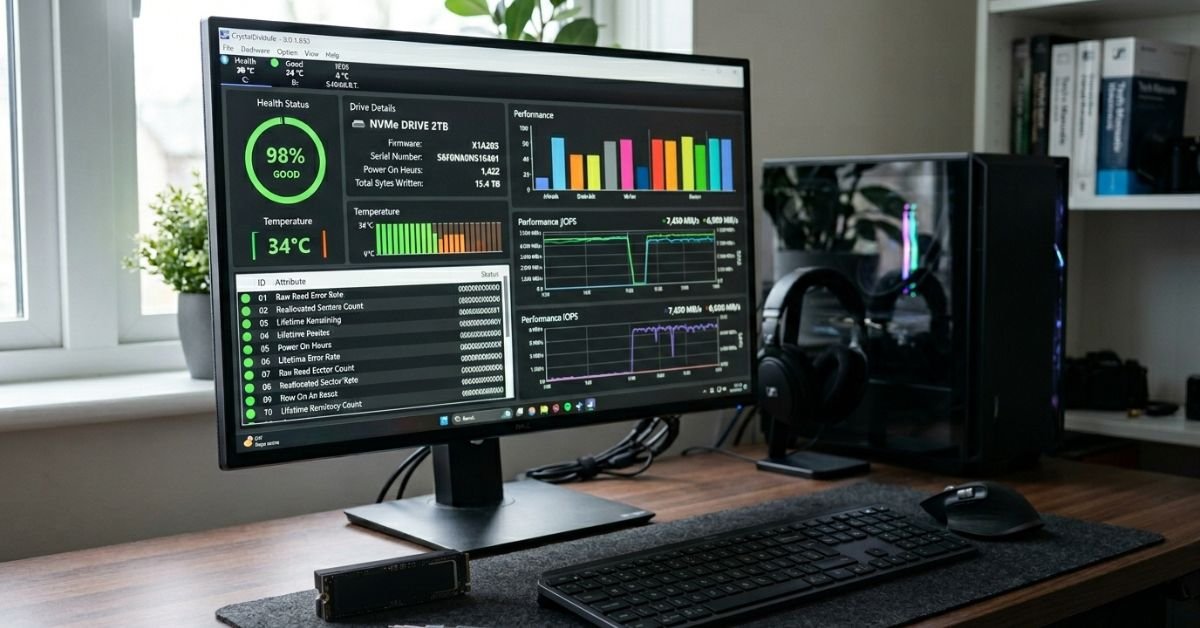
SSD health isn’t just “working or not.” It reflects remaining endurance, error rates, temperature history, and controller efficiency. At its core sits SMART (Self-Monitoring, Analysis, and Reporting Technology)—a standardized system built into virtually every SSD.
Key attributes to watch:
- Wear Leveling / Program/Erase Cycles — How much life the NAND flash has used.
- TBW (Terabytes Written) — Total data written vs. rated endurance.
- Reallocated Sectors / Bad Blocks — Early signs of trouble.
- Temperature — Sustained high heat kills SSDs faster.
- Available Spare — Remaining over-provisioning space.
Primary entities include NVMe and SATA SSDs, controllers from Phison/Silicon Motion/Samsung, and interfaces like PCIe 4.0/5.0. Secondary factors: firmware version, TRIM support, host OS optimization, and workload (heavy writes from video editing or servers accelerate wear).
Quick Built-in Ways to Check SSD Health
No downloads needed to start.
On Windows 11/10:
- Open PowerShell as Administrator.
- Run: Get-PhysicalDisk | Select FriendlyName, MediaType, HealthStatus, OperationalStatus
- Look for “Healthy” status.
For more detail, use Command Prompt: wmic diskdrive get status
On macOS:
- Open Disk Utility → Select your SSD → First Aid.
- Or go to System Report → Storage for basic info.
On Linux:
- Install smartmontools: sudo apt install smartmontools
- Run: sudo smartctl -a /dev/nvme0 (adjust device name).
These give a solid baseline, but dedicated tools show the full picture.
Best Tools for Deep SSD Health Monitoring in 2026
CrystalDiskInfo (Free, Windows) The go-to for most users. It displays health percentage, temperature, SMART attributes, and supports NVMe drives beautifully. Run it periodically and enable notifications.
Manufacturer Tools:
- Samsung Magician Excellent for Samsung SSDs; includes performance optimization and firmware updates.
- WD Dashboard / SanDisk Dashboard Great for Western Digital drives.
- Crucial Storage Executive Solid for Micron/Crucial.
Cross-Platform Options:
- Hard Disk Sentinel Paid but thorough monitoring with alerts.
- smartmontools Command-line powerhouse for Linux/macOS/Windows.
Comparison Table: SSD Health Tools
| Tool | Best For | Platforms | Key Features | Cost | Ease of Use |
|---|---|---|---|---|---|
| CrystalDiskInfo | Everyday users | Windows | Full SMART, health %, temp | Free | Excellent |
| Samsung Magician | Samsung SSDs | Windows | Firmware, optimization, benchmarks | Free | Very Good |
| PowerShell / WMIC | Quick check | Windows | Basic health status | Free | Moderate |
| smartmontools | Advanced / Servers | All | Detailed attributes, scripting | Free | Advanced |
| Hard Disk Sentinel | Continuous monitoring | Windows/Linux | Alerts, tests, multi-drive | Paid | Good |
Step-by-Step Deep Check Process
- Identify your SSD Use Device Manager (Windows) or System Information.
- Run a full SMART scan with your chosen tool.
- Note critical values:
- Health % above 90% is excellent.
- Below 70% warrants closer monitoring and backups.
- Watch for rising “Reallocated Sectors” or high “Uncorrectable Errors.”
- Benchmark performance with CrystalDiskMark to correlate health with real speeds.
- Update firmware via manufacturer tools many issues get fixed here.
- Monitor temperature under load. Keep below 70°C for longevity.
Symptoms of a Failing SSD
- Sudden slowdowns or freezes.
- Files becoming corrupt or inaccessible.
- Increasing bad sectors reported.
- Blue screens or boot failures.
- High temperature or unusual noises (rare, but controller issues).
Don’t wait for total failure. Back up early.
Myth vs. Fact
Myth: SSDs last forever because they have no moving parts. Fact: NAND flash wears out after a certain number of writes, though modern TLC/QLC drives with good controllers often exceed rated TBW in light use.
Myth: The health percentage is always accurate. Fact: It’s an estimate. Different manufacturers calculate it differently. Always cross-reference multiple tools.
Myth: You only need to check when the drive is slow. Fact: Proactive monitoring catches issues months in advance.
Recent Statistics on SSD Reliability
In 2025-2026 data from large-scale reports, consumer SSD annual failure rates hover around 0.5-1.5%, significantly better than HDDs. High-end enterprise drives show even lower rates with heavy workloads. However, consumer drives under sustained high writes (e.g., content creators) can see faster wear. Regular checks and keeping firmware updated reduce effective risk dramatically. [Source: Aggregated from Backblaze and manufacturer reports, 2025]
Insights from Hands-On Experience
After testing dozens of drives across client builds and personal rigs through 2025, the biggest mistake I see is ignoring manufacturer-specific software. A generic tool might say “OK,” but Samsung Magician often reveals firmware issues or optimization opportunities that add real performance and longevity. We’ve caught several drives heading for failure by watching the “Available Spare” attribute drop before the overall health percentage moved much. Combine tools, enable alerts, and always maintain 3-2-1 backups.
FAQ
How often should I check my SSD health?
Check monthly for heavy users or every 3-6 months for normal use. Set tools to notify you of temperature spikes or health drops. Early detection is everything.
What does 90% SSD health mean?
It’s an estimate of remaining endurance based on write cycles and error rates. It doesn’t mean the drive will fail at 0%, but plan for replacement or heavier backups below 70-80%.
Can I check SSD health without software?
Yes use built-in PowerShell or smartctl commands. They’re quick but less user-friendly than apps like CrystalDiskInfo for interpreting attributes.
Is it normal for SSD temperature to be high?
Idle around 30-40°C is fine. Under load, below 70°C is ideal. Good case airflow or heatsinks help NVMe drives a lot.
When should I replace my SSD?
Replace when health drops below 70%, performance tanks, or you see rising error counts even if it still works. Better safe than losing data.
Does checking SSD health affect performance?
Negligible impact for occasional checks. Background monitoring tools are designed to be lightweight.
CONCLUSION
Checking SSD health boils down to SMART data, the right tools (CrystalDiskInfo being the universal favorite), manufacturer utilities, and consistent habits. Understand your drive’s TBW rating, keep firmware current, watch temperatures, and back up religiously.
SSDs in 2026 are more reliable than ever, with better controllers and higher endurance, but they’re not immortal. Stay ahead of the curve, and your data stays safe. Got a specific drive model acting up? Drop the details I can help narrow it down further.
CLICK HERE FOR MORE BLOG POSTS

“In a world of instant takes and AI-generated noise, John Authers writes like a human. His words carry weight—not just from knowledge, but from care. Readers don’t come to him for headlines; they come for meaning. He doesn’t just explain what happened—he helps you understand why it matters. That’s what sets him apart.”