
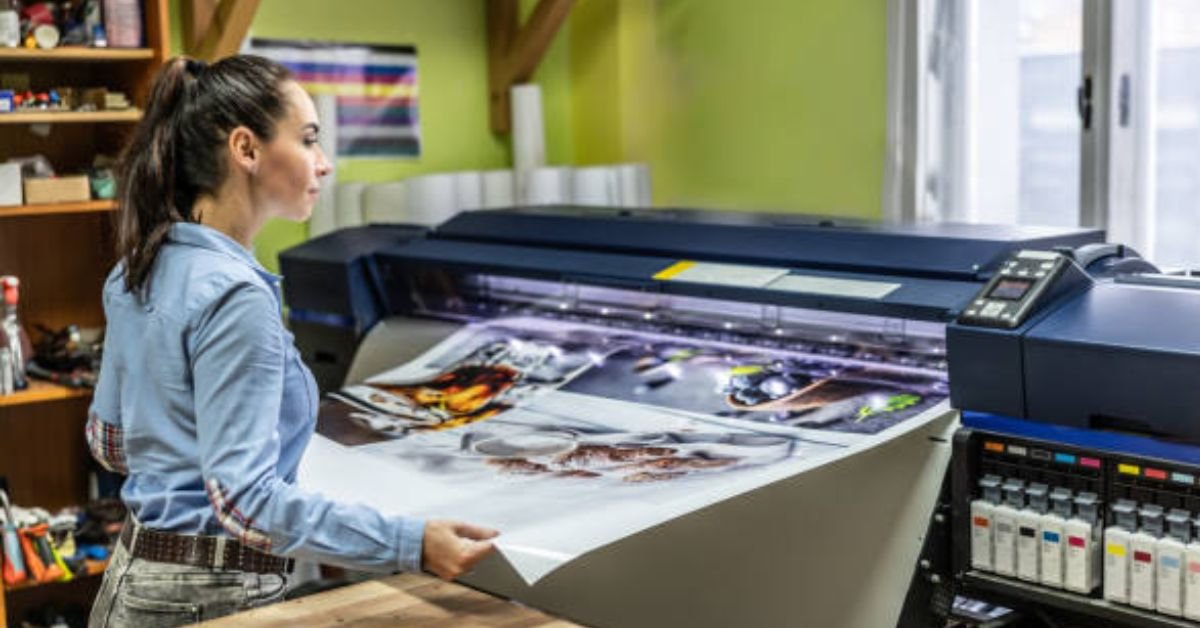
Printer test page is a specialized document designed to evaluate your printer’s performance, diagnose quality issues, and verify that all components are working correctly. Whether you’re experiencing streaks, faded colors, or misalignment, printing a diagnostic test page is the essential first step to identify and resolve printer problems.
Why You Should Print a Test Page: Key Diagnostic Purposes
Regular test printing helps maintain optimal printer performance and catches problems early before they affect your important documents. Understanding when and why to run diagnostic tests can save you time, ink, and frustration.
Check Print Quality and Colors
Test pages reveal how accurately your printer reproduces colors and text. A properly printed test page should display crisp CMYK color blocks (cyan, magenta, yellow, and black), smooth gradients without banding, and sharp text at various sizes. If any colors appear faded, missing, or inaccurate, this indicates issues with specific ink cartridges or toner levels that need attention.
Clean and Align the Print Head
Inkjet printers use tiny nozzles to spray ink onto paper, and these can become clogged over time. A test page includes alignment patterns and nozzle check grids that reveal whether your print head needs cleaning or alignment. Misaligned print heads produce blurry images, double text, or gaps in solid color areas. Running a test print before and after cleaning confirms whether the maintenance resolved the issue.
Diagnose Common Printer Problems
Before calling technical support or replacing expensive components, a diagnostic test page helps pinpoint the exact problem. Test pages can identify clogged nozzles, low ink levels, driver conflicts, paper feed issues, incorrect color calibration, connectivity problems with network printers, and hardware malfunctions requiring professional repair.

How to Print a Test Page: Step-by-Step Methods
There are three primary ways to print a diagnostic test page, each suited to different situations and printer configurations. Choose the method that works best for your setup.
Method 1: Using Our Free Downloadable Test Pages
Download our professionally designed test page PDFs optimized for comprehensive printer diagnostics:
- Standard CMYK Color Test Page: Features color blocks for each ink channel, grayscale gradients, and alignment grid patterns
- High-Resolution Text Test: Includes various fonts and sizes to check clarity and sharpness
- Advanced Calibration Page: Professional-grade test with border margins and precise alignment markers
Steps to use:
- Download the PDF test page that matches your diagnostic needs
- Open the file in Adobe Acrobat Reader or your default PDF viewer
- Click File > Print (or press Ctrl+P on Windows, Cmd+P on Mac)
- Select your printer from the dropdown menu
- Ensure “Actual Size” or “100% scale” is selected (not “Fit to Page”)
- Click Print and collect the page from your output tray
This method works offline and doesn’t require internet connectivity once downloaded, making it ideal for quick diagnostics.
Method 2: Via Your Computer’s Operating System
Most operating systems include built-in test page functions that work with any installed printer.
Windows 10/11 Instructions:
- Open Settings by pressing Windows key + I
- Navigate to Devices > Printers & Scanners (or Bluetooth & devices > Printers & scanners in Windows 11)
- Click on your printer name to expand options
- Select “Manage” then “Print a test page”
- A standard Windows test page will print, showing basic colors and text
Alternative Windows Method (Control Panel):
- Open Control Panel > Hardware and Sound > Devices and Printers
- Right-click your printer icon
- Select “Printer properties” (not “Properties”)
- Click the “Print Test Page” button on the General tab
- Click OK when the confirmation dialog appears
macOS Instructions:
- Open System Preferences (System Settings on macOS Ventura and later)
- Click Printers & Scanners
- Select your printer from the left sidebar
- Click “Options & Supplies”
- Navigate to the Utility tab
- Click “Print Test Page” or “Open Printer Utility”
- Follow the on-screen prompts to print diagnostics
Some Mac printer utilities offer additional tests specific to your printer model, including nozzle checks and alignment patterns.
Method 3: Using the Printer’s Own Hardware Menu
Many modern printers can print test pages directly from their control panel without a computer connection, which is useful for diagnosing connectivity issues.
General Steps (varies by manufacturer):
- Locate the control panel or touchscreen on your printer
- Navigate to Setup, Tools, or Maintenance menu
- Look for options labeled “Print Test Page,” “Print Quality Report,” or “Diagnostic Print”
- Select the option and press OK or Start
- The printer will automatically feed paper and print its internal test page
Brand-Specific Notes:
- HP Printers: Often found under Tools > Print Quality Report
- Epson Printers: Usually in Setup > Maintenance > Nozzle Check
- Canon Printers: Typically in Menu > Setup > Maintenance > Print Test Page
- Brother Printers: Check under Machine Info or Print Reports
Consult your printer’s manual or manufacturer website for model-specific instructions, as menu structures vary significantly between brands and models.
Reading Your Test Page: A Troubleshooting Guide
Once you’ve printed a test page, carefully examine it under good lighting. Each element reveals specific information about your printer’s health.
Color and Ink Issues
| Problem Observed | Likely Cause | Recommended Solution |
|---|---|---|
| One or more colors missing entirely | Empty or improperly installed cartridge | Check ink levels; remove and reseat cartridges; replace if empty |
| Faded or washed-out colors | Low ink levels or incorrect print quality settings | Check ink levels in printer software; select “Best” or “High Quality” mode |
| Color cast (overall tint) | Color calibration issue or mixing of ink types | Run color calibration utility; ensure you’re using manufacturer-recommended ink |
| White horizontal lines in color blocks | Clogged print head nozzles | Run print head cleaning cycle 2-3 times; let printer rest between cleanings |
| Color bleeding or mixing | Incompatible paper type or excess ink | Use printer-recommended paper; check paper type settings match loaded paper |
Alignment and Streaking Issues
| Problem Observed | Likely Cause | Recommended Solution |
|---|---|---|
| Vertical lines or streaks | Clogged nozzles or dirty print head | Run nozzle check and cleaning cycle; manually clean print head if problem persists |
| Misaligned patterns or double images | Print head alignment error | Run automatic print head alignment from printer software |
| Horizontal banding (repeated stripes) | Encoder strip dirty or paper feed issue | Clean encoder strip with lint-free cloth; check for paper debris in feed path |
| Blurry or fuzzy text | Incorrect paper settings or worn print head | Verify paper type setting matches loaded paper; consider print head replacement if printer is old |
| Diagonal streaking | Smudged or dirty rollers | Clean paper rollers with damp cloth; allow to dry completely before printing |
General Print Quality Issues
| Problem Observed | Likely Cause | Recommended Solution |
|---|---|---|
| Completely blank page | Empty cartridges, protective tape still on, or driver issue | Check all cartridges are installed and tape removed; reinstall printer driver |
| Partial printing (cuts off edges) | Incorrect margins or paper size setting | Verify paper size matches printer settings; check for document scaling issues |
| Uneven density (darker on one side) | Print head position or mechanical issue | Run alignment utility; contact manufacturer if problem persists |
| Smudging or smearing | Ink not drying properly | Use higher quality paper; reduce ink density in settings; check for humidity issues |
| Random spots or speckles | Dust inside printer or on paper | Clean printer interior; store paper in sealed package; replace if old |
After identifying issues, perform the recommended maintenance and print another test page to verify the fix worked.
Advanced Printer Testing & Tools
For professional environments or complex setups, additional testing methods provide deeper diagnostics.
Testing Network and Wireless Printers
Network printers require additional verification to ensure connectivity and configuration are correct:
- Print Network Configuration Page: Most network printers can print a page showing IP address, connection status, and network settings. Access this through the printer’s control panel under Network Settings or Information.
- Verify Connection Type: Check whether your printer is connected via Ethernet, Wi-Fi, or USB. Connection issues often stem from switching between these without properly configuring drivers.
- Test from Multiple Computers: If print quality varies between computers on the same network, the issue is likely driver-related rather than hardware-related.
- Check Print Server Settings: For shared printers connected through a print server, verify that the server is properly forwarding print jobs without corruption.
Using Official Manufacturer Diagnostic Tools
Printer manufacturers provide specialized utilities that offer more comprehensive testing than basic test pages:
- HP Print and Scan Doctor: Free diagnostic tool that automatically identifies and fixes common HP printer problems, including print quality issues, connectivity problems, and driver conflicts.
- Epson Print Head Alignment Utility: Provides step-by-step guided alignment with multiple test patterns for precise calibration. Also includes automated nozzle check and cleaning cycles.
- Canon Print Quality Diagnostic Tool: Offers detailed analysis of test patterns and recommends specific maintenance procedures based on detected issues.
- Brother Maintenance Software: Includes firmware updates, detailed status monitoring, and advanced cleaning options not available through standard drivers.
Download these tools directly from the manufacturer’s support website by entering your printer model number. These utilities often provide more effective solutions than generic methods.
Professional Calibration Pages for Precision Work
For photographers, graphic designers, and print professionals requiring accurate color reproduction, standard test pages are insufficient:
ICC Profile Test Charts: These specialized pages help create custom color profiles for your specific printer and paper combination, ensuring colors match what you see on a calibrated monitor.
Grayscale Precision Tests: Feature subtle gradations to identify color casts in neutral tones, critical for black-and-white photography.
Resolution and Sharpness Targets: Include fine line patterns and text at various point sizes to verify your printer is achieving its rated resolution.
Color Gamut Charts: Show the full range of reproducible colors, helping you understand your printer’s capabilities and limitations.
Professional calibration typically requires specialized software like X-Rite i1Profiler or Datacolor SpyderPrint, combined with hardware colorimeters for measuring printed output.
Frequently Asked Questions
How do I print a test page from my wireless printer?
Use any of the three methods described above—wireless printers function identically to wired ones once properly connected to your network. If your computer can’t find the printer, first verify it’s connected to Wi-Fi through the printer’s control panel, then add it through your computer’s printer settings. You can also print test pages directly from the printer menu without any computer connection.
What should I do if my test page shows streaks or lines?
Streaks and lines typically indicate clogged print head nozzles. Run the print head cleaning cycle 2-3 times from your printer’s maintenance menu, waiting 5-10 minutes between each cycle. Print a nozzle check pattern after each cleaning to verify improvement. If problems persist after three cleanings, you may need to manually clean the print head or replace it if it’s permanently damaged.
Is there a difference between an inkjet and laser printer test page?
Yes, the diagnostic focus differs. Inkjet test pages emphasize color accuracy, nozzle patterns, and alignment because these printers use liquid ink sprayed through tiny nozzles. Laser printer test pages focus on toner density, drum condition, and fuser temperature since they use powdered toner fused to paper with heat. However, both types should show crisp text, even tones, and proper alignment.
How can I print a test page without a computer (using the printer menu)?
Navigate to your printer’s control panel and look for Setup, Maintenance, or Tools menus. Select options like “Print Test Page,” “Print Quality Report,” or “Diagnostic Print.” The exact menu path varies by brand—HP uses Tools menu, Epson uses Maintenance, Canon uses Setup. Consult your printer’s manual for specific button sequences if your model has physical buttons instead of a touchscreen.
My test page is blank. What does this mean?
A completely blank page suggests empty ink cartridges, protective tape still covering cartridge nozzles, improperly seated cartridges, a severely clogged print head, or driver communication errors. First, remove and reinstall all cartridges, ensuring protective tape is removed. Check ink levels through printer software. If cartridges are full, try uninstalling and reinstalling your printer driver. For persistent blank pages, the print head may require professional service or replacement.
Can a test page help me check my ink levels?
Indirectly, yes. While a test page doesn’t display numerical ink levels like printer software does, missing or faded colors indicate which specific cartridges are low or empty. For precise ink level information, check your printer’s control panel display or access printer properties through your computer’s settings. Many modern printers also offer mobile apps that display real-time ink levels.
Maintaining Optimal Print Quality
Regular test page printing should be part of your printer maintenance routine. Print a diagnostic test page weekly if you print frequently, monthly for moderate use, before important print jobs, after installing new cartridges, when noticing any quality degradation, or after periods of non-use (ink can dry in nozzles).
Between test prints, keep your printer in a climate-controlled environment to prevent ink from drying or condensation from forming. Use manufacturer-recommended paper and ink for best results and warranty compliance. Store paper in sealed packages to prevent moisture absorption and dust accumulation. Power off properly rather than unplugging, as printers perform automatic maintenance during shutdown sequences.
CLICK HERE FOR MORE BLOG POSTS

“In a world of instant takes and AI-generated noise, John Authers writes like a human. His words carry weight—not just from knowledge, but from care. Readers don’t come to him for headlines; they come for meaning. He doesn’t just explain what happened—he helps you understand why it matters. That’s what sets him apart.”