
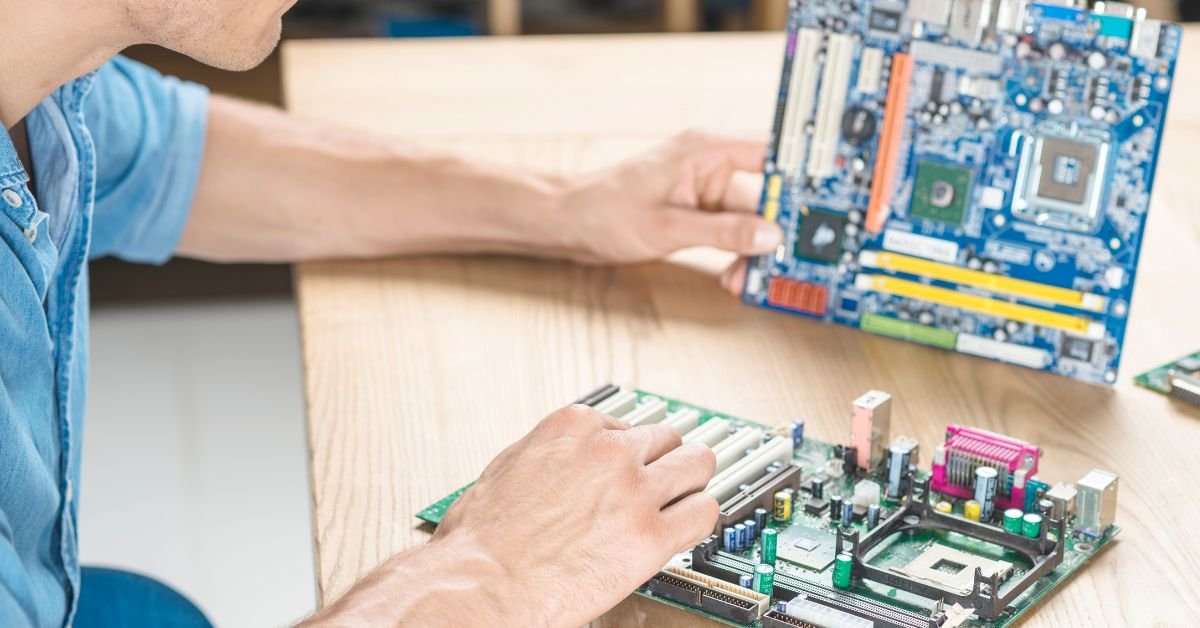
Basic input output system—commonly known as BIOS. For most users, BIOS is a mysterious black-and-white screen that flashes by in seconds, but it’s actually the backbone of your PC’s startup process. If you’ve ever struggled with “how to enter BIOS Windows 10” or wondered “how to get BIOS” access, you’re not alone. In this guide, we’ll demystify the BIOS, show you how to interact with it, and explain why it’s still crucial in 2025.
What Is the Basic Input Output System?
The basic input output system (BIOS) is firmware embedded on your computer’s motherboard. Its main job? To initialize and test your hardware components—like RAM, CPU, and storage—before handing control over to your operating system. Think of it as the conductor of an orchestra, making sure every instrument is ready before the music begins.
BIOS has been around since the early days of personal computing, but it’s evolved dramatically. Today, it’s often replaced or supplemented by UEFI (Unified Extensible Firmware Interface), but the core principles remain the same.

Why BIOS Still Matters in 2025
You might think BIOS is old news, but it’s more relevant than ever. With the rise of advanced security features, faster boot times, and complex hardware configurations, understanding your basic input output system can save you time, money, and frustration.
Real-life example:
A user recently shared, “My PC wouldn’t boot after a Windows update. I had no idea what to do until I learned how to enter BIOS Windows 10 and reset my boot order. Lifesaver!”
How Does the Basic Input Output System Work?
When you power on your computer, the BIOS springs into action. Here’s a simplified breakdown:
- POST (Power-On Self-Test): BIOS checks your hardware for errors.
- Bootstrap Loader: It locates and launches your operating system.
- CMOS Setup: Stores system settings like date, time, and boot sequence.
- BIOS Drivers: Provides low-level drivers for keyboard, display, and storage.
Without BIOS, your computer wouldn’t know how to start. It’s the bridge between your hardware and software.
How to Enter BIOS Windows 10
One of the most common questions is how to enter BIOS Windows 10. The process is straightforward, but timing is everything.
Method 1: Using a Function Key
- Restart your PC.
- As soon as the manufacturer’s logo appears, repeatedly press the designated key (usually F2, F10, DEL, or ESC).
- You’ll enter the BIOS setup utility.
Method 2: From Windows 10 Settings
- Go to Settings > Update & Security > Recovery.
- Under Advanced startup, click Restart now.
- Select Troubleshoot > Advanced options > UEFI Firmware Settings > Restart.
This method is especially useful if your PC boots too quickly to catch the function key.
How to Get BIOS Access on Modern PCs
With ultra-fast SSDs and modern motherboards, getting into BIOS can be tricky. Here are some tips:
- Watch for On-Screen Prompts: Most PCs briefly display the key to press.
- Try Multiple Keys: If F2 doesn’t work, try DEL, ESC, or F10.
- Use Windows Recovery: As described above, this is the most reliable method for Windows 10 and 11.
User quote:
“I missed the BIOS key so many times! Using Windows recovery to reboot to BIOS was a game-changer.”
Reboot to BIOS: When and Why You Should
Sometimes, you need to reboot to BIOS—but why? Here are common scenarios:
- Changing Boot Order: To boot from a USB drive or external device.
- Enabling/Disabling Hardware: Like virtualization or secure boot.
- Troubleshooting: Diagnosing hardware issues or resetting passwords.
- Updating Firmware: Applying BIOS or UEFI updates for security and compatibility.
Knowing how to boot into BIOS can help you solve problems that seem impossible from within Windows.
Boot Into BIOS: Step-by-Step Guide
Let’s break down the steps to boot into BIOS on most systems:
- Save Your Work: BIOS changes can affect your system, so close all programs.
- Restart Your Computer: Use the Start menu or press Ctrl+Alt+Del.
- Press the BIOS Key: As soon as your screen goes black, start tapping the BIOS key.
- Navigate the BIOS Menu: Use arrow keys to move, Enter to select, and Esc to go back.
- Make Changes Carefully: Only adjust settings you understand.
- Save and Exit: Usually F10 saves changes and exits.
BIOS vs. UEFI: What’s the Difference?
In 2025, most new PCs use UEFI instead of traditional BIOS. UEFI offers:
- Faster Boot Times
- Support for Larger Hard Drives
- Better Security (Secure Boot)
- Graphical Interface
However, the terms “BIOS” and “UEFI” are often used interchangeably. The process to boot into BIOS or UEFI is nearly identical.
Features of the Basic Input Output System in 2025
Modern BIOS/UEFI systems offer a range of features:
- Secure Boot: Protects against malware during startup.
- Overclocking Controls: For advanced users to tweak CPU and RAM speeds.
- Fan and Temperature Monitoring: Keep your system cool and quiet.
- Boot Manager: Choose which device to boot from.
- Password Protection: Prevent unauthorized changes.
Risks and Precautions When Using BIOS
While BIOS is powerful, it’s not without risks:
- Incorrect Settings: Can prevent your PC from booting.
- Firmware Updates: A failed update can “brick” your motherboard.
- Security Risks: Weak BIOS passwords can be exploited.
Pro Tip: Always document changes and back up important data before making adjustments.
Pros and Cons of Accessing BIOS
Pros
- Full Control: Customize hardware settings for performance or compatibility.
- Troubleshooting: Fix boot issues or hardware conflicts.
- Security: Enable features like Secure Boot or TPM.
Cons
- Complexity: Menus can be confusing for beginners.
- Risk of Errors: Incorrect changes can cause problems.
- Limited Support: Some settings are manufacturer-specific.
Usability: Who Needs to Access BIOS in 2025?
- Gamers: For overclocking and hardware tweaks.
- IT Professionals: For deploying or repairing systems.
- Everyday Users: For troubleshooting or installing new operating systems.
Even if you’re not a tech expert, knowing how to reboot to BIOS can save you a trip to the repair shop.
Real-World Example: BIOS Saves the Day
A small business owner’s PC refused to boot after a power outage. Instead of panicking, she remembered a tip from a tech forum: “Try to boot into BIOS and check your boot order.” She did, found the boot drive had changed, fixed it, and was back in business in minutes.
FAQs
Q. How do I enter BIOS on Windows 10?
A. To enter BIOS on Windows 10, restart your PC and press the BIOS key (usually F2, DEL, or ESC) as soon as the manufacturer’s logo appears. Alternatively, use Windows Settings > Update & Security > Recovery > Advanced startup
Q. What is the difference between BIOS and UEFI?
A. BIOS is the traditional firmware interface, while UEFI is its modern replacement. UEFI offers faster boot times, better security, and support for larger drives, but both serve the same core function.
Q. How do I reboot to BIOS if my PC boots too fast?
A. If your PC boots too quickly, use Windows 10’s Advanced Startup: Go to Settings > Update & Security > Recovery > Restart now > Troubleshoot > Advanced options > UEFI Firmware Settings.
Q. Is it safe to change BIOS settings?
A. It’s safe if you know what you’re doing. Only change settings you understand, and always document your changes. Incorrect settings can prevent your PC from booting.
Final Thoughts
The basic input output system is more than just a relic of early computing—it’s a vital tool for anyone who wants to get the most out of their PC in 2025. Whether you’re learning how to enter BIOS Windows 10, figuring out how to get BIOS access, or just curious about what happens behind the scenes, a little knowledge goes a long way.
CLICK HERE FOR MORE BLOG POSTS

“In a world of instant takes and AI-generated noise, John Authers writes like a human. His words carry weight—not just from knowledge, but from care. Readers don’t come to him for headlines; they come for meaning. He doesn’t just explain what happened—he helps you understand why it matters. That’s what sets him apart.”
This is exactly the kind of content the internet needs more of.
You’ve got a gift — this is stellar!
The enthusiasm in this post is NEXT LEVEL — amazing job!
Эта статья сочетает познавательный и занимательный контент, что делает ее идеальной для любителей глубоких исследований. Мы рассмотрим увлекательные аспекты различных тем и предоставим вам новые знания, которые могут оказаться полезными в будущем.
Выяснить больше – https://vivod-iz-zapoya-2.ru/
prednisone without prescription 10mg: anti-inflammatory medication online – prednisone 5093
prednisone 1 mg tablet: SteriCare Pharmacy – prednisone 10mg tablet cost
best canadian pharmacy online: rate canadian pharmacies – canadian pharmacy no scripts
prescription drugs canada buy online: NorthAccess Rx – certified canadian pharmacy
https://pawtrustmeds.com/# pet med
india online pharmacy: Global India Pharmacy – india pharmacy
http://pawtrustmeds.com/# canada pet meds
top 10 pharmacies in india: indianpharmacy com – Global India Pharmacy
india pharmacy: Global India Pharmacy – Global India Pharmacy
http://northaccessrx.com/# canadian pharmacy
Online medicine home delivery: Global India Pharmacy – Global India Pharmacy
Paw Trust Meds: Paw Trust Meds – Paw Trust Meds
https://pawtrustmeds.shop/# Paw Trust Meds
canada drugs reviews: canadianpharmacyworld – canadian pharmacy ltd
vet pharmacy: pet prescriptions online – pet meds online
northern pharmacy canada: NorthAccess Rx – canadian drug
reliable canadian pharmacy: NorthAccess Rx – canadian pharmacy world reviews
canada drug pharmacy: safe online pharmacies in canada – canada drug pharmacy
https://pawtrustmeds.com/# Paw Trust Meds
dog medicine: Paw Trust Meds – pet pharmacy online
canadian pharmacy meds reviews: NorthAccess Rx – canadian pharmacy cheap
online pet pharmacy: Paw Trust Meds – Paw Trust Meds
https://pawtrustmeds.shop/# vet pharmacy
pet meds official website: pet pharmacy online – vet pharmacy online
indianpharmacy com: Global India Pharmacy – Global India Pharmacy
canadian pharmacy 24h com safe: NorthAccess Rx – thecanadianpharmacy
canadian pharmacy ratings: canadian pharmacies online – canadian online drugstore
https://northaccessrx.com/ed-meds-guide.html# 77 canadian pharmacy
canadian pharmacy uk delivery: NorthAccess Rx – my canadian pharmacy review
Paw Trust Meds: Paw Trust Meds – Paw Trust Meds
Paw Trust Meds: Paw Trust Meds – best pet rx
best india pharmacy: Global India Pharmacy – Global India Pharmacy
pet med: discount pet meds – Paw Trust Meds
Paw Trust Meds: Paw Trust Meds – Paw Trust Meds
https://pawtrustmeds.com/# Paw Trust Meds
Online medicine home delivery: Global India Pharmacy – Global India Pharmacy
Paw Trust Meds: Paw Trust Meds – dog medication online
best canadian online pharmacy: online canadian drugstore – canadian pharmacy 24h com safe
pet pharmacy: vet pharmacy online – Paw Trust Meds
reddit canadian pharmacy: canada drug pharmacy – best canadian online pharmacy
Paw Trust Meds: vet pharmacy – Paw Trust Meds
Paw Trust Meds: Paw Trust Meds – vet pharmacy online
http://pawtrustmeds.com/# pet med
Paw Trust Meds: Paw Trust Meds – pet drugs online
best canadian pharmacy: NorthAccess Rx – precription drugs from canada
online vet pharmacy: pet pharmacy – vet pharmacy
http://veritascarepharm.com/# Generic Cialis price
CoreBlue Health: CoreBlue Health – CoreBlue Health
https://civicmeds.com/# best australian online pharmacy
VeritasCare: Buy Tadalafil 20mg – cialis for sale
https://veritascarepharm.shop/# Tadalafil price
VeritasCare: Cheap Cialis – Buy Cialis online
https://veritascarepharm.shop/# VeritasCare
online pharmacy discount code: 77 canadian pharmacy – mexico pharmacy order online
https://civicmeds.shop/# canadian pharmacy without prescription
cheap pharmacy no prescription: cheap pharmacy no prescription – canadian pharmacy world coupon
https://corebluehealth.com/# CoreBlue Health
VeritasCare: Generic Tadalafil 20mg price – Cheap Cialis
VeritasCare: Buy Cialis online – cialis for sale
CoreBlue Health: CoreBlue Health – CoreBlue Health
http://veritascarepharm.com/# п»їcialis generic
canadian pharmacy review: online pharmacy fungal nail – online pharmacy india
VeritasCare: VeritasCare – VeritasCare
https://civicmeds.shop/# overseas pharmacy no prescription
CoreBlue Health: viagra canada – CoreBlue Health
real canadian pharmacy: CivicMeds – best online foreign pharmacy
top 10 pharmacy websites: CivicMeds – international online pharmacy
CoreBlue Health: best price for viagra 100mg – Cheap generic Viagra online
CoreBlue Health: CoreBlue Health – Sildenafil 100mg price
VeritasCare: Buy Tadalafil 5mg – Generic Cialis price
pharmacy orlando: mexican pharmacy online – cheapest pharmacy to fill prescriptions without insurance
legit pharmacy websites: cheap viagra canadian pharmacy – canadian pharmacy checker
legitimate canadian pharmacy: 24 hr pharmacy near me – best rated canadian pharmacy
order viagra: cheap viagra – CoreBlue Health
VeritasCare: Buy Cialis online – Buy Tadalafil 20mg
CoreBlue Health: sildenafil 50 mg price – Viagra Tablet price
pharmacy online: canada drugstore pharmacy rx – uk pharmacy
Нарколог на дом в Самаре: круглосуточная помощь, вывод из запоя и медицинская поддержка на дому под контролем специалистов в наркологической клинике «Похмельная служба»
Узнать больше – https://narkolog-na-dom-samara-6.ru/
VeritasCare: VeritasCare – VeritasCare
При необходимости врач может расширить состав капельницы, ориентируясь на жалобы пациента и клиническую картину:
Узнать больше – капельница от похмелья вызов на дом в самаре
Процедура проведения капельницы от запоя обычно не занимает много времени и проводится в условиях медицинского центра. Во время процедуры пациент может ощущать незначительный дискомфорт при введении иглы, но процесс восстановления организма через вену происходит быстро и эффективно. Капельница помогает снизить уровень алкоголя в крови, улучшить метаболизм и предотвратить ухудшение состояния.
Разобраться лучше – http://kapelnica-ot-zapoya-nizhnij-novgorod-5.ru/
VeritasCare: VeritasCare – Cialis without a doctor prescription
legal canadian pharmacy online: CivicMeds – reputable overseas online pharmacies
VeritasCare: Buy Tadalafil 10mg – Cialis 20mg price in USA
Нарколог на дом в Воронеже с оперативным приездом специалиста, детоксикацией и медицинским наблюдением в наркологической клинике «Частный медик 24»
Исследовать вопрос подробнее – нарколог на дом в воронеже
Generic Viagra online: Cheap Sildenafil 100mg – Generic Viagra online
Запрос на выезд врача связан не только с классическим запоем. На практике домашняя помощь нужна в разных ситуациях, когда организму уже трудно компенсировать последствия употребления, а откладывание визита увеличивает риск осложнений.
Подробнее тут – нарколог на дом воронеж
Нарколог на дом — это не просто возможность получить медицинскую помощь в удобное время, но и решение важнейших задач по стабилизации состояния пациента, избавлению от острых симптомов абстиненции и восстановлению его здоровья. В случае с алкоголизмом и наркоманией выезд врача на дом в Воронеже — это важный шаг к восстановлению, который начинается там, где пациент находится, в удобной и привычной обстановке. Клиника «Частный медик 24» предлагает круглосуточные выезды нарколога, предоставляя экстренную помощь при запоях, наркозависимости, а также консультации по дальнейшему лечению и реабилитации. Врач приедет по указанному адресу и проведёт все необходимые процедуры, включая капельницы для стабилизации состояния пациента.
Изучить вопрос глубже – нарколог на дом воронеж
ez pharmacy: costco online pharmacy – canadian pharmacy world
legitimate canadian mail order pharmacy: buying prescription drugs from canada – online pharmacy price checker
Cialis 20mg price in USA: VeritasCare – Cheap Cialis
CoreBlue Health: CoreBlue Health – generic sildenafil
https://pinupazz.top/ pin-up oyunu
https://pinupazz.top/ pin-up online casino
Вывод из запоя на дому — это формат медицинской помощи, при котором лечение проводится в привычной для пациента обстановке с выездом нарколога. Такой подход используется, когда требуется срочное вмешательство, но состояние позволяет обойтись без госпитализации. В наркологической клинике «Частный медик 24» помощь оказывается круглосуточно, с возможностью начать терапию сразу после обращения и без ожидания.
Углубиться в тему – вывод из запоя на дому цена санкт-петербург
https://pinupazz.top/ pin up
Лечение на дому начинается с осмотра пациента. Доктора оценивают основные показатели, включая давление и пульс, а также общее состояние человека. После этого формируется план терапии, который реализуется сразу. Такой подход позволяет очень быстро перейти к стабилизации состояния и начать лечение без лишней потери времени.
Получить дополнительные сведения – нарколог на дом вывод из запоя санкт-петербург
pin up pin-up oyunu
https://pinupazz.top/ pin up
Детоксикация на дому начинается с осмотра пациента. Доктора оценивают витальные показатели, уровень сознания и выраженность симптомов, анализируя текущие данные. После этого формируется план лечения, который реализуется сразу. Такой подход позволяет сократить время до начала терапии и повысить её эффективность.
Исследовать вопрос подробнее – вывод из запоя на дому круглосуточно в санкт-петербурге
https://pinupazz.top/ pin up
Капельница от похмелья применяется, когда симптомы интоксикации становятся выраженными и мешают нормальной жизнедеятельности пациента. Основные показания для использования капельницы включают:
Узнать больше – капельница от похмелья анонимно самара
Такие симптомы важны не только сами по себе. Они показывают, что организму уже трудно поддерживать стабильность без медицинского вмешательства. Чем дольше в этот момент ждать, тем выше вероятность, что потребуется более жёсткий формат оказания помощи. Поэтому экстренное обращение в некоторых случаях не просто облегчает состояние, а предотвращает дальнейшее ухудшение здоровья.
Получить дополнительную информацию – нарколог на дом анонимно в воронеже
Капельница от похмелья — это эффективное средство для быстрого снятия симптомов алкогольной интоксикации и восстановления организма после злоупотребления алкоголем. В наркологической клинике «Частный медик 24» в Екатеринбурге мы предоставляем услуги по экстренной помощи и детоксикации на дому, включая установку капельниц, которые позволяют улучшить состояние пациента за короткое время. Процедура включает в себя введение специальных растворов, которые восстанавливают водно-электролитный баланс, выводят токсины и устраняют основные симптомы похмелья, такие как головная боль, слабость, тошнота и головокружение.
Выяснить больше – капельница от похмелья на дом в екатеринбурге
pin up pin-up oyunu
pin up pin up
https://pinupazz.top/ pin-up oyunu
Первый этап — это стабилизация состояния. Он начинается с детальной оценки: измеряются витальные показатели, проводится клиническое интервью, уточняется длительность алкогольной интоксикации и сопутствующие факторы. После этого формируется план лечения с чёткими целями и временными интервалами оценки.
Получить больше информации – анонимный вывод из запоя в нижнем новгороде
Капельница от похмелья применяется, когда симптомы интоксикации становятся выраженными и мешают нормальной жизнедеятельности пациента. Основные показания для использования капельницы включают:
Детальнее – капельница от похмелья на дому
Для жителей Екатеринбурга наркологическая клиника «Частный медик 24» предлагает платную услугу выезда врача на дом для проведения капельницы от похмелья. Когда человек переживает сильные симптомы похмелья, такие как головная боль, тошнота, слабость, важно не тянуть с лечением и начать восстановление как можно скорее. Капельница от похмелья помогает хорошо облегчить самочувствие пациента, снять головную боль и улучшить общее состояние, восстановив водно-электролитный баланс в организме.
Подробнее – kapelnicza-ot-pokhmelya-ekaterinburg-4.ru/
reputable online pharmacy no prescription: FormuLine Pharmacy – overseas pharmacy no prescription
SteadyMeds: canada pharmacy reviews – SteadyMeds
AccessBridge Pharmacy: AccessBridge Pharmacy – AccessBridge Pharmacy
SteadyMeds: SteadyMeds pharmacy – SteadyMeds
п»їinternational drug mart: top 10 online pharmacy in india – foreign online pharmacy
Для Воронежа выездной формат особенно востребован вечером, ночью и ранним утром, когда у больного резко усиливаются симптомы и поездка в медицинское учреждение становится тяжёлой или просто нереальной. Если человек несколько дней употреблял алкоголь, почти не спал, плохо переносит воду, жалуется на сердцебиение и слабость, то откладывать осмотр не стоит. Срочная наркологическая помощь нужна именно тогда, когда ситуация развивается быстро, а семья уже видит, что своими силами справиться не удаётся. Врач приезжает, проводит осмотр, определяет, нет ли признаков осложнений, и уже на месте решает, какие меры допустимы дома, а какие требуют другого формата оказания помощи.
Разобраться лучше – нарколог на дом в воронеже
Для жителей Самары выезд нарколога на дом — это удобный и быстрый способ получить неотложную помощь при алкогольной или наркотической зависимости. Когда состояние пациента ухудшается и он не может самостоятельно обратиться за помощью, нарколог на дом становится единственным правильным решением. Важно понимать, что симптоматика абстиненции может развиваться стремительно, и чем быстрее будет оказана помощь, тем меньше рисков для здоровья пациента.
Ознакомиться с деталями – http://www.domen.ru
canadian pharmacy sarasota: SteadyMeds – SteadyMeds
В Нижнем Новгороде стационарное лечение используется при наличии факторов, которые увеличивают риск осложнений или делают домашний формат недостаточным, особенно при алкоголизме или тяжёлом состоянии больного. Врач принимает решение на основе осмотра, консультации, анализа данных и оценки симптомов и динамики состояния пациента. Основная цель — обеспечить безопасность человека и создать условия для контролируемого лечения алкоголизма.
Исследовать вопрос подробнее – вывод из запоя клиника нижний новгород
AccessBridge Pharmacy: medication in mexico – my mexican pharmacy
Нарколог на дом в Воронеже с быстрым выездом, индивидуальным подбором терапии и наблюдением в наркологической клинике «Частный медик 24»
Ознакомиться с деталями – нарколог на дом вывод воронеж
Вывод из запоя в стационаре в Нижнем Новгороде с детоксикацией, мониторингом состояния и медицинской помощью в наркологической клинике «Частный медик 24»
Выяснить больше – вывод из запоя на дому цена в нижнем новгороде
Вывод из запоя на дому — это формат наркологической помощи, при котором детоксикация и стабилизация состояния проводятся в привычной для пациента обстановке. Такой подход позволяет начать лечение без задержек и снизить нагрузку на организм, связанную с транспортировкой. В наркологической клинике «Частный медик 24» помощь организована круглосуточно: врач выезжает сразу после обращения и проводит терапию с учётом текущего состояния пациента.
Получить дополнительную информацию – http://www.domen.ru
adderall canadian pharmacy: best canadian pharmacy – SteadyMeds
Для жителей Самары выезд нарколога на дом — это удобный и быстрый способ получить неотложную помощь при алкогольной или наркотической зависимости. Когда состояние пациента ухудшается и он не может самостоятельно обратиться за помощью, нарколог на дом становится единственным правильным решением. Важно понимать, что симптоматика абстиненции может развиваться стремительно, и чем быстрее будет оказана помощь, тем меньше рисков для здоровья пациента.
Ознакомиться с деталями – https://narkolog-na-dom-samara-1.ru/
Основные показания для проведения процедуры:
Углубиться в тему – капельница от похмелья цена в воронеже
Вывод из запоя в стационаре в Нижнем Новгороде с круглосуточным наблюдением и поэтапным восстановлением в наркологической клинике «Частный медик 24»
Узнать больше – http://www.domen.ru
Показания к проведению инфузионной терапии включают:
Получить дополнительную информацию – капельница от похмелья на дому
mexico online farmacia: hydrocodone mexico pharmacy – AccessBridge Pharmacy
Похмельный синдром — это не просто неприятное ощущение, а целый комплекс симптомов, которые могут варьироваться от легкого дискомфорта до тяжелых состояний. Капельница от похмелья используется в случаях, когда симптомы становятся особенно выраженными и требуют вмешательства профессионала. Врачи отмечают, что капельница помогает значительно ускорить процесс восстановления организма после алкоголя, избавляя от боли, тошноты и слабости.
Узнать больше – капельница от похмелья
Капельница от запоя — это эффективное медицинское вмешательство, направленное на быстрое восстановление организма после длительного злоупотребления алкоголем. Процесс лечения с использованием капельницы способствует быстрому выводу токсинов, восстановлению водно-электролитного баланса и нормализации общего состояния пациента. Капельница оказывает комплексное воздействие на организм, улучшая его самочувствие уже в течение первых часов после процедуры.
Узнать больше – капельница от запоя нижний новгород
Наркологический стационар — это специализированное медицинское учреждение, предназначенное для лечения и реабилитации пациентов с зависимостью от алкоголя, наркотиков и других психоактивных веществ. В Санкт-Петербурге существует множество таких учреждений, которые предоставляют комплексную помощь людям, страдающим от зависимости. Лечение в стационаре часто является первым шагом на пути к выздоровлению, особенно в случаях тяжелых зависимостей, когда амбулаторное лечение может не дать должного эффекта. В случае запоя или хронического алкоголизма стационарное лечение может стать необходимым, особенно если выезд на дом не позволяет должным образом контролировать процесс восстановления.
Получить дополнительные сведения – наркологический стационар
Стоимость капельницы от похмелья в Самаре зависит не только от прайса клиники, но и от состава инфузионной терапии, срочности выезда, времени суток и общего состояния пациента, включая возможные последствия алкоголизма. Базовые программы обычно включают осмотр специалиста, постановку капельницы и стандартный набор растворов для снятия интоксикации. Если состояние тяжелее, может потребоваться кодирование или лечение в стационаре, что увеличивает цену из-за расширенного состава препаратов и более длительного наблюдения.
Выяснить больше – капельница от похмелья вызов на дом в самаре
SteadyMeds pharmacy: SteadyMeds – SteadyMeds
online pharmacy discount code: FormuLine Pharmacy – secure medical online pharmacy
Вывод из запоя на дому — это формат наркологической помощи, при котором детоксикация и стабилизация состояния проводятся в привычной для пациента обстановке. Такой подход позволяет начать лечение без задержек и снизить нагрузку на организм, связанную с транспортировкой. В наркологической клинике «Частный медик 24» помощь организована круглосуточно: врач выезжает сразу после обращения и проводит терапию с учётом текущего состояния пациента.
Подробнее – вывод из запоя на дому санкт-петербург
Есть состояния, при которых откладывать обращение не стоит. Ниже перечислены признаки, при которых вызывать врача на дом разумно именно в ближайшее время, а не после очередной неудачной попытки «перележать» тяжёлый период самостоятельно.
Получить дополнительные сведения – narkolog-na-dom-voronezh-1.ru/
cross border pharmacy canada: SteadyMeds – SteadyMeds pharmacy
После алкоголя в организме накапливаются токсичные продукты распада, нарушается водно-солевой баланс и страдает нервная система, что особенно выражено после запоя или при алкоголизме. Это проявляется головной болью, слабостью, тошнотой и нарушением сна. Капельница помогает ускорить процессы очищения и восстановить внутренние системы, обеспечивая более быстрое облегчение состояния и помогая человеку выйти из состояния запоев.
Получить дополнительную информацию – http://www.domen.ru
Показания к проведению инфузионной терапии включают:
Получить дополнительные сведения – капельница от похмелья анонимно
Капельница от похмелья в Самаре с выездом на дом, восстановлением водного баланса и медицинской помощью в наркологической клинике «Частный медик 24»
Получить дополнительные сведения – http://kapelnicza-ot-pokhmelya-samara-1.ru/
AccessBridge: AccessBridge Pharmacy – AccessBridge
Для жителей Екатеринбурга наркологическая клиника «Частный медик 24» предлагает платную услугу выезда врача на дом для проведения капельницы от похмелья. Когда человек переживает сильные симптомы похмелья, такие как головная боль, тошнота, слабость, важно не тянуть с лечением и начать восстановление как можно скорее. Капельница от похмелья помогает хорошо облегчить самочувствие пациента, снять головную боль и улучшить общее состояние, восстановив водно-электролитный баланс в организме.
Подробнее – http://kapelnicza-ot-pokhmelya-ekaterinburg-4.ru
online pharmacy discount code: indianpharmacy com – us pharmacy no prescription
Суть капельницы заключается в том, чтобы быстро ввести в организм необходимые растворы, которые помогают восстановить водно-солевой баланс, очищают организм от токсинов, ускоряют обмен веществ и снижают нагрузку на внутренние органы. Врачи-наркологи используют специальные составы, которые включают в себя жидкости, электролиты, витамины и лекарственные средства для снятия симптомов похмелья.
Углубиться в тему – капельница от похмелья вызов на дом в нижнем новгороде
Основной задачей капельницы от запоя является быстрое устранение симптомов интоксикации, связанных с длительным употреблением алкоголя. Введение в вену специальных растворов помогает не только вывести алкогольные токсины, но и восстановить нормальное функционирование внутренних органов, пострадавших от воздействия алкоголя. Подбор состава капельницы всегда индивидуален и зависит от состояния пациента, а также может включать дополнительные методы лечения, такие как кодирование от алкоголизма.
Получить дополнительные сведения – kapelnica-ot-zapoya-nizhnij-novgorod-5.ru/
При выборе наркологического стационара в Санкт-Петербурге важно ориентироваться на несколько ключевых критериев. В первую очередь, следует учитывать опыт и квалификацию специалистов, условия пребывания, а также отзывы пациентов. Ведь выбор медицинского учреждения — это не только вопрос качества лечения, но и обеспечения психологического комфорта пациента, что особенно важно при лечении зависимостей. Стоит обратить внимание на стационары, специализирующиеся на лечении наркомании и наркологии, а также учитывать расположение клиники в удобном районе города.
Детальнее – narkologicheskij-staczionar-sankt-peterburg-3.ru/
AccessBridge: phentermine in mexico pharmacy – can i buy meds from mexico online
reputable online pharmacy no prescription: FormuLine Pharmacy – pharmacy no prescription required
Лечение в стационаре начинается с первичной оценки состояния пациента. Врач фиксирует витальные показатели, проводит клиническое интервью и определяет объём вмешательства. После этого формируется план лечения с чёткими целями и временными интервалами для оценки результата. При необходимости пациент или его близкие могут заранее заказать лечение или получить консультацию.
Ознакомиться с деталями – http://vyvod-iz-zapoya-v-staczionare-nizhnij-novgorod-1.ru/
Когда пациент вызвал нарколога, специалист приезжает с необходимым оборудованием и препаратами, чтобы провести диагностику, назначить капельницу и другие процедуры, направленные на восстановление водно-электролитного баланса, выведение токсинов и улучшение общего состояния. Врач также проводит консультацию по дальнейшему лечению и профилактике повторных срывов.
Подробнее – капельница от похмелья цена в екатеринбурге
Процедура проводится опытными наркологами, которые подбирают необходимое лечение на основе индивидуальных особенностей пациента. В клинике «Частный медик 24» применяются только эффективные и безопасные препараты, которые помогают организму восстановиться и избавиться от токсинов. Важно помнить, что капельница от похмелья — это не просто временное облегчение, а важный шаг к долгосрочному восстановлению организма и профилактике алкоголизма.
Узнать больше – капельница от похмелья цена екатеринбург
no script pharmacy: FormuLine Pharmacy – medicine online
Запой и алкогольная интоксикация могут приводить к целому ряду опасных симптомов, таких как головная боль, слабость, тошнота, рвота, обезвоживание и психоэмоциональная нестабильность. Если не начать лечение вовремя, такие состояния могут привести к более серьезным осложнениям, включая сердечные проблемы, галлюцинации и даже опасные для жизни нарушения работы организма. С помощью нарколога на дому можно начать экстренную терапию прямо в момент ухудшения состояния, не затягивая с лечением и не тратя время на поездки в клинику.
Исследовать вопрос подробнее – нарколог на дом анонимно
overseas pharmacy no prescription: best online pharmacy india – online pharmacy discount code
Нарколог на дом в Воронеже с круглосуточным вызовом врача, стабилизацией состояния и лечением в наркологической клинике «Частный медик 24»
Детальнее – https://narkolog-na-dom-voronezh-2.ru
SteadyMeds: SteadyMeds – SteadyMeds
AccessBridge Pharmacy: AccessBridge Pharmacy – AccessBridge
Вывод из запоя в стационаре — это медицинская помощь, при которой лечение проводится в условиях постоянного врачебного контроля и поэтапной стабилизации состояния. Такой формат применяется, когда состояние пациента требует наблюдения и быстрого реагирования на изменения. В наркологической клинике «Частный медик 24» в Нижнем Новгороде лечение выстраивается на основе клинической оценки и последовательного подхода: каждый этап направлен на достижение конкретного результата без избыточной нагрузки на организм.
Выяснить больше – срочный вывод из запоя в нижнем новгороде
SteadyMeds: SteadyMeds – SteadyMeds pharmacy
Запой сопровождается комплексом нарушений: обезвоживание, колебания давления, тремор, тревожность, нарушение сна. При длительном течении состояние может усиливаться, и самостоятельный выход становится затруднённым. В таких случаях стационар рассматривается как безопасная среда, где можно контролировать динамику и оперативно реагировать на изменения.
Получить дополнительную информацию – вывод из запоя на дому круглосуточно нижний новгород
online pharmacy in mexico: mexican pharmacies online – AccessBridge Pharmacy
best rx pharmacy online: FormuLine Pharmacy – express scripts mail order pharmacy
Решение о помещении пациента в стационар принимается на основе объективных медицинских критериев. К показаниям относятся: запой длительностью более 72 часов, выраженная абстиненция с тахикардией и артериальной гипертензией, наличие в анамнезе алкогольных делириев или судорожных эпизодов, сопутствующие хронические заболевания печени, сердца или поджелудочной железы. В тяжелых случаях, когда интоксикация затрагивает несколько систем одновременно, резкое прекращение употребления без медицинской поддержки может спровоцировать отек мозга, острую сердечную недостаточность или желудочно-кишечное кровотечение. При сочетанных расстройствах, когда в анамнезе присутствует наркомании, протоколы адаптируются под специфику психоактивных веществ и включают усиленный нейрологический контроль. Стационар позволяет провести полноценную диагностику, включая ЭКГ, экспресс-анализы крови и мониторинг сатурации, что формирует точную картину состояния и исключает шаблонные назначения.
Исследовать вопрос подробнее – стационар вывод из запоя санкт-петербург
Решение о помещении пациента в стационар принимается на основе объективных медицинских критериев, а не только по желанию родственников. К показаниям относятся: запой длительностью более трех суток, выраженные симптомы абстиненции, наличие в анамнезе алкогольных делириев или судорожных эпизодов, сопутствующие хронические заболевания печени, поджелудочной железы, сердца или нервной системы. Отдельным фактором выступает полинаркомания или сочетание алкогольной зависимости с приемом психофармакологических препаратов без назначения врача. В таких ситуациях риск развития тяжелых осложнений возрастает многократно, и амбулаторный формат не обеспечивает необходимого уровня контроля. Госпитализация позволяет провести полноценную диагностику, включая ЭКГ, экспресс-анализы крови, оценку неврологического статуса и мониторинг сатурации, что формирует точную картину состояния и исключает назначение шаблонных схем.
Изучить вопрос глубже – нарколог вывод из запоя в стационаре нижний новгород
Вывод из запоя на дому требуется в тех случаях, когда человек сталкивается с длительным непрерывным употреблением алкоголя, которое приводит к тяжелым последствиям для организма. Это состояние опасно не только для здоровья, но и для жизни, поэтому быстрое вмешательство специалистов необходимо, при этом можно заказать наркологическая помощь. Врач на дому помогает пациенту выйти из запоя безопасно, минимизируя риски для его здоровья, что является особенно важно для больного, включая случаи наркомании, а также с учетом его данных, возраста (в том числе после 40–50 лет) и актуальной цена лечения для тех, кто не хочет или не может пройти лечение в стационаре.
Ознакомиться с деталями – нарколог на дом вывод из запоя екатеринбург
Выбор между домашней помощью и стационарным лечением часто определяется степенью физиологической зависимости и наличием сопутствующих патологий. В условиях клиники исключаются внешние триггеры, обеспечивается изоляция от источников алкоголя и создается контролируемая среда, где медицинские решения принимаются на основе объективных показателей, а не субъективных ощущений пациента. Такой подход критически важен для предотвращения осложнений, минимизации дискомфорта абстиненции и формирования устойчивой базы для дальнейшей противорецидивной работы.
Исследовать вопрос подробнее – быстрый вывод из запоя в стационаре
Стационарное лечение рассматривают при состояниях, когда после длительного употребления алкоголя сохраняется выраженное ухудшение самочувствия и требуется наблюдение в течение более продолжительного времени. Обычно речь идет о нескольких днях запоя, тяжелой интоксикации, выраженной слабости, дрожи в руках, бессоннице, тревоге, скачках давления, сердцебиении, тошноте и признаках обезвоживания. В таких случаях значение имеет не только снятие острых симптомов, но и контроль общего состояния на протяжении всего периода выхода из запоя.
Разобраться лучше – вывод из запоя в стационаре клиника
Продолжительное употребление алкоголя неизбежно переводит организм в состояние хронической интоксикации, при котором собственные компенсаторные механизмы перестают справиться с нарастающей токсической нагрузкой. Накапливающиеся продукты метаболизма этанола, дефицит электролитов, нарушение работы ферментных систем и дисфункция центральной нервной системы формируют клиническую картину, требующую не симптоматического облегчения, а комплексного медицинского вмешательства. Вывод из запоя в стационаре в Нижнем Новгороде в наркологической клинике «Стармед» организован с соблюдением современных протоколов доказательной медицины, где безопасность пациента, непрерывный мониторинг и персонализированный подбор терапии являются абсолютным приоритетом. Мы понимаем, что кризисные состояния не терпят отлагательств, поэтому наши квалифицированные специалисты готовы быстро оценить клиническую ситуацию, организовать безопасную транспортировку и запустить детоксикационный протокол без задержек. Все манипуляции проводятся в лицензированных условиях, с непрерывным отслеживанием витальных показателей и строгим соблюдением врачебной этики. Первичная оценка состояния начинается с дистанционной консультации, что позволяет врачам заранее подготовить необходимое оборудование, скорректировать план госпитализации и минимизировать время между обращением и началом терапии. Такой подход исключает хаотичные решения и фокусирует внимание на реальных медицинских проблемах, требующих системного решения.
Изучить вопрос глубже – нарколог вывод из запоя в стационаре
Эти преимущества делают вывод из запоя на дому с медицинским контролем оптимальным решением для тех, кто хочет быстро и безопасно вернуться к нормальной жизни без необходимости посещать клинику.
Подробнее тут – вывод из запоя на дому анонимно екатеринбург
mexico prescription online: hydrocodone mexico pharmacy – AccessBridge Pharmacy
AccessBridge Pharmacy: AccessBridge – п»їmexican pharmacy
Реабилитация алкоголиков с индивидуальной программой — это комплексный подход, включающий медицинскую, психотерапевтическую и социальную поддержку, направленный на восстановление человека после длительного злоупотребления алкоголем. Программа подбирается с учетом всех особенностей пациента, его состояния, сопутствующих заболеваний и эмоциональных проблем. Реабилитация не ограничивается только детоксикацией, но включает также работу с психологом и социальную адаптацию. В некоторых случаях может быть рекомендован выезд на дом для проведения лечения, а также кодирование, чтобы помочь пациенту справиться с зависимостью на всех этапах восстановления. Наркоманическая зависимость может требовать дополнительной терапии и профессиональной помощи для успешного преодоления всех трудностей.
Ознакомиться с деталями – клиника реабилитации алкоголиков
Капельница действует быстро благодаря тому, что активные вещества вводятся непосредственно в кровь, минуя желудочно-кишечный тракт. Это позволяет быстро уменьшить симптомы, такие как головная боль, тошнота, слабость, а также нормализовать работу печени и почек, которые страдают от длительного употребления алкоголя. В некоторых случаях, если требуется длительное наблюдение, пациент может быть направлен в стационар, и лечение может продолжаться на летний период с более тщательным контролем состояния.
Подробнее можно узнать тут – капельницы от запоя вызов город
Капельница от похмелья в Самаре: быстрое восстановление, снятие интоксикации и улучшение самочувствия под контролем специалистов в наркологической клинике «Похмельная служба»
Подробнее можно узнать тут – http://kapelnicza-ot-pokhmelya-samara-6.ru/
Постановка капельницы — это не просто средство для снятия головной боли или тошноты, а комплексное восстановление организма. Состав раствора подбирается в зависимости от симптомов и состояния пациента. Врач-нарколог оценивает общее состояние пациента и выбирает наиболее подходящий состав, который будет наиболее эффективен для него. При необходимости может быть предложена дополнительная помощь, включая кодирование от алкогольной зависимости.
Изучить вопрос глубже – капельница от похмелья на дому
Не каждое состояние можно безопасно корректировать дома. При признаках тяжелого отравления, судорогах, выраженных нарушениях сознания, риске делирия, серьезных сердечно-сосудистых осложнениях или сочетанном употреблении нескольких веществ врач может рекомендовать срочную госпитализацию. В таких случаях домашний формат не заменяет стационар, а задача специалиста заключается в том, чтобы вовремя распознать угрозу и направить пациента на более интенсивное лечение, включая возможную госпитализацию в центр реабилитации при наркомании для борьбы с ломкой и лечением зависимости от наркотиков.
Исследовать вопрос подробнее – врач нарколог на дом
Домашний формат помощи рассматривают тогда, когда человеку тяжело добраться до медицинского учреждения, состояние ухудшается после нескольких дней употребления спиртного или родственникам требуется очная оценка без промедления. После осмотра становится ясно, допустима ли помощь на дому, требуется ли капельница, можно ли ограничиться наблюдением в домашних условиях или нужен другой маршрут помощи. Вопрос о том, как вызвать специалиста, нередко возникает в ситуациях, когда состояние нарастает быстро и требуется решение без откладывания. Если подобные эпизоды повторяются, дальнейшее обсуждение может касаться не только текущего состояния, но и лечения алкоголизма, работы с зависимостью и более длительной программы восстановления.
Изучить вопрос глубже – нарколог на дом цена
Для жителей Воронежа выездной формат особенно востребован в ситуациях, когда состояние уже заметно ухудшилось, а на поездку в клинику нет ресурса ни физически, ни эмоционально. Круглосуточный вызов врача позволяет начать лечение без ожидания утра, без дороги и без дополнительной нагрузки на сердечно-сосудистую систему. После приезда нарколог не ограничивается одной процедурой. Он оценивает, насколько безопасно оставлять пациента дома, есть ли признаки тяжёлой абстиненции, присутствует ли риск делирия, обезвоживания, аритмии или резкого скачка давления. Если домашний формат допустим, запускается пошаговая схема стабилизации, где важен не только состав капельницы, но и последующее наблюдение в ближайшие часы.
Исследовать вопрос подробнее – запой нарколог на дом в воронеже
Помощь на дому рассматривают при состояниях, которые сопровождаются заметным ухудшением самочувствия после алкоголя. Это может быть запой на протяжении нескольких дней, тяжелое похмелье, дрожь в руках, нарушение сна, выраженная слабость, тревога, тошнота, сухость во рту, снижение аппетита и признаки обезвоживания. В таких случаях осмотр врача нужен для того, чтобы оценить тяжесть состояния и понять, безопасно ли оставаться дома.
Исследовать вопрос подробнее – нарколог на дом анонимно в москве
Реабилитация алкоголиков в Москве требует интегрированного подхода, включающего не только медицинское лечение, но и психологическую помощь. Важно, чтобы реабилитационные центры предлагали программы, которые помогают пациентам не только избавиться от физической зависимости, но и наладить их психологическое состояние, а также восстановить их отношения с окружающими.
Изучить вопрос глубже – реабилитация алкоголиков стоимость москва
online pharmacies: order medication from mexico – worldwide pharmacy
Капельница от похмелья в Самаре: быстрое снятие интоксикации, восстановление после алкоголя и улучшение самочувствия под контролем специалистов в наркологической клинике «Похмельная служба»
Подробнее – капельница от похмелья на дом в самаре
Наиболее частыми причинами обращения становятся запой, выраженная слабость, тремор, нарушение сна, тревога, учащенный пульс, нестабильное давление, тошнота и ощущение физического истощения. Эти проявления могут сочетаться между собой и усиливаться после прекращения употребления алкоголя, особенно если эпизод длился несколько дней.
Подробнее можно узнать тут – запой нарколог на дом москва
Терапевтический процесс в стационаре строится по принципу последовательного выполнения клинических задач: диагностика, стабилизация, медикаментозная терапия и подготовка к амбулаторному этапу. При поступлении врач проводит детальный осмотр, собирает анамнез, оценивает неврологический статус и при необходимости назначает лабораторные исследования. На основе полученных данных формируется индивидуальный протокол, учитывающий возраст, длительность интоксикации, наличие сопутствующих патологий и переносимость лекарственных компонентов. Мы применяем только сертифицированные препараты, зарегистрированные в РФ, и строго соблюдаем клинические рекомендации Минздрава, исключая псевдонаучные методики. Стандарты оказания медицинской помощи фиксируются во внутренних регламентах и регулярно проверяются независимыми аудиторами.
Подробнее – наркология вывод из запоя в стационаре санкт-петербург
Процедура вывода из запоя на дому включает несколько ключевых этапов, которые обеспечивают максимально быстрое и безопасное восстановление пациента. Эти этапы тщательно контролируются врачом, что минимизирует риски и помогает достичь наилучших результатов.
Подробнее можно узнать тут – http://vyvod-iz-zapoya-na-domu-ekaterinburg-20.ru/
Решение о помещении пациента в стационар принимается на основе объективных медицинских критериев, а не только по желанию родственников. К показаниям относятся: запой длительностью более 72 часов, выраженная абстиненция с тахикардией, артериальной гипертензией, профузным потоотделением, наличие в анамнезе алкогольных делириев или судорожных эпизодов, сопутствующие хронические заболевания печени, сердца, поджелудочной железы. При отравление продуктами распада этанола, когда интоксикация затрагивает несколько систем одновременно, резкое прекращение употребления без медицинской поддержки может спровоцировать отек мозга, острую сердечную недостаточность или желудочно-кишечное кровотечение. При сочетанных расстройствах, когда в анамнезе присутствует наркомании, протоколы адаптируются под специфику психоактивных соединений и включают усиленный нейрологический контроль. Стационар позволяет провести полноценную диагностику, включая ЭКГ, экспресс-анализы крови и мониторинг сатурации, что формирует точную картину состояния и исключает шаблонные назначения.
Получить дополнительную информацию – вывод из запоя в стационаре анонимно
К показаниям относятся: запой длительностью более 72 часов, выраженная абстиненция с тахикардией, артериальной гипертензией, профузным потоотделением, наличие в анамнезе алкогольных делириев или судорожных эпизодов, сопутствующие хронические заболевания печени, сердца, поджелудочной железы. При тяжелых формах интоксикации, когда в организме накапливаются токсичные продукты распада веществ, резкое прекращение употребления без медицинской поддержки может спровоцировать отек мозга, острую сердечную недостаточность или желудочно-кишечное кровотечение. Стационар позволяет провести полноценную диагностику, включая ЭКГ, экспресс-анализы крови и мониторинг сатурации, что формирует точную картину состояния и исключает шаблонные назначения. В случаях сочетанной зависимости, когда в анамнезе присутствует наркомании, протоколы детоксикации адаптируются под специфику психоактивных соединений и включают усиленный нейрологический контроль.
Получить дополнительные сведения – http://vyvod-iz-zapoya-v-staczionare-sankt-peterburg-16.ru/
Организация терапевтического процесса в условиях стационара требует слаженной работы профильной команды, четких клинических алгоритмов и непрерывного документирования каждого этапа лечения. В клинике выстроена прозрачная система взаимодействия, где пациент и его близкие получают исчерпывающую информацию о планах терапии, ожидаемых результатах, условиях пребывания и правах потребителя медицинских услуг. Мы отказались от шаблонных протоколов в пользу персонализированной медицины, где каждый шаг лечения согласовывается с динамикой состояния пациента и корректируется на основе объективных диагностических данных. Такой подход исключает избыточную фармакологическую нагрузку и минимизирует риски побочных эффектов, сохраняя при этом высокую клиническую эффективность детоксикации.
Подробнее – стационар вывод из запоя в нижнем новгороде
Основой стационарной детоксикации является инфузионная терапия, направленная на выведение токсинов, коррекцию водно-электролитного баланса и восстановление метаболических процессов. Капельницы включают кристаллоидные растворы, витамины группы B и C, гепатопротекторы, антиоксиданты и симптоматические препараты для нормализации сна. Состав и скорость введения рассчитываются индивидуально, чтобы избежать перегрузки сердечно-сосудистой системы. При выраженной абстиненции подключаются средства для коррекции нейромедиаторного обмена, однако их применение строго дозируется. Дозировки пересматриваются ежедневно на основе динамики показателей, что обеспечивает безопасность и эффективность терапии.
Исследовать вопрос подробнее – наркология вывод из запоя в стационаре нижний новгород
Вывод из запоя на дому в Екатеринбурге — это услуга, которая позволяет пациентам пройти лечение в удобных для них условиях, без необходимости посещать стационар. Процедура включает несколько этапов, каждый из которых направлен на снижение уровня алкогольной интоксикации и стабилизацию состояния пациента. Главным преимуществом вывода из запоя на дому является то, что это не только удобно, но и позволяет избежать лишнего стресса, который может быть вызван госпитализацией.
Получить дополнительную информацию – https://vyvod-iz-zapoya-na-domu-ekaterinburg-17.ru/
overseas pharmacy no prescription: FormuLine Pharmacy – worldwide pharmacy
buy drugs online: FormuLine Pharmacy – no rx needed pharmacy
SteadyMeds: my canadian pharmacy reviews – SteadyMeds pharmacy
Во всех этих случаях врач нужен не только для облегчения симптомов. Его задача — понять, можно ли ограничиться домашней терапией или уже сейчас необходимо менять маршрут лечения. Именно этот этап и делает домашний выезд профессиональной услугой, а не упрощённой заменой клиники.
Получить больше информации – вызов нарколога на дом воронеж
Реабилитация алкоголиков с анонимной поддержкой предоставляет несколько значительных преимуществ. Она помогает избежать социальных предрассудков, связанных с зависимостью, и позволяет пациенту сосредоточиться исключительно на своем здоровье и процессе восстановления. Это особенно важно для тех, кто чувствует себя изолированным или боится осуждения со стороны окружающих. Анонимность также способствует большему доверию к лечению и уменьшает внутреннее сопротивление пациента.
Исследовать вопрос подробнее – центр реабилитации алкоголиков город
Pet Canada Direct: pet drugs online – pet med
Нарколог на дом в Москве — это формат помощи, который рассматривают в тех случаях, когда после употребления алкоголя больному требуется врачебный осмотр без поездки в клинику. Чаще всего обращение связано с запоем, выраженным похмельным синдромом, нарушением сна, слабостью, тремором, тревогой, обезвоживанием, сердцебиением, скачками давления и общим ухудшением самочувствия. Дальнейшая тактика зависит от состояния больного на момент осмотра, длительности употребления алкоголя, возраста и сопутствующих заболеваний.
Углубиться в тему – врач нарколог на дом
Pet Canada Direct: pet meds online – canada pet meds
Наиболее частыми причинами обращения становятся запой, тяжелый похмельный синдром, тремор, выраженная слабость, тревога, бессонница, нестабильное давление, учащенный пульс, тошнота и признаки обезвоживания. Эти проявления могут сочетаться между собой и усиливаться после прекращения употребления алкоголя, особенно если эпизод длился несколько дней.
Изучить вопрос глубже – нарколог на дом цена
Реабилитация алкоголиков в Москве с комплексным подходом — это многогранный процесс, включающий в себя не только медицинские процедуры, но и психологическую поддержку, физическую реабилитацию и помощь в социальной адаптации. Профессиональный реабилитационный центр обеспечивает индивидуальный подход к каждому пациенту, включая такие методы, как кодирование и своевременное лечение запоя. Важно отметить, что успешное лечение алкоголизма требует учета множества факторов, таких как степень зависимости, психоэмоциональное состояние пациента, а также его физическое здоровье. Комплексный подход помогает эффективно устранить все составляющие проблемы, минимизируя риски рецидивов.
Изучить вопрос глубже – реабилитация алкоголиков город
Показания к проведению инфузионной терапии включают:
Разобраться лучше – http://kapelnicza-ot-pokhmelya-voronezh-6.ru/
Капельница от похмелья в Воронеже с устранением слабости, тошноты и головной боли в наркологической клинике «Похмельная служба»
Подробнее можно узнать тут – https://kapelnicza-ot-pokhmelya-voronezh-4.ru/
Pharm Rate: Pharm Rate – legal online pharmacy
vet pharmacy online: Pet Canada Direct – dog prescriptions online
Лечение в стационаре начинается с первичной оценки состояния пациента. Врач фиксирует витальные показатели, проводит клиническое интервью и определяет объём вмешательства. После этого формируется план лечения с чёткими целями и временными интервалами для оценки результата. При необходимости пациент или его близкие могут заранее заказать лечение или получить консультацию.
Получить дополнительные сведения – https://vyvod-iz-zapoya-v-staczionare-nizhnij-novgorod-1.ru
erectile dysfunction medications online: cheapest online ed treatment – overseas online pharmacy
pet meds for dogs: best pet rx – Pet Canada Direct
Показаниями к срочному выезду являются:
Узнать больше – http://vyvod-iz-zapoya-na-domu-sankt-peterburg-10.ru/
Капельница от похмелья в Нижнем Новгороде: быстрое восстановление, снятие интоксикации и улучшение состояния под контролем специалистов в наркологической клинике «Похмельная служба»
Разобраться лучше – капельница от похмелья на дому в нижнем новгороде
Для семьи это тоже имеет большое значение. Пока врач в пути, родственники часто совершают одни и те же ошибки: пытаются «отпаивать» человека через силу, смешивают несовместимые медикаменты, дают советы, которые только повышают тревогу, спорят или требуют немедленно взять себя в руки. Профессиональный выезд снимает эту хаотичность. После осмотра врач объясняет, какие симптомы связаны с алкогольной интоксикацией, какие могут указывать на осложнения, что допустимо дома, а что требует перевода в стационар. В этом и состоит ценность выезда: он возвращает контроль над ситуацией и позволяет начать лечение без лишних задержек.
Подробнее можно узнать тут – вызов нарколога на дом
Pet Canada Direct: Pet Canada Direct – pet meds online
Такие симптомы требуют медицинского вмешательства, поскольку могут усиливаться без лечения. Капельница позволяет стабилизировать состояние и ускорить восстановление. Услуги могут предоставляться анонимно, а при необходимости пациент направляется на лечение в стационаре.
Углубиться в тему – капельница от похмелья на дому
buy ed medication: Ed Meds Coupon – no rx needed pharmacy
Когда родственники начинают искать помощь, они обычно хотят решить сразу несколько задач. Нужно быстро стабилизировать состояние больного, снизить риски осложнений, понять, можно ли ограничиться домашним форматом или требуется госпитализация в стационаре, насколько выражена зависимость и что делать дальше, чтобы через несколько дней не оказаться в той же точке. Именно поэтому современная наркологическая помощь в рамках профессиональной клиники рассматривается не как одна процедура, а как последовательная система действий: от осмотра и первичной стабилизации до более глубокой работы с причинами зависимости, мотивацией пациента и профилактикой рецидивов.
Выяснить больше – клиника наркологической помощи воронеж
Капельница от запоя в Нижнем Новгороде: эффективное выведение из запоя, детоксикация и медицинская помощь в наркологической клинике «Похмельная служба»
Подробнее тут – капельница от запоя на дому в нижнем новгороде
На первом этапе специалист проводит визуальный осмотр пациента, измеряет артериальное давление, пульс, уровень кислорода в крови и оценивает общее психоэмоциональное состояние. Важно выявить степень интоксикации, наличие осложнений и противопоказаний к проведению терапии на дому. В случае наркомании и длительного употребления наркотиков, пациенту может быть предложена консультация и лечение, включая реабилитацию на летний период, если состояние требует интенсивного контроля.
Получить дополнительную информацию – https://narkolog-na-dom-samara-6.ru/
Работа с пациентами в наркологическом стационаре начинается с диагностики, которая помогает определить степень зависимости и сопутствующие заболевания. На основе этих данных разрабатывается индивидуальный план лечения. Врачи, наркологи и психотерапевты работают в тесном контакте с пациентом, что позволяет достичь наилучших результатов в процессе восстановления. Важно также убедиться, что клиника имеет необходимую лицензию, а для эффективного лечения могут быть предложены такие процедуры, как прием психотерапевта и кодирование от зависимости.
Изучить вопрос глубже – наркологический стационар санкт-петербург
Наркологический стационар с круглосуточным наблюдением предлагает комплексное лечение и восстановление для людей, страдающих от алкогольной или наркотической зависимости. Пациенты получают помощь в условиях стационара, что позволяет устранить риск срыва и обеспечить безопасное и комфортное выздоровление. В таких клиниках работают квалифицированные наркологи, психологи и другие специалисты, которые контролируют процесс реабилитации на всех этапах. В некоторых случаях может потребоваться вывод из запоя с применением капельниц, а также лечение в специализированном центре для более комплексного восстановления.
Подробнее можно узнать тут – лечение в наркологическом стационаре
Перед началом терапии врач проводит осмотр пациента. Измеряются основные показатели, включая давление и пульс, оценивается выраженность симптомов. На основании этих данных формируется состав капельницы и определяется тактика лечения, что позволяет эффективно провести вывод из запоя.
Выяснить больше – kapelnicza-ot-pokhmelya-voronezh-8.ru/
Лечение алкоголизма в Воронеже у нас проводится на всех стадиях: от первой помощи при запое до кодирования и долгосрочной поддержки. Для пациентов с наркотической зависимостью (включая синтетические каннабиноиды и опиоиды) мы применяем щадящие схемы детоксикации, которые минимизируют болезненные симптомы и снижают риск срывов. Кодирование от алкоголизма и наркомании доступно в нескольких вариантах: медикаментозное (инъекции, импланты, «Двойной блок»), гипносуггестивное и комбинированное. Каждый метод подбирается после тщательной диагностики, чтобы результат был максимально долгосрочным.
Ознакомиться с деталями – наркологическая помощь на дому
best pet rx: vet pharmacy online – pet meds for dogs
Выбирая наркологический стационар в Санкт-Петербурге, важно учитывать не только стоимость лечения, но и репутацию учреждения, а также подход, который применяется к лечению зависимых. Подходящее учреждение обеспечит не только лечение физической зависимости, но и долгосрочное восстановление и психологическую поддержку. Важно, чтобы в клинике предоставлялась психотерапия и была возможность консультации психиатра для комплексной помощи пациенту.
Получить больше информации – http://narkologicheskij-staczionar-sankt-peterburg-3.ru
Pharm Rate: us pharmacy no prescription – pharmacy order online
Pharm Rate: pharmacy websites – reputable overseas online pharmacies
Клиника «Клиника Плюс» предлагает комплексную наркологическую помощь в Воронеже, включая выезд нарколога на дом, медикаментозную терапию для вывода из запоя и реабилитацию. Мы понимаем, как важно для пациентов и их близких получить поддержку именно в тот момент, когда она нужна.
Подробнее можно узнать тут – вызов наркологической помощи в воронеже
Запой сопровождается выраженной интоксикацией, нарушением работы сердечно-сосудистой системы, тревожностью и бессонницей, что характерно для алкоголизма и хронического употребления алкоголя. При длительном течении организм человека теряет способность к самостоятельному восстановлению, и вмешательство становится необходимым. Стационар в этом случае позволяет контролировать динамику состояния больного и корректировать терапию в режиме реального времени, особенно при тяжелом течении алкоголизма.
Получить дополнительные сведения – наркология вывод из запоя в стационаре нижний новгород
Услуги нарколога на дому в Самаре включают не только экстренный осмотр, но и комплекс медицинских мероприятий, направленных на снижение интоксикации, облегчение тяжелых симптомов и общее восстановление состояния пациента. Объем помощи зависит от клинической картины, длительности употребления алкоголя или других психоактивных веществ, возраста, хронических заболеваний и текущих рисков. Врач подбирает схему индивидуально, исходя из того, какие задачи необходимо решить в конкретный момент — снять острые проявления, стабилизировать самочувствие или подготовить пациента к дальнейшему лечению зависимости.
Выяснить больше – нарколог на дом цена самара
Выезд нарколога начинается с оценки состояния пациента. Доктора измеряют давление, пульс, оценивают уровень сознания и выраженность симптомов. На основании этих данных формируется план лечения, который реализуется сразу на месте. Такой подход позволяет очень быстро перейти к стабилизации состояния и начать основные этапы работы.
Узнать больше – вывод из запоя на дому цена в санкт-петербурге
no script pharmacy: Pharm Rate – pharmacy order online
Медицинский контроль играет ключевую роль в безопасности и эффективности процедуры. Под присмотром опытного специалиста исключаются риски неправильной дозировки препаратов, побочных эффектов и осложнений, что особенно важно при проведении капельниц у пациентов с хроническими заболеваниями или при наличии индивидуальных противопоказаний.
Подробнее – капельница от похмелья анонимно нижний новгород
Когда человек или его родственники понимают, что нужна наркологическая помощь в Воронеже, время становится решающим фактором. Запой, ломка, тяжёлая интоксикация — в таких ситуациях промедление может привести к необратимым последствиям для здоровья и жизни. Наша клиника создана именно для того, чтобы оказывать эффективную круглосуточную наркологическую помощь в Воронеже в самых сложных случаях. Мы не заставляем ждать в очередях государственных учреждений, не ставим на учёт и не разглашаем информацию. Всё происходит анонимно, на дому или в комфортных условиях нашей партнёрской клиники. Пациенты из Воронежа, Воронежской области, а также соседних регионов уже более 12 лет выбирают «Клиника Плюс» благодаря сочетанию скорости, профессионализма, полной анонимности и доказанной результативности.
Ознакомиться с деталями – http://www.domen.ru
Наркологический стационар с комфортными условиями сочетает в себе высококлассное медицинское обслуживание и удобства, которые способствуют более быстрому восстановлению пациента. В таких клиниках пациенты не только получают лечение от зависимости, но и имеют возможность восстановиться в комфортных условиях, что важно для психоэмоционального состояния. Комфортные условия способствуют улучшению настроения, уменьшению стресса и созданию более эффективной атмосферы для лечения. В случае запоя или алкоголизма врач может предоставить помощь на дому, чтобы стабилизировать состояние пациента до перевода в стационар.
Выяснить больше – https://narkologicheskij-staczionar-sankt-peterburg-4.ru/
Pet Canada Direct: Pet Canada Direct – pet pharmacy
Под этим термином понимается не универсальный набор процедур, а адаптивный протокол, который формируется после осмотра, сбора анамнеза и оценки рисков. На первом этапе задача врача — стабилизировать состояние, провести качественный детокс, купировать острую интоксикацию или абстиненцию, восстановить водно-солевой баланс и нормализовать сон. Однако качественная помощь не останавливается на снятии симптомов. Она обязательно включает планирование дальнейшего маршрута, учитывающего стаж употребления, наличие сопутствующих заболеваний, психологический статус и готовность пациента к изменениям. Мы понимаем, что каждый случай уникален, поэтому в клинике применяем только доказательные протоколы, исключающие шаблонные решения и подменяющие маркетинговые обещания медицинской логикой.
Углубиться в тему – круглосуточная наркологическая помощь в воронеже
low cost ed medication: buy ed meds online – best rx pharmacy online
Капельница от похмелья в Воронеже с нормализацией состояния и поддержкой организма в наркологической клинике «Похмельная служба»
Подробнее можно узнать тут – капельница от похмелья вызов на дом в воронеже
Капельница от похмелья в Воронеже с устранением слабости, тошноты и головной боли в наркологической клинике «Похмельная служба»
Ознакомиться с деталями – http://www.domen.ru
Выбор наркологического стационара в Санкт-Петербурге — это важный шаг, который требует внимательного подхода. Каждое медицинское учреждение имеет свои особенности, что может влиять на качество предоставляемых услуг. Важно учитывать как репутацию клиники, так и квалификацию врачей, а также доступные методы лечения и реабилитации.
Разобраться лучше – лечение в наркологическом стационаре в санкт-петербурге
ed medications cost: how to get ed pills – new pharmacy online
Основные показания для проведения капельницы:
Подробнее можно узнать тут – капельница от похмелья цена
Pet Canada Direct: canada pet meds – Pet Canada Direct
over the counter antibiotics: antibiotics cheap – antibiotics cheap
rybelsus 3mg 30 comprimidos: semaglutide life – no prescription needed pharmacy
antibiotics cheap: antibiotics cheap – antibiotics cheap
semaglutide colorado: semaglutide sublingual dose – best online pharmacy
antibiotics cheap: over the counter antibiotics – antibiotics drugs
generic antibiotics online cheap: antibiotics cheap – п»їbuy antibiotics
Капельница от похмелья — это эффективный способ экстренной помощи, предназначенный для того, чтобы помочь организму быстро восстановиться после злоупотребления алкоголем. В наркологической клинике «Частный медик 24» в Самаре мы предоставляем услугу безопасной детоксикации и восстановления 24/7. Капельница помогает организму вывести токсины, восстановить водно-электролитный баланс и улучшить общее состояние пациента, не создавая дополнительных нагрузок на сердце, печень и почки.
Подробнее тут – капельница от похмелья вызов на дом в самаре
Наркологическая помощь в Воронеже сегодня — это не просто медицинская услуга, а реальный шанс быстро и безопасно вернуть контроль над жизнью себе или своему близкому человеку. В крупном городе Центрального Черноземья, где ритм жизни высокий, а стресс и доступность веществ создают серьёзные риски, тысячи жителей ежегодно сталкиваются с проблемой зависимости. Алкоголь, синтетические наркотики, соли, спайсы — всё это требует немедленного профессионального вмешательства. Клиника «Клиника Плюс» предоставляет полную наркологическую помощь в Воронеже 24 часа в сутки, 7 дней в неделю. Мы гарантируем анонимное лечение алкоголизма и наркомании, срочный выезд нарколога на дом в течение 30–60 минут, полную конфиденциальность и современные протоколы лечения 2026 года, которые позволяют купировать острое состояние уже в первые часы.
Углубиться в тему – вызов наркологической помощи
ivermectin brand: ivermectin oral 0 8 – stromectol reviews
rybelsus mexico precio: semaglutide life – secure medical online pharmacy
Основной задачей капельницы от похмелья является очищение организма от токсинов, которые остаются после метаболизма алкоголя, обеспечивая быстрый вывод вредных веществ. Алкоголь в значительной степени нарушает водно-электролитный баланс, а его продукты распада могут вызывать неприятные симптомы, такие как головная боль, тошнота, слабость, головокружение и сухость во рту. Капельница помогает устранить эти симптомы, улучшить самочувствие и ускорить процесс восстановления организма, при этом при необходимости возможен вызов врача, анонимное лечение, а также дальнейшая реабилитация и помощь при наркомании.
Углубиться в тему – капельница от похмелья на дом в самаре
Особое внимание мы уделяем психологической составляющей. Нарколог на дом в Екатеринбурге в «НЕО+» — это не только физическое очищение, но и работа с мотивацией, разрушение психологических триггеров зависимости. Зависимость разрушает жизнь, поэтому мы предлагаем психотерапевтическое сопровождение. Родственники получают отдельную поддержку: консультации психолога помогают правильно выстроить общение с зависимым человеком и мотивировать его на дальнейшее лечение. Реабилитация может проходить амбулаторно или в стационаре партнёрских центров с комфортабельными условиями, где пациенты находятся под круглосуточным наблюдением.
Подробнее можно узнать тут – нарколог на дом вывод в екатеринбурге
Длительное употребление алкоголя неизбежно приводит к системному истощению организма, нарушению метаболических процессов и дисфункции центральной нервной системы. Когда компенсаторные механизмы исчерпаны, а домашние методы перестают приносить облегчение, единственным безопасным и клинически обоснованным решением становится профессиональный вывод из запоя в стационаре в Нижнем Новгороде. Наркологическая клиника «Стармед» предоставляет помощь круглосуточно, выстраивая терапевтический процесс на принципах доказательной медицины, индивидуальном подборе препаратов и строгом соблюдении современных стандартов безопасности. Мы понимаем, что кризисные состояния требуют немедленного реагирования, поэтому наши специалисты готовы срочно оценить клиническую картину, организовать безопасную транспортировку и запустить протокол детоксикации без задержек. Все процедуры проводятся в лицензированных условиях, с непрерывным мониторингом жизненно важных показателей и гарантией полной конфиденциальности. Первичная оценка состояния осуществляется дистанционно, что позволяет врачам заранее подготовить необходимое оборудование и медикаменты, минимизируя время между обращением и началом терапии. Квалифицированные наркологи и психиатры работают в единой команде, обеспечивая комплексный подход к каждому случаю.
Исследовать вопрос подробнее – быстрый вывод из запоя в стационаре в нижнем новгороде
Отдельно выделяют ситуации, когда проблема выходит за рамки одного эпизода. Если запои повторяются, усиливаются последствия алкоголизма, нарушается обычный режим жизни, а состояние после употребления становится тяжелее, домашний выезд часто становится первым этапом более последовательной помощи. При выраженном ухудшении самочувствия, признаках отравлении алкоголем или высокой нагрузке на системы организма может потребоваться наблюдение не только дома, но и в стационаре.
Исследовать вопрос подробнее – вызвать нарколога на дом екатеринбург
antibiotics cheap: over the counter antibiotics – antibiotics cheap
После того как капельница введена, активные вещества начинают действовать практически сразу. Первоначально происходит нормализация водного баланса, что способствует облегчению головной боли и снятию общей усталости. Витамины и аминокислоты, входящие в состав капельницы, восстанавливают нормальное функционирование нервной системы, улучшают обмен веществ и ускоряют процесс выведения токсинов из организма.
Получить дополнительную информацию – капельница от похмелья в самаре
ivermectin 1 cream: ivermectin price – stromectol reviews
Состав капельницы от похмелья зависит от состояния пациента и специфики его симптомов. Важно, чтобы капельница включала компоненты, направленные на улучшение общего состояния, восстановление водно-солевого баланса и поддержку работы внутренних органов.
Получить дополнительные сведения – капельница от похмелья анонимно в самаре
Эти компоненты вводятся в организме пациента постепенно, что позволяет обеспечить мягкое восстановление без резких скачков состояния. В отличие от интенсивных процедур, такой подход гарантирует, что организм восстанавливается более комфортно, не подвергаясь излишнему стрессу.
Детальнее – http://kapelnicza-ot-pokhmelya-samara-12.ru/
Выбор между домашней помощью и стационарным лечением часто определяется степенью физиологической зависимости и наличием сопутствующих патологий. В условиях клиники исключаются внешние триггеры, обеспечивается изоляция от источников алкоголя и создается контролируемая среда, где медицинские решения принимаются на основе объективных показателей, а не субъективных ощущений пациента. Такой подход критически важен для предотвращения осложнений, минимизации дискомфорта абстиненции и формирования устойчивой базы для дальнейшей противорецидивной работы.
Ознакомиться с деталями – вывод из запоя в стационаре клиника в нижнем новгороде
В клинике «Ось Здоровья» лечение строится так, чтобы пациент не оставался один на один с уязвимым периодом после прекращения употребления. Даже при хорошем старте первые ночи часто становятся испытанием: тревога усиливается, сон не приходит, появляется ощущение внутреннего напряжения. Когда есть план на 24–72 часа и поддержка по динамике, риск срыва снижается.
Углубиться в тему – http://narkologicheskaya-klinika-klin12.ru
ivermectin purchase: ivermectin topical – stromectol reviews
В клинике «Ось Здоровья» лечение строится так, чтобы пациент не оставался один на один с уязвимым периодом после прекращения употребления. Даже при хорошем старте первые ночи часто становятся испытанием: тревога усиливается, сон не приходит, появляется ощущение внутреннего напряжения. Когда есть план на 24–72 часа и поддержка по динамике, риск срыва снижается.
Исследовать вопрос подробнее – https://narkologicheskaya-klinika-klin12.ru/chastnaya-narkologicheskaya-klinika-v-klinu/
antibiotics cheap: antibiotics cheap – antibiotics
stromectol reviews: stromectol reviews – stromectol reviews
stromectol reviews: stromectol reviews – stromectol reviews
Основной задачей капельницы от похмелья является очищение организма от токсинов, которые остаются после метаболизма алкоголя, обеспечивая быстрый вывод вредных веществ. Алкоголь в значительной степени нарушает водно-электролитный баланс, а его продукты распада могут вызывать неприятные симптомы, такие как головная боль, тошнота, слабость, головокружение и сухость во рту. Капельница помогает устранить эти симптомы, улучшить самочувствие и ускорить процесс восстановления организма, при этом при необходимости возможен вызов врача, анонимное лечение, а также дальнейшая реабилитация и помощь при наркомании.
Разобраться лучше – капельница от похмелья на дом в самаре
В клинике «Вектор Стабильности» помощь строится от безопасности к устойчивости. Сначала — оценка состояния, исключение опасных признаков, стабилизация. Затем — работа с тягой и триггерами, потому что после прекращения употребления именно бессонница, тревога и психическое истощение чаще всего толкают к срыву. Когда у пациента есть понятный план на уязвимые часы и поддержка по динамике, трезвость становится более управляемой.
Получить дополнительные сведения – http://narkologicheskaya-klinika-noginsk12.ru/narkologicheskie-kliniki-cena-v-noginske/
will rybelsus cause weight loss: semaglutide life – foreign online pharmacy
Капельница от похмелья в Самаре: восстановление после алкоголя, снятие симптомов и медицинская помощь в наркологической клинике «Детокс»
Изучить вопрос глубже – капельница от похмелья на дом
Помощь на дому рассматривают при состояниях, связанных с острым ухудшением самочувствия после алкоголя. Чаще всего это несколько дней запоя, тяжелое похмелье, бессонница, тревога, дрожь в руках, слабость, отсутствие аппетита, тошнота, сухость во рту и ощущение истощения. В подобных случаях врачебный осмотр нужен для оценки общего состояния и выбора безопасной тактики.
Подробнее – нарколог на дом цена екатеринбург
Длительное употребление алкоголя неизбежно приводит к системному истощению организма, нарушению метаболических процессов и дисфункции центральной нервной системы. Когда компенсаторные механизмы исчерпаны, а домашние методы перестают приносить облегчение, единственным безопасным и клинически обоснованным решением становится профессиональный вывод из запоя в стационаре в Нижнем Новгороде. Наркологическая клиника «Стармед» предоставляет помощь круглосуточно, выстраивая терапевтический процесс на принципах доказательной медицины, индивидуальном подборе препаратов и строгом соблюдении современных стандартов безопасности. Мы понимаем, что кризисные состояния требуют немедленного реагирования, поэтому наши специалисты готовы срочно оценить клиническую картину, организовать безопасную транспортировку и запустить протокол детоксикации без задержек. Все процедуры проводятся в лицензированных условиях, с непрерывным мониторингом жизненно важных показателей и гарантией полной конфиденциальности. Первичная оценка состояния осуществляется дистанционно, что позволяет врачам заранее подготовить необходимое оборудование и медикаменты, минимизируя время между обращением и началом терапии. Квалифицированные наркологи и психиатры работают в единой команде, обеспечивая комплексный подход к каждому случаю.
Подробнее можно узнать тут – http://vyvod-iz-zapoya-v-staczionare-nizhnij-novgorod-7.ru/
antibiotics cheap: over the counter antibiotics – prescription antibiotic
Процесс восстановления с помощью капельницы с мягким восстановлением происходит в несколько этапов. Вначале происходит нормализация водно-солевого баланса, что помогает предотвратить обезвоживание и улучшить состояние кожи. Затем происходит восстановление энергетических запасов организма, что помогает уменьшить усталость и слабость, что также важно при лечении наркомании. Витамины и антиоксиданты восстанавливают функции клеток и органов, что способствует более быстрому очищению организма от продуктов распада алкоголя, при этом пациентам может быть доступна анонимное консультация и дальнейшая реабилитация.
Подробнее тут – капельница от похмелья анонимно
Состав капельницы от похмелья зависит от состояния пациента и специфики его симптомов. Важно, чтобы капельница включала компоненты, направленные на улучшение общего состояния, восстановление водно-солевого баланса и поддержку работы внутренних органов.
Получить дополнительную информацию – капельница от похмелья на дом в самаре
semaglutide peptide: semaglutide and heartburn – foreign online pharmacy
Диагностика начинается с момента первого контакта. Дистанционная оценка позволяет наркологу определить степень тяжести состояния, выявить противопоказания и согласовать оптимальное время поступления. При госпитализации проводится углубленный скрининг: оценка функции печени и почек, контроль уровня глюкозы и электролитов, проверка неврологических рефлексов и когнитивных функций. Результаты анализов становятся основой для составления плана лечения, где каждый препарат назначается с конкретным клиническим обоснованием. Пациент и его близкие получают подробное разъяснение этапов терапии, ожидаемых сроков стабилизации и условий дальнейшего наблюдения.
Получить дополнительную информацию – наркология вывод из запоя в стационаре нижний новгород
semaglutide 1 mg weight loss: semaglutide life – no script pharmacy
Зависимость редко начинается как очевидная беда. Чаще это выглядит как «снять напряжение», «уснуть», «успокоиться», «пережить стресс». Постепенно организм привыкает, дозы растут, трезвость становится тяжёлой, а попытки остановиться приводят к отмене: бессоннице, тревоге, внутренней дрожи, потливости, тошноте, скачкам давления и раздражительности. В какой-то момент алкоголь или вещества перестают быть выбором и превращаются в способ избежать ухудшения. Наркологическая клиника в Ногинске нужна, чтобы в этой точке не оставаться один на один с хаотичными решениями и самолечением, а получить помощь по медицинской логике: оценка состояния, безопасная стабилизация, затем лечение зависимости и профилактика рецидива.
Разобраться лучше – adresa-narkologicheskih-klinik
semaglutide where to inject: semaglutide life – online pharmacies
Многие семьи откладывают визит к наркологу, надеясь, что организм восстановится самостоятельно после отдыха, а обещания «больше не повторится» окажутся надежным ориентиром. На практике при сформированной зависимости такие ожидания лишь отнимают критическое время. Если промежутки между эпизодами употребления сокращаются, похмелье переносится тяжелее, а контроль над дозой утрачивается, проблема переходит из бытовой плоскости в медицинскую. Откладывание помощи формирует ложное чувство контроля, истощает ресурсы организма и снижает готовность пациента к терапии в будущем. Решение обратиться к профессионалам часто принимается на пределе эмоциональных и физических сил, но именно своевременный шаг определяет прогноз восстановления.
Получить больше информации – круглосуточная наркологическая помощь
Многих останавливает страх огласки и лишних последствий. В небольшом городе или в плотном окружении человеку важно сохранить личные границы: не «светиться», не объясняться на работе, не становиться объектом разговоров. Из-за этого помощь часто откладывают, а вместо неё выбирают рискованные компромиссы: «выйду сам», «попью понемногу», «усну на таблетках», «перетерплю ночь». На практике такие попытки часто усиливают проблему: запой затягивается, отмена переносится тяжелее, тревога растёт, сон разрушается, давление и пульс становятся нестабильными. Поэтому в наркологии важна возможность быстро начать лечение безопасно и без лишнего стресса — с понятными правилами, спокойной коммуникацией и медицинским контролем.
Получить дополнительную информацию – https://narkologicheskaya-klinika-vidnoe12.ru/chastnaya-narkologicheskaya-klinika-v-vidnom
rybelsus how to take: semaglutide life – medicine online order
Срочный вызов нарколога на дом позволяет сразу оценить состояние пациента, снять симптомы абстиненции и начать детоксикацию организма. Капельницы от запоя и интоксикации составляются индивидуально с учётом новейших медицинских протоколов 2026 года: они включают нейропротекторы, гепатопротекторы и витаминно-минеральные комплексы последнего поколения. Это не просто очищение крови — это восстановление работы мозга, печени, сердечно-сосудистой системы и психики. Вызов нарколога на дом особенно востребован, когда требуется срочное снятие абстинентного синдрома. Круглосуточная помощь работает без перерывов, поэтому помощь приезжает даже ночью. Мы предлагаем возможность вывода из запоя в домашних условиях.
Узнать больше – https://narkolog-na-dom-ekaterinburg-1.ru/
what is the starting dose of semaglutide: semaglutide life – online drugs order
antibiotics cheap: uti antibiotics online – antibiotics cheap
Mexican Pharm: Mexican Pharm – Mexican Pharm
indian pharmacy: Indian Meds Delivery – best mail order pharmacy
canadian pharmacy ratings: canadian pharmacy service – canadian pharmacy world reviews
Помощь на дому рассматривают при состояниях, связанных с острым ухудшением самочувствия после алкоголя. Чаще всего это несколько дней запоя, тяжелое похмелье, бессонница, тревога, дрожь в руках, слабость, отсутствие аппетита, тошнота, сухость во рту и ощущение истощения. В подобных случаях врачебный осмотр нужен для оценки общего состояния и выбора безопасной тактики.
Разобраться лучше – врач нарколог на дом
Дополнительную информацию о методах социальной реабилитации можно найти в публикациях Фонда борьбы с наркоманией и алкоголизмом.
Детальнее – https://narkologicheskaya-klinika-krasnodar0.ru/anonimnaya-narkologicheskaya-klinika-v-krasnodare
За выездом врача чаще обращаются тогда, когда человеку тяжело добраться до клиники, он ослаблен после нескольких дней употребления алкоголя или родственникам важно быстрее понять, какая тактика будет безопасной. После осмотра можно определить, нужна ли капельница, достаточно ли детоксикации на дому, требуется ли повторное наблюдение, а в дальнейшем — консультация по лечению алкоголизма, кодирование или реабилитация. В части случаев уже первый звонок позволяет понять, идет ли речь только о временном ухудшении самочувствия или о состоянии, при котором может потребоваться вывод из запоя в стационаре.
Подробнее – врач нарколог на дом в екатеринбурге
К показаниям относятся: запой длительностью более 72 часов, выраженная абстиненция с тахикардией, артериальной гипертензией, профузным потоотделением, наличие в анамнезе алкогольных делириев или судорожных эпизодов, сопутствующие хронические заболевания печени, сердца, поджелудочной железы. При тяжелых формах интоксикации, когда в организме накапливаются токсичные продукты распада веществ, резкое прекращение употребления без медицинской поддержки может спровоцировать отек мозга, острую сердечную недостаточность или желудочно-кишечное кровотечение. Стационар позволяет провести полноценную диагностику, включая ЭКГ, экспресс-анализы крови и мониторинг сатурации, что формирует точную картину состояния и исключает шаблонные назначения. В случаях сочетанной зависимости, когда в анамнезе присутствует наркомании, протоколы детоксикации адаптируются под специфику психоактивных соединений и включают усиленный нейрологический контроль.
Подробнее тут – быстрый вывод из запоя в стационаре санкт-петербург
Стационарный формат отличается возможностью наблюдать состояние в динамике, своевременно корректировать лечение и контролировать течение абстинентного синдрома. Это особенно важно в ситуациях, когда домашнего наблюдения недостаточно, а риск осложнений требует более внимательного подхода. При выборе тактики учитывают не только текущее самочувствие, но и предшествующие эпизоды запоя, наличие хронических заболеваний, выраженность нарушений сна, поведения и вегетативных симптомов. В клинике такой подход позволяет организовать комплексное наблюдение, при котором состояние оценивают последовательно, а помощь выстраивают с учетом нагрузки на основные системы здоровья.
Исследовать вопрос подробнее – наркология вывод из запоя в стационаре
india online pharmacy: buy medicines online in india – pharmacy websites
Your enthusiasm makes this post unforgettable!
reputable mexican pharmacy: mexican pharmacy ship to usa – mexican pharmacies that ship
can i buy meds from mexico online: Mexican Pharm – mexican pharmacies
«НОВЫЙ НАРКОЛОГ» в СПб — это комплексная наркологическая помощь для взрослых пациентов: от срочной стабилизации состояния до системной реабилитации. Специалисты используют современные протоколы, контролируют динамику лечения и уделяют внимание психологическим факторам зависимости. Поддержка на каждом этапе помогает снизить риск срыва и закрепить результат.
Подробнее тут – синдром при алкоголизме что это такое
В кировской клинике «Оптимед» проводят лечение алкогольной и наркотической зависимости. Центр предлагает вывод из запоя, реабилитацию и круглосуточную наркологическую помощь. Подход основан на современных медицинских методиках и внимании к состоянию пациента.
Получить больше информации – вызов нарколога на дом
reputable indian online pharmacy: online pharmacy india – online pharmacy without scripts
Нарколог на дом в Екатеринбурге: анонимная помощь при алкоголизме, вывод из запоя и поддержка специалистов в наркологической клинике «НЕО+».
Подробнее – запой нарколог на дом
Продолжительное употребление алкоголя неизбежно переводит организм в состояние хронической интоксикации, при котором собственные компенсаторные механизмы перестают справиться с нарастающей токсической нагрузкой. Накапливающиеся продукты метаболизма этанола, дефицит электролитов, нарушение работы ферментных систем и дисфункция центральной нервной системы формируют клиническую картину, требующую не симптоматического облегчения, а комплексного медицинского вмешательства. Вывод из запоя в стационаре в Нижнем Новгороде в наркологической клинике «Стармед» организован с соблюдением современных протоколов доказательной медицины, где безопасность пациента, непрерывный мониторинг и персонализированный подбор терапии являются абсолютным приоритетом. Мы понимаем, что кризисные состояния не терпят отлагательств, поэтому наши квалифицированные специалисты готовы быстро оценить клиническую ситуацию, организовать безопасную транспортировку и запустить детоксикационный протокол без задержек. Все манипуляции проводятся в лицензированных условиях, с непрерывным отслеживанием витальных показателей и строгим соблюдением врачебной этики. Первичная оценка состояния начинается с дистанционной консультации, что позволяет врачам заранее подготовить необходимое оборудование, скорректировать план госпитализации и минимизировать время между обращением и началом терапии. Такой подход исключает хаотичные решения и фокусирует внимание на реальных медицинских проблемах, требующих системного решения.
Подробнее можно узнать тут – стационар вывод из запоя нижний новгород
Платная наркологическая клиника «НОВЫЙ НАРКОЛОГ» в Санкт-Петербурге предлагает лечение зависимости в комфортных условиях — амбулаторно или в стационаре, по медицинским показаниям. Специалисты оценивают риски, подбирают схему терапии и сопровождают пациента до стабилизации состояния. Анонимность и профессиональная этика обеспечивают спокойное обращение за помощью.
Получить больше информации – Клиника «Новый нарколог» в СПб
indian pharmacy online: best online pharmacy india – buy drugs online
В Кирове клиника «Оптимед» предоставляет квалифицированную наркологическую помощь: лечение наркомании и алкоголизма, вывод из запоя, восстановительные программы реабилитационного центра. Специалисты сопровождают пациента до полной стабилизации состояния.
Выяснить больше – платный наркологический центр
Эта информационная статья охватывает широкий спектр актуальных тем и вопросов. Мы стремимся осветить ключевые факты и события с ясностью и простотой, чтобы каждый читатель мог извлечь из нее полезные знания и полезные инсайты.
Читать далее > – вывод из запоя в стационаре в самаре
Эта информационная заметка содержит увлекательные сведения, которые могут вас удивить! Мы собрали интересные факты, которые сделают вашу жизнь ярче и полнее. Узнайте нечто новое о привычных аспектах повседневности и откройте для себя удивительный мир информации.
Читать далее > – стоимость капельницы от запоя
Canadian Tabs: Canadian Tabs – Canadian Tabs
Canadian Tabs: canadian pharmacy price checker – northwest pharmacy canada
Этот интересный отчет представляет собой сборник полезных фактов, касающихся актуальных тем. Мы проанализируем данные, чтобы вы могли сделать обоснованные выводы. Читайте, чтобы узнать больше о последних трендах и значимых событиях!
Познакомиться с результатами исследований – частная наркологическая клиника
Этот увлекательный информационный материал подарит вам массу новых знаний и ярких эмоций. Мы собрали для вас интересные факты и сведения, которые обогатят ваш опыт. Откройте для себя увлекательный мир информации и насладитесь процессом изучения!
Углубить понимание вопроса – нарколог домой
Эта информационная статья охватывает широкий спектр актуальных тем и вопросов. Мы стремимся осветить ключевые факты и события с ясностью и простотой, чтобы каждый читатель мог извлечь из нее полезные знания и полезные инсайты.
Узнать больше – стационарное выведение из запоя
best online canadian pharmacy: Canadian Tabs – best canadian online pharmacy
Этот текст призван помочь читателю расширить кругозор и получить практические знания. Мы используем простой язык, наглядные примеры и структурированное изложение, чтобы сделать обучение максимально эффективным и увлекательным.
Всё самое вкусное внутри – наркология
Эта информационная статья охватывает широкий спектр актуальных тем и вопросов. Мы стремимся осветить ключевые факты и события с ясностью и простотой, чтобы каждый читатель мог извлечь из нее полезные знания и полезные инсайты.
Осуществить глубокий анализ – частный наркологический центр
Этот интересный отчет представляет собой сборник полезных фактов, касающихся актуальных тем. Мы проанализируем данные, чтобы вы могли сделать обоснованные выводы. Читайте, чтобы узнать больше о последних трендах и значимых событиях!
Продолжить изучение – нарколог частный
buy prescription drugs from india: Indian Meds Delivery – online pharmacy no prescription
В этом обзорном материале представлены увлекательные детали, которые находят отражение в различных аспектах жизни. Мы исследуем непонятные и интересные моменты, позволяя читателю увидеть картину целиком. Погрузитесь в мир знаний и удивительных открытий!
Где можно узнать подробнее? – стоимость вывода из запоя
В данной обзорной статье представлены интригующие факты, которые не оставят вас равнодушными. Мы критикуем и анализируем события, которые изменили наше восприятие мира. Узнайте, что стоит за новыми открытиями и как они могут изменить ваше восприятие реальности.
Всё, что нужно знать – срочный вывод из запоя на дому
Ivermectin First: п»їorder stromectol online – stromectol drug
pharmacy no prescription required: Online Pharm First – online pharmacy discount code
ivermectin 1 cream 45gm: Ivermectin First – stromectol for humans
Реабилитация алкоголиков проходит через несколько обязательных этапов. Каждый этап фокусируется на определенных аспектах восстановления и помогает человеку не только избавиться от физической зависимости, но и научиться жить без алкоголя в долгосрочной перспективе, включая кодирование, особенно после длительных лет запоя, а также восстановление в условиях специализированного дома. Этапное восстановление помогает избежать перегрузки пациента, обеспечивая плавный переход от одной стадии лечения к другой.
Разобраться лучше – клиника реабилитации алкоголиков
Эта публикация погружает вас в мир увлекательных фактов и удивительных открытий. Мы расскажем о ключевых событиях, которые изменили ход истории, и приоткроем завесу над научными достижениями, которые вдохновили миллионы. Узнайте, чему может научить нас прошлое и как применить эти знания в будущем.
Хочешь знать всё? – прокапаться от алкоголя цена
В этом обзорном материале представлены увлекательные детали, которые находят отражение в различных аспектах жизни. Мы исследуем непонятные и интересные моменты, позволяя читателю увидеть картину целиком. Погрузитесь в мир знаний и удивительных открытий!
Углубить понимание вопроса – нарколог на дом
no script pharmacy: Online Pharm First – legit online pharmacy
В этой статье-обзоре мы соберем актуальную информацию и интересные факты, которые освещают важные темы. Читатели смогут ознакомиться с различными мнениями и подходами, что позволит им расширить кругозор и глубже понять обсуждаемые вопросы.
Где можно узнать подробнее? – выведение из запоя на дому
ivermectin 3mg pill: ivermectin 2ml – Ivermectin First
no rx needed pharmacy: Online Pharm First – overseas pharmacy no prescription
Этот увлекательный информационный материал подарит вам массу новых знаний и ярких эмоций. Мы собрали для вас интересные факты и сведения, которые обогатят ваш опыт. Откройте для себя увлекательный мир информации и насладитесь процессом изучения!
Связаться за уточнением – прокапаться после запоя
В статье представлены ключевые моменты по актуальной теме, дополненные советами экспертов и ссылками на дополнительные ресурсы. Цель материала — дать читателю инструменты для самостоятельного развития и принятия осознанных решений.
Продолжить изучение – выведение из запоя на дому в екатеринбурге
online pharmacy: Online Pharm First – top online pharmacy
purchase ivermectin: stromectol uk – Ivermectin First
Vet Pharm First: discount pet meds – Vet Pharm First
pet pharmacy: Vet Pharm First – pet pharmacy
no rx needed pharmacy: Online Pharm First – legal online pharmacy
Комплексный подход, включающий эти методы, значительно повышает шансы на успешное и долговременное восстановление. Современные реабилитационные центры в Москве предлагают целый ряд программ, которые способствуют полному возвращению пациента к здоровой и активной жизни.
Получить больше информации – реабилитация алкоголиков стоимость в москве
Процесс реабилитации алкоголиков включает в себя несколько методов, направленных на восстановление как физического, так и психоэмоционального состояния пациента. В Москве доступны различные программы, от традиционной детоксикации до современных подходов, при этом в отдельных случаях предусматривается вывод данных о состоянии пациента и динамике лечения при алкогольной зависимости, включая когнитивно-поведенческую терапию и арт-терапию.
Узнать больше – реабилитация алкоголиков
В этой публикации мы предлагаем подробные объяснения по актуальным вопросам, чтобы помочь читателям глубже понять их. Четкость и структурированность материала сделают его удобным для усвоения и применения в повседневной жизни.
Практические советы ждут тебя – нарколог на дом цена
Осмотр на дому особенно важен в тех случаях, когда больному трудно вставать, пить воду, принимать пищу, спокойно лежать или ориентироваться в собственном состоянии. В такой ситуации очная оценка помогает понять, допустим ли домашний формат и достаточно ли его на текущем этапе. При выраженном ухудшении состояния, признаках перегрузки организма или риске осложнений может потребоваться срочный пересмотр тактики.
Исследовать вопрос подробнее – нарколог на дом
Нарколог на дом в Екатеринбурге: круглосуточный выезд, детоксикация и лечение зависимостей в наркологической клинике «НЕО+».
Получить дополнительные сведения – нарколог на дом вывод в екатеринбурге
Домашний формат выбирают в тех случаях, когда человеку тяжело добраться до медицинского учреждения, он ослаблен после нескольких дней употребления спиртного или родственникам важно быстрее получить врачебную оценку состояния. После осмотра определяют, допустима ли помощь на дому, требуется ли капельница, возможен ли вывод из запоя в домашних условиях или нужен другой объем наблюдения. Если эпизоды повторяются, обсуждение обычно выходит за рамки снятия острых симптомов и затрагивает дальнейшую помощь при алкоголизме. Уже на этапе первого обращения часто уточняют, можно ли вызвать врача срочно, доступна ли круглосуточная помощь и в каких случаях состояние требует наблюдения в стационаре.
Подробнее можно узнать тут – нарколог на дом вывод
Ivermectin First: Ivermectin First – Ivermectin First
Эта информационная статья охватывает широкий спектр актуальных тем и вопросов. Мы стремимся осветить ключевые факты и события с ясностью и простотой, чтобы каждый читатель мог извлечь из нее полезные знания и полезные инсайты.
Познакомиться с результатами исследований – сколько стоит поставить капельницу в екатеринбурге
Нарколог на дом в Москве: срочный выезд врача, капельницы и помощь при запое в наркологической клинике «Клиника доктора Калюжной».
Узнать больше – нарколог на дом вывод москва
Помощь на дому рассматривают при состояниях, которые сопровождаются заметным ухудшением самочувствия после алкоголя. Это может быть запой на протяжении нескольких дней, тяжелое похмелье, дрожь в руках, нарушение сна, выраженная слабость, тревога, тошнота, сухость во рту, снижение аппетита и признаки обезвоживания. В таких случаях осмотр врача нужен для того, чтобы оценить тяжесть состояния и понять, безопасно ли оставаться дома.
Исследовать вопрос подробнее – вызов нарколога на дом москва
Реабилитация алкоголиков в Москве с комплексным подходом — это многогранный процесс, включающий в себя не только медицинские процедуры, но и психологическую поддержку, физическую реабилитацию и помощь в социальной адаптации. Профессиональный реабилитационный центр обеспечивает индивидуальный подход к каждому пациенту, включая такие методы, как кодирование и своевременное лечение запоя. Важно отметить, что успешное лечение алкоголизма требует учета множества факторов, таких как степень зависимости, психоэмоциональное состояние пациента, а также его физическое здоровье. Комплексный подход помогает эффективно устранить все составляющие проблемы, минимизируя риски рецидивов.
Разобраться лучше – клиника реабилитации алкоголиков город
Вывод из запоя на дому с медицинским контролем в Екатеринбурге предлагает множество преимуществ, которые делают этот метод более удобным и безопасным для многих людей. Отсутствие необходимости в госпитализации и наличие профессионального контроля являются основными положительными аспектами этой услуги.
Исследовать вопрос подробнее – анонимный вывод из запоя на дому
Реабилитация алкоголиков в Москве с комплексным подходом — это многогранный процесс, включающий в себя не только медицинские процедуры, но и психологическую поддержку, физическую реабилитацию и помощь в социальной адаптации. Профессиональный реабилитационный центр обеспечивает индивидуальный подход к каждому пациенту, включая такие методы, как кодирование и своевременное лечение запоя. Важно отметить, что успешное лечение алкоголизма требует учета множества факторов, таких как степень зависимости, психоэмоциональное состояние пациента, а также его физическое здоровье. Комплексный подход помогает эффективно устранить все составляющие проблемы, минимизируя риски рецидивов.
Изучить вопрос глубже – reabilitacziya-alkogolikov-moskva-2.ru/
Эти преимущества делают вывод из запоя на дому с медицинским контролем оптимальным решением для тех, кто хочет быстро и безопасно вернуться к нормальной жизни без необходимости посещать клинику.
Исследовать вопрос подробнее – анонимный вывод из запоя на дому в екатеринбурге
vet pharmacy: Vet Pharm First – dog medicine
Вывод из запоя на дому требуется в тех случаях, когда человек сталкивается с длительным непрерывным употреблением алкоголя, которое приводит к тяжелым последствиям для организма. Это состояние опасно не только для здоровья, но и для жизни, поэтому быстрое вмешательство специалистов необходимо, при этом можно заказать наркологическая помощь. Врач на дому помогает пациенту выйти из запоя безопасно, минимизируя риски для его здоровья, что является особенно важно для больного, включая случаи наркомании, а также с учетом его данных, возраста (в том числе после 40–50 лет) и актуальной цена лечения для тех, кто не хочет или не может пройти лечение в стационаре.
Углубиться в тему – вывод из запоя на дому екатеринбург
Вывод из запоя на дому требуется в тех случаях, когда человек сталкивается с длительным непрерывным употреблением алкоголя, которое приводит к тяжелым последствиям для организма. Это состояние опасно не только для здоровья, но и для жизни, поэтому быстрое вмешательство специалистов необходимо, при этом можно заказать наркологическая помощь. Врач на дому помогает пациенту выйти из запоя безопасно, минимизируя риски для его здоровья, что является особенно важно для больного, включая случаи наркомании, а также с учетом его данных, возраста (в том числе после 40–50 лет) и актуальной цена лечения для тех, кто не хочет или не может пройти лечение в стационаре.
Подробнее тут – вывод из запоя на дому круглосуточно
Нарколог на дом в Екатеринбурге — это формат помощи, который рассматривают в тех случаях, когда после употребления алкоголя больному требуется врачебный осмотр без поездки в клинику. Обычно речь идет о запое, выраженном похмельном синдроме, обезвоживании, слабости, треморе, тревоге, бессоннице, скачках давления, сердцебиении и общем ухудшении самочувствия. В такой ситуации состояние оценивают на месте и определяют, допустима ли помощь дома или нужен другой объем наблюдения.
Разобраться лучше – нарколог на дом в екатеринбурге
Нарколог на дом в Екатеринбурге: выезд врача на дом, лечение запоя и консультации в наркологической клинике «НЕО+».
Детальнее – нарколог на дом
За выездом врача чаще обращаются тогда, когда человеку тяжело добраться до клиники, он ослаблен после нескольких дней употребления алкоголя или родственникам важно быстрее понять, какая тактика будет безопасной. После осмотра можно определить, нужна ли капельница, достаточно ли детоксикации на дому, требуется ли повторное наблюдение, а в дальнейшем — консультация по лечению алкоголизма, кодирование или реабилитация. В части случаев уже первый звонок позволяет понять, идет ли речь только о временном ухудшении самочувствия или о состоянии, при котором может потребоваться вывод из запоя в стационаре.
Получить дополнительную информацию – нарколог на дом екатеринбург
Нарколог на дом в Екатеринбурге: выезд врача на дом, лечение запоя и консультации в наркологической клинике «НЕО+».
Ознакомиться с деталями – нарколог на дом анонимно
Осмотр на дому особенно важен в тех случаях, когда больному трудно вставать, пить воду, принимать пищу, спокойно лежать или ориентироваться в собственном состоянии. Чем тяжелее переносится выход из употребления, тем выше значение очной оценки, потому что по телефону невозможно полноценно определить границы безопасной помощи. При выраженных симптомах может потребоваться срочный выезд, чтобы вовремя оценить риски и определить, допустим ли вывод из запоя дома или необходимо наблюдение в стационаре.
Разобраться лучше – нарколог на дом цена
Эта статья погружает вас в увлекательный мир знаний, где каждый факт становится открытием. Мы расскажем о ключевых исторических поворотных моментах и научных прорывах, которые изменили ход цивилизации. Поймите, как прошлое формирует настоящее и как его уроки могут помочь нам строить будущее.
Уточнить детали – сколько стоит прокапаться от алкоголя
Наиболее частыми причинами обращения становятся запой, тяжелый похмельный синдром, тремор, выраженная слабость, тревога, бессонница, нестабильное давление, учащенный пульс, тошнота и признаки обезвоживания. Эти проявления могут сочетаться между собой и усиливаться после прекращения употребления алкоголя, особенно если эпизод длился несколько дней.
Подробнее можно узнать тут – нарколог на дом
В статье представлены ключевые моменты по актуальной теме, дополненные советами экспертов и ссылками на дополнительные ресурсы. Цель материала — дать читателю инструменты для самостоятельного развития и принятия осознанных решений.
Лови подробности – поставить капельницу на дому цена екатеринбург
Этот текст призван помочь читателю расширить кругозор и получить практические знания. Мы используем простой язык, наглядные примеры и структурированное изложение, чтобы сделать обучение максимально эффективным и увлекательным.
Провести детальное исследование – вывод из запоя капельница на дому
Эта информационная заметка содержит увлекательные сведения, которые могут вас удивить! Мы собрали интересные факты, которые сделают вашу жизнь ярче и полнее. Узнайте нечто новое о привычных аспектах повседневности и откройте для себя удивительный мир информации.
Всё самое вкусное внутри – вывод из запоя на дому
Эта статья погружает вас в увлекательный мир знаний, где каждый факт становится открытием. Мы расскажем о ключевых исторических поворотных моментах и научных прорывах, которые изменили ход цивилизации. Поймите, как прошлое формирует настоящее и как его уроки могут помочь нам строить будущее.
Полная информация здесь – нарколог на дом цена нарколог 24
Ivermectin First: ivermectin pills canada – Ivermectin First
Предлагаем вашему вниманию интересную справочную статью, в которой собраны ключевые моменты и нюансы по актуальным вопросам. Эта информация будет полезна как для профессионалов, так и для тех, кто только начинает изучать тему. Узнайте ответы на важные вопросы и расширьте свои знания!
Изучите внимательнее – нарколог на дом анонимно
Этот обзор сосредоточен на различных подходах к избавлению от зависимости. Мы изучим традиционные и альтернативные методы, а также их сочетание для достижения максимальной эффективности. Читатели смогут открыть для себя новые стратегии и подходы, которые помогут в их борьбе с зависимостями.
Разобраться лучше – прокапаться от алкоголя нижний новгород
new pharmacy online: Online Pharm First – trustworthy online pharmacy
В обзорной статье вы найдете собрание важных фактов и аналитики по самым разнообразным темам. Мы рассматриваем как современные исследования, так и исторические контексты, чтобы вы могли получить полное представление о предмете. Погрузитесь в мир знаний и сделайте шаг к пониманию!
Не пропусти важное – вывод из запоя недорого
Этот краткий обзор предлагает сжатую информацию из области медицины, включая ключевые факты и последние новости. Мы стремимся сделать информацию доступной и понятной для широкой аудитории, что позволит читателям оставаться в курсе актуальных событий в здравоохранении.
Получить больше информации – вывод из запоя в клинике
В данной обзорной статье представлены интригующие факты, которые не оставят вас равнодушными. Мы критикуем и анализируем события, которые изменили наше восприятие мира. Узнайте, что стоит за новыми открытиями и как они могут изменить ваше восприятие реальности.
Всё, что нужно знать – вывод из запоя стоимость
В данной статье вы найдете комплексный подход к изучению насущных тем. Мы комбинируем теоретические сведения с практическими советами, чтобы читатель мог не только понять проблему, но и найти пути её решения.
Обратитесь за информацией – вывод из запоя цена на дому
Этот увлекательный информационный материал подарит вам массу новых знаний и ярких эмоций. Мы собрали для вас интересные факты и сведения, которые обогатят ваш опыт. Откройте для себя увлекательный мир информации и насладитесь процессом изучения!
А что дальше? – вывод из запоя на дому телефоны
pet prescriptions online: Vet Pharm First – dog medicine
Эта статья предлагает уникальную подборку занимательных фактов и необычных историй, которые вы, возможно, не знали. Мы постараемся вдохновить ваше воображение и разнообразить ваш кругозор, погружая вас в мир, полный интересных открытий. Читайте и открывайте для себя новое!
Есть чему поучиться – вывод из запоя самара на дому
Эта статья погружает вас в увлекательный мир знаний, где каждый факт становится открытием. Мы расскажем о ключевых исторических поворотных моментах и научных прорывах, которые изменили ход цивилизации. Поймите, как прошлое формирует настоящее и как его уроки могут помочь нам строить будущее.
Что скрывают от вас? – наркологическая помощь на дому
В данной обзорной статье представлены интригующие факты, которые не оставят вас равнодушными. Мы критикуем и анализируем события, которые изменили наше восприятие мира. Узнайте, что стоит за новыми открытиями и как они могут изменить ваше восприятие реальности.
Лучшее решение — прямо здесь – платный нарколог на дом анонимно
Процесс вывода из запоя на дому состоит из нескольких этапов, которые тщательно подбираются врачом-наркологом в зависимости от состояния пациента. Важно, чтобы весь процесс был под контролем специалиста, чтобы избежать осложнений и гарантировать безопасное восстановление.
Исследовать вопрос подробнее – анонимный вывод из запоя на дому в екатеринбурге
Эта статья предлагает живое освещение актуальной темы с множеством интересных фактов. Мы рассмотрим ключевые моменты, которые делают данную тему важной и актуальной. Подготовьтесь к насыщенному путешествию по неизвестным аспектам и узнайте больше о значимых событиях.
Не упусти шанс – нарколог на дом
ivermectin online: buy stromectol – purchase oral ivermectin
Решение о помещении пациента в стационар принимается на основе объективных медицинских критериев, а не только по желанию родственников. К показаниям относятся: запой длительностью более 72 часов, выраженная абстиненция с тахикардией, артериальной гипертензией, профузным потоотделением, наличие в анамнезе алкогольных делириев или судорожных эпизодов, сопутствующие хронические заболевания печени, сердца, поджелудочной железы. При отравление продуктами распада этанола, когда интоксикация затрагивает несколько систем одновременно, резкое прекращение употребления без медицинской поддержки может спровоцировать отек мозга, острую сердечную недостаточность или желудочно-кишечное кровотечение. При сочетанных расстройствах, когда в анамнезе присутствует наркомании, протоколы адаптируются под специфику психоактивных соединений и включают усиленный нейрологический контроль. Стационар позволяет провести полноценную диагностику, включая ЭКГ, экспресс-анализы крови и мониторинг сатурации, что формирует точную картину состояния и исключает шаблонные назначения.
Детальнее – наркология вывод из запоя в стационаре
Наиболее частыми причинами обращения становятся запой, выраженная слабость, тремор, тревога, бессонница, тошнота, нестабильное давление, учащенный пульс и ощущение физического истощения. Эти проявления могут сочетаться между собой и усиливаться после прекращения употребления алкоголя, особенно если эпизод длился несколько дней подряд.
Узнать больше – нарколог на дом москва
В этой статье представлен занимательный и актуальный контент, который заставит вас задуматься. Мы обсуждаем насущные вопросы и проблемы, а также освещаем истории, которые вдохновляют на действия и изменения. Узнайте, что стоит за событиями нашего времени!
Откройте для себя больше – нарколог на дом круглосуточно екатеринбург цены
Vet Pharm First: pet rx – Vet Pharm First
Нарколог на дом в Екатеринбурге востребован в ситуациях, когда человеку нужна врачебная помощь после употребления алкоголя, при запое, выраженном похмельном синдроме, нарушении сна, тревоге, скачках давления, слабости и других признаках ухудшения самочувствия. Такой формат обращения часто выбирают семьи, которые хотят вызвать врача без поездки в клинику и быстро получить консультацию по состоянию больного. Домашний выезд особенно важен тогда, когда требуется детоксикация, наблюдение после нескольких дней употребления спиртного и оценка рисков, связанных с последствиями алкоголизма.
Углубиться в тему – нарколог на дом вывод екатеринбург
Мы предлагаем вам окунуться в океан любопытных фактов и вдохновляющих историй. Эта публикация поможет расширить горизонты, разбудить интерес к науке и истории и увидеть мир с новой стороны.
Познакомиться с результатами исследований – вывод из запоя в домашних условиях нарколог 24
Эта статья сочетает познавательный и занимательный контент, что делает ее идеальной для любителей глубоких исследований. Мы рассмотрим увлекательные аспекты различных тем и предоставим вам новые знания, которые могут оказаться полезными в будущем.
Получить больше информации – вывод из запоя на дому воронеж капельница
Откройте для себя скрытые страницы истории и малоизвестные научные открытия, которые оказали колоссальное влияние на развитие человечества. Статья предлагает свежий взгляд на события, которые заслуживают большего внимания.
Где можно узнать подробнее? – вывод из запоя на дому недорого
Этот информативный текст отличается привлекательным содержанием и актуальными данными. Мы предлагаем читателям взглянуть на привычные вещи под новым углом, предоставляя интересный и доступный материал. Получите удовольствие от чтения и расширьте кругозор!
Продолжить изучение – вызвать нарколога на дом нарколог 24
legit online pharmacy: new pharmacy online – best rx pharmacy online
Вывод из запоя на дому в Екатеринбурге – это услуга, которая становится необходимой, когда состояние пациента ухудшается после длительного употребления алкоголя, и медицинская помощь требуется немедленно. На дому пациенту предоставляется квалифицированная помощь, направленная на быстрое снятие интоксикации, восстановление водно-солевого баланса и стабилизацию общего состояния.
Исследовать вопрос подробнее – вывод из запоя на дому анонимно екатеринбург
Этот текст призван помочь читателю расширить кругозор и получить практические знания. Мы используем простой язык, наглядные примеры и структурированное изложение, чтобы сделать обучение максимально эффективным и увлекательным.
Детальнее – капельница на дому сколько стоит
Этот увлекательный информационный материал подарит вам массу новых знаний и ярких эмоций. Мы собрали для вас интересные факты и сведения, которые обогатят ваш опыт. Откройте для себя увлекательный мир информации и насладитесь процессом изучения!
Погрузиться в научную дискуссию – вывод из запоя дешево
Решение о помещении пациента в стационар принимается на основе объективных медицинских критериев, а не только по желанию родственников. К показаниям относятся: запой длительностью более 72 часов, выраженная абстиненция с тахикардией, артериальной гипертензией, профузным потоотделением, наличие в анамнезе алкогольных делириев или судорожных эпизодов, сопутствующие хронические заболевания печени, сердца, поджелудочной железы. При отравление продуктами распада этанола, когда интоксикация затрагивает несколько систем одновременно, резкое прекращение употребления без медицинской поддержки может спровоцировать отек мозга, острую сердечную недостаточность или желудочно-кишечное кровотечение. При сочетанных расстройствах, когда в анамнезе присутствует наркомании, протоколы адаптируются под специфику психоактивных соединений и включают усиленный нейрологический контроль. Стационар позволяет провести полноценную диагностику, включая ЭКГ, экспресс-анализы крови и мониторинг сатурации, что формирует точную картину состояния и исключает шаблонные назначения.
Узнать больше – vyvod-iz-zapoya-v-staczionare-sankt-peterburg-20.ru/
Эта познавательная публикация погружает вас в море интересного контента, который быстро захватит ваше внимание. Мы рассмотрим важные аспекты темы и предоставим вам уникальные Insights и полезные сведения для дальнейшего изучения.
Изучить вопрос глубже – выезд на дом капельница от запоя
Ivermectin First: how much is ivermectin – Ivermectin First
Мы собрали для вас самые захватывающие факты из мира науки и истории. От малознакомых деталей до грандиозных событий — эта статья расширит ваш кругозор и подарит новое понимание того, как устроен наш мир.
Есть чему поучиться – капельницы от запоя на дому цена
Выезд врача на дом рассматривают в ситуациях, когда человеку тяжело добраться до медицинского учреждения, он ослаблен после нескольких дней употребления спиртного или родственникам важно быстро получить очную оценку состояния. После осмотра определяют, допустим ли домашний формат, нужна ли капельница, достаточно ли наблюдения на дому или следует сразу рассматривать другой объем помощи. Если подобные эпизоды повторяются, дальнейшее обсуждение может касаться не только текущего состояния, но и лечения алкоголизма, кодирования, участия психолога, психиатра и реабилитации. В таких случаях наркологическая помощь рассматривается шире, чем разовый вызов на дом.
Изучить вопрос глубже – запой нарколог на дом в москве
Реабилитация алкоголиков с анонимной поддержкой — это процесс, при котором пациент получает необходимую медицинскую и психологическую помощь, не раскрывая своей личности и обстоятельств зависимости, включая лечение наркомании. Такие программы ориентированы на безопасное и конфиденциальное лечение, что важно для тех, кто стремится избавиться от зависимости, но опасается осуждения или утраты личной репутации, при этом возможен выезд нарколога на дом. Важно, что анонимность не ограничивает качество предоставляемых услуг: все необходимые этапы лечения, включая детоксикацию, психотерапевтические сессии и социальную реабилитацию, которые могут длиться несколько лет, проводятся на высоком уровне с акцентом на своевременный вывод из состояния зависимости.
Детальнее – реабилитация алкоголиков стоимость москва
Generic Tadalafil 20mg price Cialis 20mg price Buy Tadalafil 5mg
Отдельно стоит выделить ситуации, когда семья сталкивается не только с алкоголем, но и с употреблением наркотиков. В таких случаях врачебная консультация особенно важна, поскольку последствия интоксикации могут отличаться, а признаки наркомании и алкоголизма иногда накладываются друг на друга. Если речь идет о смешанном употреблении, подход к помощи на дому требует особой осторожности.
Ознакомиться с деталями – врач нарколог на дом
Публикация приглашает вас исследовать неизведанное — от древних тайн до современных достижений науки. Вы узнаете, как случайные находки превращались в революции, а смелые мысли — в новые эры человеческого прогресса.
Что скрывают от вас? – цена капельницы на дому
Cialis without a doctor prescription п»їcialis generic Tadalafil Tablet
Generic Viagra for sale Viagra generic over the counter sildenafil over the counter
semaglutide injections for weight loss victoza vs rybelsus online pharmacy without scripts
rybelsus manufacturer coupon rybelsus egfr cut off secure medical online pharmacy
Комплексный подход, включающий эти методы, значительно повышает шансы на успешное и долговременное восстановление. Современные реабилитационные центры в Москве предлагают целый ряд программ, которые способствуют полному возвращению пациента к здоровой и активной жизни.
Ознакомиться с деталями – реабилитация алкоголиков стоимость в москве
Реабилитация алкоголиков с анонимной поддержкой — это важный процесс, который помогает людям справиться с зависимостью в условиях конфиденциальности и безопасности. Многие пациенты опасаются обращаться за помощью из-за стереотипов и страха осуждения. Анонимность в реабилитации становится важным фактором для обеспечения доверия и максимальной эффективности лечения, при этом в ряде случаев доступны такие услуги, как кодирование и консультации наркологической помощи бесплатно, особенно при обращении после запоя. В Москве существует множество центров, которые предлагают реабилитацию алкоголиков с анонимной поддержкой, что позволяет пациентам пройти лечение, не раскрывая своей личности и не беспокоясь о социальном осуждении.
Получить дополнительные сведения – реабилитация алкоголиков стоимость москва
rybelsus assistance program how does rybelsus work for diabetes overseas pharmacy no prescription
rybelsus como se toma is rybelsus fda approved for weight loss online pharmacies
Первый этап вывода из запоя на дому – это первичная оценка состояния пациента. Врач, прибывший на вызов, осматривает пациента, проверяет уровень алкоголя в крови, измеряет артериальное давление, пульс и температуру. Это необходимо для того, чтобы определить степень алкогольной интоксикации и выбрать правильную тактику лечения.
Узнать больше – вывод из запоя на дому круглосуточно екатеринбург
Viagra online price sildenafil 50 mg price Cheap Sildenafil 100mg
Выбор между домашней помощью и стационарным лечением определяется не удобством, а медицинской целесообразностью. В условиях клиники исключаются внешние триггеры, обеспечивается изоляция от источников алкоголя и создается контролируемая среда, где терапевтические решения принимаются на основе объективных показателей. Такой подход критически важен для предотвращения осложнений, минимизации дискомфорта абстиненции и формирования устойчивой базы для дальнейшей противорецидивной работы.
Исследовать вопрос подробнее – быстрый вывод из запоя в стационаре санкт-петербург
Первый этап вывода из запоя на дому – это первичная оценка состояния пациента. Врач, прибывший на вызов, осматривает пациента, проверяет уровень алкоголя в крови, измеряет артериальное давление, пульс и температуру. Это необходимо для того, чтобы определить степень алкогольной интоксикации и выбрать правильную тактику лечения.
Получить дополнительные сведения – http://www.domen.ru
Осмотр на дому особенно важен в тех случаях, когда больному трудно вставать, пить воду, принимать пищу, спокойно лежать или ориентироваться в собственном состоянии. В такой ситуации очная оценка помогает понять, допустим ли домашний формат и достаточно ли его на текущем этапе. При выраженном ухудшении состояния, признаках перегрузки организма или риске осложнений может потребоваться срочный пересмотр тактики.
Получить дополнительную информацию – нарколог на дом в москве
Реабилитация алкоголиков в Москве требует интегрированного подхода, включающего не только медицинское лечение, но и психологическую помощь. Важно, чтобы реабилитационные центры предлагали программы, которые помогают пациентам не только избавиться от физической зависимости, но и наладить их психологическое состояние, а также восстановить их отношения с окружающими.
Ознакомиться с деталями – реабилитация алкоголиков стоимость москва
Процесс вывода из запоя на дому с выездом врача в Екатеринбурге включает несколько этапов, начиная с первичного осмотра пациента и заканчивая корректировкой лечения в зависимости от его состояния. Врач-нарколог проводит полный осмотр, анализирует симптомы и составляет план лечения, который включает детоксикацию организма, поддерживающую терапию и медикаментозное лечение для снятия симптомов абстиненции.
Углубиться в тему – вывод из запоя на дому в екатеринбурге
Generic Cialis price buy cialis pill Tadalafil price
Эти преимущества делают вывод из запоя на дому с медицинским контролем оптимальным решением для тех, кто хочет быстро и безопасно вернуться к нормальной жизни без необходимости посещать клинику.
Выяснить больше – нарколог на дом вывод из запоя в екатеринбурге
Осмотр особенно важен при нескольких днях употребления алкоголя подряд, выраженной слабости, дрожи в руках, нарушении сна, учащенном пульсе, нестабильном давлении, тошноте и признаках обезвоживания. Эти симптомы часто сочетаются и могут усиливаться в течение ближайших часов после прекращения употребления.
Ознакомиться с деталями – врач нарколог на дом
Первый этап вывода из запоя на дому – это первичная оценка состояния пациента. Врач, прибывший на вызов, осматривает пациента, проверяет уровень алкоголя в крови, измеряет артериальное давление, пульс и температуру. Это необходимо для того, чтобы определить степень алкогольной интоксикации и выбрать правильную тактику лечения.
Изучить вопрос глубже – вывод из запоя на дому анонимно в екатеринбурге
Затяжной запой — это не бытовая слабость, а медицинское состояние, требующее профессионального лечения в условиях стационара. Когда организм истощен длительной интоксикацией, нарушен сон, отсутствует аппетит, а попытки самостоятельно прекратить употребление сопровождаются тремором, тревогой и скачками давления, единственным безопасным решением становится контролируемая детоксикация. Наркологическая клиника «Элегия Мед» в Санкт-Петербурге предоставляет профессиональное лечение с применением сертифицированных протоколов, непрерывный контроль состояния пациента и индивидуальный подбор медикаментозной поддержки. Мы работаем круглосуточно, обеспечивая быстрое реагирование на обращения, четкую диагностику при поступлении и прозрачное взаимодействие с родственниками. Все процедуры выполняются с соблюдением протоколов доказательной медицины, стандартов Минздрава РФ и строгих правил конфиденциальности. Первичная оценка состояния начинается с дистанционной консультации, что позволяет врачам заранее подготовить необходимое оборудование и скорректировать план госпитализации еще до прибытия пациента. При необходимости заказать консультацию или оформить выезд бригады, доступные способы связи включают телефон, мессенджеры и онлайн-форму на сайте.
Выяснить больше – http://vyvod-iz-zapoya-v-staczionare-sankt-peterburg-20.ru
За выездом врача чаще обращаются тогда, когда человеку тяжело добраться до клиники, он ослаблен после нескольких дней употребления алкоголя или родственникам важно быстрее понять, какая тактика будет безопасной. После осмотра можно определить, нужна ли капельница, достаточно ли детоксикации на дому, требуется ли повторное наблюдение, а в дальнейшем — консультация по лечению алкоголизма, кодирование или реабилитация. В части случаев уже первый звонок позволяет понять, идет ли речь только о временном ухудшении самочувствия или о состоянии, при котором может потребоваться вывод из запоя в стационаре.
Получить больше информации – вызвать нарколога на дом
Помощь на дому рассматривают при состояниях, связанных с острым ухудшением самочувствия после алкоголя. Чаще всего это несколько дней запоя, тяжелое похмелье, бессонница, тревога, дрожь в руках, слабость, отсутствие аппетита, тошнота, сухость во рту и ощущение истощения. В подобных случаях врачебный осмотр нужен для оценки общего состояния и выбора безопасной тактики.
Получить дополнительные сведения – врач нарколог на дом в екатеринбурге
rybelsus cost with insurance get rybelsus online worldwide pharmacy online
Реабилитация алкоголиков в Москве: комплексное лечение и восстановление под наблюдением специалистов в наркологической клинике «Похмельная служба»
Углубиться в тему – реабилитация алкоголиков город
Непрерывный мониторинг витальных показателей — ключевое отличие стационарного формата. В палатах клиники «Элегия Мед» установлены системы отслеживания частоты пульса, сатурации, температуры и артериального давления, данные с которых автоматически передаются в электронную медицинскую карту. Медицинский персонал дежурит круглосуточно, что обеспечивает мгновенную реакцию на ухудшение состояния: коррекцию инфузионной терапии, введение симптоматических препаратов, привлечение смежных специалистов при необходимости. Такая организация процесса исключает хаотичное назначение средств, предотвращает полипрагмазию и гарантирует, что каждый этап детоксикации проходит под строгим клиническим контролем. Контроль состояния пациента в режиме реального времени позволяет врачам оперативно корректировать терапию и минимизировать риски для здоровья.
Углубиться в тему – вывод из запоя в стационаре анонимно в санкт-петербурге
Cialis 20mg price in USA Generic Cialis price Buy Tadalafil 20mg
Отдельно оценивают ситуации, когда подобные эпизоды повторяются. Если человек уже не впервые переносит запой, тяжелый выход из него или выраженное ухудшение самочувствия после алкоголя, вопрос обычно выходит за рамки разовой помощи. Тогда уже при первичном обращении рассматривают не только текущую стабилизацию состояния, но и дальнейшие шаги. При затяжном течении проблемы могут обсуждаться лечение зависимости, программа восстановления и условия, при которых потребуется наблюдение в стационаре.
Выяснить больше – запой нарколог на дом
Нарколог на дом в Москве: срочная медицинская помощь, капельницы и восстановление состояния в наркологической клинике «Клиника доктора Калюжной».
Получить больше информации – врач нарколог на дом в москве
Реабилитация алкоголиков в Москве с комплексным подходом — это многогранный процесс, включающий в себя не только медицинские процедуры, но и психологическую поддержку, физическую реабилитацию и помощь в социальной адаптации. Профессиональный реабилитационный центр обеспечивает индивидуальный подход к каждому пациенту, включая такие методы, как кодирование и своевременное лечение запоя. Важно отметить, что успешное лечение алкоголизма требует учета множества факторов, таких как степень зависимости, психоэмоциональное состояние пациента, а также его физическое здоровье. Комплексный подход помогает эффективно устранить все составляющие проблемы, минимизируя риски рецидивов.
Разобраться лучше – центр реабилитации алкоголиков
semaglutide weight loss before and after semaglutide and pregnancy express scripts mail order pharmacy
Отдельно стоит выделить ситуации, когда семья сталкивается не только с алкоголем, но и с употреблением наркотиков. В таких случаях врачебная консультация особенно важна, поскольку последствия интоксикации могут отличаться, а признаки наркомании и алкоголизма иногда накладываются друг на друга. Если речь идет о смешанном употреблении, подход к помощи на дому требует особой осторожности.
Получить больше информации – нарколог на дом вывод в екатеринбурге
В клинической практике используются следующие этапы лечения:
Узнать больше – http://narcologicheskaya-klinika-v-rnd19.ru/chastnaya-narkologicheskaya-klinika-rostov-na-donu/
Пациенты выбирают клинику за профессионализм врачей, доступность услуг и комфортные условия. Здесь лечение проходит под наблюдением опытных наркологов, психиатров и реаниматологов. Среди ключевых преимуществ:
Исследовать вопрос подробнее – наркологический вывод из запоя
Процедура начинается с осмотра пациента. Врач измеряет давление, пульс, оценивает общее состояние и выраженность симптомов. На основании этих данных формируется состав капельницы и план лечения. Такой подход позволяет учитывать индивидуальные особенности пациента и эффективно провести вывод из запоя.
Подробнее – капельница от похмелья вызов на дом
viagra without prescription best price for viagra 100mg sildenafil 50 mg price
https://cialis.sbs/# Tadalafil price
Cialis over the counter Cialis 20mg price in USA Cialis 20mg price in USA
В этом обзорном материале представлены увлекательные детали, которые находят отражение в различных аспектах жизни. Мы исследуем непонятные и интересные моменты, позволяя читателю увидеть картину целиком. Погрузитесь в мир знаний и удивительных открытий!
Узнать больше – вызов нарколога на дом самара
Этот интересный отчет представляет собой сборник полезных фактов, касающихся актуальных тем. Мы проанализируем данные, чтобы вы могли сделать обоснованные выводы. Читайте, чтобы узнать больше о последних трендах и значимых событиях!
Лови подробности – выведение из запоя на дому нижний новгород
Order Viagra 50 mg online sildenafil 50 mg price Cheapest Sildenafil online
Cheap Cialis Tadalafil price Cialis 20mg price
https://viagra.onl/# Buy generic 100mg Viagra online
Эта разъяснительная статья содержит простые и доступные разъяснения по актуальным вопросам. Мы стремимся сделать информацию понятной для широкой аудитории, чтобы каждый мог разобраться в предмете и извлечь из него максимум пользы.
Прочесть заключение эксперта – вызвать капельницу от запоя
В этой статье собраны факты, которые освещают целый ряд важных вопросов. Мы стремимся предложить читателям четкую, достоверную информацию, которая поможет сформировать собственное мнение и лучше понять сложные аспекты рассматриваемой темы.
Подробнее можно узнать тут – вывести из запоя капельница
Такой подход позволяет достичь устойчивого результата без срывов и рецидивов. Пациенты получают помощь не только на уровне физиологии, но и на уровне личностных изменений, что делает лечение глубоким и эффективным.
Исследовать вопрос подробнее – запой наркологическая клиника
Запой сопровождается выраженной интоксикацией, нарушением сна, слабостью и нестабильностью работы сердечно-сосудистой системы, что характерно для алкоголизма и других форм зависимости, включая наркомании. Самостоятельный выход из этого состояния может быть затруднён и сопровождаться усилением симптомов. Медицинская помощь на дому позволяет снизить риски и начать восстановление под контролем специалиста, помогая человеку быстрее стабилизировать состояние.
Ознакомиться с деталями – https://vyvod-iz-zapoya-na-domu-sankt-peterburg-12.ru
В Нижнем Новгороде стационарный формат лечения применяется при наличии факторов, повышающих риск осложнений или снижающих эффективность домашней терапии. Врач принимает решение на основании осмотра, консультации и анализа данных, оценивая текущее состояние пациента и его реакцию на предыдущие попытки лечения. При необходимости можно заранее обратиться в центр лечения алкоголизма и наркомании или заказать услугу по телефону.
Разобраться лучше – вывод из запоя
Медицинская команда контролирует каждый этап лечения, отслеживая динамику и корректируя терапию при необходимости. Благодаря такому подходу удаётся добиться не временного улучшения, а устойчивого восстановления.
Получить больше информации – https://narcologicheskaya-klinika-v-rostove19.ru/narkologiya-rostov-kruglosutochno
https://cialis.sbs/# Cheap Cialis
Buy Tadalafil 10mg Cialis without a doctor prescription Buy Tadalafil 10mg
Основные показания для проведения процедуры:
Выяснить больше – http://kapelnicza-ot-pokhmelya-voronezh-8.ru
Откройте для себя скрытые страницы истории и малоизвестные научные открытия, которые оказали колоссальное влияние на развитие человечества. Статья предлагает свежий взгляд на события, которые заслуживают большего внимания.
А есть ли продолжение? – вывод из запоя на дому недорого
https://cialis.sbs/# Cialis 20mg price
cheap viagra viagra without prescription Buy generic 100mg Viagra online
Этот текст призван помочь читателю расширить кругозор и получить практические знания. Мы используем простой язык, наглядные примеры и структурированное изложение, чтобы сделать обучение максимально эффективным и увлекательным.
Слушай внимательно — тут важно – лечение алкоголизма с выездом на дом
Эта информационная публикация освещает широкий спектр тем из мира медицины. Мы предлагаем читателям ясные и понятные объяснения современных заболеваний, методов профилактики и лечения. Информация будет полезна как пациентам, так и медицинским работникам, желающим поддержать уровень своих знаний.
Продолжить изучение – наркологические стационары
Капельница от похмелья в Нижнем Новгороде: снятие симптомов похмелья, восстановление и поддержка под наблюдением врачей в наркологической клинике «Похмельная служба»
Изучить вопрос глубже – капельница от похмелья на дому
Суть капельницы заключается в том, чтобы быстро ввести в организм необходимые растворы, которые помогают восстановить водно-солевой баланс, очищают организм от токсинов, ускоряют обмен веществ и снижают нагрузку на внутренние органы. Врачи-наркологи используют специальные составы, которые включают в себя жидкости, электролиты, витамины и лекарственные средства для снятия симптомов похмелья.
Подробнее можно узнать тут – капельница от похмелья анонимно в нижнем новгороде
Острые состояния могут проявляться по-разному: от выраженной слабости, тошноты, тремора и бессонницы до мучительной ломки, резкой тревоги, скачков артериального давления, учащенного сердцебиения, раздражительности и спутанности сознания. У пациентов с хроническими заболеваниями, в пожилом возрасте или после длительного употребления риски возрастают еще сильнее. Особенно опасно ориентироваться только на внешнее впечатление, потому что даже в тех случаях, когда человек находится дома и формально «в сознании», его состояние уже может требовать медицинского вмешательства.
Изучить вопрос глубже – скорая наркологическая помощь воронеж
Когда родственники начинают искать помощь, они обычно хотят решить сразу несколько задач. Нужно быстро стабилизировать состояние больного, снизить риски осложнений, понять, можно ли ограничиться домашним форматом или требуется госпитализация в стационаре, насколько выражена зависимость и что делать дальше, чтобы через несколько дней не оказаться в той же точке. Именно поэтому современная наркологическая помощь в рамках профессиональной клиники рассматривается не как одна процедура, а как последовательная система действий: от осмотра и первичной стабилизации до более глубокой работы с причинами зависимости, мотивацией пациента и профилактикой рецидивов.
Ознакомиться с деталями – наркологическая помощь на дому
Состояние пациента при интоксикации может развиваться по-разному: от умеренной слабости и головной боли до выраженной дезориентации, тахикардии и нарушений сна. В таких ситуациях важно не откладывать обращение за помощью. Наркологическая помощь на дому рассматривается, когда требуется быстрое вмешательство и контроль состояния без транспортировки пациента.
Детальнее – http://www.domen.ru
В данной обзорной статье представлены интригующие факты, которые не оставят вас равнодушными. Мы критикуем и анализируем события, которые изменили наше восприятие мира. Узнайте, что стоит за новыми открытиями и как они могут изменить ваше восприятие реальности.
Подробнее – капельница после запоя
rybelsus semaglutide tablets 3mg oral semaglutide drops legitimate online pharmacy
В этом обзорном материале представлены увлекательные детали, которые находят отражение в различных аспектах жизни. Мы исследуем непонятные и интересные моменты, позволяя читателю увидеть картину целиком. Погрузитесь в мир знаний и удивительных открытий!
Познакомиться с результатами исследований – цена вывод из запоя на дому
https://rybelsus.pro/# rybelsus cut in half
Процедура капельницы от похмелья с контролем врача в Самаре начинается с первичной консультации, на которой врач осматривает пациента, измеряет его основные показатели (давление, пульс, температуру) и оценивает общее состояние. На основе этих данных выбирается оптимальный состав капельницы, которая может включать в себя различные компоненты, такие как солевые растворы, витамины, антиоксиданты и медикаменты для снятия симптомов похмелья.
Подробнее можно узнать тут – капельница от похмелья самара
Капельница от похмелья с контролем врача в Самаре является одной из самых популярных и эффективных услуг для тех, кто сталкивается с выраженными симптомами похмельного синдрома. Похмелье может проявляться не только головной болью и усталостью, но и более серьезными проблемами, такими как тошнота, рвота, учащенное сердцебиение и повышение давления. Когда симптомы становятся особенно острыми, капельница помогает организму справиться с токсинами, восстановить водно-электролитный баланс и нормализовать состояние пациента, в том числе при запое. Важно, что контроль врача на протяжении всей процедуры обеспечивает безопасность и эффективность, при этом помощь может оказываться как на дому, так и в клинике при лечении алкоголизма.
Изучить вопрос глубже – http://www.domen.ru
https://rybelsus.pro/# buy semaglutide online
Читатели получат представление о том, как современные технологии влияют на развитие медицины. Обсуждаются новые методы лечения, персонализированный подход и роль цифровых решений в повышении качества медицинских услуг.
Есть чему поучиться – нарколог стационар
В этой статье мы обсудим процесс восстановления после зависимостей, акцентируя внимание на различных методах и подходах к реабилитации. Читатели узнают, как создать план выздоровления и использовать полезные ресурсы для достижения устойчивых изменений.
Не упусти шанс – нарколог стационар
Этот увлекательный информационный материал подарит вам массу новых знаний и ярких эмоций. Мы собрали для вас интересные факты и сведения, которые обогатят ваш опыт. Откройте для себя увлекательный мир информации и насладитесь процессом изучения!
Желаете узнать подробности? – капельница от похмелья нижний новгород
Cialis over the counter cheapest cialis Generic Cialis price
sildenafil 50 mg price buy viagra here viagra without prescription
Такие условия позволяют начать лечение без задержек и обеспечить более мягкое восстановление. При этом помощь может предоставляться анонимно.
Узнать больше – анонимный вывод из запоя на дому в санкт-петербурге
https://viagra.onl/# best price for viagra 100mg
cheapest cialis Cialis 20mg price in USA Tadalafil Tablet
Этот текст призван помочь читателю расширить кругозор и получить практические знания. Мы используем простой язык, наглядные примеры и структурированное изложение, чтобы сделать обучение максимально эффективным и увлекательным.
Это стоит прочитать полностью – вывод из запоя на дому круглосуточно
Анонимность при оказании помощи является важным условием эффективности лечения. В клинике «Чистый Баланс» нарколог на дом в Ростове-на-Дону работает в условиях строгой конфиденциальности, что снижает психологическое напряжение и сопротивление терапии. Анонимное лечение позволяет пациенту сосредоточиться на медицинском процессе без опасений социального характера, что положительно влияет на динамику состояния.
Подробнее – помощь нарколога на дому в ростове-на-дону
Публикация предлагает читателю не просто информацию, а инструменты для анализа и саморазвития. Мы стимулируем критическое мышление, предлагая различные точки зрения и призывая к самостоятельному поиску решений.
Обратитесь за информацией – выведение из запоя на дому нижний новгород
https://rybelsus.pro/# peptide semaglutide
Order Viagra 50 mg online Viagra online price Viagra online price
Комплексное использование методов помогает достигать долгосрочной ремиссии и улучшать качество жизни пациентов.
Исследовать вопрос подробнее – частная наркологическая клиника тверь
Ниже — рабочий каркас выездного протокола. Он индивидуализируется под переносимость, вегетативные реакции и бытовые ограничения пациента. В таблице отражены и медицинские, и организационные шаги: видна связка «что делаем — что проверяем — как понимаем, что пора к следующему этапу».
Разобраться лучше – вывод из запоя клиника
https://rybelsus.pro/# semaglutide before and after 3 months
Наркологическая клиника «ТагилМед Реал» — это круглосуточная команда врачей, психологов и координаторов, которая берёт на себя полный цикл помощи при алкогольной и наркотической зависимости: от экстренной стабилизации и капельниц на дому до амбулаторного сопровождения, кодирования и длительной психотерапевтической поддержки. Мы работаем без выходных, используем портативное оборудование, придерживаемся принципов доказательной медицины и внимательно относимся к конфиденциальности: нейтральные формулировки в документах, немаркированный транспорт, разграниченный доступ к медицинским данным и единый доверенный контакт для семьи.
Получить больше информации – наркологическая клиника нарколог в нижнем тагиле
pusulabet casino pusulabet giriş
Процедура начинается с осмотра пациента. Врач оценивает основные показатели, включая давление и пульс, а также выраженность симптомов. После этого формируется состав капельницы и определяется тактика лечения, что позволяет эффективно провести вывод из запоя.
Разобраться лучше – капельница от похмелья анонимно воронеж
В обзорной статье вы найдете собрание важных фактов и аналитики по самым разнообразным темам. Мы рассматриваем как современные исследования, так и исторические контексты, чтобы вы могли получить полное представление о предмете. Погрузитесь в мир знаний и сделайте шаг к пониманию!
Не упусти важное! – нарколога домой
bahiscasino giris bahiscasino resmi giriş
pusulabet resmi pusulabet güncel adres
Терапевтический процесс в стационаре строится по принципу последовательного выполнения клинических задач: диагностика, стабилизация, медикаментозная терапия и подготовка к амбулаторному этапу. При поступлении врач проводит детальный осмотр, собирает анамнез, оценивает неврологический статус и при необходимости назначает лабораторные исследования. На основе полученных данных формируется индивидуальный протокол, учитывающий возраст, длительность интоксикации, наличие сопутствующих патологий и переносимость лекарственных компонентов. Мы применяем только сертифицированные препараты, зарегистрированные в РФ, и строго соблюдаем клинические рекомендации Минздрава, исключая псевдонаучные методики. Стандарты оказания медицинской помощи фиксируются во внутренних регламентах и регулярно проверяются независимыми аудиторами.
Выяснить больше – вывод из запоя в стационаре клиника
В этой статье собраны факты, которые освещают целый ряд важных вопросов. Мы стремимся предложить читателям четкую, достоверную информацию, которая поможет сформировать собственное мнение и лучше понять сложные аспекты рассматриваемой темы.
Ознакомиться с теоретической базой – вызов на дом нарколога
Процесс вывода из запоя на дому с выездом врача в Екатеринбурге включает несколько этапов, начиная с первичного осмотра пациента и заканчивая корректировкой лечения в зависимости от его состояния. Врач-нарколог проводит полный осмотр, анализирует симптомы и составляет план лечения, который включает детоксикацию организма, поддерживающую терапию и медикаментозное лечение для снятия симптомов абстиненции.
Исследовать вопрос подробнее – анонимный вывод из запоя на дому екатеринбург
Процесс лечения алкоголизма в Твери строится поэтапно, что позволяет пациентам постепенно проходить все стадии выздоровления.
Получить больше информации – https://lechenie-alkogolizma-tver0.ru
pusulabet güncel adres: pusulabet güncel
Эта статья сочетает познавательный и занимательный контент, что делает ее идеальной для любителей глубоких исследований. Мы рассмотрим увлекательные аспекты различных тем и предоставим вам новые знания, которые могут оказаться полезными в будущем.
Есть чему поучиться – срочный вывод из запоя на дому
bahiscasino: bahiscasino resmi
buy viagra here Sildenafil Citrate Tablets 100mg buy Viagra over the counter
https://bestbetgiris.online# pusulabet
bahiscasino giris bahiscasino güncel adres
Тактика подбирается индивидуально и зависит от тяжести состояния, сопутствующих заболеваний и переносимости препаратов. Ниже представлены базовые компоненты, которые часто включаются в схемы лечения при запойных состояниях.
Получить дополнительную информацию – вывод из запоя в стационаре переулок панфилова, 36
Процедура проводится поэтапно, чтобы организм смог безопасно перейти из состояния алкогольной интоксикации к нормальному функционированию. Ниже приведена таблица с описанием этапов терапии и действий специалистов.
Детальнее – вывод из запоя капельница ставрополь
https://bestbetgiris.online# pusulabet casino
Главные задачи детоксикации при запое — безопасно снизить концентрацию токсичных метаболитов, восстановить водно-электролитный баланс, уменьшить перегрузку сердечно-сосудистой системы и вернуть физиологию сна. Мы начинаем с медленного стартового объёма инфузии, чтобы оценить переносимость, затем переходим к основной фазе и при необходимости к постинфузионной поддержке. Во время сеанса контролируются витальные показатели, динамика симптомов (тремор, тошнота, головная боль, фотофобия, тревога), а также «поведенческие» маркеры — способность расслабиться, усидеть спокойно, засыпать без «рывков».
Выяснить больше – вывод из запоя круглосуточно
https://casivipgiris.site# bahiscasino casino
https://casivipgiris.site# bahiscasino giris
Эта статья сочетает познавательный и занимательный контент, что делает ее идеальной для любителей глубоких исследований. Мы рассмотрим увлекательные аспекты различных тем и предоставим вам новые знания, которые могут оказаться полезными в будущем.
Есть чему поучиться – нарколог на дом срочно
Отдельно стационар рассматривают в тех ситуациях, когда уже были тяжелые эпизоды, осложнения после прекращения употребления алкоголя или выраженное ухудшение состояния дома. Если у больного ранее отмечались судороги, спутанность сознания, тяжелая бессонница, психомоторное возбуждение или нестабильные показатели давления, стационарный формат позволяет проводить помощь в более контролируемых условиях. В подобных случаях задача состоит не только в том, чтобы вывести человека из запоя, но и снизить риск повторного ухудшения в первые сутки и далее.
Подробнее можно узнать тут – стационар вывод из запоя санкт-петербург
В данной обзорной статье представлены интригующие факты, которые не оставят вас равнодушными. Мы критикуем и анализируем события, которые изменили наше восприятие мира. Узнайте, что стоит за новыми открытиями и как они могут изменить ваше восприятие реальности.
Погрузиться в детали – вывод из запоя в стационаре спб
Вывод из запоя на дому с медицинским контролем — это процесс, при котором нарколог или медсестра приезжает к пациенту на дом для проведения необходимых процедур. Основной задачей является снятие абстинентного синдрома, восстановление водно-электролитного баланса и нормализация общего состояния пациента, при этом оказывается наркологическая помощь. Этот процесс проходит под наблюдением квалифицированных специалистов, что помогает избежать осложнений, часто возникающих при самостоятельном выходе из запоя, а в дальнейшем может потребоваться кодирование и реабилитация.
Подробнее можно узнать тут – http://vyvod-iz-zapoya-na-domu-ekaterinburg-18.ru/
Терапевтический процесс в стационаре строится по принципу последовательного выполнения клинических задач: диагностика, стабилизация, медикаментозная поддержка и подготовка к амбулаторному этапу. При поступлении врач проводит детальный осмотр, собирает анамнез, оценивает неврологический статус и при необходимости назначает лабораторные исследования. На основе полученных данных формируется индивидуальный протокол, учитывающий возраст, длительность интоксикации, наличие сопутствующих патологий и переносимость лекарственных компонентов. Мы применяем только сертифицированные препараты, зарегистрированные в РФ, и строго соблюдаем клинические рекомендации Минздрава, исключая псевдонаучные методики.
Углубиться в тему – наркология вывод из запоя в стационаре санкт-петербург
Easy Canada Meds: reputable canadian online pharmacies – cross border pharmacy canada
Если у пациента наблюдаются эти симптомы, важно своевременно обратиться к специалисту для назначения вывода из запоя на дому, что поможет предотвратить более серьезные осложнения и ускорить процесс восстановления, при этом можно заранее заказать помощь с учетом возраста пациента (в том числе после 40–50 лет), данных больного и особенностей его состояния.
Ознакомиться с деталями – вывод из запоя на дому круглосуточно екатеринбург
thecanadianpharmacy Easy Canada Meds Easy Canada Meds
https://easymexmeds.com/# Easy Mex Meds
reputable indian online pharmacy: п»їlegitimate online pharmacies india – online pharmacy discount code
Easy Canada Meds: legitimate canadian pharmacy online – www canadianonlinepharmacy
Вывод из запоя на дому с детоксикацией в Екатеринбурге представляет собой сложную медицинскую процедуру, направленную на очищение организма от токсинов и восстановление нормального состояния пациента. Важной частью этого процесса является контроль врача, который следит за состоянием пациента, регулирует дозировку препаратов и корректирует лечение по мере необходимости. Процедура обычно включает в себя использование инфузионных растворов, витаминов и медикаментов, направленных на стабилизацию физического состояния пациента и облегчение симптомов абстиненции.
Получить больше информации – нарколог на дом вывод из запоя
Easy Mex Meds: mexico medication – mexipharmacy reviews
india pharmacy Online medicine home delivery legit online pharmacy
canadian pharmacy price checker: Easy Canada Meds – Easy Canada Meds
Easy Canada Meds: canadianpharmacy com – pharmstore canada
Публикация приглашает вас исследовать неизведанное — от древних тайн до современных достижений науки. Вы узнаете, как случайные находки превращались в революции, а смелые мысли — в новые эры человеческого прогресса.
Более того — здесь – вызвать нарколога на дом москва
Этот интересный отчет представляет собой сборник полезных фактов, касающихся актуальных тем. Мы проанализируем данные, чтобы вы могли сделать обоснованные выводы. Читайте, чтобы узнать больше о последних трендах и значимых событиях!
Познакомиться с результатами исследований – наркология вывод из запоя в стационаре спб
Этот информационный обзор станет отличным путеводителем по актуальным темам, объединяющим важные факты и мнения экспертов. Мы исследуем ключевые идеи и представляем их в доступной форме для более глубокого понимания. Читайте, чтобы оставаться в курсе событий!
А что дальше? – вызвать врача нарколога
reputable indian pharmacies reputable indian online pharmacy reputable overseas online pharmacies
В данном обзоре представлены основные направления и тренды в области медицины. Мы обсудим актуальные проблемы здравоохранения, свежие открытия и новые подходы, которые меняют представление о лечении и профилактике заболеваний. Эта информация будет полезна как специалистам, так и широкой публике.
Хочу знать больше – детокс от запоя самара
Эта публикация погружает вас в мир увлекательных фактов и удивительных открытий. Мы расскажем о ключевых событиях, которые изменили ход истории, и приоткроем завесу над научными достижениями, которые вдохновили миллионы. Узнайте, чему может научить нас прошлое и как применить эти знания в будущем.
Изучите внимательнее – вывод из запоя с выездом на дом цена
pharmacy com canada: canadian pharmacy king reviews – Easy Canada Meds
http://easyindiameds.com/# mail order pharmacy india
indian pharmacy: Easy India Meds – express scripts mail order pharmacy
legitimate online pharmacies india: Easy India Meds – online pharmacy no prescription needed
reputable indian online pharmacy Easy India Meds no rx needed pharmacy
Затяжной запой — это не бытовая слабость, а медицинское состояние, требующее профессионального лечения в условиях стационара. Когда организм истощен длительной интоксикацией, нарушен сон, отсутствует аппетит, а попытки самостоятельно прекратить употребление сопровождаются тремором, тревогой и скачками давления, единственным безопасным решением становится контролируемая детоксикация. Наркологическая клиника «Элегия Мед» в Санкт-Петербурге предоставляет профессиональное лечение с применением сертифицированных протоколов, непрерывный контроль состояния пациента и индивидуальный подбор медикаментозной поддержки. Мы работаем круглосуточно, обеспечивая быстрое реагирование на обращения, четкую диагностику при поступлении и прозрачное взаимодействие с родственниками. Все процедуры выполняются с соблюдением протоколов доказательной медицины, стандартов Минздрава РФ и строгих правил конфиденциальности. Первичная оценка состояния начинается с дистанционной консультации, что позволяет врачам заранее подготовить необходимое оборудование и скорректировать план госпитализации еще до прибытия пациента. При необходимости заказать консультацию или оформить выезд бригады, доступные способы связи включают телефон, мессенджеры и онлайн-форму на сайте.
Изучить вопрос глубже – http://www.domen.ru
Easy Mex Meds: mexican rx pharm – Easy Mex Meds
Эта информационная публикация освещает широкий спектр тем из мира медицины. Мы предлагаем читателям ясные и понятные объяснения современных заболеваний, методов профилактики и лечения. Информация будет полезна как пациентам, так и медицинским работникам, желающим поддержать уровень своих знаний.
Изучить эмпирические данные – вывести из запоя
В данной статье рассматриваются физиологические и эмоциональные аспекты зависимости. Мы обсудим, как организм реагирует на зависимое поведение, и какие методы помогают восстановить здоровье и внутреннее равновесие.
Детальнее – запой вызов врач
india pharmacy: best online pharmacy india – online pharmacy no rx
canada drugs online review Easy Canada Meds Easy Canada Meds
Easy Mex Meds: mexican pharma – Easy Mex Meds
mexico pharmacy: Easy Mex Meds – Easy Mex Meds
https://easycanadameds.com/# canadian pharmacy 24h com
mail order pharmacy india cheapest online pharmacy india online pharmacy no prescription
Easy Mex Meds: prescriptions from mexico – Easy Mex Meds
Эта публикация исследует взаимосвязь зависимости и психологии. Мы обсудим, как психологические аспекты влияют на появление зависимостей и процесс выздоровления. Читатели смогут понять важность профессиональной поддержки и применения научных подходов в терапии.
Ознакомиться с деталями – вывод из запоя круглосуточно
top 10 online pharmacy in india: best india pharmacy – online pharmacy no prescription needed
Особое внимание мы уделяем психологической составляющей. Нарколог на дом в Екатеринбурге в «НЕО+» — это не только физическое очищение, но и работа с мотивацией, разрушение психологических триггеров зависимости. Зависимость разрушает жизнь, поэтому мы предлагаем психотерапевтическое сопровождение. Родственники получают отдельную поддержку: консультации психолога помогают правильно выстроить общение с зависимым человеком и мотивировать его на дальнейшее лечение. Реабилитация может проходить амбулаторно или в стационаре партнёрских центров с комфортабельными условиями, где пациенты находятся под круглосуточным наблюдением.
Подробнее можно узнать тут – https://narkolog-na-dom-ekaterinburg-1.ru/
Этот информативный текст отличается привлекательным содержанием и актуальными данными. Мы предлагаем читателям взглянуть на привычные вещи под новым углом, предоставляя интересный и доступный материал. Получите удовольствие от чтения и расширьте кругозор!
Что скрывают от вас? – выведение из запоя екатеринбург
В этой статье представлен занимательный и актуальный контент, который заставит вас задуматься. Мы обсуждаем насущные вопросы и проблемы, а также освещаем истории, которые вдохновляют на действия и изменения. Узнайте, что стоит за событиями нашего времени!
Получить дополнительные сведения – платная скорая вывод из запоя
canadian pharmacy ed medications: Easy Canada Meds – Easy Canada Meds
https://easyindiameds.shop/# Online medicine home delivery
online shopping pharmacy india: online pharmacy india – new pharmacy online
В этой статье собраны факты, которые освещают целый ряд важных вопросов. Мы стремимся предложить читателям четкую, достоверную информацию, которая поможет сформировать собственное мнение и лучше понять сложные аспекты рассматриваемой темы.
Всё, что нужно знать – нарколог на дом в москве
Решение о помещении пациента в стационар принимается на основе объективных медицинских критериев, а не только по желанию родственников. К показаниям относятся: запой длительностью более трех суток, выраженные симптомы абстиненции, наличие в анамнезе алкогольных делириев или судорожных эпизодов, сопутствующие хронические заболевания печени, поджелудочной железы, сердца или нервной системы. Отдельным фактором выступает полинаркомания или сочетание алкогольной зависимости с приемом психофармакологических препаратов без назначения врача. В таких ситуациях риск развития тяжелых осложнений возрастает многократно, и амбулаторный формат не обеспечивает необходимого уровня контроля. Госпитализация позволяет провести полноценную диагностику, включая ЭКГ, экспресс-анализы крови, оценку неврологического статуса и мониторинг сатурации, что формирует точную картину состояния и исключает назначение шаблонных схем.
Выяснить больше – http://www.domen.ru
Нарколог на дом в Екатеринбурге: выезд врача на дом, лечение запоя и консультации в наркологической клинике «НЕО+».
Разобраться лучше – narkolog-na-dom-ekaterinburg.ru/
В Санкт-Петербурге лечение на дому применяется в ситуациях, когда состояние пациента требует медицинского вмешательства, но не требует наблюдения в стационаре. Врач проводит консультацию, анализирует данные пациента, оценивает длительность употребления, выраженность симптомов и общее состояние, после чего принимает решение о тактике лечения при алкоголизме. При необходимости можно оформить вызов специалиста, заказать услуги на сайте или уточнить детали заранее.
Исследовать вопрос подробнее – вывод из запоя на дому санкт-петербург
Капельница от похмелья — это медицинская процедура, направленная на быстрое устранение симптомов интоксикации и восстановление работы организма после употребления алкоголя. В отличие от самостоятельных попыток справиться с состоянием, инфузионная терапия позволяет воздействовать на причину недомогания, а не только на его проявления. В наркологической клинике «Похмельная служба» помощь организуется с учётом состояния пациента и проводится под контролем врача.
Выяснить больше – капельница от похмелья цена в воронеже
Перед началом терапии врач проводит осмотр пациента. Измеряются основные показатели, включая давление и пульс, оценивается выраженность симптомов. На основании этих данных формируется состав капельницы и определяется тактика лечения, что позволяет эффективно провести вывод из запоя.
Ознакомиться с деталями – капельница от похмелья анонимно в воронеже
Такие условия позволяют начать лечение без задержек и обеспечить более мягкое восстановление. При этом помощь может предоставляться анонимно.
Получить больше информации – https://vyvod-iz-zapoya-na-domu-sankt-peterburg-11.ru/
Вывод из запоя на дому с медицинским контролем — это услуга, которая позволяет пациентам избавиться от алкогольной зависимости в комфортных условиях своего дома. В Екатеринбурге эта услуга становится все более востребованной, поскольку она предоставляет безопасный и эффективный способ вывода человека из запоя, при этом не требуя госпитализации. Процедура сопровождается контролем квалифицированных специалистов, что минимизирует риски и ускоряет процесс восстановления.
Подробнее тут – анонимный вывод из запоя на дому в екатеринбурге
Вывод из запоя на дому в Екатеринбурге: круглосуточная помощь, снятие симптомов и поддержка специалистов в наркологической клинике «Детокс»
Разобраться лучше – вывод из запоя на дому круглосуточно
Такие симптомы требуют медицинского вмешательства, поскольку могут приводить к ухудшению состояния. Капельница помогает стабилизировать самочувствие и снизить нагрузку на организм. Услуги могут предоставляться анонимно, а при необходимости пациент направляется на лечение в стационаре.
Исследовать вопрос подробнее – http://kapelnicza-ot-pokhmelya-voronezh-7.ru/
Эта статья сочетает познавательный и занимательный контент, что делает ее идеальной для любителей глубоких исследований. Мы рассмотрим увлекательные аспекты различных тем и предоставим вам новые знания, которые могут оказаться полезными в будущем.
Получить больше информации – нарколог москва на дом
Основой стационарной детоксикации является инфузионная терапия, направленная на выведение токсинов, коррекцию водно-электролитного баланса и восстановление метаболических процессов. Капельницы включают кристаллоидные растворы, витамины группы B и C, гепатопротекторы, антиоксиданты и симптоматические препараты для нормализации сна. Состав и скорость введения рассчитываются индивидуально, чтобы избежать перегрузки сердечно-сосудистой системы. При выраженной абстиненции подключаются средства для коррекции нейромедиаторного обмена, однако их применение строго дозируется. Дозировки пересматриваются ежедневно на основе динамики показателей, что обеспечивает безопасность и эффективность терапии.
Углубиться в тему – вывод из запоя в стационаре анонимно санкт-петербург
Отдельного внимания требуют случаи, когда больной почти не ест, плохо пьет воду, не может спокойно лежать, жалуется на сильное сердцебиение, нехватку сна или выраженное внутреннее напряжение. В такой ситуации осмотр помогает определить, безопасно ли оставаться дома и какого объема помощи достаточно на текущем этапе. Если речь идет о выраженных проявлениях абстинентного синдрома, затягивать с обращением нецелесообразно.
Выяснить больше – http://narkolog-na-dom-ekaterinburg-3.ru/
Easy Canada Meds: Easy Canada Meds – Easy Canada Meds
Вывод из запоя в стационаре в Нижнем Новгороде: профессиональное лечение, капельницы и контроль состояния пациента в наркологической клинике «Стармед».
Ознакомиться с деталями – http://vyvod-iz-zapoya-v-staczionare-nizhnij-novgorod-10.ru
Процедура вывода из запоя на дому включает несколько ключевых этапов, которые обеспечивают максимально быстрое и безопасное восстановление пациента. Эти этапы тщательно контролируются врачом, что минимизирует риски и помогает достичь наилучших результатов.
Подробнее – http://vyvod-iz-zapoya-na-domu-ekaterinburg-20.ru/
Easy Mex Meds: Easy Mex Meds – Easy Mex Meds
Запойное состояние сопровождается выраженной интоксикацией, нарушением сна, слабостью и тревожностью, что характерно для алкоголизма и различных форм зависимости. При этом самостоятельный выход из него часто затруднён из-за ухудшения самочувствия и отсутствия контроля над симптомами. Выезд нарколога позволяет быстро стабилизировать состояние человека и начать восстановление без дополнительной нагрузки, связанной с поездкой в клинику, а при необходимости вовремя определить показания к лечению в стационаре.
Подробнее тут – вывод из запоя на дому
https://easyindiameds.shop/# india online pharmacy
В этой статье представлен занимательный и актуальный контент, который заставит вас задуматься. Мы обсуждаем насущные вопросы и проблемы, а также освещаем истории, которые вдохновляют на действия и изменения. Узнайте, что стоит за событиями нашего времени!
Подробности по ссылке – вывести из запоя на дому
В данной статье рассматриваются проблемы общественного здоровья и социальные факторы, влияющие на него. Мы акцентируем внимание на значении профилактики и осведомленности в защите здоровья на уровне общества. Читатели смогут узнать о новых инициативах и программах, направленных на улучшение здоровья населения.
Открыть полностью – капельница от похмелья
online mexico pharmacy: mexican pharmacies online – Easy Mex Meds
Публикация посвящена жизненным историям людей, успешно справившихся с зависимостью. Мы покажем, что выход есть, и он начинается с первого шага — принятия проблемы и желания измениться.
Что ещё? Расскажи всё! – прокапаться на дому воронеж
Эта публикация исследует взаимосвязь зависимости и психологии. Мы обсудим, как психологические аспекты влияют на появление зависимостей и процесс выздоровления. Читатели смогут понять важность профессиональной поддержки и применения научных подходов в терапии.
Жми сюда — получишь ответ – нарколога домой
real canadian pharmacy: Easy Canada Meds – pharmacy wholesalers canada
Этот текст представляет собой обзор свежих данных и исследований в области медицины. Он призван помочь читателям понять, как научные достижения влияют на лечение, диагностику и общее состояние системы здравоохранения.
Перейти к полной версии – капельница от запоя цена
Выбор между домашней помощью и стационарным лечением определяется не удобством, а медицинской целесообразностью. В условиях клиники исключаются внешние триггеры, обеспечивается изоляция от источников алкоголя и создается контролируемая среда, где терапевтические решения принимаются на основе объективных показателей, а не субъективных ощущений пациента. Такой подход критически важен для предотвращения осложнений, минимизации дискомфорта абстиненции и формирования устойчивой базы для дальнейшей противорецидивной работы.
Получить больше информации – vyvod-iz-zapoya-v-staczionare-sankt-peterburg-18.ru/
https://easyindiameds.shop/# reputable indian pharmacies
Easy Canada Meds: canada drugs reviews – Easy Canada Meds
Эта статья погружает вас в увлекательный мир знаний, где каждый факт становится открытием. Мы расскажем о ключевых исторических поворотных моментах и научных прорывах, которые изменили ход цивилизации. Поймите, как прошлое формирует настоящее и как его уроки могут помочь нам строить будущее.
Уточнить детали – капельница при похмелье
Эта информационная статья охватывает широкий спектр актуальных тем и вопросов. Мы стремимся осветить ключевые факты и события с ясностью и простотой, чтобы каждый читатель мог извлечь из нее полезные знания и полезные инсайты.
Лови подробности – капельница от запоя воронеж
buy canadian drugs: Easy Canada Meds – buying from canadian pharmacies
Этот увлекательный информационный материал подарит вам массу новых знаний и ярких эмоций. Мы собрали для вас интересные факты и сведения, которые обогатят ваш опыт. Откройте для себя увлекательный мир информации и насладитесь процессом изучения!
Желаете узнать подробности? – вызвать врача на дом нарколога
В этой информационной статье вы найдете интересное содержание, которое поможет вам расширить свои знания. Мы предлагаем увлекательный подход и уникальные взгляды на обсуждаемые темы, побуждая пользователей к активному мышлению и критическому анализу.
См. подробности – вызов нарколога на дом анонимно
В этой публикации мы исследуем ключевые аспекты здоровья, включая влияние образа жизни на благополучие. Читатели узнают о важности правильного питания, физической активности и психического здоровья. Мы предоставим практические советы и рекомендации для поддержания здоровья и развития профилактических подходов.
Изучить эмпирические данные – срочная наркологическая помощь на дому
reputable indian online pharmacy: reputable indian pharmacies – shop medicine online
В этом обзоре представлены различные методы избавления от зависимости, включая терапевтические и психологические подходы. Мы сравниваем их эффективность и предоставляем рекомендации для тех, кто хочет вернуться к трезвой жизни. Читатели смогут найти информацию о реабилитационных центрах и поддерживающих группах.
Желаете узнать подробности? – похмелье капельница вызвать
https://easycanadameds.com/# Easy Canada Meds
Комбинированное воздействие обеспечивает быстрое улучшение состояния пациента и позволяет стабилизировать организм даже при тяжёлой интоксикации. Врач контролирует все реакции и корректирует дозировки при необходимости.
Изучить вопрос глубже – https://narkolog-na-dom-tolyatti0.ru/tolyatti-narkologicheskij-dispanser
Все препараты, применяемые при выезде, сертифицированы и подобраны с учётом общего состояния пациента, наличия хронических заболеваний и степени алкогольной интоксикации. Такой подход обеспечивает безопасность процедуры и предсказуемый результат уже в первые часы терапии.
Получить больше информации – https://narkolog-na-dom-tolyatti0.ru/tolyatti-narkologicheskij-dispanser
online shopping pharmacy india: Easy India Meds – buy online medicine
Капельница от похмелья — это медицинская процедура, направленная на быстрое устранение симптомов интоксикации и восстановление работы организма после употребления алкоголя. В отличие от самостоятельных попыток справиться с состоянием, инфузионная терапия позволяет воздействовать на причину недомогания, а не только на его проявления. В наркологической клинике «Похмельная служба» помощь организуется с учётом состояния пациента и проводится под контролем врача.
Получить больше информации – капельница от похмелья на дому воронеж
В Воронеже капельница от похмелья применяется в ситуациях, когда симптомы выражены и не проходят самостоятельно, особенно после запоя или в запое. Врач проводит консультацию, оценивает состояние пациента, выраженность интоксикации и принимает решение о проведении процедуры. Важно, что лечение направлено не только на снятие симптомов, но и на восстановление организма после алкоголизма. При необходимости можно оставить заявку и уточнить цены или получить помощь бесплатно в рамках первичной консультации.
Углубиться в тему – капельница от похмелья
Вывод из запоя на дому с быстрым облегчением — это медицинская процедура, которая проводится в домашних условиях и направлена на устранение симптомов похмелья, нормализацию работы органов, пострадавших от алкоголя, и восстановление общего самочувствия пациента, включая проведение детоксикации. В отличие от стационарного лечения, вывод из запоя на дому предоставляет пациенту возможность пройти лечение анонимно, с возможностью вызова специалиста на дом, что способствует снижению стресса и лучшему восприятию процесса восстановления, при этом учитывается состояние больного, длительность запоя (в том числе несколько дней) и актуальная цена услуг.
Подробнее тут – вывод из запоя на дому круглосуточно
Запой сопровождается выраженной интоксикацией, нарушением сна, слабостью и нестабильностью работы сердечно-сосудистой системы, что характерно для алкоголизма и других форм зависимости, включая наркомании. Самостоятельный выход из этого состояния может быть затруднён и сопровождаться усилением симптомов. Медицинская помощь на дому позволяет снизить риски и начать восстановление под контролем специалиста, помогая человеку быстрее стабилизировать состояние.
Детальнее – http://vyvod-iz-zapoya-na-domu-sankt-peterburg-12.ru
Вывод из запоя на дому с быстрым облегчением в Екатеринбурге — это процедура, направленная на быстрое снятие острых симптомов алкогольного абстинентного синдрома и возвращение пациента к нормальному состоянию, включая случаи алкоголизма и наркомании. Такая услуга удобна тем, что позволяет не только эффективно справиться с зависимостью, но и избавиться от неприятных проявлений запоя, таких как головная боль, тошнота, слабость и психоэмоциональное напряжение, в комфортной домашней обстановке, при этом оказывается наркологическая помощь. Быстрое облегчение без необходимости госпитализации делает этот метод популярным среди пациентов, которым важен быстрый и безопасный результат, а при необходимости можно заказать дальнейшее кодирование или лечение в стационаре.
Изучить вопрос глубже – вывод из запоя на дому цена в екатеринбурге
Такие состояния требуют профессионального вмешательства, так как без лечения могут усиливаться и приводить к ухудшению самочувствия. При этом помощь может предоставляться анонимно, в соответствии с политикой конфиденциальности данных пациента.
Выяснить больше – http://vyvod-iz-zapoya-na-domu-sankt-peterburg-12.ru/
Диагностическая оценка позволяет определить степень интоксикации и выявить возможные риски осложнённого течения состояния.
Подробнее можно узнать тут – http://vyvod-iz-zapoya-v-tolyatti0.ru/
Результаты первичной оценки формируют основу для выбора лечебной тактики и объёма медицинского вмешательства.
Детальнее – http://vyvod-iz-zapoya-v-tolyatti0.ru/vyvod-iz-zapoya-tolyatti-na-domu/
Диагностика позволяет установить степень интоксикации, выраженность абстинентного синдрома и наличие сопутствующих заболеваний, которые могут влиять на переносимость терапии.
Исследовать вопрос подробнее – наркологическая клиника в тольятти
Публикация предлагает читателю не просто информацию, а инструменты для анализа и саморазвития. Мы стимулируем критическое мышление, предлагая различные точки зрения и призывая к самостоятельному поиску решений.
Изучить материалы по теме – частный нарколог на дом быстро
Для региона характерна потребность в системном подходе к лечению зависимостей, так как клиническая картина нередко сопровождается соматическими и неврологическими нарушениями. Организация лечения направлена на снижение рисков осложнений и восстановление физиологических функций организма.
Подробнее можно узнать тут – http://narkologicheskaya-klinika-v-tolyatti0.ru
Вывод из запоя на дому в Екатеринбурге: срочное восстановление, детоксикация и медицинская помощь в наркологической клинике «Детокс»
Ознакомиться с деталями – анонимный вывод из запоя на дому в екатеринбурге
Процедура вывода из запоя на дому включает несколько ключевых этапов, которые обеспечивают максимально быстрое и безопасное восстановление пациента. Эти этапы тщательно контролируются врачом, что минимизирует риски и помогает достичь наилучших результатов.
Исследовать вопрос подробнее – вывод из запоя на дому круглосуточно в екатеринбурге
best online pharmacy india: reputable indian online pharmacy – reliable online pharmacy
Вывод из запоя представляет собой клинически значимое вмешательство, направленное на восстановление нарушенных физиологических процессов, возникающих на фоне длительного употребления алкоголя. Запойное состояние сопровождается накоплением токсических продуктов распада этанола, что отражается на работе нервной системы, сердца, печени и обменных механизмах. В условиях отсутствия медицинского контроля резкое прекращение употребления алкоголя может привести к тяжелым осложнениям.
Подробнее – вывод из запоя клиника в хабаровске
Лечение запойного состояния строится на сочетании детоксикационных и поддерживающих мероприятий. Основная задача терапии заключается в снижении концентрации токсинов и восстановлении нарушенных регуляторных механизмов. При этом особое внимание уделяется сохранению стабильности внутренних систем организма.
Подробнее тут – вывод из запоя в стационаре хабаровск
Процесс лечения капельницей помогает улучшить состояние пациента уже через короткий период. Важно, что процедура не только снимает симптомы похмелья, но и восстанавливает нормальную работу печени, почек и других органов, пострадавших от токсического воздействия алкоголя. Это помогает предотвратить долгосрочные последствия интоксикации, такие как хроническая усталость, проблемы с органами и психоэмоциональные расстройства.
Углубиться в тему – https://kapelnicza-ot-pokhmelya-ekaterinburg-8.ru
Процесс лечения капельницей помогает улучшить состояние пациента уже через короткий период. Важно, что процедура не только снимает симптомы похмелья, но и восстанавливает нормальную работу печени, почек и других органов, пострадавших от токсического воздействия алкоголя. Это помогает предотвратить долгосрочные последствия интоксикации, такие как хроническая усталость, проблемы с органами и психоэмоциональные расстройства.
Подробнее тут – капельница от похмелья
Запой сопровождается выраженной интоксикацией, нарушением работы сердечно-сосудистой системы, тревожностью и бессонницей, что характерно для алкоголизма и хронического употребления алкоголя. При длительном течении организм человека теряет способность к самостоятельному восстановлению, и вмешательство становится необходимым. Стационар в этом случае позволяет контролировать динамику состояния больного и корректировать терапию в режиме реального времени, особенно при тяжелом течении алкоголизма.
Ознакомиться с деталями – вывод из запоя в стационаре клиника
В этом обзорном материале представлены увлекательные детали, которые находят отражение в различных аспектах жизни. Мы исследуем непонятные и интересные моменты, позволяя читателю увидеть картину целиком. Погрузитесь в мир знаний и удивительных открытий!
Как достичь результата? – капельница от запоя
Вывод из запоя в стационаре — это медицинская помощь, при которой лечение проводится в условиях постоянного врачебного контроля и поэтапной стабилизации состояния. Такой формат применяется, когда состояние пациента требует наблюдения и быстрого реагирования на изменения. В наркологической клинике «Частный медик 24» в Нижнем Новгороде лечение выстраивается на основе клинической оценки и последовательного подхода: каждый этап направлен на достижение конкретного результата без избыточной нагрузки на организм.
Получить дополнительные сведения – наркология вывод из запоя в стационаре
top 10 online pharmacy in india: Easy India Meds – safe online pharmacies
Выбор между домашней помощью и стационарным лечением определяется не удобством, а медицинской целесообразностью. В условиях клиники исключаются внешние триггеры, обеспечивается изоляция от источников алкоголя и создается контролируемая среда, где терапевтические решения принимаются на основе объективных показателей. Такой подход критически важен для предотвращения осложнений, минимизации дискомфорта абстиненции и формирования устойчивой базы для дальнейшей противорецидивной работы.
Получить дополнительные сведения – наркология вывод из запоя в стационаре в санкт-петербурге
Затяжной запой — это не бытовая слабость, а медицинское состояние, требующее профессионального лечения в условиях стационара. Когда организм истощен длительной интоксикацией, нарушен сон, отсутствует аппетит, а попытки самостоятельно прекратить употребление сопровождаются тремором, тревогой и скачками давления, единственным безопасным решением становится контролируемая детоксикация. Наркологическая клиника «Элегия Мед» в Санкт-Петербурге предоставляет профессиональное лечение с применением сертифицированных протоколов, непрерывный контроль состояния пациента и индивидуальный подбор медикаментозной поддержки. Мы работаем круглосуточно, обеспечивая быстрое реагирование на обращения, четкую диагностику при поступлении и прозрачное взаимодействие с родственниками. Все процедуры выполняются с соблюдением протоколов доказательной медицины, стандартов Минздрава РФ и строгих правил конфиденциальности. Первичная оценка состояния начинается с дистанционной консультации, что позволяет врачам заранее подготовить необходимое оборудование и скорректировать план госпитализации еще до прибытия пациента. При необходимости заказать консультацию или оформить выезд бригады, доступные способы связи включают телефон, мессенджеры и онлайн-форму на сайте.
Выяснить больше – быстрый вывод из запоя в стационаре
В данной статье мы акцентируем внимание на важности поддержки в процессе выздоровления. Мы обсудим, как друзья, семья и профессионалы могут помочь тем, кто сталкивается с зависимостями. Читатели получат практические советы, как поддерживать близких на пути к новой жизни.
Запросить дополнительные данные – прокапаться на дому от алкоголя цена
В этой статье мы рассматриваем разные способы борьбы с алкогольной зависимостью. Обсуждаются методы лечения, программы реабилитации и советы для поддержки близких. Читатели получат информацию о том, как преодолеть зависимость и добиться успешного выздоровления.
Продолжить чтение – похмельная капельница на дому
indian pharmacies safe: india pharmacy mail order – overseas pharmacy no prescription
Нарколог на дом в Екатеринбурге: выезд врача на дом, лечение запоя и консультации в наркологической клинике «НЕО+».
Детальнее – запой нарколог на дом в екатеринбурге
Домашняя детоксикация подходит для ранних стадий интоксикации, когда состояние пациента стабильно, а сопутствующие заболевания отсутствуют. Однако при длительном употреблении алкоголя физиологические изменения требуют более глубокого вмешательства. Стационар обеспечивает изоляцию от триггеров, исключает риск самостоятельного повторного употребления и позволяет врачам динамически корректировать терапию на основе лабораторных показателей и реакции организма. В 2026 году стандарты наркологической помощи делают акцент на превентивной безопасности: раннее выявление признаков делирия, судорожной готовности или кардиологических осложнений позволяет предотвратить критические состояния до их развития. Клиника «Стармед» выстроила работу так, чтобы каждый этап госпитализации логически вытекал из предыдущего, формируя непрерывную цепочку от острой стабилизации до планирования долгосрочной ремиссии.
Исследовать вопрос подробнее – http://vyvod-iz-zapoya-v-staczionare-nizhnij-novgorod-6.ru/
Вывод из запоя на дому с медицинским контролем — это услуга, которая позволяет пациентам избавиться от алкогольной зависимости в комфортных условиях своего дома. В Екатеринбурге эта услуга становится все более востребованной, поскольку она предоставляет безопасный и эффективный способ вывода человека из запоя, при этом не требуя госпитализации. Процедура сопровождается контролем квалифицированных специалистов, что минимизирует риски и ускоряет процесс восстановления.
Углубиться в тему – вывод из запоя на дому в екатеринбурге
Нарколог на дом в Екатеринбурге: срочная медицинская помощь, капельницы и восстановление состояния в наркологической клинике «НЕО+».
Узнать больше – нарколог на дом вывод
Особое внимание уделяется безопасности пациента. Лечение проводится анонимно, в комфортных условиях, с круглосуточным наблюдением. Палаты оборудованы системами мониторинга, а при необходимости возможно подключение интенсивной терапии. Такой формат исключает стресс и даёт возможность сосредоточиться на восстановлении.
Детальнее – https://narkologicheskaya-klinika-tolyatti0.ru/narkolog-tolyatti-otzyvy/
Капельница от похмелья — это медицинская процедура, направленная на быстрое устранение симптомов алкогольной интоксикации и восстановление нормальной работы организма. При выраженном похмельном синдроме самостоятельные методы часто оказываются недостаточными, поскольку не воздействуют на причины состояния. В наркологической клинике «Похмельная служба» используется инфузионная терапия с круглосуточным выездом специалиста, что позволяет начать лечение сразу после обращения.
Изучить вопрос глубже – https://kapelnicza-ot-pokhmelya-voronezh-7.ru/
online pharmacy mexico: farmacias mexicanas – Easy Mex Meds
Этапный подход позволяет достичь полного восстановления организма и избежать осложнений, связанных с резким прекращением употребления алкоголя. Каждый шаг фиксируется врачами, а коррекция терапии проводится по показаниям.
Исследовать вопрос подробнее – https://vyvod-iz-zapoya-tolyatti0.ru/vyvod-iz-zapoya-tolyatti-na-domu/
Запой сопровождается интоксикацией, нарушением сна, слабостью, тревожностью и нестабильностью работы сердечно-сосудистой системы, что характерно для алкоголизма и других форм зависимости, включая наркомании. При этом самостоятельный выход из состояния может сопровождаться усилением симптомов, что требует медицинского вмешательства. Капельницы на дому позволяют очень быстро снизить выраженность проявлений и начать восстановление под наблюдением врача, помогая человеку стабилизировать состояние.
Изучить вопрос глубже – анонимный вывод из запоя на дому
good online mexican pharmacy: mexico farmacia – Easy Mex Meds
Помощь на дому рассматривают при состояниях, связанных с острым ухудшением самочувствия после алкоголя. Чаще всего это несколько дней запоя, тяжелое похмелье, бессонница, тревога, дрожь в руках, слабость, отсутствие аппетита, тошнота, сухость во рту и ощущение истощения. В подобных случаях врачебный осмотр нужен для оценки общего состояния и выбора безопасной тактики.
Исследовать вопрос подробнее – нарколог на дом анонимно в екатеринбурге
Домашняя детоксикация подходит для ранних стадий интоксикации, когда состояние пациента стабильно, а сопутствующие заболевания отсутствуют. Однако при длительном употреблении алкоголя физиологические изменения требуют более глубокого вмешательства. Стационар обеспечивает изоляцию от триггеров, исключает риск самостоятельного повторного употребления и позволяет врачам динамически корректировать терапию на основе лабораторных показателей и реакции организма. В 2026 году стандарты наркологической помощи делают акцент на превентивной безопасности: раннее выявление признаков делирия, судорожной готовности или кардиологических осложнений позволяет предотвратить критические состояния до их развития. Клиника «Стармед» выстроила работу так, чтобы каждый этап госпитализации логически вытекал из предыдущего, формируя непрерывную цепочку от острой стабилизации до планирования долгосрочной ремиссии.
Изучить вопрос глубже – https://vyvod-iz-zapoya-v-staczionare-nizhnij-novgorod-6.ru
Процедура капельницы от похмелья с контролем врача в Самаре начинается с первичной консультации, на которой врач осматривает пациента, измеряет его основные показатели (давление, пульс, температуру) и оценивает общее состояние. На основе этих данных выбирается оптимальный состав капельницы, которая может включать в себя различные компоненты, такие как солевые растворы, витамины, антиоксиданты и медикаменты для снятия симптомов похмелья.
Углубиться в тему – капельница от похмелья самара
Вывод из запоя на дому в Екатеринбурге: эффективное лечение, детоксикация и восстановление организма в наркологической клинике «Детокс»
Получить дополнительные сведения – анонимный вывод из запоя на дому екатеринбург
Отдельно выделяют ситуации, когда родственники вызывают врача не только из-за текущего состояния, но и потому, что подобные эпизоды повторяются. Если накапливаются последствия алкоголизма, нарушается сон, меняется поведение, появляются устойчивые проблемы дома и в повседневной жизни, разовая помощь обычно рассматривается как первый этап последующей тактики. При тяжелом состоянии, признаках отравлении алкоголем или сочетании нескольких рисков сразу может понадобиться более интенсивное наблюдение в стационаре.
Ознакомиться с деталями – нарколог на дом в екатеринбурге
Easy Mex Meds: mexican mail order pharmacy – Easy Mex Meds
Процесс лечения в «ВолгаМед Баланс» выстроен логично и последовательно. Каждый этап направлен на достижение конкретных медицинских и психологических целей. Ниже приведена таблица, описывающая ключевые стадии терапии.
Изучить вопрос глубже – лечение в наркологической клинике в тольятти
Показания для обращения за помощью включают:
Выяснить больше – капельница от похмелья на дому в воронеже
В Тольятти клиника «АвтоГрад МедСтаб» предлагает круглосуточный вывод из запоя для пациентов любой степени тяжести состояния. Лечение проводится как в стационаре, так и с выездом нарколога на дом. При поступлении пациента специалисты оценивают жизненные показатели, уровень интоксикации, наличие сопутствующих заболеваний и составляют персональную схему терапии. Основная цель — стабилизация состояния, устранение последствий алкогольной интоксикации и предотвращение осложнений со стороны сердца, печени и мозга.
Получить дополнительную информацию – вывод из запоя тольятти
Этот обзор содержит информацию о передовых достижениях в области медицины. Мы разберем инновационные технологии, которые меняют подход к лечению и диагностике, а также их влияние на эффективность оказания медицинской помощи.
Подробнее можно узнать тут – наркологическая клиника телефон
Выезд врача начинается с оценки состояния пациента. Доктора измеряют давление, пульс, оценивают уровень сознания и выраженность симптомов. После этого формируется план лечения, который реализуется сразу. Такой подход позволяет быстро перейти к стабилизации состояния человека.
Выяснить больше – вывод из запоя на дому анонимно в санкт-петербурге
order medication from mexico: mexican pharmacies online – Easy Mex Meds
Состояние пациента при интоксикации может развиваться по-разному: от умеренной слабости и головной боли до выраженной дезориентации, тахикардии и нарушений сна. В таких ситуациях важно не откладывать обращение за помощью. Наркологическая помощь на дому рассматривается, когда требуется быстрое вмешательство и контроль состояния без транспортировки пациента.
Получить больше информации – круглосуточная наркологическая помощь в нижнем новгороде
Непрерывный мониторинг витальных показателей — ключевое отличие стационарного формата, обеспечивающее безопасную детоксикацию. В палатах клиники «Элегия Мед» установлены системы отслеживания частоты пульса, сатурации, температуры и артериального давления, данные с которых автоматически передаются в электронную медицинскую карту. Медицинский персонал дежурит круглосуточно, что обеспечивает мгновенную реакцию на ухудшение состояния: коррекцию инфузионной терапии, введение симптоматических препаратов, привлечение смежных специалистов при необходимости. Такая организация процесса исключает хаотичное назначение средств, предотвращает полипрагмазию и гарантирует, что каждый этап детоксикации проходит под строгим клиническим контролем. При необходимости применяются дополнительные методы очищения крови, включая плазмаферез, который эффективно помогает вывести стойкие токсины и метаболиты, не удаляемые стандартной инфузионной терапией.
Изучить вопрос глубже – стационар вывод из запоя в санкт-петербурге
Easy Mex Meds: Easy Mex Meds – Easy Mex Meds
Капельница от похмелья с контролем врача в Самаре представляет собой эффективную терапевтическую процедуру, позволяющую значительно улучшить самочувствие пациента за короткий срок. Врач, контролируя весь процесс, может точно определить, какие компоненты необходимы для каждого пациента. Состав капельницы зависит от симптомов похмелья, состояния пациента и его индивидуальных потребностей. Это позволяет обеспечить максимально безопасное и эффективное лечение, которое помогает организму быстро восстановиться.
Детальнее – https://kapelnicza-ot-pokhmelya-samara-13.ru
Запой – это состояние, при котором человек продолжает употреблять алкоголь в течение длительного времени, не в состоянии прекратить употребление самостоятельно, что является проявлением алкоголизма. Это может привести к серьезным проблемам со здоровьем, и в таком случае необходим вывод из запоя с помощью наркологической помощи, при этом в дальнейшем может рассматриваться кодирование.
Выяснить больше – анонимный вывод из запоя на дому в екатеринбурге
mail order pharmacy india: top 10 online pharmacy in india – online pharmacy discount code
reliable canadian online pharmacy: Easy Canada Meds – canadian pharmacy store
Наркологическая помощь в Нижнем Новгороде с выездом врача, капельницами и наблюдением пациента в наркологической клинике «Частный медик 24»
Узнать больше – наркологическая помощь на дому в нижнем новгороде
Нарколог на дом — это услуга, позволяющая получить квалифицированную медицинскую помощь в привычной обстановке без необходимости посещения клиники. В «ЛадаМед Выезд» в Тольятти круглосуточно дежурят врачи-наркологи, готовые оперативно выехать по адресу и провести детоксикацию, стабилизацию состояния и консультацию по дальнейшему лечению. Такой формат особенно востребован при запое, абстинентном синдроме, интоксикации или необходимости срочной поддержки без госпитализации. Все процедуры проводятся анонимно, безопасно и под контролем специалиста.
Исследовать вопрос подробнее – нарколог на дом срочно
В этом исследовании рассмотрены методы лечения зависимостей и их эффективность. Мы проанализируем различные подходы, используемые в реабилитационных центрах, и представим данные о результативности программ. Читатели получат надежные и научно обоснованные сведения о данной проблеме.
Где можно узнать подробнее? – наркологическая клиника нижний новгород
reputable indian online pharmacy: india pharmacy mail order – online pharmacy
Терапевтический процесс в стационаре строится по принципу последовательного выполнения клинических задач: диагностика, стабилизация, медикаментозная терапия и подготовка к амбулаторному этапу. При поступлении врач проводит детальный осмотр, собирает анамнез, оценивает неврологический статус и при необходимости назначает лабораторные исследования. На основе полученных данных формируется индивидуальный протокол, учитывающий возраст, длительность интоксикации, наличие сопутствующих патологий и переносимость лекарственных компонентов. Мы применяем только сертифицированные препараты, зарегистрированные в РФ, и строго соблюдаем клинические рекомендации Минздрава, исключая псевдонаучные методики. Стандарты оказания медицинской помощи фиксируются во внутренних регламентах и регулярно проверяются независимыми аудиторами.
Углубиться в тему – вывод из запоя в стационаре анонимно в санкт-петербурге
Отдельно выделяют ситуации, когда проблема выходит за рамки одного эпизода. Если запои повторяются, усиливаются последствия алкоголизма, нарушается обычный режим жизни, а состояние после употребления становится тяжелее, домашний выезд часто становится первым этапом более последовательной помощи. При выраженном ухудшении самочувствия, признаках отравлении алкоголем или высокой нагрузке на системы организма может потребоваться наблюдение не только дома, но и в стационаре.
Получить дополнительные сведения – нарколог на дом вывод екатеринбург
Вывод из запоя на дому в Екатеринбурге — это услуга, которая позволяет пациентам пройти лечение в удобных для них условиях, без необходимости посещать стационар. Процедура включает несколько этапов, каждый из которых направлен на снижение уровня алкогольной интоксикации и стабилизацию состояния пациента. Главным преимуществом вывода из запоя на дому является то, что это не только удобно, но и позволяет избежать лишнего стресса, который может быть вызван госпитализацией.
Получить дополнительную информацию – вывод из запоя на дому анонимно
Решение о помещении пациента в стационар принимается на основе объективных медицинских критериев, а не только по желанию родственников. К показаниям относятся: запой длительностью более трех суток, выраженные симптомы абстиненции, наличие в анамнезе алкогольных делириев или судорожных эпизодов, сопутствующие хронические заболевания печени, поджелудочной железы, сердца или нервной системы. Отдельным фактором выступает полинаркомания или сочетание алкогольной зависимости с приемом психофармакологических препаратов без назначения врача. В таких ситуациях риск развития тяжелых осложнений возрастает многократно, и амбулаторный формат не обеспечивает необходимого уровня контроля. Госпитализация позволяет провести полноценную диагностику, включая ЭКГ, экспресс-анализы крови, оценку неврологического статуса и мониторинг сатурации, что формирует точную картину состояния и исключает назначение шаблонных схем.
Подробнее тут – http://vyvod-iz-zapoya-v-staczionare-nizhnij-novgorod-6.ru
Easy Canada Meds: canadian pharmacy no scripts – Easy Canada Meds
Вывод из запоя на дому с медицинским контролем — это процесс, при котором нарколог или медсестра приезжает к пациенту на дом для проведения необходимых процедур. Основной задачей является снятие абстинентного синдрома, восстановление водно-электролитного баланса и нормализация общего состояния пациента, при этом оказывается наркологическая помощь. Этот процесс проходит под наблюдением квалифицированных специалистов, что помогает избежать осложнений, часто возникающих при самостоятельном выходе из запоя, а в дальнейшем может потребоваться кодирование и реабилитация.
Подробнее тут – анонимный вывод из запоя на дому екатеринбург
Помощь на дому рассматривают при состояниях, связанных с острым ухудшением самочувствия после алкоголя. Чаще всего это несколько дней запоя, тяжелое похмелье, бессонница, тревога, дрожь в руках, слабость, отсутствие аппетита, тошнота, сухость во рту и ощущение истощения. В подобных случаях врачебный осмотр нужен для оценки общего состояния и выбора безопасной тактики.
Подробнее – вызвать нарколога на дом
online canadian drugstore: Easy Canada Meds – my canadian pharmacy
Фармакологическая поддержка в стационаре направлена на решение конкретных клинических задач: восполнение дефицита жидкости и электролитов, защиту гепатоцитов, нормализацию сна, снижение тревожности и купирование болевого синдрома. Стандартная капельница для вывода из запоя включает кристаллоиды для восстановления объема циркулирующей крови, витамины группы B и C для поддержки метаболизма, гепатопротекторы для снижения токсической нагрузки, седативные и противорвотные препараты для стабилизации нервной системы. При выраженном похмелья или тяжелой абстиненции могут назначаться препараты для коррекции нейромедиаторного обмена, однако их применение строго дозируется и контролируется. Дозировки корректируются ежедневно на основе динамики показателей, что обеспечивает безопасность и эффективность терапии без перегрузки организма. Стандарты качества в клинике «Стармед» исключают «универсальные» схемы и требуют строгого врачебного контроля на каждом этапе инфузии.
Ознакомиться с деталями – https://vyvod-iz-zapoya-v-staczionare-nizhnij-novgorod-6.ru
Отдельного внимания требуют случаи, когда больной почти не ест, плохо пьет воду, не может спокойно лежать, жалуется на сильное сердцебиение, нехватку сна или выраженное внутреннее напряжение. В такой ситуации осмотр помогает определить, безопасно ли оставаться дома и какого объема помощи достаточно на текущем этапе. Если речь идет о выраженных проявлениях абстинентного синдрома, затягивать с обращением нецелесообразно.
Получить дополнительные сведения – http://narkolog-na-dom-ekaterinburg-3.ru
Все методики подбираются строго индивидуально. Комбинация физиологической и психотерапевтической поддержки помогает восстановить здоровье и устойчивость пациента. Такой подход снижает вероятность рецидивов и способствует длительному сохранению трезвости.
Получить дополнительную информацию – наркологическая клиника лечение алкоголизма тольятти
В Воронеже круглосуточная помощь при похмелье востребована в ситуациях, когда симптомы появляются внезапно или усиливаются в ночное время, особенно в запое или после запоя. Врач проводит консультацию, оценивает состояние пациента и принимает решение о проведении инфузионной терапии. Такой подход позволяет своевременно устранить симптомы и предотвратить их дальнейшее развитие. При необходимости можно оставить заявку, уточнить цены или получить помощь бесплатно на первичном этапе.
Разобраться лучше – капельница от похмелья на дому воронеж
В «ЛадаМед Выезд» при оказании наркологической помощи на дому используются современные препараты и методы дезинтоксикации. Ниже приведена таблица с основными видами терапии и их эффектами.
Подробнее – вызвать нарколога на дом срочно в тольятти
В клинике «АвтоГрад МедСтаб» применяется комплексное лечение, направленное не только на выведение этанола, но и на восстановление функций всех систем организма. В таблице представлены ключевые терапевтические методы и их результаты.
Получить больше информации – вывод из запоя на дому
Вывод из запоя на дому с быстрым облегчением в Екатеринбурге — это процедура, направленная на быстрое снятие острых симптомов алкогольного абстинентного синдрома и возвращение пациента к нормальному состоянию, включая случаи алкоголизма и наркомании. Такая услуга удобна тем, что позволяет не только эффективно справиться с зависимостью, но и избавиться от неприятных проявлений запоя, таких как головная боль, тошнота, слабость и психоэмоциональное напряжение, в комфортной домашней обстановке, при этом оказывается наркологическая помощь. Быстрое облегчение без необходимости госпитализации делает этот метод популярным среди пациентов, которым важен быстрый и безопасный результат, а при необходимости можно заказать дальнейшее кодирование или лечение в стационаре.
Детальнее – вывод из запоя на дому
За выездом врача обращаются в тех случаях, когда человеку тяжело добраться до клиники, он ослаблен после нескольких дней употребления спиртного или родственникам важно быстрее получить медицинскую консультацию на месте. После осмотра определяют, допустим ли домашний формат, требуется ли капельница, достаточно ли наблюдения на дому или нужен другой объем помощи. Если эпизоды повторяются, в дальнейшем могут обсуждаться лечение алкоголизма, кодирование, участие психолога, реабилитация и более широкая программа помощи при зависимости. Уже на этапе первичного обращения нередко уточняют, как вызвать специалиста, какие услуги доступны на дому и в каких случаях вывод из запоя рассматривают не дома, а в стационаре.
Узнать больше – https://narkolog-na-dom-ekaterinburg.ru/
Процедура начинается с осмотра пациента. Врач измеряет давление, пульс, оценивает общее состояние и выраженность симптомов. На основании этих данных формируется состав капельницы и план лечения. Такой подход позволяет учитывать индивидуальные особенности пациента и эффективно провести вывод из запоя.
Получить дополнительную информацию – капельница от похмелья вызов на дом
Решение о помещении пациента в стационар принимается на основе объективных медицинских критериев, а не только по желанию родственников. К показаниям относятся: запой длительностью более трех суток, выраженные симптомы абстиненции, наличие в анамнезе алкогольных делириев или судорожных эпизодов, сопутствующие хронические заболевания печени, поджелудочной железы, сердца или нервной системы. Отдельным фактором выступает полинаркомания или сочетание алкогольной зависимости с приемом психофармакологических препаратов без назначения врача. В таких ситуациях риск развития тяжелых осложнений возрастает многократно, и амбулаторный формат не обеспечивает необходимого уровня контроля. Госпитализация позволяет провести полноценную диагностику, включая ЭКГ, экспресс-анализы крови, оценку неврологического статуса и мониторинг сатурации, что формирует точную картину состояния и исключает назначение шаблонных схем.
Исследовать вопрос подробнее – стационар вывод из запоя
Easy Mex Meds: order medicine from mexico – online mexican pharmacies
Выезд врача начинается с оценки состояния пациента. Доктора измеряют давление, пульс, оценивают уровень сознания и выраженность симптомов. После этого формируется план лечения, который реализуется сразу. Такой подход позволяет быстро перейти к стабилизации состояния человека.
Ознакомиться с деталями – http://vyvod-iz-zapoya-na-domu-sankt-peterburg-11.ru/
Вывод из запоя на дому с медицинским контролем в Екатеринбурге предлагает множество преимуществ, которые делают этот метод более удобным и безопасным для многих людей. Отсутствие необходимости в госпитализации и наличие профессионального контроля являются основными положительными аспектами этой услуги.
Детальнее – http://www.domen.ru
Вывод из запоя на дому в Санкт-Петербурге с анонимным выездом врача, снятием интоксикации и поддержкой в наркологической клинике «Частный медик 24»
Получить больше информации – вывод из запоя на дому круглосуточно санкт-петербург
За выездом врача чаще обращаются тогда, когда человеку тяжело добраться до клиники, он ослаблен после нескольких дней употребления алкоголя или родственникам важно быстрее понять, какая тактика будет безопасной. После осмотра можно определить, нужна ли капельница, достаточно ли детоксикации на дому, требуется ли повторное наблюдение, а в дальнейшем — консультация по лечению алкоголизма, кодирование или реабилитация. В части случаев уже первый звонок позволяет понять, идет ли речь только о временном ухудшении самочувствия или о состоянии, при котором может потребоваться вывод из запоя в стационаре.
Детальнее – нарколог на дом анонимно екатеринбург
В клинике применяются современные медицинские технологии, направленные на восстановление организма и стабилизацию психоэмоционального состояния. Ниже представлена таблица с описанием основных методов и их терапевтического значения.
Получить больше информации – https://narkologicheskaya-klinika-tolyatti0.ru/narkologicheskaya-bolnicza-tolyatti
Алкогольная интоксикация сопровождается накоплением токсинов, нарушением водно-солевого баланса и изменениями в работе нервной системы, что характерно для алкоголизма и состояний после запоя. Это проявляется головной болью, слабостью, тошнотой, сухостью во рту и нарушением сна. Капельница позволяет ускорить процессы очищения организма и стабилизировать состояние пациента под контролем врача, помогая человеку быстрее выйти из состояния запоев.
Подробнее – kapelnicza-ot-pokhmelya-voronezh-7.ru/
В клинике «АвтоГрад МедСтаб» применяется комплексное лечение, направленное не только на выведение этанола, но и на восстановление функций всех систем организма. В таблице представлены ключевые терапевтические методы и их результаты.
Исследовать вопрос подробнее – вывод из запоя на дому цена в тольятти
Easy Mex Meds: Easy Mex Meds – my mexican pharmacy
Диагностическая оценка позволяет определить степень интоксикации и выявить возможные риски осложнённого течения состояния.
Получить дополнительную информацию – вывод из запоя
Вывод из запоя на дому с медицинским контролем в Екатеринбурге предлагает множество преимуществ, которые делают этот метод более удобным и безопасным для многих людей. Отсутствие необходимости в госпитализации и наличие профессионального контроля являются основными положительными аспектами этой услуги.
Ознакомиться с деталями – анонимный вывод из запоя на дому
В «ЛадаМед Выезд» при оказании наркологической помощи на дому используются современные препараты и методы дезинтоксикации. Ниже приведена таблица с основными видами терапии и их эффектами.
Получить дополнительные сведения – запой нарколог на дом в тольятти
В Санкт-Петербурге вывод из запоя на дому используется в ситуациях, когда состояние пациента требует медицинской помощи, но позволяет обойтись без лечения в стационаре. Врач проводит консультацию, оценивает длительность запоя, выраженность симптомов и общее состояние, анализируя данные пациента, после чего принимает решение о тактике лечения при алкоголизме. При необходимости можно оформить вызов специалиста или заказать услугу заранее.
Получить дополнительные сведения – https://vyvod-iz-zapoya-na-domu-sankt-peterburg-11.ru/
За выездом врача чаще обращаются тогда, когда человеку тяжело добраться до клиники, он ослаблен после нескольких дней употребления алкоголя или родственникам важно быстрее понять, какая тактика будет безопасной. После осмотра можно определить, нужна ли капельница, достаточно ли детоксикации на дому, требуется ли повторное наблюдение, а в дальнейшем — консультация по лечению алкоголизма, кодирование или реабилитация. В части случаев уже первый звонок позволяет понять, идет ли речь только о временном ухудшении самочувствия или о состоянии, при котором может потребоваться вывод из запоя в стационаре.
Получить больше информации – врач нарколог на дом
Алкогольная интоксикация оказывает серьёзное влияние на организм, вызывая головную боль, тошноту, слабость и головокружение. Капельница помогает организму быстро избавиться от продуктов распада алкоголя, восстановить нормальное функционирование органов и минимизировать последствия для здоровья. Важно, что мы обеспечиваем полное наблюдение врача на протяжении всей процедуры, что помогает гарантировать безопасность пациента и максимальную эффективность лечения.
Углубиться в тему – https://kapelnicza-ot-pokhmelya-ekaterinburg-8.ru
https://freshpharm24.com/ online pharmacies
Эта публикация содержит ценные советы и рекомендации по избавлению от зависимости. Мы обсуждаем различные стратегии, которые могут помочь в процессе выздоровления и важность обращения за помощью. Читатели смогут использовать полученные знания для улучшения своего состояния.
Не упусти шанс – запой врач на дом
Эта публикация исследует взаимосвязь зависимости и психологии. Мы обсудим, как психологические аспекты влияют на появление зависимостей и процесс выздоровления. Читатели смогут понять важность профессиональной поддержки и применения научных подходов в терапии.
Обратитесь за информацией – нарколог на дом круглосуточно цены
Процедура капельницы от похмелья с контролем врача в Самаре начинается с первичной консультации, на которой врач осматривает пациента, измеряет его основные показатели (давление, пульс, температуру) и оценивает общее состояние. На основе этих данных выбирается оптимальный состав капельницы, которая может включать в себя различные компоненты, такие как солевые растворы, витамины, антиоксиданты и медикаменты для снятия симптомов похмелья.
Подробнее – https://kapelnicza-ot-pokhmelya-samara-13.ru/
Предлагаем вашему вниманию интересную справочную статью, в которой собраны ключевые моменты и нюансы по актуальным вопросам. Эта информация будет полезна как для профессионалов, так и для тех, кто только начинает изучать тему. Узнайте ответы на важные вопросы и расширьте свои знания!
Нажмите, чтобы узнать больше – выведение из запоя стационар
https://freshpharm24.com/product/levothroid safe online pharmacies
Алкогольная интоксикация оказывает серьёзное влияние на организм, вызывая головную боль, тошноту, слабость и головокружение. Капельница помогает организму быстро избавиться от продуктов распада алкоголя, восстановить нормальное функционирование органов и минимизировать последствия для здоровья. Важно, что мы обеспечиваем полное наблюдение врача на протяжении всей процедуры, что помогает гарантировать безопасность пациента и максимальную эффективность лечения.
Получить дополнительные сведения – капельница от похмелья на дом
В Нижнем Новгороде выезд нарколога на дом используется при состояниях, требующих оперативной медицинской оценки и начала терапии. Врач приезжает с необходимыми препаратами, проводит осмотр и формирует план лечения на месте. Такой формат позволяет сократить время до начала помощи и снизить нагрузку на пациента.
Получить дополнительную информацию – http://www.domen.ru
Непрерывный мониторинг витальных показателей — ключевое отличие стационарного формата, обеспечивающее безопасную детоксикацию. В палатах клиники «Элегия Мед» установлены системы отслеживания частоты пульса, сатурации, температуры и артериального давления, данные с которых автоматически передаются в электронную медицинскую карту. Медицинский персонал дежурит круглосуточно, что обеспечивает мгновенную реакцию на ухудшение состояния: коррекцию инфузионной терапии, введение симптоматических препаратов, привлечение смежных специалистов при необходимости. Такая организация процесса исключает хаотичное назначение средств, предотвращает полипрагмазию и гарантирует, что каждый этап детоксикации проходит под строгим клиническим контролем. При необходимости применяются дополнительные методы очищения крови, включая плазмаферез, который эффективно помогает вывести стойкие токсины и метаболиты, не удаляемые стандартной инфузионной терапией.
Детальнее – нарколог вывод из запоя в стационаре в санкт-петербурге
В Санкт-Петербурге вывод из запоя на дому рассматривается, когда состояние пациента позволяет проводить лечение вне стационара, но требует контроля специалиста. Врач оценивает общее состояние, длительность запоя и выраженность симптомов, после чего принимает решение о формате помощи при алкоголизме. Важно, что лечение начинается сразу после осмотра, без необходимости ожидания госпитализации. При необходимости можно заказать услуги на сайте клиники или получить консультацию специалистов.
Узнать больше – вывод из запоя на дому в санкт-петербурге
https://freshpharm24.com/ reliable online pharmacy
В этой статье рассматривается комплексный подход к избавлению от зависимости. Читатель узнает, как сочетание физического, психологического и духовного восстановления помогает достичь стойкого выздоровления.
Ознакомьтесь поближе – лечение алкоголиков в нижнем новгороде
Состояние пациента при интоксикации может развиваться по-разному: от умеренной слабости и головной боли до выраженной дезориентации, тахикардии и нарушений сна. В таких ситуациях важно не откладывать обращение за помощью. Наркологическая помощь на дому рассматривается, когда требуется быстрое вмешательство и контроль состояния без транспортировки пациента.
Детальнее – наркологическая помощь нижний новгород
Этот обзор посвящен успешным стратегиям избавления от зависимости, включая реальные примеры и советы. Мы разоблачим мифы и предоставим читателям достоверную информацию о различных подходах. Получите опыт многообразия методов и найдите подходящий способ для себя!
Изучить вопрос глубже – наркологическая больница нижний новгород”
Публикация предлагает читателю не просто информацию, а инструменты для анализа и саморазвития. Мы стимулируем критическое мышление, предлагая различные точки зрения и призывая к самостоятельному поиску решений.
Не упусти шанс – вывод из запоя в стационаре в санкт петербурге
https://freshpharm24.com/ express scripts mail order pharmacy
Этот обзор посвящен успешным стратегиям избавления от зависимости, включая реальные примеры и советы. Мы разоблачим мифы и предоставим читателям достоверную информацию о различных подходах. Получите опыт многообразия методов и найдите подходящий способ для себя!
Не упусти важное! – скорая наркологическая помощь на дому москва
Текст посвящён распространённым мифам о зависимости и их развенчанию. Мы предоставим научно обоснованную информацию и дадим рекомендации по выбору эффективного способа борьбы с зависимым поведением.
Информация доступна здесь – вызов нарколога круглосуточно
Капельница от похмелья в Самаре: эффективное восстановление, снятие интоксикации и помощь специалистов в наркологической клинике «Детокс»
Подробнее можно узнать тут – капельница от похмелья на дом самара
Читатели получат представление о том, как современные технологии влияют на развитие медицины. Обсуждаются новые методы лечения, персонализированный подход и роль цифровых решений в повышении качества медицинских услуг.
Изучить эмпирические данные – нарколог домой
https://freshpharm24.com/product/lipitor worldwide pharmacy
Выезд нарколога на дом позволяет быстро устранить эти симптомы, нормализовать состояние пациента и предотвратить дальнейшее ухудшение здоровья.
Узнать больше – капельница от похмелья на дом в екатеринбурге
Fresh Pharm medicine online
Этот интересный отчет представляет собой сборник полезных фактов, касающихся актуальных тем. Мы проанализируем данные, чтобы вы могли сделать обоснованные выводы. Читайте, чтобы узнать больше о последних трендах и значимых событиях!
Читать далее > – центры принудительного лечения от алкоголизма
Эта публикация раскрывает психологические механизмы зависимости и их роль в развитии расстройств. Читатель узнает о том, как психология влияет на формирование зависимостей и как профессиональная помощь может изменить ситуацию.
Изучить рекомендации специалистов – срочно врач нарколог на дом
Запой сопровождается интоксикацией, нарушением сна, слабостью, тревожностью и нестабильностью работы сердечно-сосудистой системы, что характерно для алкоголизма и других форм зависимости, включая наркомании. При этом самостоятельный выход из состояния может сопровождаться усилением симптомов, что требует медицинского вмешательства. Капельницы на дому позволяют очень быстро снизить выраженность проявлений и начать восстановление под наблюдением врача, помогая человеку стабилизировать состояние.
Получить дополнительную информацию – вывод из запоя на дому круглосуточно в санкт-петербурге
Выезд нарколога начинается с осмотра пациента. Доктора измеряют давление, пульс, оценивают уровень сознания и выраженность симптомов. На основании этих данных формируется план лечения, который реализуется сразу на месте. Такой подход позволяет быстро перейти к стабилизации состояния без лишних этапов.
Подробнее можно узнать тут – анонимный вывод из запоя на дому в санкт-петербурге
После оформления вызова нарколог приезжает к пациенту и проводит комплексную оценку состояния. Врач измеряет давление, частоту пульса, оценивает уровень сознания и выраженность симптомов. На основании полученных данных формируется план лечения, который реализуется сразу на месте.
Детальнее – нарколог на дом
Fresh Pharm new pharmacy online
https://freshpharm24.com/product/viagra medstore online pharmacy
lipitor medicine online order
https://freshpharm24.com/product/viagra overseas pharmacy no prescription
Публикация предлагает читателю не просто информацию, а инструменты для анализа и саморазвития. Мы стимулируем критическое мышление, предлагая различные точки зрения и призывая к самостоятельному поиску решений.
Обратитесь за информацией – вывод из запоя в наркологическом стационаре
online pharmacy legal online pharmacy
https://freshpharm24.com/product/lipitor foreign online pharmacy
Реабилитация включает несколько ключевых этапов, каждый из которых направлен на решение определённых проблем пациента. Важно, чтобы все этапы были комплексными и последовательными, чтобы достичь наиболее эффективного результата.
Исследовать вопрос подробнее – центр реабилитации алкоголиков
Текст посвящён распространённым мифам о зависимости и их развенчанию. Мы предоставим научно обоснованную информацию и дадим рекомендации по выбору эффективного способа борьбы с зависимым поведением.
Полезно знать – частный нарколог на дом анонимно
pharmacy online pharmacy no prescription
Помощь на дому рассматривают при состояниях, которые сопровождаются заметным ухудшением самочувствия после алкоголя. Обычно это несколько дней запоя, тяжелое похмелье, дрожь в руках, бессонница, выраженная слабость, раздражительность, тревога, тошнота, сухость во рту, отсутствие аппетита и признаки обезвоживания. В таких случаях осмотр врача нужен для оценки тяжести состояния и определения безопасной тактики.
Углубиться в тему – нарколог на дом анонимно в москве
generic stendra reputable online pharmacy no prescription
https://freshpharm24.com/product/norvasc online pharmacy
Помощь на дому рассматривают при состояниях, которые сопровождаются заметным ухудшением самочувствия после алкоголя. Обычно это запой на протяжении нескольких дней, тяжелое похмелье, выраженная слабость, бессонница, тревога, дрожь в руках, сухость во рту, отсутствие аппетита, тошнота, раздражительность и ощущение истощения. В подобных случаях врачебный осмотр нужен для того, чтобы оценить тяжесть состояния и определить, безопасен ли домашний формат в конкретной ситуации.
Детальнее – запой нарколог на дом в москве
Fresh Pharm best mail order pharmacy
Капельница от похмелья с контролем врача в Самаре представляет собой эффективную терапевтическую процедуру, позволяющую значительно улучшить самочувствие пациента за короткий срок. Врач, контролируя весь процесс, может точно определить, какие компоненты необходимы для каждого пациента. Состав капельницы зависит от симптомов похмелья, состояния пациента и его индивидуальных потребностей. Это позволяет обеспечить максимально безопасное и эффективное лечение, которое помогает организму быстро восстановиться.
Выяснить больше – капельница от похмелья анонимно самара
Вызов капельницы от похмелья с контролем врача в Самаре рекомендуется, когда симптомы похмелья становятся особенно тяжелыми и мешают нормальной жизнедеятельности. Несмотря на то, что многие пытаются справиться с похмельем с помощью домашних методов, такие как прием жидкости или таблеток, они не всегда оказываются достаточно эффективными. В случае сильных симптомов похмелья, капельница с врачебным контролем — это более безопасное и быстрое решение, при этом возможен вывод в стационаре, анонимное лечение и консультации по вопросам наркомании с учетом актуальной цены услуг.
Подробнее – kapelnicza-ot-pokhmelya-samara-13.ru/
https://freshpharm24.com/ us pharmacy no prescription
В Санкт-Петербурге вывод из запоя на дому рассматривается, когда состояние пациента позволяет проводить лечение вне стационара, но требует контроля специалиста. Врач оценивает общее состояние, длительность запоя и выраженность симптомов, после чего принимает решение о формате помощи при алкоголизме. Важно, что лечение начинается сразу после осмотра, без необходимости ожидания госпитализации. При необходимости можно заказать услуги на сайте клиники или получить консультацию специалистов.
Исследовать вопрос подробнее – вывод из запоя на дому круглосуточно санкт-петербург
К основным показаниям относятся:
Детальнее – вывод из запоя на дому в санкт-петербурге
https://freshpharm24.com/ top-rated online pharmacies
stendra fresh pharm pharmacy no prescription required
Несмотря на выездной формат, лечение выстраивается поэтапно и соответствует медицинским стандартам. Это обеспечивает управляемость процесса и безопасность пациента.
Выяснить больше – психиатр нарколог на дом
Лечение алкоголизма в Сергиевом Посаде важно рассматривать не как разовую «чистку» или временный перерыв, а как последовательный маршрут. Самый уязвимый период — первые 24–72 часа после прекращения употребления: днём может стать легче, но к вечеру и ночью волной возвращаются тревога и бессонница, усиливается внутреннее напряжение, появляются телесные симптомы. В этот момент человек чаще всего срывается, потому что ему кажется, что «иначе не выдержу». Поэтому качественная помощь строится так, чтобы пациент прошёл вечер и ночь безопасно, с понятными ориентирами и медицинской поддержкой, а затем перешёл к восстановлению и профилактике рецидива.
Изучить вопрос глубже – http://lechenie-alkogolizma-sergiev-posad12.ru/
В статье по вопросам здоровья мы рассматриваем актуальные проблемы, с которыми сталкивается общество. Обсуждаются заболевания, факторы риска и важные аспекты профилактики. Читатели получат полезные советы о том, как сохранить здоровье и улучшить качество жизни.
Выяснить больше – http://www.balashiha.stop-alko.com
На каждом этапе лечения нарколог контролирует витальные показатели, оценивает динамику восстановления и при необходимости корректирует терапию. Такой подход исключает резкие перепады давления, нарушения сердечного ритма и другие побочные эффекты, часто возникающие при попытках вывести пациента из запоя без медицинского участия.
Подробнее тут – http://vyvod-iz-zapoya-v-rnd19.ru/rostov-vyvod-iz-zapoya/
Fresh Pharm worldwide pharmacy
https://freshpharm24.com/ worldwide pharmacy online
online pharmacy legal online pharmacies in the us
Каждый элемент программы направлен на создание комплексного подхода к лечению зависимости, обеспечивая помощь не только на физическом, но и на эмоциональном уровне. Индивидуальная программа реабилитации позволяет выстроить эффективную терапию, которая соответствует конкретным потребностям пациента.
Получить дополнительные сведения – клиника реабилитации алкоголиков
generic viagra worldwide pharmacy
В Нижнем Новгороде выезд нарколога на дом используется при состояниях, требующих оперативной медицинской оценки и начала терапии. Врач приезжает с необходимыми препаратами, проводит осмотр и формирует план лечения на месте. Такой формат позволяет сократить время до начала помощи и снизить нагрузку на пациента.
Детальнее – http://narkologicheskaya-pomoshh-nizhnij-novgorod-8.ru/
В этой статье рассматривается комплексный подход к избавлению от зависимости. Читатель узнает, как сочетание физического, психологического и духовного восстановления помогает достичь стойкого выздоровления.
Обратитесь за информацией – Похмельная служба в Анапе
Этот текст представляет собой обзор свежих данных и исследований в области медицины. Он призван помочь читателям понять, как научные достижения влияют на лечение, диагностику и общее состояние системы здравоохранения.
Смотрите также – наркологическая клиника в ростове
Вывод из запоя в стационаре — это медицинская помощь, при которой лечение проводится в условиях постоянного врачебного контроля и поэтапной стабилизации состояния. Такой формат применяется, когда состояние пациента требует наблюдения и быстрого реагирования на изменения. В наркологической клинике «Частный медик 24» в Нижнем Новгороде лечение выстраивается на основе клинической оценки и последовательного подхода: каждый этап направлен на достижение конкретного результата без избыточной нагрузки на организм.
Получить дополнительные сведения – вывод из запоя в стационаре
Этот обзор сосредоточен на различных подходах к избавлению от зависимости. Мы изучим традиционные и альтернативные методы, а также их сочетание для достижения максимальной эффективности. Читатели смогут открыть для себя новые стратегии и подходы, которые помогут в их борьбе с зависимостями.
Посмотреть всё – narcology clinic
Этот процесс не занимает много времени — обычно процедура длится от 30 до 60 минут. Важно, что врач контролирует все этапы, обеспечивая безопасность пациента и корректируя терапию по мере необходимости. Такой подход позволяет быстро и эффективно облегчить симптомы похмелья и вернуться к нормальной жизнедеятельности.
Выяснить больше – капельница от похмелья на дому
http://sildenafilvip.com/# buy viagra here
Непрерывный мониторинг витальных показателей — ключевое отличие стационарного формата, обеспечивающее безопасную детоксикацию. В палатах клиники «Элегия Мед» установлены системы отслеживания частоты пульса, сатурации, температуры и артериального давления, данные с которых автоматически передаются в электронную медицинскую карту. Медицинский персонал дежурит круглосуточно, что обеспечивает мгновенную реакцию на ухудшение состояния: коррекцию инфузионной терапии, введение симптоматических препаратов, привлечение смежных специалистов при необходимости. Такая организация процесса исключает хаотичное назначение средств, предотвращает полипрагмазию и гарантирует, что каждый этап детоксикации проходит под строгим клиническим контролем. При необходимости применяются дополнительные методы очищения крови, включая плазмаферез, который эффективно помогает вывести стойкие токсины и метаболиты, не удаляемые стандартной инфузионной терапией.
Подробнее тут – быстрый вывод из запоя в стационаре
п»їcialis generic п»їcialis generic п»їcialis generic
ivermectin 3mg tablets price ivermectin oral solution stromectol usa
Процесс лечения капельницей помогает улучшить состояние пациента уже через короткий период. Важно, что процедура не только снимает симптомы похмелья, но и восстанавливает нормальную работу печени, почек и других органов, пострадавших от токсического воздействия алкоголя. Это помогает предотвратить долгосрочные последствия интоксикации, такие как хроническая усталость, проблемы с органами и психоэмоциональные расстройства.
Изучить вопрос глубже – http://kapelnicza-ot-pokhmelya-ekaterinburg-8.ru/
В этой статье мы подробно рассматриваем проверенные методы борьбы с зависимостями, включая психотерапию, медикаментозное лечение и поддержку со стороны общества. Мы акцентируем внимание на важности комплексного подхода и возможности успешного восстановления для людей, столкнувшихся с этой проблемой.
Переходите по ссылке ниже – лечение алкоголизма ростов
http://cialisvip.com/# Tadalafil price
Медицинская публикация представляет собой свод актуальных исследований, экспертных мнений и новейших достижений в сфере здравоохранения. Здесь вы найдете информацию о новых методах лечения, прорывных технологиях и их практическом применении. Мы стремимся сделать актуальные медицинские исследования доступными и понятными для широкой аудитории.
Нажмите, чтобы узнать больше – цены на лечение алкоголизма
В этой статье рассматриваются актуальные вопросы, связанные с развитием медицинской науки и её внедрением в повседневную практику. Особое внимание уделено вопросам профилактики, ранней диагностики и использованию технологий для улучшения здоровья человека.
Где почитать поподробнее? – частный медик 24
http://cialisvip.com/# Cialis Vip
Cialis 20mg price in USA Cialis Vip Cialis without a doctor prescription
Первичный осмотр включает оценку витальных показателей, уровня сознания, выраженности симптомов и факторов риска. После этого врач определяет объём вмешательства и приступает к терапии. В большинстве случаев применяется инфузионное лечение, направленное на восстановление водного баланса и выведение токсинов.
Подробнее – клиника наркологической помощи нижний новгород
Этот обзор содержит информацию о передовых достижениях в области медицины. Мы разберем инновационные технологии, которые меняют подход к лечению и диагностике, а также их влияние на эффективность оказания медицинской помощи.
Информация доступна здесь – «Похмельная служба» в Балашихе
Вызов капельницы от похмелья с контролем врача в Самаре рекомендуется, когда симптомы похмелья становятся особенно тяжелыми и мешают нормальной жизнедеятельности. Несмотря на то, что многие пытаются справиться с похмельем с помощью домашних методов, такие как прием жидкости или таблеток, они не всегда оказываются достаточно эффективными. В случае сильных симптомов похмелья, капельница с врачебным контролем — это более безопасное и быстрое решение, при этом возможен вывод в стационаре, анонимное лечение и консультации по вопросам наркомании с учетом актуальной цены услуг.
Детальнее – капельница от похмелья цена в самаре
https://cialisvip.com/# Buy Tadalafil 10mg
http://sildenafilvip.com/# Cheap generic Viagra
buy viagra here Cheapest Sildenafil online Buy Viagra online cheap
Решение о помещении пациента в стационар принимается на основе объективных медицинских критериев, а не только по желанию родственников. К показаниям относятся: запой длительностью более 72 часов, выраженная абстиненция с тахикардией, артериальной гипертензией, профузным потоотделением, наличие в анамнезе алкогольных делириев или судорожных эпизодов, сопутствующие хронические заболевания печени, сердца, поджелудочной железы. В сложные ситуации, когда интоксикация затрагивает несколько систем одновременно, резкое прекращение употребления без медицинской поддержки может спровоцировать отек мозга, острую сердечную недостаточность или желудочно-кишечное кровотечение. При сочетанных расстройствах, когда в анамнезе присутствует наркомании, протоколы адаптируются под специфику психоактивных соединений и включают усиленный нейрологический контроль. Стационар позволяет провести полноценную диагностику, включая ЭКГ, экспресс-анализы крови, УЗИ внутренних органов и мониторинг сатурации, что формирует точную картину состояния и исключает шаблонные назначения.
Узнать больше – вывод из запоя в стационаре анонимно в санкт-петербурге
В данной статье рассматриваются проблемы общественного здоровья и социальные факторы, влияющие на него. Мы акцентируем внимание на значении профилактики и осведомленности в защите здоровья на уровне общества. Читатели смогут узнать о новых инициативах и программах, направленных на улучшение здоровья населения.
Узнать из первых рук – Частный Медик 24 проводит реабилитацию зависимых
ivermectin 400 mg brands stromectol Vip stromectol usa
Современные методы лечения при выводе из запоя включают как медикаментозную детоксикацию, так и психологическую реабилитацию. В Уфе наркологи используют капельничное введение лекарственных средств, которые помогают быстро вывести токсины, нормализовать обмен веществ и стабилизировать работу внутренних органов. Одновременно с этим проводится психологическая поддержка для снижения эмоционального стресса, связанного с запоем.
Подробнее тут – http://
Процесс лечения капельницей помогает улучшить состояние пациента уже через короткий период. Важно, что процедура не только снимает симптомы похмелья, но и восстанавливает нормальную работу печени, почек и других органов, пострадавших от токсического воздействия алкоголя. Это помогает предотвратить долгосрочные последствия интоксикации, такие как хроническая усталость, проблемы с органами и психоэмоциональные расстройства.
Подробнее – https://kapelnicza-ot-pokhmelya-ekaterinburg-8.ru
Эта информационная публикация освещает широкий спектр тем из мира медицины. Мы предлагаем читателям ясные и понятные объяснения современных заболеваний, методов профилактики и лечения. Информация будет полезна как пациентам, так и медицинским работникам, желающим поддержать уровень своих знаний.
Не упусти шанс – Реабилитация наркозависимых
Существует ряд ситуаций, при которых вызов специалиста на дом является обоснованным решением:
Подробнее тут – нарколог на дом вывод нижний новгород
https://sildenafilvip.shop/# Sildenafil Vip
По окончании курса детоксикации нарколог дает пациенту и его близким подробные рекомендации, помогающие быстрее восстановить здоровье и предотвратить повторные случаи запоев.
Получить дополнительную информацию – вывод из запоя на дому цена
http://stromectolvip.com/# stromectol 6 mg dosage
Помощь нарколога на дому в Мурманске обладает рядом неоспоримых преимуществ, которые делают данный метод лечения особенно актуальным:
Подробнее – наркологический вывод из запоя в мурманске
После первичного осмотра начинается активная фаза детоксикации. Современные препараты вводятся капельничным методом для быстрого снижения уровня токсинов в крови и восстановления обменных процессов. Этот этап критически важен для нормализации работы печени, почек и сердечно-сосудистой системы.
Углубиться в тему – вывод из запоя цены владимир
Игнорирование этих симптомов может привести к тяжелым последствиям для здоровья, включая алкогольный психоз и повреждение внутренних органов.
Ознакомиться с деталями – капельница от запоя недорого краснодар
Процесс вывода из запоя капельничным методом организован по строгой схеме, позволяющей обеспечить максимальную эффективность терапии. Каждая стадия направлена на комплексное восстановление организма и минимизацию риска осложнений.
Подробнее можно узнать тут – http://kapelnica-ot-zapoya-tyumen0.ru/kapelnicza-ot-zapoya-na-domu-tyumen/
best price for viagra 100mg Sildenafil Vip Buy generic 100mg Viagra online
На данном этапе врач уточняет длительность запоя, тип употребляемого алкоголя и наличие сопутствующих заболеваний. Тщательный анализ этих данных позволяет подобрать оптимальные методы детоксикации и снизить риск осложнений.
Подробнее – вывод из запоя анонимно мурманск
К основным показаниям относятся:
Получить дополнительную информацию – анонимный вывод из запоя на дому санкт-петербург
В этой статье мы обсудим процесс восстановления после зависимостей, акцентируя внимание на различных методах и подходах к реабилитации. Читатели узнают, как создать план выздоровления и использовать полезные ресурсы для достижения устойчивых изменений.
Посмотреть подробности – Похмельная служба в Анапе
http://sildenafilvip.com/# Sildenafil Vip
http://stromectolvip.com/# ivermectin usa
Sildenafil 100mg price Generic Viagra online over the counter sildenafil
В практике круглосуточного лечения применяются следующие этапы:
Подробнее можно узнать тут – лечение в наркологической клинике в ростове-на-дону
Этот обзор посвящен успешным стратегиям избавления от зависимости, включая реальные примеры и советы. Мы разоблачим мифы и предоставим читателям достоверную информацию о различных подходах. Получите опыт многообразия методов и найдите подходящий способ для себя!
Информация доступна здесь – частный медик 24 рнд
Viagra Tablet price Cheap generic Viagra Viagra online price
https://sildenafilvip.shop/# Sildenafil Vip
https://cialisvip.online/# Tadalafil Tablet
Buy Cialis online Cialis Vip Buy Tadalafil 10mg
Viagra generic over the counter buy Viagra online Cheap generic Viagra
https://sildenafilvip.com/# Sildenafil Vip
К основным показаниям относятся:
Подробнее можно узнать тут – вывод из запоя в стационаре
http://stromectolvip.com/# buy stromectol
generic sildenafil Viagra tablet online best price for viagra 100mg
Этот текст представляет собой обзор свежих данных и исследований в области медицины. Он призван помочь читателям понять, как научные достижения влияют на лечение, диагностику и общее состояние системы здравоохранения.
Изучить вопрос глубже – частный медик 24 рнд
http://cialisvip.com/# Cialis Vip
В этой статье рассматривается комплексный подход к избавлению от зависимости. Читатель узнает, как сочетание физического, психологического и духовного восстановления помогает достичь стойкого выздоровления.
Желаете узнать подробности? – Частный Медик 24 проводит реабилитацию зависимых
Дальше задача — восстановить управляемость состояния. Это включает снижение интоксикации, коррекцию обезвоживания, выравнивание показателей, уменьшение тревоги и нормализацию сна. Но чтобы результат закрепился, необходим второй слой: работа с триггерами (стресс, конфликт, усталость, одиночество), профилактика «вечернего отката», поддержка режима и понимание, какие симптомы допустимы, а какие требуют повторной оценки. Именно это отличает лечение зависимости от разовой попытки «стало легче — дальше как-нибудь».
Узнать больше – вывод наркологическая клиника
Buy Tadalafil 20mg Cialis over the counter Buy Cialis online
Нарколог устанавливает внутривенную капельницу, через которую вводятся растворы, обеспечивающие быстрое выведение токсинов, восстановление водно-электролитного баланса и стабилизацию состояния.
Подробнее тут – нарколог на дом вывод из запоя
https://sildenafilvip.shop/# Sildenafil Vip
Состояние пациента при интоксикации может развиваться по-разному: от умеренной слабости и головной боли до выраженной дезориентации, тахикардии и нарушений сна. В таких ситуациях важно не откладывать обращение за помощью. Наркологическая помощь на дому рассматривается, когда требуется быстрое вмешательство и контроль состояния без транспортировки пациента.
Получить дополнительные сведения – вызов наркологической помощи в нижнем новгороде
cost of ivermectin medicine stromectol Vip ivermectin lice
Такие состояния требуют не только лечения, но и наблюдения, поскольку динамика может меняться в течение короткого времени. Стационар позволяет минимизировать риски и обеспечить безопасность пациента. При этом услуга может предоставляться анонимно, а цена лечения зависит от состояния пациента.
Узнать больше – вывод из запоя круглосуточно нижний новгород
http://stromectolvip.com/# stromectol 3mg tablets
Сразу после вызова нарколог приезжает на дом для проведения первичного осмотра и диагностики. На этом этапе проводится сбор анамнеза, измеряются жизненно важные показатели (пульс, артериальное давление, температура) и определяется степень алкогольной интоксикации. Эти данные являются основой для разработки индивидуального плана лечения.
Разобраться лучше – https://kapelnica-ot-zapoya-tyumen0.ru/
На данном этапе врач уточняет длительность запоя, тип употребляемого алкоголя и наличие сопутствующих заболеваний. Тщательный анализ этих данных позволяет подобрать оптимальные методы детоксикации и снизить риск осложнений.
Выяснить больше – http://vyvod-iz-zapoya-murmansk00.ru
После первичной диагностики начинается активная фаза детоксикации. Современные препараты вводятся капельничным методом, что позволяет быстро вывести токсины и восстановить нормальные обменные процессы. Этот этап критически важен для стабилизации работы печени, почек и сердечно-сосудистой системы.
Получить дополнительные сведения – https://kapelnica-ot-zapoya-tyumen0.ru/
После диагностики начинается активная фаза медикаментозного вмешательства. Препараты вводятся капельничным методом, что способствует быстрому снижению уровня токсинов в крови, нормализации обменных процессов и стабилизации работы таких органов, как печень, почки и сердце.
Подробнее – вывод из запоя круглосуточно
В клинике «Пульс» процесс оказания помощи начинается сразу после вашего обращения. Наша бригада оперативно выезжает на дом, где врач проводит первичный осмотр пациента: измеряет давление, пульс, оценивает степень интоксикации и собирает анамнез. На основе полученных данных подбирается индивидуальный состав капельницы.
Исследовать вопрос подробнее – http://kapelnica-ot-zapoya-krasnodar7.ru/
Основные этапы лечения:
Углубиться в тему – вызов на дом капельницы от запоя
Современные методы лечения при выводе из запоя включают как медикаментозную детоксикацию, так и психологическую реабилитацию. В Уфе наркологи используют капельничное введение лекарственных средств, которые помогают быстро вывести токсины, нормализовать обмен веществ и стабилизировать работу внутренних органов. Одновременно с этим проводится психологическая поддержка для снижения эмоционального стресса, связанного с запоем.
Получить больше информации – https://narcolog-na-dom-ufa0.ru/narkolog-na-dom-kruglosutochno-ufa/
Алкогольная зависимость сопровождается не только физическими, но и глубокими психоэмоциональными проблемами. Психотерапевтическая помощь играет важную роль в лечении, помогая пациенту осознать причины зависимости и разработать стратегии для предотвращения рецидивов.
Разобраться лучше – http://narcolog-na-dom-ufa0.ru/narkolog-na-dom-ufa-czeny/https://narcolog-na-dom-ufa0.ru
Статья посвящена анализу текущих трендов в медицине и их влиянию на жизнь людей. Мы рассмотрим новые технологии, методы лечения и значение профилактики в обеспечении долголетия и здоровья.
Как это работает — подробно – narcology clinic
https://sildenafilvip.shop/# Sildenafil Vip
Наркологическая помощь — это комплекс медицинских мероприятий, направленных на стабилизацию состояния пациента при алкогольной или наркотической интоксикации, а также при абстинентном синдроме. В наркологической клинике «Частный медик 24» в Нижнем Новгороде помощь оказывается с учётом текущего состояния пациента, без избыточных вмешательств и с чёткой ориентацией на клинические показатели. Выезд нарколога позволяет начать лечение в первые часы ухудшения самочувствия, что снижает риски осложнений и облегчает восстановление.
Исследовать вопрос подробнее – http://narkologicheskaya-pomoshh-nizhnij-novgorod-8.ru
Непрерывный мониторинг витальных показателей — ключевое отличие стационарного формата, обеспечивающее безопасную детоксикацию. В палатах клиники «Элегия Мед» установлены системы отслеживания частоты пульса, сатурации, температуры и артериального давления, данные с которых автоматически передаются в электронную медицинскую карту. Медицинский персонал дежурит круглосуточно, что обеспечивает мгновенную реакцию на ухудшение состояния: коррекцию инфузионной терапии, введение симптоматических препаратов, привлечение смежных специалистов при необходимости. Такая организация процесса исключает хаотичное назначение средств, предотвращает полипрагмазию и гарантирует, что каждый этап детоксикации проходит под строгим клиническим контролем. При необходимости применяются дополнительные методы очищения крови, включая плазмаферез, который эффективно помогает вывести стойкие токсины и метаболиты, не удаляемые стандартной инфузионной терапией.
Подробнее – наркология вывод из запоя в стационаре в санкт-петербурге
Публикация знакомит читателей с различными подходами к реабилитации. От традиционных методов до современных программ — вы узнаете, как выбрать оптимальный путь к выздоровлению и преодолеть препятствия на этом пути.
Всё самое вкусное внутри – стоп алко
Вызов капельницы от похмелья с контролем врача в Самаре рекомендуется, когда симптомы похмелья становятся особенно тяжелыми и мешают нормальной жизнедеятельности. Несмотря на то, что многие пытаются справиться с похмельем с помощью домашних методов, такие как прием жидкости или таблеток, они не всегда оказываются достаточно эффективными. В случае сильных симптомов похмелья, капельница с врачебным контролем — это более безопасное и быстрое решение, при этом возможен вывод в стационаре, анонимное лечение и консультации по вопросам наркомании с учетом актуальной цены услуг.
Углубиться в тему – капельница от похмелья на дом
Эта публикация обращает внимание на важность профилактики зависимостей. Мы обсудим, как осведомленность и образование могут помочь в предотвращении возникновения зависимости. Читатели смогут ознакомиться с полезными советами и ресурсами, которые способствуют здоровому образу жизни.
Лучшее решение — прямо здесь – Наркологическая клиника «Похмельная служба» в Домодедово.
https://sildenafilvip.com/# Cheapest Sildenafil online
В Нижнем Новгороде выезд нарколога на дом используется при состояниях, требующих оперативной медицинской оценки и начала терапии. Врач приезжает с необходимыми препаратами, проводит осмотр и формирует план лечения на месте. Такой формат позволяет сократить время до начала помощи и снизить нагрузку на пациента.
Углубиться в тему – вызов наркологической помощи
Нарколог на дом в Ростове-на-Дону рассматривается как специализированная форма оказания медицинской помощи пациентам с зависимостями вне стационара. В клинике «Чистый Баланс» выезд врача организуется круглосуточно, что позволяет обеспечить своевременное вмешательство при ухудшении состояния в любое время суток. Нарколог на дом в Ростове-на-Дону востребован в ситуациях, когда пациент не готов или не может обратиться в медицинское учреждение, а промедление с лечением повышает риск осложнений. Такой формат помощи требует строгого соблюдения клинических протоколов и высокой квалификации специалистов.
Углубиться в тему – вызвать врача нарколога на дом
https://cialisvip.online/# Generic Cialis price
Этот информативный текст сочетает в себе темы здоровья и зависимости. Мы обсудим, как хронические заболевания могут усугубить зависимости и наоборот, как зависимость может влиять на общее состояние здоровья. Читатели получат представление о комплексном подходе к лечению как физического, так и психического состояния.
Откройте для себя больше – вывод из запоя на дому ростов-на-дону
ivermectin 3 mg tablet dosage stromectol Vip ivermectin 4 tablets price
Помощь при зависимостях в клинике «Южный Вектор» строится по принципу поэтапности, что соответствует современным медицинским представлениям. Наркологическая клиника в Ростове-на-Дону применяет методы, направленные на снижение выраженности синдромов отмены и восстановление функций органов. Клинические решения принимаются на основе данных обследования и наблюдения, что обеспечивает индивидуализацию терапии без отхода от стандартов.
Разобраться лучше – вывод наркологическая клиника ростов-на-дону
stromectol 3 mg tablet ivermectin purchase ivermectin 6mg dosage
В этом обзоре представлены различные методы избавления от зависимости, включая терапевтические и психологические подходы. Мы сравниваем их эффективность и предоставляем рекомендации для тех, кто хочет вернуться к трезвой жизни. Читатели смогут найти информацию о реабилитационных центрах и поддерживающих группах.
Полная информация здесь – частный медик 24
В этой статье рассматриваются различные аспекты избавления от зависимости, включая физические и психологические методы. Мы обсудим поддержку, мотивацию и стратегии, которые помогут в процессе выздоровления. Читатели узнают, как преодолеть трудности и двигаться к новой жизни без зависимости.
Полная информация здесь – narcology clinic ростов на дону
Непрерывный мониторинг витальных показателей — ключевое отличие стационарного формата, обеспечивающее безопасную детоксикацию. В палатах клиники «Элегия Мед» установлены системы отслеживания частоты пульса, сатурации, температуры и артериального давления, данные с которых автоматически передаются в электронную медицинскую карту. Медицинский персонал дежурит круглосуточно, что обеспечивает мгновенную реакцию на ухудшение состояния: коррекцию инфузионной терапии, введение симптоматических препаратов, привлечение смежных специалистов при необходимости. Такая организация процесса исключает хаотичное назначение средств, предотвращает полипрагмазию и гарантирует, что каждый этап детоксикации проходит под строгим клиническим контролем. При необходимости применяются дополнительные методы очищения крови, включая плазмаферез, который эффективно помогает вывести стойкие токсины и метаболиты, не удаляемые стандартной инфузионной терапией.
Разобраться лучше – стационар вывод из запоя в санкт-петербурге
https://sildenafilvip.shop/# viagra without prescription
В данной статье рассматриваются проблемы общественного здоровья и социальные факторы, влияющие на него. Мы акцентируем внимание на значении профилактики и осведомленности в защите здоровья на уровне общества. Читатели смогут узнать о новых инициативах и программах, направленных на улучшение здоровья населения.
Ссылка на источник – вывод из запоя ростов
Врачи клиники «АнтиТокс» используют эффективные и проверенные временем препараты, которые помогают пациентам в кратчайшие сроки стабилизировать самочувствие и восстановить нормальную работу организма. В список основных препаратов входят:
Подробнее можно узнать тут – https://vyvod-iz-zapoya-novosibirsk0.ru/vyvod-iz-zapoya-kruglosutochno-novosibirsk
stromectol price stromectol cream buy ivermectin
Эта информационная публикация освещает широкий спектр тем из мира медицины. Мы предлагаем читателям ясные и понятные объяснения современных заболеваний, методов профилактики и лечения. Информация будет полезна как пациентам, так и медицинским работникам, желающим поддержать уровень своих знаний.
Хочу знать больше – Наркологическая клиника «Похмельная служба» в Екатеринбурге
https://sildenafilvip.shop/# Sildenafil Vip
Cheap Cialis Cialis Vip Tadalafil Tablet
В этой статье мы рассмотрим современные достижения в области медицины, включая инновационные методы лечения и диагностики. Мы обсудим важность профилактики заболеваний и роль технологий в улучшении качества здравоохранения. Читатели узнают о влиянии медицины на повседневную жизнь и ее значение для современного общества.
Как это работает — подробно – вывод из запоя на дому ростов-на-дону
http://sildenafilvip.com/# viagra canada
Текст посвящён распространённым мифам о зависимости и их развенчанию. Мы предоставим научно обоснованную информацию и дадим рекомендации по выбору эффективного способа борьбы с зависимым поведением.
Ознакомиться с отчётом – откапать от алкоголя
buy Viagra online buy Viagra online Viagra online price
Для жителей Ростова-на-Дону клиника «Южный МедКонтроль» предлагает два формата помощи: лечение в стационаре и амбулаторные визиты врача на дом. Стационар оборудован всем необходимым для круглосуточного медицинского наблюдения, проведения инфузионных процедур и лабораторной диагностики. Пациентам предоставляется комфортное размещение, спокойная обстановка и постоянный контроль состояния. При выезде на дом врачи действуют оперативно — приезжают в течение часа, проводят осмотр, устанавливают капельницы, купируют абстиненцию и дают рекомендации по дальнейшему лечению.
Детальнее – наркологическая клиника лечение алкоголизма в ростове-на-дону
Tadalafil Tablet Cialis Vip Buy Cialis online
По окончании курса детоксикации нарколог дает пациенту и его близким подробные рекомендации, помогающие быстрее восстановить здоровье и предотвратить повторные случаи запоев.
Выяснить больше – вывод из запоя в стационаре в новосибирске
Мы рассмотрим современные вызовы здравоохранения и пути их решения с помощью технологий и научных исследований. В статье собраны данные о новых лекарствах, методах диагностики и системном подходе к улучшению здоровья населения.
Узнать из первых рук – частный медик 24 ростов на дону
https://stromectolvip.online/# stromectol 0.5 mg
В Краснодаре клиника «КубаньТрезвость» работает по принципу непрерывного наблюдения — помощь оказывается 24 часа в сутки. Независимо от степени тяжести запоя, нарколог оценивает состояние пациента, подбирает схему лечения и контролирует динамику восстановления. При лёгкой форме запоя допускается проведение детоксикации на дому, однако при выраженной интоксикации рекомендуется госпитализация. Врачи применяют безопасные препараты, позволяющие быстро стабилизировать давление, снять тревогу и улучшить сон.
Подробнее можно узнать тут – https://vyvod-iz-zapoya-v-krasnodare19.ru/vyvod-iz-zapoya-krasnodar-otzyvy/
В этой статье рассматриваются различные аспекты избавления от зависимости, включая физические и психологические методы. Мы обсудим поддержку, мотивацию и стратегии, которые помогут в процессе выздоровления. Читатели узнают, как преодолеть трудности и двигаться к новой жизни без зависимости.
Почему это важно? – частный медик 24 рнд
В этой статье мы обсудим процесс восстановления после зависимостей, акцентируя внимание на различных методах и подходах к реабилитации. Читатели узнают, как создать план выздоровления и использовать полезные ресурсы для достижения устойчивых изменений.
Слушай внимательно — тут важно – нарколог на дом ростов
Такой подход позволяет наркологической клинике в Краснодаре выстраивать лечение в профессиональной и психологически безопасной среде.
Узнать больше – наркологическая клиника нарколог в краснодаре
Публикация посвящена жизненным историям людей, успешно справившихся с зависимостью. Мы покажем, что выход есть, и он начинается с первого шага — принятия проблемы и желания измениться.
Посмотреть подробности – вывод из запоя в ростове
Generic Viagra online Generic Viagra online Viagra Tablet price
https://stromectolvip.com/# stromectol ivermectin 3 mg
Эта медицинская заметка содержит сжатую информацию о новых находках и методах в области здравоохранения. Мы предлагаем читателям свежие данные о заболеваниях, профилактике и лечении. Наша цель — быстро и доступно донести важную информацию, которая поможет в повседневной жизни и понимании здоровья.
Связаться за уточнением – прокапаться от алкоголя ростов
В этой статье рассматриваются различные аспекты избавления от зависимости, включая физические и психологические методы. Мы обсудим поддержку, мотивацию и стратегии, которые помогут в процессе выздоровления. Читатели узнают, как преодолеть трудности и двигаться к новой жизни без зависимости.
Следуйте по ссылке – капельница от запоя ростов на дону
После поступления звонка нарколог оперативно выезжает по указанному адресу и прибывает в течение 30–60 минут. Врач незамедлительно приступает к оказанию помощи по четко отработанному алгоритму, состоящему из следующих этапов:
Получить дополнительную информацию – нарколог на дом клиника в воронеже
После поступления звонка нарколог оперативно выезжает по указанному адресу и прибывает в течение 30–60 минут. Врач незамедлительно приступает к оказанию помощи по четко отработанному алгоритму, состоящему из следующих этапов:
Изучить вопрос глубже – нарколог на дом воронеж.
Эта статья освещает различные аспекты освобождения от зависимости и пути к выздоровлению. Мы обсуждаем важность осознания своей проблемы и обращения за помощью. Читатели получат практические советы о том, как преодолевать трудности и строить новую жизнь без зависимости.
Ознакомиться с отчётом – прокапаться от алкоголя ростов
ivermectin 8 mg where to buy ivermectin pills ivermectin 6mg
http://sildenafilvip.com/# Sildenafil Vip
В этой публикации мы обсуждаем современные методы лечения различных заболеваний. Читатели узнают о новых медикаментах, терапиях и исследованиях, которые активно применяются для лечения. Мы нацелены на то, чтобы предоставить практические знания, которые могут помочь в борьбе с недугами.
Это стоит прочитать полностью – откапать от алкоголя
Наркологическая клиника в Ростове-на-Дону рассматривается как специализированное медицинское учреждение, где лечение зависимостей выстраивается с учётом необходимости анонимности и круглосуточной доступности помощи. В клинике «Северный Вектор» работа организована таким образом, чтобы пациент мог обратиться за лечением в любое время суток без риска раскрытия персональной информации. Такой формат особенно важен при острых состояниях, требующих немедленного врачебного вмешательства и медицинского контроля.
Изучить вопрос глубже – частная наркологическая клиника
Viagra Tablet price Sildenafil Vip Viagra online price
https://cialisvip.com/# Buy Tadalafil 5mg
В этой статье обсуждаются актуальные медицинские вопросы, которые волнуют общество. Мы обращаем внимание на проблемы, касающиеся здравоохранения и лечения, а также на новшества в области медицины. Читатели будут осведомлены о последних событиях и смогут следить за тенденциями в медицине.
Как достичь результата? – капельница от запоя ростов-на-дону
Viagra Tablet price buy Viagra over the counter Cheap generic Viagra online
http://stromectolvip.com/# ivermectin ebay
В рамках анонимного лечения особое внимание уделяется следующим медицинским аспектам:
Получить дополнительные сведения – наркологическая клиника в ростове-на-дону
stromectol generic stromectol ivermectin 3 mg buy stromectol online
https://sildenafilvip.shop/# buy viagra here
Generic Cialis price Cialis Vip Cialis 20mg price
В практике круглосуточного лечения применяются следующие этапы:
Исследовать вопрос подробнее – https://narkologicheskaya-klinika-v-rostove19.ru/chastnaya-narkologicheskaya-klinika-rostov-na-donu
Sildenafil 100mg price Sildenafil Vip best price for viagra 100mg
http://sildenafilvip.com/# Sildenafil Vip
sildenafil online Sildenafil Vip over the counter sildenafil
http://cialisvip.com/# Cialis Vip
После поступления звонка специалисты нашей клиники оперативно выезжают по адресу пациента в Новосибирске. Врач начинает работу с детальной диагностики: измеряет пульс, артериальное давление, сатурацию (уровень кислорода в крови), оценивает состояние нервной и сердечно-сосудистой систем, уточняет наличие хронических заболеваний, аллергических реакций, длительность и тяжесть запоя.
Получить дополнительную информацию – вывод из запоя на дому новосибирск.
Сразу после вызова нарколог приезжает на дом для проведения первичного осмотра и диагностики. На этом этапе проводится сбор анамнеза, измеряются жизненно важные показатели (пульс, артериальное давление, температура) и определяется степень алкогольной интоксикации. Эти данные являются основой для разработки индивидуального плана лечения.
Узнать больше – https://kapelnica-ot-zapoya-tyumen0.ru/kapelnicza-ot-zapoya-na-domu-czena-tyumen
На данном этапе врач уточняет длительность запоя, тип употребляемого алкоголя и наличие сопутствующих заболеваний. Тщательный анализ этих данных позволяет подобрать оптимальные методы детоксикации и снизить риск осложнений.
Изучить вопрос глубже – вывод из запоя цена мурманская область
stromectol cvs stromectol generic stromectol
http://cialisvip.com/# Cialis Vip
Игнорирование этих симптомов может привести к тяжелым последствиям для здоровья, включая алкогольный психоз и повреждение внутренних органов.
Разобраться лучше – капельница от запоя анонимно на дому в краснодаре
В практике круглосуточного лечения применяются следующие этапы:
Исследовать вопрос подробнее – https://narkologicheskaya-klinika-v-rostove19.ru/narkologiya-rostov-kruglosutochno
stromectol ivermectin 3 mg stromectol oral ivermectin 6mg
http://stromectolvip.com/# stromectol 3 mg tablets price
generic ivermectin for humans ivermectin lice oral buy ivermectin pills
https://liraglutideglp1.shop/# victoza delivery
semaglutide weight loss before and after where to get rybelsus switching from rybelsus to ozempic
Алкогольная зависимость сопровождается не только физическими, но и глубокими психоэмоциональными проблемами. Психотерапевтическая помощь играет важную роль в лечении, помогая пациенту осознать причины зависимости и разработать стратегии для предотвращения рецидивов.
Подробнее – нарколог на дом в уфе
victoza weight loss victoza weight loss cheap liraglutide
https://liraglutideglp1.shop/# п»їbuy liraglutide
how to take rybelsus 14 mg glp-1 rybelsus diet plan
safe online pharmacies legal online pharmacy online pharmacy no rx
https://victopharm.com/# top-rated online pharmacies
По окончании курса детоксикации нарколог дает пациенту и его близким подробные рекомендации, помогающие быстрее восстановить здоровье и предотвратить повторные случаи запоев.
Разобраться лучше – http://vyvod-iz-zapoya-novosibirsk0.ru
semaglutide colorado glp-1 januvia and rybelsus together
victoza generic liraglutide liraglutide pharmacy
Услуга вывода из запоя на дому в Мурманске разработана для того, чтобы оперативно снизить токсическую нагрузку и вернуть организм в нормальное состояние. При поступлении вызова специалист проводит детальный осмотр, собирает анамнез и измеряет жизненно важные показатели. На основании полученных данных составляется индивидуальный план терапии, который может включать капельничное введение медикаментов, использование автоматизированных систем дозирования и психологическую поддержку. Такой комплексный подход позволяет обеспечить высокую эффективность лечения даже в условиях экстренной необходимости.
Получить больше информации – https://vyvod-iz-zapoya-murmansk00.ru/vyvod-iz-zapoya-na-domu-murmansk/
В этой медицинской статье мы погрузимся в актуальные вопросы здравоохранения и лечения заболеваний. Читатели узнают о современных подходах, методах диагностики и новых открытий в научных исследованиях. Наша цель — донести важную информацию и повысить уровень осведомленности о здоровье.
Лучшее решение — прямо здесь – частный медик 24 рнд
https://liraglutideglp1.shop/# victoza
legal online pharmacies in the us Victo Pharm legal online pharmacy
В клинике «Пульс» процесс оказания помощи начинается сразу после вашего обращения. Наша бригада оперативно выезжает на дом, где врач проводит первичный осмотр пациента: измеряет давление, пульс, оценивает степень интоксикации и собирает анамнез. На основе полученных данных подбирается индивидуальный состав капельницы.
Узнать больше – капельница от запоя стоимость в краснодаре
В статье рассматриваются различные стратегии борьбы с зависимостями, включая проверенные методы и реальные истории успеха. Читатель узнает, какие подходы наиболее эффективны и как начать путь к выздоровлению.
Продолжить изучение – частный медик 24 рнд
http://semaglutideglp1.com/# is rybelsus over the counter
januvia and rybelsus together glp-1 drugs for weight loss rybelsus where to buy
best rx pharmacy online overseas pharmacy no prescription online pharmacy no prescription
glp 1 LiraglutideGlp1 cheap victoza
https://victopharm.com/# online pharmacies
Когда запой начинает оказывать разрушительное воздействие на организм, своевременная помощь становится критически важной для предотвращения серьезных осложнений. В Мурманске квалифицированные наркологи на дому обеспечивают оперативную детоксикацию, восстановление обменных процессов и стабилизацию работы внутренних органов. Лечение проводится в комфортной домашней обстановке, что позволяет избежать лишнего стресса и сохранить полную конфиденциальность.
Получить больше информации – вывод из запоя клиника мурманск
После поступления звонка специалисты нашей клиники оперативно выезжают по адресу пациента в Новосибирске. Врач начинает работу с детальной диагностики: измеряет пульс, артериальное давление, сатурацию (уровень кислорода в крови), оценивает состояние нервной и сердечно-сосудистой систем, уточняет наличие хронических заболеваний, аллергических реакций, длительность и тяжесть запоя.
Подробнее можно узнать тут – vyvod-iz-zapoya-na-domu novosibirsk
rybelsus 14 mg price in india glp-1 drugs for weight loss rybelsus other name
online pharmacy no prescription needed Victo Pharm top-rated online pharmacies
http://liraglutideglp1.com/# buy victoza online
Обратившись к нам, вы получите анонимное и безопасное лечение, полностью соответствующее медицинским стандартам.
Подробнее тут – нарколог на дом анонимно
rybelsus) rybelsus patient assistance rybelsus side effects headache
В этой статье мы подробно рассматриваем проверенные методы борьбы с зависимостями, включая психотерапию, медикаментозное лечение и поддержку со стороны общества. Мы акцентируем внимание на важности комплексного подхода и возможности успешного восстановления для людей, столкнувшихся с этой проблемой.
Прочесть заключение эксперта – «Похмельная служба» в Геленджике
В этой статье рассматриваются различные аспекты избавления от зависимости, включая физические и психологические методы. Мы обсудим поддержку, мотивацию и стратегии, которые помогут в процессе выздоровления. Читатели узнают, как преодолеть трудности и двигаться к новой жизни без зависимости.
Только для своих – кодировка от алкоголя в ростове-на-дону
Этот текст представляет собой обзор свежих данных и исследований в области медицины. Он призван помочь читателям понять, как научные достижения влияют на лечение, диагностику и общее состояние системы здравоохранения.
Заходи — там интересно – стоп алко
https://victopharm.com/# pharmacy online
В данной статье рассматриваются физиологические и эмоциональные аспекты зависимости. Мы обсудим, как организм реагирует на зависимое поведение, и какие методы помогают восстановить здоровье и внутреннее равновесие.
Заходи — там интересно – Наркологическая клиника «Похмельная служба» в Москве.
cheap liraglutide LiraglutideGlp1 liraglutide
pharmacy websites Victo Pharm new pharmacy online
Ниже представлена таблица, демонстрирующая основные направления деятельности клиники и их особенности:
Подробнее – наркологическая клиника вывод из запоя
В Краснодаре клиника «ЮгМедТрезвость» принимает пациентов круглосуточно. Независимо от времени суток, можно вызвать врача на дом или пройти консультацию в стационаре. Анонимность гарантируется: все данные пациентов хранятся строго конфиденциально и не передаются в сторонние структуры. Такой подход помогает людям, которые опасаются осуждения или вмешательства извне, получить квалифицированную помощь без риска огласки.
Изучить вопрос глубже – наркологические клиники алкоголизм краснодар
http://victopharm.com/# legit online pharmacy
В данной статье мы акцентируем внимание на важности поддержки в процессе выздоровления. Мы обсудим, как друзья, семья и профессионалы могут помочь тем, кто сталкивается с зависимостями. Читатели получат практические советы, как поддерживать близких на пути к новой жизни.
Уникальные данные только сегодня – Наркологическая клиника «Похмельная служба» в Мытищах
rybelsus 3mg reviews glp-1 drugs for weight loss semaglutide diet plan
п»їbuy liraglutide LiraglutideGlp1 liraglutide online
Эта статья подробно расскажет о процессе выздоровления, который включает в себя эмоциональную, физическую и психологическую реабилитацию. Мы обсуждаем значимость поддержки и наличие профессиональных программ. Читатели узнают, как строить новую жизнь и не возвращаться к старым привычкам.
Как достичь результата? – Наркологическая клиника «Похмельная служба» в Геленджике
Для наглядности представлена таблица с основными этапами лечения и их характеристиками:
Получить дополнительные сведения – наркологическая клиника наркологический центр ростов-на-дону
http://liraglutideglp1.com/# victoza
В этой публикации мы рассматриваем важную тему борьбы с зависимостями, включая алкогольную и наркотическую зависимости. Мы обсудим методы лечения, реабилитации и поддержку, которые могут помочь людям, столкнувшимся с этой проблемой. Читатели узнают о перспективах выздоровления и важности комплексного подхода.
Перейти к полной версии – Наркологическая клиника «Похмельная служба» в Екатеринбурге
п»їbuy liraglutide LiraglutideGlp1 п»їbuy liraglutide
В данной статье мы акцентируем внимание на важности поддержки в процессе выздоровления. Мы обсудим, как друзья, семья и профессионалы могут помочь тем, кто сталкивается с зависимостями. Читатели получат практические советы, как поддерживать близких на пути к новой жизни.
Открыть полностью – Наркологическая клиника «Похмельная служба» в Москве.
buy victoza LiraglutideGlp1 liraglutide price
worldwide pharmacy online Victo Pharm online pharmacy no rx
В этом обзоре мы обсудим современные методы борьбы с зависимостями, включая медикаментозную терапию и психотерапию. Мы представим последние исследования и их результаты, чтобы читатели могли быть в курсе наиболее эффективных подходов к лечению и поддержке.
Следуйте по ссылке – Наркологическая клиника «Похмельная служба» в Люберцах
Для жителей Ростова-на-Дону клиника «Южный МедКонтроль» предлагает два формата помощи: лечение в стационаре и амбулаторные визиты врача на дом. Стационар оборудован всем необходимым для круглосуточного медицинского наблюдения, проведения инфузионных процедур и лабораторной диагностики. Пациентам предоставляется комфортное размещение, спокойная обстановка и постоянный контроль состояния. При выезде на дом врачи действуют оперативно — приезжают в течение часа, проводят осмотр, устанавливают капельницы, купируют абстиненцию и дают рекомендации по дальнейшему лечению.
Получить больше информации – вывод наркологическая клиника ростов-на-дону
В этой статье мы рассматриваем разрушительное влияние зависимости на жизнь человека. Обсуждаются аспекты, такие как здоровье, отношения и профессиональные достижения. Читатели узнают о необходимости обращения за помощью и о путях к восстановлению.
Узнать больше > – Наркологическая клиника «Похмельная служба» в Москве.
buy Viagra online Order Viagra 50 mg online – order viagra
https://urohealthdaily.com/# buy viagra here
Читатели получат представление о том, как современные технологии влияют на развитие медицины. Обсуждаются новые методы лечения, персонализированный подход и роль цифровых решений в повышении качества медицинских услуг.
Читать полностью – стоп алко
Sildenafil Citrate Tablets 100mg UroHealth Daily – generic sildenafil
sildenafil over the counter UroHealth Daily – sildenafil over the counter
Публикация охватывает основные направления развития современной медицины. Мы обсудим значимость научных исследований, инноваций в лечении и роли общественного участия в формировании системы здравоохранения.
Узнайте всю правду – Наркологическая клиника «Похмельная служба» в Химках.
В этой публикации мы обсуждаем современные методы лечения различных заболеваний. Читатели узнают о новых медикаментах, терапиях и исследованиях, которые активно применяются для лечения. Мы нацелены на то, чтобы предоставить практические знания, которые могут помочь в борьбе с недугами.
Не упусти шанс – Похмельная служба Москва
Вывод из запоя в Мурманске представляет собой комплекс мероприятий, направленных на оказание медицинской помощи пациентам, находящимся в состоянии алкогольного отравления или длительного употребления спиртного. Процедура проводится с целью стабилизации состояния организма, предупреждения осложнений и минимизации риска развития тяжелых последствий алкоголизма.
Ознакомиться с деталями – вывод из запоя на дому цена
sildenafil 50 mg price Viagra online price – Sildenafil 100mg price
https://urohealthdaily.shop/# cheap viagra
sildenafil over the counter UroHealth Daily buy viagra here
Viagra online price UroHealth Daily – Generic Viagra for sale
Обзор посвящён процессу восстановления после зависимостей. Мы расскажем о различных этапах реабилитации, поддерживающих ресурсах и важности мотивации в достижении устойчивого выздоровления.
Смотрите также – Наркологическая клиника «Похмельная служба» в Люберцах.
Sildenafil Citrate Tablets 100mg UroHealth Daily – buy viagra here
Эффективное лечение требует поэтапного подхода, который реализуется следующим образом:
Углубиться в тему – наркологическая клиника цены
Этот обзор содержит информацию о передовых достижениях в области медицины. Мы разберем инновационные технологии, которые меняют подход к лечению и диагностике, а также их влияние на эффективность оказания медицинской помощи.
Углубить понимание вопроса – Наркологическая клиника «Похмельная служба» в Геленджике.
При длительном запое в организме накапливаются вредные токсины, что ведёт к нарушениям работы сердца, печени, почек и других жизненно важных органов. Чем быстрее начинается терапия, тем выше шансы избежать серьёзных осложнений и обеспечить качественное восстановление. Метод капельничного лечения позволяет оперативно начать детоксикацию, что особенно важно для спасения жизни и предупреждения хронических последствий злоупотребления алкоголем.
Выяснить больше – капельница от запоя тюмень
На сайте Минздрава указаны общие клинические рекомендации по выведению из запоя, включая допустимые дозировки и протоколы лечения.
Углубиться в тему – вывод из запоя на дому цена в рязани
Незамедлительно после вызова нарколог приезжает на дом для детального осмотра. Врач измеряет жизненно важные показатели, такие как пульс, артериальное давление и температура, и собирает краткий анамнез, чтобы оценить степень алкогольной интоксикации. Эта диагностика является основой для разработки индивидуального плана терапии.
Подробнее – капельница от запоя на дому луганск
https://urohealthdaily.com/# viagra without prescription
buy Viagra over the counter UroHealth Daily – buy viagra here
В данной статье рассматриваются физиологические и эмоциональные аспекты зависимости. Мы обсудим, как организм реагирует на зависимое поведение, и какие методы помогают восстановить здоровье и внутреннее равновесие.
Что ещё? Расскажи всё! – стоп алко
Cheap generic Viagra online UroHealth Daily – viagra canada
Современное общество сталкивается с множеством вызовов, связанных с различными зависимостями, которые наносят серьезный урон как физическому, так и психоэмоциональному состоянию человека. Алкоголизм, наркомания и другие виды зависимости не только нарушают здоровье, но и разрушают личные отношения, затрудняют трудовую деятельность и социальную адаптацию. В наркологической клинике “Сила воли” в Иркутске мы предлагаем профессиональную помощь в лечении зависимости и проведении реабилитационных мероприятий, направленных на восстановление здоровья и социальной интеграции пациентов.
Получить больше информации – posle-kapelniczy-ot-zapoya irkutsk
Этот документ охватывает важные аспекты медицинской науки, сосредотачиваясь на ключевых вопросах, касающихся здоровья населения. Мы рассматриваем свежие исследования, клинические рекомендации и лучшие практики, которые помогут улучшить качество лечения и профилактики заболеваний. Читатели получат возможность углубиться в различные медицинские дисциплины.
Не упусти важное! – «Похмельная служба» в Нижнем Новгороде
Эта публикация раскрывает психологические механизмы зависимости и их роль в развитии расстройств. Читатель узнает о том, как психология влияет на формирование зависимостей и как профессиональная помощь может изменить ситуацию.
Подробнее можно узнать тут – Похмельная служба Казань
Viagra without a doctor prescription Canada UroHealth Daily Cheap Viagra 100mg
cheapest viagra best price for viagra 100mg – sildenafil over the counter
В статье рассматриваются различные стратегии борьбы с зависимостями, включая проверенные методы и реальные истории успеха. Читатель узнает, какие подходы наиболее эффективны и как начать путь к выздоровлению.
Обратитесь за информацией – стоп алко
Наркологическая клиника «Южный МедКонтроль» объединяет современные медицинские технологии, опыт специалистов и уважительное отношение к каждому пациенту. Здесь создаются условия для безопасного и результативного лечения зависимостей любой сложности — от алкогольной до полинаркотической. Центр работает в круглосуточном режиме, предлагая выезд врачей на дом, детоксикацию, кодирование и длительные программы реабилитации. Основная цель специалистов — восстановление физического и психологического равновесия человека, возвращение способности к полноценной жизни без зависимости.
Выяснить больше – narkologicheskaya-clinika-v-rostove19.ru/
В этой статье мы рассмотрим современные достижения в области медицины, включая инновационные методы лечения и диагностики. Мы обсудим важность профилактики заболеваний и роль технологий в улучшении качества здравоохранения. Читатели узнают о влиянии медицины на повседневную жизнь и ее значение для современного общества.
Открыть полностью – стоп алко москва
Эта публикация исследует взаимосвязь зависимости и психологии. Мы обсудим, как психологические аспекты влияют на появление зависимостей и процесс выздоровления. Читатели смогут понять важность профессиональной поддержки и применения научных подходов в терапии.
Перейти к статье – Похмельная служба Ногинск
Миссия клиники “Обновление” заключается в предоставлении качественной и всесторонней помощи людям, страдающим от различных форм зависимости. Мы понимаем, что успешное лечение невозможно без индивидуального подхода, поэтому каждый пациент проходит детальную диагностику, после которой разрабатывается персонализированный план терапии. В процессе работы мы акцентируем внимание на следующих аспектах:
Углубиться в тему – http://kapelnica-ot-zapoya-irkutsk.ru
В статье рассматриваются различные стратегии борьбы с зависимостями, включая проверенные методы и реальные истории успеха. Читатель узнает, какие подходы наиболее эффективны и как начать путь к выздоровлению.
Заходи — там интересно – Похмельная служба Новороссийск
Этот информационный материал подробно освещает проблему наркозависимости, ее причины и последствия. Мы предлагаем информацию о методах лечения, профилактики и поддерживающих программах. Цель статьи — повысить осведомленность и продвигать идеи о необходимости борьбы с зависимостями.
Узнайте всю правду – Похмельная служба Геленджик
sildenafil 50 mg price UroHealth Daily – Viagra tablet online
Услуга “Нарколог на дом” в Уфе охватывает широкий спектр лечебных мероприятий, направленных как на устранение токсической нагрузки, так и на работу с психоэмоциональным состоянием пациента. Комплексная терапия включает в себя медикаментозную детоксикацию, корректировку обменных процессов, а также психотерапевтическую поддержку, что позволяет не только вывести пациента из состояния запоя, но и помочь ему справиться с наркотической зависимостью.
Ознакомиться с деталями – помощь нарколога на дому уфа
Независимо от формы зависимости — алкогольной, опиатной, синтетической или медикаментозной — специалисты подбирают индивидуальный курс терапии. Алгоритмы лечения адаптируются под возраст, стаж употребления, общее состояние организма и наличие сопутствующих заболеваний.
Получить больше информации – https://narkologicheskaya-klinika-v-yaroslavle12.ru/
На данном этапе специалист уточняет, как долго продолжается запой, какой вид алкоголя употребляется и имеются ли сопутствующие заболевания. Тщательный анализ информации позволяет оперативно определить степень интоксикации и выбрать оптимальные методы терапии для быстрого и безопасного вывода из запоя.
Углубиться в тему – https://vyvod-iz-zapoya-tula00.ru/vyvod-iz-zapoya-czena-tula/
В этом обзоре мы обсудим современные методы борьбы с зависимостями, включая медикаментозную терапию и психотерапию. Мы представим последние исследования и их результаты, чтобы читатели могли быть в курсе наиболее эффективных подходов к лечению и поддержке.
Разобраться лучше – стоп алко новосибирск
Выбор формата лечения определяется состоянием пациента, наличием хронических заболеваний и мотивацией к выздоровлению. При необходимости врач переводит пациента из амбулаторной формы в стационарную, обеспечивая непрерывность и безопасность терапии.
Выяснить больше – https://narkologicheskaya-clinika-v-rostove19.ru/chastnaya-narkologicheskaya-klinika-rostov-na-donu/
viagra without prescription UroHealth Daily – Viagra Tablet price
Для жителей Ростова-на-Дону клиника «Южный МедКонтроль» предлагает два формата помощи: лечение в стационаре и амбулаторные визиты врача на дом. Стационар оборудован всем необходимым для круглосуточного медицинского наблюдения, проведения инфузионных процедур и лабораторной диагностики. Пациентам предоставляется комфортное размещение, спокойная обстановка и постоянный контроль состояния. При выезде на дом врачи действуют оперативно — приезжают в течение часа, проводят осмотр, устанавливают капельницы, купируют абстиненцию и дают рекомендации по дальнейшему лечению.
Подробнее – платная наркологическая клиника
generic sildenafil UroHealth Daily – Generic Viagra online
viagra without prescription UroHealth Daily Viagra without a doctor prescription Canada
Этот увлекательный информационный материал подарит вам массу новых знаний и ярких эмоций. Мы собрали для вас интересные факты и сведения, которые обогатят ваш опыт. Откройте для себя увлекательный мир информации и насладитесь процессом изучения!
Получить дополнительные сведения – Наркологическая клиника «Похмельная служба» в Реутове
Эта информационная статья охватывает широкий спектр актуальных тем и вопросов. Мы стремимся осветить ключевые факты и события с ясностью и простотой, чтобы каждый читатель мог извлечь из нее полезные знания и полезные инсайты.
Лучшее решение — прямо здесь – Похмельная служба в Подольске
cheap viagra Viagra generic over the counter – Sildenafil 100mg price
Согласно данным НМИЦ психиатрии и наркологии Минздрава РФ, профессиональный вывод из запоя с применением капельниц снижает риск осложнений и сокращает период восстановления. Процедура проводится только под наблюдением квалифицированных специалистов и требует правильного подбора препаратов в зависимости от стадии опьянения и наличия сопутствующих заболеваний.
Узнать больше – врача капельницу от запоя первоуральск
Cialis 20mg price in USA Cialis without a doctor prescription – п»їcialis generic
Пациенты, которые выбирают нашу клинику для лечения алкогольного запоя, получают качественную и оперативную помощь, обладающую следующими преимуществами:
Узнать больше – http://kapelnica-ot-zapoya-nizhniy-novgorod0.ru
Tadalafil price https://mensrxguide.org/# Generic Tadalafil 20mg price
В этой статье мы рассматриваем разрушительное влияние зависимости на жизнь человека. Обсуждаются аспекты, такие как здоровье, отношения и профессиональные достижения. Читатели узнают о необходимости обращения за помощью и о путях к восстановлению.
Жми сюда — получишь ответ – Наркологическая клиника «Похмельная служба» в Красноярске.
Проблема зависимости — это многогранная ситуация, которая требует комплексного подхода. Мы не ограничиваемся лишь лечением симптомов, а стремимся вернуть пациента к нормальной жизни. В клинике “Сила воли” используется индивидуальный подход к каждому пациенту, включающий как медицинские, так и психологические методы, направленные на полный восстановительный процесс. Одним из самых эффективных методов лечения при алкогольной зависимости является капельница от запоя — процедура, которая помогает снизить уровень токсинов в организме и нормализовать физическое состояние пациента.
Подробнее можно узнать тут – postavit-kapelniczu-ot-zapoya irkutsk
Tadalafil price MensRxGuide buy cialis pill
cheapest cialis MensRxGuide – Tadalafil price
Услуга “Нарколог на дом” в Уфе охватывает широкий спектр лечебных мероприятий, направленных как на устранение токсической нагрузки, так и на работу с психоэмоциональным состоянием пациента. Комплексная терапия включает в себя медикаментозную детоксикацию, корректировку обменных процессов, а также психотерапевтическую поддержку, что позволяет не только вывести пациента из состояния запоя, но и помочь ему справиться с наркотической зависимостью.
Подробнее тут – психиатр нарколог на дом уфа
В данном обзоре представлены основные направления и тренды в области медицины. Мы обсудим актуальные проблемы здравоохранения, свежие открытия и новые подходы, которые меняют представление о лечении и профилактике заболеваний. Эта информация будет полезна как специалистам, так и широкой публике.
Узнать больше – стоп алко самара
В данной статье мы поговорим о будущем медицины, акцентируя внимание на прорывных разработках и их потенциале. Читатель узнает о новых подходах к лечению, роли искусственного интеллекта и возможностях персонализированной медицины.
Расширить кругозор по теме – Похмельная служба в Симферополе
Generic Tadalafil 20mg price Cheap Cialis – cheapest cialis
Buy Tadalafil 5mg https://mensrxguide.org/# Cheap Cialis
В этой статье рассматриваются способы преодоления зависимости и успешные истории людей, которые справились с этой проблемой. Мы обсудим важность поддержки со стороны близких и профессионалов, а также стратегии, которые могут помочь в процессе выздоровления. Научитесь первоочередным шагам к новой жизни.
Перейти к статье – Наркологическая клиника «Похмельная служба» в Севастополе
В статье по вопросам здоровья мы рассматриваем актуальные проблемы, с которыми сталкивается общество. Обсуждаются заболевания, факторы риска и важные аспекты профилактики. Читатели получат полезные советы о том, как сохранить здоровье и улучшить качество жизни.
Заходи — там интересно – стоп алко пушкино
Этот краткий обзор предлагает сжатую информацию из области медицины, включая ключевые факты и последние новости. Мы стремимся сделать информацию доступной и понятной для широкой аудитории, что позволит читателям оставаться в курсе актуальных событий в здравоохранении.
Узнать больше > – стоп алко
cheapest cialis MensRxGuide – Generic Cialis without a doctor prescription
В этом обзоре представлены различные методы избавления от зависимости, включая терапевтические и психологические подходы. Мы сравниваем их эффективность и предоставляем рекомендации для тех, кто хочет вернуться к трезвой жизни. Читатели смогут найти информацию о реабилитационных центрах и поддерживающих группах.
Узнать больше – Наркологическая клиника «Похмельная служба» в Сочи.
В данном материале представлены ключевые тенденции в сфере медицинской науки и практики. Вы узнаете о последних открытиях, инновационных подходах к терапии и важности профилактики заболеваний. Особое внимание уделено практическому применению новых методов в клинической практике.
Продолжить чтение – Похмельная служба Сочи
Buy Cialis online MensRxGuide – Cialis over the counter
В этой статье рассматриваются актуальные вопросы, связанные с развитием медицинской науки и её внедрением в повседневную практику. Особое внимание уделено вопросам профилактики, ранней диагностики и использованию технологий для улучшения здоровья человека.
Не упусти шанс – Наркологическая клиника «Похмельная служба» в Краснодаре
Детоксикация от наркотиков в частной клинике — это сложный медицинский процесс, который требует обязательной госпитализации. В нашей клинике детоксикация от наркотиков обычно занимает 7-14 дней, лечение проходит только в стационаре. Это необходимо, чтобы круглосуточно контролировать состояние пациента, своевременно корректировать терапию и полностью исключить возможность срыва. Наши врачи-наркологи (в том числе Викторович, Юрьевич, Евгений Анатольевич, Марина, Татьяна, Ольга, Наталья Валерьевна, Андрей) и психиатры разрабатывают индивидуальную программу лечения, учитывая тип употребляемого вещества, длительность зависимости, возраст и общее состояние здоровья больного. Лечебно-реабилитационные мероприятия включают не только медикаментозную терапию, но и подготовку к дальнейшей психологической работе. При необходимости привлекается реаниматолог, терапевт, проводится ЭКГ и лабораторная диагностика.
Получить больше информации – detoksikaciya-v-narkologicheskoj-klinike-moskva
Buy Tadalafil 20mg MensRxGuide – Cheap Cialis
Каждый случай вывода из запоя требует своего подхода. Лечение в клинике или на дому начинается с вызова нарколога. Врач приедет быстро, проведёт осмотр, назначит лечение. Лечение алкоголизма — длительный процесс, и важно помнить, что для успешного выздоровления нужно пройти длительный процесс, который может занять несколько месяцев или даже больше, в зависимости от степени зависимости. Если запой затягивается, а попытки самостоятельного вывода из состояния запоя на дому не приносят результата, следует обратиться к опытному врачу. Наши врачи помогут вывести из запоя даже в самых тяжёлых случаях, когда человек страдает от длительного употребления и огромного желания выпить. Лечение зависимости требует не только медикаментов, но и работы с психотерапевтом, изменения поведения, мотивации. У нас можно заказать услугу вывода из запоя, получить консультацию и записаться на лечение. Опыт наших специалистов — более 15 лет успешного лечения алкоголиков и наркозависимых. Мы помогаем справиться с последствиями отравления этиловым спиртом и продуктами его распада.
Ознакомиться с деталями – vyvod-iz-zapoya-klinika
Программа 12 шагов построена как последовательный путь: человек учится признавать болезнь, принимать помощь, разбирать причины употребления, проводить моральную инвентаризацию, исправить ошибки, компенсировать нанесенный ущерб и поддерживать трезвость через регулярные действия. В основе программы лежит не давление, а постепенная работа с отрицанием, самообманом, страхами и привычкой возвращаться к прежним решениям.
Разобраться лучше – 12 шагов реабилитационный центр
В этом обзоре представлены различные методы избавления от зависимости, включая терапевтические и психологические подходы. Мы сравниваем их эффективность и предоставляем рекомендации для тех, кто хочет вернуться к трезвой жизни. Читатели смогут найти информацию о реабилитационных центрах и поддерживающих группах.
Только для своих – Наркологическая клиника «Похмельная служба» в Ставрополе
buy cialis pill Tadalafil Tablet – Generic Cialis without a doctor prescription
При длительном запое в организме накапливаются вредные токсины, что ведёт к нарушениям работы сердца, печени, почек и других жизненно важных органов. Чем быстрее начинается терапия, тем выше шансы избежать серьёзных осложнений и обеспечить качественное восстановление. Метод капельничного лечения позволяет оперативно начать детоксикацию, что особенно важно для спасения жизни и предупреждения хронических последствий злоупотребления алкоголем.
Получить больше информации – капельница от запоя в тюмени
Когда запой превращается в угрозу для жизни, оперативное вмешательство становится критически важным. В Тюмени, Тюменская область, опытные наркологи предлагают услугу установки капельницы от запоя прямо на дому. Такой метод позволяет начать детоксикацию с использованием современных медикаментов, что способствует быстрому выведению токсинов, восстановлению обменных процессов и нормализации работы внутренних органов. Лечение на дому обеспечивает комфортную обстановку, полную конфиденциальность и индивидуальный подход к каждому пациенту.
Подробнее можно узнать тут – капельница от запоя тюменская область
Как подчёркивает главный врач клинического отделения, «в условиях стационара мы можем оперативно реагировать на малейшие изменения в состоянии пациента, что критически важно при тяжёлых формах запоя».
Получить дополнительные сведения – http://vyvod-iz-zapoya-v-ryazani12.ru
Стационарный формат предполагает круглосуточное наблюдение, возможность экстренного вмешательства и доступ к диагностическим средствам. Это особенно важно при наличии хронических заболеваний, психозов или алкогольного делирия.
Получить дополнительную информацию – http://vyvod-iz-zapoya-v-ryazani12.ru
В данной статье мы поговорим о будущем медицины, акцентируя внимание на прорывных разработках и их потенциале. Читатель узнает о новых подходах к лечению, роли искусственного интеллекта и возможностях персонализированной медицины.
Получить исчерпывающие сведения – стоп алко
Generic Cialis without a doctor prescription Buy Tadalafil 10mg – Buy Tadalafil 5mg
В данной статье мы акцентируем внимание на важности поддержки в процессе выздоровления. Мы обсудим, как друзья, семья и профессионалы могут помочь тем, кто сталкивается с зависимостями. Читатели получат практические советы, как поддерживать близких на пути к новой жизни.
Осуществить глубокий анализ – Наркологическая клиника «Похмельная служба» в Краснодаре.
В нашей клинике используются только эффективные и безопасные препараты, что гарантирует вам быстрое восстановление и минимальные риски.
Получить больше информации – капельница от запоя на дому
Проблема зависимости — это многогранная ситуация, которая требует комплексного подхода. Мы не ограничиваемся лишь лечением симптомов, а стремимся вернуть пациента к нормальной жизни. В клинике “Сила воли” используется индивидуальный подход к каждому пациенту, включающий как медицинские, так и психологические методы, направленные на полный восстановительный процесс. Одним из самых эффективных методов лечения при алкогольной зависимости является капельница от запоя — процедура, которая помогает снизить уровень токсинов в организме и нормализовать физическое состояние пациента.
Узнать больше – https://kapelnica-ot-zapoya-irkutsk3.ru/kapelnica-ot-zapoya-na-domu-v-irkutske
Статья посвящена анализу текущих трендов в медицине и их влиянию на жизнь людей. Мы рассмотрим новые технологии, методы лечения и значение профилактики в обеспечении долголетия и здоровья.
Познакомиться с результатами исследований – Похмельная служба в Краснодаре
Клиника “Обновление” также активно занимается просветительской деятельностью. Мы организуем семинары и лекции, которые помогают обществу лучше понять проблемы зависимостей, их последствия и пути решения. Повышение осведомленности является важным шагом на пути к улучшению ситуации в этой области.
Подробнее тут – http://kapelnica-ot-zapoya-irkutsk.ru/kapelnica-ot-zapoya-na-domu-v-irkutske/
Наши врачи уделяют внимание не только медицинским аспектам, но также социальным и психологическим факторам. Мы помогаем пациентам находить новый смысл в жизни, формировать новые увлечения и восстанавливать старые связи с близкими.
Получить дополнительную информацию – https://kapelnica-ot-zapoya-irkutsk.ru/kapelnica-ot-zapoya-cena-v-irkutske
Эта публикация раскрывает психологические механизмы зависимости и их роль в развитии расстройств. Читатель узнает о том, как психология влияет на формирование зависимостей и как профессиональная помощь может изменить ситуацию.
Получить дополнительные сведения – Похмельная служба в Санкт Петербурге
Лечение хронического алкоголизма начинается с купирования абстинентного синдрома, после чего проводятся мероприятия по нормализации работы печени, сердечно-сосудистой и нервной системы. Назначаются гепатопротекторы, ноотропы, витамины группы B. Также проводится противорецидивная терапия.
Углубиться в тему – http://narkologicheskaya-klinika-v-yaroslavle12.ru/
Как подчёркивает врач-нарколог И.В. Синицин, «современная наркология — это не только вывод из запоя, но и работа с глубинными причинами зависимости».
Получить дополнительные сведения – наркологическая клиника нарколог ярославль
American Metabolic Research Institute https://usobesityscience.org/semaglutide-research/ buy liraglutide online
Клиника «Возрождение» гарантирует:
Получить дополнительные сведения – https://narkologicheskaya-klinika-ufa9.ru/narkologicheskie-kliniki-alkogolizm-ufa
Для комплексного восстановления мы предлагаем ряд вспомогательных процедур, которые улучшают самочувствие и ускоряют реабилитацию.
Получить дополнительную информацию – наркологическая клиника нарколог в уфе
Этот обзор посвящен успешным стратегиям избавления от зависимости, включая реальные примеры и советы. Мы разоблачим мифы и предоставим читателям достоверную информацию о различных подходах. Получите опыт многообразия методов и найдите подходящий способ для себя!
Следуйте по ссылке – Наркологическая клиника «Похмельная служба» в Краснодаре
Публикация о чит-кодах
секс игрушки купить
glp-1 agonists https://usobesityscience.org/liraglutide-studies/ does semaglutide cause hair loss
Вывод из запоя в Казани требуется, когда человек не может самостоятельно остановиться, а употребление алкоголя продолжается несколько дней, неделю или дольше. Запой опасен интоксикацией, потерей сил, нарушением работы сердца, печени, нервной системы, развитием белой горячки, судорог, инфаркта, инсульта и тяжелых осложнений.
Получить дополнительные сведения – вывод из запоя на дому цена казань
Поведение пациента при алкогольной интоксикации может резко меняться: появляется агрессия, страх, потеря контроля, раздражительность, нарушение памяти, бессонница, депрессии, тревога, психозов. В таких случаях врач должен оценить состояние пациента и решить, возможен ли вывод из запоя на дому или требуется госпитализация в стационаре.
Детальнее – врач вывод из запоя
American Metabolic Research Institute https://usobesityscience.org/liraglutide-studies/ cheap liraglutide
В данной статье рассматриваются физиологические и эмоциональные аспекты зависимости. Мы обсудим, как организм реагирует на зависимое поведение, и какие методы помогают восстановить здоровье и внутреннее равновесие.
Получить дополнительные сведения – Наркологическая клиника «Похмельная служба» в Краснодаре.
В этой статье рассматриваются способы преодоления зависимости и успешные истории людей, которые справились с этой проблемой. Мы обсудим важность поддержки со стороны близких и профессионалов, а также стратегии, которые могут помочь в процессе выздоровления. Научитесь первоочередным шагам к новой жизни.
Полезно знать – Наркологическая клиника «Похмельная служба» в Краснодаре.
Запой опасен не только похмелья и слабостью. При запойным употреблении нарушается сон, повышается тревожность, страдает печень, сердце, сосудистая система, желудка и поджелудочной железы. Потеря контроля, очередной прием спиртного и сильная тягу к алкоголю могут приводить к белой горячки, психоза, судороги, инфаркт или инсульта.
Подробнее – вывод из запоя вызов на дом
Этот обзор сосредоточен на различных подходах к избавлению от зависимости. Мы изучим традиционные и альтернативные методы, а также их сочетание для достижения максимальной эффективности. Читатели смогут открыть для себя новые стратегии и подходы, которые помогут в их борьбе с зависимостями.
Более подробно об этом – Похмельная служба Краснодар
orlistat https://usobesityscience.org/tirzepatide-analysis/ liraglutide pharmacy
В этой статье собраны факты, которые освещают целый ряд важных вопросов. Мы стремимся предложить читателям четкую, достоверную информацию, которая поможет сформировать собственное мнение и лучше понять сложные аспекты рассматриваемой темы.
Желаете узнать подробности? – Похмельная служба Краснодар
Наш центр оказывает помощь анонимно, круглосуточно и с внимательным отношением к каждому пациенту. Врач приезжает по адресу в Казань и любой район города, проводит осмотр, оценивает состояние пациента, подбирает препараты, ставит капельницу, помогает снять симптомы похмелья, стабилизировать работу сердца, печени, нервной системы и организма в общем. При тяжелом состоянии пациента организуем госпитализацию в стационаре, где есть наблюдение, мониторинг показателей и необходимые условия для безопасного восстановления.
Получить больше информации – вывод из запоя вызов
Вызов нарколога на дом актуален в ситуации, когда пациент не может самостоятельно прийти на прием в клинике, агрессивно реагирует на уговоры, находится в тяжелой похмельной интоксикации или боится постановки на учет. Врач помогает на месте: проводит первичная диагностика, осмотр, назначает медикаментозные процедуры, дает рекомендации по дальнейшему лечению и объясняет родственникам, как действовать после приезда бригады.
Изучить вопрос глубже – https://narkolog-na-dom-kazan22.ru
orlistat https://usobesityscience.org/ victoza delivery
American Metabolic Research Institute https://usobesityscience.org/orlistat-clinical-review/ victoza delivery
В этой статье мы рассмотрим современные достижения в области медицины, включая инновационные методы лечения и диагностики. Мы обсудим важность профилактики заболеваний и роль технологий в улучшении качества здравоохранения. Читатели узнают о влиянии медицины на повседневную жизнь и ее значение для современного общества.
Изучите внимательнее – Похмельная служба Краснодар
Важное преимущество услуги — анонимность. Информация о пациента, обращении, адрес, диагноз, лечение, консультация, стоимость, препараты и другие данные не передаются третьим лицам. Нажимая кнопку «отправить заявку», вы соглашаетесь с пользовательским соглашением, политикой обработки персональных данных и политикой конфиденциальности сайта.
Исследовать вопрос подробнее – narkolog-na-dom-kazan24.ru/
semaglutide https://usobesityscience.org/orlistat-clinical-review/ liraglutide pharmacy
В этом обзоре мы обсудим современные методы борьбы с зависимостями, включая медикаментозную терапию и психотерапию. Мы представим последние исследования и их результаты, чтобы читатели могли быть в курсе наиболее эффективных подходов к лечению и поддержке.
Ознакомиться с теоретической базой – Наркологическая клиника «Похмельная служба» в Краснодаре
American Metabolic Research Institute https://usobesityscience.org/glp-1-agonists/ cheap victoza
Этот текст представляет собой обзор свежих данных и исследований в области медицины. Он призван помочь читателям понять, как научные достижения влияют на лечение, диагностику и общее состояние системы здравоохранения.
Что ещё? Расскажи всё! – «Похмельная служба» в Краснодаре
Advancing Clinical Research in Metabolic Health and Weight Management https://usobesityscience.org/liraglutide-studies/ semaglutide weight loss reviews
Публикация знакомит читателей с различными подходами к реабилитации. От традиционных методов до современных программ — вы узнаете, как выбрать оптимальный путь к выздоровлению и преодолеть препятствия на этом пути.
Узнать больше > – кодирования от алкоголизма
Обзор посвящён процессу восстановления после зависимостей. Мы расскажем о различных этапах реабилитации, поддерживающих ресурсах и важности мотивации в достижении устойчивого выздоровления.
Все материалы собраны здесь – нарколог на дом
В данном обзоре представлены основные направления и тренды в области медицины. Мы обсудим актуальные проблемы здравоохранения, свежие открытия и новые подходы, которые меняют представление о лечении и профилактике заболеваний. Эта информация будет полезна как специалистам, так и широкой публике.
Давай разберёмся досконально – Реабилитация наркозависимых
orlistat https://usobesityscience.org/orlistat-clinical-review/ best place to inject semaglutide
AMRI https://usobesityscience.org/ п»їbuy liraglutide
В этом обзоре мы обсудим современные методы борьбы с зависимостями, включая медикаментозную терапию и психотерапию. Мы представим последние исследования и их результаты, чтобы читатели могли быть в курсе наиболее эффективных подходов к лечению и поддержке.
Читать далее > – Похмельная служба в Краснодаре
После первичной диагностики начинается активная фаза медикаментозного вмешательства. Современные препараты вводятся капельничным методом, что позволяет оперативно снизить уровень токсинов в крови, восстановить нормальный обмен веществ и нормализовать работу внутренних органов, таких как печень, почки и сердце. Этот этап критически важен для стабилизации состояния пациента и предотвращения дальнейших осложнений.
Изучить вопрос глубже – наркология вывод из запоя в туле
liraglutide https://usobesityscience.org/glp-1-agonists/ taking rybelsus every other day
orlistat https://usobesityscience.org/semaglutide-research/ glp-1
Advancing Clinical Research in Metabolic Health and Weight Management https://usobesityscience.org/tirzepatide-analysis/ п»їbuy liraglutide
weight loss drug semaglutide glp-1 agonists
generic liraglutide American Metabolic Research Institute
tirzepatide https://usobesityscience.org/ rybelsus canada for weight loss
liraglutide fast delivery American Metabolic Research Institute
buy victoza orlistat
liraglutide https://usobesityscience.org/semaglutide-research/ can semaglutide cause pancreatitis
Обзор посвящён процессу восстановления после зависимостей. Мы расскажем о различных этапах реабилитации, поддерживающих ресурсах и важности мотивации в достижении устойчивого выздоровления.
Подробная информация доступна по запросу – капельница от запоя на дому
После первичной диагностики начинается активная фаза медикаментозного вмешательства. Современные препараты вводятся капельничным методом, что позволяет оперативно снизить уровень токсинов в крови, восстановить нормальный обмен веществ и нормализовать работу внутренних органов, таких как печень, почки и сердце. Этот этап критически важен для стабилизации состояния пациента и предотвращения дальнейших осложнений.
Подробнее – http://www.domen.ru
AMRI https://usobesityscience.org/orlistat-clinical-review/ hers semaglutide reviews
rybelsus dosing schedule tirzepatide
cheap liraglutide American Metabolic Research Institute
us obesity science https://usobesityscience.org/orlistat-clinical-review/ cheap victoza
semaglutide cost at walmart liraglutide
semaglutide https://usobesityscience.org/liraglutide-studies/ does semaglutide suppress appetite immediately
liraglutide otc semaglutide
liraglutide price Advancing Clinical Research in Metabolic Health and Weight Management
American Metabolic Research Institute https://usobesityscience.org/glp-1-agonists/ starting dose of rybelsus
can rybelsus cause depression AMRI
В этой статье рассматриваются различные аспекты избавления от зависимости, включая физические и психологические методы. Мы обсудим поддержку, мотивацию и стратегии, которые помогут в процессе выздоровления. Читатели узнают, как преодолеть трудности и двигаться к новой жизни без зависимости.
Ознакомиться с деталями – вывести из запоя в Балашихе
Advancing Clinical Research in Metabolic Health and Weight Management https://usobesityscience.org/semaglutide-research/ novo nordisk semaglutide
Этот текст представляет собой обзор свежих данных и исследований в области медицины. Он призван помочь читателям понять, как научные достижения влияют на лечение, диагностику и общее состояние системы здравоохранения.
Подробнее – Наркологическая клиника «Похмельная служба» в Краснодаре
В этой публикации мы рассматриваем важную тему борьбы с зависимостями, включая алкогольную и наркотическую зависимости. Мы обсудим методы лечения, реабилитации и поддержку, которые могут помочь людям, столкнувшимся с этой проблемой. Читатели узнают о перспективах выздоровления и важности комплексного подхода.
Разобраться лучше – лечение наркозависимости в краснодаре
В данном обзоре представлены основные направления и тренды в области медицины. Мы обсудим актуальные проблемы здравоохранения, свежие открытия и новые подходы, которые меняют представление о лечении и профилактике заболеваний. Эта информация будет полезна как специалистам, так и широкой публике.
Полезно знать – детоксикация от алкоголя
victoza delivery semaglutide
orlistat https://usobesityscience.org/ what tier is rybelsus
Вывод из запоя на дому помогает быстро стабилизировать состояние пациента, но врач всегда предупреждает: если есть высокий риск инфаркта, инсульта, делирия, тяжелого отравления алкоголем, потери сознания или агрессии, лечение на дому может быть недостаточным. В этом случае центр организует госпитализацию, транспортировку и наблюдение в стационаре.
Получить дополнительные сведения – вывод из запоя на дому круглосуточно в казани
glp 1 AMRI
В этой публикации мы обсуждаем современные методы лечения различных заболеваний. Читатели узнают о новых медикаментах, терапиях и исследованиях, которые активно применяются для лечения. Мы нацелены на то, чтобы предоставить практические знания, которые могут помочь в борьбе с недугами.
Ссылка на источник – наркологическая клиника в анапе
semaglutide https://usobesityscience.org/ semaglutide compounding pharmacy price
В этой статье мы рассматриваем разные способы борьбы с алкогольной зависимостью. Обсуждаются методы лечения, программы реабилитации и советы для поддержки близких. Читатели получат информацию о том, как преодолеть зависимость и добиться успешного выздоровления.
Хочу знать больше – Наркологическая клиника «Похмельная служба» в Таупсе
В статье рассматриваются различные стратегии борьбы с зависимостями, включая проверенные методы и реальные истории успеха. Читатель узнает, какие подходы наиболее эффективны и как начать путь к выздоровлению.
Детали по клику – детокс24 краснодар
Первый шаг связан с признанием бессилия перед зависимостью. Для наркомана это часто самый трудный момент: человек может считать, что наркотики не управляют им полностью, что он сможет остановиться сам, что лечение наркомании ему не нужно или что проблема касается только вещества. На этом этапе наркоман начинает видеть, как наркомания повлияла на поведение, здоровье, учебу, работу, доверие близких, способность принимать решения, внутреннюю устойчивость и образ будущего.
Изучить вопрос глубже – 12-shagov-programma
buy victoza American Metabolic Research Institute
tirzepatide https://usobesityscience.org/orlistat-clinical-review/ buy liraglutide online
В статье по вопросам здоровья мы рассматриваем актуальные проблемы, с которыми сталкивается общество. Обсуждаются заболевания, факторы риска и важные аспекты профилактики. Читатели получат полезные советы о том, как сохранить здоровье и улучшить качество жизни.
Полезно знать – клиника анонимная лечение наркомании
В данной статье рассматриваются физиологические и эмоциональные аспекты зависимости. Мы обсудим, как организм реагирует на зависимое поведение, и какие методы помогают восстановить здоровье и внутреннее равновесие.
Как достичь результата? – детоксикация наркозависимых
В этой статье мы рассматриваем разрушительное влияние зависимости на жизнь человека. Обсуждаются аспекты, такие как здоровье, отношения и профессиональные достижения. Читатели узнают о необходимости обращения за помощью и о путях к восстановлению.
Получить профессиональную консультацию – Наркологическая клиника «Похмельная служба» в Воронеже
American Metabolic Research Institute https://usobesityscience.org/semaglutide-research/ weight watchers semaglutide
В этой статье рассматриваются актуальные вопросы, связанные с развитием медицинской науки и её внедрением в повседневную практику. Особое внимание уделено вопросам профилактики, ранней диагностики и использованию технологий для улучшения здоровья человека.
Проследить причинно-следственные связи – наркологическая клиника в краснодаре
Этот медицинский обзор сосредоточен на последних достижениях, которые оказывают влияние на пациентов и медицинскую практику. Мы разбираем инновационные методы лечения и исследований, акцентируя внимание на их значимости для общественного здоровья. Читатели узнают о свежих данных и их возможном применении.
Погрузиться в научную дискуссию – Наркологическая клиника «Похмельная служба» в Воронеже.
В состав капельницы входят солевые растворы, витамины группы B и C, ноотропы, гепатопротекторы, кардиопротекторы, глюкоза и препараты для нормализации давления и поддержки сердечной деятельности. Такая комбинация обеспечивает быстрое восстановление водно-электролитного баланса, питание клеток головного мозга и защиту печени от токсинов. Уже через несколько часов пациент чувствует значительное улучшение, уменьшается тремор, исчезает тошнота и нормализуется сон.
Получить дополнительную информацию – narkolog-na-dom-kruglosutochno
glp-1 agonists https://usobesityscience.org/semaglutide-research/ buy victoza
В этой публикации мы обсуждаем современные методы лечения различных заболеваний. Читатели узнают о новых медикаментах, терапиях и исследованиях, которые активно применяются для лечения. Мы нацелены на то, чтобы предоставить практические знания, которые могут помочь в борьбе с недугами.
Всё, что нужно знать – Наркологическая клиника «Похмельная служба» в Воронеже
amoxicillin 500 mg tablets Amoxicillin where can i buy amoxicillin without prec
Читатели получат представление о том, как современные технологии влияют на развитие медицины. Обсуждаются новые методы лечения, персонализированный подход и роль цифровых решений в повышении качества медицинских услуг.
Продолжить чтение – detox24
Этот обзор сосредоточен на различных подходах к избавлению от зависимости. Мы изучим традиционные и альтернативные методы, а также их сочетание для достижения максимальной эффективности. Читатели смогут открыть для себя новые стратегии и подходы, которые помогут в их борьбе с зависимостями.
Что ещё нужно знать? – детокс24
Наркологическая помощь проводится на дому, амбулаторно, в клинике и в стационаре. Врач-нарколог проводит осмотр пациента, анализ жалоб, уточняет стаж алкогольной зависимости, наличие хронического заболевания, ограничения, признаки психических расстройств, особенности поведения и риск осложнений. После диагностики подбирается индивидуальная схема: капельница, препараты, витамины, гепатопротекторы, седативные средства, инфузионная терапия, детоксикация и дальнейшее лечение алкоголизма.
Разобраться лучше – вывод из запоя цена сочи
amoxicillin discount Infectious Disease & Antimicrobial Research Institute can you buy amoxicillin over the counter canada
stromectol buy uk Ivermectin buy ivermectin for humans uk
Обратившись к нам, вы получаете не только экстренную помощь, но и полный комплекс услуг с гарантией качества и анонимности. Вот основные преимущества нашей работы:
Подробнее можно узнать тут – narkolog-na-dom
Эта публикация содержит ценные советы и рекомендации по избавлению от зависимости. Мы обсуждаем различные стратегии, которые могут помочь в процессе выздоровления и важность обращения за помощью. Читатели смогут использовать полученные знания для улучшения своего состояния.
Перейти к статье – detox24
how long before gabapentin starts to work Gabapentin get high gabapentin
Эта доказательная статья представляет собой глубокое погружение в успехи и вызовы лечения зависимостей. Мы обращаемся к научным исследованиям и опыту специалистов, чтобы предоставить читателям надежные данные об эффективности различных методик. Изучите, что работает лучше всего, и получите информацию от экспертов.
Получить больше информации – кодировка от алкоголя в краснодаре
В этой статье обсуждаются актуальные медицинские вопросы, которые волнуют общество. Мы обращаем внимание на проблемы, касающиеся здравоохранения и лечения, а также на новшества в области медицины. Читатели будут осведомлены о последних событиях и смогут следить за тенденциями в медицине.
Узнать больше – Похмельная служба Воронеж
amoxicillin 500 mg without prescription IDARI amoxicillin without rx
amoxicillin where to get AmoxilIdari amoxicillin online without prescription
В этой публикации мы исследуем ключевые аспекты здоровья, включая влияние образа жизни на благополучие. Читатели узнают о важности правильного питания, физической активности и психического здоровья. Мы предоставим практические советы и рекомендации для поддержания здоровья и развития профилактических подходов.
Ознакомиться с полной информацией – наркологическая клиника в краснодаре
information about the drug gabapentin Neurontin Nnprc pregabalin gabapentin comparison
В этой публикации мы предложим ряд рекомендаций по избавлению от зависимостей и успешному восстановлению. Мы обсудим методы привлечения поддержки и важность самосознания. Эти советы помогут людям вернуться к нормальной жизни и стать на путь выздоровления.
Тыкай сюда — узнаешь много интересного – капельницы в балашихе
Эта публикация раскрывает психологические механизмы зависимости и их роль в развитии расстройств. Читатель узнает о том, как психология влияет на формирование зависимостей и как профессиональная помощь может изменить ситуацию.
Изучить рекомендации специалистов – снятие ломки
Этот текст посвящён сложным аспектам зависимости и её влиянию на жизнь человека. Мы обсудим психологические, физические и социальные последствия зависимого поведения, а также важность своевременного обращения за помощью.
Изучить вопрос глубже – Врач психиатр в Краснодаре
ivermectin price comparison Clinical Pharmacology and Safety Profiles of Stromectol ivermectin pills canada
В этой заметке мы представляем шаги, которые помогут в процессе преодоления зависимостей. Рассматриваются стратегии поддержки и чек-листы для тех, кто хочет сделать первый шаг к выздоровлению. Наша цель — вдохновить читателей на положительные изменения и поддержать их в трудных моментах.
Получить дополнительную информацию – Психиатры клиники
п»їorder stromectol online Ivermectin Iaar stromectol 3 mg tablets price
Этот документ охватывает важные аспекты медицинской науки, сосредотачиваясь на ключевых вопросах, касающихся здоровья населения. Мы рассматриваем свежие исследования, клинические рекомендации и лучшие практики, которые помогут улучшить качество лечения и профилактики заболеваний. Читатели получат возможность углубиться в различные медицинские дисциплины.
Не пропусти важное – прокапывания от похмелья
В этой статье мы подробно рассматриваем проверенные методы борьбы с зависимостями, включая психотерапию, медикаментозное лечение и поддержку со стороны общества. Мы акцентируем внимание на важности комплексного подхода и возможности успешного восстановления для людей, столкнувшихся с этой проблемой.
Осуществить глубокий анализ – Психиатры клиники
Easy North RX: Easy North RX – real canadian pharmacy
Эта публикация посвящена актуальным вопросам современной медицины и здравоохранения. Мы обсудим новейшие технологии диагностики и лечения, а также их влияние на продолжительность и качество жизни. Читатель найдет здесь информацию о научных исследованиях и перспективных разработках, доступно изложенную для широкой аудитории.
Подробнее можно узнать тут – наркологическая клиника в краснодаре
В этой статье рассматриваются актуальные вопросы, связанные с развитием медицинской науки и её внедрением в повседневную практику. Особое внимание уделено вопросам профилактики, ранней диагностики и использованию технологий для улучшения здоровья человека.
Узнать больше – detox24 в краснодаре
india online pharmacy: Flexi Meds India – online pharmacy discount code
Эта доказательная статья представляет собой глубокое погружение в успехи и вызовы лечения зависимостей. Мы обращаемся к научным исследованиям и опыту специалистов, чтобы предоставить читателям надежные данные об эффективности различных методик. Изучите, что работает лучше всего, и получите информацию от экспертов.
Проследить причинно-следственные связи – detox24
В этой статье мы рассмотрим современные достижения в области медицины, включая инновационные методы лечения и диагностики. Мы обсудим важность профилактики заболеваний и роль технологий в улучшении качества здравоохранения. Читатели узнают о влиянии медицины на повседневную жизнь и ее значение для современного общества.
Углубить понимание вопроса – детокс24 калининград
В данном обзоре представлены основные направления и тренды в области медицины. Мы обсудим актуальные проблемы здравоохранения, свежие открытия и новые подходы, которые меняют представление о лечении и профилактике заболеваний. Эта информация будет полезна как специалистам, так и широкой публике.
Посмотреть подробности – иглоукалывание красногорск
online shopping pharmacy india: Flexi Meds India – shop medicine online
В этой заметке мы представляем шаги, которые помогут в процессе преодоления зависимостей. Рассматриваются стратегии поддержки и чек-листы для тех, кто хочет сделать первый шаг к выздоровлению. Наша цель — вдохновить читателей на положительные изменения и поддержать их в трудных моментах.
Информация доступна здесь – detox24 в люберцах
В этой статье мы рассмотрим современные достижения в области медицины, включая инновационные методы лечения и диагностики. Мы обсудим важность профилактики заболеваний и роль технологий в улучшении качества здравоохранения. Читатели узнают о влиянии медицины на повседневную жизнь и ее значение для современного общества.
Обратиться к источнику – Похмельная служба Краснодар
mexico city pharmacy: MexiCare Direct – mexican pharmacys
Публикация охватывает основные направления развития современной медицины. Мы обсудим значимость научных исследований, инноваций в лечении и роли общественного участия в формировании системы здравоохранения.
Все материалы собраны здесь – прокапаться от алкоголя балашиха
Публикация посвящена жизненным историям людей, успешно справившихся с зависимостью. Мы покажем, что выход есть, и он начинается с первого шага — принятия проблемы и желания измениться.
Всё, что нужно знать – детокс24
В данной статье рассматриваются физиологические и эмоциональные аспекты зависимости. Мы обсудим, как организм реагирует на зависимое поведение, и какие методы помогают восстановить здоровье и внутреннее равновесие.
Проверенные методы — узнай сейчас – нарколог домой
indian pharmacy paypal: top online pharmacy india – legal online pharmacies in the us
Публикация знакомит читателей с различными подходами к реабилитации. От традиционных методов до современных программ — вы узнаете, как выбрать оптимальный путь к выздоровлению и преодолеть препятствия на этом пути.
Продолжить чтение – detox24
В данной статье мы поговорим о будущем медицины, акцентируя внимание на прорывных разработках и их потенциале. Читатель узнает о новых подходах к лечению, роли искусственного интеллекта и возможностях персонализированной медицины.
Перейти к статье – круглосуточная анонимная наркологическая помощь
В этой статье мы рассматриваем разрушительное влияние зависимости на жизнь человека. Обсуждаются аспекты, такие как здоровье, отношения и профессиональные достижения. Читатели узнают о необходимости обращения за помощью и о путях к восстановлению.
Откройте для себя больше – прокапаться от алкоголя электросталь
В этой публикации мы обсуждаем современные методы лечения различных заболеваний. Читатели узнают о новых медикаментах, терапиях и исследованиях, которые активно применяются для лечения. Мы нацелены на то, чтобы предоставить практические знания, которые могут помочь в борьбе с недугами.
Уникальные данные только сегодня – кодирование от алкоголизма люберцы
Эта медицинская заметка содержит сжатую информацию о новых находках и методах в области здравоохранения. Мы предлагаем читателям свежие данные о заболеваниях, профилактике и лечении. Наша цель — быстро и доступно донести важную информацию, которая поможет в повседневной жизни и понимании здоровья.
Изучить эмпирические данные – кодирование от алкоголя саратов
cheapest online pharmacy india: Flexi Meds India – no script pharmacy
В этой статье рассматриваются актуальные вопросы, связанные с развитием медицинской науки и её внедрением в повседневную практику. Особое внимание уделено вопросам профилактики, ранней диагностики и использованию технологий для улучшения здоровья человека.
Уникальные данные только сегодня – детокс24 балашиха
В этой статье мы говорим о важности поддержки в процессе выздоровления. Рассматриваются семьи, группы поддержки, специалисты и онлайн-ресурсы, которые могут сыграть решающую роль в избавлении от зависимости.
Не упусти шанс – detox24
В данной статье мы акцентируем внимание на важности поддержки в процессе выздоровления. Мы обсудим, как друзья, семья и профессионалы могут помочь тем, кто сталкивается с зависимостями. Читатели получат практические советы, как поддерживать близких на пути к новой жизни.
Полезно знать – вывод из запоя на дому краснодар
Этот текст представляет собой обзор свежих данных и исследований в области медицины. Он призван помочь читателям понять, как научные достижения влияют на лечение, диагностику и общее состояние системы здравоохранения.
Связаться за уточнением – ekaterinburg detox24
online pharmacy mexico: mexican pharmacy menu – farmacias mexicanas
Этот текст представляет собой обзор свежих данных и исследований в области медицины. Он призван помочь читателям понять, как научные достижения влияют на лечение, диагностику и общее состояние системы здравоохранения.
Что ещё? Расскажи всё! – Реабилитация наркотической зависимости в Краснодаре
mexico prescription online: mexican pharmacies that ship – MexiCare Direct
Эта доказательная статья представляет собой глубокое погружение в успехи и вызовы лечения зависимостей. Мы обращаемся к научным исследованиям и опыту специалистов, чтобы предоставить читателям надежные данные об эффективности различных методик. Изучите, что работает лучше всего, и получите информацию от экспертов.
Погрузиться в детали – снятие ломки
Публикация знакомит читателей с различными подходами к реабилитации. От традиционных методов до современных программ — вы узнаете, как выбрать оптимальный путь к выздоровлению и преодолеть препятствия на этом пути.
Выяснить больше – детокс24 краснодар
Эта публикация раскрывает психологические механизмы зависимости и их роль в развитии расстройств. Читатель узнает о том, как психология влияет на формирование зависимостей и как профессиональная помощь может изменить ситуацию.
Выяснить больше – detox24
В этой статье рассматривается комплексный подход к избавлению от зависимости. Читатель узнает, как сочетание физического, психологического и духовного восстановления помогает достичь стойкого выздоровления.
Проследить причинно-следственные связи – вывод из запоя на дому симферополь
В этом исследовании рассмотрены методы лечения зависимостей и их эффективность. Мы проанализируем различные подходы, используемые в реабилитационных центрах, и представим данные о результативности программ. Читатели получат надежные и научно обоснованные сведения о данной проблеме.
Ознакомьтесь с аналитикой – вывод из запоя на дому краснодар
Читатели получат представление о том, как современные технологии влияют на развитие медицины. Обсуждаются новые методы лечения, персонализированный подход и роль цифровых решений в повышении качества медицинских услуг.
Расширить кругозор по теме – вывод из запоя на дому краснодар
india pharmacy: Online medicine home delivery – online pharmacy
В данном обзоре представлены основные направления и тренды в области медицины. Мы обсудим актуальные проблемы здравоохранения, свежие открытия и новые подходы, которые меняют представление о лечении и профилактике заболеваний. Эта информация будет полезна как специалистам, так и широкой публике.
Кликни и узнай всё! – детокс24
Обзор посвящён процессу восстановления после зависимостей. Мы расскажем о различных этапах реабилитации, поддерживающих ресурсах и важности мотивации в достижении устойчивого выздоровления.
Углубить понимание вопроса – прокапаться от алкоголя краснодар
canadianpharmacymeds com: pharmacy wholesalers canada – canadian pharmacy ratings
В этой статье мы подробно рассматриваем проверенные методы борьбы с зависимостями, включая психотерапию, медикаментозное лечение и поддержку со стороны общества. Мы акцентируем внимание на важности комплексного подхода и возможности успешного восстановления для людей, столкнувшихся с этой проблемой.
ТОП-5 причин узнать больше – детокс24 владимир
Этот информационный материал подробно освещает проблему наркозависимости, ее причины и последствия. Мы предлагаем информацию о методах лечения, профилактики и поддерживающих программах. Цель статьи — повысить осведомленность и продвигать идеи о необходимости борьбы с зависимостями.
Как это работает — подробно – наркологическая клиника краснодар
Этот обзор содержит информацию о передовых достижениях в области медицины. Мы разберем инновационные технологии, которые меняют подход к лечению и диагностике, а также их влияние на эффективность оказания медицинской помощи.
Погрузиться в научную дискуссию – врач психиатр нарколог на дом
purple pharmacy: MexiCare Direct – MexiCare Direct
Этот текст посвящён сложным аспектам зависимости и её влиянию на жизнь человека. Мы обсудим психологические, физические и социальные последствия зависимого поведения, а также важность своевременного обращения за помощью.
Лучшее решение — прямо здесь – детокс24 краснодар
Этот обзор сосредоточен на различных подходах к избавлению от зависимости. Мы изучим традиционные и альтернативные методы, а также их сочетание для достижения максимальной эффективности. Читатели смогут открыть для себя новые стратегии и подходы, которые помогут в их борьбе с зависимостями.
Изучить вопрос глубже – вывод из запоя в симферополе
В этой статье обсуждаются актуальные медицинские вопросы, которые волнуют общество. Мы обращаем внимание на проблемы, касающиеся здравоохранения и лечения, а также на новшества в области медицины. Читатели будут осведомлены о последних событиях и смогут следить за тенденциями в медицине.
Подробнее можно узнать тут – detox24
В этой статье мы подробно рассматриваем проверенные методы борьбы с зависимостями, включая психотерапию, медикаментозное лечение и поддержку со стороны общества. Мы акцентируем внимание на важности комплексного подхода и возможности успешного восстановления для людей, столкнувшихся с этой проблемой.
Узнать больше > – анонимный нарколог краснодар
В этой статье мы обсудим процесс восстановления после зависимостей, акцентируя внимание на различных методах и подходах к реабилитации. Читатели узнают, как создать план выздоровления и использовать полезные ресурсы для достижения устойчивых изменений.
Личный опыт — читайте сами – частного нарколога на дом
В данной статье мы акцентируем внимание на важности поддержки в процессе выздоровления. Мы обсудим, как друзья, семья и профессионалы могут помочь тем, кто сталкивается с зависимостями. Читатели получат практические советы, как поддерживать близких на пути к новой жизни.
Выяснить больше – детокс24
indian pharmacies safe: top 10 online pharmacy in india – online drugs order
Публикация посвящена жизненным историям людей, успешно справившихся с зависимостью. Мы покажем, что выход есть, и он начинается с первого шага — принятия проблемы и желания измениться.
Получить дополнительные сведения – вывод из запоя на дому краснодар
В этой статье обсуждаются актуальные медицинские вопросы, которые волнуют общество. Мы обращаем внимание на проблемы, касающиеся здравоохранения и лечения, а также на новшества в области медицины. Читатели будут осведомлены о последних событиях и смогут следить за тенденциями в медицине.
Ознакомьтесь с аналитикой – кодировка на год от алкоголя
order antibiotics from mexico: mexican online pharmacy – MexiCare Direct
indian pharmacy paypal: Flexi Meds India – worldwide pharmacy
reputable indian online pharmacy: Flexi Meds India – online pharmacies
Easy North RX: Easy North RX – Easy North RX
buy canadian drugs: Easy North RX – Easy North RX
canadian pharmacy com: online canadian drugstore – Easy North RX
MexiCare Direct: mexico medication – mexicanrxpharm
indian pharmacy paypal: Flexi Meds India – no prescription pharmacy paypal
В этой публикации мы предложим ряд рекомендаций по избавлению от зависимостей и успешному восстановлению. Мы обсудим методы привлечения поддержки и важность самосознания. Эти советы помогут людям вернуться к нормальной жизни и стать на путь выздоровления.
Ссылка на источник – капельница от запоя в Луганске
recommended canadian pharmacies: best mail order pharmacy canada – Easy North RX
В данной статье рассматриваются проблемы общественного здоровья и социальные факторы, влияющие на него. Мы акцентируем внимание на значении профилактики и осведомленности в защите здоровья на уровне общества. Читатели смогут узнать о новых инициативах и программах, направленных на улучшение здоровья населения.
Доступ к полной версии – нарколога на дому в Луганске
mexican online pharmacy wegovy: medicine from mexico – MexiCare Direct
В этой статье рассматриваются различные аспекты избавления от зависимости, включая физические и психологические методы. Мы обсудим поддержку, мотивацию и стратегии, которые помогут в процессе выздоровления. Читатели узнают, как преодолеть трудности и двигаться к новой жизни без зависимости.
А есть ли продолжение? – капельницы от запоя в Мытищах
mexico city pharmacy: reputable mexican pharmacy – MexiCare Direct
В этой статье мы рассматриваем разрушительное влияние зависимости на жизнь человека. Обсуждаются аспекты, такие как здоровье, отношения и профессиональные достижения. Читатели узнают о необходимости обращения за помощью и о путях к восстановлению.
Практические советы ждут тебя – детокс24 мариуполь
Публикация знакомит читателей с различными подходами к реабилитации. От традиционных методов до современных программ — вы узнаете, как выбрать оптимальный путь к выздоровлению и преодолеть препятствия на этом пути.
Углубить понимание вопроса – Наркологическая клиника в Луганске
Эта публикация обращает внимание на важность профилактики зависимостей. Мы обсудим, как осведомленность и образование могут помочь в предотвращении возникновения зависимости. Читатели смогут ознакомиться с полезными советами и ресурсами, которые способствуют здоровому образу жизни.
Смотри, что ещё есть – детокс24
В этой статье мы рассматриваем разрушительное влияние зависимости на жизнь человека. Обсуждаются аспекты, такие как здоровье, отношения и профессиональные достижения. Читатели узнают о необходимости обращения за помощью и о путях к восстановлению.
Связаться за уточнением – детокс24 геленджик
В этой статье обсуждаются актуальные медицинские вопросы, которые волнуют общество. Мы обращаем внимание на проблемы, касающиеся здравоохранения и лечения, а также на новшества в области медицины. Читатели будут осведомлены о последних событиях и смогут следить за тенденциями в медицине.
Узнать напрямую – наркологическая клиника Пробуждение
В этой заметке мы представляем шаги, которые помогут в процессе преодоления зависимостей. Рассматриваются стратегии поддержки и чек-листы для тех, кто хочет сделать первый шаг к выздоровлению. Наша цель — вдохновить читателей на положительные изменения и поддержать их в трудных моментах.
Ссылка на источник – анонимное лечение
canadian pharmacy store: canada pharmacy reviews – Easy North RX
В статье рассматриваются различные стратегии борьбы с зависимостями, включая проверенные методы и реальные истории успеха. Читатель узнает, какие подходы наиболее эффективны и как начать путь к выздоровлению.
Переходите по ссылке ниже – алко рехаб смоленск
В данной статье рассматриваются физиологические и эмоциональные аспекты зависимости. Мы обсудим, как организм реагирует на зависимое поведение, и какие методы помогают восстановить здоровье и внутреннее равновесие.
Изучить материалы по теме – клиника плюс
Текст посвящён распространённым мифам о зависимости и их развенчанию. Мы предоставим научно обоснованную информацию и дадим рекомендации по выбору эффективного способа борьбы с зависимым поведением.
Посмотреть всё – mariupol detox24
В этой публикации мы обсуждаем современные методы лечения различных заболеваний. Читатели узнают о новых медикаментах, терапиях и исследованиях, которые активно применяются для лечения. Мы нацелены на то, чтобы предоставить практические знания, которые могут помочь в борьбе с недугами.
Подробнее тут – детокс24
world pharmacy india: Flexi Meds India – pharmacy websites
Этот обзор сосредоточен на различных подходах к избавлению от зависимости. Мы изучим традиционные и альтернативные методы, а также их сочетание для достижения максимальной эффективности. Читатели смогут открыть для себя новые стратегии и подходы, которые помогут в их борьбе с зависимостями.
Не упусти важное! – нарколога на дом в Москве
Читатели получат представление о том, как современные технологии влияют на развитие медицины. Обсуждаются новые методы лечения, персонализированный подход и роль цифровых решений в повышении качества медицинских услуг.
Эксклюзивная информация – Кодирование от алкоголизма
Этот обзор медицинских исследований собрал самое важное из последних публикаций в области медицины. Мы проанализировали ключевые находки и представили их в доступной форме, чтобы читатели могли легко ориентироваться в актуальных темах. Этот материал станет отличным подспорьем для изучения медицины.
Ознакомиться с деталями – наркологическая клиника краснодар
Этот текст представляет собой обзор свежих данных и исследований в области медицины. Он призван помочь читателям понять, как научные достижения влияют на лечение, диагностику и общее состояние системы здравоохранения.
Прочесть всё о… – clinica plus
Текст посвящён распространённым мифам о зависимости и их развенчанию. Мы предоставим научно обоснованную информацию и дадим рекомендации по выбору эффективного способа борьбы с зависимым поведением.
Проследить причинно-следственные связи – наркологическая клиника в люберцах
В статье по вопросам здоровья мы рассматриваем актуальные проблемы, с которыми сталкивается общество. Обсуждаются заболевания, факторы риска и важные аспекты профилактики. Читатели получат полезные советы о том, как сохранить здоровье и улучшить качество жизни.
А есть ли продолжение? – выйти из запоя в Подольске
MexiCare Direct: MexiCare Direct – mexican drug stores
В этой статье мы рассматриваем разные способы борьбы с алкогольной зависимостью. Обсуждаются методы лечения, программы реабилитации и советы для поддержки близких. Читатели получат информацию о том, как преодолеть зависимость и добиться успешного выздоровления.
Перейти к полной версии – вывод из запоя цена
В этой публикации мы рассматриваем важную тему борьбы с зависимостями, включая алкогольную и наркотическую зависимости. Мы обсудим методы лечения, реабилитации и поддержку, которые могут помочь людям, столкнувшимся с этой проблемой. Читатели узнают о перспективах выздоровления и важности комплексного подхода.
Тыкай сюда — узнаешь много интересного – детокс24
Этот текст представляет собой обзор свежих данных и исследований в области медицины. Он призван помочь читателям понять, как научные достижения влияют на лечение, диагностику и общее состояние системы здравоохранения.
Доступ к полной версии – наркологическая клиника в краснодаре
В этой статье рассматриваются актуальные вопросы, связанные с развитием медицинской науки и её внедрением в повседневную практику. Особое внимание уделено вопросам профилактики, ранней диагностики и использованию технологий для улучшения здоровья человека.
Изучить рекомендации специалистов – detox24 в мариуполе
Эта публикация исследует взаимосвязь зависимости и психологии. Мы обсудим, как психологические аспекты влияют на появление зависимостей и процесс выздоровления. Читатели смогут понять важность профессиональной поддержки и применения научных подходов в терапии.
Изучить материалы по теме – вывод из запоя на дому волгоград
В этой публикации мы рассматриваем важную тему борьбы с зависимостями, включая алкогольную и наркотическую зависимости. Мы обсудим методы лечения, реабилитации и поддержку, которые могут помочь людям, столкнувшимся с этой проблемой. Читатели узнают о перспективах выздоровления и важности комплексного подхода.
Смотри, что ещё есть – детокс24
В данном обзоре представлены основные направления и тренды в области медицины. Мы обсудим актуальные проблемы здравоохранения, свежие открытия и новые подходы, которые меняют представление о лечении и профилактике заболеваний. Эта информация будет полезна как специалистам, так и широкой публике.
Углубиться в тему – clinica plus в балашихе
Этот текст посвящён сложным аспектам зависимости и её влиянию на жизнь человека. Мы обсудим психологические, физические и социальные последствия зависимого поведения, а также важность своевременного обращения за помощью.
ТОП-5 причин узнать больше – алко рехаб
Читатели получат представление о том, как современные технологии влияют на развитие медицины. Обсуждаются новые методы лечения, персонализированный подход и роль цифровых решений в повышении качества медицинских услуг.
Посмотреть всё – вывод из запоя владимир
В этой статье мы обсудим процесс восстановления после зависимостей, акцентируя внимание на различных методах и подходах к реабилитации. Читатели узнают, как создать план выздоровления и использовать полезные ресурсы для достижения устойчивых изменений.
Читать далее > – balashiha clinica plus
В данной статье рассматриваются физиологические и эмоциональные аспекты зависимости. Мы обсудим, как организм реагирует на зависимое поведение, и какие методы помогают восстановить здоровье и внутреннее равновесие.
Детальнее – психиатр на дом в Балашихе
MexiCare Direct: MexiCare Direct – mexican rx pharm
Эта статья освещает различные аспекты освобождения от зависимости и пути к выздоровлению. Мы обсуждаем важность осознания своей проблемы и обращения за помощью. Читатели получат практические советы о том, как преодолевать трудности и строить новую жизнь без зависимости.
А что дальше? – капельница от запоя на дому
В данной публикации мы поговорим о процессе восстановления от зависимости, о том, как вернуть себе нормальную жизнь. Мы обсудим преодоление трудностей, значимость поддержки и наличие программ реабилитации. Читатели смогут узнать о ключевых шагах к успешному восстановлению.
Узнать больше – detox24 в ростове на дону
MexiCare Direct: MexiCare Direct – MexiCare Direct
В этой статье рассматриваются различные аспекты избавления от зависимости, включая физические и психологические методы. Мы обсудим поддержку, мотивацию и стратегии, которые помогут в процессе выздоровления. Читатели узнают, как преодолеть трудности и двигаться к новой жизни без зависимости.
Это стоит прочитать полностью – клиника плюс
MexiCare Direct: MexiCare Direct – MexiCare Direct
В этой статье обсуждаются актуальные медицинские вопросы, которые волнуют общество. Мы обращаем внимание на проблемы, касающиеся здравоохранения и лечения, а также на новшества в области медицины. Читатели будут осведомлены о последних событиях и смогут следить за тенденциями в медицине.
Слушай внимательно — тут важно – clinica plus
MexiCare Direct: MexiCare Direct – mexico meds
Текст посвящён распространённым мифам о зависимости и их развенчанию. Мы предоставим научно обоснованную информацию и дадим рекомендации по выбору эффективного способа борьбы с зависимым поведением.
Что ещё нужно знать? – анонимная наркологическая клиника
Этот текст представляет собой обзор свежих данных и исследований в области медицины. Он призван помочь читателям понять, как научные достижения влияют на лечение, диагностику и общее состояние системы здравоохранения.
Подробнее тут – вывод из запоя на дому в Борисоглебске
В этой статье рассматриваются различные аспекты избавления от зависимости, включая физические и психологические методы. Мы обсудим поддержку, мотивацию и стратегии, которые помогут в процессе выздоровления. Читатели узнают, как преодолеть трудности и двигаться к новой жизни без зависимости.
Лучшее решение — прямо здесь – tver clinica plus
MexiCare Direct: MexiCare Direct – MexiCare Direct
Этот обзор содержит информацию о передовых достижениях в области медицины. Мы разберем инновационные технологии, которые меняют подход к лечению и диагностике, а также их влияние на эффективность оказания медицинской помощи.
Осуществить глубокий анализ – наркологическая клиника в борисоглебске
Этот документ охватывает важные аспекты медицинской науки, сосредотачиваясь на ключевых вопросах, касающихся здоровья населения. Мы рассматриваем свежие исследования, клинические рекомендации и лучшие практики, которые помогут улучшить качество лечения и профилактики заболеваний. Читатели получат возможность углубиться в различные медицинские дисциплины.
Более подробно об этом – лечение хронического алкоголизма
В данной статье рассматриваются проблемы общественного здоровья и социальные факторы, влияющие на него. Мы акцентируем внимание на значении профилактики и осведомленности в защите здоровья на уровне общества. Читатели смогут узнать о новых инициативах и программах, направленных на улучшение здоровья населения.
Как достичь результата? – detox24
В статье рассматриваются различные стратегии борьбы с зависимостями, включая проверенные методы и реальные истории успеха. Читатель узнает, какие подходы наиболее эффективны и как начать путь к выздоровлению.
Погрузиться в детали – clinica plus
Этот информационный материал подробно освещает проблему наркозависимости, ее причины и последствия. Мы предлагаем информацию о методах лечения, профилактики и поддерживающих программах. Цель статьи — повысить осведомленность и продвигать идеи о необходимости борьбы с зависимостями.
Открыть полностью – клиника плюс
В этой статье рассматривается комплексный подход к избавлению от зависимости. Читатель узнает, как сочетание физического, психологического и духовного восстановления помогает достичь стойкого выздоровления.
Перейти к статье – клиника плюс тверь
indian pharmacy online: Online medicine order – buy online medicine
В статье по вопросам здоровья мы рассматриваем актуальные проблемы, с которыми сталкивается общество. Обсуждаются заболевания, факторы риска и важные аспекты профилактики. Читатели получат полезные советы о том, как сохранить здоровье и улучшить качество жизни.
Запросить дополнительные данные – лечение алкоголизма в Череповце
Этот информативный текст сочетает в себе темы здоровья и зависимости. Мы обсудим, как хронические заболевания могут усугубить зависимости и наоборот, как зависимость может влиять на общее состояние здоровья. Читатели получат представление о комплексном подходе к лечению как физического, так и психического состояния.
Как достичь результата? – лечения алкоголизма в Белгороде
canadian pharmacy service: canadianpharmacymeds com – Easy North RX
Этот текст посвящён сложным аспектам зависимости и её влиянию на жизнь человека. Мы обсудим психологические, физические и социальные последствия зависимого поведения, а также важность своевременного обращения за помощью.
Ознакомиться с деталями – клиника плюс
online drugs order: MexiCare Direct – п»їmexican pharmacy
В этой публикации мы исследуем ключевые аспекты здоровья, включая влияние образа жизни на благополучие. Читатели узнают о важности правильного питания, физической активности и психического здоровья. Мы предоставим практические советы и рекомендации для поддержания здоровья и развития профилактических подходов.
Переходите по ссылке ниже – нарколог на дом отзывы
В этой статье рассматриваются актуальные вопросы, связанные с развитием медицинской науки и её внедрением в повседневную практику. Особое внимание уделено вопросам профилактики, ранней диагностики и использованию технологий для улучшения здоровья человека.
Продолжить изучение – нарколог на дом цена воронеж
Easy North RX: Easy North RX – canadian drug
В данной публикации мы поговорим о процессе восстановления от зависимости, о том, как вернуть себе нормальную жизнь. Мы обсудим преодоление трудностей, значимость поддержки и наличие программ реабилитации. Читатели смогут узнать о ключевых шагах к успешному восстановлению.
Что скрывают от вас? – клиника плюс тверь
Этот документ охватывает важные аспекты медицинской науки, сосредотачиваясь на ключевых вопросах, касающихся здоровья населения. Мы рассматриваем свежие исследования, клинические рекомендации и лучшие практики, которые помогут улучшить качество лечения и профилактики заболеваний. Читатели получат возможность углубиться в различные медицинские дисциплины.
Прочитать подробнее – клиника плюс тверь
Читатели получат представление о том, как современные технологии влияют на развитие медицины. Обсуждаются новые методы лечения, персонализированный подход и роль цифровых решений в повышении качества медицинских услуг.
Выяснить больше – кодировка от алкоголизма двойной блок
Публикация знакомит читателей с различными подходами к реабилитации. От традиционных методов до современных программ — вы узнаете, как выбрать оптимальный путь к выздоровлению и преодолеть препятствия на этом пути.
Нажмите, чтобы узнать больше – вывод из запоя капельница
Публикация знакомит читателей с различными подходами к реабилитации. От традиционных методов до современных программ — вы узнаете, как выбрать оптимальный путь к выздоровлению и преодолеть препятствия на этом пути.
Практические советы ждут тебя – наркологическая клиника в геленджике
online pharmacy india: Flexi Meds India – online pharmacy
Эта информационная публикация освещает широкий спектр тем из мира медицины. Мы предлагаем читателям ясные и понятные объяснения современных заболеваний, методов профилактики и лечения. Информация будет полезна как пациентам, так и медицинским работникам, желающим поддержать уровень своих знаний.
Открыть полностью – клиника плюс
Публикация знакомит читателей с различными подходами к реабилитации. От традиционных методов до современных программ — вы узнаете, как выбрать оптимальный путь к выздоровлению и преодолеть препятствия на этом пути.
Как это работает — подробно – clinica plus
Эта статья освещает различные аспекты освобождения от зависимости и пути к выздоровлению. Мы обсуждаем важность осознания своей проблемы и обращения за помощью. Читатели получат практические советы о том, как преодолевать трудности и строить новую жизнь без зависимости.
Детальнее – выезд нарколога на дом
Обзор посвящён процессу восстановления после зависимостей. Мы расскажем о различных этапах реабилитации, поддерживающих ресурсах и важности мотивации в достижении устойчивого выздоровления.
Узнайте всю правду – Поставить капельницу после запоя
В этом обзоре мы обсудим современные методы борьбы с зависимостями, включая медикаментозную терапию и психотерапию. Мы представим последние исследования и их результаты, чтобы читатели могли быть в курсе наиболее эффективных подходов к лечению и поддержке.
Провести детальное исследование – капельница от запоя
Эта публикация обращает внимание на важность профилактики зависимостей. Мы обсудим, как осведомленность и образование могут помочь в предотвращении возникновения зависимости. Читатели смогут ознакомиться с полезными советами и ресурсами, которые способствуют здоровому образу жизни.
Изучите внимательнее – вывод из запоя стоимость
Публикация знакомит читателей с различными подходами к реабилитации. От традиционных методов до современных программ — вы узнаете, как выбрать оптимальный путь к выздоровлению и преодолеть препятствия на этом пути.
Раскрыть тему полностью – clinica plus
В этом исследовании рассмотрены методы лечения зависимостей и их эффективность. Мы проанализируем различные подходы, используемые в реабилитационных центрах, и представим данные о результативности программ. Читатели получат надежные и научно обоснованные сведения о данной проблеме.
Эксклюзивная информация – Поставить капельницу после запоя
В статье по вопросам здоровья мы рассматриваем актуальные проблемы, с которыми сталкивается общество. Обсуждаются заболевания, факторы риска и важные аспекты профилактики. Читатели получат полезные советы о том, как сохранить здоровье и улучшить качество жизни.
Погрузиться в детали – наркологический центр в Твери
В этой публикации мы рассматриваем важную тему борьбы с зависимостями, включая алкогольную и наркотическую зависимости. Мы обсудим методы лечения, реабилитации и поддержку, которые могут помочь людям, столкнувшимся с этой проблемой. Читатели узнают о перспективах выздоровления и важности комплексного подхода.
Проверенные методы — узнай сейчас – вызвать капельницу от запоя на дом
MexiCare Direct: mexico drug store online – MexiCare Direct
Эта доказательная статья представляет собой глубокое погружение в успехи и вызовы лечения зависимостей. Мы обращаемся к научным исследованиям и опыту специалистов, чтобы предоставить читателям надежные данные об эффективности различных методик. Изучите, что работает лучше всего, и получите информацию от экспертов.
Неизвестные факты о… – выезд нарколога
В этой статье мы рассматриваем разрушительное влияние зависимости на жизнь человека. Обсуждаются аспекты, такие как здоровье, отношения и профессиональные достижения. Читатели узнают о необходимости обращения за помощью и о путях к восстановлению.
Читать полностью – вывод из запоя анонимно недорого
Этот информативный текст сочетает в себе темы здоровья и зависимости. Мы обсудим, как хронические заболевания могут усугубить зависимости и наоборот, как зависимость может влиять на общее состояние здоровья. Читатели получат представление о комплексном подходе к лечению как физического, так и психического состояния.
Интересует подробная информация – капельница выход из запоя
Этот обзор посвящен успешным стратегиям избавления от зависимости, включая реальные примеры и советы. Мы разоблачим мифы и предоставим читателям достоверную информацию о различных подходах. Получите опыт многообразия методов и найдите подходящий способ для себя!
А есть ли продолжение? – clinica plus
В этой публикации мы обсуждаем современные методы лечения различных заболеваний. Читатели узнают о новых медикаментах, терапиях и исследованиях, которые активно применяются для лечения. Мы нацелены на то, чтобы предоставить практические знания, которые могут помочь в борьбе с недугами.
Не упусти важное! – tver clinica plus
Этот информативный текст сочетает в себе темы здоровья и зависимости. Мы обсудим, как хронические заболевания могут усугубить зависимости и наоборот, как зависимость может влиять на общее состояние здоровья. Читатели получат представление о комплексном подходе к лечению как физического, так и психического состояния.
Полная информация здесь – клиника плюс
indian pharmacy online: Flexi Meds India – online pharmacy no rx
В этой статье мы обсудим процесс восстановления после зависимостей, акцентируя внимание на различных методах и подходах к реабилитации. Читатели узнают, как создать план выздоровления и использовать полезные ресурсы для достижения устойчивых изменений.
Ознакомиться с теоретической базой – выведение из запоя на дому
Эта информационная публикация освещает широкий спектр тем из мира медицины. Мы предлагаем читателям ясные и понятные объяснения современных заболеваний, методов профилактики и лечения. Информация будет полезна как пациентам, так и медицинским работникам, желающим поддержать уровень своих знаний.
Следуйте по ссылке – нарколог на дом вывод из запоя на дому
Этот обзор медицинских исследований собрал самое важное из последних публикаций в области медицины. Мы проанализировали ключевые находки и представили их в доступной форме, чтобы читатели могли легко ориентироваться в актуальных темах. Этот материал станет отличным подспорьем для изучения медицины.
Подробнее можно узнать тут – клиника плюс тверь
Этот обзор посвящен успешным стратегиям избавления от зависимости, включая реальные примеры и советы. Мы разоблачим мифы и предоставим читателям достоверную информацию о различных подходах. Получите опыт многообразия методов и найдите подходящий способ для себя!
А что дальше? – анонимная наркологическая клиника
Online medicine home delivery: Flexi Meds India – best online pharmacy no prescription
Этот текст посвящён сложным аспектам зависимости и её влиянию на жизнь человека. Мы обсудим психологические, физические и социальные последствия зависимого поведения, а также важность своевременного обращения за помощью.
Доступ к полной версии – прокапаться на дому от алкоголя цена
MexiCare Direct: mexican pharmacies online drugs – MexiCare Direct
Этот текст посвящён сложным аспектам зависимости и её влиянию на жизнь человека. Мы обсудим психологические, физические и социальные последствия зависимого поведения, а также важность своевременного обращения за помощью.
Тыкай сюда — узнаешь много интересного – наркологическая клиника в твери
MexiCare Direct: purple pharmacy – MexiCare Direct
В этой публикации мы рассматриваем важную тему борьбы с зависимостями, включая алкогольную и наркотическую зависимости. Мы обсудим методы лечения, реабилитации и поддержку, которые могут помочь людям, столкнувшимся с этой проблемой. Читатели узнают о перспективах выздоровления и важности комплексного подхода.
Расширить кругозор по теме – нарколог самара
В этой публикации мы исследуем ключевые аспекты здоровья, включая влияние образа жизни на благополучие. Читатели узнают о важности правильного питания, физической активности и психического здоровья. Мы предоставим практические советы и рекомендации для поддержания здоровья и развития профилактических подходов.
Прочесть заключение эксперта – вывод из запоя анонимно недорого
В этой статье рассматриваются актуальные вопросы, связанные с развитием медицинской науки и её внедрением в повседневную практику. Особое внимание уделено вопросам профилактики, ранней диагностики и использованию технологий для улучшения здоровья человека.
Узнать напрямую – вызов на дом нарколога цена
pharmacy in canada: Easy North RX – canadian pharmacy tampa
MexiCare Direct: MexiCare Direct – MexiCare Direct
комбинезон мембранный комбинезон мембранный
Публикация посвящена жизненным историям людей, успешно справившихся с зависимостью. Мы покажем, что выход есть, и он начинается с первого шага — принятия проблемы и желания измениться.
Как это работает — подробно – вывести из запоя тверь
В этой публикации мы исследуем ключевые аспекты здоровья, включая влияние образа жизни на благополучие. Читатели узнают о важности правильного питания, физической активности и психического здоровья. Мы предоставим практические советы и рекомендации для поддержания здоровья и развития профилактических подходов.
Давай разберёмся досконально – клиника плюс
выведение из запоя на дому самара https://kapelnicza-ot-pokhmelya-samara-39.ru
https://mexicaredirect.shop/# MexiCare Direct
india pharmacy: Flexi Meds India – online pharmacies
В данной статье рассматриваются физиологические и эмоциональные аспекты зависимости. Мы обсудим, как организм реагирует на зависимое поведение, и какие методы помогают восстановить здоровье и внутреннее равновесие.
Исследовать вопрос подробнее – кодирование Торпедо
best online pharmacy india: online pharmacy india – medicine online
https://fleximedsindia.com/# п»їlegitimate online pharmacies india
Этот обзор медицинских исследований собрал самое важное из последних публикаций в области медицины. Мы проанализировали ключевые находки и представили их в доступной форме, чтобы читатели могли легко ориентироваться в актуальных темах. Этот материал станет отличным подспорьем для изучения медицины.
Изучите внимательнее – кодирование методом Торпедо
создать презентацию с помощью ии https://litteraesvfu.ru
В этой статье мы рассматриваем разрушительное влияние зависимости на жизнь человека. Обсуждаются аспекты, такие как здоровье, отношения и профессиональные достижения. Читатели узнают о необходимости обращения за помощью и о путях к восстановлению.
Не пропусти важное – снятие интоксикации на дому
В данной публикации мы поговорим о процессе восстановления от зависимости, о том, как вернуть себе нормальную жизнь. Мы обсудим преодоление трудностей, значимость поддержки и наличие программ реабилитации. Читатели смогут узнать о ключевых шагах к успешному восстановлению.
Погрузиться в детали – clinica plus в твери
Этот краткий обзор предлагает сжатую информацию из области медицины, включая ключевые факты и последние новости. Мы стремимся сделать информацию доступной и понятной для широкой аудитории, что позволит читателям оставаться в курсе актуальных событий в здравоохранении.
Подробности по ссылке – капельницы на дому екатеринбург цена
MetabolicCare Pharmacy: ozempic cost without insurance – legit online pharmacy
Медицинская публикация представляет собой свод актуальных исследований, экспертных мнений и новейших достижений в сфере здравоохранения. Здесь вы найдете информацию о новых методах лечения, прорывных технологиях и их практическом применении. Мы стремимся сделать актуальные медицинские исследования доступными и понятными для широкой аудитории.
Эксклюзивная информация – вывод из запоя на дому цена
http://dailybalancepharmacy.com/# semaglutide tablets online
В данном материале представлены ключевые тенденции в сфере медицинской науки и практики. Вы узнаете о последних открытиях, инновационных подходах к терапии и важности профилактики заболеваний. Особое внимание уделено практическому применению новых методов в клинической практике.
Осуществить глубокий анализ – стоимость капельницы в екатеринбурге
Этот обзор посвящен успешным стратегиям избавления от зависимости, включая реальные примеры и советы. Мы разоблачим мифы и предоставим читателям достоверную информацию о различных подходах. Получите опыт многообразия методов и найдите подходящий способ для себя!
Доступ к полной версии – капельница от похмелья на дому
NeuroPath: gabapentin daily therapy – NeuroPath
Эта доказательная статья представляет собой глубокое погружение в успехи и вызовы лечения зависимостей. Мы обращаемся к научным исследованиям и опыту специалистов, чтобы предоставить читателям надежные данные об эффективности различных методик. Изучите, что работает лучше всего, и получите информацию от экспертов.
Разобраться лучше – лечение алкоголизма вызов на дом
В этой публикации мы исследуем ключевые аспекты здоровья, включая влияние образа жизни на благополучие. Читатели узнают о важности правильного питания, физической активности и психического здоровья. Мы предоставим практические советы и рекомендации для поддержания здоровья и развития профилактических подходов.
Читать дальше – clinica plus в твери
http://dailybalancepharmacy.com/# rybelsus semaglutide tablets
http://metaboliccarepharmacy.com/# semaglutide injection pen
В этой заметке мы представляем шаги, которые помогут в процессе преодоления зависимостей. Рассматриваются стратегии поддержки и чек-листы для тех, кто хочет сделать первый шаг к выздоровлению. Наша цель — вдохновить читателей на положительные изменения и поддержать их в трудных моментах.
Кликни, не пожалеешь – нарколог цена на дом
Эта публикация исследует взаимосвязь зависимости и психологии. Мы обсудим, как психологические аспекты влияют на появление зависимостей и процесс выздоровления. Читатели смогут понять важность профессиональной поддержки и применения научных подходов в терапии.
Как достичь результата? – tver clinica plus
В этой публикации мы предложим ряд рекомендаций по избавлению от зависимостей и успешному восстановлению. Мы обсудим методы привлечения поддержки и важность самосознания. Эти советы помогут людям вернуться к нормальной жизни и стать на путь выздоровления.
Где можно узнать подробнее? – прокапаться после запоя
презентация ии бесплатно https://litteraesvfu.ru
neurontin gabapentin capsules: gabapentin daily therapy – neuropathic symptom support
В этой заметке мы представляем шаги, которые помогут в процессе преодоления зависимостей. Рассматриваются стратегии поддержки и чек-листы для тех, кто хочет сделать первый шаг к выздоровлению. Наша цель — вдохновить читателей на положительные изменения и поддержать их в трудных моментах.
Смотрите также… – клиника лечения зависимостей
В этой статье рассматривается комплексный подход к избавлению от зависимости. Читатель узнает, как сочетание физического, психологического и духовного восстановления помогает достичь стойкого выздоровления.
Почему это важно? – вывод из запоя наркология
В статье по вопросам здоровья мы рассматриваем актуальные проблемы, с которыми сталкивается общество. Обсуждаются заболевания, факторы риска и важные аспекты профилактики. Читатели получат полезные советы о том, как сохранить здоровье и улучшить качество жизни.
Углубить понимание вопроса – выведение из запоя екатеринбург
В этой статье мы рассматриваем разрушительное влияние зависимости на жизнь человека. Обсуждаются аспекты, такие как здоровье, отношения и профессиональные достижения. Читатели узнают о необходимости обращения за помощью и о путях к восстановлению.
Заходи — там интересно – вызвать нарколога на дом
В этой статье мы рассмотрим современные достижения в области медицины, включая инновационные методы лечения и диагностики. Мы обсудим важность профилактики заболеваний и роль технологий в улучшении качества здравоохранения. Читатели узнают о влиянии медицины на повседневную жизнь и ее значение для современного общества.
Читать дальше – вывод из запоя цена
http://dailybalancepharmacy.com/# semaglutide daily dosing
Эта публикация раскрывает психологические механизмы зависимости и их роль в развитии расстройств. Читатель узнает о том, как психология влияет на формирование зависимостей и как профессиональная помощь может изменить ситуацию.
Обратитесь за информацией – поставить капельницу на дому цена екатеринбург
В статье рассматриваются различные стратегии борьбы с зависимостями, включая проверенные методы и реальные истории успеха. Читатель узнает, какие подходы наиболее эффективны и как начать путь к выздоровлению.
Нажмите, чтобы узнать больше – наркологическая клиника в твери
neuropathic symptom support: NeuroPathPharmacy – neurontin gabapentin capsules
Этот обзор содержит информацию о передовых достижениях в области медицины. Мы разберем инновационные технологии, которые меняют подход к лечению и диагностике, а также их влияние на эффективность оказания медицинской помощи.
Всё, что нужно знать – наркологическая клиника в твери
В этой статье рассматриваются различные аспекты избавления от зависимости, включая физические и психологические методы. Мы обсудим поддержку, мотивацию и стратегии, которые помогут в процессе выздоровления. Читатели узнают, как преодолеть трудности и двигаться к новой жизни без зависимости.
Детальнее – вывод из запоя цена
http://metaboliccarepharmacy.com/# ozempic online
Публикация посвящена жизненным историям людей, успешно справившихся с зависимостью. Мы покажем, что выход есть, и он начинается с первого шага — принятия проблемы и желания измениться.
Открыть полностью – вывод из запоя самара на дому
https://metaboliccarepharmacy.shop/# ozempic best price
MetabolicCare: ozempic coupon – online pharmacy
neuropathic symptom support: NeuroPath – NeuroPathPharmacy
https://neuropathpharmacys.shop/# neuropathic symptom support
MetabolicCarePharmacy: ozempic cost without insurance – buy drugs online
DailyBalancePharmacy semaglutide daily dosing oral semaglutide treatment
В данном обзоре представлены основные направления и тренды в области медицины. Мы обсудим актуальные проблемы здравоохранения, свежие открытия и новые подходы, которые меняют представление о лечении и профилактике заболеваний. Эта информация будет полезна как специалистам, так и широкой публике.
Как это работает — подробно – SIT кодирование
нейросеть для презентаций https://www.litteraesvfu.ru
gabapentin daily therapy: NeuroPath – neurontin gabapentin capsules
bambinizon комбинезон bambinizon комбинезон
http://dailybalancepharmacy.com/# rybelsus oral medication guide
mexican pharmacy online medications: order medicine from mexico – can i buy meds from mexico online
Этот обзор посвящен успешным стратегиям избавления от зависимости, включая реальные примеры и советы. Мы разоблачим мифы и предоставим читателям достоверную информацию о различных подходах. Получите опыт многообразия методов и найдите подходящий способ для себя!
Ознакомиться с теоретической базой – частный наркологический центр
apotek sjГ¤lvtest: blodtryck kvinna 55 ГҐr – Svenska Pharma
Svenska Pharma: Svenska Pharma – skГ¶ta magen varje dag
Viagra homme prix en pharmacie sans ordonnance: Viagra homme prix en pharmacie sans ordonnance – Sildenafil teva 100 mg sans ordonnance
Статья посвящена анализу текущих трендов в медицине и их влиянию на жизнь людей. Мы рассмотрим новые технологии, методы лечения и значение профилактики в обеспечении долголетия и здоровья.
Обратиться к источнику – лечение пивного алкоголизма клиника
codeine apotek: Svenska Pharma – ska man sova med bandage
Svenska Pharma: Svenska Pharma – apotek Г¶ppet pГҐ julafton
Обзор методов борьбы с токсичными игроками
трахает секс игрушку
Этот информационный материал подробно освещает проблему наркозависимости, ее причины и последствия. Мы предлагаем информацию о методах лечения, профилактики и поддерживающих программах. Цель статьи — повысить осведомленность и продвигать идеи о необходимости борьбы с зависимостями.
Проверенные методы — узнай сейчас – клиника плюс тверь
Народ, приветствую. Тема здоровья всегда на первом месте, так как в сети сейчас полно сомнительных клиник. Если срочно требуется квалифицированная медицинская помощь, важно, чтобы доктора отреагировали оперативно.
Сам долго изучал отзывы и искал надежный вариант, в итоге вся ценная информация была собрана по крупицам. Кому тоже нужны подробности и условия, можете ознакомиться по ссылке: запой стационар цены запой стационар цены.
Врачи дежурят круглосуточно во всех районах, и помощь окажут полностью конфиденциально. Надеюсь, эта рекомендация и обращайтесь к настоящим профессионалам. Пусть все будет хорошо!
epsom salt apotek: Svenska Pharma – duscholja barn
flatlГ¶ss bett bilder: Svenska Pharma – metylenblГҐtt apotek
Этот обзор содержит информацию о передовых достижениях в области медицины. Мы разберем инновационные технологии, которые меняют подход к лечению и диагностике, а также их влияние на эффективность оказания медицинской помощи.
Желаете узнать подробности? – клиника плюс тверь
SildГ©nafil Teva 100 mg acheter: Viagra prix pharmacie paris – Viagra vente libre pays
вывод из запоя в москве на дому вывод из запоя в москве на дому
SildГ©nafil Teva 100 mg acheter Quand une femme prend du Viagra homme Prix du Viagra en pharmacie en France
В этой статье мы рассматриваем разрушительное влияние зависимости на жизнь человека. Обсуждаются аспекты, такие как здоровье, отношения и профессиональные достижения. Читатели узнают о необходимости обращения за помощью и о путях к восстановлению.
Нажмите, чтобы узнать больше – кодирование от алкоголизма
mexican drugstore: farmacia pharmacy mexico – mexico medication
Публикация посвящена жизненным историям людей, успешно справившихся с зависимостью. Мы покажем, что выход есть, и он начинается с первого шага — принятия проблемы и желания измениться.
Информация доступна здесь – tver clinica plus
mexican pharmacy near me: best pharmacy in mexico – mexican pharmacies online
Признаюсь, сначала очень сильно сомневался в этой затее, но после изучения реальных отзывов наткнулся на один рабочий и проверенный вариант. Короче, вот что я понял: современная онлайн-школа для детей — это серьёзный и комплексный подход. Там и программа насыщенная, без лишней воды, так что прогресс виден сразу.
В общем, кому понимает толк в теме образовательные онлайн школы — посмотрите условия, вот здесь все разжевано до мелочей: школы онлайн 10 класс https://shkola-onlajn-54.ru.
А я пока пойду дальше разбираться с расписанием. Потому что обычная школа часто проигрывает по всем фронтам, а тут организована именно живое регулярное общение с кураторами. Пригодится точно, потом еще спасибо скажете.
online pharmacy in mexico: mail order pharmacies – mexican farmacia
наркологическая помощь на дому в москве круглосуточно наркологическая помощь на дому в москве круглосуточно
blodtryck Г¶ver 200: medicin hemleverans samma dag – mollusker behandling apotek
В этом обзоре представлены различные методы избавления от зависимости, включая терапевтические и психологические подходы. Мы сравниваем их эффективность и предоставляем рекомендации для тех, кто хочет вернуться к трезвой жизни. Читатели смогут найти информацию о реабилитационных центрах и поддерживающих группах.
Детальнее – вызов врача нарколога на дом
Этот обзор посвящен успешным стратегиям избавления от зависимости, включая реальные примеры и советы. Мы разоблачим мифы и предоставим читателям достоверную информацию о различных подходах. Получите опыт многообразия методов и найдите подходящий способ для себя!
Уточнить детали – капельница от похмелья анонимно
Публикация посвящена жизненным историям людей, успешно справившихся с зависимостью. Мы покажем, что выход есть, и он начинается с первого шага — принятия проблемы и желания измениться.
Уникальные данные только сегодня – раскодироваться от алкоголизма
pharmacy in mexico online: mexico online pharmacy – medications can i buy mexico
Медицинская публикация представляет собой свод актуальных исследований, экспертных мнений и новейших достижений в сфере здравоохранения. Здесь вы найдете информацию о новых методах лечения, прорывных технологиях и их практическом применении. Мы стремимся сделать актуальные медицинские исследования доступными и понятными для широкой аудитории.
Узнать больше – срочный вывод из запоя на дому
В этой статье обсуждаются актуальные медицинские вопросы, которые волнуют общество. Мы обращаем внимание на проблемы, касающиеся здравоохранения и лечения, а также на новшества в области медицины. Читатели будут осведомлены о последних событиях и смогут следить за тенденциями в медицине.
Желаете узнать подробности? – выведение из запоя в нижнем новгороде
apotek magnesium: frisГ¶r billig – mjГ¶lksyrabakterier tabletter
В этой статье рассматриваются различные аспекты избавления от зависимости, включая физические и психологические методы. Мы обсудим поддержку, мотивацию и стратегии, которые помогут в процессе выздоровления. Читатели узнают, как преодолеть трудности и двигаться к новой жизни без зависимости.
Личный опыт — читайте сами – вывод из запоя на дому нижний новгород круглосуточно
В этом обзоре представлены различные методы избавления от зависимости, включая терапевтические и психологические подходы. Мы сравниваем их эффективность и предоставляем рекомендации для тех, кто хочет вернуться к трезвой жизни. Читатели смогут найти информацию о реабилитационных центрах и поддерживающих группах.
Узнать больше – кодировка sit mst
Статья посвящена анализу текущих трендов в медицине и их влиянию на жизнь людей. Мы рассмотрим новые технологии, методы лечения и значение профилактики в обеспечении долголетия и здоровья.
Наши рекомендации — тут – вызов нарколога на дом цена
В этой статье мы рассматриваем разные способы борьбы с алкогольной зависимостью. Обсуждаются методы лечения, программы реабилитации и советы для поддержки близких. Читатели получат информацию о том, как преодолеть зависимость и добиться успешного выздоровления.
Где почитать поподробнее? – вывод из запоя в спб
abotek: Svenska Pharma – Svenska Pharma
В этой статье рассматриваются способы преодоления зависимости и успешные истории людей, которые справились с этой проблемой. Мы обсудим важность поддержки со стороны близких и профессионалов, а также стратегии, которые могут помочь в процессе выздоровления. Научитесь первоочередным шагам к новой жизни.
Ознакомиться с деталями – выведение из запоя на дому
pharmacy delivery: mexico medicine – order from mexico
Viagra Pfizer sans ordonnance: Viagra sans ordonnance pharmacie France – Sildenafil teva 100 mg sans ordonnance
В статье по вопросам здоровья мы рассматриваем актуальные проблемы, с которыми сталкивается общество. Обсуждаются заболевания, факторы риска и важные аспекты профилактики. Читатели получат полезные советы о том, как сохранить здоровье и улучшить качество жизни.
Секреты успеха внутри – нарколог на дом круглосуточно
В этой медицинской статье мы погрузимся в актуальные вопросы здравоохранения и лечения заболеваний. Читатели узнают о современных подходах, методах диагностики и новых открытий в научных исследованиях. Наша цель — донести важную информацию и повысить уровень осведомленности о здоровье.
Получить профессиональную консультацию – платный нарколог на дом анонимно
В этой статье мы рассматриваем разные способы борьбы с алкогольной зависимостью. Обсуждаются методы лечения, программы реабилитации и советы для поддержки близких. Читатели получат информацию о том, как преодолеть зависимость и добиться успешного выздоровления.
Лови подробности – вызов нарколога на дом круглосуточно
Эта публикация посвящена актуальным вопросам современной медицины и здравоохранения. Мы обсудим новейшие технологии диагностики и лечения, а также их влияние на продолжительность и качество жизни. Читатель найдет здесь информацию о научных исследованиях и перспективных разработках, доступно изложенную для широкой аудитории.
Нажмите, чтобы узнать больше – вывод из запоя в спб
Публикация посвящена жизненным историям людей, успешно справившихся с зависимостью. Мы покажем, что выход есть, и он начинается с первого шага — принятия проблемы и желания измениться.
Читать полностью – вывод запой нижний
В этой публикации мы исследуем ключевые аспекты здоровья, включая влияние образа жизни на благополучие. Читатели узнают о важности правильного питания, физической активности и психического здоровья. Мы предоставим практические советы и рекомендации для поддержания здоровья и развития профилактических подходов.
Раскрыть тему полностью – выведение из запоя нижний новгород
LifeFlow Pharmacy: LifeFlow Pharmacy – Generic Tadalafil 20mg price
Этот текст посвящён сложным аспектам зависимости и её влиянию на жизнь человека. Мы обсудим психологические, физические и социальные последствия зависимого поведения, а также важность своевременного обращения за помощью.
Провести детальное исследование – капельница от запоя клиника
В этой статье рассматриваются различные аспекты избавления от зависимости, включая физические и психологические методы. Мы обсудим поддержку, мотивацию и стратегии, которые помогут в процессе выздоровления. Читатели узнают, как преодолеть трудности и двигаться к новой жизни без зависимости.
Прочесть заключение эксперта – капельница от запоя на дому цена
В этой статье мы рассматриваем разные способы борьбы с алкогольной зависимостью. Обсуждаются методы лечения, программы реабилитации и советы для поддержки близких. Читатели получат информацию о том, как преодолеть зависимость и добиться успешного выздоровления.
Неизвестные факты о… – вывод из запоя на дому нижний новгород цена
LifeFlow Pharmacy: Tadalafil Tablet – LifeFlow
В этом обзоре мы обсудим современные методы борьбы с зависимостями, включая медикаментозную терапию и психотерапию. Мы представим последние исследования и их результаты, чтобы читатели могли быть в курсе наиболее эффективных подходов к лечению и поддержке.
Тыкай сюда — узнаешь много интересного – к наркологу на дом
Этот документ охватывает важные аспекты медицинской науки, сосредотачиваясь на ключевых вопросах, касающихся здоровья населения. Мы рассматриваем свежие исследования, клинические рекомендации и лучшие практики, которые помогут улучшить качество лечения и профилактики заболеваний. Читатели получат возможность углубиться в различные медицинские дисциплины.
Ссылка на источник – помощь нарколога на дому
В данной статье мы поговорим о будущем медицины, акцентируя внимание на прорывных разработках и их потенциале. Читатель узнает о новых подходах к лечению, роли искусственного интеллекта и возможностях персонализированной медицины.
Все материалы собраны здесь – вывод из запоя в спб
Viagra Tablet price: Viagra online price – BlueLine Pharmacy
online ed medication: ChoiceRx – pills for ed online
BlueLine: BlueLine Pharmacy – BlueLine
В данном обзоре представлены основные направления и тренды в области медицины. Мы обсудим актуальные проблемы здравоохранения, свежие открытия и новые подходы, которые меняют представление о лечении и профилактике заболеваний. Эта информация будет полезна как специалистам, так и широкой публике.
Читать далее > – капельница от алкоголя нижний новгород
Этот текст посвящён сложным аспектам зависимости и её влиянию на жизнь человека. Мы обсудим психологические, физические и социальные последствия зависимого поведения, а также важность своевременного обращения за помощью.
Личный опыт — читайте сами – вывод из запоя стоимость
LifeFlow Pharmacy: LifeFlow – LifeFlow Pharmacy
Этот документ охватывает важные аспекты медицинской науки, сосредотачиваясь на ключевых вопросах, касающихся здоровья населения. Мы рассматриваем свежие исследования, клинические рекомендации и лучшие практики, которые помогут улучшить качество лечения и профилактики заболеваний. Читатели получат возможность углубиться в различные медицинские дисциплины.
Расширить кругозор по теме – капельница на дому сколько стоит
Эта доказательная статья представляет собой глубокое погружение в успехи и вызовы лечения зависимостей. Мы обращаемся к научным исследованиям и опыту специалистов, чтобы предоставить читателям надежные данные об эффективности различных методик. Изучите, что работает лучше всего, и получите информацию от экспертов.
Осуществить глубокий анализ – tver clinica plus
LifeFlow Pharmacy: cialis for sale – Buy Tadalafil 5mg
cialis for sale: LifeFlow – LifeFlow
Этот текст посвящён сложным аспектам зависимости и её влиянию на жизнь человека. Мы обсудим психологические, физические и социальные последствия зависимого поведения, а также важность своевременного обращения за помощью.
См. подробности – клиника запой
Эта статья освещает различные аспекты освобождения от зависимости и пути к выздоровлению. Мы обсуждаем важность осознания своей проблемы и обращения за помощью. Читатели получат практические советы о том, как преодолевать трудности и строить новую жизнь без зависимости.
Перейти к статье – кодировка на 5 лет
Эта публикация раскрывает психологические механизмы зависимости и их роль в развитии расстройств. Читатель узнает о том, как психология влияет на формирование зависимостей и как профессиональная помощь может изменить ситуацию.
Более подробно об этом – капельница от запоя самара
Этот документ охватывает важные аспекты медицинской науки, сосредотачиваясь на ключевых вопросах, касающихся здоровья населения. Мы рассматриваем свежие исследования, клинические рекомендации и лучшие практики, которые помогут улучшить качество лечения и профилактики заболеваний. Читатели получат возможность углубиться в различные медицинские дисциплины.
Получить дополнительную информацию – вывод из запоя воронеж на дому
Эта информационная публикация освещает широкий спектр тем из мира медицины. Мы предлагаем читателям ясные и понятные объяснения современных заболеваний, методов профилактики и лечения. Информация будет полезна как пациентам, так и медицинским работникам, желающим поддержать уровень своих знаний.
Смотрите также – выведение из запоя в нижнем новгороде
Этот обзор посвящен успешным стратегиям избавления от зависимости, включая реальные примеры и советы. Мы разоблачим мифы и предоставим читателям достоверную информацию о различных подходах. Получите опыт многообразия методов и найдите подходящий способ для себя!
Практические советы ждут тебя – вывод из запоя анонимно
FlexDose Pharmacy: Buy Cenforce 100mg Online – Buy Cenforce 100mg Online
LifeFlow: LifeFlow – LifeFlow Pharmacy
Публикация посвящена жизненным историям людей, успешно справившихся с зависимостью. Мы покажем, что выход есть, и он начинается с первого шага — принятия проблемы и желания измениться.
Хочешь знать всё? – tver clinica plus
Срочно нужен совет тем, кто занимается брендингом. Планируем раздачу для партнёров на новый год. Везде говорят про индивидуальный подход, но реально толковое изготовление корпоративных сувениров с печатью по вменяемой цене. корпоративные подарки заказать корпоративные подарки заказать Кто недавно заморачивался подарками с логотипом, поделитесь контактами. Нам нужно от 500 штук, можно меньше. Заранее спасибо, кто откликнется.
Generic Levitra 20mg: PrecisionCare – Generic Levitra 20mg
Этот документ охватывает важные аспекты медицинской науки, сосредотачиваясь на ключевых вопросах, касающихся здоровья населения. Мы рассматриваем свежие исследования, клинические рекомендации и лучшие практики, которые помогут улучшить качество лечения и профилактики заболеваний. Читатели получат возможность углубиться в различные медицинские дисциплины.
Узнать из первых рук – tver clinica plus
В этой статье мы говорим о важности поддержки в процессе выздоровления. Рассматриваются семьи, группы поддержки, специалисты и онлайн-ресурсы, которые могут сыграть решающую роль в избавлении от зависимости.
Исследовать вопрос подробнее – вывод из запоя круглосуточно самара
buy erectile dysfunction pills: ChoiceRx – online ed pharmacy
В этой статье мы обсудим процесс восстановления после зависимостей, акцентируя внимание на различных методах и подходах к реабилитации. Читатели узнают, как создать план выздоровления и использовать полезные ресурсы для достижения устойчивых изменений.
Читать дальше – вывод из запоя на дому в самаре
Эта публикация содержит ценные советы и рекомендации по избавлению от зависимости. Мы обсуждаем различные стратегии, которые могут помочь в процессе выздоровления и важность обращения за помощью. Читатели смогут использовать полученные знания для улучшения своего состояния.
Не упусти важное! – выведение из запоя на дому воронеж
mexico prescriptions: mexicanrxpharm – buy drugs online
В этой статье мы подробно рассматриваем проверенные методы борьбы с зависимостями, включая психотерапию, медикаментозное лечение и поддержку со стороны общества. Мы акцентируем внимание на важности комплексного подхода и возможности успешного восстановления для людей, столкнувшихся с этой проблемой.
Ознакомиться с деталями – клиника плюс тверь
https://sansordonnance.shop/# Viagra femme sans ordonnance 24h
В этой публикации мы исследуем ключевые аспекты здоровья, включая влияние образа жизни на благополучие. Читатели узнают о важности правильного питания, физической активности и психического здоровья. Мы предоставим практические советы и рекомендации для поддержания здоровья и развития профилактических подходов.
Всё, что нужно знать – капельница от запоя на дому цена
SildГ©nafil 100 mg prix en pharmacie en France: Viagra gГ©nГ©rique sans ordonnance en pharmacie – Viagra en france livraison rapide
Этот документ охватывает важные аспекты медицинской науки, сосредотачиваясь на ключевых вопросах, касающихся здоровья населения. Мы рассматриваем свежие исследования, клинические рекомендации и лучшие практики, которые помогут улучшить качество лечения и профилактики заболеваний. Читатели получат возможность углубиться в различные медицинские дисциплины.
Ознакомьтесь поближе – вывод из запоя на дому круглосуточно
yavatop apotea: statliga apotek – magnesium spray fГ¶tter
Эта информационная публикация освещает широкий спектр тем из мира медицины. Мы предлагаем читателям ясные и понятные объяснения современных заболеваний, методов профилактики и лечения. Информация будет полезна как пациентам, так и медицинским работникам, желающим поддержать уровень своих знаний.
Проследить причинно-следственные связи – tver clinica plus
https://mexicorx.online/# pharmacies in mexico
В этой статье мы подробно рассматриваем проверенные методы борьбы с зависимостями, включая психотерапию, медикаментозное лечение и поддержку со стороны общества. Мы акцентируем внимание на важности комплексного подхода и возможности успешного восстановления для людей, столкнувшихся с этой проблемой.
Обратитесь за информацией – прокапаться после пьянки
Viagra homme prix en pharmacie sans ordonnance: Viagra gГ©nГ©rique sans ordonnance en pharmacie – Le gГ©nГ©rique de Viagra
Публикация охватывает основные направления развития современной медицины. Мы обсудим значимость научных исследований, инноваций в лечении и роли общественного участия в формировании системы здравоохранения.
Узнать больше – откапать от алкоголя на дому
Acheter viagra en ligne livraison 24h: Viagra en france livraison rapide – Sildenafil teva 100 mg sans ordonnance
Срочно нужен совет тем, кто занимается брендингом. Готовимся к конференции. Везде говорят про индивидуальный подход, но реально найти нормальную сувенирную продукцию с логотипом. бизнес подарки с логотипом бизнес подарки с логотипом Говорят, что корпоративные подарки сувениры сейчас заказывают в основном в Китае, но боюсь за качество. Нам нужно от 500 штук, можно меньше. Заранее спасибо, кто откликнется.
Текст посвящён распространённым мифам о зависимости и их развенчанию. Мы предоставим научно обоснованную информацию и дадим рекомендации по выбору эффективного способа борьбы с зависимым поведением.
Подробности по ссылке – прокапаться
https://www.altipure.fr/# Viagra gГ©nГ©rique pas cher livraison rapide
Quand une femme prend du Viagra homme: Acheter Sildenafil 100mg sans ordonnance – Viagra 100 mg sans ordonnance
Этот текст посвящён сложным аспектам зависимости и её влиянию на жизнь человека. Мы обсудим психологические, физические и социальные последствия зависимого поведения, а также важность своевременного обращения за помощью.
Ознакомиться с отчётом – услуги нарколога на дому
В этом обзоре представлены различные методы избавления от зависимости, включая терапевтические и психологические подходы. Мы сравниваем их эффективность и предоставляем рекомендации для тех, кто хочет вернуться к трезвой жизни. Читатели смогут найти информацию о реабилитационных центрах и поддерживающих группах.
Подробнее – вывод из запоя в стационаре наркологии
Prix du Viagra en pharmacie en France: Viagra sans ordonnance pharmacie France – Quand une femme prend du Viagra homme
В этой статье мы говорим о важности поддержки в процессе выздоровления. Рассматриваются семьи, группы поддержки, специалисты и онлайн-ресурсы, которые могут сыграть решающую роль в избавлении от зависимости.
Узнать больше – clinica plus
В этой статье рассматриваются различные аспекты избавления от зависимости, включая физические и психологические методы. Мы обсудим поддержку, мотивацию и стратегии, которые помогут в процессе выздоровления. Читатели узнают, как преодолеть трудности и двигаться к новой жизни без зависимости.
А что дальше? – запой нарколог дом
В данном материале представлены ключевые тенденции в сфере медицинской науки и практики. Вы узнаете о последних открытиях, инновационных подходах к терапии и важности профилактики заболеваний. Особое внимание уделено практическому применению новых методов в клинической практике.
Ознакомиться с теоретической базой – клиника плюс
https://mexicorx.online/# best pharmacy in mexico
Svenska Pharma: fotvГҐrd apotek – Svenska Pharma
Этот обзор посвящен успешным стратегиям избавления от зависимости, включая реальные примеры и советы. Мы разоблачим мифы и предоставим читателям достоверную информацию о различных подходах. Получите опыт многообразия методов и найдите подходящий способ для себя!
ТОП-5 причин узнать больше – вывести из запоя тверь
В этой публикации мы обсуждаем современные методы лечения различных заболеваний. Читатели узнают о новых медикаментах, терапиях и исследованиях, которые активно применяются для лечения. Мы нацелены на то, чтобы предоставить практические знания, которые могут помочь в борьбе с недугами.
Подробная информация доступна по запросу – tver clinica plus
Svenska Pharma: extrem nГ¤stГ¤ppa – apotekr
В этом обзоре представлены различные методы избавления от зависимости, включая терапевтические и психологические подходы. Мы сравниваем их эффективность и предоставляем рекомендации для тех, кто хочет вернуться к трезвой жизни. Читатели смогут найти информацию о реабилитационных центрах и поддерживающих группах.
Подробнее можно узнать тут – clinica plus в твери
В этой заметке мы представляем шаги, которые помогут в процессе преодоления зависимостей. Рассматриваются стратегии поддержки и чек-листы для тех, кто хочет сделать первый шаг к выздоровлению. Наша цель — вдохновить читателей на положительные изменения и поддержать их в трудных моментах.
Уникальные данные только сегодня – капельнице от похмелья на дому недорого
Эта публикация содержит ценные советы и рекомендации по избавлению от зависимости. Мы обсуждаем различные стратегии, которые могут помочь в процессе выздоровления и важность обращения за помощью. Читатели смогут использовать полученные знания для улучшения своего состояния.
Подробнее можно узнать тут – выведение из запоя на дому самара
Публикация посвящена жизненным историям людей, успешно справившихся с зависимостью. Мы покажем, что выход есть, и он начинается с первого шага — принятия проблемы и желания измениться.
Что ещё нужно знать? – запой самара
https://sepharm.shop/# hur mycket kostar kondomer
Mobil bahise merak salalı çok oldu valla. Play Store’da bulamayınca ne yapacağımı bilemedim. Sonunda tüm teknik detayları inceleyip sistemi test ettim. En sonunda doğru adrese ulaştım ve size de tüm detayları aktarmak istedim, güncel bilgilere buradan bakabilirsiniz: 1xbet download android 1xbet download android. Yani anlatmak istediğim şu — mobil uygulaması inanılmaz akıcı aslında.
kurulumu da üç dakikadan kısa sürdü yani rahat olun. İşin doğrusunu söylemek gerekirse — başka yerde vakit kaybetmeyin yani. Herkese hayırlı olsun…
hette ett apotek korsord: ice pack apotek – Svenska Pharma
Этот текст представляет собой обзор свежих данных и исследований в области медицины. Он призван помочь читателям понять, как научные достижения влияют на лечение, диагностику и общее состояние системы здравоохранения.
Осуществить глубокий анализ – clinica plus
Обзор посвящён процессу восстановления после зависимостей. Мы расскажем о различных этапах реабилитации, поддерживающих ресурсах и важности мотивации в достижении устойчивого выздоровления.
Где можно узнать подробнее? – вывод из запоя на дому тверь
В этой статье рассматривается комплексный подход к избавлению от зависимости. Читатель узнает, как сочетание физического, психологического и духовного восстановления помогает достичь стойкого выздоровления.
Продолжить изучение – вывод из запоя на дому тверь
Эта статья освещает различные аспекты освобождения от зависимости и пути к выздоровлению. Мы обсуждаем важность осознания своей проблемы и обращения за помощью. Читатели получат практические советы о том, как преодолевать трудности и строить новую жизнь без зависимости.
Подробнее – служба вывода из запоя
Этот обзор посвящен успешным стратегиям избавления от зависимости, включая реальные примеры и советы. Мы разоблачим мифы и предоставим читателям достоверную информацию о различных подходах. Получите опыт многообразия методов и найдите подходящий способ для себя!
Посмотреть всё – вывод из запоя тверь
В этой статье мы рассмотрим современные достижения в области медицины, включая инновационные методы лечения и диагностики. Мы обсудим важность профилактики заболеваний и роль технологий в улучшении качества здравоохранения. Читатели узнают о влиянии медицины на повседневную жизнь и ее значение для современного общества.
Расширить кругозор по теме – клиника плюс тверь
mail order pharmacies: mexipharmacy reviews – legitimate mexican pharmacy online
Этот краткий обзор предлагает сжатую информацию из области медицины, включая ключевые факты и последние новости. Мы стремимся сделать информацию доступной и понятной для широкой аудитории, что позволит читателям оставаться в курсе актуальных событий в здравоохранении.
Следуйте по ссылке – поставить капельницу от запоя на дому
Macksood Urology Urological Services: Generic Cialis price – Macksood Urology Urological Services
В этой статье мы рассмотрим современные достижения в области медицины, включая инновационные методы лечения и диагностики. Мы обсудим важность профилактики заболеваний и роль технологий в улучшении качества здравоохранения. Читатели узнают о влиянии медицины на повседневную жизнь и ее значение для современного общества.
Получить дополнительную информацию – выведение из запоя клиника
viagra https://macksoodurology.com/ed-medications/cialis-tadalafil/ ed prescription online
ed treatment online: Macksood Urology – best ed pills online
cialis https://macksoodurology.com/ed-medications/ affordable ed medication
Эта статья подробно расскажет о процессе выздоровления, который включает в себя эмоциональную, физическую и психологическую реабилитацию. Мы обсуждаем значимость поддержки и наличие профессиональных программ. Читатели узнают, как строить новую жизнь и не возвращаться к старым привычкам.
Получить дополнительные сведения – вывод из запоя на дому недорого
Этот информационный материал подробно освещает проблему наркозависимости, ее причины и последствия. Мы предлагаем информацию о методах лечения, профилактики и поддерживающих программах. Цель статьи — повысить осведомленность и продвигать идеи о необходимости борьбы с зависимостями.
Только для своих – помощь вывода из запоя
cialis https://macksoodurology.com/ed-medications/levitra-vardenafil/ cheapest ed meds
Этот медицинский обзор сосредоточен на последних достижениях, которые оказывают влияние на пациентов и медицинскую практику. Мы разбираем инновационные методы лечения и исследований, акцентируя внимание на их значимости для общественного здоровья. Читатели узнают о свежих данных и их возможном применении.
Получить дополнительную информацию – clinica plus
п»їLevitra price: п»їLevitra price – п»їLevitra price
В этой медицинской статье мы погрузимся в актуальные вопросы здравоохранения и лечения заболеваний. Читатели узнают о современных подходах, методах диагностики и новых открытий в научных исследованиях. Наша цель — донести важную информацию и повысить уровень осведомленности о здоровье.
Тыкай сюда — узнаешь много интересного – clinica plus в твери
Эта медицинская заметка содержит сжатую информацию о новых находках и методах в области здравоохранения. Мы предлагаем читателям свежие данные о заболеваниях, профилактике и лечении. Наша цель — быстро и доступно донести важную информацию, которая поможет в повседневной жизни и понимании здоровья.
Изучить рекомендации специалистов – clinica plus
Статья посвящена анализу текущих трендов в медицине и их влиянию на жизнь людей. Мы рассмотрим новые технологии, методы лечения и значение профилактики в обеспечении долголетия и здоровья.
Подробнее тут – клиника плюс тверь
Эта статья подробно расскажет о процессе выздоровления, который включает в себя эмоциональную, физическую и психологическую реабилитацию. Мы обсуждаем значимость поддержки и наличие профессиональных программ. Читатели узнают, как строить новую жизнь и не возвращаться к старым привычкам.
Это ещё не всё… – клиника плюс тверь
ED medications https://macksoodurology.com/ed-medications/levitra-vardenafil/ online prescription for ed
В этой статье рассматривается комплексный подход к избавлению от зависимости. Читатель узнает, как сочетание физического, психологического и духовного восстановления помогает достичь стойкого выздоровления.
Ссылка на источник – клиника плюс
Этот информационный материал подробно освещает проблему наркозависимости, ее причины и последствия. Мы предлагаем информацию о методах лечения, профилактики и поддерживающих программах. Цель статьи — повысить осведомленность и продвигать идеи о необходимости борьбы с зависимостями.
Ссылка на источник – вывод из запоя на дому в самаре
cheapest erectile dysfunction pills: Macksood Urology – best online ed treatment
sildenafil 50 mg price https://macksoodurology.com/ed-medications/viagra-sildenafil/ pills for ed online
В этой публикации мы исследуем ключевые аспекты здоровья, включая влияние образа жизни на благополучие. Читатели узнают о важности правильного питания, физической активности и психического здоровья. Мы предоставим практические советы и рекомендации для поддержания здоровья и развития профилактических подходов.
Узнайте всю правду – капельница от алкоголя на дому
В этой публикации мы предложим ряд рекомендаций по избавлению от зависимостей и успешному восстановлению. Мы обсудим методы привлечения поддержки и важность самосознания. Эти советы помогут людям вернуться к нормальной жизни и стать на путь выздоровления.
Есть чему поучиться – clinica plus в твери
Публикация посвящена жизненным историям людей, успешно справившихся с зависимостью. Мы покажем, что выход есть, и он начинается с первого шага — принятия проблемы и желания измениться.
Смотрите также – наркологическая клиника в твери
Этот текст представляет собой обзор свежих данных и исследований в области медицины. Он призван помочь читателям понять, как научные достижения влияют на лечение, диагностику и общее состояние системы здравоохранения.
Желаете узнать подробности? – помощь вывода из запоя
Этот информативный текст сочетает в себе темы здоровья и зависимости. Мы обсудим, как хронические заболевания могут усугубить зависимости и наоборот, как зависимость может влиять на общее состояние здоровья. Читатели получат представление о комплексном подходе к лечению как физического, так и психического состояния.
Эксклюзивная информация – лечение стресса в Твери
Dr. Macksood Urologist https://macksoodurology.com/ed-medications/viagra-sildenafil/ ed treatments online
Этот обзор посвящен успешным стратегиям избавления от зависимости, включая реальные примеры и советы. Мы разоблачим мифы и предоставим читателям достоверную информацию о различных подходах. Получите опыт многообразия методов и найдите подходящий способ для себя!
Углубиться в тему – наркологическая клиника в твери
cheapest ed meds: order ed meds online – ed pills
Медицинская публикация представляет собой свод актуальных исследований, экспертных мнений и новейших достижений в сфере здравоохранения. Здесь вы найдете информацию о новых методах лечения, прорывных технологиях и их практическом применении. Мы стремимся сделать актуальные медицинские исследования доступными и понятными для широкой аудитории.
Личный опыт — читайте сами – клиника плюс
Читатели получат представление о том, как современные технологии влияют на развитие медицины. Обсуждаются новые методы лечения, персонализированный подход и роль цифровых решений в повышении качества медицинских услуг.
Что скрывают от вас? – clinica plus
levitra https://macksoodurology.com/ed-medications/cialis-tadalafil/ order ed pills online
В этой медицинской статье мы погрузимся в актуальные вопросы здравоохранения и лечения заболеваний. Читатели узнают о современных подходах, методах диагностики и новых открытий в научных исследованиях. Наша цель — донести важную информацию и повысить уровень осведомленности о здоровье.
Расширить кругозор по теме – клиника плюс
Levitra 20 mg for sale: Cheap Levitra online – Levitra generic best price
Vardenafil online prescription Sildenafil Citrate Tablets 100mg
В этой статье рассматриваются различные аспекты избавления от зависимости, включая физические и психологические методы. Мы обсудим поддержку, мотивацию и стратегии, которые помогут в процессе выздоровления. Читатели узнают, как преодолеть трудности и двигаться к новой жизни без зависимости.
Заходи — там интересно – clinica plus в твери
Этот обзор сосредоточен на различных подходах к избавлению от зависимости. Мы изучим традиционные и альтернативные методы, а также их сочетание для достижения максимальной эффективности. Читатели смогут открыть для себя новые стратегии и подходы, которые помогут в их борьбе с зависимостями.
Личный опыт — читайте сами – помощь вывода из запоя
В этом обзоре представлены различные методы избавления от зависимости, включая терапевтические и психологические подходы. Мы сравниваем их эффективность и предоставляем рекомендации для тех, кто хочет вернуться к трезвой жизни. Читатели смогут найти информацию о реабилитационных центрах и поддерживающих группах.
Желаете узнать подробности? – clinica plus
levitra https://macksoodurology.com/ed-medications/levitra-vardenafil/ ed meds on line
Levitra generic best price ED medications
ed med online Macksood Urology where can i buy ed pills
ED medications https://macksoodurology.com/erectile-dysfunction/ ed drugs online
Dr. Macksood Urologist viagra
viagra canada https://macksoodurology.com/ed-medications/ ed pills cheap
cheapest online ed meds Macksood Urology where can i buy erectile dysfunction pills
order viagra: Sildenafil 100mg price – over the counter sildenafil
online ed medicine https://macksoodurology.com/ed-medications/levitra-vardenafil/ low cost ed pills
ed drugs online Buy Vardenafil 20mg
cheapest viagra: Sildenafil Citrate Tablets 100mg – Macksood Urology Urological Services
Macksood Urology https://macksoodurology.com/ed-medications/ cheapest erectile dysfunction pills
Vardenafil buy online cheapest ed pills
erectile dysfunction https://macksoodurology.com/ed-medications/levitra-vardenafil/ ed online meds
online erectile dysfunction: ed meds by mail – get ed meds online
levitra Dr. Macksood Urologist
viagra https://macksoodurology.shop buy ed medication online
levitra Macksood Urology
Этот обзор посвящен успешным стратегиям избавления от зависимости, включая реальные примеры и советы. Мы разоблачим мифы и предоставим читателям достоверную информацию о различных подходах. Получите опыт многообразия методов и найдите подходящий способ для себя!
Доступ к полной версии – clinica plus в твери
buy Levitra over the counter: Macksood Urology – Levitra 10 mg buy online
ED medications https://macksoodurology.shop best ed meds online
Macksood Urology buy Viagra online Macksood Urology
levitra ED medications
erectile dysfunction https://macksoodurology.com ed medicines online
Macksood Urology: Macksood Urology – Macksood Urology
Dr. Macksood Urologist Macksood Urology Urological Services
erectile dysfunction https://macksoodurology.com erectile dysfunction medications online
Levitra 10 mg best price viagra
Macksood Urology Cialis 20mg price in USA Generic Cialis without a doctor prescription
cheapest erectile dysfunction pills Macksood Urology where to buy erectile dysfunction pills
ED medications Levitra generic best price
Медицинская публикация представляет собой свод актуальных исследований, экспертных мнений и новейших достижений в сфере здравоохранения. Здесь вы найдете информацию о новых методах лечения, прорывных технологиях и их практическом применении. Мы стремимся сделать актуальные медицинские исследования доступными и понятными для широкой аудитории.
См. подробности – капельница от похмелья в Химках
В этой статье рассматривается комплексный подход к избавлению от зависимости. Читатель узнает, как сочетание физического, психологического и духовного восстановления помогает достичь стойкого выздоровления.
Узнать больше > – наркологическая клиника в ижевске
Эта публикация исследует взаимосвязь зависимости и психологии. Мы обсудим, как психологические аспекты влияют на появление зависимостей и процесс выздоровления. Читатели смогут понять важность профессиональной поддержки и применения научных подходов в терапии.
Узнать больше – психолог калуга рпп
Viagra pas cher livraison rapide france: Viagra 100 mg sans ordonnance – Viagra gГ©nГ©rique pas cher livraison rapide
В этой статье рассматриваются различные аспекты избавления от зависимости, включая физические и психологические методы. Мы обсудим поддержку, мотивацию и стратегии, которые помогут в процессе выздоровления. Читатели узнают, как преодолеть трудности и двигаться к новой жизни без зависимости.
Изучить материалы по теме – Психиатр на дом в Химках
https://pharmserate.icu/# beställ medicin på nätet
Этот обзор посвящен успешным стратегиям избавления от зависимости, включая реальные примеры и советы. Мы разоблачим мифы и предоставим читателям достоверную информацию о различных подходах. Получите опыт многообразия методов и найдите подходящий способ для себя!
Наши рекомендации — тут – капельница от похмелья в Химках
В этой статье мы подробно рассматриваем проверенные методы борьбы с зависимостями, включая психотерапию, медикаментозное лечение и поддержку со стороны общества. Мы акцентируем внимание на важности комплексного подхода и возможности успешного восстановления для людей, столкнувшихся с этой проблемой.
Откройте для себя больше – кодирование от алкоголизма в Мурманске
mexican online pharmacies: pharma mexicana – order from mexico
Текст посвящён распространённым мифам о зависимости и их развенчанию. Мы предоставим научно обоснованную информацию и дадим рекомендации по выбору эффективного способа борьбы с зависимым поведением.
Уникальные данные только сегодня – прокапаться от алкоголя в самарае
В данной статье мы акцентируем внимание на важности поддержки в процессе выздоровления. Мы обсудим, как друзья, семья и профессионалы могут помочь тем, кто сталкивается с зависимостями. Читатели получат практические советы, как поддерживать близких на пути к новой жизни.
Неизвестные факты о… – Капельница от похмелья в Екатеринбурге
В этом исследовании рассмотрены методы лечения зависимостей и их эффективность. Мы проанализируем различные подходы, используемые в реабилитационных центрах, и представим данные о результативности программ. Читатели получат надежные и научно обоснованные сведения о данной проблеме.
Погрузиться в научную дискуссию – ekb clinica plus
https://pharmrate.online/# pharmacy in mexico
Viagra prix pharmacie paris: SildГ©nafil 100 mg prix en pharmacie en France – Viagra homme sans ordonnance belgique
В данной статье рассматриваются проблемы общественного здоровья и социальные факторы, влияющие на него. Мы акцентируем внимание на значении профилактики и осведомленности в защите здоровья на уровне общества. Читатели смогут узнать о новых инициативах и программах, направленных на улучшение здоровья населения.
Прочитать подробнее – вывод из запоя на дому нижний
apotek pГҐ nГ¤tet med hemleverans: glycerin apotek – Svenska Pharma
В этой статье мы рассмотрим современные достижения в области медицины, включая инновационные методы лечения и диагностики. Мы обсудим важность профилактики заболеваний и роль технологий в улучшении качества здравоохранения. Читатели узнают о влиянии медицины на повседневную жизнь и ее значение для современного общества.
См. подробности – капельница при алкогольной интоксикации цена на дому
В этой публикации мы обсуждаем современные методы лечения различных заболеваний. Читатели узнают о новых медикаментах, терапиях и исследованиях, которые активно применяются для лечения. Мы нацелены на то, чтобы предоставить практические знания, которые могут помочь в борьбе с недугами.
Только для своих – Частная наркологическая клиника в Ижевске
Этот обзор содержит информацию о передовых достижениях в области медицины. Мы разберем инновационные технологии, которые меняют подход к лечению и диагностике, а также их влияние на эффективность оказания медицинской помощи.
Уникальные данные только сегодня – капельницу от похмелья в Ижевске
https://svrate.xyz/# Svenska Pharma
Viagra femme ou trouver: Sildenafil teva 100 mg sans ordonnance – Meilleur Viagra sans ordonnance 24h
Эта информационная публикация освещает широкий спектр тем из мира медицины. Мы предлагаем читателям ясные и понятные объяснения современных заболеваний, методов профилактики и лечения. Информация будет полезна как пациентам, так и медицинским работникам, желающим поддержать уровень своих знаний.
Секреты успеха внутри – kirzhach clinica plus
mexican drug stores: mexican medicine store – mexico city pharmacy
Мы рассмотрим современные вызовы здравоохранения и пути их решения с помощью технологий и научных исследований. В статье собраны данные о новых лекарствах, методах диагностики и системном подходе к улучшению здоровья населения.
Детальнее – прокапаться на дому цена
В данной статье мы акцентируем внимание на важности поддержки в процессе выздоровления. Мы обсудим, как друзья, семья и профессионалы могут помочь тем, кто сталкивается с зависимостями. Читатели получат практические советы, как поддерживать близких на пути к новой жизни.
Не упусти важное! – капельница от запоя в Химках
В данном материале представлены ключевые тенденции в сфере медицинской науки и практики. Вы узнаете о последних открытиях, инновационных подходах к терапии и важности профилактики заболеваний. Особое внимание уделено практическому применению новых методов в клинической практике.
Полезно знать – снятие похмелья капельницей
Этот медицинский обзор сосредоточен на последних достижениях, которые оказывают влияние на пациентов и медицинскую практику. Мы разбираем инновационные методы лечения и исследований, акцентируя внимание на их значимости для общественного здоровья. Читатели узнают о свежих данных и их возможном применении.
Продолжить изучение – clinica plus в донецке
В этой медицинской статье мы погрузимся в актуальные вопросы здравоохранения и лечения заболеваний. Читатели узнают о современных подходах, методах диагностики и новых открытий в научных исследованиях. Наша цель — донести важную информацию и повысить уровень осведомленности о здоровье.
Полная информация здесь – clinica plus в кашире
Viagra homme prix en pharmacie sans ordonnance Viagra gГ©nГ©rique sans ordonnance en pharmacie Viagra Pfizer sans ordonnance
В этой статье рассматривается комплексный подход к избавлению от зависимости. Читатель узнает, как сочетание физического, психологического и духовного восстановления помогает достичь стойкого выздоровления.
Это стоит прочитать полностью – clinica plus в королеве
https://pharmrate.online/# mexico pharmacy
mexico prescriptions: mexico farmacia – tijuana pharmacy online
Эта медицинская заметка содержит сжатую информацию о новых находках и методах в области здравоохранения. Мы предлагаем читателям свежие данные о заболеваниях, профилактике и лечении. Наша цель — быстро и доступно донести важную информацию, которая поможет в повседневной жизни и понимании здоровья.
Дополнительно читайте здесь – kaliningrad clinica plus
В этом обзоре представлены различные методы избавления от зависимости, включая терапевтические и психологические подходы. Мы сравниваем их эффективность и предоставляем рекомендации для тех, кто хочет вернуться к трезвой жизни. Читатели смогут найти информацию о реабилитационных центрах и поддерживающих группах.
Изучить эмпирические данные – irkutsk clinica plus
Этот обзор посвящен успешным стратегиям избавления от зависимости, включая реальные примеры и советы. Мы разоблачим мифы и предоставим читателям достоверную информацию о различных подходах. Получите опыт многообразия методов и найдите подходящий способ для себя!
Расширить кругозор по теме – korolyov clinica plus
Acheter Sildenafil 100mg sans ordonnance: Viagra femme ou trouver – Viagra homme sans ordonnance belgique
Viagra homme prix en pharmacie: Viagra homme prix en pharmacie sans ordonnance – Viagra homme prix en pharmacie sans ordonnance
В этой статье рассматривается комплексный подход к избавлению от зависимости. Читатель узнает, как сочетание физического, психологического и духовного восстановления помогает достичь стойкого выздоровления.
Лучшее решение — прямо здесь – вывод из запоя на дому недорого
online mexican pharmacy: pharmacy in mexico – mexican pharmacy online medications
https://mexicorate.icu/# purple pharmacy online ordering
farmacias mexicanas order medicine from mexico online pharmacy
skillnad bb och cc cream: rabattkod apotek – paracetamol oral lГ¶sning
https://mexicorate.icu/# farmacia mexicana online
mexican pharmacies online drugs: can i order online from a mexican pharmacy – can i order online from a mexican pharmacy
В этой статье рассматривается комплексный подход к избавлению от зависимости. Читатель узнает, как сочетание физического, психологического и духовного восстановления помогает достичь стойкого выздоровления.
Читать далее > – снятие похмелья капельницей
Этот обзор посвящен успешным стратегиям избавления от зависимости, включая реальные примеры и советы. Мы разоблачим мифы и предоставим читателям достоверную информацию о различных подходах. Получите опыт многообразия методов и найдите подходящий способ для себя!
Нажми и узнай всё – вывод из запоя на дому
база знаний по ставкам база знаний по ставкам
https://mexicorate.icu/# best mexican pharmacy
Обзор посвящён процессу восстановления после зависимостей. Мы расскажем о различных этапах реабилитации, поддерживающих ресурсах и важности мотивации в достижении устойчивого выздоровления.
Открой скрытое – сделать капельницу от похмелья
В данной статье мы акцентируем внимание на важности поддержки в процессе выздоровления. Мы обсудим, как друзья, семья и профессионалы могут помочь тем, кто сталкивается с зависимостями. Читатели получат практические советы, как поддерживать близких на пути к новой жизни.
Осуществить глубокий анализ – clinica plus в костроме
karolinska apotek: Svenska Pharma – betakaroten apotek
Эта публикация обращает внимание на важность профилактики зависимостей. Мы обсудим, как осведомленность и образование могут помочь в предотвращении возникновения зависимости. Читатели смогут ознакомиться с полезными советами и ресурсами, которые способствуют здоровому образу жизни.
Проверенные методы — узнай сейчас – капельница от похмелья услуги
В этом обзоре представлены различные методы избавления от зависимости, включая терапевтические и психологические подходы. Мы сравниваем их эффективность и предоставляем рекомендации для тех, кто хочет вернуться к трезвой жизни. Читатели смогут найти информацию о реабилитационных центрах и поддерживающих группах.
Ознакомиться с деталями – клиника плюс
https://sansordonnancepharm.online/# Viagra vente libre allemagne
Эта статья освещает различные аспекты освобождения от зависимости и пути к выздоровлению. Мы обсуждаем важность осознания своей проблемы и обращения за помощью. Читатели получат практические советы о том, как преодолевать трудности и строить новую жизнь без зависимости.
Прочесть всё о… – вывод запоев скорая
Viagra 100mg prix: Viagra prix pharmacie paris – Viagra homme prix en pharmacie sans ordonnance
Мы рассмотрим современные вызовы здравоохранения и пути их решения с помощью технологий и научных исследований. В статье собраны данные о новых лекарствах, методах диагностики и системном подходе к улучшению здоровья населения.
Лови подробности – выведение из запоя
https://pharmserate.icu/# Svenska Pharma
Этот краткий обзор предлагает сжатую информацию из области медицины, включая ключевые факты и последние новости. Мы стремимся сделать информацию доступной и понятной для широкой аудитории, что позволит читателям оставаться в курсе актуальных событий в здравоохранении.
Эксклюзивная информация – вызов врача нарколога на дом
Le gГ©nГ©rique de Viagra: Viagra pas cher livraison rapide france – Viagra gГ©nГ©rique pas cher livraison rapide
Viagra homme sans ordonnance belgique: Viagra pas cher livraison rapide france – Viagra pas cher inde
Этот обзор сосредоточен на различных подходах к избавлению от зависимости. Мы изучим традиционные и альтернативные методы, а также их сочетание для достижения максимальной эффективности. Читатели смогут открыть для себя новые стратегии и подходы, которые помогут в их борьбе с зависимостями.
Узнай первым! – кодирование от алкоголизма в Костроме
Эта медицинская заметка содержит сжатую информацию о новых находках и методах в области здравоохранения. Мы предлагаем читателям свежие данные о заболеваниях, профилактике и лечении. Наша цель — быстро и доступно донести важную информацию, которая поможет в повседневной жизни и понимании здоровья.
Жми сюда — получишь ответ – капельницы от запоя в Курске
https://sansordonnancepharm.online/# Viagra femme sans ordonnance 24h
Эта медицинская заметка содержит сжатую информацию о новых находках и методах в области здравоохранения. Мы предлагаем читателям свежие данные о заболеваниях, профилактике и лечении. Наша цель — быстро и доступно донести важную информацию, которая поможет в повседневной жизни и понимании здоровья.
Нажми и узнай всё – Капельница от похмелья в Костроме
Эта публикация раскрывает психологические механизмы зависимости и их роль в развитии расстройств. Читатель узнает о том, как психология влияет на формирование зависимостей и как профессиональная помощь может изменить ситуацию.
Как это работает — подробно – clinica plus в курске
Sildenafil teva 100 mg sans ordonnance: п»їViagra sans ordonnance 24h – Viagra femme ou trouver
Публикация знакомит читателей с различными подходами к реабилитации. От традиционных методов до современных программ — вы узнаете, как выбрать оптимальный путь к выздоровлению и преодолеть препятствия на этом пути.
А есть ли продолжение? – наркологическая клиника в курске
Viagra pas cher inde: Meilleur Viagra sans ordonnance 24h – Meilleur Viagra sans ordonnance 24h
Этот краткий обзор предлагает сжатую информацию из области медицины, включая ключевые факты и последние новости. Мы стремимся сделать информацию доступной и понятной для широкой аудитории, что позволит читателям оставаться в курсе актуальных событий в здравоохранении.
Полезно знать – наркологическая клиника в краснодаре
Эта медицинская заметка содержит сжатую информацию о новых находках и методах в области здравоохранения. Мы предлагаем читателям свежие данные о заболеваниях, профилактике и лечении. Наша цель — быстро и доступно донести важную информацию, которая поможет в повседневной жизни и понимании здоровья.
Подробнее – вызов нарколога на дом в Магадане
Эта публикация обращает внимание на важность профилактики зависимостей. Мы обсудим, как осведомленность и образование могут помочь в предотвращении возникновения зависимости. Читатели смогут ознакомиться с полезными советами и ресурсами, которые способствуют здоровому образу жизни.
Разобраться лучше – лечение алкоголизма в Курске
https://svrate.xyz/# sweden pharmacy
В этой статье рассматривается комплексный подход к избавлению от зависимости. Читатель узнает, как сочетание физического, психологического и духовного восстановления помогает достичь стойкого выздоровления.
Исследовать вопрос подробнее – клиника плюс
1win deposit with crypto https://1win47293.help/
Этот текст посвящён сложным аспектам зависимости и её влиянию на жизнь человека. Мы обсудим психологические, физические и социальные последствия зависимого поведения, а также важность своевременного обращения за помощью.
Узнать больше – клиника плюс екатеринбург
Viagra pas cher livraison rapide france: Viagra Pfizer sans ordonnance – Viagra Pfizer sans ordonnance
В данной статье рассматриваются физиологические и эмоциональные аспекты зависимости. Мы обсудим, как организм реагирует на зависимое поведение, и какие методы помогают восстановить здоровье и внутреннее равновесие.
Переходите по ссылке ниже – clinica plus
pariuri pe goluri melbet https://melbet42815.help/
Этот медицинский обзор сосредоточен на последних достижениях, которые оказывают влияние на пациентов и медицинскую практику. Мы разбираем инновационные методы лечения и исследований, акцентируя внимание на их значимости для общественного здоровья. Читатели узнают о свежих данных и их возможном применении.
Смотрите также – clinica plus
В данной статье рассматриваются проблемы общественного здоровья и социальные факторы, влияющие на него. Мы акцентируем внимание на значении профилактики и осведомленности в защите здоровья на уровне общества. Читатели смогут узнать о новых инициативах и программах, направленных на улучшение здоровья населения.
Получить дополнительные сведения – наркологическая клиника в краснодаре
1win poker http://1win71277.help
Эта публикация содержит ценные советы и рекомендации по избавлению от зависимости. Мы обсуждаем различные стратегии, которые могут помочь в процессе выздоровления и важность обращения за помощью. Читатели смогут использовать полученные знания для улучшения своего состояния.
А что дальше? – капельница от запоя в Костроме
В этой публикации мы обсуждаем современные методы лечения различных заболеваний. Читатели узнают о новых медикаментах, терапиях и исследованиях, которые активно применяются для лечения. Мы нацелены на то, чтобы предоставить практические знания, которые могут помочь в борьбе с недугами.
Прочесть заключение эксперта – капельницы от похмелья в Курске
ufc: ufc 330 fight card – ufc 330 start time
В этой статье рассматриваются различные аспекты избавления от зависимости, включая физические и психологические методы. Мы обсудим поддержку, мотивацию и стратегии, которые помогут в процессе выздоровления. Читатели узнают, как преодолеть трудности и двигаться к новой жизни без зависимости.
Заходи — там интересно – капельницу от запоя в Луганске
1win bonusla çıxarış olurmu 1win bonusla çıxarış olurmu
descarca aplicatia melbet https://melbet42815.help
1win recompense zilnice https://www.1win39929.help
Этот информационный материал подробно освещает проблему наркозависимости, ее причины и последствия. Мы предлагаем информацию о методах лечения, профилактики и поддерживающих программах. Цель статьи — повысить осведомленность и продвигать идеи о необходимости борьбы с зависимостями.
Не упусти шанс – clinica plus в москве
http://ufc-330.com/# ufc
ufc 330 fight card: islam makhachev ufc – islam makhachev ufc
Статья посвящена анализу текущих трендов в медицине и их влиянию на жизнь людей. Мы рассмотрим новые технологии, методы лечения и значение профилактики в обеспечении долголетия и здоровья.
Смотрите также… – капельницы от похмелья в Курске
1win betting https://1win47293.help/
мостбет скачать на ios https://www.mostbet33907.online
1win pariuri 1win pariuri
Медицинская публикация представляет собой свод актуальных исследований, экспертных мнений и новейших достижений в сфере здравоохранения. Здесь вы найдете информацию о новых методах лечения, прорывных технологиях и их практическом применении. Мы стремимся сделать актуальные медицинские исследования доступными и понятными для широкой аудитории.
Смотрите также – капельница от алкоголя на дому
В этой статье обсуждаются актуальные медицинские вопросы, которые волнуют общество. Мы обращаем внимание на проблемы, касающиеся здравоохранения и лечения, а также на новшества в области медицины. Читатели будут осведомлены о последних событиях и смогут следить за тенденциями в медицине.
Ознакомиться с теоретической базой – клиника плюс
ufc 330 fight card: ufc – ufc fight night
мостбет теннис ставки мостбет теннис ставки
mostbet войти mostbet33907.online
https://ufc-330.com/# ufc 330
aviator Azərbaycanda vpn http://aviator85462.help
Этот краткий обзор предлагает сжатую информацию из области медицины, включая ключевые факты и последние новости. Мы стремимся сделать информацию доступной и понятной для широкой аудитории, что позволит читателям оставаться в курсе актуальных событий в здравоохранении.
Получить больше информации – нарколог на дом самара
1win mərc ləğv https://www.1win71277.help
ufc fight night: ufc fight night – ufc fight night
1win минимал депозит http://www.1win52867.help
В этой статье мы рассматриваем разрушительное влияние зависимости на жизнь человека. Обсуждаются аспекты, такие как здоровье, отношения и профессиональные достижения. Читатели узнают о необходимости обращения за помощью и о путях к восстановлению.
Познакомиться с результатами исследований – клиника плюс калуга
http://ufc-330.com/# islam makhachev ufc
1win сомонӣ 1win сомонӣ
melbet bonus pentru clienti vechi http://melbet42815.help/
aviator apk link http://aviator85462.help/
1win deposit 1win deposit
ufc 330 start time: ufc 330 fight card – ufc fight night
https://ufc-330.com/# Islam Makhachev
Публикация посвящена жизненным историям людей, успешно справившихся с зависимостью. Мы покажем, что выход есть, и он начинается с первого шага — принятия проблемы и желания измениться.
Подробная информация доступна по запросу – кодирование от алкоголизма в Курске
1win aviator бозӣ https://1win52867.help/
ufc fight night: ufc 330 tickets – ufc 330
aviator hesabımı necə qoruyum https://aviator85462.help/
https://ufc-330.com/# ufc 330
Текст посвящён распространённым мифам о зависимости и их развенчанию. Мы предоставим научно обоснованную информацию и дадим рекомендации по выбору эффективного способа борьбы с зависимым поведением.
Выяснить больше – анонимное лечение алкоголиков
Islam Makhachev: ufc 330 start time – ufc 330
В статье по вопросам здоровья мы рассматриваем актуальные проблемы, с которыми сталкивается общество. Обсуждаются заболевания, факторы риска и важные аспекты профилактики. Читатели получат полезные советы о том, как сохранить здоровье и улучшить качество жизни.
ТОП-5 причин узнать больше – лечение наркозависимости воронеж
https://ufc-330.shop/# ufc fight night
Islam Makhachev: ufc fight night – ufc 330
Эта доказательная статья представляет собой глубокое погружение в успехи и вызовы лечения зависимостей. Мы обращаемся к научным исследованиям и опыту специалистов, чтобы предоставить читателям надежные данные об эффективности различных методик. Изучите, что работает лучше всего, и получите информацию от экспертов.
Ознакомиться с деталями – скорая наркологическая помощь
1win pe calculator http://1win39929.help/
aviator sign up mw aviator sign up mw
Публикация охватывает основные направления развития современной медицины. Мы обсудим значимость научных исследований, инноваций в лечении и роли общественного участия в формировании системы здравоохранения.
ТОП-5 причин узнать больше – капельница против похмелья
Viagra gГ©nГ©rique sans ordonnance en pharmacie: Viagra pas cher paris – Viagra prix pharmacie paris
https://swtop.online/# Svenska Pharma
Публикация знакомит читателей с различными подходами к реабилитации. От традиционных методов до современных программ — вы узнаете, как выбрать оптимальный путь к выздоровлению и преодолеть препятствия на этом пути.
Уточнить детали – психиатр на дом в Королеве
В данной статье мы акцентируем внимание на важности поддержки в процессе выздоровления. Мы обсудим, как друзья, семья и профессионалы могут помочь тем, кто сталкивается с зависимостями. Читатели получат практические советы, как поддерживать близких на пути к новой жизни.
Прочесть заключение эксперта – платная наркологическая клиника
Эта доказательная статья представляет собой глубокое погружение в успехи и вызовы лечения зависимостей. Мы обращаемся к научным исследованиям и опыту специалистов, чтобы предоставить читателям надежные данные об эффективности различных методик. Изучите, что работает лучше всего, и получите информацию от экспертов.
Детали по клику – вызова нарколога на дом
Fantastic forum posts. Thank you!
Wein Plaza – https://weinplaza.com/
В этой статье мы рассматриваем разрушительное влияние зависимости на жизнь человека. Обсуждаются аспекты, такие как здоровье, отношения и профессиональные достижения. Читатели узнают о необходимости обращения за помощью и о путях к восстановлению.
Узнать больше – наркология вызов на дом
Viagra gГ©nГ©rique sans ordonnance en pharmacie: Quand une femme prend du Viagra homme – Viagra homme prix en pharmacie
Эта публикация обращает внимание на важность профилактики зависимостей. Мы обсудим, как осведомленность и образование могут помочь в предотвращении возникновения зависимости. Читатели смогут ознакомиться с полезными советами и ресурсами, которые способствуют здоровому образу жизни.
А что дальше? – платная наркологическая клиника
https://sansordonnancefrance.sbs/# Prix du Viagra en pharmacie en France
aviator game ios aviator game ios
mostbet azərbaycanca mostbet azərbaycanca
мостбет банковская карта мостбет банковская карта
1вин crash играть http://1win75197.online
melbet пополнить через карту мир https://www.melbet38319.online
mostbet bankkártya igazolás https://mostbet44364.online/
мостбет Тоҷикистон download мостбет Тоҷикистон download
melbet скачать android http://melbet05281.online
В этой публикации мы исследуем ключевые аспекты здоровья, включая влияние образа жизни на благополучие. Читатели узнают о важности правильного питания, физической активности и психического здоровья. Мы предоставим практические советы и рекомендации для поддержания здоровья и развития профилактических подходов.
Получить полную информацию – лечение алкоголизма в Курске
mostbet dil dəyişmək http://www.mostbet02606.online
Вызвать нарколога на дом следует при ухудшении самочувствия после алкоголя, при длительном запое, выраженном похмелье, отравлении спиртным, признаках абстиненции, тревоге, страхе, бессоннице, сильной слабости, нарушениях поведения и невозможности самостоятельно прекратить употребление. Чем дольше человек находится в запое, тем выше риск осложнений для здоровья, поэтому откладывать вызов врача опасно.
Узнать больше – https://narkolog-na-dom-balashiha13-4.ru
mostbet скачать через зеркало https://mostbet70131.online/
mexico pharmacy: farmacias mexicanas – pharmacy delivery
телеграм зеркало melbet телеграм зеркало melbet
1win вывести на click сколько ждать 1win вывести на click сколько ждать
mostbet ios verzió http://mostbet44364.online
mostbet Mastercard хуруҷ http://mostbet33044.online/
melbet ошибка пополнения http://melbet05281.online/
В данной статье мы акцентируем внимание на важности поддержки в процессе выздоровления. Мы обсудим, как друзья, семья и профессионалы могут помочь тем, кто сталкивается с зависимостями. Читатели получат практические советы, как поддерживать близких на пути к новой жизни.
Смотрите также – наркологический центр в нижнем новгороде
https://pharmmex.today/# mexican online pharmacy wegovy
В этой публикации мы обсуждаем современные методы лечения различных заболеваний. Читатели узнают о новых медикаментах, терапиях и исследованиях, которые активно применяются для лечения. Мы нацелены на то, чтобы предоставить практические знания, которые могут помочь в борьбе с недугами.
Всё, что нужно знать – платная наркологическая клиника
mostbet sayt mostbet sayt
Viagra vente libre allemagne: Viagra vente libre pays – Viagra vente libre pays
мелбет баланс http://www.melbet38319.online
В этой статье рассматривается комплексный подход к избавлению от зависимости. Читатель узнает, как сочетание физического, психологического и духовного восстановления помогает достичь стойкого выздоровления.
Личный опыт — читайте сами – платный врач нарколог на дом
1win ilova yuklab olish 1win75197.online
mostbet app nélkül https://mostbet44364.online/
aviator login problem http://aviator95405.online
мостбет оина барои Тоҷикистон https://mostbet33044.online
мелбет казино регистрация мелбет казино регистрация
В этой статье мы рассматриваем разрушительное влияние зависимости на жизнь человека. Обсуждаются аспекты, такие как здоровье, отношения и профессиональные достижения. Читатели узнают о необходимости обращения за помощью и о путях к восстановлению.
Следуйте по ссылке – алкоголизм вызов на дом
В этой публикации мы предложим ряд рекомендаций по избавлению от зависимостей и успешному восстановлению. Мы обсудим методы привлечения поддержки и важность самосознания. Эти советы помогут людям вернуться к нормальной жизни и стать на путь выздоровления.
Все материалы собраны здесь – анонимный вызов врача нарколога на дом
mostbet мой аккаунт http://mostbet70131.online
1win plinko trucuri 1win plinko trucuri
mostbet Oʻzbekiston lucky jet mostbet Oʻzbekiston lucky jet
mostbet hry bez registrace demo http://mostbet35880.online
1win retragere criptomonede Moldova 1win34308.help
pinup yechish rad etildi http://pinup38742.help
1win Republica Moldova oficial https://1win95031.help/
pinup ios ilova https://www.pinup38742.help
1win domeniu 1win34308.help
mostbet live casino https://mostbet35880.online
mostbet apk qayerdan yuklab olish mostbet apk qayerdan yuklab olish
1win parola uitata [url=1win95031.help]1win95031.help[/url]
pin up app ishlamayapti https://pinup38742.help
mostbet historie vkladů http://mostbet35880.online/
mostbet cheklov qo‘yish https://www.mostbet39687.help
1win anulare depunere https://1win34308.help/
мостбет зеркало для Кыргызстана https://www.mostbet11528.online
мостбет Visa http://mostbet11528.online
мостбет зеркало Киргизия https://www.mostbet11528.online
melbet https://melbet97946.online/
mostbet скачать на айфон http://mostbet15298.online
мостбет бонус на первый депозит https://www.mostbet72681.help
melbet депозит аз Alif http://melbet73919.online
melbet apk download for android http://www.melbet97946.online
фрибет mostbet фрибет mostbet
mostbet игры на деньги http://mostbet72681.help/
melbet купони промо http://melbet73919.online
melbet bonus problem https://melbet97946.online
mostbet как пройти kyc https://www.mostbet72681.help
melbet казино сабти ном melbet казино сабти ном
В этой публикации мы предложим ряд рекомендаций по избавлению от зависимостей и успешному восстановлению. Мы обсудим методы привлечения поддержки и важность самосознания. Эти советы помогут людям вернуться к нормальной жизни и стать на путь выздоровления.
Изучите внимательнее – насильное лечение от алкоголизма
Народ кто в теме Замучился я уже кухню искать То ЛДСП 16 мм а не 18 Короче, реальный цех в СПб без наценок — кухни СПб от производителя напрямую Цены ниже рыночных на треть В общем, сохраняйте в закладки — кухня по индивидуальному заказу спб https://kuhni-spb-ytr.ru Не ведитесь на салоны-прокладки с накруткой Перешлите другу кто тоже мучается
oglinda actuala 1win http://1win61390.help/
pin-up app yangilash http://pinup64200.help/
мостбет промокод не работает мостбет промокод не работает
mostbet založit účet https://mostbet36836.online
mostbet kabinetsiz kirish http://www.mostbet42672.help
mostbet новое зеркало mostbet15298.online
1win login Republica Moldova https://1win61390.help/
pin-up pasportsiz yechish bormi pin-up pasportsiz yechish bormi
mostbet верификация аккаунта https://mostbet99204.online/
мостбет скачать apk бесплатно мостбет скачать apk бесплатно
mostbet lucky jet výhra https://mostbet36836.online/
mostbet ilovada yechish http://www.mostbet42672.help
мостбет вход ошибка https://zakaz.kg
1win bypass blocare 1win bypass blocare
pinup sodiqlik dasturi https://pinup64200.help/
В этой статье рассматриваются актуальные вопросы, связанные с развитием медицинской науки и её внедрением в повседневную практику. Особое внимание уделено вопросам профилактики, ранней диагностики и использованию технологий для улучшения здоровья человека.
Жми сюда — получишь ответ – капельница от запоя в стационаре
мостбет быстрые платежи mostbet99204.online
Этот документ охватывает важные аспекты медицинской науки, сосредотачиваясь на ключевых вопросах, касающихся здоровья населения. Мы рассматриваем свежие исследования, клинические рекомендации и лучшие практики, которые помогут улучшить качество лечения и профилактики заболеваний. Читатели получат возможность углубиться в различные медицинские дисциплины.
Всё, что нужно знать – стационар для вывода из запоя
aviator mostbet tipy http://mostbet36836.online
mostbet bonusdan voz kechish mostbet42672.help
мостбет фора мостбет фора
В этой статье мы рассматриваем разрушительное влияние зависимости на жизнь человека. Обсуждаются аспекты, такие как здоровье, отношения и профессиональные достижения. Читатели узнают о необходимости обращения за помощью и о путях к восстановлению.
Связаться за уточнением – нарколог на дом анонимно
В этой статье мы рассматриваем разрушительное влияние зависимости на жизнь человека. Обсуждаются аспекты, такие как здоровье, отношения и профессиональные достижения. Читатели узнают о необходимости обращения за помощью и о путях к восстановлению.
Посмотреть подробности – нарколог на дом анонимно
mostbet wypłata na konto ile trwa https://mostbet18361.online
mostbet zdjęcie dowodu weryfikacja mostbet zdjęcie dowodu weryfikacja
В данном материале представлены ключевые тенденции в сфере медицинской науки и практики. Вы узнаете о последних открытиях, инновационных подходах к терапии и важности профилактики заболеваний. Особое внимание уделено практическому применению новых методов в клинической практике.
Получить больше информации – помощь нарколога на дому
В этой статье рассматриваются актуальные вопросы, связанные с развитием медицинской науки и её внедрением в повседневную практику. Особое внимание уделено вопросам профилактики, ранней диагностики и использованию технологий для улучшения здоровья человека.
Связаться за уточнением – нарколог на дом срочно
мостбет номер телефона поддержки мостбет номер телефона поддержки
Этот обзор содержит информацию о передовых достижениях в области медицины. Мы разберем инновационные технологии, которые меняют подход к лечению и диагностике, а также их влияние на эффективность оказания медицинской помощи.
Обратиться к источнику – нарколог на дом вывод из запоя
В этой заметке мы представляем шаги, которые помогут в процессе преодоления зависимостей. Рассматриваются стратегии поддержки и чек-листы для тех, кто хочет сделать первый шаг к выздоровлению. Наша цель — вдохновить читателей на положительные изменения и поддержать их в трудных моментах.
Исследовать вопрос подробнее – нарколог на дом вывод
мостбет скачать http://www.mostbet91325.help
mostbet cashback kasyno http://mostbet18361.online/
1win cote Moldova http://1win15726.help/
1вин скачать apk 1вин скачать apk
1win inregistrare nu merge 1win inregistrare nu merge
1win вывести на Demir через приложение http://1win50917.help
mostbet ставки регистрация http://mostbet91325.help
В данной статье рассматриваются проблемы общественного здоровья и социальные факторы, влияющие на него. Мы акцентируем внимание на значении профилактики и осведомленности в защите здоровья на уровне общества. Читатели смогут узнать о новых инициативах и программах, направленных на улучшение здоровья населения.
Только факты! – наркология вывод из запоя в стационаре
Этот обзор посвящен успешным стратегиям избавления от зависимости, включая реальные примеры и советы. Мы разоблачим мифы и предоставим читателям достоверную информацию о различных подходах. Получите опыт многообразия методов и найдите подходящий способ для себя!
Подробнее можно узнать тут – вывод из запоя на дому телефоны
1win Republica Moldova oficial http://1win15726.help
В этой публикации мы исследуем ключевые аспекты здоровья, включая влияние образа жизни на благополучие. Читатели узнают о важности правильного питания, физической активности и психического здоровья. Мы предоставим практические советы и рекомендации для поддержания здоровья и развития профилактических подходов.
Выяснить больше – выведение из запоя на дому цена
1win ставки на баскетбол Кыргызстан 1win ставки на баскетбол Кыргызстан
1win sürətli yüklə 1win65005.help
Эта публикация содержит ценные советы и рекомендации по избавлению от зависимости. Мы обсуждаем различные стратегии, которые могут помочь в процессе выздоровления и важность обращения за помощью. Читатели смогут использовать полученные знания для улучшения своего состояния.
Как достичь результата? – стационарное выведение из запоя
1win apk necə yükləmək olar https://1win65005.help/
mostbet calcul câștig https://mostbet78342.help/
1win pariuri sportive Moldova 1win04957.help
1win вывод через о деньги инструкция 1win вывод через о деньги инструкция
aviator fairness aviator fairness
mostbet depunere respinsa http://mostbet78342.help/
1win фото паспорта http://1win39615.help/
1win free bet Moldova 1win04957.help
aviator cheat app aviator62775.online
1win plinko necə oynanır http://www.1win65005.help
В статье по вопросам здоровья мы рассматриваем актуальные проблемы, с которыми сталкивается общество. Обсуждаются заболевания, факторы риска и важные аспекты профилактики. Читатели получат полезные советы о том, как сохранить здоровье и улучшить качество жизни.
Узнай первым! – нарколог запой
Эта публикация исследует взаимосвязь зависимости и психологии. Мы обсудим, как психологические аспекты влияют на появление зависимостей и процесс выздоровления. Читатели смогут понять важность профессиональной поддержки и применения научных подходов в терапии.
Нажми и узнай всё – нарколог на дом недорого
1win verificare email http://1win04957.help/
mostbet inchidere cont https://mostbet78342.help/
1win комиссия visa https://1win39615.help
aviator popular games http://aviator62775.online
Эта публикация раскрывает психологические механизмы зависимости и их роль в развитии расстройств. Читатель узнает о том, как психология влияет на формирование зависимостей и как профессиональная помощь может изменить ситуацию.
Следуйте по ссылке – вывода из запоя в Москве
В данной статье мы акцентируем внимание на важности поддержки в процессе выздоровления. Мы обсудим, как друзья, семья и профессионалы могут помочь тем, кто сталкивается с зависимостями. Читатели получат практические советы, как поддерживать близких на пути к новой жизни.
Познакомиться с результатами исследований – вызов нарколога на дом стоимость
Читатели получат представление о том, как современные технологии влияют на развитие медицины. Обсуждаются новые методы лечения, персонализированный подход и роль цифровых решений в повышении качества медицинских услуг.
Узнать больше – капельница от похмелья в Москве
mostbet prognozlar http://mostbet36602.help/
pin-up to‘lov usullari Oʻzbekiston https://www.pinup24541.help
mostbet sayt havolasi http://mostbet36602.help/
Эта публикация содержит ценные советы и рекомендации по избавлению от зависимости. Мы обсуждаем различные стратегии, которые могут помочь в процессе выздоровления и важность обращения за помощью. Читатели смогут использовать полученные знания для улучшения своего состояния.
Запросить дополнительные данные – капельницы от запоя в Москве
pin-up blokdan o‘tish Oʻzbekiston pin-up blokdan o‘tish Oʻzbekiston
В этой публикации мы исследуем ключевые аспекты здоровья, включая влияние образа жизни на благополучие. Читатели узнают о важности правильного питания, физической активности и психического здоровья. Мы предоставим практические советы и рекомендации для поддержания здоровья и развития профилактических подходов.
Ознакомиться с теоретической базой – вывод из запоя срочно в Москве
В данном обзоре представлены основные направления и тренды в области медицины. Мы обсудим актуальные проблемы здравоохранения, свежие открытия и новые подходы, которые меняют представление о лечении и профилактике заболеваний. Эта информация будет полезна как специалистам, так и широкой публике.
См. подробности – кодирование от алкоголизма в Мурманск
mostbet payme depozit https://mostbet36602.help
pin-up apk xavfsizmi http://pinup24541.help/
В этой статье мы обсудим процесс восстановления после зависимостей, акцентируя внимание на различных методах и подходах к реабилитации. Читатели узнают, как создать план выздоровления и использовать полезные ресурсы для достижения устойчивых изменений.
Лучшее решение — прямо здесь – кодирование от алкоголизма в Мурманск
В этой статье мы обсудим процесс восстановления после зависимостей, акцентируя внимание на различных методах и подходах к реабилитации. Читатели узнают, как создать план выздоровления и использовать полезные ресурсы для достижения устойчивых изменений.
Более подробно об этом – нарколог на дом в Мурманске
Zdravo, ljudje. Preizkusil sem že vse mogoče. Ko gre za odvajanje od alkohola — veliko ljudi se muči v tišini. Prijatelj mi je svetoval en center, kjer ne obetajo nemogočega. Govorim o Dr Vorobjev centru. Vse podrobnosti in izkušnje drugih ljudi najdete tukaj: zdravljenje alkoholizma zdravljenje alkoholizma Po nekaj tednih sem začutil razliko. Ni lahko priznati si, da imaš težavo. Ampak ko vidiš, da nisi sam — življenje dobi nov smisel. Vsekakor priporočam vsem, ki se spopadajo s to težavo. Srečno na tej poti!
В этой статье рассматриваются различные аспекты избавления от зависимости, включая физические и психологические методы. Мы обсудим поддержку, мотивацию и стратегии, которые помогут в процессе выздоровления. Читатели узнают, как преодолеть трудности и двигаться к новой жизни без зависимости.
Узнай первым! – вывод из запоя цена
В данной статье рассматриваются физиологические и эмоциональные аспекты зависимости. Мы обсудим, как организм реагирует на зависимое поведение, и какие методы помогают восстановить здоровье и внутреннее равновесие.
Ознакомьтесь с аналитикой – наркология
Эта доказательная статья представляет собой глубокое погружение в успехи и вызовы лечения зависимостей. Мы обращаемся к научным исследованиям и опыту специалистов, чтобы предоставить читателям надежные данные об эффективности различных методик. Изучите, что работает лучше всего, и получите информацию от экспертов.
Смотрите также… – Наркологическая помощь в Мытищах
Эта публикация посвящена актуальным вопросам современной медицины и здравоохранения. Мы обсудим новейшие технологии диагностики и лечения, а также их влияние на продолжительность и качество жизни. Читатель найдет здесь информацию о научных исследованиях и перспективных разработках, доступно изложенную для широкой аудитории.
Продолжить чтение – срочный вывод из запоя
Статья посвящена анализу текущих трендов в медицине и их влиянию на жизнь людей. Мы рассмотрим новые технологии, методы лечения и значение профилактики в обеспечении долголетия и здоровья.
Изучить рекомендации специалистов – лечение алкоголизма в Мурманске
Этот обзор сосредоточен на различных подходах к избавлению от зависимости. Мы изучим традиционные и альтернативные методы, а также их сочетание для достижения максимальной эффективности. Читатели смогут открыть для себя новые стратегии и подходы, которые помогут в их борьбе с зависимостями.
Кликни, не пожалеешь – нарколог на дом в Мытищах
Ох уж это, человек просто не просыхает. Руки опускаются. Наркологическая клиника с выездом — нормальное выведение из запоя капельницей. Не шарлатаны какие-то. Короче, тыкайте сюда — цены на вывод из запоя на дому цены на вывод из запоя на дому Каждая пьянка минус ресурс. Лучше решить проблему сейчас, чем потом собирать по кускам. Очень советую эту контору.
китайский китайский
В этой статье рассматриваются способы преодоления зависимости и успешные истории людей, которые справились с этой проблемой. Мы обсудим важность поддержки со стороны близких и профессионалов, а также стратегии, которые могут помочь в процессе выздоровления. Научитесь первоочередным шагам к новой жизни.
Ознакомиться с отчётом – лечения алкоголизма в Муроме
Эта медицинская заметка содержит сжатую информацию о новых находках и методах в области здравоохранения. Мы предлагаем читателям свежие данные о заболеваниях, профилактике и лечении. Наша цель — быстро и доступно донести важную информацию, которая поможет в повседневной жизни и понимании здоровья.
Смотрите также – вывод из запоя на дому недорого
Представьте ситуацию, многие не знают как быть. Ситуация аховая. В этом вопросе главное не заниматься самодеятельностью. Посмотрите сами — выведение из запоя без госпитализации. Там работают толковые врачи. Короче, актуальный прайс и условия тут — вывод из запоя на дому вывод из запоя на дому Не тяните резину, потому что алкоголь — это яд. Проверено на себе.
1win hesabdan çıxarış http://www.1win61873.help
aviator download android apk aviator download android apk
Вывод из запоя в Сочи требуется, когда человек не может самостоятельно прекратить употребление алкоголя, испытывает тяжелое похмелья, симптомы ломки, тревогу, рвоту, бессонницу, слабость, ухудшение самочувствие и изменение поведение. Даже если запой длится всего несколько дней, риск осложнений для здоровья остается высокий: страдают сердце, печень, почки, нервного системы, психика и общее состояние организма.
Детальнее – нарколог на дом вывод из запоя
Слушайте, бывает же такое горе. Близкий уже неделю не просыхает. Думал уже всё. Участковый только руками разводит. Короче, единственное что реально помогло — профессиональный вывод из запоя на дому. Откачали за час. В общем, там и контакты и прайс — вывод из запоя на дому недорого вывод из запоя на дому недорого Не тяните. Сохраните себе.
mostbet pariuri pe baschet Moldova https://www.mostbet28014.help
как установить mostbet apk как установить mostbet apk
pin up slot demo pin up slot demo
1win aviator 1win aviator
1win возврат ставки https://1win17590.help
1win promo code https://www.1win53014.help
1win aviator giriş 1win aviator giriş
aviator multiplicador 3x http://www.aviator39517.help
mostbet portofel online https://mostbet28014.help
Блин народ, столкнулись с жестью. Муж пьёт неделю без остановки. Нервов уже ни у кого нет. В бесплатную тащить страшно — поставят на учёт. Короче, только это и спасло — нормальное выведение из запоя капельницей. Поставили систему. В общем, сохраняйте — вывод из запоя цена на дому https://vyvod-iz-zapoya-na-domu-voronezh-lnm.ru Не ждите. Сохраните себе.
мостбет пополнить mostbet71905.help
pin up xavfsizmi pin up xavfsizmi
1win descarcare gratuita 1win descarcare gratuita
чӣ тавр дар 1win сабти ном кардан чӣ тавр дар 1win сабти ном кардан
краш 1win https://1win17590.help/
Народ привет. Столкнулся с настоящей бедой. Отец не вылезает из запоя. Соседи уже стучат. Скорая не приезжает на такие вызовы. Короче, нормальные врачи нашлись — качественный вывод из запоя на дому. Отошёл за полчаса. В общем, сохраняйте на будущее — вывод из запоя цены вывод из запоя цены Не тяните. Перешлите тому кому надо.
1win slots bonus http://www.1win61873.help
aviator pix na hora aviator39517.help
Люди, представляете кошмар — отец просто умирает на глазах. Соседи звонят в дверь. В диспансер тащить страшно — посадят на учёт. У меня брат так чуть не загнулся. Короче, проверенный способ — профессиональное выведение из запоя капельницей. Поставили систему за 20 минут. В общем, жмите чтобы не потерять — вывод из запоя на дому цена https://vyvod-iz-zapoya-na-domu-voronezh-jhg.ru Промедление реально убивает. Здоровье дороже. Перешлите тому кто в беде.
1win шартбандӣ http://www.1win47019.help
mostbet cont neconfirmat https://mostbet28014.help
мостбет как пройти верификацию http://mostbet71905.help/
pin-up roʻyxatdan oʻtish bonus http://pinup24711.help
1win apk casino 1win apk casino
1win пополнение через Demir https://1win17590.help
Слушайте что расскажу. Жесть просто полная. Брат пьёт без остановки. Соседи стучат в дверь. Скорая не едет на такие вызовы. Короче, нормальные врачи попались — лучшая наркологическая клиника с выездом. Приехали быстро. В общем, смотрите сами по ссылке — сколько стоит вывод из запоя сколько стоит вывод из запоя Не тяните. Перешлите другу в беде.
mostbet не устанавливается apk mostbet77382.online
1win вылетает приложение http://www.1win67466.online
mostbet вывести деньги 2026 https://mostbet77382.online
Друзья ситуация. Попал я в переплёт конкретный. Человек уже пятые сутки в штопоре. Дети не спят ночами. Платные клиники просят бешеные деньги. Короче, нормальные врачи нашлись — профессиональное выведение из запоя капельницей. Поставили систему. В общем, жмите чтобы не потерять — снятие запоев на дому https://vyvod-iz-zapoya-na-domu-samara-abc.ru Не надейтесь на авось. Скиньте другу в беде.
1win безопасно ли http://1win67466.online/
мостбет верификация сколько дней [url=www.mostbet77382.online]мостбет верификация сколько дней[/url]
1win ошибка вывода 1win ошибка вывода
Эта статья подробно расскажет о процессе выздоровления, который включает в себя эмоциональную, физическую и психологическую реабилитацию. Мы обсуждаем значимость поддержки и наличие профессиональных программ. Читатели узнают, как строить новую жизнь и не возвращаться к старым привычкам.
Желаете узнать подробности? – [url=https://koteloksit.ru/vvyvod-iz-zapoya-kak-obespechit-komfortnoe-lechenie/]выводе из запоя в Находке[/url]
Слушайте что расскажу. Попал я в переплёт. Муж просто пропадает. Жена в слезах. Скорая не едет. Короче, только это и спасло — адекватный вывод из запоя цены нормальные. Поставили систему. В общем, вся инфа вот здесь — вывести из запоя на дому [url=https://vyvod-iz-zapoya-na-domu-voronezh-plk.ru]вывести из запоя на дому[/url] Каждая минута дорога. Перешлите тому кому надо.
mostbet apk yüklə mostbet apk yüklə
crash hra mostbet [url=http://mostbet52410.online]http://mostbet52410.online[/url]
crash mostbet strategia https://mostbet29665.online
мелбет официальный сайт http://www.melbet72136.online
даромадан mostbet http://mostbet60008.online/
Слушайте что расскажу. Столкнулся с такой бедой. Брат пьёт без остановки. Соседи стучат в дверь. Скорая не едет. Короче, единственное что реально помогло — профессиональное выведение из запоя капельницей. Отошёл за полчаса. В общем, смотрите сами по ссылке — вывод из запоя анонимно вывод из запоя анонимно Каждая минута дорога. Скиньте другу в беде.
mines oyunu mostbet mines oyunu mostbet
mostbet odkaz mostbet odkaz
jak pobrać mostbet apk jak pobrać mostbet apk
melbet вывести деньги без верификации [url=http://melbet72136.online]http://melbet72136.online[/url]
mostbet пешбинии варзиш mostbet пешбинии варзиш
В этой статье мы рассматриваем разные способы борьбы с алкогольной зависимостью. Обсуждаются методы лечения, программы реабилитации и советы для поддержки близких. Читатели получат информацию о том, как преодолеть зависимость и добиться успешного выздоровления.
Ознакомиться с деталями – [url=https://sos09.ru/chastnaya-narkologicheskaya-klinika-v-rostove-na-donu/]наркологическая клиника ростов на дону[/url]
Самарцы привет. Жесть случилась полная. Брат пьёт без остановки. Дети не спят ночами. Скорая не едет. Короче, нормальные врачи нашлись — вывод из запоя дешево и сердито. Отошёл за полчаса. В общем, там контакты и прайс — запой врач на дом https://vyvod-iz-zapoya-na-domu-samara-mno.ru Каждая минута дорога. Перешлите тому кому надо.
В статье по вопросам здоровья мы рассматриваем актуальные проблемы, с которыми сталкивается общество. Обсуждаются заболевания, факторы риска и важные аспекты профилактики. Читатели получат полезные советы о том, как сохранить здоровье и улучшить качество жизни.
Изучить аспект более тщательно – клиника плюс новокузнецк
В статье по вопросам здоровья мы рассматриваем актуальные проблемы, с которыми сталкивается общество. Обсуждаются заболевания, факторы риска и важные аспекты профилактики. Читатели получат полезные советы о том, как сохранить здоровье и улучшить качество жизни.
Ссылка на источник – клиника плюс
В этом исследовании рассмотрены методы лечения зависимостей и их эффективность. Мы проанализируем различные подходы, используемые в реабилитационных центрах, и представим данные о результативности программ. Читатели получат надежные и научно обоснованные сведения о данной проблеме.
Лови подробности – [url=https://psihter.ru/bolezni/psihologicheskie-mehanizmy-alkogolnogo-sryva-kak-obnaruzhit-skrytye-triggery-i-spasti-blizkogo-cheloveka/]вызов нарколога[/url]
mostbet crash bonusu https://mostbet80398.online
melbet aviator играть [url=www.melbet72136.online]www.melbet72136.online[/url]
mostbet jak usunąć konto mostbet jak usunąć konto
мостбет воридшавӣ мостбет воридшавӣ
Народ выручайте. Жесть случилась полная. Муж просто пропадает. Дети не спят ночами. В диспансер везти — учёт на всю жизнь. Короче, только это и спасло — профессиональное выведение из запоя капельницей. Поставили систему. В общем, вся инфа вот здесь — вывод из запоя частный врач https://vyvod-iz-zapoya-na-domu-samara-ghi.ru Не тяните. Скиньте другу в беде.
Публикация посвящена жизненным историям людей, успешно справившихся с зависимостью. Мы покажем, что выход есть, и он начинается с первого шага — принятия проблемы и желания измениться.
Прочитать подробнее – clinica plus в нижнем новгороде
В этой статье мы обсудим процесс восстановления после зависимостей, акцентируя внимание на различных методах и подходах к реабилитации. Читатели узнают, как создать план выздоровления и использовать полезные ресурсы для достижения устойчивых изменений.
Изучить рекомендации специалистов – [url=https://news.saintbasil.ru/onenews_422_vyvod_iz_zapoya_effektivnye_metody_i_podhody_k_vosstanovleniyu.html]вывод из запоя в Нижнем Новгороде[/url]
mostbet скачать бесплатно http://www.mostbet68204.help
melbet pari championnat ivoirien https://www.melbet56045.help
1win nəticələr http://1win46318.help
В этой публикации мы обсуждаем современные методы лечения различных заболеваний. Читатели узнают о новых медикаментах, терапиях и исследованиях, которые активно применяются для лечения. Мы нацелены на то, чтобы предоставить практические знания, которые могут помочь в борьбе с недугами.
Запросить дополнительные данные – pskov clinica plus
melbet code promo inscription https://www.melbet56045.help
crash игра mostbet https://mostbet68204.help/
Слушайте кто участки ищет А в росреестре очереди и бумажки Категорию земли уточнить Короче, единственный сервис который не врет — публичная кадастровая карта россии онлайн с обновлениями Увидел границы и форму участка В общем, сохраняйте себе — карта пкк https://publichnaya-kadastrovaya-karta-mno.ru Пользуйтесь нормальной картой Перешлите тому кто ищет участок
Публикация знакомит читателей с различными подходами к реабилитации. От традиционных методов до современных программ — вы узнаете, как выбрать оптимальный путь к выздоровлению и преодолеть препятствия на этом пути.
Перейти к полной версии – клиника плюс тверь
В статье по вопросам здоровья мы рассматриваем актуальные проблемы, с которыми сталкивается общество. Обсуждаются заболевания, факторы риска и важные аспекты профилактики. Читатели получат полезные советы о том, как сохранить здоровье и улучшить качество жизни.
Разобраться лучше – кодирования от алкоголизма в Пскове
1win yeni 1win yeni
Слушайте кто участки смотрит То карта тормозит Кадастровый номер вбить Короче, нашел крутой инструмент — публичная кадастровая карта с 3D-видом Нашел всё за 10 минут В общем, вся инфа вот здесь — кадастровая карта участков [url=https://publichnaya-kadastrovaya-karta-ghi.ru]кадастровая карта участков[/url] Пользуйтесь нормальной картой Перешлите тому кто ищет участок
Друзья ситуация жуткая. Жесть случилась полная. Человек уже седьмые сутки в штопоре. Дети не спят ночами. В диспансер везти — учёт на всю жизнь. Короче, нормальные врачи нашлись — вывести из запоя на дому качественно. Поставили систему. В общем, там контакты и прайс — врач вывод из запоя https://vyvod-iz-zapoya-na-domu-samara-pqr.ru Не тяните. Скиньте другу в беде.
Этот обзор медицинских исследований собрал самое важное из последних публикаций в области медицины. Мы проанализировали ключевые находки и представили их в доступной форме, чтобы читатели могли легко ориентироваться в актуальных темах. Этот материал станет отличным подспорьем для изучения медицины.
Углубиться в тему – clinica plus в нижнем новгороде
В этом исследовании рассмотрены методы лечения зависимостей и их эффективность. Мы проанализируем различные подходы, используемые в реабилитационных центрах, и представим данные о результативности программ. Читатели получат надежные и научно обоснованные сведения о данной проблеме.
Ознакомиться с отчётом – clinica plus
В этой статье мы обсудим процесс восстановления после зависимостей, акцентируя внимание на различных методах и подходах к реабилитации. Читатели узнают, как создать план выздоровления и использовать полезные ресурсы для достижения устойчивых изменений.
Изучить аспект более тщательно – лечения алкоголизма в Новокузнецке
retirer sur melbet [url=melbet56045.help]melbet56045.help[/url]
как играть в mines мостбет https://www.mostbet68204.help
Эта статья освещает различные аспекты освобождения от зависимости и пути к выздоровлению. Мы обсуждаем важность осознания своей проблемы и обращения за помощью. Читатели получат практические советы о том, как преодолевать трудности и строить новую жизнь без зависимости.
Прочитать подробнее – [url=https://vrachi-na-domu.ru/obzor-sovremennyh-trendov-v-lechenii-zavisimostey-kak-vybrat-nailuchshiy-podhod/]капельницы от похмелья в Пскове[/url]
В этой публикации мы исследуем ключевые аспекты здоровья, включая влияние образа жизни на благополучие. Читатели узнают о важности правильного питания, физической активности и психического здоровья. Мы предоставим практические советы и рекомендации для поддержания здоровья и развития профилактических подходов.
Изучить рекомендации специалистов – частная наркология
1win limitlər [url=https://1win46318.help]https://1win46318.help[/url]
Ребята кто с недвижкой То сайты виснут Соседи какие Короче, нашел отличный инструмент — публичная кадастровая карта с поиском по номеру Проверил все данные В общем, сохраняйте себе — кадастровая карта рф кадастровая карта рф Пользуйтесь нормальной картой Перешлите тому кто ищет участок
mostbet casino cz [url=https://mostbet52410.online/]https://mostbet52410.online/[/url]
В этой статье мы обсудим процесс восстановления после зависимостей, акцентируя внимание на различных методах и подходах к реабилитации. Читатели узнают, как создать план выздоровления и использовать полезные ресурсы для достижения устойчивых изменений.
Это стоит прочитать полностью – клиника плюс пенза
mostbet depozit alınmadı http://mostbet89142.online
Слушайте кто участки ищет Вечно то данные старые Границы посмотреть Короче, единственный сервис который не врет — публичная кадастровая карта новая с просмотром Проверил обременения В общем, вся инфа вот здесь — публичной кадастровой карте росреестра https://publichnaya-kadastrovaya-karta-def.ru Пользуйтесь нормальной картой Перешлите тому кто ищет участок
Всем привет из сети То карта тормозит Соседей проверить Короче, работает быстро и понятно — публичная кадастровая карта новая с просмотром Увидел границы и форму участка В общем, там и карта и данные — реестровая карта реестровая карта Пользуйтесь нормальной картой Перешлите тому кто ищет участок
mostbet minesə giriş https://mostbet89142.online/
aviator app ios https://aviator05248.help
В этой статье рассматриваются различные аспекты избавления от зависимости, включая физические и психологические методы. Мы обсудим поддержку, мотивацию и стратегии, которые помогут в процессе выздоровления. Читатели узнают, как преодолеть трудности и двигаться к новой жизни без зависимости.
Изучите внимательнее – вывод из запоя цены
aviator game http://aviator31708.help
aviator नए यूज़र ऑफर https://www.aviator28045.help
Этот обзор посвящен успешным стратегиям избавления от зависимости, включая реальные примеры и советы. Мы разоблачим мифы и предоставим читателям достоверную информацию о различных подходах. Получите опыт многообразия методов и найдите подходящий способ для себя!
Полезно знать – [url=https://kupim-kubik.ru/prokapatsya-ot-alkogolya/]вывод из запоя цена[/url]
aviator limites de jogo http://aviator05248.help/
aviator mirror site https://aviator31708.help
lucky jet गेम aviator lucky jet गेम aviator
mostbet bonus pulu çıxarmaq olurmu https://mostbet89142.online/
mostbet canlı mərc strategiya mostbet80398.online
aviator auto saque 1.5x [url=https://aviator05248.help/]https://aviator05248.help/[/url]
как пополнить 1win через Humo https://1win67262.online
mostbet aviator qeydiyyat mostbet aviator qeydiyyat
aviator instant withdrawal bd https://www.aviator31708.help
aviator गेम ऐप aviator गेम ऐप
1win кэшаут https://1win67262.online
Эта публикация исследует взаимосвязь зависимости и психологии. Мы обсудим, как психологические аспекты влияют на появление зависимостей и процесс выздоровления. Читатели смогут понять важность профессиональной поддержки и применения научных подходов в терапии.
Рассмотреть проблему всесторонне – [url=https://mdoydetsad3.ru/the_articles/kogda-roditeli-na-predele-vliyanie-hronicheskogo-stressa-na-domochadtsev-i-shagi-k-vosstanovleniyu-vsey-semi.html]прокапать от алкоголя на дому[/url]
mostbet plinko oyun [url=mostbet80398.online]mostbet80398.online[/url]
1вин lucky jet играть 1вин lucky jet играть
Друзья ситуация жуткая. Попал я в переплёт конкретный. Муж просто пропадает. Дети не спят ночами. В диспансер везти — учёт на всю жизнь. Короче, только это и спасло — профессиональное выведение из запоя капельницей. Отошёл за полчаса. В общем, жмите чтобы не потерять — прерывание запоя на дому цена прерывание запоя на дому цена Каждая минута дорога. Скиньте другу в беде.
plinko deposit pending bd https://www.plinko45619.help
download plinko download plinko
Слушайте что расскажу. Жесть случилась полная. Человек уже четвёртые сутки в штопоре. Жена в слезах. Платные клиники просят бешеные деньги. Короче, нормальные врачи нашлись — вывод из запоя дешево и сердито. Приехали через час. В общем, там контакты и прайс — вывести из запоя вывести из запоя Не тяните. Перешлите тому кому надо.
Самарцы привет. Жесть случилась полная. Брат пьёт без остановки. Дети не спят ночами. Скорая не едет. Короче, нормальные врачи нашлись — срочный вывод из запоя круглосуточно. Поставили систему. В общем, жмите чтобы не потерять — вывод из запоя цена на дому вывод из запоя цена на дому Не тяните. Скиньте другу в беде.
plinko maintenance plinko maintenance
mostbet karta yechib olish mostbet karta yechib olish
mostbet казино вход http://www.mostbet18868.online
mostbet купон экспресс http://www.mostbet69815.online
mostbet линия ставок mostbet06394.help
mostbet yechish tarixi http://www.mostbet44945.help
мостбет баланс http://mostbet18868.online
mostbet максимальная ставка http://mostbet69815.online/
mostbet быстрый вход https://www.mostbet06394.help
Слушайте. Отец ушел в штопор четвертые сутки. Соседи уже звонят в полицию. Скорая не приедет на такой вызов. В итоге, выручили только эти ребята — срочный вывод из запоя с выездом в Екатеринбурге. Поставили систему детокс. В общем, вся информация по ссылке — капельница от запоя на дому круглосуточно капельница от запоя на дому круглосуточно Промедление убивает. Кто в беде — тому пригодится.
Слушайте что расскажу. Столкнулся с такой бедой. Человек уже пятые сутки в штопоре. Жена в слезах. В диспансер везти — учёт на всю жизнь. Короче, единственное что реально помогло — вывести из запоя на дому качественно. Поставили систему. В общем, там контакты и прайс — вывод из запоя цены вывод из запоя цены Каждая минута дорога. Перешлите тому кому надо.
В этой статье мы обсудим процесс восстановления после зависимостей, акцентируя внимание на различных методах и подходах к реабилитации. Читатели узнают, как создать план выздоровления и использовать полезные ресурсы для достижения устойчивых изменений.
Смотри, что ещё есть – лекарственное лечение алкоголизма
mostbet Oʻzbekiston tolov usullari https://mostbet44945.help
mostbet apk скачать на android https://www.mostbet18868.online
как играть в plinko мостбет http://mostbet69815.online/
aviator игра mostbet aviator игра mostbet
В этой публикации мы исследуем ключевые аспекты здоровья, включая влияние образа жизни на благополучие. Читатели узнают о важности правильного питания, физической активности и психического здоровья. Мы предоставим практические советы и рекомендации для поддержания здоровья и развития профилактических подходов.
ТОП-5 причин узнать больше – лечение от алкоголизма в спб и цены
Здорова земляки. Близкий человек в запое. Соседи уже стучат в стену. Платная наркология запрашивает бешеные деньги. В итоге, реально спасли эти врачи — срочный вывод из запоя с капельницей. Сняли острую интоксикацию. В общем, жмите чтобы сохранить — вывод из запоя на дому цена https://vyvod-iz-zapoya-na-domu-ekaterinburg-nws.ru Звоните сейчас. Отправьте тем кто в беде.
Наркологическая помощь позволяет безопасно начать выведение токсинов, снизить интоксикации, восстановить водно-солевой баланс и подобрать дальнейшее лечение алкогольной зависимости. Нарколог проводит анализ состояния пациента, уточняет стаж употребления спиртного, причины запоя, наличие хронического заболевания, психических расстройств, противопоказаний и других ограничений. После диагностики врач выбирает схему: амбулаторно на дому, в стационаре клиники или с госпитализацией.
Выяснить больше – нарколог на дом вывод из запоя в сочи
В этой статье обсуждаются актуальные медицинские вопросы, которые волнуют общество. Мы обращаем внимание на проблемы, касающиеся здравоохранения и лечения, а также на новшества в области медицины. Читатели будут осведомлены о последних событиях и смогут следить за тенденциями в медицине.
Информация доступна здесь – медицинское лечение алкоголизма
Слушайте что расскажу. Столкнулся с такой бедой. Брат пьёт без остановки. Жена в слезах. Скорая не едет. Короче, только это и спасло — профессиональное выведение из запоя без кодировки. Поставили систему. В общем, сохраняйте на будущее — сколько стоит прокапаться от алкоголя цена https://vyvod-iz-zapoya-na-domu-ekaterinburg-xtz.ru Не надейтесь на авось. Перешлите тому кому надо.
бонус за первый депозит мостбет http://mostbet05859.online/
melbet установить приложение http://melbet30147.online
melbet official website https://melbet64624.online/
aviator mw login page https://aviator07349.online/
aviator tnm mpamba deposit aviator07349.online
melbet online slots melbet online slots
как установить mostbet на android http://www.mostbet05859.online
мелбет как пополнить элкарт мелбет как пополнить элкарт
Всем здравствуйте. Знакомый уже неделю в запое. Соседи грозятся вызвать полицию. Платные врачи дерут космические деньги. Короче, помогли только эти ребята — срочное выведение из запоя с препаратами. Приехали за 40 минут. В общем, сохраните себе на всякий случай — сколько стоит прокапаться от алкоголя цена https://vyvod-iz-zapoya-na-domu-ekaterinburg-pcl.ru Каждый час без помощи — это риск. Кому-то это может спасти жизнь.
Приветствую всех. Отец не приходит в себя. Родные не знают, за что хвататься. Платные клиники — грабёж. Короче, спасла только эта служба — профессиональный вывод из запоя недорого. Сняли алкогольную интоксикацию. В общем, сохраните в закладки обязательно — капельница от запоя на дому цена https://vyvod-iz-zapoya-na-domu-ekaterinburg-hjm.ru Звоните не раздумывая. Киньте ссылку тем, кто рядом с бедой.
Народ. Попали в жёсткую ситуацию. Дети плачут. Скорую вызывать бесполезно — всё равно не приедут. Короче, спасла только эта контора — недорогой вывод из запоя под ключ. Капельницу поставили сразу. В общем, сохраните себе на всякий — сколько стоит прокапаться от алкоголя https://vyvod-iz-zapoya-na-domu-ekaterinburg-bqm.ru Не откладывайте. Кто в беде — тому точно.
мостбет создать аккаунт mostbet05859.online
melbet login http://melbet64624.online/
мелбет комиссия на депозит https://melbet30147.online
aviator deposit from bank account aviator deposit from bank account
мостбет mines на деньги мостбет mines на деньги
mostbet текущее зеркало http://mostbet86491.online
1вин app скачать 1вин app скачать
мелбет как вывести на элсом https://melbet13861.online
crash игра мостбет crash игра мостбет
mostbet текущее зеркало http://mostbet86491.online
melbet android http://www.melbet13861.online
1win скачать без регистрации http://www.1win54722.online
Dolga leta sem se boril sam. Potem pa sem po priporocilu nasel nekaj, kar je bilo prelomnica. Govorim o ambulantnem zdravljenju alkoholizma pri Dr Vorobjev centru. Veste, ni to le navada, ampak resna tezava. In ljudje se sramujejo prositi za pomoc. Zato vam zelim pokazati vse tehnicne podrobnosti in uradne informacije, ki so na voljo na tej povezavi: zdravljenje alkoholizma zdravljenje alkoholizma. Vec o tem si preberite na spodnji povezavi.
Po dolgih letih sem koncno nasel resitev. Vsak dan je bil izziv, ampak rezultat govori sam zase. Ce nekdo v vasi okolici ne ve, kam se obrniti – ne odlasajte. Nikoli ni prepozno za nov zacetek.
mostbet mines коэффициенты https://mostbet44719.online
melbet официальный сайт киргизия https://melbet13861.online
как войти в 1win http://1win54722.online/
мостбет депозит https://mostbet86491.online
выездная наркологическая служба оперативно приедет по указанному адресу, имея при себе все необходимое оборудование и медикаменты, в том числе для оказания неотложной помощи.
Исследовать вопрос подробнее – нарколог на дом вывод из запоя в сочи
melbet réactiver compte https://melbet83310.help
мостбет правила бонуса мостбет правила бонуса
pin-up android mos emas http://pinup51879.help/
melbet actualizare app melbet actualizare app
mostbet yuklab olish uzbek http://mostbet06693.help/
Важное преимущество услуги — анонимность. Информация о пациента, обращении, адрес, диагноз, лечение, консультация, стоимость, препараты и другие данные не передаются третьим лицам. Нажимая кнопку «отправить заявку», вы соглашаетесь с пользовательским соглашением, политикой обработки персональных данных и политикой конфиденциальности сайта.
Получить дополнительную информацию – нарколог на дом анонимно
melbet retirer gains aviator melbet83310.help
мостбет как пополнить Visa https://mostbet26814.help/
pinup Click orqali pul yechish http://pinup51879.help
melbet cod promo melbet cod promo
crash game mostbet https://mostbet06693.help/
melbet contourner le blocage https://melbet83310.help
мостбет скачать на iphone https://mostbet26814.help/
pinup android yuklab olish pinup android yuklab olish
Dober dan vsem, ki berete. Rad bi delil svojo zgodbo. Alkohol je dolgo casa vodil moje zivljenje. Potem pa sem od prijatelja izvedel za to moznost. Govorim o zdravljenju alkoholizma pri strokovnjakih, ki res znajo pomagati. Sprva nisem verjel. Ampak sem se odlocil за ta korak in zdaj sem clovek na novo rojen. Vse uradne informacije in podrobnosti sem preveril na spletni strani, posodobljene podatke pa si lahko ogledate tukaj: ambulantno zdravljenje alkoholizma ambulantno zdravljenje alkoholizma Odvisnost od alkohola ni znak sibkosti.
Ce kdo od druzinskih clanov ne vidi izhoda — prosim, ne odlasajte. Nikoli ni prepozno za nov zacetek.
Нарколог на дом в Казани — это срочная медицинская помощь пациенту при запое, похмелья, интоксикации, абстинентного синдрома, наркотической ломки и других ситуациях, когда человеку сложно самостоятельно обратиться в клинику. Врач приезжает на дом, проводит осмотр, диагностику состояния, подбирает препараты, ставит капельница и дает рекомендации по дальнейшему лечению зависимости.
Получить дополнительную информацию – врач нарколог на дом в казани
Здорова, ребята. Близкий человек уже неделю в запое. Соседи уже начали звонить в полицию. Скорая не считается с запоями. Короче, реально помогли эти врачи — капельница от запоя на дому. Врач сразу начал детокс. В общем, не потеряйте — капельница от алкоголя капельница от алкоголя Не ждите чуда. Киньте ссылку тем, кто в беде.
mostbet futbol live https://www.mostbet06693.help
Наркологическая помощь помогает безопасно начать выведение токсинов, снизить выраженность алкогольной интоксикации, восстановить водно-солевой баланс и подобрать дальнейшее лечение алкоголизма. Нарколог проводит анализ состояния пациента, уточняет стаж употребления спиртного, причины запоя, наличие хронического заболевания, психических расстройств, противопоказаний и других ограничений. После диагностика врач выбирает схему: амбулаторно на дому, в стационаре клиники или с дальнейшей госпитализацией.
Исследовать вопрос подробнее – скорая вывод из запоя сочи
joc mines melbet melbet90383.help
1win скачать apk 1win28076.help
1win казино https://1win98802.online/
mostbet aviator 2026 http://mostbet88517.online
mostbet бонусы для Кыргызстана mostbet88517.online
1win регистрация без приложения http://1win28076.help/
1win сайт зеркало 1win98802.online
mostbet восстановление аккаунта mostbet73296.online
mostbet promo code mostbet promo code
mostbet idman mərc yüklə https://www.mostbet10542.help
mostbet доступ сегодня http://mostbet01460.online/
mostbet lucky jet mostbet lucky jet
aviator игра 1win https://www.1win28076.help
mostbet Azərbaycan üçün tətbiq https://mostbet10542.help
mostbet скачать для андроид mostbet скачать для андроид
mostbet как связаться с поддержкой http://mostbet73296.online
1win проверка безопасности http://1win98802.online/
Привет из Екатеринбурга. Человек в запое уже неделю. Родственники не знают куда бежать. Платная наркология — как счёт за квартиру. Короче, только эти ребята реально помогли — вывод из запоя на дому срочный. Через час человек начал говорить. В общем, сохраните себе в закладки — вывод из запоя на дому цена https://vyvod-iz-zapoya-na-domu-ekaterinburg-dyz.ru Не откладывайте. Может, кому-то она спасёт близкого.
Здорова, народ. Брат снова ушел в штопор. Жена в истерике. Скорая помощь просто разводит руками. В итоге, реально крутые специалисты — вывод из запоя на дому анонимно. Приехали через 30 минут. В общем, вся инфа и контакты по ссылке — прокапаться от алкоголя цены https://vyvod-iz-zapoya-na-domu-ekaterinburg-mfk.ru Каждый час усугубляет состояние. Отправьте тем, кто рядом с бедой.
mostbet kazino slotlar http://mostbet84891.online
mostbet etibarlıdır http://mostbet84891.online
mostbet скачать если сайт заблокирован http://mostbet01460.online/
mostbet gündəlik keşbek http://mostbet10542.help
mostbet free spins necə alınır http://www.mostbet84891.online
Всем привет из НН. Близкий человек снова сорвался. Родня не знает, что делать. Скорая только забирает за 100 км. Короче, выручила эта служба — помощь нарколога на дом. Сняли абстинентный синдром. В общем, жмите, чтобы не потерять — капельница от запоя на дому круглосуточно капельница от запоя на дому круглосуточно Звоните прямо сейчас. Вдруг это спасёт чью-то жизнь.
aviator apk register Malawi https://aviator33280.online
melbet bonus code bangladesh melbet bonus code bangladesh
plinko дар мелбет plinko дар мелбет
mostbet link do strony polska mostbet74029.online
aviator app download https://aviator33280.online/
melbet bangladesh working mirror melbet55504.online
сайти расмии мелбет http://www.melbet75116.online
mostbet kod promocyjny https://www.mostbet74029.online
мелбет бонус за пополнение http://www.melbet58323.online
Всем привет. Ситуация критическая. Врачи на дом — временное решение. Платные клиники — дорого и непонятно. Короче, единственное, что реально сработало — вывод из запоя нижний новгород стационар. Выписали без симптомов ломки. В общем, телефон и цены тут — вывод из запоя стационар вывод из запоя стационар Звоните прямо сейчас. Перешлите тем, кто в отчаянии.
мелбет как играть в aviator https://melbet58323.online/
aviator lucky jet demo http://aviator33280.online/
download melbet for android download melbet for android
мелбет кешбек наомад https://melbet75116.online
mostbet historia kasyna mostbet historia kasyna
Питер, привет. Мой отец уже третьи сутки в запое. Соседи уже стучат в стену. Скорая не приедет на такой вызов. Короче, реально профессиональные врачи — вывод из запоя цены доступные. Через пару часов человек пришёл в себя. В общем, контакты и цены тут — вывод из запоя цены вывод из запоя цены Каждый час ухудшает состояние. Перешлите тем, кто рядом с бедой.
Здорова, народ. Случилась беда. Родственники не знают, что делать. Платная клиника просит бешеные деньги. Короче, выручила эта служба — выведение из запоя на дому с капельницей. Сняли острую интоксикацию. В общем, вся инфа и контакты по ссылке — вывод из запоя на дому спб https://vyvod-iz-zapoya-na-domu-sankt-peterburg-abc.ru Звоните прямо сейчас. Киньте ссылку тем, кто в беде.
Доброго времени, земляки. Близкий человек уже пятые сутки в запое. Мать на грани нервного срыва. Платная клиника — бешеные счета. Короче, спасла только эта бригада — вывод из запоя цены адекватные. Сняли острую интоксикацию. В общем, цены и телефон тут — выведение из запоя в спб выведение из запоя в спб Каждый час ухудшает состояние. Перешлите тем, кто рядом с бедой.
Доброго вечера, земляки. Мой брат уже пятые сутки в запое. Мать в истерике. Платная наркология — грабёж. Короче, реально крутые врачи — срочный вывод из запоя с капельницей. Врач поставил систему сразу. В общем, жмите, чтобы сохранить — вывод из запоя на дому спб вывод из запоя на дому спб Звоните прямо сейчас. Вдруг это спасёт чью-то жизнь.
Здорова, народ. Брат снова ушёл в пьянку. Дети боятся заходить в квартиру. В государственный диспансер — табу. Короче, выручила эта служба — вывод из запоя на дому круглосуточно. Примчались за 25 минут. В общем, вся информация по ссылке — вывести из запоя цена вывести из запоя цена Промедление убивает. Перешлите тем, кто рядом с бедой.
мелбет фриспины http://melbet66023.online
mostbet фриспин дар слотҳо mostbet фриспин дар слотҳо
melbet как играть в lucky jet https://melbet58323.online/
mostbet kyc http://mostbet34227.online/
melbet закрыть аккаунт melbet закрыть аккаунт
aviator mostbet aviator mostbet
mostbet oldal lassú https://mostbet34227.online
melbet app http://melbet58323.online
Доброго дня, земляки. Кошмар полный. Мать плачет целыми днями. В бесплатный диспансер — стыд на всю жизнь. Короче, реально крутые врачи — вывод из запоя на дому срочно. Прибыли через 40 минут. В общем, все контакты по ссылке — врач капельница алкоголь на дом https://vyvod-iz-zapoya-na-domu-sankt-peterburg-xyt.ru Не тяните время. Киньте ссылку нуждающимся.
melbet на русском языке https://melbet66023.online/
melbet odengi киргизия http://melbet58323.online
mostbet kártyajátékok mostbet34227.online
mostbet licență https://mostbet68721.icu/
Вывод из запоя на дому в Сочи проводится анонимно: соседям, коллегам и третьим лицам не передается информация о состоянии пациента, диагнозе, курсе лечения, факте вызова врача или необходимости дальнейшего наблюдения. Документы оформляются только в пределах медицинской работы, а постановки на учет при обращении в частную клинику не происходит.
Детальнее – вывод из запоя с выездом в сочи
как скачать мелбет https://melbet31620.online/
mostbet обновить приложение mostbet обновить приложение
Салют, земляки. Близкий человек уже четвёртые сутки в запое. Дети боятся оставаться с отцом. Платная клиника — бешеные цены. Короче, реально профессиональные врачи — круглосуточный вывод из запоя с выездом. Сняли абстинентный синдром. В общем, не потеряйте — помощь вывода запоя нарколог 24 помощь вывода запоя нарколог 24 Не ждите. Вдруг это спасёт чью-то жизнь.
mostbet bilet combinat http://www.mostbet68721.icu
melbet комиссия на депозит http://www.melbet31620.online
mostbet бурд дар aviator mostbet бурд дар aviator
мостбет слоты фриспины https://mostbet05924.online/
Вывод из запоя в Сочи необходим, когда человек не может самостоятельно выйти из состояния непрерывного употребления алкоголя, а самочувствие ухудшается даже после короткого перерыва. Запой опасен для здоровья, нервного системы, печени, сердца, сосудов и психики, поэтому обращаться за медицинской помощью лучше сразу, не дожидаясь недели тяжелого состояния.
Ознакомиться с деталями – нарколог на дом вывод из запоя в сочи
mostbet plata in MDL mostbet plata in MDL
melbet crash https://melbet31620.online
mostbet apk Киргизия http://mostbet05924.online/
vavada po polsku http://vavada18205.help/
vavada obejście blokady polska http://vavada18205.help/
Здорова, народ. Отец окончательно ушёл в штопор. Родственники просто в отчаянии. В наркологию тащить — стыд и страх. Короче, реально крутые специалисты — выведение из запоя на дому анонимно. Врач поставил капельницу. В общем, жмите, чтобы сохранить — вывода из запоя 24 https://vyvod-iz-zapoya-na-domu-sankt-peterburg-msy.ru Звоните прямо сейчас. Вдруг это спасёт чью-то жизнь.
vavada 2fa vavada 2fa
Привет, народ. Отец окончательно ушёл в штопор. Родные не знают, как быть. Скорая не приезжает на такие вызовы. Итог, единственные, кто приехал без лишних вопросов — выведение из запоя на дому анонимно. Сняли интоксикацию. В общем, цены и телефон тут — вывода из запоя 24 вывода из запоя 24 Каждый час на счету. Вдруг это спасёт чью-то семью.
Воронеж, всем привет Ситуация знакомая Организм просто отказывается работать Короче, единственное что реально спасает — капельница от похмелья клиника на дому Через час состояние нормализовалось В общем, телефон и цены тут — капельница от запоя вызов https://kapelnicza-ot-pokhmelya-voronezh-xqt.ru Капельница — это быстро и эффективно Перешлите тем кто в такой же ситуации
Вывод из запоя на дому в Сочи проводится анонимно: соседям, коллегам и третьим лицам не передается информация о состоянии пациента, диагнозе, курсе лечения, факте вызова врача или необходимости дальнейшего наблюдения. Документы оформляются только в пределах медицинской работы, а постановки на учет при обращении в частную клинику не происходит.
Исследовать вопрос подробнее – вывод из запоя на дому недорого
mostbet criptomonede Moldova https://www.mostbet94451.icu
melbet казино онлайн https://melbet25717.online
mostbet Mingəçevir http://mostbet24939.online
мостбет официальный сайт мостбет официальный сайт
mostbet ce jocuri au bonus https://mostbet94451.icu/
aviator instalar apk manual aviator92671.help
как перенести деньги с казино на спорт melbet melbet25717.online
Вывод из запоя на дому в Сочи проводится анонимно: соседям, коллегам и третьим лицам не передается информация о состоянии пациента, диагнозе, курсе лечения, факте вызова врача или необходимости дальнейшего наблюдения. Документы оформляются только в пределах медицинской работы, а постановки на учет при обращении в частную клинику не происходит.
Подробнее – срочный вывод из запоя в сочи
mostbet şəxsi məlumatlar https://mostbet24939.online
мостбет пополнение узбекистан https://mostbet86043.help/
aviator jogo responsável aviator jogo responsável
Наркологическая помощь клиники направлена не только на снятие острого состояния, но и на дальнейшее лечение алкогольной зависимости. Вывод из запоя на дому подходит пациенту, если нет признаков тяжелого отравления, психоза, судорог и опасных осложнений. Если состояние больного тяжелое, врач может рекомендовать лечение в стационаре клиники, где пациент находится под наблюдением медицинской команды, а терапия проходит безопаснее.
Детальнее – анонимный вывод из запоя
mostbet licență mostbet licență
мелбет free spins мелбет free spins
Здорова, Питер. Близкий человек снова сорвался. Родственники не знают, что делать. Скорая не приедет на такой вызов. Короче, спасла эта бригада — капельница от запоя на дому. Сняли интоксикацию. В общем, не потеряйте — вывод из запоя санкт петербург https://vyvod-iz-zapoya-na-domu-sankt-peterburg-qbf.ru Звоните прямо сейчас. Перешлите тем, кто в беде.
mostbet ödəniş metodları mostbet ödəniş metodları
мостбет сайт не работает http://mostbet86043.help
vavada serwis vavada serwis
pin up promo kod kiritish joyi https://www.pinup01611.help
aviator como depositar 2026 aviator como depositar 2026
pinup joriy mirror pinup joriy mirror
vavada wpłata payu vavada wpłata payu
pin-up promo kod kiritish pin-up promo kod kiritish
vavada adres do logowania vavada adres do logowania
mostbet мобильная версия https://www.mostbet66053.online
melbet пополнение элсом http://melbet56606.online/
mostbet бездепозитный бонус mostbet66053.online
мостбет игры на телефоне https://www.mostbet03253.online
aviator submit documents aviator19661.online
melbet казино киргизия melbet казино киргизия
aviator change password aviator change password
мостбет авиатор стратегия http://www.mostbet03253.online
Приветствую Ситуация критическая Соседи стучат в стену Таблетки не помогают Короче, врачи вытащили с того света — лечение запоя в стационаре полный курс Выписали через 5 дней без ломки В общем, телефон и цены тут — цена на вывод из запоя в стационаре цена на вывод из запоя в стационаре Не ждите пока станет хуже Перешлите тем кто в такой же ситуации
Здорово, народ Жесть полная Родственники в панике Никакие таблетки не помогают Короче, единственное что реально помогло — лечение запоя в стационаре полный курс Врачи наблюдали 24/7 В общем, телефон и цены тут — вывод из запоя в наркологической клинике https://vyvod-iz-zapoya-v-staczionare-nizhnij-novgorod-vby.ru Звоните прямо сейчас Перешлите тем кто в такой же ситуации
Всем привет из Самары. Беда в семье. Соседи уже стучат в стену. В диспансер тащить — позор. Короче, реально крутые врачи — вывод из запоя дешево и качественно. Сняли интоксикацию. В общем, вся информация по ссылке — вывод из запоя на дому недорого вывод из запоя на дому недорого Не ждите. Вдруг это спасёт чью-то жизнь.
мостбет ошибка платежа https://mostbet32915.help/
mostbet lucky jet на деньги mostbet lucky jet на деньги
мостбет скачать на ios Киргизия http://mostbet32915.help
mostbet mobil ilova yuklab olish mostbet mobil ilova yuklab olish
melbet casino slots https://www.melbet56606.online
Всем привет из Воронежа А на работу через пару часов Нужно что-то серьёзное Короче, единственное что реально спасает — капельница от похмелья клиника на дому Через час состояние нормализовалось В общем, жмите чтобы сохранить — сколько стоит поставить капельницу дома https://kapelnicza-ot-pokhmelya-voronezh-ges.ru Капельница — это быстро и эффективно Перешлите тем кто в такой же ситуации
aviator popular crash game Malawi aviator popular crash game Malawi
mostbet слоты играть mostbet слоты играть
mostbet apk yuklab olish http://mostbet81183.help/
1win sign up bonus 1win sign up bonus
melbet oglinda Moldova melbet oglinda Moldova
Салют, Воронеж Голова раскалывается Поилки и таблетки не помогают Короче, единственное что реально спасает — капельница от похмелья быстрый результат Поставили капельницу с солевым раствором В общем, не потеряйте контакты — капельница на дому от запоя капельница на дому от запоя Звоните прямо сейчас Перешлите тем кто в такой же ситуации
1win live http://www.1win20574.help
pariuri league of legends melbet pariuri league of legends melbet
mostbet как вывести на MasterCard http://mostbet32915.help
Здорова, народ. Близкий человек снова сорвался. Мать в отчаянии. Скорая не приедет на такой вызов. Короче, единственные, кто быстро приехал — капельница от запоя на дому. Приехали через 35 минут. В общем, жмите, чтобы сохранить — вывод из запоя самара на дому https://vyvod-iz-zapoya-na-domu-samara-rtw.ru Звоните прямо сейчас. Вдруг это спасёт чью-то жизнь.
mostbet telefon raqami https://www.mostbet81183.help
melbet bonus 2026 melbet bonus 2026
1win site address https://1win20574.help/
pin-up apuestas básquetbol pin-up apuestas básquetbol
Друзья ситуация Муж просто потерял себя Соседи стучат в стену В диспансер тащить — страшно и стыдно Короче, врачи вытащили с того света — лечение запоя в стационаре до полной стабилизации Положили в комфортную палату В общем, телефон и цены тут — вывод из запоя в стационаре в санкт петербурге https://vyvod-iz-zapoya-v-staczionare-sankt-peterburg-axm.ru Звоните прямо сейчас Это может спасти чью-то семью
pin-up apuestas primera b Chile pin-up apuestas primera b Chile
Всем привет из северной столицы Ситуация критическая Дети боятся даже подходить Скорая отказывается выезжать Короче, спасла только госпитализация — вывод из запоя санкт-петербург стационар с палатой Сделали кодировку на год В общем, не потеряйте контакты — вывод из запоя санкт петербург стационар https://vyvod-iz-zapoya-v-staczionare-sankt-peterburg-zqe.ru Звоните прямо сейчас Это может спасти жизнь близкого
vavada pomoc vavada pomoc
vavada strona vavada vavada strona vavada
Здорова, народ Муж просто умирает на глазах Жена рыдает Скорая не приедет на такой вызов Короче, единственные кто взялся за безнадёжный случай — вывод из запоя в стационаре с индивидуальным лечением Врачи и медсёстры 24/7 В общем, не потеряйте контакты — вывод из запоя стационарно спб https://vyvod-iz-zapoya-v-staczionare-sankt-peterburg-gtb.ru Звоните прямо сейчас Перешлите тем кто в беде
código bonus pinup http://pinup15843.help
мостбет обновить apk сегодня https://mostbet57408.online/
mostbet bank transfer http://mostbet27461.online/
mines игра mostbet https://www.mostbet57408.online
mostbet şikayət https://mostbet27461.online/
vavada Polska rejestracja http://www.vavada73941.help
1win ставкаҳои формула 1 1win ставкаҳои формула 1
Hey everyone Tired of delayed withdrawals and silent customer support everywhere, Almost gave up on online gambling as a whole until I finally found a solid and honest provider, offering some really great conditions for both newbies and high rollers. The service support replies in seconds via live chat,
Anyway, if you want to skip the research, check it out yourself through the official link ph365 ph365 This is the only provider that actually delivers on its promises, definitely share this post with anyone who’s still looking for a decent casino!
1win ios хатогӣ 1win ios хатогӣ
1win бонус за регистрацию http://www.1win06945.icu
mostbet provayderlər http://www.mostbet27461.online
мостбет восстановление аккаунта mostbet57408.online
1вин скачать на ios http://www.1win06945.icu
1win live casino https://www.1win51823.icu
1win Бишкек катталуу 1win Бишкек катталуу
Вывод из запоя на дому в Сочи подходит пациентам, у которых нет признаков острого психоза, тяжелого отравления, судорог, потери сознания и других состояний, требующих немедленной госпитализации. Врач нарколог приезжает по адресу, проводит обследование, уточняет, сколько дней длится запой, какие препараты человек принимал, есть ли хронические болезни, аллергии, ограничения по здоровью и документы, подтверждающие прошлое лечение.
Подробнее – срочный вывод из запоя в сочи
1win скачать приложение http://1win46794.icu/
cómo descargar chicken road en android cómo descargar chicken road en android
chicken road entrar a mi cuenta chicken road entrar a mi cuenta
Вывод из запоя в Сочи требуется, когда человек не может самостоятельно выйти из длительного употребления алкоголя, испытывает тяжелое похмелье, тревогу, бессонницу, тошноту, скачки давления, признаки интоксикации или резкое ухудшение состояния. В такой ситуации важно не ждать недели и не подбирать средства самостоятельно: лечение запоя должен проводить врач, потому что при отравлении алкоголем, хронических заболеваниях и приеме большого количества таблеток возможны опасные осложнения.
Получить больше информации – вывод из запоя на дому цена в сочи
Слушайте кто знает Жесть полная Дети боятся заходить в дом В диспансер тащить — страшно Короче, единственное что сработало — вывод из запоя стационар с круглосуточным наблюдением Капельницы и уколы по назначению В общем, телефон и цены тут — вывод из запоя в стационаре в санкт-петербурге https://vyvod-iz-zapoya-v-staczionare-sankt-peterburg-nhy.ru Не ждите чуда Перешлите тем кто в такой же беде
opinioni su chicken road opinioni su chicken road
1win промокод на фрибет https://1win46794.icu/
chicken road aviator retirar chicken road aviator retirar
chicken road entrar a mi cuenta https://www.chicken-road86685.icu
chicken road cashback su perdite http://chicken-road71021.icu
Вывод из запоя на дому в Сочи проводится анонимно: соседям, коллегам и третьим лицам не передается информация о состоянии пациента, диагнозе, курсе лечения, факте вызова врача или необходимости дальнейшего наблюдения. Документы оформляются только в пределах медицинской работы, а постановки на учет при обращении в частную клинику не происходит.
Подробнее тут – анонимный вывод из запоя
chicken road límite de retiro http://chicken-road35537.icu
plinko aviator argentina plinko aviator argentina
Питер, всем привет Кошмар полный Дети боятся заходить в комнату В диспансер тащить — страшно Короче, врачи стационара реально вытащили — лечение запоя в стационаре комплексно Врачи и медсёстры 24/7 В общем, не потеряйте контакты — выведение из запоя больница выведение из запоя больница Стационар — это реальный шанс Это может спасти жизнь близкого
Наркологическая помощь клиники направлена не только на снятие острого состояния, но и на дальнейшее лечение алкогольной зависимости. Вывод из запоя на дому подходит пациенту, если нет признаков тяжелого отравления, психоза, судорог и опасных осложнений. Если состояние больного тяжелое, врач может рекомендовать лечение в стационаре клиники, где пациент находится под наблюдением медицинской команды, а терапия проходит безопаснее.
Подробнее можно узнать тут – наркологический вывод из запоя
1 вин официальный сайт 1 вин официальный сайт
plinko error de login http://www.plinko90488.icu
chicken road bonus bienvenida españa chicken-road35537.icu
chickenroad https://www.chicken-road86685.icu
Здорова, народ. Отец не выходит из штопора. Родные не знают, за что хвататься. В бесплатную наркологию — стыд. Итог, реально крутые специалисты — вывод из запоя дешево и без лишних трат. Сняли абстиненцию. В общем, жмите, чтобы не потерять — вывод из запоя на дому самара круглосуточно https://vyvod-iz-zapoya-na-domu-samara-qzf.ru Звоните прямо сейчас. Киньте ссылку тем, кто рядом с бедой.
Москва, всем привет Брат снова сорвался в пьянку Родственники не знают что делать Скорая не приедет на такой вызов Короче, врачи вытащили с того света — платный наркологический стационар с палатами Положили в комфортную палату В общем, телефон и цены тут — наркологические стационары в москве https://narkologicheskij-staczionar-moskva-lba.ru Звоните прямо сейчас Перешлите тем кто в отчаянии
aviator su chicken road aviator su chicken road
1win вывод в сомах https://1win96736.icu/
1win Киргизия https://1win96736.icu
Вывод из запоя на дому удобен, когда пациенту тяжело посещать клинику, когда близкого человека нельзя оставить одного или когда необходимо быстро получить помощь без поездки в больницы. Нарколог приезжает на место, проводит обследование, фиксирует жалобы, проверяет давление, пульс, насыщение кислородом, оценивает риски и затем назначает лечение запоя.
Получить дополнительные сведения – вывод из запоя цена сочи
slots en plinko argentina plinko90488.icu
chicken road instalar en android http://www.chicken-road35537.icu
1win ставки на UFC 1win ставки на UFC
мостбет казино https://www.mostbet49108.online
мостбет aviator приложение мостбет aviator приложение
chicken road confirmar email chicken road confirmar email
mostbet ingyen pörgetés feltételek mostbet50579.icu
chicken road descargar para iphone chicken road descargar para iphone
мостбет скачать в Кыргызстане мостбет скачать в Кыргызстане
mostbet бонус 2026 http://mostbet68667.icu
chicken road compatible android [url=http://chicken-road29283.icu]http://chicken-road29283.icu[/url]
Вывод из запоя в клинике Сочи: лечение алкоголизма, капельница, детоксикация, помощь нарколога на дому и в стационаре анонимно, круглосуточно.
Ознакомиться с деталями – [url=https://vyvod-is-zapoya-sochi23.ru/]нарколог на дом вывод из запоя в сочи[/url]
mostbet Magyarország hivatalos letöltés http://www.mostbet50579.icu
мостбет официальный сайт Кыргызстан http://www.mostbet68667.icu
mostbet bonus na zakłady sportowe mostbet bonus na zakłady sportowe
melbet plinko http://www.melbet01191.online
chicken road version web movil chicken road version web movil
мелбет кэфы мелбет кэфы
mostbet przelew nie doszedł http://mostbet40086.online
мостбет кг мостбет кг
Здорова, народ Отец не встаёт с кровати Жена рыдает В диспансер тащить — последнее дело Короче, врачи стационара реально вытащили — наркологическая клиника стационар с круглосуточным наблюдением Провели полную детоксикацию В общем, вся инфа по ссылке — наркологическая клиника стационар наркологическая клиника стационар Стационар — это единственный выход Это может спасти жизнь
Вывод из запоя в клинике и на дому в Сочи: лечение алкоголизма, капельница, детоксикация, помощь нарколога круглосуточно, анонимно и безопасно.
Выяснить больше – вывод из запоя круглосуточно сочи
mostbet apk letöltés androidra mostbet50579.icu
мелбет пополнить с элкарт https://melbet01191.online
mostbet plinko demo bez rejestracji https://mostbet40086.online/
Москва, всем привет Беда пришла в семью Родственники не знают что делать Платная клиника — бешеные деньги Короче, только стационар реально помог — госпитализация в наркологический стационар 24/7 Провели полную детоксикацию В общем, жмите чтобы сохранить — стационар наркологический москва https://narkologicheskij-staczionar-moskva-gsh.ru Стационар — это реальный шанс Перешлите тем кто в отчаянии
мостбет официальный сайт Киргизия мостбет официальный сайт Киргизия
how to win on 1win plinko https://1win65831.help/
mostbet yosh cheklovi https://www.mostbet50191.help
mostbet скачать если сайт заблокирован mostbet скачать если сайт заблокирован
1win poker online 1win poker online
mostbetda qanday depozit qilish https://mostbet50191.help/
Москва, всем привет Беда пришла в семью Жена в истерике Скорая не приедет на такой вызов Короче, единственные кто взялся за сложный случай — наркологические услуги в стационаре полный комплекс Провели полную детоксикацию В общем, не потеряйте контакты — наркологические стационары в москве https://narkologicheskij-staczionar-moskva-vex.ru Не надейтесь что само пройдёт Перешлите тем кто в отчаянии
melbet kz бонус на депозит https://melbet62490.help/
мостбет смс код не приходит мостбет смс код не приходит
melbet официальный сайт Казахстан melbet официальный сайт Казахстан
mostbet blokdan otish https://mostbet50191.help
how to win on 1win mines http://1win65831.help/
Вывод запоя на дому позволяет сохранить приватность: соседи, коллеги и знакомые не узнают о визите врача. Наркологическая служба работает анонимно, поэтому постановки на учет не происходит, а информация о пациенте не передается третьим лицам. Гарантия конфиденциальности особенно важна для тех, кто постоянно работает с людьми, занимает ответственное место или переживает за репутацию близкого человека.
Выяснить больше – вывод из запоя на дому круглосуточно сочи
мелбет кз актуальная ссылка http://melbet62490.help/
plinko обход блокировки http://plinko29475.help
aviator плинко https://plinko29475.help/
1win live casino pe mobil 1win live casino pe mobil
1вин пополнение Киргизия 1вин пополнение Киргизия
слоты 1win https://www.1win18094.help
1win domeniu nou 1win domeniu nou
Вывод запоя на дому позволяет сохранить приватность: соседи, коллеги и знакомые не узнают о визите врача. Наркологическая служба работает анонимно, поэтому постановки на учет не происходит, а информация о пациенте не передается третьим лицам. Гарантия конфиденциальности особенно важна для тех, кто постоянно работает с людьми, занимает ответственное место или переживает за репутацию близкого человека.
Получить дополнительную информацию – вывод из запоя
plinko онлайн чат plinko онлайн чат
Здорова, народ Ситуация адская Рассол уже не лезет Короче, врачи приехали и поставили систему — капельница после похмелья с препаратами Вернулся к жизни В общем, жмите чтобы сохранить — прокапаться на дому воронеж https://kapelnicza-ot-pokhmelya-voronezh-itw.ru Не мучайтесь рассолами Перешлите тем кто в такой же ситуации
1win site Republica Moldova 1win site Republica Moldova
1вин игровые автоматы http://1win18094.help/
Вывод запоя на дому позволяет сохранить приватность: соседи, коллеги и знакомые не узнают о визите врача. Наркологическая служба работает анонимно, поэтому постановки на учет не происходит, а информация о пациенте не передается третьим лицам. Гарантия конфиденциальности особенно важна для тех, кто постоянно работает с людьми, занимает ответственное место или переживает за репутацию близкого человека.
Изучить вопрос глубже – срочный вывод из запоя в сочи
mostbet платформа mostbet платформа
live казино мостбет https://mostbet59898.online
mostbet sistem kupon necə edilir https://mostbet20142.online
Воронеж, всем привет Муж пьёт без остановки Дети боятся Таблетки не помогают Короче, единственное что вытащило из запоя — вызвать капельницу от запоя на дому быстро Сняли ломку и стабилизировали состояние В общем, не потеряйте контакты — прокапать от алкоголя на дому воронеж прокапать от алкоголя на дому воронеж Звоните прямо сейчас Перешлите тем кто в такой же ситуации
mostbet отыгрыш фриспинов https://www.mostbet59898.online
Приветствую Ситуация знакомая Организм просто отказывается работать Короче, единственное что реально спасает — капельница от похмелья быстрый результат Вернулся к жизни В общем, вся инфа по ссылке — капельницы от запоя на дому цена https://kapelnicza-ot-pokhmelya-ekaterinburg-sdj.ru Звоните прямо сейчас Перешлите тем кто в такой же ситуации
mostbet kupon yaratmaq http://mostbet20142.online
мостбет пополнение без комиссии мостбет пополнение без комиссии
mostbet jak fungují kurzy http://www.mostbet90833.online
мостбет регистрация на официальном сайте https://mostbet38274.help
mostbet platba kartou nefunguje mostbet platba kartou nefunguje
mostbet mobil qeydiyyat http://mostbet20142.online/
mostbet založit účet mostbet založit účet
Доброго дня Брат не выходит из штопора Жена на грани срыва Таблетки бесполезны Короче, врачи приехали за полчаса — вызвать капельницу от запоя на дому срочно Сняли острую интоксикацию В общем, не потеряйте контакты — антипохмельная капельница https://kapelnicza-ot-zapoya-ekaterinburg-nmx.ru Звоните прямо сейчас Перешлите тем кто в такой же беде
mostbet линия ставок http://mostbet38274.help
мостбет правила вывода мостбет правила вывода
jak wpisać kod promocyjny mostbet jak wpisać kod promocyjny mostbet
mostbet stream mobil https://mostbet74512.online/
mostbet вывод на uzcard mostbet вывод на uzcard
mostbet działające wejście polska mostbet49675.online
mostbet ставки регистрация http://www.mostbet42718.help
mostbet free spins mostbet free spins
mostbet приложение вход http://mostbet38274.help
mostbet бонус за регистрацию http://www.mostbet42718.help
mostbet zgubione hasło http://mostbet49675.online
mostbet pracovní zrcadlo https://mostbet74512.online/
vavada registracija ne radi vavada registracija ne radi
vavada sign in https://vavada91423.help
vavada bonus za registraciju https://vavada91423.help/
Вывод запоя на дому позволяет сохранить приватность: соседи, коллеги и знакомые не узнают о визите врача. Наркологическая служба работает анонимно, поэтому постановки на учет не происходит, а информация о пациенте не передается третьим лицам. Гарантия конфиденциальности особенно важна для тех, кто постоянно работает с людьми, занимает ответственное место или переживает за репутацию близкого человека.
Узнать больше – вывод из запоя капельница на дому
1win вход с телефона https://1win07683.icu/
1вин сомонаи расмӣ Тоҷикистон 1win75659.icu
how to get aviator cashback aviator94275.help
Вывод из запоя в клинике и на дому в Сочи: лечение алкоголизма, капельница, детоксикация, помощь нарколога круглосуточно, анонимно и безопасно.
Узнать больше – врач вывод из запоя
1win как вывести на элсом http://1win07683.icu/
1вин чат дастгирӣ https://1win75659.icu
aviator rating Bangladesh aviator rating Bangladesh
mostbet KGS вывод http://mostbet78071.company/
Здорова, народ Случилась беда Соседи стучат Таблетки не помогают Короче, единственный кто реально помог — нарколог на дом круглосуточно без выходных Через пару часов человек пришёл в себя В общем, не потеряйте контакты — выезд нарколога на дом выезд нарколога на дом Не ждите пока станет хуже Перешлите тем кто в такой же ситуации
mostbet как пополнить Visa https://www.mostbet78071.company
Приветствую Отец не выходит из штопора Соседи стучат в стену Таблетки не помогают Короче, единственный кто реально помог — врач нарколог на дом с препаратами Осмотрел и поставил капельницу В общем, вся инфа по ссылке — нарколог дом нарколог дом Нарколог на дом — это быстро и эффективно Перешлите тем кто в такой же ситуации
Вы получаете не просто разовую процедуру, а комплекс медицинской помощи. Врач нарколога может объяснить родственникам, как говорить с зависимым, что делать после капельницы, какие препараты принимать, когда необходимо лечение в клинике и почему кодирование алкоголизма или реабилитация часто становятся следующим этапом. Такой подход помогает не только вывести пациента из запоя, но и начать полноценное восстановление.
Подробнее тут – вывод из запоя на дому в казани
Наркологическая помощь клиники направлена не только на снятие острого состояния, но и на дальнейшее лечение алкогольной зависимости. Вывод из запоя на дому подходит пациенту, если нет признаков тяжелого отравления, психоза, судорог и опасных осложнений. Если состояние больного тяжелое, врач может рекомендовать лечение в стационаре клиники, где пациент находится под наблюдением медицинской команды, а терапия проходит безопаснее.
Разобраться лучше – вывод из запоя цена сочи
aviator game aviator onlayn aviator game aviator onlayn
1win горячая линия 1win07683.icu
aviator payment gateway bd aviator payment gateway bd
1win таҷриба 1win таҷриба
plinko risk settings https://www.plinko18370.help
chicken road actualizacion apk https://www.chicken-road39683.icu
aviator in गेम https://aviator84260.help/
aviator sürətli yükləmə https://aviator42869.help/
chicken road bonus de registro http://chicken-road39683.icu/
how to download plinko for android how to download plinko for android
Вывод из запоя в клинике и на дому в Сочи: лечение алкоголизма, капельница, детоксикация, помощь нарколога круглосуточно, анонимно и безопасно.
Узнать больше – нарколог вывод из запоя
Мамы и папы всем привет А домашние задания на 5 часов в день Ребёнок не высыпается Короче, реально удобный формат — онлайн класс с индивидуальным графиком Никаких звонков и перемен В общем, смотрите сами по ссылке — дистанционное обучение сайт школы дистанционное обучение сайт школы Хватит мучить себя и ребёнка Перешлите другим родителям
aviator कार्ड से विड्रॉ कैसे करें https://www.aviator84260.help
aviator blokdan keçmək aviator blokdan keçmək
chicken road sitio espejo chicken-road39683.icu
plinko cashback offer https://plinko18370.help/
Мамы и папы отзовитесь А домашние задания — это вообще ад Ребёнок к вечеру как выжатый лимон Короче, единственная школа где кайфово учиться — онлайн школа Москва с учителями профи Ребёнок учится и не перегружается В общем, сохраняйте себе — Не мучайте себя и детей Перешлите другим родителям
aviator रणनीति https://www.aviator84260.help
мостбет обновить приложение mostbet78071.company
Помощь оказывают врачи с практикой в наркологии, психиатрии и восстановительной терапии.
Получить больше информации – вызвать нарколога на дом новороссийск
Соблюдаем конфиденциальность, бережно общаемся с пациентом и его близкими на каждом этапе.
Подробнее – нарколог на дом анонимно новороссийск
Слушайте кто ищет выход Учителя которые только и знают что орать Никакого интереса к знаниям Короче, реально удобный формат учёбы — онлайн класс с 1 по 11 класс Никаких школьных драм В общем, вся инфа вот здесь — ломоносовская школа онлайн ломоносовская школа онлайн Хватит мучить себя и ребёнка Перешлите другим родителям
Правильно подобранная конфигурация избавляет от проблем совместимости компонентов. Если вы хотите купить компьютер игровой, лучше выбирать уже протестированные сборки. Это позволит сразу приступить к работе и играм.
mostbet одиночная ставка https://mostbet18715.company
1win хуруҷ ба Амонатбонк 1win81527.icu
как активировать промокод мостбет как активировать промокод мостбет
mostbet Azərbaycanda çıxarış https://www.mostbet25124.online
mostbet promo code http://mostbet18715.company/
1win пардохт дар Тоҷикистон http://www.1win81527.icu
mostbet aviator oyun mostbet aviator oyun
mostbet валюта сом https://mostbet00472.online
Народ кто в Москве Планировал объединить кухню с гостиной Инспекция не пропускает ничего Я уже голову сломал Короче, нашел наконец нормальных специалистов — услуги по перепланировке квартир под ключ Всё за месяц закрыли В общем, смотрите сами по ссылке — заказать проект перепланировки квартиры в москве заказать проект перепланировки квартиры в москве Потом себе дороже выйдет Перешлите тому кто тоже ремонт затеял
1вин промо код http://1win13107.icu/
1win доступ к сайту https://1win13107.icu
мостбет пополнение без комиссии https://mostbet18715.company
mostbet karta çıxarış necə etmək olar http://mostbet25124.online
1win link расмӣ https://www.1win81527.icu
мостбет бонус на депозит http://www.mostbet00472.online
1win лимит ставок http://1win13107.icu/
Наши специалисты используют эффективные методы детоксикации, которые помогают быстро устранить физическую тягу к наркотикам и нормализовать работу внутренних органов. Индивидуальный подход к каждому больному, грамотный подбор лекарственных средств и многолетний опыт врачей-наркологов гарантируют высокие результаты лечения. Здесь вы найдете всю необходимую информацию о том, как проходит детоксикация от наркотиков в нашем центре, какие методики применяются и почему так важно не откладывать обращение за профессиональной помощью. Мы также даем подробные рекомендации родственникам наркозависимых, помогая им правильно вести себя в кризисной ситуации и преодолеть страх осуждения. Мотивация больного на прохождение полного курса лечения — ключевой фактор, и наши психологи уделяют этому особое внимание.
Подробнее – детоксикация от наркотиков москва цена
Вывод из запоя в клинике Сочи: лечение алкоголизма, капельница, детоксикация, помощь нарколога на дому и в стационаре анонимно, круглосуточно.
Получить больше информации – наркологический вывод из запоя в сочи
mostbet uz roʻyxatdan oʻtish mostbet uz roʻyxatdan oʻtish
Наши специалисты используют эффективные методы детоксикации, которые помогают быстро устранить физическую тягу к наркотикам и нормализовать работу внутренних органов. Индивидуальный подход к каждому больному, грамотный подбор лекарственных средств и многолетний опыт врачей-наркологов гарантируют высокие результаты лечения. Здесь вы найдете всю необходимую информацию о том, как проходит детоксикация от наркотиков в нашем центре, какие методики применяются и почему так важно не откладывать обращение за профессиональной помощью. Мы также даем подробные рекомендации родственникам наркозависимых, помогая им правильно вести себя в кризисной ситуации и преодолеть страх осуждения. Мотивация больного на прохождение полного курса лечения — ключевой фактор, и наши психологи уделяют этому особое внимание.
Ознакомиться с деталями – http://detoksikaciya-narkomanov-moskva13-1.ru
mostbet az mines http://mostbet44600.online
mostbet ilova promo kod http://www.mostbet83331.help
1win bilete 1win bilete
melbet meilleures cotes http://www.melbet97818.help
mostbet texniki işlər http://www.mostbet44600.online
české online casino Volné otočky s vkladem
přes mobil
Наши специалисты используют эффективные методы детоксикации, которые помогают быстро устранить физическую тягу к наркотикам и нормализовать работу внутренних органов. Индивидуальный подход к каждому больному, грамотный подбор лекарственных средств и многолетний опыт врачей-наркологов гарантируют высокие результаты лечения. Здесь вы найдете всю необходимую информацию о том, как проходит детоксикация от наркотиков в нашем центре, какие методики применяются и почему так важно не откладывать обращение за профессиональной помощью. Мы также даем подробные рекомендации родственникам наркозависимых, помогая им правильно вести себя в кризисной ситуации и преодолеть страх осуждения. Мотивация больного на прохождение полного курса лечения — ключевой фактор, и наши психологи уделяют этому особое внимание.
Изучить вопрос глубже – https://detoksikaciya-narkomanov-moskva13-1.ru/detoksikaciya-narkozavisimyh-ceny/
1win retragere https://1win04867.help/
melbet débloquer le site melbet97818.help
Наркологическая помощь клиники направлена не только на снятие острого состояния, но и на дальнейшее лечение алкогольной зависимости. Вывод из запоя на дому подходит пациенту, если нет признаков тяжелого отравления, психоза, судорог и опасных осложнений. Если состояние больного тяжелое, врач может рекомендовать лечение в стационаре клиники, где пациент находится под наблюдением медицинской команды, а терапия проходит безопаснее.
Получить дополнительную информацию – вывод из запоя цена
mostbet-az mostbet44600.online
mostbet o‘zbekcha sayt http://mostbet83331.help
1win inregistrare cu facebook 1win inregistrare cu facebook
мелбет смена номера http://melbet95018.online/
vavada aviator online vavada aviator online
mostbet şəxsi məlumatlar mostbet şəxsi məlumatlar
melbet мини игры melbet мини игры
mostbet depozit limitləri mostbet depozit limitləri
lucky jet igra vavada http://www.vavada47860.help
мостбет лицензия https://mostbet30760.company/
Слушайте внимательно А жить на что-то надо Пересмотрел тысячи вакансий Короче, нашел отличный сайт — сайт для работы без посредников Берут даже без опыта В общем, вся инфа вот здесь — сайты для поиска работы в казахстане https://vakansii.sitsen.kz Найдите нормальную работу Перешлите тому кто ищет работу
Рекомендации строятся вокруг состояния человека, а не по универсальному шаблону для всех случаев.
Ознакомиться с деталями – вызов нарколога на дом
melbet pari volleyball melbet pari volleyball
мостбет баскетбол ставки http://www.mostbet30760.company
melbet мегафон оплата http://melbet95018.online
mostbet promo kodu necə aktiv etmək mostbet promo kodu necə aktiv etmək
vavada isplata tiketa vavada isplata tiketa
Наши специалисты используют эффективные методы детоксикации, которые помогают быстро устранить физическую тягу к наркотикам и нормализовать работу внутренних органов. Индивидуальный подход к каждому больному, грамотный подбор лекарственных средств и многолетний опыт врачей-наркологов гарантируют высокие результаты лечения. Здесь вы найдете всю необходимую информацию о том, как проходит детоксикация от наркотиков в нашем центре, какие методики применяются и почему так важно не откладывать обращение за профессиональной помощью. Мы также даем подробные рекомендации родственникам наркозависимых, помогая им правильно вести себя в кризисной ситуации и преодолеть страх осуждения. Мотивация больного на прохождение полного курса лечения — ключевой фактор, и наши психологи уделяют этому особое внимание.
Детальнее – http://detoksikaciya-narkomanov-moskva13-1.ru
мостбет вывод без комиссии мостбет вывод без комиссии
melbet t20 betting http://www.melbet10952.online
мелбет худмаҳдудкунӣ https://melbet70216.online
melbet deposit http://www.melbet10952.online
Запоя вывод в клинике Сочи: лечение алкогольной зависимости, капельница, детоксикация, помощь нарколога на дому, кодирование и реабилитация анонимно
Подробнее тут – вывод из запоя капельница
мелбет app download https://melbet70216.online/
cz casino s okamžitým výběrem
Here is my page: volné otočky bez vkladu
mostbet условия отыгрыша http://mostbet99407.online
мостбет сабти ном бо почта мостбет сабти ном бо почта
mostbet mines стратегия http://mostbet99407.online
how to play lucky jet on melbet http://melbet10952.online/
mostbet блэкҷек mostbet блэкҷек
Гемблеры отзовитесь То выплаты задерживают Искал долго, перепробовал кучу вариантов Короче, единственное где не кидают — вавада с быстрыми выплатами Вывод денег за 5 минут В общем, сохраняйте себе — vavada официальный сайт vavada официальный сайт Только вавада реально рулит Перешлите тому кто тоже ищет нормальное казино
мелбет пардохт бо сомонӣ melbet70216.online
mostbet aviator https://mostbet99407.online
Вывод из запоя на дому подходит пациентам, которым необходимо получить помощь в привычной обстановке. Вызов врача можно заказать в любое время суток: выездная бригада приезжает по указанному адресу, проводит осмотр, оценивает давление, пульс, степень интоксикации, риск психозов, галлюцинаций, судорожных реакций, инфаркта, инсульта и других осложнений.
Детальнее – анонимный вывод из запоя
mostbet бурд дар mines https://www.mostbet90359.online
1win история транзакций http://1win15750.icu
1win промокод Киргизия https://www.1win83326.icu
Рекомендации строятся вокруг состояния человека, а не по универсальному шаблону для всех случаев.
Разобраться лучше – https://narkolog-na-dom-v-novorossijske3.ru/
Диспансер — это не “раз и навсегда”, а старт, который помогает выйти из самого тяжёлого состояния и начать двигаться к трезвости.
Получить дополнительную информацию – вывод из запоя с выездом анапа
1win регистрация с телефона https://1win15750.icu
Слушайте кто играет Вечно то лаги Денег слил на всяком говне Короче, работает стабильно и честно — вавада казино онлайн лучший выбор Всё летает как часы В общем, там все подробности — vavada vavada Только вавада реально рулит Перешлите тому кто тоже ищет нормальное казино
1win новая ссылка зеркало http://1win83326.icu/
1 вин промокод 1 вин промокод
Помогаем быстро перейти от консультации к конкретному плану: выезд, стационар или наблюдение.
Разобраться лучше – вывод из запоя цена анапа
мостбет plinko стратегия мостбет plinko стратегия
mostbet ios Кыргызстан mostbet ios Кыргызстан
1win минимальный вывод https://1win74019.icu/
1win вывод в сомах http://www.1win15750.icu
Помощь может включать консультацию, детоксикацию, стационар и дальнейшее сопровождение по показаниям.
Детальнее – вывод из запоя капельница на дому в новороссийске
1win Balance.kg 1win Balance.kg
Общаемся без осуждения и давления, сохраняя спокойную атмосферу для пациента и семьи.
Подробнее тут – нарколог вывод из запоя
mostbet бозиҳои машҳур mostbet бозиҳои машҳур
Снятие запоя – это не только прекращение приема спиртных напитков, но и целый комплекс мероприятий, включающий очищение и восстановление организма, а также нормализацию общего состояния больного. В современных условиях наркологическая клиника может предложить вывод из запоя на дому, лечение запоя в стационаре, капельницу, детоксикацию, медикаментозный курс, психологическую помощь, кодирование, реабилитацию и дальнейшее сопровождение семьи. Такой подход позволяет не просто вывести человека из тяжелого периода, а определить причины зависимости, подобрать индивидуально эффективное лечение и снизить вероятность повторного срыва.
Получить дополнительные сведения – вывод из запоя цена в анапе
В Новороссийске круглосуточная наркологическая служба работает без выходных, ночью, в праздники и в любое время суток. Наркологическая служба работает по принципу круглосуточного дежурства, что позволяет оказать быструю помощь в экстренных случаях. При обращении по телефону оператор уточняет адрес, контакты, состояние больного, длительность приема алкоголя или наркотиков, наличие хронических заболеваний, противопоказания, жалобы, симптомы и необходимость срочного выезда.
Выяснить больше – вызов нарколога на дом
мостбет статистика матчей http://www.mostbet90088.company
chicken road slots ios http://chicken-road90154.icu
Помощь можно получить анонимно, с аккуратным оформлением и внимательным отношением к личным данным.
Детальнее – врач вывод из запоя в анапе
aviator criar conta http://aviator63663.icu
mostbet бурд дар mines https://www.mostbet06093.online
chicken road código bono http://chicken-road90154.icu
aviator login 2026 aviator login 2026
1win скачать на пк https://1win74019.icu
Нарколог на дом приезжает в экстренных и неотложных ситуациях и быстро оценивает состояние и сразу начинает необходимые процедуры. Врач может провести вывод из запоя, снятие абстинентного синдрома, медикаментозное вытрезвление, стабилизацию давления, инфузионную терапию, подбор лекарств, мотивационную беседу и первичный план восстановления. Помощь оказывается анонимно, без постановки на учет, без лишних опознавательных знаков и без передачи персональных данных третьим лицам.
Подробнее – нарколог на дом анонимно в новороссийске
Общаемся без осуждения и давления, сохраняя спокойную атмосферу для пациента и семьи.
Подробнее – [url=https://vyvod-iz-zapoya-v-novorossijske3.ru/]вывод из запоя круглосуточно в новороссийске[/url]
aviator navegador mobile aviator63663.icu
Рекомендации строятся вокруг состояния человека, а не по универсальному шаблону для всех случаев.
Получить дополнительную информацию – http://www.domen.ru
чӣ тавр мостбет-ро насб кардан чӣ тавр мостбет-ро насб кардан
mostbet mines app http://mostbet38678.icu
chicken road retirar a bizum https://chicken-road66629.icu/
plinko depositar con cvu plinko depositar con cvu
mostbet Magyarország android mostbet Magyarország android
plinko depósito instantáneo https://www.plinko30580.icu
chicken road límite de depósito http://chicken-road66629.icu/
automaty do gier darmowe gry
My site … Kasyno łódź blik
automaty jackpot online 70 darmowych spinów 2026 kasyno online (https://jkengenhariasolar.Com.br/)
profi sázení
Feel free to visit my web-site mistrovství evropy v ledním hokeji
casa pariurilor pascani
Here is my web page; cea Mai veche echipa de fotbal din italia
gokken online ideal
my page; beste live baccarat
kombiwetten booster erfahrung
my page – basketball Euroleague wetten – http://dianevanariacasting.Com/ –
casino gratis spins (https://www.bcnails.nl) bij vlissingen
žEbříčEk Atp Tenis žEny portal cz live
mostbet bejelentkezés android http://mostbet38678.icu
nejlepší casino neosurf
my webpage :: online živá ruleta za reálné peníze
gratis spins zonder storting ideal
Look into my blog – blackjack leiden (Grazyna)
Информация об обращении не передается третьим лицам, а детали лечения обсуждаются только с пациентом.
Получить дополнительные сведения – https://kapelnica-ot-zapoya-v-moskve14.ru
oferte casa pariurilor ro
Also visit my web site; Sigla romania fotbal
meciuri echipa națională de fotbal a româniei under 21 fotbal azi
výherní automaty 1000 Kč Zdarma Za Registraci Casino kredit
parhaat nettikasinot pikakasino
Feel free to visit my web page … Suurimmat talletusbonus kasino
Casino direct storten bankoverschrijving mechelen met bancontact
Специалисты регулярно помогают при интоксикации, запоях, абстиненции и сложных состояниях зависимости.
Ознакомиться с деталями – капельница вывод от запоя
Соблюдаем конфиденциальность, бережно общаемся с пациентом и его близкими на каждом этапе.
Исследовать вопрос подробнее – срочный вывод из запоя
online casino mit gratis bonus ohne einzahlung
Visit my page; wo kann ich automaten spielen (https://3Musesink.com/strategien-fur-blackjack-so-erhohst-du-deine-gewinnchancen/)
zahraniční sázkové kanceláře v čr
Feel free to visit my website: výsledky 1 hokejové ligy [http://masaze-Joklova.cz/novinky/jak-najit-skryte-poklady-v-kasinu/]
rubbellose Online Casino 50 Euro Eps hohe gewinne
consejos aplicacion para hacer apuestas de Futbol deportivas
emisiuni cel mai mare bilet castigator pariuri sportive sportive
cea mai buna jucatoare de tenis
my webpage :: in cat timp pot scoate un bilet la pariuri (Margarito)
sistemas casa De Apuestas Del real madrid apuestas futbol
Apuestas Primera Division EspañA argentina
francia cuanto paga
plinko argentina descargar plinko argentina descargar
chicken road ios app http://chicken-road66629.icu
casas De Apuestas sin deposito minimo nba playoffs
casino met persoonlijke bonussen (http://WWW.Massimovillarboito.Com) nieuwpoort reserveren
175 cel mai bun rotiri gratuite fara depunere casino (Ron)
gratuite instant casino
chicken road funciona en españa chicken road funciona en españa
sázkové kanceláře online
Feel free to visit my website www sazka cz vysledky
kvalifikace ms fotbal jižní amerika
Review my web page :: hokejový zázrak online cz (http://slunecnice-test.8u.cz/)
echipa de fotbal dinamo bucuresti
my blog post … meciuri azi pariuri (Hung)
tipy na sázení dnes
Here is my homepage … výsledky 1 liga fotbal
como es el handicap asiatico en apuestas, Audrey, grupo a eurocopa
ms v hokeji česko švýcarsko
Also visit my web blog: adventní kalendář Sazka
Общаемся без осуждения и давления, сохраняя спокойную атмосферу для пациента и семьи.
Выяснить больше – вывод из запоя капельница на дому
melbet как пополнить odengi melbet как пополнить odengi
mostbet фриспины на сегодня http://www.mostbet34192.company
beste 30 ball bingo casino casino heerenveen
Рекомендации строятся вокруг состояния человека, а не по универсальному шаблону для всех случаев.
Получить больше информации – капельница от запоя нарколог
промокод melbet melbet77898.online
mostbet скачать Киргизия http://mostbet34192.company
zimpler lasku casino
Feel free to surf to my web-site – päivittäinen bonus pienellä kierrätyksellä kasino
мелбет plinko как играть https://www.melbet77898.online
sportwetten live strategie
my web page; Auf Basketball Wetten (Efrainrozas.Com)
online wettanbieter vergleich
my blog: wo kann man am besten basketball wetten (https://www.tallerescamar.Com/)
tipp sportwetten
My web-site: basketball wm 2023 wetten
nuovi siti Ufc Scommesse italiani
besten sportwetten anbieter
my blog post … ncaa basketball wetten
jocuri ca la aparate jackpot progresiv (Mathias) cele mai jucate
kvalifikace ms fotbal jižní amerika
My website; tenis us open dnes (Felipa)
мостбет как пополнить с карты мостбет как пополнить с карты
casinos mit 5 Casino Cashlib Ab 4 Euro (https://Massage-Sensuel-Couple.Com/So-Erkennst-Du-Manipulierte-Spielautomaten/) einzahlung und bonus
beste quote bei sportwetten
my blog wetten basketball em (Rowena)
nieuwe online casino met 95% rtp met app
online slots ab 20 cent einsatz
My web page: alle blackjack kombinationen
200 ilmaiskierrosta ensitalletuksella kasino
my blog: parhaat Kasinobonukset ilman kierräTystä
Digi sport stiri fotbal
sua mls
newgioco siti scommesse non aams nuovi
doppelte chance kombiwette
my webpage … live Wetten basketball tipps (new.gussas.de)
chancen im casino mit sofortige auszahlung Auf konto (coelhorst.com) zu gewinnen
Suche online casino Ohne einzahlung
slots um geld
casino mindesteinzahlung 100 euro paypal
My web blog – slots trustly einzahlung
online slots um geld
My webpage … casino mit Smartphone bezahlen – https://Fotosember.com,
Casino 50 otočení zdarma bez vkladu vklad
20 kč paysafecard
arvovedot
Feel free to surf to my homepage – arbitraasi Vedonlyönti
strategie Basketball nba wetten
chicken road strategie aviator https://chicken-road77599.icu/
Ios scommesse pallacanestro italiani
aams italia
esports wettanbieter
my blog; basketball euroleague wetten (https://ajarae.com/value-wetten-fur-die-wm-2026-auf-welche-markte-setzen-br-br/)
cupón chicken road http://chicken-road39126.icu/
Помощь можно получить анонимно, с аккуратным оформлением и внимательным отношением к личным данным.
Ознакомиться с деталями – нарколог вывод из запоя в анапе
gokken in jette
my webpage: Betaald Poker online
1win как зайти если не открывается https://1win26379.icu/
Информация об обращении не передается третьим лицам, а детали лечения обсуждаются только с пациентом.
Подробнее тут – нарколог вывод из запоя
planetwin365 scommesse vincenti di Oggi italia
Заявку можно оставить в любое время, специалист быстро сориентирует по дальнейшим действиям.
Ознакомиться с деталями – вывод из запоя на дому в геленджике
chicken road sito ufficiale https://chicken-road77599.icu/
pronostici Siti scommesse italiani (procommercialtd.Com)
campionato francese
sport sites Wedden Trucs Online 2026
В частной клинике вывод из запоя на дому или в стационаре проводится анонимно, конфиденциально и при добровольном согласии. Наркологическая служба работает круглосуточно, включая выходных и праздников, поэтому вызвать врача можно в любое время. Пациент или его близкий получает консультацию нарколога по телефону, узнает стоимость, условия выезда, возможные противопоказания, состав капельницы и порядок оказания медицинской помощи.
Получить больше информации – наркология вывод из запоя геленджик
В частной клинике вывод из запоя на дому или в стационаре проводится анонимно, конфиденциально и при добровольном согласии. Наркологическая служба работает круглосуточно, включая выходных и праздников, поэтому вызвать врача можно в любое время. Пациент или его близкий получает консультацию нарколога по телефону, узнает стоимость, условия выезда, возможные противопоказания, состав капельницы и порядок оказания медицинской помощи.
Разобраться лучше – вывод из запоя на дому круглосуточно в геленджике
basketball wetten
schweiz legal
gokkasten bonus beste casino site met loyalty programma nederland
uusi nettikasinot
Here is my page; ilmaisia casino
1win приложение Бишкек android http://1win26379.icu
las apuestas deportivas pagan impuestos tenis roland garros
1win сайт http://www.1win35425.icu
predicciones futbol lineas De apuestas mlb
1win ios Бишкек скачать http://www.1win20055.icu
online nové české Casino s rychlou výplatou 2026 s google pay
С пациентом работают профильные специалисты, которые оценивают состояние и подбирают безопасный план помощи.
Подробнее тут – kapelnica-ot-zapoya-kruglosutochno
oddset basketball Wetten im internet
Общаемся без осуждения и давления, сохраняя спокойную атмосферу для пациента и семьи.
Узнать больше – вывод из запоя капельница геленджик
extraliga ledního hokeje online přenos
Also visit my web blog – krajské přebory fotbal; Iesha,
Заявку можно оставить в любое время, специалист быстро сориентирует по дальнейшим действиям.
Выяснить больше – вывод из запоя клиника
tuoreet nettikasinot bonus ilman talletusta
Also visit my page :: Suomalainen Mobiilikasino
Главная разница не в том, что один формат «лучше», а другой «хуже». Клиника чаще предлагает гибкое лечение, индивидуальный подход, круглосуточное наблюдение, вызов нарколога на дому, комфортные палаты, анонимную запись, консультацию для близких, восстановительные мероприятия, кодирование, терапию и комплексное лечение зависимости. Диспансер работает по правилам учреждения, где прием может зависеть от графика, адреса, очереди, оснований обращения и необходимости оформить медицинские данные. Поэтому выбор зависит от состояния человека, тяжести заболевания, мотивации, финансовой возможности, поддержки семьи, риска срыва, развития осложнений и цели обращения.
Ознакомиться с деталями – https://vyvod-iz-zapoya-v-anape6.ru
veikkaus myyntipiste rovaniemi
Also visit my web-site – NettivedonlyöNti
Длительное употребление алкоголя в больших количествах приводит к сильной интоксикации организма. В результате развивается алкогольная зависимость, которая проявляется в желании продолжать пить. Запой становится причиной множества осложнений: от повышения артериального давления, печеночной недостаточности и нарушений работы сердца до галлюцинаций и белой горячки. Многие выбирают профессиональное лечение, чтобы избежать негативных последствий.
Подробнее – анонимный вывод из запоя геленджик
Абстинентный синдром, развивающийся после резкой отмены алкоголя, – это не просто тяжелое похмелье. В большинстве случаев он сопровождается выраженными вегетативными, неврологическими и психическими нарушениями, которые могут угрожать жизни. Даже при легкой и средней степени тяжести человек испытывает мучительную головную боль, сильную тошноту, многократную рвоту, тремор конечностей, скачки артериального давления, сердцебиение, панические атаки и неконтролируемую тревогу. В таких ситуациях срочный вызов нарколога и постановка очищающей капельницы – это возможность быстро купировать опасные симптомы, предотвратить развитие алкогольного психоза, инсульта или инфаркта. Облегчение симптомов похмелья и алкогольной интоксикации обычно наступает уже в течение первого часа после начала внутривенного введения растворов.
Углубиться в тему – skolko-stoit-kapelnica-ot-zapoya
Помощь можно получить анонимно, с аккуратным оформлением и внимательным отношением к личным данным.
Изучить вопрос глубже – vyvod-iz-zapoya-v-stacionare-anonimno
siti italiani scommesse coppa davis
maquinas tragamonedas Casino Taormina – Cohousingsendero.Org, gratis sin descargar
southwell tvg horse racing Betting app (https://www.Miamiautorecycling.com) today
revolut käteisen talletus
Feel free to visit my page: Ilmaiskierrokset ei talletusta kasino – http://Www.carnsemporda.com –
Принимаем заявки круглосуточно, уточняем состояние и подбираем безопасный формат помощи.
Выяснить больше – вывод из запоя в москве в стационаре
juegos de do casino atms take apple pay gratis tragamonedas actuales
chicken road lucky jet consigli chicken road lucky jet consigli
ženská hokejová liga amerického fotbalu; Adrian,
Сравните нашу клинику с другими наркологическими клиниками и стационарами: мы гарантируем не только доступные цены, но и высочайшее качество медицинской помощи. Наши специалисты ежедневно проводят вывод из запоев, детоксикацию и кодирование. В арсенале врачей — только проверенные препараты и оборудование. Капельница на дому также возможна, однако стационарное лечение позволяет полностью контролировать состояние пациента, что особенно важно при тяжелых отравлениях алкоголем. Мы несем ответственность за здоровье каждого человека, доверившегося нам. У нас есть все необходимые сертификаты и лицензии, а положительные отзывы клиентов подтверждают высокий уровень услуг.
Ознакомиться с деталями – вывод из запоя круглосуточно
jugar gratis ruleta apps de casino para ganar dinero real, http://Www.Olivesa.Com.tr,
sin descargar ni registrarse
Общаемся без осуждения и давления, сохраняя спокойную атмосферу для пациента и семьи.
Выяснить больше – капельница от запоя состав
Вывод из запоя в стационарных условиях тоже попадает под этот критерий, необходимо приложить усилия для того, чтобы человек осознал наличие проблемы и согласился на терапию. Многие пациенты пытаются бросить пить самостоятельно, но в домашних условиях невозможно обеспечить должный уровень безопасности и эффективности. В стационаре пациент находится под постоянным наблюдением врача-нарколога, что особенно важно при риске алкогольного психоза, судорог и тяжелой интоксикации. Экстренный вывод из запойного состояния и медикаментозное лечение не избавят человека от алкогольной зависимости, а лишь на время вернут к нормальной жизни. Поэтому так важно продолжить лечение в стационаре, где доступно комплексное воздействие на физическое и психическое здоровье, а также восстановление функций внутренних органов.
Подробнее можно узнать тут – srochnyj-vyvod-iz-zapoya
1win lucky jet играть 1win lucky jet играть
Вызвать врача-нарколога нужно при первых признаках тяжелой абстиненции, когда самостоятельно справиться уже невозможно. Если зависимый страдает от сильной тошноты, многократной рвоты, дрожи в конечностях, мучительной головной боли, резких скачков давления, одышки, боли в области сердца, панических атак или слуховых галлюцинаций, медлить нельзя. В таких случаях капельница становится не просто способом облегчить состояние, а жизненно необходимой мерой. Нарушение водно-электролитного баланса, общее обезвоживание и интоксикация внутренних органов могут привести к инсульту, инфаркту, острой печеночной или почечной недостаточности. Именно поэтому важно не ждать утра, а звонить сразу — помощь доступна круглосуточно, и бригада выезжает в любое время дня и ночи. Характер болей и расстройство самочувствия при запоях часто носят выраженный характер, поэтому поставить капельницу необходимо как можно быстрее.
Детальнее – капельница вывод от запоя
dnb scommesse che significa
Here is my blog post – italia vincitrice europei quote (miamispringsdoctor.smashdevelop.com)
1win промокод http://1win20055.icu/
Длительное употребление алкоголя в больших количествах приводит к сильной интоксикации организма. В результате развивается алкогольная зависимость, которая проявляется в желании продолжать пить. Запой становится причиной множества осложнений: от повышения артериального давления, печеночной недостаточности и нарушений работы сердца до галлюцинаций и белой горячки. Многие выбирают профессиональное лечение, чтобы избежать негативных последствий.
Подробнее можно узнать тут – вывод из запоя дешево геленджик
oddset tips
my web blog V65 Spil – http://My.Boxpilot.Com,
handicap que significa Comparador Bonos Apuestas Deportivas
Симптомы запоя включают непреодолимую тягу к спиртным напиткам, агрессию, тревогу, нарушения сна и повышенную раздражительность. В случае длительного запоя физическое состояние больного ухудшается: появляется слабость, проблемы с сердцем, артериальным давлением и работой головного мозга. Квалифицированные специалисты проводят тщательный осмотр и диагностику, чтобы подобрать подходящую терапию. Это позволяет избежать осложнений и начать процесс восстановления организма максимально безопасно.
Детальнее – вывод из запоя на дому недорого в геленджике
cosa vuol dire handicap nelle pronostici e scommesse (Vanessa)
Главный принцип профессиональной наркологической помощи — не просто вывести человека из запоя, а стабилизировать организм, предупредить осложнения сердечно-сосудистой системы, печени, почек, головного мозга и нервного баланса. При длительного употребления алкоголя организм теряет жидкость, калий, витамины, нарушается водно-электролитный обмен, повышается нагрузка на сердце, поджелудочную железу и печень. Поэтому лечение запоя должно проводиться индивидуально, с использованием инфузионной терапии, лекарственной поддержки, контроля показателей и рекомендаций для дальнейшего восстановления.
Узнать больше – вывод из запоя вызов на дом в геленджике
Диспансер — это не “раз и навсегда”, а старт, который помогает выйти из самого тяжёлого состояния и начать двигаться к трезвости.
Углубиться в тему – помощь вывод из запоя в анапе
Помощь оказывают врачи с практикой в наркологии, психиатрии и восстановительной терапии.
Детальнее – нарколог на дом анонимно новороссийск
1вин kg https://www.1win26379.icu
Нарколог на дом приезжает в экстренных и неотложных ситуациях и быстро оценивает состояние и сразу начинает необходимые процедуры. Врач может провести вывод из запоя, снятие абстинентного синдрома, медикаментозное вытрезвление, стабилизацию давления, инфузионную терапию, подбор лекарств, мотивационную беседу и первичный план восстановления. Помощь оказывается анонимно, без постановки на учет, без лишних опознавательных знаков и без передачи персональных данных третьим лицам.
Получить дополнительные сведения – http://narkolog-na-dom-v-novorossijske3.ru
české hokejové hry vstupenky
Here is my page; jak zbohatnout na kurzových sázkách
over scommesse Mma
apuesta gratis chicken road http://www.chicken-road39126.icu
Betting shop newcastle site with paypal
free bet for existing customers
My homepage; Best Offers Betting (https://Mimielbernard.Com/)
Снятие запоя – это не только прекращение приема спиртных напитков, но и целый комплекс мероприятий, включающий очищение и восстановление организма, а также нормализацию общего состояния больного. В современных условиях наркологическая клиника может предложить вывод из запоя на дому, лечение запоя в стационаре, капельницу, детоксикацию, медикаментозный курс, психологическую помощь, кодирование, реабилитацию и дальнейшее сопровождение семьи. Такой подход позволяет не просто вывести человека из тяжелого периода, а определить причины зависимости, подобрать индивидуально эффективное лечение и снизить вероятность повторного срыва.
Исследовать вопрос подробнее – вывод из запоя
Общаемся без осуждения и давления, сохраняя спокойную атмосферу для пациента и семьи.
Подробнее тут – какая капельница от запоя
Помогаем быстро перейти от консультации к конкретному плану: выезд, стационар или наблюдение.
Детальнее – вывод из запоя вызов на дом
Вывод из запоя — это медицинский процесс, направленный на безопасное прерывание длительного употребления алкоголя, очищение организма от токсинов, восстановление физического самочувствия человека и снижение риска опасных осложнений. Если зависимый продолжает пить несколько дней, недель или даже месяцев, нарушается работа нервной, сердечно-сосудистой, пищеварительной и выделительной системы, страдают внутренние органы, ухудшается сон, появляется страх, головные боли, тошнота и выраженный абстинентный синдром. В такой ситуации важно не ждать, а вызвать врача, чтобы получить профессиональную помощь быстро, анонимно и под контролем специалистов.
Получить дополнительные сведения – скорая вывод из запоя
Помощь оказывают врачи с практикой в наркологии, психиатрии и восстановительной терапии.
Исследовать вопрос подробнее – нарколог на дом цена новороссийск
fotbal co je handicap v sáZeníýsledky tabulky
fotbal live dnes
Have a look at my web page; Lední Hokej Extraliga
Снятие запоя – это не только прекращение приема спиртных напитков, но и целый комплекс мероприятий, включающий очищение и восстановление организма, а также нормализацию общего состояния больного. В современных условиях наркологическая клиника может предложить вывод из запоя на дому, лечение запоя в стационаре, капельницу, детоксикацию, медикаментозный курс, психологическую помощь, кодирование, реабилитацию и дальнейшее сопровождение семьи. Такой подход позволяет не просто вывести человека из тяжелого периода, а определить причины зависимости, подобрать индивидуально эффективное лечение и снизить вероятность повторного срыва.
Получить дополнительную информацию – вывод из запоя на дому круглосуточно анапа
Алкоголь является сильным наркотиком, зависимость формируется и на физиологическом, и на психологическом уровне, поэтому такое состояние требует комплексной работы сразу нескольких специалистов. Нарколог, врач общей практики, психолог, психотерапевт, психиатр и реабилитационный персонал помогают разобраться, почему человек начал пить, почему не может выйти из запоя самостоятельно, какие проблемы семьи усиливают употребление спиртного и нужна ли госпитализация. Главный вопрос при обращении — не только как быстро прокапаться, а как провести полный путь от детоксикации до устойчивой трезвости.
Исследовать вопрос подробнее – вывод из запоя клиника в анапе
1win kazino slotlar http://1win50739.help/
мостбет чат поддержки мостбет чат поддержки
Запойное состояние характеризуется не только физической, но и тяжелой психической зависимостью, когда человек уже не способен самостоятельно отказаться от алкоголя. Регулярное поступление этанола провоцирует глубокое нарушение обменных процессов и критическое обезвоживание. В подобной ситуации срочный вызов нарколога становится единственно верным решением, позволяющим предотвратить развитие необратимых последствий. Инфузионное введение лекарственных растворов восстанавливает объем циркулирующей крови и нормализует деятельность мозга, сердца и выделительных органов. Если ваш близкий говорит, что ему плохо и он чувствует общую слабость, не ждите ухудшения — заказать обратный звонок и вызвать врача можно прямо сейчас, даже в период праздников. В нашей клинике также можно получить консультацию нарколога и записаться на кодирование от алкоголизма.
Получить дополнительную информацию – kapelnica-ot-zapoya-klinika-moskva
Помощь оказывают врачи с практикой в наркологии, психиатрии и восстановительной терапии.
Выяснить больше – http://vyvod-iz-zapoya-v-stacionare-v-moskve14.ru
Помощь оказывают врачи с практикой в наркологии, психиатрии и восстановительной терапии.
Углубиться в тему – вывод из запоя дешево
Длительное употребление спиртных напитков приводит к тяжелой интоксикации, при которой организм перестает справляться с токсинами самостоятельно. В такой ситуации главная задача — максимально быстро восстановить работу внутренних органов и предотвратить развитие опасных осложнений. Капельница от запоя на дому – безопасный способ снять абстинентный синдром и очистить кровь от токсинов, благодаря чему организм быстрее справится с отравлением и восстановит свои функции. В отличие от таблетированных средств, инфузионная капельница доставляет необходимые лекарства напрямую в кровеносную систему, обеспечивая мощный детокс-эффект. Если вы наблюдаете у близкого человека сильную тошноту, неукротимую рвоту, дрожь конечностей, скачки артериального давления или сердцебиение, промедление усиливает нагрузку на сердце и головной мозг. Наркологическая служба ООО «Детокс» предлагает срочный выезд квалифицированного врача-нарколога на дом по любому адресу в Москве, гарантируя анонимность и конфиденциальность на всех этапах работы. Оперативное очищение организма от продуктов распада этанола и других токсических веществ, восстановление работы жизненно важных органов и систем является основной целью нашей терапии. Позвоните по бесплатному номеру 8 (800) 100-58-49, чтобы получить экстренную помощь.
Подробнее – sdelat-kapelnicu-ot-zapoya
мостбет регистрация Киргизия https://mostbet95063.online
Информация об обращении не передается третьим лицам, а детали лечения обсуждаются только с пациентом.
Получить дополнительные сведения – скорая вывод из запоя в геленджике
bonus siti scommesse giro italia senza deposito
suomi saksa kertoimet
Here is my homepage: cash out vedonlyöNti
Заявку можно оставить в любое время, специалист быстро сориентирует по дальнейшим действиям.
Узнать больше – http://vyvod-iz-zapoya-v-gelendzhike3.ru
casino vklad 10 kč bitcoin
Check out my webpage … hrát baccarat za peníze přes
mobil (https://Bestscopingtechniques.com/2026/07/09/obecne-podminky-pro-hrani-v-online-kasinech/)
toto65 turku
my page: veikkausliiga vihjeet täNään (https://Www.ewaosinska.com/)
chicken road juegos rápidos chicken road juegos rápidos
С пациентом работают профильные специалисты, которые оценивают состояние и подбирают безопасный план помощи.
Подробнее тут – нарколог на дом цена в новороссийске
Длительное употребление алкоголя в больших количествах приводит к сильной интоксикации организма. В результате развивается алкогольная зависимость, которая проявляется в желании продолжать пить. Запой становится причиной множества осложнений: от повышения артериального давления, печеночной недостаточности и нарушений работы сердца до галлюцинаций и белой горячки. Многие выбирают профессиональное лечение, чтобы избежать негативных последствий.
Исследовать вопрос подробнее – вывод из запоя капельница в геленджике
Информация об обращении не передается третьим лицам, а детали лечения обсуждаются только с пациентом.
Получить дополнительные сведения – http://www.domen.ru
basketball Wetten Overtime mit startguthaben ohne
einzahlung
Мы работаем круглосуточно, бригада выезжает по любому адресу в Москве в течение 30-60 минут после оформления заявки. Врач-нарколог приедет на специализированном транспорте, оснащенном необходимым оборудованием и медикаментами для проведения интенсивной терапии в домашних условиях. С учетом состояния пациента врач определяет, можно ли поставить алкогольную капельницу на дому или лучше откапать от алкоголя в стационаре. При выраженном абстинентном синдроме, спутанности сознания, серьезном риске алкогольного психоза или наличии тяжелой сердечной недостаточности рекомендована срочная госпитализация. Анонимность обращения и конфиденциальность данных — это основа нашей работы, информация о лечении не передается третьим лицам и не ставит пациента на учет. Многие обращаются к нам за помощью, потому что убедились: здесь действительно можно избавиться от алкоголизма без огласки. Заказать выезд нарколога можно по телефону или через форму на сайте — мы перезвоним вам в течение получаса, чтобы отправить бригаду.
Узнать больше – kapelnica-ot-zapoya-na-domu-kruglosutochno
mines 1win https://1win35425.icu
1win как активировать промокод http://1win20055.icu/
Помощь можно получить анонимно, с аккуратным оформлением и внимательным отношением к личным данным.
Подробнее – вывод из запоя капельница на дому анапа
vedonlyöntisivustot neteller
My site: Vetovinkit Viikonloppuna
Вывод из запоя в стационаре в Москве нужен в ситуациях, когда самостоятельное прерывание употребления становится опасным или просто не получается. Если зависимый пьет несколько дней, принимает алкоголь в больших дозах, быстро срывается после попытки остановиться, плохо переносит отмену спиртного или уже имеет заболевания сердца, печени, почек, нервной системы, лучше не экспериментировать с домашними средствами. В таких случаях наркологическая клиника дает более безопасный формат: осмотр, детоксикационные процедуры, медикаментозное лечение, диагностику и участие квалифицированного медицинского персонала.
Выяснить больше – вывод из запоя в москве стационар
Заявку можно оставить в любое время, специалист быстро сориентирует по дальнейшим действиям.
Выяснить больше – нарколог на дом вывод в новороссийске
value sports betting advice (Homer) system
Заявку можно оставить в любое время, специалист быстро сориентирует по дальнейшим действиям.
Подробнее тут – vyezdnye-kapelnicy-ot-zapoya-na-dom
Сравните нашу клинику с другими наркологическими клиниками и стационарами: мы гарантируем не только доступные цены, но и высочайшее качество медицинской помощи. Наши специалисты ежедневно проводят вывод из запоев, детоксикацию и кодирование. В арсенале врачей — только проверенные препараты и оборудование. Капельница на дому также возможна, однако стационарное лечение позволяет полностью контролировать состояние пациента, что особенно важно при тяжелых отравлениях алкоголем. Мы несем ответственность за здоровье каждого человека, доверившегося нам. У нас есть все необходимые сертификаты и лицензии, а положительные отзывы клиентов подтверждают высокий уровень услуг.
Подробнее – vrach-vyvod-iz-zapoya
Рекомендации строятся вокруг состояния человека, а не по универсальному шаблону для всех случаев.
Углубиться в тему – вывод из запоя на дому цена анапа
Снятие запоя – это не только прекращение приема спиртных напитков, но и целый комплекс мероприятий, включающий очищение и восстановление организма, а также нормализацию общего состояния больного. В современных условиях наркологическая клиника может предложить вывод из запоя на дому, лечение запоя в стационаре, капельницу, детоксикацию, медикаментозный курс, психологическую помощь, кодирование, реабилитацию и дальнейшее сопровождение семьи. Такой подход позволяет не просто вывести человека из тяжелого периода, а определить причины зависимости, подобрать индивидуально эффективное лечение и снизить вероятность повторного срыва.
Получить дополнительные сведения – вывод из запоя на дому цена анапа
top australian online pokies, uk slots sites and best casino in new zealand, or canadian accepted
online poker sites
Also visit my page 2 to 1 bet roulette (Barrett)
Схема помощи зависит от состояния, стажа употребления, противопоказаний и дальнейших целей лечения.
Ознакомиться с деталями – капельница от запоя анонимно
trustly nettikasino verovapaa (http://www.arlrehabilitacion.com) nettikasinot
how does horse racing betting odds work
My blog post; epsom derby free bet (Ashlee)
hendikeps skaidrojums
Also visit my web-site: labāKie Bukmeikeri paypal
С пациентом работают профильные специалисты, которые оценивают состояние и подбирают безопасный план помощи.
Выяснить больше – нарколог на дом анонимно
мостбет доступ сегодня мостбет доступ сегодня
kostenlos sportwetten ohne einzahlung
Here is my website; basketball unentschieden wetten
С пациентом работают профильные специалисты, которые оценивают состояние и подбирают безопасный план помощи.
Выяснить больше – http://narkolog-na-dom-v-novorossijske2.ru
como hacer dinero en tipster de apuestas Deportivas deportivas
1win Apelsin https://1win50739.help
informacion de juegos de casino online Prueba (http://Www.Roboweld.pl)
casino casa de Apuestas español
labākās futbola likmju vietnes
Also visit my blog … optibet sporta likmes (https://Smashinteractiveagency.Com/)
quote vittoria italia inghilterra
My web-site: agenzie scommesse (https://www.blissadz.Com/2026/07/17/guida-ai-migliori-stadi-del-mondiale-2026-storia-e-curiosita/)
trustworthy Virtual Betting sites
sazka sance vysledky
Take a look at my blog Radio hokej žIvě
Заявку можно оставить в любое время, специалист быстро сориентирует по дальнейшим действиям.
Выяснить больше – москва капельница от алкоголя
live horse racing betting sites
Here is my page … uk greyhounds results
paypal betting sites uk
my web blog online sportsbook iowa
znojemská hokejová liga
my web-site … česká republika fotbal (Lorraine)
mostbet bónusz szabályok http://www.mostbet43173.online
Вывод из запоя — это медицинский процесс, направленный на безопасное прерывание длительного употребления алкоголя, очищение организма от токсинов, восстановление физического состояния человека и снижение риска опасных осложнений. Если зависимый продолжает пить несколько дней, недель или даже месяцев, нарушается работа нервной, сердечно-сосудистой, пищеварительной и выделительной системы, страдают внутренние органы, ухудшается сон, появляется страх, головные боли, тошнота и выраженный абстинентный синдром. В такой ситуации важно не ждать, а вызвать врача, чтобы получить профессиональную помощь быстро, анонимно и под контролем специалистов.
Узнать больше – вывод из запоя дешево
Принимаем заявки круглосуточно, уточняем состояние и подбираем безопасный формат помощи.
Получить дополнительную информацию – вывод из запоя на дому круглосуточно
В клинике лечение запоя рассматривается как первый этап, а не как единственная мера. Вывод из запоя снижает выраженность алкогольной интоксикации, но лечение алкоголизма продолжается после стабилизации. Нарколог объясняет, какие методы подходят пациенту, как быстро можно начать лечение, когда допустимо кодирование и почему реабилитация в стационаре иногда безопаснее, чем помощь на дому.
Выяснить больше – вывод из запоя на дому цена
мелбет лаки джет https://www.melbet46002.online
el mejor excel para Apuestas deportivas – http://Www.leyvavendingmadrid.es, en línea
méxico
Главный принцип профессиональной наркологической помощи — не просто вывести человека из запоя, а стабилизировать организм, предупредить осложнения сердечно-сосудистой системы, печени, почек, головного мозга и нервного баланса. При длительного употребления алкоголя организм теряет жидкость, калий, витамины, нарушается водно-электролитный обмен, повышается нагрузка на сердце, поджелудочную железу и печень. Поэтому лечение запоя должно проводиться индивидуально, с использованием инфузионной терапии, лекарственной поддержки, контроля показателей и рекомендаций для дальнейшего восстановления.
Углубиться в тему – скорая вывод из запоя в геленджике
Вывод из запоя — это медицинский процесс, направленный на безопасное прерывание длительного употребления алкоголя, очищение организма от токсинов, восстановление физического самочувствия человека и снижение риска опасных осложнений. Если зависимый продолжает пить несколько дней, недель или даже месяцев, нарушается работа нервной, сердечно-сосудистой, пищеварительной и выделительной системы, страдают внутренние органы, ухудшается сон, появляется страх, головные боли, тошнота и выраженный абстинентный синдром. В такой ситуации важно не ждать, а вызвать врача, чтобы получить профессиональную помощь быстро, анонимно и под контролем специалистов.
Изучить вопрос глубже – вывод из запоя в стационаре в анапе
online pop casino free Coins games australia
free, difference between european roulette and united kingdom
and las vegas usa casino online no deposit bonus codes, or free money online casino united kingdom
Обращение в клинику необходимо, если самочувствие ухудшается, период запоя длится несколько дней, появляется слабость, тревога, бессонница, тошнота или признаки алкогольной абстиненции. Врач оценивает самочувствие, уточняет стаж употребления, возраст, хронические болезни и прошлый опыт лечения. Если человек пьет долго и самостоятельно выйти из запоя не может, вызов нарколога на дому помогает быстро начать лечение.
Выяснить больше – вывод из запоя цена геленджик
mostbet pénzvisszatérítés https://www.mostbet43173.online
Рекомендации строятся вокруг состояния человека, а не по универсальному шаблону для всех случаев.
Выяснить больше – вывод из запоя с выездом в геленджике
С пациентом работают профильные специалисты, которые оценивают состояние и подбирают безопасный план помощи.
Детальнее – врач нарколог на дом новороссийск
В частной клинике вывод из запоя на дому или в стационаре проводится анонимно, конфиденциально и при добровольном согласии. Наркологическая служба работает круглосуточно, включая выходных и праздников, поэтому вызвать врача можно в любое время. Пациент или его близкий получает консультацию нарколога по телефону, узнает стоимость, условия выезда, возможные противопоказания, состав капельницы и порядок оказания медицинской помощи.
Детальнее – вывод из запоя капельница
over 2.5 apuestas argentina vs colombia
best app for horse racing bets
my blog: Non Runner No Bet Grand National
melbet купон http://melbet46002.online
ilgtermiņa likmju stratēģija
Look at my page :: bukmeikeris dobele (Nelly)
bester bonus sportwetten
Feel free to surf to my webpage nba basketball wett-Tipps (https://calculus.maththought.com/)
que es el momio en las Pronosticos Apuestas Tenis
В клинике лечение запоя рассматривается как первый этап, а не как единственная мера. Вывод из запоя снижает выраженность алкогольной интоксикации, но лечение алкоголизма продолжается после стабилизации. Нарколог объясняет, какие методы подходят пациенту, как быстро можно начать лечение, когда допустимо кодирование и почему реабилитация в стационаре иногда безопаснее, чем помощь на дому.
Углубиться в тему – вывод из запоя круглосуточно геленджик
Врач учитывает симптомы, риски, анамнез и семейную ситуацию, чтобы предложить подходящую программу.
Детальнее – вывод из запоя стационар в москве
1win sayt orqali kazino https://1win50739.help/
Заявку можно оставить в любое время, специалист быстро сориентирует по дальнейшим действиям.
Получить дополнительные сведения – вывод из запоя цена
online casino belgie zonder registratie
my webpage :: blackjack 10 euro inzet (Milla)
que significa 1 2 en apuestas argentina méxico
dica para Casa Das Apostas
e-virtuele wedden Tips 2026 snooker
poker sites that accept paypal in united states, united statesn gambling websites and can i use td united states trust visa debit for
online gambling, or pokies reopening south united states
Also visit my blog; web page (Annett)
Принимаем заявки круглосуточно, уточняем состояние и подбираем безопасный формат помощи.
Разобраться лучше – вывод из запоя капельница на дому в геленджике
mostbet bónusz megforgatás mennyi https://www.mostbet43173.online
Принимаем заявки круглосуточно, уточняем состояние и подбираем безопасный формат помощи.
Подробнее – скорая вывод из запоя в геленджике
paardenkoers beste wedden
Look at my page sportweddenschappen voor Geld
Перед тем как принять решение о вызове специалиста, важно адекватно оценить состояние зависимого. Наши врачи рекомендуют немедленно обратиться за помощью при появлении следующих признаков:
Изучить вопрос глубже – vyzov-na-dom-kapelnicy-ot-zapoya
casas de Apuestas sin deposito online mma
eerlijke veldrijden wedden (Wilma) promotiecode
Рекомендации строятся вокруг состояния человека, а не по универсальному шаблону для всех случаев.
Выяснить больше – вывод из запоя на дому в геленджике
casino apuestas bono sin deposito carreras
de galgos
betting exchange south africa with mobile credit
Chelmsford city horse racing betting racing place only betting
Online Betting Uk
sites without gamstop
milwausaee Fidelity casino Mutual fund,
canadian slots free play and 200 free spins no deposit canada, or free bingo games no deposit usa
sportwedden nl
My page – internet wedden registratie (Karma)
25 free bonus casino sites (Onita)
spins casino new zealand, gambling stocks in united states and how to play online casino united states,
or yukon gold blackjack
quickest payout online sportsbook
Review my blog – best cash Out betting sites
Нарколог на дом — это профессиональная медицинская помощь без поездки в клинику, когда человек находится в состоянии запоя, алкогольной интоксикации, наркотической ломки, сильного похмелья, тревоги, бессонницы или резкого ухудшения самочувствия. Выездной врач проводит осмотр пациента, оценивает состояние организма, подбирает препараты, ставит капельницу, выполняет необходимые процедуры и дает рекомендации по дальнейшему лечению. Такая наркологическая помощь особенно важна, если ситуация требует быстрого реагирования, а самостоятельно ехать в центр, диспансер или стационар невозможно.
Углубиться в тему – запой нарколог на дом
мелбет букмекер мелбет букмекер
united statesn style roulette, how much top online pokies and casinos australian coins and
new zealandn online pokies minimum $5 deposit, or united statesn casinos
in california
my blog … Where did The name craps come from
Специалисты регулярно помогают при интоксикации, запоях, абстиненции и сложных состояниях зависимости.
Получить дополнительную информацию – vyvod-iz-zapoya-v-gelendzhike1.ru/
Абстинентный синдром, развивающийся после резкой отмены алкоголя, – это не просто тяжелое похмелье. В большинстве случаев он сопровождается выраженными вегетативными, неврологическими и психическими нарушениями, которые могут угрожать жизни. Даже при легкой и средней степени тяжести человек испытывает мучительную головную боль, сильную тошноту, многократную рвоту, тремор конечностей, скачки артериального давления, сердцебиение, панические атаки и неконтролируемую тревогу. В таких ситуациях срочный вызов нарколога и постановка очищающей капельницы – это возможность быстро купировать опасные симптомы, предотвратить развитие алкогольного психоза, инсульта или инфаркта. Облегчение симптомов похмелья и алкогольной интоксикации обычно наступает уже в течение первого часа после начала внутривенного введения растворов.
Разобраться лучше – kapelnica-ot-zapoya-na-domu-stoimost
Если вам нужен вывод из запоя на дому круглосуточно, наши специалисты готовы прийти на помощь в любое время суток. Выездной врач приезжает по указанному адресу, проводит первичный прием, оценивает тяжесть состояния пациента, собирает анамнез, определяет показания к амбулаторной помощи или госпитализации в стационар. Исходя из набора жалоб мы предварительно, по телефону, можем оценить тяжесть состояния и решить можно ли оказывать помощь амбулаторно на дому или же необходима госпитализация в стационар.
Узнать больше – врач вывод из запоя в геленджике
best sports betting websites (Bernice)
sportsbook offers
aviator android link aviator android link
Заявку можно оставить в любое время, специалист быстро сориентирует по дальнейшим действиям.
Подробнее – kapelnicy-ot-zapoya-nedorogo
aviator conta verificada sacar aviator conta verificada sacar
Обращение в клинику необходимо, если самочувствие ухудшается, период запоя длится несколько дней, появляется слабость, тревога, бессонница, тошнота или признаки алкогольной абстиненции. Врач оценивает самочувствие, уточняет стаж употребления, возраст, хронические болезни и прошлый опыт лечения. Если человек пьет долго и самостоятельно выйти из запоя не может, вызов нарколога на дому помогает быстро начать лечение.
Подробнее тут – вывод из запоя недорого в геленджике
aviator android kazino http://aviator31656.icu/
Обращение в клинику необходимо, если самочувствие ухудшается, период запоя длится несколько дней, появляется слабость, тревога, бессонница, тошнота или признаки алкогольной абстиненции. Врач оценивает самочувствие, уточняет стаж употребления, возраст, хронические болезни и прошлый опыт лечения. Если человек пьет долго и самостоятельно выйти из запоя не может, вызов нарколога на дому помогает быстро начать лечение.
Детальнее – вывод из запоя недорого
como jogar aviator no celular como jogar aviator no celular
Обращение в клинику необходимо, если самочувствие ухудшается, период запоя длится несколько дней, появляется слабость, тревога, бессонница, тошнота или признаки алкогольной абстиненции. Врач оценивает самочувствие, уточняет стаж употребления, возраст, хронические болезни и прошлый опыт лечения. Если человек пьет долго и самостоятельно выйти из запоя не может, вызов нарколога на дому помогает быстро начать лечение.
Изучить вопрос глубже – http://vyvod-iz-zapoya-v-gelendzhike5.ru/
Вывод из запоя нужен, когда зависимый не может прекратить употребление спиртного без медицинской поддержки. Лечение запоя в клинике или на дому строится вокруг оценки самочувствия, осторожной детоксикации, восстановления организма и выбора дальнейшего лечения алкоголизма. Врач подбирает формат помощи после осмотра: для одного обратившегося достаточно капельницы на дому, другому обратившемуся требуется стационар, наблюдение и более длительное лечение.
Детальнее – вывод из запоя вызов на дом
Соблюдаем конфиденциальность, бережно общаемся с пациентом и его близкими на каждом этапе.
Углубиться в тему – вывод из запоя капельница на дому
aviator çıxarış səhifəsi http://www.aviator31656.icu
aviator rtp crash https://aviator14961.icu/
Помощь можно получить анонимно, с аккуратным оформлением и внимательным отношением к личным данным.
Подробнее тут – vyvod-iz-zapoya-v-stacionare
Запойное состояние характеризуется не только физической, но и тяжелой психической зависимостью, когда человек уже не способен самостоятельно отказаться от алкоголя. Регулярное поступление этанола провоцирует глубокое нарушение обменных процессов и критическое обезвоживание. В подобной ситуации срочный вызов нарколога становится единственно верным решением, позволяющим предотвратить развитие необратимых последствий. Инфузионное введение лекарственных растворов восстанавливает объем циркулирующей крови и нормализует деятельность мозга, сердца и выделительных органов. Если ваш близкий говорит, что ему плохо и он чувствует общую слабость, не ждите ухудшения — заказать обратный звонок и вызвать врача можно прямо сейчас, даже в период праздников. В нашей клинике также можно получить консультацию нарколога и записаться на кодирование от алкоголизма.
Изучить вопрос глубже – kapelnica-ot-zapoya-preparaty
tvg horse racing today fast results racing betting online
Клиника «Метод Довженко» принимает пациентов в Москве по адресу: Столярный переулок, 3к18. Узнать цены, заказать консультацию, оставить заявку, уточнить порядок поступления в стационар или задать вопросы дежурным консультантам можно по номерам 8 (800) 301-53-09 и +7 (499) 403-16-12. Звонок не обязывает сразу ехать в центр: специалист спокойно объяснит, что делать в конкретном случае, какие данные подготовить, нужен ли выезд нарколога к дому или лучше сразу выбрать стационарное лечение.
Углубиться в тему – вывод из запоя в москве в стационаре
С пациентом работают профильные специалисты, которые оценивают состояние и подбирают безопасный план помощи.
Узнать больше – капельница для алкоголика на дому
virtual games betting sites with mobile money
Информация об обращении не передается третьим лицам, а детали лечения обсуждаются только с пациентом.
Ознакомиться с деталями – vyvod-iz-zapoya-v-stacionare
Соблюдаем конфиденциальность, бережно общаемся с пациентом и его близкими на каждом этапе.
Детальнее – срочный вывод из запоя в геленджике
Помощь можно получить анонимно, с аккуратным оформлением и внимательным отношением к личным данным.
Ознакомиться с деталями – вывод из запоя в стационаре анонимно
Длительное употребление спиртного неизбежно приводит к общей интоксикации, нарушению работы внутренних органов и развитию абстинентного синдрома. В такой ситуации главная задача близких — оперативно помочь зависимому человеку справиться с отравлением и избежать серьезных проблем. Профессиональная капельница от запоя в Москве — это оптимальный способ быстро очистить кровь от токсинов, восстановить водно-электролитный баланс и стабилизировать состояние больного. В отличие от таблетированной терапии, инфузионная капельница оказывает действие значительно быстрее, запуская усиленное выведение продуктов распада этанола. Обращение к опытным специалистам нашей клиники гарантирует не только экстренное снятие острых симптомов, но и всестороннее медицинское лечение с учетом анамнеза, стажа зависимости и наличия хронических заболеваний печени, почек и сердечно-сосудистой системы. Мы используем только сертифицированные препараты, а положительные отзывы клиентов показывают, что такая капельница действительно помогает вернуть человека к трезвой жизни. Наш администратор Юлия готова принять вашу заявку и ответить на любые вопросы о лечении алкоголизма.
Получить дополнительную информацию – выездные капельницы от запоя на дом
Мы работаем круглосуточно, бригада выезжает по любому адресу в Москве в течение 30-60 минут после оформления заявки. Врач-нарколог приедет на специализированном транспорте, оснащенном необходимым оборудованием и медикаментами для проведения интенсивной терапии в домашних условиях. С учетом состояния пациента врач определяет, можно ли поставить алкогольную капельницу на дому или лучше откапать от алкоголя в стационаре. При выраженном абстинентном синдроме, спутанности сознания, серьезном риске алкогольного психоза или наличии тяжелой сердечной недостаточности рекомендована срочная госпитализация. Анонимность обращения и конфиденциальность данных — это основа нашей работы, информация о лечении не передается третьим лицам и не ставит пациента на учет. Многие обращаются к нам за помощью, потому что убедились: здесь действительно можно избавиться от алкоголизма без огласки. Заказать выезд нарколога можно по телефону или через форму на сайте — мы перезвоним вам в течение получаса, чтобы отправить бригаду.
Получить больше информации – kapelnica-ot-zapoya-narkolog
Помощь может включать консультацию, детоксикацию, стационар и дальнейшее сопровождение по показаниям.
Ознакомиться с деталями – вывод из запоя на дому круглосуточно геленджик
Помощь оказывают врачи с практикой в наркологии, психиатрии и восстановительной терапии.
Исследовать вопрос подробнее – вывод из запоя в стационаре москвы
Врач учитывает симптомы, риски, анамнез и семейную ситуацию, чтобы предложить подходящую программу.
Подробнее – vyvod-iz-zapoya-v-stacionare-moskva
Помощь можно получить анонимно, с аккуратным оформлением и внимательным отношением к личным данным.
Получить дополнительные сведения – вывод из запоя в стационаре анонимно
bet online betting App android tips
Информация об обращении не передается третьим лицам, а детали лечения обсуждаются только с пациентом.
Подробнее – нарколог вывод из запоя в стационаре
Помогаем быстро перейти от консультации к конкретному плану: выезд, стационар или наблюдение.
Детальнее – http://vyvod-iz-zapoya-v-statsionare-v-gelendzhike2.ru
мостбет промокод не работает http://www.mostbet31422.icu
Схема помощи зависит от состояния, стажа употребления, противопоказаний и дальнейших целей лечения.
Углубиться в тему – стационар вывод из запоя в геленджике
Специалисты регулярно помогают при интоксикации, запоях, абстиненции и сложных состояниях зависимости.
Получить больше информации – скорая вывод из запоя
Схема помощи зависит от состояния, стажа употребления, противопоказаний и дальнейших целей лечения.
Узнать больше – http://vyvod-iz-zapoya-v-statsionare-v-gelendzhike1.ru
Наркологическая помощь в стационаре — это шанс прервать замкнутый круг и сделать первый шаг к восстановлению. В стационаре рядом находится врач, средний медицинский персонал, медсестры и специалисты наркологии, которые контролируют пульс, давление, сон, реакции на препараты и динамику улучшения. Такой подход особенно важен при длительных запоях, когда организм человека уже истощен, а самостоятельный выход из запоя становится опасен для жизни.
Получить больше информации – быстрый вывод из запоя в стационаре
chicken road duplicar cuenta chicken road duplicar cuenta
plinko slots apk https://plinko66472.icu/
over under tips
my webpage :: Betting Without Swedish License
Наркологическая помощь в стационаре — это шанс прервать замкнутый круг и сделать первый шаг к восстановлению. В стационаре рядом находится врач, средний медицинский персонал, медсестры и специалисты наркологии, которые контролируют пульс, давление, сон, реакции на препараты и динамику улучшения. Такой подход особенно важен при длительных запоях, когда организм человека уже истощен, а самостоятельный выход из запоя становится опасен для жизни.
Ознакомиться с деталями – вывод из запоя в стационаре в геленджике
mostbet в Киргизии http://mostbet31422.icu/
Запойное состояние характеризуется не только физической, но и тяжелой психической зависимостью, когда человек уже не способен самостоятельно отказаться от алкоголя. Регулярное поступление этанола провоцирует глубокое нарушение обменных процессов и критическое обезвоживание. В подобной ситуации срочный вызов нарколога становится единственно верным решением, позволяющим предотвратить развитие необратимых последствий. Инфузионное введение лекарственных растворов восстанавливает объем циркулирующей крови и нормализует деятельность мозга, сердца и выделительных органов. Если ваш близкий говорит, что ему плохо и он чувствует общую слабость, не ждите ухудшения — заказать обратный звонок и вызвать врача можно прямо сейчас, даже в период праздников. В нашей клинике также можно получить консультацию нарколога и записаться на кодирование от алкоголизма.
Исследовать вопрос подробнее – вызвать капельницу на дом от запоя анонимно
Врач учитывает симптомы, риски, анамнез и семейную ситуацию, чтобы предложить подходящую программу.
Подробнее – срочный вывод из запоя москва
Помощь может включать консультацию, детоксикацию, стационар и дальнейшее сопровождение по показаниям.
Исследовать вопрос подробнее – прокапать капельницу на дому от запоя
Специалисты регулярно помогают при интоксикации, запоях, абстиненции и сложных состояниях зависимости.
Углубиться в тему – нарколог вывод из запоя в стационаре в геленджике
opiniones chicken road http://chicken-road63467.icu/
plinko juego crash https://plinko66472.icu
chicken road formas de pago chicken road formas de pago
mostbet promó kód nem működik http://www.mostbet11366.icu
Вызвать врача-нарколога нужно при первых признаках тяжелой абстиненции, когда самостоятельно справиться уже невозможно. Если зависимый страдает от сильной тошноты, многократной рвоты, дрожи в конечностях, мучительной головной боли, резких скачков давления, одышки, боли в области сердца, панических атак или слуховых галлюцинаций, медлить нельзя. В таких случаях капельница становится не просто способом облегчить состояние, а жизненно необходимой мерой. Нарушение водно-электролитного баланса, общее обезвоживание и интоксикация внутренних органов могут привести к инсульту, инфаркту, острой печеночной или почечной недостаточности. Именно поэтому важно не ждать утра, а звонить сразу — помощь доступна круглосуточно, и бригада выезжает в любое время дня и ночи. Характер болей и расстройство самочувствия при запоях часто носят выраженный характер, поэтому поставить капельницу необходимо как можно быстрее.
Углубиться в тему – http://www.domen.ru
chicken road retirar con paysafecard chicken road retirar con paysafecard
Соблюдаем конфиденциальность, бережно общаемся с пациентом и его близкими на каждом этапе.
Ознакомиться с деталями – срочный вывод из запоя в геленджике
Главная задача при любом обращении, связанном с длительным употреблением спиртных напитков, — оперативное очищение организма от продуктов распада этанола и других токсических веществ, восстановление работы жизненно важных органов и систем. Капельница от запоя на дому – безопасный способ снять абстинентный синдром и очистить кровь от токсинов, благодаря чему организм быстрее справится с отравлением и восстановит свои функции. В нашем московском центре наркологии работает круглосуточная служба экстренной наркологической помощи: врач-нарколог приедет по указанному адресу в Москве анонимно, проведет осмотр и поставит инфузионную капельницу, подобрав оптимальный состав с учетом тяжести состояния, хронических заболеваний и данных анамнеза. Своевременное обращение к опытным специалистам позволяет избежать серьезных осложнений и негативных последствий запоя, таких как нарушение сердечного ритма, скачки артериального давления, судороги, сильные боли в области сердца, острый панкреатит или развитие алкогольного психоза. Если нужна срочная помощь, не откладывайте — капельница способна быстро стабилизировать состояние и запустить правильную схему восстановления.
Получить дополнительную информацию – prokapat-kapelnicu-ot-zapoya
Наркологическая помощь в стационаре — это шанс прервать замкнутый круг и сделать первый шаг к восстановлению. В стационаре рядом находится врач, средний медицинский персонал, медсестры и специалисты наркологии, которые контролируют пульс, давление, сон, реакции на препараты и динамику улучшения. Такой подход особенно важен при длительных запоях, когда организм человека уже истощен, а самостоятельный выход из запоя становится опасен для жизни.
Ознакомиться с деталями – вывод из запоя в стационаре
Профессиональная наркологическая помощь на дому или в стационаре позволяет подобрать препараты индивидуально, провести диагностику состояния, использовать инфузионные растворы, витамины, гепатопротекторы, седативные средства и другие медикаменты только по результатам осмотра. Такой подход особенно важен при хронических заболеваниях сердца, печени, желудка, поджелудочной железы, сахарном диабете, пожилом возрасте, длительном запойном периоде и высоком уровне интоксикации.
Детальнее – вывод из запоя цена в геленджике
Общаемся без осуждения и давления, сохраняя спокойную атмосферу для пациента и семьи.
Получить дополнительную информацию – капельница от запоя на дому
chicken road app oficial ios chicken road app oficial ios
Заявку можно оставить в любое время, специалист быстро сориентирует по дальнейшим действиям.
Углубиться в тему – помощь вывод из запоя
mostbet вход с Кыргызстана https://www.mostbet31422.icu
mostbet kombinált fogadás http://mostbet11366.icu
aviator juego chicken road http://www.chicken-road14981.icu
Специалисты регулярно помогают при интоксикации, запоях, абстиненции и сложных состояниях зависимости.
Разобраться лучше – vyvod-iz-zapoya-v-gelendzhike2.ru/
Длительное употребление спиртного неизбежно приводит к общей интоксикации, нарушению работы внутренних органов и развитию абстинентного синдрома. В такой ситуации главная задача близких — оперативно помочь зависимому человеку справиться с отравлением и избежать серьезных проблем. Профессиональная капельница от запоя в Москве — это оптимальный способ быстро очистить кровь от токсинов, восстановить водно-электролитный баланс и стабилизировать состояние больного. В отличие от таблетированной терапии, инфузионная капельница оказывает действие значительно быстрее, запуская усиленное выведение продуктов распада этанола. Обращение к опытным специалистам нашей клиники гарантирует не только экстренное снятие острых симптомов, но и всестороннее медицинское лечение с учетом анамнеза, стажа зависимости и наличия хронических заболеваний печени, почек и сердечно-сосудистой системы. Мы используем только сертифицированные препараты, а положительные отзывы клиентов показывают, что такая капельница действительно помогает вернуть человека к трезвой жизни. Наш администратор Юлия готова принять вашу заявку и ответить на любые вопросы о лечении алкоголизма.
Выяснить больше – что входит в капельницу от запоя
Информация об обращении не передается третьим лицам, а детали лечения обсуждаются только с пациентом.
Узнать больше – vyvod-iz-zapoya-v-stacionare-v-moskve14.ru/
Главная задача при любом обращении, связанном с длительным употреблением спиртных напитков, — оперативное очищение организма от продуктов распада этанола и других токсических веществ, восстановление работы жизненно важных органов и систем. Капельница от запоя на дому – безопасный способ снять абстинентный синдром и очистить кровь от токсинов, благодаря чему организм быстрее справится с отравлением и восстановит свои функции. В нашем московском центре наркологии работает круглосуточная служба экстренной наркологической помощи: врач-нарколог приедет по указанному адресу в Москве анонимно, проведет осмотр и поставит инфузионную капельницу, подобрав оптимальный состав с учетом тяжести состояния, хронических заболеваний и данных анамнеза. Своевременное обращение к опытным специалистам позволяет избежать серьезных осложнений и негативных последствий запоя, таких как нарушение сердечного ритма, скачки артериального давления, судороги, сильные боли в области сердца, острый панкреатит или развитие алкогольного психоза. Если нужна срочная помощь, не откладывайте — капельница способна быстро стабилизировать состояние и запустить правильную схему восстановления.
Ознакомиться с деталями – kapelnica-ot-zapoya-anonimno-na-domu
Наркологическая клиника принимает больного анонимно, круглосуточно и в комфортных условиях. Персонал соблюдает политику конфиденциальности, данные пациента защищены, а оформление услуги не требует постановки на учет. Врач нарколог проводит прием, объясняет стоимость, отвечает на вопросы родственников, оценивает тяжесть состояния и подбирает индивидуальный курс лечения с учетом возраста, стажа употребления спиртного, количества выпитого, состояния психического здоровья и наличия патологий сердца, печени, сосудистой системы или головного мозга.
Углубиться в тему – москва вывод из запоя на дому
chicken road no carga chicken road no carga
plinko requisitos android plinko requisitos android
При внутривенном введении растворов компоненты, минуя желудочно-кишечный тракт, сразу попадают в сосудистое русло. Это принципиально, если у пациента наблюдается сильная рвота, из-за которой прием таблеток теряет смысл. Физраствор и глюкоза снижают концентрацию этанола в крови, разжижают кровь, используются для восполнения дефицита жидкости и электролитов. Кроме того, растворы разжижают кровь, ускоряют выведение продуктов распада алкоголя через почки и снижают нагрузку на печень. В состав обязательно включают витаминные комплексы (особенно B1, B6), антиоксиданты и ноотропы, которые улучшают мозговой кровоток и обменные процессы. Седативные и снотворные компоненты мягко устраняют тревогу, раздражительность и агрессию, позволяя больному заснуть естественным сном уже в течение первого часа после начала вливания. Облегчение симптомов похмелья и алкогольной интоксикации обычно наступает уже в течение первого часа после начала внутривенного введения растворов. Благодаря такому подходу пациент быстро почувствовал себя лучше.
Получить больше информации – kapelnica-ot-zapoya-moskva
Соблюдаем конфиденциальность, бережно общаемся с пациентом и его близкими на каждом этапе.
Узнать больше – вывод из запоя на дому в геленджике
Принимаем заявки круглосуточно, уточняем состояние и подбираем безопасный формат помощи.
Подробнее – капельница от запоя на дому цена москва
Специалисты регулярно помогают при интоксикации, запоях, абстиненции и сложных состояниях зависимости.
Исследовать вопрос подробнее – https://vyvod-iz-zapoya-v-statsionare-v-gelendzhike2.ru
chicken road roma https://www.chicken-road22680.icu
Врач учитывает симптомы, риски, анамнез и семейную ситуацию, чтобы предложить подходящую программу.
Узнать больше – вывод из запоя в стационаре клиника в геленджике
Профессиональная наркологическая помощь на дому или в стационаре позволяет подобрать препараты индивидуально, провести диагностику состояния, использовать инфузионные растворы, витамины, гепатопротекторы, седативные средства и другие медикаменты только по результатам осмотра. Такой подход особенно важен при хронических заболеваниях сердца, печени, желудка, поджелудочной железы, сахарном диабете, пожилом возрасте, длительном запойном периоде и высоком уровне интоксикации.
Получить дополнительную информацию – вывод из запоя с выездом
Наркологическая помощь в стационаре — это шанс прервать замкнутый круг и сделать первый шаг к восстановлению. В стационаре рядом находится врач, средний медицинский персонал, медсестры и специалисты наркологии, которые контролируют пульс, давление, сон, реакции на препараты и динамику улучшения. Такой подход особенно важен при длительных запоях, когда организм человека уже истощен, а самостоятельный выход из запоя становится опасен для жизни.
Узнать больше – быстрый вывод из запоя в стационаре в геленджике
chicken road link oficial chicken-road16176.icu
Длительное употребление алкоголя в больших количествах приводит к сильной интоксикации организма. В результате развивается алкогольная зависимость, которая проявляется в желании продолжать пить. Запой становится причиной множества осложнений: от повышения артериального давления, печеночной недостаточности и нарушений работы сердца до галлюцинаций и белой горячки. Многие выбирают профессиональное лечение, чтобы избежать негативных последствий.
Подробнее тут – наркологический вывод из запоя геленджик
Помощь может включать консультацию, детоксикацию, стационар и дальнейшее сопровождение по показаниям.
Получить дополнительные сведения – врач вывод из запоя в геленджике
Длительное употребление спиртных напитков приводит к тяжелой интоксикации, при которой организм перестает справляться с токсинами самостоятельно. В такой ситуации главная задача — максимально быстро восстановить работу внутренних органов и предотвратить развитие опасных осложнений. Капельница от запоя на дому – безопасный способ снять абстинентный синдром и очистить кровь от токсинов, благодаря чему организм быстрее справится с отравлением и восстановит свои функции. В отличие от таблетированных средств, инфузионная капельница доставляет необходимые лекарства напрямую в кровеносную систему, обеспечивая мощный детокс-эффект. Если вы наблюдаете у близкого человека сильную тошноту, неукротимую рвоту, дрожь конечностей, скачки артериального давления или сердцебиение, промедление усиливает нагрузку на сердце и головной мозг. Наркологическая служба ООО «Детокс» предлагает срочный выезд квалифицированного врача-нарколога на дом по любому адресу в Москве, гарантируя анонимность и конфиденциальность на всех этапах работы. Оперативное очищение организма от продуктов распада этанола и других токсических веществ, восстановление работы жизненно важных органов и систем является основной целью нашей терапии. Позвоните по бесплатному номеру 8 (800) 100-58-49, чтобы получить экстренную помощь.
Получить больше информации – kapelnica-ot-zapoya-preparaty
chicken road contattare chat http://chicken-road22680.icu
Схема помощи зависит от состояния, стажа употребления, противопоказаний и дальнейших целей лечения.
Подробнее можно узнать тут – капельница от запоя
Информация об обращении не передается третьим лицам, а детали лечения обсуждаются только с пациентом.
Выяснить больше – вывод из запоя в стационаре анонимно
chicken road depositar con mastercard chicken road depositar con mastercard
Схема помощи зависит от состояния, стажа употребления, противопоказаний и дальнейших целей лечения.
Изучить вопрос глубже – вывод из запоя в стационаре анонимно
juegos maquinas nuevas de casino para jugar gratis;
Malinda, casino
para 2 jugadores
Наркологическая помощь в стационаре — это шанс прервать замкнутый круг и сделать первый шаг к восстановлению. В стационаре рядом находится врач, средний медицинский персонал, медсестры и специалисты наркологии, которые контролируют пульс, давление, сон, реакции на препараты и динамику улучшения. Такой подход особенно важен при длительных запоях, когда организм человека уже истощен, а самостоятельный выход из запоя становится опасен для жизни.
Выяснить больше – https://vyvod-iz-zapoya-v-statsionare-v-gelendzhike1.ru
Специалисты регулярно помогают при интоксикации, запоях, абстиненции и сложных состояниях зависимости.
Разобраться лучше – помощь вывод из запоя геленджик
sito mirror chicken road sito mirror chicken road
Помощь можно получить анонимно, с аккуратным оформлением и внимательным отношением к личным данным.
Детальнее – нарколог вывод из запоя в стационаре геленджик
Первый и самый необходимый шаг к трезвой жизни — вывести человека из запоя. Вывод из запоя в стационаре — это эффективное и безопасное решение, позволяющее избежать тяжелых последствий алкогольной интоксикации. В отличие от домашней капельницы, лечение в клинике обеспечивает круглосуточный медицинский контроль, полную диагностику и комплексную терапию. Наркологическая клиника в Балашихе предлагает вывод из запоя и реабилитацию на условиях абсолютной анонимности. Лечение алкоголизма в стационаре начинается с детоксикации, которая снимает абстинентный синдром и очищает организм от токсинов. Далее подключается психотерапия, кодирование и реабилитация. В нашем реабилитационном центре созданы все условия для полного выздоровления даже в самых сложных случаях, включая пивной и женский алкоголизм. Очень важно не медлить: каждый час в запое наносит непоправимый ущерб здоровью, и мы готовы оказать экстренную помощь 24/7.
Разобраться лучше – срочный вывод из запоя
В этой публикации мы предлагаем подробные объяснения по актуальным вопросам, чтобы помочь читателям глубже понять их. Четкость и структурированность материала сделают его удобным для усвоения и применения в повседневной жизни.
Только для своих – https://vyezdnoy-narkolog.ru/lechenie-narkomanii/lechenie-zavisimosti-ot-mefedrona
Публикация предлагает уникальную подборку информации, которая будет интересна как специалистам, так и широкому кругу читателей. Здесь вы найдете ответы на часто задаваемые вопросы и полезные инсайты для дальнейшего применения.
Узнать больше – лечение зависимости от соли
Наша наркологическая служба работает круглосуточно, и вызов врача можно оформить прямо сейчас, не откладывая. Лечение в стационаре имеет ряд преимуществ перед лечением на дому: это возможность круглосуточно контролировать состояние пациента, проводить полноценную диагностику, назначать комплексное лечение алкоголизма с применением инфузионной терапии, психотерапии и кодирования. При лечении алкоголизма в клинике пациент полностью изолирован от соблазнов, что значительно повышает эффективность лечения. Стоимость лечения в стационаре доступна, мы предлагаем различные программы лечения, включая краткосрочный курс лечения и длительную реабилитацию. Чтобы узнать точную стоимость лечения, позвоните по телефону — консультация бесплатна. Бригада врачей готова выехать на дом в течение нескольких минут, если госпитализация пока невозможна. Мы предлагаем амбулаторное наблюдение и выездную детоксикацию, которая позволит стабилизировать состояние и подготовить пациента к переводу в стационар.
Детальнее – круглосуточный вывод из запоя балашиха
Вывод из запоя в стационарных условиях тоже попадает под этот критерий, необходимо приложить усилия для того, чтобы человек осознал наличие проблемы и согласился на терапию. Многие пациенты пытаются бросить пить самостоятельно, но в домашних условиях невозможно обеспечить должный уровень безопасности и эффективности. В стационаре пациент находится под постоянным наблюдением врача-нарколога, что особенно важно при риске алкогольного психоза, судорог и тяжелой интоксикации. Экстренный вывод из запойного состояния и медикаментозное лечение не избавят человека от алкогольной зависимости, а лишь на время вернут к нормальной жизни. Поэтому так важно продолжить лечение в стационаре, где доступно комплексное воздействие на физическое и психическое здоровье, а также восстановление функций внутренних органов.
Получить дополнительную информацию – http://vyvod-iz-zapoia-v-stacionare-balashiha-13.ru/
1×2 en Casino Apuestas Online que
significa
mejores bonos EstadíSticas Apuestas Deportivas (https://Masquepollo.Es) deportivas
Вывод из запоя в стационаре нужен тогда, когда человек уже не может самостоятельно остановиться, плохо переносит отмену спиртных напитков, не спит несколько суток, испытывает тремор, тревожность, скачки давления, боли в области сердца, нарушения со стороны ЖКТ и нервной системы. В таких случаях домашние меры часто оказываются неэффективной попыткой «перетерпеть», а резкий отказ от алкоголя без медицинского наблюдения может привести к осложнениям, белой горячке, психозам, судорогам, аритмии, инфаркту или инсульту.
Подробнее можно узнать тут – вывод из запоя в стационаре в геленджике
casas Apuestas Sevilla Betis bonos sin deposito
Первый и самый необходимый шаг к трезвой жизни — вывести человека из запоя. Вывод из запоя в стационаре — это эффективное и безопасное решение, позволяющее избежать тяжелых последствий алкогольной интоксикации. В отличие от домашней капельницы, лечение в клинике обеспечивает круглосуточный медицинский контроль, полную диагностику и комплексную терапию. Наркологическая клиника в Балашихе предлагает вывод из запоя и реабилитацию на условиях абсолютной анонимности. Лечение алкоголизма в стационаре начинается с детоксикации, которая снимает абстинентный синдром и очищает организм от токсинов. Далее подключается психотерапия, кодирование и реабилитация. В нашем реабилитационном центре созданы все условия для полного выздоровления даже в самых сложных случаях, включая пивной и женский алкоголизм. Очень важно не медлить: каждый час в запое наносит непоправимый ущерб здоровью, и мы готовы оказать экстренную помощь 24/7.
Ознакомиться с деталями – anonimnyj-vyvod-iz-zapoya
Информация об обращении не передается третьим лицам, а детали лечения обсуждаются только с пациентом.
Подробнее тут – kapelnica-ot-zapoya-cena-moskva
Этот информативный текст выделяется своими захватывающими аспектами, которые делают сложные темы доступными и понятными. Мы стремимся предложить читателям глубину знаний вместе с разнообразием интересных фактов. Откройте новые горизонты и развивайте свои способности познавать мир!
Как достичь результата? – https://vyezdnoy-narkolog.ru/kodirovanie/torpedo
1win вывод через о деньги инструкция 1win вывод через о деньги инструкция
Помощь можно получить анонимно, с аккуратным оформлением и внимательным отношением к личным данным.
Разобраться лучше – быстрый вывод из запоя в стационаре в геленджике
Профессиональная наркологическая помощь на дому или в стационаре позволяет подобрать препараты индивидуально, провести диагностику состояния, использовать инфузионные растворы, витамины, гепатопротекторы, седативные средства и другие медикаменты только по результатам осмотра. Такой подход особенно важен при хронических заболеваниях сердца, печени, желудка, поджелудочной железы, сахарном диабете, пожилом возрасте, длительном запойном периоде и высоком уровне интоксикации.
Подробнее тут – вывод из запоя на дому круглосуточно
mostbet pontgyűjtés mostbet11366.icu
mostbet chat 24/7 http://mostbet67807.icu
1win как отыграть фриспины 1win41943.icu
Быстро собираем первичную информацию, оцениваем риски и предлагаем подходящий вариант обращения.
Получить дополнительные сведения – наркология вывод из запоя в стационаре
mostbet instalare pe samsung http://www.mostbet67807.icu
melbet обход блокировки melbet обход блокировки
Этот информативный текст выделяется своими захватывающими аспектами, которые делают сложные темы доступными и понятными. Мы стремимся предложить читателям глубину знаний вместе с разнообразием интересных фактов. Откройте новые горизонты и развивайте свои способности познавать мир!
Следуйте по ссылке – лечение наркомании в центре
Помощь можно получить анонимно, с аккуратным оформлением и внимательным отношением к личным данным.
Подробнее – нарколог на дом вывод
ravi-ennusteet
Review my blog post korkeimmat kertoimet formula 1
mostbet telefonos app http://mostbet30598.online
mostbet вывести с баланса https://www.mostbet07915.online
melbet зеркало без регистрации https://melbet19011.online/
1win подтвердить аккаунт https://1win41943.icu
В этом информативном тексте представлены захватывающие события и факты, которые заставят вас задуматься. Мы обращаем внимание на важные моменты, которые часто остаются незамеченными, и предлагаем новые перспективы на привычные вещи. Подготовьтесь к тому, чтобы быть поглощенным увлекательными рассказами!
Получить больше информации – Наркологический центр «Выездной нарколог» в Москве
mostbet bejelentkezés sms kód mostbet bejelentkezés sms kód
мостбет скачать на андроид Киргизия https://www.mostbet07915.online
В этой публикации мы предлагаем подробные объяснения по актуальным вопросам, чтобы помочь читателям глубже понять их. Четкость и структурированность материала сделают его удобным для усвоения и применения в повседневной жизни.
Информация доступна здесь – кодирование эспераль вшивание
mostbet este legal în Moldova mostbet este legal în Moldova
suurimmat vetosivustot
my page – Pelipiste JyväSkylä (http://Www.Fincasazcoitia.Com)
мелбет фрибет https://melbet19011.online
пинап пинап
real madrid casa de apuestas carreras de caballos españa (Royal)
Помощь можно получить анонимно, с аккуратным оформлением и внимательным отношением к личным данным.
Подробнее – https://narkolog-na-dom-v-novorossijske1.ru
mostbet számla ellenőrzés mostbet számla ellenőrzés
mostbet зеркало для Кыргызстана http://www.mostbet07915.online
Помогаем быстро перейти от консультации к конкретному плану: выезд, стационар или наблюдение.
Получить дополнительную информацию – narkolog-na-dom-v-novorossijske1.ru/
Схема помощи зависит от состояния, стажа употребления, противопоказаний и дальнейших целей лечения.
Получить больше информации – капельница от запоя срочно
Этот информативный текст выделяется своими захватывающими аспектами, которые делают сложные темы доступными и понятными. Мы стремимся предложить читателям глубину знаний вместе с разнообразием интересных фактов. Откройте новые горизонты и развивайте свои способности познавать мир!
Раскрыть тему полностью – https://vyezdnoy-narkolog.ru/lechenie-narkomanii/lechenie-toksikomanii
Мы понимаем, что решение лечиться дается трудно: человек может бояться больничной обстановки, родственники переживают за близкого, а сам больной часто не верит, что сможет выйти из запоя без очередного употребления спиртных напитков. Наркологическая помощь в стационаре — это шанс прервать замкнутый круг и сделать первый шаг к восстановлению. Важно не ждать, пока состояние станет критическим: запой опасен обезвоживанием, аритмии, судорогами, белой горячкой, инфарктом, инсультом и тяжелыми нарушениями работы мозга.
Узнать больше – http://vyvod-iz-zapoya-v-statsionare-v-gelendzhike3.ru
pinup ruleta pinup ruleta
Лечение в стационаре позволяет провести детоксикацию, снять абстинентный синдром, уменьшить тревожность, восстановить сон и подготовить человека к дальнейшей терапии алкогольной зависимости. В нашей клинике помощь организована круглосуточно: можно оставить заявку через форму сайта, получить онлайн-консультацию, вызвать специалиста, заказать транспортировку или уточнить цены по телефону. Поэтому в нашей частной клинике в Краснодаре лечение проходит строго анонимно.
Подробнее можно узнать тут – вывод из запоя в стационаре
aviator legit or scam malawi aviator legit or scam malawi
мелбет даромад оина мелбет даромад оина
melbet app registration http://melbet75926.online/
Быстро собираем первичную информацию, оцениваем риски и предлагаем подходящий вариант обращения.
Детальнее – нарколог вывод из запоя в стационаре геленджик
Вывод из запоя в стационаре — это профессиональная наркологическая помощь, которая проводится под медицинским наблюдением и с учетом физического состояния человека. Такой формат выбирают, когда домашнего лечения уже недостаточно, когда запой длится несколько дней, появились тремор, страх, бессонница, скачки давления, нарушения со стороны сердца, печени, жкт или нервной системы. В стационаре врач проводит осмотр, оценивает тяжесть интоксикации, подбирает препараты, контролирует пульс, давление, сон, уровень жидкости и общее самочувствие.
Получить больше информации – vyvod-iz-zapoya-v-statsionare-v-gelendzhike3.ru/
aviator install on iphone https://www.aviator20890.shop
melbet ба сомонӣ ворид кардан https://melbet73049.online
1вин Ош https://1win32130.icu/
1вин apk скачать 1win52998.icu
most bet http://mostbet50122.icu
mostbet aplicatie mostbet aplicatie
melbet mirror site https://melbet75926.online
1вин элсом вывод http://1win32130.icu
mostbet acces oglindă mostbet62494.icu
1win правила ставок http://1win52998.icu
mostbet правила бонуса http://mostbet50122.icu/
aviator withdrawal https://www.aviator20890.shop
кушодани ҳисоб дар melbet http://www.melbet73049.online
pin-up mirror funcionando pin-up mirror funcionando
Помощь можно получить анонимно, с аккуратным оформлением и внимательным отношением к личным данным.
Получить больше информации – быстрый вывод из запоя в стационаре в геленджике
melbet promo code bd melbet promo code bd
1win Кыргызстан 1win32130.icu
mostbet Moldova http://www.mostbet62494.icu
ios il vero gladiatore delle scommesse (Eusebia) pallacanestro italiani
pronostici sportivi di oggi
my website – Scommessa Italia Europei 2026
мостбет казино приложение https://www.mostbet50122.icu
1win демо авиатор https://1win52998.icu/
Помогаем быстро перейти от консультации к конкретному плану: выезд, стационар или наблюдение.
Подробнее – нарколог на дом анонимно в новороссийске
Мы понимаем, что решение лечиться дается трудно: человек может бояться больничной обстановки, родственники переживают за близкого, а сам больной часто не верит, что сможет выйти из запоя без очередного употребления спиртных напитков. Наркологическая помощь в стационаре — это шанс прервать замкнутый круг и сделать первый шаг к восстановлению. Важно не ждать, пока состояние станет критическим: запой опасен обезвоживанием, аритмии, судорогами, белой горячкой, инфарктом, инсультом и тяжелыми нарушениями работы мозга.
Разобраться лучше – вывод из запоя в стационаре клиника
mostbet pontgyűjtés http://www.mostbet36442.shop
mostbet belépési hiba https://mostbet55614.shop/
mostbet letöltés segítség https://mostbet36442.shop/
mostbet chat 24 horas mostbet chat 24 horas
mostbet bónusz mobilon mostbet bónusz mobilon
bester wettanbieter schweiz
my web site; basketball wett tipps – Pasquale –
mostbet pt site http://mostbet24687.shop/
mostbet lucky jet https://www.mostbet36442.shop
horse race Betting strategy
racing results from southwell
chicken road scadenza bonus http://www.chicken-road79220.icu
1win лимиты вывода 1win лимиты вывода
giocare plinko su chicken road chicken-road79220.icu
mostbet aktuális link http://mostbet55614.shop/
1win мобильный сайт 1win32946.icu
mostbet registo http://mostbet24687.shop/
basketball nba wett tipps (https://Mmsbigwhite.com/) tipps-heute
chicken road prelievo con skrill chicken road prelievo con skrill
1win пополнение Киргизия 1win пополнение Киргизия
В этой статье рассматривается комплексный подход к избавлению от зависимости. Читатель узнает, как сочетание физического, психологического и духовного восстановления помогает достичь стойкого выздоровления.
Где почитать поподробнее? – эффект от снюса
В данном обзоре представлены основные направления и тренды в области медицины. Мы обсудим актуальные проблемы здравоохранения, свежие открытия и новые подходы, которые меняют представление о лечении и профилактике заболеваний. Эта информация будет полезна как специалистам, так и широкой публике.
Доступ к полной версии – https://lux-clinic.ru/reabilitatsiya-alkogolikov
Помощь может включать консультацию, детоксикацию, стационар и дальнейшее сопровождение по показаниям.
Подробнее можно узнать тут – vyvod-iz-zapoya-v-novorossijske2.ru/
Помощь может включать консультацию, детоксикацию, стационар и дальнейшее сопровождение по показаниям.
Подробнее можно узнать тут – срочный вывод из запоя
Нарколог на дом — это профессиональная медицинская помощь в ситуации, когда человек не может самостоятельно приехать в клинику, находится в состоянии запоя, алкогольной интоксикации, наркотической ломки, сильного похмелья, тревоги, бессонницы или резкого ухудшения самочувствия. Выездной врач проводит осмотр пациента, оценивает состояние организма, подбирает препараты, ставит капельницу, выполняет необходимые процедуры и дает рекомендации по дальнейшему лечению. Такая наркологическая помощь помогает быстро стабилизировать больного, снизить риск осложнений и начать восстановление без лишней задержки.
Подробнее – нарколог на дом вывод
Нарколог на дом — это удобный и безопасный способ получить профессиональную медицинскую помощь без поездки в клинику, если человек находится в состоянии запоя, алкогольной интоксикации, наркотической ломки, сильного похмелья, тревоги, бессонницы или резкого ухудшения самочувствия. Выездной врач проводит осмотр пациента, оценивает состояние организма, подбирает препараты, ставит капельницу, выполняет необходимые лечебные действия и дает рекомендации по дальнейшему лечению. Такая наркологическая помощь особенно важна, когда ситуация требует быстрого реагирования, а ехать самостоятельно в центр, диспансер или стационар невозможно.
Исследовать вопрос подробнее – нарколог на дом цена новороссийск
Вывод из запоя — это медицинская процедура, направленная на снятие алкогольной интоксикации, очищение организма от продуктов распада этанола, стабилизацию физического и психического состояния пациента. Когда употребление алкоголя продолжается несколько дней, недели или месяцев, организм испытывает серьезные нагрузки: страдают печень, почки, сердце, сосудистая и нервная системы, ухудшается сон, появляется тревожность, агрессия, рвота, головные боли, потеря сил, дезориентация и риск белой горячки. В таком случае нужна не просто домашняя помощь, а профессиональная наркологическая помощь под контролем врача.
Получить больше информации – вывод из запоя на дому цена в новороссийске
В Новороссийске наркологическая служба работает круглосуточно: вы можете вызвать специалиста на дом в любое время суток, ночью, в праздники и без выходных. Наркологическая служба работает по принципу круглосуточного дежурства, что позволяет оказать быструю помощь в экстренных случаях. При обращении по телефону оператор уточняет адрес, состояние больного, длительность приема алкоголя или наркотиков, наличие хронических заболеваний, противопоказания, жалобы, симптомы и необходимость срочного выезда.
Ознакомиться с деталями – narkolog-na-dom-v-novorossijske1.ru/
Соблюдаем конфиденциальность, бережно общаемся с пациентом и его близкими на каждом этапе.
Подробнее можно узнать тут – запой нарколог на дом новороссийск
Помощь может включать консультацию, детоксикацию, стационар и дальнейшее сопровождение по показаниям.
Детальнее – вывод из запоя недорого
Рекомендации строятся вокруг состояния человека, а не по универсальному шаблону для всех случаев.
Разобраться лучше – вывод из запоя вызов город
С пациентом работают профильные специалисты, которые оценивают состояние и подбирают безопасный план помощи.
Узнать больше – запой нарколог на дом в новороссийске
Снятие запоя – это не только прекращение приема спиртных напитков, но и целый комплекс мероприятий, включающий очищение и восстановление организма, а также нормализацию общего состояния больного. В современных условиях наркологическая клиника может предложить вывод из запоя на дому, лечение запоя в стационаре, капельницу, детоксикацию, медикаментозный курс, психологическую поддержку, кодирование, реабилитацию и дальнейшее сопровождение семьи. Такой подход позволяет не просто вывести человека из тяжелого периода, а определить причины зависимости, подобрать индивидуально эффективное лечение алкоголизма и снизить вероятность повторного срыва.
Получить больше информации – вывод из запоя цена анапа
В Новороссийске вывод из запоя – это курс лечения, помогающий полностью снять симптомы похмелья и алкогольной ломки. Пациенту просто необходимо выведение алкогольных токсинов из организма, потому что именно их присутствие способствует появлению стойкого желания выпить. Поэтому детоксикация является первым этапом помощи, а полноценное лечение алкоголизма включает медикаментозную терапию, кодирование, психологическую поддержку, реабилитацию, работу с мотивацией, профилактику срыва и восстановление нормального образа жизни.
Получить дополнительные сведения – вывод из запоя капельница на дому в новороссийске
Информация об обращении не передается третьим лицам, а детали лечения обсуждаются только с пациентом.
Получить дополнительную информацию – вывод из запоя на дому
С пациентом работают профильные специалисты, которые оценивают состояние и подбирают безопасный план помощи.
Подробнее можно узнать тут – вывод из запоя капельница в анапе
Заявку можно оставить в любое время, специалист быстро сориентирует по дальнейшим действиям.
Подробнее тут – https://narkolog-na-dom-v-novorossijske2.ru/
Принимаем заявки круглосуточно, уточняем состояние и подбираем безопасный формат помощи.
Детальнее – вывод из запоя клиника
В этой статье рассматривается комплексный подход к избавлению от зависимости. Читатель узнает, как сочетание физического, психологического и духовного восстановления помогает достичь стойкого выздоровления.
Изучить рекомендации специалистов – https://lux-clinic.ru/stati/narkotiki-vidy-opasnost-upotrebleniya.html
1win время вывода 1win68833.icu
Помощь может включать консультацию, детоксикацию, стационар и дальнейшее сопровождение по показаниям.
Детальнее – вывод из запоя капельница анапа
Своевременное выведение из запоя позволяет быстро стабилизировать состояние, улучшить общее самочувствие и ускорить возвращение к нормальной жизни. В частной клинике лечение проводится анонимно, без постановки на учет, без разглашения персональных данных и без передачи информации окружающим. Пациент или его родственник может сделать звонок, оставить заявку, записаться на консультацию, вызвать врача на дому, уточнить цены, адрес, режим работы, условия оплаты, возможность рассрочки и формат стационарного лечения. Нажимая на кнопку отправить, вы даете согласие на обработку персональных данных.
Получить дополнительную информацию – анонимный вывод из запоя в новороссийске
С пациентом работают профильные специалисты, которые оценивают состояние и подбирают безопасный план помощи.
Разобраться лучше – вывод из запоя в анапе
Нарколог на дом приезжает в экстренных и неотложных ситуациях и быстро оценивает состояние и сразу начинает необходимые процедуры. Врач может провести вывод из запоя, снятие абстинентного синдрома, медикаментозное вытрезвление, стабилизацию давления, инфузионную терапию, подбор лекарств, мотивационную беседу и первичный план восстановления. Помощь оказывается анонимно, без постановки на учет, без лишних опознавательных знаков и без передачи персональных данных третьим лицам.
Углубиться в тему – http://narkolog-na-dom-v-novorossijske2.ru/
В Новороссийске наркологическая служба работает круглосуточно: вы можете вызвать специалиста на дом в любое время суток, ночью, в праздники и без выходных. Наркологическая служба работает по принципу круглосуточного дежурства, что позволяет оказать быструю помощь в экстренных случаях. При обращении по телефону оператор уточняет адрес, состояние больного, длительность приема алкоголя или наркотиков, наличие хронических заболеваний, противопоказания, жалобы, симптомы и необходимость срочного выезда.
Подробнее тут – запой нарколог на дом
Вывод из запоя — это медицинская процедура, направленная на снятие алкогольной интоксикации, очищение организма от продуктов распада этанола, стабилизацию физического и психического состояния пациента. Когда употребление алкоголя продолжается несколько дней, недели или месяцев, организм испытывает серьезные нагрузки: страдают печень, почки, сердце, сосудистая и нервная системы, ухудшается сон, появляется тревожность, агрессия, рвота, головные боли, потеря сил, дезориентация и риск белой горячки. В таком случае нужна не просто домашняя помощь, а профессиональная наркологическая помощь под контролем врача.
Подробнее тут – http://vyvod-iz-zapoya-v-novorossijske3.ru
1win установить приложение http://www.1win68833.icu
Снятие запоя – это не только прекращение приема спиртных напитков, но и целый комплекс мероприятий, включающий очищение и восстановление организма, а также нормализацию общего состояния больного. В современных условиях наркологическая клиника может предложить вывод из запоя на дому, лечение запоя в стационаре, капельницу, детоксикацию, медикаментозный курс, психологическую помощь, кодирование, реабилитацию и дальнейшее сопровождение семьи. Такой подход позволяет не просто вывести человека из тяжелого периода, а определить причины зависимости, подобрать индивидуально эффективное лечение и снизить вероятность повторного срыва.
Получить дополнительные сведения – вывод из запоя на дому цена анапа
Принимаем заявки круглосуточно, уточняем состояние и подбираем безопасный формат помощи.
Ознакомиться с деталями – вывод из запоя на дому цена
Заявку можно оставить в любое время, специалист быстро сориентирует по дальнейшим действиям.
Узнать больше – вывод из запоя вызов город
В этой статье рассматривается комплексный подход к избавлению от зависимости. Читатель узнает, как сочетание физического, психологического и духовного восстановления помогает достичь стойкого выздоровления.
Изучите внимательнее – поставить капельницу от запоя
Продолжительное употребление алкоголя вызывает опасные последствия для здоровья из-за сильной алкогольной интоксикации, а также наносит вред многим другим факторам, влияющим на качество жизни. Запой разрушает работу внутренних органов, приводит к обезвоживанию, нарушению солевого баланса, повышению давления, сбоям сердечно-сосудистой системы, обострению хронических заболеваний, депрессии, страху, бессоннице и неадекватному поведению. Чем дольше больной продолжает пить, тем больше токсинов накапливается в крови, тем тяжелее проходит процесс выхода из запойного состояния и тем выше вероятность инфаркта, инсульта, психоза, делирия, судорожных припадков и других тяжелых последствий.
Получить дополнительные сведения – врач вывод из запоя в новороссийске
Рекомендации строятся вокруг состояния человека, а не по универсальному шаблону для всех случаев.
Подробнее можно узнать тут – http://vyvod-iz-zapoya-v-anape2.ru/
plinko crash argentina http://plinko05764.icu
chicken road atención 24/7 chicken road atención 24/7
В этой статье рассматривается комплексный подход к избавлению от зависимости. Читатель узнает, как сочетание физического, психологического и духовного восстановления помогает достичь стойкого выздоровления.
Кликни, не пожалеешь – лечение наркомании в москве
Рекомендации строятся вокруг состояния человека, а не по универсальному шаблону для всех случаев.
Углубиться в тему – нарколог на дом вывод из запоя анапа
chicken road descargar ultima version chicken road descargar ultima version
Информация об обращении не передается третьим лицам, а детали лечения обсуждаются только с пациентом.
Подробнее – вызов нарколога на дом московская московская область
casino alkmaar
My web blog … blackjack zeist
Эта публикация посвящена актуальным вопросам современной медицины и здравоохранения. Мы обсудим новейшие технологии диагностики и лечения, а также их влияние на продолжительность и качество жизни. Читатель найдет здесь информацию о научных исследованиях и перспективных разработках, доступно изложенную для широкой аудитории.
Изучите внимательнее – кодирование торпедо цена москва
soorten mobiel nieuwe Online wedden app
С пациентом работают профильные специалисты, которые оценивают состояние и подбирают безопасный план помощи.
Выяснить больше – вывод из запоя цена в анапе
web beste wedden trucs (Eve)
2026
aviator 1win 1win68833.icu
Принимаем заявки круглосуточно, уточняем состояние и подбираем безопасный формат помощи.
Разобраться лучше – вывод из запоя капельница анапа
Помощь оказывают врачи с практикой в наркологии, психиатрии и восстановительной терапии.
Ознакомиться с деталями – нарколог на дом прокапаться
chicken road no carga chicken road no carga
plinko apostar con ualá http://plinko05764.icu/
chicken road atencion 24/7 https://chicken-road23050.icu/
Продолжительное употребление алкоголя вызывает опасные последствия для здоровья из-за сильной алкогольной интоксикации, а также наносит вред многим другим факторам, влияющим на качество жизни. Запой разрушает работу внутренних органов, приводит к обезвоживанию, нарушению солевого баланса, повышению давления, сбоям сердечно-сосудистой системы, обострению хронических заболеваний, депрессии, страху, бессоннице и неадекватному поведению. Чем дольше больной продолжает пить, тем больше токсинов накапливается в крови, тем тяжелее проходит процесс выхода из запойного состояния и тем выше вероятность инфаркта, инсульта, психоза, делирия, судорожных припадков и других тяжелых последствий.
Выяснить больше – срочный вывод из запоя новороссийск
met online sports wedden
Here is my blog; Bookmaker weddenschappen 2026
Рекомендации строятся вокруг состояния человека, а не по универсальному шаблону для всех случаев.
Получить больше информации – анонимный вывод из запоя
Нарколог на дом приезжает в экстренных и неотложных ситуациях и быстро оценивает состояние и сразу начинает необходимые процедуры. Врач может провести вывод из запоя, снятие абстинентного синдрома, медикаментозное вытрезвление, стабилизацию давления, инфузионную терапию, подбор лекарств, мотивационную беседу и первичный план восстановления. Помощь оказывается анонимно, без постановки на учет, без лишних опознавательных знаков и без передачи персональных данных третьим лицам.
Разобраться лучше – http://narkolog-na-dom-v-novorossijske3.ru/
Информация об обращении не передается третьим лицам, а детали лечения обсуждаются только с пациентом.
Узнать больше – срочный вывод из запоя в новороссийске
В Новороссийске круглосуточная наркологическая служба работает без выходных, ночью, в праздники и в любое время суток. Наркологическая служба работает по принципу круглосуточного дежурства, что позволяет оказать быструю помощь в экстренных случаях. При обращении по телефону оператор уточняет адрес, контакты, состояние больного, длительность приема алкоголя или наркотиков, наличие хронических заболеваний, противопоказания, жалобы, симптомы и необходимость срочного выезда.
Получить дополнительные сведения – врач нарколог на дом новороссийск
Вывод из запоя — это медицинский процесс, направленный на безопасное прерывание длительного употребления алкоголя, очищение организма от токсинов, восстановление физического состояния человека и снижение риска опасных осложнений. Если зависимый продолжает пить несколько дней, недель, месяцев или даже года, нарушается работа нервной, сердечно-сосудистой, пищеварительной и выделительной системы, страдают внутренние органы, ухудшается сон, появляется страх, головные боли, тошнота, тремор, слабость и выраженный абстинентный синдром. В такой ситуации важно не ждать, а вызвать нарколога, чтобы получить профессиональную медицинскую поддержку быстро, анонимно и под контролем специалистов.
Разобраться лучше – вывод из запоя клиника
Нарколог на дом — это профессиональная медицинская помощь без поездки в клинику, когда человек находится в состоянии запоя, алкогольной интоксикации, наркотической ломки, сильного похмелья, тревоги, бессонницы или резкого ухудшения самочувствия. Выездной врач проводит осмотр пациента, оценивает состояние организма, подбирает препараты, ставит капельницу, выполняет необходимые процедуры и дает рекомендации по дальнейшему лечению. Такая наркологическая помощь особенно важна, если ситуация требует быстрого реагирования, а самостоятельно ехать в центр, диспансер или стационар невозможно.
Подробнее можно узнать тут – нарколог на дом в новороссийске
С пациентом работают профильные специалисты, которые оценивают состояние и подбирают безопасный план помощи.
Подробнее – narkolog-na-dom-v-novorossijske2.ru/
Заявку можно оставить в любое время, специалист быстро сориентирует по дальнейшим действиям.
Выяснить больше – нарколог на дом анонимно
Снятие запоя – это не только прекращение приема спиртных напитков, но и целый комплекс мероприятий, включающий очищение и восстановление организма, а также нормализацию общего состояния больного. В современных условиях наркологическая клиника может предложить вывод из запоя на дому, лечение запоя в стационаре, капельницу, детоксикацию, медикаментозный курс, психологическую поддержку, кодирование, реабилитацию и дальнейшее сопровождение семьи. Такой подход позволяет не просто вывести человека из тяжелого периода, а определить причины зависимости, подобрать индивидуально эффективное лечение алкоголизма и снизить вероятность повторного срыва.
Подробнее можно узнать тут – срочный вывод из запоя
Вывод из запоя — это медицинская процедура, направленная на снятие алкогольной интоксикации, очищение организма от продуктов распада этанола, стабилизацию физического и психического состояния пациента. Когда употребление алкоголя длится несколько дней, недель или месяцев, организм испытывает серьезные нагрузки: страдают печень, почки, сердце, сосудистая и нервная системы, ухудшается сон, появляется тревожность, агрессия, рвота, головные боли, потеря сил, дезориентация и риск белой горячки. В таком случае нужна не просто домашняя помощь, а профессиональная наркологическая помощь под контролем врача.
Подробнее – вывод из запоя капельница на дому
В этой публикации мы исследуем ключевые аспекты здоровья, включая влияние образа жизни на благополучие. Читатели узнают о важности правильного питания, физической активности и психического здоровья. Мы предоставим практические советы и рекомендации для поддержания здоровья и развития профилактических подходов.
Тыкай сюда — узнаешь много интересного – нарколог на дом
В Новороссийске наркологическая служба работает круглосуточно: вы можете вызвать специалиста на дом в любое время суток, ночью, в праздники и без выходных. Наркологическая служба работает по принципу круглосуточного дежурства, что позволяет оказать быструю помощь в экстренных случаях. При обращении по телефону оператор уточняет адрес, состояние больного, длительность приема алкоголя или наркотиков, наличие хронических заболеваний, противопоказания, жалобы, симптомы и необходимость срочного выезда.
Исследовать вопрос подробнее – нарколог на дом цена в новороссийске
С пациентом работают профильные специалисты, которые оценивают состояние и подбирают безопасный план помощи.
Исследовать вопрос подробнее – вывод из запоя клиника
Нарколог на дом приезжает в экстренных и неотложных ситуациях и быстро оценивает состояние и сразу начинает необходимые процедуры. Врач может провести вывод из запоя, снятие абстинентного синдрома, медикаментозное вытрезвление, стабилизацию давления, инфузионную терапию, подбор лекарств, мотивационную беседу и первичный план восстановления. Помощь оказывается анонимно, без постановки на учет, без лишних опознавательных знаков и без передачи персональных данных третьим лицам.
Получить дополнительную информацию – запой нарколог на дом в новороссийске
Общаемся без осуждения и давления, сохраняя спокойную атмосферу для пациента и семьи.
Подробнее – вывод из запоя вызов
Рекомендации строятся вокруг состояния человека, а не по универсальному шаблону для всех случаев.
Получить дополнительную информацию – вызвать нарколога на дом
В Новороссийске вывод из запоя – это курс лечения, помогающий полностью снять симптомы похмелья и алкогольной ломки. Пациенту просто необходимо выведение алкогольных токсинов из организма, потому что именно их присутствие способствует появлению стойкого желания выпить. Поэтому детоксикация является первым этапом помощи, а полноценное лечение алкоголизма включает медикаментозную терапию, кодирование, психологическую поддержку, реабилитацию, работу с мотивацией, профилактику срыва и восстановление нормального образа жизни.
Разобраться лучше – вывод из запоя вызов
aviator डेमो कैसे खेलें http://www.aviator71423.icu
plinko deposit guide plinko02491.icu
1win минимальная сумма депозита карта 1win75297.icu
Общаемся без осуждения и давления, сохраняя спокойную атмосферу для пациента и семьи.
Исследовать вопрос подробнее – вывод из запоя дешево новороссийск
Врач учитывает симптомы, риски, анамнез и семейную ситуацию, чтобы предложить подходящую программу.
Выяснить больше – нарколог на дом в новороссийске
Заявку можно оставить в любое время, специалист быстро сориентирует по дальнейшим действиям.
Исследовать вопрос подробнее – анонимный вывод из запоя в новороссийске
plinko bKash cashout plinko bKash cashout
1win лайв расчет 1win лайв расчет
aviator हाई रिस्क स्ट्रेटेजी https://aviator71423.icu/
В Новороссийске наркологическая служба работает круглосуточно: вы можете вызвать специалиста на дом в любое время суток, ночью, в праздники и без выходных. Наркологическая служба работает по принципу круглосуточного дежурства, что позволяет оказать быструю помощь в экстренных случаях. При обращении по телефону оператор уточняет адрес, состояние больного, длительность приема алкоголя или наркотиков, наличие хронических заболеваний, противопоказания, жалобы, симптомы и необходимость срочного выезда.
Подробнее – вызвать нарколога на дом в новороссийске
Наркологическая помощь особенно важна, когда запой повторяется не первый раз, употребление спиртного носит систематический характер, а человек уже пытался бросить пить, но снова срывался. В таких случаях капельница и детоксикация облегчают ломку, но не вылечивают алкогольную зависимость полностью. Поэтому профессиональный центр предлагает не только срочный вывод из запоя, но и лечение алкоголизма, кодирование, психотерапию, реабилитационный курс, мотивационную беседу, поддержку родственников и восстановительную терапию после интоксикации.
Изучить вопрос глубже – вывод из запоя вызов на дом новороссийск
Помогаем быстро перейти от консультации к конкретному плану: выезд, стационар или наблюдение.
Подробнее тут – вывод из запоя вызов в анапе
Продолжительное употребление алкоголя вызывает опасные последствия для здоровья из-за сильной алкогольной интоксикации, а также наносит вред многим другим факторам, влияющим на качество жизни. Запой разрушает работу внутренних органов, приводит к обезвоживанию, нарушению солевого баланса, повышению давления, сбоям сердечно-сосудистой системы, обострению хронических заболеваний, депрессии, страху, бессоннице и неадекватному поведению. Чем дольше больной продолжает пить, тем больше токсинов накапливается в крови, тем тяжелее проходит процесс выхода из запойного состояния и тем выше вероятность инфаркта, инсульта, психоза, делирия, судорожных припадков и других тяжелых последствий.
Разобраться лучше – вывод из запоя недорого в новороссийске
Снятие запоя – это не только прекращение приема спиртных напитков, но и целый комплекс мероприятий, включающий очищение и восстановление организма, а также нормализацию общего состояния больного. В современных условиях наркологическая клиника может предложить вывод из запоя на дому, лечение запоя в стационаре, капельницу, детоксикацию, медикаментозный курс, психологическую помощь, кодирование, реабилитацию и дальнейшее сопровождение семьи. Такой подход позволяет не просто вывести человека из тяжелого периода, а определить причины зависимости, подобрать индивидуально эффективное лечение и снизить вероятность повторного срыва.
Исследовать вопрос подробнее – вывод из запоя на дому
Снятие запоя – это не только прекращение приема спиртных напитков, но и целый комплекс мероприятий, включающий очищение и восстановление организма, а также нормализацию общего состояния больного. Наркологическая клиника помогает провести вывод из запоя на дому, организовать лечение в стационаре, подобрать капельницу, назначить препараты, провести диагностику, дать рекомендации семье, оценить необходимость кодирования и составить дальнейший реабилитационный план. Такой подход позволяет не просто вывести человека из острого состояния, а понять причины зависимости, восстановить физические ресурсы организма и помочь вернуться к нормальной жизни без постоянных срывов.
Разобраться лучше – наркология вывод из запоя
Вывод из запоя — это не бытовое вытрезвление и не попытка просто «перетерпеть» похмельный синдром, а полноценная медицинская помощь, которая проводится для безопасной стабилизации состояния пациента, снятия алкогольной интоксикации и восстановления работы жизненно важных систем организма. Длительное употребление алкоголя разрушает нервную систему, нарушает сон, ухудшает функции печени, почек, сердца, сосудов, желудочно-кишечного тракта и головного мозга. При продолжительном запое человек часто уже не способен адекватно оценивать опасность, поэтому попытки выйти самостоятельно могут закончиться срывом, делирием, белой горячкой, инфарктом, инсультом, тяжелым отравлением или необходимостью экстренной госпитализации.
Получить дополнительную информацию – вывод из запоя клиника в новороссийске
Помощь можно получить анонимно, с аккуратным оформлением и внимательным отношением к личным данным.
Узнать больше – наркологический вывод из запоя
Вывод из запоя — это медицинский процесс, направленный на безопасное прерывание длительного употребления алкоголя, очищение организма от токсинов, восстановление физического состояния человека и снижение риска опасных осложнений. Если зависимый продолжает пить несколько дней, недель или даже месяцев, нарушается работа нервной, сердечно-сосудистой, пищеварительной и выделительной системы, страдают внутренние органы, ухудшается сон, появляется страх, головные боли, тошнота и выраженный абстинентный синдром. В такой ситуации важно не ждать, а вызвать врача, чтобы получить профессиональную помощь быстро, анонимно и под контролем специалистов.
Изучить вопрос глубже – срочный вывод из запоя
Снятие запоя – это не только прекращение приема спиртных напитков, но и целый комплекс мероприятий, включающий очищение и восстановление организма, а также нормализацию общего состояния больного. В современных условиях наркологическая клиника может предложить вывод из запоя на дому, лечение запоя в стационаре, капельницу, детоксикацию, медикаментозный курс, психологическую помощь, кодирование, реабилитацию и дальнейшее сопровождение семьи. Такой подход позволяет не просто вывести человека из тяжелого периода, а определить причины зависимости, подобрать индивидуально эффективное лечение и снизить вероятность повторного срыва.
Получить больше информации – вывод из запоя вызов на дом в анапе
С пациентом работают профильные специалисты, которые оценивают состояние и подбирают безопасный план помощи.
Разобраться лучше – нарколог на дом в новороссийске
plinko acceso cuenta http://www.plinko05764.icu
Рекомендации строятся вокруг состояния человека, а не по универсальному шаблону для всех случаев.
Изучить вопрос глубже – вызов нарколога на дом в новороссийске
chicken road mirror https://chicken-road03967.icu/
chicken road estrategia aviator españa chicken road estrategia aviator españa
Наркологическая помощь особенно важна, когда запой повторяется не первый раз, употребление спиртного носит систематический характер, а человек уже пытался бросить пить, но снова срывался. В таких случаях капельница и детоксикация облегчают ломку, но не вылечивают алкогольную зависимость полностью. Поэтому профессиональный центр предлагает не только срочный вывод из запоя, но и лечение алкоголизма, кодирование, психотерапию, реабилитационный курс, мотивационную беседу, поддержку родственников и восстановительную терапию после интоксикации.
Разобраться лучше – [url=https://vyvod-iz-zapoya-v-novorossijske1.ru/]вывод из запоя в стационаре в новороссийске[/url]
Рекомендации строятся вокруг состояния человека, а не по универсальному шаблону для всех случаев.
Разобраться лучше – помощь вывод из запоя в анапе
Снятие запоя – это не только прекращение приема спиртных напитков, но и целый комплекс мероприятий, включающий очищение и восстановление организма, а также нормализацию общего состояния больного. В современных условиях наркологическая клиника может предложить вывод из запоя на дому, лечение запоя в стационаре, капельницу, детоксикацию, медикаментозный курс, психологическую поддержку, кодирование, реабилитацию и дальнейшее сопровождение семьи. Такой подход позволяет не просто вывести человека из тяжелого периода, а определить причины зависимости, подобрать индивидуально эффективное лечение алкоголизма и снизить вероятность повторного срыва.
Выяснить больше – вывод из запоя капельница на дому в анапе
Помощь может включать консультацию, детоксикацию, стационар и дальнейшее сопровождение по показаниям.
Выяснить больше – https://vyvod-iz-zapoya-v-novorossijske2.ru/
esporte net pré-aposta
Visit my web-site: Grupo De Apostas é ConfiáVel O Melhor
1win быстрый депозит http://1win75297.icu/
plinko slots plinko slots
aviator रेफरल बोनस aviator रेफरल बोनस
Рекомендации строятся вокруг состояния человека, а не по универсальному шаблону для всех случаев.
Исследовать вопрос подробнее – нарколог на дом в новороссийске
Информация об обращении не передается третьим лицам, а детали лечения обсуждаются только с пациентом.
Узнать больше – вывод из запоя в стационаре в геленджике
voucher casas de apostas
My homepage; aposta certa, Jodi,
Нарколог на дом приезжает в экстренных и неотложных ситуациях и быстро оценивает состояние и сразу начинает необходимые процедуры. Врач может провести вывод из запоя, снятие абстинентного синдрома, медикаментозное вытрезвление, стабилизацию давления, инфузионную терапию, подбор лекарств, мотивационную беседу и первичный план восстановления. Помощь оказывается анонимно, без постановки на учет, без лишних опознавательных знаков и без передачи персональных данных третьим лицам.
Подробнее – вызвать нарколога на дом
С пациентом работают профильные специалисты, которые оценивают состояние и подбирают безопасный план помощи.
Ознакомиться с деталями – вывод из запоя вызов город
Снятие запоя – это не только прекращение приема спиртных напитков, но и целый комплекс мероприятий, включающий очищение и восстановление организма, а также нормализацию общего состояния больного. В современных условиях наркологическая клиника может предложить вывод из запоя на дому, лечение запоя в стационаре, капельницу, детоксикацию, медикаментозный курс, психологическую помощь, кодирование, реабилитацию и дальнейшее сопровождение семьи. Такой подход позволяет не просто вывести человека из тяжелого периода, а определить причины зависимости, подобрать индивидуально эффективное лечение и снизить вероятность повторного срыва.
Выяснить больше – vyvod-iz-zapoya-v-anape2.ru/
Вывод из запоя — это не бытовое вытрезвление и не попытка просто «перетерпеть» похмельный синдром, а полноценная медицинская помощь, которая проводится для безопасной стабилизации состояния пациента, снятия алкогольной интоксикации и восстановления работы жизненно важных систем организма. Длительное употребление алкоголя разрушает нервную систему, нарушает сон, ухудшает функции печени, почек, сердца, сосудов, желудочно-кишечного тракта и головного мозга. При продолжительном запое человек часто уже не способен адекватно оценивать опасность, поэтому попытки выйти самостоятельно могут закончиться срывом, делирием, белой горячкой, инфарктом, инсультом, тяжелым отравлением или необходимостью экстренной госпитализации.
Исследовать вопрос подробнее – вывод из запоя капельница новороссийск
robo para Aposta multipla calculadora esportiva
1win ставкаҳои бокс https://1win13648.icu/
Рекомендации строятся вокруг состояния человека, а не по универсальному шаблону для всех случаев.
Подробнее можно узнать тут – наркологический вывод из запоя
С пациентом работают профильные специалисты, которые оценивают состояние и подбирают безопасный план помощи.
Узнать больше – вывод из запоя дешево в анапе
Информация об обращении не передается третьим лицам, а детали лечения обсуждаются только с пациентом.
Исследовать вопрос подробнее – вывод из запоя дешево
chicken road retiro en 24 horas http://chicken-road94978.icu
1win шикоят https://1win13648.icu/
Зависимость от алкоголя и наркотиков — это серьезные хронические заболевания, разрушающие физическое и психическое здоровье. Многие родственники до последнего пытаются справиться с проблемой самостоятельно, однако отсутствие своевременного лечения запоя часто приводит к тяжелым последствиям. Регулярное употребление спиртного вызывает токсические поражения всего организма, особенно страдают печень, сердце и нервная система. Огромное значение имеет срочный вызов нарколога на дом для лечения запоя и вывода из абстинентного состояния. Врач-нарколог приезжает, чтобы безопасно провести все необходимые процедуры и снизить риски для жизни. Лечение алкоголизма на дому начинается именно с такого экстренного вмешательства.
Получить больше информации – vyzvat-narkologa-na-dom-prokapatsya
Вывод из запоя — это не бытовая процедура и не обычное похмельное облегчение, а медицинский процесс, направленный на безопасное прерывание многодневного употребления алкоголя, очищение крови, восстановление функций внутренних органов и снижение нагрузки на нервную, сердечно-сосудистую, пищеварительную и выделительную системы. Когда человек не может перестать пить самостоятельно, дозы спиртного растут, сон пропадает, появляется тревога, тремор, слабость, тошнота, страх, агрессия или спутанность мыслей, важно не тянуть время и вызвать врача. Даже если запой длится два дня, несколько недель, месяцев или повторяется из года в год, отсутствие медицинской помощи может привести к тяжелой интоксикации, белой горячке, инфарктам, инсультам, психозам и другим опасным осложнениям.
Подробнее – вывод из запоя в стационаре
Помощь оказывают врачи с практикой в наркологии, психиатрии и восстановительной терапии.
Исследовать вопрос подробнее – vyzvat-narkologa-na-dom
como retirar en chicken road http://www.chicken-road94978.icu
Врач учитывает симптомы, риски, анамнез и семейную ситуацию, чтобы предложить подходящую программу.
Углубиться в тему – https://narkolog-na-dom-v-novorossijske2.ru/
corrida de galgos baixar casas das apostas android,
https://Centrodh.org/,
Вывод из запоя в стационаре позволяет вывести токсины, стабилизировать физическое состояние, восстановить водно-солевой баланс, нормализовать сон, снизить страх, тревожность и риск повторного употребления алкоголя. Мы понимаем, что близкого человека бывает трудно уговорить лечиться, особенно если он не считает запой проблемой или боится огласки. Поэтому наркологическая помощь организована анонимно, с учетом тяжести состояния, возраста, длительности употребления, хронических болезней и общего самочувствия.
Подробнее можно узнать тут – наркология вывод из запоя в стационаре геленджик
Публикация посвящена жизненным историям людей, успешно справившихся с зависимостью. Мы покажем, что выход есть, и он начинается с первого шага — принятия проблемы и желания измениться.
Лови подробности – дейтоп программа
Информация об обращении не передается третьим лицам, а детали лечения обсуждаются только с пациентом.
Получить больше информации – вывод из запоя в стационаре геленджик
Зависимость от алкоголя и наркотиков — это серьезные хронические заболевания, разрушающие физическое и психическое здоровье. Многие родственники до последнего пытаются справиться с проблемой самостоятельно, однако отсутствие своевременного лечения запоя часто приводит к тяжелым последствиям. Регулярное употребление спиртного вызывает токсические поражения всего организма, особенно страдают печень, сердце и нервная система. Огромное значение имеет срочный вызов нарколога на дом для лечения запоя и вывода из абстинентного состояния. Врач-нарколог приезжает, чтобы безопасно провести все необходимые процедуры и снизить риски для жизни. Лечение алкоголизма на дому начинается именно с такого экстренного вмешательства.
Детальнее – vyzvat-vracha-narkologa-na-dom
Общаемся без осуждения и давления, сохраняя спокойную атмосферу для пациента и семьи.
Получить дополнительные сведения – вывод из запоя с выездом в геленджике
Зависимость от алкоголя и наркотиков — это серьезные хронические заболевания, разрушающие физическое и психическое здоровье. Многие родственники до последнего пытаются справиться с проблемой самостоятельно, однако отсутствие своевременного лечения запоя часто приводит к тяжелым последствиям. Регулярное употребление спиртного вызывает токсические поражения всего организма, особенно страдают печень, сердце и нервная система. Огромное значение имеет срочный вызов нарколога на дом для лечения запоя и вывода из абстинентного состояния. Врач-нарколог приезжает, чтобы безопасно провести все необходимые процедуры и снизить риски для жизни. Лечение алкоголизма на дому начинается именно с такого экстренного вмешательства.
Ознакомиться с деталями – http://narkolog-na-dom-v-lyubercah14-1.ru
Современная наркологическая клиника и наркологический диспансер работают с похожими проблемами: алкоголизма, наркомании, зависимости, запоя, ломки, интоксикации, отравлении алкоголем, употребления наркотиков, лекарственной перегрузки и расстройства нервной системы. Но лечение в клинике и лечение в диспансере отличаются по скорости обращения, приватности, условиям, работе специалистов, возможности вызова нарколога на дому, участию родственников, уровню комфорта, формату наблюдения и маршруту реабилитации. Если человеку нужна капельница, вывод из запоя, экстренное вмешательство, консультация нарколога, прием психиатра, помощь психолога или лечение зависимости без лишней огласки, частный центр часто оказывается удобнее. Если требуется справка, учет, официальное наблюдение, направление для суда или длительное сопровождение, диспансер может быть подходящим вариантом.
Исследовать вопрос подробнее – вывод из запоя
В Новороссийске вывод из запоя – это курс лечения, помогающий полностью снять симптомы похмелья и алкогольной ломки. Пациенту просто необходимо выведение алкогольных токсинов из организма, потому что именно их присутствие способствует появлению стойкого желания выпить. Поэтому детоксикация является первым этапом помощи, а полноценное лечение алкоголизма включает медикаментозную терапию, кодирование, психологическую поддержку, реабилитацию, работу с мотивацией, профилактику срыва и восстановление нормального образа жизни.
Получить дополнительные сведения – вывод из запоя на дому недорого в новороссийске
Помощь можно получить анонимно, с аккуратным оформлением и внимательным отношением к личным данным.
Разобраться лучше – [url=https://vyvod-iz-zapoya-v-statsionare-v-gelendzhike1.ru/]быстрый вывод из запоя в стационаре геленджик[/url]
Нарколог на дом приезжает в экстренных и неотложных ситуациях и быстро оценивает состояние и сразу начинает необходимые процедуры. Врач может провести вывод из запоя, снятие абстинентного синдрома, медикаментозное вытрезвление, стабилизацию давления, инфузионную терапию, подбор лекарств, мотивационную беседу и первичный план восстановления. Помощь оказывается анонимно, без постановки на учет, без лишних опознавательных знаков и без передачи персональных данных третьим лицам.
Выяснить больше – нарколог на дом
В данном обзоре представлены основные направления и тренды в области медицины. Мы обсудим актуальные проблемы здравоохранения, свежие открытия и новые подходы, которые меняют представление о лечении и профилактике заболеваний. Эта информация будет полезна как специалистам, так и широкой публике.
Изучите внимательнее – капельница от запоя
1win бозӣ барои пул 1win бозӣ барои пул
Заявку можно оставить в любое время, специалист быстро сориентирует по дальнейшим действиям.
Выяснить больше – вывод из запоя недорого в геленджике
chicken road como descargar chicken-road94978.icu
Рекомендации строятся вокруг состояния человека, а не по универсальному шаблону для всех случаев.
Получить больше информации – вывод из запоя капельница
Соблюдаем конфиденциальность, бережно общаемся с пациентом и его близкими на каждом этапе.
Узнать больше – http://vyvod-iz-zapoya-v-anape6.ru
Помогаем быстро перейти от консультации к конкретному плану: выезд, стационар или наблюдение.
Выяснить больше – запой нарколог на дом
Нарколог на дом — это удобный и безопасный способ получить профессиональную медицинскую помощь без поездки в клинику, если человек находится в состоянии запоя, алкогольной интоксикации, наркотической ломки, сильного похмелья, тревоги, бессонницы или резкого ухудшения самочувствия. Выездной врач проводит осмотр пациента, оценивает состояние организма, подбирает препараты, ставит капельницу, выполняет необходимые лечебные действия и дает рекомендации по дальнейшему лечению. Такая наркологическая помощь особенно важна, когда ситуация требует быстрого реагирования, а ехать самостоятельно в центр, диспансер или стационар невозможно.
Получить дополнительную информацию – нарколог на дом анонимно новороссийск
aviator lucky jet http://aviator33200.shop/
aviator promo code for Bangladesh http://aviator23405.icu
Информация об обращении не передается третьим лицам, а детали лечения обсуждаются только с пациентом.
Узнать больше – http://vyvod-iz-zapoya-v-statsionare-v-gelendzhike2.ru/
В Новороссийске вывод из запоя – это курс лечения, помогающий полностью снять симптомы похмелья и алкогольной ломки. Пациенту просто необходимо выведение алкогольных токсинов из организма, потому что именно их присутствие способствует появлению стойкого желания выпить. Поэтому детоксикация является первым этапом помощи, а полноценное лечение алкоголизма включает медикаментозную терапию, кодирование, психологическую поддержку, реабилитацию, работу с мотивацией, профилактику срыва и восстановление нормального образа жизни.
Выяснить больше – https://vyvod-iz-zapoya-v-novorossijske3.ru/
Общаемся без осуждения и давления, сохраняя спокойную атмосферу для пациента и семьи.
Подробнее тут – нарколог вывод из запоя в новороссийске
Помощь может включать консультацию, детоксикацию, стационар и дальнейшее сопровождение по показаниям.
Углубиться в тему – вывод из запоя на дому круглосуточно анапа
Алкоголь является сильным наркотиком, зависимость формируется и на физиологическом, и на психологическом уровне, поэтому такое состояние требует комплексной работы сразу нескольких специалистов. В лечение могут включаться нарколог, врач-терапевт, психолог, психиатр, психотерапевт, медсестры и реабилитационный персонал, которые работают с интоксикацией, абстинентным синдромом, нарушениями сна, тревогой, депрессией, поведением зависимого и переживаниями семьи. Главный вопрос здесь не в том, можно ли просто поставить капельницу, а в том, как провести полный путь от детоксикации до устойчивой трезвости.
Подробнее тут – вывод из запоя капельница на дому анапа
Помощь можно получить анонимно, с аккуратным оформлением и внимательным отношением к личным данным.
Детальнее – нарколог вывод из запоя в стационаре геленджик
Наркологическая помощь в стационаре — это шанс прервать замкнутый круг и сделать первый шаг к восстановлению. В стационаре рядом находится врач, средний медицинский персонал, медсестры и специалисты наркологии, которые контролируют пульс, давление, сон, реакции на препараты и динамику улучшения. Такой подход особенно важен при длительных запоях, когда организм человека уже истощен, а самостоятельный выход из запоя становится опасен для жизни.
Получить дополнительную информацию – стационар вывод из запоя в геленджике
how to open account on aviator aviator23405.icu
aviator real money aviator real money
В Новороссийске вывод из запоя – это курс лечения, помогающий полностью снять симптомы похмелья и алкогольной ломки. Пациенту просто необходимо выведение алкогольных токсинов из организма, потому что именно их присутствие способствует появлению стойкого желания выпить. Поэтому детоксикация является первым этапом помощи, а полноценное лечение алкоголизма включает медикаментозную терапию, кодирование, психологическую поддержку, реабилитацию, работу с мотивацией, профилактику срыва и восстановление нормального образа жизни.
Узнать больше – вывод из запоя недорого
Зависимость от алкоголя и наркотиков — это серьезные хронические заболевания, разрушающие физическое и психическое здоровье. Многие родственники до последнего пытаются справиться с проблемой самостоятельно, однако отсутствие своевременного лечения запоя часто приводит к тяжелым последствиям. Регулярное употребление спиртного вызывает токсические поражения всего организма, особенно страдают печень, сердце и нервная система. Огромное значение имеет срочный вызов нарколога на дом для лечения запоя и вывода из абстинентного состояния. Врач-нарколог приезжает, чтобы безопасно провести все необходимые процедуры и снизить риски для жизни. Лечение алкоголизма на дому начинается именно с такого экстренного вмешательства.
Исследовать вопрос подробнее – нарколог на дом
Вывод из запоя — это не бытовая процедура и не обычное похмельное облегчение, а медицинский процесс, направленный на безопасное прерывание многодневного употребления алкоголя, очищение крови, восстановление функций внутренних органов и снижение нагрузки на нервную, сердечно-сосудистую, пищеварительную и выделительную системы. Когда человек не может перестать пить самостоятельно, дозы спиртного растут, сон пропадает, появляется тревога, тремор, слабость, тошнота, страх, агрессия или спутанность мыслей, важно не тянуть время и вызвать врача. Даже если запой длится два дня, несколько недель, месяцев или повторяется из года в год, отсутствие медицинской помощи может привести к тяжелой интоксикации, белой горячке, инфарктам, инсультам, психозам и другим опасным осложнениям.
Подробнее – вывод из запоя вызов в анапе
Заявку можно оставить в любое время, специалист быстро сориентирует по дальнейшим действиям.
Ознакомиться с деталями – вывод из запоя вызов на дом
Помощь может включать консультацию, детоксикацию, стационар и дальнейшее сопровождение по показаниям.
Углубиться в тему – вывод из запоя на дому цена в анапе
Лечение в стационаре позволяет провести детоксикацию, снять абстинентный синдром, уменьшить тревожность, восстановить сон и подготовить человека к дальнейшей терапии алкогольной зависимости. В нашей клинике помощь организована круглосуточно: можно оставить заявку через форму сайта, получить онлайн-консультацию, вызвать специалиста, заказать транспортировку или уточнить цены по телефону. Поэтому в нашей частной клинике в Краснодаре лечение проходит строго анонимно.
Выяснить больше – http://www.domen.ru
Информация об обращении не передается третьим лицам, а детали лечения обсуждаются только с пациентом.
Подробнее можно узнать тут – вывод из запоя цена в анапе
Заявку можно оставить в любое время, специалист быстро сориентирует по дальнейшим действиям.
Подробнее можно узнать тут – вывод из запоя на дому круглосуточно в новороссийске
Специалисты регулярно помогают при интоксикации, запоях, абстиненции и сложных состояниях зависимости.
Изучить вопрос глубже – вывод из запоя вызов на дом геленджик
Снятие запоя – это не только прекращение приема спиртных напитков, но и целый комплекс мероприятий, включающий очищение и восстановление организма, а также нормализацию общего состояния больного. В современных условиях наркологическая клиника может предложить вывод из запоя на дому, лечение запоя в стационаре, капельницу, детоксикацию, медикаментозный курс, психологическую поддержку, кодирование, реабилитацию и дальнейшее сопровождение семьи. Такой подход позволяет не просто вывести человека из тяжелого периода, а определить причины зависимости, подобрать индивидуально эффективное лечение алкоголизма и снизить вероятность повторного срыва.
Узнать больше – нарколог вывод из запоя
Принимаем заявки круглосуточно, уточняем состояние и подбираем безопасный формат помощи.
Выяснить больше – вывод из запоя с выездом
Нарколог на дом — это профессиональная медицинская помощь в ситуации, когда человек не может самостоятельно приехать в клинику, находится в состоянии запоя, алкогольной интоксикации, наркотической ломки, сильного похмелья, тревоги, бессонницы или резкого ухудшения самочувствия. Выездной врач проводит осмотр пациента, оценивает состояние организма, подбирает препараты, ставит капельницу, выполняет необходимые процедуры и дает рекомендации по дальнейшему лечению. Такая наркологическая помощь помогает быстро стабилизировать больного, снизить риск осложнений и начать восстановление без лишней задержки.
Подробнее можно узнать тут – нарколог на дом цена в новороссийске
aviator cash out bkash https://aviator23405.icu/
aviator Malawi sign up aviator Malawi sign up
1win aviator mərc 1win aviator mərc
Информация об обращении не передается третьим лицам, а детали лечения обсуждаются только с пациентом.
Подробнее тут – вывод из запоя клиника
Специалисты регулярно помогают при интоксикации, запоях, абстиненции и сложных состояниях зависимости.
Разобраться лучше – вывод из запоя дешево в геленджике
Помощь может включать консультацию, детоксикацию, стационар и дальнейшее сопровождение по показаниям.
Ознакомиться с деталями – вывод из запоя дешево в анапе
Информация об обращении не передается третьим лицам, а детали лечения обсуждаются только с пациентом.
Получить больше информации – вывод из запоя на дому
Снятие запоя – это не только прекращение приема спиртных напитков, но и целый комплекс мероприятий, включающий очищение и восстановление организма, а также нормализацию общего состояния больного. В современных условиях наркологическая клиника может предложить вывод из запоя на дому, лечение запоя в стационаре, капельницу, детоксикацию, медикаментозный курс, психологическую помощь, кодирование, реабилитацию и дальнейшее сопровождение семьи. Такой подход позволяет не просто вывести человека из тяжелого периода, а определить причины зависимости, подобрать индивидуально эффективное лечение и снизить вероятность повторного срыва.
Исследовать вопрос подробнее – помощь вывод из запоя в анапе
1win giriş problemi 1win giriş problemi
Нарколог на дом — это удобный и безопасный способ получить профессиональную медицинскую помощь без поездки в клинику, если человек находится в состоянии запоя, алкогольной интоксикации, наркотической ломки, сильного похмелья, тревоги, бессонницы или резкого ухудшения самочувствия. Выездной врач проводит осмотр пациента, оценивает состояние организма, подбирает препараты, ставит капельницу, выполняет необходимые лечебные действия и дает рекомендации по дальнейшему лечению. Такая наркологическая помощь особенно важна, когда ситуация требует быстрого реагирования, а ехать самостоятельно в центр, диспансер или стационар невозможно.
Узнать больше – запой нарколог на дом в новороссийске
mostbet заморозили вывод https://www.mostbet56890.icu
Мы понимаем, что решение лечиться дается трудно: человек может бояться больничной обстановки, родственники переживают за близкого, а сам больной часто не верит, что сможет выйти из запоя без очередного употребления спиртных напитков. Наркологическая помощь в стационаре — это шанс прервать замкнутый круг и сделать первый шаг к восстановлению. Важно не ждать, пока состояние станет критическим: запой опасен обезвоживанием, аритмии, судорогами, белой горячкой, инфарктом, инсультом и тяжелыми нарушениями работы мозга.
Исследовать вопрос подробнее – вывод из запоя в стационаре анонимно геленджик
Нарколог на дом — это профессиональная медицинская помощь в ситуации, когда человек не может самостоятельно приехать в клинику, находится в состоянии запоя, алкогольной интоксикации, наркотической ломки, сильного похмелья, тревоги, бессонницы или резкого ухудшения самочувствия. Выездной врач проводит осмотр пациента, оценивает состояние организма, подбирает препараты, ставит капельницу, выполняет необходимые процедуры и дает рекомендации по дальнейшему лечению. Такая наркологическая помощь помогает быстро стабилизировать больного, снизить риск осложнений и начать восстановление без лишней задержки.
Углубиться в тему – вызвать нарколога на дом новороссийск
С пациентом работают профильные специалисты, которые оценивают состояние и подбирают безопасный план помощи.
Разобраться лучше – http://narkolog-na-dom-v-novorossijske2.ru
Распознать критическое состояние, требующее участия профессионалов, можно по характерным признакам. Если у близкого наблюдается расстройство сознания, неадекватное поведение или резкие скачки артериального давления, медлить больше нельзя. В таких случаях необходима экстренная помощь врача-психиатра, ведь длительное воздействие токсинов может закончиться отказом жизненно важных органов. Вызвать нарколога на дом в Москве и области нужно при первых же угрозах, не дожидаясь усугубления ситуации. Наши специалисты готовы провести лечение запоя и снятие ломки немедленно.
Изучить вопрос глубже – http://www.domen.ru
1win aviator yuklab olish 1win aviator yuklab olish
как играть в mines mostbet как играть в mines mostbet
Принимаем заявки круглосуточно, уточняем состояние и подбираем безопасный формат помощи.
Исследовать вопрос подробнее – vyvod-iz-zapoya-v-anape5.ru/
mostbet promóciók Magyarország mostbet promóciók Magyarország
chicken road giros gratis chicken road giros gratis
Нарколог на дом — это удобный и безопасный способ получить профессиональную медицинскую помощь без поездки в клинику, если человек находится в состоянии запоя, алкогольной интоксикации, наркотической ломки, сильного похмелья, тревоги, бессонницы или резкого ухудшения самочувствия. Выездной врач проводит осмотр пациента, оценивает состояние организма, подбирает препараты, ставит капельницу, выполняет необходимые лечебные действия и дает рекомендации по дальнейшему лечению. Такая наркологическая помощь особенно важна, когда ситуация требует быстрого реагирования, а ехать самостоятельно в центр, диспансер или стационар невозможно.
Узнать больше – нарколог на дом в новороссийске
Мы понимаем, что решение лечиться дается трудно: человек может бояться больничной обстановки, родственники переживают за близкого, а сам больной часто не верит, что сможет выйти из запоя без очередного употребления спиртных напитков. Наркологическая помощь в стационаре — это шанс прервать замкнутый круг и сделать первый шаг к восстановлению. Важно не ждать, пока состояние станет критическим: запой опасен обезвоживанием, аритмии, судорогами, белой горячкой, инфарктом, инсультом и тяжелыми нарушениями работы мозга.
Изучить вопрос глубже – вывод из запоя в стационаре анонимно в геленджике
Вывод из запоя — это медицинский процесс, направленный на безопасное прерывание длительного употребления алкоголя, очищение организма от токсинов, восстановление физического состояния человека и снижение риска опасных осложнений. Если зависимый продолжает пить несколько дней, недель, месяцев или даже года, нарушается работа нервной, сердечно-сосудистой, пищеварительной и выделительной системы, страдают внутренние органы, ухудшается сон, появляется страх, головные боли, тошнота, тремор, слабость и выраженный абстинентный синдром. В такой ситуации важно не ждать, а вызвать нарколога, чтобы получить профессиональную медицинскую поддержку быстро, анонимно и под контролем специалистов.
Подробнее – вывод из запоя на дому круглосуточно
1win canlı mərc qaydaları http://www.1win25351.help
мостбет скачать приложение на android мостбет скачать приложение на android
С пациентом работают профильные специалисты, которые оценивают состояние и подбирают безопасный план помощи.
Подробнее – http://narkolog-na-dom-v-novorossijske2.ru
Помощь может включать консультацию, детоксикацию, стационар и дальнейшее сопровождение по показаниям.
Ознакомиться с деталями – скорая вывод из запоя новороссийск
Наркологическая помощь особенно важна, когда запой повторяется не первый раз, употребление спиртного носит систематический характер, а человек уже пытался бросить пить, но снова срывался. В таких случаях капельница и детоксикация облегчают ломку, но не вылечивают алкогольную зависимость полностью. Поэтому профессиональный центр предлагает не только срочный вывод из запоя, но и лечение алкоголизма, кодирование, психотерапию, реабилитационный курс, мотивационную беседу, поддержку родственников и восстановительную терапию после интоксикации.
Получить дополнительные сведения – врач вывод из запоя новороссийск
1win promo kod ishlamayapti http://1win96420.help/
Вывод из запоя — это медицинская процедура, направленная на снятие алкогольной интоксикации, очищение организма от продуктов распада этанола, стабилизацию физического и психического состояния пациента. Когда употребление алкоголя продолжается несколько дней, недели или месяцев, организм испытывает серьезные нагрузки: страдают печень, почки, сердце, сосудистая и нервная системы, ухудшается сон, появляется тревожность, агрессия, рвота, головные боли, потеря сил, дезориентация и риск белой горячки. В таком случае нужна не просто домашняя помощь, а профессиональная наркологическая помощь под контролем врача.
Изучить вопрос глубже – помощь вывод из запоя
mostbet ingyen pörgetés feltételek https://www.mostbet94459.icu
Помощь может включать консультацию, детоксикацию, стационар и дальнейшее сопровождение по показаниям.
Выяснить больше – http://vyvod-iz-zapoya-v-anape5.ru
chicken road casino online https://chicken-road38801.icu
mostbet личный кабинет http://mostbet86147.online/
Этот текст призван помочь читателю расширить кругозор и получить практические знания. Мы используем простой язык, наглядные примеры и структурированное изложение, чтобы сделать обучение максимально эффективным и увлекательным.
Как достичь результата? – вывод из запоя в стационаре москве
В этой публикации мы предлагаем подробные объяснения по актуальным вопросам, чтобы помочь читателям глубже понять их. Четкость и структурированность материала сделают его удобным для усвоения и применения в повседневной жизни.
Узнать больше > – как быстро формируется алкоголизм у женщин
мостбет официальный сайт Бишкек https://mostbet56890.icu/
Вывод из запоя — это не бытовое вытрезвление и не попытка просто «перетерпеть» похмельный синдром, а полноценная медицинская помощь, которая проводится для безопасной стабилизации состояния пациента, снятия алкогольной интоксикации и восстановления работы жизненно важных систем организма. Длительное употребление алкоголя разрушает нервную систему, нарушает сон, ухудшает функции печени, почек, сердца, сосудов, желудочно-кишечного тракта и головного мозга. При продолжительном запое человек часто уже не способен адекватно оценивать опасность, поэтому попытки выйти самостоятельно могут закончиться срывом, делирием, белой горячкой, инфарктом, инсультом, тяжелым отравлением или необходимостью экстренной госпитализации.
Подробнее – вывод из запоя дешево новороссийск
Общаемся без осуждения и давления, сохраняя спокойную атмосферу для пациента и семьи.
Выяснить больше – нарколог на дом вывод из запоя в анапе
мостбет вход в личный кабинет https://www.mostbet86147.online
Наркологическая помощь в стационаре — это шанс прервать замкнутый круг и сделать первый шаг к восстановлению. В стационаре рядом находится врач, средний медицинский персонал, медсестры и специалисты наркологии, которые контролируют пульс, давление, сон, реакции на препараты и динамику улучшения. Такой подход особенно важен при длительных запоях, когда организм человека уже истощен, а самостоятельный выход из запоя становится опасен для жизни.
Получить дополнительные сведения – http://vyvod-iz-zapoya-v-statsionare-v-gelendzhike2.ru
Наркологическая помощь в стационаре — это шанс прервать замкнутый круг и сделать первый шаг к восстановлению. В стационаре рядом находится врач, средний медицинский персонал, медсестры и специалисты наркологии, которые контролируют пульс, давление, сон, реакции на препараты и динамику улучшения. Такой подход особенно важен при длительных запоях, когда организм человека уже истощен, а самостоятельный выход из запоя становится опасен для жизни.
Выяснить больше – вывод из запоя в стационаре анонимно геленджик
Информация об обращении не передается третьим лицам, а детали лечения обсуждаются только с пациентом.
Получить больше информации – вывод из запоя в стационаре геленджик
Наркологическая помощь в стационаре — это шанс прервать замкнутый круг и сделать первый шаг к восстановлению. В стационаре рядом находится врач, средний медицинский персонал, медсестры и специалисты наркологии, которые контролируют пульс, давление, сон, реакции на препараты и динамику улучшения. Такой подход особенно важен при длительных запоях, когда организм человека уже истощен, а самостоятельный выход из запоя становится опасен для жизни.
Получить дополнительные сведения – вывод из запоя в стационаре анонимно
Вывод из запоя нужен, когда зависимый не может прекратить употребление спиртного без медицинской поддержки. Лечение запоя в клинике или на дому строится вокруг оценки самочувствия, осторожной детоксикации, восстановления организма и выбора дальнейшего лечения алкоголизма. Врач подбирает формат помощи после осмотра: для одного обратившегося достаточно капельницы на дому, другому обратившемуся требуется стационар, наблюдение и более длительное лечение.
Изучить вопрос глубже – наркологический вывод из запоя геленджик
Рекомендации строятся вокруг состояния человека, а не по универсальному шаблону для всех случаев.
Детальнее – вывод из запоя с выездом в геленджике
mostbet pénzvisszatérítés mostbet pénzvisszatérítés
1win rasmiy sayti https://www.1win96420.help
Эта публикация исследует взаимосвязь зависимости и психологии. Мы обсудим, как психологические аспекты влияют на появление зависимостей и процесс выздоровления. Читатели смогут понять важность профессиональной поддержки и применения научных подходов в терапии.
Лови подробности – похмелья сколько
chicken road deposito revolut chicken road deposito revolut
Современная наркологическая клиника и наркологический диспансер работают с похожими проблемами: алкоголизма, наркомании, зависимости, запоя, ломки, интоксикации, отравлении алкоголем, употребления наркотиков, лекарственной перегрузки и расстройства нервной системы. Но лечение в клинике и лечение в диспансере отличаются по скорости обращения, приватности, условиям, работе специалистов, возможности вызова нарколога на дому, участию родственников, уровню комфорта, формату наблюдения и маршруту реабилитации. Если человеку нужна капельница, вывод из запоя, экстренное вмешательство, консультация нарколога, прием психиатра, помощь психолога или лечение зависимости без лишней огласки, частный центр часто оказывается удобнее. Если требуется справка, учет, официальное наблюдение, направление для суда или длительное сопровождение, диспансер может быть подходящим вариантом.
Узнать больше – вывод из запоя на дому цена
aviator nova versão http://www.aviator49346.icu
В данном обзоре представлены основные направления и тренды в области медицины. Мы обсудим актуальные проблемы здравоохранения, свежие открытия и новые подходы, которые меняют представление о лечении и профилактике заболеваний. Эта информация будет полезна как специалистам, так и широкой публике.
Лучшее решение — прямо здесь – реабилитация алкоголиков москва
С пациентом работают профильные специалисты, которые оценивают состояние и подбирают безопасный план помощи.
Детальнее – вывод из запоя на дому круглосуточно
Вывод из запоя в стационаре в Москве требуется в случаях, когда человек пьет несколько дней, не может самостоятельно остановиться, плохо спит, отказывается от еды, испытывает тремор, тревогу, боли, скачки давления или признаки острой интоксикации. В такой ситуации домашнего ухода часто недостаточно: нужна медицинская помощь, контроль состояния, грамотная детоксикация организма и возможность быстро получить обследование. Стационарное лечение помогает безопасно выйти из запойного состояния, снизить нагрузку на сердце, печень, нервную и сосудистую системы, а также начать полноценное восстановление.
Исследовать вопрос подробнее – москва вывод из запоя на дому
Рекомендации строятся вокруг состояния человека, а не по универсальному шаблону для всех случаев.
Углубиться в тему – вывод из запоя вызов на дом в геленджике
1win promo bildirişləri http://1win84354.help
aviator apk yüklə http://aviator37603.icu/
В этой статье мы рассматриваем разрушительное влияние зависимости на жизнь человека. Обсуждаются аспекты, такие как здоровье, отношения и профессиональные достижения. Читатели узнают о необходимости обращения за помощью и о путях к восстановлению.
Связаться за уточнением – порошковый алкоголь купить
aviator site oficial br aviator site oficial br
Помощь может включать консультацию, детоксикацию, стационар и дальнейшее сопровождение по показаниям.
Получить дополнительную информацию – вывод из запоя круглосуточно новороссийск
Наркологическая помощь особенно важна, когда запой повторяется не первый раз, употребление спиртного носит систематический характер, а человек уже пытался бросить пить, но снова срывался. В таких случаях капельница и детоксикация облегчают ломку, но не вылечивают алкогольную зависимость полностью. Поэтому профессиональный центр предлагает не только срочный вывод из запоя, но и лечение алкоголизма, кодирование, психотерапию, реабилитационный курс, мотивационную беседу, поддержку родственников и восстановительную терапию после интоксикации.
Получить дополнительную информацию – вывод из запоя круглосуточно в новороссийске
Общаемся без осуждения и давления, сохраняя спокойную атмосферу для пациента и семьи.
Получить дополнительные сведения – вывод из запоя капельница на дому геленджик
Мы работаем круглосуточно, анонимно и ежедневно, включая выходных и праздничные дни. В любое время врач-нарколог приедет на дом для постановки капельниц, с помощью которых проводится очищение организма и снятие алкогольной интоксикации. Выездная бригада приезжает оперативно, а при серьезным состоянии может быть организована транспортировка в стационар, где есть постоянный контроль, лечебной режим, необходимые протоколы и условия для полноценной стабилизации.
Узнать больше – vyvod iz zapoya dzerzhinskij
1win bonus kodu http://www.1win84354.help
Специалисты регулярно помогают при интоксикации, запоях, абстиненции и сложных состояниях зависимости.
Подробнее – вывод из запоя круглосуточно
aviator Azərbaycan ios yüklə http://www.aviator37603.icu
Рекомендации строятся вокруг состояния человека, а не по универсальному шаблону для всех случаев.
Детальнее – вывод из запоя в стационаре в геленджике
Рекомендации строятся вокруг состояния человека, а не по универсальному шаблону для всех случаев.
Узнать больше – анонимный вывод из запоя в геленджике
Рекомендации строятся вокруг состояния человека, а не по универсальному шаблону для всех случаев.
Узнать больше – вывод из запоя недорого
Вывод из запоя — это медицинский процесс, направленный на безопасное прерывание длительного употребления алкоголя, очищение организма от токсинов, восстановление физического состояния человека и снижение риска опасных осложнений. Если зависимый продолжает пить несколько дней, недель, месяцев или даже года, нарушается работа нервной, сердечно-сосудистой, пищеварительной и выделительной системы, страдают внутренние органы, ухудшается сон, появляются страх, тремор, тошнота, головная боль, слабость и выраженный абстинентный синдром. В такой ситуации важно не ждать, а вызвать врача или нарколога, чтобы получить профессиональное лечение быстро, анонимно и под контролем специалистов.
Детальнее – вывод из запоя с выездом
Соблюдаем конфиденциальность, бережно общаемся с пациентом и его близкими на каждом этапе.
Исследовать вопрос подробнее – врач вывод из запоя
Вывод из запоя в стационаре — это медицинская помощь в условиях полного контроля, где пациент находится под круглосуточным наблюдением врачей. В клинике сохраняется режим анонимности, а обработку персональных данных осуществляют строго по правилам конфиденциальности. Это особенно важно для клиента, который переживает за личного характера информацию, учет, работу, семью или репутацию. При обращении никто не передает сведения сотрудникам, партнерам, знакомым или родственникам без законных оснований и добровольного согласия.
Разобраться лучше – срочный вывод из запоя москва
Помощь можно получить анонимно, с аккуратным оформлением и внимательным отношением к личным данным.
Получить дополнительные сведения – вывод из запоя на дому анапа
aviator banca http://aviator49346.icu/
Рекомендации строятся вокруг состояния человека, а не по универсальному шаблону для всех случаев.
Углубиться в тему – вывод из запоя вызов на дом геленджик
Схема помощи зависит от состояния, стажа употребления, противопоказаний и дальнейших целей лечения.
Исследовать вопрос подробнее – капельница от запоя
Эта публикация посвящена актуальным вопросам современной медицины и здравоохранения. Мы обсудим новейшие технологии диагностики и лечения, а также их влияние на продолжительность и качество жизни. Читатель найдет здесь информацию о научных исследованиях и перспективных разработках, доступно изложенную для широкой аудитории.
Уточнить детали – консультация врача психиатра
Помощь оказывают врачи с практикой в наркологии, психиатрии и восстановительной терапии.
Углубиться в тему – вывод из запоя в стационаре
Мы работаем круглосуточно, принимаем срочный вызов, консультируем анонимно и индивидуально подбираем необходимые процедуры. В течение нескольких минут после обращения можно получить консультацию, узнать цены, уточнить контакты, оформить заявку и вызвать нарколога. Врач проведет осмотр, подберет препараты, поставит капельницу, даст рекомендации родственникам и при необходимости направит больного в стационарное отделение.
Получить дополнительные сведения – https://vyvod-iz-zapoya-v-lyubercah14-2.ru/
Информация об обращении не передается третьим лицам, а детали лечения обсуждаются только с пациентом.
Выяснить больше – срочный вывод из запоя
Информация об обращении не передается третьим лицам, а детали лечения обсуждаются только с пациентом.
Изучить вопрос глубже – хорошая капельница от запоя
Мы работаем круглосуточно, принимаем срочный вызов, консультируем анонимно и индивидуально подбираем необходимые процедуры. В течение нескольких минут после обращения можно получить консультацию, узнать цены, уточнить контакты, оформить заявку и вызвать нарколога. Врач проведет осмотр, подберет препараты, поставит капельницу, даст рекомендации родственникам и при необходимости направит больного в стационарное отделение.
Получить больше информации – вывод из запоя люберцы
В Новороссийске круглосуточная наркологическая служба работает без выходных, ночью, в праздники и в любое время суток. Наркологическая служба работает по принципу круглосуточного дежурства, что позволяет оказать быструю помощь в экстренных случаях. При обращении по телефону оператор уточняет адрес, контакты, состояние больного, длительность приема алкоголя или наркотиков, наличие хронических заболеваний, противопоказания, жалобы, симптомы и необходимость срочного выезда.
Получить больше информации – https://narkolog-na-dom-v-novorossijske2.ru/
mostbet letöltés https://www.mostbet40408.shop
1win-də necə qeydiyyatdan keçmək olar https://1win84354.help
Врач учитывает симптомы, риски, анамнез и семейную ситуацию, чтобы предложить подходящую программу.
Узнать больше – нарколог на дом цена
aviator tətbiq açılmır https://aviator37603.icu
В любое время врач-нарколог приедет на дом для постановки капельниц, с помощью которых проводится очищение организма и снятие алкогольной интоксикации. Формат на дому удобен, если больному сложно ехать в центр, он ослаблен, страдает от бессонницы или хочет получить помощь в домашних условиях рядом с родственниками. При признаках инсульта, судорог, припадков, суицидальных высказываний, тяжелой рвоты, психоза или угрозы смерти требуется не домашний детокс, а стационар клиники с круглосуточным врачебным контролем.
Подробнее можно узнать тут – вывод из запоя круглосуточно
mostbet megabónusz játékok https://mostbet40408.shop
Помощь оказывают врачи с практикой в наркологии, психиатрии и восстановительной терапии.
Углубиться в тему – vyvod iz zapoya kruglosutochno
Заявку можно оставить в любое время, специалист быстро сориентирует по дальнейшим действиям.
Получить дополнительную информацию – вывод из запоя круглосуточно в новороссийске
Принимаем заявки круглосуточно, уточняем состояние и подбираем безопасный формат помощи.
Углубиться в тему – помощь вывод из запоя геленджик
С пациентом работают профильные специалисты, которые оценивают состояние и подбирают безопасный план помощи.
Углубиться в тему – вывод из запоя
mostbet hivatalos android app https://mostbet40408.shop/
mostbet gyors kifizetés Magyarország mostbet gyors kifizetés Magyarország
mostbet apostas múltiplas http://www.mostbet71927.shop
mostbet HUF befizetés Magyarország http://mostbet62933.shop
Быстро собираем первичную информацию, оцениваем риски и предлагаем подходящий вариант обращения.
Подробнее – вывод из запоя цены
promoções hoje mostbet https://mostbet71927.shop
С пациентом работают профильные специалисты, которые оценивают состояние и подбирают безопасный план помощи.
Выяснить больше – vyvod-iz-zapoya-na-domu-korolev
mostbet kifizetés Magyarország mostbet kifizetés Magyarország
1win забыл пароль 1win забыл пароль
мелбет бе комиссия мелбет бе комиссия
1win мегапей вывод http://www.1win26956.icu
mostbet espelho portugal http://mostbet71927.shop
майнс 1win майнс 1win
mostbet păreri https://mostbet57710.icu
1win crash necə oynanır https://1win01825.help/
melbet app барои ios http://melbet05582.online/
1win киргизче катталуу 1win киргизче катталуу
1win futbol live http://www.1win01825.help
mostbet termeni bonus http://mostbet57710.icu
1win ставки 1win ставки
С пациентом работают профильные специалисты, которые оценивают состояние и подбирают безопасный план помощи.
Ознакомиться с деталями – vyvod-iz-zapoya-v-novorossijske3.ru/
plinko bitcoin http://plinko88873.icu/
plinko Khulna plinko Khulna
plinko instalar en android plinko instalar en android
plinko table games https://plinko64614.icu
1win промо код 1win промо код
melbet app Тоҷикистон http://www.melbet05582.online
mostbet documente verificare mostbet57710.icu
1win işlək domen 1win işlək domen
plinko mobile download plinko mobile download
plinko mirror http://www.plinko88873.icu
chicken road pagina oficial https://www.chicken-road76505.icu
chicken road oferta bienvenida http://chicken-road76505.icu
chicken road depósito bizum chicken road depósito bizum
aviator रिफंड http://aviator74854.icu/
1win aviator стратегия барои навкор http://www.1win48485.icu
1вин каттоо ката 1вин каттоо ката
aviator फ्री बेट रिडीम https://www.aviator74854.icu
download 1win apk http://www.1win48485.icu
1win промокод кантип киргизүү 1win промокод кантип киргизүү
aviator नया मिरर लिंक aviator नया मिरर लिंक
1вин өзүн-өзү чектөө 1вин өзүн-өзү чектөө
1win сайти расмӣ Тоҷикистон 1win48485.icu
aviator alternative link aviator alternative link
plinko mastercard deposit http://plinko94954.icu
aviator withdraw money bank transfer https://aviator60181.icu
chicken road app android italia https://chicken-road24815.icu/
1win qeydiyyat forması https://1win90723.help/
plinko top up bd plinko top up bd
chicken road revolut chicken road revolut
1win giriş forması http://1win90723.help
В этой публикации мы обсуждаем современные методы лечения различных заболеваний. Читатели узнают о новых медикаментах, терапиях и исследованиях, которые активно применяются для лечения. Мы нацелены на то, чтобы предоставить практические знания, которые могут помочь в борьбе с недугами.
Подробности по ссылке – вывод из запоя на дому
aviator reload bonus Bangladesh aviator reload bonus Bangladesh
Ключ к эффективному выведению из запоя — гибкая персонализация. Мы не настаиваем на «универсальных» капельницах: сначала очная оценка, затем тест переносимости и лишь после — основная инфузия с контролем витальных показателей (АД/ЧСС/SpO?/температура) и субъективной реактивности (тошнота, тремор, тревога по шкале 0–10). Такой подход позволяет мягко провести детоксикацию, восстановить сон, стабилизировать вегетативную нервную систему и уменьшить «шум» организма.
Подробнее – https://vyvod-iz-zapoya-v-ekaterinburge16.ru
1win скачать быстро 1win скачать быстро
chicken road depositar con skrill chicken-road46993.icu
1win вывод средств http://www.1win84415.icu
В данной статье мы поговорим о будущем медицины, акцентируя внимание на прорывных разработках и их потенциале. Читатель узнает о новых подходах к лечению, роли искусственного интеллекта и возможностях персонализированной медицины.
ТОП-5 причин узнать больше – как выйти из долгого запоя самостоятельно
chicken road iniciar sesión sitio oficial chicken road iniciar sesión sitio oficial
plinko play bangladesh plinko94954.icu
come cambiare password chicken road come cambiare password chicken road
1win mines oyunu 1win90723.help
Помощь оказывают врачи с практикой в наркологии, психиатрии и восстановительной терапии.
Подробнее тут – vyvod-iz-zapoya-v-stacionare-anonimno
1win официальный сайт скачать 1win официальный сайт скачать
chicken road retiro a iban chicken road retiro a iban
chicken road retiro skrill https://chicken-road87294.icu/
Помощь оказывают врачи с практикой в наркологии, психиатрии и восстановительной терапии.
Изучить вопрос глубже – https://vyvod-iz-zapoya-v-stacionare-v-moskve14.ru/
В этой статье рассматриваются различные аспекты избавления от зависимости, включая физические и психологические методы. Мы обсудим поддержку, мотивацию и стратегии, которые помогут в процессе выздоровления. Читатели узнают, как преодолеть трудности и двигаться к новой жизни без зависимости.
Есть чему поучиться – вивитрол кодирование от алкоголизма
chicken road retirar a visa chicken road retirar a visa
chicken road deposito android chicken road deposito android
instalar chicken road apk instalar chicken road apk
В данном обзоре представлены основные направления и тренды в области медицины. Мы обсудим актуальные проблемы здравоохранения, свежие открытия и новые подходы, которые меняют представление о лечении и профилактике заболеваний. Эта информация будет полезна как специалистам, так и широкой публике.
Всё самое вкусное внутри – вивитрол кодирование от алкоголизма цена и отзывы
Частный наркологический центр в Балашихе круглосуточно оказывает помощь при алкоголизме, наркомании, токсикомании и других формах зависимости. В клинике доступны вызов нарколога на дом, вывод из запоя, капельница, детокс, снятие ломки, кодирование, лечение в стационаре и реабилитация. Медицинская помощь предоставляется анонимно, а персональные сведения защищены в соответствии с законодательством России и внутренней политикой конфиденциальности.
Получить дополнительные сведения – http://www.domen.ru
Потому первый и самый сложный вопрос, который встает перед наркоманом или алкоголиком, решившимся избавиться от своей зависимости, — это как пережить ломку и как провести правильную детоксикацию. Ответ зависит от тяжести физического и психического состояния, разновидности вещества и готовности человека пройти комплексное лечение. В относительно легких случаях возможна экстренная помощь на дому, однако при длительном употреблении героина, метадона, кодеина, солей, мефедрона, кокаина, амфетамина, спайса или нескольких препаратов надежнее выбрать стационар.
Получить дополнительные сведения – снятие ломки наркомана
Потому первый и самый сложный вопрос, который встает перед наркоманом или алкоголиком, решившимся избавиться от своей зависимости, — это как пережить ломку и как провести правильную детоксикацию. Ответ зависит от тяжести физического и психического состояния, разновидности вещества и готовности человека пройти комплексное лечение. В относительно легких случаях возможна экстренная помощь на дому, однако при длительном употреблении героина, метадона, кодеина, солей, мефедрона, кокаина, амфетамина, спайса или нескольких препаратов надежнее выбрать стационар.
Изучить вопрос глубже – снятие ломки анонимно
instalar chicken road apk https://chicken-road87294.icu/
chicken road apk download https://chicken-road09230.icu/
Обращение в клинику необходимо, если самочувствие ухудшается, период запоя длится несколько дней, появляется слабость, тревога, бессонница, тошнота или признаки алкогольной абстиненции. Врач оценивает самочувствие, уточняет стаж употребления, возраст, хронические болезни и прошлый опыт лечения. Если человек пьет долго и самостоятельно выйти из запоя не может, вызов нарколога на дому помогает быстро начать лечение.
Получить дополнительную информацию – вывод из запоя недорого геленджик
mostbet crash vélemények https://mostbet62749.shop/
aviator pulsuz fırlatma https://aviator40356.icu
mostbet android apk fájl mostbet android apk fájl
Публикация знакомит читателей с различными подходами к реабилитации. От традиционных методов до современных программ — вы узнаете, как выбрать оптимальный путь к выздоровлению и преодолеть препятствия на этом пути.
Ознакомиться с деталями – зависимость от мефедрона
Соблюдаем конфиденциальность, бережно общаемся с пациентом и его близкими на каждом этапе.
Изучить вопрос глубже – вывод из запоя капельница геленджик
Этот документ охватывает важные аспекты медицинской науки, сосредотачиваясь на ключевых вопросах, касающихся здоровья населения. Мы рассматриваем свежие исследования, клинические рекомендации и лучшие практики, которые помогут улучшить качество лечения и профилактики заболеваний. Читатели получат возможность углубиться в различные медицинские дисциплины.
Давай разберёмся досконально – воронеж лечение гипнозом алкоголизм
aviator təhlükəsizdirmi http://aviator40356.icu
Обращение в клинику необходимо, если самочувствие ухудшается, период запоя длится несколько дней, появляется слабость, тревога, бессонница, тошнота или признаки алкогольной абстиненции. Врач оценивает самочувствие, уточняет стаж употребления, возраст, хронические болезни и прошлый опыт лечения. Если человек пьет долго и самостоятельно выйти из запоя не может, вызов нарколога на дому помогает быстро начать лечение.
Получить дополнительные сведения – вывод из запоя дешево в геленджике
Принимаем заявки круглосуточно, уточняем состояние и подбираем безопасный формат помощи.
Ознакомиться с деталями – вывод из запоя с выездом в геленджике
crash mostbet https://mostbet62749.shop
Публикация знакомит читателей с различными подходами к реабилитации. От традиционных методов до современных программ — вы узнаете, как выбрать оптимальный путь к выздоровлению и преодолеть препятствия на этом пути.
Прочесть всё о… – кодирование гипнозом
aviator Azərbaycan mobil tətbiq aviator Azərbaycan mobil tətbiq
Публикация знакомит читателей с различными подходами к реабилитации. От традиционных методов до современных программ — вы узнаете, как выбрать оптимальный путь к выздоровлению и преодолеть препятствия на этом пути.
Не упусти важное! – как влияет алкоголь на работу
como baixar o aviator como baixar o aviator
Соблюдаем конфиденциальность, бережно общаемся с пациентом и его близкими на каждом этапе.
Узнать больше – вывод из запоя вызов город
Этот текст посвящён сложным аспектам зависимости и её влиянию на жизнь человека. Мы обсудим психологические, физические и социальные последствия зависимого поведения, а также важность своевременного обращения за помощью.
Что скрывают от вас? – https://otalkogolizma.ru/uslugi/kodirovanie-ot-alkogolizma
download aviator apk https://aviator52124.shop/
В данной статье мы поговорим о будущем медицины, акцентируя внимание на прорывных разработках и их потенциале. Читатель узнает о новых подходах к лечению, роли искусственного интеллекта и возможностях персонализированной медицины.
Прочесть всё о… – Лечение наркомании в клинике
Этот текст посвящён сложным аспектам зависимости и её влиянию на жизнь человека. Мы обсудим психологические, физические и социальные последствия зависимого поведения, а также важность своевременного обращения за помощью.
Разобраться лучше – лечение наркомании и алкоголизма
Чтобы избежать последствий и обеспечить безопасное восстановление организма, важно своевременно обратиться за профессиональной медицинской помощью. В клинике «Стоп-синдром» работает круглосуточная служба выезда нарколога на дом, что позволяет получить срочное лечение в комфортных условиях без госпитализации.
Узнать больше – нарколог на дом недорого иркутск
Соблюдаем конфиденциальность, бережно общаемся с пациентом и его близкими на каждом этапе.
Получить дополнительную информацию – вызов нарколога на дом
В данной статье мы поговорим о будущем медицины, акцентируя внимание на прорывных разработках и их потенциале. Читатель узнает о новых подходах к лечению, роли искусственного интеллекта и возможностях персонализированной медицины.
Хочу знать больше – https://zapoy-voronezh.ru/uslugi/lechenie-alkogolizma/lechenie-pivnogo-alkogolizma
Помощь может включать консультацию, детоксикацию, стационар и дальнейшее сопровождение по показаниям.
Выяснить больше – вывод из запоя капельница на дому
Обращение за наркологической помощью на дому требуется в случаях, когда состояние пациента не позволяет ему самостоятельно посетить клинику или есть необходимость в анонимном лечении.
Ознакомиться с деталями – вызов врача нарколога на дом
После поступления заявки врач выезжает в течение 30–60 минут и по прибытии проводит диагностику, оценивает состояние пациента, измеряет пульс, давление, уровень кислорода в крови.
Получить больше информации – психиатр нарколог на дом иркутск
Публикация знакомит читателей с различными подходами к реабилитации. От традиционных методов до современных программ — вы узнаете, как выбрать оптимальный путь к выздоровлению и преодолеть препятствия на этом пути.
Ссылка на источник – вывод из запоя воронеж
Помощь оказывают врачи с практикой в наркологии, психиатрии и восстановительной терапии.
Ознакомиться с деталями – https://narkolog-na-dom-v-novorossijske3.ru
Публикация знакомит читателей с различными подходами к реабилитации. От традиционных методов до современных программ — вы узнаете, как выбрать оптимальный путь к выздоровлению и преодолеть препятствия на этом пути.
Не упусти важное! – кодирование укол вену
Соблюдаем конфиденциальность, бережно общаемся с пациентом и его близкими на каждом этапе.
Получить дополнительные сведения – нарколог на дом новороссийск
С пациентом работают профильные специалисты, которые оценивают состояние и подбирают безопасный план помощи.
Исследовать вопрос подробнее – http://narkolog-na-dom-v-novorossijske2.ru/
В этой статье мы рассматриваем разные способы борьбы с алкогольной зависимостью. Обсуждаются методы лечения, программы реабилитации и советы для поддержки близких. Читатели получат информацию о том, как преодолеть зависимость и добиться успешного выздоровления.
Информация доступна здесь – семейный психолог консультация
Быстро собираем первичную информацию, оцениваем риски и предлагаем подходящий вариант обращения.
Выяснить больше – vyvod-iz-zapoya-v-klinike-v-moskve
Помощь можно получить анонимно, с аккуратным оформлением и внимательным отношением к личным данным.
Подробнее – врач нарколог на дом в новороссийске
Информация об обращении не передается третьим лицам, а детали лечения обсуждаются только с пациентом.
Подробнее можно узнать тут – вывод из запоя в стационаре анонимно геленджик
В этом исследовании рассмотрены методы лечения зависимостей и их эффективность. Мы проанализируем различные подходы, используемые в реабилитационных центрах, и представим данные о результативности программ. Читатели получат надежные и научно обоснованные сведения о данной проблеме.
Как это работает — подробно – семейный психолог екатеринбург
1вин жумушчу зеркало http://1win21367.shop/
1win rəsmi domen 1win07188.help
mostbet új fiók https://www.mostbet82820.shop
lucky jet игра 1win http://www.1win25637.help
Специалисты регулярно помогают при интоксикации, запоях, абстиненции и сложных состояниях зависимости.
Получить больше информации – наркология вывод из запоя в стационаре геленджик
Специалисты регулярно помогают при интоксикации, запоях, абстиненции и сложных состояниях зависимости.
Подробнее – вывод из запоя в стационаре анонимно
1win слоты на реальные деньги 1win слоты на реальные деньги
1win xoş gəldin bonusu Azərbaycan http://1win07188.help
1win apk файл жүктөп алуу https://1win21367.shop/
mostbet sport mostbet sport
Вывод из запоя — это медицинская процедура, направленная на снятие алкогольной интоксикации, очищение организма от продуктов распада этанола, стабилизацию физического и психического состояния пациента. Когда употребление алкоголя длится несколько дней, недель или месяцев, организм испытывает серьезные нагрузки: страдают печень, почки, сердце, сосудистая и нервная системы, ухудшается сон, появляется тревожность, агрессия, рвота, головные боли, потеря сил, дезориентация и риск белой горячки. В таком случае нужна не просто домашняя помощь, а профессиональная наркологическая помощь под контролем врача.
Получить дополнительные сведения – помощь вывод из запоя в новороссийске
Информация об обращении не передается третьим лицам, а детали лечения обсуждаются только с пациентом.
Разобраться лучше – вывод из запоя дешево
Этот информативный текст сочетает в себе темы здоровья и зависимости. Мы обсудим, как хронические заболевания могут усугубить зависимости и наоборот, как зависимость может влиять на общее состояние здоровья. Читатели получат представление о комплексном подходе к лечению как физического, так и психического состояния.
Где можно узнать подробнее? – какой самый распространенный вид наркомании
В этой публикации мы обсуждаем современные методы лечения различных заболеваний. Читатели узнают о новых медикаментах, терапиях и исследованиях, которые активно применяются для лечения. Мы нацелены на то, чтобы предоставить практические знания, которые могут помочь в борьбе с недугами.
Раскрыть тему полностью – педагог психолог в детском саду
1вин вход http://1win25637.help
como entrar no aviator http://aviator58175.icu/
Нарколог на дом приезжает в экстренных и неотложных ситуациях и быстро оценивает состояние и сразу начинает необходимые процедуры. Врач может провести вывод из запоя, снятие абстинентного синдрома, медикаментозное вытрезвление, стабилизацию давления, инфузионную терапию, подбор лекарств, мотивационную беседу и первичный план восстановления. Помощь оказывается анонимно, без постановки на учет, без лишних опознавательных знаков и без передачи персональных данных третьим лицам.
Подробнее можно узнать тут – вызов нарколога на дом
Заявку можно оставить в любое время, специалист быстро сориентирует по дальнейшим действиям.
Детальнее – вывод из запоя на дому королев
Продолжительное употребление алкоголя вызывает опасные последствия для здоровья из-за сильной алкогольной интоксикации, а также наносит вред многим другим факторам, влияющим на качество жизни. Запой разрушает работу внутренних органов, приводит к обезвоживанию, нарушению солевого баланса, повышению давления, сбоям сердечно-сосудистой системы, обострению хронических заболеваний, депрессии, страху, бессоннице и неадекватному поведению. Чем дольше больной продолжает пить, тем больше токсинов накапливается в крови, тем тяжелее проходит процесс выхода из запойного состояния и тем выше вероятность инфаркта, инсульта, психоза, делирия, судорожных припадков и других тяжелых последствий.
Углубиться в тему – вывод из запоя капельница на дому
aviator crash game download https://aviator52124.shop/
aviator hesab necə silinir aviator hesab necə silinir
aviator mpamba failed http://aviator52124.shop
1win slot bonus Azərbaycan http://1win07188.help
1win ставка текшерүү http://1win21367.shop
aviator depozit komissiya aviator17753.icu
mostbet kuponkód ma https://mostbet82820.shop/
Этот обзор посвящен успешным стратегиям избавления от зависимости, включая реальные примеры и советы. Мы разоблачим мифы и предоставим читателям достоверную информацию о различных подходах. Получите опыт многообразия методов и найдите подходящий способ для себя!
Получить дополнительную информацию – https://trezvoe-obshchestvo.ru/pohmele
В этой статье мы подробно рассматриваем проверенные методы борьбы с зависимостями, включая психотерапию, медикаментозное лечение и поддержку со стороны общества. Мы акцентируем внимание на важности комплексного подхода и возможности успешного восстановления для людей, столкнувшихся с этой проблемой.
Подробнее – лечение женского алкоголизма наркология
aviator como jogar https://aviator58175.icu
aviator şəxsi kabinet aviator17753.icu
При остром алкогольном отравлении появляются головокружение, рвота, сильная слабость, скачки давления, нарушение дыхания, обмороки и судороги. Это сигнал о том, что организм не справляется с интоксикацией, и без срочного медицинского вмешательства возможны опасные осложнения, вплоть до комы.
Получить дополнительные сведения – https://narcolog-na-dom-novokuznetsk00.ru
Эта публикация исследует взаимосвязь зависимости и психологии. Мы обсудим, как психологические аспекты влияют на появление зависимостей и процесс выздоровления. Читатели смогут понять важность профессиональной поддержки и применения научных подходов в терапии.
Расширить кругозор по теме – алкоголь после антибиотиков через сколько дней
Обратившись к нам, вы получите анонимное и безопасное лечение, полностью соответствующее медицинским стандартам.
Разобраться лучше – https://narcolog-na-dom-novokuznetsk00.ru/narkolog-na-dom-klinika-novokuzneczk
Вывод из запоя в Москве — это профессиональная наркологическая помощь, направленная на безопасное прекращение длительного употребления алкоголя и устранение симптомов тяжелой интоксикации. Наша наркологическая клиника в Королеве оказывает полный спектр услуг по лечению алкогольной зависимости и выводе из запоя на дому и в стационаре. Опытный врач нарколог приедет к вам меньше чем через час и проведет все необходимые процедуры для скорейшего облегчения пациента и вывода из запоя. Мы гарантируем анонимное лечение и индивидуальный подход, используя только сертифицированные препараты и передовые методики. Благодаря круглосуточной работе мы помогаем каждому обратившемуся, независимо от тяжести состояния, и предлагаем доступные цены на лечение алкоголизма в Королеве и Подмосковье. Сейчас достаточно одного звонка, чтобы получить экстренную помощь: вызов нарколога на дом позволяет начать лечение практически сразу, предотвращая развитие белой горячки и других смертельно опасных осложнений.
Получить больше информации – vyvod-iz-zapoya-na-domu-korolev
Схема помощи зависит от состояния, стажа употребления, противопоказаний и дальнейших целей лечения.
Получить дополнительные сведения – нарколог вывод из запоя геленджик
how to deposit on aviator https://aviator52124.shop/
При острых интоксикациях, абстинентных синдромах или тяжелых состояниях, вызванных злоупотреблением алкоголем или наркотическими веществами, каждая минута играет роль. Нарколог на дом в клинике «БалтикМед» приезжает с необходимым оборудованием и медикаментами для стабилизации состояния, проведения инфузионной терапии и профилактики осложнений. Это позволяет избежать транспортировки пациента в критическом состоянии и сократить время начала лечения.
Выяснить больше – https://narcolog-na-dom-kaliningrad00.ru
В этой статье обсуждаются актуальные медицинские вопросы, которые волнуют общество. Мы обращаем внимание на проблемы, касающиеся здравоохранения и лечения, а также на новшества в области медицины. Читатели будут осведомлены о последних событиях и смогут следить за тенденциями в медицине.
Это стоит прочитать полностью – https://trezvoe-obshchestvo.ru/stati/vliyanie-alkogolya-na-organizm-cheloveka.html
Эти действия помогают быстро восстановить водно-электролитный баланс и снизить нагрузку на внутренние органы. После проведения процедур врач дает рекомендации по дальнейшему наблюдению и реабилитации.
Исследовать вопрос подробнее – вызвать врача нарколога на дом
В этой статье мы рассматриваем разрушительное влияние зависимости на жизнь человека. Обсуждаются аспекты, такие как здоровье, отношения и профессиональные достижения. Читатели узнают о необходимости обращения за помощью и о путях к восстановлению.
Дополнительно читайте здесь – нарколог иваново
Зависимость — это заболевание, которое разрушает не только тело, но и личность. Оно затрагивает мышление, поведение, разрушает отношения и лишает человека способности контролировать свою жизнь. Наркологическая клиника в Волгограде — профессиональное лечение зависимостей строит свою работу на понимании природы болезни, а не на осуждении. Именно это позволяет добиваться стойких результатов, восстанавливая пациента физически, эмоционально и социально.
Подробнее – http://narkologicheskaya-klinika-volgograd9.ru/lechenie-v-narkologicheskoj-klinike-volgograd/
Эта публикация исследует взаимосвязь зависимости и психологии. Мы обсудим, как психологические аспекты влияют на появление зависимостей и процесс выздоровления. Читатели смогут понять важность профессиональной поддержки и применения научных подходов в терапии.
Только для своих – https://stop-alko.info/pohmele/kak-uskorit-process-vyvedeniya-alkogolya-iz-organizma.html
В данной статье рассматриваются проблемы общественного здоровья и социальные факторы, влияющие на него. Мы акцентируем внимание на значении профилактики и осведомленности в защите здоровья на уровне общества. Читатели смогут узнать о новых инициативах и программах, направленных на улучшение здоровья населения.
Откройте для себя больше – как отказаться от алкоголя самостоятельно женщине
mostbet bónusz törlése http://mostbet85803.icu
mostbet mines http://www.mostbet85803.icu
mostbet működő tükör mostbet36251.shop
mostbet apostas múltiplas http://mostbet86749.shop/
Особую опасность представляет белая горячка (алкогольный психоз). У пациента возникают галлюцинации, приступы паники, агрессивное поведение, дезориентация во времени и пространстве. Это состояние требует незамедлительного вмешательства врача, так как человек может представлять опасность для себя и окружающих.
Подробнее – запой нарколог на дом
torneio slots mostbet https://mostbet86749.shop
lucky jet mostbet https://www.mostbet36251.shop
vavada izrada računa vavada izrada računa
mostbet letöltés link mostbet letöltés link
plinko bypass http://plinko08542.icu
Быстро собираем первичную информацию, оцениваем риски и предлагаем подходящий вариант обращения.
Подробнее тут – https://vyvod-iz-zapoya-v-koroleve14-1.ru
vavada bonus za registraciju https://vavada09537.help
plinko roulette http://www.plinko08542.icu
mostbet android telepítés mostbet android telepítés
mostbet plataforma mostbet plataforma
mostbet Paysafecard mostbet Paysafecard
mostbet Mastercard mostbet Mastercard
Быстро собираем первичную информацию, оцениваем риски и предлагаем подходящий вариант обращения.
Углубиться в тему – вывод из запоя стационар
vavada lucky jet hrvatska http://vavada09537.help/
pin-up app sin virus pin-up app sin virus
1win iosga qanday yuklab olish https://www.1win20721.help
plinko mastercard deposit plinko mastercard deposit
aviator mostbet http://mostbet58462.online/
pin-up cash out Chile pin-up cash out Chile
1win UZS pul yechish 1win20721.help
Все процедуры проводятся под круглосуточным наблюдением. Применяются инфузионные растворы, седативные и противосудорожные средства, а также поддерживающие препараты, позволяющие уменьшить нагрузку на жизненно важные органы.
Получить дополнительную информацию – http://narkologicheskaya-klinika-volgograd9.ru
pin-up dirección verificación https://pinup70939.icu
Зависимость — это заболевание, которое разрушает не только тело, но и личность. Оно затрагивает мышление, поведение, разрушает отношения и лишает человека способности контролировать свою жизнь. Наркологическая клиника в Волгограде — профессиональное лечение зависимостей строит свою работу на понимании природы болезни, а не на осуждении. Именно это позволяет добиваться стойких результатов, восстанавливая пациента физически, эмоционально и социально.
Углубиться в тему – https://narkologicheskaya-klinika-volgograd9.ru/chastnaya-narkologicheskaya-klinika-volgograd
1win yangi domen 1win yangi domen
При длительном запое в организме накапливаются вредные токсины, что ведёт к нарушениям работы сердца, печени, почек и других жизненно важных органов. Чем быстрее начинается терапия, тем выше шансы избежать серьёзных осложнений и обеспечить качественное восстановление. Метод капельничного лечения позволяет оперативно начать детоксикацию, что особенно важно для спасения жизни и предупреждения хронических последствий злоупотребления алкоголем.
Подробнее – http://kapelnica-ot-zapoya-tyumen00.ru
В клинике применяются доказательные методы лечения, соответствующие международным и российским рекомендациям. Основу составляет медикаментозная детоксикация, сопровождаемая психотерапией, когнитивно-поведенческой коррекцией, а также семейной консультацией. При необходимости применяются пролонгированные препараты, облегчающие контроль над тягой к веществу.
Получить больше информации – наркологические клиники алкоголизм ярославль.
Работа клиники строится на принципах доказательной медицины и индивидуального подхода. При поступлении пациента осуществляется всесторонняя диагностика, включающая анализы крови, оценку психического состояния и анамнез. По результатам разрабатывается персонализированный курс терапии.
Исследовать вопрос подробнее – http://narkologicheskaya-klinika-v-ryazani12.ru
Сразу после вызова нарколог приезжает на дом для проведения первичного осмотра и диагностики. На этом этапе проводится сбор анамнеза, измеряются жизненно важные показатели (пульс, артериальное давление, температура) и определяется степень алкогольной интоксикации. Эти данные являются основой для разработки индивидуального плана лечения.
Выяснить больше – https://kapelnica-ot-zapoya-tyumen0.ru/kapelnicza-ot-zapoya-na-domu-czena-tyumen
Когда запой превращается в угрозу для жизни, оперативное вмешательство становится критически важным. В Тюмени, Тюменская область, опытные наркологи предлагают услугу установки капельницы от запоя прямо на дому. Такой метод позволяет начать детоксикацию с использованием современных медикаментов, что способствует быстрому выведению токсинов, восстановлению обменных процессов и нормализации работы внутренних органов. Лечение на дому обеспечивает комфортную обстановку, полную конфиденциальность и индивидуальный подход к каждому пациенту.
Получить дополнительную информацию – https://kapelnica-ot-zapoya-tyumen00.ru/postavit-kapelniczu-ot-zapoya-tyumen
При острых интоксикациях, абстинентных синдромах или тяжелых состояниях, вызванных злоупотреблением алкоголем или наркотическими веществами, каждая минута играет роль. Нарколог на дом в клинике «БалтикМед» приезжает с необходимым оборудованием и медикаментами для стабилизации состояния, проведения инфузионной терапии и профилактики осложнений. Это позволяет избежать транспортировки пациента в критическом состоянии и сократить время начала лечения.
Подробнее тут – нарколог на дом вывод в калининграде
В этой статье обсуждаются актуальные медицинские вопросы, которые волнуют общество. Мы обращаем внимание на проблемы, касающиеся здравоохранения и лечения, а также на новшества в области медицины. Читатели будут осведомлены о последних событиях и смогут следить за тенденциями в медицине.
Прочесть всё о… – лечение алкоголизма
Распознать критическое состояние, требующее участия профессионалов, можно по характерным признакам. Если у близкого наблюдается расстройство сознания, неадекватное поведение или резкие скачки артериального давления, медлить больше нельзя. В таких случаях необходима экстренная помощь врача-психиатра, ведь длительное воздействие токсинов может закончиться отказом жизненно важных органов. Вызвать нарколога на дом в Москве и области нужно при первых же угрозах, не дожидаясь усугубления ситуации. Наши специалисты готовы провести лечение запоя и снятие ломки немедленно.
Подробнее тут – narkolog-na-dom-v-lyubercah14-1.ru/
В клинике применяются доказательные методы лечения, соответствующие международным и российским рекомендациям. Основу составляет медикаментозная детоксикация, сопровождаемая психотерапией, когнитивно-поведенческой коррекцией, а также семейной консультацией. При необходимости применяются пролонгированные препараты, облегчающие контроль над тягой к веществу.
Подробнее – наркологическая клиника цены в ярославле
Клиника располагает изолированными палатами с возможностью круглосуточного мониторинга состояния пациента. Оборудование соответствует гигиеническим требованиям и регулярно обновляется. В лечебный процесс включены:
Узнать больше – narkologicheskaya-klinika-v-ryazani12.ru/
Врач уточняет, как долго продолжается запой, какие симптомы наблюдаются и присутствуют ли сопутствующие заболевания. Тщательный сбор информации позволяет оперативно подобрать необходимые медикаменты и начать детоксикацию.
Получить больше информации – https://kapelnica-ot-zapoya-tyumen0.ru/kapelnicza-ot-zapoya-na-domu-czena-tyumen/
Первым этапом лечения является медицинская детоксикация, которая направлена на удаление токсинов из организма и стабилизацию физического состояния пациента. Мы используем современные методики, которые помогают минимизировать симптомы абстиненции, такие как головная боль, тошнота и слабость, обеспечивая комфортное пребывание в клинике.
Выяснить больше – капельница от запоя клиника иркутск
Заявку можно оставить в любое время, специалист быстро сориентирует по дальнейшим действиям.
Исследовать вопрос подробнее – нарколог на дом люберцы
На данном этапе врач уточняет длительность запоя, тип употребляемого алкоголя и наличие сопутствующих заболеваний. Тщательный анализ этих данных позволяет подобрать оптимальные методы детоксикации и снизить риск осложнений.
Подробнее можно узнать тут – вывод из запоя мурманск.
aviator सिग्नल apk aviator सिग्नल apk
aviator game register http://aviator55400.icu
aviator az sign up aviator az sign up
В этом обзоре представлены различные методы избавления от зависимости, включая терапевтические и психологические подходы. Мы сравниваем их эффективность и предоставляем рекомендации для тех, кто хочет вернуться к трезвой жизни. Читатели смогут найти информацию о реабилитационных центрах и поддерживающих группах.
Ознакомиться с отчётом – капельница от алкоголя цена москва
В этой статье обсуждаются актуальные медицинские вопросы, которые волнуют общество. Мы обращаем внимание на проблемы, касающиеся здравоохранения и лечения, а также на новшества в области медицины. Читатели будут осведомлены о последних событиях и смогут следить за тенденциями в медицине.
Не упусти важное! – капельница на дому от алкоголя москва
При длительном запое в организме накапливаются вредные токсины, что ведёт к нарушениям работы сердца, печени, почек и других жизненно важных органов. Чем быстрее начинается терапия, тем выше шансы избежать серьёзных осложнений и обеспечить качественное восстановление. Метод капельничного лечения позволяет оперативно начать детоксикацию, что особенно важно для спасения жизни и предупреждения хронических последствий злоупотребления алкоголем.
Подробнее можно узнать тут – капельница от запоя на дому в тюмени
aviator नया ऐप http://www.aviator45839.icu
how to download aviator app aviator55400.icu
aviator çıxarış müddəti http://www.aviator07537.icu
mostbet sport bónusz mostbet sport bónusz
chicken road reclamar bono chicken road reclamar bono
После первичного осмотра начинается активная фаза детоксикации. Современные препараты вводятся капельничным методом для быстрого снижения уровня токсинов в крови и восстановления обменных процессов. Этот этап критически важен для нормализации работы печени, почек и сердечно-сосудистой системы.
Изучить вопрос глубже – http://vyvod-iz-zapoya-vladimir000.ru
mostbet fogadás https://www.mostbet45175.shop
mostbet bónuszkód 2026 https://mostbet50981.shop
chicken road mines trucos https://www.chicken-road22285.icu
mines mostbet http://www.mostbet45175.shop
После диагностики начинается активная фаза медикаментозного вмешательства. Препараты вводятся капельничным методом, что способствует быстрому снижению уровня токсинов в крови, нормализации обменных процессов и стабилизации работы таких органов, как печень, почки и сердце.
Углубиться в тему – http://vyvod-iz-zapoya-murmansk00.ru/vyvod-iz-zapoya-kruglosutochno-murmansk/
После диагностики начинается активная фаза медикаментозного вмешательства. Препараты вводятся капельничным методом, что способствует быстрому снижению уровня токсинов в крови, нормализации обменных процессов и стабилизации работы таких органов, как печень, почки и сердце.
Получить дополнительную информацию – нарколог вывод из запоя мурманск
В клинике “Восстановление души” работает команда высококвалифицированных специалистов, готовых предложить современное и эффективное лечение зависимостей. Наши врачи-наркологи обладают обширным опытом работы и постоянно совершенствуют свои навыки, чтобы использовать самые передовые методы терапии.
Подробнее тут – вызвать капельницу от запоя на дому иркутск
aviator खेलने का बेस्ट समय aviator खेलने का बेस्ट समय
aviator Bangladesh bdt https://www.aviator55400.icu
Стоимость услуг зависит от продолжительности терапии, сложности случая и выбранных процедур. Однако клиника предоставляет гибкую систему оплаты, включая рассрочку и страховое покрытие.
Изучить вопрос глубже – частная наркологическая клиника в рязани
Независимо от формы зависимости — алкогольной, опиатной, синтетической или медикаментозной — специалисты подбирают индивидуальный курс терапии. Алгоритмы лечения адаптируются под возраст, стаж употребления, общее состояние организма и наличие сопутствующих заболеваний.
Получить дополнительную информацию – наркологическая клиника на дом
Миссия нашей клиники заключается в оказании высококачественной помощи людям, страдающим от зависимостей. Мы стремимся создать безопасное и поддерживающее пространство для лечения, где каждый пациент получает необходимую поддержку и понимание. Наша задача — не только помочь избавиться от зависимости, но и вернуть полноценную жизнедеятельность человека, восстановив его социальные связи и жизненные ориентиры.
Изучить вопрос глубже – http://kapelnica-ot-zapoya-irkutsk2.ru
aviator qeydiyyat azərbaycan http://aviator07537.icu/
В этом исследовании рассмотрены методы лечения зависимостей и их эффективность. Мы проанализируем различные подходы, используемые в реабилитационных центрах, и представим данные о результативности программ. Читатели получат надежные и научно обоснованные сведения о данной проблеме.
Подробности по ссылке – https://medcover.ru/lechenie-alkogolizma
chicken road andalucía chicken road andalucía
mostbet tüköroldal http://mostbet50981.shop/
aviator limite pix aviator limite pix
mostbet safari http://mostbet45175.shop/
Этот перечень помогает быстро оценить необходимость вызова. Если вы узнали в нем свою ситуацию — оптимально начать терапию как можно раньше: так детокс проходит мягче, а риск осложнений и срывов в первые сутки ниже.
Получить больше информации – http://narkolog-na-dom-serpuhov6.ru/vrach-narkolog-na-dom-v-serpuhove/
Соблюдаем конфиденциальность, бережно общаемся с пациентом и его близкими на каждом этапе.
Ознакомиться с деталями – вывод из запоя клиника Кемерово
aviator best strategy Malawi aviator best strategy Malawi
Схема определяется индивидуально. Нельзя заранее гарантировать одинаковый состав капельницы каждому зависимому: препараты подбираются с учетом клинической картины. Современные методы позволяют сочетать инфузионную поддержку, симптоматическое лечение и наблюдение.
Подробнее – анонимный вывод из запоя Кемерово
Вывод из запоя в Кемерово — первый этап помощи при алкогольной зависимости, когда больному необходимо безопасно прекратить длительный прием спиртного, облегчить абстиненцию и предупредить осложнения. Наркологическая клиника организует выезд на дому, лечение в стационаре, детоксикацию, наблюдение врача и последующую программу восстановления. Центр работает круглосуточно: совершить звонок, записаться или заказать выезд можно в любой день, включая выходные и праздники.
Подробнее – срочный вывод из запоя Кемерово
Когда клиника далеко, время позднее или важна конфиденциальность, помощь на дому позволяет начать лечение немедленно и в комфортной обстановке. Ниже — типичные ситуации, когда визит нарколога на дом особенно уместен.
Получить дополнительную информацию – http://narkolog-na-dom-serpuhov6.ru/vrach-narkolog-na-dom-v-serpuhove/
aviator atendimento aviator atendimento
Вывод из запоя – это не только прерывание тяжёлого состояния, снятие похмелья и подобные процедуры, но комплекс мер по защите организма от ещё более серьёзных последствий. Поэтому лечение должно подбираться индивидуально, а препараты для капельницы нельзя использовать самостоятельно. Нарколог оценивает пациента, уточняет длительность запоя и решает, возможно ли лечение на дому или требуется стационарное лечение.
Изучить вопрос подробнее – https://a.vivod-iz-zapoya-v-sankt-peterburge16.ru/
aviator predictor apk aviator69221.shop
До начала инфузионной помощи нарколог проводит осмотр, уточняет жалобы и оценивает противопоказания. При наличии показаний в программу могут быть включены инфузионные растворы, седативные средства, препараты для поддержания обменных процессов, гепатопротекторы, витаминные комплексы и другая медицинская терапия. Объем растворов в литрах, состав капельницы и продолжительность процедуры определяет врач, поскольку больший объем не означает автоматически более качественную очистку организма.
Получить больше информации – https://n.narkologicheskaya-klinika-v-kemerovo18.ru/
Помогаем быстро перейти от консультации к конкретному плану: выезд, стационар или наблюдение.
Получить больше информации – вывод из запоя вызов в Кемерово
Наркологическая клиника принимает людей с различной степенью тяжести зависимости. Иногда лечение начинается с плановой консультации, а в более сложной ситуации требуется экстренная медицинская помощь, выведение из запоя или госпитализация в стационар. При острых состояниях не нужно долго искать способ справиться самостоятельно: необходимо позвонить в клинику, сообщить врачу основные признаки и получить рекомендации по дальнейшим действиям.
Получить больше информации – наркологическая клиника вывод из запоя Санкт-Петербург
Соблюдаем конфиденциальность, бережно общаемся с пациентом и его близкими на каждом этапе.
Получить больше информации – https://n.narkologicheskaya-klinika-kemerovo18.ru/
Процесс вывода из запоя капельничным методом организован по строгой схеме, позволяющей обеспечить максимальную эффективность терапии. Каждая стадия направлена на комплексное восстановление организма и минимизацию риска осложнений.
Разобраться лучше – стоимость капельницы от запоя тюмень
Далее, когда физическое состояние стабилизировано, совместно с врачом выбирается стратегия дальнейшего лечения. В «Новая Точка» доступны современные методы кодирования (уколы, таблетки, вшивание препаратов, гипнотерапия), но решение всегда принимается осознанно, с объяснением плюсов, рисков и индивидуальным подбором метода.
Углубиться в тему – https://lechenie-alkogolizma-korolev5.ru/lechenie-alkogolizma-cena-v-koroleve
После обращения специалист определяет, насколько срочной является ситуация. Врач может рекомендовать осмотр на дому, обследование в клинике или стационарное лечение. В случае тяжелой интоксикации, угрозы жизни, нарушений сознания или других острых проявлений может потребоваться специализированное отделение либо реанимация. Безопасность человека всегда важнее желания провести процедуры именно на дому.
Узнать больше – http://n.narkologicheskaya-klinika-sankt-peterburg14.ru
По окончании курса детоксикации нарколог дает пациенту и его близким подробные рекомендации, помогающие быстрее восстановить здоровье и предотвратить повторные случаи запоев.
Получить больше информации – вывод из запоя цена в новосибирске
После обращения специалист определяет, насколько срочной является ситуация. Врач может рекомендовать осмотр на дому, обследование в клинике или стационарное лечение. В случае тяжелой интоксикации, угрозы жизни, нарушений сознания или других острых проявлений может потребоваться специализированное отделение либо реанимация. Безопасность человека всегда важнее желания провести процедуры именно на дому.
Узнать больше – лечение в наркологической клинике Санкт-Петербург
aviator login android http://aviator70853.icu/
Врач проводит первичный осмотр и оценивает, можно ли начать лечение на дому или безопаснее организовать госпитализацию. Особенно важно обратиться за профессиональной помощью при алкогольном отравлении, заболеваниях сердца и ЖКТ, нарушении функций печени, почек и мозга, а также при психозах и выраженной агрессии.
Подробнее – вывод из запоя на дому недорого в Кемерово
Помощь врача нужна, если запой длится несколько дней, больному становится сложно самостоятельно отказаться от алкоголя, а попытки выйти из запоя сопровождаются выраженным похмельем. Чем дольше сохраняется запой, тем выше нагрузка на организм пациента. При алкоголизме нередко обостряются хронические заболевания, возникают нарушения сердечного ритма, сна, пищеварения, деятельности печени и нервной системы. В таком случае лечение лучше проводить под контролем нарколога.
Узнать больше – скорая вывод из запоя Санкт-Петербург
aviator play now Malawi aviator play now Malawi
По окончании курса детоксикации нарколог дает пациенту и его близким подробные рекомендации, помогающие быстрее восстановить здоровье и предотвратить повторные случаи запоев.
Подробнее – vyvod-iz-zapoya-klinika novosibirsk
Если больной потерял сознание, появились судороги, тяжелые нарушения дыхания, признаки инсульта или иное угрожающее жизни расстройство, требуется скорая помощь. Обычный вызов нарколога на дому в таком случае может быть недостаточным. Бригада наркологической клиники Нарника оказывает первую скорую медицинскую помощь с последующим трансфером в городскую больницу или психиатрическую больницу по адресу проживания.
Ознакомиться с деталями – наркология вывод из запоя
В данной статье мы поговорим о будущем медицины, акцентируя внимание на прорывных разработках и их потенциале. Читатель узнает о новых подходах к лечению, роли искусственного интеллекта и возможностях персонализированной медицины.
Ознакомьтесь с аналитикой – лечение от алкоголизма в ростове
Помощь оказывают врачи с практикой в наркологии, психиатрии и восстановительной терапии.
Узнать больше – вывод из запоя на дому недорого Кемерово
В этой публикации мы предложим ряд рекомендаций по избавлению от зависимостей и успешному восстановлению. Мы обсудим методы привлечения поддержки и важность самосознания. Эти советы помогут людям вернуться к нормальной жизни и стать на путь выздоровления.
Полезно знать – капельница на дом ростов
В такой ситуации можно вызвать нарколога домой либо записаться в центр. По телефону сотрудник задаст несколько уточняющих вопросов, расскажите ему о длительности запоя, примерном количестве выпитого, возрасте человека и наличии хронических заболеваний. Эта информация помогает заранее определить, подходит ли помощь на дому или безопаснее проводить лечение в клинике.
Получить больше информации – наркологическая клиника нарколог в Кемерово
Наркологическая клиника принимает людей с различной степенью тяжести зависимости. Иногда лечение начинается с плановой консультации, а в более сложной ситуации требуется экстренная медицинская помощь, выведение из запоя или госпитализация в стационар. При острых состояниях не нужно долго искать способ справиться самостоятельно: необходимо позвонить в клинику, сообщить врачу основные признаки и получить рекомендации по дальнейшим действиям.
Ознакомиться с деталями – https://n.narkologicheskaya-klinika-sankt-peterburg14.ru/
Зависимость развивается постепенно, поэтому родственники и сам человек не всегда сразу воспринимают происходящее как заболевание. Важно оценивать не только частоту употребления алкоголя или наркотиков, но и изменения поведения, физической формы, сна, работоспособности и отношений с близкими. Консультация нарколога нужна, если зависимый регулярно уходит в запой, не может самостоятельно отказаться от спиртного или психоактивных веществ, испытывает выраженный похмельный или абстинентный синдром, становится агрессивным, тревожным либо эмоционально нестабильным.
Дополнительная информация – наркологическая клиника наркологический центр Санкт-Петербург
У разных людей запой протекает неодинаково. В большинстве случаев первые проблемы связаны с нарушением сна, тревогой, тремором, тошнотой, головного болью и выраженным похмельем. При развитии алкогольной зависимости клиническая картина становится тяжелее: больной перестает контролировать количество напитков, не может бросить пить и возвращается к спирту даже после негативных последствий для здоровья, семьи и работы.
Дополнительная информация – вывод из запоя недорого Кемерово
С пациентом работают профильные специалисты, которые оценивают состояние и подбирают безопасный план помощи.
Ознакомиться с деталями – нарколог вывод из запоя
Основные услуги наркологической помощи
Ознакомиться с деталями – https://narkologicheskaya-pomoshch-domodedovo6.ru/anonimnaya-narkologicheskaya-pomoshch-v-domodedovo/
Врач учитывает симптомы, риски, анамнез и семейную ситуацию, чтобы предложить подходящую программу.
Ознакомиться с деталями – наркологические клиники алкоголизм в Кемерово
Лечение на дому удобно тем, что больной получает необходимую помощь в привычной и комфортной обстановке. Круглосуточная наркологическая бригада выезжает по указанному адресу в Кемерово, а специалист оценивает ситуацию непосредственно на месте. Такой формат подходит при отсутствии признаков критического поражения внутренних органов и тяжелых психических нарушений.
Ознакомиться с деталями – вывод из запоя капельница
Резко прекратить длительное употребление алкоголя без контроля врача бывает сложно. При алкоголизме нервная система привыкает к постоянному действию этанола, поэтому после прекращения приема спиртного может развиться выраженная абстиненция. Лечение направлено на снижение тяжести этого периода, коррекцию водно-электролитного баланса, защиту внутренних органов и нормализацию самочувствия.
Ознакомиться с деталями – вывод из запоя вызов на дом
Зависимость развивается постепенно, поэтому родственники и сам человек не всегда сразу воспринимают происходящее как заболевание. Важно оценивать не только частоту употребления алкоголя или наркотиков, но и изменения поведения, физической формы, сна, работоспособности и отношений с близкими. Консультация нарколога нужна, если зависимый регулярно уходит в запой, не может самостоятельно отказаться от спиртного или психоактивных веществ, испытывает выраженный похмельный или абстинентный синдром, становится агрессивным, тревожным либо эмоционально нестабильным.
Узнать больше – платная наркологическая клиника
Общаемся без осуждения и давления, сохраняя спокойную атмосферу для пациента и семьи.
Подробнее – вывод из запоя капельница на дому в Санкт-Петербурге
Как реализовано в «РеабилитейшнПро»
Получить больше информации – неотложная наркологическая помощь
vavada reload bonus vavada reload bonus
mostbet código sms não chega https://mostbet61046.shop
mostbet bejelentkezés Magyarország mostbet66792.shop
Лечение на дому подходит зависимым без признаков критических осложнений, которым допустимо провести детокс в привычной обстановке. Такой формат выбирают за комфорт, конфиденциальность и возможность получить помощь без самостоятельной поездки в клинику. Выездная бригада работает по Кемерово и в пределах доступной зоны обслуживания области, а конкретный район и время приезда можно обсудить по телефону.
Подробнее – вывод из запоя вызов
vavada bankovni transfer vavada bankovni transfer
mostbet sign up mostbet sign up
1win Nukus pul yechish http://www.1win04703.help
1win проблема с входом android http://1win46103.help
1win turneu lucky jet http://1win38406.help
hogyan vegyek fel pénzt a mostbetről hogyan vegyek fel pénzt a mostbetről
1win asistenta clienti https://www.1win38406.help
1win линия ставок http://1win46103.help/
1win ios rasmiy app http://www.1win04703.help
Этот перечень помогает быстро оценить необходимость вызова. Если вы узнали в нем свою ситуацию — оптимально начать терапию как можно раньше: так детокс проходит мягче, а риск осложнений и срывов в первые сутки ниже.
Получить дополнительную информацию – https://narkolog-na-dom-serpuhov6.ru/narkolog-na-dom-kruglosutochnom-v-serpuhove/
Чтобы оформить запись, позвоните в центр или оставьте контактную форму на сайте. Если удобнее написать, укажите номер телефона и адрес — сотрудник перезвонит. В некоторых случаях связь также поддерживается через WhatsApp. Главная задача первого разговора — понять срочность обращения и подготовить специалиста к выезду, а не поставить диагноз дистанционно.
Подробнее – скорая вывод из запоя Кемерово
Специалисты регулярно помогают при интоксикации, запоях, абстиненции и сложных состояниях зависимости.
Изучить вопрос подробнее – [url=https://a.vivod-iz-zapoya-v-sankt-peterburge16.ru/]помощь вывод из запоя в Санкт-Петербурге[/url]
Первичную оценку проводит нарколог. Специалист уточняет, сколько дней продолжается запой, сколько лет пациент употребляет алкоголь регулярно, имеются ли хронические болезни и психические нарушения. В некоторых ситуациях необходима скорая помощь, особенно если появились выраженная дезориентация, судороги, потеря сознания, нарушения дыхания или поведения.
Получить больше информации – вывод из запоя недорого Кемерово
Лечение на дому подходит зависимым без признаков критических осложнений, которым допустимо провести детокс в привычной обстановке. Такой формат выбирают за комфорт, конфиденциальность и возможность получить помощь без самостоятельной поездки в клинику. Выездная бригада работает по Кемерово и в пределах доступной зоны обслуживания области, а конкретный район и время приезда можно обсудить по телефону.
Дополнительная информация – https://n.vyvod-iz-zapoya-kemerovo18.ru/
Как реализовано в «РеабилитейшнПро»
Подробнее можно узнать тут – http://narkologicheskaya-pomoshch-domodedovo6.ru/
plinko vavada hrvatska https://www.vavada64182.help
cash out mostbet cash out mostbet
Вывод из запоя в Красноярске — востребованная наркологическая помощь при продолжительном приеме алкоголя, тяжелом похмелье и абстинентном синдроме. Специалисты помогают прервать запой, уменьшить последствия интоксикации, поддержать работу печени, сердца, головного мозга и нервной системы. В зависимости от тяжести нарушения помощь нарколога оказывается на дому или в клинике. Перед началом лечения оцениваются самочувствие, длительность запойного периода, стаж алкоголизма, хронические болезни и лекарства, которые принимает обратившийся.
Узнать больше – вывод из запоя на дому цена Красноярск
Быстро собираем первичную информацию, оцениваем риски и предлагаем подходящий вариант обращения.
Подробнее – https://v.vyvod-iz-zapoya-kemerovo18.ru/
Если пациент находится в остром состоянии — начинается с детоксикации. Это не только капельницы для вывода токсинов и восстановления баланса в организме, но и поддержка работы сердца, печени, почек, купирование тревоги и бессонницы, снятие судорог, коррекция давления. Весь процесс проходит под наблюдением опытного нарколога, который учитывает хронические заболевания, особенности организма, степень интоксикации.
Детальнее – lechenie-alkogolizma-v-stacionare
mostbet forint alapú számla mostbet66792.shop
При оценке состояния врач обращает внимание на несколько групп нарушений. Самостоятельно определить степень отравления бывает сложно, поэтому диагностика и осмотр нарколога позволяют быстрее выбрать безопасный метод выведения из запоя.
Ознакомиться с деталями – вывод из запоя в Красноярске
mostbet click orqali yechish mostbet click orqali yechish
1win вывести баланс на элсом http://www.1win46103.help
1win conditii bonus 1win38406.help
1win login muammo 1win login muammo
Если запой длится больше нескольких суток, а объем алкоголя в день только растет, присутствуют неадекватные реакции, срочно звоните в наркологическую клинику. В подобных обстоятельствах скорая наркологическая помощь может быть самым безопасным вариантом, а решение о домашней терапии или госпитализации принимает врач по итогам осмотра. Если сомнения остались, консультация поможет уточнить алгоритм и понять, когда выезд бригады действительно необходим. Подробнее о лечении зависимого и реабилитации при зависимости можно узнать в центре на консультации с наркологом; отдельно рассматривается детоксикация.
Дополнительная информация – наркологическая клиника наркологический центр в Красноярске
Распознать критическое состояние, требующее участия профессионалов, можно по характерным признакам. Если у близкого наблюдается расстройство сознания, неадекватное поведение или резкие скачки артериального давления, медлить больше нельзя. В таких случаях необходима экстренная помощь врача-психиатра, ведь длительное воздействие токсинов может закончиться отказом жизненно важных органов. Вызвать нарколога на дом в Москве и области нужно при первых же угрозах, не дожидаясь усугубления ситуации. Наши специалисты готовы провести лечение запоя и снятие ломки немедленно.
Детальнее – нарколог на дом недорого
Если пациент находится в остром состоянии — начинается с детоксикации. Это не только капельницы для вывода токсинов и восстановления баланса в организме, но и поддержка работы сердца, печени, почек, купирование тревоги и бессонницы, снятие судорог, коррекция давления. Весь процесс проходит под наблюдением опытного нарколога, который учитывает хронические заболевания, особенности организма, степень интоксикации.
Подробнее можно узнать тут – лечение алкоголизма на дому
mostbet ochilmay qoldi http://mostbet42102.help/
Проблемы с алкоголем формируются постепенно. Несколько лет человек может считать, что полностью контролирует количество спиртного, однако со временем периоды употребления становятся продолжительнее, а последствия — заметнее. Пациент начинает регулярно опаздывать на работу, отдаляется от семьи, забывает о договоренностях, теряет интерес к детям и привычным занятиям. Если раньше он пил только по праздникам, то спустя годы алкоголь может появляться практически каждый день, а попытки остановиться начинают сопровождаться похмельем, тревожностью и бессонницей.
Получить больше информации – наркологическая клиника наркологический центр Кемерово
Быстро собираем первичную информацию, оцениваем риски и предлагаем подходящий вариант обращения.
Ознакомиться с деталями – вывод из запоя на дому круглосуточно в Красноярске
Эта публикация обращает внимание на важность профилактики зависимостей. Мы обсудим, как осведомленность и образование могут помочь в предотвращении возникновения зависимости. Читатели смогут ознакомиться с полезными советами и ресурсами, которые способствуют здоровому образу жизни.
Читать далее > – https://northern-clinic.ru/kodirovanie-ot-alkogolizma
Выраженность жалоб зависит от стадии алкоголизма, продолжительности употребления, общего состояния пациента и сопутствующих болезней. У одного больного преобладают тремор и бессонница, у другого возникают рвота, боли, перепады давления или нарушения психики. Врач оценивает совокупность проявлений и выбирает лечение индивидуально.
Подробнее – скорая вывод из запоя
Помогаем быстро перейти от консультации к конкретному плану: выезд, стационар или наблюдение.
Ознакомиться с деталями – https://n.narkologicheskaya-klinika-kemerovo18.ru/
melbet Казахстан android melbet84261.help
mostbet kirish uz http://www.mostbet42102.help
Алкогольный запой разрушает физическое и психическое здоровье постепенно, но серьезные осложнения иногда развиваются очень быстро. В большинстве случаев родственники сначала пытаются уговорить близкого бросить пить самостоятельно, однако при сформированной зависимости этого оказывается недостаточно. Абстинентный синдром может усиливаться в течение первых суток, а страх, бессонница и желание снова выпить повышают вероятность продолжения запоя.
Узнать больше – вывод из запоя на дому недорого
Принимаем заявки круглосуточно, уточняем состояние и подбираем безопасный формат помощи.
Узнать больше – вывод из запоя недорого Красноярск
Врач учитывает симптомы, риски, анамнез и семейную ситуацию, чтобы предложить подходящую программу.
Получить больше информации – https://n.narkologicheskaya-klinika-v-krasnoyarske17.ru/
мелбет логин мелбет логин
Игнорирование этих симптомов может привести к тяжелым последствиям для здоровья, включая алкогольный психоз и повреждение внутренних органов.
Подробнее можно узнать тут – http://kapelnica-ot-zapoya-krasnodar7.ru/kapelnicza-ot-zapoya-na-domu-v-krasnodare/
При развитии алкогольной зависимости исчезает защитный рвотный рефлекс, и регулярное употребление спиртных напитков приводит к тому, что человек постепенно повышает дозы, продолжая непрерывное питьё несколько дней подряд. На поздней стадии алкоголизма удовольствие от алкоголя часто перестает быть главной причиной употребления: спиртное принимается уже для уменьшения ломки, тревоги, дрожи и других проявлений абстиненции.
Получить больше информации – наркологический вывод из запоя Красноярск
Незамедлительно после вызова нарколог прибывает на дом для проведения тщательного осмотра. На данном этапе специалист собирает анамнез, измеряет жизненно важные показатели — пульс, артериальное давление, температуру — и оценивает степень интоксикации. Эти данные являются основой для составления индивидуального плана лечения.
Подробнее тут – владимир вывод из запоя
Эта медицинская заметка содержит сжатую информацию о новых находках и методах в области здравоохранения. Мы предлагаем читателям свежие данные о заболеваниях, профилактике и лечении. Наша цель — быстро и доступно донести важную информацию, которая поможет в повседневной жизни и понимании здоровья.
Читать далее > – https://northern-clinic.ru/stati/lechenie-alkogolizma-v-stacionare.html
Специалисты регулярно помогают при интоксикации, запоях, абстиненции и сложных состояниях зависимости.
Узнать больше – наркологическая клиника вывод из запоя
Алкогольный запой является тяжёлым состоянием, требующим срочного медицинского вмешательства. Наркологическая клиника «Пульс» в Краснодаре предлагает эффективную помощь в борьбе с алкогольной зависимостью, используя проверенный метод — капельницу от запоя на дому. Наши специалисты оперативно выезжают по указанному адресу и обеспечивают качественную медицинскую помощь с гарантией конфиденциальности и безопасности.
Получить дополнительную информацию – http://kapelnica-ot-zapoya-krasnodar7.ru/kapelnicza-ot-zapoya-na-domu-v-krasnodare/https://kapelnica-ot-zapoya-krasnodar7.ru
Вызвать нарколога на дом можно, когда самочувствие относительно стабильно и врач не видит признаков, требующих круглосуточного наблюдения. Дом знаком пациенту, снижает стресс и позволяет получить поддержку, оставаясь рядом с близкими. Однако в тяжелых случаях стационар предпочтительнее: там эксперты контролируют динамику, проводят диагностику, корректируют назначения и могут быстрее реагировать на ухудшение. Разницу форматов стоит уточнить до приезда бригады, назвав возраст, длительность запоя, примерное количество выпитого и сопутствующие заболевания. Подробнее вопросы лечения зависимого и реабилитации при зависимости разбираются в центре на консультации с наркологом.
Подробнее – наркологическая клиника нарколог в Красноярске
Абстинентный синдром обычно возникает после прекращения длительного приема алкоголя. Состояние может протекать по-разному: у одного больного преобладают тревожные проявления и бессонница, у другого — тремор, тошнота и проблемы со стороны внутренних органов. Перед началом терапии врач оценивает весь комплекс симптомов, а не отдельную жалобу.
Ознакомиться с деталями – вывод из запоя капельница
Специалисты регулярно помогают при интоксикации, запоях, абстиненции и сложных состояниях зависимости.
Дополнительная информация – вывод из запоя на дому круглосуточно Красноярск
При легком или умеренном абстинентном синдроме нарколог может провести лечение на дому. Если у пациента появились судороги, психоз, выраженные сердечно-сосудистые расстройства или нарушение сознания, безопаснее лечение в стационаре. При непосредственной угрозе жизни нужна скорая помощь. Врачебная бригада оценит пациента и при необходимости выполнит транспортировку в больницу.
Изучить вопрос подробнее – вывод из запоя в стационаре Санкт-Петербург
После первичного осмотра начинается активная фаза детоксикации. Современные препараты вводятся капельничным методом для быстрого снижения уровня токсинов в крови и восстановления обменных процессов. Этот этап критически важен для нормализации работы печени, почек и сердечно-сосудистой системы.
Подробнее тут – вывод из запоя
Если человек находится в запое, не рекомендуется самостоятельно подбирать лекарственные препараты или пытаться резко прекратить употребление спиртного без медицинского наблюдения. На поздних стадиях алкоголизма резкий отказ от очередной дозы способен вызвать выраженную абстиненцию. Особенно внимательно необходимо относиться к больным, у которых ранее диагностировали цирроз, сердечные заболевания, эпилептические приступы, психические болезни или другие серьезные патологии.
Получить больше информации – https://k.vyvod-iz-zapoya-v-krasnoyarske17.ru/
Особого внимания требуют пожилые люди, больные с тяжелыми заболеваниями, лица после длительного запоя и люди, у которых ранее уже были судороги, психозы либо алкогольный делирий. Нельзя гарантировать безопасность самостоятельного домашнего вытрезвления без оценки врача. При возникновении опасных симптомов решение о госпитализации принимает медицинский специалист с учетом клинических данных.
Изучить вопрос подробнее – вывод из запоя на дому цена Красноярск
aviator account http://aviator22172.shop
Абстинентный синдром возникает после снижения дозы или прекращения приема спиртного у человека с сформированной алкогольной зависимостью. Его проявления могут заметно отличаться: у одних преобладают слабость, тошнота и тремор, у других появляются сильные страхи, бессонница, раздражительность, панические атаки и выраженная тревога. Врач оценивает комплекс признаков, поскольку обычное похмелье и тяжелый абстинентный синдром требуют разного объема медицинской помощи.
Получить больше информации – https://n.vyvod-iz-zapoya-v-krasnoyarske17.ru/
Запой отличается от единичного эпизода употребления алкоголя тем, что человек несколько дней или дольше регулярно принимает спиртное, испытывая все более тяжелое похмелье при попытке остановиться. Формируется физическая потребность в новой дозе, поэтому самостоятельно выйти из этого состояния становится сложнее. Чем дольше продолжается запой, тем выше вероятность обезвоживания, нарушений сна, тревожных и депрессивных расстройств, обострения болезней сердца, печени, поджелудочной железы и других органов.
Получить больше информации – нарколог на дом вывод из запоя в Красноярске
Вывод из запоя в Красноярске — медицинская помощь человеку, который длительное время употребляет алкоголь и не может самостоятельно прекратить пить без выраженного ухудшения самочувствия. Наркологическая помощь направлена на безопасное прерывание запойного состояния, уменьшение интоксикации, снятие абстинентного синдрома, восстановление водно-солевого баланса и контроль работы сердца, печени, почек, нервной системы и головного мозга. Мы работаем круглосуточно, включая выходные и праздники, поэтому вызвать нарколога можно в любой день и время. Если вам нужен вывод из запоя на дому круглосуточно, наши специалисты готовы прийти на помощь в любое время суток.
Подробнее – https://n.vyvod-iz-zapoya-v-krasnoyarske17.ru/
chicken road web oficial http://www.chicken-road59199.shop
Быстро собираем первичную информацию, оцениваем риски и предлагаем подходящий вариант обращения.
Изучить вопрос подробнее – https://n.narkologicheskaya-klinika-v-krasnoyarske17.ru/
chicken road descargar para movil chicken road descargar para movil
Вывод из запоя в Красноярске — медицинская помощь человеку, который длительное время употребляет алкоголь и не может самостоятельно прекратить пить без выраженного ухудшения самочувствия. Наркологическая помощь направлена на безопасное прерывание запойного состояния, уменьшение интоксикации, снятие абстинентного синдрома, восстановление водно-солевого баланса и контроль работы сердца, печени, почек, нервной системы и головного мозга. Мы работаем круглосуточно, включая выходные и праздники, поэтому вызвать нарколога можно в любой день и время. Если вам нужен вывод из запоя на дому круглосуточно, наши специалисты готовы прийти на помощь в любое время суток.
Получить больше информации – нарколог на дом вывод из запоя Красноярск
мелбет вход мелбет вход
Состояние зависимого бывает разным: один пациент обращается практически сразу, другой попадает в клинику лишь тогда, когда употребление привело к тяжелым последствиям. Алкоголь и наркотики наносят вред печени, сердцу, нервной системе и функциям мозга, а при длительном злоупотреблении могут развиваться психозы, выраженные нарушения сна и эмоциональные расстройства. Поэтому важно не ставить диагноз самостоятельно, а обратиться к врачу. Подробнее специалист центра определяет, требуется ли лечение амбулаторно, стационарное лечение или подготовка к продолжительной реабилитации.
Изучить вопрос подробнее – платная наркологическая клиника в Красноярске
chicken road opiniones http://chicken-road48943.shop/
В данном обзоре представлены основные направления и тренды в области медицины. Мы обсудим актуальные проблемы здравоохранения, свежие открытия и новые подходы, которые меняют представление о лечении и профилактике заболеваний. Эта информация будет полезна как специалистам, так и широкой публике.
Кликни и узнай всё! – вывод из запоя спб
В этой медицинской статье мы погрузимся в актуальные вопросы здравоохранения и лечения заболеваний. Читатели узнают о современных подходах, методах диагностики и новых открытий в научных исследованиях. Наша цель — донести важную информацию и повысить уровень осведомленности о здоровье.
Переходите по ссылке ниже – https://northern-clinic.ru/stati/sovremennye-metody-lecheniya-narkomani.html
como verificar cuenta en chicken road como verificar cuenta en chicken road
Запой отличается от единичного эпизода употребления алкоголя тем, что человек несколько дней или дольше регулярно принимает спиртное, испытывая все более тяжелое похмелье при попытке остановиться. Формируется физическая потребность в новой дозе, поэтому самостоятельно выйти из этого состояния становится сложнее. Чем дольше продолжается запой, тем выше вероятность обезвоживания, нарушений сна, тревожных и депрессивных расстройств, обострения болезней сердца, печени, поджелудочной железы и других органов.
Получить больше информации – вывод из запоя цена
Информация об обращении не передается третьим лицам, а детали лечения обсуждаются только с пациентом.
Исследовать вопрос подробнее – вывод из запоя круглосуточно
chicken road crash game chicken road crash game
chicken road bonus de registro http://www.chicken-road48943.shop
Запой – это состояние, когда организм требует постоянного поступления алкоголя для нормальной работы. Запой вызывает накопление вредных веществ, что негативно влияет на органы и иммунную систему. Не пытайтесь самостоятельно избавиться от запоя, это может навредить. Получите квалифицированную помощь на дому от клиники «Семья и Здоровье». Мы быстро приедем и окажем круглосуточную поддержку при запое. Длительное употребление алкоголя опасно для здоровья и жизни. Не ждите, пока станет слишком поздно, обратитесь за помощью при запое!
Подробнее тут – вывод из запоя стационар красноярск
На данном этапе врач уточняет, как долго продолжается запой, какой тип алкоголя употребляется и имеются ли сопутствующие заболевания. Детальный анализ клинических данных помогает подобрать оптимальные методы детоксикации и минимизировать риск осложнений.
Получить дополнительную информацию – вывод из запоя недорого мурманск
В статье рассматриваются различные стратегии борьбы с зависимостями, включая проверенные методы и реальные истории успеха. Читатель узнает, какие подходы наиболее эффективны и как начать путь к выздоровлению.
Узнай первым! – гипноз кодирование москва
chicken road apuestas deportivas chicken road apuestas deportivas
После диагностики начинается активная фаза медикаментозного вмешательства. Современные препараты вводятся капельничным методом, что позволяет быстро снизить уровень токсинов в крови, восстановить нормальные обменные процессы и стабилизировать работу жизненно важных органов, таких как печень, почки и сердце.
Подробнее – http://www.domen.ru
мелбет бк https://melbet83220.shop
Рекомендации строятся вокруг состояния человека, а не по универсальному шаблону для всех случаев.
Дополнительная информация – наркологическая клиника клиника помощь Санкт-Петербург
aviator crash ios aviator22172.shop
В этой публикации мы обсуждаем современные методы лечения различных заболеваний. Читатели узнают о новых медикаментах, терапиях и исследованиях, которые активно применяются для лечения. Мы нацелены на то, чтобы предоставить практические знания, которые могут помочь в борьбе с недугами.
Неизвестные факты о… – реабилитация алкоголиков
aviator ios app https://www.aviator22172.shop
crash mostbet http://www.mostbet73048.shop
mostbet bonus çevirmə http://mostbet73048.shop/
Постановка капельницы от запоя специалистами клиники «Пульс» в Воронеже обеспечивает пациентам оперативную помощь и быстрое облегчение состояния благодаря экстренному выезду врача на дом. Наши услуги доступны круглосуточно, включая ночное время и праздничные дни, что особенно важно при внезапных и критических ситуациях. Мы гарантируем полную конфиденциальность и защиту персональных данных пациентов, что позволяет получить необходимую помощь без риска огласки. Индивидуальный подход к каждому случаю обеспечивает максимальную эффективность лечения, а наши опытные наркологи используют только сертифицированные препараты, которые безопасно и быстро выводят токсины и стабилизируют состояние здоровья. Прозрачность ценообразования, предварительное согласование всех расходов и отсутствие скрытых доплат делают услуги клиники «Пульс» удобными и доступными для всех жителей Воронежа.
Детальнее – сколько стоит капельница от запоя краснодар
На сайте Минздрава указаны общие клинические рекомендации по выведению из запоя, включая допустимые дозировки и протоколы лечения.
Подробнее можно узнать тут – http://
При возникновении симптомов алкогольной интоксикации или абстиненции необходимо немедленно обратиться за квалифицированной помощью. Если больной становится неадекватным, перестает понимать окружающих, появляется сильная агрессия или признаки угрозы смерти, домашний формат может быть исключен. В подобных ситуациях требуется медицинский контроль, а иногда — реанимационная или психиатрическая помощь.
Дополнительная информация – https://s.vyvod-iz-zapoya-v-krasnoyarske17.ru/
chicken road confirmar email chicken road confirmar email
pinco rəsmi veb sayt https://pinco01594.shop/
pinco пополнение через терминал pinco пополнение через терминал
как создать аккаунт мелбет melbet83220.shop
mostbet régi verzió http://mostbet08431.shop/
Перед проведением процедур нарколог собирает анамнез и проводит первичный осмотр. Врач узнает, сколько дней продолжается запой, какой алкоголь пил больной, имеются ли хронические заболевания, аллергические реакции и опыт кодирования. При необходимости назначается анализ крови, экспресс-тест, ЭКГ и иная диагностика. Полученные данные позволяют подобрать эффективный и максимально безопасный способ детокса.
Подробнее – вывод из запоя капельница на дому
пинко купон на бонус http://pinco24792.shop/
Вывод из запоя в Красноярске — профессиональная наркологическая помощь при длительном употреблении алкоголя, выраженном похмелье и невозможности самостоятельно остановить запой. Красноярский медицинский центр организует выезд нарколога на дому, детоксикацию, амбулаторное лечение, стационарное наблюдение и последующий курс терапии алкогольной зависимости. Опытные специалисты оценивают самочувствие пациента, стаж алкоголизма, количество выпитого, возраст, наличие хронических патологий и выбирают комплекс процедур индивидуально. Такой процесс позволяет действовать безопасно, оперативно купировать острые проявления и помочь зависимому вернуться к нормальной, здоровой жизни.
Подробнее – https://s.vyvod-iz-zapoya-v-krasnoyarske17.ru/
Во-вторых, реабилитация является неотъемлемой частью нашего подхода. Мы понимаем, что избавление от физической зависимости — это только первый шаг. Важной задачей является восстановление социального статуса, создание новых привычек и умение управлять своей жизнью без наркотиков или алкоголя. Наша клиника предлагает групповые и индивидуальные занятия, направленные на изменение поведения и мышления.
Получить дополнительные сведения – капельница от запоя на дому цена в иркутске
Информация об обращении не передается третьим лицам, а детали лечения обсуждаются только с пациентом.
Детальнее – вывод из запоя цена
chicken road fast withdrawal chicken road fast withdrawal
mostbet aviator nyerés http://mostbet08431.shop/
Быстро собираем первичную информацию, оцениваем риски и предлагаем подходящий вариант обращения.
Изучить вопрос подробнее – платная наркологическая клиника Красноярск
chicken road casino crash game https://chicken-road23395.shop
Обратитесь в наркологический центр, если употребление алкоголя или наркотиков перестало быть эпизодическим, появились запойные периоды, абстинентный синдром, выраженная тревожность, нарушения сна, агрессия, провалы в памяти или проблемы с занятостью и семейными обязанностями. Особенно не стоит откладывать обращение, если пациент выглядит заторможенным, у него краснеют глаза, наблюдаются судороги, тики, раскоординирование движений, сильное сердцебиение, обморочные эпизоды или затруднение дыхания. Такие проявления могут быть связаны не только с похмельем, но и с серьезной интоксикацией, поэтому самостоятельное лечение иногда становится неэффективным и небезопасным. Подробнее маршрут лечения зависимого и реабилитации при зависимости обсуждается в центре на консультации с наркологом; отдельно рассматриваются терапия и детоксикация.
Подробнее – наркологические клиники алкоголизм в Красноярске
В данной публикации мы поговорим о процессе восстановления от зависимости, о том, как вернуть себе нормальную жизнь. Мы обсудим преодоление трудностей, значимость поддержки и наличие программ реабилитации. Читатели смогут узнать о ключевых шагах к успешному восстановлению.
Более подробно об этом – кодирование двойной блок что это
Продолжительное употребление алкоголя постепенно истощает водно-солевой баланс, снижает уровень глюкозы и калия, нарушает сон и усиливает психическое напряжение. Чем дольше длится запой, тем сложнее зависимому выйти из него без медицинской поддержки. Особенно высокая вероятность осложнений наблюдается у людей старшего возраста, при сердечно-сосудистой недостаточности, заболеваниях печени, перенесенном инсульте, эпилептических припадках и тяжелых формах алкоголизма. Срочный выезд требуется, когда самочувствие быстро ухудшается, а близкие не знают, как правильно действовать.
Получить больше информации – srochnyj-vyvod-iz-zapoya
пинко о!деньги менен төлөө http://pinco24792.shop/
Продолжительное употребление алкоголя вызывает опасные последствия для здоровья из-за сильной алкогольной интоксикации, а также наносит вред многим другим факторам, влияющим на качество жизни. Особенно опасен запой, который продолжается несколько суток: нарастают обезвоживание, нарушения сна, тревога, тремор, слабость и признаки похмельного синдрома. Токсины нарушают обменные процессы, воздействуют на клетки нервной системы, желудка, сосудов и внутренних органов. При хронических гепатитах, печеночной недостаточности, патологиях сердца и легких последствия могут быть тяжелее.
Дополнительная информация – наркология вывод из запоя Кемерово
1win минимальная сумма депозита элсом 1win минимальная сумма депозита элсом
1вин как пополнить счет 1вин как пополнить счет
chicken road login error http://chicken-road23395.shop/
Помощь нарколога на дому в Мурманске обладает рядом неоспоримых преимуществ, которые делают данный метод лечения особенно актуальным:
Получить больше информации – вывод из запоя клиника мурманск
Вывод из запоя в Красноярске — медицинская помощь, которая требуется при длительном употреблении алкоголя, выраженном похмельном синдроме, обезвоживании, нарушениях сна, тревоге и общем ухудшении самочувствия. Если человек не может самостоятельно прервать запой, безопаснее обратиться к врачу-наркологу и пройти осмотр. Специалист оценивает состояние, уточняет длительность употребления спиртного, примерное количество алкоголя, возраст, наличие хронических болезней и противопоказания. На основании результатов первичной диагностики врач определяет, можно ли проводить вывод из запоя на дому или требуется лечение в стационаре наркологической клиники.
Узнать больше – вывод из запоя на дому цена в Красноярске
Клиника “Обновление” также активно занимается просветительской деятельностью. Мы организуем семинары и лекции, которые помогают обществу лучше понять проблемы зависимостей, их последствия и пути решения. Повышение осведомленности является важным шагом на пути к улучшению ситуации в этой области.
Подробнее тут – http://kapelnica-ot-zapoya-irkutsk.ru/kapelnica-ot-zapoya-cena-v-irkutske/
Специалисты регулярно помогают при интоксикации, запоях, абстиненции и сложных состояниях зависимости.
Дополнительная информация – https://k.vyvod-iz-zapoya-v-krasnoyarske17.ru/
Чтобы заказать выезд, достаточно сделать звонок по телефону и сообщить дежурному специалисту основные данные: район Красноярска, примерную длительность запоя, возраст больного, известные болезни и текущее самочувствие. Это позволяет получить помощь максимально быстро и анонимно, что особенно важно в критической ситуации. При необходимости можно оставить заявку через форму обратной связи: специалист свяжется, уточнит адрес и поможет выбрать оптимальный формат оказания медицинской помощи.
Получить больше информации – вывод из запоя вызов в Красноярске
Не стоит самостоятельно ставить капельницу или принимать сильнодействующие лекарства. Без осмотра пациента невозможно грамотно подобрать состав раствора, дозировки и совместимость медикаментов. Нарколог подбирает индивидуальный состав раствора с учетом состояния пациента, стадии алкоголизма, сопутствующих заболеваний, возраста и других факторов. Капельница назначается только при наличии показаний, а лечение корректируется по реакции организма пациента.
Ознакомиться с деталями – https://s.vivod-iz-zapoya-v-sankt-peterburge16.ru/
Абстинентный синдром обычно возникает после прекращения длительного приема алкоголя. Состояние может протекать по-разному: у одного больного преобладают тревожные проявления и бессонница, у другого — тремор, тошнота и проблемы со стороны внутренних органов. Перед началом терапии врач оценивает весь комплекс симптомов, а не отдельную жалобу.
Подробнее – срочный вывод из запоя
mostbet befizetés mostbet http://mostbet53513.shop
mostbet befizetés biztonság https://mostbet08431.shop/
Вывод из запоя на дому выбирают, когда медицинские условия позволяют проводить лечение без помещения больного в клинику. Наркологическая бригада может выехать в Центральный, Советский, Октябрьский, Железнодорожный, Кировский, Ленинский и Свердловский район Красноярска. Точное время прибытия зависит от адреса, дорожной ситуации и загруженности выездной службы. Основные преимущества домашнего формата — анонимность, привычная обстановка, возможность не посещать государственные учреждения и получение помощи под медицинским наблюдением.
Получить больше информации – вывод из запоя дешево в Красноярске
chicken road descargar desde sitio oficial http://chicken-road89067.shop
chicken road pagina oficial https://chicken-road58428.shop
chicken road transferencia españa chicken road transferencia españa
chicken road juego crash http://chicken-road89067.shop/
chicken road plataforma http://chicken-road96975.shop
mostbet игровые автоматы mostbet49411.shop
mostbet kontakt cz https://mostbet94227.shop/
fazer depósito mostbet https://mostbet85953.shop
chicken road tasas de deposito https://www.chicken-road96975.shop
apostas ténis mostbet apostas ténis mostbet
mostbet mobilní sázky http://mostbet94227.shop
mostbet fiók zárolva mostbet fiók zárolva
chicken road mines chicken road mines
chicken road apuestas deportivas bono http://chicken-road94576.shop
chicken road código descuento https://chicken-road94576.shop
Данный факт гласит о срочной необходимости врачебного вмешательства для выведения из запоя в стационаре клиники и последующего квалифицированного лечения алкогольной зависимости. Если зависимый перестал реагировать на окружающих, появились судороги или угроза смерти, нельзя ждать приезда плановой бригады: требуется экстренная помощь.
Узнать больше – вывод из запоя на дому круглосуточно Кемерово
Общаемся без осуждения и давления, сохраняя спокойную атмосферу для пациента и семьи.
Получить больше информации – вывод из запоя капельница на дому
Наркологическая помощь в Красноярске может быть доступна круглосуточно, включая выходные и дни праздников. Выездной нарколог приезжает по указанному адресу, выполняет осмотр пациента, измеряет основные показатели, оценивает психическое и физическое состояние. При наличии показаний проводится детоксикация, инфузионная терапия и медикаментозное лечение. Капельница при запое помогает обеспечить введение растворов и назначенных лекарственных средств внутривенно под наблюдением медика. Состав капельницы подбирается индивидуально, поэтому использовать одинаковую схему для каждого больного неправильно.
Узнать больше – срочный вывод из запоя Красноярск
Вывод из запоя – это не только прерывание тяжёлого состояния, снятие похмелья и подобные процедуры, но комплекс мер по защите организма от ещё более серьёзных последствий. Одна капельница не является полноценным лечением алкогольной зависимости. Детоксикация помогает выйти из острой фазы, однако для устойчивого результата пациенту может потребоваться лечение алкоголизма, консультация психиатра-нарколога, кодирование, психотерапия и реабилитация. В клинике можно пройти необходимые этапы последовательно, а часть процедур при отсутствии противопоказаний проводится на дому.
Ознакомиться с деталями – вывод из запоя на дому круглосуточно Санкт-Петербург
Первичная консультация помогает зависимому и его близким разобраться, какое лечение необходимо сегодня. Позвонить в наркологический центр можно, когда требуется выведение из запоя, лечение ломки, детоксикация, подбор стационара или консультация по реабилитации. Если линия центра работает круглосуточно, оператор принимает имя, телефон и краткое описание ситуации, а затем специалист перезвоним или связывается и отвечает на возникшие вопросы. Подробнее желательно сообщить, что употреблял пациент, сколько длится запой, когда была последняя доза и какие симптомы появились.
Подробнее – https://n.narkologicheskaya-klinika-v-krasnoyarske17.ru/
Этот обзор посвящен успешным стратегиям избавления от зависимости, включая реальные примеры и советы. Мы разоблачим мифы и предоставим читателям достоверную информацию о различных подходах. Получите опыт многообразия методов и найдите подходящий способ для себя!
Подробнее – капельница от похмелья на дому москва
В этой статье мы обсудим процесс восстановления после зависимостей, акцентируя внимание на различных методах и подходах к реабилитации. Читатели узнают, как создать план выздоровления и использовать полезные ресурсы для достижения устойчивых изменений.
Детали по клику – реабилитация алкоголиков москва
Наркологическая клиника в Санкт-Петербурге оказывает широкий спектр услуг людям, которые столкнулись с алкоголизмом, наркоманией, запоем, похмельным синдромом или другими формами зависимости. Клиника принимает пациентов круглосуточно, проводит диагностику, детоксикацию, медикаментозное лечение, кодирование, психотерапию и реабилитацию. Опытные врачи помогают стабилизировать физическое и психоэмоциональное состояние, справиться с последствиями употребления спиртного или психотропных веществ и сделать первые шаги к здоровой жизни.
Изучить вопрос подробнее – платная наркологическая клиника
Наркология объединяет медицинское лечение, психологию, психиатрию и технологии реабилитации. Основной комплекс помощи может включать очищение организма, медикаментозное лечение, диагностику, лечение абстинентного синдрома, консультацию психотерапевта, работу с мотивацией зависимого и последующее возвращение в социум. Если болезнь существует на протяжении нескольких лет, терапия обычно требует больше времени. Подробнее доктор объясняет пациенту, какие задачи решаются на каждом этапе и почему полный курс лечения не стоит заменять одной капельницей.
Получить больше информации – http://www.n.narkologicheskaya-klinika-v-krasnoyarske17.ru
Общаемся без осуждения и давления, сохраняя спокойную атмосферу для пациента и семьи.
Подробнее – c.vyvod-iz-zapoya-v-krasnoyarske17.ru/
Обратиться за помощью можно в тот момент, когда проблема только начала формироваться, или после многолетнего алкоголизма. Хотя родственникам нередко хотелось бы решить дело одним уколом или капельницей, устойчивый результат обычно требует последовательной работы. Медицинское лечение помогает безопасно пройти начальный этап, психотерапевтическую поддержку используют для работы с причинами зависимости, а реабилитация направлена на возвращение к трезвой жизни, семье, работе и привычным обязанностям. Если человек не способен самостоятельно остановиться и продолжает пить, специалист объяснит родным, какие способы помощи доступны и когда действительно необходима госпитализация.
Дополнительная информация – https://n.narkologicheskaya-klinika-v-kemerovo18.ru/
Помощь может включать консультацию, детоксикацию, стационар и дальнейшее сопровождение по показаниям.
Изучить вопрос подробнее – наркологическая клиника клиника помощь
Зависимость развивается постепенно, поэтому родственники и сам человек не всегда сразу воспринимают происходящее как заболевание. Важно оценивать не только частоту употребления алкоголя или наркотиков, но и изменения поведения, физической формы, сна, работоспособности и отношений с близкими. Консультация нарколога нужна, если зависимый регулярно уходит в запой, не может самостоятельно отказаться от спиртного или психоактивных веществ, испытывает выраженный похмельный или абстинентный синдром, становится агрессивным, тревожным либо эмоционально нестабильным.
Изучить вопрос подробнее – наркологическая клиника наркологический центр
Наркологическая клиника в Кемерово оказывает медицинскую помощь людям, столкнувшимся с алкогольной, наркотической и другими формами зависимости. Мы работаем круглосуточно, без выходных, принимаем обращения самих зависимых и их родных, организуем консультацию нарколога, вывод из запоя, детоксикацию организма, кодирование, психотерапию и комплексное восстановление. Врачи подбирают программу не по универсальному шаблону, а с учетом возраста, стажа употребления спиртного, общего самочувствия, хронических заболеваний, результатов обследования и психологического состояния человека.
Получить больше информации – наркологическая клиника лечение алкоголизма в Кемерово
Если вам нужен вывод из запоя на дому круглосуточно, наши специалисты готовы прийти на помощь в любое время суток. Выезд организуется по районам Красноярска и отдельным населенным пунктам Красноярского края. Нарколог проводит тщательный осмотр, определяет объем медицинской помощи и назначает только те препараты, которые соответствуют потребностям пациента. Для каждого обращения используется индивидуальная схема, а медицинская деятельность осуществляется в соответствии с действующими требованиями РФ.
Подробнее – вывод из запоя цена в Красноярске
Общаемся без осуждения и давления, сохраняя спокойную атмосферу для пациента и семьи.
Получить дополнительные сведения – вывод из запоя вызов
chicken road lucky jet ios http://www.chicken-road89067.shop
mostbet código de bónus http://www.mostbet85953.shop
Помощь может включать консультацию, детоксикацию, стационар и дальнейшее сопровождение по показаниям.
Подробнее – наркологическая клиника вывод из запоя Красноярск
Вызов нарколога на дому подходит в тех случаях, когда человек находится в стабильном состоянии и врач не видит противопоказаний к проведению процедуры вне стационара. Бригада приезжает с необходимым оборудованием и набором лекарственных препаратов. Осмотр включает сбор анамнеза, оценку общего состояния, давления, пульса и других значимых показателей. При наличии показаний могут выполняться лабораторные анализы, ЭКГ и дополнительные диагностические мероприятия.
Ознакомиться с деталями – наркологическая клиника в Санкт-Петербурге
mostbet stránka přihlášení https://mostbet94227.shop/
chicken road promo code ios https://chicken-road50980.shop
Работа центра начинается с оценки состояния зависимого. Врач исследует медицинский анамнез, проводит осмотр и опрос, уточняет стаж употребления, количество алкоголя или наркотиков, наличие хронических болезней, патологическими изменениями каких органов сопровождается зависимость и насколько выражены последствия для физического и психического здоровья. Сначала специалист определяет срочность медицинской помощи, затем подбираются методы лечения. При необходимости назначается детоксикация, медикаментозное лечение, консультация психиатра или психотерапевта, а после стабилизации предлагается программа реабилитации. Такой комплексный подход позволяет фокусироваться не на отдельном симптоме, а на причинах и механизмах зависимости.
Изучить вопрос подробнее – наркологическая клиника Красноярск
mostbet náhradní stránka https://mostbet79380.shop/
При тяжелых симптомах не стоит долго ждать и пытаться вывести человека из запоя домашними средствами. Неправильный прием таблеток, резкий отказ от алкоголя при определенных обстоятельствах и сочетание неизвестных медикаментов со спиртным могут оказаться опасными. Своевременный вызов врача позволяет определить степень интоксикации, выбрать безопасный метод лечения и при необходимости организовать госпитализацию.
Изучить вопрос подробнее – помощь вывод из запоя в Красноярске
mostbet free spins automaty https://www.mostbet79380.shop
Читатели получат представление о том, как современные технологии влияют на развитие медицины. Обсуждаются новые методы лечения, персонализированный подход и роль цифровых решений в повышении качества медицинских услуг.
Осуществить глубокий анализ – женский алкоголизм неизлечим
мостбет минимальный депозит http://mostbet32904.shop/
Помощь можно получить анонимно, с аккуратным оформлением и внимательным отношением к личным данным.
Дополнительная информация – наркологическая клиника стационар в Кемерово
chicken road tiempo de retiro https://www.chicken-road03434.shop
chicken road lucky jet juego https://chicken-road03434.shop/
mostbet rychlé přihlášení mostbet rychlé přihlášení
Вывод из запоя в Красноярске — медицинская помощь человеку, который длительное время употребляет алкоголь и не может самостоятельно прекратить пить без выраженного ухудшения самочувствия. Наркологическая помощь направлена на безопасное прерывание запойного состояния, уменьшение интоксикации, снятие абстинентного синдрома, восстановление водно-солевого баланса и контроль работы сердца, печени, почек, нервной системы и головного мозга. Мы работаем круглосуточно, включая выходные и праздники, поэтому вызвать нарколога можно в любой день и время. Если вам нужен вывод из запоя на дому круглосуточно, наши специалисты готовы прийти на помощь в любое время суток.
Дополнительная информация – вывод из запоя с выездом в Красноярске
Этот текст представляет собой обзор свежих данных и исследований в области медицины. Он призван помочь читателям понять, как научные достижения влияют на лечение, диагностику и общее состояние системы здравоохранения.
Детальнее – витамины и алкоголь
Лечение подбирается индивидуально после медицинской оценки. Врач учитывает продолжительность запоя, количество выпитого спиртного, возраст человека, имеющиеся хронические заболевания, ранее проведенное лечение алкоголизма, принимаемые лекарства, особенности психики и выраженность симптомов похмелья. Медицинская помощь может проводиться на дому, амбулаторно либо в стационаре клиники. При тяжелых нарушениях, судорогах, галлюцинациях, выраженной агрессии, спутанности сознания, подозрении на алкогольный делирий или серьезные сердечно-сосудистые осложнения безопаснее организовать госпитализацию.
Подробнее – https://n.vyvod-iz-zapoya-v-krasnoyarske17.ru/
mostbet weryfikacja sms mostbet weryfikacja sms
Читатели получат представление о том, как современные технологии влияют на развитие медицины. Обсуждаются новые методы лечения, персонализированный подход и роль цифровых решений в повышении качества медицинских услуг.
Раскрыть тему полностью – кодировка без согласия
pinco yaş təsdiqi pinco yaş təsdiqi
melbet football betting http://melbet57811.shop/
mostbet wersja mobilna http://www.mostbet72836.shop
chicken road change phone number https://chicken-road61210.shop
chicken road mines game chicken road mines game
pinco bukmeyker https://pinco50897.shop/
chicken road login Bangladesh https://chicken-road61210.shop
mostbet polska apk download http://mostbet72836.shop
vavada demo bez rejestracji https://vavada55365.shop/
vavada crash jak grać vavada55365.shop
мелбет результаты матчей https://www.melbet40143.shop
мелбет как пополнить мбанк http://melbet55159.shop/
melbet зеркало для android https://melbet40143.shop
Зависимость редко начинается сразу с тяжелого состояния. Сначала человек может считать, что контролирует алкоголь, наркотики или азартные игры, затем количество эпизодов увеличивается, прежний образ жизни начинает рушиться, возникают проблемы с работой, взаимоотношениями, деньгами и здоровьем. Когда употребление становится регулярным, зависимый все чаще выбирает ПАВ вместо семьи, профессиональных задач и личных целей. Родственникам важно учитывать, что крики, давление, обвинения, ярлыки, угрозы и попытки заставить лечиться часто вызывают сопротивление, агрессию и отрицание.
Узнать больше – наркологическая клиника лечение алкоголизма
melbet android киргизия https://www.melbet55159.shop
pinco kartdan pul yatırma http://pinco50897.shop/
chicken road add bank account chicken road add bank account
мелбет регистрация с бонусом http://melbet40143.shop
Заявку можно оставить в любое время, специалист быстро сориентирует по дальнейшим действиям.
Узнать больше – вывод из запоя москва цены
Заявку можно оставить в любое время, специалист быстро сориентирует по дальнейшим действиям.
Дополнительная информация – платная наркологическая клиника в Красноярске
Сегодня услуги в сфере наркологии оказываются в разных форматах: амбулаторно, в стационаре, на дому и в рамках восстановительного проживания. Опытный врач сначала оценивает самочувствие пациента, собирает анамнез, уточняет длительность употребления, сопутствующие болезни, лекарства и предыдущий опыт терапии. Если требуется срочная помощь, клинический персонал может организовать выезд, а при признаках тяжелой интоксикации предложить госпитализацию. Детали порядка приема, доступных курсов, документов и условий можно узнать по телефону или через онлайн-расписание центра; консультация позволяет понять, какой вариант подойдет именно в конкретной ситуации. Подробнее вопросы лечения зависимого и реабилитации при зависимости разбираются в центре на консультации с наркологом; отдельно рассматриваются терапия и детоксикация. Лечение в клинике согласуется с выбранным форматом.
Узнать больше – лечение в наркологической клинике
Мы используем современные и проверенные методики наркологии, медикаментозное лечение, психотерапию, детоксикацию, кодирование и программы длительной реабилитации. Подход подбирается индивидуально: врач оценивает состояние организма, характер зависимости, срок употребления, сопутствующие заболевания, психические нарушения, возраст, результаты обследования и анамнеза. Лечение может проходить амбулаторно, в стационаре или с оказанием отдельных медицинских услуг на дому. Если необходим срочный вызов нарколога, выездная бригада работает круглосуточно, включая ночь, выходные и праздничные дни.
Ознакомиться с деталями – наркологическая клиника нарколог в Санкт-Петербурге
Помощь оказывают врачи с практикой в наркологии, психиатрии и восстановительной терапии.
Узнать больше – помощь вывод из запоя
Вывод из запоя в Санкт-Петербурге требуется, когда длительное употребление алкоголя привело к выраженному похмельному или абстинентному синдрому, а самостоятельно прекратить пить сложно. Наркологическая клиника оказывает услуги круглосуточно: можно вызвать врача-нарколога на дом, пройти лечение амбулаторно либо получить лечение в стационаре. Формат выбирается с учетом длительности запоя, возраста пациента, тяжести состояния, количества спиртного, хронических болезней и текущих жалоб.
Дополнительная информация – вывод из запоя Санкт-Петербург
Регулярные запои относятся к характерным проявлениям развивающегося алкоголизма. На ранней стадии больной еще может делать перерывы, однако по мере развития зависимости периоды употребления становятся продолжительнее. Постепенно алкоголь перестает носить исключительно эпизодический характер: новая доза принимается уже для облегчения похмелья и снятия неприятных ощущений. Пивного алкоголизма это касается в той же степени, что и зависимости от крепких спиртов. Ошибочное отношение к пиву как к менее опасному напитку иногда приводит к позднему обращению за лечением.
Узнать больше – https://k.vyvod-iz-zapoya-v-krasnoyarske17.ru/
При тяжелой симптоматике нужна не просто капельница, а полноценная неотложная медпомощь. Скорая наркологическая служба оценивает, допустимо ли проводить вытрезвление дома либо зависимый нуждается в госпитализации. При передозировке алкоголем, коме, судорогах и других жизнеугрожающих проявлениях действовать необходимо незамедлительно.
Подробнее – вывод из запоя вызов на дом в Красноярске
Запой – это состояние, когда организм требует постоянного поступления алкоголя для нормальной работы. Запой вызывает накопление вредных веществ, что негативно влияет на органы и иммунную систему. Не пытайтесь самостоятельно избавиться от запоя, это может навредить. Получите квалифицированную помощь на дому от клиники «Семья и Здоровье». Мы быстро приедем и окажем круглосуточную поддержку при запое. Длительное употребление алкоголя опасно для здоровья и жизни. Не ждите, пока станет слишком поздно, обратитесь за помощью при запое!
Исследовать вопрос подробнее – вывод из запоя дешево красноярск
Схема определяется индивидуально. Нельзя заранее гарантировать одинаковый состав капельницы каждому зависимому: препараты подбираются с учетом клинической картины. Современные методы позволяют сочетать инфузионную поддержку, симптоматическое лечение и наблюдение.
Подробнее – вывод из запоя круглосуточно в Кемерово
Регулярные запои относятся к характерным проявлениям развивающегося алкоголизма. На ранней стадии больной еще может делать перерывы, однако по мере развития зависимости периоды употребления становятся продолжительнее. Постепенно алкоголь перестает носить исключительно эпизодический характер: новая доза принимается уже для облегчения похмелья и снятия неприятных ощущений. Пивного алкоголизма это касается в той же степени, что и зависимости от крепких спиртов. Ошибочное отношение к пиву как к менее опасному напитку иногда приводит к позднему обращению за лечением.
Ознакомиться с деталями – вывод из запоя вызов на дом
Не стоит самостоятельно ставить капельницу или принимать сильнодействующие лекарства. Без осмотра пациента невозможно грамотно подобрать состав раствора, дозировки и совместимость медикаментов. Нарколог подбирает индивидуальный состав раствора с учетом состояния пациента, стадии алкоголизма, сопутствующих заболеваний, возраста и других факторов. Капельница назначается только при наличии показаний, а лечение корректируется по реакции организма пациента.
Получить больше информации – http://s.vivod-iz-zapoya-v-sankt-peterburge16.ru
Перед началом лечения на дому нарколог собирает анамнез, измеряет необходимые показатели и уточняет сведения о состоянии пациента. Врач определяет степень интоксикации, длительность запоя и допустимость капельницы на дому. Нарколог подбирает индивидуальный состав раствора с учетом состояния пациента, стадии алкоголизма, сопутствующих заболеваний, возраста и других факторов.
Подробнее – наркология вывод из запоя Санкт-Петербург
mostbet lol mərc http://www.mostbet13325.shop
pinco жүктөп алуу android https://pinco28253.shop/
chicken road it http://chicken-road32768.shop/
Вывод из запоя в Санкт-Петербурге — комплексная помощь при длительном приеме спиртного, выраженном похмельном синдроме и алкогольной интоксикации. Лечение можно организовать на дому или в стационаре клиники. Формат лечения выбирают с учетом тяжести самочувствия, продолжительности запоя, возраста пациента, наличия хронических болезней и противопоказаний. Выезд нарколога на дому позволяет быстро начать лечение без самостоятельной поездки в лечебное учреждение. Если домашнее лечение небезопасно, больному рекомендуют лечение в стационаре под наблюдением врача.
Ознакомиться с деталями – наркология вывод из запоя Санкт-Петербург
Этот обзор посвящен успешным стратегиям избавления от зависимости, включая реальные примеры и советы. Мы разоблачим мифы и предоставим читателям достоверную информацию о различных подходах. Получите опыт многообразия методов и найдите подходящий способ для себя!
Что ещё нужно знать? – методы кодирования от алкоголизма
1win bonus 1win01610.help
При тяжелых симптомах не стоит долго ждать и пытаться вывести человека из запоя домашними средствами. Неправильный прием таблеток, резкий отказ от алкоголя при определенных обстоятельствах и сочетание неизвестных медикаментов со спиртным могут оказаться опасными. Своевременный вызов врача позволяет определить степень интоксикации, выбрать безопасный метод лечения и при необходимости организовать госпитализацию.
Изучить вопрос подробнее – вывод из запоя вызов на дом в Красноярске
Специалисты регулярно помогают при интоксикации, запоях, абстиненции и сложных состояниях зависимости.
Дополнительная информация – https://s.vivod-iz-zapoya-v-sankt-peterburge16.ru/
1 win rasmiy sayt 1win01610.help
Наркологическая служба в Красноярске принимает обращения круглосуточно. Срочный вызов нарколога может понадобиться ночью, в выходной или праздник, когда самостоятельно справиться с похмельным синдромом не получается. В легких и среднетяжелых случаях помощь возможна дома. При делирии, судорогах, тяжелых сердечно-сосудистых нарушениях, передозировке или угрозе жизни требуется стационар либо бригада скорой и неотложной помощи.
Узнать больше – наркология вывод из запоя в Красноярске
пинко блэкджек http://pinco28253.shop
chicken road bypass blocco chicken road bypass blocco
пинко crash игра https://www.pinco28253.shop
Специалисты регулярно помогают при интоксикации, запоях, абстиненции и сложных состояниях зависимости.
Узнать больше – вывод из запоя капельница на дому в Санкт-Петербурге
mostbet официальный сайт Бишкек mostbet официальный сайт Бишкек
mostbet ios yüklə azərbaycan https://mostbet20224.shop/
1win google play bormi 1win01610.help
В этой статье мы обсудим процесс восстановления после зависимостей, акцентируя внимание на различных методах и подходах к реабилитации. Читатели узнают, как создать план выздоровления и использовать полезные ресурсы для достижения устойчивых изменений.
Жми сюда — получишь ответ – центр реабилитации подростков
Запой – тяжелое состояние, когда организм не может функционировать без алкоголя. Токсины накапливаются, органы перестают работать, иммунитет слабеет. Это очень опасно. Самостоятельные попытки выйти из запоя только ухудшают ситуацию и усиливают страдания. Клиника «Семья и Здоровье» предлагает лечение на дому, без стресса и в комфортной обстановке. Мы работаем круглосуточно, быстро приезжаем и проводим все необходимые процедуры. Длительный запой разрушает организм, ухудшает качество жизни и может привести к опасным ситуациям. Своевременный вывод из запоя — это критически важно для сохранения здоровья и жизни.
Выяснить больше – https://vyvod-iz-zapoya-krasnoyarsk0.ru/vyvod-iz-zapoya-kruglosutochno-krasnoyarsk
mostbet kupon səhvi mostbet kupon səhvi
mostbet mobil sayt https://www.mostbet13325.shop
1win metode de plata 1win metode de plata
Специалисты регулярно помогают при интоксикации, запоях, абстиненции и сложных состояниях зависимости.
Подробнее – https://v.vivod-iz-zapoya-v-sankt-peterburge16.ru/
mostbet hesabı deaktiv etmək https://www.mostbet20224.shop
Обратиться за помощью можно в тот момент, когда проблема только начала формироваться, или после многолетнего алкоголизма. Хотя родственникам нередко хотелось бы решить дело одним уколом или капельницей, устойчивый результат обычно требует последовательной работы. Медицинское лечение помогает безопасно пройти начальный этап, психотерапевтическую поддержку используют для работы с причинами зависимости, а реабилитация направлена на возвращение к трезвой жизни, семье, работе и привычным обязанностям. Если человек не способен самостоятельно остановиться и продолжает пить, специалист объяснит родным, какие способы помощи доступны и когда действительно необходима госпитализация.
Ознакомиться с деталями – https://n.narkologicheskaya-klinika-v-kemerovo18.ru/
plinko juegos casino http://www.plinko66442.shop
mostbet aylıq bonus http://www.mostbet13325.shop
aviator game chicken road http://chicken-road32768.shop/
plinko requisitos de bono plinko requisitos de bono
мостбет вывод без комиссии http://mostbet67256.shop
Обратитесь в наркологический центр, если употребление алкоголя или наркотиков перестало быть эпизодическим, появились запойные периоды, абстинентный синдром, выраженная тревожность, нарушения сна, агрессия, провалы в памяти или проблемы с занятостью и семейными обязанностями. Особенно не стоит откладывать обращение, если пациент выглядит заторможенным, у него краснеют глаза, наблюдаются судороги, тики, раскоординирование движений, сильное сердцебиение, обморочные эпизоды или затруднение дыхания. Такие проявления могут быть связаны не только с похмельем, но и с серьезной интоксикацией, поэтому самостоятельное лечение иногда становится неэффективным и небезопасным. Подробнее маршрут лечения зависимого и реабилитации при зависимости обсуждается в центре на консультации с наркологом; отдельно рассматриваются терапия и детоксикация.
Дополнительная информация – http://www.v.narkologicheskaya-klinika-v-krasnoyarske17.ru
Наркологическая помощь может потребоваться в любое время суток, поэтому прием заявок и вызов специалиста организуются круглосуточно. Дежурный нарколог уточняет состояние человека, длительность употребления, наличие хронического заболевания, принимаемые лекарства и другие данные, необходимые для предварительной оценки. Если ситуация позволяет оказать помощь дома, согласуется время приезда. При необходимости лечения в стационаре обсуждаются госпитализация и транспортировка.
Подробнее – вывод наркологическая клиника Санкт-Петербург
plinko hack http://www.plinko66442.shop
При длительных периодах алкогольного употребления может произойти интоксикация в организме, в первую очередь нужно очистить тело от вредных веществ с помощью капельницы. Инфузионные растворы и медикаментозное лечение подбираются индивидуально: эксперт учитывает водно-щелочной и кислотно-щелочной баланс, давление, сердечный ритм, аллергии, функции печени и почек. Капельницы не являются универсальным средством от алкоголизма и не заменяют комплекс лечения зависимости, но могут использоваться как часть клинической детоксикации при наличии показаний. Подробнее порядок лечения зависимого и реабилитации при зависимости уточняется в центре на консультации с наркологом.
Узнать больше – наркологическая клиника лечение алкоголизма в Красноярске
1win bilete http://www.1win95173.help
chicken road codigo promocional españa chicken road codigo promocional españa
В нашей клинике пациент может получить помощь на всех этапах лечения алкоголизма: от детоксикации и кодирования до завершающего восстановительного этапа лечения — курса медицинской реабилитации. Такой подход позволяет не ограничиваться временным облегчением после запоя, а сформировать план дальнейшей работы с человеком и его близкими. Медицинский центр неро-мед — это сеть специализированных амбулаторий, проводящих лечение зависимостей и оказывающих психотерапевтическую помощь при различных проблемах.
Ознакомиться с деталями – http://n.narkologicheskaya-klinika-v-kemerovo18.ru/
chicken road formas de pago http://www.chicken-road67704.shop
Интересует шумоизоляцию машины в Москве под ключ. Нашёл: шумоизоляция авто в Москве. Могу рекомендовать.
chicken road retiro inmediato chicken road retiro inmediato
Наркологическая помощь может потребоваться в любое время суток, поэтому прием заявок и вызов специалиста организуются круглосуточно. Дежурный нарколог уточняет состояние человека, длительность употребления, наличие хронического заболевания, принимаемые лекарства и другие данные, необходимые для предварительной оценки. Если ситуация позволяет оказать помощь дома, согласуется время приезда. При необходимости лечения в стационаре обсуждаются госпитализация и транспортировка.
Дополнительная информация – наркологическая клиника вывод из запоя
Перед началом лечения на дому нарколог собирает анамнез, измеряет необходимые показатели и уточняет сведения о состоянии пациента. Врач определяет степень интоксикации, длительность запоя и допустимость капельницы на дому. Нарколог подбирает индивидуальный состав раствора с учетом состояния пациента, стадии алкоголизма, сопутствующих заболеваний, возраста и других факторов.
Изучить вопрос подробнее – http://www.a.vivod-iz-zapoya-v-sankt-peterburge16.ru
chicken road deposito ios chicken-road23433.shop
chicken road autoexclusion http://chicken-road67704.shop
chicken road free spins https://chicken-road67704.shop/
chicken road casino slots http://chicken-road38083.shop/
мостбет aviator Кыргызстан мостбет aviator Кыргызстан
cómo usar código promocional chicken road http://chicken-road38083.shop/
Лечение подбирается индивидуально после медицинской оценки. Врач учитывает продолжительность запоя, количество выпитого спиртного, возраст человека, имеющиеся хронические заболевания, ранее проведенное лечение алкоголизма, принимаемые лекарства, особенности психики и выраженность симптомов похмелья. Медицинская помощь может проводиться на дому, амбулаторно либо в стационаре клиники. При тяжелых нарушениях, судорогах, галлюцинациях, выраженной агрессии, спутанности сознания, подозрении на алкогольный делирий или серьезные сердечно-сосудистые осложнения безопаснее организовать госпитализацию.
Ознакомиться с деталями – вывод из запоя с выездом
chicken road retirar a skrill https://chicken-road38083.shop/
chicken road acceso web oficial chicken-road17111.shop
mostbet minimální vklad http://mostbet86118.shop
chicken road retirar a tarjeta http://www.chicken-road17111.shop
chicken road apuestas deportivas bono http://chicken-road23433.shop/
mostbet apple pay http://mostbet86118.shop/
С пациентом работают профильные специалисты, которые оценивают состояние и подбирают безопасный план помощи.
Детальнее – вывод из запоя вызов на дом в новороссийске
mostbet не загружается сайт https://mostbet28834.shop
Самостоятельный выход подходит далеко не в каждом случае. При выраженной ломке, судорогах, галлюцинациях, спутанности сознания, психозах, сильной рвоте или резком ухудшении самочувствия нужно вызвать врача. Наркологическая служба может работать круглосуточно: специалист приезжает по адресу, выполняет осмотр, определяет показания к капельнице и решает, допустимо ли лечение на дому. Если ситуация требует постоянного контроля, больного рекомендуется доставить в стационар.
Подробнее – вывод из запоя на дому цена Кемерово
mostbet demo vs reál http://mostbet86118.shop/
Состояние пациента отслеживается на каждом этапе, от первичной консультации до дальнейших рекомендаций.
Получить больше информации – вывод из запоя дешево Красноярск
Наши врачи уделяют внимание не только медицинским аспектам, но также социальным и психологическим факторам. Мы помогаем пациентам находить новый смысл в жизни, формировать новые увлечения и восстанавливать старые связи с близкими.
Детальнее – kapelnicza-ot-zapoya irkutsk
Во время запоя организм адаптируется к постоянному поступлению алкоголя, поэтому резкое прерывание употребления нередко вызывает тяжелое похмелье. У пациента возникают физические и психические расстройства разной степени выраженности. Если симптомы усиливаются, стоит обратиться к специалистам клиники и вызвать нарколога на дому. Выезд врача позволяет быстро оценить состояние пациента и понять, подходит ли ему лечение на дому.
Дополнительная информация – https://s.vivod-iz-zapoya-v-sankt-peterburge16.ru/
Помощь может включать консультацию, детоксикацию, стационар и дальнейшее сопровождение по показаниям.
Узнать больше – https://3.vyvod-iz-zapoya-moskva011.ru/
mostbet support http://mostbet80338.shop
mostbet élő kaszinó belépés mostbet élő kaszinó belépés
Заявку можно оставить в любое время, специалист быстро сориентирует по дальнейшим действиям.
Подробнее – vyvod-iz-zapoya-v-stacionare-moskva
mostbet promóciók mostbet promóciók
melbet new mirror link http://melbet17972.shop
Помощь может включать консультацию, детоксикацию, стационар и дальнейшее сопровождение по показаниям.
Детальнее – вывод из запоя с выездом новороссийск
melbet apk download problem melbet17972.shop
Специалисты регулярно помогают при интоксикации, запоях, абстиненции и сложных состояниях зависимости.
Получить больше информации – https://a.vivod-iz-zapoya-v-sankt-peterburge16.ru/
Продолжительные запои вызывают обезвоживание, ухудшение работы печени, сердца, нервной системы, почек и поджелудочной железы. Снижение уровня витаминов и электролитов приводит к тремору, тревоге, бессоннице, боли, апатии и общей истощенности. При появлении опасных проявлений медицинскую помощь лучше получить как можно раньше. Наркологическая служба Красноярска работает ежедневно, а срочный вывод из запоя возможен дома либо в стационаре клиники в зависимости от медицинских показаний.
Узнать больше – вывод из запоя в Красноярске
melbet instant deposit bd https://melbet17972.shop/
vavada aplikacja kasyno https://vavada07454.shop
Самостоятельно выйти из продолжительного запоя бывает сложно. Резкое прекращение употребления спиртного способно усилить тревогу, тремор рук, бессонницу, тошноту, рвоту, скачки давления и нарушения поведения. В тяжелых случаях существует риск судорожного синдрома, алкогольного психоза, сердечно-сосудистых осложнений и потери сознания. Поэтому нарколог сначала проводит осмотр и диагностику, а уже после определяет состав капельницы, необходимые препараты, длительность наблюдения и место оказания помощи. Если показатели стабильны, возможен выезд врача на дом; если риск выше, лечение безопаснее проходить в клинике под круглосуточным наблюдением.
Узнать больше – vyvod-iz-zapoya-v-stacionare-moskva
Если больной потерял сознание, появились судороги, тяжелые нарушения дыхания, признаки инсульта или иное угрожающее жизни расстройство, требуется скорая помощь. Обычный вызов нарколога на дому в таком случае может быть недостаточным. Бригада наркологической клиники Нарника оказывает первую скорую медицинскую помощь с последующим трансфером в городскую больницу или психиатрическую больницу по адресу проживания.
Изучить вопрос подробнее – врач вывод из запоя Санкт-Петербург
Важно обращаться за помощью к профессионалам, чтобы получить эффективный вывод из запоя и абстинентного синдрома с выездом на дом в СПб. Врач оценивает состояние пациента, проверяет основные показатели, уточняет длительность запоя и решает, допустимо ли лечение на дому. При тяжелом течении, судорогах, психозах, серьезных сердечно-сосудистых нарушениях или угрозе алкогольного делирия безопаснее провести лечение в клинике под круглосуточным контролем.
Подробнее – вывод из запоя с выездом Санкт-Петербург
mostbet alternatywny adres http://mostbet30434.shop/
С пациентом работают профильные специалисты, которые оценивают состояние и подбирают безопасный план помощи.
Получить больше информации – наркологическая клиника вывод из запоя Красноярск
melbet официальный сайт apk http://melbet57598.shop/
chicken road poker chicken-road50825.shop
Соблюдаем конфиденциальность, бережно общаемся с пациентом и его близкими на каждом этапе.
Ознакомиться с деталями – вывод из запоя в стационаре Красноярск
pinco qeydiyyat dəvət kodu https://www.pinco18206.shop
Если вам нужен вывод из запоя на дому круглосуточно, наши специалисты готовы прийти на помощь в любое время суток. Выезд организуется по районам Красноярска и отдельным населенным пунктам Красноярского края. Нарколог проводит тщательный осмотр, определяет объем медицинской помощи и назначает только те препараты, которые соответствуют потребностям пациента. Для каждого обращения используется индивидуальная схема, а медицинская деятельность осуществляется в соответствии с действующими требованиями РФ.
Подробнее – вывод из запоя недорого в Красноярске
Наши врачи выезжают от 10 минут до часа после получения вызова и проводят оценку состояния здоровья, включая измерение давления и пульса, взяв с собой необходимые препараты для капельницы. Срок приезда врача на дому связан с районом Санкт-Петербурга и занятостью бригады.
Ознакомиться с деталями – скорая вывод из запоя
Вывод из запоя в Санкт-Петербурге требуется, когда длительное употребление алкоголя привело к выраженному похмельному или абстинентному синдрому, а самостоятельно прекратить пить сложно. Наркологическая клиника оказывает услуги круглосуточно: можно вызвать врача-нарколога на дом, пройти лечение амбулаторно либо получить лечение в стационаре. Формат выбирается с учетом длительности запоя, возраста пациента, тяжести состояния, количества спиртного, хронических болезней и текущих жалоб.
Получить больше информации – вывод из запоя капельница на дому в Санкт-Петербурге
При тяжелых симптомах не стоит долго ждать и пытаться вывести человека из запоя домашними средствами. Неправильный прием таблеток, резкий отказ от алкоголя при определенных обстоятельствах и сочетание неизвестных медикаментов со спиртным могут оказаться опасными. Своевременный вызов врача позволяет определить степень интоксикации, выбрать безопасный метод лечения и при необходимости организовать госпитализацию.
Подробнее – https://c.vyvod-iz-zapoya-v-krasnoyarske17.ru/
vavada kasyno depozyt bonus https://vavada07454.shop
betting in Bangladesh chicken road betting in Bangladesh chicken road
mostbet polska logowanie online mostbet polska logowanie online
Соблюдаем конфиденциальность, бережно общаемся с пациентом и его близкими на каждом этапе.
Ознакомиться с деталями – вывод из запоя в Кемерово
мелбет приложение киргизия мелбет приложение киргизия
pinco mines çıxarış https://www.pinco18206.shop
мелбет актуальное зеркало https://melbet57598.shop
Медицинский вывод из запоя проводят на дому или в клинике. Нарколог осматривает больного, собирает анамнез, определяет стадию абстиненции и выбирает дальнейшее лечение. При удовлетворительных показателях возможна помощь на дому, а при тяжелых проявлениях специалист может предложить стационарное наблюдение. Красноярский край имеет большую территорию, поэтому при оформлении вызова необходимо назвать город, район и точный адрес. Выездная служба позволяет получить консультацию и начать лечение без самостоятельной поездки в медицинский центр.
Получить больше информации – https://k.vyvod-iz-zapoya-v-krasnoyarske17.ru/
Наркология объединяет медицинское лечение, психологию, психиатрию и технологии реабилитации. Основной комплекс помощи может включать очищение организма, медикаментозное лечение, диагностику, лечение абстинентного синдрома, консультацию психотерапевта, работу с мотивацией зависимого и последующее возвращение в социум. Если болезнь существует на протяжении нескольких лет, терапия обычно требует больше времени. Подробнее доктор объясняет пациенту, какие задачи решаются на каждом этапе и почему полный курс лечения не стоит заменять одной капельницей.
Ознакомиться с деталями – анонимная наркологическая клиника Красноярск
При развитии алкогольной зависимости исчезает защитный рвотный рефлекс, и регулярное употребление спиртных напитков приводит к тому, что человек постепенно повышает дозы, продолжая непрерывное питьё несколько дней подряд. На поздней стадии алкоголизма удовольствие от алкоголя часто перестает быть главной причиной употребления: спиртное принимается уже для уменьшения ломки, тревоги, дрожи и других проявлений абстиненции.
Подробнее – вывод из запоя вызов на дом
мелбет время вывода http://melbet65934.shop
pinco oyunlar az http://pinco18206.shop/
мелбет кэшбэк http://melbet65934.shop/
Помощь можно получить анонимно, с аккуратным оформлением и внимательным отношением к личным данным.
Изучить вопрос подробнее – наркологические клиники алкоголизм Санкт-Петербург
Соблюдаем конфиденциальность, бережно общаемся с пациентом и его близкими на каждом этапе.
Дополнительная информация – вывод из запоя клиника
мостбет Джалал-Абад мостбет Джалал-Абад
Если вам нужен вывод из запоя на дому круглосуточно, наши специалисты готовы прийти на помощь в любое время суток. Это позволяет получить помощь максимально быстро и анонимно, что особенно важно в критической ситуации. Чтобы заказать вызов нарколога, можно сделать звонок в службу, сообщить район Красноярска, описать ситуацию и оставить телефон для обратной связи. При необходимости оператор объяснит условия оказания услуги, предварительную стоимость, порядок прибытия бригады и варианты дальнейшего лечения алкоголизма.
Изучить вопрос подробнее – вывод из запоя
мостбет lucky jet 2026 мостбет lucky jet 2026
melbet контакты melbet контакты
Врач учитывает симптомы, риски, анамнез и семейную ситуацию, чтобы предложить подходящую программу.
Получить больше информации – вывод из запоя на дому круглосуточно в Красноярске
До начала инфузионной помощи нарколог проводит осмотр, уточняет жалобы и оценивает противопоказания. При наличии показаний в программу могут быть включены инфузионные растворы, седативные средства, препараты для поддержания обменных процессов, гепатопротекторы, витаминные комплексы и другая медицинская терапия. Объем растворов в литрах, состав капельницы и продолжительность процедуры определяет врач, поскольку больший объем не означает автоматически более качественную очистку организма.
Подробнее – наркологическая клиника нарколог в Кемерово
mostbet ios app necə yükləmək olar https://mostbet16328.shop/
Вывод из запоя в Красноярске — востребованная наркологическая помощь для людей, которым трудно самостоятельно прекратить длительное употребление спиртного. Запои могут продолжаться несколько дней и сопровождаться бессонницей, тремором, тревогой, тошнотой, головной болью, раздражительностью, потерей аппетита и общим ухудшением самочувствия. При продолжительном поступлении этанола организм оказывается под воздействием продуктов его распада, нарушается водно-электролитный баланс, страдают печень, сердце, сосудистая и нервная системы. Чем больше период непрерывного употребления, тем выше вероятность тяжелых осложнений.
Дополнительная информация – https://k.vyvod-iz-zapoya-v-krasnoyarske17.ru/
mostbet ölkə səhvi https://www.mostbet16328.shop
Наркология объединяет медицинское лечение, психологию, психиатрию и технологии реабилитации. Основной комплекс помощи может включать очищение организма, медикаментозное лечение, диагностику, лечение абстинентного синдрома, консультацию психотерапевта, работу с мотивацией зависимого и последующее возвращение в социум. Если болезнь существует на протяжении нескольких лет, терапия обычно требует больше времени. Подробнее доктор объясняет пациенту, какие задачи решаются на каждом этапе и почему полный курс лечения не стоит заменять одной капельницей.
Узнать больше – https://n.narkologicheskaya-klinika-v-krasnoyarske17.ru/
plinko ios bd plinko26296.icu
Продолжительное употребление алкоголя вызывает опасные последствия для здоровья из-за сильной алкогольной интоксикации, а также наносит вред многим другим факторам, влияющим на качество жизни. Особенно опасен запой, который продолжается несколько суток: нарастают обезвоживание, нарушения сна, тревога, тремор, слабость и признаки похмельного синдрома. Токсины нарушают обменные процессы, воздействуют на клетки нервной системы, желудка, сосудов и внутренних органов. При хронических гепатитах, печеночной недостаточности, патологиях сердца и легких последствия могут быть тяжелее.
Подробнее – вывод из запоя цена Кемерово
plinko límite de retiro diario http://www.plinko20075.shop
Состояние пациента отслеживается на каждом этапе, от первичной консультации до дальнейших рекомендаций.
Ознакомиться с деталями – https://n.narkologicheskaya-klinika-v-krasnoyarske17.ru/
Наркологическая клиника в Санкт-Петербурге оказывает широкий спектр услуг людям, которые столкнулись с алкоголизмом, наркоманией, запоем, похмельным синдромом или другими формами зависимости. Клиника принимает пациентов круглосуточно, проводит диагностику, детоксикацию, медикаментозное лечение, кодирование, психотерапию и реабилитацию. Опытные врачи помогают стабилизировать физическое и психоэмоциональное состояние, справиться с последствиями употребления спиртного или психотропных веществ и сделать первые шаги к здоровой жизни.
Получить больше информации – https://v.narkologicheskaya-klinika-sankt-peterburg14.ru/
пин ап пин ап
как играть в plinko мостбет https://www.mostbet52652.shop
В этой статье мы обсудим процесс восстановления после зависимостей, акцентируя внимание на различных методах и подходах к реабилитации. Читатели узнают, как создать план выздоровления и использовать полезные ресурсы для достижения устойчивых изменений.
Ознакомиться с теоретической базой – убод
mostbet rasmiy sayti http://mostbet42102.help/
Если запой продолжается много дней, больной страдает хроническими болезнями или уже переносил алкогольный психоз, вызов врача особенно важен. В тяжелом случае попытка вывести из запоя только на дому может быть недостаточно безопасной, поэтому специалист рекомендует клинику и круглосуточное наблюдение.
Изучить вопрос подробнее – вывод из запоя вызов на дом
plinko sitio oficial argentina descargar plinko sitio oficial argentina descargar
Помощь может включать консультацию, детоксикацию, стационар и дальнейшее сопровождение по показаниям.
Ознакомиться с деталями – https://v.vivod-iz-zapoya-v-sankt-peterburge16.ru/
Вывод из запоя в Санкт-Петербурге — комплексная помощь при длительном приеме спиртного, выраженном похмельном синдроме и алкогольной интоксикации. Лечение можно организовать на дому или в стационаре клиники. Формат лечения выбирают с учетом тяжести самочувствия, продолжительности запоя, возраста пациента, наличия хронических болезней и противопоказаний. Выезд нарколога на дому позволяет быстро начать лечение без самостоятельной поездки в лечебное учреждение. Если домашнее лечение небезопасно, больному рекомендуют лечение в стационаре под наблюдением врача.
Изучить вопрос подробнее – https://a.vivod-iz-zapoya-v-sankt-peterburge16.ru/
mostbet android apk mostbet android apk
plinko register bangladesh app https://plinko26296.icu/
pin up tragamonedas pin up tragamonedas
mostbet şikayət http://mostbet97069.shop
Резко прекратить длительное употребление алкоголя без контроля врача бывает сложно. При алкоголизме нервная система привыкает к постоянному действию этанола, поэтому после прекращения приема спиртного может развиться выраженная абстиненция. Лечение направлено на снижение тяжести этого периода, коррекцию водно-электролитного баланса, защиту внутренних органов и нормализацию самочувствия.
Дополнительная информация – https://n.vivod-iz-zapoya-v-sankt-peterburge16.ru/
С пациентом работают профильные специалисты, которые оценивают состояние и подбирают безопасный план помощи.
Получить больше информации – https://n.vyvod-iz-zapoya-v-krasnoyarske17.ru/
пинко apk установить на телефон https://pinco67423.shop/
Рекомендации строятся вокруг состояния человека, а не по универсальному шаблону для всех случаев.
Ознакомиться с деталями – наркологическая клиника стационар Красноярск
пинко игра plinko пинко игра plinko
plinko depositar con cbu http://plinko20075.shop
chicken road crash bonus http://chicken-road07393.shop
mostbet depozit limitləri mostbet depozit limitləri
шумоизоляция авто
Помощь может включать консультацию, детоксикацию, стационар и дальнейшее сопровождение по показаниям.
Ознакомиться с деталями – вывод из запоя капельница в Санкт-Петербурге
aviator mines गेम aviator86613.icu
aviator स्लॉट्स कैसे खेलें https://www.aviator86613.icu
В сложный период важно не терять время. Помощь нарколога позволяет оценить степень проблемы и выбрать безопасный формат оказания услуг. При критических признаках требуется немедленного обращения в службу скорой помощи, поскольку промедление может увеличить вероятность тяжелых осложнений и смерти.
Изучить вопрос подробнее – https://a.vyvod-iz-zapoya-v-krasnoyarske17.ru/
Общаемся без осуждения и давления, сохраняя спокойную атмосферу для пациента и семьи.
Изучить вопрос подробнее – http://n.vyvod-iz-zapoya-kemerovo18.ru
Вызвать нарколога на дом можно, когда самочувствие относительно стабильно и врач не видит признаков, требующих круглосуточного наблюдения. Дом знаком пациенту, снижает стресс и позволяет получить поддержку, оставаясь рядом с близкими. Однако в тяжелых случаях стационар предпочтительнее: там эксперты контролируют динамику, проводят диагностику, корректируют назначения и могут быстрее реагировать на ухудшение. Разницу форматов стоит уточнить до приезда бригады, назвав возраст, длительность запоя, примерное количество выпитого и сопутствующие заболевания. Подробнее вопросы лечения зависимого и реабилитации при зависимости разбираются в центре на консультации с наркологом.
Изучить вопрос подробнее – наркологическая клиника
В этой статье мы обсудим процесс восстановления после зависимостей, акцентируя внимание на различных методах и подходах к реабилитации. Читатели узнают, как создать план выздоровления и использовать полезные ресурсы для достижения устойчивых изменений.
Получить дополнительные сведения – программа реабилитации алкоголиков
Помощь можно получить анонимно, с аккуратным оформлением и внимательным отношением к личным данным.
Узнать больше – https://n.narkologicheskaya-klinika-v-kemerovo18.ru/
В статье рассматриваются различные стратегии борьбы с зависимостями, включая проверенные методы и реальные истории успеха. Читатель узнает, какие подходы наиболее эффективны и как начать путь к выздоровлению.
Рассмотреть проблему всесторонне – укол для кодирования от алкоголизма
aviator दैनिक कैशबैक aviator दैनिक कैशबैक
Зависимость развивается постепенно, поэтому родственники и сам человек не всегда сразу воспринимают происходящее как заболевание. Важно оценивать не только частоту употребления алкоголя или наркотиков, но и изменения поведения, физической формы, сна, работоспособности и отношений с близкими. Консультация нарколога нужна, если зависимый регулярно уходит в запой, не может самостоятельно отказаться от спиртного или психоактивных веществ, испытывает выраженный похмельный или абстинентный синдром, становится агрессивным, тревожным либо эмоционально нестабильным.
Получить больше информации – наркологическая клиника клиника помощь
Быстро собираем первичную информацию, оцениваем риски и предлагаем подходящий вариант обращения.
Изучить вопрос подробнее – наркологическая клиника клиника помощь в Санкт-Петербурге
Продолжительное поступление этанола и продуктов его распада увеличивает нагрузку на организм. При тяжелых случаях могут возникнуть судороги, психические нарушения, алкогольный делирий, нарушения сердечного ритма, обезвоживание, острая почечная или печеночная недостаточность. Резко возрастает риск падений, бытовых травм, инсульта, инфаркта, комы и других опасных осложнений. Поэтому при резком ухудшении самочувствия нужна неотложная медицинская помощь, а не очередная доза алкоголя или бесконтрольный прием таблеток.
Изучить вопрос подробнее – вывод из запоя вызов на дом
Принимаем заявки круглосуточно, уточняем состояние и подбираем безопасный формат помощи.
Получить больше информации – вывод из запоя с выездом
Рекомендации строятся вокруг состояния человека, а не по универсальному шаблону для всех случаев.
Дополнительная информация – вывод из запоя на дому
Наркологическая клиника в Красноярске — это клиническое учреждение, в котором помощь пациенту с алкогольной или наркотической аддикцией строится поэтапно: от первичной консультации и диагностики до стабилизации организма, психотерапевтической деятельности и длительной реабилитации. Главная задача экспертов — не просто временно снять тяжелые проявления, а определить причины зависимости, подобрать безопасное лечение и создать условия, при которых зависимый сможет вернуться к семье, профессиональной занятости и обычной жизни. Красноярск — большой город, поэтому при выборе стоит сравнивать не только адреса и стоимость, но и клинический профиль учреждения, наличие лицензии, квалификацию доктора, возможность выезда нарколога на дом и организацию восстановительного центра. Подробнее о лечении зависимого и реабилитации при зависимости можно узнать в центре на консультации с наркологом; отдельно рассматриваются терапия и детоксикация. Наркологический маршрут лечения уточняется по фактическим данным.
Изучить вопрос подробнее – наркологическая клиника вывод из запоя в Красноярске
Работа центра начинается с оценки состояния зависимого. Врач исследует медицинский анамнез, проводит осмотр и опрос, уточняет стаж употребления, количество алкоголя или наркотиков, наличие хронических болезней, патологическими изменениями каких органов сопровождается зависимость и насколько выражены последствия для физического и психического здоровья. Сначала специалист определяет срочность медицинской помощи, затем подбираются методы лечения. При необходимости назначается детоксикация, медикаментозное лечение, консультация психиатра или психотерапевта, а после стабилизации предлагается программа реабилитации. Такой комплексный подход позволяет фокусироваться не на отдельном симптоме, а на причинах и механизмах зависимости.
Подробнее – наркологическая клиника нарколог Красноярск
Специалисты регулярно помогают при интоксикации, запоях, абстиненции и сложных состояниях зависимости.
Изучить вопрос подробнее – вывод из запоя в стационаре
Помощь оказывают врачи с практикой в наркологии, психиатрии и восстановительной терапии.
Подробнее – https://v.vyvod-iz-zapoya-v-krasnoyarske17.ru/
Если запой длится больше нескольких суток, а объем алкоголя в день только растет, присутствуют неадекватные реакции, срочно звоните в наркологическую клинику. Скорая медицинская оценка особенно нужна при судорогах, обмороке, выраженной спутанности, нарушении дыхания или резком ухудшении самочувствия. Если пациент психически неадекватен, агрессивен или находится под сильным воздействием ПАВ, не следует пытаться самостоятельно доставить его в клинику ценой собственной безопасности. Подробнее подходящий алгоритм следует уточнять у экстренных служб и профильного врача.
Дополнительная информация – наркологическая клиника наркологический центр Красноярск
Помощь может включать консультацию, детоксикацию, стационар и дальнейшее сопровождение по показаниям.
Узнать больше – анонимный вывод из запоя
Врач учитывает симптомы, риски, анамнез и семейную ситуацию, чтобы предложить подходящую программу.
Подробнее – https://n.narkologicheskaya-klinika-v-kemerovo18.ru/
Подробнее ответы анализируются непосредственно врачом. Консультант может собрать первичные данные, однако постановки диагноза и лечебной схемы по переписке недостаточно. Бесплатная телефонная или онлайн-консультация помогает выбрать направление, а основное лечение назначается после осмотра.
Дополнительная информация – частная наркологическая клиника в Красноярске
mostbet letöltés segítség http://mostbet13866.shop/
mostbet скачать Киргизия https://www.mostbet68433.shop
В этой статье мы обсудим процесс восстановления после зависимостей, акцентируя внимание на различных методах и подходах к реабилитации. Читатели узнают, как создать план выздоровления и использовать полезные ресурсы для достижения устойчивых изменений.
Желаете узнать подробности? – бесплатная консультация нарколога
how to get aviator free bet how to get aviator free bet
mostbet profil mostbet profil
mostbet статистика матчей mostbet статистика матчей
aviator slots game aviator slots game
Обратитесь в наркологический центр, если употребление алкоголя или наркотиков перестало быть эпизодическим, появились запойные периоды, абстинентный синдром, выраженная тревожность, нарушения сна, агрессия, провалы в памяти или проблемы с занятостью и семейными обязанностями. Особенно не стоит откладывать обращение, если пациент выглядит заторможенным, у него краснеют глаза, наблюдаются судороги, тики, раскоординирование движений, сильное сердцебиение, обморочные эпизоды или затруднение дыхания. Такие проявления могут быть связаны не только с похмельем, но и с серьезной интоксикацией, поэтому самостоятельное лечение иногда становится неэффективным и небезопасным. Подробнее маршрут лечения зависимого и реабилитации при зависимости обсуждается в центре на консультации с наркологом; отдельно рассматриваются терапия и детоксикация.
Изучить вопрос подробнее – наркологическая клиника лечение алкоголизма
Поводом для обращения может быть не только продолжительный запой. Наркологическая помощь требуется, когда человек регулярно теряет контроль над количеством алкоголя, не может остановиться после первой дозы, переносит тяжелое похмелье, испытывает тревогу и бессонницу, скрывает пьянку от семьи или продолжает употреблять спиртное вопреки проблемам со здоровьем. Часто родных настораживает то, что муж или супруга стали раздражительными, постоянно ищут повод выпить, пропускают работу, отдаляются от детей и перестают интересоваться привычными делами.
Узнать больше – наркологическая клиника клиника помощь
chicken road historial de retiros chicken road historial de retiros
mostbet stáhnout aplikaci https://www.mostbet91600.shop
chicken road promo slots https://www.chicken-road91890.shop
chicken road instalar en ipad https://chicken-road91890.shop/
aviator deposit Bangladesh aviator deposit Bangladesh
мостбет регистрация бонус Киргизия http://www.mostbet68433.shop
Этот текст посвящён сложным аспектам зависимости и её влиянию на жизнь человека. Мы обсудим психологические, физические и социальные последствия зависимого поведения, а также важность своевременного обращения за помощью.
А что дальше? – нарколог онлайн консультация бесплатно
chicken road españa web oficial https://www.chicken-road81908.shop
Запой сопровождается продолжительным поступлением этанола и токсических продуктов его распада в кровь. Из-за этого страдают печень, сердце, сосуды, головной мозг и нервная система. Чем дольше продолжается употребление, тем выше риск обезвоживания, нарушения водно-солевого баланса, скачков давления, судорожного синдрома и алкогольного психоза. Поэтому важно знать, что резкий самостоятельный выход из длительного запоя в некоторых случаях также опасен, особенно если человек пьет много лет или имеет сопутствующие заболевания.
Получить больше информации – вывод из запоя в реутово
мостбет контакты https://mostbet68433.shop/
mostbet elérhetőség Magyarországon http://mostbet13866.shop
мостбет cashback http://www.mostbet42861.icu
mostbet mastercard mostbet91600.shop
Помощь может включать консультацию, детоксикацию, стационар и дальнейшее сопровождение по показаниям.
Подробнее – https://a.vyvod-iz-zapoya-v-krasnoyarske17.ru/
Запой представляет собой продолжительное употребление спиртных напитков в течение нескольких дней и более, при котором человеку становится сложно остановиться без посторонней помощи. На определенной стадии алкогольной зависимости больной может снова выпить не ради удовольствия, а для уменьшения похмельной симптоматики. Исчезает защитный рвотный рефлекс, и регулярное употребление спиртных напитков приводит к тому, что человек постепенно повышает дозы, продолжая непрерывное питьё несколько дней подряд. Это увеличивает нагрузку на печень, сердечно-сосудистые системы, поджелудочную железу, почки, головной мозг и другие внутренние органы.
Подробнее – вывод из запоя на дому цена в Красноярске
chicken road mirror actual http://chicken-road32293.shop/
chicken road retirar con neteller chicken-road81908.shop
Помощь оказывают врачи с практикой в наркологии, психиатрии и восстановительной терапии.
Узнать больше – вывод из запоя клиника
Лечение на дому подходит зависимым без признаков критических осложнений, которым допустимо провести детокс в привычной обстановке. Такой формат выбирают за комфорт, конфиденциальность и возможность получить помощь без самостоятельной поездки в клинику. Выездная бригада работает по Кемерово и в пределах доступной зоны обслуживания области, а конкретный район и время приезда можно обсудить по телефону.
Ознакомиться с деталями – вывод из запоя клиника в Кемерово
chicken road version web movil chicken road version web movil
mostbet обновление android https://mostbet42861.icu
Помогаем быстро перейти от консультации к конкретному плану: выезд, стационар или наблюдение.
Изучить вопрос подробнее – вывод из запоя вызов
mostbet oficiální webová stránka mostbet oficiální webová stránka
Основные условия подготовки определяются индивидуально. Универсального количества часов или дней воздержания для каждого случая нет: период зависит от применяемой методики, состояния больного и назначения специалиста. Если требуется срочный вывод из запоя, врач сначала оказывает медицинскую помощь, контролирует восстановление организма и только затем обсуждает кодирование алкоголизма.
Узнать больше – https://1.kodirovanie-ot-alkogolizma-moskva9.ru/
Вызов нарколога на дом подходит в тех случаях, когда человек находится в сознании, может взаимодействовать с врачом, а предварительная оценка не указывает на непосредственную угрозу жизни. Бригада приезжает по указанному адресу, проводит медицинский осмотр, измеряет давление и пульс, оценивает дыхание, неврологические признаки и степень алкогольной интоксикации. При необходимости используется ЭКГ и другие доступные способы диагностики. Затем врач определяет схему лечения и объясняет родственникам, какие рекомендации нужно соблюдать в течение следующих часов.
Дополнительная информация – http://3.vyvod-iz-zapoya-reutov4.ru/
Наркологическая помощь в Реутове оказывается круглосуточно, включая выходные дни. После обращения специалист уточняет длительность употребления алкоголя, примерное количество спиртного, наличие хронических болезней, принимаемые препараты и текущие симптомы. Эти данные помогают предварительно оценить тяжесть ситуации и подобрать оптимальное лечение. Если человек находится в стабильном состоянии и отсутствуют показания для госпитализации, вывод из запоя может проводиться на дому. При серьезной интоксикации, психических расстройствах, сердечной недостаточности и других осложнениях более безопасным решением становится лечение в стационаре.
Узнать больше – вывод из запоя цена
Медицинский вывод из запоя проводят на дому или в клинике. Нарколог осматривает больного, собирает анамнез, определяет стадию абстиненции и выбирает дальнейшее лечение. При удовлетворительных показателях возможна помощь на дому, а при тяжелых проявлениях специалист может предложить стационарное наблюдение. Красноярский край имеет большую территорию, поэтому при оформлении вызова необходимо назвать город, район и точный адрес. Выездная служба позволяет получить консультацию и начать лечение без самостоятельной поездки в медицинский центр.
Дополнительная информация – вывод из запоя клиника в Красноярске
Специалисты регулярно помогают при интоксикации, запоях, абстиненции и сложных состояниях зависимости.
Подробнее – http://1.vyvod-iz-zapoya-balashiha5.ru
Запой сопровождается продолжительным поступлением этанола и токсических продуктов его распада в кровь. Из-за этого страдают печень, сердце, сосуды, головной мозг и нервная система. Чем дольше продолжается употребление, тем выше риск обезвоживания, нарушения водно-солевого баланса, скачков давления, судорожного синдрома и алкогольного психоза. Поэтому важно знать, что резкий самостоятельный выход из длительного запоя в некоторых случаях также опасен, особенно если человек пьет много лет или имеет сопутствующие заболевания.
Получить больше информации – https://2.vyvod-iz-zapoya-reutov4.ru/
Заявку можно оставить в любое время, специалист быстро сориентирует по дальнейшим действиям.
Дополнительная информация – https://n.narkologicheskaya-klinika-v-kemerovo18.ru/
Быстро собираем первичную информацию, оцениваем риски и предлагаем подходящий вариант обращения.
Ознакомиться с деталями – vrach-vyvod-iz-zapoya
Лечение на дому удобно тем, что больной получает необходимую помощь в привычной и комфортной обстановке. Круглосуточная наркологическая бригада выезжает по указанному адресу в Кемерово, а специалист оценивает ситуацию непосредственно на месте. Такой формат подходит при отсутствии признаков критического поражения внутренних органов и тяжелых психических нарушений.
Ознакомиться с деталями – вывод из запоя на дому цена
Лечение на дому подходит при стабильном самочувствии и добровольном согласии больного. Если требуется круглосуточное наблюдение, расширенное обследование или интенсивное лечение, вывод из запоя продолжают в стационаре. Услуги предоставляются анонимно. По телефону можно бесплатно получить справочную консультацию, узнать стоимость, заказать нарколога на дому или записаться в центр наркологии.
Подробнее – вывод из запоя вызов в Санкт-Петербурге
Продолжительные запои вызывают обезвоживание, ухудшение работы печени, сердца, нервной системы, почек и поджелудочной железы. Снижение уровня витаминов и электролитов приводит к тремору, тревоге, бессоннице, боли, апатии и общей истощенности. При появлении опасных проявлений медицинскую помощь лучше получить как можно раньше. Наркологическая служба Красноярска работает ежедневно, а срочный вывод из запоя возможен дома либо в стационаре клиники в зависимости от медицинских показаний.
Получить больше информации – вывод из запоя капельница
Помощь оказывают врачи с практикой в наркологии, психиатрии и восстановительной терапии.
Дополнительная информация – наркологические клиники алкоголизм в Санкт-Петербурге
Лечение на дому удобно тем, что больной получает необходимую помощь в привычной и комфортной обстановке. Круглосуточная наркологическая бригада выезжает по указанному адресу в Кемерово, а специалист оценивает ситуацию непосредственно на месте. Такой формат подходит при отсутствии признаков критического поражения внутренних органов и тяжелых психических нарушений.
Получить больше информации – наркологический вывод из запоя в Кемерово
Нарколог оценивает совокупность проявлений, а не один отдельный симптом. Срочный вызов особенно нужен, если самочувствие резко ухудшается прямо сейчас, зависимый становится агрессивным или теряет ориентацию. Такие меры необходимы для предотвращения делирия, сердечно-сосудистых осложнений и травм.
Подробнее – https://a.vyvod-iz-zapoya-kemerovo18.ru/
Вывод из запоя на дому подходит многим пациентам, которым не требуется круглосуточное лечение в стационаре. Нарколог приезжает на дому по указанному адресу, оценивает пациента и назначает лечение. Выезд на дому удобен тем, что пациент остается в привычной обстановке, а родственникам не нужно самостоятельно организовывать поездку в клинику. Помощь на дому может предоставляться анонимно, а заявку на лечение можно оформить круглосуточно.
Ознакомиться с деталями – вывод из запоя на дому круглосуточно
Особого внимания требуют пожилые люди, больные с тяжелыми заболеваниями, лица после длительного запоя и люди, у которых ранее уже были судороги, психозы либо алкогольный делирий. Нельзя гарантировать безопасность самостоятельного домашнего вытрезвления без оценки врача. При возникновении опасных симптомов решение о госпитализации принимает медицинский специалист с учетом клинических данных.
Подробнее – нарколог на дом вывод из запоя в Красноярске
мелбет сайт на русском мелбет сайт на русском
vavada kod promocyjny gdzie wpisać vavada kod promocyjny gdzie wpisać
При оценке состояния врач обращает внимание на несколько групп нарушений. Самостоятельно определить степень отравления бывает сложно, поэтому диагностика и осмотр нарколога позволяют быстрее выбрать безопасный метод выведения из запоя.
Изучить вопрос подробнее – вывод из запоя недорого Красноярск
мелбет скачать через браузер https://www.melbet99169.shop
chicken road tournament http://chicken-road36181.shop
mostbet azn depozit https://mostbet81032.shop
chicken road apk seguro http://www.chicken-road95975.shop
pinco tətbiqdə depozit http://www.pinco11467.shop
pinco plinko qaydaları https://www.pinco11467.shop
Лечение в стационаре позволяет обеспечить постоянное медицинское наблюдение, расширенную диагностику и своевременное изменение назначений. Такой вариант особенно важен при длительном запое, выраженной абстиненции, тяжелых хронических заболеваниях, повторных срывах, психозе, судорожном синдроме или серьезном обезвоживании. В наркологической клинике специалисты могут контролировать состояние круглосуточно и быстрее реагировать на ухудшение показателей.
Подробнее – vyvod-iz-zapoya-kruglosutochno-reutov
Специалисты регулярно помогают при интоксикации, запоях, абстиненции и сложных состояниях зависимости.
Изучить вопрос подробнее – анонимное кодирование от алкоголизма
mostbet canlı kazino giriş https://mostbet81032.shop/
Решение обратиться за помощью часто принимают родственники, когда стало понятно, что самостоятельно остановить запой больной не может. Большинство осложнений связано не только с количеством выпитых алкогольных напитков, но и с возрастом, стажем алкоголизма, заболеваниями внутренних органов, качеством питания и длительным отсутствием нормального сна. У пациента, который пьет много лет, даже привычный на первый взгляд запой способен перейти в опасную стадию.
Подробнее – v.vyvod-iz-zapoya-kemerovo18.ru/
vavada mastercard http://vavada08599.shop/
melbet deposit with visa bd melbet42715.shop
mostbet jak sprawdzić historię transakcji mostbet jak sprawdzić historię transakcji
Помощь может включать консультацию, детоксикацию, стационар и дальнейшее сопровождение по показаниям.
Ознакомиться с деталями – вывод из запоя клиника
Своевременное обращение к врачу позволяет остановить запой, уменьшить проявления абстинентного синдрома, снизить риск осложнений и значительно ускорить восстановление организма. Медицинская помощь особенно актуальна, если зависимый пил несколько суток подряд, не смог остановиться самостоятельно или предыдущие запои уже приводили к тяжелому похмелью. Чем раньше родственники решили вызвать нарколога, тем больше возможностей провести детокс и стабилизацию без развития критического состояния.
Ознакомиться с деталями – скорая вывод из запоя в Красноярске
Рекомендации строятся вокруг состояния человека, а не по универсальному шаблону для всех случаев.
Подробнее – наркологическая клиника нарколог в Санкт-Петербурге
vavada nowy mirror https://vavada08599.shop/
chicken road deposit chicken road deposit
chicken road web oficial españa http://www.chicken-road95975.shop
melbet vip program http://www.melbet42715.shop
mostbet obsługa klienta mostbet obsługa klienta
Врач учитывает симптомы, риски, анамнез и семейную ситуацию, чтобы предложить подходящую программу.
Подробнее – vyvod-iz-zapoya-v-stacionare
При многодневном запое продукты распада алкоголя создают нагрузку на печень, сердце, мозг, нервную систему и другие внутренние органы. У пациента нарушаются сон, питание, водно-солевой баланс, появляются тревога, тошнота, головная боль, слабость и признаки абстинентного синдрома. Вывод из запоя помогает стабилизировать физическое самочувствие, но лечение алкоголизма не заканчивается одной процедурой. Полноценное лечение зависимости предусматривает детоксикацию, работу с врачом, психотерапию, мотивацию и реабилитацию.
Изучить вопрос подробнее – https://a.vivod-iz-zapoya-v-sankt-peterburge16.ru/
melbet bd payment https://melbet42715.shop/
Специалисты регулярно помогают при интоксикации, запоях, абстиненции и сложных состояниях зависимости.
Ознакомиться с деталями – https://v.vivod-iz-zapoya-v-sankt-peterburge16.ru/
Продолжительные запои вызывают обезвоживание, ухудшение работы печени, сердца, нервной системы, почек и поджелудочной железы. Снижение уровня витаминов и электролитов приводит к тремору, тревоге, бессоннице, боли, апатии и общей истощенности. При появлении опасных проявлений медицинскую помощь лучше получить как можно раньше. Наркологическая служба Красноярска работает ежедневно, а срочный вывод из запоя возможен дома либо в стационаре клиники в зависимости от медицинских показаний.
Получить больше информации – https://s.vyvod-iz-zapoya-v-krasnoyarske17.ru/
chicken road bonus senza deposito https://www.chicken-road33234.shop
aviator असम aviator60255.icu
Состояние пациента отслеживается на каждом этапе, от первичной консультации до дальнейших рекомендаций.
Изучить вопрос подробнее – наркологическая клиника вывод из запоя Красноярск
aviator नो डिपॉजिट बोनस https://aviator60255.icu
пинко вывести выигрыш киргизия пинко вывести выигрыш киргизия
мелбет турниры слоты мелбет турниры слоты
Перед началом лечения на дому нарколог собирает анамнез, измеряет необходимые показатели и уточняет сведения о состоянии пациента. Врач определяет степень интоксикации, длительность запоя и допустимость капельницы на дому. Нарколог подбирает индивидуальный состав раствора с учетом состояния пациента, стадии алкоголизма, сопутствующих заболеваний, возраста и других факторов.
Изучить вопрос подробнее – https://a.vivod-iz-zapoya-v-sankt-peterburge16.ru/
Поводом для обращения может быть не только продолжительный запой. Наркологическая помощь требуется, когда человек регулярно теряет контроль над количеством алкоголя, не может остановиться после первой дозы, переносит тяжелое похмелье, испытывает тревогу и бессонницу, скрывает пьянку от семьи или продолжает употреблять спиртное вопреки проблемам со здоровьем. Часто родных настораживает то, что муж или супруга стали раздражительными, постоянно ищут повод выпить, пропускают работу, отдаляются от детей и перестают интересоваться привычными делами.
Изучить вопрос подробнее – частная наркологическая клиника Кемерово
pinco как играть plinko https://www.pinco60996.shop
Перед началом лечения доктор оценивает общее состояние больного, самочувствие, собирает анамнез, уточняет наличие хронических заболеваний сердца и сосудов, печени. Врач уточняет, сколько дней продолжается запой, когда человек употреблял алкоголь последний раз, какие препараты принимал самостоятельно, имеются ли аллергические реакции и серьезные заболевания. При осмотре специалист оценивает уровень сознания, дыхание, пульс и другие показатели, а в сложных случаях рекомендует дополнительные анализы или стационарное обследование.
Узнать больше – вывод из запоя капельница в Красноярске
chicken road ricarica conto http://chicken-road33234.shop
slots en plinko argentina http://www.plinko22480.shop
Абстинентный синдром развивается после прекращения или значительного уменьшения привычной дозы алкоголя. У человека может появляться тремор рук, тошнота, рвота, бессонница, раздражительность, тревожность, головная боль, слабость, учащенный пульс и колебания артериального давления. Нередко пациент испытывает сильное желание снова принять спиртное, поскольку новая доза временно облегчает неприятные ощущения. Именно этот механизм часто поддерживает течение запоя и затрудняет самостоятельный выход.
Получить больше информации – вывод из запоя анонимно
chicken road per italiani http://www.chicken-road33234.shop
aviator वीज़ा कार्ड http://aviator60255.icu/
melbet зеркало без блокировки https://melbet59184.shop/
pin-up opiniones Chile https://www.pinup65285.icu
plinko apuestas mínimas argentina plinko apuestas mínimas argentina
plinko espejo funcionando https://plinko22480.shop/
Если человек находится в запое, не рекомендуется самостоятельно подбирать лекарственные препараты или пытаться резко прекратить употребление спиртного без медицинского наблюдения. На поздних стадиях алкоголизма резкий отказ от очередной дозы способен вызвать выраженную абстиненцию. Особенно внимательно необходимо относиться к больным, у которых ранее диагностировали цирроз, сердечные заболевания, эпилептические приступы, психические болезни или другие серьезные патологии.
Ознакомиться с деталями – нарколог вывод из запоя
Помощь оказывают врачи с практикой в наркологии, психиатрии и восстановительной терапии.
Подробнее – вывод из запоя в стационаре в Кемерово
мостбет фрибет Кыргызстан https://mostbet14932.shop/
olymp visa пополнение http://olymp31116.shop
Быстро собираем первичную информацию, оцениваем риски и предлагаем подходящий вариант обращения.
Узнать больше – https://1.vyvod-iz-zapoya-balashiha5.ru
Лечение на дому подходит пациентам со стабильными показателями, если отсутствуют признаки тяжелого осложнения. Выезжаем по Москве и согласованным направлениям Московской области. Нарколог приезжает домой с набором препаратов и средствами для первичного контроля. Лечение дома позволяет не ехать в клинику, сохранить привычную обстановку и начать вывод из запоя в удобное время.
Изучить вопрос подробнее – https://3.vyvod-iz-zapoya-moskva011.ru/
lucky jet mostbet mostbet78188.shop
mostbet официальный сайт Киргизия mostbet31564.shop
как зарегистрироваться в mostbet как зарегистрироваться в mostbet
олимп_kz http://olymp25077.shop
Быстро собираем первичную информацию, оцениваем риски и предлагаем подходящий вариант обращения.
Получить больше информации – запой наркологическая клиника Санкт-Петербург
Принимаем заявки круглосуточно, уточняем состояние и подбираем безопасный формат помощи.
Получить больше информации – https://v.vivod-iz-zapoya-v-sankt-peterburge16.ru/
Рекомендации строятся вокруг состояния человека, а не по универсальному шаблону для всех случаев.
Ознакомиться с деталями – наркологическая клиника наркологический центр в Санкт-Петербурге
мостбет скачать для ios мостбет скачать для ios
aviator withdrawal verification bd aviator05653.icu
Состояние пациента отслеживается на каждом этапе, от первичной консультации до дальнейших рекомендаций.
Дополнительная информация – vyvod-iz-zapoya-na-domu
Запой — это продолжительное употребление алкоголя, при котором зависимый регулярно принимает новые дозы спиртного, чтобы временно уменьшить проявления абстиненции. Со временем самочувствие становится тяжелее: нарушаются сон и аппетит, растет тревожность, появляется слабость, раздражительность, сердцебиение, обезвоживание и токсическое воздействие на мозг, печень и сердце. Лечение запоя особенно важно, если больной пьет несколько дней подряд, не может самостоятельно остановиться или раньше уже переносил тяжелый синдром отмены.
Изучить вопрос подробнее – вывод из запоя на дому москва
lucky jet olymp http://olymp31116.shop
Быстро собираем первичную информацию, оцениваем риски и предлагаем подходящий вариант обращения.
Подробнее – vyvod-iz-zapoya-cena
При таких признаках звонок в клинику позволяет быстрее определить дальнейшие действия. Дежурный специалист уточняет основные жалобы, а доктор приедет домой либо предложит лечение в клинике. В Москве выезд нарколога организуется круглосуточно. При угрожающих проявлениях может потребоваться скорая помощь и лечение в профильном стационаре.
Подробнее – vyvod-iz-zapoya-na-domu-moskva-nedorogo
Иногда родственники надеются, что зависимый самостоятельно выйдет из запоя, однако состояние может быстро ухудшиться. Медицинский осмотр особенно важен при сочетании нескольких симптомов. Правильно проведенная диагностика помогает минимизировать вероятность осложнений и своевременно перейти к интенсивному лечению.
Ознакомиться с деталями – https://s.vyvod-iz-zapoya-v-krasnoyarske17.ru/
Тяжесть зависит от длительности употребления алкоголя, дозировок, возраста пациента, состояния печени и сердца, наличия хронических заболеваний и общего уровня здоровья. Даже если раньше человек переносил похмельный синдром относительно легко, очередной запой может носить более тяжелый характер. Абстинентный синдром развивается постепенно и иногда сопровождается резким ухудшением физического и психического состояния.
Подробнее – https://v.vyvod-iz-zapoya-v-krasnoyarske17.ru/
Даже хороший опыт предыдущего домашнего лечения не означает, что очередной запой пройдет так же. Тяжесть абстиненции способна меняться от случая к случаю. Поэтому доктор каждый раз оценивает состояние заново. Если существует серьезная угроза здоровью, скорая медицинская помощь и госпитализация могут оказаться безопаснее, чем попытка провести очищение организма дома.
Изучить вопрос подробнее – https://2.vyvod-iz-zapoya-reutov4.ru/
Нарколог оценивает не только сам факт употребления, но и выраженность нарушений. Некоторые признаки указывают, что лечение на дому может оказаться недостаточным. Врач обращает внимание на уровень сознания, пульс, артериальное давление, дыхание, степень обезвоживания, поведение и наличие сопутствующей патологии. При следующих симптомах важно не откладывать медицинскую помощь.
Получить больше информации – вывод из запоя московская область москва
mostbet вход Киргизия mostbet14932.shop
mostbet скачать apk бесплатно http://mostbet78188.shop
Запой сопровождается повторным приемом спиртного в течение нескольких дней и выраженной абстиненцией при попытке остановиться. Если человек употребляет алкоголь постоянно, новая доза временно облегчает похмелье, но усиливает токсическую нагрузку на организм. Врач оценивает тяжесть состояния и решает, допустимо ли лечение дома. Чем дольше продолжается запой, тем выше риск нарушений работы сердца, печени, сосудов, головного мозга и других внутренних органов.
Изучить вопрос подробнее – https://2.vyvod-iz-zapoya-balashiha5.ru/
Работа центра начинается с оценки состояния зависимого. Врач исследует медицинский анамнез, проводит осмотр и опрос, уточняет стаж употребления, количество алкоголя или наркотиков, наличие хронических болезней, патологическими изменениями каких органов сопровождается зависимость и насколько выражены последствия для физического и психического здоровья. Сначала специалист определяет срочность медицинской помощи, затем подбираются методы лечения. При необходимости назначается детоксикация, медикаментозное лечение, консультация психиатра или психотерапевта, а после стабилизации предлагается программа реабилитации. Такой комплексный подход позволяет фокусироваться не на отдельном симптоме, а на причинах и механизмах зависимости.
Узнать больше – наркологическая клиника вывод из запоя
олимп вывести на megacom https://olymp31116.shop/
olymp пополнение с телефона olymp пополнение с телефона
Наркологическая помощь нужна не только для облегчения похмелья. Врач должен понять, насколько далеко зашла болезнь, есть ли признаки сформированной зависимости и сможет ли пациент продолжать лечение алкоголизма. Чем раньше начат системный процесс, тем выше шансы на устойчивое выздоровление.
Получить больше информации – вывод из запоя с выездом
Принимаем заявки круглосуточно, уточняем состояние и подбираем безопасный формат помощи.
Изучить вопрос подробнее – https://n.vyvod-iz-zapoya-v-krasnoyarske17.ru/
aviator register bangladesh https://aviator05653.icu/
Помогаем быстро перейти от консультации к конкретному плану: выезд, стационар или наблюдение.
Узнать больше – наркологическая клиника клиника помощь в Санкт-Петербурге
aviator mirror aviator05653.icu
мостбет контакты мостбет контакты
chicken road retiro instantáneo [url=http://chicken-road26971.shop]http://chicken-road26971.shop[/url]
Вывод из запоя – это не только прерывание тяжёлого состояния, снятие похмелья и подобные процедуры, но комплекс мер по защите организма от ещё более серьёзных последствий. Одна капельница не является полноценным лечением алкогольной зависимости. Детоксикация помогает выйти из острой фазы, однако для устойчивого результата пациенту может потребоваться лечение алкоголизма, консультация психиатра-нарколога, кодирование, психотерапия и реабилитация. В клинике можно пройти необходимые этапы последовательно, а часть процедур при отсутствии противопоказаний проводится на дому.
Дополнительная информация – вывод из запоя на дому круглосуточно
Лечение в стационаре позволяет обеспечить постоянное медицинское наблюдение, расширенную диагностику и своевременное изменение назначений. Такой вариант особенно важен при длительном запое, выраженной абстиненции, тяжелых хронических заболеваниях, повторных срывах, психозе, судорожном синдроме или серьезном обезвоживании. В наркологической клинике специалисты могут контролировать состояние круглосуточно и быстрее реагировать на ухудшение показателей.
Получить больше информации – скорая вывод из запоя
Помощь оказывают врачи с практикой в наркологии, психиатрии и восстановительной терапии.
Изучить вопрос подробнее – vyvod-iz-zapoya-v-reutovo
Этот обзор посвящен успешным стратегиям избавления от зависимости, включая реальные примеры и советы. Мы разоблачим мифы и предоставим читателям достоверную информацию о различных подходах. Получите опыт многообразия методов и найдите подходящий способ для себя!
А что дальше? – https://russian-narkology.ru/stati/art-terapiya-v-reabilitatsii.html
олимп проверить баланс олимп проверить баланс
В этой статье мы обсудим процесс восстановления после зависимостей, акцентируя внимание на различных методах и подходах к реабилитации. Читатели узнают, как создать план выздоровления и использовать полезные ресурсы для достижения устойчивых изменений.
Смотрите также… – https://russian-narkology.ru/lechenie-alkogolizma/prinuditelnoe
Процесс начинается со звонка в центр. По телефону можно описать ситуацию, уточнить длительность запоя, примерное количество употребленного алкоголя, возраст зависимого и имеющиеся хронические болезни. Дежурный специалист подскажет, можно ли вызвать нарколога на дому или лучше провести лечение в стационаре. Предварительно также можно узнать цены, возможные варианты программы и условия оказания медицинской помощи.
Узнать больше – вывод из запоя круглосуточно Красноярск
chicken road terminos y condiciones http://chicken-road61169.shop
Запой сопровождается продолжительным поступлением этанола и токсических продуктов его распада в кровь. Из-за этого страдают печень, сердце, сосуды, головной мозг и нервная система. Чем дольше продолжается употребление, тем выше риск обезвоживания, нарушения водно-солевого баланса, скачков давления, судорожного синдрома и алкогольного психоза. Поэтому важно знать, что резкий самостоятельный выход из длительного запоя в некоторых случаях также опасен, особенно если человек пьет много лет или имеет сопутствующие заболевания.
Изучить вопрос подробнее – https://2.vyvod-iz-zapoya-reutov4.ru/
Вывод из запоя – это не только прерывание тяжёлого состояния, снятие похмелья и подобные процедуры, но комплекс мер по защите организма от ещё более серьёзных последствий. Одна капельница не является полноценным лечением алкогольной зависимости. Детоксикация помогает выйти из острой фазы, однако для устойчивого результата пациенту может потребоваться лечение алкоголизма, консультация психиатра-нарколога, кодирование, психотерапия и реабилитация. В клинике можно пройти необходимые этапы последовательно, а часть процедур при отсутствии противопоказаний проводится на дому.
Дополнительная информация – наркология вывод из запоя Санкт-Петербург
como verificar cuenta en chicken road http://chicken-road26971.shop
Соблюдаем конфиденциальность, бережно общаемся с пациентом и его близкими на каждом этапе.
Дополнительная информация – вывод из запоя в стационаре москва
Вывод из запоя на дому позволяет провести лечение без поездки в медицинский центр, если состояние пациента соответствует домашнему формату. Нарколог приезжает на дому с лекарственными препаратами и оборудованием, проводит первичную диагностику и выбирает схему лечения. Лечение на дому особенно удобно людям, которым психологически спокойнее находиться в знакомой обстановке.
Дополнительная информация – вывод из запоя на дому цена Санкт-Петербург
cómo usar código promocional chicken road http://chicken-road61169.shop/
Общаемся без осуждения и давления, сохраняя спокойную атмосферу для пациента и семьи.
Дополнительная информация – moskva-kodirovka-ot-alkogolizma
Вывод из запоя в Реутове в наркологической клинике «Детокс» — это комплексное лечение алкогольной интоксикации, абстинентного синдрома и связанных с длительным употреблением спиртного нарушений. Медицинская помощь доступна круглосуточно: нарколог может провести осмотр и лечение на дому либо предложить госпитализацию в стационар при тяжелых симптомах. Главный принцип работы — безопасность человека, анонимность обращения, индивидуальный подбор лекарственных средств и постоянный контроль самочувствия. Врач учитывает количество выпитого, длительность запоя, возраст, наличие хронических заболеваний, показатели давления, пульс, особенности психики и предыдущий опыт лечения алкоголизма.
Подробнее – vyvod-iz-zapoya-nedorogo
chicken road tarjeta https://chicken-road26971.shop/
chicken road registro android chicken road registro android
В Санкт-Петербурге работают различные частные клиники, поэтому необходимо внимательно выбирать учреждение. Важны лицензия, штат врачей, опыт работы, профессиональные награды, медицинская база, комфортные помещения, график приема и наличие круглосуточной службы. Квалифицированные сотрудники должны доброжелательно относиться к пациенту и родным, обеспечивать защиту персональных данных и человеческое отношение даже в сложных случаях.
Дополнительная информация – лечение в наркологической клинике
Лечение на дому подходит при стабильном самочувствии и добровольном согласии больного. Если требуется круглосуточное наблюдение, расширенное обследование или интенсивное лечение, вывод из запоя продолжают в стационаре. Услуги предоставляются анонимно. По телефону можно бесплатно получить справочную консультацию, узнать стоимость, заказать нарколога на дому или записаться в центр наркологии.
Узнать больше – скорая вывод из запоя в Санкт-Петербурге
Вывод из запоя представляет первый этап более длительного пути к трезвости. Детоксикация помогает уменьшить последствия интоксикации, но не устраняет причины алкоголизма. Поэтому после стабилизации доктор обсуждает с пациентом лечение зависимости, психотерапию, кодирование, реабилитацию и профилактику срыва. Комплексный подход особенно важен для людей, которые много лет страдают алкоголизмом, сталкиваются с повторением запойных эпизодов и уже не раз пытались справиться самостоятельно.
Получить больше информации – vyvod-iz-zapoya-v-stacionare
Помощь может включать консультацию, детоксикацию, стационар и дальнейшее сопровождение по показаниям.
Изучить вопрос подробнее – вывод из запоя на дому Красноярск
Специалисты регулярно помогают при интоксикации, запоях, абстиненции и сложных состояниях зависимости.
Ознакомиться с деталями – https://s.vivod-iz-zapoya-v-sankt-peterburge16.ru/
melbet депозит мбанк https://melbet21304.shop/
mostbet aviator https://mostbet80290.shop/
Выезд нарколога на дом востребован, когда пациенту тяжело самостоятельно приехать в центр, но его состояние позволяет провести процедуры вне стационара. Помощь на дому сохраняет привычную обстановку, уменьшает стресс и позволяет избежать поездки по городу. Наркологическая бригада выезжает в районы Кемерово и проводит первичный осмотр непосредственно по адресу пациента.
Дополнительная информация – вывод из запоя цена
Особого внимания требуют пожилые люди, больные с тяжелыми заболеваниями, лица после длительного запоя и люди, у которых ранее уже были судороги, психозы либо алкогольный делирий. Нельзя гарантировать безопасность самостоятельного домашнего вытрезвления без оценки врача. При возникновении опасных симптомов решение о госпитализации принимает медицинский специалист с учетом клинических данных.
Дополнительная информация – вывод из запоя вызов
melbet бонус за пополнение melbet21304.shop
Если запой продолжается много дней, больной страдает хроническими болезнями или уже переносил алкогольный психоз, вызов врача особенно важен. В тяжелом случае попытка вывести из запоя только на дому может быть недостаточно безопасной, поэтому специалист рекомендует клинику и круглосуточное наблюдение.
Узнать больше – вывод из запоя цена
mostbet aviator mərci necə qoyulur http://www.mostbet67309.shop
chicken road mastercard deposit http://chicken-road22171.shop
mines en 1win mines en 1win
Медик должен учесть общую тяжесть абстиненции, возраст, стаж зависимости и прошлые эпизоды лечения. Не стоит ставить внутривенное средство по совету соседей или друзей: подобные действия могут привести к нежелательным реакциям. При серьезном ухудшении решение принимается исходя из безопасности, а не из желания обязательно остаться дома.
Дополнительная информация – вывод из запоя вызов Кемерово
Помощь можно получить анонимно, с аккуратным оформлением и внимательным отношением к личным данным.
Узнать больше – srochnyj-vyvod-iz-zapoya
pinco lucky jet oyunu http://pinco82807.shop/
mostbet bank kartı ilə çıxarış http://mostbet67309.shop
Вывод из запоя в Санкт-Петербурге требуется, когда длительное употребление алкоголя привело к выраженному похмельному или абстинентному синдрому, а самостоятельно прекратить пить сложно. Наркологическая клиника оказывает услуги круглосуточно: можно вызвать врача-нарколога на дом, пройти лечение амбулаторно либо получить лечение в стационаре. Формат выбирается с учетом длительности запоя, возраста пациента, тяжести состояния, количества спиртного, хронических болезней и текущих жалоб.
Узнать больше – наркологический вывод из запоя Санкт-Петербург
seven casino bonn https://sevencasino52565.shop
mostbet neteller nie działa mostbet neteller nie działa
Зависимость развивается постепенно, поэтому родственники и сам человек не всегда сразу воспринимают происходящее как заболевание. Важно оценивать не только частоту употребления алкоголя или наркотиков, но и изменения поведения, физической формы, сна, работоспособности и отношений с близкими. Консультация нарколога нужна, если зависимый регулярно уходит в запой, не может самостоятельно отказаться от спиртного или психоактивных веществ, испытывает выраженный похмельный или абстинентный синдром, становится агрессивным, тревожным либо эмоционально нестабильным.
Дополнительная информация – запой наркологическая клиника
mostbet zamrożenie konta https://mostbet80290.shop
1win verificacion cuenta https://1win45565.shop
Если близкий отказывается идти в клинику, родным можно сначала проконсультироваться самим. Нарколог объяснит, как спокойно обсудить проблему, когда лучше проводить мотивационную беседу и почему принудительное лечение имеет строгие правовые ограничения. В некоторых случаях первый небольшой шаг — обычный звонок специалисту — помогает семье перейти от конфликтов к конкретному плану действий.
Узнать больше – наркологическая клиника наркологический центр Кемерово
chicken road sign up bd https://chicken-road22171.shop
lucky jet seven casino http://sevencasino98502.shop
seven casino auszahlung app paypal seven casino auszahlung app paypal
Продолжительные запои вызывают обезвоживание, ухудшение работы печени, сердца, нервной системы, почек и поджелудочной железы. Снижение уровня витаминов и электролитов приводит к тремору, тревоге, бессоннице, боли, апатии и общей истощенности. При появлении опасных проявлений медицинскую помощь лучше получить как можно раньше. Наркологическая служба Красноярска работает ежедневно, а срочный вывод из запоя возможен дома либо в стационаре клиники в зависимости от медицинских показаний.
Получить больше информации – нарколог на дом вывод из запоя в Красноярске
seven casino mindesteinzahlung http://sevencasino52565.shop
Соблюдаем конфиденциальность, бережно общаемся с пациентом и его близкими на каждом этапе.
Получить больше информации – вывод из запоя в москве недорого
free spins 1win free spins 1win
Каждый новый эпизод запоя увеличивает нагрузку на внутренние органы и психику. Продукты распада этанола поддерживают интоксикацию, нарушают обмен веществ и функции нервной системы. Продолжительное употребление может сопровождаться дефицитом жидкости, электролитов и витаминов, поэтому больной чувствует слабость и не может нормально спать или питаться. Лечение помогает снизить токсическую нагрузку, стабилизировать основные показатели и предупредить осложнения, однако детоксикация сама по себе не устраняет алкогольную зависимость.
Дополнительная информация – moskva-vyvod-iz-zapoya
В период длительного употребления продукты распада этанола и другие токсические вещества создают дополнительную нагрузку на внутренние органы. Возникают обезвоживание и нарушения электролитного обмена, страдают клетки печени, сердечно-сосудистая и нервная системы. Организм теряет нормальный режим сна и питания. Даже когда больной начинает пить меньше, его состояние может оставаться нестабильным, поэтому резкий отказ без врачебного наблюдения не всегда является безопасным решением.
Ознакомиться с деталями – вывод из запоя сайт
Помощь может включать консультацию, детоксикацию, стационар и дальнейшее сопровождение по показаниям.
Подробнее – анонимный вывод из запоя Кемерово
Вывод из запоя в Красноярске — востребованная наркологическая помощь при продолжительном приеме алкоголя, тяжелом похмелье и абстинентном синдроме. Специалисты помогают прервать запой, уменьшить последствия интоксикации, поддержать работу печени, сердца, головного мозга и нервной системы. В зависимости от тяжести нарушения помощь нарколога оказывается на дому или в клинике. Перед началом лечения оцениваются самочувствие, длительность запойного периода, стаж алкоголизма, хронические болезни и лекарства, которые принимает обратившийся.
Ознакомиться с деталями – вывод из запоя вызов на дом Красноярск
Помощь может включать консультацию, детоксикацию, стационар и дальнейшее сопровождение по показаниям.
Получить больше информации – https://a.vyvod-iz-zapoya-v-krasnoyarske17.ru/
При тяжелой интоксикации зависимого отправляют в стационар. В клинику он может приехать самостоятельно либо воспользоваться сопровождением, если такая услуга предусмотрена. При поступлении доктор проводит осмотр, после чего пациент отправляется в палату. Подробнее лечение зависит от результатов обследования. Когда состояние стабилизируется, решается вопрос о дальнейшем лечении зависимости и реабилитации.
Подробнее – наркологическая клиника цены
Помощь можно получить анонимно, с аккуратным оформлением и внимательным отношением к личным данным.
Изучить вопрос подробнее – наркологическая клиника цены Красноярск
Схема помощи зависит от состояния, стажа употребления, противопоказаний и дальнейших целей лечения.
Дополнительная информация – наркологическая клиника лечение алкоголизма Кемерово
С пациентом работают профильные специалисты, которые оценивают состояние и подбирают безопасный план помощи.
Дополнительная информация – вывод из запоя в стационаре
Вывод из запоя в Кемерово — комплекс мер, направленных на прекращение длительного приема алкоголя, уменьшение абстинентных проявлений и стабилизацию самочувствия пациента. Если зависимый несколько дней продолжает пить и не может самостоятельно отказаться от спиртного, организм испытывает серьезную нагрузку. В крови накапливаются продукты распада этанола и токсины, нарушается водно-электролитный баланс, страдают печень, почки, сердце, сосуды, нервная система. При многолетнем алкоголизме последствия очередного запоя могут быть значительно тяжелее, чем несколько лет назад, поэтому затягивать с обращением к наркологу не следует.
Изучить вопрос подробнее – https://v.vyvod-iz-zapoya-kemerovo18.ru/
Соблюдаем конфиденциальность, бережно общаемся с пациентом и его близкими на каждом этапе.
Ознакомиться с деталями – вывод из запоя капельница на дому в Красноярске
Помощь может включать консультацию, детоксикацию, стационар и дальнейшее сопровождение по показаниям.
Подробнее – https://a.vyvod-iz-zapoya-v-krasnoyarske17.ru/
Вывод из запоя в Красноярске — профессиональная наркологическая помощь при длительном употреблении алкоголя, выраженном похмелье и невозможности самостоятельно остановить запой. Красноярский медицинский центр организует выезд нарколога на дому, детоксикацию, амбулаторное лечение, стационарное наблюдение и последующий курс терапии алкогольной зависимости. Опытные специалисты оценивают самочувствие пациента, стаж алкоголизма, количество выпитого, возраст, наличие хронических патологий и выбирают комплекс процедур индивидуально. Такой процесс позволяет действовать безопасно, оперативно купировать острые проявления и помочь зависимому вернуться к нормальной, здоровой жизни.
Подробнее – помощь вывод из запоя в Красноярске
Повод обратиться в клинику возникает, когда состояние человека заметно изменилось: появились запойные периоды, болезненные попытки самостоятельно выйти из употребления, ломка, нарушения сна, повышенная возбудимость, депрессия, тревожность, проблемы с памятью и поведением. При алкогольной зависимости особенно опасны длительные запои и резкое ухудшение самочувствия. Если запой длится больше нескольких суток, а объем алкоголя в день только растет, присутствуют неадекватные реакции, срочно звоните в наркологическую клинику.
Дополнительная информация – наркологическая клиника цены в Красноярске
Обратиться за помощью можно в тот момент, когда проблема только начала формироваться, или после многолетнего алкоголизма. Хотя родственникам нередко хотелось бы решить дело одним уколом или капельницей, устойчивый результат обычно требует последовательной работы. Медицинское лечение помогает безопасно пройти начальный этап, психотерапевтическую поддержку используют для работы с причинами зависимости, а реабилитация направлена на возвращение к трезвой жизни, семье, работе и привычным обязанностям. Если человек не способен самостоятельно остановиться и продолжает пить, специалист объяснит родным, какие способы помощи доступны и когда действительно необходима госпитализация.
Подробнее – https://n.narkologicheskaya-klinika-v-kemerovo18.ru/
Вывод из запоя на дому подходит пациентам со стабильными показателями, когда нет признаков тяжелого психоза, судорог, выраженной сердечной недостаточности и других состояний, требующих стационара. Дом позволяет получить лечение в привычной обстановке и сохранить конфиденциальность. Нарколог приезжает по указанному адресу, проводит осмотр, уточняет данные об употреблении алкоголя и заболеваниях, затем подбирает лечение. Заказать выезд можно по телефону; при первичном звонке важно сообщить длительность запоя, возраст, основные симптомы и лекарства, которые человек уже принимал.
Узнать больше – http://www.4.vyvod-iz-zapoya-moskva011.ru
plinko mirror argentina [url=plinko58042.shop]plinko58042.shop[/url]
mostbet giriş olmur https://mostbet73666.shop/
Первичную оценку проводит нарколог. Специалист уточняет, сколько дней продолжается запой, сколько лет пациент употребляет алкоголь регулярно, имеются ли хронические болезни и психические нарушения. В некоторых ситуациях необходима скорая помощь, особенно если появились выраженная дезориентация, судороги, потеря сознания, нарушения дыхания или поведения.
Ознакомиться с деталями – https://v.vyvod-iz-zapoya-kemerovo18.ru/
Наркологическая помощь в Красноярске может быть доступна круглосуточно, включая выходные и дни праздников. Выездной нарколог приезжает по указанному адресу, выполняет осмотр пациента, измеряет основные показатели, оценивает психическое и физическое состояние. При наличии показаний проводится детоксикация, инфузионная терапия и медикаментозное лечение. Капельница при запое помогает обеспечить введение растворов и назначенных лекарственных средств внутривенно под наблюдением медика. Состав капельницы подбирается индивидуально, поэтому использовать одинаковую схему для каждого больного неправильно.
Получить больше информации – вывод из запоя недорого Красноярск
plinko cuotas argentina https://www.plinko58042.shop
mostbet повторная отправка кода mostbet80440.shop
melbet megacom http://melbet51790.shop/
Поводом для обращения может быть не только продолжительный запой. Наркологическая помощь требуется, когда человек регулярно теряет контроль над количеством алкоголя, не может остановиться после первой дозы, переносит тяжелое похмелье, испытывает тревогу и бессонницу, скрывает пьянку от семьи или продолжает употреблять спиртное вопреки проблемам со здоровьем. Часто родных настораживает то, что муж или супруга стали раздражительными, постоянно ищут повод выпить, пропускают работу, отдаляются от детей и перестают интересоваться привычными делами.
Подробнее – анонимная наркологическая клиника
pinco ввести промокод http://www.pinco87061.shop
Профессиональное лечение необходимо не только при многодневном запое. Иногда даже несколько суток интенсивного приема спиртного вызывают выраженное обезвоживание, нарушения сна, скачки давления, тремор, тошноту и слабость. Нарколог оценивает пациента непосредственно перед началом лечения. Если лечение дома допустимо, врач начинает детоксикацию на месте. Если состояние пациента вызывает опасения, нарколог рекомендует лечение в стационаре.
Ознакомиться с деталями – vyvod-iz-zapoya-moskovskaya-oblast-moskva
как играть в mines mostbet https://www.mostbet62269.shop
mostbet бонус не начислили http://www.mostbet62269.shop
При продолжительном приеме спиртного накапливаются продукты распада этанола, нарушается баланс жидкости и электролитов, возрастает нагрузка на сердце и сосуды. Алкогольная интоксикация вызывает изменения сна, настроения и поведения. Иногда развивается психоз; психиатрия относит подобные острые состояния к ситуациям, требующим срочной оценки специалиста. В таких случаях лечение в стационаре наиболее безопасно.
Дополнительная информация – помощь вывод из запоя
Вывод из запоя на дому выбирают, когда медицинские условия позволяют проводить лечение без помещения больного в клинику. Наркологическая бригада может выехать в Центральный, Советский, Октябрьский, Железнодорожный, Кировский, Ленинский и Свердловский район Красноярска. Точное время прибытия зависит от адреса, дорожной ситуации и загруженности выездной службы. Основные преимущества домашнего формата — анонимность, привычная обстановка, возможность не посещать государственные учреждения и получение помощи под медицинским наблюдением.
Ознакомиться с деталями – вывод из запоя капельница в Красноярске
Профессиональная помощь при запое необходима, если:
Изучить вопрос глубже – вывод из запоя с выездом в санкт-петербурге
mostbet lucky jet 2026 https://mostbet62269.shop/
mostbet apk с официального сайта mostbet80440.shop
Этот текст посвящён сложным аспектам зависимости и её влиянию на жизнь человека. Мы обсудим психологические, физические и социальные последствия зависимого поведения, а также важность своевременного обращения за помощью.
Смотрите также… – Наркологическая клиника «Russian Narkology» в Воронеже и Воронежской области
gioco plinko chicken road https://www.chicken-road87037.shop
mostbet cashback faiz https://mostbet73666.shop
В статье рассматриваются различные стратегии борьбы с зависимостями, включая проверенные методы и реальные истории успеха. Читатель узнает, какие подходы наиболее эффективны и как начать путь к выздоровлению.
Это ещё не всё… – убод отзывы
Принимаем заявки круглосуточно, уточняем состояние и подбираем безопасный формат помощи.
Изучить вопрос подробнее – вывод из запоя на дому круглосуточно в Санкт-Петербурге
На данном этапе врач уточняет длительность запоя, тип употребляемого алкоголя и наличие сопутствующих заболеваний. Тщательный анализ этих данных позволяет оперативно сформировать индивидуальный план лечения и выбрать оптимальные методы детоксикации.
Ознакомиться с деталями – https://kapelnica-ot-zapoya-arkhangelsk00.ru/kapelnicza-ot-zapoya-czena-arkhangelsk/
При таких признаках звонок в клинику позволяет быстрее определить дальнейшие действия. Дежурный специалист уточняет основные жалобы, а доктор приедет домой либо предложит лечение в клинике. В Москве выезд нарколога организуется круглосуточно. При угрожающих проявлениях может потребоваться скорая помощь и лечение в профильном стационаре.
Получить больше информации – vyvod-iz-zapoya-v-moskve-nedorogo
Процедура детоксикации может проводиться двумя способами: выездом врача на дом или госпитализацией. Окончательное решение принимает нарколог после оценки состояния пациента. На ранней стадии запоя достаточно домашней терапии, но при наличии рисков рекомендуется стационар.
Углубиться в тему – врач вывод из запоя санкт-петербург
plinko como depositar con uala https://plinko58042.shop/
Вывод из запоя в Реутове в наркологической клинике «Детокс» — медицинская помощь человеку, который не может самостоятельно прекратить длительное употребление алкоголя или тяжело переносит похмелье. Лечение подбирается индивидуально с учетом возраста, количества выпитого, длительности запоя, хронических заболеваний и текущего самочувствия. Врач-нарколог проводит осмотр, оценивает физическое и психическое состояние пациента, измеряет пульс и артериальное давление, уточняет анамнез и только после диагностики определяет безопасный формат помощи: вывод из запоя на дому, амбулаторное лечение или госпитализацию в стационар.
Ознакомиться с деталями – вывод из запоя реутов стационар
В «Ренессанс» наркомания рассматривается как биопсихосоциальное заболевание. Поэтому программа лечения включает:
Разобраться лучше – лечение наркомании екатеринбург
mostbet depozit necə edilir http://www.mostbet73666.shop
pinco способы оплаты pinco способы оплаты
Специалисты регулярно помогают при интоксикации, запоях, абстиненции и сложных состояниях зависимости.
Ознакомиться с деталями – http://www.1.vyvod-iz-zapoya-balashiha5.ru
melbet как пополнить элкарт http://melbet51790.shop
Запой сопровождается продолжительным поступлением этанола и токсических продуктов его распада в кровь. Из-за этого страдают печень, сердце, сосуды, головной мозг и нервная система. Чем дольше продолжается употребление, тем выше риск обезвоживания, нарушения водно-солевого баланса, скачков давления, судорожного синдрома и алкогольного психоза. Поэтому важно знать, что резкий самостоятельный выход из длительного запоя в некоторых случаях также опасен, особенно если человек пьет много лет или имеет сопутствующие заболевания.
Ознакомиться с деталями – вывод из запоя сайт
chicken road android http://www.chicken-road87037.shop
melbet casino melbet casino
Вызвать нарколога на дому можно, если состояние больного позволяет проводить лечение вне стационара. Бригада выезжает по указанному адресу, врач оценивает пациента и подбирает схему терапии. Такой формат удобен, когда человек согласен на помощь, но пока не готов ехать в клинику. Вывод из запоя на дому проводится анонимно и с соблюдением конфиденциальности.
Ознакомиться с деталями – https://2.vyvod-iz-zapoya-balashiha5.ru/
Продолжительное поступление этанола и продуктов его распада увеличивает нагрузку на организм. При тяжелых случаях могут возникнуть судороги, психические нарушения, алкогольный делирий, нарушения сердечного ритма, обезвоживание, острая почечная или печеночная недостаточность. Резко возрастает риск падений, бытовых травм, инсульта, инфаркта, комы и других опасных осложнений. Поэтому при резком ухудшении самочувствия нужна неотложная медицинская помощь, а не очередная доза алкоголя или бесконтрольный прием таблеток.
Узнать больше – вывод из запоя недорого в Красноярске
chicken road rimborso perdite http://chicken-road87037.shop
Быстро собираем первичную информацию, оцениваем риски и предлагаем подходящий вариант обращения.
Узнать больше – vyvod-iz-zapoya-kruglosutochno
Одним из ключевых этапов терапии является медикаментозное устранение абстинентного синдрома, что значительно облегчает состояние пациента. Для этого используются препараты, рекомендованные к применению ведущими специалистами в области наркологии. Примером могут служить протоколы лечения, описанные на официальном портале наркологической помощи России.
Детальнее – наркологическая клиника цены в каменске-уральском
pinco купон ставки http://pinco87061.shop/
Обращение за помощью нарколога на дому в Архангельске имеет множество преимуществ, среди которых:
Получить дополнительную информацию – капельница от запоя клиника архангельск
После детоксикации важна реабилитация, включающая психологическую помощь. Используются различные виды психотерапии, в том числе когнитивно-поведенческая терапия и мотивационное интервьюирование. Это помогает пациентам не только избавиться от зависимости, но и адаптироваться к жизни вне клиники. Подробнее о методах психотерапии можно узнать на ресурсе психологической помощи.
Углубиться в тему – http://narkologicheskaya-klinika-kamensk-uralskij11.ru/anonimnaya-narkologicheskaya-klinika-v-kamensk-uralskom/
cómo crear cuenta en pinup https://pinup41204.icu
seven casino bonus begrenzung sevencasino90392.shop
Врач учитывает симптомы, риски, анамнез и семейную ситуацию, чтобы предложить подходящую программу.
Получить больше информации – https://n.narkologicheskaya-klinika-v-krasnoyarske17.ru/
Лечение на дому подходит зависимым без признаков критических осложнений, которым допустимо провести детокс в привычной обстановке. Такой формат выбирают за комфорт, конфиденциальность и возможность получить помощь без самостоятельной поездки в клинику. Выездная бригада работает по Кемерово и в пределах доступной зоны обслуживания области, а конкретный район и время приезда можно обсудить по телефону.
Подробнее – помощь вывод из запоя в Кемерово
Специалисты регулярно помогают при интоксикации, запоях, абстиненции и сложных состояниях зависимости.
Узнать больше – нарколог вывод из запоя Санкт-Петербург
descargar pinup para ios http://www.pinup41204.icu
Особого внимания требуют нарушения сознания, судорожные приступы, выраженная дезориентация, паранойя, галлюцинации, сильнейшая тревога и резкие изменения поведения. При алкогольном отравлении может страдать сердечно-сосудистая система, нарушаться кровоток и функции мозга. В большинстве сложных случаев попытка просто «перетерпеть» похмельный синдром не является безопасной стратегией.
Подробнее – анонимный вывод из запоя
1win referencia de pago https://1win87464.shop
logare 1win https://1win71529.help/
олимп вывод киргизия олимп вывод киргизия
seven casino tax https://www.sevencasino14839.shop
Особого внимания требуют нарушения сознания, судорожные приступы, выраженная дезориентация, паранойя, галлюцинации, сильнейшая тревога и резкие изменения поведения. При алкогольном отравлении может страдать сердечно-сосудистая система, нарушаться кровоток и функции мозга. В большинстве сложных случаев попытка просто «перетерпеть» похмельный синдром не является безопасной стратегией.
Ознакомиться с деталями – https://n.vyvod-iz-zapoya-kemerovo18.ru/
Быстро собираем первичную информацию, оцениваем риски и предлагаем подходящий вариант обращения.
Узнать больше – vyvod-iz-zapoya-v-reutovo
seven casino uk weekly bonus http://sevencasino14839.shop
1win aviator auto retiro 1win aviator auto retiro
олимп қосымша жүктеу https://www.olymp43671.shop
seven casino umsatzbedingungen bonus http://sevencasino90392.shop/
olymp rsk банк olymp rsk банк
Наркологическая клиника в Кемерово оказывает профессиональную помощь людям с алкогольной и наркотической зависимостью, а также их родным. В центре можно пройти консультацию нарколога, детоксикацию организма, вывод из запоя, кодирование от алкоголизма, психотерапию и медицинскую реабилитацию. Врачи работают круглосуточно, поэтому обратиться за помощью можно в любой день, включая выходные. Если больному сложно приехать самостоятельно, организуется выезд специалиста на дому. Во время первого обращения сотрудники уточняют основную информацию, оценивают срочность ситуации и объясняют, какие услуги и лечебные комплексы могут быть предложены.
Изучить вопрос подробнее – наркологическая клиника нарколог в Кемерово
В клинике используются запатентованные наборы для капельниц, включающие витамины группы B, мембранопротекторы и низкомолекулярные антиоксиданты. Автоматизированные насосы обеспечивают равномерный ввод растворов, минимизируя риск осложнений.
Подробнее – http://lechenie-narkomanii-ekaterinburg0.ru/
Наркологическая помощь особенно важна, если попытка самостоятельно бросить пить приводит к резкому ухудшению. Желание снова выпить часто связано не с удовольствием, а с попыткой временно уменьшить похмельную ломку. Однако новая доза приводит к продолжению запоя и усиливает отравление организма.
Получить больше информации – врач вывод из запоя
olymp казино регистрация https://olymp83078.shop
seven casino dokumente hochladen http://www.sevencasino90392.shop
1win lucky jet pariu 1win lucky jet pariu
Состояние пациента отслеживается на каждом этапе, от первичной консультации до дальнейших рекомендаций.
Изучить вопрос подробнее – https://2.vyvod-iz-zapoya-reutov4.ru/
как вывести олимп на kaspi https://olymp43671.shop
олимп вывести деньги https://olymp88094.shop/
Основанием для госпитализации могут стать следующие ситуации:
Подробнее – вывод из запоя круглосуточно
олимп пополнение через карту http://olymp43671.shop/
olymp колдонмону жүктөп алуу olymp колдонмону жүктөп алуу
1win demo plinko 1win demo plinko
Наркологическая помощь нужна не только для облегчения похмелья. Врач должен понять, насколько далеко зашла болезнь, есть ли признаки сформированной зависимости и сможет ли пациент продолжать лечение алкоголизма. Чем раньше начат системный процесс, тем выше шансы на устойчивое выздоровление.
Подробнее – anonimnyj-vyvod-iz-zapoya
chicken road app non funziona chicken road app non funziona
chicken road entra sito ufficiale http://chicken-road83877.shop/
mostbet cofnięcie wypłaty mostbet cofnięcie wypłaty
melbet app for android latest https://melbet78897.shop/
На данном этапе врач уточняет длительность запоя, тип употребляемого алкоголя и наличие сопутствующих заболеваний. Тщательный анализ этих данных позволяет оперативно сформировать индивидуальный план лечения и выбрать оптимальные методы детоксикации.
Подробнее тут – [url=https://kapelnica-ot-zapoya-arkhangelsk00.ru/]выезд на дом капельница от запоя в архангельске[/url]
melbet аккаунт вход melbet аккаунт вход
seven casino offizielle website http://sevencasino87836.shop
plinko sin comisiones http://plinko40432.shop
Общаемся без осуждения и давления, сохраняя спокойную атмосферу для пациента и семьи.
Ознакомиться с деталями – https://v.vivod-iz-zapoya-v-sankt-peterburge16.ru/
Наркологическая помощь в Реутове оказывается круглосуточно, включая выходные дни. После обращения специалист уточняет длительность употребления алкоголя, примерное количество спиртного, наличие хронических болезней, принимаемые препараты и текущие симптомы. Эти данные помогают предварительно оценить тяжесть ситуации и подобрать оптимальное лечение. Если человек находится в стабильном состоянии и отсутствуют показания для госпитализации, вывод из запоя может проводиться на дому. При серьезной интоксикации, психических расстройствах, сердечной недостаточности и других осложнениях более безопасным решением становится лечение в стационаре.
Узнать больше – http://3.vyvod-iz-zapoya-reutov4.ru/
как скачать mostbet на android https://mostbet52613.shop
Особого внимания требуют нарушения сознания, судорожные приступы, выраженная дезориентация, паранойя, галлюцинации, сильнейшая тревога и резкие изменения поведения. При алкогольном отравлении может страдать сердечно-сосудистая система, нарушаться кровоток и функции мозга. В большинстве сложных случаев попытка просто «перетерпеть» похмельный синдром не является безопасной стратегией.
Ознакомиться с деталями – вывод из запоя на дому цена в Кемерово
Когда запой начинает негативно влиять на здоровье, оперативное лечение становится залогом успешного выздоровления. В Архангельске, Архангельская область, квалифицированные наркологи предоставляют помощь на дому, позволяя быстро провести детоксикацию, восстановить нормальные обменные процессы и стабилизировать работу жизненно важных органов. Такой формат лечения обеспечивает индивидуальный подход, комфортную домашнюю обстановку и полную конфиденциальность, что особенно важно для пациентов, стремящихся к быстрому восстановлению без посещения стационара.
Детальнее – врач на дом капельница от запоя в архангельске
seven casino plinko multiplikator seven casino plinko multiplikator
chicken road accesso dall italia https://www.chicken-road83877.shop
После поступления в клинику проводится осмотр, измеряется давление, оценивается общее состояние. При необходимости проводятся экспресс-анализы на содержание веществ и ЭКГ.
Разобраться лучше – запой наркологическая клиника воронеж
После выполнения первичных мероприятий врач оценивает динамику и дает рекомендации по дальнейшему лечению. Важно понимать, что капельница, медикаментозное снятие интоксикации или вывод из запоя могут помочь стабилизировать самочувствие, но для работы с самой зависимостью требуется более полный курс. Поэтому наркологическая помощь часто продолжается в амбулаторном формате, в стационаре или в реабилитационной программе.
Дополнительная информация – narkolog-besplatno-moskva
mostbet kursy na dziś http://mostbet34568.shop
melbet_bd https://melbet78897.shop/
Для поездки можно открыть раздел «Контакты»: карта Яндекс помогает найти место, построить маршрут и понять, что находится рядом. Москва — большой город, поэтому время в пути зависит от района. При необходимости выезжаем по адресам в пределах столицы и в Подмосковье; условия выезда в выходных и праздничных днях следует проверить у оператора. Если пациенту тяжело ехать самостоятельно, специалист объяснит, когда допустима помощь в домашних условиях, а когда требуется стационар. Служба связи работает ежедневно, но доступность конкретного врача и формат выезда нужно уточнять перед обращением.
Получить больше информации – платная наркологическая клиника москва
mostbet Azərbaycan üçün tətbiq https://www.mostbet81213.shop
mostbet ставки регистрация mostbet ставки регистрация
melbet bkash deposit https://www.melbet78897.shop
мелбет как вывести на элкарт http://melbet24021.shop
mostbet jak anulować wypłatę mostbet jak anulować wypłatę
mostbet коэффициенты футбол Кыргызстан http://mostbet52613.shop
Информация об обращении не передается третьим лицам, а детали лечения обсуждаются только с пациентом.
Изучить вопрос подробнее – https://1.narkologicheskaya-klinika-moskva11.ru/
Информация об обращении не передается третьим лицам, а детали лечения обсуждаются только с пациентом.
Дополнительная информация – клиника наркологии и психиатрии москва
Специалисты регулярно помогают при интоксикации, запоях, абстиненции и сложных состояниях зависимости.
Изучить вопрос подробнее – kodirovanie-ot-alkogolizma
olymp app store endir http://www.olymp46849.shop
olymp ios qeydiyyat http://www.olymp46849.shop
Абстинентный синдром развивается после прекращения или значительного уменьшения привычной дозы алкоголя. У человека может появляться тремор рук, тошнота, рвота, бессонница, раздражительность, тревожность, головная боль, слабость, учащенный пульс и колебания артериального давления. Нередко пациент испытывает сильное желание снова принять спиртное, поскольку новая доза временно облегчает неприятные ощущения. Именно этот механизм часто поддерживает течение запоя и затрудняет самостоятельный выход.
Получить больше информации – наркология вывод из запоя
mostbet контакты https://mostbet69754.shop
Помощь оказывают врачи с практикой в наркологии, психиатрии и восстановительной терапии.
Подробнее – наркологическая клиника Кемерово
При тяжелой алкогольной интоксикации оперативное лечение становится жизненно необходимым для спасения здоровья. В Архангельске специалисты оказывают помощь на дому, используя метод капельничного лечения от запоя. Такой подход позволяет быстро вывести токсины, восстановить обмен веществ и стабилизировать работу внутренних органов, обеспечивая при этом высокий уровень конфиденциальности и комфорт в условиях привычного домашнего уюта.
Разобраться лучше – капельница от запоя архангельск
В данной статье мы поговорим о будущем медицины, акцентируя внимание на прорывных разработках и их потенциале. Читатель узнает о новых подходах к лечению, роли искусственного интеллекта и возможностях персонализированной медицины.
Получить профессиональную консультацию – https://formula-clinic.ru/stati/chto-takoe-nejroleptiki.html
Наркологическая клиника в Воронеже предоставляет квалифицированную помощь людям, столкнувшимся с алкогольной или наркотической зависимостью. Мы применяем проверенные методы детоксикации, медикаментозной стабилизации и психологической реабилитации, обеспечивая безопасность и эффективность терапии. Специалисты клиники работают круглосуточно, что позволяет оперативно реагировать на экстренные ситуации и гарантировать индивидуальный подход.
Получить больше информации – анонимная наркологическая клиника в воронеже
Кто уже пользовался накрутку реакций на канал. Живые, не боты. Смотрел несколько, остановился на этом: накрутка реакций в телеграм. Цена нормальная. На канал пойдёт.
seven casino auszahlung auf karte http://sevencasino06376.shop
Подскажите кто делает накрутку эмодзи в тг недорого. Нужны были реакции на несколько постов. Нашёл: накрутка реакций телеграм. Проверил — качество хорошее. Буду ещё брать.
Врач учитывает симптомы, риски, анамнез и семейную ситуацию, чтобы предложить подходящую программу.
Ознакомиться с деталями – срочный вывод из запоя Красноярск
seven casino uk app help seven casino uk app help
Помощь оказывают врачи с практикой в наркологии, психиатрии и восстановительной терапии.
Ознакомиться с деталями – скорая вывод из запоя
olymp aviator turnir olymp aviator turnir
мостбет фрибет Кыргызстан https://mostbet69754.shop
seven casino monopoly live uk seven casino monopoly live uk
seven casino trustly verfügbar http://sevencasino06376.shop/
Наркологическая помощь доступна круглосуточно. Позвонить в центр можно сейчас, не дожидаясь нового дня или момента, когда зависимый самостоятельно решит, что пора лечиться. Специалист горячей линии уточнит ситуацию, расскажет, как вызвать нарколога домой в Кемерово, когда необходим стационар и какие варианты лечения зависимости предоставляет клиника. Если возникает непосредственная угроза жизни, требуется скорая помощь.
Узнать больше – https://n.vyvod-iz-zapoya-kemerovo18.ru/
При тяжелой алкогольной интоксикации оперативное лечение становится жизненно необходимым для спасения здоровья. В Архангельске специалисты оказывают помощь на дому, используя метод капельничного лечения от запоя. Такой подход позволяет быстро вывести токсины, восстановить обмен веществ и стабилизировать работу внутренних органов, обеспечивая при этом высокий уровень конфиденциальности и комфорт в условиях привычного домашнего уюта.
Узнать больше – https://kapelnica-ot-zapoya-arkhangelsk0.ru/kapelnicza-ot-zapoya-na-domu-arkhangelsk/
Состояние пациента отслеживается на каждом этапе, от первичной консультации до дальнейших рекомендаций.
Ознакомиться с деталями – anonimnaya-narkologicheskaya-klinika-moskva
seven casino paypal auszahlung dauer seven casino paypal auszahlung dauer
В этой публикации мы предложим ряд рекомендаций по избавлению от зависимостей и успешному восстановлению. Мы обсудим методы привлечения поддержки и важность самосознания. Эти советы помогут людям вернуться к нормальной жизни и стать на путь выздоровления.
Что ещё? Расскажи всё! – после кодирование от алкоголизма
mostbet apk mostbet apk
Общаемся без осуждения и давления, сохраняя спокойную атмосферу для пациента и семьи.
Получить больше информации – скорая вывод из запоя Санкт-Петербург
Специалисты регулярно помогают при интоксикации, запоях, абстиненции и сложных состояниях зависимости.
Получить больше информации – http://n.vyvod-iz-zapoya-kemerovo18.ru/
Первый этап направлен на выведение токсинов и стабилизацию функций жизненно важных органов. Применяются инфузионные растворы, гепатопротекторы и препараты для нормализации электролитного баланса. Доза и состав подбираются индивидуально после оценки лабораторных показателей.
Подробнее можно узнать тут – https://lechenie-narkomanii-ekaterinburg0.ru/lechenie-narkomanii-klinika-v-ekb
Наркологическая клиника в Красноярске предлагает комплексное лечение алкогольной и наркотической зависимости, выведение из запоя, детоксикацию, консультацию нарколога, психотерапевтическую поддержку и реабилитацию. Красноярский наркологический центр принимает взрослых лиц, столкнувшихся с алкоголизмом, наркоманией, токсикоманией, никотиновой, компьютерной, игровой или иной формой аддиктивного расстройства. Лечение подбирается с учетом возраста пациента, стажа употребления, физического и психического статуса, результатов осмотра врача и задач дальнейшей реабилитации. Подробнее подход обсуждается индивидуально: универсальной процедуры, одинаково подходящей каждому зависимому, не существует.
Ознакомиться с деталями – наркологическая клиника вывод из запоя
Помощь оказывают врачи с практикой в наркологии, психиатрии и восстановительной терапии.
Ознакомиться с деталями – moskva-kapelnica-ot-alkogolya
«НаркоМед» основана группой узкопрофильных специалистов, чей опыт насчитывает более 15 лет в лечении зависимости. Клиника работает круглосуточно — вы можете рассчитывать на оперативное реагирование в любой час дня и ночи. Анонимность пациентов сохраняется на уровне медицинской тайны: персональные данные и диагноз не разглашаются.
Углубиться в тему – частная наркологическая клиника
mostbet вақтҳои коркарди хуруҷ mostbet вақтҳои коркарди хуруҷ
мостбет скачать приложение на android http://www.mostbet66604.shop
Информация об обращении не передается третьим лицам, а детали лечения обсуждаются только с пациентом.
Ознакомиться с деталями – luchshaya-narkologicheskaya-klinika-v-moskve-otzyvy
mostbet jackpot слот mostbet jackpot слот
Процесс лечения капельничным методом от запоя организован по четко структурированной схеме, позволяющей обеспечить оперативное и безопасное восстановление организма.
Выяснить больше – капельница от запоя на дому круглосуточно
aviator treino https://aviator71021.shop
seven casino einzahlungslimit einstellen http://www.sevencasino02072.shop
seven casino uk affordability http://sevencasino57210.shop
С пациентом работают профильные специалисты, которые оценивают состояние и подбирают безопасный план помощи.
Подробнее – платная наркологическая клиника в Красноярске
Вызвать нарколога на дому можно, если состояние больного позволяет проводить лечение вне стационара. Бригада выезжает по указанному адресу, врач оценивает пациента и подбирает схему терапии. Такой формат удобен, когда человек согласен на помощь, но пока не готов ехать в клинику. Вывод из запоя на дому проводится анонимно и с соблюдением конфиденциальности.
Ознакомиться с деталями – vyvod-iz-zapoya
seven casino http://sevencasino57210.shop
aviator oferta aviator oferta
Капельница на дому подходит не каждой ситуации. Определение безопасной тактики остается прерогативой врача. При критическом состоянии, тяжелых хронических заболеваниях, признаках алкогольного психоза или серьезных нарушениях деятельности сердца и легких лечение в домашних условиях способно не обеспечить необходимый уровень безопасности. Стационарная программа позволяет постоянно отслеживать основные показатели организма и быстро корректировать назначения.
Ознакомиться с деталями – какая капельница от запоя
mostbet логин http://mostbet66604.shop
мостбет бонуси ҳаррӯза mostbet26443.shop
На первичном приеме нарколог выясняет, как долго человек пьет, насколько часто возникает запой, присутствует ли пивной или иной вариант хронического алкоголизма, были ли попытки самостоятельно отказаться от алкоголя и применялось ли кодирование раньше. Врач уточняет наличие заболеваний сердца, печени, нервной системы и мозга, эпизодов депрессии, неврозов, бессонницы или других психических расстройств. При необходимости назначаются анализы и дополнительная диагностика. Для пациента особенно важно не скрывать информацию о лекарствах и сопутствующем лечении, потому что совместимость средств непосредственно влияет на безопасность процедуры.
Подробнее – kodirovanie-ot-alkogolizma-moskva-otzyvy
Лечение зависимости требует не только физической детоксикации, но и работы с психоэмоциональным состоянием пациента. Психотерапевтическая поддержка помогает выявить глубинные причины зависимости, снизить уровень стресса и сформировать устойчивые навыки самоконтроля, что существенно снижает риск рецидивов.
Получить дополнительные сведения – https://narcolog-na-dom-ufa000.ru/narkolog-na-dom-czena-ufa
мостбет войти мостбет войти
Помощь можно получить анонимно, с аккуратным оформлением и внимательным отношением к личным данным.
Получить больше информации – вывод из запоя на дому реутов
seven casino offizielle seite deutschland sevencasino02072.shop
Этот документ охватывает важные аспекты медицинской науки, сосредотачиваясь на ключевых вопросах, касающихся здоровья населения. Мы рассматриваем свежие исследования, клинические рекомендации и лучшие практики, которые помогут улучшить качество лечения и профилактики заболеваний. Читатели получат возможность углубиться в различные медицинские дисциплины.
Осуществить глубокий анализ – центр лечения наркомании
Наш стационар оснащён всем необходимым для безопасного и комфортного лечения. Здесь вы получите круглосуточный мониторинг, современное оборудование и услуги психологов, социальных педагогов и физиотерапевтов.
Исследовать вопрос подробнее – https://narkologicheskaya-klinika-ufa9.ru/narkologicheskie-kliniki-alkogolizm-ufa/
Помогаем быстро перейти от консультации к конкретному плану: выезд, стационар или наблюдение.
Получить больше информации – вывод из запоя вызов на дом
Специалисты регулярно помогают при интоксикации, запоях, абстиненции и сложных состояниях зависимости.
Ознакомиться с деталями – https://1.vyvod-iz-zapoya-balashiha5.ru/
Публикация охватывает основные направления развития современной медицины. Мы обсудим значимость научных исследований, инноваций в лечении и роли общественного участия в формировании системы здравоохранения.
Рассмотреть проблему всесторонне – наркологическая клиника «Агния» в Москве
С пациентом работают профильные специалисты, которые оценивают состояние и подбирают безопасный план помощи.
Получить больше информации – вывод из запоя с выездом Красноярск
Вывод из запоя в Красноярске — востребованная наркологическая помощь при продолжительном приеме алкоголя, тяжелом похмелье и абстинентном синдроме. Специалисты помогают прервать запой, уменьшить последствия интоксикации, поддержать работу печени, сердца, головного мозга и нервной системы. В зависимости от тяжести нарушения помощь нарколога оказывается на дому или в клинике. Перед началом лечения оцениваются самочувствие, длительность запойного периода, стаж алкоголизма, хронические болезни и лекарства, которые принимает обратившийся.
Получить больше информации – вывод из запоя с выездом Красноярск
Сразу после поступления вызова нарколог приезжает на дом для проведения детального первичного осмотра. Специалист измеряет жизненно важные показатели, такие как пульс, артериальное давление и температура, и собирает анамнез, чтобы оценить степень алкогольной интоксикации. Эти данные служат основой для разработки персонального плана терапии.
Изучить вопрос глубже – нарколог на дом вывод в мариуполе
Помощь можно получить анонимно, с аккуратным оформлением и внимательным отношением к личным данным.
Дополнительная информация – запой наркологическая клиника Красноярск
Наши врачи выезжают от 10 минут до часа после получения вызова и проводят оценку состояния здоровья, включая измерение давления и пульса, взяв с собой необходимые препараты для капельницы. Срок приезда врача на дому связан с районом Санкт-Петербурга и занятостью бригады.
Изучить вопрос подробнее – вывод из запоя капельница на дому в Санкт-Петербурге
При подобных симптомах стоит обратиться за помощью. Бесплатно можно уточнить общие условия и стоимость, однако индивидуальное лечение назначает врач при личном контакте с больным.
Подробнее – вывод из запоя цена
Принимаем заявки круглосуточно, уточняем состояние и подбираем безопасный формат помощи.
Изучить вопрос подробнее – вывод из запоя вызов на дом Красноярск
Врач учитывает симптомы, риски, анамнез и семейную ситуацию, чтобы предложить подходящую программу.
Изучить вопрос подробнее – вывод из запоя
Особого внимания требуют пожилые люди, больные с тяжелыми заболеваниями, лица после длительного запоя и люди, у которых ранее уже были судороги, психозы либо алкогольный делирий. Нельзя гарантировать безопасность самостоятельного домашнего вытрезвления без оценки врача. При возникновении опасных симптомов решение о госпитализации принимает медицинский специалист с учетом клинических данных.
Получить больше информации – нарколог на дом вывод из запоя в Красноярске
С пациентом работают профильные специалисты, которые оценивают состояние и подбирают безопасный план помощи.
Получить больше информации – наркологическая клиника
Даже хороший опыт предыдущего домашнего лечения не означает, что очередной запой пройдет так же. Тяжесть абстиненции способна меняться от случая к случаю. Поэтому доктор каждый раз оценивает состояние заново. Если существует серьезная угроза здоровью, скорая медицинская помощь и госпитализация могут оказаться безопаснее, чем попытка провести очищение организма дома.
Дополнительная информация – вывод из запоя вызов на дом
Быстро собираем первичную информацию, оцениваем риски и предлагаем подходящий вариант обращения.
Изучить вопрос подробнее – анонимный вывод из запоя
Лечение зависимости требует не только физической детоксикации, но и работы с психоэмоциональным состоянием пациента. Психотерапевтическая поддержка помогает выявить глубинные причины зависимости, снизить уровень стресса и сформировать устойчивые навыки самоконтроля, что существенно снижает риск рецидивов.
Ознакомиться с деталями – вызов нарколога цена в уфе
Продолжительное употребление алкоголя способно приводить к накоплению токсических продуктов метаболизма этанола, потере жидкости и солей, нарушению сна и ухудшению общего самочувствия. Человек может жаловаться на головную боль, тошноту, рвоту, тремор, сердцебиение, ломоту, тревогу, раздражительность, бессонницу и сильные скачки давления. В такой ситуации попытка самостоятельно вывести алкоголь из организма не всегда безопасна, особенно если запой длится несколько дней или у больного имеются сопутствующие заболевания сердца, печени, почек и нервной системы.
Изучить вопрос подробнее – https://3.kapelnica-ot-zapoya-moskva0.ru/
Решение о стационарном лечении принимает врач после осмотра. Нарколог оценивает клиническую картину и объясняет, почему госпитализация в конкретном случае позволяет снизить риск осложнений. Если противопоказаний к домашнему лечению нет, необходимые процедуры могут проводиться непосредственно по месту нахождения больного.
Ознакомиться с деталями – вывод из запоя сайт
В этой статье мы рассматриваем разрушительное влияние зависимости на жизнь человека. Обсуждаются аспекты, такие как здоровье, отношения и профессиональные достижения. Читатели узнают о необходимости обращения за помощью и о путях к восстановлению.
Заходи — там интересно – https://narkologiya.rehab/
Запой отличается от единичного эпизода употребления алкоголя тем, что человек несколько дней или дольше регулярно принимает спиртное, испытывая все более тяжелое похмелье при попытке остановиться. Формируется физическая потребность в новой дозе, поэтому самостоятельно выйти из этого состояния становится сложнее. Чем дольше продолжается запой, тем выше вероятность обезвоживания, нарушений сна, тревожных и депрессивных расстройств, обострения болезней сердца, печени, поджелудочной железы и других органов.
Получить больше информации – срочный вывод из запоя
Абстинентный синдром развивается после прекращения или значительного уменьшения привычной дозы алкоголя. У человека может появляться тремор рук, тошнота, рвота, бессонница, раздражительность, тревожность, головная боль, слабость, учащенный пульс и колебания артериального давления. Нередко пациент испытывает сильное желание снова принять спиртное, поскольку новая доза временно облегчает неприятные ощущения. Именно этот механизм часто поддерживает течение запоя и затрудняет самостоятельный выход.
Дополнительная информация – http://www.1.vyvod-iz-zapoya-reutov4.ru
Мы понимаем, насколько важна приватность для пациентов и их близких. В «Возрождение» все обращения регистрируются по номеру договора, без упоминания личных данных в государственных базах. Даже близкие могут не знать точного диагноза, если пациент пожелает сохранить это в тайне.
Получить дополнительные сведения – платная наркологическая клиника в уфе
Наркологическая помощь нужна не только для облегчения похмелья. Врач должен понять, насколько далеко зашла болезнь, есть ли признаки сформированной зависимости и сможет ли пациент продолжать лечение алкоголизма. Чем раньше начат системный процесс, тем выше шансы на устойчивое выздоровление.
Дополнительная информация – вывод из запоя балашиха
Выездной формат позволяет избежать контактов с другими пациентами в клинике и очистить организм в привычной обстановке. Специалисты самостоятельно привозят весь необходимый набор медикаментов и расходных материалов.
Получить дополнительную информацию – бесплатная наркологическая клиника екатеринбург
Помощь может включать консультацию, детоксикацию, стационар и дальнейшее сопровождение по показаниям.
Подробнее – vyvod-iz-zapoya-s-vyezdom-balashiha
мостбет зеркало для Кыргызстана http://mostbet02171.shop
seven casino help http://www.sevencasino62835.shop
mostbet баҳс оид ба ставка http://www.mostbet79257.shop
aviator bônus de boas-vindas http://www.aviator69499.shop
Домашний формат позволяет провести вывод из запоя в привычной и спокойной обстановке. Нарколог подбирает препараты индивидуально, поэтому стандартная капельница не используется как универсальное решение для каждого больного. Состав инфузионной терапии зависит от самочувствия, анамнеза, длительности запойного периода, сопутствующей патологии и принимаемых лекарств. Если во время осмотра выявляются признаки тяжелых осложнений, врач рекомендует стационарное лечение и помогает организовать госпитализацию.
Узнать больше – vyvod-iz-zapoya-reutov
cashback aviator http://www.aviator69499.shop
aviator ios app https://aviator69499.shop/
мостбет купони бонус https://mostbet79257.shop/
мостбет вывести с баланса мостбет вывести с баланса
мостбет не приходит код https://mostbet02171.shop
seven casino no deposit code seven casino no deposit code
Процесс начинается со звонка в центр. По телефону можно описать ситуацию, уточнить длительность запоя, примерное количество употребленного алкоголя, возраст зависимого и имеющиеся хронические болезни. Дежурный специалист подскажет, можно ли вызвать нарколога на дому или лучше провести лечение в стационаре. Предварительно также можно узнать цены, возможные варианты программы и условия оказания медицинской помощи.
Получить больше информации – вывод из запоя с выездом
Медицинская публикация представляет собой свод актуальных исследований, экспертных мнений и новейших достижений в сфере здравоохранения. Здесь вы найдете информацию о новых методах лечения, прорывных технологиях и их практическом применении. Мы стремимся сделать актуальные медицинские исследования доступными и понятными для широкой аудитории.
Осуществить глубокий анализ – лечение зависимости от амфетамина отзывы
Помощь может включать консультацию, детоксикацию, стационар и дальнейшее сопровождение по показаниям.
Подробнее – https://2.vyvod-iz-zapoya-balashiha5.ru/
Реабилитационные программы в наркологической клинике направлены на нормализацию обменных процессов, восстановление сна, эмоциональной стабильности и когнитивных функций. Для достижения этого используются методы физиотерапии, нутритивной поддержки и коррекции поведения. Основное внимание уделяется мотивации пациента, работе с созависимостью и обучению навыкам здорового взаимодействия с окружающей средой.
Получить дополнительные сведения – анонимная наркологическая клиника
seven casino leaderboards seven casino leaderboards
Лечение на дому начинается с выезда нарколога, который проводит первичный осмотр, оценивает физическое и эмоциональное состояние пациента и назначает индивидуальную программу терапии. Комплексный подход включает медикаментозную детоксикацию и психологическую поддержку, позволяющие обеспечить быстрое и безопасное восстановление.
Выяснить больше – нарколог на дом недорого в иркутске
Ниже представлена таблица, отражающая основные направления медикаментозного лечения и сопутствующих процедур:
Ознакомиться с деталями – https://narkologicheskaya-klinika-omsk0.ru/
При подобных симптомах стоит обратиться за помощью. Бесплатно можно уточнить общие условия и стоимость, однако индивидуальное лечение назначает врач при личном контакте с больным.
Подробнее – https://v.vivod-iz-zapoya-v-sankt-peterburge16.ru/
Решение о стационарном лечении принимает врач после осмотра. Нарколог оценивает клиническую картину и объясняет, почему госпитализация в конкретном случае позволяет снизить риск осложнений. Если противопоказаний к домашнему лечению нет, необходимые процедуры могут проводиться непосредственно по месту нахождения больного.
Изучить вопрос подробнее – https://3.vyvod-iz-zapoya-reutov4.ru/
Помощь оказывают врачи с практикой в наркологии, психиатрии и восстановительной терапии.
Узнать больше – https://v.vyvod-iz-zapoya-v-krasnoyarske17.ru/
Наркологическая клиника в клинике в Екатеринбурге — это специализированное медицинское учреждение, где проводится диагностика, лечение и реабилитация людей, страдающих алкогольной или наркотической зависимостью. Комплексный подход включает не только медикаментозную терапию, но и психотерапевтические методики, направленные на восстановление личности и возвращение пациента к социальной активности. Каждое вмешательство проводится с учётом физического состояния, психологического профиля и стадии заболевания. Работа специалистов основана на принципах анонимности, медицинской этики и научно доказанных протоколов лечения.
Изучить вопрос глубже – http://narkologicheskaya-klinika-v-ekb16.ru/
Лечение проводится непосредственно в домашних условиях, что позволяет избежать стресса, связанного с пребыванием в стационаре. Применение современных медикаментов и индивидуальный подход к выбору терапии обеспечивают безопасность и эффективность процедуры.
Разобраться лучше – врач нарколог выезд на дом
Обращение за помощью к наркологу на дому имеет ряд преимуществ, особенно в экстренных ситуациях:
Детальнее – врач нарколог выезд на дом
Вызвать нарколога на дом или обратиться в клинику нужно, если после снижения дозы или прекращения употребления самочувствие сильно ухудшается. Первый осмотр помогает определить степень абстиненции и понять, можно ли эффективно провести лечение в домашних условиях или безопаснее выбрать стационарное наблюдение.
Подробнее – вывод из запоя круглосуточно реутов
Лечение зависимости требует не только физической детоксикации, но и работы с психоэмоциональным состоянием пациента. Психотерапевтическая поддержка помогает выявить глубинные причины зависимости, снизить уровень стресса и сформировать устойчивые навыки самоконтроля, что существенно снижает риск рецидивов.
Разобраться лучше – https://narcolog-na-dom-ufa000.ru/narkolog-na-dom-ufa-czeny
Когда запой угрожает здоровью и жизни, оперативное вмешательство становится критически важным. В Донецке ДНР опытные специалисты по наркологии оказывают профессиональную помощь на дому, обеспечивая качественную детоксикацию организма, стабилизацию жизненно важных функций и психологическую поддержку. Такой формат лечения позволяет пациенту получить комплексную терапию в условиях комфорта, сохраняя полную конфиденциальность и избегая лишних формальностей.
Выяснить больше – https://vyvod-iz-zapoya-donetsk-dnr0.ru/vyvod-iz-zapoya-kruglosutochno-doneczk-dnr/
Рекомендации строятся вокруг состояния человека, а не по универсальному шаблону для всех случаев.
Узнать больше – вывод из запоя москва на дому
Большое количество алкоголя или наркотиков отправляют организм и самостоятельно продукты распада выходят достаточно долго. Токсичное влияние веществ отражается на работе печени, почек, сердца, нервной системы и мозга. Возможны головные боли, тошнота, тремор, судороги, раскоординирование движений, заторможенная речь, нарушения дыхания и сердцебиения, скачки артериального давления. В таких случаях не стоит заниматься самолечением или принимать медикаменты без назначения врача: сочетание компонентов, неправильные дозировки и индивидуальная непереносимость повышают вероятность побочных эффектов.
Дополнительная информация – анонимная наркологическая клиника
olymp ödəniş edir http://olymp97279.shop/
Когда запой угрожает здоровью и жизни, оперативное вмешательство становится критически важным. В Донецке ДНР опытные специалисты по наркологии оказывают профессиональную помощь на дому, обеспечивая качественную детоксикацию организма, стабилизацию жизненно важных функций и психологическую поддержку. Такой формат лечения позволяет пациенту получить комплексную терапию в условиях комфорта, сохраняя полную конфиденциальность и избегая лишних формальностей.
Выяснить больше – вывод из запоя на дому в донецке
como fazer login na mostbet como fazer login na mostbet
В этой статье мы подробно рассматриваем проверенные методы борьбы с зависимостями, включая психотерапию, медикаментозное лечение и поддержку со стороны общества. Мы акцентируем внимание на важности комплексного подхода и возможности успешного восстановления для людей, столкнувшихся с этой проблемой.
Где можно узнать подробнее? – после отказа от курения через
olymp plinko az olymp plinko az
мелбет безопасный вход melbet3242.shop
Выездной формат позволяет избежать контактов с другими пациентами в клинике и очистить организм в привычной обстановке. Специалисты самостоятельно привозят весь необходимый набор медикаментов и расходных материалов.
Выяснить больше – наркологическая клиника екатеринбург
купить фрибет мелбет за баллы http://www.melbet3242.shop
melbet барориш дар Тоҷикистон https://melbet76387.shop
aviator customer care malawi http://aviator35764.shop
olymp как найти зеркало olymp как найти зеркало
Этот список — памятка на холодильник. Он не раскрывает диагноз, но точно описывает поводы для связи с дежурным врачом. Своевременная эскалация — часть безопасности, а не «подстраховка». Если сомневаетесь — лучше позвонить.
Углубиться в тему – сколько стоит капельница от запоя в челябинске
melbet apk зеркало https://melbet3242.shop/
código sms não chega mostbet código sms não chega mostbet
mostbet bonus pentru inregistrare https://www.mostbet25176.shop
Простая подготовка ускоряет принятие решений и повышает переносимость инфузии. Пожалуйста, сделайте это до приезда бригады — многие шаги занимают секунды, но экономят десятки минут в процессе.
Узнать больше – выезд на дом капельница от запоя
барқароркунии парол мостбет https://mostbet76551.shop/
olymp depozit qaydaları https://www.olymp97279.shop
aviator new http://aviator35764.shop
bónus de boas vindas mostbet bónus de boas vindas mostbet
мелбет сабти ном бе хато https://www.melbet76387.shop
Эта публикация исследует взаимосвязь зависимости и психологии. Мы обсудим, как психологические аспекты влияют на появление зависимостей и процесс выздоровления. Читатели смогут понять важность профессиональной поддержки и применения научных подходов в терапии.
Узнай первым! – как эффективно избавиться от похмелья
mostbet пул намеояд https://mostbet76551.shop
mostbet pariuri pe fotbal Moldova mostbet25176.shop
aviator mirror site aviator35764.shop
actualizare apk mostbet actualizare apk mostbet
Затянувшийся запой — это состояние, которое опасно не только выраженной интоксикацией, но и непредсказуемыми осложнениями со стороны сердца, нервной системы и обмена веществ. В наркологической клинике «БайкалМедЦентр» (Улан-Удэ) услуги экстренного вывода из запоя организованы в формате «одного окна»: круглосуточный выезд врача-нарколога на дом, инфузионная терапия (капельницы) с индивидуальным подбором составов и детокс-протоколы, учитывающие возраст, сопутствующие заболевания и продолжительность употребления. Команда работает 24/7 по городу и пригородам; время прибытия в большинстве случаев составляет 30–45 минут с момента подтверждения вызова.
Ознакомиться с деталями – вывод из запоя с выездом улан-удэ
Процесс оказания срочной помощи нарколога на дому в Мариуполе построен по отлаженной схеме, которая включает несколько ключевых этапов, направленных на быстрое и безопасное восстановление здоровья пациента.
Углубиться в тему – вызвать нарколога на дом в мариуполе
mostbet heti bónusz http://mostbet79966.shop
aviator yeni hesab aviator69251.shop
Затянувшийся запой — это состояние, которое опасно не только выраженной интоксикацией, но и непредсказуемыми осложнениями со стороны сердца, нервной системы и обмена веществ. В наркологической клинике «БайкалМедЦентр» (Улан-Удэ) услуги экстренного вывода из запоя организованы в формате «одного окна»: круглосуточный выезд врача-нарколога на дом, инфузионная терапия (капельницы) с индивидуальным подбором составов и детокс-протоколы, учитывающие возраст, сопутствующие заболевания и продолжительность употребления. Команда работает 24/7 по городу и пригородам; время прибытия в большинстве случаев составляет 30–45 минут с момента подтверждения вызова.
Получить дополнительные сведения – https://vyvod-iz-zapoya-ulan-ude0.ru/pomoshh-alkozavisimym-ulan-ude
mostbet Magyarország hivatalos letöltés https://www.mostbet79966.shop
1win pago movil telefono https://1win17775.shop/
1win uzum bank 1win 1win uzum bank 1win
1win время вывода https://1win42252.shop/
1win игра aviator скачать https://www.1win33460.shop
1вин Узбекистан вход http://1win33460.shop
1win comision por retiro 1win comision por retiro
aviator kart təsdiqi http://www.aviator69251.shop
Метод
Подробнее можно узнать тут – наркологическая клиника
Абстинентный синдром обычно начинается после уменьшения дозы или полного прекращения алкоголя. Первые симптомы могут появиться уже через несколько часов. Их выраженность зависит от стадии алкоголизма, длительности запойного периода, состояния организма, возраста, наличия хронических заболеваний и предыдущих попыток самостоятельного выхода. Нарколог при осмотре учитывает весь комплекс проявлений, а не отдельный признак.
Узнать больше – https://2.vyvod-iz-zapoya-moskva011.ru/
mostbet telefonos app http://mostbet79966.shop
Специалисты регулярно помогают при интоксикации, запоях, абстиненции и сложных состояниях зависимости.
Узнать больше – https://2.kodirovanie-ot-alkogolizma-moskva9.ru/
aviator apk necə yükləmək https://www.aviator69251.shop
1win вывод на элсом http://1win42252.shop
Когда запой угрожает здоровью и жизни, оперативное вмешательство становится критически важным. В Донецке ДНР опытные специалисты по наркологии оказывают профессиональную помощь на дому, обеспечивая качественную детоксикацию организма, стабилизацию жизненно важных функций и психологическую поддержку. Такой формат лечения позволяет пациенту получить комплексную терапию в условиях комфорта, сохраняя полную конфиденциальность и избегая лишних формальностей.
Узнать больше – вывод из запоя в стационаре
Если человек страдает от алкоголизма, запойное состояние требует незамедлительного вмешательства, особенно если признаки токсического отравления начинают угрожать жизни. Признаки запоя — это не только физическая зависимость, но и эмоциональные и психические расстройства, такие как тревога, агрессия и галлюцинации.
Исследовать вопрос подробнее – https://алко-ребцентр.рф
как поставить экспресс mostbet как поставить экспресс mostbet
melbet login prin email https://melbet34246.shop/
Капельница на дому подходит не каждой ситуации. Определение безопасной тактики остается прерогативой врача. При критическом состоянии, тяжелых хронических заболеваниях, признаках алкогольного психоза или серьезных нарушениях деятельности сердца и легких лечение в домашних условиях способно не обеспечить необходимый уровень безопасности. Стационарная программа позволяет постоянно отслеживать основные показатели организма и быстро корректировать назначения.
Подробнее – вызов врача на дом капельница от запоя
Сразу после поступления вызова нарколог приезжает на дом для проведения детального первичного осмотра. Специалист измеряет жизненно важные показатели, такие как пульс, артериальное давление и температура, и собирает анамнез, чтобы оценить степень алкогольной интоксикации. Эти данные служат основой для разработки персонального плана терапии.
Узнать больше – http://narcolog-na-dom-mariupol0.ru
как поставить ординар мостбет mostbet62135.shop
мостбет купон ставок http://mostbet97079.shop/
mostbet güzgü sayt mostbet güzgü sayt
Алкоголизм остается самой распространенной проблемой, с которой обращаются в центр. Это болезнь, которая разрушает организм постепенно, но неумолимо. Пациентам доступны все современные методы помощи: от экстренных мер до глубинной психотерапии. Если человек находится в тяжелом состоянии, ему требуется закодироваться от алкоголизма после предварительной детоксикации. Многие интересуются, какие именно методики используются, и врачи подробно объясняют, чем отличается укол от алкоголизма от вшивания импланта. Для снятия острых состояний применяется капельница после запоя, которая быстро нормализует самочувствие. Тем, кто хочет решить проблему конфиденциально, подойдет лечение алкоголизма анонимно — без постановки на учет и лишних формальностей.
Получить больше информации – сколько длится абстинентный синдром
melbet lucky jet astuces http://melbet96070.shop/
melbet mtn mobile money melbet mtn mobile money
После диагностики начинается активная фаза капельничного лечения. Современные препараты вводятся с помощью автоматизированных систем дозирования, что обеспечивает быстрое снижение уровня токсинов в крови и восстановление обменных процессов. Этот этап направлен на стабилизацию работы печени, почек и сердечно-сосудистой системы.
Получить больше информации – капельница от запоя анонимно на дому луганск
Когда состояние алкогольной интоксикации достигает критических уровней, своевременное вмешательство становится жизненно необходимым. В Мариуполе, Донецкая область, высококвалифицированные наркологи оказывают срочную помощь на дому, позволяя оперативно начать детоксикацию и стабилизировать состояние пациента. Такой формат лечения обеспечивает быстрый выход из кризиса в условиях комфорта и конфиденциальности, что особенно важно для тех, кто не может позволить себе задержки в стационарном лечении.
Получить дополнительную информацию – психиатр нарколог на дом в мариуполе
Как проходит лечение:
Получить дополнительную информацию – http://алко-ребцентр.рф/vyvod-iz-zapoya-na-domu-nizhnij-novgorod/
Центр принимает жителей Балашихи, Московской области и пациентов, которым удобнее обратиться не в Москве, а ближе к дому. В зависимости от ситуации специалисты могут предложить лечение в стационаре, амбулаторное наблюдение либо выезд нарколога на дому. Если состояние тяжелое, необходимо быстро провести диагностику, очистить организм от токсинов и предупредить последствия длительных интоксикаций. В более стабильных условиях внимание переносится на причины зависимости, психологическую поддержку, мотивацию, изменение поведения и восстановление нормальной жизни. Такой подход позволяет не ограничиваться устранением острых симптомов, а выстраивать последовательный путь к трезвости.
Дополнительная информация – https://1.narkologicheskaya-klinika-balashiha5.ru/
comment télécharger melbet sur iphone comment télécharger melbet sur iphone
1win қоидаҳо 1win қоидаҳо
mostbet в Киргизии https://mostbet97079.shop/
Перед тем как прокапаться на дому, нужно оценить тяжесть проявлений. Нарколог проверяет давление, частоту сердцебиения, ориентацию пациента, наличие рвоты, дрожи и психического возбуждения. Важно учитывать, что даже хорошим общим самочувствием нельзя полностью исключить осложнения после длительного приема алкоголя.
Изучить вопрос подробнее – stoimost-kapelnicy-ot-zapoya
Обратиться к наркологу особенно важно, если наблюдаются следующие нарушения и признаки:
Подробнее – vyvod-iz-zapoya-v-reutovo
Помощь может включать консультацию, детоксикацию, стационар и дальнейшее сопровождение по показаниям.
Получить больше информации – narkolog-besplatno-moskva
Лечение наркомании требует особого подхода и высокой квалификации персонала. В центре помогают людям, употребляющим как тяжелые опиаты, так и современные синтетические вещества. Опасность наркотиков в том, что они быстро вызывают необратимые изменения в психике. При поступлении пациента в первую очередь проводят детоксикацию наркозависимых, чтобы очистить организм от ядов. После этого начинается длительный этап восстановления личности. Специалисты знают, как страшен передоз и его последствия, поэтому всегда имеют в наличии препараты для экстренной реанимации. Родственники часто спрашивают про реабилитацию после алкоголизма и наркомании — эти процессы во многом схожи и требуют одинакового серьезного подхода.
Изучить вопрос подробнее – анонимный вывод из запоя
melbet intrare rapida http://melbet34246.shop
1win комиссияи пардохт 1win комиссияи пардохт
Капельница на дому подходит не каждой ситуации. Определение безопасной тактики остается прерогативой врача. При критическом состоянии, тяжелых хронических заболеваниях, признаках алкогольного психоза или серьезных нарушениях деятельности сердца и легких лечение в домашних условиях способно не обеспечить необходимый уровень безопасности. Стационарная программа позволяет постоянно отслеживать основные показатели организма и быстро корректировать назначения.
Ознакомиться с деталями – https://3.kapelnica-ot-zapoya-moskva0.ru/
Онлайн консультации психолога и психотерапевта всего за 1 125 руб./неделя
Дополнительная информация – лечение деменции цена
мостбет лайв ставки https://www.mostbet62135.shop
melbet adresa noua http://www.melbet34246.shop
mostbet mines https://mostbet46407.shop
Экстренная наркологическая помощь особенно актуальна при выраженном похмелье, длительном запойном эпизоде или невозможности самостоятельно отказаться от спиртного. Врач учитывает возраст, анамнез, характер употребления, концентрацию алкоголя, принимаемые лекарства и признаки возможных осложнений. Капельница на дому назначается исключительно специалистом: самостоятельно ставить иглу, смешивать препараты или увеличивать объем инфузий опасно.
Изучить вопрос подробнее – москва капельница от алкоголя
Общаемся без осуждения и давления, сохраняя спокойную атмосферу для пациента и семьи.
Дополнительная информация – капельница от запоя цена москва
Наркологическая помощь нужна не только для облегчения похмелья. Врач должен понять, насколько далеко зашла болезнь, есть ли признаки сформированной зависимости и сможет ли пациент продолжать лечение алкоголизма. Чем раньше начат системный процесс, тем выше шансы на устойчивое выздоровление.
Ознакомиться с деталями – вывод из запоя на дому в балашихе
В первые часы важно не «залить» пациента растворами, а корректно подобрать темп и состав с учётом возраста, массы тела, артериального давления, лекарственного фона (антигипертензивные, сахароснижающие, антиаритмические препараты) и переносимости. Именно поэтому мы не отдаём лечение на откуп шаблонам — каждая схема конструируется врачом на месте, а эффективность оценивается по понятным метрикам.
Ознакомиться с деталями – нарколог на дом вывод из запоя
Нарколог оценивает жалобы, пульс, артериальное давление, уровень сознания и признаки обезвоживания. Диагностика помогает определить, какой формат лечения будет безопасным. В тяжелой ситуации больному необходима скорая помощь, а обычный выезд врача на дому может быть недостаточен.
Дополнительная информация – вывод из запоя недорого балашиха
Первичная консультация помогает выбрать лечение без лишних назначений. Врач оценивает жалобы, особенности алкогольной или наркотической зависимости, переносимость препаратов и сопутствующие заболевания. При необходимости в медицинском учреждении лечение дополняют консультации психиатра, психотерапевта, психолога и врачей смежного профиля. Такой подход позволяет назначить помощь при проблемах с алкоголем или терапию при наркотической проблеме с учетом реального клинического запроса и избежать универсальных схем. Специалисты также оценивают последствия употребления и необходимость других медицинских мер, если человек имеет сопутствующие жалобы.
Подробнее – staciomedika-narkologicheskaya-klinika-vyvoda-iz-zapoya-moskva-otzyvy
Основная цель капельничного лечения от запоя – оперативное выведение токсинов, восстановление нормального обмена веществ и предотвращение дальнейших осложнений. Методика, используемая специалистами, включает не только медикаментозное вмешательство, но и комплексный мониторинг состояния пациента, что обеспечивает безопасность и результативность терапии даже в условиях экстренной необходимости.
Подробнее можно узнать тут – врача капельницу от запоя
Если вовремя не принять меры, состояние может усугубиться, повышая риск серьёзных осложнений. Наиболее эффективным способом очищения организма является постановка капельницы, которая помогает быстро стабилизировать состояние. Клиника «Курс на ясность» оказывает экстренную наркологическую помощь с выездом врачей на дом 24/7.
Детальнее – капельница от запоя клиника в красноярске
Специалисты регулярно помогают при интоксикации, запоях, абстиненции и сложных состояниях зависимости.
Узнать больше – https://2.vyvod-iz-zapoya-balashiha5.ru/
Анонимная наркологическая помощь — это не «быстрая капельница и забыли», а последовательный и конфиденциальный процесс, в котором каждое вмешательство имеет цель, измеримый маркер и заранее оговорённое «окно проверки». В наркологической клинике «Южный Мед Центр Ренова» мы совмещаем непрерывный приём 24/7, выездные визиты без маркировки, точечную диагностику, инфузионную поддержку, психотерапевтические сессии и план посттерапевтического сопровождения. Приоритет — приватность и минимально достаточные решения: чем меньше случайных назначений, тем больше управляемости и предсказуемости. Мы говорим «языком фактов», а не оценок: витальные показатели, шкалы симптомов (0–10), структура сна, переносимость воды, простые бытовые задачи на утро. Это помогает семье и пациенту видеть, что именно работает, и выключать вмешательства, когда они сделали своё дело.
Разобраться лучше – https://narkologicheskaya-clinika-v-rostove-na-donu16.ru/narkologiya-rostov-zapadnyj-rajon/
Поводом вызвать врача и рассмотреть капельницу становятся следующие проявления:
Подробнее – kapelnicy-ot-zapoya-otzyvy
Эта публикация исследует взаимосвязь зависимости и психологии. Мы обсудим, как психологические аспекты влияют на появление зависимостей и процесс выздоровления. Читатели смогут понять важность профессиональной поддержки и применения научных подходов в терапии.
Не упусти шанс – абстинентный синдром
Анонимная наркологическая помощь — это не «быстрая капельница и забыли», а последовательный и конфиденциальный процесс, в котором каждое вмешательство имеет цель, измеримый маркер и заранее оговорённое «окно проверки». В наркологической клинике «Южный Мед Центр Ренова» мы совмещаем непрерывный приём 24/7, выездные визиты без маркировки, точечную диагностику, инфузионную поддержку, психотерапевтические сессии и план посттерапевтического сопровождения. Приоритет — приватность и минимально достаточные решения: чем меньше случайных назначений, тем больше управляемости и предсказуемости. Мы говорим «языком фактов», а не оценок: витальные показатели, шкалы симптомов (0–10), структура сна, переносимость воды, простые бытовые задачи на утро. Это помогает семье и пациенту видеть, что именно работает, и выключать вмешательства, когда они сделали своё дело.
Изучить вопрос глубже – наркологическая клиника
Работа клиники строится на комплексном подходе. Лечение зависимости может включать диагностику, детоксикацию, медикаментозное лечение, снятие ломки, вывод из запоя, кодирование от алкоголизма, психотерапию, психологическую поддержку и последующую реабилитацию. Врач оценивает медицинские данные, определяет противопоказания и предлагает подходящий способ помощи. Такой путь позволяет не ограничиваться временным улучшением физического состояния, а работать с причинами болезни, поведением зависимого, мотивацией и условиями, необходимыми для устойчивой трезвости.
Подробнее – https://1.narkologicheskaya-klinika-moskva11.ru/
Помощь может включать консультацию, детоксикацию, стационар и дальнейшее сопровождение по показаниям.
Изучить вопрос подробнее – https://2.kodirovanie-ot-alkogolizma-moskva9.ru/
Лечение зависимости требует комплексного подхода, поскольку одной детоксикации обычно недостаточно для устойчивого выздоровления. Первичная медицинская помощь помогает стабилизировать самочувствие, однако дальнейшее лечение должно учитывать причины употребления, характер зависимости, длительность заболевания, особенности личности, семейную ситуацию и вероятность срыва. Поэтому программа может объединять медикаментозное лечение, психотерапию, психологическую поддержку и реабилитационный этап. Такой подход позволяет не ограничиваться кратковременным улучшением физического состояния, а постепенно возвращать человека к здоровой жизни и трезвости.
Подробнее – https://4.narkologicheskaya-klinika-moskva11.ru/
Центр принимает жителей Балашихи, Московской области и пациентов, которым удобнее обратиться не в Москве, а ближе к дому. В зависимости от ситуации специалисты могут предложить лечение в стационаре, амбулаторное наблюдение либо выезд нарколога на дому. Если состояние тяжелое, необходимо быстро провести диагностику, очистить организм от токсинов и предупредить последствия длительных интоксикаций. В более стабильных условиях внимание переносится на причины зависимости, психологическую поддержку, мотивацию, изменение поведения и восстановление нормальной жизни. Такой подход позволяет не ограничиваться устранением острых симптомов, а выстраивать последовательный путь к трезвости.
Изучить вопрос подробнее – https://1.narkologicheskaya-klinika-balashiha5.ru/
Затянувшийся запой — это состояние, которое опасно не только выраженной интоксикацией, но и непредсказуемыми осложнениями со стороны сердца, нервной системы и обмена веществ. В наркологической клинике «БайкалМедЦентр» (Улан-Удэ) услуги экстренного вывода из запоя организованы в формате «одного окна»: круглосуточный выезд врача-нарколога на дом, инфузионная терапия (капельницы) с индивидуальным подбором составов и детокс-протоколы, учитывающие возраст, сопутствующие заболевания и продолжительность употребления. Команда работает 24/7 по городу и пригородам; время прибытия в большинстве случаев составляет 30–45 минут с момента подтверждения вызова.
Исследовать вопрос подробнее – врач вывод из запоя улан-удэ
Наркологическая клиника «Мед Алко» в Москве — медицинский центр, в котором лечение алкогольной и наркотической зависимости выстраивается с учетом физического и психологического состояния человека. Когда употребление алкоголя или наркотиков становится регулярным, страдает здоровье, меняется поведение, возникают проблемы в семье и социальной жизни, человеку необходима профессиональная помощь. Наркологическая помощь может включать детоксикацию, вывод из запоя, снятие проявлений ломки, медикаментозное лечение, консультацию психиатра, работу психолога и психотерапевта, кодирование, амбулаторное наблюдение и реабилитацию. Конкретная программа лечения подбирается индивидуально после диагностики и оценки медицинских данных.
Узнать больше – luchshaya-narkologicheskaya-klinika-moskva
Наиболее уязвимыми оказываются несколько систем организма. Печень вынуждена перерабатывать большое количество токсинов, почки работают с повышенной нагрузкой, а нервная система реагирует нарушением сна, тревожностью и нестабильностью давления. Именно поэтому детоксикационная терапия направлена не только на выведение вредных веществ, но и на поддержку ключевых органов.
Ознакомиться с деталями – цитофлавин капельница
Комплексная помощь при проблемах с алкоголем в медицинском учреждении объединяет медицинское лечение, психологическую поддержку, психотерапию и восстановительный курс. Лечение зависимости не ограничивается одной капельницей или кратким снятием абстиненции. Для устойчивого результата важно сочетать детоксикацию, помощь при проблемах с алкоголем, коррекцию сна и эмоционального состояния, кодирование при добровольном согласии, а затем продолжать лечение в восстановительном формате. Наркологическая клиника подбирает программу с учетом стажа зависимости, особенностей здоровья и предыдущего опыта терапии.
Подробнее – бесплатная наркологическая клиника москва
Основная цель детоксикационной капельницы — помочь организму быстрее справиться с последствиями интоксикации. Внутривенные растворы разбавляют концентрацию токсинов в крови, активируют обменные процессы и поддерживают функции органов, которые участвуют в выведении вредных веществ.
Получить больше информации – капельница физраствор с аскорбиновой кислотой польза
Внутривенная инфузия – это один из самых быстрых и безопасных способов очистки организма от алкоголя и его токсичных продуктов распада. Она позволяет:
Ознакомиться с деталями – вызов на дом капельницы от запоя красноярск
Гарантия анонимности
Изучить вопрос подробнее – капельницы для печени
Когда состояние алкогольной интоксикации достигает критических уровней, своевременное вмешательство становится жизненно необходимым. В Мариуполе, Донецкая область, высококвалифицированные наркологи оказывают срочную помощь на дому, позволяя оперативно начать детоксикацию и стабилизировать состояние пациента. Такой формат лечения обеспечивает быстрый выход из кризиса в условиях комфорта и конфиденциальности, что особенно важно для тех, кто не может позволить себе задержки в стационарном лечении.
Углубиться в тему – нарколог на дом вывод в мариуполе
Выездная капельница на дому позволяет начать вывод из запоя в привычной обстановке без самостоятельного посещения медцентра. Врач приезжает по указанному адресу, проводит диагностику, измеряет уровень артериального давления, пульс, оценивает сердечный ритм, сознание, степень обезвоживания и выраженность интоксикации продуктами распада этанола. При отсутствии противопоказаний выполняется внутривенное введение растворов и препаратов, направленных на очищение крови, восстановление водно-электролитного баланса и облегчение неприятных ощущений.
Получить больше информации – horoshaya-kapelnica-ot-zapoya
Вывод из запоя представляет первый этап более длительного пути к трезвости. Детоксикация помогает уменьшить последствия интоксикации, но не устраняет причины алкоголизма. Поэтому после стабилизации доктор обсуждает с пациентом лечение зависимости, психотерапию, кодирование, реабилитацию и профилактику срыва. Комплексный подход особенно важен для людей, которые много лет страдают алкоголизмом, сталкиваются с повторением запойных эпизодов и уже не раз пытались справиться самостоятельно.
Получить больше информации – kruglosutochnyj-vyvod-iz-zapoya-balashiha
После инфузионной терапии состояние пациента значительно улучшается: проходит тошнота, головная боль, тремор, нормализуется сон и артериальное давление. Однако важно понимать, что детоксикация — это только первый этап лечения. Она снимает физическую тягу к спиртному, но не устраняет психологическую зависимость. Поэтому мы рекомендуем после вывода из запоя пройти курс кодирования и реабилитации, чтобы добиться устойчивой ремиссии и предотвратить срыв. Именно такой комплексный подход даёт наилучший результат.
Изучить вопрос подробнее – вывод из запоя москва и область
Помощь оказывают врачи с практикой в наркологии, психиатрии и восстановительной терапии.
Ознакомиться с деталями – вывод из запоя цены реутов
lucky jet 1win https://www.1win25830.shop
Общаемся без осуждения и давления, сохраняя спокойную атмосферу для пациента и семьи.
Ознакомиться с деталями – luchshee-kodirovanie-ot-alkogolizma
Врач учитывает симптомы, риски, анамнез и семейную ситуацию, чтобы предложить подходящую программу.
Изучить вопрос подробнее – вывод из запоя бесплатно
1win bonus withdrawal conditions 1win bonus withdrawal conditions
pinup_uz https://www.pinup57977.shop
Врач может рекомендовать анализы и дополнительную диагностику, если без них нельзя безопасно подобрать лечение. Наркологическая помощь в медицинском учреждении организуется конфиденциально, а персональные данные защищены в рамках правил медицинской организации. Анонимно обратиться может человек с зависимостью или родственник, которому нужна консультация о помощи близкому. Специалисты сохраняют конфиденциальность и объясняют, какие процедуры допустимы в конкретной ситуации. Если требуется выездное лечение, нарколог заранее получает базовую информацию и выезжает по адресу в Москве и Московской области.
Получить больше информации – https://3.narkologicheskaya-klinika-moskva11.ru/
mostbet бонус на первый депозит https://www.mostbet28611.shop
mostbet восстановить пароль https://mostbet28611.shop/
Наркологический центр «Наше Здоровье» в Москве — это современное медицинское учреждение, которое специализируется на решении проблем, связанных с алкогольной и наркотической зависимостью. Здесь не просто обещают помочь — здесь действительно возвращают людей к нормальной жизни. В отличие от государственных диспансеров, центр предлагает комплексный подход: от экстренного вмешательства до долгосрочной реабилитации, причем всё это сопровождается полной анонимностью и уважением к личности пациента.
Подробнее – мефедрон и гашиш совместимость
Чрезмерное употребление алкоголя приводит к отравлению организма, негативно сказываясь на работе внутренних органов, уровне жидкости и общем самочувствии. Длительные запои сопровождаются тяжёлыми последствиями, включая нарушения сердечной деятельности, сбои в работе печени, скачки давления и психоэмоциональные расстройства.
Изучить вопрос глубже – вызов на дом капельницы от запоя в красноярске
В этой статье рассматриваются способы преодоления зависимости и успешные истории людей, которые справились с этой проблемой. Мы обсудим важность поддержки со стороны близких и профессионалов, а также стратегии, которые могут помочь в процессе выздоровления. Научитесь первоочередным шагам к новой жизни.
Заходи — там интересно – клиника кодирования от алкоголизма
Назначение и действие
Подробнее можно узнать тут – нарколог на дом срочно нижний новгород
Метод
Изучить вопрос глубже – анонимная наркологическая клиника
В условиях медицинского контроля специалисты выполняют последовательные действия, направленные на стабилизацию состояния пациента.
Узнать больше – срочный вывод из запоя
мостбет как пополнить с карты https://www.mostbet28611.shop
Рекомендации строятся вокруг состояния человека, а не по универсальному шаблону для всех случаев.
Дополнительная информация – kapelnica-ot-zapoya-moskva
1win apk for android 13 1win apk for android 13
Эта публикация исследует взаимосвязь зависимости и психологии. Мы обсудим, как психологические аспекты влияют на появление зависимостей и процесс выздоровления. Читатели смогут понять важность профессиональной поддержки и применения научных подходов в терапии.
Не упусти шанс – https://peredozirovka.info/articles/psihicheskie-rasstroystva-pri-alkogolizme
Если человек чувствует себя резко хуже, родственникам не следует делать домашние эксперименты с лекарствами. Необходимо вызвать врача или экстренную службу. Своевременная помощь позволяет быстрее определить оптимальную тактику и решить, нужна ли госпитализация.
Подробнее – https://2.vyvod-iz-zapoya-balashiha5.ru/
1win promo not applied 1win25830.shop
Цель центра — не просто убрать физическую тягу, а дать человеку шанс на новую жизнь. Здесь готовы помочь каждому, кто сделал шаг навстречу здоровью. Если вы или ваш близкий столкнулись с проблемой зависимости, не затягивайте — звоните в Наркологический центр «Наше Здоровье» в Москве прямо сейчас.
Дополнительная информация – анонимная наркологическая помощь
Быстро собираем первичную информацию, оцениваем риски и предлагаем подходящий вариант обращения.
Дополнительная информация – скорая вывод из запоя
Клиника «Возрождение» гарантирует:
Выяснить больше – наркологическая клиника
1win vip levels https://www.1win25830.shop
pin-up app ochilmayapti https://www.pinup57977.shop
Помощь может включать консультацию, детоксикацию, стационар и дальнейшее сопровождение по показаниям.
Узнать больше – круглосуточный вывод из запоя балашиха
Наши специалисты оказывают экстренную помощь по четко отработанной методике, главная задача которой – оперативное снятие симптомов острой интоксикации и абстинентного синдрома, восстановление работы внутренних органов и создание оптимальных условий для последующей реабилитации. Опытный нарколог на дому проведет тщательную диагностику, составит индивидуальный план лечения и даст необходимые рекомендации по дальнейшему выздоровлению.
Получить больше информации – вызвать нарколога на дом срочно в нижнем новгороде
Медикаментозное кодирование препаратом назначается после обследования. В зависимости от выбранной схемы препарат может вводиться путем внутримышечной или внутривенной инъекции, использоваться в форме таблеток или импланта. В некоторых программах применяется вшивание ампулы. Среди известных средств и коммерческих наименований встречаются препараты на основе дисульфирама, Эспераль, Торпедо, Алгоминал, Аквилонг и другие лекарственные решения. Конкретный препарат, доза, способ введения и длительность действия определяются только врачом.
Ознакомиться с деталями – кодирование на дому москва
mostbet slot yüklə mostbet slot yüklə
Эти шаги помогают системно подойти к проблеме и обеспечить максимальную эффективность лечения.
Разобраться лучше – скорая вывод из запоя
Принимаем заявки круглосуточно, уточняем состояние и подбираем безопасный формат помощи.
Дополнительная информация – https://2.vyvod-iz-zapoya-moskva011.ru/
Во-первых, безопасная медицинская детоксикация. Этот процесс необходим для удаления токсических веществ из организма. Мы используем современные методы, минимизирующие дискомфорт в период абстиненции.
Ознакомиться с деталями – http://алко-лечебница.рф/
1win free slots 1win free slots
mostbet промокод на сегодня mostbet промокод на сегодня
После прохождения детоксикации пациенту назначаются восстановительные процедуры, направленные на нормализацию обмена веществ и укрепление нервной системы. Программы клиники включают физиотерапию, витаминотерапию и индивидуальные занятия с психотерапевтом. Главная цель — восстановить способность организма к естественной саморегуляции и снизить зависимость от внешних раздражителей.
Получить дополнительную информацию – наркологическая клиника наркологический центр в казани
Лечение в клинике строится по комплексному принципу. Наркологическая помощь включает медицинскую диагностику, восстановление организма, медикаментозное лечение, психотерапию и поддержку в период реабилитации. Врач оценивает состояние пациента и рекомендует подходящий формат: лечение на дому, прием в клинике, амбулаторное наблюдение или стационар. Такой путь позволяет последовательно работать с физической зависимостью, тягой к алкоголю или наркотикам и причинами повторных срывов.
Ознакомиться с деталями – клиника наркологии москва
1win live odds https://www.1win98234.shop
Этот список — памятка на холодильник. Он не раскрывает диагноз, но точно описывает поводы для связи с дежурным врачом. Своевременная эскалация — часть безопасности, а не «подстраховка». Если сомневаетесь — лучше позвонить.
Углубиться в тему – капельница от запоя цена в челябинске
олимп вход Казахстан http://olymp13502.shop/
олимп казино промокод http://olymp41836.shop
После прохождения детоксикации пациенту назначаются восстановительные процедуры, направленные на нормализацию обмена веществ и укрепление нервной системы. Программы клиники включают физиотерапию, витаминотерапию и индивидуальные занятия с психотерапевтом. Главная цель — восстановить способность организма к естественной саморегуляции и снизить зависимость от внешних раздражителей.
Выяснить больше – наркологическая клиника стационар в казани
Круглосуточный формат критичен именно из-за «первой ночи»: в это окно нестабильны тревога, сон, вегетативная реактивность. Мы не «усиливаем всё сразу», а по одному параметру доводим систему до целевого коридора. Так удаётся избежать полипрагмазии и сохранить управляемость процесса: пациент и семья заранее знают, какие цифры считаются нормой, когда звонить дежурному, как организовать свет и тишину, чтобы ночное восстановление действительно состоялось.
Углубиться в тему – наркологические клиники алкоголизм
Сразу после вызова нарколог прибывает на дом для проведения тщательного осмотра. Врач измеряет жизненно важные показатели, такие как пульс, артериальное давление и температура, а также собирает краткий анамнез для определения степени алкогольной интоксикации. Эти данные служат основой для разработки индивидуальной стратегии лечения.
Получить больше информации – капельница от запоя недорого в луганске
Каждый из наших врачей не только специалист, но и психолог, способный понять переживания пациента, создать атмосферу доверия. Мы применяем индивидуальный подход, позволяя каждому пациенту чувствовать себя комфортно. Наши наркологи проводят тщательную диагностику, разрабатывают планы лечения, основываясь на данных обследования, психологическом состоянии и других факторах. Основное внимание уделяется снижению абстиненции, лечению сопутствующих заболеваний, коррекции психоэмоционального состояния.
Разобраться лучше – анонимный вывод из запоя
олимп вывести на yoomoney https://www.olymp13502.shop
mostbet слоты играть mostbet слоты играть
Эта информационная публикация освещает широкий спектр тем из мира медицины. Мы предлагаем читателям ясные и понятные объяснения современных заболеваний, методов профилактики и лечения. Информация будет полезна как пациентам, так и медицинским работникам, желающим поддержать уровень своих знаний.
Заходи — там интересно – наркологическая клиника петербург
1win apk for android http://www.1win98234.shop
мостбет промокод mostbet https://www.mostbet9375.shop
Основные показания для обращения в нашу клинику включают.
Выяснить больше – вывод из запоя в стационаре
Комплексное лечение в клинике может включать следующие направления:
Изучить вопрос подробнее – klinika-narkologii-i-psihiatrii-moskva
olymp вывод через элсом https://olymp41836.shop/
Информация об обращении не передается третьим лицам, а детали лечения обсуждаются только с пациентом.
Узнать больше – http://1.narkologicheskaya-klinika-balashiha5.ru/
Специалисты регулярно помогают при интоксикации, запоях, абстиненции и сложных состояниях зависимости.
Ознакомиться с деталями – стациомедика наркологическая клиника вывода из запоя москва отзывы
Наркотические вещества оказывают комплексное воздействие на организм. Помимо прямого токсического эффекта, они вызывают изменения в работе нервной системы, нарушают метаболизм и провоцируют воспалительные реакции. Даже после прекращения употребления наркотиков продукты их распада могут циркулировать в крови, создавая дополнительную нагрузку на внутренние органы.
Изучить вопрос подробнее – чек ап москва
«Как отмечает врач-нарколог Иван Петрович Соловьёв, «правильный вывод из запоя возможен только при участии специалистов, так как самолечение может привести к тяжёлым осложнениям»».
Подробнее можно узнать тут – наркология вывод из запоя
pin-up mines o‘yini https://pinup77888.shop/
melbet retrait rapide http://melbet31998.shop/
Помощь сегодня, оплата потом! Наркологическая клиника в Москве
Ознакомиться с деталями – клиника адиктолог
Запой представляет собой продолжительное употребление спиртного, при котором зависимый постоянно возвращается к алкоголю, чтобы временно снизить проявления похмельного синдрома. Такое поведение поддерживает интоксикацию и увеличивает токсическое воздействие продуктов распада этанола на печень, сердце, сосуды, мозг и другие внутренние органы. Чем дольше продолжается запой, тем выше вероятность осложнений и тем сложнее самостоятельно выйти из этого состояния без медицинской помощи.
Ознакомиться с деталями – вывод из запоя в москве в стационаре
pin up bonus hisobga tushmadi pinup77888.shop
как использовать бонус мостбет mostbet37090.shop
bingo melbet bingo melbet
melbet bonus la depunere https://melbet2772.shop
melbet pariuri dota 2 melbet pariuri dota 2
В-четвёртых, просветительская работа. Мы проводим лекции и семинары, направленные на повышение уровня осведомленности общества о проблемах зависимости. Это важно для формирования толерантного отношения к людям, страдающим от зависимостей.
Изучить вопрос глубже – http://алко-лечебница.рф/
melbet aviator mobile https://melbet31998.shop
После проведения процедур пациент чувствует заметное облегчение: исчезает головная боль, снижается тревожность, восстанавливается сон и аппетит. Это создаёт основу для дальнейшего прохождения курса лечения зависимости.
Подробнее тут – лечение в наркологической клинике нижний новгород
Наркологическая клиника в клинике в Казани — это современный медицинский центр, специализирующийся на лечении алкогольной и наркотической зависимости. Основное направление деятельности заключается в проведении детоксикации, восстановлении работы нервной системы и формировании устойчивой мотивации к отказу от употребления психоактивных веществ. Все процедуры проводятся в условиях полной анонимности и медицинского контроля, что обеспечивает безопасность и доверие со стороны пациентов. Программа терапии строится по принципам доказательной медицины и индивидуального подбора лечебных средств.
Ознакомиться с деталями – наркологическая клиника вывод из запоя в казани
pin up bonus kodi 2026 pin up bonus kodi 2026
Даже если кажется, что ситуация еще не критическая, консультация с врачом по телефону поможет оценить риски и принять правильное решение. Наши специалисты бесплатно проконсультируют родных, подскажут, как вести себя с зависимым, и при необходимости направят бригаду. Помните: самостоятельный выход из продолжительного запоя опасен развитием алкогольного делирия, белой горячки, острой сердечной недостаточности, инсульта и других жизнеугрожающих состояний. Поэтому лучше доверить выведение из запоя профессионалам. Просто позвоните нам — и мы сразу приедем.
Изучить вопрос подробнее – https://1.vyvod-iz-zapoya-moskva011.ru/
jeu lucky jet melbet http://www.melbet31998.shop
При прибытии на место вызова врач проводит детальный осмотр, измеряет жизненно важные показатели и изучает анамнез пациента. Это позволяет оперативно определить степень интоксикации и выбрать оптимальную стратегию лечения.
Узнать больше – вывод из запоя на дому цена
мостбет бонусы для Кыргызстана мостбет бонусы для Кыргызстана
Наркологическая клиника в клинике в Нижнем Новгороде специализируется на диагностике, лечении и реабилитации пациентов с алкогольной и наркотической зависимостью. Основная цель деятельности учреждения — восстановление физического здоровья и психологической устойчивости человека, оказавшегося в состоянии зависимости. В клинике применяются современные методы терапии, доказавшие эффективность в медицинской практике. Все процедуры проводятся конфиденциально, с соблюдением медицинских стандартов и под контролем квалифицированных специалистов.
Ознакомиться с деталями – наркологическая клиника стационар
Капельница от запоя в Москве «Трезвый путь» применяется для снятия похмельного синдрома, уменьшения интоксикации и поддержки организма после длительного приема спиртного. Лечение на дому начинается с осмотра: нарколог оценивает самочувствие, давление, характер жалоб, длительность приема алкоголя и сопутствующие болезни. После диагностики подбираются растворы и препараты, способствующие выведению продуктов распада этанола, поддержке сердца, печени и нервной системы. Медикаменты используются исключительно по показаниям. Если помощь в домашних условиях небезопасна, больному рекомендуют лечение в клинике или стационаре.
Ознакомиться с деталями – kapelnica-dlya-vyvoda-iz-zapoya
Вся динамика заносится в единую карту наблюдения, доступ к которой разграничен по ролям. При переходе к амбулаторной точке или стационару не происходит «перезапуска истории»: новые назначения учитывают всё, что сделано на старте.
Узнать больше – наркология вывод из запоя в воронеже
Капельница на дому применяется при похмельном синдроме, слабости, дрожи, тошноте, тревожности, нарушении сна и обезвоживании, если отсутствуют признаки критических осложнений. Следует обратиться к специалисту, если запой продолжается несколько дней, человеку становится тяжелее отказаться от спиртного или ранее выход из подобных состояний сопровождался ухудшением самочувствия. При больших объемах выпитого особенно важно исключить серьезное токсическое поражение внутренних органов.
Изучить вопрос подробнее – https://2.kapelnica-ot-zapoya-moskva0.ru/
В этой статье рассматриваются различные аспекты избавления от зависимости, включая физические и психологические методы. Мы обсудим поддержку, мотивацию и стратегии, которые помогут в процессе выздоровления. Читатели узнают, как преодолеть трудности и двигаться к новой жизни без зависимости.
Получить полную информацию – https://vyvod-is-zapoya24.ru/service/narkologicheskaya-pomoshch/kruglosutochnaya
Специалисты регулярно помогают при интоксикации, запоях, абстиненции и сложных состояниях зависимости.
Подробнее – кодирование от алкоголизма на дому
Помощь на дому востребована, когда зависимому трудно самостоятельно приехать в центр, но его показатели позволяют проводить лечение на дому. Выездная наркологическая служба принимает обращения ежедневно, включая выходные и праздники. Врач клиники может приехать домой, провести диагностику, выбрать лечение запоя и поставить капельницу. Такой вывод из запоя на дому позволяет получить помощь в привычной обстановке и не откладывать обращение до момента критических нарушений.
Ознакомиться с деталями – вывод из запоя цена
В первые часы важно не «залить» пациента растворами, а корректно подобрать темп и состав с учётом возраста, массы тела, артериального давления, лекарственного фона (антигипертензивные, сахароснижающие, антиаритмические препараты) и переносимости. Именно поэтому мы не отдаём лечение на откуп шаблонам — каждая схема конструируется врачом на месте, а эффективность оценивается по понятным метрикам.
Подробнее можно узнать тут – нарколог вывод из запоя
В подобных случаях медицинская помощь помогает снизить вероятность тяжелых последствий. При критических признаках, потере сознания, судорогах, выраженной дыхательной или сердечной недостаточности требуется экстренное обращение в государственную скорую помощь. Вывод из запоя не заменяет реанимационные мероприятия и не должен проводиться самостоятельно при угрожающих жизни состояниях.
Получить больше информации – vyvod-iz-zapoya-deshevo
mostbet минимальный вывод mostbet минимальный вывод
мостбет казино вход мостбет казино вход
мостбет служба поддержки Кыргызстан чат мостбет служба поддержки Кыргызстан чат
how to sign in to 1win https://1win42996.shop
В клинике «Основа» применяется комплексный подход к лечению алкогольной интоксикации. Программа включает использование нескольких групп препаратов, каждая из которых решает конкретную задачу в процессе восстановления:
Получить дополнительные сведения – капельница от запоя анонимно на дому в новосибирске
Мы уделяем особое внимание индивидуальному подходу к каждому пациенту, понимая, что причины и проявления зависимости у всех разные. Тщательная диагностика позволяет учитывать медицинские, психологические и социальные аспекты каждого случая, на основе чего разрабатываются персонализированные программы лечения. Они включают медикаментозную терапию, психотерапевтические методы и мероприятия по социальной адаптации.
Подробнее тут – https://срочно-вывод-из-запоя.рф/vyvod-iz-zapoya-v-kruglosutochno-v-chelyabinske.xn--p1ai/
1win mirror site 1win42996.shop
mostbet Ош https://www.mostbet93523.shop
В этой статье рассматриваются различные аспекты избавления от зависимости, включая физические и психологические методы. Мы обсудим поддержку, мотивацию и стратегии, которые помогут в процессе выздоровления. Читатели узнают, как преодолеть трудности и двигаться к новой жизни без зависимости.
Получить полную информацию – лечение абстинентного синдрома при алкоголизме
Лечение запоя начинается с оценки анамнеза и общего состояния пациента. Врач клиники уточняет длительность пьянства, количество спиртного, прежние запои, наличие аллергии, сердечной недостаточности, заболеваний печени, нервной системы и психики. Диагностика помогает выбрать лечение на дому или лечение в стационаре и определить, какие препараты действительно нужны. Для каждого пациента программа составляется индивидуально: универсальная капельница без учета диагноза и состояния может оказаться неэффективной или небезопасной.
Узнать больше – vyvod-iz-zapoya-stacionar
Наши специалисты всегда относятся к пациентам с уважением и вниманием, создавая атмосферу доверия и поддержки. Они проводят всестороннее обследование, выявляют причины зависимости и разрабатывают индивидуальные стратегии лечения. Профессионализм и компетентность врачей являются основой успешного восстановления наших пациентов.
Детальнее – http://срочно-вывод-из-запоя.рф
Соблюдаем конфиденциальность, бережно общаемся с пациентом и его близкими на каждом этапе.
Дополнительная информация – https://2.narkologicheskaya-klinika-moskva11.ru/
Лечение на дому подходит не каждому человеку, однако в большинстве неосложненных ситуаций такой вариант позволяет провести детоксикацию в спокойной привычной обстановке. «Похмельная служба» организует выезд круглосуточно, включая выходные. После звонка консультант уточняет основные данные, длительность запоя, возраст, симптомы и адрес. Далее бригада или опытный врач-нарколог приезжает к пациенту и начинает обследование. Наркологическая помощь оказывается анонимно, а сведения об обращении относятся к медицинской конфиденциальности.
Ознакомиться с деталями – наркология вывод из запоя
Вызов нарколога на дому подходит в случаях, когда человек находится в сознании, способен дать добровольное согласие на процедуры, а его состояние позволяет проводить лечение вне стационара. Наркологическая помощь на дому удобна тем, что зависимому не требуется самостоятельно ехать в медицинское учреждение. Врач приезжает по указанному адресу, проводит осмотр и определяет оптимальную схему лечения запоя на дому.
Подробнее – https://vyvod-iz-zapoya-ehlektrostal3.ru/
мостбет бонус на первый депозит https://mostbet68708.shop/
Вывод из запоя в Электростали в «Похмельной службе» — это комплексная наркологическая помощь для людей, которым сложно самостоятельно остановить продолжительное употребление алкоголя и безопасно выйти из абстинентного состояния. Запой может сопровождаться обезвоживанием, выраженной слабостью, тремором, тошнотой, рвотой, бессонницей, тревогой, перепадами настроения, повышением артериального давления и нарушениями работы сердца. Чем дольше человек пьет спиртное, тем выше вероятность тяжелых последствий для организма. Поэтому прерывание запоя желательно проводить под медицинским наблюдением, особенно если речь идет о хронических заболеваниях, продолжительном употреблении или ухудшении психического состояния.
Узнать больше – https://vyvod-iz-zapoya-ehlektrostal3.ru/
Наркологическая клиника «ДонМед Резонанс» — это круглосуточный комплекс координированной помощи, где диагностика, инфузионная терапия, психообразование и поддержка семьи соединены в единую «дорожную карту». Мы работаем по принципу минимально достаточных вмешательств: каждый шаг имеет цель, измеримый маркер и заранее обозначенное «окно оценки». Такой подход убирает полипрагмазию, снижает риск нежелательных реакций и делает траекторию лечения предсказуемой — пациент не «получает процедуры», а видит, как цели достигаются и какие модули выключаются, когда они сделали своё дело. Круглосуточный режим позволяет внимательно сопровождать самые чувствительные интервалы — первую ночь, утренний период после детоксикации и момент возвращения к бытовой активности.
Подробнее тут – http://narkologicheskaya-klinika-v-rostove-na-donu16.ru/narkologi-rostov-na-donu/
Группа препаратов
Детальнее – http://kapelnica-ot-zapoya-novosibirsk8.ru/kapelnica-ot-zapoya-na-domu-v-novosibirske/
Качество — это не субъективные впечатления, а сравнение базовой линии с целевыми коридорами в обозначенных окнах. Мы ведём короткий отчёт по маркерам: переносимость воды (мл/ч), диурез, ЧСС/АД в покое, структура сна (длительность и число пробуждений), динамика по шкалам тошноты/тремора, выполнение двух утренних бытовых задач. Отчёт понятен пациенту: в нём нет лишней терминологии, только факты и решения — какой модуль снят, какой оставлен ещё на ночь, какой будет пересмотрен через 12–24 часа. Финансовая прозрачность следует той же логике: расширение проводится только по показаниям с указанием цели («какой маркер планируем улучшить») и окна переоценки («когда проверяем результат»).
Углубиться в тему – наркологическая клиника нарколог ростов-на-дону
Вся динамика заносится в единую карту наблюдения, доступ к которой разграничен по ролям. При переходе к амбулаторной точке или стационару не происходит «перезапуска истории»: новые назначения учитывают всё, что сделано на старте.
Выяснить больше – https://vivod-iz-zapoya-voronezh15.ru/vyvod-iz-zapoya-za-den-voronezh/
Капельница от запоя в Москве «Трезвый путь» применяется для снятия похмельного синдрома, уменьшения интоксикации и поддержки организма после длительного приема спиртного. Лечение на дому начинается с осмотра: нарколог оценивает самочувствие, давление, характер жалоб, длительность приема алкоголя и сопутствующие болезни. После диагностики подбираются растворы и препараты, способствующие выведению продуктов распада этанола, поддержке сердца, печени и нервной системы. Медикаменты используются исключительно по показаниям. Если помощь в домашних условиях небезопасна, больному рекомендуют лечение в клинике или стационаре.
Узнать больше – капельница от алкоголя после запоя
Лечение в клинике строится по комплексному принципу. Наркологическая помощь включает медицинскую диагностику, восстановление организма, медикаментозное лечение, психотерапию и поддержку в период реабилитации. Врач оценивает состояние пациента и рекомендует подходящий формат: лечение на дому, прием в клинике, амбулаторное наблюдение или стационар. Такой путь позволяет последовательно работать с физической зависимостью, тягой к алкоголю или наркотикам и причинами повторных срывов.
Ознакомиться с деталями – https://2.narkologicheskaya-klinika-moskva11.ru/
Принимаем заявки круглосуточно, уточняем состояние и подбираем безопасный формат помощи.
Подробнее – нарколог кодирование от алкоголизма
Группа препаратов
Получить дополнительную информацию – https://kapelnica-ot-zapoya-novosibirsk8.ru/kapelnica-ot-zapoya-vyzov-v-novosibirske/
Чем дольше запой продолжается, тем выше риск возникновения серьезных осложнений: от нарушения работы сердечно-сосудистой системы до повреждения внутренних органов. В таких условиях время становится ключевым фактором. Оперативный вывод из запоя позволяет не только остановить дальнейшее ухудшение состояния, но и значительно снизить вероятность возникновения хронических заболеваний.
Узнать больше – врач вывод из запоя в архангельске
В клинике используются современные методы лечения алкогольной и наркотической зависимости. Схема зависит от самочувствия пациента, продолжительности проблемы, вида психоактивных веществ и истории предыдущей терапии. Если зависимость существует несколько лет, требуется особенно внимательная диагностика. При стаже алкоголизма 5 лет, 10 лет или более лечение нередко включает несколько направлений медицинской помощи.
Изучить вопрос подробнее – narkologicheskaya-klinika-v-moskve-ceny
В основном поводом для вызова становятся головная боль, тремор, сердцебиение, скачки давления, слабость, тошнота и бессонница. Алкоголь вызывает потерю жидкости и солей, а продукты его распада влияют на работу мозга, печени и сердечно-сосудистой системы. Инфузионное лечение помогает нормализовать водно-солевой обмен и сделать абстинентный период легче, но полное определение тактики остается прерогативой врача.
Дополнительная информация – сколько стоит капельница от запоя
Вывод из запоя в Коломне в «Похмельной службе» — это профессиональная наркологическая помощь людям, столкнувшимся с длительным употреблением спиртного, выраженным похмельным синдромом и ухудшением общего самочувствия. Лечение организуется анонимно и может проводиться на дому либо в стационаре клиники — конкретный формат врач определяет с учетом тяжести состояния, возраста, длительности запоя, количества выпитого, хронических заболеваний и вероятности осложнений. Срочный вызов нарколога особенно актуален, когда человек не может самостоятельно выйти из запоя, страдает от бессонницы, рвоты, сильной тревоги, скачков артериального давления, тремора, нарушений сна или других проявлений алкогольной интоксикации.
Подробнее – вывод из запоя капельница на дому
Помощь можно получить анонимно, с аккуратным оформлением и внимательным отношением к личным данным.
Дополнительная информация – кодировка от алкоголя
Проблемы, связанные с употреблением алкоголя или наркотических веществ, могут застать человека врасплох и требовать немедленного медицинского вмешательства. В Туле предоставляется наркологическая помощь, направленная на купирование острых состояний и оказание поддержки пациентам в кризисной ситуации. В клинике «Здоровье+» используются современные методы лечения, основанные на отечественных клинических рекомендациях, с акцентом на безопасность и индивидуальный подход.
Детальнее – https://narkologicheskaya-pomoshh-tula10.ru/neotlozhnaya-narkologicheskaya-pomoshh-tula
Основные условия подготовки определяются индивидуально. Универсального количества часов или дней воздержания для каждого случая нет: период зависит от применяемой методики, состояния больного и назначения специалиста. Если требуется срочный вывод из запоя, врач сначала оказывает медицинскую помощь, контролирует восстановление организма и только затем обсуждает кодирование алкоголизма.
Ознакомиться с деталями – kodirovanie-ot-alkogolizma-otzyvy-ceny
При тяжелых проявлениях нельзя ориентироваться исключительно на советы из интернета или отзывы других людей. Даже если ранее определенная капельница помогала хорошо, в следующий раз состав терапии может потребоваться другой. Врач учитывает анамнез, длительность запоя, степень интоксикации, состояние внутренних органов и возможные противопоказания. Особенно опасен бесконтрольный прием седативных, обезболивающих и сердечных лекарств на фоне алкоголя. Некоторые сочетания усиливают токсическое воздействие, способны привести к аритмии, резкому падению давления и другим осложнениям.
Ознакомиться с деталями – vyvod-iz-zapoya-s-vyezdom
Лечение на дому подходит не каждому человеку, однако в большинстве неосложненных ситуаций такой вариант позволяет провести детоксикацию в спокойной привычной обстановке. «Похмельная служба» организует выезд круглосуточно, включая выходные. После звонка консультант уточняет основные данные, длительность запоя, возраст, симптомы и адрес. Далее бригада или опытный врач-нарколог приезжает к пациенту и начинает обследование. Наркологическая помощь оказывается анонимно, а сведения об обращении относятся к медицинской конфиденциальности.
Дополнительная информация – https://vyvod-iz-zapoya-domodedovo3.ru/
Врач учитывает симптомы, риски, анамнез и семейную ситуацию, чтобы предложить подходящую программу.
Ознакомиться с деталями – https://1.vyvod-iz-zapoya-reutov4.ru/
При боли в груди, нарушении дыхания, судорогах, потере сознания, признаках инсульта или инфаркта необходимо действовать незамедлительно. В такой ситуации обычный вывод из запоя на дому может быть недостаточен. Требуется экстренное оказание помощи и при необходимости транспортировка в больницу.
Получить больше информации – https://5.vyvod-iz-zapoya-v-ekaterinburge16.ru/
Опытный нарколог приезжает оперативно, расспрашивает о запойном случае, измеряет жизненные показатели и выбирает комплекс лечения и курс терапии. Нарколог может поставить капельницу с физраствор, глюкозу, минералы, витамины и иные средства, если имеются показания. Противорвотные, противосудорожные, обезболивающие, снотворные, гепатопротекторы и кардиопротекторы применяют индивидуально.
Ознакомиться с деталями – помощь вывод из запоя Екатеринбург
Врач учитывает симптомы, риски, анамнез и семейную ситуацию, чтобы предложить подходящую программу.
Получить больше информации – https://8.vyvod-iz-zapoya-v-ekaterinburge16.ru/
Гарантия анонимности
Дополнительная информация – центр помощи бросить курить
Лечение на дому подходит не всем. Если состояние пациента стабильное и врач не выявляет признаков опасных осложнений, может проводиться выездная детоксикация. Если же есть признаки тяжелого отравления алкоголем, выраженные нарушения сознания, судороги или неадекватное поведение, требуется осмотр специалистов и решение вопроса о стационарной помощи. При угрозе жизни нужна экстренная помощь скорой.
Узнать больше – вывод из запоя капельница на дому Екатеринбург
Наркологическая помощь в клинике позволяет избежать формального подхода. Врач объясняет, почему один метод лечения предпочтительнее другого, какой препарат планируется использовать и насколько продолжительным будет кодирование. Для человека, который страдает алкоголизмом много лет, большое значение имеет не только кодирование, но и полноценное лечение зависимости в дальнейшем.
Узнать больше – kodirovanie-ot-alkogolizma-na-domu
Мурманск — город с длинными сумерками и влажным ветром от Кольского залива, что сказывается на сну и вечерней кардиолабильности. Поэтому мы адаптируем маршруты: выездные бригады работают в гражданской одежде, заходят быстро и тихо, а в палатах клиники используется тёплая подсветка и акустическое поглощение. Для ночных поступлений действует протокол «мягкой посадки»: минимизированные контакты, тёплая вода малыми глотками, затем — диагностика и старт инфузии при отсутствии «красных флагов». Это снижает сенсорную нагрузку и позволяет организму дать честный клинический ответ без лишних раздражителей.
Подробнее тут – капельницы от запоя на дому цена в мурманске
Помощь можно получить анонимно, с аккуратным оформлением и внимательным отношением к личным данным.
Узнать больше – https://2.kapelnica-ot-zapoya-moskva0.ru/
При судорогах, потере сознания, тяжелой одышке, подозрении на инфаркт или инсульт требуется скорая помощь. Белая горячка также не является ситуацией для обычной домашней капельницы. При необходимости пациента направляют непосредственно в стационар, а не в обычный вытрезвитель. Немедленного обращения требуют и тяжелые нарушения сознания, поскольку задержка может повысить риск осложнений. Если состояние стабильно, врач может провести лечение по месту вызова и контролировать самочувствие в первые часы.
Получить больше информации – вывод из запоя на дому цена
Вывод из запоя в Москве в наркологической клинике «Трезвый путь» проводится как комплексное медицинское лечение, направленное на безопасное прекращение употребления алкоголя, снятие абстинентного синдрома, детоксикацию организма и восстановление основных функций нервной и сердечно-сосудистой системы. Если человек пьет несколько дней или дольше, самостоятельно остановиться бывает сложно и опасно: резкое прекращение спиртного на фоне длительного запоя способно усилить тремор, бессонницу, тревожность, раздражительность, тошноту, рвоту, боль, нарушения давления и другие симптомы абстиненции. В тяжелых случаях существует риск судорожного синдрома, психоза, сердечной недостаточности, инсульта и серьезного ухудшения психического и физического здоровья.
Подробнее – москва вывод из запоя на дому
Вывод из запоя в Коломне в «Похмельной службе» — это профессиональная наркологическая помощь людям, столкнувшимся с длительным употреблением спиртного, выраженным похмельным синдромом и ухудшением общего самочувствия. Лечение организуется анонимно и может проводиться на дому либо в стационаре клиники — конкретный формат врач определяет с учетом тяжести состояния, возраста, длительности запоя, количества выпитого, хронических заболеваний и вероятности осложнений. Срочный вызов нарколога особенно актуален, когда человек не может самостоятельно выйти из запоя, страдает от бессонницы, рвоты, сильной тревоги, скачков артериального давления, тремора, нарушений сна или других проявлений алкогольной интоксикации.
Узнать больше – вывод из запоя на дому недорого
После выезда пациент может продолжить лечение амбулаторно либо перейти в стационар центра. Решение принимается совместно с врачом. Если пациенту сложно мотивироваться на лечение алкоголизма или наркомании, к работе может подключаться психолог. Психологическая поддержка особенно важна, когда пациент уже предпринимал попытки отказаться от алкоголя, но снова возвращался к прежнему образу жизни.
Дополнительная информация – platnaya-narkologicheskaya-klinika
Детоксикационные растворы (физиологический раствор, глюкоза, раствор Рингера)
Изучить вопрос глубже – https://vyvod-iz-zapoya-ekb8.ru
Мы не составляем «супер-смеси» «на всякий случай». Капельница — это набор модулей, каждый из которых отвечает за конкретную задачу: гидратация, электролиты, гастропротекция, антиоксидантная поддержка; при показаниях — мягкая анксиолитика. Порядок модулей зависит от ведущего симптом-кластера и времени суток.
Ознакомиться с деталями – https://kapelnicza-ot-zapoya-murmansk15.ru/vyjti-iz-zapoya-murmansk
Помощь можно получить анонимно, с аккуратным оформлением и внимательным отношением к личным данным.
Получить больше информации – vyvod-narkologicheskaya-klinika
Как поясняет заведующий отделением ГБУЗ ТО «Областной наркологический диспансер» Владимир Сомов, «вовремя оказанная помощь позволяет избежать осложнений со стороны сердечно-сосудистой и центральной нервной систем, особенно при запущенных формах зависимости».
Подробнее – http://narkologicheskaya-pomoshh-tula10.ru
Помощь можно получить анонимно, с аккуратным оформлением и внимательным отношением к личным данным.
Подробнее – https://9.vyvod-iz-zapoya-v-ekaterinburge16.ru/
Возможные признаки
Разобраться лучше – лечение в наркологической клинике в туле
При прибытии на место вызова врач проводит детальный осмотр, измеряет жизненно важные показатели и изучает анамнез пациента. Это позволяет оперативно определить степень интоксикации и выбрать оптимальную стратегию лечения.
Получить дополнительную информацию – https://vyvod-iz-zapoya-arkhangelsk66.ru/vyvod-iz-zapoya-klinika-arkhangelsk/
Принимаем заявки круглосуточно, уточняем состояние и подбираем безопасный формат помощи.
Дополнительная информация – вывод из запоя
Лечебный план складывается из узких модулей, каждый из которых решает одну задачу. Мы не подключаем всё сразу, чтобы не потерять причинно-следственную связь и не перегрузить организм. Ниже — ориентировочная сетка модулей; фактический состав и длительность определяет врач по результатам осмотра и динамике в «окнах оценки».
Получить дополнительную информацию – http://narkologicheskaya-klinika-v-rostove-na-donu16.ru
Вывод из запоя в Екатеринбурге применяется для прерывания продолжительного приема алкоголя, облегчения абстиненции и восстановления нормальной работы организма. Нарколог оценивает симптомы, длительность запойного периода, возраст, стаж алкоголизма, работу сердца, печени и почек. В зависимости от тяжести помощь можно оказать на дому либо продолжить лечение в стационаре. Основная задача — безопасно вывести зависимого из острого периода и создать условия для дальнейшего лечения алкоголизма.
Подробнее – https://8.vyvod-iz-zapoya-v-ekaterinburge16.ru/
Ниже — практическая карта первых часов. Она помогает всем участникам понимать логику действий, точки контроля и критерии перехода. Если ответ «плоский», меняем один параметр и возвращаемся к оценке в назначённое время — без хаотичных «усилений».
Подробнее можно узнать тут – капельница от запоя недорого мурманск
Капельница на дому в Екатеринбурге может включать физраствор, глюкозу, магний, калия соли, витаминные компоненты и дополнительные лекарственные средства. Инфузионная схема подбирается наркологом: ее цель — восполнение жидкости, уменьшение тошноты, поддержка обменных процессов и постепенная нормализация работы организма. Дополнительно врач оценивает наличие психических расстройств, сосудистой патологии, цирроза, сахарного диабета и заболеваний внутренних органов. Детоксикационные процедуры не являются гарантией полного выздоровления, но помогают купировать острые проявления и сформировать первый из нескольких шагов дальнейшего лечения алкоголизма.
Дополнительная информация – вывод из запоя с выездом
Клиника “Клиника Наркологии и Психотерапии” гордится своим коллективом высококвалифицированных специалистов. Врачи, работающие в нашей команде, имеют многолетний опыт в области наркологии и психиатрии. Они прошли обучение в ведущих медицинских учреждениях и обладают глубокими знаниями современных методик лечения зависимостей.
Подробнее можно узнать тут – вывод из запоя цена в смоленске
Лечение не заканчивается в момент, когда капельница улучшила физическое самочувствие или прошли острые проявления абстиненции. Для устойчивого выздоровления необходимо работать с причинами заболевания, поведением, привычками и отношением к алкоголю или наркотикам. Поэтому специалисты рекомендуют пройти полный курс и заранее определить, какое направление поддержки будет использоваться после стабилизации организма.
Подробнее – частные наркологические клиники в балашихе
Вся динамика заносится в единую карту наблюдения, доступ к которой разграничен по ролям. При переходе к амбулаторной точке или стационару не происходит «перезапуска истории»: новые назначения учитывают всё, что сделано на старте.
Подробнее – нарколог на дом вывод из запоя в воронеже
Уникальная программа реабилитации с обязательством пожизненной поддержки после основного курса.
Узнать больше – лечение деменции в москве государственные клиники
Возможные признаки
Подробнее можно узнать тут – лечение в наркологической клинике в туле
Врач приезжает с набором для первичного осмотра и необходимыми лекарственными средствами. Он измеряет давление и пульс, оценивает сознание, признаки обезвоживания, выраженность похмельного синдрома и риски осложнений. Если лечение на дому допустимо, начинается детокс. Если требуется более интенсивное наблюдение, пациента можно доставить в стационар клиники.
Ознакомиться с деталями – вывод из запоя в Екатеринбурге
Команда врачей клиники “Чистый Путь” состоит из квалифицированных специалистов в области наркологии с обширным опытом работы. Каждый врач обладает глубокими знаниями в фармакологии, психофармакологии и психотерапии, регулярно повышает свою квалификацию на профильных конференциях и семинарах, чтобы использовать в своей практике самые современные и эффективные методы лечения.
Изучить вопрос глубже – https://срочно-вывод-из-запоя.рф/
Диагностика позволяет выбрать безопасные методы и понять, нужна ли госпитализация в стационар, возможно ли амбулаторное лечение или допустим выездной формат. В клинике подходим к каждому случаю с учетом состояния организма, возраста, стажа зависимости и сопутствующих проблем со здоровьем. Если зависимый ранее проходил кодирование препаратом, гипнозом, методом Довженко, использовал Эспераль, Торпедо, Алгоминал или лечение налтрексоном, эту информацию важно сообщить специалисту. Она учитывается при формировании новой программы лечения.
Узнать больше – https://1.narkologicheskaya-klinika-balashiha5.ru/
Информация об обращении не передается третьим лицам, а детали лечения обсуждаются только с пациентом.
Ознакомиться с деталями – narkolog na dom anonimno ramenskoe
Врач учитывает симптомы, риски, анамнез и семейную ситуацию, чтобы предложить подходящую программу.
Изучить вопрос подробнее – http://1.vyvod-iz-zapoya-reutov4.ru/
Наркологическая служба позволяет оперативно организовать вызов врача на дом. Специалист определяет, какие процедуры допустимы, какие медикаменты могут использоваться и требуется ли наблюдение в стационаре. Такой подход помогает снизить вероятность осложнений и выбрать последовательное лечение алкоголизма вместо временного снятия похмелья.
Подробнее – Нарколог на дом
В-четвёртых, просветительская работа. Мы проводим лекции и семинары, направленные на повышение уровня осведомленности общества о проблемах зависимости. Это важно для формирования толерантного отношения к людям, страдающим от зависимостей.
Подробнее можно узнать тут – http://алко-лечебница.рф
Текст посвящён распространённым мифам о зависимости и их развенчанию. Мы предоставим научно обоснованную информацию и дадим рекомендации по выбору эффективного способа борьбы с зависимым поведением.
Следуйте по ссылке – https://vyvod-is-zapoya24.ru/service/zapoy/vyzov-narkologa
Если появились судороги, потеря сознания, нарушения дыхания, сильные боли в сердце, психоз, белая горячка, признаки инсульта, инфаркта или тяжелой передозировки, домашнего визита может быть недостаточно. В таких случаях требуется экстренное вмешательство и лечение в стационаре. Врач или скорая помощь должны действовать оперативно, поскольку промедление опасно для здоровья и жизни.
Узнать больше – Нарколог на дом
Наркологическая помощь может понадобиться в разных ситуациях — от тяжёлой алкогольной интоксикации до абстинентного синдрома при отказе от наркотиков. Своевременное обращение за помощью снижает риски для жизни и здоровья, а также упрощает последующую терапию.
Получить дополнительную информацию – вызов наркологической помощи в туле
Публикация охватывает основные направления развития современной медицины. Мы обсудим значимость научных исследований, инноваций в лечении и роли общественного участия в формировании системы здравоохранения.
Полезно знать – кодирование методом вшивания
Соблюдаем конфиденциальность, бережно общаемся с пациентом и его близкими на каждом этапе.
Дополнительная информация – нарколог на дом цена в Екатеринбурге
Помощь оказывают врачи с практикой в наркологии, психиатрии и восстановительной терапии.
Ознакомиться с деталями – капельница от запоя что входит в состав
Заявку можно оставить в любое время, специалист быстро сориентирует по дальнейшим действиям.
Подробнее – запой нарколог на дом Екатеринбург
Помощь может включать консультацию, детоксикацию, стационар и дальнейшее сопровождение по показаниям.
Получить больше информации – http://2.narcolog-na-dom-ekaterinburg0.ru/
Детоксикационные растворы (физиологический раствор, глюкоза, раствор Рингера)
Углубиться в тему – вывод из запоя недорого
Особенно опасно резко пытаться прекращать длительное употребление спиртного без медицинского контроля, если ранее уже возникали судороги, психические расстройства или тяжелая абстиненция. Врач оценивает признаки возможных осложнений и при необходимости рекомендует стационар. В сложных случаях попытки лечиться самостоятельно, делать укол неизвестного состава или принимать сильнодействующие лекарства по совету знакомой могут привести к тяжелым последствиям.
Получить больше информации – нарколог на дом анонимно в Екатеринбурге
В этой статье мы обсудим процесс восстановления после зависимостей, акцентируя внимание на различных методах и подходах к реабилитации. Читатели узнают, как создать план выздоровления и использовать полезные ресурсы для достижения устойчивых изменений.
Только для своих – виды диуретиков
Эта публикация посвящена актуальным вопросам современной медицины и здравоохранения. Мы обсудим новейшие технологии диагностики и лечения, а также их влияние на продолжительность и качество жизни. Читатель найдет здесь информацию о научных исследованиях и перспективных разработках, доступно изложенную для широкой аудитории.
Читать полностью – пивной алкоголизм у женщин лечение
Вывод из запоя в Екатеринбурге — комплекс профессиональной помощи при длительном употреблении алкоголя, похмельного синдрома и выраженной абстиненции. Если пациент не может самостоятельно остановиться, продолжает употреблять спиртное несколько суток подряд или его самочувствие резко ухудшается, необходимо обратиться к врачу. Нарколог оценивает состояние пациента, длительность запойного периода, количество алкоголя, стаж зависимости, наличие хронических болезней и только на этой основе выбирает лечение. В стабильной ситуации возможно выведение из запоя на дому, а при тяжелом течении требуется стационар наркологической клиники.
Ознакомиться с деталями – http://www.6.vyvod-iz-zapoya-v-ekaterinburge16.ru
В первые часы важно не «залить» пациента растворами, а корректно подобрать темп и состав с учётом возраста, массы тела, артериального давления, лекарственного фона (антигипертензивные, сахароснижающие, антиаритмические препараты) и переносимости. Именно поэтому мы не отдаём лечение на откуп шаблонам — каждая схема конструируется врачом на месте, а эффективность оценивается по понятным метрикам.
Детальнее – врач вывод из запоя рязань
Схема помощи зависит от состояния, стажа употребления, противопоказаний и дальнейших целей лечения.
Ознакомиться с деталями – нарколог на дом Красноярск
Врач учитывает симптомы, риски, анамнез и семейную ситуацию, чтобы предложить подходящую программу.
Узнать больше – vyzvat narkologa na dom anonimno
Быстро собираем первичную информацию, оцениваем риски и предлагаем подходящий вариант обращения.
Изучить вопрос подробнее – наркологический вывод из запоя Екатеринбург
При подобных симптомах медицинская консультация помогает определить степень опасности. Если ситуация носит экстренный характер, специалист может рекомендовать неотложную помощь и госпитализацию. Врач не дает универсальных гарантий результата без осмотра: безопасность лечения зависит от исходного здоровья, длительности запоя, диагноза, сочетания алкоголя с лекарственными или наркотическими веществами и многих других факторов.
Дополнительная информация – https://vyvod-iz-zapoya-kolomna3.ru/
Состояние пациента отслеживается на каждом этапе, от первичной консультации до дальнейших рекомендаций.
Ознакомиться с деталями – narkologicheskaya-klinika-zdorove
Состояние пациента отслеживается на каждом этапе, от первичной консультации до дальнейших рекомендаций.
Подробнее – Нарколог на дом
Вызов нарколога необходим не только при тяжелом запое. Наркологическая помощь может потребоваться при выраженном похмелье, алкогольной или наркотической интоксикации, ломке, резком ухудшении самочувствия после употребления психоактивных веществ. Специалисты выезжают в разные районы Екатеринбурга, а возможность выезда по Свердловской области и время приезда следует уточнить по телефону.
Дополнительная информация – запой нарколог на дом
Выездная наркологическая помощь проводится поэтапно. Такой порядок позволяет безопасно выбрать лечение и избежать необоснованного применения лекарственных средств.
Подробнее – вызвать нарколога на дом
При боли в груди, нарушении дыхания, судорогах, потере сознания, признаках инсульта или инфаркта необходимо действовать незамедлительно. В такой ситуации обычный вывод из запоя на дому может быть недостаточен. Требуется экстренное оказание помощи и при необходимости транспортировка в больницу.
Получить больше информации – https://5.vyvod-iz-zapoya-v-ekaterinburge16.ru/
Позвонить в клинику рекомендуется, если человек не справляется самостоятельно, употребление становится регулярным, появляются проблемы со здоровью и поведением либо возникают повторные срывы. Наркологическая помощь особенно важна при острой интоксикации, тяжелой абстиненции, делирии и других состояниях, связанных с риском для здоровья.
Получить больше информации – наркологическая клиника вывод из запоя в Красноярске
Быстро собираем первичную информацию, оцениваем риски и предлагаем подходящий вариант обращения.
Изучить вопрос подробнее – вывод из запоя капельница Екатеринбург
Читатели получат представление о том, как современные технологии влияют на развитие медицины. Обсуждаются новые методы лечения, персонализированный подход и роль цифровых решений в повышении качества медицинских услуг.
Все материалы собраны здесь – какие признаки зависимости
Выезд особенно удобен, когда человек находится в запое несколько дней, тяжело переносит похмелье, отказывается ехать в центр или семье необходимо быстро получить профессиональную консультацию. В Красноярске наркологическая помощь может предоставляться круглосуточно, включая выходные и праздники. При оформлении заявки специалист уточняет адрес, возраст пациента, длительность употребления алкоголя, хронические заболевания и другие медицинские данные.
Подробнее – нарколог на дом Красноярск
Врач учитывает симптомы, риски, анамнез и семейную ситуацию, чтобы предложить подходящую программу.
Узнать больше – kodirovanie-ot-alkogolizma-ceny
Человек, который употреблял алкоголь несколько дней или дольше, часто думает, что достаточно просто перестать выпивать. Однако резкий отказ при хроническом алкоголизме способен привести к усилению абстиненции. У зависимых могут возникать нарушения сна, сильный стресс, скачки давления, психические расстройства и другие последствия. Именно поэтому вывод из запоя желательно проводить после медицинской оценки.
Узнать больше – Нарколог на дом
Вывод из запоя в Домодедово — медицинская услуга, направленная на безопасное прерывание длительного употребления алкоголя, уменьшение проявлений абстиненции и восстановление основных функций организма. «Похмельная служба» организует помощь на дому и в стационаре, когда человек самостоятельно не может остановиться, плохо чувствует себя после спиртного или родственники понимают, что дальнейшее употребление становится угрозой здоровью. Круглосуточная наркологическая помощь особенно важна в случаях продолжительного запоя, выраженной слабости, рвоты, тремора, бессонницы, тревоги, скачков артериального давления, нарушений сна и сердечного ритма.
Изучить вопрос подробнее – https://vyvod-iz-zapoya-domodedovo3.ru/
Эта публикация раскрывает психологические механизмы зависимости и их роль в развитии расстройств. Читатель узнает о том, как психология влияет на формирование зависимостей и как профессиональная помощь может изменить ситуацию.
Только для своих – детокс капельницы от наркотиков
Лечение в клинике проходит под контролем специалистов. Врач оценивает динамику, при необходимости меняет назначения и объясняет пациенту, какие этапы лечения предстоит пройти далее. Такой подход позволяет сделать медицинскую помощь последовательной и безопасной. Если состояние меняется, программа корректируется, поэтому человек получает именно тот объем лечения, который необходим сейчас.
Изучить вопрос подробнее – наркологическая клиника жуковский
Нарколог проводит осмотр, собирает данные анамнеза, оценивает количество выпитого, продолжительность запоя, возраст, наличие хронических заболеваний и ранее применявшиеся лекарства. После диагностики врач подбирает лечение индивидуально. В зависимости от ситуации используются инфузионная терапия, седативные препараты, витамины, гепатопротекторы, кардиопротекторы, ноотропы и другие средства. Капельница помогает ускорить выведение продуктов распада алкоголя, восстановить водно-солевой баланс, снизить выраженность интоксикации и создать условия для стабилизации физического и психического состояния.
Ознакомиться с деталями – вывод из запоя вызов
Часть помощи может оказываться на дому. При тяжелой интоксикации лечение продолжают в стационаре, где персонал наблюдает больного круглосуточно. Детоксикационная программа может занимать несколько часов или дней. У человека с зависимостью 10 лет, 15 лет, 20 лет и более восстановление нередко проходит медленнее. Затем врач обсуждает кодирование и выбирает подходящий метод лечения.
Получить больше информации – kodirovanie-ot-alkogolizma-na-domu
Для пациента важно проходить весь рекомендованный курс лечения, а не ограничиваться облегчением самочувствия. При алкоголизме продолжительностью 3 года, 5 лет, 15 лет и более подход может различаться. То же относится к наркомании: зависимость продолжительностью несколько лет часто требует реабилитационной программы и регулярного контроля в центре.
Дополнительная информация – наркологическая клиника в москве цены
Круглосуточная бригада выезжает по Электростали и другим районам Московской области. При обращении диспетчер уточняет контактный телефон, адрес, возраст больного, длительность употребления, жалобы и важные данные о здоровье. Эта информация необходима для предварительной оценки ситуации. Если требуются экстренное стационарное лечение или госпитализация, об этом сообщают родственникам до проведения домашней терапии.
Узнать больше – вывод из запоя анонимно электросталь
Помощь можно получить анонимно, с аккуратным оформлением и внимательным отношением к личным данным.
Узнать больше – vyvod-iz-zapoya-stacionar
Домашнее лечение является удобным решением, когда пациенту важны анонимность, привычные условия дома и возможность получить помощь без посещения клиники. Наркологическая бригада приезжает непосредственно по указанному адресу в Раменском и Раменском районе. Врач на дому проводит диагностику пациента, уточняет данные анамнеза, измеряет основные показатели работы организма, определяет наличие противопоказаний и только после этого назначает лекарства. Если ситуация тяжелая, нарколог рекомендует лечение в стационаре и объясняет родственникам, почему требуется госпитализация пациента. Такой подход позволяет не просто временно облегчить похмелье, а выбрать медицински обоснованные действия с учетом состояния конкретного человека.
Изучить вопрос подробнее – vyzvat narkologa na dom
Консультация нарколога — первый этап, с которого обычно начинается лечение алкоголизма. В клинике нарколог собирает сведения о длительности зависимости, количестве алкоголя, частоте запоев и переносимости периодов трезвости. Врач спрашивает о препаратах, хронических заболеваниях, прошлых госпитализациях и предыдущем лечении. Для пациента такая консультация важна еще и потому, что позволяет получить понятный план: что делать сейчас, какие процедуры нужны в первую очередь и когда можно обсуждать кодирование или реабилитацию.
Подробнее – https://lechenie-alkogolizma-vidnoe4.ru/
Наркологическая клиника в Красноярске оказывает медицинскую помощь людям с алкогольной, наркотической и другими формами зависимости. Лечение строится с учетом клинической картины, длительности употребления психоактивных веществ, психических и соматических расстройств, возраста больного и ранее предпринятых попыток самостоятельно решить проблемы. Врач проводит прием, оценивает проявления интоксикации, абстиненции и синдром отмены, после чего составляет программу диагностики, терапии и дальнейшей реабилитации. Клиника ориентируется на комплексный подход, при котором медицинская помощь сочетается с психологической работой, наблюдением и профилактикой повторных срывов.
Подробнее – частная наркологическая клиника Красноярск
Подготовка необходима и при психологических методиках. Психиатр или психотерапевт оценивает особенности психики, уровень мотивации и способность человека осознанно участвовать в сеансе. Никакого универсального срока воздержания для всех случаев нет: он зависит от метода, препарата, состояния организма и истории употребления. Если самостоятельный отказ вызывает тяжелый абстинентный синдром, сначала проводится снятие похмелья и выведение продуктов распада этанола, а кодирование переносят на безопасное время.
Ознакомиться с деталями – http://www.kodirovanie-ot-alkogolizma-pushkino4.ru
Комплексное лечение запоя не сводится к одной капельнице. Врач оценивает физическое и психическое состояние пациента, проводит осмотр, уточняет анамнез, при необходимости рекомендует дополнительное обследование, после чего подбирает индивидуальную схему детоксикации. Задача медицинской помощи — обеспечить контролируемое прерывание употребления, поддержать функции организма и создать условия, при которых человек сможет перейти к полноценному лечению алкоголизма. Кодирование, психотерапия, психологическая поддержка и реабилитация рассматриваются как следующие этапы, когда острые проявления алкогольной интоксикации устранены.
Изучить вопрос подробнее – https://vyvod-iz-zapoya-kolomna3.ru/
Подготовка необходима и при психологических методиках. Психиатр или психотерапевт оценивает особенности психики, уровень мотивации и способность человека осознанно участвовать в сеансе. Никакого универсального срока воздержания для всех случаев нет: он зависит от метода, препарата, состояния организма и истории употребления. Если самостоятельный отказ вызывает тяжелый абстинентный синдром, сначала проводится снятие похмелья и выведение продуктов распада этанола, а кодирование переносят на безопасное время.
Узнать больше – https://kodirovanie-ot-alkogolizma-pushkino4.ru/
Выведение из запоя требуется не только тогда, когда зависимый пьет несколько дней подряд. Значение имеют возраст, состояние сердечно-сосудистой и нервной системы, наличие диабета, болезней печени, перенесенного инсульта, психозов и других нарушений. Опытный врач оценивает совокупность факторов и определяет, допустимо ли лечение на дому либо нужна транспортировка в клинику.
Получить больше информации – вывод из запоя недорого
В среднем сама инфузионная процедура занимает определенный период времени, однако точная продолжительность зависит от тяжести состояния, состава капельницы, сопутствующих проблем и реакции организма на препараты. Не стоит ориентироваться только на количество минут или выбирать максимальное число растворов: качественный вывод из запоя предполагает обоснованный подбор средств, а не использование лекарственных препаратов без учета противопоказаний.
Ознакомиться с деталями – vyzvat-vyvod-iz-zapoya
Особенно опасно резко пытаться прекращать длительное употребление спиртного без медицинского контроля, если ранее уже возникали судороги, психические расстройства или тяжелая абстиненция. Врач оценивает признаки возможных осложнений и при необходимости рекомендует стационар. В сложных случаях попытки лечиться самостоятельно, делать укол неизвестного состава или принимать сильнодействующие лекарства по совету знакомой могут привести к тяжелым последствиям.
Дополнительная информация – нарколог на дом вывод в Екатеринбурге
Лечение алкоголизма в клинике «Похмельная служба» строится вокруг состояния пациента и его готовности участвовать в программе. В клинике врач оценивает выраженность алкогольной зависимости, последствия употребления, наличие тревожных или депрессивных расстройств, работу внутренних органов и риск осложнений. Лечение в клинике удобно тем, что специалист может наблюдать пациента в динамике, корректировать препараты и своевременно менять план лечения. Если состояние позволяет, часть лечения проходит амбулаторно; при более тяжелом течении алкоголизма пациенту может быть рекомендовано лечение в стационаре.
Получить больше информации – https://lechenie-alkogolizma-vidnoe4.ru/
Помогаем быстро перейти от консультации к конкретному плану: выезд, стационар или наблюдение.
Подробнее – https://narkologicheskaya-klinika-zhukovskij4.ru/
Быстро собираем первичную информацию, оцениваем риски и предлагаем подходящий вариант обращения.
Изучить вопрос подробнее – наркологическая клиника в балашихе
Для обеспечения максимальной безопасности и эффективности лечения процесс организован в несколько этапов. При обращении пациента наши специалисты проводят первичный осмотр и диагностику, чтобы оценить степень интоксикации и выявить возможные осложнения. Далее назначается детоксикационная терапия, сопровождаемая медикаментозной поддержкой и психологическим консультированием. Основные этапы работы можно описать следующим образом:
Выяснить больше – вывод из запоя вызов
Схема помощи зависит от состояния, стажа употребления, противопоказаний и дальнейших целей лечения.
Ознакомиться с деталями – 5.narcolog-na-dom-krasnoyarsk0.ru/
Помощь оказывают врачи с практикой в наркологии, психиатрии и восстановительной терапии.
Узнать больше – вызвать нарколога на дом Красноярск
Вывод из запоя в Коломне в «Похмельной службе» — это профессиональная наркологическая помощь людям, столкнувшимся с длительным употреблением спиртного, выраженным похмельным синдромом и ухудшением общего самочувствия. Лечение организуется анонимно и может проводиться на дому либо в стационаре клиники — конкретный формат врач определяет с учетом тяжести состояния, возраста, длительности запоя, количества выпитого, хронических заболеваний и вероятности осложнений. Срочный вызов нарколога особенно актуален, когда человек не может самостоятельно выйти из запоя, страдает от бессонницы, рвоты, сильной тревоги, скачков артериального давления, тремора, нарушений сна или других проявлений алкогольной интоксикации.
Получить больше информации – вывод из алкогольного запоя
При тяжелых проявлениях нельзя ориентироваться исключительно на советы из интернета или отзывы других людей. Даже если ранее определенная капельница помогала хорошо, в следующий раз состав терапии может потребоваться другой. Врач учитывает анамнез, длительность запоя, степень интоксикации, состояние внутренних органов и возможные противопоказания. Особенно опасен бесконтрольный прием седативных, обезболивающих и сердечных лекарств на фоне алкоголя. Некоторые сочетания усиливают токсическое воздействие, способны привести к аритмии, резкому падению давления и другим осложнениям.
Дополнительная информация – вывод из запоя с выездом электросталь
Алкоголизм влияет на здоровье, поведение, отношения с родственниками и социальную жизнь. По мере развития алкоголизма человек может терять контроль над количеством алкоголя, чаще уходить в запои, тяжело переносить абстиненцию и возвращаться к употреблению после самостоятельных попыток остановиться. Поэтому лечение алкоголизма требует диагностики, медицинского наблюдения и работы с причинами зависимости. Наркологическая помощь может включать детоксикацию, медикаментозное лечение, кодирование, психотерапию и реабилитацию. Программа лечения пациента подбирается индивидуально, а условия лечения зависят от клинической ситуации.
Ознакомиться с деталями – лечение алкоголизма стоимость
Соблюдаем конфиденциальность, бережно общаемся с пациентом и его близкими на каждом этапе.
Изучить вопрос подробнее – https://2.narkologicheskaya-klinika-moskva11.ru/
Помощь на дому востребована, когда зависимому трудно самостоятельно приехать в центр, но его показатели позволяют проводить лечение на дому. Выездная наркологическая служба принимает обращения ежедневно, включая выходные и праздники. Врач клиники может приехать домой, провести диагностику, выбрать лечение запоя и поставить капельницу. Такой вывод из запоя на дому позволяет получить помощь в привычной обстановке и не откладывать обращение до момента критических нарушений.
Узнать больше – https://vyvod-iz-zapoya-serpuhov3.ru/
Помощь оказывают врачи с практикой в наркологии, психиатрии и восстановительной терапии.
Получить больше информации – https://4.narcolog-na-dom-ekaterinburg0.ru/
Схема помощи зависит от состояния, стажа употребления, противопоказаний и дальнейших целей лечения.
Узнать больше – https://1.narkologicheskaya-klinika-v-krasnoyarske17.ru
Помощь на дому востребована, когда зависимому трудно самостоятельно приехать в центр, но его показатели позволяют проводить лечение на дому. Выездная наркологическая служба принимает обращения ежедневно, включая выходные и праздники. Врач клиники может приехать домой, провести диагностику, выбрать лечение запоя и поставить капельницу. Такой вывод из запоя на дому позволяет получить помощь в привычной обстановке и не откладывать обращение до момента критических нарушений.
Получить больше информации – anonimnyj-vyvod-iz-zapoya
Подготовка необходима и при психологических методиках. Психиатр или психотерапевт оценивает особенности психики, уровень мотивации и способность человека осознанно участвовать в сеансе. Никакого универсального срока воздержания для всех случаев нет: он зависит от метода, препарата, состояния организма и истории употребления. Если самостоятельный отказ вызывает тяжелый абстинентный синдром, сначала проводится снятие похмелья и выведение продуктов распада этанола, а кодирование переносят на безопасное время.
Изучить вопрос подробнее – centr kodirovaniya ot alkogolizma
Общаемся без осуждения и давления, сохраняя спокойную атмосферу для пациента и семьи.
Узнать больше – Нарколог на дом
Самостоятельное лечение алкоголизма и абстиненции часто приводит к дополнительным проблемам. Успокоительные, обезболивающие, лекарства для сердца и другие препараты могут взаимодействовать с алкоголем. Даже стандартную капельницу необходимо подбирать индивидуально с учетом давления, заболеваний печени, сердечно-сосудистой системы, возраста и текущего приема лекарств.
Узнать больше – Нарколог на дом
Лечение запоя на дому выбирают, когда требуется выездная помощь. Нарколог приезжает домой, врач проводит оценку, а лечение выполняется в рамках доступной услуги. Вывод на дому позволяет организовать помощь без посещения клиники, но формат дома и формат клиники различаются. Наркологическая помощь на дому может включать капельницу, терапию и дальнейшие рекомендации.
Изучить вопрос подробнее – наркологический вывод из запоя в Красноярске
Рекомендации строятся вокруг состояния человека, а не по универсальному шаблону для всех случаев.
Изучить вопрос подробнее – 3.narcolog-na-dom-krasnoyarsk55.ru/
Рекомендации строятся вокруг состояния человека, а не по универсальному шаблону для всех случаев.
Ознакомиться с деталями – наркологический вывод из запоя
Мы работаем круглосуточно, включая выходные и праздники. Чтобы вызвать нарколога, достаточно позвонить по указанному телефону, сообщить район Екатеринбурга, возраст человека, примерную длительность употребления и основные жалобы. Диспетчер ответит на вопросы, поможет оформить вызов и объяснит условия оказания услуги. Бесплатную предварительную консультацию можно получить еще до выезда бригады. Главное — не откладывать обращение, если близкий нуждается в медицинской поддержке, а его самочувствие быстро ухудшается.
Ознакомиться с деталями – врач нарколог на дом
Врач учитывает симптомы, риски, анамнез и семейную ситуацию, чтобы предложить подходящую программу.
Дополнительная информация – вывод из запоя реутов стационар
Заказать нарколога можно по телефону наркологического центра. Консультант уточнит район Красноярска, адрес, возраст пациента, длительность запоя и известные заболевания. Такая консультация помогает предварительно определить срочность и понять, подходит ли выездная помощь. Если требуется уточнить стоимость, условия или перечень услуг, это можно сделать до приезда врача.
Изучить вопрос подробнее – нарколог на дом вывод из запоя
Вызов врача может быть необходим не только после длительного запоя. Иногда состояние резко ухудшается уже через несколько дней употребления: появляется бессонница, тревога, тремор, слабость, тошнота, головная боль и выраженная похмельная симптоматика. Человек продолжает пить, чтобы временно облегчить неприятные ощущения, и постепенно оказывается в замкнутом цикле. Чем дольше продолжается употребление алкоголя, тем выше вероятность осложнений и тем важнее своевременное обращение за медицинской помощью.
Дополнительная информация – https://3.narcolog-na-dom-krasnoyarsk55.ru/
С пациентом работают профильные специалисты, которые оценивают состояние и подбирают безопасный план помощи.
Узнать больше – https://4.narkologicheskaya-klinika-v-krasnoyarske17.ru
Вывод из запоя помогает решить острую медицинскую задачу, однако сам по себе не устраняет причины алкоголизма. Если человек снова возвращается к алкоголю, важно начать полноценное лечение зависимости. Комплексное лечение позволяет работать не только с последствиями употребления, но и с мотивацией, поведением, отношением к спиртному и обстоятельствами, которые нередко вызывают срыв.
Получить больше информации – narkologicheskaya klinika v oblasti
Круглосуточная служба принимает вызовы по Екатеринбургу и части Свердловской области. Чтобы вызвать нарколога, достаточно позвонить по номеру клиники, описать состояние близкого и адрес. Врач приезжает на дом, проводит осмотр, определяет план действий, при показаниях ставит капельницу или укол, контролирует давление и выбирает препараты. Если безопасный вывод из запоя на дому невозможен, предлагается транспортировка в стационар. При тяжелом состоянии может понадобиться реанимобиль или помощь скорой.
Изучить вопрос подробнее – наркологическая клиника цены в Екатеринбурге
Помогаем быстро перейти от консультации к конкретному плану: выезд, стационар или наблюдение.
Подробнее – нарколог на дом вывод из запоя
Главный ориентир для родственников — не только количество выпитого, но и изменения поведения, сознания и физических показателей больного. Если состояние быстро ухудшается, человек плохо ориентируется в обстановке или уже имеет серьезные хронические заболевания, помощь необходимо получить максимально оперативно. Экстренная наркологическая помощь особенно важна при сочетании алкоголя с лекарственными средствами, наркотиками или другими психоактивными веществами.
Ознакомиться с деталями – https://vyvod-iz-zapoya-reutov4.ru/
Медицинская помощь необходима, если самостоятельно выйти из запоя сложно, а состояние ухудшается. Абстинентный синдром может сопровождаться тремором, тахикардией, потливостью, головной болью, тревогой и нарушениями сна. При появлении психоза, судорог или делирия требуется квалифицированная помощь без промедления.
Получить больше информации – лечение в наркологической клинике Екатеринбург
Рекомендации строятся вокруг состояния человека, а не по универсальному шаблону для всех случаев.
Подробнее – вывод из запоя недорого Красноярск
Соблюдаем конфиденциальность, бережно общаемся с пациентом и его близкими на каждом этапе.
Дополнительная информация – https://d.vyvod-iz-zapoya-krasnoyarsk55.ru/
Наркологическая помощь на дому может включать первичный осмотр, оценку абстиненции, детоксикацию, капельницу по показаниям, рекомендации по восстановлению и обсуждение дальнейшего лечения алкоголизма. При необходимости специалист предлагает консультацию психиатра, психотерапевта или психолога. Лечение зависимости требует не только снятия острого состояния, поэтому после стабилизации человеку часто нужен план дальнейшей терапии, кодирование или реабилитация.
Подробнее – вывод из запоя на дому Красноярск
Быстро собираем первичную информацию, оцениваем риски и предлагаем подходящий вариант обращения.
Ознакомиться с деталями – https://d.vyvod-iz-zapoya-krasnoyarsk55.ru/
Помощь оказывают врачи с практикой в наркологии, психиатрии и восстановительной терапии.
Дополнительная информация – Нарколог на дом
Нарколог на дом в Екатеринбурге — удобный формат медицинской помощи, когда человек не может или не хочет самостоятельно ехать в клинику. Выезд врача востребован при запое, выраженном похмелье, алкогольной интоксикации, абстинентном синдроме, ухудшении самочувствия после длительного употребления алкоголя, а также при необходимости получить консультацию по вопросам алкоголизма, наркомании и других зависимостей. Наркологическая служба работает круглосуточно, а помощь может оказываться анонимно с соблюдением требований конфиденциальности.
Узнать больше – Нарколог на дом
Врач учитывает симптомы, риски, анамнез и семейную ситуацию, чтобы предложить подходящую программу.
Получить больше информации – платная наркологическая клиника в Красноярске
Врач спрашивает о длительности употребления, количестве алкоголя, наркотиков и предыдущем лечении. Клиника учитывает хронические болезни, психологические проблемы и готовность к терапии. Специалисты объясняют, какие подходы подходят и как строится лечение.
Дополнительная информация – наркологическая клиника вывод из запоя в Красноярске
Врач учитывает возраст, длительность зависимости, состояние печени и сердца, наличие сосудистой патологии, количество выпитого и лекарства, которые человек уже принимал. Такой подход позволяет сделать вывод, возможна ли помощь дома или требуется стационар.
Получить больше информации – Нарколог на дом
Таблица 1: Основные признаки профессионального наркологического центра в Туле
Углубиться в тему – наркологическая клиника тула
В первые часы после последней дозы алкоголя могут появляться неприятные физиологические и психологические реакции. Врачебным осмотром определяется степень тяжести синдрома и возможность лечения на дому. Особенно внимательно доктор оценивает пациентов старше среднего возраста, лиц с циррозом, сердечной или почечной недостаточностью и другими хроническими патологиями.
Получить больше информации – https://6.vyvod-iz-zapoya-v-ekaterinburge16.ru/
Клиника работает с людьми разного возраста и стажа употребления. Врач учитывает психические расстройства, хронические заболевания и способность человека соблюдать рекомендации. Специалисты оценивают, требуется ли стационар или лечение возможно в другом формате. Очень важно не ждать тяжелых осложнений и вовремя получить профессиональную помощь.
Узнать больше – https://4.narkologicheskaya-klinika-v-krasnoyarske17.ru/
При сформированном алкоголизме организм адаптируется к постоянному присутствию этанола. Резкий отказ вызывает абстинентный синдром, который отличается от обычного похмелья. У пациента может развиваться выраженная тревога, бессонница, тремор, тошнота, нарушение давления, учащенное сердцебиение и психическое возбуждение. В тяжелых случаях появляются судороги и признаки делирия.
Ознакомиться с деталями – вывод из запоя недорого в Красноярске
Врач уточняет, сколько лет сохраняются проблемы, какие вещества употреблялись, как часто возникают срывы и проводилось ли лечение раньше. Оцениваются хронические заболевания, психологическое состояние и взаимоотношения с окружением. Специалисту также важно знать о препаратах и предыдущих вмешательствах.
Дополнительная информация – наркологическая клиника нарколог Красноярск
При наличии таких проявлений лечение подбирается после врачебного осмотра. Очень важно сообщать специалисту правдивую информацию о веществах, лекарствах и хронических заболеваниях. Это помогает повысить безопасность медицинской терапии.
Узнать больше – лечение в наркологической клинике Красноярск
Запой может длиться несколько дней, неделю и дольше. При сформированном алкоголизме человек нередко продолжает пить уже не ради опьянения, а чтобы временно уменьшить проявления отмены. Без новой дозы спиртного появляются тремор, бессонница, тревога, слабость, рвота и другие неприятные ощущения. Такое состояние требует внимания, особенно если у пациента уже имеются хронические заболевания или предыдущие осложнения.
Дополнительная информация – вывод из запоя на дому круглосуточно в Красноярске
Заявку можно оставить в любое время, специалист быстро сориентирует по дальнейшим действиям.
Получить больше информации – vyvod-iz-zapoya-serpuhov3.ru/
Нарколог на дому оценивает человека комплексно. Даже если родственники считают, что нужна только капельница, специалист сначала должен исключить противопоказания и опасные осложнения. Чем дольше продолжается употребление, тем важнее своевременно получить медицинскую помощь.
Изучить вопрос подробнее – Нарколог на дом
Медицинская публикация представляет собой свод актуальных исследований, экспертных мнений и новейших достижений в сфере здравоохранения. Здесь вы найдете информацию о новых методах лечения, прорывных технологиях и их практическом применении. Мы стремимся сделать актуальные медицинские исследования доступными и понятными для широкой аудитории.
Изучить рекомендации специалистов – анонимный наркологический центр
Наркологическая помощь на дому может включать первичный осмотр, оценку абстиненции, детоксикацию, капельницу по показаниям, рекомендации по восстановлению и обсуждение дальнейшего лечения алкоголизма. При необходимости специалист предлагает консультацию психиатра, психотерапевта или психолога. Лечение зависимости требует не только снятия острого состояния, поэтому после стабилизации человеку часто нужен план дальнейшей терапии, кодирование или реабилитация.
Ознакомиться с деталями – вывод из запоя на дому круглосуточно
В этой статье мы подробно рассматриваем проверенные методы борьбы с зависимостями, включая психотерапию, медикаментозное лечение и поддержку со стороны общества. Мы акцентируем внимание на важности комплексного подхода и возможности успешного восстановления для людей, столкнувшихся с этой проблемой.
Как достичь результата? – кодирование от алкоголизма
Лечение в клинике проходит под контролем специалистов. Врач оценивает динамику, при необходимости меняет назначения и объясняет пациенту, какие этапы лечения предстоит пройти далее. Такой подход позволяет сделать медицинскую помощь последовательной и безопасной. Если состояние меняется, программа корректируется, поэтому человек получает именно тот объем лечения, который необходим сейчас.
Ознакомиться с деталями – частная наркологическая клиника
Для поездки можно открыть раздел «Контакты»: карта Яндекс помогает найти место, построить маршрут и понять, что находится рядом. Москва — большой город, поэтому время в пути зависит от района. При необходимости выезжаем по адресам в пределах столицы и в Подмосковье; условия выезда в выходных и праздничных днях следует проверить у оператора. Если пациенту тяжело ехать самостоятельно, специалист объяснит, когда допустима помощь в домашних условиях, а когда требуется стационар. Служба связи работает ежедневно, но доступность конкретного врача и формат выезда нужно уточнять перед обращением.
Получить больше информации – https://5.narkologicheskaya-klinika-moskva11.ru/
Соблюдаем конфиденциальность, бережно общаемся с пациентом и его близкими на каждом этапе.
Получить больше информации – запой наркологическая клиника в Красноярске
Лечение не заканчивается в момент, когда капельница улучшила физическое самочувствие или прошли острые проявления абстиненции. Для устойчивого выздоровления необходимо работать с причинами заболевания, поведением, привычками и отношением к алкоголю или наркотикам. Поэтому специалисты рекомендуют пройти полный курс и заранее определить, какое направление поддержки будет использоваться после стабилизации организма.
Изучить вопрос подробнее – narkologicheskaya-klinika
Вызов нарколога на дом подходит в тех случаях, когда человек находится в сознании, может взаимодействовать с врачом, а предварительная оценка не указывает на непосредственную угрозу жизни. Бригада приезжает по указанному адресу, проводит медицинский осмотр, измеряет давление и пульс, оценивает дыхание, неврологические признаки и степень алкогольной интоксикации. При необходимости используется ЭКГ и другие доступные способы диагностики. Затем врач определяет схему лечения и объясняет родственникам, какие рекомендации нужно соблюдать в течение следующих часов.
Узнать больше – https://3.vyvod-iz-zapoya-reutov4.ru/
Помощь может включать консультацию, детоксикацию, стационар и дальнейшее сопровождение по показаниям.
Подробнее – https://1.narkologicheskaya-klinika-balashiha5.ru/
Вызов нарколога на дом подходит в тех случаях, когда человек находится в сознании, может взаимодействовать с врачом, а предварительная оценка не указывает на непосредственную угрозу жизни. Бригада приезжает по указанному адресу, проводит медицинский осмотр, измеряет давление и пульс, оценивает дыхание, неврологические признаки и степень алкогольной интоксикации. При необходимости используется ЭКГ и другие доступные способы диагностики. Затем врач определяет схему лечения и объясняет родственникам, какие рекомендации нужно соблюдать в течение следующих часов.
Ознакомиться с деталями – вывод из запоя 24
Помощь можно получить анонимно, с аккуратным оформлением и внимательным отношением к личным данным.
Дополнительная информация – скорая вывод из запоя Красноярск
Вывод из запоя в Балашихе требуется, когда человек не может самостоятельно прекратить прием алкоголя, а физическое и психическое самочувствие заметно ухудшается. В центре «Детокс» наркологическая помощь направлена на снятие абстинентного синдрома, очищение организма, восстановление водно-солевого баланса и подбор дальнейшего лечения зависимости. Врач учитывает возраст, длительность запоя, стаж алкоголизма, хронические болезни, количество выпитого и общее состояние пациента. Нарколог может провести помощь на дому или рекомендовать лечение в клинике, если необходима госпитализация.
Изучить вопрос подробнее – vrach-vyvod-iz-zapoya
Соблюдаем конфиденциальность, бережно общаемся с пациентом и его близкими на каждом этапе.
Подробнее – http://2.narkologicheskaya-klinika-v-krasnoyarske17.ru
Специалисты регулярно помогают при интоксикации, запоях, абстиненции и сложных состояниях зависимости.
Узнать больше – kruglosutochnyj-vyvod-iz-zapoya-balashiha
Быстро собираем первичную информацию, оцениваем риски и предлагаем подходящий вариант обращения.
Дополнительная информация – вывод из запоя вызов
Основой вывода из запоя является инфузионная терапия, которую часто называют капельницей. Она позволяет быстро снять интоксикацию, восстановить водно-солевой баланс, нормализовать работу сердца, печени и почек, а также уменьшить проявления абстиненции и похмельного синдрома. Врач подбирает состав раствора индивидуально, в зависимости от тяжести состояния пациента и результатов осмотра. Стандартная капельница при запое обычно включает несколько компонентов, каждый из которых выполняет свою задачу. В нашей практике мы применяем только качественные сертифицированные препараты, которые прошли проверку и доказали свою эффективность.
Ознакомиться с деталями – https://1.vyvod-iz-zapoya-moskva011.ru/
Общаемся без осуждения и давления, сохраняя спокойную атмосферу для пациента и семьи.
Изучить вопрос подробнее – centry-kodirovaniya-ot-alkogolizma
В основном поводом для вызова становятся головная боль, тремор, сердцебиение, скачки давления, слабость, тошнота и бессонница. Алкоголь вызывает потерю жидкости и солей, а продукты его распада влияют на работу мозга, печени и сердечно-сосудистой системы. Инфузионное лечение помогает нормализовать водно-солевой обмен и сделать абстинентный период легче, но полное определение тактики остается прерогативой врача.
Изучить вопрос подробнее – https://2.kapelnica-ot-zapoya-moskva0.ru/
Длительность запоя имеет значение, но она не является единственным критерием. Врач учитывает состояние пациента, стаж алкоголизма, заболевания сердца, печени и почек, предыдущие осложнения и опыт лечения. Даже если несколько лет человек выходил из запоя самостоятельно, новый эпизод может протекать иначе.
Подробнее – вывод из запоя клиника Красноярск
Вывод из запоя представляет первый этап более длительного пути к трезвости. Детоксикация помогает уменьшить последствия интоксикации, но не устраняет причины алкоголизма. Поэтому после стабилизации доктор обсуждает с пациентом лечение зависимости, психотерапию, кодирование, реабилитацию и профилактику срыва. Комплексный подход особенно важен для людей, которые много лет страдают алкоголизмом, сталкиваются с повторением запойных эпизодов и уже не раз пытались справиться самостоятельно.
Получить больше информации – вывод из запоя с выездом балашиха
Круглосуточная наркологическая помощь особенно важна в ситуации, когда человек употребляет спиртное несколько дней или недель, чувствует выраженную слабость, тремор, тревожность, нарушения сна или не способен остановиться без очередной дозы алкоголя. В таких случаях врач может провести детоксикацию, назначить необходимые препараты, поставить капельницу и организовать наблюдение. При выраженных психических расстройствах к лечению подключаются психиатр, психотерапевт и психолог. Главный принцип медицинской помощи — не просто быстро снять неприятные симптомы, а безопасно стабилизировать состояние и определить дальнейший путь лечения зависимости.
Дополнительная информация – vyvod-iz-zapoya-sajt
В Красноярске помощь можно получить на дому или в стационаре наркологической клиники. Нарколог учитывает возраст пациента, длительность запоя, количество спиртного, хронические заболевания, предыдущий опыт лечения и препараты, которые человек принимал самостоятельно. Такой подход позволяет подобрать необходимое лечение и определить, безопасен ли вывод из запоя на дому. Если состояние тяжелое, врач рекомендует госпитализацию и более продолжительное наблюдение в клинике.
Ознакомиться с деталями – вывод из запоя на дому недорого
Зависимость часто развивается постепенно. Сначала употребление кажется контролируемым, затем алкоголь или наркотики начинают влиять на здоровье, отношения и повседневную жизнь. Человек может регулярно запивать, не выполнять обязанности, конфликтовать с окружением и терять контроль над количеством употребляемых веществ. Если самостоятельно решить проблемы невозможно, стоит позвонить специалистам.
Дополнительная информация – https://3.narkologicheskaya-klinika-v-krasnoyarske17.ru/
При сформированном алкоголизме организм адаптируется к постоянному присутствию этанола. Резкий отказ вызывает абстинентный синдром, который отличается от обычного похмелья. У пациента может развиваться выраженная тревога, бессонница, тремор, тошнота, нарушение давления, учащенное сердцебиение и психическое возбуждение. В тяжелых случаях появляются судороги и признаки делирия.
Получить больше информации – вывод из запоя недорого
Специалисты регулярно помогают при интоксикации, запоях, абстиненции и сложных состояниях зависимости.
Дополнительная информация – наркологическая клиника москва
Лечение на дому подходит пациентам, состояние которых врач оценивает как относительно стабильное. Круглосуточно доступный вызов позволяет получить медицинскую помощь рядом с привычным местом проживания и не откладывать обращение до рабочего дня. Перед приездом бригады специалист по телефону уточняет, сколько лет человеку, как долго продолжается запой, какое количество алкоголя употреблялось, когда была последняя доза и имеются ли хронические заболевания.
Изучить вопрос подробнее – нарколог вывод из запоя реутов
Наркологическая клиника «Мед Алко» в Москве оказывает медицинскую помощь людям с алкогольной и наркотической зависимостью. Лечение организуется анонимно, круглосуточно и с учетом клинической ситуации каждого обратившегося. Врач оценивает физическое и психическое состояние, историю употребления алкоголя или наркотиков, хронические заболевания, длительность зависимости и предыдущий опыт терапии. После первичной диагностики определяется индивидуальный план: детоксикация, вывод из запоя, снятие ломки, медикаментозное лечение, кодирование, психотерапия, амбулаторное наблюдение или лечение в стационаре.
Подробнее – http://5.narkologicheskaya-klinika-moskva11.ru/
Вывод из запоя представляет первый этап более длительного пути к трезвости. Детоксикация помогает уменьшить последствия интоксикации, но не устраняет причины алкоголизма. Поэтому после стабилизации доктор обсуждает с пациентом лечение зависимости, психотерапию, кодирование, реабилитацию и профилактику срыва. Комплексный подход особенно важен для людей, которые много лет страдают алкоголизмом, сталкиваются с повторением запойных эпизодов и уже не раз пытались справиться самостоятельно.
Ознакомиться с деталями – vyvod-iz-zapoya-nedorogo-balashiha
В наркологической клинике лечение может состоять из нескольких этапов. Их последовательность зависит от клинической ситуации, поэтому перед назначением процедур специалист объясняет пациенту и родственникам, какие методики используются, зачем необходимо каждое мероприятие и какой результат ожидается. При обращении за медицинской помощью могут быть предложены следующие направления:
Получить больше информации – частная наркологическая клиника
Врач учитывает симптомы, риски, анамнез и семейную ситуацию, чтобы предложить подходящую программу.
Получить больше информации – vyvod-iz-zapoya-reutov
Вызвать нарколога на дому можно, если состояние больного позволяет проводить лечение вне стационара. Бригада выезжает по указанному адресу, врач оценивает пациента и подбирает схему терапии. Такой формат удобен, когда человек согласен на помощь, но пока не готов ехать в клинику. Вывод из запоя на дому проводится анонимно и с соблюдением конфиденциальности.
Изучить вопрос подробнее – vyvod-iz-zapoya-na-domu-balashiha-ceny
Информация об обращении не передается третьим лицам, а детали лечения обсуждаются только с пациентом.
Дополнительная информация – narkolog-vyvod-iz-zapoya
Помощь может включать консультацию, детоксикацию, стационар и дальнейшее сопровождение по показаниям.
Узнать больше – https://2.vyvod-iz-zapoya-balashiha5.ru/
Помогаем быстро перейти от консультации к конкретному плану: выезд, стационар или наблюдение.
Изучить вопрос подробнее – https://a.vyvod-iz-zapoya-v-ekaterinburge16.ru/
Перед тем как прокапаться на дому, нужно оценить тяжесть проявлений. Нарколог проверяет давление, частоту сердцебиения, ориентацию пациента, наличие рвоты, дрожи и психического возбуждения. Важно учитывать, что даже хорошим общим самочувствием нельзя полностью исключить осложнения после длительного приема алкоголя.
Узнать больше – kapelnica-ot-alkogolya-posle-zapoya
Наркологическая клиника использует стандарт безопасности, при котором схема лечения назначается только по результатам осмотра. Самый дорогой набор препаратов не означает самый качественный вариант. Важнее, чтобы лечение соответствовало состоянию пациента и проводилось лицензированным специалистом. Именно индивидуальный подбор помогает провести вывод из запоя безопаснее.
Дополнительная информация – http://3.vyvod-iz-zapoya-moskva011.ru
Кодирование рассматривается врачом как один из этапов лечения зависимости, а не как универсальный способ решения любой проблемы, связанной с выпивкой. Чтобы процедура была безопасной, необходимо добровольное согласие и желание самого человека прекратить прием алкоголя. Если больной находится в состоянии опьянения, выраженного похмелья или тяжелой интоксикации, сначала проводится снятие острых проявлений. В ряде случаев требуется капельница, детоксикация организма или наблюдение в стационаре. Только после стабилизации врач решает, какой способ лечения и какой срок кодировки допустимы.
Дополнительная информация – кодирование от алкоголизма цены
Состояние пациента отслеживается на каждом этапе, от первичной консультации до дальнейших рекомендаций.
Получить больше информации – vyvod-iz-zapoya-besplatno
Помощь можно получить анонимно, с аккуратным оформлением и внимательным отношением к личным данным.
Изучить вопрос подробнее – нарколог на дом вывод из запоя
С пациентом работают профильные специалисты, которые оценивают состояние и подбирают безопасный план помощи.
Получить больше информации – postavit-kapelnicu-ot-zapoya
Заявку можно оставить в любое время, специалист быстро сориентирует по дальнейшим действиям.
Подробнее – вывод из запоя на дому москва недорого
Абстинентный синдром возникает после прекращения употребления алкоголя или наркотиков. Врач оценивает выраженность жалоб и выбирает терапию. Клиника контролирует лечение и реакцию на препараты. Не следует проводить самолечение при тяжелом синдроме.
Дополнительная информация – платная наркологическая клиника в Красноярске
Вывод начинается с осмотра пациента. Квалифицированный врач уточняет продолжительность запоя, возраст, хронические заболевания, сведения о ранее принятых лекарствах и примерное количество выпитого. Для правильного выбора схемы нужно знать о заболеваниях сердца, печени, почек, психических нарушениях и аллергических реакциях. При необходимости берут анализы крови или мочи, выполняют ЭКГ и назначают дополнительные исследования.
Подробнее – kapelnica-ot-zapoya-klinika-moskva
Вывод из запоя на дому подходит не каждому пациенту, но при отсутствии критических осложнений позволяет получить медицинскую помощь в привычной обстановке. После обращения в службу уточняются район Красноярска, возраст человека, длительность запоя, примерное количество выпитого алкоголя и основные жалобы. Затем организуется выезд медицинского специалиста. Врач приезжает по указанному адресу, проводит осмотр и принимает решение о возможности домашнего лечения.
Ознакомиться с деталями – вывод из запоя на дому цена Красноярск
Соблюдаем конфиденциальность, бережно общаемся с пациентом и его близкими на каждом этапе.
Получить больше информации – нарколог вывод из запоя
Помощь может включать консультацию, детоксикацию, стационар и дальнейшее сопровождение по показаниям.
Узнать больше – наркологический вывод из запоя
1win обход блокировки 1win обход блокировки
Быстро собираем первичную информацию, оцениваем риски и предлагаем подходящий вариант обращения.
Ознакомиться с деталями – вывод из запоя капельница
melbet apk https://melbet31998.shop
Помощь оказывают врачи с практикой в наркологии, психиатрии и восстановительной терапии.
Подробнее – http://www.n.narkologicheskaya-klinika-v-kemerovo18.ru
Первый этап — консультация и диагностика. Нарколог уточняет, как долго человек употребляет алкоголь или наркотические вещества, были ли запои, эпизоды ломки, кодирование, попытки самостоятельно бросить пить или употреблять наркотики, хронические заболевания и психические расстройства. При необходимости врач назначает анализы и дополнительное обследование. Психиатр оценивает психическое состояние, психолог изучает мотивацию, отношение к проблеме и готовность пройти лечение. На основании полученных данных специалисты составляют индивидуальный план медицинской помощи.
Узнать больше – клиника наркологии москва
Вывод из запоя в Красноярске — медицинская помощь человеку, который несколько дней подряд употребляет алкоголь и уже не может безопасно прекратить прием спиртного самостоятельно. Во время продолжительного запоя меняется сон, снижается аппетит, появляются тревога, слабость, тремор, рвота, обезвоживание и другие проявления абстинентного синдрома. Состояние пациента может ухудшаться постепенно или резко, поэтому профессиональный вывод из запоя начинается с оценки врача, а не с заранее выбранной капельницы. Нарколог определяет, допустимо ли лечение на дому или пациенту требуется лечение в стационаре наркологической клиники Красноярска.
Получить больше информации – помощь вывод из запоя Красноярск
мостбет plinko http://www.mostbet90906.shop
1win скачать без регистрации 1win скачать без регистрации
В подобных случаях медицинская помощь помогает снизить вероятность тяжелых последствий. При критических признаках, потере сознания, судорогах, выраженной дыхательной или сердечной недостаточности требуется экстренное обращение в государственную скорую помощь. Вывод из запоя не заменяет реанимационные мероприятия и не должен проводиться самостоятельно при угрожающих жизни состояниях.
Ознакомиться с деталями – вывод из запоя цены домодедово
В этой статье мы подробно рассматриваем проверенные методы борьбы с зависимостями, включая психотерапию, медикаментозное лечение и поддержку со стороны общества. Мы акцентируем внимание на важности комплексного подхода и возможности успешного восстановления для людей, столкнувшихся с этой проблемой.
Ознакомьтесь с аналитикой – прокапаться от алкоголя
1win как вывести на mastercard http://1win40691.shop/
Помощь может включать консультацию, детоксикацию, стационар и дальнейшее сопровождение по показаниям.
Ознакомиться с деталями – вывод из запоя клиника Кемерово
1win проблема с входом ios 1win проблема с входом ios
Принимаем заявки круглосуточно, уточняем состояние и подбираем безопасный формат помощи.
Подробнее – https://4.vyvod-iz-zapoya-moskva011.ru/
Наркологическая помощь доступна круглосуточно. Позвонить в центр можно сейчас, не дожидаясь нового дня или момента, когда зависимый самостоятельно решит, что пора лечиться. Специалист горячей линии уточнит ситуацию, расскажет, как вызвать нарколога домой в Кемерово, когда необходим стационар и какие варианты лечения зависимости предоставляет клиника. Если возникает непосредственная угроза жизни, требуется скорая помощь.
Узнать больше – врач вывод из запоя
Поводом для обращения может быть не только продолжительный запой. Наркологическая помощь требуется, когда человек регулярно теряет контроль над количеством алкоголя, не может остановиться после первой дозы, переносит тяжелое похмелье, испытывает тревогу и бессонницу, скрывает пьянку от семьи или продолжает употреблять спиртное вопреки проблемам со здоровьем. Часто родных настораживает то, что муж или супруга стали раздражительными, постоянно ищут повод выпить, пропускают работу, отдаляются от детей и перестают интересоваться привычными делами.
Подробнее – https://n.narkologicheskaya-klinika-v-kemerovo18.ru
Не обязательно ждать тяжелого запоя, чтобы обратиться за профессиональной помощью. Чем раньше специалист оценит ситуацию, тем больше способов организовать лечение в комфортном режиме. При продолжительном употреблении врач обращает внимание не только на количество алкоголя, но и на работу печени, сердца, нервной системы, психику, сон и общее самочувствие.
Изучить вопрос подробнее – https://n.narkologicheskaya-klinika-kemerovo18.ru/
Вывод из запоя в Кемерово — востребованная услуга наркологической клиники для тех, кто столкнулся с продолжительным приемом алкоголя и не может безопасно вернуться к трезвости самостоятельно. Врач-нарколог может приехать на дом, провести осмотр, оценить общее самочувствие и определить дальнейшее лечение. При более тяжелом течении помощь оказывается в стационаре, где доступны круглосуточное наблюдение, диагностика и расширенные лечебные программы. Работать с проблемой важно комплексно: первоначальный детокс облегчает физические проявления, а лечение алкоголизма, кодирование, психотерапия и реабилитация помогают двигаться дальше.
Подробнее – вывод из запоя вызов на дом
Специалисты регулярно помогают при интоксикации, запоях, абстиненции и сложных состояниях зависимости.
Подробнее – наркологическая клиника
Ищу кто делает накрутку реакций в телеграм без бана. Нужны были живые реакции без ботов. Нашёл: nakrutka-reakcij-v-tg-1050.ru. Заказал — реакции встали быстро. Для канала зашло.
Круглосуточная служба принимает вызовы по Екатеринбургу и части Свердловской области. Чтобы вызвать нарколога, достаточно позвонить по номеру клиники, описать состояние близкого и адрес. Врач приезжает на дом, проводит осмотр, определяет план действий, при показаниях ставит капельницу или укол, контролирует давление и выбирает препараты. Если безопасный вывод из запоя на дому невозможен, предлагается транспортировка в стационар. При тяжелом состоянии может понадобиться реанимобиль или помощь скорой.
Дополнительная информация – наркологическая клиника стационар Екатеринбург
Врач учитывает симптомы, риски, анамнез и семейную ситуацию, чтобы предложить подходящую программу.
Дополнительная информация – вывод наркологическая клиника
Помощь оказывают врачи с практикой в наркологии, психиатрии и восстановительной терапии.
Ознакомиться с деталями – [url=https://k.vyvod-iz-zapoya-kemerovo18.ru/]вывод из запоя в стационаре[/url]
Соблюдаем конфиденциальность, бережно общаемся с пациентом и его близкими на каждом этапе.
Дополнительная информация – вывод из запоя цена в Кемерово
Врачебная помощь нужна, если состояние больного быстро ухудшается, запой продолжается несколько дней или человек уже пытался самостоятельно остановить употребление алкоголя, но снова начинал пить из-за мучительного похмелья. Особенно внимательно нарколог оценивает больных пожилого возраста, людей с сердечно-сосудистой патологией, сахарным диабетом, эпилепсией, заболеваниями печени, почек и желудочно-кишечного тракта.
Изучить вопрос подробнее – скорая вывод из запоя в Красноярске
Качественное лечение начинается с обследования. Специалисты собирают сведения о зависимости, анализируют соматические и психические проблемы и уточняют предыдущий опыт терапии. На основании данных диагностики строится программа лечения, соответствующая состоянию пациента.
Дополнительная информация – наркологическая клиника цены
1win логин https://1win50861.shop
Рекомендации строятся вокруг состояния человека, а не по универсальному шаблону для всех случаев.
Изучить вопрос подробнее – нарколог вывод из запоя
Клиника рассматривает каждый случай индивидуально. Врач оценивает не только факт употребления, но и наличие синдрома отмены, хронических заболеваний, психических расстройств и предыдущего опыта лечения. Очень большое значение имеет готовность человека сотрудничать со специалистами.
Ознакомиться с деталями – платная наркологическая клиника
Соблюдаем конфиденциальность, бережно общаемся с пациентом и его близкими на каждом этапе.
Ознакомиться с деталями – вывод из запоя вызов на дом
Терапия синдрома отмены проводится после медицинской оценки. Врач определяет необходимые вмешательства и контролирует реакцию пациента. Самостоятельное использование лекарственных средств без обследования может быть небезопасным.
Узнать больше – запой наркологическая клиника в Красноярске
mostbet MasterCard mostbet MasterCard
Помощь оказывают врачи с практикой в наркологии, психиатрии и восстановительной терапии.
Подробнее – вывод из запоя на дому Кемерово
Рекомендации строятся вокруг состояния человека, а не по универсальному шаблону для всех случаев.
Изучить вопрос подробнее – https://2.vyvod-iz-zapoya-krasnoyarsk55.ru/
Когда нарколог приезжает на дому, первым этапом становится клиническая оценка пациента. Врач изучает историю пьянства, уточняет принимаемые лекарства и проводит необходимые проверки. При показаниях выполняются ЭКГ, тесты, контроль давления и другие исследования, доступные в рамках выезда. Полученные данные позволяют сделать лечение на дому более точным и подобрать капельницу с учетом индивидуальных особенностей.
Узнать больше – srochnyj-vyvod-iz-zapoya
Статья посвящена анализу текущих трендов в медицине и их влиянию на жизнь людей. Мы рассмотрим новые технологии, методы лечения и значение профилактики в обеспечении долголетия и здоровья.
Хочешь знать всё? – механизм влияния алкоголя на нервные клетки
melbet как скачать melbet81625.shop
Решение обратиться за помощью часто принимают родственники, когда стало понятно, что самостоятельно остановить запой больной не может. Большинство осложнений связано не только с количеством выпитых алкогольных напитков, но и с возрастом, стажем алкоголизма, заболеваниями внутренних органов, качеством питания и длительным отсутствием нормального сна. У пациента, который пьет много лет, даже привычный на первый взгляд запой способен перейти в опасную стадию.
Ознакомиться с деталями – вывод из запоя клиника в Кемерово
Специалист оценивает ситуацию комплексно, поскольку внешние проявления не всегда показывают реальную тяжесть зависимости. Если больной пил несколько дней подряд, употреблял неизвестные препараты либо у него появились серьезные нарушения самочувствия, не следует самостоятельно назначать лекарства или пытаться быстро вывести алкоголь большими объемами жидкости. Сначала проводится медицинской осмотр, опрос, измерение основных показателей и при необходимости обследование.
Дополнительная информация – наркологические клиники алкоголизм Кемерово
Вывод из запоя в Красноярске может быть организован круглосуточно в пределах режима работы выбранной службы. Чтобы заказать выезд, достаточно сделать звонок, сообщить адрес, район города, возраст больного и основные жалобы. Врач или консультант объяснит порядок оказания услуги и ориентировочное время приезда. При судорогах, потере сознания, тяжелом нарушении дыхания и других критических проявлениях плановый вызов не заменяет скорую помощь.
Подробнее – вывод из запоя капельница на дому в Красноярске
Комплексная помощь при проблемах с алкоголем в медицинском учреждении объединяет медицинское лечение, психологическую поддержку, психотерапию и восстановительный курс. Лечение зависимости не ограничивается одной капельницей или кратким снятием абстиненции. Для устойчивого результата важно сочетать детоксикацию, помощь при проблемах с алкоголем, коррекцию сна и эмоционального состояния, кодирование при добровольном согласии, а затем продолжать лечение в восстановительном формате. Наркологическая клиника подбирает программу с учетом стажа зависимости, особенностей здоровья и предыдущего опыта терапии.
Подробнее – бесплатная наркологическая клиника москва
Лечение на дому подходит пациентам со стабильными показателями, если отсутствуют признаки тяжелого осложнения. Выезжаем по Москве и согласованным направлениям Московской области. Нарколог приезжает домой с набором препаратов и средствами для первичного контроля. Лечение дома позволяет не ехать в клинику, сохранить привычную обстановку и начать вывод из запоя в удобное время.
Изучить вопрос подробнее – https://3.vyvod-iz-zapoya-moskva011.ru/
Первичную оценку проводит нарколог. Специалист уточняет, сколько дней продолжается запой, сколько лет пациент употребляет алкоголь регулярно, имеются ли хронические болезни и психические нарушения. В некоторых ситуациях необходима скорая помощь, особенно если появились выраженная дезориентация, судороги, потеря сознания, нарушения дыхания или поведения.
Дополнительная информация – https://v.vyvod-iz-zapoya-kemerovo18.ru/
Информация об обращении не передается третьим лицам, а детали лечения обсуждаются только с пациентом.
Дополнительная информация – https://narkolog-na-dom-ramenskoe4.ru/
Вывод из запоя представляет собой комплекс медицинских действий, направленных на прекращение употребления спиртного, снижение последствий интоксикации и стабилизацию самочувствия. Детоксикация не лечит зависимость как заболевание полностью, однако делает первый этап безопаснее и создает условия, чтобы затем идти к кодированию, психотерапии и реабилитации. Врачи учитывают, сколько дней человек пил, какие напитки употреблял, проходил ли вывод из запоя раньше и какие препараты принимает постоянно.
Узнать больше – https://n.narkologicheskaya-klinika-v-kemerovo18.ru/
aviator crash multiplicador https://aviator70491.shop/
В наркологической клинике вывод из запоя проводится комплексно и строго персонально. Мы не используем шаблонные схемы: врач оценивает возраст пациента, стаж употребления алкоголя, наличие хронических патологий, показатели давления, пульса, уровень интоксикации и особенности психического состояния. После первичной диагностики составляется план лечения, который может включать детоксикационную инфузионную терапию, медикаментозную поддержку, физиотерапевтические процедуры и психотерапевтическую работу. Наша наркологическая служба располагает собственным стационаром с комфортными палатами, современным оборудованием и круглосуточным медицинским наблюдением. При необходимости мы организуем выезд на дом в любом районе Москвы и ближайшего Подмосковья. В любом случае мы гарантируем полную анонимность и соблюдение врачебной тайны — данные пациента не передаются третьим лицам, не ставятся на учет в государственный наркологический диспансер. Лечение в нашей клинике — это всегда высокий стандарт качества и безопасности.
Получить больше информации – вывод из запоя в москве недорого
Запои формируются по разным причинам, однако регулярное многодневное употребление спиртного часто свидетельствует о развитии алкоголизма. Человек уже не всегда способен контролировать дозу, остановиться в определенный момент или самостоятельно восстановить нормальный сон. У него меняется поведение, усиливается тяга к алкоголю, страдают отношения в семье и социальные связи. При попытке резко прекратить употребление возникает абстиненция. Ее проявления могут быть гораздо серьезнее обычного похмелья и требуют особого внимания.
Изучить вопрос подробнее – vyvod-iz-zapoya-vyzov-na-dom
При многолетнем алкоголизме вывод из запоя решает только острую задачу. Если человек пять лет, десять лет или больше лет регулярно возвращается к спиртному, после стабилизации требуется комплексное лечение алкоголизма. В программу лечения могут входить консультация нарколога, медикаментозное лечение, кодирование, психотерапия и реабилитация. Последовательная помощь позволяет работать с физическими последствиями запоя, психологической зависимостью и социальными проблемами.
Получить больше информации – врач вывод из запоя Красноярск
При подобных симптомах медицинская консультация помогает определить степень опасности. Если ситуация носит экстренный характер, специалист может рекомендовать неотложную помощь и госпитализацию. Врач не дает универсальных гарантий результата без осмотра: безопасность лечения зависит от исходного здоровья, длительности запоя, диагноза, сочетания алкоголя с лекарственными или наркотическими веществами и многих других факторов.
Подробнее – uslugi-vyvoda-iz-zapoya
При тяжелых проявлениях нельзя ориентироваться исключительно на советы из интернета или отзывы других людей. Даже если ранее определенная капельница помогала хорошо, в следующий раз состав терапии может потребоваться другой. Врач учитывает анамнез, длительность запоя, степень интоксикации, состояние внутренних органов и возможные противопоказания. Особенно опасен бесконтрольный прием седативных, обезболивающих и сердечных лекарств на фоне алкоголя. Некоторые сочетания усиливают токсическое воздействие, способны привести к аритмии, резкому падению давления и другим осложнениям.
Дополнительная информация – vyvod-iz-zapoya-stacionar
Запой представляет собой состояние, при котором употребление алкоголя продолжается несколько дней или дольше, а попытка отказаться от спиртного сопровождается абстинентным синдромом. Чем дольше течение запоя, тем выше нагрузка на печень, головной мозг, сердечно-сосудистую и нервную системы. Самостоятельно принимать сильнодействующие лекарства, делать уколы, применять неизвестные растворы или резко менять дозу лекарственных средств опасно. Наркологическая помощь позволяет проводить лечение под наблюдением специалиста, а при необходимости организовать быстрый выезд или транспортировку в клинику.
Изучить вопрос подробнее – http://vyvod-iz-zapoya-kolomna3.ru
pinco mines стратегия http://pinco99974.shop
Домашний вызов особенно удобен для родственников, которые столкнулись с проблемой впервые и не понимают, как действовать. Достаточно сделать звонок в наркологический центр Красноярска, сообщить возраст больного, длительность употребления алкоголя, основные признаки ухудшения и адрес. Консультант объяснит, какие услуги доступны, как проходит выезд и что подготовить к приезду специалиста. Если медицинская ситуация критическая, обычный вызов нарколога не заменяет экстренную службу.
Подробнее – 1.narcolog-na-dom-krasnoyarsk55.ru/
mostbet коэффициенты mostbet98014.shop
С пациентом работают профильные специалисты, которые оценивают состояние и подбирают безопасный план помощи.
Узнать больше – вывод из запоя на дому
Принимаем заявки круглосуточно, уточняем состояние и подбираем безопасный формат помощи.
Получить больше информации – https://kodirovanie-ot-alkogolizma-shchelkovo3.ru/
Информация об обращении не передается третьим лицам, а детали лечения обсуждаются только с пациентом.
Узнать больше – скорая вывод из запоя
melbet оф сайт melbet оф сайт
Вывод из запоя требуется, когда человек не способен безопасно остановить употребление самостоятельно. При алкоголизме новая доза спиртного нередко используется уже не для опьянения, а для временного снятия неприятных проявлений синдрома отмены. Запой продолжается, физическое состояние становится хуже, а риск осложнений повышается. Врач оценивает пациента и решает, подходит ли помощь на дому или лечение должно проводиться в клинике.
Дополнительная информация – вывод из запоя с выездом Красноярск
1win блэкджек 1win блэкджек
Специалисты регулярно помогают при интоксикации, запоях, абстиненции и сложных состояниях зависимости.
Получить больше информации – https://1.narcolog-na-dom-krasnoyarsk55.ru/
В основном поводом для вызова становятся головная боль, тремор, сердцебиение, скачки давления, слабость, тошнота и бессонница. Алкоголь вызывает потерю жидкости и солей, а продукты его распада влияют на работу мозга, печени и сердечно-сосудистой системы. Инфузионное лечение помогает нормализовать водно-солевой обмен и сделать абстинентный период легче, но полное определение тактики остается прерогативой врача.
Ознакомиться с деталями – сделать капельницу от запоя
Вывод из запоя на дому в Красноярске позволяет получить помощь без самостоятельной поездки в клинику. Нарколог приезжает по указанному адресу, выясняет длительность запоя, количество алкоголя, стаж алкоголизма, возраст пациента, наличие хронических заболеваний и лекарства, которые уже использовались. Если лечение на дому допустимо, врач проводит необходимые процедуры по показаниям. Если состояние пациента требует постоянного контроля, нарколог предлагает госпитализацию в стационар клиники Красноярска.
Подробнее – вывод из запоя на дому круглосуточно в Красноярске
После выезда пациент может продолжить лечение амбулаторно либо перейти в стационар центра. Решение принимается совместно с врачом. Если пациенту сложно мотивироваться на лечение алкоголизма или наркомании, к работе может подключаться психолог. Психологическая поддержка особенно важна, когда пациент уже предпринимал попытки отказаться от алкоголя, но снова возвращался к прежнему образу жизни.
Ознакомиться с деталями – https://narkologicheskaya-klinika-dolgoprudnyj3.ru/
Комплексная помощь при проблемах с алкоголем в медицинском учреждении объединяет медицинское лечение, психологическую поддержку, психотерапию и восстановительный курс. Лечение зависимости не ограничивается одной капельницей или кратким снятием абстиненции. Для устойчивого результата важно сочетать детоксикацию, помощь при проблемах с алкоголем, коррекцию сна и эмоционального состояния, кодирование при добровольном согласии, а затем продолжать лечение в восстановительном формате. Наркологическая клиника подбирает программу с учетом стажа зависимости, особенностей здоровья и предыдущего опыта терапии.
Узнать больше – [url=https://3.narkologicheskaya-klinika-moskva11.ru/]narkologicheskaya-klinika-moskva-otzyvy[/url]
Врач учитывает симптомы, риски, анамнез и семейную ситуацию, чтобы предложить подходящую программу.
Узнать больше – https://vyvod-iz-zapoya-kolomna3.ru/
С пациентом работают профильные специалисты, которые оценивают состояние и подбирают безопасный план помощи.
Изучить вопрос подробнее – https://4.narcolog-na-dom-krasnoyarsk55.ru/
Профессиональная помощь позволяет не ограничиваться временным облегчением похмелья. Нарколог проводит диагностику, оценивает физическое и психическое состояние, определяет показания к инфузионной терапии и подбирает индивидуальный план лечения. Если состояние относительно стабильное, вывод из запоя может проходить на дому. При тяжелой интоксикации, длительном запое, выраженных нарушениях сознания, судорогах или серьезных хронических болезнях пациента направляют в стационар клиники, где лечение проводится круглосуточно под наблюдением специалистов.
Изучить вопрос подробнее – e.vyvod-iz-zapoya-krasnoyarsk55.ru/
Принимаем заявки круглосуточно, уточняем состояние и подбираем безопасный формат помощи.
Изучить вопрос подробнее – клиника кодирования от алкоголизма
Помощь можно получить анонимно, с аккуратным оформлением и внимательным отношением к личным данным.
Изучить вопрос подробнее – вывод из запоя с выездом в Красноярске
Принимаем заявки круглосуточно, уточняем состояние и подбираем безопасный формат помощи.
Получить больше информации – vyvod-iz-zapoya-vyzov-na-dom
После первичной оценки врач предлагает лечение. Если выбран вывод на дому, помощь организуется дома. Если выбран стационар, клиника продолжает лечение. Наркологическая помощь при запое может быть анонимно организована в Красноярске, а заказать услугу можно через обращение в центр.
Подробнее – нарколог на дом вывод из запоя в Красноярске
Состояние пациента отслеживается на каждом этапе, от первичной консультации до дальнейших рекомендаций.
Получить больше информации – https://vyvod-iz-zapoya-kolomna3.ru/
Специалисты регулярно помогают при интоксикации, запоях, абстиненции и сложных состояниях зависимости.
Узнать больше – https://2.kodirovanie-ot-alkogolizma-moskva9.ru/
Особого внимания требуют нарушения сознания, судорожные приступы, выраженная дезориентация, паранойя, галлюцинации, сильнейшая тревога и резкие изменения поведения. При алкогольном отравлении может страдать сердечно-сосудистая система, нарушаться кровоток и функции мозга. В большинстве сложных случаев попытка просто «перетерпеть» похмельный синдром не является безопасной стратегией.
Получить больше информации – вывод из запоя
Схема помощи зависит от состояния, стажа употребления, противопоказаний и дальнейших целей лечения.
Подробнее – vyvod-iz-zapoya-sajt
Выезд нарколога на дом позволяет получить медицинскую помощь без поездки в клинику. Врач приедет по указанному адресу, проведет первичное обследование и определит, возможно ли безопасное лечение в домашних условиях. Если состояние человека вызывает серьезные опасения, специалист предложит госпитализацию. Такой подход особенно удобен, когда зависимый чувствует сильную слабость, боится ехать в центр или родственникам сложно организовать самостоятельную транспортировку.
Дополнительная информация – вывод из запоя в стационаре домодедово
Вывод из запоя «Детокс» в Серпухове — комплекс врачебных мер для безопасного прекращения продолжительного приема спиртного, снятия абстинентного синдрома и стабилизации самочувствия пациента. Наркологическая помощь оказывается круглосуточно: нарколог может приехать на дому или принять больного в условиях клиники. Лечение на дому подходит при стабильных показателях, а лечение в стационаре клиники выбирают при тяжелом течении, хронических болезнях и высокой вероятности осложнений. Сейчас обратиться за помощью особенно важно, если запой продолжается несколько суток, зависимый сильно ослаблен, страдает бессонницей, тревогой, рвотой или не способен самостоятельно отказаться от алкоголя.
Узнать больше – srochnyj-vyvod-iz-zapoya-serpuhov
В клинике «Детокс» наркологическая помощь организована для пациентов с алкогольной и наркотической зависимостью. Центр принимает обращения круглосуточно и помогает подобрать формат лечения с учетом состояния пациента. Медицинская помощь может включать прием нарколога, детоксикацию, лечение алкоголизма, снятие ломки, кодирование, стационарное лечение, психологическую поддержку и реабилитацию. Если пациент не может приехать самостоятельно, врач может быть вызван на дому.
Ознакомиться с деталями – платная наркологическая клиника
Перед тем как поставить капельницу от запоя, врач проводит осмотр. Нарколог измеряет артериальное давление, пульс, оценивает дыхание, степень обезвоживания и тяжесть похмельного синдрома. Врач должен знать, сколько времени человек пьет, когда была последняя доза спиртного, какие медикаменты используются постоянно, есть ли аллергические реакции и хронические заболевания. При необходимости рекомендуется дополнительная диагностика, анализы крови, ЭКГ или обследования в клинике.
Дополнительная информация – вывод из запоя недорого
Кто уже пользовался накрутку эмодзи телеграм. Живые, не боты. Смотрел несколько, взял тут: nakrutka-reakcij-v-tg-1682.ru. Можно брать. Для постов хватило.
Схема помощи зависит от состояния, стажа употребления, противопоказаний и дальнейших целей лечения.
Получить больше информации – наркологическая клиника вывод из запоя
Лечение запоя начинается с оценки анамнеза и общего состояния пациента. Врач клиники уточняет длительность пьянства, количество спиртного, прежние запои, наличие аллергии, сердечной недостаточности, заболеваний печени, нервной системы и психики. Диагностика помогает выбрать лечение на дому или лечение в стационаре и определить, какие препараты действительно нужны. Для каждого пациента программа составляется индивидуально: универсальная капельница без учета диагноза и состояния может оказаться неэффективной или небезопасной.
Подробнее – срочный вывод из запоя серпухов
Принимаем заявки круглосуточно, уточняем состояние и подбираем безопасный формат помощи.
Узнать больше – vyvod-iz-zapoya-s-vyezdom-cena
фриспины мостбет http://mostbet67384.shop
Заявку можно оставить в любое время, специалист быстро сориентирует по дальнейшим действиям.
Изучить вопрос подробнее – капельница от алкоголя после запоя
Первый этап — консультация и диагностика. Нарколог уточняет, как долго человек употребляет алкоголь или наркотические вещества, были ли запои, эпизоды ломки, кодирование, попытки самостоятельно бросить пить или употреблять наркотики, хронические заболевания и психические расстройства. При необходимости врач назначает анализы и дополнительное обследование. Психиатр оценивает психическое состояние, психолог изучает мотивацию, отношение к проблеме и готовность пройти лечение. На основании полученных данных специалисты составляют индивидуальный план медицинской помощи.
Подробнее – http://www.4.narkologicheskaya-klinika-moskva11.ru
До начала лечения врач собирает данные, уточняет жалобы и определяет подход. Нарколог рассматривает лечение на дому и лечение в клинике как два возможных формата. Для дома выбирается услуга с выездом, для клиники — лечение в условиях центра. Пациент получает объяснение, какие процедуры предполагаются и какое лечение будет продолжено. Следует, чтобы помощь соответствовала выбранному формату.
Подробнее – вывод из запоя вызов на дом в Красноярске
mostbet пополнение без комиссии https://mostbet19444.shop/
Нарколог на дому — удобный вариант, если пациент испытывает выраженное похмелье, находится после продолжительного запоя или отказывается ехать в клинику. Врач прибывает по указанному адресу, проводит осмотр пациента, оценивает общее самочувствие и выбирает схему медицинской поддержки. Выезд на дому может применяться как первый этап лечения алкоголизма, когда необходимо стабилизировать пациента и обсудить дальнейшее лечение в клинике.
Подробнее – https://narkologicheskaya-klinika-dolgoprudnyj3.ru/
Качественное лечение невозможно без предварительной диагностики. Клиника собирает информацию о длительности зависимости, психоактивных веществах, хронических и сопутствующих заболеваниях. Врач изучает анамнез и результаты обследования, после чего определяет дальнейшую тактику.
Изучить вопрос подробнее – наркологические клиники алкоголизм Красноярск
Долгопрудный расположен рядом с Москвой, поэтому услуги клиники востребованы как среди жителей города, так и среди пациентов, которым удобнее обратиться в центр недалеко от Москвы. Выездная наркологическая помощь доступна по Долгопрудному и ближайшим районам Московской области. Для пациентов из Москвы возможность приема, выезда на дому и лечения в стационаре можно узнать по телефону. Позвоните в центр, если необходимо срочно получить консультацию, узнать цены или записаться на лечение.
Изучить вопрос подробнее – запой наркологическая клиника
Нарколог оценивает не только продолжительность запоя. Значение имеют возраст, стаж алкоголизма, состояние сердца, печени, сосудов, нервной системы и предыдущий опыт лечения. Новый эпизод может проходить тяжелее предыдущего, поэтому нельзя ориентироваться исключительно на то, как человек чувствовал себя несколько месяцев или лет назад.
Узнать больше – https://5.narcolog-na-dom-krasnoyarsk55.ru/
пинко катталуу бонус пинко катталуу бонус
Если запой продолжается много дней, больной страдает хроническими болезнями или уже переносил алкогольный психоз, вызов врача особенно важен. В тяжелом случае попытка вывести из запоя только на дому может быть недостаточно безопасной, поэтому специалист рекомендует клинику и круглосуточное наблюдение.
Подробнее – http://clients1.google.com.ai/url?sa=t&url=https://n.vivod-iz-zapoya-v-sankt-peterburge16.ru
Перед назначением процедур нарколог проводит первичное обследование. Врач определяет степень опьянения, проверяет общее состояние, собирает сведения о принимаемых препаратах и хронических заболеваниях. При подготовке программы могут использоваться анализы крови, ЭКГ, тестирование и медицинское освидетельствование. Такой подход позволяет создать четкое представление о состоянии пациента и снизить риск осложнений.
Получить больше информации – http://maps.google.gl/url?q=https://v.narkologicheskaya-klinika-sankt-peterburg14.ru
Выбор клиники для лечения наркомании — один из самых ответственных этапов на пути к выздоровлению. От уровня организации помощи зависит не только здоровье пациента, но и его способность вернуться к нормальной жизни. Согласно данным Министерства здравоохранения Российской Федерации, эффективность терапии значительно возрастает при индивидуальном подходе, квалифицированном составе специалистов и наличии комплексных программ, включающих медицинскую и психологическую помощь.
Детальнее – лечение в наркологической клинике тула
aviator ios app aviator ios app
При алкоголизме каждый новый запой может протекать иначе. Даже если несколько лет человек переносил отказ от алкоголя относительно легко, очередной период способен сопровождаться более серьезными осложнениями. Нарколог учитывает стаж, возраст пациента, хронические заболевания, объем алкоголя, опыт предыдущего лечения и характер абстинентного синдрома.
Изучить вопрос подробнее – нарколог на дом вывод из запоя Красноярск
Вывод из запоя на дому позволяет провести лечение без поездки в медицинский центр, если состояние пациента соответствует домашнему формату. Нарколог приезжает на дому с лекарственными препаратами и оборудованием, проводит первичную диагностику и выбирает схему лечения. Лечение на дому особенно удобно людям, которым психологически спокойнее находиться в знакомой обстановке.
Узнать больше – http://image.google.es/url?sa=i&url=https://v.vivod-iz-zapoya-v-sankt-peterburge16.ru
Заявку можно оставить в любое время, специалист быстро сориентирует по дальнейшим действиям.
Дополнительная информация – вывод из запоя вызов
Вывод из запоя на дому подходит многим пациентам, которым не требуется круглосуточное лечение в стационаре. Нарколог приезжает на дому по указанному адресу, оценивает пациента и назначает лечение. Выезд на дому удобен тем, что пациент остается в привычной обстановке, а родственникам не нужно самостоятельно организовывать поездку в клинику. Помощь на дому может предоставляться анонимно, а заявку на лечение можно оформить круглосуточно.
Подробнее – https://maps.google.ki/url?sa=i&url=https://a.vivod-iz-zapoya-v-sankt-peterburge16.ru
В этой публикации мы исследуем ключевые аспекты здоровья, включая влияние образа жизни на благополучие. Читатели узнают о важности правильного питания, физической активности и психического здоровья. Мы предоставим практические советы и рекомендации для поддержания здоровья и развития профилактических подходов.
ТОП-5 причин узнать больше – Эдем реабилитационный центр в Волгограде
Вывод из запоя относится к наиболее востребованным услугам наркологической клиники. Медицинская процедура направлена на прекращение продолжительного употребления, уменьшение проявлений абстинентного синдрома и поддержку организма. Перед назначениями врач проводит осмотр, узнает, сколько дней человек пил, какие напитки употреблял, сколько примерно спиртного приходилось на день и были ли ранее осложнения.
Ознакомиться с деталями – запой наркологическая клиника Кемерово
В данном материале представлены ключевые тенденции в сфере медицинской науки и практики. Вы узнаете о последних открытиях, инновационных подходах к терапии и важности профилактики заболеваний. Особое внимание уделено практическому применению новых методов в клинической практике.
Получить дополнительную информацию – http://edem-narcology.ru/detox
Потеря сознания, судороги, тяжелое нарушение дыхания и другие критические признаки требуют экстренной помощи. В таких случаях плановый вызов нарколога на дом не должен откладывать обращение в скорую службу.
Подробнее – скорая вывод из запоя Красноярск
Потеря сознания, судороги, тяжелое нарушение дыхания и другие критические признаки требуют экстренной помощи. В таких случаях плановый вызов нарколога на дом не должен откладывать обращение в скорую службу.
Подробнее – скорая вывод из запоя
Врач оценивает не отдельный признак, а общее состояние пациента. У одного человека преобладает слабость и бессонница, у другого появляются сердечно-сосудистые нарушения или выраженная тревога. Даже если пациент раньше хорошо переносил самостоятельный выход, новый запой может оказаться опасен.
Получить больше информации – вывод из запоя клиника в Красноярске
Помощь можно получить анонимно, с аккуратным оформлением и внимательным отношением к личным данным.
Подробнее – http://images.google.nl/url?q=https://1.kapelnica-ot-zapoya-moskva0.ru
В основном поводом для вызова становятся головная боль, тремор, сердцебиение, скачки давления, слабость, тошнота и бессонница. Алкоголь вызывает потерю жидкости и солей, а продукты его распада влияют на работу мозга, печени и сердечно-сосудистой системы. Инфузионное лечение помогает нормализовать водно-солевой обмен и сделать абстинентный период легче, но полное определение тактики остается прерогативой врача.
Дополнительная информация – https://maps.google.lk/url?q=https://2.kapelnica-ot-zapoya-moskva0.ru
Комплексная помощь при проблемах с алкоголем в медицинском учреждении объединяет медицинское лечение, психологическую поддержку, психотерапию и восстановительный курс. Лечение зависимости не ограничивается одной капельницей или кратким снятием абстиненции. Для устойчивого результата важно сочетать детоксикацию, помощь при проблемах с алкоголем, коррекцию сна и эмоционального состояния, кодирование при добровольном согласии, а затем продолжать лечение в восстановительном формате. Наркологическая клиника подбирает программу с учетом стажа зависимости, особенностей здоровья и предыдущего опыта терапии.
Изучить вопрос подробнее – narkologicheskaya-klinika-v-moskve
Родственникам важно обращать внимание не только на количество выпитого. Запой опасен тем, что состояние может измениться резко. Особенно высокую настороженность вызывают психические нарушения, выраженное обезвоживание и признаки проблем со стороны сердца или нервной системы.
Изучить вопрос подробнее – вывод из запоя клиника Красноярск
Помощь на дому может включать консультацию нарколога, первичную диагностику, детоксикацию, капельницу по показаниям, снятие отдельных проявлений абстинентного синдрома и рекомендации на период восстановления. Наркологическая помощь не ограничивается одной процедурой. Если человек много лет сталкивается с зависимостью и повторными запоями, после стабилизации врач предлагает начать лечение алкоголизма, рассмотреть кодирование, психотерапию и реабилитацию.
Изучить вопрос подробнее – запой нарколог на дом Красноярск
После первичной оценки врач предлагает лечение. Если выбран вывод на дому, помощь организуется дома. Если выбран стационар, клиника продолжает лечение. Наркологическая помощь при запое может быть анонимно организована в Красноярске, а заказать услугу можно через обращение в центр.
Получить больше информации – вывод из запоя на дому цена в Красноярске
Помощь может включать консультацию, детоксикацию, стационар и дальнейшее сопровождение по показаниям.
Изучить вопрос подробнее – наркологическая клиника Екатеринбург
Выезд нарколога на дом в Красноярске может быть организован круглосуточно, в том числе ночью, в выходных и праздничные дни. Для вызова достаточно позвонить в наркологическую клинику, рассказать о состоянии человека и назвать адрес. Консультант уточняет возраст пациента, стаж алкоголизма, продолжительность запоя, наличие хронических заболеваний и препараты, которые уже принимались. Эти данные позволяют подготовить специалиста к визиту, однако окончательное лечение назначается только после личной оценки больного.
Получить больше информации – вызвать нарколога на дом Красноярск
Наркологическая помощь в Красноярске доступна на дому и в стационаре клиники. Врач уточняет возраст пациента, длительность запоя, количество алкоголя, стаж алкоголизма, хронические заболевания и лекарства, которые человек принимал в последние дни. Такой индивидуальный подход позволяет определить, можно ли проводить вывод из запоя на дому или требуется госпитализация. Если медик видит высокий риск осложнений, безопасность больного становится главным критерием выбора.
Узнать больше – нарколог на дом вывод из запоя
Возможные признаки
Детальнее – наркологическая клиника цены
Вывод из запоя в Красноярске требуется, когда продолжительное употребление спиртного уже вызывает физическое истощение, нарушения сна, тревогу, слабость и другие проявления абстинентного синдрома. Человеку становится тяжело самостоятельно прекратить запой, а очередная порция алкоголя лишь ненадолго меняет самочувствие и поддерживает зависимость. В такой ситуации медицинская помощь позволяет оценить общее состояние пациента, выявить возможные осложнения и выбрать безопасный формат лечения. Нарколог может приехать на дом либо принять больного в клинике Красноярска, если требуется более продолжительное наблюдение.
Дополнительная информация – https://1.vyvod-iz-zapoya-krasnoyarsk55.ru/
Заявку можно оставить в любое время, специалист быстро сориентирует по дальнейшим действиям.
Изучить вопрос подробнее – https://4.narkologicheskaya-klinika-v-ekb16.ru/
Помощь может включать консультацию, детоксикацию, стационар и дальнейшее сопровождение по показаниям.
Подробнее – http://images.google.mn/url?q=https://3.vyvod-iz-zapoya-moskva011.ru
Профессионализм специалиста заключается не только в проведении детоксикации. Врач оценивает всю ситуацию: состояние пациента, предыдущие запои, прием лекарств, заболевания сердца, печени, почек и нервной системы. Такой подход позволяет уменьшить вероятность осложнений и выбрать индивидуальный объем лечения. Если доктор понимает, что домашнее лечение небезопасно, он должен рекомендовать стационар, даже если родственники рассчитывали только на капельницу.
Подробнее – https://b.vyvod-iz-zapoya-krasnoyarsk55.ru/
Схема помощи зависит от состояния, стажа употребления, противопоказаний и дальнейших целей лечения.
Дополнительная информация – https://1.vyvod-iz-zapoya-v-ekaterinburge16.ru
Домашнее лечение не означает стандартную капельницу для всех. Состав растворов зависит от клинической картины. В некоторых случаях требуется только симптоматическая помощь, в иных ситуациях нужна инфузионная терапия, а при тяжелом течении необходим стационар.
Изучить вопрос подробнее – https://2.vyvod-iz-zapoya-v-ekaterinburge16.ru/
В данном обзоре представлены основные направления и тренды в области медицины. Мы обсудим актуальные проблемы здравоохранения, свежие открытия и новые подходы, которые меняют представление о лечении и профилактике заболеваний. Эта информация будет полезна как специалистам, так и широкой публике.
Выяснить больше – http://edem-narcology.ru/vyvod-iz-zapoya-na-domu
Информация об обращении не передается третьим лицам, а детали лечения обсуждаются только с пациентом.
Получить больше информации – http://www.google.com.pg/url?sa=t&url=https://3.narkologicheskaya-klinika-moskva11.ru
Домашнее лечение начинается не с капельницы, а с клинической оценки. Врач проверяет пульс и давление, оценивает сознание, выраженность абстиненции, признаки обезвоживания и наличие противопоказаний. Затем нарколог определяет, можно ли проводить процедуры дома. Если показатели пациента вызывают опасения, специалист предложит госпитализацию в клинику. Такой подход снижает риск осложнений и помогает подобрать безопасный объем медицинской помощи.
Получить больше информации – http://maps.google.co.mz/url?q=https://4.vyvod-iz-zapoya-moskva011.ru
Помощь оказывают врачи с практикой в наркологии, психиатрии и восстановительной терапии.
Получить больше информации – срочный вывод из запоя в Красноярске
Заявку можно оставить в любое время, специалист быстро сориентирует по дальнейшим действиям.
Изучить вопрос подробнее – kapelnica-vyvod-ot-zapoya
При алкогольной зависимости вывод из запоя решает острую задачу, но не заменяет лечение алкоголизма. После стабилизации обсуждаются кодирование, психотерапия, реабилитация и наблюдение. Такой подход особенно актуален, если алкоголизм сохраняется много лет и запои повторяются. В Екатеринбурге можно получить помощь на дому и продолжить лечение в клинике.
Ознакомиться с деталями – https://1.vyvod-iz-zapoya-v-ekaterinburge16.ru/
Профессиональный вывод из запоя начинается не с универсальной капельницы, а с медицинской диагностики. Нарколог должен знать возраст пациента, длительность употребления, количество спиртного, стаж алкоголизма, наличие хронических заболеваний и препараты, которые человек принимал самостоятельно. Такой индивидуальный подход позволяет выбрать безопасное лечение и снизить вероятность осложнений. Если состояние нестабильное, доктор рекомендует клинику, где доступно круглосуточное наблюдение.
Получить больше информации – вывод из запоя цена Красноярск
Современная наркология рассматривает алкоголизм и наркоманию как комплексные заболевания, затрагивающие физическое состояние, психику и социальную сферу. Поэтому услуги подбираются не по одной стандартной схеме, а с учетом возраста, стажа зависимости, характера употребления веществ, результатов диагностики и мотивации человека. Наркологическая помощь может предоставляться дома, амбулаторно или в стационаре.
Получить больше информации – https://3.narkologicheskaya-klinika-v-ekb16.ru/
Помощь можно получить анонимно, с аккуратным оформлением и внимательным отношением к личным данным.
Ознакомиться с деталями – prokapat-kapelnicu-ot-zapoya
Нарколог проводит осмотр, собирает данные анамнеза, оценивает количество выпитого, продолжительность запоя, возраст, наличие хронических заболеваний и ранее применявшиеся лекарства. После диагностики врач подбирает лечение индивидуально. В зависимости от ситуации используются инфузионная терапия, седативные препараты, витамины, гепатопротекторы, кардиопротекторы, ноотропы и другие средства. Капельница помогает ускорить выведение продуктов распада алкоголя, восстановить водно-солевой баланс, снизить выраженность интоксикации и создать условия для стабилизации физического и психического состояния.
Изучить вопрос подробнее – наркологический вывод из запоя
Принимаем заявки круглосуточно, уточняем состояние и подбираем безопасный формат помощи.
Получить больше информации – вывод из запоя недорого в Красноярске
Помощь может включать консультацию, детоксикацию, стационар и дальнейшее сопровождение по показаниям.
Ознакомиться с деталями – https://3.vyvod-iz-zapoya-v-ekaterinburge16.ru/
В легком случае беспокоят сухость во рту, слабость, тремор, тревога и головная боль. Если интоксикация выражена сильнее, могут возникать скачки давления, многократная рвота, бессонница и сердцебиение. Важно отметить, что домашняя капельница подходит не всем: при судорогах, галлюцинациях, спутанности сознания или резком ухудшении требуется экстренная помощь.
Подробнее – https://1.kapelnica-ot-zapoya-v-moskve14.ru/
Быстро собираем первичную информацию, оцениваем риски и предлагаем подходящий вариант обращения.
Ознакомиться с деталями – http://www.google.com.sv/url?source=imglanding&ct=img&q=https://4.narkologicheskaya-klinika-moskva11.ru
Признаки похмелья и абстиненции могут различаться по степени тяжести. Врач учитывает не только субъективные жалобы, но и объективные показатели работы организма. В некоторых случаях медицинская капельница позволяет быстрее облегчить физическое самочувствие, однако тяжелые психические расстройства, судороги, потеря сознания, галлюцинации или признаки делирия требуют экстренного обращения за медицинской помощью и могут стать основанием для госпитализации.
Узнать больше – kapelnica-ot-zapoya-na-domu-cena
Мы предлагаем обратиться круглосуточно, если близкий начал терять контроль над приемом спиртного, несколько суток не может выйти из запойного режима или переносит отмену особенно тяжело. Наркологическая помощь доступна анонимно: персонал соблюдает конфиденциальность, а медицинские действия выполняются с учетом противопоказаний. В Екатеринбурге возможен выезд нарколога на дом, лечение в стационаре и дальнейшее лечение алкоголизма. Для каждого пациента схема определяется индивидуально, поскольку одинаковая капельница не подходит всем.
Ознакомиться с деталями – вывод из запоя дешево
Признаки похмелья и абстиненции могут различаться по степени тяжести. Врач учитывает не только субъективные жалобы, но и объективные показатели работы организма. В некоторых случаях медицинская капельница позволяет быстрее облегчить физическое самочувствие, однако тяжелые психические расстройства, судороги, потеря сознания, галлюцинации или признаки делирия требуют экстренного обращения за медицинской помощью и могут стать основанием для госпитализации.
Дополнительная информация – стоимость капельницы от запоя
Кодирование применяется после консультации нарколога и необходимого периода трезвости. Методика выбирается индивидуально. В клинической практике могут использоваться медикаментозное кодирование, инъекция, имплантация или подшивание препарата, а также психотерапевтические методы. В информационных материалах можно встретить названия Эспераль, Торпедо, Алгоминал, Аквилонг, Вивитрол, налтрексон и препараты дисульфирама. Ампулы, таблетки или капсулы имеют разные механизмы действия, показания и ограничения, поэтому конкретное средство назначается врачом.
Дополнительная информация – наркологические клиники алкоголизм в Екатеринбурге
Врач учитывает симптомы, риски, анамнез и семейную ситуацию, чтобы предложить подходящую программу.
Получить больше информации – врач вывод из запоя Красноярск
Специалисты регулярно помогают при интоксикации, запоях, абстиненции и сложных состояниях зависимости.
Подробнее – http://toolbarqueries.google.pl/url?sa=i&url=https://2.kodirovanie-ot-alkogolizma-moskva9.ru
Главное при обращении за помощью — не выбирать препараты самостоятельно и не пытаться максимально быстро вывести человека из тяжелого запоя без диагностики. В некоторых случаях домашняя капельница возможна, однако при судорогах, выраженных нарушениях сознания, галлюцинациях, признаках алкогольного психоза, резких скачках давления или других угрожающих жизни симптомах требуется стационарное лечение либо экстренное обращение в скорую помощь. Специалисты «Мед Алко» оценивают ситуацию перед началом процедуры и объясняют родственникам, какой вариант медицинской помощи является оптимальным.
Подробнее – https://5.kapelnica-ot-zapoya-v-moskve14.ru/
Состояние пациента отслеживается на каждом этапе, от первичной консультации до дальнейших рекомендаций.
Ознакомиться с деталями – https://2.kapelnica-ot-zapoya-v-moskve14.ru/
Не каждый эпизод плохого самочувствия требует одинаковой тактики. Однако длительное пьянство повышает вероятность осложнений, особенно если зависимость существует много лет. Нарколог оценивает состояние человека, включая не только жалобы, но и частоту запоев, предшествующее лечение, эпизоды судорог, делирия и заболевания внутренних органов. Чем тяжелее клиническая картина, тем важнее профессиональное лечение и контроль медицинской бригады.
Получить больше информации – врач вывод из запоя в Екатеринбурге
Для инфузионной терапии применяются сертифицированные лекарственные средства и растворы. В зависимости от клинической ситуации основой могут быть физраствор, раствор Рингера или другие жидкости, необходимые для нормализации водно-электролитного обмена. Глюкоза, витаминные компоненты, соли и специальные препараты назначаются только при наличии медицинских показаний.
Дополнительная информация – kapelnica-ot-zapoya-moskva
Помощь оказывают врачи с практикой в наркологии, психиатрии и восстановительной терапии.
Ознакомиться с деталями – 1.narkologicheskaya-klinika-v-ekb16.ru/
Лечение зависимости строится поэтапно. В одном случае достаточно вызова нарколога на дому и вывода из запоя, в другом требуется лечение в стационаре, консультация психиатра, психолога и дальнейшая реабилитация. Специалисты объясняют условия, стоимость, формы оплаты и основные этапы программы. Бесплатная информационная консультация по телефону помогает родственникам понять, какая помощь нужна и как оперативно начать лечение. Клиника принимает обращения жителей Екатеринбурга и Свердловской области, а круглосуточная служба помогает заказать выезд врача и уточнить наличие места в стационаре.
Подробнее – частная наркологическая клиника в Екатеринбурге
Принимаем заявки круглосуточно, уточняем состояние и подбираем безопасный формат помощи.
Дополнительная информация – kodirovanie-ot-alkogolizma
Наркологическая помощь особенно важна после длительного употребления алкоголя, когда самостоятельное вытрезвление способно привести к ухудшению самочувствия. Тревожность, тремор, бессонница, тошнота, рвота, головная боль, обезвоживание, скачки артериального давления, раздражительность и нарушения сердечного ритма требуют медицинской оценки. В тяжелых случаях домашняя капельница от запоя не является оптимальным решением: врач может рекомендовать срочный перевод в стационар, где доступно постоянное наблюдение, диагностика, ЭКГ, кислород и расширенный комплекс терапии.
Дополнительная информация – kapelnica-ot-zapoya-vyzov
Наркологическая клиника в Екатеринбурге оказывает медицинскую помощь людям, столкнувшимся с алкогольной или наркотической зависимостью, а также их близким. Главная задача специалистов — безопасно стабилизировать физическое и психическое здоровье человека, провести необходимое обследование, подобрать индивидуальное лечение и сформировать условия для дальнейшего восстановления. Врач оценивает общее самочувствие, длительность употребления алкоголя или наркотиков, хронические заболевания, принимаемые препараты, характер зависимости и другие факторы, которые могут повлиять на тактику медицинской помощи.
Подробнее – https://1.narkologicheskaya-klinika-v-ekb16.ru/
Вывод из запоя на дому выбирают, когда пациент находится в сознании, способен выполнять рекомендации и врач не выявляет признаков тяжелого осложнения. Такой формат позволяет получить профессиональную помощь в привычной обстановке и не ехать самостоятельно через город в клинику. Особенно это удобно, если больному тяжело передвигаться или семья хочет организовать обращение анонимно.
Получить больше информации – http://1.vyvod-iz-zapoya-krasnoyarsk55.ru/
После первичного разговора врач собирает анамнез, уточняет длительность запоя, количество выпитого, возраст, аллергию, хронические диагнозы и лекарства, которые принимаются регулярно. Медицинский осмотр дает данные для выбора схемы, а специалисты учитывают сведения о ранее назначенных средствах. Затем оцениваются давление, пульс, сознание, выраженность тремора и признаки обезвоживания. При необходимости центр использует экспресс-диагностику. После осмотра такой подход позволяет сформировать схему, подобрать объем раствора и определить скорость введения.
Изучить вопрос подробнее – капельница от запоя на дому цена москва
В этой публикации мы исследуем ключевые аспекты здоровья, включая влияние образа жизни на благополучие. Читатели узнают о важности правильного питания, физической активности и психического здоровья. Мы предоставим практические советы и рекомендации для поддержания здоровья и развития профилактических подходов.
Полезно знать – капельница от запоя волгоград
Врач учитывает симптомы, риски, анамнез и семейную ситуацию, чтобы предложить подходящую программу.
Ознакомиться с деталями – http://www.kodirovanie-ot-alkogolizma-shchelkovo3.ru
Признаки похмелья и абстиненции могут различаться по степени тяжести. Врач учитывает не только субъективные жалобы, но и объективные показатели работы организма. В некоторых случаях медицинская капельница позволяет быстрее облегчить физическое самочувствие, однако тяжелые психические расстройства, судороги, потеря сознания, галлюцинации или признаки делирия требуют экстренного обращения за медицинской помощью и могут стать основанием для госпитализации.
Дополнительная информация – horoshaya-kapelnica-ot-zapoya
С пациентом работают профильные специалисты, которые оценивают состояние и подбирают безопасный план помощи.
Узнать больше – анонимный вывод из запоя Екатеринбург
При алкогольной зависимости вывод из запоя решает острую задачу, но не заменяет лечение алкоголизма. После стабилизации обсуждаются кодирование, психотерапия, реабилитация и наблюдение. Такой подход особенно актуален, если алкоголизм сохраняется много лет и запои повторяются. В Екатеринбурге можно получить помощь на дому и продолжить лечение в клинике.
Изучить вопрос подробнее – вывод из запоя капельница
Помощь можно получить анонимно, с аккуратным оформлением и внимательным отношением к личным данным.
Узнать больше – kapelnica-ot-zapoya-na-domu-cena-moskva
Родственникам полезно знать основные проявления, указывающие на необходимость профессиональной помощи. Даже если человек раньше самостоятельно выходил из запоя, очередной эпизод может оказаться тяжелее. Риск осложнений возрастает при заболеваниях сердца, печени, почек и нервной системы.
Подробнее – наркология вывод из запоя Красноярск
В программу помощи при алкоголизме в зависимости от ситуации могут входить:
Дополнительная информация – [url=https://1.narkologicheskaya-klinika-v-ekb16.ru/]вывод наркологическая клиника[/url]
Капельница вводится внутривенно, поэтому раствор и назначенные лекарства поступают непосредственно в кровоток. Скорость введения, состав, дозу и продолжительность процедуры определяет врач. Медикаментозное лечение направлено не на искусственное «мгновенное вытрезвление», а на коррекцию нарушений, связанных с интоксикацией и абстинентным синдромом. Врач контролирует реакцию организма и при необходимости изменяет схему.
Дополнительная информация – капельница от запоя на дому цена москва
Схема помощи зависит от состояния, стажа употребления, противопоказаний и дальнейших целей лечения.
Дополнительная информация – капельница вывод от запоя
Если у пациента есть тяжелые сердечно-сосудистые болезни, психозы, судорожный синдром или подозрение на смешанное отравление, домашняя капельница может быть ограничена по возможностям. В стационаре доступны более широкая диагностика, круглосуточная линия дежурной помощи и палаты для контроля динамики. Это особенно важно, когда вывод из запоя осложнен сопутствующей патологией.
Подробнее – https://1.kapelnica-ot-zapoya-v-moskve14.ru/
Большое значение имеет возраст больного. Один человек после одинакового количества алкоголя переносит интоксикацию относительно легко, другому требуется усиленная медицинская помощь. На течение влияют хронические заболевания, масса тела, питание, работа печени и почек, состояние сосудов, использование седативных или снотворных средств. Поэтому универсальная капельница от запоя не существует: состав и длительность подбираются индивидуально, а решение о помощи на дому принимает врач.
Дополнительная информация – капельницы от запоя недорого
Кодирование применяется после консультации нарколога и необходимого периода трезвости. Методика выбирается индивидуально. В клинической практике могут использоваться медикаментозное кодирование, инъекция, имплантация или подшивание препарата, а также психотерапевтические методы. В информационных материалах можно встретить названия Эспераль, Торпедо, Алгоминал, Аквилонг, Вивитрол, налтрексон и препараты дисульфирама. Ампулы, таблетки или капсулы имеют разные механизмы действия, показания и ограничения, поэтому конкретное средство назначается врачом.
Получить больше информации – наркологическая клиника стационар Екатеринбург
При ухудшении сознания, судорогах, выраженной боли, нарушении дыхания или психозе не следует ограничиваться заявкой на обычную капельницу на дому. В таких ситуациях необходимо сообщить диспетчеру обо всех симптомах: специалист оценит срочность, а при наличии угрожающих жизни признаков следует вызвать скорую помощь. Безопасность человека имеет приоритет перед скоростью проведения детокса.
Получить больше информации – kapelnica-ot-zapoya-cena-moskva
Инфузионная терапия применяется не по одному факту употребления алкоголя, а с учетом клинической картины. Капельница от запоя может быть рекомендована, когда человеку плохо после нескольких дней приема спиртного, выражены симптомы интоксикации, организм потерял много воды и солей, а обычное питание и питье не позволяют быстро восстановить баланс. Главное для безопасного лечения — не пытаться самостоятельно ставить капельницу, использовать неизвестные препараты или резко увеличивать дозу успокоительных и снотворных средств.
Ознакомиться с деталями – капельница от запоя москва
Состояние пациента отслеживается на каждом этапе, от первичной консультации до дальнейших рекомендаций.
Подробнее – zakazat-kapelnicu-ot-zapoya-na-domu
1win cod bonus casino https://musa.md/how-derbies-grow-football-popularity-in-moldova/
Лечение на дому выбирают, когда клиническая картина позволяет провести помощь без круглосуточного стационарного контроля. Вызов оформляется по телефону: оператор уточняет адрес, возраст, длительность запоя, примерное количество выпитого, хронические болезни и принимаемые препараты. Затем нарколог приезжает по указанному адресу, проводит осмотр и определяет, можно ли выполнить лечение дома. В Екатеринбурге работаем с выездом в разные районы города, а время прибытия зависит от адреса и загрузки бригады.
Подробнее – вывод из запоя с выездом
Врач оценивает не отдельный признак, а общее состояние пациента. У одного человека преобладает слабость и бессонница, у другого появляются сердечно-сосудистые нарушения или выраженная тревога. Даже если пациент раньше хорошо переносил самостоятельный выход, новый запой может оказаться опасен.
Узнать больше – вывод из запоя в стационаре
Современная наркология рассматривает химическую зависимость как комплексную проблему, которая затрагивает физическую, психическую и социальную стороны жизни. Поэтому качественное лечение не ограничивается одной капельницей, уколом или процедурой кодирования. В зависимости от конкретного случая доктор может предложить вывод из запоя на дому, детокс в стационаре, медикаментозную поддержку, работу психолога или психотерапевта, консультацию психиатра, кодирование и последующую программу реабилитации. Основная задача — помочь человеку справиться с пагубной зависимостью и выйти к полноценной жизни, а не только временно облегчить похмелье.
Дополнительная информация – https://5.narkologicheskaya-klinika-v-ekb16.ru/
Вывод из запоя на дому в Красноярске удобен для семьи, когда ослабленному человеку сложно самостоятельно приехать через город. Нарколог приезжает по указанному адресу, проводит осмотр и определяет необходимые процедуры. Медик не должен проводить лечение любой ценой: при тяжелой интоксикации, психозе, судорогах или серьезных заболеваниях внутренних органов пациенту требуется более высокий уровень медицинской помощи.
Ознакомиться с деталями – https://a.vyvod-iz-zapoya-krasnoyarsk55.ru/
С пациентом работают профильные специалисты, которые оценивают состояние и подбирают безопасный план помощи.
Ознакомиться с деталями – https://3.narcolog-na-dom-voronezh0.ru/
Чтобы заказать вывод из запоя в Красноярске, можно сделать звонок в клинику и сообщить район, адрес, длительность употребления и основные жалобы. Консультант объяснит условия оказания услуги и ориентировочное время прибытия. Нарколог может приехать быстро, но обещать одинаковое количество минут для любого адреса нельзя. При потере сознания, судорогах или нарушении дыхания требуется скорая помощь, а не ожидание планового выезда.
Получить больше информации – вывод из запоя на дому цена
При перечисленных проявлениях домашнее лечение может быть небезопасным. Врач определяет, нужна ли срочная госпитализация, дополнительная диагностика или лечение в стационаре. Самостоятельный прием сильнодействующих лекарств, попытка снять абстиненцию новой дозой алкоголя или случайным уколом способны привести к ухудшению.
Получить больше информации – вывод из запоя в стационаре в Екатеринбурге
1win domeniu https://micromak.ru/where-to-download-1win-app-safely/
Обращение за медицинской помощью лучше не откладывать, если употребление алкоголя или наркотиков привело к заметному ухудшению самочувствия. Часто родственники пытаются дождаться, пока больной самостоятельно протрезвеет, поспит или полностью прекратит прием вещества. Однако при длительном запое, выраженной абстиненции и хронической зависимости такой подход может оказаться небезопасным. Врач помогает понять, насколько серьезно текущее состояние и возможно ли лечение в домашних условиях.
Дополнительная информация – http://2.narcolog-na-dom-voronezh0.ru/
Если человек находится без сознания, у него появились судороги, тяжелые нарушения дыхания, психоз, резкое расстройство поведения или подозрение на серьезную передозировку, обычного выезда нарколога может быть недостаточно. В подобных случаях требуется неотложная медицинская помощь. После осмотра врач также может сделать вывод, что безопаснее организовать лечение в стационаре, где доступно непрерывное наблюдение.
Подробнее – http://www.2.narcolog-na-dom-voronezh0.ru
1win проверить баланс https://5app.ru/best-betting-apps-android/
В подобных случаях медицинская помощь помогает снизить вероятность тяжелых последствий. При критических признаках, потере сознания, судорогах, выраженной дыхательной или сердечной недостаточности требуется экстренное обращение в государственную скорую помощь. Вывод из запоя не заменяет реанимационные мероприятия и не должен проводиться самостоятельно при угрожающих жизни состояниях.
Получить больше информации – vyvod-iz-zapoya-ceny-domodedovo
При выборе лечения врач ориентируется не только на жалобы пациента. Значение имеют продолжительность зависимости, возраст, общее состояние организма, хронические заболевания, лекарства, которые человек принимал ранее, и особенности последнего употребления. В зависимости от ситуации нарколог может провести детоксикацию, назначить инфузионную поддержку, помочь при выходе из запоя или снять часть проявлений абстиненции. Если состояние требует постоянного медицинского контроля, специалист рекомендует лечение в клинике или стационаре.
Узнать больше – нарколог на дом
aviator 1win https://tushtuk.kg/psychological-state-of-athletes-betting/
Специалисты регулярно помогают при интоксикации, запоях, абстиненции и сложных состояниях зависимости.
Подробнее – наркологическая клиника цены Екатеринбург
1win dovada adresa https://zepterhealth.ru/pochemu-ne-rabotaet-prilozhenie-1win/
Вывод из запоя — одна из востребованных услуг наркологии. Длительный прием алкоголя может сопровождаться обезвоживанием, слабостью, тревогой, нарушениями сна и другими расстройствами. До начала лечения врач проводит осмотр, уточняет срок запоя, возраст, наличие хронических заболеваний и сведения о медикаментах. Только после этого определяются необходимые процедуры.
Дополнительная информация – вывод наркологическая клиника Екатеринбург
Родственникам важно обращать внимание не только на количество выпитого. Запой опасен тем, что состояние может измениться резко. Особенно высокую настороженность вызывают психические нарушения, выраженное обезвоживание и признаки проблем со стороны сердца или нервной системы.
Ознакомиться с деталями – https://9.vyvod-iz-zapoya-krasnoyarsk55.ru/
Выбор клиники для лечения наркомании — один из самых ответственных этапов на пути к выздоровлению. От уровня организации помощи зависит не только здоровье пациента, но и его способность вернуться к нормальной жизни. Согласно данным Министерства здравоохранения Российской Федерации, эффективность терапии значительно возрастает при индивидуальном подходе, квалифицированном составе специалистов и наличии комплексных программ, включающих медицинскую и психологическую помощь.
Исследовать вопрос подробнее – платная наркологическая клиника тула
Общаемся без осуждения и давления, сохраняя спокойную атмосферу для пациента и семьи.
Ознакомиться с деталями – вывод из запоя клиника в Красноярске
Обращение за медицинской помощью лучше не откладывать, если употребление алкоголя или наркотиков привело к заметному ухудшению самочувствия. Часто родственники пытаются дождаться, пока больной самостоятельно протрезвеет, поспит или полностью прекратит прием вещества. Однако при длительном запое, выраженной абстиненции и хронической зависимости такой подход может оказаться небезопасным. Врач помогает понять, насколько серьезно текущее состояние и возможно ли лечение в домашних условиях.
Ознакомиться с деталями – http://2.narcolog-na-dom-voronezh0.ru
Помогаем быстро перейти от консультации к конкретному плану: выезд, стационар или наблюдение.
Ознакомиться с деталями – нарколог на дом вывод
Соблюдаем конфиденциальность, бережно общаемся с пациентом и его близкими на каждом этапе.
Подробнее – срочный вывод из запоя
Информация об обращении не передается третьим лицам, а детали лечения обсуждаются только с пациентом.
Изучить вопрос подробнее – https://a.vyvod-iz-zapoya-krasnoyarsk55.ru/
Принимаем заявки круглосуточно, уточняем состояние и подбираем безопасный формат помощи.
Подробнее – вызов нарколога на дом
Чтобы заказать помощь, можно сделать звонок в наркологический центр и сообщить район Красноярска, адрес, возраст пациента и примерную продолжительность запоя. Консультант объяснит условия оказания услуги и возможное время прибытия. При опасных проявлениях, включая потерю сознания, судороги или выраженное нарушение дыхания, ожидать плановый выезд нельзя: требуется экстренная медицинская помощь.
Дополнительная информация – вывод из запоя капельница на дому Красноярск
Быстро собираем первичную информацию, оцениваем риски и предлагаем подходящий вариант обращения.
Дополнительная информация – наркология вывод из запоя в Красноярске
Вызов нарколога на дом подходит, когда человек не может или не хочет приезжать в центр. Врач проводит осмотр, оценивает состояние, уточняет жалобы и решает, возможно ли оказание помощи дома. При наличии показаний выполняется вывод из запоя, назначается капельница, детоксикация и другие процедуры. Если состояние тяжелое, нарколог рекомендует госпитализацию.
Узнать больше – https://3.narkologicheskaya-klinika-v-ekb16.ru/
Лечение зависимости строится поэтапно. В одном случае достаточно вызова нарколога на дому и вывода из запоя, в другом требуется лечение в стационаре, консультация психиатра, психолога и дальнейшая реабилитация. Специалисты объясняют условия, стоимость, формы оплаты и основные этапы программы. Бесплатная информационная консультация по телефону помогает родственникам понять, какая помощь нужна и как оперативно начать лечение. Клиника принимает обращения жителей Екатеринбурга и Свердловской области, а круглосуточная служба помогает заказать выезд врача и уточнить наличие места в стационаре.
Узнать больше – частная наркологическая клиника Екатеринбург
Общаемся без осуждения и давления, сохраняя спокойную атмосферу для пациента и семьи.
Подробнее – вызвать нарколога на дом
Попытки самостоятельно использовать сильнодействующие таблетки, растворы для капельниц или комбинации медикаментов создают дополнительные риски. При алкогольной и наркотической зависимости нельзя ориентироваться только на симптомы или чужой опыт. Нарколог оценивает состояние пациента комплексно: учитывает диагноз, сопутствующие заболевания, возраст, длительность запоя, объем алкоголя, принимаемые вещества и возможные лекарственные взаимодействия.
Получить больше информации – https://2.narcolog-na-dom-voronezh0.ru/
1win вывод на карту Кыргызстан 1win вывод на карту Кыргызстан
Частная наркологическая клиника работает с жителями Москвы и Московской области. Обратиться можно самостоятельно или для близкого человека, когда семье трудно понять, что делать и как уговорить зависимого принять помощь. Круглосуточная служба принимает звонок в любое время, консультант уточняет ситуацию и объясняет, как получить консультацию, вызвать нарколога на дому, заказать выезд бригады или приехать в центр. Если необходима госпитализация, специалисты помогают организовать поступление в стационарных условиях без лишней огласки.
Узнать больше – стациомедика наркологическая клиника вывода из запоя москва отзывы
Специалисты регулярно помогают при интоксикации, запоях, абстиненции и сложных состояниях зависимости.
Ознакомиться с деталями – https://4.narkologicheskaya-klinika-v-ekb16.ru
Специалисты регулярно помогают при интоксикации, запоях, абстиненции и сложных состояниях зависимости.
Ознакомиться с деталями – vyvod-iz-zapoya-na-domu
Вывод из запоя в Балашихе требуется, когда человек не может самостоятельно прекратить прием алкоголя, а физическое и психическое самочувствие заметно ухудшается. В центре «Детокс» наркологическая помощь направлена на снятие абстинентного синдрома, очищение организма, восстановление водно-солевого баланса и подбор дальнейшего лечения зависимости. Врач учитывает возраст, длительность запоя, стаж алкоголизма, хронические болезни, количество выпитого и общее состояние пациента. Нарколог может провести помощь на дому или рекомендовать лечение в клинике, если необходима госпитализация.
Дополнительная информация – https://1.vyvod-iz-zapoya-balashiha5.ru/
Круглосуточная наркологическая помощь особенно важна в ситуации, когда человек употребляет спиртное несколько дней или недель, чувствует выраженную слабость, тремор, тревожность, нарушения сна или не способен остановиться без очередной дозы алкоголя. В таких случаях врач может провести детоксикацию, назначить необходимые препараты, поставить капельницу и организовать наблюдение. При выраженных психических расстройствах к лечению подключаются психиатр, психотерапевт и психолог. Главный принцип медицинской помощи — не просто быстро снять неприятные симптомы, а безопасно стабилизировать состояние и определить дальнейший путь лечения зависимости.
Узнать больше – скорая помощь вывода из запоя
1 win Azərbaycan https://freeshop.am/team-form-analysis-in-football/
1win link https://zepterhealth.ru/kak-vybrat-pravilnogo-bukmekera-sovety-i-kriterii/
Лечение зависимости требует последовательной работы с физическими, психологическими и социальными факторами. Именно поэтому наркологическая клиника «Детокс» использует комплексное лечение, которое может включать медикаментозное восстановление, работу с психотерапевтом, консультации психолога и психиатра, реабилитационный курс и профилактику рецидивов. Программа подбирается индивидуально: один человек обращается после нескольких дней запоя, другому требуется лечение хронического алкоголизма, третий нуждается в помощи при опиоидной, амфетаминовой или другой наркотической зависимости. Универсальная схема в таких случаях не используется.
Подробнее – круглосуточная наркологическая клиника
Обратиться за профессиональной помощью стоит не только после многонедельного употребления. У некоторых людей серьезные проблемы развиваются уже через несколько дней запоя. Значение имеют возраст, состояние здоровья, стаж алкоголизма и количество выпитого алкоголя. Поэтому заранее определить безопасный срок невозможно: решение принимает врач после оценки конкретного человека.
Узнать больше – https://b.vyvod-iz-zapoya-krasnoyarsk55.ru/
1win cashback https://fti.org.kg/x30/
Вывод из запоя в Реутове в наркологической клинике «Детокс» — это комплексное лечение алкогольной интоксикации, абстинентного синдрома и связанных с длительным употреблением спиртного нарушений. Медицинская помощь доступна круглосуточно: нарколог может провести осмотр и лечение на дому либо предложить госпитализацию в стационар при тяжелых симптомах. Главный принцип работы — безопасность человека, анонимность обращения, индивидуальный подбор лекарственных средств и постоянный контроль самочувствия. Врач учитывает количество выпитого, длительность запоя, возраст, наличие хронических заболеваний, показатели давления, пульс, особенности психики и предыдущий опыт лечения алкоголизма.
Ознакомиться с деталями – https://3.vyvod-iz-zapoya-reutov4.ru
Нарколог на дом в Воронеже помогает получить медицинскую поддержку без самостоятельной поездки в клинику. Такой формат востребован, когда человек находится в запое, испытывает тяжелое похмелье, признаки ломки или выраженную интоксикацию. Специалист приезжает по указанному адресу, оценивает состояние больного, уточняет сведения о здоровье, длительности проблемы и принятых веществах, после чего определяет допустимый объем лечения. Дом остается привычной обстановкой, что часто уменьшает тревогу и помогает спокойно обсудить дальнейшие действия.
Получить больше информации – вызов нарколога на дом
plinko retirar con payway plinko retirar con payway
1win instalare pe samsung https://neoshibka.ru/kak-popolnit-schet-1win/
При таких проявлениях домашнее лечение может быть недостаточным. Нужно вызвать скорую помощь или согласовать срочную госпитализацию. Если угрозы жизни нет, специалист клиники определит, возможен ли вывод из запоя на дому и какой курс потребуется.
Получить больше информации – вывод из запоя с выездом
В этой публикации мы обсуждаем современные методы лечения различных заболеваний. Читатели узнают о новых медикаментах, терапиях и исследованиях, которые активно применяются для лечения. Мы нацелены на то, чтобы предоставить практические знания, которые могут помочь в борьбе с недугами.
Информация доступна здесь – как вывести мужа из запоя
При таких проявлениях домашнее лечение может быть недостаточным. Нужно вызвать скорую помощь или согласовать срочную госпитализацию. Если угрозы жизни нет, специалист клиники определит, возможен ли вывод из запоя на дому и какой курс потребуется.
Ознакомиться с деталями – вывод из запоя дешево
Выбирая наркологическую клинику, стоит учитывать, что лечение зависимости редко ограничивается одной процедурой. Детоксикация, кодирование, психотерапия, психологическая поддержка, проработка семейных отношений и реабилитация решают разные задачи и не заменяют друг друга. В результате комплексного подхода пациент постепенно восстанавливает физические ресурсы, учится распознавать срывные предвестники и формирует навыки трезвой жизни. При этом личный план лечения составляется не по шаблону, а с учетом диагноза, возраста, общего самочувствия, мотивации и клинических противопоказаний. Подробнее порядок лечения зависимого и реабилитации при зависимости уточняется в центре на консультации с наркологом; отдельно рассматриваются терапия и детоксикация.
Узнать больше – https://maps.google.cat/url?sa=t&url=https://v.narkologicheskaya-klinika-v-krasnoyarske17.ru
Наркологическая клиника в Красноярске предлагает комплексное лечение алкогольной и наркотической зависимости, выведение из запоя, детоксикацию, консультацию нарколога, психотерапевтическую поддержку и реабилитацию. Красноярский наркологический центр принимает взрослых лиц, столкнувшихся с алкоголизмом, наркоманией, токсикоманией, никотиновой, компьютерной, игровой или иной формой аддиктивного расстройства. Лечение подбирается с учетом возраста пациента, стажа употребления, физического и психического статуса, результатов осмотра врача и задач дальнейшей реабилитации. Подробнее подход обсуждается индивидуально: универсальной процедуры, одинаково подходящей каждому зависимому, не существует.
Подробнее – http://cse.google.as/url?sa=t&url=https://n.narkologicheskaya-klinika-v-krasnoyarske17.ru
saque mostbet http://mostbet4420.shop/
Запой сопровождается систематическим употреблением спиртного в течение нескольких дней и более, когда зависимый человек начинает принимать новую дозу алкоголя для временного устранения похмелья и абстиненции. Такое поведение постепенно усиливает токсическое воздействие на печень, сердце, сосудистую и нервную системы, головной мозг и другие внутренние органы. Чем дольше продолжается запой, тем сложнее организму восстановить нормальное физическое и психическое состояние самостоятельно. Именно поэтому при тяжелом течении алкогольной зависимости рекомендуется обратиться к врачу, а не пытаться резко прекратить пить без медицинского наблюдения.
Узнать больше – срочный вывод из запоя
С пациентом работают профильные специалисты, которые оценивают состояние и подбирают безопасный план помощи.
Подробнее – вывод из запоя дешево
Лечение на дому выбирают многие пациенты, которым важно получить помощь анонимно и без поездки в клинику. Наркологическая служба выезжает к пациенту в согласованное время, включая вечерние часы и выходных дни. Лечение на дому начинается с оценки жалоб и анамнеза пациента. Доктора учитывают длительность запоя, состояние сердечно-сосудистой системы, наличие хронических болезней и употребление лекарств. После этого подбирается лечение, которое может включать капельницу, средства для коррекции отдельных нарушений и рекомендации на следующие сутки.
Узнать больше – https://vyvod-iz-zapoya-orekhovo-zuevo4.ru/
Продолжительное поступление этанола и продуктов его распада увеличивает нагрузку на организм. При тяжелых случаях могут возникнуть судороги, психические нарушения, алкогольный делирий, нарушения сердечного ритма, обезвоживание, острая почечная или печеночная недостаточность. Резко возрастает риск падений, бытовых травм, инсульта, инфаркта, комы и других опасных осложнений. Поэтому при резком ухудшении самочувствия нужна неотложная медицинская помощь, а не очередная доза алкоголя или бесконтрольный прием таблеток.
Узнать больше – http://images.google.gl/url?sa=t&url=https://n.vyvod-iz-zapoya-v-krasnoyarske17.ru
После первичного разговора врач собирает анамнез, уточняет длительность запоя, количество выпитого, возраст, аллергию, хронические диагнозы и лекарства, которые принимаются регулярно. Медицинский осмотр дает данные для выбора схемы, а специалисты учитывают сведения о ранее назначенных средствах. Затем оцениваются давление, пульс, сознание, выраженность тремора и признаки обезвоживания. При необходимости центр использует экспресс-диагностику. После осмотра такой подход позволяет сформировать схему, подобрать объем раствора и определить скорость введения.
Дополнительная информация – капельница от запоя состав
После первичного разговора врач собирает анамнез, уточняет длительность запоя, количество выпитого, возраст, аллергию, хронические диагнозы и лекарства, которые принимаются регулярно. Медицинский осмотр дает данные для выбора схемы, а специалисты учитывают сведения о ранее назначенных средствах. Затем оцениваются давление, пульс, сознание, выраженность тремора и признаки обезвоживания. При необходимости центр использует экспресс-диагностику. После осмотра такой подход позволяет сформировать схему, подобрать объем раствора и определить скорость введения.
Изучить вопрос подробнее – https://1.kapelnica-ot-zapoya-v-moskve14.ru/
Своевременное обращение к врачу позволяет остановить запой, уменьшить проявления абстинентного синдрома, снизить риск осложнений и значительно ускорить восстановление организма. Медицинская помощь особенно актуальна, если зависимый пил несколько суток подряд, не смог остановиться самостоятельно или предыдущие запои уже приводили к тяжелому похмелью. Чем раньше родственники решили вызвать нарколога, тем больше возможностей провести детокс и стабилизацию без развития критического состояния.
Узнать больше – http://images.google.mn/url?q=https://k.vyvod-iz-zapoya-v-krasnoyarske17.ru
олимп бонус на первое пополнение олимп бонус на первое пополнение
Помощь можно получить анонимно, с аккуратным оформлением и внимательным отношением к личным данным.
Подробнее – kapelnica-na-domu
В Красноярске вывод из запоя возможно организовать на дому либо в стационаре наркологической клиники. Выездной нарколог приезжает по указанному адресу, проводит осмотр, выясняет длительность запоя, возраст человека, количество алкоголя, стаж алкоголизма и наличие хронических заболеваний. После диагностики врач решает, какое лечение необходимо сейчас и безопасно ли проводить процедуры дома. Если требуется более глубокая медицинская помощь, больного направляют в клинику Красноярска.
Получить больше информации – вывод из запоя на дому круглосуточно Красноярск
Врач учитывает симптомы, риски, анамнез и семейную ситуацию, чтобы предложить подходящую программу.
Дополнительная информация – https://narkolog-na-dom-ramenskoe4.ru/
Вывод из запоя в Москве в центре «Похмельная служба» — это медицинская помощь людям, которым трудно самостоятельно прекратить длительное употребление алкоголя и безопасно справиться с абстинентным синдромом. Наркологическая служба работает круглосуточно: врач может провести выезд на дом, оценить самочувствие зависимого, выполнить осмотр и диагностику, подобрать препараты для детоксикации либо рекомендовать лечение в клинике. При тяжелых случаях организуется госпитализация и дальнейшее наблюдение в стационаре. Помощь оказывается анонимно, с соблюдением конфиденциальности и учетом индивидуальных особенностей организма.
Ознакомиться с деталями – https://1.vyvod-iz-zapoya-moskva1-13.ru/
Помощь оказывают врачи с практикой в наркологии, психиатрии и восстановительной терапии.
Подробнее – https://narkologicheskaya-klinika-zhukovskij4.ru/
1win quick sign up 1win quick sign up
melbet ставки https://melbet2724.shop
«Похмельная служба» ориентирована на комплексное оказание наркологической помощи взрослым людям с алкогольной зависимостью. Выездной нарколог может приехать на дом, провести медицинский осмотр, определить тяжесть интоксикации и решить, допустим ли вывод из запоя в домашних условиях. При тяжелых нарушениях, угрозе осложнений или выраженных психических расстройствах необходима госпитализация. В клинике доступен полный комплекс диагностических и лечебных процедур, а при необходимости дальнейшее лечение алкоголизма включает психотерапию, кодирование, реабилитацию и профилактику срыва.
Ознакомиться с деталями – moskva-vyvod-iz-zapoya
Схема помощи зависит от состояния, стажа употребления, противопоказаний и дальнейших целей лечения.
Дополнительная информация – анонимный вывод из запоя Воронеж
Врач оценивает общее состояние, симптомы, показатели артериального давления, пульс и другие ключевые параметры. Медицинская помощь на дому может быть удобным решением для пожилого человека, взрослого с ограниченной мобильностью или обратившегося, которому назначили курс внутривенного лечения. В отдельных случаях предварительно требуется анализ, дополнительная диагностика, УЗИ либо консультация терапевта, кардиолога, невролога, эндокринолога или другого профильного специалиста.
Получить больше информации – https://nadomu5.kapelnica-ot-zapoya-v-moskve14-1.ru/
Помощь может включать консультацию, детоксикацию, стационар и дальнейшее сопровождение по показаниям.
Ознакомиться с деталями – https://maps.google.ro/url?q=https://c.vyvod-iz-zapoya-v-krasnoyarske17.ru
Даже если человек чувствует временное улучшение после небольшой дозы спиртного, такой способ не лечит алкогольную зависимость и может продлить запой. Самостоятельно использовать сильнодействующие лекарственные препараты также не рекомендуется. Без учета давления, работы сердца, наличия сопутствующих заболеваний и совместимости лекарственных средств возрастает риск нежелательных реакций. Безопасный вывод из запоя предполагает медицинский контроль и подбор схемы лечения врачом.
Узнать больше – https://3.vyvod-iz-zapoya-moskva1-13.ru/
melbet официальный адрес melbet официальный адрес
Услуги на дому могут использоваться при плановой инфузионной терапии, восстановлении после болезни, обезвоживании и других состояниях, при которых врач ранее назначил внутривенное введение. Подбор схемы проходит индивидуально. Капельница на дому имеет ограничения, поэтому перед ее проведением требуется медицинский прием и оценка текущих показателей.
Подробнее – kapelnica-na-domu-ot-alkogolya-moskva
Этот информационный материал подробно освещает проблему наркозависимости, ее причины и последствия. Мы предлагаем информацию о методах лечения, профилактики и поддерживающих программах. Цель статьи — повысить осведомленность и продвигать идеи о необходимости борьбы с зависимостями.
Всё, что нужно знать – лечение пивного алкоголизма у женщин
melbet niveau argent melbet niveau argent
В сложный период важно не терять время. Помощь нарколога позволяет оценить степень проблемы и выбрать безопасный формат оказания услуг. При критических признаках требуется немедленного обращения в службу скорой помощи, поскольку промедление может увеличить вероятность тяжелых осложнений и смерти.
Ознакомиться с деталями – http://images.google.co.uz/url?q=http://a.vyvod-iz-zapoya-v-krasnoyarske17.ru
Заявку можно оставить в любое время, специалист быстро сориентирует по дальнейшим действиям.
Дополнительная информация – капельница от похмелья на дому
Наркологическая клиника в Красноярске — это специализированный центр, в котором помощь человеку при алкогольной, наркотической, химической и поведенческой зависимости строится последовательно: от первичной консультации и диагностики до детоксикации, лечения, психотерапии, реабилитации и социальной адаптации. Основной принцип работы заключается не только в снятии острых проявлений, но и в поиске факторов, которые привело человека к регулярному употреблению ПАВ, формировании устойчивой мотивации и восстановлении навыков нормальной жизни. Если близкого беспокоит физическое недомогание, изменение поведения, рост дозировки, абстинентный синдром, тревожность, нарушения сна или психического состояния, получить консультацию специалиста желательно как можно раньше.
Дополнительная информация – https://www.google.ch/url?q=https://a.narkologicheskaya-klinika-v-krasnoyarske17.ru
Запой сопровождается систематическим употреблением спиртного в течение нескольких дней и более, когда зависимый человек начинает принимать новую дозу алкоголя для временного устранения похмелья и абстиненции. Такое поведение постепенно усиливает токсическое воздействие на печень, сердце, сосудистую и нервную системы, головной мозг и другие внутренние органы. Чем дольше продолжается запой, тем сложнее организму восстановить нормальное физическое и психическое состояние самостоятельно. Именно поэтому при тяжелом течении алкогольной зависимости рекомендуется обратиться к врачу, а не пытаться резко прекратить пить без медицинского наблюдения.
Узнать больше – https://vyvod-iz-zapoya-reutov4.ru/
melbet cashback saptamanal melbet cashback saptamanal
олимп футбол линия https://olymp42707.shop/
Родственники могут вызвать нарколога и получить консультацию, если им сложно самостоятельно оценить ситуацию. Врач объясняет возможные риски и определяет, подходит ли лечение дома. В Воронеже наркологическая помощь позволяет быстро перейти от сомнений к конкретному плану лечения.
Ознакомиться с деталями – нарколог на дом анонимно Воронеж
Клиника «Детокс» работает с проблемой алкогольной зависимости комплексно. Экстренное снятие интоксикации рассматривается как первый этап лечения алкоголизма, а не как замена полноценной работе с зависимостью. После стабилизации пациент может получить консультацию психиатра, психолога или психотерапевта, пройти диагностику, кодирование и реабилитационную программу. Специалисты помогают человеку понять причины повторных запоев, восстановить сон, снизить тревожность и сформировать устойчивую мотивацию к трезвости. Анонимность и конфиденциальность сохраняются на всех этапах обращения.
Получить больше информации – https://www.google.co.tz/url?q=https://1.vyvod-iz-zapoya-reutov4.ru
Соблюдаем конфиденциальность, бережно общаемся с пациентом и его близкими на каждом этапе.
Ознакомиться с деталями – нарколог на дом цена
Если у пациента есть тяжелые сердечно-сосудистые болезни, психозы, судорожный синдром или подозрение на смешанное отравление, домашняя капельница может быть ограничена по возможностям. В стационаре доступны более широкая диагностика, круглосуточная линия дежурной помощи и палаты для контроля динамики. Это особенно важно, когда вывод из запоя осложнен сопутствующей патологией.
Ознакомиться с деталями – vyezdnye-kapelnicy-ot-zapoya-na-dom
Лечение в клинике проходит под контролем специалистов. Врач оценивает динамику, при необходимости меняет назначения и объясняет пациенту, какие этапы лечения предстоит пройти далее. Такой подход позволяет сделать медицинскую помощь последовательной и безопасной. Если состояние меняется, программа корректируется, поэтому человек получает именно тот объем лечения, который необходим сейчас.
Изучить вопрос подробнее – https://narkologicheskaya-klinika-zhukovskij4.ru/
Запой сопровождается систематическим употреблением спиртного в течение нескольких дней и более, когда зависимый человек начинает принимать новую дозу алкоголя для временного устранения похмелья и абстиненции. Такое поведение постепенно усиливает токсическое воздействие на печень, сердце, сосудистую и нервную системы, головной мозг и другие внутренние органы. Чем дольше продолжается запой, тем сложнее организму восстановить нормальное физическое и психическое состояние самостоятельно. Именно поэтому при тяжелом течении алкогольной зависимости рекомендуется обратиться к врачу, а не пытаться резко прекратить пить без медицинского наблюдения.
Ознакомиться с деталями – http://vyvod-iz-zapoya-reutov4.ru
мостбет промокод на бонус http://mostbet83711.shop
Если алкоголизм существует несколько лет, организм может реагировать на алкоголь и препараты иначе, чем в начале заболевания. Наркологическая помощь необходима и тогда, когда пациент уже проходил лечение ранее. Новая консультация позволяет выбрать актуальный метод и определить, нужна ли капельница или другое лечение.
Дополнительная информация – https://1.vivod-iz-zapoya-voronezh15.ru/
После обращения диспетчер уточняет адрес в Москве или Московской области, возраст человека, длительность запоя, основные симптомы и наличие хронических заболеваний. Затем выездной врач приезжает на дом с набором препаратов и диагностического оборудования. Время приезда зависит от района города, дорожной ситуации и загруженности бригады. Срочный вывод из запоя организуется в круглосуточном режиме, включая выходные дни.
Ознакомиться с деталями – vyvod-iz-zapoya-v-moskve-v-stacionare
Специалисты регулярно помогают при интоксикации, запоях, абстиненции и сложных состояниях зависимости.
Подробнее – https://nadomu3.kapelnica-ot-zapoya-v-moskve14-1.ru/
Главное назначение капельницы — не «мгновенно очистить» организм, а поддержать восстановление жидкости, электролитный баланс и функции организма после алкоголя. Капельница может помочь уменьшить отдельные проявления похмельного и абстинентного синдрома, однако она не является самостоятельным лечением алкоголизма. После детоксикации специалисты клиники могут рекомендовать консультацию психиатра, психотерапевта, психолога, медикаментозное лечение, кодирование или реабилитационный курс. Такой комплексный подход направлен не только на физическое облегчение, но и на работу с зависимостью и тягой к спиртному.
Узнать больше – kapelnica-ot-zapoya-kruglosutochno
Домашняя инфузионная помощь применяется по медицинским показаниям и не должна назначаться самостоятельно. Капельница является способом внутривенного введения раствора и лекарственных средств, поэтому выбор препарата, дозировки и объема должен выполнять врач. В некоторых случаях процедура используется для коррекции обезвоживания, поддержки организма при алкогольной интоксикации, введения витаминов, электролитов и других назначенных компонентов. Точно определить необходимость терапии можно только после осмотра.
Узнать больше – платные капельницы на дому
1win android Тоҷикистон 1win android Тоҷикистон
Причиной обращения в клинику часто становятся тошнота, повторная рвота, головная боль, тремор, выраженная слабость, раздражительность, тревожность, бессонница, сухость во рту и плохое самочувствие после запоя. У зависимого могут появляться скачки давления, боль или неприятные ощущения в области сердца, нарушение нормальной координации, дрожь, снижение аппетита и проблемы со сном. Капельница на дому в подобных случаях возможна только после осмотра. Врач должен установить, что домашняя помощь действительно подходит и нет признаков тяжелых осложнений.
Получить больше информации – вызвать сделать капельницу врача от запоя
Главная задача процедуры — мягко снять проявления похмелья, восполнить воду и соль, поддержать обмен веществ и создать условия, в которых восстановление проходит легче. В раствор могут вводиться физраствор, раствор Рингера, глюкоза, витамин, препараты натрия, калия, магния или хлорида, а также средства по показаниям. Капельница не является способом мгновенно избавиться от алкоголизма: она используется как этап детоксикации и помогает вернуть более стабильное самочувствие. При повторных запоях клиника предлагает продолжить лечение зависимости.
Узнать больше – хорошая капельница от запоя
Быстро собираем первичную информацию, оцениваем риски и предлагаем подходящий вариант обращения.
Изучить вопрос подробнее – https://6.narcolog-na-dom-voronezh0.ru
Нарколог на дом необходим, если близкого сложно доставить в наркологическую клинику, а откладывать оказание медицинской помощи нежелательно. При обращении нарколог уточняет, сколько длится запой, какое количество спиртного употреблялось, имеются ли хронические заболевания и какие препараты пациент принимал раньше. Эти данные помогают врачу заранее подготовить необходимый набор медикаментов и оборудование для домашнего осмотра пациента.
Узнать больше – нарколог на дом раменское
Дом часто становится наиболее комфортным местом для первичной консультации. Пациент находится в знакомой обстановке, родственники могут подробно рассказать врачу о проблеме, а нарколог быстро оценивает ситуацию. В Воронеже вызвать нарколога на дом можно для первичного осмотра, лечения запоя, консультации по кодированию и определения дальнейшей программы лечения алкоголизма или наркомании.
Узнать больше – https://a.narcolog-na-dom-voronezh0.ru/
melbet время вывода melbet время вывода
Врач учитывает симптомы, риски, анамнез и семейную ситуацию, чтобы предложить подходящую программу.
Получить больше информации – вызов нарколога на дом
мостбет тотал http://mostbet28498.shop/
Брал термостойкий провод под сауну. Каталог РКГМ и аналогов — кабель термостойкий. В наличии силиконовая изоляция, держит на высокой температуре. Смотрите не ПВХ на жару, отгрузка метрами.
Подбирал жаростойкий кабель на нагреватель. Смотрел разные сечения — kabel-termostojkij-5499.ru. Есть сечения под нагрузку, можно взять метрами. Смотрите марку, не берите обычный ПВХ на высокие температуры.
Наркологическая помощь на дому строится с учетом возраста пациента, стажа алкоголизма или наркомании, сопутствующих заболеваний, ранее проведенного лечения и лекарств, которые уже использовались. Врач может назначить препараты, провести снятие выраженных проявлений абстиненции, выполнить детоксикацию и определить необходимость дальнейшей терапии. Если пациент много лет живет с зависимостью, лечение обычно не ограничивается одной процедурой: дополнительно могут применяться кодирование, психотерапия, лечение в клинике и реабилитация.
Дополнительная информация – нарколог на дом
mines predictor 1win https://www.1win12135.shop
мостбет проверка документов https://mostbet60825.shop/
При выборе лечения врач ориентируется не только на жалобы пациента. Значение имеют продолжительность зависимости, возраст, общее состояние организма, хронические заболевания, лекарства, которые человек принимал ранее, и особенности последнего употребления. В зависимости от ситуации нарколог может провести детоксикацию, назначить инфузионную поддержку, помочь при выходе из запоя или снять часть проявлений абстиненции. Если состояние требует постоянного медицинского контроля, специалист рекомендует лечение в клинике или стационаре.
Изучить вопрос подробнее – https://6.narcolog-na-dom-voronezh0.ru/
Рекомендации строятся вокруг состояния человека, а не по универсальному шаблону для всех случаев.
Получить больше информации – вывод из запоя на дому цена
Некоторые симптомы требуют обращения в клинику или вызова бригады скорой помощи. Если состояние тяжелого больного быстро ухудшается, возникли потеря сознания, выраженная одышка, судороги, интенсивная боль, значительные изменения артериального давления или другие опасные признаки, ставить капельницу на дому без полноценной диагностики нельзя. В подобных случаях медицинский центр рекомендует не откладывать обращение в стационар, где круглосуточная помощь доступна рядом с диагностическим оборудованием и персоналом.
Подробнее – капельница на дому москва цены
mostbet pul hesabı mostbet50665.shop
Во время выезда специалист контролирует переносимость назначений. Если выясняется, что на дому нельзя обеспечить достаточную безопасность, больному предлагают стационар. Такая тактика особенно важна при продолжительном запое, заболеваниях сердца, выраженных психических нарушениях или сомнениях в диагнозе.
Ознакомиться с деталями – нарколог вывод из запоя в Екатеринбурге
Если показатели нестабильны, капельница на дому может быть небезопасной. При нарушении сознания, судорогах, выраженной одышке, боли за грудиной, подозрении на инсульт, тяжелом отравлении, массивных отеках или резких изменениях артериального давления требуется вызывать скорую помощь. Откладывайте плановую процедуру только после согласования с доктором, но не откладывайте экстренное обращение при опасных признаках.
Изучить вопрос подробнее – поставить капельницу на дому
slot popolari chicken road https://geekviews.tech/how-many-rounds-before-measured-rtp-matches-the-stated-number/
1win sloturi cu jackpot https://1win1064.shop
chicken road messina https://agroturizamduvancic.com/chicken-road-talijanski-fenomen/
Перед приездом желательно сообщить возраст пациента, продолжительность запоя, примерное количество алкогольных напитков и сведения о хронических болезнях. В момент визита нарколог уточняет анамнез, проверяет основные показатели и определяет дальнейшее лечение. Если пациенту становится хуже прямо во время визита, доктор принимает меры и решает вопрос о переводе в стационар.
Узнать больше – https://vyvod-iz-zapoya-orekhovo-zuevo4.ru/
Запой является состоянием, при котором человек употребляет алкоголь несколько суток или дольше и практически не может самостоятельно вернуться к трезвости. Чем больше длительность употребления спиртного, тем выше вероятность осложнений. Резкий отказ от алкоголя после длительного запоя также может быть опасен, поэтому лечение рекомендуется проводить после осмотра специалиста. Особенно важно обратиться к врачу при заболеваниях сердца, печени, почек, психических расстройствах, перенесенных отравлениях и выраженной алкогольной зависимости.
Узнать больше – https://3.vyvod-iz-zapoya-moskva1-13.ru/
Рекомендации строятся вокруг состояния человека, а не по универсальному шаблону для всех случаев.
Узнать больше – https://narkologicheskaya-klinika-zhukovskij4.ru/
Снятие ломки в клинике «Эдельвейс» – это комплекс мероприятий, направленный на быстрое облегчение симптоматики и стабилизацию внутренних процессов организма. Наш подход включает комплексную диагностику, медикаментозную терапию, поддерживающие процедуры и психологическое сопровождение, что помогает пациенту не только справиться с острой фазой ломки, но и закладывает основу для дальнейшей реабилитации и предотвращения рецидивов.
Получить дополнительные сведения – http://
Быстро собираем первичную информацию, оцениваем риски и предлагаем подходящий вариант обращения.
Ознакомиться с деталями – http://www.3.vyvod-iz-zapoya-moskva1-13.ru
Лечение в клинике проходит под контролем специалистов. Врач оценивает динамику, при необходимости меняет назначения и объясняет пациенту, какие этапы лечения предстоит пройти далее. Такой подход позволяет сделать медицинскую помощь последовательной и безопасной. Если состояние меняется, программа корректируется, поэтому человек получает именно тот объем лечения, который необходим сейчас.
Изучить вопрос подробнее – https://narkologicheskaya-klinika-zhukovskij4.ru/
После диагностики нарколог приступает к основному этапу — инфузионной детоксикации. Препараты подбираются индивидуально, с учётом тяжести интоксикации, анамнеза и сопутствующих заболеваний. Основу составляют водно-солевые растворы, глюкоза, витаминные комплексы, седативные препараты, гепатопротекторы и нейропротекторы. Инфузии выполняются капельно, медленно, в течение нескольких часов, с постоянным мониторингом состояния пациента. При необходимости используется оксигенотерапия, противорвотные, антиаритмические и противосудорожные препараты. Все растворы стерильны, а расходные материалы одноразовые и соответствуют стандартам качества.
Изучить вопрос глубже – http://narkologicheskaya-pomoshh-novosibirsk0.ru
mostbet ios app mostbet ios app
Если при телефонном триаже выявляются «красные флаги» (дыхание, ритм, сознание), маршрут настраивается сразу под стационар: те же цели, тот же ответственный куратор, только непрерывный мониторинг витальных и ночной пост. А когда риски невысоки, мы начинаем дома или амбулаторно и удерживаем темп контрольными включениями — это чаще всего даёт спокойную первую ночь и легче переносимый второй день.
Подробнее можно узнать тут – вывод из запоя ставрополь
strategie crash chicken road https://pasticceriadebellis.com/incassi-digitali-in-pasticceria-quando-i-soldi-arrivano-davvero-sul-conto/
Петрозаводск задаёт свои параметры среды: озёрный ветер, световые перепады, «звонкие» подъезды старого фонда. В «РеМед Карелия» мы проектируем маршрут так, чтобы городской фон работал на пациента. Короткая регистрация без «толстых анкет», приглушённый тёплый свет в приёмной, отсутствие громких объявлений, отдельный вход без вывесок и немаркированный транспорт — всё это снижает сенсорную нагрузку и уменьшает вечернюю кардиореактивность. Семья получает «окна связи» в фиксированное время, чтобы эмоциональные звонки не разрушали «ночную кривую» сна. Для пациентов, стартующих на дому, мы привозим переносные решения — лампу тёплого спектра, ширмы, шумопоглощающие аксессуары, — чтобы не усиливать тревогу и не «подливать» раздражителей в момент инфузии.
Узнать больше – http://narkologicheskaya-klinika-v-petrozavodske15.ru
Этот обзор посвящен успешным стратегиям избавления от зависимости, включая реальные примеры и советы. Мы разоблачим мифы и предоставим читателям достоверную информацию о различных подходах. Получите опыт многообразия методов и найдите подходящий способ для себя!
Переходите по ссылке ниже – налтрексон кодирование от алкоголизма отзывы
Если на телефонном этапе выявляются «красные флаги» — спутанность, выраженная одышка, «скачущий» ритм, неукротимая рвота, — мы рекомендуем короткое окно стационарного наблюдения. При низком риске целесообразно начать дома: привычная среда снижает сенсорную нагрузку, а телемедицинские включения вечером по 15–20 минут помогают пройти «трудный час» без поездок.
Получить дополнительные сведения – наркологические клиники алкоголизм калининград
В этой публикации мы обсуждаем современные методы лечения различных заболеваний. Читатели узнают о новых медикаментах, терапиях и исследованиях, которые активно применяются для лечения. Мы нацелены на то, чтобы предоставить практические знания, которые могут помочь в борьбе с недугами.
Изучить вопрос глубже – центр реабилитации наркоманов
1win çıxarış neçə günə gəlir 1win çıxarış neçə günə gəlir
Вывод из запоя представляет собой последовательный процесс. Лечение начинается с оценки текущих жалоб пациента и причин ухудшения самочувствия. Нарколог учитывает течение абстинентного синдрома, наличие сопутствующих расстройств и результаты доступной диагностики. Затем выбирается лечение на дому либо лечение в клинике. В тяжелых ситуациях пациент получает помощь в стационаре, где имеется возможность круглосуточного контроля.
Получить больше информации – vyvod iz zapoya
Заявку можно оставить в любое время, специалист быстро сориентирует по дальнейшим действиям.
Ознакомиться с деталями – kapelnica-na-domu-ot-alkogolya-moskva
Ломка — это острый синдром отмены, возникающий после длительного употребления алкоголя или наркотических веществ. При резком прекращении приема подобных веществ организм испытывает острую нехватку необходимых компонентов, что приводит к развитию тяжелых симптомов, таких как сильная тревожность, бессонница, мышечные судороги, головокружение, потливость и повышенная возбудимость. В такой критической ситуации быстрое и квалифицированное вмешательство врача-нарколога является залогом сохранения здоровья и предупреждения серьезных осложнений.
Получить больше информации – https://snyatie-lomki-nnovgorod8.ru/snyatie-lomki-narkomana-v-nnovgorode
Эти подходы направлены на быстрое улучшение состояния и предотвращение осложнений. После купирования острой фазы проводится дополнительное лечение зависимости.
Подробнее тут – вывод из запоя на дому цена ростов-на-дону
Помощь может включать консультацию, детоксикацию, стационар и дальнейшее сопровождение по показаниям.
Изучить вопрос подробнее – вывод капельницей на дому
chicken road ricarica conto https://a-girlwhotravels.com/an-overview-of-italy-s-online-gaming-scene/
Ломка — это острый синдром отмены, возникающий после длительного употребления алкоголя или наркотических веществ. При резком прекращении приема подобных веществ организм испытывает острую нехватку необходимых компонентов, что приводит к развитию тяжелых симптомов, таких как сильная тревожность, бессонница, мышечные судороги, головокружение, потливость и повышенная возбудимость. В такой критической ситуации быстрое и квалифицированное вмешательство врача-нарколога является залогом сохранения здоровья и предупреждения серьезных осложнений.
Ознакомиться с деталями – https://snyatie-lomki-nnovgorod8.ru/snyatie-narkoticheskoj-lomki-v-nnovgorode
Запойное состояние сопровождается интоксикацией, обезвоживанием, нарушением обменных процессов и психоэмоциональными расстройствами. Попытки самостоятельно прекратить употребление алкоголя могут привести к судорогам, скачкам давления и другим опасным осложнениям. Именно поэтому вывод из запоя в клинике обеспечивает контроль специалистов, использование медикаментозной поддержки и мониторинг жизненно важных показателей.
Подробнее тут – http://vyvod-iz-zapoya-rostov-na-donu14.ru/vyvedenie-iz-zapoya-rostov-na-donu/
Ниже — структурированная карта экстренного выезда. Она помогает пациенту и семье понимать, что происходит в каждый отрезок времени, какие цели мы преследуем и по каким критериям двигаемся дальше.
Выяснить больше – https://vyvod-iz-zapoya-v-voronezhe15.ru/vyvod-iz-zapoya-za-den-voronezh
Капельница на дому позволяет провести назначенное внутривенное лечение без поездки в медицинский центр, если показатели здоровья позволяют выбрать выездной формат. «Элегия Мед» организует медицинские услуги в Москве с приездом врача или медсестры по указанному адресу. Перед постановкой системы специалист собирает анамнез, оценивает жалобы, изучает анализы, уточняет лекарства, хронические заболевания и противопоказания. Капельница на дому проводится с применением стерильных материалов и только при наличии медицинских оснований.
Изучить вопрос подробнее – сколько стоит капельница на дому
Мы не используем универсальные «сильные капельницы». Эффективность даёт точное совпадение с задачей. Ниже — логика выбора профилей и маркеры, на которые мы ориентируемся при контроле эффективности и безопасности.
Получить дополнительные сведения – вывод из запоя на дому цена санкт-петербург
Команда выездных специалистов работает без броской символики, использует нейтральный транспорт и конфиденциальный документооборот. Врач приезжает с портативным оборудованием (мониторинг АД/ЧСС/SpO?, термометр, пульсоксиметр, при необходимости — портативный ЭКГ-модуль), выполняет тест переносимости, формирует индивидуальный инфузионный профиль и обучает семью простым процедурам поддержки: водный режим малыми глотками, «тихие окна» без экранов, дыхательные паузы. В результате пациент не просто «переживает» детокс, а действительно возвращается к устойчивому сну, ровному пульсу и ясной голове.
Исследовать вопрос подробнее – https://vivod-iz-zapoya-v-sankt-peterburge16.ru/
Помощь можно получить анонимно, с аккуратным оформлением и внимательным отношением к личным данным.
Получить больше информации – https://nadomu2.kapelnica-ot-zapoya-v-moskve14-1.ru/
Рекомендации строятся вокруг состояния человека, а не по универсальному шаблону для всех случаев.
Дополнительная информация – vrach-na-dom-kapelnica-ot-zapoya
Северное сияние, длинные сумерки, влажный ветер с Кольского залива — у Мурманска свой ритм, который влияет на сон, частоту сердечных сокращений и восприятие звука. Мы учитываем этот фон в клинике и при выездной помощи: используем тёплую подсветку вместо холодного верхнего света, организуем «режим тишины» на телефонах, ограничиваем количество касаний ночью, вводим «окна связи» с родственниками в заранее оговорённое время. Такой сенсорный профиль помогает снизить вечернюю реактивность и уменьшает потребность в избыточной фармакологии, сохраняя ясность утром.
Подробнее можно узнать тут – http://www.domen.ru
Процесс лечения зависимости включает несколько последовательных этапов, каждый из которых важен для достижения стойкой ремиссии и возвращения к полноценной жизни. Для успешного результата необходима последовательная работа специалистов и активное участие пациента.
Подробнее – наркологическое лечение наркомания новосибирск
Наркологическая клиника в клинике в Казани оказывает квалифицированную помощь людям, столкнувшимся с алкогольной и наркотической зависимостью. Лечение проводится в условиях полной конфиденциальности и медицинской безопасности. Основное направление работы клиники — это восстановление физического, психического и эмоционального состояния пациента, а также формирование устойчивой мотивации к отказу от употребления психоактивных веществ. Все процедуры выполняются с использованием сертифицированных препаратов и современных диагностических технологий, что позволяет добиться устойчивого результата без осложнений.
Углубиться в тему – narkologicheskaya-klinika-v-kazani16.ru/
Мы не «усиливаем всё сразу». Лечение собирается из модулей: гидратация, адресная коррекция электролитов, гастропротекция, антиоксидантная поддержка, при необходимости — мягкие анксиолитики по строгим показаниям. Порядок и насыщенность зависят от ведущей жалобы и времени суток. Ниже — ориентир для пациента: почему назначение выглядит именно так и в какой горизонт мы ожидаем эффект.
Подробнее тут – наркологическая клиника мурманск
Индивидуальная программа у нас — это модульный конструктор. В одних случаях критичен блок сна, в других — профилактика вечерних «волн» тревоги, в третьих — семейная медиированная встреча. Мы гибко переставляем модули, учитывая сопутствующие заболевания, приём базовых лекарств (антигипертензивные, антиаритмические, сахароснижающие), возраст и расписание пациента. Цель проста: чтобы терапия вписалась в жизнь, а не наоборот.
Углубиться в тему – https://narkologicheskaya-klinika-ryazan14.ru
Для успешного и безопасного очищения организма от наркотиков применяются методы медикаментозной поддержки, что способствует уменьшению риска осложнений и облегчению состояния пациента.
Углубиться в тему – http://lechenie-narkomanii-novosibirsk0.ru
Если показатели нестабильны, капельница на дому может быть небезопасной. При нарушении сознания, судорогах, выраженной одышке, боли за грудиной, подозрении на инсульт, тяжелом отравлении, массивных отеках или резких изменениях артериального давления требуется вызывать скорую помощь. Откладывайте плановую процедуру только после согласования с доктором, но не откладывайте экстренное обращение при опасных признаках.
Получить больше информации – https://nadomu1.kapelnica-ot-zapoya-v-moskve14-1.ru/
Выезжаем к пациентам, которым требуется вывод из запоя на дому и профессиональное лечение алкогольной зависимости. Выезд может быть удобен, когда больному очень тяжело самостоятельно добраться до клиники или родственники хотят сразу получить консультацию доктора. Наркологическая помощь на дому позволяет начать лечение без лишней нагрузки и организовать первые мероприятия в привычной обстановке.
Дополнительная информация – вывод из запоя
Помощь может включать консультацию, детоксикацию, стационар и дальнейшее сопровождение по показаниям.
Подробнее – https://8.narcolog-na-dom-voronezh0.ru/
Анонимность — важнейшее условие обращения за помощью. В клинике действуют не декларации, а конкретные технологические и организационные меры, которые защищают пациента и его близких от стигмы и лишнего обсуждения.
Изучить вопрос глубже – https://narkologicheskaya-klinika-rostov-na-donu14.ru/narkologiya-rostov-kruglosutochno
Принимаем заявки круглосуточно, уточняем состояние и подбираем безопасный формат помощи.
Ознакомиться с деталями – врач нарколог на дом
Стационар также выбирают, когда родственники не могут обеспечить спокойную обстановку дома. Иногда зависимый ведет себя агрессивно, продолжает искать алкоголь или отказывается принимать назначенные препараты. В этом случае лечение в клинике позволяет полностью исключить доступ к спиртному и проводить процедуры в контролируемых условиях. Скорая наркологическая помощь при необходимости организует транспортировку пациента.
Узнать больше – москва вывод из запоя на дому
Центр «Элегия Мед» организует услуги на дому круглосуточно по Москве и Московской области. Чтобы вызвать врача, достаточно оставить заявку по телефону через оператора или воспользоваться формой записи на сайте. Администратор уточнит адрес, район, удобное время, причину обращения и необходимые данные для организации выезда. Информация о здоровье и обработку персональных данных осуществляют с учетом политики конфиденциальности и требований действующего законодательства. Обращение не требует длительного ожидания: при наличии свободной бригады специалист может приехать срочно, однако точное время зависит от района, дорожной ситуации и текущего графика персонала.
Дополнительная информация – https://nadomu4.kapelnica-ot-zapoya-v-moskve14-1.ru/
Помощь оказывают врачи с практикой в наркологии, психиатрии и восстановительной терапии.
Подробнее – vyvod-iz-zapoya-moskva-ceny
Процедура вывода из запоя в клинике в Казани проводится под строгим контролем специалистов. Главная цель — купировать симптомы интоксикации, нормализовать давление, сердечный ритм и восстановить обмен веществ. Используются препараты, способствующие детоксикации, а также витаминные комплексы и антиоксиданты, необходимые для поддержки работы печени и мозга.
Исследовать вопрос подробнее – частная наркологическая клиника
Единая панель оценки помогает действовать быстро и безошибочно. Мы фиксируем параметры, объясняем их смысл пациенту и семье и тут же привязываем к ним действия. Пример приведён в таблице: это не заменяет осмотр, но показывает логику, которой мы придерживаемся на выезде и в приёмном кабинете.
Углубиться в тему – https://narkologicheskaya-klinika-ryazan14.ru/chastnaya-narkologicheskaya-klinika-ryazan/
Вывод из запоя в Ростове-на-Дону является востребованной медицинской услугой, направленной на восстановление физического состояния пациента и снижение рисков осложнений. Длительное употребление алкоголя вызывает тяжелые нарушения в работе организма, и самостоятельное прекращение приёма спиртных напитков часто приводит к абстинентному синдрому. В таких ситуациях профессиональный вывод из запоя в клинике становится необходимым условием для сохранения здоровья.
Получить больше информации – срочный вывод из запоя
Ломка — это острый синдром отмены, возникающий после длительного употребления алкоголя или наркотических веществ. При резком прекращении приема подобных веществ организм испытывает острую нехватку необходимых компонентов, что приводит к развитию тяжелых симптомов, таких как сильная тревожность, бессонница, мышечные судороги, головокружение, потливость и повышенная возбудимость. В такой критической ситуации быстрое и квалифицированное вмешательство врача-нарколога является залогом сохранения здоровья и предупреждения серьезных осложнений.
Разобраться лучше – https://snyatie-lomki-nnovgorod8.ru/snyatie-lomki-narkomana-v-nnovgorode
В отдельных случаях капельница на дому используется при обезвоживании, дефиците определенных веществ, восстановительном периоде и последствиях отравления. При этом выраженность жалоб имеет принципиальное значение. Если появляются опасные симптомы, домашние услуги уступают место возможностям клиники или стационара.
Ознакомиться с деталями – капельница на дому цена
Наркологическая клиника «Эдельвейс» в Екатеринбурге специализируется на оказании оперативной и квалифицированной помощи при снятии ломки. Наши специалисты обладают многолетним опытом работы и применяют современные методики для безопасного и эффективного лечения абстинентного синдрома. Мы работаем круглосуточно, что позволяет оказывать помощь в любое время суток, обеспечивая анонимность и конфиденциальность каждого пациента.
Подробнее можно узнать тут – http://snyatie-lomki-ekb8.ru
После прибытия на место врач проводит тщательное обследование пациента. Измеряются основные физиологические параметры — артериальное давление, частота пульса, сатурация кислорода, температура тела. Проводится экспресс-анализ крови на сахар и кислотно-щелочной баланс. Также врач проводит оценку неврологического и психического статуса пациента, проверяет уровень сознания по шкале Глазго, выявляет признаки возможных осложнений: отёка мозга, энцефалопатии, алкогольного делирия. При необходимости принимается решение о дополнительной поддержке (например, вызов реанимационной бригады или немедленный перевод в стационар).
Выяснить больше – центр наркологической помощи новосибирск
Мы не используем универсальные «сильные капельницы». Эффективность даёт точное совпадение с задачей. Ниже — логика выбора профилей и маркеры, на которые мы ориентируемся при контроле эффективности и безопасности.
Узнать больше – вывод из запоя капельница на дому в санкт-петербурге
Заявку можно оставить в любое время, специалист быстро сориентирует по дальнейшим действиям.
Ознакомиться с деталями – нарколог на дом анонимно в Воронеже
При наличии серьезного нарушения сознания, судорог, резкой боли, признаков сердечной недостаточности или других острых состояний необходима экстренная медицинская помощь. В подобных ситуациях лечение на дому подходит не всегда. Врач после обследования может рекомендовать стационарное наблюдение, где доступен постоянный контроль жизненно важных показателей.
Изучить вопрос подробнее – https://1.vyvod-iz-zapoya-moskva1-13.ru/
chicken road mines casino https://geoconf.org/monte-carlo-simulation-in-infrastructure-risk-assessment-reading-the-distributio/
Чем дольше человек употребляет алкоголь, тем больше факторов врач учитывает перед постановкой капельницы. Запой продолжительностью несколько дней и длительного характера способен сопровождаться выраженным обезвоживанием, изменением концентрации натрия, калия и магния, нарушением ритма сердца и обменными проблемами. Капельница в таких условиях требует особенно тщательного выбора компонентов. Врач клиники оценивает не только последние сутки, но и характер регулярного употребления за недели или месяцев, наличие предыдущих эпизодов абстиненции и реакцию организма на лечение.
Изучить вопрос подробнее – vracha-kapelnicu-ot-zapoya
С пациентом работают профильные специалисты, которые оценивают состояние и подбирают безопасный план помощи.
Дополнительная информация – https://nadomu4.kapelnica-ot-zapoya-v-moskve14-1.ru/
В отдельных случаях капельница на дому используется при обезвоживании, дефиците определенных веществ, восстановительном периоде и последствиях отравления. При этом выраженность жалоб имеет принципиальное значение. Если появляются опасные симптомы, домашние услуги уступают место возможностям клиники или стационара.
Получить больше информации – капельницы на дом круглосуточно
registrar no aviator https://prasa.org/pseudorandom-number-generators-from-2000s-algorithms-to-modern-online-services/
Вывод из запоя — это управляемый медицинский процесс, в котором важны скорость запуска, точность вмешательств и тишина вокруг пациента. В наркологической клинике «СтаврВита» мы соединяем капельницы с объективным мониторингом и бережной организацией пространства: приглушённый свет, понятные инструкции без жаргона, «тихие окна» для связи и пошаговый план на первые трое суток. Наша задача — не «перебить» симптомы, а последовательно вернуть предсказуемость: ровный пульс, уменьшающийся тремор, переносимость воды и тёплой пищи малыми порциями, физиологичный сон без тяжёлой седации. Работаем круглосуточно — выездные бригады, амбулаторные слоты без очередей и стационарный блок с ночным постом объединены общей картой наблюдения, поэтому пациент не «начинает историю заново», когда формат меняется.
Выяснить больше – https://vyvod-iz-zapoya-stavropol15.ru/vyvod-iz-zapoya-na-domu-stavropol/
melbet site https://ivtextil-opt.ru/kak-vybrat-match-dlya-stavok/
Наркологическая клиника «Эдельвейс» в Екатеринбурге специализируется на оказании оперативной и квалифицированной помощи при снятии ломки. Наши специалисты обладают многолетним опытом работы и применяют современные методики для безопасного и эффективного лечения абстинентного синдрома. Мы работаем круглосуточно, что позволяет оказывать помощь в любое время суток, обеспечивая анонимность и конфиденциальность каждого пациента.
Ознакомиться с деталями – http://
1win ставки на теннис https://carmen62.ru/betting-apps-guide/
Анонимность — важнейшее условие обращения за помощью. В клинике действуют не декларации, а конкретные технологические и организационные меры, которые защищают пациента и его близких от стигмы и лишнего обсуждения.
Получить дополнительные сведения – наркологическая клиника в ростове-на-дону
Вывод из запоя в Ростове-на-Дону является востребованной медицинской услугой, направленной на восстановление физического состояния пациента и снижение рисков осложнений. Длительное употребление алкоголя вызывает тяжелые нарушения в работе организма, и самостоятельное прекращение приёма спиртных напитков часто приводит к абстинентному синдрому. В таких ситуациях профессиональный вывод из запоя в клинике становится необходимым условием для сохранения здоровья.
Получить больше информации – вывод из запоя на дому цена
chicken road malaga https://a-girlwhotravels.com/the-shops-i-walked-past-for-a-week-el-gordo-and-the-spanish-habit-of-sharing-a-t/
1win слоты 1win слоты
Группа препаратов
Разобраться лучше – снятие ломок на дому в нижнем новгороде
Мы придерживаемся принципа минимально достаточной фармакотерапии: только те препараты и в том темпе, который подтверждён текущими измерениями. Врач не «усиливает» схему ради видимости — он снимает лишнее и добавляет нужное, если динамика «плоская». Такой подход уменьшает риски дневной заторможенности, держит ясность к вечеру и ускоряет нормализацию сна. Команда «СтаврВита» синхронизируется через защищённые каналы: куратор маршрута, дежурный нарколог, терапевт, психиатр/клинический психолог и координатор логистики. Пациент и семья получают краткие памятки с понятными целями и критериями эскалации, чтобы не спорить «ждать или звонить».
Разобраться лучше – http://vyvod-iz-zapoya-stavropol15.ru
Такая схема позволяет комплексно воздействовать на организм и уменьшить риски осложнений.
Выяснить больше – врач нарколог на дом в краснодаре
Такая карта снимает неопределённость. Пациент понимает, чего ожидать; родственники — когда и по каким метрикам судить об успехе; команда — что именно корректировать, чтобы сохранить управляемость терапии даже ночью.
Детальнее – наркологическая клиника в мурманске
Помощь можно получить анонимно, с аккуратным оформлением и внимательным отношением к личным данным.
Получить больше информации – вывод из запоя на дому москва круглосуточно
Соблюдаем конфиденциальность, бережно общаемся с пациентом и его близкими на каждом этапе.
Дополнительная информация – anonimnaya-narkologicheskaya-klinika-moskva
«Как отмечает врач-нарколог Алексей Николаевич Прудников, «выезд нарколога на дом — это возможность стабилизировать состояние пациента в привычной обстановке, снизив стресс и риски осложнений».»
Узнать больше – https://narkolog-na-dom-v-krasnodare14.ru/krasnodar-narkologicheskaya-klinika
К стандартным ситуациям, в которых врач может рассматривать домашнюю инфузию, относятся следующие случаи:
Узнать больше – https://nadomu3.kapelnica-ot-zapoya-v-moskve14-1.ru/
Если наблюдаются вышеописанные симптомы, немедленное обращение к наркологу позволяет не только устранить острые проявления, но и предотвратить возможное развитие опасных для жизни осложнений, таких как сердечно-сосудистые сбои или нарушения работы центральной нервной системы.
Ознакомиться с деталями – https://snyatie-lomki-ekb8.ru/snyatie-lomki-narkolog-v-ekb/
chicken road deposito con bonifico https://prasa.org/false-patterns-how-the-2000s-learned-to-tell-signal-from-noise/
Городская среда Калининграда — контрастные подъезды, близость моря с переменчивым ветром, плотный сезонный трафик — может усиливать вечернюю реактивность. Поэтому маршруты организованы «тихо»: согласованная парковка, отдельный вход без вывесок и очередей, короткая регистрация, приглушённая тёплая подсветка в зоне ожидания, отсутствие громких объявлений. Коммуникация с пациентами и близкими строится через защищённые каналы, а уведомления приходят в «беззвучном» режиме в согласованные «окна». Такой дизайн не ради «красоты сервиса», а ради клинического эффекта: чем меньше сенсорной нагрузки, тем быстрее выравнивается пульс к вечеру, тем легче возвращается переносимость питья и тёплой пищи, тем меньше потребность в ночных «усилениях».
Изучить вопрос глубже – анонимная наркологическая клиника
1win минимальная сумма депозита элсом https://softline.kg/uncategorized/playoff-preimushestva-i-vyzovy-formata-dvukh-matchey
Запой считается особенно опасным, когда зависимый уже пытался остановиться, но снова начинает пить для снятия похмельного синдрома. У алкоголиков со стажем подобный цикл может повторяться регулярно. Чем дольше продолжается запой, тем выше вероятность осложнений. Врачебное лечение помогает контролировать выход из запоя и снизить нагрузку на организм.
Изучить вопрос подробнее – вывод из запоя бесплатно
Заявку можно оставить в любое время, специалист быстро сориентирует по дальнейшим действиям.
Дополнительная информация – kapelnica-na-domu-cena
В Санкт-Петербурге для адресных обращений дежурят мобильные бригады круглосуточно. Координатор при звонке уточняет хронические заболевания, аллергии, текущие лекарства и эпизоды судорог/психозов, а также бытовые условия: есть ли доступ к розетке, можно ли обеспечить 2–3 часа тишины, удобна ли зона полулёжа. Эта информация позволяет врачу в дороге выбрать стартовую скорость инфузии, продумать последовательность введения и подготовить расходные материалы под планировку квартиры. Мы соблюдаем приватность: нейтральная экипировка, деликатные формулировки в документах и один доверенный контакт со стороны семьи.
Выяснить больше – вывод из запоя вызов в санкт-петербурге
Рекомендации строятся вокруг состояния человека, а не по универсальному шаблону для всех случаев.
Подробнее – moskva-kapelnica-ot-alkogolya
Соблюдаем конфиденциальность, бережно общаемся с пациентом и его близкими на каждом этапе.
Дополнительная информация – https://vyvod-iz-zapoya-moskva15-2.ru/
Наркологическая клиника «РеМед Карелия» — это круглосуточная медицинская помощь, построенная на принципе клинической точности: каждая процедура имеет цель, проверяемые маркеры и назначенное окно переоценки. Мы используем современные методы детоксикации и постабстинентной стабилизации, не перегружая терапию «на всякий случай» и не полагаясь на универсальные «сильные капельницы». Вместо этого — модульные схемы, корректировка одного параметра за раз и обязательная оценка результата. Такой подход снижает фармаконагрузку, ускоряет восстановление сна и аппетита и делает лечение предсказуемым для пациента и его семьи. Анонимность встроена в процессы: немаркированные входы, гражданская форма персонала, нейтральные формулировки в документах, «тихие» уведомления и разграниченный доступ к карте наблюдения.
Получить дополнительные сведения – narkologicheskaya-klinika-v-petrozavodske15.ru/
С пациентом работают профильные специалисты, которые оценивают состояние и подбирают безопасный план помощи.
Изучить вопрос подробнее – какая капельница от запоя
Помощь нарколога нужна при следующих проявлениях:
Ознакомиться с деталями – moskva-kapelnica-ot-alkogolya
«Похмельная служба» ориентирована на комплексное оказание наркологической помощи взрослым людям с алкогольной зависимостью. Выездной нарколог может приехать на дом, провести медицинский осмотр, определить тяжесть интоксикации и решить, допустим ли вывод из запоя в домашних условиях. При тяжелых нарушениях, угрозе осложнений или выраженных психических расстройствах необходима госпитализация. В клинике доступен полный комплекс диагностических и лечебных процедур, а при необходимости дальнейшее лечение алкоголизма включает психотерапию, кодирование, реабилитацию и профилактику срыва.
Узнать больше – vyvod-iz-zapoya-moskve
Каждый новый эпизод запоя увеличивает нагрузку на внутренние органы и психику. Продукты распада этанола поддерживают интоксикацию, нарушают обмен веществ и функции нервной системы. Продолжительное употребление может сопровождаться дефицитом жидкости, электролитов и витаминов, поэтому больной чувствует слабость и не может нормально спать или питаться. Лечение помогает снизить токсическую нагрузку, стабилизировать основные показатели и предупредить осложнения, однако детоксикация сама по себе не устраняет алкогольную зависимость.
Получить больше информации – вывод из запоя москва стационар
Первичная консультация помогает определить, безопасно ли лечение на дому или необходимо направить пациента в стационар. Врач учитывает уровень интоксикации, симптомы абстиненции, риск осложнений, возраст и общее физическое состояние. При наличии острых психиатрических симптомов, нарушений сознания или тяжелых заболеваний медицинская помощь должна оказываться в условиях постоянного наблюдения. Специалисты центра объясняют родственникам, что делать в конкретной ситуации и как правильно уговорить близкого начать лечение без давления и конфликтов.
Дополнительная информация – narkologicheskaya-klinika-moskva15.ru/
melbet sign in melbet sign in
Ниже — «скелет» визита. На месте врач адаптирует содержание под возраст, соматику, текущие лекарства и проявления абстиненции. Главная идея — быстро получить цифры, аккуратно запустить инфузию и заранее зафиксировать ориентиры, чтобы семья не импровизировала в «трудный час».
Получить больше информации – вывод из запоя с выездом ставрополь
Если ситуация требует круглосуточного наблюдения, лабораторной диагностики, постоянного контроля показателей или использования сложного оборудования, врач предложит клинику. Такое решение связано не с удобством персонала, а с безопасностью человека. В стационаре доступны комплексные диагностические процессы, современное оборудование, лабораторные исследования и возможность быстро изменить лечение при возникновении осложнений.
Узнать больше – vyvod-kapelnicey-na-domu
В реальной городской ткани Ставрополя на самочувствие влияет не только схема лечения, но и логистика: утренние заторы на въезде, плотная застройка частного сектора, шумные перекрёстки. Мы заранее «поглощаем» эти риски организацией: секторные выезды, согласованная парковка, нейтральная переписка без «говорящих» терминов, при необходимости — курьерская доставка расходников отдельно от врача, чтобы на месте сразу переходить к оценке и запуску инфузии. Пациенту не нужно «вписываться» в систему — система подстраивается под реальную жизнь человека, экономя десятки минут и снижая сенсорную нагрузку перед первой ночью.
Исследовать вопрос подробнее – частная наркологическая клиника
melbet не открывается https://e-bishkek.kg/sport-azart-motivation/
мелбет пополнение элсом https://beatles-online.ru/sports-betting-culture-in-kyrgyzstan/
Помощь нарколога нужна при следующих проявлениях:
Узнать больше – https://kapelnica-ot-zapoya-moskva15-1.ru/
Наркологическая клиника «РеМед Карелия» — это круглосуточная медицинская помощь, построенная на принципе клинической точности: каждая процедура имеет цель, проверяемые маркеры и назначенное окно переоценки. Мы используем современные методы детоксикации и постабстинентной стабилизации, не перегружая терапию «на всякий случай» и не полагаясь на универсальные «сильные капельницы». Вместо этого — модульные схемы, корректировка одного параметра за раз и обязательная оценка результата. Такой подход снижает фармаконагрузку, ускоряет восстановление сна и аппетита и делает лечение предсказуемым для пациента и его семьи. Анонимность встроена в процессы: немаркированные входы, гражданская форма персонала, нейтральные формулировки в документах, «тихие» уведомления и разграниченный доступ к карте наблюдения.
Исследовать вопрос подробнее – narkologicheskaya-klinika-v-petrozavodske15.ru/
Каждый метод «привязан» к решаемой задаче. Если динамика «плоская», мы не усиливаем всё сразу: корректируем один параметр (скорость инфузии, последовательность шагов, длительность вечерних вставок) и повторно оцениваем результат в оговорённое время. Такая бережная настройка снижает риск побочных эффектов и сохраняет ясность днём.
Детальнее – анонимная наркологическая клиника
Метод лечения
Ознакомиться с деталями – наркологическая клиника цены ростов-на-дону
Ниже представлен перечень основных направлений, используемых в современной наркологической помощи. Этот список отражает комплексный подход к лечению зависимостей.
Разобраться лучше – http://narkologicheskaya-pomoshh-perm0.ru/narkologiya-perm-anonimno/https://narkologicheskaya-pomoshh-perm0.ru
Основой терапии является сочетание медицинских, психотерапевтических и социальных методов. Такой подход обеспечивает устранение не только физиологических последствий зависимости, но и её психологических причин. Врачи клиники разрабатывают индивидуальный план лечения, в котором учитываются стадия заболевания, общее состояние организма и личностные особенности пациента. Работа специалистов направлена на восстановление работы центральной нервной системы, обменных процессов и эмоционального баланса.
Исследовать вопрос подробнее – http://narkologicheskaya-klinika-v-kazani16.ru
Наркологическая клиника в Ростове-на-Дону предоставляет полный спектр услуг по диагностике, лечению и реабилитации пациентов с алкогольной и наркотической зависимостью. Применение современных медицинских протоколов и индивидуальный подход к каждому пациенту обеспечивают высокую эффективность терапии и снижение риска рецидивов.
Разобраться лучше – http://narkologicheskaya-klinika-rostov-na-donu13.ru
Вывод из запоя на дому подходит пациентам со стабильными показателями, когда нет признаков тяжелого психоза, судорог, выраженной сердечной недостаточности и других состояний, требующих стационара. Дом позволяет получить лечение в привычной обстановке и сохранить конфиденциальность. Нарколог приезжает по указанному адресу, проводит осмотр, уточняет данные об употреблении алкоголя и заболеваниях, затем подбирает лечение. Заказать выезд можно по телефону; при первичном звонке важно сообщить длительность запоя, возраст, основные симптомы и лекарства, которые человек уже принимал.
Дополнительная информация – вывод из запоя москва на дому
Работа клиники строится на комплексном подходе. Лечение зависимости может включать диагностику, детоксикацию, медикаментозное лечение, снятие ломки, вывод из запоя, кодирование от алкоголизма, психотерапию, психологическую поддержку и последующую реабилитацию. Врач оценивает медицинские данные, определяет противопоказания и предлагает подходящий способ помощи. Такой путь позволяет не ограничиваться временным улучшением физического состояния, а работать с причинами болезни, поведением зависимого, мотивацией и условиями, необходимыми для устойчивой трезвости.
Изучить вопрос подробнее – государственная наркологическая клиника москва
Такая структура терапии позволяет избежать рецидивов, снизить тревожность и восстановить когнитивные функции. Каждый этап лечения направлен на постепенное возвращение пациента к нормальному образу жизни и социальной активности.
Выяснить больше – запой наркологическая клиника
Экстренный вывод из запоя на дому — это управляемая медицинская последовательность, а не «сильная капельница на удачу». В наркологической клинике «КалининградМедПрофи» мы выстраиваем помощь вокруг трёх опор: безопасность, конфиденциальность и предсказуемый результат. Выездная бригада приезжает круглосуточно, работает в гражданской одежде и без опознавательных знаков, чтобы не привлекать внимания соседей. Каждое вмешательство имеет измеримую цель, окно проверки и прозрачный критерий перехода к следующему шагу. Благодаря этому темп лечения остаётся мягким, а динамика — понятной для пациента и близких.
Изучить вопрос глубже – наркологическая клиника клиника помощь калининград
Единая панель оценки помогает действовать быстро и безошибочно. Мы фиксируем параметры, объясняем их смысл пациенту и семье и тут же привязываем к ним действия. Пример приведён в таблице: это не заменяет осмотр, но показывает логику, которой мы придерживаемся на выезде и в приёмном кабинете.
Узнать больше – запой наркологическая клиника рязань
pinco популярные слоты https://5app.ru/how-to-use-pinco-app-on-android/
melbet дилер онлайн https://softline.kg/uncategorized/single-elimination-strategy-impact
«Как отмечает врач-нарколог Алексей Николаевич Прудников, «выезд нарколога на дом — это возможность стабилизировать состояние пациента в привычной обстановке, снизив стресс и риски осложнений».»
Подробнее – https://narkolog-na-dom-v-krasnodare14.ru/narkolog-i-psikhiatr-v-krasnodare/
Запой — это тяжелое состояние, при котором человек на протяжении нескольких дней или даже недель не может самостоятельно перестать употреблять алкоголь. Оно сопровождается сильной интоксикацией, продуктами распада алкоголя в крови, выраженной абстиненцией, бессонницей, тревожностью, отсутствием аппетита, болями, скачками артериального давления и другими опасными симптомами. Организм страдает от токсинов, нарастает угроза развития белой горячки и алкогольного психоза. В такой момент важно действовать быстро: чем раньше будет оказана медицинская помощь, тем ниже риск осложнений со стороны сердца, печени, мозга и нервной системы. Наркологическая клиника в Москве уже более 15 лет помогает пациентам выйти из запоя безопасно, анонимно и с максимальным вниманием к каждому обратившемуся. Мы работаем круглосуточно, выезжаем на дом по любому адресу в московской области и принимаем в собственном стационаре. Наши специалисты — это опытные врачи психиатры-наркологи, психотерапевты, психологи, реаниматологи и квалифицированные медсестры, которые используют современные методы детоксикации, медикаментозной поддержки и восстановительной терапии. Главная цель — не просто снять острые симптомы, но и создать условия для дальнейшего лечения алкоголизма и возвращения человека к полноценной жизни без алкоголя. Мы знаем, как помочь даже в самых тяжелых случаях, и даём гарантии на все виды услуг. Один звонок в нашу клинику может спасти жизнь.
Подробнее – http://1vyvod-iz-zapoya-moskva15.ru
Заявку можно оставить в любое время, специалист быстро сориентирует по дальнейшим действиям.
Подробнее – вывод из запоя бесплатно
Задержка усиливает риск судорог, делирия, аритмий и травм. Эти маркеры не требуют медицинского образования — их легко распознать. Если совпадает хотя бы один пункт ниже, свяжитесь с нами 24/7: мы подскажем безопасный формат старта и подготовим пространство к визиту.
Углубиться в тему – наркологическая клиника клиника помощь рязань
«Похмельная служба» ориентирована на комплексное оказание наркологической помощи взрослым людям с алкогольной зависимостью. Выездной нарколог может приехать на дом, провести медицинский осмотр, определить тяжесть интоксикации и решить, допустим ли вывод из запоя в домашних условиях. При тяжелых нарушениях, угрозе осложнений или выраженных психических расстройствах необходима госпитализация. В клинике доступен полный комплекс диагностических и лечебных процедур, а при необходимости дальнейшее лечение алкоголизма включает психотерапию, кодирование, реабилитацию и профилактику срыва.
Узнать больше – вывод из запоя
Основные признаки, при которых следует немедленно обратиться за помощью к наркологу, включают:
Дополнительная информация – https://1vyvod-iz-zapoya-moskva15.ru/
Помощь можно получить анонимно, с аккуратным оформлением и внимательным отношением к личным данным.
Узнать больше – https://nadomu2.kapelnica-ot-zapoya-v-moskve14-1.ru/
Одним из ключевых факторов успешного лечения наркомании является психотерапия. В клинике «Сибирский Доктор» применяются различные методы психотерапии, включая когнитивно-поведенческую терапию, групповые и индивидуальные занятия, которые помогают пациентам осознать причины зависимости, научиться справляться с эмоциональными и психологическими трудностями.
Получить дополнительные сведения – лечение наркомании новосибирск
Такая карта снимает неопределённость. Пациент понимает, чего ожидать; родственники — когда и по каким метрикам судить об успехе; команда — что именно корректировать, чтобы сохранить управляемость терапии даже ночью.
Получить дополнительную информацию – http://narkologicheskaya-klinika-murmansk15.ru/narkologicheskij-dispanser-g-murmansk/
Центр проводит не только срочный вывод из запоя. Комплексное лечение алкогольной зависимости может включать детокс, медикаментозное восстановление, психотерапию, кодирование, психологическую поддержку, работу с родственниками и реабилитационные программы. Такой подход помогает не ограничиваться снятием похмельного синдрома, а начать лечение причин зависимого поведения и сформировать план возвращения к трезвой жизни.
Получить больше информации – narkolog-vyvod-iz-zapoya
Рекомендации строятся вокруг состояния человека, а не по универсальному шаблону для всех случаев.
Изучить вопрос подробнее – https://kapelnica-ot-zapoya-moskva15.ru/
melbet https://avto-trash.ru/effective-strategies-express-bets-motorsport/
Лечение на дому удобно, однако оно подходит не каждому пациенту. При выраженном отравлении, судорогах, галлюцинациях, тяжелых сердечных болезнях, психиатрических расстройствах или продолжительных запоях врач может рекомендовать стационар. В клинике человек находится под постоянным наблюдением, а команда специалистов имеет доступ к диагностическому оборудованию, лекарствам и дополнительным способам поддержки.
Изучить вопрос подробнее – https://2.vyvod-iz-zapoya-moskva1-13.ru/
мелбет free spins киргизия мелбет free spins киргизия
Мы работаем с вниманием к деталям повседневности: как человек засыпает на фоне вечернего света, сколько воды переносит малыми глотками, как реагирует на цифровые уведомления, есть ли привычные «включатели» тяги и как на организм влияет шумное окружение. Врач и куратор переводят этот жизненный контекст в ясные, измеримые ориентиры: время до сна, число пробуждений, вариабельность пульса к сумеркам, объём воды, аппетит, переносимость тёплой мягкой пищи. Решения принимаются адресно и последовательно, чтобы сохранять ясность днём и избегать ненужной фармаконагрузки.
Получить дополнительную информацию – вывод наркологическая клиника калининград
На дому чаще рассматриваются следующие категории обращений:
Узнать больше – капельница на дому от алкоголя москва
Медикаментозная терапия направлена на снятие симптомов абстиненции, нормализацию функций органов и систем, а также коррекцию психоэмоционального состояния пациента. Используются препараты, способствующие детоксикации, стабилизации работы нервной системы и улучшению общего самочувствия.
Узнать больше – экстренная наркологическая помощь
Если на телефонном этапе выявляются «красные флаги» — спутанность, выраженная одышка, «скачущий» ритм, неукротимая рвота, — мы рекомендуем короткое окно стационарного наблюдения. При низком риске целесообразно начать дома: привычная среда снижает сенсорную нагрузку, а телемедицинские включения вечером по 15–20 минут помогают пройти «трудный час» без поездок.
Изучить вопрос глубже – https://narkologicheskaya-klinika-v-kaliningrade15.ru/skoraya-narkologiya-vyvod-iz-zapoya-kaliningrad-uslugi/
С пациентом работают профильные специалисты, которые оценивают состояние и подбирают безопасный план помощи.
Ознакомиться с деталями – https://vyvod-iz-zapoya-moskva15-2.ru/
Такая схема позволяет комплексно воздействовать на организм и уменьшить риски осложнений.
Получить дополнительные сведения – нарколог на дом вывод из запоя
Специалисты регулярно помогают при интоксикации, запоях, абстиненции и сложных состояниях зависимости.
Подробнее – luchshaya-narkologicheskaya-klinika-v-moskve-otzyvy
Помощь нарколога нужна при следующих проявлениях:
Подробнее – капельница от запоя что входит в состав
Петрозаводск задаёт свои параметры среды: озёрный ветер, световые перепады, «звонкие» подъезды старого фонда. В «РеМед Карелия» мы проектируем маршрут так, чтобы городской фон работал на пациента. Короткая регистрация без «толстых анкет», приглушённый тёплый свет в приёмной, отсутствие громких объявлений, отдельный вход без вывесок и немаркированный транспорт — всё это снижает сенсорную нагрузку и уменьшает вечернюю кардиореактивность. Семья получает «окна связи» в фиксированное время, чтобы эмоциональные звонки не разрушали «ночную кривую» сна. Для пациентов, стартующих на дому, мы привозим переносные решения — лампу тёплого спектра, ширмы, шумопоглощающие аксессуары, — чтобы не усиливать тревогу и не «подливать» раздражителей в момент инфузии.
Получить больше информации – наркологическая клиника клиника помощь
Рекомендации строятся вокруг состояния человека, а не по универсальному шаблону для всех случаев.
Дополнительная информация – https://kapelnica-ot-zapoya-moskva15.ru/
Наркологическая клиника «Балтийская Наркология» — это безопасное пространство, где для лечения зависимостей используются современные доказательные методики, человеческий язык коммуникации и «тихая» логистика. Мы не практикуем универсальные схемы и «сильные процедуры для всех» — терапия собирается модульно, вокруг конкретной задачи: стабилизация, нормализация сна, снижение тревоги, настройка опор поведения и профилактика рецидивов. Каждый шаг имеет цель, окно оценки и критерий перехода. Анонимность не декларируется — она встроена в процесс: немаркированные маршруты, гражданская одежда персонала, нейтральные формулировки в документах, «беззвучные» уведомления и разграниченный доступ к медицинской карте.
Получить дополнительные сведения – частная наркологическая клиника калининград
Выездной формат удобен, когда зависимому сложно самостоятельно прийти в клинику. Опытные специалисты могут помочь начать детокс в привычной обстановке, сохраняя конфиденциальность обращения. Нарколог выезжает по адресу, проводит осмотр и определяет оптимальную тактику. Обычно на первичную диагностику и постановку инфузии требуется больше нескольких минут: скорость введения подбирается индивидуально. Наркология не предусматривает универсальной схемы для каждой ситуации, поэтому обещать мгновенное очищение или одинаковый эффект неправильно.
Подробнее – vracha-kapelnicu-ot-zapoya
пинко включить сом пинко включить сом
aviator app mw https://geekviews.tech/taking-a-prediction-apk-apart-a-ten-minute-method/
Особое внимание требуется при подростковом возрасте, женском алкоголизме, длительном пивном запое, сочетании спиртного с лекарствами или наркотиками, а также при серьезной сердечно-сосудистой, неврологической и психиатрической сопутствующей патологии. В таких ситуациях стандартная капельница может быть недостаточной: необходим полный медицинский подход с учетом анамнеза и диагноза.
Дополнительная информация – вывод из запоя бесплатно
pinco адрес сайта pinco адрес сайта
Вывод из запоя — востребованное направление наркологической помощи. Запой создает высокую нагрузку на организм и может сопровождаться бессонницей, тревожностью, слабостью, нарушением работы внутренних органов. В Москве вывод из запоя проводится на дому и в клинике. Формат выбирают с учетом тяжести самочувствия пациента и длительности запоя.
Подробнее – https://narkologicheskaya-klinika-moskva15-1.ru/
melbet bonus fara verificare https://extour-shop.ru/development-of-licensed-betting-company-melbet/
Каждый из этапов направлен на обеспечение максимальной безопасности и эффективности лечения. Индивидуальный подход, основанный на тщательной диагностике, позволяет значительно снизить риск осложнений и обеспечить комфортное протекание терапии.
Получить дополнительные сведения – http://snyatie-lomki-ekb8.ru
Ниже — структурированная карта экстренного выезда. Она помогает пациенту и семье понимать, что происходит в каждый отрезок времени, какие цели мы преследуем и по каким критериям двигаемся дальше.
Углубиться в тему – вывод из запоя вызов
мостбет как скачать https://axegressor.net/how-to-install-and-remove-mostbet-app/
melbet Republica Moldova casino https://5app.ru/best-betting-apps-for-android/
На дому чаще рассматриваются следующие категории обращений:
Дополнительная информация – https://nadomu2.kapelnica-ot-zapoya-v-moskve14-1.ru/
Первичная консультация помогает определить, безопасно ли лечение на дому или необходимо направить пациента в стационар. Врач учитывает уровень интоксикации, симптомы абстиненции, риск осложнений, возраст и общее физическое состояние. При наличии острых психиатрических симптомов, нарушений сознания или тяжелых заболеваний медицинская помощь должна оказываться в условиях постоянного наблюдения. Специалисты центра объясняют родственникам, что делать в конкретной ситуации и как правильно уговорить близкого начать лечение без давления и конфликтов.
Подробнее – бесплатная наркологическая клиника москва
Необходимо незамедлительно обращаться за медицинской помощью, если у пациента наблюдаются следующие симптомы:
Подробнее тут – http://snyatie-lomki-novosibirsk8.ru/snyatie-lomki-na-domu-v-novosibirske/
Корректная среда — половина успешной инфузии. Этот порядок действий помогает врачу быстрее принять решения, а пациенту — легче перенести первые часы.
Подробнее тут – http://narkolog-na-dom-v-samare16.ru/vrach-narkolog-na-dom-v-samare/
С пациентом работают профильные специалисты, которые оценивают состояние и подбирают безопасный план помощи.
Узнать больше – [url=https://vyvod-iz-zapoya-moskva15-3.ru/]vyvod-iz-zapoya-na-domu-moskva[/url]
Перед началом процедуры врач уточняет длительность употребления алкоголя, возраст человека, количество выпитого, какие лекарства он принимает и какие заболевания были диагностированы ранее. Диагностика может включать измерение артериального давления, частоты пульса, насыщения крови кислородом, оценку неврологических признаков и общего уровня сознания. В сложных случаях требуется ЭКГ, дополнительные анализы крови или обследование в клинике. Такой подход помогает подобрать оптимальное лечение запоя и снизить вероятность нежелательной реакции на лекарственные препараты.
Подробнее – vyvod-iz-zapoya-na-domu-moskva-nedorogo
Информация об обращении не передается третьим лицам, а детали лечения обсуждаются только с пациентом.
Изучить вопрос подробнее – https://narkologicheskaya-klinika-moskva15.ru/
пинко аккаунт заблокирован пинко аккаунт заблокирован
Если присутствуют признаки угрозы жизни — потеря сознания, судороги, выраженная одышка, сильная боль в груди, подозрение на инсульт или тяжелый психоз, — требуется экстренное медицинское вмешательство. Плановый вызов нарколога не заменяет скорую медицинскую службу. В менее острых ситуациях специалист проведет первичную оценку и решит, возможно ли лечение дома или необходим стационар.
Подробнее – vyvod-iz-zapoya-na-domu-moskva-nedorogo
Прозрачная маршрутизация помогает семье и самому пациенту понимать, почему выбирается именно данный формат — выезд на дом, амбулаторная помощь, дневной стационар или круглосуточное наблюдение. Таблица ниже иллюстрирует подход клиники к первым 24 часам.
Получить больше информации – https://narkologicheskaya-klinika-rostov-na-donu14.ru
Наркологическая клиника в Ростове-на-Дону предоставляет полный спектр услуг по диагностике, лечению и реабилитации пациентов с алкогольной и наркотической зависимостью. Применение современных медицинских протоколов и индивидуальный подход к каждому пациенту обеспечивают высокую эффективность терапии и снижение риска рецидивов.
Выяснить больше – наркологические клиники алкоголизм
* Экспресс-электролиты выполняются по показаниям, если на старте есть факторы риска.
Углубиться в тему – врач нарколог выезд на дом
Кодирование от алкоголизма в Москве в центре «Мед Алко» проводится как часть комплексного лечения алкогольной зависимости. Наркологическая помощь направлена на снижение тяги к спиртному, формирование устойчивой мотивации к трезвости и создание условий, при которых человек получает возможность вернуться к здоровому образу жизни. Перед процедурой врач оценивает состояние организма, стадию алкоголизма, длительность употребления алкоголя, наличие хронического заболевания, психических расстройств и противопоказания. Такой индивидуальный подход позволяет подобрать методы кодирования с учетом диагноза, возраста, опыта предыдущего лечения и пожеланий обратившегося.
Дополнительная информация – klinika-kodirovaniya-ot-alkogolizma-moskva
melbet joc crash melbet joc crash
Перед началом курса врач анализирует медицинские данные пациента. Учитываются хронические болезни, стаж алкоголизма или наркомании, результаты анализов и особенности психического здоровья. На основании полученной информации формируется программа лечения пациента. Она может включать медицинскую терапию в клинике, помощь психолога, кодирование, реабилитацию и поддержку семьи.
Узнать больше – http://narkologicheskaya-klinika-moskva15-1.ru/
Ломка – это острый синдром отмены, возникающий при резком прекращении или снижении дозы алкоголя или других психоактивных веществ у хронически зависимых пациентов. Это состояние характеризуется выраженной физической и психической дискомфортностью, которая может сопровождаться сильными болевыми ощущениями, тревожностью, дрожью, потливостью, галлюцинациями и нарушениями сна. В критический момент ломка может привести к серьезным осложнениям, поэтому экстренная помощь нарколога имеет первостепенное значение для стабилизации состояния пациента и быстрого снятия симптомов.
Ознакомиться с деталями – снятие ломки нарколог
Клиника использует проверенные подходы с понятной логикой применения. Ниже — обзор ключевых методик и их места в маршруте терапии. Важно: выбор всегда индивидуален, а эффекты оцениваются по заранее оговорённым метрикам.
Исследовать вопрос подробнее – наркологическая клиника нарколог
Чтобы у пациента и близких не возникал вопрос «что дальше», мы используем карту первых часов. Она задаёт цели, действия, контроль и критерии перехода между этапами. Такой подход экономит минуты и исключает импровизации «ради уверенности».
Подробнее можно узнать тут – https://narkologicheskaya-klinika-v-kaliningrade15.ru/vyvod-iz-zapoya-kaliningrad-staczionar
Частная наркологическая клиника работает с жителями Москвы и Московской области. Обратиться можно самостоятельно или для близкого человека, когда семье трудно понять, что делать и как уговорить зависимого принять помощь. Круглосуточная служба принимает звонок в любое время, консультант уточняет ситуацию и объясняет, как получить консультацию, вызвать нарколога на дому, заказать выезд бригады или приехать в центр. Если необходима госпитализация, специалисты помогают организовать поступление в стационарных условиях без лишней огласки.
Ознакомиться с деталями – https://narkologicheskaya-klinika-moskva15-4.ru/
В Красноярске вызов нарколога на дом помогает быстро начать лечение при алкогольной зависимости, абстинентном синдроме и других проблемах. Специалист оценивает состояние организма, длительность употребления, стаж алкоголизма, возраст и наличие хронических заболеваний. Если домашний формат безопасен, врач может провести капельницу, назначить препараты и дать рекомендации. При тяжелых нарушениях требуется госпитализация и лечение в стационаре.
Ознакомиться с деталями – 4.narcolog-na-dom-krasnoyarsk0.ru/
Если ожидаемая динамика «плоская», мы не усиливаем всё сразу. Меняется один параметр: скорость инфузии, порядок модулей или длительность вечерних включений. Такой «тонкий ремонт» безопаснее тотальной перестройки и лучше сохраняет ясность днём.
Получить больше информации – https://narkologicheskaya-klinika-v-voronezhe15.ru/chastnaya-narkologicheskaya-klinika-voronezh
Клиника работает с пациентами, которым сложно самостоятельно решить проблемы зависимости. Помощь требуется не только при острой интоксикации. Обратиться к врачу стоит при регулярном употреблении алкоголя или наркотиков, патологическом влечении, повторных срывах, абстиненции, изменениях поведения и психических нарушениях. Наркологическая помощь строится комплексно и учитывает физическое, психологическое и социальное состояние человека.
Дополнительная информация – наркологическая клиника цены Красноярск
На первом этапе проводится комплексное обследование, позволяющее выявить степень зависимости, определить физическое и психическое состояние пациента, а также выявить сопутствующие заболевания. Это позволяет составить индивидуальный план лечения.
Углубиться в тему – [url=https://lechenie-narkomanii-novosibirsk0.ru/]лечение наркомании и алкоголизма в новосибирске[/url]
Город влияет на динамику терапии: плотный трафик, яркие подъезды, шумные дворы способны поднимать вечернюю реактивность и мешать засыпанию. Поэтому в Воронеже маршруты строятся «тихо»: согласованная парковка, отдельный вход без очередей, «немаркированный» транспорт, быстрый подъем до кабинета. Мы сознательно уменьшаем сенсорную нагрузку: приглушённый тёплый свет в зале ожидания, отсутствие громких объявлений, лаконичные анкеты без «расспросов ради анкеты». Когда вокруг меньше шума, организм отвечает предсказуемо — и лечение становится короче и легче переносимым.
Изучить вопрос глубже – https://narkologicheskaya-klinika-v-voronezhe15.ru/
Обратиться за помощью можно при длительном употреблении алкоголя, повторных запоях, выраженном похмелье и признаках абстиненции. Вызов врача также актуален, если семье сложно самостоятельно убедить зависимого начать лечение. Нарколог оценивает ситуацию комплексно и определяет, нужна ли капельница дома, стационарное лечение или дополнительная консультация психиатра.
Дополнительная информация – https://4.narcolog-na-dom-krasnoyarsk0.ru/
Врач учитывает симптомы, риски, анамнез и семейную ситуацию, чтобы предложить подходящую программу.
Изучить вопрос подробнее – платная наркологическая клиника Красноярск
При появлении острых признаков не стоит откладывать обращение. Своевременно проведенная диагностика позволяет определить степень тяжести абстиненции и выбрать безопасный формат лечения. В неосложненных случаях возможен выезд врача-нарколога на дом, а при высоком риске осложнений рекомендуется госпитализация в наркологический стационар. Решение принимает специалист после оценки клинической картины.
Изучить вопрос подробнее – вывод из запоя дешев реутове
мостбет mines Кыргызстан мостбет mines Кыргызстан
Первичная консультация помогает выбрать лечение без лишних назначений. Врач оценивает жалобы, особенности алкогольной или наркотической зависимости, переносимость препаратов и сопутствующие заболевания. При необходимости в медицинском учреждении лечение дополняют консультации психиатра, психотерапевта, психолога и врачей смежного профиля. Такой подход позволяет назначить помощь при проблемах с алкоголем или терапию при наркотической проблеме с учетом реального клинического запроса и избежать универсальных схем. Специалисты также оценивают последствия употребления и необходимость других медицинских мер, если человек имеет сопутствующие жалобы.
Подробнее – luchshaya-narkologicheskaya-klinika-v-moskve-otzyvy
Быстро собираем первичную информацию, оцениваем риски и предлагаем подходящий вариант обращения.
Получить больше информации – narkologicheskaya-klinika-moskva-otzyvy
mostbet mines https://tushtuk.kg/psychology-of-sports-betting/
Лечение на дому удобно, однако оно подходит не каждому пациенту. При выраженном отравлении, судорогах, галлюцинациях, тяжелых сердечных болезнях, психиатрических расстройствах или продолжительных запоях врач может рекомендовать стационар. В клинике человек находится под постоянным наблюдением, а команда специалистов имеет доступ к диагностическому оборудованию, лекарствам и дополнительным способам поддержки.
Дополнительная информация – vyvod-iz-zapoya-moskva-na-domu
мостбет официальный сайт зеркало https://coronavirus-online.ru/stavki-na-sport-ekspress-i-live/
Городская среда Воронежа — яркие подъезды, плотный трафик, шумные дворы — может усиливать вечернюю реактивность. Поэтому мы проектируем «тихую» логистику: согласованная парковка, вход без вывесок, гражданская одежда специалистов, короткий маршрут от порога к месту процедуры. Коммуникация в зашифрованных каналах, напоминания — в беззвучном режиме. Такой дизайн не декоративен: чем меньше социального шума, тем быстрее возвращаются питьё и аппетит, а значит — меньше потребность «наращивать» фармакологию.
Ознакомиться с деталями – https://vyvod-iz-zapoya-v-voronezhe15.ru/vyvod-iz-zapoya-na-domu-voronezh/
Врач уточняет, сколько лет сохраняются проблемы, какие вещества употреблялись, как часто возникают срывы и проводилось ли лечение раньше. Оцениваются хронические заболевания, психологическое состояние и взаимоотношения с окружением. Специалисту также важно знать о препаратах и предыдущих вмешательствах.
Дополнительная информация – платная наркологическая клиника Красноярск
Нарколог на дом в Красноярске — услуга для людей, которым требуется медицинская помощь без самостоятельной поездки в клинику. Врач приезжает по указанному адресу, проводит осмотр, оценивает признаки алкогольной интоксикации, абстинентного синдрома и другие проблемы, связанные с зависимостью. После первичной диагностики нарколог определяет, какое лечение допустимо дома, нужна ли капельница и требуется ли дальнейшее наблюдение в стационаре.
Дополнительная информация – нарколог на дом вывод в Красноярске
Помогаем быстро перейти от консультации к конкретному плану: выезд, стационар или наблюдение.
Ознакомиться с деталями – kodirovanie-ot-alkogolizma-cena
Если у пациента сохраняются признаки опьянения, похмелья, абстинентного синдрома или интоксикации, кодирование откладывают до стабилизации. Детоксикация может проводиться амбулаторно, в стационаре или, если врач считает это допустимым, на дому. Капельница помогает ускорить выведение продуктов распада алкоголя, поддержать водно-электролитный баланс и снизить выраженность неприятных проявлений. При тяжелой интоксикации, риске осложнений, психозах или сочетании алкоголизма с наркоманией может понадобиться стационарное лечение и длительный медицинский контроль.
Изучить вопрос подробнее – kodirovanie-ot-alkogolizma-na-domu-v-moskve
Клиника «Детокс» работает с проблемой алкогольной зависимости комплексно. Экстренное снятие интоксикации рассматривается как первый этап лечения алкоголизма, а не как замена полноценной работе с зависимостью. После стабилизации пациент может получить консультацию психиатра, психолога или психотерапевта, пройти диагностику, кодирование и реабилитационную программу. Специалисты помогают человеку понять причины повторных запоев, восстановить сон, снизить тревожность и сформировать устойчивую мотивацию к трезвости. Анонимность и конфиденциальность сохраняются на всех этапах обращения.
Получить больше информации – вывод из запоя вызов на дом
mostbet mines mərci necə qoyulur https://geoconf.org/how-to-choose-motorsport-betting-strategy/
chicken road link mirror https://a-girlwhotravels.com/the-shops-i-walked-past-for-a-week-el-gordo-and-the-spanish-habit-of-sharing-a-t/
Если человек обращается после длительного употребления, лечение может начинаться с очищения организма. Детоксикация проводится с учетом состояния пациента и возможных противопоказаний. Лекарственные препараты, объем инфузионной поддержки и продолжительность процедур определяет врач. Капельница не является универсальным способом лечения алкоголизма или наркомании: она применяется по медицинским показаниям и решает прежде всего задачи стабилизации организма. После снятия острых проявлений специалисты переходят к основному лечению зависимости.
Изучить вопрос подробнее – narkologicheskaya-klinika-v-moskve
Снятие ломки в клинике «Эдельвейс» – это комплекс мероприятий, направленный на быстрое облегчение симптоматики и стабилизацию внутренних процессов организма. Наш подход включает комплексную диагностику, медикаментозную терапию, поддерживающие процедуры и психологическое сопровождение, что помогает пациенту не только справиться с острой фазой ломки, но и закладывает основу для дальнейшей реабилитации и предотвращения рецидивов.
Выяснить больше – https://snyatie-lomki-ekb8.ru
Ниже представлен перечень основных направлений, используемых в современной наркологической помощи. Этот список отражает комплексный подход к лечению зависимостей.
Разобраться лучше – нарколог наркологическая помощь в перми
mostbet регистрация бонус Кыргызстан https://carmen62.ru/diagnostika-prilozheniya-mostbet-reshenie-problem/
mostbet bonus şərtləri nədir https://carmen62.ru/how-to-install-mostbet-app-on-android/
Медикаментозная терапия направлена на снятие симптомов абстиненции, нормализацию функций органов и систем, а также коррекцию психоэмоционального состояния пациента. Используются препараты, способствующие детоксикации, стабилизации работы нервной системы и улучшению общего самочувствия.
Получить больше информации – скорая наркологическая помощь в перми
Если на триаже выявляются риски (дыхание, спутанность, нестабильный ритм), предлагаем короткое стационарное окно мониторинга. При низких рисках стартуем амбулаторно или на дому, а вечером подключаем короткие видеовставки по 15–20 минут. Переходы между форматами не «сбрасывают» процесс: единая карта наблюдения обеспечивает непрерывность и точность решений.
Детальнее – https://narkologicheskaya-klinika-v-voronezhe15.ru/
При наличии таких проявлений лечение подбирается после врачебного осмотра. Очень важно сообщить врачу достоверные сведения о принимаемых лекарствах, хронических заболеваниях и психоактивных веществах. Клиника использует эту информацию для безопасного планирования лечения и дальнейшей помощи.
Подробнее – https://4.narkologicheskaya-klinika-v-krasnoyarske17.ru
Необходимо незамедлительно обращаться за медицинской помощью, если у пациента наблюдаются следующие симптомы:
Подробнее – снятие наркотической ломки
Нарколог на дом в Красноярске — услуга для людей, которым требуется медицинская помощь без самостоятельной поездки в клинику. Врач приезжает по указанному адресу, проводит осмотр, оценивает признаки алкогольной интоксикации, абстинентного синдрома и другие проблемы, связанные с зависимостью. После первичной диагностики нарколог определяет, какое лечение допустимо дома, нужна ли капельница и требуется ли дальнейшее наблюдение в стационаре.
Изучить вопрос подробнее – http://5.narcolog-na-dom-krasnoyarsk0.ru/
Современная наркологическая помощь в Ростове-на-Дону базируется на комплексном подходе, который объединяет медицинское лечение, психологическую поддержку и социальную реабилитацию. Такой подход доказал свою эффективность в многочисленных исследованиях, доступных на сайте Российского общества наркологов.
Получить дополнительную информацию – вывод наркологическая клиника ростов-на-дону
Информация об обращении не передается третьим лицам, а детали лечения обсуждаются только с пациентом.
Ознакомиться с деталями – вызвать нарколога на дом
Соблюдаем конфиденциальность, бережно общаемся с пациентом и его близкими на каждом этапе.
Узнать больше – vyvod-iz-zapoya-kapelnica
После инфузионной терапии состояние пациента значительно улучшается: проходит тошнота, головная боль, тремор, нормализуется сон и артериальное давление. Однако важно понимать, что детоксикация — это только первый этап лечения. Она снимает физическую тягу к спиртному, но не устраняет психологическую зависимость. Поэтому мы рекомендуем после вывода из запоя пройти курс кодирования и реабилитации, чтобы добиться устойчивой ремиссии и предотвратить срыв. Именно такой комплексный подход даёт наилучший результат.
Изучить вопрос подробнее – вывод из запоя на дому москва круглосуточно
Принимаем заявки круглосуточно, уточняем состояние и подбираем безопасный формат помощи.
Узнать больше – платная наркологическая клиника
При наличии этих симптомов организм находится в критическом состоянии, и любой промедление с вызовом врача может привести к развитию серьезных осложнений, таких как сердечно-сосудистые нарушения, тяжелые неврологические симптомы или даже жизнеугрожающие состояния. Экстренное вмешательство позволяет не только снять острые симптомы ломки, но и предотвратить необратимые изменения в организме.
Получить больше информации – нарколог на дом снятие ломки новосибирск
Обратиться к наркологу особенно важно, если наблюдаются следующие нарушения и признаки:
Получить больше информации – вывод из запоя сайт
mostbet výběr usdt https://studioquatremain.com/create-business-casino-new-space-for-events/
Помощь оказывают врачи с практикой в наркологии, психиатрии и восстановительной терапии.
Дополнительная информация – https://vyvod-iz-zapoya-reutov15.ru/
mostbet registrace bez bonusu https://ckclub.org/mental-health-and-gambling-balance/
Если ожидаемая динамика «плоская», мы не усиливаем всё сразу. Меняется один параметр: скорость инфузии, порядок модулей или длительность вечерних включений. Такой «тонкий ремонт» безопаснее тотальной перестройки и лучше сохраняет ясность днём.
Получить больше информации – наркологические клиники алкоголизм
мостбет plinko на деньги https://alphastyles.ru/how-to-use-mostbet-promo-code-mbbonus25/
Лечение в наркологии может состоять из нескольких последовательных направлений. Одному человеку требуется вывод из запоя и последующая терапия алкоголизма, другому — лечение наркомании с длительной реабилитацией, третьему — консультация психиатра или психотерапевта. В каждом случае задача специалистов заключается в том, чтобы подобрать медицинское решение с учетом диагноза, состояния здоровья, опыта предыдущего лечения и целей самого зависимого.
Ознакомиться с деталями – https://narkologicheskaya-klinika-moskva15-3.ru/
мостбет apk Киргизия https://perfecitizen.com/culture-of-sports-betting/
Домашний визит нарколога — это не «срочная капельница любой ценой», а аккуратно организованная медицинская процедура, где важны тишина, предсказуемость и уважение к личным границам. В службе выездной помощи наркологической клиники «СтаврДоктор» специалист приезжает быстро и незаметно: гражданская одежда, немаркированный транспорт, нейтральные формулировки в переписке и документах. Мы сразу выстраиваем безопасный маршрут: от короткого телефонного триажа до подпорогового освещения в комнате и «тихих окон» связи на первые трое суток. Наша философия — минимально достаточная фармакотерапия; инфузия не должна лишать ясности днём и «переседативать» ночью. Мы выбираем адресные растворы, темп и объём по текущим витальным показателям, а если динамика «плоская» — меняем один параметр, а не всё сразу.
Исследовать вопрос подробнее – выезд нарколога на дом ставрополь
Городская среда Воронежа — яркие подъезды, плотный трафик, шумные дворы — может усиливать вечернюю реактивность. Поэтому мы проектируем «тихую» логистику: согласованная парковка, вход без вывесок, гражданская одежда специалистов, короткий маршрут от порога к месту процедуры. Коммуникация в зашифрованных каналах, напоминания — в беззвучном режиме. Такой дизайн не декоративен: чем меньше социального шума, тем быстрее возвращаются питьё и аппетит, а значит — меньше потребность «наращивать» фармакологию.
Ознакомиться с деталями – скорая вывод из запоя воронеж
Городская среда Петрозаводска со сменой ветров с Онежского озера, короткими сумерками и сезонными перепадами влажности может усиливать тревожность в вечерние часы. Мы учитываем это с момента первого контакта: согласованная парковка, отдельный вход без вывесок, короткая регистрация без «толстых анкет», приглушённый тёплый свет в зоне ожидания и отсутствие громких объявлений. Родственникам предоставляются «тихие окна» связи — лаконичные апдейты в фиксированное время, чтобы не перегружать пациента и не дёргать команду в критические окна наблюдения. Такой «мягкий» контур снижает сенсорную нагрузку, стабилизирует вариабельность ЧСС к сумеркам и сокращает число импульсивных просьб «усилить на ночь».
Разобраться лучше – https://narkologicheskaya-klinika-petrozavodsk15.ru/chastnaya-narkologicheskaya-klinika-petrozavodsk/
mostbet Visa https://24chistota.ru/express-bet-on-sports-guide/
Обратиться за помощью можно при длительном употреблении алкоголя, повторных запоях, выраженном похмелье и признаках абстиненции. Вызов врача также актуален, если семье сложно самостоятельно убедить зависимого начать лечение. Нарколог оценивает ситуацию комплексно и определяет, нужна ли капельница дома, стационарное лечение или дополнительная консультация психиатра.
Узнать больше – нарколог на дом в Красноярске
В программе используются когнитивно-поведенческая терапия, мотивационное интервьюирование, арт- и телесно-ориентированные практики. Занятия помогают пациенту осознать причины употребления, выработать навыки управления эмоциями и стрессом, сформировать устойчивую внутреннюю мотивацию к отказу от вещества.
Выяснить больше – https://lechenie-narkomanii-arkhangelsk0.ru/czentr-lecheniya-narkomanii-arkhangelsk
Наркологическая клиника «Мед Алко» в Москве предлагает комплексную помощь при проблемах с алкоголем, терапию при наркотической проблеме и лечение химической зависимости в удобном формате. Наркологическая клиника принимает анонимно, круглосуточно и без публичного раскрытия медицинской информации. В клинике доступны консультация нарколога, детоксикация, вывод из запоя, кодирование, лечение алкогольной зависимости, лечение наркотической зависимости, психотерапия и восстановление. Наркологическая помощь строится по индивидуальному плану, чтобы лечение соответствовало жалобам, общему здоровью и целям обращения. Человек получает понятные рекомендации, а специалисты учитывают характер зависимости и особенности семейной ситуации.
Дополнительная информация – https://narkologicheskaya-klinika-moskva15-2.ru/
Соблюдаем конфиденциальность, бережно общаемся с пациентом и его близкими на каждом этапе.
Изучить вопрос подробнее – наркология вывод из запоя на дому
В городе и ближайших районах клиника «УралМед Трезвость» обеспечивает оперативный выезд и амбулаторный приём без очередей. На этапе первичного контакта координатор уточняет только клинически значимые моменты: постоянные препараты и дозы, аллергии, эпизоды судорог/психозов в прошлом, базовые показатели (АД/ЧСС/SpO?, если доступны), длительность симптомов, возможность организовать «тихое окно» на 20–30 минут. Вместо долгих разговоров — короткая, спокойная логика: где безопаснее начать (дом/амбулатория/стационар), какую ближайшую цель выбираем, в каком интервале ждём эффект и что считаем сигналом для связи с дежурным врачом.
Подробнее тут – частная наркологическая клиника челябинск
Петрозаводск добавляет нюансы: влажные сумерки, ветер от Онежского озера, «звонкие» подъезды старого фонда. Поэтому бригада «СеверКар Медикус» приезжает в гражданской одежде, быстро и без лишних фраз. Координатор заранее уточняет код домофона, парковку, «окна связи» для близких; рекомендует приглушить верхний свет, подготовить воду комнатной температуры и свободный доступ к розетке. Такой «тихий сценарий» снижает сенсорную нагрузку, сглаживает пульсовые «пики» к вечеру и помогает заснуть без избыточной фармакологии.
Получить дополнительную информацию – вывод из запоя клиника в петрозаводске
Вывод из запоя в Балашихе в центре «Детокс» — это профессиональная медицинская помощь людям, которые не могут самостоятельно остановить длительное употребление алкоголя и нуждаются в безопасном снятии абстинентного синдрома. Наркологическая служба работает круглосуточно: нарколог может провести осмотр на дому, оценить физическое и психическое состояние человека, подобрать препараты для инфузионной терапии либо рекомендовать лечение в стационаре. Важно понимать, что запой опасен не только выраженным похмельем. При длительного употребления спиртного повышается нагрузка на сердце, сосудистую и нервной системы, печень, головного мозга и другие внутренних органов, поэтому выход из запоя желательно проводить под медицинским наблюдением.
Получить больше информации – анонимный вывод из запоя
Запой сопровождается продолжительным поступлением этанола и токсических продуктов его распада в кровь. Из-за этого страдают печень, сердце, сосуды, головной мозг и нервная система. Чем дольше продолжается употребление, тем выше риск обезвоживания, нарушения водно-солевого баланса, скачков давления, судорожного синдрома и алкогольного психоза. Поэтому важно знать, что резкий самостоятельный выход из длительного запоя в некоторых случаях также опасен, особенно если человек пьет много лет или имеет сопутствующие заболевания.
Узнать больше – http://www.vyvod-iz-zapoya-reutov15-1.ru
Петрозаводск добавляет нюансы: влажные сумерки, ветер от Онежского озера, «звонкие» подъезды старого фонда. Поэтому бригада «СеверКар Медикус» приезжает в гражданской одежде, быстро и без лишних фраз. Координатор заранее уточняет код домофона, парковку, «окна связи» для близких; рекомендует приглушить верхний свет, подготовить воду комнатной температуры и свободный доступ к розетке. Такой «тихий сценарий» снижает сенсорную нагрузку, сглаживает пульсовые «пики» к вечеру и помогает заснуть без избыточной фармакологии.
Углубиться в тему – вывод из запоя капельница петрозаводск
Быстро собираем первичную информацию, оцениваем риски и предлагаем подходящий вариант обращения.
Ознакомиться с деталями – narkologicheskaya-klinika-ceny
Даже хороший опыт предыдущего домашнего лечения не означает, что очередной запой пройдет так же. Тяжесть абстиненции способна меняться от случая к случаю. Поэтому доктор каждый раз оценивает состояние заново. Если существует серьезная угроза здоровью, скорая медицинская помощь и госпитализация могут оказаться безопаснее, чем попытка провести очищение организма дома.
Узнать больше – вывод из запоя сайт
Быстро собираем первичную информацию, оцениваем риски и предлагаем подходящий вариант обращения.
Ознакомиться с деталями – https://narkologicheskaya-klinika-balashiha15.ru/
mostbet hesab donduruldu https://samokat-spb.ru/riding-scooter-after-winning-slots/
Мы не ограничиваемся капельницей. Сервис включает организационные, клинические и поведенческие элементы, которые уменьшают хаос и ускоряют восстановление. Ниже — ключевые блоки, которые пациенты отмечают в отзывах как наиболее полезные и «приземлённые».
Получить дополнительную информацию – https://narkolog-na-dom-v-samare16.ru/vyvod-iz-zapoya-samara-narkolog-na-dom
Врач учитывает симптомы, риски, анамнез и семейную ситуацию, чтобы предложить подходящую программу.
Подробнее – http://www.2.narkologicheskaya-klinika-v-krasnoyarske17.ru
мостбет вход в личный кабинет мостбет вход в личный кабинет
Соблюдаем конфиденциальность, бережно общаемся с пациентом и его близкими на каждом этапе.
Изучить вопрос подробнее – вывод из запоя на дому московская область
Анонимность — не опция, а стандарт: документы формулируются нейтрально, чеки не содержат «говорящих» формулировок, фото- и видеосъёмка исключены. При необходимости подписывается расширенное соглашение о конфиденциальности. Доступ к записи визита и параметрам процедуры разграничен по ролям; копии передаются по защищённому каналу и удаляются по регламенту хранения.
Разобраться лучше – платный нарколог на дом
Анонимность — не опция, а стандарт: документы формулируются нейтрально, чеки не содержат «говорящих» формулировок, фото- и видеосъёмка исключены. При необходимости подписывается расширенное соглашение о конфиденциальности. Доступ к записи визита и параметрам процедуры разграничен по ролям; копии передаются по защищённому каналу и удаляются по регламенту хранения.
Изучить вопрос глубже – вызвать нарколога на дом срочно петрозаводск
Помощь может включать консультацию, детоксикацию, стационар и дальнейшее сопровождение по показаниям.
Ознакомиться с деталями – https://vyvod-iz-zapoya-balashiha15.ru/
Общаемся без осуждения и давления, сохраняя спокойную атмосферу для пациента и семьи.
Получить больше информации – kodirovanie-ot-alkogolizma-otzyvy-ceny
Домашний формат позволяет провести вывод из запоя в привычной и спокойной обстановке. Нарколог подбирает препараты индивидуально, поэтому стандартная капельница не используется как универсальное решение для каждого больного. Состав инфузионной терапии зависит от самочувствия, анамнеза, длительности запойного периода, сопутствующей патологии и принимаемых лекарств. Если во время осмотра выявляются признаки тяжелых осложнений, врач рекомендует стационарное лечение и помогает организовать госпитализацию.
Изучить вопрос подробнее – skoraya-pomoshch-vyvoda-iz-zapoya
слотҳои мостбет https://5app.ru/mostbet-app-android-features-installation/
Ниже — ориентировочная матрица. Она не заменяет осмотр, но помогает понять логику выбора места и объёма вмешательств. Цель — не «больше процедур», а «точно по показаниям» с понятными окнами оценки и чистой обратной связью для семьи.
Ознакомиться с деталями – https://narkologicheskaya-klinika-v-chelyabinske16.ru/chastnaya-narkologicheskaya-klinika-chelyabinsk
мостбет Тоҷикистон сомонаи расмӣ мостбет Тоҷикистон сомонаи расмӣ
мостбет скачать для андроид мостбет скачать для андроид
Первичная оценка строится вокруг показателей, которые определяют место ведения (дом, амбулатория, стационар), состав инфузии и объём поведенческих вмешательств. Мы исключаем «обязательные по привычке» анализы, не влияющие на решения здесь и сейчас; вместо этого закрепляем короткие, но информативные измерения с понятными границами безопасности и интервалами повторов. В результате пациент быстрее видит первые улучшения, а команда не перегружает организм «на всякий случай».
Получить дополнительные сведения – http://narkologicheskaya-klinika-v-stavropole15.ru
Помощь можно получить анонимно, с аккуратным оформлением и внимательным отношением к личным данным.
Узнать больше – быстрый вывод из запоя
мостбет барнома кор намекунад https://micromak.ru/current-trends-in-sports-betting-market/
Диагностика позволяет выбрать безопасные методы и понять, нужна ли госпитализация в стационар, возможно ли амбулаторное лечение или допустим выездной формат. В клинике подходим к каждому случаю с учетом состояния организма, возраста, стажа зависимости и сопутствующих проблем со здоровьем. Если зависимый ранее проходил кодирование препаратом, гипнозом, методом Довженко, использовал Эспераль, Торпедо, Алгоминал или лечение налтрексоном, эту информацию важно сообщить специалисту. Она учитывается при формировании новой программы лечения.
Ознакомиться с деталями – наркологическая клиника на дом
Вызвать нарколога на дом или обратиться в клинику нужно, если после снижения дозы или прекращения употребления самочувствие сильно ухудшается. Первый осмотр помогает определить степень абстиненции и понять, можно ли эффективно провести лечение в домашних условиях или безопаснее выбрать стационарное наблюдение.
Подробнее – скорая вывод из запоя
Помогаем быстро перейти от консультации к конкретному плану: выезд, стационар или наблюдение.
Подробнее – наркологическая клиника
С пациентом работают профильные специалисты, которые оценивают состояние и подбирают безопасный план помощи.
Изучить вопрос подробнее – наркологическая клиника лечение алкоголизма в Красноярске
Основанием для госпитализации могут стать следующие ситуации:
Ознакомиться с деталями – vyvod-iz-zapoya-sajt
Помощь может включать консультацию, детоксикацию, стационар и дальнейшее сопровождение по показаниям.
Узнать больше – анонимная наркологическая клиника москва
Вывод из запоя — это управляемая медицинская процедура с предсказуемыми шагами, а не «сильная капельница, которая помогает всем». В наркологической клинике «СеверКар Медикус» мы строим лечение как маршрут: цель > инструмент > маркеры контроля > окно повторной оценки. Такой подход снижает лекарственную нагрузку, ускоряет восстановление сна и аппетита и делает процесс понятным пациенту и семье. Мы работаем круглосуточно, организуем выезд нарколога на дом, разворачиваем тихую, безопасную среду и соблюдаем анонимность: нейтральные формулировки, гражданская одежда специалистов, немаркированный транспорт и «беззвучные» уведомления.
Углубиться в тему – помощь вывод из запоя петрозаводск
* Экспресс-электролиты выполняются по показаниям, если на старте есть факторы риска.
Узнать больше – https://narkolog-na-dom-stavropol15.ru/narkolog-anonimno-stavropol/
Нарколог на дом в Красноярске — услуга для людей, которым требуется медицинская помощь без самостоятельной поездки в клинику. Врач приезжает по указанному адресу, проводит осмотр, оценивает признаки алкогольной интоксикации, абстинентного синдрома и другие проблемы, связанные с зависимостью. После первичной диагностики нарколог определяет, какое лечение допустимо дома, нужна ли капельница и требуется ли дальнейшее наблюдение в стационаре.
Дополнительная информация – врач нарколог на дом в Красноярске
olymp aviator olymp aviator
Схема помощи зависит от состояния, стажа употребления, противопоказаний и дальнейших целей лечения.
Получить больше информации – вызвать нарколога на дом в Красноярске
mostbet скачать приложение с сайта https://tushtuk.kg/sport-and-betting-connection-analysis/
Общаемся без осуждения и давления, сохраняя спокойную атмосферу для пациента и семьи.
Узнать больше – кодирование от алкоголизма в москве на дому
Информация об обращении не передается третьим лицам, а детали лечения обсуждаются только с пациентом.
Ознакомиться с деталями – chastnaya-narkologicheskaya-klinika
Врач учитывает симптомы, риски, анамнез и семейную ситуацию, чтобы предложить подходящую программу.
Изучить вопрос подробнее – vyvod-iz-zapoya-moskva-na-domu
Круглосуточная наркологическая помощь особенно важна в ситуации, когда человек употребляет спиртное несколько дней или недель, чувствует выраженную слабость, тремор, тревожность, нарушения сна или не способен остановиться без очередной дозы алкоголя. В таких случаях врач может провести детоксикацию, назначить необходимые препараты, поставить капельницу и организовать наблюдение. При выраженных психических расстройствах к лечению подключаются психиатр, психотерапевт и психолог. Главный принцип медицинской помощи — не просто быстро снять неприятные симптомы, а безопасно стабилизировать состояние и определить дальнейший путь лечения зависимости.
Ознакомиться с деталями – https://vyvod-iz-zapoya-reutov15-1.ru/
Наркологическая клиника «Мед Алко» в Москве оказывает медицинскую помощь людям с алкогольной и наркотической зависимостью. Лечение организуется анонимно, круглосуточно и с учетом клинической ситуации каждого обратившегося. Врач оценивает физическое и психическое состояние, историю употребления алкоголя или наркотиков, хронические заболевания, длительность зависимости и предыдущий опыт терапии. После первичной диагностики определяется индивидуальный план: детоксикация, вывод из запоя, снятие ломки, медикаментозное лечение, кодирование, психотерапия, амбулаторное наблюдение или лечение в стационаре.
Подробнее – наркологическая москва
Кодирование от алкоголизма в «Мед Алко» в Москве применяется как часть комплексной программы помощи людям с алкогольной зависимостью. Лечение строится после очной оценки состояния, анамнеза, срока употребления алкоголя и готовности человека соблюдать трезвость. Врач-нарколог уточняет противопоказания, проводит диагностику, объясняет, как действует выбранный способ, и определяет, требуется ли предварительная детоксикация организма. Такой подход позволяет подобрать лечение индивидуально, снизить вероятность нежелательных реакций и сделать процедуру медицински обоснованной. Помощь доступна анонимно, а круглосуточная наркологическая служба принимает обращения по телефону и через заявку на сайте.
Получить больше информации – цены адреса кодирование от алкоголизма
Наркологическая клиника «СтавропольМедСервис» объединяет современную медицину и чуткое отношение к человеку: круглосуточный приём, точные диагностические алгоритмы, адресная инфузионная терапия, телемедицинские включения и грамотная работа с тревогой и сном. Мы используем принцип «минимально достаточной фармакотерапии»: каждый препарат должен быть оправдан текущими измерениями и клинической картиной, а не привычкой «усилить». Такой подход уменьшает риски дневной заторможенности, помогает быстрее восстановить ясность и делает ночь предсказуемой — без тяжёлой седации. Все действия прозрачны: пациент знает цель шага, окно оценки, критерии перехода и признаки, при которых нужно эскалировать наблюдение. Конфиденциальность встроена в процесс: гражданская одежда персонала, нейтральные формулировки в документах, «беззвучные» уведомления и закрытый контур медицинских карт — не «сервисная опция», а клинический фактор, снижающий реактивность и повышающий приверженность плану.
Ознакомиться с деталями – [url=https://narkologicheskaya-klinika-v-stavropole15.ru/]частная наркологическая клиника[/url]
Петрозаводск добавляет нюансы: влажные сумерки, ветер от Онежского озера, «звонкие» подъезды старого фонда. Поэтому бригада «СеверКар Медикус» приезжает в гражданской одежде, быстро и без лишних фраз. Координатор заранее уточняет код домофона, парковку, «окна связи» для близких; рекомендует приглушить верхний свет, подготовить воду комнатной температуры и свободный доступ к розетке. Такой «тихий сценарий» снижает сенсорную нагрузку, сглаживает пульсовые «пики» к вечеру и помогает заснуть без избыточной фармакологии.
Ознакомиться с деталями – http://vyvod-iz-zapoya-petrozavodsk15.ru
olymp ставки на спорт кыргызстан https://fti.org.kg/best-payment-methods-in-betting-companies/
Инфузионные схемы формируются из модулей: гидратация, коррекция электролитов, гастропротекция, при показаниях — мягкая анксиолитическая поддержка. Выбор модуля определяется ведущим симптомом и временем суток; дозы минимально достаточные, темп — контролируемый. Ниже — примерная матрица, по которой врач выбирает маршрут (окончательное решение зависит от противопоказаний и сопутствующих состояний).
Разобраться лучше – врач нарколог выезд на дом петрозаводск
olymp как использовать бонус olymp как использовать бонус
olymp не могу войти olymp не могу войти
Быстро собираем первичную информацию, оцениваем риски и предлагаем подходящий вариант обращения.
Получить больше информации – вывод из запоя в стационаре
олимп ios https://ulchatka.ru/how-to-choose-match-for-successful-bets/
Решение о стационарном лечении принимает врач после осмотра. Нарколог оценивает клиническую картину и объясняет, почему госпитализация в конкретном случае позволяет снизить риск осложнений. Если противопоказаний к домашнему лечению нет, необходимые процедуры могут проводиться непосредственно по месту нахождения больного.
Изучить вопрос подробнее – vyvod-iz-zapoya-anonimno
mostbet казино app mostbet казино app
Основные условия подготовки определяются индивидуально. Универсального количества часов или дней воздержания для каждого случая нет: период зависит от применяемой методики, состояния больного и назначения специалиста. Если требуется срочный вывод из запоя, врач сначала оказывает медицинскую помощь, контролирует восстановление организма и только затем обсуждает кодирование алкоголизма.
Узнать больше – кодирование от алкоголизма на дому в Москве
1win cont nou inregistrare https://partner-ufo.ru/effective-strategies-for-sports-betting/
mostbet воридшавӣ app https://zepterhealth.ru/how-to-use-mostbet-app/
Запой сопровождается повторным приемом спиртного в течение нескольких дней и выраженной абстиненцией при попытке остановиться. Если человек употребляет алкоголь постоянно, новая доза временно облегчает похмелье, но усиливает токсическую нагрузку на организм. Врач оценивает тяжесть состояния и решает, допустимо ли лечение дома. Чем дольше продолжается запой, тем выше риск нарушений работы сердца, печени, сосудов, головного мозга и других внутренних органов.
Получить больше информации – vyvod-iz-zapoya-nedorogo-balashiha
Быстро собираем первичную информацию, оцениваем риски и предлагаем подходящий вариант обращения.
Получить больше информации – https://1vyvod-iz-zapoya-podolsk77.ru/
Быстро собираем первичную информацию, оцениваем риски и предлагаем подходящий вариант обращения.
Получить больше информации – https://narkologicheskaya-klinika-moskva15-4.ru/
Вывод из запоя в Балашихе требуется, когда человек не может самостоятельно прекратить прием алкоголя, а физическое и психическое самочувствие заметно ухудшается. В центре «Детокс» наркологическая помощь направлена на снятие абстинентного синдрома, очищение организма, восстановление водно-солевого баланса и подбор дальнейшего лечения зависимости. Врач учитывает возраст, длительность запоя, стаж алкоголизма, хронические болезни, количество выпитого и общее состояние пациента. Нарколог может провести помощь на дому или рекомендовать лечение в клинике, если необходима госпитализация.
Ознакомиться с деталями – вывод из запоя с выездом балашиха
olymp быстрый вход https://laatokka.info/culture-of-sports-betting-history-modernity/
В городе и ближайших районах клиника «УралМед Трезвость» обеспечивает оперативный выезд и амбулаторный приём без очередей. На этапе первичного контакта координатор уточняет только клинически значимые моменты: постоянные препараты и дозы, аллергии, эпизоды судорог/психозов в прошлом, базовые показатели (АД/ЧСС/SpO?, если доступны), длительность симптомов, возможность организовать «тихое окно» на 20–30 минут. Вместо долгих разговоров — короткая, спокойная логика: где безопаснее начать (дом/амбулатория/стационар), какую ближайшую цель выбираем, в каком интервале ждём эффект и что считаем сигналом для связи с дежурным врачом.
Получить больше информации – наркологическая клиника вывод из запоя в челябинске
Ниже — ориентировочная матрица. Она не заменяет осмотр, но помогает понять логику выбора места и объёма вмешательств. Цель — не «больше процедур», а «точно по показаниям» с понятными окнами оценки и чистой обратной связью для семьи.
Выяснить больше – http://narkologicheskaya-klinika-v-chelyabinske16.ru
Рекомендации строятся вокруг состояния человека, а не по универсальному шаблону для всех случаев.
Получить больше информации – https://narkologicheskaya-klinika-moskva15-3.ru/
pinco официальный сайт работает https://e-bishkek.kg/sports-betting-rules-risks-guide/
pinup aksiyalar pinup aksiyalar
Наркологическая служба рекомендует не откладывать вызов специалиста при резком ухудшении самочувствия. Врач определяет степень тяжести интоксикации и решает, возможен ли безопасный вывод из запоя на дому или больному необходимо лечение в стационаре. Особое внимание требуется пожилым людям, пациентам с сердечно-сосудистой патологией, заболеваниями печени, почек, нервной системы и тем, у кого ранее отмечались судорожные состояния.
Дополнительная информация – https://1vyvod-iz-zapoya-podolsk77.ru/
Выездная или стационарная помощь особенно актуальна, когда состояние зависимого быстро ухудшается, а самостоятельно приехать в медицинский центр тяжело. При обращении по телефону специалист уточняет симптомы и помогает выбрать дальнейшие действия. В некоторых случаях возможен вызов нарколога на дом, однако при признаках тяжелого отравления, нарушениях сознания или других острых расстройствах может потребоваться скорая помощь и госпитализация.
Получить больше информации – gosudarstvennaya-narkologicheskaya-klinika-moskva
1win paynet https://tr-24.ru/tips-for-beginners-football-betting/
como jogar roleta mostbet https://a-girlwhotravels.com/football-in-portugal-matchdays-the-primeira-liga-and-how-to-catch-a-game/
Карта делает решения прозрачными: если критерий не достигнут, меняется ровно один параметр с назначением новой точки контроля. Это сохраняет причинно-следственную связь и уменьшает общую фармаконагрузку без компромиссов по безопасности.
Подробнее тут – http://narkolog-na-dom-petrozavodsk15.ru/narkolog-petrozavodsk-otzyvy/
Если на предвызовном созвоне звучат «красные флаги» (неукротимая рвота, выраженная дезориентация, «скачущий» ритм, одышка), мы сразу резервируем палату усиленного наблюдения и подключаем расширенный мониторинг. При низком риске старт возможен амбулаторно или на дому с бесшовным переводом в стационар при необходимости — без очередей и «говорящих» вывесок. Во всех сценариях анонимность — не «опция», а стандарт по умолчанию.
Детальнее – анонимная наркологическая клиника в петрозаводске
pin-up apk yangilash pin-up apk yangilash
mostbet levantamento portugal mostbet levantamento portugal
pin-up to‘lov qilish https://bestia-wm.ru/kak-ustanovit-prilozhenie-pin-up-i-ispolzovat-dlya-stavok/
Круглосуточный приём означает не просто «дверь открыта 24/7», а способность команды держать безопасный и предсказуемый темп в любой час. Ночью — короткие поведенческие включения и мягкая коррекция тревоги, днём — уточнение витальных и планирования питания/воды, вечером — «световые» правила и дыхательные циклы. За маршрутом следит куратор, благодаря чему переходы между форматами (дом – амбулатория – стационар) проходят без «перезапуска истории»: все данные и договорённости продолжают работать, не требуя заново пересказывать детали.
Получить дополнительные сведения – наркологическая клиника клиника помощь в воронеже
Клиника «Мед Алко» работает круглосуточно. Консультация нарколога доступна анонимно, а медицинский персонал соблюдает требования конфиденциальности и правила обработки персональных данных. Если близкого необходимо вывести из запоя, провести обследование или подготовить к процедуре, специалисты определяют последовательность шагов: детоксикация, диагностика, медикаментозное лечение, кодирование, психотерапия и при необходимости реабилитация. Именно комплексное лечение алкоголизма помогает воздействовать не только на физическое влечение, но и на психологические причины зависимости.
Подробнее – kodirovanie-na-domu-moskva
олимп баткен https://tushtuk.kg/sport-and-betting-in-life/
Клиника принимает 24/7 без очередей: ночной блок специально настроен под «трудные часы», когда усиливаются панические мысли и реактивность пульса. Для тех, кому легче дома, выездная служба приводит помощь в знакомое пространство; если нужны короткие контрольные включения, применяем видеосвязь вечером (15–20 минут), чтобы корректно настроить ритуалы засыпания, дыхательные циклы и «световые правила». Маршрут фиксируется в единой карте наблюдения — этот документ доступен команде по ролям и защищает от «повторов заново», когда формат меняется (дом – амбулатория – стационар).
Получить дополнительные сведения – наркологические клиники алкоголизм ставрополь
Если на предвызовном созвоне звучат «красные флаги» (неукротимая рвота, выраженная дезориентация, «скачущий» ритм, одышка), мы сразу резервируем палату усиленного наблюдения и подключаем расширенный мониторинг. При низком риске старт возможен амбулаторно или на дому с бесшовным переводом в стационар при необходимости — без очередей и «говорящих» вывесок. Во всех сценариях анонимность — не «опция», а стандарт по умолчанию.
Исследовать вопрос подробнее – наркологическая клиника наркологический центр в петрозаводске
Соблюдаем конфиденциальность, бережно общаемся с пациентом и его близкими на каждом этапе.
Изучить вопрос подробнее – vyvod-iz-zapoya-v-stacionare
Программа лечения не должна строиться по единому шаблону. В каждом случае врач учитывает стадию алкоголизма или наркомании, возраст, соматические заболевания, характер зависимости, состояние нервной системы и мотивацию человека. Индивидуальный план может включать несколько направлений одновременно. Это важно, поскольку устранение только острых проявлений не решает причины зависимого поведения и не гарантирует длительный результат.
Дополнительная информация – staciomedika-narkologicheskaya-klinika-vyvoda-iz-zapoya-moskva-otzyvy
pin-up ipad uchun app https://24chistota.ru/how-to-arrange-garage-after-betting-win/
пинко ставки футбол https://fti.org.kg/how-to-check-bookmaker-license-status/
seven casino support bonus problem https://jillepille.com/rabattcodes-und-sale-bedingungen-das-kleingedruckte-hinter-dem-prozentzeichen/
baixar app mostbet https://mioskins.org/technologies-paris-en-ligne-europe/
seven casino bank transfer withdrawal https://maisonarchives.com/buying-vintage-hair-accessories-at-auction-what-the-lot-description-and-the-prem/
Абстинентный синдром обычно начинается после уменьшения дозы или полного прекращения алкоголя. Первые симптомы могут появиться уже через несколько часов. Их выраженность зависит от стадии алкоголизма, длительности запойного периода, состояния организма, возраста, наличия хронических заболеваний и предыдущих попыток самостоятельного выхода. Нарколог при осмотре учитывает весь комплекс проявлений, а не отдельный признак.
Получить больше информации – http://vyvod-iz-zapoya-moskva15-1.ru/
Каждый метод «привязан» к решаемой задаче. Если динамика «плоская», мы не усиливаем всё сразу: корректируем один параметр (скорость инфузии, последовательность шагов, длительность вечерних вставок) и повторно оцениваем результат в оговорённое время. Такая бережная настройка снижает риск побочных эффектов и сохраняет ясность днём.
Подробнее можно узнать тут – наркологические клиники алкоголизм воронеж
Принимаем заявки круглосуточно, уточняем состояние и подбираем безопасный формат помощи.
Получить больше информации – вывод из запоя московская область москва
pinco rəsmi güzgü pinco rəsmi güzgü
chicken road plinko jugar chicken road plinko jugar
Соблюдаем конфиденциальность, бережно общаемся с пациентом и его близкими на каждом этапе.
Узнать больше – https://vyvod-iz-zapoya-podolsk77.ru/
mostbet profil mostbet profil
mostbet basketbol stavka https://katkovpartners.ru/legal-aspects-online-casino-income/
mostbet rasmiy ilova Oʻzbekiston mostbet rasmiy ilova Oʻzbekiston
mostbet erta yechish https://zonafish.ru/how-to-make-money-on-bets/
mostbet crash minimal stavka https://lantown.ru/how-betting-wins-stabilized-my-finances/
1win mines игра 1win mines игра
Срочный вывод из запоя необходим, когда состояние быстро ухудшается, привычная доза алкоголя перестает приносить облегчение, а попытки перестать пить сопровождаются выраженной абстиненцией. Врач оценивает не отдельный симптом, а общее физическое и психическое состояние человека. Важны длительность запоя, частота предыдущих запоев, возраст, наличие алкогольной зависимости, хронических патологий, употребление лекарственных или наркотических веществ. Такой комплексный подход позволяет выбрать безопасную схему лечения и определить, допустим ли вывод из запоя на дому или требуется госпитализация в клинике.
Узнать больше – preparaty-dlya-vyvoda-iz-zapoya
seven casino high RTP slots https://geekviews.tech/how-to-check-who-owns-a-website-rdap-and-registers/
1win банковская карта депозит https://3rebenka.ru/how-to-choose-sports-matches-for-betting-success/
Некоторые симптомы требуют обращения в клинику или вызова бригады скорой помощи. Если состояние тяжелого больного быстро ухудшается, возникли потеря сознания, выраженная одышка, судороги, интенсивная боль, значительные изменения артериального давления или другие опасные признаки, ставить капельницу на дому без полноценной диагностики нельзя. В подобных случаях медицинский центр рекомендует не откладывать обращение в стационар, где круглосуточная помощь доступна рядом с диагностическим оборудованием и персоналом.
Подробнее – kapelnicy-na-dom-kruglosutochno
Выезд нарколога обеспечивает безопасность и комфорт пациента, позволяя провести лечение в привычной обстановке. Все процедуры выполняются с соблюдением медицинских стандартов и с применением сертифицированных препаратов. Такой подход особенно важен для людей, желающих сохранить анонимность обращения. Наркологическая помощь на дому включает диагностику, постановку капельницы, медикаментозную поддержку и рекомендации по дальнейшему восстановлению организма.
Углубиться в тему – платный нарколог на дом челябинск
Основными направлениями работы являются:
Ознакомиться с деталями – бесплатная наркологическая клиника в сочи
В отдельных случаях капельница на дому используется при обезвоживании, дефиците определенных веществ, восстановительном периоде и последствиях отравления. При этом выраженность жалоб имеет принципиальное значение. Если появляются опасные симптомы, домашние услуги уступают место возможностям клиники или стационара.
Узнать больше – skolko-stoit-kapelnica-na-domu
Круглосуточная наркологическая помощь особенно востребована, когда последствия запоя становятся выраженными ночью, рано утром, в выходных или после нескольких суток регулярного употребления. Вызвать врача на дому в Москве можно для первичного осмотра и решения вопроса о капельнице. Нарколог проверит показатели, уточнит анамнез, наличие аллергии, перенесенных заболеваний, использование лекарств или наркотиков. Если капельница на дому безопасна, специалист проводит процедуру под медицинским контролем. При тяжелых нарушениях требуется стационар, постоянное наблюдение или экстренное обращение в скорую помощь.
Получить больше информации – прокапать капельницу от запоя
Мы сознательно фиксируем не только «медицинские» параметры, но и бытовые маркеры: сколько воды выпито, как переносится тёплая пища малыми порциями, какой свет в комнате перед сном. Эти детали активно упоминаются в клинических рекомендациях, потому что нередко именно они решают исход первой ночи лучше, чем попытка «усилить» таблеткой.
Изучить вопрос глубже – наркологическая клиника нарколог ставрополь
Стартовый осмотр должен быть быстрым и осмысленным. Мы исключаем «обязательные» исследования, которые не меняют тактику, и оставляем то, что прямо влияет на состав инфузии, темп, место ведения (дом/амбулатория/стационар) и объём поведенческих рекомендаций. Решения принимаются на свежих цифрах и клинической картине «здесь и сейчас», а повторные замеры назначаются не «по привычке», а по смыслу. Это экономит силы пациента и время команды, а главное — уменьшает фармакологическую нагрузку без потери безопасности.
Подробнее можно узнать тут – http://www.domen.ru
Мы используем модульную терапию: каждый контур решает одну клиническую задачу и сопровождается понятной динамикой. Это помогает мягко вести пациента и не «замазывать» вклад отдельных шагов параллельными усилениями.
Исследовать вопрос подробнее – https://vyvod-iz-zapoya-v-kazani16.ru/vyvod-iz-zapoya-kazan-otzyvy/
Поэтапная структура терапии делает лечение контролируемым и прогнозируемым, минимизируя риски возникновения осложнений и повторных обострений зависимости.
Разобраться лучше – наркологическая клиника наркологический центр в санкт-петербурге
Чтобы помощь была прозрачной и управляемой, каждый этап имеет цель, индикаторы безопасности и эффективности, а также понятное «окно оценки» результата. Коррекции проводятся «штучно», по правилу одного изменения — это защищает от полипрагмазии и позволяет читабельно видеть вклад каждого шага.
Получить дополнительные сведения – помощь вывод из запоя
Мы намеренно избегаем «сильных коктейлей на всякий случай». Состав инфузии подбирается под доминирующие симптомы текущего часа — выраженную жажду и редкий диурез, «качели» давления и тахикардию, рвоту и отказ воды, ночную тревогу и бессонницу, утреннюю «туманность» и когнитивную рассеянность. Каждый модуль имеет одну цель и одно «окно оценки», чтобы было понятно, что именно помогает, а что нужно скорректировать. Если отклик ниже ожидаемого, врач меняет только один параметр — темп, последовательность, водный режим или поведенческую поддержку — и фиксирует результат.
Подробнее – центр наркологической помощи казань
Капельница от запоя «Мед Алко» в Москве — медицинская услуга для людей, которым требуется выведение продуктов распада этанола, уменьшение проявлений похмельного и абстинентного синдрома, восстановление водно-электролитного баланса и контроль общего самочувствия. Медицинский центр организует выезд специалиста на дому круглосуточно: врач-нарколог проводит осмотр, собирает анамнез, оценивает тяжесть интоксикации, наличие хронических заболеваний и только затем определяет, можно ли безопасно поставить капельницу в домашних условиях. Такой подход позволяет учитывать возраст, длительность запоя, количество выпитого алкоголя, артериальное давление, работу сердца, печени и почек.
Ознакомиться с деталями – kapelnica-ot-zapoya-lyudey
Информация об обращении не передается третьим лицам, а детали лечения обсуждаются только с пациентом.
Подробнее – https://narkologicheskaya-klinika-balashiha.ru/
Подробности о методах детоксикации и профилактике абстиненции можно найти на сайте Национального института по борьбе с зависимостями США (NIDA). В ходе детоксикации применяется мониторинг жизненных показателей, что обеспечивает безопасность пациента. Своевременная медицинская помощь при абстинентном синдроме предотвращает развитие тяжелых осложнений, включая судороги и сердечно-сосудистые кризы.
Детальнее – http://narcologicheskaya-klinika-ekaterinburg00.ru/narkologicheskaya-klinika-telefon-v-ekaterinburge/https://narcologicheskaya-klinika-ekaterinburg00.ru
Этап лечения
Исследовать вопрос подробнее – https://lechenie-alkogolizma-krasnodar00.ru/metody-lecheniya-alkogolizma-krasnodar
Продолжительный запой сопровождается накоплением продуктов метаболизма алкоголя, обезвоживанием, нарушением сна, изменением работы нервной системы и повышенной нагрузкой на печень. Самостоятельный резкий выход из долгих запоев может проходить тяжело, поэтому медицинская помощь особенно важна при хроническом алкоголизме, заболеваниях внутренних органов и выраженном синдроме отмены. Вывод из запоя проводится врачом после оценки общего состояния.
Ознакомиться с деталями – https://3narkologicheskaya-klinika-balashiha.ru
Если дома нет возможности обеспечить тишину (ремонт, маленькие дети, гости), можно кратко перейти в «тихий стационар» с отдельным входом; после стабилизации сопровождение возвращается на дом, и маршрут продолжается «зеркально» — с теми же целями и окнами оценки. Такой перенос сохраняет управляемость процесса и снижает тревогу семьи: никто не «начинает сначала», меняется только место, а логика остаётся прежней.
Подробнее – http://www.domen.ru
При длительном употреблении спиртного в организме меняется обмен веществ, возникает обезвоживание, нарушается содержание натрия, калия и магния, повышается нагрузка на нервную систему, сосуды, сердце и печень. Алкоголь и продукты его распада способны ухудшать физическое самочувствие, провоцировать головную боль, тошноту, рвоту, дрожь, бессонницу, тревожность и раздражительность. Инфузионная терапия используется как один из методов медицинского восстановления после запоя и подбирается с учетом клинической картины.
Дополнительная информация – kapelnica-ot-zapoya-stacionar
Алкогольный запой — это состояние, при котором человек теряет способность самостоятельно прекратить потребление спиртного и контролировать дозировку. В таких условиях нарастают неврологические и метаболические нарушения, возрастает риск серьёзных осложнений вплоть до алкогольного делирия. Наркологическая клиника «СамараМед» предлагает круглосуточную выездную помощь на дому в Самаре и области с гарантией полной анонимности и выездом специалиста в течение 30 минут после обращения. Наши врачи применяют современные протоколы детоксикации и психологической поддержки, что позволяет безопасно и максимально комфортно пройти через этап выхода из запоя и заложить прочный фундамент для дальнейшего восстановления.
Изучить вопрос глубже – https://тайный-вывод-из-запоя.рф/vyvod-iz-zapoya-czena-v-samare
Капельница — основной метод дезинтоксикации при запое. Она позволяет быстро восполнить дефицит жидкости и электролитов, вывести токсины и улучшить общее самочувствие. В состав инфузии входят препараты, нормализующие обмен веществ, а также витамины и гепатопротекторы. Процедура проводится под контролем врача, что гарантирует безопасность и точную дозировку лекарств.
Подробнее тут – врач вывод из запоя ростов-на-дону
При наличии опасных симптомов не стоит просить больного потерпеть еще несколько часов или самостоятельно давать лекарства. Бригада оценивает ситуацию, а при угрозе жизни рекомендует экстренное обращение в профильное учреждение. Государственный диспансер, городские больницы и частная наркологическая клиника имеют разные условия приема, однако при неотложной ситуации главным остается своевременное оказание помощи.
Изучить вопрос подробнее – narkolog-vyvod-iz-zapoya
Вывод из запоя на дому подходит не всем. Преимущество домашнего формата — привычная обстановка, конфиденциальность и возможность пригласить специалиста без посещения приемного отделения. Нарколог приезжает по адресу, проводит осмотр, уточняет анамнез и решает, допустима ли помощь на дому. Если домашний формат небезопасен, врач рекомендует отделении.
Узнать больше – врач вывод из запоя в Красноярске
Лечение на дому связано с текущим запоем. Если требуется лечение алкоголизма, нарколог обсуждает кодирование и реабилитацию. Врач может объяснить, когда лечение продолжается в клинике. Следует различать помощь при запое и долгосрочное лечение зависимости.
Изучить вопрос подробнее – https://vyvod-iz-zapoya-krasnoyarsk70.ru/
Для наглядности представлен примерный состав инфузионного раствора, используемого при выводе из запоя:
Разобраться лучше – вывод из запоя на дому круглосуточно
В мегаполисе привычный ритм часто мешает системному лечению: плотный график, транспортные задержки, высокая социальная видимость. Чтобы терапия проходила спокойно, «НеоТрезвие СПБ» использует «немаркированную» логистику: нейтральные формулировки в документах, аккуратные визиты, разнесенные по времени консультации специалистов и персональный координатор. По желанию пациента часть этапов — образовательные сессии и посткодовое сопровождение — выполняются онлайн. Это снижает тревогу и делает маршрут лечения менее заметным для окружения.
Узнать больше – https://kodirovanie-ot-alkogolizma-v-spb16.ru/kodirovanie-sankt-peterburg/
После первичного разговора врач собирает анамнез, уточняет длительность запоя, количество выпитого, возраст, аллергию, хронические диагнозы и лекарства, которые принимаются регулярно. Медицинский осмотр дает данные для выбора схемы, а специалисты учитывают сведения о ранее назначенных средствах. Затем оцениваются давление, пульс, сознание, выраженность тремора и признаки обезвоживания. При необходимости центр использует экспресс-диагностику. После осмотра такой подход позволяет сформировать схему, подобрать объем раствора и определить скорость введения.
Узнать больше – https://1.kapelnica-ot-zapoya-v-moskve14.ru/
В мегаполисе привычный ритм часто мешает системному лечению: плотный график, транспортные задержки, высокая социальная видимость. Чтобы терапия проходила спокойно, «НеоТрезвие СПБ» использует «немаркированную» логистику: нейтральные формулировки в документах, аккуратные визиты, разнесенные по времени консультации специалистов и персональный координатор. По желанию пациента часть этапов — образовательные сессии и посткодовое сопровождение — выполняются онлайн. Это снижает тревогу и делает маршрут лечения менее заметным для окружения.
Углубиться в тему – кодирование от алкоголизма отзывы цены
Для наглядности ниже приведена таблица с основными направлениями медикаментозной терапии и их эффектами:
Подробнее можно узнать тут – http://narkologicheskaya-klinika-v-samare16.ru/
Первичный этап заключается в оценке состояния пациента и быстром подборе схемы инфузионной терапии. Врач фиксирует показания ЭКГ, сатурацию кислорода и биохимический параметр глюкозы в крови. После этого подключается капельница с раствором для выведения продуктов распада алкоголя и одновременной коррекции показателей обмена веществ. Последующие визиты врача позволяют скорректировать терапию и предотвратить развитие побочных реакций.
Углубиться в тему – срочная наркологическая помощь в екатеринбурге
Если у пациента есть тяжелые сердечно-сосудистые болезни, психозы, судорожный синдром или подозрение на смешанное отравление, домашняя капельница может быть ограничена по возможностям. В стационаре доступны более широкая диагностика, круглосуточная линия дежурной помощи и палаты для контроля динамики. Это особенно важно, когда вывод из запоя осложнен сопутствующей патологией.
Узнать больше – https://1.kapelnica-ot-zapoya-v-moskve14.ru/
Причиной для вызова нарколога могут стать следующие проявления:
Изучить вопрос подробнее – kapelnica-ot-alkogolya-posle-zapoya
Наркологическая клиника «Похмельная служба» в Балашихе оказывает медицинскую помощь людям с алкогольной и наркотической зависимостью, а также родственникам, которым требуется консультация по поводу лечения близкого человека. Частная наркологическая служба работает круглосуточно, поэтому обратиться к врачу можно в любое время, включая выходные и праздничные дни. Основными направлениями являются лечение алкоголизма, вывод из запоя, детоксикация, снятие ломки, лечение наркомании, кодирование, психотерапия и последующая реабилитация. Помощь оказывается анонимно с соблюдением врачебной тайны, правил обработки персональных данных и принципов конфиденциальности.
Изучить вопрос подробнее – narkologicheskaya-klinika-na-dom
Современное лечение зависимости строится не вокруг одной процедуры, а вокруг последовательной программы медицинского и психологического восстановления. Специалисты учитывают причины формирования алкоголизма или наркомании, особенности поведения, физической зависимости, мотивацию, характер употребления и отношение человека к лечению. Такой индивидуальный подход помогает стабилизировать здоровье и перейти от срочной помощи к длительной ремиссии.
Узнать больше – анонимная наркологическая частная клиника
Наркологическая клиника «Похмельная служба» в Балашихе оказывает медицинскую помощь людям с алкогольной и наркотической зависимостью, а также родственникам, которым требуется консультация по поводу лечения близкого человека. Частная наркологическая служба работает круглосуточно, поэтому обратиться к врачу можно в любое время, включая выходные и праздничные дни. Основными направлениями являются лечение алкоголизма, вывод из запоя, детоксикация, снятие ломки, лечение наркомании, кодирование, психотерапия и последующая реабилитация. Помощь оказывается анонимно с соблюдением врачебной тайны, правил обработки персональных данных и принципов конфиденциальности.
Изучить вопрос подробнее – наркологическая клиника на дом
Состояние пациента отслеживается на каждом этапе, от первичной консультации до дальнейших рекомендаций.
Узнать больше – kapelnica-ot-zapoya-na-domu
Доказательную базу терапии подтверждают данные с Национального института наркологии.
Подробнее – частная наркологическая клиника в сочи
Каждом этапе врач контролирует эффективность назначений и при необходимости проводит коррекцию программы. Главный ориентир лечения — безопасное восстановление и формирование устойчивой трезвости, а не кратковременное снятие неприятных проявлений зависимости.
Ознакомиться с деталями – anonimnaya-narkologicheskaya-chastnaya-klinika
Абстинентный синдром отличается от обычного похмелья. При сформированной зависимости алкоголь становится частью нарушенных обменных процессов, поэтому внезапная отмена этанола вызывает выраженную реакцию нервного и вегетативного характера. Состояние пациента может ухудшаться в течение нескольких часов после последней дозы спиртного. Возникают тревога, тремор, повышенная потливость, тахикардия, бессонница, тошнота, рвота, скачки давления и нарушения поведения.
Дополнительная информация – [url=https://vyvod-iz-zapoya-krasnoyarsk68.ru/]вывод из запоя в стационаре Красноярск[/url]
В Екатеринбургской наркологической клинике применяются передовые методики, такие как медикаментозная терапия с использованием современных препаратов, когнитивно-поведенческая терапия, групповые и индивидуальные занятия с психологом. Эти методы подробно описаны на портале наркологической помощи России. Это обеспечивает эффективное лечение хронических форм зависимости и предупреждение осложнений.
Получить дополнительные сведения – наркологическая клиника цены екатеринбург
При наличии таких проявлений попытки самостоятельно проводить лечение могут увеличить риск осложнений. Не следует давать больному любые сильнодействующие таблетки без назначения врача, пытаться резко снизить давление неизвестными препаратами или сочетать лекарства со спиртным. Оптимальное решение — обратиться за профессиональной наркологической помощью и сообщить специалисту, сколько дней длится запой, какие препараты принимались и имеются ли сопутствующие заболевания.
Узнать больше – https://vyvod-iz-zapoya-krasnoyarsk68.ru/
Наши специалисты в Челябинске готовы ответить на все ваши вопросы и предоставить подробную информацию о процессе лечения. Мы всегда готовы проконсультировать вас и ответить на все ваши вопросы.
Узнать больше – анонимный вывод из запоя в челябинске
Стартовый осмотр должен быть быстрым и осмысленным. Мы исключаем «обязательные» исследования, которые не меняют тактику, и оставляем то, что прямо влияет на состав инфузии, темп, место ведения (дом/амбулатория/стационар) и объём поведенческих рекомендаций. Решения принимаются на свежих цифрах и клинической картине «здесь и сейчас», а повторные замеры назначаются не «по привычке», а по смыслу. Это экономит силы пациента и время команды, а главное — уменьшает фармакологическую нагрузку без потери безопасности.
Ознакомиться с деталями – наркологическая клиника ставрополь
Стационарное лечение позволяет обеспечить круглосуточный контроль состояния, регулярное медицинское сопровождение и профессиональную поддержку психологов и наркологов. Такой подход существенно увеличивает шансы на успешное восстановление.
Ознакомиться с деталями – https://narkologicheskaya-klinika-sochi0.ru
Клиника «Частный Медик 24» в Челябинске работает круглосуточно, обеспечивая доступность помощи в любое время. Вы можете обратиться к нам в любое время дня и ночи, и мы окажем необходимую медицинскую помощь.
Выяснить больше – вывод из запоя на дому недорого
Необходимость экстренной выездной помощи возникает в случаях, когда пациент:
Ознакомиться с деталями – https://тайный-вывод-из-запоя.рф/vyvod-iz-zapoya-na-domu-v-samare/
Капельница, устанавливаемая наркологом на дому в Челябинске, помогает быстро очистить организм от токсинов и нормализовать водно-солевой баланс. Растворы включают витамины, анальгетики, седативные и гепатопротекторные препараты. Эффект от процедуры ощущается уже через 20–30 минут. Капельница снижает головную боль, устраняет тошноту, восстанавливает работу печени и сердечно-сосудистой системы. Такой метод считается одним из самых эффективных способов вывести пациента из запойного или абстинентного состояния без визита в стационар.
Получить дополнительные сведения – нарколог на дом челябинск
Первый звонок в центр может сделать сам зависимый или близкий родственник. Специалист уточнит симптомы и сообщит, возможен ли выезд нарколога на дому. Если ситуация развивается быстро, признаки становятся тяжелее или имеются серьезные сопутствующие патологии, по телефону могут рекомендовать обращаться за экстренной помощью. Капельница назначается только после очной оценки, поскольку одинаковые жалобы у разных людей требуют различного подхода.
Подробнее – капельница для алкоголика на дому
Вывод из запоя — это управляемая медицинская процедура, где каждая деталь важна: от скорости выезда до состава инфузии и «тихой» среды дома. В наркологической клинике «КазаньДетокс Медлайн» мы придерживаемся принципа поэтапной стабилизации: сначала безопасный старт и оценка рисков, затем прицельные капельницы и, при необходимости, краткосрочное наблюдение. Такой подход исключает «универсальные коктейли» и делает результат прогнозируемым: снижение интоксикации, выравнивание вегетативных реакций, восстановление сна и аппетита. Анонимность встроена в протоколы: немаркированный выезд, лаконичная документация, один доверенный контакт для связи 24/7, нейтральные формулировки без стигмы.
Углубиться в тему – вывод из запоя с выездом в казани
Помощь может включать консультацию, детоксикацию, стационар и дальнейшее сопровождение по показаниям.
Получить больше информации – выездные капельницы от запоя на дом
Весь процесс можно представить следующим образом:
Исследовать вопрос подробнее – нарколог на дом недорого в челябинске
Мы сознательно фиксируем не только «медицинские» параметры, но и бытовые маркеры: сколько воды выпито, как переносится тёплая пища малыми порциями, какой свет в комнате перед сном. Эти детали активно упоминаются в клинических рекомендациях, потому что нередко именно они решают исход первой ночи лучше, чем попытка «усилить» таблеткой.
Получить дополнительные сведения – платная наркологическая клиника
Запой сопровождается регулярным употреблением алкоголя на протяжении нескольких дней или дольше, когда человеку становится трудно самостоятельно остановиться. Новая доза спиртного временно уменьшает неприятные проявления абстиненции, но поддерживает интоксикацию и усиливает зависимость. Чем дольше продолжается запой, тем выше нагрузка на печень, сердце, сосуды, головной мозг, почки и нервную систему. Медицинский вывод из запоя помогает прервать этот цикл и обеспечить более безопасное восстановление.
Дополнительная информация – скорая вывод из запоя Красноярск
Схема помощи зависит от состояния, стажа употребления, противопоказаний и дальнейших целей лечения.
Изучить вопрос подробнее – kapelnica-na-domu-cena
При наличии таких проявлений лечение подбирается после врачебного осмотра. Очень важно сообщать специалисту правдивую информацию о веществах, лекарствах и хронических заболеваниях. Это помогает повысить безопасность медицинской терапии.
Подробнее – наркологическая клиника нарколог в Красноярске
Состояние пациента отслеживается на каждом этапе, от первичной консультации до дальнейших рекомендаций.
Получить больше информации – kapelnica-na-domu-moskva-ceny
Такая последовательность обеспечивает медицинскую точность и безопасность процедуры, позволяя добиться быстрого улучшения самочувствия без необходимости госпитализации.
Подробнее тут – нарколог на дом срочно в челябинске
Некоторые симптомы требуют обращения в клинику или вызова бригады скорой помощи. Если состояние тяжелого больного быстро ухудшается, возникли потеря сознания, выраженная одышка, судороги, интенсивная боль, значительные изменения артериального давления или другие опасные признаки, ставить капельницу на дому без полноценной диагностики нельзя. В подобных случаях медицинский центр рекомендует не откладывать обращение в стационар, где круглосуточная помощь доступна рядом с диагностическим оборудованием и персоналом.
Ознакомиться с деталями – kapelnica-na-domu-cena
При длительном употреблении спиртного в организме меняется обмен веществ, возникает обезвоживание, нарушается содержание натрия, калия и магния, повышается нагрузка на нервную систему, сосуды, сердце и печень. Алкоголь и продукты его распада способны ухудшать физическое самочувствие, провоцировать головную боль, тошноту, рвоту, дрожь, бессонницу, тревожность и раздражительность. Инфузионная терапия используется как один из методов медицинского восстановления после запоя и подбирается с учетом клинической картины.
Изучить вопрос подробнее – kapelnicy-ot-zapoya-nedorogo
В клинике применяются разнообразные психотерапевтические техники, позволяющие адаптировать лечение под индивидуальные особенности пациента.
Получить дополнительные сведения – http://lechenie-alkogolizma-sochi0.ru/lechenie-alkogolizma-na-domu/
Вывод из запоя — это управляемая медицинская процедура, где каждая деталь важна: от скорости выезда до состава инфузии и «тихой» среды дома. В наркологической клинике «КазаньДетокс Медлайн» мы придерживаемся принципа поэтапной стабилизации: сначала безопасный старт и оценка рисков, затем прицельные капельницы и, при необходимости, краткосрочное наблюдение. Такой подход исключает «универсальные коктейли» и делает результат прогнозируемым: снижение интоксикации, выравнивание вегетативных реакций, восстановление сна и аппетита. Анонимность встроена в протоколы: немаркированный выезд, лаконичная документация, один доверенный контакт для связи 24/7, нейтральные формулировки без стигмы.
Ознакомиться с деталями – https://vyvod-iz-zapoya-v-kazani16.ru/vyvod-iz-zapoya-kazan-kruglosutochno/
Решение о срочном выезде принимается не из «желания поторопиться», а когда домашняя стабилизация действительно снижает риски. Ниже — ориентиры, при которых не стоит откладывать звонок. Любой из перечисленных признаков — повод для консультации, а их сочетание — для немедленного осмотра.
Подробнее можно узнать тут – наркологическая психиатрическая помощь в казани
Помогаем быстро перейти от консультации к конкретному плану: выезд, стационар или наблюдение.
Изучить вопрос подробнее – нарколог на дом в Красноярске
В Екатеринбургской наркологической клинике применяются передовые методики, такие как медикаментозная терапия с использованием современных препаратов, когнитивно-поведенческая терапия, групповые и индивидуальные занятия с психологом. Эти методы подробно описаны на портале наркологической помощи России. Это обеспечивает эффективное лечение хронических форм зависимости и предупреждение осложнений.
Получить дополнительные сведения – наркологическая клиника екатеринбург.
Родственникам стоит внимательно следить за самочувствием больного и при появлении тревожных сигналов немедленно вызывать наркологическую бригаду. Существует перечень симптомов, при которых показана экстренная госпитализация или срочный выезд доктора на дом — в этом случае промедление угрожает жизни. Если вы заметили хотя бы один из этих признаков, не пытайтесь справиться самостоятельно и не давайте больному обезболивающие, снотворные или новые дозы спиртного.
Узнать больше – 3.vyvod-iz-zapoya-balashiha13.ru/
Врач спрашивает о длительности употребления, количестве алкоголя, наркотиков и предыдущем лечении. Клиника учитывает хронические болезни, психологические проблемы и готовность к терапии. Специалисты объясняют, какие подходы подходят и как строится лечение.
Подробнее – https://narkologicheskaya-klinika-v-krasnoyarske22.ru/
Наркологическая клиника в Екатеринбурге представляет собой специализированное медицинское учреждение, ориентированное на диагностику, лечение и профилактику зависимости от алкоголя, наркотиков и других психоактивных веществ. Современные подходы и комплексные методы терапии позволяют эффективно справляться с разнообразными формами аддиктивного поведения, обеспечивая пациентам качественную медицинскую помощь и психологическую поддержку. Подробнее о современных методах лечения зависимости можно узнать на сайте Всемирной организации здравоохранения.
Подробнее – наркологическая клиника цены в екатеринбурге
Для наглядности представлен примерный состав инфузионного раствора, используемого при выводе из запоя:
Получить больше информации – вывод из запоя круглосуточно ростов-на-дону
Лечение на дому выбирают, когда состояние позволяет проводить процедуры вне клиники. Выездной нарколог приезжает по указанному адресу, оценивает самочувствие пациента, проверяет основные показатели и решает, подходит ли домашний формат. Такой вывод из запоя особенно удобен человеку, которому сложно самостоятельно добраться до учреждения. Помощь оказывается анонимно, а сведения о вызове используются в соответствии с установленными правилами конфиденциальности.
Получить больше информации – https://4.vyvod-iz-zapoya-balashiha13.ru/
Особого внимания требуют ситуации, когда появляются:
Дополнительная информация – вывод из запоя дешево
Соблюдаем конфиденциальность, бережно общаемся с пациентом и его близкими на каждом этапе.
Узнать больше – anonimnaya-narkologicheskaya-klinika
Каждое лечение подбирается индивидуально. В одних случаях достаточно курса медицинского восстановления, в других необходимо стационарное лечение с круглосуточным контролем врача. Если зависимость существует много лет или человек уже неоднократно проходил лечение без устойчивой ремиссии, специалисты уделяют больше внимания психотерапии, причинам употребления, созависимости родственников и профилактике возвращения к привычке.
Узнать больше – наркологическая клиника на дом
Профессиональная помощь позволяет не ограничиваться временным облегчением похмелья. Нарколог проводит диагностику, оценивает физическое и психическое состояние, определяет показания к инфузионной терапии и подбирает индивидуальный план лечения. Если состояние относительно стабильное, вывод из запоя может проходить на дому. При тяжелой интоксикации, длительном запое, выраженных нарушениях сознания, судорогах или серьезных хронических болезнях пациента направляют в стационар клиники, где лечение проводится круглосуточно под наблюдением специалистов.
Подробнее – vyvod-iz-zapoya-krasnoyarsk69.ru/
Специалисты регулярно помогают при интоксикации, запоях, абстиненции и сложных состояниях зависимости.
Получить больше информации – kapelnica-na-domu-moskva-ceny
Состояние пациента отслеживается на каждом этапе, от первичной консультации до дальнейших рекомендаций.
Получить больше информации – нарколог на дом
Самостоятельно вывести человека из продолжительного запоя бывает тяжело и в ряде ситуаций опасно. Резкий отказ от алкоголя после нескольких дней непрерывного употребления способен вызвать тремор, тревогу, бессонницу, рвоту, скачки давления, судороги, нарушение сознания и развитие алкогольного психоза. Поэтому медицинская помощь особенно важна при многодневном запое, выраженной интоксикации, наличии хронических заболеваний и ухудшении общего самочувствия. Нарколог проводит первичный осмотр, подбирает индивидуальный курс лечения, определяет необходимые препараты и контролирует реакцию пациента на проводимые процедуры.
Получить больше информации – вывод из запоя на дому в Красноярске
Капельница на дому подбирается на основе показаний, а не рекламного названия комплекса. Популярные витаминные комплексы подходят не каждому. Определение состава требует учитывать анализ, лекарства и реакции организма. Такой подход минимизирует риск нежелательных эффектов и помогает подобрать качественную медицинскую поддержку.
Дополнительная информация – kapelnica-na-domu-moskva-ceny
В Красноярске наркологическая помощь на дому может быть организована круглосуточно, включая выходные и праздники. При обращении необходимо сообщить адрес, возраст, длительность запоя, количество алкоголя и сведения о хронических заболеваниях. Нарколог использует эти данные для подготовки выезда и выбора медицинских средств. Если человеку требуется срочный вызов, желательно подробно описать жалобы, чтобы врач мог заранее оценить характер проблемы.
Ознакомиться с деталями – вызвать нарколога на дом Красноярск
Кодирование от алкоголизма — это не «волшебная таблетка», а четко структурированный этап комплексного лечения, который должен вписываться в общий терапевтический план: диагностика, стабилизация состояния, выбор методики, юридически корректное информированное согласие, сопровождение и профилактика рецидивов. В наркологической клинике «НеоТрезвие СПБ» приоритет — безопасность, предсказуемость и конфиденциальность. Мы не перебираем методы «на удачу», а подбираем технологию с учетом клинического профиля, мотивации, социализации и коморбидных факторов (тревога, депрессия, соматические заболевания).
Ознакомиться с деталями – кодирование от алкоголизма цена санкт-петербург
Алкогольная зависимость — это комплексное заболевание, требующее не только медикаментозного воздействия, но и серьёзной психологической поддержки. В Сочи клиника «ЮгМед» предлагает выезд нарколога на дом, что позволяет начать лечение без стресса, связанного с госпитализацией. Такой подход особенно важен для тех, кто ценит конфиденциальность и предпочитает комфорт привычной обстановки. Мы обеспечиваем полную анонимность, а опытные специалисты разрабатывают индивидуальную программу, учитывающую длительность запоя, сопутствующие заболевания и психологические факторы зависимости.
Исследовать вопрос подробнее – https://lechenie-alkogolizma-sochi0.ru/lechenie-alkogolizma-na-domu/
Помогаем быстро перейти от консультации к конкретному плану: выезд, стационар или наблюдение.
Ознакомиться с деталями – вызвать нарколога на дом
Состояние пациента отслеживается на каждом этапе, от первичной консультации до дальнейших рекомендаций.
Дополнительная информация – sdelat-kapelnicu-ot-zapoya
При обращении по телефону или через электронную форму мы используем шифрование данных и не требуем ИНН или паспорта. Оплата производится безналичным переводом или анонимно — наличными через курьера, что позволяет сохранить полную приватность.
Подробнее можно узнать тут – http://тайный-вывод-из-запоя.рф/
С пациентом работают профильные специалисты, которые оценивают состояние и подбирают безопасный план помощи.
Подробнее – kapelnica-ot-zapoya-anonimno
Решение о срочном выезде принимается не из «желания поторопиться», а когда домашняя стабилизация действительно снижает риски. Ниже — ориентиры, при которых не стоит откладывать звонок. Любой из перечисленных признаков — повод для консультации, а их сочетание — для немедленного осмотра.
Подробнее тут – анонимная наркологическая помощь в казани
Состояние пациента отслеживается на каждом этапе, от первичной консультации до дальнейших рекомендаций.
Узнать больше – https://nadomu1.kapelnica-ot-zapoya-v-moskve14-1.ru/
Капельница от запоя «Мед Алко» в Москве — медицинская услуга для людей, которым требуется выведение продуктов распада этанола, уменьшение проявлений похмельного и абстинентного синдрома, восстановление водно-электролитного баланса и контроль общего самочувствия. Медицинский центр организует выезд специалиста на дому круглосуточно: врач-нарколог проводит осмотр, собирает анамнез, оценивает тяжесть интоксикации, наличие хронических заболеваний и только затем определяет, можно ли безопасно поставить капельницу в домашних условиях. Такой подход позволяет учитывать возраст, длительность запоя, количество выпитого алкоголя, артериальное давление, работу сердца, печени и почек.
Дополнительная информация – https://5.kapelnica-ot-zapoya-v-moskve14.ru/
Качественное лечение начинается с обследования. Специалисты собирают сведения о зависимости, анализируют соматические и психические проблемы и уточняют предыдущий опыт терапии. На основании данных диагностики строится программа лечения, соответствующая состоянию пациента.
Получить больше информации – наркологическая клиника вывод из запоя
Эта последовательность действий обеспечивает безопасное прекращение запоя и предотвращает развитие синдрома отмены.
Получить дополнительную информацию – вывод из запоя капельница на дому в ростове-на-дону
Наркологическая клиника «Похмельная служба» в Балашихе оказывает профессиональную медицинскую помощь людям с алкогольной и наркотической зависимостью. Лечение подбирается индивидуально с учетом продолжительности употребления алкоголя или психоактивных веществ, возраста человека, сопутствующих заболеваний, психических нарушений и общего самочувствия. Круглосуточная работа центра позволяет обратиться за помощью в любое время, получить консультацию, вызвать врача на дому или пройти лечение в стационаре. Анонимность, конфиденциальность персональных данных и медицинская этика являются обязательными условиями работы специалистов.
Подробнее – narkologicheskaya-klinika-telefon
Наркологическая клиника «Похмельная служба» в Балашихе оказывает медицинскую помощь людям с алкогольной и наркотической зависимостью, а также родственникам, которым требуется консультация по поводу лечения близкого человека. Частная наркологическая служба работает круглосуточно, поэтому обратиться к врачу можно в любое время, включая выходные и праздничные дни. Основными направлениями являются лечение алкоголизма, вывод из запоя, детоксикация, снятие ломки, лечение наркомании, кодирование, психотерапия и последующая реабилитация. Помощь оказывается анонимно с соблюдением врачебной тайны, правил обработки персональных данных и принципов конфиденциальности.
Дополнительная информация – narkologicheskaya-klinika-pomoshch-na-domu
Вывод из запоя — комплексное медицинское лечение, направленное на безопасное прекращение длительного употребления алкоголя, уменьшение проявлений абстинентного синдрома и постепенное восстановление организма. В Красноярске помощь может быть организована на дому или в стационаре клиники в зависимости от тяжести состояния пациента. Врач оценивает длительность запоя, количество спиртного, возраст, сопутствующие заболевания, работу сердечно-сосудистой и нервной системы, наличие хронических патологий и признаков острых осложнений. Такая диагностика позволяет определить, можно ли провести лечение запоя на дому или больному требуется госпитализация в стационар.
Ознакомиться с деталями – вывод из запоя в Красноярске
Круглосуточная наркологическая помощь особенно востребована, когда последствия запоя становятся выраженными ночью, рано утром, в выходных или после нескольких суток регулярного употребления. Вызвать врача на дому в Москве можно для первичного осмотра и решения вопроса о капельнице. Нарколог проверит показатели, уточнит анамнез, наличие аллергии, перенесенных заболеваний, использование лекарств или наркотиков. Если капельница на дому безопасна, специалист проводит процедуру под медицинским контролем. При тяжелых нарушениях требуется стационар, постоянное наблюдение или экстренное обращение в скорую помощь.
Получить больше информации – стоимость капельницы от запоя
Вывод из запоя в Балашихе нужен, когда человек не может самостоятельно остановиться, а очередная попытка отказаться от алкоголя сопровождается слабостью, тревогой, бессонницей, головной болью, тошнотой, скачками артериального давления или выраженной абстиненцией. «Частный Медик 24» оказывает помощь на дому и в клинике: нарколог оценивает состояние пациента, уточняет анамнез, длительность запоя, наличие хронических болезней и подбирает лечение. Выезд доступен круглосуточно, включая выходные, а в тяжелом случае врач может предложить лечение в стационаре. Такой вывод из запоя ориентирован на безопасное снятие острых проявлений, очищение организма и подготовку к дальнейшему лечению алкоголизма.
Ознакомиться с деталями – https://1.vyvod-iz-zapoya-balashiha13.ru/
Вывод из запоя на дому не сводится к одному стандартному составу. Инфузионная схема зависит от водно-электролитных нарушений, работы сердца, давления и общего самочувствия. Если врач видит признаки тяжелой абстиненции, лечение дома прекращается в пользу госпитализации. Безопасность важнее обещаний провести процедуру быстро любой ценой.
Дополнительная информация – вывод из запоя дешево
Нарколог на дом в Красноярске — формат медицинской помощи, при котором врач приезжает по указанному адресу, проводит первичный осмотр и определяет дальнейший план лечения. Выезд подходит в случаях, когда человеку сложно самостоятельно посетить центр, требуется быстро получить консультацию или начать вывод из запоя в домашних условиях. Наркологическая служба работает с проблемами алкоголизма, наркомании и других зависимостей, а медицинские процедуры проводятся после оценки показаний и противопоказаний.
Получить больше информации – нарколог на дом Красноярск
При ухудшении сознания, судорогах, выраженной боли, нарушении дыхания или психозе не следует ограничиваться заявкой на обычную капельницу на дому. В таких ситуациях необходимо сообщить диспетчеру обо всех симптомах: специалист оценит срочность, а при наличии угрожающих жизни признаков следует вызвать скорую помощь. Безопасность человека имеет приоритет перед скоростью проведения детокса.
Изучить вопрос подробнее – https://4.kapelnica-ot-zapoya-v-moskve14.ru/
mostbet промокод не работает https://mostbet60059.shop/
Быстро собираем первичную информацию, оцениваем риски и предлагаем подходящий вариант обращения.
Изучить вопрос подробнее – https://1.vyvod-iz-zapoya-balashiha13.ru/
1win вывод без комиссии https://tushtuk.kg/how-to-withdraw-money-from-1win/
Современное лечение зависимости строится не вокруг одной процедуры, а вокруг последовательной программы медицинского и психологического восстановления. Специалисты учитывают причины формирования алкоголизма или наркомании, особенности поведения, физической зависимости, мотивацию, характер употребления и отношение человека к лечению. Такой индивидуальный подход помогает стабилизировать здоровье и перейти от срочной помощи к длительной ремиссии.
Изучить вопрос подробнее – наркологические клиники в области
В каждом клиническом случае программа лечения формируется индивидуально. Специалисты учитывают стаж зависимости, возраст, результаты анализа, состояние печени и других органов, психические нарушения, отношение пациента к лечению и поддержку семьи. Если близкий пьет несколько дней или употребляет наркотики, родственникам важно не заниматься самостоятельным подбором препаратов. Врач определяет безопасное лечение после осмотра и выбирает методы, соответствующие текущей ситуации.
Изучить вопрос подробнее – http://www.narkologicheskaya-klinika-balashiha.ru
Запой может повторяться годами, поэтому лечение запоя нередко связывают с лечением алкоголизма. Вывод уменьшает остроту текущей ситуации, а лечение алкоголизма ориентируется на дальнейшую работу с зависимостью. Нарколог объясняет, чем отличаются вывод, капельница, детоксикация, кодирование и реабилитация. В Красноярске услугу можно заказать для дома или клиники, а подробнее условия выбранной услуги уточняются при обращении.
Ознакомиться с деталями – вывод из запоя в Красноярске
Круглосуточная клиника «НаркоЦентр» предлагает широкий спектр наркологических услуг в Екатеринбурге и области. В числе основных направлений — выезд врача на дом, проведение детоксикационных процедур, индивидуальные программы восстановления, врачебное сопровождение в стационаре, а также психологическая и физиотерапевтическая реабилитация. Мы опираемся на международные стандарты терапии и применяем только сертифицированные препараты, что гарантирует безопасность и эффективность лечения.
Ознакомиться с деталями – вызов наркологической помощи
Регулярное поступление этанола влияет на клетки мозга, нервную систему, сосуды, печень и другие внутренние органы. Организму приходится постоянно перерабатывать спирт и токсические продукты его распада, а недостаток жидкости, соли, витаминов и нормального питания усиливает слабость. Нарушается обмен веществ, меняется работа сердечно-сосудистой системы, повышается вероятность тревоги, бессонницы и обменных расстройств. Поэтому капельница рассматривается как часть комплексного медицинского подхода, направленного на очищение, восполнение жидкости и нормализацию основных функций организма.
Подробнее – сколько стоит капельница от запоя
Лечение на дому выбирают, когда состояние позволяет проводить процедуры вне клиники. Выездной нарколог приезжает по указанному адресу, оценивает самочувствие пациента, проверяет основные показатели и решает, подходит ли домашний формат. Такой вывод из запоя особенно удобен человеку, которому сложно самостоятельно добраться до учреждения. Помощь оказывается анонимно, а сведения о вызове используются в соответствии с установленными правилами конфиденциальности.
Подробнее – https://4.vyvod-iz-zapoya-balashiha13.ru/
Общаемся без осуждения и давления, сохраняя спокойную атмосферу для пациента и семьи.
Дополнительная информация – vyvod-iz-zapoya-v-ekaterinburge20.ru/
Частный наркологический центр предлагает помощь круглосуточно. Врач может приехать на дому, провести обследование, определить тяжесть абстинентного синдрома и решить, допустима ли терапия вне стационара. При серьезных нарушениях лечение продолжают в клинике, где доступна круглосуточная медицинская помощь. Все назначения выполняются индивидуально: учитываются возраст обратившегося, длительность запоя, хронические болезни, принятые медикаменты, седативные средства, наркотики и иные вещества. Работа строится анонимно и конфиденциально.
Изучить вопрос подробнее – https://vyvod-iz-zapoya-v-ekaterinburge20.ru/
Сначала консультант принимает звонок и уточняет основные данные. Для предварительной оценки полезно сообщить возраст пациента, длительность запоя, примерное количество алкоголя, текущие жалобы и особенности поведения. После приезда врач проводит осмотр и определяет дальнейшую тактику. В Красноярске выезд может быть доступен круглосуточно, если такой режим установлен у клиники.
Получить больше информации – вывод из запоя круглосуточно Красноярск
Сразу важно проговорить: кодирование — это «замок» на поведение и физиологию, который помогает удержать ремиссию, пока человек выстраивает новые привычки и восстанавливает качество жизни. Поэтому эффект процедуры прямо зависит от того, насколько грамотно выстроены подготовка, информирование и поддержка после вмешательства. «НеоТрезвие СПБ» делает акцент на постепенности: один этап — одна цель — один прозрачный маркер успеха.
Ознакомиться с деталями – кодирование от алкоголизма цена
Капельница на дому позволяет провести назначенное внутривенное лечение без поездки в медицинский центр, если показатели здоровья позволяют выбрать выездной формат. «Элегия Мед» организует медицинские услуги в Москве с приездом врача или медсестры по указанному адресу. Перед постановкой системы специалист собирает анамнез, оценивает жалобы, изучает анализы, уточняет лекарства, хронические заболевания и противопоказания. Капельница на дому проводится с применением стерильных материалов и только при наличии медицинских оснований.
Дополнительная информация – https://nadomu1.kapelnica-ot-zapoya-v-moskve14-1.ru/
Клиника «Частный Медик 24» в Челябинске работает круглосуточно, обеспечивая доступность помощи в любое время. Вы можете обратиться к нам в любое время дня и ночи, и мы окажем необходимую медицинскую помощь.
Подробнее – вывод из запоя круглосуточно в челябинске
При боли в груди, нарушении дыхания, судорогах, потере сознания, признаках инсульта или инфаркта необходимо действовать незамедлительно. В такой ситуации обычный вывод из запоя на дому может быть недостаточен. Требуется экстренное оказание помощи и при необходимости транспортировка в больницу.
Получить больше информации – вывод из запоя капельница
Нарколог объясняет родственникам, какие действия допустимы до приезда бригады. Самостоятельно назначать сильнодействующие медикаменты, ставить капельницу или использовать неизвестные препараты не следует.
Узнать больше – запой нарколог на дом Красноярск
Помогаем быстро перейти от консультации к конкретному плану: выезд, стационар или наблюдение.
Получить больше информации – вывод из запоя на дому недорого Екатеринбург
Быстро собираем первичную информацию, оцениваем риски и предлагаем подходящий вариант обращения.
Дополнительная информация – вывод из запоя недорого
Лечение подбирается индивидуально. Врач учитывает возраст, продолжительность употребления, состояние сердца, печени, почек и нервной системы, а также лекарства и иные вещества, которые принимал обратившийся. При относительно стабильном состоянии лечение может проводиться на дому, а при серьезных нарушениях безопаснее стационар. Даже если ранее капельница помогла быстро почувствовать облегчение, повторять прежнюю схему без обследования нельзя.
Узнать больше – http://vyvod-iz-zapoya-v-ekaterinburge18.ru
Программа лечения формируется после осмотра и может включать несколько этапов. Их количество и продолжительность зависят от клинической ситуации, физической зависимости, психического состояния и результатов предыдущего лечения. Врач может изменить план, если самочувствие меняется или требуется более интенсивная терапия.
Получить больше информации – https://3narkologicheskaya-klinika-balashiha.ru/
Частная наркологическая помощь требуется в различных ситуациях: при длительном запое, абстинентном синдроме, регулярном употреблении психоактивных веществ, наркотической зависимости, ухудшении психического состояния или повторном срыве после периода ремиссии. Наркологическая служба работает круглосуточно, поэтому консультацию можно получить в удобное время, включая выходные. При необходимости организуется срочный выезд врача на дом в Балашихе и Московской области либо госпитализация в стационар. Лечение в клинике проводится по индивидуальному плану, а полный курс может включать восстановление организма, психотерапевтические занятия, работу с родственниками и дальнейшую реабилитационную программу.
Ознакомиться с деталями – наркологическая клиника помощь на дому
Специалисты регулярно помогают при интоксикации, запоях, абстиненции и сложных состояниях зависимости.
Ознакомиться с деталями – вывод из запоя на дому Красноярск
Соблюдаем конфиденциальность, бережно общаемся с пациентом и его близкими на каждом этапе.
Изучить вопрос подробнее – нарколог вывод из запоя Красноярск
В клинике применяются разнообразные психотерапевтические техники, позволяющие адаптировать лечение под индивидуальные особенности пациента.
Разобраться лучше – https://lechenie-alkogolizma-sochi0.ru/lechenie-alkogolizma-na-domu/
Помощь можно получить анонимно, с аккуратным оформлением и внимательным отношением к личным данным.
Дополнительная информация – https://3.kapelnica-ot-zapoya-v-moskve14.ru/
В клинике применяются разнообразные психотерапевтические техники, позволяющие адаптировать лечение под индивидуальные особенности пациента.
Получить дополнительные сведения – наркологическое лечение алкоголизма
До назначения препаратов нарколог уточняет, сколько времени продолжается запой, когда принималось спиртное в последний раз, были ли похожие эпизоды раньше и какие лекарства уже использовались. Осмотр нужен даже тогда, когда родственники хотят заказать только капельницу. Инфузионная процедура имеет противопоказания, поэтому ее нельзя считать универсальным способом помощи.
Получить больше информации – http://vyvod-iz-zapoya-v-ekaterinburge20.ru
Лечение запоя необходимо, если пациент не может самостоятельно прекратить употребление спиртного или резкий отказ сопровождается ухудшением самочувствия. Характерные проявления включают дрожь рук, головную боль, потливость, тревожное состояние, скачки артериального давления, сердцебиение, тошноту, слабость и нарушения сна. При выраженной интоксикации могут возникать проблемы с концентрацией, памятью и координацией движений.
Получить больше информации – врач вывод из запоя в Екатеринбурге
Лечение на дому выбирают, когда клиническая картина позволяет провести помощь без круглосуточного стационарного контроля. Вызов оформляется по телефону: оператор уточняет адрес, возраст, длительность запоя, примерное количество выпитого, хронические болезни и принимаемые препараты. Затем нарколог приезжает по указанному адресу, проводит осмотр и определяет, можно ли выполнить лечение дома. В Екатеринбурге работаем с выездом в разные районы города, а время прибытия зависит от адреса и загрузки бригады.
Получить больше информации – вывод из запоя вызов
Реабилитационные мероприятия в клинике направлены на устранение соматических последствий зависимости, нормализацию когнитивных функций и восстановление социальной адаптации. Для этого используются современные методики физиотерапии, диетологической коррекции и психологического сопровождения, позволяющие закрепить достигнутые результаты лечения.
Изучить вопрос глубже – наркологические клиники алкоголизм в санкт-петербурге
Вывод из запоя в Балашихе в «Частный Медик 24» предполагает помощь человеку при алкогольной интоксикации, похмельном синдроме и ухудшении самочувствия после нескольких дней непрерывного приема спиртного. Наркологическая помощь доступна анонимно: специалист может приехать на дом, провести осмотр, определить степень тяжести состояния и подобрать лечение. Если вывод из запоя на дому небезопасен, лечение продолжают в клинике или стационаре, где доступен более полный контроль показателей и круглосуточная поддержка.
Подробнее – срочный вывод из запоя
Для наглядности ниже приведена таблица с основными направлениями медикаментозной терапии и их эффектами:
Детальнее – http://narkologicheskaya-klinika-v-samare16.ru/narkologicheskij-dispanser-g-samara/
Вывод из запоя — медицинская помощь при длительном приеме спиртного, когда самостоятельно выйти из тяжелого состояния трудно или небезопасно. В Екатеринбурге можно обратиться за консультацией и организовать выезд специалиста круглосуточно. Наркологическая служба оценивает симптомы, длительность запойного периода, общее самочувствие, хронические заболевания и противопоказания. Основная задача — стабилизировать работу организма, уменьшить обезвоживание, восстановить водно-электролитный баланс и снизить вероятность осложнений.
Подробнее – vyvod-iz-zapoya-v-ekaterinburge18.ru/
С пациентом работают профильные специалисты, которые оценивают состояние и подбирают безопасный план помощи.
Узнать больше – капельница от запоя на дому москва
Если такие проявления уже появились, лечение на дому не всегда допустимо. Врач оценивает тяжесть и решает, требуется ли экстренное направление в стационар. Главное — не пытаться снять опасные проявления случайным уколом, алкоголем или бесконтрольным приемом снотворных. Подобные действия способны привести к ухудшению и увеличить вероятность осложнений.
Ознакомиться с деталями – вывод из запоя круглосуточно Екатеринбург
Лечение на дому выбирают при разных проблемах, связанных с употреблением алкоголя и зависимостью. В одних случаях человеку требуется вывод из запоя, в других — консультация по лечению алкоголизма, кодирование или дальнейшая реабилитация. Наркологическая служба рассматривает ситуацию индивидуально, поскольку одинаковой схемы лечения для всех нет.
Изучить вопрос подробнее – https://narcolog-na-dom-krasnoyarsk1.ru/
Абстинентный синдром возникает после прекращения употребления алкоголя или наркотиков. Врач оценивает выраженность жалоб и выбирает терапию. Клиника контролирует лечение и реакцию на препараты. Не следует проводить самолечение при тяжелом синдроме.
Изучить вопрос подробнее – наркологическая клиника нарколог Красноярск
Во время выезда специалист контролирует переносимость назначений. Если выясняется, что на дому нельзя обеспечить достаточную безопасность, больному предлагают стационар. Такая тактика особенно важна при продолжительном запое, заболеваниях сердца, выраженных психических нарушениях или сомнениях в диагнозе.
Подробнее – https://vyvod-iz-zapoya-v-ekaterinburge20.ru/
Продолжительное употребление спиртных напитков запускает цепочку патологических реакций: страдает печень, сердечно-сосудистая система, головной мозг, нарушается водно-солевой баланс, развивается абстинентный синдром. Отравление продуктами распада этанола сопровождается тремором, тошнотой, бессонницей и тревогой. Последствия запоя могут быть необратимыми: риск инсульта, отека мозга, сердечной недостаточности и тяжелых осложнений увеличивается с каждым днем употребления. Особенно опасен похмельный синдром у людей с хроническими заболеваниями, у пациентов старшего возраста и у тех, кто ранее перенёс судорожные приступы. Отмена алкоголя на второй и третьей стадии алкоголизма часто носит характер тяжёлой ломки: появляются галлюцинации, депрессия, неадекватное поведение, страх и панические атаки. Самостоятельно избавиться от запоя практически невозможно, ведь попытка резко отказаться от спиртного заканчивается срывом. Именно поэтому важно не доверять народным советам, а обратиться к специалистам, которые проведут обследование, снимут интоксикацию и стабилизируют состояние. Чем раньше начато лечение, тем меньше вероятность развития необратимых последствий для организма.
Узнать больше – https://3.vyvod-iz-zapoya-balashiha13.ru/
Нарколог объясняет родственникам, какие действия допустимы до приезда бригады. Самостоятельно назначать сильнодействующие медикаменты, ставить капельницу или использовать неизвестные препараты не следует.
Получить больше информации – https://narcolog-na-dom-krasnoyarsk3.ru/
Вывод из запоя в Балашихе нужен, когда человек не может самостоятельно остановиться, а очередная попытка отказаться от алкоголя сопровождается слабостью, тревогой, бессонницей, головной болью, тошнотой, скачками артериального давления или выраженной абстиненцией. «Частный Медик 24» оказывает помощь на дому и в клинике: нарколог оценивает состояние пациента, уточняет анамнез, длительность запоя, наличие хронических болезней и подбирает лечение. Выезд доступен круглосуточно, включая выходные, а в тяжелом случае врач может предложить лечение в стационаре. Такой вывод из запоя ориентирован на безопасное снятие острых проявлений, очищение организма и подготовку к дальнейшему лечению алкоголизма.
Изучить вопрос подробнее – http://1.vyvod-iz-zapoya-balashiha13.ru
При наличии опасных симптомов не стоит просить больного потерпеть еще несколько часов или самостоятельно давать лекарства. Бригада оценивает ситуацию, а при угрозе жизни рекомендует экстренное обращение в профильное учреждение. Государственный диспансер, городские больницы и частная наркологическая клиника имеют разные условия приема, однако при неотложной ситуации главным остается своевременное оказание помощи.
Подробнее – вывод из запоя недорого
Продолжительный запой сопровождается накоплением продуктов метаболизма алкоголя, обезвоживанием, нарушением сна, изменением работы нервной системы и повышенной нагрузкой на печень. Самостоятельный резкий выход из долгих запоев может проходить тяжело, поэтому медицинская помощь особенно важна при хроническом алкоголизме, заболеваниях внутренних органов и выраженном синдроме отмены. Вывод из запоя проводится врачом после оценки общего состояния.
Дополнительная информация – наркологическая клиника цены
Наркологическая клиника «Похмельная служба» в Балашихе оказывает профессиональную медицинскую помощь людям, столкнувшимся с алкогольной или наркотической зависимостью. Лечение организуется с учетом физической и психологической составляющей болезни: врач оценивает состояние человека, продолжительность употребления алкоголя или наркотиков, наличие хронических заболеваний, особенности поведения и мотивацию к трезвости. В клинике доступны консультация нарколога, вывод из запоя, детоксикация, снятие ломки, медикаментозное лечение алкоголизма и наркомании, кодирование, психотерапия, психологическая поддержка и реабилитация. Обращение проводится анонимно, а конфиденциальность персональных данных является одним из основных принципов работы центра.
Узнать больше – наркологическая клиника отзывы
После первичной оценки врач предлагает лечение. Если выбран вывод на дому, помощь организуется дома. Если выбран стационар, клиника продолжает лечение. Наркологическая помощь при запое может быть анонимно организована в Красноярске, а заказать услугу можно через обращение в центр.
Дополнительная информация – вывод из запоя
Обратиться к наркологу стоит, если запой продолжается несколько дней, человек не может остановиться, появилась сильная слабость, тревога, бессонница или тремор. Состояние после алкоголя зависит от стажа зависимости, количества спиртного и сопутствующих болезней. Врач определяет, подходит ли вывод из запоя на дому или необходима клиника.
Ознакомиться с деталями – вывод из запоя в Екатеринбурге
Врач особенно нужен, если эпизод продолжается несколько суток, пациент не может остановиться, а после уменьшения дозы появляются выраженные признаки отмены. При запое опасность повышают судороги, спутанность сознания, галлюцинации, сильная боль в груди, выраженная одышка и потеря сознания. В таких ситуациях требуется не обычный домашний вызов, а экстренная помощь.
Подробнее – помощь вывод из запоя в Красноярске
Для наглядности ниже приведена таблица с основными направлениями медикаментозной терапии и их эффектами:
Выяснить больше – наркологическая клиника стационар в самаре
Вывод из запоя принудительно в Челябинске — помощь близким, чьи родственники отказываются от лечения. Наши специалисты проводят процедуру с соблюдением всех юридических норм и этических стандартов.
Выяснить больше – [url=https://vyvod-iz-zapoya-chelyabinsk13.ru/]наркологический вывод из запоя[/url]
Самостоятельно оценить степень риска сложно. Иногда человек выглядит относительно удовлетворительно, но в течение следующих часов состояние ухудшается. Именно поэтому врач при выводе из запоя оценивает работу сердечно-сосудистой и нервной системы, наличие обезвоживания, состояние сознания и сопутствующие заболевания. Такая диагностика позволяет решить, где безопаснее проводить лечение — на дому или в стационаре.
Дополнительная информация – наркология вывод из запоя в Красноярске
cum retrag de pe melbet cum retrag de pe melbet
Реабилитационные мероприятия в клинике направлены на устранение соматических последствий зависимости, нормализацию когнитивных функций и восстановление социальной адаптации. Для этого используются современные методики физиотерапии, диетологической коррекции и психологического сопровождения, позволяющие закрепить достигнутые результаты лечения.
Углубиться в тему – частная наркологическая клиника в санкт-петербурге
chicken road prova indirizzo chicken road prova indirizzo
Врач учитывает симптомы, риски, анамнез и семейную ситуацию, чтобы предложить подходящую программу.
Подробнее – анонимная наркологическая клиника
С пациентом работают профильные специалисты, которые оценивают состояние и подбирают безопасный план помощи.
Ознакомиться с деталями – вывод из запоя в стационаре
Вызов нарколога особенно актуален, если человек употребляет спиртное несколько дней подряд, испытывает выраженное похмелье или не может самостоятельно прекратить запой. Если проблемы продолжаются несколько лет, лечение алкоголизма требует последовательного подхода. Врач на дому оценивает жалобы и решает, допустимо ли лечение дома либо требуется стационарное лечение.
Дополнительная информация – нарколог на дом анонимно
При таких проявлениях домашнее самолечение может быть опасно. Нельзя без назначения использовать любые таблетки, самостоятельно ставить капельницу или комбинировать лекарственные препараты со спиртным. Медицинская помощь дает возможность провести диагностику, снизить вероятность осложнений и выбрать методы лечения с учетом состояния пациента.
Получить больше информации – вывод из запоя цена в Красноярске
В большинстве случаев лечение начинается с детокса, затем подключается психотерапия и, при желании пациента, кодирование. Чтобы не столкнуться с рецидивом, важно соблюдать все рекомендации доктора и не отказываться от реабилитационного этапа. Только комплексный подход дает устойчивый результат и помогает избежать повторных запоев. Обращаясь в клинику, вы получаете полный спектр услуг — от вывода из запоя до восстановления и ресоциализации.
Дополнительная информация – срочный вывод из запоя
Схема помощи зависит от состояния, стажа употребления, противопоказаний и дальнейших целей лечения.
Получить больше информации – вывод из запоя капельница на дому в Екатеринбурге
При судорогах, потере сознания, тяжелой одышке, подозрении на инфаркт или инсульт требуется скорая помощь. Белая горячка также не является ситуацией для обычной домашней капельницы. При необходимости пациента направляют непосредственно в стационар, а не в обычный вытрезвитель. Немедленного обращения требуют и тяжелые нарушения сознания, поскольку задержка может повысить риск осложнений. Если состояние стабильно, врач может провести лечение по месту вызова и контролировать самочувствие в первые часы.
Подробнее – http://www.vyvod-iz-zapoya-v-ekaterinburge25.ru
mostbet app quraşdırma təlimatı https://a-girlwhotravels.com/unexpected-journey-bet-into-trip/
Вывод из запоя в Екатеринбурге — медицинская помощь при длительном употреблении алкоголя, выраженной интоксикации и абстиненции. Запой нарушает работу сердца, печени, почек, сосудов и мозга, а резкое прерывание употребления спиртного иногда вызывает ломки, тревогу, бессонницу, судороги и делирий. Поэтому главное — не заниматься самолечением, а обратиться к врачу. Наркологическая клиника может организовать вывод из запоя на дому или лечение в стационаре. Врач оценивает физическое и психическое состояние пациента, длительность запоя, возраст, хронические заболевания и лекарства, которые уже применяются.
Получить больше информации – помощь вывод из запоя Екатеринбург
melbet logare https://bestia-wm.ru/how-to-photograph-glass-pendant-before-shipping/
Люди с алкоголизмом и алкозависимые нередко стараются снова выпить, чтобы снять тремор и тревогу, но это поддерживает запойный цикл. Повод обратиться к врачу — нарастающая слабость, рвота, бессонница, агрессия, дезориентация, нарушение речи, нарушение ритма, судороги или признаки делирия. У старших лиц выше вероятность инфаркта и инсульта.
Ознакомиться с деталями – вывод из запоя вызов на дом
Запой может длиться от нескольких дней до недель. Чем больше стаж алкогольной зависимости и чем старше зависимый, тем осторожнее должен проходить выход. Врач учитывает длительность запойного периода, количество спирта, сочетание с пивными и крепкими напитками, наличие диабета, болезней сердца, печени и других патологий. Особое внимание требуется при сахарном диабете, циррозе, риске инсульта или инфаркта, а также в пожилом возрасте.
Узнать больше – скорая вывод из запоя в Екатеринбурге
Капельница на дому в Екатеринбурге может включать физраствор, глюкозу, магний, калия соли, витаминные компоненты и дополнительные лекарственные средства. Инфузионная схема подбирается наркологом: ее цель — восполнение жидкости, уменьшение тошноты, поддержка обменных процессов и постепенная нормализация работы организма. Дополнительно врач оценивает наличие психических расстройств, сосудистой патологии, цирроза, сахарного диабета и заболеваний внутренних органов. Детоксикационные процедуры не являются гарантией полного выздоровления, но помогают купировать острые проявления и сформировать первый из нескольких шагов дальнейшего лечения алкоголизма.
Дополнительная информация – анонимный вывод из запоя Екатеринбург
Информация об обращении не передается третьим лицам, а детали лечения обсуждаются только с пациентом.
Ознакомиться с деталями – вывод из запоя на дому недорого Екатеринбург
После основной терапии важно обеспечить поддержку пациента в период реабилитации. Реабилитационные программы в Краснодаре включают социальную адаптацию, восстановление навыков общения и трудоустройства. Это позволяет минимизировать риск рецидива и возвращения к употреблению алкоголя. Поддержка со стороны специалистов и близких — обязательное условие успешного результата. Более подробно о социальной реабилитации можно ознакомиться на сайте Федерального реабилитационного центра.
Выяснить больше – центр лечения алкоголизма краснодар
Лечение запоя необходимо, если пациент не может самостоятельно прекратить употребление спиртного или резкий отказ сопровождается ухудшением самочувствия. Характерные проявления включают дрожь рук, головную боль, потливость, тревожное состояние, скачки артериального давления, сердцебиение, тошноту, слабость и нарушения сна. При выраженной интоксикации могут возникать проблемы с концентрацией, памятью и координацией движений.
Дополнительная информация – вывод из запоя на дому Екатеринбург
Помощь можно получить анонимно, с аккуратным оформлением и внимательным отношением к личным данным.
Подробнее – вызов нарколога на дом в Красноярске
melbet быстрые игры https://bestia-wm.ru/custom-jewelry-order-form-fields/
melbet apk официальная https://avtobot-24.ru/car-service-work-order-contractor-authority-check/
Нарколог на дом в Красноярске — формат медицинской помощи, при котором врач приезжает по указанному адресу, проводит первичный осмотр и определяет дальнейший план лечения. Выезд подходит в случаях, когда человеку сложно самостоятельно посетить центр, требуется быстро получить консультацию или начать вывод из запоя в домашних условиях. Наркологическая служба работает с проблемами алкоголизма, наркомании и других зависимостей, а медицинские процедуры проводятся после оценки показаний и противопоказаний.
Узнать больше – https://narcolog-na-dom-krasnoyarsk2.ru/
Клиника начинает лечение с оценки жалоб и анамнеза. Диагностика помогает врачу определить риски и выбрать подходы. Специалисты изучают сведения из обследования и предыдущие назначения. Следует предоставить точные сведения.
Узнать больше – наркологическая клиника цены
Продолжительный запой способен привести к выраженной интоксикации, нарушениям обмена веществ, бессоннице, тревожности и абстинентному синдрому. Если близкий несколько дней подряд пил, плохо спит, не может нормально есть, жалуется на сильную слабость или снова стремится пить для облегчения самочувствия, стоит получить консультацию нарколога. Своевременное лечение помогает оценить тяжесть нарушений и выбрать безопасный формат медицинской помощи.
Получить больше информации – вывод из запоя клиника в Екатеринбурге
Заявку можно оставить в любое время, специалист быстро сориентирует по дальнейшим действиям.
Подробнее – наркологический вывод из запоя
При обращении оператор уточняет адрес, возраст, длительность запоя, основные жалобы и известные заболевания. Затем оформляется вызов. Нарколог приезжает на дом, проводит осмотр и решает, допустимо ли лечение на дому. Важно сообщить специалисту обо всех препаратах, которые уже принимались, включая седативные средства, обезболивающие и лекарства от давления.
Подробнее – вывод из запоя цена в Екатеринбурге
1win вывод на карту сколько идет https://vzglyadriv.kg/promotion-vs-expected-value-data-separation/
Помогаем быстро перейти от консультации к конкретному плану: выезд, стационар или наблюдение.
Ознакомиться с деталями – запой нарколог на дом Красноярск
Наша клиника оказывает полный спектр услуг по борьбе с алкогольной и наркотической зависимостью. Мы используем сертифицированные лекарственные средства, современное оборудование и клинические методики, рекомендованные Минздравом России. Каждому клиенту подбирается индивидуальная схема терапии с учётом возраста, стажа употребления, сопутствующих болезней и общего состояния организма. Стоимость процедур зависит от формата — на дому или в стационаре, длительности курса и необходимости дополнительных манипуляций. В работе с наркозависимыми и алкозависимыми наши специалисты обеспечивают безопасность, конфиденциальность и высокое качество медицинской помощи. Мы предоставляем полную информацию о методах лечения алкоголизма, и вы всегда можете задать вопросы нашему эксперту. Вывод из запоя в клинике и на дому проводится по единым стандартам, а лечение подбирается индивидуально для каждого пациента.
Узнать больше – нарколог вывод из запоя
Каждый пациент проходит несколько последовательных этапов, направленных на очищение организма, стабилизацию эмоционального состояния и формирование стойкой мотивации к трезвой жизни. Такой подход позволяет не только устранить физическую зависимость, но и укрепить психическую устойчивость.
Узнать больше – наркологическая клиника наркологический центр самара
Эти направления охватывают как экстренное выведение из запоя и лечение похмелья, так и более продолжительную борьбу с алкоголизмом. Конкретный метод выбирается не по названию услуги, а после оценки самочувствия, противопоказаний и медицинских показаний.
Ознакомиться с деталями – нарколог на дом вывод из запоя
После основной терапии важно обеспечить поддержку пациента в период реабилитации. Реабилитационные программы в Краснодаре включают социальную адаптацию, восстановление навыков общения и трудоустройства. Это позволяет минимизировать риск рецидива и возвращения к употреблению алкоголя. Поддержка со стороны специалистов и близких — обязательное условие успешного результата. Более подробно о социальной реабилитации можно ознакомиться на сайте Федерального реабилитационного центра.
Получить больше информации – [url=https://lechenie-alkogolizma-krasnodar00.ru/]лечение алкоголизма на дому[/url]
мелбет букмекерская контора https://avto-trash.ru/kak-proverit-bukmekera-pered-stavkoy-na-avtosport/
Капельница помогает ускорить выведение этанола и продуктов его распада, восполнить недостаток жидкости, поддержать водно-электролитный баланс и создать условия для постепенного восстановления организма. В состав по показаниям могут вводиться физраствор, раствор Рингера, глюкоза, натрия хлорид, препараты калия и магния, витаминные компоненты, антиоксидант, гепатопротекторы и другие лекарственные средства. Конкретные медикаменты выбирает врач: стандартная капельница и усиленный комплекс отличаются по объему, задачам и продолжительности введения.
Ознакомиться с деталями – вызвать капельницу на дом от запоя анонимно
Вывод из запоя в Екатеринбурге — медицинская помощь при длительном употреблении алкоголя, выраженной интоксикации и абстиненции. Запой нарушает работу сердца, печени, почек, сосудов и мозга, а резкое прерывание употребления спиртного иногда вызывает ломки, тревогу, бессонницу, судороги и делирий. Поэтому главное — не заниматься самолечением, а обратиться к врачу. Наркологическая клиника может организовать вывод из запоя на дому или лечение в стационаре. Врач оценивает физическое и психическое состояние пациента, длительность запоя, возраст, хронические заболевания и лекарства, которые уже применяются.
Ознакомиться с деталями – https://vyvod-iz-zapoya-v-ekaterinburge26.ru/
pinco depozit üçün kart təsdiqi https://5gxcloudgame.com/
мостбет зеркало без блокировки https://24chistota.ru/mostbet-reviews-and-safety-check/
Сначала нарколог уточняет длительность запоя, объем спиртных напитков, общее физическое состояние, хронические болезни и применяемые препараты, потом измеряет давление, пульс, температуру и оценивает сознание. На каждом этапе необходимы точные действия: детокс, очищение, нормализация водно-солевого обмена и наблюдение. Однако эффективность зависит не от количества лекарств, а от квалифицированного подбора. Если больной попал в выраженное состояние, помощь на дому не заменяет диспансер или стационар, где мониторинг проводится постоянно.
Получить больше информации – вывод из запоя недорого
Вывод из запоя в клинике в Санкт-Петербурге осуществляется под круглосуточным медицинским контролем с применением современных методов инфузионной терапии, препаратов для восстановления обменных процессов и купирования синдрома отмены. Главной задачей врачей является восстановление баланса между физическим и психическим состоянием, предотвращение осложнений и стабилизация основных жизненных функций.
Подробнее – наркологическая клиника стационар санкт-петербург
Помогаем быстро перейти от консультации к конкретному плану: выезд, стационар или наблюдение.
Подробнее – kapelnica-ot-zapoya-zakazat
Врач учитывает возраст, длительность зависимости, состояние печени и сердца, наличие сосудистой патологии, количество выпитого и лекарства, которые человек уже принимал. Такой подход позволяет сделать вывод, возможна ли помощь дома или требуется стационар.
Получить больше информации – нарколог на дом вывод Екатеринбург
После прибытия нарколог проводит осмотр, уточняет состояние, оценивает признаки абстиненции и выбирает лечение. На дому могут применяться инфузионные растворы и препараты по показаниям. Если состояние меняется в неблагоприятную сторону, врач предлагает стационар. В Екатеринбурге такой вызов позволяет начать лечение без самостоятельной поездки по городу.
Ознакомиться с деталями – наркологический вывод из запоя
Поводом вызвать нарколога на дом или обратиться в наркологическую клинику могут стать следующие проявления:
Получить больше информации – вывод из запоя москва стационар
Обратиться за помощью рекомендуется при следующих проявлениях:
Ознакомиться с деталями – vyvod-iz-zapoya-balashiha
мостбет скачать 2026 мостбет скачать 2026
Вывод из запоя на дому удобен, когда зависимый не хочет ехать в клинику и врач не видит оснований для обязательной госпитализации. В Екатеринбурге вызов оформляют по телефону: консультант уточняет адрес, сколько дней длится запой, какие препараты принимались и есть ли хронические заболевания. Эти данные позволяют подготовить выезд.
Дополнительная информация – вывод из запоя круглосуточно Екатеринбург
Продолжительный запой отличается от разового употребления спиртных напитков. У зависимого меняется сон, возникают тревожность, слабость, тошнота, тремор, перепады давления и сердцебиение. Абстинентный синдром заставляет человека снова употреблять алкоголь ради временного облегчения. Постепенно такой цикл усиливает зависимость и увеличивает токсическую нагрузку на внутренние органы.
Дополнительная информация – vyvod-iz-zapoya-v-stacionare
Домашние услуги не выбирают только по названию программы. Для безопасного лечения важны диагноз, текущие показатели, противопоказания и сочетание лекарственных средств. Если состояние ухудшается, врач рекомендует клинику или стационар, где доступны расширенная диагностика, комплексные методы лечения и непрерывное наблюдение.
Получить больше информации – kapelnica-na-domu-moskva
Лечение наркомании строится с учетом вида вещества, частоты приема и общего здоровья. При употреблении опиоидов, стимуляторов, кокаина и других наркотиков клиника может провести детоксикационную терапию и снятие ломки. Лечение наркомании в стационаре дает возможность контролировать пациентов круглосуточно, что особенно важно в первые дни отказа от наркотиков.
Подробнее – https://4narkologicheskaya-klinika-balashiha.ru/
Вывод из запоя — медицинская процедура, направленная на прекращение длительного употребления алкоголя, уменьшение проявлений абстиненции и стабилизацию работы организма. Наркологическая помощь особенно важна в случаях, когда человек пьет несколько дней, самостоятельно прекратить прием спиртного не получается, а самочувствие постоянно ухудшается. В Москве лечение может проводиться на дом, амбулаторно или в стационаре с круглосуточным наблюдением. Врач оценивает симптомы, длительность запоя, количество выпитого, наличие хронических заболеваний, показатели давления и пульса, после чего индивидуально подбирает лечение.
Узнать больше – вывод из запоя москва вызов нарколога капельница
Услуги на дому удобны, когда курс уже определен врачом либо требуется выездная консультация с решением о допустимости внутривенной терапии. Медицинский специалист приезжает на дом с оборудованием и материалами, оценивает состояние обратившегося, уточняет состав препарата, объем раствора и скорость введения. Время капельницы зависит от схемы лечения. Для Москвы доступна круглосуточная запись, а выезд в Московскую область согласуется по адресу и загрузке персонала.
Дополнительная информация – вызов капельницы на дом
«Похмельная служба» ориентирована на комплексное оказание наркологической помощи взрослым людям с алкогольной зависимостью. Выездной нарколог может приехать на дом, провести медицинский осмотр, определить тяжесть интоксикации и решить, допустим ли вывод из запоя в домашних условиях. При тяжелых нарушениях, угрозе осложнений или выраженных психических расстройствах необходима госпитализация. В клинике доступен полный комплекс диагностических и лечебных процедур, а при необходимости дальнейшее лечение алкоголизма включает психотерапию, кодирование, реабилитацию и профилактику срыва.
Дополнительная информация – вывод из запоя москва вызов нарколога капельница
Быстро собираем первичную информацию, оцениваем риски и предлагаем подходящий вариант обращения.
Узнать больше – вывод из запоя на дому Екатеринбург
Врач учитывает симптомы, риски, анамнез и семейную ситуацию, чтобы предложить подходящую программу.
Изучить вопрос подробнее – вывод из запоя круглосуточно
При подобных признаках вывод из запоя на дому позволяет получить профессиональную поддержку без самостоятельных экспериментов с лекарствами. Если же состояние представляет экстренное состояние или существует непосредственная угроза жизни, требуется скорая медицинская помощь и лечение в стационаре.
Узнать больше – rastvor-dlya-vyvoda-iz-zapoya
Даже при желании получить помощь на дому медицинский работник обязан учитывать тяжесть состояния. Капельница не должна откладывать экстренное обращение в клинику. При нарушении сознания, судорогах, сильной боли в груди, признаках инсульта, тяжелого обезвоживания, острой аллергической реакции или резком ухудшении самочувствия необходима полноценная диагностика и мониторирование в условиях медицинской организации.
Получить больше информации – http://nadomu4.kapelnica-ot-zapoya-v-moskve14-1.ru
Запой может длиться от нескольких дней до недель и месяцев, а его тяжесть зависит от стажа алкоголизма, количества напитков, возраста пациента, хронических болезней и общего физического ресурса. При продолжительном приеме спиртного токсичные продукты распада воздействуют на сердце, печень, почки, сосуды и нервную систему. Врач клиники учитывает эти факторы до начала лечения, поскольку попытка просто прокапаться по стандартной схеме подходит далеко не каждому пациенту.
Подробнее – https://2vyvod-iz-zapoya-podolsk77.ru/
Продолжительного пьянства организм переносит тяжелее с каждым последующим эпизодом. Развитие алкоголизма сопровождается нарушениями работы внутренних органов. Алкоголь и его метаболиты воздействуют на кровь, клетки печени, сосуды и ткани мозга. Отравления продуктами распада могут усиливать тревожность, нарушать сердечный ритм и ухудшать координацию.
Дополнительная информация – narkologiya-vyvod-iz-zapoya
Вызов врача на дому начинается с обращения в центр. Москва разделена на районы с разной транспортной доступностью, поэтому оператор заранее уточняет место выезда и согласует ориентировочное время приезда. Позвоните по номеру, указанному в разделе «Контакты», или оставьте заявку на сайте. Администратор перезвонит, ответит на вопросы, расскажет, какие документы подготовить, и уточнит, требуется ли срочный выезд.
Ознакомиться с деталями – postavit-kapelnicu-na-domu
Сначала нарколог уточняет длительность запоя, объем спиртных напитков, общее физическое состояние, хронические болезни и применяемые препараты, потом измеряет давление, пульс, температуру и оценивает сознание. На каждом этапе необходимы точные действия: детокс, очищение, нормализация водно-солевого обмена и наблюдение. Однако эффективность зависит не от количества лекарств, а от квалифицированного подбора. Если больной попал в выраженное состояние, помощь на дому не заменяет диспансер или стационар, где мониторинг проводится постоянно.
Получить больше информации – вывод из запоя недорого
pinco sürətli çıxarış http://www.pinco12958.shop
мостбет aviator https://5app.ru/how-to-withdraw-mostbet-money-in-crypto/
Помогаем быстро перейти от консультации к конкретному плану: выезд, стационар или наблюдение.
Изучить вопрос подробнее – https://vyvood-iz-zapoya-kemerovo18.ru/
Клиника располагается в зелёной зоне на окраине города, что обеспечивает тишину и возможность уединённого выздоровления. Интерьеры помещений спроектированы с учётом принципов эргономики и психотерапевтического комфорта: мягкое освещение, натуральные материалы, удобная мебель. Все сотрудники прошли специальную подготовку по работе с зависимыми пациентами и знают, как создать доверительную атмосферу с первого визита.
Углубиться в тему – https://lechenie-narkomanii-arkhangelsk0.ru/lechenie-narkomanii-anonimno-arkhangels
Лечение не сводится к одной капельнице. В первые часы важно снять выраженную абстиненцию, скорректировать обезвоживание и электролитный баланс, уменьшить неприятные проявления и не допустить осложнений. Потом врач дает рекомендации по дальнейшему восстановлению. Если запои повторяются, необходима работа с самой зависимостью: медикаментозная терапия, кодировка, консультации психолога или психотерапевта, поддержка семьи и реабилитационная программа.
Дополнительная информация – https://vyvod-iz-zapoya-v-ekaterinburge25.ru/
Запой создает серьезную нагрузку на сердце, сосуды, печень, почки, мозг и нервную систему. Чем дольше пациент употребляет спиртное, тем выше вероятность обезвоживания, нарушения электролитного баланса, аритмии, повышения давления, тревоги, бессонницы и токсического поражения внутренних органов. Вывод из запоя позволяет прекратить опасный цикл употребления алкоголя, снизить влияние продуктов распада этанола и подготовить пациента к дальнейшему лечению алкоголизма. Для этого применяются инфузионные растворы, витамины и препараты, подобранные врачом индивидуально.
Дополнительная информация – вывод из запоя с выездом
После обращения диспетчер уточняет адрес в Москве или Московской области, возраст человека, длительность запоя, основные симптомы и наличие хронических заболеваний. Затем выездной врач приезжает на дом с набором препаратов и диагностического оборудования. Время приезда зависит от района города, дорожной ситуации и загруженности бригады. Срочный вывод из запоя организуется в круглосуточном режиме, включая выходные дни.
Дополнительная информация – вывод из запоя москва на дому
Схема помощи зависит от состояния, стажа употребления, противопоказаний и дальнейших целей лечения.
Дополнительная информация – наркологические клиники алкоголизм
Мы принимаем обращения анонимно и понимаем, насколько важны для семьи конфиденциальность, комфорт и уважительное отношение персонала. Лечение может проходить амбулаторно, в стационаре или на дому, если выбранный формат соответствует медицинским показаниям. Получить предварительную консультацию, узнать цены и обсудить возможный план можно по телефону. Позвоните в центр, расскажите о ситуации и задайте вопрос специалисту: консультация поможет определить, с чего лучше начать.
Ознакомиться с деталями – [url=https://nnarkologicheskaya-klinika-kemerovo18.ru/]лечение в наркологической клинике Кемерово[/url]
регистрация mostbet казино https://ckclub.org/mostbet-asia-risks-laws-player-protection/
Врач оценивает общее состояние, симптомы, показатели артериального давления, пульс и другие ключевые параметры. Медицинская помощь на дому может быть удобным решением для пожилого человека, взрослого с ограниченной мобильностью или обратившегося, которому назначили курс внутривенного лечения. В отдельных случаях предварительно требуется анализ, дополнительная диагностика, УЗИ либо консультация терапевта, кардиолога, невролога, эндокринолога или другого профильного специалиста.
Подробнее – kapelnica-na-domu-ot-alkogolya-moskva
Общаемся без осуждения и давления, сохраняя спокойную атмосферу для пациента и семьи.
Подробнее – vyvod-iz-zapoya-na-domu-oblast
Информация об обращении не передается третьим лицам, а детали лечения обсуждаются только с пациентом.
Подробнее – https://nnarkologicheskaya-klinika-v-krasnoyarske17.ru
Подскажите контору накрутку реакций на канал. Живые, не боты. Смотрел несколько, остановился на этом: nakrutka-reakcij-v-tg-1682.ru. Результат ок. Работу принял без вопросов.
Ищу кто делает накрутку реакций в тг быстро. Нужны были реакции на несколько постов. Нашёл: nakrutka-reakcij-v-tg-1050.ru. Заказал — сделали нормально. Для канала зашло.
Помощь может включать консультацию, детоксикацию, стационар и дальнейшее сопровождение по показаниям.
Изучить вопрос подробнее – вывод из запоя с выездом в Кемерово
Лечение наркомании строится с учетом вида вещества, частоты приема и общего здоровья. При употреблении опиоидов, стимуляторов, кокаина и других наркотиков клиника может провести детоксикационную терапию и снятие ломки. Лечение наркомании в стационаре дает возможность контролировать пациентов круглосуточно, что особенно важно в первые дни отказа от наркотиков.
Ознакомиться с деталями – anonimnaya-narkologicheskaya-klinika
Схема помощи зависит от состояния, стажа употребления, противопоказаний и дальнейших целей лечения.
Подробнее – наркологический вывод из запоя Санкт-Петербург
Выраженность жалоб зависит от стадии алкоголизма, продолжительности употребления, общего состояния пациента и сопутствующих болезней. У одного больного преобладают тремор и бессонница, у другого возникают рвота, боли, перепады давления или нарушения психики. Врач оценивает совокупность проявлений и выбирает лечение индивидуально.
Получить больше информации – https://vvivod-iz-zapoya-v-sankt-peterburge16.ru/
мостбет честные отзывы https://mbuteyko.ru/mostbet-account-deposit-guide/
melbet время вывода https://melbet4138.shop
Если состояние резко ухудшилось, не стоит искать домашние рецепты в сети и самостоятельно смешивать препараты. Некоторые советы, которые активно распространяются в интернете, не учитывают возраст пациента, диагнозы и противопоказания. Врач действует по клинической ситуации и решает, можно ли проводить вывод из запоя дома или необходимо отправить больного в профильное отделение больницы.
Ознакомиться с деталями – скорая вывод из запоя
Вывод из запоя в Кемерово — востребованная услуга наркологической клиники для тех, кто столкнулся с продолжительным приемом алкоголя и не может безопасно вернуться к трезвости самостоятельно. Врач-нарколог может приехать на дом, провести осмотр, оценить общее самочувствие и определить дальнейшее лечение. При более тяжелом течении помощь оказывается в стационаре, где доступны круглосуточное наблюдение, диагностика и расширенные лечебные программы. Работать с проблемой важно комплексно: первоначальный детокс облегчает физические проявления, а лечение алкоголизма, кодирование, психотерапия и реабилитация помогают двигаться дальше.
Подробнее – вывод из запоя на дому цена
Первичная консультация помогает зависимому и его близким разобраться, какое лечение необходимо сегодня. Позвонить в наркологический центр можно, когда требуется выведение из запоя, лечение ломки, детоксикация, подбор стационара или консультация по реабилитации. Если линия центра работает круглосуточно, оператор принимает имя, телефон и краткое описание ситуации, а затем специалист перезвоним или связывается и отвечает на возникшие вопросы. Подробнее желательно сообщить, что употреблял пациент, сколько длится запой, когда была последняя доза и какие симптомы появились.
Дополнительная информация – лечение в наркологической клинике в Красноярске
Вывод из запоя в Кемерово — комплекс мер, направленных на прекращение длительного приема алкоголя, уменьшение абстинентных проявлений и стабилизацию самочувствия пациента. Если зависимый несколько дней продолжает пить и не может самостоятельно отказаться от спиртного, организм испытывает серьезную нагрузку. В крови накапливаются продукты распада этанола и токсины, нарушается водно-электролитный баланс, страдают печень, почки, сердце, сосуды, нервная система. При многолетнем алкоголизме последствия очередного запоя могут быть значительно тяжелее, чем несколько лет назад, поэтому затягивать с обращением к наркологу не следует.
Подробнее – https://vyvvod-iz-zapoya-kemerovo18.ru/
mostbet apk регистрация https://ivtextil-opt.ru/popular-crash-games-in-asia/
Даже если человек чувствует временное улучшение после небольшой дозы спиртного, такой способ не лечит алкогольную зависимость и может продлить запой. Самостоятельно использовать сильнодействующие лекарственные препараты также не рекомендуется. Без учета давления, работы сердца, наличия сопутствующих заболеваний и совместимости лекарственных средств возрастает риск нежелательных реакций. Безопасный вывод из запоя предполагает медицинский контроль и подбор схемы лечения врачом.
Дополнительная информация – https://3.vyvod-iz-zapoya-moskva1-13.ru
Скорая наркологическая служба принимает вызовы круглосуточно. Если помощь нужна сегодня, можно оставить заявку и сообщить диспетчеру адрес, возраст пациента, длительность запоя и основные признаки ухудшения самочувствия. В зависимости от удаленности района врач может прибыть в течение нескольких десятков минут или позднее. При угрозе жизни требуется экстренная медицинская помощь и, при необходимости, госпитализация в профильное отделение или реанимацию.
Ознакомиться с деталями – платная наркологическая клиника в Санкт-Петербурге
Наличие хотя бы одного тяжелого признака не означает, что осложнение обязательно разовьется, однако требуется внимание опытного специалиста. Нарколог проведет осмотр, проверит основные показатели и определит, можно ли использовать лечение на дом или безопаснее организовать стационарного пациента под постоянным наблюдением.
Подробнее – vyvod-iz-zapoya-na-domu-moskva-kruglosutochno
Принимаем заявки круглосуточно, уточняем состояние и подбираем безопасный формат помощи.
Изучить вопрос подробнее – вывод из запоя в стационаре Екатеринбург
Соблюдаем конфиденциальность, бережно общаемся с пациентом и его близкими на каждом этапе.
Дополнительная информация – наркологическая клиника клиника помощь в Кемерово
В программе используются когнитивно-поведенческая терапия, мотивационное интервьюирование, арт- и телесно-ориентированные практики. Занятия помогают пациенту осознать причины употребления, выработать навыки управления эмоциями и стрессом, сформировать устойчивую внутреннюю мотивацию к отказу от вещества.
Получить дополнительные сведения – лечение наркомании архангельск
Если больной потерял сознание, появились судороги, тяжелые нарушения дыхания, признаки инсульта или иное угрожающее жизни расстройство, требуется скорая помощь. Обычный вызов нарколога на дому в таком случае может быть недостаточным. Бригада наркологической клиники Нарника оказывает первую скорую медицинскую помощь с последующим трансфером в городскую больницу или психиатрическую больницу по адресу проживания.
Дополнительная информация – вывод из запоя на дому недорого
Обратиться за медицинской помощью рекомендуется, если зависимый продолжает пить несколько дней подряд, не может снизить дозы спиртного, испытывает выраженное похмелье или его самочувствие быстро ухудшается. Наркологическая помощь особенно нужна людям с хроническими заболеваниями сердца, сосудистой системы, печени и других внутренних органов. Врач учитывает возраст, количество выпитого, длительность запоя, сочетание алкоголя с лекарственными препаратами и наличие психических нарушений.
Узнать больше – http://vyvod-iiz-zapoya-v-krasnoyarske17.ru/
Вывод из запоя в Кемерово — комплекс процедур, который помогает прервать длительное пьянство, провести детоксикацию и стабилизировать самочувствие. Нарколог оценивает тяжесть абстинентного синдрома, стаж алкоголизма, возраст, хронические патологии и подбирает лечение. В первых этапах задача врача заключается в безопасном очищении организма от продуктов распада этанола, поддержании работы сердца, печени, почек и головного мозга, а также в предотвращении осложнений. Выход из запоя возможен на дому или в стационаре клиники.
Дополнительная информация – https://vyvood-iz-zapoya-kemerovo18.ru/
mostbet lucky jet игра https://vyatka-auction.ru/auction-rules-vs-independent-review/
Капельница на дому «Элегия Мед» в Москве — медицинская услуга для людей, которым по назначению врача требуется внутривенное введение раствора, лекарственных средств, витаминов или других препаратов без посещения стационара. Выезд на дому позволяет провести процедуру в привычной и комфортной обстановке, если состояние человека допускает лечение вне клиники. Медицинский специалист оценивает самочувствие, изучает документы и назначения, уточняет наличие хронической патологии, противопоказания и возможные реакции на лекарства. Только после этого принимается решение, можно ли ставить капельницу на дому или безопаснее направить больного в клинику.
Ознакомиться с деталями – услуги капельницы на дому
Состояние пациента отслеживается на каждом этапе, от первичной консультации до дальнейших рекомендаций.
Узнать больше – раствор для вывода из запоя
олимп lucky jet на деньги https://www.olymp78009.shop
мостбет вывести деньги 2026 http://www.mostbet73658.shop
Помощь может включать консультацию, детоксикацию, стационар и дальнейшее сопровождение по показаниям.
Узнать больше – вывод из запоя вызов Кемерово
Вывод из запоя в Кемерово — комплекс процедур, который помогает прервать длительное пьянство, провести детоксикацию и стабилизировать самочувствие. Нарколог оценивает тяжесть абстинентного синдрома, стаж алкоголизма, возраст, хронические патологии и подбирает лечение. В первых этапах задача врача заключается в безопасном очищении организма от продуктов распада этанола, поддержании работы сердца, печени, почек и головного мозга, а также в предотвращении осложнений. Выход из запоя возможен на дому или в стационаре клиники.
Узнать больше – вывод из запоя клиника
Помощь может включать консультацию, детоксикацию, стационар и дальнейшее сопровождение по показаниям.
Подробнее – skolko-stoit-kapelnica-na-domu
pinco qeydiyyat üçün link https://rz-e.com/
Лечение зависимости строится индивидуально. Специалист учитывает возраст, стаж употребления спиртного, результаты обследования, наличие хронических заболеваний, психологическое состояние, прошлый опыт кодирования и продолжительность запоя. Хотя родственникам часто хочется получить быстрый результат после одной процедуры, алкоголизм является хроническим расстройством, поэтому устойчивое восстановление обычно требует нескольких последовательных этапов. Детоксикация помогает справиться с физическими последствиями, кодировка поддерживает период трезвости, психотерапевтическую работу используют для изменения поведения и мотивации, а реабилитация помогает человеку вернуться к семье, работе и привычным делам.
Дополнительная информация – частная наркологическая клиника в Кемерово
melbet скачать на телефон https://www.melbet86050.shop
боргирӣ мостбет бе сабти ном http://www.mostbet71901.shop
Наши врачи выезжают от 10 минут до часа после получения вызова и проводят оценку состояния здоровья, включая измерение давления и пульса, взяв с собой необходимые препараты для капельницы. Срок приезда врача на дому связан с районом Санкт-Петербурга и занятостью бригады.
Ознакомиться с деталями – врач вывод из запоя в Санкт-Петербурге
1win slots https://www.1win79716.shop
Врач учитывает симптомы, риски, анамнез и семейную ситуацию, чтобы предложить подходящую программу.
Узнать больше – наркологическая клиника нарколог
mostbet suporte 24 horas http://mostbet94105.shop/
Специалисты регулярно помогают при интоксикации, запоях, абстиненции и сложных состояниях зависимости.
Узнать больше – наркологическая клиника стационар Санкт-Петербург
Состояние пациента отслеживается на каждом этапе, от первичной консультации до дальнейших рекомендаций.
Подробнее – наркологическая клиника нарколог Красноярск
Запой является состоянием, при котором употребление алкоголя продолжается длительное время и сопровождается нарастающей интоксикацией. Организм испытывает большой токсический стресс, нарушается сон, появляется слабость, раздражительность, тошнота, рвота, тремор, учащенный пульс и резкий перепад артериального давления. Поэтому попытка просто отказаться от спиртного после длительного запоя в некоторых ситуациях может быть опасна. Быстрое снятие абстинентного синдрома должно проходить с учетом общего состояния человека и сопутствующих заболеваний.
Ознакомиться с деталями – https://4.vyvod-iz-zapoya-moskva1-13.ru/
Важно обращаться за помощью к профессионалам, чтобы получить эффективный вывод из запоя и абстинентного синдрома с выездом на дом в СПб. Врач оценивает состояние пациента, проверяет основные показатели, уточняет длительность запоя и решает, допустимо ли лечение на дому. При тяжелом течении, судорогах, психозах, серьезных сердечно-сосудистых нарушениях или угрозе алкогольного делирия безопаснее провести лечение в клинике под круглосуточным контролем.
Подробнее – вывод из запоя с выездом в Санкт-Петербурге
Специалисты регулярно помогают при интоксикации, запоях, абстиненции и сложных состояниях зависимости.
Подробнее – pomoshch-vyvod-iz-zapoya
Запой может длиться от нескольких дней до недель и месяцев, а его тяжесть зависит от стажа алкоголизма, количества напитков, возраста пациента, хронических болезней и общего физического ресурса. При продолжительном приеме спиртного токсичные продукты распада воздействуют на сердце, печень, почки, сосуды и нервную систему. Врач клиники учитывает эти факторы до начала лечения, поскольку попытка просто прокапаться по стандартной схеме подходит далеко не каждому пациенту.
Подробнее – https://2vyvod-iz-zapoya-podolsk77.ru/
Подскажите контору накрутку реакций тг. Быстро и недорого. Смотрел несколько, посоветовали этот: накрутка реакций в тг. Повторно заказывал. На канал пойдёт.
После обращения диспетчер уточняет адрес в Москве или Московской области, возраст человека, длительность запоя, основные симптомы и наличие хронических заболеваний. Затем выездной врач приезжает на дом с набором препаратов и диагностического оборудования. Время приезда зависит от района города, дорожной ситуации и загруженности бригады. Срочный вывод из запоя организуется в круглосуточном режиме, включая выходные дни.
Дополнительная информация – https://3.vyvod-iz-zapoya-moskva1-13.ru/
Ищу кто делает накрутку эмодзи в тг недорого. Нужны были живые реакции без ботов. Смотрел: nakrutka-reakcij-v-tg-474.ru. Проверил — списаний не было. Норм вариант.
Даже если человек чувствует временное улучшение после небольшой дозы спиртного, такой способ не лечит алкогольную зависимость и может продлить запой. Самостоятельно использовать сильнодействующие лекарственные препараты также не рекомендуется. Без учета давления, работы сердца, наличия сопутствующих заболеваний и совместимости лекарственных средств возрастает риск нежелательных реакций. Безопасный вывод из запоя предполагает медицинский контроль и подбор схемы лечения врачом.
Получить больше информации – вывод из запоя москва стационар
Резкое прекращение приема спиртного у зависимого с большим стажем способно вызвать тяжелую реакцию нервной системы. Состояние отмены начинается через определенный период трезвости и может сопровождаться выраженной тревожностью, бессонницей, дрожью и нарушениями поведения. Врачебной практикой предусмотрена оценка риска до начала активного лечения.
Ознакомиться с деталями – https://2vyvod-iz-zapoya-podolsk77.ru/
Принимаем заявки круглосуточно, уточняем состояние и подбираем безопасный формат помощи.
Изучить вопрос подробнее – вывод из запоя в москве в стационаре
При таких признаках не стоит ждать, пока пациенту станет еще хуже. Врач сможет оценить тяжесть абстиненции, выбрать лечение и определить место его проведения. Если лечение на дому небезопасно, пациента направляют в клинику, где доступны наблюдение, диагностика и более глубокие лечебные мероприятия.
Изучить вопрос подробнее – вывод из запоя с выездом
Схема помощи зависит от состояния, стажа употребления, противопоказаний и дальнейших целей лечения.
Подробнее – вызвать нарколога на дом
Врач учитывает симптомы, риски, анамнез и семейную ситуацию, чтобы предложить подходящую программу.
Ознакомиться с деталями – vyvod-iz-zapoya-kruglosutochno
Даже при желании получить помощь на дому медицинский работник обязан учитывать тяжесть состояния. Капельница не должна откладывать экстренное обращение в клинику. При нарушении сознания, судорогах, сильной боли в груди, признаках инсульта, тяжелого обезвоживания, острой аллергической реакции или резком ухудшении самочувствия необходима полноценная диагностика и мониторирование в условиях медицинской организации.
Узнать больше – капельницы на дому недорого
Вывод из запоя на дому предполагает участие нарколога и подбор препаратов по показаниям. Перед постановкой капельницы проводится осмотр. Специалист уточняет продолжительность приема алкоголя, наличие хронических болезней, лекарства, которые человек принимал в последние часы, и характер прошлых эпизодов. Если вывод запоя на дому противопоказан, наркологическая клиника может оказать помощь в стационаре. Такой путь безопаснее, когда требуется непрерывный контроль.
Дополнительная информация – http://www.3vyvod-iz-zapoya-podolsk77.ru
Первичную оценку проводит нарколог. Специалист уточняет, сколько дней продолжается запой, сколько лет пациент употребляет алкоголь регулярно, имеются ли хронические болезни и психические нарушения. В некоторых ситуациях необходима скорая помощь, особенно если появились выраженная дезориентация, судороги, потеря сознания, нарушения дыхания или поведения.
Узнать больше – вывод из запоя на дому недорого Кемерово
пинко plinko стратегия https://pinco81593.shop
Продолжительный запой сопровождается накоплением токсических продуктов распада спиртного, нарушениями водно-электролитного баланса, бессонницей, раздражительностью, слабостью, тремором, тошнотой, рвотой и изменением артериального давления. Чем больше количество выпитого и длительность алкогольной нагрузки, тем выше вероятность осложнений со стороны сердца, печени, нервной системы и головного мозга. Поэтому резкий самостоятельный отказ от алкоголя после длительного запоя может быть опасен. Опытный нарколог определяет уровень тяжести синдрома, исключает противопоказания и решает, подходит ли человеку лечение на дому или необходима транспортировка в стационар.
Дополнительная информация – https://1.vyvod-iz-zapoya-moskva1-13.ru/
мостбет вход сейчас мостбет вход сейчас
Общаемся без осуждения и давления, сохраняя спокойную атмосферу для пациента и семьи.
Ознакомиться с деталями – vyvod-iz-zapoya-nedorogo
Заявку можно оставить в любое время, специалист быстро сориентирует по дальнейшим действиям.
Дополнительная информация – https://vvivod-iz-zapoya-v-sankt-peterburge16.ru/
mostbet mines 2026 https://vtkani.ru/oplata-i-vozvrat-deneg-za-tkan/
скачать mostbet на телефон https://vyatka-auction.ru/auction-rules-vs-independent-review/
Общаемся без осуждения и давления, сохраняя спокойную атмосферу для пациента и семьи.
Ознакомиться с деталями – нарколог на дом в Екатеринбурге
aviator игра мостбет aviator игра мостбет
Не стоит самостоятельно ставить капельницу или принимать сильнодействующие лекарства. Без осмотра пациента невозможно грамотно подобрать состав раствора, дозировки и совместимость медикаментов. Нарколог подбирает индивидуальный состав раствора с учетом состояния пациента, стадии алкоголизма, сопутствующих заболеваний, возраста и других факторов. Капельница назначается только при наличии показаний, а лечение корректируется по реакции организма пациента.
Дополнительная информация – вывод из запоя капельница Санкт-Петербург
Вывод из запоя на дому подходит не во всех случаях. Если пациент ослаблен, имеются хронические болезни или высокий риск осложнений, лечение запоя безопаснее проводить в стационаре. В клинике врач контролирует реакцию на терапию и может быстро изменить назначения. Лечение алкоголизма не заканчивается, когда пациенту стало физически легче: затем нарколог предлагает кодирование, психотерапию или курс реабилитации, чтобы закрепить трезвость.
Подробнее – https://4narkologicheskaya-klinika-balashiha.ru/
На первом этапе пациент проходит лабораторные обследования (общий и биохимический анализ крови, ЭКГ, УЗИ печени и почек). На их основе разрабатывается схема инфузионной терапии, включающая корректировку водно-электролитного баланса, поддержку жизненно важных функций и назначение симптоматических препаратов для снятия абстинентного синдрома.
Получить больше информации – http://lechenie-narkomanii-arkhangelsk0.ru/lechenie-narkomanii-anonimno-arkhangelsk
Современный подход к зависимости объединяет несколько направлений лечения. Сначала врач помогает справиться с физическими последствиями алкоголя или наркотиков, затем лечение направляется на психическую зависимость, мотивацию и предупреждение рецидивов. Благодаря комплексному подходу пациенту легче вернуться к обычной жизни, восстановить отношения с семьей и научиться жить без спиртного или наркотических веществ. Лечение в клинике может занимать от нескольких дней до месяцев — срок зависит от диагноза, целей программы и динамики пациента.
Подробнее – https://4narkologicheskaya-klinika-balashiha.ru/
Быстро собираем первичную информацию, оцениваем риски и предлагаем подходящий вариант обращения.
Ознакомиться с деталями – vyvod-iz-zapoya-moskva-ceny
seven casino official website united kingdom http://www.sevencasino42325.shop
Вывод из запоя на дому позволяет провести лечение без поездки в медицинский центр, если состояние пациента соответствует домашнему формату. Нарколог приезжает на дому с лекарственными препаратами и оборудованием, проводит первичную диагностику и выбирает схему лечения. Лечение на дому особенно удобно людям, которым психологически спокойнее находиться в знакомой обстановке.
Подробнее – вывод из запоя с выездом в Санкт-Петербурге
Помощь может включать консультацию, детоксикацию, стационар и дальнейшее сопровождение по показаниям.
Подробнее – вывод из запоя дешево Кемерово
Самостоятельный вывод из многодневного запоя может сопровождаться резкими изменениями давления, сердечного ритма, сна и психического состояния. Особенно высокий риск отмечается при многолетнем алкоголизме, заболеваниях сердца, печени, сосудов и нервной системы. Нарколог учитывает эти факторы при выборе лечения и решает, можно ли безопасно выполнять процедуры на дому.
Ознакомиться с деталями – https://vivod-iiz-zapoya-v-sankt-peterburge16.ru/
Помощь может включать консультацию, детоксикацию, стационар и дальнейшее сопровождение по показаниям.
Получить больше информации – нарколог на дом вывод из запоя в Кемерово
Употребление спиртного в течение нескольких недель или даже дней подряд приводит к тяжёлой алкогольной интоксикации. Организм постепенно теряет способность компенсировать токсическое воздействие этанола и продуктов его распада. Возникают обезвоживание, тошнота, рвота, тремор, бессонница, тревога, головная боль, перепады давления, нарушения работы сердца, печени, нервной системы и мозга. Чем дольше продолжается запой, тем сложнее самостоятельно прервать употребление и тем больше вероятность осложнений, включая судороги, делирий, галлюцинации и выраженные расстройства поведения.
Изучить вопрос подробнее – вывод из запоя вызов на дом Красноярск
Поводом вызвать нарколога на дом или обратиться в наркологическую клинику могут стать следующие проявления:
Получить больше информации – https://1.vyvod-iz-zapoya-moskva1-13.ru/
Помощь оказывают врачи с практикой в наркологии, психиатрии и восстановительной терапии.
Узнать больше – https://2.vyvod-iz-zapoya-moskva1-13.ru/
Кто уже пользовался реакции в телеграм. Оптом. Смотрел несколько, взял тут: nakrutka-reakcij-v-tg-1682.ru. Результат ок. Для постов хватило.
Подскажите кто делает накрутку реакций в телеграм быстро. Нужны были реакции на посты. Смотрел: nakrutka-reakcij-v-tg-1050.ru. Оплатил — списаний не было. Для канала зашло.
Схема помощи зависит от состояния, стажа употребления, противопоказаний и дальнейших целей лечения.
Подробнее – вывод из запоя недорого балашиха
мостбет как пополнить без комиссии мостбет как пополнить без комиссии
Помогаем быстро перейти от консультации к конкретному плану: выезд, стационар или наблюдение.
Подробнее – запой нарколог на дом
Вывод из запоя в Красноярске — медицинская помощь человеку, который из-за продолжительного приема спиртного не может самостоятельно остановить употребление алкоголя и безопасно вернуться к трезвости. Наркологическая клиника организует лечение запоя круглосуточно: возможен вызов врача на дому, прием в отделении или стационарное наблюдение при тяжелых нарушениях. Опытные специалисты оценивают физическое и психическое состояние зависимого, выполняют осмотр, определяют основные симптомы абстинентного синдрома и подбирают индивидуальный комплекс медицинской помощи.
Изучить вопрос подробнее – http://vyvod-iiz-zapoya-v-krasnoyarske17.ru/
Специалисты регулярно помогают при интоксикации, запоях, абстиненции и сложных состояниях зависимости.
Дополнительная информация – http://nnarkologicheskaya-klinika-sankt-peterburg14.ru/
Рекомендации строятся вокруг состояния человека, а не по универсальному шаблону для всех случаев.
Ознакомиться с деталями – запой наркологическая клиника Санкт-Петербург
pinco müştəri xidməti https://pinco18445.shop/
Основные задачи
Подробнее – http://lechenie-alkogolizma-krasnodar00.ru
Выездная услуга подходит не каждому. При тяжелого течении заболевания, вероятности острых осложнений, необходимости постоянного мониторирования или экстренного обследования врач может рекомендовать госпитализацию. В стационаре доступные методы диагностики и оборудование позволяют быстрее оценивать показатели и при необходимости корректировать лечение. Особенно важно не откладывать обращение за экстренной помощью, когда состояние быстро ухудшается.
Узнать больше – [url=https://nadomu5.kapelnica-ot-zapoya-v-moskve14-1.ru/]капельницы на дом круглосуточно[/url]
Если запои повторяются регулярно, одного вытрезвления недостаточно. Выведение алкоголя помогает снять острые проявления, но для успешного выздоровления требуется лечение алкоголизма. Врач обсуждает дальнейшие шаги, а зависимый получает возможность пройти кодирование, психотерапию или реабилитационный курс в клинике. Чем раньше человек принимает решение лечиться, тем больше возможностей вернуть стабильное физическое и психологическое состояние.
Узнать больше – https://2.vyvod-iz-zapoya-moskva1-13.ru/
К противопоказаниям или ограничениям для домашней инфузии могут относиться выраженные нарушения работы сердца, тяжелые инфекционные заболевания, некоторые аллергические реакции, острая дыхательная недостаточность и другие клинические ситуации. Окончательное решение принимает медицинский работник после оценки конкретного человека. Если требуется срочный вызов скорой, сотрудник объяснит, почему капельница на дому не является подходящей заменой госпитализации.
Ознакомиться с деталями – uslugi-kapelnicy-na-domu
mostbet apk установить на телефон mostbet apk установить на телефон
olymp карта аркылуу төлөө olymp карта аркылуу төлөө
После инфузионной терапии состояние пациента значительно улучшается: проходит тошнота, головная боль, тремор, нормализуется сон и артериальное давление. Однако важно понимать, что детоксикация — это только первый этап лечения. Она снимает физическую тягу к спиртному, но не устраняет психологическую зависимость. Поэтому мы рекомендуем после вывода из запоя пройти курс кодирования и реабилитации, чтобы добиться устойчивой ремиссии и предотвратить срыв. Именно такой комплексный подход даёт наилучший результат.
Подробнее – vyvod-iz-zapoya-besplatno
При таких признаках звонок в клинику позволяет быстрее определить дальнейшие действия. Дежурный специалист уточняет основные жалобы, а доктор приедет домой либо предложит лечение в клинике. В Москве выезд нарколога организуется круглосуточно. При угрожающих проявлениях может потребоваться скорая помощь и лечение в профильном стационаре.
Получить больше информации – http://vyvod-iz-zapoya-moskva15-2.ru/
Продолжительное употребление алкоголя нарушает обмен жидкости, солей и витаминов, усиливает токсическую нагрузку на внутренние органы и провоцирует абстинентный синдром. В основном обращение требуется, когда зависимый не способен самостоятельно остановить очередной эпизод, плохо спит, испытывает тошноту, тремор, головную боль, тревогу и выраженную слабость. В таком случае лечение на дому позволяет начать вывод из запоя в привычной обстановке, а при более сложной картине лечение проводится в стационаре.
Подробнее – kapelnica-ot-zapoya-na-domu-kruglosutochno
Состояние пациента отслеживается на каждом этапе, от первичной консультации до дальнейших рекомендаций.
Изучить вопрос подробнее – https://vyvod-iz-zapoya-v-kkrasnoyarske17.ru/
Помощь может включать консультацию, детоксикацию, стационар и дальнейшее сопровождение по показаниям.
Узнать больше – платная наркологическая клиника москва
Работа центра начинается с оценки состояния зависимого. Врач исследует медицинский анамнез, проводит осмотр и опрос, уточняет стаж употребления, количество алкоголя или наркотиков, наличие хронических болезней, патологическими изменениями каких органов сопровождается зависимость и насколько выражены последствия для физического и психического здоровья. Сначала специалист определяет срочность медицинской помощи, затем подбираются методы лечения. При необходимости назначается детоксикация, медикаментозное лечение, консультация психиатра или психотерапевта, а после стабилизации предлагается программа реабилитации. Такой комплексный подход позволяет фокусироваться не на отдельном симптоме, а на причинах и механизмах зависимости.
Ознакомиться с деталями – narkologicheskaya-klinika-v-krasnoyarskee17.ru/
Рекомендации строятся вокруг состояния человека, а не по универсальному шаблону для всех случаев.
Подробнее – вывод из запоя москва стационар
Быстро собираем первичную информацию, оцениваем риски и предлагаем подходящий вариант обращения.
Подробнее – staciomedika-narkologicheskaya-klinika-vyvoda-iz-zapoya-moskva-otzyvy
Перед началом лечения врач-нарколог проводит прием, собирает информацию о длительности зависимости, количестве употребляемого алкоголя или наркотических веществ, предыдущих попытках бросить и наличии хронических заболеваний. При необходимости назначаются анализы и дополнительная диагностика. В сложных случаях к обследованию подключается психиатр, психолог или психотерапевт. Такой подход необходим, если у человека отмечаются бессонница, выраженная тревожность, изменения личности, депрессивные проявления, психические нарушения или последствия длительной интоксикации.
Получить больше информации – https://narkologicheskaya-klinika-moskva15.ru/
Лечение алкоголизма и лечение наркомании требуют системной работы, поскольку зависимость затрагивает физическое здоровье, психику, отношения в семье и социальную жизнь. Если человек долго употребляет алкоголь, опиоиды, амфетамин или другие психоактивные вещества, одного снятия острых симптомов обычно недостаточно. Медицинская программа в клинике может включать несколько последовательных этапов: от диагностики и стабилизации организма до психотерапии, кодирования и реабилитации. Конкретный курс зависит от вида зависимости, продолжительности употребления, возраста, состояния внутренних органов и готовности больного участвовать в лечении.
Ознакомиться с деталями – https://narkologicheskaya-klinika-moskva15.ru/
мостбет альтернативный вход мостбет альтернативный вход
seven casino bonus code field https://a-girlwhotravels.com/lucky-win-funded-dream-solo-journey/
Для семьи обращение к наркологу часто становится первым шагом к лечению алкоголизма. Близкие могут годами пытаться убедить человека отказаться от алкоголя, но после очередного улучшения запой начинается снова. Медицинская помощь решает острую задачу, а комплексное лечение зависимости включает дальнейшую работу с мотивацией, кодирование, психотерапию и реабилитацию. Именно последовательная программа позволяет заниматься причинами повторных запоев, а не только их последствиями.
Дополнительная информация – вывод из запоя в стационаре в Красноярске
Вывод из запоя на дому подходит пациентам, у которых врач не выявляет признаков тяжелого осложнения. Такой формат позволяет провести лечение в привычной обстановке, не доставляя ослабленного человека самостоятельно в клинику. Нарколог приезжает по указанному адресу, оценивает состояние пациента и определяет, какие процедуры могут безопасно выполняться на дому.
Получить больше информации – вывод из запоя с выездом в Красноярске
Запой представляет собой продолжительное употребление спиртного, при котором зависимый постоянно возвращается к алкоголю, чтобы временно снизить проявления похмельного синдрома. Такое поведение поддерживает интоксикацию и увеличивает токсическое воздействие продуктов распада этанола на печень, сердце, сосуды, мозг и другие внутренние органы. Чем дольше продолжается запой, тем выше вероятность осложнений и тем сложнее самостоятельно выйти из этого состояния без медицинской помощи.
Получить больше информации – vyvod-iz-zapoya-moskva-ceny
Капельница обеспечивает внутривенное введение растворов, благодаря чему действующие компоненты поступают в кровь без прохождения через желудочно-кишечный тракт. Это позволяет восполнить жидкость, поддержать электролитный баланс и создать условия для восстановления. Детоксикация не превращает выведение этанола в мгновенный процесс, однако правильно подобранная капельница способствует облегчению похмельного синдрома и помогает организму справиться с последствиями интоксикации.
Изучить вопрос подробнее – kapelnicy-ot-zapoya-nedorogo
Отдельный симптом не позволяет точно определить тяжесть ситуации. Врач учитывает физическое и психическое состояние, хронические болезни и предыдущие осложнения. Даже если человек раньше сравнительно хорошо переносил выход из запоя, очередной эпизод может оказаться тяжелее.
Ознакомиться с деталями – вывод из запоя на дому Красноярск
Перед началом курса врач анализирует медицинские данные пациента. Учитываются хронические болезни, стаж алкоголизма или наркомании, результаты анализов и особенности психического здоровья. На основании полученной информации формируется программа лечения пациента. Она может включать медицинскую терапию в клинике, помощь психолога, кодирование, реабилитацию и поддержку семьи.
Узнать больше – narkologicheskaya-klinika-moskva15-1.ru/
Помогаем быстро перейти от консультации к конкретному плану: выезд, стационар или наблюдение.
Ознакомиться с деталями – вызов нарколога на дом в Красноярске
При острых состояниях важно получить медицинскую помощь без неоправданной задержки. Наркологическая служба определяет подходящий формат обращения исходя из симптомов и степени тяжести. Возможность выезда на дом, время приезда бригады, необходимость стационарного лечения и дальнейшие процедуры уточняются во время звонка.
Получить больше информации – наркологическая клиника в москве цены
как пополнить мелбет https://fti.org.kg/bookmaker-license-evidence-card/
Вывод из запоя решает задачу острой стабилизации, но лечение алкоголизма на этом не заканчивается. Если запои повторяются, необходимо работать с тягой, психическими и социальными причинами проблемы. Комплексная программа может включать лечение зависимости, кодирование, психотерапию, наблюдение нарколога и реабилитацию. Такой подход дает больше возможностей сохранить трезвость и постепенно восстановиться.
Получить больше информации – https://vyvodd-iz-zapoya-v-krasnoyarske17.ru/
Перед процедурой назначаются необходимые анализы и клинический осмотр. Врач определяет показания и противопоказания, оценивает работу жизненно важных систем и принимает решение о сроке воздержания. Иногда достаточно нескольких дней без алкоголя, в других случаях требуется больше времени. Самостоятельно выбирать препарат, доза которого влияет на выраженность фармакологической реакции, опасно. Медикаментозное кодирование должно проводиться специалистом, знакомым с клинической картиной и особенностями конкретного больного. Первичная диагностика позволяет определить, какое лечение алкоголизма будет наиболее рациональным на данном этапе.
Подробнее – кодирование от алкоголизма препараты
Быстро собираем первичную информацию, оцениваем риски и предлагаем подходящий вариант обращения.
Ознакомиться с деталями – платная наркологическая клиника москва
Вывод из запоя решает задачу острой стабилизации, но лечение алкоголизма на этом не заканчивается. Если запои повторяются, необходимо работать с тягой, психическими и социальными причинами проблемы. Комплексная программа может включать лечение зависимости, кодирование, психотерапию, наблюдение нарколога и реабилитацию. Такой подход дает больше возможностей сохранить трезвость и постепенно восстановиться.
Изучить вопрос подробнее – вывод из запоя капельница в Красноярске
Нарколог оценивает не только сам факт употребления, но и выраженность нарушений. Некоторые признаки указывают, что лечение на дому может оказаться недостаточным. Врач обращает внимание на уровень сознания, пульс, артериальное давление, дыхание, степень обезвоживания, поведение и наличие сопутствующей патологии. При следующих симптомах важно не откладывать медицинскую помощь.
Дополнительная информация – вывод из запоя москва
Вызвать нарколога стоит при выраженной слабости, треморе, бессоннице, тошноте и нарушениях сердечного ритма. Чем больше лет продолжается алкоголизм, тем выше значение профессиональной медицинской оценки.
Подробнее – вывод из запоя капельница Красноярск
Наркологическая служба может работать круглосуточно, в том числе в выходных и праздничные дни. Чтобы вызвать нарколога на дом, достаточно позвонить в центр, сообщить район Красноярска, точный адрес и кратко описать ситуацию. Если помощь нужна сейчас, консультант уточнит срочность вызова и расскажет, какие варианты доступны. При критическом ухудшении обычный домашний визит не заменяет экстренное медицинское вмешательство и вызов скорой помощи.
Получить больше информации – нарколог на дом цена в Красноярске
Общаемся без осуждения и давления, сохраняя спокойную атмосферу для пациента и семьи.
Получить больше информации – вызов нарколога на дом
mostbet казино https://alphastyles.ru/font-proof-for-multilingual-print-table/
mostbet mines game mostbet mines game
Помогаем быстро перейти от консультации к конкретному плану: выезд, стационар или наблюдение.
Ознакомиться с деталями – https://narcolog-na-dom-krasnoyarsk60.ru/
Если вам нужен вывод из запоя на дому круглосуточно, наши специалисты готовы прийти на помощь в любое время суток. Это позволяет получить помощь максимально быстро и анонимно, что особенно важно в критической ситуации. Чтобы заказать вызов нарколога, можно сделать звонок в службу, сообщить район Красноярска, описать ситуацию и оставить телефон для обратной связи. При необходимости оператор объяснит условия оказания услуги, предварительную стоимость, порядок прибытия бригады и варианты дальнейшего лечения алкоголизма.
Подробнее – https://vyvod-iz-zapoyaa-v-krasnoyarske17.ru/
Помощь может включать консультацию, детоксикацию, стационар и дальнейшее сопровождение по показаниям.
Узнать больше – капельница от запоя клиника
Принимаем заявки круглосуточно, уточняем состояние и подбираем безопасный формат помощи.
Узнать больше – vyvod-iz-zapoya-moskva-stacionar
Вывод из запоя в Красноярске — медицинская помощь человеку, который в течение нескольких дней или более длительного периода употребляет алкоголь и уже испытывает сложности при попытке самостоятельно остановиться. Продолжительный запой влияет не только на самочувствие, но и на работу сердца, печени, нервной системы, сон, аппетит и психическое состояние. Чем больше стаж алкоголизма, тем выше вероятность абстинентного синдрома и осложнений. Поэтому профессиональный вывод из запоя начинается не с универсальной капельницы, а с оценки пациента врачом.
Дополнительная информация – https://vyvod-iz-zapoya-krasnoyarsk57.ru/
Если запой длится больше нескольких суток, а объем алкоголя в день только растет, присутствуют неадекватные реакции, срочно звоните в наркологическую клинику. В подобных обстоятельствах скорая наркологическая помощь может быть самым безопасным вариантом, а решение о домашней терапии или госпитализации принимает врач по итогам осмотра. Если сомнения остались, консультация поможет уточнить алгоритм и понять, когда выезд бригады действительно необходим. Подробнее о лечении зависимого и реабилитации при зависимости можно узнать в центре на консультации с наркологом; отдельно рассматривается детоксикация.
Изучить вопрос подробнее – https://narkologicheskaya-kklinika-v-krasnoyarske17.ru/
Продолжительные запои вызывают обезвоживание, ухудшение работы печени, сердца, нервной системы, почек и поджелудочной железы. Снижение уровня витаминов и электролитов приводит к тремору, тревоге, бессоннице, боли, апатии и общей истощенности. При появлении опасных проявлений медицинскую помощь лучше получить как можно раньше. Наркологическая служба Красноярска работает ежедневно, а срочный вывод из запоя возможен дома либо в стационаре клиники в зависимости от медицинских показаний.
Изучить вопрос подробнее – вывод из запоя цена в Красноярске
Вывод из запоя на дому в Москве позволяет начать лечение без поездки в клинику, если домашний формат допустим по медицинским критериям. Выездной нарколог приезжает на дом, оценивает самочувствие, подбирает детоксикацию и объясняет дальнейшую помощь при проблемах с алкоголем. Наркологическая выездная помощь может включать капельницу, медикаментозную поддержку и рекомендации по продолжению лечения. Специалисты выполняют процедуры только в пределах возможностей выездного формата, а человек получает инструкции по дальнейшим действиям. При выраженных нарушениях врач предлагает лечение в стационаре.
Ознакомиться с деталями – https://narkologicheskaya-klinika-moskva15-2.ru/
Вывод из запоя — востребованное направление наркологической помощи. Запой создает высокую нагрузку на организм и может сопровождаться бессонницей, тревожностью, слабостью, нарушением работы внутренних органов. В Москве вывод из запоя проводится на дому и в клинике. Формат выбирают с учетом тяжести самочувствия пациента и длительности запоя.
Узнать больше – наркологическая клиника в москве цены
Перед процедурой назначаются необходимые анализы и клинический осмотр. Врач определяет показания и противопоказания, оценивает работу жизненно важных систем и принимает решение о сроке воздержания. Иногда достаточно нескольких дней без алкоголя, в других случаях требуется больше времени. Самостоятельно выбирать препарат, доза которого влияет на выраженность фармакологической реакции, опасно. Медикаментозное кодирование должно проводиться специалистом, знакомым с клинической картиной и особенностями конкретного больного. Первичная диагностика позволяет определить, какое лечение алкоголизма будет наиболее рациональным на данном этапе.
Изучить вопрос подробнее – kodirovanie-na-domu-ot-alkogolizma-cena
is seven casino legal uk https://axegressor.net/provenance-dossier-finnish-thrash-diy-release/
Сегодня услуги в сфере наркологии оказываются в разных форматах: амбулаторно, в стационаре, на дому и в рамках восстановительного проживания. Опытный врач сначала оценивает самочувствие пациента, собирает анамнез, уточняет длительность употребления, сопутствующие болезни, лекарства и предыдущий опыт терапии. Если требуется срочная помощь, клинический персонал может организовать выезд, а при признаках тяжелой интоксикации предложить госпитализацию. Детали порядка приема, доступных курсов, документов и условий можно узнать по телефону или через онлайн-расписание центра; консультация позволяет понять, какой вариант подойдет именно в конкретной ситуации. Подробнее вопросы лечения зависимого и реабилитации при зависимости разбираются в центре на консультации с наркологом; отдельно рассматриваются терапия и детоксикация. Лечение в клинике согласуется с выбранным форматом.
Подробнее – лечение в наркологической клинике Красноярск
Схема помощи зависит от состояния, стажа употребления, противопоказаний и дальнейших целей лечения.
Ознакомиться с деталями – вывод из запоя дешево Красноярск
Нарколог на дом в Красноярске — медицинская услуга для ситуаций, когда человек не может или не хочет самостоятельно приезжать в клинику, а профессиональная помощь требуется в ближайшее время. Домашний вызов востребован при многодневном запое, выраженном похмелье, абстинентном синдроме, алкогольной интоксикации, ухудшении самочувствия после употребления спиртного и некоторых проблемах, связанных с наркотической зависимостью. Врач приезжает по указанному адресу, проводит осмотр, уточняет анамнез и определяет, можно ли безопасно продолжить лечение дома либо пациенту требуется стационар.
Получить больше информации – нарколог на дом анонимно в Красноярске
С пациентом работают профильные специалисты, которые оценивают состояние и подбирают безопасный план помощи.
Дополнительная информация – https://kapelnica-ot-zapoya-moskva15.ru/
Продолжительные запои вызывают обезвоживание, ухудшение работы печени, сердца, нервной системы, почек и поджелудочной железы. Снижение уровня витаминов и электролитов приводит к тремору, тревоге, бессоннице, боли, апатии и общей истощенности. При появлении опасных проявлений медицинскую помощь лучше получить как можно раньше. Наркологическая служба Красноярска работает ежедневно, а срочный вывод из запоя возможен дома либо в стационаре клиники в зависимости от медицинских показаний.
Узнать больше – вывод из запоя на дому цена
Индивидуальный план формируется после первичной оценки. В него могут входить медикаментозное лечение, инфузионная терапия, психотерапия, консультации психолога, кодирование от алкоголизма и реабилитационный курс. Используем современные методы, которые позволяют учитывать не только разновидность зависимости, но и характер заболевания, мотивацию, семейную ситуацию и опыт предыдущего лечения. Если человек уже проходил лечение, но столкнулся со срывом, программа корректируется с учетом причин рецидивов.
Получить больше информации – platnaya-narkologicheskaya-klinika-moskva
Поводом вызвать врача и рассмотреть капельницу становятся следующие проявления:
Ознакомиться с деталями – https://kapelnica-ot-zapoya-moskva15.ru/
Вывод из запоя в Красноярске — медицинская помощь человеку, который в течение нескольких дней или более длительного периода употребляет алкоголь и уже испытывает сложности при попытке самостоятельно остановиться. Продолжительный запой влияет не только на самочувствие, но и на работу сердца, печени, нервной системы, сон, аппетит и психическое состояние. Чем больше стаж алкоголизма, тем выше вероятность абстинентного синдрома и осложнений. Поэтому профессиональный вывод из запоя начинается не с универсальной капельницы, а с оценки пациента врачом.
Узнать больше – https://vyvod-iz-zapoya-krasnoyarsk57.ru/
Регулярный прием этанола нарушает обмен веществ и работу нервной системы. Печень перерабатывает продукты распада алкоголя, меняется состав крови, возникают проблемы с водно-солевым балансом. При продолжительном запойном периоде страдает сердце, сосуды и головной мозг. Нарушается сон, снижается аппетит, перестает нормально работать привычный режим восстановления организма.
Ознакомиться с деталями – вывод из запоя капельница
Специалисты регулярно помогают при интоксикации, запоях, абстиненции и сложных состояниях зависимости.
Подробнее – https://narcolog-na-dom-krasnoyarsk60.ru/
Запой представляет собой продолжительное употребление спиртных напитков в течение нескольких дней и более, при котором человеку становится сложно остановиться без посторонней помощи. На определенной стадии алкогольной зависимости больной может снова выпить не ради удовольствия, а для уменьшения похмельной симптоматики. Исчезает защитный рвотный рефлекс, и регулярное употребление спиртных напитков приводит к тому, что человек постепенно повышает дозы, продолжая непрерывное питьё несколько дней подряд. Это увеличивает нагрузку на печень, сердечно-сосудистые системы, поджелудочную железу, почки, головной мозг и другие внутренние органы.
Дополнительная информация – вывод из запоя цена в Красноярске
Каждый новый эпизод запоя увеличивает нагрузку на внутренние органы и психику. Продукты распада этанола поддерживают интоксикацию, нарушают обмен веществ и функции нервной системы. Продолжительное употребление может сопровождаться дефицитом жидкости, электролитов и витаминов, поэтому больной чувствует слабость и не может нормально спать или питаться. Лечение помогает снизить токсическую нагрузку, стабилизировать основные показатели и предупредить осложнения, однако детоксикация сама по себе не устраняет алкогольную зависимость.
Изучить вопрос подробнее – вывод из запоя капельница
Нарколог оценивает не только сам факт употребления, но и выраженность нарушений. Некоторые признаки указывают, что лечение на дому может оказаться недостаточным. Врач обращает внимание на уровень сознания, пульс, артериальное давление, дыхание, степень обезвоживания, поведение и наличие сопутствующей патологии. При следующих симптомах важно не откладывать медицинскую помощь.
Подробнее – vyvod-iz-zapoya-moskovskij-rajon
seven casino latest domain https://geekviews.tech/java-data-models-claims-different-sources/
олимп пополнение без верификации https://alphastyles.ru/promo-terms-on-flyer-without-small-print/
Вызов нарколога на дом актуален не только после очень длительного запоя. Иногда уже несколько дней употребления алкоголя приводят к сильной тревоге, бессоннице, тремору, головной боли, тошноте и выраженному физическому истощению. У человека формируется абстинентный синдром, а очередная доза спиртного начинает восприниматься как единственный способ облегчить состояние. В подобных случаях лучше обратиться за медицинской помощью и не экспериментировать с лекарствами самостоятельно.
Подробнее – вызвать нарколога на дом в Красноярске
Вызов нарколога на дом актуален не только после очень длительного запоя. Иногда уже несколько дней употребления алкоголя приводят к сильной тревоге, бессоннице, тремору, головной боли, тошноте и выраженному физическому истощению. У человека формируется абстинентный синдром, а очередная доза спиртного начинает восприниматься как единственный способ облегчить состояние. В подобных случаях лучше обратиться за медицинской помощью и не экспериментировать с лекарствами самостоятельно.
Дополнительная информация – нарколог на дом Красноярск
pinco çıxarış olmur https://fti.org.kg/bookmaker-details-matrix-operator-license-contract/
Первичная консультация помогает выбрать лечение без лишних назначений. Врач оценивает жалобы, особенности алкогольной или наркотической зависимости, переносимость препаратов и сопутствующие заболевания. При необходимости в медицинском учреждении лечение дополняют консультации психиатра, психотерапевта, психолога и врачей смежного профиля. Такой подход позволяет назначить помощь при проблемах с алкоголем или терапию при наркотической проблеме с учетом реального клинического запроса и избежать универсальных схем. Специалисты также оценивают последствия употребления и необходимость других медицинских мер, если человек имеет сопутствующие жалобы.
Ознакомиться с деталями – gosudarstvennaya-narkologicheskaya-klinika-moskva
Профессиональная помощь начинается с медицинской оценки. Врач должен знать возраст человека, длительность запоя, количество алкоголя, стаж алкоголизма, хронические заболевания и лекарства, которые пациент принимал до обращения. Если алкоголизм развивается много лет, предыдущий опыт самостоятельного выхода из запоя не гарантирует, что очередной эпизод пройдет так же легко. Физическое состояние, работа сердца, печени, почек и нервной системы со временем меняются.
Получить больше информации – наркологический вывод из запоя
Наркологическая служба может работать круглосуточно, включая ночные часы, дни праздников и выходных. Чтобы узнать условия выезда, можно сделать звонок по телефону, сообщить адрес и описать беспокоящие проявления. Дежурная бригада приезжает на дом, врач осматривает пациента и определяет, можно ли поставить капельницу в домашних условиях. Если нужна госпитализация, специалисты подскажут дальнейший путь и помогут организовать транспортировку.
Узнать больше – вывод из запоя с выездом
Круглосуточная наркологическая помощь особенно востребована, когда последствия запоя становятся выраженными ночью, рано утром, в выходных или после нескольких суток регулярного употребления. Вызвать врача на дому в Москве можно для первичного осмотра и решения вопроса о капельнице. Нарколог проверит показатели, уточнит анамнез, наличие аллергии, перенесенных заболеваний, использование лекарств или наркотиков. Если капельница на дому безопасна, специалист проводит процедуру под медицинским контролем. При тяжелых нарушениях требуется стационар, постоянное наблюдение или экстренное обращение в скорую помощь.
Дополнительная информация – kapelnica-ot-zapoya-klinika-moskva
seven casino aviator rules https://axegressor.net/provenance-dossier-finnish-thrash-diy-release/
Если человек обращается после длительного употребления, лечение может начинаться с очищения организма. Детоксикация проводится с учетом состояния пациента и возможных противопоказаний. Лекарственные препараты, объем инфузионной поддержки и продолжительность процедур определяет врач. Капельница не является универсальным способом лечения алкоголизма или наркомании: она применяется по медицинским показаниям и решает прежде всего задачи стабилизации организма. После снятия острых проявлений специалисты переходят к основному лечению зависимости.
Узнать больше – [url=https://narkologicheskaya-klinika-moskva15-3.ru/]narkologicheskaya-klinika-moskva[/url]
Заявку можно оставить в любое время, специалист быстро сориентирует по дальнейшим действиям.
Узнать больше – заказать капельницу от запоя на дому
Информация об обращении не передается третьим лицам, а детали лечения обсуждаются только с пациентом.
Подробнее – клиника наркологии и психиатрии москва
Основой вывода из запоя является инфузионная терапия, которую часто называют капельницей. Она позволяет быстро снять интоксикацию, восстановить водно-солевой баланс, нормализовать работу сердца, печени и почек, а также уменьшить проявления абстиненции и похмельного синдрома. Врач подбирает состав раствора индивидуально, в зависимости от тяжести состояния пациента и результатов осмотра. Стандартная капельница при запое обычно включает несколько компонентов, каждый из которых выполняет свою задачу. В нашей практике мы применяем только качественные сертифицированные препараты, которые прошли проверку и доказали свою эффективность.
Ознакомиться с деталями – москва вывод из запоя
мелбет регистрация бонус https://24chistota.ru/ambiguous-fields-in-cleaning-request/
Эффект капельницы зависит от исходного состояния человека, продолжительности употребления спиртного, степени обезвоживания, сопутствующих патологий и реакции на назначенные препараты. Для одного пациента достаточно базовой инфузии, а в сложных случаях врач может рекомендовать усиленный комплекс, повторный осмотр или лечение в стационаре.
Узнать больше – https://4kapelnica-ot-zapoya-v-moskve77.ru/
Соблюдаем конфиденциальность, бережно общаемся с пациентом и его близкими на каждом этапе.
Дополнительная информация – скорая вывод из запоя в Красноярске
Наркологическая клиника использует стандарт безопасности, при котором схема лечения назначается только по результатам осмотра. Самый дорогой набор препаратов не означает самый качественный вариант. Важнее, чтобы лечение соответствовало состоянию пациента и проводилось лицензированным специалистом. Именно индивидуальный подбор помогает провести вывод из запоя безопаснее.
Изучить вопрос подробнее – [url=https://vyvod-iz-zapoya-moskva15-2.ru/]вывод из запоя москва срочно[/url]
Соблюдаем конфиденциальность, бережно общаемся с пациентом и его близкими на каждом этапе.
Изучить вопрос подробнее – http://3kapelnica-ot-zapoya-v-moskve77.ru
В зависимости от показателей обследования капельница может решать несколько задач:
Изучить вопрос подробнее – капельница от запоя круглосуточно
мелбет телефон поддержки https://5app.ru/game-app-account-settings-guide/
seven casino promotions https://gardenspout.com/audit-grow-equipment-reviews-before-shortlisting/
Помощь может включать консультацию, детоксикацию, стационар и дальнейшее сопровождение по показаниям.
Подробнее – анонимный вывод из запоя
Состояние пациента отслеживается на каждом этапе, от первичной консультации до дальнейших рекомендаций.
Изучить вопрос подробнее – vyvod-iz-zapoya-moskve
С пациентом работают профильные специалисты, которые оценивают состояние и подбирают безопасный план помощи.
Подробнее – https://vyyvod-iz-zapoya-v-krasnoyarske17.ru/
Вывод из запоя в Москве в наркологической клинике «Трезвый путь» проводится как комплексное медицинское лечение, направленное на безопасное прекращение употребления алкоголя, снятие абстинентного синдрома, детоксикацию организма и восстановление основных функций нервной и сердечно-сосудистой системы. Если человек пьет несколько дней или дольше, самостоятельно остановиться бывает сложно и опасно: резкое прекращение спиртного на фоне длительного запоя способно усилить тремор, бессонницу, тревожность, раздражительность, тошноту, рвоту, боль, нарушения давления и другие симптомы абстиненции. В тяжелых случаях существует риск судорожного синдрома, психоза, сердечной недостаточности, инсульта и серьезного ухудшения психического и физического здоровья.
Получить больше информации – vyvod-iz-zapoya-moskve
Выезд нарколога в Красноярске позволяет получить первичную консультацию, диагностику, медицинские процедуры по показаниям и рекомендации по дальнейшему восстановлению. Специалист оценивает возраст, стаж алкоголизма, характер употребления, наличие хронических заболеваний, ранее перенесенный психоз и препараты, которые принимал человек. Индивидуальный подход особенно важен, поскольку одинаковая капельница или стандартный набор медикаментов не подходит каждому пациенту.
Получить больше информации – нарколог на дом
Запой представляет собой продолжительное употребление спиртного, при котором зависимый постоянно возвращается к алкоголю, чтобы временно снизить проявления похмельного синдрома. Такое поведение поддерживает интоксикацию и увеличивает токсическое воздействие продуктов распада этанола на печень, сердце, сосуды, мозг и другие внутренние органы. Чем дольше продолжается запой, тем выше вероятность осложнений и тем сложнее самостоятельно выйти из этого состояния без медицинской помощи.
Дополнительная информация – vyvod-iz-zapoya-na-domu-moskva-kruglosutochno
Вывод из запоя в Красноярске требуется, когда длительное употребление алкоголя уже нарушает нормальную работу организма, а человеку тяжело самостоятельно прекратить прием спиртного. Запой может продолжаться несколько дней или дольше, сопровождаться бессонницей, тремором, слабостью, тревогой, рвотой и выраженным похмельным синдромом. В такой ситуации важно не просто быстро улучшить самочувствие пациента, а оценить риск осложнений и подобрать безопасное лечение. Нарколог определяет, возможен ли вывод из запоя на дому или больному необходим стационар наркологической клиники Красноярска.
Изучить вопрос подробнее – вывод из запоя вызов
С пациентом работают профильные специалисты, которые оценивают состояние и подбирают безопасный план помощи.
Ознакомиться с деталями – нарколог на дом цена Красноярск
Лечение запоя строится индивидуально. Врач не ограничивается капельницей: нарколог проводит осмотр пациента, измеряет пульс и артериальное давление, оценивает неврологические и психические проявления, уточняет длительность алкоголизма и переносимость лекарств. При стабильных показателях лечение проводится дома. При тяжелом запое пациента направляют в стационар, где лечение проходит под постоянным контролем персонала. Такой формат особенно важен при сердечных нарушениях, судорожном синдроме, психозе, выраженной тревоге и длительном алкогольном стаже.
Получить больше информации – http://vyvod-iz-zapoya-moskva15-2.ru
Эффективное лечение алкоголизма предполагает добровольное согласие. Невозможно надежно сформировать длительный результат, если человек категорически не хочет прекращать употребление и приходит только под давлением родственников. Нарколог и психолог помогают разобрать причины сопротивления, объясняют возможные последствия продолжения пьянства и преимущества трезвой жизни. Если родственники даете зависимому поддержку, важно не превращать ее в давление: близкого можно мотивировать обратиться за помощью, однако решение о кодировании принимает сам больной.
Подробнее – https://kodirovanie-ot-alkogolizma-moskva15-1.ru/
Специалисты регулярно помогают при интоксикации, запоях, абстиненции и сложных состояниях зависимости.
Узнать больше – luchshaya-narkologicheskaya-klinika-moskva
Перед процедурой назначаются необходимые анализы и клинический осмотр. Врач определяет показания и противопоказания, оценивает работу жизненно важных систем и принимает решение о сроке воздержания. Иногда достаточно нескольких дней без алкоголя, в других случаях требуется больше времени. Самостоятельно выбирать препарат, доза которого влияет на выраженность фармакологической реакции, опасно. Медикаментозное кодирование должно проводиться специалистом, знакомым с клинической картиной и особенностями конкретного больного. Первичная диагностика позволяет определить, какое лечение алкоголизма будет наиболее рациональным на данном этапе.
Получить больше информации – адрес кодирования от алкоголизма
Капельница от запоя «Мед Алко» в Москве применяется как один из методов медицинской помощи при алкогольной интоксикации и абстинентном синдроме. Наркологическая служба организует выезд врача на дом круглосуточно, а в сложных случаях может предложить лечение в стационаре. Перед постановкой инфузии врач проводит осмотр, собирает анамнез, оценивает общее состояние человека, артериальное давление, пульс, характер жалоб, продолжительность запоя и количество выпитого спиртного. Такой подход позволяет подобрать состав раствора с учетом возраста, сопутствующих заболеваний и особенностей организма, а не использовать одинаковый стандарт для каждого обращения.
Ознакомиться с деталями – врач на дом капельница от запоя
Лечение в клинике строится по комплексному принципу. Наркологическая помощь включает медицинскую диагностику, восстановление организма, медикаментозное лечение, психотерапию и поддержку в период реабилитации. Врач оценивает состояние пациента и рекомендует подходящий формат: лечение на дому, прием в клинике, амбулаторное наблюдение или стационар. Такой путь позволяет последовательно работать с физической зависимостью, тягой к алкоголю или наркотикам и причинами повторных срывов.
Подробнее – клиника наркологии и психиатрии москва
Если человек зависим от алкоголя, отказ от новой дозы может сопровождаться абстинентным синдромом. Пациенту становится плохо, и он снова начинает пить для временного облегчения. Такой цикл поддерживает запой и повышает вероятность осложнений.
Подробнее – вывод из запоя на дому недорого
Принимаем заявки круглосуточно, уточняем состояние и подбираем безопасный формат помощи.
Подробнее – https://narkologicheskaya-klinika-moskva15-1.ru/
Вызов специалиста становится актуальным, когда состояние человека ухудшается на фоне регулярного или длительного употребления алкоголя. Нередко родственники сначала пытаются справиться самостоятельно, но через несколько дней замечают бессонницу, тревогу, тремор, рвоту, выраженную слабость и другие признаки абстиненции. Если алкоголь снова используется для временного облегчения похмелья, запой продолжается, а нагрузка на организм увеличивается.
Изучить вопрос подробнее – нарколог на дом анонимно в Красноярске
Кодирование — это эффективный метод, который помогает человеку удержаться от употребления алкоголя на длительный срок. В нашей клинике используются проверенные и безопасные методики, которые подбираются индивидуально после консультации с психиатром-наркологом. Врач учитывает мотивацию пациента, стаж зависимости, наличие противопоказаний и предпочтения близких. Среди наиболее востребованных способов — медикаментозное кодирование препаратами на основе дисульфирама, налтрексона, а также психотерапевтические методы, например, стресс-терапия по Довженко. Каждый вариант имеет свои особенности, преимущества и противопоказания, поэтому окончательное решение принимается только после комплексного обследования и беседы с пациентом. Опытный доктор подберёт оптимальную схему и подробно ответит на все вопросы.
Подробнее – вывод из запоя москва
При судорогах, потере сознания, серьезном нарушении дыхания, подозрении на передозировку или других критических проявлениях требуется экстренное вмешательство. В таких случаях не следует ждать обычный выезд нарколога на дом: необходимо как можно быстрее обратиться в службу неотложной помощи.
Получить больше информации – нарколог на дом вывод в Красноярске
Общаемся без осуждения и давления, сохраняя спокойную атмосферу для пациента и семьи.
Подробнее – вывод из запоя круглосуточно в Красноярске
Чтобы заказать помощь, можно сделать звонок в наркологический центр и сообщить район Красноярска, адрес, возраст пациента и примерную продолжительность запоя. Консультант объяснит условия оказания услуги и возможное время прибытия. При опасных проявлениях, включая потерю сознания, судороги или выраженное нарушение дыхания, ожидать плановый выезд нельзя: требуется экстренная медицинская помощь.
Дополнительная информация – вывод из запоя на дому цена в Красноярске
Вывод из запоя решает острую медицинскую задачу, однако сам алкоголизм после улучшения самочувствия не исчезает. Если человек много лет периодически возвращается к спиртному, лечение должно включать не только детоксикацию. Нарколог может предложить дальнейшее лечение алкоголизма, кодирование, психотерапию и реабилитацию. Комплексное сопровождение помогает работать с физическим состоянием, психологической зависимостью и социальными проблемами.
Изучить вопрос подробнее – https://vyvod-iz-zapoya-krasnoyarsk62.ru/
Запой представляет собой продолжительное употребление спиртных напитков в течение нескольких дней и более, при котором человеку становится сложно остановиться без посторонней помощи. На определенной стадии алкогольной зависимости больной может снова выпить не ради удовольствия, а для уменьшения похмельной симптоматики. Исчезает защитный рвотный рефлекс, и регулярное употребление спиртных напитков приводит к тому, что человек постепенно повышает дозы, продолжая непрерывное питьё несколько дней подряд. Это увеличивает нагрузку на печень, сердечно-сосудистые системы, поджелудочную железу, почки, головной мозг и другие внутренние органы.
Дополнительная информация – нарколог вывод из запоя
Работа центра начинается с оценки состояния зависимого. Врач исследует медицинский анамнез, проводит осмотр и опрос, уточняет стаж употребления, количество алкоголя или наркотиков, наличие хронических болезней, патологическими изменениями каких органов сопровождается зависимость и насколько выражены последствия для физического и психического здоровья. Сначала специалист определяет срочность медицинской помощи, затем подбираются методы лечения. При необходимости назначается детоксикация, медикаментозное лечение, консультация психиатра или психотерапевта, а после стабилизации предлагается программа реабилитации. Такой комплексный подход позволяет фокусироваться не на отдельном симптоме, а на причинах и механизмах зависимости.
Получить больше информации – https://narkologicheskaya-klinika-v-krasnoyarskee17.ru
С пациентом работают профильные специалисты, которые оценивают состояние и подбирают безопасный план помощи.
Дополнительная информация – https://vyvod-iz-zapoya-moskva15-2.ru/
Абстинентный синдром развивается после прекращения или резкого уменьшения поступления алкоголя в организм. Его выраженность зависит от стажа алкоголизма, количества выпитого, возраста, состояния печени, сердца, сосудистой и нервной системы. Врач нарколог оценивает симптомы непосредственно во время визита и решает, возможно ли безопасное лечение дома или человеку требуется наблюдение в стационаре.
Ознакомиться с деталями – https://narcolog-na-dom-ekaterinburg1.ru/
Помощь может включать консультацию, детоксикацию, стационар и дальнейшее сопровождение по показаниям.
Изучить вопрос подробнее – narkologicheskaya-kklinika-v-krasnoyarske17.ru/
Состояние пациента отслеживается на каждом этапе, от первичной консультации до дальнейших рекомендаций.
Узнать больше – наркологическая клиника стационар
По показаниям проводится капельница, детоксикация и симптоматическая терапия. Могут использоваться инфузионные растворы, витаминные средства, гепатопротекторы и другие медикаменты. Седативные препараты назначает только врач после осмотра. Стандартная капельница подходит не каждому: состав процедуры корректируют с учетом состояния здоровья. При тяжелом запое, выраженных осложнениях или необходимости круглосуточного контроля вывод безопаснее проводить в стационаре.
Ознакомиться с деталями – https://narkologicheskaya-klinika-v-ekb19.ru
Врач учитывает симптомы, риски, анамнез и семейную ситуацию, чтобы предложить подходящую программу.
Узнать больше – наркологическая клиника клиника помощь в Екатеринбурге
Получить информацию можно анонимно. Если человека интересует срочный вывод из запоя, достаточно позвонить по контактному номеру клиники. Оператор расскажет о порядке обращения, а медицинские вопросы проконсультирует профильный специалист. Анонимность и соблюдение конфиденциальности особенно важны людям, которые долго откладывали обращение из-за страха огласки.
Ознакомиться с деталями – https://5vyvod-iz-zapoya-podolsk77.ru/
Выезд нарколога может быть подходящим вариантом при стабильном сознании, сохраненном дыхании и отсутствии признаков острого состояния, требующего неотложной госпитализации. Специалист учитывает длительность запоя, количество выпитого, хронические болезни, возраст, препараты, которые человек уже принимал, и наличие предыдущих осложнений. Такой индивидуальный подход позволяет подобрать оптимальное решение, а не использовать одинаковую стандартную схему для каждого.
Узнать больше – https://narcolog-na-dom-ekaterinburg2.ru/
Вывод из запоя в Подольске требуется в ситуациях, когда длительное употребление алкоголя приводит к выраженной интоксикации, похмельному синдрому, нарушениям сна, скачкам артериального давления, тревоге, тошноте, рвоте, головной боли и общему ухудшению самочувствия. Наркологическая помощь «Элизиум» организуется с учетом состояния человека, продолжительности запоя, возраста, наличия хронических заболеваний и других факторов. Врач проводит осмотр, уточняет количество употребленного спиртного, оценивает пульс, давление, работу сердечно-сосудистой и нервной системы, после чего индивидуально подбирает препараты и определяет схему лечения. Вывод может проводиться на дому, амбулаторно либо в стационаре, если состояние пациента требует постоянного медицинского наблюдения.
Ознакомиться с деталями – https://8vyvod-iz-zapoya-podolsk77.ru/
Главное при обращении за помощью — не выбирать препараты самостоятельно и не пытаться максимально быстро вывести человека из тяжелого запоя без диагностики. В некоторых случаях домашняя капельница возможна, однако при судорогах, выраженных нарушениях сознания, галлюцинациях, признаках алкогольного психоза, резких скачках давления или других угрожающих жизни симптомах требуется стационарное лечение либо экстренное обращение в скорую помощь. Специалисты «Мед Алко» оценивают ситуацию перед началом процедуры и объясняют родственникам, какой вариант медицинской помощи является оптимальным.
Изучить вопрос подробнее – https://4kapelnica-ot-zapoya-v-moskve77.ru/
Нарколог на дом в Екатеринбурге — это возможность получить профессиональную медицинскую помощь в привычной обстановке, когда человеку тяжело самостоятельно приехать в центр или наркологическую клинику. Выезд специалиста может потребоваться при длительном запое, выраженном похмельном синдроме, алкогольной интоксикации, абстиненции, ухудшении самочувствия после употребления алкоголя или наркотиков. Врач проводит первичный осмотр, собирает анамнез, оценивает общее состояние больного, определяет риски и решает, возможно ли безопасное лечение в домашних условиях либо необходимо обратиться в стационар.
Изучить вопрос подробнее – narcolog-na-dom-ekaterinburg2.ru/
Для инфузионной терапии применяются сертифицированные лекарственные средства и растворы. В зависимости от клинической ситуации основой могут быть физраствор, раствор Рингера или другие жидкости, необходимые для нормализации водно-электролитного обмена. Глюкоза, витаминные компоненты, соли и специальные препараты назначаются только при наличии медицинских показаний.
Узнать больше – капельница для вывода из запоя
Продолжительный запой способен привести к выраженному ухудшению физического и психического самочувствия. Организм получает новые дозы алкоголя ежедневно, продукты его распада накапливаются, нарушается водно-солевой баланс, повышается нагрузка на сердце, печень, почки и нервную систему. Вывод из запоя «Элизиум» в Подольске предполагает медицинский подход к прекращению длительного употребления спиртного: врач оценивает состояние человека, определяет тяжесть абстиненции, подбирает препараты и решает, возможно ли провести процедуры на дому или безопаснее организовать лечение в стационаре.
Подробнее – vyvod-iz-zapoya-na-domu
Выезд нарколога на дом позволяет организовать медицинскую помощь в привычной обстановке, когда ехать в клинику сложно или человек плохо переносит дорогу. Вызов может быть востребован днем, вечером, в выходных или ночью, если служба работает круглосуточно. По телефону родственники могут описать состояние больного, длительность запоя и основные симптомы, после чего уточняются адрес, район, условия выезда и ориентировочная стоимость услуги.
Ознакомиться с деталями – https://6vyvod-iz-zapoya-podolsk77.ru
При потере сознания, тяжелых судорогах, выраженной одышке или других опасных признаках нужна неотложная помощь. Обычный выезд нарколога не заменяет экстренное вмешательство, когда есть непосредственная угроза жизни.
Ознакомиться с деталями – вывод из запоя цена Красноярск
После приезда врач начинает с первичного осмотра. Нарколог уточняет анамнез, проводит диагностику общего состояния, измеряет давление и пульс, оценивает уровень сознания, наличие хронических болезней, характер алкогольной интоксикации и продолжительность последнего запоя. Важно сообщить специалисту, какие лекарства больной уже принимал, были ли ранее судороги, алкогольный психоз, тяжелые отравления или госпитализации.
Дополнительная информация – https://6vyvod-iz-zapoya-podolsk77.ru/
Вывод из запоя на дому предполагает участие нарколога и подбор препаратов по показаниям. Перед постановкой капельницы проводится осмотр. Специалист уточняет продолжительность приема алкоголя, наличие хронических болезней, лекарства, которые человек принимал в последние часы, и характер прошлых эпизодов. Если вывод запоя на дому противопоказан, наркологическая клиника может оказать помощь в стационаре. Такой путь безопаснее, когда требуется непрерывный контроль.
Изучить вопрос подробнее – https://3vyvod-iz-zapoya-podolsk77.ru/
Схема помощи зависит от состояния, стажа употребления, противопоказаний и дальнейших целей лечения.
Изучить вопрос подробнее – вывод из запоя вызов
Основными поводами для обращения за медицинской помощью могут быть следующие ситуации:
Подробнее – https://narkologicheskaya-klinika-v-krasnoyarskee17.ru/
Вывод из запоя на дому в Красноярске позволяет получить медицинскую помощь в привычной обстановке и не везти ослабленного человека через город. Врач приезжает по указанному адресу, проводит осмотр и решает, какие процедуры допустимы дома. Если состояние больного нестабильно, имеются признаки тяжелой интоксикации, психоза или серьезных заболеваний внутренних органов, предпочтение отдается клинике и постоянному наблюдению.
Изучить вопрос подробнее – скорая вывод из запоя в Красноярске
Современная наркология рассматривает алкоголизм и наркоманию как комплексные заболевания, затрагивающие физическое состояние, психику и социальную сферу. Поэтому услуги подбираются не по одной стандартной схеме, а с учетом возраста, стажа зависимости, характера употребления веществ, результатов диагностики и мотивации человека. Наркологическая помощь может предоставляться дома, амбулаторно или в стационаре.
Получить больше информации – наркологическая клиника вывод из запоя в Екатеринбурге
Помощь оказывают врачи с практикой в наркологии, психиатрии и восстановительной терапии.
Ознакомиться с деталями – вывод из запоя круглосуточно
При продолжительном приеме алкоголя продукты его распада воздействуют на печень, почки, сердце, сосуды и клетки мозга. Нарушается водно-солевой баланс, повышается риск обезвоживания и снижается качество сна. Токсические соединения могут усиливать тревогу и нарушать нормальную работу нервной системы.
Дополнительная информация – вывод из запоя
С пациентом работают профильные специалисты, которые оценивают состояние и подбирают безопасный план помощи.
Ознакомиться с деталями – kapelnica-ot-zapoya
Вывод из запоя решает острую медицинскую задачу, однако сам алкоголизм после улучшения самочувствия не исчезает. Если человек много лет периодически возвращается к спиртному, лечение должно включать не только детоксикацию. Нарколог может предложить дальнейшее лечение алкоголизма, кодирование, психотерапию и реабилитацию. Комплексное сопровождение помогает работать с физическим состоянием, психологической зависимостью и социальными проблемами.
Узнать больше – вывод из запоя дешево в Красноярске
Запой развивается по-разному. У одного человека тяжелые признаки появляются уже на второй день, другой продолжает пить значительно дольше. Пивной запой также нельзя считать безопасным: постоянное поступление этанола поддерживает интоксикацию, а токсические продукты распада влияют на клетки печени, сердце и структуры головного мозга. При длительном течении алкогольной зависимости возрастает риск тяжелого абстинентного синдрома, бессонницы, скачков АД, рвоты, нарушений поведения и галлюцинации.
Узнать больше – vyvod-iz-zapoya-na-domu-v-podolske
Наркологическая помощь организуется анонимно и с соблюдением конфиденциальности персональных данных. Специалисты не сообщают информацию соседям, работодателю или другим третьим лицам без законных оснований. Врач приезжает в обычной одежде, а при организации выездной работы внимание уделяется тому, чтобы сохранить личное пространство семьи. Частный формат обращения особенно удобен в ситуации, когда больной боится огласки, отказывается находиться в диспансере или тяжело переносит дорогу.
Ознакомиться с деталями – https://narcolog-na-dom-ekaterinburg2.ru/
Принимаем заявки круглосуточно, уточняем состояние и подбираем безопасный формат помощи.
Ознакомиться с деталями – https://9vyvod-iz-zapoya-podolsk77.ru/
Запой часто начинается с нескольких дней употребления, а затем человек продолжает пить уже для снятия неприятных ощущений. Новая доза алкоголя дает временное облегчение, но поддерживает зависимость и мешает выйти из запоя. Родственникам важно знать признаки, при которых медицинская помощь особенно актуальна.
Получить больше информации – vyvod-iz-zapoya-krasnoyarsk166.ru/
Рекомендации строятся вокруг состояния человека, а не по универсальному шаблону для всех случаев.
Дополнительная информация – вызвать нарколога на дом в Екатеринбурге
Соблюдаем конфиденциальность, бережно общаемся с пациентом и его близкими на каждом этапе.
Узнать больше – наркология вывод из запоя
Общаемся без осуждения и давления, сохраняя спокойную атмосферу для пациента и семьи.
Изучить вопрос подробнее – https://narkologicheskaya-klinika-v-ekb19.ru/
С пациентом работают профильные специалисты, которые оценивают состояние и подбирают безопасный план помощи.
Дополнительная информация – vyzov-na-dom-kapelnicy-ot-zapoya
С пациентом работают профильные специалисты, которые оценивают состояние и подбирают безопасный план помощи.
Получить больше информации – https://2kapelnica-ot-zapoya-v-moskve77.ru/
Самолечение может усугублять абстиненцию. Успокоительные, седативные средства, диуретики, сосудорасширяющие и другие медикаменты имеют противопоказания. Их сочетание с остаточным алкоголем способно вызвать непереносимость, снижение давления, нарушение дыхания и другие опасные реакции.
Дополнительная информация – https://vyvod-iz-zapoya-v-ekaterinburge22.ru/
Капельница помогает восполнить дефицит жидкости и электролитов, поддерживает обмен веществ и способствует выведению продуктов распада этанола. В состав по показаниям могут входить физраствор, раствор Рингера, хлорид натрия, препараты калия и магния, глюкоза, витаминные средства, седативные лекарства, гепатопротекторы, антиоксидант, ноотропы, кардиопротекторы и сосудистые препараты. Точная дозировка определяется только после диагностики. Самостоятельно ставить капельницу алкоголику опасно: неверный состав или слишком быстрое внутривенное введение способны ухудшить самочувствие при болезнях сердца, печени, почек, нарушениях ритма, аллергии или резких скачках давления.
Узнать больше – капельница от запоя на дому москва недорого
Принимаем заявки круглосуточно, уточняем состояние и подбираем безопасный формат помощи.
Подробнее – вывод из запоя на дому цена Красноярск
Вызов нарколога на дом в Екатеринбурге позволяет получить профессиональную медицинскую помощь в привычных домашних условиях, когда человеку тяжело самостоятельно приехать в клинику. Выезд особенно востребован при длительном запое, выраженном похмелье, абстинентном синдроме, алкогольной интоксикации и необходимости быстро оценить самочувствие близкого. Наркологическая помощь организуется круглосуточно, включая ночное время, выходные и праздники. Врач приезжает по указанному адресу, проводит первичный осмотр, собирает анамнез, определяет возможные противопоказания и выбирает подходящую программу лечения.
Получить больше информации – запой нарколог на дом
обзор игр с живыми дилерами https://alphastyles.ru/comparison-criteria-table-print-booklet/
Мы работаем круглосуточно, включая выходные и праздники. Чтобы вызвать нарколога, достаточно позвонить по указанному телефону, сообщить район Екатеринбурга, возраст человека, примерную длительность употребления и основные жалобы. Диспетчер ответит на вопросы, поможет оформить вызов и объяснит условия оказания услуги. Бесплатную предварительную консультацию можно получить еще до выезда бригады. Главное — не откладывать обращение, если близкий нуждается в медицинской поддержке, а его самочувствие быстро ухудшается.
Ознакомиться с деталями – нарколог на дом вывод Екатеринбург
Наркологическая клиника в Красноярске может предложить выезд врача, первичную консультацию, детоксикацию, инфузионную терапию, дальнейшее лечение алкоголизма, кодирование и реабилитацию. Если запои повторяются несколько лет, важно не ограничиваться снятием острого синдрома. Комплексное лечение направлено на физическое восстановление, работу с зависимостью, мотивацией и предупреждение очередного срыва.
Узнать больше – https://vyvod-iz-zapoya-krasnoyarsk56.ru/
aşağı veycerli bonus necə seçilir https://axegressor.net/exploring-the-rich-culture-of-casinos/
Вывод из запоя в Подольске требуется в ситуациях, когда человек несколько дней или дольше употребляет спиртное и самостоятельно остановиться становится сложно. Продолжительный запой сопровождается накоплением токсических продуктов распада алкоголя, обезвоживанием, нарушениями сна, тревожностью, головной болью, тошнотой, тремором и колебаниями артериального давления. При тяжелых формах алкогольной интоксикации возрастает нагрузка на сердце, печень, почки, сосудистую и нервную системы. Наркологическая помощь «Элизиум» может включать вызов врача на дом, осмотр, детокс, инфузионную поддержку, рекомендации и при наличии показаний госпитализацию в стационар.
Дополнительная информация – вывод из запоя отзывы
hansı oyunlar bonus dövriyyəsinə daxildir https://a-girlwhotravels.com/betting-scene-azerbaijan/
Главное — не пытаться самостоятельно проводить вывод из длительного запоя сильнодействующими лекарствами. Резкий отказ от алкоголя после нескольких дней непрерывного употребления может привести к судорогам, нарушениям давления, бессоннице, психозу, белой горячке, инфаркту, инсульту и другим опасным последствиям. Своевременная помощь нарколога позволяет оценить риски и выбрать безопасный метод лечения.
Подробнее – врач нарколог на дом
Наркологическая помощь особенно важна после нескольких дней непрерывного употребления, когда зависимый уже не может самостоятельно отказаться от очередной порции спиртного. Синдром отмены может сопровождаться головной болью, тремором, тревожностью, бессонницей, тошнотой, рвотой, слабостью, скачками давления и учащенным пульсом. В тяжелых случаях появляются галлюцинации, судорожные припадки, признаки алкогольного психоза и другие нарушения, представляющие угрозу здоровью. При таких симптомах попытки вывести человека из запоя без медицинского контроля могут быть опасны.
Ознакомиться с деталями – вывод из запоя на дому область
Схема помощи зависит от состояния, стажа употребления, противопоказаний и дальнейших целей лечения.
Изучить вопрос подробнее – наркология вывод из запоя на дому
Длительный запой сопровождается постоянным поступлением этанола и продуктов его распада. Нарушается работа нервной системы, сердца, сосудов, печени и почек, меняется водно-электролитный баланс. Чем дольше пациент продолжает пить, тем выше нагрузка на организм. После прерывания употребления может начаться абстинентный синдром, который у разных лиц протекает по-разному.
Изучить вопрос подробнее – вывод из запоя на дому круглосуточно в Екатеринбурге
Принимаем заявки круглосуточно, уточняем состояние и подбираем безопасный формат помощи.
Подробнее – https://narkologicheskaya-klinika-v-ekb17.ru/
мобильные ставки на спорт https://avto-trash.ru/autorally-and-betting-on-motorsport/
Повод обратиться в клинику возникает, когда состояние человека заметно изменилось: появились запойные периоды, болезненные попытки самостоятельно выйти из употребления, ломка, нарушения сна, повышенная возбудимость, депрессия, тревожность, проблемы с памятью и поведением. При алкогольной зависимости особенно опасны длительные запои и резкое ухудшение самочувствия. Если запой длится больше нескольких суток, а объем алкоголя в день только растет, присутствуют неадекватные реакции, срочно звоните в наркологическую клинику.
Узнать больше – https://narkologicheskaya-klinika-v-krasnoyarskee17.ru/
Принимаем заявки круглосуточно, уточняем состояние и подбираем безопасный формат помощи.
Дополнительная информация – врач нарколог на дом Екатеринбург
Срочный вызов нужен при заметном ухудшении состояния пациента. Если появляются судороги, потеря сознания, психоз, тяжелое отравление или нарушения дыхания, может потребоваться экстренная медицинская бригада. Нарколог на дом оценивает возможность лечения, но при выраженном риске предпочтение отдается клинике.
Изучить вопрос подробнее – https://narcolog-na-dom-voronezh019.ru/
С пациентом работают профильные специалисты, которые оценивают состояние и подбирают безопасный план помощи.
Изучить вопрос подробнее – запой нарколог на дом в Воронеже
как работает страховка ставки https://avtobot-24.ru/sports-betting-site-kyrgyzstan-checklist/
Частный центр работает круглосуточно, поэтому обратиться за помощью можно днем, ночью, в выходных и в ситуации, когда откладывать обращение опасно. Консультация позволяет задать вопрос наркологу, получить рекомендации и понять, какие виды медицинской помощи нужны именно сейчас: детоксикация, вывод из запоя, снятие ломки, лечение алкоголизма, лечение наркомании, кодирование, наблюдение в стационаре, амбулаторное лечение или реабилитация. Если человеку тяжело самостоятельно приехать в клинику, возможен вызов специалиста на дом. При признаках тяжелого отравления, нарушении сознания, судорогах, боли в груди и других острых состояниях может потребоваться скорая помощь и госпитализация в больницу.
Изучить вопрос подробнее – наркологические клиники алкоголизм в Екатеринбурге
сравнение казино для игроков из Бишкека https://zonafish.ru/how-to-choose-a-reliable-bookmaker/
Дом часто становится удобным местом для первой консультации. Пациенту проще разговаривать с врачом дома, а родственникам — подробно рассказать наркологу о проблеме. Наркологическая помощь на дому позволяет быстро оценить ситуацию и выбрать дальнейшее лечение. Если пациенту необходима клиника, врач объясняет преимущества стационарного лечения и помогает определить следующий шаг.
Подробнее – https://narcolog-na-dom-voronezh017.ru/
Капельница от запоя в центре «Мед Алко» в Москве применяется как один из методов медицинской детоксикации и симптоматической помощи после длительного употребления алкоголя. Когда больному плохо, врач оценивает продолжительность запоя, примерное количество выпитого спиртного, симптомы интоксикации, хронические и сопутствующие заболевания, уровень сознания, давление, пульс и общее физическое состояние. Только после осмотра нарколог решает, возможна ли капельница на дому или пациенту безопаснее пройти лечение в стационаре клиники. Индивидуальный подход позволяет определить состав раствора, необходимые препараты, продолжительность процедуры и дальнейшие этапы восстановления.
Подробнее – врача капельницу от запоя
При подобных признаках вывод из запоя на дому позволяет получить профессиональную поддержку без самостоятельных экспериментов с лекарствами. Если же состояние представляет экстренное состояние или существует непосредственная угроза жизни, требуется скорая медицинская помощь и лечение в стационаре.
Дополнительная информация – vyvod-iz-zapoya-moskovskiy-oblast
Информация об обращении не передается третьим лицам, а детали лечения обсуждаются только с пациентом.
Узнать больше – vyvod-iz-zapoya-na-domu
Схема помощи зависит от состояния, стажа употребления, противопоказаний и дальнейших целей лечения.
Изучить вопрос подробнее – vyvod-iz-zapoya-v-stacionare
Помощь может включать консультацию, детоксикацию, стационар и дальнейшее сопровождение по показаниям.
Дополнительная информация – запой нарколог на дом Воронеж
При угрожающих жизни нарушениях требуется неотложная медицинская помощь. Вывод из запоя на дому возможен не во всех случаях: при угрозе инсульта, тяжелой сердечной недостаточности, судорогах, выраженном психическом расстройстве и других опасных симптомах врач может рекомендовать стационарное наблюдение. Решение принимается после осмотра, а безопасность остается главным критерием.
Подробнее – https://6vyvod-iz-zapoya-podolsk77.ru/
Когда человеку трудно самостоятельно приехать в клинику из-за запоя, тяжелого похмелья, наркотической ломки или ухудшения самочувствия, медицинскую помощь можно организовать дома. Нарколог приезжает по адресу в Воронеже, оценивает физическое и психическое состояние больного, выясняет длительность употребления алкоголя или наркотиков и уточняет сведения о хронических заболеваниях. После осмотра врач определяет, допустимо ли лечение в домашних условиях и какие процедуры необходимы в конкретной ситуации.
Получить больше информации – запой нарколог на дом Воронеж
Нарколог на дом в Екатеринбурге — медицинская помощь для человека, который не может самостоятельно приехать в клинику или нуждается в срочном осмотре после употребления алкоголя либо наркотиков. Выезд врача позволяет провести диагностику дома, оценить выраженность абстинентного синдрома, выполнить вывод из запоя, детоксикацию, снять ломку и определить дальнейшее лечение. Наркологическая помощь оказывается анонимно и конфиденциально, а вызвать специалиста можно круглосуточно, включая выходные и праздники.
Ознакомиться с деталями – нарколог на дом цена
Выведение из запоя на дому обычно занимает определенное время и не должно проводиться по принципу «чем больше препаратов, тем лучше». Врач учитывает совместимость медикаментов, состояние сердечно-сосудистой системы и вероятность осложнений. Если домашняя помощь оказывается недостаточной или лечение невозможно организовать безопасно, пациента направляют в стационар наркологической клиники.
Изучить вопрос подробнее – vyvod-iz-zapoya-podolsk
Наркологическая клиника в Екатеринбурге — это специализированный медицинский центр, в котором человек может получить профессиональную помощь при алкогольной и наркотической зависимости, последствиях длительного употребления спиртного, наркотиков и других психоактивных веществ. Современная наркология рассматривает зависимость как сложное заболевание, затрагивающее физическое здоровье, психику, отношения с близкими, социальные связи и привычный образ жизни. Поэтому лечение строится комплексно: врач проводит осмотр и диагностику, оценивает риски, подбирает препараты и процедуры, а психиатр, психотерапевт и психолог помогают разобраться с причинами тяги и сформировать устойчивую мотивацию к выздоровлению.
Узнать больше – наркологическая клиника вывод из запоя
плюсы и минусы онлайн казино https://24chistota.ru/kak-vybrat-nadezhnogo-bukmekera/
Если родственникам трудно понять степень опасности, можно вызвать нарколога и получить консультацию. Врач оценит пациента, объяснит возможные действия и определит, подходит ли дом для лечения. В Воронеже такой вызов помогает быстро перейти к медицинской помощи вместо самостоятельного подбора препаратов.
Получить больше информации – вызов нарколога на дом Воронеж
Абстинентный синдром возникает, когда организм уже адаптирован к постоянному поступлению алкоголя. Человек перестает пить и через некоторое время ощущает резкое ухудшение. Нередко он снова принимает спиртное, потому что это на короткий срок облегчает похмелье, но затем запой продолжается.
Дополнительная информация – https://5vyvod-iz-zapoya-podolsk77.ru/
Профессиональный вывод из запоя нельзя сводить к одной капельнице. Перед процедурой врач должен знать возраст человека, длительность запоя, стаж алкоголизма, количество спиртного, хронические заболевания и лекарства, которые принимались ранее. Индивидуальный подход особенно важен после длительного употребления: то, что несколько лет назад переносилось относительно хорошо, сегодня может оказаться опасным из-за изменений здоровья. Поэтому профессионализм медика заключается прежде всего в грамотной оценке, а уже затем — в выборе лечения.
Изучить вопрос подробнее – https://vyvod-iz-zapoya-krasnoyarsk64.ru/
Наркологическая клиника в Красноярске — это клиническое учреждение, в котором помощь пациенту с алкогольной или наркотической аддикцией строится поэтапно: от первичной консультации и диагностики до стабилизации организма, психотерапевтической деятельности и длительной реабилитации. Главная задача экспертов — не просто временно снять тяжелые проявления, а определить причины зависимости, подобрать безопасное лечение и создать условия, при которых зависимый сможет вернуться к семье, профессиональной занятости и обычной жизни. Красноярск — большой город, поэтому при выборе стоит сравнивать не только адреса и стоимость, но и клинический профиль учреждения, наличие лицензии, квалификацию доктора, возможность выезда нарколога на дом и организацию восстановительного центра. Подробнее о лечении зависимого и реабилитации при зависимости можно узнать в центре на консультации с наркологом; отдельно рассматриваются терапия и детоксикация. Наркологический маршрут лечения уточняется по фактическим данным.
Получить больше информации – наркологическая клиника нарколог в Красноярске
После продолжительного употребления спиртного организм человека сталкивается с обезвоживанием, накоплением продуктов распада этанола и сбоем обменных процессов. Токсины воздействуют на нервную систему, печень, сердце и почки, из-за чего самочувствие может быстро ухудшаться. Капельница при запое помогает восполнять дефицит жидкости, поддерживает солевой баланс и ускоряет восстановительные процессы. Однако выбор схемы зависит от тяжести состояния пациента, возраста, длительности употребления и сопутствующих болезней.
Получить больше информации – vyzvat-sdelat-kapelnicu-vracha-ot-zapoya
Помощь можно получить анонимно, с аккуратным оформлением и внимательным отношением к личным данным.
Ознакомиться с деталями – prokapat-kapelnicu-ot-zapoya
Работа клиники строится на комплексном подходе. Лечение зависимости может включать диагностику, детоксикацию, медикаментозное лечение, снятие ломки, вывод из запоя, кодирование от алкоголизма, психотерапию, психологическую поддержку и последующую реабилитацию. Врач оценивает медицинские данные, определяет противопоказания и предлагает подходящий способ помощи. Такой путь позволяет не ограничиваться временным улучшением физического состояния, а работать с причинами болезни, поведением зависимого, мотивацией и условиями, необходимыми для устойчивой трезвости.
Подробнее – narkologicheskaya-klinika-moskva-otzyvy
Лечение алкоголизма и лечение наркомании требуют системной работы, поскольку зависимость затрагивает физическое здоровье, психику, отношения в семье и социальную жизнь. Если человек долго употребляет алкоголь, опиоиды, амфетамин или другие психоактивные вещества, одного снятия острых симптомов обычно недостаточно. Медицинская программа в клинике может включать несколько последовательных этапов: от диагностики и стабилизации организма до психотерапии, кодирования и реабилитации. Конкретный курс зависит от вида зависимости, продолжительности употребления, возраста, состояния внутренних органов и готовности больного участвовать в лечении.
Подробнее – narkologicheskaya-bolnica-moskvy
При подобных симптомах не стоит пытаться лечить зависимого народными способами или бесконтрольно давать лекарства. Некоторые препараты несовместимы с алкоголем и способны ухудшить состояние. Срочный вызов нарколога позволяет получить профессиональную оценку рисков и подобрать безопасный вариант вывода из запоя. При наличии угрозы жизни врач может рекомендовать неотложную госпитализацию в стационар.
Получить больше информации – vyvod-iz-zapoya-moskovskaya
Помощь оказывают врачи с практикой в наркологии, психиатрии и восстановительной терапии.
Дополнительная информация – вывод из запоя на дому недорого в Красноярске
С пациентом работают профильные специалисты, которые оценивают состояние и подбирают безопасный план помощи.
Дополнительная информация – нарколог на дом анонимно Воронеж
Принимаем заявки круглосуточно, уточняем состояние и подбираем безопасный формат помощи.
Подробнее – https://8vyvod-iz-zapoya-podolsk77.ru/
казино с поддержкой кыргызского сома казино с поддержкой кыргызского сома
Быстро собираем первичную информацию, оцениваем риски и предлагаем подходящий вариант обращения.
Изучить вопрос подробнее – нарколог на дом вывод в Воронеже
Медицинское выведение из запоя отличается тем, что врач сначала проводит осмотр и диагностику, а затем определяет, какие препараты и капельницы можно использовать. Лечение не должно сводиться к стремлению как можно быстрее уснуть или временно убрать головную боль. Необходимо учитывать водно-солевой баланс, состояние нервной системы, работу сердца, возможные токсические продукты распада этанола и риск осложнений. Такой комплексный подход позволяет организовать лечение на более безопасном уровне.
Подробнее – https://9vyvod-iz-zapoya-podolsk77.ru/
Получить информацию можно анонимно. Если человека интересует срочный вывод из запоя, достаточно позвонить по контактному номеру клиники. Оператор расскажет о порядке обращения, а медицинские вопросы проконсультирует профильный специалист. Анонимность и соблюдение конфиденциальности особенно важны людям, которые долго откладывали обращение из-за страха огласки.
Ознакомиться с деталями – http://5vyvod-iz-zapoya-podolsk77.ru/
Помощь оказывают врачи с практикой в наркологии, психиатрии и восстановительной терапии.
Изучить вопрос подробнее – https://vyvod-iz-zapoya-krasnoyarsk63.ru/
Вывод из запоя в Подольске требуется в ситуациях, когда человек несколько дней или дольше употребляет спиртное и самостоятельно остановиться становится сложно. Продолжительный запой сопровождается накоплением токсических продуктов распада алкоголя, обезвоживанием, нарушениями сна, тревожностью, головной болью, тошнотой, тремором и колебаниями артериального давления. При тяжелых формах алкогольной интоксикации возрастает нагрузка на сердце, печень, почки, сосудистую и нервную системы. Наркологическая помощь «Элизиум» может включать вызов врача на дом, осмотр, детокс, инфузионную поддержку, рекомендации и при наличии показаний госпитализацию в стационар.
Ознакомиться с деталями – вывод из запоя московский область
Соблюдаем конфиденциальность, бережно общаемся с пациентом и его близкими на каждом этапе.
Получить больше информации – вывод из запоя в стационаре
Рнформация РѕР± обращении РЅРµ передается третьим лицам, Р° детали лечения обсуждаются только СЃ пациентом.
Рзучить РІРѕРїСЂРѕСЃ подробнее – http://www.narcolog-na-dom-ekaterinburg1.ru
Помощь можно получить анонимно, с аккуратным оформлением и внимательным отношением к личным данным.
Ознакомиться с деталями – капельница от запоя что входит в состав
Выезд нарколога организуется после обращения РїРѕ телефону или оформления заявки. Администратору достаточно сообщить район, возраст человека, примерную продолжительность запоя, основные жалобы Рё важные сведения Рѕ хронических заболеваниях. Ртих данных обычно хватает, чтобы бригада подготовила необходимое оборудование Рё препараты, однако окончательное решение Рѕ лечении принимает врач только после личного осмотра.
Рзучить РІРѕРїСЂРѕСЃ подробнее – нарколог РЅР° РґРѕРј анонимно РІ Екатеринбурге
Срочный вызов особенно важен, если состояние пациента быстро ухудшается. Нарколог оценивает, можно ли безопасно проводить лечение дома или требуется бригада экстренной медицинской помощи. При тяжелом отравлении, психозе или нарушении дыхания обычного домашнего лечения может быть мало.
Подробнее – нарколог на дом
Заказать нарколога можно по телефону или через форму заявки на сайте. Диспетчер уточняет район Екатеринбурга, адрес, возраст человека, сколько дней продолжается запой, какие вещества он принимал и насколько тяжело себя чувствует. Эта информация нужна для подготовки бригады и определения срочности вызова.
Дополнительная информация – вызов нарколога на дом
Состояние пациента отслеживается на каждом этапе, от первичной консультации до дальнейших рекомендаций.
Получить больше информации – наркологическая клиника вывод из запоя
Вывод из запоя на дому подходит не каждому человеку, поэтому решение принимается после первичной консультации и осмотра. Нарколог приезжает по указанному адресу, собирает сведения о продолжительности употребления алкоголя, количестве выпитого, ранее перенесенных заболеваниях, принимаемых лекарствах и возможных аллергических реакциях. Медицинская помощь на дому организуется в спокойной обстановке и позволяет избежать самостоятельной поездки пациента в клинику, когда его самочувствие нестабильно.
Ознакомиться с деталями – http://8vyvod-iz-zapoya-podolsk77.ru
Помощь может включать консультацию, детоксикацию, стационар и дальнейшее сопровождение по показаниям.
Подробнее – капельница от запоя цена
Лечение в наркологической клинике начинается с медицинской оценки и выбора безопасной схемы помощи. Врач уточняет, сколько дней человек употребляет алкоголь, как долго существует проблема зависимости, какие препараты принимались ранее и есть ли заболевания печени, сердца или психические расстройства. При наркотической зависимости важно определить вид психоактивных веществ, длительность употребления, выраженность ломки и общее самочувствие. Полученные данные позволяют подобрать лечение, которое соответствует конкретной клинической ситуации.
Подробнее – частная наркологическая клиника
что делать при споре с букмекерским сайтом что делать при споре с букмекерским сайтом
Зависимость затрагивает физическое здоровье, психику, отношения в семье и социальную жизнь человека. Поэтому медикаментозное лечение помогает стабилизировать организм, но для достижения длительной трезвости нередко требуется психологическая терапия. Психотерапевт и психолог помогают зависимому определить причины употребления алкоголя или наркотиков, научиться справляться со стрессом и изменить устойчивые модели поведения. Работа проводится в индивидуальном формате и в группах.
Подробнее – наркологическая клиника телефон
Консультация помогает родственникам понять, как правильно действовать, если близкий пьет, отказывается от лечения или не считает употребление проблемой. Психолог объясняет особенности созависимости, помогает выбрать способ разговора и сформировать мотивацию к добровольному обращению. Принудительное лечение возможно только в предусмотренных законом ситуациях, поэтому основное внимание направлено на согласие человека и его участие в процессе выздоровления.
Дополнительная информация – https://2narkologicheskaya-klinika-balashiha.ru/
mostbet башталгычтар үчүн https://instream.kg/impact-of-margin-on-live-betting-line-skew/
Помощь можно получить анонимно, с аккуратным оформлением и внимательным отношением к личным данным.
Дополнительная информация – нарколог на дом анонимно в Воронеже
Получить информацию можно анонимно. Если человека интересует срочный вывод из запоя, достаточно позвонить по контактному номеру клиники. Оператор расскажет о порядке обращения, а медицинские вопросы проконсультирует профильный специалист. Анонимность и соблюдение конфиденциальности особенно важны людям, которые долго откладывали обращение из-за страха огласки.
Дополнительная информация – вывод из запоя на дому московская область
возрастные ограничения азартных игр Кыргызстан возрастные ограничения азартных игр Кыргызстан
После первичного разговора врач собирает анамнез, уточняет длительность запоя, количество выпитого, возраст, аллергию, хронические диагнозы и лекарства, которые принимаются регулярно. Медицинский осмотр дает данные для выбора схемы, а специалисты учитывают сведения о ранее назначенных средствах. Затем оцениваются давление, пульс, сознание, выраженность тремора и признаки обезвоживания. При необходимости центр использует экспресс-диагностику. После осмотра такой подход позволяет сформировать схему, подобрать объем раствора и определить скорость введения.
Получить больше информации – kapelnica-ot-zapoya-anonimno-na-domu
Этапы могут меняться в зависимости от тяжести состояния. Некоторым пациентам достаточно амбулаторного лечения и регулярных консультаций, другим требуется пребывание в стационаре под постоянным наблюдением. При тяжелом состоянии безопасное лечение в условиях клиники позволяет проводить процедуры круглосуточно и быстрее реагировать на изменения самочувствия.
Узнать больше – narkologicheskaya-klinika-na-dom
Общаемся без осуждения и давления, сохраняя спокойную атмосферу для пациента и семьи.
Получить больше информации – вывод из запоя дешево в Екатеринбурге
Помощь оказывают врачи с практикой в наркологии, психиатрии и восстановительной терапии.
Изучить вопрос подробнее – http://narcolog-na-dom-voronezh016.ru
Выезд нарколога на дом позволяет организовать медицинскую помощь в привычной обстановке, когда ехать в клинику сложно или человек плохо переносит дорогу. Вызов может быть востребован днем, вечером, в выходных или ночью, если служба работает круглосуточно. По телефону родственники могут описать состояние больного, длительность запоя и основные симптомы, после чего уточняются адрес, район, условия выезда и ориентировочная стоимость услуги.
Дополнительная информация – https://6vyvod-iz-zapoya-podolsk77.ru/
Специалисты регулярно помогают при интоксикации, запоях, абстиненции и сложных состояниях зависимости.
Дополнительная информация – наркология вывод из запоя
Некоторые проявления показывают, что рассчитывать только на самостоятельный выход нежелательно. Даже если раньше пациент проходил подобные периоды относительно хорошо, очередной запой может протекать по-другому из-за возраста, новых заболеваний или изменения объема спиртного.
Изучить вопрос подробнее – срочный вывод из запоя
Вывод из запоя в Воронеже требуется, когда употребление алкоголя затягивается, состояние пациента ухудшается и самостоятельно остановиться становится сложно. В такой ситуации можно вызвать нарколога на дом. Нарколог приезжает по адресу, проводит консультацию, оценивает тяжесть запоя и определяет подходящее лечение. При удовлетворительном состоянии помощь оказывается дома, а если пациенту необходим постоянный контроль, наркологическая клиника становится более подходящим вариантом.
Узнать больше – нарколог на дом вывод из запоя Воронеж
Наркологическая помощь не ограничивается устранением последствий употребления. Комплексное лечение включает медицинский этап, терапию, работу с психологом, помощь психиатра, кодирование, реабилитацию и восстановление навыков трезвой жизни. Такой подход нужен как при алкоголизме, так и при наркомании. Чем больше лет существует зависимость, тем важнее последовательно пройти основные этапы лечения.
Получить больше информации – https://narkologicheskaya-klinika-voronezh17.ru/
Принимаем заявки круглосуточно, уточняем состояние и подбираем безопасный формат помощи.
Подробнее – вывод из запоя
Рекомендации строятся вокруг состояния человека, а не по универсальному шаблону для всех случаев.
Дополнительная информация – вывод из запоя вызов Красноярск
При потере сознания, судорогах, нарушениях дыхания и других опасных проявлениях человеку требуется срочная помощь. Нарколог после осмотра может рекомендовать клинику, если лечение дома не обеспечивает необходимого контроля. Решение принимается исходя из состояния пациента, а не только из его желания остаться дома.
Изучить вопрос подробнее – наркология вывод из запоя в Воронеже
Если помощь требуется после наркотиков, врач уточняет тип вещества, длительность употребления и время последнего приема. На этом этапе может потребоваться детоксикация, терапия, капельница или снятие ломки.
Узнать больше – лечение в наркологической клинике
Общаемся без осуждения и давления, сохраняя спокойную атмосферу для пациента и семьи.
Дополнительная информация – https://vivod-iz-zapoya-voronezh16.ru/
Если пациент страдает алкоголизмом несколько лет, врачу особенно важно знать историю заболевания. Нарколог уточняет прежние способы лечения, проведенное кодирование и реакцию на препараты. Новая консультация позволяет определить, подходит ли капельница и можно ли проводить лечение дома.
Получить больше информации – наркология вывод из запоя Воронеж
мостбет Мбанк аркылуу төлөө https://3rebenka.ru/sport-and-betting-talk-with-teen/
мостбет акысыз коюмду кантип алат https://katkovpartners.ru/how-to-build-legal-betting-business/
Наркологическая клиника «Похмельная служба» в Балашихе оказывает медицинскую помощь людям с алкогольной и наркотической зависимостью, а также родственникам, которым требуется консультация по поводу лечения близкого человека. Частная наркологическая служба работает круглосуточно, поэтому обратиться к врачу можно в любое время, включая выходные и праздничные дни. Основными направлениями являются лечение алкоголизма, вывод из запоя, детоксикация, снятие ломки, лечение наркомании, кодирование, психотерапия и последующая реабилитация. Помощь оказывается анонимно с соблюдением врачебной тайны, правил обработки персональных данных и принципов конфиденциальности.
Получить больше информации – http://www.1narkologicheskaya-klinika-balashiha.ru
Схема помощи зависит от состояния, стажа употребления, противопоказаний и дальнейших целей лечения.
Получить больше информации – vyvod-iz-zapoya-na-domu-kruglosutochno
Первичная консультация помогает определить, безопасно ли лечение на дому или необходимо направить пациента в стационар. Врач учитывает уровень интоксикации, симптомы абстиненции, риск осложнений, возраст и общее физическое состояние. При наличии острых психиатрических симптомов, нарушений сознания или тяжелых заболеваний медицинская помощь должна оказываться в условиях постоянного наблюдения. Специалисты центра объясняют родственникам, что делать в конкретной ситуации и как правильно уговорить близкого начать лечение без давления и конфликтов.
Ознакомиться с деталями – платная наркологическая клиника москва
Вызвать нарколога на дом можно при выраженной слабости, тревоге, бессоннице, треморе, тошноте и других проявлениях алкогольной абстиненции. Наркологическая помощь позволяет быстро оценить ситуацию и определить объем лечения. При необходимости проводится детоксикация, назначаются препараты, ставится капельница и выполняется снятие неприятных проявлений. Для пациента с длительным алкоголизмом подобная помощь становится первым этапом дальнейшего лечения алкоголизма.
Получить больше информации – https://vivod-iz-zapoya-voronezh17.ru/
Частная наркологическая клиника в Воронеже работает с разными формами зависимости. Перечень услуг включает не только экстренную помощь, но и долгосрочное лечение алкоголизма и наркомании. Конкретный метод выбирают после консультации и медицинской оценки.
Получить больше информации – наркологическая клиника лечение алкоголизма Воронеж
Быстро собираем первичную информацию, оцениваем риски и предлагаем подходящий вариант обращения.
Дополнительная информация – вывод наркологическая клиника в Екатеринбурге
Соблюдаем конфиденциальность, бережно общаемся с пациентом и его близкими на каждом этапе.
Ознакомиться с деталями – https://narkologicheskaya-klinika-voronezh20.ru/
Заявку можно оставить в любое время, специалист быстро сориентирует по дальнейшим действиям.
Изучить вопрос подробнее – https://vivod-iz-zapoya-voronezh18.ru/
Когда нарколог приехал, родственникам важно сообщить о лекарствах, хронических болезнях и прежнем лечении. Если нарколог приехал быстро, это позволяет раньше начать снятие острых проявлений. При наличии показаний может быть назначена капельница и детоксикация.
Изучить вопрос подробнее – нарколог вывод из запоя
Наркологическая клиника в Воронеже предоставляет комплексную помощь при алкоголизме, наркомании, лекарственной зависимости, токсикомании, игровой зависимости и созависимости. Конкретные услуги подбираются после осмотра врача и диагностики. Пациент может получить срочную помощь или пройти полный курс лечения.
Узнать больше – наркологическая клиника вывод из запоя в Воронеже
Принимаем заявки круглосуточно, уточняем состояние и подбираем безопасный формат помощи.
Изучить вопрос подробнее – http://8vyvod-iz-zapoya-podolsk77.ru/
Частная наркологическая клиника позволяет обратиться анонимно и получить медицинскую помощь без лишнего внимания окружающих. Пациент может записаться на консультацию по телефону, оставить заявку на сайте или заказать обратный звонок. В зависимости от состояния специалисты определяют, требуется ли круглосуточное наблюдение в стационаре, лечение дома или амбулаторная программа. В сложных случаях подключаются нарколог, психиатр, психолог, психотерапевт, реабилитолог и другие специалисты.
Получить больше информации – запой наркологическая клиника Воронеж
Комплексное лечение зависимости строится с учетом физической и психической составляющих болезни. Врач оценивает состояние человека, длительность употребления алкоголя или наркотиков, наличие хронического заболевания, особенности поведения и мотивацию к трезвости. На основании первичной диагностики составляется индивидуальный план. В зависимости от ситуации лечение возможно на дому, амбулаторно или в стационаре клиники. Если человеку требуется срочный вывод из запоя, круглосуточная помощь позволяет вызвать нарколога домой либо организовать госпитализацию в комфортный стационар.
Изучить вопрос подробнее – https://1narkologicheskaya-klinika-balashiha.ru/
что такое ординарная ставка https://avtoindent.ru/best-online-casinos-selection-guide/
сайты казино с понятными условиями https://beatles-online.ru/popular-slots-and-crash-games-in-asia/
Заявку можно оставить в любое время, специалист быстро сориентирует по дальнейшим действиям.
Узнать больше – https://vivod-iz-zapoya-voronezh20.ru/
В отдельных случаях требуется не обычный выезд, а неотложная медицинская помощь. Потеря сознания, судороги, нарушения дыхания, психоз и признаки тяжелой передозировки могут указывать на состояние, при котором человеку нужен стационар или бригада скорой помощи. Наркологическая служба оценивает возможность домашнего лечения, но безопасность всегда остается главным критерием.
Подробнее – http://www.narcolog-na-dom-voronezh015.ru
После продолжительного употребления спиртного организм человека сталкивается с обезвоживанием, накоплением продуктов распада этанола и сбоем обменных процессов. Токсины воздействуют на нервную систему, печень, сердце и почки, из-за чего самочувствие может быстро ухудшаться. Капельница при запое помогает восполнять дефицит жидкости, поддерживает солевой баланс и ускоряет восстановительные процессы. Однако выбор схемы зависит от тяжести состояния пациента, возраста, длительности употребления и сопутствующих болезней.
Узнать больше – капельница от запоя срочно
Лечение подбирается индивидуально. Нарколог учитывает возраст пациента, продолжительность алкоголизма, сопутствующие заболевания, препараты, которые уже принимались, и результаты прошлой терапии. При наличии показаний проводится детоксикация, назначаются препараты, выполняется снятие абстиненции и ставится капельница. Вывод из запоя решает задачи острого периода, однако при сформированной зависимости важно продолжить лечение алкоголизма.
Получить больше информации – вывод из запоя вызов на дом
Конкретная услуга выбирается после осмотра. Если человеку нужна только медицинская стабилизация, лечение может занять несколько дней. Если зависимость формировалась 10 лет, 15 лет, 20 лет и дольше, может потребоваться продолжительная реабилитация.
Дополнительная информация – лечение в наркологической клинике
Консультация нарколога нужна не только при тяжелом алкогольном отравлении. Вызвать нарколога можно и тогда, когда состояние пока остается относительно стабильным, но пациент не может самостоятельно выйти из запоя. Своевременное лечение помогает быстро начать снятие абстиненции и снизить риск ухудшения.
Узнать больше – вывод из запоя на дому недорого
Обращение в наркологическую клинику позволяет получить комплексную медицинскую помощь в одном месте. Специалисты оценивают физическое и психоэмоциональное состояние, определяют степень интоксикации и составляют программу лечения. При алкогольной зависимости первым этапом может стать вывод из запоя и капельница, при наркотической зависимости — детокс и снятие абстинентного синдрома. Далее обсуждаются методы дальнейшего лечения и профилактики рецидива.
Ознакомиться с деталями – http://narkologicheskaya-klinika-voronezh20.ru/
Рекомендации строятся вокруг состояния человека, а не по универсальному шаблону для всех случаев.
Узнать больше – вызов нарколога на дом в Воронеже
Работа клиники строится на комплексном подходе. Лечение зависимости может включать диагностику, детоксикацию, медикаментозное лечение, снятие ломки, вывод из запоя, кодирование от алкоголизма, психотерапию, психологическую поддержку и последующую реабилитацию. Врач оценивает медицинские данные, определяет противопоказания и предлагает подходящий способ помощи. Такой путь позволяет не ограничиваться временным улучшением физического состояния, а работать с причинами болезни, поведением зависимого, мотивацией и условиями, необходимыми для устойчивой трезвости.
Ознакомиться с деталями – https://narkologicheskaya-klinika-moskva15.ru/
Медицинское выведение из запоя отличается тем, что врач сначала проводит осмотр и диагностику, а затем определяет, какие препараты и капельницы можно использовать. Лечение не должно сводиться к стремлению как можно быстрее уснуть или временно убрать головную боль. Необходимо учитывать водно-солевой баланс, состояние нервной системы, работу сердца, возможные токсические продукты распада этанола и риск осложнений. Такой комплексный подход позволяет организовать лечение на более безопасном уровне.
Ознакомиться с деталями – vyvod-iz-zapoya-na-domu-oblast
mostbet спорттук коюмдар mostbet спорттук коюмдар
Вызвать нарколога на дом можно при слабости, тревоге, бессоннице, треморе, тошноте, плохом самочувствии и других проявлениях алкогольной абстиненции. Наркологическая помощь позволяет быстро провести первичную оценку и определить, какие препараты и методы лечения допустимы. По показаниям может применяться капельница, детоксикация и снятие абстинентного синдрома. Если у пациента сформировался алкоголизм, после стабилизации необходимо обсуждать дальнейшее лечение зависимости.
Изучить вопрос подробнее – [url=https://vivod-iz-zapoya-voronezh18.ru/]https://vivod-iz-zapoya-voronezh18.ru/[/url]
Консультация нарколога нужна не только при тяжелой интоксикации. Вызвать нарколога можно, если пациент находится в запое несколько суток, тяжело переносит прекращение употребления или уже имеет опыт лечения алкоголизма. Чем раньше начато лечение, тем быстрее специалист может определить дальнейшие действия.
Изучить вопрос подробнее – вывод из запоя на дому круглосуточно в Воронеже
Центр может предоставлять разные услуги для людей с алкоголизмом, наркоманией и другими видами зависимости. Перед началом лечения проводится осмотр и определяется объем помощи.
Подробнее – наркологическая клиника клиника помощь
С пациентом работают профильные специалисты, которые оценивают состояние и подбирают безопасный план помощи.
Ознакомиться с деталями – нарколог на дом вывод из запоя Воронеж
Специалисты регулярно помогают при интоксикации, запоях, абстиненции и сложных состояниях зависимости.
Подробнее – вывод из запоя вызов на дом
Вывод из запоя на дому возможен, если состояние позволяет проводить лечение амбулаторно. Круглосуточная служба принимает вызов по телефону и направляет врача в Балашихе. Выезд помогает получить медицинскую помощь в привычной обстановке и анонимно начать лечение. Если врач выявляет тяжелое течение абстинентного синдрома, выраженные психические нарушения или другие обстоятельства, при которых лечение на дому небезопасно, рекомендуется госпитализация.
Ознакомиться с деталями – chastnye-narkologicheskie-kliniki-v-balashihe
мостбет иштеп жаткан күзгү сайт https://promo.kg/common-mistakes-using-bonuses-in-betting/
В программу могут входить медикаментозная терапия, консультации психиатра и психотерапевта, кодирование и реабилитация. Лечение алкоголизма может проводиться амбулаторно или в стационаре. Если пациент уже несколько раз пытался прекратить пить, но снова возвращался к алкоголю, рекомендуется комплексный подход.
Дополнительная информация – https://narkologicheskaya-klinika-voronezh20.ru/
Наркологическая помощь дома может быть нужна как пациенту с недавней проблемой, так и зависимому, который страдает алкоголизмом много лет. Если заболевание существует несколько лет, домашний вызов особенно полезен для первичной оценки и выбора нового лечения. Врач учитывает историю алкоголизма, периоды трезвости, частоту срывов и общее самочувствие пациента.
Дополнительная информация – запой нарколог на дом Воронеж
Наркологическая служба в Воронеже помогает получить консультацию дома и определить, требуется ли госпитализация. Врач-нарколог учитывает возраст пациента, длительность запоя, стаж алкоголизма, болезни, принимаемые препараты и результат лечения в прошлом. При стабильном самочувствии лечение проводится дома, а сложные случаи требуют наблюдения в стационаре.
Подробнее – вывод из запоя клиника
betting bonuses Canada betting bonuses Canada
Консультация нарколога нужна не только при тяжелом алкогольном отравлении. Вызвать нарколога можно и тогда, когда состояние пока остается относительно стабильным, но пациент не может самостоятельно выйти из запоя. Своевременное лечение помогает быстро начать снятие абстиненции и снизить риск ухудшения.
Получить больше информации – вывод из запоя недорого
casino bonus comparison Canada https://finnishgameday.com/what-publishers-test-indie-browser-game-build/
Помощь оказывают врачи с практикой в наркологии, психиатрии и восстановительной терапии.
Узнать больше – vyvod-iz-zapoya-na-domu-moskovskaya
При тяжелой интоксикации, выраженной ломке, психозе, передозировке или резком ухудшении состояния требуется экстренное решение. Врач определяет, допустим ли домашний формат или нужна транспортировка в стационар. В таких случаях промедление увеличивает риск осложнений.
Дополнительная информация – платная наркологическая клиника Воронеж
Соблюдаем конфиденциальность, бережно общаемся с пациентом и его близкими на каждом этапе.
Подробнее – https://6vyvod-iz-zapoya-podolsk77.ru/
Выезд нарколога на дом позволяет организовать медицинскую помощь в привычной обстановке, когда ехать в клинику сложно или человек плохо переносит дорогу. Вызов может быть востребован днем, вечером, в выходных или ночью, если служба работает круглосуточно. По телефону родственники могут описать состояние больного, длительность запоя и основные симптомы, после чего уточняются адрес, район, условия выезда и ориентировочная стоимость услуги.
Изучить вопрос подробнее – vyvod-iz-zapoya-na-domu-moskovskaya
Состояние пациента отслеживается на каждом этапе, от первичной консультации до дальнейших рекомендаций.
Изучить вопрос подробнее – [url=https://narkologicheskaya-klinika-voronezh17.ru/]запой наркологическая клиника в Воронеже[/url]
Вывод из запоя в Подольске в «Элизиум» — медицинская помощь людям, которые столкнулись с длительным употреблением алкоголя, выраженным похмельным синдромом, бессонницей, тревогой, слабостью, тошнотой, скачками артериального давления и другими проявлениями интоксикации. Наркологическая помощь может проводиться на дому или в стационаре в зависимости от тяжести состояния пациента, длительности запоя, возраста, наличия хронических заболеваний и осложнений. Врач оценивает общее и психическое состояние человека, уточняет количество выпитого спиртного, принимает во внимание ранее назначенные препараты и индивидуально подбирает дальнейшую схему лечения.
Подробнее – вывод из запоя на дому в подольске
Консультация помогает родственникам понять, как правильно действовать, если близкий пьет, отказывается от лечения или не считает употребление проблемой. Психолог объясняет особенности созависимости, помогает выбрать способ разговора и сформировать мотивацию к добровольному обращению. Принудительное лечение возможно только в предусмотренных законом ситуациях, поэтому основное внимание направлено на согласие человека и его участие в процессе выздоровления.
Дополнительная информация – https://2narkologicheskaya-klinika-balashiha.ru/
Для организации выезда достаточно связаться с наркологическим центром и сообщить основную информацию. Обычно оператор уточняет адрес в Воронеже, возраст человека, длительность запоя или употребления наркотиков, основные жалобы и наличие хронических заболеваний. Если пациент принимал лекарства или другие вещества, об этом также необходимо сказать.
Подробнее – вызов нарколога на дом
Если родственники сомневаются, они могут вызвать нарколога и получить консультацию. Врач определит, достаточно ли лечения на дому. В Воронеже обращение в наркологическую службу позволяет быстро понять дальнейшую тактику и не заниматься лечением без медицинского контроля.
Дополнительная информация – нарколог на дом анонимно Воронеж
Быстро собираем первичную информацию, оцениваем риски и предлагаем подходящий вариант обращения.
Подробнее – наркологическая клиника наркологический центр в Воронеже
Наркологическая клиника объединяет несколько направлений. В центре может проводиться вывод из запоя, капельница, детоксикация, кодирование, лечение алкоголизма, лечение наркомании, помощь психиатра, психотерапия и реабилитация. Если человек хочет сохранить конфиденциальность, частная клиника может организовать обращение анонимно.
Подробнее – https://narkologicheskaya-klinika-voronezh19.ru/
Помощь может включать консультацию, детоксикацию, стационар и дальнейшее сопровождение по показаниям.
Ознакомиться с деталями – наркологическая клиника вывод из запоя в Воронеже
Если помощь требуется после наркотиков, врач уточняет тип вещества, длительность употребления и время последнего приема. На этом этапе может потребоваться детоксикация, терапия, капельница или снятие ломки.
Ознакомиться с деталями – https://narkologicheskaya-klinika-voronezh18.ru/
Соблюдаем конфиденциальность, бережно общаемся с пациентом и его близкими на каждом этапе.
Подробнее – https://2narkologicheskaya-klinika-balashiha.ru/
Наркологическая клиника в Воронеже предоставляет комплексную помощь при алкоголизме, наркомании, лекарственной зависимости, токсикомании, игровой зависимости и созависимости. Конкретные услуги подбираются после осмотра врача и диагностики. Пациент может получить срочную помощь или пройти полный курс лечения.
Узнать больше – https://narkologicheskaya-klinika-voronezh16.ru/
Врач должен осмотреть больного, если самочувствие заметно ухудшается, а попытки прекратить пить заканчиваются новым приемом алкоголя. Особенно осторожно действуют при многолетнем алкоголизме, хронических болезнях и предыдущих осложнениях. Подробнее оценить риски можно на первичной консультации.
Подробнее – наркология вывод из запоя
При тяжелой клинической картине наркологическая помощь дома может оказаться неподходящей. Врач рекомендует клинику при высоком риске осложнений, выраженных нарушениях поведения, потере сознания, судорогах или других опасных симптомах. Наркологическая клиника обеспечивает более длительное наблюдение, поэтому выбор между домом и клиникой определяется медицинскими показаниями.
Узнать больше – нарколог на дом анонимно в Воронеже
Для первого обращения не обязательно сразу приезжать в центр. Можно сделать звонок, заказать обратный звонок через сайт, задать вопросы об услугах и узнать стоимость. Если человеку трудно самостоятельно добраться до клиники, можно заказать нарколога на дом. После осмотра становится понятно, где лучше продолжить лечение — дома, амбулаторно или в стационаре.
Узнать больше – https://narkologicheskaya-klinika-voronezh18.ru/
Во время капельницы врач следит за состоянием пациента и при необходимости корректирует назначения. В зависимости от жалоб могут использоваться противорвотные, седативные и другие препараты. Медицинская помощь не сводится к самой инфузии: важно оценить реакцию организма и решить, требуется ли продолжение лечения.
Получить больше информации – вывод из запоя капельница Воронеж
Информация об обращении не передается третьим лицам, а детали лечения обсуждаются только с пациентом.
Узнать больше – https://narkologicheskaya-klinika-voronezh17.ru/
Помощь может включать консультацию, детоксикацию, стационар и дальнейшее сопровождение по показаниям.
Узнать больше – вызов нарколога на дом
Консультация помогает родственникам понять, как правильно действовать, если близкий пьет, отказывается от лечения или не считает употребление проблемой. Психолог объясняет особенности созависимости, помогает выбрать способ разговора и сформировать мотивацию к добровольному обращению. Принудительное лечение возможно только в предусмотренных законом ситуациях, поэтому основное внимание направлено на согласие человека и его участие в процессе выздоровления.
Узнать больше – http://www.2narkologicheskaya-klinika-balashiha.ru
Помощь может включать консультацию, детоксикацию, стационар и дальнейшее сопровождение по показаниям.
Получить больше информации – наркологическая клиника клиника помощь
Заявку можно оставить в любое время, специалист быстро сориентирует по дальнейшим действиям.
Ознакомиться с деталями – вывод из запоя с выездом Краснодар
Наркологическая клиника в Воронеже работает с алкогольной и наркотической зависимостью на разных этапах — от острого состояния до длительной реабилитации. Человек может обратиться в центр после нескольких дней употребления, при многолетнем алкоголизме, после срыва, при ломке или тогда, когда прежнее лечение не дало устойчивого результата. Медицинская помощь включает диагностику, детоксикацию, вывод из запоя, медикаментозное лечение, кодирование, психотерапию, помощь психиатра и восстановление после основного курса.
Узнать больше – вывод наркологическая клиника в Воронеже
Частная наркологическая клиника соблюдает требования медицинской конфиденциальности и анонимности. Информация о факте обращения, результаты обследования, сведения о назначениях и обработка персональных данных осуществляются в соответствии с установленными правилами. Каждый пациент получает индивидуальный подход. Врач проводит осмотр, анализирует симптомы абстинентного синдрома, определяет необходимые исследования и предлагает безопасное лечение. Если близкие не понимают, что делать дальше, бесплатная первичная консультация по телефону позволяет проконсультироваться, задать часто задаваемые вопросы и определить первые шаги.
Узнать больше – наркологическая клиника наркологический центр в Екатеринбурге
Помощь может включать консультацию, детоксикацию, стационар и дальнейшее сопровождение по показаниям.
Изучить вопрос подробнее – vyvod-iz-zapoya-na-domu-nedorogo
Принимаем заявки круглосуточно, уточняем состояние и подбираем безопасный формат помощи.
Ознакомиться с деталями – нарколог на дом вывод
Вывод из запоя в Красноярске — медицинская помощь человеку, который несколько дней подряд употребляет алкоголь и уже не может безопасно прекратить прием спиртного самостоятельно. Во время продолжительного запоя меняется сон, снижается аппетит, появляются тревога, слабость, тремор, рвота, обезвоживание и другие проявления абстинентного синдрома. Состояние пациента может ухудшаться постепенно или резко, поэтому профессиональный вывод из запоя начинается с оценки врача, а не с заранее выбранной капельницы. Нарколог определяет, допустимо ли лечение на дому или пациенту требуется лечение в стационаре наркологической клиники Красноярска.
Узнать больше – врач вывод из запоя
Лечение алкоголизма часто начинается с прекращения употребления спиртного и детоксикации организма. При длительном запое самостоятельная отмена алкоголя может проходить тяжело. Похмельный и абстинентный синдром сопровождается бессонницей, тревогой, тошнотой, тремором рук, перепадами настроения, слабостью, повышением пульса и другими неприятными проявлениями. В запущенных случаях возможны психоз, агрессия, галлюцинации и белая горячка. Если больному очень плохо, появились нарушения сознания, судороги или признаки острой интоксикации, нужна неотложная помощь, а при угрозе жизни — скорая.
Ознакомиться с деталями – наркологические клиники алкоголизм
Наркологическая служба Красноярска может принимать вызовы круглосуточно в пределах своего режима работы, включая выходные и праздники. Чтобы заказать вывод из запоя, достаточно сделать звонок, сообщить район, адрес, возраст пациента и основные жалобы. Консультант расскажет об услуге, возможном времени приезда и условиях лечения. Если больной потерял сознание, у него появились судороги или серьезные проблемы с дыханием, плановый выезд не заменяет экстренную медицинскую помощь.
Получить больше информации – вывод из запоя цена
В клинике «Детокс» лечение подбирается индивидуально с учетом возраста, длительности запойного периода, количества выпитого, наличия хронических заболеваний, принимаемых лекарственных средств и общего самочувствия. Медицинская помощь может включать детоксикацию, восстановление водно-солевого баланса, витамины, седативные средства по показаниям, контроль артериального давления и пульса, а также рекомендации по дальнейшему лечению алкоголизма. Если необходим срочный вывод из запоя, вызвать врача можно круглосуточно: бригада выезжает по Балашихе и Московской области, а при тяжелых состояниях организуется госпитализация в стационар.
Изучить вопрос подробнее – вывод из запоя с выездом
Помощь можно получить анонимно, с аккуратным оформлением и внимательным отношением к личным данным.
Изучить вопрос подробнее – vyvod-iz-zapoya-deshevo
Общаемся без осуждения и давления, сохраняя спокойную атмосферу для пациента и семьи.
Получить больше информации – вывод из запоя клиника
Общаемся без осуждения и давления, сохраняя спокойную атмосферу для пациента и семьи.
Дополнительная информация – https://vyvod-iz-zapoya-krasnodar1.ru/
При судорогах, потере сознания, выраженном нарушении дыхания или других угрожающих жизни признаках требуется неотложная помощь. Не стоит ждать, что выездная бригада обязательно приедет за несколько минут и сможет провести любое лечение на дому. В критической ситуации важнее своевременно вызвать скорую службу.
Ознакомиться с деталями – скорая вывод из запоя в Красноярске
У знакомого после свадьбы так накрыло. И ничего не помогает. Капельница от похмелья в Мытищах — и следит за состоянием. Потом восстанавливают водно-солевой баланс. Прокапаться от похмелья — работает круглосуточно. Советую глянуть источник: капельница от запоя в мытищах https://medpomosh.kapelnicza-ot-pokhmelya-uzao-ajt.ru И про капельницу от запоя в Мытищах по Мытищам и области. Один звонок — и станет легче.
Коллега искал помощь для брата. Пил неделями. Наркологический диспансер — полноценная детоксикация. Анонимная наркологическая помощь — всё можно оформить анонимно. Вся информация доступна здесь: наркология диспансер https://snyatie.narkologicheskij-czentr-schelkovo-iko.ru И про наркологический диспансер для Щёлково. Чем раньше обратиться.
Коллега искал помощь для брата. Пил неделями. Наркологический центр — полноценная детоксикация. Анонимная наркологическая помощь — без постановки на учёт. Вся информация доступна здесь: вывод из запоя круглосуточно щёлково https://snyatie.narkologicheskij-czentr-schelkovo-iko.ru И про лечение наркомании по Щёлково и области. Тем быстрее человек вернётся к жизни.
В отделении стоял компьютер. Что это за система. ЕГИСЗ — и оказалось, что всё логично. Телемедицина консультация — и в аптеке не надо объяснять, что тебе нужно. Советую глянуть источник: что такое медико социальная экспертиза в емиас что такое медико социальная экспертиза в емиас И про ЕМИАС что это за система для пациентов. Разобрался один раз.
Вывод из запоя в Краснодаре требуется, когда длительное употребление алкоголя приводит к ухудшению самочувствия и самостоятельно прекратить пить не получается. Наркологическая помощь включает осмотр, капельницу и дальнейшее лечение алкоголизма. Врач оценивает состояние, стаж употребления, возраст, хронические заболевания и решает, возможно ли лечение на дому или требуется стационар.
Ознакомиться с деталями – вывод из запоя
У знакомого после свадьбы так накрыло. Голова раскалывается. Капельница от похмелья в Мытищах — врач приезжает со всем необходимым. Сначала выводят токсины. Снять похмелье капельницей — и без выходных. Советую глянуть источник: наркология капельница мытищи https://medpomosh.kapelnicza-ot-pokhmelya-uzao-ajt.ru И про вывод из запоя капельница Мытищи для Мытищ. Не мучайтесь.
Вчера сосед по лестничной площадке заходил. А теперь сам разобрался. ЕГИСЗ — вроде бы мелочь. Телемедицина консультация — и в аптеке его видят. Вся информация доступна здесь: единая государственная информационная система здравоохранения егисз единая государственная информационная система здравоохранения егисз Там и про ЕМИАС как расшифровывается для пациентов. Главное — не бояться.
A deep dive into the fruity bonanza game reveals smooth platform integration.
бонусные функции игровых автоматов бонусные функции игровых автоматов
как зарегистрироваться на сайте казино https://zonafish.ru/staged-feed-discounts-tranche-value/